
GX30I - Mobile Phone SHARP - Free user manual and instructions
Find the device manual for free GX30I SHARP in PDF.


| Product type | GSM/GPRS mobile phone |
| Brand and model | SHARP GX30i |
| Dimensions (HxWxD) | Approx. 95 x 49 x 23 mm |
| Weight | Approx. 95 g (with standard battery) |
| Main display | Color CGS-LCD display, 240 x 320 pixels (2.2 inches) |
| External display | Color display, 96 x 64 pixels |
| Battery | Rechargeable Li-ion, standard capacity approx. 780 mAh |
| Power supply | AC charger (XN-1QC30/XN-1QC31) or car charger (XN-1CL30) |
| Standby time | Up to 250 hours (depending on network and settings) |
| Talk time | Up to 3 hours |
| Camera | Built-in digital camera with flash, max. resolution 858 x 1144 pixels (XXL) |
| Video camera | Video recording in .3gp format, message or extended mode |
| Memory | Internal memory + SD memory card (max. 512 MB) or MMC (max. 128 MB) |
| Connectivity | Bluetooth®, infrared, USB via cable (XN-1DC30), GSM/GPRS modem |
| Multimedia | MP3 player, MMS, WAP, Java™ (JBlend), 32-voice polyphonic ringtones |
| Main functions | Phonebook, SMS/MMS, calendar, alarms, calculator, voice recorder, melody editor, Outlook synchronization |
| Care and cleaning | Wipe with a soft, dry cloth. Do not use solvents. Protect from moisture and extreme heat. |
| Safety | SAR (EU): 0.377 W/kg (10g); SAR (FCC): 0.552 W/kg (ear) and 0.706 W/kg (body). Use approved accessories. |
| Spare parts and repairability | Spare battery (XN-1BT30/XN-1BT31), charger, headset, USB cable. For repairs, contact an authorized service center. Do not open the device yourself. |
| General information | GSM bands: 850/900/1800/1900 MHz. GPRS class 10. Additional features: flashlight, vibrator, silent ring, shortcut keys. |
Frequently Asked Questions - GX30I SHARP
User questions about GX30I SHARP
0 question about this device. Answer the ones you know or ask your own.
Ask a new question about this device
Download the instructions for your Mobile Phone in PDF format for free! Find your manual GX30I - SHARP and take your electronic device back in hand. On this page are published all the documents necessary for the use of your device. GX30I by SHARP.
USER MANUAL GX30I SHARP
Declaration of Conformity
Hereby, Sharp Telecommunications of Europe Ltd, declares that this GX30i is in compliance with the essential requirements and other relevant provisions of Directive 1999/5/EC.
A copy of the original declaration of conformity can be found at the following Internet address: http://www.sharp-mobile.com
Introduction
Congratulations and thank you for choosing the GX30i.
About This User Guide
This user guide is carefully designed to help you learn about your phone's features and operations quickly and effectively.
NOTICE
- We strongly recommend that you keep separate permanent written records of all important data. Data may be lost or altered in virtually any electronic memory product under certain circumstances. Therefore, we assume no responsibility for data lost or otherwise rendered unusable, whether as a result of improper use, repairs, defects, battery replacement, use after the specified battery life has expired or any other cause.
- We assume no responsibility, directly or indirectly, for financial losses or claims from third parties resulting from the use of this product and any of its functions, such as stolen credit card numbers, the loss or alteration of stored data, etc.
- All company and/or product names are trademarks and/or registered trademarks of their respective holders.
- Screen layout illustrated in this user guide may differ from the actual one.
The information described in this user guide is subject to change without notice.
- All the functions described in this user guide may not be supported in all networks.
- We assume no responsibility for downloaded contents, information, etc. from network.
- The CGS-LCD is a world advanced technology product, giving you fine picture quality. Occasionally, a few black or bright pixels may appear on the screen. Please note that this will not have any impact on any of the features or performance.
Copyright
According to copyright laws, the reproduction, alteration and use of material which is protected by copyright (music, pictures, etc.) is only permitted for personal or private use. If the user is not in possession of more extensive copyright or has not received the explicit permission from the copyright owner to reproduce, alter or use a copy which has been made or modified in this way, this is considered to be a violation of the copyright laws and gives the copyright owner the right to claim for damages. For this reason, avoid the illegal use of material which is protected by copyright.
Windows is a registered trademark of Microsoft Corporation in the United States and/or other countries.
Powered by JBlend™ Copyright 1997-2003 Aplix Corporation. All rights reserved. JBlend and all JBlend-based trademarks and logos are trademarks or registered trademarks of Aplix Corporation in Japan and other countries.

JBlend
Powered by Mascot Capsule®/Micro3D Edition™
Mascot Capsule® is a registered trademark of HI Corporation
©2002-2003 HI Corporation. All Rights Reserved.
Licensed by Inter Digital Technology Corporation under one or more of the following United States Patents and/or their domestic or foreign counterparts and other patents pending, including U.S. Patents: 4,675,863: 4,779,262: 4,785,450 & 4,811,420.
T9 Text Input is licensed under one or more of the following: U.S. Pat. Nos. 5,818,437, 5,953,541, 5,187,480, 5,945,928, and 6,011,554; Australian Pat. No. 727539; Canadian Pat. No. 1,331,057; United Kingdom Pat. No. 2238414B; Hong Kong Standard Pat. No. HK0940329; Republic of Singapore Pat. No. 51383; Euro. Pat. No. 0 842 463 (96927260.8) DE/ DK, FI, FR, IT, NL,PT.ES,SE,GB; Republic of Korea Pat. Nos. KR201211B1 and KR226206B1; and additional patents are pending worldwide.
SD logo is a trademark.
Bluetooth is a trademark of the Bluetooth SIG, Inc.

Bluetooth
The Bluetooth word mark and logos are owned by the Bluetooth SIG, Inc. and any use of such marks by Sharp is under license. Other trademarks and trade names are those of their respective owners.
CP8 PATENT
This product is licensed under the MPEG-4 Visual Patent Portfolio License for the personal and non-commercial use of a consumer to (i) encode video in compliance with the MPEG-4 Video Standard ("MPEG-4 Video") and/or (ii) decode MPEG-4 Video that was encoded by a consumer engaged in a personal and non-commercial activity and/or was obtained from a licensed video provider. No license is granted or implied for any other use. Additional information may be obtained from MPEG LA. See http://www.mpegla.com.
This product is licensed under the MPEG-4 Systems Patent Portfolio License for encoding in compliance with the MPEG-4 Systems Standard, except that an additional license and payment of royalties are necessary for encoding in connection with (i) data stored or replicated in physical media which is paid for on a title by title basis and/or (ii) data which is paid for on a title by title basis and is transmitted to an end user for permanent storage and/or use. Such additional license may be obtained from MPEG LA, LLC. See http://www.mpegla.com for additional details.
Useful Functions and Services of the Phone
Your phone offers you the following features:
- Built-in digital camera that can take pictures and record video clips.
- Create and read SMS (Text Message).
- MMS (Multimedia Messaging Service) can personalise your phone in various ways: you can send and receive multimedia messages with graphical images, photographs, sound or video clips attached.
- WAP browser to help you access a variety of information on the mobile Internet.
- Java applications. You can also download various kinds of applications from Vodafone via the mobile Internet.
- Continuous grain silicon (CGS) colour LCD main display with images that are clearer and easier to view.
- Colour external display enables you to quickly see who is calling and if you have any new messages.
- Mobile light with large number of uses: as a camera flash, battery charge notification, incoming call indicator and a makeshift torch.
- Melody editing function allows you to create original ringtones using up to 32 voices.
- Voice recorder function allows you to record and play back your voice clips.
- MP3 player that can play back MP3 sound files.
- Memory card slot that expands connectivity with a PC by using the memory card.
- A Bluetooth® wireless technology interface for establishing contact and transmitting data with certain devices. You can transmit pictures, sounds, and video clips to OBEX-enabled phones.
- An infrared interface for data communication. You can transmit pictures, sounds, and video clips to OBEX-enabled phones.
- A data synchronization function for synchronizing the Contacts List and schedule entries with Microsoft Outlook or Outlook Express on a PC.
- A schedule alarm for creating and sending schedule entries with alarm settings.
Table of Contents
Introduction 1
Useful Functions and Services of
the Phone 3
Your Phone 7
Optional Accessories 7
Getting Started 8
Inserting the SIM Card and the Battery .... 11
Charging the Battery 13
Inserting the Memory Card 14
Removing the Memory Card 16
Turning Your Phone On and Off 16
Display Indicators (Main Display) 18
Display Indicators (External Display) ...... 20
Call Functions 21
Making a Call 21
Speed Dialling 21
Redialling 22
Ending a Call 22
Answering a Call 23
Incall Menu 24
Entering Characters 29
Changing the Input Languages 30
Changing the Input Method 30
Using Text Templates 31
Using the Menu 32
List of Menu Functions 33
Contacts List 34
Displaying the Contacts List 34
Selecting the Storage Memory 35
Changing the List Displayed 35
Changing the Name Order 35
Add New Contact 36
Copying Contacts List Entries between
SIM Card and Handset 37
Finding a Name and Number 37
Dialling from the Contacts List 38
Editing Contacts List Entries 38
Deleting Contacts List Entries 38
Viewing Groups 39
Group Call 39
Assigning a Ringtone to Each Contacts List Entry 40
Memory Status 43
Speed Dial List 43
Sending a Contacts List Entry 43
Receiving a Contacts List Entry 44
Dialling a Service Phone Number 44
Camera 45
Take Picture 45
Record Video 52
Messages 58
Messages 58
Multimedia (MMS) 58
Text (SMS) 65
Cell Broadcasts 69
Vodafone live! 71
Viewing the WAP Browser 71
Navigating a WAP Page 72
My Stuff 76
Pictures 76
Games & More 82
Sounds 84
Videos 87
Bookmarks 90
Text Templates 91
Memory Status 92
Games & More 93
Executing Applications 93
Screensavers 93
More Games 94
Settings 94
JavaTM Information 98
Applications 99
SIM Application 99
MP3 Player 99
Calendar 100
Alarms 104
Calculator 107
Voice Recorder 108
Melody Editor 110
Phone Help 116
Profiles 117
Activating a Profile 117
Customising Profiles 117
Resetting Profile Settings 118
Ringer Volume 118
Assigning Ringtone 119
Vibration 119
Light Colour 120
Keypad Tones 120
Warning Tone 121
Power On/Off Sound 121
Message Alert 122
Low Battery Alert 123
Echo Cancel 123
Any Key Answer 123
Contacts 124
Call Log 124
Speed Dial List 125
My Numbers 125
Call Timers 126
Data Counter 126
Call Costs 127
Settings 129
Phone Settings 129
Call Settings 141
Diverts 144
Memory Card 146
Connectivity 147
Internet Settings 151
Network Settings 153
Security 155
Master Reset 160
Connecting GX30i to Your PC 161
System Requirements 161
GSM/GPRS Modem 161
Handset Manager 162
Software Installation 162
Note 162
Troubleshooting 164
Safety Precautions and Conditions
of Use 166
CONDITIONS OF USE 166
ENVIRONMENT 169
PRECAUTIONS CONCERNING
VEHICLE USE 170
SAR 170
PRECAUTIONS FOR USE IN USA ....171
Index 174
Your Phone
Please check the following carefully. Your phone should come complete with:
- GSM 850/900/1800/1900 GPRS phone
- Rechargeable Li-ion battery
- AC charger
- Handsfree Kit (monaural) CD-ROM
- SD memory card
- User guide
- Quick Start Guide
Optional Accessories
- Li-ion Spare battery (XN-1BT30) High capacity Li-ion battery (XN-1BT31) Cigarette lighter charger (XN-1CL30)
- USB data cable (XN-1DC30)
- AC charger (XN-1QC30, XN-1QC31)
- Personal Hands-free kit (monaural) (XN-1ER20)
- Stereo Hands-free kit (XN-1ER30)
The above accessories may not be available in all regions.
For details, please contact your dealer.
Getting Started
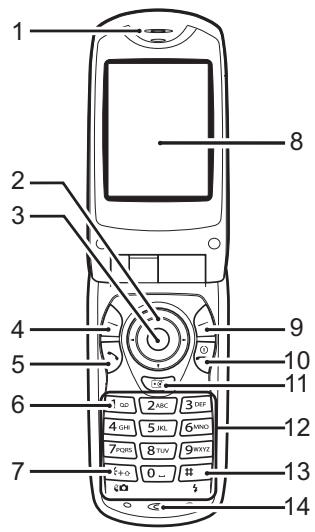
- Earpiece
- Navigation Keys (Arrow Keys):
A, C,
Moves cursor to select menu items, etc.
Up/Down arrow keys:
Displays Contacts List entries in standby mode.
Left arrow key:
Displays list of Applications in standby mode.
Right arrow key:
Displays Pictures screen in standby mode.
- Center Key:
Displays the main menu in standby mode and executes functions.
- Left Soft Key:
Executes the function at the bottom left of the screen.
- Send Key:
Makes or accepts calls, views the call in standby mode.
- Voice Mail Key:
Press and hold this key to connect to the voice mail center automatically. (Depends on the SIM card.)
- */Shift Key, Viewfinder Switch Key:
Switches character case among four modes: Abc, ABC, 123, and abc. Switches viewfinders between main display and external display in digital camera/video camera mode.
- Main Display
- Right Soft Key:
Executes the function at the bottom right of the screen. Used to access "Vodafone live!" by opening the browser in standby mode.
10. End/Power Key:
Ends a call, turns power on/off.
11. Camera Key:
Starts the digital camera in standby mode.
12. Keypad
13. /# Flash light Key:
Switches symbol screens. Press and hold this key to shift text input method between multi-tap and T9 mode.
Turns the flash/auxiliary light on or off in digital camera/video camera mode.
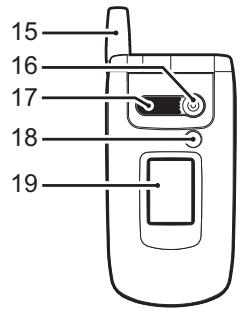
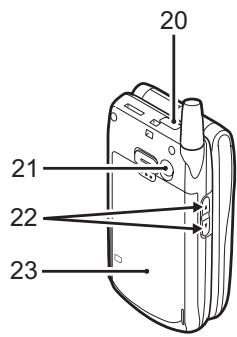
14. Microphone 15. Aerial 16. Camera 17. Speaker 18. Mobile Light:
Used as a flash or an auxiliary light in digital camera/video camera mode, as a battery charge indicator, or notification for incoming calls, data/fax calls or messages.
- External Display
- Infrared Port:
Sends and receives data via infrared.
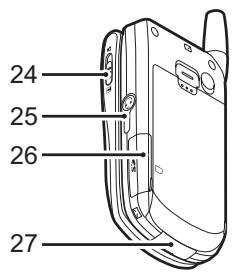
21. RF Connector 22. Side-Up/Side-Down Keys:
Moves cursor to select menu items, adjusts earpiece volume, etc. In standby mode, press and hold this key to turn the mobile light on and off. When the mobile light is on, press this key to change the light colour.
23. Battery Cover 24. Macro Switch: Switches between normal (Close-up) and macro position.
25. Handsfree Kit Connector 26. Memory Card Slot Cover 27. External Connector:
Used to connect either the charger or USB data cable.
Inserting the SIM Card and the Battery
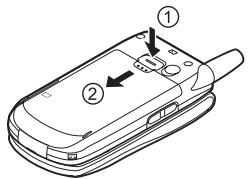
- Slide off the battery cover (①②).
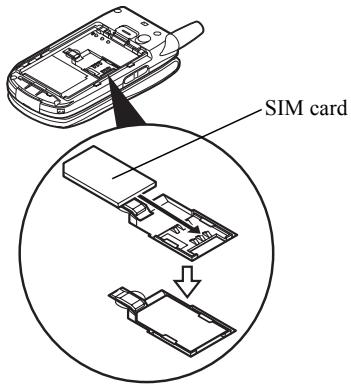
- Slide the SIM card into the SIM holder.
- Hold the battery so that the metal contacts of the battery are facing down, slide the guides on the top of the battery into the battery slots ①, and then insert it ②.
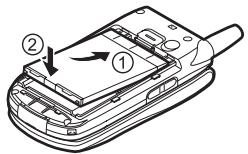
- Replace the battery cover and slide it as shown below.
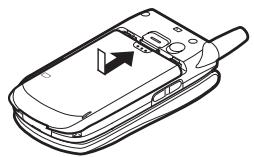
Note
- Make sure that only 3V SIM cards are used.
- Make sure that the standard accessory battery (XN-1BT30) or the optional accessory, high capacity Li-ion battery (XN-1BT31) is used.
Removing the SIM Card and the Battery
- Make sure to turn off your phone and disconnect the charger and other accessories. Slide off the battery cover ① ②.
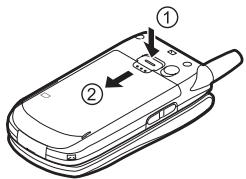
- Pick up the battery using the protruding edge and remove the battery from the phone.
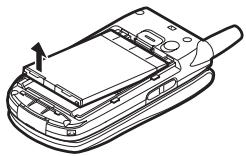
- Hold down gently ① whilst sliding the SIM card out of the SIM holder ②.
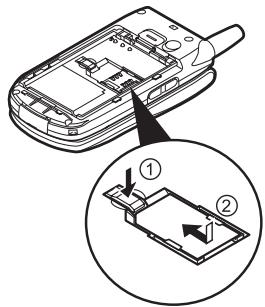
Battery Disposal
The device is supported by a battery. In order to protect the environment, please read the following points concerning battery disposal:
- Take the used battery to your local waste depot, dealer or customer service centre for recycling.
- Do not expose the used battery to an open flame, into water or dispose with the household waste.
Charging the Battery
You must charge the battery for at least 2 hours before using your phone for the first time.
Using the Charger
- Connect the charger to the external socket located at the bottom of the phone by pressing both sides indicated with arrows, and connect to an AC outlet.
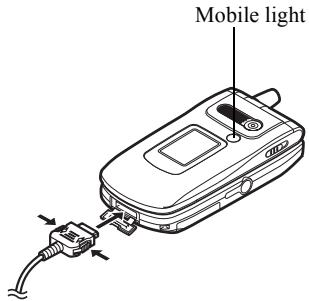
The mobile light lights red.
Standard charging time: Approx. 2 hours.
Note
- Charging time may vary depending on the state of the battery and other conditions. (See "Battery" on page 167.)
To Disconnect the Charger
Push and hold the side buttons of the charger, then disconnect the charger from the external socket of the phone.
- When charging is complete, the mobile light turns off. Unplug the charger from the AC outlet, then unplug the charger connector from the phone.
Note
- Do not use any non-approved charger, as this may damage your phone and invalidate any warranty. Please see "Battery" on page 167 for details.
- When the phone is charging, the animated battery status icon (Figure 1) in the upper right of the screen displays the current status.
To Charge Using the Cigarette Lighter Charger: The optional cigarette lighter charger supplies power for charging from the cigarette lighter socket of a car.
Battery Level Indicator
The current battery level is displayed in the upper right-hand side of the main display and the external display.
Low Battery During Use
When the battery is running low, an alarm will sound and the "□" is displayed on the main display and the external display.
If you are using your phone and you hear the "low battery" alarm, attach your charger as soon as possible. The phone may not be able to continue normal operation if you continue to use it. The battery may only last approximately five minutes before the phone itself powers down during a call.
| Battery Indicators | Charge Level |
| III | Sufficiently charged |
| III | Partially charged |
| II | Charging recommended |
| I | Charging required |
| □ | Empty |
Inserting the Memory Card
- Turn off the phone.
- Open the memory card slot cover.
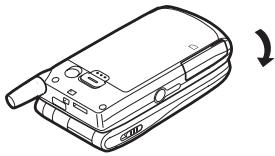
- Insert the memory card all the way in.
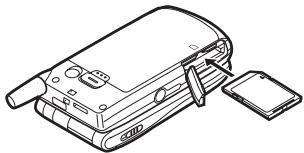
- Close the cover.
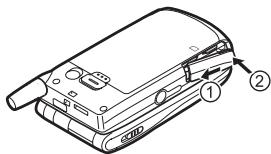
Note
- The miniSD memory card cannot be used with your phone.
- Make sure that the phone is turned off before inserting the memory card.
- Use only SD memory cards up to 512 MB, or MMC up to 128 MB.
- Be sure to insert the card in the correct direction and orientation.
- The SD memory card has a write-protect switch that prevents you from deleting memory contents by accident. If you slide the switch to the lock position, you cannot save or delete files.
- Do not open the memory card cover whilst the memory card is being formatted or written to. The card may be damaged beyond use.
- Keep all memory cards out of the reach of small children.
Memory Card Folder Configurations
Four folders entitled PICTURES, SOUNDS, VIDEOS, BACKUP are created on the memory card. The pictures and sounds, and video clips are stored in each entitled folder.
Tip
- You see the following indicators when the memory card is in use:
: Appears when the card is inserted. : Appears when the card is inserted and locked. : Appears when the card is damaged or unusable. : Appears when the card is locked and damaged or unusable. : Appears when the card is being written or read. : Appears when the card is being formatted.
Removing the Memory Card
- Open the memory card slot cover, remove the card, and close the cover.
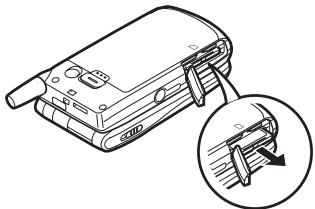
Note
- Make sure that the phone is turned off before removing the memory card.
- Do not remove the memory card whilst the memory card is being formatted or written to.
Turning Your Phone On and Off
To turn the power on, press and hold the power key for approximately 2 seconds.
The standby screen is displayed.
To turn the power off, press and hold the power key for approximately 2 seconds.
To Enter the PIN Code
If activated, you are asked to enter a PIN (Personal Identification Number) code after turning on your phone.
- Enter your PIN code.
- Press OK.
Note
- If your PIN code is entered incorrectly three times in a row, the SIM card is locked. See "Enabling/Disabling the PIN Code" on page 155.
To Copy Contacts List from the SIM Card: When you insert the SIM card into your phone for the first time and start the Contacts List application, you are asked whether you wish to copy Contacts List entries on the SIM card. Follow the on-screen instructions, or you can do it later using the Contacts List menu as follows:
- Press OK to display the Main menu.
- Press the navigation key to highlight "Contacts", then press OK to select.
- Press or to highlight "Contacts List", then press to select.
- Press [Options] to display Options menu.
- Press or to highlight "Advanced", then press or [Select] to select.
- Press or to highlight "Copy All Entries", then press to select.
- Press or to highlight "From SIM to Handset", then press to select.
- Press [Yes] to start copying. To cancel copy, press [No] in step 8.
Display Indicators (Main Display)
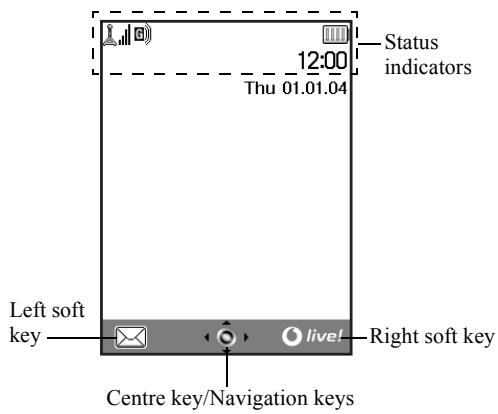
Status Indicators
- | / | : Strength of received signal/Service out of range
- GPRS enabled and within range—flashes during GPRS transmission
- Text message alerts [unread/emailbox full]
- Multimedia message alerts [unread/ mailbox full]
- 2: USB data cable connected
- R i / R i "Infrared" connection [enabled (grey)/ communicating (red)]
- 串 /串 : Bluetooth wireless setting [enabled/ communicating]
- Memory card (p. 14) inserted
- JavaTM application [executed (colour)/ suspended (grey)]
- (No display)
Current profile [Normal/Activity/Car/Headset/Silent]
- T9: T9 text input method enabled
- Abc / ABC / abc / 123 :
Current text input method [First letter upper case/Upper case/Lower case/Numeric]
- "Diverts" (p. 144) set to "All Calls"
- 3/3: Secured WAP page displayed
- Call incoming
- Call in progress
- CSD/GPRS in progress
- Fax communication in progress
- Battery level
- Roaming outside network
- √/ / √: "Ringer Volume" (p. 118) set to "Silent"/Vibration (p. 119) [enabled/ enabled when silent]
- WAP alert
- Outbox contains unsent multimedia messages
- Voicemail message alert
- Daily alarm enabled
- 日 /日 : Schedule entry enabled [with/without a reminder alarm]
Display Indicators (External Display)
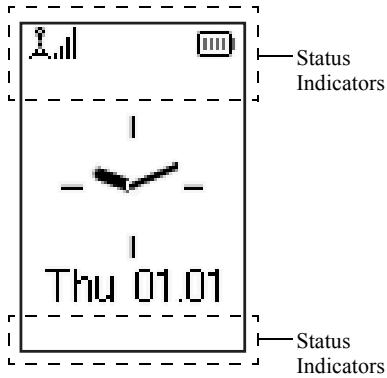
Status Indicators
- Strength of received signal
- Message alerts [Text message/Multimedia message/WAP]
- + Call incoming
- Call in progress
- CSD/GPRS in progress
- Fax communication in progress
- Battery level
- [3]: GPRS enabled and within range—flashes during GPRS transmission
- Outbox contains unsent multimedia messages
- "Ringer Volume" (p. 118) set to "Silent"/Vibration (p. 119) [enabled/ enabled when silent]
- w : "Diverts" (p. 144) set to "All Calls"
- Roaming outside network
- ②: USB data cable connected
- Infrared connection [enabled (grey)/communicating (red)]
- 串/串 : Bluetooth wireless setting [enabled/ communicating]
- Daily alarm enabled
- 5: Schedule entry enabled [with/without a reminder alarm]
- Memory card (p. 14) inserted
Call Functions
Making a Call
- Enter the area code and the phone number you wish to dial. If you enter the wrong number, press [Clear] to delete the number to the left of the cursor.
- Press to dial.
Emergency Calls
- Enter 112 or 911 (international emergency number) using the keypad.
- Press to dial.
Note
- Emergency calls may not be available on all mobile phone networks when certain network services and/or phone features are in use. Contact your network operator for more information.
- This Emergency number can normally be used to make an emergency call in any country, with or without a SIM card inserted, if a GSM network is within range.
International Calls
- Press and hold [0] until a "+" (international dialling prefix) sign is displayed.
- Enter the country code, followed by the area code and the number.
- Press to dial.
Note
- Enter the area code omitting the first 0 when making international calls, in most cases. (It differs for some countries.)
Speed Dialling
Up to 9 phone numbers from the Contacts List memory (Handset and SIM) can be assigned to speed dials. You can call the numbers using the digit keys (2 to 9 and 0).
For details on setting the Speed Dial List, see "Speed Dial List" on page 43.
- To dial a number using the speed dial, press and hold any of the digit keys (2 to 9 and 0). The phone number stored in the Speed Dial List is dialled.
Redialling
You can redial numbers in the call log. Select from specific categories or "All Calls". Specific category contains up to 10 numbers and the "All Calls" list contains up to 30.
- Press during standby.
- Press or to switch logs between "All Calls", "Dialled Numbers", "Missed Calls" and "Received Calls".
- Press or to highlight the number you wish to call.
- Press to redial the call.
Automatic Redialling
This setting allows you to automatically redial the number if the first attempt was unsuccessful because the called party was busy.
If you wish to stop redialling, press or [End].
To Set the Auto Redial Function
- Press ○ to display the Main menu.
- Press □ or to highlight "Settings", then press ○ to select.
- Press or to highlight "Call Settings", then press to select.
- Press or to highlight "Auto Redial", then press ○ to select.
- Press or to highlight "On" to enable the Auto Redial function or "Off" to disable it, then press ○.
Note
- When you receive an incoming call, the Auto Redial function is interrupted. Automatic redialling is not available for fax and data calls.
Ending a Call
- Press to end the call.
Tip
- When the handsfree kit is connected to the phone, you can end calls by pressing the Answer button.
Answering a Call
When an incoming call is detected, the phone rings and the mobile light flashes.
- Open your phone.
- Press or [Answer] to answer the call. Or press any key except and [Busy] when the "Any Key Answer" function is enabled. Set the Any Key Answer function in the profile of each mode. (p. 123)
Tip
- When the handsfree kit is connected to the phone, you can answer calls by pressing the Answer button.
- When the handsfree kit is connected to the phone and the Any Key Answer function is enabled, you can answer calls by pressing the side-up or side-down key.
- If you have subscribed to the Calling Line Identification (CLI) service and the caller's network sends the number, the caller's number is displayed on the screen. If the caller's name and number are stored in the Contacts List, the caller's name and phone number are displayed on the screen.
- If the number is a restricted number, the display shows "Withheld".
- When receiving a call from the person whose picture is registered in the Contacts List, receiving display and the picture are displayed alternately.
Rejecting an Incoming Call
You can reject a call you do not wish to answer.
- Press or press and hold the side-up or side-down key whilst the phone is ringing.
Letting the Caller Know You are Unavailable
You can send a busy tone to the caller of an incoming call letting them know that you cannot answer the call.
- Press [Busy] whilst the phone is ringing.
In-call Menu
Your phone has additional functions available whilst a call is in progress.
Adjusting the Earpiece Volume
During a call, you can adjust the earpiece volume (and handsfree volume, if connected).
- During a call, press the side-up or side-down key to display the Earpiece Volume screen.
- Press the side-up key or to increase the volume of the call or press the side-down key or to decrease the volume. Five levels (level 1 to 5) are selectable.
- Press when the volume is set to the desired level. The phone returns to the in-call screen automatically if left unoperated.
Putting a Call on Hold
This function allows you to manage two calls at the same time. If you wish to make another call whilst you are talking to someone, you can put the current call on hold to call someone else.
To Make Another Call during a Call
- During a call, press [Options] to display the Options menu.
- Press or to highlight "Hold", then press or [Select] to select.
The current call is put on hold.
To retrieve a call, press [Options] and press or to highlight "Retrieve", then press or [Select] to select.
- Enter the phone number you wish to make another call to, then press .
Tip
- You can also make another call by entering the phone number during a call instead of steps 1 and 2. The current call is automatically put on hold.
Call Waiting
This service notifies you of another incoming call whilst you have a call in progress.
- During a call, press [Options] and press or to select "Hold & Answer", then press or [Select] to answer the second call. The first call is put on hold and you can now talk to the second caller.
- Press [Options] and press or to highlight "Swap Calls", then press or [Select] to switch between the two calls.
- Press [Options] and press or to highlight "Release Call", then press or [Select] to end the current call and return to the held call.
Note
- You need to set "Call Waiting" to "On" if you use the Call Waiting service (p. 141).
- Call Waiting service may not be available on all networks. Contact your network operator for more information.
- If you do not wish to answer the second call, press [Busy], or press [Options], then press or to highlight "Busy" or "Reject", then press or [Select] in step 1. If "Reject" is selected, the call log of the second call is saved as a missed call.
Accessing SMS Menu During a Call
- During a call, press [Options] and press or to highlight "Text", then press or [Select] to select. The following options are available: "Create Message" to make an SMS, or "Inbox", "Sent" or "Drafts" to access these folders. For details on SMS, see "Text (SMS)" on page 65.
Conference Call
Conference call is a call with more than 2 participants. You may include up to 5 participants in a conference call.
To Make a Conference Call
To make a conference call, you must have one active call and one held call.
- Press [Options] to display the Options menu.
- Press or to highlight "Multiparty", then press [Select] to select.
- Press or to highlight "Conference All", then press [Select] to join the conference call.
- Press [End] to end the conference call.
Note
- Conference call service may not be available on all networks. Contact your network operator for more information.
- You have more options for the Conference call in step 3:
- To put all participants on hold, select "Conference Hold All".
- To put all participants except the current call on hold, select "Private". To end the call with all participants, select "Release All".
- To disconnect from the conference call but still allow the other participants to continue talking together, select "Transfer".
- To put the current call on hold and continue to have a conference call with the remaining participants, select "Exclude".
- To reject adding more participants to the current party, select "Reject", or you can send the busy tone by selecting "Busy".
To Add New Participants to the Conference Call
- Press [Options] to display the Options menu.
- Press or to highlight "Dial", then press or [Select] to select.
- Enter the number you wish to include in the conference call.
- Press to dial.
- Press [Options] to display the Options menu.
- Press or to highlight "Multipartary", then press or [Select] to select.
- Press or to highlight "Conference All", then press to join the conference call. If you wish to add other participants, repeat steps 1 to 7.
To End the Call with a Conference Call Participant
- During a conference call, press or to highlight the person that you wish to disconnect from the conference call.
- Press [Options] to display the Options menu.
- Press or to highlight "Release Call", then press or [Select] to select.
To Have a Private Conversation with One of the Participants
If you wish to have a private conversation with one of the participants, you may select the participant from the conference list and put the other participants on hold.
- During the conference call, press or to highlight the person that you wish to talk to.
- Press [Options] to display the Options menu.
- Press or to highlight "Multipartary", then press or [Select] to select.
- Press or to highlight "Private", then press to select.
- Once you have finished the private conversation, press [Options] and highlight "Multiparty", then press or [Select] to select.
- Press or to highlight "Conference All", then press to return to the conference call.
Muting the Dial Tone (DTMF Tone)
- During a call, press [Options] and press or to highlight "DTMF Tones Off", then press or [Select].
To unmute the dial tone, highlight "DTMF Tones On" in step 1.
Muting the Microphone
- During a call, press [Mute] to mute the microphone.
To unmute the microphone, press [Unmute].
Entering Characters
When entering characters to create Contacts List entries, text messages or multimedia messages, etc., press the corresponding keys.
In multi-tap input method, press each key until the desired character is displayed. For example, press 2 once for the letter "A" or twice for the letter "B".
Table of Characters
Pressing each key scrolls characters in the following order. The order varies depending on the language selected.
English Mode
| Key | Upper Case Characters | Lower Case Characters | Numeric |
| 1oo | (full-stop) , (comma) - (hyphen) ? ! , (apostrophe) @ :1 | 1 | |
| 2ABC | ABC2 | abc2 | 2 |
| 3DP | DEF3 | def3 | 3 |
| 4GH | GHI4 | ghi4 | 4 |
| 5KL | JKL5 | jk15 | 5 |
| 6MNO | MNO6 | mno6 | 6 |
| Key | Upper Case Characters | Lower Case Characters | Numeric |
| 7pqs | PQRS7 | pqrs7 | 7 |
| 8tuv | TUV8 | tuv8 | 8 |
| 9wxyz | WXYZ9 | wxyz9 | 9 |
| 0~ | (space) + = < > £ £ ¥ % & 0 | 0 | |
| x+o | Switches character case among four modes: Abc, ABC, 123 and abc. | ||
| # | . ; ? ! ; - + # * @ ' " ( ) & € £ $ % / ~ < > $ = \ | ¥ i ^ [ ] { } □ Å Å A é à a é à C E é é i N ð ð ð ð ð ð ð ð ð ð ð ð ð ð ð ð ð ð ð ð ð ð ð ð ð ð ð ð ð ð ð ð ð ð ð ð ð ð ð ð ð ð ð ð ð ð ð ð ð ð ì ì ì ì ì ì ì ì ì ì ì ì ì ì ì ì ì ì ì ì ì ì ì ì ì ì ì ì ì ì ì ì ì ì ì ì ì ì ì ì ì ì ì ì ì ì ì ì ì ì ë | ||
109W9: Press and hold to enter 0-9 numbers.
0
Press and hold to enter *.
Press and hold to shift between multi-tap and T9 mode.
Changing the Input Languages
You can change the input language on the text entry screen.
- On the text entry screen, press [Options] to display the Options menu.
- Press the navigation key to highlight "Input Language", then press the center key or [Select] to select.
- Press the navigation key to highlight the language you wish to change, then press the center key to select.
Changing the Input Method
T9 Text Input
T9 text input method is a shortcut to enter text easily and quickly.
- On the text entry screen, press [Options] to display the Options menu.
- Press the navigation key to highlight "Input Method", then press the center key or [Select] to select.
- Press the navigation key to highlight the T9 mode (T9 Abc, T9 ABC, T9 abc) you wish to change, then press the center key to select.
"T9" is displayed on the main display.
- Press each key once for any letter you require on that key. To enter the word "How", press 4-6-9.
- If the word shown isn't the one you want, press the navigation key until you highlight the correct one.
- Press the center key to select the word.
Note
- If the correct word is not shown in step 5, enter the correct word again after switching to the multi-tap input method.
Tip
- If you press 0 instead of step 6, a space is inserted next to the selected word.
Symbols and Punctuations
To enter symbols or punctuation, press 串
Using Text Templates
You can use the sentences registered in Text Templates when entering characters.
For details on creating the text template, see "Adding Phrases to Text Templates" on page 91.
- On the text entry screen, press 喜, or move the cursor to the point you wish to insert the template.
- Press [Options] to display the Options menu.
- Press or to highlight "Text Template", then press [Select] to select.
- Press or to highlight the text template you wish to use, then press to select. The selected text template is inserted.
Copying, Cutting and Pasting Text
Using these options, you can complete editing smoothly.
To Copy and Cut Text
- On the text entry screen, press [Options] to display the Options menu.
- Press or to highlight "Copy" or "Cut", then press [Select] to select.
- Press the navigation keys to move the cursor to the first letter to be copied or cut, then press the select key.
- Press the navigation keys to move the cursor to the last letter to highlight the area, then press the select key.
To Paste Text
- On the text entry screen, press the navigation keys to move the cursor to the point where you wish to paste the letters.
- Press [Options] to display the Options menu.
- Press the navigation keys to highlight "Paste", then press the select key or [Select] to select. Saved text is pasted.
Using the Menu
Using the Main Menu
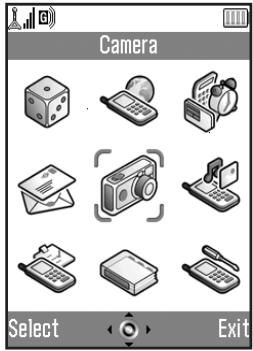
- Press the navigation keys during standby. The Main menu is displayed.
- Navigation is required.
- Press the select key to access function.
Shortcut Keys
You can shortcut to the specified menus by pressing the select key and digit keys for the menu's corresponding number on the Main menu. See the following table for reference. Shortcuts are listed in the headings of this manual. For example: "M 9-1-1".
Example: To Access "Language" Sub Menu Using Shortcut Keys
Press


Note
- The shortcut keys work for the first three menu levels only.
List of Menu Functions
| Menu No./ Main Menu | Menu No./ Sub Menu1 | |
| 1 Games & More | 1 Applications 2 Screensavers 3 More Games 4 Settings 5 Java™ Information | |
| 2 Vodafone live! | 1 Vodafone live! 2 Games 3 Ringstones 4 Pictures 5 News 6 Sport 7 Find & Seek 8 Chat 9 Search | |
| 3 Applications | 1 SIM Application* 2 MP3 Player 3 Calendar 4 Alarms 5 Calculator 6 Voice Recorder 7 Melody Editor 8 Phone Help | |
| 4 Messages | 1 Create Message 2 Multimedia 3 Text 4 live! Studio 5 Vodafone Mail 6 Messenger 7 Cell Broadcasts 8 Area Info | |
| Menu No./Main Menu | Menu No./Sub Menu1 | |
| 5 | Camera | 1 Take Picture2 Record Video |
| 6 | My Stuff | 1 Pictures2 Games & More3 Sounds4 Videos5 Bookmarks6 Text Templates7 Memory Status |
| 7 | Profiles | 1 Normal2 Activity3 Car4 Headset5 Silent |
| 8 | Contacts | 1 Contacts List2 Add New Contact3 Call Log4 Speed Dial List5 My Numbers6 Call Timers7 Data Counter8 Call Costs*9 Service Dialling No.* |
| 9 | Settings | 1 Phone Settings2 Call Settings3 Diverts4 Memory Card5 Connectivity6 Internet Settings7 Network Settings8 Security9 Master Reset |
- Depends on SIM card contents.
Contacts List (M 8-1)
You can store the phone numbers and e-mail addresses of your friends, family and colleagues in the Contacts List.
Depending on the size of the entry, your phone can store up to 640 entries. In a Contacts List, you can store the following items.
Items stored in the handset memory
First Name
Last Name
Tel Mobile
Tel Private
Tel Office
E-mail Private
E-mail Business
Group
Address
Note
Items stored in the SIM memory
Name: The number of characters that can be stored differs depending on the SIM card you use.
Phone: Up to 40 digits
Using the infrared or Bluetooth wireless function, you can send the Contacts List entry to a PC to share the same entries.
Displaying the Contacts List
- Press ○ to display the Main menu.
- Press ⊙, ⊙, or to highlight "Contacts", then press ⊙ to select.
- Press or to highlight "Contacts List", then press to select.
Selecting the Storage Memory
You can store new entries in the Contacts Lists (either in the handset memory or the SIM card memory) or view currently saved entries.
- Perform steps 1 to 3 in "Displaying the Contacts List" on page 34.
- Press [Options] to display the Options menu.
- Press or to highlight "Advanced", then press or [Select] to select.
- Press or to highlight "Save New Contacts", then press to select.
- Press or to highlight "To Handset", "To SIM" or "Choose before Saving", then press to select.
Tip
- "Choose before Saving" prompts you to choose the memory every time you save a new entry.
Changing the List Displayed
- Perform steps 1 to 3 in "Displaying the Contacts List" on page 34.
- Press [Options] to display the Options menu.
- Press or to highlight "Advanced", then press or [Select] to select.
- Press or to highlight "Contacts Location", then press to select.
- Press or to highlight "Handset Memory", "SIM Memory" or "Both", then press to select.
Changing the Name Order
- Perform steps 1 to 3 in "Displaying the Contacts List" on page 34.
- Press [Options] to display the Options menu.
- Press or to highlight "Advanced", then press or [Select] to select.
- Press or to highlight "Name Order", then press to select.
- Press or to highlight "First - Last name" or "Last - First name", then press to select.
Add New Contact (M 8-2)
You can choose either the phone or SIM card memory locations to store the new entry. For switching locations, see "Selecting the Storage Memory".
The amount of phone numbers that you can store to the SIM card is dependent on its capacity. Contact your network operator for details.
- Perform steps 1 and 2 in "Displaying the Contacts List" on page 34.
- Press or to highlight "Add New Contact", then press to select.
If you select the "Choose before Saving" option for the memory to be used, the selection is between "To Handset" and "To SIM".
- Press or to highlight the field you wish to fill in, then press to select and enter the relevant information.
- Press [Save] when finished.
Tip
- To create an entry, at least one field must be filled. If you create a new entry on the SIM card, you need to enter a phone number.
Adding a Thumbnail to Entries
You can add a thumbnail to an entry in the handset memory.
- Perform steps 1 to 3 in "Displaying the Contacts List" on page 34.
- Press or to highlight the desired entry, then press to select.
- Press [Options] to display the Options menu.
- Press or to highlight "Edit", then press or [Select] to select.
- Press [Options] to display the Options menu.
- Press or to highlight "Picture", then press or [Select] to select.
- Press or to highlight the desired picture, then press to select.
- Press [Save] when finished.
Note
- Only pictures stored in the handset memory can be used as thumbnails.
- From the Contacts List entry that has a thumbnail added, you can change or delete it by selecting "Change" or "Remove" after step 6.
- If you delete a picture added as a thumbnail in the handset memory, the corresponding thumbnail is also removed.
- If the picture size exceeds 240 dots [W] or 320 dots [H], specify the area you wish to display.
Copying Contacts List Entries between SIM Card and Handset
- Perform steps 1 to 3 in "Displaying the Contacts List" on page 34.
- Press [Options] to display the Options menu.
- Press or to highlight "Advanced", then press [Select] to select.
- Press or to highlight "Copy All Entries", then press [Select] to select.
- Press or to highlight "From SIM to Handset" or "From Handset to SIM", then press to select.
Note
- When you insert the SIM card into your phone for the first time and start the Contacts List application, the confirmation screen appears automatically, asking you if you wish to copy or not. The number of Contacts List entries to be copied varies depending on the SIM capacity.
Copying a Single Entry from Handset to SIM Card
- Perform steps 1 to 3 in "Displaying the Contacts List" on page 34.
- Press or to highlight the desired entry, then press to select.
- Press or to highlight the desired phone number.
- Press [Options] to display the Options menu.
- Press or to highlight "Copy to SIM", then press [Select] to select.
Finding a Name and Number
- Perform steps 1 to 3 in "Displaying the Contacts List" on page 34.
- Enter the first few letters of the name. The matching entry is highlighted. If there is no entry in the Contacts List that satisfies the exact search criteria, the name that is nearest alphabetically is displayed.
Tip
- You can select the Contacts location from "Handset Memory", "SIM Memory" or "Both" before searching. To view the details of the item such as address, highlight the desired item, press [Options], then select "View".
Dialling from the Contacts List
- Perform steps 1 to 3 in "Displaying the Contacts List" on page 34.
- Press or to highlight the desired entry, then press [D].
Tip
- If more than one phone number is registered for the entry, select the desired phone number after step 1 and press [OK]. You can also dial the desired phone number by pressing the digit key corresponding to the position the entry is on the list.
- You can also dial from the details screen of the Contacts List. On the details screen, select the desired phone number and press [D].
Editing Contacts List Entries
- Perform steps 1 to 3 in "Displaying the Contacts List" on page 34.
- Press [Options] to display the Options menu.
- Press or to highlight "Edit", then press [OK] or [Select] to select.
- Press or to highlight the field you wish to edit, then press and modify the information.
- Press [Save] when finished.
Deleting Contacts List Entries
Deleting All Contact Entries
- Perform steps 1 to 3 in "Displaying the Contacts List" on page 34.
- Press [Options] to display the Options menu.
- Press or to highlight "Advanced", then press or [Select] to select.
- Press or to highlight "Delete All Entries", then press to select.
- Enter your handset code, then press
- Press or to highlight "Handset Entries" or "SIM Entries", then press to select. The default handset code is "0000". For details on changing the handset code, see "To Change Handset Code" on page 156.
Deleting a Contact Entry
- Perform steps 1 to 3 in "Displaying the Contacts List" on page 34.
- Press or to highlight the desired entry.
- Press [Options] to display the Options menu.
- Press or to highlight "Delete", then press or [Select] to select.
Viewing Groups
You can set group icons when storing Contacts entries so that you can easily find and edit them.
- Perform steps 1 to 3 in "Displaying the Contacts List" on page 34.
- Press [Options] to display the Options menu.
- Press or to highlight "Group", then press or [Select] to select.
- Press or to highlight "View Groups", then press to select.
- Press or to highlight the desired group, then press to select. " appears next to the selected group. Select the group again to cancel, and the checkbox becomes unchecked.
Note
- This menu is available when the Contacts location is set to "Handset Memory".
Tip
- Press [Options] and select "Select Current Only" to view only the selected group or "Select All" to view all groups.
Group Call
Different ringtones can be set for each group. When you purchase this phone, groups are set to off. If you do not set a group ringtone, the ringtone assigned in the Profiles menu is used.
- Perform steps 1 to 3 in "Displaying the Contacts List" on page 34.
- Press [Options] to display the Options menu.
- Press the navigation keys to highlight "Group", then press [Select].
- Press the navigation keys to highlight "Group Call", then press [Select].
- Press the navigation keys to highlight the desired group, then press [Select].
- Press the navigation keys to highlight "On" or "Off", then press [Select].
- Press the navigation keys to highlight "Assign Ringtone", then press [Select].
- Press the navigation keys to highlight "Preset Sounds" or "My Sounds", then press [Select].
- Select the desired ringtone.
For details on selecting a ringtone, see "Assigning Ringtone" on page 119.
- Press the navigation keys to highlight "Vibration", then press [Select].
- Press the navigation keys to highlight "On", "Off" or "On & Link to Sound", then press [Select]. For details on selecting a vibration, see "Vibration" on page 119.
- Press the navigation keys to highlight "Light Colour", then press [Select].
- Press the navigation keys to highlight the desired colour, then press [Select]. For details on setting the light colour, see "Light Colour" on page 120.
- Press [OK].
Note
- This menu is available when the Contacts location is set to "Handset Memory".
Assigning a Ringtone to Each Contacts List Entry
A specified ringtone or vibration setting can be assigned to a pre-registered entry.
- Perform steps 1 to 3 in "Displaying the Contacts List" on page 34.
- Press or to highlight the desired entry.
- Press [Options] to display the Options menu.
- Press or to highlight "Edit", then press or [Select] to select.
- Press [Options] to display the Options menu.
- Press or to highlight "Ringtone", then press or [Select] to select.
- Press or to highlight "On" or "Off", then press to select.
- Press or to highlight "Assign Ringtone", then press to select.
- Press or to highlight "Preset Sounds" or "My Sounds", then press to select.
- Select the desired ringtone. For details on selecting a ringtone, see "Assigning Ringtone" on page 119.
- Press or to highlight "Vibration", then press to select.
- Press or to highlight "On", "Off" or "On & Link to Sound", then press to select. For details on selecting a vibration, see "Vibration" on page 119.
- Press or to highlight "Light Colour", then press to select.
- Press or to highlight the desired colour, then press to select. For details on setting the light colour, see "Light Colour" on page 120.
- Press [OK].
- Press [Save].
Making a Backup File on the Memory Card
With a memory card attached to your phone, you can make backup files of Contacts List entries in the handset memory and SIM card to the memory card.
- Perform steps 1 to 3 in "Displaying the Contacts List" on page 34.
- Press [Options] to display the Options menu.
- Press or to highlight "Advanced", then press or [Select] to select.
- Press or to highlight "Memory Card", then press to select.
- Press or to highlight "Backup", then press to select.
- Enter your handset code, then press A confirmation message for overwriting is displayed if a backup file already exists in the memory card. Backup is performed.
Restoring a Backup File
- Perform steps 1 to 3 in "Displaying the Contacts List" on page 34.
- Press [Options] to display the Options menu.
- Press or to highlight "Advanced", then press ○ or [Select] to select.
- Press or to highlight "Memory Card", then press to select.
- Press or to highlight "Restore", then press to select.
- Enter your handset code, then press ○
- Press or to highlight "Handset Entries" or "SIM Entries", then press to select. If the handset memory or SIM memory contains one or more entries, a confirmation message is displayed asking you whether you wish to replace all entries in the handset memory or SIM memory with the backup file.
- Press [Yes]. To cancel restoring, press [No] in step 8.
Note
- It is not recommended to stop the backup or restoring procedure. It will damage the data.
- The data stored from GX30 cannot be restored to GX30i.
Deleting a Backup File
- Perform steps 1 to 3 in "Displaying the Contacts List" on page 34.
- Press [Options] to display the Options menu.
- Press or to highlight "Advanced", then press ○ or [Select] to select.
- Press or to highlight "Memory Card", then press to select.
- Press or to highlight "Delete Backup File", then press to select.
- Enter your handset code, then press ○. A confirmation message is displayed.
- Press [Yes]. To cancel deletion, press [No] in step 7.
Memory Status
This function helps you to check the memory used in the Contacts List.
- Perform steps 1 to 3 in "Displaying the Contacts List" on page 34.
- Press [Options] to display the Options menu.
- Press or to highlight "Advanced", then press ○ or [Select] to select.
- Press or to highlight "Memory Status", then press to select.
You can check the memory status of the SIM card and handset.
Speed Dial List
You can set a maximum of 9 phone numbers in the Speed Dial List (p. 125).
Setting Contacts List Entries in the Speed Dial List
- Perform steps 1 to 3 in "Displaying the Contacts List" on page 34.
- Press or to highlight the desired entry, then press to select.
- Press or to highlight the desired phone number.
- Press [Options] to display the Options menu.
- Press or to highlight "Add to Speed Dial" then press or [Select] to select.
- Press or to highlight the desired list number, then press to select.
Tip
- The nine digit keys correspond to list numbers. To view the speed dial list, see page 125.
Sending a Contacts List Entry
- Perform steps 1 to 3 in "Displaying the Contacts List" on page 34.
- Press or to highlight the desired entry.
- Press [Options] to display the Options menu.
- Press or to highlight "Send Contact", then press or [Select] to select.
- Press or to highlight "Via Bluetooth" or "Via Infrared", then press to select.
For "Via Bluetooth"
The phone starts searching for Bluetooth wireless technology enabled devices within 10 metres.
When detected, a list of enabled devices is displayed allowing you to select the desired device. The connection can be established and the entry sent.
For "Via Infrared"
The phone starts searching for an infrared-enabled device within 20 centimetres.
When detected, the infrared connection is established and the entry is sent.
Note
- When pairing, you need to enter your passcode when establishing contact with a Bluetooth wireless technology enabled device for the first time except when "Authentication" (p. 150) is set to "Off".
Receiving a Contacts List Entry
When the phone receives a Contacts List entry, a confirmation message appears in the standby mode screen.
- Press [Yes].
The received entry is registered in the Contacts List. Press [No] to reject.
Tip
- For details on making Infrared or Bluetooth wireless settings, see "Connectivity" on page 147.
Dialling a Service Phone Number
Certain SIM cards contain service phone numbers that can be dialled. Contact your SIM card vendor for more information. On the Contacts screen, "Service Dialling No." is displayed at the bottom of the list.
- Perform steps 1 and 2 in "Displaying the Contacts List" on page 34.
- Press or to highlight "Service Dialling No.", then press to select.
- Press or to highlight the desired service phone number, then press to select.
Tip
- If the SIM card contains only one service phone number, you can dial it in step 2 by pressing .
- If no service phone number is stored in the SIM card, this menu is not displayed.
Camera (M 5)
Your phone has an integrated digital camera.
This allows you to take and send pictures or video clips wherever you are.
Take Picture (M 5-1)
Put the phone into the digital camera mode to take a picture. Pictures are saved in JPEG format in the following five picture sizes.


XXL: 858× 1144 dots
XL: 768 × 1024 dots
L: 480 × 640 dots
M: 240 × 320 dots
S: 120 × 160 dots
You can send the pictures registered in the handset memory or memory card with your message.
Selecting the Memory
When using the memory card, you can choose the memory before taking pictures.
- In digital camera mode, press [Options]. The Options menu is displayed.
- Press or to highlight "Save New Pictures", then press or [Select] to select.
- Press or to highlight "To Handset", "To Memory Card" or "Choose before Saving", then press to select.
Memory indicators
: Indicates the handset memory where the pictures are saved. : Indicates the memory card where the pictures are saved.
Taking Pictures
- Press to display the Main menu.
- Press , , or to highlight "Camera", then press to select.
- Press or to highlight "Take Picture", then press to select.
The preview is displayed through the main display.
- Press or the side-down key to take the picture. The shutter sounds and the still image of the taken picture is displayed.
- Press [Save].
If you have selected "Choose before Saving" when saving, the memory card is not inserted, or memory has run out, press or to highlight "Save to Handset" or "Save to Card", then press
"Saving (file name) to My Stuff..." is displayed, then the picture is registered.
- Press to return to standby.
Remaining shots indicators
123: Indicates the remaining number of pictures that can be taken. **: Indicates the remaining number of pictures that can be taken exceeds 999. ???: Indicates a memory card is not inserted or cannot be recognized by the phone. (When "To Memory Card" is selected for the "Save New Pictures" option) ---: Indicates setting of "Save New Pictures" is "Choose before Saving".
Tip
- Pressing during standby also activates digital camera mode.
- If you wish to send a picture by multimedia message after taking the picture, press ⑤ before step 5. Then select "Multimedia" or "live! Postcard". (The Postcard service is not available on some service providers. Please contact your service provider for more information.) Large MMS messages may cause the size of attached pictures to be reduced. To leave digital camera mode without registering the taken picture after step 4, press 2 and then press [Yes].
- When the distance to the subject is approximately 10 cm, set the macro switch to the macro position ().
- When the distance to the subject is approximately 40 cm or more, set the macro switch to the normal position ().
To Switch the Viewfinder
You can switch the viewfinder from the main display to the external display for taking a self-portrait.
Press when the preview is displayed through the main display.
Each time you press 水水 , the viewfinder switches between the external display and the main display.
When you use the external display as the viewfinder, the taken pictures are saved automatically.
Taking Close-up Pictures
- In digital camera mode, set the macro switch to the macro position (
- Press or the side-down key to take the picture. To cancel macro mode, set the macro switch to the normal position ().
Using the Zoom Function
Press or to change the zooming ratio.
Zooming ratio indicators
Zoom : Indicates the magnification.
Note
- When "Picture Size" is set to "S", the zoom function has 20 steps.
- When "Picture Size" is set to "M", the zoom function has 10 steps.
- When "Picture Size" is set to "L", the zoom function has 5 steps.
- When "Picture Size" is set to "XXL" or "XL", you cannot use the zoom function.
Selecting the Picture Size
- In digital camera mode, press [Options]. The Options menu is displayed.
- Press or to highlight "Picture Size", then press [Select] to select.
- Press or to highlight the picture size, then press to select.
Selecting the Picture Quality
- In digital camera mode, press [Options].
The Options menu is displayed.
- Press or to highlight "Picture Quality", then press [Select] to select.
- Press or to highlight "Normal" or "Fine", then press to select.
Picture quality indicators
F Fine:Fine N:Non
Retaking Pictures
After steps 1 to 4 in "Taking Pictures" on page 45, press [Cancel].
Further shooting is available.
Note
- The digital camera uses a CCD sensor. Although this camera has been manufactured to the highest specifications, some pictures may still appear too bright or too dark.
- If the phone has been left in a hot place for a long time before taking or registering a picture, the picture quality may be poor.
In the Case of No Available Memory
When the number of pictures that can be taken becomes 3 or less, the remaining shots indicator in the upper left of the screen turns red. (The number of pictures that can be taken is approximate.)
Even if the number of pictures that can be taken becomes 0, you can continue to take and save pictures until the message, "Memory full. Please delete some data!" appears. After which, you can choose the memory for saving the picture.
Adjusting the Brightness of the Picture According to Light Conditions
Press or to adjust the brightness of the picture.
Picture brightness (exposure level) indicators
Once the phone has returned to the standby screen the brightness settings return to default.
Viewing the Taken Pictures
Taken pictures in the handset memory or in the memory card can be viewed.
- In digital camera mode, press [Options]. The Options menu is displayed.
- Press or to highlight "My Pictures", then press or [Select] to select.
- Press or to highlight "Handset Memory" or "Memory Card". The list of pictures is displayed.
- Press or to highlight the file name you wish to view, then press to select. The selected picture is displayed.
- Once you have finished, press [Back] to return to the list.
Tip
- Your pictures are given file names which are "pictureNNN.jpg" for the handset memory, or "pictureNNNNN.jpg" for the memory card (NNN or NNNNN is a consecutive number). The file name (without an extension), date and size of your pictures are displayed in the list.
Using the Timer (Delay Timer)
To Take a Picture with the Delay Timer
- In digital camera mode, press [Options]. The Options menu is displayed.
- Press or to highlight "Delay Timer", then press [Select] to select.
- Press or to highlight "On", then press to select. "or" is displayed on the screen and the phone returns to digital camera mode.
- Press or the side-down key to start the delay timer. 10 seconds after the timer sounds, the shutter sounds, and the camera takes a picture.
Note
- While the delay timer is operating, the flash light (green) and the indicator flash.
- If the shutter button or the side-down key is pressed while the delay timer is operating, the picture is taken instantly.
- The zoom function with the zoom buttons, or brightness adjustment of the picture with the brightness buttons, is unavailable while the delay timer is operating.
- If you wish to stop taking pictures with the timer, press [Cancel] while the delay timer is operating.
Cancelling the Delay Timer
- Press [Options] while the delay timer setting is on. The Options menu is displayed.
- Press the up or down button to highlight "Delay Timer", then press the select button or [Select] to select.
- Press the up or down button to highlight "Off", then press the select button to select.
The indicator goes off.
Continuous Shoot
Four pictures are taken in succession. Auto Shoot and Manual Shoot are available.
Continuous Shoot indicators
When pictures are taken in Continuous Shoot mode, these indicators appear on the screen.
- When delay timer and Continuous Shoot functions are simultaneously set, the indicator is displayed instead.
- In digital camera mode, press [Options]. The Options menu is displayed.
- Press or to highlight "Continuous Shoot", then press O or [Select] to select.
- Press or to highlight "Auto Shoot" or "Manual Shoot", then press to select. To cancel Continuous Shoot, select "Off".
- Press O or the side-down key to start Continuous Shoot.
Auto Shoot: Four pictures are taken in a row by pressing O or the side-down key.
Manual Shoot: Pictures are taken one by one by pressing O or the side-down key.
When the Continuous Shoot is completed, the taken pictures are saved automatically.
To stop Continuous Shoot, press [Cancel].
Note
- When "Picture Size" is set to "XXL", "XL" or "L", you cannot use the Continuous Shoot function.
- When you select a frame for taking pictures, you cannot use the Continuous Shoot function.
- Delay timer cannot be used with the Manual Shoot setting.
Selecting a Frame
You can select the frame from preset patterns. You can also select a frame in the handset memory or in the memory card.
- In digital camera mode, press [Options]. The Options menu is displayed.
- Press or to highlight "Add Frame", then press or [Select] to select.
- Press or to highlight "Preset Frames" or "My Pictures", then press to select. If you have selected "My Pictures", press or to highlight "Handset Memory" or "Memory Card", then press to select.
- Press or to highlight the frame you wish to use, then press to select. The selected frame is confirmed on the display.
- Press
Note
- When "Picture Size" is set to "XXL", "XL" or "L", you cannot use the Frame function.
- When you activate the Continuous Shoot function, you cannot use the Frame function.
- Only the images of PNG format can be selected as the frame if you select "My Pictures" in step 3.
Selecting Light Colour
- In digital camera mode, press [Options]. The Options menu is displayed.
- Press or to highlight "Light Colour", then press or [Select] to select.
- Press or to highlight the desired colour, then press to select. To turn off the flash light, select "Off".
Tip
Each time or the side-up key is pressed, the status of the flash light changes as follows. Off → On (brightness for normal mode: → On (brightness for macro mode: → Off - If you do not operate your phone for approximately one minute, the flash light turns off automatically to save the power.
Selecting the Scene
- In digital camera mode, press [Options]. The Options menu is displayed.
- Press or to highlight "Scene Select", then press or [Select] to select.
- Press or to highlight the desired situation, then press to select. "Action" is suited for moving objects and "Night" suited for night photography.
Selecting the Shutter Sound
You can select the shutter sound from 3 preset patterns.
- In digital camera mode, press [Options]. The Options menu is displayed.
- Press or to highlight "Shutter Sound", then press [Select] to select.
- Press or to highlight the desired sound, then press to select. To play back the shutter sound, press [Play] in step 3.
Note
- Continuous Shoot uses the specialised shutter sound that cannot be changed for the above settings.
Record Video (M 5-2)
Put the phone into the video camera mode to record a video.
You can send video clips registered in the handset memory or memory card with your message.
Video clips are saved in ".3gp" format in the following modes:
Record size indicators
:Message sending mode enabled :Extended video mode enabled
Selecting the Memory
When using the memory card, you can choose the memory before recording video clips.
- In video camera mode, press [Options]. The Options menu is displayed.
- Press or to highlight "Save New Videos", then press or [Select] to select.
- Press or to highlight "To Handset", "To Memory Card" or "Choose before Saving", then press to select.
Recording Video Clips
Sound can be recorded with the video clip.
- Press to display the Main menu.
- Press , , or to highlight "Camera", then press to select.
- Press or to highlight "Record Video", then press to select.
The preview is displayed through the main display.
- Press [OK] or the side-down key to start recording the video clip.
The sound for recording the video clip occurs. If you press [OK] or the side-down key again, or when the recording is completed, the sound for ending the video clip recording occurs and the display transits to step 5.
- Press [Up/Down] to highlight "Save", then press [OK] to select.
If you have selected "Choose before Saving" when saving, the memory card is not inserted, or memory has run out, press [Up/Down] to highlight "Save to Handset" or "Save to Card", then press [OK].
"Saving (file name) to My Stuff..." is displayed, then the video clip is registered.
If you preview a video clip before saving, select "Preview" in step 5.
If you wish to send a video clip by multimedia message after recording the video clip, select "Save and Send" in step 5. To record a video clip again, press [Cancel].
Remaining sets indicator
123: Indicates the remaining sets of video clips that can be recorded. ***: Indicates the remaining number of video clips that can be recorded exceeds 999. ???: Indicates a memory card is not inserted or cannot be recognized by the phone. (When "To Memory Card" is selected for the "Save New Videos" option) ---: Indicates setting of "Save New Videos" is "Choose before Saving".
To Switch the Viewfinder
Press [OK] when the preview is displayed through the main display.
Each time you press [Switch], the viewfinder switches between the external display and the main display.
Recording Close-up Video Clips
- In video camera mode, set the macro switch to the macro position.
- Press or the side-down key to start recording the video clip. To cancel macro mode, set the macro switch to the normal position (图).
Using the Zoom Function
Zooming ratio can be altered approximately up to 6.5 times in 10 steps. Press or to change the zooming ratio.
Zooming ratio indicators


Indicates the magnification.
Selecting Video Quality
- In video camera mode, press [Options].
The Options menu is displayed.
- Press or to highlight "Video Quality", then press [Select] to select.
- Press or to highlight "Normal" or "Fine", then press to select.
Video quality indicators
F Fine
Fine
N No
Normal
Selecting the Recording Size Mode
You can select the recording size mode.
- In video camera mode, press [Options]. The Options menu is displayed.
- Press or to highlight the "Record Size", then press [Select] to select.
- Press or to highlight "Extended Video" or "For Message Sending", then press ○ to select.
Note
- If "For Message Sending" is selected, the size of the video clip that can be recorded depends on the message size set in MMS settings (p. 62).
- "Save and Send" is not displayed after recording in extended video mode.
In the Case of No Available Memory
When the number of video clips that can be recorded becomes 3 or less, the remaining sets indicator in the upper left of the screen turns red. (The number of sets that can be recorded is approximate.)
Even if the number of video clips that can be recorded becomes 0, you can continue to record and save video clips until the message, "Memory full. Please delete some data!" appears. After which, you can choose the memory for saving the video clip.
Adjusting the Brightness of the Video Clips According to Light Conditions
Press or to adjust the brightness of the video clip. Video brightness (exposure level) indicators
Φ +2 +1 (Bright → Normal → Dark) Φ -1 +0 Φ -2 +0
Once the phone has returned to the standby screen, the brightness settings return to default.
Viewing Recorded Video Clips
Recorded video clips in the handset memory or memory card can be viewed.
- In video camera mode, press [Options].
- Press or to highlight "My Videos", then press ○ or [Select] to select.
- Press or to highlight "Handset Memory" or "Memory Card", then press to select. The list of video clips is displayed.
- Press or to highlight the file name you wish to view, then press to select.
- Press ○
The selected video clip is played back. To pause playback, press ○. To resume playback, press ○ again. To stop playback, press [Back].
To display the video clip in actual size, press △ [×1].
- Once you have finished, press [Back] to return to the list.
Tip
- Your video clips are given file names such as "videoNNN.3gp" for the handset, or "videoNNNNN.3gp" for the memory card (NNN or NNNNN is a consecutive number). The file name (without an extension), date and size of your video clips are displayed in the list.
- If the video clip has been recorded with sound, the volume can be adjusted by pressing or or the side-up or side-down key.
- The volume varies depending on the Ringer Volume settings (p. 118). The volume is 0 when "Ringer Volume" is set to "Silent" and 1 when set to "Step Tone".
Using the Timer (Delay Timer)
To Record a Video Clip with the Timer
- In video camera mode, press [Options]. The Options menu is displayed.
- Press or to highlight "Delay Timer", then press or [Select] to select.
- Press or to highlight "On", then press to select. "I" is displayed on the screen and the phone returns to video camera mode.
- Press or the side-down key to start the delay timer.
10 seconds after the timer sounds, the camera starts recording the video clip.
Note
- Whilst the delay timer is operating, the flash light (green) and the indicator flash.
- If or the side-down key is pressed whilst the delay timer is operating, the video clip is recorded instantly.
- The zoom function with or , or brightness adjustment of the video with or , is unavailable whilst the delay timer is operating.
- If you wish to stop recording video clips with the timer, press [Cancel] whilst the delay timer is operating.
Cancelling the Delay Timer
- Press [Options] whilst the delay timer setting is on. The Options menu is displayed.
- Press or to highlight "Delay Timer", then press [Select] to select.
- Press or to highlight "Off", then press to select. "O" goes off.
Recording Video Clips with Sound
- In video camera mode, press [Options]. The Options menu is displayed.
- Press or to highlight "Voice Record", then press [Select] to select.
- Press or to highlight "On", then press to select. To cancel recording video clips with sound, select "Off" in step 3.
Selecting Light Colour
- In video camera mode, press [Options]. The Options menu is displayed.
- Press or to highlight "Light Colour", then press or [Select] to select.
- Press or to highlight the desired colour, then press to select. To turn off the flash light, select "Off".
Tip
Each time or the side-up key is pressed, the status of the flash light changes as follows. Off → On (brightness for normal mode: → On (brightness for macro mode: → Off - If you do not operate your phone for about one minute, the flash light turns off automatically to save power.
Messages (M 4)
Your phone allows you to send and receive text messages or multimedia messages and to receive WAP alerts.
Multimedia (MMS) (M 4-2)
About Multimedia Messaging
Multimedia Messaging Service (MMS) allows you to send and receive multimedia messages with graphical images, photographs, sound, animations or video clips attached.
Note
- Some MMS functions may not always be available depending on your network. Contact your network operator for more information.
- MP3 sound files cannot be sent attached to a message.
Creating a New MMS (M 4-2-1)
- Press during standby.
- Press or to highlight "Multimedia", then press to select.
- Press or to highlight "Create Message", then press to select.
- Enter your message, then press .
- Enter the phone number or e-mail address of the recipient, then press
If you wish to select a phone number or e-mail address in the Contacts List, search for the desired Contacts List entry.
Press or to display the Contacts List. Then press or to highlight the desired entry, then press to select. For details on searching the Contacts List entries, see "Finding a Name and Number" on page 37.
- Press or to highlight "Send", then press to select.
The message is put in the Outbox and sent.
After the message is sent, the message is moved to the Sent box.
Note
- The current message size displayed whilst you are creating the message is an approximation.
- If a message cannot be sent for some reason, the message stays in the Outbox and "..." is displayed on the standby screen.
To Send a Message Template MMS
Your phone provides message templates with an image and voice attachment that help you create easily.
- Perform steps 1 to 3 in "Creating a New MMS" on page 58.
- Press [Options] to display the Options menu.
- Press or to highlight "Message Template", then press or [Select] to select.
A confirmation screen asking whether you wish to discard the current text is displayed.
- Press [Yes] to discard.
To cancel, press [No] in step 4.
- Press or to highlight a template you wish to send, then press to select.
- Perform steps 4 to 6 in "Creating a New MMS" on page 58.
Note
- Selecting "Message Template" deletes messages or images you have entered or attached. To prevent deletion, select "Message Template" first, then enter messages.
To Use the Text Template
For details on creating text templates, see page 91.
- Perform steps 1 to 3 in "Creating a New MMS" on page 58.
- On the text entry screen, press 串 ,or to move the cursor to the point you wish to insert the template.
- Press [Options] to display the Options menu.
- Press or to highlight "Text Template", then press [Select] to select.
- Press or to highlight the desired template from the list, then press to select.
To Save a Message in the Drafts Box
You can save a message in the Drafts box temporarily and send it later.
- Perform steps 1 to 5 in "Creating a New MMS" on page 58.
- Press or to highlight "Save to Drafts", then press to save the message in the Drafts box.
Turning the Slide Show Setting On or Off
- Press during standby.
- Press or to highlight "Multimedia", then press to select.
- Press or to highlight "Settings", then press to select.
- Press or to highlight "Slide Show", then press to select.
- Press or to highlight "On" or "Off", then press to select.
If You Select "On"
- You can create messages which have up to 10 slides. Each slide can contain one picture, one sound file and up to 1000 characters of text (up to the message total 30 Kbytes or 100 Kbytes limit).
- If you wish to add a slide to a single slide:
- Press [Options] to display the Options menu.
- Press or to highlight "Add Slide", then press or [Select] to select. If you wish to perform slide operations for multiple slides:
- Press [Options] to display the Options menu.
- Press or to highlight "Slide Control", then press or [Select] to select. The slide control options available are:
Add: To add a new slide.
Remove: To remove the active slide.
Previous: To navigate to the previous slide.
Next: To navigate to the next slide.
- EVA (e-Animation file) and video clip data cannot be attached as slide data to the message.
If You Select "Off"
- You can attach a maximum of 20 pictures, sounds or video clips and up to 2000 characters of text (up to the message total 30 Kbytes or 100 Kbytes limit).
Inserting Attached Data
You can send pictures, sounds and video clips saved in the handset memory attached to multimedia messages. When attaching video clips, "Slide Show" must be set to "Off".
- Perform steps 1 to 3 in "Creating a New MMS" on page 58.
- Press [Options] to display the Options menu.
- Press or to highlight "Picture", "Sound" or "Video", then press or [Select] to select.
- Press or to highlight "Handset Memory" or "Memory Card", then press to select.
- Press or to highlight the file name you wish to attach, then press to select.
The selected picture/sound/video clip is attached. When attaching is complete, press [Back] to return to the message creation screen.
Reading MMS
Messages you receive are stored in the Inbox.
Incoming Messages
The MMS indicator ( ) will appear when you are receiving an incoming message.
- Press during standby.
- Press or to highlight "Multimedia", then press to select.
- Press or to highlight " Inbox", then press to select. Messages that are marked with a clip denote mails with attachments.
- Press or to highlight the message you wish to view, then press to select. The message is displayed.
- Press or to scroll the screen to read the message.
Storing the Phone Number or E-mail Address of a Sender in the Contacts List
- Perform steps 1 to 3 in "Reading MMS".
- Press or to highlight the message to which you wish to store the phone number or e-mail address of a sender.
- Press [Options] to display the Options menu.
- Press or to highlight "Save to Contacts", then press [Select] to select. For details on entering a name, see "Add New Contact" on page 36.
Retrieving MMS
When "☑" is in the Inbox, the following can be done.
- Perform steps 1 to 3 in "Reading MMS".
- Press or to highlight the alert you wish to download.
- Press [Options] to display the Options menu.
- Press or to highlight "Download", then press ○ or [Select] to select.
Tip
- You can press ○ instead of steps 3 and 4 to start downloading.
Confirming Arrival of Delivery Report
- Press △ during standby.
- Press or to highlight "Multimedia", then press to select.
- Press or to highlight "Sent", then press to select.
- Press or to highlight the message of which you wish to confirm arrival of delivery report, then press [Options] to display the Options menu.
- Press or to highlight "Delivery Report", then press or [Select] to select.
This menu is available only for sent messages that have the "Delivery Report" set to "On". For details on selecting "Delivery Report", see "Setting Up MMS" (p. 62).
Setting Up MMS
- Press during standby.
- Press or to highlight "Multimedia", then press to select.
- Press or to highlight "Settings", then press to select.
- Press or to highlight the desired item, then press to select.
The items available are:
- Roam. Download (Immediate, Deferred):
Controls MMS download timing when roaming outside of your network.
Immediate: Downloads MMS immediately from the server.
Deferred: Asks if you would like to download from the server.
- Delivery Rep. Allow (On, Off):
Enables or disables Delivery Report when receiving a message which applies to the Delivery Report function.
- Anonymous Reject (On, Off):
Rejects or accepts messages from an unknown or empty address name.
- Auto Delete (Off, Inbox, Sent, Both):
Deletes the oldest message automatically, when the Inbox, Sent or both (Inbox and Sent) is full.
- Slide Show (On, Off):
Enables or disables Slide Show when sending a message.
- Message Size (30 KB, 100 KB): Sets the maximum message size that can be sent. Advanced
- Priority: Priorities created messages. Delivery Report: Enables Delivery Report.
- Expiry Time: Sets Expiry Time for a message to be stored in the Server.
- Sender Visibility: Displays the information about the sender.
- Slide Interval: Sets the slide display time when sending a message.
- Change each item.
- When you finish setting, press [Back].
Sending a Picture File with Postcard
Your phone allows you to send multimedia messages to a Vodafone specific Postcard service centre that prints the picture and mails it to the recipient's home address specified in the MMS message. (Your phone is initially provided with the address of a Vodafone specific Postcard service centre, and its address cannot be changed.)
Note
- This service is not available on some service providers. Please contact your service provider for more information.
To Create a New Postcard
- Press during standby.
- Press or to highlight "Multimedia", then press to select.
- Press or to highlight "live! Postcard", then press to select.
- Press or to highlight "Handset Memory" or "Memory Card", then press to select. The list of pictures is displayed.
- Press or to highlight a picture you wish to use for a postcard, then press to select.
- Enter your message, then press .
- Enter the following information for the recipient, then press
See the note below for details.
- Name
- Postal Code
Additional Information
County/City
- Street & Number
Country
- Press [Options] to display the Options menu.
- Press or to highlight "Send", then press to select.
Note
- The items Name, Street & Number and Postal Code are necessary to complete sending Postcards. Information for a recipient Name (mandatory): Name of the recipient for a postcard up to 50 characters Additional Information (optional): Additional information of the recipient up to 50 characters
Street & Number (mandatory): Street and number up to 50 characters
Postal Code (mandatory): Postal code up to 60 characters
County/City (optional): State, province, and region up to 50 characters
Country (optional): Country up to 20 characters
- The item "Country" may not be displayed, so you cannot send Postcards overseas from your phone.
- Files in Animation GIF format cannot be used for the Postcards service.
- The picture quality of Postcards varies depending on the picture size.
Text (SMS) (M 4-3)
About Text Messaging
The Short Message Service (SMS) allows you to send text messages of up to 1024 characters to other GSM users.
To Use SMS with Your Phone
Messages longer than 160 characters may be composed. During sending, the messages are split. If the receiver has a suitable phone the messages recombine during reception, if not your message appears as a number of separate 152 character messages.
You can send or receive SMS even if you are talking on the phone.
You can also use Text Templates to help you compose SMS.
Creating a New SMS (M 4-3-1)
- Press during standby.
- Press or to highlight "Text", then press to select.
- Press or to highlight "Create Message", then press to select.
- Enter your message, then press .
For details on entering characters, see "Entering Characters" on page 29.
- Enter the phone number of the recipient, then press
If you wish to select the phone number in the Contacts List, search for the desired Contacts List entry.
Press or to display the Contacts List. Then press or to highlight the desired entry, then press to select. For details on searching the Contacts List entries, see "Finding a Name and Number" on page 37.
- Press or to highlight "Send", then press to select.
The phone begins the sending process and the SMS is sent. After the message has been sent, the message is added to the Sent box.
To Use the Text Template
For details on creating text templates, see "Text Templates" on page 91.
- Perform steps 1 to 3 in "Creating a New SMS" on page 65.
- On the text entry screen, press , , or to move the cursor to the point you wish to insert the template.
- Press [Options] to display the Options menu.
- Press or to highlight "Text Template", then press [Select] to select.
- Press or to highlight the desired template from the list, then press to select.
To Save the Message in the Drafts box
- Perform steps 1 to 5 in "Creating a New SMS" on page 65.
- Press or to highlight "Save to Drafts", then press to select.
Note
- When you send a message of more than 160 characters, the confirmation message is displayed. Press [Yes] to send or [No] to cancel.
Reading SMS
Incoming Messages
The SMS indicator will appear when an incoming message arrives.
- When you receive a SMS, press the center key during standby.
- Press the navigation keys to highlight the message you wish to view.
The sender's phone number and a part of the message are displayed. When the sender's phone number is stored in the Contacts List, the sender's name is displayed instead of the phone number. Messages are marked with a checkmark to denote unread messages. If the Inbox, Sent box, or Drafts box is full, a checkmark is displayed. Delete unnecessary messages.
- Press the center key.
- Press the navigation keys to scroll the screen to read the message.
Extracting Phone Numbers from the Received Messages and Making a Call
You can make a call using the phone number embedded in the received SMS message.
- Perform steps 1 and 2 in "Reading SMS" on page 66.
- Press [Options] to display the Options menu.
- Press the navigation keys to highlight "Extract Numbers", then press [Select] to select.
Telephone numbers embedded in the message are displayed.
- Press or to highlight the number, then press [Options] to display the Options menu.
- Press or to highlight "Make Call", then press or [Select] to select.
To save this phone number in the Contacts List, press or to highlight "Save to Contacts", then press to select.
For details on entering a name, see "Add New Contact" on page 36.
Tip
- Selecting "Save to Contacts" in step 3 instead allows you to go to the phone number entry screen with the sender's number entered.
For details on entering a name, see "Add New Contact" on page 36.
Setting Up SMS (M 4-3-5)
To Set Up the Service Centre Address
- Press during standby.
- Press or to highlight "Text", then press to select.
- Press or to highlight "Settings", then press to select.
- Press or to highlight "Message Centre", then press to select.
- Enter the centre number. If you wish to enter a country code for a message to an international number, press and hold 空 until a "+" sign is displayed.
- Press
Message Lifetime
This indicates the number of days and hours for which a message you send may remain undelivered to the message recipient.
During this period, the message service centre will continually try to deliver the message to the recipient.
- Perform steps 1 to 3 in "Setting Up SMS" on page 67.
- Press or to highlight "Message Lifetime", then press to select.
- Press or to highlight the validity period, then press to select.
Message Format
- Perform steps 1 to 3 in "Setting Up SMS" on page 67.
- Press or to highlight "Message Format", then press to select.
- Press or to highlight the message format, then press to select.
Connection Type
- Perform steps 1 to 3 in "Setting Up SMS" on page 67.
- Press or to highlight "Connection Type", then press to select.
- Press or to highlight the connection type, then press to select.
Optimisation
When set "On" (default), double-byte characters such as European characters with an accent are converted into single-byte characters and sent.
When "Off", double-byte characters are sent as displayed.
Please note that you may be charged double for double-byte characters sent in an SMS when Optimisation is set "Off".
- Perform steps 1 to 3 in "Setting Up SMS" on page 67.
- Press or to highlight "Optimisation", then press to select.
- Press or to highlight "On" or "Off", then press to select.
Cell Broadcasts (M 4-7)
You can receive Cell Broadcast messages or general messages such as weather forecasts and traffic reports. This information is broadcast to subscribers in certain network areas.
This function may not be available on all mobile phone networks. Contact your network operator for more information.
Enabling/Disabling Cell Broadcasts (M 4-7-1)
- Press during standby.
- Press or to highlight "Cell Broadcasts", then press to select.
- Press or to highlight "On/Off", then press to select.
- Press or to highlight "On" to set Cell Broadcasts on or "Off" to set it off, then press to select.
Reading Cell Broadcast Messages (M 4-7-2)
- Perform steps 1 to 2 in "Enabling/Disabling Cell Broadcasts".
- Press or to highlight "Read Messages", then press to select.
- Press or to highlight the desired subject, then press to select.
- Press or to scroll the screen to read the message.
Subscribing to Cell Broadcasts
Select the page of the cell broadcast message that you want.
- Press during standby.
- Press or to highlight "Cell Broadcasts", then press to select.
- Press or to highlight "Settings", then press to select.
- Press or to highlight "Set Info Subjects", then press to select.
- Press or to highlight "Add/Remove", then press to add the channel.
- Press or to highlight the desired page, then press to select.
- Press [Back].
Tip
- If the desired page is not in the list that appears in step 6, select "Create Subject" in step 5, then enter the subject code to add a page. For details on the subject code, contact your service provider.
Setting Languages
Allows you to select your preferred language for the cell broadcast message display.
- Perform steps 1 to 3 in "Subscribing to Cell Broadcasts" on page 69.
- Press or to highlight "Language", then press to select. The current language is displayed.
- Press
The language list is displayed.
- Press or to highlight the language you wish to set, then press to select.
- Press [Back] to exit.
Vodafone live! (M 2)
Your phone is already configured to access Vodafone live! and the mobile internet*.
Customised for

live!
Vodafone live! is a new mobile internet portal which is your gateway to a new world of information, games, music and services.
Because your phone uses GPRS, a system that is much faster than previous ways of getting mobile information. Also, the connection is 'always on' which means there is no need to wait for dialling up. You only have to pay for the data you send or receive, not how long you're connected.
- If you have problems getting connected, please phone Vodafone Customer Support.
Your phone contains a WAP browser used for surfing on the Mobile Internet, where you can get a lot of useful information. Normally, pages are designed for a mobile phone.
Your phone is already setup to Vodafone site for WAP/ MMS Settings.
BROWSER BY

Viewing the WAP Browser
- Press during standby.
To Exit the WAP Browser
- Press to exit the browser.
Navigating a WAP Page
Move the highlights around in the screen.
Move the highlights around in the screen. Used to execute the option displayed in the lower centre of the screen. - : Launch browser option menu. Used to select an action displayed in the lower right corner of the screen. Used to access "Vodafone live!" by opening the browser. - (press and hold): Used to start the Go to URL. - to (press and hold): Used to start the Bookmark (WAP). - Exit (short press) Turn off the phone. (press and hold)
Browser Menu
When you have started browsing, you can reach browsing options by pressing [Options].
The Browser menu contains the following:
- Select: Select the link you wish to see. ("Select" is displayed only when the link is highlighted.) Home: Go to the homepage you set in the WAP Settings.
- Add bookmark: Add the site you are currently browsing to your list of bookmarks. View bookmarks: See your list of bookmarks.
- Save items:
- Save images, sounds or video clips in the handset memory.
- Go to URL: Input the URL of the site you wish to go to.
- History: See your history list.
Forward:
Move to the next URL in the history list.
- Reload page:
Refresh the contents of the WAP page.
- Advanced...
Show URL:
Display the URL of the site you are currently browsing.
- Save page:
Save the page you are currently browsing to your list of Snap Shots.
- Snapshots:
See your list of Snap Shots.
- Alert inbox:
See your list of WAP push messages. You can receive push messages via WAP Services.
This means that a service provider sends WAP content to your phone, without any set up.
- Settings:
Includes "Downloads", etc.
Security:
Set the security.
Clear...
Clear History, cache, etc.
- Restart Browser:
Restart the browser.
Bookmarks
To Add a Bookmark
- Press [Options] when you are browsing to display the Options menu.
- Press or to highlight "Add bookmark", then press [Select] to select.
- Press ○ to save.
To Access Bookmarked Pages
- Press [Options] when you are browsing to display the Options menu.
- Press or to highlight "View bookmarks", then press ○ or [Select] to select.
- Press or to highlight a bookmark page you wish to access, then press to select.
To Edit Bookmarks
- Press [Options] when you are browsing to display the Options menu.
- Press or to highlight "View bookmarks", then press ○ or [Select] to select.
- Press or to highlight "More...", then press to select.
- Press or to highlight a bookmark page you wish to edit, then press [Options] to display the Options menu.
- Press or to highlight "Details", then press or [Select] to select.
- Edit the title, then press
- Edit the URL, then press.
- Press or to highlight "Save", then press to save.
To Delete Bookmarks
- Press [Options] when you are browsing to display the Options menu.
- Press or to highlight "View bookmarks", then press [Select] to select.
- Press or to highlight "More...", then press to select.
- Press or to highlight a bookmark page you wish to delete, then press [Options] to display the Options menu.
- Press or to highlight "Delete", then press or [Select] to select.
- Press [Options] to display the Options menu, then press or to highlight "OK", then press or [Select] to delete.
Setting the Hotkeys to Web Page Bookmarks You can access Web pages quickly by pressing the shortcut keys (hotkeys). Follow the following to assign shortcuts.
- Press [Options] when you are browsing to display the Options menu.
- Press or to highlight "View bookmarks", then press [Select] to select.
- Press or to highlight "More...", then press to select.
- Press or to highlight a bookmark page you wish to edit, then press [Options] to display the Options menu.
- Press or to highlight "Hotkeys", then press [Select] to select. The list of hotkeys is displayed.
- Press or to highlight the number to which you wish to assign hotkeys, then press to select. The list of registered bookmarks is displayed.
- Press or to highlight the desired bookmark, then press to select.
My Stuff (M 6)
My Stuff in the handset memory or memory card contains several types of picture, sound and video clip data. Also included in My Stuff are frequently used text message phrases and accessed WAP pages (addresses) which you can use.
Note
- The phone can store approximately 6000 KB of data across Pictures, Games & More, Sounds and Videos.
Pictures (M 6-1)
Pictures that are taken by a digital camera or images that are downloaded from mobile Internet sites can be managed. You can register pictures in the following formats: PNG, JPEG, NEVA, GIF, BMP, WBMP, and WPNG.
Viewing Pictures
- Press to display the Main menu.
- Press 串 ,or to highlight My Stuff, then press to select.
- Press or to highlight "Pictures", then press to select.
- Press or to highlight "Handset Memory" or "Memory Card", then press to select. The list of pictures is displayed.
- Press or to highlight the file name you wish to view, then press to select. The selected picture is displayed.
- Once you have viewed the picture, press [Back] to return to the list.
Tip
- The memory source indicator (handset: or memory card:) is displayed so that you can find the memory you are using.
Using Images as Wallpaper
- Perform steps 1 to 4 in "Viewing Pictures" on page 76.
- Press or to highlight the file name you wish to use as wallpaper, then press [Options]. The Options menu is displayed.
- Press or to highlight "Set as Wallpaper", then press [Select] to select.
- Press or to highlight "Main Display" or "External Display", then press to select. The selected picture is displayed.
- Press , , or to specify the area you wish to display, then press .
Tip
Images in JPEG format used as wallpaper are displayed in 262,144 colours due to software processing.
Saving to Contacts List
You can use this option only for pictures saved in the handset memory.
- Perform steps 1 to 4 in "Viewing Pictures" on page 76.
- Press or to highlight the file name you wish to add to Contacts List, then press [Options]. The Options menu is displayed.
- Press or to highlight "Add to Contact", then press or [Select] to select.
When you overwrite existing Contacts List data
- Press or to highlight "Existing Contact", then press ○ to select. If the picture size exceeds 240 dots in width or 320 dots in height, press ○, ○, ○ or ○ to specify the area you wish to display, then press ○.
- Press or to highlight the data you wish to save to, then press to select.
Editing Pictures
To Retouch Pictures
- Perform steps 1 to 4 in "Viewing Pictures" on page 76.
- Press or to highlight the file name you wish to retouch, then press [Options]. The Options menu is displayed.
- Press or to highlight "Edit Picture", then press ○ or [Select] to select.
- Press or to highlight "Retouch", then press to select.
- Press or to highlight the retouching option you wish to use, then press to select. The selected option is confirmed on the display.
- Press ○
Note
- The size of pictures that can be retouched is 52 dots [W] × 52 dots [H] minimum and 240 dots [W] × 320 dots [H] or 320 dots [W] × 240 dots [H] maximum.
To Add a Frame to Pictures
- Perform steps 1 to 4 in "Viewing Pictures" on page 76.
- Press or to highlight the file name you wish to add frame to, then press [Options]. The Options menu is displayed.
- Press or to highlight "Edit Picture", then press [Select] to select.
- Press or to highlight "Add Frame", then press to select.
- Press or to highlight the frame pattern you wish to use, then press to select. The selected frame is confirmed on the display.
- Press ○
Note
- The size of pictures that you can add a frame to is 240 dots [W] × 320 dots [H] or 320 dots [W] × 240 dots [H] maximum.
To Add Stamps to Pictures
- Perform steps 1 to 4 in "Viewing Pictures" on page 76.
- Press or to highlight the file name you wish to add stamp to, then press [Options]. The Options menu is displayed.
- Press or to highlight "Edit Picture", then press ○ or [Select] to select.
- Press or to highlight "Add Stamps", then press ○ to select.
- Press [Stamps], then press or to highlight the stamp pattern you wish to use, then press to select.
- Press the arrow keys to move the cursor to the point where you wish to add a stamp.
- Press the center key to add the stamp. To add more stamps, repeat steps 5 to 7.
- Press [End], then press [Yes]. To cancel, press [No] in step 8.
Note
- The size of pictures that you can add stamps to is 24 dots [W] × 24 dots [H] minimum and 240 dots [W] × 320 dots [H] or 320 dots [W] × 240 dots [H] maximum.
To Rotate Pictures
- Perform steps 1 to 4 in "Viewing Pictures" on page 76.
- Press the arrow keys to highlight the file name you wish to rotate, then press [Options]. The Options menu is displayed.
- Press the arrow keys to highlight "Edit Picture", then press [Select] to select.
- Press the arrow keys to highlight "Rotate", then press the center key to select. The picture is rotated 90° anticlockwise. Press [Rotate] again for another 90°.
- Press the center key.
Note
- The size of pictures that you can rotate is 240 dots [W] × 320 dots [H] or 320 dots [W] × 240 dots [H] maximum.
Copying or Moving Pictures
You can copy or move pictures between the handset memory and memory card.
- Perform steps 1 to 4 in "Viewing Pictures" on page 76.
- Press or to highlight the file name you wish to copy or move.
- Press [Options] to display the Options menu.
- Press or to highlight the desired option, then press [Select] to select.
Options menu varies depending on the selected memory source.
Handset memory: "Copy to Card" or "Move to Card"
Memory card: "Copy to Handset" or "Move to Handset"
Changing the File Name
- Perform steps 1 to 4 in "Viewing Pictures" on page 76.
- Press or to highlight the file name you wish to change, then press [Options]. The Options menu is displayed.
- Press or to highlight "Rename", then press [Select] to select.
- Enter a new file name. To correct the last character, press [Clear] briefly. Press and hold [Clear] to clear all characters.
- Press [OK].
Note
- The following characters cannot be used for a file name: \, /, ;, *, ?, ", <, >, |, and . (full-stop). (Full-stop can be used for picture files in the memory card.)
Adjusting the Size of the Picture
The pictures that are registered in the handset memory or in the memory card can be adjusted for use as main or external displays as well as incoming call, alarm or power on/off displays.
When the picture size is modified, the data size is updated.
- Perform steps 1 to 4 in "Viewing Pictures" on page 76.
- Press or to highlight the file name you wish to adjust, then press [Options]. The Options menu is displayed.
- Press or to highlight "Adjust Size", then press [Select] to select.
- Press or to highlight "Main Display", "External Display", "Power On/Off", "Incoming" or "Alarm", then press to select. The selected picture is displayed.
- Press the navigation keys to specify the area you wish to display, then press the select key.
- Press the select key to save. To cancel registration, press [Back] in step 6. Note:
- "Adjust Size" may not be available depending on the original picture and copyright issued.
Sending a Picture Files with MMS
- Perform steps 1 to 4 in "Viewing Pictures" on page 76.
- Press or to highlight the file you wish to send, then press [Options]. The Options menu is displayed.
- Press or to highlight "Send", then press or [Select] to select.
- Press or to highlight "As Multimedia" or "As live! Postcard", then press to select. For details on creating a message, see "Creating a New MMS" on page 58.
Note
- The Postcard service is not available on some service providers. Please contact your service provider for more information.
- Pictures protected with a copyright cannot be sent attached to a message.
Tip
- For details on transmitting My Stuff data, see "Sending My Stuff Data in Handset Memory" on page 89.
Uploading Picture Files
You can upload your pictures to the live! Studio.
Note
- This service is not available on some service providers. Please contact your service provider for more information.
- Perform steps 1 to 4 in "Viewing Pictures" on page 76.
- Press or to highlight the file you wish to upload, then press [Options]. The Options menu is displayed.
- Press or to highlight "Send", then press or [Select] to select.
- Press or to highlight "To live! Studio", then press to select.
- Press [Yes].
Note
Pictures protected with a copyright cannot be uploaded.
Downloading Picture File (M 6-1-3)
- Perform steps 1 to 3 in "Viewing Pictures" on page 76.
- Press or to highlight "More Pictures", then press to select. The picture file download site is displayed.
Games & More (M 6-2)
Along with the preloaded application, downloaded applications are stored in Applications.
Note
- Applications can store up to 50 applications.
Using Applications
Various kinds of Vodafone specific applications can be used in this phone.
To use applications, download the applications via the mobile Internet.
Some applications offer the ability to connect to a network either within a game or network based application.
Note
- Applications may be both localised (no connectivity) and network based (using the mobile Internet to update information/play games). The network may charge you more for using network-based applications. Please contact your service provider for more information.
Downloading Applications
Confirmation Screen
Before downloading the application you are asked to confirm what you are about to receive.
After checking the information on the confirmation screen, the application can be downloaded.
Note
- User authentication may be required before downloading the application on some information screens.
Executing Applications (M 6-2-1)
- Press to display the Main menu.
- Press , , or to highlight "My Stuff", then press to select.
- Press or to highlight "Games & More", then press to select.
- Press or to highlight "Applications", then press to select.
The list of Applications is displayed.
Downloaded applications are sequentially displayed from the latest one.
- Press or to highlight the title of the application you wish to execute, then press to select.
The selected application is executed.
When using network connection type applications, connection to the network can be selected.
To End the Application
- Press
- Press or to highlight "End", then press to select.
To Suspend the Application
- Press
- Press or to highlight "Suspend", then press to select.
To resume the application, perform steps 1 to 4 in "Executing Applications" and highlight "Resume", then press .
More Games (M 6-2-2)
- Press to display the Main menu.
- Press 串 ,or to highlight "My Stuff", then press to select.
- Press or to highlight "Games & More", then press to select.
- Press or to highlight "More Games", then press to select.
The application download site is displayed.
- Press or to highlight the application you wish to download.
After a WAP browser is displayed variously, the confirmation screen will appear after a while.
- Press [Get]. Downloading starts.
- Press [OK] even if it carries out complete.
Sounds (M 6-3)
The ringtones created using the Melody Editor and the AMR data recorded by Voice Recorder are managed in the handset memory or in the memory card. The default ringtones are not contained within the handset memory. You can register sounds in the following formats: SMAF, original ringtone (composed in Melody Editor), MIDI, iMelody, WAVE, AMR, and MP3.
Tip
- SMAF (Synthetic music Mobile Application Format) is a format of music data for mobile phones.
- The MP3 sound file is played back by the MP3 Player application.
Playing Back Sounds
- Press to display the Main menu.
- Press , , or to highlight "My Stuff", then press to select.
- Press or to highlight "Sounds", then press to select.
- Press or to highlight "Handset Memory" or "Memory Card", then press \(\bigcirc\) to select. The list of sounds is displayed.
- Press or to highlight the sound you wish to play back, then press to select. The selected sound is played. To stop playing, press \(\bigcirc\).
Tip
- The memory source indicator (handset: or memory card: ) is displayed so that you can find the memory you are using.
Using the Sounds as Ringtone
You can use this option only for sounds saved in the handset memory.
- Perform steps 1 to 4 in "Playing Back Sounds" on page 84.
- Press or to highlight the file name you wish to use as ringtone, then press [Options]. The Options menu is displayed.
- Press or to highlight "Set as Ringtone", then press [Select] to select. The selected sound is automatically used for the ringtone of the current Profiles.
Note
- Files in AMR/WAVE and MP3 format cannot be used for the ringtone.
Copying or Moving Sound Files
You can copy or move sound files between the handset memory and memory card.
- Perform steps 1 to 4 in "Playing Back Sounds" on page 84.
- Press or to highlight the file name you wish to copy or move.
- Press [Options] to display the Options menu.
- Press or to highlight the desired option, then press or [Select] to select.
Options menu varies depending on the selected memory source.
Handset memory: "Copy to Card" or "Move to Card"
Memory card: "Copy to Handset" or "Move to Handset"
Sending a Sound File with MMS
- Perform steps 1 to 4 in "Playing Back Sounds" on page 84.
- Press or to highlight the file name you wish to send, then press [Options]. The Options menu is displayed.
- Press or to highlight "Send", then press or [Select] to select.
- Press or to highlight "As Multimedia", then press to select. If you select your original ringtone in step 2, perform the following, otherwise go to step 6.
- Press or to highlight the file format "SMAF", "MIDI" or "i Melody", then press to select. For details on creating a message, see "Creating a New MMS" on page 58.
Note
- MP3 sound files cannot be sent attached to a message.
- Sounds protected with a copyright cannot be sent attached to a message.
- Only the first part of the data is converted if you select "i Melody" in step 5.
Uploading Sound Files
You can upload your sounds to the live! Studio.
Note
- This service is not available on some service providers. Please contact your service provider for more information.
- Perform steps 1 to 4 in "Playing Back Sounds" on page 84.
- Press or to highlight the file you wish to upload, then press [Options]. The Options menu is displayed.
- Press or to highlight "Send", then press [Select] to select.
- Press or to highlight "To live! Studio", then press to select. If you select your original ringtone in step 2, perform the following, otherwise go to step 6.
- Press or to highlight the file format "SMAF", "MIDI" or "i Melody", then press to select.
- Press [Yes].
Note
- Sounds protected with a copyright cannot be uploaded.
Downloading Sound Files (M 6-3-3)
- Perform steps 1 to 3 in "Playing Back Sounds" on page 84.
- Press or to highlight "More Sounds", then press to select.
The sound file download site is displayed.
Videos (M 6-4)
Video clips that are recorded by a video camera or video clips that are downloaded from mobile Internet sites can be managed.
Playing Back Video Clip Files
- Press to display the Main menu.
- Press 喜 ,or to highlight "My Stuff", then press to select.
- Press or to highlight "Videos", then press to select.
- Press or to highlight "Handset Memory" or "Memory Card", then press to select. The list of video clips is displayed.
- Press or to highlight the video clip you wish to play back, then press to select.
- Press
The selected video clip is played back.
To pause playback, press
To resume playback, press again.
To stop playback, press [Back].
To return to the original size, press [×1].
Tip
- The memory source indicator (handset: or memory card: ) is displayed so that you can find the memory you are using.
Copying or Moving Video Clips
You can copy or move video clips between the handset memory and memory card.
- Perform steps 1 to 4 in "Playing Back Video Clip Files" on page 87.
- Press or to highlight the file name you wish to copy or move.
- Press [Options] to display the Options menu.
- Press or to highlight the desired option, then press or [Select] to select.
Options menu varies depending on the selected memory source.
Handset memory: "Copy to Card" or "Move to Card"
Memory card: "Copy to Handset" or "Move to Handset"
Sending a Video Clip File with MMS
- Perform steps 1 to 4 in "Playing Back Video Clip Files" on page 87.
- Press or to highlight the file you wish to send, then press [Options]. The Options menu is displayed.
- Press or to highlight "Send", then press or [Select] to select.
- Press or to highlight "As Multimedia", then press to select.
For details on creating a message, see "Creating a New MMS" on page 58.
Note
Video Clips protected with a copyright cannot be sent attached to a message.
Uploading Video Clip Files
You can upload your video clips to the live! Studio.
Note
- This service is not available on some service providers. Please contact your service provider for more information.
- Perform steps 1 to 4 in "Playing Back Video Clip Files" on page 87.
- Press or to highlight the file you wish to upload, then press [Options]. The Options menu is displayed.
- Press or to highlight "Send", then press or [Select] to select.
- Press or to highlight "To live! Studio", then press to select.
- Press [Yes].
Note
- Video clips protected with a copyright cannot be uploaded.
Sending My Stuff Data in Handset Memory
- Press ○ to display the Main menu.
- Press ●, ●, or ● to highlight "My Stuff", then press ○ to select.
- Press or to highlight "Pictures", "Sounds" or "Videos", then press to select.
- Press or to highlight "Handset Memory", then press to select. The list of pictures/sound files/video clips is displayed.
- Press or to highlight the file name you wish to send, then press [Options]. The Options menu is displayed.
- Press or to highlight "Send", then press or [Select] to select.
- Press or to highlight "Via Bluetooth" or "Via Infrared", then press to select.
For "Via Bluetooth"
The phone starts searching for Bluetooth wireless technology enabled devices within 10 metres. When detected, a list of enabled devices is displayed allowing you to select the desired device. The connection can be established and the file sent.
For "Via Infrared"
The phone starts searching for an infrared-enabled device within 20 centimetres.
When detected, the infrared connection is established and the file is sent.
Note
Pictures/Sounds/Video clips protected with a copyright cannot be sent. - When pairing, you need to enter your passcode when establishing contact with a Bluetooth wireless technology enabled device for the first time except when "Authentication" (p. 150) is set to "Off".
Receiving the My Stuff Data
When the phone receives the My Stuff data, a confirmation message appears in the standby mode screen.
- Press [Yes].
The received data is registered in the corresponding My Stuff folder.
Tip
- For details on Infrared or Bluetooth wireless settings, see "Connectivity" on page 147.
Downloading Video Clip Files (M 6-4-3)
- Perform steps 1 to 3 in "Playing Back Video Clip Files" on page 87.
- Press or to highlight "More Videos", then press \bigcirc to select.
The video clip file download site is displayed.
Bookmarks (M 6-5)
You can store desired (or frequently used) pages (addresses) in Bookmarks. It can save your time in accessing WAP pages sites. For further details, see "Vodafone live!" on page 71.
Text Templates (M 6-6)
You can register up to 20 text templates for use in text messages and multimedia messages.
You can input messages more easily by registering frequently used text.
120 characters may be registered in any text template.
Adding Phrases to Text Templates
- Press to display the Main menu.
- Press 串 ,or to highlight "My Stuff", then press to select.
- Press or to highlight "Text Templates", then press to select. The list of Text Templates is displayed.
- Press or to highlight the number you wish to register, then press to select.
- Enter the text, then press . For details on entering characters, see "Entering Characters" on page 29.
Editing Text Templates
- Perform steps 1 to 3 in "Adding Phrases to Text Templates".
- Press or to highlight the number you wish to edit, then press to select.
- Enter new text.
To correct the last character, press [Clear] briefly.
Press and hold [Clear] to clear all characters.
- Press
Viewing Text Templates
- Perform steps 1 to 3 in "Adding Phrases to Text Templates".
- Press or to highlight the number you wish to view, then press [Options]. The Options menu is displayed.
- Press or to highlight "View", then press or [Select] to select. The selected text template is displayed.
- After confirmation, press [Back] to return to the template list.
Memory Status (M 6-7)
This function helps you to check the memory status of the handset memory or memory card. Memory status covers the followings.
Handset Memory: Applications, Pictures, Sounds, and Videos
Memory Card: Pictures, Sounds, Videos and Others
- Press ○ to display the Main menu.
- Press ◀, ▾, or ⊙ to highlight "My Stuff", then press ○ to select.
- Press ◀ or ▾ to highlight "Memory Status", then press ○ to select.
- Press ◀ or ▾ to highlight "Handset Memory" or "Memory Card", then press ○ to select.
Games & More (M 1)
Executing Applications (M 1-1)
You can execute games and other applications on your phone. For details about Applications, see page 83.
- Press ○ to display the Main menu.
- Press ◀, ▾, or ⊙ to highlight "Games & More", then press ○ to select.
- Perform steps 4 and 5 in "Executing Applications" on page 83.
Screensavers (M 1-2)
You can download screensaver applications for the standby screen.
- Press ○ to display the Main menu.
- Press ◀, ▾, ◀, or ▾ to highlight "Games & More", then press ○ to select.
- Press or to highlight "Screensavers", then press to select.
- Press or to highlight "On/Off", then press to select.
- Press or to highlight "On" to set screensavers on or "Off" to set screensavers off, then press to select.
- If you select "On", press or to highlight the desired application, then press to select.
Note
- In the list that appears in step 6, only the available screensavers can be selected.
Online Setting (M 1-2-2)
You can set whether to connect to the network or not using the screensaver application.
- Perform steps 1 to 3 in "Screensavers".
- Press or to highlight "Online Setting", then press to select.
- Press or to highlight "On" or "Off", then press to select.
Note
- Changes made to the above setting whilst the application is suspended are made effective by restarting the application.
- You may not be able to make the above settings depending on your network.
Resume Time (M 1-2-3)
You can set the time period for the screenshot application to activate.
- Perform steps 1 to 3 in "Screensavers" on page 93.
- Press or to highlight "Resume Time", then press to select.
- Enter the resume time in two digits using the digit keys, then press .
More Games (M 1-3)
You can download applications.
- Press to display the Main menu.
- Press 喜 ,or to highlight "Games & More", then press to select.
- Press or to highlight "More Games", then press to select. The application download site is displayed.
- Perform steps 5 to 7 in "More Games" on page 84.
Settings (M 1-4)
Opening the Settings Screen
- Press to display the Main menu.
- Press 喜 or to highlight "Games & More", then press to select.
- Press or to highlight "Settings", then press to select.
The Settings screen is displayed. The following settings can be made.
Operation Priority (M 1-4-1)
You can set the priority of incoming calls and alarms whilst an application is operating.
- Perform steps 1 to 3 in "Opening the Settings Screen".
- Press or to highlight "Calls & Alarms", then press to select.
- Press or to highlight the option you wish to set, then press to select.
The options available are:
"Incoming Call" "Alarm"
- Press or to highlight methods, then press to select.
- "Call Priority" or "Alarm Priority": The application is suspended automatically, and you can receive a call, or the alarm will sound. After finishing the call or the alarm ends, the suspend icon ( ) is displayed letting know there is a suspended application.
- "Call Notice" or "Alarm Notice": The marquee (character scrolls) is displayed on the first line of the screen whilst the application continues. If you press , the application is suspended, and you can receive a call. After finishing the call, the suspend icon ( 空 ) is displayed letting know there is a suspended application.
Sound Volume (M 1-4-2)
You can set the volume of the application such as sound effect to one of the five levels or silent. When "Ringer Volume" (p. 118) is set to "Silent", this setup has priority.
- Perform steps 1 to 3 in "Opening the Settings Screen" on page 94.
- Press or to highlight "Sound Volume", then press to select. The current volume level is displayed.
- Press to increase the volume or press to decrease the volume, then press to select.
Backlight (M 1-4-3)
You can select the backlight method of the application from the following three types:
Always On
Lit whilst the application is operated.
- "Always Off":
Unlit whilst the application is operated even if a key is pressed.
- "Default Settings":
Works with the main backlight setting. (p. 133)
- Perform steps 1 to 3 in "Opening the Settings Screen" on page 94.
- Press or to highlight "Backlight", then press to select.
- Press or to highlight "On/Off", then press to select.
- Press or to highlight "Always On", "Always Off" or "Default Settings", then press to select.
To Set the Blinking Operation
This setting enables the backlight to be controlled by the application. If set to "Off", the backlight cannot be turned on from the application.
- Perform steps 1 to 3 in "Opening the Settings Screen" on page 94.
- Press or to highlight "Backlight", then press to select.
- Press or to highlight "Blink", then press to select.
- Press or to highlight "On" or "Off", then press to select.
Vibration (M 1-4-4)
When the vibrator is set in the application, you can choose whether the operation is enabled or disabled. When a SMAF file is specified in the application, you can operate the vibrator set in the SMAF file.
Note
- SMAF (Synthetic music Mobile Application Format) is a music data format for mobile phones.
- Perform steps 1 to 3 in "Opening the Settings Screen" on page 94.
- Press or to highlight "Vibration", then press to select.
- Press or to highlight "On", "Off" or "On & Link to Sound", then press to select. When you set "On & Link to Sound", the vibration is synchronized with the sound of SMAF file in the application.
Online Confirmation (M 1-4-5)
You can select the display settings of the confirmation screen of the application on application startup.
- Perform steps 1 to 3 in "Opening the Settings Screen" on page 94.
- Press or to highlight "Online Confirmation", then press to select.
- Press or to highlight "On", then press to select.
To cancel confirmation, highlight "Off", then press to select.
Reset (M 1-4-6)
To Reset All Items in Settings Menu
- Perform steps 1 to 3 in "Opening the Settings Screen" on page 94.
- Press or to highlight "Reset", then press to select.
- Enter your handset code, then press.
The default handset code is "0000". For details on changing the handset code, see "To Change Handset Code" on page 156.
If you enter a wrong handset code, the screen will return to step 3 in "Opening the Settings Screen" on page 94.
- Press or to highlight "Settings Reset", then press to select.
- Press [Yes].
All items in Settings menu and screensaver settings are reset.
To cancel resetting, press [No] in step 5.
To Clear All Applications
All applications stored in Applications are cleared. The preloaded application cannot be deleted.
- Perform steps 1 to 3 in "Opening the Settings Screen" on page 94.
- Press or to highlight "Reset", then press to select.
- Enter your handset code, then press.
If you enter a wrong handset code, the screen will return to step 3 in "Opening the Settings Screen" on page 94.
- Press or to highlight "All Clear", then press to select.
- Press [Yes].
All applications are cleared.
To cancel clearing, press [No] in step 5.
Java™ Information (M 1-5)
The information about the licences belonging to Java™ is displayed.
Applications (M 3)
SIM Application (M 3-1)
You can refer to the information on the SIM. Contact your service provider for further details.
MP3 Player (M 3-2)
The MP3 Player allows you to play back MP3 sound files at the recommended bit rate of 128 Kbps. MP3 sound files of VBR (Variable Bit Rate) are not supported. Store MP3 sound files in the SOUNDs folder when using the memory card.
Playing Back MP3 Files
- Press ○ to display the Main menu.
- Press ⊙, ⊙, or ⊙ to highlight "Applications", then press ⊙ to select.
- Press or to highlight "MP3 Player", then press to select.
- Press or to highlight the desired memory, then press ⊙ to select. MP3 sound files from the selected memory are listed.
- Press or to highlight the desired MP3 sound file, then press to start playback.
- To pause, press ○.
- To repeat playback, press [Options] and press the navigation key or to highlight "Repeat On", then press the navigation key or [Select] to select. To turn the repeat setting off, select "Repeat Off", then press the navigation key to select. Pressing the navigation key also allows you to turn on or off this setting.
- To adjust the volume, press the volume up or down key, or the side-up or side-down key.
- To skip to the head of the current file, press the previous track key, and to skip to the previous file, press the previous track key in succession.
- To skip to the next file, press the next track key.
- To display the detailed information of the MP3 sound file (Title, Artist, Play Time, Bit Rate, Sampling Rate), press [Options] and press the navigation key or to highlight "Music Details", then press the navigation key or [Select] to select.
To change the MP3 sound file or change the order in the play list, press [Options] and press the navigation key or to highlight "My Sounds", then press the navigation key or [Select] to select.
Tip
- MP3 sound files can also be played back by selecting "Sounds" from the "My Stuff" menu.
- The starting volume of the MP3 Player is 0 when the "Ringer Volume" (p. 118) is set to "Silent".
To Sort MP3 Sound Files
You can sort MP3 sound files in the memory card by file name, date, or at random.
- Perform steps 1 to 4 in "Playing Back MP3 Files" on page 99.
- Press [Options] to display the Options menu.
- Press the navigation key or to highlight "Sort Type", then press the navigation key or [Select] to select.
- Press or to highlight the desired sort type, then press to select.
Calendar (M 3-3)
Calendar allows you to easily schedule appointments, which are associated with the date and time.
These entries can also be sent via infrared or Bluetooth wireless technology to a PC to share the same schedules.
Creating a New Entry
- Press to display the Main menu.
- Press or to highlight "Applications", then press to select.
- Press or to highlight "Calendar", then press to select.
The current month is displayed and the current date is highlighted.
- Press , or to highlight the day for the schedule, then press [Options]. The Options menu is displayed.
- Press or to highlight "Add New Entry", then press [Select] to select.
- Enter the subject, then press .
- Enter the location, then press .
- Press or to highlight the desired category, then press to select.
- Enter the start date, then press .
- Enter the start time, then press .
- Press or to highlight the desired duration, then press to select.
- Press or to highlight the desired reminder option, then press to select.
Note
- The reminder functions only if the phone is switched on. The reminder will not sound when "Ringer Volume" (p. 118) is set to "Silent".
- When selecting "Other" in step 11, you can enter the desired end date and time.
- When selecting "Other" in step 12, you can enter the desired reminder date and time.
- When entering the desired date in step 9 or selecting "Other" in step 11 or 12, you can select a date from the calendar by pressing [Options] and selecting "Refer to Calendar".
Editing the Reminder Tone
- Perform steps 1 to 3 in "Creating a New Entry" on page 100.
- Press , , or to highlight the day in which the entry you wish to edit is stored, then press to select.
- Press or to highlight the entry you wish to edit, then press [Options]. The Options menu is displayed.
- Press or to highlight "Edit" from the options menu, then press or [Select] to select.
- Press or to highlight the reminder field, then press to select.
- Press or to highlight the desired reminder option, then press to select. If you select "No Reminder", the reminder is turned off.
- Press or to highlight "Tone", then press to select.
- Press or to highlight "Preset Sounds" or "My Sounds", then press to select.
- Select the desired tone. For details on selecting a tone, see "Assigning Ringtone" on page 119.
- Press or to highlight "Vibration", then press to select.
- Press or to highlight the option from "On", "Off" or "On & Link to Sound", then press to select. For details on selecting a vibration, see "Vibration" on page 119.
- Press or to highlight "Duration", then press to select.
- Enter the desired time (02 to 59 seconds), then press to select.
- Press [OK].
Sending a Schedule Entry
- Perform steps 1 to 3 in "Creating a New Entry" on page 100.
- Press the navigation keys to highlight the day in which the entry you wish to send is stored, then press to select.
- Press the navigation keys to highlight the entry you wish to send, then press [Options]. The Options menu is displayed.
- Press the navigation keys to highlight "Send" from the options menu, then press the select key or [Select] to choose it.
- Press the navigation keys to highlight "Via Bluetooth" or "Via Infrared", then press the select key to choose it.
For "Via Bluetooth":
The phone starts searching for Bluetooth wireless technology enabled devices within 10 metres. When detected, a list of enabled devices is displayed allowing you to select the desired device. The connection can be established and the file sent.
For "Via Infrared":
The phone starts searching for an infrared-enabled device within 20 centimetres.
When detected, the infrared connection is established and the file is sent.
Note:
- When pairing, you need to enter your passcode when establishing contact with a Bluetooth wireless technology enabled device for the first time, except when "Authentication" (p. 150) is set to "Off".
Receiving a Schedule Entry:
When the phone receives a schedule entry, a confirmation message appears in the standby mode screen.
- Press [Yes]. The received entry is registered in the Calendar.
Press [No] to reject.
Tip
- For details on making Infrared or Bluetooth wireless settings, see "Connectivity" on page 147.
Viewing an Entry
- Perform steps 1 to 3 in "Creating a New Entry" on page 100.
- Press the navigation keys to highlight the day including schedule entries you wish to view, then press the select key to choose.
The list of entries is displayed.
- Press the navigation keys to highlight the desired entry, then press the select key to choose.
Press the navigation keys to switch entries, if available, in the selected day.
To Search By Date
- Perform steps 1 to 4 in "Creating a New Entry" on page 100.
- Press the navigation keys to highlight "Go to" from the options menu, then press [Select] to choose.
- Press the navigation keys to highlight "Today" to display today or "Enter date" to enter the desired date, then press the select key to choose.
If you select "Enter date", enter the desired date and press the select key.
To Search By Subject
- Perform steps 1 to 4 in "Creating a New Entry" on page 100.
- Press or to highlight "Find" from the options menu, then press [Select] to select.
- Enter the desired text, then press
To Change the Week Format
You can change the Calendar to weekly format.
- Perform steps 1 to 4 in "Creating a New Entry" on page 100.
- Press or to highlight "Week Format" from the options menu, then press or [Select] to select.
- Press or to highlight "Monday-Sunday" to display weekly format from Monday or "Sunday-Saturday" to display weekly format from Sunday, then press to select.
Deleting Entries
- In the monthly or daily view, press [Options] to display the Options menu.
- Press or to highlight "Delete" from the options menu, then press or [Select] to select.
- Press or to highlight the desired option from the following:
"This Entry" (daily view only):
Deletes the selected entry.
"All this Day":
Deletes all entries for the selected day.
"All this Month":
Deletes all entries for the selected month.
"Up to Last Month":
Deletes all entries before this month.
"All Entries":
Deletes all entries in this application.
- Press ○ to select.
- After a confirmation message is displayed, press [Yes]. To cancel, press [No].
Alarms (M 3-4)
Setting the Alarms
The alarm function allows you to be alerted at a specified time.
Note that the alarm may not function correctly if the clock has not been set.
Note
- The alarm functions only if the phone is switched on.
- The alarm will not ring when "Ringer Volume" (p. 118) is set to "Silent".
- Press ○ to display the Main menu.
- Press ●, ●, ● or ● to highlight "Applications", then press ⊙ to select.
- Press or to highlight "Alarms", then press to select.
- Press or to highlight the blank setting, then press to select.
- Enter the desired time, then press ○
To Change the Type of Alarm Tone
- Press or to highlight "Set Alarm Tone", then press to select.
- Press or to highlight "Tone", then press to select.
- Press or to highlight "Preset Sounds" or "My Sounds", then press to select.
- Select the desired tone. For details on selecting a tone, see "Assigning Ringtone" on page 119.
To Change the Vibration of Alarm Tone
- Press or to highlight "Vibration", then press to select.
- Press or to highlight "On", "Off" or "On & Link to Sound", then press to select. For details on selecting a vibration, see "Vibration" on page 119.
To Change the Duration of Alarm Tone
- Press or to highlight "Duration" then press to select.
- Enter the desired time (02 to 59 seconds), then press .
- Press [Back].
To Set the Repeating Option
- Press or to highlight "Repeat Daily", then press to select.
- Press or to highlight "On" or "Off", then press to select.
- Press [Save].
Editing Alarm Settings
- Perform steps 1 to 3 in "Setting the Alarms" on page 104.
- Press or to highlight the desired setting you wish to change, then press to select.
- Change alarm settings. For details on changing alarm settings, see "Setting the Alarms" on page 104.
Resetting an Alarm Setting
- Perform steps 1 to 4 in "Setting the Alarms" on page 104.
- Press or to highlight the desired setting you wish to reset, then press to select.
- Press or to highlight "Reset Alarm", then press ○ to select.
- Press [Yes]. To cancel resetting, press [No] in step 4.
Resetting All Alarm Settings
- Perform steps 1 to 3 in "Setting the Alarms" on page 104.
- Press or to highlight "Clear All", then press to select.
- Press [Yes]. To cancel resetting, press [No] in step 3.
Deactivating or Activating an Alarm
- Perform steps 1 to 3 in "Setting the Alarms" on page 104.
- Press or to highlight the desired setting you wish to deactivate or activate, then press [Options]. The Options menu is displayed.
- Press or to highlight "Switch Off" (or "Switch On"), then press or [Select] to select.
Calculator (M 3-5)
The calculator function performs the 4 arithmetic calculations using up to 12 digits.
- Press to display the Main menu.
- Press , , or to highlight "Applications", then press to select.
- Press or to highlight "Calculator", then press to select.
- Press or to highlight "Calculator", then press to select. The calculator is displayed on the display.
- Key operations for calculation are as follows.
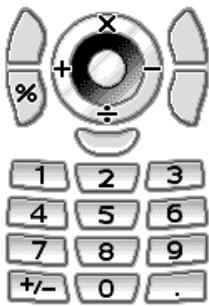
To enter a decimal point, press l
To clear the entered number or operand, press [Clear].
To do the calculations, press
- If you wish to start a new calculation, press [Clear].
Rate Conversion (M 3-5-2)
You can also use the calculator as a currency calculator to convert from/to a home currency using a conversion rate that you enter.
To Set a Currency Conversion Rate
- Perform steps 1 to 3 in "Calculator".
- Press or to highlight "Exchange Rate", then press to select.
- Press or to highlight "Foreign -> Domestic" or "Domestic -> Foreign", then press to select.
- Enter the currency conversion rate, then press ○. To delete all digits, press △ [Clear].
To Convert a Value
- Perform steps 1 to 4 in "Calculator" on page 107.
- Enter the value to be converted, then press [Options].
The Options menu is displayed.
- Press or to highlight "In Domestic" or "In Foreign", then press [Select] to select.
The result is displayed.
If you select "Exchange Rate" in step 3, you can set a currency conversion rate.
Note
- You cannot perform step 2 when an arithmetic symbol (+, -, × or ÷) is displayed.
Voice Recorder (M 3-6)
This allows you to record a voice clip of up to 60 seconds, which can be used to remind you of schedule entries or be sent within a multimedia message. The recorded voice clip is registered in the handset memory or in the memory card. Voice clips are saved in ".amr" format.
Selecting the Memory
When using the memory card, you can choose the memory before recording voice clips.
- In Voice Recorder mode, press [Options]. The Options menu is displayed.
- Press or to highlight "Save New Sounds", then press ○ or [Select] to select.
- Press or to highlight "To Handset", "To Memory Card" or "Choose before Saving", then press to select.
Recording a Voice Clip
- Press ○ to display the Main menu.
- Press ●, ●, ● or ● to highlight "Applications", then press ⊙ to select.
- Press or to highlight "Voice Recorder", then press to select.
- Press ○ to start recording.
To stop recording before the recording time is over, press ○.
- Press or to highlight "Save" to save the voice clip, then press to select.
If you have selected "Choose before Saving" when saving, the memory card is not inserted, or memory has run out, press ⊙ or ⊙ to highlight "Save to Handset" or "Save to Card", then press ⊙ to select.
Tip
- You can also record a voice clip by pressing ○ during standby, then press □ whilst the Main menu is displayed, instead of steps 1 to 3.
- If you wish to record a voice clip again, press [Cancel] in step 5. The screen will return to step 4.
Selecting the Recording Size Mode
You can select the recording size mode.
- Perform steps 1 to 3 in "Recording a Voice Clip" on page 108.
- Press [Options] to display the Options menu.
- Press or to highlight "Record Size", then press [Select] to select.
- Press or to highlight "Extended Voice" or "For Message Sending", then press to select.
Playing Back the Recorded Voice Clip
- Perform steps 1 to 4 in "Recording a Voice Clip" on page 108.
- Press or to highlight "Playback", then press to select.
- Press
The recorded voice clip is played back. To stop playback, press
Tip
- The volume varies depending on the Ringer Volume settings (p. 118). To adjust the volume, press or, or the side-up or side-down key. The volume is 0 when "Ringer Volume" is set to "Silent" and I when set to "Step Tone".
Sending Voice Clips
- Perform steps 1 to 4 in "Recording a Voice Clip" on page 108.
- Press or to highlight "Save and Send", then press to select. For details on creating a message, see "Creating a New MMS" on page 58.
Note
- "Save and Send" is not displayed after recording in extended voice mode.
Melody Editor (M 3-7)
You can create an original ringtone, or you can send a melody attached to a multimedia message.
You can input up to 95 tones × 32 voices, 190 tones × 16 voices, or 380 tones × 8 voices per melody.
The original ringtone is registered in the handset memory.
Creating Your Original Ringtone (M 3-7-1)
- Press ○ to display the Main menu.
- Press or to highlight "Applications", then press ⊙ to select.
- Press or to highlight "Melody Editor", then press ⊙ to select.
- Press or to highlight "Create New", then press to select.
- Enter the title.
Up to 24 characters can be entered.
For details on entering characters, see "Entering Characters" on page 29.
- Press ⭘
- Press or to highlight a tempo, then press to select.
The music tempo is described below.
"Allegro (Fast)": 150, "Moderato (Normal)": 125, "Andante (Slow)": 107, "Adagio (Very Slow)": 94
Tempo is defined by the number of crotchets (↓) played per minute.
- Press or to highlight "8 Chords", "16 Chords" or "32 Chords", then press ⭘ to select.
- Press the digit keys to specify the musical scale and rest.
For details on specifying the sound level and rest, see "To Specify the Musical Scale and Rest" on page 112.
- Press [R=0] or [R=1] to specify the types of musical notes or rest.
For details on specifying the musical notes and rest, see "To Specify the Types of Notes and Rests" on page 113.
- Press ▶ after inputting one note.
Input the next note after the cursor moves to the right.
- Repeat steps 9 to 11 to input notes.
When you press ⑤ during input, the melody that you have entered is played back.
When you press [Options] and select "Play before Cursor" whilst entering notes, the melody that is displayed on the screen is played back up to the cursor position.
When you press [Options] and select "Select Part", you can select another chord. Repeat steps 9 to 11 to input notes for the new chord.
- When you finish inputting, press [Options] to display the Options menu.
- Press or to highlight "Save", then press or [Select] to select.
- Press or to highlight "Save to My Stuff", then press to select.
Your original ringtone is registered in the handset memory.
Note
- If the capacity or memory in the handset memory becomes insufficient, the message, "Maximum capacity : 1000 Not registered." or "Not registered. Memory full." is displayed. The display returns to the screen of step 15. Try again after deleting unnecessary data.
- Melodies consisting of too many short notes (semiquavers and triplets) cannot be played back in step 12 and the following message is displayed: "Can not play due to too many notes per sec." The screen returns to step 9.
The message "Can not save due to too many notes per sec." may also be displayed, and the screen returns to step 9.
Reduce the number of melodies, replace short notes, cancel triplets, etc. to remedy.
To Specify the Musical Scale and Rest
Using the keys shown below, specify the musical scale and rest.
| Do | Re | Mi | Fa | Sol | La | Ti | Rest |
| 10 | 2ABC | 3DEF | 4GH | 5JLH | 6MNO | 7POHS | 0 |
When you press the key shown above once, a crotchet is specified in the middle scale (no mark).
When you press the same key repeatedly, the note will shift cyclically through the available octave ranges.
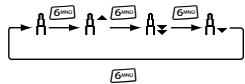
When you press or whilst a note is selected, the note will move one semitone higher or lower.
When entering rest: Crotchet rest is entered.
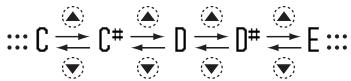
To Specify the Types of Notes and Rests Specify notes and rests by pressing or repeatedly.
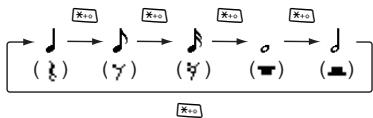
When you make a dotted note or a triplet, press ⑦ after selecting the target note.
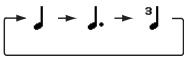
Note
- You cannot make a dotted semiquaver (semiquaver rest) or a dotted semibreve (semibreve rest).
- Three continuous notes are required for a triplet.
To specify a tie, press ⑧ after selecting the target notes. An underscore (α) is displayed next to the note, and the note is tied with the next one.
To enter the next note, press and move the cursor to the right. Then, repeat the operation on the previous page. If the cursor is positioned next to a note, you can repeat the note immediately left of the cursor when or is pressed.
To Set the Tone
The phone can play notes using different instruments. You can select from 128 basic tones (8 types of: Pianos, Chimes, Organs, Guitars, Basses, Strings 1, Strings 2, Brasses, Reeds, Flutes/Pipes, Synth Leads, Synth Pads, Synth Effects, Ethics, Percussions, and Effects) and 61 extended tones (40 types of Drums (FM) and 21 types of Drums (WT)).
- Perform steps 1 to 13 in "Creating Your Original Ringtone" on page 110.
- Press or to highlight "Set Tone", then press \(\bigcirc\) or [Select] to select.
- Press \(\downarrow\) or \(\uparrow\) to highlight a category of the tone.
- Press or to highlight a tone. When you press [Options] and select "Play Current Part", the melody entered is played back in the selected tone. When you press [Options] and select "Confirm Tones", the syllable names are played back in the selected tone.
- Press \(\bigcirc\) to select.
Now you can create an original ringtone.
To Set the Strength of the Original Ringtone: The strength of the original ringtone can be set in 3 levels for each melody.
When you purchase this phone, the strength of the original ringtone is set to "Loud".
- Perform steps 1 to 13 in "Creating Your Original Ringtone" on page 110.
- Press or to highlight "Set Strength", then press [Select] to select.
- Press or to highlight a strength of the tone. When [Play] is pressed, the original ringtone entered is played back in the selected strength of the tone.
- Press \(\odot\) to select.
Now you can create an original ringtone.
Editing Original Ringtones (M 3-7-2)
- Press to display the Main menu.
- Press 品 or to highlight "Applications", then press to select.
- Press or to highlight "Melody Editor", then press to select.
- Press or to highlight "My Sounds", then press to select.
- Press or to highlight an original ringtone you wish to edit, then press [Options]. The Options menu is displayed.
- Press or to highlight "Edit Data", then press or [Select] to select.
- Edit the title, then press
- Press or to highlight a tempo, then press to select.
- Press or to highlight the number of voices, then press to select.
- Press or to highlight a note you wish to change, then edit notes. When you add notes, enter the note correctly on the cursor.
To delete a note, press [Clear] briefly. Press and hold [Clear] to clear all tones.
- When you finish editing, press [Options] to display the Options menu.
- Press or to highlight "Save", then press or [Select] to select.
- Press or to highlight "Save to My Stuff", then press to select.
- Press or to highlight "Overwrite", then press to select.
The original ringtone is changed. If you select "New", the melody before the correction is not modified. The original ringtone is registered as a new original ringtone.
Note
- When the number of voices is modified in step 9, the confirmation screen may be displayed. When you press [Yes], a section of the melody may be deleted.
- When you are going to add notes in step 10, you cannot add any notes if you have already entered 380 notes (for 8 voices melodies), 190 notes (for 16 voices melodies) or 95 notes (for 32 voices melodies).
Tip
To delete the continuous melody, press [Options] and then press or [Select] after selecting "Delete after Cursor" or "Delete before Cursor". You can delete the melody after the cursor or before the cursor.
Copying and Pasting Notes
You can copy and move a part of the melody to another position.
Only original ringtones or editable melodies can be copied or moved.
- Perform steps 1 to 12 in "Editing Original Ringtones" on page 114.
- Press [Options] to display the Options menu.
- Press or to highlight "Copy" or "Cut", then press [Select] to select.
- Press or to move the cursor to the first note to be copied or to be cut, then press
- Press or to move the cursor to the last note to highlight the area, then press ○. The highlighted area is saved temporarily in the memory. If you select "Cut" in step 3, the highlighted area is cut.
- Press [Options] to display the Options menu.
- Press or to highlight "Paste", then press or [Select] to select.
- Press ○ or to move the cursor to the point you wish to paste the notes, then press ○. Saved notes are pasted.
Phone Help (M 3-8)
You can view the help list and use it to guide you in the phone's functions.
- Press ○ to display the Main menu.
- Press ○ or to highlight "Applications", then press ○ to select.
- Press or to highlight "Phone Help", then press to select.
The help list is displayed.
- Press or to highlight the desired function.
- When you have finished, press [Back].
Profiles (M 7)
You can easily alter the phone tone (e.g. the ringer volume, keypad tones, etc.) according to your environment.
Tone sound and vibration set can be customised for each profile.
There are 5 profiles including one user definable profile:
Normal Activity - Car - Headset - Silent
Activating a Profile
- Press ○ to display the Main menu.
- Press ◉, or to highlight "Profiles", then press ○ to select. The Profiles screen is displayed.
- Press or to highlight the profile you wish to activate, then press to select.
Note
- When a profile is set, the icon which corresponds to the profile name is displayed in the standby screen.
Tip
- You can press and hold for approximately 2 seconds instead of steps 1 and 2 to display the Profiles screen during standby.
Customising Profiles
- Press ○ to display the Main menu.
- Press ◉, ◉, or to highlight "Profiles", then press ◉ to select.
- Press or to highlight the profile you wish to customise, then press [Options].
- Press or to highlight "Personalise", then press or [Select] to select.
- Press or to highlight the setting you wish to customise, then press to select.
- Change the desired setting. For details about settings, see pages 118 to 123.
- When you have finished, press [Save] to save the modifications.
Resetting Profile Settings
- Perform steps 1 and 2 in "Customising Profiles".
- Press or to highlight the profile you wish to reset, then press [Options].
- Press or to highlight "Set to Default", then press or [Select] to select.
- Enter your handset code, then press
- Press [Yes]. To cancel resetting, press [No] in step 5.
Note
- If you enter a wrong handset code in step 4, the screen returns to step 1.
Ringer Volume
You can adjust the ringer volume to one of 6 levels or a step tone.
When it is set to "Silent", the volume of applications is muted.
- Perform steps 1 to 4 in "Customising Profiles" on page 117.
- Press or to highlight "Ringer Volume", then press to select. The current volume level is displayed.
- Press to increase the ringer volume or press to decrease the ringer volume and then press To select "Step Tone", press at level 5. To select "Silent", press at level 1.
Assigning Ringtone
You can select the ringtone from 28 tones including 5 patterns, 13 sound effects and 10 melodies. You can also select a sound in the handset memory as the default ringtone excluding the AMR/WAVE and MP3 format.
- Perform steps 1 to 4 in "Customising Profiles" on page 117.
- Press or to highlight "Assign Ringtone", then press to select.
- Press or to highlight "Preset Sounds" or "My Sounds", then press to select.
- Press or to highlight the ringtone you wish to use. If you wish to hear the demo play, press To stop playing, press
- When selection is complete, press [Options] to display the Options menu.
- Press or to highlight "Assign", then press or [Select] to select.
Note
- If you delete a ringtone that uses a sound in the handset memory, the default ringtone is set.
Vibration
When the vibrator option is set on, the phone will vibrate for incoming calls regardless of the ringer volume and tone settings.
- Perform steps 1 to 4 in "Customising Profiles" on page 117.
- Press or to highlight "Vibration", then press to select.
- Press or to highlight "On", "Off" or "On & Link to Sound", then press to select.
Tip
- When the "On & Link to Sound" option is selected in step 3, the vibrator synchronises with your selected melody to pulse in time with the melody. Please note that not all melodies support the "On & Link to Sound" option. Should you select such a melody, only the "On" option in step 3 will allow vibrator function.
- When you select "On" or "On & Link to Sound" in step 3, "□" is displayed on the standby screen.
Light Colour
You can select from 7 colours and 1 pattern for each profile and change it during an incoming call.
- Perform steps 1 to 4 in "Customising Profiles" on page 117.
- Press or to highlight "Light Colour", then press to select.
- Press or to highlight the desired light colour or pattern, then press to select.
Tip
- If you select "Disco" in step 3, all 7 colours flash in order during an incoming call.
Keypad Tones
When the keypad tone is set on, you will hear a confirmation tone each time you press any keys.
- Perform steps 1 to 4 in "Customising Profiles" on page 117.
- Press or to highlight "Keypad Tones", then press to select.
- Press or to highlight "On" or "Off", then press to select. If you select "Off", the screen returns to step 1.
- Press or to highlight "Volume", then press to select.
- Press to increase the volume or press to decrease the volume, then press
- Press or to highlight "Tone", then press to select.
- Press or to highlight either "Preset Sounds", "My Sounds" or "Default Tone", then press to select. If you select "Preset Sounds" or "My Sounds" in step 7, perform the following, otherwise go to step 9.
- Select the keypad tone. For details on selecting a ringtone, see "Assigning Ringtone" on page 119.
- Press or to highlight "Duration", then press to select.
- Press or to highlight the desired duration, then press to select.
Warning Tone
This function enables your phone to emit the warning tone when an error occurs.
- Perform steps 1 to 4 in "Customising Profiles" on page 117.
- Press or to highlight "Warning Tone", then press to select.
- Press or to highlight "On" or "Off", then press to select. If you select "Off", the screen returns to step 1.
- Press or to highlight "Volume", then press to select.
- Press to increase the volume or press to decrease the volume, then press
- Press or to highlight "Tone", then press to select.
- Press or to highlight "Preset Sounds" or "My Sounds", then press to select.
- Select the warning tone. For details on selecting a ringtone, see "Assigning Ringtone" on page 119.
- Press or to highlight "Duration", then press to select.
- Press or to highlight the desired duration, then press to select.
Power On/Off Sound
The phone can be set up to emit a sound when it is switched on or off. You can define the volume, duration and the melody to be used for this task.
- Perform steps 1 to 4 in "Customising Profiles" on page 117.
- Press or to highlight "Power On Sound" or "Power Off Sound", then press to select.
- Press or to highlight "On" or "Off", then press to select. If you select "Off", the screen returns to step 1.
- Press or to highlight "Volume", then press to select.
- Press to increase the volume or press to decrease the volume and then press
- Press or to highlight "Sound", then press to select.
- Press or to highlight "Preset Sounds" or "My Sounds", then press to select.
- Select the ringtone. For details on selecting a ringtone, see "Assigning Ringtone" on page 119.
- Press or to highlight "Duration", then press to select.
- Enter the desired duration of the ringtone in 2 digits (01 to 10 seconds) using the digit keys, then press .
Message Alert
When receiving messages, special ringtones can be set.
- Perform steps 1 to 4 in "Customising Profiles" on page 117.
- Press or to highlight "Message Alert", then press to select.
- Press or to highlight "Multimedia", "Text" or "WAP", then press to select.
- Press or to highlight "Volume", then press to select.
- Press to increase the volume or press to decrease the volume and then press
- Press or to highlight "Sound", then press to select.
- Press or to highlight "Preset Sounds" or "My Sounds", then press to select.
- Select the ringtone.
For details on selecting a ringtone, see "Assigning Ringtone" on page 119.
- Press or to highlight "Vibration", then press to select.
- Press or to highlight "On", "Off" or "On & Link to Sound", then press to select.
- Press or to highlight "Duration", then press to select.
- Enter the duration of ringtone in 2 digits (01 to 15 seconds) using the digit keys, then press .
Low Battery Alert
Adjust the volume of the alarm when the battery becomes low.
- Perform steps 1 to 4 in "Customising Profiles" on page 117.
- Press or to highlight "Low Battery Alert", then press to select.
- Press or to highlight "High", "Low" or "Silent", then press to select.
Echo Cancel
This function is for cancelling irritating echoes, especially when using the handsfree car kit.
- Perform steps 1 to 4 in "Customising Profiles" on page 117.
- Press or to highlight "Echo Cancel", then press to select.
- Press or to highlight "On" or "Off", then press to select.
Any Key Answer
You can also answer a call by pressing any key except or [Busy]. For details, see page 23.
- Perform steps 1 to 4 in "Customising Profiles" on page 117.
- Press or to highlight "Any Key Answer", then press to select.
- Press or to highlight "On" or "Off", then press to select.
Contacts (M 8)
Call Log (M 8-3)
The phone will record the last 10 missed calls, received calls and dialled numbers.
Viewing Call Log
- Press ○ to display the Main menu.
- Press 串, or to highlight "Contacts", then press ⊙ to select.
- Press or to highlight "Call Log", then press to select.
- Press or to switch logs from "All Calls", "Dialled Numbers", "Missed Calls" or "Received Calls". The selected call log list is displayed.
- Press or to highlight the number you wish to view, then press to select. If you wish to dial the number, press □₀.
Tip
- You can also confirm call logs by pressing during standby mode.
Sending Messages
- Perform steps 1 to 4 in "Viewing Call Log".
- Press or to highlight the call log you wish to send, then press to select.
The selected call log is displayed in detail.
- Press [Options] to display the Options menu.
- Press or to highlight "Create Message", then press [Select] to select.
- Press or to highlight "Multimedia", "Text" or "live! Postcard", then press to select.
For details on creating a message, see "Creating a New MMS" on page 58 or "Creating a New SMS" on page 65.
Note
- The Postcard service is not available on some service providers. Please contact your service provider for more information.
Deleting a Call Log
To Delete a Single Call Log
- Perform steps 1 to 4 in "Viewing Call Log" on page 124.
- Press or to highlight the call log you wish to delete, then press ○ to select.
The selected call log is displayed in detail.
- Press [Options] to display the Options menu.
- Press or to highlight "Delete", then press or [Select] to select.
- Press [Yes].
The selected call log is deleted.
To cancel deletion, press [No] in step 5.
Speed Dial List (M 8-4)
You can view and perform other operations for phone numbers registered in the Speed Dial List.
- Press ○ to display the Main menu.
- Press □, or to highlight "Contacts", then press ⊙ to select.
- Press or to highlight "Speed Dial List", then press to select.
The names and phone numbers stored in the Speed Dial List are displayed in order.
My Numbers (M 8-5)
You can check your own voice, data and fax phone numbers.
- Press ○ to display the Main menu.
- Press □, or to highlight "Contacts", then press ⊙ to select.
- Press or to highlight "My Numbers", then press to select.
- Press or to highlight the phone number you wish to check from either "Voice", "Data" or "Fax", then press to select.
Note
- "Data" or "Fax" may not be displayed depending on the SIM card.
Call Timers (M 8-6)
This function lets you check the duration of your calls.
Checking the Duration of the Last Call and All Calls
- Press to display the Main menu.
- Press 口 , or to highlight "Contacts", then press to select.
- Press or to highlight "Call Timers", then press to select.
- Press or to highlight "Received Calls" or "Dialled Numbers", then press to select. The duration of the last call and all calls are displayed.
Resetting All Call Timers
- Perform steps 1 to 4 in "Checking the Duration of the Last Call and All Calls".
- Press or to highlight "Clear Timers", then press to select.
- Enter your handset code, then press
- Press [Yes]. The Call Timers are reset to zero. To cancel resetting, press [No] in step 4.
Data Counter (M 8-7)
You can confirm the amount of bytes which you used in the GPRS transmission.
- Press to display the Main menu.
- Press , , or to highlight "Contacts", then press to select.
- Press or to highlight "Data Counter", then press to select.
- Press or to highlight "Last Data" or "All Data", then press to select. You can now check the amount of bytes.
Resetting All Data Counter
- Perform steps 1 to 3 in "Data Counter".
- Press or to highlight "Clear Counter", then press to select.
- Press [Yes]. The Data Counter is reset to zero. To cancel resetting, press [No] in step 3.
Call Costs (M 8-8)
This function lets you check the charges for your calls. Some networks do not support Charging Advice. Please check with your service provider for availability.
Checking the Cost of the Last Call
- Press to display the Main menu.
- Press , , or to highlight "Contacts", then press to select.
- Press or to highlight "Call Costs", then press to select.
- Press or to highlight "Last Call", then press to select. The cost of the last call is now displayed.
Checking the Total Call Cost
- Perform steps 1 to 3 in "Checking the Cost of the Last Call".
- Press or to highlight "All Calls", then press to select.
Setting the Charge Rate
Set the charge rate to calculate the call cost and set the maximum limit for call cost.
- Perform steps 1 to 3 in "Checking the Cost of the Last Call".
- Press or to highlight "Costs Units", then press to select.
- Press or to highlight "Set Units", then press to select.
- Enter your PIN2 code, then press ○
- Enter a cost per unit, then press ○. To enter a decimal point, press □.
- Enter a currency unit (up to 3 characters), then press ○.
Setting the Charge Limit
This function is useful if you wish to make sure you do not exceed a certain charge limit.
- Perform steps 1 to 3 in "Checking the Cost of the Last Call" on page 127.
- Press or to highlight "Max Cost", then press to select.
- Press or to highlight "Set Limit", then press to select.
- Enter your PIN2 code, then press ○
- Enter a value, then press ○. To enter a decimal point, press □.
Resetting All Call Costs
- Perform steps 1 to 3 in "Checking the Cost of the Last Call" on page 127.
- Press or to highlight "Clear Costs", then press to select.
- Enter your PIN2 code, then press
- Press [Yes]. The Call Costs are reset to zero. To cancel resetting, press [No] in step 4.
Checking the Residual Credit
- Perform steps 1 to 3 in "Checking the Cost of the Last Call" on page 127.
- Press or to highlight "Residual Credit", then press to select.
Settings (M 9)
Phone Settings (M 9-1)
Opening the Phone Settings Screen
- Press to display the Main menu.
- Press , , or to highlight "Settings", then press to select.
- Press or to highlight "Phone Settings", then press to select.
The Phone Settings screen is displayed. The following settings can be made.
Changing the Language (M 9-1-1)
You can change the language that the phone uses to display messages.
- Perform steps 1 to 3 in "Opening the Phone Settings Screen".
- Press or to highlight "Language", then press to select.
- Press or to highlight the desired language, then press to select.
Tip
- You can also change the input language on the text entry screen. (p. 30)
Note
- If you select "Automatic" in step 3, the language preset on the SIM card is selected.
- If the language preset on the SIM card is not supported, then the default language of the phone is selected.
Date & Time (M 9-1-2)
You need to set the correct time and date in order for your phone's various time-based functions to work correctly.
- Perform steps 1 to 3 in "Opening the Phone Settings Screen".
- Press or to highlight "Date & Time", then press to select.
- Press or to highlight "Set Date/Time", then press to select.
- Enter the day, month, year and time using the digit keys, then press ○.
When you enter the time in the 12-hour format, press to switch between am and pm.
The order in which the date and time is displayed is based on the format setting. See "To Select the Date Format" on page 130.
To Select the Time System
- Perform steps 1 to 3 in "Opening the Phone Settings Screen" on page 129.
- Press or to highlight "Date & Time", then press ○ to select.
- Press or to highlight "Clock Settings", then press to select.
- Press or to highlight "Time Format", then press ○ to select.
- Press or to highlight "12 hour" or "24 hour", then press to select.
To Select the Date Format
The date format can be switched between "Day.Month Year", "Month-Day-Year" or "Year/ Month/Day".
- Perform steps 1 to 3 in "Opening the Phone Settings Screen" on page 129.
- Press or to highlight "Date & Time", then press to select.
- Press or to highlight "Clock Settings", then press to select.
- Press or to highlight "Date Format", then press ⊙ to select.
- Press or to highlight "D.M.Y", "M-D-Y" or "Y/M/D", then press to select.
To Set the Clock Display
- Perform steps 1 to 3 in "Opening the Phone Settings Screen" on page 129.
- Press or to highlight "Date & Time", then press to select.
- Press or to highlight "Clock Settings", then press to select.
- Press or to highlight "Display Format", then press to select.
- Press or to highlight "Time Only", "Date Only" or "Date & Time", then press to select. To set hide clock, select "Off" in step 5, then press .
To Set Daylight Saving Time
You can switch to daylight saving time without having to change the clock time itself.
- Perform steps 1 to 3 in "Opening the Phone Settings Screen" on page 129.
- Press or to highlight "Date & Time", then press to select.
- Press or to highlight "Clock Settings", then press to select.
- Press or to highlight "Daylight Saving", then press to select.
- Press or to highlight "On", then press to select.
To Set the Time Zone
- Perform steps 1 to 3 in "Opening the Phone Settings Screen" on page 129.
- Press or to highlight "Date & Time", then press to select.
- Press or to highlight "Set Time Zone", then press to select.
- Press or to highlight "Change Zone", then press to select.
- Press or to set the home city, then press.
To Customize the Time Zone
- Perform steps 1 to 3 in "Opening the Phone Settings Screen" on page 129.
- Press or to highlight "Date & Time", then press to select.
- Press or to highlight "Set Time Zone", then press to select.
- Press or to highlight "Set Custom Zone", then press to select.
- Enter the time-zone differences using the digit keys, then press. Each press of switches - and +.
Setting the Main Display (M 9-1-3)
You can change the settings of the Main Display.
Wallpaper for the Main Display
For the standby screen of the main display, 3 pictures are provided.
Pictures taken with the digital camera or images downloaded from a WAP site can be used for wallpapers.
To Set Built-in Pictures of the Main Display
- Perform steps 1 to 3 in "Opening the Phone Settings Screen" on page 129.
- Press or to highlight "Main Display", then press to select.
- Press or to highlight "Wallpaper", then press to select.
- Press or to highlight "Preset Pictures", then press to select.
- Press or to highlight the desired picture, then press to select. The selected picture is displayed.
- Press to set. The selected picture is set.
Tip
- To cancel the Wallpaper setting, select "Blank" in step 4.
To Set My Pictures for the Main Display
- Perform steps 1 to 3 in "Opening the Phone Settings Screen" on page 129.
- Press or to highlight "Main Display", then press to select.
- Press or to highlight "Wallpaper", then press to select.
- Press or to highlight "My Pictures", then press to select.
- Press or to highlight "Handset Memory" or "Memory Card", then press to select. The file names of the pictures that are registered in the selected memory are displayed.
- Press or to highlight the picture, then press to select.
The selected picture is displayed.
- Press the center select key.
- Press the left select key, or to specify the area you wish to display, then press the center select key. The selected picture is set.
Note
- Some pictures cannot be used because of their picture and data types.
- Even if an animation is selected, the standby screen displays a still picture when you do not operate the phone for about 30 seconds (differs according to the selected data).
Backlight
You can turn the backlight of the main display on or off when you press the keypad or the optional cigarette lighter charger is connected to the phone.
You can change or specify the amount of time (1 to 99 seconds) the backlight is on for, which will help conserve battery life.
Tip
- When you purchase this phone, the backlight is set to 15 seconds.
To Turn On/Off the Backlight
- Perform steps 1 to 3 in "Opening the Phone Settings Screen" on page 129.
- Press or to highlight "Main Display", then press to select.
- Press or to highlight "Backlight", then press to select.
- Press or to highlight "On/Off", then press to select.
- Press or to highlight "On" to set backlight on or "Off" to set backlight off, then press to select. When you select "On" in step 5:
- Enter the duration of the backlight using 2 digits, then press
To Turn On/Off the Backlight whilst Charging with the Cigarette Lighter Charger
With this setting On, the phone's backlight is on when the cigarette lighter charger is connected. (The backlight of the external display is on, when the phone is closed.)
- Perform steps 1 to 3 in "Opening the Phone Settings Screen" on page 129.
- Press or to highlight "Main Display", then press to select.
- Press or to highlight "Backlight", then press to select.
- Press or to highlight "In Car", then press to select.
- Press or to highlight "On" to set backlight on or "Off" to set backlight off, then press .
Adjusting the Brightness of the Backlight
You can adjust the brightness of the backlight of the main display from 4 levels.
- Perform steps 1 to 3 in "Opening the Phone Settings Screen" on page 129.
- Press or to highlight "Main Display", then press to select.
- Press or to highlight "Brightness", then press to select.
- Press (Light) or (Dark) to adjust the brightness for maximum clarity.
- Press .
Note
- The brightness of the backlight above does not affect the brightness of the external display.
Setting the Display Saving
This phone's screen will automatically turn off after a given amount of time if the phone is left open. This is in order to conserve battery life.
You can change the time before the Display Saving will go into effect from between 2 and 20 minutes.
Tip
- When you purchase this phone, Display Saving is set to 10 minutes.
- Perform steps 1 to 3 in "Opening the Phone Settings Screen" on page 129.
- Press or to highlight "Main Display", then press to select.
- Press or to highlight "Display Saving", then press to select.
- Enter the time before Display Saving takes effect in two digits (02 to 20 minutes) using the digit keys, then press .
Note
- Display Saving does not work whilst you are calling, using WAP, or using an application.
To Cancel the Display Saving Function
The display saving continues until either a key is pressed or there is an incoming alert. The first key press only cancels the Display Saver. You must press another key in order to input any numerical or text value.
Setting the Greeting Message
You can set the message which will appear when the phone is turned on.
- Perform steps 1 to 3 in "Opening the Phone Settings Screen" on page 129.
- Press or to highlight "Main Display", then press to select.
- Press or to highlight "Greeting Message", then press to select.
- Press or to highlight "On", then press to select.
- Enter the message, then press . Up to 16 characters can be stored as a message. For details on entering characters, see "Entering Characters" on page 29.
Tip
- To cancel the Greeting Message setting, select "Off" in step 4.
Assigning the Pictures
Pictures can be displayed when turning the power on or off, when receiving an incoming call, or when operating the alarm.
Pictures taken by a digital camera or images downloaded from a WAP site can be used.
To Set Built-in Pictures
- Perform steps 1 to 3 in "Opening the Phone Settings Screen" on page 129.
- Press or to highlight "Main Display", then press to select.
- Press or to highlight "Assign Pictures", then press to select.
- Press or to highlight the screen to set the picture, then press to select.
- Press or to highlight "Animation 1" or "Animation 2", then press to select when you select "Power On" or "Power Off" in step 4. Or press or to highlight "Pattern 1" or "Pattern 2", then press to select when you select "Incoming" or "Alarm" in step 4. The selected animation or picture is displayed.
- Press to set.
Tip
- To cancel the picture setting, select "Default", then press in step 5.
To Set My Pictures
- Perform steps 1 to 3 in "Opening the Phone Settings Screen" on page 129.
- Press or to highlight "Main Display", then press to select.
- Press or to highlight "Assign Pictures", then press to select.
- Press or to highlight the screen to set the picture, then press to select.
- Press or to highlight "My Pictures", then press to select.
- Press or to highlight "Handset Memory" or "Memory Card", then press to select. The file name of the pictures that are registered in the selected memory is displayed.
- Press or to highlight the picture, then press to select.
The selected picture is displayed.
- Press , , or to specify the area you wish to display, then press .
Note
- Some pictures cannot be used because of their picture and data types.
Setting the External Display (M 9-1-4)
You can change the settings of the external display.
To Turn On/Off the External Display
You can turn the external display on or off when the phone is closed.
- Perform steps 1 to 3 in "Opening the Phone Settings Screen" on page 129.
- Press or to highlight "External Display", then press to select.
- Press or to highlight "LCD On/Off", then press to select.
- Press or to highlight "On" to set external display on or "Off" to set external display off, then press to select.
Wallpaper for the External Display
For the standby screen of the external display, 3 pictures are provided.
Pictures taken with the digital camera or images downloaded from a WAP site can be used for wallpapers.
To Set Built-in Pictures of the External Display
- Perform steps 1 to 3 in "Opening the Phone Settings Screen" on page 129.
- Press or to highlight "External Display", then press to select.
- Press or to highlight "Wallpaper", then press to select.
- Press or to highlight "Preset Pictures", then press to select.
- Press or to highlight the desired picture, then press to select. The selected picture is displayed.
- Press to set.
The selected picture is set.
Tip
- To cancel the Wallpaper setting, select "Blank" in step 4.
To Set My Pictures for the External Display
- Perform steps 1 to 3 in "Opening the Phone Settings Screen" on page 129.
- Press or to highlight "External Display", then press to select.
- Press or to highlight "Wallpaper", then press to select.
- Press or to highlight "My Pictures", then press to select.
- Press or to highlight "Handset Memory" or "Memory Card", then press to select. The file names of the pictures that are registered in the selected memory are displayed.
- Press or to highlight the picture, then press to select. The selected picture is displayed.
- Press
- Press 喜 ,或to specify the area you wish to display, then press The selected picture is set.
Note
- Some pictures cannot be used because of their picture and data types.
- Even if an animation is selected, the standby screen displays a still picture when you do not operate the phone for about 2 minutes.
- When an animation is set as the wallpaper of the external display, the battery consumes large amounts of power and standby time may be shortened. To use the battery for a long time, set a still picture for wallpaper for external display or set the wallpaper of the external display setting off.
To Turn On/Off the Backlight of the External Display
You can turn the backlight of the external display on or off when the phone is closed.
You can also change or specify the duration of the external display backlight (1 to 99 seconds).
Tip
- When you purchase this phone, Backlight is set to 15 seconds.
- Perform steps 1 to 3 in "Opening the Phone Settings Screen" on page 129.
- Press or to highlight "External Display", then press to select.
- Press or to highlight "Backlight", then press to select.
- Press or to highlight "On" to set backlight on or "Off" to set backlight off, then press to select. When you select "On" in step 4:
- Enter the duration of the backlight using 2 digits, then press
To Adjust the LCD Contrast of the External Display You may sometimes need to adjust the LCD contrast of the external display to suit certain lighting conditions.
- Perform steps 1 to 3 in "Opening the Phone Settings Screen" on page 129.
- Press or to highlight "External Display", then press to select.
- Press or to highlight "LCD Contrast", then press to select.
- Press (High) or (Low) to adjust the contrast for maximum clarity. LCD contrast can be adjusted to 9 levels.
- Press
To Set Incoming Indication Illustrations can be displayed on the external display when receiving an incoming call.
- Perform steps 1 to 3 in "Opening the Phone Settings Screen" on page 129.
- Press or to highlight "External Display", then press to select.
- Press or to highlight "Incoming Indication", then press to select.
- Press or to highlight an illustration from "Illustration 1" to "Illustration 4", then press to select. The selected picture is displayed.
- Press
To Display the Clock on the External Display You can set the digital/analogue clock to be displayed on the external display.
- Perform steps 1 to 3 in "Opening the Phone Settings Screen" on page 129.
- Press or to highlight "External Display", then press to select.
- Press or to highlight "Clock Display", then press to select.
- Press or to highlight "Digital Clock 1" to "Digital Clock 3" or "Analogue Clock 1" to "Analogue Clock 3", then press to select. The selected picture is displayed. If the Bluetooth function has been activated, you will be asked whether you wish to deactivate it or not. Press [Yes].
- Press ○
Note
- The clock display setting for the external display depends on the setting in "To Set the Clock Display" on page 130.
To Display Icons on the External Display You can set to display icons on the external display.
- Perform steps 1 to 3 in "Opening the Phone Settings Screen" on page 129.
- Press or to highlight "External Display", then press to select.
- Press or to highlight "Icon Display", then press to select.
- Press or to highlight "On" to set icon display on or "Off" to set icon display off, then press to select.
Phone Setting Reset (M 9-1-5)
The phone settings can be reset to their default settings.
- Perform steps 1 to 3 in "Opening the Phone Settings Screen" on page 129.
- Press or to highlight "Set to Default", then press to select.
- Enter your handset code, then press ○
- Press [Yes]. To cancel resetting, press [No] in step 4.
Note
- If you enter a wrong handset code in step 3, the operation is cancelled.
Call Settings (M 9-2)
Set various types of functions and services.
Opening the Call Settings Screen
- Press ○ to display the Main menu.
- Press or to highlight "Settings", then press ○ to select.
- Press or to highlight "Call Settings", then press to select.
The Call Settings screen is displayed. The following settings can be made.
Call Waiting (M 9-2-1)
If you wish to be able to receive another incoming call whilst you have a call in progress, you must activate the Call Waiting service.
- Perform steps 1 to 3 in "Opening the Call Settings Screen".
- Press or to highlight "Call Waiting", then press to select.
- Press or to highlight "On" to activate the Call Waiting service or "Off" to deactivate it, then press to select.
Note
- The Call Waiting service may not be available on all mobile phone networks. Contact your network operator for more information.
To Check the Call Waiting Service Status
- Perform steps 1 to 3 in "Opening the Call Settings Screen".
- Press or to highlight "Call Waiting", then press to select.
- Press or to highlight "Status", then press to select. Now you can check the status of the Call Waiting service.
- Press [Back].
Displaying Call Timers (M 9-2-2)
- Perform steps 1 to 3 in "Opening the Call Settings Screen" on page 141.
- Press or to highlight "Display Call Timers", then press to select.
- Press or to highlight "On" or "Off", then press to select.
Showing Your Phone Number (M 9-2-3)
This lets you control whether to show your phone number when calling another party or not.
Some networks do not support this service. Please check with your service provider for availability.
- Perform steps 1 to 3 in "Opening the Call Settings Screen" on page 141.
- Press or to highlight "Show Your Number", then press to select.
- Press or to highlight "On" to show your phone number or "Off" not to show your phone number, then press to select.
To Check the Show Your Number Status
- Perform steps 1 to 3 in "Opening the Call Settings Screen" on page 141.
- Press or to highlight "Show Your Number", then press to select.
- Press or to highlight "Status", then press to select. Now you can check the status of the "Show Your Number".
- Press
Adjusting Earpiece Volume (M 9-2-4)
You can adjust the earpiece volume.
- Perform steps 1 to 3 in "Opening the Call Settings Screen" on page 141.
- Press or to highlight "Earpiece Volume", then press to select.
- Press to increase the earpiece volume or press to decrease the earpiece volume, then press
Picture Call (M 9-2-5)
The image registered to the caller in the Contacts List is displayed when receiving a call.
- Perform steps 1 to 3 in "Opening the Call Settings Screen" on page 141.
- Press or to highlight "Picture Call", then press to select.
- Press or to highlight "On" or "Off", then press to select.
Auto Redial (M 9-2-6)
See "Automatic Redialling" on page 22 about this function.
Auto Answer (M 9-2-7)
Auto Answer function allows you to answer calls automatically by connecting the handsfree car kit for Bluetooth to your phone via Bluetooth. You can select the desired time until your phone answers.
- Perform steps 1 to 3 in "Opening the Call Settings Screen" on page 141.
- Press or to highlight "Auto Answer", then press to select.
- Press or to highlight the desired duration, then press to select.
To disable the auto answer function, select "Off" in step 3.
Minute Minder (M 9-2-8)
Minute Minder function informs you of your talk time by sounding a tone after every minute.
- Perform steps 1 to 3 in "Opening the Call Settings Screen" on page 141.
- Press or to highlight "Minute Minder", then press to select.
- Press or to highlight "On" or "Off", then press to select.
Call Setting Reset (M 9-2-9)
The call settings can be reset to their default settings.
- Perform steps 1 to 3 in "Opening the Call Settings Screen" on page 141.
- Press or to highlight "Set to Default", then press to select.
- Enter your handset code, then press
- Press [Yes]. To cancel resetting, press [No] in step 4.
Note
- If you enter the wrong handset code in step 3, the operation is cancelled and the screen returns to step 3 in "Call Waiting" on page 141.
Diverts (M 9-3)
This service is used to divert incoming calls to your voice mail system or to another number depending on certain conditions in which you cannot answer a call.
Diverting Calls
- Press ○ to display the Main menu.
- Press 品 or to highlight "Settings", then press ⊙ to select.
- Press or to highlight "Diverts", then press to select.
- Press or to highlight one of the divert options, then press to select.
The divert options available are:
- "All Calls": Diverts all voice calls without ringing.
- "When Busy": Diverts incoming calls when you are on a call.
- "No Answer": Diverts incoming calls if you do not answer a call within a certain period of time.
- "Not Reachable": Diverts incoming calls when your phone is out of network service or switched off.
- Press or to highlight "On", then press to select.
- Enter the phone number you wish to divert calls, then press ○
If you wish to divert calls to a number which is located in the Contacts List, search for the desired Contacts List entry.
Press or to display the Contacts List. Then press or to highlight the desired entry, then press to select. For details on searching the Contacts List entries, see "Finding a Name and Number" on page 37.
If you select "No Answer" in step 4:
- Press or to highlight the period of time from 6 levels (05 to 30 seconds), then press to select.
Note
- When a divert is set to "All Calls", "..." is displayed on the standby screen.
Tip
- If you select "By Service" in step 5, you can select further divert options in the selected option in step 4.
Checking the Divert Status
- Perform steps 1 to 3 in "Diverting Calls" on page 144.
- Press or to highlight the divert option you wish to check, then press to select.
- Press or to highlight "Status", then press to select. You can now check the status of the selected divert option.
- When you have finished, press [Back].
Cancelling All Divert Settings (M 9-3-5)
- Perform steps 1 to 3 in "Diverting Calls" on page 144.
- Press or to highlight "Cancel All", then press to select.
- Press [Yes].
All divert settings are cancelled. To cancel resetting, press [No] in step 3.
To Cancel the Divert Settings Individually
- Perform steps 1 to 3 in "Diverting Calls" on page 144.
- Press or to highlight the divert option you wish to cancel, then press to select.
- Press or to highlight "Off", then press to select. The selected divert has been cancelled.
Memory Card (M 9-4)
Formatting Memory Cards (M 9-4-1)
- Press to display the Main menu.
- Press 口 or to highlight "Settings", then press to select.
- Press or to highlight "Memory Card", then press to select.
- Press or to highlight "Format", then press to select.
- Enter your handset code, then press . A confirmation message is displayed.
- Press [Yes]. To cancel formatting, press [No] in step 6. When formatting is complete, a message is displayed.
- Press
Note
- If you enter the wrong handset code in step 5, the operation is cancelled and the screen returns to step 4.
- If the card is locked, you will be requested to unlock it and then perform the aforementioned steps once again.
- If the card is damaged, it cannot be formatted.
Viewing Memory Card Information (M 9-4-2)
You can see the card type (SD Card or MMC), capacity, and used and free space of memory.
- Perform steps 1 to 3 in "Formatting Memory Cards" on page 146.
- Press or to highlight "Card Details", then press to select.
If necessary, press or to scroll through the screen.
- When viewing is complete, press [Back].
Connectivity (M 9-5)
By configuring the settings in this menu, you can connect to Bluetooth wireless technology or infrared enabled phones via these connections, as well as a PC via Bluetooth wireless technology, infrared or USB connections.
Using the Bluetooth Function (M 9-5-1)
Via the Bluetooth wireless connection, you can use the following functions:
- Voice communication with the handsfree device.
- GSM/GPRS modem. Data exchange based on OBEX technology.
To Turn On or Off
- Press ○ to display the Main menu.
- Press ⊙, ⊙, or ⊙ to highlight "Settings", then press ⊙ to select.
- Press or to highlight "Connectivity", then press to select.
- Press or to highlight "Bluetooth", then press to select. If the infrared setting has been activated, you will be asked whether you wish to deactivate it or not. Press [Yes].
- Press or to highlight "Switch On/Off", then press to select.
- Press or to highlight "On", then press to select. The Bluetooth setting is activated, and "喜" is displayed.
To Search for Devices to be Paired
For using the Bluetooth wireless function, you need to search for other Bluetooth wireless technology enabled devices to establish contact with your phone. Keep your phone within a distance of 10 metres before searching.
- Perform steps 1 to 4 in "Using the Bluetooth Function" on page 147.
- Press or to highlight "Search for Devices", then press ○ to select.
The phone starts searching for devices within 10 metres.
- Press or to highlight the desired device for pairing, then press to select.
- Enter the device passcode, then press ○
Note
- If the Bluetooth function is off before searching, the phone turns the Bluetooth wireless function on automatically and starts searching.
- When you wish to perform the device search again, the device list where all devices searched will be displayed when selecting "Search for Devices" again in step 2. Highlighting "New Devices" at the top of the list and pressing ○ will resume the new search and refresh the list.
- You can only select one device for pairing. To change the paired device, see "Handsfree Devices".
Handsfree Devices
You can activate, rename, and delete the paired handsfree device in the list.
To Activate a Device
- Perform steps 1 to 4 in "Using the Bluetooth Function" on page 147.
- Press or to highlight "Handsfree Devices", then press to select.
- Press or to highlight the device you wish to activate, then press to select.
Tip
- You can save battery power by turning the Bluetooth wireless function off whilst it is not in use. Turn the Bluetooth wireless function off in "To Turn On or Off" on page 147 or in "To Turn Off Automatically" on page 149.
- During a call, you can divert voice call to the paired device. Press [Options], then press or to highlight "Enable Bluetooth", then press or [Select] to select. If you wish to disconnect the paired device, select "Disable Bluetooth".
To Rename a Device
- Perform steps 1 to 4 in "Using the Bluetooth Function" on page 147.
- Press or to highlight "Handsfree Devices", then press to select.
- Press or to highlight the device name you wish to rename, then press [Options] to display the Options menu.
- Press or to highlight "Change Name", then press or [Select] to select.
- Rename the device, then press
To Clear a Device Name
- Perform steps 1 to 4 in "Using the Bluetooth Function" on page 147.
- Press or to highlight "Handsfree Devices", then press to select.
- Press or to highlight the device name you wish to clear, then press [Options] to display the Options menu.
- Press or to highlight "Delete", then press or [Select] to select.
- Press [Yes]. To cancel deletion, press [No] in step 5.
Paired Devices
You can rename and delete the paired device in the list.
Bluetooth Wireless Settings
With this setting, you can rename your phone to prevent other GX30i phones from recognizing your phone, or turn the Bluetooth wireless function off automatically to save battery power, etc.
To Rename Your Phone
- Perform steps 1 to 4 in "Using the Bluetooth Function" on page 147.
- Press or to highlight "Bluetooth Settings", then press to select.
- Press or to highlight "Device Name", then press to select.
- Enter the new device name, then press .
To Show or Hide Your Phone
- Perform steps 1 to 4 in "Using the Bluetooth Function" on page 147.
- Press or to highlight "Visibility", then press to select.
- Press or to highlight the desired visibility settings from the following:
"Show My Phone": Allows other devices to recognize your phone.
"Hide My Phone": Hides your phone from other devices.
- Press to select.
To Turn Off Automatically
- Perform steps 1 to 4 in "Using the Bluetooth Function" on page 147.
- Press or to highlight "Bluetooth Settings", then press to select.
- Press or to highlight "Bluetooth Time Out", then press to select.
- Press or to highlight the desired time, then press to select.
Your phone turns the Bluetooth function off automatically for the specified time.
To Turn the Authentication Request On or Off You can request the sender or receiver of the OBEX data to authenticate the passcode (exchanging the passcode) before pairing devices.
- Perform steps 1 to 4 in "Using the Bluetooth Function" on page 147.
- Press or to highlight "Bluetooth Settings", then press to select.
- Press or to highlight "Authentication", then press to select.
- Press or to highlight "On" or "Off", then press to select.
Note
- No authentication is required for the paired devices.
- Even if you select "Off", you may authenticate the passcode when the sender requests it.
Using the Infrared Function (M 9-5-2)
Via the Infrared connection, you can use the following functions:
- GSM/GPRS modem. Data exchange based on OBEX technology.
- Press ○ to display the Main menu.
- Press ⊙, ⊙, or ⊙ to highlight "Settings", then press ⊙ to select.
- Press or to highlight "Connectivity", then press to select.
- Press or to highlight "Infrared", then press to select.
- Press or to highlight "On", then press to select.
"E" will appear on the screen.
The infrared setting will return to off when no data is transmitted/received via infrared communication.
PC Software (M 9-5-3)
By connecting your phone to a PC, you can transmit pictures, sounds, video clips, and Contacts List entries. Follow the procedure to select the connection method (Bluetooth wireless, USB or Infrared connection). For details on how to get the link software, see page 162.
- Press \(\bigcirc\) to display the Main menu.
- Press \(\text{喜}\), or to highlight "Settings", then \(\bigcirc\) to select.
- Press or to highlight "Connectivity", then press to select.
- Press or to highlight "PC Software", then press to select.
- Press or to highlight "Data Cable", "Infrared" or "Bluetooth", then press to select.
Internet Settings (M 9-6)
Note
- In normal operations, you do not need to change settings.
WAP Settings (*: Item to be set as mandatory)
"Profile Name"*: WAP profile name (Unique name)
"IP Address"*: IP address for WAP
"Homepage": Homepage
"Port Number"*: Security option (1024-65535)
"Circuit Prompt": Circuit prompt ("Enable" or "Disable")
"Connection Type": Bearer connection type ("GPRS Then CSD", "GPRS" or "CSD")
GPRS Settings:
"APN"*: Access point name
"Username": User name
"Password": Password
"Linger Time": Linger time (0-99999 sec.)
CSD Settings:
"Phone No."*: Access point number
"Line Type": Line type ("ISDN" or "Analogue")
"Username": User name
"Password": Password
"Linger Time": Linger time (0-99999 sec.)
MMS Settings (*: Item to be set as mandatory)
"Profile Name"*: MMS profile name (Unique name)
"IP Address"*: IP address for MMS
"Relay Server URL":
MMS relay server
"Port Number"*: Security option (1024-65535)
"Connection Type":
Bearer connection type ("GPRS
Then CSD", "GPRS" or "CSD")
GPRS Settings:
"APN"*: Access point name
"Username": User name
"Password": Password
"Linger Time": Linger time (0-99999 sec.)
CSD Settings:
"Phone No."*: Access point number
"Line Type": Line type ("ISDN" or "Analogue")
"Username": User name
"Password": Password
"Linger Time": Linger time (0-99999 sec.)
To Set Up Your Account Information
This information should be supplied by your Internet service provider.
- Press ○ to display the Main menu.
- Press 串, or to highlight "Settings", then press ⊙ to select.
- Press or to highlight "Internet Settings", then press to select.
- Press or to highlight "WAP Settings" or "MMS Settings", then press ○ to select.
- Press or to highlight the profile name you wish to edit, then press [Options].
- Press or to highlight "Edit", then press ○ or [Select] to select.
- Press or to highlight the item you wish to edit, then press to select.
- Edit each item.
To Select Network Connection Profile
- Perform steps 1 to 4 in "To Set Up Your Account Information".
- Press or to highlight the profile name to use, then press ⊙ to select.
Network Settings (M 9-7)
Opening the Network Settings Screen
- Press ○ to display the Main menu.
- Press ○, ○, or ○ to highlight "Settings", then press ○ to select.
- Press ○ or ○ to highlight "Network Settings", then press ○ to select.
The Network Settings screen is displayed. The following settings can be made.
Selecting a Network Automatically (M 9-7-1)
Each time the power is turned on, your phone always tries to connect to the preferred network.
If your phone is not connected to the network, you can perform the following immediately to establish the preferred network connection.
- Perform steps 1 to 3 in "Opening the Network Settings Screen".
- Press ○ or ○ to highlight "Select Network", then press ○ to select.
- Press ○ or ○ to highlight "Automatic", then press ○ to select.
To Set the Network Manually
Perform the following if you wish to connect to the networks other than the preferred network which is automatically connected to.
- Perform steps 1 to 3 in "Opening the Network Settings Screen".
- Press ○ or ○ to highlight "Select Network", then press ○ to select.
- Press or to highlight "Manual", then press to select.
- Press or to highlight the network from the list, then press to select.
Adding a New Network
- Perform steps 1 to 3 in "Opening the Network Settings Screen".
- Press or to highlight "Select Network", then press to select.
- Press or to highlight "Add New Network", then press to select.
- If there is no entry, perform the following step. If there is an entry, press , then go to step 5.
- Press or to highlight "Add", then press to select.
- Enter the country code, then press .
- Enter the network code, then press .
- Enter a new network name and press
Editing the Preferred List
To Change the Position of a Network in the Preferred List
- Perform steps 1 to 3 in "Opening the Network Settings Screen" on page 153.
- Press or to highlight "Select Network", then press to select.
- Press or to highlight "Set Preferred", then press to select.
- Press or to highlight the name of the network to change the position from the list, then press ○ to select.
- Press or to highlight "Insert" or "Add to end", then press to select.
To Delete a Network from the Preferred List
- Perform steps 1 to 3 in "Opening the Network Settings Screen" on page 153.
- Press or to highlight "Select Network", then press to select.
- Press or to highlight "Set Preferred", then press to select.
- Press or to highlight the name of the network to delete, then press to select.
- Press or to highlight "Delete", then press to select.
Changing the Network Password (M 9-7-2)
- Perform steps 1 to 3 in "Opening the Network Settings Screen" on page 153.
- Press or to highlight "Change Password", then press to select.
- Enter the old password, then press .
- Enter a new password, then press .
- Enter a new password again, then press . If you enter the incorrect password in step 5, the screen will return to step 2 and you are asked to enter the password again.
- Press .
Security (M 9-8)
Opening the Security Screen
- Press to display the Main menu.
- Press , , or to highlight "Settings", then press to select.
- Press or to highlight "Security", then press to select.
The Security screen is displayed. The following settings can be made.
Enabling/Disabling the PIN Code (M 9-8-1)
If the PIN code is enabled you are asked to enter the PIN code each time the phone is switched on. Your PIN code is stored on the SIM card and you should have been made aware of the code when you purchased the SIM card. Contact your service provider for further details.
- Perform steps 1 to 3 in "Opening the Security Screen".
- Press or to highlight "PIN Entry", then press to select.
- Press or to highlight "On" or "Off", then press to select.
- Enter your PIN code, then press ○
5. Press ○
Note
- If you enter the wrong PIN code three times in step 4, the SIM card will lock. To remove the lock, contact your service provider/SIM card vendor.
To Change PIN Code
This allows you to change the PIN code stored on the SIM card. Before you change the PIN code, select "On" in step 3 in "Enabling/Disabling the PIN Code".
- Perform steps 1 to 3 in "Opening the Security Screen".
- Press or to highlight "PIN Entry", then press to select.
- Press or to highlight "Change PIN", then press to select.
- Enter the existing PIN code, then press ○
- Enter a new PIN code, then press ○
- Enter a new PIN code again, then press ○. If you enter a code different from the code which you entered in step 5, the screen returns to step 5. Enter the correct code again.
- Press ○
Handset Lock (M 9-8-2)
The Handset Lock is an additional security feature which prevents unauthorised use of the phone or certain features. The default handset lock code is "0000".
- Perform steps 1 to 3 in "Opening the Security Screen" on page 155.
- Press or to highlight "Handset Lock", then press to select.
- Press or to highlight "On" or "Off", then press to select.
- Enter your handset code, then press . If you enter an incorrect handset code, the screen will clear and you are prompted to enter the code again.
To Change Handset Code
Before you change the handset code, select "On" in step 3 in "Handset Lock". The default handset code is "0000".
- Perform steps 1 to 3 in "Opening the Security Screen" on page 155.
- Press or to highlight "Handset Lock", then press to select.
- Press or to highlight "Change Code", then press to select.
- Enter the old handset code, then press
- Enter a new handset code, then press .
- Enter the new handset code again, then press . If you enter a code different from the code which you entered in step 5, the screen returns to step 4. Enter the correct code again.
Changing PIN2 Code (M 9-8-3)
PIN2 code is used to protect certain functions in the phone such as Fixed Dialling No. and call cost limits. The following shows you how to change PIN2 code.
- Perform steps 1 to 3 in "Opening the Security Screen" on page 155.
- Press or to highlight "Change PIN2", then press to select.
- Enter the existing PIN2 code, then press
- Enter a new PIN2 code, then press
- Enter the new PIN2 code again, then press . If you enter a code different from the code which you entered in step 4, the screen returns to step 4. Enter the correct code.
- Press
Call Barring (M 9-8-4)
This function lets you place restrictions on incoming and outgoing calls. To activate Call Barring you will need the call barring password, which is available from your service provider.
- Perform steps 1 to 3 in "Opening the Security Screen" on page 155.
- Press or to highlight "Call Barring", then press to select.
- Press or to highlight call barring option, then press to select.
The call barring functions available are:
- "Bar Foreign Calls": Restricts all outgoing international calls.
- "Only Local & Home": Restricts all outgoing international calls except to your home country.
- "Bar Incoming Calls": Restricts all incoming calls.
- "Bar Inc if Abroad": Restricts all incoming calls when you are outside of the coverage from your registered network operator.
- "Bar Outgoing Calls": Restricts all outgoing calls except emergency calls.
- Press or to highlight one of the call barring options, then press to select.
The call barring options available are:
- "All services": Restricts all services.
- "Voice Calls": Restricts all voice calls.
- "Data": Restricts all data calls. -Fax": Restricts all fax calls.
- "Messages": Restricts all messages.
- "All except msgs": Restricts all services except messages.
- Press or to highlight "On", then press to select.
If you select "Status", you can check the status of the selected call barring option. When you finish the confirmation, press [Back].
- Enter the network password, then press . To change the network password, see "Changing the Network Password" on page 155. The selected call barring function is activated. If you enter a wrong network password, the entered password is cleared. Enter the correct password.
To Cancel All Call Barring Settings
- Perform steps 1 to 3 in "Opening the Security Screen" on page 155.
- Press or to highlight "Call Barring", then press to select.
- Press or to highlight "Cancel All", then press to select.
- Enter the network password, then press . All call barring settings are cancelled.
To Cancel the Call Barring Setting Individually
- Perform steps 1 to 3 in "Opening the Security Screen" on page 155.
- Press or to highlight "Call Barring", then press to select.
- Press or to highlight the call barring option, then press to select.
- Press or to highlight the call barring option you wish to cancel, then press to select.
- Press or to highlight "Off", then press to select.
- Enter the network password, then press . The selected call barring setting is cancelled.
Fixed Dialling No. (M 9-8-5)
When the Fixed Dialling No. is enabled, you can only call predefined numbers.
To Enable Fixed Dialling No.
- Perform steps 1 to 3 in "Opening the Security Screen" on page 155.
- Press or to highlight "Fixed Dialling No.", then press to select.
- Enter a PIN2 code, then press .
- Press or to highlight "Settings", then press to select.
- Press or to highlight "On", then press to select. If you select "Off", Fixed Dialling No. is disabled.
To Add a New Name
- Perform steps 1 to 3 in "Opening the Security Screen" on page 155.
- Press or to highlight "Fixed Dialling No." then press to select.
- Enter a PIN2 code, then press OK.
- Press the up or down arrow key to highlight "Edit Dial List", then press OK to select.
- Press [Options] to display the Options menu.
- Press the up or down arrow key to highlight "Add New Contact", then press OK or [Select] to select.
- Add a name and a phone number. For details on adding a name and a phone number, see "Add New Contact" on page 36.
- Press [Save] to save.
Master Reset (M 9-9)
All settings can be reset to their default settings.
- Press OK to display the Main menu.
- Press the up or down arrow key to highlight "Settings", then press OK to select.
- Press the up or down arrow key to highlight "Master Reset", then press OK to select.
- Enter your handset code, then press OK.
- Press [Yes].
All settings are reset.
To cancel resetting, press [No] in step 5.
Note
- If you enter a wrong handset code in step 4, the operation is cancelled.
- The Master Reset does not delete the users images, videos, sounds or Java files.
Connecting GX30i to Your PC
You can use the following functions by connecting the GX30i to your PC using an infrared port, USB port* or Bluetooth wireless technology port:
- GSM/GPRS modem
- Handset Manager for GX30i
- Requires an optional USB data cable XN-1DC30 for USB port connection.
System Requirements
Operating System: Windows® 98 , Windows® Me, Windows® 2000 , Windows® XP **
- Windows® 98 Second Edition, Windows® 98 Service Pack 1 with Internet Explorer 5.01 or later Service Pack 4 *Service Pack 1a
Supported Software: Microsoft® Outlook/Outlook Express
Interface: Infrared port, USB port or Bluetooth wireless port CD-ROM drive
GSM/GPRS Modem
You can use GX30i as a GSM/GPRS modem to access the Internet from your PC. Connect your phone to your PC via Bluetooth wireless technology, infrared or USB interface. Software installation on your PC is required. For details, see "Software Installation" on page 162.
Modem via the Infrared Connection
To use the modem function via the Infrared connection, see "Using the Infrared Function" on page 150 and turn the modem function on.
Modem via the USB Cable
To use the modem function using a USB cable, use the cable mentioned above and see the instructions accompanying the cable.
Modem via Bluetooth connection
To use the modem function via Bluetooth wireless technology interface, see "Using the Bluetooth Function" on page 147 and turn the modem function on.
For details on software support, refer to the following site:
http://www.sharp-mobile.com
Note
- Modem communication is not possible whilst communicating with the Handset Manager via Bluetooth wireless technology, infrared or USB interface.
Handset Manager
You can transmit the following items between your phone and your PC, and can use Contacts List entries on your PC.
- My Stuff files (pictures/sounds/video clips)
- Contacts List entries
- Short messages
- Schedule entries
To use the Handset Manager function, see "PC Software" on page 151 and set your phone to Data Transfer mode.
For details on software support, refer to the following site:
http://www.shark-mobile.com
Software Installation
- Insert the supplied CD-ROM into your CD-ROM drive.
The GX30i CD-ROM screen is displayed.
If the GX30i CD-ROM screen is not displayed, double-click [Loader.exe] in your CD-ROM.
- Press the desired button. The installation starts.
- Follow the on-screen instructions to complete installation.
Note
- The phone may not recognize the USB data cable if it is connected whilst an application (Camera, My Stuff, etc.) is running. Connect the USB data cable during standby.
Infrared communication
- Infrared ports need to be aligned with each other.
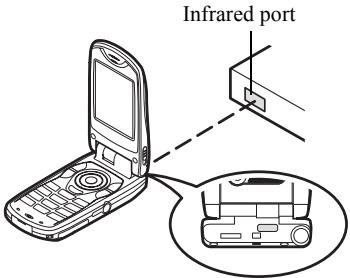
- Infrared ports need to be placed within 20 cm of each other and within a 30° angle.
GSM/GPRS modem
- It is not recommended that you make or answer calls when you are using GX30i as a GSM/GPRS modem. The operation may be interrupted.
Handset Manager
- Some large files may not be able to be transmitted from the PC to the phone.
- When connecting your phone to a PC, you need to select the connection method for PC Software (p. 151).
- Applications (Camera, My Stuff, etc.) do not run when the phone is connected to the PC via Bluetooth wireless technology interface, infrared port or USB data cable.
Troubleshooting
| Problem | Solution |
| The phone does not turn on. | ·Make sure the battery is properly inserted and charged. |
| PIN code or PIN2 code is rejected. | ·Make sure you have entered the correct code (4 to 8 digits). ·Your SIM card/protected functions will become locked after 3 unsuccessful attempts. ·Contact your SIM provider if you do not have the correct PIN code. |
| The SIM card becomes locked. | ·Enter PUK code (8 digits) provided by your service provider (if supported). ·If the attempt is successful, enter the new PIN code and confirm your phone is operational again. Otherwise contact your dealer. |
| The display is difficult to read. | ·Adjust the backlight brightness for the main display, and adjust the LCD contrast for the external display. |
| Problem | Solution |
| Phone functions do not work after the phone is turned on. | ·Check the radio signal strength indicator as you may be outside the service area. ·Check to see if any error message is displayed when you turn your phone on. If so, contact your dealer. ·Make sure the SIM card is correctly inserted. |
| Calls cannot be made or received. | ·If the message “SIM Card Error” is displayed at start-up, you cannot use your SIM card or the SIM card is damaged. Contact your dealer or network service provider. ·Check your call barring, fixed dialling setting, remaining battery and call forwarding settings. ·Check if your phone is currently performing data communication using Infrared (IrDA) or a data cable. ·Check the remaining balance if you are using a pre-paid SIM card. |
| Call quality is poor. | Your current location may not provide good call quality (i.e., in a car or train). Move to a location where radio signal strength is greater. |
| Cannot access network service. | Check where your account has been registered and where the service is available. |
| Cannot send or receive Text Message. | Make sure you are correctly subscribed for the Short Message Service, that the network supports this service, and that the centre number is set up correctly. If not, contact your network service provider. |
| Cannot connect to Multimedia Message service provider. | MMS settings and configuration may be missing or incorrect or the network does not support it. Check your service provider's access point number. Contact your service provider to confirm the correct settings. |
| Problem | Solution |
| Limited memory available. | • Delete any unnecessary data. |
| Call is terminated unexpectedly. | • Magnetised objects such as health necklaces placed near the phone may terminate the call. Keep your phone away from such objects. |
| No entries are displayed in the Contacts List | • Confirm that the Contacts Location setting (Handset or SIM) and View Groups setting are made correctly. |
| Fax transmission failure | • Before transmitting fax data, configure your fax software to use the software flow control. • Use of the optional data cable is recommended for transmitting fax data. |
| Cannot receive OBEX data. | • The OBEX data can only be received only during standby. The message “Please return to standby.” is displayed. |
Safety Precautions and
Conditions of Use
Your phone conforms to international regulations insofar as it is used under normal conditions and in accordance with the following instructions.
CONDITIONS OF USE
Electromagnetic waves
- Do not switch on your phone aboard an aircraft (as your phone may interfere with the aircraft's electronic systems). Current legislation forbids this use and legal action can be taken against the user.
- Do not switch on your phone in a hospital, except in designated areas.
- Use of your phone's function may affect the performance of medical electronic units (pacemakers, hearing aids, insulin pumps, etc.). When the phone function is on, do not bring it near medical equipment or into areas in which medical equipment is being used. If you have a hearing aid or a pacemaker, only use the phone on the opposite side of your body from where it is located. The phone should be kept at least 6 inches (15.24 cm) from a pacemaker ANYTIME the phone is switched on.
- Do not switch on your phone near gas or flammable substances.
- Observe the rules concerning the use of mobile phones at gasoline stations, chemical plants and at all sites where a risk of explosion exists.
Caring for your phone
- Do not allow children to use your phone without supervision.
- Do not open or attempt to repair your phone yourself. The product can only be repaired by authorised service personnel.
- Do not drop your phone or subject it to severe impacts. Bending the body and pushing the display or keys with extreme force could damage the phone.
- Do not use solvents to clean your phone. Use only a soft, dry cloth.
- Do not carry your phone in your back pocket as it could break when you sit down. The display is made of glass and is particularly fragile.
- Avoid touching the external connector on the underside of the phone, since the delicate components within can be damaged by static electricity.
Battery
- Use your phone only with batteries, chargers and accessories recommended by the manufacturer. The manufacturer disclaims any liability for damage caused by the use of other chargers, batteries or accessories. Network configuration and phone usage will affect talk-time and standby time.
Using the games or camera will hasten battery consumption.
- When the battery charging alert is displayed on the screen, charge the battery as soon as possible. If you continue using your phone ignoring the alert, the phone may cease to function, and all data and settings you have stored may be lost at any moment.
- Before removing the battery from the phone, make sure the phone is switched off.
- Replace and charge the new battery as soon as possible after removing the old one.
- Do not touch the battery terminals. Batteries can cause damage, injury or burns if a conductive material touches exposed terminals. When the battery is detached from the phone, use a cover made of non-conductive material for keeping and carrying the battery safely.
- Recommended temperature for using and storing batteries is approximately 20°C.
- The batteries' performance is limited in low temperatures, particularly below 0°C and the phone may not work temporarily regardless of the amount of remaining battery power.
- Exposing the phone to extreme temperatures will shorten battery life.
- The battery can be charged and discharged hundreds of times but it will eventually wear out. When the operating time (talk-time and standby time) is noticeably shorter than normal, it is time to buy a new battery.
CAUTION RISK OF EXPLOSION IF BATTERY IS REPLACED BY AN INCORRECT TYPE, DISPOSE OF USED BATTERIES ACCORDING TO THE INSTRUCTIONS See "Battery Disposal" on page 12.
Memory Card
- Do not remove or insert a memory card whilst data on the card is being edited. Do not turn off the handset or device containing the memory card whilst data on the card is being edited as this may damage the data or cause the card to stop functioning correctly. Data may be lost under the following circumstances.
- If the handset is dropped, or shook, or force is applied whilst the memory card is inserted.
- When the handset is used in areas that are exposed to static electricity or electric noise.
- Backup your important data in case data on the memory cards are lost due to malfunctions.
- Do not touch the metal terminals with your hands or metal objects.
- Do not bend the memory card or subject it to violent impact. Keep it away from water and high temperatures.
- SHARP holds no responsibility for the loss or damage of data contained on a memory card.
- Keep all memory cards out of the reach of small children.
Aerial Care
- Do not touch the aerial unnecessarily while using the mobile phone. If it is held, call quality may be hindered, leading to shortened talk-time and standby time because the mobile phone may have to operate at a higher power level than necessary.
- Use only the aerial supplied or one approved by Sharp for your mobile phone. Using unauthorized or modified aerials may damage the mobile phone. Moreover, since the mobile phone may violate the appropriate regulations, it may lose performance or exceed the SAR level limits.
- To avoid impaired performance, do not damage the aerial of the mobile phone.
- While talking directly into the microphone, hold the mobile phone so that the aerial is upwards over your shoulder.
- To avoid interfering with blasting operations, turn off the mobile phone in a blasting area or in a place where a "turn off two-way radio" sign is posted.
Camera Operation
- Learn about picture quality, file formats, etc. beforehand. The taken pictures can be saved in JPEG format.
- Be careful not to move your hand while taking pictures.
If the phone moves while taking a picture, the picture can be blurred. When taking a picture, hold the phone firmly to prevent it from moving, or use the delay timer. Clean the lens cover before taking a picture. Fingerprints, oils, etc. on the lens cover hinder clear focusing. Wipe them off with a soft cloth before taking a picture.
Others
- As with any electronic storage unit, data may be lost or corrupted under various circumstances.
- Before connecting the phone with a PC or a peripheral unit, read the operation manual for the other unit carefully.
- If the phone's battery has been removed for some time, or the phone has been reset, the unit's clock and calendar may be reinitialised. The date and time should be updated in this case.
- Use only the attached handsfree kit. Some phone's functions may not work when unauthorised handsfree kit are used.
- The phone uses the magnet to recognise that the phone is closed. Do not place magnetic cards near your phone or get the card caught in the phone as it may damage the recorded data.
- Do not flash the mobile light into eyes as this may damage eyesight or cause dizziness leading to accidents or injury.
ENVIRONMENT
- Keep your phone away from extreme heat. Do not leave it on the dashboard of a car or near a heater. Do not leave it in any place that is extremely damp or dusty.
- Since this product is not waterproof, do not use it or store it where fluids such as water can splash onto it. Raindrops, water spray, juice, coffee, steam, perspiration, etc. will also cause a malfunction.
PRECAUTIONS CONCERNING VEHICLE USE
- It is the user's responsibility to check the local laws governing the use of a mobile phone in vehicles. Pay full attention to driving. Pull off to the side of the road, park the car, and switch off the engine before making or answering a call.
- Use of your phone's function may interfere with the vehicle's electronic systems, such as the ABS anti-lock brakes or the air-bag. To ensure no such problem occurs, please check with your dealer or car manufacturer before connecting your phone.
- Only allow qualified service maintenance personnel to install the vehicle accessories.
The manufacturer disclaims any liability for damage which may result as a consequence of improper use or use contrary to the instructions contained herein.
SAR
Your Sharp mobile phone has been designed, manufactured and tested so as not to exceed the limits for exposure to electromagnetic fields recommended by the Council of the European Union. These limits are part of comprehensive guidelines developed by independent scientific organisations. The guidelines include a substantial safety margin designed to assure the safety of the phone user and others and to take into account variations in age and health, individual sensitivities and environmental conditions. European standards provide for the amount of radio frequency electromagnetic energy absorbed by the body when using a mobile phone to be measured by reference to the Specific Absorption Rate (SAR). The SAR limit for the general public is currently 2 watts per kilogram averaged over 10 grams of body tissue. Your Sharp mobile phone SAR value is 0.377 watts per kilogram. This has been tested to ensure that this limit is not exceeded even when the phone is operating at its highest certified power. In use however your Sharp mobile phone may operate at less than full power because it is designed to use only sufficient power to communicate with the network.
PRECAUTIONS FOR USE IN USA
FCC Declaration of Conformity
This mobile phone GX30i with PC/Data interface cable XN-1DC30 complies with part 15 of the FCC Rules.
Operation is subject to the following two conditions:
(1) This device may not cause harmful interference, and (2) this device must accept any interference received, including interference that may cause undesired operation.
Responsible Party:
SHARP ELECTRONICS CORPORATION
Sharp Plaza, Mahwah, New Jersey 07430
TEL: 1-800-BE-SHARP
Tested To Comply With FCC Standards
FOR HOME OR OFFICE USE

FCC Notice
The phone may cause TV or radio interference if used in close proximity to receiving equipment. The FCC can require you to stop using the phone if such interference cannot be eliminated.
Information to User
This equipment has been tested and found to comply with the limits of a Class B digital device, pursuant to Part 15 of the FCC Rules. These limits are designed to provide reasonable protection against harmful interference in a residential installation. This equipment generates, uses and can radiate radio frequency energy and, if not installed and used in accordance with the instructions, may cause harmful interference to radio communications.
However, there is no guarantee that interference will not occur in a particular installation; if this equipment does cause harmful interference to radio or television reception, which can be determined by turning the equipment off and on, the user is encouraged to try to correct the interference by one or more of the following measures:
- Reorient/Relocate the receiving antenna.
- Increase the separation between the equipment and receiver.
- Connect the equipment into an outlet on a circuit different from that to which the receiver is connected.
- Consult the dealer or an experienced radio/TV technician for help.
CAUTION: Changes or modifications not expressly approved by the manufacturer responsible for compliance could void the user's authority to operate the equipment.
Exposure to Radio Waves
THIS MODEL PHONE MEETS THE GOVERNMENT'S REQUIREMENTS FOR EXPOSURE TO RADIO WAVES.
Your wireless phone is a radio transmitter and receiver. It is designed and manufactured not to exceed the emission limits for exposure to radio frequency (RF) energy set by the Federal Communications Commission of the U.S. Government. These limits are part of comprehensive guidelines and establish permitted levels of RF energy for the general population. The guidelines are based on standards that were developed by independent scientific organizations through periodic and thorough evaluation of scientific studies. The standards include a substantial safety margin designed to assure the safety of all persons, regardless of age and health.
The exposure standard for wireless mobile phones employs a unit of measurement known as the Specific Absorption Rate, or SAR. The SAR limit set by the FCC is 1.6 W/kg. Tests for SAR are conducted using standard operating positions specified by the FCC with
the phone transmitting at its highest certified power level in all tested frequency bands. Although the SAR is determined at the highest certified power level, the actual SAR level of the phone while operating can be well below the maximum value. This is because the phone is designed to operate at multiple power levels so as to use only the power required to reach the network. In general, the closer you are to a wireless base station antenna, the lower the power output.
Before a phone model is available for sale to the public, it must be tested and certified to the FCC that it does not exceed the limit established by the government-adopted requirement for safe exposure. The tests are performed in positions and locations (e.g., at the ear and worn on the body) as required by the FCC for each model. The highest SAR value for this model phone when tested for use at the ear is 0.552 W/kg and when worn on the body, as described in this user guide, is 0.706 W/kg. Body-worn Operation: This device was tested for typical body-worn operations with the back of the phone kept 1.5 cm from the body. To maintain compliance with FCC RF exposure requirements, use accessories that maintain a 1.5 cm separation distance between the user's body and the back of the phone. The use of belt-clips, holsters and similar accessories should not contain metallic components in its assembly.
The use of accessories that do not satisfy these requirements may not comply with FCC RF exposure requirements, and should be avoided. While there may be differences between the SAR levels of various phones and at various positions, they all meet the government requirement for safe exposure.
The FCC has granted an Equipment Authorization for this model phone with all reported SAR levels evaluated as in compliance with the FCC RF emission guidelines. SAR information on this model phone is on file with the FCC and can be found under the Display Grant section of http://www.fcc.gov/oet/fccid after searching on FCC ID APYHRO00033.
Additional information on Specific Absorption Rates (SAR) can be found on the Cellular
Telecommunications & Internet Association (CTIA) web-site at http://www.phonefacts.net.
- In the United States and Canada, the SAR limit for mobile phones used by the public is 1.6 watts/kg (W/kg) averaged over one gram of tissue. The standard incorporates a substantial margin of safety to give additional protection for the public and to account for any variations in measurements.
Index
Symbols
key 10
- /Shift key 9
A
Accessories 7
Alarm 104
Changing alarm settings 105
Disabling alarm function 106
Resetting alarm setting 106
Resetting all alarm settings 106
Setting alarms 104
Any Key Answer 123
Applications 99
Alarm 104
Calculator 107
Calendar 100
Melody Editor 110
MP3 Player 99
Phone Help 116
SIM Application 99
Voice Recorder 108
B
Battery 11
Charging 13
Disposal 12
Inserting 11
Removing 12
Battery level indicator 13
Bookmarks 73
Accessing bookmarked pages 73
Adding a bookmark 73
Deleting bookmarks 74
Editing bookmarks 74
Busy tone 23
C
Calculator 107
Rate conversion 107
Calendar 100
Deleting schedules 104
Call 21
Answering 23
Ending 22
Holding 24
Making 21
Making another call during a call 24
Putting on hold 24
Rejecting 23
Call Costs 127
Checking cost of last call 127
Checking residual credit 128
Checking total call cost 127
Resetting all call costs 128
Setting charge limit 128
Setting charge rate 127
Call Log 124
Deleting 125
Sending messages 124
Viewing 124
Call Settings 141
Adjusting earpiece volume 142
Auto Answer 143
Auto Redial 143
Call waiting 141
Display Call Timers 141
Minute Minder 143
Resetting 143
Show Your No. 142
Call Timers 126
Checking duration of last call 126
Checking total call time 127
Call waiting 25, 141
Camera 10, 45
Selecting the memory 45
Cell Broadcasts 69
Enabling/Disabling 69
Reading 69
Setting languages 70
Subscribing 69
Centre key 9
Centre key/Navigation keys 18
Characters 29
Changing input method 30
Changing the input languages 30
Copying text 31
Cutting text 31
Entering 29
Pasting text 31
Symbols and punctuation 30
T9 text input 30
Table of characters 29
Conference call 26
Adding new participants 27
Ending call with a participant 27
Making a conference call 26
Private conversation 27
Connectivity 147
Bluetooth function 147
Infrared function 150
PC Software 151
Contacts List 34
D
Data Counter 126
Resetting 126
Delivery report
Confirming 62
Dial tone
Muting 28
Digital camera
Continuous shoot 50
Retaking pictures 48
Selecting light colour 51
Selecting the frame 51
Selecting the memory 45
Selecting the picture quality 48
Selecting the picture size 47
Selecting the shutter sound 52
Selecting the shutter speed 52
Switching the viewfinder 47
Taking close-up pictures 47
Taking pictures 45
Using the timer 49
Using the zoom function 47
Viewing the taken pictures 49
Display indicators
External display 20
Main display 9, 18
Diverts 144
Cancelling all divert settings 145
Cancelling divert settings individually 145
Checking divert status 145
Divert calls 144
DTMF tone
Muting 28
E
Earpiece 9
Earpiece volume 24
Adjusting 24
Emergency calls 21
End/Power key 9
External connector 10
F
Flash light 10
G
Games & More 82
Backlight 95
Clearing all applications 98
Downloading 83
Executing 83
Screensavers 93
Settings 94
H
Handsfree kit connector 10
1
Infrared port 10
Input languages Changing 30
Input method 30 Changing 30
International calls 21
Internet settings 151
L
Left soft key 9, 18
Light Colour 120
M
Macro switch 10
Main menu 32
List of menu functions 33 Shortcut keys 32
Master reset 160
Melody Editor 110
Copying/Pasting notes 115
Creating your original ringtone 110
Editing 114
Musical scale/rest 112
Strength 114
Tone 113
Types of notes/rests 113
Memory card
Formatting 146
Inserting 14
Making a backup file 41
Removing 16
Viewing information 146
Memory status 92
Menu 32
Main menu 32
Shortcut keys 32
Messages
MMS 58
SMS 65
Microphone 10
Muting 28
Mobile light 10, 13
MP3 Player 99
Playing back 99
Multimedia Message 58
Creating 58
Inserting attached data 60
Reading 61
Retrieving 61
Saving in Drafts box 59
Setting up 62
Storing the phone number or e-mail address of a sender in the Contacts List 61
Turning the slide show setting on or off 60
My Numbers 125
My Stuff 76
N
Navigation keys (Arrow keys) 9, 32
Network settings 153
Adding new network 154
Changing network password 155
Editing preferred list 154
Selecting a network automatically 153
P
PC connection 161
GSM/GPRS modem 161
Handset Manager 162
Software installation 162
System requirements 161
Phone settings 129
Assigning pictures 136
Backlight 133
Brightness of backlight 134
Changing language 129
Display saving 135
External display 137
Greeting message 135
Main display 132
Resetting 140
Setting time zone 131
Pictures 76
Adjusting size 81
Changing file name 80
Copying or moving 80
Downloading 82
Editing pictures 78
Saving to Contacts List 77
Using as wallpaper 77
Viewing 76
PIN code 155
PIN2 code 157
Profiles 117
Activating 117
Any Key Answer 123
Customising 117
Echo Cancel 123
Keypad tones 120
Low battery alert 123
Message alert 122
Power on/off sound 121
Resetting 118
Ringer volume 118
Vibration 119
Warning tone 121
R
Redialling 22
Auto redial 22
Right soft key 9, 18
Ringtone
Using the sounds in the handset memory 85
S
SAR 170
Screensavers 93
Security 155
Call Barring 157
Changing handset code 156
Changing PIN code 156
Changing PIN2 code 157
Enabling/Disabling PIN code 155
Fixed Dialling No. 159
Handset Lock 156
Send key 9
Settings 129
Call settings 141
Connectivity 147
Date & Time 129
Diverts 144
Internet 151
Master Reset 160
Network settings 153
Phone settings 129
Security 155
WAP 151
SIM card 11
Inserting 11
Removing 12
Sounds 84
Copying or moving 85
Downloading 87
Playing back 84
Sending messages 86
Speaker 10
Speed Dial List 125
Speed dialling 21
Status indicators 18
T
Text (SMS) 65
Text message 65
Connection type 68
Creating 65
Extracting phone numbers 67
Message format 68
Optimisation 68
Reading 66
Saving in Drafts box 66
Setting up 67
Validity period 68
Text template 91
Adding phrases 91
Editing 91
Using 31, 59, 66
Viewing 91
Troubleshooting 164
Turning your phone on and off 16
V
Video camera
Recording close-up video clips 54
Recording video clips 53
Recording video clips with sound 56
Selecting light colour 57
Selecting the memory 52
Selecting the recording time mode 54
Selecting the video quality 54
Using the timer 56
Using the zoom function 54
Viewing the recorded video clips 55
Video clips 87
Copying or moving 88
Downloading 90
Playing back 87
Sending messages 88
Viewfinder switch key 9
Vodafone live! 71
Browser menu 72
Exiting WAP browser 71
Navigating WAP page 72
Viewing WAP browser 71
Voice mail key 9
Voice Recorder 108
Playing back 109
Recording 108
Selecting the memory 108
Selecting the recording time mode 109
Sending voice clips 110




- DECLARATION OF CONFORMITY
- INTRODUCTION
- ABOUT THIS USER GUIDE
- NOTICE
- COPYRIGHT
- BLUETOOTH
- CP8 PATENT
- USEFUL FUNCTIONS AND SERVICES OF THE PHONE
- TABLE OF CONTENTS
- YOUR PHONE
- GETTING STARTED
- CALL FUNCTIONS
- ENTERING CHARACTERS
- USING THE MENU
- CONTACTS LIST
- TAKE PICTURE
- MESSAGES
- VODAFONE LIVE
- MY STUFF
- GAMES & MORE
- APPLICATIONS
- PROFILES
- CONTACTS
- SETTINGS
- CONNECTING GX30I TO YOUR PC
- TROUBLESHOOTING
- SAFETY PRECAUTIONS AND CONDITIONS
- OF USE
- INDEX
- OPTIONAL ACCESSORIES
- INSERTING THE SIM CARD AND THE BATTERY
- NOTE
- REMOVING THE SIM CARD AND THE BATTERY
- BATTERY DISPOSAL
- CHARGING THE BATTERY
- USING THE CHARGER
- TO DISCONNECT THE CHARGER
- BATTERY LEVEL INDICATOR
- LOW BATTERY DURING USE
- INSERTING THE MEMORY CARD
- MEMORY CARD FOLDER CONFIGURATIONS
- TIP
- REMOVING THE MEMORY CARD
- TURNING YOUR PHONE ON AND OFF
- TO ENTER THE PIN CODE
- DISPLAY INDICATORS (MAIN DISPLAY)
- STATUS INDICATORS
- DISPLAY INDICATORS (EXTERNAL DISPLAY)
- MAKING A CALL
- EMERGENCY CALLS
- INTERNATIONAL CALLS
- SPEED DIALLING
- REDIALLING
- AUTOMATIC REDIALLING
- TO SET THE AUTO REDIAL FUNCTION
- ENDING A CALL
- ANSWERING A CALL
- REJECTING AN INCOMING CALL
- LETTING THE CALLER KNOW YOU ARE UNAVAILABLE
- IN-CALL MENU
- ADJUSTING THE EARPIECE VOLUME
- PUTTING A CALL ON HOLD
- TO MAKE ANOTHER CALL DURING A CALL
- CALL WAITING
- ACCESSING SMS MENU DURING A CALL
- CONFERENCE CALL
- TO MAKE A CONFERENCE CALL
- TO ADD NEW PARTICIPANTS TO THE CONFERENCE CALL
- TO END THE CALL WITH A CONFERENCE CALL PARTICIPANT
- TO HAVE A PRIVATE CONVERSATION WITH ONE OF THE PARTICIPANTS
- MUTING THE DIAL TONE (DTMF TONE)
- MUTING THE MICROPHONE
- TABLE OF CHARACTERS
- CHANGING THE INPUT LANGUAGES
- CHANGING THE INPUT METHOD
- T9 TEXT INPUT
- SYMBOLS AND PUNCTUATIONS
- USING TEXT TEMPLATES
- COPYING, CUTTING AND PASTING TEXT
- TO COPY AND CUT TEXT
- TO PASTE TEXT
- USING THE MAIN MENU
- SHORTCUT KEYS
- CONTACTS LIST (M 8-1)
- ITEMS STORED IN THE HANDSET MEMORY
- ITEMS STORED IN THE SIM MEMORY
- DISPLAYING THE CONTACTS LIST
- SELECTING THE STORAGE MEMORY
- CHANGING THE LIST DISPLAYED
- CHANGING THE NAME ORDER
- ADD NEW CONTACT (M 8-2)
- ADDING A THUMBNAIL TO ENTRIES
- COPYING CONTACTS LIST ENTRIES BETWEEN SIM CARD AND HANDSET
- COPYING A SINGLE ENTRY FROM HANDSET TO SIM CARD
- FINDING A NAME AND NUMBER
- DIALLING FROM THE CONTACTS LIST
- EDITING CONTACTS LIST ENTRIES
- DELETING CONTACTS LIST ENTRIES
- DELETING ALL CONTACT ENTRIES
- DELETING A CONTACT ENTRY
- VIEWING GROUPS
- GROUP CALL
- ASSIGNING A RINGTONE TO EACH CONTACTS LIST ENTRY
- MAKING A BACKUP FILE ON THE MEMORY CARD
- RESTORING A BACKUP FILE
- DELETING A BACKUP FILE
- MEMORY STATUS
- SPEED DIAL LIST
- SETTING CONTACTS LIST ENTRIES IN THE SPEED DIAL LIST
- SENDING A CONTACTS LIST ENTRY
- FOR "VIA BLUETOOTH
- FOR "VIA INFRARED
- RECEIVING A CONTACTS LIST ENTRY
- DIALLING A SERVICE PHONE NUMBER
- CAMERA (M 5)
- TAKE PICTURE (M 5-1)
- SELECTING THE MEMORY
- TAKING PICTURES
- TO SWITCH THE VIEWFINDER
- TAKING CLOSE-UP PICTURES
- USING THE ZOOM FUNCTION
- SELECTING THE PICTURE SIZE
- SELECTING THE PICTURE QUALITY
- RETAKING PICTURES
- IN THE CASE OF NO AVAILABLE MEMORY
- ADJUSTING THE BRIGHTNESS OF THE PICTURE ACCORDING TO LIGHT CONDITIONS
- VIEWING THE TAKEN PICTURES
- USING THE TIMER (DELAY TIMER)
- CANCELLING THE DELAY TIMER
- CONTINUOUS SHOOT
- SELECTING A FRAME
- SELECTING LIGHT COLOUR
- SELECTING THE SCENE
- SELECTING THE SHUTTER SOUND
- RECORD VIDEO (M 5-2)
- RECORDING VIDEO CLIPS
- RECORDING CLOSE-UP VIDEO CLIPS
- SELECTING VIDEO QUALITY
- SELECTING THE RECORDING SIZE MODE
- ADJUSTING THE BRIGHTNESS OF THE VIDEO CLIPS ACCORDING TO LIGHT CONDITIONS
- VIEWING RECORDED VIDEO CLIPS
- TO RECORD A VIDEO CLIP WITH THE TIMER
- RECORDING VIDEO CLIPS WITH SOUND
- MESSAGES (M 4)
- MULTIMEDIA (MMS) (M 4-2)
- ABOUT MULTIMEDIA MESSAGING
- CREATING A NEW MMS (M 4-2-1)
- TO SEND A MESSAGE TEMPLATE MMS
- TO USE THE TEXT TEMPLATE
- TO SAVE A MESSAGE IN THE DRAFTS BOX
- TURNING THE SLIDE SHOW SETTING ON OR OFF
- IF YOU SELECT "ON
- IF YOU SELECT "OFF
- INSERTING ATTACHED DATA
- READING MMS
- INCOMING MESSAGES
- STORING THE PHONE NUMBER OR E-MAIL ADDRESS OF A SENDER IN THE CONTACTS LIST
- RETRIEVING MMS
- CONFIRMING ARRIVAL OF DELIVERY REPORT
- SETTING UP MMS
- SENDING A PICTURE FILE WITH POSTCARD
- TO CREATE A NEW POSTCARD
- TEXT (SMS) (M 4-3)
- ABOUT TEXT MESSAGING
- TO USE SMS WITH YOUR PHONE
- CREATING A NEW SMS (M 4-3-1)
- TO SAVE THE MESSAGE IN THE DRAFTS BOX
- READING SMS
- EXTRACTING PHONE NUMBERS FROM THE RECEIVED MESSAGES AND MAKING A CALL
- SETTING UP SMS (M 4-3-5)
- TO SET UP THE SERVICE CENTRE ADDRESS
- MESSAGE LIFETIME
- MESSAGE FORMAT
- CONNECTION TYPE
- OPTIMISATION
- CELL BROADCASTS (M 4-7)
- ENABLING/DISABLING CELL BROADCASTS (M 4-7-1)
- READING CELL BROADCAST MESSAGES (M 4-7-2)
- SUBSCRIBING TO CELL BROADCASTS
- SETTING LANGUAGES
- VODAFONE LIVE! (M 2)
- CUSTOMISED FOR
- VIEWING THE WAP BROWSER
- TO EXIT THE WAP BROWSER
- NAVIGATING A WAP PAGE
- BROWSER MENU
- BOOKMARKS
- TO ADD A BOOKMARK
- TO ACCESS BOOKMARKED PAGES
- TO EDIT BOOKMARKS
- TO DELETE BOOKMARKS
- MY STUFF (M 6)
- PICTURES (M 6-1)
- VIEWING PICTURES
- USING IMAGES AS WALLPAPER
- SAVING TO CONTACTS LIST
- WHEN YOU OVERWRITE EXISTING CONTACTS LIST DATA
- EDITING PICTURES
- TO RETOUCH PICTURES
- TO ADD A FRAME TO PICTURES
- TO ADD STAMPS TO PICTURES
- TO ROTATE PICTURES
- COPYING OR MOVING PICTURES
- CHANGING THE FILE NAME
- ADJUSTING THE SIZE OF THE PICTURE
- SENDING A PICTURE FILES WITH MMS
- UPLOADING PICTURE FILES
- DOWNLOADING PICTURE FILE (M 6-1-3)
- GAMES & MORE (M 6-2)
- USING APPLICATIONS
- DOWNLOADING APPLICATIONS
- CONFIRMATION SCREEN
- EXECUTING APPLICATIONS (M 6-2-1)
- TO END THE APPLICATION
- TO SUSPEND THE APPLICATION
- MORE GAMES (M 6-2-2)
- SOUNDS (M 6-3)
- PLAYING BACK SOUNDS
- USING THE SOUNDS AS RINGTONE
- COPYING OR MOVING SOUND FILES
- SENDING A SOUND FILE WITH MMS
- UPLOADING SOUND FILES
- DOWNLOADING SOUND FILES (M 6-3-3)
- VIDEOS (M 6-4)
- PLAYING BACK VIDEO CLIP FILES
- COPYING OR MOVING VIDEO CLIPS
- SENDING A VIDEO CLIP FILE WITH MMS
- UPLOADING VIDEO CLIP FILES
- SENDING MY STUFF DATA IN HANDSET MEMORY
- RECEIVING THE MY STUFF DATA
- DOWNLOADING VIDEO CLIP FILES (M 6-4-3)
- BOOKMARKS (M 6-5)
- TEXT TEMPLATES (M 6-6)
- ADDING PHRASES TO TEXT TEMPLATES
- EDITING TEXT TEMPLATES
- VIEWING TEXT TEMPLATES
- MEMORY STATUS (M 6-7)
- GAMES & MORE (M 1)
- EXECUTING APPLICATIONS (M 1-1)
- SCREENSAVERS (M 1-2)
- ONLINE SETTING (M 1-2-2)
- RESUME TIME (M 1-2-3)
- MORE GAMES (M 1-3)
- SETTINGS (M 1-4)
- OPENING THE SETTINGS SCREEN
- OPERATION PRIORITY (M 1-4-1)
- SOUND VOLUME (M 1-4-2)
- BACKLIGHT (M 1-4-3)
- TO SET THE BLINKING OPERATION
- VIBRATION (M 1-4-4)
- ONLINE CONFIRMATION (M 1-4-5)
- RESET (M 1-4-6)
- TO RESET ALL ITEMS IN SETTINGS MENU
- TO CLEAR ALL APPLICATIONS
- JAVA™ INFORMATION (M 1-5)
- APPLICATIONS (M 3)
- SIM APPLICATION (M 3-1)
- MP3 PLAYER (M 3-2)
- PLAYING BACK MP3 FILES
- TO SORT MP3 SOUND FILES
- CALENDAR (M 3-3)
- CREATING A NEW ENTRY
- EDITING THE REMINDER TONE
- SENDING A SCHEDULE ENTRY
- RECEIVING A SCHEDULE ENTRY
- VIEWING AN ENTRY
- TO SEARCH BY DATE
- TO SEARCH BY SUBJECT
- TO CHANGE THE WEEK FORMAT
- DELETING ENTRIES
- ALARMS (M 3-4)
- SETTING THE ALARMS
- TO CHANGE THE TYPE OF ALARM TONE
- TO CHANGE THE VIBRATION OF ALARM TONE
- TO CHANGE THE DURATION OF ALARM TONE
- TO SET THE REPEATING OPTION
- EDITING ALARM SETTINGS
- RESETTING AN ALARM SETTING
- RESETTING ALL ALARM SETTINGS
- DEACTIVATING OR ACTIVATING AN ALARM
- CALCULATOR (M 3-5)
- RATE CONVERSION (M 3-5-2)
- TO SET A CURRENCY CONVERSION RATE
- TO CONVERT A VALUE
- VOICE RECORDER (M 3-6)
- RECORDING A VOICE CLIP
- PLAYING BACK THE RECORDED VOICE CLIP
- SENDING VOICE CLIPS
- MELODY EDITOR (M 3-7)
- CREATING YOUR ORIGINAL RINGTONE (M 3-7-1)
- TO SPECIFY THE MUSICAL SCALE AND REST
- TO SET THE TONE
- EDITING ORIGINAL RINGTONES (M 3-7-2)
- COPYING AND PASTING NOTES
- PHONE HELP (M 3-8)
- PROFILES (M 7)
- ACTIVATING A PROFILE
- CUSTOMISING PROFILES
- RESETTING PROFILE SETTINGS
- RINGER VOLUME
- ASSIGNING RINGTONE
- VIBRATION
- LIGHT COLOUR
- KEYPAD TONES
- WARNING TONE
- POWER ON/OFF SOUND
- MESSAGE ALERT
- LOW BATTERY ALERT
- ECHO CANCEL
- ANY KEY ANSWER
- CONTACTS (M 8)
- CALL LOG (M 8-3)
- VIEWING CALL LOG
- SENDING MESSAGES
- DELETING A CALL LOG
- TO DELETE A SINGLE CALL LOG
- SPEED DIAL LIST (M 8-4)
- MY NUMBERS (M 8-5)
- CALL TIMERS (M 8-6)
- CHECKING THE DURATION OF THE LAST CALL AND ALL CALLS
- RESETTING ALL CALL TIMERS
- DATA COUNTER (M 8-7)
- RESETTING ALL DATA COUNTER
- CALL COSTS (M 8-8)
- CHECKING THE COST OF THE LAST CALL
- CHECKING THE TOTAL CALL COST
- SETTING THE CHARGE RATE
- SETTING THE CHARGE LIMIT
- RESETTING ALL CALL COSTS
- CHECKING THE RESIDUAL CREDIT
- SETTINGS (M 9)
- PHONE SETTINGS (M 9-1)
- OPENING THE PHONE SETTINGS SCREEN
- CHANGING THE LANGUAGE (M 9-1-1)
- DATE & TIME (M 9-1-2)
- TO SELECT THE TIME SYSTEM
- TO SELECT THE DATE FORMAT
- TO SET THE CLOCK DISPLAY
- TO SET DAYLIGHT SAVING TIME
- TO SET THE TIME ZONE
- TO CUSTOMIZE THE TIME ZONE
- SETTING THE MAIN DISPLAY (M 9-1-3)
- WALLPAPER FOR THE MAIN DISPLAY
- TO SET BUILT-IN PICTURES OF THE MAIN DISPLAY
- TO SET MY PICTURES FOR THE MAIN DISPLAY
- BACKLIGHT
- TO TURN ON/OFF THE BACKLIGHT
- ADJUSTING THE BRIGHTNESS OF THE BACKLIGHT
- SETTING THE DISPLAY SAVING
- TO CANCEL THE DISPLAY SAVING FUNCTION
- SETTING THE GREETING MESSAGE
- ASSIGNING THE PICTURES
- TO SET BUILT-IN PICTURES
- TO SET MY PICTURES
- SETTING THE EXTERNAL DISPLAY (M 9-1-4)
- TO TURN ON/OFF THE EXTERNAL DISPLAY
- WALLPAPER FOR THE EXTERNAL DISPLAY
- TO SET BUILT-IN PICTURES OF THE EXTERNAL DISPLAY
- TO SET MY PICTURES FOR THE EXTERNAL DISPLAY
- TO TURN ON/OFF THE BACKLIGHT OF THE EXTERNAL DISPLAY
- PHONE SETTING RESET (M 9-1-5)
- CALL SETTINGS (M 9-2)
- OPENING THE CALL SETTINGS SCREEN
- CALL WAITING (M 9-2-1)
- TO CHECK THE CALL WAITING SERVICE STATUS
- DISPLAYING CALL TIMERS (M 9-2-2)
- SHOWING YOUR PHONE NUMBER (M 9-2-3)
- TO CHECK THE SHOW YOUR NUMBER STATUS
- ADJUSTING EARPIECE VOLUME (M 9-2-4)
- PICTURE CALL (M 9-2-5)
- AUTO REDIAL (M 9-2-6)
- AUTO ANSWER (M 9-2-7)
- MINUTE MINDER (M 9-2-8)
- CALL SETTING RESET (M 9-2-9)
- DIVERTS (M 9-3)
- DIVERTING CALLS
- CHECKING THE DIVERT STATUS
- CANCELLING ALL DIVERT SETTINGS (M 9-3-5)
- TO CANCEL THE DIVERT SETTINGS INDIVIDUALLY
- MEMORY CARD (M 9-4)
- FORMATTING MEMORY CARDS (M 9-4-1)
- VIEWING MEMORY CARD INFORMATION (M 9-4-2)
- CONNECTIVITY (M 9-5)
- USING THE BLUETOOTH FUNCTION (M 9-5-1)
- TO TURN ON OR OFF
- TO SEARCH FOR DEVICES TO BE PAIRED
- HANDSFREE DEVICES
- TO ACTIVATE A DEVICE
- TO RENAME A DEVICE
- TO CLEAR A DEVICE NAME
- PAIRED DEVICES
- BLUETOOTH WIRELESS SETTINGS
- TO RENAME YOUR PHONE
- TO SHOW OR HIDE YOUR PHONE
- TO TURN OFF AUTOMATICALLY
- USING THE INFRARED FUNCTION (M 9-5-2)
- PC SOFTWARE (M 9-5-3)
- INTERNET SETTINGS (M 9-6)
- WAP SETTINGS (*: ITEM TO BE SET AS MANDATORY)
- GPRS SETTINGS
- CSD SETTINGS
- MMS SETTINGS (*: ITEM TO BE SET AS MANDATORY)
- TO SET UP YOUR ACCOUNT INFORMATION
- TO SELECT NETWORK CONNECTION PROFILE
- NETWORK SETTINGS (M 9-7)
- OPENING THE NETWORK SETTINGS SCREEN
- SELECTING A NETWORK AUTOMATICALLY (M 9-7-1)
- TO SET THE NETWORK MANUALLY
- ADDING A NEW NETWORK
- EDITING THE PREFERRED LIST
- TO CHANGE THE POSITION OF A NETWORK IN THE PREFERRED LIST
- TO DELETE A NETWORK FROM THE PREFERRED LIST
- CHANGING THE NETWORK PASSWORD (M 9-7-2)
- SECURITY (M 9-8)
- OPENING THE SECURITY SCREEN
- ENABLING/DISABLING THE PIN CODE (M 9-8-1)
- PRESS ○
- TO CHANGE PIN CODE
- HANDSET LOCK (M 9-8-2)
- TO CHANGE HANDSET CODE
- CHANGING PIN2 CODE (M 9-8-3)
- CALL BARRING (M 9-8-4)
- TO CANCEL ALL CALL BARRING SETTINGS
- TO CANCEL THE CALL BARRING SETTING INDIVIDUALLY
- FIXED DIALLING NO. (M 9-8-5)
- TO ADD A NEW NAME
- MASTER RESET (M 9-9)
- SYSTEM REQUIREMENTS
- GSM/GPRS MODEM
- MODEM VIA THE INFRARED CONNECTION
- MODEM VIA THE USB CABLE
- MODEM VIA BLUETOOTH CONNECTION
- HANDSET MANAGER
- SOFTWARE INSTALLATION
- INFRARED COMMUNICATION
- SAFETY PRECAUTIONS AND
- CONDITIONS OF USE
- ELECTROMAGNETIC WAVES
- CARING FOR YOUR PHONE
- BATTERY
- MEMORY CARD
- AERIAL CARE
- CAMERA OPERATION
- OTHERS
- ENVIRONMENT
- PRECAUTIONS CONCERNING VEHICLE USE
- SAR
- PRECAUTIONS FOR USE IN USA
- FCC DECLARATION OF CONFORMITY
- FCC NOTICE
- INFORMATION TO USER
- EXPOSURE TO RADIO WAVES
- THIS MODEL PHONE MEETS THE GOVERNMENT'S REQUIREMENTS FOR EXPOSURE TO RADIO WAVES
- SYMBOLS
- A
- B
- C
- D
- E
- F
- G
- H
- L
- M
- N
- P
- R
- S
- T
- V
Brand : SHARP
Model : GX30I
Category : Mobile Phone