SuperServer 1019D-4C-FHN13TP - Server Supermicro - Free user manual and instructions
Find the device manual for free SuperServer 1019D-4C-FHN13TP Supermicro in PDF.


User questions about SuperServer 1019D-4C-FHN13TP Supermicro
0 question about this device. Answer the ones you know or ask your own.
Ask a new question about this device
Download the instructions for your Server in PDF format for free! Find your manual SuperServer 1019D-4C-FHN13TP - Supermicro and take your electronic device back in hand. On this page are published all the documents necessary for the use of your device. SuperServer 1019D-4C-FHN13TP by Supermicro.
USER MANUAL SuperServer 1019D-4C-FHN13TP Supermicro
natural_image
Front view of a rack-mounted server chassis showing front panel, ports, and indicator lights (no text or labels visible)USER'S MANUAL
Revision 1.0b
The information in this User's Manual has been carefully reviewed and is believed to be accurate. The vendor assumes no responsibility for any inaccuracies that may be contained in this document, and makes no commitment to update or to keep current the information in this manual, or to notify any person or organization of the updates. Please Note: For the most up-to-date version of this manual, please see our website at www.supermicro.com.
Super Micro Computer, Inc. ("Supermicro") reserves the right to make changes to the product described in this manual at any time and without notice. This product, including software and documentation, is the property of Supermicro and/or its licensors, and is supplied only under a license. Any use or reproduction of this product is not allowed, except as expressly permitted by the terms of said license.
IN NO EVENT WILL Super Micro Computer, Inc. BE LIABLE FOR DIRECT, INDIRECT, SPECIAL, INCIDENTAL, SPECULATIVE OR CONSEQUENTIAL DAMAGES ARISING FROM THE USE OR INABILITY TO USE THIS PRODUCT OR DOCUMENTATION, EVEN IF ADVISED OF THE POSSIBILITY OF SUCH DAMAGES. IN PARTICULAR, SUPER MICRO COMPUTER, INC. SHALL NOT HAVE LIABILITY FOR ANY HARDWARE, SOFTWARE, OR DATA STORED OR USED WITH THE PRODUCT, INCLUDING THE COSTS OF REPAIRING, REPLACING, INTEGRATING, INSTALLING OR RECOVERING SUCH HARDWARE, SOFTWARE, OR DATA.
Any disputes arising between manufacturer and customer shall be governed by the laws of Santa Clara County in the State of California, USA. The State of California, County of Santa Clara shall be the exclusive venue for the resolution of any such disputes. Supermicro's total liability for all claims will not exceed the price paid for the hardware product.
FCC Statement: This equipment has been tested and found to comply with the limits for a Class B digital device pursuant to Part 15 of the FCC Rules. These limits are designed to provide reasonable protection against harmful interference when the equipment is operated in a commercial environment. This equipment generates, uses, and can radiate radio frequency energy and, if not installed and used in accordance with the manufacturer's instruction manual, may cause harmful interference with radio communications. Operation of this equipment in a residential area is likely to cause harmful interference, in which case you will be required to correct the interference at your own expense.
California Best Management Practices Regulations for Perchlorate Materials: This Perchlorate warning applies only to products containing CR (Manganese Dioxide) Lithium coin cells. "Perchlorate Material-special handling may apply. See www.dtsc.ca.gov/hazardouswaste/perchlorate".

WARNING: This product can expose you to chemicals including lead, known to the State of California to cause cancer and birth defects or other reproductive harm. For more information, go to www.P65Warnings.ca.gov.
The products sold by Supermicro are not intended for and will not be used in life support systems, medical equipment, nuclear facilities or systems, aircraft, aircraft devices, aircraft/emergency communication devices or other critical systems whose failure to perform be reasonably expected to result in significant injury or loss of life or catastrophic property damage. Accordingly, Supermicro disclaims any and all liability, and should buyer use or sell such products for use in such ultra-hazardous applications, it does so entirely at its own risk. Furthermore, buyer agrees to fully indemnify, defend and hold Supermicro harmless for and against any and all claims, demands, actions, litigation, and proceedings of any kind arising out of or related to such ultra-hazardous use or sale.
Manual Revision 1.0b
Release Date: November 21, 2019
Unless you request and receive written permission from Super Micro Computer, Inc., you may not copy any part of this document. Information in this document is subject to change without notice. Other products and companies referred to herein are trademarks or registered trademarks of their respective companies or mark holders.
Copyright © 2019 by Super Micro Computer, Inc.
All rights reserved.
Printed in the United States of America
Preface
About this Manual
This manual is written for professional system integrators and PC technicians. It provides information for the installation and use of this server. Installation and maintenance should be performed by experienced technicians only.
Please refer to the 1019D-FHN13TP, 1019D-4C-FHN13TP, 1019D-14CN-FHN13TP, or 1019D-16C-FHN13TP server specifications page on our website for updates on supported memory, processors and operating systems (http://www.supermicro.com).
Notes
For your system to work properly, please follow the links below to download all necessary drivers/utilities and the user's manual for your server.
• Supermicro product manuals: http://www.supermicro.com/support/manuals/
- Product drivers and utilities: https://www.supermicro.com/wftp
- Product safety info: http://www.supermicro.com/about/policies/safety_information.cfm
If you have any questions, please contact our support team at:
support@supermicro.com
This manual may be periodically updated without notice. Please check the Supermicro website for possible updates to the manual revision level.
Warnings
Special attention should be given to the following symbols used in this manual.

Warning! Indicates important information given to prevent equipment/property damage or personal injury.

Warning! Indicates high voltage may be encountered when performing a procedure.
Contents
Chapter 1 Introduction
1.1 Overview....8
1.2 Unpacking the System ....10
1.3 System Features....11
1.4 Chassis Features ....13
Power Button/LED....13
Front Features....14
Chassis Rear....15
1.5 Motherboard Layout....16
Quick Reference Table....17
Chapter 2 Server Installation
2.1 Overview....20
2.2 Preparing for Setup....20
Choosing a Setup Location....20
Rack Precautions....20
Server Precautions....21
Rack Mounting Considerations....21
Ambient Operating Temperature....21
Airflow 21
Mechanical Loading....21
Circuit Overloading....22
Reliable Ground....22
2.3 Identifying the Sections of the Rack Rails 23
Locking Tabs 23
Inner Rails 24
Outer Rails 25
2.4 Installing the Chassis into the Rack....26
Chapter 3 Maintenance and Component Installation
3.1 Removing Power....27
3.2 Accessing the System....28
3.3 Motherboard Components....29
Memory 29
Memory Support....29
DIMM Module Population Configuration....29
DIMM Module Population Sequence ....30
DIMM Installation....31
Severboard Battery 32
3.4 Chassis Components....33
Storage Drives ....33
Drive Carriers....33
Installing Hot-Swappable Hard Drives....34
Installing Fixed Internal Drives 36
System Fans ....37
Installing the Air Shroud ....38
Checking the Server Air Flow....39
Overheating ....39
Power Supply 40
PCI Expansion Cards ....41
Chapter 4 Motherboard Connections
4.1 Power Connections ....43
4.2 Headers and Connectors .... 44
Front Control Panel....50
4.3 Rear I/O Ports ....53
4.4 Jumpers....56
Explanation of Jumpers....56
4.5 LED Indicators....60
Chapter 5 Software
5.1 Driver Installation....61
5.2 SuperDoctor ^® 5....63
5.3 IPMI....63
Chapter 6 UEFI BIOS
6.1 Introduction....64
Starting BIOS Setup Utility....64
6.2 Main Setup 65
6.3 Advanced Setup Configurations....67
6.4 Event Logs 94
6.5 IPMI 96
6.6 Security....100
6.7 Boot....103
6.8 Save & Exit....105
Appendix A Standardized Warning Statements for AC Systems
Appendix B UEFI BIOS Recovery Instructions
Appendix C System Specifications
Contacting Supermicro
Headquarters
Address: Super Micro Computer, Inc.
980 Rock Ave.
San Jose, CA 95131 U.S.A.
Tel: +1 (408) 503-8000
Fax: +1 (408) 503-8008
Email: marketing@supermicro.com (General Information)
support@supermicro.com (Technical Support)
Website: www.supermicro.com
Europe
Address: Super Micro Computer B.V.
's-Hertogenbosch, The Netherlands
Tel: +31 (0) 73-6400390
Fax: +31 (0) 73-6416525
Email: sales@supermicro.nl (General Information)
support@supermicro.nl (Technical Support)
rma@supermicro.nl (Customer Support)
Website: www.supermicro.nl
Asia-Pacific
Address: Super Micro Computer, Inc.
3F, No. 150, Jian 1st Rd.
Zhonghe Dist., New Taipei City 235
Taiwan (R.O.C)
Tel: +886-(2) 8226-3990
Fax: +886-(2) 8226-3992
Email: support@supermicro.com.tw
Website: www.supermicro.com.tw
Chapter 1
Introduction
1.1 Overview
This chapter provides a brief outline of the functions and features of the 1019D-FHN13TP, 1019D-4C-FHN13TP, 1019D-14CN-FHN13TP, and 1019D-16C-FHN13TP servers. It is based on the X11SDW-4C-TP13F, X11SDW-8C-TP13F, X11SDW-14CNT-TP13F, and X11SDW-16C-TP13F motherboards and the SC513BTS-350WB and SC513BTS-505WB chassis.
| SuperServer Model Variation Table | |||
| SuperServer Model Motherboard Model Chassis Model Power Supply Model | |||
| 1019D-FHN13TP X11SDW-8C-TP13F SC513BTS-350WB PWS-350-1H | |||
| 1019D-4C-FHN13TP X11SDW-4C-TP13F SC513BTS-350WB PWS-350-1H | |||
| 1019D-14CN-FHN13TP X11SDW-14CNT-TP13F SC513BTS-505WB PWS-505P-1H | |||
| 1019D-16C-FHN13TP X11SDW-16C-TP13F SC513BTS-505WB PWS-505P-1H | |||
| Chassis Model Variation Table | ||
| Chassis Model Power Supply Model Power Supply Wattage | ||
| SC513BTS-350WB PWS-350-1H 350W | ||
| SC513BTS-505WB PWS-505P-1H 500W | ||
| Motherboard Model Variation Table | ||||
| Motherboard Model Name | X11SDW-4C-TP13F | X11SDW-8C-TP13F | X11SDW-14CNT-TP13F | X11SDW-16C-TP13F |
| Processor Name | D-2123IT D-2146NT | D-2177NT D-2183IT | ||
| Number of Cores | 4 8 14 16 | |||
| Number of Threads | 8 16 28 32 | |||
| Processor Base Frequency | 2.20GHz 2.30GHz 1.90GHz 2.20GHz | |||
| Max Turbo Frequency | 3.00GHz 3.00GHz 3.00GHz 3.00GHz | |||
| SoC Max TDP | 60W 80W 105W 100W | |||
| Number of Memory Channels | 4 4 4 | 4 | ||
| Maximum Memory Speed | 2400MHz | 2133MHz | 2667MHz | 2400MHz |
| Intel Turbo Boost Technology | 2.0 | 2.0 | 2.0 | 2.0 |
| Embedded Options Available | Yes | Yes | Yes | Yes |
| Integrated Intel QuickAssist Technology | No | 40G | 100G | No |
| Intel Virtualization Technology (VT-x) | Yes | Yes | Yes | Yes |
| Intel Virtualization Technology for Directed I/O (VT-d) | Yes | Yes | Yes | Yes |
| Intel TSX-NI | Yes | Yes | Yes | Yes |
| Instruction Set | 64-bit | 64-bit | 64-bit 64-bit | |
| Instruction Set Extensions | Intel® AVX2, Intel AVX-512 | Intel® AVX2, Intel AVX-512 | Intel® AVX2, Intel AVX-512 | Intel® AVX2, Intel AVX-512 |
| Number of AVX-512 FMA Units | 1 1 1 | 1 | ||
In addition to the motherboards and chassis, several important parts that are included with the system are listed below.
| Main Parts List | ||
| Description Part Number | Quantity | |
| Power supply module | PWS-350-1H (for 1019D-FHN13TP or 1019D-4C-FHN13TP)PWS-505P-1H (for 1019D-14CN-FHN13TP or 1019D-16C-FHN13TP) | 1 |
| Backplane BPN-SAS3-826TQ-B2B 1 | ||
| Fans FAN-0154L4 | 4 (2 optional) for 1019D-FHN13TP and 1019D-4C-FHN13TP6 for 1019D-14CN-FHN13TP and 1019D-16C-FHN13TP | |
| Air shroud MCP-310-51303-0B 1 | ||
| Riser card RSC-R1UW-2E16 1 | ||
| Rack mount rails | MCP-290-00102-0NMCP-290-00108-0N | 1 set |
1.2 Unpacking the System
Inspect the box in which the system was shipped, and note if it was damaged. If any equipment appears damaged, file a claim with the carrier who delivered it.
Decide on a suitable location for the rack unit that will hold the server. It should be situated in a clean, dust-free area that is well ventilated. Avoid areas where heat, electrical noise and electromagnetic fields are generated. It will also require a grounded AC power outlet nearby. Be sure to read the precautions and considerations noted in Appendix A.
1.3 System Features
The table below is an overview of the main features of the 1019D-FHN13TP, 1019D-4C-FHN13TP, 1019D-14CN-FHN13TP, and 1019D-16C-FHN13TP servers.
| System Features |
| Motherboards |
| X11SDW-8C-TP13F for 1019D-FHN13TPX11SDW-4C-TP13F for 1019D-4C-FHN13TPX11SDW-14CNT-TP13F for 1019D-14CN-FHN13TPX11SDW-16C-TP13F for 1019D-16C-FHN13TP |
| Chassis |
| SC513BTS-350WB for 1019D-FHN13TP and 1019D-4C-FHN13TPSC513BTS-505WB for 1019D-14CN-FHN13TP and 1019D-16C-FHN13TP |
| CPU |
| Intel Xeon D-2146NT for 1019D-FHN13TP (in socket FCBGA2518)Intel Xeon D-2123IT for 1019D-4C-FHN13TP (in socket FCBGA2518)Intel Xeon D-2177NT for 1019D-14CN-FHN13TP (in socket FCBGA2518)Intel Xeon D-2183IT for 1019D-16C-FHN13TP (in socket FCBGA2518) |
| Memory |
| Supports up to 256GB of ECC RDIMM or 512GB of ECC LRDIMM DDR4 memorySpeeds of up to 2133MHz for 1019D-FHN13TPSpeeds of up to 2400MHz for 1019D-4C-FHN13TP and 1019D-16C-FHN13TPSpeeds of up to 2667MHz for 1019D-14CN-FHN13TP |
| Chipset |
| System on Chip |
| Expansion Slots |
| Two PCI-E3.0 x16One M.2 M-Key 2280/110 (PCI-E3.0 x4/SATA3)One M.2 B-Key 2242/3042 (USB2.0 / USB3.0 / SATA3.0 / PCI-E3.0 x2)One M.2 E-Key 2230 (USB2.0 / PCI-E3.0 x1) |
| Storage Drives |
| Two hot-swap 2.5" drivesTwo internal fixed 2.5" solid-state disk drivesOne M.2 M-Key, PCI-E3.0 x4/SATA3 |
Note: The System Features table continues on the next page.
| System Features |
| Power |
| 1019D-FHN13TP and 1019D-4C-FHN13TP: 350W AC 80Plus Platinum level power supply1019D-14CN-FHN13TP and 1019D-16C-FHN13TP: 500W AC 80Plus Platinum level power supply |
| Cooling |
| 1019D-FHN13TP and 1019D-4C-FHN13TP: Four 40mm PWM fans, plus an option for two more fans1019D-14CN-FHN13TP and 1019D-16C-FHN13TP: Six 40mm PWM fans |
| Input/Output |
| Nine RJ45 Gigabit Ethernet LAN ports (one for Ethernet management port); one dedicated IPMI LAN portTwo RJ45 10GbE LAN portsTwo 10G SFP+ LAN portsTwo USB3.0 ports (front)One COM port via RJ45One VGA port |
| Form Factor |
| 1U rackmount; (WxHxD) 17.2 x 1.7 x 15 in. (437 x 43 x 382 mm) |
1.4 Chassis Features
Power Button/LED
The main power switch is used to apply or remove power from the power supply to the server. Turning off system power with this button removes the main power, but maintains standby power.

Warning: To perform any maintenance tasks, you must unplug the system before servicing.

text_image
1 2 3 4 5 6 UID 7Figure 1-1. Control Panel
| Control Panel Features | ||
| Item F | Features Description | |
| 1 | Informational LED | Indicates one of multiple conditions, see Informational LED table below. |
| 2 | NIC2 LED | Indicates network activity on LAN port 2 when flashing. |
| 3 | NIC1 LED | Indicates network activity on LAN port 1 when flashing. |
| 4 HDD | LED Indicates hard drive activity when flashing. | |
| 5 Power | LED | Indicates power is being supplied to the system power supply. This LED should normally be illuminated when the system is operating. |
| 6 UID | LED The UID is used to switch/turn on/turn off UID LED next to PCI-E slots. | |
| 7 Power | The main power button is used to apply or remove power from the power supply to the server. Turning off system power with this button removes the main power but maintains system power. To perform maintenance tasks, you must also unplug the system before servicing. | |
| Informational LED | |
| Status Description | |
| Solid Red | The node is detecting an overheated condition. |
| 1Hz Blinking Red | The node is detecting a fan failure. |
Front Features
The illustration below shows the features included on the front of the chassis.

text_image
Diagram of a server rack with labeled ports and connectors, showing internal hardware layout and numbered components.Figure 1-2. Chassis Front View
| Front Chassis Features | ||
| Item Feature Description | ||
| 1 Control Panel Front control panel with LEDs and buttons (see preceding page) | ||
| 2 Drives Two hot-swap 2.5" SATA storage drives | ||
| 3 I/O Ports Input/output ports (details below and Chapter 4) | ||
| 4 UID LED Solid Blue: Unit Identified | ||
| 5 PCI-E Position for expansion cards | ||
text_image
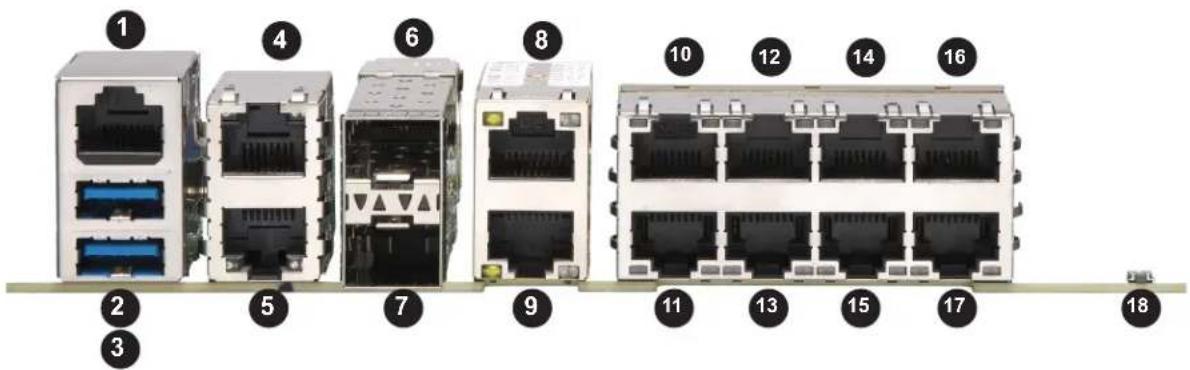
Diagram of 18 network switch units with numbered labels pointing to each componentFigure 1-3. Input/Output Ports
| Front I/O Ports | |||||||
| Item Description Item D | Description Item Description | Item Description | |||||
| 1 | COM1 | 6 | LAN13 | 11 | LAN2 | 16 | LAN9 |
| 2 | USB5 (USB3.0) | 7 | LAN12 | 12 | LAN5 | 17 | LAN8 |
| 3 | USB4 (USB3.0) | 8 | LAN11 | 13 | LAN4 | 18 | UID SWITCH |
| 4 | IPMI LAN | 9 | LAN10 | 14 | LAN7 | ||
| 5 | LAN1 | 10 | LAN3 | 15 | LAN6 | ||
Caution: If the operating temperature exceeds 30^ C and the system fans are not active, a LAN component may become overheated.
Chassis Rear
The illustration below shows the features included on the rear of the chassis.

text_image
VGA Kensington Lock Power InputFigure 1-4. Rear View
1.5 Motherboard Layout
Below is a layout of the X11SDW-4C/8C/14CNT/16C-TP13F motherboard with jumper, connector, and LED locations shown. See the table on the following page for descriptions. For detailed descriptions, pinout information, and jumper settings, refer to Chapter 4.
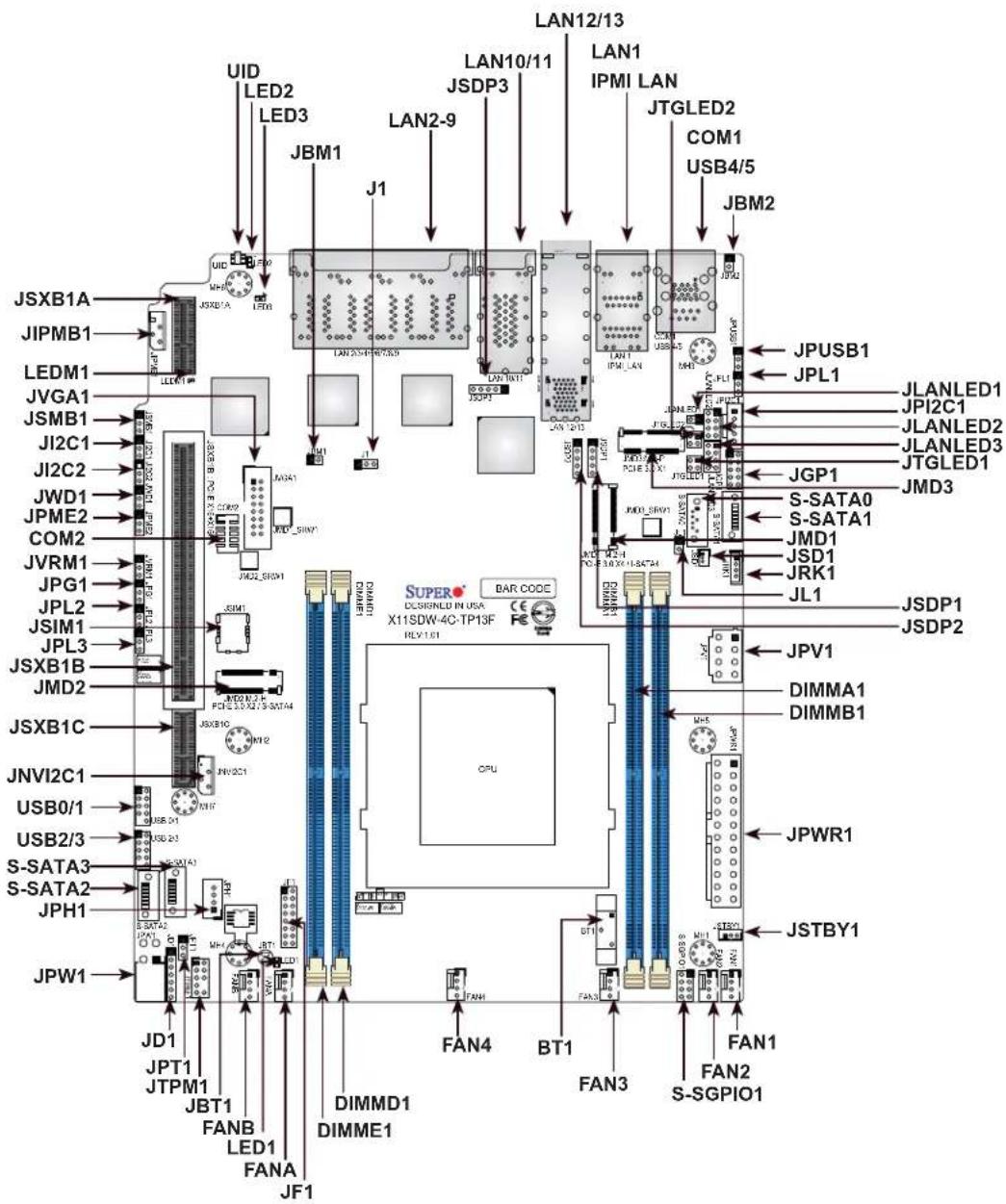
text_image
JSXB1A JIPMB1 LEDM1 JVGA1 JSMB1 JI2C1 JI2C2 JWD1 JPME2 COM2 JVRM1 JPG1 JPL2 JSIM1 JPL3 JSXB1B JMD2 JSXB1C JNVI2C1 USB0/1 USB2/3 S-SATA3 S-SATA2 JPH1 JPW1 JD1 JPT1 JTPM1 JBT1 FANB LED1 FANA JF1 UID LED2 LED3 JBM1 J1 JDB1A JDB2A JDB3A JDB4A JDB5A JDB6A JDB7A JDB8A JDB9A JDB10A JDB11A JDB12A JDB13A JDB14A JDB15A JDB16A JDB17A JDB18A JDB19A JDB20A JDB21A JDB22A JDB23A JDB24A JDB25A JDB26A JDB27A JDB28A JDB29A JDB30A JDB31A JDB32A JDB33A JDB34A JDB35A JDB36A JDB37A JDB38A JDB39A JDB40A JDB41A JDB42A JDB43A JDB44A JDB45A JDB46A JDB47A JDB48A JDB49A JDB50A JDB51A JDB52A JDB53A JDB54A JDB55A JDB56A JDB57A JDB58A JDB59A JDB60A JDB61A JDB62A JDB63A JDB64A JDB65A JDB66A JDB67A JDB68A JDB69A JDB70A JDB71A JDB72A JDB73A JDB74A JDB75A JDB76A JDB77A JDB78A JDB79A JDB80A JDB81A JDB82A JDB83A JDB84A JDB85A JDB86A JDB87A JDB88A JDB89A JDB90A JDB91A JDB92A JDB93A JDB94A JDB95A JDB96A JDB97A JDB98A JDB99A JDB100A JDB101A JDB102A JDB103A JDB104A JDB105A JDB106A JDB107A JDB108A JDB109A JDB110A JDB111A JDB112A LAN2-5V-6V-7V-8V-9V-10V-11V-12V-13V-14V-15V-16V-17V-18V-19V-20V-21V-22V-23V-24V-25V-26V-27V-28V-29V-30V-31V-32V-33V-34V-35V-36V-37V-38V-39V-40V-41V-42V-43V-44V-45V-46V-47V-48V-49V-50V-51V-52V-53V-54V-55V-56V-57V-58V-59V-60V-61V-62V-63V-64V-65V-66V-67V-68V-69V-70V-71V-72V-73V-74V-75V-76V-77V-78V-79V-80V-81V-82V-83V-84V-85V-86V-87V-88V-89V-90V-91V-92V-93V-94V-95V-96V-97V-98V-99V-100V- LAN10/11 LAN1 IPMI LAN JTGLED2 COM1 USB4/5 JBM2 JPUSB1 JPL1 JLANLED1 JPI2C1 JLANLED2 JLANLED3 JTGLED1 JMD3 S-SATA0 S-SATA1 JMDI JSDI JRK1 JL1 JSDP1 JSDP2 JPV1 DIMMA1 DIMMB1 JPWR1 JSTBY1 FAN2 S-SGPIO1 FAN1 FAN2 S-SGPIO1Quick Reference Table
Jumper Description Default Setting
| J1 M.2 SMBus Enable/Disable Pins 1-2 (Enabled) | ||
| JBM1 Disable IPMI Shared LAN Pin 1-2 Open (Enable) | ||
| JBM2 Disable Dedicated IPMI/Shared LAN Pin 1-2 Open (Enable) | ||
| JBT1 CMOS Clear Open: Normal | Closed: Clear CMOS | |
| JI2C1/JI2C2 SMB to PCI-E Slots Enable/Disable Pins 2-3 (Disabled) | ||
| JPG1 VGA Enable/Disable Pins 1-2 (Enabled) | ||
| JPL1 LAN1 Enable/Disable Pins 1-2 (Enabled) | ||
| JPL2 LAN2/3/4/5 Enable/Disable | Pins 1-2 (Enabled) | |
| JPL3 LAN6/7/8/9 Enable/Disable | Pins 1-2 (Enabled) | |
| JPME2 | Manufacturing Mode Select Pins 1-2 (Normal) | |
| JPT1 TPM Enable/Disable | Pins 1-2 (Enabled) | |
| JPUSB1 | USB0/1 Wake up | Pins 2-3 (Disabled) |
| JVRM1 | VRM SMB Data (to BMC or PCH) | Pins 1-2 (BMC) |
| JWD1 | Watch Dog Timer | Pins 1-2 (Reset) |
LED Description Status
| LED1 Power LED | Solid Green: Power On | |
| LED2 | UID LED | Solid Blue: Unit Identified |
| LED3 Overheat/Power Fail/Fan Fail LED | Solid Red: OverheatBlinking Red: Power Failure/Fan Failure | |
| LEDM1 | BMC Heartbeat Blinking Green: BMC Normal | |
| Connector | Description | |
| BT1 | Onboard Battery | |
| COM1/COM2 | COM1: Port, COM2: Header | |
| FAN1 - FAN4, FANA, FANB | CPU/System Fan Headers | |
| IPMI LAN | Dedicated IPMI LAN Port | |
| JD1 | Power LED/Speaker Header (Pins 1-3: Power LED, Pins 4-7: Speaker) | |
| JF1 | Front Control Panel Header | |
| JGP1 General Purpose I/O Header | ||
| JIPMB1 | System Management Bus Header (for IPMI only) | |
| JL1 | Chassis Intrusion Header | |
| JLANLED1 | LAN1 Activity LED Header | |
| JLANLED2 | LAN2-5 Activity LED Header | |
| JLANLED3 | LAN6-9 Activity LED Header | |
| JMD1 | M.2 Slot M-Key 2280/22110 (SATA3.0 / PCI-E x4) | |
| JMD2 | M.2 Slot B-Key 2242/3042 (USB2.0 / USB3.0 / SATA3.0 / PCI-E x2) | |
| JMD3 | M.2 Slot E-Key 2230 (USB2.0 / PCI-E x1) | |
Connector Description
| JNVI2C1 Non-volatile Memory (NVMe) I | °C Header |
| JPH1 4-pin HDD Power Connector | |
| JPI2C1 Power I2C System Management Bus (Power SMB) Header | |
| JPV1 12V 8-pin DC Power Connector (Required to provide extra power to the CPU, or as alternative power for special enclosure when the 24 pin ATX power is not in use) | |
| JPW1 GPU Power Connector | |
| JPWR1 24-pin ATX Power Connector | |
| JRK1 Intel RAID Key Header | |
| JSD1 SATA DOM Power Connector | |
| JSDP1 Software-Defined Pins (For X722 LAN 10/11) | |
| JSDP2 Software-Defined Pins (For X722 LAN 12/13) | |
| JSDP3 Software-Defined Pins (For I350 LAN2) | |
| JSIM1 Nano SIM Card Slot | |
| JSMB1 System Management Bus Header | |
| JSTBY1 Standby Power Connector | |
| JSXB1A WIO Connector | |
| JSXB1B WIO Connector | |
| JSXB1C WIO Connector | |
| JTGLED1 | LAN10/11 Activity LED Header |
| JTGLED2 | LAN12/13 Activity LED Header |
| JTPM1 | Trusted Platform Module (TPM)/Port 80 Connector |
| JVGA1 | VGA Header |
| LAN1 | 1G LAN Port (from I210) |
| LAN2/LAN3 | 10G SFP+ Ports |
| LAN4/LAN5 | 10G LAN Ports |
| LAN6 - LAN13 | 1G LAN Ports (from I350) |
| S-SATA0 - S-SATA3 | SATA3.0 Ports |
| S-SGPIO1 | Serial Link General Purpose I/O Header |
| UID | Unit Identifier Switch |
| USB0/1, USB2/3 | Front Accessible USB2.0 Headers |
| USB4/5 | Back Panel USB3.1 Ports |
flowchart
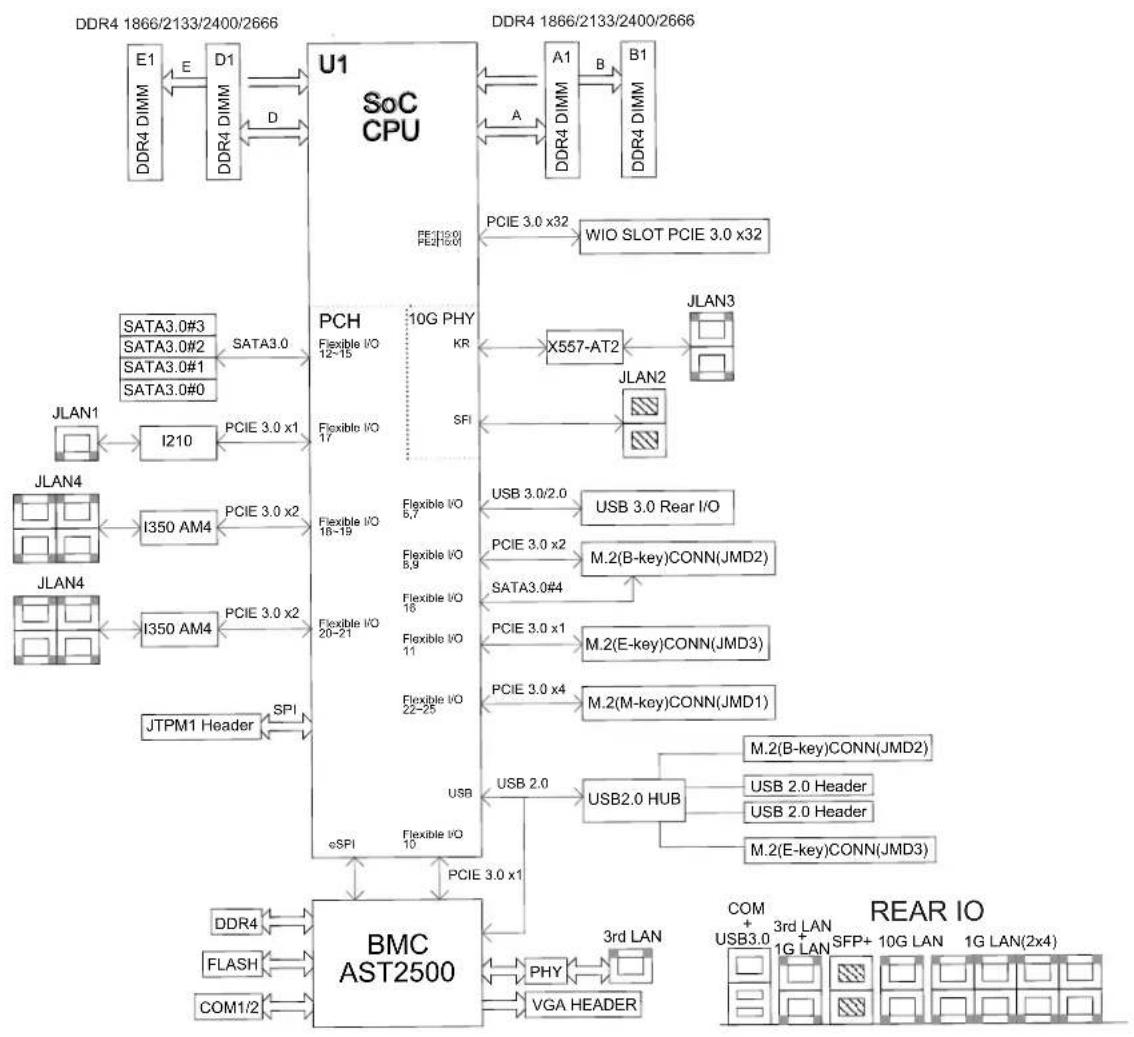
System architecture diagram showing data flow between DDR4, SoC CPU, JLANs, and BMC AST2500 with I/O interfaces and memory connections.Figure 1-5. Chipset System Block Diagram
Chapter 2
Server Installation
2.1 Overview
This chapter provides advice and instructions for mounting your system in a server rack. If your system is not already fully integrated with system memory etc., refer to Chapter 4 for details on installing those specific components.
Caution: Electrostatic Discharge (ESD) can damage electronic components. To prevent such damage to PCBs (printed circuit boards), it is important to use a grounded wrist strap, handle all PCBs by their edges, and keep them in anti-static bags when not in use.
2.2 Preparing for Setup
The box in which the system was shipped should include the rackmount hardware needed to install it into the rack. Please read this section in its entirety before you begin the installation.
Choosing a Setup Location
- The system should be situated in a clean, dust-free area that is well ventilated. Avoid areas where heat, electrical noise, and electromagnetic fields are generated.
- Leave enough clearance in front of the rack so that you can open the front door completely (\~25 inches) and approximately 30 inches of clearance in the back of the rack to allow sufficient space for airflow and access when servicing.
- This product should be installed only in a Restricted Access Location (dedicated equipment rooms, service closets, etc.).
- This product is not suitable for use with visual display workplace devices according to §2 of the German Ordinance for Work with Visual Display Units.
Rack Precautions
- Ensure that the leveling jacks on the bottom of the rack are extended to the floor so that the full weight of the rack rests on them.
-
In single rack installations, stabilizers should be attached to the rack. In multiple rack installations, the racks should be coupled together.
-
Always make sure the rack is stable before extending a server or other component from the rack.
- You should extend only one server or component at a time - extending two or more simultaneously may cause the rack to become unstable.
Server Precautions
- Review the electrical and general safety precautions in Appendix A.
- Determine the placement of each component in the rack before you install the rails.
- Install the heaviest server components at the bottom of the rack first and then work your way up.
- Use a regulating uninterruptible power supply (UPS) to protect the server from power surges and voltage spikes and to keep your system operating in case of a power failure.
- Allow any drives and power supply modules to cool before touching them.
- When not servicing, always keep the front door of the rack and all covers/panels on the servers closed to maintain proper cooling.
Rack Mounting Considerations
Ambient Operating Temperature
If installed in a closed or multi-unit rack assembly, the ambient operating temperature of the rack environment may be greater than the room's ambient temperature. Therefore, consideration should be given to installing the equipment in an environment compatible with the manufacturer's maximum rated ambient temperature (Tmra).
Airflow
Equipment should be mounted into a rack so that the amount of airflow required for safe operation is not compromised.
Mechanical Loading
Equipment should be mounted into a rack so that a hazardous condition does not arise due to uneven mechanical loading.
Circuit Overloading
Consideration should be given to the connection of the equipment to the power supply circuitry and the effect that any possible overloading of circuits might have on overcurrent protection and power supply wiring. Appropriate consideration of equipment nameplate ratings should be used when addressing this concern.
Reliable Ground
A reliable ground must be maintained at all times. To ensure this, the rack itself should be grounded. Particular attention should be given to power supply connections other than the direct connections to the branch circuit (i.e. the use of power strips, etc.).

To prevent bodily injury when mounting or servicing this unit in a rack, you must take special precautions to ensure that the system remains stable. The following guidelines are provided to ensure your safety:
- This unit should be mounted at the bottom of the rack if it is the only unit in the rack.
- When mounting this unit in a partially filled rack, load the rack from the bottom to the top with the heaviest component at the bottom of the rack.
- If the rack is provided with stabilizing devices, install the stabilizers before mounting or servicing the unit in the rack.
- Slide rail mounted equipment is not to be used as a shelf or a work space.
2.3 Identifying the Sections of the Rack Rails
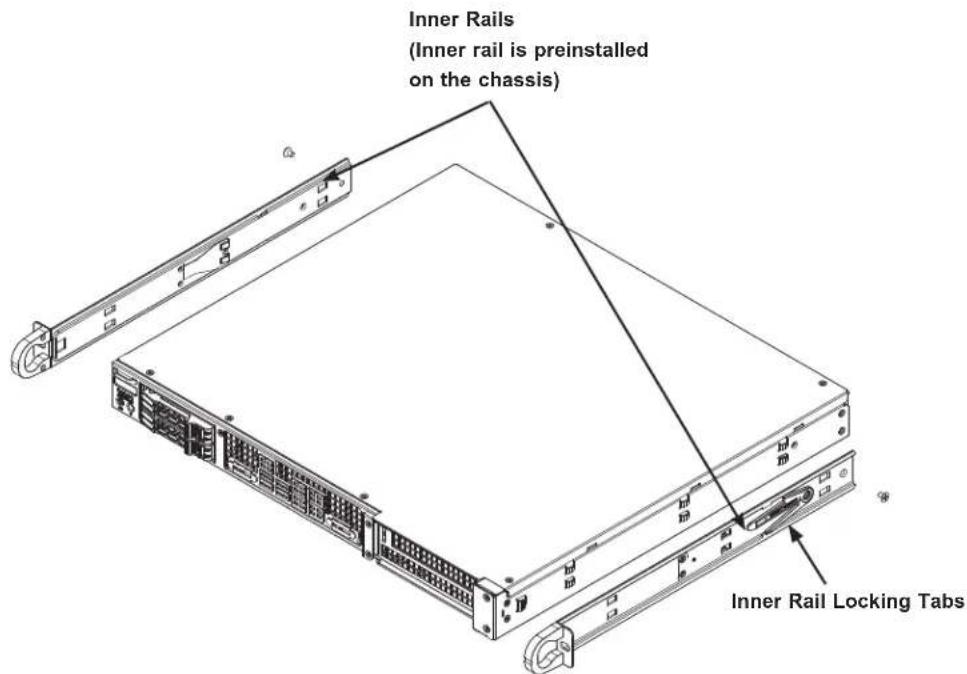
The chassis package includes two rack rail assemblies in the rack mounting kit. Each assembly consists of two sections: an inner fixed chassis rail that secures directly to the server chassis and an outer fixed rack rail that secures directly to the rack itself.
text_image
Inner Rails (Inner rail is preinstalled on the chassis) Inner Rail Locking TabsFigure 2-1. Identifying the Sections of the Rack Rails
Locking Tabs
Both chassis rails have a locking tab. The tabs lock the server into place when installed and pushed fully into the rack. These tabs also lock the server in place when fully extended from the rack. This prevents the server from coming completely out of the rack when you pull it out for servicing.
Inner Rails
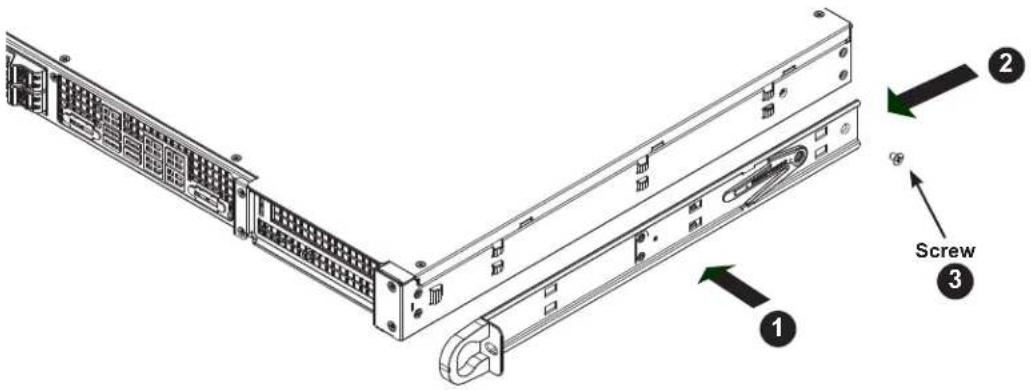
The inner rails are pre-attached to the chassis, but should the need arise to remove them, reinstallation of the rails is simple and can be accomplished with a screwdriver.
Installing the Inner Rails
- Place the inner rail on the side of the chassis aligning the hooks of the chassis with the inner rail holes.
- Slide the extension toward the front of the chassis.
- Secure the chassis with one screw.
- Repeat steps 1-3 for the other inner rail.
text_image
Screw ① ② ③Figure 2-2. Installing the Inner Rails (Right side shown)

Warning: Do not pick up the server by the front handles. They are designed to pull the system from a rack only.
Outer Rails
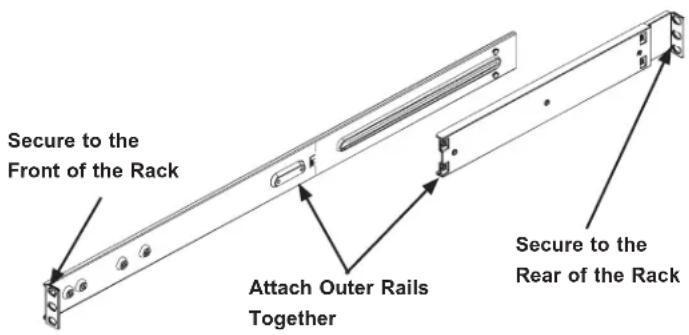
Outer rails attach to the rack and hold the server in place. The outer rails for the chassis extend between 30 inches and 33 inches.
Installing the Outer Rails to the Rack
- Attach the short bracket to the outside of the long bracket. Align the pins of the rail with the slides. The ends of each bracket must angle in the same direction.
- Adjust both the short and long brackets to the proper distance so that the rail fits snugly into the rack.
- Secure the long bracket to the front side of the rack with two M5 screws and the short bracket to the rear side of the rack with three M5 screws. Make sure that both sides are at the same height and with the rail guides facing inward.
- Repeat steps 1-3 for the remaining outer rail.
text_image
Secure to the Front of the Rack Attach Outer Rails Together Secure to the Rear of the RackFigure 2-3. Assembling the Outer Rails

Warning: Stability hazard. The rack stabilizing mechanism must be in place, or the rack must be bolted to the floor before you slide the unit out for servicing. Failure to stabilize the rack can cause the rack to tip over.

Warning: Slide rail mounted equipment is not to be used as a shelf or a work space.
2.4 Installing the Chassis into the Rack
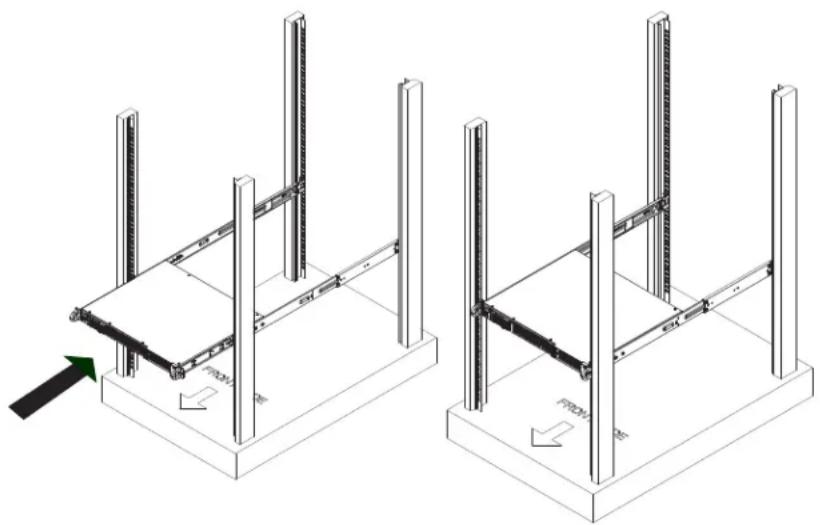
- Confirm that the chassis includes the inner rails and rail extensions. Also, confirm that the outer rails are installed on the rack.
- Align the chassis rails with the front of the rack rails.
- Slide the chassis rails into the rack rails, keeping the pressure even on both sides. (It may be necessary to depress the locking tabs when inserting). When the server has been pushed completely into the rack, the locking tabs will "click" into the locked position.
- Insert and tighten the screws that hold the front of the server to the rack.
natural_image
Technical line drawing of two mechanical assembly setups with vertical supports and a central component, showing no text or symbols.Figure 2-4. Installing the Server into a Rack
Note: Figures are for illustrative purposes only. Always install servers to the bottom of a rack first.

Warning: Do not pick up the server by the front handles. They are designed to pull the system from a rack only.
Chapter 3
Maintenance and Component Installation
This chapter provides instructions on installing and replacing main system components. To prevent compatibility issues, only use components that match the specifications and/or part numbers given.
Installation or replacement of most components require that power first be removed from the system. Please follow the procedures given in each section.
3.1 Removing Power
Use the following procedure to ensure that power has been removed from the system. This step is necessary when removing or installing non hot-swap components or when replacing a non-redundant power supply.
- Use the operating system to power down the system.
- After the system has completely shut-down, disconnect the AC power cord(s) from the power strip or outlet. (If your system has more than one power supply, remove the AC power cords from all power supply modules.)
- Disconnect the power cord(s) from the power supply module(s).
3.2 Accessing the System
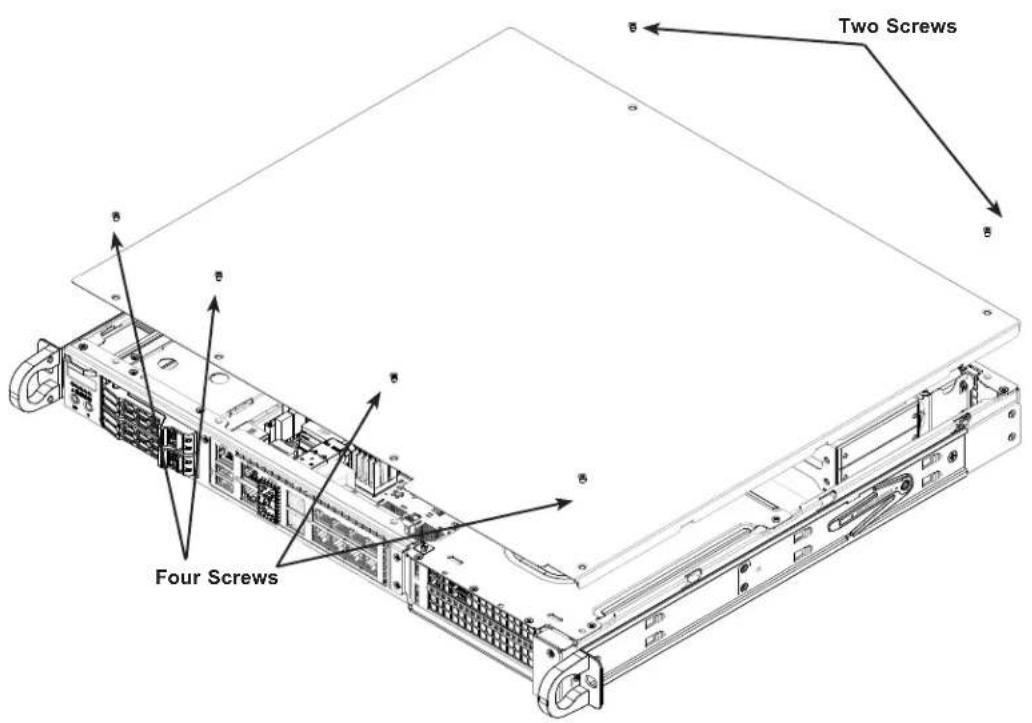
Removing the Chassis Cover
- Power down the system as described in Section 3.1.
- Remove the six screws that are securing the top cover to the chassis.
- Slide the cover back toward the rear of the chassis.
- Lift the cover upwards and off the chassis.
Caution: Except for short periods of time, do not operate the server without the cover in place. The chassis cover must be in place to allow proper airflow and prevent overheating.
text_image
Four Screws Two ScrewsFigure 3-1. Removing the Chassis Cover
3.3 Motherboard Components
Memory
Note: Check the Supermicro website for recommended memory modules.
Memory Support
The X11SDW-4C-TP13F, X11SDW-8C-TP13F, X11SDW-14CNT-TP13F, and X11SDW-16C-TP13F support up to 256GB of ECC RDIMM or 512GB of ECC LRDIMM DDR4 memory in four memory slots. Refer to the table below for the recommended DIMM population order and additional memory information.
DIMM Module Population Configuration
For optimal memory performance, follow the table below when populating memory.
| Memory Population (Balanced) | ||||
| DIMMA1 D | IMMB1 DIMMD1 DIMME1 | Total System Memory | ||
| 4GB 4GB | 8GB | |||
| 8GB 8GB | ||||
| 8GB 8GB | 16GB | |||
| 4GB 4GB | 4GB 4GB 16GB | |||
| 8GB 8GB | 8GB 24GB | |||
| 8GB 8GB | 8GB 8GB 32GB | |||
| 16GB 16GB | 32GB | |||
| 16GB 16GB | 16GB 48GB | |||
| 16GB 16GB | 16GB 16GB 64GB | |||
| 32GB 32GB | 64GB | |||
| 32GB 32GB | 32GB 96GB | |||
| 32GB 32GB | 32GB 32GB | 128GB | ||
| 64GB 64GB | 128GB | |||
| 64GB 64GB | 64GB | 192GB | ||
| 64GB 64GB | 64GB 64GB | 256GB | ||
| 126GB | 128GB | 256GB | ||
| 128GB | 128GB | 128GB | 128GB | 512GB |
DIMM Module Population Sequence
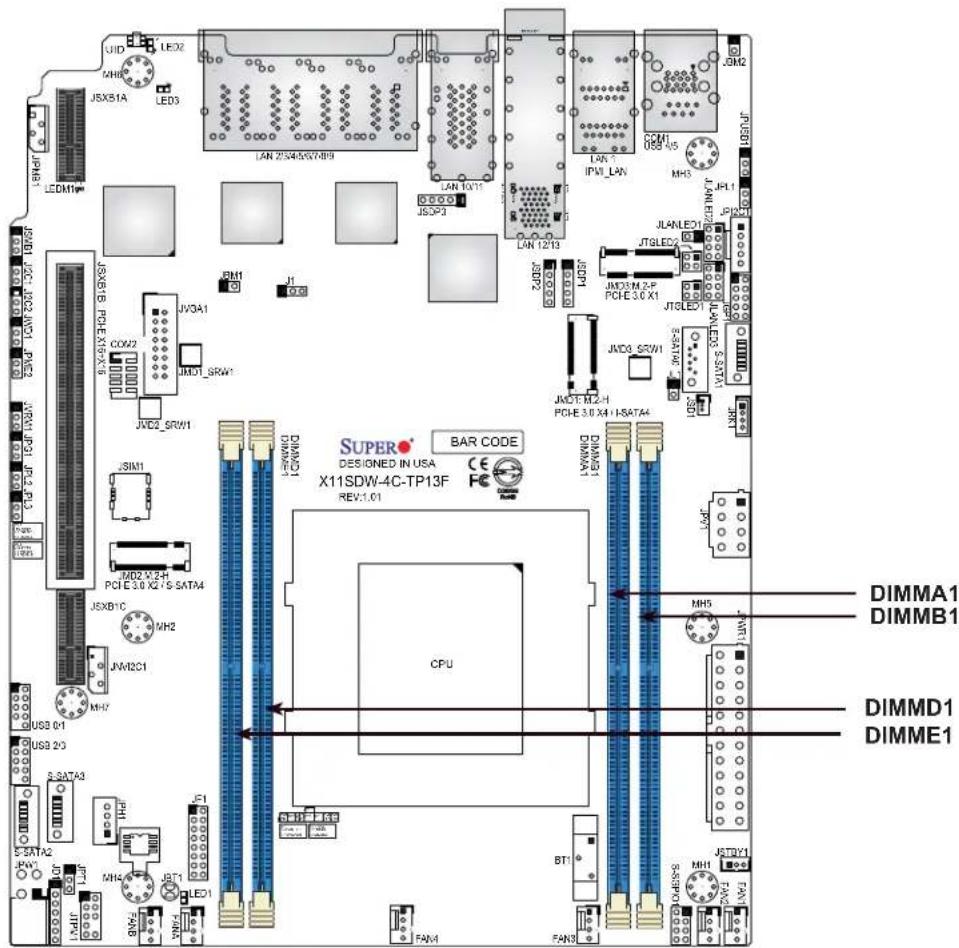
When installing memory modules, the DIMM slots should be populated in the following order: DIMMA1, DIMMB1, then DIMMD1, DIMME1.
• Always use DDR4 DIMM modules of the same type and speed.
- Mixed DIMM speeds can be installed. However, all DIMMs will run at the speed of the slowest DIMM.
- The motherboard will support odd-numbered modules (one or three modules installed). However, for best memory performance, install DIMM modules in pairs to activate memory interleaving.
text_image
LED1 LED2 JXH0 JX5X1A LED3 LAM 25N4/PGT-B9 LAN 10V11 JX5P3 LAN 12/13 JX6D1 JX7E1 JX8D1 JX9D1 JX10D1 JX11D1 JX12D1 JX13D1 JX14D1 JX15D1 JX16D1 JX17D1 JX18D1 JX19D1 JX20D1 JX21D1 JX22D1 JX23D1 JX24D1 JX25D1 JX26D1 JX27D1 JX28D1 JX29D1 JX30D1 JX31D1 JX32D1 JX33D1 JX34D1 JX35D1 JX36D1 JX37D1 JX38D1 JX39D1 JX40D1 JX41D1 JX42D1 JX43D1 JX44D1 JX45D1 JX46D1 JX47D1 JX48D1 JX49D1 JX50D1 JX51D1 JX52D1 JX53D1 JX54D1 JX55D1 JX56D1 JX57D1 JX58D1 JX59D1 JX60D1 JX61D1 JX62D1 JX63D1 JX64D1 JX65D1 JX66D1 JX67D1 JX68D1 JX69D1 JX70D1 JX71D1 JX72D1 JX73D1 JX74D1 JX75D1 JX76D1 JX77D1 JX78D1 JX79D1 JX80D1 JX81D1 JX82D1 JX83D1 JX84D1 JX85D1 JX86D1 JX87D1 JX88D1 JX89D1 JX90D1 JX91D1 JX92D1 JX93D1 JX94D1 JX95D1 JX96D1 JX97D1 JX98D1 JX99D1 JXM0.0000000000000000000000000000000000000000000000000000000000000000000000000000000000000000000000000000Figure 3-2. DIMM Slots
DIMM Installation
Insert the desired number of DIMMs into the memory slots based on the recommended population table on the previous page.
Installing Memory
Begin by removing power from the system as described in Section 3.1.
- Insert the desired number of DIMMs into the memory slots, starting with DIMMA1, DIMMB1, then DIMMD1, DIMME1. Push the release tabs outwards on both ends of the DIMM slot to unlock it.
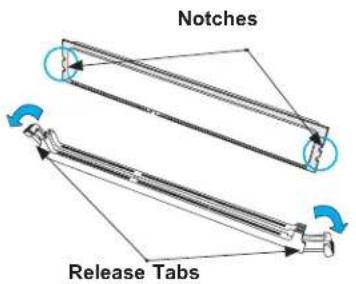
text_image
Notches Release Tabs- Align the key of the DIMM with the receptive point on the memory slot and with your thumbs on both ends of the module, press it straight down into the slot until the module snaps into place.
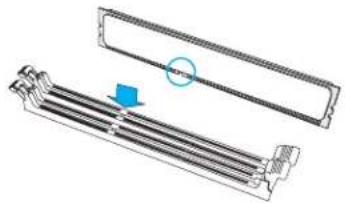
natural_image
Technical illustration of a mechanical component with a blue arrow indicating a specific part (no text or symbols present)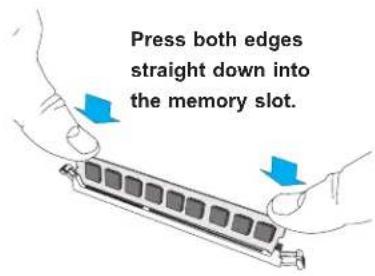
text_image
Press both edges straight down into the memory slot.- Press the release tabs to the locked position to secure the DIMM module into the slot.
To remove a DIMM, unlock the release tabs then pull the DIMM from the memory slot.
Caution: Exercise extreme caution when installing or removing memory modules to prevent any possible damage to the DIMMs or slots.
Severboard Battery
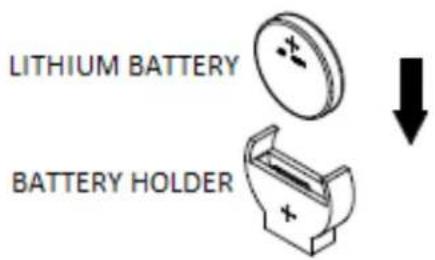
Caution: There is a danger of explosion if the onboard battery is installed in the wrong orientation with reversed polarities. This battery must be replaced only with the same or an equivalent type recommended by the manufacturer (CR2032). Dispose of used batteries according to the manufacturer's instructions.
text_image
LITHIUM BATTERY BATTERY HOLDERFigure 3-3. Installing the Onboard Battery
Please handle used batteries carefully. Do not damage the battery in any way; a damaged battery may release hazardous materials into the environment. Do not discard a used battery in the garbage or a public landfill. Please comply with the regulations set up by your local hazardous waste management agency to dispose of your used battery properly.
3.4 Chassis Components
This section provides instructions on installing and replacing system components. To assure compatibility, only use components that match the specifications or part numbers given.
Storage Drives
The system supports two hot-swap 2.5" drives and two internal 2.5" solid-state disk drives.
Note: Enterprise level drives are recommended for use in Supermicro servers. For information on recommended HDDs, visit the Supermicro website product pages at https://www.supermicro.com/products/nfo.
Drive Carriers
The drives are mounted in drive carriers that simplify their removal from the chassis. These carriers also help promote proper airflow. Even carriers without drives must remain in the chassis for proper airflow.
Each drive carrier has two LED indicators: an activity indicator and a status indicator.
Installing Hot-Swappable Hard Drives
The chassis supports two 2.5" hot-swappable hard disk drives. Only enterprise-level hard drives are recommended.
Note: The hard drives in your chassis may look slightly different than the ones shown in this manual.
Installing 2.5" Hot-Swappable Hard Drives
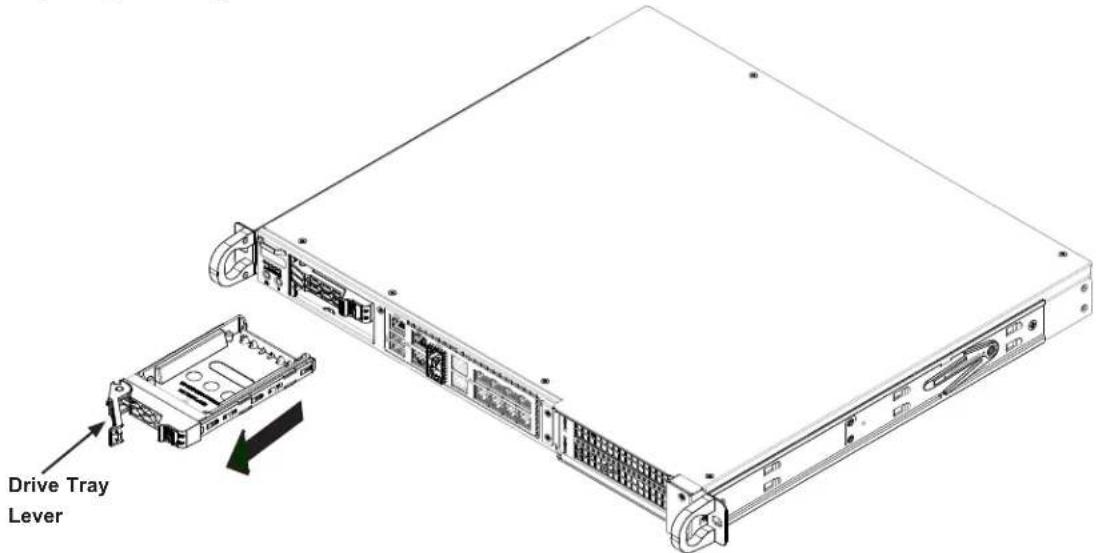
- Remove the drive tray from the front of the chassis by unlocking the drive tray lever and pulling the tray out from the chassis.
text_image
Drive Tray LeverFigure 3-4. Unlocking the Drive Tray Lever and Removing the Drive Tray
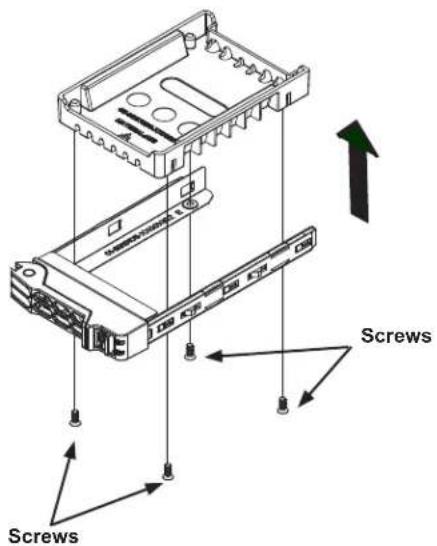
- Remove the four screws and lift the dummy hard drive insert from the drive tray.
text_image
Screws ScrewsFigure 3-5. Mounting Hot-Swap Storage Drives
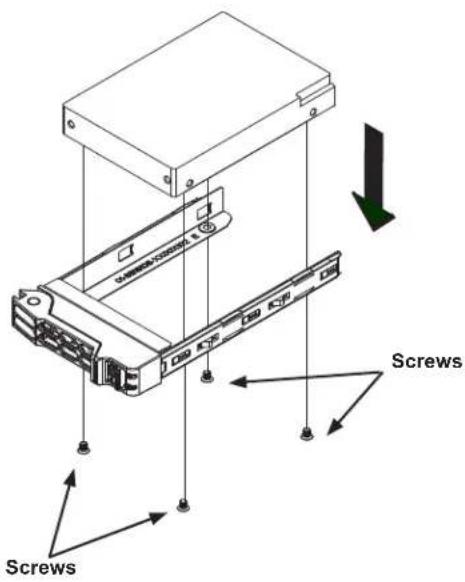
- Install the drive into the drive tray and secure it with screws.
text_image
Screws ScrewsFigure 3-6. Installing Storage Drives
- Lock the drive tray and place into chassis.
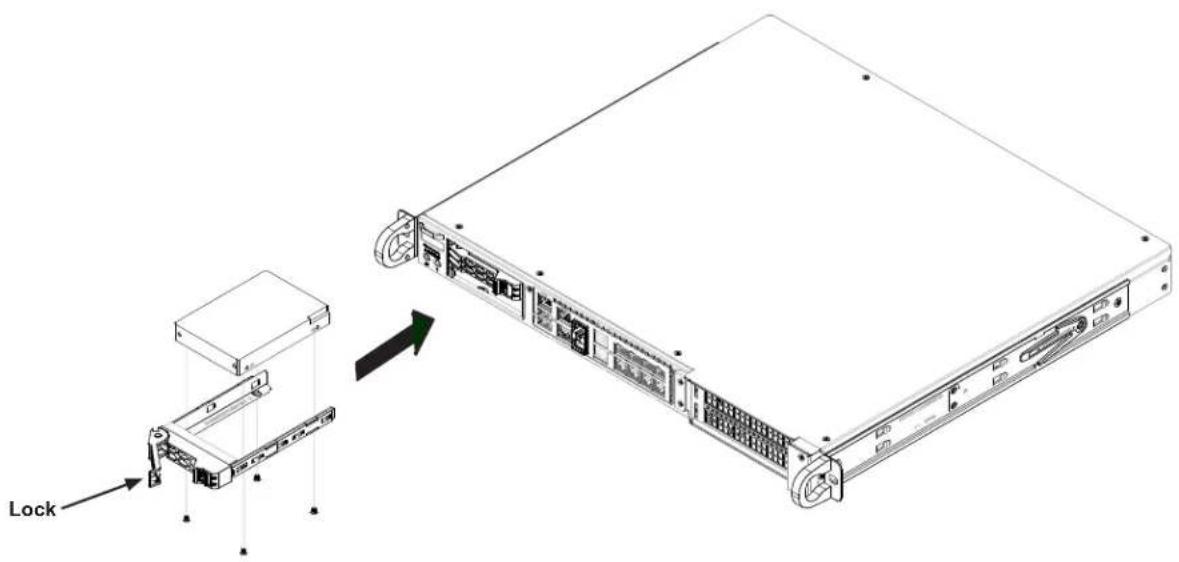
text_image
LockFigure 3-7. Installing the Hot Swappable Drive
Installing Fixed Internal Drives
Installing 2.5" Drives to the Chassis Floor
- Obtain the mounting bracket and secure the drive(s) to the bracket.
- Secure the drives to the chassis floor using four screws.
- Connect drive cables.
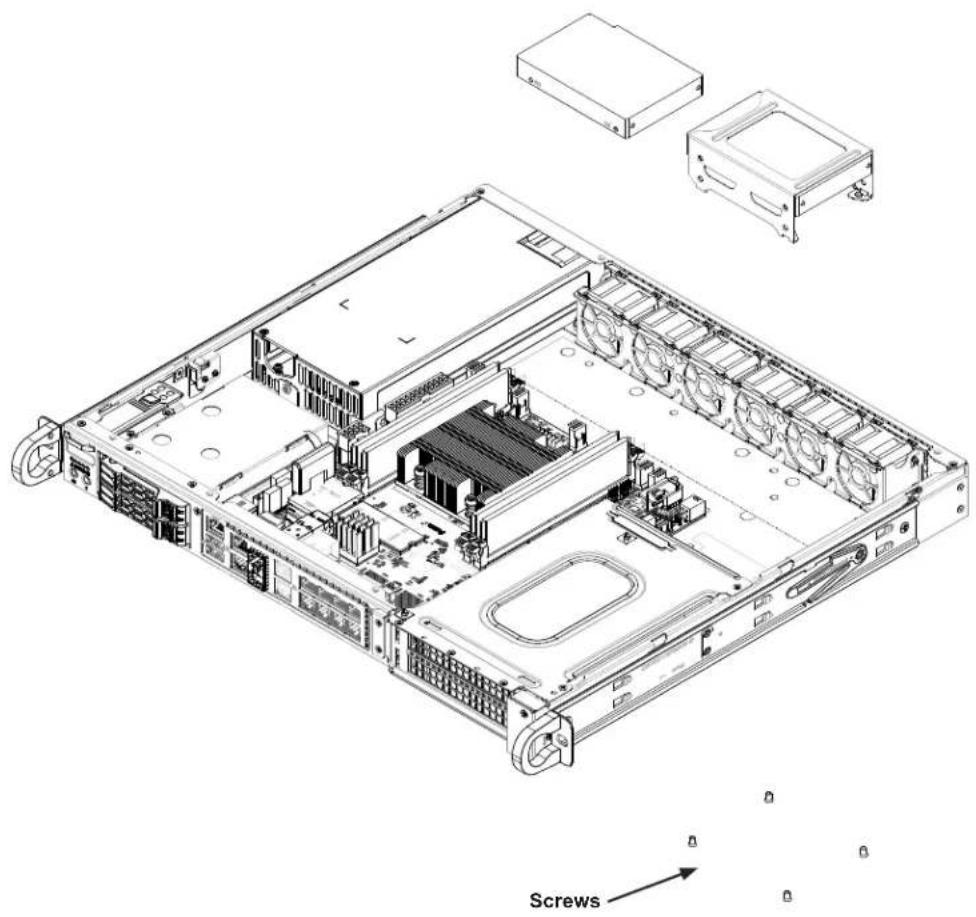
text_image
ScrewsFigure 3-8. Securing the Solid-State Disk Drive to the Mounting Enclosure
System Fans
The 1019D-FHN13TP and 1019D-4C-FHN13TP systems come with four heavy-duty fans. There are additional sockets for two more optional fans to provide additional cooling, if needed, for a total of six fans. The 1019D-14CN-FHN13TP and 1019D-16C-FHN13TP systems come with six heavy-duty fans.
The fans can adjust their speed according to the heat level sensed in the system, which results in more efficient and quieter fan operation. Fan speed is controlled by IPMI. Each fan in a set has its own separate tachometer.
If a fan fails, the remaining fans will ramp up to full speed and the overheat/fan fail LED on the control panel will blink on and off. Replace any failed fan at your earliest convenience with the same type and model.
Note: The chassis top cover must be installed for proper airflow.
Replacing a System Fan
- Determine which fan has failed using IPMI, or if necessary, open the chassis while the system is running. Never run the server for long without the chassis cover.
- Remove power from the system as described in Section 3.1.
- Remove the air shroud and fan cable from the motherboard.
- Gently pull upward to remove a failed fan from the housing.
- Push the new fan into the housing making sure the fan is oriented in the same direction as the other fans.
- Reconnect the fan cables to the same chassis fan headers and replace the air shroud.
- Power up the system and check that the fan is working properly and that the overheat/fan fail LED on the control panel has turned off. Finish by replacing the chassis cover.
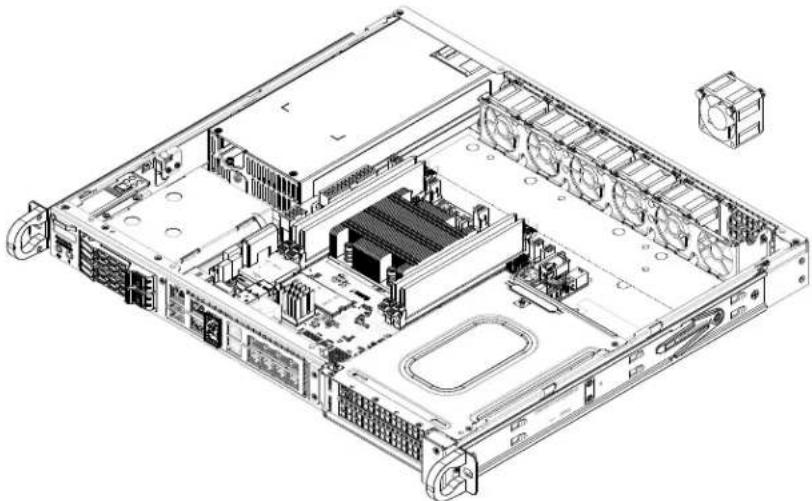
natural_image
Technical line drawing of a server rack with internal components and ventilation ducts (no text or labels)Figure 3-9. Replacing the System Fans
Installing the Air Shroud
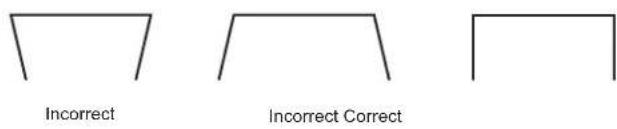
Air shrouds concentrate airflow to maximize fan efficiency. It does not require screws to install.
Installing the Air Shroud
- Position the air shroud in the chassis, as illustrated below. The air shroud fits just behind the fans.
- Slide the air shroud into the grooves just behind the fan rack. If necessary, move any cables that interfere with the air shroud placement.
- Remove perforated tabs, if necessary, for a good fit.
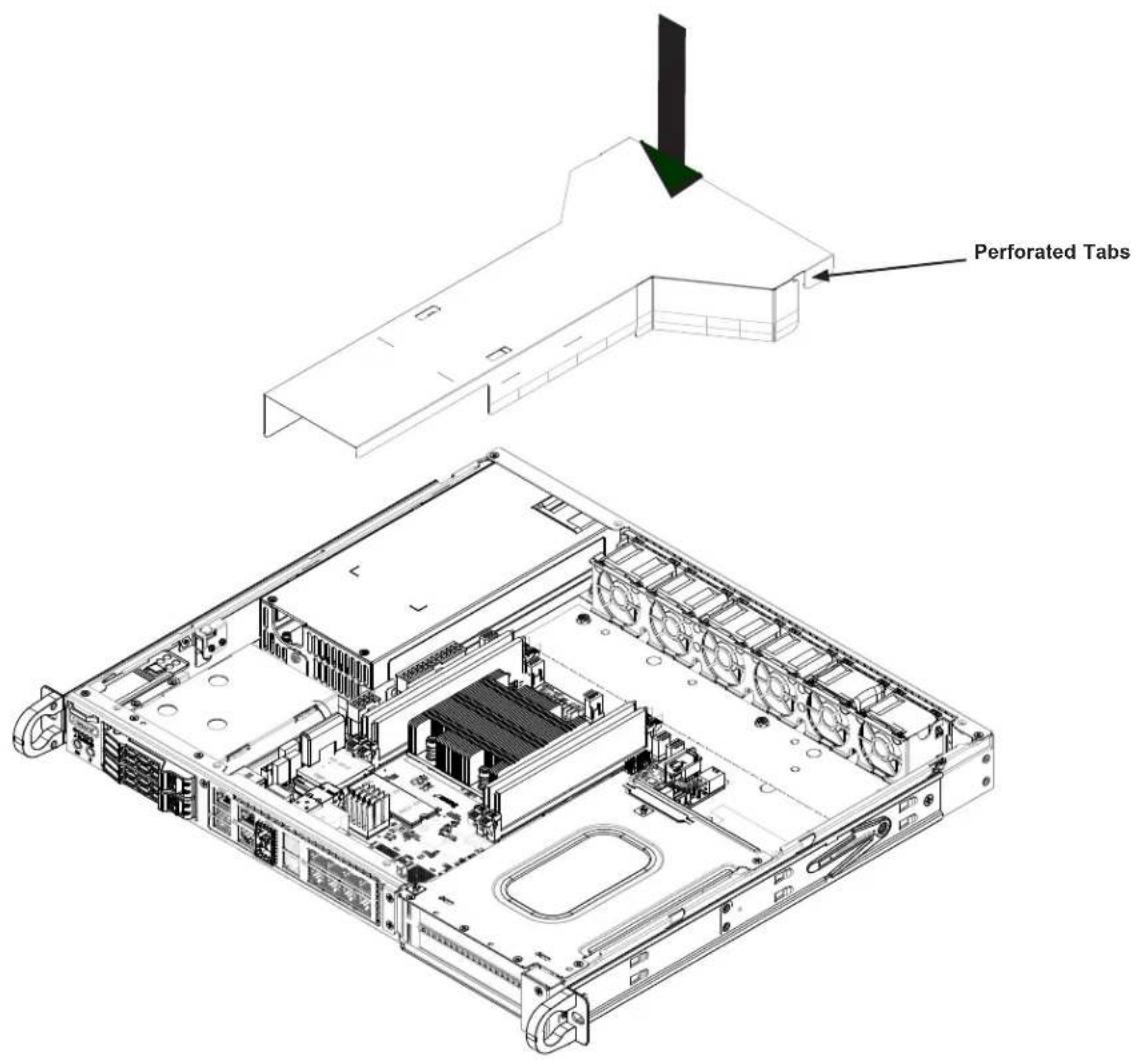
text_image
Perforated TabsFigure 3-10. Installing the Air Shroud
text_image
Incorrect Incorrect CorrectChecking the Server Air Flow
- Make sure there are no objects to obstruct airflow in and out of the server.
- Do not operate the server without drives or drive carriers in the hot-swap drive bays.
- Use only recommended server parts.
- Make sure no wires or foreign objects obstruct air flow through the chassis. Pull all excess cabling out of the airflow path or use shorter cables.
The control panel LEDs display system heat status. See “Control Panel” in Chapter 1 for details.
Overheating
There are several possible responses if the system overheats.
If the server overheats:
- Use the overheat/fan fail LED to determine the nature of the overheating condition.
- Confirm that the chassis covers are installed properly.
- Make sure all fans are present and operating normally.
- Check the routing of the cables.
- Verify that the heatsink and air shroud are installed properly.
Caution: If the operating temperature exceeds 30^ C and the system fans are not active, a LAN component may become overheated.
Power Supply
The SC513B chassis has either one 350W or one 500W power supply. The power supply is auto-switching capable. This enables it to automatically sense and operate at a 100v to 240v input voltage. It will be necessary to shut down the system in order to change the power supply. If replacing, use the exact same model. New units can be ordered directly from Supermicro or authorized distributors.
Changing a Fixed Power Supply
- Power down the system, unplug the AC cord from the power supply, and remove the cover.
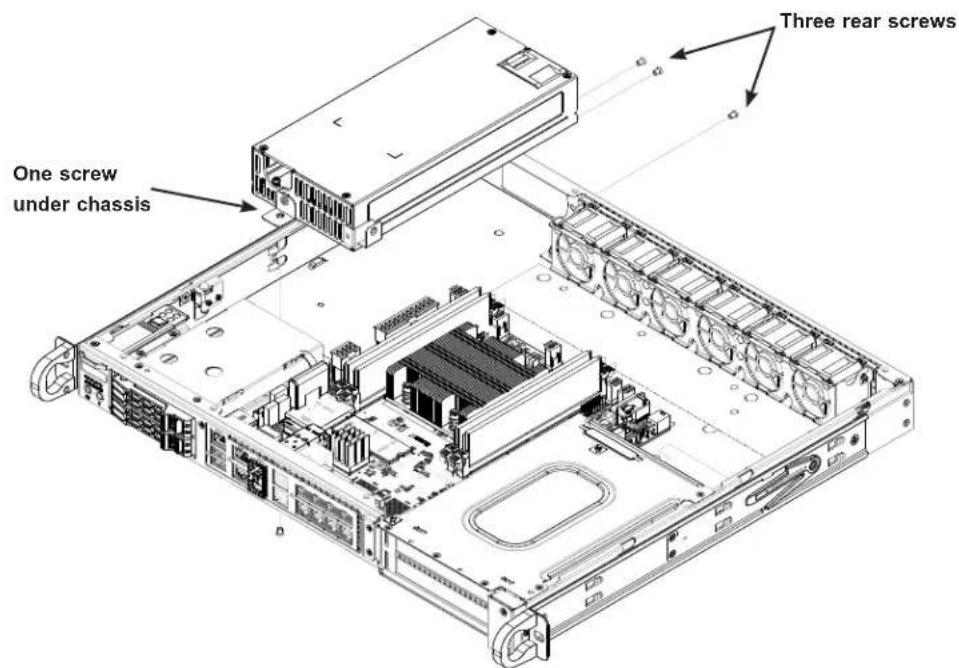
- Remove the three screws located on the end of the power supply bay and one screw at the front of the power supply and under side of the chassis, as illustrated below. Set the screws aside for later use.
- Gently slide the power supply out of the back of the chassis.
- Replace the failed power supply with another of the same model.
- Slide the new power supply into the power supply bay.
- Align the holes in the power supply with the holes in the power supply bay and secure the power supply using the four screws which were set aside in step 2.
- Replace the chassis cover, plug the power cord into the rear of the power supply, and power up the system.
text_image
Three rear screws One screw under chassisFigure 3-11. Removing the Power Supply
PCI Expansion Cards
The system includes a pre-installed riser card that positions one or two full-height, PCI-E x16 cards at a 90 degree angle, allowing it to fit inside the chassis.
Installing PCI Expansion Cards
-
Remove power as described in Section 3.1 and remove the chassis cover.
-
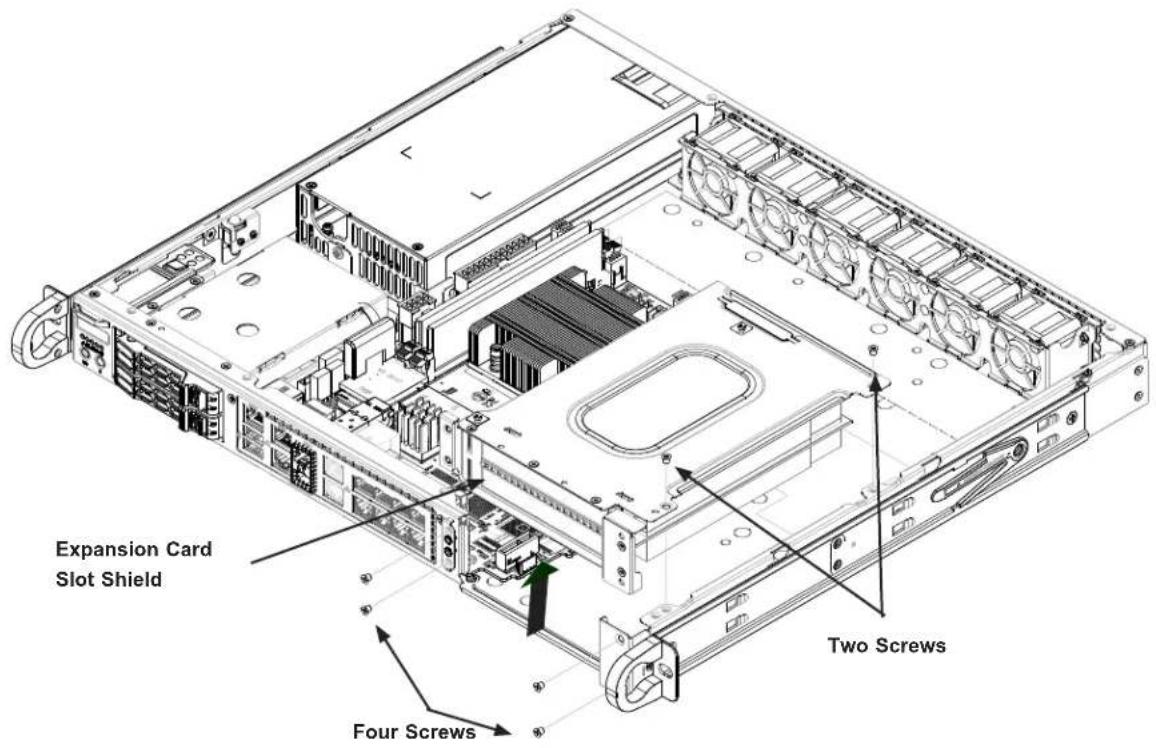
Remove six screws, hold the bracket at two indicated locations, and pull up the bracket vertically.

Warning: Do not tilt or wiggle the riser bracket when lifting it up.
text_image
Expansion Card Slot Shield Four Screws Two ScrewsFigure 3-12. Removing the Riser Card Bracket
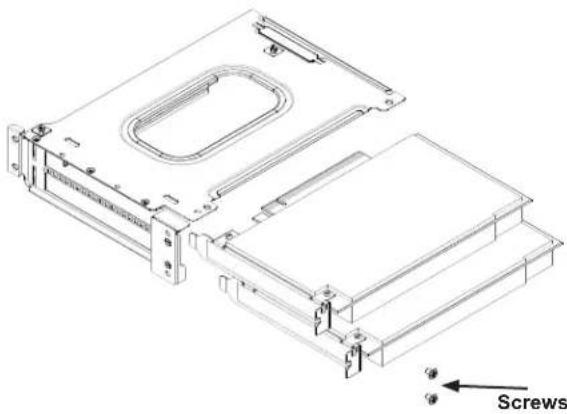
- Insert the expansion card into the riser card slot while aligning the card rear bracket with the chassis slot.
- Secure the card bracket with screws.
natural_image
Technical line drawing of a computer drive chassis with screw assembly (no text or symbols)Figure 3-13. Inserting the Expansion Card into the Riser Card Bracket
- Insert the riser card assembly into the motherboard slots while aligning it with the openings in the front of the chassis.
- Secure the riser card bracket to the chassis using four rear screws and two top screws.
- Re-install the top chassis cover and power up the system.
Chapter 4
Motherboard Connections
This section describes the connections on the motherboard and provides pinout definitions.
Note that depending on how the system is configured, not all connections are required.
The LEDs on the motherboard are also described here. A motherboard layout indicating component locations may be found in Chapter 1.
Please review the Safety Precautions in Appendix A before installing or removing components.
4.1 Power Connections
Power Connectors
The primary ATX power supply connector (JPWR1) meets the ATX SSI EPS 12V specification. JPV1 is the 12V DC power connector that provides power to the motherboard. JPH1 is a 4-pin HDD power connector that provides power to onboard hard disk drives.
| 8-pin 12V Power Pin Definitions | |
| Pin# Definition | |
| 1 - 4 Ground | |
| 5 - 8 +12V |
| 4-pin HDD Power Pin Definitions | |
| Pin# Definition | |
| 1 12V | |
| 2-3 Ground | |
| 4 5V | |
| ATX Power 24-pin Connector Pin Definitions | ||
| Pin# Definition Pin# Definition | ||
| 13 +3.3V 1 +3.3V | ||
| 14 -12V 2 +3.3V | ||
| 15 Ground 3 Ground | ||
| 16 PS_ON 4 +5V | ||
| 17 Ground 5 Ground | ||
| 18 Ground 6 +5V | ||
| 19 Ground 7 Ground | ||
| 20 Res (NC) 8 PWR_OK | ||
| 21 +5V 9 5 VSB | ||
| 22 +5V 10 +12V | ||
| 23 +5V 11 +12V | ||
| 24 Ground 12 +3.3V | ||
GPU Power Connector
JPW1 is a GPU power connector. This connector provides additional power for graphic cards.
| GPU PowerPin Definitions | |
| Pin# | Definition |
| 1 GND | |
| 2 GND | |
| 3 12V | |
| 4 12V | |
Power SMB (I²C) Header
The Power System Management Bus (I²C) connector (JPI2C1) monitors the power supply. Refer to the table below for pin definitions.
| Power SMB HeaderPin Definitions | |
| Pin# | Definition |
| 1 | Clock |
| 2 | Data |
| 3 | PMBUS_Alert |
| 4 | Ground |
| 5 | NC |
4.2 Headers and Connectors
Fan Headers
The X11SDW-4C-TP13F, X11SDW-8C-TP13F, X11SDW-14CNT-TP13F, and X11SDW-16C-TP13F motherboards have six 4-pin fan headers (FAN1 - FAN4, FANA, FANB). These headers are backwards-compatible with the traditional 3-pin fans. However, fan speed control is available for 4-pin fans only by Thermal Management via the IPMI 2.0 interface. Refer to the table below for pin definitions.
| Fan HeaderPin Definitions | |
| Pin# Definition | |
| 1 Ground (Black) | |
| 2 2.5A/+12V (Red) | |
| 3 Tachometer | |
| 4 PWM_Control |
| Fan ZonePin Definitions | |
| Zone 1 2 | |
| Fan # FAN1/2/3/4 FANA/B | |
Chassis Intrusion
A Chassis Intrusion header is located at JL1 on the motherboard. Attach the appropriate cable from the chassis to inform you of a chassis intrusion when the chassis is opened. Refer to the table below for pin definitions.
| Chassis Intrusion Pin Definitions | |
| Pin# Definition | |
| 1 | Intrusion Input |
| 2 | Ground |
SATA Ports
The X11SDW-4C-TP13F, X11SDW-8C-TP13F, X11SDW-14CNT-TP13F, and X11SDW-16C-TP13F motherboards have four S-SATA 3.0 ports. Refer to the table below for pin definitions.
| SATA 3.0 PortPin Definitions | |
| Pin# Signal | |
| 1 Ground | |
| 2 SATA_TXP | |
| 3 SATA_TXN | |
| 4 Ground | |
| 5 SATA_RXN | |
| 6 SATA_RXP | |
| 7 Ground |
M.2 Slot
The X11SDW-4C-TP13F, X11SDW-8C-TP13F, X11SDW-14CNT-TP13F, and X11SDW-16C-TP13F motherboards have three M.2 slots. M.2 was formerly known as Next Generation Form Factor (NGFF). M.2 allows for a variety of card sizes, increased functionality, and spatial efficiency. The M.2 slot at JMD1 supports PCI-E 3.0 x4 and SATA 3.0 interfaces in a 2280/22110 form factor, whereas the M.2 slot at JMD2 supports PCI-E 3.0 x4, SATA 3.0, and USB 3.0 interfaces in a 3042 form factor. The M.2 slot at JMD3 supports PCI-E 3.0 x1.
TPM/Port 80 Header
A Trusted Platform Module (TPM)/Port 80 header is located at JTPM1 to provide TPM support and a Port 80 connection. Use this header to enhance system performance and data security. Refer to the table below for pin definitions.
| Trusted Platform Module Header Pin Definitions | ||
| Pin# Definition Pin# Definition | ||
| 1 +3.3 V 2 SPI_CS# | ||
| 3 RESET# 4 SPI_MI$O | ||
| 5 SPI_CLK 6 GND | ||
| 7 SPI_MOSI 8 | ||
| 9 +3.3 V Stby 10 SPI_IRQ# | ||
VGA Header
Connect a 16-pin VGA extension cable to JVGA1 for a VGA connection.
| VGA HeaderPin Definitions | ||
| Pin# Definition Pin# Definition | ||
| 1 VGA | RED 2 VGA | CRE |
| 3 VGA | BLE 4 N/C | |
| 5 GND | 6 VGA_DET | |
| 7 GND | 8 GND | |
| 9 5V | 10 GND | |
| 11 N/C | 12 DDCSDA | |
| 13 HSYNC | 14 VSYNC | |
| 15 DDCSCL | 16 N/C | |
Intel RAID Key Header
The JRK1 header allows the user to enable RAID functions. Refer to the table below for pin definitions.
| Intel RAID KeyPin Definitions | |
| Pin# Definition | |
| 1 GND | |
| 2 PU 3.3V Stdby | |
| 3 GND | |
| 4 PCH RAID KEY | |
Disk On Module Power Connector
The Disk On Module (DOM) power connector at JSD1 provides 5V power to a solid-state DOM storage device connected to one of the SATA ports. Refer to the table below for pin definitions.
| DOM Power Pin Definitions | |
| Pin# Definition | |
| 1 5V | |
| 2 Ground | |
| 3 Ground | |
General Purpose I/O Header
The JGP1 (General Purpose Input/Output) header is a general purpose I/O expander on a pin header via the SMBus. Refer to the table below for pin definitions.
| GPIO HeaderPin Definitions | ||
| Pin# Definition Pin# Definition | ||
| 1 3V3$B 2 GND | ||
| 3 GP0 4 GP1 | ||
| 5 GP2 6 GP3 | ||
| 7 GP4 8 GP5 | ||
| 9 GP6 10 GP7 | ||
Standby Power
The Standby Power header is located at JSTBY1 on the motherboard. Refer to the table below for pin definitions.
| Standby Power Pin Definitions | |
| Pin# Definition | |
| 1 +5V | Standby |
| 2 Ground | |
| 3 No Connection | |
Power LED/Speaker Header
On the JD1 header, pins 1-3 are for the Power LED and pins 4-7 are for the speaker.
| Power LED/Speaker Connector Pin Definitions |
| Pin# Definition |
| Pins 1-3 Power LED |
| Pins 4-7 Speaker |
External I²C Header
The system management bus header is located at JIPMB1. Connect the appropriate cable here to use the IPMB I ^2 C connection on your system. Refer to the table below for pin definitions.
| External I2C Header Pin Definitions | |
| Pin# Definition | |
| 1 Data | |
| 2 GND | |
| 3 Clock | |
| 4 NC | |
NVMe I²C Header
JNVI2C1 is a management header for the Supermicro AOC NVMe PCI-E peripheral cards. Connect a corresponding I²C cable to this header. Refer to the table below for pin definitions.
| NVMe I2C HeaderPin Definitions |
| Pin# Definition |
| 1 PE_HP_SDA |
| 2 Ground |
| 3 PE_HP_SCL |
| 4 PVCCIO |
System Management Bus Header
A System Management Bus header for additional slave devices or sensors is located at JSMB1. See the table below for pin definitions.
| SMBus HeaderPin Definitions | |
| Pin# | Definition |
| 1 | Data |
| 2 | Ground |
| 3 | Clock |
| 4 | NC |
Nano SIM Slot
The JSIM1 slot supports a Nano SIM card.
LAN Port Activity LED
JLANLED1 is the activity LED for LAN1, JLANLED2 is the activity LED for LAN2 - LAN5, and JLANLED3 is the activity LED for LAN6 - LAN9.
JTGLED1, JTGLED2
JTGLED1 is the activity LED for LAN10 - LAN11, and JTGLED2 is the activity LED for LAN12 - LAN13.
S-SGPIO Header
The Serial Link General Purpose Input/Output (S-SGPIO1) header is used to communicate with the enclosure management chip on the back panel.
| SGPIO HeaderPin Definitions | |||
| Pin# Definition Pin# Definition | |||
| 1 NC 2 NC | |||
| 3 Ground 4 DATA | Out | ||
| 5 Load 6 Ground | |||
| 7 Clock 8 NC | |||
Software-Defined Pins (SDP)
JSDP1, JSDP2, and JSDP3 are software-defined pins that can be used to support IEEE 1588 auxiliary devices and other hardware or software-control purposes. These pins can be configured to function as standard inputs or General-Purpose Interrupt (GPI) input or output pins. In order for pins to function as GPI, they must be configured as inputs and enabled by the PCH Ethernet or I350.
Front Control Panel
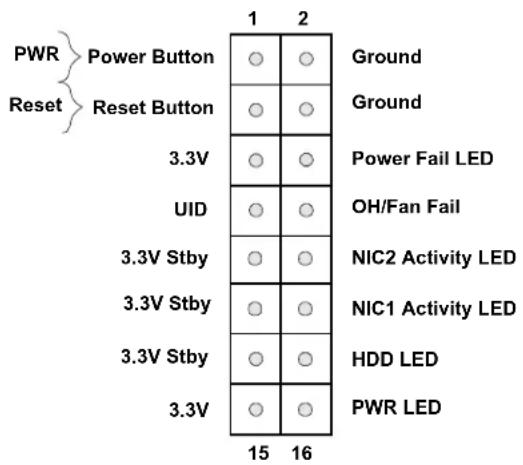
JF1 contains header pins for various buttons and indicators that are normally located on a control panel at the front of the chassis. These connectors are designed specifically for use with Supermicro chassis. See the figure below for the descriptions of the front control panel buttons and LED indicators.
text_image
PWR Power Button Reset Button 3.3V UID 3.3V Stby 3.3V Stby 3.3V Stby 15 16 Ground Ground Power Fail LED OH/Fan Fail NIC2 Activity LED NIC1 Activity LED HDD LED PWR LEDFigure 4-1. JF1: Control Panel Pins
Power Button
The Power Button connection is located on pins 1 and 2 of JF1. Momentarily contacting both pins will power on/off the system. This button can also be configured to function as a suspend button with a setting in the BIOS. To turn off the power when the system is in suspend mode, press the button for 4 seconds or longer. Refer to the table below for pin definitions.
| Power ButtonPin Definitions (JF1) |
| Pin# Definition |
| 1 Signal |
| 2 Ground |
Reset Button
The Reset Button connection is located on pins 3 and 4 of JF1. Attach it to a hardware reset switch on the computer case to reset the system. Refer to the table below for pin definitions.
| Reset ButtonPin Definitions (JF1) |
| Pin# Definition |
| 3 Reset |
| 4 Ground |
Overheat (OH)/Fan Fail
Connect an LED cable to OH/Fan Fail connections on pins 7 and 8 of JF1 to provide warnings for chassis overheat and fan failure. Refer to the table below for pin definitions.
| OH/Fan Fail Indicator Pin Definitions | |
| Status Definition | |
| Off Normal | |
| On Overheat | |
| Flashing Fan Fail | |
| OH/Fan Fail LEDPin Definitions (JF1) |
| Pin# Definition |
| 7 +3.3V |
| 8 OH/Fan Fail LED |
The NIC (Network Interface Controller) LED connection for LAN port 1 is located on pins 11 and 12 of JF1, and the LED connection for LAN Port 2 is on pins 9 and 10. Attach NIC LED cables to NIC1 and NIC2 LED indicators to display network activities. Refer to the table below for pin definitions.
| LAN1/LAN2 LEDPin Definitions (JF1) |
| Pin# Definition |
| 9/11 3.3V Stby |
| 10/12 NIC Activity LED |
HDD LED
The HDD LED connection is located on pins 13 and 14 of JF1. Attach a cable here to show hard drive activity status. Refer to the table below for pin definitions.
| HDD LEDPin Definitions (JF1) | |
| Pin# Definition | |
| 13 +3.3V Stdby | |
| 14 HDD Active |
Power Fail LED
The Power LED connection is located on pins 15 and 16 of JF1. Refer to the table below for pin definitions.
| Power Fail LEDPin Definitions (JF1) |
| Pins Definition |
| 15 +3.3V Stby |
| 16 PWR LED |
Power LED
The Power LED connection is located on pins 15 and 16 of JF1. Refer to the table below for pin definitions.
| Power LEDPin Definitions (JF1) |
| Pin# Definition |
| 15 +3.3V Stby |
| 16 PWR LED |
4.3 Rear I/O Ports
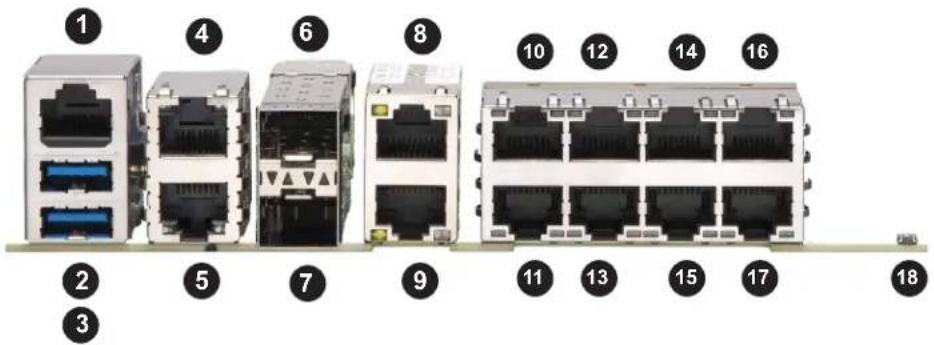
The following rear input/output ports are provided by the motherboard.
text_image
Diagram of 18 network equipment rack with labeled ports and connectorsFigure 4-2. Rear I/O Ports
| Item | Description | Item | Description | Item | Description | Item | Description |
| 1. | COM1 | 6. | SFP+ LAN13 | 11. | LAN2 | 16. | LAN9 |
| 2. | USB5 (USB3.0) | 7. | SFP+ LAN12 | 12. | LAN5 | 17. | LAN8 |
| 3. | USB4 (USB3.0) | 8. | LAN11 | 13. | LAN4 | 18. | UID Switch |
| 4. | IPMI LAN | 9. | LAN10 | 14. | LAN7 | ||
| 5. | LAN1 | 10. | LAN3 | 15. | LAN6 |
LAN Ports
The motherboard has 13 LAN ports. LAN1 is a 1G port, LAN2/LAN3 are 10G SFP+ ports, and LAN4 - LAN13 are 10G ports. In addition to the LAN ports, the motherboard offers a dedicated IPMI LAN port. Refer to the table below for the pin definitions.
| LAN PortPin Definition | |
| Pin# Definition Pin# Definition | |
| 1 TX_D1+ 5 BI_D3- | |
| 2 TX_D1- 6 RX_D2- | |
| 3 RX_D2+ 7 BI_D4+ | |
| 4 BI_D3+ 8 BI_D4- | |
COM Port/Header
The motherboard has one COM port on the back panel I/O and one COM header on the motherboard to provide serial connections.
| COM PortPin Definitions | ||
| Pin# Definition Pin# Definition | ||
| 1 SP_DCDA 6 SP_DSRA | ||
| 2 SP_RXDA 7 SP_RTSA | ||
| 3 SP_TXDA 8 SP_STSA | ||
| 4 SP_DTRA 9 SP_RIA | ||
| 5 GND 10 NC | ||
Universal Serial Bus (USB) Ports
The motherboard has two USB 3.1 Gen 1 ports (USB4/5) on the I/O back panel. There are two USB 2.0 headers (USB0/1, USB2/3). These onboard headers can be used to provide front side USB access with a cable (not included).
| USB4/5 (USB 3.1 Type A)Pin Definitions | |||
| Pin# Definition Pin# Definition | |||
| 1 VBUS 5 SSRX- | |||
| 2 USB N 6 SSRX+ | |||
| 3 USB P 7 GND | |||
| 4 GND 8 SSTX- | |||
| 9 SSTX+ | |||
| Front Panel USB 2.0 Header Pin Definitions | ||
| Pin# Definition Pin# Definition | ||
| 1 +5V | 2 +5V | |
| 3 USB_PN2 4 USB_PN3 | ||
| 5 USB_PP2 6 USB_PP3 | ||
| 7 Ground 8 Ground | ||
| 9 Key | 10 | Ground |
Unit Identifier Button/UID LED Indicator
A Unit Identifier (UID) button and an LED indicator are located on the motherboard. The UID button is located at UID and control panel. The UID LED is located LED2, next to the onboard UID switch. When you press the UID button, the UID LED will be turned on. Press the UID button again to turn off the LED indicator. The UID Indicator provides easy identification of a system unit that may be in need of service.
Note: UID can also be triggered via IPMI on the motherboard. For more information on IPMI, please refer to the IPMI User's Guide posted on our website at http://www.supermicro.com/support/manuals/.
| UID ButtonPin Definitions | |
| Pin# Definition | |
| 1 Ground | |
| 2 Ground | |
| 3 Button In | |
| 4 Button In |
| UID LEDPin Definitions | |
| Color Status | |
| Blue: On Unit Identified |
4.4 Jumpers
Explanation of Jumpers
To modify the operation of the motherboard, jumpers are used to choose between optional settings. Jumpers create shorts between two pins to change the function associated with it. Pin 1 is identified with a square solder pad on the printed circuit board. See the motherboard layout page for jumper locations.
Note: On a two-pin jumper, "Closed" means the jumper is on both pins and "Open" indicates the jumper is either on only one pin or has been completely removed.
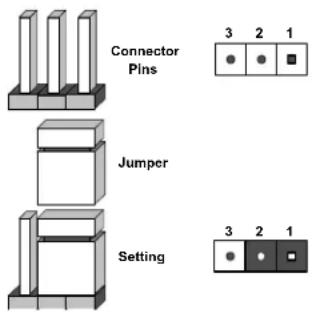
text_image
Connector Pins Jumper Setting 3 2 1 3 2 1CMOS Clear
JBT1 is used to clear CMOS, which also clears any passwords. Instead of pins, this jumper consists of contact pads to prevent accidentally clearing the contents of CMOS.
To Clear CMOS
- Power down the system and unplug the power cord(s).
- Remove the cover of the chassis to access the motherboard.
- Remove the onboard battery from the motherboard.
- Short the CMOS pads with a metal object such as a small screwdriver for at least four seconds.
- Remove the screwdriver (or shorting device).
- Replace the cover, reconnect the power cord(s) and power on the system.
Notes: Clearing CMOS will also clear all passwords.
Do not use the PW_ON connector to clear CMOS.

JBT1 contact pads
SMBus to PCI-E Slots
Jumpers JI2C1 and JI2C2 allow you to connect the System Management Bus (I2C) to the PCI-E slots. Both jumpers must be set to the same setting (JI2C1 controls the clock and JI2C2 controls the data).
| SMBus to PCI-E SlotsJumper Settings |
| Jumper Setting Definition |
| Pins 1-2 Enabled |
| Pins 2-3 Disabled |
Manufacturing Mode Select
Close pins 2-3 of jumper JPME2 to bypass SPI flash security and force the system to operate in the manufacturing mode, which will allow the user to flash the system firmware from a host server for system setting modifications. Refer to the table below for jumper settings.
| Manufacturing ModeJumper Settings | |
| Jumper Setting Definition | |
| Pins 1-2 Normal | (Default) |
| Pins 2-3 Manufacturing Mode | |
VGA Enable/Disable
JPG1 allows you to enable or disable the VGA port using the onboard graphics controller. The default setting is Enabled.
| VGA Enable/DisableJumper Settings | |
| Jumper Setting Definition | |
| Pins 1-2 Enabled (Default) | |
| Pins 2-3 Disabled |
I²C Bus for VRM
Jumper JVRM1 allows the BMC or the PCH to access CPU and memory VRM controllers. Refer to the table below for jumper settings.
| VRMJumper Settings | |
| Jumper Setting Definition | |
| Pins 1-2 BMC (Default) | |
| Pins 2-3 PCH | |
Watch Dog Timer
JWD1 controls the Watch Dog function. Watch Dog is a monitor that can reboot the system when a software application hangs. Jumping pins 1-2 will cause Watch Dog to reset the system if an application hangs. Jumping pins 2-3 will generate a non-maskable interrupt signal for the application that hangs. Watch Dog must also be enabled in BIOS.
Note: When Watch Dog is enabled, users need to write their own application software to disable it.
| Watch DogJumper Settings | |
| Jumper Setting Definition | |
| Pins 1-2 Reset (Default) | |
| Pins 2-3 NMI | |
| Open Disabled | |
LAN Port Enable/Disable
Change the setting of jumpers JPL1 for LAN1, JPL2 for LAN2 - LAN5, and JPL3 for LAN6 - LAN9 to enable or disable the LAN ports.
| LAN Port Enable/DisableJumper Settings |
| Jumper Setting Definition |
| Pins 1-2 Enabled (Default) |
| Pins 2-3 Disabled |
TPM Enable
Use JPT1 to enable or disable support for the TPM module. Refer to the table below for jumper settings.
| TPM Enable/DisableJumper Settings | |
| Jumper Setting Definition | |
| Pins 1-2 Enabled (Default) | |
| Pins 2-3 Disabled |
USB Wake Up
Use the JPUSB1 jumper to enable system wake up via a USB device. This jumper allows you to wake up the system by pressing a key on the USB keyboard or by clicking the USB mouse of your system. The JPUSB1 jumper is used together with the USB Wake Up function in the BIOS. Enable both the jumper and the BIOS setting to activate this function. When the USB Wake Up function is enabled, it will be active on all USB ports. See the table below for jumper settings.
| USB Wake UpJumper Settings |
| Jumper Setting Definition |
| Pins 1-2 Enabled (Default) |
| Pins 2-3 Disabled |
M.2 SMBus Enable/Disable
Use J1 to enable or disable the M.2 SMBus. Refer to the table below for jumper settings.
| M.2 SMBus Enable/Disable Jumper Settings | |
| Jumper Setting Definition | |
| Pins 1-2 Enabled (Default) | |
| Pins 2-3 Disabled |
IPMI Share LAN Enable/Disable
Set the JBM1 jumper to enabled to share i210 LAN with IPMI.
| IPMI Share LAN Enable/Disable Jumper Settings |
| Jumper Setting Definition |
| Pins 1-2 (Open) Enabled (Default) |
| Pins 1-2 (Short) Disabled |
IPMI Dedicated/Share LAN Enable/Disable
Use JBM2 to enable or disable the dedicated IPMI LAN port. Refer to the table below for jumper settings.
| IPMI Dedicated/Share LAN Enable/Disable Jumper Settings | |
| Jumper Setting Definition | |
| Pins 1-2 (Open) | Enabled (Default) |
| Pins 1-2 (Short) | Disabled |
4.5 LED Indicators
LAN LEDs
Thirteen LAN ports (LAN1 - LAN13) are located on the I/O back panel. Each LAN port has two LEDs. The yellow LED indicates activity, while the other Link LED may be green, amber, or off to indicate the speed of the connection. Refer to the tables below for more information
| LAN Activity LEDs (Left)LED State | |
| Color Status Definition | |
| Amber/Green Flashing Active | |
| LAN Link LEDs (Right)LED State | |
| LED Color Definition | |
| Off No Connection | |
| Amber 1 Gbps | |
| Green 10 Gbps | |
Onboard Power LED
LED1 is an Onboard Power LED. When this LED is lit, it means power is present on the motherboard. In suspend mode, this LED will blink on and off. Be sure to turn off the system and unplug the power cord(s) before removing or installing components.
| Onboard Power LED Indicator | |
| LED Color Definition | |
| Off | System Off (power cable not connected) |
| Green System | On |
BMC Heartbeat LED
LEDM1 is the BMC heartbeat LED. When the LED is blinking green, BMC is working. Refer to the table below for the LED status.
| BMC Heartbeat LED Indicator | |
| LED Color Definition | |
| BlinkingGreen | BMC Normal |
Overheat/Power Fail/Fan Fail LED
When the light for LED3 is solid red, it means overheating. When the LED is blinking red, it means a power failure or fan failure.
| Overheat/Power Fail/Fan Fail LED Indicator | |
| LED Color Definition | |
| Solid Red Overheat | |
| Blinking | Power Failure/ |
| Red | Fan Failure |
Chapter 5
Software
After the hardware has been installed, you can install the Operating System (OS), configure RAID settings, and install the drivers.
5.1 Driver Installation
The Supermicro website contains drivers and utilities for your system at https://www.supermicro.com/wftp. Some of these must be installed, such as the chipset driver.
After accessing the website, go into the CDR_Images directory and locate the ISO file for your motherboard. Download this file to create a DVD of the drivers and utilities it contains. (You may also use a utility to extract the ISO file if preferred.)
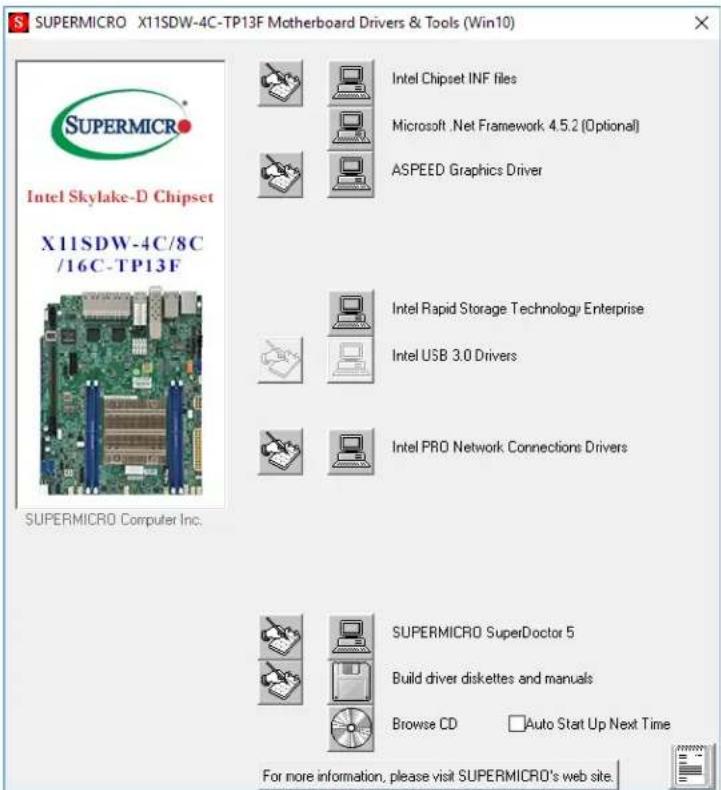
After creating a DVD with the ISO files, insert the disk into the DVD drive on your system and the display shown in Figure 5-1 should appear.
Another option is to go to the Supermicro website at http://www.supermicro.com/products/. Find the product page for your motherboard here, where you may download individual drivers and utilities to your hard drive or a USB flash drive and install from there.
Note: To install the Windows OS, please refer to the instructions posted on our website at http://www.supermicro.com/support/manuals/.
text_image
SUPERMICRO X11SDW-4C-TP13F Motherboard Drivers & Tools (Win10) Intel Skylake-D Chipset X11SDW-4C/8C /16C-TP13F SUPERMICRO Computer Inc. Intel Chipset INF files Microsoft .Net Framework 4.5.2 [Optional] ASPEED Graphics Driver Intel Rapid Storage Technology Enterprise Intel USB 3.0 Drivers Intel PRO Network Connections Drivers SUPERMICRO SuperDoctor 5 Build driver diskettes and manuals Browse CD Auto Start Up Next Time For more information, please visit SUPERMICRO's web site.Figure 5-1. Driver & Tool Installation Screen
Note: Click the icons showing a hand writing on paper to view the readme files for each item. Click the computer icons to the right of these items to install each item (from top to the bottom) one at a time. After installing each item, you must re-boot the system before moving on to the next item on the list. The bottom icon with a CD on it allows you to view the entire contents.
5.2 SuperDoctor® 5
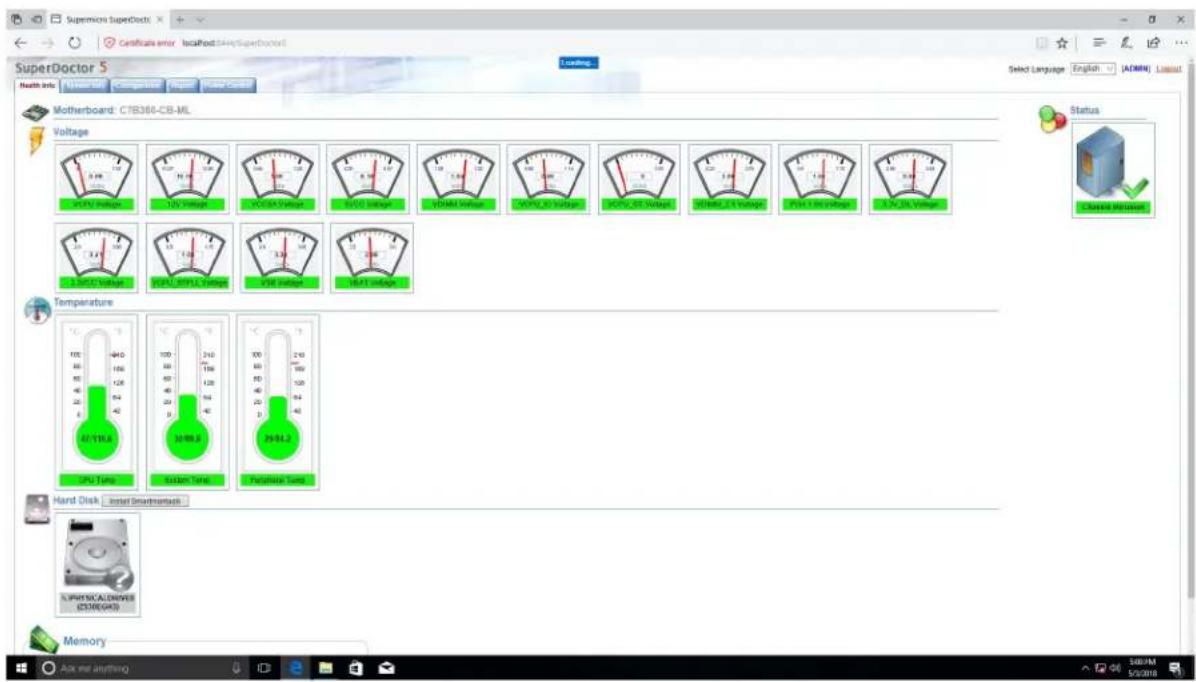
The Supermicro SuperDoctor 5 is a program that functions in a command-line or web-based interface for Windows and Linux operating systems. The program monitors such system health information as CPU temperature, system voltages, system power consumption, fan speed, and provides alerts via email or Simple Network Management Protocol (SNMP).
SuperDoctor 5 comes in local and remote management versions and can be used with Nagios to maximize your system monitoring needs. With SuperDoctor 5 Management Server (SSM Server), you can remotely control power on/off and reset chassis intrusion for multiple systems with SuperDoctor 5 or IPMI. SuperDoctor 5 Management Server monitors HTTP, FTP, and SMTP services to optimize the efficiency of your operation.
Note: The default User Name and Password for SuperDoctor 5 is ADMIN / ADMIN.
text_image
SuperDoctor 5 Matherboard: CTS360-CB-ML Voltage 3.98 120 Vrms 300Vrms 400Vrms 500Vrms 600Vrms 700Vrms 800Vrms 900Vrms 1000Vrms 110Vrms 120Vrms 130Vrms 140Vrms 150Vrms 160Vrms 170Vrms 180Vrms 190Vrms 200Vrms 210Vrms 220Vrms 230Vrms 240Vrms 250Vrms 260Vrms 270Vrms 280Vrms 290Vrms 300Vrms 310Vrms 320Vrms 330Vrms 340Vrms 350Vrms 360Vrms 370Vrms 380Vrms 390Vrms 400Vrms 410Vrms 420Vrms 430Vrms 440Vrms 450Vrms 460Vrms 470Vrms 480Vrms 490Vrms 500Vrms 510Vrms 520Vrms 530Vrms 540Vrms 550Vrms 560Vrms 570Vrms 580Vrms 590Vrms 600Vrms 610Vrms 620Vrms 630Vrms 640Vrms 650Vrms 660Vrms 670Vrms 680Vrms 690Vrms 700Vrms 710Vrms 720Vrms 730Vrms 740Vrms 750Vrms 760Vrms 770Vrms 780Vrms 790Vrms 800Vrms 810Vrms 820Vrms 830Vrms 840Vrms 850Vrms 860Vrms 870Vrms 880Vrms 890Vrms 900Vrms 910Vrms 920Vrms 930Vrms 940Vrms 950Vrms 960Vrms 970Vrms 980Vrms 990Vrms 1000Vrms 1111Ams 121Ams 131Ams 141Ams 151Ams 161Ams 171Ams 181Ams 191Ams 201Ams 211Ams 221Ams 231Ams 241Ams 251Ams 261Ams 271Ams 281Ams 291Ams 301Ams 311Ams 321Ams 331Ams 341Ams 351Ams 361Ams 371Ams 381Ams 391Ams 401AmsFigure 5-2. SuperDoctor 5 Interface Display Screen (Health Information)
5.3 IPMI
The X11SDW-4C-TP13F, X11SDW-8C-TP13F, X11SDW-14CNT-TP13F, and X11SDW-16C-TP13F motherboards support the Intelligent Platform Management Interface (IPMI). IPMI is used to provide remote access, monitoring and management. There are several BIOS settings that are related to IPMI.
For general documentation and information on IPMI, please visit our website at: http://www.supermicro.com/products/nfo/IPMI.cfm.
Chapter 6
UEFI BIOS
6.1 Introduction
This chapter describes the AMI BIOS setup utility for the X11SDW-4C-TP13F, X11SDW-8C-TP13F, X11SDW-14CNT-TP13F, and X11SDW-16C-TP13F and provides the instructions on navigating the setup screens. The BIOS is stored in a Flash EEPROM and can be updated.
Note: Due to periodic changes to the BIOS, some settings may have been added or deleted since this manual was published.
Starting BIOS Setup Utility
To enter the AMI BIOS setup utility screens, press the
The BIOS screens have three main frames. The large left frame displays options can be configured by the user. These are blue. When an option is selected, it is highlighted in white. Settings printed in Bold are the default values.
In the left frame, a "▶" indicates a submenu. Highlighting such an item and pressing the
The upper right frame displays helpful information for the user. The AMI BIOS has default informational messages built in. The manufacturer retains the option to include, omit, or change any of these informational messages.
The lower right frame lists navigational methods. The AMI BIOS setup utility uses a key-based navigation system called hot keys. Most of these hot keys can be used at any time during setup navigation. These keys include
Some system parameters may be changed.
6.2 Main Setup
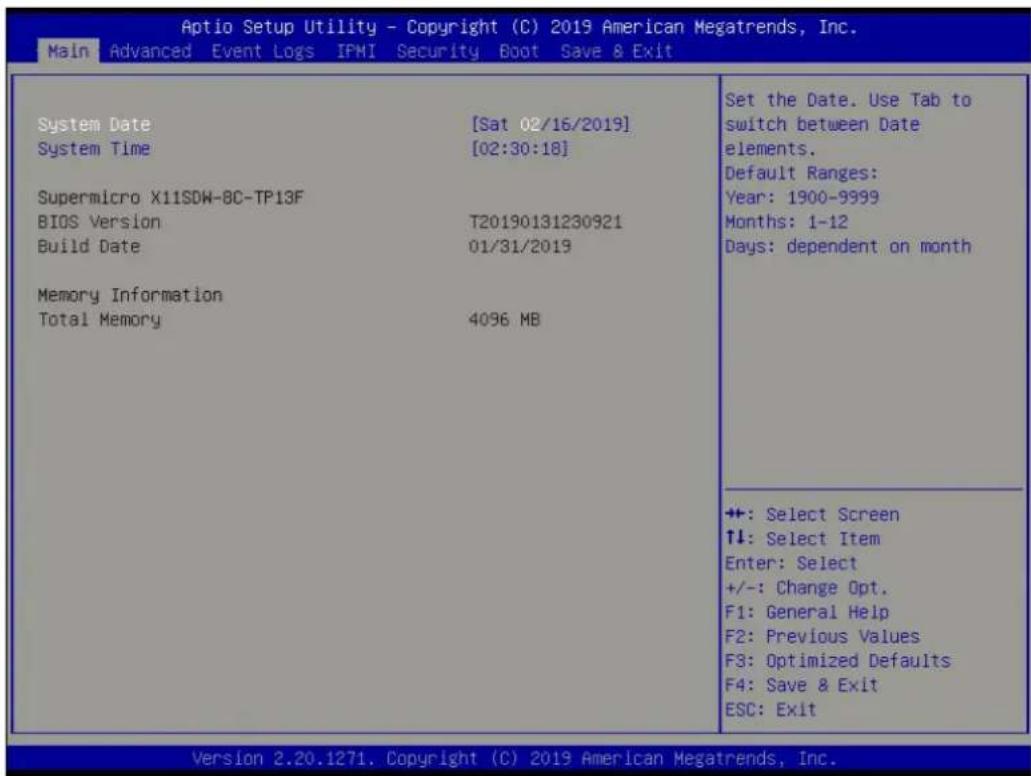
When you first enter the AMI BIOS setup utility, you will enter the Main setup screen. You can always return to the Main setup screen by selecting the Main tab on the top of the screen. The Main BIOS setup screen is shown below and the following features will be displayed:
text_image
Aptio Setup Utility - Copyright (C) 2019 American Megatrends, Inc. Main Advanced Event Logs IPMI Security Boot Save & Exit System Date [Sat 02/16/2019] System Time [02:30:18] Supermicro X11SDW-8C-TP13F BIOS Version T20190131230921 Build Date 01/31/2019 Memory Information Total Memory 4096 MB Set the Date. Use Tab to switch between Date elements. Default Ranges: Year: 1900-9999 Months: 1-12 Days: dependent on month +: Select Screen ↑↓: Select Item Enter: Select +/-: Change Opt. F1: General Help F2: Previous Values F3: Optimized Defaults F4: Save & Exit ESC: Exit Version 2.20.1271. Copyright (C) 2019 American Megatrends, Inc.The Main tab page allows you to set the date and time, and it displays system information.
System Date/System Time
Use this option to change the system date and time. Highlight System Date or System Time using the arrow keys. Enter new values using the keyboard. Press the
Note: The time is in the 24-hour format. For example, 5:30 P.M. appears as 17:30:00. The date's default value is 01/01/2016 after RTC reset.
Supermicro X11SDW-4C-TP13F, X11SDW-8C-TP13F, X11SDW-14CNT-TP13F, or X11SDW-16C-TP13F
BIOS Version
This feature displays the version of the BIOS ROM used in the system.
Build Date
This feature displays the date when the version of the BIOS ROM used in the system was built.
Memory Information
Total Memory
This feature displays the total size of memory available in the system.
6.3 Advanced Setup Configurations
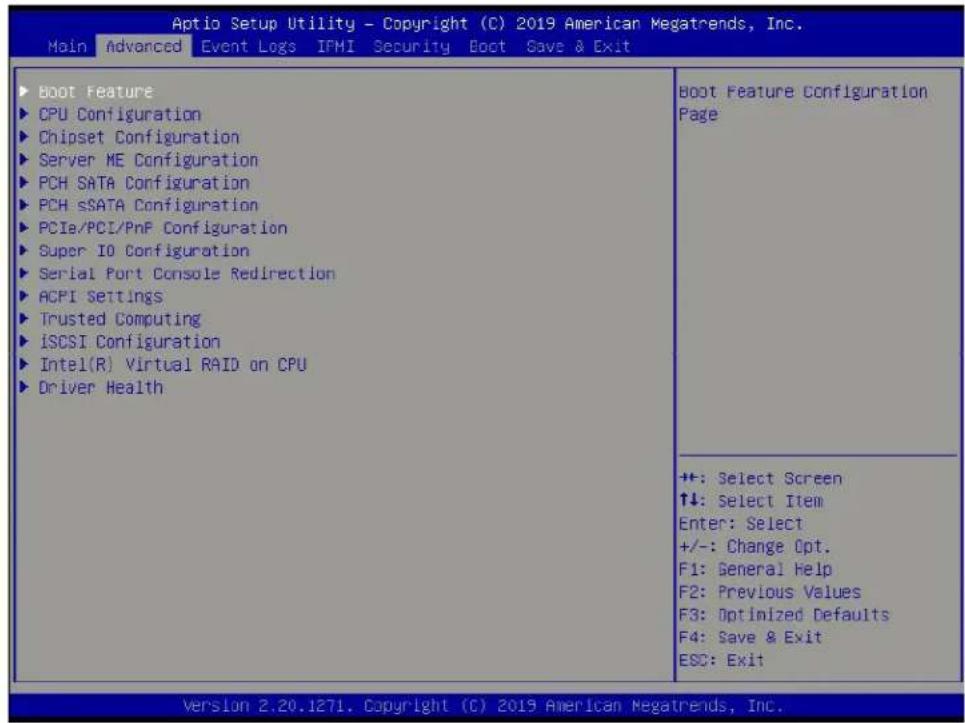
Use the arrow keys to select the Advanced tab and press
text_image
Aptio Setup Utility - Copyright (C) 2019 American Megatrends, Inc. Main Advanced Event Logs IFMI Security Boot Save & Exit ▶ Boot Feature ▶ CPU Configuration ▶ Chipset Configuration ▶ Server ME Configuration ▶ PCH SATA Configuration ▶ PCH SSATA Configuration ▶ PCIa/PCI/PnP Configuration ▶ Super IO Configuration ▶ Serial Port Console Redirection ▶ ACPI Settings ▶ Trusted Computing ▶ iSCSI Configuration ▶ Intel(R) Virtual RAID on CPU ▶ Driver Health Boot Feature Configuration Page +:-: Select Screen ↑↓: Select Item Enter: Select +/-: Change Opt. F1: General Help F2: Previous Values F3: Optimized Defaults F4: Save & Exit ESC: Exit Version 2.20.1271. Copyright (C) 2019 American Megatrends, Inc.Caution: Take caution when changing the Advanced settings. An incorrect value, a very high DRAM frequency, or an incorrect DRAM timing setting may make the system unstable. If this occurs, revert to the manufacture default settings.
▶Boot Feature
Quiet Boot
Use this feature to select the screen display between POST messages or the OEM logo at bootup. Select Disabled to display the POST messages. Select Enabled to display the OEM logo instead of the normal POST messages. The options are Disabled and Enabled.
Option ROM Messages
Use this feature to set the display mode for the Option ROM. The options are Force BIOS and Keep Current.
Bootup NumLock State
Use this feature to set the Power-on state for the Numlock key. The options are Off and On.
Wait For "F1" If Error
This feature forces the system to wait until the F1 key is pressed if an error occurs. The options are Disabled and Enabled.
INT19 Trap Response
Interrupt 19 is the software interrupt that handles the boot disk function. When this feature is set to Immediate, the ROM BIOS of the host adaptors will "capture" Interrupt 19 at bootup immediately and allow the drives that are attached to these host adaptors to function as bootable disks. If this feature is set to Postponed, the ROM BIOS of the host adaptors will not capture Interrupt 19 immediately and allow the drives attached to these adaptors to function as bootable devices at bootup. The options are Immediate and Postponed.
Re-try Boot
If this feature is enabled, the BIOS will automatically reboot the system from a specified boot device after its initial boot failure. The options are Disabled and EFI Boot.
Port 61h bit-4 Emulation
Select Enabled to enable the emulation of Port 61h bit-4 toggling in SMM (System Management Mode). The options are Disabled and Enabled.
Power Configuration
Watch Dog Function
If enabled, the Watch Dog timer will allow the system to reboot when it is inactive for more than five minutes. The options are Disabled and Enabled.
Power Button Function
This feature controls how the system shuts down when the power button is pressed. Select 4 Seconds Override for the user to power off the system after pressing and holding the power button for four seconds or longer. Select Instant Off to instantly power off the system as soon as the user presses the power button. The options are Instant Off and 4 Seconds Override.
Restore on AC Power Loss
Use this feature to set the power state after a power outage. Select Power Off for the system power to remain off after a power loss. Select Power On for the system power to be turned on after a power loss. Select Last State to allow the system to resume its last power state before a power loss. The options are Stay Off, Power On, and Last State.
▶CPU Configuration
The following CPU information will display:
- Processor BSP Revision
- Processor Socket
- Processor ID
-
Processor Frequency
-
Processor Max Ratio
- Processor Min Ratio
- Microcode Revision
- L1 Cache RAM
- L2 Cache RAM
- L3 Cache RAM
- Processor 0 Version
Hyper-Threading (ALL)
Select Enabled to support Intel Hyper-threading Technology to enhance CPU performance. The options are Disable and Enable.
Cores Enabled
Set a numeric value to enable the number of cores. Refer to Intel's website for more information. Enter 0 to enable all cores.
Execute Disable Bit (Available if supported by the OS & the CPU)
Set to Enable for Execute Disable Bit support, which will allow the processor to designate areas in the system memory where an application code can execute and where it cannot, thus preventing a worm or a virus from flooding illegal codes to overwhelm the processor or damage the system during a virus attack. The options are Disable and Enable. Refer to Intel and Microsoft websites for more information.
Intel Virtualization Technology
Use this feature to enable the Vanderpool Technology. This technology allows the system to run several operating systems simultaneously. The options are Disable and Enable.
PPIN Control
Select Unlock/Enable to use the Protected Processor Inventory Number (PPIN) in the system. The options are Unlock/Disable and Unlock/Enable.
Hardware Prefetcher (Available when supported by the CPU)
If set to Enable, the hardware prefetcher will prefetch streams of data and instructions from the main memory to the L2 cache to improve CPU performance. The options are Enable and Disable.
Adjacent Cache Prefetch (Available when supported by the CPU)
The CPU prefetches the cache line for 64 bytes if this feature is set to Disabled. The CPU prefetches both cache lines for 128 bytes as comprised if this feature is set to Enable. The options are Enable and Disable.
DCU Streamer Prefetcher (Available when supported by the CPU)
Select Enable to enable the DCU (Data Cache Unit) Streamer Prefetcher which will stream and prefetch data and send it to the Level 1 data cache to improve data processing and system performance. The options are Enable and Disable.
DCU IP Prefetcher (Available when supported by the CPU)
Select Enable for DCU (Data Cache Unit) IP Prefetcher support, which will prefetch IP addresses to improve network connectivity and system performance. The options are Enable and Disable.
LLC Prefetch
If set to Enable, the hardware prefetcher will prefetch streams of data and instructions from the main memory to the L3 cache to improve CPU performance. The options are Disable and Enable.
Extended APIC
Select Enable to activate APIC (Advanced Programmable Interrupt Controller) support. The options are Disable and Enable.
AES-NI
Select Enable to use the Intel Advanced Encryption Standard (AES) New Instructions (NI) to ensure data security. The options are Disable and Enable.
▶Advanced Power Management Configuration
Power Technology
This feature allows you to configure CPU power management settings. The options are Disable, Energy Efficient, and Custom.
*If the feature above is set to Custom, the following features will be available for configuration:
Power Performance Tuning
This feature allows you to set whether the operating system or the BIOS controls the Energy Performance BIAS (EPB). The options are OS Controls EPB and BIOS Controls EPB.
*If the feature above is set to BIOS Controls EPB, the following features will be available for configuration:
ENERGY\_PERF\_BIAS\_CFG Mode
The Energy Performance BIAS (EPB) feature allows you to configure CPU power and performance settings. Select Maximum Performance to set the highest performance. Select Performance to optimize performance over energy efficiency. Select Balanced Performance to prioritize performance optimization while conserving energy. Select Balanced Power to prioritize energy conservation while maintaining good performance. Select Power to optimize energy efficiency over performance. The options are Maximum Performance, Performance, Balanced Performance, Balanced Power, and Power.
▶CPU P State Control
This feature allows you to configure the following CPU power settings:
Uncore Freq Scaling (UFS)
Use this feature to enable or disable uncore frequency scaling. The options are Enable and Disable.
SpeedStep (Pstates)
Intel SpeedStep Technology allows the system to automatically adjust processor voltage and core frequency to reduce power consumption and heat dissipation. The options are Disable and Enable. This feature must be set to Enable to be able to configure the next two features.
Config TDP
Use this feature to configure the TDP level. The options are Nominal, Level 1, and Level 2.
EIST PSD Funtion
This feature allows you to choose between Hardware and Software to control the processor's frequency and performance (P-state). In HW_ALL mode, the processor hardware is responsible for coordinating the P-state, and the OS is responsible for keeping the P-state request up to date on all Logical Processors. In SW_ALL mode, the OS Power Manager is responsible for coordinating the P-state, and must initiate the transition on all Logical Processors. In SW_ANY mode, the OS Power Manager is responsible for coordinating the P-state and may initiate the transition on any Logical Processors. The options are HW_ALL, SW_ALL, and SW_ANY.
Energy Efficient Turbo
Use this feature to enable or disable energy efficient turbo. The options are Enable and Disable.
Turbo Mode
This feature will enable dynamic control of the processor, allowing it to run above stock frequency. The options are Disable and Enable.
▶Hardware PM State Control
Hardware P-States
This setting allows you to select between OS and hardware-controlled P-states. Selecting Native Mode allows the OS to choose a P-state. Selecting Out of Band Mode allows the hardware to autonomously choose a P-state without OS guidance. Selecting Native Mode with No Legacy Support functions as Native Mode with no support for older hardware. The options are Disable, Native Mode, Out of Band Mode, and Native Mode with No Legacy Support.
▶CPU C State Control
Autonomous Core C-State
Enabling this setting allows the hardware to autonomously choose to enter a C-state based on power consumption and clock speed. The options are Disable and Enable. This feature must be set to Disable to be able to configure the next two features.
CPU C6 report
Select Enable to allow the BIOS to report the CPU C6 State (ACPI C3) to the operating system. During the CPU C6 State, the power to all cache is turned off. The options are Disable, Enable, and Auto.
Enhanced Halt State (C1E)
Select Enable to use Enhanced Halt State technology, which will significantly reduce the CPU's power consumption by reducing its clock cycle and voltage during a Halt state. The options are Disable and Enable.
▶Package C State Control
Package C State
This feature allows you to set the limit on the C State package register. The options are C0/C1 State, C2 State, C6 (Non Retention) State, C6 (Retention) State, No Limit, and Auto.
▶CPU T State Control
Software Controlled T-States
Use this feature to enable Software Controlled T-States. The options are Disable and Enable.
▶Chipset Configuration
Warning: Setting the wrong values in the sections below may cause the system to malfunction.
▶North Bridge Configuration
▶ Memory Configuration
Enforce POR
Select POR (Plan of Record) to enforce POR restrictions on DDR4 frequency and voltage programming. The options are POR and Disable.
Memory Frequency
Use this feature to set the maximum memory frequency for onboard memory modules. The options are Auto, 2133, 2400, and 2666.
Data Scrambling for DDR4
Use this feature to enable or disable data scrambling for DDR4 memory. The options are Auto, Disable, and Enable.
tCCD\_L Relaxation
Select Auto to get TCDD settings from SPD (Serial Presence Detect) into memory RC code to improve system reliability. Select Disable for TCCD to follow Intel POR. The options are Disable and Auto.
2X REFRESH
Use this feature to select the memory controller refresh rate to 2x refresh mode. The options are Auto and Enable.
▶ Memory Topology
This feature displays the information of onboard memory modules detected by the BIOS.
▶ Memory RAS Configuration
Static Virtual Lockstep Mode
Select Enable to run the system's memory channels in lockstep mode to minimize memory access latency. The options are Disable and Enable.
Mirror Mode
This feature allows memory to be mirrored between two channels, providing 100% redundancy. The options are Disable and Enable Mirror Mode (1LM).
Memory Rank Sparing
Select Enable to enable memory-sparing support for memory ranks to improve memory performance. The options are Disable and Enable.
*If the feature above is set to Enable, Multi Rank Sparing will be available for configuration:
Multi Rank Sparing
Use this feature to indicate how many memory ranks to reserve in case of memory failure. The options are One Rank and Two Rank.
Correctable Error Threshold
Use this feature to specify the threshold value for correctable memory error logging, which sets a limit on the maximum number of events that can be logged in the memory error log at a given time. The default setting is 100.
SDDC
Single device data correction +1 (SDDC Plus One) organizes data in a single bundle (x4/x8 DRAM). If any or all of the bits become corrupted, corrections occur. The x4 condition is corrected on all cases. The x8 condition is corrected only if the system is in Lockstep Mode. The options are Disable and Enable.
ADDDC Sparing
Adaptive Double Device Data Correction (ADDDC) Sparing detects when the predetermined threshold for correctable errors is reached, copying the contents of the failing DIMM to spare memory. The failing DIMM or memory rank will then be disabled. The options are Disable and Enable.
Patrol Scrub
Patrol Scrub is a process that allows the CPU to correct correctable memory errors detected on a memory module and send the correction to the requestor (the original source). When this feature is set to Enable, the IO hub will read and write back one cache line every 16K cycles if there is no delay caused by internal processing. By using this method, roughly 64 GB of memory behind the IO hub will be scrubbed every day. The options are Disable and Enable.
*If the feature above is set to Enable, Patrol Scrub Interval will be available for configuration:
Patrol Scrub Interval
This feature allows you to decide how many hours the system should wait before the next complete patrol scrub is performed. Use the keyboard to enter a value from 0-24. The default setting is 24.
▶IIO Configuration
EV DFX Features
When this feature is set to Enable, the EV_DFX Lock Bits that are located on a processor will always remain clear during electric tuning. The options are Disable and Enable.
▶CPU Configuration
IOU0 (II0 PCIe Br1)
Use this feature to configure the PCI-E port Bifuraction setting for a PCI-E port specified by the user. The options are x4x4x4x4, x4x4x8, x8x4x4, x8x8, x16, and Auto.
IOU1 (II0 PCIe Br2)
Use this feature to configure the PCI-E port Bifuraction setting for a PCI-E port specified by the user. The options are x4x4x4x4, x4x4x8, x8x4x4, x8x8, x16, and Auto.
IOU2 (II0 PCIe Br3)
Use this feature to configure the PCI-E port Bifuraction setting for a PCI-E port specified by the user. The options are x4x4x4x4, x4x4x8, x8x4x4, x8x8, x16, and Auto.
▶RSU-R1UW-2E16 SLOT1 / RSU-R1UW-2E16 SLOT2 (Option Riser Card)
Link Speed
Use this feature to select the link speed for this port. The options are Auto, Gen 1 (2.5 GT/s), Gen 2 (5GT/s), and Gen 3 (GT/s).
PCI-E Port Link Status
This feature shows the status of the device plugged into this slot.
PCI-E Port Link Max
This feature shows the status of the device plugged into this slot.
PCI-E Port Link Speed
This feature shows the status of the device plugged into this slot.
PCI-E Port Max Payload Size
Use this feature to select the maximum payload size for this port. The options are 128B, 256B, and Auto.
▶IOAT Configuration
Disable TPH
Transparent Huge Pages (TPH) is a Linux memory management system that enables communication in larger blocks (pages). Enabling this feature will increase performance. The options are No and Yes.
*If the feature above is set to No, Relax Ordering will be available for configuration:
Prioritize TPH
Select Yes to prioritize TPL requests that will allow the hints to be sent to help facilitate and optimize the processing of certain transactions in the system memory. The options are Enable and Disable.
Relaxed Ordering
Select Enable to enable Relaxed Ordering support, which will allow certain transactions to violate the strict-ordering rules of PCI bus for a transaction to be completed prior to other transactions that have already been enqueued. The options are Disable and Enable.
▶Intel® VT for Directed I/O (VT-d)
Intel® VT for Directed I/O (VT-d)
Select Enable to use Intel Virtualization Technology for Direct I/O VT-d support by reporting the I/O device assignments to the VMM (Virtual Machine Monitor) through the DMAR ACPI tables. This feature offers fully-protected I/O resource sharing across Intel platforms, providing greater reliability, security, and availability in networking and data-sharing. The options are Enable and Disable.
*If the feature above is set to Enable, the five features below will be available for configuration:
Interrupt Remapping
Use this feature to enable Interrupt Remapping support, which detects and controls external interrupt requests. The options are Enable and Disable.
PassThrough DMA
Use this feature to allow devices such as network cards to access the system memory without using a processor. Select Enable to use the Non-Isoch VT-d Engine Pass Through Direct Memory Access (DMA) support. The options are Enable and Disable.
ATS
Use this feature to enable Non-Isoch VT-d Engine Address Translation Services (ATS) support. ATS translates virtual addresses to physical addresses. The options are Enable and Disable.
Posted Interrupt
Use this feature to enable VT-d Posted Interrupt. The options are Enable and Disable.
Coherency Support (Non-Isoch)
Use this feature to maintain setting coherency between processors or other devices. Select Enable for the Non-Isoch VT-d engine to pass through DMA to enhance system performance. The options are Enable and Disable.
Intel® VMD Technology
Note: After you've enabled VMD on a PCI-E slot of your choice, this PCI-E slot will be dedicated for NVMe storage devices use only, and it will no longer support PCI-E devices of other functionalities. To re-activate this slot for PCI-E use, please disable VMD.
Intel® VMD for Volume Management Device on CPU
VMD Config for PStack0
Intel® VMD for Volume Management Device
Select Enable to use the Intel Volume Management Device Technology for this stack. The options are Disable and Enable.
*If the feature "Intel VMD for Volume Management Device" above is set to Enable, the following features will be available for configuration:
RSC-R1UW-2E16 SLOT1 VMD (Available when detected by the system)
Select Enable to use the Intel Volume Management Device Technology for this specific root port. The options are Disable and Enable.
Hot Plug Capable (Available when the device is detected by the system)
Use this feature to enable hot plug support for PCIe root ports 1A\~1D. The options are Disable and Enable.
VMD Config for PStack1
Intel® VMD for Volume Management Device
Select Enable to use the Intel Volume Management Device Technology for this stack. The options are Disable and Enable.
*If the feature "Intel VMD for Volume Management Device" above is set to Enable, the following features will be available for configuration:
RSC-R1UW-2E16 SLOT2 VMD (Available when detected by the system)
Select Enable to use the Intel Volume Management Device Technology for this specific root port. The options are Disable and Enable.
Hot Plug Capable (Available when the device is detected by the system)
Use this feature to enable hot plug support for PCIe root ports 2A\~2D. The options are Disable and Enable.
PCI-E Completion Timeout Disable
Use this feature to enable PCI-E Completion Timeout support for electric tuning. The options are Yes, No, and Per-Port.
▶South Bridge Configuration
The following South Bridge information will display:
- USB Module Version
- USB Devices
Legacy USB Support
Select Enabled to support onboard legacy USB devices. Select Auto to disable legacy support if there are no legacy USB devices present. Select Disable to have all USB devices available for EFI applications only. The options are Enabled, Disabled, and Auto.
XHCI Hand-off
This is a workaround solution for operating systems that do not support XHCI (Extensible Host Controller Interface) hand-off. The XHCI ownership change should be claimed by the XHCI driver. The settings are Enabled and Disabled.
Port 60/64 Emulation
Select Enabled for I/O port 60h/64h emulation support, which in turn will provide complete legacy USB keyboard support for the operating systems that do not support legacy USB devices. The options are Disabled and Enabled.
▶Server ME Configuration
- General ME Configuration
• Oper. Firmware Version
• Backup Firmware Version
• Recovery Firmware Version
• ME Firmware Status #1
• ME Firmware Status #2 - Current State
- Error Code
▶PCH SATA Configuration
When this submenu is selected, the AMI BIOS automatically detects the presence of the SATA devices that are supported by the Intel PCH chip and displays the following features:
SATA Controller
Use this feature to enable or disable the onboard SATA controller supported by the Intel PCH chip. The options are Disable and Enable.
*If the feature above is set to enabled, SATA HDD Unlock is available for configuration:
SATA HDD Unlock
This feature allows you to remove any password-protected SATA disk drives. The options are Enable and Disable.
Aggressive Link Power Management
When this feature is set to Enable, the SATA AHCI controller manages the power usage of the SATA link. The controller will put the link in a low power mode during extended periods of I/O inactivity, and will return the link to an active state when I/O activity resumes. The options are Disable and Enable.
SATA Port 4
This feature displays the information detected on the installed SATA drive on the particular SATA port.
• Model number of drive and capacity
- Software Preserve Support
SATA Port 4 Hot Plug
Set this feature to Enable for hot plug support, which will allow the user to replace a SATA drive without shutting down the system. The options are Disable and Enable.
SATA Port 4 Spin Up Device
Set this feature to enable or disable the PCH to initialize the device. The options are Disable and Enable.
SATA Port 4 SATA Device Type
Use this feature to specify if the SATA port specified by the user should be connected to a Solid State Drive or a Hard Disk Drive. The options are Hard Disk Drive and Solid State Drive.
▶PCH sSATA Configuration
When this submenu is selected, the AMI BIOS automatically detects the presence of the SATA devices that are supported by the Intel PCH chip and displays the following features:
sSATA Controller
This feature enables or disables the onboard sSATA controller supported by the Intel PCH chip. The options are Enable and Disable.
Configure sSATA as
Select AHCI to configure an sSATA drive specified by the user as an AHCI drive. Select RAID to configure an sSATA drive specified by the user as a RAID drive. The options are AHCI and RAID.
SATA HDD Unlock
This feature allows you to remove any password-protected SATA disk drives. The options are Disable and Enable.
*If the feature "Configure sSATA as" above is set to RAID, the next two features will be available for configuration:
sSATA RSTe Boot Info
Select Enable to provide full int13h support for the devices attached to sSATA controller. The options are Disable and Enable.
sSATA RAID Option ROM/UEFI Driver
Select UEFI to load the EFI driver for system boot. Select Legacy to load a legacy driver for system boot. The options are Disable, EFI, and Legacy.
Aggressive Link Power Management
When this feature is set to Enable, the SATA AHCI controller manages the power usage of the SATA link. The controller will put the link in a low power mode during extended periods of I/O inactivity and will return the link to an active state when I/O activity resumes. The options are Disable and Enable.
sSATA Port 0 \~ Port 4
This feature displays the information detected on the installed sSATA drive on the particular sSATA port.
• Model number of drive and capacity
- Software Preserve Support
Port 0 \~ Port 4 Hot Plug
Set this feature to Enable for hot plug support, which will allow the user to replace a SATA drive without shutting down the system. The options are Disable and Enable.
Port 0 \~ Port 4 Spin Up Device
Set this feature to enable or disable the PCH to initialize the device. The options are Disable and Enable.
Port 0 \~ Port 4 sSATA Device Type
Use this feature to specify if the SATA port specified by the user should be connected to a Solid State Drive or a Hard Disk Drive. The options are Hard Disk Drive and Solid State Drive.
▶PCIe/PCI/PnP Configuration
The following information will display:
- PCI Bus Driver Version
• PCI Devices Common Settings:
Above 4G Decoding (Available if the system supports 64-bit PCI decoding)
Select Enabled to decode a PCI device that supports 64-bit in the space above 4G Address. The options are Disabled and Enabled.
SR-IOV Support
Use this feature to enable or disable Single Root IO Virtualization Support. The options are Disabled and Enabled.
BME DMA Mitigation
Enable this feature to help block DMA attacks. The options are Enabled and Disabled.
MMIO High Base
Use this feature to select the base memory size according to memory-address mapping for the IO hub. The options are 56T, 40T, 24T, 16T, 4T, and 1T.
MMIO High Granularity Size
Use this feature to select the high memory size according to memory-address mapping for the IO hub. The options are 1G, 4G, 16G, 64G, 256G, and 1024G.
Maximum Read Request
Use this feature to select the Maximum Read Request size of the PCI-Express device, or select Auto to allow the System BIOS to determine the value. The options are Auto, 128 Bytes, 256 Bytes, 512 Bytes, 1024 Bytes, 2048 Bytes, and 4096 Bytes.
MMCFG Base
Use this feature to select the low base address for PCI-E adapters to increase base memory. The options are 1G, 1.5G, 1.75G, 2G, 2.25G, and 3G.
NVMe Firmware Source
Use this feature to select the NVMe firmware to support booting. The default option, Vendor Defined Firmware, is pre-installed on the drive and may resolve errata or enable innovative functions for the drive. The other option, AMI Native Support, is offered by the BIOS with a generic method. The options are Vendor Defined Firmware and AMI Native Support.
VGA Priority
Use this feature to select VGA priority when multiple VGA devices are detected. Select On-board to give priority to your onboard video device. Select Offboard to give priority to your graphics card. The options are Onboard and Offboard.
Consistent Device Name Support
Select enabled for the BIOS to consistently name network devices. The options are Disabled and Enabled.
JMD2: M.2-H PCI-E 3.0 X2 lane 1 Type
Use this feature to select the I/O type for this slot. The options are PCIE and USB 3.0.
JMD1: M.2-H PCI-E 3.0 X4 OPROM
Use this feature to select which firmware type to be loaded for the add-on card in this slot. The options are Disabled, Legacy, and EFI.
JMD2: M.2-H PCI-E 3.0 X2 OPROM
Use this feature to select which firmware type to be loaded for the add-on card in this slot. The options are Disabled, Legacy, and EFI.
JMD3: M.2-P PCI-E 3.0 X1 OPROM
Use this feature to select which firmware type to be loaded for the add-on card in this slot. The options are Disabled, Legacy, and EFI.
RSC-R1UW-2E16 SLOT1 PCI-E 3.0 X16 OPROM
Use this feature to select which firmware type to be loaded for the add-on card in this slot. The options are Disabled, Legacy, and EFI.
RSC-R1UW-2E16 SLOT2 PCI-E 3.0 X16 OPROM
Use this feature to select which firmware type to be loaded for the add-on card in this slot. The options are Disabled, Legacy, and EFI.
Onboard LAN Option ROM Type
Use this feature to select which firmware type to be loaded for onboard LAN devices. The options Legacy and EFI. Select Legacy to display and configure the Onboard LAN1 \~ LAN13 Option ROM features.
Onboard LAN1 \~ LAN13 Option ROM
Use this feature to select which firmware function to be loaded for the specified LAN port used for system boot. The options are Disabled and Legacy.
Onboard Video Option ROM
Use this feature to select the Onboard Video Option ROM type. The options are Disabled, Legacy, and EFI.
▶Network Stack Configuration
Network Stack
Select Enabled to enable PXE (Preboot Execution Environment) or UEFI (Unified Extensible Firmware Interface) for network stack support. The options are Enabled and Disabled.
*If the feature above is set to Enabled, the next six features will be available for configuration:
Ipv4 PXE Support
Select Enabled to enable IPv4 PXE boot support. The options are Disabled and Enabled.
Ipv4 HTTP Support
Select Enabled to enable IPv4 HTTP boot support. The options are Disabled and Enabled.
Ipv6 PXE Support
Select Enabled to enable IPv6 PXE boot support. The options are Disabled and Enabled.
Ipv6 HTTP Support
Select Enabled to enable IPv6 HTTP boot support. The options are Disabled and Enabled.
PXE boot wait time
Use this option to specify the wait time to press the ESC key to abort the PXE boot. Press "+" or "-" on your keyboard to change the value. The default setting is 0.
Media detect count
Use this option to specify the number of times media will be checked. Press "+" or "-" on your keyboard to change the value. The default setting is 1.
▶ Super IO Configuration
Super IO Chip AST2500
▶ Serial Port 1 Configuration
Serial Port 1
Select Enabled to enable the onboard serial port specified by the user. The options are Enabled and Disabled. Enable this feature for the next two features to display and only the Change Settings feature is available for configuration.
Device Settings
This feature displays the base I/O port address and the Interrupt Request address of a serial port specified by the user.
Change Settings
This feature specifies the base I/O port address and the Interrupt Request address of Serial Port 1. Select Auto for the BIOS to automatically assign the base I/O and IRQ address to a serial port specified. The options are Auto, (IO=3F8h; IRQ=4), (IO=2F8h; IRQ=4), (IO=3E8h; IRQ=4), and (IO=2E8h; IRQ=4).
▶ Serial Port 2 Configuration
Serial Port 2
Select Enabled to enable the onboard serial port specified by the user. The options are Enabled and Disabled. Enable this feature for the next two features to display and only the Change Settings feature is available for configuration.
Device Settings
This feature displays the base I/O port address and the Interrupt Request address of a serial port specified by the user.
Change Settings
This feature specifies the base I/O port address and the Interrupt Request address of Serial Port 1. Select Auto for the BIOS to automatically assign the base I/O and IRQ address to a serial port specified. The options are Auto, (IO=2F8h; IRQ=3), (IO=3F8h; IRQ=3), (IO=3E8h; IRQ=3), and (IO=2E8h; IRQ=3).
Serial Port 2 Attribute
Select SOL to use COM Port 2 as a Serial Over LAN (SOL) port for console redirection. The options are SOL and COM.
▶ Serial Port Console Redirection
COM1
Console Redirection
Select Enabled to enable COM Port 1 for Console Redirection, which will allow a client machine to be connected to a host machine at a remote site for networking. The options are Disabled and Enabled.
*If the feature above is set to Enabled, the following features on the subsequent pages will become available for configuration:
▶Console Redirection Settings
Terminal Type
This feature allows you to select the target terminal emulation type for Console Redirection. Select VT100 to use the ASCII Character set. Select VT100+ to add color and function key support. Select ANSI to use the Extended ASCII Character Set. Select VT-UTF8 to use UTF8 encoding to map Unicode characters into one or more bytes. The options are VT100, VT100+, VT-UTF8, and ANSI.
Bits per second
Use this feature to set the transmission speed for a serial port used in Console Redirection. Make sure that the same speed is used in the host computer and the client computer. A lower transmission speed may be required for long and busy lines. The options are 9600, 19200, 38400, 57600, and 115200 (bits per second).
Data Bits
Use this feature to set the data transmission size for Console Redirection. The options are 7 and 8.
Parity
A parity bit can be sent along with regular data bits to detect data transmission errors. Select Even if the parity bit is set to 0, and the number of 1's in data bits is even. Select Odd if the parity bit is set to 0, and the number of 1's in data bits is odd. Select None if you do not want to send a parity bit with your data bits in transmission. Select Mark to add a mark as a parity bit to be sent along with the data bits. Select Space to add a Space as a parity bit to be sent with your data bits. The options are None, Even, Odd, Mark, and Space.
Stop Bits
A stop bit indicates the end of a serial data packet. Select 1 Stop Bit for standard serial data communication. Select 2 Stop Bits if slower devices are used. The options are 1 and 2.
Flow Control
Use this feature to set the flow control for Console Redirection to prevent data loss caused by buffer overflow. Send a "Stop" signal to stop sending data when the receiving buffer is full. Send a "Start" signal to start sending data when the receiving buffer is empty. The options are None and Hardware RTS/CTS.
VT-UTF8 Combo Key Support
Select Enabled to enable VT-UTF8 Combination Key support for ANSI/VT100 terminals. The options are Disabled and Enabled.
Recorder Mode
Select Enabled to capture the data displayed on a terminal and send it as text messages to a remote server. The options are Disabled and Enabled.
Resolution 100x31
Select Enabled for extended-terminal resolution support. The options are Disabled and Enabled.
Legacy OS Redirection Resolution
Use this feature to select the number of rows and columns used in Console Redirection for legacy OS support. The options are 80x24 and 80x25.
Putty KeyPad
This feature selects Function Keys and KeyPad settings for Putty, which is a terminal emulator designed for the Windows OS. The options are VT100, LINUX, XTERMR6, SCO, ESCN, and VT400.
Redirection After BIOS POST
Use this feature to enable or disable legacy console redirection after BIOS POST. When set to BootLoader, legacy console redirection is disabled before booting the OS. When set to Always Enable, legacy console redirection remains enabled when booting the OS. The options are Always Enable and BootLoader.
SOL/COM2
Console Redirection
Select Enabled to use the SOL port for Console Redirection. The options are Disabled and Enabled.
*If the feature above is set to Enabled, the following features are available for configuration:
▶Console Redirection Settings
Use this feature to specify how the host computer will exchange data with the client computer, which is the remote computer used by the user.
SOL/COM2
Terminal Type
Use this feature to select the target terminal emulation type for Console Redirection. Select VT100 to use the ASCII Character set. Select VT100+ to add color and function key support. Select ANSI to use the Extended ASCII Character Set. Select VT-UTF8 to use UTF8 encoding to map Unicode characters into one or more bytes. The options are VT100, VT100+, VT-UTF8, and ANSI.
Bits per second
Use this feature to set the transmission speed for a serial port used in Console Redirection. Make sure that the same speed is used in the host computer and the client computer. A lower transmission speed may be required for long and busy lines. The options are 9600, 19200, 38400, 57600, and 115200 (bits per second).
Data Bits
Use this feature to set the data transmission size for Console Redirection. The options are 7 and 8.
Parity
A parity bit can be sent along with regular data bits to detect data transmission errors. Select Even if the parity bit is set to 0, and the number of 1's in data bits is even. Select Odd if the parity bit is set to 0, and the number of 1's in data bits is odd. Select None if you do not want to send a parity bit with your data bits in transmission. Select Mark to add a mark as a parity bit to be sent along with the data bits. Select Space to add a Space as a parity bit to be sent with your data bits. The options are None, Even, Odd, Mark and Space.
Stop Bits
A stop bit indicates the end of a serial data packet. Select 1 Stop Bit for standard serial data communication. Select 2 Stop Bits if slower devices are used. The options are 1 and 2.
Flow Control
Use this feature to set the flow control for Console Redirection to prevent data loss caused by buffer overflow. Send a "Stop" signal to stop sending data when the receiving buffer is full. Send a "Start" signal to start sending data when the receiving buffer is empty. The options are None and Hardware RTS/CTS.
VT-UTF8 Combo Key Support
Select Enabled to enable VT-UTF8 Combination Key support for ANSI/VT100 terminals. The options are Disabled and Enabled.
Recorder Mode
Select Enabled to capture the data displayed on a terminal and send it as text messages to a remote server. The options are Disabled and Enabled.
Resolution 100x31
Select Enabled for extended-terminal resolution support. The options are Disabled and Enabled.
Legacy OS Redirection Resolution
Use this feature to select the number of rows and columns used in Console Redirection for legacy OS support. The options are 80x24 and 80x25.
Putty KeyPad
This feature selects Function Keys and KeyPad settings for Putty, which is a terminal emulator designed for the Windows OS. The options are VT100, LINUX, XTERMR6, SCO, ESCN, and VT400.
Redirection After BIOS POST
Use this feature to enable or disable legacy console redirection after BIOS POST. When set to BootLoader, legacy console redirection is disabled before booting the OS. When set to Always Enable, legacy console redirection remains enabled when booting the OS. The options are Always Enable and BootLoader.
Legacy Console Redirection
Redirection COM Port
Use this feature to select a COM port to display redirection of Legacy OS and Legacy OPROM messages. The options are COM1 and SOL/COM2.
Serial Port for Out-of-Band Management/Windows Emergency Management Services (EMS)
This submenu allows you to configure Console Redirection settings to support Out-of-Band Serial Port management.
Console Redirection
Select Enabled to use a COM port selected by the user for EMS Console Redirection. The options are Disabled and Enabled.
*If the feature above is set to Enabled, the following features are available for configuration:
▶ Console Redirection Settings
This feature allows you to specify how the host computer will exchange data with the client computer, which is the remote computer used by the user.
Out-of-Band Mgmt Port
The feature selects a serial port in a client server to be used by the Microsoft Windows Emergency Management Services (EMS) to communicate with a remote host server. The options are COM1 and SOL/COM2.
Terminal Type
Use this feature to select the target terminal emulation type for Console Redirection. Select VT100 to use the ASCII character set. Select VT100+ to add color and function key support. Select ANSI to use the extended ASCII character set. Select VT-UTF8 to use UTF8 encoding to map Unicode characters into one or more bytes. The options are VT100, VT100+, VT-UTF8, and ANSI.
Bits per second
This feature sets the transmission speed for a serial port used in Console Redirection. Make sure that the same speed is used in the host computer and the client computer. A lower transmission speed may be required for long and busy lines. The options are 9600, 19200, 57600, and 115200 (bits per second).
Flow Control
Use this feature to set the flow control for Console Redirection to prevent data loss caused by buffer overflow. Send a "Stop" signal to stop sending data when the receiving buffer is full. Send a "Start" signal to start sending data when the receiving buffer is empty. The options are None, Hardware RTS/CTS, and Software Xon/Xoff.
Data Bits
Parity
Stop Bits
▶ ACPI Settings
Use this feature to configure Advanced Configuration and Power Interface (ACPI) power management settings for your system.
Headless Support
Enable this feature for the system to function without a keyboard, monitor, or mouse attached. The options are Disabled and Enabled.
WHEA Support
Select Enabled to support the Windows Hardware Error Architecture (WHEA) platform and provide a common infrastructure for the system to handle hardware errors within the Windows OS environment in order to reduce system crashes and enhance system recovery and health monitoring. The options are Disabled and Enabled.
High Precision Event Timer
Select Enabled to activate the High Precision Event Timer (HPET) that produces periodic interrupts at a much higher frequency than a Real-time Clock (RTC) does in synchronizing multimedia streams, providing smooth playback and reducing the dependency on other timestamp calculation devices, such as an x86 RDTSC Instruction embedded in the CPU. The High Performance Event Timer is used to replace the 8254 Programmable Interval Timer. The options are Disabled and Enabled.
▶Trusted Computing
The X11SDW-4C/8C/14CNT/16C-TP13F supports TPM 1.2 and 2.0. The following Trusted Platform Module (TPM) information will display if a TPM 2.0 module is detected:
TPM20 Device Found
Vendor:
Frimware Version:
Security Device Support
If this feature and the TPM jumper on the motherboard are both set to Enabled, onboard security devices will be enabled for TPM support to enhance data integrity and network security. Reboot the system for a change on this setting to take effect. The options are Disable and Enable.
The following TPM information will be displayed:
• Active PCR banks
• Available PCR banks
*If the feature "Security Device Support" is enabled, the following features are available for configuration:
SHA256 PCR Bank
Use this item to disable or enable the SHA256 Platform Configuration Register (PCR) bank for the installed TPM device. The options are Disabled and Enabled.
Pending Operation
Use this feature to schedule a TPM-related operation to be performed by a security device for system data integrity. The options are None and TPM Clear.
Note: Your system will reboot to carry out a pending TPM operation.
Platform Hierarchy
Use this feature to disable or enable platform hierarchy for platform protection. The options are Disabled and Enabled.
Storage Hierarchy
Use this feature to disable or enable storage hierarchy for cryptographic protection. The options are Disabled and Enabled.
Endorsement Hierarchy
Use this feature to disable or enable endorsement hierarchy for privacy control. The options are Disabled and Enabled.
PH Randomization
Use this feature to disable or enable Platform Hierarchy (PH) Randomization. The options are Disabled and Enabled.
SMCI BIOS-Based TPM Provision Support
Use feature to enable the Supermicro TPM Provision support. The options are Disabled and Enabled.
TXT Support
Intel TXT (Trusted Execution Technology) helps protect against software-based attacks and ensures protection, confidentiality and integrity of data stored or created on the system. Use this feature to enable or disable TXT Support. The options are Disabled and Enabled.
▶iSCSI Configuration
iSCSI Initiator Name
This feature allows you to enter the unique name of the iSCSI Initiator in IQN format. Once the name of the iSCSI Initiator is entered into the system, configure the proper settings for the following features.
▶ Add an Attempt
▶ Delete Attempts
▶ Change Attempt Order
▶Intel(R) Virtual RAID on CPU
Intel(R) VROC with VMD Technology 5.4.0.1039
RAID volume and Intel VMD Controller information will be displayed if they are detected by the system.
▶Driver Health
This submenu displays the health status of the drivers and controllers below.
▶Intel® VROC with VMD Technology 5.4.0.1039
▶Apache Pass 1.0.0.1970 Driver
6.4 Event Logs
Use this tab page to configure Event Log settings.
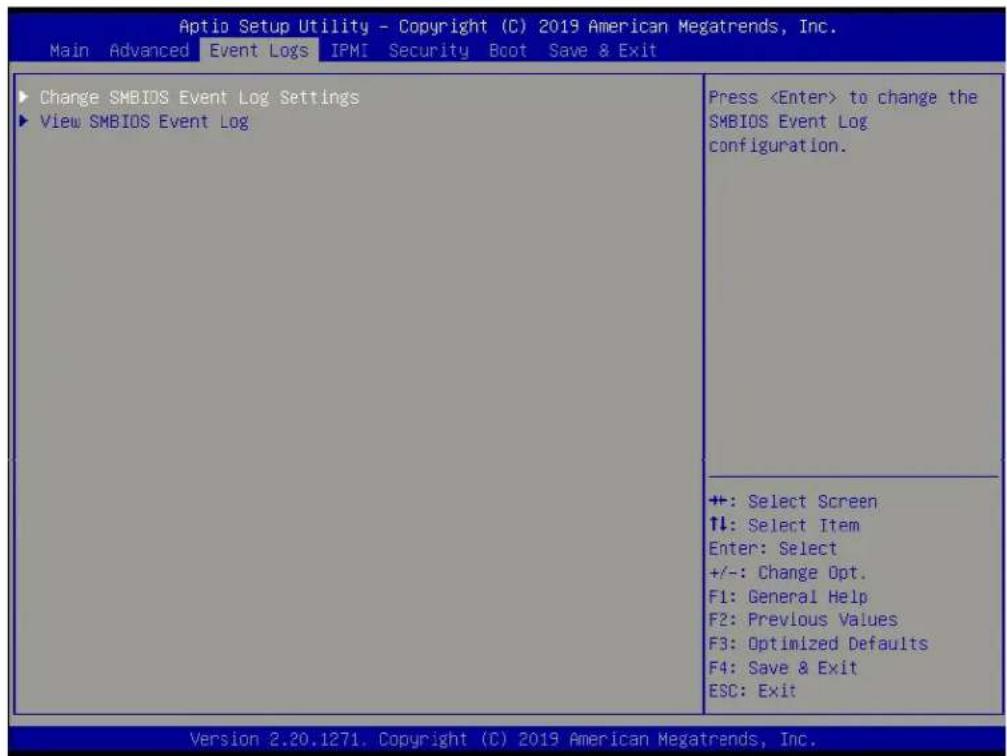
text_image
Aptio Setup Utility - Copyright (C) 2019 American Megatrends, Inc. Main Advanced Event Logs IPMI Security Boot Save & Exit Change SMBIOS Event Log Settings View SMBIOS Event Log Press▶Change SMBIOS Event Log Settings
Enabling/Disabling Options
SMBIOS Event Log
Change this feature to enable or disable all features of the SMBIOS Event Logging during system boot. The options are Enabled and Disabled.
Erasing Settings
Erase Event Log
Select Enabled to erase all error events in the SMBIOS (System Management BIOS) log before an event logging is initialized at bootup. The options are No, "Yes, Next reset," and "Yes, Every reset."
When Log is Full
Select Erase Immediately to immediately erase all errors in the SMBIOS event log when the event log is full. Select Do Nothing for the system to do nothing when the SMBIOS event log is full. The options are Do Nothing and Erase Immediately.
SMBIOS Event Log Standard Settings
Log System Boot Event
Select Enabled to log system boot events. The options are Enabled and Disabled.
MECI (Multiple Event Count Increment)
Enter the increment value for the multiple event counter. Enter a number between 1 to 255. The default setting is 1.
METW (Multiple Event Count Time Window)
This feature is used to determine how long (in minutes) the multiple event counter should wait before generating a new event log. Enter a number between 0 to 99. The default setting is 60.
Note: Reboot the system for the changes to take effect.
▶View SMBIOS Event Log
This feature allows you to view the event in the SMBIOS event log. The following categories are displayed:
DATE/TIME/ERROR CODE/SEVERITY
6.5 IPMI
Use this tab page to configure Intelligent Platform Management Interface (IPMI) settings.
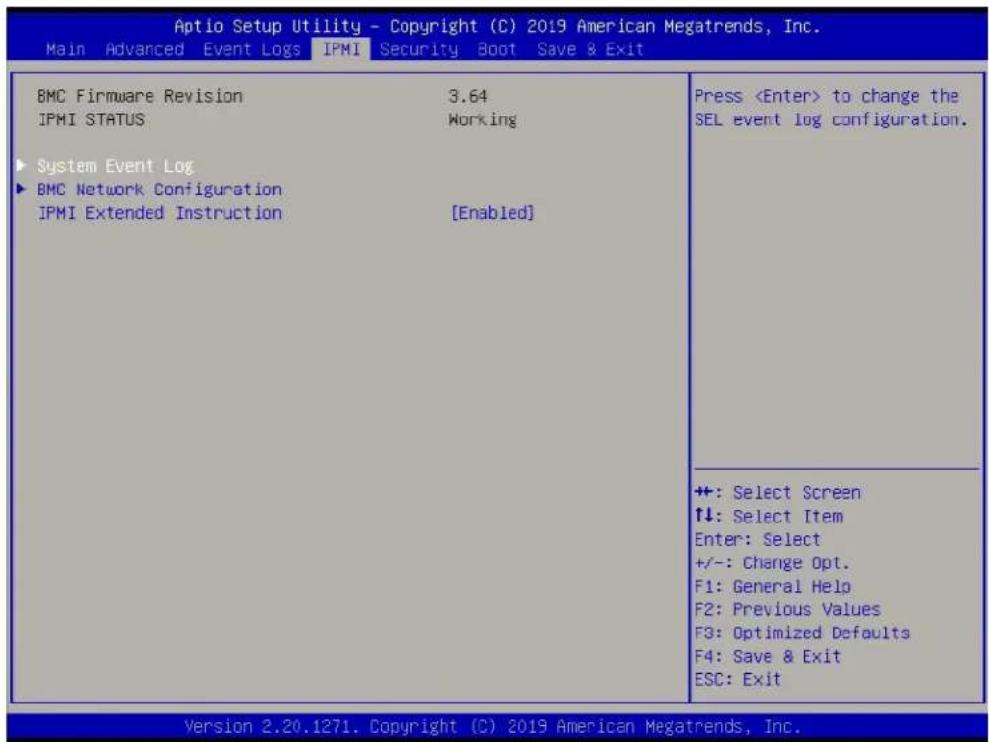
text_image
Aptio Setup Utility - Copyright (C) 2019 American Megatrends, Inc. Main Advanced Event Logs IPMI Security Boot Save & Exit BMC Firmware Revision 3.64 IPMI STATUS Working ► System Event Log ► BMC Network Configuration IPMI Extended Instruction [Enabled] PressBMC Firmware Revision
This feature displays the IPMI firmware revision used in your system.
IPMI STATUS
This feature displays the status of the IPMI firmware installed in your system.
▶System Event Log
Enabling/Disabling Options
SEL Components
Select Enabled for all system event logging at bootup. The options are Disabled and Enabled.
Erasing Settings
Erase SEL
Select Yes, On next reset to erase all system event logs upon next system reboot. Select Yes, On every reset to erase all system event logs upon each system reboot. Select No to keep all system event logs after each system reboot. The options are No, "Yes, On next reset," and "Yes, On every reset."
When SEL is Full
This feature allows you to determine what the BIOS should do when the system event log is full. Select Erase Immediately to erase all events in the log when the system event log is full. The options are Do Nothing and Erase Immediately.
Note: Reboot the system for the changes to take effect.
▶BMC Network Configuration
BMC network configuration
Configure IPV4 support
IPMI LAN Selection
This feature displays the IPMI LAN setting. The default setting is Failover.
IPMI Network Link Status
This feature displays the IPMI Network Link status. The default setting is Dedicated LAN.
Update IPMI LAN Configuration
Select Yes for the BIOS to implement all IP/MAC address changes at the next system boot. The options are No and Yes.
*If the feature above is set to Yes, the Configuration Address Source and VLAN features are available for configuration:
Configuration Address Source
Use this feature to select the source of the IP address for this computer. If Static is selected, you will need to know the IP address of this computer and enter it to the system manually in the field. If DHCP is selected, the BIOS will search for a DHCP (Dynamic Host Configuration Protocol) server in the network that is attached to and request the next available IP address for this computer. The options are DHCP and Static.
*If the feature above is set to Static, the Station IP Address/Subnet Mask/Gateway IP Address features are available for configuration:
Station IP Address
This feature displays the Station IP address for this computer. This should be in decimal and in dotted quad form (i.e., 192.168.10.253).
Subnet Mask
This feature displays the sub-network that this computer belongs to. The value of each three-digit number separated by dots should not exceed 255.
Station MAC Address
This feature displays the Station MAC address for this computer. Mac addresses are 6 two-digit hexadecimal numbers.
Gateway IP Address
This feature displays the Gateway IP address for this computer. This should be in decimal and in dotted quad form (i.e., 192.168.10.253).
VLAN
This feature is configurable if the Update IPMI LAN Configuration feature is set to Yes. Use this feature to enable or disable the IPMI VLAN function. The options are Disable and Enable.
*If the feature above is set to Enabled, the VLAN ID feature below is available for configuration:
VLAN ID
Use this feature to select a value for VLAN ID.
Configure IPV6 support
IPV6 Support
Use this feature to enable IPV6 support. The options are Enabled and Disabled.
Configuration Address Source
Use this feature to select the source of the IP address for this computer. If Static is selected, you will need to know the IP address of this computer and enter it to the system manually in the field. If DHCP is selected, the BIOS will search for a DHCP (Dynamic Host Configuration Protocol) server in the network that is attached to and request the next available IP address for this computer. The options are Unspecified, Static, and DHCP.
*If the feature above is set to Static, the Station IP Address/Prefix Length/IPV6 Router1 IP Address features are available for configuration:
Station IPV6 Address
Use this feature to enter the IPV6 address.
Prefix Length
Use this feature to change the prefix length.
IPV6 Router1 IP Address
Use this feature to change the IPV6 Router1 IP address.
IPMI Extended Instruction
Use this feature to enable IPMI extended function support. The options are Enabled and Disabled. When Disabled, the system powers on quickly by removing BIOS support for textended IPMI features. The Disable option is for applications that require faster power on time without using Supermicro Update Manager (SUM) or extended IPMI features. The BMC network configuration in the BIOS setup will also be invalid when IPMI Extended Instruction is disabled. The general BMC function and motherboard health monitor such as fan control will still function even when this option is disabled.
6.6 Security
Use this tab page to configure Security settings.
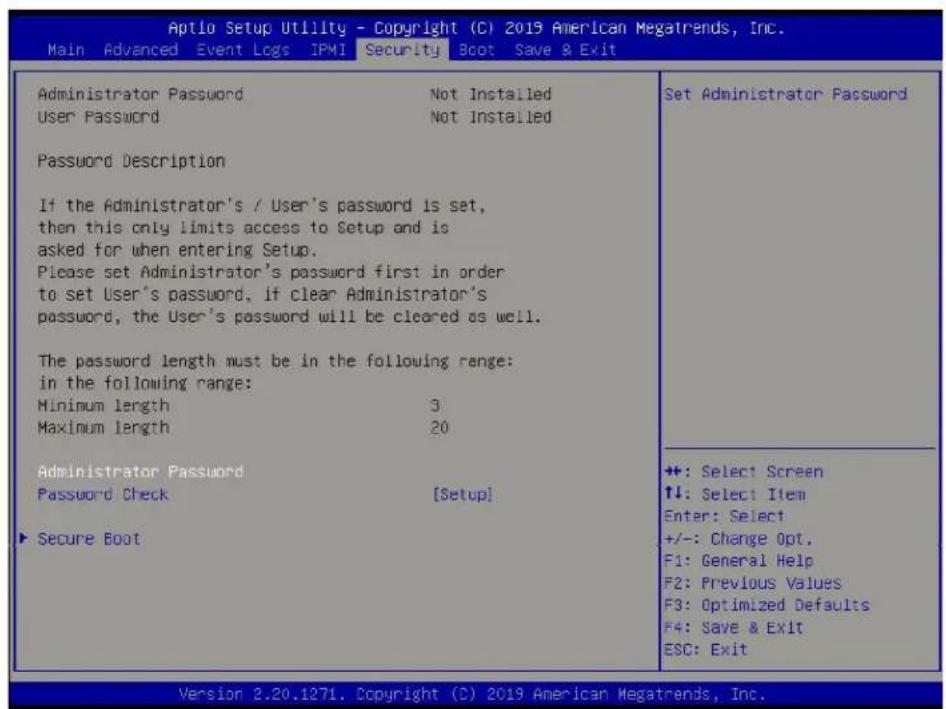
text_image
Aptio Setup Utility - Copyright (C) 2019 American Megatrends, Inc. Main Advanced Event Logs IPMI Security Boot Save & Exit Administrator Password Not Installed User Password Not Installed Password Description If the Administrator's / User's password is set, then this only limits access to Setup and is asked for when entering Setup. Please set Administrator's password first in order to set User's password, if clear Administrator's password, the User's password will be cleared as well. The password length must be in the following range: in the following range: Minimum length 3 Maximum length 20 Administrator Password Password Check [Setup] ▶ Secure Boot Set Administrator Password +: Select Screen ↑↓: Select Item Enter: Select +/-: Change Opt. F1: General Help F2: Previous Values F3: Optimized Defaults F4: Save & Exit ESC: Exit Version 2.20.1271. Copyright (C) 2019 American Megatrends, Inc.Administrator Password
Use this feature to set the administrator password which is required to enter the BIOS setup utility. The length of the password should be from 3 to 20 characters long.
Password Check
Select Setup for the system to check for a password at Setup. Select Always for the system to check for a password at bootup or upon entering the BIOS Setup utility. The options are Setup and Always.
▶ Secure Boot
System Mode
Secure Boot Enable
Select Enable for secure boot support to ensure system security at bootup. The options are Disabled and Enabled.
Secure Boot Mode
This feature allows you to select the desired secure boot mode for the system. The options are Standard and Custom.
*If Secure Boot Mode is set to Custom, Key Management features are available for configuration:
CSM Support
This feature is for manufacturing debugging purposes.
▶Key Management
This submenu allows you to configure the following Key Management settings.
Factory Key Provision
Select Enabled to install the default Secure Boot keys set by the manufacturer. The options are Disabled and Enabled.
*If the feature above is set to Enabled, all features below are available for configuration:
Select Yes to restore all factory keys to the default settings. The options are Yes and No.
▶ Reset to Setup Mode
Select Yes to delete all Secure Boot key databases and force the system to Setup Mode. The options are Yes and No.
▶ Export Secure Boot variables
Use this feature to copy the NVRAM contents of the secure boot variables to a file.
▶Enroll Efi Image
This feature allows the image to run in Secure Boot mode.
Device Guard Ready
▶Remove 'UEFI CA' from DB
Use this feature to remove the Microsoft UEFI CA certificate from the database. The options are Yes and No.
Select Yes to restore the DB defaults.
▶ Platform Key (PK)
Update
Select Yes to load a factory default PK or No to load from a file on an external media.
▶Key Exchange Keys (KEK)
Update
Select Yes to load a factory default KEK or No to load from a file on an external media.
Append
Select Yes to add the KEK from the manufacturer's defaults list to the existing KEK. Select No to load the KEK from a file. The options are Yes and No.
▶ Authorized Signatures
Update
Select Yes to load a factory default db or No to load from a file on an external media.
Append
Select Yes to add the db from the manufacturer's defaults list to the existing db. Select No to load the db from a file. The options are Yes and No.
▶Forbidden Signatures
Update
Select Yes to load a factory default dbx or No to load from a file on an external media.
Append
Select Yes to add the dbx from the manufacturer's defaults list to the existing dbx. Select No to load the dbx from a file. The options are Yes and No.
▶ Authorized TimeStamps
Update
Select Yes to load a factory default dbt or No to load from a file on an external media.
Append
Select Yes to add the dbt from the manufacturer's defaults list to the existing dbt. Select No to load the dbt from a file. The options are Yes and No.
▶OsRecovery Signatures
Update
Select Yes to load a factory default dbr or No to load from a file on an external media.
Append
Select Yes to add the dbr from the manufacturer's defaults list to the existing dbr. Select No to load the dbr from a file. The options are Yes and No.
6.7 Boot
Use this tab page to configure Boot Settings.
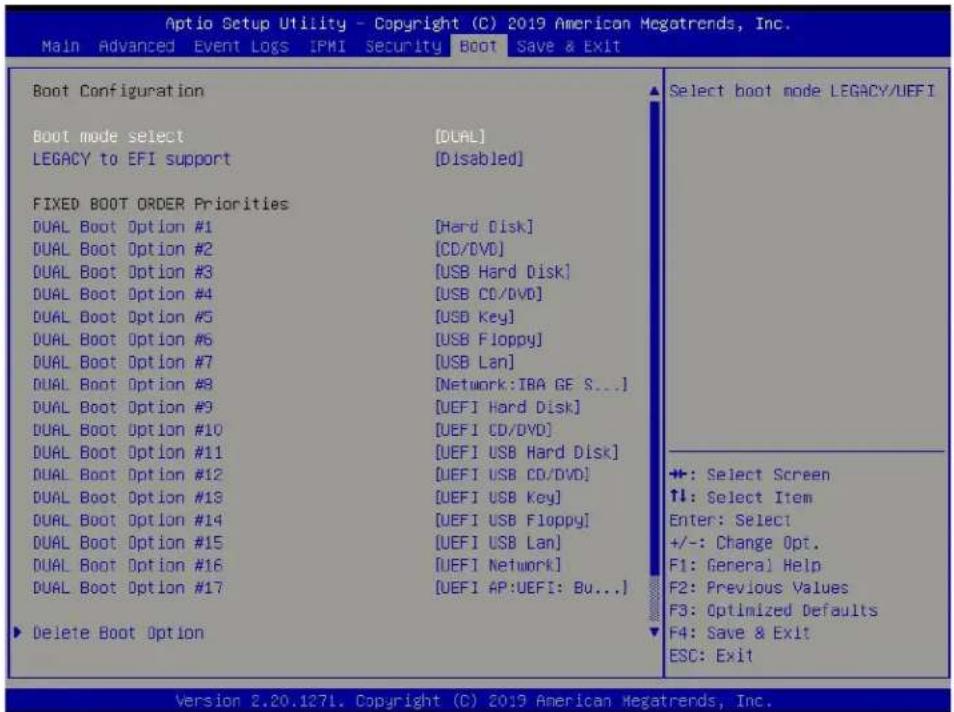
text_image
Aptio Setup Utility - Copyright (C) 2019 American Megatrends, Inc. Main Advanced Event Logs IPMI Security Boot Save & Exit Boot Configuration Boot mode select [DUAL] LEGACY to EFI support [Disabled] FIXED BOOT ORDER Priorities DUAL Boot Option #1 [Hard Disk] DUAL Boot Option #2 [CD/DVD] DUAL Boot Option #3 [USB Hard Disk] DUAL Boot Option #4 [USB CD/DVD] DUAL Boot Option #5 [USD Key] DUAL Boot Option #6 [USB Floppy] DUAL Boot Option #7 [USB Lan] DUAL Boot Option #8 [Network: IBA GE S...] DUAL Boot Option #9 [UEFI Hard Disk] DUAL Boot Option #10 [UEFI CD/DVD] DUAL Boot Option #11 [UEFI USB Hard Disk] DUAL Boot Option #12 [UEFI USB CD/DVD] DUAL Boot Option #13 [UEFI USB Key] DUAL Boot Option #14 [UEFI USB Floppy] DUAL Boot Option #15 [UEFI USB Lan] DUAL Boot Option #16 [UEFI Network] DUAL Boot Option #17 [UEFI AP:UEFI: Bu...] Delete Boot Option Select boot mode LEGACY/UEFI +: Select Screen ↑l: Select Item Enter: Select +/-: Change Opt. F1: General Help F2: Previous Values F3: Optimized Defaults F4: Save & Exit ESC: Exit Version 2.20.127L. Copyright (C) 2019 American Megatrends, Inc.Boot mode select
Use this feature to select the boot mode. The options are LEGACY, UEFI, and DUAL.
LEGACY to EFI Support
Select Enabled to boot EFI OS support after Legacy boot order has failed. The options are Disabled and Enabled.
Fixed BOOT ORDER Priorities
This option prioritizes the order of bootable devices that the system to boot from. Press
- Boot Option #1
- Boot Option #2
- Boot Option #3
- Boot Option #4
- Boot Option #5
- Boot Option #6
- Boot Option #7
-
Boot Option #8
-
Boot Option #9
- Boot Option #10
- Boot Option #11
- Boot Option #12
- Boot Option #13
- Boot Option #14
- Boot Option #15
- Boot Option #16
- Boot Option #17
▶ Delete Boot Option
Use this feature to select a boot device to delete from the boot priority list.
▶UEFI Application Boot Priorities
- Boot Option # - This feature sets the system boot order of detected devices. The options are [the list of detected boot device(s)] and Disabled.
▶Hard Disk Drive BBS Priorities
- Legacy Boot Order #1 - This feature sets the system boot order of detected devices. The options are [the list of detected boot device(s)] and Disabled.
▶ NETWORK Drive BBS Priorities
- Boot Option # - This feature sets the system boot order of detected devices. The options are [the list of detected boot device(s)] and Disabled.
6.8 Save & Exit
Use this tab page to configure Save & Exit settings.
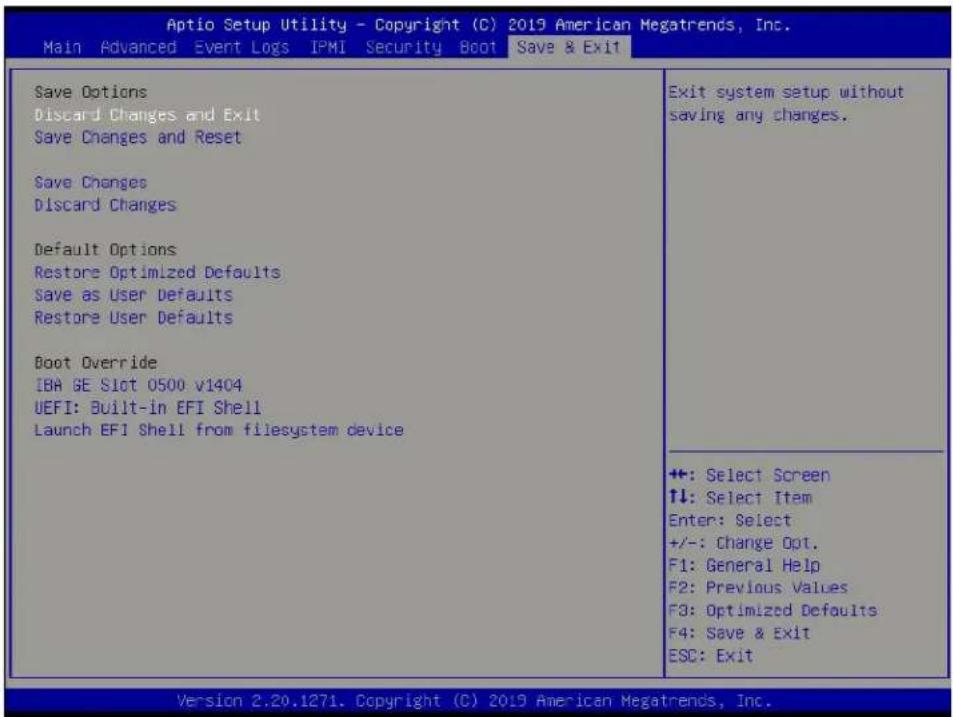
text_image
Aptio Setup Utility - Copyright (C) 2019 American Megatrends, Inc. Main Advanced Event Logs IPMI Security Boot Save & Exit Save Options Discard Changes and Exit Save Changes and Reset Save Changes Discard Changes Default Options Restore Optimized Defaults Save as User Defaults Restore User Defaults Boot Override IBA GE Slot 0500 v1404 UEFI: Built-in EFI Shell Launch EFI Shell from filesystem device Exit system setup without saving any changes. +: Select Screen ↑↓: Select Item Enter: Select +/-: Change Opt. F1: General Help F2: Previous Values F3: Optimized Defaults F4: Save & Exit ESC: Exit Version 2.20.1271. Copyright (C) 2019 American Megatrends, Inc.Save Options
Discard Changes and Exit
Select this feature to quit the BIOS Setup without making any permanent changes to the system configuration and reboot the computer. Select Discard Changes and Exit from the Save & Exit menu and press
Save Changes and Reset
After completing the system configuration changes, select this option to save the changes you have made. This will not reset (reboot) the system.
Save Changes
When you have completed the system configuration changes, select this option to leave the BIOS setup utility and reboot the computer for the new system configuration parameters to take effect. Select Save Changes from the Save & Exit menu and press
Discard Changes
Select this feature and press
Default Options
Restore Defaults
To set this feature, select Restore Defaults from the Save & Exit menu and press
Save As User Defaults
To set this feature, select Save as User Defaults from the Save & Exit menu and press
To set this feature, select Restore User Defaults from the Save & Exit menu and press
Boot Override
Other boot options are listed in this section. The system will boot to the selected boot option.
IBA GE Slot 0500 v1404
UEFI: Built-in EFI Shell
Launch EFI Shell from filesystem device
Appendix A
Standardized Warning Statements for AC Systems
About Standardized Warning Statements
The following statements are industry standard warnings, provided to warn the user of situations which have the potential for bodily injury. Should you have questions or experience difficulty, contact Supermicro's Technical Support department for assistance. Only certified technicians should attempt to install or configure components.
Read this appendix in its entirety before installing or configuring components in the Supermicro chassis.
These warnings may also be found on our website at http://www.supermicro.com/about/policies/safety_information.cfm.
Warning Definition

Warning! This warning symbol means danger. You are in a situation that could cause bodily injury. Before you work on any equipment, be aware of the hazards involved with electrical circuitry and be familiar with standard practices for preventing accidents.
警告の定義
この警告サインは危険を意味します。
Installation Instructions

Warning! Read the installation instructions before connecting the system to the power source.
設置手順書
Warning! This product relies on the building's installation for short-circuit (overcurrent) protection. Ensure that the protective device is rated not greater than: 250 V, 20 A.
サーキット・ブレーカー
Power Disconnection Warning

Warning! The system must be disconnected from all sources of power and the power cord removed from the power supply module(s) before accessing the chassis interior to install or remove system components.
電源切断の警告
Equipment Installation

Warning! Only trained and qualified personnel should be allowed to install, replace, or service this equipment.
機器の設置
Warning! This unit is intended for installation in restricted access areas. A restricted access area can be accessed only through the use of a special tool, lock and key, or other means of security. (This warning does not apply to workstations).
アクセス制限区域
Warning! There is the danger of explosion if the battery is replaced incorrectly. Replace the battery only with the same or equivalent type recommended by the manufacturer. Dispose of used batteries according to the manufacturer's instructions
電池の取り扱い
Redundant Power Supplies

Warning! This unit might have more than one power supply connection. All connections must be removed to de-energize the unit.
冗長電源装置
Warning! Hazardous voltage or energy is present on the backplane when the system is operating. Use caution when servicing.
バックプレーンの電圧
Comply with Local and National Electrical Codes

Warning! Installation of the equipment must comply with local and national electrical codes.
地方および国の電気規格に準拠
Warning! Ultimate disposal of this product should be handled according to all national laws and regulations.
製品の廃棄
Warning! Hazardous moving parts. Keep away from moving fan blades. The fans might still be turning when you remove the fan assembly from the chassis. Keep fingers, screwdrivers, and other objects away from the openings in the fan assembly's housing.
ファン・ホットスワップの警告
Power Cable and AC Adapter

Warning! When installing the product, use the provided or designated connection cables, power cables and AC adaptors. Using any other cables and adaptors could cause a malfunction or a fire. Electrical Appliance and Material Safety Law prohibits the use of UL or CSA-certified cables (that have UL/CSA shown on the cord) for any other electrical devices than products designated by Supermicro only.
電源コードとACアダプター
Warning: Do not upgrade the BIOS unless your system has a BIOS-related issue. Flashing the wrong BIOS can cause irreparable damage to the system. In no event shall Supermicro be liable for direct, indirect, special, incidental, or consequential damages arising from a BIOS update. If you need to update the BIOS, do not shut down or reset the system while the BIOS is updating to avoid possible boot failure.
B.1 An Overview to the UEFI BIOS
The Unified Extensible Firmware Interface (UEFI) provides a software-based interface between the operating system and the platform firmware in the pre-boot environment. The UEFI specification supports an architecture-independent mechanism for add-on card initialization to allow the UEFI OS loader, which is stored in the add-on card, to boot the system. The UEFI offers a clean, hands-off control to a computer system at bootup.
B.2 How to Recover the UEFI BIOS Image (-the Main BIOS Block)
A UEFI BIOS flash chip consists of a recovery BIOS block and a main BIOS block (a main BIOS image). The boot block contains critical BIOS codes, including memory detection and recovery codes for the user to flash a new BIOS image if the original main BIOS image is corrupted. When the system power is on, the boot block codes execute first. Once it is completed, the main BIOS code will continue with system initialization and bootup.
Note: Follow the BIOS recovery instructions below for BIOS recovery when the main BIOS boot crashes. However, when the BIOS boot block crashes, you will need to follow the procedures below for BIOS recovery.
B.3 To Recover the Main BIOS Block Using a USB-Attached Device
This feature allows the user to recover a BIOS image using a USB-attached device without additional utilities used. A USB flash device, such as a USB flash drive or a USB CD/DVD ROM/RW device, can be used for this purpose. However, a USB hard disk drive cannot be used for BIOS recovery at this time.
The file system supported by UEFI is FAT (including FAT12, FAT16, and FAT32) installed on a bootable or non-bootable USB-attached device. However, the BIOS might need several minutes to locate the SUPER.ROM file if the media size becomes too large because it contains too many folders and files.
To perform UEFI BIOS recovery using a USB-attached device, follow the instructions below.
- Using a different machine, copy the "Super.ROM" binary image file into the disc Root "\" Directory of a USB device or a writeable CD/DVD.
Note: If you cannot locate the "Super.ROM" file in your driver disk, visit our website at www.supermicro.com to download the BIOS image into a USB flash device and rename it "Super.ROM" for BIOS recovery use.
-
Insert the USB device that contains the new BIOS image ("Super.ROM") into your USB drive and power on the system
-
While powering on the system, please keep pressing
and simultaneously on your keyboard until the following screen (or a screen similar to the one below) displays.
Caution: Please stop pressing the
text_image
Scanned text of a document with red and blue pixelated text, likely from a form or table.Note: On the other hand, if the following screen displays, please load the "Super.ROM" file to the root folder and connect this folder to the system. (You can do so by inserting a USB device that contains the new "Super.ROM" image to your machine for BIOS recovery.)
text_image
Scanned text of a digital display showing red and blue pixelated patterns on black background- After locating the new BIOS binary image, the system will enter the BIOS Recovery menu as shown below.
Note: At this point, you may decide if you want to start with BIOS recovery. If you decide to proceed with BIOS recovery, follow the procedures below.
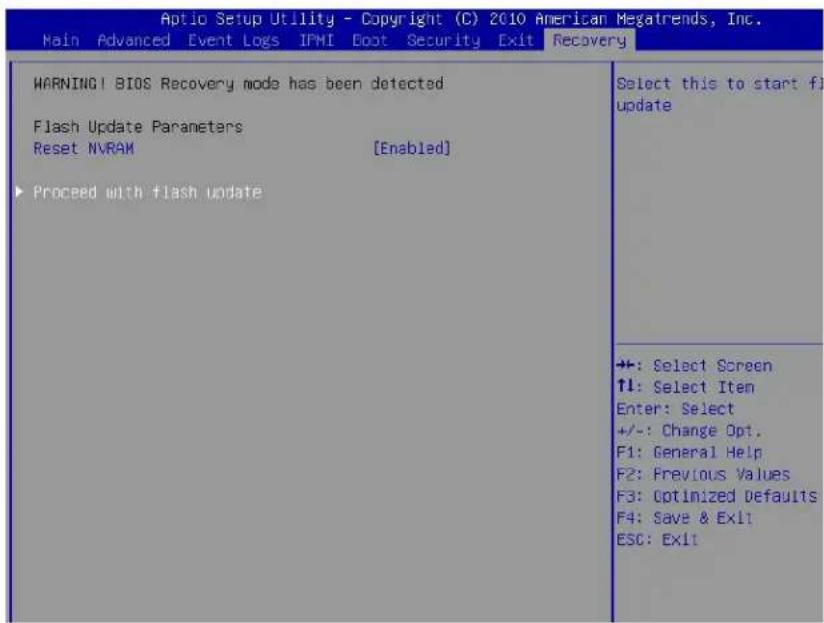
text_image
Aptio Setup Utility - Copyright (C) 2010 American Megatrends, Inc. Main Advanced Event Logs IPMI Boot Security Exit Recovery WARNING! BIOS Recovery mode has been detected Flash Update Parameters Reset NVRAM [Enabled] ► Proceed with flash update Select this to start fi update +: Select Screen ↑↓: Select Item Enter: Select +/-: Change Opt. F1: General Help F2: Previous Values F3: Optimized Defaults F4: Save & Exit ESC: Exit- When the screen as shown above displays, use the arrow key to select the item "Proceed with flash update" and press the
key. You will see the progress of BIOS recovery as shown in the screen below.
Note: Do not interrupt the process of BIOS flashing until it is completed.
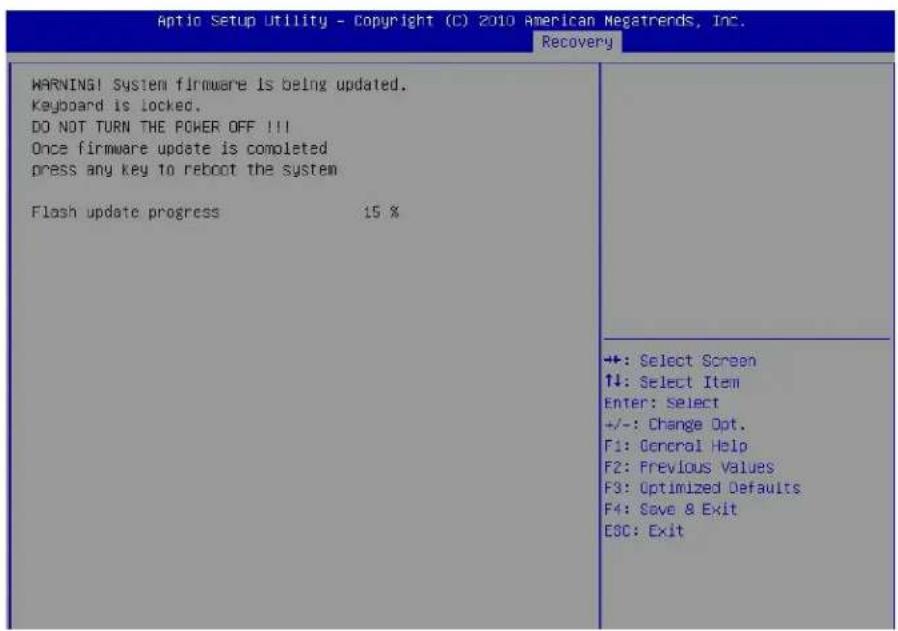
text_image
Aptio Setup Utility - Copyright (C) 2010 American Megatrends, Inc. Recovery WARNING! System firmware is being updated. Keyboard is locked. DO NOT TURN THE POWER OFF !!! Once firmware update is completed press any key to reboot the system Flash update progress 15 % +: Select Screen ↑↓: Select Item Enter: Select +/-: Change Opt. F1: General Help F2: Previous Values F3: Optimized Defaults F4: Save & Exit ESC: Exit- After the process of BIOS recovery is completed, press any key to reboot the system.
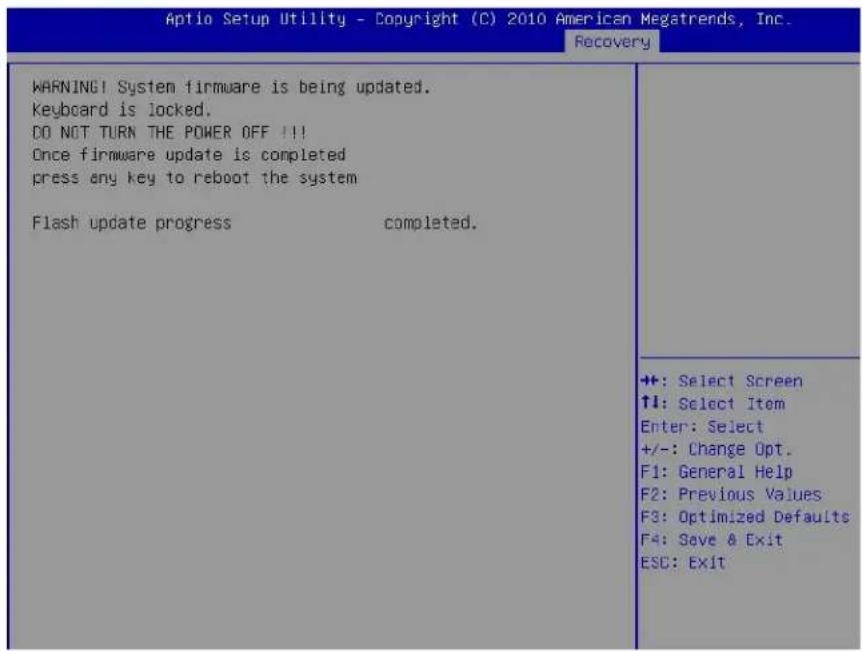
text_image
Aptio Setup Utility - Copyright (C) 2010 American Megatrends, Inc. Recovery WARNING! System firmware is being updated. Keyboard is locked. DO NOT TURN THE POWER OFF !!! Once firmware update is completed press any key to reboot the system Flash update progress completed. ++: Select Screen ↑↓: Select Item Enter: Select +/-: Change Opt. F1: General Help F2: Previous Values F3: Optimized Defaults F4: Save & Exit ESC: Exit- Using a different system, extract the BIOS package into a bootable USB flash drive.
- When a DOS prompt appears, enter FLASH.BAT BIOSname.### at the prompt.
Note: Do not interrupt this process until BIOS flashing is completed.
- After seeing the message that the BIOS update is complete, unplug the AC power cable from the power supply to clear the CMOS, and then plug the AC power cable in the power supply again to power on the system.
- Press
continuously to enter the BIOS Setup utility. - Press
to load default settings. - After loading default settings, press
to save the settings and exit the BIOS Setup utility.
Appendix C
System Specifications
Processors
Single Intel Xeon D-2146NT with TDP 80W for 1019D-FHN13TP in a FCBGA2518 socket Single Intel Xeon D-2123IT with TDP 60W for 1019D-4C-FHN13TP in a FCBGA2518 socket Single Intel Xeon D-2177NT with TDP 105W for 1019D-14CN-FHN13TP in a FCBGA2518 socket Single Intel Xeon D-2183IT with TDP 100W for 1019D-16C-FHN13TP in a FCBGA2518 socket Note: Refer to the motherboard specifications pages on our website for updates to supported processors.
Chipset
System on Chip
BIOS
128Mb SPI Flash with AMI BIOS
Memory
Supports up to 256GB of ECC RDIMM or 512GB of ECC LRDIMM DDR4 memory Speeds of up to 2133MHz for 1019D-FHN13TP Speeds of up to 2400MHz for 1019D-4C-FHN13TP and 1019D-16C-FHN13TP Speeds of up to 2667MHz for 1019D-14CN-FHN13TP
Storage Drives
Two hot-swap 2.5" drives Two internal 2.5" solid-state disk drives One M.2 M-Key, PCI-E 3.0 x4/SATA3
Drive Bays
Four SATA3 (two hot-swap, two internal)
PCI Expansion Slots
Two PCI-E3.0 x16 One M.2 M-Key 2280/110 (PCI-E 3.0 x2/SATA3) One M.2 B-Key 3042 (PCI-E 3.0 x2/SATA3/USB3.0) One M.2 E-Key 2230
Input/Output
Network: Nine RJ45 Gigabit Ethernet LAN ports, two RJ45 10GbE LAN ports, two 10G SFP+ LAN ports
SATA: Four SATA3 (6Gbps) ports
IPMI: One RJ45 Dedicated LAN port
USB: Two USB3.1 Gen 1 ports (front)
Video : One VGA port
Serial Port/Header: 1 COM port via RJ45
Motherboards
X11SDW-4C-TP13F for 1019D-4C-FHN13TP X11SDW-8C-TP13F for 1019D-FHN13TP X11SDW-14CNT-TP13F for 1019D-14CN-FHN13TP X11SDW-16C-TP13F for 1019D-16C-FHN13TP
Chassis
SC513BTS-350WB for 1019D-FHN13TP and 1019D-4C-FHN13TP
SC513BTS-505WB for 1019D-14CN-FHN13TP and 1019D-16C-FHN13TP
1U rackmount; (WxHxD) 17.2 x 1.7 x 15 in. (437 x 43 x 381mm)
System Cooling
1019D-FHN13TP and 1019D-4C-FHN13TP: Four 40mm PWM fans, plus an option for two more fans
1019D-14CN-FHN13TP and 1019D-16C-FHN13TP: Six 40mm PWM fans
Power Supply
1019D-FHN13TP and 1019D-4C-FHN13TP
Model: PWS-350-1H, 350 W module with PFC; 80Plus Platinum level
AC Voltage
100-240 Vac, 50-60 Hz, 5.-2.5 Amp (350W)
+5 V: Max.: 15 Amp, Min.: 0.2 Amp
+5 V standby: Max.: 3 Amp, Min.: 0 Amp
+12 V: Max.: 29 Amp, Min.: 0.5 Amp
-12 V: Max: 0.2 Amp, Min.: 0 Amp
+3.3 V: Max.: 12 Amp, Min.: 0.2 Amp
1019D-14CN-FHN13TP and 1019D-16C-FHN13TP
Model: PWS-505P-1H, 500 W High-Efficiency module with PMBus 1.2, 1 ^2 c, and PFC; 80Plus Platinum level AC Input
100-240 Vac, 50-60Hz, 6.6 Amp max (500W)
+3.3 V: 12A
+5 V: 15A
+5 standby: 3A
+12 V: 41A
-12V: 0.2A
Operating Environment
Operating Temperature: 0°C to 45°C (32°F to 113°F)
Non-operating Temperature: -40°C to 70°C (-40°F to 158°F)
Operating Relative Humidity: 8% to 90% (non-condensing)
Non-operating Relative Humidity: 5% to 95% (non-condensing)
Regulatory Compliance
Electromagnetic Emissions: FCC Class B, EN 55032 Class B, EN 61000-3-2/3-3, CISPR 32 Class B
Electromagnetic Immunity: EN 55024/CISPR 24, (EN 61000-4-2, EN 61000-4-3, EN 61000-4-4, EN 61000-4-5, EN 61000-4-6, EN 61000-4-8, EN 61000-4-11)
Other: VCCI-CISPR 32 and AS/NZS CISPR 32
Environmental: Directive 2011/65/EU, Deligated Directive (EU) 2015/863, and Directive 2012/19/EU
Safety: CSA/EN/IEC/UL 60950-1 Compliant, UL or CSA Listed (USA and Canada), CE Marking (Europe)
Perchlorate Warning
California Best Management Practices Regulations for Perchlorate Materials: This Perchlorate warning applies only to products containing CR (Manganese Dioxide) Lithium coin cells. "Perchlorate Material-special handling may apply. See www.dtsc.ca.gov/hazardouswaste/perchlorate"