
AR-C240P - Color multifunction printer SHARP - Free user manual and instructions
Find the device manual for free AR-C240P SHARP in PDF.


| Product type | Color multifunction printer |
| Brand | SHARP |
| Model | AR-C240P |
| Main functions | Color printing, copying, scanning |
| Power supply | 220-240 V, 50/60 Hz |
| Power consumption | Approximately 1.2 kW (max) |
| Dimensions (W x D x H) | Approximately 670 x 650 x 500 mm |
| Weight | Approximately 65 kg |
| Paper tray capacity | Up to 500 sheets (A4 format) |
| Media types | Plain paper, envelopes, transparencies |
| Print technology | Color LED (photosensitive drums) |
| Toner cartridges | 4 cartridges (black, cyan, magenta, yellow) |
| Maintenance and cleaning | Clean the LED heads with a soft, dry cloth; do not expose the drums to direct light |
| Safety | Do not touch the green surface of the drum; avoid prolonged exposure to light |
| Spare parts and repairability | Print drums, toner cartridges, transfer belt, fuser unit |
| Included accessories | Dry ink cartridge, power cord, ferrite core, installation CD |
| General information | User manual available in French and English; online support at sharpusa.com |
Frequently Asked Questions - AR-C240P SHARP
User questions about AR-C240P SHARP
0 question about this device. Answer the ones you know or ask your own.
Ask a new question about this device
Download the instructions for your Color multifunction printer in PDF format for free! Find your manual AR-C240P - SHARP and take your electronic device back in hand. On this page are published all the documents necessary for the use of your device. AR-C240P by SHARP.
USER MANUAL AR-C240P SHARP
Setup Guide Guide d'installation Guía de instalación Manual de Instalação
Sharp AR-C240P
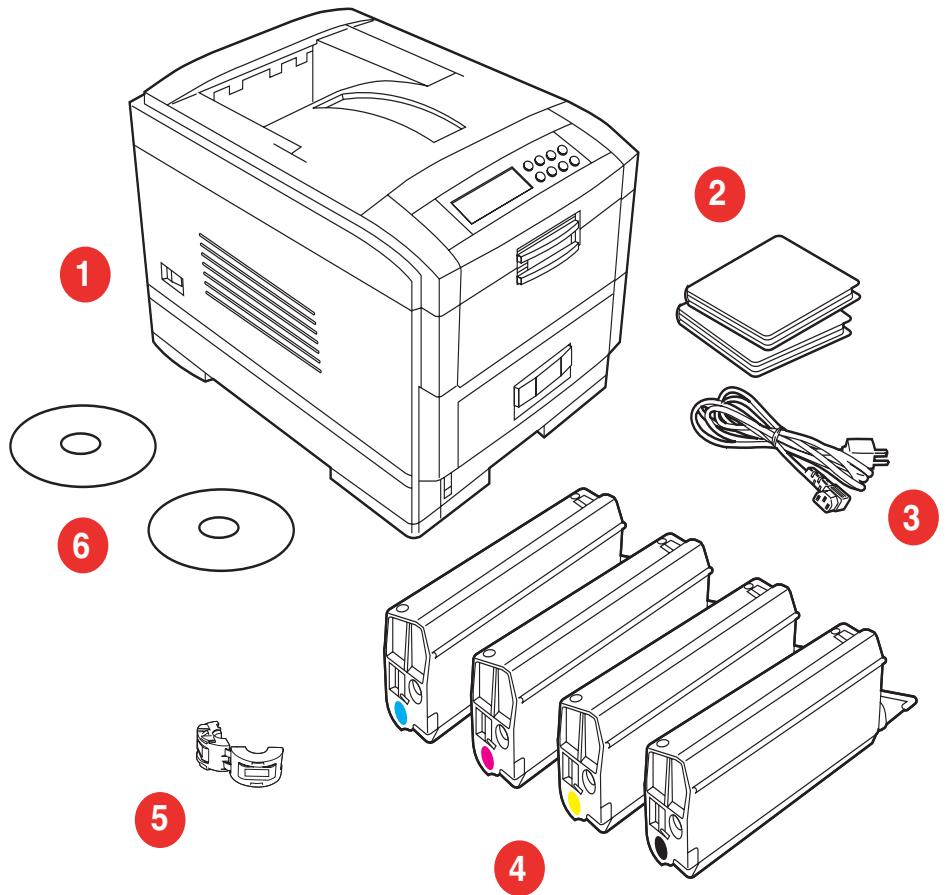
Remove cardboard overpack revealing contents.
(1) Printer, (2) Light-shield bags, (3) Power Cable, (4) Toner Cartridges, (5) Ferrite Core, (6) CDs.
2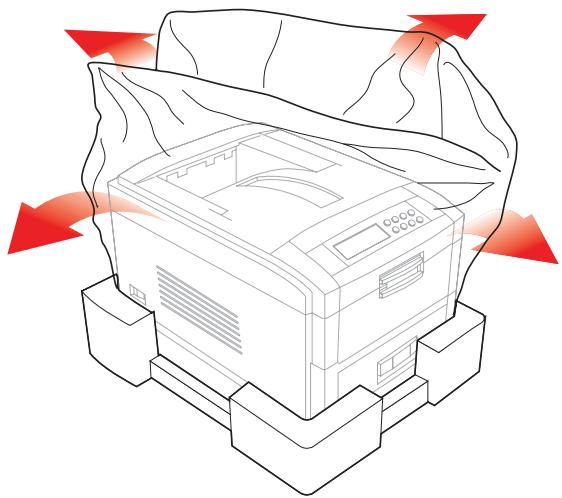
E
- Remove top packing pieces.
- Open protective plastic bag.
Fr
Select a location.
Lift printer and place on selected location.
2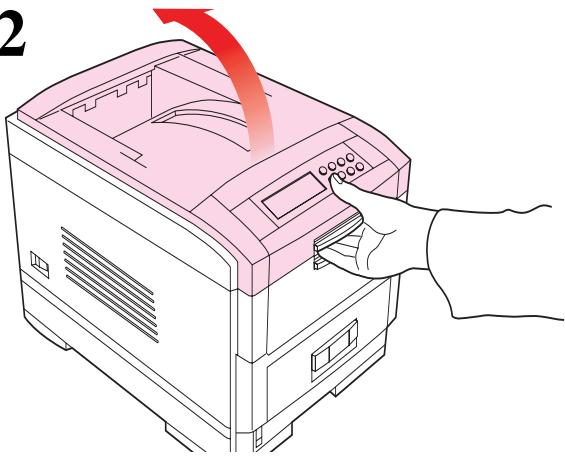
E
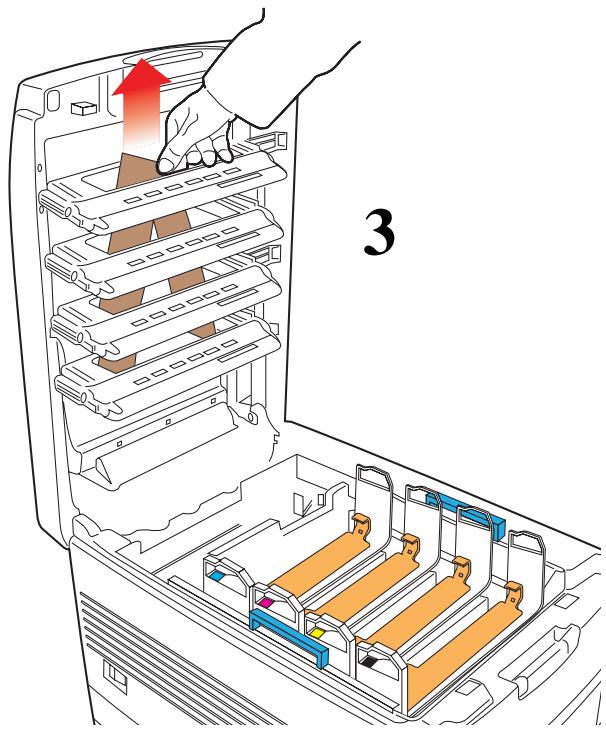
- Remove shipping tape.
- Grasp handle and lift top cover.
- Remove and retain LED array packing strips.
Remove Image drums.
Caution! Do not expose drum to direct sunlight or let it sit in room light for more than 5 minutes.
Pull out protective paper tab from image drums.
Caution! Do not touch image drum's green surface.
Remove protective sheet, then film.
Replace image drums (1). Remove and retain seals (2).
Grasp the orange clip, squeezing the tab to release it. Slide the clip out and discard.
Shake toner cartridge.
Shake the toner cartridge.
Remove sealing tape from toner cartridge.
Place opening on left side of toner cartridge on image drum peg.
Slide right edge of toner cartridge into image drum.
Lock toner cartridge with colored lever.
Close top cover.
Pull out paper tray.
Set guides to paper size.
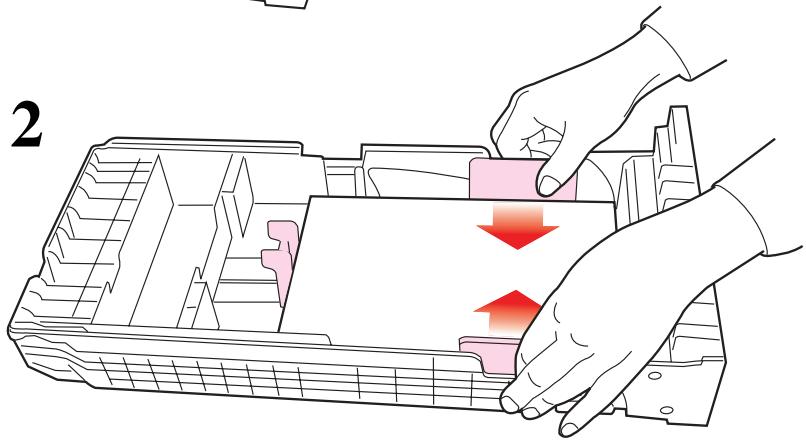
- Check that rear paper guide is against paper stack and locked.
- Check that side paper guides are against paper stack and locked.
Gently replace paper tray.
Insert power cable (1) and then switch on (2).
If you need further assistance or have questions
See our web site: http://www.sharpusa.com
Copyright 2004, Sharp Electronics Corporation and its suppliers
Ordering Replacement Supplies
How to Order
- Consult the Sharp Authorized Dealer where you purchased your printer.
- To find the authorized Sharp servicing dealer closest to you, please visit us on-line at www.SharpUSA.com.
Order Numbers
Important!
Be sure to purchase only consumables designated for this printer.
Toner Cartridges
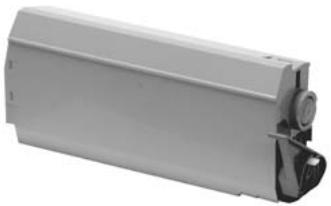
Color Part No.
Black...... AR-C20TBU
Cyan...... AR-C20TCU
Magenta......AR-C20TMU
Yellow...... AR-C20TYU
Image Drums
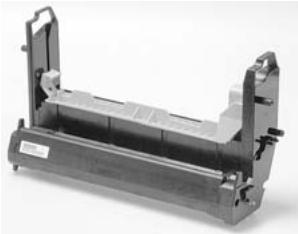
Color Part No.
Black...... AR-C20BDR
Cyan...... AR-C20CDR
Magenta ...... AR-C20MDR
Yellow......AR-C20YDR
Media Settings
Why Change Media Settings?
Improper media settings:
- cause poor quality printing
- cause flaking
- can damage the printer
Default Media Settings The Default Setting
The default media weight setting for all trays (including optional tray 2) is AUTO.
Changing Defaults
To change the printer's default settings for print media, see pages 5 and 6.
Resetting to the Original Defaults
Note: “...” = keep pressing the button repetitively until you see the display indicated.
To reset the printer menu to its original default settings:
- Press

...
MAINTENANCE MENU
- Press

...
EEPROM RESET EXECUTE
- Press

[Non-Text]
The printer resets and returns to the on-line state.
Media Settings (cont.)
Media Settings for Individual Print Jobs
If you are printing a job on special media, you can temporarily load the media in a tray and change the media settings for that tray in the driver as you print the job.
Ranges for Printer Media Weight Settings
Note: To determine if a paper weight is US Bond or Index, check the metric equivalent. E.g.,
35 lb. US Bond = 132 g/m²
35 lb. Index = 64 g/m².
For more information, go to www.paper-paper.com/weight.html.
Media Weight Settings, US Bond
| Setting | US Bond (Metric) |
| Auto (default) | 17 to 54 lb.(64 to 203 g/m2) |
| Light | 17 lb. (64 g/m2) |
| Medium Light | 18 to 19 lb.(68 to 71 g/m2) |
| Medium | 20 to 24 lb.(75 to 90 g/m2) |
| Medium Heavy | 25 to 27 lb.(94 to 101 g/m2) |
| Heavy | 28 to 32 lb.(105 to 120 g/m2) |
| Ultra Heavy | 33 to 54 lb.(124 to 203 g/m2) |
Media Weight Settings, Index
| Setting | Index (Metric) |
| Auto (default) | 35 to 113 lb.(64 to 203 g/m2) |
| Light | 35 lb. (64 g/m2) |
| Medium Light | 37 to 40 lb.(68 to 71 g/m2) |
| Medium | 42 to 50 lb.(75 to 90 g/m2) |
| Medium Heavy | 52 to 56 lb.(75 to 90 g/m2) |
| Heavy | 52 to 67 lb.(94 to 120 g/m2) |
| Ultra Heavy | 69 to 113 lb.(124 to 203 g/m2) |
Changing Default Media Settings:
Trays 1, 2, 3
Note: The “...” in these steps indicates that you should keep pressing the button repetitively until you see the display indicated.
To Set Transparencies as the Default Media Set the Media Type
- Press

...
MEDIA MENU
- Press

...
TRAYZ* MEDIATYPE XXXX**
- Press

...
* Z = 1, 2, or 3, depending on which tray you are changing.
** XXXX = current media type setting.
To Set Labels, Heavy Paper, etc., as the Default Media
Set the Media Weight
- Press

...
MEDIA MENU
- Press

...
TRAYZ* MEDIAWEIGHT AUTO
- Press

...
TRAYZ* MEDIAWEIGHT YYYY**
- Press


* Z = 1, 2, or 3 (tray you are using).
** YYYY = Medium, Medium Heavy, Heavy, or Ultra Heavy
Changing Default Media Settings: Multi-Purpose (MP) Tray
To Set Transparencies as the Default Media
Note: “...” = keep pressing the button repetitively until you see the display indicated.
First, Check/Set the Media Size to Letter (Default) or A4
- Press

...
MEDIA MENU
- Press

...
MP TRAY PAPERSIZE XXXX*
- Press

...
MP TRAY PAPERSIZE LETTER
or
MP TRAY PAPERSIZE LETTER
- Press
Then, Set the Media Type
- Press

...
MP TRAY MEDIATYPE XXXX*
- Press

...
MP TRAY MEDIATYPE TRANSPARENCY
- Press


* XXXX = current setting.
Changing Default Media Settings:
Multi-Purpose Tray (cont.)
To Set Labels or Heavy Paper as the Default Media
Note: “...” = keep pressing the button repetitively until you see the display indicated.
First, Check/Set the Media Size (Default = Letter)
- Press

...
MEDIA MENU
- Press

...
MP TRAY PAPERSIZE XXXX*
- Press

...
MP TRAY PAPERSIZE YYYY†
- Press

Then, Set the Media Weight
- Press

...
MP TRAY MEDIAWEIGHT XXXX*
- Press

...
MP TRAY MEDIA WEIGHT ZZZZ
- Press


* XXXX = current setting.
† YYYY = Letter, Legal-14, Legal-13.5, Executive, Custom
** ZZZZ = Medium, Heavy, or Ultra Heavy
Loading Media: Trays 1, 2 & 3
| Media Weight Range: | 20 to 54 lb. US Bond (75 g/m 2 to 203 g/m 2 ) |
| Media Size Range: | Tray 1Paper: min. 4.13" x 5.83"; max. 8.5" x 14" (Non-standard sizes must be defined in driver before printing.)Transparencies: letter or A4Trays 2 & 3 (Optional)Paper: min. 5.83" x 8.27"; max. 8.5" x 14" (Non-standard sizes must be defined in driver before printing.) |
| Capacity: | 530 sheets of 20-lb. paper |
1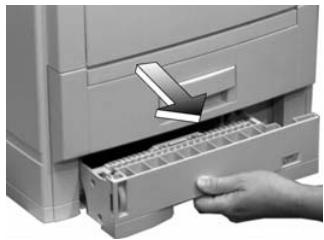
2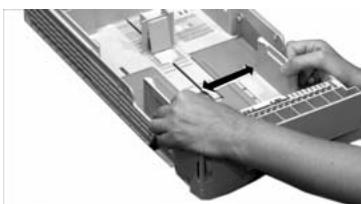
3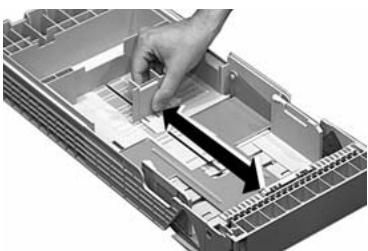
4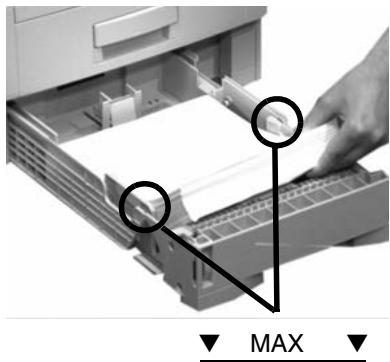
5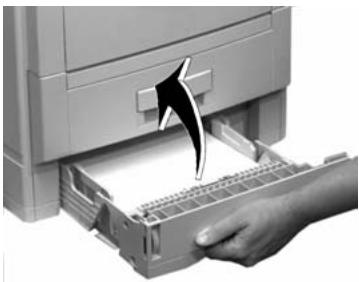
Loading Media: Multi-Purpose (MP) Tray
| Media Weight Range | up to 113 lb. Index (203 g/m2) |
| Media Size Range: | min. 3.5" x 5"; max. 8.5" x 14" (Non-standard sizes must be defined in driver before printing.)Banners: 8.25 to 8.5" [210 to 216 mm] wide by up to 47.25" [1.2 m] long. |
| Takes: | 100 sheets of 20-lb. US Bond paper50 transparencies10 envelopesLabels: max. feed stack = about 3/8-inch (1 cm) high |
1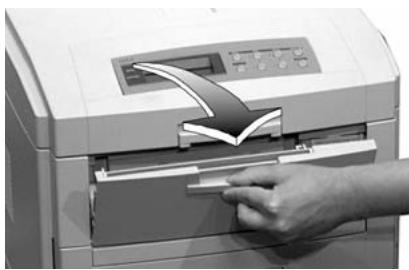
2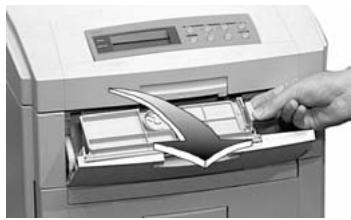
3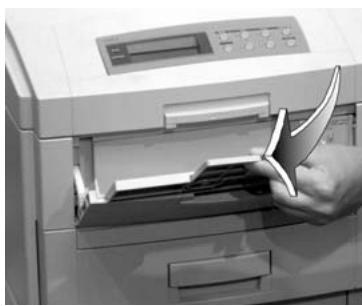
4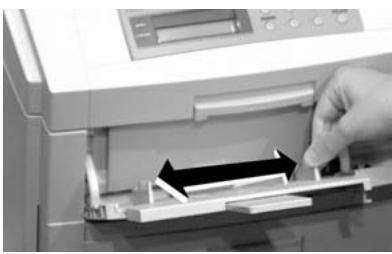
5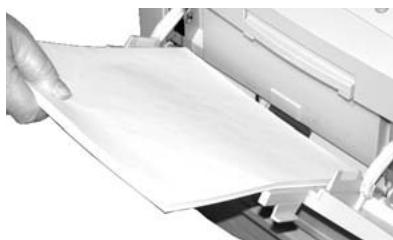
6 For letterhead stationery: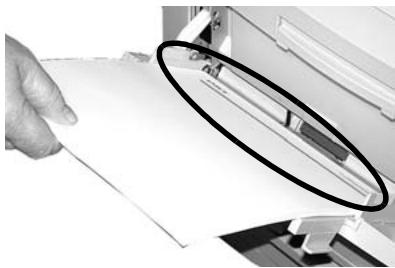
Selecting/Using Paper
Important Information!
For optimum results make sure that the paper you use conforms to the specifications outlined in the following pages.
We do not recommend the following paper types for use in your printer:
- Paper with cutouts, perforations, or excessive paper dust. • Heavily coated, glossy, or smooth paper
- Recycled paper
- Embossed, rough, or heavily textured paper
- Paper, inks and dyes that cannot withstand pressure and heat.
Sample Ream Label:
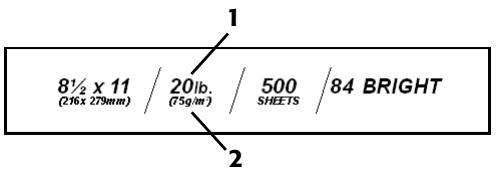
1 Media Weight, US Bond (see page 4) [sometimes given as substance] 2 Media Weight, Metric: Look for this to confirm US Bond vs. Index.
Selecting/Using Paper (continued)
Specifications
Caution!
The ink on pre-printed letterhead stationery must be able to withstand 446°F (230°C) for 0.2 second, including mechanical pressures to 25 psi (1.8 kg/cm²).
Note: If you experience curling when printing a file in duplex mode, switch to 28-lb. US Bond paper.
| Sizes | Feed Tray | Exit Tray | Media Type Setting | Media Weight Setting | Recommended Papers |
| LetterExecutiveLegal-14,-13.5,-13A4,A5,A6B5Banner(MP Tray Only)aCustom(MP Tray Only)b | Tray 1 | Top Rear | Plain (default)Letterhead | Auto | Hammermill®Laser PrinterRadiant White,24 lb.,US BondSharp SF70A,20 lb.For best results:temperature = 65 to 77°F;humidity = 40 to 65%RH |
| MP Tray | Rear Only | Plain (default)Letterhead | Auto | ||
| LetterExecutiveLegal-14,-13.5,-13A4,A5,B5 | Optional Trays 2,3 | Top Rear | Plain (default)Letterhead | Auto |
a. 8.25 to 8.5" (210 to 216 mm) wide x up to 47.25" (1.2 m) long. b. Min. = 3.9" x 3.9" (99 x 99 mm); max. = 8.5" x 14" (216 x 356 mm).
Custom sizes must first be defined in the printer driver: see your on-line User's Guide for more information.
Selecting/Using Transparencies
Specifications
Caution!
Transparencies must be able to withstand 446°F (230°C) for 0.2 second, including mechanical pressures to 25 psi (1.8 kg/cm²).
Important!
Use only recommended transparencies.
| Usable Sizes | Feed Tray | Exit Tray | Media Type Setting | Media Weight Setting | Recommended Transparencies |
| • Letter • A4 | • Tray 1 • MP Tray | Rear Only | Transparency | Any (Ignored) | • Sharp ARC20A • Folex® BG67 (A4) |
Printing Transparencies
For Individual Print Jobs on Transparencies
Make the following settings in the printer driver as you print the job:
- Source = Tray1 or MP Tray • Media Size = Letter or A4 • Media Type = Transparency
- Windows® Adobe® PostScript® driver only: deselect Media Check:
Windows 2000/XP
Printing
Preferences → Advanced → Document Options → Printer Features → Media Check = Off.
Windows Me/98/95
Properties → Setup tab → Paper Feed Options → deselect Media Check.
Windows NT 4.0
Document Defaults → Input
Slot Option → Media Check = Off.
Making Transparencies the Default Print Media
Tray 1
If Tray 1 will normally be loaded with transparencies, set the printer menu as follows (see page 5):
- Tray1 MediaType = Transparency
MP Tray
If the MP Tray will normally be loaded with transparencies, set the printer menu as follows (see page 6):
- MP Tray PaperSize = Letter (the default) or A4
- MP Tray MediaType = Transparency
Selecting/Using Labels
Label Parameters
Important!
Place labels in the MP Tray face up.
Caution!
Labels must be able to withstand 446°F (230°C) for 0.2 second, including mechanical pressures to 25 psi (1.8 kg/cm²).
| Usable Sizes | Feed Tray | Exit Tray | Media Type Setting | Media Weight Setting | Recommended Labels |
| • Letter• A4 | MP Tray Only | Rear Only | Labels | • Medium• Heavy• Ultra Heavy | Avery 5161 White Laser Label, Letter size |
Printing Labels
For Individual Print Jobs on Labels
Make the following settings in the printer driver as you print the job:
- Source = MP Tray • Media Size = Letter or A4 • Media Type = Labels
- Windows® Adobe® PostScript® driver only: deselect Media Check (see page 12).
Making Labels the Default Print Media for the MP Tray
If the MP Tray will normally be loaded with labels, set the printer menu as follows (see page 6):
• MP Tray PaperSize - Letter or A4 - MP Tray MediaType = Labels
Selecting/Using Envelopes
Specifications
Caution!
Envelopes must be able to withstand 446°F (230°C) for 0.2 second, including mechanical pressures to 25 psi (1.8 kg/cm²)
Important!
For the best print results, please order our recommended envelopes from your Sharp's media provider.
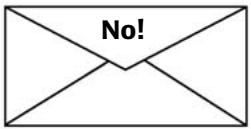
Never use envelopes with metal clasps, snaps, windows, or V-flap seals:
| Size | Feed Tray | Exit Tray | Media Type | Media Weight |
| COM-10 | MP Tray Only | Rear Only | Any Setting | Any Setting |
Printing Envelopes
To Print an Individual Job on Envelopes
Make the following settings in the printer driver as you print the job:
- Source = MP Tray
- Size = COM-10
Making Envelopes the Default Print Media for the MP Tray
Set the printer menu to (see pages 5 and 6):
- PaperSize = COM-10
Selecting/Using Thick Media
Sample Ream Label:
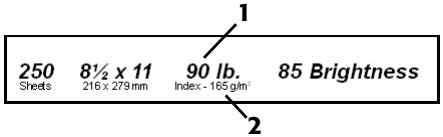
1 Media Weight, Index (see page 4). 2 Media Weight, Metric: This confirms Index vs. US Bond (see page 4)
Caution!
To prevent damage to the printer, it is very important to check the printer's media settings before printing on thick paper. It must be set to Medium, Heavy, or Ultra Heavy—depending on the thickness of the paper being used—or to Auto (see page 4 and “Printing Thick Paper” below).
Parameters
Usable Sizes
• Letter, Executive, Legal-14, Legal-13.5, Legal-13 - A4, A5, A6, B5 - Custom (minimum = 3" x 5"; must be defined in the printer driver).
Feed Tray
- Tray 1, optional Trays 2 and 3 (up to 98 lb. Index) • MP Tray (up to 113 lb. Index)
Exit Tray
- Rear Only
Media Type Setting
- Card Stock
Media Weight Setting
- Trays 1, 2, 3 = Auto
- MP Tray = Medium Heavy, Heavy, or Ultra Heavy (see page 4)
Recommended Media*
- Wasau Exact Index
- 49108, 90 lb.
- 49508, 110-lb.
* For best print results: temperature = 65 to 77°F (18 to 25°C); humidity = 40 to 65%RH
Printing Thick Paper
Printing Individual Jobs
Make the following settings in the printer driver as you print the job:
- Source = Trays 1, 2 or 3 (to 98 lb. Index) or MP Tray (to 113 lb. Index)
- Size = see sizes at left
- Type = Medium Heavy, Heavy or Ultra Heavy (see page 4).
Making Thick Paper the Default Print Media
Set the printer menu (see pages 5 and 6) to:
- PaperSize = see sizes at left. • MediaType = Medium Heavy, Heavy or Ultra Heavy (see page 4)
Ideas for Using Printer Features
Note: For detailed information on these features, see your on-line User's Guide
Secure Print Feature
▶ Ideal for printing confidential documents on a network system.
Idea!
When printing special media, use this feature to prevent documents being sent by other clients on the network from printing on your media:
- Create your document and store it in the printer's memory.
- Load the special media.
- Start printing the document by accessing it through the front panel (see page 17).
Proof & Print Feature
▶ Use Proof & Print to proof your document before printing multiple copies.
Overlays (Forms)
Note: Overlay elements must be created in your software application, then stored on the printer's hard drive using Storage Device Manager before they can be used.
▶ Great for adding logos, addresses, letterheads, etc., to your document, in any combination.
Ideas!
User overlays:
• in place of pre-printed stationery. • to create forms from pre-stored modular pieces.
Secure Print
To print out a secure (confidential) document, you must know:
- the document name
- your personal password (PIN)
To Print a Confidential Document Using the Control Panel
Note: “...” = keep pressing the button repetitively until you see the display indicated.
- Press

...
PRINT JOBS MENU
- Press

PRINT JOBS MENU PIN:
- Enter your PIN using the control panel:
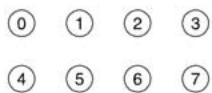
SELECT JOB ALL JOBS
- Press

...
PRINT JOBS MENU [JOB NAME]

- Press
- The document prints and is deleted from the printer's hard drive.
- The printer goes back on line.
To Delete the Document before Printing It
Follow steps 1 through 4 above, then:
- Press

- Press

- The document is deleted from the printer's hard drive and the printer goes back on line.
Proof & Print
To print a proofed document, you must know:
- the document name
- your personal password (PIN)
To Print a Proofed Document Using the Control Panel
Note: “...” = keep pressing the button repetitively until you see the display indicated.
- Press

...
PRINT JOBS MENU
- Press

PRINT JOBS MENU PIN:
- Enter your PIN using the control panel:
0
①
②
③
④
5
⑥
7
SELECT JOB ALL JOBS

...
- Press
PRINT JOBS MENU XXXX*

- Press
- The document prints and is deleted from the printer's hard drive.
- The printer goes back on line.
* XXXX = the name of the job you wish to print.
To Delete the Document before Printing It
Follow steps 1 through 4 above, then:
- Press

- Press

- The document is deleted from the printer's hard drive and the printer goes back on line.
Printing Built-In Reports
Printing the Menu Defaults (MenuMap)
Note: “...” = keep pressing the button repetitively until you see the display indicated.
To print a list of the current menu settings:
- Press

...
INFORMATION MENU
- Press

...
PRINT MENU MAP
- Press

Print the File List
Note: “...” = keep pressing the button repetitively until you see the display indicated.
To print a list of the files stored on the printer's hard drive:
- Press

...
INFORMATION MENU
- Press

...
PRINT FILE LIST
- Press

Printing Built-In Reports (cont.)
Printing Lists of Fonts
(PCL, PostScript, IBM Proprinter, or Epson FX Emulation)
Note: “...” = keep pressing the button repetitively until you see the display indicated.
- Press

...
INFORMATION MENU
- Press

...
PRINT XXXX* FONTS
- Press

* XXXX = PCL, PS, IBM PPR, or Epson FX.
Setting Power Save Parameters
Power Save
Power Save sets how long the printer waits before going into standby mode. This saves energy, but the printer requires time to warm up when it receives a print job or if you want to enter the menu and change settings.
Setting the Power Save Interval
- Press

...
SYSTEM CONFIG MENU
- Press

...
POWER SAVE DELAY TIME 60 MIN
- Press

...
POWER SAVE DELAY TIME XX* MIN
- Press


* XX = 5, 15, 30, 60 (default), 240 minutes.
Note: “...” = keep pressing the button repetitively until you see the display indicated.
To Disable/Enable Power Save
- Press

...
MAINTENANCE MENU
- Press

...
POWER SAVE ENABLE †
3.


...
POWER SAVE DISABLE †
4.


† Pressing the ITEM button toggles back and forth between Enable and Disable.
Control Panel Buttons
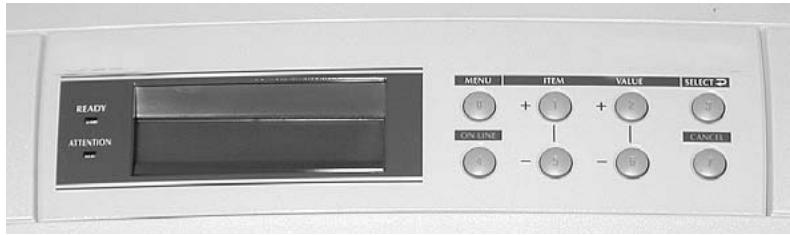
MENU Button
![graph TD A["ON LINE 4"] --> B["ITEM 1"] B --> C["VALUE 2"] C --> D["CANCEL 7"] style A fill:#f9f,stroke:#333 style B fill:#ccf,stroke:#333 style C fill:#cfc,stroke:#333 style D fill:#fcc,stroke:#333](/content/2024/12/121847/images/c1e154895b913eb17eac4054500f60f5810a4d3439e590a0267b314bd2eb4f3c.jpg)
Printer On Line or Off Line
Press to enter the Menu mode.
Menu Mode
- Press to advance to the next Category in the Menu
- Press and hold for 2 seconds or longer to go back to the previous Category.
Password (PIN) Mode
Press to enter a zero in the password.
ON LINE Button
![graph TD A["ON LINE"] --> B["0"] B --> C["1"] C --> D["2"] D --> E["3"] C --> F["5"] F --> G["6"] G --> H["7"] I["ITEM"] --> C I --> D I --> F J["VALUE"] --> D J --> G K["SELECT"] --> E](/content/2024/12/121847/images/53821363fb367494c37f2ad2a42c816e59016915e3d7e695bb862f4668d88447.jpg)
Printer On Line/Off Line
Press to place the printer off line/on line.
Menu Mode
Press to exit the Menu mode and go back on line.
Password (PIN) Mode
Press to enter the number 4 in the password.
Error Mode (Attention light blinking)
- If the paper size requested by the print job is different from the paper specified as in the tray, press ON LINE to force the job to print.
- If you have selected manual print in the driver, load paper in the MP tray, then press ON LINE to print the job.
Control Panel Buttons (cont.)
ITEM + Button
![graph TD A["ITEM"] -->|+1| B["ON LINE"] A -->|+2| C["CANCEL"] A -->|-5| D["0"] A -->|-6| E["7"] A --> F["3"]](/content/2024/12/121847/images/679f61ce501579a31a53618b19e3a7df7ecf5f205d0f663b8068a56325eb8696.jpg)
Menu Mode
- Press to advance to the next Item in the Menu.
- Press and hold to advance through the menu Items quickly.
Password (PIN) Mode
Press to enter the number 1 in the password
ITEM - Button
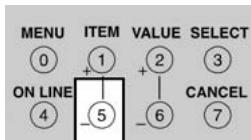
Menu Mode
- Press to go back to the previous Item in the Menu.
- Press and hold to advance backward through the menu Items quickly.
Password (PIN) Mode
Press to enter the number 5 in the password.
VALUE + Button
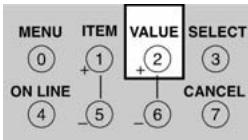
Menu Mode
Press to advance to the next Value for an Item in the Menu.
Press and hold to advance through the Values quickly.
Password (PIN) Mode
Press to enter the number 2 in the password.
VALUE - Button
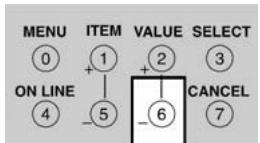
Menu Mode
Press to go to the previous Value for an Item in the Menu.
Press and hold to advance backward through the Values quickly.
Password (PIN) Mode
Press to enter the number 6 in the password.
Control Panel Buttons (cont.)
SELECT Button
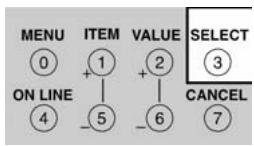
Menu Mode
- Press to engage a new value for an Item (An asterisk appears next to the new setting).
- Press to initiate the action indicated on the display (e.g., print MenuMap).
Password (PIN) Mode
Press to enter the number 3 in the password.
CANCEL Button
![graph TD A["ON LINE 4"] --> B["ITEM 1"] B --> C["VALUE 2"] C --> D["CANCEL 7"] E["MENU 0"] --> F["+"] G["ITEM 5"] --> H["+"] I["VALUE 6"] --> J["+"] K["SELECT 3"] --> L["+"]](/content/2024/12/121847/images/e8589cafa04bfbad02b583fa9638eca804ffc2cf55ac119d79c3504bdc236db6.jpg)
Printer On Line
Press to delete a job being processed:
- If the job is being printed, it will be cancelled and deleted.
- If the job is still being received, it continues until all the data is received, then is deleted.
Menu Mode
Press to exit the Menu mode and place the printer back on line.
Password (PIN) Mode
Press to enter the number 7 in the password.
Error Mode
(Attention light blinking)
Press to delete a job being processed. Once the job has been deleted, the printer will return to the original error status.
Control Panel Lights
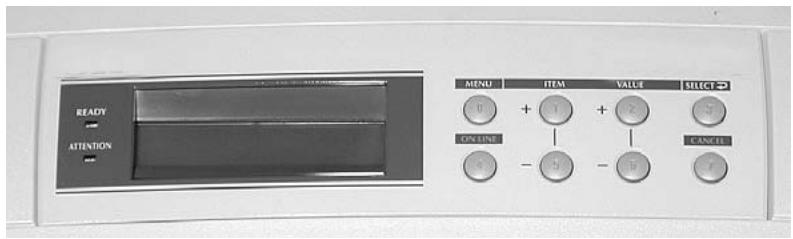
Ready LED (Green)
On
The printer is on line.
Off
The printer is off line.
Flashing
The printer is receiving data.
Attention LED (Red)
On: Warning!
The printer needs attention, but can continue to operate.
The display message indicates the nature of the problem: e.g., TONER LOW, PAPER NEAR END, etc.
Off
Normal.
Flashing: Alarm!
The printer needs attention immediately.
The display message indicates the nature of the problem: e.g., PAPER JAM, TRAY1 EMPTY, etc.
Clearing Media Jams
Jam 370
CHECK DUPLEX
370: PAPER JAM
1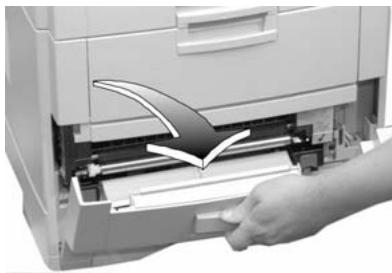
2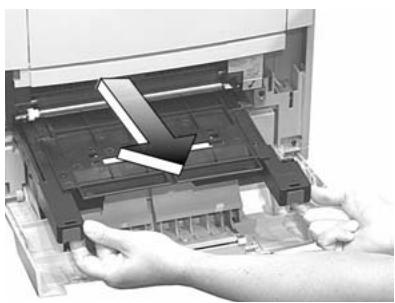
3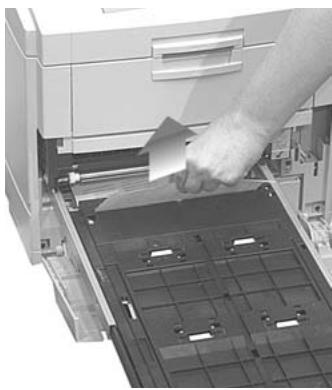
4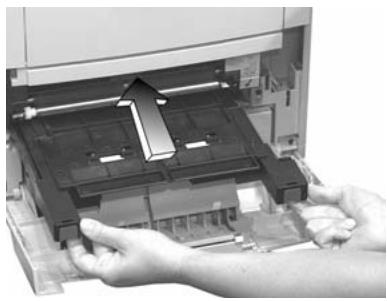
5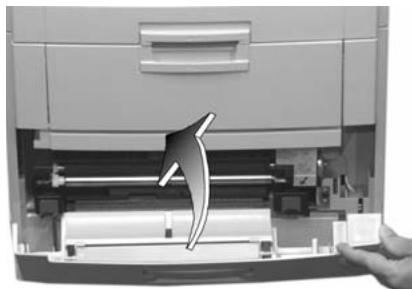
Clearing Media Jams (cont.)
Jam 371
CHECK DUPLEX
371: PAPER JAM
1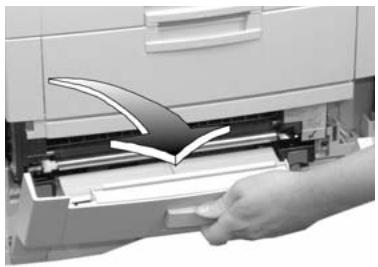
2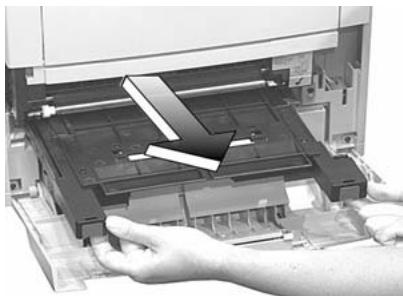
3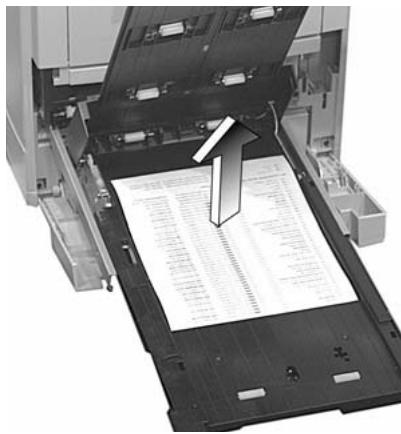
4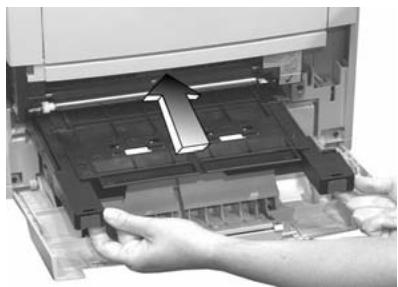
5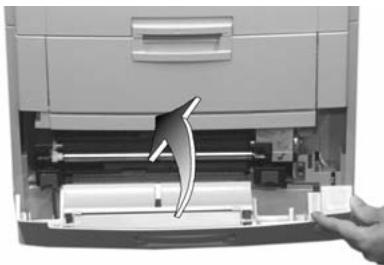
Clearing Media Jams (cont.)
Jam 372
CHECK DUPLEX
372: PAPER JAM
1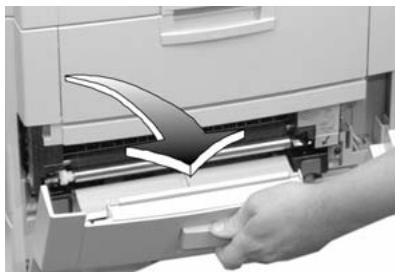
2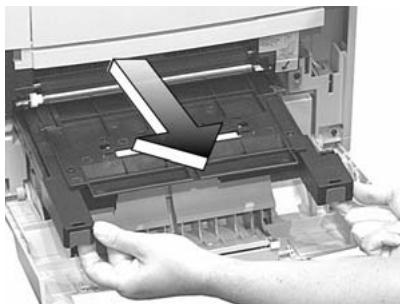
3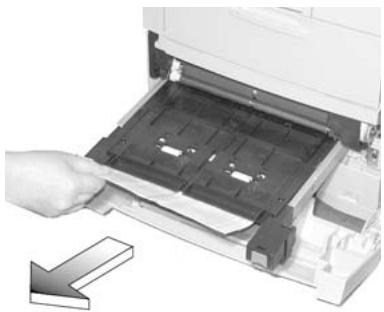
4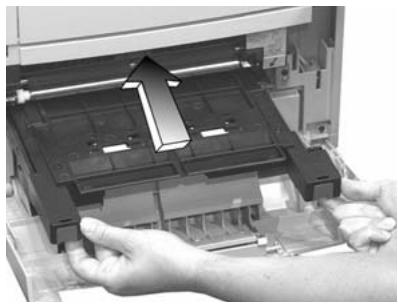
5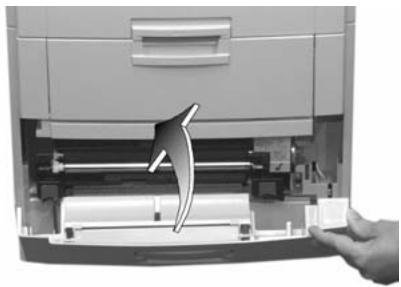
Clearing Media Jams (cont.)
Jam 380
OPEN FRONT COVER
380: PAPER JAM
1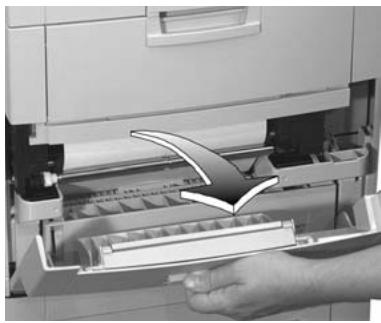
2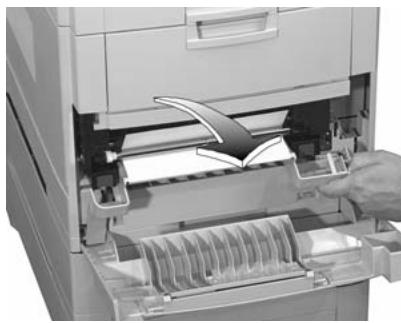
3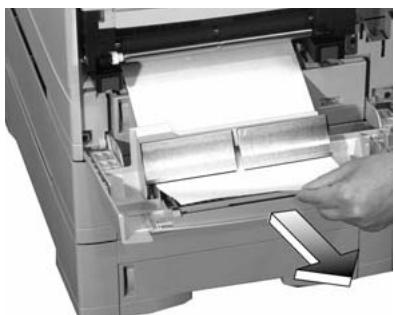
4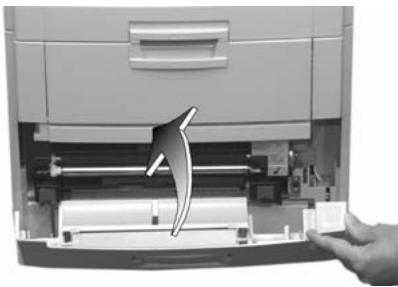
Clearing Media Jams (cont.)
Jam 381
OPEN UPPER COVER
381: PAPER JAM
1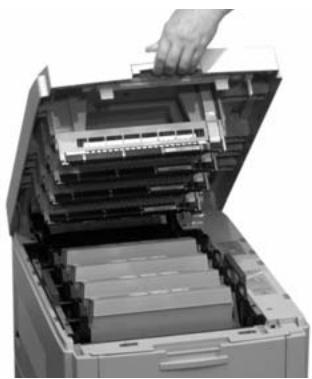
2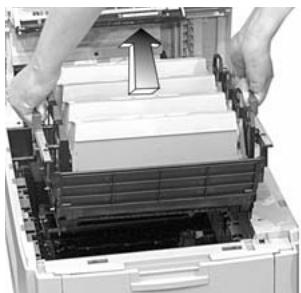
Caution!
To avoid damage to the drums:
- Be sure to set the toner/drum cradle on a flat surface
- Do not touch the shiny green area on the bottom of the drums.
3
4
5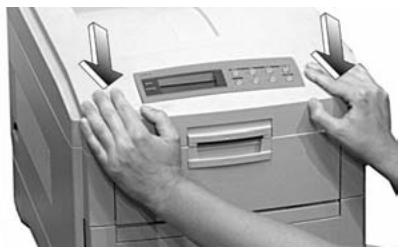
Clearing Media Jams (cont.)
Jam 382
OPEN UPPER COVER
382: PAPER JAM
If the sheet is visible:
1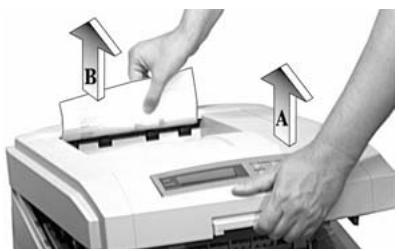
2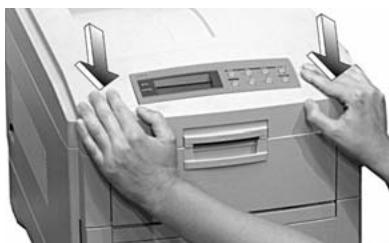
If the sheet is inside:
1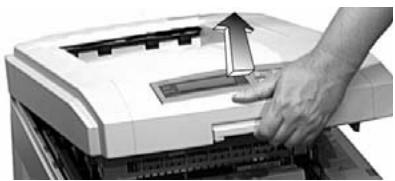
Warning!
The fuser may be very hot from printing.
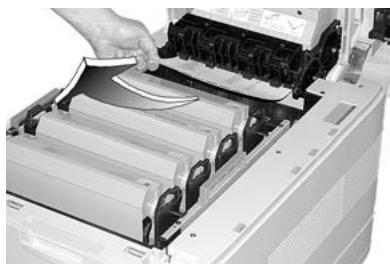
Note: If the sheet is stuck in the fuser, skip to the next page.
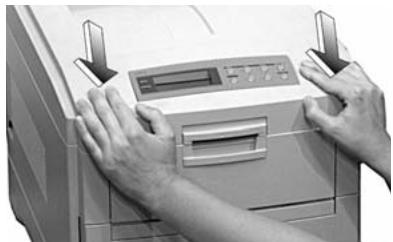
Clearing Media Jams (cont.)
Jam 382 (cont.)
If the sheet is inside and caught in the fuser:
Warning!
The fuser may be very hot from printing.
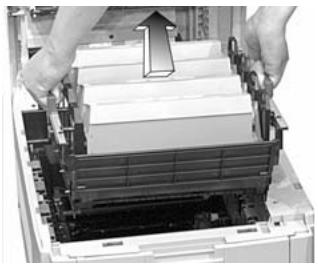
Caution!
To avoid damage to the drums:
- Be sure to set the toner/drum cradle on a flat surface
- Do not touch the shiny green area on the bottom of the drums.
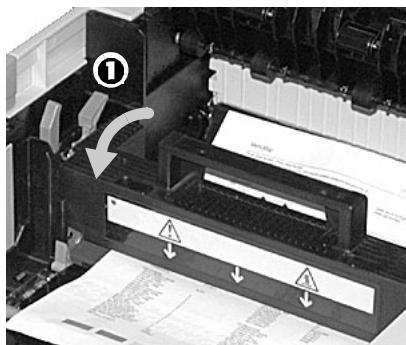
2 Pull the fuser roller lock levers (1) at either end of the fuser forward:
3
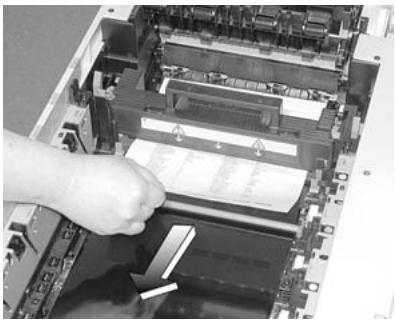
Note: If you need to remove the fuser:
- Push back on the blue lock levers at either end and lift it out.
- Remove the sheet.
- Put the fuser back.
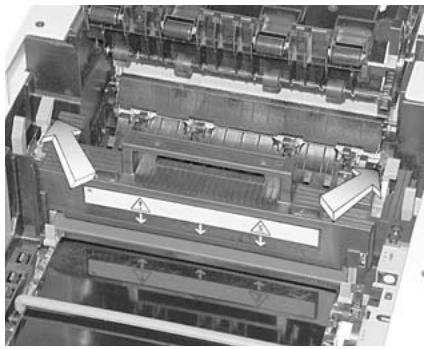
4 Push the fuser roller lock levers at either end of the fuser back:
Clearing Media Jams (cont.)
Jam 382 (cont.)
5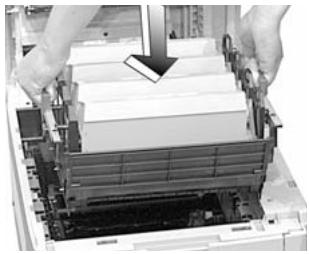
6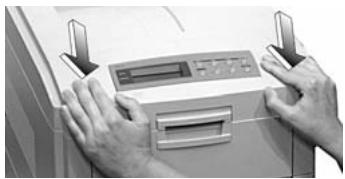
Jam 383
OPEN UPPER COVER
383: PAPER JAM
1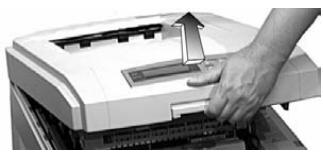
2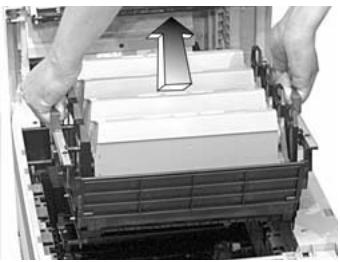
3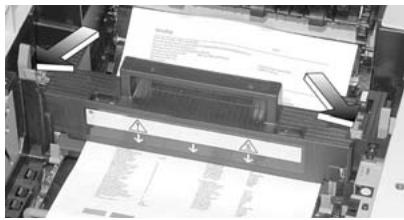
4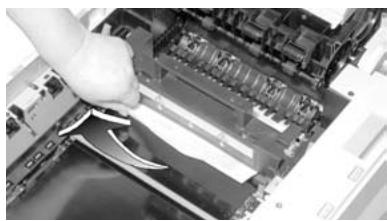
5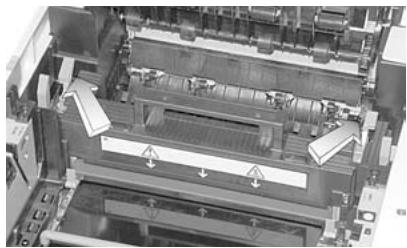
6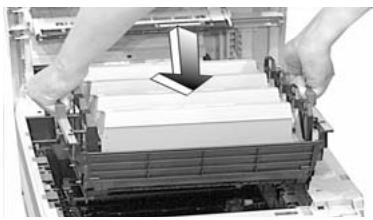
7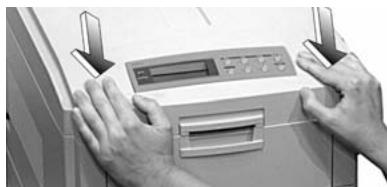
Clearing Paper Jams (cont.)
Jam 390
CHECK MP TRAY
390: PAPER JAM
1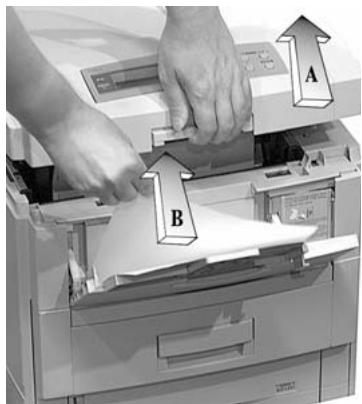
2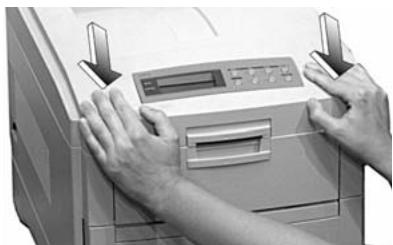
Jam 391
CHECK TRAY 1
391: PAPER JAM
1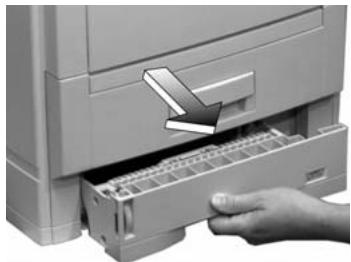
2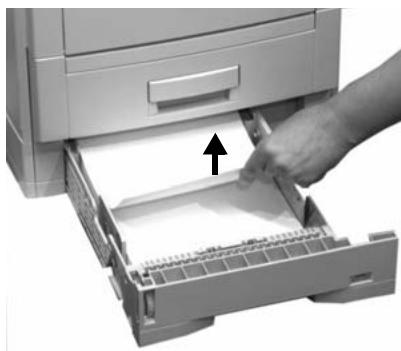
3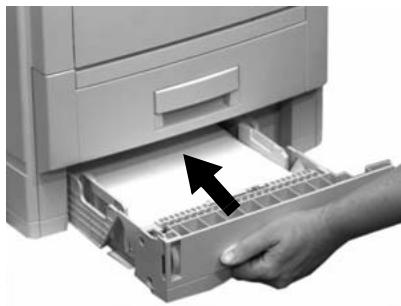
Clearing Paper Jams (cont.)
Jams 392 and 393
CHECK TRAY 2
392: PAPER JAM
CHECK TRAY 3
393: PAPER JAM
1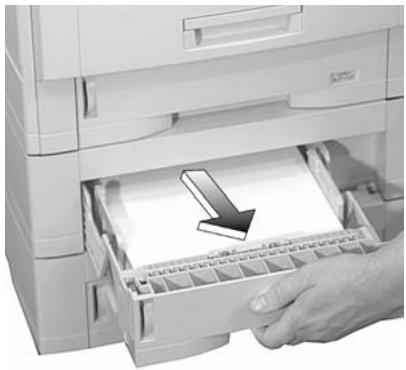
2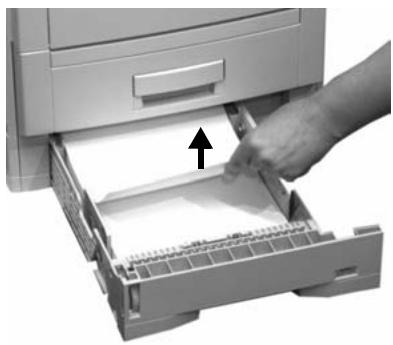
3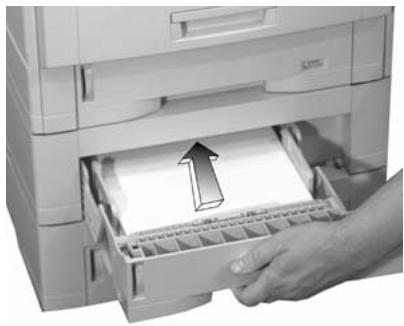
Changing Toner Cartridges
Toner Cartridge Order #s:
- Black = AR-C20TBU
- Cyan = AR-C20TCU
- Magenta = AR-C20TMU
- Yellow = AR-C20TYU
Caution!
Be sure to purchase only consumables designated for this printer.
INSTALL NEW TONER nnn: XXXX* TONER EMPTY
* nnn: XXXX = 410: YELLOW 411: MAGENTA 412: CYAN 413: BLACK
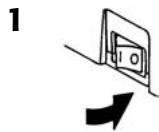
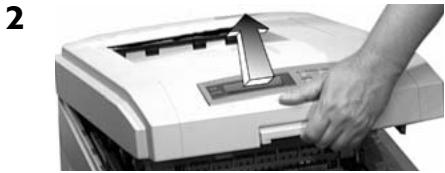
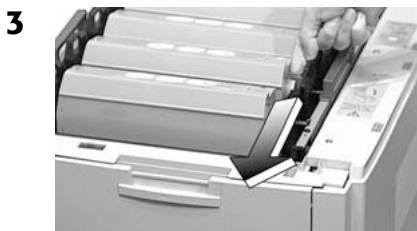
4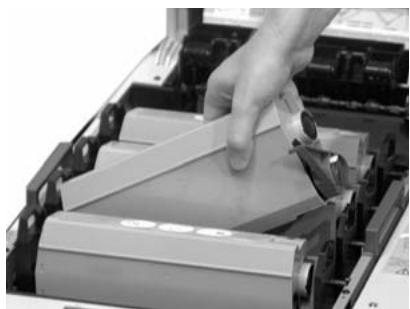
Important!
Discard toner cartridges in accordance with local regulations!

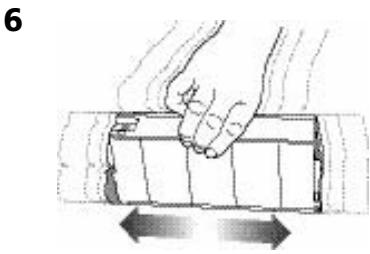

Changing Toner Cartridges (cont.)
8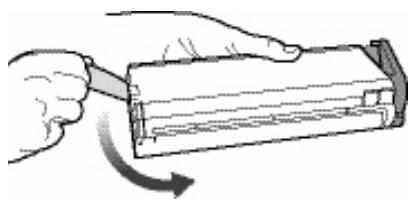
9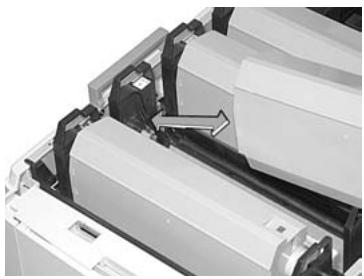
10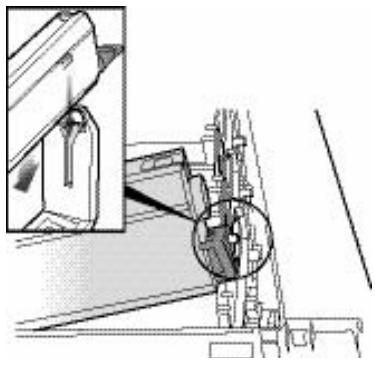
11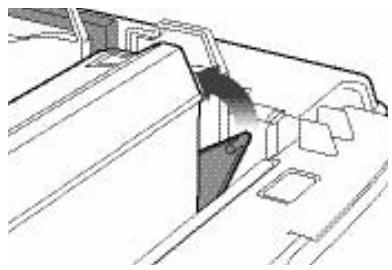
12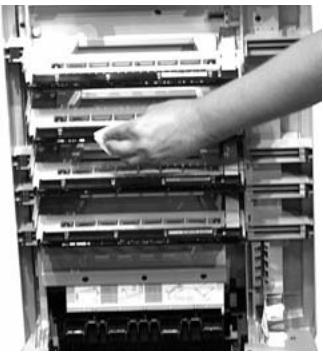
13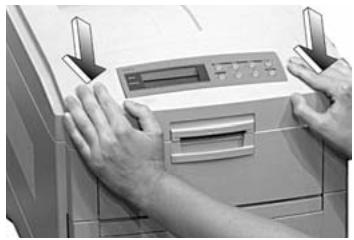
14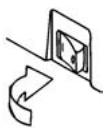
Important!
The TONER LOW message should disappear from the display. If it doesn't, try printing a page. If it still doesn't disappear, reinstall the toner cartridge.
Error Messages
Some of the more common error messages appear below. For additional error messages, see your on-line User's Guide.
XXX TONER LOW
The Problem
Appears on the second line of the display to indicate that color XXX toner cartridge is getting low.
Note: If you have changed the LOW TONER item in the SYSTEM CONFIG MENU to STOP, the ATTENTION light will blink and you must either replace the toner cartridge immediately or press the ON LINE button to continue printing.
What to Do
Be sure you have a replacement toner cartridge (see page 36) on hand.
INSTALL NEW TONER nnn: XXXX TONER EMPTY
The Problem
The toner cartridge indicated (XXX) has run out of toner.
What to Do
Replace the toner cartridge. See page 36.
XXXX DRUM NEAR LIFE
The Problem
Appears on the second line of the display to indicate that color XXXX (e.g, BLACK) image drum needs to be replaced.
What to Do
Replace the XXXX image drum. (See the instructions supplied with the new image drum.)
INSTALL ADDITIONAL MEMORY 420: MEMORY OVERFLOW
The Problem
The amount of data in the file being printed has exceeded the printer's memory.
What to Do
- Reduce the size of the file being printed (e.g., print the file as separate groups of pages instead of all the pages at one time).
- Install additional memory in the printer (see your on-line User's Guide for more information).
Error Messages (cont.)
SET XXX ON MPTRAY AND PUSH ON-LINE SWITCH
The Problem
The printer has received a job for printing from the Multi-Purpose Tray and no media is loaded in the tray.
What to Do
Load the requested media (XXX) in the Multi-Purpose Tray, then press ON LINE.
t NEAR END
The Problem
Appears on the second line of the display to indicate that the media in tray t is almost out.
What to Do
Load more media in the tray before printing any large print jobs from that tray.
REMOVE THE PAPER 480: STACKER FULL
The Problem
The stack of paper in the top (face down) output tray is blocking the printed sheets trying to exit the printer.
What to Do
Remove the stack of printed sheets from the top output tray.
REMOVE THE PAPER nnn: TRAY X UNSUITABLE SIZE
The Problem
The paper in Tray X (e.g., 450: TRAY 1) is not a size that can be fed through the tray.
What to Do
Replace the paper in the tray with an appropriate size.
Error Messages (cont.)
CHECK FUSER UNIT
320: FUSER UNIT MISSING
The Problem
The fuser is not properly installed.
What to Do
Open the top cover and check the fuser:
- Press down on the fuser to be sure it is firmly locked in place. The message should disappear.
Note: If the message still appears, push the blue latches at either end of the fuser back (toward the printer cover hinge) and lift the fuser out, then lower it back into the printer, pushing it firmly down in place. You should feel the latches at either end engage.
- Close the cover.
XXX TONER SENSOR ERROR
The Problem
Appears on the second line of the display to indicate that there is a problem with the color xxx toner sensor.
What to Do
Turn the printer off, then on again. If this does not clear the message, call your local service dealer.
DISK FILE SYSTEM FULL
The Problem
The printer's internal hard drive does not have enough memory to print the current job.
What to Do
Either print out or delete some of the files already on the printer's hard drive (see pages 17 and 18).
Note: You can also use the Storage Device Manager utility to clean up the printer's hard disk drive. See your on-line User's Guide for more information.
Error Messages (cont.)
PRESS ONLINE SW INVALID DATA
The Problem
The hard disk drive is not available and job spooling cannot take place.
What to Do
Press the ON LINE button.
Service & Support
Consult the Sharp Authorized Dealer where you purchased your printer.
To find the authorized Sharp servicing dealer closest to you, please visit us on-line at www.SharpUSA.com.
Adobe, and PostScript are trademarks of Adobe Systems, Inc. which may be registered in certain jurisdictions.
Avery is a registered trademark of Avery Dennison Corporation.
Folex is a registered trademark of Folex imaging.
HammerMill is a registered trademark of HammerMill.
Windows is either a registered trademark or trademark of Microsoft Corporation in the United States and other countries.
- SETUP GUIDE GUIDE D'INSTALLATION GUÍA DE INSTALACIÓN MANUAL DE INSTALAÇÃO
- SHARP AR-C240P
- REMOVE CARDBOARD OVERPACK REVEALING CONTENTS
- E
- FR
- REMOVE IMAGE DRUMS
- IF YOU NEED FURTHER ASSISTANCE OR HAVE QUESTIONS
- ORDERING REPLACEMENT SUPPLIES
- HOW TO ORDER
- ORDER NUMBERS
- IMPORTANT
- TONER CARTRIDGES
- IMAGE DRUMS
- MEDIA SETTINGS
- WHY CHANGE MEDIA SETTINGS
- DEFAULT MEDIA SETTINGS THE DEFAULT SETTING
- CHANGING DEFAULTS
- RESETTING TO THE ORIGINAL DEFAULTS
- MEDIA SETTINGS (CONT.)
- MEDIA SETTINGS FOR INDIVIDUAL PRINT JOBS
- RANGES FOR PRINTER MEDIA WEIGHT SETTINGS
- CHANGING DEFAULT MEDIA SETTINGS
- TRAYS
- TO SET TRANSPARENCIES AS THE DEFAULT MEDIA SET THE MEDIA TYPE
- TO SET LABELS, HEAVY PAPER, ETC., AS THE DEFAULT MEDIA
- SET THE MEDIA WEIGHT
- CHANGING DEFAULT MEDIA SETTINGS: MULTI-PURPOSE (MP) TRAY
- TO SET TRANSPARENCIES AS THE DEFAULT MEDIA
- FIRST, CHECK/SET THE MEDIA SIZE TO LETTER (DEFAULT) OR A
- THEN, SET THE MEDIA TYPE
- MULTI-PURPOSE TRAY (CONT.)
- TO SET LABELS OR HEAVY PAPER AS THE DEFAULT MEDIA
- FIRST, CHECK/SET THE MEDIA SIZE (DEFAULT = LETTER)
- THEN, SET THE MEDIA WEIGHT
- LOADING MEDIA: TRAYS
- LOADING MEDIA: MULTI-PURPOSE (MP) TRAY
- SELECTING/USING PAPER
- IMPORTANT INFORMATION
- SAMPLE REAM LABEL
- SELECTING/USING PAPER (CONTINUED)
- SPECIFICATIONS
- CAUTION
- SELECTING/USING TRANSPARENCIES
- PRINTING TRANSPARENCIES
- FOR INDIVIDUAL PRINT JOBS ON TRANSPARENCIES
- MAKING TRANSPARENCIES THE DEFAULT PRINT MEDIA
- TRAY
- MP TRAY
- SELECTING/USING LABELS
- LABEL PARAMETERS
- PRINTING LABELS
- FOR INDIVIDUAL PRINT JOBS ON LABELS
- MAKING LABELS THE DEFAULT PRINT MEDIA FOR THE MP TRAY
- SELECTING/USING ENVELOPES
- PRINTING ENVELOPES
- TO PRINT AN INDIVIDUAL JOB ON ENVELOPES
- MAKING ENVELOPES THE DEFAULT PRINT MEDIA FOR THE MP TRAY
- SELECTING/USING THICK MEDIA
- PARAMETERS
- USABLE SIZES
- FEED TRAY
- EXIT TRAY
- MEDIA TYPE SETTING
- MEDIA WEIGHT SETTING
- RECOMMENDED MEDIA
- PRINTING THICK PAPER
- PRINTING INDIVIDUAL JOBS
- MAKING THICK PAPER THE DEFAULT PRINT MEDIA
- IDEAS FOR USING PRINTER FEATURES
- SECURE PRINT FEATURE
- IDEA
- PROOF & PRINT FEATURE
- OVERLAYS (FORMS)
- IDEAS
- SECURE PRINT
- TO PRINT A CONFIDENTIAL DOCUMENT USING THE CONTROL PANEL
- TO DELETE THE DOCUMENT BEFORE PRINTING IT
- PROOF & PRINT
- TO PRINT A PROOFED DOCUMENT USING THE CONTROL PANEL
- PRINTING BUILT-IN REPORTS
- PRINTING THE MENU DEFAULTS (MENUMAP)
- PRINT THE FILE LIST
- PRINTING BUILT-IN REPORTS (CONT.)
- PRINTING LISTS OF FONTS
- (PCL, POSTSCRIPT, IBM PROPRINTER, OR EPSON FX EMULATION)
- SETTING POWER SAVE PARAMETERS
- POWER SAVE
- SETTING THE POWER SAVE INTERVAL
- TO DISABLE/ENABLE POWER SAVE
- CONTROL PANEL BUTTONS
- MENU BUTTON
- PRINTER ON LINE OR OFF LINE
- MENU MODE
- PASSWORD (PIN) MODE
- ON LINE BUTTON
- PRINTER ON LINE/OFF LINE
- ERROR MODE (ATTENTION LIGHT BLINKING)
- CONTROL PANEL BUTTONS (CONT.)
- ITEM + BUTTON
- ITEM - BUTTON
- VALUE + BUTTON
- VALUE - BUTTON
- SELECT BUTTON
- CANCEL BUTTON
- PRINTER ON LINE
- ERROR MODE
- (ATTENTION LIGHT BLINKING)
- CONTROL PANEL LIGHTS
- READY LED (GREEN)
- ON
- OFF
- FLASHING
- ATTENTION LED (RED)
- ON: WARNING
- FLASHING: ALARM
- CLEARING MEDIA JAMS
- JAM
- CLEARING MEDIA JAMS (CONT.)
- IF THE SHEET IS VISIBLE
- IF THE SHEET IS INSIDE
- WARNING
- JAM 382 (CONT.)
- IF THE SHEET IS INSIDE AND CAUGHT IN THE FUSER
- CLEARING PAPER JAMS (CONT.)
- JAMS 392 AND
- CHANGING TONER CARTRIDGES
- TONER CARTRIDGE ORDER #S
- CHANGING TONER CARTRIDGES (CONT.)
- ERROR MESSAGES
- XXX TONER LOW
- THE PROBLEM
- WHAT TO DO
- INSTALL NEW TONER NNN: XXXX TONER EMPTY
- XXXX DRUM NEAR LIFE
- INSTALL ADDITIONAL MEMORY 420: MEMORY OVERFLOW
- ERROR MESSAGES (CONT.)
- SET XXX ON MPTRAY AND PUSH ON-LINE SWITCH
- T NEAR END
- REMOVE THE PAPER 480: STACKER FULL
- REMOVE THE PAPER NNN: TRAY X UNSUITABLE SIZE
- CHECK FUSER UNIT
- FUSER UNIT MISSING
- XXX TONER SENSOR ERROR
- DISK FILE SYSTEM FULL
- PRESS ONLINE SW INVALID DATA
- SERVICE & SUPPORT
Brand : SHARP
Model : AR-C240P
Category : Color multifunction printer