
NMT-1100 - Media Recorder Naxa - Free user manual and instructions
Find the device manual for free NMT-1100 Naxa in PDF.


| Product Type | Media Recorder / DVD Recorder |
| Brand | Naxa |
| Model | NMT-1100 |
| Display | 4.3-inch color LCD screen |
| Power Supply | 5V/3A DC adapter |
| Power Consumption | 15W |
| Color System | NTSC / PAL (switchable) |
| HD Output | Up to 1920 x 1080 (Full HD) |
| Recording Sources | AV IN (Video), USB, SD Card, DVD |
| Recording Destinations | DVD, USB, SD Card |
| Supported Disc Types | DVD+R, DVD+RW, DVD-R, DVD-RW |
| Video Playback Formats | RM/RMVB, AVI, MPG, MKV, VOB, MOV, MP4, WMV, TS, M2TS |
| Audio Playback Formats | MP3, OGG, WMA, AAC, FLAC |
| Image Playback Formats | JPG, JPEG, BMP, PNG |
| Recording Formats | MP4 (for Blu-ray/PC), MPG (for standard DVD players) |
| Recording Quality Options | High, Mid, Low |
| Auto Chapter Interval | Off, 5, 10, 15 minutes |
| Auto Stop Timer | 30, 60, 90 min, 2, 3, 4, 8 hours |
| Max Photos on Disc | Up to 2000 |
| Operating Temperature | 0–40°C |
| Weight | Approximately 0.7 kg (estimation based on similar devices) |
| Dimensions (W x D x H) | Approximately 210 x 180 x 50 mm (estimation) |
| Safety Features | Laser warning, polarized plug, ventilation slots |
| Compliance | FCC Part 15 Class B |
| Warranty / Support | Visit www.naxa.com for support |
Frequently Asked Questions - NMT-1100 Naxa
User questions about NMT-1100 Naxa
0 question about this device. Answer the ones you know or ask your own.
Ask a new question about this device
Download the instructions for your Media Recorder in PDF format for free! Find your manual NMT-1100 - Naxa and take your electronic device back in hand. On this page are published all the documents necessary for the use of your device. NMT-1100 by Naxa.
USER MANUAL NMT-1100 Naxa
Instruction Manual
Please read carefully before use and keep for future reference.
Warnings and Precautions

natural_image
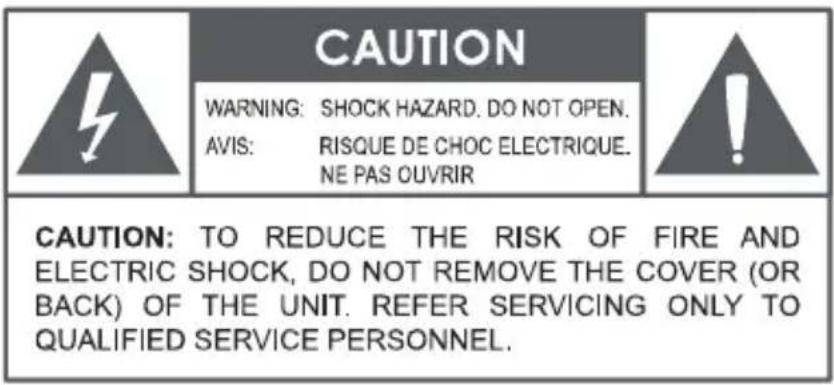
Warning symbol of a lightning bolt inside a triangle (no text or numbers)The lightning flash with arrowhead symbol within an equilateral triangle is intended to alert the user to the presence of uninsulated "dangerous voltage" within the product's enclosure that may be significant magnitude to constitute risk of electric shock.

natural_image
Gray triangular warning sign with an exclamation mark (no text or symbols beyond the icon itself)The exclamation point within an equilateral triangle is intended to alert the user to the presence of important operation and servicing instructions in the literature accompanying the appliance.
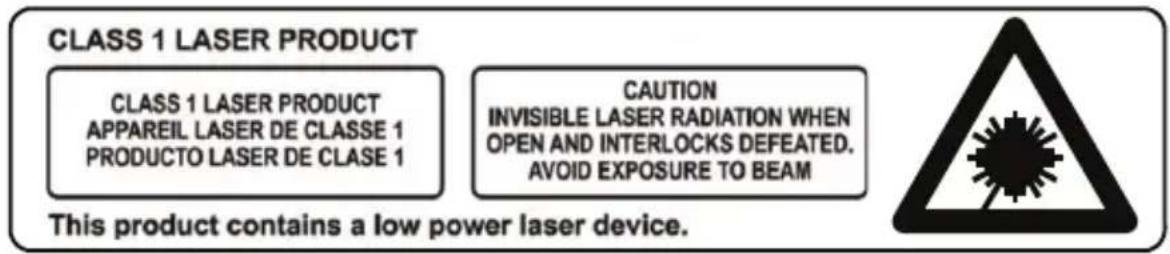
On Protection Against Laser Energy Exposure
- As the laser beam used in this products is harmful to the eyes, do not attempt to disassemble the casing.
- Stop operation immediately if any liquid or solid object should fall into the cabinet.
- Do not put anything in the safety slot. If you do, the laser diode will be ON when the disc compartment door is still open.
- If the unit is not to be used for a long period of time, make sure that all power sources are disconnected from the unit. Remove all batteries from the battery compartment, and unplug the AC-DC adapter from the wall outlet. Make it a practice to remove the AC-DC adapter by grasping the main body and not by pulling the cord.
- This unit employs a laser. The use of controls or adjustment or performance of procedures other than those specified here may result in exposure to hazardous radiation.
Caution
- Do not block the ventilation openings or holes.
• Do not place any naked flames (such as lighted candles) on the apparatus. - When discarding batteries, follow all local rules and laws governing the disposal of batteries. Consider the environmental impact of your actions!
- Invisible laser radiation when open and interlock has failed or been defeated. Avoid direct exposure to beam.
• To prevent fire or shock hazard, do not expose this appliance to rain or moisture.
Important Safety Information
- Read Instructions: All the safety and operating instructions should be read before the product is operated.
- Retain Instructions: The safety and operating instruction should be retained for future reference.
- Heed Warnings: All warnings on the product and in the operating instructions should be adhered to.
- Follow Instructions: All operating and usage instructions should be followed.
- Cleaning: Unplug this product from the wall outlet before cleaning. Do not use liquid cleaners or aerosol cleaners. Use a damp cloth for cleaning.
- Attachments: Use only attachments recommended by the manufacturer. Use of other attachments may be hazardous.
- Water and Moisture: Do not use this product near water (e.g., near a bathtub, washbowl, kitchen sink, laundry tub, in wet basements, or near a swimming pool and the like).
- Accessories: Do not place this product on an unstable cart, stand, tripod, bracket, or table.
Use only with carts, stands, tripods, brackets, or tables recommended by the manufacturer or sold with the product. Any mounting of the product should follow the manufacturer's instructions and should use a mounting accessory recommended by the manufacturer. A product and cart combination should be moved with care. Quick stops, excessive force, and uneven surfaces may cause the product and cart combination to overturn.

- Ventilation: Slots and openings in the cabinet are provided for ventilation to ensure reliable operation of the product and to protect it from overheating. These openings should never be blocked by placing the product on a bed, sofa, rug, or other similar surface. This product should not be placed in a built-in installation such as a bookcase or rack unless proper ventilation is provided or the manufacturer instructions have been adhered to.
- Power Sources: This product should be operated only from the type of power source indicated on the rating label. If you are not sure of the type of power supply to your home, consult your product dealer or local power company. For products intended to operate from battery power or other sources, refer to the operating instructions.
- Grounding or Polarization: This product may be equipped with a polarized alternating-current line plug that has one blade wider than the other. This plug will only fit into the power outlet in one direction. This is a safety feature. If you are unable to insert the plug fully into the outlet, try reversing the direction of the plug. If the plug should still fail to fit, contact an electrician to replace the obsolete outlet. Do not defeat the safety purpose of the polarized plug.
-
Power-Cord Protection: Power supply cords should be routed so that they are not likely to be walked on or pinched by items placed upon or against them, paying particular attention to cords at plugs, convenience receptacles, and at the point which they exit from the product.
-
Protective Attachment Plug: The product may be equipped with an attachment plug with overload protection. This is a safety feature. See the operating instructions for replacement or directions to reset the protective device. If replacement of the plug is required, be sure the service technician has used a replacement plug that has the same overload protection as the original plug as specified by the manufacturer.
-
Outdoor Antenna Grounding: If an outside antenna is connected to the product, be sure the antenna system is grounded so as to provide some protection against voltage surges and built-up static charges. Article 810 of the National Electrical Code, ANS/NFPA70 provides information with regard to proper grounding of the mast and supporting structure, grounding of the lead-in wire to an antenna-discharge unit, size of grounding conductors, location of antenna-discharge unit, connection to grounding electrodes, and requirements for the grounding electrode (see figure).

-
Lightning: For added protection for this product, unplug it from the wall outlet and disconnect the antenna or cable system during a lightning storm or when it is left unattended and unused for long periods of time. This will prevent damage to the product due to lightning or power-line surges.
-
Power Lines: An outside antenna system should not be located in the vicinity of overhead power lines or other electric light or power circuits, or where it can fall into such power lines or circuits. When installing an outside antenna system, extreme care should be taken to keep from touching such power lines or circuits, as contact with them might be fatal.
-
Overloading: Do not overload wall outlets, extension cords, or integral convenience receptacles as this can result in a risk of fire or electric shock.
-
Object and Liquid Entry: Never push objects of any kind into this product through openings as they may touch dangerous voltage points or shout-out parts that could result in a fire or electric shock. Never spill liquid of any kind on the product.
-
Servicing: Do not attempt to service this product yourself as opening or removing covers may expose you to dangerous voltage or other hazards. Refer all servicing to qualified service personnel.
-
Damage Requiring Service: Unplug this product from the wall outlet and refer servicing to qualified service personnel under the following conditions: a) when the power-supply or plug is damaged; b) if liquid has been spilled or if objects have fallen into the product; c) if the product has been exposed to rain or water; d) if the product does not operate normally by following the operating instructions. Adjust only those controls that are covered by the
operating instructions as improper adjustment of other controls may result in damage and will often require extensive work by a qualified technician to restore the product to its normal operation; e) if the product has been dropped or damaged in any way; f) when the product exhibits a distinct change in performance—this indicates a need for service.
- Replacement Parts: When replacement parts are required, be sure that your service technician has used replacement parts specified by the manufacturer or have the same characteristics as the original part. Unauthorized substitutions may result in fire, electric shock, or other hazards.
- Safety Check: Upon completion of any service or repairs to this product, ask the service technician to perform safety checks to ensure that the product is in proper operating condition.
- Wall or Ceiling Mounting: The product should be mounted to a wall or ceiling only as recommended by the manufacturer.
- Heat: The product should be situated away from heat sources such as radiators, heat registers, stoves, or other products (including amplifiers) that produce heat.
FCC NOTICE
This device complies with Part 15 of the FCC Rules. Operation is subject to the following two conditions: (1) this device may not cause harmful interference, and (2) this device must accept any interference received, including interference that may cause undesired operation.
Note: This equipment has been tested and found to comply with the limits for a Class B digital device, pursuant to Part 15 of the FCC Rules. These limits are designed to provide reasonable protection against harmful interference in a residential installation. This equipment generates uses and can radiate radio frequency energy and, if not installed and used in accordance with the instructions, may cause harmful interference to radio communications. However, there is no guarantee that interference will not occur in a particular installation. If this equipment does cause harmful interference to radio or television reception, which can be determined by turning the equipment off and on, the user is encouraged to try to correct the interference by one or more of the following measures:
• Reorient or relocate the receiving antenna.
- Increase the separation between the equipment and receiver.
- Connect the equipment into an outlet on a circuit different from that to which the receiver is connected.
- Consult the dealer or an experienced radio/TV technician for help.
CAUTION ON MODIFICATIONS
Any changes or modifications not expressly approved by the grantee of this device may void the authority granted by the FCC to operate the equipment.
WARNING
This product contains lead, a chemical known to the State of California to cause cancer and birth defects or other reproductive harm. Wash hands after handling.
Copyright
Certain TV programs, films, videos, CDs and other materials are under copyright protection. Recording of these materials in question without approval is in violation of the copyright law.
Furthermore, the use or the product with CATV transmission devices shall be approved by the CATV transmitter and / or the program owner.
Table of Contents
Warnings and Precautions....2
At A Glance....7
I. Video/USB/Card → DVD......8
-
AV IN (VIDEO) to DVD-ROM....8
-
USB to DVD-ROM....11
-
Card to DVD-ROM....14
II. AV IN (Video) → External storage....17
-
AV IN (Video) to USB....17
-
AV IN (Video) to Card....19
III. DVD → External storage....21
-
DVD to USB....21
-
DVD to Card....23
IV. USB → Card....26
V. Media Player....27
-
Media Player....27
-
Playback Options....28
VI. Setup....28
5.1 Change disc settings on the Menu....28
5.2 Recording Format....29
5.3 Burn Type....29
5.4 Recording Quality....30
5.5 Auto Stop Timer....30
5.6 Auto Chapter....31
5.7 Disc Erase....31
5.8 Language....33
5.9 Date Setting....33
5.10 Time Setting....33
5.11 Restore to Factory Default Settings....33
VII. HD Output....34
VIII. Troubleshooting....34
IX. Parameter List....35
X. Support....36
At a Glance

- Audio IN R/L
- Record button
- Video IN 10. DOWN
- HD Out 11. Enter /▶ button
- USB port 12. RIGHT
- Power button 13. Stop button
- Return button 14. Eject button
- UP 15. DC IN
- LEFT 16. Card slot
Media Playback Formats Supported:
Local FULL HD 1080p (1920 x 1080) playback
AVI/MKV/TS/M2TS/MPG/MOV/VOB/WMV/RM/RMVB
Image formats supported:
JPG, JPEG, BMP, PNG
Audio formats supported:
MP3, OGG, WMA, AAC, FLAC
Media formats supported:
DVD+R, DVD-RW, DVD+RW, DVD-R discs

- Before starting, check the settings under the Setup menu to make sure the correct file formats are selected.
- Choose DATA for playback on Blu-ray players and those DVD players which can play-back MPG or MP4 format. Choose VIDEO for other standard DVD Players.
- File format is either MP4 or MPG (MPEG2 Video code). MP4 can be played on Blu-ray players. MPG can be played on standard DVD players.
- MP4 can also be easily uploaded via PC to social media or sharing sites.
Getting Started
Turning the Unit On and Off
Power On: Press & hold the Power button for 3 seconds.
Shutdown: Press the Power button for 3 seconds to shut down the unit.

Do not remove the power supply before shutting down the Media Recorder.
I. Video/USB/Card → DVD
1. AV IN (Video) to DVD-ROM
1.1 Enter the main menu, and choose "Video/USB/Card DVD" by scrolling with the navigation buttons.

1.2 Press the Enter button. The options of Video/USB/Card will appear.
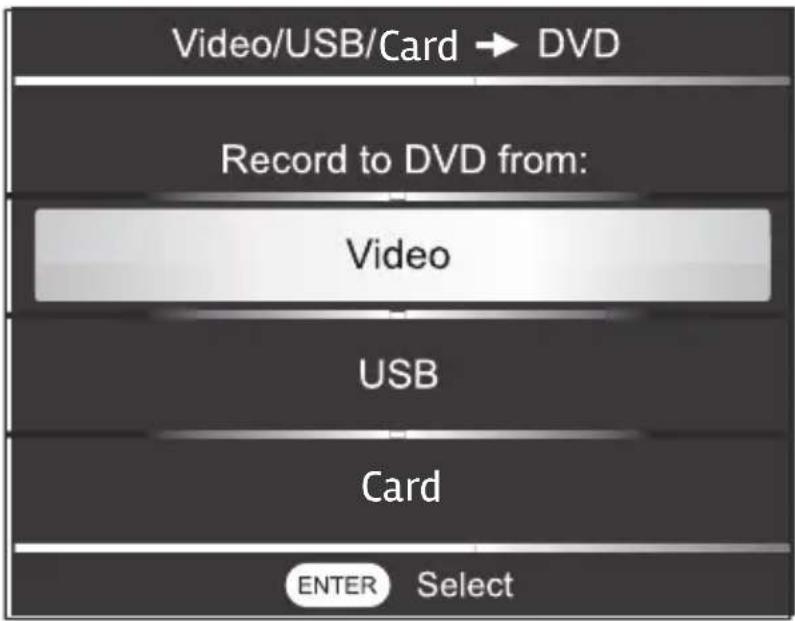
1.3 Place a blank media disc into the DVD drive. Connect the AV cables (supplied) from the Video source device to the Media Recorder.
Select Video and press Enter. The display screen of the unit allows the users to watch the video while recording and provides status information such as “Video → DVD,” recording quality, and remaining time for record.
Press Return to go back to the Menu, or press the Record button to begin recording.
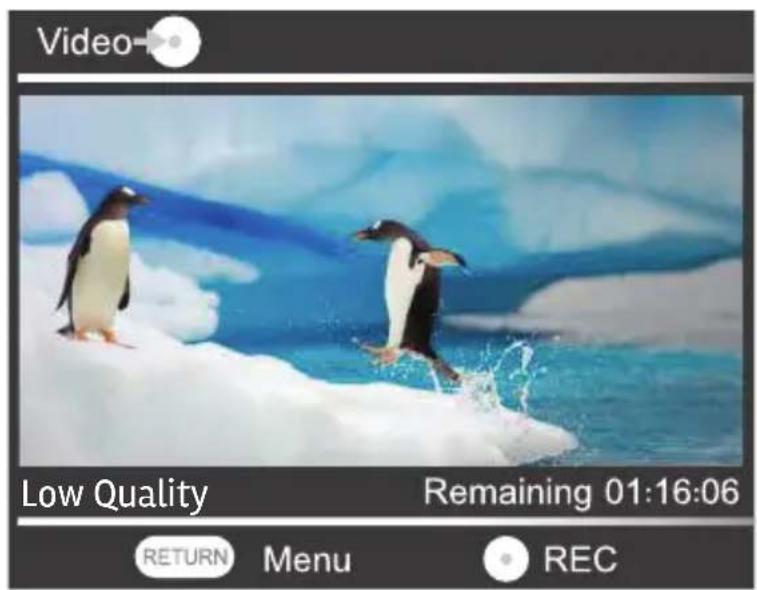

The video will be split into 30 minute chapters on the DVD.
1.4 Press REC to start recording.


If "No Storage" appears on the display screen, please press RETURN to exit, and insert a correct disc. Wait 10–15 seconds to allow the unit to read the disc to resume recording. Adjust record quality to your preference.
Press the "REC" button to pause/continue to skip desired segments when recording.
1.5 Press STOP to end recording. "Burning" will display on the screen as the recorder will start the burning process onto a DVD disc.
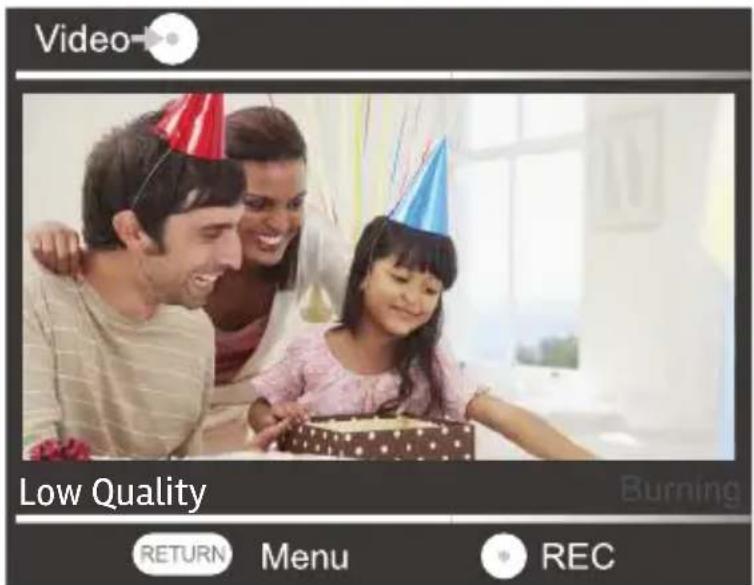

While the unit is in the burning process, please do not press any buttons. The burning process can take a significant amount of time, please allow the process to complete.
1.6 The disc will eject automatically when the burning process is complete. Press RETURN to exit the current menu and press RETURN again to access the main menu.


Make sure that the AV signal source is connected before you start recording. If it isn't, "AV is not ready," will appear on the display screen. Do not disconnect the signal source while the recording is being processed.
2. USB to DVD-ROM
2.1 Insert the DVD disc correctly and then connect the USB drive. Enter the main menu and select "Video/USB/Card DVD" by using the navigation buttons.

2.2 Press ENTER and Video/USB/Card will appear.

2.3 Select the "USB," input. A message, "Copy files from USB to DVD" will appear on on the screen. Press the REC button to start recording.

2.4 Once the unit begins to burn your files, you will see the message, "Burning" appear on the display screen.

2.5 When the burn is completed, the message, “Burning finished, please press return” will appear on the screen as the disc will automatically eject.
Please remove the disc and close the tray. Press the RETURN button to exit the menu.
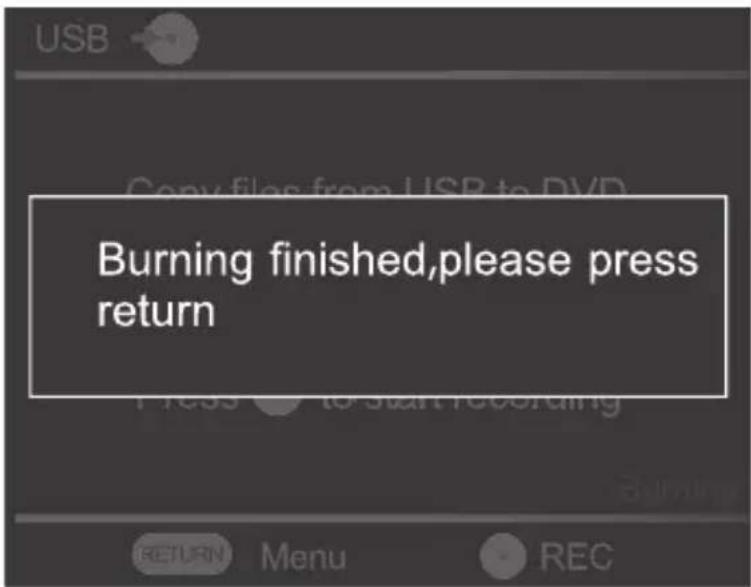
2.6 If the USB drive is not connected, the message "USB is not ready" will appear on the screen. Insert a USB drive to continue.

If the USB capacity exceeds that of the disc, the message, “not enough space in DVD” will appear.
To resolve this, you will need to either lower the video quality of the recording or use a larger capacity DVD Disc.

3. Card to DVD-ROM
3.1 Insert the DVD disc correctly and then insert an Card Card into the card slot. Enter the main menu and select "Video/USB/Card DVD" by using the navigation buttons.
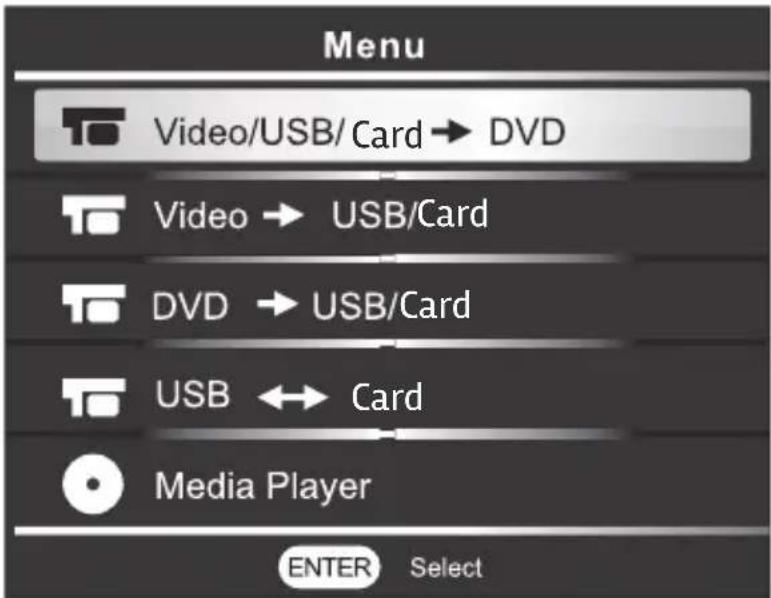
3.2 Press ENTER and Video/USB/Card will appear.

3.3 Under the Select Input menu, scroll to Card with the navigation buttons and press Enter. Then scroll using the navigation keys to select, "Copy files from Card to DVD" and press Enter.

3.4 Press the REC buton to start recording and the message, "Burn files" will appear on the display screen.

3.5 When the burn is completed, the message, "Burning finished, please press return" will appear on the screen as the disc will automatically eject.
Please remove the disc and close the tray. Press the RETURN button to exit the menu.
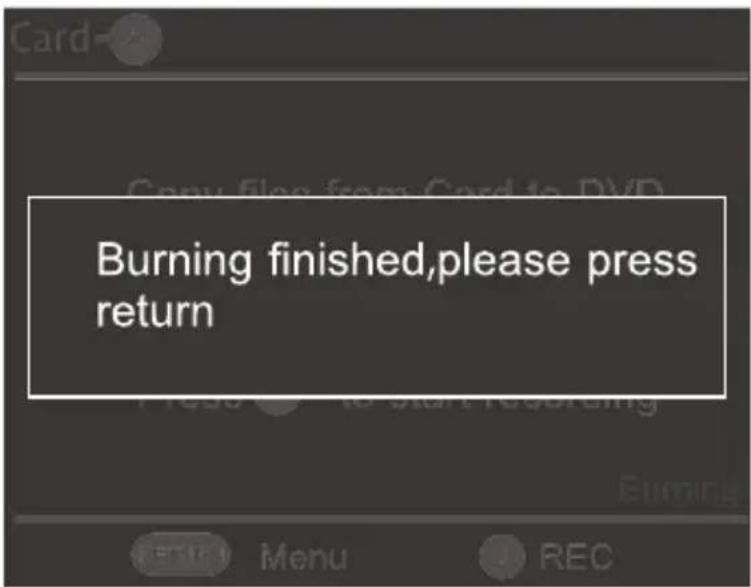

Insert an Memory Card to start. If the Memory Card is not fully inserted, the message "CARD is not ready" will appear. If the card capacity is smaller than that of the DVD Disc, the message, "not enough space in DVD" will appear.
To resolve this, you will need to either lower the video quality of the recording or use a larger capacity DVD Disc.
II. AV IN (VIDEO) → USB/HDD/Card
1. AV IN (Video) to USB-Compatible with Portable HDD
1.1 From the main menu, use the navigation buttons to scroll to "Video USB/Card," and press ENTER.

1.2 Select "USB" for output. The screen will now show the beginning image from the source as well as important recording data including recording quality and time remaining. Press ENTER to go back to the MENU.

1.3 Press the REC button to start recording.


Press the "REC" button to pause / continue to skip desired segments when recording.
1.4 To End the recording, press STOP. "Burning finished, please press return," will appear on the display. Press RETURN to exit the menu.


The recorded file will be saved on the USB drive under the "MT-ROOT/Record," file path. The remaining time will be displayed as the burning process will start automatically.
2. AV IN (Video) to Card
2.1 From the main menu, use the navigation buttons to scroll to "Video USB/Card."

2.2 On the Select Output screen, use the navigation buttons to scroll to "Card," then press ENTER.
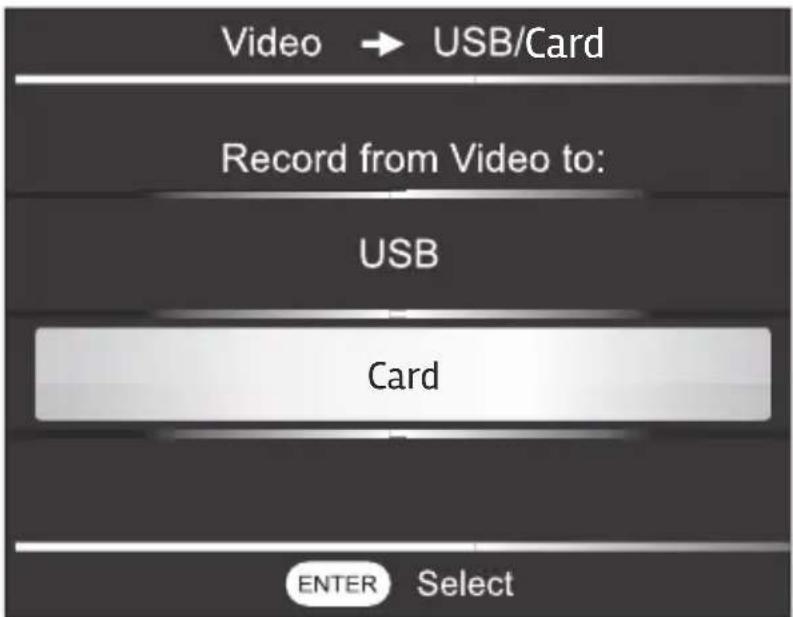
2.2 The screen will now show the beginning image from the source as well as important recording data including recording quality and time remaining. Press RETURN to go back to the MENU, then press the REC button to start recording.
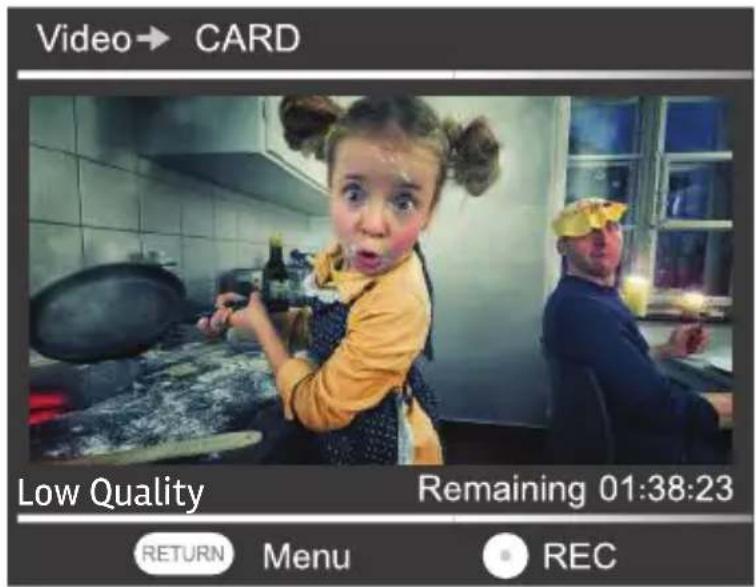
2.4 Press the REC button to start recording.
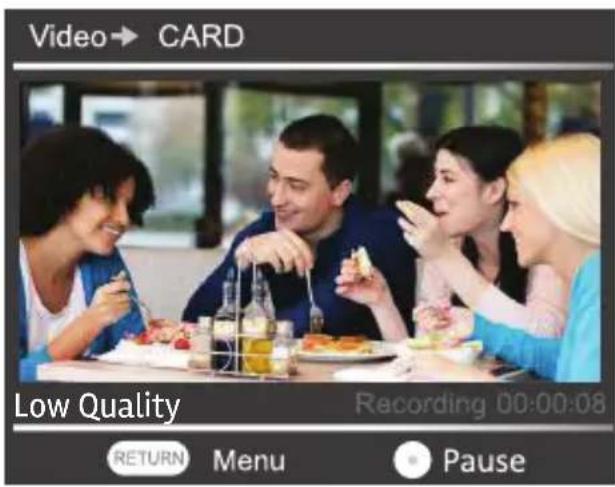
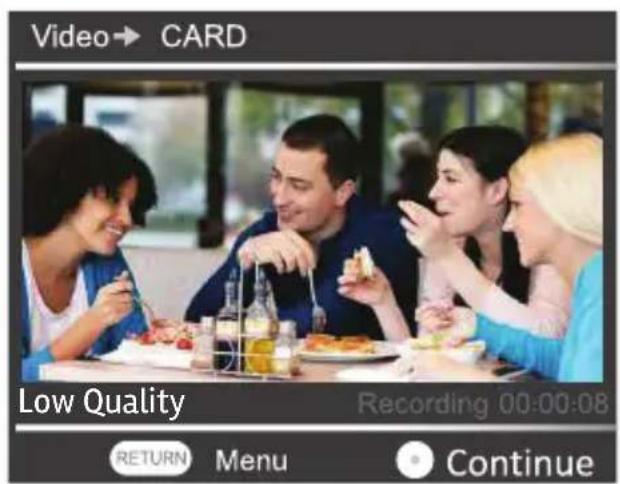

Press the "REC" button to pause / continue to skip desired segments when recording.
2.5 To End the recording, press STOP. "Burning finished, please press return," will appear on the display. Press RETURN to exit the menu.


The recorded file will be saved on the USB drive under the "MT-ROOT/Record," file path. The remaining time will be displayed as the burning process will start automatically.
III. DVD → USB/HDD/Card
- DVD to USB-Compatible with Portable HDD
1.1 From the main menu, use the navigation buttons to scroll to "DVD → USB/Card," and press ENTER.
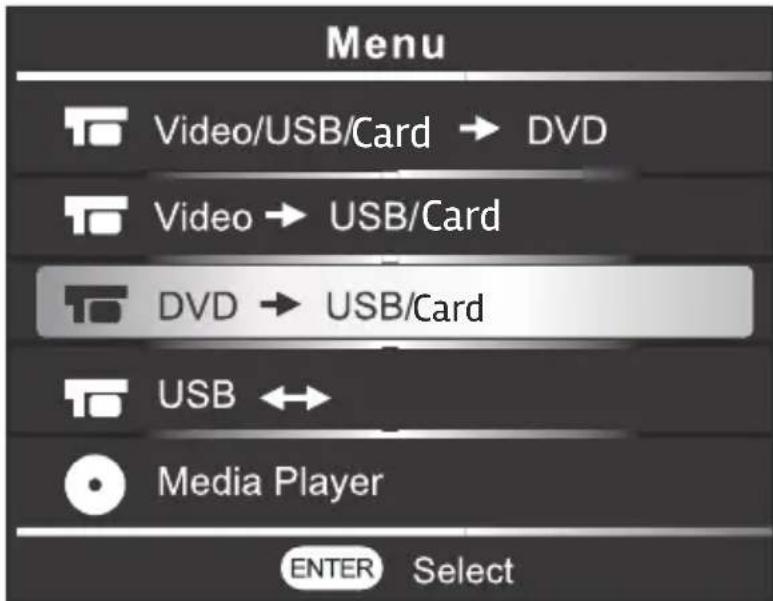
1.2 Using the navigation buttons, scroll down to "USB" and press ENTER.
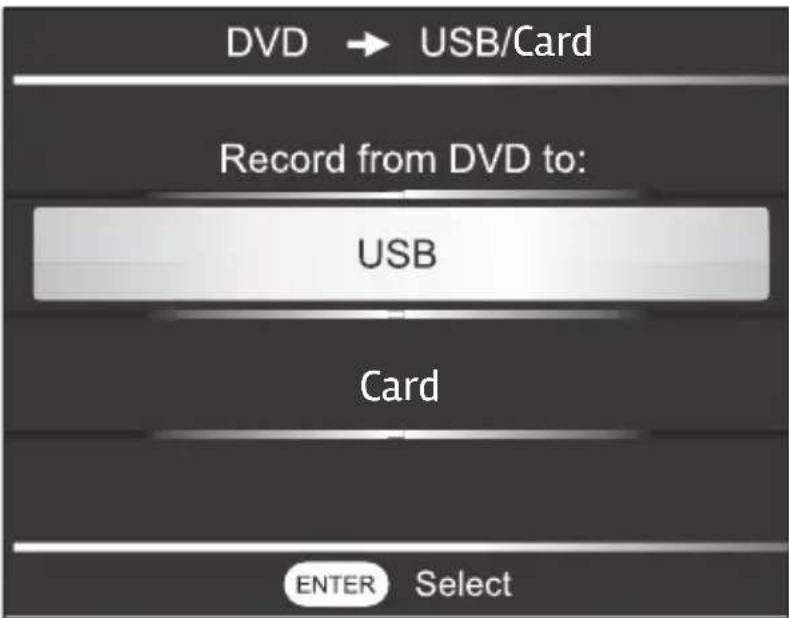
1.3 The display will show “Disc → USB,” “Copy all files from DVD-ROM to the storage,” and press the “REC” button to start copying.

1.4 Press REC. The display will now read, "copy files to a new directory."

1.5 When the copy is completed, the message, “Burning finished, please press return” will appear on the screen. Press RETURN to exit the menu.
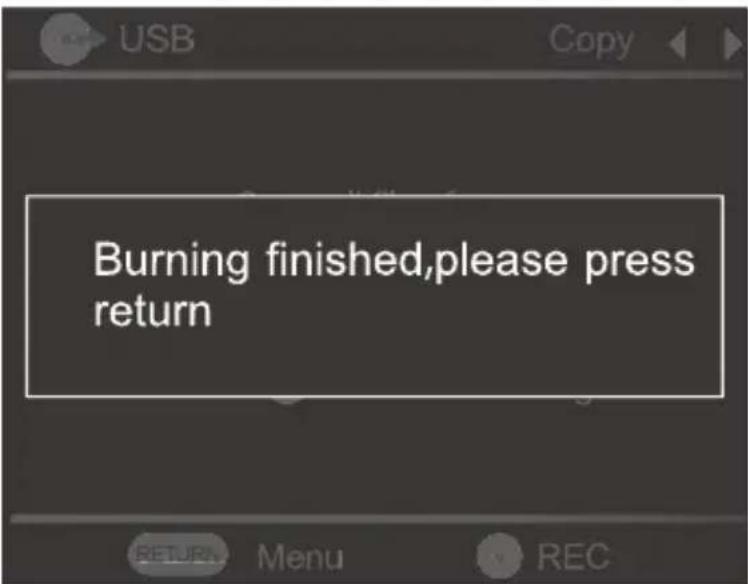

Before you initiate a copy from a DVD to USB, make sure the USB storage capacity is larger than the DVD Disc. The name of the path created on the USB is DVD.
2. DVD to Card
2.1 From the main menu, use the navigation buttons to scroll to "DVD USB/ → Card," then press ENTER.
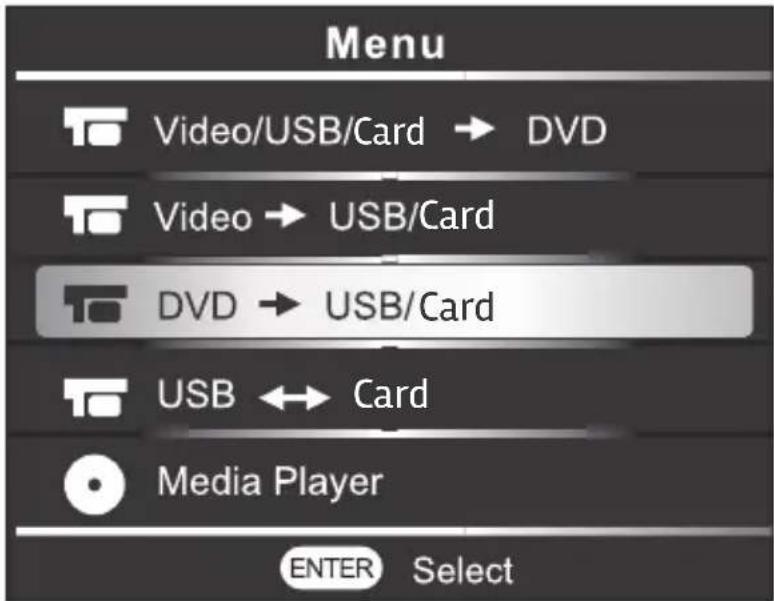
2.2 Using the navigation buttons, scroll down to "Card" and press ENTER.

2.3 The display will show “DVD → Card,” “Copy all files from DVD-ROM to the storage,” and press the “REC” button to start recording. Press RETURN to go back to the MENU, and Press the REC button to start recording.

2.4 The display will read, "copy files to a new directory." Press the "REC" button to begin copying. You will notice a progress bar appear once copying has begun.

1.5 When the copy is completed, a message, “Burning finished, please press return” will appear on the screen. Press RETURN to exit the menu.
Burning finished, please press return

Before you initiate a copy from a DVD to Card, make sure the Card storage capacity is larger than the DVD Disc. The name of the path created on the Card is DVD.
IV. USB ↔ Card
- While in the Main Menu, select "USB ↔ Card" by using the navigation buttons.
- Press the Enter button. You should see the options "USB to Card" & "Card to USB."
-
Select "USB to Card," and press ENTER. You should now see the message, "Copy all files from USB to Card." Press the "REC" button to start recording.
-
Select "Card to USB," and press ENTER. You should now see the message, "Copy all files from Card to USB." Press the "REC" button to start recording.
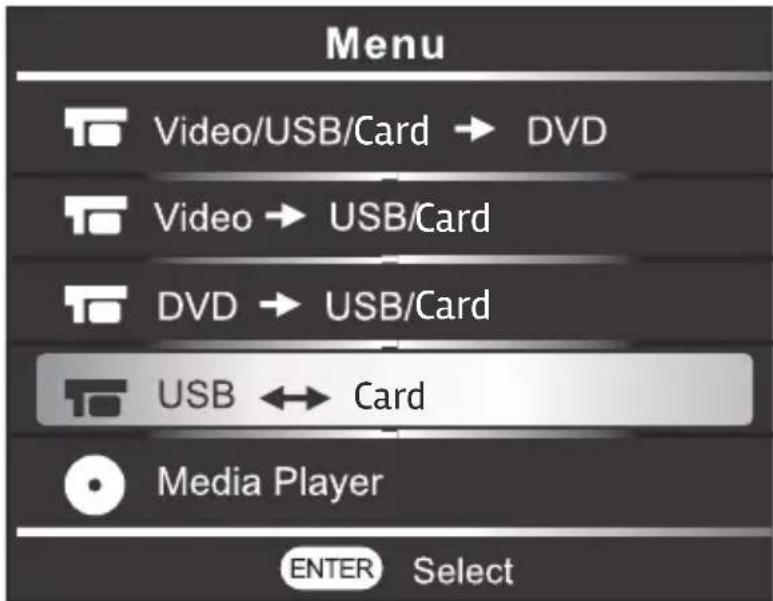
V. Media Player
1. Media Player
Choose "Media Player" from the Main Menu. Select from USB, Card, or DVD.
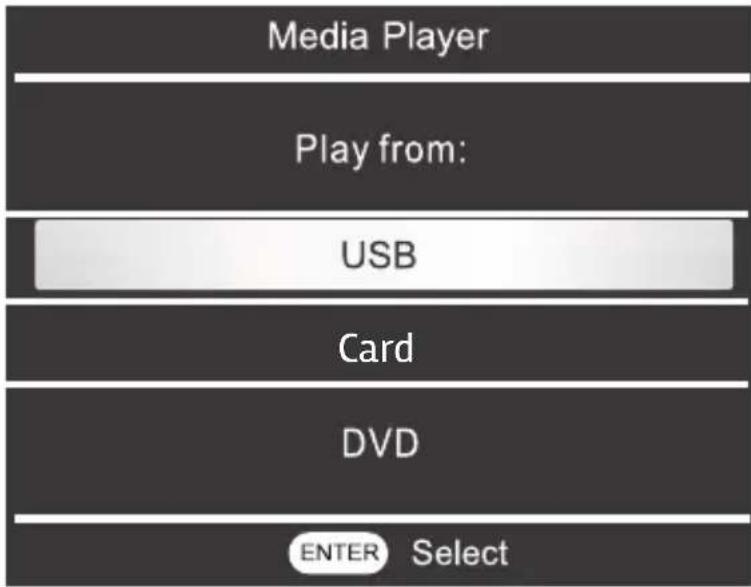
Select a photo/audio/video file from the media chosen by using the navigation buttons. Press Enter to start playback.


Do not press the "Open" button while the DVD-ROM is in playback mode. You will receive the message, "please return to quit DVD" if the "Open" button is pressed.
Media Recorder does not support region coded Discs, VCD, or MP3 Discs.
If the DVD-ROM is not ready, the screen will read, "Disk is not ready."
2. Playback Options
Picture playback: Press the RIGHT navigation button to go to the next page and LEFT to view the previous page. Press ENTER to exit playback.
Music playback: Press ENTER to Stop/Resume playback. Press ENTER to exit playback.
Video playback: The screen will display all videos / current video / current video time / and playback progress. Press the LEFT/RIGHT navigation buttons to turn the volume UP/DOWN. Press the UP/DOWN navigation buttons to skip or return to the previous video. Press ENTER to STOP/Resume video playback. Press RETURN to exit playback.

natural_image
Smiling young girl outdoors in a field, no visible text or symbols
VI. Setup
5.1 Change the disc settings on the Menu.
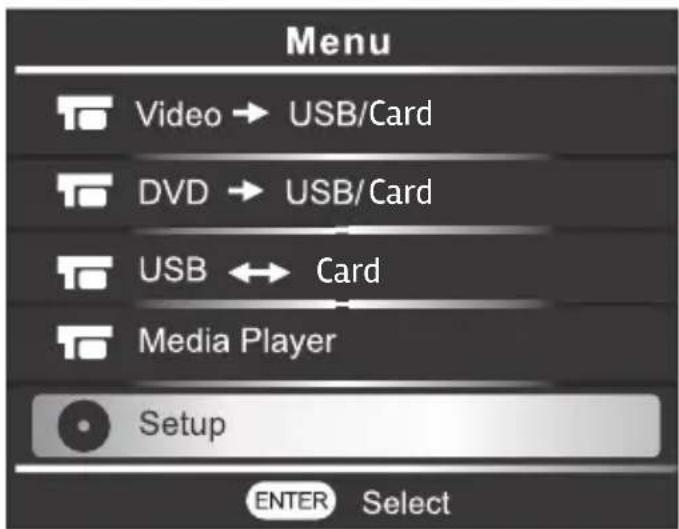
From the Main Menu, use the DOWN navigation button to select "setup" and press ENTER. In the Setup menu, you will find various settings which are outlined in this section. Press ENTER to access those particular settings.
5.2 Recording Format


MP4 – Select MP4 if you wish to play your recorded disc on a blu-ray player or PC. (MP4 can also be easily uploaded via PC to social media or sharing sites)
MPG – Select MPG (MPEG video code) to view your recorded disc on a standard DVD player.
5.3 Burn Type


Select DATA for playback on Blu-ray players as they can playback both MPG or MP4 formats. Select Video for playback on your Standard DVD Player.

If you select VIDEO for standard DVD players, you must use a blank DVD Disc. You will only be able to burn once on a disc.
Select DATA under DVD Burn Type if you want to burn multiple recordings on a blank disc.
5.4 Recording Quality
To Select recording quality, using the DOWN navigation button and scroll to “Record Quality and press ENTER. Now you can select from the following 3 Record Quality options: High Quality / Mid Quality / Low Quality. Default is set to Low Quality.

flowchart
graph TD
    A["Recording Format"] --> B["DVD Burn Type"]
    B --> C["Record Quality"]
    C --> D["Auto Stop Timer"]
    D --> E["Auto Chapter"]
    E --> F["Erase disc"]
    G["MPG"] --> H["DATA"]
    I["OFF"] --> J["5 minutes"]
    K["RETURN"] --> L["Menu"]
    M["ENTER"] --> N["Select"]
5.5 Auto Stop Timer
You may set a preset recording time through the Auto Stop Timer. Auto stop time can be applied to AV(Video) to DVD / AV(Video) to USB / AV(Video) to Card.

5.5.1 Once the Auto Timer has started, the recording will stop automatically after the preset time. Choose from 30min, 60min, 90min, 2h, 3h, 4h, or 8h.
5.6 Auto Chapter

You can adjust the time interval on the chapter creation on the disc. This applies to the following various recordings; AV (Video) to DVD, AV (Video) to USB, AV (Video) to Card
5.6.1 OFF = No chapter insterted
5.6.2 5 MIN = Insert chapters with 5 minute intervals
5.6.3 10 MIN = Insert chapters with 10 minute intervals
5.6.4 15 MIN = Insert chapters with 15 minute intervals
5.7 Disc Erase
5.7.1 All contents of the DVD+RW, or DVD-RW discs can be erased. The formatted DVD discs can be reused as blanks.
5.7.2

Disc erase will clear all the contents on a DVD+RW or DVD-RW disc. Once the disc erase has completed, please note that the contents on the disc can not be retrieved.

5.7.3 Press ◀ or ▷ and select [YES] and then press ENTER.

5.7.4 Press ▽ or △ and select [YES] and then press ENTER.


The contents of the DVD Disc will begin to erase. This process is completed when the word [Finished] appears on the screen.
5.8 Press ▽ or △ to select [Language] and then press ENTER.
Press ▽ or △ to select your desired language. (See Figure at bottom left)
5.9 Date Setting: (See Figure at top right)
In the Setup menu, select the Date Setting. Using the Up/Down navigation buttons to set the correct Year, Month and day, then press ENTER to confirm.
5.10 Time Setting: (See Figure at top right)
In the Setup menu, select the Time Setting. Using the Up/Down navigation buttons to set the correct time, then press ENTER to confirm.
The title of the completed video file will be the date and time of the recording to easily organize your files. If the device is unplugged for more than 7 days, you will need to reset the date and time again.
5.11 Restore to Factory Default Settings: (See Figure at bottom right)


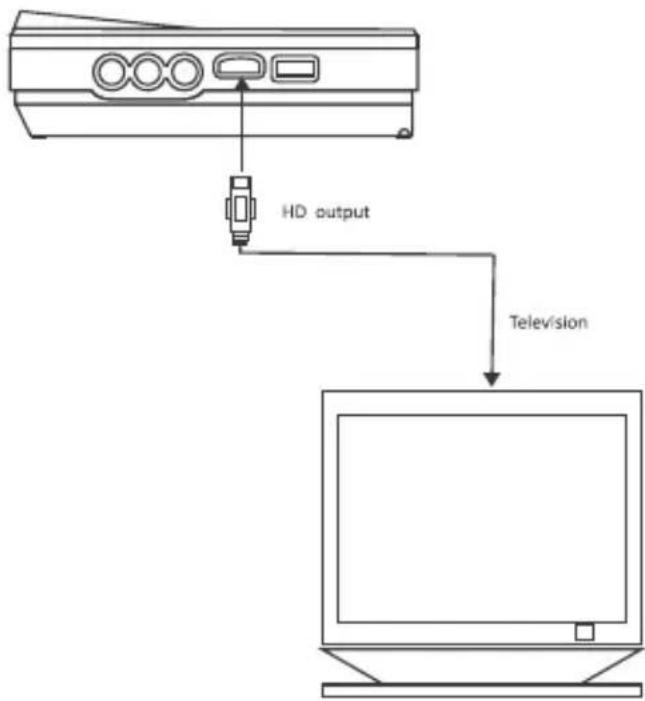
VII. HD Output
Play media from the Media Recorder via HD cable and display on an HDTV.
VIII. Troubleshooting Guide
This guide lists common problems and their solutions. Please refer to this guide before requesting service. If you need further assistance, please contact Naxa Technical Support @ www.naxa.com/naxa_support/
| Symptom | Solution |
| No Power | Make sure the AC adapter is secure in both the unit and connected to an AC outlet. |
| No Display | Media Recorder may be in standby mode. Press the Power button to turn on the unit. |
| “No Storage” while recording | Check whether the DVD disc is scratched. Please use a new disc. |
| AV (Video) record has low vol. | Set volume to Max. on the input source. |
| Burn more than 1 video on same disc | Set DVD Burn Type to DATA and select either MPG/MP4 for recording format. |
| Portable HDD | Supports FAT32 & NTFS formats |
IX. Parameter List
| Main Specifications | Video copying | Record videos from USB, AV in and memory Card onto DVD disc |
| Photo, music and video recording | Record photos, music and videos from USB memory/memory card onto DVD disc | |
| Photo, music and video recording | Record photos, music and videos from DVD disc onto USB memory/memory card | |
| Preview with LCD screen | Preview photos, music and videos on USB/memory card with LCD screenPreview the recorded discs with LCD screen | |
| LCD screen | 4.3" LCD color screen | |
| Color system | NTSC / PAL (Need to reboot after switching) | |
| HD output | HD output supports a max resolution up to 1920 x 1080 | |
| Media play | Video play formats:RM/RMVB/AVI/MPG/MKV/VOB/MOV/MP4/WMV | |
| Audio/video input | Audio/video input | |
| Auto chapter | Choose 5, 10, 15 min. or no chapter for AV in recording. | |
| Recording timer | Choose 30, 60, 90 min, 2h, 3h, 4h or 8h for AV in recording. | |
| Recording timer | Approximately 1.5h HQ for each 4.7G disc, depending on the copying mode for AV in recording | |
| DVD Creation (Photo) | Recordable disc | DVD+R, DVD+RW, DVD-R, DVD-RW |
| File format | JPEG, BMP, PNG | |
| Max photos | Up to 2000 photos | |
| Whole-unit | Power supply | 5V/3A |
| Power | 15W | |
| Working temperature | 0-40°C |

When playing back recorded video files, they will work on certain media players.
X. Support
If you have problems with your device, please review the instructions in this manual. Please also visit us on the web at www.naxa.com to get the latest news, alerts, and documentation for your device. For additional assistance, please contact Naxa Technical Support.
NAXA Technical Support
2320 East 49th St.
Vernon, CA 90058
866-411-6292
http://www.naxa.com/naxa_support/
Made in China
- Instruction Manual
- Warnings and Precautions
- On Protection Against Laser Energy Exposure
- Caution
- Important Safety Information
- FCC NOTICE
- CAUTION ON MODIFICATIONS
- WARNING
- Copyright
- Table of Contents
- At a Glance
- Media Playback Formats Supported:
- Image formats supported:
- Audio formats supported:
- Media formats supported:
- Getting Started
- Turning the Unit On and Off
- Video/USB/Card → DVD
- AV IN (Video) to DVD-ROM
- Press REC to start recording.
- Press STOP to end recording. "Burning" will display on the screen as the recorder will start the burning process onto a DVD disc.
- USB to DVD-ROM
- Card to DVD-ROM
- AV IN (VIDEO) → USB/HDD/Card
- AV IN (Video) to USB-Compatible with Portable HDD
- AV IN (Video) to Card
- DVD → USB/HDD/Card
- DVD to Card
- Burning finished, please press return
- USB ↔ Card
- Media Player
- Media Player
- Playback Options
- Setup
- Recording Format
- Burn Type
- Recording Quality
- Auto Stop Timer
- Auto Chapter
- Disc Erase
- 5.7.2
- HD Output
- Troubleshooting Guide
- Support
- NAXA Technical Support
Brand : Naxa
Model : NMT-1100
Category : Media Recorder