TPC-BF5601-T-S2 - Security Camera Dahua Technology - Free user manual and instructions
Find the device manual for free TPC-BF5601-T-S2 Dahua Technology in PDF.


User questions about TPC-BF5601-T-S2 Dahua Technology
0 question about this device. Answer the ones you know or ask your own.
Ask a new question about this device
Download the instructions for your Security Camera in PDF format for free! Find your manual TPC-BF5601-T-S2 - Dahua Technology and take your electronic device back in hand. On this page are published all the documents necessary for the use of your device. TPC-BF5601-T-S2 by Dahua Technology.
USER MANUAL TPC-BF5601-T-S2 Dahua Technology
Thermal Network Bullet Camera
Quick Start Guide
The regulatory information herein might vary according to the model you purchased. Some information is only applicable for the country or region where the product is sold.
FCC Information

CAUTION
Changes or modifications not expressly approved by the party responsible for compliance could void the user's authority to operate the equipment.
FCC conditions:
This device complies with part 15 of the FCC Rules. Operation is subject to the following two conditions:
- This device may not cause harmful interference.
- This device must accept any interference received, including interference that may cause undesired operation.
FCC compliance:
This equipment has been tested and found to comply with the limits for a digital device, pursuant to part 15 of the FCC Rules. This equipment generate, uses and can radiate radio frequency energy and, if not installed and used in accordance with the guide, may cause harmful interference to radio communication.
- For class A device, these limits are designed to provide reasonable protection against harmful interference in a commercial environment. Operation of this equipment in a residential area is likely to cause harmful interference in which case the user will be required to correct the interference at his own expense.
-
For class B device, these limits are designed to provide reasonable protection against harmful interference in a residential installation. However, there is no guarantee that interference will not occur in a particular installation. If this equipment does cause harmful interference to radio or television reception, which can be determined by turning the equipment off and on, the user is encouraged to try to correct the interference by one or more of the following measures:
-
Reorient or relocate the receiving antenna.
- Increase the separation between the equipment and receiver.
- Connect the equipment into an outlet on a circuit different from that to which the receiver is connected.
- Consult the dealer or an experienced radio/TV technician for help.
General
This Quick Start Guide (hereinafter referred to be "the Guide") introduces the functions, installation and operations of the camera.
Safety Instructions
The following categorized signal words with defined meaning might appear in the Guide.
| Signal Words | Meaning |
 | Indicates a medium or low potential hazard which, if not avoided, could result in slight or moderate injury. |
 | Indicates a potential risk which, if not avoided, could result in property damage, data loss, lower performance, or unpredictable result. |
 | Provides methods to help you solve a problem or save you time. |
 | Provides additional information as the emphasis and supplement to the text. |
Revision History
| No. | Version | Revision Content | Release Date |
| 1 | V1.0.1 | Update screenshot, and lightening and surge protection information | April 18, 2019 |
| 2 | V1.0.0 | First release. | January 21, 2019 |
Privacy Protection Notice
As the device user or data controller, you might collect personal data of others' such as face, fingerprints, car plate number, Email address, phone number, GPS and so on. You need to be in compliance with the local privacy protection laws and regulations to protect the legitimate rights and interests of other people by implementing measures include but not limited to: providing clear and visible identification to inform data subject the existence of surveillance area and providing related contact.
About the Guide
- The Guide is for reference only. If there is inconsistency between the Guide and the actual product, the actual product shall prevail.
• We are not liable for any loss caused by the operations that do not comply with the Guide. - The Guide would be updated according to the latest laws and regulations of related regions. For detailed information, see the paper manual, CD-ROM, QR code or our official website. If there is inconsistency between paper manual and the electronic version, the electronic version shall prevail.
- All the designs and software are subject to change without prior written notice. The product updates might cause some differences between the actual product and the Guide. Please contact the customer service for the latest program and supplementary documentation.
- There still might be deviation in technical data, functions and operations description, or errors in print. If there is any doubt or dispute, please refer to our final explanation.
- Upgrade the reader software or try other mainstream reader software if the Guide (in PDF format) cannot be opened.
- All trademarks, registered trademarks and the company names in the Guide are the properties of their respective owners.
- Please visit our website, contact the supplier or customer service if there is any problem occurred when using the device.
- If there is any uncertainty or controversy, please refer to our final explanation.
Important Safeguards and Warnings
This chapter describes the contents covering proper handling of the device, hazard prevention, and prevention of property damage. Read these contents carefully before using the device, comply with them when using, and keep it well for future reference.
Installation and Maintenance Professionals Requirements
All the installation and maintenance professionals must have qualification certificate or experiences of installing and maintaining CCTV system, electric apparatus in the explosive gas environment and working high above the ground. Besides, they have to acquire the following knowledge and operation skills.
- Basic knowledge and installation skills of CCTV system.
- Basic knowledge and operation skills of low voltage wiring and low voltage electronic circuit wire connection.
- Basic knowledge and operation skills of electric apparatus installation and maintenance in hazardous sites.
Power Requirements
- All installation and operation should conform to your local electrical safety code.
- Please check if the power supply is correct before operating the device.
- Use power supply conforming to SELV requirements and power the camera in the rated voltage conforming to Limited Power Source in IEC60950-1. And, refer to the camera label's power supply requirements for your final operation.
- Please install easy-to-use device for power off before installing wiring, which is for emergent power off when necessary.
- Please prevent the line cord from being trampled or pressed, especially the plug, power socket and the junction from the device.
Application Environment Requirements
- Please use the device within the allowed humidity (<95%RH) and altitude (<3000m).
- Do not use the device in the corrosive environment such as high salt fog area (sea, beach and coastal area), acid gas environment and chemical plants.
- Do not use the device in the strong vibration environment such as in boats and vehicles.

If you still want to use thermal cameras in the three conditions mentioned above, please contact our sales staff to buy cameras of special model or cameras that are customized. If you use cameras in improper environments, we shall not take the costs of camera damage.
- Please don't place the device in the humid, dusty, extremely hot and cold site with strong electromagnetic radiation or unstable illumination.
- Please don't block the ventilation opening near the device, which is to avoid heat accumulation for the device.
- Please don't install the device near the place with heat source, such as radiator, heater, stove or other heating equipment, which is to avoid fire.
- Please don't aim the lens at intense radiation source directly (such as sun, laser and molten steel etc.), which is to avoid causing damage to the thermal detector.
- Please don't let any liquid enter the device, which is to avoid causing damage to the internal components; please stop using the device immediately and cut off the power, plug out all the cables which are connected to the device if there is liquid entering the device, and contact the local customer service center.
- Please don't stuff any foreign matter into the device in case that it may cause device short circuit, which may cause damage to the device or human injury.
- Please use the factory default package or material with equal quality to pack the device when transporting the device.
- Please don't press, vibrate or soak the device during transportation, storage and installation.
Operation and Maintenance Requirements
- Please don't touch the heat dissipation component of the device in case you may get burnt.
- Please don't dismantle the device; there is no part which can be repaired by users themselves. It may cause water leakage or bad image for the device if it is dismantled unprofessionally.
- It is recommended to use the device together with a lightning arrester, which is to improve the effect of lightning protection, it needs to conform to the lightning protection regulation for outdoor application.
- Do not touch the photosensitive device with your hands. To clean the dust and filth on the lens, an air blower can be used. For further cleaning, please pour a little alcohol into a piece of dry cloth with which you can softly wipe the dirt away.
- Clean device body with a piece of soft dry cloth. For any dirt hard to remove, pick up a piece of clean and soft cloth, dip it with a little neutral detergent and gently wipe the dust away with it -- after that, wipe all the liquids on the device away with another dry cloth. Never use any volatile solvent such as alcohol, benzene and thinner, or any cleaner that is strong and abrasive. Otherwise, the device's surface coating will be hurt and its working performance will be encumbered.

WARNING
- Please modify the default password after login, in case it is stolen.
- Please use the accessories regulated by the manufacturer, and the device should be installed and maintained by professionals.
- Internal and external ground connection should be stable.
-
Please don't provide two or more power supply modes to the device, otherwise, it may cause damage to the device.
-
Around 2.5m long control cable is reserved when the device is delivered out of factory, it should use explosionproof flexible tube or armor cable to protect when the control cable is connected to the explosionproof control cabinet.
- Please cut off power before device maintenance and overhaul. It is prohibited to open the cover with power on in the explosion environment.
- Please make sure all the explosionproof components and parts are complete without any cracks and there is no defect which may affect explosionproof performance.
- Please contact the local dealer or the nearest service center if the device fails to work normally, please don't dismantle or modify the device.
Cybersecurity Recommendaons
Cybersecurity is more than just a buzzword: it's something that pertains to every device that is connected to the internet. IP video surveillance is not immune to cyber risks, but taking basic steps toward protecting and strengthening networks and networked appliances will make them less susceptible to attacks. Below are some tips and recommendations on how to create a more secured security system.
Mandatory actions to be taken for basic equipment network security
1. Use Strong Passwords
Please refer to the following suggestions to set passwords:
- The length should not be less than 8 characters;
- Include at least two types of characters; character types include upper and lower case letters, numbers and symbols;
- Do not contain the account name or the account name in reverse order;
- Do not use continuous characters, such as 123, abc, etc.;
- Do not use overlapped characters, such as 111, aaa, etc.;
2. Update Firmware and Client Software in Time
- According to the standard procedure in Tech-industry, we recommend to keep your equipment (such as NVR, DVR, IP camera, etc.) firmware up-to-date to ensure the system is equipped with the latest security patches and fixes. When the equipment is connected to the public network, it is recommended to enable the “auto-check for updates” function to obtain timely information of firmware updates released by the manufacturer.
- We suggest that you download and use the latest version of client software.
“Nice to have” recommendations to improve your equipment network security:
1. Physical Protection
We suggest that you perform physical protection to equipment, especially storage devices. For example, place the equipment in a special computer room and cabinet, and implement well-done access control permission and key management to prevent unauthorized personnel from carrying out physical contacts such as damaging hardware, unauthorized connection of removable equipment (such as USB flash disk, serial port), etc.
2. Change Passwords Regularly
We suggest that you change passwords regularly to reduce the risk of being guessed or cracked.
3. Set and Update Passwords Reset Information Timely
The equipment supports password reset function. Please set up related information for password reset in time, including the end user's mailbox and password protection questions. If the information changes, please modify it in time. When setting password protection questions, it is suggested not to use those that can be easily guessed.
4. Enable Account Lock
The account lock feature is enabled by default, and we recommend you to keep it on to guarantee the account security. If an attacker attempts to log in with the wrong password several times, the corresponding account and the source IP address will be locked.
5. Change Default HTTP and Other Service Ports
We suggest you to change default HTTP and other service ports into any set of numbers between 1024\~65535, reducing the risk of outsiders being able to guess which ports you are using.
6. Enable HTTPS
We suggest you to enable HTTPS, so that you visit Web service through a secure communication channel.
7. Enable Whitelist
We suggest you to enable whitelist function to prevent everyone, except those with specified IP addresses, from accessing the system. Therefore, please be sure to add your computer's IP address and the accompanying equipment's IP address to the whitelist.
8. MAC Address Binding
We recommend you to bind the IP and MAC address of the gateway to the equipment, thus reducing the risk of ARP spoofing.
9. Assign Accounts and Privileges Reasonably
According to business and management requirements, reasonably add users and assign a minimum set of permissions to them.
10. Disable Unnecessary Services and Choose Secure Modes
If not needed, it is recommended to turn off some services such as SNMP, SMTP, UPnP, etc., to reduce risks.
If necessary, it is highly recommended that you use safe modes, including but not limited to the following services:
- SNMP: Choose SNMP v3, and set up strong encryption passwords and authentication passwords.
- SMTP: Choose TLS to access mailbox server.
- FTP: Choose SFTP, and set up strong passwords.
- AP hotspot: Choose WPA2-PSK encryption mode, and set up strong passwords.
11. Audio and Video Encrypted Transmission
If your audio and video data contents are very important or sensitive, we recommend that you use encrypted transmission function, to reduce the risk of audio and video data being stolen during transmission.
Reminder: encrypted transmission will cause some loss in transmission efficiency.
12. Secure Auditing
- Check online users: we suggest that you check online users regularly to see if the device is logged in without authorization.
- Check equipment log: By viewing the logs, you can know the IP addresses that were used to log in to your devices and their key operations.
13. Network Log
Due to the limited storage capacity of the equipment, the stored log is limited. If you need to save the log for a long time, it is recommended that you enable the network log function to ensure that the critical logs are synchronized to the network log server for tracing.
14. Construct a Safe Network Environment
In order to better ensure the safety of equipment and reduce potential cyber risks, we recommend:
- Disable the port mapping function of the router to avoid direct access to the intranet devices from external network.
- The network should be partitioned and isolated according to the actual network needs. If there are no communication requirements between two sub networks, it is suggested to use VLAN, network GAP and other technologies to partition the network, so as to achieve the network isolation effect.
- Establish the 802.1x access authentication system to reduce the risk of unauthorized access to private networks.
Table of Contents
Regulatory Information...... I
Foreword ...... II
Important Safeguards and Warnings IV
Cybersecurity Recommendations......VII
1 Unpacking the Box....1
2 Design.... 2
2.1 Dimensions 2
2.2 Cable 2
3 General Configuration .... 4
3.1 Initializing Camera 4
3.2 Modifying IP Address 5
3.3 Live Video....5
4 Installation....7
4.1 Cable Preparation 7
4.2 Installing Camera 8
4.2.1 (Optional) Installing SD Card....8
4.2.2 Fixing Camera 9
4.2.3 Connecting Cable Ports....9
4.2.4 Installing Waterproof Connector 10
4.2.5 Adjusting Sun Shield Cover 10
4.2.6 Adjusting Camera 11
5 Configuring Alarm.... 12
Appendix 1 Lightening and Surge Protection.... 14
Refer to the following checklist and check the package. If you find device damage or any loss, contact the after-sales service.
Checklist Figure 1-1

natural_image
Line drawing of a surveillance camera with a mounted sensor and cable (no text or symbols)Camera
Positioning Map

Waterproof Connector

Quick Start Guide

Wrench

Screw Bag
Dimensions 2.1
Dimensions (mm [inch]) Figure 2-1
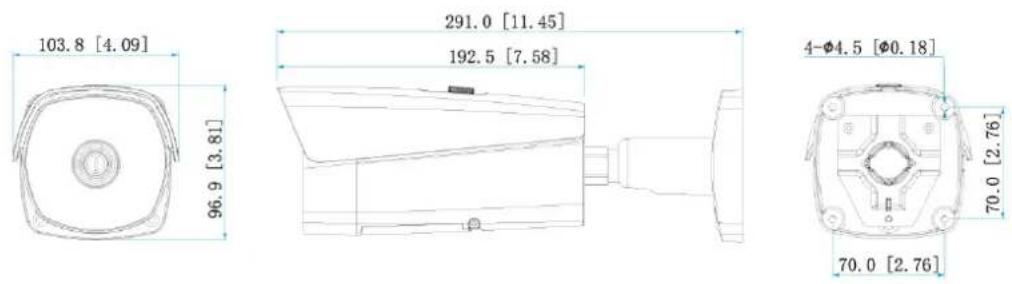
text_image
103.8 [4.09] 96.9 [3.81] 291.0 [11.45] 192.5 [7.58] 4-Ø4.5 [Ø0.18] 70.0 [2.76] 70.0 [2.76]Cable 2.2

Cable type might vary with different cameras, and the actual product shall prevail.
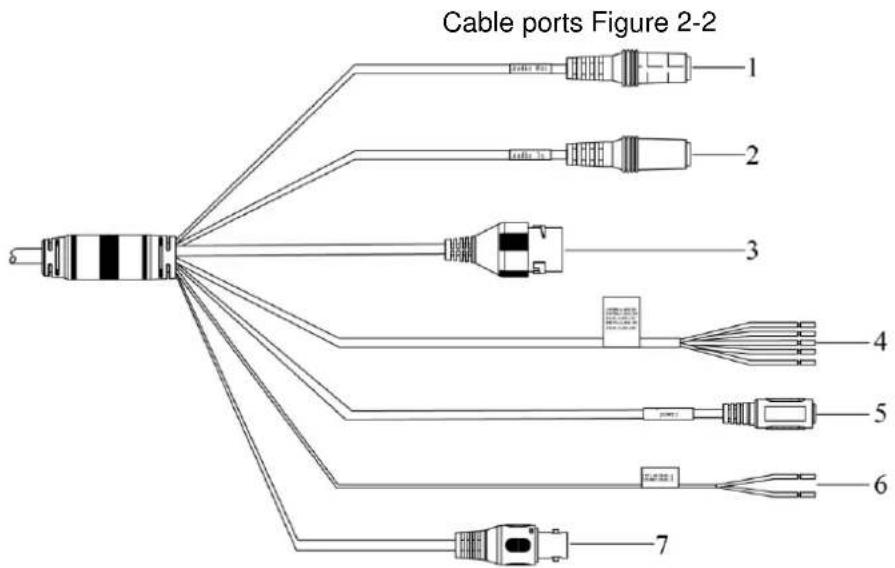
text_image
Cable ports Figure 2-2 1 2 3 4 5 6 7Please refer to Table 2-1 for more details about the cable function.
Table 2-1 Cable ports description
| SN | Port | Port Name | Connector | Function Description |
| 1 | AUDIO OUT | Audio output port | — | 3.5mm Jack port, output audio signal to earphone and other devices. |
| 2 | AUDIO IN | Audio input port | — | 3.5mm Jack port, input audio signal, receive analog audio signal from sound pick-up and so on. |
| 3 | LAN | Network port | Ethernet port | Connect to standard Ethernet cable. |
| 4 | I/O | I/O port | — | Alarm signal input/output. |
| 5 | POWER | Power input port | — | Input 12V DC. Actual use shall be in accordance with device label instruction. Otherwise, it may cause damage to the device. Actual use shall be in accordance with device label instruction. Otherwise, it may cause damage to the device. |
| 6 | RS485_A(Yellow) | RS-485 | — | RS-485 port, control external PTZ and so on. |
| RS485_A(Orange) | ||||
| 7 | VIDEO OUT | Video output port | BNC | Generally it outputs analog video signal, it can connect to TV monitor to check image. |
Please refer to Table 2-2 for introduction of I/O port function.
Table 2-2 I/O port description
| Port | Color | Cable port name | Function description |
| I/O port | Green | ALARM_COM1 | Alarm output common port.Use ALARM_COM1 together with ALARM_NO1 and use ALARM_COM2 together with ALARM_NO2. |
| Pink | ALARM_COM2 | ||
| Blue | ALARM_NO1 | • Alarm output port, output alarm signal to alarm device.• NO: Normally open alarm output port.Use ALARM_NO1 together with ALARM_COM1 and use ALARM_NO2 together with ALARM_COM2. | |
| Gray | ALARM_NO2 | ||
| Purple | ALARM_IN1 | Alarm input ports; receive the on-off signal of external alarm source. | |
| Brown | ALARM_IN2 | ||
| Green & White | ALARM_GND | Grounded terminal. |
Initializing Camera 3.1
You need to initialize your Camera and set the user password when logging in for the first time. You can use web or ConfigTool to achieve initialization. Here initialization by web is taken as an example.

- It fails to use the Camera if the Camera is not initialized.
- To secure the Camera data, keep admin password well after initialization and modify it regularly.
- It can implement device initialization only when your Camera's IP address (192.168.1.108 by default) and your PC's IP address are in the same network segment.
____ Open IE browser, input camera default IP address in the address bar, and then press Step 1 Enter.

The factory default IP address is: 192.168.1.1087.
The Device Initialization interface is displayed. See Figure 3-1.
Initializing camera Figure 3-1

text_image
Device Initialization Username admin Password Weak Middle Strong Confirm Password Use a password that has 8 to 32 characters, it can be a combination of letter(s), number(s) and symbol(s) with at least two kinds of them. (please do not use special symbols like ')); & ) ✓ Email Address To reset password, please input properly or update in time. SaveSet the login password of admin. See Table 3-1 for details. Step 2
Table 3-1 Password description
| Parameter | Description |
| Password | The password can be set as 8 to 32 nonblank characters, which can be made up of number, letter and special character (except “,” , “”, “;”, “:” and“ &”), and it has to contain at least two types of characters. Please set the password with high security according to the password intensity prompt. |
| Confirm Password | |
| Email Address | In order to reset password, input email address properly and update in time. |
Step 3 Click Save to finish initialization.
Modifying IP Address 3.2
In order to make the camera get access to network, please plan IP address reasonably according to the actual network environment.
Log in camera web interface in the IE browser. Step 1

- The factory default IP address is: 192.168.1.108.
- The default user is admin; the password is set during device initialization.
Step 2 Select Setup > Network > TCP/IP and the system will display the interface of "TCP/IP", which is shown in Figure 3-2.
TCP/IP Figure 3-2

text_image
TCP/IP Host Name TPCDome Ethernet Card Wire(DEFAULT) Mode Static DHCP MAC Address IP Version IPv4 IP Address Subnet Mask Default Gateway Preferred DNS 8 . 8 . 8 . 8 Alternate DNS 8 . 8 . 4 . 4 Enable ARP/Ping to set IP address service Default Refresh SaveConfigure relevant info of IP address, and click Save. Step 3
Live Video 3.3

Different devices might have different WEB interfaces, the figure in this document is just for reference, please refer to the document WEB Operation Manual in the disk and the actual interface for more details.
Log in camera web interface in the IE browser. Step 1

- IP address is the one which has been modified.
- Default user is admin; the password has been set during device initialization.
Click Login and the system will display the WEB main interface, which is shown in Step 2 Figure 3-3.

It will prompt you to install plug-in for the first system login, please save and install plug-in according to prompt. The web interface will refresh automatically after plug-in installation is completed, then live video will show up.
The live interface Figure 3-3

text_image
Thermal Camera Live PTZ Playback Setup Alarm Logout Main Stream Sub Stream Protocol TCP TPC
- Make sure the mounting surface is strong enough to hold at least eight times of the camera weight.
• The following figure is for reference only, and the actual product shall prevail.
Cable Preparation 4.1
Selecting Needed Video Cable
• 75 ohm.
• Full cable with copper conductor.
- 95% knitted copper shield.
Table 4-1 Video cable
| International Model | Max Transmission Distance (Ft/M) |
| RG59/U | 750Ft/229M |
| RG6/U | 1,000Ft/305M |
| RG11/U | 1,500Ft/457M |
Selecting Needed Power Cable
It is recommended to implement according to the following requirements when the users need to lengthen the power cable.
Max. Transmission distance is recommended when the size of wire diameter is fixed and DC 12V voltage transmission power is 10W. Please refer to the following table for more details.
Table 4-2 Power cable
| Wire Diameter (mm) | Max. Distance (Feet/M) |
| 0.800 | 61.06 (18.61) |
| 1.000 | 95.41 (29.08) |
| 1.250 | 149.08 (45.44) |
| 2.000 | 381.66 (116.33) |
Selecting Needed Signal Cable
All signal cables (audio, alarm input and output and RS-485 etc.) are recommended to use 0.56mm (24AWG) and above cable as lengthened wire signal cable.
Installing Camera 4.2
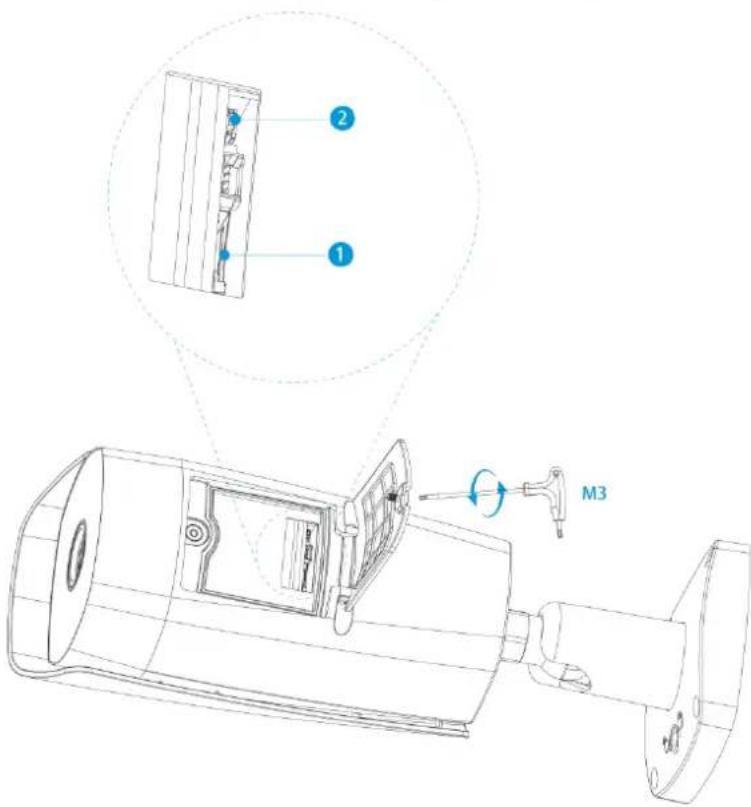
4.2.1 (Optional) Installing SD Card

- Please cut off the device power before installing SD card.
- Be cautious and do not mistake Micro SD card slot for reset hole. Long press the reset button for 4 seconds–5 seconds and you will reset your Camera.
- Please check if the waterproof ring is installed properly before closing the cover, otherwise, it will affect the waterproof performance of the device.
Installing SD card Figure 4-1
text_image
Technical diagram of a device with labeled components and a magnified inset showing internal structure and motion indicators.Table 4-3 Camera component list
| No. | Name | No. | Name |
| 1 | Micro SD card slot | 2 | Reset hole |
4.2.2 Fixing Camera
Fixing camera Figure 4-2
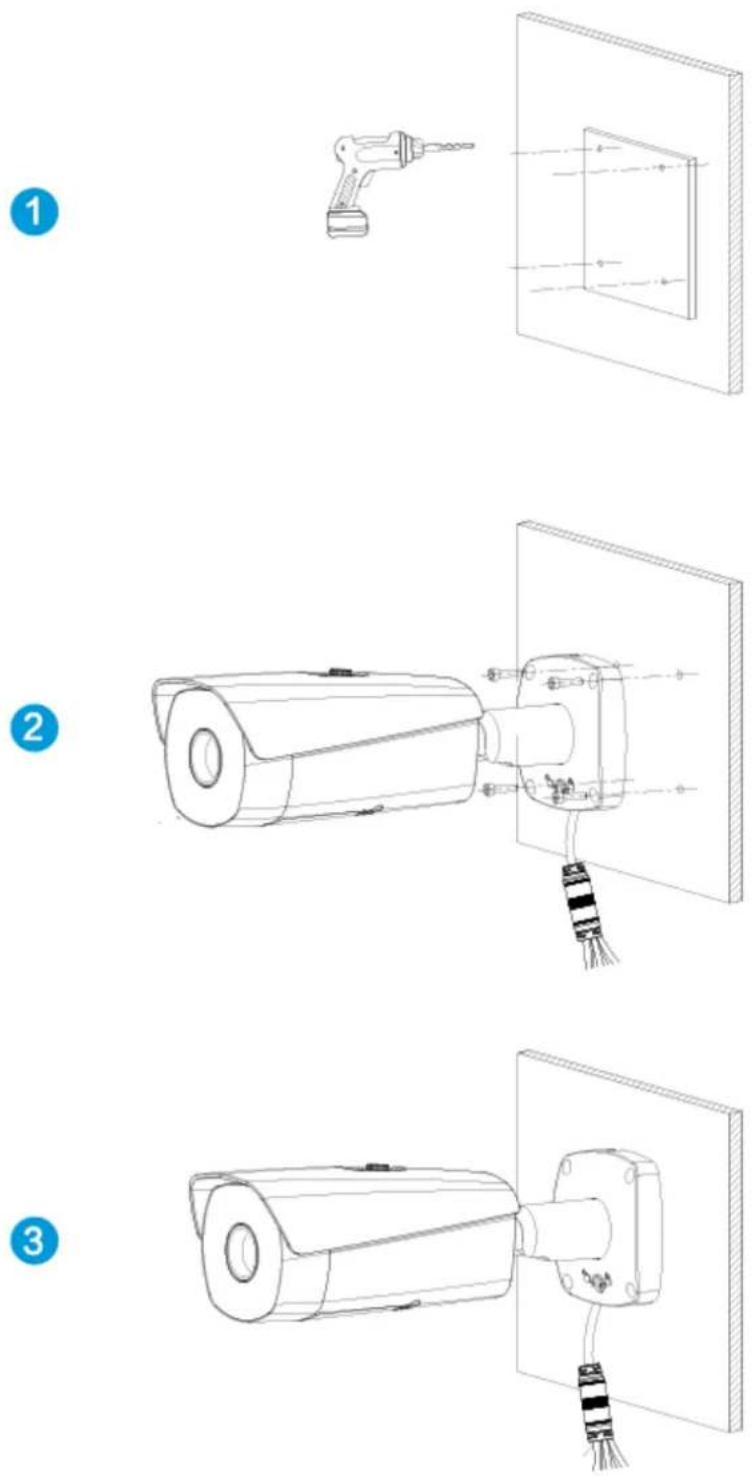
4.2.3 Connecting Cable Ports
Refer to "2.2 Cable" and connect each cable port to corresponding cables. Then use the insulting tape to seal each port to prevent water leakage.
4.2.4 Installing Waterproof Connector
Installing waterproof connector for network port Figure 4-3

flowchart
graph TD
    A["Step 1: Connector"] --> B["Step 2: Cable"]
    B --> C["Step 3: Cable"]
    C --> D["Step 4: Cable with cable switch"]
    D --> E["Step 5: Cable with cable end"]
4.2.5 Adjusting Sun Shield Cover
Adjusting sun shield cover Figure 4-4

text_image
Diagram illustrating a camera setup with labeled components and directional arrows, including a screwdriver and cable assembly.4.2.6 Adjusting Camera

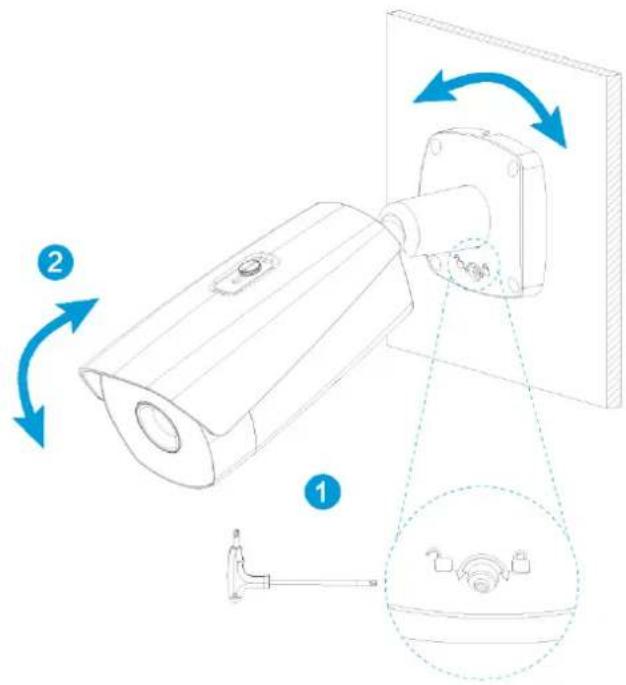
- Please make sure the adjusting screw is loosened when adjusting device direction and monitoring angle. Tighten the adjusting screw firmly after adjustment is completed.
- Please do not rotate the device body over 360^ when the device body and mounting pedestal form an angle of 90^ and the adjusting screw is firmly tightened.
Adjusting camera Figure 4-5
text_image
Technical diagram showing a mechanical assembly with labeled components and directional arrows indicating motion or assembly.
It has to cut off power first when connecting cables.
Alarm Input and Output Connection Description
Connect alarm input device to alarm input port of I/O cable. Step 1 Connect alarm output device to alarm output port of I/O cable. Alarm output is relay Step 2 switch output, and the alarm output port can only be connected to NO alarm device.
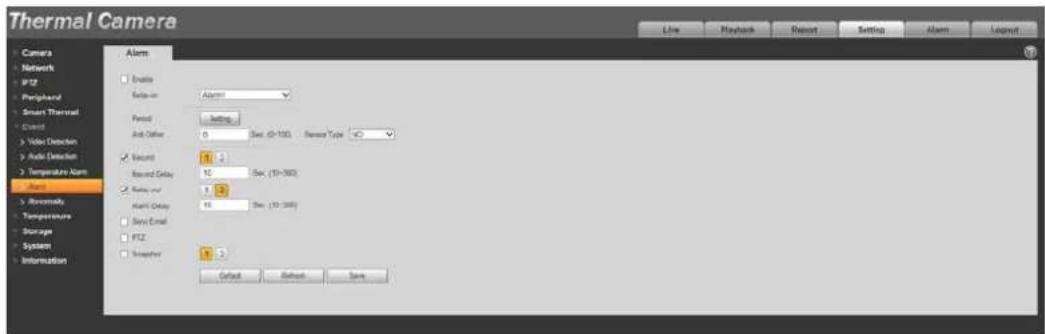
Step 3 Open the web interface, select Setting > Event > Alarm.
____ Make corresponding settings upon alarm input and output in the alarm setup interface, Step 4 and then click Save.
See Figure 5-1 for the Alarm interface.
- Alarm input is corresponding to the alarm input port of device I/O cable. It is to set corresponding NO and NC according to the high and low level signal generated by alarm input device when alarm occurs.
- Alarm output is corresponding to the alarm output port of device I/O cable.
The alarm interface Figure 5-1
text_image
Thermal Camera Camera Network PTZ Peripheral Smart Thermal Count Video Detection Audio Detection Temperature Alarm Alarm Abnormality Temperature Storage System Information Alarm Enable Relax-on Alarm Period Init. Other Setting: 0 Sec. (0-100) Sensor Type Secure Record Delay 10 Sec. (50-300) Relax on Relax Delay 10 Sec. (50-300) Send Email PTZ Inverter Default Refresh SaveAlarm Input and Output Figures
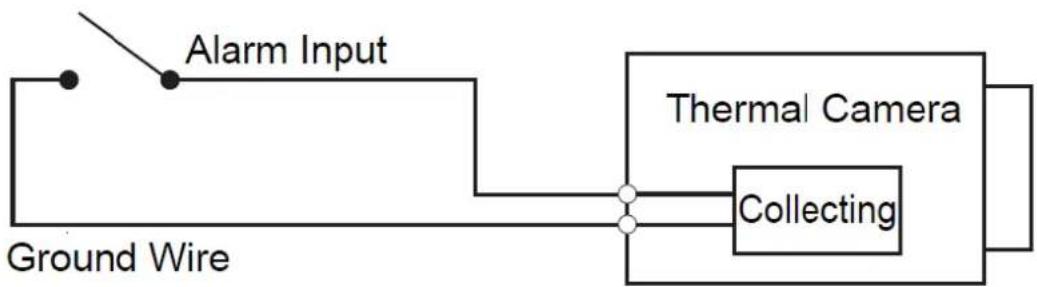
Alarm input: input signal is idle or grounded; the device can collect different states of alarm input port. Input signal is connected to 3.3V or idle, device collects logic "1"; input signal is grounded, the device collects logic "0".
Alarm input Figure 5-2
flowchart
graph LR
    A["Ground Wire"] --> B["Alarm Input"]
    B --> C["Thermal Camera"]
    C --> D["Collecting"]
Alarm output: port ALARM_OUT and ALARM_COM form a switch, which can be used to provide alarm output. Normally the switch is on, and the switch will be off when there is alarm output.
Alarm output Figure 5-3

flowchart
graph LR
    A["ALARM_COM"] --> C["Thermal Camera"]
    B["ALARM_OUT"] --> C
    C --> D["Alarm"]
    C --> E["Output"]
Lightening and Surge Protection
App
This series bullet camera adopts TVS lighting protection technology. It can effectively prevent damages from various pulse signals below 6000V, such as sudden lighting and surge. While maintaining your local electrical safety code, you still need to take necessary precaution measures when installing the Camera in the outdoor environment.
- The distance between the signal transmission cable and high-voltage device (or high-voltage cable) shall be at least 50 meters.
- Outdoor cable layout shall go under the penthouse if possible.
- For vast land, use sealing steel tube under the land to implement cable layout and connects one point to the earth. Open floor cable layout is forbidden.
- For vast land, install a 10KA lightning rod near the Camera's power input port and Ethernet port. For Camera with AC to DC power adapter, install a 10KA lightning rod near the adapter's input port.
- For Camera installed on the iron tower, if there is a wire connected properly into the ground, connect the Camera's ground wire to the tower's ground wire. And:
Make sure that the Camera is over 3 m away from the tower lightning rod's top point. Use several strands of copper wire whose total diameter is up to 16 mm ^2 .
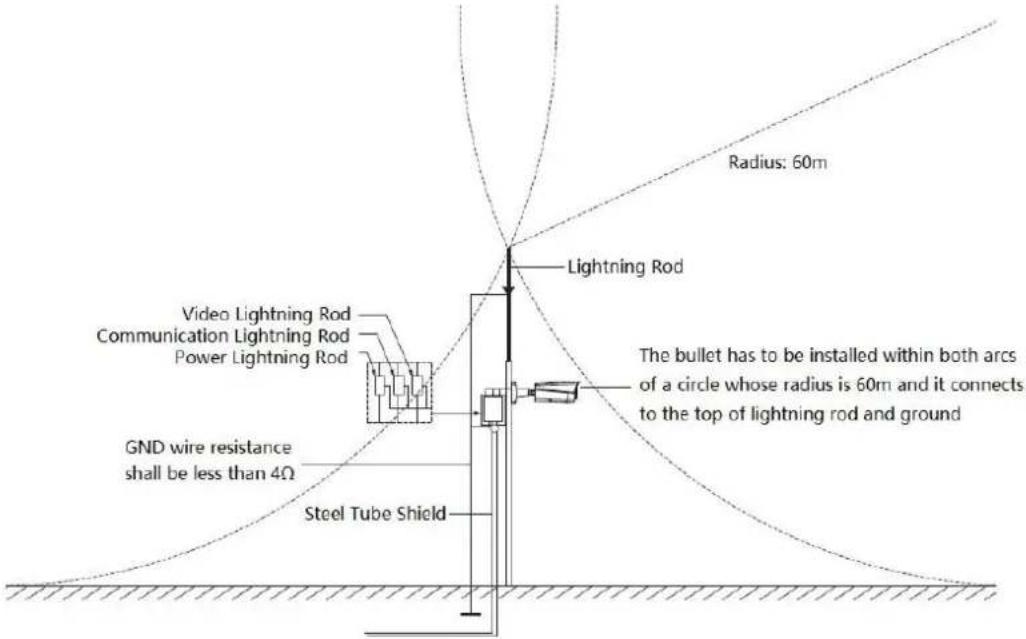
Make sure the Camera is installed within both arcs of circles whose radius is 60m. See Appendix figure 1-1.
- If there is no ground wire on the tower, connect the Camera's ground wire into the ground.
- In area of strong thunderstorm hit or near high sensitive voltage (such as near high-voltage transformer substation), you need to install additional high-power thunder protection device or lightning rod.
- The thunder protection and earth of the outdoor device and cable shall be considered in the building whole thunder protection and conform to your local national or industry standard.
- System shall adopt equal-potential wiring. The earth device shall meet anti-jamming and at the same time conforms to your local electrical safety code. The earth device shall not short circuit to N (neutral) line of high voltage power grid or mixed with other wires. When you connect the system to the earth alone, the earth resistance shall not be more than 4 and earth cable cross-sectional area shall be no less than 25 mm^2 . See Appendix figure 1-1.
Appendix figure 1-1 Lightening protection