PEX1S552LP - Network card StarTech.com - Free user manual and instructions
Find the device manual for free PEX1S552LP StarTech.com in PDF.


User questions about PEX1S552LP StarTech.com
0 question about this device. Answer the ones you know or ask your own.
Ask a new question about this device
Download the instructions for your Network card in PDF format for free! Find your manual PEX1S552LP - StarTech.com and take your electronic device back in hand. On this page are published all the documents necessary for the use of your device. PEX1S552LP by StarTech.com.
USER MANUAL PEX1S552LP StarTech.com
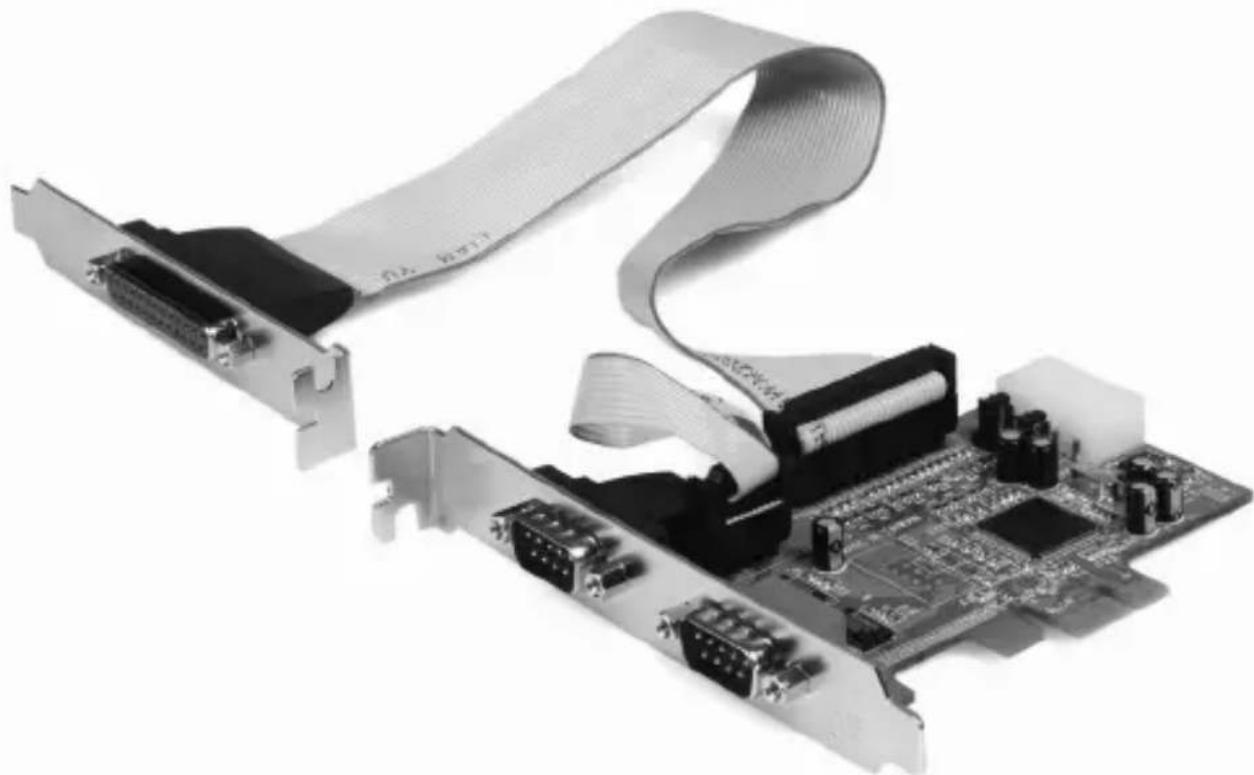
Dual Profile PCI-Express RS-232 Serial Card (2 port Serial, 1 port Parallel\*)
*PEX2S5521P
PEX1S552/PEX1S552LP
PEX2S552/PEX2S552LP
Instruction Guide
natural_image
Close-up of a computer motherboard with multiple Ethernet cable and connectors (no visible text or symbols)*PEX2S5521P shown
FCC Compliance Statement
This equipment has been tested and found to comply with the limits for a Class B digital device, pursuant to part 15 of the FCC Rules. These limits are designed to provide reasonable protection against harmful interference in a residential installation. This equipment generates, uses and can radiate radio frequency energy and, if not installed and used in accordance with the instructions, may cause harmful interference to radio communications. However, there is no guarantee that interference will not occur in a particular installation. If this equipment does cause harmful interference to radio or television reception, which can be determined by turning the equipment off and on, the user is encouraged to try to correct the interference by one or more of the following measures:
Reorient or relocate the receiving antenna.
Increase the separation between the equipment and receiver.
Connect the equipment into an outlet on a circuit different from that to which the receiver is connected.
Consult the dealer or an experienced radio/TV technician for help.
Use of Trademarks, Registered Trademarks, and other Protected Names and Symbols
This manual may make reference to trademarks, registered trademarks, and other protected names and/or symbols of third-party companies not related in any way to StarTech.com. Where they occur these references are for illustrative purposes only and do not represent an endorsement of a product or service by StarTech.com, or an endorsement of the product(s) to which this manual applies by the third-party company in question. Regardless of any direct acknowledgement elsewhere in the body of this document, StarTech.com hereby acknowledges that all trademarks, registered trademarks, service marks, and other protected names and/or symbols contained in this manual and related documents are the property of their respective holders.
Instruction Manual
Table of Contents
Introduction 1
Features ....1
Package Contents ....1
Hardware Guide 2
Installation 2
Setting Power Mode ....3
Hardware Installation ....3
Software Installation ....4
Verifying Installation 6
Specifications 7
Technical Support 8
Warranty Information 8
Introduction
Thank you for your purchase of a StarTech.com Dual Profile PCI Express I/O card. This convenient I/O solution utilizes a native, single-chip design for maximum performance and reliability, and includes an optional low profile bracket that allows the card to be installed in virtually any size/form factor case.
Features
Native PCI Express (single chip)•
Supports data transfer rates of up to: 2.7 Mbps (parallel) • 460.8 Kbps (serial)
Configurable in 5V, 12V, and RI (non-powered) modes•
Compliant with PCI Express base specifications revision 1.0a•
128-byte deep FIFO per transmitter and receiver•
Automated in-band flow control using programmable Xon/Xoff in both directions
Automated out-of-band flow control using CTS/RTS and DSR/DTR•
Standard and low profile brackets included •
Package Contents
1 x PCI-Express I/O Card (LP cards come with a low profile bracket • preinstalled)
1 x Separate parallel port with ribbon cable (PEX2S5521P only)•
1 x Driver CD•
• 1 x Instruction Manual
• 1/2/3 x Low Profile Bracket (PEX1S552/PEX2S552/PEX2S5521P)
1 x Full Profile Bracket (PEX1S552LP and PEX2S552LP)•
Instruction Manual
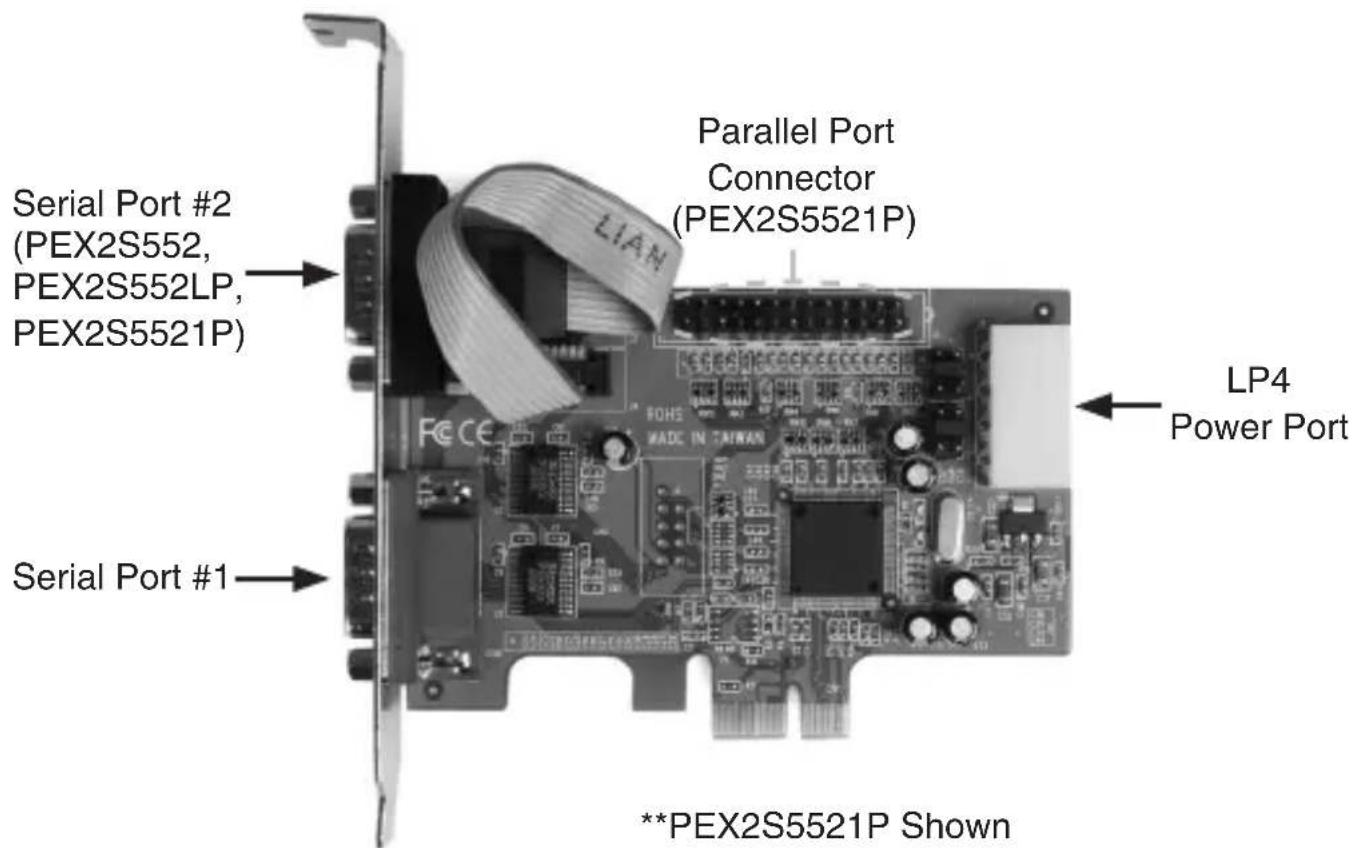
Hardware Guide
text_image
Serial Port #2 (PEX2S552, PEX2S552LP, PEX2S5521P) Parallel Port Connector (PEX2S5521P) Serial Port #1 **PEX2S5521P Shown LP4 Power PortInstallation
WARNING! PCI Express cards, like all computer equipment, can be severely damaged by static electricity. Be sure that you are properly grounded before opening your computer case or touching your card. StarTech.com recommends that you wear an anti-static strap when installing any computer component. If an anti-static strap is unavailable, discharge yourself of any static electricity build-up by touching a large grounded metal surface (such as the computer case) for several seconds. Also be careful to handle the card by its edges and not the gold connectors.
Instruction Manual
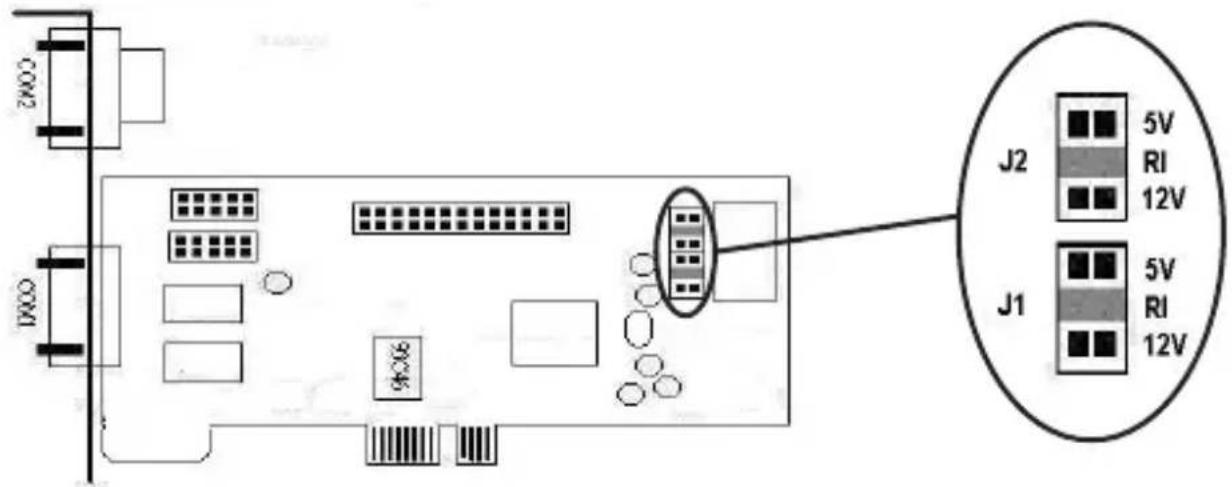
This card is specially designed to allow for power output from the ninth pin of the DB9 connector(s) for devices that support power over serial. This card allows users to set each port with 5V, 12V, or RI (no power). Users can also choose to draw the necessary power from the system power supply by connecting to the LP4 power connector.
Hardware Installation
Remove the cover of your system (see your computer's user manual 1. for details, if necessary) and gently turn your computer onto its side, so that the PCI Express expansion slot openings on the motherboard are facing upwards.
Locate an empty PCI Express slot and remove the metal plate that 2. covers the corresponding rear bracket. You may need a Phillips screw driver to perform this step. Retain any screws! You will need them to secure the card later. Refer to documentation of your computer system for further details.
PEX2S5521P Only: Please ensure that the metal plate that covers the rear bracket adjacent to the above mentioned bracket is vacant, so that it can be used for the parallel port installation).
Gently insert the card into the empty slot, making sure it is firmly 3. seated, then secure the card in place using the screw you removed in Step 3, if applicable.
Instruction Manual
PEX2S5521P:4. Connect the ribbon cable provided by the (separate) parallel port to the provided slot on the PEX2S5521P board (please see diagram on previous page), then secure the parallel port to the slot adjacent to the one used to secure the main PEX2S5521P board.
OPTIONAL:5. If supplying power from the computer system power supply, (see "Setting Power Mode") connect the LP4 molex plug into the card.
Once the card (and additional port, if necessary) are secured to 6. the motherboard (and within the case), replace the computer cover and power on the computer, then proceed to the next section, titled Software Installation.
Software Installation
When the computer is booted up following the physical installation of the PCI Express card, the operating system will detect the presence of the card within the computer system and prompt for software installation:
The Found New Hardware Wizard will appear. When asked if you want 1. Windows to search for software, select No, not this time, then click Next to continue:

text_image
Found New Hardware Wizard Welcome to the Found New Hardware Wizard Windows will search for current and updated software by looking on your computer, on the hardware installation OD, or on the Windows Update Web site (with your permission). Read our privacy policy. Can Windows connect to Windows Update to search for software? Yes, this time only Yes, now and every time I connect a device No, not this time Click Next to continue. < Back Next > CancelInstruction Manual
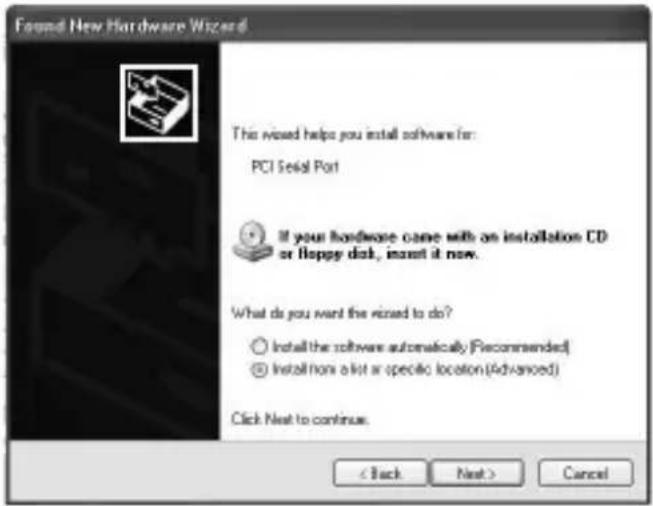
On the screen that follows, select 2. Install from a list or specific location, then click on Next.
text_image
Found New Hardware Wizard This wizard helps you install software for: PCI Serial Port If your hardware came with an installation CD or Happy disk, insert it now. What do you want the wizard to do? Install the software automatically (Recommended) Install them a list or specific location (Advanced) Click Next to continue. < Back Next > CancelOn the screen that follows, select 3. Search for the best driver in these locations. Ensure there is a checkmark next to Include this location in the search, then click Browse to locate the correct file. (Please note: The correct file can be located on the accompanying CD in the MCS9901 folder).
Once you've specified the correct file, please click Next to continue.

text_image
Found New Hardware Wizard Please choose your search and installation options. Search for the best driver in these locations. Use the check boxes below to link or expand the default search, which includes local paths and removable media. The best driver found will be installed. Search removable media (loppy, CD-ROM...) Include this location in the search Desktop\MCS9901_XP\MCS9901_XP\win32_E48\B Browse Don't search. I will choose the driver to install. Choose this option to select the device drives from a list. Windows does not guarantee that the driver you choose will be the best match for your hardware. Browse For Folder Select the folder that contains drivers for your hardware. Ply Computer Ply Network Places Application Commerce PC5000x_99 PC5001_99 LM Win32_4KB AMD64 906 Snap8 0.2.3.zip To view any outfielders, click a plus sign above. OK Cancel < Back Next > CancelInstruction Manual
A Windows security warning will appear, notifying you that the software 4. you are installing has not passed Windows Logo testing. Please click on Continue Anyway:

text_image
Hardware Installation The software you are installing for this hardware: High-Speed PCIe Serial Port has not passed\Windows Logo testing to verify its compatibility with Windows XP. [Tell me why this testing is important.] Continuing your installation of this software may impair or destabilize the correct operation of your system either immediately or in the future. Microsoft strongly recommends that you stop this installation now and contact the hardware vendor for software that has passed Windows Logo testing. Continue Anyway STOP InstallationOnce the driver files have been installed, you will be notified that the 5. Wizard has finished installing the software for "High Speed PCIe Serial Port". Please click on Finish.
PEX2S552:6. Repeat steps 1-5 once more for the remaining serial port to be installed.
PEX2S552LP: Repeat steps 1-5 twice more, once for each of the remaining ports (one serial, one parallel).
Verifying Installation
To verify that the installation was successful in Windows 2000/XP/Vista:
Right-click on 1. My Computer and select Manage to open the Computer Management window.
In the left pane, select 2. Device Manager.
- In the right pane, click on Ports (COM & LPT). You should see the newly added port(s) listed here:
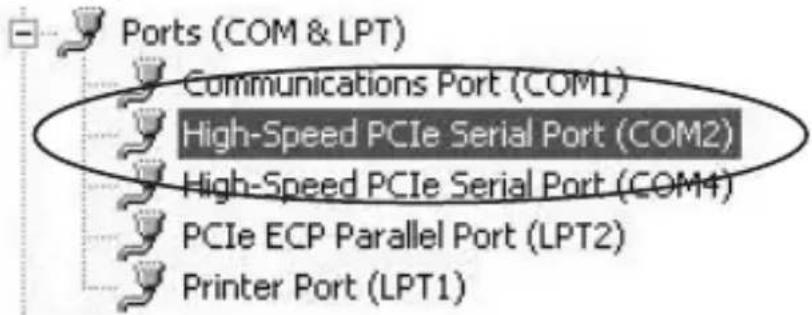
text_image
Ports (COM & LPT) Communications Port (COM1) High-Speed PCIe Serial Port (COM2) High-Speed PCIe Serial Port (COM4) PCIe ECP Parallel Port (LPT2) Printer Port (LPT1)Instruction Manual
Specifications
| PEX1S552PEX1S552LP | PEX2S552PEX2S552LP | PEX2S5521P | |
| Bus Type | PCI Express x1 | ||
| Chipset | Moschip MCS9901CV | ||
| Maximum Data Transfer Rate | Serial:460.8 Kbps | Serial:460.8 Kbps | Parallel:2.7 MbpsSerial:460.8 Kbps |
| OS Support | Windows® 2000/XP/2003/Vista/7Linux® Kernel 2.6.11 and aboveMAC OS® 10.4 | ||
| External Connectors | 1 x DB9 male 2 x | DB9 male | 2 x DB9 male1 x DB25 female |
| Product Dimensions (LxWxH) | 105mm (4.13") x 120mm (4.72") x 20mm (0.79") | ||
| Product Weight | 51.5 g (1.82 oz) 6 | 3.5 g (2.24 oz) 140 | g (4.94oz) |
| Regulatory Certifications | CE, FCC, RoHS | ||
Technical Support
StarTech.com's lifetime technical support is an integral part of our commitment to provide industry-leading solutions. If you ever need help with your product, visit www.startech.com/support and access our comprehensive selection of online tools, documentation, and downloads.
Warranty Information
This product is backed by a Lifetime warranty. In addition, StarTech.com warrants its products against defects in materials and workmanship for the periods noted, following the initial date of purchase. During this period, the products may be returned for repair, or replacement with equivalent products at our discretion. The warranty covers parts and labor costs only. StarTech.com does not warrant its products from defects or damages arising from misuse, abuse, alteration, or normal wear and tear.
Limitation of Liability
In no event shall the liability of StarTech.com Ltd. and StarTech.com USA LLP (or their officers, directors, employees or agents) for any damages (whether direct or indirect, special, punitive, incidental, consequential, or otherwise), loss of profits, loss of business, or any pecuniary loss, arising out of or related to the use of the product exceed the actual price paid for the product. Some states do not allow the exclusion or limitation of incidental or consequential damages. If such laws apply, the limitations or exclusions contained in this statement may not apply to you.
StarTech.com Making hard-to-find easy!
StarTech.com has been making “hard-to-find easy” since 1985, providing high quality solutions to a diverse IT and A/V customer base that spans many channels, including government, education and industrial facilities to name just a few. We offer an unmatched selection of computer parts, cables, A/V products, KVM and Server Management solutions, serving a worldwide market through our locations in the United States, Canada, the United Kingdom and Taiwan.
Visit www.startech.com today for complete information about all our products and to access exclusive interactive tools such as the Cable Finder, Parts Finder and the KVM Reference Guide. StarTech.com makes it easy to complete almost any IT or A/V solution. Find out for yourself why our products lead the industry in performance, support, and value.