
MMC110MMST - Media player StarTech.com - Free user manual and instructions
Find the device manual for free MMC110MMST StarTech.com in PDF.


| Product Type | Managed 10/100 Mbps RJ45 to Multimode ST Fiber Media Converter |
| Brand | StarTech.com |
| Model | MMC110MMST |
| Dimensions (W x D x H) | 80 mm x 145 mm x 20 mm (3.15" x 5.71" x 0.79") |
| Weight | 150 g (0.33 lb) |
| Power Input | 0.27 A @ 12 VDC |
| Power Consumption | 3.24 W Max |
| Operating Temperature | 0 °C to 45 °C (32 °F to 113 °F) |
| Storage Temperature | -10 °C to 70 °C (14 °F to 158 °F) |
| Humidity | 5% to 95% (non-condensing) |
| Ports | 1 x 10/100 Base-TX (RJ-45), 1 x 100 Base-FX (ST fiber) |
| Supported Standards | IEEE 802.3 10Base-T, IEEE 802.3u 100Base-TX/100Base-FX |
| Forwarding Rate | 148,810 pps (100 Mbps), 14,880 pps (10 Mbps) |
| MAC Address Table | 1024 MAC addresses |
| Buffer Memory | 256 Kbps |
| Management Interfaces | Web browser, Telnet, SNMP v1 & v2 |
| LED Indicators | Power/Fault, Link/Activity, Full Duplex/Collision |
| Additional Features | Auto-negotiation, Auto-MDI/MDIX, MAC address filtering, VLAN support, Broadcast storm protection, Flow control, Port rate limiting |
| Care and Cleaning | Disconnect power before cleaning. Wipe with a dry, lint-free cloth. Do not use liquids or aerosols. |
| Safety Precautions | Operate in well-ventilated area; avoid blocking ventilation holes. Keep within temperature and humidity ranges. Use only supplied power adapter. |
| Spare Parts and Repairability | Power adapter included. No user-serviceable parts. Contact StarTech.com support for repairs. |
| Package Contents | 1 x MMC110MMST, 1 x Instruction Manual, 1 x Power Adapter |
| Warranty | 1 year |
Frequently Asked Questions - MMC110MMST StarTech.com
User questions about MMC110MMST StarTech.com
0 question about this device. Answer the ones you know or ask your own.
Ask a new question about this device
Download the instructions for your Media player in PDF format for free! Find your manual MMC110MMST - StarTech.com and take your electronic device back in hand. On this page are published all the documents necessary for the use of your device. MMC110MMST by StarTech.com.
USER MANUAL MMC110MMST StarTech.com
Managed 10/100 Mbps RJ45 to Multimode ST Fiber Media Converter
MMC110MMST
Instruction Manual
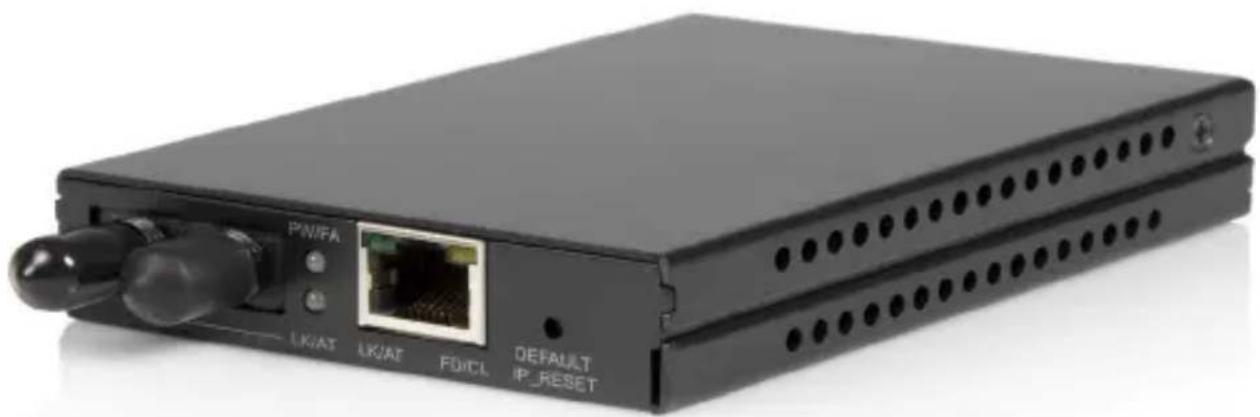
natural_image
Black wireless device with network ports and ventilation slots (no visible text or symbols)FCC Compliance Statement
This equipment has been tested and found to comply with the limits for a Class B digital device, pursuant to part 15 of the FCC Rules. These limits are designed to provide reasonable protection against harmful interference in a residential installation. This equipment generates, uses and can radiate radio frequency energy and, if not installed and used in accordance with the instructions, may cause harmful interference to radio communications. However, there is no guarantee that interference will not occur in a particular installation. If this equipment does cause harmful interference to radio or television reception, which can be determined by turning the equipment off and on, the user is encouraged to try to correct the interference by one or more of the following measures:
Reorient or relocate the receiving antenna.
Increase the separation between the equipment and receiver.
Connect the equipment into an outlet on a circuit different from that to which the receiver is connected.
Consult the dealer or an experienced radio/TV technician for help.
Use of Trademarks, Registered Trademarks, and other Protected Names and Symbols
This manual may make reference to trademarks, registered trademarks, and other protected names and/or symbols of third-party companies not related in any way to StarTech.com. Where they occur these references are for illustrative purposes only and do not represent an endorsement of a product or service by StarTech.com, or an endorsement of the product(s) to which this manual applies by the third-party company in question. Regardless of any direct acknowledgement elsewhere in the body of this document, StarTech.com hereby acknowledges that all trademarks, registered trademarks, service marks, and other protected names and/or symbols contained in this manual and related documents are the property of their respective holders.
Instruction Manual
Table of Contents
Introduction 1
Installation 2
Connecting to Power 2
Configuration and Management.... 3
Web Browser Configuration ....3
Logging Out Of The Monitoring System ....3
System Change Menu ....4
IP Configuration ....5
MC Status ....6
MC Control 7
MAC Address Filter 9
VLAN Configuration 9
SNMP Configuration ....10
Telnet Management ....12
Specifications 14
LED Status Indicators 15
Technical Support 16
Warranty Information 16
Introduction
Thank you for purchasing a StarTech.com Managed 10/100 Mbps RJ45 to Multimode ST Fiber Media Converter. A perfect solution for large, high speed networks that require expansion of fast Ethernet networks over long distances, the MMC110MMST acts as a standalone device allowing for one-channel media conversion between 10/100 Base-TX and 100 Base-FX network segments.
Featuring fully integrated managed software, and support for Telnet, SNMP v1 and v2 and Web Browser management, the MMC110MMST ensures broad compatibility and maximum installation and configuration convenience.
Features
10/100Mbps-Full/Half-duplex, Auto-Negotiation, Auto-MDI/MDIX •
1024 MAC addresses •
256Kbps of buffer memory •
Compact design and weight makes it portable and unobtrusive to carry •
Led Indicators that detect Power, Link, Activity, Duplex mode, and Col•lision status
Provides MAC address filtering •
Supports Telnet, SNMP V1 & V2 and Web Browser Management •
Package Contents
1 x Instruction Manual•
1 x MMC110MMST•
Installation
For optimal performance and safety, ensure that the MMC110MMS is installed in an area that meets the following specifications:
A temperature between 0 to 45° Celsius (32° and 113° Fahrenheit)
Relative Humidity (RH) less than 95% (non condensing)•
Surrounding electrical devices that do not exceed the electromagnetic field (RFC) standards for IEC 801 3, Level 2 (3V/M) field strength
Adequate ventilation, with the ventilation holes on each side of the equipment being clear of obstruction
Power outlet within 1.8 meters (5.9') of the product•
Connecting to Power
Connect the AC to DC power adapter to the receptacle on the rear panel of the MMC110MMS, then insert the corresponding plug into a standard AC outlet with a voltage range from 100 to 240VAC.
PLEASE NOTE: A grounding strap should be worn while handling the Media Converter as well as when plugging and unplugging the TX port connector.
Configuration and Management
The MMC110MMST Media Converter can be configured and managed through SNMP, Web browsers, and Telnet, as outlined in the following sections:
Web Browser Configuration
Logging Into The Monitoring System
The MMC110MMS is accessible through a web browser such as Internet Explorer. To access the MMC110MMS monitoring system, enter the default IP address of the MMC110MMS, 192.168.1.10, into your browser's address bar. By default, the username and password to access the monitoring system are set to blank fields. The password can be changed once the user has logged in; the username is not required to log into the monitoring system and can be left blank.
Logging Out Of The Monitoring System
The MMC110MMS monitoring system does not include a separate log out function. The system automatically ends a management session when the browser software is closed. Logging off by closing the browser and then logging in again may be required if changes made during a management session do not seem to take effect on-screen.
Instruction Manual
Main Menu
The main menu of the monitoring system is persistently displayed on the left side of the screen after log-in. Options can be selected with the mouse cursor. The sub-menus available from the main menu are:
| System Change• | VLAN Configuration• |
| IP Configuration• | SNMP Configuration• |
| MC Status• | Alarm• |
| MC Control• | Save• |
| MAC Address Filter • | Update Firmware•Reboot• |
NOTE: The Apply button on each sub-menu page applies changes for that page, but does not save them beyond the current session. For any changes made, the user must select Save from the main menu.
System Change Menu
The System Change menu contains the following fields that users can edit:

Instruction Manual
Device Name• : A device name for the MMC110MMS can be set by the user in this field.
New Password• : A new password for the monitoring system can be set in this field. Setting a new password in this field requires entering the previous password in the Old Password field.
- Old Password: The password that was previously being used to log in to the monitoring system must be entered here when a new password is being applied. If the password is being changed from the default blank field, this field should be left blank.
The System Change menu also contains two fields that display reference information:
Version• : The version of software currently being used.
MAC Address• : The MAC address assigned to the MMC110MMS.
NOTE: The Apply button in each sub-menu page applies changes for that page, but does not save them beyond the current session. For any changes made, the user must select "Save" from the main menu.
IP Configuration
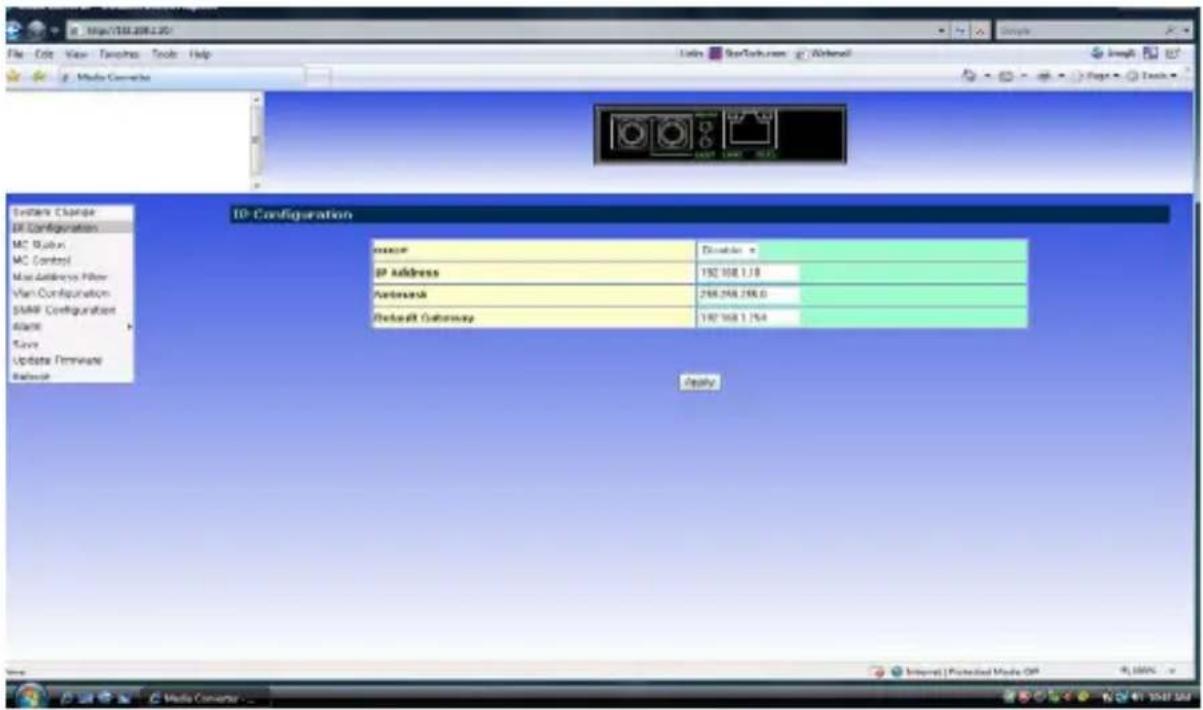
The IP Configuration sub-menu contains the following fields that can be set by the user:
Instruction Manual
- DHCP: Allows the user to set DHCP to "Enable" or "Disable". If DHCP is enabled the MMC110MMS will set its' IP address according to a DHCP server. This IP will replace any other IP address that the Media Converter had been using.
IP Address• : Allows the user to set an IP address for the MMC-110MMS. The default address is 192.168.1.10.
Netmask• : Allows the user to set the Netmask or subnet mask. The default is 255.255.255.0.
Default Gateway• : Allows the user to set the gateway address of the MMC110MMS in the network. The default is 192.168.1.254.
NOTE: The Apply button in each sub-menu page applies changes for that page, but does not save them beyond the current session. For any changes made, the user must select "Save" from the main menu.
MC Status
The Media Converter Status sub-menu contains the following reference fields for a user to view:
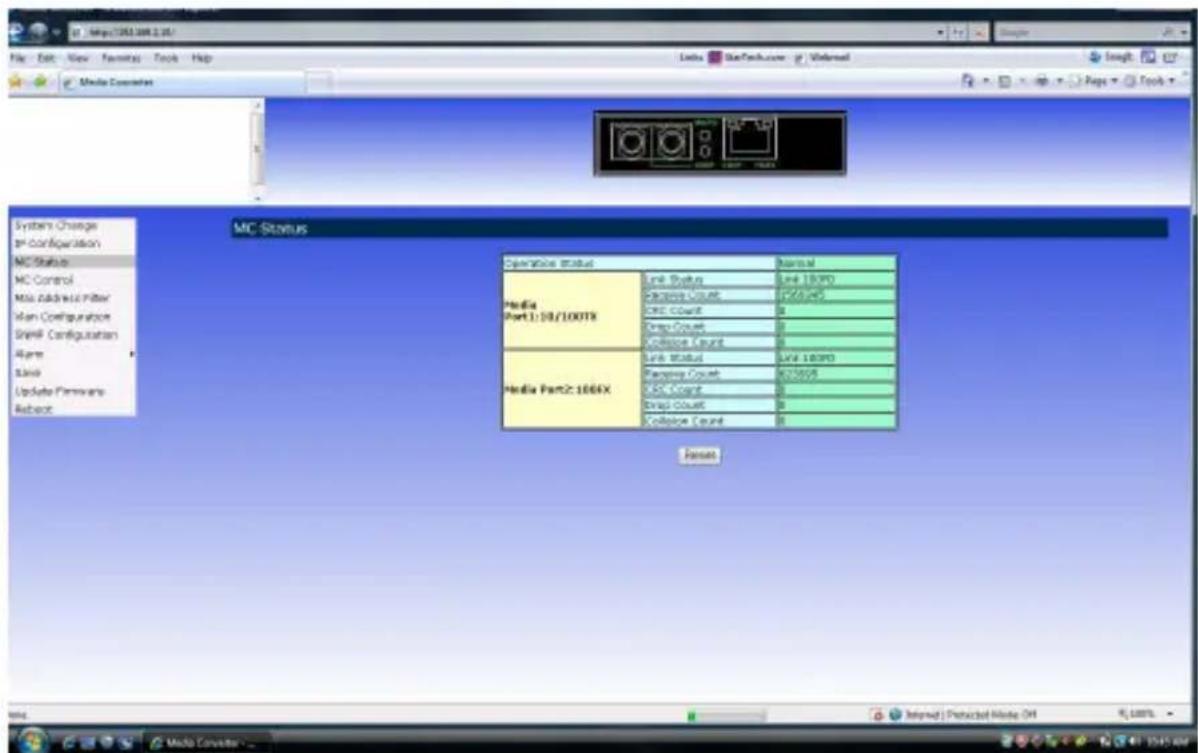
Operation Status• : Normal, Hardware Fault or Software Fault
Instruction Manual
• Media Port Status: Individual status reports for both the 10/100 TX port and 100 FX port in these categories:
Link Status•
Receive Count•
CRC Count•
Drop Count•
Collision Count•
NOTE: The Apply button in each sub-menu page applies changes for that page, but does not save them beyond the current session. For any changes made, the user must select "Save" from the main menu.
MC Control
The Media Converter Control sub-menu contains three main categories of fields:

MC Options• :
Forwarding Mode:• Can be set to either "Store & Forward" or "Repeater" mode.
Broadcast Limit (%):• Allows the user to set a percent-
Instruction Manual
age limit on how much bandwidth is allocated for broadcast traffic passing through the MMC110MMS. If Broadcast Storm Protection is enabled on either or both of the ports, the Broadcast Limit percentage will be applied on the data packets using that port.
Media Port 1: 10/100 TX•
Port Mode:• Allows the user to set the port mode to Auto, 10 Half Duplex (HD), 10 Full Duplex (FD), 100HD, or 100FD.
Flow Control:• Allows the user to enable or disable Flow Control. If Flow Control is enabled, the input and output rates are set in subsequent fields.
Broadcast Storm Protection:• Allows the user to enable or disable Broadcast Storm Protection, according to the parameters set in the Broadcast Limit (%) field.
Output Rate:• Allows the user to select the output rate for this port from the following options: Full, 6%, 12%, 18%, 24%, 30%, 36%, 42%, 48%, 54%, 60%, 66%, 72%, 78%, 84%, or 90%.
Input Rate:• Allows the user to select the input rate for this port from the following options: Full, 6%, 12%, 18%, 24%, 30%, 36%, 42%, 48%, 54%, 60%, 66%, 72%, 78%, 84%, or 90%.
Media Port 2: 100 FX
Port Mode: • Allows the user to set the port mode to Auto, 10HD, 10FD, 100HD, or 100FD.
Flow Control: • Allows the user to enable or disable Flow Control. If Flow Control is enabled, the input and output rates are set in subsequent fields.
Broadcast Storm Protection:• Allows the user to enable or disable Broadcast Storm Protection, according to the parameters set in the Broadcast Limit (%) field.
Instruction Manual
NOTE: The Apply button in each sub-menu page applies changes for that page, but does not save them beyond the current session. For any changes made, the user must select “Save” from the main menu.
MAC Address Filter
The MAC Address Filter sub-menu contains fields for each of the two ports on the MMC110MMS that allows the user to enable MAC address filtering for specific addresses. If one or more MAC addresses are enabled, the filter process is turned on and only those MAC addresses that are enabled will be able to pass through the MMC110MMS. All packets with MAC addresses that are not listed will be blocked.
NOTE: The Apply button in each sub-menu page applies changes for that page, but does not save them beyond the current session. For any changes made, the user must select "Save" from the main menu.
VLAN Configuration
The VLAN Configuration sub-menu has four main columns of fields:
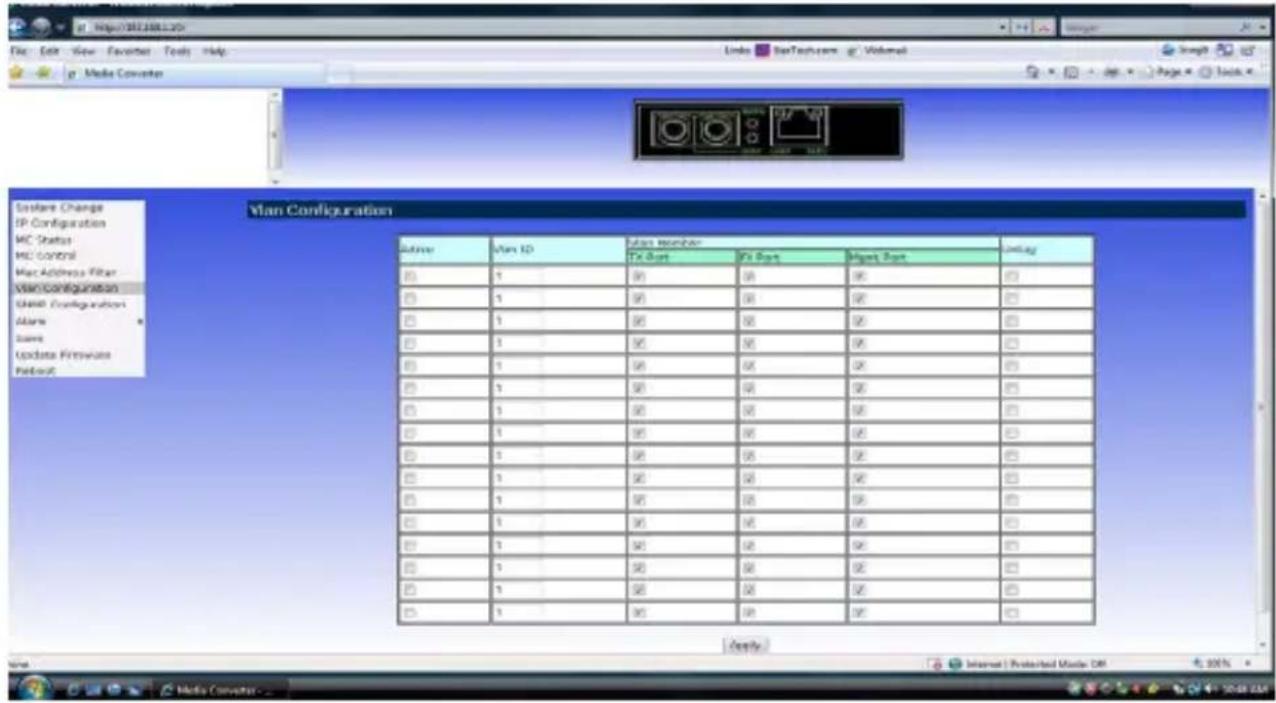
Active• : Allows the user to enable VLAN configuration
VLAN ID• : Allows the user to enter a VLAN ID number.
• VLAN Member: Allows the user to configure which ports will be added
Instruction Manual
to a VLAN group. Users can choose TX Port, FX Port, or Mgmt Port. If Mgmt Port is selected, one of TX Port or FX Port must also be selected.
- Untag: Allows the user to enable tagged or untagged VLAN for that VLAN group. The MMC110MMS supports a maximum of one untagged VLAN.
NOTE: The Apply button in each sub-menu page applies changes for that page, but does not save them beyond the current session. For any changes made, the user must select "Save" from the main menu.
SNMP Configuration
The Simple Network Management Protocol (SNMP) Configuration sub-menu provides four fields for users to edit:

System Contact• : Allows the user to enter the name of the person in charge of the network system.
- System Location: Allows the user to set the location of the network system.
- Get Community: Allows the user to set the getcommunity string. If the system only knows the get community string, it can only read MIBs.
Instruction Manual
The default get community string for the media converter is public.
- Set Community: Allows the user to set the setcommunity string. If the SNMP Network management station only knows the set community string, it can read and write to the MIBs. The default set community string for the media converter is public.
NOTE: The Apply button in each sub-menu page applies changes for that page, but does not save them beyond the current session. For any changes made, the user must select "Save" from the main menu.
Alarm
The Alarm sub-menu allows a user to enable or disable alarms for the following scenarios:
- MC Fault: Alarm will be triggered if the internal communication of the Media Converter fails.
- MC Link Status Changed: Alarm will be triggered if the status of the link between two Media Converters changes.
System Reboot• : Alarm will sound if the MMC110MMS reboots.
The Alarm sub-menu allows the user to configure email alerts when an alarm is triggered. Options available here include:
Alarm by SMTP• : Allows the user to enable or disable email alerts.
SMTP Server Address• : Allows the user to set the IP address of the server that will send the email alert.
Mail From• : Allows the user to set the "From" email address.
- Mail To: Allows the user to set the email address that the email alerts will be sent to.
- User Name: Allows the user to enter the username of the SMTP server account.
Password: Allows the user to enter the password of the SMTP server account.
The Alarm sub-menu also allows the user to set SNMP traps for: MC Link-Status Changed System Reboot.
The user can choose Trap Host V1 or V2 and input IP addresses for four trap hosts.
Instruction Manual
NOTE: The Apply button in each sub-menu page applies changes for that page, but does not save them beyond the current session. For any changes made, the user must select "Save" from the main menu.
Save
The Save sub-menu allows the user to confirm any changes that have been made in the monitoring system. If changes are not confirmed with this function, they will not be stored in the MMC110MMS.
Update Firmware
The Update Firmware sub-menu allows the user to download new firmware for the MMC110MMS. There are two fields in this sub-menu:
- TFTP Server IP Address: Allows the user to enter the IP address of the server that the new firmware will be downloaded from.
- File Name: Allows the user to enter the file name of the firmware to be installed.
Once the information in the fields is correct, pressing the Upgrade button begins the installation. Pressing the Reset button will clear the fields.
Reboot
The Reboot sub-menu allows the user to reboot the MMC110MMS. Rebooting through this menu will require a new log-in to the monitoring system after the MMC110MMS is successfully rebooted.
Telnet Management
To begin managing the MMC110MMS through Telnet, log in to the Media Converter by entering your password; the username field is not required by the device. The following commands are available from the Main Screen:
Get Command - • Usage: get(g)
Instruction Manual
mc-status(ms)......Get central MC status
mc-config(mc)......Get central MC configuration
netconf(nc)......Get networking configuration
sysinfo(si)......Get system information
Set Command - • Usage: set(s) <OPTION>
mc-mode (mm) ......Set central MC operation mode
port-mode (pm) ......Set central MC port mode
port-rate (pr) ......Set central MC port rate
netconf (nc) ......Set networking configuration
sysadmin (sa) ......Set system administrator
Instruction Manual
Specifications
| Applicable Standards | IEEE802.3 10Base-TIEEE802.3u 100Base-TX/100Base-FX |
| Ports | 1-port 10/100Base-TX with RJ-45 connector1-port 100Base-FX with fiber optic connector |
| Speed | 100Base-TX: 200Mbps full duplex100Mbps half duplex10Base-T: 20Mbps full duplex10Mbps half duplex |
| Performance | 148,810pps forwarding rate for 100Mbps14,880pps forwarding rate for 10Mbps |
| Port LEDIndicators | Unit: PW/FATX: LK/AT, FD/CLFX: LK/AT |
| Dimensions | 80mm (W) x 145mm (D) x 20mm (H)(3.15” (W) x 5.71” (D) x 0.79” (H)) |
| Weight | 150g (0.33lb.) |
| Power Input | 0.27A @ 12VDC |
| Power Consumption | 3.24W Max. |
| Operating Temperature | 0 °C ~ 45 °C (32 °F ~ 113 °F) |
| Storage Temperature | -10 °C ~ 70 °C (14 °F ~ 158 °F) |
| Humidity | 5 ~ 95%, non condensing |
| Emissions | FCC Part 15 Class A, CE Mark Class A |
LED Status Indicators
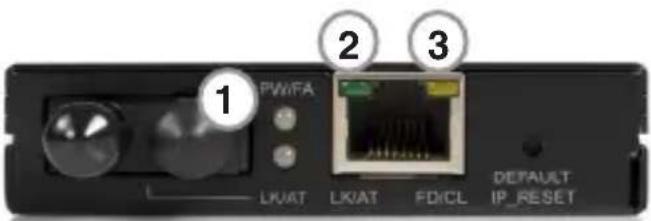
| LED State Indication | ||
| 1. PW/FA | Steady (Green)OffSteady (Orange) | Power OnPower OffBooting or failed |
| 2. LK/AT | SteadyFlashingOff | Valid connectionTransmitting/receivingNo connection |
| 3. FD/CL | SteadyFlashingOff | Full duplex modeCollision occurredHalf duplex mode |
Technical Support
StarTech.com's lifetime technical support is an integral part of our commitment to provide industry-leading solutions. If you ever need help with your product, visit www.startech.com/support and access our comprehensive selection of online tools, documentation, and downloads.
Warranty Information
This product is backed by a one year warranty.
In addition, StarTech.com warrants its products against defects in materials and workmanship for the periods noted, following the initial date of purchase. During this period, the products may be returned for repair, or replacement with equivalent products at our discretion. The warranty covers parts and labor costs only. StarTech.com does not warrant its products from defects or damages arising from misuse, abuse, alteration, or normal wear and tear.
Limitation of Liability
In no event shall the liability of StarTech.com Ltd. and StarTech.com USA LLP (or their officers, directors, employees or agents) for any damages (whether direct or indirect, special, punitive, incidental, consequential, or otherwise), loss of profits, loss of business, or any pecuniary loss, arising out of or related to the use of the product exceed the actual price paid for the product. Some states do not allow the exclusion or limitation of incidental or consequential damages. If such laws apply, the limitations or exclusions contained in this statement may not apply to you.

StarTech.com has been making “hard-to-find easy” since 1985, providing high quality solutions to a diverse IT and A/V customer base that spans many channels, including government, education and industrial facilities to name just a few. We offer an unmatched selection of computer parts, cables, A/V products, KVM and Server Management solutions, serving a worldwide market through our locations in the United States, Canada, the United Kingdom and Taiwan.
Visit www.startech.com today for complete information about all our products and to access exclusive interactive tools such as the Cable Finder, Parts Finder and the KVM Reference Guide.

- Managed 10/100 Mbps RJ45 to Multimode ST Fiber Media Converter
- MMC110MMST
- Instruction Manual
- FCC Compliance Statement
- Use of Trademarks, Registered Trademarks, and other Protected Names and Symbols
- Table of Contents
- Introduction 1
- Installation 2
- Connecting to Power 2
- Configuration and Management.... 3
- Web Browser Configuration ....3
- Telnet Management ....12
- Specifications 14
- LED Status Indicators 15
- Technical Support 16
- Warranty Information 16
- Introduction
- Features
- Package Contents
- Installation
- Connecting to Power
- Configuration and Management
- Web Browser Configuration
- Logging Into The Monitoring System
- Logging Out Of The Monitoring System
- Main Menu
- System Change Menu
- IP Configuration
- MC Status
- MC Control
- MC Options• :
- Media Port 1: 10/100 TX•
- Media Port 2: 100 FX
- MAC Address Filter
- VLAN Configuration
- SNMP Configuration
- Alarm
- Save
- Update Firmware
- Reboot
- Telnet Management
- LED Status Indicators
- Technical Support
- Warranty Information
- Limitation of Liability
Brand : StarTech.com
Model : MMC110MMST
Category : Media player