42EE4K - Television SHARP - Free user manual and instructions
Find the device manual for free 42EE4K SHARP in PDF.


User questions about 42EE4K SHARP
0 question about this device. Answer the ones you know or ask your own.
Ask a new question about this device
Download the instructions for your Television in PDF format for free! Find your manual 42EE4K - SHARP and take your electronic device back in hand. On this page are published all the documents necessary for the use of your device. 42EE4K by SHARP.
USER MANUAL 42EE4K SHARP
natural_image
Pencil sketch of a blank rectangular screen with no text or symbolsPAGE LEFT INTENTIONALLY BLANK
IMPORTANT GUARANTEE INFORMATION
Thank you for purchasing this television. We hope you have many years of trouble free enjoyment from your purchase.
Your product is covered under the manufacturers' guarantee for 12 months from the date of purchase.
If you experience any difficulties with your TV, please refer to the 'Frequently Asked Questions' section at the rear of these Operating Instructions.
If you are still unable to remedy the issue, try resetting the TV to factory settings - details can be found in the 'Setup' menu section of these Operating Instructions - alternatively, please contact the helpline.
In the event that a fault is diagnosed, the helpline will arrange to collect the TV from your home or work address, return it to our service centre, repair the item and then return it to you.
If we believe we cannot offer a permanent repair, we will replace the item.
Technical Support Information
Telephone
Calls to 0330 numbers are charged at standard call rates and are included
as part of any bundled minutes with your phone provider.
The telephone opening hours are Monday to Friday 8.30am to 6pm, Saturday 9am – 5pm.
Please note these hours are subject to change periodically.
UK: Calls are charged at your normal telephone call rate.
ROI: Calls are charged at a local rate.
Please retain all packaging materials, in addition to your proof of purchase/receipt, as you will need these in the event of warranty/service support.
This guarantee is in addition to and does not affect your statutory rights.
If you need to call the helpline, you will need the following information.
Model No: (You can find this on the rear of the TV)
Serial Number. (You can find this on the rear of the TV)
Date of purchase: (You can find this on your sales receipt)
EXAMPLE OF LABEL ON REAR OF TV
Model No
SHARP
- 2017年
CE
Important Safety Instructions




To prevent spread of fire, keep candles or other open flames away from this product at all times
Please read these instructions. All of the safety and operating instructions should be read before the appliance is operated.
- Alternating current
- This equipment is a Class II or double
insulated electrical appliance. It has been designed
in such a way that it does not require a safety
connection to electrical earth.
Warnings
- Television sets with 40" screens or larger must be lifted and carried by at least 2 people.
• This television does not contain any parts that are serviceable by the user. In the event of a fault, contact the manufacturers or authorized service department.
- Exposing the internal parts of the TV may endanger your life. The manufacturers guarantee does not extend to faults caused by repairs carried out by unauthorised third parties. - Do not use the TV set immediately after unpacking.
Wait until the TV wears up to room temperature before using it.
• To reduce the risk of fire, electric shock or damage to the TV, do not expose it to dust, rain or moisture. Never expose the TV to dripping or splashing and do not place objects filled with liquids on or near the TV.
- Do not connect any external devices (DVD player, games console etc.) when the TV is switched on. Disconnect both the TV and device from the mains before connecting. Only switch appliances on when the connection process is complete.
- Do not place the television in a confined space and do not obstruct the ventilation openings at the rear of the television. - When installing on a wall, ensure the TV is at least 5cm from the wall for ventilation.
• Always ensure that the TV's ventilation openings are not covered with items such as newspapers, table-cloths, curtains, etc.
- Dispose of this television and any components including batteries in an environmentally friendly manner. If in doubt, please contact your local authority for details of recycling. - Ensure this TV is used in moderate climates only.
- In cases of electrostatic discharge (ESD) the TV may operate incorrectly. If this happens, turn the set off at the mains and
WARNING: Never place a television set on an unstable surface. The TV set may fall causing serious personal injury or death. Many injuries, particularly to children, can be avoided by taking simple precautions such as:
- Use cabinets or stands recommended by the manufacturer of the television set.
- Only use furniture that can safely support the television set. - Ensure the television set is not overhanging the edge of the upholding furniture.
- Do not place the television set on tall furniture (for example, cupboards or bookcases) without anchoring both the furniture and the television.
set to a suitable support. - Do not place the television set on cloth or other materials that may be located between the television set and supporting furniture.
- For maximum safety while using your set, it is recommended to fit anti-tip straps. These are designed to be attached between the wall/secure surface and the VESA mounts on the television. These are available from major retailers and websites and are an easy and inexpensive way of ensuring that your set stays safely upright.
- Please educate children about the dangers of climbing on furniture to reach the television set or its controls.
- If your existing business is being obtained and relocated, the same considerations as above should be applied.
Safety
- For your safety, this appliance is fitted with a fused 3-pin mains plug. Should the fuse need to be replaced, ensure that any replacement is of the same amperage and approved with the BSI mark.
- Never try and replace the mains plug unless you have adequate qualifications and are legally authorised to do so. In the event that a replacement mains cable is required, contact the manufacturer for a suitable replacement.
- Never use the television if it is damaged in any way. - Always place the television on a flat level surface avoiding anywhere which may be subject to
strong vibration.
• The ideal distance to watch the television is from
approximately 2.5-3 times the length of the diagonal
Measurements of the TV screen away
- Enabling the television is not placed off top to the power cable as the weight of the television may damage the cable and cause a safety hazard.
- Never place mobile phones, speakers or any other device which may cause magnetic or radio interference, near the television. If interference is apparent, move the device causing the interference away from the television.
• To disconnect the set from the mains, remove the mains plug from the socket.
- Ensure that the mains plug is always easily accessible. - When handling the set do not grip the LCD screen/glass. - Do not pull the set when mounted on a bracket. If using a
- Do not place this set above a heat source.
WARNING: Excessive volume when using earphones and headphones can cause damage to hearing.
Maintenance
• To clean your TV, wipe with a soft dry cloth. If the surfaces are extremely dirty, use a soft cloth damponed with a weak detergent solution.
- Never use alcohol, grand thinner or benzene to clean this unit.
- Before using a chemically treated cloth, read the instructions that came with the cloth carefully.
CAUTION: If water or other liquid enters the television through the display panel surface, a malfunction may occur.

Packaging
- The safest way to transport your item is in the original box/packaging - please save your packaging for this.
- You will need the original box/packaging in the event of warranty/service repair or support. We are unable to carry out warranty/service if you are unable to package the item correctly.
Important information regarding use of video games, computers, captions or other fixed image displays
The extended use of fixed image program material can cause a permanent shadow image on the LCD/LED panel also known as "screen burn".
This "shadow image" can appear in the background during normal viewing. This type of irreversible LCD/LED panel deterioration can be limited by observing the following steps:
-
Reduce the brightness/contrast setting to a minimum suitable viewing level.
-
Do not display the fixed image for extended periods of time.
-
Turn the power off when not in use.
Examples of images that are more likely to cause "screen burn" are as follows (this is not an exhaustive list):
• TV channel logos e.g. shopping channel logos and pricing
Important: Once 'shadow image/screen burn' occurs, it will never disappear and is not repairable under warranty.
How do I dispose of this product?
UK: Waste electrical products should not be disposed of with household waste. Please dispose of the product at a
designated collection point for recycling
of WLLE. For your nearest facilities, please see www.recycle
for details.
ROI: Waste electrical products should not be disposed of with household waste. Separate disposal facilities exist. Check with your local authority or retailer for recycling advice.
Batteries
- CAUTION: Risk of explosion if the battery is replaced with an incorrect type.
- Do not expose batteries to high
temperatures, excessive heat, prolonged
sunshine or fire as this may cause leakage, explosion or ignition.
- Observe the current probability when inserting batteries.
• Do not use different types of batteries together or mix old and very hot wins.
• Dispose of batteries in an environmentally
friendly way.
- Let him regularly play regular or regular to make it. Please consult your local authority.


CE Statement:
Hereby, Sharp Consumer Electronics Poland sp. z o.o. declares that this LED TV is in compliance with the essential requirements and other relevant provisions of RED Directive 2014/53/EU.
The full text of the EU declaration of conformity is available by following the link.
www.sharpcconsumer.eu
and then entering download section of your model and choosing 'CE Statements'.
This equipment may be operated in all EU
countries.
The 5 GHzWLAN(Wi Fi) function of this equipment may only be operated indoors.
Why only be operated mode. Wi-Fi may transmit power
100 mW at 2.412 GHz - 2.472 GHz;
100 mW at 5.150 GHz - 5.350 GHz;
100 mW at 5.470 GHz-5.725 GHz
TRADEMARKS
DV3
Digi Vito Bumong
The DVB logo is the registered trademark of the Digital Video Broadcasting (DVB) project.

FreeviewPlay
The FREEVIEW text and logos are trademarks of DTV Services LTD. © DTV Services Ltd
SAORVIEW
SAORVIEW is a registered trademark owned by RTÉ
Dolby Audio
Manufactured under license from Dolby Laboratories Dolby, Dolby Audio, and the double-D symbol are trademarks of Dolby Laboratories Licensing Corporation.
dtsx
For DTS patents, see http://patents.dts.com. Manufactured under license from DTS, Inc. (for companies headquartered in the U.S./Japan/Taiwan) or under license from DTS Licensing Limited (for all other companies). DTS, DTS:X, Virtual:X, and the DTS:X logo are registered trademarks or trademarks of DTS, Inc. in the United States and other countries. © 2021 DTS, Inc. ALL RIGHTS RESERVED.
HDMI
The terms HDMI, HDMI High Definition Multimedia Interface, and the HDMI Logo are trademarks or registered trademarks of HDMI Licensing Administrator, Inc.
harman/kardon
Harman Kardon is trademark of HARMAN International Industries, Incorporated, registered in the United States and/or other countries.

The "CI plus" Logo is a trademark of CI Plus LLP.

The Wi-Fi CERTIFIED Logo and Miracast® are registered trademarks of Wi-Fi Alliance. Wi-Fi CERTIFIED Miracast® is a trademark of Wi-Fi Alliance.
Bluetooth
The Bluetooth® word mark and logos are registered trademarks owned by bluetooth SIG, Inc.
Microsoft PlayReady™
This product contains technology subject to certain intellectual property rights of Microsoft. Use or distribution of this technology outside of this product is prohibited without the appropriate license(s) from Microsoft.
Content owners use Microsoft PlayReady™ content access technology to protect their intellectual property, including copyrighted content. This device uses PlayReady technology to access PlayReady-protected content and/or WMDRM-protected content. If the device fails to properly enforce restrictions on content usage, content owners may require Microsoft to revoke the device's ability to consume PlayReady-protected content. Revocation of the protected content is not intended for protection by other content access technologies. Content owners may require you to upgrade PlayReady to access their content. If you decline an upgrade, you will not be able to access content that requires the upgrade.
CONTENTS
Guarantee Information....3
Safety Instructions 4-5
Trademarks....6
Securing to a wall ....8
GETTING STARTED 9-19
Connecting External Device - Wired 9-13
Connecting Headphones - Wired 14
Remote Control 15-16
First Time Installation 17-19
USING THE TV 20-34
Television Menu....20
Video & Video. Explained 21-23
Audio & Audio Explained 24-26
TV and TV, Explained 27-28
Setup & Setup, Explained 29-33
Parental & Parental. Explained 33-34
About 34
DIGITAL TV & FREEVIEW PLAY 35-42
Turing in Digital Channels 35
Terrestrial 35
Cable 35
Satellite 35
Using Freeview Play....30
Channel Guide 36
Back EPG 37
Quick Buttons....37
Freeview Play Button 39
Freeview Play App 48
Channel List....41
Information Bar....42
SPECIFICATIONS 43-48
Video Formats 43-44
Audio Formats 45-47
Image Formats 49
TROUBLESHOOTING GUIDE 49-51
Securing to a wall
SECURING THE TV TO A WALL
Securing the TV to a wall with anti-tip straps
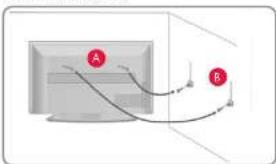
For maximum safety in the home, when using a TV with its stand, anti-tip straps should be fitted. These are available from major retailers & websites and are an easy, inexpensive and effective way of ensuring your TV stays safely upright. Straps are designed to be attached to the rear of the TV and then tethered to the wall or furniture the TV is stood on, these are fitted as follows.
Biting one or both of the top wall mounting holes and screws fasten one end of the fastening cord/s to the TV. (the screws are already supplied in the wall mounting holes)
Secure the other end of the fastening cord/s to your wall. (you will need screws/fi xings suitable for your wall type available separately from most DIY stores);
text_image
A B
natural_image
Simple line drawing of a vertical stand with a horizontal bar and base, no text or symbols present.Note: Please ensure that children do not climb on the TV set. Note: When handling the set do not grip the LCD Panel. Note: Do not pull the set when mounted on a bracket. If using a moveable bracket, adjust via the bracket and not the set.
The Royal Society for the Prevention of Accidents is urging people to take care with flat-screen televisions. RoSPA stated in 2010 that "Toddlers are particularly at risk of pulling flat-screen televisions on to themselves. They are unsteady on their feet and are attracted by colourful television images."
The risk is increased as televisions become lighter.
Wall mounting & Viewing Angle
IMPORTANT - Before drilling any holes in the wall ensure you are not drilling where there could be any electrical wires, water or gas pipes.
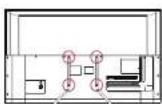
- Remove the four screws located at the back of the TV set.
- The wall mount can now be easily attached to the mounting holes, located on the back of the TV, using the same four screws removed.
Note: This diagram to the left is an example of screw positions. Due to model variations, please ensure you check your TV for the exact location of the wall mounting screw positions.


Getting Started
CONNECTING EXTERNAL DEVICES - WIRED
Before turning your set on, it is recommended that your external devices are connected before continuing with the first-time installation process. Depending on the source connectivity on your television, follow the guidance below when connecting external devices.
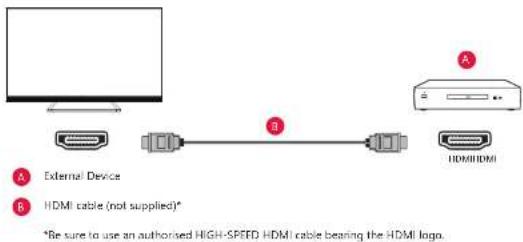
HDMI Connection
For optimum picture quality, we recommend connecting your device to the television using an HDMI cable.
text_image
External Device HDMI cable (not supplied)* *Be sure to use an authorised HIGH-SPEED HDMI cable bearing the HDMI logo.HDMI CEC-Compatible Devices
If an HDMI CEC-compatible device (e.g., Blu-ray player, AV receiver) is connected with an HDMI cable, you can operate the device with the televisions remote control. We recommend using the HDMI (ARC) connection when used with an AV receiver – please refer to the ARC section of this Operation Manual.
Adjusting HDMI CEC Settings
- Turn on the connected device.
- To enable HDMI control, press the [HOME] button, then select Settings > Device Preferences >
Inputs. - Activate HDMI control on the connected device.
Available options
| HDMI control Allow the | IV to control HDMI devices. |
| Device auto power off | If disabled, the connected device does not turn off automatically when the television is turned off. |
| Television auto power on | If disabled, the television does not turn on automatically when the connected device is turned on. |
CEC Device list Display the HDMI CEC device list
Features Available to Compatible CEC Devices
Blu-ray/DVD player
- Automatically turns the television on and switches the input to the connected Blu-ray/DVD player when the Blu-ray/DVD player starts to play.
• Automatically turns the connected Blu-ray/DVD player off when you turn the television off. - Controls menu operation [ARROW] buttons, playback and track selection of the connected Blu-ray/DVD player through the TV's remote control
AV Receiver
- Automatically turns the connected AV receiver on and switches the sound output from the TV speaker to the audio system when you turn the TV on. This function is only available if you have previously used the AV receiver to output the TV's sound.
• Automatically switches the sound output to the AV receiver by turning the AV receiver on when the TV is turned on.
• Automatically turns the connected AV receiver off when you turn the TV off. - Adjust the volume and mute functions via the [VOL+/−] and [MUTE] buttons on your television remote control.
Video Camera
- Automatically turns the TV on and switches the input to the connected video camera when the camera is turned on.
• Automatically turns the connected video camera off when you turn the TV off. - Controls menu operation [ARROW] buttons, playback, e.g. [PLAY] button of the connected video camera through the TV's remote control.
Note: Not all devices with HDMI input/output are HDMI CEC compatible. For information about CEC compatibility, refer to the instruction manual of the device. Refer to "HDMI connection (ARC supported)" section of this manual for information relating to connecting an HDMI (ARC) enabled device.
Getting Started
Composite video Connection
If your external device has composite video jacks/sockets, connect them to the television using a composite video cable and an audio Phone cable.
AV Source

flowchart
graph LR
    A["Device"] --> B["L (White)"]
    A --> C["R (red)"]
    A --> D["Video CVBS"]
    B --> E["External Device (Output)"]
    C --> F["Composite video/audio cable (not supplied)"]
    D --> G["Video CVBS"]
Component video Connection
If your external device has component video jacks/sockets, connect them to the television using a component video cable and an audio Phone cable.
AV Source
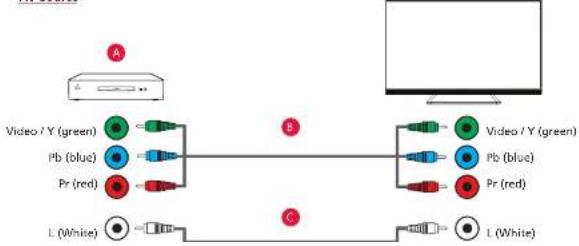
flowchart
graph LR
    A["Device"] -->|A| B["Video / Y (green)"]
    A -->|B| C["Video / Y (green)"]
    A -->|C| D["Video / Y (green)"]
    B --> E["Pb (blue)"]
    B --> F["Pr (red)"]
    C --> G["Pb (blue)"]
    C --> H["Pr (red)"]
    D --> I["L (White)"]
Getting Started
Connecting an External Audio Device
You can connect audio systems such as AV receivers or sound bars to the television. Select a connection method below according to the specifications of the audio system you want to connect.
- Connecting with an HDMI cable, for Details, carefully read HDMI Connection (ARC supported).
- Connecting with a digital optical cable,
- Connecting with an audio cable.

Note: Refer to the instruction manual of the device to be connected.
HDMI Connection (ARC Supported)
Connecting the television and audio system with a HDMI cable. This is the recommended method of connecting an external audio device.
Connect to the television's HDMI input terminal bearing the text: "ARC".

text_image
A B HDMI (ARC) HDMI (ARC)A AV Receiver or Soundbar
B HDMI cable (not supplied)*
Note: We recommend authorised Premium High-Speed HDMI Cable(s) bearing the HDMI logo
Ensure that the connected audio device is HDMI ARC compatible.
The ARC output on your television may vary depending on the model.
HDMI CEC must be enabled on your set for this connection to work. To do this press the [HOME] button, then select Settings > Device Preferences > Inputs and then enable the HDMI control option.
Control of volume can be achieved via the television remote control (CEC must be turned on).
Digital Audio (Optical)
Connecting your television and audio system with a digital optical cable.
Connect to the audio system digital optical input terminal.

text_image
Digital Audio Out Optical Digital Audio In OpticalAV Receiver or Soundbar
B Audio Optical cable (not supplied)
If there is no output on the digital optical output, ensure that the digital output is set to PCM.
to set, go to: Settings > Device Preferences > Sound > Digital Output to PCM.
The digital optical output is always present whatever source is selected.
RCA Analogue Audio Cable
Connect to the audio system's audio input terminal.
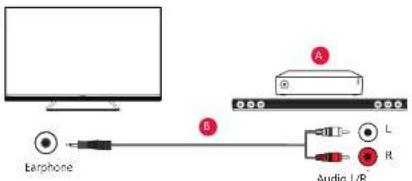
text_image
A B L R A A A A A A AA AV Receiver or Soundbar
6 Audio cable (not supplied)*
Note: The output audio level is dependent upon the headphone level. The volume level on the connected audio
[Non-Text]
Getting Started
Connecting Headphones
You can connect wired headphones to this set.

text_image
EarphoneWhen wired headphones are connected to the 3.5mm jack socket on the rear of the set, the internal speakers will cut out. The volume of the sound which comes from the headphones is controlled via the remote control using the [VOL+] and [VOL-] buttons.
Note: When using headphones, a warning will appear advising not to use excessive volume for long periods of time as this may damage your hearing.
Turning up the headphone volume too high may result in distortion
REMOTE CONTROL
EE/EH Model Remote Control Layout
Your remote control will vary depending on the model of TV you have. The following pages describe each remote type. Please follow the layout for the remote that comes with your model of TV:
Type 1
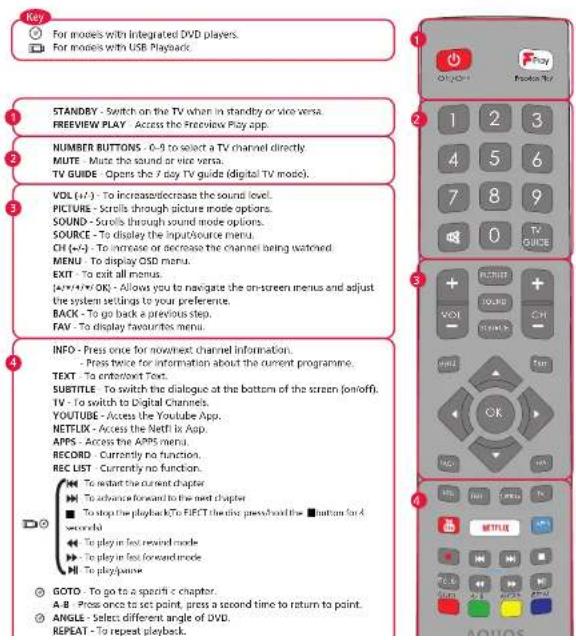
text_image
Key For models with Integrated DVD players. For models with USB Playback. 1 STANDBY - Switch on the TV when in standby or vice versa. FREEVIEW PLAY - Access the Preview Play app. 2 NUMBER BUTTONS - 0-9 to select a TV channel directly MUTE - Muste the sound or vice versa. TV GUIDE - Opens the 7 day TV guide (digital TV mode). 3 VOL (+/-) - To increase/decrease the sound level. PICTURE - Scrolls through picture mode options. SOUND - Scroll through sound mode options. SOURCE - To display the input/source menu. CH (+/-) - To increase or decrease the channel being watched. MENU - To display OSD menu. EXIT - To exit all menus. [AV/AV/OK] - Allows you to navigate the on-screen menus and adjust the system settings to your preference. BACK - To go back a previous step. FAV - To display favourites menu. 4 INFO - Press once for now next channel information. - Press twice for information about the current programme. TEXT - To enter next Text. SUBTITLE - To switch the dialogue at the bottom of the screen (on/off). TV - To switch to Digital Channels. YOUTUBE - Access the Youtube App. NETFLIX - Access the Netflix App. APPS - Access the APPS menu. RECORD - Currently no function. REC LIST - Currently no function. To start the current chapter To advance forward to the next chapter To log the playback To EFFT periodic press which the button for a second To play in last rowed mode To play in last rowed mode To play again GOTO - Go to a specific chapter. A-B - Press once to set point, press a second time to return to point. ANGLE - Select different angle of DVD. REPEAT - To repeat playback.EH Model Remote Control Layout
Your remote control will vary depending on the model of TV you have. The following pages describe each remote type. Please follow the layout for the remote that comes with your model of TV:
Type 2

text_image
1 2 3 4 5 6 7 8 9 0 GUIDE MENG FAV INFO OK BACK OFFS EXIT VOL CH 4 NETFLIX prime video YouTube Play 4000 SUB TEXT TV AQUOS SHARP
For models with integrated DVD players.
For models with USB Playback
STANDBY - Switch on the TV when in standby or vice versa.
SOURCE - To display the input/source menu.
NUMBER BUTTONS - 0-9 to select a TV channel directly.
MUTE - Mute the sound or vice versa
GUIDE - Opens the 7 day TV guide (digital TV mode).
MENU - Displays the OSD menu.
FAV - Displays the favourites menu.
INFO - Press once for now/next channel information.
Press twice for information about the current programme.
▲/▼/◄/►/OKAllows you navigate the on-screen menus and adjust
the system settings to your preference
BACK - To go back a previous step.
APPS - Access the Apps menu.
EXIT - To exit all menus.
VOL (+/-) - Tilt to increase/decrease the sound level
CH (+/-) - Tilt to move up or down the channel being watched.
NETFLIX - Access the Netflix App.
PRIME VIDEO - Access the Prime Video App.
YOUTUBE - Access the YouTube App.
FREEVIEW PLAY - Access the Freeview Play App.
AUDIO - Scrolls through the sound mode options.
SUB - To switch the dialogue at the bottom of the screen (on/off).
TEXT-To enter/ent Telegraph
TV - To switch to digital Channels.
To playpause

to play in fast rewing mode
to play in fast forward mode
stop the playback
COLOUR BUTTONS - Execute corresponding function at that time.
Getting Started
FIRST TIME INSTALLATION
When the set starts up for the first time, it will do so in the first-time installation mode.
To navigate through the options when in the first-time installation mode, use the buttons on your remote control as shown here:
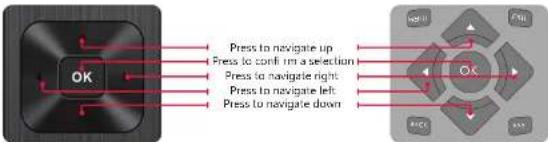
flowchart
graph LR
    A["OK"] --> B["Press to navigate up"]
    A --> C["Press to confirm a selection"]
    A --> D["Press to navigate right"]
    A --> E["Press to navigate left"]
    A --> F["Press to navigate down"]
TV Control Stick
The TV control stick is located on the back of the TV, on the left hand side when looking at the TV. The control stick can be used to control a variety of TV functions. The shape of the TV's control stick may vary by model.

While the TV is in standby mode:
- Pressing the centre of the control stick once powers on the TV set.
While watching TV:
- RIGHT/LEFT - volume up/volume down
- UP/DOWN changes channel up/down
- Press the centre of the control stick once displays the menu.
- Press and hold the centre of the control stick - Standby/Power Off
While in menu:
- RIGHT/LEFT/UP/DOWN navigation of cursor in on screen menus.
- Press the centre of the control stick once - OK/Confirm selected item
- Press and hold the centre of the control stick - back to previous menu.
Getting Started
Full First Time Installation
When the set is turned on for the first time it will enter the installation mode as shown here. It is recommended that all steps are completed as shown in the process to ensure correct operation. Use the back button on your remote control to return to the previous screen.
- When the set first turns on, you will be requested to select your preferred on-screen display language. This will set the language in which the menus and associated information is displayed in. Should you wish to do so, this can be changed later in the Device Preferences menu.
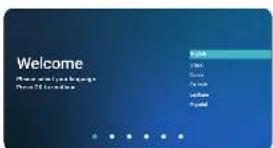
text_image
Welcome New user accounts Home/Offenses Help Help Help Help Help Help- Select the correct country in which the set will be used in. This will enable the set to correctly install the functions applicable in the country of use.
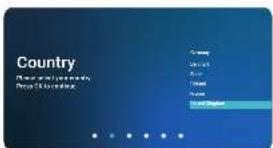
text_image
Country New Country Global- A PIN needs to be set to establish parentol controls.
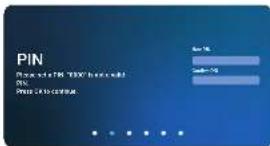
text_image
PIN PengelaTIN 100% has been 5% Press your account.- Set the Time Zone in which the TV will reside. This may be dependent on the country you selected in step 2.

Getting Started
- You will need to agree to certain information collection for the TV set to operate as intended.
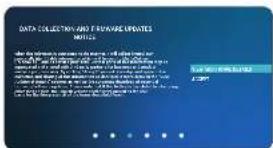
text_image
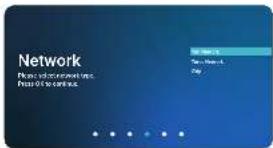
DATA COLLECTIONS AND CHANGE UPDATES NOTIONS 1. 2017 2. 2018 3. 2019 4. 2020 5. 2021 6. 2022 7. 2023 8. 2024 9. 2025 10. 2026 11. 2027 12. 2028 13. 2029 14. 2030 15. 2031 16. 2032 17. 2033 18. 2034 19. 2035 20. 2036 21. 2037 22. 2038 23. 2039 24. 2040 25. 2041 26. 2042 27. 2043 28. 2044 29. 2045 30. 2046 31. 2047 32. 2048 33. 2049 34. 2050 35. 2051 36. 2052 37. 2053 38. 2054 39. 2055 40. 2056 41. 2057 42. 2058 43. 2059 44. 2060 45. 2061 46. 2062 47. 2063 48. 2064 49. 2065 50. 2066 51. 2067 52. 2068 53. 2069 54. 2070 55. 2071 56. 2072 57. 2073 58. 2074 59. 2075 60. 2076 61. 2077 62. 2078 63. 2079 64. 2080 65. 2081 66. 2082 67. 2083 68. 2084 69. 2085 70. 2086 71. 2087 72. 2088 73. 2089 74. 2090 75. 2091 76. 2092 77. 2093 78. 2094 79. 2095 80. 2096 81. 2097 82. 2098 83. 2099 84. 2100- You can connect the TV to your broadband router or wireless network in order to take advantage of the Smart functions. If you connect the TV to your router using an Ethernet cable, the Wifi set up will be skipped.
text_image
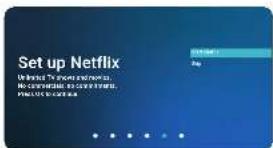
Network Press to add or modify the Press of to create.- If you have a Netflix account, it can be set up on the television here. Once set up and validated, the First Time Installation returns to the next step.
text_image
Set up Netflix We create the new content. We create a new content. PINEUS to create it.- For normal use, by default it is set to a power saving mode which reduces the energy used by up to 25% (by reducing the power to the LED/LCD panel). This can be changed in the picture mode settings.

text_image
TV Mode See TV Week. Press 0 to continue.- Choose to install channels via Antenna, Cable or Satellite. Then Select the next option to scan in channels.
Using The TV
TELEVISION MENU
You can access the settings menu below whilst watching the set in Television mode. To do so, ensure you are on the Live Television source and press the [MENU] button on the remote control. This menu opens on the left side of the TV display. Each menu item is described over the following pages.

text_image
Video Audio TV Setup Parental About Opens the options for adjusting the various display settings. Opens the options for adjusting the various display settings. Allows you to configure the channels for live TV. Opens the options for adjusting device preferences. Opens the options to configure channel and source locks. Opens the system info menu.Another access menu is available by pressing the Apps button on the remote control. This menu displays on the bottom of the screen and allows easy access to the most common options.

Using The TV
Video

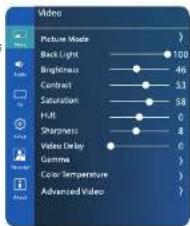
You can change various display options in this menu. To get to this menu, press Menu and select the Video icon. This is an overview. You can see detailed descriptions of items with a * in the "Video, explained" section.
Picture Mode* This menu provides options to modify picture quality.
Backlight Adjust the strength of the LED Backlight.
Brightness Changes the brightness of the picture.
Contrast Changes the range between the brightest and darkest parts of the picture.
Saturation Controls the amount of colour in the picture.
Hue Varies the tint of the picture.
Sharpness Allows for the sharpness of the picture to be adjusted.
Video Delay Adds delay to incoming video signals.
Gamma* Changes the gamma response of the picture.
Colour Changes the colour temperature of the picture.
(1) 2017年1月1日
Advanced Options to enhance the viewing experience.
text_image
Video Picture Mode Back Light Brightness Contrast Saturation HUI Sharpness Video Delay Gamma Color Temperature Advanced VideoVideo, explained
Picture mode.
Options are:
User: For you to set your own preferences.
Sport Suitable for viewing sports events
Vivid Enhances the contrast and brightness. Standard For standard use
Movie Set for watching mov
Game For
Energy Best energy performance (on by default).
(1) 本次股东大会的决议
Gamma
Options are:
Dark Enhances colours in dark areas.
Middle Improves mid-range colours.
Using The TV
Advanced Video.
Items with a * are explained further in the section titled "Advanced Video, explained".
Options are
DNR: Digital Noise Reduction.
Reduces the noise found in some content by using
algorithms to average out power data. Options: Off / Low / Medium / Strong / Auto
MPEG NR: MPEG Noise Reduction.
A feature which improves the quality of pictures by
reducing the block noise and mosquito noise without compromising the picture resolution.
compromising the picture resolution.
Options: Off / Low / Medium / Strong
Adaptive Luma Control.
Automatically adjusts the brightness and contrast after
analyzing the input signal.
Options: Off / Low / Medium / Strong
Blue Stretch:
When activated, the brightest part of the screen will be
leveled down to reduce the saturation.
Options: ON/OH
Game
Turns
reduce
Options: On / Off
Super
Attempts to smooth gradations and decrease noise in the video
signal.
Options: Off/Off
Local
Local contrast divides your TV screen into different "zones"
so it can dim the dark parts of the screen without affecting
the bright areas.
Options:
Off / Low / Medium / High
Colours
Fine tune the TV's colours
Tuner:\*
11 Point White Balance Correction:
Adjusts the white balance by adjusting the contrast of the three primary colours.
PC Mode:
Disables certain post processing to attempt a smoother
viewing experience for reading text and clicking mouse movements.
Options On / Off
Clerghs: OH / OH
Using The TV
Advanced Video, explained
Colour Tuner
Options are
Enable
Tums the tuner on or off
When turned to "On", the options available are:
Hue
Fine adjustments of the colour.
Saturation
Fine adjustments of the colour saturation.
Brightness
Fine adjustments of the colour brightness.
Hue, Saturation and Brightness are each controlled by the
following:
Red: 0 - 100
Green: 0 - 100
Blue: 0 - 100
Cyan: 0 - 100
Magenta: 0 - 100
Yellow: 0 - 100
Flesh Tone: 0 - 100
0 ff set
Fine adjustment of the bright colours.
Options are:
Red: 0 - 100
Green: 0 - 100
Blue: 0 - 100
Gain
Fine adjustment of darker colours.
Options are:
Red: 0 - 100
Green: 0 - 100
Blue: 0 - 100
11 Point White Balance Correction
Options are
Enable
Tums the correction on or off.
When turned to "On", the options available are
Gain
Options are: 5, 10, 20, 30, 40, 50, 60, 70, 80, 90, 100 (%)
Audio

You can change various display options in this menu. To get to this menu, press Menu and select the Audio icon. Please note some options require scrolling down to make them visible.
This is an overview. You can see detailed descriptions of items with a * in the "Audio, explained" section.
Balance
Controls the Left and Right balance of the audio.
Sound Style\*
Sets the sound mode.
Equalizer
Fine control of the frequency response.
Detail
Digital Output
Settings for the digital audio output.
Digital Output Delay
Allows the user to adjust the audio setting to synchronise the picture and sound for external speakers connected via digital audio output.
Auto Volume Control
When "on" is selected, the volume remains at a constant
level regardless of the input/source
Type\*
Visually Impaired\*
Controls audio options for accessibility.
Downmix mode
Selects the number of audio output channels between "Stereo" and "Surround".
Soundtrack
Select which audio channels are being broadcast.
Advanced\*
Settings for Dolby Audio ^™ and DTS ^™ sound profiles.
TTS
Controls Text-To-Speech settings
Dialogue Enhancer
Adjusts the frequency band of the center channel to improve the audibility of dialogues.
Reset to Default
Reset to original parameters
Audio, explained
Sound Style

text_image
Audio Balance Sound Style Ecosystem Extent Digital Outputs Digital Outputs Relay Auto-Volume Control Type Downstream Mode Visually Injected Downstream Mode Sound Ratio Advanced TTS Desktop Interface Reset to DefaultUsing The TV
Equalizer Detail
Fine control of the frequency response. Bands you can adjust are:
120Hz
500Hz
1.5kHz 5.0kHz
10.0KH
Digital Output
This adjusts the type of encoding for the output of the optical digital
output
Options are:
Auto
Automatically selects from the input source
Bypass
Audio directly comes from the connected device
PCM
PCM encoded stream only
Delby
- DblblidDigital Plus
Dolby Digital Plus signals only
Dolby
- DaddidDigital
Dolby Digital signals only
Type
This adjusts the audio type for accessibility.
Options are:
Hearing
Imapired
Audio
Description
Spoken
Subtitles
Audio Description + Spoken Subtitles
This adjusts the text-to-speech parameters.
Options are:
Voice
On/Off
Using The TV
Choose from: On/Off
Pitch
Verbosity
Visually Impaired
This adjusts the audio options for for those who are visually impaired. Options are:
Speaker
On/Off
Headphone
On/Off
Volume is only activated if Speaker or Headphone is set to "On"
Pan and Fade
Advanced
This adjusts the audio options for the included Dolby Audio and DTS sound profiles. Options are:
Dolby Audio Processing
Turns processing On or Off
Sound
Style
Enables Dolby™ engineered sound profiles. Options
User / Standard / Sports / Movie / Music / News
DTS
Turns processing On or Off
Virtual:X"
Enables the DTS Virtual: X
^TM Tru Bass ^TM option
Note: You can only activate either Dolby or DTS, not both at the same time.
Using The TV
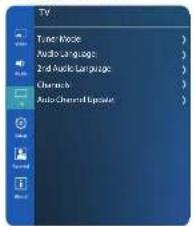
TV

You can configure the TV Tuning options whilst in this menu.
This is an overview. You can see detailed descriptions of items with a * in the "TV, explained" section.
Tuner Mode* Choose which tuner type to use for TV.
Audio Choose which Audio Language to hear from the
Language broadcasted channel.
2nd Audio Second option for Audio Language.
Language
Channels* Tune and control Channels.
Auto Channel Update channels automatically.
Update
text_image
TV Tube Movie Audio Language 2nd Audio Language Chemistry Auto-Chemical UpdateTV, explained
Tuner Mode
Options are
Antenna
To tune into terrestrial broadcast signals.
Cable
To tune into Cable broadcast signals.
Satellite
To tune into satellite broadcast signals
Channels
In this menu, you can control various parameters relating to tuned in channels.
Options are
Channel Scan
Select this to begin tuning in channels. Use this to retune your TV manually.
Manual Service Update
Select this to begin tuning in additional service information related to channels.
Single RF Scan
Select a single channel from the list and press [OK] twice to tune into that specific channel.
LCN
Logical Channel Number. When turned on, digital stations will be ordered according to provider
preferences
Using The TV
L
C
N
Satellite
Channel Skip
Allows you to select channels which can be skipped when
To select a channel for skiing, highlight the desired
channel and press [OK] on the remote control.
Channel
Swap
Allows you to swap channels between locations. This is
only selectable if BCN Channel Sorting is activated. To scan a channel, first select the channel you want to
to swap a channel, if last select the channel you want to swap, press OKI on the remote once, then scroll to the
channel you want to swap with, and press [OK] again
on the remote control. The channel will swap positions.
Channel
Edit
Allows you to edit channel names, or delete it from the
channel list Should you delete the channel accidentally
you will need to return the Television.
| Channel Skip | |||||
| 1 | Digital | BBC | ONE | Oxford | ○ |
| 2 | Digital | BBC | TWO | ○ | |
| 3 | Digital | ITV | ○ | ||
| 4 | Digital | Channel | 4 | ○ | |
| 5 | Digital | Channel | 5 | ○ | |
| 6 | Digital | ITV2 | ○ | ||
| 7 | Digital | That's | TV | ○ | |
| Channel Swap | ||||
| 1 | Digital | BBC | DNE | Oxford |
| 2 | Digital | BBC | TWO | |
| 3 | Digital | ITV | ||
| 4 | Digital | Channel | 4 | |
| 5 | Digital | Channel | 5 | |
| 6 | Digital | ITV2 | ||
| 7 | Digital | That's | TV | |
| Channel Edit | |
| Network Name | Oxon & Bucks |
| Channel Number | 1 |
| Channel Name | BBC ONE Oat... |
| Frequency | 634 |
| Delete | |
Analogue channel fi ne tune
Allows fine tuning of any analogue signals being
broadcast.
Clear Channel List
Clears the tuned in channels. To regain channels,
you will need to return the TV using the Channel Scan option in this menu.
option in this menu.
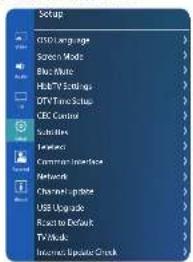
SETUP

You can configure the TV's global settings whilst in this menu.
This is an overview. You can see detailed descriptions of items with a "in the Setup, explained Section,
OSD Language Change the language that the TV menus use.
Screen Mode* Make adjustments to how large or small content is displayed.
Blue Mute Switch on or off if a blue screen if no input signal is detected.
HbbTV Settings* Set various options for HbbTV.
DTV Time Setup* Set the time of the TV, Auto Power on/off settings and sleep timers.
CEC Control* Configure how the TV communicates with devices connected via HDMI cables.
Subtitles Select your preferred subtitle language and type.
Teletext Language and region settings (if available).
Common Interface Activate and set up a connected Conditional Access Module (not supplied).
Network* Allows you to connect the set to the internet and take advantage of a wealth of content.
Channel Update Advise when channel update is available, on/off
USB Upgrade Choose this to update the TV with an available software update via a USB stick.
Reset to Default Resets the TV to original factory settings.
TV Mode Set the TV to either Store Mode or Home Mode.
Internet Checks the internet for any update to the TV. Update Check
text_image
Setup COLD Language Select Mode Blue Mode Hi/TV Settings DTV Time Settings CBC Control Subscribers Features Common Interface Network Channel Update USB Upgrade Ready to Default TV Media Income Update CheckSetup, explained
Screen Mode
Options are:
Auto
Automatically fills the display with the received content.
Normal
Displays content using the full screens area.
Letterbox
Borders on the top and bottom of the screen.
Panorama
Stretches content to display across the screen.
Zoom
Content is zoomed in, cropping edges. Useful if you want to
avoid seeing graphics or borders within the received content.
Dot by Dot
1:1 pixel mapping of the received signal.
4:3
Box Ratio.
HbbTV Settings
Options are:
HbbTv Support
Options: On / Off
Do Not Track
Options: On / Off / Default
Cookie
Settings
Options: On / Off
Storage
Options: On / Off
Block Tracking Sites
Options: On / Off
Device
ID
Options: On / Off
Reset Device ID
Confir rm that you want to reset the device ID for HbbTV
FVP Tou (Terms of Use)
Display the Terms of Use for Freeview Play
DTV Time Set Up
Controls the time settings for the TVs internal clock.
Options are
Time Zone
Choose from GM -/+ 0:00:12:00
Time
Options
are
Auto
Synchronization:
Auto syncs to the broadcasted time signal. Options are: On / Off
Date
Set the date for the TV.
Time
Set the time for the T
Note: Date and Time settings can only be changed if Auto Synchronization is turned Off.
Power
On
Timmer
Turn On or Off
Power
On
Repeat
Set the frequency by day when the Power on Timer activates.
Timer
Set the time by which the Power On timer is activated.
Power
Off Timer
Turn On or Off
Power
Off Repeat
Set the frequency by day when the Power Off Timer activates.
Timer
Controls the amount of time the set will stay powered on
without an input signal (remote, button presses) being received
Duration options are: Never / 4 Hours (default) / 6 hours / 6 Hours
Sleep
Timer
Lets you set the sleep timer so the television automatically switches off after a set
amount of time.
ff / 10 / 20 / 30 / 40 / 50 / 60 / 90 / 120 minutes can be
Auto
Sleep:
Controls the amount of time the set will stay powered on without an input signal
(remote, button presses) being received. Duration options are:
Never / 4 Hours (default) / 6 hours / 8 Hours
CEC Control
Controls how the TV communicates with connected devices via HDMI cable.
Options are:
CEC Function
Options: On / Off
ARC (Audio Return Channel)
Options: On / Off
Auto Turn Off
Options: On / Off
Auto power on
Options: On / Off
Discovery
Discover new devices connected via HDMI cable.
Network
Controls how the TV connects to the internet.
Options are:
Configuration
Confi gure various connection options:
Options
Internet Connection
Options: On / Off
Interface
Options: Ethernet
Wake
on
LAN
Wakes the TV from Standby when signal via Ethernet when
detected.
Options: On / Off
Wake
on
Wlan
Options: On / Off
Wakes the TV from Standby when signal via Wireless is detected.
Wireless
Setting
Choose how you
connect to a
Options
are:
Scan: Scan for a wireless signal.
Manual: Manually enter details of a wireless router.
Auto: Allows use of connection via WPS.
Information
Displays current c
nection info.
IP
Setting
Configure a wired network
Ipv6
Displays
Information
IPy6
configuration information.
IPv6
Allows
Confi guration IP
configuration of IPv6 settings.
WiFi
[Non-Text]
Set up options for WiFi Direct connection sharing.
Applications
Set up options for applications
Options are
DLNA
Turn On / Off
DMR
Turn On / Off

PARENTAL
You can configure the TV's Parental settings whilst in this menu.
This is an overview. You can see detailed descriptions of items with a * in the "Parental, explained" section.
Broadcasting Controls if the Channel and Program Block options are
System Lock enabled. Options: On / Off
Channel Block*Select channels that cannot be accessed without a PIN.
Program
Select which programs can be viewed when using the Age Rating system.
Block*
Input Skip*
Allows control over which input sources can be skipped.
Input Block*
Block one or several inputs with access controlled via PIN.
Change
Update the password/PIN which controld the Parental
Password
Settings.

text_image
Paramall Broadcasting system lock Channel Block Program Block Import Ship Import Block Change PasswordNote: If you have activated any settings and leave the menu, you will need to enter your PIN to enter the menu again
Parental, explained
Channel Block
Controls how the TV blocks channels. Use this system to enable specific
channel blocking. To view a channel, the user will need to enter the PIN
number.
Program Block
Using The TV
Input Skip
Select which inputs are to be skipped from the Input Menu. When an input
is selected to be skipped, it will be not be visible in the list of inputs.
Input Block
Select which inputs are to be blocked from the Input Menu. When an input
is selected to be blocked, it will be visible in the list of inputs but require
a PIN to access it.
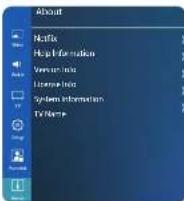
ABOUT

You can view the TV's About information whilst in this menu.
Netflix
View various information relating to the Netflix Licence.
Help
Allows you to use the online manual. To use this, you will
Information
need to be connected to the internet.
Version Info
Version info for the TVs software. Used for diagnosis.
License Info
View license information and control user data collection.
System
Update the password/PIN which controld the Parental
Information
Settings.
TV Name
Change the TV name.
DIGITAL TELEVISION, FREEVIEW AND FREEVIEW PLAY
To watch television programmes via Antenna, Cable or Satellite, press the [HOME] button, select "Apps" from the Home Page, and select Live television from the apps list. You can also enter the digital television mode by pressing the [TV] button on the remote control.
Should your set not be tuned into a digital signal, follow the instructions as below:
Tuning in Digital Channels
It is possible to tune into either terrestrial, cable or satellite digital television signals on your television set. To do this, follow the instructions given below for each type of signal input. Only one tuning type can be selected.
Terrestrial
Before tuning terrestrial channels, ensure the television is in TV mode:
- Press the (HOME) button, then select Settings > Channel > Channel installation mode.
- Select option Antenna.
- To start automatic channel scan press the [HOME] button, then select Settings > Channel > Channels > Channel scan.
After tuning into Freeview, you may be presented with a choice of regions; this is dependent upon your location and the number of transmissions received. Normally there will only be one transmitter:
• Region 1 Country
• Region 2 Transmitter Location
• Region 3 Local News variation
Cable
Receiving cable digital broadcast;
- Before tuning cable channels, ensure the television is in cable mode:
- Press the [HOME] button, then select Settings > Channel > Channel installation mode.
- Select option Cable.
- To start automatic channel scan, press the [HOME] button, then select Settings > Channel > Channels > Channel scan.
Satellite
Before tuning satellite channels, ensure the television is in satellite mode:
- Press the [HOME] button, then select Settings > Channel > Channel installation mode.
-
Select option Preferred Satellite if you want to tune one of satellites preferred in your country.
-
Select option General Satellite to act possibly to tune our astellite
Using Freeiew Play
Freeview Play enables you to watch live television as well as having access to catch up television services and playback from the start of a live programme.

text_image
Note: To use Freeview Play your set needs to be connected to the internet and tuned into a reliable and consistent Freeview signal. Freeview Play is only available in the United Kingdom. To tune in your set, refer to the Tuning in Digital Channels section on page 63.Channel Guide
While using Freeview Play, the Electronic Programme Guide (EPG) is available while in the Live Television mode. It provides information about forthcoming programmes. You can view the start and end time of all programmes and on all channels for the next 7 days. To enter the EPG, press the [GUIDE] button on your remote control. Press the [EXIT] button to leave programme guide.
When the EPG is entered, a screen like the one below will appear. This will show a live preview of the programme being received in the top left hand corner and a synopsis this on the right. This synopsis will change as you navigate around the guide with the [ARROW] buttons on the remote control.

text_image
Snooker (Repeat) 9:15 - 2:05 50 mins TWO File 8 Nov 9:30 1:00 1:30 2:00 2:30 7 TWO 8 TWO TWO 1 1 2 3 4 5 6 7 8 9 10 11 12 13 14 15 16 17 18 19 20 21 22 23 24 25 26 27 28 29 30 31 32 33 34 35 36 37 38 39 40 41 42 43 44 45 46 47 48 49 50 51 52 53 54 55 56 57 58 59 60 61 62 63 64 65 66 67 68 69 70 71 72 73 74 75 76 77 78 79 80 81 82 83 84 85 86 87 88 89 90 91 92 93 94 95 96 97 98 99 100In the middle of the display is the programme listing, which is shown in time order, half hour segments being shown at the top and channel name on the left. If you would like to quickly scan through the channels, press the [CH+] or [CH-] buttons to quickly move up or down through the listings. Using the [RIGHT] button will move forward in time, using the [LEFT] button will move back in time.
Back EPG
When moving backwards through the EPG, the display will change to show the programmes which have been previously recorded on the on-demand players for the channel shown. Recorded and available programmes will be indicated by the Freeview Play logo appearing next to them as shown in the picture below. Greyed out programmes are not available on catch up.
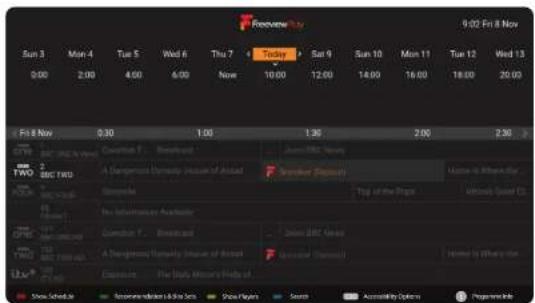
text_image
9:02 Fri 8 Nov Sun 3 Mon 4 Tue 5 Wed 6 This 7 Today Sat 9 Sun 10 Mon 11 Tue 12 Wed 13 0:00 2:00 4:00 6:00 Now 10:00 12:00 14:00 16:00 18:00 20:00 Fri 8 Nov 0:30 1:00 1:30 2:00 2:30 Current T - Broadcast A Dangerous Dynasty Museum of Action Current Display Top of the Progs Home to Africa The Information Analyzer Current T - Broadcast A Dangerous Dynasty Museum of Action Current Display Show Schedule As: Acceptance Inhibitors & Info Sets Show Players Search Accessibility Options Programs Show Schedule As: Acceptance Inhibitors & Info Sets Show Players Search Accessibility Options ProgramsWhen a programme has been selected, the preview window and synopsis change to show the programme details. The date is below the preview window.
Note: For full functionality of the EPG, a reliable and consistent connection to the internet is required.
Without internet, back EPG will not work, channel preview will not appear, programme synopsis will change to a basic view, channel icons will not be present and catch up services will not be available.
Quick Buttons
While in the EPG, various functions can be accessed quickly by pressing the coloured buttons at the bottom of the remote control. These are detailed as described below.
[RED] – Goes to the Schedule List
While in the schedule list you can go backwards and forwards in time (7 days forwards and 7 days backwards) to select the programme which you would like to watch. If the Freeview Play logo is present, the programme can be played back when selected using the [ARROW] buttons and [OK] is pressed.
![SHARP 42EE4K - [RED] – Goes to the Schedule List - 1](/content/2026/06/1216786/images/e766e05682eb17f4e119250ccfd16f2197c86ee90d9d9922d261a7280d38242c.jpg)
You can also select the day and time of the schedule list view by
The following table provides the information that the data is obtained from the previous year. The results are presented in Table 1.
Digital TV & Freeview Play
[GREEN] – Recommendations & Box Sets
Freeview Play recommendations can be viewed by pressing the [GREEN] button on the remote control. This screen allows you to choose the programme to watch directly or select from a number of genres. Select the programme to watch using the [ARROW] keys on the remote control and then press [OK] to start playback.
![SHARP 42EE4K - [GREEN] – Recommendations & Box Sets - 1](/content/2026/06/1216786/images/9d644bab2457d6b5e89efb95d0620401c939cbb94f81b1c7afd2218bfcb86cec.jpg)
[YELLOW] - Show Players
When the [YELLOW] button is pressed on the remote control while in the EPG or in recommendations, the set will allow access to the back EPG and the various Freeview Play on demand applications. The 'Catch Up' menu allows you to access available programmes, from the last 7 days, that you may have missed. The 'Catch Up' menu will show programmes, by day, in the order that they were broadcast (descending in time order).
![SHARP 42EE4K - [YELLOW] - Show Players - 1](/content/2026/06/1216786/images/41649d69842e7caab178b7d30fdefb17a2f753c689ed1f920cc91ee032414403.jpg)
To navigate through this page, use the [ARROW] buttons on the remote control and then press [OK] to either play back the selected programme or go into the chosen on-demand player.
While playing back a programme, or in one of the on-demand players, pressing [BACK] or [EXIT] on the remote control will take you back to the 'Catch Up' menu. Pressing [BACK] or [EXIT] again takes you out of the programme guide and back to standard television.
![SHARP 42EE4K - [YELLOW] - Show Players - 2](/content/2026/06/1216786/images/988101419cee0b59825504a1a56e0c165c84754a0bb674639130fd88d497b861.jpg)
Note: Catch Up is only available on Freeview Play. On-demand players may require you to log in.
[BLUE] - Search
You can use the powerful search function to look for a recorded programme by its name. Use the on-screen keyboard to enter the name, or part of the name of the programme which you would like to view and then select from the list which appears to the right of the keyboard.
![SHARP 42EE4K - [BLUE] - Search - 1](/content/2026/06/1216786/images/0d35e3d1c3bb818c4e914a002c2772a3fadde26da97041bc4fad582288162bdc.jpg)
When the required name is shown on the right-hand side, it can be selected to bring up the list of programmes with that title. Select one of the streams to playback using the [ARROW] buttons on the remote control and [OK] to start the playback.
![SHARP 42EE4K - [BLUE] - Search - 2](/content/2026/06/1216786/images/2d64c792a2e19007ea3a1d00e5deb7ddff7a2f5f5ee80d840c27e7b1a04717e2.jpg)
Freeview Play Button
If the [FREEVIEW PLAY] button is pressed on the remote control, the set will display the Freeview Mini
Guide

Programmes on now are displayed for all channels. Select one of these using the [ARROW] buttons on the remote control and [OK] to change to this channel and view the programme.
While on the selected channel, you can also press one of the coloured buttons on the remote control.
Should there be a "swirl" symbol next to the programme name, this means
that you can playback the program form the start.

[RED] - View Programme List
Press the [RED] button to enter the view programme list for the channel you are on. This will show both future and past programmes which can be selected by pressing the [LEFT] or [RIGHT] arrow buttons on the remote control and the [OK] button to view.
If the [INFO] button is pressed while on the selected
programme, then an information screen is displayed.
While in the view programme list, the [RED] button can be pressed to return to the On TV Now option
![SHARP 42EE4K - [RED] - View Programme List - 1](/content/2026/06/1216786/images/ee110caf2ef34ce0d7e069da6b883330d75bda331682690e4627de1da93c2bb6.jpg)
[GREEN] - Recommendations
Press the [GREEN] button to view recommendations for the channel that you have selected
![SHARP 42EE4K - [GREEN] - Recommendations - 1](/content/2026/06/1216786/images/207a2715415cb0b8b029806aea82ea691fa32b1150ef2a5df3030ff2818584b1.jpg)
If the [GREEN] button is pressed here, all recommendations for all channels will be shown.
[YELLOW] - On Demand Players
Press the [YELLOW] button to enter the on-demand players.
![SHARP 42EE4K - [GREEN] - Recommendations - 2](/content/2026/06/1216786/images/7e37cd6c0c753189c641e1a30b5f7bb8d97f924009b4916b173042cd18550ea2.jpg)
Freeview Play App
The Freeview Play app can be accessed a number of ways on your television set.
• From the Programme Guide press the [YELLOW] button and then select the Explore Freeview Play app.
• From the Home Page, select the Explore Freeview Play app.
- While in Freeview, select channel 100.
- Press the [FREEVIEW PLAY] button followed by the [YELLOW] button. Select the Freeview Play app from the on-demand players.

text_image
FreeviewPlay Search everything Sports BBC iPlayer ibv HUB All My5 UK TV Play LIFESTYLE MOMES SPORT TLEASAG ALL COMEDY DRAMA & SOAPS ENTERTAINMENT Fleebag FLEABAG Series 2 Episode 1 Live Celebration Street 52 Friday 1st March 2019 Child Genius Slaweb Churber in Sto. Series 1: Holly Gazzard Dav Hypothetical Series 1 Episode 4 Doctor Who Series 11.3 The Woman... The Voice Series 3: Batho Round 2 Traitors 2 TrainersWhen in the Freeview Play application, it is possible to search for a programme by name. Choose the "Search everything" option and then use the on-screen keyboard to type in the programme name. As you type, selections will appear. Select one of these options and press the [OK] button to start playback.
Freeview Play brings together live television viewing with "catch up" television services from broadcasters such as BBC, ITV, Channel 4 and Channel 5. The Freeview Play Explore app features a carousel of genres to select from when searching for programmes, such as sport, comedy, dramas and soaps, etc. Content is made up from recommendations of the major broadcasters and offers an alternative means of searching.
Note: To use the full functionality of Freeview Play your set must be connected to the internet.
Some apps require additional registration, this is a simple process and it will inform you of the correct website to visit to complete the registration.
Areas receiving Saerview transmissions will not support Freeview Play or Freeview Play services.
Channel List
Use the channel list to quickly go to the channel you want to watch. Use the [GREEN] and [RED] buttons to navigate up and down the list.
Filter List
Press the [YELLOW] button to get options to sort or filter channels and search channel by its number or name. When you select Type, it is possible to restrict the Channel list to various types of channels such as Radio, Free, Analogue, etc.
When selecting Find, you can search for a channel name by its name by entering the name you are looking for via the on-screen keyboard.
Favourites List
Press the [BLUE] button to open Favourites list. A list of your favourite channels will be shown here. No channels will appear unless you have added them to the list.
Adding a Favourite Channel
To add a favourite channel, go to the live digital television channel you would like to add to your favourites list, press the [MENU] button and then the [UP ARROW] button. The "Add to Favourites" icon should be highlighted, press [OK]. The channel is now added to your favourites list.
Adding a Favourite Channel
To modify your list of channels:
-
Press the SOURCE button and select television.
-
Press the MENU button and go to Settings > Channel > Channels.
You can choose one of menu items related to editing of channel list:
Channel Remote
Allows you to choose channels, which will be skipped when pressing [CH+/CH-] buttons on the skip.
Channel Sort
Allows you to swap position of two channels between each other.
Channel Move
Allows you to move selected channel to new position.
Channel Edit
Allows you to delete channels from the channel list.
Information Bar
When the INFO button is pressed on the remote control, the information bar will appear at the top of the screen.
If the [INFO] button is pressed again, the information bar will change to show further detail.
This shows a large amount of information on the channel currently being received, this includes the following:
- Channel selected
• Program being transmitted
• Time progress bar
• Program start and end time
• Time of day
• Description of the program - Subtitles available
• Audio description available - Program genre
Specifications
SPECIFICATIONS
USB
Supported Video Formats
| Video Codec Container Data Rate Profi le Resolution | ||||
| XviD | MP4 (mp4, mov) | 40 Mbps N/A 1080P @ 60fps | ||
| DKX (lambda) | ||||
| AVI (lambda) | ||||
| MKV (mkv) | ||||
| ASF (Last) | ||||
| Sorenson H.263 | FLV (flv) | 40 Mbps N/A 1080P @ 60fpsAVI (lambda) | ||
| SWF (swf) | ||||
| H.263 | MP4 (mp4, mov) | 40 Mbps N/A 1080P @ 60fps | ||
| 3CPP L3gps, 3gp) | ||||
| AVI (lambda) | ||||
| MKV (mkv) | ||||
| H.264 | FLV (flv) | 62.5 Mbps | Main Profi leHigh Profi le @Level 4.2 | 1080P @ 60fps |
| MP4 (mp4, mov) | ||||
| 3CPP L3gps, 3gp) | ||||
| MPEG transportstream (ls, trp, lpt) | ||||
| ASF (lambda) | ||||
| MKV (lambda) | ||||
| AVI (lambda) | ||||
| MKV (mkv) | ||||
| MPEG1 | MPEG programstream (MPC, MPEG) | 40 Mbps | Simple Profi leAdvanced SimpleProfi le@Level 5.GMC is notsupported | 1080P @ 60fps |
| MP4 (mp4, mov) | ||||
| 3CPP L3gps, 3gp) | ||||
| AVI (lambda) | ||||
| MKV (lambda) | ||||
| ASF (Last) | ||||
| HEVC/H.265 | MP4(mpv, mov) | 50 Mbps | Main(8bits)/Main 10(10bits) | 2048x1088 @ 60fps |
| 3GPPL3gpp, 3gp) | ||||
| MPEG transportstream (ls, trp, trp) | ||||
| MKV,mkv) | ||||
| SHVC | MP4 (mp4, mov) | 50 Mbps | Main(8bits)Main 10(10bits) Profi lo, High Level 4.1 | 2048x1088 @ 60 fps+1280x720 @ 60 fps |
| 3GPP L3gpp, 3gp) | ||||
| MPEG transportstream (ls, trp, trp) | ||||
| AVS | MPEG transport stream (.ts, .trp, .tp) | 60 Mbps | .Jihum profi le @ Level 6.0 | 1080P @ 60 fps |
| AVS+ | MPEG transport stream (.ts, .trp, .tp) | 60 Mbps | Broadcasting profi le@Level 6.0.1.08.60 | 1080P @ 60 fps |
| MPEG1/2 | MPEG program stream (.DAT, .VOB, .MPEG, .MPEG) | MPEG1 40 Mbps MPEG2 80 Mbps | MP@HL 1080P | @ 60 fps |
| MPEG transport stream (.ts, .trp, .tp) | ||||
| MP4 (.mp4, .mov) | ||||
| 3GPP (3gpp, .3gp) | ||||
| AVI (.avi) | ||||
| MKV (.mkv) | ||||
| ASF (.esf) | ||||
| Motion JPEG | AVI (.avi) | 10 Mbps N/A 640x480 @ 30 fps | ||
| 3GPP (3gpp, .3gp) | ||||
| MP4 (.mp4, .mov) | ||||
| MKV (.mkv) | ||||
| ASF (.esf) | ||||
| VP8 | MKV (.mkv) | 50 Mbps N/A 1080P @ 60 fps | ||
| WebM (.webm) | ||||
| VP9 | MKV (.mkv) | 30 Mbps . Profi le0/2 | 2048x1088 @ 60 fps | |
| WebM (.webm) | ||||
Supported Audio Formats
| Audio Codec Container Sample Rate Bit Rate Channel | ||||
| MPEG1/2 Layer1 | MOVIE:AVI (.avr)ASF (.avr)DivX (.divx)Matrosia (.mvv)MPG transport stream (fs. trp. tpl) | 160Hz ~ 480Hz 32 bps ~ 448 Kbps Up to 2 | ||
| MPEG1/2 Layer2 | MOVIE:AVI (.avr)ASF (.avr)DivX (.divx)Matrosia (.mvv)MPG transport stream (fs. trp. tpl) | 160Hz ~ 480Hz 8Kbps ~ 384Kbps Up to 2 | ||
| MPEG1/2/2.5 Layer3 | MOVIE:AVI (.avr)ASF (.avr)DivX (.divx)Matrosia (.mvv)3GPP (3gpp, .3gp)MP4 (.mp4, .mov)MPG transport stream (fs. trp. tpl) | 8KHz~48KHz 8Kbps ~ 320Kbps | Up to 2 | |
| AC3 | MOVIE:AVI (.avr)Matrosia (.mvv)DivX (.divx)3GPP (3gpp, .3gp)MP4 (.mp4, .mov)MPG transport stream (fs. trp. tpl) | 32KHz, 44.1KHz, 480Hz | 32Kbps ~ 640Kbps Up to 5.1 | |
| MPEG program stream (DAT, VOR, MPG, MPEG)KM (.rm, .mvb)MUSICAC2 (Lac3) | ||||
| FAC3 | MOVIE:3GPP (3gpp, 3gp)MP4 (mp4, mov, m4s)MPEG transport stream (1s, trip, tsp)MPEG program stream (DAT, VOB, MPG, MPEG)MUSIC:EAC3 (ex3)MP4 (m4s) | 32KHz44.1KHz48KHz | 32 Kbps - 6 Mbps | Up to 5.1 |
| VORAS | MOVIE:Matroska (mkv)WebM (webm)3GPP (3gpp, 3gp)MP4 (mp4, mov)MUSIC:MP4 (m4s)OGG (egg) | Up to 48KHz N/A | Up to 2 | |
| LPCM | MOVIE:AVI (av)Matroska (mkv)3GPP (3gpp, 3gp)MP4 (mp4, mov)MPEG transport stream (1s, trip, tsp)MPEG program stream (DAT, VOB, MPG, MP EG)MUSIC:WAV (wav)MP4 (m4s) | 8KHz - 48KHz 54 Kbps - 1.5 Mbps | Mono, Stereo 5.1 | |
| G711 A/MP4 (m4s) | MOVIE:AVI (av)Matroska (mkv)3GPP (3gpp, 3gp) | |||
Specifications
Supported Audio Formats (continued)
| Audio Codec Container Sample Rate Bit Rate Channel | ||||
| IMA A DPCM MS A DPCM | MOVIE:AVI (.av)Matroska (.mkv)3GPP (.3gpp..3gp)MP4 (.mp4..mov)MUSIC:WAV (.wav)MP4 (.m4a) | 8KHz ~ 48KHz | 32 Kbps ~ 384K bps | Up to 2 |
Supported Image Formats
| Image Photo | Resolution Recommended(width x height) | |
| JPEG | Base-line 15360x8640 (1920x8 x 1080x8) | |
| Progressive | 1024x768 | |
| PNG | Non-interface | 9600x6400 |
| Interlaced | 1200x800 | |
| BMP | 9600x6400 | |
| MPO | Base-line 15360x8640 (1920x8 x 1080x8) | |
| Progressive 1024x768 | ||
| GIF 6400X4800 | ||
Troubleshooting
TROUBLESHOOTING GUIDE
If a full restart of the TV is required
If you have trouble, such as the picture not displaying on the screen or the remote control not working, reset the television with the following procedure. If an external USB device is connected to the TV, disconnect the USB device from the TV before resetting.
Power Reset
Restart the TV with the remote control
Press and hold the power button on the remote control for about 5 seconds until the |Power off| message is displayed. Confirm this by pressing OK button and the TV will turn off.
Unplug the AC power cord (mains lead).
If the problem persists after step 1, unplug the TV power cord (mains lead) from the electrical outlet and wait for 2 minutes. Then plug the power cord (mains lead) back into the electrical outlet.
Note: Your personal settings and data will not be lost after the TV restarts.
Factory Data Reset
If the problem persists after a power reset, try a factory data reset.
Note: Performing a factory reset will delete all of the TV's data and settings (such as Wi-Fi and wired network setting information).
Press the [MENU] button, then select Settings > Setup > Reset to Default
After the factory reset process completes successfully, your television will proceed into the first time installation mode.
No colour/Dark picture/Colour is not correct/Picture is too bright
You can adjust colour tone, brightness and picture quality on your TV from the Picture menu in Settings
Press the [MENU] button, then select the Video option.
In this menu you can make manual picture adjustments.
Distorted picture/The screen flickers
You can check the connection and position of the antenna (aerial) and external devices
Check the antenna aerial/cable connection
Keep the antenna aerial/cable away from other connecting cables.
When installing an optional device, leave some space between the device and the TV.
Make sure that the antenna (acrial) is connected using a high quality 75 ohm coaxial cable.
Check the troubleshooting guide for the connected device.
There are icons and text on the edges of the screen
Troubleshooting
Some channels are blank
The channel is for scrambled/subscription service only. Subscribe to a pay TV service.
The channel is used only for data (no picture or sound)
Contact the broadcaster for transmission details.
No sound but good picture
Check the volume control.
Press or [VOL+] button to cancel muting.
Remove any headphones.
The TV cannot connect to the Internet/Network
If the Wi-Fi network does not connect or disconnects, try the following.
Press the [MENU] button and check that the following setting is enabled. Setup > Network > Internet Connection
Check the installation location of the TV and Wi-Fi router. Signal condition may be affected by the following:
Other Wi-Fi devices, microwaves, fluorescent lights, etc. that may be located nearby.
There are floors or walls between the Wi-Fi router and television.
Turn the Wi-Fi router off and then on again.
If the network name (SSID) of the Wi-Fi router to which you want to connect is not displayed, select Add new network to enter a network name (SSID).
If the problem is not resolved even after the procedures above or if you cannot connect even with a wired network, check the status of the network connection.
Do I need an aerial signal?
For full functionality of your TV set equipped with Freeview Play you will require an aerial connected to the set with an adequate and reliable signal.
Why does my set turn on from standby so quickly?
During standby your set will be in a higher power state to enable it to turn on quickly. Should you want to put the set into low power standby, press and hold down the [STANDBY] button on the remote control for more than two seconds. This will bring up an option to put the set into low power standby. While in low power standby, the set will take longer to come on when the [STANDBY] button is pressed.
TV can connect to the Internet, but not to certain apps and services
The date and time settings of this TV may be incorrect. Depending on certain apps and services, you may not be able to connect to these if the time is incorrect.
Press the [HOME] button, then select Setup > DTV Time Set Up > Auto Synchronization > Use network-provided time to automatically adjust the time through the network.
Troubleshooting
The remote control does not operate.
Check if the TV is working properly.
Press the power button on the television to determine if the problem is with the remote control or not.
Check if the remote control is working properly.
Point the remote control at the remote control sensor located at the front of the television.
Keep the remote control sensor area clear from obstacles.
Fluorescent light can interfere with remote control operation; try turning off any fluorescent light.
Check that the orientation of each battery matches the positive (+) and negative (-) symbols in the battery compartment.
Battery power may be low. Remove the remote control cover and replace the batteries with new ones.
I cannot set the picture levels while on apps
This is because the application sets the picture levels.
I cannot access Freeview Play
To enable Freeview Play to operate correctly, you must have the set tuned in and set up in the UK and installed as country setting UK. In addition, it needs to be connected to the internet.
Why am I not able to use letters in my PIN?
Your PIN is a quick code used for accessing some of the higher functions of your set. This only contains numbers so that they can be entered using your remote control keypad.
Can I set parental controls?
Parental controls are possible when receiving digital television channels (should this service be provided by the broadcaster).
Parental control within apps is determined by the functionality of the app. For details on this you will need to go into the app settings.
What do I do if my apps do not work?
First check that your set is connected to the internet, if it is, ensure that the internet connection is consistent and reliable. If this does not resolve the issue, remove the mains supply from the set and turn back on a few minutes later.
Press the [MENU] button, then select Settings > Setup > Reset to Default
SHARP
UK CA CE