NSD-8601Q - Monitor AG Neovo - Free user manual and instructions
Find the device manual for free NSD-8601Q AG Neovo in PDF.


User questions about NSD-8601Q AG Neovo
0 question about this device. Answer the ones you know or ask your own.
Ask a new question about this device
Download the instructions for your Monitor in PDF format for free! Find your manual NSD-8601Q - AG Neovo and take your electronic device back in hand. On this page are published all the documents necessary for the use of your device. NSD-8601Q by AG Neovo.
USER MANUAL NSD-8601Q AG Neovo
natural_image
Abstract geometric pattern with diagonal black and white stripes (no text or symbols)
neovo
THE DISPLAY CHOICE OF PROFESSIONALS
TABLE OF CONTENTS
SAFETY INFORMATION .... 1
Federal Communications Commission (FCC) Notice (U.S. Only)....1
CE 1
Electric, Magnetic and Electromagnetic Fields ("EMF") 2
Information for U.K. only....3
North Europe (Nordic Countries) Information 4
End-of-Life Disposal 5
Waste Electrical and Electronie Equipment-WEEE 5
Turkey RoHS 6
Ukraine RoHS 6
PRECAUTIONS 7
Cautions When Setting Up....7
Cautions When Using....8
Cleaning and Maintenance....8
Notice for the LCD Display 9
CHAPTER 1: PRODUCT DESCRIPTION....10
1.1 Unpacking 10
1.2 Package Contents 10
1.3 Preparing for the Installation 11
1.4 Wall Mounting Installation.... 11
1.4.1 VESA Grid 12
1.4.2 Ventilation Requirements for Enclosure Locating.... 13
1.5 Using the Remote Sensor and Power Status Indicator 13
1.6 LCD Display Overview 14
-
-
-
-
-
-
-
-
-
-
-
-
-
-
-
-
-
-
-
-
-
-
-
-
-
-
-
-
-
-
-
-
-
-
-
-
-
-
-
-
-
-
-
-
-
-
-
-
-
-
-
-
-
-
-
-
-
-
-
-
-
-
-
-
-
-
-
-
-
-
-
-
-
-
-
-
-
-
-
-
-
-
-
-
-
-
-
-
- 90.
-
-
-
-
-
-
-
-
-
-
-
-
-
-
-
-
-
-
-
-
-
-
-
-
-
-
-
-
-
-
-
-
-
-
-
-
-
-
-
-
-
-
-
-
-
-
-
-
-
-
-
-
-
-
-
-
-
-
-
-
-
-
-
-
-
-
-
-
-
-
-
-
-
-
-
-
-
-
-
-
-
-
-
-
-
-
-
TABLE OF CONTENTS
2.4 Connecting Audio Equipment 33
2.4.1 Connecting an External Audio Device 33
2.5 Using the Card Reader....34
2.6 Connecting Multiple Displays in a Daisy-chain Configuration 35
2.6.1 Display Control Connection....35
2.7 IR Connection....36
2.8 IR Pass-Through Connection 36
CHAPTER 3: USING THE LCD DISPLAY....37
3.1 Turning on the Power 37
3.1.1 Initial Setup....37
3.2 Selecting the Input Source Signal 38
3.3 Adjusting the Volume....38
3.4 Changing the Picture Format 39
CHAPTER 4: MULTIMEDIA MENU .... 40
4.1 Accessing the Multimedia Menu....40
4.2 Media Player 41
4.2.1 Creating a Playlist 41
4.2.2 Modifying a Playlist....43
4.2.3 Playing Files in a Playlist....43
4.2.4 Media Player Settings 44
4.3 Browser 45
4.3.1 Adding an URL 45
4.3.2 Managing URLs List....47
4.4 Cloud Content Management Software (Cloud CMS) 48
4.5 PDF Player 49
TABLE OF CONTENTS
CHAPTER 6: ADJUSTING THE LCD DISPLAY 64
6.1 Picture Settings 64
6.2 Screen Settings....68
6.3 Audio Settings 70
6.4 Configuration1 Settings....72
6.5 Configuration2 Settings 76
6.6 Advanced option Settings....78
CHAPTER 7: APPENDIX....89
7.1 Warning Messages....89
7.2 Supported Media Formats......89
7.3 Input Mode 91
7.4 Cleaning 93
7.5 Troubleshooting....94
7.6 Transporting the LCD Display 95
CHAPTER 8: SPECIFICATIONS....98
8.1 Display Specifications 98
8.2 Display Dimensions....100
SAFETY INFORMATION
Federal Communications Commission (FCC) Notice (U.S. Only)

This equipment has been tested and found to comply with the limits for a Class A digital device, pursuant to part 15 of the FCC Rules. These limits are designed to provide reasonable protection against harmful interference when the equipment is operated in a commercial environment. This equipment generates, uses, and can radiate radio frequency energy and, if not installed and used in accordance with the instruction manual, may cause harmful interference to radio communications. Operation of this equipment in a residential area is likely to cause harmful interference in which case the user will be required to correct the interference at his own expense.

Changes or modifications not expressly approved by the party responsible for compliance could void the user's authority to operate the equipment.
Use only an RF shielded cable that was supplied with the display when connecting this display to a computer device.
To prevent damage which may result in fire or shock hazard, do not expose this appliance to rain or excessive moisture.
THIS CLASS A DIGITAL APPARATUS MEETS ALL REQUIREMENTS OF THE CANADIAN INTERFERENCE CAUSING EQUIPMENT REGULATIONS.

This device complies with part 15 of the FCC Rules. Operation is subject to the following two conditions: (1) This device may not cause harmful interference, and (2) this device must accept any interference received, including interference that may cause undesired operation.
SAFETY INFORMATION
Electric, Magnetic and Electromagnetic Fields ("EMF")
• We manufacture and sell many products targeted at consumers, which, like any electronic apparatus, in general have the ability to emit and receive electromagnetic signals.
SAFETY INFORMATION
Information for U.K. only
WARNING - THIS APPLIANCE MUST BE EARTHED.

text_image
(A) (B)Important:
This apparatus is supplied with an approved moulded 13A plug. To change a fuse in this type of plug proceed as follows:
1 Remove fuse cover and fuse.
2 Fit new fuse which should be a BS 1362 5A,A.S.T.A. or BSI approved type.
3 Refit the fuse cover.
If the fitted plug is not suitable for your socket outlets, it should be cut off and an appropriate 3-pin plug fitted in its place.

Note:
The severed plug must be
destroyed to avoid a possible shock
SAFETY INFORMATION
natural_image
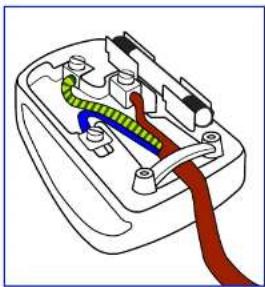
Diagram of a plug socket with colored wires (green, blue, red) showing internal components (no text or labels)How to connect a plug
The wires in the mains lead are coloured in accordance with the following code:
BLUE - "NEUTRAL" ("N")
BROWN - "LIVE" ("L")
GREEN & YELLOW - "EARTH" ("E")
- The GREEN & YELLOW wire must be connected to the terminal in the plug which is marked with the letter "E" or by the Earth symbol or coloured GREEN or GREEN & YELLOW.
- The BLUE wire must be connected to the terminal which is marked with the letter "N" or coloured BLACK.
- The BROWN wire must be connected to the terminal which marked with the letter "L" or coloured RED. Before replacing the plug cover, make certain that the cord grip is clamped over the sheath of the lead - not simply over the three wires.
SAFETY INFORMATION
End-of-Life Disposal
Your new Public Information Display contains materials that can be recycled and reused. Specialized companies can recycle your product to increase the amount of reusable materials and to minimize the amount to be disposed of.
Please find out about the local regulations on how to dispose of your old display from your local dealer.
(For customers in Canada and U.S.A.)
This product may contain lead and/or mercury. Dispose of in accordance to local-state and federal regulations. For additional information on recycling contact www.eia.org (Consumer Education Initiative).
Waste Electrical and Electronie Equipment-WEEE
Attention users in European Union private households
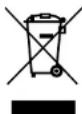
This marking on the product or on its packaging illustrates that, under European Directive 2012/19/EU governing used electrical and electronic appliances, this product may not be disposed of with normal household waste. You are responsible for disposal of this equipment through a designated waste electrical and electronic equipment collection. To determine the locations for dropping off such waste electrical and electronic, contact your local government office, the waste disposal organization that serves your household or the store at which you purchased the product.
Attention users in United States:
Please dispose of according to all Local, State and Federal Laws. For the disposal or recycling information, contact: www.mygreenelectronics.com or www.eiae.org.
SAFETY INFORMATION
Batteries

For EU: The crossed-out wheeled bin implies that used batteries should not be put to the general household waste! There is a separate collection system for used batteries, to allow proper treatment and recycling in accordance with legislation.
Please contact your local authority for details on the collection and recycling schemes.
For Switzerland: The used battery is to be returned to the selling point.
For other non-EU countries: Please contact your local authority for correct method of disposal of the used battery.
According to EU directive 2006/66/EC, the battery can't be disposed improperly. The battery shall be separated to collect by local service.
Turkey RoHS
Symbols used in this manual
| This icon indicates the existence of a potential hazard that could result in personal injury or damage to the product. | |
| This icon indicates important operating and servicing information. |
Notice
- Read this User Manual carefully before using the LCD display and keep it for future reference.
- The product specifications and other information provided in this User Manual are for reference only. All information is subject to change without notice. Updated content can be downloaded from our web site at www.agneovo.com.
- To protect your rights as a consumer, do not remove any stickers from the LCD display. Doing so may affect the determination of the warranty period.
Cautions When Setting Up
- Do not place the LCD display near heat sources, such as a heater, exhaust vent, or in direct sunlight.
- Do not cover or block the ventilation holes in the housing.
PRECAUTIONS
Cautions When Using
- Use only the power cord supplied with the LCD display.
- The power outlet should be installed near the LCD display and be easily accessible.
- If an extension cord is used with the LCD display, ensure that the total current consumption plugged into the power outlet does not exceed the ampere rating.
- Do not allow anything to rest on the power cord. Do not place the LCD display where the power cord may be stepped on.
- If the LCD display will not be used for an indefinite period of time, unplug the power cord from the power outlet.
- To disconnect the power cord, grasp and pull by the plug head. Do not tug on the cord; doing so may cause fire or electric shock.
- Do not unplug or touch the power cord with wet hands.
- When turning off the display by detaching the power cord, wait 6 seconds before re-attaching the power cord for normal operation.
- Do not knock or drop the display during operation or transportation.
Cleaning and Maintenance
- To protect your display from possible damage, do not put excessive pressure on the LCD panel. When moving your

Warning:

Unplug the power cord from the power outlet and refer to qualified service
personnel under the following conditions:
- When the power cord is damaged.
- If the LCD display has been dropped or the housing has been damaged.
◆ If the LCD display emits smoke or a distinct odor.
PRECAUTIONS
Notice for the LCD Display
- In order to maintain the stable luminous performance, it is recommended to use low brightness setting.
- Due to the lifespan of the lamp, it is normal that the brightness quality of the LCD display may decrease with time.
- When static images are displayed for long periods of time, the image may cause an imprint on the LCD display. This is called image retention or burn-in.
◆ To prevent image retention, do any of the following:
- Set the LCD display to turn off after a few minutes of being idle.
- Use a screen saver that has moving graphics or a blank white image.
- Execute the ANTI-BURN-IN function of the LCD display. See Configuration 1 > Panel Saving > ANTI-BURN-IN section.
- Switch desktop backgrounds regularly.
- Adjust the LCD display to low brightness settings.
- Turn off the LCD display when the system is not in use.
◆ Things to do when the LCD display shows image retention:
- Turn off the LCD display for extended periods of time. It can be several hours or several days.
- Use a screen saver and run it for extended periods of time.
- Use a black and white image and run it for extended periods of time.
- There are millions of micro transistors inside the LCD display. It is normal for a few transistors to be damaged and to produce spots. This is acceptable and is not considered a failure.
- IMPORTANT: Always activate a moving screen saver program when you leave your display unattended
CHAPTER 1: PRODUCT DESCRIPTION
1.1 Unpacking
- This product is packed in a packaging box which contains standard accessories.
- Any other optional accessories will be packed separately.
- Considering the size and weight of the display, it is recommended that this product is carried out by two persons.
• After opening the packaging box, ensure that the included items are in good condition and complete.
1.2 Package Contents
When unpacking, check if the following items are included in the package. If any of them is missing or damaged, contact your dealer.

LCD Display
natural_image
Plain light blue background with a thin border (no text or symbols)
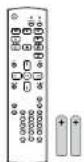
Remote control

Quick Start Guide

HDMI cable
Note:
- Remote control is shipped with
PRODUCT DESCRIPTION
1.3 Preparing for the Installation
- Due to the high power consumption, always use the plug exclusively designed for this product. If an extended line is required, please consult your service agent.
- The product should be installed on a flat surface to avoid tipping. The distance between the back of the product and the wall should be maintained for proper ventilation. Avoid installing the product in the kitchen, bathroom or any other places with high humidity so as not to shorten the service life of the electronic components.
- The product can normally operate only under 3000m in altitude. In installations at altitudes above 3000m, some abnormalities may be experienced.
1.4 Wall Mounting Installation
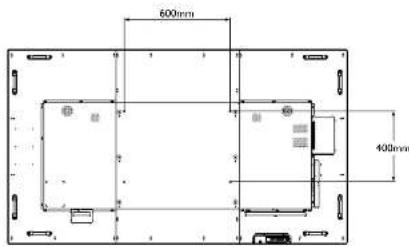
To mount this display to a wall, you will have to obtain a standard wall-mounting kit (commercially available). We recommend using a mounting interface that complies with TUV-GS and/or UL1678 standard in North America.
To wall-mount the LCD display, screw the mounting bracket to the VESA holes at the rear of the LCD display.
NSD-6501Q


Warning:
Do not press too hard on the LCD panel or edge of the frame, as this may cause the device to malfunction.
Note:
- Avoid the wall-mounting kit to block the ventilation holes on the back of the display.
- Secure the LCD display on a solid wall strong enough to bear its weight.
♦ Lay a protective sheet on a
PRODUCT DESCRIPTION
NSD-8601Q
text_image
600mm 400mm1.4.1 VESA Grid
| Model Name VESA Grid | |
| NSD-6501Q 400(W) x 400(H) mm | |
| NSD-7501Q 600(W) x 400(H) mm | |
| NSD-8601Q 600(W) x 400(H) mm | |

Caution:
To prevent the display from falling:
- For wall or ceiling installation, we recommend installing the display with metal brackets which are commercially available.
Note:
For NSD-6501Q wall-mounting kits, use M6 mounting screws (having a length 10 mm longer than the thickness of the mounting bracket) and tighten them securely.
ForNSD-7501Q/NSD-8601Q wall-mounting kits, use M8
PRODUCT DESCRIPTION
1.4.2 Ventilation Requirements for Enclosure Locating
To allow heat to disperse, leave space between surrounding objects as shown in the diagram below.
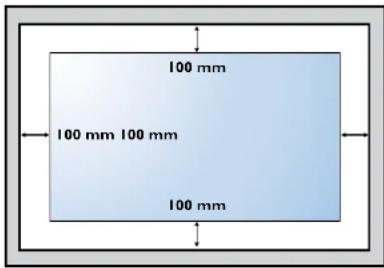
text_image
100 mm 100 mm 100 mm 100 mm1.5 Using the Remote Sensor and Power Status Indicator
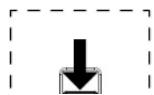
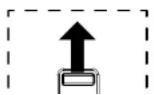
- If you want to obtain a better reception of remote control function, please adjust the indicator location to easily check the power status indicator.
- If you want to mount the display to the wall, please push the indicator switch upwards before installation.
- When adjusting the indicator location, make sure to push/pull the indicator switch firmly until it clicks into place.
PRODUCT DESCRIPTION
1.6 LCD Display Overview
1.6.1 Control Panel
NSD-6501Q
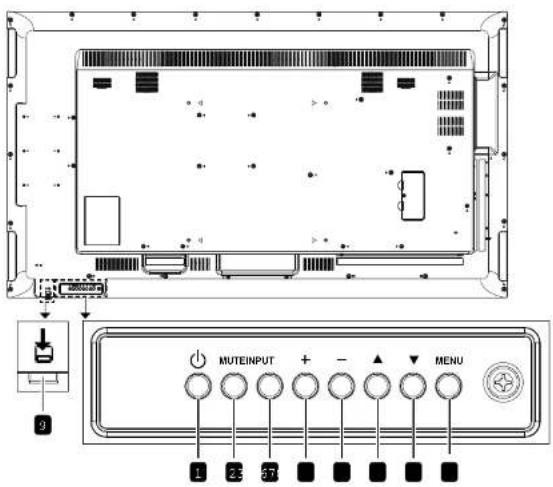
text_image
MUTEINPUT MENUNSD-7501Q

PRODUCT DESCRIPTION
NSD-8601Q
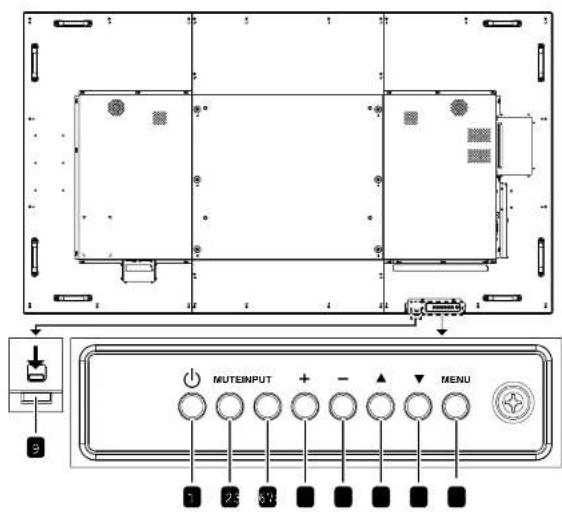
text_image
MUTEINPUT MENU
[+] Power
Turn the display on or put the display to standby.

[▼] Down
Move the highlight bar down to select an option or decrease the adjustment while OSD menu is on.
PRODUCT DESCRIPTION
1.6.2 Input/Output Terminals
NSD-6501Q

text_image
Diagram of an electronic device rear panel with labeled ports and connectors, showing internal layout and component labels.NSD-7501Q

text_image
Technical diagram showing mechanical assembly with labeled components and dimensionsPRODUCT DESCRIPTION
NSD-8601Q

text_image
Technical diagram of an electronic device rear panel with labeled ports and connectors1 AC IN
AC power input from the wall outlet.
2 Main power switch
Switch the main power on/off.
3 RJ45
LAN control function for the use of remote control signal from the control center.
4 RS232 IN
9 IR OUT
IR signal output for the loop-through function.
10 VGA IN (D-Sub)
VGA video input.
11 AUDIO IN
Audio input for VGA source (3.5mm stereo phone).
PRODUCT DESCRIPTION
1.7 Remote Control
1.7.1 General Functions

text_image
1 2 3 4 5 6 7 8 9 10 NORMAL ID SOURCE FORMAT LIST INFO - OK - AGUST OPTIONS + VOL - ABC OFF1 [Power
Turn the display on or to put the display into standby mode.
2 PLAY
• Control playback in multimedia mode.
- Freeze feature
- Ⅱ: Freeze hot key for all inputs content.
- ▶: Unfreeze hot key for all input content.
3 [SOURCE
Root Menu: Go to Video source OSD.
4 [HOME
- Root Menu: Access the OSD menu.
- Others: Exit the OSD menu.
5 [王IST
No function.
6 NAVIGATION buttons
[4]
- Root Menu: Go to Smart picture OSD.
- Main Menu: Move the highlight bar up to adjust the selected item.
- IR Daisy Chain Menu: Increase controlled Group ID number.
[1]
- Root Menu: Go to Audio source OSD.
- Main Menu: Move the highlight bar down to adjust the selected item.
- IR Daisy Chain Menu: Decrease controlled
PRODUCT DESCRIPTION
9 [MUTE
Turn the mute function on/off.
10 [ ] [ ] [ ] COLOR
- Choose tasks or options.(for Media Input only).
• : Hot key for Window selection function.
11 [Number/ ID SET/ ENTER]
- Enter text for network setting.
- Set the display ID. See 1.7.2 ID Remote Control for more detail.
12 [H] FORMAT
Change the aspect ratio.
13 [←] BACK
Return to the previous menu or exit from the previous function.
14 [i] INFO
View the information about the display.
15 OPTIONS
No function.
16 [—] [+]VOLUME
Adjust the volume level.
PRODUCT DESCRIPTION
1.7.2 ID Remote Control
You can set the remote control ID when you want to use this remote control on one of several different displays.

text_image
R R SOURCE FORMAT LIST INFO OK AUXUST OPTIONS VOL 4 0H 5 1K 6WDTo set the remote control ID:
1 Press the ID button. The red LED blinks twice.
2 Press the ID SET button for more than 1 second to enter the ID mode. The red LED lights up.
Press the ID SET button again will exit the ID mode. The red LED lights off.
3 Press the digit numbers [0] \~ [9] to select the display you want to control. For example:
- Display ID #1: press [0], [1]
- Display ID #11: press [1], [1]
The numbers available are from [01] \~ [255]. - Not pressing any button within 10 seconds will exit the ID mode.
- If an error pressing of buttons other than the digits occurred, wait 1 second after the red LED lights off and then lights up again, then press the correct digits again.
4 Press the ENTER button to confirm. The red LED blinks twice and then lights off.
PRODUCT DESCRIPTION
1.7.3 Remote Control buttons on Android source

text_image
NORMAL ID SOURCE FORMAT LIST INFO OK AQUIST OPTIONS VOL 1.2 2.5 3.6 F 4 SH 5 XL 6 END 7 PORS 8 TUV 9WXYZ
POWER
Turn the display on or to put the display into standby mode.
The button is only controlled by Scalar.
2 PLAY
• Control playback of media (video/photo/music) files.
There are 4 ways to play media files
1) File Manager
Find the media file from the File Manager and select it to play.
2) Media Player > Compose > edit or new add playlist > choose any media files > press the ▶ button to play the media file directly.
3) Media Player > Play > choose non-empty playlist > press the OK button to play all the media files in the playlist.
4) Set media playlist in Boot on Source or Schedule by OSD menu.
- Play PDF file
There are 3 ways to play media files.
1) File Manager
Find the pdf file from the File Manager and select it to play.
2) PDF Player > Play > choose non-empty playlist > press the OK button to play all the PDF files in the playlist.
- - - - - -
PRODUCT DESCRIPTION
3 [SOURCE
Choose input source.
The button is only controlled by Scalar.
4 [HOME
Access the OSD menu.
The button is only controlled by Scalar.
5 LIST
- In the content of the webpage, move the focus up to the next clickable item.
- Move the focus up to the next control or widget such as buttons.
6 NAVIGATION buttons
- Navigate through menus and choose items.
- In the content of the webpage, press the following button to control the scroll bar of the screen:
» V: Move the vertical scroll bar up or down.
» ←:Move the horizontal scroll bar left or right.
- When browsing the PDF files:
» In Zoom mode, press the [1]/[1]/[1] button to adjust the position of the screen.
» In Viewing mode, press the [→]/[+button to go to the previous/next page.
7 [ΦQK
Confirm an entry or selection.
8 [1]ADJUST
• In the content of the webpage, move the
11 [Number/ ID SET/ ENTER]
- ID SET/ENTER: No function on Android source. These two buttons are only controlled by Scalar.
- When browsing the PDF files, enter the page number by pressing number buttons and then press the OK button to jump to the specific page.
12 [FORMAT
Change the aspect ratio.
The button is only controlled by Scalar.
13 [←] BACK
Return to the previous menu or exit from the previous function.
14 [i] INFO
- Display information about current input signal. It is shown by Scalar.
- Media Player > Compose > edit or new add playlist > choose any media files > press the ⓘ button to show the information of the chosen media file.
15 [☐] OPTIONS
Open toolbar in Media Player or PDF Player.
- Media Player > Compose > edit or new add playlist > press the ☐ button to open toolbar. Toolbar is displayed on the left side of the screen.
- PDF Player > Compose > edit or new add playlist > press the button to open toolbar.
PRODUCT DESCRIPTION
1.7.4 Inserting the Batteries in the Remote Control
The remote control is powered by two 1.5V AAA batteries.
To install or replace batteries:
1 Press and then slide the cover to open it.
2 Align the batteries according to the (+) and (-) indications inside the battery compartment.
3 Replace the cover.


1.7.5 Handling the Remote Control
- Do not subject to strong shock.
- Do not allow water or other liquid to splash the remote control. If the remote control gets wet, wipe it dry immediately.
- Avoid exposure to heat and steam.
- Other than to install the batteries, do not open the remote control.
1.7.6 Operating Range of the Remote Control

Caution:
The incorrect use of batteries can result in leaks or bursting. Be sure to follow these instructions:
Place "AAA" batteries matching the (+) and (−) signs on each battery to the (+) and (−) signs of the battery compartment.
♦ Do not mix battery types.
Do not combine new batteries with used ones. It causes shorter life or leakage of batteries.
Remove the dead batteries immediately to prevent them from liquid leaking in the battery compartment. Don't touch exposed battery acid, as it can damage your skin.
Note:
◆ If you do not intend to use
PRODUCT DESCRIPTION
NSD-8601Q
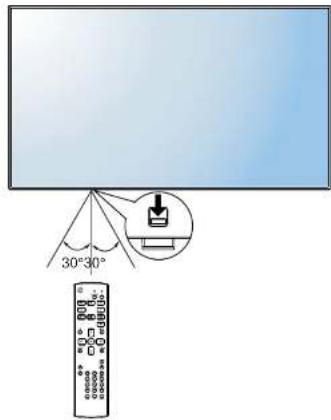
text_image
30°30°CHAPTER 2: MAKING CONNECTIONS
2.1 Connecting the Power
1 Connect one end of the power cord to the AC IN connector at the rear of the LCD display.
2 Connect the other end of the power cord to a power outlet or a power supply.
3 Set the Main Power switch to ON.
NSD-6501Q

natural_image
Diagram of an electronic device rear panel with connected cables and a power outlet (no text or symbols)NSD-7501Q

MAKING CONNECTIONS
NSD-8601Q
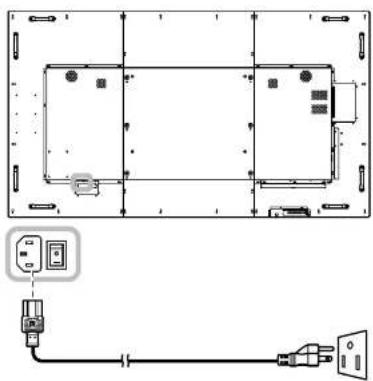
natural_image
Technical line drawing of a rectangular device with internal components and an electrical outlet connected to a plug (no text or symbols present)
Caution:
Make sure that the LCD display is not connected to the power outlet before making any connections. Connecting cables while the power is ON may cause electric shock or personal injury.
When unplugging the power cord, hold the power cord by the plug head. Never pull by the cord.
MAKING CONNECTIONS
2.2 Connecting a Computer
2.2.1 Using VGA Input
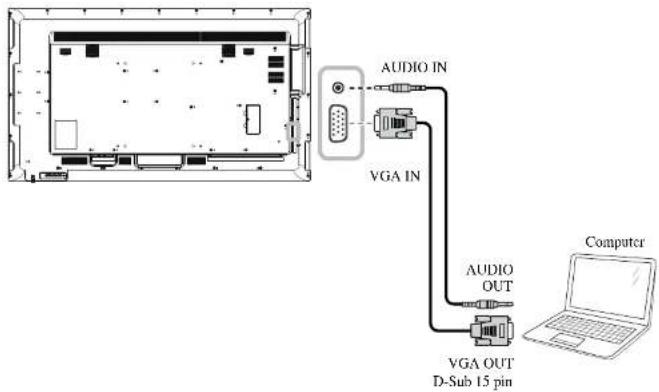
Connect one end of a D-sub cable to the VGA IN connector of the LCD display and the other end of a D-sub cable to the VGA OUT (D-Sub) connector of the computer.
For audio input, connect one end of an audio cable to the AUDIO IN connector of the LCD display and the other end of an audio cable to the AUDIO OUT connector of the computer.
NSD-6501Q
text_image
AUDIO IN VGA IN AUDIO OUT VGA OUT D-Sub 15 pin ComputerMAKING CONNECTIONS
NSD-8601Q

flowchart
graph TD
    A["Computer"] --> B["VGA OUT"]
    B --> C["VGA IN"]
    C --> D["AUDIO IN"]
    C --> E["AUDIO OUT"]
    B --> F["VGA OUT D-Sub 15 pin"]
2.2.2 Using DisplayPort Input
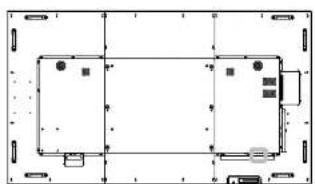
Connect one end of a DisplayPort cable to the DisplayPort IN connector of the LCD display and the other end of a DisplayPort cable to the DisplayPort OUT connector of the computer.
NSD-6501Q
MAKING CONNECTIONS
NSD-7501Q
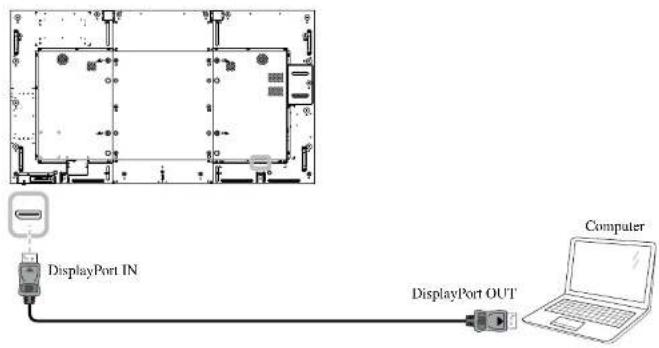
flowchart
graph TD
    A["Computer"] --> B["DisplayPort OUT"]
    B --> C["DisplayPort IN"]
    C --> D["Top Port"]
    style A fill:#f9f,stroke:#333
    style B fill:#ccf,stroke:#333
    style C fill:#cfc,stroke:#333
    style D fill:#fcc,stroke:#333
NSD-8601Q
natural_image
Top-down schematic of a rectangular device with mounting holes and control panel (no text or symbols)MAKING CONNECTIONS
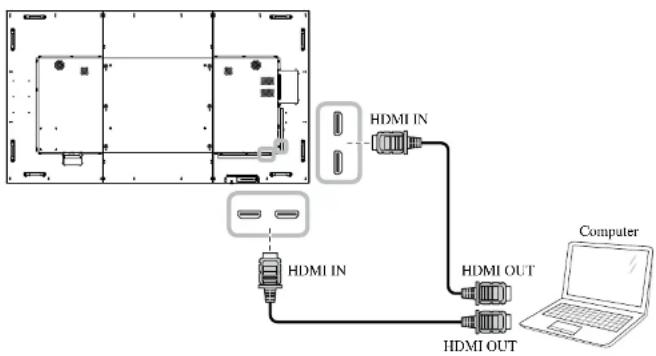
2.2.3 Using HDMI Input
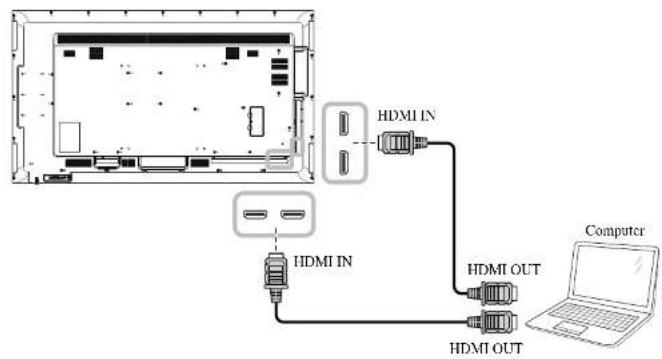
Connect one end of an HDMI cable to the HDMI IN connector of the LCD display and the other end of an HDMI cable to the HDMI OUT connector of the computer.
NSD-6501Q
text_image
HDMI IN HDMI IN HDMI OUT HDMI OUT ComputerNSD-7501Q

MAKING CONNECTIONS
NSD-8601Q
flowchart
graph TD
    A["Device with two ports"] --> B["HDMI IN"]
    A --> C["HDMI OUT"]
    B --> D["Computer"]
2.3 Connecting External Equipment (Video Player)
2.3.1 Using HDMI Video Input
Connect one end of an HDMI cable to the HDMI IN connector of the LCD display and the other end of an HDMI cable to the HDMI OUT connector of the video player.
MAKING CONNECTIONS
NSD-7501Q

text_image
HDMI IN HDMI IN HDMI OUT HDMI OUT Video PlayerNSD-8601Q

text_image
HDMI INMAKING CONNECTIONS
2.4 Connecting Audio Equipment
2.4.1 Connecting an External Audio Device
Connect one end of an audio cable to the AUDIO OUT connectors of the LCD display and the other end of an audio cable to the AUDIO IN connectors of the audio device.
NSD-6501Q

text_image
AUDIO OUT AUDIO IN Audio DeviceNSD-7501Q

text_image
AUDIO OUT AUDIO IN Audio DeviceMAKING CONNECTIONS
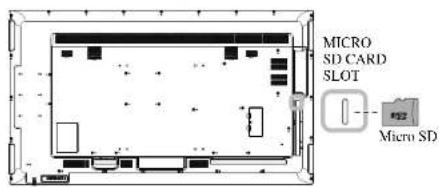
2.5 Using the Card Reader
Insert a micro SD card into the slot.
NSD-6501Q
text_image
MICRO SD CARD SLOT Micro SDNSD-7501Q

text_image
MICRO SD CARD SLOT Micro SDNSD-8601Q

MAKING CONNECTIONS
2.6 Connecting Multiple Displays in a Daisy-chain Configuration
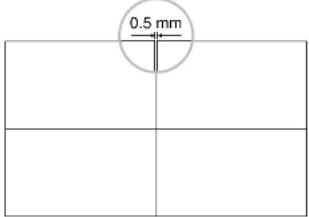
You can interconnect multiple displays to create a daisy-chain configuration for applications such as a video wall.

Caution:
To avoid unnecessary strain on the bezel, it is highly recommended to keep a minimum space of 0.5mm in which a business card is able to slip between all displays on all sides.
text_image
0.5 mm2.6.1 Display Control Connection
Connect the RS232 OUT connector of DISPLAY 1 to the RS232 IN connector of DISPLAY 2.
DISPLAY 1
DISPLAY 2
MAKING CONNECTIONS
2.7 IR Connection
Connect the IR sensor cable to the IR IN connector of the LCD display.

flowchart
graph LR
    A["DISPLAY"] -->|[IR IN]| B["External IR Receiver"]
    B --> C["Signal Output"]
    style A fill:#f9f,stroke:#333
    style B fill:#ccf,stroke:#333
Note:
This display's remote control sensor will stop working if the [IR IN] is connected.
◆ IR loop through connection can support up to 9 displays.
◆ IR in daisy chain via RS232 connection can support up to 9 displays.
2.8 IR Pass-Through Connection
Connect one end of an IR extender cable to the IR OUT connector of the LCD display and the other end of an IR extender cable to the IR IN connector of the video player.

CHAPTER 3: USING THE LCD DISPLAY
3.1 Turning on the Power
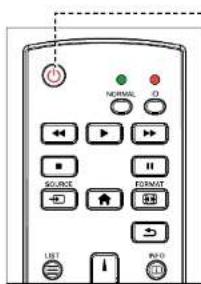
text_image
NORMAL SOURCE FORMAT LIST INFOPOWER button
1 Plug the power cord to a power outlet or power supply.
2 Press the ⏻ button to turn the LCD display on.
When the LCD display is turned on, press the ⏻ button to turn off the LCD display.
3.1.1 Initial Setup
After you turn on the LCD display, a Welcome screen opens. You are prompted to select the default OSD language, configure network settings, and more. Follow the on-screen instructions to complete the initial setup.

Note:
The LCD display still consumes power as long as the power cord is connected to the power outlet. Disconnect the power cord to completely cut off power.
USING THE LCD DISPLAY
3.2 Selecting the Input Source Signal
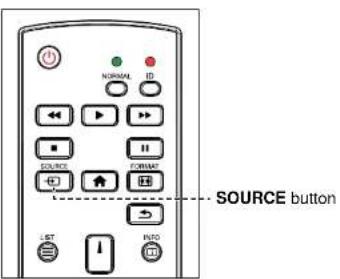
text_image
NORMAL ID ←→ →→ ←→ →→ SOURCE FORMAT ←→ → SOURCE button LIST ↓ INTO1 Press the
button.
2 Press the
or 1 button to choose a device, then press the n.
Note:
After pressing the button, a menu with available input sources will be displayed on the screen.
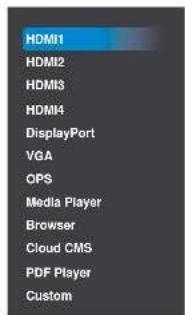
text_image
HDMI1 HDMI2 HDMI3 HDMI4 DisplayPort VGA OPS Media Player Browser Cloud CMS PDF Player CustomIf the selected input source signal is not connected to the LCD display or is turned off, the screen will display multi-color screen.
USING THE LCD DISPLAY
3.4 Changing the Picture Format
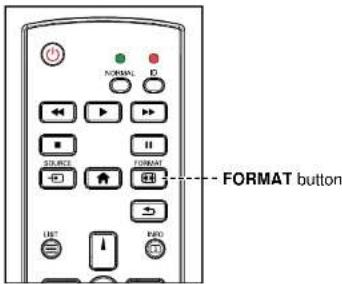
text_image
NORMAL D SOURCE FORMAT ---- FORMAT button USB I RIOPress the Button repeatedly to change the picture format.
Note:
The available picture formats include:
Full: Restores the correct proportions of pictures transmitted in 16:9 using the full screen display.
4:3: The picture is reproduced in 4:3 format and a black band is displayed on either side of the picture.
Real: This mode displays the image pixel-by-pixel on screen without scaling the original image size.
◆ 21:9: The picture is reproduced in 21:9 format and a black band at the top and bottom.
- Custom: Choose to apply the custom zoom settings set in the Screen > Custom zoom submenu.
CHAPTER 4: MULTIMEDIA MENU
4.1 Accessing the Multimedia Menu
Note:
The control buttons described in this section are on the remote control.
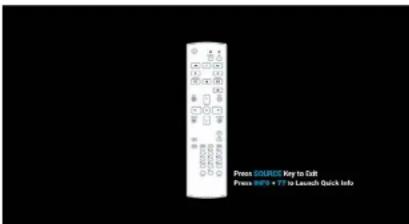
- Press the button once in any menu to return to the previous menu or repeatedly to return to the Hint screen as illustrated below.
text_image
Press SOURCE Key to Call Press INFO + 27 to Launch Quick Info.The multimedia menu consists of five items, such as Media Player, Browser, Cloud CMS, PDF Player, and Custom. To access the multimedia menu items, do the following:

MULTIMEDIA MENU
4.2 Media Player
Use the Media Player to play your favorite photo, video, and music files. The files can be grouped into playlists from various storage devices, such as internal storage, USB storage, and SD card. The total number of playlists can be up to seven but the media content of a single playlist is not limited.

text_image
Media Player Media Player Play Compare Sorts Ag neovo4.2.1 Creating a Playlist
To create a playlist, do the following:
1 Copy your photo, video, and/or music files on the storage device to the following paths respectfully:
— Photo: {root dir of storage}/agn/photo/
— Video: {root dir of storage}/agn/video/
— Music: {root dir of storage}/agn/music/
Note:
◆ Music files can be selected and used as background music for a slideshow.
MULTIMEDIA MENU
A file browser opens where your media files on the storage device are displayed in the Source column and the content of the playlist is displayed in the Playlist column.
7 Press the 1 or 1 button to select the Photo or Video folder and then press the OK button. The folder content is displayed in the Source column.
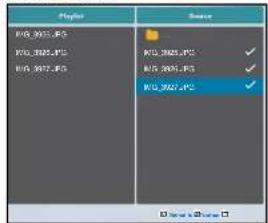
text_image
Player RVD_0027.JPG RVD_0027.JPG RVD_0027.JPG RVD_0027.JPG RVD_0027.JPG RVD_0027.JPG RVD_0027.JPG RVD_0027.JPG RVD_0027.JPG RVD_0027.JPG RVD_0027.JPG RVD_0027.JPG8 Press the ↓ or ↑ button to select a media file for reviewing (if necessary). Press any of the following buttons:
— OK Select: To select a single file. Press the OK button again to deselect the file.
— i Info: To review the detailed information on the media file.
9 Press the Option button to start adding or modifying the playlist.

text_image
Player MP3_5005.fPS MP3_5006.fPS MP3_5007.fPS Source MP3_5005.fPS ✓ MP3_5006.fPS ✓ MP3_5007.fPS ✓MULTIMEDIA MENU
4.2.2 Modifying a Playlist
To modify a playlist, do the following:
1 Set the input source to Media Player. See "4.1 Accessing the Multimedia Menu".
2 Press the menu. For I button to select the Compose tab and then press the OK button to open the PlayList
3 Press the 1 or 1 button to select the playlist that you want to modify and then press the OKton.
Note:
- You can modify only playlists that have the icon next to the File #, where “#” is the file number.

Those playlists that do not have the icon are empty.
4 Press the → or → button to select Edit or Delete the playlist and then press the OK button to confirm.
5 Perform any of the modifications as described in steps 7 and 9 in "4.2.1 Creating a Playlist" section.
4.2.3 Playing Files in a Playlist
To play files in a playlist, do the following:
1 Set the input source to Media Player. See "4.1 Accessing the Multimedia Menu".
2 Press the 1 or 1 button to select the Play tab and then press the OK button to open the PlayList menu.
MULTIMEDIA MENU
4.2.4 Media Player Settings
To configure Media Player settings, do the following:
1 Set the input source to Media Player. See "4.1 Accessing the Multimedia Menu".
2 Press the I or I button to select the Settings tab and then press the OK button to open the Settings menu.
3 Press the ☐ or ☐ button to select any of the menu items and then press the OK button to enter its configuration menu:
- Repeat Mode: Press the 1 or 1 button to set the playlist repeat mode to Repeat once or Repeat all and then press the OK button to save the setting.
— Slideshow Effect: Press the ↓ or ↑ button to set the slideshow effect to Random, Bounce, Fade in/out, Top to bottom, Zoom, Left to right, Right to left, Fold, Corner, or None and then press the OK button to save the setting.
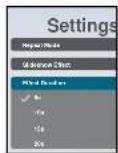
— Effect Duration: Press the I or I button to set the slideshow effect duration to 5s, 10s, 15s, or 20s and then press the OK button to save the setting.
MULTIMEDIA MENU
4.3 Browser
Use the Browser app to save up to seven bookmarks (URLs) manually or import a list of URLs from a storage device, such as internal storage, USB storage, and SD card.

text_image
Browser Brunner Brunner 6 Steps neovo4.3.1 Adding an URL
To add an URL, do the following:
1 Set the input source to Browser. See "4.1 Accessing the Multimedia Menu".
2 Press the OK button to open the Settings tab. A list of URLs opens.

text_image
1 2 3 4 5 6 7 8 9 10 11 12 13 14 15 16 17 18 19 20 21 22 23 24 25 26 27 28 29 30 31 32 33 34 35 36 37 38 39 40 41 42 43 44 45 46 47 48 49 50 51 52 53 54 55 56 57 58 59 60 61 62 63 64 65 66 67 68 69 70 71 72 73 74 75 76 77 78 79 80MULTIMEDIA MENU
c) Press the ↓, ↑, and/or button to pick each character that appears in the URL name. After selecting a character, press the OK button to enter the character. Continue this step until all the characters in the URL are entered.
d) Press the ↩ button to close the virtual keyboard.
e) Press the I button and select OK to save the URL or Cancel to discard the modifications. Then press the OKton to confirm the selection.
— Adding a URL automatically
a) Save a list of URLs in a text-file with the extension "*.txt" where "*" is the file name.
b) Copy the text-file with the URLs to the storage device to the following path:
{root dir of storage}/agn/browser/
c) Connect the storage device to the LCD display (if necessary).
d) Press the I button repeatedly to scroll through the URLs in the list and access the Option button on the screen. Then press the OK button. A toolbar opens on the screen.
e) Press the I or I button to select Import and then press the OKutton.
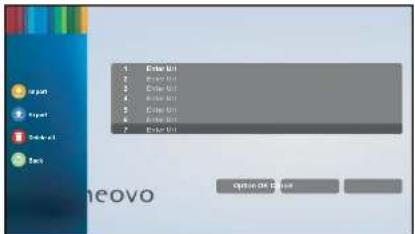
text_image
Enter Unit Enter Unit Delete Unit Delete Unit Delete Unit Delete Unit Enter Unit Enter Unit Enter Unit Options for Use neovoMULTIMEDIA MENU
h) Press the -or button to select the text-file where are saved the URLs. Then press the OK button. You are prompted to confirm importing the file or cancel the procedure.
i) Press the or button to select Import or Cancel and then press the \Button\. After importing the text-file, the URLs appear in the URLs' list in the Browser app.
4.3.2 Managing URLs List
To manage URLs list on Browser app, do the following:
1 Set the input source to Browser. See "4.1 Accessing the Multimedia Menu".
2 Press the OK button to open the Settings tab. A list of URLs opens.
3 To modify or open an URL, press the ▲ or ▼ button and select an URL. Then press the OKtion.
You are prompted to modify the URL or open the web page.
Note:
- You need an active Internet connection to open a web page. To configure the network parameters, see "4.6.6 Accessing Network Settings in Admin Mode" on page 58.
Press the — or — button and then press the button to do any of the following:
— Edit: Modify the URL. See “— Adding an URL manually” on page 45 steps c to d.
— Play: Open the webpage on the screen.
4 To perform other actions with the URLs list, such as export the list or delete all the entries, press the 1 button repeatedly until you can select the Option button. Then press the OK button. A toolbar opens on the screen.
5 Press the ☐ or ☐ button and then press the Ⓞ button to do any of the following:
MULTIMEDIA MENU
4.4 Cloud Content Management Software (Cloud CMS)
At Cloud CMS, you can create and schedule signage campaigns, manage devices, and update content from any device with an internet browser.
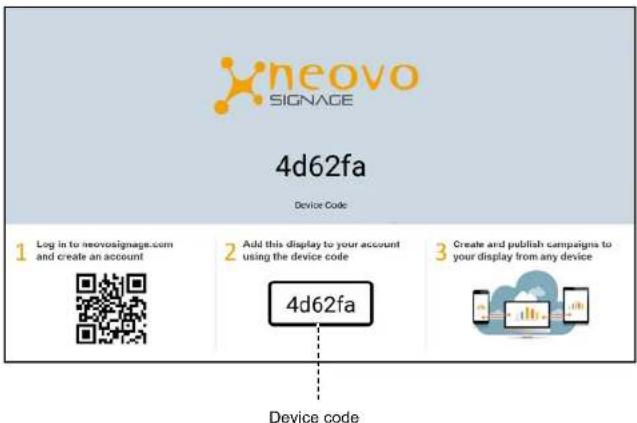
Ensure that your LCD display is properly connected to the internet. Then set the input source to Cloud CMS. A "Device Registration" message will appear on the screen.
text_image
neovo SIGNAGE 4d62fa Device Code 1 Log in to neovosignage.com and create an account 2 Add this display to your account using the device code 3 Create and publish campaigns to your display from any device 4d62fa Device codeYou need to enter the "device code" in order to register your device to Cloud CMS.
Note:
To access Cloud CMS, register your device, and manage the signage campaigns, visit
MULTIMEDIA MENU
4.5 PDF Player
Use the PDF Player to display your PDF files on the screen. The files can be grouped into playlists from various storage devices, such as internal storage, USB storage, and SD card. The total number of playlists can be up to seven but the PDF file content of a single playlist is not limited.

text_image
PDF Player Play Compare Sorts PDF Player Ag neovo4.5.1 Creating a Playlist
To create a playlist, do the following:
1 Copy your PDF files on the storage device to the following path:
— {root dir of storage}/agn/pdf/
2 Connect the storage device to the LCD display (if necessary).
3 Set the input source to PDF Player. See "4.1 Accessing the Multimedia Menu".
4 Press the menu. or I button to select the Compose tab and then press the OK button to open the PlayList
MULTIMEDIA MENU
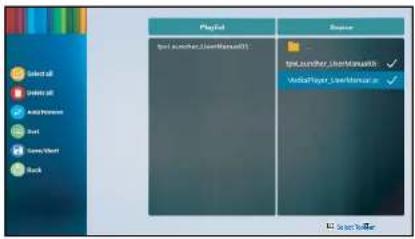
7 Press the I or I button to select the PDF folder and then press the OK button. The folder content is displayed in the Source column.

text_image
Playlist IprPlayer_UserManual3 IprPlayer_UserManual3 MediaPipe_UserManual38 Press the 1 or 1 button to select a PDF file and then press the OK button. To select all the PDF files in the folder, proceed to step 9.
9 Press the Options ☐ button to add or modify the playlist.
text_image
Player View all Green all Audio Player Start Save World Back View all Green all Audio Player Start Save World BackThen press the I or I button and press the OK button to select any of the following actions: — Select all: Select all the PDF files on the stars are device
MULTIMEDIA MENU
4.5.2 Modifying a Playlist
To modify a playlist, do the following:
1 Set the input source to PDF Player. See "4.1 Accessing the Multimedia Menu".
2 Press the menu. For I button to select the Compose tab and then press the OK button to open the PlayList
3 Press the 1 or 1 button to select the playlist that you want to modify and then press the OKton.
Note:
- You can modify only playlists that have the icon next to the File #, where “#” is the file number.

Those playlists that do not have the icon are empty.
4 Press the → or → button to select Edit or Delete the playlist and then press the OK button to confirm.
5 Perform any of the modifications as described in steps 7 to 9 in "4.5.1 Creating a Playlist" section.
4.5.3 Displaying PDF Files in a Playlist
To display the PDF files in a playlist, do the following:
1 Set the input source to PDF Player. See "4.1 Accessing the Multimedia Menu".
2 Press the ▲ or ▶ button to select the Play tab and then press the OK button to open the PlayList menu.
MULTIMEDIA MENU
3 Press the I or I button to select any of the menu items and then press the OK button to enter its configuration menu:
- Repeat Mode: Press the I or I button to set the playlist repeat mode to Repeat once or Repeat all and then press the Okiton to save the setting.
— Effect Duration: Press the ☐ or ☐ button to set the slideshow effect duration to 5s, 10s, 15s, or 20s and then press the OKiton to save the setting.

4.6 Custom
In Custom screen, you can enter the Admin Mode. The Admin Mode enables you full access to the system configuration settings, applications, network configuration parameters, and storage.
The default Custom screen is empty to prevent unauthorized access to the system.

natural_image
Completely black image with no visible content or text.MULTIMEDIA MENU
4.6.2 System Settings
To access the system settings, do the following:
1 Enter the Admin Mode. See "4.6.1 Entering the Admin Mode" on page 52.
2 Do any of the following to access the system settings:
— Press the
or button to select the Settings tab and then press the button.
— Press the
→ or → button and then press the OK button to open Apps tab > Settings.

text_image
Category Auto External options3 Modify any of the following settings:
Note:
Use the , , 1 , and/or on the remote control to select items and adjust settings. If you need to enter characters, the virtual keyboard opens automatically on the screen after you select the item.
— Network > Ethernet > Main Switch: Enable or disable configuring Ethernet settings. Network > Ethernet > Ethernet Configuration: Review MAC address and configure the network
MULTIMEDIA MENU
— Device > Signage Display > Server settings > Email Notification > SMTP: Configure SMTP settings, such as Server, Email, Password, SMTP Server name, Security type, and Port.
— Device > Signage Display > Server settings > Email Notification > Manager Email: Enter manager email.
— Device > Signage Display > Server settings > FTP > Main Switch: Enable or disable configuring FTP settings.
— Device > Signage Display > Server settings > FTP > FTP: Configure FTP server connection settings, such as Account, Password, Storage Path, and Port.
— Device > Signage Display > Server settings > SICP Network Port > Main Switch: Enable or disable configuring Serial / Ethernet Interface Communication Protocol (SICP) settings.
— Device > Signage Display > Server settings > SICP Network Port > SICP Network Port: Set the SICP connection port (used for controlling the LCD display via RS232 / Ethernet).
— Device > Signage Display > Source settings > Media Player: Access to Edit Play List or Edit Effect Settings. For more information on Media Player, see "4.2 Media Player" on page 41.
— Device > Signage Display > Source settings > Browser: Access to Edit Bookmark. More information on adding bookmarks, see "4.3 Browser" on page 45.
— Device > Signage Display > Source settings > CMS > Settings: Configure CMS Server connection settings, such as Server, Account, PIN Code, and Version. For more information on CMS, see "Using a CMS Server for Content Source" on page 56.
— Device > Signage Display > Source settings > CMS > Content: Select the CMS content from a storage device, such as Internal storage, SD card, or USB storage. For more information on CMS, see "Displaying Content from an Attached Storage Device" on page 57.
— Device > Signage Display > Source settings > PDF Player: Access to Edit Play List or Edit Effect Settings. For more information on PDF Player, see "4.5 PDF Player" on page 49.
MULTIMEDIA MENU
— System > Date & time: Access to Select time zone and review NTP Server.
— System > About: Set location for System updates, review Legal information, Android version, Kernel version, and Build number.
— System > Developer options: Configure advanced system settings (for Android system developers).
4.6.3 Accessing Apps in Admin Mode
To access installed apps in Admin Mode, do the following:
1 Enter the Admin Mode. See "4.6.1 Entering the Admin Mode" on page 52.
2 Press the -or -button to select the Apps tab and then press the ☐Kon. The apps screen opens.

text_image
Screenshot of a desktop application with icons for email, Google, and other related apps or settings.3 Press the or button to select the app and then press the button to open the app.
4.6.4 Displaying Content via CMS App
Using the CMS app, you can display any signage campaigns created by using the CMS software installed in
MULTIMEDIA MENU
3 Enter the account name and password.
Note:
◆ Default access information:
Account name: admin
Password: admin
4 Create a campaign, configure the schedule, and publish the campaign. For more information on how to use the software, please refer to its documentation.
Note:
To obtain the software user guide, go to the Download Centre in displays.agneovo.com.
Before publishing the campaign, you have to configure the settings first so that your computer can act as a CMS Server. See "Using a CMS Server for Content Source" section.
Using a CMS Server for Content Source
To access the content from a CMS Server (via the software installed in your computer), your LCD display needs to be connected to the same network segment with the CMS Server and you need to configure the connection parameters on your LCD display.
To configure your LCD display for displaying a content from a CMS Server, do the following:
1 Connect your LCD display to the network.
2 Set the input source to Custom. See "4.1 Accessing the Multimedia Menu".
3 Enter the Admin Mode. See "4.6.1 Entering the Admin Mode" on page 52.
4 Press the — or — button to select the Settings tab and then press the 📄on.
MULTIMEDIA MENU
Note:
- Enter your computer IP address in the Server field. You can obtain the account name and pin code data from the CMS software (in the DEVICE section).
After the connection parameters are configured on the LCD display, the CMS Server will automatically detect a new device. The CMS Server manager can schedule the content displaying for the LCD display.
When adding the LCD display as a new device to the CMS Server, it is recommended to use the Signage Display name as a Device Name.

text_image
C CMS Account Home language Legend PREV Device List : Setting the Devices as below Account, admin PN Code: 0281 Group Device Name Group1 NSD-oxQ7 To view the content from the CMS Server, exit Settings and select the Apps tab. Then select CMS.
Displaying Content from an Attached Storage Device
You can configure the LCD display to use content from a storage device, such as internal storage, USB storage, and SD card.
To configure your LCD display to display CMS content from a storage device, do the following:
1 Copy the source files to the storage device in the following path:
— {root dir of storage}/agn/CMS/
MULTIMEDIA MENU
4.6.5 Installing Apps to the LCD Display
To install new apps to your LCD display, do the following:
1 Download and copy the Android installation file named “*.apk” where “*” is the app's name to the USB storage or SD card.
2 Connect the storage device with the installation file to the LCD display.
3 Enter the Admin Mode. See "4.6.1 Entering the Admin Mode" on page 52.
4 Press the — or — button to select Storage tab and then press the Button.
5 Press the → or → button to select the storage device where is saved the installation file and press the OKilton.
6 Press the 1 or 1 button to select the installation file and then press the OK button. A pop-up menu opens.
7 Press the ☐ for ☐ button to select Open and then press the OK button. Follow the on-screen instructions to install the app. After the installation is complete, the app becomes visible in Apps tab where you can access it.
4.6.6 Accessing Network Settings in Admin Mode
To access network configuration settings in Admin Mode, do the following:
1 Enter the Admin Mode. See "4.6.1 Entering the Admin Mode" on page 52.
2 Do any of the following to access the network settings:
- Press the or button and then press the OK button to select the Settings tab > Network > Ethernet > Ethernet Configuration.
Press the —or button to select Network tab and then press the OKon
MULTIMEDIA MENU
4.6.7 Managing Storage in Admin Mode
To access and manage storage in Admin Mode, do the following:
1 Enter the Admin Mode. See "4.6.1 Entering the Admin Mode" on page 52.
2 Do any of the following to access the storage:
— Press the — or — button to select Storage tab and then press the ☐Kon.
— Press the or button and then press the OK button to select Apps tab > File Manager.
3 Press the or button to select the internal storage or any connected external storages, such as USB storage or SD card.
4 Press the opens. ▲ or ▶ button to select the desired file and then press the OK button. A pop-up menu
5 Press the 1 or 1 button and then the OKiton to do any of the following:
— Open: Open the file on the screen.
— Delete: Delete the file.
— Copy: Press the ☐ or ☐ button and select the destination storage device where you want to copy the file. Then press the OK button to complete the procedure.
— Move: Press the ☐ or ☐ button and select the destination storage device where you want to move the file. Then press the ⬊ button to complete the procedure.
— Select: Enter the file Select Mode. Press the I or I button and then press the OK button to select file(s). After the file selection is done, press the OK button. Then press the I or I button to select an action from the pop-up menu among Delete Selection, Copy Selection, Move Selection, Unselect, and Unselect All. Press the OK button to complete the procedure.
CHAPTER 5: ON SCREEN DISPLAY MENU
5.1 Using the OSD Menu
| # | Menu Navigation | Operation | |||
| Control Panel Remote Control | |||||
| 1 | Display the main menu screen. | Press theMENUbutton. | Press the▲button. | ||
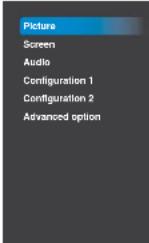 | Brightness 90Contrast 50Sharpness 20Black level 50Tint 50Color 55Noise reduction MediumGamma selection NativeColor temperature NativeColor control ActionSmart power OffOverscan Off | ||||
| 2 | Enter the submenu. | 1 Press the▲or▼button to select the menu item.Tint 50Color 55Noise reduction MediumGamma selection NativeColor temperature NativeColor control ActionSmart power OffDiverscon OffPicture reset Action | 1 Press the↓or↑button to select the menu item.2 Press theOKor→button to enter the submenu. | ||
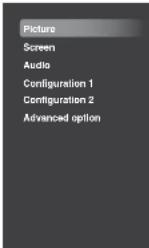 | Contrast 50Sharpness 20Black level 50Tint 50Color 55Noise reduction MediumGamma selection NativeColor temperature NativeColor control ActionSmart power OffDiverscon OffPicture reset Action | ||||
ON SCREEN DISPLAY MENU
| # | Menu Navigation | Operation | |
| Control Panel Remote Control | |||
| 5 | Close the OSD window. Press the MENU | button or buttonseveral times. | Press the buttonor the buttonseveral times. |
When settings are modified, all changes are saved when the user does the following:
• Proceeds to the another menu.
- Exits the OSD menu.
- Waits for the OSD menu to disappear.
Note:
◆ Availability of some menu items depend on the input source signal. If the menu is not available, it is disabled and grayed out.
ON SCREEN DISPLAY MENU
5.2 OSD Menu Tree
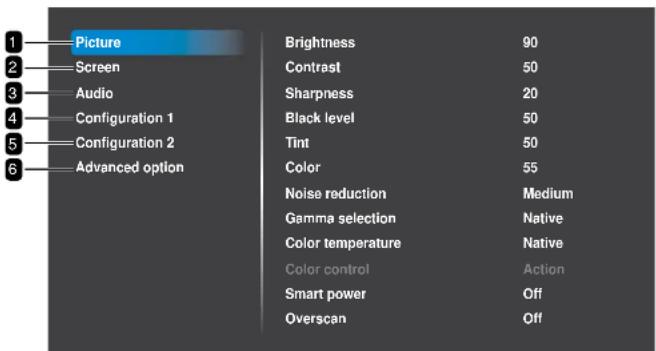
text_image
Picture Screen Audio Configuration 1 Configuration 2 Advanced option Brightness 90 Contrast 50 Sharpness 20 Black level 50 Tint 50 Color 55 Noise reduction Medium Gamma selection Native Color temperature Native Color control Action Smart power Off Overscan Off| Main Menu Submenu Remarks | ||
| 1. Picture • Brightness | See page 64. | |
| • Contrast• Sharpness• Black level• Tint• Color• Noise reduction• Smooth selection | ||
ON SCREEN DISPLAY MENU
| Main Menu Submenu Remarks | ||
| 3. Audio • Balance | TrebleBassVolumeAudio out (line out)Maximum volumeMinimum volumeMuteAudio sourceAudio resetAudio Out Sync | See page 70. |
| 4. Configuration1 • Switch on state | Panel savingRS232 routingBoot on sourceWOLRGB RangeConfiguration1 resetFactory reset | See page 72. |
| 5. Configuration2 • OSD turn off | OSD H positionOSD V positionInformation OSDLogoMonitor ID | See page 76. |
CHAPTER 6: ADJUSTING THE LCD DISPLAY
6.1 Picture Settings
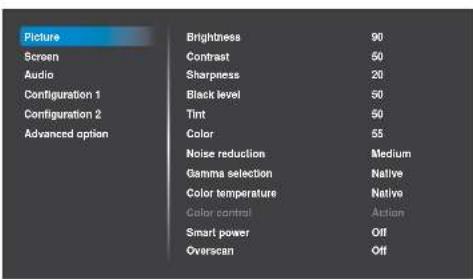
text_image
Picture Screen Audio Configuration 1 Configuration 2 Advanced option Brightness 90 Contrast 50 Sharpness 20 Black level 50 Tint 50 Color 55 Noise reduction Medium Gamma selection Native Color temperature Native Color control Auction Smart power Off Overscan Off1 Press the MENU button on the control panel or the button on the remote control to call out the OSD window.
2 Select Picture, then press the button on the control panel or the OK button on the remote control.
3 Press the ▲/▼ button on the control panel or the ▼/▼ button on the remote control to select an option.
4 Press the +button on the control panel or the OKilton on the remote control to open the submenu item.
| Item Function Operation Range | ||||
| Brightness | Adjust the luminance of the screen image. | Press the ▲▼button on the control panel or the ➕button on the remote control to adjust the value. | 0 to 100 | |
Original Setting High Setting Low Setting   | ||||
ADJUSTING THE LCD DISPLAY
| Item Function Operation Range | |||
| Black level | Adjusts the black level of the screen image. Low brightness setting makes black colour darker. | Press the ▲▼ button on the control panel or the ➔ button on the remote control to adjust the value. | 0 to 100 |
| Tint Adjust the colour tint. 0 to 100 | |||
| Color | Adjust the color saturation of the picture. | 0 to 100 | |
| Noise reduction | Adjust the noise reduction to help remove noise from images. This helps produce clearer and crisper images. | 1 Press the ▲▼ button on the control panel or the ➔ button on the remote control to select the setting.2 Press the button on the control panel or the OKiton on the remote control to set the value. | OffLowMediumHigh |
Noise Reduction Off Noise Reduction On  | |||
| 1 Press the + button on the control panel or the OKiton on the remote control to open | |||
ADJUSTING THE LCD DISPLAY
| Item Function Operation Range | |||
| Color temperature | Select a color temperature for the image. A lower color temperature will have a reddish tint, whilst a higher color temperature gives off a more bluish tint. | 1 Press the + button on the control panel or the OK button on the remote control to open the settings.2 Press the /▲button on the control panel or the /I button on the remote control to select the setting.3 Repeat step 1 to set the setting.4 Press the I button and then the + button on the remote control to select CANCEL or OK.5 Press the + button on the control panel or the OK button on the remote control to confirm the setting. | 6500K7500K9300K10000KNativeUser 1User 2OKCancel |
| Color control | Adjust the color tones of the image precisely by changing the User-R (Red), User-G (Green) and User-B (Blue) settings independently.Note:• Color control option becomes available if you set the Color | 1 Press the ▲/▼ button on the control panel or the /I button on the remote control to select the setting.2 Press the button on the control panel or the OK button on the remote control to set the value.3 Press the ▲/▼ button on the | User-R (0-255) (User 1)User-G (0-255) (User 1)User-B (0-255) (User 1)2000K -10000K |
ADJUSTING THE LCD DISPLAY
| Item Function Operation Range | |||
| Smart power | Smart Power control is not relative to brightness control:Initial setting Brightness»70 (in the range from 0-100)»Power consumption70% of maximum power consumptionSmart Power»Off: No adaptation.»Medium: 80% of power consumption is relative to the current settings.»High: 65% of power consumption is relative to the current settings. | 1 Press the ▲▼ button on the control panel or the ↓/ button on the remote control to select the setting.2 Press the button on the control panel or the ⭕/ button on the remote control to set the value. | OffMediumHigh |
| Overscan | Change the display area of the image.On: Display area is about 95%.Off: Display area is about 100%. | 1 Press the ▲▼ button on the control panel or the ↓/ button on the remote control to select the setting.2 Press the button on the control panel or the ⭕/ button on the remote control to set the value. | OffOn |
| 1 Press the ▲▼ button on the control panel or the → button on the remote control to select | |||
ADJUSTING THE LCD DISPLAY
6.2 Screen Settings

text_image
Picture Screen Audio Configuration 1 Configuration 2 Advanced option H position V position Clock Clock phase Zoom mode Full Custom zoom Action Auto adjust Action Screen reset Action1 Press the MENU button on the control panel or the button on the remote control to call out the OSD window.
2 Press the ▲ button on the control panel or the 1 button on the remote control to select Screen. Then press the button on the control panel or the 0 button on the remote control.
3 Press the ▲/▼ button on the control panel or the ↓/↓ button on the remote control to select an option.
4 Press the +button on the control panel or the OKiton on the remote control to open the submenu item.
| Item Function Operation Range | |||
| H position | Move the image to the right or left. Note:This option is available only if the input source is VGA. | 0 to 100 | |
| V position | Move the image up or down. Note:This option is available only if | 0 to 100 | |
ADJUSTING THE LCD DISPLAY
| Item Function Operation Range | |||
| Zoom mode | The pictures you receive may be transmitted in 16:9 format (wide screen) or 4:3 format (conventional screen). The 16:9 pictures sometimes have a black band at the top and bottom of the screen (letterbox format). Zoom mode will be deactivated when Anti-Burn-inTM is activated.Note:This option is not available in the following modes: Media Player, Browser, Cloud CMS, PDF Player, and Custom. | 1 Press the + button on the control panel or the OKiton on the remote control to open the settings.2 Press the /▲button on the control panel or the /▼button on the remote control to select the setting.3 Repeat step 1 to set the setting.4 Press the ▼button on the control panel or the 1 button on the remote control. Then press the ▲button on the control panel or the → button on the remote control to select CANCEL or OK.5 Press the + button on the control panel or the OKiton on the remote control to confirm the setting. | Full4:3Real21:9CustomCancelOK |
| Use this function to further customize the zoom settings to suit the image you want to display.Note:This option is not available in the following modes: Media Player, Browser, Cloud CMS, PDF Player, and Custom. | |||
| Zoom: Expand the horizontal | 1 Press the ▲/▼button on the | ||
ADJUSTING THE LCD DISPLAY
| Item Function Operation Range | |||
| Auto adjust | Use this function to automatically optimize the display of VGA input image.Note:This option is available only if the input source is VGA. | 1 Press the ▲/▼ button on the control panel or the → button on the remote control to select the setting.2 Press the button on the control panel or the OKilton on the remote control to set the value. | CANCEL OK |
| Screen reset | Reset all settings in the Screen menu to the factory preset values.This option is not available in the following modes: Media Player, Browser, Cloud CMS, PDF Player, and Custom. | 1 Press the ▲/▼ button on the control panel or the → button on the remote control to select the setting.2 Press the button on the control panel or the OKilton on the remote control to set the value. | CANCEL RESET |
6.3 Audio Settings
| Picture | Balance | 50 |
| Screen | Treble | 50 |
| Audio | Bass | 50 |
| Configuration 1 | Volume | 20 |
| Configuration 2 | Audio out(line out) | 20 |
| Advanced option | Maximum volume | 100 |
1 Press the MENU button on the control
panel or the ↑ button on the remote
control to call out the OSD window.
2 Press the ▲/▼ button on the control
panel or the 🥐 button on the remote
ADJUSTING THE LCD DISPLAY
| Item Function Operation Range | |||
| Bass | Adjust to increase or decrease lower-pitched sounds. | Press the ▲▼button on the control panel or the ←button on the remote control to adjust the value. | 0 to 100 |
| Volume | Adjust to increase or decrease the audio output level. | 0 to 100 | |
| Audio out (line out) | Adjust to increase or decrease line out output level. | 0 to 100 | |
| Maximum volume | Adjust your own limitation for the maximum volume setting. This stops the volume from being playing at too loud. | 0 to 100 | |
| Minimum volume | Adjust your own limitation for the minimum volume setting. | 0 to 100 | |
| Mute Turn the mute function on/off. | Press the MUTE button on the control panel or the ←x button on the remote control to set the value. | Off On | |
| Audio source | Select the audio input source. There are no audio output when no video signal.Analog: Audio from audio inputDigital : Audio from HDMI audio. | 1 Press the ▲▼button on the control panel or the ↓/T button on the remote control to select the setting.2 Press the button on the control panel or the OK button on the remote control to set the value. | Analog Digital |
| 1 Press the ▲▼button on the control panel or the ←button | |||
ADJUSTING THE LCD DISPLAY
6.4 Configuration1 Settings
| Picture | Switch on state | Force on |
| Screen | Panel saving | Action |
| Audio | RS232 routing | RS232 |
| Configuration 1 | Boot on source | Action |
| Configuration 2 | WOL | Off |
| Advanced option | RGB Range | Full Range |
| Configuration1 reset | Action | |
| Factory reset | Action |
1 Press the MENU button on the control panel or the button on the remote control to call out the OSD window.
2 Press the ▲ button on the control panel or the √ button on the remote control to select Configuration 1. Then press the -button on the control panel or the ⬊ button on the remote control.
3 Press the ▲/▼ button on the control panel or the ⏻ button on the remote control to select an option.
4 Press the +button on the control panel or the OKton on the remote control to open the submenu item.
| Item Function Operation Range | |||
| Select the display status used for the next time you connect the power cord.Power off: The display will remain off when the power cord is connected to a wall outlet.Force on: The display will turn | 1 Press the ▲▼ button on the control panel or the ↓T button on the remote control to select the setting. | Power off- | |
ADJUSTING THE LCD DISPLAY
| Item Function Operation Range | |||
| Panel saving | Choose to enable the panel saving functions and thus reduce the risk of "image persistence" or "ghost-imaging". | 1 Press the ▲/▼ button on the control panel or the ↓/T button on the remote control to select the setting.2 Press the button on the control panel or the On button on the remote control to set the value. | BrightnessANTI-BURN-IN |
| Brightness: Set to On and the image brightness will be reduced to an appropriate level. The Brightness setting in the Picture menu will be unavailable when selected. | OffOn | ||
| Select the time interval for the display to slightly expand the image size and shift the position of pixels in four directions (up, down, left, or right).Note:Activating Anti-Burn-in TM will disable H Position, V Position and Zoom Mode in the Screen Menu. | Press the ▲/▼ button on the control panel or the → button on the remote control to adjust the value. | OffAuto10 to 900Seconds | |
| RS232-Routing S | Select the network control port. | 1 Press the ▲/▼ button on the control panel or the ↓/T button on the remote control to select the setting.2 Press the button on the control panel or the On button on the remote control to set the value. | RS232LAN -> RS232OPS RS232 |
ADJUSTING THE LCD DISPLAY
| Item Function Operation Range | |||
| Boot on source | Input: Input can be set to Media Player, Browser, Cloud CMS, PDF Player, Custom, DisplayPort, VGA, OPT, HDMI1, HDMI2, HDMI3 or HDMI4. | 1 Press the + button on the control panel or the OKiton on the remote control to uncheck the Last Input option.2 Press the ▲▼button on the control panel or the ↓/1 button on the remote control to select the Input option.3 Press the button on the control panel or the OKiton on the remote control to set the value.Note: If you set the input to Media Player, Browser, or PDF Player then continue with setting the Playlist option in the following section (Playlist). If you set another input then follow steps 4 to 5.4 Press the ▼button on the control panel or the ↓ button on the remote control. Then press the ▲button on the control panel or the → button on the remote control to select CANCEL or OK. | HDMI1HDMI2HDMI3HDMI4DisplayPortVGAOPSMedia PlayerBrowserCloud CMSPDF PlayerCustom |
ADJUSTING THE LCD DISPLAY
| Item Function Operation Range | |||
| WOL | Enable this feature to allow the display to be switched on over the network. | 1 Press the ▲/√ button on the control panel or the ∥/ button on the remote control to select the setting.2 Press the button on the control panel or the ⬊/ button on the remote control to set the value. | OffOn |
| RGB Range | Set the black level and white level for the RGB format.Note:This option is not available in VGA mode. | AutoFull RangeLimited Range | |
| Configuration1 reset | Reset all settings in the Configuration1 menu to the factory preset values. | 1 Press the ▲/√ button on the control panel or the ∥/ button on the remote control to select the setting.2 Press the button on the control panel or the ⬊/ button on the remote control to set the value. | CANCELRESET |
| Factory reset | Reset all your customized settings to the factory preset values, including Android settings. | CANCELRESET | |
ADJUSTING THE LCD DISPLAY
6.5 Configuration2 Settings
| Picture | OSD turn off | 45 |
| Screen | OSD H position | 50 |
| Audio | OSD V position | 50 |
| Configuration 1 | Information OSD | 10 |
| Configuration 2 | Logo | On |
| Advanced option | Monitor ID | Action |
| Heat status | 25.88°C 76.59°F | |
| Monitor Information | Action | |
| HDMI Version | 1,4 | |
| Configuration2 reset | Action |
1 Press the MENU button on the control panel or the button on the remote control to call out the OSD window.
2 Press the ▲ button on the control panel or the √ button on the remote control to select Configuration 2. Then press the −button on the control panel or the ○ button on the remote control.
3 Press the ▲/▼ button on the control panel or the √/▼ button on the remote control to select an option.
4 Press the +button on the control panel or the OKiton on the remote control to open the submenu item.
| Item Function Operation Range | |||
| OSD turn off | Set the period of time the OSD menu stays on the screen. | Press the ▲/▼button on the | Off5 to 120 |
| OSD H position | Set the OSD menu horizontal position on the screen. | 50 | |
| OSD V position | Set the OSD menu vertical position on the screen | 50 | |
ADJUSTING THE LCD DISPLAY
| Item Function Operation Range | |||
| Logo | Choose to enable or disable the picture of Logo when turn on your LCD display.Note:If Logo is set toOnthen the OTS logo will show.If Log is set toOffthen the scalar OTS logo will not show.If Logo is set toUserthen there will be no boot logo when power on.Logo will not rotate with rotation setting/detection. | 1 Press the ▲/▼ button on the control panel or the ↓/T button on the remote control to select the setting.2 Press the button on the control panel or the OKiton on the remote control to set the value. | OffOnUser |
| Monitor ID | Adjust the ID number for controlling the display via the RS232 connection. Each display must have a unique ID number when multiple sets of this display are connected. | 1 Press the ▲/▼ button on the control panel or the ↓/T button on the remote control to select the setting.2 Press the + button on the control panel or the OKiton on the remote control to set the value.3 Press the ▲/▼ button on the control panel or the + button on the remote control to adjust the value. | 1~255 |
| Heat status View | the thermal status of the LCD display. | ||
ADJUSTING THE LCD DISPLAY
| Item Function Operation Range | |||
| Configuration2 reset | Reset all settings in the Configuration2 menu to the factory preset values. | 1 Press the ▲ button on the control panel or the ← button on the remote control to select the setting.2 Press the Button on the control panel or the Ctrlton on the remote control to set the value. | CANCEL RESET |
6.6 Advanced option Settings
| Picture | IR control | Unlock |
| Screen | Power LED Light | On |
| Audio | Keyboard control | Unlock |
| Configuration 1 | Off timer | Off |
| Configuration 2 | Date and time | Action |
| Schedule | Action | |
| HDMI with One Wire | Off | |
| Language | English | |
| OSD transparency | Off | |
| Power Save | Mode 1 | |
| OPS settings | Auto | |
| Advanced option reset | Action |
1 Press the MENU button on the control panel or the button on the remote control to call out the OSD window.
2 Press the ▲/ button on the control panel or the 1/1 button on the remote control to select Advanced option. Then press the +button on the control panel or the OK button on the remote control.
3 Press the ▲/▼ button on the control panel or the ▼/▼ button on the remote control to select an option.
ADJUSTING THE LCD DISPLAY
| Item Function Operation Range | |||
| IR control | Select the operation mode of the remote control when multiple displays are connected via an RS232 connection.Normal: All displays can be operated normally by the remote control unit.Primary: Designate this display as the primary display for remote control operation. Only this display can be operated by the remote control. (In primary mode, IR key will always be processed regardless the monitor id/group settings).Secondary: Designate this display as the secondary display. This display can not be operated by the remote control, and will only receive the control signal from the primary display via the RS232 connection.Lock All / Lock all but Volume / Lock all but Power / Lock all except PWR & VOL: Lock the remote control function of this display. To unlock, press and hold the button on the remote control for 6 (six) seconds. | 1 Press the ▲/▼ button on the control panel or the √/T button on the remote control to select the setting.2 Press the button on the control panel or the OKiton on the remote control to set the value. | UnlockLock AllLock All but VolumeLock All but PowerLock All except PWR & VOLPrimary Secondary |
| 1 Press the ▲/▼ button on the | |||
ADJUSTING THE LCD DISPLAY
| Item Function Operation Range | |||
| Keyboard control | Enable or disable the keyboard (control panel buttons) function of the LCD display. Unlock: Enable the keyboard function. Lock All / Lock all but Volume / Lock all but Power / Lock all except PWR & VOL: Disable all the keyboard function. Note: To disable the Keyboard control function, press both the +on the control panel and the ↓ button on the remote control for more than 3 seconds. | 1 Press the ▲▼button on the control panel or the ↓/ button on the remote control to select the setting.2 Press the button on the control panel or the OK/ton on the remote control to set the value. | Unlock Lock All Lock but Volume Lock All but Power Lock all except PWR & VOL |
| Off timer | Switch off the display after a given time. | Press the ▲▼button on the control panel or the → button on the remote control to adjust the value. | Off 1 to 24 Hours |
| Date and time | Adjust the current date and time for the display's internal clock. Note: The NTP Server is set automatically and cannot be altered. | ||
| Auto Sync: Date and time are set automatically by the web server. | 1 Press the ▲▼button on the control panel or the → button on the remote control to select Auto Sync option. | Auto Sync | |
ADJUSTING THE LCD DISPLAY
| Item Function Operation Range | |||
| Date and time | Set date: Set date manually. | 1 Press the + button on the control panel or the ⬊ button on the remote control to uncheck the Auto Sync option.2 Press the ▲▼ button on the control panel or the ↓/ button on the remote control to select the Set date option.3 Press the button on the control panel or the ⬊ button on the remote control to open the year field.4 Press the ▲▼ button on the control panel or the ↓/ button on the remote control to select the year.5 Press the + button on the control panel or the ⬊ button on the remote control to set the value.6 Press the ▼ button on the control panel or the − button on the remote control to select the month field. | Set date |
ADJUSTING THE LCD DISPLAY
| Item Function Operation Range | |||
| Date and time | Choose time zone: Set the time zone in your area. | 1 Press the ▲▼button on the control panel or the ↓/ button on the remote control to select the Choose time zone field.2 Press the button on the control panel or the OKiton on the remote control to set the value.3 Press the ▲▼button on the control panel or the ↓/ button on the remote control to select the time zone.4 Press the button on the control panel or the OKiton on the remote control to set the time zone. | Choose time zone |
| This function allows you to program up to 7 different scheduled time intervals for this display to activate.You can set:Which input source the display will use for each scheduled activation period.The time for the display to turn on and turn off.The days in a week for the display to activate.Note: | |||
ADJUSTING THE LCD DISPLAY
| Item Function Operation Range | |||
| Schedule | Schedule list: Select the schedule from the list that you want to configure. | 1 Press the + button on the control panel or the OKiton on the remote control twice to access the Schedule list option.2 Press the ▲/▼ button on the control panel or the // button on the remote control to select the schedule list from Schedule 1 to Schedule 7.3 Press the + button on the control panel or the OKiton on the remote control to set the schedule list.4 Press the ▼ button on the control panel or the I button on the remote control. Then press the ▲/▼ button on the control panel or the + button on the remote control to select CANCEL or OK. | Schedule list 1Schedule list 2Schedule list 3Schedule list 4Schedule list 5Schedule list 6Schedule list 7 CANCEL OK |
| 1 Press the ▲/▼ button on the control panel or the // button on the remote control to select the setting. | |||
ADJUSTING THE LCD DISPLAY
| Item Function Operation Range | |||
| Schedule | Start time: Set time when the schedule is turned on. | 1 Press the ▲▼button on the control panel or the ↓/ button on the remote control to select the Start time option.2 Press the button on the control panel or the OK/ton on the remote control to open the start time field.3 Press the ▲▼button on the control panel or the ↓/ button on the remote control to select the hours.4 Press the + button on the control panel or the OK/ton on the remote control to set the hours.5 Press the ▼button on the control panel or the ↓ button on the remote control. Then press the ▲button on the control panel or the + button on the remote control to select CANCEL or OK.6 Press the ▼button on the control panel or the -button on | Start time |
ADJUSTING THE LCD DISPLAY
| Item Function Operation Range | |||
| Schedule | Input: Set the input source. | 1 Press the ▲ button on the control panel or the ↓ button on the remote control to select the Input option.2 Press the button on the control panel or the OKiton on the remote control twice to open the input field.3 Press the ▲ button on the control panel or the ↓ button on the remote control to select the input source.4 Press the + button on the control panel or the OKiton on the remote control to set the input source.5 Press the ▼ button on the control panel or the ↓ button on the remote control. Then press the ▲ button on the control panel or the + button on the remote control to select CANCEL or OK. | HDMI1HDMI2HDMI3HDMI4DisplayPortVGAOPSMedia PlayerBrowserCloud CMSPDF PlayerCustom |
| Playlist: If you set the input to | Repeat steps 1 to 5 in the previous | ||
ADJUSTING THE LCD DISPLAY
| Item Function Operation Range | |||
| Schedule | Days of the week: Select the days of the week when the schedule is active. | 1 Press the ▲▼button on the control panel or the ↓↑button on the remote control to select the Days of the week option.2 Press the button on the control panel or the OK button on the remote control twice to open the days of the week field.3 Press the ▲▼button on the control panel or the ↓↑button on the remote control to select the day.4 Press the + button on the control panel or the OK button on the remote control to set the day. Repeat steps 3 to 4 to set more days.5 Press the ▼button on the control panel or the ↑button on the remote control repeatedly to access the SAVE option. Then press the + button on the control panel or the OK button on the remote control to save | SUNMONTUEWEDTHUFRISATSAVE |
ADJUSTING THE LCD DISPLAY
| Item Function Operation Range | |||
| Language Set the OSD language. | 1 Press the + button on the control panel or the ⬆ button on the remote control to select the value.2 Press the ▲▼ button on the control panel or the ⬆ button on the remote control to select the setting.3 Press the button on the control panel or the ⬆ button on the remote control to set the setting.4 Press the ▼ button on the control panel or the ⬆ button on the remote control. Then press the ▲ button on the control panel or the → button on the remote control to select CANCEL or OK. | English Deutsch विप्तिूफ Français Italiano Español Русский Polski Türkçe繁榮ドン ヨメ話 Português العربية Danish Swedish Finnish Norwegian Dutch CANCEL OK | |
| OSD Transparency | Adjust OSD transparency.• Off: Transparency is off.• 5-100: Transparency level is 5-100. | Press the ▲▼ button on the control panel or the → button on the remote control to adjust the value. | Off5 to 100 |
ADJUSTING THE LCD DISPLAY
| Item Function Operation Range | ||||
| Power Save | Mode 1 | If the LCD display cannot detect any input source signal, the "No Signal" message will appear on the screen, and the display will automatically turn off after 60 seconds. At this time, even if an input source is connected, the screen will unable to be awakened. | 1 Press the ▲/▼ button on the control panel or the J/1 button on the remote control to select the setting.2 Press the button on the control panel or the OK/1 ton on the remote control to set the value. | Mode 1Mode 2Mode 3Mode 4 |
| Mode 2 Not | supported | |||
| Mode 3 | If the LCD display cannot detect any input source signal, the "No Signal" message will appear on the screen, and the display will automatically enter standby mode after 60 seconds. At this time, if an input source is connected, the screen can be awakened. | |||
| If the LCD display cannot detect any | ||||
CHAPTER 7: APPENDIX
7.1 Warning Messages
| Warning Messages Cause Solution | ||
| No Picture | The resolution or the refresh rate of the graphics card of the computer is set too high. | · Change the resolution or the refresh rate of the graphics card. |
| No Picture | The LCD display cannot detect the input source signal. | · Check if the input source is turned ON.· Check if the signal cable is properly connected.· Check if any pin inside the cable connector is twisted or broken. |
| keyboard(Key button) no function | The operation using the control panel buttons has been locked by the user. | · Disable the keyboard lock function in Advanced option > Keyboard control menu. See page 80. |
| Remote control no function | The operation using the remote control buttons has been locked by the user. | · Disable the remote control lock function in Advanced option > IR control menu. See page 79. |
7.2 Supported Media Formats
APPENDIX
| Video Decode | ||||
| Type | Video Codec | Container Decode Remark | ||
| H.264 H.264 | FLV (.flv) | V | Max Resolution: 1080P@60fpsMax Bit Rates: 135Mbps4k2k@30fps | |
| MP4 (.mp4, .mov ^2 ) | ||||
| 3GPP ^12 (.3gpp, .3gp) | ||||
| MPEG transport stream (.ts, .trp ^2 , .tp ^12 ) | ||||
| ASF (.asf) | ||||
| WMV (.wmv) | ||||
| AVI (.avi) | ||||
| MKV (.mkv) | ||||
| H.265 H.265 | MP4 (.mp4, .mov ^2 ) | V | Max Resolution: 4K2K@60fpsMax Bit Rates: 100Mbps | |
| 3GPP ^12 (.3gpp, .3gp) | ||||
| MPEG transport stream (.ts, .trp ^2 , .tp ^12 ) | ||||
| MKV (.mkv) | ||||
| GOOGLE VP8 | VP8 | MKV (.mkv) | V | Max Resolution: 1080P@30fpsMax Bit Rates: 20MbpsWebM (. |
| Motion JPEG | MJPEG | AVI (.avi) | Max Resolution: 1920*1080@30fpsMax Bit Rates: 40Mbps | |
| 3GPP ^12 (.3gpp, .3gp) | ||||
| MP4 (.mp4, .mov ^2 ) | ||||
| MKV ^2 (.mkv) | ||||
Note:
◆ 1: Not supported in NSD-6501Q model.
◆ 2: Not supported in NSD-8601Q model.
APPENDIX
| Image Decode | ||||
| Type Image Codec Container Decode Remark | ||||
| JPEG | JFIF file format 1.02 | File Format: JPG, JPEG | V | Max Resolution: 7000 x 7000The limitation of max resolution depends on DRAM |
| BMP | BMP File Format: BMP | V | Max Resolution: 15360 x 8640The limitation of max resolution depends on DRAM | |
| PNG | PNG | File Format: PNG | V | Max Resolution: 15360 x 8640The limitation of max resolution depends on DRAM |
Note:
Sound or video may not work if the contents have a standard bit rate/frame rate above the compatible Frame/sec listed in the table above.
- Video content with a Bit rate or Frame rate larger than the rate specified in the table above can cause choppy video during playback.
7.3 Input Mode
VGA Resolution
| Standard Resolution | Active Resolution | Refresh Rate | Pixel Rate Aspect | Ratio Stand for Mode | |
| Horizontal Pixels | Vertical Lines | ||||
APPENDIX
SD Resolution
| Standard Resolution | Active Resolution | Refresh Rate | Pixel Rate Aspect | Ratio | ||
| Horizontal Pixels Vertical Lines | ||||||
| 480i | 720 480 MHz | 29.97 Hz | 13.5 MHz | 4:3 | ||
| 480p 59.94 Hz 27 | ||||||
| 576i | 720 576 MHz | 25 Hz | 13.5 MHz | 4:3 | ||
| 576p 50 Hz 27 | ||||||
HDTV Resolution
| Standard Resolution | Active Resolution | Refresh Rate | Pixel Rate Aspect | Ratio | |
| Horizontal Pixels Vertical Lines | |||||
| 720p 1260 720 | 50 Hz | 74.25 MHz 16:9 | |||
| 60 Hz | |||||
| 1080i 1920 1080 | 25 Hz | 74.25 MHz 16:9 | |||
| 30 Hz | |||||
| 1080p | 1920 1080 | 50 Hz | 148.5 MHz 16:9 | ||
| 60 Hz | |||||
| 2160p (DP/OPS) | 3840 2160 | 30 Hz | 297 MHz | 16:9 | |
| 2160p (HDMI only) | 3840 2160 | 30 Hz | 297 MHz | ||
| 50 Hz | 594 MHz | ||||
| 60 Hz | |||||
General guidelines:
• The PC text quality is optimum in HD 1080 mode (1920 x 1080, 60Hz).
- Your PC display screen might appear different depending on the manufacturer (and your particular version of Windows).
APPENDIX
- The best timing for the vertical frequency to each mode is 60Hz.
7.4 Cleaning
Caution When Using the Display
- Do not bring your hands, face or objects close to the ventilation holes of the display. The top of the display is usually very hot due to the high temperature of exhaust air being released through the ventilation holes. Burns or personal injuries may occur if any body parts are brought too close. Placing any object near the top of the display could also result in heat related damage to the object as well as the display itself.
- Be sure to disconnect all cables before moving the display. Moving the display with its cables attached may damage the cables and thus cause fire or electric shock.
- Disconnect the power plug from the wall outlet as a safety precaution before carrying out any type of cleaning or maintenance procedure.
Front Panel Cleaning Instructions
- The front of the display has been specially treated. Wipe the surface gently using only a cleaning cloth or a soft, lint-free cloth.
- If the surface becomes dirty, soak a soft, lint-free cloth in a mild detergent solution. Wring the cloth to remove excess liquid. Wipe the surface of the display to remove dirt. Then use a dry cloth of the same type to dry.
- Do not scratch or hit the surface of the panel with fingers or hard objects of any kind.
- Do not use volatile substances such as insert sprays, solvents and thinners.
Cabinet Cleaning Instructions
APPENDIX
7.5 Troubleshooting
| Symptom Possible Cause Remedy | ||
| No picture is displayed • The power cord has been disconnected.• The main power switch on the back of the display is not switched on.• The selected input has no connection.• The display is in standby mode. | 1 Plug in the power cord.2 Make sure the power switch is switched on.3 Connect a signal connection to the display. | |
| Interference displayed on the display or audible noise is heard | Caused by surrounding electrical appliances or fluorescent lights. | Move the display to another location to see is the interference is reduced. |
| Colour is abnormal The signal cable is not connected properly. | Make sure that the signal cable is attached firmly to the back of the display. | |
| Picture is distorted with abnormal patterns | • The signal cable is not connected properly.• The input signal is beyond the capabilities of the display. | • Make sure that the signal cable is attached firmly.• Check the video signal source to see if it is beyond the range of the display. Please verify its specifications with this display's specification section. |
| Display image doesn't fill up the full size of the screen | The picture format is not set correctly. | Press the button and select a suitable picture format. |
| Can hear sound, but no picture Improperly connected source signal cable. | Make sure that both video inputs and sound inputs are correctly connected. | |
Can see picture but no sound is | ▲ Improperly connected source ▲ Make sure that both video
APPENDIX
7.6 Transporting the LCD Display
To transport the LCD display for repair or shipment, place the display in its original packaging carton.
NSD-6501Q
1 Place the LCD display inside the supplied protective bag.
2 Place the lower foam cushion inside the lower box (a).
3 Place the LCD display down in the lower box (b).
4 Place the upper foam cushion on top of the LCD display (c).
5 Place the accessories box on the designated area (if necessary).
6 Place the upper box on LCD display.
7 Secure the upper box to the lower box with the supplied locks (d).
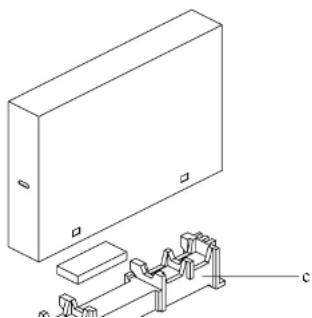
natural_image
Technical line drawing of a rectangular enclosure with attached mechanical components (no text or symbols)APPENDIX
NSD-7501Q
1 Place the LCD display inside the supplied protective bag.
2 Place the lower foam cushion inside the lower box (a).
3 Place the LCD display down in the lower box (b).
4 Place the upper foam cushion on top of the LCD display (c).
5 Place the accessories box on the designated area (if necessary).
6 Place the upper box on LCD display.
7 Secure the upper box to the lower box with the supplied locks (d).
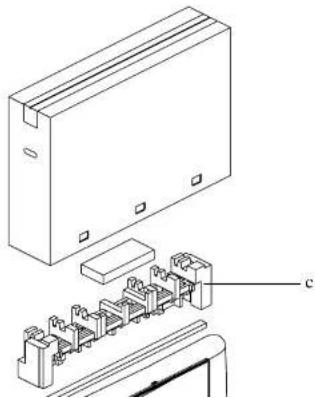
natural_image
Technical line drawing of an electronic component assembly (no text or symbols)APPENDIX
NSD-8601Q
1 Place the LCD display inside the supplied protective bag.
2 Place the lower foam cushions inside the lower box (a).
3 Place the LCD display down in the lower box (b). Then place the thin foam cushion in front of the screen.
4 Place the upper foam cushions on top of the LCD display (c).
5 Place the accessories box on the designated area (if necessary).
6 Place the upper box on LCD display.
7 Secure the upper box to the lower box with the supplied locks (d).

natural_image
Isometric line drawing of a rectangular enclosure with multiple internal components and a labeled component 'c' (no text or symbols beyond basic labels)CHAPTER 8: SPECIFICATIONS
8.1 Display Specifications
| NSD-6501Q NSD-7501Q NSD-8601Q | ||||
| Panel Panel Type LED | -Backlit TFT LCD (VA) | Technology) | LED-Backlit TFT LCD (IPS Technology) | LED-Backlit TFT LCD (IPS Technology) |
| Panel Size 64.5" 74.5" | 85.6" | |||
| Max. Resolution UHD 3 | 340 x 2160 UHD 3840 x 2160 | UHD 3840 x 2160 | ||
| Pixel Pitch 0.372 mm 0.429 mm 0.494 mm | ||||
| Brightness 350 cd/m | ^2 | 410 cd/m ^2 | 410 cd/m ^2 | |
| Contrast Ratio 4000:1 | 200:1 1200:1 | |||
| Viewing Angle (H/V) | 178°/178° | 178°/178° | 178°/178° | |
| Display Colour | 1.07B | 1.07B | 1.07B | |
| Response Time | 5 ms | 5 ms | 5 ms | |
| Surface Treatment | Anti-Glare Treatment (Haze 2%), 3H Hard Coating | Anti-Glare Treatment (Haze 2%), 2H Hard Coating | Anti-Glare Treatment (Haze 3%), 2H Hard Coating | |
| Frequency (H/V) | H Freq. | 31 kHz-92 kHz | 31 kHz-92 kHz | 31 kHz-92 kHz |
| V Freq. | 48 Hz-85 Hz | 48 Hz-85 Hz | 48 Hz-85 Hz | |
| Input | DisplayPort | x 1 | x 1 | x 1 |
| HDMI | 2.0 x 4 | 2.0 x 4 | 2.0 x 4 | |
| VGA | 15 Pin D Sub | 15 Pin D Sub | 15 Pin D Sub | |
| External Control | IR in/out | 3.5 mm Phone Jack | 3.5 mm Phone Jack | 3.5 mm Phone Jack |
| RS232 in/out | 2.5 mm Phone Jack 2.5 mm | Phone Jack 2.5 mm Phone Jack | ||
| LAN | RJ45 x 1 | RJ45 x 1 | RJ45 x 1 | |
| Embedded Player | OS | Android 5.0.1 | Android 5.0.1 | Android 5.0.1 |
| CPU | 1 Ghz Quad Core Full HD | 1 Ghz Quad Core Full HD | 1 Ghz Quad Core Full HD | |
| Memory | 2 GB DDR3 | 2 GB DDR3 | 2 GB DDR3 | |
| Storage | 8 GB eMMC 8 GB eMMC | 8 GB eMMC | ||
| Other Connectivity | USB | 2.0 x 1 (Service Port / Media Playback)2.0 x 1 (Media Playback)3.0 x 1 (Media Playback)USB power outlet x 1 (5V2A) | 2.0 x 1 (Service Port / Media Playback)2.0 x 1 (Media Playback)3.0 x 1 (Media Playback)USB power outlet x 1 (5V2A) | 2.0 x 1 (Service Port / Media Playback)2.0 x 1 (Media Playback)3.0 x 1 (Media Playback)USB power outlet x 1 (5V2A) |
| OPS Slot | Yes | Yes | Yes | |
SPECIFICATIONS
NSD-6501Q NSD-7501Q NSD-8601Q
| Dimensions Product w/o Base(W x H x D) | 1458.7 x 834.7 x 81.6 mm(57.4" x 32.9" x 3.2") | 1676.6 x 955.0 x 73.8 mm(66.0" x 37.6" x 2.9") | 1927.9 x 1098.9 x 85.9 mm(75.9" x 43.3" x 3.4") | |
| Packaging(W x H x D) | 1655.0 x 1078.0 x 280.0 mm(65.2" x 42.4" x 8.2") | 1832.0 x 1283.0 x 280.0 mm(72.1" x 50.5" x 8.2") | ||
| Weight Product w/o Base | 24.8 kg (54.7 lb) | 53.0 kg (116.8 lb) | 63.8 kg (140.7 lb) | |
| Packaging 35.2 kg (77.6 lb) | 65.5 kg (144.4 lb) | 93.0 kg (205.0 lb) | ||
Note:
All specifications are subject to change without prior notice.
SPECIFICATIONS
8.2 Display Dimensions
NSD-6501Q

NSD-7501Q

text_image
Technical drawing with dimensioned mechanical components and cross-sectional viewsSPECIFICATIONS
NSD-8601Q
