IPC-HDBW5442E-ZHE - Security Camera Dahua Technology - Free user manual and instructions
Find the device manual for free IPC-HDBW5442E-ZHE Dahua Technology in PDF.


User questions about IPC-HDBW5442E-ZHE Dahua Technology
0 question about this device. Answer the ones you know or ask your own.
Ask a new question about this device
Download the instructions for your Security Camera in PDF format for free! Find your manual IPC-HDBW5442E-ZHE - Dahua Technology and take your electronic device back in hand. On this page are published all the documents necessary for the use of your device. IPC-HDBW5442E-ZHE by Dahua Technology.
USER MANUAL IPC-HDBW5442E-ZHE Dahua Technology
Network Camera Web 3.0
Operation Manual

natural_image
Abstract geometric composition with gray and red shapes (no text or symbols)Foreword
General
This manual introduces the functions, configuration, general operation, and system maintenance of network camera.
Safety Instructions
The following signal words might appear in the manual.
| Signal Words Meaning | ||
 | WARNING | Indicates a medium or low potential hazard which, if not avoided, could result in slight or moderate injury. |
 | CAUTION | Indicates a potential risk which, if not avoided, may result in property damage, data loss, lower performance, or unpredictable result. |
 | TIPS | Provides methods to help you solve a problem or save you time. |
 | NOTE | Provides additional information as a supplement to the text. |
Revision History
| Version | Revision Content | Release Time |
| V2.1.5 | Updated the information of backlight. | October 2022 |
| V2.1.4 | Updated the information of alarm audio. | June 2022 |
| V2.1.3 | Updated the description of encode bar. | November 2021 |
| • Updated "4.2.4.1 Adjustment". |
Operation Manual
| Version | Revision Content | Release Time |
| V2.0.7 | Modify "5.1.1.7 Warning Light Linkage".Add "4.6.12 5G".Modify "4.7.3.2 Local". | July 2020 |
| V2.0.6 | Added "4.5.2.3.11 Configuring GPS Position".Updated "5.2 Setting Smart Track". | July 2020 |
| V2.0.5 | Updated "4.5.1.1.8 Illuminator".Updated "4.7.3.2 Local".Added "5.19.6 Setting Disarming". | June 2020 |
| V2.0.4 | Updated "4.5.1.4 Splicing".Updated "5.14 Setting Vehicle Density".Updated "5.12 Setting People Counting". | May 2020 |
| V2.0.3 | Added note in "4.7.3.2 Local". | May 2020 |
| V2.0.2 | Modified the contents of "5.16 Setting ANPR".Added modeling in "5.11 Setting Face Detection". | December 2019 |
| V2.0.1 | Added "5.5 Setting Smart Motion Detection". | August 2019 |
| V2.0.0 | Consolidated the outline, and added baseline and safety contents, and some intelligent functions such as face recognition and ANPR.Deleted some old function such as stereo vision. | July 2019 |
| V1.0.4 | Updated the chapters of "5.12 Setting People Counting" and "5.13.1 Heat Map".Add VR mode of Fisheye device.Add video metadata function. | March 2019 |
| V1.0.3 | Added Stereo Analysis function. | November 2018 |
ajhua TECHNOLOGY
Operation Manual
- The manual will be updated according to the latest laws and regulations of related jurisdictions. For detailed information, see the paper user's manual, use our CD-ROM, scan the QR code or visit our official website. The manual is for reference only. Slight differences might be found between the electronic version and the paper version.
- All designs and software are subject to change without prior written notice. Product updates might result in some differences appearing between the actual product and the manual. Please contact customer service for the latest program and supplementary documentation.
- There might be errors in the print or deviations in the description of the functions, operations and technical data. If there is any doubt or dispute, we reserve the right of final explanation.
- Upgrade the reader software or try other mainstream reader software if the manual (in PDF format) cannot be opened.
- All trademarks, registered trademarks and company names in the manual are properties of their respective owners.
- Please visit our website, contact the supplier or customer service if any problems occur while using the device.
- If there is any uncertainty or controversy, we reserve the right of final explanation.
Important Safeguards and Warnings
This section introduces content covering the proper handling of the device, hazard prevention, and prevention of property damage. Read carefully before using the device, comply with the guidelines when using it.
Transportation Requirements
!
- Transport the device under allowed humidity and temperature conditions.
- Pack the device with packaging provided by its manufacturer or packaging of the same quality before transporting it.
- Do not place heavy stress on the device, violently vibrate or immerse it in liquid during transportation.
Storage Requirements
!
- Store the device under allowed humidity and temperature conditions.
- Do not place the device in a humid, dusty, extremely hot or cold site that has strong electromagnetic radiation or unstable illumination.
- Do not place heavy stress on the device, violently vibrate or immerse it in liquid during storage.
Installation Requirements
!
WARNING
- Strictly comply with the local electrical safety code and standards, and check whether the power
ajhua TECHNOLOGY
Operation Manual
against lightning. For outdoor scenarios, strictly comply with the lightning protection regulations.
- Ground the function earthing portion ⚙ of the device to improve its reliability (certain models are not equipped with earthing holes). The device is a class I electrical appliance. Make sure that the power supply of the device is connected to a power socket with protective earthing.
- The dome cover is an optical component. Do not directly touch or wipe the surface of the cover during installation.
Operation Requirements

WARNING
- The cover must not be opened while the device is powered on.
- Do not touch the heat dissipation component of the device to avoid the risk of getting burnt.

- Use the device under allowed humidity and temperature conditions.
- Do not aim the device at strong light sources (such as lamplight, and sunlight) when focusing it, to avoid reducing the lifespan of the CMOS sensor, and causing overbrightness and flickering.
- When using a laser beam device, avoid exposing the device surface to laser beam radiation.
- Prevent liquid from flowing into the device to avoid damage to its internal components.
- Protect indoor devices from rain and dampness to avoid electric shocks and fires breaking out.
- Do not block the ventilation opening near the device to avoid heat accumulation.
- Protect the line cord and wires from being walked on or squeezed particularly at plugs, power sockets, and the point where they exit from the device.
- Do not directly touch the photosensitive CMOS. Use an air blower to clean the dust or dirt on the lens.
- The dome cover is an optical component. Do not directly touch or wipe the surface of the cover when using it.
ajhua TECHNOLOGY
Operation Manual
- Use the accessories suggested by the manufacturer. Installation and maintenance must be performed by qualified professionals.
- Do not directly touch the photosensitive CMOS. Use an air blower to clean the dust or dirt on the lens. When it is necessary to clean the device, slightly wet a soft cloth with alcohol, and gently wipe away the dirt.
- Clean the device body with a soft dry cloth. If there are any stubborn stains, clean them away with a soft cloth dipped in a neutral detergent, and then wipe the surface dry. Do not use volatile solvents such as ethyl alcohol, benzene, diluent, or abrasive detergents on the device to avoid damaging the coating and degrading the performance of the device.
- The dome cover is an optical component. When it is contaminated with dust, grease, or fingerprints, use degreasing cotton moistened with a little ether or a clean soft cloth dipped in water to gently wipe it clean. An air gun is useful for blowing dust away.
- It is normal for a camera made of stainless steel to develop rust on its surface after being used in a strong corrosive environment (such as the seaside, and chemical plants). Use an abrasive soft cloth moistened with a little acid solution (vinegar is recommended) to gently wipe it away. Afterwards, wipe it dry.
Table of Contents
Foreword
Important Safeguards and Warnings....IV
1 Overview....1
1.1 Introduction 1
1.2 Network Connection .... 1
1.3 Function....1
1.3.1 Basic Function 1
1.3.2 Intelligent Function 2
2 Configuration Flow 5
3 Device Initialization 6
4 Basic Configuration....9
4.1 Login....9
4.2 Live 10
4.2.1 Live Interface 10
4.2.2 Encode Bar 11
4.2.3 Live View Function Bar....11
4.2.4 Window Adjustment Bar....14
4.2.4.1 Adjustment....14
4.2.4.2 Zoom and Focus....17
4.2.4.3 Fisheye 18
ajhua TECHNOLOGY
Operation Manual
4.3.3 Calling PTZ 32
4.3.3.1 PTZ Control 32
4.3.3.2 PTZ Function....34
4.4 Playback....34
4.4.1 Playback Interface 35
4.4.2 Playing back Video or Picture....37
4.4.3 Clipping Video....39
4.4.4 Downloading Video or Picture 40
4.4.4.1 Downloading a Single File....40
4.4.4.2 Downloading Files in Batches....40
4.5 Camera 41
4.5.1 Camera Conditions....41
4.5.1.1 Conditions 41
4.5.2.3.9 Configuring Counting....68
4.5.2.3.10 Configuring Structured Statistics 68
4.5.2.3.11 Configuring GPS Position....69
4.5.2.3.12 Configuring Ranging 69
4.5.2.3.13 Configuring ANPR 70
4.5.2.3.14 Configuring Face Statistics....71
5.2.4 ROI....71
5.2.5 Path 72
4.5.3 Audio....73
4.5.3.1 Configuring Audio Parameter 73
4.5.3.2 Configuring Alarm Audio....74
4.6 Network 75
4.6.1 TCP/IP 75
4.6.2 Port 78
4.6.3 PPPoE....79
4.6.4 DDNS 80
4.6.5 SMTP (Email) 81
4.6.6 UPnP 84
4.6.7 SNMP 85
4.6.8 Bonjour....88
ajhua TECHNOLOGY
Operation Manual
4.7.3.1 Path....96
4.7.3.2 Local 97
4.7.3.3 FTP 98
4.7.3.4 NAS....100
4.8 System....101
4.8.1 General....101
4.8.2 Date & Time....102
4.8.3 Account....103
4.8.3.1 Adding a User....103
4.8.3.2 Adding User Group 108
4.8.3.3 ONVIF User 110
4.8.4 Safety....113
4.8.4.1 System Service 113
4.8.4.2 HTTPS 114
4.8.4.3 Firewall....118
4.8.5 Peripheral....120
4.8.5.1 Serial Port Settings 120
4.8.5.2 External Light....121
4.8.5.3 Wiper....122
5 Event 124
5.1 Setting Alarm Linkage....124
5.1.1 Alarm Linkage 124
5.1.1.1 Setting Period....125
ajhua TECHNOLOGY
Operation Manual
5.1.2.2 Subscribing Alarm Information 131
5.2 Setting Smart Track....132
5.2.1 Setting Calibration Parameters for Smart Track 132
5.2.2 Enabling Alarm Track....134
5.3 Setting Panoramic Calibration....135
5.4 Setting Video Detection 137
5.4.1 Setting Motion Detection....137
5.4.2 Setting Video Tampering 139
5.4.3 Setting Scene Changing 140
5.5 Setting Smart Motion Detection 141
5.6 Setting Audio Detection 142
5.7 Setting Smart Plan 144
5.7.1 Basic Smart Plan....144
5.7.2 Schedule....145
5.8 Setting IVS....147
5.8.1 Global Configuration 147
5.8.2 Rule Configuration....149
5.9 Setting Crowd Map 153
5.9.1 Global Configuration 153
5.9.2 Rule Configuration....154
5.10 Setting Face Recognition 157
5.10.1 Setting Face Detection 157
5.10.2 Setting Face Database....159
ajhua TECHNOLOGY
Operation Manual
5.12.1 People Counting 174
5.12.2 Calibration Configuration....178
5.12.3 Queuing 179
5.12.4 Viewing People Counting Diagram....181
5.12.5 Viewing People Counting Report 182
5.13 Setting Heat Map 184
5.13.1 Heat Map 184
5.13.2 Viewing Heat Map Report 184
5.14 Setting Vehicle Density....185
5.15 Setting Stereo Analysis 188
5.15.1 Setting Rules for Stereo Analysis....188
5.15.2 Calibration Configuration....193
5.15.3 Zoom Calibration 193
5.15.4 Viewing Report....194
5.16 Setting ANPR....195
5.16.1 Scene Configuration 195
5.16.2 Setting Picture Overlay....197
5.16.3 Viewing ANPR Report 198
5.17 Setting Video Metadata....198
5.17.1 Scene Configuration 198
5.17.2 Setting Picture Information....201
5.17.3 Viewing Video Metadata Report 202
5.18 Setting Relay-in....202
ajhua TECHNOLOGY
Operation Manual
6.4.1 Import/Export....213
6.4.2 Default 213
6.5 Upgrade....214
6.6 Information....214
6.6.1 Version 215
6.6.2 Log....215
6.6.3 Remote Log 216
6.6.4 Online User 216
Appendix 1 Cybersecurity Recommendations ......218
1 Overview
1.1 Introduction
IP camera (Internet Protocol camera), is a type of digital video camera that receives control data and sends image data through internet. They are commonly used for surveillance, requiring no local recording device, but only a local area network.
IP camera is divided into single-channel camera and multi-channel camera according to the channel quantity. For multi-channel camera, you can set the parameters for each channel.
1.2 Network Connection
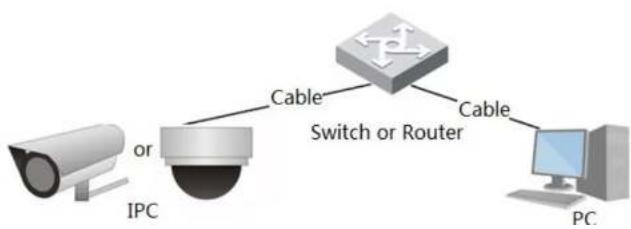
In the general IPC network topology, IPC is connected to PC through network switch or router.
Figure 1-1 General IPC network
flowchart
graph TD
    A["Camera"] -->|or| B["Switch or Router"]
    B -->|Cable| C["Switch or Router"]
    B -->|Cable| D["PC"]
    B -->|Cable| E["PC"]
ajhua TECHNOLOGY
Operation Manual
- Record abnormality of monitoring image for subsequent view and processing.
- Configure coding parameters, and adjust live view image.
Record
• Auto record as schedule.
- Play back recorded video and picture as needed.
- Download recorded video and picture.
• Alarm linked recording.
Account
- Add, modify and delete user group, and manage user authorities according to user group.
- Add, modify and delete user, and configure user authorities.
- Modify user password.
1.3.2 Intelligent Function
Alarm
- Set alarm prompt mode and tone according to alarm type.
• View alarm prompt message.
Smart Track
- Set calibration and parameters for smart track and enable alarm track.
- Switch between smart track and speed dome auto track.
Video Detection
- Motion detection, video tampering detection and scene changing detection.
- When an alarm is triggered, the custom performs linkages such as recording alarm output
Crowd Map
- View crowd distribution in real time for the timely arm to avoid accidents like stampede.
- When an alarm is triggered, the system performs linkages such as recording, alarm output, sending email, PTZ operation, and snapshot.
Face Detection
- Detect face and display the related attributes on the live interface.
- When an alarm is triggered, the system performs linkages such as recording, alarm output, sending email, PTZ operation, and snapshot.
Face Recognition
- After detecting face, make comparison between the detected face with the face in face database, and activates alarm output.
- Query the recognition result.
People Counting
- Count the people flow in/out the detection area, and generate report.
- When an alarm is triggered, the system performs linkages such as recording, alarm output, sending email, PTZ operation, and snapshot.
Heat Map
- Count cumulative density of moving objects.
• View report of heat map.
Vehicle Density
• Supports traffic congestion detection and parking upper limit detection.
• View the statistic data on the live interface.
Alarm Setting
- The alarm is triggered when an external alarm input device inputs alarm.
- When an alarm is triggered, the system performs linkages such as recording, alarm output, sending email, PTZ operation, and snapshot.
Abnormality
- SD card error, network disconnection, illegal access, voltage detection and security exception.
- When SD card error or illegal access is triggered, the system links alarm output and sending email.
- When network disconnection alarm is triggered, the system links recording and alarm output.
- When the input voltage is more or less than the rated voltage, the alarm is triggered and the system links sending email.
2 Configuration Flow
For the device configuration flow, see Figure 2-1. For details, see Table 2-1. Configure the device according to the actual situation.
Figure 2-1 Configuration flow

flowchart
graph TD
    A["Login"] --> B{Initialized?}
    B -->|No| C["Initialize"]
    B -->|Yes| D["Configure basic parameters"]
    D --> E["Configure intelligent event"]
    E --> F["Set detection parameters (such as video deflection and IVS)"]
    E --> G["Subscribe Alarm"]
    C --> H["Set IP address"]
    C --> I["Set system time"]
    C --> J["Set image parameters"]
Table 2-1 Description of flow
| Configuration | Description | Reference | |
| Login | Open IE browser and enter IP address to log in to the web interface, The camera IP address is 192.168.1.108 by default. | "4.1 Login" | |
| Initialization | Initialize the camera when you use it for the first time. | "3 Device Initialization" | |
| IP address | Modify IP address according to network planning for the first use or | "4.6.1 TCP/IP" | |
3 Device Initialization
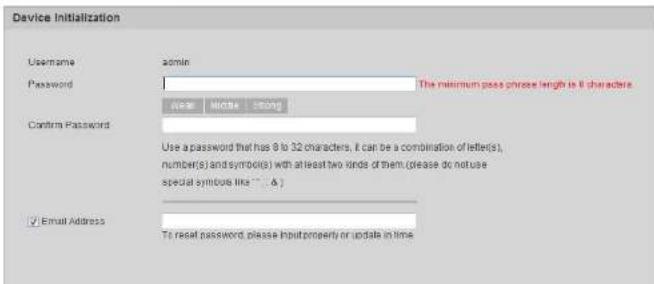
Device initialization is required for the first use. This manual is based on the operation on the web interface. You can also initialize device through ConfigTool, NVR, or platform devices.

- To ensure the device safety, keep the password properly after initialization and change the password regularly.
- When initializing device, keep the PC IP and device IP in the same network.
Step 1 Open IE browser, enter the IP address of the device in the address bar, and then press Enter key.

The IP is 192.168.1.108 by default.
Figure 3-1 Device initialization
text_image
Device Initialization Username admin Password The minimum pass phone length to 8 characters use Middle String Confirm Password Use a password that has 9 to 32 characters, it can be a combination of letlet(s), number(s) and symbol(s) with at least two kinds of them. (please do not use special symbol like ""...A) ✓ Email Address To reset password, please input property or update in timeFigure 3-2 End-user license agreement

text_image
End-User License Agreement Zhejiang Dahua Technologies Co., Ltd. Software End User License Agreement 1. NOTICE IMPORTANT NOTICE. PLEASE READ CAREFULLY: This Zhejiang Dahua Technology Co. LTD (Dahua) License Agreement (Agreement) sets forth the terms and conditions under which You are licensed to use the Software. By installing, copying, downloading the Software or using the same by any other means, you are deemed to have accepted this Agreement. If you do not agree with it in whole or in past, you do not have the right to use this Software, in which case you should immediately stop installing, copying the Software or using the same by any other means. 2. DEFINITIONS "Software" means information management program(s) or supporting document(s) consisting of several modules or functions: Supporting document(s) includes all or part of the source codes and object codes of the Software, as well as the images, photographs, icons, animations, audio, video, music, words and codes incorporated therein; it also includes all relevant paper or electronic information and technical documentation which describe the functions, characteristics, contents, quality, tests, customer manuals, user agreements, etc. (Software Product or Software) I have read and agree to all terms NextStep 4 Select the I have read and agree to all terms checkbox, and then click Next.
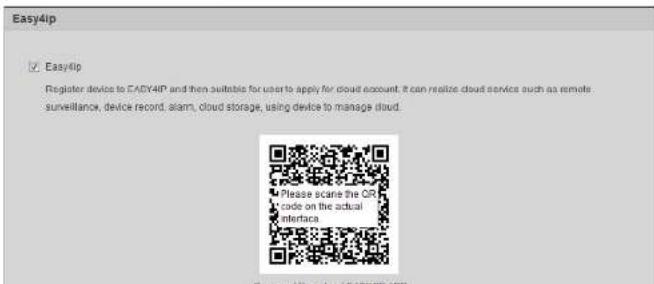
Figure 3-3 Easy4ip
text_image
Easy4ip ✓ Easy4ip Register device to EADY4IP and then suitable for user to apply for cloud account. It can realize cloud device such as remote surveillance, device record, alarm, cloud storage, using device to manage cloud. Please scare the Off-code on the actual interface.Figure 3-4 Online upgrade

text_image
Online Upgrade ✓ Auto-check for updates Notify automatically when updates available. The system checks for updates every day Online Upgrade is a service that provides you with firmware updates by cloud. This service will collect device information in order to inform you about available firmware updates. Such information may include your device name, firmware version and device identification numbers. Such information is processed for the sole purpose of informing you about firmware updates. SaveStep 6 Select the upgrading method as needed.
If you select Auto-check for updates, the system checks new version once a day automatically. There will be system notice on Upgrade interface and Version interface if any new version is available.

Select Setting > System > Upgrade > Online Upgrade, and you can enable the auto-check function.
Step 7 Click Save.
4 Basic Configuration
The chapter introduces the basic configuration, including login, live view, PTZ operation, playback, camera configuration, network configuration, storage configuration and system configuration.
4.1 Login
This section introduces how to log in to and log out of the web interface. This section takes IE Explorer 9 as an example.

- You need to initialize the camera before logging in to the web interface. For details, see "3 Device Initialization".
- When initializing the camera, keep the PC IP and device IP in the same network.
- Follow the instruction to download and install the plug-in for the first login.
Procedure
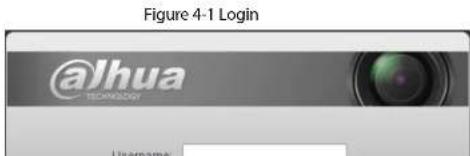
Step 1 Open IE browser, enter the IP address of the camera (192.168.1.108 by default) in the address bar and press Enter.
text_image
Figure 4-1 Login @Jhua TECHNOLOGY UsernameFigure 4-2 Live
natural_image
Exterior view of a modern glass building with parked cars and greenery, no visible text or signageRelated Operations
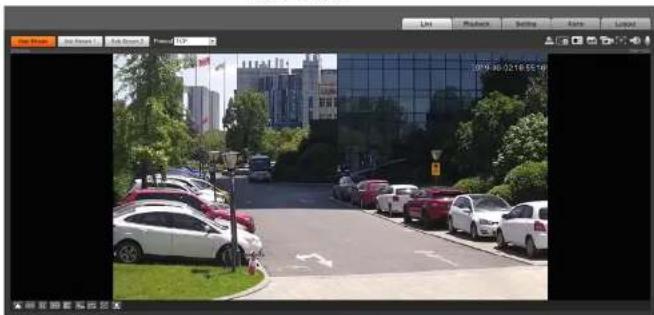
• Live: Click Live, and you can view the real-time monitoring image.
- Playback: Click Playback, and you can play back or download recorded video or image files.
- Setting: Click Setting, and you can configure the basic and intelligent functions of the camera.
- For the camera with multiple channels, through selecting channel numbers, you can set the parameters of the channels.
- Alarm: Click Alarm, and you can subscribe and view alarm information.
- Logout: Click Logout to go to login interface.
- The system will sleep automatically after idling for a period of time.
4.2 Live
This section introduces the layout of the interface and function configuration.
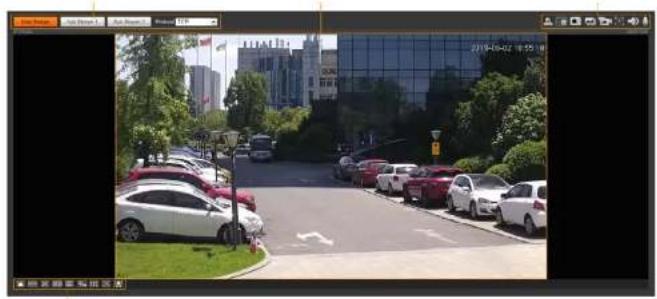
Figure 4-3 Live
natural_image
Street scene with parked cars and a modern glass building in the background (no visible text or symbols)Table 4-1 Description of function bar
| No. Function | Description | |
| 1 | Encode bar | Sets stream type and protocol. |
| 2 | Live view | Displays the real-time monitoring image. |
| 3 | Live view function bar | Functions and operations in live viewing. |
| 4 | Window adjustment bar | Adjustment operations in live viewing. |
4.2.2 Encode Bar
Figure 4-4 Encode bar

Table 4-2 Description of live view function bar
| Icon Function Description | ||
 Manual Position Manual Position | Manually position the tracking speed dome to the selected location of corresponding panoramic camera.Click the icon and click or select randomly on the image of panoramic camera channel, the tracking speed dome will automatically position the selected location.For multi-sensor panoramic network camera + PTZ camera, before enabling manual position, make sure that you have enabled alarm track and smart track calibration. For details, see "5.2 Setting Smart Track".For panoramic network camera, before enabling manual position, make sure that you have enabled panoramic linkage. For details, see "5.3 Setting Panoramic Calibration". | |
 Regional Focus Regional Focus | Select channel image of the tracking speed dome, click the icon and click or select randomly on the channel image of the tracking speed dome, and then the speed dome can realize auto focus upon the selected region. | |
 | Wiper | Controls the wiper of the camera.Click the icon to enable or disable wiper function. |
Operation Manual
| Icon Function Description | |||
 | Vehicle Density | Click the icon, and select an area on the live image, the camera will automatically count the number of the vehicles in the selected area, and display the number on theLiveinterface. | |
 | Relay-out | Displays alarm output state. Click the icon to force to enable or disable alarm output.Alarm output state description:Red: Alarm output enabled.Grey: Alarm output disabled. | |
 | Warning Light | Displays the warning light state.Click the icon to enable or disable the warning light forcibly. | |
 | Alarm | Displays alarm sound state.Click the icon to enable or disable the alarm sound forcibly. | |
| [6WWX] | Crowd Map | Click the icon to display the crowd map on theLiveinterface.Only after enabling the function, can you see the icon on theLiveinterface.The positions of the icon might vary depending on models. | |
 | Digital Zoom | You can zoom in or out video image through two operations.Click the icon, and then select an area in the video image to zoom in; right-click on the | |
Operation Manual
| Icon Function Description | |||
 Record Record | Click the icon to record video, and it will be saved to the configured storage path.About viewing or configuring storage path, see "4.5.2.5 Path". | ||
 | Easy Focus | Click the icon, the AF Peak (focus eigenvalue) and AF Max (max focus eigenvalue) are displayed on the video image.AF Peak: The eigenvalue of image definition, it displays during focus.AF Max: The best eigenvalue of image definition.The smaller the difference between AF peak value and the AF max value, the better the focus is.Easy focus closes automatically after five minutes. | |
 | Audio Click the icon to enable or disable audio output. | ||
 | Talk Click the icon to enable or disable the audio talk. | ||
4.2.4 Window Adjustment Bar
Table 4-3 Description of adjustment bar
| Icon Function Description | ||
 Image Adjustment Image Adjustment | Click the icon, and then theImage Adjustmentinterfaceis displayed at the right side of theLiveinterface. You can adjust brightness, contrast, hue, and saturation.The adjustment is only available on the web interface, and it does not adjust the camera parameters.blightness adjustment):Adjusts the overall image brightness, and change the value when the image is too bright or too dark. The bright and dark areas will have equal changes.(contrast adjustment): Change the value when the image brightness is proper but contrast is not enough.(Hue adjustment): Makes the color deeper or lighter. The default value is made by the light sensor, and it is recommended.(Saturation adjustment): Adjusts the image saturation. This value |
Operation Manual
| Icon Function Description | ||
 | Fluency | Click the icon to select the fluency from Realtime, Fluency and Normal.Realtime:Guarantees the real-time display of the image. When the bandwidth is not enough, the image might not be smooth.Fluency:Guarantees the fluency of the image. There might be delay between live view image and real-time image.Normal:It is between Realtime and Fluency. |
 | Rule Info | Click the icon, and then select Enable to display smart rules and detection box;select Disable to stop the display. It is enabled by default. |
 | PTZ | Click the icon, and the PTZ control panel is displayed at the right side of the Live interface. You can control and call PTZ function. For details, see"4.3.3 Calling PTZ". |
 Zoom and Focus Zoom and Focus | Window Layout | Adjust focal length to zoom in and out video image. Click the icon, and theZoom and Focus configuration interface is displayed at the right side of theLiveinterface. You can control and call PTZ function. For details, see "4.2.4.2 Zoom and Focus".When viewing the multi-channel image, you can select display layout. For Multi-Sensor Panoramic + PTZ Camera:The live interface will showPanorama 1 and Panorama 2 by default if you choose dual-channel mode.If you switch from three-channel mode or dual-channel mode to single-channel mode, the live window will show Panorama 1 by default. ClickPanorama 1 Panorama 2 PTZ Camera and select the camera you want to view. |
 Crowd Map Crowd Map | Click the icon and select theEnable checkbox. TheCrowd Mapinterface is displayed. For details, see"5.9 Setting Crowd Map". |
4.2.4.2 Zoom and Focus
You can adjust focal length to zoom in or out video image and the image clarity.

The focus would adjust automatically after zooming in or out.
Figure 4-5 Zoom and focus

Table 4-4 Description of zoom and focus
| Parameter Description | |
| Zoom | Changes the focal length of the camera to zoom in or out the image.1. Set theSpeedvalue. TheSpeedis the adjustment range in one click. The larger the value is, the more the image would zoom in or out in one click.2. Click or hold +or- button, or drag the slider to adjust zoom. |
| Focus | Adjusts the optical back focal length to make the image clearer.1. Set theSpeedvalue. TheSpeedis the adjustment range in one click. The larger the value is, the more the adjustment in one click.2. Click or hold +or- button, or drag the slider to adjust focus. |
| Auto Focus | Adjusts image clarity automatically.Do not make any other operation during auto focus process. |
| Restore All | Restores focus to default value and corrects errors.You can restore the focus if the image has poor clarity or has been zoomed too frequently. |
| Regional Focus | Focus on the subject of a selected area.ClickRegional Focus, and then select an area in the image, the camera performs auto focus in that area. |
| Refresh | Get the latest zoom setting of the device. |
4.2.4.3 Fisheye
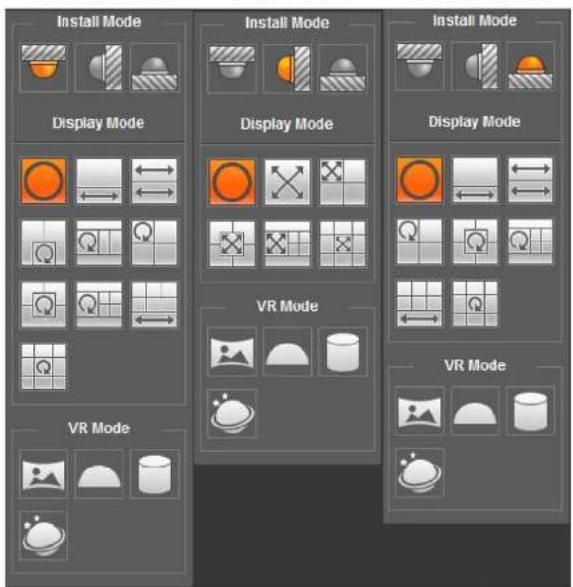
You can select the installation mode, display mode and VR mode of fisheve devices as needed. For
Figure 4-6 Fisheye
Ceiling mount
Wall mount
Ground mount
text_image
Install Mode Display Mode VR Mode Install Mode Display Mode VR Mode Install Mode Display Mode VR ModeTable 4-5 Description of fisheye configuration
Parameter Description
| Parameter Description | ||
[XYH]  | Two associated 180° rectangular image screens, and at any time, the two screens form a 360° panoramic image. It is also called dual-panoramic image.You can move the start point (left and right) on the two rectangular panoramic image screens, and the two screens link each other. | |
| [06AA] [XZ0A] 1+2 | Original image screen + two independent sub-screens. Ground Mount does not support this display mode.You can zoom or drag the image in all the screens.You can rotate the image on the original image screen to change the start point. | |
  | Original image screen + three independent sub-screens.You can zoom or drag the image in all the screens.You can rotate the image on the original image screen to change the start point. | |
 [BK3D] 1+4 [BK3D] 1+4 | Original image screen + four independent sub-screens.You can zoom or drag the image in all the screens.You can rotate the image on the original image screen to change the start point. | |
| Z4K2 1P+3 | 360° rectangular panoramic screen + six independent sub-screens 180^ rectangular panoramic image screen + three independent sub-screens.You can zoom or drag the image in all the screens.You can drag the image in all the screens (upper and lower) to adjust the vertical view. | |
| HY7X 1P+4 | 180^ rectangular panoramic image screen + four independent sub-screens.You can zoom or drag the image in all the screens.You can drag the image in all the screens (upper and lower) to adjust the vertical view. | |
| DH34 1P+8 | 180^ rectangular panoramic image screen + eight independent sub-screens.You can zoom or drag the image in all the screens.You can drag the image in all the screens (upper and lower) to adjust the vertical view. | |
| 77KY Panorama | Drag or cross the screen 360^ to unfold the distortion panorama, and you can drag the image in left/right direction. | |
| WWOX | You can drag the image in upper/lower/left/right direction. Press I to display the panorama, and press O to | |
| [KE8Y] Asteroid | You can drag the image in upper/lower/left/right direction. Press I to display the panorama, and press O to return to the original size.Press the left mouse-button to slide down to display the image on the plane surface.Scroll the mouse wheel to zoom the image. | |
4.3 PTZ Operation
This section introduces PTZ parameter configuration, PTZ control and PTZ function configuration.
4.3.1 Configuring External PTZ Protocol
You need to configure PTZ protocol when accessing external PTZ camera; otherwise the camera cannot control external PTZ camera.
Prerequisites
- Access external PTZ through RS-485.
- You have configured the parameters of serial port. For details, see "4.8.5.1 Serial Port Settings".
Procedure
Step 1 Select Setting > PTZ Setting > Protocol.
Figure 4-7 PTZ setting

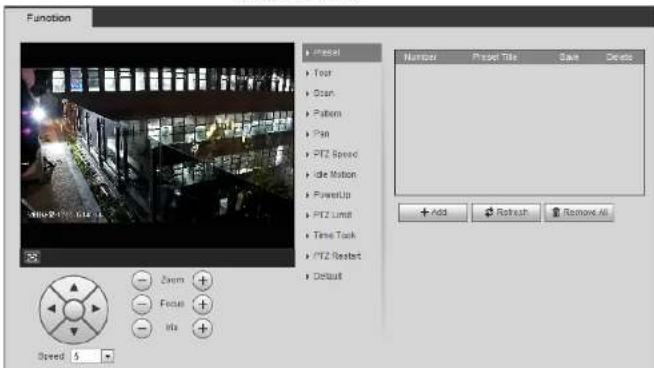
Figure 4-8 Preset
text_image
Function Timer Tour Scan Pattern Pan PTZ Speed Isle Motion PresetUp PTZ Limit Time Track PTZ Reset Default Zoom Focus Mix Speed 5 Number Project Title Save Delete Add Refresh Remove AllStep 2 Set the speed, and click ⚙️, − and + to adjust the parameters of direction, zoom, focus and iris, to move the camera to the position you need.
Step 3 Click Add to add the current position to be a preset, and the preset is displayed in preset list.
Step 4 Double-click the preset title to edit it.
Step 5 Click 📋 to save the preset.
Related Operations
- Click to delete the preset.
- Click Remove All to remove all presets.
4.3.2.2 Tour
Figure 4-9 Tour
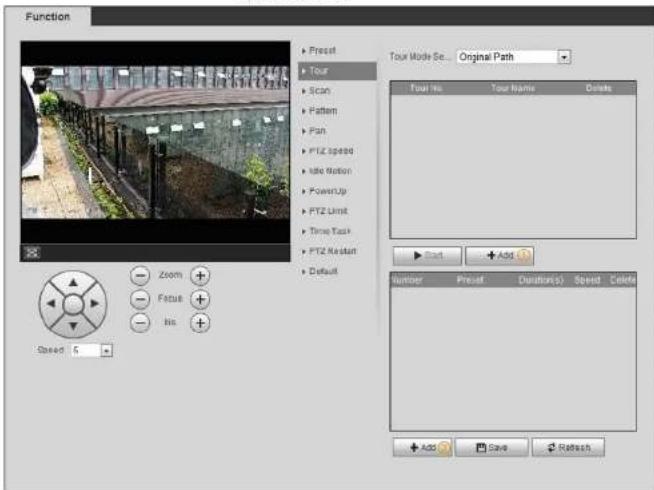
text_image
Function + Preset + Tour + Scan + Pattern + Pan + PTZ speed + Idle Motion + PowerUp + PTZ Limit + Time Task + PTZ Restant + Default Tour Mode Set... Original Path Tour No. Tour Name Delete Start Add Number Preset Duration(s) Speed Color + Add Save Refresh Zoom Focus Ins Speed 5Step 2 Click Add① to add tour.
Double-click the tour name to edit the name.
Step 3 Click Add② to add preset.
Double-click the duration to set the duration.
Step 4 Select the tour mode.
- Original path: The PTZ camera moves in the order of the selected presets.
- Chearest with: The OT7 common scale presents by distance, and moves in the optimal
Figure 4-10 Scan

text_image
Function ▶ Preset ▶ Tour ▶ Scan ▶ Pattern ▶ Pan ▶ PTZ Speed ▶ Idle Motion ▶ PowerUp ▶ PTZ Limit ▶ Time Task ▶ PTZ Restart ▶ Default Scan No. 1 Speed 5 ▶ Start ● Setup Set Left Limit Set Right Limit Zoom + Focus + Iris + Speed 5Step 2 Select the scan number, and set the speed.
Step 3 Click Setup to set left limit and right limit.
1) Click Set Left Limit to set the current position to be the left limit.
2) Click Set Right Limit to set the current position to be the right limit.
Step 4 Click Start to start scanning.
Click Stop to stop scanning.
4.3.2.4 Pattern
Pattern means a recording of a series of operations that you make to the camera, and when pattern starts, the camera performs the operations repeatedly. The operations include horizontal and
Figure 4-11 Pattern
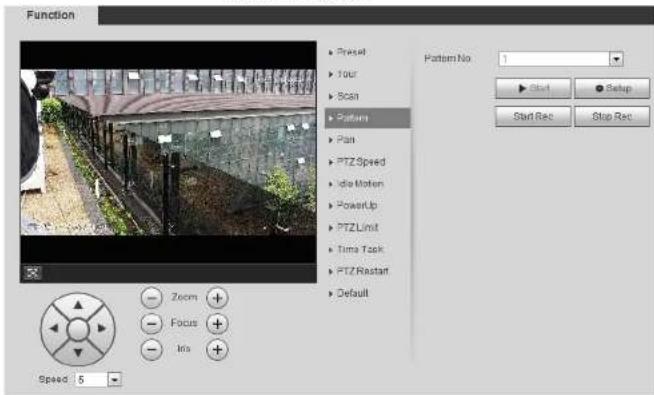
text_image
Function ▶ Preset ▶ Tour ▶ Scan ▶ Pattern ▶ Plan ▶ PTZ Speed ▶ Idle Moten ▶ PowerUp ▶ PTZ Limit ▶ Time Task ▶ PTZ Restart ▶ Default Pattern No 1 ▶ Start ● Setup Start Rec Stop Rec Zoom + Focus + Iris + Speed 5Step 2 Select the pattern number.
Step 3 Click Setup, and then click Start Rec. Adjust the parameters of direction, zoom, focus and iris according to the actual situation.
Step 4 Click Stop Rec to stop recording.
Step 5 Click Start to start patterning.
Step 6 Click Stop to stop patterning.
4.3.2.5 Pan
Enable Pan, the camera can realize continuous 360° horizontal rotation at a certain speed.
Step 1 Select Setting >PTZ settings >Function >Pan.
Click Stop to stop rotation.
4.3.2.6 PTZ Speed
PTZ speed means the rotation speed of the PTZ camera during touring, pattern, or auto tracking. Step 1 Select Setting > PTZ settings > Function > PTZ Speed.

text_image
Figure 4-13 PTZ speed Function ► Presel ► Tour ► Scan ► Pattern ► Pan ► PTZ Speed ► Idle Notion ► PowerUp ► PTZ Limit ► Time Task ► PTZ Restart ► Default PTZ Speed ○ Low ○ Middle ○ High Zoom + Focus + Info + Speed 5Step 2 Select the PTZ speed: Low, Middle, and High.

Speed under the direction buttons refers to the rotation angle of the PTZ camera for each press of the direction button.
Figure 4-14 Idle motion

text_image
Function Preset001 PASO 001, PASO Preset Tour Scan Pattern Pan PTZ Speed Idle Motion PowerUp PTZ Limit Time Task PTZ Restart Default Enable Idle Motion Prssat Tour Scan Pattern Number 1 : Preset001 Idle Time 10 minute(s) (1-80) Refresh Save Zoom Focus Iris Speed 5Step 2 Select the Enable check box to enable the idle motion function.
Step 3 Select the idle motion and set the idle time.
You need to select the corresponding number for some selected idle motions, such as Preset001.
Step 4 Click Save.
4.3.2.8 PowerUp
After setting Powerup motion, the camera will perform the configured motion after it is powered on.
Step 1 Select Setting > PTZ settings > Function > PowerUp.
Step 3 Select the power up motion.

When you select Auto, the system will perform the last motion that is executed for more than 20 s before power-off.
Step 4 Click OK.
4.3.2.9 PTZ Limit
After setting PTZ limit, the camera can only rotate within the configured area.
Step 1 Select Setting > PTZ settings > Function > PTZ Limit.
Figure 4-16 PTZ limit
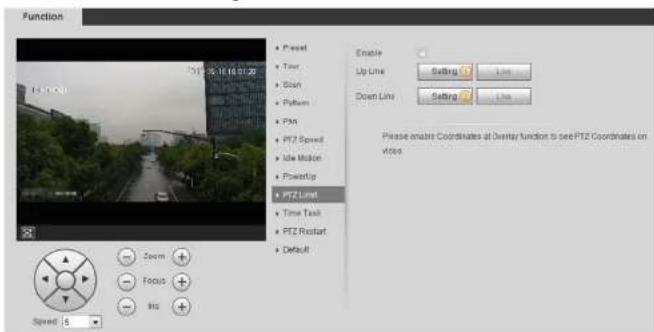
text_image
Function 14.0000 + Reset + Tour + Skin + Pattern + Pin + PTZ Speed + Idle Motion + PowerUp + PTZ Limit + Time Task + PTZ Restart + Default Enable Up Line Down Line Setting Reset Please enable Coordinates at Overlay function to see PTZ Coordinates on Voice Zoom Focus Insert Speed 5Step 2 Adjust the direction buttons, and then click Setting① to set the up line; click Setting② to set the down line.
Figure 4-17 Time task
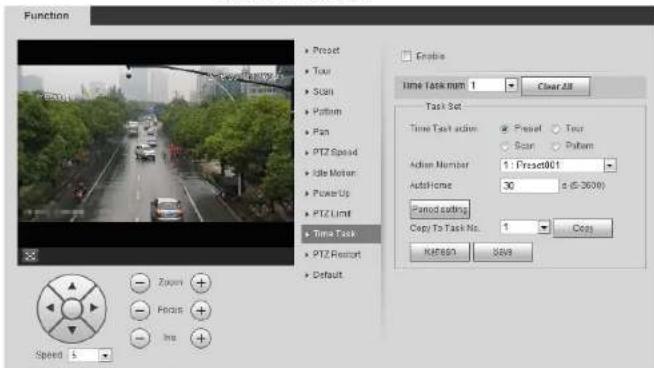
text_image
Function • Reset • Tour • Scan • Pattern • Pan • PTZ Speed • Idle Motor • PowerUp • PTZ Limit • Time Task • PTZ Resort • Default ■ Create Time Task num: 1 Clear All Task Set Time Task action: Reset Test Scan Pattern Action Number: 1; Preset001 AutoHome: 30 6 (5-300) Pamodading Copy To Task No: 1 Copy: MEN90 SAB9 Zoom Focus Ins Speed 5Step 2 Select the Enable check box to enable time task function.
Step 3 Select the time task number.
Step 4 Select the time task action.
You need to select the corresponding action number for some selected time task actions.
Step 5 Set the auto home time in AutoHome.
AutoHome: When you call PTZ, the time task will be interrupted. After setting AutoHome time, the camera will resume the time task automatically.
Step 6 Click Period setting to set the time of the task, and then clickSave.
For setting arm time, see "5.1.1.1 Setting Period".
Step 7 Click Save.
Related Operations
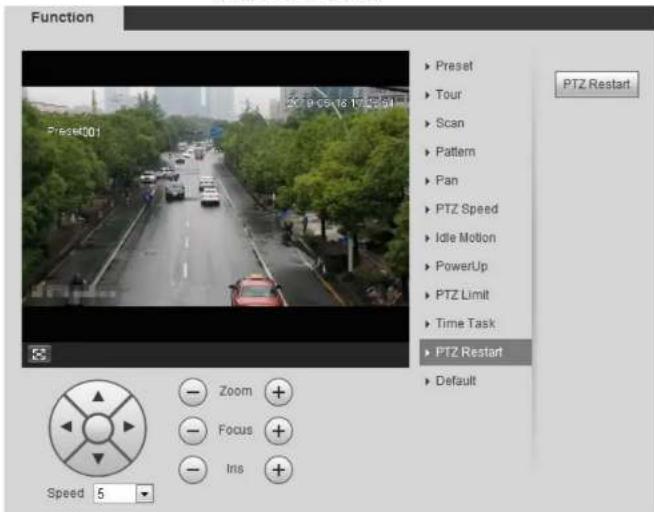
Figure 4-18 PTZ restart
text_image
Function Preset Tour Scan Pattern Pan PTZ Speed Idle Motion PowerUp PTZ Limit Time Task PTZ Restart Default Zoom Focus Ins Speed 5 PTZ RestartStep 2 Click PTZ Restart to restart PTZ.
4.3.2.12 Default

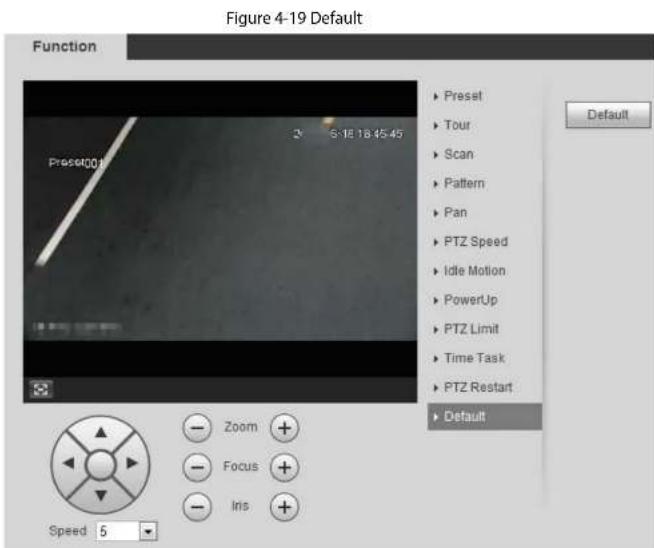
Be careful when doing this operation. It will restore the camera to default configuration, and result in
text_image
Figure 4-19 Default Function Preset001 2: 6:16 18:45:45 Default Zoom + Focus + Iris + Speed 5Step 2 Click Default and the PTZ function is restored to default.
4.3.3 Calling PTZ
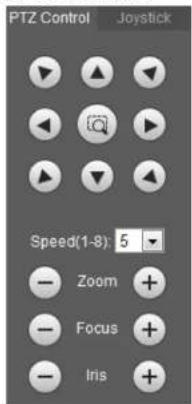
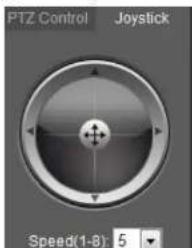
Click on Live interface, and the PTZ configuration panel is displayed. You can control PTZ and call PTZ function.
Figure 4-20 PTZ control
text_image
PTZ Control Joystick Speed(1-8): 5 Zoom + Focus + Iris +Figure 4-21 Joystick
text_image
PTZ Control Joystick Speed(1-8): 54.3.3.2 PTZ Function
Select the PTZ function from the drop-down list to call the corresponding functions, including Scan, Preset, Tour, Pattern, Pan, Go to, Assistant and Light Wiper. See Figure 4-22. For details, see Table 4-6. Before calling PTZ function, see "4.3.2 Configuring PTZ Function" to configure PTZ function.

- If an external PTZ is connected to the camera, the configurations are valid only when the corresponding functions are available on the external PTZ.
- The range of PTZ function (such as preset and tour) depends on the PTZ protocol.
Figure 4-22 PTZ function
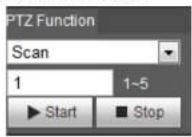
Table 4-6 Description of PTZ function
| Parameter Description | |
| Scan | Set the scan number and click Start, the camera moves horizontally at a certain speed between the set left and right limit. ClickStop to stop scanning. |
| Preset | Set the preset number and click Go to, the camera quickly positions the corresponding preset. |
| Tour | Set the tour number and clickStart, the camera moves in the order of the selected presets. Click Stop to stop touring. |
| Set the pattern number and clickStart, the camera moves continuously according to the operation recording. Click Stop to stop patterning. | |

- Before playing back video, configure record time range, record storage method, record schedule and record control. For details, see "5.1.1.2.1 Setting Record Plan".
- Before playing back picture, configure snapshot time range, snapshot storage method, snapshot plan. For details, see "5.1.1.3.1 Setting Snapshot Plan".
4.4.1 Playback Interface
Click the Playback tab, and the Playback interface is displayed.
Figure 4-23 Video playback

text_image
File Type Date: 01 ISO Card Run: 2013 Real Time Tools Tools Help 10 17 18 19 20 25 23 24 26 28 27 29 30 8:00:00 - 06:00:00 Record Type Cancel Edit Alarm RenameFigure 4-24 Picture playback

Table 4-7 Playback interface description
| No. Function | Description | |
| 1 | Fisheye | Click you can select display mode according to the installation mode during playback.This function is only available on fisheye cameras. |
| Rules Info | Click intelligent rules and object detection box are displayed. It is enabled by default.Rules Info is valid only when you enabled the rule during recording. | |
| 2 Sound | Controls the sound during playback.:Mule mode.:Vocal state. You can adjust the sound. | |
| 3 Play control bar | Controls playback.:Click the icon to play back recorded videos.:Click the icon to stop playing back recorded videos.:Click the icon to play the next frame.:Click the icon to slow down the | |
| 6 Assistant |  an zoom in or out video image of the selected area through two operations. an zoom in or out video image of the selected area through two operations. he icon to capture one picture of the current video, and it will be saved to the configured storage path. he icon to capture one picture of the current video, and it will be saved to the configured storage path. | |
| 7 Playback video |  elect the file type, data source, and record date. elect the file type, data source, and record date. | |
| 8 Video clip |  ain recorded video and save it. For details, see "4.4.3 Clipping Video". ain recorded video and save it. For details, see "4.4.3 Clipping Video". | |
| 9 Time format of progress bar |  time formats:24hr2hrTaker30min24hras an example, the whole progress stands for 24 hours. time formats:24hr2hrTaker30min24hras an example, the whole progress stands for 24 hours. |
4.4.2 Playing back Video or Picture
This section introduces the operation of video playback and picture playback. This section takes video playback as an example.
Step 1 Select dav from the Record Type drop-down list and SD card from the Data Src drop-down list.
Select jpg from Record Type drop-down list when playing back pictures, and you do not need to select data source.
Figure 4-25 File type selection

playback file list, such as Motion Detection, Video Tamper and Scene Changing
Figure 4-27 Specific event types

text_image
00 : 00 : 00 - 23 : 59 : 59 Event Event Motion Detection Video Tamper Scene Changing Intensity Change Input Abnormal People Counting Defocus Detection Tripwire Intrusion Abandoned Object Missing Object Loitering Detection Fast-Moving Crowd Gathering EstimationStep 3 Select the month and year of the video that you want to play.

Those dates with blue color indicate there were videos recorded in those days.
Step 4 Play video.
- Click in the control bar.
The system plays the recorded video of the selected date (in the order of time).
The custom plays the recorded video of the selected data (in the order of time)
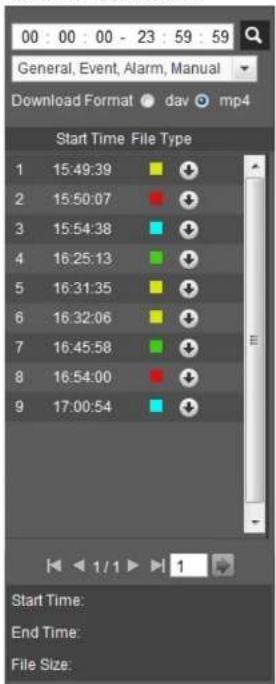
Figure 4-29 Playback file list
text_image
00 00 00 - 23 59 59 General, Event, Alarm, Manual Download Format dav mp4 Start Time File Type 1 15:49:39 2 15:50:07 3 15:54:38 4 16:25:13 5 16:31:35 6 16:32:06 7 16:45:58 8 16:54:00 9 17:00:54 Start Time: End Time: File Size:The system will prompt that it cannot play back and download at the same time. Step 6 Click OK. The playback stops and the clipped file is saved in the configured storage path. For the configuration of storage path, see "4.5.2.5 Path".
4.4.4 Downloading Video or Picture
Download video or picture to a defined path. You can download single video or picture file, or download them in batches. This section takes downloading video as an example.
The image is too blurry to recognize any text content.
- Playback and downloading at the same time is not supported.
• Operations might vary with different browsers. - For details of viewing or setting storage path, see "4.5.2.5 Path".
4.4.4.1 Downloading a Single File
Step 1 Select dav from the Record Type drop-down list and SD card from the Data Src drop-down list. Select jpg from Record Type drop-down list when playing back pictures, and you do not need to select data source.
Step 2 Click , the video files of the selected date are listed. See Figure 4-29.
Step 3 Select dav or mp4 in Download Format. Click next to the file to be download. The system starts to download the file to the configured path. When downloading pictures, you do not need to select the download format.
4.4.4.2 Downloading Files in Batches
aJhua
Operation Manual
Step 2 Select the record type, set the start time and end time, and then click Search. The searched files are listed.
Step 3 Select the files to be downloaded, select dav or mp4 from the Format drop-down list, and then set the storage path. Click Download. The system starts to download the file to the configured path. When downloading picture, you do not need to select the download format.
4.5 Camera
This section introduces the camera setting, including conditions, video and audio.
[NO TEXT]
Camera parameters of different devices might vary.
4.5.1 Camera Conditions
Configure camera parameters of the camera to ensure surveillance goes properly.
4.5.1.1 Conditions
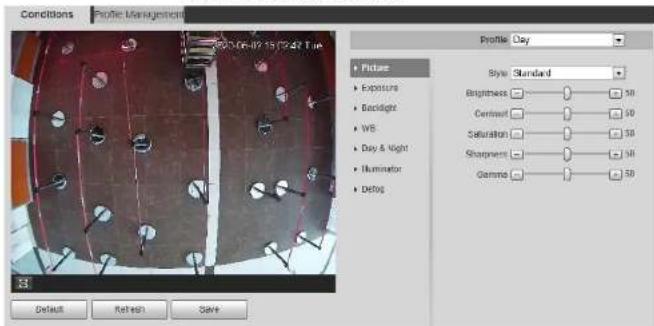
Configure camera parameters according to the actual situation, including picture, exposure, backlight and white balance.
4.5.1.1.1 Interface Layout
Configure camera parameters to improve the scene clarity, and ensure that surveillance goes properly. See Figure 4-32.
Figure 4-32 Camera conditions
text_image
Conditions Profile Management Profile: Clay + Picture • Exposure • Enclosure • VRS • Day & Night • Illumination • Default Style: Standard Brightness Centroid Saturation Sharpness Gamma Default Refresh SaveFigure 4-33 Camera conditions (PTZ camera)
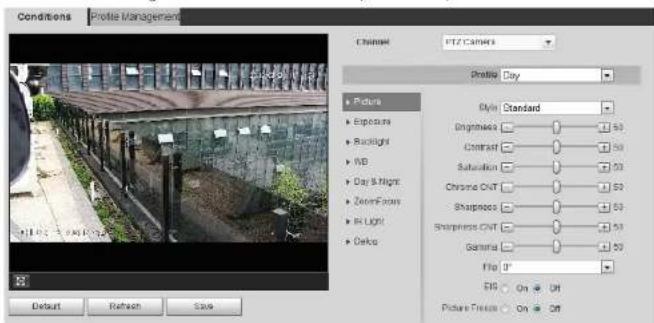
text_image
Conditions Profile Management Channel PTZ Camera Profile: Day • Picture • Exposure • Backlight • IWD • Day & Night • ZoomFocus • Hi Light • Delta • Style: Standard • Brightness: 50 • Contrast: 50 • Saturation: 50 • Chrome CNT: 50 • Sharpness: 50 • Sharpness CNT: 50 • Gamma: 50 • Flu: 0° • Off: On: Off Picture Texture: On: Off Default Refresh Size
text_image
Figure 4-34 Picture Channel PTZ Camera Profile Day Picture Exposure Backlight WB Day & Night ZoomFocus Illuminator Defog Style Standard Brightness Contrast Saturation Chroma CNT Sharpness Sharpness CNT Gamma Flip 0° Optical Dejitter... On Off Picture Freeze On OffStep 2 Configure picture parameters.
Table 4-8 Description of picture parameters
| Parameter Description | |
| Style | Select the picture style from soft, standard and vivid. Soft: Default image style, displays the actual color of the image.Standard: The hue of the image is weaker than the actual one, and contrast is smaller.Vivid: The image is more vivid than the actual one. |
Operation Manual
| Parameter Description | |
| Flip | Changes the display direction of the picture, see the options below.0°: Normal display.90°: The picture rotates 90° clockwise.180°: The picture rotates 90° counterclockwise.270°: The picture flips upside down.For some models, please set the resolution to be 1080p or lower when using 90° and 180°. For details, see "4.5.2.1 Video". |
| EIS | Corrects the device shaking with difference comparison algorithm and improves the image clarity, effectively solves the picture shaking problem. |
| Optical Dejitering | The lens vibration is sensed by the gyroscope sensor, and the corresponding compensation is calculated using the intelligent anti-shake algorithm. The movable parts inside the lens are driven to offset the vibration, which greatly reduces blurring of the image caused by the vibration. |
| Picture Freeze | When you call a preset, the image displays the preset location, not the rotation image. |
Step 3 Click Save.
4.5.1.1.3 Exposure
Configure iris and shutter to improve image clarity.

Cameras with true WDR do not support long exposure when WDR is enabled in Backlight.
Step 1 Select Setting > Camera > Conditions > Conditions > Exposure.
Table 4-9 Description of exposure parameters
| Parameter Description | |
| Anti-flicker | You can select from 50 Hz, 60 Hz and Outdoor.50 Hz: When the electric supply is 50 Hz, the system adjusts the exposure according to ambient light automatically to ensure that there is no stripe appears.60 Hz: When the electric supply is 60 Hz, the system adjusts the exposure according to ambient light automatically to ensure that there is no stripe appears.Outdoor: You can select any exposure mode as needed. |
| Mode | Device exposure modes.Auto: Adjusts the image brightness according to the actual condition automatically.Gain Priority: When the exposure range is normal, the system prefers the configured gain range when auto adjusting according to the ambient lighting condition. If the image brightness is not enough and the gain has reached upper or lower limit, the system adjusts shutter value automatically to ensure the image at ideal brightness. You can configure gain range to adjust gain level when using gain priority mode.Shutter priority: When the exposure range is normal, the system prefers the configured shutter range when auto adjusting according to the ambient lighting condition. If the image brightness is not enough and the shutter value has reached upper or lower limit, the system adjusts gain value automatically to ensure the image at ideal brightness.Iris priority: The iris value is set to a fixed value, and the device |
Operation Manual
| Parameter Description | |
| Gain | When selecting Gain Priority or Manual in Mode, you can set shutter range. With minimum illumination, the camera increases Gain automatically to get clearer images. |
| Iris | When selecting Aperture Priority in Mode, you can set iris range. |
| Auto Iris | This configuration is available only when the camera is equipped with auto-iris lens.When auto iris is enabled, the iris size changes automatically according to the ambient lighting condition, and the image brightness changes accordingly.When auto iris is disabled, the iris stays at full size and does not change no matter how ambient lighting condition changes. |
| 2D NR | Average single-frame dots and other dots around to reduce noise. |
| 3D NR | Works with multi-frame (no less than 2 frames) images and reduces noise by using the frame information between previous and latter frames. |
| Grade | This configuration is available only when the 3D DNR is enabled.The higher the DNR level is, the better the result will be. |
Step 3 Click Save.
4.5.1.1.4 Backlight
You can select backlight mode from Auto, BLC, WDR, and HLC.
Step 1 Select Setting > Camera > Conditions > Conditions > Backlight.
Figure 4-36 Backlight

| Backlight mode Description | |
| BLC | Enable BLC, the camera can get clearer image of the dark areas on the target when shooting against light. You can selectDefaultmode or Customized mode.When inDefaultmode, the system adjusts exposure according to ambient lighting condition automatically to ensure the clarity of the darkest area.When inCustomizedmode, the system auto adjusts exposure only to the set area according to ambient lighting condition to ensure the image of the set area at ideal brightness. |
| WDR | The system dims bright areas and compensates dark areas to ensure the clarity of all the area. The higher the value is, the brighter the dark will be, but the more the noise will be.There might be a few seconds of video loss when the device is switching to WDR mode from other mode. |
| HLC | Enable HLC when extreme strong light is in the environment (such as toll station or parking lot), the camera will dim strong light, and reduce the size of Halo zone to lower the brightness of the whole image, so that the camera can capture human face or car plate detail clearly. The higher the value is, the more obvious the HLC effect will be. |
Step 3 Click Save.
4.5.1.1.5 WB
WB function makes the image color display precisely as it is. When in WB mode, white objects would always display white color in different environments.
Step 1 Select Setting > Camera > Conditions > Conditions > WB.
Table 4-11 Description of WB parameters
| WB mode Description | |
| Auto | The system compensates WB according to color temperature to ensure color precision. |
| Natural | The system auto compensates WB to environments without artificial light to ensure color precision. |
| Street Lamp | The system compensates WB to outdoor night scene to ensure color precision. |
| Outdoor | The system auto compensates WB to most outdoor environments with natural or artificial light to ensure color precision. |
| Manual | Configure red and blue gain manually; the system auto compensates WB according to color temperature. |
| Regional Custom | The system compensates WB only to the set area according to color temperature to ensure color precision. |
Step 3 Click Save.
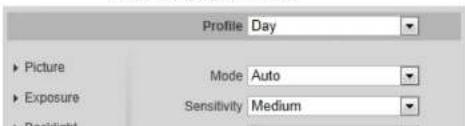
Configure the display mode of the image. The system switches between color and black-and-white mode according to the actual condition.
Step 1 Select Setting > Camera > Conditions > Conditions > Day & Night.
Figure 4-38 Day and night
text_image
Profile Day Picture Mode Auto Exposure Sensitivity MediumTable 4-12 Description of day and night parameters
| Parameter Description | |
| Mode | You can select device display mode fromColor, Auto, and B/W.Day & Night configuration is independent from profile management configuration.Color:The system displays color image.Auto:The system switches between color and black-and-white display according to the actual condition.B/W:The system displays black-and-white image. |
| Sensitivity | This configuration is available only when you setAutoin Mode.You can configure camera sensitivity when switching between color and black-and-white mode. |
| Delay | This configuration is available only when you setAutoin Mode.You can configure the delay when camera switching between color and black-and-white mode. The lower the value is, the faster the camera switches between color and black-and-white mode. |
Step 3 Click Save.
4.5.1.1.7 Zoom and Focus
Initialize lens to adjust zoom and focus. Only PTZ camera supports lens initialization.
Step 1 Select Setting > Camera > Conditions > Conditions > ZoomFocus.
Figure 4-39 Zoom and focus

Operation Manual
| Parameter Description | |
| Zoom Speed | Adjusts zoom speed. The higher the value is, the higher the speed will be. |
| Mode | Sets focus mode.Auto: When image moves or object changes in the scene, the camera will focus automatically.Semi Auto: Clickorcorresponding to Focus or Zoom, the camera will focus. Calling preset, positioning accurately or rotating PTZ also will trigger focus.Manual: Clickercorresponding to Focus to adjust the focus. |
| Focus Limit | When the focus length is too short, the camera will focus on the dome cover. Sets the shortest focus distance to avoid focusing on the dome cover. You can also change the focus speed by changing focus length. |
| Sensitivity | The sensitivity of triggering focus. The higher the value is, the easier the focus will be triggered. |
Step 3 Click Save.

Click Lens Initialization, the lens will adjust the zoom and focus parameters.
This configuration is available only when the device is equipped with illuminator.
Step 1 Select Setting > Camera > Conditions > Conditions > Illuminator.
Figure 4-40 Illuminator

Table 4-14 Description of illuminator parameters
| Illuminator Description | ||
| Fill Light | Set Fill Light for sound and siren cameras.IR Mode: Enable the IR illuminator, and the white light is disabled.White Light: Enable the white light, and the IR illuminator is disabled.Smart illumination. They system will switch the illuminators according to the actual condition.When the ambient light reaches the threshold of IR illuminator, the IR illuminator is enabled. The white light is enabled when the target appears in surveillance area, disabled when the target is out of the surveillance area, and then the IR illuminator is enabled according to the ambient light.When selectingSmart Illumination as Fill Light, you need to set the illuminator delay. It is 60 seconds by default, and the range is 30–300 seconds. | |
| Manual | Adjust the brightness of illuminator manually, and then the system will supply illuminator to the image accordingly. | |
| Auto | The system adjusts the illuminator intensity according to the ambient lighting condition. | |
| Smart IR | ||
| The system adjusts the illuminator intensity automatically according to the change of the ambient light. | ||
image clarity.
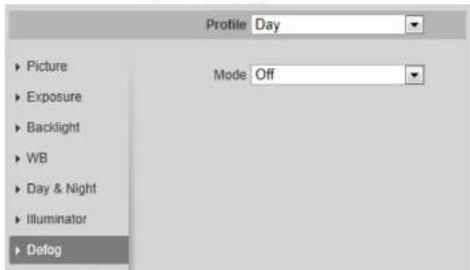
Step 1 Select Setting > Camera > Conditions > Conditions > Defog.
Figure 4-41 Defog
text_image
Profile Day Picture Exposure Backlight WB Day & Night Illuminator Defog Mode OffStep 2 Configure defog parameters.
Table 4-15 Description of defog parameters
| Defog Description | |
| Manual | Configure function intensity and atmospheric light mode manually, and then the system adjusts image clarity accordingly. Atmospheric light mode can be adjusted automatically or manually. |
| Auto | The system adjusts image clarity according to the actual condition. |
| Off Defog function is disabled. | |
Step 3 Click Save.
4.5.1.1.10 Fisheye
Select install mode and record mode according to the actual installation scene. When the camera
Table 4-16 Description of fisheye parameters
| Parameter Description | |
| Install Mode | You can selectCeiling, Wall, or Ground. |
| Record Mode | 10: The original image before correction.1P: 360"rectangular panoramic image.2P: When the install mode isCeiling or Ground, you can set this mode. Two associated 180° rectangular image screens, and at any time, the two screens form a 360° panoramic image.1R: Original image screen + independent sub-screen. You can zoom or drag the image in all the screens.2R: Original image screen + two independent sub-screens. You can zoom or drag the image in all the screens.4R: Original image screen + four independent sub-screens. You can zoom or drag the image in all the screens.1O + 3R: Original image screen + three independent sub-screens. You can zoom or drag the image in original image screen, and move the image (upper and lower) in sub-screens to adjust the vertical view. |
Step 3 Click Save.
4.5.1.1.11 Image Correction
Enable the image correction function to correct some bent objects (such as roads) in the image of panoramic splicing cameras, but it will influence the field of view.
Figure 4-43 Image correction

4.5.1.1.12 Splicing Mode
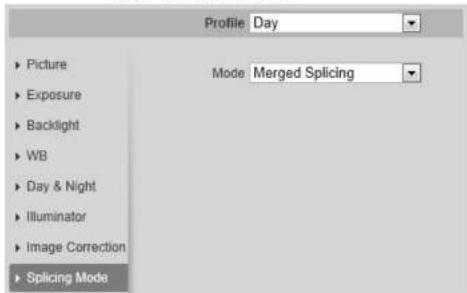
Select the splicing mode to splice several images of different lens to a panoramic image. You can select Merged Splicing or Splicing for Mode.
Figure 4-44 Splicing mode
text_image
Profile Day Picture Exposure Backlight WB Day & Night Illuminator Image Correction Splicing Mode Mode Merged Splicing4.5.1.2 Profile Management
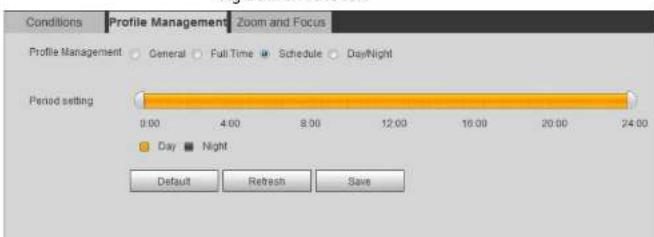
The surveillance system works in different ways as profile configured in different time.
Step 1 Select Setting > Camera > Conditions > Profile Management.
The Profile Management interface is displayed.
Step 2 Manage profile.
- When Profile Management is set as General, the surveillance system works under General configuration.
Figure 4-45 General

Figure 4-46 Full time

text_image
Conditions Profile Management Zoom and Focus Profile Management General Full Time Schedule Day/Night Always Enable Day Default Refresh Save- When Profile Management is set as Schedule, you can drag the slide block to set certain time as Day or Night. For example, set 8:00–18:00 as day, and 0:00–8:00 and 18:00–24:00 as night.
Figure 4-47 Schedule
text_image
Conditions Profile Management Zoom and Focus Profile Management General Full Time Schedule Day/Night Period setting 0:00 4:00 8:00 12:00 16:00 20:00 24:00 Day Night Default Refresh Save- When Profile Management is set as Day & Night, the surveillance system works under Day & Night configuration.
Figure 4-48 Day/Night

camera from taking a clear picture, otherwise, the splicing might fail.
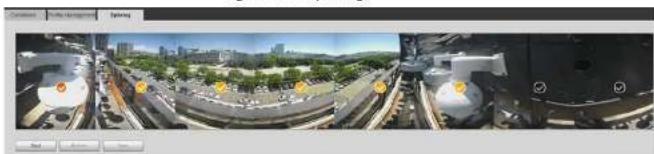
Step 1 Select Setting > Camera > Conditions > Splicing
Figure 4-49 Splicing
natural_image
Panoramic view of a railway intersection with surrounding urban landscape (no visible text or symbols)Step 2 Select the lenses that need to be spliced.
When splicing the image through selecting lenses, you need to select the continuous splicing screens. The screen with the icon ☑ (deeper color) is the first screen of the splicing. You can select any screen as the first one, and then select the following screens continuously. The system supports the splicing of 2 lenses to 8 lenses.

- This function is available on select models. And it is all sensors splicing by default.
- For Multi-Sensor Panoramic + PTZ Camera, the 4-sensor device supports 2 to 4 lenses splicing; the 6-sensor device supports 2 to 6 lenses splicing; the 8-sensor device supports 2-8 lenses splicing.
Step 3 Click Start
The system starts to splice the image.
- Some cameras restart automatically after splicing is complete, You can view the results of the splicing in the Live window.
- Some cameras display splicing live window after splicing is complete. Click OK, and then the default window appears. Click OK and the splicing will take effect.
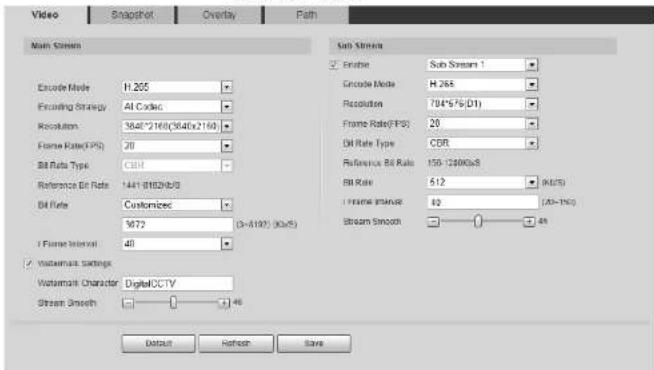
Figure 4-50 Video
text_image
Video Snapshot Overlay Path Main Screen Encode Mode H 265 Encoding Strategy AI Codec Resolution 384°*160(384x2160) Frame Rate(FPS) 20 Bit Rate Type CBR Reference Bit Rate 1441-8829b/8 Bit Rate Customized 9672 (3-8197) (kb/s) I Frame Interval 40 Watermark Settings Watermark Character Digital CCTV Stream Smooth 1.46 Sub Struts Enable Sub System 1 Encode Mode H 265 Resolution 704°S/(D1) Frame Rate(FPS) 20 Bit Rate Type CBR Reference Bit Rate 150-1200Gb/S Bit Rate 512 (Mb/S) I Frame Interval 40 (Ab-10c) Stream Smooth 0.00 Default Refresh SaveStep 2 Configure video parameters.
Table 4-17 Description of video parameters
| Parameter Description | |
| Enable | Select the Enable check box to enable sub stream. It is enabled by default.You can enable multiple sub streams simultaneously.When the device enables image correction, intelligent event and sub stream 2 are closed automatically. |
| Select encode mode.H.264: Main profile encode mode. Compared with H.264B, it | |
| Encoding Strategy | Select the encoding strategy as needed.General: Disable smart codec.Smart Codec: Enable smart codec to improve video compressibility and save storage space. It is applicable to static scenes.Al Code: When the bandwidth and storage space are restricted, the camera will select the encoding strategy with lower bit rate to save storage space. It is applicable to dynamic scenes.After Al codec is enabled, Bit Rate Type is CBR, and it cannot be changed. Comparing with general mode, Al codec has lower bite rate. This function is only available on cameras with Al functions.After smart codec and Al codec are enabled, the camera would stop supporting the third stream, ROI, and smart event detection, and the actual interface shall prevail. |
| Resolution | The resolution of the video. The higher the value is, the clearer the image will be, but the bigger the bandwidth will be required. |
| Video Clip | This function is available only for sub stream 2 of some select models.Main stream1. Select the resolution as needed, and click next to Resolution.The Area interface is displayed.Clip the image on the Area interface, and then click Save.View the clipped video on Live interface.Sub stream 21. Select Video Clip, and click |
Operation Manual
| Parameter Description | |
| Reference Bit Rate | The most suitable bit rate value range recommended to user according to the defined resolution and frame rate. |
| Max Bit Rate | This parameter can be configured only when theBit Rate Typeis set as VBR.You can select the value of theMax Bit Rateaccording to theReference Bit Ratevalue. The bit rate then changes as monitoring scene changes, but the max bit rate keeps close to the defined value. |
| Bit Rate | This parameter can be configured only when theBit Rate Typeis set as CBR.Select bit rate value in the list according to actual condition. You can also customize the value. |
| I Frame Interval | This parameter can be configured only whenEncoding Strategyis set as General or AI Codec.The number of P frames between two I frames. The smaller the value, the higher the image quality, and the range changes asFrame Rate(FPS)changes. It is recommended to set I Frame Interval twice as big asFrame Rate(FPS).When selectingAI CodecinEncoding Strategy, you can only select the value same as or twice as big asFrame Rate(FPS). |
| SVC | Scaled video coding, able to encode a high quality video bit stream that contains one or more subset bit streams. When sending stream, to improve fluency, the system will quit some data of related lays according to the network status.1: The default value, which means that there is no layered coding.2, 3 and 4: The lay number that the video stream is packed. |
| Watermark Settings | You can verify the watermark to check if the video has been tampered.1. Select the check box to enable watermark function. |
| Watermark Character |
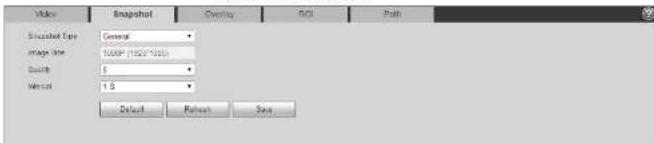
Figure 4-51 Snapshot
text_image
Video Snapshot Overlay ROI Path Snapshot Type General Image Size 1000 (1500*100) Quality 8 Resolution 1.5 Default Refresh SaveStep 2 Configure snapshot parameters.
Table 4-18 Description of snapshot parameter
| Parameter Description | |
| Snapshot Type | You can select General and Event.General: The system takes snapshot as scheduled. For details, see "4.7.2 Setting Schedule".Event: The system takes snapshot when the video detection, audio detection, event, or alarm is triggered. This function requires the corresponding snapshot being enabled. |
| Image Size | The same resolution with main stream. |
| Quality | Configures the snapshot quality. There are six levels of Image quality, and the sixth is the best. |
| Interval | Configures the snapshot frequency.Select Customized, and then you can configure snapshot frequency manually. |
Step 3 Click Save.
4.5.2.3 Overlay
Configure overlay information, and it will be displaved on the Live interface
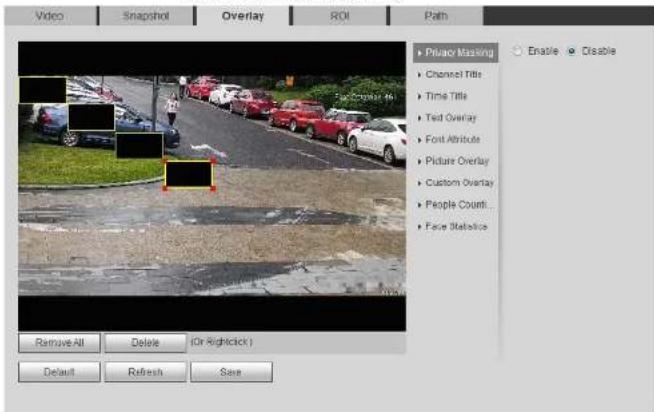
Figure 4-52 Privacy masking (1)
text_image
Video Snapshots Overlay ROI Path Privacy Masking Channel Title Time Title Text Overlay Font Attribute Picture Overlay Custom Overlay People Count Face Statistics Enable Disable Remove All Delete (or Rightclick) Default Refresh SaveFigure 4-53 Privacy masking (PTZ dome)
text_image
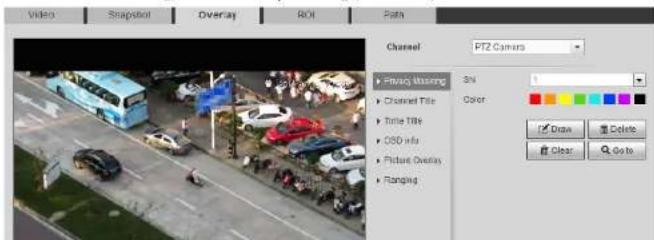
Video Snapshot Overlay ROI Path Channel PTZ Camera Private Masking 3% Channel Title Tube Title OBS info Picture Overlay Flanking Color Draw Delete Clear Go to- Other cameras
- Select Enable, and then drag the block to the area that you need to cover.

- You can drag 4 rectangles at most.
- Click Remove All to delete all the area boxes; select one box, and then click Delete or right-click to delete it.
-
Adjust the size of the rectangle to protect the privacy.
-
Click Save.
Privacy Masking (2)
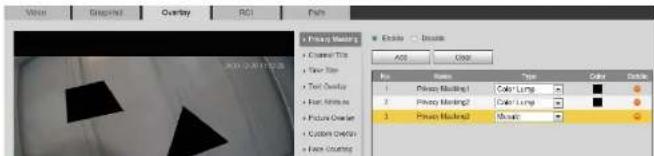
You can select the type of the masking from Color Lump and Mosaic.
- When selecting Color Lump only, you can draw triangles and convex quadrilaterals as blocks. You can drag 8 blocks at most, and the color is black.
- When selecting Mosaic, you can draw rectangles as blocks with mosaic. You can draw 4 blocks at most.
• Color Lump + Mosaic ( ≤ 4): You can draw 8 blocks at most.
Step 1 Select Setting > Camera > Video > Overlay > Privacy Masking.
Step 2 Select Enable.
Step 3 Click Add, select the masking type, and then draw blocks in image as needed.
Figure 4-54 Privacy masking (2)
text_image
View Preview Overlay PCI DataPreview Mask
• Clearer Tip • Top Size • Text Overlay • Hour White • Picture Overlay • Custom Overlay • Face Overlay Add Delete Add Close No Name Type Color Balance 1 Privacy Masking1 Color Lungs 2 Privacy Masking2 Color Lungs 3 Privacy Masking3 Smooth4.5.2.3.2 Configuring Channel Title
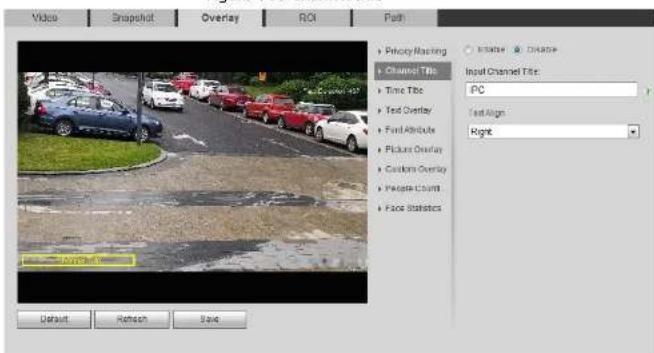
You can enable this function when you need to display channel title in the video image.
Step 1 Select Setting > Camera > Video > Overlay > Channel Title.
Figure 4-55 Channel title
text_image
Video Snapshot Overlay ROI Push Priority Masking Channel Title: Time Title Text Overlay Text Attribute Picture Overlay Customs Overlay Private Count Face Statistics Input Channel Title: PC Text Align Right Default Refresh SaveStep 2 Select the Enable check box, enter the channel title, and then select the text align.

Click + to expand the channel title, and you can expand 1 line at most.
Step 3 Move the title box to the position that you want in the image.
Step 4 Click Save.
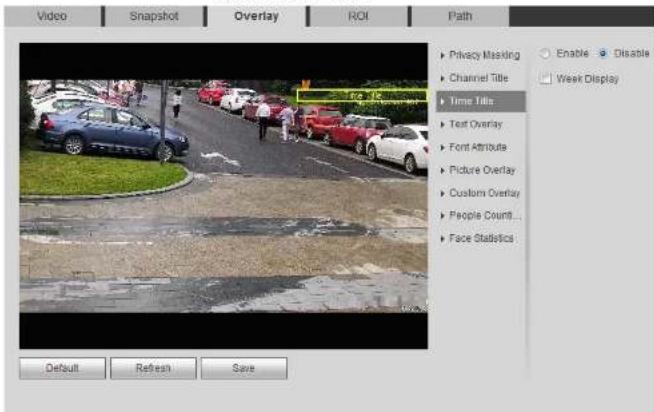
4.5.2.3.3 Configuring Time Title
Figure 4-56 Time title
text_image
Video Snapshot Overlay ROI Path Privacy Masking Channel Title Time Title Text Overlay Font Attribute Picture Overlay Custom Overlay People Count... Face Statistics Enable Disable Week Display Default Refresh SaveStep 2 Select the Enable check box.
Step 3 Select the Week Display check box.
Step 4 Move the time box to the position that you want in the image.
Step 5 Click Save.
4.5.2.3.4 Configuring Text Overlay
You can enable this function if you need to display text in the video image.

Text overlay and picture overlay cannot work at the same time, and the IPC that connects to mobile
is displayed in the video image.

Click + to expand the text overlay, and you can expand 9 lines at most.
Step 3 Move the text box to the position that you want in the image.
Step 4 Click Save.
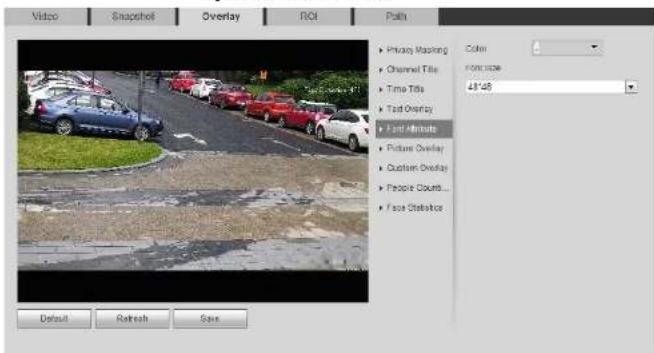
4.5.2.3.5 Configuring Font Attribute
You can enable this function if you need to adjust the font size in the video image.
Step 1 Select Setting > Camera > Video > Overlay > Font Attribute.
Figure 4-58 Font attribute
text_image
Video Snapshot Overlay ROI Path Preview Mapping Channel Title Time Title Text Overlay Text Altitude Picture Overlay Custom Overlay People Count... Face Statistics Color Image size 48*48 Default Refresh SaveStep 2 Select the font color and size.
Click More Color to customize the font color.
Figure 4-59 Picture overlay

text_image
Video Snapshot Overlay ROI Path Enable Delete Picture Preview: Preview Overlay Custom Overlay People Counts... Face Statistics Upload Picture Requirement for picture upload 1. New video is true. 2. Mac resolution in 120x126 pixels. 3. 250 colors, temp format. Default Refresh SaveStep 2 Select the Enable check box, click Upload Picture, and then select the picture to be overlaid.
The picture is displayed on the video image.
Step 3 Move the overlaid picture to the position that you want in the image.
Step 4 Click Save.
4.5.2.3.7 Configuring Custom Overlay
You can enable this function if you need to display custom information on the video image.
Step 1 Select Setting > Camera > Video > Overlay > Custom Overlay.
Figure 4-60 Custom overlay

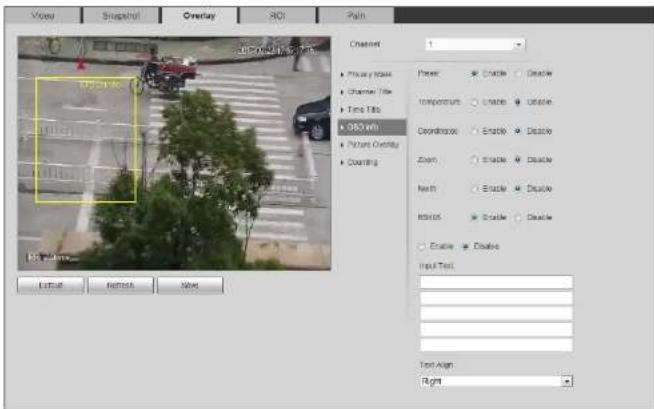
4.5.2.3.8 Configuring OSD Info
You can enable this function if you want to display the information of preset, PTZ coordinates, zoom, tour and location on the video image.

Only tracking speed dome supports OSD info function.
Step 1 Select Setting > Camera > Video > Overlay > OSD Info.
Figure 4-61 OSD information
text_image
View Snapshot Overlay ROI Path Channel 1 Private Text Channel Title Time Title 050 info Picture Overlay Counting Fleet: Create Enable Temperature: Enable Enable Counting: Enable Enable Zoom: Enable Enable North: Enable Enable Rout: Enable Enable Enable Enable Input Text: Text Align: RightStep 2 Configure OSD information.
Table 4-19 Description of OSD information
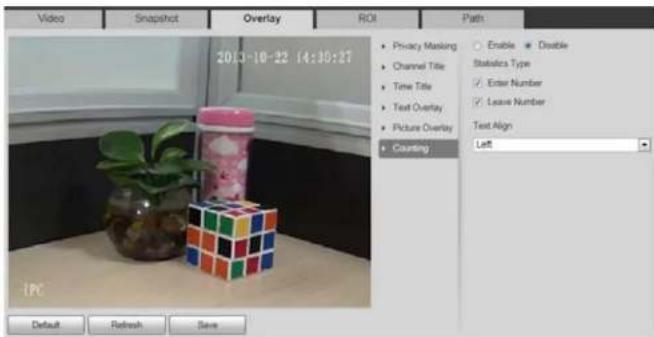
4.5.2.3.9 Configuring Counting
The image displays statistics of the enter number and leave number. When the overlay function is enabled during intelligent rules configuration, this function is enabled simultaneously.
Step 1 Select Setting > Camera > Video > Overlay > Counting.
Figure 4-62 Counting
text_image
Video Snapshot Overlay ROI Path ■ Privacy Masking ■ Channel Title ■ Time Title ■ Text Overlay ■ Picture Overlay ■ Counting Enable Double Statistics Type Enter Number Leave Number Text Align Left Default Refresh SaveStep 2 Select the Enable check box, and then configure counting method and alignment.
Step 3 Move the counting box to the position that you want in the image.
Step 4 Click Save.
4.5.2.3.10 Configuring Structured Statistics
The image displays structured statistics. When the overlay function enabled during intelligent rules configuration, this function is enabled simultaneously.
Step 4 Click Save.
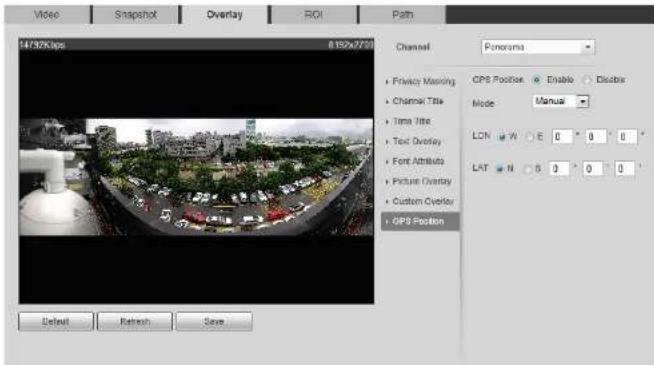
4.5.2.3.11 Configuring GPS Position
The image displays GPS position. When the overlay function enabled during intelligent rules configuration, this function is enabled simultaneously.
Step 1 Select Setting > Camera > Video > Overlay > GDP Position.
Figure 4-64 GDP position
text_image
Video Snapshot Overlay ROI Path Channel Panorama • Privacy Mapping • Channel Title • Time Title • Text Overlay • Font Attributes • Picture Overlay • Custom Overlay • GPS Position CPS Position: Enable Disable Mode Manual LON 0 0 0 0 LAT N 0 0 0 Default Refresh SaveStep 2 Select the Enable check box, and then select the Mode to Auto or Manual.
Step 3 Move GPS position box to the position that you want in the image.
Step 4 Click Save.
Figure 4-65 Ranging
text_image
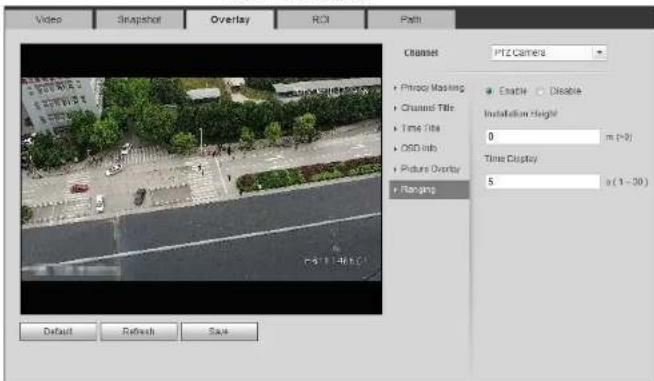
Video Snapshot Overlay ROI Path Channel PTZ Camera • Photo Masking • Channel Title • Time Title • OSD Info • Picture Overlay • Ranging Enable Disable Installation Height 0 m (×9) Time Display 5 a (1 - 30) Default Refresh SaveStep 2 Select the Enable check box, and then set the installation height and time display. Time display: The display time of the ranging information on live image.
Step 3 Click Save.
4.5.2.3.13 Configuring ANPR
The image displays ANPR statistics information. When the overlay function enabled during intelligent rules configuration, this function is enabled simultaneously.
Step 1 Select Setting > Camera > Video > Overlay > ANPR.
Figure 4-66 ANPR

4.5.2.3.14 Configuring Face Statistics
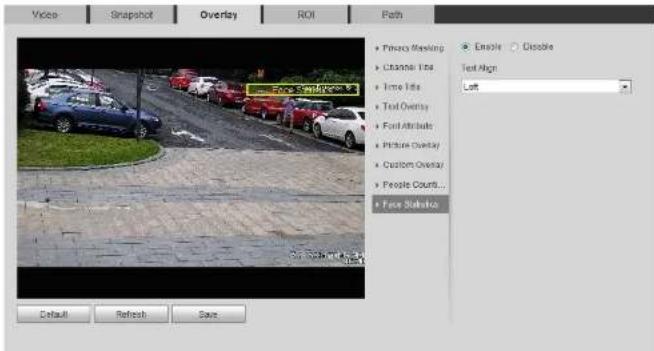
The image displays face statistics information. When the overlay function enabled during intelligent rules configuration, this function is enabled simultaneously.
Step 1 Select Setting > Camera > Video > Overlay > Face Statistics.
Figure 4-67 Face statistics
text_image
Video: Snapshot Overlay ROI Path • Privacy Masking • Attribute Title • Time Title • Test Overlay • Fuel Attribute • Picture Overlay • Custom Overlay • People Count... • Face Stushion • Ensole ○ Gissolve Text Align Left Default Refresh SaveStep 2 Select the Enable check box, and select text align.
Step 3 Move the structured statistics box to the position that you want in the image.
Step 4 Click Save.
4.5.2.4 ROI
Select ROI (region of interest) on the image and configure the image quality of ROI, and then the selected image is displayed at defined quality.
Figure 4-68 ROI

text_image
Video Snapshot Overlay ROI Path Enable Disable Image Quality 6 5° 2019 12:27 17:35:00 ON/OFFOC ON/OFFOC ON/OFFOC ON/OFFOC Remove All Delete (Or Rightclick ) Default Refresh SaveStep 2 Select the Enable check box, draw the area on the image, and then configure the image quality of ROI.

- You can draw four area boxes at most.
- The higher the image quality value is, the better the quality will be.
- Click Remove All to delete all the area boxes; select one box, and then click Delete or
Table 4-20 Description of path
| Parameter Description | ||
| Live Snapshot | The snapshot of live interface.The default path isC:\Users\admin\WebDownload\LiveSnapsh ot. | Admin in the path refers to the account being used. |
| Live Record | The recorded video of live interface.The default path isC:\Users\admin\WebDownload\LiveRecord. | |
| Playback Snapshot | The snapshot of playback interface.The default path isC:\Users\admin%\WebDownload\PlaybackSn apshot. | |
| Playback Download | The downloaded video of playback interface.The default path isC:\Users\admin%\WebDownload\PlaybackRe cord. | |
| Video Clips | The clipped video of playback interface.The default path isC:\Users\admin%\WebDownload\VideoClips. | |
Step 3 Click Save.
4.5.3 Audio
You can configure audio parameters and alarm audio.
Figure 4-70 Audio

text_image
Audio Main Stream Enable Streamline: G:\1/A Sampling Frequency: 1kHz Sub Stream Enable: Sub Stream 1 Streamline: G:\1/A Sampling Frequency: 1kHz Absolute Audio Type: Linear NoiseFilter: Enable Morphine Volume: 50 Episode Volume: 50 Output Refresh SaveStep 2 Select the Enable check box in Main Stream or Sub Stream.
For the camera with multiple channels, select the channel number.

Please carefully activate the audio acquisition function according to the actual requirements of the application scenario.
Step 3 Configure audio parameters.
Table 4-21 Description of audio parameters
| Parameter Description | |
| Encode Mode | You can select audio Encode Mode from G.711A, G.711Mu, AAC, G.726. |
- Click ↓ to download the audio to local storage.
Step 1 Select Setting > Camera > Audio > Alarm Audio.
Figure 4-71 Alarm audio
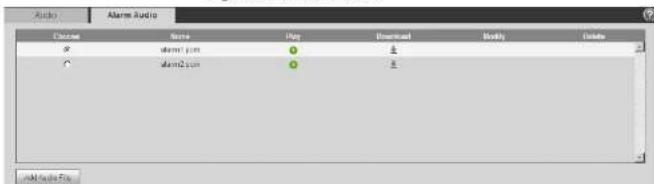
text_image
Audio Alarm Audio Choose Name Plan Download Modify Delete * alarm1.com 0 1 C alarm2.com 0 1 Add Audio FlowStep 2 Click Add Audio File.
Figure 4-72 Add audio file

text_image
Add Audio File Record Upload Audio File pcm RecordStep 3 Configure the audio file.
- Select Record, enter the audio name in the input box, and then clickRecord.
- Select Upload, click to select the audio file to be uploaded, and then click Upload.

The camera supports audio file with .pcm format only, and you can upload audio files with .pcm, .wav in standard .pcm format, .mp3 or .aac formats.
Step 4 Select the file that you need.

text_image
Figure 4-73 TCP/IP TCP/IP Host Name IPC Ethernet Card Wire(DEFAULT) Set as Default Mode Static DHCP MAC Address IP Version IPv4 IP Address Subnet mask Default Gateway Preferred DNS Server Alternate DNS Server Enable ARP/Ping to set IP address service Default Refresh SaveStep 2 Configure TCP/IP parameters.
Table 4-22 Description of TCP/IP parameters
| Parameter Description | |
| Host Name | Enter the host name, and the maximum length is 15 characters |
| Default Gateway | IPv6 does not have subnet mask.The default gateway must be in the same network segment with the IP address. |
| Preferred DNS | IP address of the preferred DNS. |
| Alternate DNS | IP address of the alternate DNS. |
| Enable ARP/Ping to set IP address service | Select the check box, get the camera MAC address, and then you can modify and configure the device IP address with ARP/ping command.This is enabled by default. During reboot, you will have no more than 2 minutes to configure the device IP address by a ping packet with certain length, the server will be turned off in 2 minutes, or it will be turned off immediately after the IP address is successfully configured.If this is not enabled, the IP address cannot be configured with ping packet.A demonstration of configuring IP address with ARP/Ping.Keep the camera that needs to be configured and the PC within the same local network, and then get a usable IP address.Get the MAC address of the camera from device label.Open command editor on the PC and enter the following command. |
| Windows syntax arp s ping l 480 t Windows example arp s 192.168.0.125 11-40-8c-18-10-11 | |
| Windows example | |
| arp s 192.168.0.125 11-40-8c-18-10-11 |
4.6.2 Port
Configure the port numbers and the maximum number of users (includes web, platform client, and mobile phone client) that can connect to the device simultaneously.
Step 1 Select Setting > Network > Port.
Figure 4-74 Port
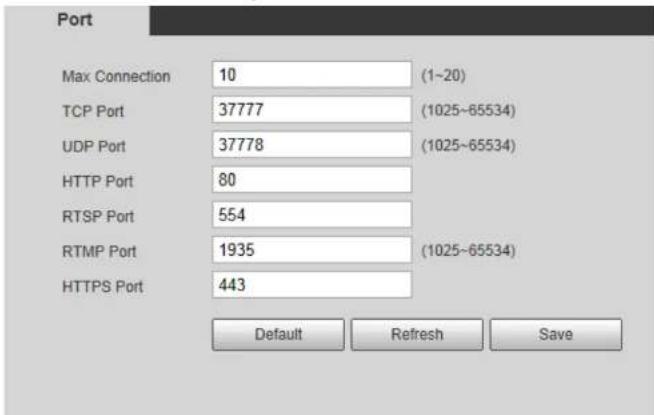
text_image
Port Max Connection 10 (1~20) TCP Port 37777 (1025~65534) UDP Port 37778 (1025~65534) HTTP Port 80 RTSP Port 554 RTMP Port 1935 (1025~65534) HTTPS Port 443 Default Refresh SaveStep 2 Configure port parameters.

- 0–1024, 1900, 3800, 5000, 5050, 9999, 37776, 37780–37880, 39999, 42323 are occupied for specific uses.
| Parameter Description | |
| RTSP Port | Real time streaming protocol port, and the value is 554 by default. If you play live view with QuickTime, VLC or Blackberry smart phone, the following URL format is available.When the URL format requiring RTSP, you need to specify channel number and bit stream type in the URL, and also user name and password if needed.When playing live view with Blackberry smart phone, you need to turn off the audio, and then set the codec mode to H.264B and resolution to CIF.URL format example:rtsp://username:password@ip:port/cam/realmonitor?channel=1&sub type=0Among that:Username: The user name, such as admin.Password: The password, such as admin.IP: The device IP, such as 192.168.1.112.Port: Leave it if the value is 554 by default.Channel: The channel number, which starts from 1. For example, if you are using channel 2, then the channel=2.Subtype: The bit stream type; 0 means main stream (Subtype=0) and 1 means sub stream (Subtype=1).Example: If you require the sub stream of channel 2 from a certain device, then the URL should be:rtsp://admin:admin@10.12.4.84:554/cam/realmonitor?channel=2&sub type=1If user name and password are not needed, then the URL can be: |
- You have gotten the account and password from Internet Service Provider.
Procedure
Step 1 Select Setting > Network > PPPoE.
Figure 4-75 PPPoE
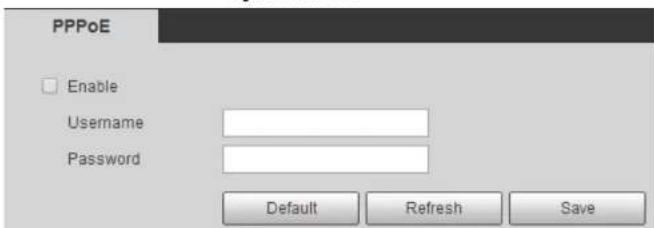
text_image
PPPoE Enable Username Password Default Refresh SaveStep 2 Select the Enable check box, and then enter user name and password.

- Disable UPnP while using PPPoE to avoid possible influence.
- After making PPPoE connection, the device IP address cannot be modified through web interface
Step 3 Click Save.
The success prompt box is displayed, and then the real-time WAN IP address is displayed. You can visit camera through the IP address.
4.6.4 DDNS
Properly configure DDNS, and then the domain name on the DNS server matches your IP address and the matching solution refroches in real time. You can always visit the common with the same
Figure 4-76 DDNS
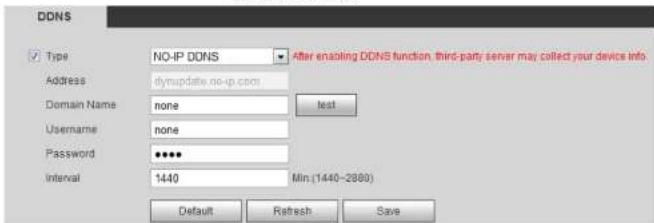
text_image
DDNS Type NO-IP DDNS After enabling DDNS function, third-party server may collect your device info. Address dynupdate.no-ip.com Domain NamePCI:none Li Username:none Password **** Interval 1440 Min (1440-2880) Default Resh SaveStep 2 Select Type, and configure the parameters as needed.
Table 4-24 Description of DDNS parameters
| Parameter Description | |
| Type | The name and web address of the DDNS service provider, see the matching relationship below:CN99 DDNS web address: www.3322.orgNO-IP DDNS web address: dynupdate.no-ip.comDyndns DDNS web address: members.dyndns.org |
| Web Address | |
| Domain Name | The domain name you registered on the DDNS website. |
| Test | Only when selecting NO-IP DDNS type, you can click test to check whether the domain name registration is successful. |
| Username | Enter the username and password that you got from the DDNS server provider. You need to register an account (includes username and password) on the DDNS server provider's website. |
| Password | |
| Interval | The update cycle of the connection between the device and the server, and the time is 10 minutes by default. |
Step 3 Click Save.
Figure 4-77 SMTP (Email)
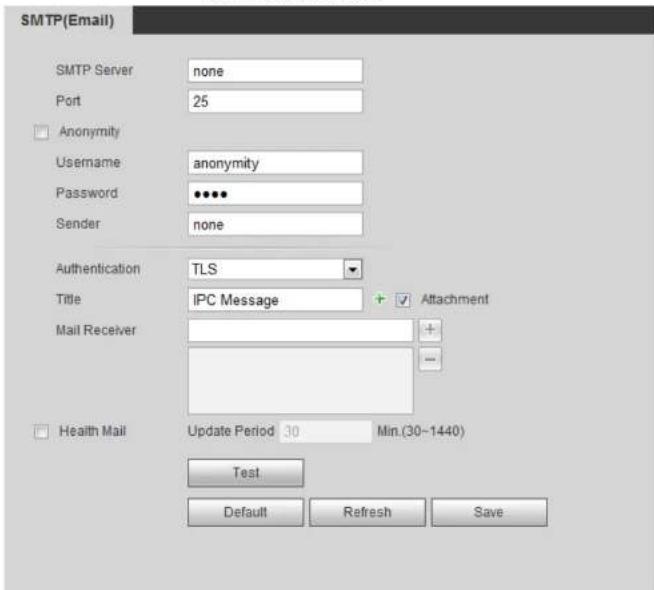
text_image
SMTP(Email) SMTP Server none Port 25 Anonymity Username anonymity Password ••••• Sender none Authentication TLS Title IPC Message + Attachment Mail Receiver + Health Mail Update Period 30 Min (30~1440) Test Default Refresh SaveStep 2 Configure SMTP (Email) parameters.
Table 4-25 Description of SMTP (Email) parameters
Parameter Description
Operation Manual
| Parameter Description | |
| Health Mail | The system sends test mail to check if the connection is successfully configured. Select Health Mail and configure the Update Period, and then the system sends test mail as the set interval. |
For the configuration of major mailboxes, see Table 4-26.
Table 4-26 Description of major mailbox configuration
| Mailbox | SMTP server | Authentication | Port | Description |
| QQ smtp.qq.com | SSL 465 | The authentication type cannot be None.You need to enable SMTP service in your mailbox.The authentication code is required, the QQ password or email password is not applicable. Authentication code: The code you receive when enabling SMTP service. | ||
| TLS 587 | The authentication type cannot be None.You need to enable SMTP service in your mailbox.The authentication code is required, the QQ password or email password is not applicable. |
Operation Manual
| Mailbox | SMTP server | Authentication | Port | Description |
| TLS 25 | You need to enable SMTP service in your mailbox.The authentication code is required; the email password is not applicable largely Authentication code: the code you receive when enabling SMTP service. | |||
| none 25 | You need to enable SMTP service in your mailbox.The authentication code is required; the email password is not applicable largely Authentication code: the code you receive when enabling SMTP service. | |||
| Sina | smtp.sina.com | SSL 465 | Enable SMTP service in your mailbox. | |
| none 25 | ||||
| 126 | smtp.126.com | none | 25 | Enable SMTP service in your mailbox. |
Step 3 Click Save.
Step 4 Click Test to test whether the emails can be sent and received successfully.
Figure 4-78 UPnP
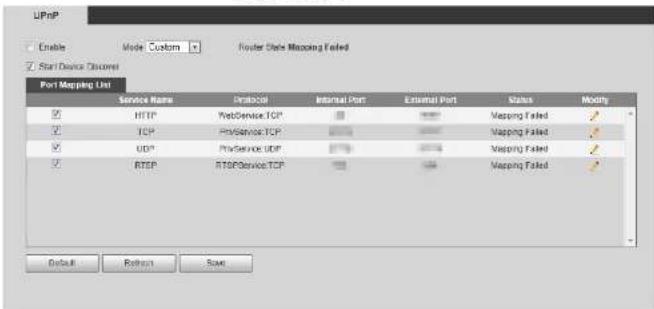
text_image
UPLP Enable Mode Custom Risker State Mapping Failed Start Device Discovered Port Mapping Unit Service Name Protocol Internal Port External Port Status Modify HTTP NetService TCP Mapping Failed TCP NetService TCP Mapping Failed UDP NetService TCP Mapping Failed RTP NetService TCP Mapping Failed Default Refresh SaveStep 2 Select the Enable check box, and there are two mapping modes: Custom and Default.
- Select Custom, click and then you can modify external port as needed.
- Select Default, and then the system finishes mapping with unoccupied port automatically, and you cannot modify mapping relation.
Step 3 Click Save.
Open web browser on PC, enter http:// wide area IP address: external port number, and then you can visit the local area device with corresponding port.
4.6.7 SNMP
SNMP (Simple Network Management Protocol) can be used to enable software such as MIB Builder and MG-SOFT MIB Browser to connect to the camera and manage and monitor the camera.
Prerequisites
Figure 4-79 SNMP (1)
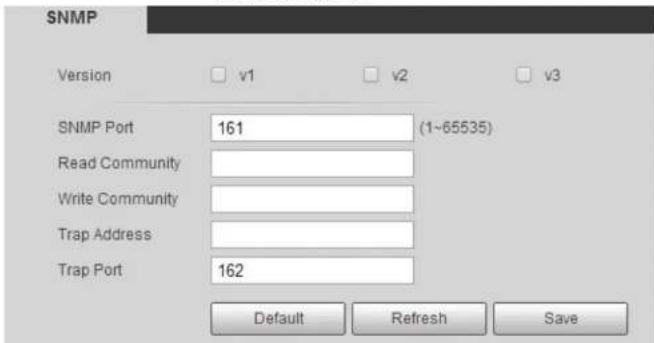
text_image
SNMP Version v1 v2 v3 SNMP Port 161 (1~65535) Read Community Write Community Trap Address Trap Port 162 Default Refresh SaveFigure 4-80 SNMP (2)

text_image
SNMP Version v1 v2 v3 (Recommend... SNMP Port 161 (1~65535) Read Community Write Community Trap Address Trap Port 162 Read-only Username publicpassword and authentication type. It requires corresponding user name, password and authentication type to visit your device from the server.

Using V1 and V2 might cause data leakage, and V3 is recommended.
In Trap Address, enter the IP address of the PC that has MIB Builder and MG-SOFT MIB Browser installed, and leave other parameters to the default.
Table 4-27 Description of SNMP parameters
| Parameter Description | |
| SNMP Port | The listening port of the software agent in the device. |
| Read Community, Write Community | The read and write community string that the software agent supports.You can enter number, letter, underline and dash to form the name. |
| Trap Address | The target address of the Trap information sent by the software agent in the device. |
| Trap Port | The target port of the Trap information sent by the software agent in the device. |
| Read-only Username | Set the read-only username accessing device, and it ispublicby default.You can enter number, letter, and underline to form the name. |
| Read/Write Username | Set the read/write username access device, and it ispublicby default. |
configuration information, video channel amount, audio channel amount, and software version.

Use PC with Windows OS and disable SNMP Trap service. The MG-SOFT MIB Browser will display prompt when alarm is triggered.
4.6.8 Bonjour
Enable this function, and the OS and clients that support Bonjour would find the camera automatically. You can have quick visit to the camera with Safari browser.

Bonjour is enabled by default.
Procedure
Step 1 Select Setting > Network > Bonjour.
Figure 4-81 Bonjour
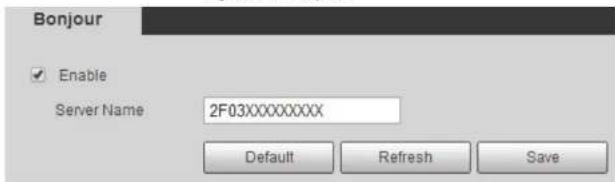
text_image
Bonjour Enable Server Name 2F03XXXXXXXX Default Refresh SaveStep 2 Select the Enable check box, and then configure server name.
Step 3 Click Save.
Result
Figure 4-82 Multicast
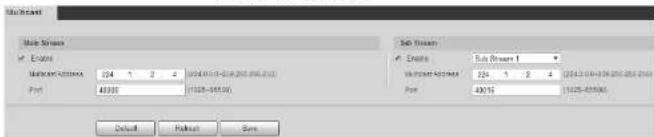
text_image
Main Screen Enable Multi-Object Port 254 1 2 4 (2014/03/2014/2015/06/20) 40000 (1625-48500) Sub Screen Enroll Sub Screen 1 Multi-Object Port 254 1 2 4 (2014/03/2014/2015/06/20) 40000 (1625-48500) Default Finish SaveStep 2 Select the Enable check box, and enter IP address and port number.
Table 4-28 Description of multicast parameters
| Parameter Description | |
| Multicast Address | The multicast IP address ofMain Stream/Sub Streamis 224.1.2.4 by default, and the range is 224.0.0.0-239.255.255.255. |
| Port | The multicast port of corresponding stream:Main Stream: 40000;Sub Stream1: 40016;Sub Stream2: 40032, and all the range is 1025-65500. |
Step 3 Click Save.
Result
In the Live interface, select RTSP in Multicast, and then you can view the video image with multicast protocol.
4.6.10 802.1x
Cameras can connect to LAN after passing 802.1x authentication.
Step 1 Select Setting > Network > 802.1x.
Figure 4-83 802.1x

4.6.11 QoS
You can solve problems such as network delay and congestion with this function. It helps to assure bandwidth, reduce transmission delay, packet loss rate, and delay jitter to improve experience. 0–63 means 64 degrees of priority; 0 for the lowest and 63 the highest.
Step 1 Select Setting > Network > QoS.
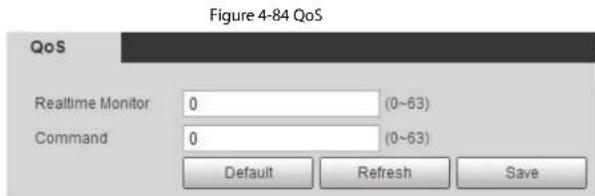
text_image
Figure 4-84 QoS QoS Realtime Monitor 0 (0~63) Command 0 (0~63) Default Refresh SaveStep 2 Configure QoS parameters.
Table 4-30 Description of QoS parameters
| Parameter Description | |
| Realtime Monitor | Configure the priority of the data packets that used for network surveillance. 0 for the lowest and 63 the highest. |
| Command | Configure the priority of the data packets that used for configure or checking. |
Step 3 Click Save.
4.6.12 5G
5G configuration includes dialing configuration and mobile configuration. Install SIM card
Figure 4-85 Dialing setting
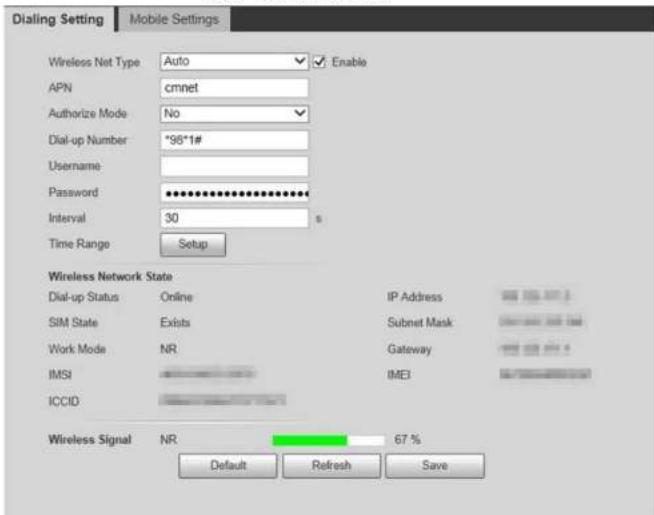
text_image
Dialing Setting Mobile Settings Wireless Net Type Auto Enable APN cmnet Authorize Mode No Dial-up Number "96*1# Username Password ************ Interval 30 s Time Range Setup Wireless Network State Dial-up Status Online IP Address SIM State Exists Subnet Mask Work Mode NR Gateway IMSI IMEI ICCID Wireless Signal NR 67 % Default Refresh SaveTable 4-31 Dialing setting parameters
| Parameter Description | |
| Wireless Net Type | Select the wireless net type according to the carrier. |
| APN Acquired from the carrier. | |
| Authentication Mode | Select the authentication mode according to different carrier. |
4.6.12.2 Mobile Setting
Configure the mobile phone, and all alarm messages support sending message the configured receiver. After receiving a message, the receiver can active the camera and connect it to 5G network through message or call.
- Message send: Set the receiver's phone number, and when an alarm is triggered, the system will send message to the receiver.
- Message activation: Set the sender's phone number, the sender can send command message to active the camera. The commands are as following:
On: Make the camera online.
◇ Off: Make the camera offline.
- Reboot: Restart the camera.
- Phone activation: Set the receiver's phone number, the caller can call the camera to active the camera, and make it online.
Step 1 Select Setting > Network > 5G > Mobile Setting.
Step 2 Select Message send. Message activation, or Phone activation as needed.
Step 3 Enter the phone numbers of receiver, sender, or caller, and click + to add it to the list.

- Select a phone number, and click to delete it.
- You can edit the message in Title during configuration.
Figure 4-86 Mobile setting
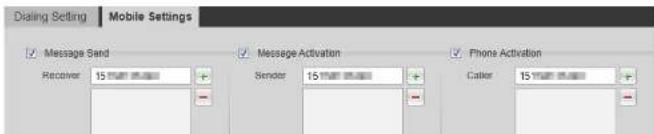
text_image
Dialing Setting Mobile Settings Message Send Message Activation Phone Activation Receiver 15 MHz Sender 15 MHz Caller 15 MHzmobile phone client.
Step 1 Select Setting > Network > Access Platform > P2P.
Figure 4-87 P2P
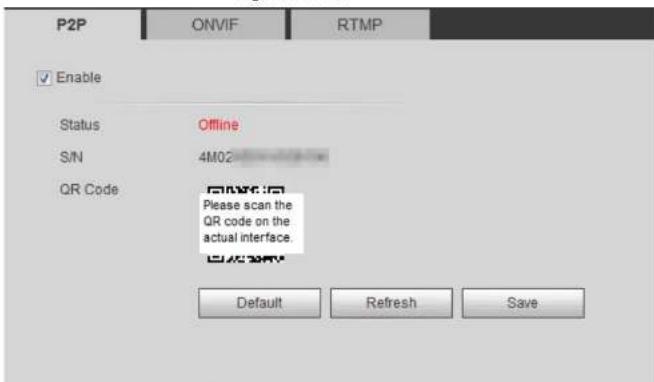
text_image
P2P ONVIF RTMP Enable Status Offline S/N 4M02 QR Code Please scan the QR code on the actual interface. Default Refresh Save- When P2P is enabled, remote management on device is supported.
- When P2P is enabled and the device accesses to the network, the status shows online. The information of the IP address, MAC address, device name, and device SN will be collected. The collected information is for remote access only. You can cancel Enable selection to reject the collection.
Step 2 Log in to mobile phone client and tap Device management.
Step 3 Tap the + at the upper right corner.
Step 4 Scan the QR code on the P2P interface.
Step 5 Follow the instructions to finish the settings.
Figure 4-88 ONVIF
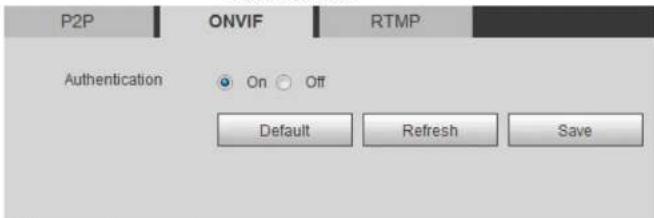
text_image
P2P ONVIF RTMP Authentication On Off Default Refresh SaveStep 2 Select On in Authentication.
Step 3 Click Save.
4.6.13.3 RTMP
Through RTMP, you can access the third-party platform (such as Ali and YouTube) to realize video live view.

• RTMP can be configured by admin only.
- RTMP supports the H.264, H.264 B and H.264H video formats, and the AAC audio format only.
Step 1 Select Setting > Network > Port > RTMP.
Figure 4-89 RTMP
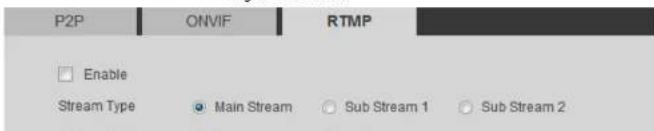
text_image
P2P ONVIF RTMP Enable Stream Type ● Main Stream ○ Sub Stream 1 ○ Sub Stream 2Operation Manual
| Parameter Description | |
| Address Type | Includes Non-custom and Custom.Non-custom: Enter the server IP and domain name.Custom: Enter the path allocated by the server. |
| IP Address | When selecting Non-custom, you need to enter server IP address and port.IP address: Support IPv4 or domain name.Port: We recommend that you use the default one. |
| Port | |
| Custom Address | When selecting Custom, you need to enter the path allocated by the server. |
Step 4 Click Save.
4.7 Storage
This section introduces how to manage saved resources (such as recorded video) and storage space. The storage management helps to make best use of storage space.
4.7.1 Setting Storage Plan
- Setting record plan and record control to achieve all-time recording, recording in specific period or alarm linked recording. For details, see "S.1.1.2.1 Setting Record Plan" and "S.1.1.2.2 Setting Record Control".
- Set the snapshot schedule as needed. For details, see "5.1.1.3.1 Setting Snapshot Plan".
4.7.2 Setting Schedule
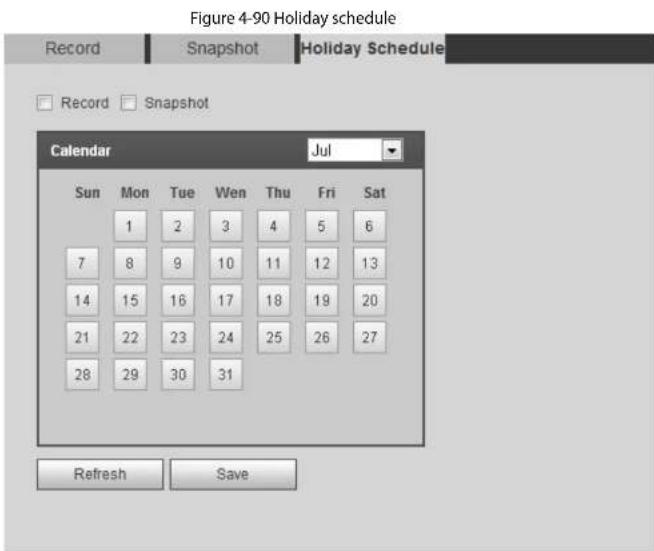
text_image
Figure 4-90 Holiday schedule Record Snapshot Holiday Schedule Record Snapshot Calendar Jul Sun Mon Tue Wen Thu Fri Sat 1 2 3 4 5 6 7 8 9 10 11 12 13 14 15 16 17 18 19 20 21 22 23 24 25 26 27 28 29 30 31 Refresh SaveStep 2 Select Record or Snapshot.
Step 3 Select the days you need to set as holiday.
Those days with yellow color indicates that they were set as holidays.

When holiday schedule setting is not the same as the general setting, holiday schedule
setting is wies to the general setting. For example with 11-11-2-1-1, enabled if the
Figure 4-91 Path

text_image
Path Local FTP NAS Record Event Type Scheduled Motion Detection Alarm Local FTP NAS Snotger Event Type Scheduled Motion Detection Alarm Local FTP NAS Snotger Event Type Scheduled Motion Detection Alarm Local FTP NAS Snotger Event Type Scheduled Motion Detection Alarm Local FTP NAS Snotger Event Type Scheduled Motion Detection Alarm Local FTP NAS Snotger Event Type Scheduled Motion Detection Alarm Local FTP NAS Snotgler Event Type Scheduled Motion Detection Alarm Local FTP NAS Snotgler Event Type Scheduled Motion Detection Alarm Local FTP NAS Snotgler Event Type Scheduled Motion Detection Alarm Local FTP NAS Snotgler Event Type Scheduled Motion Detection Alarm Local FTP NAS SnotglerStep 2 Select the storage method that you need for the recorded videos and snapshots of different types.
Table 4-33 Description of path parameters
| Parameter Description | |
| Event Type | Select fromScheduled, Motion Detectionand Alarm. |
| Local Save in the internal SD card. | |
| FTP Save in the FTP server. | |
| NAS | Save in the NAS (network attached storage). |
Step 3 Click Save.
Step 4 Configure other path parameters on Destination, FTP or NAS interface. For details, see "4.7.3 Setting Destination", "4.7.3.3 FTP" or "4.7.3.4 NAS".
4.7.3.2 Local
Display the information of the local SD card. You can set it as read only or read & write; you can also hot swap and format SD card.

Functions might vary with different models
Figure 4-92 Local

text_image
File Load View Find Name Status Actions Add Options to Settings OK Cancel Save As Tools Add Options to Settings Add Options to Settings Save As Tools Save As Tools Add Options to Settings Add Options to Settings Add Options to Settings Add Options to Settings Add Options to Settings Add Options to Settings Add Options to Settings Add Options to Settings Add Options to Settings Add Options to Settings Add Options to Settings Add Options to Settings Add Options to Settings Add Options to Settings Add Options to Settings Add Options to Settings Add Options to Settings Add Options to Settings Add Options to Settings Add Options to Settings Add Options to Systems Add Options to Systems Add Options to Systems Add Options to Systems Add Options to Systems Add Options to Systems Add Options to Systems Add Options to Systems Add Options to Systems Add Options to Systems Add Options to Systems Add Options to Systems Add Options to Systems Add Options to Systems Add Options to Systems Add Options to Systems Add Options to Systems Add Options to Systems Add Options to Systems Add Options to Systems Add Options to System1 Add Options to System2 Add Options to System3 Add Options to System4 Add Options to System5 Add Options to System6 Add Options to System7 Add Options to System8 Add Options to System9 Add Options to System10 Add Options to System11 Add Options to System12 Add Options to System13 Add Options to System14 Add Options to System15 Add Options to System16 Add Options to System17 Add Options to System18 Add Options to System19 Add Options to System20 Add Options to System21 Add Options to System22 Add Options to System23 Add Options to System24 Add Options to System25 Add Options to System26 Add Options to System27 Add Options to System28 Add Options to System29 Add Options to System30 Add Options to System31 Add Options to System32 Add Options to System33 Add Options to System34 Add Options to System35 Add Options to System36 Add Options to System37 Add Options to System38 Add Options to System39 Add Options to System40 Add Options to System41 Add Options to System42 Add Options to System43 Add Options to System44 Add Options to System45 Add Options to System46 Add Options to System47 Add Options to System48 Add Options to System49 Add Options to System504.7.3.3 FTP
FTP can be enabled only when it was selected as a destination path. When the network does not work, you can save all the files to the internal SD card for emergency.
Step 1 Select Setting > Storage > Destination > FTP.
Step 2 Select the Enable check box, and select the FTP type.

You select FTP or SFPT from the drop-down list. SFTP is recommended to enhance network security.
Step 3 Configure FTP parameters.
Figure 4-93 FTP
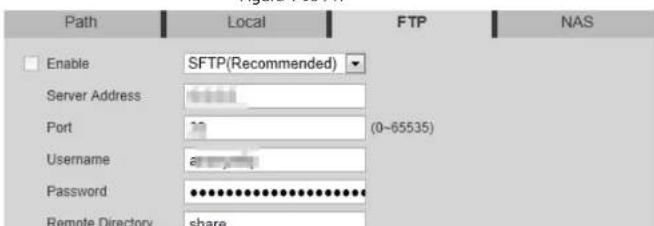
text_image
Path Local FTP NAS Enable SFTP(Recommended) Server Address Port (0~65535) Username Password Remote Directory shareFigure 4-94 Picture name settings

text_image
Picture Name Settings No Picture Name Content Separator Ordering 1 Date&Time 2 Millisecond 3 Name 4 IP Address 5 Channel NO. 6 Snapshot Type 7 Custom Date&TimeMillisecond_Name_IP Address_ Separator can only be a dash, underline or space Save CancelTable 4-34 Description of FTP parameters
| Parameter Description | |
| Server Address | The IP address of the FTP server. |
| Port | The port number of the FTP server. |
| Username | The user name to log in to the FTP server. |
| Password | The password to log in to the FTP server. |
| Remote Directory | The destination path in the FTP server, and it is shared by default. |
| Directory Structure | Set the directory structure, which supports three levels at most. |
| Customized Picture Name | Click Setting to set picture name.Date&Time is required, and it is selected by default.Select the other fields of the name, and the corresponding instruction will be displayed on the screen.Double-click the symbols under Separator, you can customize the separator.Double-click Custom, you can customize the files of the picture name.Click the arrow under Ordering, and you can adjust the ordering of the file.Date&Time and Millisecond is a whole, click the arrow of any one of the two fields, the two moves together.The real-time value of Millisecond will be displayed for precise snapshot, and for schedule and normal event, the millisecond displays 0000. |
| Emergency (Local) | Select Emergency (Local), and when the FTP server does not work, all the files are saved to the internal SD card. |
Step 4 Click Save.
Step 5 Click test to test whether FTP function works normally.
4.7.3.4 NAS
This function can be enabled only when NAS was selected as a destination path. Enable this function, and you can save all the files in the NAS.
Operation Manual
| Parameter Description | |
| Password | name and password. Enter them as needed. |
| Remote Directory | The destination path in the NAS server. |
Step 4 Click Save.
4.8 System
This section introduces system configurations, including general, date & time, account, safety, PTZ settings, default, import/export, remote, auto maintain and upgrade.
4.8.1 General
You can configure device name, language and video standard.
Step 1 Select Setting > System > General > General.
Figure 4-96 General
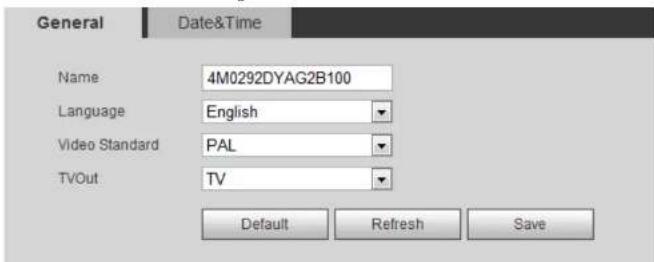
text_image
General Date&Time Name 4M0292DYAG2B100 Language English Video Standard PAL TVOut TV Default Refresh SaveStep 3 Click Save.
4.8.2 Date & Time
You can configure date and time format, time zone, current time, DST (Daylight Saving Time) or NTP server.
Step 1 Select Setting > System > General > Date & Time.
Figure 4-97 Date and time
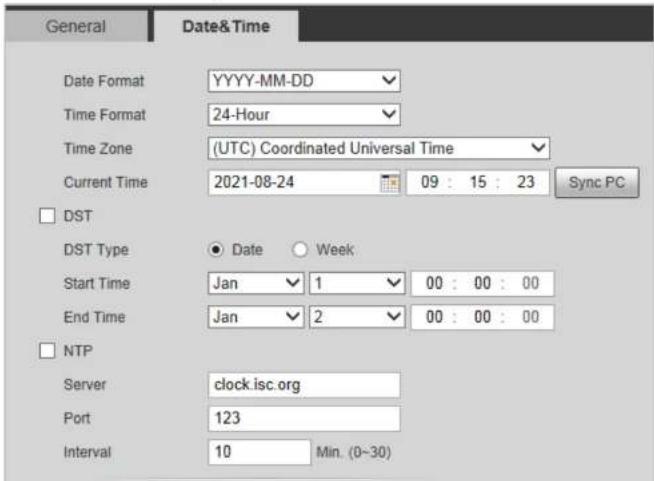
text_image
General Date&Time Date Format YYYY-MM-DD Time Format 24-Hour Time Zone (UTC) Coordinated Universal Time Current Time 2021-08-24 09 : 15 : 23 Sync PC DST DST Type ● Date ○ Week Start Time Jan 1 00 : 00 : 00 End Time Jan 2 00 : 00 : 00 NTP Server clock.isc.org Port 123 Interval 10 Min. (0~30)Operation Manual
| Parameter Description | |
| DST | Enable DST as needed.Select the check box, and configure start time and end time of DST with Date or Week. |
| NTP | Select the check box, and then NTP (network time protocol) is enabled,the system then syncs time with the internet server in real time.You can also enter the IP address, time zone, port, and interval of a PCwhich installed NTP server to use NTP. |
| NTP Server | |
| Time Zone | |
| Port | |
| Interval | |
| Positioning System | Supports both GPS and BeiDou. |
| Positioning System Time Synchronization | Select Position System Time Synchronization and configure Interval to enable this function. After enabling this function, the device will synchronize the system time according to the interval you set. |
| Interval |
Step 3 Click Save.
4.8.3 Account
Manage all the users. You can add, delete, or modify users. Users include admin, added users and ONVIF users.
Managing users and groups are only available for administrator users.
- The max length of the user or group name is 31 characters which consisted of number, letters, underline, dash, dot and @.
- The password must consist of 8 to 32 non-blank characters and contain at least two types of characters among upper case, lower case, number, and special character (excluding ""; &).
- You can have 18 users and 8 groups at most.
Figure 4-98 Username
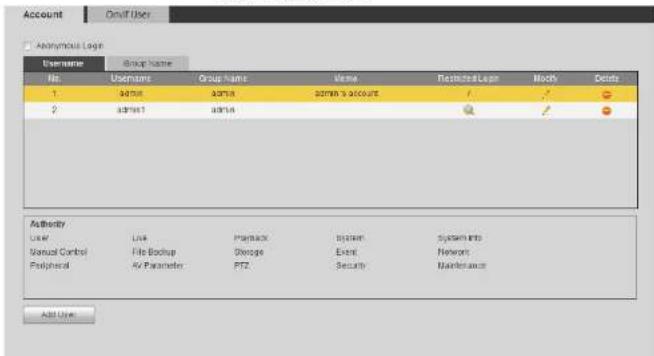
text_image
Account On/Off User Anonymus Lags Username Group Name No. UserName Group Name Name RestoredLags Modify Delete 1 admin admin admin's account / / 2 admin1 admin # / Authority User Live Playback System System into Manual Control File Backup Storage Event Network Peripheral Air Parameter PTZ Security Maintenance Add UserStep 2 Click Add User.
Figure 4-99 Add user (operation permission)

text_image
Add User Username Must Password The minimum pass phrase length is 8 characters Wreak Niddle Opening Confirm Password Group Name admin Memo Operation Permission Restricted LoginFigure 4-100 Add user (restricted login)
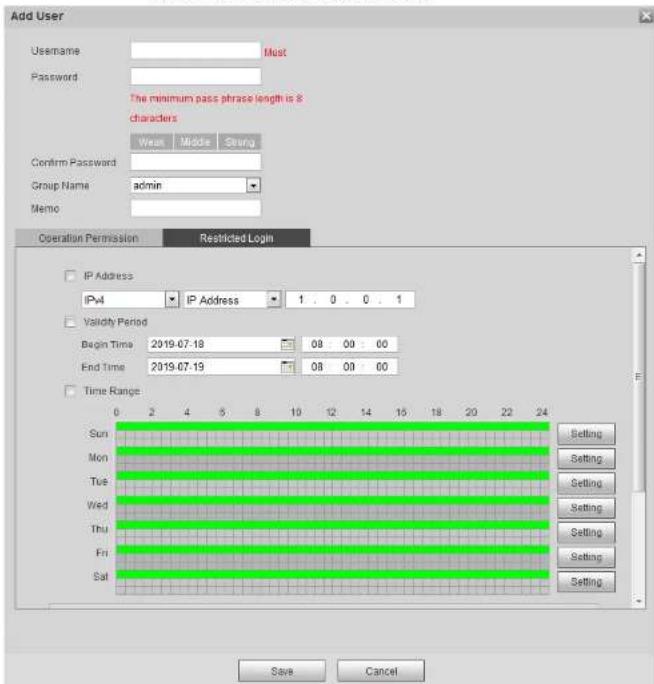
text_image
Add User Username Must Password The minimum pass phrase length is 8 characters Wex Middle Swing Confirm Password Group Name admin Memo Operation Permission Restricted Login IP Address IPv4 IP Address 1 . 0 . 0 . 1 Validity Period Begin Time 2019.07.18 08 : 00 : 00 End Time 2019.07.19 08 : 00 : 00 Time Range Sun Mon Tue Wed Thu Fri Sat Setting Setting Setting Setting Setting Setting Save Cancel| Parameter Description | |
| Restricted Login | Set the PC address that allows the defined user to log in to the camera and the validity period and time range. You can log in to web with the defined IP in the defined time range of validity period.IP address: You can log in to web through the PC with the set IP月底 validity period: You can log in to web in the set validity period.Time range: You can log in to web in the set time range.Set as following:SelectIP Address: Select IP type and set IP address.IP Address: Enter the IP address of the host to be added.IP segment: Enter the start address and end address of the host to be added.SelectValidity Period:Set the begin time and end time.SelectTime Range:Set the time range that allow user to log in. For details, see "5.1.1.1 Setting Period". |
Step 4 Click Save.
The newly added user is displayed in the user name list.
Related Operations
- Edit user information
Click: 1 to change password group, some annotation authorities and login authorities
Figure 4-101 Change password through old password (login with non-admin account)

text_image
Modify User Username 11 Modify Password Old Password New Password The minimum pass phrase length is 8 characters Weak Medium Strong Confirm Password Group Name user Memo Authority All Live Playback Save Cancel
Admin account cannot be deleted.
• View the authorities
If the current account has with the permission of user management, click to view the login authorities of other accounts. If not, you can only view the login authorities of the current account.
4.8.3.2 Adding User Group
You have two groups named admin and user by default, and you can add new group, delete added group or modify group authority and memo.
Step 1 Select Setting > System > Account > Account > Group Name.
Figure 4-103 Group name
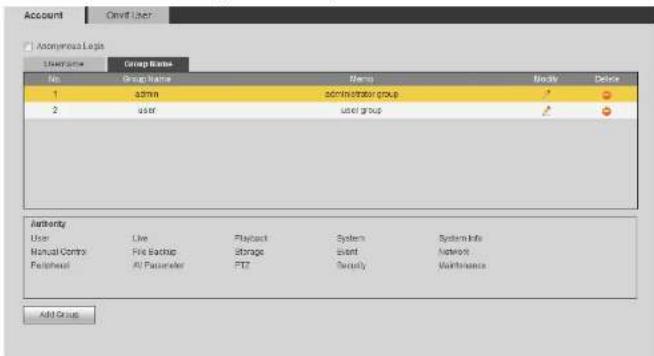
text_image
Account Covid User Accountless Logis User Name Group Name No. Group Name Name Modie Delete 1 admin administrator group 2 user user group Authority User Live Playback System System Info Manual Control File Backup Storage Event Network Failshell All Parameter PTZ Security Maintenance Add GroupFigure 4-104 Add group
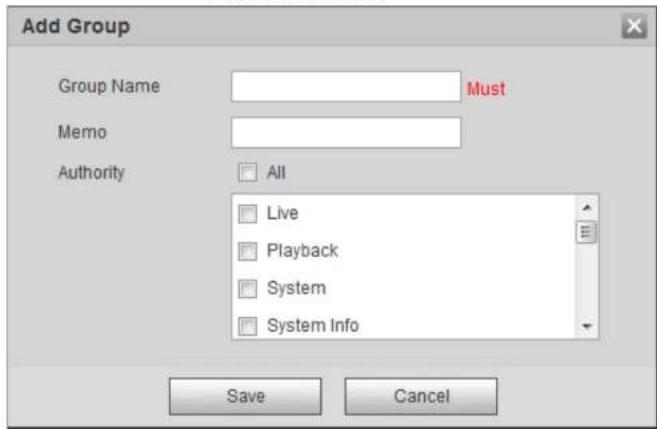
text_image
Add Group Group Name Must Memo Authority All Live Playback System System Info Save CancelStep 3 Enter the group name and memo, and then select group authorities.
The default authorities of Admin group includes live, playback, storage, file backup, user, system, system info, manual control, maintenance, peripheral, PTZ, security, network, event and AV parameters; the default authorities of User group include live and playback.
Table 4-39 Description of user group parameters
| Group Authority | Admin | User | Functions |
| User YES NA | Add, delete and check user/user group. | ||
| Live | YES | YES | Real-time stream view. |
Operation Manual
| Group Authority | Admin | User | Functions |
| Peripheral YES NA | External light, wiper and serial port settings. | ||
| AV Parameter YES NA | Camera property settings, audio and video settings and more. | ||
| PTZ YES NA | Preset settings, tour settings and more. | ||
| Security YES NA | HTTPS settings, RTSP over TLS settings and more. | ||
| Maintenance YES NA | Automatic maintenance settings and more. |

- Any user in the Admin group has User authorities to modify group authorities. The User group does not have this authorities.
- The function of the device correspond to the authority control respectively. Only user with specified authority can use corresponding function; the Admin group has all the authorities.
Step 4 Click Save to finish configuration.
The newly added group displays in the group name list.

- After adding group, click 🔍 to modify group memo or authorities; click 🔍 to delete the added group, admin group and user group cannot be deleted.
- Click in the row of admin group or user group to modify group memo.
Figure 4-106 Add user
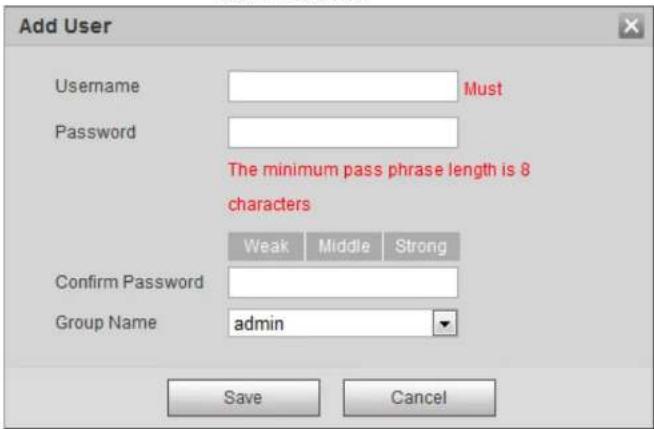
text_image
Add User Username Must Password The minimum pass phrase length is 8 characters Weak Middle Strong Confirm Password Group Name admin Save CancelStep 3 Configure user parameters.
Table 4-40 Description of user parameters
| Parameter Description | |
| Username | User's unique identification. You cannot use existed user name. |
| Password Enter password | and confirm it again.The password must consist of 8 to 32 non-blank characters and contain at least two types of characters among upper case, lower case, number, and special character (excluding " "; &). |
| Confirm Password | |
| Group Name | The group that users belong to. Each group has different authorities. |
Figure 4-107 Change password through old password (login with non-admin account)
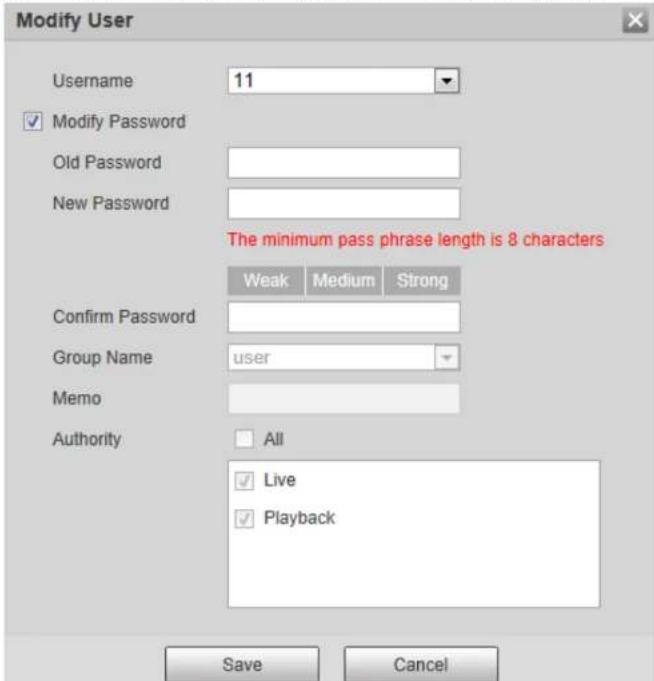
text_image
Modify User Username 11 Modify Password Old Password New Password The minimum pass phrase length is 8 characters Weak Medium Strong Confirm Password Group Name user Memo Authority All Live Playback Save Cancel
Admin account cannot be deleted.
• View the authorities
If the current account has the permission of user management, click 🔒 to view the login authorities of other accounts. If not, you can only view the login authorities of the current account.
4.8.4 Safety
You can configure system service, HTTPS, and firewall.
4.8.4.1 System Service
Configure the IP hosts (devices with IP address) that are allowed to visit the device. Only the hosts in the trusted sites list can log in to the web interface. This is to enhance network and data security.
Step 1 Select Setting > System > Safety > System Service
Figure 4-109 System service
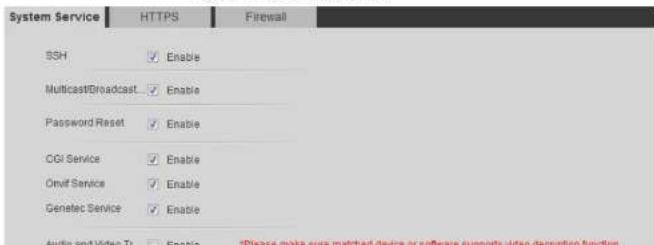
text_image
System Service HTTPS Firewall SSH ✓ Enable Multicast/Broadcast ✓ Enable Password Reset ✓ Enable CGI Service ✓ Enable Onbit Service ✓ Enable Genelac Service ✓ Enable Audio and Video T ✓ Enable *Please make sure matched desire or software supports video-decription functionOperation Manual
| Function Description | |
| CGI Service | Enable this function, and then other devices can access through this service. |
| Onvif Service | Enable this function, and then other devices can access through this service. |
| Genetec Service | Enable this function, and then other devices can access through this service. |
| Audio and Video Transmission Encryption | Enable to encrypt audio/video transmission.Make sure that the other devices and software that working together with the camera support video decryption. |
| Mobile Push | Enable this function, and then the system would send the snapshot that was taken when alarm is triggered to your phone, this is enabled by default. |
Step 3 Click Save.
4.8.4.2 HTTPS
Create a certificate or upload an authenticated certificate, and then you can log in through HTTPS with your PC. The HTTPS can protect page authenticity on all types of websites, secure accounts, and keep user communications, identity, and web browsing private.
Step 1 Select Setting > Network > HTTPS.
Figure 4-110 HTTPS

text_image
System Service HTTP S Format Enable HTTPG Protocol Version Enable TCP-1.0Figure 4-111 HTTPS dialog box
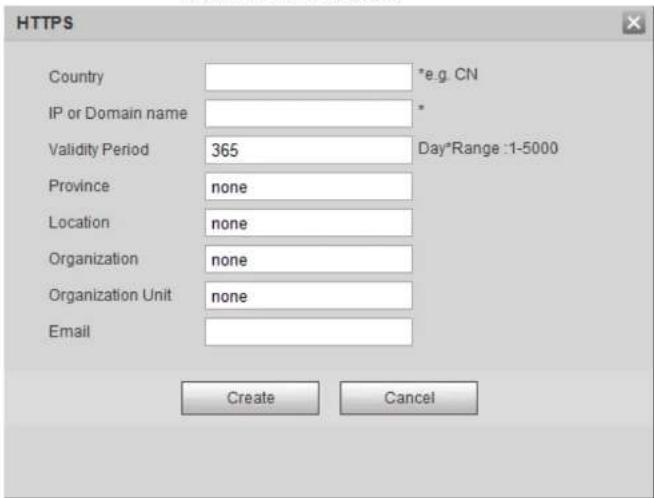
text_image
HTTPS Country *e.g. CN IP or Domain name * Validity Period 365 Day*Range :1-5000 Province None Location None Organization None Organization Unit None Email Create Cancel- For uploading the authenticated certificate, click Browse to select the certificate and certificate key, click Upload to upload them, and then skip to Step5.
Step 3 Enter the required information and then click Create

The entered IP or Domain name must be the same as the IP or domain name of the device.
C. 4 C11. . .
Figure 4-113 File download
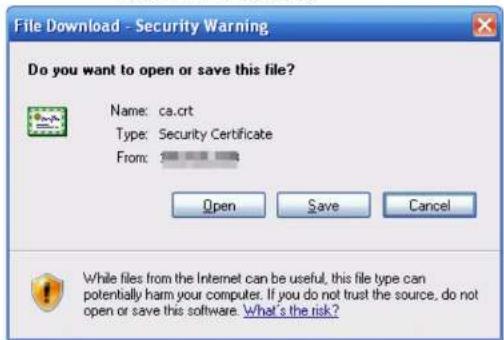
text_image
File Download - Security Warning Do you want to open or save this file? Name: ca.crt Type: Security Certificate From: Open Save Cancel While files from the Internet can be useful, this file type can potentially harm your computer. If you do not trust the source, do not open or save this software. What's the risk?Step 7 Click Open.
Figure 4-114 Certificate information

text_image
Certificate General Details Certification Path Certificate Information This CA Root certificate is not trusted. To enable trust, install this certificate in the Trusted Root Certification Authorities store.Figure 4-115 Certificate import wizard (1)
text_image
Certificate Import Wizard Welcome to the Certificate Import Wizard This wizard helps you copy certificates, certificate trust lists, and certificate revocation lists from your disk to a certificate store. A certificate, which is issued by a certification authority, is a confirmation of your identity and contains information used to protect data or to establish secure network connections. A certificate store is the system area where certificates are kept. To continue, click Next.Step 9 Click Next.
Figure 4-116 Certificate store
text_image
Certificate Import Wizard Certificate Store Certificate stores are system areas where certificates are kept.Figure 4-117 Certificate import wizard (2)
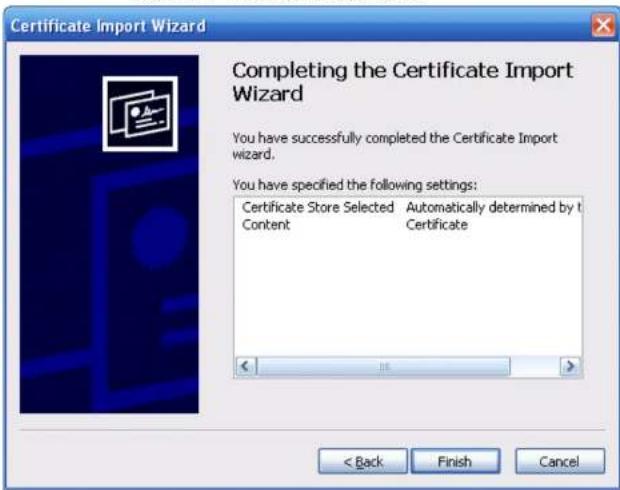
text_image
Certificate Import Wizard Completing the Certificate Import Wizard You have successfully completed the Certificate Import wizard. You have specified the following settings: Certificate Store Selected Automatically determined by it Content Certificate < Back Finish CancelStep 11 Click Finish and a dialog box showing The import was successful pops up.
Figure 4-118 Import succeeds
- You cannot set allowlist or blocklist for port MAC addresses.
- When the IP addresses of the camera and your PC are in the same LAN, MAC verification takes effect.
- When you access the camera through internet, the camera verifies the MAC address according to the router MAC.
This section takes Network Access as an example.
Step 1 Select Setting > System > Safety > Firewall.
Figure 4-119 Firewall

text_image
System Service HTTPS Firewall Role Type Network Access Enable Access Allowable Blocks Only the listed IP addresses MACs are allowed to visit corresponding parts of the device. IP address MAC address Fort MACS Delete Device AT Ports Device AT Ports Device AT Ports Device AT Ports Device AT Ports Device AT Ports Ask PAMC Default Refresh SaveStep 2 Select Network Access from Rule Type list, and then select the Enable check box.
- Enable PING prohibited and Prevent Semijoin, and click Save. You do not need to configure parameters.
- Enable Network Access, and configure allowlist and blocklist.
Select the mode: Allowlist and Blocklist.
- Click Add 10/MAC
Table 4-42 Description of adding IP/MAC parameters
| Parameter Description | |
| Rule Type | Select IP address, IP segment, MAC address or all IP addresses.IP address: Select IP version and enter the IP address of the host to be added.IP segment: Select IP version and enter the start address and end address of the segment to be added.MAC address: Enter MAC address of the host to be added.All IP addresses: Set all IP addresses in allowlist or restricted list. |
| Device All Ports | Set access ports. You can select all ports or the ports in defined areas.Device all ports: Set all IP port in allowlist or Blocklist. When selectingBlockllistin Mode,andAll IP Addressin Rule Type,you cannot select theDevice All Portsscheck box.Device start server port and Device end server port: Set Device start server port and device end server port, and the range is 1-65535. |
| Device Start Server Port | |
| Device End Server Port |
Step 4 Click OK, and the Firewall interface is displayed.
Step 5 Click Save.
4.8.5 Peripheral
4.8.5.1 Serial Port Settings
Set the serial port of the external device.
Step 1 Select Setting > System > Peripheral > Serial Port Setting
Figure 4-121 Serial port settings
Table 4-43 Description of serial port settings parameters
| Parameter Description | |
| Address | The corresponding device address. It is 1 by default.Make sure that the address is the device address; otherwise you cannot control the device. |
| Baud Rate | Select the baud rate for the camera. It is 9600 by default. |
| Date Bit It is 8 by default. | |
| Stop Bit It is 1 by default. | |
| Parity | It is None by default. |
Step 3 Click Save.
4.8.5.2 External Light
You need to configure external light mode when the external light is used.
Prerequisites
- Connect external light with RS-485 port.
- You have configured serial port parameters. For details, see "4.8.5.1 Serial Port Settings".
Procedure
Step 1 Select Setting > System > Peripheral > External Light.
Figure 4-122 External light

text_image
Serial Port Settings External Light Wiper 2008-01-31 03:45:56 Work Mode Auto Auto Mode TimeTable 4-44 Description of external light parameters
| Parameter Description | |
| Work Mode | Off: Turn off the external light.Manual: Set the light brightness manually.Auto:The camera turns on or turns off the light according to the light time and photoresister automatically. |
| Auto Mode | Time: When selecting Time in Auto Mode, click Setting to set the arming period. During the arming period, the external light is on. For details of arming period setting, see "5.1.1.1 Setting Period".Photoresister: When you select Photoresister in Auto Mode, the system turns on the external light according to the brightness automatically. |
| Light Brightness | Set the brightness of the external light. |
Step 3 Click Save.
4.8.5.3 Wiper
Step 1 Select Setting > System > Peripheral > Peripheral > Wiper.
Figure 4-123 Wiper
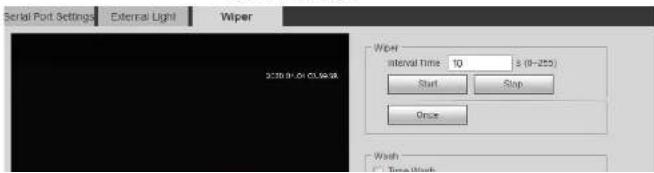
text_image
Serial Port Settings External Light Wiper Wiper 6:30-9:30 05:59:58 Window interval time 10 s (0-225) Start Stop Once Wash Time WorkOperation Manual
| Parameter Description | |
| Time Wash | Select the Time Wash check box and set the time, and then the wiper will work as the set time. Click Once, and the wiper works once. It can be used to check whether the wiper can work normally. |
Step 3 Click Save.
5 Event
This chapter introduces intelligent event settings, including smart track, panoramic calibration, video detection, audio detection, smart plan, IVS, face detection, face recognition, people counting, heat map, video Metadata, alarm, and abnormality.
5.1 Setting Alarm Linkage
5.1.1 Alarm Linkage
When configuring alarm events, select alarm linkages (such as record, snapshot). When the corresponding alarm is triggered in the configured arming period, the system will alarm. Interfaces might vary with different events, and the actual interface shall prevail.
Figure 5-1 Alarm linkage
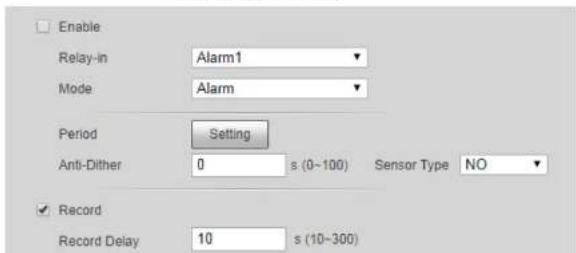
text_image
Enable Relay-in Alarm1 Mode Alarm Period Setting Anti-Dither 0 s (0-100) Sensor Type NO ✓ Record Record Delay 10 s (10-300)5.1.1.1 Setting Period
Set arming periods. The system only performs corresponding linkage action in the configured period.
Step 1 Click Setting next to Period.
Figure 5-2 Period
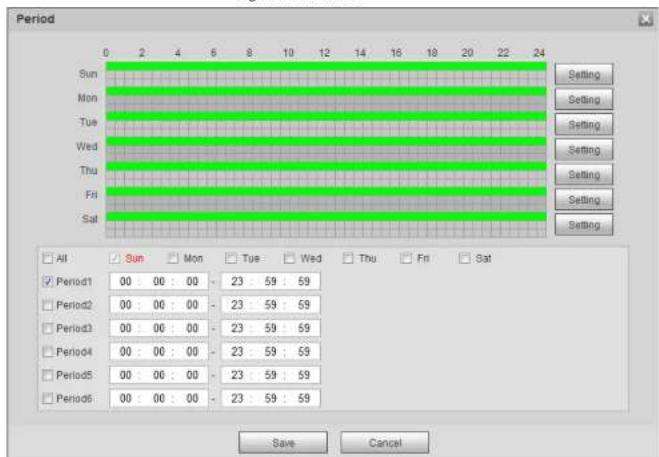
text_image
Period Sun Mon Tue Wed Thu Fri Sat Setting Setting Setting Setting Setting Setting Setting Setting All Sun Mon Tue Wed Thu Fri Sat Period1 00 00 : 00 - 23 : 59 : 59 Period2 00 00 : 00 - 23 : 59 : 59 Period3 00 00 : 00 - 23 : 59 : 59 Period4 00 : 00 : 00 - 23 : 59 : 59 Period5 00 00 : 00 - 23 : 59 : 59 Period6: 00 00 : 00 - 23 : 59 : 59 Save CancelStep 2 Set arming periods. Alarms will be triggered in the time period in green on the timeline.
• Method 1: Directly press and drag the left mouse button on the timeline.
• Method 2: Enter an actual time period.
• 2014 • ...
5.1.1.2.1 Setting Record Plan
After the corresponding alarm type (Normal, Motion, and Alarm) is enabled, the record channel links recording.
Step 1 Select Setting > Storage > Schedule > Record.
Figure 5-3 Record

text_image
Record Snapshot Holiday Schedule ✓ Normal ✓ Motion ✓ Alarm Sun Day Tue Wed Thu Fri Sat Holiday Default Refresh SaveStep 2 Set record plan.
Green represents normal record plan (such as timing recording); yellow represents motion record plan (such as recording triggered by intelligent events); red represents alarm record plan (such as recording triggered by alarm-in).
-
Method one: Select a record type, such as Normal, and directly press and drag the left mouse button to set the time period for normal record on the timeline.
• Method two: Enter an actual time period. -
Click Setting next to a day.
Figure 5-4 Setting (record time period)
5.1.1.2.2 Setting Record Control
Set parameters such as pack duration, pre-event record, disk full, record mode, and record stream.

Make sure that the SD card is authenticated before recording if you use Dahua smart card. For details, see "4.5.2.5 Path".
Step 1 Select Setting > Storage > Record Control.
Figure 5-5 Record control

text_image
Record Control Pack Duration: 0 Max (1-120) Pre-event Record: 5 In (0-5) Disk Full: Create Record Mode: A Auto ☐ Manager ☐ On Record Stream: Main Stream Default Refresh StopStep 2 Set parameters.
Table 5-1 Description of record control parameters
| Parameter Description | |
| Pack Duration | The time for packing each video file. |
| Pre-event Record | The time to record the video in advance of a triggered alarm event. For example, if the pre-event record is set to be 5 s, the system saves the recorded video of 5 s before the alarm is triggered.When an alarm or motion detection links recording, and the recording is not enabled, the system saves the video data within the pre-event record time to the video file. |
Figure 5-6 Record linkage

5.1.1.3 Snapshot Linkage
After snapshot linkage is configured, the system can automatically alarm and take snapshots when an alarm is triggered.
After Motion is enabled in Snapshot, the system takes snapshots when an alarm is triggered. For querying and setting snapshot storage location, see "4.5.2.5 Path".
5.1.1.3.1 Setting Snapshot Plan
According to the configured snapshot plan, the system enables or disables snapshot at corresponding time.
Step 1 Select Setting > Storage > Schedule > Snapshot.
Figure 5-7 Snapshot
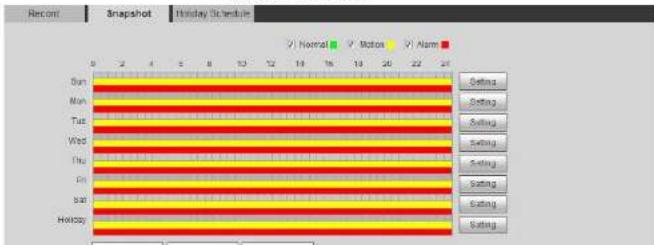
text_image
Recent Snapshot Holiday Schedule Normal Motion Alarm Sun Main Tue Wed Thu Fri Sat Holiday Setting Setting Setting Setting Setting Setting SettingFigure 5-8 Setting (snapshot time period)
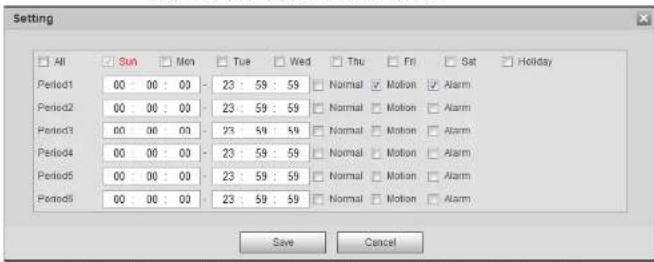
text_image
Setting All Sun Mon Tue Wed Thu Fri Sat Holiday Period1 00 00:00 - 23:59:59 Normal Motion Alarm Period2 00 00:00 - 23:59:59 Normal Motion Alarm Period3 00 00:00 - 23:59:59 Normal Motion Alarm Period4 00 00:00 - 23:59:59 Normal Motion Alarm Period5 00 00:00 - 23:59:59 Normal Motion Alarm Period6 00 00:00 - 23:59:59 Normal Motion Alarm Save Cancel- Select a day, and the alarm type next to a period. Then set the period.

Select All or check boxes of some days to set the time period of multiple days at one time.
◇ You can set 6 time periods per day.
- You can set 6 time periods per day.
5.1.1.3.2 Setting Snapshot Linkage
On the alarm event setting interface (such as the motion detection interface), selectSnapshot and set alarm linkage snapshot.
Figure 5-9 Snapshot linkage

Figure 5-11 Email linkage
Send Email
5.1.1.6 PTZ Linkage
When an alarm is triggered, the system links PTZ to do some operations. For example, the system links PTZ to rotate to the preset X.
Figure 5-12 PTZ linkage

5.1.1.7 Warning Light Linkage
When an alarm is triggered, the system can automatically enable the warning light.
Set Mode, Flicker Frequency, Duration, and Period.
- Mode: The display mode of the warning light when an alarm is triggered. It includes Normally on and Flicker. When setting Flicker as the mode, you need to set the flicker frequency.

For the camera with red and blue alarm light, you can only select Flicker in Mode.
- Duration: After setting warning light duration, the warning light is turned off after an extended time of period after an alarm. It is 5 seconds–30 seconds.
- Period: The period for using warning light. When an alarm triggered during the configured period, the system links warning light. For the configuration, see "5.1.1.1 Setting Period".
Figure 5-13 Warning light linkage
√ Warning Light
5.1.2 Subscribing Alarm
5.1.2.1 About Alarm Types
For alarm types and preparations of alarm events, see Table 5-2.
Table 5-2 Description of alarm types
| Alarm Type | Description | Preparation |
| Motion Detection | The alarm is triggered when moving object is detected. | Motion detection is enabled. For details, see "5.4.1 Setting Motion Detection". |
| Disk Full | The alarm is triggered when the free space of SD card is less than the configured value. | The SD card no space function is enabled. For details, see "5.19.1 Setting SD Card". |
| Disk Error | The alarm is triggered when there is failure or malfunction in the SD card. | SD card failure detection is enabled. For details, see "5.19.1 Setting SD Card". |
| Video Tampering | The alarm is triggered when the camera lens is covered or there is defocus in video images. | Video tampering is enabled. For details, see "5.4.2 Setting Video Tampering". |
| External Alarm | The alarm is triggered when there is external alarm input. | The device has alarm input port and external alarm function is enabled. For details, see "5.18 Setting Relay-in". |
| Illegal Access | The alarm is triggered when the number of consecutive login password error is up to the allowable number. | Illegal access detection is enabled. For details, see "5.19.3 Setting Illegal Access". |

Functions of different devices might vary.
Step 1 Click the Alarm tab.
Step 2 Select Alarm Type according to the actual need.
- Select Prompt. The system prompts and records alarm information according to actual conditions.
When the subscribed alarm event is triggered and the Alarm interface is not displayed, the ▼ displayed on the Alarm tab and the alarm information is recorded automatically. Click the Alarm tab, and this icon disappears.
When the subscribed alarm event is triggered and the Alarm interface is displayed, the corresponding alarm information is displayed in the alarm list at the right side of the Alarm interface.
- Select Play Alarm Tone, and select the tone path.
The following table is a simple diagram and contains no textual content.
- Auto calibration
Select Auto in Calibration Mode, and then click Start Calibration.
Figure 5-16 Auto calibration
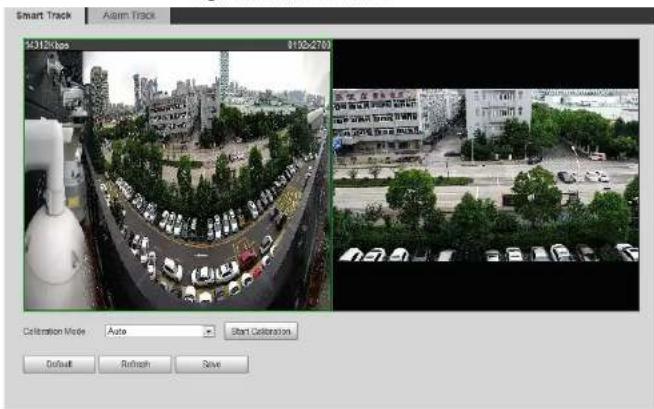
text_image
Smart Track Alarm Track 94318kios 9150-2765 Calibration Mode: Auto Start Calibration Default Refresh Save- Manual calibration
Select Manual in Calibration Mode, select the channel that you need, and then add calibration point for it in the live image.
Figure 5-17 Manual calibration (1)

natural_image
Street view with surveillance camera and cityscape background (no visible text or symbols)Figure 5-18 Manual calibration (2)
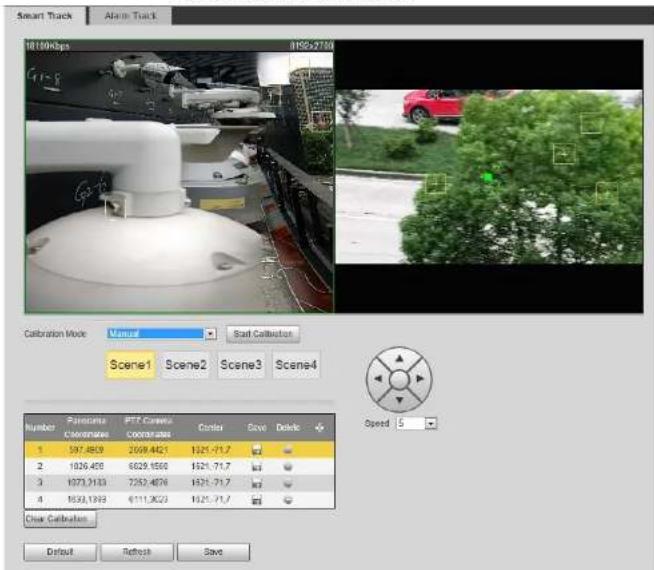
text_image
Smart Track Alam Track 100Kbps 850x750 Calibration Mode Manual Start Calibration Scene1 Scene2 Scene3 Scene4 Number Parancola Coatings PTZ Carbox Coatings Color Save Delete 1 597.4609 2069.4621 1521-71.7 2 1026.458 6029.1560 1521-71.7 3 1073.3183 7252.4676 1521-71.7 4 1533.1393 6111.3620 1521-71.7 Clear Calibration Default Refresh Save Speed 51) Adjust the speed dome lens and turn it to the same view as the chosen lens, and then click
The calibration boxes are displayed in both images.
2) Pair each box in the two images, and keep the paired boxes at the same spot of the live
Figure 5-19 Alarm track
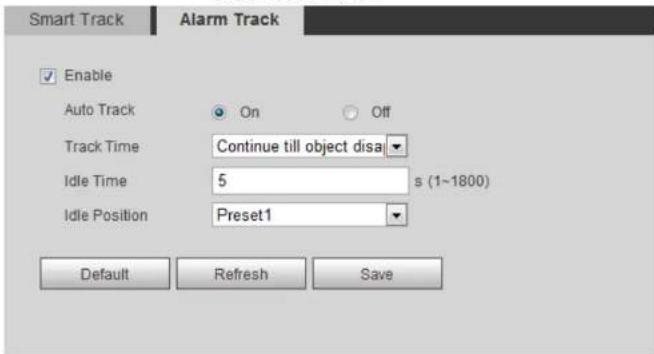
text_image
Smart Track Alarm Track Enable Auto Track On Off Track Time Continue till object disa Idle Time 5 s (1~1800) Idle Position Preset1 Default Refresh SaveStep 2 Select the Enable check box to enable track linkage.
After enabling the function, manual positioning, manual tacking and auto tracking take effect.
Step 3 Set parameters.
Table 5-3 Description of alarm track parameters
| Parameter Description | |
| Auto Track | Select On, and the speed dome automatically links to a corresponding position and tracks an object when the intelligent rules of the panoramic camera trigger alarms. |
| Set the alarm track time.Before an object disappears: The speed dome would automatically link to a corresponding position and tracks an |
when the effect is not good with default setting. Before manually calibrating a channel, clear all default calibration parameters.
Channel 1 is a PTZ camera. You should calibrate the scene coordinates of Channel 1 and other channels. Take Channel 2 as an example.
Step 1 Select Setting > Event > Panoramic Calibration.
Figure 5-20 Panoramic calibration
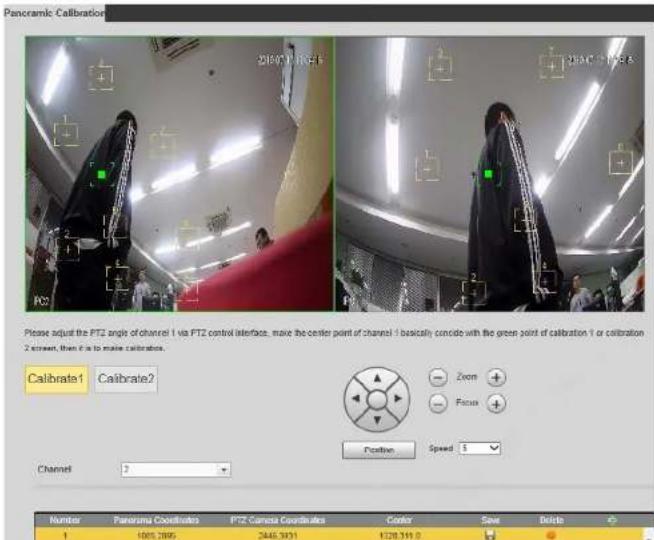
text_image
Panoramic Calibration 210/07/11 04:45 310/07/11 05:45 Please adjust the PTZ angle of channel 1 via PTZ control interface, make the center point of channel 1 basically concrete with the green point of calibration 1 or calibration 2 screen, then it is to make calibrates. Calibrate1 Calibrate2 Position Speed Channel 3 Number Panoramic Coords PTZ Camera Coords Corder Save Delete 1 1000.7895 2446.3931 1328.3910the image. This can ensure the edges can be accurately distinguished by the camera.
After the calibration record is saved, the calibration box is displayed in yellow.
Repeat 1) to 2) to add at least 4 pairs of calibration points to each calibration picture.
Step 3 Click Save.
5.4 Setting Video Detection
Check whether there are considerable changes on the video by analyzing video images. In case of any considerable change on the video (such as moving object, fuzzy image), the system performs an alarm linkage.
5.4.1 Setting Motion Detection
The system performs an alarm linkage when the moving object appears on the image and its moving speed reaches the preset sensitivity.

- If you enable motion detection and smart motion detection simultaneously, and configure the linked activities, the linked activities take effect as following:
When Motion Detection is triggered, the camera will record and take snapshots, but other configured linkages such as sending emails, PTZ operation will not take effect.
When Smart Motion Detection is triggered, all the configured linkages take effect. - If you only enable motion detection, all the configured linkages take effect when motion detection is triggered.
Step 1 Select Setting > Event > Video Detection > Motion Detection.
Figure 5-22 Motion detection
Motion Detection Video Tampering Scene Changing
Enable
Working Period
Setup
Anti-Dither
5
Second (0\~100)
Area
Setup
Record
Record Delay
10
Second (10\~300)
√ Relay-out
Alarm Delay
10
Second (10\~300)
Send Email
Snapshot
Default
Refresh
Save
Figure 5-23 Area
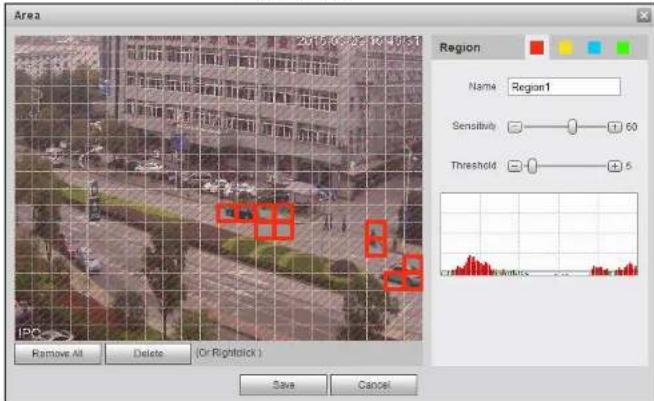
text_image
Area 2016-03-20 10:15:11 Region Name Region1 Sensitivity 60 Threshold 5 IPC Remove All Delete (Or Rightstick) Save Cancel2) Select a color and set the region name. Select an effective area for Motion Detection in the image and set Sensitivity and Threshold.
- Select a color on to set different detection parameters for each region.
- Sensitivity: Sensitive degree of outside changes. It is easier to trigger the alarm with higher sensitivity.
- Threshold: Effective area threshold for Motion Detection. The smaller the threshold is, the easier the alarm is triggered.
- The whole video image is the effective area for Motion Detection by default.
- The red line in the waveform indicates that the Motion Detection is triggered, and
function is available on some select models.
Figure 5-24 Video tampering
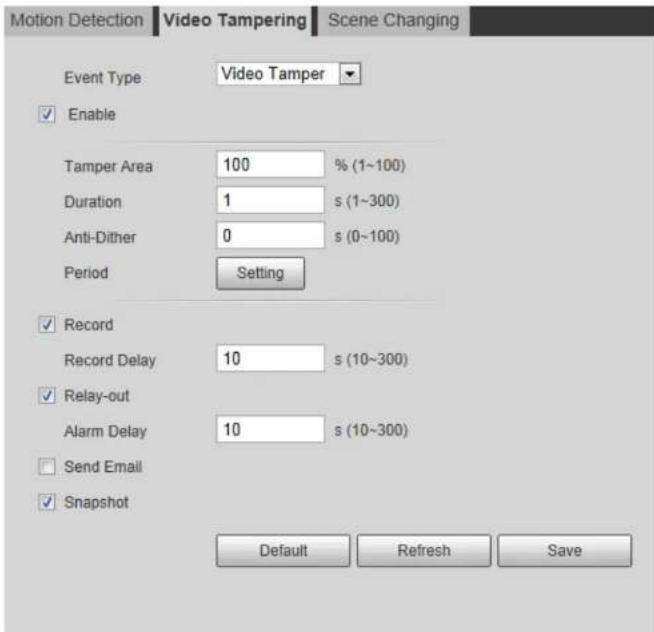
text_image
Motion Detection Video Tampering Scene Changing Event Type Video Tamper Enable Tamper Area 100 % (1~100) Duration 1 s (1~300) Anti-Dither 0 s (0~100) Period Setting Record Record Delay 10 s (10~300) Relay-out Alarm Delay 10 s (10~300) Send Email Snapshot Default Refresh SaveFigure 5-25 Scene changing

text_image
Motion Detection Video Tampering Scene Changing Enable Working Period Setup Record Record Delay 10 Second (10~300) Relay-out Alarm Delay 10 Second (10~300) Send Email Snapshot Default Refresh SaveStep 2 Set arming periods and alarm linkage action. For details, see "5.1.1 Alarm Linkage". Step 3 Click Save.
Figure 5-26 Smart motion detection
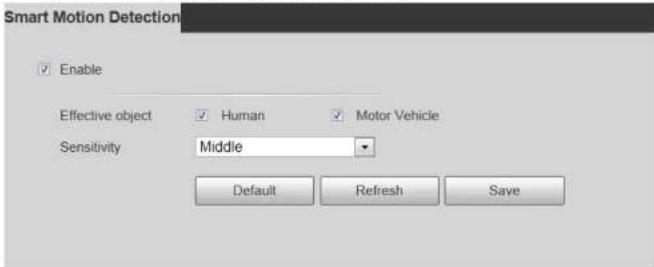
text_image
Smart Motion Detection Enable Effective object Human Motor Vehicle Sensitivity Middle Default Refresh SaveStep 2 Select the Enable check box to enable the smart motion detection function.
Step 3 Set effective object and sensitivity.
- Effective object: Includes Human and Motor vehicle. When you select Human, the camera will detect human and non-motorized vehicle.
- Sensitivity: Includes Low, Middle, and High. The higher the sensitivity is, the easier the alarm will be triggered.
Step 4 Click OK.
5.6 Setting Audio Detection
The system performs alarm linkage when vague voice, tone change, or sound intensity rapid change is detected.
Step 1 Select Setting > Event > Audio Detection.
Figure 5-27 Audio detection

text_image
Audio Detection Enable Input Abnormal Enable Intensity Change Sensitivity - + 50 Threshold - + 50 Working Period Setup Anti-Dither 5 Second (0~100) Record Record Delay 10 Second (10~300)threshold for noisy environment.
The red line in the waveform indicates audio detection is triggered, and the green one indicates no audio detection. Adjust sensitivity and threshold according to the waveform.
Step 3 Set arming periods and alarm linkage action.
Step 4 Click Save.
5.7 Setting Smart Plan
Smart plan includes face detection, heat map, IVS, people counting, face detection, video metadata, stereo analysis and schedule. The intelligent function can be enabled only after the corresponding smart plan is enabled.
5.7.1 Basic Smart Plan
Step 1 Select Setting > Event > Smart Plan.
The Smart Plan interface is displayed. For smart plan icon, see the table below.
Table 5-5 Description of smart plan icon
| Icon | Description | Icon | Description | Icon | Description |
 | Face detection |  | Stereo vision |  | Heat map |
 | Stereo detection |  | IVS |  | Face detection |
- Select a preset point from the Add Plan the interface.
The smart plan for the point is displayed.
- Click the corresponding icon to enable a smart function.
The selected smart function is highlighted. Click it again to cancel the selection.
Step 3 Click Save.
5.7.2 Schedule
After enabling this function, you can configure different smart plans at different periods for your camera.
Step 1 Select Setting > Event > Smart Plan.
Step 2 Enable Schedule.
Figure 5-28 Schedule
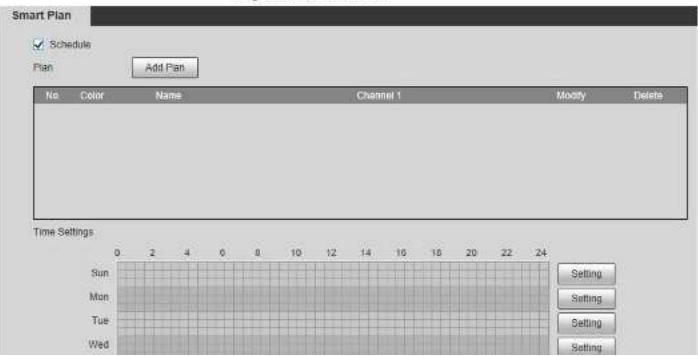
text_image
Smart Plan ✓ Schedule Plan Add Plan No Color Name Channel 1 Mostly Delete Time Settings Sun Mon Tue Wed Setting Setting Setting SettingFigure 5-29 Add plan (1)

text_image
Plan Plan: Plan1 Channel 1 Face Detection HeatMap IVS People Counting Save CancelFigure 5-30 Add plan (2)

text_image
Plan Add Plan No. Color Name Channel 1 Modify Delete 1 Plan1 Face Detection 2 Plan2 Heat Map 3 Plan3 IVS 4 Plan4 People CountingStep 4 Configure the time settings.
-
Click Settings.
-
Configure the period. In the Smart Plan list, select the type as needed.
-
Click Save.
-
(Optional) Repeat step 1-4 to add more plans for different time.
-
You can set up to 6 different plans for one day.
• One period can only add one smart plan.
Figure 5-31 Time settings (1)

Figure 5-32 Time settings (2)
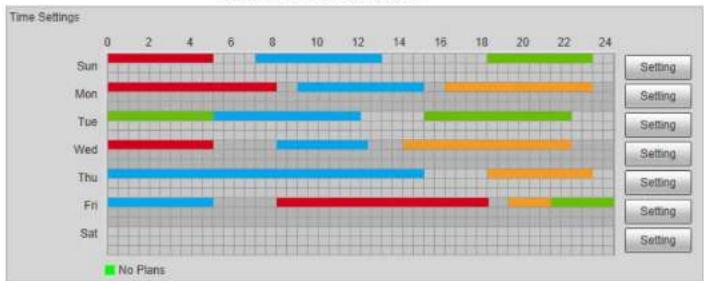
bar
| Day | No Plans | |---|---| | Sun | 19 | | Mon | 8 | | Tue | 12 | | Wed | 14 | | Thu | 15 | | Fri | 18 | | Sat | 23 |Step 5 Click Save.

Schedule function is only available on single-channel cameras.
5.8 Setting IVS
This section introduces scene selection requirements, rule configuration, and global configuration for IVS (intelligent video surveillance).
Basic requirements on scene selection are as follows.
- The target should occupy no more than 10% of the whole image.
- The target size in the image should be no more than 10 × 10 pixels. The size of abandoned object in the image should be no less than 15 × 15 pixels (CIF image). The target height and width should no more less than a third of the image height and width. The recommended target height is 10% of the image height.
- Medium or distant view with installation height of more than three meters. Scenes with parallel view or ceiling-mounted are not supported.
- Calibrate horizontal plane, not vertical walls or sloping surfaces.
- This function is not applicable to scenes with distorted view, such as the distorted views captured by super wide-angle or fisheye camera.
Notes
- Calibration Drawing
- Calibration area: The calibration area drawn should be on one horizontal plane.
- Vertical ruler: The bottom of three vertical rulers should be on the same horizontal plane. Select three reference objects with fixed height in triangular distribution as vertical rulers, such as vehicle parked at roadside or road lamp poles. Arrange three persons to draw at each of the three positions in the monitoring scene.
- Horizontal ruler: Select reference object with known length on the ground, such as sign on the road, or use a tape to measure the actual length.
• Calibration Verification
After setting the ruler, draw a straight line on the image, check the estimated value of the straight line, and then compare this value with the value measured in the actual scene to verify calibration accuracy. In case of major difference between the estimated value and the actual one, fine-tune or reset parameters until the error requirement is met.
Procedure
- Select Setting > Event > IVS > Global Setup.
Figure 5-33 Global setup of IVS
Table 5-6 Description of global setup (IVS) parameters
| Parameter Description | |
| Anti-Disturb Enable | A reserved function. |
| Sensitivity | Adjust the filter sensitivity. With higher value, it is easier to trigger an alarm when low-contrast object and small object are captured, and the false detection rate is higher. |
| Tracking Overlap Rate | Reserved functions. |
| Valid Tracking Distance | |
| Valid Tracking Time |
- Set calibration area and ruler.
a. Click Add Calibration Area and draw a calibration area in the image.
b. Select a calibration type and enter the actual length, and then click Add Rulers.
c. Draw one horizontal ruler and three vertical rulers in the calibration area.
- Click Save.
Result
- Select the verification type, and then click Calibration Valid.
To verify vertical ruler and horizontal ruler, respectively select Height Verification and Width Verification.
- Draw a straight line in the image to verify whether the rulers are correctly set.
In case of big difference between the estimated value and the actual one, fine-tune or reset parameters until the error requirement is met.
Operation Manual
| Rule | Description | Applicable Scene |
| Abandoned object | When an object is abandoned in the detection area over the set time, the system performs alarm linkages. | Scenes with sparse targets and without obvious and frequent light change. Simple scene in the detection area is recommended.Missed alarms might increase in the scenes with dense targets, frequent occlusion, and people staying.In scenes with complex foreground and background, false alarm might be triggered for abandoned or missing object. |
| Missing object | When an object is taken out of the detection area over the defined time, the system performs alarm linkages. | Scenes with sparse targets and without obvious and frequent light change. Simple scene in the detection area is recommended.Missed alarm might increase in the scenes with dense targets, frequent occlusion, and people staying.In scenes with complex |
Operation Manual
| Rule | Description | Applicable Scene |
| Crowd gathering | When the crowd gathers or the crowd density is large, the system performs alarm linkages. | Scenes with medium or long distance, such as outdoor plaza, government entrance, station entrance and exit. It is not suitable for short-distance view analysis. |
| Loitering detection | When the target loiters over the shortest alarm time, the system performs alarm linkages. After alarm is triggered, if the target stays in the area within the time interval of alarm, then alarm will be triggered again. | Scenes such as park and hall. |
Configure IVS rules. This section takes tripwire as an example.

Go to the Rule Config interface of the speed dome, and the PTZ lock function is automatically enabled. The locking time is 180 seconds. You can only manually control the PTZ during the locking time. Click Unlock at lower left corner of the Rule Config interface to manually unlock the PTZ, and click Lock again to relock the PTZ.
Step 1 Select Setting > Event > IVS > Rule Config
Step 2 Click ✪ on the Rule Config interface, double-click the name to modify the rule name, and then select Tripwire from the Rule Type drop-down list.
Figure 5-34 Tripwire

text_image
Rule Config Global Setup Rule Type 1 Route1 ImportTable 5-8 Description of IVS analysis
| Rule Description | |
| Tripwire Draw a detection line. | |
| Intrusion | Draw a detection area.During the detection of abandoned object, the alarm is also triggered if pedestrian or vehicle stays for a long time. If the abandoned object is smaller than pedestrian and vehicle, set the target size to filter pedestrian and vehicle or properly extend the duration to avoid false alarm triggered by transient staying of pedestrian.During the detection of crowd gathering, false alarm might be triggered by low installation height, large percentage of single person in an image or obvious target occlusion, continuous shaking of the camera, shaking of leaves and tree shade, frequent opening or closing of retractable door, or dense traffic or people flow. |
| Abandoned object | |
| Missing object | |
| Fast moving | |
| Parking detection | |
| Crowd gathering | |
| Loitering detection | |
Step 4 (Optional) Click Draw Target at the right side of Target Filter, and then draw the target in the image.
- When the rule of crowd gathering is configured, you do not need to set target filter, but draw the minimum gathering area. Click Draw Target to draw the minimum gathering area in the scene. The alarm is triggered when the number of people in the detection area exceeds the minimum area and the duration.
- Click Clear to delete all drawn detection lines.
- Click Draw Target at the right side of Pixel Counter, and then press and hold the left mouse button to draw a rectangle, the Pixel Counter then displays its pixel.
Step 5 Set rule parameters for IVS.
| Parameter Description | |
| Track Time | triggered, the camera automatically tracks the person or object that triggers the alarm. Tracking time is the duration that the camera automatically tracks the object.Before enabling this function, you need to enable or disable the Alarm Track function under Smart Track as needed.When the Channel is set as 1, disable Alarm Track under Smart Track.When the Channel is set as 2 or 3, enable Alarm Track under Smart Track. |
| AI Recognition | Select AI Recognition to enable this function.When you select Person as the alarm target, an alarm will be triggered when the system detects that persons trigger the rule.When you select Vehicle as the alarm target, alarm will be triggered when the system detects that vehicle trigger the rule. |
| Duration | For abandoned object, the duration is the shortest time for triggering an alarm after an object is abandoned.For missing object, the duration is the shortest time for triggering an alarm after an object is missing.For parking detection, crowd gathering, or loitering detection, the duration is the shortest time for triggering an alarm after an object appears in the area. |
| Sensitivity | For fast moving, sensitivity is related to the triggering speed. Lower sensitivity requires faster moving speed to trigger the alarm.For crowd gathering, sensitivity is related to the alarm triggering |
Determine corresponding relationship between 2D image captured by the camera and 3D actual object according to one horizontal ruler and three vertical rulers calibrated by the user and the corresponding actual distance.
Notes
When drawing calibration ruler, keep the ruler length consistent with the actual length of the object.
Procedure
- Select Setting > Event > Crowd Map > Global Setup
Figure 5-35 Global setup of crowd map
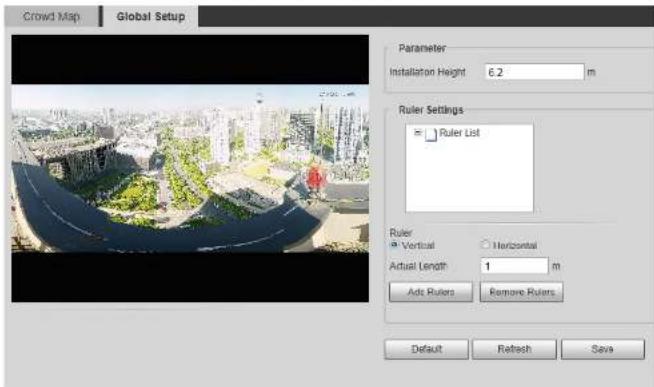
text_image
Crowd Map Global Setup Parameter Installation Height 6.2 m Ruler Settings ■ Ruler List Ruler ■ Vertical ○ Horizontal Actual Length 1 m Ads Rulers Remove Rulers Default Refresh Save- Set calibration area and ruler.
Figure 5-36 Crowd map
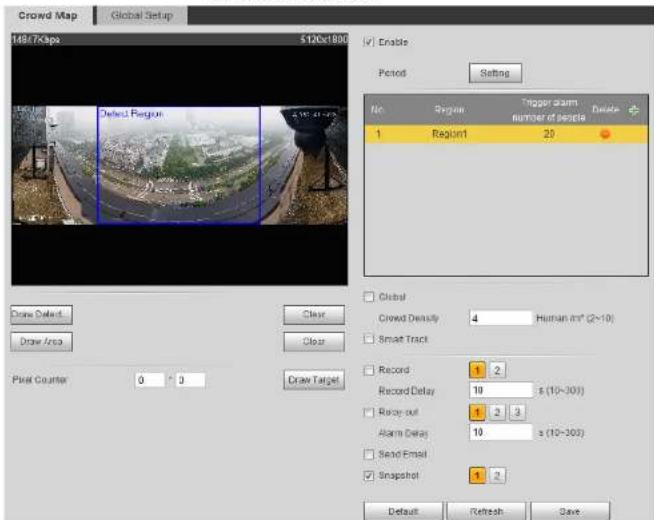
text_image
Crowd Map Global Setup 1867Kapa 5120x1800 ■ Enable Period Setting No Region Trigger alarm number of people Delete 1 Region1 20 Draw Defect Clear Clear Draw Area Clear Pixel Counter 0 ° 0 Draw Target Global Crowd Density 4 Human m² (2~10) Smart Track Record 1 2 Record Delay 10 s (10~300) Roay out 1 2 3 Alarm Delay 10 s (10~300) Send Email Snapshot 1 2 Default Refresh SaveStep 2 Select the Enable check box, and then the crowd map function is enabled.
Step 3 Click Draw Detection Area to draw global area for detecting crowd distribution in the image.
After drawing a global area, you can draw multiple local statistical areas in the global area as needed.
1) Click and then click Draw Area to draw local statistical area in global detection
| Parameter Description | |
| Smart track | Select theSmart Trackcheck box, and when alarm is triggered by the panoramic camera, the speed dome automatically turns to the position where alarm is triggered. The tracking time is "idle time + five seconds." For the details of idle time configuration, see "5.2.2 Enabling Alarm Track"Linkage rules:Detect global alarm only: Turns to crowd with highest density.Detect local alarm only: Turns to local area that triggers alarm first.Detect global alarm + one local alarm: First turns to local area, and then the crowd with highest density when there is no alarm in local area.Detect global alarm + multiple local alarms: First turns to local area that triggers alarm first, and then the crowd with highest density when there is no alarm in local area.Before enabling this function, you need to configure Smart Track.For details, see "5.2 Setting Smart Track". |
| Pixel Counter | ClickDraw Targetnext to Pixel Counter, and then press and hold the left mouse button to draw a rectangle, thePixel Counterthen displays its pixel. |
Step 5 Set arming periods and alarm linkage actions. For details, see "5.1.1 Alarm Linkage"
Step 6 Click Save.
Result
5.10 Setting Face Recognition
When a face is detected or recognized in the detection area, the system performs alarm linkage and supports searching face detection and recognition results.
- Face Detection: When a face is detected in the area, the system performs alarm linkage, such as recording and sending emails.
- Face Recognition: When a face is detected in the area, the system compares the captured face image with the information in the face database, and links alarm according to the comparison result.
For the process of setting face recognition, see Figure 5-39.
Figure 5-39 Face recognition flowchart
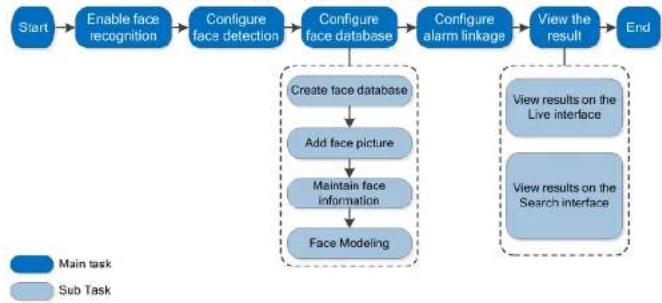
flowchart
graph TD
    A["Start"] --> B["Enable face recognition"]
    B --> C["Configure face detection"]
    C --> D["Configure face database"]
    D --> E["Create face database"]
    E --> F["Add face picture"]
    F --> G["Maintain face information"]
    G --> H["Face Modeling"]
    H --> I["Configure alarm linkage"]
    I --> J["View the result"]
    J --> K["End"]
    style A fill:#000,stroke:#fff,color:#fff
    style K fill:#000,stroke:#fff,color:#fff
    subgraph "Create face database"
        E
        F
        G
        H
    end
    subgraph "View results on the Live interface"
        I
        J
        K
    end
    subgraph "View results on the Search interface"
        I
        J
        K
    end
5.10.1 Setting Face Detection
When a face is recognized in the detection area, the system performs alarm linkage
Figure 5-40 Face detection
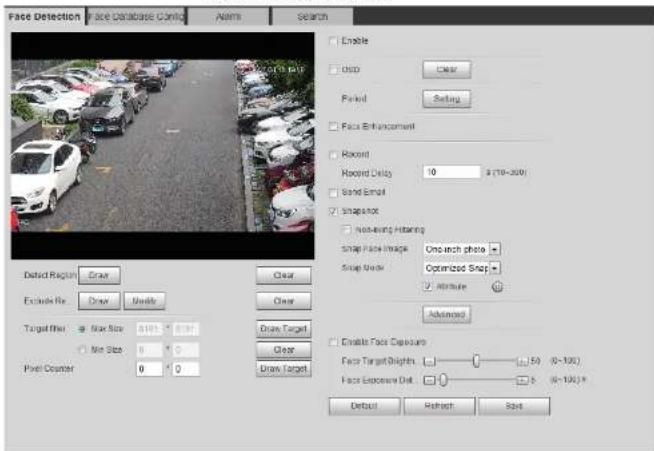
text_image
Face Detection Face Database Config ASM Search Enable Stop Parked Setting Face Enhancement Rounded Rounded Delay: 10 s (10-200) Sand Email Snapshot Non-rearing Floating Snap Face Image: One tech photo Snap Break: Optimized Snap Altitude Advanced Enable Face Exposure Face Target Depth: 50 (0-100) Face Exposure Out: 5 (0-100) ° Default Refine SizeStep 2 Select the Enable check box to enable the face detection function.
Step 3 (Optional) Click Draw next to Detect Region to draw a face detection area in the image.
Step 4 (Optional) Click Draw next to Exclude Region to draw a non-face detection area in the Detect Region.
Step 5 (Optional) Select Max Size or Min Size, click Draw Target at the right side of Target filter, and then draw the target in the image.
Step 6 Set parameters.
Table 5-11 Description of face detection parameters
Operation Manual
| Parameter Description | |
| Snap Face Image | Set a range for snapping face image, including face picture, one-inch picture, and custom.When selectingCustomclickSetting,configure the parameters on the prompt interface, and then clickOK.Customized width: Set snapshot width; enter the times of the original face width. It ranges from 1-5.Customized face height: Set face height in snapshot; enter the times of the original face height. It ranges from 1-2.Customized body height: Set body height: in snapshot; enter the times of the original body height. It ranges from 0-4.When the value is 0, it means to cutout the face image only. |
| Snap Mode | Optimized Snapshot: Capture the clearest picture within the configured time after the camera detects face.Recognition Priority: Repeatedly compare the captured face to the faces in the armed face database, and capture the most similar face image and send the alarm. It is recommended to use this mode in access control scene.Click Advancedto set the optimized time. |
| Attribute | Select theAttributecheck box, and click to set the display of face attribute during the face detection. |
| Advanced | Snapshot Angle Filter: Set snapshot angle to be filtered during the face detection.Snapshot Sensitivity: Set snapshot sensitivity during the face detection. It is easier to detect face with higher sensitivity. |
detected.
Face database configuration includes creating face database, adding face picture, and face modeling.
5.10.2.1 Creating Face Database
Face database includes face picture, face data and other information. It also provides comparison data for the captured face pictures.
Step 1 Select Setting > Event > Face Recognition > Face Database Config.
Capacity Limit Shows the usage of the memory.
Figure 5-41 Face database configuration
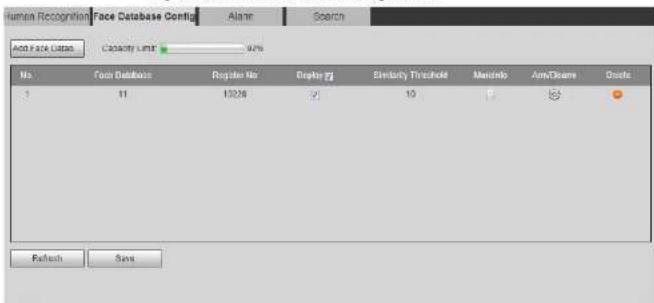
text_image
Human Recognition Face Database Config Alarm Search Add Face Data Capacity Limit 90% No. Fact Database Register No Display Similarity Threshold MancInfo ArmDiscere Odata 1 11 13236 10 Refresh SaveStep 2 Click Add Face Database.
Figure 5-42 Add face database

Figure 5-43 Face database successfully added
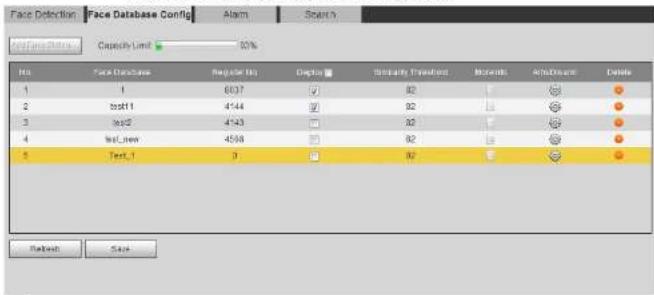
text_image
Face Detection Face Database Config Alarm Search Face Data Capacity Limit 50% No Face Database Regular No Caption Initially Default Microsoft AutoDrive Delete 1 1 8037 82 # # 2 txt1 4144 82 # # 3 txt2 4143 82 # # 4 txt_new 4568 82 # # 5 Text_1 9 82 # # Refresh SaveStep 5 Set parameters.
Table 5-12 Description of face database parameters
| Parameter Description | |
| Deploy | Select the Deploy check box, and the face database deployment is enabled. The captured face picture is compared to the armed face database. |
| Similarity Threshold | The detected face matches the face database only when the similarity between the detected face and the face feature in face database reaches the configured similarity threshold. After successful match, the comparison result is displayed on the Live interface. |
| MoreInfo | Click MoreInfo to manage face database. You can search face images by setting search conditions, register personnel, and modify personnel information. |
| Arm/Disarm | Set the alarm time period. Alarm event will be triggered only within the defined time. See "5.1.1.1 Setting Period". |
Figure 5-44 Face database configuration

text_image
Face Detection Face Database Config Alarm Search Rscs | Face Database Text_1 Task List Name: Gender: Unlimited Date of Birth: Unlimited Unloading Status: Unlimited Credentials T: Unlimited ID No: Region: Unlimited Search Registration Catch Registration Modeling All Modeling FStep 3 Click Registration.
Figure 5-45 Registration (1)

text_image
Registration Upload Picture * Name* Gender Male Date of Birth Region Unlimited City Custom Credentials IC ID No. Address Memo Upload Picture Add to task list CancelFigure 5-46 Registration (2)

text_image
Registration Upload Picture Name* Gender Male Date of Birth Region Unlimited City Custom Credentials IC ID No: Address: Memo: OK | Cancel Add to task list CancelStep 5 Enter the information about face picture according to the actual situation.
Step 6 Click Add to task list.
Step 7 Click, and then click OK.
The Task List interface is displayed. See Figure 5-47. Click Remove All to remove all tasks by one click.
Figure 5-47 Task list (manually add)

Operation Manual
| Parameter Error Description | ||
| 2 | No face in the picture or the face is not clear. Change the picture. | |
| 3 | Multiple faces in the picture. Change the picture. | |
| 4 | Fails to decode the picture. Change the picture. | |
| 5 | The picture is not suitable to be imported to the face database. Change the picture. | |
| 6 | The database error. Restart the camera and model faces again. | |
| 7 | Fails to get the picture. Import the picture again. | |
| 8 | System error. Restart the camera and model faces again. |
5.10.2.2.2 Batch Importing
Import face pictures in batches. Select this way when you need to add a large number of face pictures.
Before importing pictures in batches, name face pictures in a format of "Name#SGender#BDate of Birth#NRegion#TCredentials Type#MID No.jpg" (for example, "John#S1#B1990-01-01#T1#M0000).

- The max. size of a single face picture is 150 K, and the resolution is less than 1080p.
- When naming pictures, Name is required, and others are optional.
Table 5-14 Description of naming rules for batch import parameters
Figure 5-48 Batch add

text_image
Supported Picture Format(.jpg) Naming Format: Name#SGender#BDate of Birth#NRegion#TCredentials Type#MID No. Example: John#S1#B1990-01-01#NCN#T1#M330501199001016222 Gender: 1.Male 2.Female Credentials Type: 1.IC 2.Passport 4.Other Browse CancelStep 4
Click

to select file path.
Figure 5-49 Batch import
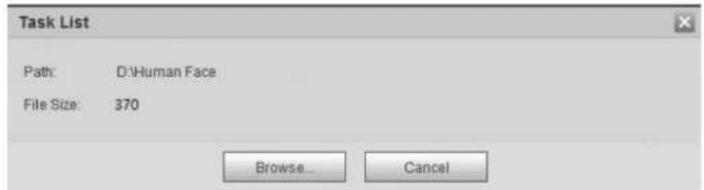
text_image
Task List Path: D:\Human Face File Size: 370 Browse... Cancel5.10.2.3.1 Modifying Face Information
Step 1 Go to the Face Database Config interface, set filtering condition as needed, and click Search.
The search result is displayed.
Step 2 Select the row where the face picture or the personnel information is located, and then

Figure 5-51 Face information modification
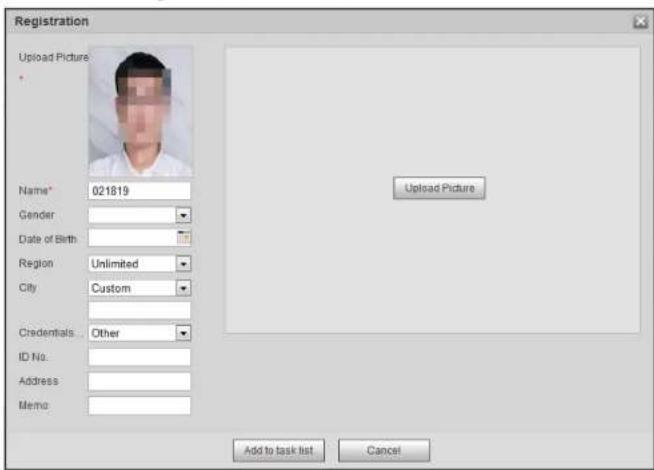
text_image
Registration Upload Picture Name* 021819 Gender Date of Birth Region Unlimited City Custom Credentials Other ID No. Address Memo Upload Picture Add to task list CancelStep 3 Modify face information according to the actual need. Click Add to task list.
intelligent detections can be realized.

- The more the selected face pictures are, the longer time the face modeling takes. Please wait patiently.
- During modeling, some intelligent detection functions (such as face recognition) are not available temporarily, and will be available after modeling.
Step 1 Select Setting > Event > Face Recognition > Face Database Config.
The Face Database Config interface is displayed.
Step 2
Click next to the face database to be set.
Figure 5-52 Face database configuration
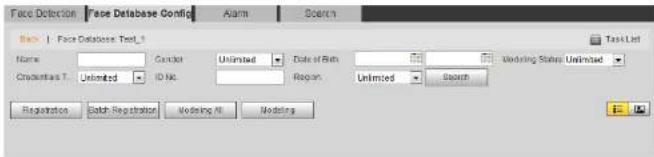
text_image
Face Detection Face Database Config Alarm Search Back Face Database Test_1 Task List Name Condition Unlimited Date of Birth Modelling Status: Unlimited Creatinine T: Unlimited ID No. Reason: Unlimited Search Registration Batch Registration Modeling All Modeling EStep 3 Start modeling.
- Selective modeling. If there are many face pictures in the face database, you can set search criteria to select the pictures that need to be modeled.
-
Set the search criteria, and click Search.
-
Select the face pictures to be modeled.
-
Click Modeling.
- All modeling. Click Modeling All to complete modeling of all face pictures in the face database.
Step 4 View the modeling result.
Figure 5-54 Failed modeling
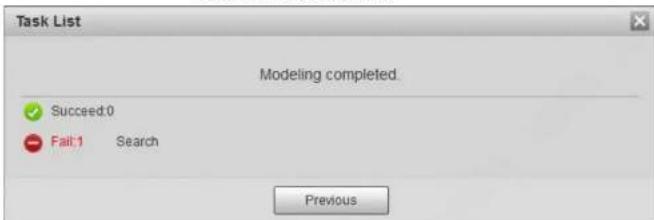
text_image
Task List Modeling completed. ✓ Succeed:0 - Fail:1 Search PreviousClick Search, and the face details are displayed. Click to view the face picture in list format. See Figure 5-55. Click to view the face picture in thumbnail format. See Figure 5-56.
When the modeling status is Valid in the list or is displayed on the left corner of the thumbnail, it means the modeling succeeded.
When the modeling status is Invalid in the list or is not displayed on the left corner of the thumbnail, it means the modeling failed. Point to the modeling status in the list or the pictures without to view the details of the failure. Change the pictures according to the details.
Figure 5-55 Modeling status (list)

text_image
File Selection Name: 10000000000000000000000000000000000000000000000000000000000000000000000000000000000000000000000000000 Description: Import: Export: Export Method: Export Date: Export Time: Export Date: Export Time: Export Date: Export Time: Export Date: Export Time: Export Date: Export Time: Export Date: Export Time: Export Date: Export Time: Export Date: Export Time: Export Date: Export Time: Export Date: Export Time: Export Date: Export Time: Export Date: Export Time: Export Date: Export Time: Export Date: Export Time: Export Date: Export Time: Export Date: Export Time: Export Date: Export Time: Export Date:Figure 5-57 Alarm (face recognition)

text_image
Face Detection Face Database Config Alarm Search Face Database Please add face databa Relay-out Alarm Channel1 Alarm Rule Face Recognition Succeeded Face Recognition Failed Alarm Delay 1 s (1~300) Refresh SaveStep 2 Select a face database and an alarm rule.
- Face recognition succeeded: When the detected face matches that in the face database, the device links alarm out.
- Face recognition failed: When the detected face fails to match that in the face database, the device links alarm out.
Step 3 Set alarm linkage actions. For details, see "5.1.1 Alarm Linkage".
Step 4 Click Save.
5.10.4 Viewing Face Recognition Result
View face recognition result on the Live interface or by the search function.
5.10.4.1 Viewing Result in the Live Interface
View face recognition result on the Live interface. See Figure 5-58
5.10.4.2 Viewing Result by Search Function
View face recognition or face snapshot result. Take face recognition search as an example.
Prerequisites
You have installed a SD card in the camera.
Procedure
Step 1 Select Setting > Event > Face Recognition > Search.
Figure 5-59 Face recognition search

text_image
Face Detection Face Snapshot Control Alarm Search Type Face Snapshot Start Time 2019-07-03 14 20 55 End Time 2019-07-04 14 20 55 Advanced Path Search Age Unlimited Gender Unlimited Health Size: Unlimited Bead Unlimited Expression Unlimited Classes UnlimitedStep 2 Select Face Recognition for Type, enter the start time and the end time, and then click
Search.
- Click Advanced Parameters to set more search conditions.
- Click a search result to view details.
Figure 5-60 Search results (face recognition)
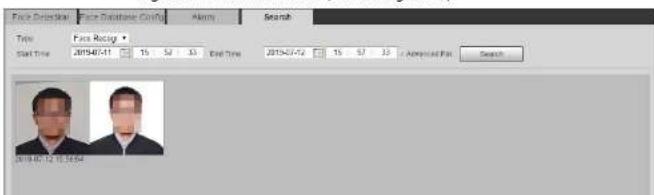
text_image
Face Directial Face Directial Chirly Alarm Search Time Face Recycle Start Time 2015/07-11 15 52 33 End Time 2015/07-12 15 57 33 / Approximated PM Search 2019.07.12 16:36:54Figure 5-61 MoreInfo (face recognition)
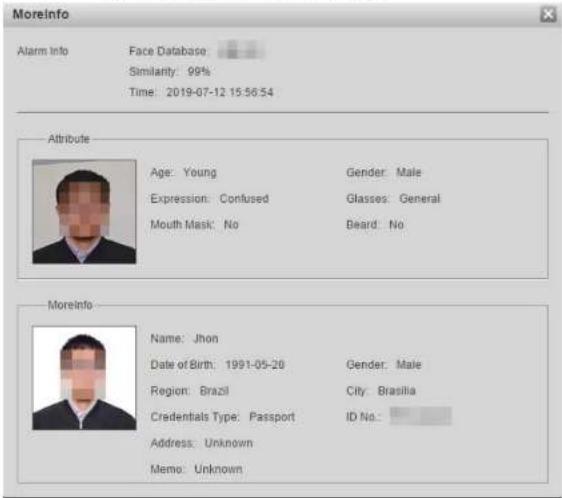
text_image
MoreInfo Alarm Info Face Database Similarity: 99% Time: 2019-07-12 15:56:54 Attribute Age: Young Expression: Confused Mouth Mask: No Gender: Male Glasses: General Beard: No MoreInfo Name: Jhon Date of Birth: 1991-05-20 Region: Brazil Credentials Type: Passport Address: Unknown Memo: Unknown Gender: Male City: Brasília ID No:5.11 Setting Face Detection
When a face is detected in the detection area, the system performs an alarm linkage.
Prerequisites
Select Setting > Event > Smart Plan, and then enable Face Detection.
Figure 5-62 Face detection
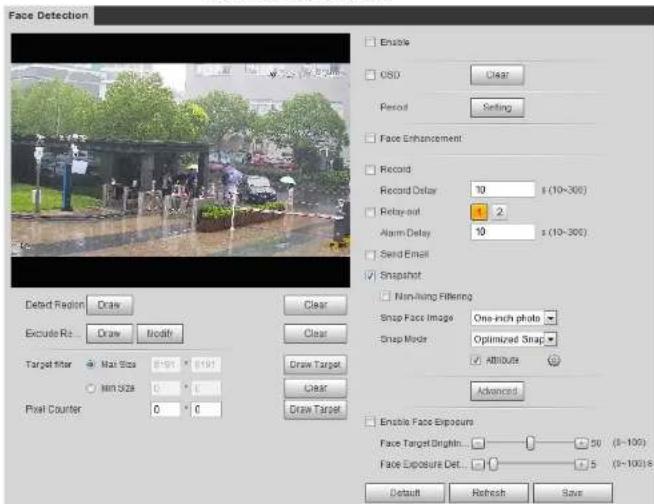
text_image
Face Detection Enable USD Clear Period Setting Face Enhancement Record Record Delay 10 s (10-300) Relay-out 2 Alarm Delay 10 s (10-300) Send Email Snapshot Non-Hung Filtering Snap Face Image One-inch photo Snap Mode Optimized Snap Attribute Advanced Enable Face Exposure Face Target Depth: 50 (0-100) Face Exposure Det: 1.5 (0-100) e Default Refresh Save Detd Field Draw Clear Exclude Re... Draw Modif Clear Target Size Mail Size 199 199 Min Size 0 0 Pixel Counter 0 0Step 2 Select the Enable check box to enable the face detection function.
Step 3 (Optional) Click Draw next to Detect Region to draw a face detection area in the image.
Step 4 (Optional) Click Draw next to Exclude Region, and then draw an area excluding face detection in the image.
Step 5 (Optional) Select Max Size or Min Size, click Draw Target at the right side of Target filter, and then draw the target in the image.
Step 6 Set parameters.
| Parameter Description | |
| Snap Face Image | Set a range for snapping face image, including face picture, one-inch picture, and custom.When selectingCustom, click Setting, configure the parameters on the prompt interface, and then click OK.Customized width: Set snapshot width; enter the times of the original face width. It ranges from 1-5.Customized face height: Set face height in snapshot; enter the times of the original face height. It ranges from 1-2.Customized body height: Set body height: in snapshot; enter the times of the original body height. It ranges from 0-4.When the value is 0, it means to cutout the face image only. |
| Snap Mode | Optimized Snapshot: Capture the clearest picture within the configured time after the camera detects face.Recognition Priority: Repeatedly compare the captured face to the faces in the armed face database, and capture the most similar face image and send the event. It is recommended to use this mode in access control scene.Click Advanced to set the optimized time. |
| Attribute | Select the Attribute check box, and click to set the display of face attribute during the face detection. |
| Advanced | Snapshot Angle Filter: Set snapshot angle to be filtered during the face detection.Snapshot Sensitivity: Set snapshot sensitivity during the face detection. It is easier to detect face with higher sensitivity. |
The face detection result is displayed on the live interface.
- The face pictures captured in real time and their attribute information is displayed.
- Click a face picture in the display area, and the details are displayed.
Figure 5-63 Face detection result

text_image
Sun Street Sun Street 1 Sun Street 2 approx: TCP 2019-07-15 Young Fam... Age 30% Off 2019-07-15 18:33:33 Mood... Wale Age 30% Off 2019-07-15 13:33:48 Young Fam... Age 30% Off 2019-07-15 13:33:44 Young Fam... Age 30% Off5.12 Setting People Counting
People counting (including enter number, leave number and strand number in area), calibration configuration, queuing number, and view the people counting data in report form.
Figure 5-64 People counting

text_image
People Counting Calibration Config Quoving Report No Name Rule Type 1 People Counting 2 PC-1 In Area No. Parameter Setup OSD Clear Period Setting Flowrate Alarm Enter No. 2 Leave No. 2 Strander No. 0 Record Record Delay 10 ± (10-300) Relay-out 1 2 Alarm Delay 10 ± (10-300) Send Ctrl Snapshot Global Setup Sensitivity 7 Max Height 220 cm (0-300) Min Height 50 cm (0-200) Default Refresh SaveFigure 5-65 In area No.
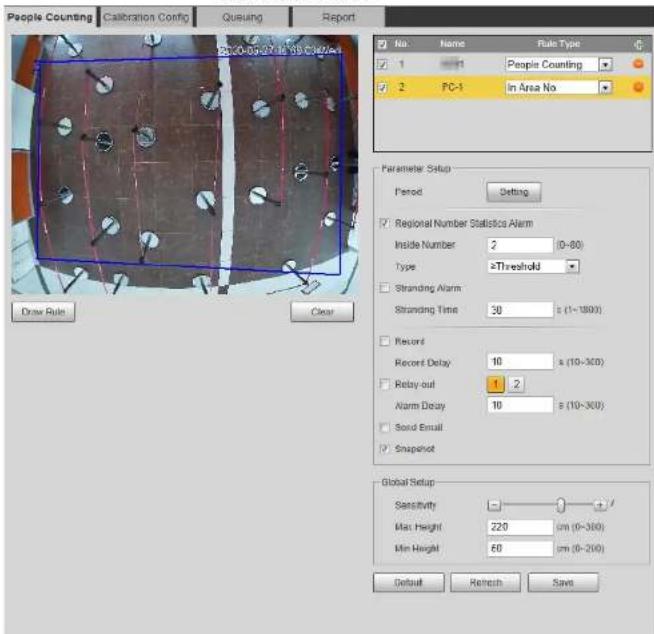
text_image
People Counting Calibration Config Queuing Report No Name Rule Type 1 1 People Counting 2 PC-1 In Area No Parameter Setup Period Setting Regional Number Statistics Alarm Inside Number 2 (0-80) Type Threshold Stranding Alarm Stranding Time 30 s (1~1800) Record Record Delay 10 s (10~300) Relay-out 1 2 Alarm Delay 10 s (10~300) Sand Email Snapshot Global Setup Sensitivity 0.1 Max Height 220 cm (0~360) Min Height 60 cm (0~200) Default Refresh SaveStep 2 Click + to add the people counting function.
Step 3 Double-click the name to modify the rule name. Select People Counting or In Area No.
Table 5-16 Description of people counting parameters
| Parameter Description | |
| OSD | Select the OSD check box or select the Enter No. or Leave No. check box under OSD to display the people counting data in the image.Click Clear to clear the count. |
| Flip | Set the viewing angle of the image as Inclined or Vertical. |
| Flowrate Alarm | Set Enter No., Leave No., and Stranded No. The alarm is triggered when the configured value is reached. |
| Regional People Number Statistics Alarm | Set the number of people in the people counting region. When the people count reaches the threshold or the stay duration exceeds the configured value, the alarm is triggered.When you set inside number to be 0, and select the type to be≥Threshold, the system will not perform the alarm linkage. |
| Inside Number | |
| Type | |
| Stranding Alarm | Select the Stranding Alarm check box, and then set the stranding time, when the stay duration exceeds the configured value, the alarm will be triggered. |
| Stranding Time | |
| Sensitivity | Set the alarm-triggered sensitivity. The higher the sensitivity is, the easier the alarm will be triggered. |
| Max Height | Set the maximum height of the people in detection area. The unit is cm, and the range is 0–300. |
| Min Height | Set the minimum height of the people in detection area. The unit is cm, and the range is 0–200. |
Step 6 Set arming periods and alarm linkage actions. For details, see "5.1.1 Alarm Linkage".
Step 7 Click Save.
To view alarm information on the Alarm tab, subscribe relevant alarm event. For details, see "5.1.2 Subscribing Alarm".
Figure 5-66 Counting result

text_image
2020-06-02 14:54:36 Tue Pump No.1 Pump No.2 QUE 15.12.2 Calibration Configuration
After configuring the rule for people counting, set the installation height and angle of the camera through calibration configuration.
Prerequisites
You have got at least one rule in Setting > Event > People counting > People Counting
a)hua
Operation Manual
Step 2 Click Clear to clear the default calibration box.
Step 3 Click Ground to draw a rectangular box in the image.
Ground should be on the same plane and as big as possible for calibration.
Step 4 Click Save, and then the camera calculates its height above the ground and the angle it forms with the ground.
If the height and angle are quite different from the actual situation, repeat Step2 and Step3.
5.12.3 Queuing
The system counts the queue people in the detection area. When the queue people number exceeds the configured number or the queue time exceeds the configured time, the alarm is triggered, and the system performs an alarm linkage.
Prerequisites
Select Setting > Event > Smart Plan, and then enable People Counting.
Procedure
Step 1 Select Setting > Event > Queuing.
Figure 5-68 Queuing
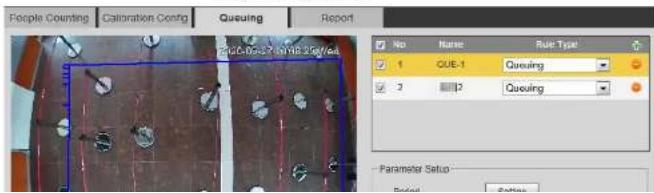
text_image
People Counting Calibration Config Queuing Report No Name Rule Type 1 QUE-1 Queuing 2 3 Queuing Parameter Setup Rated Settings
You can add 4 rules at most.
Step 3 Double-click the name to modify the rule name. Click Draw Rule to draw a detection area in the image, and right-click to complete the drawing.
Step 4 Set parameters.
Table 5-17 Description of people queuing
| Parameter Description | |
| Queue People No. Alarm | Set the queue people number for triggering the alarm and counting type. When the queue people number reaches the configured value, the alarm is triggered. |
| Queue People No. | |
| Type | |
| Queue Time Alarm | Set the queue time. When the queue time reaches the configured value, the alarm is triggered. |
| Queue Time | |
| Sensitivity | Set the alarm-triggered sensitivity. The higher the sensitivity is, the easier the alarm will be triggered. |
| Max Height | Set the maximum height of the people in detection area. The unit is cm, and the range is 0–300. |
| Min Height | Set the minimum height of the people in detection area. The unit is cm, and the range is 0–200. |
Step 5 Set arming periods and alarm linkage actions. For details, see "5.1.1 Alarm Linkage".
Step 6 Click Save.
To view alarm information on the Alarm tab, subscribe relevant alarm event. For details, see "5.1.2 Subscribing Alarm".
Result
You can view the queuing result on the Live interface.
Figure 5-69 Queuing result

natural_image
Interior view of a supermarket with shoppers and product displays, captured in a fisheye lens (no visible text or signage)5.12.4 Viewing People Counting Diagram
You can search and export the heat map and tracking map according to the set searching criteria. This function is available on some fisheye cameras.
diagram during the set period.
Step 3 Set the searching criteria.
Table 5-18 Description of searching criteria
| Parameter Description | |
| Report Type | Select the report type from the following two types:• Heat Map: Density statistics of moving object, the color range is from blue to red, blue means the minimum heat value and red means the maximum heat value.• Track Map: Tendency statistics of moving object. |
| Start Time | The start time of the report. |
| End Time | The end time of the report. |
| Number of People | When selecting heat map as the report type, you can select Number of People, and set the threshold. The system searches the diagram according to the number of people in the area, and shows the heat map. |
| Threshold | |
| Time | When selecting heat map as the report type, you can select Time, and set the threshold. The system searches the diagram according to the queuing time in the area and shows the heat map. |
| Threshold |
Step 4 Click Search to complete the diagram.
Click Export to export the report.
Figure 5-71 Diagram
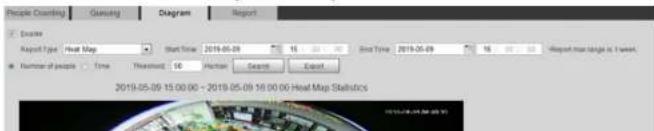
text_image
People Ranking Gaming Diagram Report Example Report Type Heat Map Start Time 2019-05-09 End Time 2019-06-09 Report max range is 1 Sweet. Number of people Time Treatment 50 Human Search Export 2019-05-09 15:00:00 - 2019-05-09 16:00:00 Heat Map StatisticsFigure 5-72 People counting report
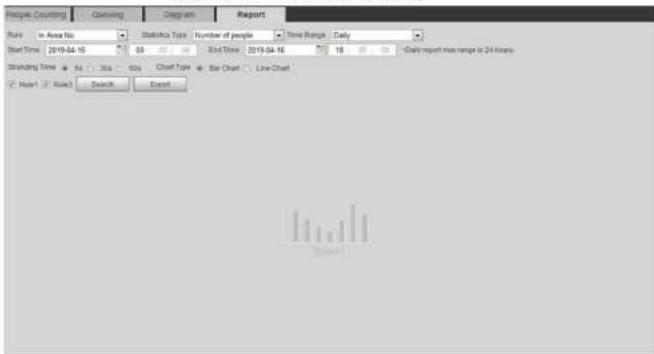
text_image
Project Counting Drawing Diagram Report Rule In Area No Statistic Type Number of people Time Range Daily Start Time 2019-04-16 00 30 60 End Time 2019-04-16 18 30 60 Daily report max range in 24 hours Stranding Time 5x 30x 60x Chart Type Bar Chart Line Chart ✓ Report ✓ Review Search ExportStep 2 Set search conditions.
Table 5-19 Description of people counting report parameters
| Parameter Description | |
| Rule Select the rule of the report from In Area No and Queuing. | |
| Statistics Type | The statistical type of people counting report.When you select Number of people, the system generates the report of the number of people that exceeds the configured number of people.When you select Average stranding time, the system generates the report of the average stranding time that exceeds the average stranding time. |
5.13 Setting Heat Map
Make statistics on the cumulative density of object movement and view heat map in report.
5.13.1 Heat Map
Detect the distribution of dynamically moving objects in the target area within a certain period and displays the distribution on a heat map. Color varies from blue to red. The lowest heating value is in blue, and the highest heating value is in red. When mirroring occurs on the camera or the viewing angle changes, original data on the heat map will be cleared.
Prerequisites
Select Setting > Setting > Event > Smart Plan, and then enable Heat Map.
Procedure
Step 1 Select Setting > Event > Heat Map > Heat Map.
Figure 5-73 Heat map
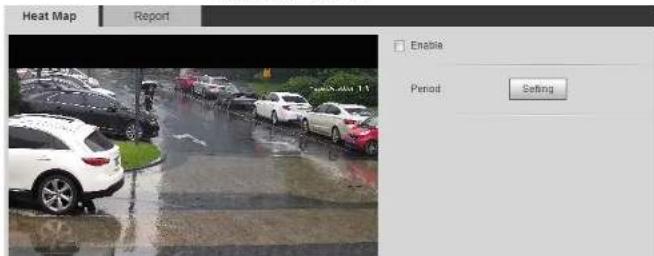
text_image
Heat Map Report Enable Period SettingFigure 5-74 Heat map report

text_image
Heat Map Report Start Time 2019.07.12 00:00:00 End Time 2019.07.12 12:30:00 -Report:marrange is 1 week Search Cancel ReportStep 2 Set the start time and end time.
Only some devices support heat map sequence numbers.
Step 3 Click Search to complete the report.
Click Export to export the statistical report.
5.14 Setting Vehicle Density
Configure the rules for traffic congestion and parking upper limit, and view the counting data on the Live interface.
Prerequisites
Select Setting > Event > Smart Plan, and then enable Vehicle Density.
Procedure
Figure 5-75 Vehicle density (traffic congestion)
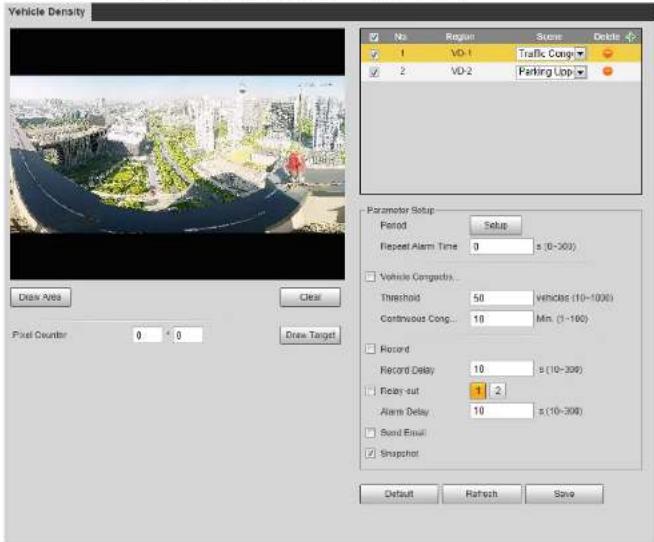
text_image
Vehicle Density No Region Scene Delete 1 VO-1 Traffic Cong 2 VO-2 Parking Lpp Data Area Clear Pixel Counter 0 * 0 Draw Target Parameter Setup Period Setup Repeat Alarm Time 0 s (0-300) Vehicle Congacts... Threshold 50 Vehicles (10-1000) Continuous Cong... 10 Min. (1-100) Record Record Delay 10 s (10-200) Fear-out 1 2 Alarm Delay 10 s (10-300) Send Email Snapshot Default Refresh SaveFigure 5-76 Vehicle density (parking upper limit)

text_image
Vehicle Density No Region Score Delete 1 VD-1 Traffic Cong 2 VD-2 Panding Uppajhua
Operation Manual
- Traffic Congestion: The system counts the vehicles in the detection area. When the counted vehicle number and the continuous congestion time exceed the configured values, an alarm is triggered and the system performs an alarm linkage.
- Parking Upper Limit: The system counts the vehicles in the detection area. When the counted vehicle number exceeds the configured value, an alarm triggered and the system performs an alarm linkage.
Step 4 Click Draw Area to draw a detection area in the image.
Step 5 Set parameters.
Table 5-20 Description of people counting parameters
| Parameter Description | |
| Repeat Alarm Time | After the alarm is triggered, if the status lasts for the configured time in Repeat Alarm Time, the alarm will be triggered again.0 indicates that the function is disabled. |
| Vehicle Congestion Alarm | Select the check box, and set the Threshold and Continuous Congestion Time.When the counted vehicle and the continuous congestion time exceed the configured values, an alarm is triggered. |
| Upper Limit Vehicle Quantity Alarm | Select the check box, and set the Threshold.When the counted vehicle exceeds the configured values, an alarm is triggered. |
| Pixel Counter | Click Draw Target next to Pixel Counter, and then press and hold the left mouse button to draw a rectangle, the Pixel Counter then displays its pixel. |
Step 6 Set arming periods and alarm linkage actions. For details, see "5.1.1 Alarm Linkage".
Step 7 Click Save.
To view alarm information on the Alarm tab, subscribe relevant alarm event. For details
Figure 5-77 Traffic congestion

natural_image
Aerial fisheye view of a city highway interchange with surrounding urban buildings and green spaces (no visible text or signage)Figure 5-78 Parking upper limit

natural_image
Aerial fisheye view of a large parking lot surrounded by urban buildings and greenery (no visible text or signage)Table 5-21 Description of stereo analysis function
| Rule | Function | Applicable Scene |
| Activation Analysis | Working with a recording & broadcasting server, the camera monitors the target's positions in the front of the classroom and analyzes the data, and then generates a report. | Classrooms |
| Back Detection | When the camera monitors the front of the classroom works with a recording & broadcasting server, and detects a target with back to the camera, an alarm will be triggered. | Classrooms |
| Fall Detection | When walking or standing people in the detection area suddenly fall down on the ground, the alarm will be triggered. | Park and hall |
| Walking Detection | When the camera that monitors the front of the classroom works with a recording & broadcasting server, and detects a working target, an alarm will be triggered. | Classrooms |
| Blackboard Writing Detection | When the camera that monitors the front of the classroom works with a recording & broadcasting server, and detect blackboard writing actions, an alarm will be triggered.When configuring the rule, clickDraw Close-up Area to draw the | Classrooms |
Operation Manual
| Rule | Function | Applicable Scene |
| When a recording & broadcasting server is used, the camera that monitors the front of a classroom needs to be configured this function. With this function, the teacher's actions can be traced and enlarged. When the number of people in the image is not 1, the global image is displayed. | Classrooms | |
| Stand Detection | When a recording & broadcasting server is used, the camera that monitors the area where the students stay needs to be configured with this function. When only 1 standing person in the image, an alarm will be triggered, and enlarge the person; when the number of people in the image is not 1, or the stand time is longer than the defined time, the global image is displayed. | Classrooms |
| Running Detection | When the camera detects a running person, an alarm will be triggered. | Classrooms |
| People Approaching Detection | When the distance between two walking/standing people reaches the configured value, an alarm will be triggered. | Banks and educational institutions |
| Strand Detection | When people in the detection area stay longer than the configured stranding time, an alarm will be | Banks and parks |
Figure 5-79 Fall detection

text_image
Stereo Analysis Calibration Config Zoom Calibration Report No. Name Type 1 SA-1 Fall Detection Parameter Setup Period Setting Sensitivity + - Duration 1 Sec (1-60) Repeat Alarm 8 Sec (0-300) Record 1 2 Record Delay 10 s (10-300) Relay-out 1 2 Alarm Delay 10 s (10-300) Send Email F12 Snapshot 1 2 Default Refresh SaveStep 3 (Optional) Click Clear to delete the default rule box, and then click Draw Rule to draw a detection area in the image.
- When configuring People No. Error for a recording & broadcasting device, draw the front of a classroom as the detection area.
- When configuring Stand Detection for a recording & broadcasting device, draw the area where the students stay as the detection area.
Operation Manual
| Parameter Description | |
| Alarm Type | and alarm type. Alarm type includes Greater than, Equal to, Less than, and Unequal to.When the real-time number of people in the detection area is greater than, equal to, less than, or unequal to Alarm People Amount, the alarm is triggered. |
| Duration | For People Approaching Detection, when the time for people approaching reaches the configured value, the alarm is triggered.For Fall Detection, when the time of people falling down on the ground reaches the configured value, the alarm is triggered.For People No. Error, when the number of people in the area reaches the configured value of alarm people amount and alarm type, and the time reaches the configured value, the alarm is triggered. |
| Close-up Mode | For people No. error function for a recording device, select Tracking Mode as Close-up Mode. Then the camera traces the teacher's walking trajectory. You can view the tracking effect through sub stream 1 of the live interface. When the number of people on the image is not 1, the full screen is displayed.When setting the stand detection function for a recording device, select Fixed Mode as Close-up Mode. Then sub stream 1 enlarges and displays the image of standing people. When the number of standing people is not 1, the full screen is displayed. |
event. For details, see "5.1.2 Subscribing Alarm".
5.15.2 Calibration Configuration
After configuring the rule for stereo analysis, set the installation height and angle of the camera through calibration configuration. There are two calibration modes: Calibration mode 1: Directly enter the installation height and angle according to the actual conditions; calibration mode 2: Draw an area in the image to automatically calculate the installation height and the angle. This section takes calibration mode 2 as an example.
Prerequisites
You have set at least one rule in Setting > Event > Stereo Analysis > Stereo Analysis.
Procedure
Step 1 Select Setting > Event > Stereo Analysis > Calibration Config.
Figure 5-80 Calibration configuration (stereo analysis)
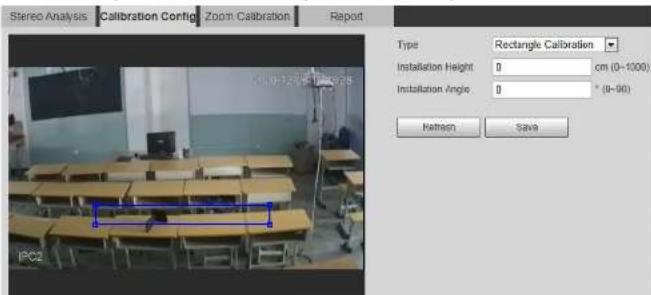
text_image
Stereo Analysis Calibration Config Zoom Calibration Report Type Rectangle Calibration Installation Height 0 cm (0-1000) Installation Angle 0 ° (0-96) Refresh Save IPC2
Zoom configuration is only available on recording & broadcasting devices.
Procedure
Step 1 Select Setting > Event > Stereo Analysis > Zoom Configuration.
Step 2 Configure the zoom.
- Method 1: Click Calibration Area, and then draw a rectangular box in the image, which is size of the enlarged image of sub stream 1.
- Method 2: Set the zoom value. For example, if you want the target to be 1/5 of the image, set the zoom value to 5.

- When calibrating the zoom for Stand Detection, make sure that there is 1 person in the image at least.
- When calibrating the zoom for People No. Error, make the calibration box in the center of the image, and the zoom value larger than 3. Some models only support calibration by drawing calibration area.
Figure 5-81 Calibration configuration (stereo analysis)

text_image
Stereo Analysis | Calibration Config | Zoom Calibration | Report Zoom: 5 Refresh | SaveYou can search for reports within the time range of 30 minutes–24 hours.
Step 3 Set the number of screen sections.
We recommend splitting the window into 2^n windows.
Step 4 Click Search.
Figure 5-82 Report
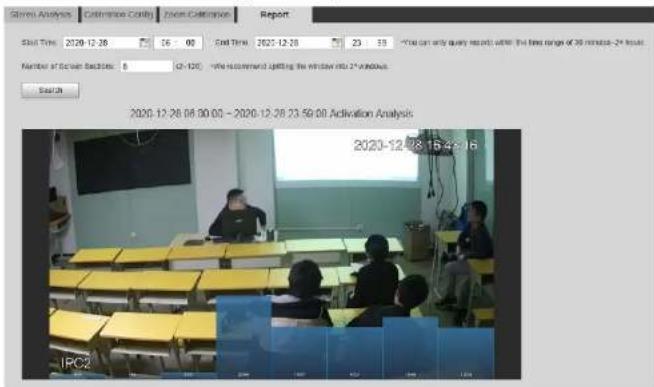
text_image
Show Analysis Cathrinase Cavity Zoom Cathrinase Report Start Time: 2020-12-28 26:00 End Time: 2021-12-28 23:59 "The can only query reports within the first range of 26 minutes - 24 hours" Number of Screen Backs: 0 (2-120) None recommendation shifting the window into 2nd windows. Search 2020-12-28 08:00 00 - 2020-12-28 23:59:00 Activation Analysis 2020-12-28 16:45:16 IPC25.16 Setting ANPR
Extract information of motor vehicles and display related attributes on the live interface.
5.16.1 Scenario Configuration
Figure 5-83 Scene set (ANPR)
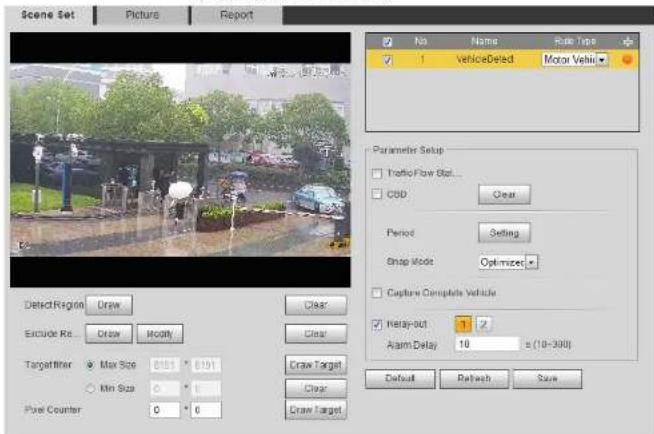
text_image
Scene Set Picture Report No Name Rule type 1 VehicleDeled Motor Vehl Parameter Setup Traffic Flow Blot... CSD Clear Period Setting Snap Mode Optimized Capture Complete Vehicle Replay-out 1 2 Alarm Delay 10 s (10-300) Default Refresh Save Detect Region Draw Clear Exclude Re... Draw Modify Clear Targetfilter Max Size 0.01 0.01 Min Size 0 0 Pose Counter 0 0 Clear Target Clear Draw TargetStep 2 Click Draw to draw a detect region and an exclude region in the image.
- Detect region: The region that needs to be detected.
- Exclude region: The region that does not need to be detected. Click Modify to modify the drawn region.
Click Clear at the right side to draw the detection area again.
Step 3 Click Draw Target next to Target Filter to draw the maximum size and minimum size for the detection target in the image.
Step 4 Configure parameters.
Table 5-23 Description of scene set parameters (ANPR)
- Click the picture in the display area, and the detailed information is displayed.
Figure 5-84 ANPR result
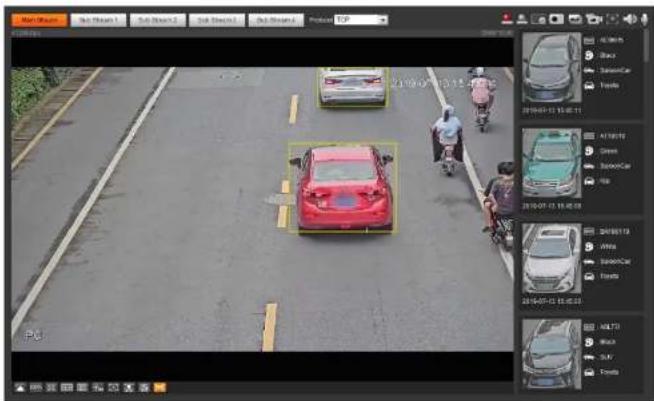
text_image
Screenshot of a traffic detection system interface showing vehicle detection bounding boxes and a red car on a road with two motorcyclists.5.16.2 Setting Picture Overlay
Set overlay of motor vehicle.
Step 1 Select Setting > Event > ANPR > Picture.
Figure 5-85 Picture

text_image
Scene Set Picture Report Car Type Car Color Photo No Car Logo Picture Overlay Type: Motor Vehicle5.16.3 Viewing ANPR Report
Generate data of ANPR in report form.
Step 1 Select Setting > Event > ANPR > Report.
Figure 5-86 Report

text_image
Report Type: Hour Report Start Time 2013-07-12 12 00 00 End Time 2013-07-12 13 30 00 -Max query range at report is 1 hour. Statistics Type: Motor Vehicle Display No. Report Type Bar Chart Live Chat Search ExportStep 2 Select the report type, start time, end time, and other parameters.
Step 3 Click Search.
The statistical results are displayed. Then click Export to export the statistical report.
Figure 5-87 Statistical results
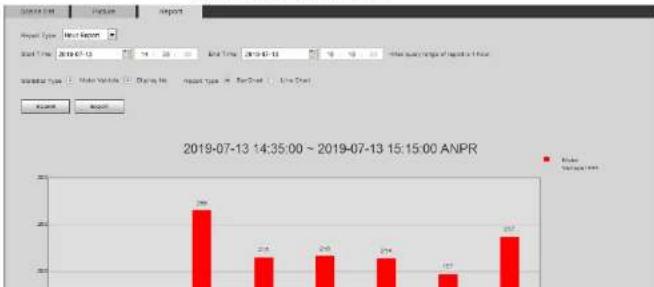
bar
| Category | Value | |---|---| | Main Variables | 286 | | Dining No | 215 | | Report Type | 245 | | Report | 214 | | Line Trial | 187 | | Other Quarters of Reports in Hour | 267 | 2019-07-13 14:35:00 ~ 2019-07-13 15:15:00 ANPRvehicles.
Select Setting > Event > Smart Plan, and then enable Video Metadata.
Take setting of the People Detection rules as an example.
Step 1 Select Setting > Event > Video Metadata > Scene Set.
Figure 5-88 Scene set (video metadata)
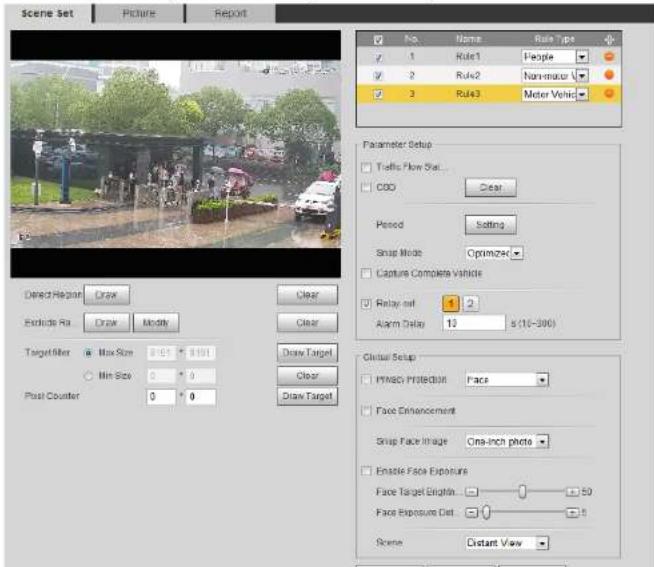
text_image
Scene Set Picture Report Direct Region Draw Exclude Rx Draw Modify Target filter Max Size 0.51 8101 Min Size 0 0 Post Counter Clear Clear Clear Draw Target Clear Draw Target No. Name. Rule Type 1 Rule1 People 2 Rule2 Non-motor 3 Rule3 Meter Vehicle Parameter Setup Traffic Flow Rate... CDO Clear Period Setting Snap Mode Optimizer Capture Complete Vehicle Relay out 1 2 Alarm Delay 13 s (16-390) Global Setup PHSAC Protection Face Face Enhancement Group Face Image: One-inch photo Enable Face Exposure Face Target Length: 50 Face Exposure Dist: 0 Scene Distant ViewOperation Manual
| Parameter Description | |
| Non-motor Vehicle Flow Statistics | Select the Non-motor Vehicle Flow Statistics check box to count the number of non-motor vehicles in the detection area. |
| OSD | Select the OSD check box, and the numbers of motor vehicles, non-motor vehicles and people in the detection area are displayed.Click Reset to recount. |
| Pixel Counter | Click Draw Target next to Pixel Counter, and then press and hold the left mouse button to draw a rectangle, the Pixel Counter then displays its pixel. |
| Privacy Protection | Select the Privacy Protection check box and then select Face or Human body from the drop-down list to blur faces or human bodies in the image. |
| Face Enhancement | Select the Face Enhancement check box to preferably guarantee clear face with low stream. |
| Snap Face Image | Set a range for snapping face image, including face picture and one-inch picture. |
| Enable Face Exposure | Select the Enable Face Exposure check box to make face clearer by adjusting lens aperture and shutter. |
| Face Target Brightness | Set the face target brightness, and it is 50 by default. |
| Face Exposure Detection Interval | Set the face exposure detection interval to prevent image flickering caused by constant adjustment of face exposure. It is 5 seconds by default. |
| Scene | Set scene as Distant View or Close View. |
Step 6 Set arming periods and alarm linkage actions. For details, see "5.1.1 Alarm Linkage".
Step 7 Click Save.
Figure 5-89 Video metadata result
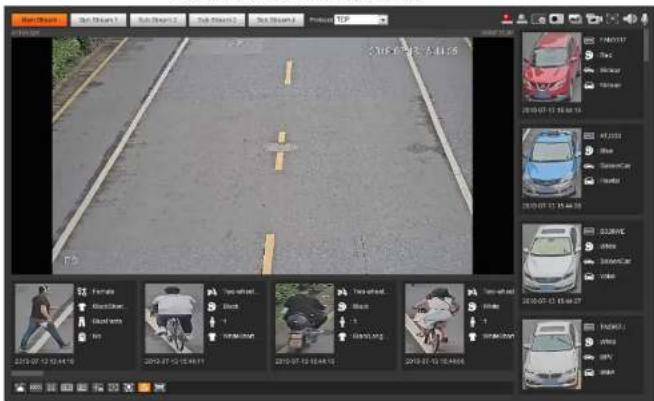
text_image
Bar Chart Bar Chart1 Bar Chart2 Bar Chart3 Bar Chart4 Update TCP 2016-07-28 5:44:58 2016-07-28 5:44:58 2016-07-28 5:44:58 2016-07-28 5:44:58 2016-07-28 5:44:58 2016-07-28 5:44:58 2015-07-28 5:44:58 2015-07-28 5:44:58 2015-07-28 5:44:58 2015-07-28 5:44:58 2015-07-28 5:44:58 2015-07-31 5:44:58 2015-07-31 5:44:58 2015-07-31 5:44:58 2015-07-31 5:44:58 2015-07-31 5:44:58 2015-07-31 5:46:58 2015-07-31 5:46:58 2015-07-31 5:46:58 2015-07-31 5:46:58 2015-07-31 5:46:58 2015-07-31 5:46:58 FCAV9.7 Tons Bentain Pentain Sensin Sensin Sensin Sensin Sensin Sensin Sensin Sensin Sensin Sensin Sensin Sensin Sensin Sensin Sensin Sensin5.17.2 Setting Picture Information
Set overlay of motor vehicle, non-motor vehicle and people and the box position.
This section takes the configuration of motor vehicle overlay as an example.
Step 1 Select Setting > Event > Video Metadata > Picture.
Figure 5-90 Picture (video metadata)

text_image
Scene Set Picture Report Car Type Car Color Plate No Car Loco Picture Overlay Type Motor Vehicle Plate No Car Color5.17.3 Viewing Video Metadata Report
Generate data of video metadata recognition in report form.
Step 1 Select Setting > Event > Video Metadata > Report.
The Report interface is displayed.
Step 2 Select the report type, start time, end time, and other parameters.
Step 3 Click Search to complete the report.
The statistical results are displayed. Click Export to export the statistical report.
Figure 5-91 Video metadata report
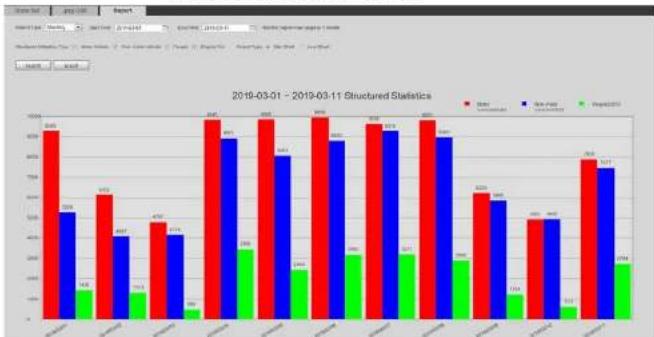
bar
2019-03-01 - 2019-03-11 Structured Statistics | Month | Red Bar | Blue Bar | Green Bar | | :--- | :--- | :--- | :--- | | Jan | 845 | 520 | -14 | | Feb | 670 | 400 | -16 | | Mar | 500 | 420 | -5 | | Apr | 885 | 885 | 320 | | May | 895 | 885 | 320 | | Jun | 895 | 885 | 320 | | Jul | 895 | 885 | 320 | | Aug | 895 | 885 | 320 | | Sep | 670 | 560 | -13 | | Oct | 500 | 480 | -16 | | Nov | 765 | 765 | -16 | | Dec | 765 | 765 | -16 |5.18 Setting Relay-in
When an alarm is triggered at the alarm-in port, the system performs alarm linkage.
Figure 5-92 Alarm linkage

text_image
Alarm Enable Relay-in Alarm1 Period Setting Anti-Dither 0 s (0~100) Sensor Type NO Record Record Delay 10 s (10~300) Relay-out 1 2 Alarm Delay 10 s (10~300) Send Email Snapshot Default Refresh SaveStep 2 Select the Enable check box to enable the alarm linkage function.
Step 3 Select a relay-in port and a sensor type.
- Sensor Type: NO or NC.
- Anti-Dither: Only record one alarm event during the anti-dither period.
Step 4 Set arming periods and alarm linkage action. For details, see "5.1.1 Alarm Linkage".
Step 5 Click Save.
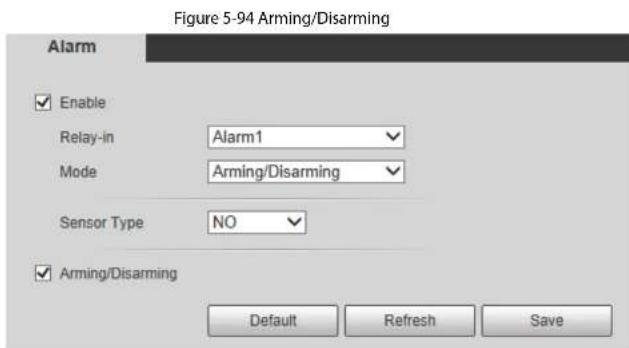
text_image
Figure 5-94 Arming/Disarming Alarm Enable Relay-in Alarm1 Mode Arming/Disarming Sensor Type NO Arming/Disarming Default Refresh Save
The arming/disarming check box is selected by default. Do not cancel the selection; otherwise the configuration is invalid.
Step 4 Select the sensor type from NO and NC.
Step 5 Click Save.
5.19 Setting Abnormality
Abnormality includes SD card, network, illegal access, voltage detection, and security exception.

Only the device with SD card has the abnormality functions, including No SD Card, SD Card Error, and Capacity Warning.
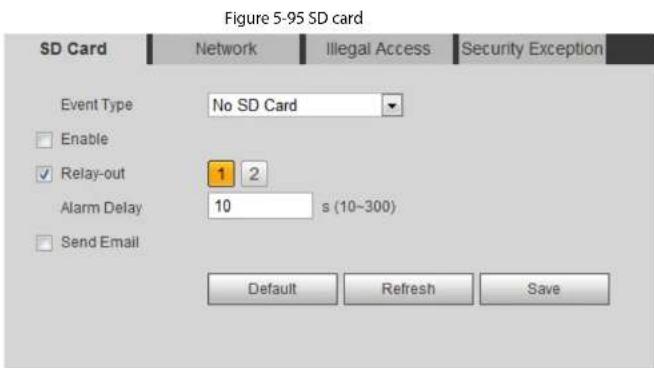
text_image
Figure 5-95 SD card SD Card Network Illegal Access Security Exception Event Type No SD Card Enable Relay-out 1 2 Alarm Delay 10 s (10~300) Send Email Default Refresh SaveStep 2 Select the event type from the Event Type drop-down list, and then select the Enable check box to enable the SD card detection function. When setting Capacity Warning as Event Type, set Capacity Limit. When the remaining space of SD card is less than this value, the alarm is triggered. Step 3 Set alarm linkage actions. For details, see "5.1.1 Alarm Linkage". Step 4 Click Save.
5.19.2 Setting Network
In case of network abnormality, the system performs alarm linkage. The event types include
Disconnection and IP Conflict.
Step 1 Select Setting > Event > Abnormality > Network.
Step 3 Set alarm linkage actions. For details, see "5.1.1 Alarm Linkage".
Step 4 Click Save.
5.19.3 Setting Illegal Access
When you enter a wrong login password more than the set times, the system performs alarm linkage.
Step 1 Select Setting > Event > Abnormality > Illegal Access.
Figure 5-97 Illegal access

text_image
SD Card Network Illegal Access Security Exception Enable Login Error 5 time (3~10) Relay-out 1 2 Alarm Delay 10 s (10~300) Send Email Default Refresh SaveStep 2 Select the Enable check box to enable the illegal access detection function.
Step 3 Set Login Error.
If you consecutively enter a wrong password more than the set value, the account will be locked.
Figure 5-98 Voltage detection

text_image
SD Card Network Illegal Access Voltage Detection Security Exception Enable Overlay Send Email Default Refresh SaveStep 2 Select the Enable check box to enable the voltage detection function.
Select Overlay, and the alarm icon is displayed by overlapping when the alarm is
triggered. □ indicates undervoltage and ▶ indicates overvoltage.
Step 3 Set alarm linkage actions. For details, see "5.1.1 Alarm Linkage".
Step 4 Click Save.
5.19.5 Setting Security Exception
When a hostile attack is detected, the system performs alarm linkage.
Step 1 Select Setting > Event > Abnormality > Security Exception.
Step 2 Select the Enable check box.
Figure 5-99 Security exception

text_image
SD Card Network Illegal Access Voltage Detection Security Exception Enable Event MonitoringTable 5-25 Security exception description
| Parameter Description | |
| Trusted environment detected program | Monitors the programs that run in trusted environment to detect whether there are program running without trusted signature.Select it to prevent the program with trojan and virus. |
| Account login exceeds the set time range | The account tries to login during the period that does not allow user to log in.Configure Restricted Login in Setting > System > Account > Account > Username, including the IP address, validity period, and time range. |
| Session ID Brute Force Attack | When sessionid false reaches the configured threshold in the defined period, an alarm will be triggered.Select it to monitor attacks in real time, so that attacks can be prevented timely. |
| Brute force attack of web path | Generates the web serve directory and send a request through enumeration. When URL false reaches the configured threshold in the defined period, an alarm will be triggered.Select it to monitor attacks in real time, so that attacks can be prevented timely. |
| Session connection exceeds limit | The number of users (web, platform or mobile phone client) exceeds the max number of users that can connect to the device simultaneously.Configure the Max Connection in Setting > Network > Port. |
Step 4 Set alarm linkage actions. For details, see "5.1.1 Alarm Linkage".
Step 5 Click Save.
Figure 5-100 Disarming
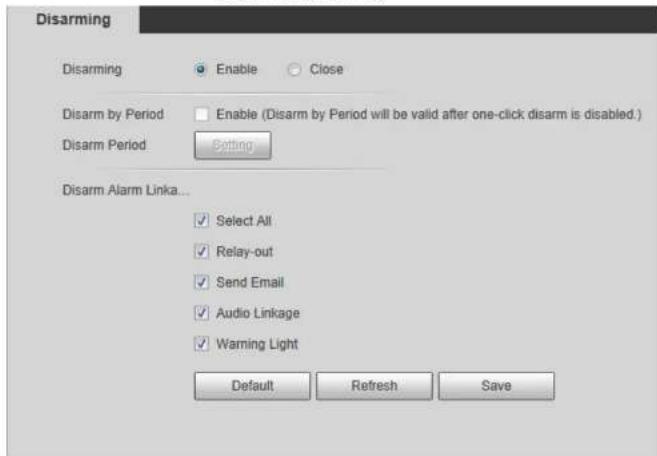
text_image
Disarming Disarming Enable Close Disarm by Period Enable (Disarm by Period will be valid after one-click disarm is disabled.) Disarm Period Setting Disarm Alarm Linka... ✓ Select All ✓ Relay-out ✓ Send Email ✓ Audio Linkage ✓ Warning Light Default Refresh SaveStep 2 Select the Enable check box to disarm.
Step 3 (Optional) Select the Enable check box next to Disarm by Period to enable the Disarm by Period function, and then you can disarm by period. For setting disarm period, see "5.1.1.1 Setting Period".

This function is only valid when Disarming is disabled.
Step 4 Select alarm linkage actions as needed.
Step 5 Click Save.
6 Maintenance
6.1 Requirements
To make sure the system runs normally, maintain it as the following requirements:
- Check surveillance images regularly.
- Clear regularly user and user group information that are not frequently used.
- Modify the password every three months. For details, see "4.8.3 Account".
• View system logs and analyze them, and process the abnormality in time. - Back up the system configuration regularly.
- Restart the device and delete the old files regularly.
- Upgrade firmware in time.
6.2 Auto Maintain
You can restart the system manually, and set the time of auto reboot and auto deleting old files. This function is disabled by default.
Step 1 Select Setting > System > Auto Maintain.
Figure 6-1 Auto maintain

text_image
Auto Maintain Auto Record Auto Delete Out Files Manual Record Refresh Savethe entered email address which can be used to reset the password.
Prerequisites
You have enabled password reset service. For details, see "4.8.4.1 System Service".
Procedure
Step 1 Open IE browser, enter the IP address of the device in the address bar and press Enter.
Figure 6-2 Login
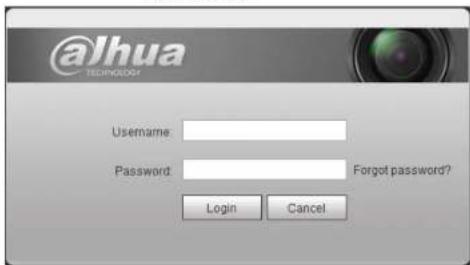
text_image
@lhua TECHNOLOGY Username: Password: Forgot password? Login CancelStep 2 Click Forgot password?
Figure 6-3 Prompt

text_image
Prompt In your way, you can provide your own or your own app request. You should use your own or your own apps, check the 'OK' button, and save it next. You can also use your own or your own apps, but you can still use your own or your own apps, and save it next. You can also use your own or your own apps, and save it next. You can also use your own or your own apps, and save it next. You can also use your own or your own apps, and save it next. You can also use your own or your own apps, and save it next. You can also use your own or your own apps, and save it next. You can also use your own or your own apps, and save it next. You can also use your own nor your own apps, and save it next. You can also use your own nor your own apps, and save it next. You can also use your own nor your own apps, and save it next. You can also use your own nor your own apps, and save it next. You can also use your own nor your own apps, and save it next. You can also use your own nor your own apps, and save it next. You can also use your own nor your own apps, OK CancelStep 3 Click OK.

Clicking OK means that you are informed that some of your personal data might be collected to help reset the password, such as phone number, MAC address, and device.
Figure 6-4 Reset the password (1)
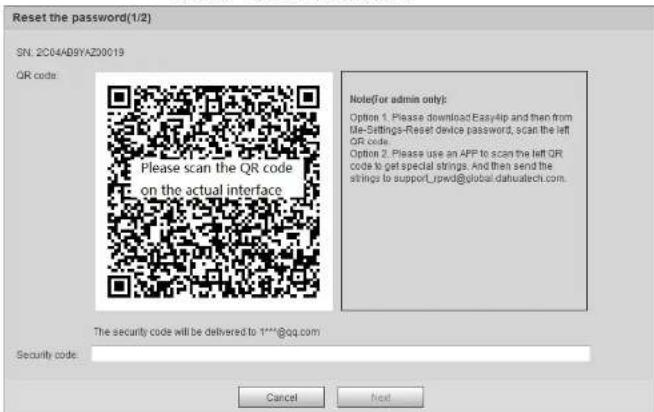
text_image
Reset the password(1/2) SN: 2C04/AB9YAZ0019 QR code: Please scan the QR code on the actual interface Note(For admin only): Option 1. Please download EasyUp and then from Me-Settings-Reset device password, scan the left QR code. Option 2. Please use an APP to scan the left OR code to get special strings. And then send the strings to support_rpwd@global.dathuatech.com. The security code will be delivered to 1***@qq.com Security code: Cancel NextStep 4 Reset the password.
Step 5 Scan the QR code, and there will be a security code sent to the email address you entered. Enter the security code as instructed.

- Please use the security code within 24 hours after you receive it. Otherwise, it will become invalid.
- If you fail to use the security code for two times continuously, there will be fail notice when you try to get a security code for the third time. You have to reset the device to get a security code or wait 24 hours to get it again.
Step 6 Click Next
Step 8 Click Save.
6.4 Backup and Default
6.4.1 Import/Export
- Export the system configuration file to back up the system configuration.
- Import system configuration file to make quick configuration or recover system configuration.
Step 1 Select Setting > System > Import/Export.
Figure 6-6 Import/Export

text_image
Import/Export Backup Path Import ExportStep 2 Click Import or Export.
- Import: Select local configuration file, and click Open to import the local system configuration file to the system.
- Export: Select the storage path, and click Save to export the system configuration file to local storage.
Step 3 Click Save to finish configuration.
6.5 Upgrade
Upgrading to the latest system can perfect camera functions and improve stability.

If wrong upgrade file has been used, restart the device; otherwise some functions might not work properly.
Step 1 Select Setting > System > Upgrade.
Figure 6-8 Upgrade

text_image
Upgrade File Upgrade Select Forward File Browse... Upgrade Online Upgrade Auto-check for updates Save System Version 2.600.000000.0F, Build Date: 2918-05-21 Manual CheckStep 2 Select upgrading method according to the actual needs.
- File Upgrade
- Click Browse, and then upload upgrade file.
- The upgrade file should be a .bin file.
- Click Upgrade.
The upgrade starts.
- Online Upgrade
- Select the Auto-check for updates check box.
6.6.1 Version
You can view device information such as hardware, system version, and web version.
Select Setting > Information > Version to view the version information.
6.6.2 Log
You can view and back up logs.
Step 1 Select Setting > Information > Log
Figure 6-9 Log
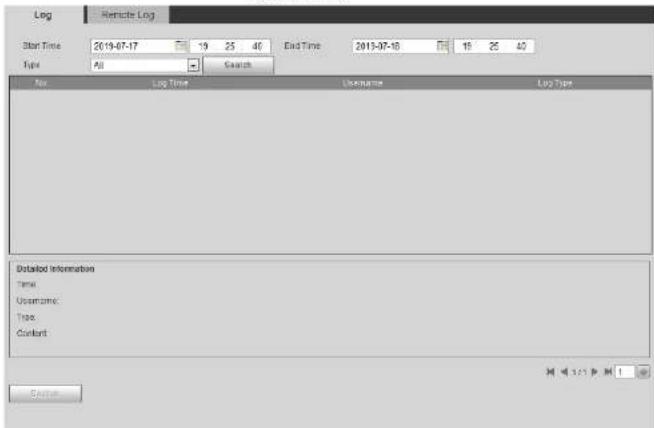
text_image
Log Remote Log Start Time 2019-07-17 19 25 40 End Time 2013-07-18 15 25 40 Type All Search No Log Time Username Log Type Detailed Information Time: Username: Time: Constant OK CancelInformation area.
- Click Backup and then you can back up all found logs to local PC.
Figure 6-10 Log (details)
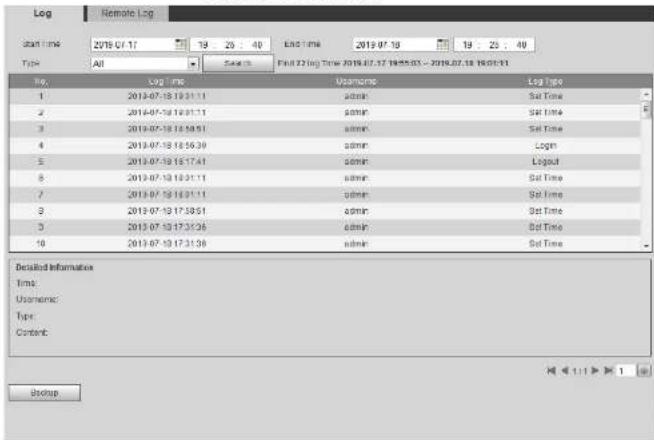
text_image
Log Remote Log Start time: 2019-07-17 19:25:40 End time: 2019-07-18 19:25:40 Type: All Search Find 22 Log Time: 2019-07-17 19:05:03 - 2019-07-18 19:01:01 No. Log time Usage Date Log Time 1 2019-07-18 18:31:11 admin Sat Time 2 2019-07-18 18:31:11 admin Sat Time 3 2019-07-18 18:56:51 admin Sat Time 4 2019-07-18 18:56:30 admin Login 5 2019-07-18 18:17:41 admin Logout 6 2019-07-18 18:31:11 admin Sat Time 7 2019-07-18 18:31:11 admin Sat Time 8 2019-07-18 17:56:51 admin Sat Time 9 2019-07-18 17:31:36 admin Sat Time 10 2019-07-18 17:31:38 admin Sat Time Detailed Information Time: Username: Type: Content: Backup6.6.3 Remote Log
Configure remote log, and you can get the related log by accessing the set address.
Step 1 Select Setting > Information > Remote Log.
Figure 6-11 Remote log

Select Setting > Information > Online User.
Figure 6-12 Online user
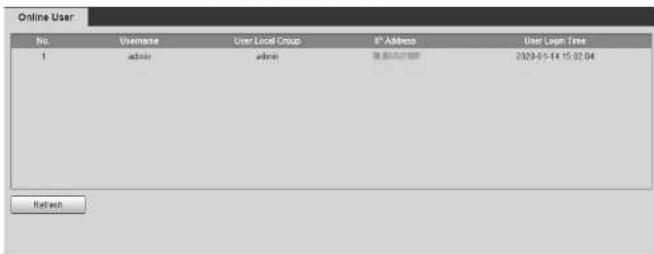
text_image
Online User No. Username User Local Group IP Address User Loan Time 1 absn absn 8x8x8x8x8 2020-01-14 15:32:04 RefreshAppendix 1 Cybersecurity Recommendations
Cybersecurity is more than just a buzzword: it's something that pertains to every device that is connected to the internet. IP video surveillance is not immune to cyber risks, but taking basic steps toward protecting and strengthening networks and networked appliances will make them less susceptible to attacks. Below are some tips and recommendations from Dahua on how to create a more secured security system.
Mandatory actions to be taken for basic equipment network security:
1. Use Strong Passwords
Please refer to the following suggestions to set passwords:
- The length should not be less than 8 characters.
- Include at least two types of characters; character types include upper and lower case letters, numbers and symbols.
- Do not contain the account name or the account name in reverse order.
- Do not use continuous characters, such as 123, abc, etc.
- Do not use overlapped characters, such as 111, aaa, etc.
2. Update Firmware and Client Software in Time
- According to the standard procedure in Tech-industry, we recommend to keep your equipment (such as NVR, DVR, IP camera, etc.) firmware up-to-date to ensure the system is equipped with the latest security patches and fixes. When the equipment is connected to the public network, it is recommended to enable the "auto-check for updates" function to obtain timely information of firmware updates released by the manufacturer.
- We suggest that you download and use the latest version of client software.
"Nice to have" recommendations to improve your equipment network security:
5. Change Default HTTP and Other Service Ports
We suggest you to change default HTTP and other service ports into any set of numbers between 1024–65535, reducing the risk of outsiders being able to guess which ports you are using.
6. Enable HTTPS
We suggest you to enable HTTPS, so that you visit Web service through a secure communication channel.
7. MAC Address Binding
We recommend you to bind the IP and MAC address of the gateway to the equipment, thus reducing the risk of ARP spoofing.
8. Assign Accounts and Privileges Reasonably
According to business and management requirements, reasonably add users and assign a minimum set of permissions to them.
9. Disable Unnecessary Services and Choose Secure Modes
If not needed, it is recommended to turn off some services such as SNMP, SMTP, UPnP, etc., to reduce risks.
If necessary, it is highly recommended that you use safe modes, including but not limited to the following services:
- SNMP: Choose SNMP v3, and set up strong encryption passwords and authentication passwords.
- SMTP: Choose TLS to access mailbox server.
- FTP: Choose SFTP, and set up strong passwords.
- AP hotspot: Choose WPA2-PSK encryption mode, and set up strong passwords.
10. Audio and Video Encrypted Transmission
If your audio and video data contents are very important or sensitive, we recommend that you use encrypted transmission function, to reduce the risk of audio and video data being stolen during transmission.
Reminder: encrypted transmission will cause some loss in transmission efficiency.
ajhua TECHNOLOGY
Operation Manual
- Establish the 802.1x access authentication system to reduce the risk of unauthorized access to private networks.
- Enable IP/MAC address filtering function to limit the range of hosts allowed to access the device.
More information
Please visit Dahua official website security emergency response center for security announcements and the latest security recommendations.
ENABLING A SAFER SOCIETY AND SMARTER LIVING