O2i562 - Security Camera Speco Technologies - Free user manual and instructions
Find the device manual for free O2i562 Speco Technologies in PDF.


User questions about O2i562 Speco Technologies
0 question about this device. Answer the ones you know or ask your own.
Ask a new question about this device
Download the instructions for your Security Camera in PDF format for free! Find your manual O2i562 - Speco Technologies and take your electronic device back in hand. On this page are published all the documents necessary for the use of your device. O2i562 by Speco Technologies.
USER MANUAL O2i562 Speco Technologies
O2iTC23/O2i605CM/O2i607CM/O2i562/O2i675/O2i695
Intensifier IP® Full HD 1080 Specialty IP Camera
Directions
Be careful not to cause any physical damage by dropping or throwing the camera. Especially keep the device out of reach from children.
Do not disassemble the camera. No after service is assumed when disassembled.
Use only power adapters compatible with the unit.
Be careful to prevent moisture or water penetration into the unit. Particular attention is needed when installing the unit. The screw holes for the installation screws and pipe should be maintained water tight during the whole life time of the product.
All the electrical connection wires running into the unit should be prepared so that water from the outside cannot flow into the unit through the surface of the wires. Penetration of the moisture through the wire for extended period can cause malfunction of the unit or deteriorated image.
Note
This equipment has been tested and found to comply with the limits for a Class A digital device, pursuant to part 15 of the FCC Rules. These limits are designed to provide reasonable protection against harmful interference in a residential installation. This equipment generate, uses and can radiate radio frequency energy and, if not installed and used in accordance with the instructions, may cause harmful interference to radio communications. However, there is no guarantee that interference will not occur in a particular installation. If this equipment does cause harmful interference to radio or television reception, which can be determined by turning the equipment off and on, the user is encouraged to try to correct the interference by one or more of the following measures:
● Reorient or relocate the receiving antenna.
- Increase the separation between the equipment and receiver
Revision History
| Date Revision Details | ||
| May 4 ^th , 2016 | 1.0 First manual revision creation. | |
Contents
- Introduction......5
1.1. Overview 5
1.2. Specifications 6
- Product Description 8
2.1.Contents 8
2.2. Product Preview 8
2.3. Physical description 9
2.3.1. External View....9
2.3.2. Dimensions 9
2.3.3. Front and Rear view of Main Unit 10
2.3.4. Factory Default Switch....10
2.4. Functional Description 11
- On Site Installation 13
- Getting Started....14
4.1. PC Requirements....14
4.2. Quick Installation Guide....15
4.2.1. Connect PC and camera to network....15
4.2.2. Set IP parameters....15
4.2.3. Remote video connection....16
424 Additional settings through connection to the Admin Page 18
1. Introduction
1.1. Overview
This product is a multi-codec (H.264, MJPEG) IP camera (or network camera) built with embedded software and hardware technology. It enables real time transmission of synchronized video up to 1,080P and audio data. Remote clients can connect to IP Camera for the real time video/audio data through various client solutions running on PC or smart device. Real time 2-way communication is available through bidirectional audio communication feature.
Intensifier IP® technology is the most optimized solution for Indoor and outdoor surveillance in low-light conditions by using superior CMOS sensor with low-light sensitivity ISP sensor. Intensifier IP® is especially beneficial in poor lighting environments, efficiently reducing noise and ghosting while maintain a color image without the use of IR LEDs.
Designed to be a stand-alone streaming audio & video transmission device, the camera can be applied to various specialty application areas such as elevators, banks, ceilings, door panels, etc.
The separate main unit and camera design allows for flexibility in installations. The camera portion can be installed to fit the application need, while the encoder box can be hidden from view. Embedded PoE (Power over Ethernet, IEEE 802.3af) will enable the owner to reduce the total cost of ownership by reducing on-site wiring works for the installation.
1.2. Specifications
| Camera | |
| Image sensor Progressive scan 1/3 inch CMOS 2M pixels | |
| Full resolution 1,920 x 1,080 pixels (Full HD) | |
| Sync System Internal | |
| Lens 2.9mm fixed (3.6mm for O2i562) | |
| Day & Night AUTO, DAY, NIGHT | |
| Sensitivity Intensifier Max - 0.0005 Lux | |
| Back Light Compensation ON / OFF | |
| White Balance ATW(2.000K ~ 10,000K) / MANUAL / PUSH | |
| Exposure DC / ESC | |
| WDR ON / OFF | |
| 3D-DNR | 0 ~ 20 |
| Intensifier | AUTO ON (Max 128x) / OFF |
| Privacy Mask | ON / OFF (10 Programmable Zones) |
| Motion Detection | ON / OFF (4 Programmable Zones) |
| Digital Zoom | 1x ~ 12x |
| Mirror | H / V / Rotate |
| DEFOG | ON / OFF |
| OSD BUILT IN | |
| Video | |
| Compression method | Simultaneous Dual Codec (H.264 / MJPEG) |
| Network | |
| Network Protocol | - IPv4, TCP, UDP, IGMP, ICMP, ARP, RARP, PPPoE, RTCP- RTP, RTSP, SDP, HTTP, SMTP, FTP, DHCP, UPnP- NTP, DNS, DynDNS |
| Dynamic IP Speco DDNS (free of charge) | |
| Security | - User ID & Password protection, IP address filtering- Digest Authentication, User Access Log |
| Streaming method | - RTSP streaming with proprietary format for control information-standard RTSP streaming- HTTP streaming |
| External Terminals | |
| LAN 10/100BaseT LAN (auto MDIX) | |
| Alarm input / output Alarm I/O (1 Sensor input & 1 Relay output) | |
| Factory Reset Supported | |
| Audio MIC/Line in, Line out | |
| Power DC 12V Input | |
| Alternate Power | |
| Standard PoE IEEE802.3af Supported | |
| Alarm & Event | |
| Intelligent Video Motion Detection | |
| Alarm Triggers Motion Detection + Sensor Input | |
| Alarm Events Video file upload(FTP), Still Image transmission(Email), Relay output | |
| Alarm Buffer (Audio/Video) | Configurable Pre-alarm (5~15 sec) & Post-alarm (10~60 sec) |
| Miscellaneous | |
Operating Temperature
A^ 119^
2. Product Description
2.1. Contents
The product package contains the following :
| Contents | Description | Remarks |
| Camera | Main unit and camera unit | |
| Accessories | Screws (1 type) |  |
| Anchors (1 type) |  | |
| L-type wrench |  | |
| Cable bracket and Screw |  | |
| CD | Software & User's Guide |  |
| Reference Guide | Quick installation guide, Guide pattern |  |
2.2. Product Preview
| Model | ONSIP Installer |
2.3. Physical description
2.3.1. External View

natural_image
Exterior view of a white industrial electronic device with two ports and a mounting base (no visible text or symbols)Figure 2-1. External view of main unit
2.3.2. Dimensions
Unit : mm
2.3.3. Front and Rear view of Main Unit

text_image
Cable bracket screw hole Pin De 1 Lin 2.GroundFigure 2-3. Front view

text_image
None SD 12VDC SD Eject (1sec) SD Eject| Pin | Description |
| 1 | Line Output |
| 2 Ground | |
| 3 MIC/ | Line Input |
| 4 | Relay Output |
| 5 Relay | Output |
| 6 Sensor Input | (-) |
| 7 Sensor Input | (+) |
| Connect Camera | Connect Camera Unit |
Figure 2-4. Rear view
2.3.4. Factory Default Switch
Factory default switch is provided for returning the IP camera to factory default state.
There are two functions assigned to factory default switch.
- Returning to Factory Default State : Press the switch about 5 seconds while power is applied to return to factory default state.
- Safe Removal of Micro-SD Card : Press the switch for 1 second to unmount Micro-SD Card for safe removal.
2.4. Functional Description
• Power : Power input for supplying 12V DC power.

Caution : If camera is powered by PoE, do not plug in DC Jack with active DC power into DC power connector.
- Network (LAN)
100Mbps Ethernet connector (RJ-45) with PoE standard (802.3af). LED on the Ethernet connector shows the status of the camera as follows:
Link LED
It will be lit with orange color when network cabling is all right. Blinking orange color indicates that normal data transmission is under way. Off state indicates that there is trouble in network connection
- Status LED ( It will be lit in green or red depending on the status)
① Green : Green color indicates that the camera is in normal operation mode. Continuous green indicates that data transmission is possible. Blinking green means that someone is connected.
② Red : Continuous or blinking red indicates that hardware is in abnormal condition.

LED will be lit with red momentarily and it will be lit with green after a while when power is applied
- Micro SD Card slot
Please insert SD memory card when you want to use SD memory card. In case of pulling out SD memory card, please push the SD card.
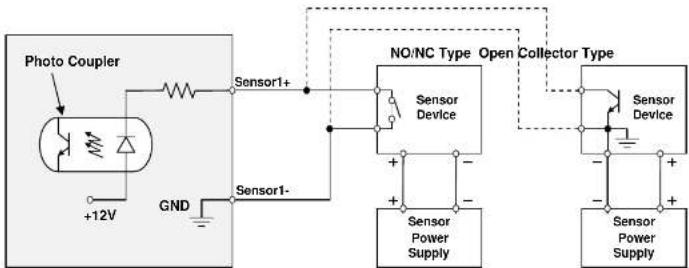
- Sensor Input
Connect external alarm sensor. Examples of sensing devices are infrared sensor, motion sensor, heat/smoke sensor, magnetic sensor, etc. Connect the two wires of the sensors to "Sensor Input". The sensor type (NC/NO) can be set in admin page. Multiple sensor devices can be connected in parallel.
flowchart
graph TD
    A["Photo Coupler"] --> B["Sensor1+"]
    B --> C["NO/NC Type Open Collector Type"]
    C --> D["Sensor Device"]
    D --> E["Sensor Power Supply"]
    C --> F["Sensor Device"]
    F --> G["Sensor Power Supply"]
    H["GND"] --> I["+12V"]
    style A fill:#f9f,stroke:#333
    style C fill:#ccf,stroke:#333
Figure 2-6. SENSOR Input and connection of the sensor
- Relay Output
Relay output is provided for connecting alarm devices or for remote on/off control of devices such as light. Relay is normal open and it will be closed upon alarm annunciation or remote on. The relay is capable of switching 30V AC/DC, 2A. For the application which needs power switching beyond this limit, use additional relay switch as shown in the right of Figure.

3. On Site Installation
Use cables and conduits that are suitable for the installation. Particular attention should be paid in the installation so that no moisture is allowed to penetrate into the unit through the cables or conduits during the life time of the product. Products of which the internal parts are exposed to moisture because of improper installation are not covered by warranty. The main unit must not be exposed to weather elements.
text_image
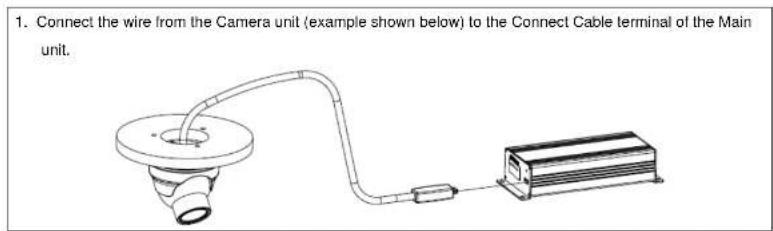
1. Connect the wire from the Camera unit (example shown below) to the Connect Cable terminal of the Main unit.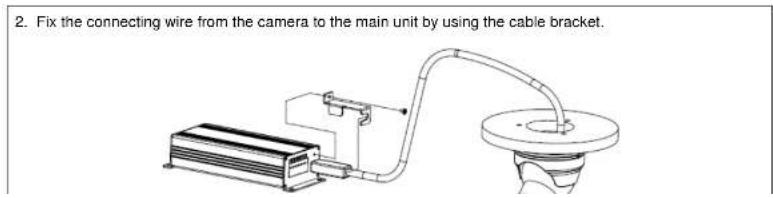
text_image
2. Fix the connecting wire from the camera to the main unit by using the cable bracket.4. Getting Started
4.1. PC Requirements
Audio/Video streaming data received from the camera can be displayed or stored in a PC running client programs. Minimum requirement of the PC is described below:
| ITEM Minimum Requirement Recommended Specification | ||
| CPU Intel Core i3 3Ghz Intel Core i7 | ||
| Main Memory 2GB 4GB | ||
| Operating System Windows XP Windows 7 (64bit) | ||
| Web Browser Internet Explorer 8 or higher Internet Explorer 8 or higher | ||
| Graphic Card | Video RAM 256MBResolution 1920x1080 | Video RAM 1GBHigher than 1920x1080 |
| Network | 10 Base-T Ethernet | 100 Base-T Ethernet |
* Operating Systems supported: Windows 2000 Professional, Windows XP / Vista / 7
4.2. Quick Installation Guide
4.2.1. Connect PC and camera to network.
- Prepare a PC to run programs for the installation and video connection (PC is needed to assign IP address to camera)
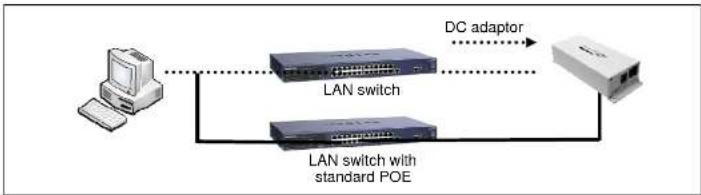
- In the case of using PoE, connect the PC and camera to the network using one of the following ways. If your LAN Switch does not support standard PoE, connect the main unit as shown in dotted line in Figure. The DC power is applied through DC adapter.
flowchart
graph LR
    A["Computer"] --> B["LAN switch"]
    B --> C["DC adaptor"]
    B --> D["LAN switch with standard POE"]
    D --> C
Figure 4-1. Power and network connection
4.2.2. Set IP parameters
Follow the sequence below for setting the IP parameter
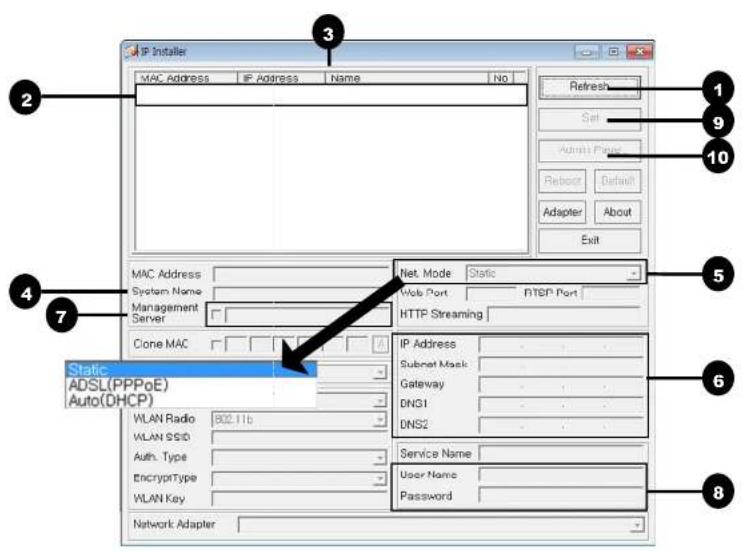
I) Run ONSIP installer
II) Click (1) In ONSIP Installer window.> Double click on (2) > Flll In (4) > make a selection in (5) > Fill the parameters in (6)
iii) Click on (9) to apply the settings.
User's Guide
text_image
IP Installer MAC Address IP Address Name No Refresh Set Admit Page Reboot Default Adapter About Exit MAC Address System Name Management Server Net. Mode Static Hub Port PTSP Port HTTP Streaming IP Address Subnet Mask Gateway DNS1 DNS2 Static ADSL(PPPoE) Auto(DHCP) WLAN Radio 802.11b WLAN SSD Auth. Type Encrypttype WLAN Key Service Name User Name Password Network Adapter
Click on the field in (3) for sorting and rearranging the list.
Select network mode that best suits from the drop down list in (5). You can choose either Static or ADSL and Auto (DHCP), respectively. If ADSL and Auto are selected, the fields in (6) are

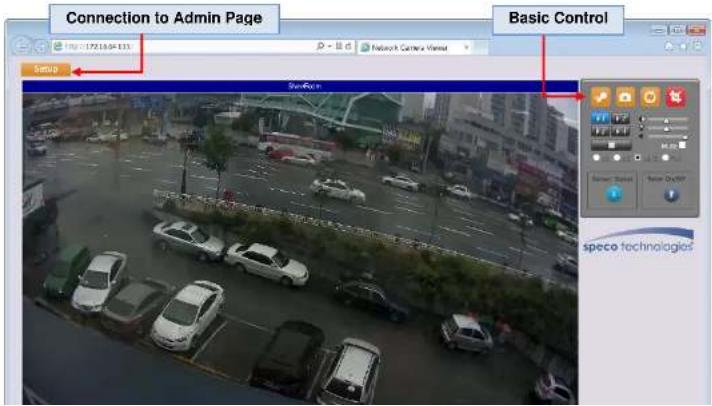
http://172.16.64.133/
[e.g.] Port 8080

http://172.16.64.133:8080/

Note : Active-X module should be installed on your PC before actual connection. If your PC is not connected to the internet, you cannot download Active-X module. Most convenient way of installing the Active-X module is installing Speco-NVR which is available from the CD or our web site.
text_image
Connection to Admin Page Basic Control Setup ShowRun speco technologies4.2.4. Additional settings through connection to the Admin Page
All parameters of the camera are factory default out of the box. For a more sophisticated target application, parameters need to be changed through the admin page. The admin page can be connected through
"http://IP Address:Port Number/admin.htm"
ID and password of the administrator are required. Default ID and password are "admin", "1234". It is highly recommended to change the ID and password to prevent illegal access to the IP camera. For more detailed information, Please refer to the "Configuration Guide".
5. Troubleshooting
5.1. No power is applied
● In case of Standard PoE (Power over Ethernet)
Power supply through standard PoE is possible only when the following conditions are met.
- Standard PoE is supported on the product.
- The LAN switch supports standard PoE.
Make sure that both the IP camera and the LAN switch support standard PoE (IEEE 802.3af)
• In case of DC adapter
If PoE is not applied, the power and network connection should be made through separate cables.
It is recommended to use DC adapter supplied by provider for the feeding of the power. In case of
replacing the DC power supply, make sure that the power supply meets with the power
requirement of the IP camera to prevent damage or malfunction.
5.2. Cannot connect to the Video
Check the status of the network connection through PING test.
Try the following on your PC :
- Start > Run > Cmd > Ping IP address (Ex : Ping 172.16.42.51)
- If "Reply from \~" message is returned ① in the figure below), the network connection is in normal state. Try connection to the video again. If the problem persists, or refer to other trouble shooting notes.
- If "Request timed out" message is returned. (② in the figure below), the network connection or network setting is not in normal state. Check the network cable and settings.

text_image
C:\WINDOWS\System32\cmd.exe Microsoft Windows XP (Version 5.1.2600) © Copyright 1985-2001 Microsoft Corp. C:\Documents and SettingsMugerman\ping 172.16.42.51 Playing 172.16.42.51 with 32 bytes of data: Reply from 172.16.42.51: bytes=32 timeline TTL=64 Reply from 172.16.42.51: bytes=32 time(tim TTL=64 Reply from 172.16.42.51: bytes=32 time(tim TTL=64 Reply from 172.16.42.51: bytes=32 time(tim TTL=64 Play statistics for 172.16.42.51: Packet: Sent = 4, Received = 4, Lost = 8 (8x loss), Approximate round trip times in alli-seconds: Minimum = Max, Maximum = Max, Average = Max C:\Documents and SettingsMugerman>5.3. Technical Assistance
If you need any technical assistance, please contact technical support. For immediate service please provide the following information.

- Modelname
- MAC address and Registration number
- Rurothaseoblate
- Description of the problem
- Error message
Appendix A – Important Notice in Exchanging SD Card (Micro SD)
SD Card is a non-volatile memory device for storing video and audio data on the product. Note that continuous recording to the SD Card will cause the memory cell to wear out, eventually resulting in failure.
When you plug out the SD Card for replacement or other purpose, follow the steps below in order to prevent data loss or crash of the SD Card.
- Press factory default button for 1 sec to unmount the SD Card.
- SD Card can also be unmounted by going to Admin Page -> Sensor&Capture Setup and clicking on CONFIRM button at the right of SD Card Unmount menu.
- Unplug the SD Card
- If no action is taken within 1 minute, SD Card will be mounted again.
-
Plug in new SD Card
-
If the SD Card is a new one for the IP camera, format the SD Card by following through the steps below.
- Go to Admin Page -> Sensor & Capture Setup
- In the SD Card management menu, click on CONFIRM button at the right of SD Card Format.
For more detailed information regarding connection to admin page, please refer to the "Configuration Guide".