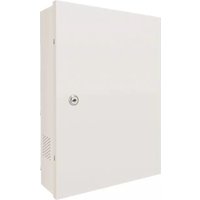
N4WNRN - Surveillance Camera Speco Technologies - Free user manual and instructions
Find the device manual for free N4WNRN Speco Technologies in PDF.


| Product Type | Network Video Recorder (NVR) |
| Model | N4WNRN (4-channel) |
| Video Compression | H.265 |
| IP Camera Input | 4 channels |
| Network Access Bandwidth | 40 Mbps |
| Max Recording Resolution | 8MP |
| Video Output | HDMI (4K@30fps), VGA (1920x1080) |
| Audio | 2-way audio (RCA), 4 CH IPC audio input |
| PoE Ports | 4 (100M, IEEE802.3af/at) |
| Hard Drive | 1 SATA III, up to 14TB |
| Power Supply | DC 48V, 2.5A |
| Power Consumption | <10W (without HDD and PoE) |
| Dimensions (W x D x H) | 11.8" x 9.8" x 2.0" (300mm x 248mm x 52mm) |
| Operating Temperature | -10°C to 50°C (14°F to 122°F) |
| Humidity | 10% to 90% |
| Remote Access | Web browser (IE, Chrome, Firefox), mobile app (Speco Blue for iOS/Android) |
| Alarm Features | Motion, sensor, exception, intelligent (face, LPR, tripwire, intrusion) |
| Playback | Up to 4 channels simultaneously, smart search by event/time |
| Maintenance | Clean with dry cloth; ensure ventilation; indoor use only |
| Security | Password protection, user permissions, ARP guard |
| Certifications | FCC Part 15 |
Frequently Asked Questions - N4WNRN Speco Technologies
User questions about N4WNRN Speco Technologies
0 question about this device. Answer the ones you know or ask your own.
Ask a new question about this device
Download the instructions for your Surveillance Camera in PDF format for free! Find your manual N4WNRN - Speco Technologies and take your electronic device back in hand. On this page are published all the documents necessary for the use of your device. N4WNRN by Speco Technologies.
USER MANUAL N4WNRN Speco Technologies
NRN (4 / 8 / 16 Channel)
User Manual

natural_image
Exterior view of a black spectral technology device (no visible text or symbols on body)N4NRN

natural_image
Back view of a network device showing ports, connectors, and a switch (no readable text or symbols)Version 1.0
Features and specifications are subject to change, please check www.specotech.com for firmware updates.
Notes& Contents
NVR User Manual
Notes
- Please read this user manual carefully to ensure that you can use the device correctly and safely.
- There may be several technical or printing errors in this manual. The updates will be added into the new version of this manual. The contents of this manual are subject to change without notice.
- This device should be operated only from the type of power source indicated on the marking label. The voltage of the power must be verified before using the same. Kindly remove the cables from the power source if the device is not to be used for a long period of time.
- Do not install this device near any heat sources such as radiators, heat registers, stoves or other devices that produce heat.
- Do not install this device near water. Clean only with a dry cloth.
- Do not block any ventilation openings and ensure proper ventilation around the machine.
- Do not power off the device at normal recording condition.
- This machine is for indoor use only. Do not expose the machine in rain or moist environment. In case any solid or liquid get inside the machine's case, please turn off the device immediately and get it checked by a qualified technician.
- Do not try to repair the device by yourself without technical aid or approval.
Contents
1 Introduction
1.1 Welcome....1
1.2 Features....1
1.3 Front Panel Descriptions .... 3
1.4 Rear Panel Descriptions....3
1.5 Connections .... 3
2 Basic Operation Guide ....4
2.1 Startup & Shutdown 4
2.1.1 Startup 4
2.1.2 Shutdown....4
2.2 Remote Control 4
2.3 Mouse Control 5
2.4 Text-input Instruction 5
2.5 Common Button Operation....6
3 EZ Setup & Main Interface....7
3.1 EZ Setup 7
3.2 Main Interface 10
3.2.1 Main Interface Introduction 10
9.4.3.2018
Notes& Contents
NVR User Manual
6 PTZ 25
6.1 PTZ Control Interface Introduction....25
6.2 Preset Setting....28
6.3 Cruise Setting 29
6.4 Cruise Group Settings 20
6.4 Cruise Group Settings 30
6.5 Trace Settings 30
6.6 Task Settings 31
7 Record & Disk Management....32
7.1 Record Configuration....32
7.1.1 Mode Configuration 32
7.1.2 Schedule Settings 33
7.1.3 Advanced Configuration 35
7.2 Encode Parameters Setting....35
7.3 Record Mode 35
7.3.1 Manual Recording....35
7.3.2 Timing Recording 36
7.3.3 Motion Based Recording 36
7.3.4 Sensor Based Recording 36
7.3.5 AI Event Recording....36
7.4 Disk 36
7.4.1 Disk Management....36
7.4.2 Storage Mode Configuration 37
7.4.3 View Disk and S.M.A.R.T. Information 37
8 Playback & Backup....39
8.1 Instant Playback....39
8.2 Playback Interface Introduction 39
8.3 Smart Playback 41
8.3.1 Smart Playback Settings 42
8.3.2 Smart Playback Based on Motion Detection 42
8.3.3 Smart Search by License Plate 43
8.4 Record Search, Playback & Export 44
8.4.1 EZ Search 44
8.4.2 Time Search 45
8.4.3 Event Search 46
8.4.4 Bookmark Search....46
8.4.5 Snapshots 47
8.4.6 View Export Status 47
9 AI Event Management....48
Notes& Contents
NVR User Manual
11.1 Sensor Alarm 63
11.2 Motion Alarm 64
11.2.1 Motion Configuration....64
11.2.2 Motion Alarm Handling Configuration 65
11.3 Combination Alarm ....65 11.4 IPC Offline Settings ....65
11.5 Exception Alarm Settings 66
11.6 Alarm Event Notification 66
11.6.1 Alarm-out 66
11.6.2 E-mail 66
11.6.3 Display 66
11.6.4 Buzzer 67
11.6.5 Push Message....67
11.6.6 Digital Deterrent....67
11.6.7 Light 68
11.6.8 Alarm Server 68
11.7 Manual Alarm 69
11.8 View Alarm Status 69
12 Account & Permission Management 70
12.1 Account Management 70
12.1.1 Add User 70
12.1.2 Edit User 70
12.2 User Login & Logout 72
12.3 Permission Management....72
12.3.1 Add Permission Group 72
12.3.2 Edit Permission Group 73
12.4 Block and Allow List 73
12.5 Preview On Logout 73
12.6 Network Security 74
12.7 Password Security....74
12.8 View Online User 74
13 Device Management....75
13.1 Network Configuration 75
13.1.1 TCP/IP Configuration 75
13.1.2 Port Configuration 75
13.1.3 PPPoE Configuration 77
13.1.4 DDNS Configuration....78
13.1.5 E-mail Configuration 78
13.1.6 UPnP Configuration 79
12 1 7 000 1V 7th
Notes& Contents
NVR User Manual
Appendix A FAQ....90
Appendix B Calculate Recording Capacity 94
Appendix C Specifications 95
1 Introduction
1.1 Welcome
Thank you for purchasing this NVR.
If technical assistance is needed, please contact Speco Technologies Technical Support.
Phone: 1-800-645-5516 option 3
Email: techsupport@specotech.com
1.2 Features
Basic Functions
● Supports network device access including IP camera/dome and the third party IP cameras
● The NVR supports the latest H.265 video coding stream and a mixture input of H.265 and H.264 IP cameras
● Supports standard ONVIF protocol
● Supports dual stream recording of each camera
● Supports IP cameras to be added quickly or manually
● Supports collective or individual configuration of the cameras' OSD, video parameters, mask, motion and so on
● Supports multiple user permission groups including Administrator, Advanced and Common which are the default permission groups of the system
● Supports multiple users to be created, multiple web clients login by using one username at the same time and the user's permission control to be enabled or disabled
● Supports multiple web clients login at the same time
Live View
● Supports 4K×2K/1920×1080/1280×1024 HDMI and 1920×1080/1280×1024 VGA high definition synchronous display
● Supports multi-screen modes such as 1/4/6/8/16
- Supports auto adjustment of the camera's image display proportion
● Supports audio monitoring of the camera to be enabled or disabled
● Supports manual snapshot of the camera
● Supports the sequence of the cameras to be adjusted
● Supports display mode to be added and saved and the saved modes can be called directly
● Supports quick tool bar operation of the preview window
● Supports camera group view and scheme view in sequence, quick sequence view and dwell time setting
● Supports motion detection and video mask
● Supports multiple popular P.T.Z. control protocol and setup of the preset and cruise
Introduction
NVR User Manual
● Supports time scale operation in quick playback and the playback date and time can be set randomly by scrolling the mouse; the time interval of the time scale can be zoomed
● Supports record searching by time slice/time/event/tag
● Supports time view and camera view in searching by EZ mode
● Supports EZ search by month, by day, by hour and by minute and time slice to be displayed with camera thumbnail
● Supports a maximum of 4/8/16 cameras to be searched by time
● Supports event search by manual/motion/sensor/intelligent events
● Supports bookmark search by the manual added bookmarks
● Supports Instant playback of the selected camera in the live view Interface
● Supports a maximum of 16 synchronous playback cameras
● Supports acceleration (maximum 32 times of the normal speed), deceleration (minimum 1/32 times of the normal speed) and 30s' addition or reduction to current playing time
Record Export
● Supports record to be exported through USB (U disk, mobile HDD).
● Supports record to be exported by time/event/image search
● Supports record cutting for exporting when playing back
● Supports a maximum of 10 export tasks in background and export status viewing
Alarm Management
● Supports alarm schedule setting
● Supports enabling or disabling of the motion detection, external sensor alarm input, intelligence alarm and exception alarms including IP address conflict alarm, disk IO error alarm, disk full alarm, no disk alarm, illegal access alarm, network disconnection alarm, IPC offline alarm and so on, alarm trigger configuration supportable
● Supports IPC offline alarm trigger configuration of PTZ, snapshot, pop-up video, etc.
● Supports event notification modes of alarm-out, pop-up video, pop-up message box, buzzer, e-mail and so on
● The captured images can be attached into the e-mail when alarm linkage is triggered
● Supports alarm status view of alarm-in, alarm-out, motion detection and exception alarm
● Supports alarm to be triggered and cleared manually
● Supports system auto reboot when exception happens
● Supports face detection and face match alarm
LPR Function
● Support 50,000 license plate register
● Support license plate detection, match and search
● Support vehicle information statistics
• Support license plate match alarm
Network Functions
● Supports TCP/IP and PPPoE, DHCP, DNS, DDNS, UPnP, NTP, SMTP protocol and so on
Introduction
NVR User Manual
- You can click the mouse wheel at any interface to go to the live view interface
- The display language and video format of the NVR will not be changed and the system logs will be reserved if you reset the NVR to factory default
- Press and hold the right mouse button for 5 seconds in any interface to switch the output to VGA and the NVR will display the video at the lowest resolution which the NVR supports
1.3 Front Panel Descriptions
The following descriptions are for reference only.
| Name | Descriptions |
| REC | When recording, the light is blue |
| Net | When access to network, the light is blue |
| Power | Power indicator, when connected, the light is blue |
1.4 Rear Panel Descriptions
To quickly get started, connect the following to your recorder in the following order, please refer to the following figure (N8NRN shown for reference).

2 Basic Operation Guide
2.1 Startup & Shutdown
Please make sure all the connections are done properly before you power on the unit. Proper startup and shutdown are crucial to expending the life of your device.
2.1.1 Startup
① Connect the output display device to the VGA/HDMI interface of the NVR.
② Connect with the mouse and power. The device will boot and the power LED would turn blue.
③ EZ setup window will pop up (you should select the display language the first time you use the NVR). Refer to 3.1 EZ Setup for details.
2.1.2 Shutdown
You can power off the device by using remote control or mouse.
By remote control:
① Press Power button. This will take you to a shutdown window. The unit will power off after a while by clicking "OK" button.
② Disconnect the power.
By mouse:
① Click Start→Shutdown to pop up the Shutdown window. Select "Shutdown" in the window. The unit will power off after a while by clicking
"OK" button.
② Disconnect the power.
2.2 Remote Control
① It uses two AAA size batteries.
② Open the battery cover of the remote control.
③ Place batteries. Please take care the polarity (+ and -).
④ Replace the battery cover.
Key points to check in case the remote doesn't work.
- Check batteries polarity.
- Check the remaining charge in the batteries.
- Check IR controller sensor for any masking.
If it still doesn't work, please contact your distributor. You can just turn the IR sensor of the remote control towards the IR receiver of the NVR to control it when you are controlling multiple devices by remote control.
| Button | Function |
| Power Button | Switch off-to stop the device |
| Record Button | To start recording |
| -/-/0-9 | Input number or choose camera |
| Fn1 Button | Unavailable temporarily |
| Multi Button | To choose multi screen display mode |
| Next Button | To switch the live image |
| SEQ | To go to sequence view mode |
| Audio | To enable audio output in live mode |
| Switch | No function temporarily |
| Direction button | To move cursor in setup or pan/title PTZ |
| Enter Button | To confirm the choice or setup |
| Menu Button | To go to menu |
| Exit Button | To exit the current interface |
| Focus/IRIS/Zoom/PTZ | To control PTZ camera |
| Preset Button | To enter into preset setting in PTZ mode |
| Cruise Button | To go to cruise setting in PTZ mode |
| Track Button | No track function temporarily |
| Wiper Button | No function temporarily |
| Light Button | No function temporarily |
| Clear Button | No function temporarily |
| Fn2 Button | No function temporarily |
| Info Button | Get information about the device |
| To control playback, Play (Pause)/Stop/Previous Frame/Next Frame/Speed Down/Speed Up | |
| Snap Button | To take snapshots manually |
| Scarch Button | To go to search mode |
| Cut Button | No function temporarily |
| Backup Button | To go to backup mode |
| Zoom Button | To zoom in the images |
| PIP Button | Not active |


The system includes two input boxes. Refer to the above pictures. The left box is the number input box and the right box is the input box which provides inputs of numbers, letters and punctuation characters. The Introductions of keys on the Input boxes are shown below.
| Button | Meaning | Button | Meaning |
| Backspace key | Switch key of punctuation character | ||
| Delete Key | Enter key | ||
| Switch key between upper and lower letter | Space key | ||
| ENV/AN | Switch key of language | ||
2.5 Common Button Operation
| Button | Meaning |
| Click it to show the menu list. | |
| Click it to change the sequence of the list. | |
| Click it to change the camera displaying mode. | |
| Click it to close the current interface. | |
| Click it to go to the earliest date of camera recording. | |
| Click it to go to the latest date of camera recording. |
3 EZ Setup & Main Interface
3.1 EZ Setup
The disk icons will be shown on the top of the startup interface. You can view the number and status of each disk quickly and conveniently through these icons (no disk; unavailable disk; unavailable disk). You can quickly configure the NVR by clicking "OK" to make the NVR work normally. You must configure the wizard if you start the NVR for the first time (or click "Skip" to cancel the EZ Setup next time).
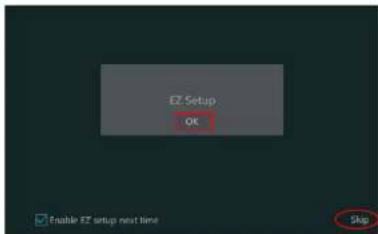
Click "OK" to start wizard. The setting steps are as follows. ① System Login. Set your own password when you use the wizard for the first time (the default username of the system is admin); select the login username and enter the password you set by yourself.
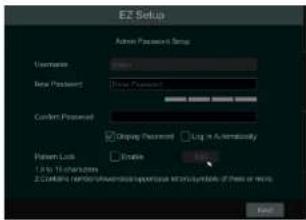
Click "Edit Security Question" to eat questions and answers for password security of admin. If you format the password please refer to OK in

Disk Settings. You can view the disk number, disk capacity of the NVR and serial number, R&W status of the disk. Click "Format" to format the disk. Click "Next" to continue. Then click "EZ Setup".
④ Network Settings. Select the network work pattern as required. Check "Obtain an IP address automatically" and "Obtain DNS automatically" to get the IP address and DNS automatically (the DHCP function of the router in the same LAN should also be enabled), or manually enter them. Enter the HTTP port, RTSP port and Server port (please see 13.1.2 Port Configuration for details). Click "Next" to continue.
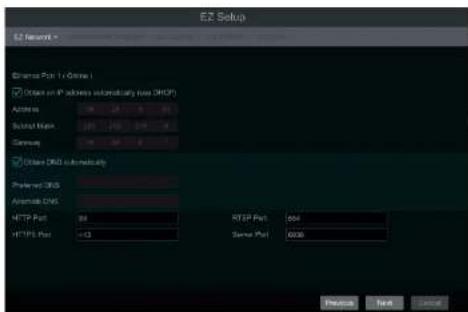
⑤ Other Network Settings.

Add Camera. Add cameras via PoE first before adding any cameras from the LAN. Speco cameras added via the PoE ports will automatically be added to the corresponding channel. To add cameras from the LAN, make sure all cameras are set to DHCP. Click "Refresh" to refresh the list of online IP cameras which are in the same local network with NVR and then click to add the searched camera. Click "Add All" to add all the cameras in the list. Click to delete the added camera. Click "Delete All" to delete all the added cameras.

Click to edit the searched IP camera as shown on the below left. Enter the new IP address, subnet mask, gateway, username and the password of the camera. You can check "Sync to IPC" to modify the IP address of the IPC via different network segments for being in the same network segment with the NVR. Click "OK" to save the settings.

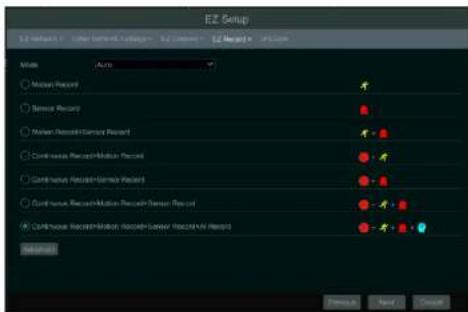
Manual: Set the "Sensor Record", "Motion Record" and "Schedule Record" of each camera. Click "OK" to save. See 7.1.1 Mode Configuration for details.

QRCode. Enable the NAT function in the interface or set It In the network configuration after exiting the wizard (please refer to 13.1.8 NAT Configuration for details). You can scan the QRCode through the Speco Blue App available for iOS and Android to easily and securely view your

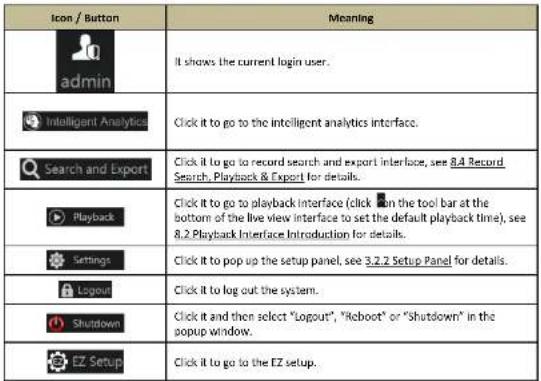
The buttons in area ① are introduced in the table below.
| Button | Meaning |
| Start button. Click it to pop up area 3. | |
| Full screen button. Click it to show full screen; click it again to exit the full screen. | |
| Screen mode button. | |
| Dwell button (see 5.2.2 Quick Sequence View and 5.2.4 Scheme View In Sequence for details). | |
| Click it to enable OSD; click again to disable OSD. | |
| Click to set the default playback time before starting instant playback (8.1 Instant Playback) or going to the playback interface for playback operations (8.2 Playback Interface Introduction); click to to the playback interface. For instance, if you choose "5 minutes ago" as the default playback time, you can playback the record from the past five minutes. | |
| Manual record button. Click it to enable/disable record. |
 |
3.2.2 Setup Panel
Click Start Settings to pop up the setup panel as shown below.

flowchart
graph TD
    A["Camera"] --> B["AI Camera"]
    A --> C["Record"]
    A --> D["AI / Event"]
    A --> E["Disk Management"]
    A --> F["Network"]
    A --> G["Account and Authority"]
    A --> H["System"]
    B --> I["Data Settings: Data Comms, Energy Settings: Motor PSYS"]
    C --> J["Micro Design - Electronic Parameters: Record Name"]
    D --> K["Power Rating Model: LPS, Photo & Video Performance, Sensor Alert Analysis / Mobile Base"]
    E --> L["Data Management Interface Module"]
    F --> M["KEYNET Print & Audio System"]
    G --> N["Akt User - Call User, Multi-Processed, Patient Lock"]
    H --> O["Basic Settings: Tree Log, BioLOG and Reactions"]

Click the main menus on the top of the camera management interface to go to corresponding interfaces. Refer to the picture below. For instance, you can go to the system setup interface by clicking "System" tag.

3.2.3 Main Functions
Camera
The module covers the functions such as Camera Management (see Chapter 4 Camera Management for details), Image Settings (see 5.3 Image Configuration for details), Motion (see 11.2.1 Motion Configuration for details), and PTZ (see Chapter 6 PTZ for details) and so on.
Record
The module covers the functions such as Encode Parameters and Record Schedule and so on. Please see Chapter 7 Record & Disk Management for details.
AI/Event
The module covers the functions such as Sensor and Motion Alarm Handling and Alarm Out Settings. Please see Chapter 9 AI Event Management and Chapter 11 General Event Management for details.
Disk
4 Camera Management
4.1 Add/Edit Camera
4.1.1 Add Camera
The network of the NVR should be set before adding IP camera (see 13.1.1 TCP/IP Configuration for details).
Refer to the pictures below. Click Add Camera in the setup panel or 🎨 in the top right corner of the preview window to pop up the "Add Camera" window as shown below. You can quickly add or add the IP camera manually.

> Quickly Add
Check the cameras and then click "Add" to add cameras. Click to edit the camera's IP address, username and password and so on. Click "Default Password" to set the default username and password of each camera.
Camera Management
NVR User Manual
and password before clicking "Add" button). Click to delete the camera. Click "Default Password" to set the default username and password of each camera.
Note: Some models may not support this function.
Click Start→Settings→System→Basic→General Settings to check "Enable Add IPC by Zero Operation". If the NVR has unoccupied channels, it can add IPC without any operation by restarting.
Add Recorder
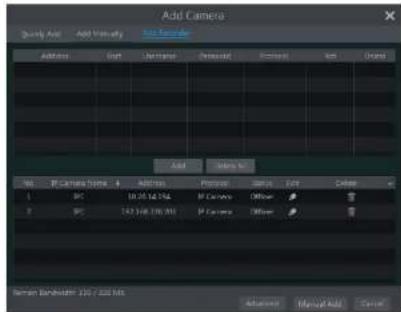
- Quickly Add: Select the searched NVR/DVR and the click "Add" to add NVR in the same local network.
- Manually Add: Click "Manual Add" and then enter the IP address or domain name, port, username and password of the NVR/DVR. Check the added remote channel number and click "Test" to test the effectiveness of the input information. Then click "OK" button to return to the previous interface.


The IP cameras with PoE function which directly connect to the PoE port of the NVR will be displayed automatically in the camera list. Refer to the picture below. The IP camera which occupies the PoE resource has a prefix shown before its camera name. The prefix consists of PoE plus PoE port number. The IP camera which connects to the PoE port cannot be deleted from the camera list manually.
The IP camera which directly connects to the PoE port of the NVR through private protocol will be shown automatically in the camera list.
- One of the two conditions must be met if the IP camera which directly connects to the PoE port of the NVR through ONVIF protocol should be shown automatically in the camera list.
√ The IP camera which directly connects to the PoE port is in the same network segment with the internal Ethernet port.
√ The DHCP (obtain an IP address automatically) of the IP camera which directly connects to the PoE port is enabled.
If the IP camera which connects to the PoE port cannot be displayed automatically in the camera list, please refer to Q6 in Appendix A FAQ for details.
4.2 Add/Edit Camera Group
4.2.1 Add Camera Group
Click "Edit Camera Group" in the above interface to go to the interface as shown below.

Camera Management
NVR User Manual

Click ☐ modify the group information such as group name and dwell time. Click to date the group.
4.2.3 IP Planning
Some models may not support this function.
Click "IP Planning" to go to the Interface as shown below. This function supports searching other NVRs/DVRs that is in the same local network as the local NVR. The user may add camera channels of other NVRs/DVRs into the unoccupied channels of the local NVR.

natural_image
Highway traffic scene with multiple cars driving on a multi-lane road, surrounded by trees and hills (no visible text or symbols)
Click to edit the IP address, user name or password and other information of the NVRs.
Click behind "Add" button to add the camera channels selected and the user may edit the IP address, user name or password by clicking.
5 Live View Introduction
5.1 Live View Interface Introduction
You should add camera first after logging on to the system (see 4.1.1 Add Camera for details). Refer to the interface as shown below, drag one camera in the preview window to another window for camera window exchanging.
The record symbols with different colors in the live view window refer to different record types when recording: green stands for manual record, red stands for sensor based record, yellow stands for motion based record, blue stands for schedule record and cyan stands for intelligence record.
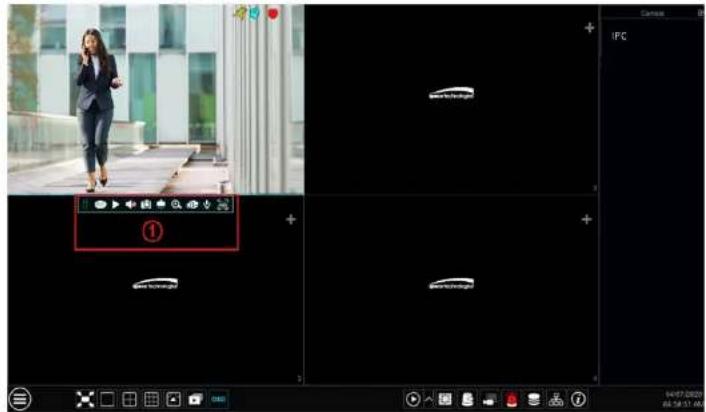
Click the preview window to show the tool bar as shown in area ①; right click the preview window to show the menu list. The tool bar and menu list are introduced in the table below.
| Button | Menu List | Meaning |
| -- | Move tool. Click it to move the tool bar anywhere. | |
| Manually Record On | Click it to start recording. |
Live View Introduction
NVR User Manual

natural_image
Highway traffic scene with multiple lanes and cars, no visible text or symbols5.2 View Mode
5.2.1 Display Mode
Set different screen modes and cameras' display sequences as needed and then save the display modes classified by surveillance areas, priorities and so on. Refer to the picture below. Double click one display mode in the display mode list to view the live images in this mode.

Live View Introduction
NVR User Manual
name; click delete the display mode.
5.2.2 Quick Sequence View
You can start quick sequence view if the scheme has not been created. If the scheme has been created, please refer to 5.2.4 Scheme View in Sequence for details.

natural_image
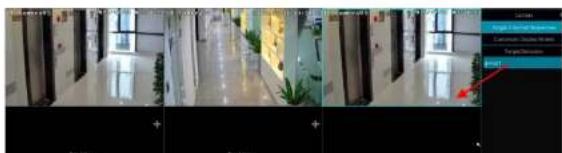
Exterior view of a modern building with glass facade and adjacent parking lot (no visible text or signage)Go to the live view interface and then click 📄 to pop up a little window. Set the dwell time in the window and then click 📄 to view the live group by group according to the camera number of the current screen mode. Double click the sequence view interface to pause the view; double click again to restore the view. Click 📄 stop the view.
5.2.3 Camera Group View In Sequence
You can start camera group view in sequence if camera group has been created (see 4.2.1 Add Camera Group for details) ① Go to the live view interface and then select a camera window.
natural_image
Interior hallway view with visible floor, plants, and window (no text or symbols)Live View Introduction
NVR User Manual
"OK" to save the current display mode; other buttons are screen mode buttons).

Add Scheme
Click + in area ① to create a new scheme. Click ✗ on the top right corner of the scheme to delete it.
Configure Scheme
a) Select a scheme in area ① and then click the screen mode button on the tool bar to set the screen mode of the scheme.
b) Select a camera window in area ② and then double click the camera or group in area ③. The camera or group will be added into the selected window. One camera in the same scheme cannot repeat. You can click the right-click menu "Clear" In area ② to remove a single camera or click F remove all the cameras.
c) Click "Apply" to save the settings.
Start Sequence View
Go to the live view interface and then click 📄 to open a window. Set the dwell time in the window and then click 📄 to start scheme view in sequence. Double click the sequence view interface to pause the view; double click again to restore the view. Click 📄 to stop the view.
5.3 Image Configuration
5.3.1 OSD Settings
Click Start→Settings→Camera→Image→OSD Settings to go to the interface as shown below. Select the camera, enter the camera name (or double
Live View Introduction
NVR User Manual

5.3.3 Mask Settings
Some areas of the image can be masked for privacy. Up to four mask areas can be set for each camera. Click Start→Settings→Camera→Image→Mask Settings to go to the interface as shown below. Select the camera and enable the mask. Click "Draw" button and then drag the mouse on the image area to set the mask area; click "Delete" button to delete the mask areas; click "Apply" to save the settings.

5.3.4 Image Adjustment
The introductions of these parameters are as follows:
| Parameter | Meaning |
| Brightness | It is the brightness level of the camera's image. |
| Contrast | It is the color difference between the brightest and darkest parts. |
| Saturation | It is the degree of color purity. The color is purer, the image is brighter. |
| Huc | It relates to the total color degree of the image. |
| Sharpen | It relates to the resolution level of the image plane and the sharpness level of the Image edge. |
| Wide Dynamic | The wide dynamic range (WDR) function helps the camera provide clear images even under back light circumstances. When there are both very bright and very dark areas simultaneously in the field of view, WDR balances the brightness level of the whole image and provide clear images with details. |
| Denoise | Decrease the noise and make the image more thorough, increasing the value will make the noise reduction effect better but it will reduce the image resolution. |
| White Balance | Adjust the color temperature according to the environment automatically. |
| BLC | HLC lowers the brightness of the entire image by suppressing the brightness of the image's bright area and reducing the size of the halo area. BLC if enabled, the auto exposure will activate according to the scene so that the object of the image in the darkest area will be seen clearly. |
| Corridor Pattern | 0°, 90°, 180° or 270° can be selected. (Only some cameras support this pattern) |
| Image Mirror | Turn the current video image horizontally. |
| Image Flip | Turn the current video image vertically. |
| High FPS Mode | High frame rate mode, if it is enabled, the frame rate of the camera's main stream can be set to 1080P/720P @60fps/50fps. [Only some cameras support this mode] |
Note: The above-mentioned descriptions of the image parameters are for reference only. The cameras made by different manufacturers may have different parameter settings.
Lens Control
Select the camera and then click "Lens Control" to go to lens control tab. Click - or + to adjust the zoom and focus parameters of the camera's lens. Click "Save" to save the settings.

| Button/Parameter | Meaning |
| Day/night mode switch autolocus | If checked, the lens will focus automatically when the camera is switching day/night mode. |
| Time Interval | It is the time interval when camera lens is auto focusing. The interval can be set in the drop-down list. |
Note: This function is only available for motorized zoom camera, or the settings here are
6 PTZ
6.1 PTZ Control Interface Introduction
You can control the IP dome or PTZ which connects to the IP camera for PTZ control.
Click on the tool bar at the bottom of the live preview window to go to the PTZ control interface as shown below.

The direction, zoom, focus, iris and speed can be controlled in the small PTZ control window.
Right click the PTZ/speed dome camera window and select "PTZ Control" to go to the PTZ control panel as shown below.
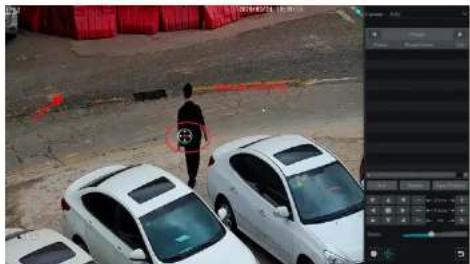
introductions of the buttons on the bottom right of the interface:
stop dragging the analog joystick.
3D Control
Click the camera image on any area and then the image will be centered on the clicked point.
Refer to the picture as shown below. Drag the mouse from A to B to get a green rectangle and the rectangle area will be zoomed in.
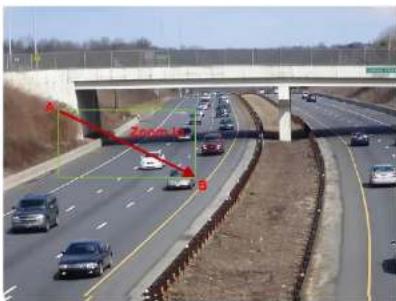
Refer to the picture as shown below. Drag the mouse from C to D to get a green rectangle and the rectangle area will be zoomed out.

natural_image
Highway scene with vehicles and a red overlay line, no visible text or symbols
Adjust the dome's direction and then click "Save Position" to save the current preset position (you can also click another preset in the preset list and then save the preset position after adjusting the dome's direction); click 📄 in the preset list to call the preset; click "Delete" button to delete the selected preset.
You can also go to preset setting interface for preset setting, see 6.2 Preset Setting for details.
Cruise Setting
Click "Cruise" to go to cruise operation tab and then click "Add" button to pop up a window as shown below left. You can add 8 cruises for each dome at most.

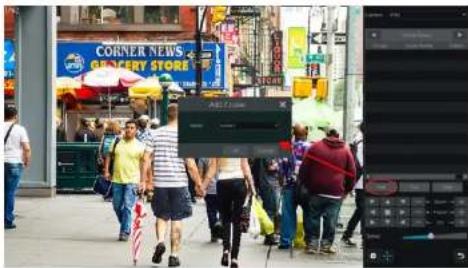
In the "Add Cruise" window, select the cruise line name. After that, click "Play" to play the cruise lines in sequence.
Trace Settings
On the right panel, click to go to the trace setting tab. Click "Add" to add the trace name. Then click "OK" to save this name. Please refer to the following picture.
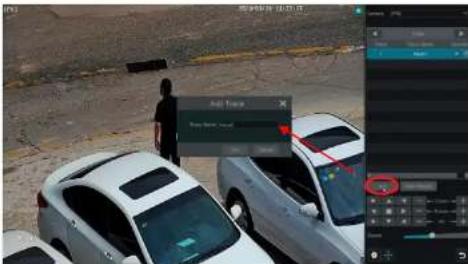
After that, click "Start Record" to record the trace. Then click "Stop Record" to finish recording. Click to play the recorded trace. Click to delete the trace.

Add preset
Select camera and then click "Add" button to add preset; or click In the camera list on the right side of the Interface to display the preset information of the dome and then click to add preset. The operations of the "Add Preset" window are similar to that of the PTZ control interface; please see 6.1 PTZ Control Interface Introduction for details.
Edit preset
Select camera and preset. You can enter the new name of the preset and then click to save the new preset name. Adjust the rotating speed, position, zoom, focus and iris of the preset and then click "Save Position" to save the preset.
Delete Preset
Select camera and preset and then click "Delete" to delete the preset.
6.3 Cruise Setting
Click Start Settings Camera PTZ cruise to go to the interface as shown below.

details.
Edit Cruise
Select the camera and cruise in the "Cruise" interface. Enter the new cruise name and then click to save the cruise name. Click "Add Preset" to add preset to the cruise. Click to edit the preset. Click to delete the preset from the cruise. Click one preset in the preset list and then click to move down the preset and click to move up the preset. Click to start the cruise and click to stop it.
Delete Cruise
Click in the camera list on the right side of the interface to display the cruise information of the dome and then click on the top right corner of the cruise to delete the cruise.
6.4 Cruise Group Settings
Click Start Settings Camera PTZ®ruise Group to go to the interface as shown below.
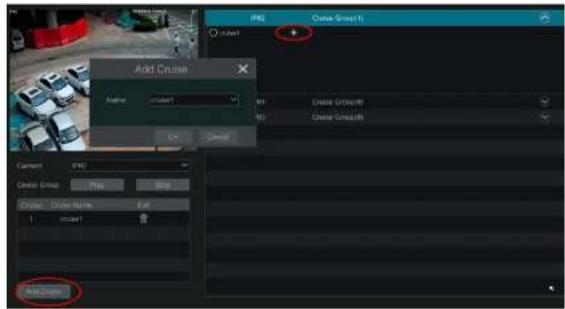
Add Cruise Group
Click "Add Cruise" to add the cruise, or click √ to extend the cruise list and then click + to add the cruise. After that, click "Play" on the left panel as shown below to play the cruise lines in sequence.
Delete Cruise
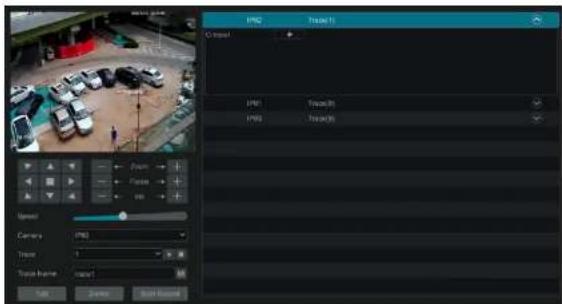
Play or Stop Trace
Select the trace and click play the trace; click to stop the trace.
Modify the Trace Name
On the left panel, enter new trace name and click to modify and save the trace name.
Delete the Trace
Click to delete the trace. Or put the cursor on the trace name (right panel) and then will appear on the right corner of the trace name; click it to delete this trace.
6.6 Task Settings
Click Start Settings Camera PTZ task to go to the Interface as shown below.
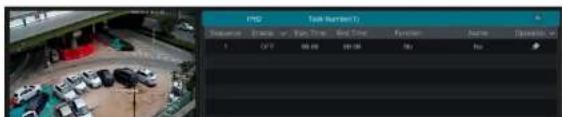
7 Record & Disk Management
7.1 Record Configuration
7.1.1 Mode Configuration
Please format the HDDs before recording (refer to 7.4 Disk Management for details). Click Start→Settings→Record→Mode Settings to go to the mode settings interface. You can set the record time under the "Manual Record Settings" and then click "Apply" to save the settings. There are two record modes: auto mode and manual mode.

Auto Mode
Motion Record: Motion alarm record will be enabled when motion alarm happens.
Sensor Record: Sensor alarm record will be enabled when sensor alarm happens.
Motion Record+Sensor Record: Motion/sensor alarm record will be enabled when motion/sensor alarm happens.
Continuous Record+Motion Record: Normal record is enabled all the time; motion alarm record will be started when motion alarm happens.
Continuous Record+Sensor Record: Normal record is enabled all the time; sensor alarm record will be started when sensor alarm happens.
Continuous Record+Motion Record+Sensor Record: Normal record is enabled all the time; motion/sensor alarm record will be enabled when motion/sensor alarm happens.
Continuous Record+Motion Record+Sensor Record+ AI Record: Normal record is enabled all the time; motion/sensor/analytics alarm record will be enabled when motion/sensor/intelligence analytics alarm happens.
You can add more auto modes on intelligence record. Click "Advanced" button to pop up a window as shown below. Check the modes in the window and then click "Add" button to show the modes in the record mode list (in the window, the checked modes can be showed in the record mode list while the unchecked modes cannot; you shall check "AI Record").
Record & Disk Management
NVR User Manual
Video Encode: the available options will be H.265 and H.264 if the connected IP camera supports H.265, or the option will be H.264 only. GOP: group of pictures.
Resolution: the higher the resolution is, the clearer the Image is.
FPS: the higher the frame rate is, the more fluency the video is. However, more storage room will be taken up.
Bitrate Type: CBR and VBR are optional. CBR means that no matter how much change is seen in the video scene, the compression bitrate will be kept constant. VBR means that the compression bitrate will be adjusted according to scene changes. For example, for scenes that do not have much movement, the bitrate will be kept at a lower value. This will help to optimize the network bandwidth.
Quality: When VBR is selected, you need to choose image quality. The higher the image quality you choose, the more bitrate will be required. Max Bitrate: 32Kbps \~10240Kbps are optional.
Customization Mode
If the customization mode is selected, you need to set the record schedules of each camera. See 7.1.2 Schedule Settings for details
7.1.2 Schedule Settings
Add Schedule
Click Start→Settings→Record→Mode Setting to go to the mode setting Interface. Then select "Customization" mode and click "Schedule Management" to set the schedule as shown below. "24 x 7", "24 x 5" and "24 x 2" are the default schedules; you cannot edit or delete "24 x 7" while "24 x 5" and "24 x 2" can be edited and deleted. Click the schedule name to display the detailed schedule information on the left side of the interface. The seven rows stand for the seven days in a week and each row stands for 24 hours in a day. Blue stands for the selected time and gray stands for unselected time.
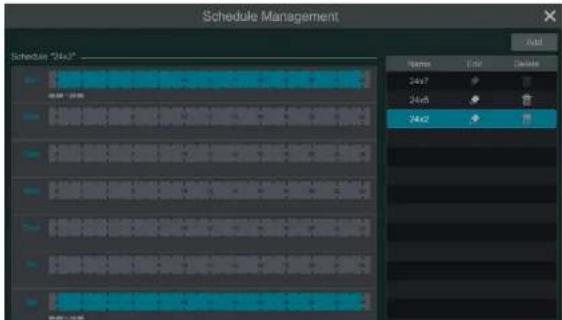
Record & Disk Management
NVR User Manual

Set the schedule name and schedule time and then click "Add" to save the schedule. You can set day schedule or week schedule. Add button;
: delete button.
Set Day Schedule
Click and then drag the cursor on the time scale to set record time; click and then drag the cursor on the time scale to delete the selected area.
You can manually set the record start time and end time. Click or then click "Manual" on each day to pop up a window as shown below. Set the start and end time in the window and then click "OK" to save the settings.

Click "All" to set all day recording click "Reverse" to swan the selected and unselected time in a day click "Clear All" to clear all the selected area in

Click "All" to set all week recording; click "Reverse" to swap the selected and unselected time in a week; click "Clear All" to clear all the selected area in a week.
7.1.3 Advanced Configuration
Click Start→Settings→Record→Advanced to go to the following interface. Enable or disable cycle record (cycle record: the earliest record data will be replaced by the latest when the disks are full). Choose the record stream. Set the pre-alarm record time, post-alarm record time and expiration time of each camera and then click "Apply" to save the settings.
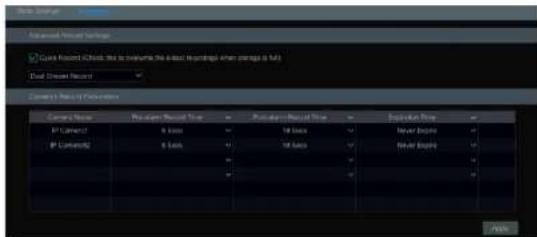
Pre-alarm Record Time: set the time to record before the actual recording begins.
Post-alarm Record Time: set the time to record after the actual recording is finished.
Expiration Time: set the expiration time for recorded video. If the set date is overdue, the recorded data will be deleted automatically.
7.2 Encode Parameters Setting
Click Start→Settings→Record→Encode Parameters to go to the interface as shown below. Set the encode, resolution, FPS, GOP, bitrate type,
Record & Disk Management
NVR User Manual
7.3.2 Timing Recording
Timing Recording: the system will record automatically according to the schedule.
Set the timing record schedule of each camera. See 7.1.2 Schedule Settings for details.
7.3.3 Motion Based Recording
Motion Based Recording: the system will start motion based recording when the motion object appears in the setup schedule. The setup steps are
as follows:
① Set the motion based recording schedule of each camera. See 7.1.2 Schedule Settings for details.
② Enable the motion and set the motion area of each camera. See 11.2 Motion Alarm for details.
The camera will start motion based recording once you finish the above settings.
7.3.4 Sensor Based Recording
① Set the sensor based recording schedule of each camera. See 7.1.2 Schedule Settings for details.
② Set the NO/NC type of the sensor, enable the sensor alarm and then check and configure the "Record". See 11.1 Sensor Alarm for details.
7.3.5 AI Event Recording
① Set the analytics recording schedule of each IP camera. See 7.1.2 Schedule Settings for details.
② Enable the intelligence alarm detection (object detection, exception, tripwire or intrusion) and draw alert surface or warning area of each IP camera. See 9 AI Event Management for details.
The camera will start analytics recording once you finish the above settings. This function is only available for some IPCs.
7.4 Disk
7.4.1 Disk Management
Disk Management
Click Start→Settings→Disk→Disk Management to go to disk management interface. You can view the NVR's disk number and disk status and so on in the interface. Click "Format" button to format the HDD.
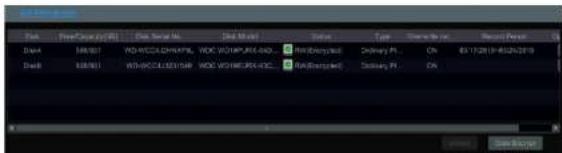
7.4.2 Storage Mode Configuration
Click Start Settings Disk Storage Mode to go to the interface as shown below.
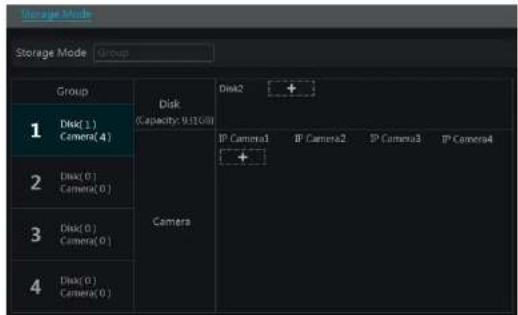
By using disk group, you can correspond the camera to disk (the record data of the camera in the group will be stored into the disks in the same group). The NVR with e-SATA interface supports e-SATA recording.
The added disks and cameras will be added into group one automatically. The disks and cameras in the groups can be deleted except group one (select a disk group and then click 📄 on the top right corner of the added disk or camera to delete it from the group). The deleted disks and cameras will be moved into group one automatically.
Each group can add the disks and cameras from other groups. Each disk and camera can only be added into one group. Select a disk group and then click + in the disk or camera row to pop up a window. Check the disks or cameras in the window and then click "Add".
For the model with 2 or 4 HDD slots, BK group can be added.
Click + to add the backup HDD. After account verification, select an HDD and then this HDD will be removed from the normal group to the backup group. Simultaneously, it will be formatted. Please back up all data of this HDD in advance when you want to remove it to the backup group.
You can add cameras to this HDD. The added cameras can exist and be recorded both in one HDD of the normal group and the backup group. Note: Each HDD only can exist in one group.

8 Playback & Backup
8.1 Instant Playback
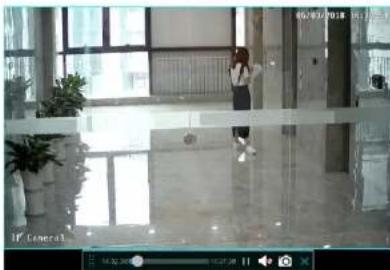
Click ▶ on the tool bar at the bottom of the preview camera window to play back the record {click ▶ on the tool bar at the bottom of the live view interface to set the default playback time}. Refer to the picture below. Drag the playback progress bar to change the playback time. You can also click the right-click menu "Instant Playback" in the camera window and then set the instant playback time to play back the record.
natural_image
Interior view of a modern building lobby with glass doors and potted plants (no visible text or symbols)8.2 Playback Interface Introduction
Click 📄 on the tool bar at the bottom of the live view interface or click Start →Playback to go to the playback interface as shown below (click 📄 on the tool bar at the bottom of the live view interface to set the default playback time).

| Button | Meaning |
| Start button. Click it to pop up area 2. | |
| Full screen button. Click it to show full screen; click it again to exit the full screen. | |
| Screen mode button. | |
| OSD ON button. Click it to enable OSD; click it again to disable OSD. | |
| Quick channel selection button | |
| Stop button. | |
| Rewind button. Click it to play video backward. | |
| Play button. Click it to play video forward. | |
| Pause button. | |
| Deceleration button. Click it to decrease the playing speed. | |
| Acceleration button. Click it to increase the playing speed. | |
| Previous frame button. It works only when the forward playing is paused in single screen mode. | |
| Next frame button. It works only when the forward playing is paused in single screen mode. | |
| Click ▶rep backward 30s and click to ▶+ forward 30s. | |
| Click it to enter the smart playback interface | |
| Event list/tag button. Click it to view the event record of manual/schedule/sensor/ motion and the tag information. | |
| Watermark button. Click it to enable watermark; click it again to disable watermark. | |
| Backup button. Drag the mouse on the time scale to select the time periods and cameras, and then click the button to back up the record. Backup status button. Click it to view the backup status. | |
| Back button. Click it to return. |
| Button | Meaning |
| Click it to go to record search and export interface; see 8.4 Record Search, Playback & Backup for details. | |
| Click it to Go to the live view interface; see Chapter 5 Live View Introduction for details. |
Introduction of area ②:
Playback & Backup
NVR User Manual

Introduction of area ④:
Click to set the date; click to set the time and then the playback camera will play the record from the time you set. You can check the record type as required for record playback; first you should click on the tool bar at the bottom of the interface to clear all the playback camera, then check the record type for manual record; sensor based record; motion based record; schedule record; AI record; POS record, if you want view the detailed smart playback icons, click to switch]. Finally, click in the playback window to add camera for playback (the record time scale will show the record data of the checked record type only after the above operations).
Introduction of the record time scale (area ⑤):
Click 📋 to set the date; click 🔒 to set the time and then the playback camera will play the record from the time you set.
A tool bar will appear after moving the mouse to the record time scale. Click / to zoom the timeline; click to recover the timeline to 24 hours' ratio. Drag the timeline or slide the scroll wheel of the mouse on the time scale to show the hidden time on the top or bottom of the timeline. You can also click to show the hidden time on the top of the timeline or click to show the hidden time on the bottom of the timeline. Drag the slider at the bottom of the time scale to show the hidden playback cameras. The record time scale shows different record types with different colors. The green block stands for manual record, red block stands for sensor based record, yellow block stands for motion based record, blue block stands for schedule record and cyan block stands for intelligence record. Click the record block to set the time and then the playback camera will play the record from the time you set. Drag the color block on the time scale to select the backup area and then right click the area or click to pop up an export information window. Click button in the window to pop up the export window. Select the device, export path and format and then click "Export" button to start the backup.
8.3 Smart Playback
In the playback interface, click 📄 to go to the smart playback interface.

natural_image
Interior hallway with potted plants and shelves, no visible text or symbolsPlayback & Backup
NVR User Manual
| 按钮 | Description | |
| Search by license plate number | ||
| Playback settings button | ||
| Return button. Click to return to the previous interface. | ||
8.3.1 Smart Playback Settings
Click 🔒 to set the speed of non-interest video (Please skip this one if you click "Skip non-interest video"), "Speed of interest video" and "Intrusion percentage".
You can disable "Non-Focus" to view the video you interest in the right corner of the smart playback interface.

8.3.2 Smart Playback Based on Motion Detection
Smart Playback by Drawing Grid
Click 📄 and draw a rectangle in the desired area. Then the system will automatically search the record files of this area. The cyan blocks indicate that there are intelligent recording files. Move the cursor to such block and click to play the record.
Smart Playback by Drawing Line
Click and draw a line in the desired area. Then the system will automatically search the record files about crossing this line. The cyan blocks indicate that there are intelligent recording files. Move the cursor to such block and click to play the record.

natural_image
Interior view of a modern building with large windows and glass doors, featuring two people walking toward the window (no visible text or symbols)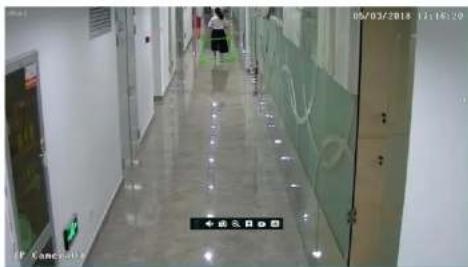
8.3.3 Smart Search by License Plate
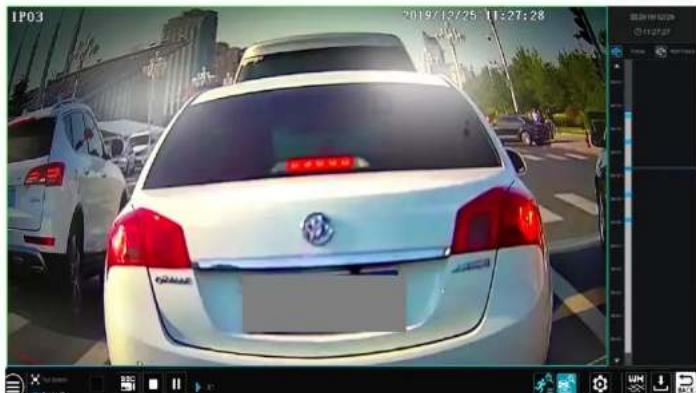
Before starting smart search by plates, please add ANPR cameras first and enable the LPR function. Please refer to License Plate Recognition for
details
Click Button to go to the following interface.

Playback & Backup
NVR User Manual
8.4 Record Search, Playback & Export
The record data and the captured pictures can be exported through network, USB (U disk or USB mobile HDD). The file system of the export devices should be FAT32 format.
8.4.1 EZ Search
① Click Start→Search and Export→EZ Search to go to the "EZ Search" tab. There are two view modes: by time and by camera. In the time view mode, a maximum of 64 camera thumbnails can be showed. If the camera thumbnail number is more than 64, the cameras will be listed directly by their camera name, not the thumbnail. A maximum of 196 camera names can be listed. If the camera name number is more than 196, the time view mode will be disabled and the camera view mode will be available only.

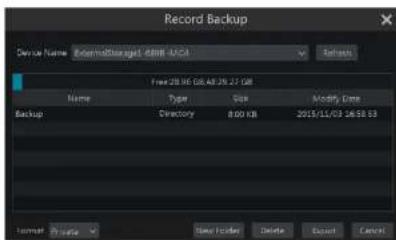
Note: If you back up the record in private format, the system will back up a RPAS player to USB device automatically. The private format record can be played by RPAS player only.
⑤ Click "Playback" button to play the record in the playback interface (refer to 8.2 Playback Interface Introduction for details). Click "Exit" to exit the Interface.
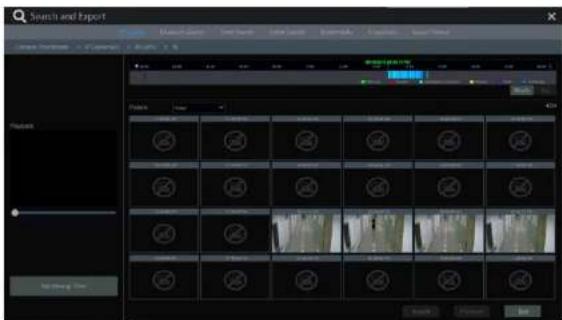
Time files search:
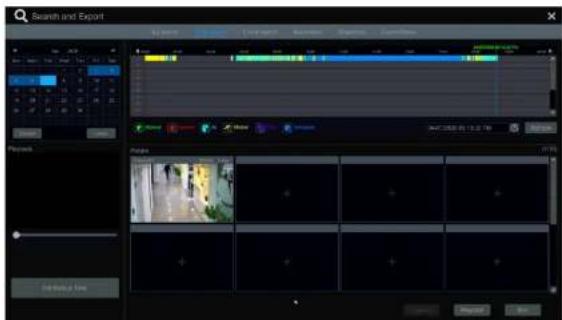
8.4.3 Event Search
① Click Start → Search and Export → Event Search to go to "Event Search" tab as shown below.

② Check the event type in the interface as required.
Playback & Backup
NVR User Manual
Click the interface to play the record. Click to call the tag name. Click to delete the tag.
8.4.5 Snapshots
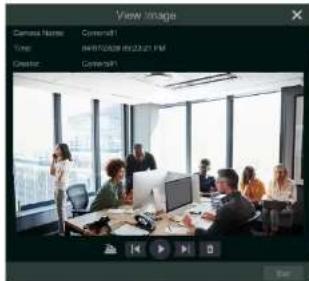
Click Start → Search and Export → Snapshots to go to "Snapshots" tab. The system will display all the captured images automatically in the list.

Click to delete the image. Click to pop up the "Export" window. Select the device name and save path in the window and then click "Save" button. Click to pop up the "View Image" window. Click to export the image. Click to view the previous image; click to view the next image; click to delete the image; click to play all the images.
8.4.6 View Export Status
Click Start→Search and Export→Export Status or click 📄 on the tool bar at the bottom of the playback Interface to view the export status.
9 AI Event Management
9.1 Face Detection
Face Detection: Alarms will be triggered if someone intrudes into the pre-defined alarm areas.
① Click Start→Settings→AI/Event→AI Event→Face Recognition→Detection to go to the following interface.

② Select the camera, check "Enable Detection by IPC" and set the duration.
② Set the snapshot interval and snapshot number. The snapshot interval refers to the time interval that the camera captures the same face during its continuous tracking period. The snapshot number refers to the picture number of the same face captured during its continuous tracking period (For example: the snapshot interval is set to "30 seconds" and the snapshot number is set to "3"; then the camera will capture the same face once every 30 seconds and it will capture this face 3 times at most during its continuous tracking period).
④ Enable face match exposure as need. When the brightness of the captured face is not enough, it can be enabled. (Only some IPCs support this function)
Set the alarm area. Click "Draw" and then drag the mouse to draw a detection area. Click "Clear" to delete the alarm area. Then set the detectable face size by defining the maximum value and the minimum value (The default size range of a single face image occupies from 3% to 50%)

Face Detection Alarm Linkage Configuration:
(1) Trigger "Record", "Snapshot", "Push", "Alarm-out", "Preset", "Buzzer", "Pop-up Video" and "E-mail" as needed.
Record: Click the "Configure" button to pop up the window. Select camera on the left side and then click to set the camera as the trigger camera. Select trigger camera on the right side and then click to cancel the trigger camera. Click "OK" to save the settings. The trigger cameras will record automatically when faces are detected.
Alarm-out: Click the "Configure" button to pop up the window. Then the "Trigger Alarm-out" window will pop up automatically. Configure the trigger alarm-out in the window. The system will trigger the alarm-out automatically when faces are detected. You need to set the delay time and the schedule of the alarm outputs. See 11.6.1 Alarm-out for details.
Preset: Click and then select the preset for each camera. To add presets, please see G.2 Preset Setting for details. Snapshot: check it. The current camera will capture images automatically when faces are detected.
Push: If it is enabled, the system will send messages when faces are detected.
Buzzer: if it is enabled, the system will begin to buzz when faces are detected. To set the delay time of the buzzer, please see 11.6.4 Buzzer for details.
Pop-up Video: if it is enabled, the system will pop up the corresponding video automatically when faces are detected. To set the duration time of the video, please see 11.6.3 Display for details.
E-mail: if it is enabled, the system will send an e-mail when faces are detected. Before you enable the email, please configure the recipient's e-mail address first (see 11.6.2 E-mail Configuration for details).
⑨ Click "Apply" to save the settings.
9.2 License Plate Recognition
Please add the ANPR camera before you using this function. If your camera doesn't support this function, please skip the following instruction. Please set face recognition function according to the following procedures for the first time.
Enable and set plate detection → Add plate group → Add plates to the plate group → Enable license plate recognition →
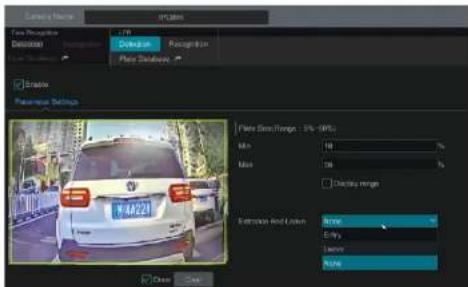
Set the alarm area. Click "Draw" and then drag the mouse to draw a detection area. Click "Clear" to delete the alarm area.
9.2.2 Plate Database Management
In the LPR interface, click the "Plate Database" tab to go to the plate database management interface as shown below. For the first time, you can click "+" or "Add Group" to add groups.

Add plates to each group:
-
AI Event Management
NVR User Manual
② Enter the plate, vehicle owner and mobile phone number.
③ Select the vehicle type and group.
① Enable validity period to set the start and end time
⑤ Finally click "OK" to complete.
Select the added plate and then click 📄 to modify its information; click 📄 to delete this plate. The plates can be Imported and exported in bulk by clicking "Import and Export". You can click "Plate Information Description" to view the detailed information about how to import or export the plate list.
9.2.3 License Plate Recognition Settings
① In the LPR Interface, click the "Recognition" tab. Then enable "Successful Recognition" or "Strange Plate".
② Set the successful recognition alarm linkage.
- Select one or more plate groups and then choose the schedule. Click "Manage" to set the schedule.
- Set the text prompt. When the captured plate is matched successfully, the text will appear on the right of the live view interface.
● Enable alarm output pulse (access control). - Trigger record, snapshot, alarm-out, buzzer, push, pop-up video, E-mail and pop-up message box as needed. The alarm linkage settings are similar to the face detection alarm (See 9.1.1 Face Detection Settings for details).
③ Set the strange plate alarm linkage. When the captured plate picture doesn't match the plates in the plate database or their similarity is lower than the set value, the captured plate will be regarded as a strange plate.
9.3 Tripwire
Tripwire/Line Crossing Configuration:
Alarms will be triggered if people or vehicles cross the pre-defined alarm line.
① Click Start → Settings → AI/Event → AI Event → Tripwire to go to the following Interface.

AI Event Management
NVR User Manual
some IPCs can detect human or vehicle separately. If the camera doesn't support this function, please skip this step.
① Click"..."to choose "Save original picture" or "Save target picture" on the SD card of the camera. (If your camera doesn't support this function, please skip this step).
⑦ Click "Trigger Mode" to configure tripwire alarm linkage items.
- Enable or disable "Record", "Snapshot", "Push", "Alarm-out", "Preset", "Buzzer", "Pop-up Video" and "E-mail". The alarm linkage settings are the same as the face detection alarm (see 9.1.1 Face Detection for details).
- Enable "IPC_Audio" or "IPC_Light" as needed (only some IPCs support these two functions). To set the IPC voice and its times and volume, please refer to 11.6.6 Digital Deterrent for details. To set the light flashing time and frequency of the IPC, please refer to 11.6.7 Light for details.
⑧ Click "Apply" to save the settings.
9.4 Intrusion Detection
Intrusion Detection Configuration:
Alarms will be triggered if the people or vehicles intrude into the pre-defined area.
① Click Start→Settings→AI/Event→AI Event→Intrusion to go to the following interface.
② Select the camera, enable the intrusion detection by IPC and set the duration.
Note: Some models may support tripwire detection by NVR.
③ Select regional activities. "Appear" or "Cross" can be selected (if your camera doesn't support region entrance/exiting detection, "Cross" will not be enabled). If "Cross" is selected, you can choose the crossing direction.
① Select the alarm area. Up to 4 alarm areas can be set up.
⑤ Draw the alarm area of the intrusion detection. Refer to the interface as shown below. Check "Draw Area" and then click around the area where you want to set as the alarm area in the image (the alarm area should be a closed area). Uncheck the "Draw Area" if you finish the drawing. Click the "Clear" to delete the alarm area.

AI Event Management
NVR User Manual
9.5 Abandoned/Missing Object Detection
① Click Start → Settings → AI/Event → AI Event → Object Abandoned/Missing to go to the following interface.
② Select the camera, enable the object detection and set the duration and detect type. There are two detection types: Abandoned object and missing object.
Abandoned object: Alarms will be triggered if there are articles left in the pre-defined detection area.
Missing object: Alarms will be triggered if there are articles missing in the detection area drew by the users.
③ Select the alarm area and area name. A maximum of 4 alarm areas can be set.
④ Draw the alarm area of the object detection. Refer to the interface as shown above. Check "Draw Area" and then click around the area where you want to set as the alarm area in the image (the alarm area should be a closed area). Uncheck the "Draw Area" if you finish the drawing. Click the "Clear" to delete the alarm area.

Click "Trigger Mode" to configure abandoned/missing object detection alarm linkage items. Enable or disable "Record", "Snapshot", "Push", "Alarm-out", "Preset", "Buzzer", "Pop-up Video" and "E-mail". The alarm linkage settings are the same as the face detection alarm (see 9.1.1 Face Detection Settings for details).
© Click "Apply" to save the settings.
9.6 Crowd Density Detection
Only some IPCs may support this function.
Crowd Density Configuration:
Alarms will be triggered if the crowd density exceeds the set threshold value in the pre-defined area.
AI Event Management
NVR User Manual
Alarm Threshold: Alarms will be triggered once the percentage of the crowd density in a specified area exceeds the pre-defined threshold value.
③ Select the alarm area. Draw the alarm area of the crowd density detection. Refer to the interface as shown below. Check "Draw Area" and then drag the mouse to draw a rectangle area. Uncheck the "Draw Area" if you finish the drawing. Click the "Clear" to delete the alarm area.
Click to configure crowd density detection alarm linkage items. Enable or disable "Record", "Snapshot", "Push", "Alarm-out", "Preset", "Buzzer", "Pop-up Video" and "E-mail". The alarm linkage settings are the same as the face detection alarm (see 9.1.1 Face Detection Settings for details).
⑤ Click "Apply" to save the settings.
9.7 Line Crossing Counting
Only some IPCs may support this function.
- People counting in the pre-defined area
This function is to calculate the number of people entering or exiting in the detected area on the video by detecting, tracking and counting the head shapes of people.
Note: Only some specific IPCs may support this function.
① Click Start→Settings→AI/Event→AI Event→Line Crossing Counting to go to the following interface. ② Select the camera, enable the line crossing people counting detection and set the duration, sensitivity, statistic cycle, enter threshold, departure threshold and retention threshold.
Statistic cycle: Always, daily, weekly and monthly are optional.
Manual Reset: The current number of people counting will be cleared and the statistic cycle will restart by clicking "Manual Reset" button.
③ Set the alarm area and entrance direction. Click "Draw Area" and drag the mouse to draw a rectangle area. Drag the rectangle to change its position. Uncheck the "Draw Area" if you finish the drawing. Click "Clear" to clear the area. Click and drag the arrow or the other end of the arrow line to change the people entrance direction.


② Enable line crossing counting.
② Check "Draw line" and then drag the mouse on the small window to draw the crossing line.
Uncheck "Draw line" to finish the drawing. Click "Clear" to delete the alert line.
Direction: A->B and A<-B are optional. It is the crossing direction of the target that crosses over the alert line.
④ Check "Statistical OSD", the statistical information will be displayed on the live view interface
⑤ Set the reset information. You can set reset information manually or enable "Auto Reset" as needed.
① Click the "Detection Target" tab to set the detection target, including people, vehicle and non-vehicle.
⑦ Click "Apply" to save the settings.
9.8 Tampering Detection
Tampering Detection Configuration:
① Click Start→Settings→AI/Event→AI Event→Tampering to go to the following interface.
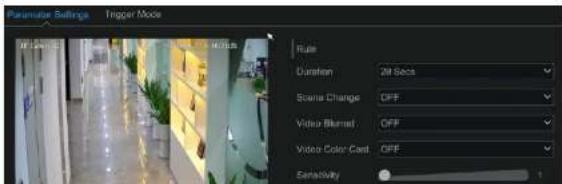
10 Intelligent Analytics
10.1 Target Detection View
10.1.1 Human Body/Vehicle Detection View
Only when the camera supports human body/vehicle detection, can you view the real-time captured people or vehicle pictures. The setting steps are as follow:
① Enable the Tripwire/Intrusion function of IPCs/NVR, draw the line or area and choose the detection target (see 9.3 Tripwire and 9.4 Intrusion Detection for details).
② Go to live view interface and then click to go to the target detection interface of this channel. In this interface, you can switch the channel on the top right. Click the captured picture on the right of the live interface to see the snapshot detailed information, such as snapshot time, camera, event type and target type.


natural_image
Woman in business attire walking on a modern building sidewalk, with video call interface overlay (no readable text or symbols)Click 🔒 to quickly go to the smart face search interface where you can search the matching face information; click 🔒 to quickly go to the smart face playback interface; click 🔒 view snapshot details. Additionally, you can view the historical captured face pictures information in the target detection interface by clicking "History" tab.
10.1.3 License Plate Detection/Recognition View
Only when the ANPR camera is added and enabled, can license plates be captured and matched. The setting steps are as follows ① Enable the plate detection function (See 9.2.1 License Plate Detection Settings for details).
Go to live view interface and click on a license plate recognition channel. This will bring a toolbar under the channel. Then click to go to the target detection interface of this channel. When the plate is captured, it will be displayed on the right panel.

Intelligent Analytics
NVR User Manual
Click 📄 to view the captured detail information. Click 🔒 to quickly enter the vehicle search interface. You can search the matched plate information in this Interface. Click 📋 go to the smart playback Interface.
② Enable license plate recognition function and set the alarm linkage items (see 9.2.3 License Plate Recognition Settings for details).
Go to live view interface and click on the license plate recognition channel. This will bring a toolbar under the channel. Then click 📄 to go to the target detection interface of this channel.
① When the plate is captured, it will be displayed on the right panel. If this plate is successfully matched, it will show "successful" beside the plate picture. The strange plate will show "Strange plate" beside the plate picture.

Click the captured plate picture and then it will pop up the detailed information window. You can view the snapshot picture, original picture, snapshot time, camera, etc. Click "More" to view the ID information of the target and export the captured picture. Click "Search" to go to the vehicle search interface. Click "Playback" to go to the playback interface.
10.2 Smart Search
10.2.1 Human Body Search
Intelligent Analytics
NVR User Manual

Click the searched picture to play the record In the small window. Select pictures and check "Backup Picture" and/or "Backup Record" and then click "Backup" to back up the pictures and/or records. Click "Original" to view the captured original pictures. Click "List" to view the file list of the captured pictures.
Click 📄 and select "Add to favorite" to add a favorite group and save the current searched pictures to the favorite group. Then you can quickly view these figure pictures by clicking 📄 choosing the group name.
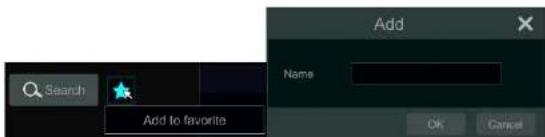
10.2.2 Vehicle Search
① Click Start → Intelligent Analytics → Smart Search → Vehicle to go to the vehicle search interface.
Intelligent Analytics
NVR User Manual

Click a searched vehicle picture to play it in the small window. Select vehicle pictures and check "Backup Picture" and/or "Backup Record" and then click "Backup" to back up the pictures and/or records.
③ Click "Original" to see the original pictures; click "List" to view the snapshot information list. Click to view the detail information; click to back up the image.
Select "Plate Detection" or "Plate Match" to view plate image. You can also enter the plate number to search the plate pictures. Then you can view the track of this vehicle.

Intelligent Analytics
NVR User Manual
10.2.3 Combination Search
If you want to view the human body, vehicle or face pictures simultaneously, you can choose combination search.
① Click "Combine".
② Select the search time, camera, event and vehicle as needed.
Click a searched picture to play it in the small window. Select pictures and check "Backup Picture" and/or "Backup Record" and then click "Backup"
to back up the pictures and /or records.
which is to add a favorite score and save the content reached at times to the favorite score. When you are outside these scores, you
Click to add a favorite group and
clicking 1 choosing the group name.
10.3 View Statistical Information
Click Start→ Intelligent Analytics→Statistics to go to the following interface. In this interface, you can view the people and vehicle statistical information or you can customize the statistical information.

View People Information:
Note: The person information includes face information and figure information.
① Select the time.
② Select cameras.
③ Select events as needed, such as face detection, intrusion and tripwire.

General Event Management
NVR User Manual
③ Enable the sensor alarm of each camera and select the schedule.
④ Check the "Duration", "Record", "Snapshot", "Push", "Alarm-out" and "Preset" and enable or disable the "Buzzer", "Pop-up Video", "Pop-up Message Box" and "E-mail" as required.
⑤ Click "Apply" to save the settings.
The configuration steps of the above mentioned alarm linkages are as follows.
Duration: It refers to the interval time between the adjacent motion detections. For instance, if the duration time is set to 10 seconds, once the system detects a motion, it will go to alarm and would not detect any other motion (specific to camera) in 10 seconds. If there is another motion detected during this period, it will be considered as continuous movement; otherwise it will be considered as a single motion.
Record: check it and then the "Trigger Record" window will pop up automatically (you can also click the "Configure" button to pop up the window).
Select camera on the left side and then click to set the camera as the trigger camera. Select trigger camera on the right side and then click
to cancel the trigger camera. Click "OK" to save the settings. The trigger cameras will record automatically when the sensor alarm is triggered. Snapshot: check it and then the "Trigger Snapshot" window will pop up automatically. Configure the trigger camera in the window. The trigger cameras will capture images automatically when the sensor alarm is triggered.
Push: check it and choose ON or OFF. If it is ON, the system will send messages when the sensor alarm is triggered.
Alarm-out: check it and then the "Trigger Alarm-out" window will pop up automatically. Configure the trigger alarm-out in the window. The system will trigger the alarm-out automatically when the sensor alarm is triggered. You need to set the delay time and the schedule of the alarm outputs. See 11.6.1 Alarm-out for details.
Preset: check it and then the "Trigger Preset" window will pop up automatically. Configure the trigger preset of each camera. To add presets, please see 6.2 Preset Setting for details.
Buzzer: if enabled, the system will begin to buzz when the sensor alarm is triggered. To set the delay time of the buzzer, please see 11.6.4 Buzzer for details.
Pop-up Video: After camera setting, the system will pop up the corresponding video automatically when the sensor alarm is triggered. To set the duration time of the video, please see 11.6.3 Display for details.
Pop-up Message Box: if enabled, the system will pop up the corresponding alarm message box automatically when the sensor alarm is triggered. To set the duration time of the message box, please see 11.6.3 Display for details.
E-mail: if enabled, the system will send an e-mail when the sensor alarm is triggered. Before you enable the email, please configure the recipient's e-mail address first (see 13.1.5 E-mail Configuration for details).
11.2 Motion Alarm
Motion Alarm: when the motion object appears in the specified area, it will trigger the alarm. You should enable the motion of each camera first and then set the alarm handling of the camera to complete the whole configuration of the motion alarm.
11.2.1 Motion Configuration
① Click Start→Settings→Camera→Motion Settings to go to the following Interface.

General Event Management
NVR User Manual
system detects a motion, it will go to alarm and would not detect any other motion (specific to camera) in 10 seconds. If there is another motion detected during this period, it will be considered as continuous movement; otherwise it will be considered as a single motion.
Drag the camera image to set the motion area. You can set more than one motion area. Click "All" to set the whole camera image as the
motion area. Click "Reverse" to swap the motion area and the non-motion area. Click "Clear" to clear all the motion areas.
④ Click "Apply" to save the settings. Click "Processing Mode" to go to the alarm handling configuration interface of the motion alarm.
11.2.2 Motion Alarm Handling Configuration
① Click Start→Settings→Alarm→Motion Alarm to go to the following interface.

② Enable or disable "Record", "Snapshot", "Push", "Alarm-out", "Preset", "Buzzer", "Pop-up Video" and "E-mail". The alarm handling setting of motion alarm is similar to that of the sensor alarm (see 11.1 Sensor Alarm for details).
③ Click "Apply" to save the settings. You can click "Motion Settings" to go to the motion configuration interface.
11.3 Combination Alarm
① Click Start Settings Alarm Combination Alarm to go to the following interface.
② Customize combination alarm. Set alarm name and click "Configure" under the Combined Alarm Configuration item. Then select alarm type and alarm source. Finally, click "OK" to save the settings.
③ Enable or disable "Record", "Snapshot", "Push", "Alarm-out", "Preset", "Buzzer", "Pop-up Video" and "E-mail". The alarm handling setting of combination alarm is similar to that of the sensor alarm (see 11.1 Sensor Alarm for details).
④ Click "Apply" to save the settings.
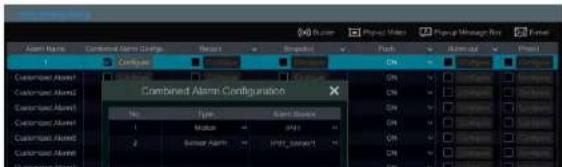

11.5 Exception Alarm Settings
① Click Start → Settings → AI/Event → Exception Alarm to go to the interface as shown below.

② Enable or disable "Push", "Alarm-out", "Buzzer", "Pop-up Message Box" and "E-mail". The exception handling settings are similar to that of the sensor alarm (see 11.1 Sensor Alarm for details).
③ Click "Apply" to save the settings.
11.6 Alarm Event Notification
11.6.1 Alarm-out
① Click Start → Settings → AI/Event → Event Notification to go to the following interface.


11.6.4 Buzzer
Click Start→Settings→AI/Event→Event Notification→Buzzer to go to the buzzer configuration interface. Set the delay time of the buzzer and then click "Apply" to save the setting. You can click "Test" to test the buzzer.
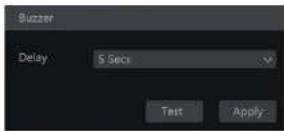
11.6.5 Push Message
Click Start → Settings → AI/Event → Event Notification → Push Message to go to the interface as shown below. Check "Enable" and then click "Apply" to save the settings. If Push Server is online, it will push messages to the mobile clients.

11 6 6 Digital Detergent
General Event Management
NVR User Manual

Select the camera and then enable audio device.
Audio In Device: Please select it according to the actual device configuration.
Speaker (built-in): Please select its function as needed.
LOUT: external audio output device, please select its function as needed.
Audio Input Encode: G711A/6711U
Local Audio Alarm
Set the audio alarm of local NVR.

In this interface, you can set the volume of local audio. Click "Add" to unload the audio file. Choose the unloaded audio file and then click "Listen".
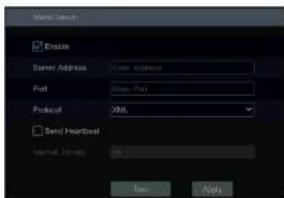
11.7 Manual Alarm
Click 📄 on the tool bar at the bottom of the live preview interface to pop up a window. Click "Trigger" to start alarm. Click "Clear" to stop alarm.

11.8 View Alarm Status
Click Start→Settings→Alarm→Alarm Status or click 📄 on the tool bar at the bottom of the live preview interface to view the alarm status.

12 Account & Permission Management
12.1 Account Management
Click Start Settings Account and Authority Account Edit User to go to the Interface as shown below.

Area ① displays the user permissions. Area ② displays the user list. Click the user in the list to display its user permissions in area ①.
There are three default permission groups ('Administrator', "Advanced" and "Common") available when adding accounts. You can manually add new permission group (see 12.3.1 Add Permission Group for details).
Only admin and the users that have the "Account and Authority" permission can manage the system's accounts. Group "Administrator" owns all the permissions displayed in area ① except "Account and Authority" and its permissions cannot be changed while the permissions of "Advanced" and "Common" can be changed.
12.1.1 Add User
① Click Start→Settings→Account and Authority→Account→Add User or click + beside the search box to pop up the window as shown below.


> Edit Security Question
You can set password security only for admin. Click "Edit Security Question" and then set questions and answers In the popup window. If you forget the password for admin, please refer to Q4 in Appendix A FAQ for details. The passwords of other users can be recovered by admin or the users that have the "Account and Authority" permission.
Modify Password
Only the password of admin can be modified. Click "Modify Password" to pop up a window. Enter the current password and then set new password. Click "OK" to save the settings.
Modify Pattern Lock
Some models may not support this function.
Click "Modify Pattern Lock" to pop up a window.
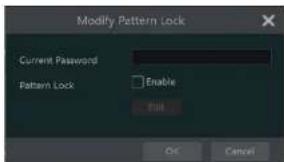
Enter current password and then check "Enable" to input pattern lock.

Account & Permission Management
NVR User Manual


12.2 User Login & Logout
Login: Click Start→Login or directly click the preview interface and then select username and enter the password in the popup window. Click "Login" button to log in the system.
Logout: Click Start → Logout or click Start → Shutdown to pop up the "Shutdown" window. Select "Logout" in the window and then click "OK" button to log out the system.
12.3 Permission Management
12.3.1 Add Permission Group
Click Start Settings Account and Authority Account Edit Permission Group to go to the interface as shown below.


12.3.2 Edit Permission Group
Go to "Edit Permission Group" interface and then click in the group list to edit the permission group (the operations of the "Edit Permission Group" are similar to that of the "Add Permission Group", please see 12.3.1 Add Permission Group for details). Click to save the group as another group. Click to delete the permission group. The three default permission groups ("Administrator", "Advanced" and "Common") cannot be deleted.
12.4 Block and Allow List
① Click Start→Settings→Account and Authority→Security to go to the following Interface.


12.6 Network Security
Click Start→Settings→Account and Authority→Security→Network Security to go to the following interface. You can enable APR Guard.

ARP Guard: Address Resolution Protocol Guard. This function can protect the LAN from APR attack and make the network run stably. If it is enabled, you can enable auto gateway MAC or manually set gateway MAC. Additionally, detection defense also can be enabled as needed.
12.7 Password Security
Click Start Settings Account and Authority Security Password Security to go to the following interface.

13 Device Management
13.1 Network Configuration
13.1.1 TCP/IP Configuration
Click Start→Settings→Network→TCP/IP to go to the following Interface. Check "Obtain an IPv4 address automatically", "Obtain an IPv6 address automatically" and "Obtain DNS automatically" to get the network addresses automatically, or manually enter the network addresses. You can modify the MTU value according to the network condition (MTU, Maximum Transmission Unit, can be modified according to network condition for higher network transmission efficiency). Click "Apply" to save the settings.

Note:
◆ Internal Ethernet Port
If you use the NVR with the PoE network ports, click "Internal Ethernet Port" to go to the following interface.
The Internal Ethernet port is the port which connects all the PoE ports with the NVR system. The PoE ports are available if the Internal Ethernet port is online; if it is offline, all the PoE ports will be unavailable, may be the internal Ethernet port is broken. The network addresses of the internal Ethernet port can be changed to make the port in the same network segment with the IP cameras which directly connect to the PoE ports of the NVR (it is not recommended to change the network addresses of the internal Ethernet port).
Mode: Non-long line mode or long line mode can be selectable. The non-line mode is the default setting. If the transmission performance of your network cables connected the PoE ports and IPC are not so good or these network cables are very long, you can choose long line mode.

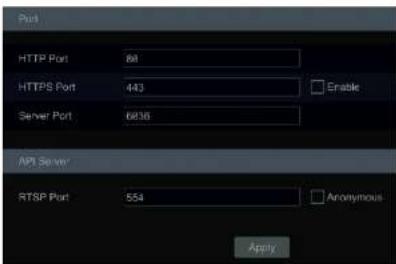
HTTP Port: the default HTTP port of the NVR is 80. The port number can be changed to others like 81. The port is mainly used to web client access. If you want to access the NVR through a web browser, you should enter IP address plus HTTP port in the address bar of the web browser like http://192.168.11.61:81.
HTTPS Port: the default HTTPS port of the NVR is 443.
HTTPS provides authentication of the web site and protects user privacy. How to use it?
① Enter IP address plus HTTP port in the address bar of the web browser. Then enter username and password to log in. Click Functional Panel Network HTTPS to go to the following interface.
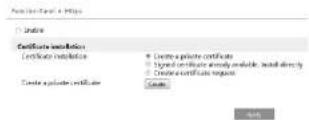
② Install a certificate.
* You can create a private certificate here. Click the "Create" button to create a private certificate. Enter the country (only two letters available), domain (NVR's IP address/domain), validity date, password, province/state, region and so on. Then click "OK" to save the settings.
* If there is a signed certificate, click "Browse" to select it and then click "install" to install it.
* Click "Create a certificate request" to enter the following interface.
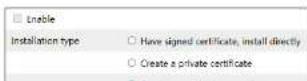
Note: The HTTP port and server port of the NVR should be mapped to the router before you access the NVR via WAN.
API Server: You can log in the media player which supports the RTSP protocol by the username and password here. Moreover, the third-party can further develop through API service.
Tips: The username and password of API Server here cannot be used to log in NVR. It is recommended to set the password of the API server different from the password of "admin" that is used to log in NVR.
RTSP Port: RTSP real-time stream protocol can be used to control the sending of real-time data. By media player (like VLC player) which supports the RTSP real-time stream protocol, you can view the live images synchronously. The default RTSP port is 554 and it can be changed as needed. (The address format: rtsp://IP address:554/chID=1&streamType=main or rtsp://IP address:554/chID=1&streamType=sub; main indicators main stream; sub indicators sub stream; chID indicators channel ID).
Examples: ① Enable RTSP and "Anonymous". Then open the VLC player and enter the address (for example:
rtsp://192.168.1.88:554/chID=1&streamType=main) In the network address bar of the VLC player. Then you can view the video of channel 1.
② Enable RTSP and open the VLC player. After that enter the address (for example: rtsp://192.168.1.88:554/chld=&streamType=sub) in the network address bar of the VLC player. Then a login box will pop up. Enter the username and password which shall be as the same as the username and password of API server. Then you can view the video of channel 1.
Note: only some versions may support API server function. Please skip the following instructions if your DVR doesn't support it.
If your NVR is a PoE NVR, you can also enable virtual host in the port setting interface via Web Client. After this function is enabled, the web settings Interface of NVR can be jumped to the web client of the IPC. The setting steps are as follows.
- Please login the Web Client of NVR (See 14.2 Web LAN Access or 14.3 Web WAN Access for details). Click Settings→Network→Port to go to the following page.

-
Check "Enable virtual host" and then click "Apply".
-
Click Camera bolt Camera to go to the following Interface.


13.1.4 DDNS Configuration
The DDNS is used to control the dynamic IP address through domain name. Speco Technologies provides free DDNS service with US-based servers. You can access to the NVR easily if the DDNS is enabled and configured. Click Start→Settings→Network→DDNS to go to the interface as shown below. The default DDNS type will be "specoddns.net". The default domain name will be shown, you can use this for your domain name or enter your own. If invalid or taken, please select another domain name. Click on test to check if ok. If so, you may now go to [your domain name].specoddns.net with Internet Explorer and access your recorder remotely.
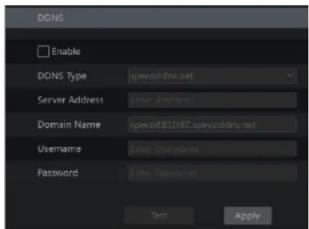
13.1.5 E-mail Configuration
Click Start→Settings→Network→E-mail to go to the following interface. Enter the sender's name, e-mail address, SMTP server and SMTP port (you can click "Default" to reset the SMTP port to the default value) and then enable or disable the SSL and attaching image. Select the username (the username list will be updated automatically according to the email address you input) and enter the password of the sender and then click "Apply" to save the settings (you don't have to enter the username and password if "Anonymous Login" is enabled). Click "Test" to pop up a window. Enter the e-mail address of the recipient in the window and then click "OK" button. The e-mail address of the sender will send an e-mail to the recipient. If the e-mail is sent successfully, it indicates that the e-mail address of the sender is configured correctly.

Click "Add" and then enter the recipient's e-mail address and select the schedule (if a schedule is selected, the system will send the alarm email and the recipient will receive it only in the selected schedule time) in the popup window. Click "Add" in the window to add the recipient. You can also change the recipient's receiving schedule by clicking in the "Schedule" column. Click to delete the recipient in the list. Click "Apply" to save the settings. Click "Edit Sender" to go to the e-mail configuration interface of the sender.
13.1.6 UPnP Configuration
By UPnP you can access the NVR through the web client which is in WAN via router without port mapping.
① Click Start→Settings→Network→UPnP to go to the following interface.
② Make sure the router supports UPnP function and the UPnP is enabled in the router.
③ Set the NVR's IP address, subnet mask and gateway and so on corresponding to the router.
④ Check "Enable" in the interface as shown below and then click "Apply" button.
Click "Refresh" button to refresh the UPnP status. If the UPnP status were still "Invalid UPnP" after refreshing it for many times, the port number would be wrong. Please change the mapping type to "Manual" and then click to modify the port until the UPnP status turns to "Valid UPnP". Refer to the following picture. You can view the external IP address of the NVR. Enter the external IP address plus port in the address bar of your browser to access the NVR such as http://183.17.254.19:81.

Device Management
NVR User Manual
Protocol type and EAPOL version: Please use the default settings.
User name and password: The user name and password must be the same with the user name and password applied for and registered in the authentication server.
13.1.8 NAT Configuration
Click Start →Settings →Network →NAT to go to the interface for NAT configuration and check "Enable". Click "Apply" to save the settings and make note of the QR code number under the QR code. Via Internet Explorer, go to connect.specotech.cloud, input the QR code number, your username and password to login.
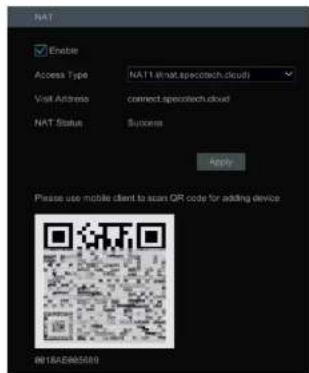
You can also scan the QRcode through Speco Blue App which is installed in the mobile phone or tablet to log in the mobile client instantly.
13.1.9 View Network Status
Click Start → Settings → Network → Status to view the network status or click 📄 on the tool bar at the bottom of the live view Interface to view network status conveniently.
13.2 Basic Configuration
13.2.1 General Configuration
Device Management
NVR User Manual
Manual: select "Manual" in the "Synchronous" option and then click after the "System Time" option to set the system time. NTP: select "NTP" in the "Synchronous" option and then enter the NTP server.

13.2.3 Recorder OSD Settings
Click Start → Settings → System → Basic → Recorder OSD settings to go to the following interface. OSD name and icon can be enabled here.
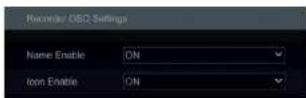
13.3 Factory Default
Click Start→Settings→System→Maintenance→Factory Default and then click "Reset to factory default" button in the interface to reset to the factory default settings (check "Reset retain Network Configuration" to retain the network settings).
Note: Resetting to the factory default settings will not change time zone.
13.4 Device Software Upgrade
Device Management
NVR User Manual
13.5 Backup and Restore
You can back up the configuration file of the NVR by exporting the file to other storage devices; you can recover the configuration to other NVRs which are of the same model with the NVR by importing the configuration file to other NVRs for time saving.
Insert the USB storage device into the USB Interface of the NVR and then click Start → Settings → System → Maintenance → Backup and Restore to go to the Interface.
- Backup
Select the USB device in "Device Name" option; go to the path where you want to store the configuration backup file and then click "Backup" button; finally click "OK" button in the popup window.
- Recover
Select the USB device in "Device Name" option; find the configuration backup file and then click "Recover" button; finally click "OK" button in the popup window.
13.6 Restart Automatically
You can set the automatic restart time for the NVR to maintain it regularly. Click Start→Settings→System→Maintenance→Auto Maintenance to go to the interface as shown below. Enable auto maintenance, set the interval days and point of time and then click "Apply" to save the settings. The NVR will restart automatically at the pointed time every interval of days.

13.7 View Log
Click Start→Settings→System→Maintenance→View Log to go to the log view interface. Select the log main type, click 📄 to set start time and end time and then click "Search" button. The searched log files will be displayed in the list.

Device Management
NVR User Manual
Choose the log file in the list and then click "Export" button to export the log file. Click 📄 on the "Content" title bar to pop up a menu list. Check contents in the menu list and then the log list will show the checked log contents only. Click 📄 to play the video log.
13.8 View System Information
Click Start → Settings → System → Information and then click the corresponding menu to view the "Basic", "Camera Status", "Alarm Status", "Record Status", "Network Status" and "Disk" information of the system.
14 Remote Surveillance
14.1 Mobile Client Surveillance
① Enable NAT in the NVR. Refer to 13.1.8 NAT Configuration for details.
② Scan the QRCode through the Speco Blue App available for iOS and Android to easily and securely view your cameras.
① Run the mobile client, go to the "Add Device" interface and then click □ to scan the QRCode of the NVR (Go to Start Settings System Information Basic to view the QRCode of the NVR).
④ After scanning the QRCode successfully, enter the login password to log in mobile client.


14.2 Web LAN Access
① Click Start→Settings→Network→TCP/IP to go to the "TCP/IP" Interface. Set the IP address, subnet mask, gateway, preferred DNS and alternate DNS of the NVR.
② Open the web browser on your computer, enter the IP address of the NVR in the address bar and then press enter to go to the login interface as shown below. You can change the display language on the top right corner of the login interface. Enter the username and password of the NVR in the interface and then click "Login" to go to the live view interface.

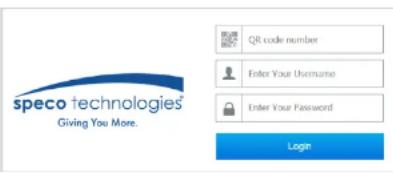
PPPoE Access
① Click Start→Settings→Network→PPPoE to go to the "PPPoE" interface. Check "Enable" in the "PPPoE settings" and then enter the username
and password you get from your ISP. Click "Apply" to save the settings.
② Click Start → Settings → Network → Network Status to view the IP address of the NVR.
③ Open the web browser on your computer, enter the IP address of the NVR like http://210.21.229.138 in the address bar and then press enter to go to the login Interface. Enter the username and password of the NVR in the Interface and then click "Login" to go to the live view Interface.
Router Access
① Click Start→Settings→Network→TCP/IP to go to the "TCP/IP" interface. Set the IP address, subnet mask, gateway, preferred DNS and alternate DNS of the NVR.
② Set the HTTP port (It is suggested to modify the HTTP port because the default HTTP port 80 might be taken up) and enable UPnP function in both the NVR and the router. If the UPnP function is not available in the router, you need to forward the LAN IP address, HTTP port and server port of the NVR to the router. Port mapping settings may be different in different routers, so please refer to the user manual of the router for details.
Get the WAN IP address of the NVR from the router. Open the web browser on your computer, enter the WAN IP address plus HTTP port like http://116.30.18.215:100 in the address bar and then press enter to go to the login interface. Enter the username and password of the NVR in the interface and then click "Login" to go to the live view interface.
Note: If the WAN IP address is a dynamic IP address, it is necessary for you to use the domain name to access the NVR. Click Start Settings Network DDNS to set DDNS (see 12.1.4 DDNS Configuration
for details). By using DDNS function you can use the domain name plus HTTP port like
http://sunshine.dvrdydns.com:100 to access the NVR via internet.
14.4 Web Remote Control
The supported browsers of the remote surveillance are IE8/9/10/11, Firefox, Opera and Chrome (available only for the versions lower than 45) in Windows system and Safari in MAC system. Here we take IE browser for example. When you access the NVR through IE for the first time, you need to download and install the relative components for normal preview and playback. Please refer to the tips in the remote interfaces for details. The buttons and icons on the top right corner of the remote interface are introduced as follows:
Remote Surveillance
NVR User Manual

Start Preview
Select a window in the preview area and then click one online camera on the left panel to preview the camera in the window. You can click 📄 in the tool bar to view all the cameras.
Left Panel Introduction
Click < on the left panel to hide the panel and click > to show the panel. You can view all the added cameras and groups on the left panel.
- View Camera
Click Camera to view the cameras. You can view the number of all the added cameras and the online cameras. For instance, the left number 3 in Camera (3/4) on the left panel stands for the number of online cameras; the right number 4 stands for the number of all the added cameras. Enter the camera name in the search box and then click to search the camera. Click to refresh the camera list.
• View Group
Click to show the group of using group and all cameras in the group can be shown in the left panel.
Remote Surveillance
NVR User Manual
| Button | Meaning |
| Click it to enable talk with the NVR. |
Right Panel Introduction
Click < on the right panel to show the panel and click to hide the panel. Click PTZ at the bottom of the panel to go to "PTZ" panel. Click 🔍 to go to "Lens Control". Click Operation to go to "Operation" panel.
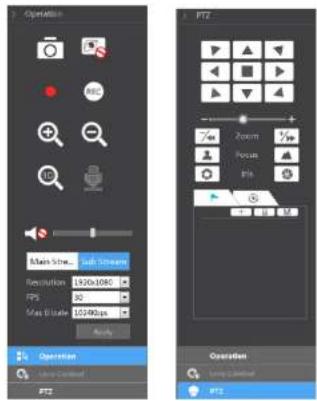
Click one camera window in the preview area and then click Main Stream to set the camera's live view stream and record stream to main stream in manual record mode; click Sub stream to set the camera's live view stream and record stream to sub stream. In sub stream tab, set the resolution, FPS and bitrate and then click "Apply" to save the settings.
Operation panel introduction:
| Button | Meaning |
| Click it to take snapshots. | |
| Click it to start recording to computer click it again to stop recording.Click /To increase/decrease the local length. | |
| Click /To increase/decrease the iris of the dome. | |
| Click it to view the preset list and then click the button in the list to call the preset. | |
| Click it to view the cruise list and then click the corresponding buttons in the list to start or stop the cruise. |
14.4.2 Remote Playback
Click "Playback" in the remote interface to go to the playback interface.
① Check the record event types and cameras on the left panel. Set the record date on the calendar beside the time scale.
Click to search the record data and then click or directly click the time scale to play the record. The operation of the playback time scale is similar to that of the time scale in the main program of the NVR. Please refer to 8.2 Playback Interface Introduction for details.
Introduction of playback control buttons:
| Button | Meaning |
| Stop button. | |
| Rewind button. Click it to play video backward. | |
| Play button. Click it to play video forward. | |
| Pause button. | |
| Deceleration button. Click it to decrease the playing speed. | |
| Acceleration button. Click it to increase the playing speed. | |
| Previous frame button. It works only when the forward playing is paused in single screen mode. | |
| Next frame button. It works only when the forward playing is paused in single screen mode. | |
| Click to stop backward 30s and click to stop forward 30s. | |
| Backup start time button. Click the time scale and then click it to set the backup start time. | |
| Backup end time button. Click the time scale and then click it to set the backup end time. | |
| Export button. | |
| Backup tasks button. Click it to view the backup status. | |
| Event list button. Click it to view the event record of manual/schedule/sensor/motion. |
Remote Surveillance
NVR User Manual
14.4.4 Intelligent Analysis
Click "Intelligent Analysis" in the remote interface to configure smart search, statistics, face database, face attendance and face check in. All of these settings are similar to that of the NVR. See the configurations of the NVR for details.
14.4.5 Remote Configuration
Click "Function Panel" in the remote interface and then configure the camera, record, alarm, disk, network, account and authority and system of the NVR remotely. All of these settings are the same as the settings of the NVR. See the configurations of the NVR for details.
Appendix A FAQ
Q1. Why can't I find the HDD?
a. Please check the power and SATA data cables of the HDD to make sure they are well connected.
b. For some NVRs with the 1U or small 1U case, the power of the adapter may be not enough for operating them. Please use the power adaptor supplied along with the NVR.
c. Please make sure the HDDs are compatible with the NVR. See Appendix C Compatible Device List for details.
d. The HDD could have gone bad. Change a new one.
Q2. Why are there no images output in some or all of the camera windows?
a. Please make sure the resolutions of the cameras are supported by the NVR.
b. Please make sure the network cables of the IP camera and NVR are both connected properly and the network parameters are set correctly.
c. Please make sure the network and the switch both work normally.
Q3. The screen has no output after booting the NVR normally.
a. Please make sure the screen, HDMI or VGA cables are good and well connected.
b. Please make sure the screen supports the resolution of 1280*1024, 1920*1080 or 3840*2160 (4K*2K). The NVR cannot self-adapt to the screen of which the resolution is lower than 1280*1024, and then the screen will remind you that the screen resolution is not supported by the NVR or just have no display. Please change a screen at 1280*1024, 1920*1080 or 3840*2160 resolution before booting the NVR.
Q4. Forget the passwords?
a. The password for admin can be reset through "Edit Security Question" function.
Click "Edit Security Question" button in the login window and then enter the corresponding answer of the selected question in the popup window, the password for admin will be reset to 123456 by default. If you forget the answer of the question, this way will be invalid, please contact your dealer for help.
b. The passwords of other users can be reset by admin, please refer to 12.1.2 Edit User for details.
Q5. The NVR cannot add up to the maximum number of IP cameras?
Take the 16 CH NVR as an example. Some 16 CH NVR support a maximum of 120Mbps bandwidth input (please take the real device for standard). Refer to the picture below. The remaining bandwidth should be larger than the bandwidth of the IP camera you want to add, or you would fail to add the IP camera. You should lower the added cameras' bitrate to release the bandwidth. It is recommended to add cameras by "Quickly Add" for batch adding.

Supposing that 12 CH IP cameras have been added to the NVR through network and no IP camera has been directly connected to the PoE port. The 12 CH IP cameras occupy the 8 network resources from CH1 to CH8 and 4 PoE resources from CH9 to CH12 which are supposed to be occupied by connecting the IP cameras directly. In this situation, if you directly connect one IP camera to PoE5, PoE6, PoE7 or PoE8, the IP camera will be displayed in the camera list automatically; if you connect it to PoE1, PoE2, PoE3 or PoE4, it won't be displayed in the camera list by showing resource conflict; if you just need to connect it to PoE1, PoE2, PoE3 or PoE4, you should first delete the IP camera which occupies the PoE port resource and then reconnect it to the PoE port.
- Take the 8 CH NVR with 8 PoE ports as another example. The resource distribution of the 8 CH IP cameras is shown in the picture below and the adding rules of the IP cameras are similar to the rules mentioned in the above. Please refer to the above for details.
| CRL | CE2 | CBS | CH4 | CBS | CD0 | CST | CH8 |
| POE-1 | POE-2 | POE-3 | POE-4 | POE-5 | POE-6 | POE-7 | POE-8 |
b. Please make sure that the internal Ethernet port and the IP camera which directly connects to the PoE port through ONVIF protocol are in the same network segment.
The internal Ethernet port and the IP camera which directly connects to the PoE port through ONVIF protocol should be in the same network segment, or you will fail to add the IP camera. Log in the IP camera's web client and then enable DHCP (obtain an IP address automatically); or manually change the IP address of the IP camera to make it in the same network segment with the internal Ethernet port.
c. Check whether the number of the added IP camera is the maximum.
If the number of the added IP camera is the maximum, the system will show you the message that the IP camera number is beyond the maximum when you directly connect another IP camera to the available PoE port and thus you will fail to add the IP camera.
Q7. The IP camera which directly connects to the PoE port of the NVR through ONVIF protocol is shown in the camera list, but there is no image output, why?
Please make sure the username and password of the IP camera are correct. The IP camera's username and password can be modified through the two ways mentioned as below.
① Click "Edit Camera" In the Camera module of the setup panel to go to the Interface as shown below. Click 📄 to modify the username and password of the IP camera (enter the correct username and password of the IP camera in the popup window and then click "OK" button).
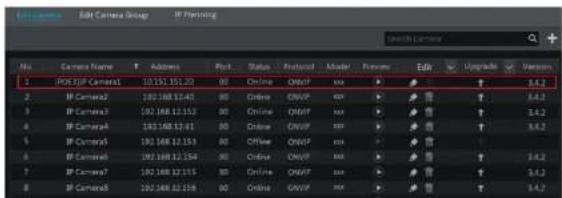
the firewall and stop the antivirus software.
c. Allow & block list may have been set in Account and Authority setting. The PC of which the IP address is in the block list or out of the allow list cannot access the NVR remotely.
Q10. ActiveX control cannot be downloaded. How can I do?
a. IE browser blocks ActiveX control. Please do setup as per the steps mentioned below.
① Open IE browser. Click Internet Options.

② Select Security→Custom Level. Refer to Fig 10-1.
③ Enable all the sub options under "ActiveX controls and plug-ins". Refer to Fig 10-2.
④ Then click "OK" to finish setup.
b. Other plug-ins or anti-virus may block ActiveX. Please disable or do the required settings.
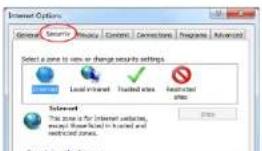
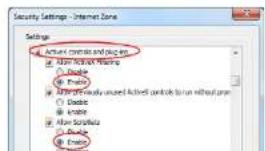
Note: The record will not have audio output if you disable the audio when recording by NVR. Please see 7.1.1 Mode Configuration and 7.2 Encode Parameters Setting for details.
player which supports this
- If you select the AVI format.
b. Record backed up through web. The record can only be backed up with AVI format through web. The record can be backed up to PC and played by the video player which supports this format.

Fig 11-1
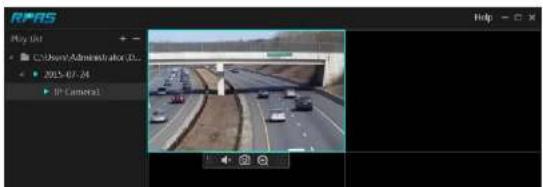
Appendix B Calculate Recording Capacity
The recording capacity is mainly up to the record resolution, record stream and bitrate. Different image quality parameters decide different disk capacity occupation in equal times. The bigger the record resolution, record stream and record bitrate is, the more disk capacity is taken up in equal times. The calculation format of recording capacity is shown as below.
Recording Capacity (MB) = Bitrate (Kbps) ÷ 1024 ÷ 8 × 3600 × Recording hours per day × Record Storage Days × channel numbers 3600 means record for an hour (1TB=1024GB, 1GB=1024MB, 1MB=1024KB, 1Byte=8bit).
| Record Bitrate (kbps) | Used Space (MB/H) | Used Space (MB/D) |
| 10240 | 4500 | 108000 |
| 8192 | 3600 | 86400 |
| 6144 | 2700 | 64800 |
| 4296 | 1800 | 43200 |
| 3072 | 1350 | 32400 |
| 2048 | 900 | 21600 |
| 1024 | 450 | 10800 |
| 768 | 337.5 | 8100 |
| 512 | 225 | 5400 |
| 384 | 168.75 | 4050 |
| 256 | 112.5 | 2700 |
The table below shows the recording capacity requirements for record storage in 30 days.
| Record Bitrate (kbps) | Recording Capacity (TB) | |||||
| 1CH | 4CH | 8CH | 16CH | 32CH | 64CH | |
| 10240 | 3.09 | 12.36 | 24.72 | 49.44 | 98.88 | 197.76 |
| 8192 | 2.48 | 9.89 | 19.78 | 39.56 | 79.11 | 158.21 |
| 6144 | 1.86 | 7.42 | 14.84 | 29.67 | 59.33 | 118.66 |
| 4096 | 1.24 | 4.35 | 9.89 | 19.78 | 39.56 | 79.11 |
| 3072 | 0.93 | 3.71 | 7.42 | 14.84 | 29.67 | 59.33 |
| 2048 | 0.62 | 2.48 | 4.95 | 9.89 | 19.78 | 39.56 |
| 1024 | 0.31 | 1.24 | 2.48 | 4.95 | 9.89 | 19.78 |
| 768 | 0.24 | 0.93 | 1.86 | 3.71 | 7.42 | 14.84 |
| 512 | 0.16 | 0.62 | 1.24 | 2.48 | 4.95 | 9.89 |
| 384 | 0.12 | 0.47 | 0.93 | 1.86 | 3.71 | 7.42 |
| 256 | 0.08 | 0.31 | 0.62 | 1.24 | 2.48 | 4.95 |
For instance, there is a 32CH NVR recording 24 hours per day and the record stores for 30 days. The NVR adopts dual stream recording. The main stream is 4096Kbps and the sub stream is 1024Kbps, then the total recording capacity is 49.45TB (39.56TB + 9.89TB).
Appendix C Specifications
| Model | N4NRN | |
| System | Compression | Standard H.265 |
| OS | Embedded Linux | |
| Video | IPC Input | 4CH |
| Network Access Bandwidth | 40 Mbps | |
| Network Access Format | 8MP/6MP/5MP/4MP/3MP/1080P/960P/720P@25/30fps | |
| Output | HDMI×1: 4K×2K/1920×1080/1280×1024/1024×768VGA×1: 1920×1080/1280×1024/1024×768 | |
| Audio | Network Input | 4 CH IPC audio input |
| 2-way Audio | RCA×1 | |
| Local Output | RCA×1 | |
| Record | Resolution | 8MP/6MP/5MP/4MP/3MP/1080P/960P/720P |
| Mode | Manual, schedule, motion, sensor, intelligence | |
| Playback | Simultaneous Playback | Max 4 CH |
| Search Mode | EZ search, museum search, time search, event search, bookmark search | |
| Smart Search | Highlighted color to display camera records in a certain period of time, different colors refer to different record events | |
| Function | Play, pause, FF, FB, etc. | |
| Alarm | Mode | Manual, sensor, motion, exception, intelligence |
| Input | Support IPC alarm Input | |
| Output | Support IPC alarm output | |
| Linkage | Record, snapshot, preset, e-mail, pop-up window, etc. | |
| Network | Interface | RJ45 10M/100M/1000Mbps×1 |
| PoE ports | 100M RJ45×4 (IEEE802.3AF/AT) | |
| Protocol | TCP/IP, PPPoE, DHCP, DNS, DONS, UPnP, NTP, SMTP | |
| Web Client | Max. 10 online users monitoring | |
| Mobile Device | OS | Speco Blue ICS, Android |
| Storage | HDD | SATA×1, max 14TB per HDD |
| Export | Local | By U disk, USB mobile HDD |
| Model | NBNRN | |
| System | Compression | Standard H.265 |
| OS | Embedded Linux | |
| Video | IPC Input | BCH |
| Network Access Bandwidth | 80Mbps | |
| Network Access Format | 8MP/6MP/5MP/4MP/3MP/1080P/960P/720P@25/30fps | |
| Output | HDMI×1: 4K×2K/1920x1080/1280×1024/1024×768VGA×1: 1920x1080/1280×1024/1024×768 | |
| Audio | Network input | BCH IPC audio input |
| 2-way Audio | RCA×1 | |
| Local Output | RCA×1 | |
| Record | Resolution | 8MP/6MP/5MP/4MP/3MP/1080P/960P/720P |
| Mode | Manual, schedule, motion, sensor, intelligence | |
| Playback | Simultaneous Playback | Max 8 CH |
| Search Mode | EZ search, time search, event search, bookmark search | |
| Smart Search | Highlighted color to display camera records in a certain period of time, different colors refer to different record events | |
| Function | Play, pause, FF, FB, etc. | |
| Alarm | Mode | Manual, sensor, motion, exception, intelligence |
| Input | Support IPC alarm input | |
| Output | Support IPC alarm output | |
| Linkage | Record, snapshot, preset, e-mail, pop-up window, etc. | |
| Network | Interface | RJ45 10M/100/1000Mbps×1 |
| PoF ports | 100M RJ45x8 [IFFE802.3AF/AT] | |
| Protocol | TCP/IP, PPPoE, DHCP, DNS, DDNS, UPnP, NTP, SMTP | |
| Web Client | Max. 10 online users monitoring | |
| Mobile Device | OS | Speco Blue iOS, Android |
| Storage | HDD | SATA×1, max 14TB per HDD |
| Export | Local | By U disk, USB mobile HDD |
| Network | Yes | |
| Interface | USB | USB2.0×2 |
| Remote Controller | Yes | |
| Others | Power Supply | DC48V2.SA |
| Power Consumption | <10W (without HDD and PoF power supply) | |
| Dimensions [ W×D×H ] | 11.8" x 9.8" x 2.0" [300mm×248mm×52mm] | |
| Working Environment | -4"122F (-10"50°C), 10%~90% (humidity) | |
Specifications
NVR User Manual
| Model | N1GNRN | |
| System | Compression | Standard H.265 |
| OS | Embedded Linux | |
| Video | IPC Input | 1GCH |
| Network Access Bandwidth | 96M/bps | |
| Network Access Format | 8MP/6MP/5MP/4MP/3MP/1080P/960P/720P@25/30fos | |
| Output | HOM/x1: 4K×2K/1920x1080/1280x1024/1024x768VGA/x1: 1920x1080/1280x1024/1024x768 | |
| Audio | Network Input | 16CH IPC audio input |
| 2-way Audio | RCA×1 | |
| Local Output | RCA×1 | |
| Record | Resolution | 8MP/6MP/5MP/4MP/3MP/1080P/960P/720P |
| Mode | Manual, schedule, motion, sensor, intelligence | |
| Playback | Simultaneous Playback | Max 16 CH |
| Search Mode | EZ search, time search, event search, bookmark search | |
| Smart Search | Highlighted color to display camera records in a certain period of time, different colors refer to different record events | |
| Function | Play, pause, FF, FO, etc. | |
| Alarm | Mode | Manual, sensor, motion, exception, intelligence |
| Input | Support IPC alarm input | |
| Output | Support IPC alarm output | |
| Linkage | Record, snapshot, preset, e-mail, pop-up window, etc. | |
| Network | Interface | RUAS 10M/100/1000Mbps×1 |
| PoE Port | 100M RJ45x16 (IEEE802.3AF/A7) | |
| Protocol | TCP/IP, PPPoE, DHCP, DNS, DDNS, UPnP, NTP, SMTP | |
| Web Client | Max. 10 online users monitoring | |
| Mobile Device | OS | Spoco Blue IOS, Android |
| Storage | HDD | SATA×2, max 14TB per HDD |
| Export | Local | By U disk, USB mobile HDD |
| Network | Yes | |
| Interface | USB | USB2.0×2 |
| Remote Controller | Yes | |
| Others | Power Supply | DC48V/3.75A |
| Power Consumption | ≤10W(without HDD and PoE power supply) | |
| Dimensions ( WxOxH ) | 15.0" x 10.6" x 2.0" [380mm×268mm×52mm] | |
| Working Environment | -4~122F (-10~50°C), 10%~90% (humidity) | |
Model: N4NRN/N8NRN/N16NRN
Federal Communications Commission (FCC) Statements
This device complies with Part 15 of the FCC Rules. Operation is subject to the following two conditions: (1) This device may not cause harmful interference, and (2) This device must accept any interference received, including interference that may cause undesired operation.
FCC Responsible Party:
Speco Technologies
200 New Highway
Amityville, NY 11701
www.specotech.com
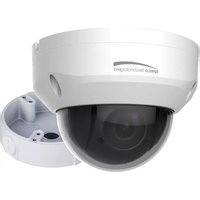
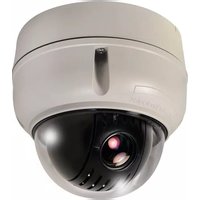
- Notes& Contents
- Notes
- Contents
- Introduction
- Welcome
- Features
- Introduction
- Record Export
- LPR Function
- Front Panel Descriptions
- Rear Panel Descriptions
- Basic Operation Guide
- Startup & Shutdown
- Startup
- Shutdown
- By remote control:
- By mouse:
- Remote Control
- Common Button Operation
- EZ Setup & Main Interface
- EZ Setup
- Setup Panel
- Main Functions
- Camera Management
- Add/Edit Camera
- Add Camera
- > Quickly Add
- Camera Management
- Add Recorder
- Add/Edit Camera Group
- Add Camera Group
- IP Planning
- Live View Introduction
- Live View Interface Introduction
- View Mode
- Display Mode
- Live View Introduction
- Quick Sequence View
- Camera Group View In Sequence
- Image Configuration
- OSD Settings
- Mask Settings
- Image Adjustment
- Lens Control
- PTZ
- PTZ Control Interface Introduction
- 3D Control
- Cruise Setting
- Trace Settings
- Add preset
- Edit preset
- Delete Preset
- Cruise Setting
- Cruise Group Settings
- Play or Stop Trace
- Modify the Trace Name
- Delete the Trace
- Task Settings
- Record & Disk Management
- Record Configuration
- Mode Configuration
- Auto Mode
- Record & Disk Management
- Customization Mode
- Schedule Settings
- Add Schedule
- Set Day Schedule
- Advanced Configuration
- Encode Parameters Setting
- Timing Recording
- Motion Based Recording
- Sensor Based Recording
- AI Event Recording
- Disk
- Disk Management
- Storage Mode Configuration
- Playback & Backup
- Instant Playback
- Playback Interface Introduction
- Playback & Backup
- Smart Playback
- Smart Playback Settings
- Smart Playback Based on Motion Detection
- Smart Search by License Plate
- Record Search, Playback & Export
- EZ Search
- Event Search
- Snapshots
- View Export Status
- AI Event Management
- Face Detection
- Face Detection Alarm Linkage Configuration:
- License Plate Recognition
- Plate Database Management
- AI Event Management
- License Plate Recognition Settings
- Tripwire
- Tripwire/Line Crossing Configuration:
- Intrusion Detection
- Intrusion Detection Configuration:
- Abandoned/Missing Object Detection
- Crowd Density Detection
- Line Crossing Counting
- - People counting in the pre-defined area
- Tampering Detection
- Intelligent Analytics
- Target Detection View
- Human Body/Vehicle Detection View
- License Plate Detection/Recognition View
- Intelligent Analytics
- Smart Search
- Human Body Search
- Vehicle Search
- Combination Search
- View Statistical Information
- General Event Management
- Motion Alarm
- Motion Configuration
- Motion Alarm Handling Configuration
- Combination Alarm
- Exception Alarm Settings
- Alarm Event Notification
- Alarm-out
- Buzzer
- Push Message
- Manual Alarm
- View Alarm Status
- Account & Permission Management
- Account Management
- Add User
- > Edit Security Question
- Modify Password
- Modify Pattern Lock
- User Login & Logout
- Permission Management
- Add Permission Group
- Edit Permission Group
- Block and Allow List
- Network Security
- Password Security
- Device Management
- Network Configuration
- TCP/IP Configuration
- Note:
- ◆ Internal Ethernet Port
- DDNS Configuration
- E-mail Configuration
- UPnP Configuration
- Device Management
- NAT Configuration
- View Network Status
- Basic Configuration
- General Configuration
- Recorder OSD Settings
- Factory Default
- Device Software Upgrade
- Backup and Restore
- - Backup
- - Recover
- Restart Automatically
- View Log
- View System Information
- Remote Surveillance
- Mobile Client Surveillance
- Web LAN Access
- PPPoE Access
- Router Access
- Web Remote Control
- Start Preview
- Left Panel Introduction
- - View Camera
- • View Group
- Remote Surveillance
- Right Panel Introduction
- Remote Playback
- Intelligent Analysis
- Remote Configuration
- Appendix A FAQ
- Q1. Why can't I find the HDD?
- Q2. Why are there no images output in some or all of the camera windows?
- Q3. The screen has no output after booting the NVR normally.
- Q4. Forget the passwords?
- Q5. The NVR cannot add up to the maximum number of IP cameras?
- Q10. ActiveX control cannot be downloaded. How can I do?
- Appendix B Calculate Recording Capacity
- Model: N4NRN/N8NRN/N16NRN
- Federal Communications Commission (FCC) Statements
- FCC Responsible Party:
Brand : Speco Technologies
Model : N4WNRN
Category : Surveillance Camera