
43UH610N - Television LG - Free user manual and instructions
Find the device manual for free 43UH610N LG in PDF.


| Product Type | 4K Ultra HD Smart LED TV |
| Screen Size | 43 inches (108 cm) |
| Resolution | 3840 x 2160 (4K UHD) |
| Dimensions (W x H x D) without Stand | 97.1 x 57.1 x 5.9 cm (approx.) |
| Weight without Stand | 9.5 kg (approx.) |
| VESA Mount Pattern | 200 x 200 mm |
| Screw Size for Wall Mount | M6 (4 screws) |
| Power Consumption | 80 W (typical) |
| Power Supply | AC 100-240 V, 50/60 Hz |
| Remote Control | Includes, uses 2 x AAA batteries |
| Connectivity | 3x HDMI, 1x USB, AV input, RF input |
| Smart TV Features | WebOS, built-in Wi-Fi (802.11a/b/g/n) |
| ULTRA HD Deep Colour | Supports 4K @ 50/60 Hz (4:4:4, 4:2:2, 4:2:0) on HDMI |
| Audio Output | Optical (S/PDIF), headphone jack |
| Operating Temperature | 0 °C to 40 °C |
| Operating Humidity | Less than 80% |
| Safety Features | Auto-off, child lock, ventilation requirements |
| Included Accessories | Power cord, remote control, batteries, stand |
| Spare Parts Availability | Remote, stand, power cord (contact LG service) |
| Repairability | Service center recommended for internal repairs |
| Eco Mode | Available in settings to reduce power consumption |
Frequently Asked Questions - 43UH610N LG
User questions about 43UH610N LG
0 question about this device. Answer the ones you know or ask your own.
Ask a new question about this device
Download the instructions for your Television in PDF format for free! Find your manual 43UH610N - LG and take your electronic device back in hand. On this page are published all the documents necessary for the use of your device. 43UH610N by LG.
USER MANUAL 43UH610N LG
Safety and Reference
LED Monitor*
* LG LED Monitors applies LCD Monitors with LED backlights.
Safety instructions
Please read these safety precautions carefully before using the product.
WARNING

Do not place the monitor and/or remote control in the following environments:
bathroom
other devices that produce heat
they can easily be exposed to steam or oil
Otherwise, this may result in fire, electric shock, malfunction or product deformation.

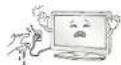
Do not touch the power plug with wet hands. Additionally, if the cord pin is wet or covered with dust, dry the power plug completely or wipe dust off. You may be electrocuted due to excess moisture.

Make sure to connect Mains cable to compliant AC mains socket with Grounded earth pin. (Except for devices which are not grounded on earth.) Otherwise possibility you may be electrocuted or injured.

Insert power cable plug completely into wall socket otherwise if not secured completely into socket, fire ignition may break out.
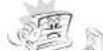

When mounting monitor onto wall make sure to neatly install and isolate cabling from rear of monitor as to not create possibility of electric shock /fire hazard.
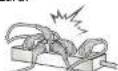
Do not plug too many electrical devices into a single multiple electrical outlet. Otherwise, this may result in fire due to over-heating.

Do not drop the product or let it fall over when connecting external devices. Otherwise, this may result in injury or damage to the product.

Keep the anti-moisture packing material or vinyl packing out of the reach of children.

Do not let your children climb or cling onto the monitor.
Otherwise, the monitor may fall over, which may cause serious injury.

Dispose of used batteries carefully to ensure that a small child does not consume them.
Please seek Doctor- Medical Attention immediately if child consumes batteries.

Do not insert any metal objects/conductors (like a metal chopstick/cutlery/screwdriver) between power cable plug and input Wall Socket while it is connected to the input terminal on the wall. Additionally, do not touch the power cable right after plugging into the wall input terminal. You may be electrocuted.

Do not drop metallic objects such as coins, hair pins, chopsticks or wire into the product, or inflammable objects such as paper and matches. Children must pay particular attention. Electrical shock, fire or injury can occur. If a foreign object is dropped into the product, unplug the power cord and contact the service centre.

Do not spray water on the product or scrub with an inflammable substance (thinner or benzene). Fire or electric shock accident can occur.

Do not allow any impact, shock or any objects to fall into the unit, and do not drop anything onto the screen. You may be injured or the

Do not disassemble, repair or modify the product at your own discretion. Fire or electric shock accident can occur. Contact the service centre for check, calibration or repair.

If any of the following occur, unplug the product immediately and contact your local service centre.
smell
This may result in fire or electric shock.

Unplug the monitor from AC mains wall socket
Do not install this product on a wall if it could be exposed to oil or oil mist. This may damage the product and cause it to fall.
If water enters or comes into contact with monitor, power cord please disconnect the power cord and contact service centre immediately. Otherwise, this may result in electric shock or fire.
Only use an authorized power cord approved by LG Electronics. Otherwise, this may result in fire, electric shock, malfunction or product deformation.
Never Disassemble the power cord. This may result in fire or electric shock.

Make sure the power cord is connected securely to the power plug on the monitor. (Depending on model)

If you install the monitor on a stand, you need to take actions to prevent the product from overturning. Otherwise, the product may fall over, which may cause injury.
If you intend to mount the product to a wall, attach VESA standard mounting interface (optional parts) to the back of the product. When you install the set to use the wall mounting bracket (optional parts), fix it carefully so as not to drop.
Only use the attachments / accessories specified by the manufacturer.

We recommend that you maintain a distance of at least 2 to 7 times the diagonal screen size when watching monitor. If you watch monitor for a long period of time, this may cause blurred
CAUTION
ENGLISH
Batteries should not be exposed to excessive heat. For example, keep away from direct Sunlight, open fireplace and electric heaters.
Do not place non-rechargeable batteries in charging device.

Make sure there are no objects between the remote control and its sensor.

Signal from Remote Control can be interrupted due to external/internal lighting eg Sunlight, fluorescent lighting. If this occurs turn off lighting or darken viewing area.
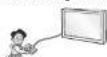
When connecting external devices such as video game consoles, make sure the connecting cables are long enough. Otherwise, the product

Please follow the installation instructions below to prevent the product from overheating.
wall should be more than 10 cm.
no ventilation (e.g., on a bookshelf or in a cupboard).
cushion.
tablecloth or curtain.
Otherwise, this may result in fire.

Take care not to touch the ventilation openings when watching the monitor for long periods as the ventilation openings may become hot. This does not affect the operation or performance of the product.
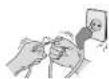
Protect the power cord from physical or mechanical abuse, such as being twisted, kinked, pinched, closed in a door, or walked upon. Pay particular attention to plugs, wall outlets, and the point where the cord exits the appliance.

Do not press strongly upon the panel with a hand or sharp object such as nail, pencil or pen, or make a scratch on it, as it may cause damage to screen.

Avoid touching the screen or holding your finger(s) against it for long periods of time. Doing so may produce some temporary or permanent distortion/damage to screen.

As long as this unit is connected to the AC wall outlet, it is not disconnected from the AC power source even if you turn off this unit by SWITCH.

When unplugging the cable, grab the plug and unplug it, by pulling at the plug. Don't pull at the cord to unplug the power cord from the power board, as this could be hazardous.

When moving the product, make sure you turn the power off first. Then, unplug the power cables and all connecting cables. The monitor set or power cord may be damaged, which may create a fire hazard or cause electric shock.

When moving or unpacking the product,
ENGLISH

If the product feels cold to the touch, there may be a small "flicker" when it is turned on. This is normal, there is nothing wrong with product.

This panel is an advanced product that contains millions of pixels. You may see tiny black dots and/or brightly coloured dots (red, blue or green) at a size of 1 ppm on the panel. This does not indicate a malfunction and does not affect the performance and reliability of the product. This phenomenon also occurs in third-party products and is not subject to exchange or refund.

You may find different brightness and color of the panel depending on your viewing position(left/right/top/down).
Generated Sound
"Cracking" noise: A cracking noise that occurs when watching or turning off the monitor is generated by plastic thermal contraction due to temperature and humidity. This noise is common for products where thermal deformation is required. Electrical circuit humming/panel buzzing: A low level noise is generated from a high-speed switching circuit, which supplies a large amount of current to operate a product. It varies depending on the product. This generated sound does not affect the performance and reliability of the product.
Do not use high voltage electrical goods near the monitor (e.g. electric mosquito-swatter). This may result in product malfunction.
Preparing

NOTE
time after it was shipped from the factory, initialization of the monitor may take a few minutes.
may differ slightly from that shown in this manual.
from the input source or product model that you are using.
in the future.
vary depending on the model.
manual may be changed without prior notice due to upgrade of product functions.
and USB devices should have bezels less than 10 mm thick and 18 mm width. Use an
attached.
screen may not display or a connection error may occur. (Recommended HDMI Cable Types)
- High-Speed HDMI ® / ™ cable (3 m or less) - High-Speed HDMI ® / ™ cable with Etherne (3 m or less)
model}
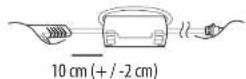
- Use the ferrite core to reduce the electromagnetic interference in the power cord. Wind the power cord on the ferrite core once.
[Wall side]
[Monitor side]


CAUTION
ENGLISH
the safety and product life span.
unapproved items are not covered by the warranty.
to the screen and this must not be removed.
set, place the screen facing down on a cushioned table or flat surface to protect the screen from scratches.
correctly and fastened securely. (If they are not fastened securely enough, the monitor may tilt forward after being installed.) Do not use too much force and over tighten the screws; otherwise screw may be damaged and not tighten correctly.
cleaner from the cloth.
the monitor screen.
Lifting and moving the monitor
Please note the following advice to prevent the monitor from being scratched or damaged and for safe transportation regardless of its type and size.
in the box or packing material that the monitor originally came in.
disconnect the power cord and all cables.
should face away from you to avoid damage.

frame firmly. Make sure not to hold the transparent part, speaker, or speaker grill area.


should be at least 2 people.
hold the monitor as shown in the following illustration.

expose the monitor to jolts or excessive vibration.
monitor upright, never turn the monitor on its side or tilt towards the left or right.
flexing /bending of frame chassis as it may damage screen.
to damage the protruding buttons.
CAUTION
this may result in damage to the screen.
Using the button
(Depending on model)
You can simply operate the monitor functions, pressing or moving the button.
NOTE
Joystick functions but has only a power On/Off button.

Basic functions
0……0—(0……)
ENGLISH
Adjusting the menu
When the monitor is turned on, press the ⏻ button one time. You can adjust the Menu items pressing or moving the buttons.
Turns the power off.
× Clears on-screen displays and returns to monitor viewing.
Changes the input source.
Accesses the settings menu.
Mounting on a table
1 Lift and tilt the monitor into its upright position on a table.
wall for proper ventilation.

Securing the monitor to a wall
(This feature is not available for all models.)

1 Insert and tighten the eye-bolts, or monitor brackets and bolts on the back of the monitor.
position, remove the bolts first.
2 Mount the wall brackets with the bolts to the wall.
Match the location of the wall bracket and the eye-bolts on the rear of the monitor.
3 Connect the eye-bolts and wall brackets tightly with a sturdy rope. Make sure to keep the rope horizontal with the flat surface.
CAUTION
hang on the monitor.
Mounting on a wall
Attach an optional wall mount bracket at the rear of the monitor carefully and install the wall mount bracket on a solid wall perpendicular to the floor. When you attach the monitor to other building materials, please contact qualified personnel. LG recommends that wall mounting be performed by a qualified professional installer. We recommend the use of LG's wall mount bracket. LG's wall mount bracket is easy to move with cables connected. When you do not use LG's wall mount bracket, please use a wall mount bracket where the device is adequately secured to the wall with enough space to allow connectivity to external devices. It is advised to connect all the cables before installing fixed wall mounts.

Separate purchase(Wall mounting bracket)
| Model 43UH61** 49UH61** | ||
| VESA (A x B) (mm) | 200 x 200 300 x 300 | |
| Standard screw | M6 M6 | |
| Number of screws | 4 | 4 |
| Wall mount bracket | LSW240BMSW240 | LSW350BMSW240 |


CAUTION
monitor on a wall mount by performing the stand attachment in reverse.
Connections (notifications)
Connect various external devices to the monitor and switch input modes to select an external device. For more information of external device's connection, refer to the manual provided with each device.
Available external devices are: HD receivers, DVD players, VCRs, audio systems, USB storage devices, PC, gaming devices, and other external devices.
NOTE
from the model.
regardless of the order of the monitor port.
for operating instructions.
monitor, use the cable supplied with the gaming device.
USB connection
Some USB Hubs may not work. If a USB device connected using a USB Hub is not detected, connect it directly to the USB port on the monitor.
Other connections
Connect your monitor to external devices. For the best picture and audio quality, connect the external device and the monitor with the HDMI cable. Some separate cable is not provided.

ULTRA HD Deep Colour
- On : Support 4K @ 50/60 Hz (4:4:4, 4:2:2, 4:2:0)
- Off: Support 4K @ 50/60 Hz 8 bit (4:2:0) If the device connected to Input Port also supports ULTRA HD Deep Colour, your picture may be clearer. However, if the device doesn't support it, it may not work properly. In that case, connect the device to a different HDMI port or change the monitor's HDMI ULTRA
HD Deep Colour setting to Off.
(This feature is available on certain models
which is a series of 100% ULTR HD-200
Remote control
The descriptions in this manual are based on the buttons on the remote control. Please read this manual carefully and use the monitor correctly. To replace batteries, open the battery cover, replace batteries (1.5 V AAA) matching the
⊕ and Ⓥ ends to the label inside the compartment, and close the battery cover. To remove the batteries, perform the installation actions in reverse.
Make sure to point the remote control toward the remote control sensor on the monitor. (Depending on model)

A
(POWER) Turns the monitor on or off.
(INPUT) Changes the input source.
HDMI1/HDMI1tHOM3external
inputs connected via HDMI1/HDMI2/HDMI3.
AV Switches to external inputs connected via
AV.
Number buttons Enters numbers.
(RATIO) Resizes an image.
(User Guide) Sees user-guide.
B
①INFovs the information of the current programme and screen.
Q (SEARCH) Search for content such as monitor programmes, movies and other videos, or perform a web search by entering text in the search bar.
(MUTE) Mutes all sounds.
+△-Adjusts the volume level.
^P∨ Scrolls through the saved programmes.
^ PAGEoves to the previous or next screen.

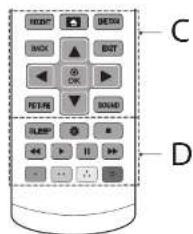
C
RECENT Shows the previous history.
(HOME) Accesses the Home menu.
LIVE ZOOM By zooming in on the selected area, you can view it in full screen.
BACK Returns to the previous level.
EXIT Clears on-screen displays and returns to monitor viewing.
Navigation buttons (up/down/left/right) Scrolls through menus or options.
● 0% elects menus or options and confirms your input.
PICTURE Changes the image mode.
Licenses
Supported licenses may differ by model. For more information about licenses, visit www.lg.com.


Open source software notice information
To obtain the source code under GPL, LGPL, MPL and other open source licenses, that is contained in this product, please visit http:// opensource.lge.com.
In addition to the source code, all referred license terms, warranty disclaimers and copyright notices are available for download. LG Electronics will also provide open source code to you on CD-ROM for a charge covering
Troubleshooting
Cannot control the monitor with the remote control.
product and try again.
product and the remote control.
properly installed (⊕, ⊕) ⊖
No image display and no sound is produced.
wall outlet.
outlet by connecting other products.
The monitor turns off suddenly.
power supply may be interrupted.
Off is activated in the Timers settings.
in the General -> Eco Mode settings.
(Depending on model)
Specifications
Wireless module specification
frequency. This product is configured for the regional frequency table.
distance of 20 cm between the device and the body.
C€0197①
| Wireless LAN module (TWFM-B006D) specifications | |
| Standard IEEE802.11a/b/g/n | |
| Frequency Range Output Power (Max.) | |
| 2400 to 2483.5 MHz | 14 dBm |
| 5150 to 5250 MHz | 12.5 dBm |
| 5725 to 5850 MHz (for Non EU) | 15.5 dBm |
| Environment condition | Operating Temperature | 0 °C to 40 °C |
| Operating Humidity Less than 80 % | ||
| Storage Temperature -20 °C to 60 °C | ||
| Storage Humidity Less than 85 % | ||
Regulatory
DECLARATION OF CONFORMITY
[For Wi-Fi/Bluetooth built-in model or Wi-Fi built-in model]
C€0197①
Hereby, LG Electronics European Shared Service Center B.V., declares that this monitor is compliant with the essential requirements and other relevant provisions of Directive 1999/5/EC. The complete Declaration of Conformity may be requested through the following postal address:
LG Electronics European Shared Service Center B.V., Krijgsman 1, 1186 DM Amstelveen, The Netherlands
or can be requested at our dedicated DoC website: http://www.lg.com/global/support/cedoc/cedoc#
This device is a 2.4 GHz and 5 GHz wideband transmission system, intended for use in all EU member states and EFTA countries, with indoor use restriction for 5GHz band. (5150 – 5250MHz)
ENGLISH

LG
Life's Good

LG
Life's Good
KULLANIM KILAVUZU
LG Electronics Wroclaw Sp. z o.o
UI. LG Electronics 1-2
Biskupice Podgorne
55-040 Kobierzyce, Poland
Tel: +48 71 79 29 400
Fax: +48 71 79 29 405
LG Electronics Inc.
77, Sanho-daero, Gumi-si, Gyeongsangbuk-do, 39381, Rep. of KOREA
Tel : +82-54-460-7114
Fax: +82-54-460-7930
Yetkili Servisler
Değerli Müşterimiz,
The following table is provided in the image. The text 'H' and 'B' are part of a table structure, but they do not correspond to any specific table or data.
TÜRKÇE
- Safety instructions
- WARNING
- smell
- Generated Sound
- Preparing
- NOTE
- CAUTION
- ENGLISH
- Lifting and moving the monitor
- Using the button
- Basic functions
- Adjusting the menu
- Mounting on a table
- Securing the monitor to a wall
- Mounting on a wall
- Connections (notifications)
- USB connection
- Other connections
- ULTRA HD Deep Colour
- HD Deep Colour setting to Off.
- Remote control
- A
- B
- C
- Licenses
- Open source software notice information
- Troubleshooting
- Specifications
- Regulatory
- DECLARATION OF CONFORMITY
- Yetkili Servisler
- Değerli Müşterimiz,
Brand : LG
Model : 43UH610N
Category : Television