O2VB1 - Security Camera Speco Technologies - Free user manual and instructions
Find the device manual for free O2VB1 Speco Technologies in PDF.


User questions about O2VB1 Speco Technologies
0 question about this device. Answer the ones you know or ask your own.
Ask a new question about this device
Download the instructions for your Security Camera in PDF format for free! Find your manual O2VB1 - Speco Technologies and take your electronic device back in hand. On this page are published all the documents necessary for the use of your device. O2VB1 by Speco Technologies.
USER MANUAL O2VB1 Speco Technologies
Important Safeguards and Warnings
1. Electrical safety
All installaon and operaon here should conform to local electrical safety codes.
Use a cered/listed 12VDC Class2 power supply only.
Please note: Do not connect two power supplying sources to the device at the same me; it may result in device damage!
The product must be grounded to reduce the risk of electric shock.
Improper handling and/or installaon could run the risk of re or electrical shock.
2. Environment
Heavy stress, violent vibraon or exposure to water is not allowed during transportaon, storage and installaon.
This product should be installed in a cool, dry place away from direct sunlight and heat sources.
Do not install the product in extreme temperature conditions.
Do not expose the camera to electromagnec radiaon. Otherwise it may result in CMOS sensor failure.
Do not block any venlaon openings.
Do not allow water and liquid intrusion into the camera.
3. Operaon and Daily Maintenance
Please shut down the device and then unplug the power cable before you begin any maintenance work.
Do not touch the CMOS sensor opc component. You can use a blower to clean the dust on the lens surface.
Always use the dry so cloth to clean the device. If there is too much dust, use a cloth dampened with a small quantity of neutral detergent. Finally use the dry cloth to clean the device.
Please use a professional opcal cleaning method to clean the enclosure. Improper enclosure cleaning (such as using cloth) may result in poor IR funconality and/or IR reecon.
The grounding holes of the product are recommended to be grounded to further enhance the reliability of the camera.
Dome cover is an opcal device, please don't touch or wipe cover surface directly during installaon and use, please refer to
Warning
This camera should be installed by qualified personnel only.
All the examinaon and repair work should be done by qualified personnel.
Any unauthorized changes or modicaons could void the warranty.
Statement
This guide is for reference only.
Product, manuals and speciaons may be modified without prior noce. Speco Technologies reserves the right to modify these without noce and without incurring any obligaon.
Speco Technologies is not liable for any loss caused by improper operaon.
Regulatory Informaon
FCC conditions:
This device complies with part 15 of the FCC Rules. Operaon is subject to the following two conditions:
● This device may not cause harmful interference.
● This device must accept any interference received, including interference that may cause undesired operaon.
FCC compliance:
This equipment has been tested and found to comply with the limits for a digital device, pursuant to part 15 of the FCC Rules. These limits are designed to provide reasonable protecon against harmful interference. This equipment generates uses and can radiate radio frequency energy and, if not installed and used in accordance with the instrucon manual, may cause harmful interference to radio communicaon. However, there is no guarantee that interference will not occur in a particular installaon. If this equipment does cause harmful interference to radio or television recepon, which can be determined by turning the equipment o and on, the user is encouraged to try to correct the interference by one or more of the following measures:
● Reorient or relocate the receiving antenna.
- Increase the separaon between the equipment and receiver.
- Connect the equipment into an outlet on a circuit dierent from that to which the receiver is connected.
Table of Contents
1 Introducon....2
2 Web Access and Login 3
3 Live View 4
4 Camera Conguraon 6
4.1 System Conguraon....6
4.1.1 System Information 6
4.1.2 Date and Time....6
4.1.3 Local Recording....7
4.1.4 Storage....7
4.2 Video Conguraon....9
4.2.1 Image Conguration 9
4.2.2 Video / Audio Conguraon....11
4.2.3 OSD Conguration 11
4.2.4 Video Mask 12
4.2.5 ROI Conguration 13
4.2.6 Zoom/Focus 13
4.3 Event Setup 14
4.3.1 Moon Detecon 14
4.3.2 Other Alarms....14
4.3.3 Alarm Server 15
4.4 Analycs Conguraon....15
4.4.1 Abnormality....16
4.4.2 Line Crossing....16
4.4.3 Intrusion....17
4.5 Network Conguraon 18
4.5.1 TCP/IP....18
4.5.2 Port 19
5.2 Video Search....30
5.2.1 Local Video Search 30
5.2.2 SD Card Video Search....31
Appendix 34
Appendix 1 Troubleshoong....34
Appendix 2 Specicaons 35
1 Introducon
Welcome
Thank you for purchasing this network camera!
Please read this manual carefully before operang the unit and retain it for further reference.
Should you require any technical assistance, please contact Speco Technologies Technical Support at 1-800-645-5516.
Main Features
● Built-in PoE (Power over Ethernet)
● Integrated IR LEDs for clear vision in low light
● IP67 rated for outdoor installaons
● Remote viewing support via web browser, mobile APP, and CMS/VMS
Applicaons

flowchart
graph LR
    A["IP Camera"] --> B["Network"]
    B --> C["Web Browser"]
    D["IP Camera"] --> E["Network"]
    E --> F["Web Browser"]
2 Web Access and Login
The IP camera sengs can be accessed via a web browser through the LAN.
- Access through IP Scanner
Network conncon:

flowchart
graph LR
    A["IP Camera"] --> B["Router/Switch"]
    B --> C["Web Browser"]
① Make sure the PC and IP-Cam are connected on the same local network. The camera is set to DHCP by default and will be assigned an IP address by the DHCP server. Make sure that the local network has a DHCP server. Routers typically have a DHCP server built in.
② Install IP Scanner from the CD and run it aer installaon. IP Scanner is the tool for discovering the IP cameras on the local network.

text_image
SmartGuard IP System OK Cancel Paste OK Cancel Paste OK Cancel Paste OK Cancel Paste3 Live View
The window below will be shown aer logging in.

text_image
Setup Main stream Sub stream Sub stream 2 Balanced CAMERA speco technologies 2018/01/29 16:17:20The following table describes the icons on the live view interface
Click the zoom/focus control buon to show the control panel. The descripons of the control panel are as follows:
| Icon | Descripon | Icon | Descripon |
| Zoom - | Zoom + | ||
| Focus - | Focus + | ||
| One key focus (used when Image is out of focus aer manual adjustment) | |||
4 Camera Conguraon
Press the "Setup" buon to go to the conguraon interface.
Note: Wherever applicable, click the "Save" buon to save the sengs.
4.1 System Conguraon
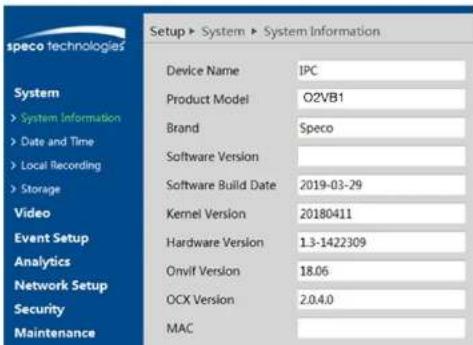
4.1.1 System Informaon
In the "System Informaon" interface, the system informaon of the device is listed.
text_image
speco technologies Setup ▶ System ▶ System Information Device Name IPC Product Model O2VB1 Brand Speco Software Version Software Build Date 2019-03-29 Kernel Version 20180411 Hardware Version 1.3-1422309 Onvif Version 18.06 OCX Version 2.0.4.0 MAC
text_image
Time Sapiere and Time Time Mode • Synchronize with NTP series NTP series: timeswindes.com Update period: 1440 Minutes • Synchronize with computer time Total: 2013.04.08 Total: 147336 • Set manually Total: 2013.04.08 Total: 147336 Save4.1.3 Local Recording
Go to System→Local Recording to set up the storage path of captured pictures and recorded videos on the local PC. There is also an open to enable or disable the bitrate display in the recorded les.
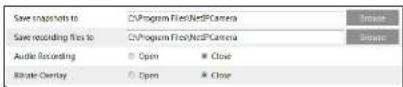
For the model with built-in MIC, there is also an open to enable or disable audio recording.
4.1.4 Storage
Go to System→Storage to go to the interface as shown below.

text_image
Management Record Snapshot Total picture capacity 6090 MB Picture remaining space 834 MB Total recording capacity 547.29 MB Record remaining space 128 MB State Normal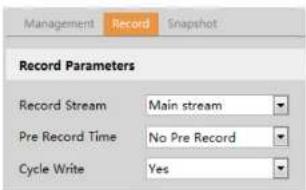
text_image
Management Record Snapshot Record Parameters Record Stream Main stream Pre Record Time No Pre Record Cycle Write Yes- Set record stream, pre-record me and cycle wring.
Pre Record Time: Set the me to record before the actual recording begins.
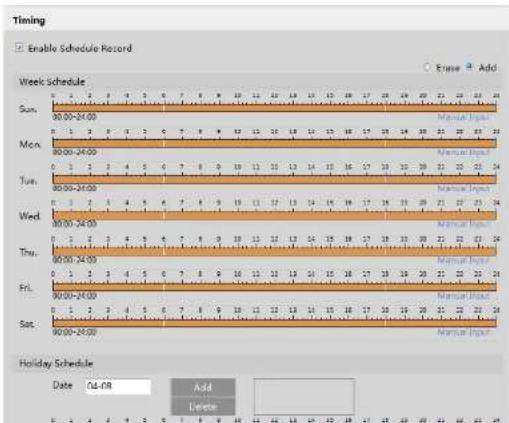
- Set schedule recording. Check "Enable Schedule Record" and set the schedule.
text_image
Timing Enable Schedule Record Week Schedule Sun. 0 1 2 3 4 5 6 7 8 9 10 11 12 13 14 15 16 17 18 19 20 21 22 23 24 00:00-24:00 Mon. 00:00-24:00 Tue. 01 1 2 3 4 5 6 7 8 9 10 11 12 13 14 15 16 17 18 19 20 21 22 23 24 00:00-24:00 Wed. 01 1 2 3 4 5 6 7 8 9 10 11 12 13 14 15 16 17 18 19 20 21 22 23 24 00:00-24:00 Thu. 01 1 2 3 4 5 6 7 8 9 10 11 12 13 14 15 16 17 18 19 20 21 22 23 24 00:00-24:00 Fri. 00:00-24:00 Sat. 01 1 2 3 4 5 6 7 8 9 10 11 12 13 14 15 16 17 18 19 20 21 22 23 90:00-24:00 Holiday Schedule Date: Fri-dlt Add Delete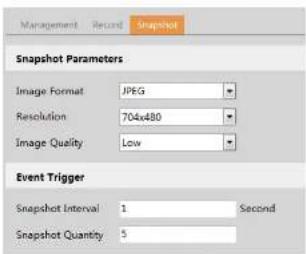
text_image
Management Record Snapshot Snapshot Parameters Image Format JPEG Resolution 704x80 Image Quality Low Event Trigger Snapshot Interval 1 Second Snapshot Quantity 5Set the format, resoluon and quality of the image saved on the SD card and the snapshot interval and quantity and the ming snapshot here.
Snapshot Quantity: The number you set here is the maximum quantity of snapshots. The actual quantity of snapshots may be less than this number. Supposing the occurrence me of an alarm event is less than the me of capturing pictures, the actual quantity of snapshots is less than the set quantity of snapshots.
Timing Snapshot: Enable ming snapshot rst and then set the snapshot interval and schedule. The setup steps of schedule are the same as the schedule recording (See Schedule Recording).
4.2 Video Conguraon
Video Conguraon includes Image Sengs, Video/Audio Setup, OSD, Privacy Mask and Region of Interest.
4.2.1 Image Conguraon
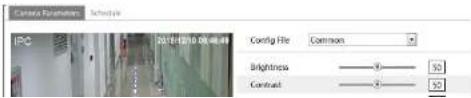
In the Image Setngs interface as shown below, various seings can be adjusted, such as brightness, contrast, hue and saturaon and so on. The common mode and day and night mode can be set up separately. The image eect can be quickly viewed by switching the conguraon le.
text_image
Camera Reflection Schedule IPC 20倍扫描100度噪声 Config File Common Brightness 50 Contrast 50Saturaon: Set the degree of color purity. The purer the color is, the brighter the image is.
WDR: WDR can adjust the camera to provide a beer image when there are both very bright and very dark areas simultaneously in the eld of the view by lowering the brightness of the bright area and increasing the brightness of the dark area. Recording will be stopped for a few seconds while the mode is changing from non-WDR to WDR mode.
Sharpness: Set the resolution level of the image plane and the sharpness level of the image edge.
Noise Reducon: Decrease the noise and make the image more thorough. Increasing the value will make the noise reduconect beer but it will reduce the image resoluon.
Defog: Activang this funcon and seeing an appropriate value as needed in foggy, dusty, smoggy or rainy environment to get clear images.
Backlight Compensaon:
- O: disables the backlight compensaon funcon. It is the default mode.
- HLC: lowers the brightness of the enre image by suppressing the brightness of the image's bright area and reducing the size of the halo area.
- BLC: If enabled, the auto exposure will acvate according to the scene so that the object of the image in the darkest area will be seen clearly.
Anicker:
- O: disables the an-icker funcon. This is used mostly in outdoor installaons.
- 50Hz: reduces icker in 50Hz lightng conditions.
- 60Hz: reduces icker in 60Hz lighng condions.
White Balance: Adjust the color temperature according to the environment automacally.
Frequency: 50Hz and 60Hz can be oponal.
Day/night Mode: Please choose the mode as needed.
Sensitivity: High, middle and low can be selected for switching back and forth from day to night modes.
Infrared Mode: Choose "ON", "OFF" and "Auto".
Exposure Mode: Choose "Auto" or "Manual". If manual is chosen, the digital shuer speed can be adjusted.
Image Mirror: Turn the current video image horizontally.
Image Flip: Turn the current video image vercally.
Schedule Sengs of Image Parameters:
Click the "Schedule" tab as shown below.

4.2.2 Video / Audio Conguraon
Go to Image→Video / Audio Interface as shown below. In this interface, set the resoluon, frame rate, bitrate type, video quality and so on subject to the actual network condition.

text_image
Index Stream Resolution Frame Bitrate Type Bitrate(Kbps) Video GOP Compression Profile 1 Main stream 1920x1080 30 CBR 2048 Highest 120 H264 High Profile 2 Sub stream 704x480 30 CBR 768 Highest 120 H264 High Profile Send Snapshot: 2 Size: (704x480) Watermark (H264, H265) Watermark content:Click the "Audio" tab to go to the interface as shown below.

text_image
Video Audio Audio Compression G711A Audio Type LIN SaveTwo video streams can be adjustable.
Resoluon: The size of image.
Frame rate: The higher the frame rate, the video is smoother.
Bitrate type: CBR and VBR are oponal. Bitrate is related to image quality. CBR means that no matter how much change is seen in the video scene, the compression bitrate will be kept constant. VBR means that the compression bitrate will be adjusted according to scene changes. For example, for scenes that do not have much movement, the bitrate will be kept at a lower value. This can help optimize the network bandwidth usage.
Bitrate: it can be adjusted when the mode is set to CBR. The higher the bitrate, the beer the image quality will be.
Video Quality: It can be adjusted when the mode is set to VBR. The higher the image quality, the more bitrate will be required.
I Frame interval: It determines how many frames are allowed between a "group of pictures". When a new scene begins in a video, until that scene ends, the entire group of frames (or pictures) can be considered as a group of pictures. If there is not much movement in the scene, these the value higher than the frame rate is no, potentially resulting in less bandwidth

text_image
Data Format YFN MM-3D Show Timestamps Device Name: IRC Show Device Name OSB ConstantSet me stamp, device name, OSD content and picture overlap here. Aer enabling the corresponding display and entering the content, drag them to change their posion. Then click the "Save" buon to save the seings.
4.2.4 Video Mask
Go to Image→Video Mask Interface as shown below. A maximum of 4 zones can be set up.

text_image
Radio 2018/01/12 11:30:20 Inside Stop Door Enter SaveTo set up video mask:
- Enable video mask.
- Click the "Draw Area" buon and then drag the mouse to draw the video mask area.
- Click the "Save" buon to save the sengs.
4.2.5 ROI Conguraon
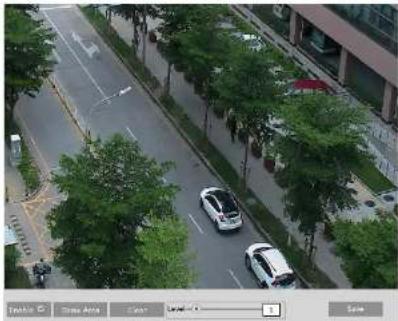
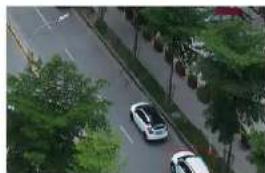
Go to Image→ROI Cong interface as shown below. An area in the image can be set as a region of interest. This area will have a higher bitrate than the rest of the image, resulting in beer image quality for the idened area.
natural_image
Aerial view of a multi-lane road with parked cars and trees, no visible text or symbols.- Check "Enable" and then click the "Draw Area" buon.
- Drag the mouse to set the ROI area.
- Set the level.
- Click the "Save" buon to save the sengs.
natural_image
Aerial view of a road with two cars and surrounding greenery (no visible text or symbols)
natural_image
Aerial view of a road with two cars and trees, no visible text or symbols.4.3 Event Setup
4.3.1 Moon Detecon
Go to Event Setup → Moon Detecon to set moon detecon alarm.

text_image
Alarm Config Enable Alarm Holding Time 20 Seconds Trigger Snapshot Trigger SD Recording Trigger Email Trigger FTP- Check "Enable" check box to acvate moon based alarms. If unchecked, the camera will not send out any signals to trigger moon-based recording to the NVR or CMS, even if there is moon in the video.
Trigger Snapshot: If selected, the system will capture images on motion detector and save the images on an SD card.
Trigger SD Recording: If selected, video will be recorded on an SD card on moon detecon.
Trigger Email: If "Trigger Email" and "Aach Picture" are checked (email address must be set rst in the Email conguraon interface), the captured pictures and triggered event will be sent into those addresses.
Trigger FTP: If "Trigger FTP" and "Aach Picture" are checked, the captured pictures will be sent into FTP server address. Please refer to FTP conguraon chapter for more details.
- Set moon detecon area and sensitivity. Click the "Area and Sensitivity" tab to go to the interface as shown below.

text_image
Alarm Config Area and sensitivity Schedule Sensitivity Low High 4 Draw Area Add Frase Select All Clear All Insert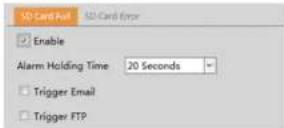
- Click "Enable" and set the alarm holding me.
- Set alarm trigger options. Trigger Email and FTP. The setup steps are the same as motion detecon. Please refer to moon detecon chapter for details.
- SD Card Error
When there are some errors in wring to SD card, the corresponding alarms will be triggered.
- Go to Event Setup → Anomaly→SD Card Error as shown below.
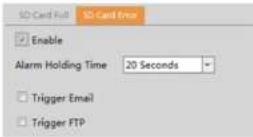
- Click "Enable" and set the alarm holding me.
- Set alarm trigger opons. Trigger Email and FTP. The setup steps are the same as motion detecon. Please refer to moon _detecon chapter for details.
4.3.3 Alarm Server
Go to Alarm→Alarm Server interface as shown below.
Set the server address, port, heartbeat and heartbeat interval. When an alarm occurs, the camera will transfer the alarm event to the alarm server. If an alarm server is not needed, there is no need to congregate this secon.

4.4.1 Abnormality
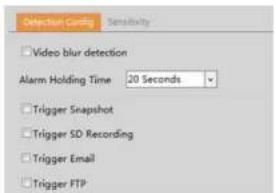
This function can detect changes in the surveillance environment acted by the external factors. Go to Analycs→Abnormality Interface as shown below.
text_image
Detection Config Sensitivity Video blur detection Alarm Holding Time 20 Seconds Trigger Snapshot Trigger SD Recording Trigger Email Trigger FTP- Enable the applicable detecon that's desired.
Video Blur Detecon: Alarms will be triggered if the video becomes blurry. - Set the alarm holding time and alarm trigger opons. The setup steps are the same as moon detecon. Please refer to moon detecon chapter for details.
- Click "Save" buon to save the sengs.
- Set the sensitivity of the exception detecon. Click "Sensitivity" tab to go to the interface as shown below.

text_image
Detection Config Sensitivity Sensitivity 1 SaveDrag the slider to set the sensitivity value or directly enter the sensitivity value in the textbox. Click "Save" buon to save the sengs.
The sensitivity value of Video Blur Detecon: The higher the value is, the more sensitive the system responds to the blurriness of the image.
※ The requirements of camera and surrounding area
-
Auto-focusing funcon should not been enabled for excepon detecon.
-
Set alarm trigger options. The setup steps are the same as moon detecon. Please refer to moon detecon chapter for details.
- Click "Save" buon to save the sengs.
- Set area and sensitivity of the line crossing alarm. Click the "Area and Sensitivity" tab to go to the interface as shown below.

text_image
Detection Config Line Schedule Alarm 1 Line Direction A->B Draw Area Clear SaveSet the alarm line number and direcon. Up to 4 lines can be added. Mulple lines cannot be added simultaneously. Direcon: A<->B, A->B and A<-B oponal. This indicates the direcon of the intruder who crosses over the alarm line that would trigger the alarm.
A<->B: The alarm will be triggered when the intruder crosses over the alarm line from B to A or from A to B.
A->B: The alarm will be triggered when the intruder crosses over the alarm line from A to B.
A<-B: The alarm will be triggered when the intruder crosses over the alarm line from B to A.
Click the "Draw Area" button and then drag the mouse to draw a line in the image. Click the "Stop Draw" buon to stop drawing. Click the "Clear" buon to delete the lines. Click the "Save" buon to save the sengs.
- Set the schedule of the line crossing alarm. The setup steps of schedule are the same as the schedule recording (See Schedule Recording).
※ Conguraon of camera and surrounding area
-
Auto-focusing funcon should not be enabled for line crossing detecon.
-
Avoid the scenes with many trees or the scenes with various light changes (like many ashing headlights). The ambient brightness of the scenes shouldn't be too low.
text_image
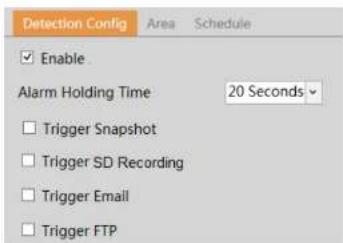
Detection Config Area Schedule Enable Alarm Holding Time 20 Seconds Trigger Snapshot Trigger SD Recording Trigger Email Trigger FTP- Enable region intrusion detecon alarm and set the alarm holding me.
- Set alarm trigger options. The setup steps are the same as moon detection. Please refer to moon detection chapter for details.
- Click the "Save" buon to save the sengs.
- Set the alarm area of the intrusion detecon. Click the "Area" tab to go to the interface as shown below.

text_image
Detection Config Area Schedule Alarm Area 1 Draw Area Clear SaveSet the alarm area number on the right side. Up to 4 alarm areas can be added.
Click the "Draw Area" buon and then click around the area where you want to set as the alarm area in the image on the le

text_image
IPv4 IPv6 PPPoE Config IP Change Notification Obtain an IP address automatically Use the following IP address IP Address 192.168.226.201 Test Subnet Mask 255.255.255.0 Gateway 192.168.226.1 Preferred DNS Server 192.168.226.1 Alternate DNS Server 8.8.8.8 SaveUse IP address (take IPv4 for example)-obtain a local IP address automacally through DHCP. A typical router has a DHCP server built in, and therefore is able to assign an IP address to the camera.
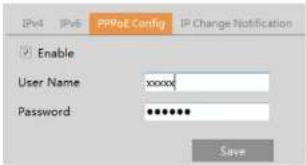
Use PPPoE-Click the "PPPoE Cong" tab to go to the interface as shown below. Enable PPPoE and then enter the user name and password from your ISP.
text_image
IPv4 IPv6 PPPoE Config IP Change Notification Enable User Name xxxxxx Password ••••••• Save
text_image
HTTP Port 80 HTTPS Port 443 Data Port 554 RTSP Port 9008 SaveHTTP Port: The default HTTP port is 80. It can be changed to any port which is not occupied. HTTPS Port: The default HTTPS port is 443. It can be changed to any port which is not occupied. Data Port: The default data port is 9008. Please change it as necessary. RTSP Port: The default port is 554. Please change it as necessary.
4.5.3 Server Conguraon
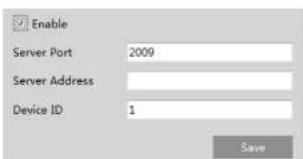
This funcon is mainly used for connecng network video management system.
text_image
Enable Server Port 2009 Server Address Device ID 1 Save- Check "Enable".
- Check the IP address and port of the transfer media server in the VMS. Then enable the auto report in the VMS when adding a new device. Next, enter the remaining informaon of the device in the VMS. Aer that, the system will automatically allot a device ID. Please check it in the VMS.
- Enter the above-menoned server address, server port and device ID in the corresponding boxes. Click the "Save" buon to save the sengs.
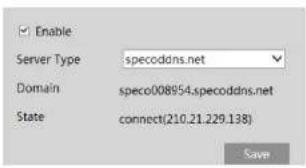
4.5.4 DDNS
text_image
Enable Server Type specoddns.net Domain speco008954.specoddns.net State connect(210.21.229.138) Save4.5.5 802.1x
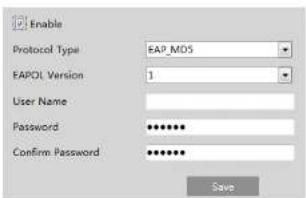
If it is enabled, the camera's data can be protected. When the camera is connected to the network protected by the IEE802.1x, user authencaon is needed.
text_image
Enable Protocol Type:EAP_MDS EAPOL Version 1 User Name Password **** Confirm Password **** SaveTo use this funcon, the camera shall be connected to a switch supporting 802.1x protocol. The switch can be reckoned as an authentication system to identify the device in a local network. If the camera connected to the network interface of the switch has passed the authencaon of the switch, it can be accessed via the local network.
Protocol type and EAPOL version: Please use the default sengs.
User name and password: The user name and password must be the same with the user name and password applied for and registered in the authencaon server.
4.5.6 RTSP
Go to Network→RTSP.
Sub stream: The address format is
"rtsp://IP address: rtsp port/prole2?transportmode=mcast".
Third stream: The address format is
"rtsp://IP address: rtsp port/prole3?transportmode=mcast".
Audio: Having entered the main/sub stream in a media player(like VLC), the video and audio will play automatically. If "Allow anonymous login..." is checked, there is no need to enter the username and password to view the video.
If "auto start" is enabled, the mulcast received data should be added into a VLC player to play the video.
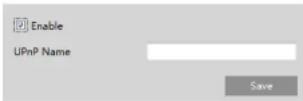
4.5.7 UPNP
If this funcon is enabled, the camera can be quickly accessed through the LAN.
Go to Network→UPnP. Enable UPNP and then enter UPnP name.
4.5.8 Email
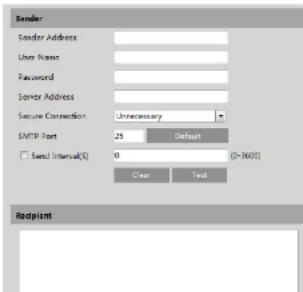
If you need to trigger Email when an alarm happens or IP address is changed, please set the Email here rst.
Go to Network → Email.
text_image
Sender Sender Address User Name Password Sender Address Secure Connection: Unnecessary SMTP Port 25 Default Send Interval(S): 0 (0-3600) Clear Text Redpoint4.5.9 HTTPS
HTTPS provides authencaon of the web site and protects user privacy. Go to Network→HTTPS as shown below.

text_image
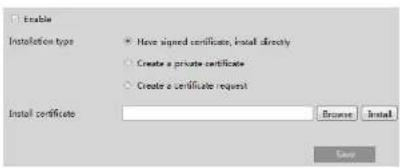
Enable Certificate installed C:\CN, ST=00, L=52, C:\embeddedsothwaren Delete Issued to C:\CN, ST=00, L=52, C:\embeddedsothwaren, OL=PC, Wlschost, Escom.cn Issuer: C:\CN, ST=00, L=52, C:\embeddedsothwaren, OL=PC, Wlschost, Escom.cn Validity Date: 2017-07-16 05:00:07 ~ 2022-07-34 05:00:07 SaveThere is a cercate installed by default as shown above. Enable this funcon and save it. Then the camera can be accessed by entering hps://IP: hps port via the web browser (eg. hps://192.168.226.201:443). A private cercate can be created if users don't want to use the default one. Click "Delete" to cancel the default cercate. Then the following interface will be displayed.
text_image
Enable Installation type • Have signed certificate, install directly • Create a private certificate • Create a certificate request Install certificate: Browse Install Case* If there is a signed cercate, click "Browse" to select it and then click "Install" to install it. * Click "Create a private cercate" to enter the following createon interface.

authority for signature. Aer receiving the signed cercate, import the cercate to the device.
4.5.10 QoS
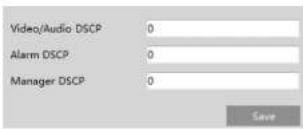
QoS (Quality of Service) funcon is used to provide dierent quality of services for dierent network applicaons. With the decient bandwidth, the router or switch will sort the data streams and transfer them according to their priority to solve the network delay and network congestion by using this funcon.
Go to Network→QoS.
text_image
Video/Audio DSCP 0 Alarm DSCP 0 Manager DSCP 0 SaveVideo/Audio DSCP: The range is from 0 to 63.
Alarm DSCP: The range is from 0 to 63.
Manager DSCP: The range is from 0 to 63.
Generally speaking, the larger the number is, the higher the priority is.
4.6 Security Conguraon
4.6.1 User Admin
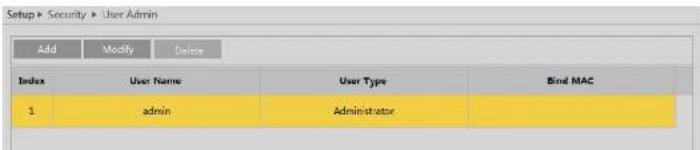
Go to Security→User Admin interface as shown below.
text_image
Setup > Security > User Admin Add Modify Delete Index User Name User Type Bind MAC 1 admin AdministratorModify user:
-
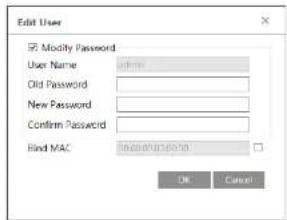
Select a user to modify password and MAC address if necessary in the user conguraon list box.
-
The "Edit user" dialog box pops up by clicking the "Modify" buon.
text_image
Edit User Modify Password User Name: admin Old Password: New Password: Confirm Password: Find MAC: OK Cancel-
Enter the old password of the user in the "Old Password" text box.
-
Enter the new password in the "New password" and "Conrm Password" text box.
-
Enter computer's MAC address as necessary.
-
Click the "OK" buon to save the sengs.
Note: To change the access level of a user, the user must be deleted and added again with the new access level.
Delete user:
-
Select the user to be deleted in the user conguraon list box.
-
Click the "Delete" buon to delete the user.
Note: The default administrator account cannot be deleted.
4.6.2 Online User
Go to Security→Online User to view the user who is viewing the live video.

An administrator user can kick out all the other users (Including other administrators).
click the "Add" buon.
4.6.4 Security Management
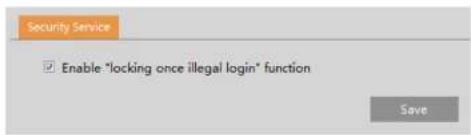
Go to Security→Security Management as shown below.
text_image
Security Service Enable "locking once illegal login" function SaveIn order to prevent against malicious password unlocking, "locking once illegal login" funcon can be enabled here. If this funcon is enabled, login failure aer trying six mes will make the login interface locked. The camera can be logged In again aer a half hour or aer the camera reboots.
4.7 Maintenance Conguraon
4.7.1 Backup and Restore
Go to Maintenance→Backup & Restore.

text_image
Import Setting Path: Browse Import Setting Export Settings Export Settings Default Settings KeepIf necessary, the camera can be set up to reboot on a me interval. Enable "Time Seings", set the date and me and then click the "Save" buon to save the sengs.
4.7.3 Upgrade
Go to Maintenance→Upgrade. In this interface, the camera rmware can be updated.

text_image
Setup > Maintenance > Upgrade Local upgrade Path Browse Upgrade-
Click the "Browse" buon to select the save path of the upgrade le
-
Click the "Upgrade" buon to start upgrading the rmware.
-
The device will restart automacally
Cauon! Do not close the browser or disconnect the camera from the network during the upgrade.
4.7.4 Operaon Log
To query and export log:
- Go to Maintenance→Operaon Log.

text_image
Setup > Maintenance > Log Main Type All log Sub Type All log Start Time 2018-04-08 09:00:00 End Time 2018-04-08 22:50:58 Search Export Index Time Main Type Sub Type User Name Login IP 1 2018-04-08 08:43:43 Alarm Motion start 2 2018-04-08 08:43:24 Alarm Vfd Alarm 3 2018-04-08 08:43:14 Alarm Motion stop 4 2018-04-08 08:41:26 Alarm Motion start 5 2018-04-08 08:40:26 Alarm Motion stop5 Search
5.1 Image Search
In the Setup interface, click Search to go to the interface as shown below. Images that are saved on the PC or SD card can be found here.

text_image
Live Setup speco technologies Record Local Sun Mon Tue Wed Thu Fri Set 1 1 2 3 4 5 6 7 1 9 10 11 12 13 14 15 16 17 18 19 20 21 22 23 24 25 26 27 19 29 30 31 32 33 6 6 7 8 9 10 11 Today 00:00:00 - [23:58:58] Balanced - 24H 12H 2H 1H- Local Image Search
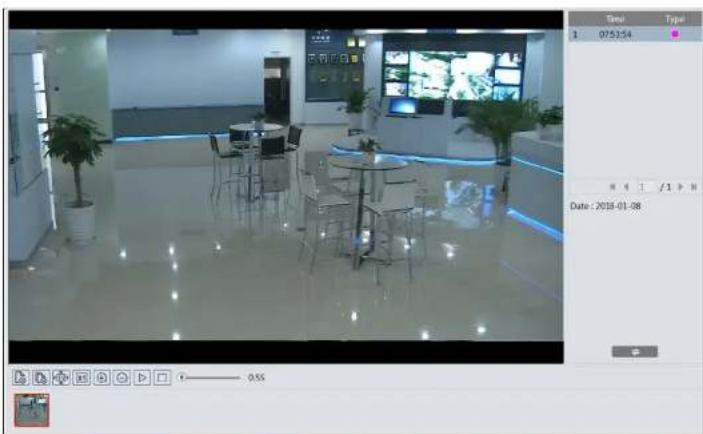
- Choose "Picture"—"Local".
natural_image
Interior view of a modern office or restaurant space with glass flooring, tables, and digital screens (no visible text or symbols)Click to return to the previous interface.
- SD Card Image Search
- Choose "Picture"—"SD Card".
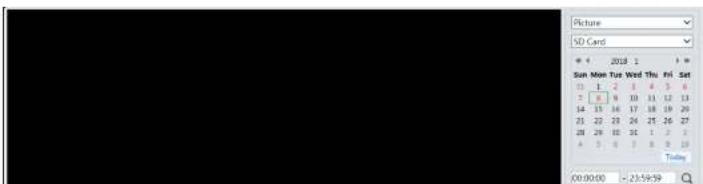
text_image
Picture SD Card * 4 2018 1 H * Sun Mon Tue Wed Thu Fri Sat 1 2 3 4 5 6 7 8 9 10 11 12 13 14 15 16 17 18 19 20 21 22 23 24 25 26 27 28 29 30 31 32 33 A B C D E F G H I J K L M N O P Q R S T U V W X Y Z Z Y Y Z 00:00:00 -23:59:59| Icon | Descripon | Icon | Descripon |
| Close: Select an image and click this buon to close the image. | Close all: Click this buon to close all images. | ||
| Save: Click this buon to select the path for saving the Image on the PC. | Save all: Click this buon to select the path for saving all pictures on the PC. | ||
| Fit size: Click to t the image on the screen. | Actual size: Click this buon to display the actual size of the image. | ||
| Zoom In: Click this buon to digitally zoom in. | Zoom out: Click this buon to digitally zoom out. | ||
| Slide show play: Click this buon to start the slide show mode. | Stop: Click this buon to stop the slide show. | ||
| Play speed: Play speed of the slide show. | |||
5.2 Video Search
5.2.1 Local Video Search
Click Search to go to the interface as shown below. Videos were recorded locally to the PC can be played in this interface.
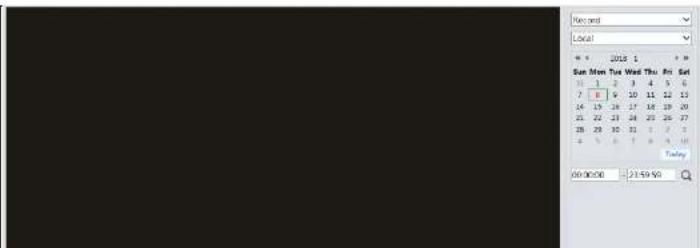
text_image
Record Local Sun Mon Tue Wed Thu Fri Set 1 2 3 4 5 6 7 8 9 10 11 12 13 14 15 16 17 18 19 20 21 22 23 24 25 26 27 28 29 30 31 32 33 4 5 6 7 8 9 10 Today 00:00:00 - 21:59:00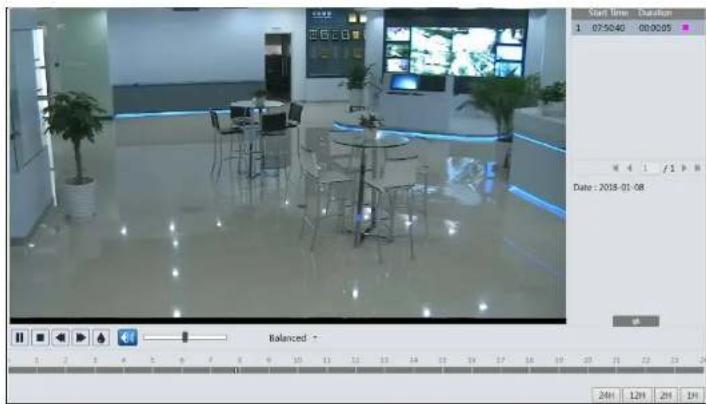
text_image
Start Time: 04:00 1 07:50:40 00:00:05 Date : 2018-01-08 Balanced +| Icon | Descripon | Icon | Descripon | |
| [0x0x1] | Play buon. Aer pausing the video, click this buon to connue playing. | Pause buon | ||
| [0x0x1] | Stop buon | Speed down | ||
| [0x0x1] | Speed up | Watermark display | ||
| [0x0x1] | [0x0x2] | Enable / disable audio; drag the slider to adjust the volume aer enabling audio. (only some models support this funcon) | ||
5.2.2 SD Card Video Search
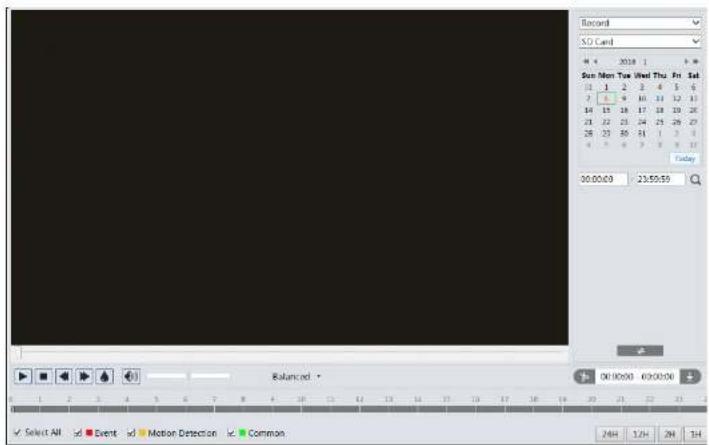
text_image
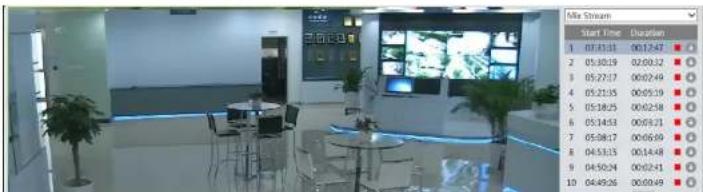
Record SO Card 4 1 2018 1 3 Sun Mon Tue Wed Thu Fri Sat 12 1 2 3 4 5 6 7 7 9 10 11 12 13 14 15 16 17 18 19 20 21 22 23 24 25 26 27 28 29 30 31 32 33 4 5 6 7 8 9 10 Friday 00:00:00 23:50:50 Balanced Select All Event Motion Detection Common 24H 12H 24 14- Select the alarm events at the boom of the interface.
- Select mix stream (video and audio stream) or video stream as needed.
- Double click on a le name in the list to start playback.
text_image
Mile Stream Start Time Duration 1 07:43:31 00:12:47 2 05:30:19 02:00:32 3 05:27:17 00:02:49 4 05:21:35 00:05:19 5 05:18:25 00:02:58 6 05:14:53 00:05:21 7 05:08:17 00:06:09 8 04:53:15 00:14:48 9 04:50:24 00:02:43 10 04:49:26 00:00:49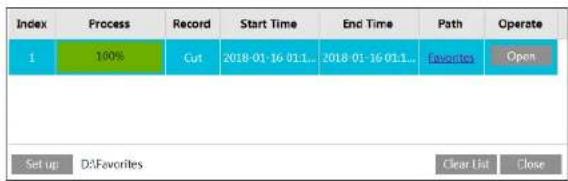
text_image
Index Process Record Start Time End Time Path Operate 1 100% Cut 2018-01-16 011... 2018-01-16 011... favorites Open Set up D:\Favorites Clear List CloseClick "Set up" to set the storage directory of the video les.
Click "Open" to play the video.
Click "Clear List" to clear the downloading list.
Click "Close" to close the downloading window.
Appendix
Appendix 1 Troubleshoong
IP Scanner does not show any device.
Make sure that the PC that's running IP Scanner is on the same local network as the devices.
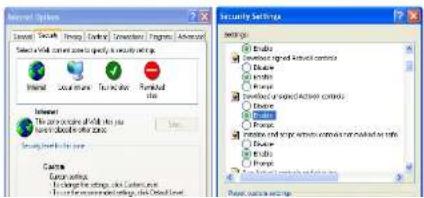
Internet Explorer cannot download AcveX control.
IE browser may be set up to block AcveX. Follow the steps below.
- Open IE browser and then click Tools→Internet Opons.

- Select Security→Custom Level.
- Enable all the opons under "ActiveX controls and plug-ins".
- Click OK to nish setup.
text_image
Security Settings Open Open Active Open Active Open Active Open Active Open Active Open Active Open Active Open Active Open Active Open Active Open Active Open Active Open Active Open Active Open Active Open Active Open Active Open Active Open Active Open Active Open Active Open Active Open Active Open Active Open Active Open Active Open Active Open Active Open Active Open Active Open Active Open Active Open Active Open ActiveAppendix 2 Specicaons
| Specicaon /Model | O2VB1 | |
| Camera | Image Sensor | 1/2.9" CMOS |
| Image Size | 1920×1080 | |
| Electronic Shuer | 1/25s~1/100000s | |
| Iris Type | Fixed Iris | |
| MIn. Illuminaon | 0.0035lux@F1.2, AGC ON; 0 lux with IR0.013lux@F2.0, AGC ON; 0 lux with IR | |
| Lens | 2.8mm@F2.0, horizontal eld of view:107°3.6mm@F2.0, horizontal eld of view: 84.8°6mm@F2.0, horizontal eld of view: 52° | |
| Lens Mount | M12 | |
| Day&Night | ICR | |
| WDR | 3D DNR | |
| Digital NR | Digital WDR | |
| Angle Adjustment | Pan: 0"~360"; Tilt: 0"~80"; Rotaon:0"~360" | |
| Image | Video Compression | H.264/H.265/MJPEG |
| H.264 Type | Main Prole @Level4.1 High Tier | |
| Video Bit Rate | 64Kbps~6Mbps | |
| Resoluon | 1080P (1920 × 1080), 720P (1280×720), D1, CIF, 480×240 | |
| Main Stream | 60Hz: 1080P/720P(1~30fps); 50Hz: 1080P /720P(1~25fps) | |
| Sub Stream | 60Hz: D1/CIF/480×240 (1~30fps); 50Hz: D1/CIF/480×240 (1~25fps) | |
| Image Sengs | Saturanon, Brightness, Chroma, Contrast, Wide Dynamic, Sharpen, NR, Defog, BLC, HLC, etc. adjustable through client or web browser | |
| ROI | Supported | |
| Interfaces | Network | RJ45 |
| Audio | 1CH audio input | |
| Storage | Built-in micro SD card slot; up to 128GB | |
| Fucnon | Remote Monitoring | Web browser, CMS remote control |
| Online Connecon | Support simultaneous monitoring for up to 3 users and mul-stream transmission | |
| Network Protocol | IPv4, IPv6, UDP, DHCP, NTP, RTSP, PPPoE, DDNS, SMTP, HTTP, HTTPS, 802.1x, QoS | |
| Interface Protocol | ONVIF, GB-T/28181-2016 | |
| Storage | Network remote storage; micro SD card storage | |
| Smart Alarm | Moon detecon; SD card Full, SD card error, video blur detecon, line crossing, region intrusion | |
| IR Distance | 66 | |
| Specicaon /Model | O2VB1V | |
| Camera | Image Sensor | 1/2.9" CMOS |
| Image Size | 1920×1080 | |
| Electronic Shuer | 1/25s~1/100000s | |
| Iris Type | Fixed Iris | |
| MIn. Illuminaon | 0.0035lux@F1.2, AGC ON; 0 lux with IR0.013lux@F1.4, AGC ON; 0 lux with IR | |
| Lens | 2.8~12mm@F1.4, motorized zoom lens, horizontal FoV: :88"~34.8" | |
| Lens Mount | ∅14 | |
| Day&Night | ICR | |
| WDR | Digital WDR | |
| Digital NR | 3D DNR | |
| Angle Adjustment | Pan: 0°~360°; Tilt 0°~90°; Rotaon:0°~360° | |
| Image | Video Compression | H.264/H.265/MJPEG |
| H.264 Type | Main Prole @Leve4.1 High Tier | |
| Video Bit Rate | 64Kbps~6Mbps | |
| Resoluon | 1080P (1920 × 1080), 720P (1280×720), D1, CIF, 480×240 | |
| Main Stream | 60Hz: 1080P/720P(1~30fps); 50Hz: 1080P /720P(1~25fps) | |
| Sub Stream | 60Hz: D1/CIF/480×240 (1~30fps); 50Hz: D1/CIF/480×240 (1~25fps) | |
| Image Sengs | Saturaon, Brightness, Chroma, Contrast, Wide Dynamic, Sharpen, NR, Defog, BLC, HLC, etc. adjustable through client or web browser | |
| ROI | Supported | |
| Interfaces | Network | RJ45 |
| Audio | 1CH audio Input | |
| Storage | Built-in micro SD card storage slot, up to 128 GB | |
| Fucnon | Remote Monitoring | Web browser, CMS remote control |
| Online Connecon | Support simultaneous monitoring for up to 3 users and mul-stream transmission | |
| Network Protocol | IPv4, IPv6, UDP, DHCP, NTP, RTSP, PPPoE, DDNS, SMTP, FTP, HTTP, HTTPS, 802.1x, QoS | |
| Interface Protocol | ONVIF, GB-T/28181-2016 | |
| Storage | Network remote storage, micro SD card storage | |
| Smart Alarm | Moon detecon; SD card Full, SD card error, video blur detecon, line crossing, region intrusion | |
| Others | IR Distance | 98 |
| Protecon Grade | IP67 | |
| Power | DC12V/PoE | |
| Power Consumpon | < 9W | |
| Opterang Environment | Temperature: -22°F~140°F; Relave Humidity: less than 95% (non-condensing) | |
| Specicaon /Model | O2VT1 | |
| Camera | Image Sensor | 1/2.9" CMOS |
| Image Size | 1920×1080 | |
| Electronic Shuer | 1/25s~1/100000s | |
| Iris Type | Fixed Iris | |
| MIn. Illuminaon | 0.0035lux@F1.2, AGC ON; 0 lux with IR0.013lux@F2.0, AGC ON; 0 lux with IR | |
| Lens | 2.8mm@F2.0, horizontal eld of view:107°3.6mm@F2.0, horizontal eld of view: 84.8°6mm@F2.0, horizontal eld of view: 52° | |
| Lens Mount | M12 | |
| Day&Night | ICR | |
| WDR | 120dB | |
| Digital NR | 3D DNR | |
| Angle Adjustment | Pan: 0°~360°; Till 0°~75°; Rotaon:0°~360° | |
| Image | Video Compression | H.264/H.265/MJPEG |
| H.264 Type | Main Prole @Leve4.1 High Tier | |
| Video Bit Rate | 64Kbps~6Mbps | |
| Resoluon | 1080P (1920 × 1080), 720P (1280×720), D1, CIF, 480×240 | |
| Main Stream | 60Hz: 1080P/720P(1~30fps); 50Hz: 1080P /720P(1~25fps) | |
| Sub Stream | 60Hz: D1/CIF/480×240 (1~30fps); 50Hz: D1/CIF/480×240 (1~25fps) | |
| Image Sengs | Saturaon, Brightness, Chroma, Contrast, Wide Dynamic, Sharpen, NR, Defog, BLC, HLC, etc.adjustable through client or web browser | |
| ROI | Supported | |
| Interfaces | Network | RJ45 |
| Audio | 1CH built-in MIC | |
| Storage | Built-in micro SD card slot; up to 128GB | |
| Fucnon | Remote Monitoring | Web browser, CMS remote control |
| Online Connecon | Support simultaneous monitoring for up to 3 users and mul-stream transmission | |
| Network Protocol | IPv4, IPv6, UDP, DHCP, NTP, RTSP, PPPoE, DDNS, SMTP, HTTP, HTTPS, 802.1x, QoS | |
| Interface Protocol | ONVIF, GB-T/28181-2016 | |
| Storage | Network remote storage; micro SD card storage | |
| Smart Alarm | Moon detecon; SD card Full, SD card error, video blur detecon, line crossing, region intrusion | |
| IR Distance | 66 | |
| Protecon Grade | IP67 | |
| Power | DC12V/PoE | |
| Power Consumpon | < 5.5W | |
| Specicaon /Model | O2VT1V | |
| Camera | Image Sensor | 1/2.9" CMOS |
| Image Size | 1920×1080 | |
| Electronic Shuer | 1/25s~1/100000s | |
| Iris Type | Fixed Iris | |
| Min. Illuminaon | 0.0035lux@F1.2, AGC ON; 0 lux with IR0.013lux@F1.4, AGC ON; 0 lux with IR | |
| Lens | 2.8~12mm@F1.4, motorized zoom lens, horizontal FoV: 88~34.8° | |
| Lens Mount | ∅14 | |
| Day&Night | ICR | |
| WDR | Digital WDR | |
| Digital NR | 3D DNR | |
| Angle Adjustment | Pan: 0"~360"; Tilt 0"~80"; Rotaon:0"~360" | |
| Image | Video Compression | H.264/H.265/MJPEG |
| H.264 Type | Main Prole @Leve4.1 High Tier | |
| Video Bit Rate | 64Kbps~6Mbps | |
| Resolution | 1080P (1920 × 1080), 720P (1280×720), D1, CIF, 480×240 | |
| Main Stream | 60Hz: 1080P/720P(1~30fps); 50Hz: 1080P/720P(1~25fps) | |
| Sub Stream | 60Hz: D1/CIF/480×240 (1~30fps); 50Hz: D1/CIF/480×240 (1~25fps) | |
| Image Sengs | Saturaon, Brightness, Chroma, Contrast, Wide Dynamic, Sharpen, NR, Defog, BLC, HLC, etc. adjustable through client or web browser | |
| ROI | Supported | |
| Interfaces | Network | RU45 |
| Audio | 1CH built-in MIC | |
| Storage | Built-In micro SD card storage slot, up to 128 GB | |
| Fucnon | Remote Monitoring | Web browser, CMS remote control |
| Online Connecon | Support simultaneous monitoring for up to 3 users and mul-stream transmission | |
| Network Protocol | IPv4, IPv6, UDP, DHCP, NTP, RTSP, PPPoE, DDNS, SMTP, HTTP, HTTPS, 802.1x, QoS | |
| Interface Protocol | ONVIF, GB-T/28181-2016 | |
| Storage | Network remote storage, micro SD card storage | |
| Smart Alarm | Moon detecon; SD card Full, SD card error, video blur detecon, line crossing, region intrusion | |
| Others | IR Distance | 98 |
| Protecon Grade | IP67 | |
| Power | DC12V/PoE | |
| Power Consumpon | < 8W | |
| Ontering | ||