O2D60M - Security Camera Speco Technologies - Free user manual and instructions
Find the device manual for free O2D60M Speco Technologies in PDF.


User questions about O2D60M Speco Technologies
0 question about this device. Answer the ones you know or ask your own.
Ask a new question about this device
Download the instructions for your Security Camera in PDF format for free! Find your manual O2D60M - Speco Technologies and take your electronic device back in hand. On this page are published all the documents necessary for the use of your device. O2D60M by Speco Technologies.
USER MANUAL O2D60M Speco Technologies
O2D60M User's Manual
Network Camera Manual (%2D60M)
Directions
Be careful not to cause any physical damage by dropping or throwing the camera. Especially keep the device out of reach from children.
Do not disassemble the camera. No after service is assumed when disassembled.
Use only the power adapter provided with the camera.
Be careful to prevent moisture or water penetration into the unit. Attention is needed when installing the camera. The screw holes for the installation screws and pipe should be maintained water tight during the whole life time of the product.
All of the electrical connection wires running into the unit should be prepared so that water from the outside cannot flow into the unit through the surface of the wires. Penetration of moisture through the wire for an extended period can cause malfunction of the unit or deteriorated image.
Note
This equipment has been tested and found to comply with the limits for a Class A digital device, pursuant to part 15 of the FCC Rules. These limits are designed to provide reasonable protection against harmful interference in a residential installation. This equipment generates, uses and can radiate radio frequency energy and, if not installed and used in accordance with the instructions, may cause harmful interference to radio communications. However, there is no guarantee that interference
will not occur in a particular installation. If this equipment does cause harmful interference to radio or
Caution
Any changes or modifications in construction of this device which are not explicitly approved by the party responsible for compliance could void the user's authority to operate the equipment.
Revision History
| Date Revision Details | |
| Aug 18, 2015 190 | +irst manual revision creation9 |
Contents
Contents....4
- Introduction......5
1.1.%verview 5
1.2. >pecifications.... 6
1.3. Applications of %2D60M....7
- Product Description 8
2.1.Contents 8
2.2. Product Preview 8
2.3. Physical description 9
2.4.+functional Description....11
2.5. Accessories for installation ....12
- %n >ite Installation.... 13
3.1. Installation....13
- Getting >tarted 14
4.1. PC >ystem Requirements .... 14
4.2. Quick Installation Guide....15
- Troubleshooting 19
5.1. No power is applied....19
5.2. Cannot connect to the camera....20
5.3. Technical Assistance....21
1. Introduction
1.1. Overview
The %2D60M is a state-of-the-art mega-pixel, dual-code (H9264, MJPEG) IP/network camera built with embedded software and hardware technology. It enables real time transmission of synchronized video of up to 1080p and audio data. Remote clients can connect to %2D60M for real time video/audio data through various client solutions running on PCs and smartphones. Real time 2-way communication is available through the bidirectional audio communication feature. Designed to be a stand-alone streaming audio & video transmission device, %2D60M can be applied to various applications such as video security, remote video monitoring, remote education, video conference or Internet broadcasting system.
Vandal proof and weather proof housing will extend the application area to harsh environments of wide temperature ranges9
Integrated PoE (Power over Ethernet, IEEE 80293af) will reduce the total cost of ownership by reducing on-site wiring for installation9
1.2. Specifications
| LENS | |
| Lens Type 3.3~10mm Motorized Focus Lens | |
| Lens Iris Control DC Auto Iris | |
| CAMERA | |
| Image >ensor 1/2.8" 2 Mega Pixel >ony CMO> | |
| Minimum Illumination IR LED Off : 0.5Lux, IR LED On : 0Lux | |
| >canning Mode Progressive >can | |
| Dynamic Range (D-WDR) 74.7dB or Higher (90dB or higher) | |
| Electronic >hutter Auto | |
| IR LED 42pcs (850nm) | |
| VIDEO | |
| Compression Algorithm H.264, MJPEG | |
| Compression Resolution 352X240, 704X480, 1280X720, 1920X1080 | |
| Bitrate Control H.264-CBR/VBR (up to 12Mbps) | |
| Maximum Frame Rate 30fps @ 1920X1080 + 30fps @ 4CIF | |
| Multi >tream | Primary, >secondary, Tertiary |
| AUDIO | |
| Compression Algorithm G.726 (16KHz), G.711 μ - Law (8KHz) | |
| INPUTS/OUTPUTS | |
| Video Output | 1 Composite, 1 Vp-p |
| Audio Input | 1 line in |
| Audio Output | 1 line out |
O2D60M User's Manual
| Operating Temperature 14"+ to 122"+ (-10°C to 50°C) | |
| Operating Humidity 0% to 90% | |
| Power >supply 12 VDC, PoE (Power over Ethernet) (IEEE 802.3af, Class 3) | |
| Power Consumption Max. 4.8W | |
| Approval +CC, CE, IP66 | |
Specifications are subject to change without notice.
1.3. Applications of O2D60M
-
security surveillance (buildings, stores, manufacturing facilities, parking lots, banks, government facilities, military, etc.)
- Remote monitoring (hospitals, kindergartens, traffic, public areas, etc.)
• Teleconference (BI-directional audio conference). Remote Learning, Internet broadcasting
• Weather and environmental observation
2. Product Description
2.1. Contents
The product package contains the following:
| Contents | Description Image | Remarks | |
| Main Body | %2D60M |  | |
| Tools and Mounting Screws | >crew M4X25 4EA, >crew MMX8 3EA L Wrench 1FA, Core 1FA |  | |
| CD | >software & User's Guide |  | |
| Quick Reference Guide | Quick installation guide | [5730] | |
| GPL License | %pen >ource Guide |  |
2.2. Product Preview

O2D60M User's Manual
2.3. Physical description
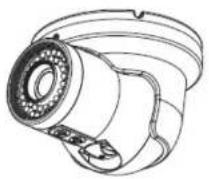
293919 External View

Figure 2-1. External view of O2D60M
293929 Dimensions

natural_image
Technical line drawing of a mechanical component with concentric circular features and mounting base (no text or symbols)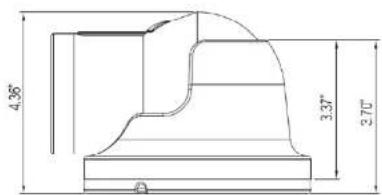
text_image
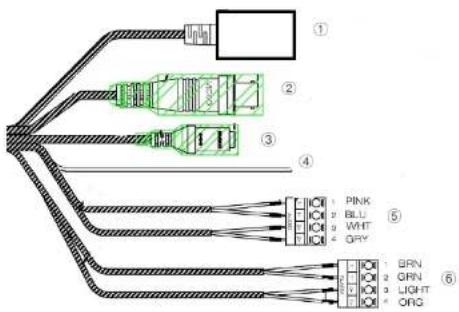
4.36" 3.37" 2.70"293939 Connector information
text_image
① ② ③ ④ 1 PINK 2 BLL 3 WHT 4 QRY ⑤ ⑥ 1 BRN 2 GRN 3 LIGHT 4 ORG- Network Port 2. BNC Video Out 3. Power In
- Ground 5. Audio In/Out 6. Alarm In/Out
Figure 2-3. Connector information
2.4. Functional Description
• Power
Power input for supplying 12V 1A DC power

Caution: If O2D60M is powered by PoE, do not plug in DC Jack with active DC power into DC power connector.
• Audio (MIC/LINE) IN
Connect external audio source or microphones
- Audio (Line) In
Connect speakers with built in amplifier9/Audio from remote sites is output through Line out in lb-directional audio mode9
• RJ-45 Ethernet (100Base-T) / PoE (IEEE802.3af)
100Mbps Ethernet connector (RJ-45) with standard PoE (80298aft)
- SENSOR IN
Connect external alarm sensor9 Examples of sensing devices are infrared sensor, motion sensor, heat/smoke sensor, magnetic sensor, etc9 Connect the two wires of the sensors to "Sensor In"9 The sensor type (NC/NO) can be connected in the admin page9 Multiple sensor devices can be connected in parallel
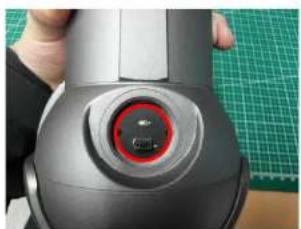
- Factory Default Switch
A switch provided for returning the IP camera to factory default state9 Unscrew the cover to access the switch9 Press the switch about 5 seconds while power is applied9
natural_image
Close-up of a black mechanical device with a red circular button on the top, placed on a green grid mat (no visible text or symbols)Factory default switch
Figure 2-5. Factory Default Switch
2.5. Accessories for installation

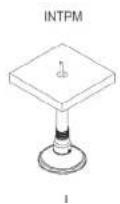

3. On Site Installation
Use cables and conduits that are suitable for the Installation9 Close attention should be paid to the Installation so that no moisture is allowed to penetrate into the unit through the cables or conduits during the lifetime of the product9 Products that have internal parts exposed to moisture due to improper installation are not covered by warranty9
3.1. Installation
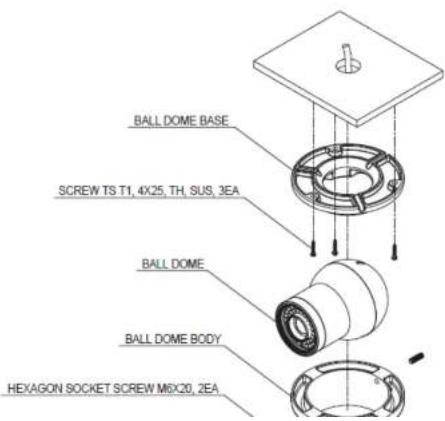
text_image
BALL DOME BASE SCREW TS T1, 4X25, TH, SUS, 3EA BALL DOME BALL DOME BODY HEXAGON SOCKET SCREW M6X20, 2EA4. Getting Started
Brief information for the initial operation of %2D60M is provided in this chapter.
4.1. PC System Requirements
Audio/Video streaming data received from %2D60M can be displayed or stored in a PC running client programs. Minimum requirements of the PC are described below:
| Minimum Requirements Recommended Specifications | ||
| CPU Intel Core i3 Intel Core i5 | ||
| Main Memory 2GB 4GB | ||
| %perating >system Windows XP Windows 7,8 (64bit) | ||
| Web Browser | Internet Explorer 8 | Internet Explorer 8 or higher |
| Graphic Card | Video RAM 256MB or moreResolution 1920x1080 | Video RAM 1GBResolution 1920x1080 |
| Network | 100 Base-T Ethernet | 100 Base-T Ethernet |
* Operating software connected: Windows VD / Viela 17 / 0
4.2. Quick Installation Guide
1. Connect PC and O2D60M to network.
1) Prepare a PC to run programs for the installation and video connection
2) In the case of using PoE, connect the PC and %2D60M to the network using one of the following ways9
If your LAN >witch does not support standard PoE, connect %2D60M as shown in dotted line In +Figure 4-19 The DC power is applied through DC adapter9
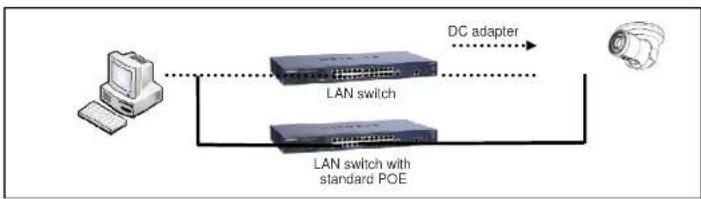
flowchart
graph LR
    A["Computer"] --> B["LAN switch"]
    B --> C["DC adapter"]
    B --> D["LAN switch with standard POE"]
    D --> C
Figure 4-1. Power and network connection
2. Install IP Scanner
IP >canner is a utility to discover IP cameras on the local network9 The camera is set to DHCP mode out of the box?
+ollow the sequence below to access the camera settings
13 Install IP >canner on the PC that will be used on the same local network as the IP camera9. IP >canner can be found on the CD included in the package or downloaded from specotech9com
ii3 *un IP >canner
iii3 The available cameras on the local network will show automatically
iv3 Highlight and double-click on the applicable model to launch the camera web viewer (default browser must be set to Internet @xplorer to view video
| Status | Name | IP Address | MAC Address | Version |
| Online | O2D7M | 192.168.56.169 | 00:03:22:1E:97:8A | |
| Online | O2DP8M | 192.168.56.163 | 00:03:22:1E:97:6B | 1.0.0 |
| Online | O2MB1 | 192.168.56.17 | 00:07:18:FF:01:C9 | 1.0.59 |
| Online | O2D4 | 192.168.56.124 | 5C:F2:07:1C:28:CA | 1.0.53 |
| Online | VIP2PT21ZX | 192.168.56.52 | 00:07:D8:17:8A:68 | 1.3.7-X1_release |
| Online | OSMOP1 | 192.168.56.146 | 5C:F2:07:1C:23:D8 | 1.0.47 |
| Online | Eddie-O2DP8 | 192.168.56.129 | 5C:F2:07:1C:1F:74 | 1.0.51 |
| Online | SID-O2PT234D5W-... | 192.168.123.119 | 5C:F2:07:1C:15:68 | 1.0.41 |
| Online | OPTZ36X1 | 192.168.56.140 | 5C:F2:07:1C:03:1D | |
| Online | O81 | 192.168.56.105 | 5C:F2:07:1C:01:3B | |
| Online | O2D7M | 255.255.255.255 | 00:00:00:00:00:00 |
3. Remote video connection to O2D60M
1) Connection through Web Viewer
The web viewer offers the simplest way to connect to the %2D60M+ or video connection, enter the IP address of %2D60M in the Internet Explorer address bar as:
[e.g.] Part 80
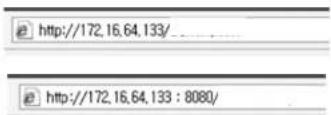
Port 80 (default) can be omitted
[e.g.] Part 8080
http://172.16.64.133:8080/

Note : When prompted, install and allow the Active X controls as needed

text_image
speco technologies® ID: PASSWORD [LOGIN]O2D60M User's Manual
text_image
Setup 21:30:35 12:30:35 Memo 1
text_image
Monitor Status Pulse 30/CM 100% 200% Upgrade
5
S
\$
5. Troubleshooting
5.1. No power is applied
- In case of >tandard PoE (Power over Ethernet)
Power supply through standard PoE is possible only when the following conditions are met9
19 >tandard PoE is supported on the product9
29 The LAN switch supports standard PoE9
Make sure that both the IP camera and the LAN switch support standard PoE (IEEE 80293af)
• In case of DC adapter
If PoE is not applied, the power and network connection should be made through separate cables9 Use the
DC adapter recommended by the provider9 In case of replacing the DC power supply, make sure that the
power supply meets the power requirement of the IP camera to prevent damage or malfunction9
5.2. Cannot connect to the camera
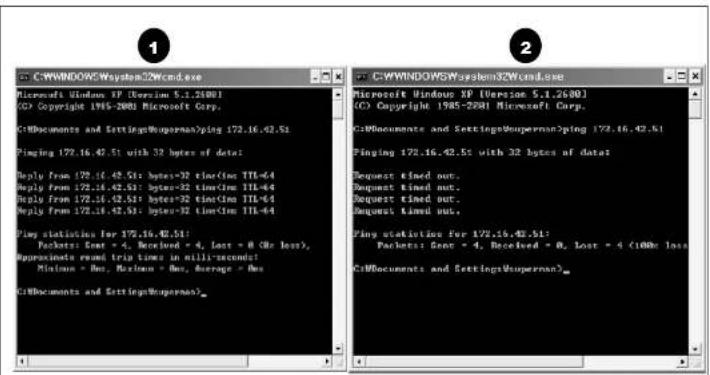
Check the status of the network connection through PING test.
Try the following on your PC:
- Start > Run > Cmd > Ping IP address (Ex : Ping 172.16.42.51)
- If "Reply from \~" message is returned (① in the figure below), the network connection is in normal state. Try connection to the video again. If the problem persists, or refer to other trouble shooting notes.
- If "Request timed out" message is returned. (2) in the figure below), the network connection or network setting is not in normal state. Check the network cable and settings.
text_image
C:\WINDOWS\System32Wcmd.exe Microsoft Windows XP [Version 5.1.2600] © Copyright 1985-2001 Microsoft Corp. C:\Documents and Settings\Uniperman>ping 172.16.42.51 Pinging 172.16.42.51 with 32 bytes of data; Reply from 172.16.42.51: bytes=32 time(Inn TTL-64) Reply from 172.16.42.51: bytes=32 time(Inn TTL-64) Reply from 172.16.42.51: bytes=32 time(Inn TTL-64) Reply from 172.16.42.51: bytes=32 time(Inn TTL-64) Play statistics for 172.16.42.51: Packets: Gout = 4, Received = 4, Lost = 8 (One loss), Approximate round trip times in milli+seconds; Minimum = Max, Minimum = Max, Average = Max C:\Documents and Settings\Uniperman>5.3. Technical Assistance
- if you need any technical assistance, please contact Speco's technical support9 Please provide the following information9

- Mockthame
- MAC address
- Purchase date
- Description of the problem
- ERco message