32V524T - TV RCA - Free user manual and instructions
Find the device manual for free 32V524T RCA in PDF.


| Product Type | Television |
| Brand | RCA |
| Model | 32V524T |
| Screen Size | 32 inches |
| Resolution | 1366 x 768 (HD) |
| Display Type | LED |
| Aspect Ratio | 16:9 |
| Refresh Rate | 60 Hz |
| Connectivity | 2x HDMI, 1x USB 2.0, Composite, RF Input |
| Smart TV | No |
| Power Consumption (Typical) | 50 W |
| Standby Power | < 0.5 W |
| Dimensions without Stand | 28.9 x 16.9 x 3.1 inches |
| Dimensions with Stand | 28.9 x 18.5 x 7.5 inches |
| Weight without Stand | 8.5 lbs |
| Weight with Stand | 9.2 lbs |
| VESA Mount Pattern | 200 x 100 mm |
| Audio Output | 2 x 5W speakers |
| TV Tuner | ATSC |
| Energy Star Certified | Yes |
| Included Accessories | Remote control, batteries, power cord, stand |
| Warranty | 1 year limited |
| Cleaning Instructions | Clean gently with a soft, dry cloth. Avoid harsh chemicals. |
| Safety Information | Place on stable surface. Keep vents clear. Avoid moisture. |
| Spare Parts Availability | Contact RCA for replacement remote, stand, etc. |
Frequently Asked Questions - 32V524T RCA
User questions about 32V524T RCA
0 question about this device. Answer the ones you know or ask your own.
Ask a new question about this device
Download the instructions for your TV in PDF format for free! Find your manual 32V524T - RCA and take your electronic device back in hand. On this page are published all the documents necessary for the use of your device. 32V524T by RCA.
USER MANUAL 32V524T RCA
Changing Entertainment. Again.
User's Guide
Find Inside:
- Connecting ...... page 5
- Remote Control ..... page 15
- KidPass ...... page 23
• Favorite Channel .... page 31

natural_image
Black-and-white photo of three people relaxing together in a dimly lit room (no visible text or symbols)Important Information
CAUTION
RISK OF ELECTRIC SHOCK DO NOT OPEN

This symbol indicates that this product incorporates double insulation between hazardous mains voltage and user accessible parts. When servicing use only identical replacement parts.
Caution: To reduce the risk of electric shock, do not remove cover (or back). No user serviceable parts inside. Refer servicing to qualified service personnel.

This symbol indicates "dangerous voltage" inside the product that presents a risk of electric shock or personal injury.

This symbol indicates important instructions accompanying the product.
WARNING
To reduce the risk of fire or electric shock, do not expose this product to rain or moisture.
The apparatus shall not be exposed to dripping or splashing and no objects filled with liquids, such as vases, should be placed on the apparatus.
"Changing Entertainment. Again." is a trademark of THOMSON used under license to TTE CORPORATION.
Manufactured under license from Dolby Laboratories.
Refer to the identification/rating label located on the back panel of your product for its proper operating voltage.
FCC Regulations state that unauthorized changes or modifications to this equipment may void the user's authority to operate it.
Caution: To prevent electric shock, match wide blade of plug to wide slot, fully insert.
Caution: Using video games or any external accessory with fixed images for extended periods of time can cause them to be permanently imprinted on the picture tube (or projection TV picture tubes). ALSO, some network/program logos, phone numbers, black borders (sides, top and bottom), etc. may cause similar damage. This damage is not covered by your warranty.
Cable TV Installer: This reminder is provided to call your attention to Article 820-40 of the National Electrical Code (Section 54 of the Canadian Electrical Code, Part 1) which provides guidelines for proper grounding and, in particular, specifies that the cable ground shall be connected to the grounding system of the building as close to the point of cable entry as practical.
Important Stand and Base Safety Information
Choose the location for your TV carefully. Place the TV on a stand or base that is of adequate size and strength to prevent the TV from being accidentally tipped over, pushed off, or pulled off. This could cause personal injury and/or damage the TV. Refer to the Important Safety Instructions on page 1.
Important Information
IMPORTANT SAFETY INSTRUCTIONS Read before operating equipment
-
Read these instructions.
-
Keep these instructions.
-
Heed all warnings.
-
Follow all instructions.
-
Do not use this apparatus near water.
-
Clean only with a dry cloth.
-
Do not block any of the ventilation openings. Install in accordance with the manufacturer's instructions.
-
Do not install near any heat sources such as radiators, heat registers, stoves, or other apparatus (including amplifiers) that produce heat.
-
Do not defeat the safety purpose of the polarized or grounding type plug. A polarized plug has two blades with one wider than the other. A grounding type plug has two blades and a third grounding prong. The wide blade or third prong are provided for your safety. When the provided plug does not tilt into your outlet, consult an electrician for replacement of the obsolete outlet.
-
Protect the power cord from being walked on or pinched, particularly at plugs, convenience receptacles, and the point where they exit from the apparatus.
-
Optimize attachments/accessories specified by the manufacturer.
-
Use only with a cart, stand, tripod, bracket, or table specified by the manufacturer or sold with the apparatus. When a cart is used, use caution when moving the cart/apparatus combination to avoid injury from tip-over.
-
Unplug this apparatus during lightning storms or when unused for long periods of time.
-
Refer all servicing to qualified service personnel. Servicing is required when the apparatus has been damaged in any way, such as if the power-supply cord or plug is damaged, liquid has been spilled or objects have fallen into the apparatus, or if the apparatus has been exposed to rain or moisture, does not operate normally, or has been dropped.
-
This product may contain lead and mercury. Disposal of these materials may be regulated due to environmental considerations. For disposal or recycling information, please contact your local authorities or the Electronic Industries Alliance (www.eiae.org).
-
Damage Requiring Service - The appliance should be serviced by qualified service personnel when:
A. The power supply cord or the plug has been damaged:
B. Objects have fallen or liquid has been spilled into the appliance;
C. The appliance has been exposed to rain;
D. The appliance does not appear to operate normally or exhibits a marked change in performance;
E. The appliance has been dropped or the enclosure damaged.
- Tilt/Stability - All televisions must comply with recommended international global safety standards for tilt and stability proper ties of its cabinet design.
- Do not compromise these design standards by applying excessive pull force to the front, or top, of the cabinet, which could ultimately overturn the product.
- Also, do not endanger yourself, or children, by placing electronic equipment/toys on the top of the cabinet. Such items could unsuspectingly fall from the top of the set and cause product damage and/or personal injury.
-
Power Lines - An outdoor antenna should be located away from power lines.
-
Outdoor Antenna Grounding - If an outside antenna is connected to the receiver, be sure the antenna system is grounded so as to provide some protection against voltage surges and built up static charges.
Section 810 of the National Electrical Code, ANSI/NFPA No. 70-1964, provides information with respect to proper grounding of the mast and supporting structure, grounding of the lead-in wire to an antenna discharge unit, size of grounding connectors, location of antenna-discharge unit, connection to grounding electrodes, and requirements for the grounding electrode. See Figure below.
-
Object and Liquid Entry - Care should be taken so that objects do not fall and liquids are not spilled into the enclosure through openings.
-
Battery usage CAUTION - To prevent battery leakage that may result in bodily injury, property damage, or damage to the unit:
• Install all batteries correctly, with + and - aligned as marked on the unit.
- Do not mix batteries (old and new or carbon and alkaline, etc.). - Remove batteries when the unit is not used for a long time.
- Apparatus shall not be exposed to dripping or splashing and no objects filled with liquids, such as vases, shall be placed on the apparatus.
Table of Contents
Chapter 1: Connections & Setup
Things to Consider Before You Connect 4
Protect Against Power Surges 4
Protect Devices from Overheating ....4
Position Cables Properly to Avoid Audio Interference 4
Use Indirect Light....4
Get the Picture ....5
Receiving Cable Channels 5
What You Need....5
What You Need to Know 5
Receiving Channels with an Antenna....6
What You Need....6
What You Need to Know 6
Choose Your Connection....7
Y Pb Pr (Component Video) Connection 7
Using the Side Jacks....9
Plug in the TV and Turn It On....10
Put Batteries in the Remote 10
Use the Remote Control to Complete the Initial Setup 10
Complete the Initial Setup 11
Choose the Menu Language 11
Tuning to a Channel 11
What to Expect....12
Watching TV....12
Explanation of Jacks 13
The Front of Your TV 14
Front Buttons 14
Remote Buttons 15
Using the INPUT Button....16
Using the PRESETS Button....16
Table of Contents
Chapter 3: Using the TV's Menu System
Sound Menu 25
Picture Menu 27
Setup Menu 28
Parental Control Menu 32
Time Menu....33
Notepad Menu 34
Chapter 4: Other Information
Frequently Asked Questions (FAQs) 35
Troubleshooting....36
USA V-Chip Rating System 38
Canadian English V-Chip Rating System 38
Canadian French V-Chip Rating System 39
Limited Warranty 40
Care and Cleaning....42
FCC Information 42
Chapter 1: Connections & Setup
Things to Consider Before You Connect
Protect Against Power Surges
- Connect all devices before you plug any of their power cords into the wall outlet.
• Turn off the TV and/or device before you connect or disconnect any cables. - Using a surge protector can help prevent damage to your TV from electrical power surges. In case of lightning, unplug your TV.
- Make sure all antennas and cables are properly grounded. Refer to the Important Safety Instructions packed separately.
Protect Devices from Overheating
- Don't block ventilation holes on any of the devices. Arrange the devices so that air can circulate freely.
- Don't stack devices.
• If you place devices in a stand, make sure you allow adequate ventilation. - If you connect an audio receiver or amplifier, place it on the top shelf so the heated air from it won't flow around other devices. Position Cables Properly to Avoid Audio Interference
Position Cables Properly to Avoid Audio Interference
- Insert each cable firmly into the designated jack.
- If you place devices above the TV, route all cables down the side of the back of the TV instead of straight down the middle of the TV.
- If your antenna uses 300-ohm twin lead cables, do not coil the cables. Also, keep the twin lead cables away from audio/video cables.
Connections & Setup
Get the Picture
The first part of connecting your TV is to get the picture, also known as a signal. The back panel of your TV allows you to receive analog and digital channels by using the ANTENNA/CABLE INPUT.
Receiving Cable Channels

What You Need
Coaxial cable from a cable outlet. Plug the coaxial cable into the ANTENNA/CABLE INPUT to receive your analog and digital cable channels.
What You Need to Know
- This television is equipped with a QAM (Quadrature Amplitude Modulation) tuner that enables reception of unscrambled digital cable content. Check with your cable provider for information about content availability in your area. Your TV also receives analog cable TV channels.
- The Auto Channel Search screen in the Setup menu searches for both analog and digital channels. Choose Cable as your source type. To complete a channel search now, go to page 11.
- When you are ready to watch digital channels, make sure you are tuned to a digital channel. Digital stations typically have a dash in their channel number because they can contain subchannels, for example, 8-3.
When you are ready to watch an analog channel, make sure you are tuned to an analog channel. Analog stations contain no more than three digits. Refer to page 11 for information on analog and digital channels.
When using the input described above, press the ANTENNA
Connections & Setup
Receiving Channels with an Antenna

Indoor Antenna
Outdoor Antenna
What You Need
Antenna ("rabbit cars") or outdoor antenna with a coaxial cable. Plug the antenna or coaxial cable from the wall outlet into the ANTENNA/CABLE INPUT to receive free off-air local analog and digital channels (where available).
What You Need to Know
- Visit www.antennaweb.org to get help deciding what type of antenna to use to receive the off-air local digital channels available to you. By entering where you live, this mapping program tells you what local analog and digital stations are available using a certain antenna.
- When you get to the Auto Channel Search screen in the Setup menu, choose Antenna as your source type. The TV searches for both analog and digital channels. To complete a channel search now, go to page 11.
- When you are ready to watch digital channels, make sure you are tuned to a digital channel. Digital stations typically have a dash in them because they may contain subchannels, for example, 8-3.
When you are ready to watch an analog channel, make sure you are tuned to an analog channel. Analog stations contain no more than three digits. Refer to page 11 for information on analog and digital stations.
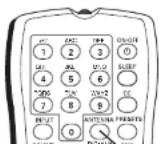
When using the input described above, use the ANTENNA (DIG•ANA) button on the remote to toggle between the digital and analog channels. Refer to page 11.
Note: Another way to see if you're tuned to a digital or analog channel is to press the INFO button. This brings up the Channel Banner screen, discussed on page 17.
Connections & Setup
Choose Your Connection
There are several ways to connect your TV, depending on the devices you want to connect and the quality of the signal you want to achieve. Connections will vary according to the types of output jacks the devices you want to connect can accommodate.

flowchart
graph TD
    A["Input"] --> B["Component Video"]
    B --> C["Output"]
    subgraph Back of TV
        D["Component Video (CVD) RWD"] --> E["Amplifier"]
        E --> F["Amplifier"]
        F --> G["Amplifier"]
        G --> H["Amplifier"]
        H --> I["Amplifier"]
    end
    subgraph Outputs
        J["Component Video"] --> K["AUDIO"]
        K --> L["Amplifier"]
        L --> M["Amplifier"]
        M --> N["Amplifier"]
        N --> O["Amplifier"]
    end
    style Back of TV fill:#f9f,stroke:#333
    style Outputs fill:#ccf,stroke:#333
Connections & Setup
Connecting the Device
This connection allows you to connect a device that has Y Pb Pr (component video) jacks, for example, a DVD player.
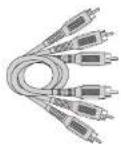
Component Video cables (Y Pb Pr) are color coded- Green, Blue and Red

Audio cables are color coded- Red= right audio; white= left audio

Using the example of a DVD player:
①. If necessary, connect your cable and/or antenna as described on page 5.
②. Connect your Y Pb Pr component video cables.
Connect three video cables or special Y Pb Pr cables to the Y Pb Pr jacks on the back of the TV and to the Y Pb Pr outputs on the DVD player. Y Pb Pr cables are colored green, blue and red. Just match the colors on the cables to the Y Pb Pr jacks.
③. Connect your audio cables.
Connect the audio (white and red) cables to the AUDIO R and L (COMPOSITE INPUT) jacks on the back of the TV and to the audio output jacks on the DVD player. Just match the colors.
Important - When using the Component video input (Y Pb Pr) jacks, use only the Audio I/L jacks from the COMPOSITE INPUT for this connection.
Viewing the Picture from the Connected Device
The device in this example, a DVD player, is connected to the TV's Y Pb Pr jacks. To view the DVD player:
- Turn on the TV and the DVD player.
- Press the INPUT button on the remote control to toggle through the Video Input
Connections & Setup
Using the Side Jacks

text_image
VISO L AUDIO R Side of TV 1 If necessary, connect antenna or cable to get a picture. Go to page 5 for instructions. 2 OUTPUT 3 L B AUDIO VIDEO L AUDIO R S-VIDEO OUT Note: This j panel graph represents Your TV's je different.Video Game Console

Audio/Video
Connecting the Device
This connection allows you to connect a device, such as a video game console, that has Audio/Video jacks. Refer to the illustration below which uses audio and video cables.
Using the example of a video game console:

Connect your cable and/or antenna as described on page 5.

Connect your video cable.
Video cables are usually yellow. Connect the Video cable to the Video jack on the side of the TV and the jack on the video game console.

Connect your audio cables.
Plug in the TV and Turn It On
Plug the end of the power cord into a grounded wall outlet. Insert the plug completely into the outlet. Press ON•OFF on the remote, or press POWER on the TV's front panel.
Put Batteries in the Remote
- Remove the battery compartment cover from the back of the remote by pushing down and sliding off – the cover.
- Insert 2 fresh "AA" batteries. Make sure the polarities (+ and -) are aligned correctly to the diagram inside the battery compartment.
- Replace the cover.
Note: If you won't need to use your remote for a long period of time, remove the batteries to avoid damage due to possible leakage.

text_image
1 2 3 4 5 6 7 8 9 0 10 11 12 13 14 15 16 17 18 19 20 21 22 23 24 25 26 27 28 29 30 31 32 33 34 35 36 37 38 39 40 41 42 43 44 45 46 47 48 49 50 51 52 53 54 55 56 57 58 59 60 61 62 63 64 65 66 67 68 69 70 71 72 73 74 75 76 77 78 79 80 81 82 83 84 85 86 87 88 89 90 91 92 93 94 95 96 97 98 99 100Use the Remote Control to Complete the Initial Setup
The technical term is "Navigation" - how you move through the on-screen menus. The method is the same throughout the menu screens: highlight your choice and select it.
To highlight a menu item, press the arrow buttons on the remote to highlight one of the items listed on the screen. Use the up or down arrow button to move up or down. Use the right or left arrow button to move right or left.
To select the item that you've highlighted, press OK.
Note: Highlighted means that the menu item stands out from
Connections & Setup
text_image
SETUP Go Back Auto Ch. Search List & Labels ... Closed Caption ... Favorite CH ... Language English... Auto format 4:3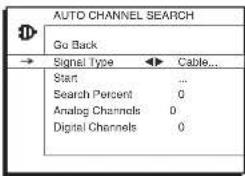
text_image
AUTO CHANNEL SEARCH Go Back Signal Type Cable... Start ... Search Percent 0 Analog Channels 0 Digital Channels 0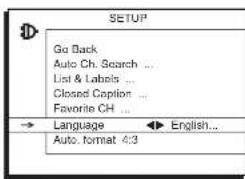
text_image
SETUP Go Back Auto Ch. Search ... List & Labels ... Closed Caption ... Favorite CH ... → Language ← English... Auto format 4:3Complete the Initial Setup
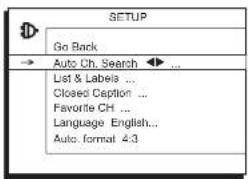
AUTO CHANNEL SEARCH is the first menu you should see when you turn on the TV. (It is located from this path Main Menu/Setup/Auto Channel Search). It allows the TV to search for all channels viewable through your digital and analog connections. This is sometimes called auto programming.
- From the Auto Channel Search menu press the right arrow button to choose the Signal Type (Antenna or Cable). The default is Cable.
- With the Signal Type chosen, press the down arrow button to select Start and press OK. AUTO CHANNEL SEARCH1 runs as it finds all the available channels. (This step can take some time, depending on your content provider).
- Once the search is complete, you can begin watching TV. For information on customizing your channels or menu options, go to Chapter 3.
Note: After you complete the Auto Channel Search you may see an additional screen, "Time stored in the TV may be incorrect after a loss of power. Please check the time in the Time menu" may appear, reminding you that the time setting is incorrect. Go to page 33 for more information.
Choose the Menu Language
To set the language, use the arrow buttons to highlight Language. The default language is English. To choose another language, press the right arrow button on the remote, choose the language and press OK.
Connections & Setup
Tuning to a Channel (continued)
Some channels might have been found during the channel search that are unavailable to view and you might want to get rid of these so they don't appear as you change channels. To do this go to Main Menu/Setup Menu/List & Labels. Note that removing channels from your channel list may be time consuming, so you might want to do it later. Go to page 28 for details on editing your channel list.
What to Expect
Watching TV
- Remember: If you have an analog signal connected to your ANTENNA/CABLE INPUT, then you'll view analog channels. (The ANTENNA button on the remote toggles analog and digital channels). Analog channels are sent in a 4:3 format. You can press the left arrow/ZOOM- and right arrow/ZOOM+ buttons on the remote to choose different screen formats (4:3, 16:9 or stretch). This is also known as the aspect ratio. Go to page 32 for examples of screen formats.
- Remember: If you have a digital signal connected to your ANTENNA/CABLE INPUT, then you'll view digital channels. (The ANTENNA button on the remote toggles analog and digital channels). Most digital channels are sent in a 16:9 format; it depends on how the station is formatting the video. If so, you'll see gray or black bars at the top and bottom of the screen. You can press the left arrow/ZOOM- and right arrow/ZOOM+ buttons to choose different screen formats (4:3, 16:9 or stretch). This is also known as the aspect ratio.
Note: Digital stations in native 4-3 format (you'll see black or gray bars on the sides of the picture sent as part of the signal from the broadcaster) might not have this function.
Connections & Setup
Explanation of Jacks
This section describes the jacks you can use to make connections. There are several combinations available to connect devices to your TV.

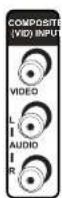
ANTENNA/CABLE INPUT Connect either antenna or cable via coaxial (RF) cable to receive analog and digital channels through your cable provider. Receive off-air analog and digital channels via an antenna. Refer to page 5 for more details.
COMPOSITE INPUT Connect devices that have Audio/Video (composite) outputs such as VCRs, DVD players, satellite receivers, cable boxes, camcorders and video game consoles. Use audio cables to connect the left and right audio jacks for sound.
• VIDEO Provides composite video connection. The video connector is usually yellow.
• AUDIO-L Provides left audio connection. The left audio connector is usually white.
• AUDIO-R Provides right audio connection. The right audio connector is usually red.
To access the device when using these jacks, use the INPUT button on your remote until VTD appears.
- OR -
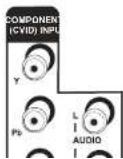
COMPONENT INPUT Connect devices that have component (Y Pb Pr) outputs such as VCRs, DVD players, DVD-PVRs, DVD recorders, satellite receivers and cable boxes. This connection provides optimum picture quality because the video is separated into three signals. The AUDIO L and R jacks are shared with the COMPOSITE INPUT connection for sound.
To access the device when using these jacks, press the INPUT button on your remote until CVID appears.
Refer to page 7 for a detailed explanation of how to connect Y-Ph Pr cables to your TV
Connections & Setup
The Front of Your TV
You can use the buttons and jacks on the front of your TV to make additional connections.

-OR-

FRONT (INPUT) These jacks are located on the side of the TV. Connect devices that have composite outputs such as VCRs, DVD players, satellite receivers, cable boxes, video game consoles and camcorders.
• VIDEO Provides composite video connection. The video connector is usually yellow.
• AUDIO-L Provides left audio connection. The left audio connector is usually white.
• AUDIO-R Provides right audio connection. The right audio connector is usually red.
S-VIDEO Connect external devices that have S-Video outputs such as VCRs, DVD players, satellite receivers and cable boxes. Connect the left and right audio jacks located on the side of the TV for sound. Refer to page 9 for a detailed explanation of how to connect S-Video cables to your TV.
To access the device when using these jacks, use the INPUT button on your remote until FRNT appears. If your model has an S-Video jack, SFRNT appears.
Remember: If your model has a Video and S-Video jack (second graphic), choose either the Video (composite) or S-Video connection. You cannot use both because they share the same AUDIO R/L input jacks.
Front Buttons
Use the buttons on the front of your TV to operate many of the TV's features.
POWER Turns the TV on and off.
Connections & Setup
text_image
+7 ABC C1 ON-OFF 1 2 3 + G+ J0 MND SLEEP 4 5 6 POR3 TUV WXYZ CC 7 8 9 INPUT ANTENNA PRESETS 0 SOUND UIC*ANA SKIP CH+ MUTE VOL- VOL+ CH- GO BACK FAV MENU OK INFO ZOOM-GUID ZOOM+ CH LIST CLEARRemote Buttons
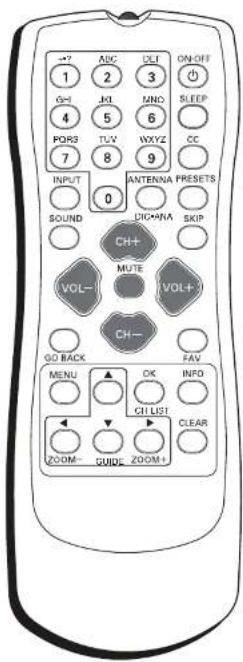
ANTENNA, DIG•ANA Tunes to digital and analog channels. Refer to page 5 for a full description.
Arrow buttons (▲▼,◀) else to highlight different items in the TV menu. The right and left arrows select highlighted items.
(0-9) Number buttons Enter channel numbers (refer to page 11), time settings (refer to page 33), labels (refer to page 28) and notepad messages (refer to page 34).
CC Toggles closed captioning on and off when closed-caption menu option is turned on.
CH + or CH - Scans up or down through all the available stations on analog and/or digital connections. Press once to change the channel up or down; press and hold to continuously change channels.
CLEAR Removes any menu or display from the screen and returns you to normal TV viewing.
FAV (Favorite) Press to browse the channels in your Favorite List. Refer to page 31 for more information.
GO BACK Returns to the previous channel or menu.
INFO Brings up the channel banner. Press again to remove. Refer to page 17 for more information.
INPUT Toggles through the available Video Input Channels (VID, CVID, FRNT, SFRNT and current channel).
MENU Brings up the MAIN MENU system.
MUTE Reduces the TV's volume to its minimum level. Press again to restore the volume.
OK/CH LIST When in the menu system, selects highlighted items.
Connections & Setup
VOL - or VOL + Decreases or increases the TV's volume.
ZOOM-, ZOOM+ During normal TV viewing, changes the screen format (aspect ratio).
The zoom status appears momentarily. Refer to page 32 for more information about different formats.
text_image
INPUT button PRESETS button OFF 1 2 3 4 5 6 7 8 9 ON/OFF 0 1 2 3 4 5 6 7 8 9 AUSTINKA PRESETS SOUND DEEMENA SEP CH+ VOL- MUTE VOL+ CH- GO BACK FAV MENU OK INFO CHLST CLEAR ZOOM- QUCE ZOOM+Using the INPUT Button
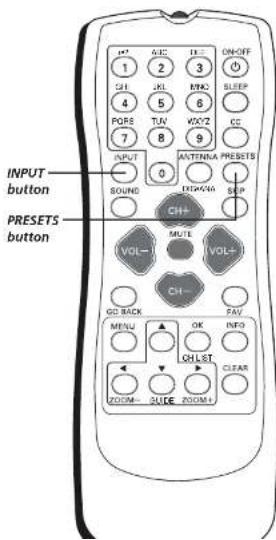
Use the INPUT button to scroll through the available Video Input Channels to view devices you have connected to the TV.
- Make sure the device you want to view is turned ON.
- Press INPUT to tune to an available Video Input Channel and view the device.
- To return to the previous channel, continue pressing INPUT.
Using the PRESETS Button
The following items are available for digital channels only:
Cur. Language (Current Digital Channel Audio Language) Press the right arrow button to choose the dialog language available for the program you're watching, if the language you choose here is not being broadcast with a program, then the TV will play the default audio for the program (usually English in the U.S.):
Def. Language (Default Digital Channel Audio Language) Press
the right arrow button to choose the dialog language available on digital channels. If your preferred language is being broadcast with a program, the TV will play it. If not, then the TV will play the default audio for the program (usually English in the U.S.). The default digital audio language options are English, Spanish, French, German, Italian, Japanese, Chinese
Chapter 2: Using the TV's Features
| SAP KidPass:08:30 CC | ||
| STEREO | Skip: 0:30 | 07:18am |
| 11 CNN | X | |
Channel Banner menu for an analog channel.
Channel Banner
There are several items that might appear on-screen when you press the INFO button on the remote. This display is called the Channel Banner. The following list describes the items on the Channel Banner screen.
SAP Displayed when the current channel is broadcasting SAP (Second Audio Program) information. Refer to page 25 for more information.
lock) or Inlock) for Parental Control (Refer to page 18).
- The lock icon is displayed when all Parental Control settings are active.
- The unlock icon is displayed when all Parental Control settings are deactivated.
KidPass: 08:30 Corresponds to the KidPass function (refer to page 23). Shows the amount of time left before the TV switches off.
CC Displayed when Closed Captioning is available on the current channel.
STEREO or (MONO) STEREO is displayed when the current channel is broadcasting in stereo. MONO is displayed when the current channel is broadcasting in mono.
Skip: 0:30 Corresponds to the SKIP button. Shows the amount of time left before the TV switches back to the previous channel. (Refer to 15).
07:18 am Displays the current time.
Displayed when you MUTE the sound.
The following Channel Banner display is available for analog signals only:
11 CNN Displays the current channel and label assigned to the channel.
The following Channel Banner display is available for digital signals only.
English KidPass: 08:30 CC STEREO Skin: 0:30 07:18am
Using the TV's Features
Parental Controls and V-Chip
The choices in the USA V-CHIP menu involve software inside your TV (referred to as V-Chip) which allows you to block TV programs and movies based on violence, sex or other content you may believe children should not view.
Once you block programs, you can unblock programs by entering a password.
By default, the software inside your TV is turned "off." For instructions to turn on V-Chip, refer to Activate Parental Control below.
How V-Chip Works
V-Chip reads the program's age-based rating (TV-MA, TV-14, etc.) and content themes (Violence (V), Adult Language (L), etc.). If you have blocked the rating and/or content themes that the program contains, you will receive the message: This channel has not been approved for viewing. Change channel or press OK to enter password and temporarily deactivate the Parental Control.
Broadcasters are not required to provide content themes, so programs received with no content themes will only be blocked if you block their age-based rating. You can also block out programs that have been given a rating of Not Rated and programs that are considered unrated.
The TV age-based ratings and content themes you can block are identified and explained in detail in Chapter 4.
The following sections give you more details about how to change the status of TV program limits
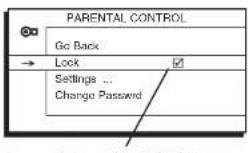
Activate Parental Control
Note: The PASSWORD screen appears the first time you enter the Parental Control menu. Follow the on screen instructions to create your PASSWORD using the number buttons on the remote. If you forget this password, refer to the bottom of this page for instructions on how to change the password.
Using the TV's Features

Set V-Chip TV Programming Limits
- Choose Parental Control from the Main Menu and press the OK button.
- Highlight Settings in the next Parental Control screen; then, press the right arrow button.
- Highlight USA V-Chip. Press the right arrow button. Then select TV Ratings and press the right arrow button.
- Once you get to the TV RATING LIMIT screen, use the arrow buttons and OK on your remote to change the status of a TV program rating from view (☐) to block (☐) or content theme from View (V) to Block (B).
The V-Chip Rating Screen
The following is an example of where items are located within the TV RATING LIMIT screen.
Rating Status Field
Lets you select whether to view (☐) or block (☐)
Rating Field
Lets you select from a list of age-based ratings you can block or view. Refer to chart below.

text_image
TV RATING LIMIT Go Back Status D L S V FV TV-MA □ V TV-14 □ V V TV-PG □ V V TV-G □ TV-Y7 □ V TV-Y Press OK to view/block prog. containing adult language.Content Themes
Lists the content themes you can block or view. Refer to chart at top of next page.
Content Status Fields
Lets you select which content themes to view for the selected rating and whether the status of the content theme is currently View (V) or Block (B).
Hierarchy of Age-Based Ratings
Blocking Age-Based Ratinas
Using the TV's Features
| Content Themes |
| D Sexually explicit dialogue |
| L Adult language |
| S Sexual situations |
| V Violence |
| FV Fantasy Violence |
Tips:
Broadcasters are not required to provide content themes or age-based ratings.
Only the content theme status corresponding to TV-14 (L) language changes to (V) View. Higher rated content themes, such as that for TV-MA language, do not change.
Blocking Specific Content Themes
You can block programs based on their content. (Content is represented by the D, L, S, V and FV on your screen.) When you block a content theme for a particular rating, you automatically block that content theme for higher rated programs as well.
To block program content:
- Determine the content themes you want to block.
- Press the down arrow button to scroll to the rating whose content theme you want to change.
- Press the right arrow button to move the highlight to a particular content theme status.
- Press the OK button to change its status to B. (In the example on the previous page, you block the language (I) corresponding with TV-14. The language for TV-MA is blocked as well).
- After you Block specific content themes, you can change some of the content themes back to (1) view.
Note: You must remember to activate Parental Control for rating limits to take effect. Refer to page 18.
Using the TV's Features


text_image
PARENTAL CONTROL SETTINGS Go Back → USA V-Chip ... Canada V-Chip ... Exempt Prgms KidPass ... Block CH ... Lock Fr. Panel

text_image
MOVIE RATING LIMIT Go Back → NR < > X NC-17 R PG-13 PG GBlocking USA V-Chip Movie Ratings
The Movie Rating Limit lets you decide which TV programs can and cannot be viewed.
To set Movie programming limits:
- Choose Parental Control from the Main Menu and press the OK button.
- Highlight Settings in the next Parental Control screen; then, press the right arrow.
- Highlight USA V-Chip. Press the right arrow button. Then select Movie Ratings and press the right arrow button.
- Once you get to the MOVIE RATING LIMIT screen, use the arrow buttons and OK on your remote to change the status of a TV program rating from view (☐) to block (☐).
- Press the OK button to change its status to block - the lock icon (☐) appears. All ratings above the one you selected change to lock.
Notes: You must remember to activate Parental Control for rating limits to take effect. Refer to page 18.
If you forget your password, you can reset it. Make sure the TV is off. Simultaneously press and hold VOI-on the TV's front panel and CLEAR on the remote for approximately 5 seconds. Enter a new password the next time you access the PARENTAL CONTROL menu.
Using the TV's Features

text_image
PARENTAL CONTROL SETTINGS Go Back USA V-Chip ... → Canada V-Chip > ... Exempt Prgms KidPass ... Block CH ... Lock Fr. Panel
text_image
ENGLISH RATINGS Go Back → 18+ <>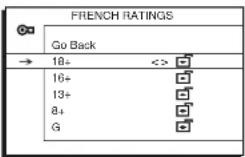
Blocking Canadian V-Chip Movie Ratings
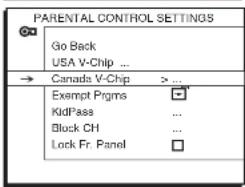
If you receive Canadian programs you can block Canadian English and French V-Chip ratings. When you block a particular rating, you automatically block the higher rated programs as well.
To block Canadian English and French program ratings:
- Choose Parental Control from the Main Menu and press the OK button.
- Highlight Settings in the next Parental Control screen; then, press the right arrow button.
- Highlight Canada V-Chip. Press the right arrow button. Then select either English Rating or French Rating and press the right arrow button.
- Determine the rating you want to block.
- Once you get to the RATING screen for your choice, use the arrow buttons and OK on your remote to change the status of a TV program rating from view (☐) to block (☐).
- Press the OK button to change its status to block - the lock icon (☐) appears and all ratings above the one you selected change to lock.
Note: You must remember to activate Parental Control for rating limits to take effect. Refer to page 18.
V-Chip Exempt Program Block
The Exempt Prgms option lets you decide if programs that the V-Chip recognizes as unrated can be viewed. Unrated TV programs may include news, sports, political, religious, local and weather programs, emergency bulletins, public announcements and programs without ratings. The Exempt option applies to both USA and Canadian unrated programs, and Canadian programs rated T.
1.1.2.3.4.5.6.7.8.9.10.11.12.13.14.15.16.17.18.19.20.21.22.23.24.25.26.27.28.29.30.31.32.33.34.35.36.37.38.39.40.41.42.43.44.45.46.47.48.49.50.51.52.53.54.55.56.57.58.59.60.61.62.63.64.65.66.67.68.69.70.71.72.73.74.75.76.77.78.79.80.81.82.83.84.85.86.87.88.89.90.91.92.93.94.95.96.97.98.99.100
Using the TV's Features

text_image
KIDPASS Go Back Current Day Wed Monday 1:30 < > Tuesday 2:00 Wednesday 2:00 Thursday 0:30 Friday Free Saturday Free Sunday FreeActivate KidPass
This feature allows you to specify how much TV you want a child to watch. The choices and a brief explanation are as follows:
Current Day Shows the current day such as Monday, Tuesday... or Sunday. The value of Current Day changes automatically to the day after at 12:00 am.
Monday to Sunday The selected options are Free, 00:30 to 16:00 with 30 minute steps. The settings are valid every week. Once the viewing allowance of current day is elapsed, the TV is switches off and no wake up timer event can take place for that day. If the TV is switched on while the viewing allowance of current day is elapsed, sound is muted and the PASSWORD menu is displayed on the screen. Make sure to set the time and calendar in your TV. Refer to page 33 for more information.
Note: You must remember to activate Parental Control for rating limits to take effect. Refer to page 18.
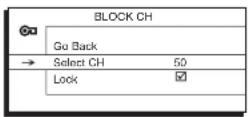
Block Channel
Note: This option works differently with different connections. If you are using the ANTENNA/CABLE INPUT you have two options: to block all channels or none. Individual channels cannot be blocked with this connection.
If you are using the ANTENNA/CABLE INPUT then Block Channel works as described below.
This option lets you block specific channels.
-
From the PARENTAL CONTROL menu, press the down arrow button to highlight Block CH.
-
Pass CF to display Black CU options
Using the TV's Features

text_image
PARENTAL CONTROL SETTINGS Go Back USA V-Chip ... Canada V-Chip ... Exempt Prgms KidPass ... Block CH ... → Lock Fr. Panel >✓Front Panel Lock
Selecting this option lets you lock (disable) or unlock (enable) the TV's front panel buttons. The remote still tunes to any channel so remember to remove access to any remote that can operate the television.
- From the PARENTAL CONTROL menu, press the down arrow to highlight Lock Fr. Panel.
- Press the right or left arrow button to choose lock (☑) or unlock (☐).
Change Password
Selecting this option lets you simply create a new password at any time. Once you enter a new password from Change Password in the PARENTAL CONTROL menu, it is the password you use until you change it again.
Chapter 3: Using the TV's Menu System

text_image
SOUND Go Back → Tone Control <>SOUND menu for analog signals.
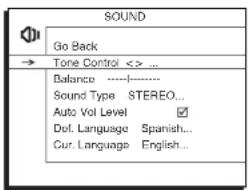
text_image
SOUND Go Back → Tone Control <>SOUND menu for digital signals.

Sound Menu
To access the Sound menu, press MENU on the remote and select SOUND from the MAIN MENU. Depending on the kind of signal you're watching, the Sound Menu will have different items available for you to adjust.
If you are watching analog programming or any video inputs, you'll see a screen similar to the example SOUND menu to the left.
If you're watching digital programming, you'll see the second menu to the left. The ANTENNA button on the remote toggles between analog and digital menus.
Tone Control Allows you to choose your desired sound mode and adjust the equalizer sliders.
- Presel Press the left or right arrow button to select your desired sound mode: Personal, Standard, Music, Speech and Theatre. When you change any equalizer slider, the Preset changes to Personal.
- Treble/Bass Press the right arrow button to increase the treble or bass output; use the left arrow button to decrease the output.
Balance Press the right arrow button to increase the audio output in the right speaker; press the left arrow button to increase the audio output in the left speaker.
Sound Type Press the right arrow button to scroll through the available audio types which control the way the sound comes through your speakers:
- MONO Plays the sound in mono only. Use this setting when receiving broadcasts with weak stereo signals.
- STEREO Splits the incoming stereo audio signal into left and right channels.
- Enhanced (only available for analog signals) Makes the sound simulate surround sound.
Using the TV's Menu System
Auto Vol Level (Auto Volume Level) Reduces the annoying blasts in volume during commercial breaks. Eliminates the need to constantly adjust volume control. Press the right arrow button to turn on or off.
The following items are available for digital broadcasts only:
Def. Language (Default Digital Channel Audio Language) Press the right arrow button to choose the language you prefer for dialog on digital channels. If your preferred language is being broadcast with a program, the TV will play it. If not, then the TV will play the default audio for the program (usually English in the U.S.). The default digital channel audio language options are English, Spanish, German, Italian, Japanese, Chinese and Korean.
Cur. Language (Current Digital Channel Audio Language) Press the right arrow button to choose the audio language available for the program you're watching. If the language you choose here is not being broadcast with a program, then the TV will play the default audio for the program (usually English in the U.S.).
Using the TV's Menu System
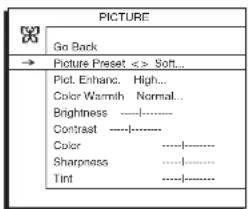
text_image
PICTURE Go Back → Picture Preset < > Soft... Pict. Enhanc. High... Color Warmth Normal... Brightness ---- Contrast ---- Color .... Sharpness .... Tint ....Picture Menu
The PICTURE menu options apply to the video for the main TV and Video Input Channels. As you scroll through the options available, the background image will change to fit that choice. Choose the setting that is best for your programs.
Press the left or right arrow button to toggle among the choices listed below:
Picture Preset Press the right arrow button to scroll through the available picture preset settings: Soft, Natural, Bright or Personal.
Pict Enbanc. (Picture Enhancement) Improves unstable or poor quality video pictures. Press the right arrow button to scroll through the options: Off, Middle or High.
Color Warmth Press the right arrow button to scroll through the color adjustments:
• Cool For a more blue palette of colors.
- Normal Standard picture color. This is the default setting.
- Warm For a more red palette of colors.
Brightness Adjusts the brightness of the picture.
Contrast Adjusts the difference between the light and dark areas of the picture.
Color Adjusts the richness of the color.
Sharpness Adjusts the crispness of the edges in the picture.
Tint Adjusts the balance between the red and green levels.
When you change any of these picture settings, the Picture Preset changes to Personal. Press the left or right arrow button to make adjustments. To return to the PICTURE menu, press the up or down arrow button.
Using the TV's Menu System

text_image
SETUP Go Back → Auto Ch. Search < > ... List & Labels ... Closed Caption ... Favorite CH ... Language English... Format 4:3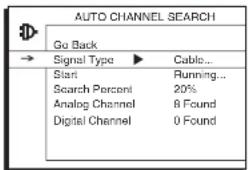
text_image
AUTO CHANNEL SEARCH Go Back Signal Typa ▶ Cable... Start Running... Search Percent 20% Analog Channel 8 Found Digital Channel 0 Found
Setup Menu
Auto Channel Search Allows you to choose your signal type and begin an Auto Channel Search.
Press the left or right arrow button to choose among the signal sources below:
- Antenna If you have connected an antenna to the ANTENNA/CABLE INPUT, choose Antenna. Refer to page 5 for a complete explanation of these connections.
- Cable If you have connected cable to the ANTENNA/CABLE INPUT, choose Cable. Depending on which package you have you can receive analog, digital or both stations. Refer to page 5 for a complete explanation of these connections.
After you have made the selections above, press the down arrow button to highlight Start.
- Start Press the right arrow button to start the search. Searches for channels the TV is receiving and stores them in the channel list. This step can take some time, depending on your content provider. The Lists G-Labels menu is displayed. Go to page 11 (Auto Channel Search) for more information.
- Search percent Number displayed indicates how much of the search has been completed on analog and digital signals.
- Analog Channels Shows the number of analog channels found as they are being searched. These are searched for first.
- Digital Channels Shows the number of digital channels found as they are being searched. These are searched for last.
List & Labels Edit the channels in the list or choose labels for each channel. Select Lists & Labels from the SETUP menu and press the right or
Using the TV's Menu System
- In List This option allows you to keep or delete a channel from the channel list. Follow the procedure for Channel (see above) to select the channel. Then highlight In list and press the right or left arrow button to add (☐) or delete (☐) the channel. Use the up arrow button to highlight GO BACK and press OK to exit.
Note: If you want to add deleted channels to the channel list, run the Auto Channel Search (refer to page 28).
Closed Caption Many programs are encoded with closed-captioning information, which lets you display the audio portion of a program as text on the TV screen. Closed captioning is not available on all channels at all times. Only specific programs encoded with closed-captioning information are applicable. When a program is closed-captioned, CC is displayed in the Channel Banner. Refer to page 17 for more information. Press the left or right arrow button to toggle among the choices below:
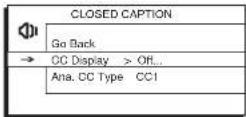
CLOSED CAPTION menu for analog signals.

The following Closed Caption options are available for analog signals:
- CC Display Lets you choose the way closed-captioning information is shown on the screen.
Off No captioning information displayed.
On Captioning information always appears, when available.
Muted-On Displays captioning information, when available, whenever the TV's sound is muted by pressing the MUTE button. The captioning information is not displayed when the sound is not muted.
- Ana. CC Type (Analog Closed Caption Type) Choose which captioning mode is used for displaying captioning information. If you are unsure of the differences among the modes, you may prefer to leave the closed-captioned mode set to CCT, which displays complete text of the program in the primary language in your area.
The following Closed Caption options are available for digital signals:
- CC Preset Lets you select between the Default and Custom
Using the TV's Menu System

text_image
DIGITAL CC STYLE Go Back → CC Size > Large... CC Font Ashley CC Opacity Solid... CC Color Green... Bkgmd Opacity Solid... Bkgmd Color White...Notes: The styles shown above only appear on digital content (ANTENNA/CABLE DIGITAL INPUT) jack. If a digital station doesn't carry digital closed captioning, you won't see these changes.
If you're tuned to an analog station you won't see these changes.
Service 1 and Service 2 These choices are for the primary and secondary languages, respectively
Service 3 and Services 4, 5, 6 These choices are additional caption sources that may be available.
- Dig. CC Style (Digital Closed-Caption Style) When CC Preset (above) is set to Custom, you can customize the following display options:
CC Size Lets you set the size of the digital closed-caption text - Standard, Large or Small.
CC Font Lets you select a character design for the digital closed-caption text. A font is a complete assortment of type of a given design. You can choose from a variety of fonts (Ashley, Floridian etc.).
CC Opacity Let you set the appearance of the space behind the digital closed-caption text: Solid, Translucent, Transparent or Flashing.
CC Color Lets you choose the color of the digital closed-captioned text: White, Black, Red, Green, Blue, Yellow; Magenta or Cyan.
Bkgrd Opacity (Background Opacity) Lets you choose the appearance of the screen behind the digital closed-captioned text.
Bkgrd Color (Background Color) Lets you choose the color of the area of the screen behind the digital closed-captioned text: White, Black, Red, Green, Blue, Yellow, Magenta or Cyan.
Using the TV's Menu System
You have many choices available to customize the digital closed-caption display. In order to help you decide which view you like, try this:
- In the Setup Menu for Closed Caption, turn your CC Display to On. Make sure you're tuned to a digital channel with closed-captioning available.
- In the same menu, change any setting. Press CLEAR to exit.
- Now your screen displays custom closed captioning. As you change size, font, opacity, caption color, background opacity or background color, you will see the change in the closed-caption display by waiting for new text to scroll onto the screen. Not all digital stations carry digital closed captioning. If your digital station doesn't carry digital closed captioning, you'll see the station's default style for analog closed captioning.
Not all digital stations carry digital closed captioning. If your digital station doesn't carry digital closed captioning, you won't see these changes. You'll see the station's default style for analog closed captioning.
text_image
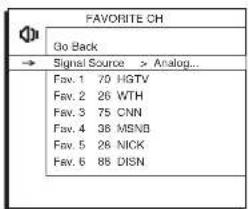
FAVORITE CH Go Back Signal Source > Analog... Fav. 1 70 HGTV Fav. 2 26 WTH Fav. 3 75 CNN Fav. 4 36 MSNB Fav. 5 26 NICK Fav. 6 88 DISNFAVORITE CH menu for analog signals.
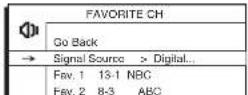
Favorite CH (Favorite Channel) Store up to six of your preferred channels for each signal source into a favorite list. There is one list for the analog channels and a separate list for the digital channels.
To set your favorite channels, go to the Favorite CH option under the SETUP menu and press OK. Press the right arrow button to select Analog or Digital signal type (the TV will switch to that signal). Press the down arrow button to select Fav. 1 and use the right and left arrow buttons to scroll through the channel numbers to find your favorite. If you have entered channel labels for a channel, it will appear to the right.
As you watch TV, press the FAV button on your remote to call up your favorite channels in the order that you entered them.
This feature can be very helpful for persons with limited finger dexterity or young children, since it avoids the need to remember the channel numbers and press multiple number combinations.
Language Lets you select your preferred language for the menus, which you should have set in the Initial Setup. Refer to page 11 for more
Using the TV's Menu System

natural_image
Black and white photo of a fluffy light-colored dog standing on pavement (no text or symbols visible)16:9 Format
gray or black bars

natural_image
Black-and-white photo of a young dog standing on tiled floor (no text or symbols visible)Stretch Format (stretched vertically to fill the 4:3 screen)
Formal This feature is designed for the different signal formats.
4:3 This is a full TV screen display which is for traditional TV programs. This is also known as Standard.
16:9 This is for digital signals, DVD or video programs that are in 16:9 screen size. This is also known as Widescreen. There are gray or black bars on the top and bottom on the screen.
Stretch The image is stretched vertically to fill the 'IV screen (for digital content only).
Note: The Zoom+ and Zoom- buttons on the remote change the TV's screen format.
Parental Control Menu
The PARENTAI, CONTROL, menu was explained in Chapter 2. Go to page 18 for more information.
Using the TV's Menu System
| TIME | |
| Go Back | |
| Sleep Timer 00:15 | |
| → Time 08:25am | |
| Calendar ... | |
| Wake-up Timer ☑ | |
| Wake-up Time 08:15am | |
| Wake-up Ch 05 | |
| Recurrence Once... | |
| Turn-Off Timer ☑ | |
| Turn-Off Time 10:00pm | |
| Recurrence Daily... | |
Time Menu
When entering the TIME menu the PASSWORD screen appears first if parental controls have been set. You must enter your password which is the same one you created in the PARENTAL CONTROL menu.
Sleep Timer Set the TV to turn off after a given time. Press the right arrow button to add 15 minutes to the clock (up to four hours).
Time To set the time, enter it manually. If it is 8:25, for example, you must first press the number 0 on the remote, then number 8, then 2 and then 5. Use the OK button to choose between AM and PM.
Calendar Enables you to set the date easily.
Wake-Up Timer Set the TV to turn on (at a specific time).
Notes: Unless Wake-Up Timer is set to On, the next three options (Wake-Up Time, Wake-up Ch and Recurrence) aren't available.
When the TV turns on by the Wake-Up Timer and no remote or front panel buttons are pressed for 2 hours, the TV will turn itself off.
Wake-Up Time Set the time you want the TV to turn itself on.
Wake-Up Ch (Wake-Up Channel) Select a specific channel the TV tunes to when the Wake-up Timer is set.
Recurrence Select how often the Wake-Up Timer feature takes effect: Once or Daily.
Turn-Off Timer Lets you set the TV to turn itself off.
Turn-Off Time Set the time you want the TV to turn itself off.
Recurrence Select how often the Turn-Off Timer feature takes effect: Once or Daily.
Note: Unless the time is set, none of the time related items above are available.
Using the TV's Menu System
text_image
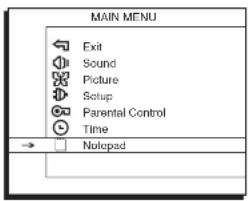
MAIN MENU Exit Sound Picture Setup Parental Control Time → □ Notcpsd
text_image
NOTEPAD Go Back Edit Note ... Delete note ... → Display note < > At switch on On time 10:30am On date Date --/--Notepad Menu
Lets you enter messages that will appear on you TV screen at times you select. From the MAIN MENU select Notepad and press OK.
Edit note Follow the procedure below to enter a message into the notepad:
- Use the number buttons to spell out your new label. For example, above the number button 7 is the label PQRS. The letter P is typed by pressing the number 7 button one time; the letter Q is typed by pressing the number 7 two times; the letter R is three times and the letter S is four times.
- The left arrow button is used to delete the unwanted text and the right arrow button is for the blank space.
- The up arrow button is pressed to toggle the entry mode between uppercase or lowercase letters.
- When completed, press the OK button to save the note.
Delete note Lets you delete the whole message.
Display note Enables you to display (☑) or not to display (☐) the message on the screen.
At switch on If the box is checked, the stored message will be displayed on the screen the next time the TV is turned on.
On time Enables you to display the message at a time you specify. Use the OK button to choose between AM and PM.
On date Allows you to display the message on a date you specify.
Date Lets you set the date when the message will be displayed.
Chapter 4: Other Information
Frequently Asked Questions (FAQs)
How do I tell an analog channel from a digital channel?
Press the INFO button to display the channel banner. Look at the left side for the channel number. Channels that have a primary channel and a subchannel are digital channels. Remember however that not all digital channels have subchannels. Go to page 11 for more information on the difference between analog and digital channels.
Why does the channel search take a long time?
When the TV searches for digital channels it is also be searching for the sub-channels of that digital channel. Although this can take some time, (depending on your content provider) you only have to do this once.
Why does channel search find a lot of channels, but when I try to tune to them there's nothing there?
Some channels are enabled by the cable company that don't carry programming, such as video-on-demand. When channels are unavailable, your TV's screen displays Unusable Signal. You probably want to get rid of these so they no longer appear in your channel list. Remove these in the List & Labels menu. Go to page 28 for more information.
Why are there black bars on my screen and can I get rid of them?
Your TV has a 4:3 screen so most digital channels are displayed with gray or black bars at the top and bottom of the screen because most are sent in a 16:9 format. It depends on how the station is formatting the video. Aspect ratios are determined by the broadcaster and may change from one program to another. Use the ZOOM- and ZOOM+ buttons on the remote to see the different formats available that may eliminate the bars. Go to page 12 for more information.
No other options are possible aside from those you see by cycling through this button. However, you can change the default settings for both analog and digital programming through the menu. Go to page 32 for more details.
Other Information
Troubleshooting
Most problems you encounter with your TV can be corrected by consulting the following troubleshooting list.
TV Problems
TV won't turn on
• Make sure the TV is plugged in.
- Check the wall receptacle (or extension cord) to make sure it is "live" by plugging in something else.
- Something might be wrong with your remote control. Press the POWER button on the front of the TV. If the TV turns on, check the remote control.
• The Front Panel Lock may be on. Go to page 24 for more information.
Buttons don't work
• The Front Panel Lock may be on. Go to page 24 for more information.
TV turns off unexpectedly
- Sleep Timer might have been activated. Go to page 33 for instructions.
• Turn Off-Timer might have been activated. Go to page 33 for instructions. - KidPass might have been set. Go to page 23 for instructions.
- Electronic protection circuit may have been activated because of a power surge. If this happens frequently, the voltage in your house may be abnormally high or low.
TV turns on unexpectedly
- Wake-Up Timer might have been set. Go to page 33 for instructions.
Blank screen
• You may be on an inactive channel. Try another channel.
• Make sure devices connected to the TV are turned on.
- If you've connected another device (such as a camcorder or DVD player) make sure you select the Video Input
Other Information
No picture, no sound but TV is on
• Maybe the Signal Type is set wrong. Go to page 11 for more instructions.
- You may have the wrong video input channel selected. Use the ANTENNA button to toggle through the available video input channels.
Sound okay, picture poor (analog channels only)
- Check antenna connections. Make sure all of the cables are firmly connected to the jacks.
- Try adjusting sharpness to improve weak signals. Go to page 27 for more instructions.
Black box appears on the screen
- Closed caption might be on. Check Closed Caption in the SETUP menu. Go to page 29 for more instructions.
The Remote Control Doesn't Work
- Something might be between the remote and the remote sensor on the device. Make sure there is a clear path and point directly at the TV.
- Maybe batteries in the remote are weak, dead or installed incorrectly. Put new batteries in the remote.
Problems with Parental Controls
Can't select a certain channel
• The channel may be blocked or not approved through PARENTAL CONTROL SETTINGS.
The rating limits don't work
- You must activate the settings. Go to page 18 for instructions.
I don't remember my password and I want to unlock the TV
- If you forget your password, you can reset it. Make sure the TV is off. Simultaneously press and hold VOL- on the TV's front panel and CLEAR on the remote for approximately 5 seconds. Enter a new password next time you access the PARENTAL CONTROL menu.
The Parental Controls won't let me watch a program even though it's not rated as violent
- Maybe the movie was given an NR (Not Rated) status. Check to see if the Exempt Prgms option is Locked. Refer to page 22 for instructions
Other Information
USA V-Chip Rating System
| TV-MA | (Mature Audience Only) Specifically designed to be viewed by adults and may be unsuitable for children under 17. It contains one or more of the following content themes: crude indecent language (L), explicit sexual activity (S), or graphic violence (V). |
| TV-14 | (Parents Strongly Cautioned) Contains some material that many parents would find unsuitable for children under 14. Parents are strongly urged to exercise greater care in monitoring this program and are cautioned against letting children under the age of 14 watch unattended. This program contains one or more of the following content themes: intensely suggestive dialogue (D), strong coarse language (L), intense sexual situations (S), or intense violence (V). |
| TV-PG | (Parental Guidance Suggested) Contains material that parents may find unsuitable for younger children. Many parents may want to watch it with their younger children. The program contains one or more of the following content themes: some suggestive dialogue (D), infrequent coarse language (L), some sexual situations (S), or moderate violence (V). |
| TV-G | (General Audience) Most parents would find this program suitable for all ages. It contains little or no sexual dialogue (D) or situations (S), no strong language (L), and little or no violence (V). |
| TV-Y7 | (Directed to Children 7 years and older) Designed for children ages 7 and above. It may be more appropriate for children who have acquired the developmental skills needed to distinguish between make-believe and reality. Themes and elements in this program may include mild fantasy violence (FV) or comedic violence, or may frighten children under the age of 7. |
| TV-Y | (All Children) Thcmcs and elements in this program are designed for a young audience, including children from ages 2-6. It is not expected to frighten younger children. |
Canadian English V-Chip Rating System
| 40. | (1+2k)N | |x_1| | |x_2| | |x_3| | |x_4| | |x_5| | |x_6| | |x_7| | |x_8| | |x_9| | |x_10| |
Other Information
Canadian English V-Chip Rating System (continued)
| G | (General Audience) Programming considered acceptable for all age groups. While not designed specifically for children, it is understood younger viewers may be part of the audience. Violence Guidelines: Will contain very little violence, either physical or verbal or emotional. Will be sensitive to themes which could frighten a younger child, will not depict realistic scenes of violence which minimize or gloss over the effects of violent acts. Other Content Guidelines: There may be some inoffensive slang, no profanity and no nudity. |
| C8+ | (Children 8 and Older) Programming generally considered acceptable for children 8 years and over to watch on their own. Violence Guidelines: Violence will not be portrayed as the preferred, acceptable, or only way to resolve conflict or encourage children to imitate dangerous acts which they may see on television. Any realistic depictions of violence will be infrequent, discreet, of low intensity and will show the consequences of the acts. Other Content Guidelines: There will be no profanity, nudity or sexual content. |
| C | (Children) Programming intended for children under age 8. Violence Guidelines: Careful attention is paid to themes which could threaten children's sense of security and well being. There will be no realistic scenes of violence. Depictions of aggressive behavior will be infrequent and limited to portrayals that are clearly imaginary, comedic or unrealistic in nature. Other Content Guidelines: There will be no offensive language, nudity or sexual content. |
Canadian French V-Chip Rating System
| 18+ (Adults) Programming is for adults only. This program contains sustained violence or extremely violent scenes. 16+ (Viewers 16 and over) Programming is not suitable for those under age 16. This program contains Frequent scenes of violence or intensely violent scenes. |
| 13+ (Viewers 13 and over) Programming may not be suitable for children under the age of 13. This program either contains several violent scenes or one or more scenes that are violent enough to affect them. Viewing in the company of an |
Other Information
Limited Warranty
What your warranty covers:
• Defects in materials or workmanship.
For how long after your purchase:
- 90 days from date of purchase for labor charges. At our option we will either pay an Authorized RCA Service Center the labor to repair your television or replace your television with a new or refurbished unit.
- One year from date of purchase for parts. At our option we will either supply new or refurbished parts to an Authorized RCA Service Center for them to repair your television or replace your television with a new or refurbished unit. After 90 days, labor charges will be at your expense.
- One year from date of purchase for the picture tube. At our option we will either supply new or refurbished parts to an Authorized RCA Service Center for them to repair your television or replace your television with a new or refurbished unit. After 90 days, labor charges will be at your expense.
How you get service:
- Call 1-800-336-1900 or visit www.rca.com. Please have your unit's date of purchase and model/serial number ready. The model/serial number information can be found on the back of your unit.
- Proof of purchase in the form of a bill of sale or receipted invoice which is evidence that the product is within the warranty period must be presented to obtain warranty service. For rental firms, proof of first rental is also required.
What your warranty does not cover:
- Customer instruction. (Your Owner's Manual describes how to install, adjust, and operate your television. Any additional information should be obtained from your dealer).
Other Information
Product registration:
- Please complete and mail the Product Registration Card packed with your TV. It will make it easier to contact you should it ever be necessary. The return of the card is not required for warranty coverage.
Limitation of Warranty:
- THE WARRANTY STATED ABOVE IS THE ONLY WARRANTY APPLICABLE TO THIS PRODUCT. NO VERBAL OR WRITTEN INFORMATION GIVEN BY THE TECHNOLOGY, INC., ITS AGENTS OR EMPLOYEES SHALL CREATE A GUARANTY OR IN ANY WAY INCREASE OR MODIFY THE SCOPE OF THIS WARRANTY.
- REPAIR OR REPLACEMENT AS PROVIDED UNDER THIS WARRANTY IS THE EXCLUSIVE REMEDY OF THE CONSUMER TIE TECHNOLOGY, INC. SHALL NOT BE LIABLE FOR SPECIAL, INCIDENTAL OR CONSEQUENTIAL DAMAGES RESULTING FROM THE USE OF THIS PRODUCT OR ARISING OUT OF ANY BREACH OF ANY EXPRESS OR IMPLIED WARRANTY ON THIS PRODUCT. THIS DISCLAIMER OF WARRANTIES AND LIMITED WARRANTY ARE GOVERNED BY THE LAWS OF THE STATE OF INDIANA. EXCEPT TO THE EXTENT PROHIBITED BY APPLICABLE LAW, ANY IMPLIED WARRANTY OF MERCHANTABILITY OR FITNESS FOR A PARTICULAR PURPOSE ON THIS PRODUCT IS LIMITED TO THE APPLICABLE WARRANTY AND WARRANTY PERIOD SET FORTH ABOVE.
How state law relates to this warranty:
- Some states do not allow the exclusion nor limitation of incidental or consequential damages, or limitations on how long an implied warranty lasts, so the above limitations or exclusions may not apply to you.
- This warranty gives you specific legal rights, and you also may have other rights that vary from state to state.
If you purchased your unit outside the United States or seek warranty coverage outside the United States:
Other Information
Care and Cleaning
CAUTION: Turn OFF your TV before cleaning.
You can clean the TV as required, using a soft lint-free cloth. Be sure to occasionally dust the ventilation slots in the cabinet to help assure adequate ventilation.
The TV's screen may be cleaned with a soft, lint-free cloth as well. Take care not to scratch or mar the screen. If necessary, you may use a cloth dampened with warm water. Never use strong cleaning agents, such as ammonia-based cleaners, or abrasive powder. These types of cleaners will damage the TV.
While cleaning do not spray liquid directly on the screen, or allow liquid to run down the screen and inside the TV. Also, never place drinks or vases with water on top of the TV. This could increase the risk of fire or shock hazard or damage to the TV.
Caution: Using video games or any external accessory with fixed images for extended periods of time can cause them to be permanently imprinted on the picture tube (or projection TV picture tubes). ALSO, some network/program logos, phone numbers, etc. may cause similar damage. This damage is not covered by your warranty.
FCC Information
This equipment has been tested and found to comply with the limits for a Class B digital device, pursuant to Part 15 of the FCC Rules. These limits are designed to provide reasonable protection against harmful interference in a residential installation. This equipment generates, uses, and can radiate radio frequency energy and, if not installed and used in accordance with the instructions, may cause harmful interference to radio communications. However, there is no guarantee that interference will not occur in a particular installation. If this equipment does cause harmful interference to radio or television reception, which can be determined by turning the equipment off and on, the user is encouraged to try to correct the interference by one or more of the following measures:
- Reorient or relocate the receiving antenna.

As an ENERGY STAR® Partner, TTF Technology, Inc. has determined that this product meets the ENERGY STAR guidelines for energy efficiency.
ENERGY STAR and The ENERGY STAR mark are registered U.S. marks.