
DZ-HS303E - Surveillance Camera HITACHI - Free user manual and instructions
Find the device manual for free DZ-HS303E HITACHI in PDF.


| Product Type | DVD Camcorder (Surveillance Camera) |
| Brand | Hitachi |
| Model | DZ-HS303E |
| Dimensions (W x H x D) | 66 x 92 x 136 mm (excluding hand strap) |
| Weight | Approx. 485 g (without battery or disc) |
| Power Supply | AC adapter/charger DZ-ACS3(E) or Li-ion battery DZ-BP14S |
| Recording Media | Built-in HDD (8 GB), 8 cm DVD-RAM/RW/R/+RW, SD memory card |
| Optical Zoom | 10x (f=6.1-61 mm) |
| Digital Zoom | 40x – 500x (depending on mode) |
| Image Stabilizer | Electronic Image Stabilizer (EIS) |
| Recording Modes (Video) | XTRA (approx. 110 min on HDD), FINE (approx. 180 min), STD (approx. 360 min) |
| Viewfinder | 0.2-inch color TFT (equivalent to approx. 200,000 pixels) |
| LCD Monitor | Wide-screen color LCD (approx. 120,000 pixels) |
| Built-in Flash | Yes (for DZ-HS303E only) |
| External Microphone Jack | 3.5 mm stereo mini-jack (not plug-in power type) |
| PC Connection | USB via PC connection cable |
| Cleaning | Use dry soft cloth for lens and LCD; disc cleaning cloth for discs |
| Safety | Do not expose to rain or moisture; use only recommended accessories |
| Repair | No user-serviceable parts; refer to qualified service personnel |
| Included Accessories | AC adapter/charger, battery, AV cable, remote control, lens cap, shoulder strap, software CD-ROM, PC cable, disc cleaning cloth |
Frequently Asked Questions - DZ-HS303E HITACHI
User questions about DZ-HS303E HITACHI
0 question about this device. Answer the ones you know or ask your own.
Ask a new question about this device
Download the instructions for your Surveillance Camera in PDF format for free! Find your manual DZ-HS303E - HITACHI and take your electronic device back in hand. On this page are published all the documents necessary for the use of your device. DZ-HS303E by HITACHI.
USER MANUAL DZ-HS303E HITACHI
DZ-HS303E(UK)/DZ-HS301E(UK)/DZ-HS300E(UK)

Instruction manual
To obtain the best performance and ensure years of trouble-free use, please read this instruction manual completely.
Mode d'emploi
DVDCAM PC Software Support Centre
URL http://dvdcam-pc.support.hitachi.ca/
Bedienungsanleitung
The power switch turns the DVD video camera/recorder on and off, leaving the date/time feature unaffected. If the camera/recorder is to be left unattended for a long period of time, turn it off.
WARNING: TO PREVENT FIRE OR SHOCK HAZARD, DO NOT
EXPOSE THIS UNIT TO RAIN OR MOISTURE.
WARNING: TO PREVENT FIRE OR SHOCK HAZARD, USE THE
RECOMMENDED ACCESSORIES ONLY.
The DVD video camera/recorder and AC
adapter/charger have the following caution marks.
RISK OF ELECTRIC SHOCK
DO NOT OPEN
CAUTION: TO REDUCE THE RISK OF
ELECTRIC SHOCK, DO NOT OPEN.
NO USER-SERVICEABLE PARTS INSIDE.
REFER SERVICING TO QUALIFIED SERVICE PERSONNEL.
Identifications of caution marks
This symbol warns the user that
uninsulated voltage within the unit
may have sufficient magnitude to cause
electric shock. Therefore, it is dangerous
to make any kind of contact with any
inside part of this unit.
This symbol alerts the user that
important literature concerning the
operation and maintenance of this unit
has been included. Therefore, it should
be read carefully to avoid any
problems.
Precautions
WARNING: Many television programmes and
films are copyrighted. In certain circumstances,
copy-right law may apply to private in-home videotaping of copyrighted materials.
The liquid crystal display (LCD) panel is
made by highly precise technology. More than
99.99% of its picture elements (pixels) are
effective, but some (less than 0.01%) may
appear as colored bright units. This unless not indicate a fault as the LCD panel stretches the
indicate a fault as the E2D panel stretches the limits of current technology.
WARNING: To prevent risk of injury or damage
to your DVD video camera/recorder and the AC
adapter/charger, use only the DZ-BP14S/DZ-
BP0/PW/DZ-BP14SW/DZ-BP/SW battery and
ACS3 (E) AC adapter/charger.
CLASS 1
LASER PRODUCT
CAUTION
This product contains a laser diode of higher
class than 1. To ensure continued safety, do
not remove any covers or attempt to gain
access to the inside of the product. Refer all
servicing to qualified personnel.
Information for users applicable in European Union countries

This symbol on the product or on its packaging means that your electrical and electronic equipment should be disposed at the end of life separately from your household wastes. There are separate collection systems for recycling in EU. For more information, please contact the local authority or the dealer where you purchased the product.

Important for United Kingdom
(for DZ-HS303E (UK) / DZ-HS301E (UK)/DZ-HS300E (UK))
The mains lead on this equipment is supplied with a moulded plug incorporating a fuse, the value of which is indicated on the pin face of the plug.
Should the fuse need to be replaced, an ASTA or BSI approved BS 1362 fuse must be used of the same rating. If the fuse cover is detachable never use the plug with the cover omitted. If a replacement fuse cover is required, ensure it is of the same colour as that visible on the pin face of the plug. Fuse covers are available from your dealer.
DO NOT cut off the mains plug from this equipment. If the plug fitted is not suitable for the power points in your home or the cable is too short to reach a power point, then obtain an appropriate safety approved extension lead or consult your dealer.
If there is no alternative to cutting off the mains plug, ensure that you dispose of it immediately, having first removed the fuse, to avoid a possible shock hazard by inadvertent connection to the mains supply.
IMPORTANT
The wires in the mains lead are coloured in accordance with the following code:
Blue= Neutral, Brown= Live
As these colours may not correspond with the coloured markings identifying the terminals in your plug, proceed as follows:
The wire coloured BLUE must be connected to the terminal marked with the letter N or coloured BLUE or BLACK.
The wire coloured BROWN must be connected to the terminal marked with the letter I, or coloured BROWN or RED. On no account connect either of these wires to the terminal marked E or by the earth symbol or coloured green or green and yellow.
IMPORTANT SAFETY INSTRUCTIONS
In addition to the careful attention devoted to quality standards in the manufacture of your video product, safety is a major factor in the design of every instrument. But, safety is your responsibility too. This page lists important information that will help to assure your enjoyment and proper use of DVD video camera/ recorder and accessory equipment.

1 Read these instructions.
2 Keep these instructions.
3 Heed all warnings.
4 Follow all instructions.
5 Do not use this apparatus near water.
6 Clean only with dry cloth.
7 Do not block any ventilation openings. Install in accordance with the manufacturer's instructions.
8 Do not install near any heat sources such as radiators, heat registers, sleeves, or other apparatus (including amplifiers) that produce heat.
9 Protect the mains load from being walked on or pinched particularly at plugs, convenience receptacles, and the point where they exit from the apparatus.
10 Only use attachments/accessories specified by the manufacturer.
11 Use only with the cart, stand, tripod, bracket, or table specified by the manufacturer, or sold with the apparatus. When a cart is used, use caution when moving the cart/apparatus combination to avoid injury from tip-over.
12 Unplug this apparatus during lightning storms or when unused for long periods of time.
13 Refer all servicing to qualified service personnel. Servicing is required when the apparatus has been damaged in any way, such as mains load or plug is damaged, liquid has been spilled or objects have fallen into the apparatus, the apparatus has been exposed to rain or moisture, does not operate normally, or has been dropped.
14 The apparatus shall not be exposed to dripping or splashing and that no objects filled with liquids.

Cautions on HDD
Save the data recorded on HDD:
• To back up the data recorded on HDD, save it on a DVD. It is also recommended that you use this DVD video camera/recorder to dub the data. You can also use a PC to save the data on a DVD.
- It is recommended that you periodically save your recordings.
Do not subject the DVD video camera/recorder to any vibrations or impact:
- This could result in the HDD not being recognised or recording, playback or dubbing to become impossible.
- Do not subject this DVD video camera/recorder to any vibrations or impact especially during recording, playback or dubbing, or while the ACCESS/PC indicator is lit or blinking.
- If vibrations to this DVD video camera/recorder are repeated, or the drop status of DVD video camera/recorder is detected (see page 69), recording, playback or dubbing will stop to protect the HDD in this DVD video camera/recorder.
Carefully check the temperature of this DVD video camera/recorder:
- If the temperature of this DVD video camera/recorder is too high or too low, normal recording or playback may not be possible.
- If the power switch is set to "HDD" with the temperature of this DVD video camera/recorder too high or too low, message "The temperature of HDD is outside the operating temperature range. Turn off power." may appear to protect the HDD. Even if this happens, setting the power switch to "DVD" may allow you to use the DVD video camera/recorder with a DVD, so it is recommended that you carry a spare DVD even if you intend to record on the HDD.
This DVD video camera/recorder cannot be used at high altitude:
- Note that the DVD video camera/recorder cannot be used in a place where the atmospheric pressure is low, such as 3,000 meters or more above sea-level.
Do not place this DVD video camera/recorder near a magnet or magnetic field:
- If you so, recording, playback or dubbing may not be possible.
Please note in advance that Hitachi will not accept any liability or make compensation for loss of data, or direct or indirect damage when recording or playback is not performed normally due to a fault in this DVD video camera/recorder. This also applies to repairs on this DVD video camera/recorder (including repair of components other than HDD).
Cautions When Using
- Hitachi cannot compensate for any damages caused when recording is not made normally or recorded contents cannot be played back because of a defect in the DVD video camera/
recorder, disc or card. Also, Hitachi cannot be responsible for your recorded video and audio. - If you or a third party make a mistake when handling this DVD video camera/recorder, disc, card, etc., the recorded contents may be lost. We cannot be responsible for compensation for damage due to loss of recorded contents.
Liquid crystal display (LCD) and viewfinder:
- The LCD screen and viewfinder are the products of highly precise technology. Among the total number of pixels (approx. 120,000 pixels for LCD monitor and equivalent to approx. 200,000 pixels for viewfinder), 0.01% or less pixels may be missing (black dots) or may remain lit as coloured dots (red, blue, green). This shows the limitations of the current technology, and does not indicate a fault that will interfere with recording.
- The LCD screen and viewfinder will be slightly dimmer than usual when the DVD video camera/ recorder is at low temperature, as in cold areas, or immediately after power is turned on. Normal brightness will be restored when the temperature inside the DVD video camera/recorder rises.
Hold the DVD video camera/recorder correctly:
- Do not hold the viewfinder or LCD monitor when lifting the DVD video camera/recorder: The viewfinder or LCD monitor could detach and the DVD video camera/recorder may fall.
Do not subject the DVD video camera/recorder to impact:
- This DVD video camera/recorder is a precision machine. Take great care that you do not strike it against a hard object or let it fall.
- When using a tripod, firmly secure the DVD video camera/recorder on it. Do not use the DVD video camera/recorder with a tripod in a place where it is subject to severe vibrations or impact.
No sand or dust!
- Fine sand or dust entering the DVD video camera/recorder or AC adapter/charger could cause malfunctions or defects.
No water or oil!
- Water or oil entering the DVD video camera/recorder or AC adapter/changer could cause electric shock, malfunctions or defects.
Heat on surface of product:
- The surfaces of the DVD video camera/recorder, AC adapter/charger and battery will be slightly warm, but this does not indicate a fault.
Screen on connected TV:
- Never leave the Disc Navigation screen, still image or camera image displayed on your TV to which the DVD video camera/recorder is connected: Doing so could result in displayed image retention or phosphor degradation of TV screen.
Be careful of ambient temperature:
- If the temperature of this DVD video camera/recorder is too high or too low, normal recording/playback may not be possible.
• Take care that the temperature of this DVD video camera/recorder, when connected to PC does not rise excessively (reference for usage: approx. 30 minutes at about 30°C).
- Do not leave the DVD video camera/recunder on beach sand or in a closed vehicle where the temperature is very high for a long time: This could cause malfunctions.
Do not point directly at the sun:
- If direct sunlight strikes the lens or viewfinder, the DVD video camera/recorder could malfunction or a fire could occur.
- Do not leave the DVD video camera/recorder with the LCD screen exposed to direct sunlight. This could cause malfunctions.
Do not use the DVD video camera/recorder near TV or radio:
• This could cause noise to appear on the TV screen or in radio broadcasts.
Do not use the DVD video camera/recorder near strong radio waves or magnetism:
- If the DVD video camera/recorder is used near strong radio waves or magnetism, such as a radio

Do not use the DVD video camera/recorder near corrosive gas:
- If the DVD video camera/recorder is used in a place where there is dense exhaust gas generated by petrol or diesel engine, corrosive gas such as hydrogen sulfide, or sulfur such as in a hot spring area, the external or internal terminals could corrode, which would disable normal operation, or the battery connecting terminals could corrode, so power will not turn on.
Do not use the DVD video camera/recorder near ultrasonic humidifier:
- With some water in humidifier, calcium and other chemicals dissolved in water could scatter in the air, and white particles could adhere to the optical head of the DVD video camera/recorder, which could cause it to operate abnormally.
Do not expose the DVD video camera/recorder to insecticide:
- Insecticide entering the DVD video camera/recorder could dirty the lens in laser pickup block for DVD, and in such a case the DVD video camera/recorder might not operate normally. Turn the DVD video camera/recorder off and cover it with vinyl sheet, etc. before using insecticide.
Do not use a generally available 8 cm CD lens cleaner:
- Cleaning the DVD lens is not necessary when using this DVD video camera/recorder in the usual way.
• Using 8 cm CD lens cleaner could cause this DVD video camera/recorder to be faulty.
- If you have to clean the lens, use a Hitachi Maxell cleaner that is exclusively for 8 cm DVD discs.
Be careful of moisture condensation:
- When you move the DVD video camera/recorder between places where the difference in temperatures is great – such as entering a ludge from a ski slope or going out of a cooled room or vehicle – condensation (vapour in air warmed or cooled to water droplets) could occur on the lens and/or inside the DVD video camera/recorder. If condensation occurs, do not open the cover of disc or card insertion block if possible. If condensation occurs on the lens, wipe it off with a soft, dry cloth. Even if the external surface of DVD video camera/recorder has dried, condensation may remain inside. Turn the DVD video camera/recorder off and leave it in a dry place for at least 1 – 2 hours before using it again.
Do not use the DVD video camera/recorder for a long uninterrupted period of time:
- This DVD video camera/recorder cannot be used for a long time continuously as a surveillance camera/monitor. If you use it for a long continuous period of time, the temperature of DVD video camera/recorder could exceed the limit and the recording/playback operation may slow down or other faults could occur. If this happens, turn it off and wait for a while before using it again.
Do not turn the DVD video camera/recorder off while the ACCESS/PC Indicator or CARD ACCESS indicator is lit or blinking:
- The ACCESS/PC or CARD ACCESS indicator is lit or blinking to show that data is being written to disc or card, or being read from it. At this time, do not do any of the following, so as not to damage the data:
- Remove battery
- Disconnect AC adapter/charger
- Plug or unplug PC connection cable
Remove disc or card
Subject DVD video camera/recorder to severe
vibrations or impact
- Violently open or close the LCD monitor
The ACCESS/PC indicator will light for a while after recording is finished. While it is lit, do not subject the DVD video camera/recorder to any vibration or impact, and do not disconnect the battery or AC adapter/charger.
If you turn the DVD video camera/recorder off while the ACCESS/PC or CARD ACCESS indicator is lit or blinking, turn it on again with the disc or card loaded in it. Repair of the disc or card will be executed automatically (see page 13)
ACCESS/PC indicator


CARD ACCESS Indicator
Do not wipe the DVD video camera/recorder case with benzene or thinner:
• The coating of case could peel off or the case surface could deteriorate.
- When using a chemical cleaning cloth, follow the instructions
Also read the instructions attached with optional accessories:
- For optional accessories, observe the cautions and follow instruction manuals attached.
The battery provided has not been charged at time of purchase:
- Charge it before using the DVD video camera/recorder (see page 30).
- The battery will discharge as time passes. (The battery is produced so that it discharges on its own in order to protect its characteristics.)
Disc cannot be inserted or removed unless a charged battery or AC adapter/charger is connected to the DVD video camera/recorder.
Be sure to set the power switch to "OFF" when turning the DVD video camera/ recorder off:
- Disconnecting the battery or AC adapter/charger while the DVD video camera/recorder is being powered could cause a fault.

Cautions When Storing
Do not leave the DVD video camera/recorder in a place where the temperature is very high for a long period of time:
- The temperature inside a closed vehicle or trunk can become very high in a hot season. If you leave the DVD video camera/recorder in such a place, it could malfunction or the case could be damaged. Also, do not expose the DVD video camera/recorder to direct sunlight or place it near a heater.
Do not store the DVD video camera/recorder in a place where the humidity is high or in a dusty place:
- Dust entering the DVD video camera/recorder could cause malfunctions. If the humidity is high, the lens could be mouldy, and the DVD video camera/recorder could become inoperable. It is recommended that you put the DVD video camera/recorder with desiccant in a box when storing it in a closet, etc.
Do not store the DVD video camera/recorder in a place subject to strong magnetism or intense vibrations:
• This could cause malfunctions.
Detach the battery from the DVD video camera/recorder and store it in a cool place:
- Leaving the battery attached or storing it at high temperature could shorten its life.
Suggestions and Restrictions
Make a trial recording:
- Always make a trial recording before doing actual recording to make sure that recording is normal. The data that have not been stored normally because of a defect in the DVD video camera/ recorder cannot be restored. It is recommended that you use the IIDD from which recorded contents can be deleted for trial recording.
Do not use the DVD video camera/recorder for professional applications:
• This DVD video camera/recorder is designed and produced for home-use recording and playback.
Copyright:
- Data recorded on the HDD/disc/card in this DVD video camera/recorder using other digital/ analog media or devices are protected by the copyright act and cannot be used without permission of the owner of copyright, except for personal enjoyment. Be aware that recording is restricted for some demonstrations, performances and exhibitions, even for personal enjoyment.
CLEANING
Be sure to set the power switch to "OFF" before cleaning this DVD video camera/recorder.
●Cleaning LCD screen and camera lens
Use dry, soft cloth to wipe dirt off. When cleaning the LCD screen, be careful not to use force, scratch it, or subject it to impact: Doing such could cause a defect in the screen, result in display unevenness, or damage the LCD monitor.
- If dust adheres to the viewfinder lens, remove it using a cotton swab, etc.
Do not rub the lens with force: Doing so could scratch the lens.
●Cleaning DVD Video Camera/Recorder Case
Do not wipe the DVD video camera/recorder case hard with any foreign object, such as grit, adhering to it, and do not use rough fabrics to clean the case: Doing so could scratch it.
Use soft cloth, etc. to gently wipe dirt off the case.
●Do not use benzene or thinner to clean DVD video camera/recorder case
The coating of case could peel off or the case could deteriorate. Wipe off dirt on the case with a soft cloth which has been completely wrung out. When using chemical cleaning cloth, follow instructions for use.
HANDLING DISCS
●Using discs
Discs are very delicate recording media. Carefully read the following cautions and observe them:
• Always use a brand new disc when recording important material.
- Be sure not to touch the recording surface of disc, or dirty or scratch it.
- If there is dust, scratch, dirt on disc or if it is warped, the following phenomena may occur
- Block noise in playback
image
- Momentary shop of
playback image
– Sound interrupted during
playback, or abnormal
sound
- Blue thumbnail
display* (Fig. 1)
- Disc cannot correctly
he recognised
De recognised
- Disc cannot be
initialised
- Delay between video
and audio

Black noise

Fig. 1
- When recording images, the DVD video camera/ recorder may avoid the portions of disc where recording is not possible due to dust, scratches, etc. [It will pause ●II at
such a portion and
automatically restart
recording (● REC).
This will cause recording to be interrupted for several seconds to several minutes, and multiple thumbnails will be created by one recording session as shown above. In this case, the recordable time on disc will decrease.
Be careful when removing the disc since the metal of removal slot of DVD video camera/recorder, and disc itself, may be hot.
●Storing discs
- When storing disc, replace it in the plastic case in which it was purchased.
- Be careful that no condensation occurs on disc.
- Do not place disc in following places:
- Direct sunlight for a long time


(Recording one scene may produce multiple thumbnails.)
[Non-Text]
[Non-Text]
[Non-Text]
to be interrupted for minutes, and be created by one in above. In this case, sc will decrease.
g the disc since the
DVD video camera/
may be hot.
to be interrupted for minutes, and be created by one in above. In this case, sc will decrease.
to be interrupted for minutes, and be created by one in above. In this case, sc will decrease.
to be interrupted for minutes, and be created by one in above. In this case, sc will decrease.
to be interrupted for minutes, and be created by one in above. In this case, sc will decrease.
to be interrupted for minutes, and be created by one in above. In this case, sc will decrease.
to be interrupted for minutes, and be created by one in above. In this case, sc will decrease.
to be interrupted for minutes, and be created by one in above. In this case, sc will decrease.
to be interrupted for minutes, and be created by one in above. In this case, sc will decrease.
minutes, and
minutes, and
minutes, and
minutes, and
minutes, and
DISC CLEANING
Use the disc cleaning cloth provided to lightly wipe off any dirt adhering to the disc as shown in the figure. Do not wipe the disc with force: Doing so could cause scratches.
Never use solvent (thinner, water, antistat or detergent) for cleaning.
Lightly wash the dirty cleaning cloth with detergent: The dirt removal capacity of the cloth will improve (rinse the cloth well with water so that no detergent remains).
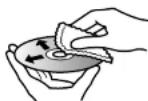
Use the disc cleaning cloth to clean from inner to outer edges in axial direction.
NOTE WHEN TRANSFERRING OR DISCARDING DISCS AND SD MEMORY CARDS:
- The "Format" function on this DVD video camera/recorder will only change the file control information: It will not completely delete the data in the built-in hard disk; your personal data could leak out. To prevent the data from leaking out, execute complete deletion of HDD (see p. 107).
- "Formatting" or "deletion" using the functions of DVD video camera/recorder or PC will change only the file control information; It will not completely delete the data on disc or memory card.
- When transferring or discarding a disc or memory card, it is recommended that you physically destroy it or use deletion exclusive software (generally available) to completely delete the data on it. It is user's responsibility to control the data on disc and memory card.
- Hitachi will not accept any responsibility for leaking of personal data.
Read This First
To guide you, we have included following five chapters.
- The section on "Setups" explains how to set up the DVD video camera/recorder, battery, and set the date/time.
• The section on "Basic Techniques" explains the basic operation of this DVD video camera/ recorder – recording of movies, still images and playback of recorded images. - The section on "Disc Navigation" explains editing with Disc Navigation: Refer to this section when dubbing from HDD to disc, finalising a DVD-RW/DVD-R/+RW and initialising a DVD-RAM/DVD-RW/+RW.
- The section on "Connecting to PC" explains the contents of provided CD-ROM and how to install the software included.
- "Subsidiary Information" includes an introduction to products sold separately, and troubleshooting.
We want this manual to be as helpful as possible, so it includes two easy ways to find the information you need:
• A quick index for the information you use most often.
* A detailed table of contents directing you to specific information quickly (see pages 15–17).
Get to know your DVD video camera/recorder by using this manual, and get to know Hitachi. We appreciate your business.
Quick Index
Available Discs....27 Recording Movie....44
Playing Back 73
Functions Available with Disc Navigation..... 80
Dubbing on DVD 83 Connecting to a TV 112
Connecting to PC....116
About This Manual
●Displays in this manual
Understand that the displays are different from those you will actually see in the viewfinder or on the LCD screen.
●Notation of cancel button
Press the STOP/EXIT button to stop your operation midway, or return the menu screen to the preceding one. The expression "press the ■ button" will be used in this text.
● IAX, DAX, RWVH, HWVF, IT, THD and CARD marks beside headings
Some functions of this DVD video camera/recorder are unavailable with HDD/disc/card used. Refer to the marks at right above each function to identify whether the HDD/disc/card is compatible with the function. Refer to these marks and identify the functions and operation to match the HDD/disc card you use.
●Illustrations in this manual
Although the external appearances of DZ-IIS303E / IIS301E / IIS300E are different, the method of operating these models is identical.
The illustrations of DZ-HS303E are used for the explanation in this text.
●This instruction manual shows six DVD video camera/recorder models - DZ-HS303E, DZ-HS301F, DZ-HS300F, DZ-HS303F (UK), DZ-HS301F(UK) and DZ-HS300F(UK).
The DZ-IIS303E and DZ-IIS303E (UK) functions and specifications are referred to as "DZ-IIS303E".
The DZ-HS301E and DZ-HS301E (UK) functions and specifications are referred to as "DZ-HS301E".
The DZ-HS300E and DZ-HS300F(UK) functions and specifications are referred to as "DZ-HS300E".
No model names are mentioned for functions and specifications common to all models; if there are any differences between models, the model names are specified.
Microsoft ^® , Windows ^® , Windows ^® Me, Windows ^® 2000 Professional, and Windows ^® XP are registered trademarks of Microsoft Corporation.
Intel ^® , Pentium ^® Processor, and Celeron ^® Processor are registered trademarks of Intel Corporation. Macintosh is a trademark of Apple Computer, Inc.
IBM ^® and PC/AI ^® are registered trademarks of International Business Machines Corporation. Manufactured under licence from Dolby Laboratories.
"Dolby" and the double-D symbol are trademarks of Dolby Laboratories.
Other company names and product names listed are trademarks or brand names belonging to each individual company.
SD logo is a trademark.
Introduction
● Recording is possible on both HDD and DVD: In FINE mode, recording for up to 3 hours is possible on HDD; up to 30 minutes on DVD. (p. 44, 154)
● Dubbing to an 8 cm DVD can be performed on this DVD video camera/recorder using only one button: Simple dubbing without a DVD recorder or PC(p. 83)
●You can capture photos from videos. (p. 75)
You can record an image displayed during playback of video as a photo on a card.
● You can start recording immediately after stopping playback (p. 44, 74)
Unlike tape devices, you do not need to search for the recording start position or locate the
beginning of blank portion
You can stop playback and immediately start recording: New recording will not overwrite any
previously recorded data.
●You can immediately play back desired recorded scenes (p. 73)
You do not need to rewind, unlike recorders using tape.
You can select any scene you want and immediately play it back (using Disc Navigation function).
●Use Disc Navigation to create your original movie (p. 98)
You can delete unnecessary scenes, move any scenes, etc., and create your original movie work (Play List)
To edit the scenes recorded on the HDD, use the dubbing function to easily create a DVD from the
edited original movie. If you edit the scenes recorded on a disc, you can play back the edited original movie and easily dub it on another DVD recorder or VCR.
●Create original DVDs on PC (p. 116)
You can create an original DVD, using the provided software CD-ROM.
The created DVD disc can be played back on DVD player/recorder, DVD-ROM drive, etc.
Table of Contents
Important Information 2
For Your Safety 2
Precautions 2
IMPORTANT SAFETY INSTRUCTIONS......5
Cautions on HDD 6
Cautions When Using 6
Cautions When Storing 10
Suggestions and Restrictions....10
CLEANING 11
HANDLING DISCS 11
DISC CLEANING....12
NOTE WHEN TRANSFERRING OR DISCARDING DISCS AND SD MEMORY CARDS: 12
Read This First....12
About This Manual 13
Introduction 14
Table of Contents....15
Checking Provided Accessories....18
Names of Paris 19
Setups
Demonstration Function 23
Setting Up the DVD Video Camera/Recorder ..23
HOLDING DVD VIDEO CAMERA/RECORDER.. 23
ATTACHING SHOULDER STRAP....23
ATTACHING LENS CAP 24
INSERTING BATTERY INTO REMOTE CONTROL 24
CONTROLS 24 REMOVING BATTERY FROM REMOTE
CONTROL 25
HDD/DVD/Cards 26
HDD. Disca 27
INFORMATION ON DVD-R....27
NOTES ON FINALISATION: 27
EXAMPLES OF DISCS THAT CANNOT BE USED
ON THIS DVD VIDEO CAMERA/RECORDED.28 AVAILABLE CARDS 38
CAUTIONS FOR DISC AND CARD 28
Preparations for Power Supply 29
USING DVD VIDEO CAMERA/RECORDER WITH
AC ADAPTER/CHARGER....29
Setting Up the Battery 30
CHARGING BATTERY....30
ATTACHING BATTERY TO DVD VIDEO
CAMERA RECORDER....31
REMOVING BATTERY....31
Setting Date and Time.... 36
CHANGING DISPLAY FORMAT OF DATE AND
TIME 36
Initial Settings.... 37
SWITCHING OPERATING SOUND ON OR OFF
(BEEP) 37
ALWAYS DISPLAYING IMAGE IN
VIEWFINDER 40
Inserting and Removing Disc 41
Inserting and Removing Card.... 43
Basic Techniques
Recording Movie 44
Recording Stills 45
Swift Restart of Recording (SLEEP/RESTART
utton)....46
On-Screen Information.... 47
INFORMATION DISPLAY DURING
RECORDING 47 Checking Flow of Many 50
Checking Flow of Menu.... 52
Zooming 54
MACRO RECORDING ....54
RECORDING SUBJECTS FOR STRONGER
MANually Focusing Subject 56
FOCUSING SURING RECORDING 50
FOODGING DURING RECORDING....50
Adjusting Brightness of Image to be recorded (Exposure) 58
(Exposure) 50
Compensating for Backlight 58
Using Full Auto Function 59
Built-in Video Flash (for DZ-HS303E only)..... 60
Setting Up Camera Functions 61
USING THE ELECTRONIC IMAGE STABILISER (EIS)....64
RECORDING SUBJECT USING LARGE MAGNIFICATION (DIGITAL ZOOM) 64
REDUCING WIND NOISE DURING RECORDING (MIC FILTER) 64
Setting Up Record Functions....65
SWITCHING MOVIE QUALITY (VIDEO MODE). BS SETTING TO WIDE TV SCREEN MODE
(16.9 MODE).... 66 SWITCHING QUALITY OF STILL IMAGE
(QUALITY)....68 SELF-TIMER....68
SETTING ON-SCREEN DISPLAY OUTPUT ON OR OFF (OSD OUTPUT) 69
DROP DETECTION (HDD PROTECTION)...... 69
Using External Microphone 70
Disc Navigation
Using Disc Navigation....71
STARTING OR TERMINATING DISC NAVIGATION 71
PLAYING BACK FROM DISC NAVIGATION SCREEN....73
ADJUSTING VOLUME DURING PLAYBACK.....73
FLATING BACK LATEST RECORDED SCENE 74
DELETING LAST RECORDED SCENE....74 CAPTURING PHOTO....75
SEARCH PLAYBACK OF MOVIE....75
FRAME ADVANCE/FRAME BACK/SLOW PLAYBACK OF MOVIE 75
SKIP PLAYBACK OF MOVIE....76 PLAYING BACK STILLS....76
PLAYING BACK STILLS .... 76 JUMPING TO SPECIFIED POINT (GO TO) ..... 77
INFORMATION DISPLAY DURING PLAYBACK 78
SELECTING MULTIPLE SCENES....79
SELECTING CONSECUTIVE SCENES TOGETHER....79
FUNCTIONS AVAILABLE WITH DISC NAVIGATION....80
UNDERSTANDING FLOW OF DISC NAVIGATION MENU 81
Dubbing on DVD....83
DUBBING ALL SCENES RECORDED ON HDD (DUBBING ALL) 83
SELECTING SCENES RECORDED ON HDD AND DURBING THEM
(SCENE SELECT DUBBING) 84
Scana....85
DELETING SCENES (EDIT - DELETE) ...... 85 DIVIDING MOVIES (EDIT - DIVIDE) ...... 66
CONTINUING MULTIPLE SCREENS/EDIT
PLAYING BACK BY SKIPPING SCENES (EFFECT - SKIP) 89
CHANGING IMAGES FOR THUMBNAILS (EFFECT - THUMBNAIL) 90
COPYING STILLS ON DVD-RAM TO CARD
(COPY) 91 LOCKING SCENES ON CARD (LOCK) 92
SELECTING SCENES USING MENU SCREEN (SELECT) 93
DISPLAYING INFORMATION USING MENU SCREEN (DETAIL) 94
gramme 95
WHAT IS "PROGRAMME"? 95 SWITCHING TO THUMBNALL DISPLAY OF
SWITCHING TO THUMBNAIC DISPLAY OF SPECIFIC DATE (SELECT) 95
PLAYING BACK PROGRAMME (PLAY)....95 CHANGING TITLE OF PROGRAMME (TITLE)....95
CHANGING TITLE OF PROGRAMME (TITLE) ..96 y List 98
WHAT IS "PLAY LIST"?......98
CREATING NEW PLAY LIST (CREATE)....98 SWITCHING TO DISPLAY OF EACH PLAY LIST
(SELECT) 99 PLAYING BACK & PLAY LIST/PLAY) 99
PLAYING BACK A PLAY LIST (PLAY)....59 ADDING SCENES TO PLAY LIST
(EDITING PLAY LIST) 100 DELETING SCENES FROM PLAY LIST
(EDITING PLAY LIST) 101
ADDING SCENES USING SUBMEND FOR EDITING (EDITING PLAY LIST)....101
DELETING SCENES USING SUBMENU FOR EDITING (EDITING PLAY LIST) 102
SELECTING SCENES USING SUBMENU FOR EDITING (EDITING PLAY LIST) 100
EDITING (EDITING PLAY LIST) ....102 ARRANGING ORDER OF SCENES (MOVE) ...103
CHANGING TITLE OF PLAY LIST (TITLE).....104
DELETING PLAY LIST (DELETE)....104 To....105
MOVING TO BEGINNING (END) OF HDD/DVD/CARD
CARD....105 D/DVD/Card Management....105
INITIALISING HDD/DVD/CARD....105 PROTECTION....106
VERIFYING REMAINING FREE SPACE ON DISC
OR CARD (CAPACITY)....106 UPDATING CONTROL INFORMATION OF HDD:
DVD-RAM/DVD-RW (VR-MODE) (UPDATE CONTROL INFO.) 107
DELETING DATA ON HDD (FULL FORMAT)...107
FINALISING DVD-HW/DVD-R-HW (FINALIZE DVD) 108
ADDITIONALLY RECORDING ON FINALISED DVD-RW (VF-MODEV+RW
(UNFINALIZE DVD).... 109
Others 110
SLIDE SHOW (CONTINUOUS PLAYBACK OF
Viewing on TV Screen....112
CONNECTING TO A TV....112
VIEWING ON TV SCREEN ....113 Playback on DVD Recorder/Player ....114
PLAYING BACK DVD-RAM/DVD-RW
(VR-MODE) 114
- FLATING BACK DVD-HW (VF-MODE) DVD-HW +RW 114
Recording (Dubbing) Images On Other
Video Devices....115
Connecting to PC
Software Provided....116
Requirements of available PC....117
Installing Software....118
Connecting to PC via PC Connection Cable..121
USING DISC IN DVD DRIVE BUILT INTO PC.. 123
BEFORE TERMINATING PC CONNECTION
(UNPLOGGING PC CONNECTION CABLE) CHANGING OVER POWER SWITCH 124
Using Software....125
[When using Windows]
USING IMAGEMIXER 3 125
VIEWING IMAGES RECORDED ON HDD/DISC
USING PC 125
CREATING DVD-VIDEO USING IMAGES
RECORDED ON HDD/DISC 127
[When using Macintosh] USING BIXF VRF BPO
USING FIXE VHP BROWSEH EX AND IMAGEMIYER VCD/DVD2 130
IMPORTING IMAGES RECORDED ON DVD-
RAM/DVD-RW/DVD-R INTO PC TO CREATE A
DVD-VIDEO (DVD-RW/DVD-R) 130
Viewing Images recorded on Disc using PC ..133
Uninstalling Software 134
Please contact the following for inquiries on
provided CD-ROM 134
Cautions when connecting DVD video camera/
recorder to PC 135
Subsidiary Information
Introduction to Optional Accessories....136
CAMERA ACCESSORIES 136
POWER SUPPLY 136
Trouble Messages....137
Troubleshooting 144
System Reset....151
Major Specifications 152
Be sure to read the following before opening the
package of CD-ROM 158

Checking Provided Accessories
Make sure that you have all the following accessories in package:
Battery (model DZ-BP145):For DZ-HS300E only.Portable power supply for this DVD video camera/reorder. Charge it before use. | Battery (model DZ-BP67PW):For DZ-HS301E-HS300E only. Pottable power supply for this DVD video camera/ recorder. Charge it before use. | AC adapter/charger (model DZ-ACS3 (EI):Used to power the DVD video camera/ recorder from AC outlet, or charge battery. |
DC power cord:When powering the DVD video camera/ recorder from household AC outlet, use this card to connect the DVD video camera/reorder and AC adapter/charger | Melns lead:Connect between household AC outlet and AC adapter/chargerfor DZ-HS300E,DZ-HS301E and DZ-HS300E | for DZ-HS300E (UK), DZ-HS301E (UK)and DZ-HS300E(UK) |
Infrared remote control (model DZ-RM4W):For DZ-HS300E-HS301E only.Use to control the DVD video camera/ recorder from a distance.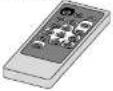 | Lithium battery (model CR2032):For DZ-HS300E-HS301E onlyTo power the remote control. WARNING: Keep this battery only from children. If swallowed, consult a physician immediately for emergency treatment. WARNING: Keep this battery only from children. If swallowed, consult a physician immediately for emergency treatment. | AWS output cable:Used when viewing the picture played back on the DVD video camera/recounter on TV screen, or output video to another video device. |
Shoulder strap:Attach to the DVD video camera/reorder to hang it from shoulder. | Lens cap and lens cap string:Attach the lens cap when not recording, to protect the lens. | Software CD-ROM:Use this CD-ROM when connecting the DVD video camera/reorder to PC. |
PC connection cable:Use this cable when connecting the DVD video camera/reorder to PC. | Disc cleaning cloth:Always use this to clean discs. |
Names of Parts

1 Flash (for DZ-HS303E only) (p. 60)
2 Light receiving sensor
(for DZ-HS303E only)
This sensor controls the amount of light to be emitted from the built-in flash. Take care not to block with hand, etc. during recording.
3 Lens cap string attachment hole (p. 24)
4 Stereo microphone
Take care that the microphone is not blocked by a hand, etc., during recording.
5 Recording indicator (p. 38, 44, 68)
The red indicator will light during recording.
6 Infrared receiver
(for DZ-HS303E/HS301E) (p. 25)
When the remote control is used to operate the DVD video camera/recorder, this receiver will receive the infrared signal.
7 Optical 10x zoom lens
8 Lens hood (for DZ-HS303E/HS300E only)
(p. 55)
Always remove this lens hood when using the optional tele-conversion or wide-conversion lens.
9 Zoom lever (p. 54, 56, 73)
To adjust the zoom or volume.
10 Accessory shoe (for DZ-HS303E only)
(p. 60)
The optional video flash can be attached here. (See the instruction manual of device to be attached for details.)
11 PC connection terminal (TO PC) (p. 121)
12 AV output jack (p. 112, 115)
13 External microphone Jack (for DZ-HS303E/HS301E only) (p. 70)
14 Wide-screen colour liquid crystal display (inside) (p. 35)

15 Viewfinder (p. 35)
16 Dioptre control (p. 35)
To adjust the focus of image appearing in the viewfinder. (Pull out the viewfinder.)
17 SLEEP/RESTART button (p. 46)
To switch the sleep/restart status between ON and OFF.
18 ACCESS/PC indicator (p. 9, 44)
Will blink or light when the HDD/DVD is accessed (write or read), or the DVD video camera/recorder is connected to a PC.
19 PHOTO/SELECT button (p. 45, 79, 93)
20 DISC EJECT button (p. 41)
Press down and release this button to open the cover of DVD insertion block.
21 DVD insertion block (p. 41)
22 BATTERY EJECT button (p. 31)
Press this button when removing the battery.
23 Battery attachment platform (p. 31)
24 Record button (REC) (p. 44)
25 LOCK switch (p. 44)
It is recommended that you set the LOCK switch to ☑ (to the upper position) to prevent the power switch in the "HDD" position from accidentally moving to "DVD".
26 Power switch (p. 34)
27 Hand strap (p. 23)

28 FULL AUTO button (p. 59)
To switch the DVD video camera /recorder to full automatic
29 FOCUS button (p. 56)
To switch between manual focus and auto-focus.
30 MENU button (p. 36, 52, 86)
Press this button to display the menu for setting camera functions and Disc Navigation.
31 DISC NAVIGATION button (p. 71)
32 DUBBING button (p. 83)
33 STOP/EXIT button (p. 13, 52, 74)
To end playback or cancel setting of menu,
34 EXPOSURE button (p. 58)
Press this button to adjust the exposure.
35 Speaker (p. 73)
36 RESET button (p. 151)
To reset all settings to defaults (status when the DVD video camera/recorder was shipped from the factory).
37 DISPLAY (Screen display) button (p. 47, 78)
Press this button to display the details of image being played back or camera setting status, or switch the display off.
38 CARD ACCESS Indicator (p. 9, 45)
39 QUICK MENU button (p. 52)
To display only the functions that you frequently use (simple menus).
40 FINALIZE button (p. 108)
Press this button to finalise the recorded
41 Card Insertion block (p. 43)
42 BLC (backlight compensation) button (p. 58)
Press this button when subject is being lighted from rear.
43 |◀/▶|/◀/▶/▶/|| buttons
(p. 36, 52, 56, 58, 74, 75, 76)
Use these buttons to select a scene or menu item, and then press the centre (▶/II) to play back the scene, or designate an option from the menu. These buttons are also used to adjust the exposure or focus.
44 Tripod threaded hole
Used to attach the DVD video camera/ recorder to a tripod.

45 PHOTO button (p. 45)
53 ZOOM T button (p. 54)
46 REC button (p. 44)
54 DIGITAL ZOOM button (p. 54)
47 MENU button (p. 36, 52, 86)
55 ZOOM W button (p. 54)
48 SELECT button (p. 79, 93)
56 Reverse skip button (p. 76)
49 Reverse search button (p. 75)
57 Forward search button (p. 75)
50 DELETE button (p. 85)
58 Play/pause button (p. 74)
51 DISC NAVIGATION button (p. 71)
59 Stop button (p. 13, 52, 74)
52 DISPLAY button (p. 47, 78)
60 Forward skip button (p. 76)
Setups
This section explains preparations for recording – setting up the DVD video camera/recorder and battery.
Demonstration Function
This DVD video camera/recorder is equipped with a demonstration function.
The default at purchase time is "Auto", which will automatically start the demonstration approx. ten minutes after the DVD video camera/recorder, connected to the AC adapter/charger, is turned on and left unoperated.
Refer to "CHANGING SETTING OF DEMONSTRATION" on page 38 if you wish to view the demonstration immediately or change the setting to "Off".
DVDHDD
HITACHI
Setting Up the DVD Video Camera/Recorder
HOLDING DVD VIDEO CAMERA/RECORDER
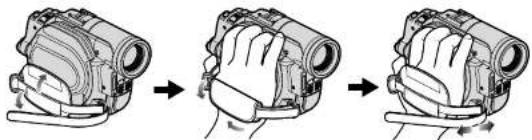
Insert your right hand from the bottom of DVD video camera/recorder up to the base of your thumb. Put your hand in a position where you can easily operate the RFC button and the Zoom lever. Adjust the length of hand strap so that the DVD video camera/recorder is stable when you press the RFC button with your thumb.
natural_image
Three-step diagram showing progressive assembly of a mechanical device, no text or symbols presentATTACHING SHOULDER STRAP

ATTACHING LENS CAP
1 Attach the shorter end of lens cap string to the lens cap.
2 Attach the longer end of lens cap string to the attachment hole of DVD video camera/ recorder.
3 Push the both sides of cap inward and attach it over the lens.


Note:
• Always keep the lens cap on when not using the DVD video camera/recorder, to protect the lens.
- When recording, attach the lens cap to the hand strap by hooking the tab inside the cap onto strap for comfortable shooting.

INSERTING BATTERY INTO REMOTE CONTROL
Insert the provided lithium battery into remote control.
1 While inserting a fine rod into the hole marked PUSH, pull the battery holder out forward.
2 Insert the lithium battery with the positive ⊕ terminal facing down.
3 Slide the cover to close it.
Note:
The life of lithium battery is approximately one year. If the battery is discharged, no operation is possible with remote control: Replace the battery.

natural_image
Three-step diagram showing a device with a handle and scroll, no text or symbols presentREMOVING BATTERY FROM REMOTE CONTROL
1 While pushing the battery holder, slide the battery out.

natural_image
Diagram showing a device with a switch and a separate view of its internal components (no text or symbols present)Warning:
- KEEP THE BATTERY AWAY FROM CHILDREN AND PETS.
• IF SWALLOWED, CONSULT A PHYSICIAN IMMEDIATELY FOR EMERGENCY TREATMENT. - BATTERY MAY EXPLODE IF NOT HANDLED PROPERLY. DO NOT RECHARGE, DISASSEMBLE OR DISPOSE OF IN FIRE.
Note:
- Replace the battery with a Hitachi Maxell, Sony, Panasonic, Sanyo, Toshiba CR2032, or Duracell DL2032. Use of another battery may present a risk of fire or explosion.
- Dispose of battery safely in accordance with local laws. Do not dispose of in fire.
- Do not short circuit the battery.
- Do not hold the battery with the metallic tweezers.
- Keep the battery in a dark, open, dry space.
- Keep the battery in a bank, coax, dry padze.
- The remote control (DZ-RM4W) and lithium battery (CR2032) are supplied only with the DZ-HS303E/HS301E.
●Using remote Control
Point the remote control to the infrared receiver on the DVD video camera/recorder. The remote controllable distance is up to 5 m.
Note:
- When using the remote control, make sure that the infrared receiver on DVD video cameras/recorder is not exposed to direct sunlight or any intense light. If the infrared receiver is subject to light stronger than the infrared light from remote control, the DVD video cameras/recorder cannot be operated by remote control.
- If there is an obstacle between the remote control and infrared receiver on DVD video camera/recorder, remote control may not be possible.
- The DVD video camera/ recorder uses the "VCR2" remote control code of Hitachi VCRs. If you use a Hitachi VCR, etc. with remote control code set to "VCR2", a VCR placed near the DVD video camera/ recorder will also be operated by the remote control. To prevent this, change the remote control code of the VCR.
HDD/DVD/Cards
The following table lists the storage media (discs and cards) that can be used on this DVD video camera/recorder and the functions which are available with them:
| Function | Media | ||||||
| HDD | DVD-RAM | DVD-RW (VR mode) | DVD-RW (VF mode) | DVD-R + RW | SD memory card | ||
| To record video (p. 44) ● | ● | ● | ● | ● | ● | — | |
| T o r | e | o | r | d | p | h | o |
| To delete image just recorded (p. 74) | ● | ● | ● | — | — | ● | ● |
| To select image and delete it (p. 85) | ● | ● | ● | — | — | — | ● |
| To edit image (p. 86 – 87) | ● | ● | ● | — | — | — | — |
| To play on other DVD players and DVD recorders (p. 108) | — ∴ | *1 | *1*2 | ●*2 | ●*2 | *1*2 | —*3 |
| To use new disc or new card without formatting | — ● | *4 | — | — | ● — ● | *4 | |
| To initialise and reuse (p. 105) | ● | ● | ● | ● | — ● | ● | |
| To additionally record on finalised disc (p. 109) | — | — | ● | ●*3 | — ● | *5 | — |
| To edit copied video on PC (p. 116) | ●*5 | ●*6 | ●*3*7 | ●*6*7 | ●*6*7 | ●*6*7*8 | ● |
| To playback video on PC (p. 116) | ●*6 | ●*6 | ●*3*7 | ●*6*7 | ●*6*7 | ●*6*7*8 | ● |
●: Functions available; —: Not available
*1: Playable on devices that conform to either 8 cm DVD-RAM, 8 cm DVD-RW (VR mode) or 8cm +RW.
*2: Must be finalised. Cannot be played on some DVD players or DVD recorders.
3: Some DVD devices conform to SD memory card.
4: When media that are sold "formatted" are used. If the initialisation format differs, the media can be initialised on
this DVD video cameras/recorder and then used.
5: To additionally record, the finalised disc must be unfinalised.
*6: The provided software is used.
7: Finalise the disc when editing/playing back on PC.
8: The software for Macintosh provided with this DVD video camera/recorder is not compatible with a +RW.
HDD, Discs
| HDD, and usable discs and marks (logos) Function | ||
| HDD | hard disk | Allows extensive recording (approx. 3 hours in FINE mode). Allows you to delete unnecessary scenes or edit scenes. |
| DVD-RAM Ver. 2.1 (8 cm) | Allows you to delete unnecessary scenes or edit scenes. | |
| DVD-RW[Ver1.1 (8 cm) 2x speed (2x/1x)] | Allows you to choose the VR mode for deleting unnecessary scenes or editing scenes, or the VF mode in which deletion or editing is not possible, but high compatibility with DVD players is provided ^-1 . | |
| DVD-R[for General Ver. 2.0 (8 cm)] | Provides high compatibility with DVD players ^-1 . No deletion or editing is possible. | |
| +RW Ver. 1.2 (8 cm) | Provides high compatibility with DVD players but does not need to be finalised ^-2 . Scenes can be deleted immediately after being recorded. | |
*1: Playback on all DVD players is not guaranteed. The disc must be finalised before being played back on a DVD player.
2: Playback on all DVD players is not guaranteed.
Note:
- This DVD video camera/recorder can use only the 8-cm bare discs not packed in a square cartridge, square caddy case or round DVD holder. The discs in a square cartridge, square caddy case or round DVD holder can be used if they are removed from the package, but take great care not to dirty or scratch the bare disc.
- It is recommended that you use Hitachi Maxell HG type single-sided discs, since their compatibility with this DVD video camera/recorder has been confirmed. When using an HG type double-sided disc, take great care with handling it. Using a disc other than these discs may not allow the DVD video camera/recorder to deliver optimum performance.
INFORMATION ON DVD-R
For optimum recording on DVD-R, this DVD video camera/ recorder writes control data to the disc in order to automatically make adjustments when it is inserted and ejected accompanying recording. If the disc has no area to be written for adjustment, recording may not be possible. To prevent this, do not insert or eject a DVD-R accompanying recording more than 100 times. This DVD video camera/ recorder cannot record a DVD-R in the VR mode.
NOTES ON FINALISATION:
- Do not insert a DVD-RW/DVD-R/+RW recorded or dubbed on this DVD video camera/recorder but not finalised, into a recordable device, such as a DVD recorder: The recorded data may be damaged.
- Use only DZ-HS303E/HS301E/HS300E to record/dub or finalise a DVD-RW (VF-modc)/DVD-R/+RW recorded or dubbed on this DVD video camera/recorder but not finalised. Using any other device could damage the data recorded on the disc.
- DVD-RW/DVD-R/+RW edited and finalised on PC or those finalised on another DVD recorder present to be plausible on this DVD video camera /reorder, according to the editing software used

EXAMPLES OF DISCS THAT CANNOT BE USED ON THIS DVD VIDEO CAMERA/RECORDER:
• CD
- CD-R
• CD-RW
• CD-ROM
• DVD-ROM
• DVD-Video
• DVD-R (4.7 GB) for Authoring Ver. 2.0

Terminal
AVAILABLE CARDS
SD memory cards can be used on this DVD video camera/recorder (incompatible with 2 GB). When using an exclusive adapter, a miniSD memory card can be used in the same way as an SD memory card. No SDHC card or multimedia card can be used.
●Handling card
• Do not use cards other than
the designated ones.
■ Be sure to perform trial
recording before recording vital images.
- Do not touch the card terminal or allow it to touch metal.
• Do not paste anything other
than exclusive label on label pasting portion.
- Do not subject card to impact, bend or drop it.
- Do not disassemble card or modify it.
- Do not expose card to water.
- Do not use or store card in the following
places:
- Where the temperature is high, such as in vehicle at high temperatures, under burning sun or near a heater
- Where humidity is high, or in dusty place
- When the erasure prevention switch is locked, no recording, deletion or editing will be possible on the card: Only playback will be possible.


• DVD-R DL (Dual Layer)
• DVD-RW DL. (Dual Layer)
• +R DL (Double Layer)
• +RW DL (Double Layer)
• +R
• Discs other than those with diameter of 8 cm
CAUTIONS FOR DISC AND CARD
It is recommended that you create a backup
file for valuable data on hard disk of PC.
Do not do the following, or the data on disc or
card may be damaged or lost:
- Do not remove the disc or card or turn DVD
video camera/recorder off during reading or
writing of data
- Do not use DVD video camera/recorder in a place subject to static electricity or electrical noise
Do not have printing done at a print lab or
DPE service
Do not leave a +RW unused in the DVD
video camera/recorder for a long time
Note:
• This DVD video camera-recorder can play back image
data recorded on other digital cameras conforming to
The DCP (Design rule for Canadian File system) stands. The mean of images data pluggles on this DVD viewer
The range of huge deal payable on this DVD video summary (representing in that with nivolo form 90 horizontal v
60 vertical to 4000 horizontal × 3000 vertical
• DCF is an integrated image file format of digital
cameras: Image files can be used on all digital
devices conforming to DCF.
• Image data edited on PC and certain types of image
data may not be visible on this DVD video camera.
recorder.
• The image data recorded on another device may not be visible on the DVD video camera/records.
be playable on this DVD video camera recorder.
Preparations for Power Supply
USING DVD VIDEO CAMERA/RECORDER WITH AC ADAPTER/CHARGER
It is recommended that you use the AC adapter/charger to power the DVD video camera/recorder from household AC outlet when you perform settings on it, play back or edit images, or use it indoors.
Note:
Be sure to use the specified AC adapter/charger (DZ-ACS3 (E)) to power the DVD video camera/recorder. Using other AC adapter/chargers could cause electric shock or result in fire.

1 Connect the mains lead to AC adapter/charger.
2 Plug the mains lead into AC outlet.
3 Plug one end of DC power cord into the DC output jack on AC adapter/charger.
4 Attach the other end of DC power cord to the battery attachment platform on DVD video camera/ recorder. Use the same procedure as that for battery when attaching and detaching the DC power cord: See page 31.
Setting Up the Battery
The DZ-BP14S battery provided with DZ-HS303E or DZ-BP07PW battery provided with DZ-HS301E/HS300E has not been charged at purchase time: Charge It before using the DVD video camera/recorder.
Note:
- Be sure to use the DZ-BP145, DZ-BP07PW (unavailable for DZ-HS303E), DZ-BP14SW (optional) or DZ-BP7SW (optional), unavailable for DZ-HS303E) battery for the DVD video camera/encorder using other batteries could
(optional, unavailable for DZ-HSS03E) battery for the DVD video camera/recorder: Using other batteries could cause the DVD video camera/recorder to malfunction, or result in fire. - Be sure to use the DZ-ACS3 (E) AC adapter/charger to charge the battery: Using other chargers could cause
• Charge the battery at temperatures of 10 – 30°C. - If the CHARGE Indicator does not light when the AC adapter/charger is plugged into AC outlet, unplug it from the
AC outlet, wait a few moments, and then plug it into the AC outlet again. If the CHARGE indicator still does not light the AC adapter/sharper may be faulty. Unplug it from the AC outlet and consult up underclass
• The AC adapter/charger can be used around the world. An AC plug adapter is required in some foreign countries.
If you need one, purchase it from your local electronics distributor.
CHARGING BATTERY
Use the provided AC adapter/charger to charge the battery.
1 Connect the mains lead to AC adapter/
charver
2 Plug the mains lead into AC outlet.
3 Attach the battery to AC adapter/charger.
Note:
When charging a battery, unplug the DC power cord
from the DC output jack on AC adapter/charger.

●Battery charged status
You can find out the charged status of battery by checking the CHARGE indicator on AC adapter/charger:
| Charge status CHARGE indicator | |
| During charge Lit | |
| Charge complete Goes out | |
Note:
See "Troubleshooting" on page 144 when the CHARGE Indicator blinks.
●Reference for time required to charge battery (at approx. 25°C):
DZ-BP14S (provided with DZ-HS303E)/DZ-BP14SW (optional): Approx. 165 minutes DZ-BP07PW (provided with DZ-HS301E/HS300E)/DZ-BP7SW (optional, unavailable for DZ-HS303E): Approx. 90 minutes
The charge time will vary depending on the remaining power level of battery.
ATTACHING BATTERY TO DVD VIDEO CAMERA/RECORDER
1 Fit the battery to the battery attachment platform on this DVD video camera/recorder and slide it downward until a click is heard.
Note:
- Make sure that the battery is in the correct orientation. - Make sure that the battery is securely attached: Incomplete attachment could cause the battery to fall, resulting in damage.

REMOVING BATTERY
After using the DVD video camera/recorder, remove the battery from it.
1 While holding down the BATTERY EJECT button, slide the battery upward to remove it.
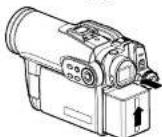
Note:
- For safety, be sure to turn the DVD video camera/recorder off before attaching or removing the battery. - Be careful not to drop the removed battery. - If the battery remains attached, minute level current will flow even if the DVD video camera/recorder is off, and the battery will discharge. - Set the power switch to OFF before removing the battery.
●Continuously recordable time with fully charged battery (with no zoom operation, etc.)
See the following table as a reference for how long the DVD video camera/recorder can continuously be used with a fully charged battery:
With DZ-BP14S (provided with DZ-HS303E)/DZ-BP14SW (optional)
| Video mode | DZ-HS303E DZ-HS301E DZ-HS300E | |||||
| HDD DVD | HDD DVD | HDD DVD | ||||
| XTRA | When using viewfinder | approx. 125 min | approx. 105 min | approx. 175 min | approx. 145 min | approx. 210 min |
| When using LCD monitor | approx. 115 min | approx. 95 min | approx. 165 min | approx. 130 min | approx. 190 min | |
| FINE | When using viewfinder | approx. 125 min | approx. 105 min | approx. 175 min | approx. 145 min | approx. 210 min |
| When using LCD monitor | approx. 115 min | approx. 95 min | approx. 165 min | approx. 130 min | approx. 190 min | |
| STD | When using viewfinder | approx. 125 min | approx. 115 min | approx. 175 min | approx. 170 min | approx. 210 min |
| When using LCD monitor | approx. 115 min | approx. 105 min | approx. 155 min | approx. 145 min | approx. 190 min | |
With DZ-BP07PW* (provided with DZ-HS301E/HS300E)/DZ-BP7SW* (optional)
| Video mode | DZ-HS301E DZ-HS300E | ||||
| HDD DVD | HDD DVD | ||||
| XTRA | When using viewfinder | approx. 85 min | approx. 70 min | approx. 105 min | approx. 85 min |
| When using LCD monitor | approx. 75 min | approx. 65 min | approx. 95 min | approx. 75 min | |
| FINE | When using viewfinder | approx. 85 min | approx. 70 min | approx. 105 min | approx. 85 min |
| When using LCD monitor | approx. 75 min | approx. 65 min | approx. 95 min | approx. 75 min | |
| STD | When using viewfinder | approx. 85 min | approx. 80 min | approx. 105 min | approx. 102 min |
| When using LCD monitor | approx. 75 min | approx. 70 min | approx. 95 min | approx. 85 min | |
* Unavailable for DZ-HS303E.
- The time is only for reference: It will vary depending on recording contents.
The reference for how long the DVD video camera/recorder can actually be used will be approx. 1/2 to 1/3 of the above time:
The continuously recordable time of DVD video camera/recorder in the above table shows the time available when the DVD video cameras/recorder is in the recording mode without using any other function after recording is started. In actual recording, the battery will discharge 2 - 3 times faster than this reference, since the REC button and zoom are being operated, and playback is performed. Assume that the actually recordable time with a fully changed battery is between 1/2 and 1/3 of the above time, and prepare enough batteries to allow for the time you are planning to record on the DVD video camera/recorder.
The continuously recordable time may be less depending on the conditions when the DVD video camera/recorder is used (if recording and recording pause are repeated at short intervals, etc.). Note that the battery discharges faster in cold places.
BATTERY REMAINING LEVEL INDICATOR
When the battery is used to power the DVD video camera/recorder, the battery remaining level appears in the viewfinder or on the LCD screen as follows:
Fully charged Nearly empty-


White portion shows remaining level (Blinks)
EFFICIENT USE OF BATTERY
- The battery will slightly discharge even if it is detached from the DVD video camera/ recorder.
- If the battery is left attached to DVD video camera/recorder, it will consume a slight amount of power. Therefore, it is recommended that you charge the battery shortly before using the DVD video camera/recorder, usually on the day before you plan to use it.
When not using the DVD video camera/ recorder for an extended period:
It is recommended that you fully charge the battery once a year, attach it to DVD video camera/recorder and use it up; then remove the battery and store it in a cool place again.
Battery life:
The battery life varies greatly depending on the ambient environment and how often the DVD video camera/recorder is used. If the usable time of DVD video camera/recorder with a fully charged battery is noticeably short, the battery is probably dead. Purchase a new one.
Power save and discharge of battery:
It is recommended that you turn the DVD video camera/recorder off in status other than recording, since even during recording pause battery power is consumed at the same level as during recording. If, when you specify Power Save On, the recording pause status continues for approximately 5 minutes, the DVD video camera/recorder will automatically turn off. To set or release power save, see "TUKNING DVD VIDEO CAMERA/RECORDER OFF AUTOMATICALLY (POWER SAVE)" on page 37.

Turning DVD Video Camera/Recorder On and Off
While holding down the grey button at the right of power switch, set the switch according to each recording function:

Set to "OFF":
The DVD video camera/ recorder will turn off
Set to "SD":
To record photos on an SD memory card and play them back
Set to "HDD":
To record or dub movie on HDD and play it back
Set to "DVD":
To record movie on DVD-RAM/DVD-RW/DVD-R/+RW and play it back
Note:
Once you turn the DVD video camera/recorder on to lot it recognise the disc, you can immediately record or play back by turning the DVD video camera/ recorder on again. However, if a long time has elapsed after the disc was inserted, it will take some time for the DVD video camera/recorder to start because it must recognise the disc again (see "Troubleshooting" on page 144)
It will take some time for the DVD video cameras/ recorder to display the Disc Navigation screen after power is turned on.
When the DVD video camera/recorder is turned on, the self-diagnosis function will work and a message may appear. In this case, refer to "Trouble Messages" on page 137 and lake corrective action.
When turning the DVD video camera/recorder off or changing over the power switch between "HDD" and "DVD", you will not need to hold down the grey button. Simply move the power switch.

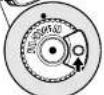
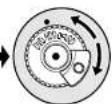
Power switch
Viewing Images
VIEWING IMAGE ON LCD MONITOR SCREEN
If you open the LCD monitor, you can monitor subject image on the LCD screen.
1 Open the LCD monitor.
The LCD monitor has a portion where you can hook your finger. Hook the finger there to open the monitor.
●Range where the LCD monitor can be moved
The LCD monitor can be opened up to approximately 90°.
If the LCD monitor is open 90°, it can be tilted with the screen down as much as 90°, and can also be tilted with screen up and turned up to 180° so the screen faces in the same direction as the lens.
If the LCD monitor is turned 180° so the screen faces in the same direction as the lens during recording, subject image will also appear in the viewfinder as a mirror image (left/right reversed).
Tilt the LCD monitor to adjust its vertical angle so that you can see the screen easily.
Note:
- If no image appears on LCD monitor screen, refer to "Troubleshooting" on page 144.
- If LCD monitor lights white, refer to page 62.
- Be sure to open the LCD monitor approximately 90^ before changing its vertical angle.
- Do not record for a prolonged time with the LCD monitor turned approximately 180° in close contact with the DVD video camera/recorder body: Doing this could cause the DVD video camera/recorder and LCD monitor to become hot.

VIEWING SUBJECT THROUGH VIEWFINDER
1 Pull out the viewfinder.
2 Turn the diuptre control knob to adjust the focus to suit your eyesight.
Note:
- If no image appears in viewfinder, refer to
"Troubleshooting" on page 144. - If the LCD monitor is opened approximately 90^ , the viewfinder will be off. Turn the open LCD monitor 180^ so that it faces the same direction as the lens; the image will appear in the viewfinder.
- Focusing will not be correct unless the viewfinder is pulled out.
- See "LCD/EVF Setup" (on page 40) if you wish to display images in the viewfinder regardless of whether you open or close the LCD monitor.
Diplore control

Setting Date and Time
Set the current date and time so that the date and time you make a recording can be recorded correctly.
The following procedure can also be used to correct the date and time you have already set.


Press the MENU button, use the ◀◀/▶◀/◀◀/▶◀ buttons to choose "Date Set" on the "Date Setup" menu screen.

2 Press the ▶ button.
The figure for the day will be selected. [The digit that is
highlighted first depends on the date display format (set up in Date Mode): The digit on the left end of the date display will be first highlighted.]
Note: After setting the figure for the day, press the ▶ button to select the digit to be set. If you press the
▶/■ button after selecting the figure for the day, the screen for verifying the set date will appear instead of screen for setting month, year or time.

3 Press the ◀ or ▶ button to select the digit you want to set in sequence.

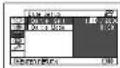
Press the ◀◀ or ▶▶ button to select the number for current date/time, and then repeat step 3 to set the current date and time. Note:
To stop datetime setting midway, press the ■ button.

After setting the current date and time, press the
The screen for verifying the set date will appear.
5 If the displayed date and time are correct, press the ◀ button to choose "YES", and then press the ▶/■ button.
The date and time will be set, and the DVD video camera/recorder will enter the recording pause status.
Chousing "NO" will restore the menu screen.
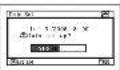
CHANGING DISPLAY FORMAT OF DATE AND TIME
You can select one of three date display formats: day/month/year, month/day/year or year/month/day. Choose "Date Mode" on the "Date Setup" menu screen in procedure 1, and then set to the desired data display mode.
Initial Settings
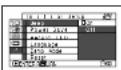
Press the MENU button, and then use ◀◀/▶◀/◀◀/▶◀/|| buttons to display the "Initial Setup" menu screen. See page 52 for detailed operation procedure. Press the MENU button again to exit setting.
SWITCHING OPERATING SOUND ON OR OFF (BEEP)
Select "On" or "Off", and
then press the ▶/11 button.
On: Beep will be heard
when the power
switch is changed
over, the REC button is pressed when
HDD/disc is used, the SLEEP/START or
EJECT button is pressed, etc.
Off: No beep is heard.
Note:
The "Beep" setting will be stored in memory even when
the DVD video camera/recorder is turned off.
Select "On" or "Off", and
then press the ▶/|| button.
On: To engage power
save. If the DVD
video camera/
recorder is left in the recording pause status
without being operated for 5 minutes, it
will automatically turn off to prevent the
battery from discharging needlessly.
Off: To cancel power save.

Note:
• To turn the DVD video camera/recorder on again from
automatic off activated by the power save function, set the power switch to "OFF", and then act it to
set the power switch to "HDF" DVD or "SD"
• The Power Save setting will not appear in the on-
screen information display.
• If the sleep/start standby status continues for 30
minutes, the DVD video camera/recorder will
automatically turn off regardless of the Power Save
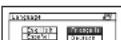
CHANGING DISPLAY LANGUAGE (LANGUAGE)
You can change the language used to display the menu and information.
The following shows that English is changed to French.

Press▶/|| or ▶▶ button
with the screen shown
on the right displayed:
The "Language" screen
will appear

Note:
The language setting will be stored in memory even
when the DVD video camera/recorder is turned off.

Choose "Français", and
then press ▶/|| button.
The display will elvenza
RESETTING MENU SETTINGS TO DEFAULTS (RESET)
You can restore menu settings to defaults (initial settings at the factory (p. 151)). (Note, however, that the date/time will not be reset.)
-
Choose "Reset" on the "Initial Setup" menu screen, and then press the ▶/■ button.

The screen for verifying reset will appear.
2
If you are sure that you wish to reset, use the ◀ button to choose "YES", and then press the ▶/|| button.
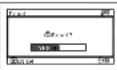
The setting items have now been reset to defaults.
Note:
To cancel resetting midway, choose "NO" on the screen for verification in step 2 or press the ■ button.
You can switch off the recording indicator on the front of DVD video camera/recorder even during recording.
Select "On" or "Off", and
then press the ▶/11 button
On: The recording
indicator will light and to show that the
red to show that the
DVD video camera/recorder is recording. Off: The recording indicator will not light even during recording.


CHANGING SETTING OF DEMONSTRATION
Choose the desired option
using the screen on the
right, and then press the
▶/II button.
Auto: To start demonstration if the DVD video camera/recorder connected to AC adapter/charger is inactive for approx. 10 minutes or more after it is turned on.
Off: To set demonstration to off.
Start: To start demonstration immediately.
Note:
• The Record LED setting will not appear in the on
screen information display
• The Record LED setting will be stored in memory
even when the DVD video camera recorder is turned off
- Specify "Record LED: Off" when recording a subject
behind a glass or water tank that reflects light: The
reflected light of the recording indicator will not be
rec
- Even if "Record LED: Off" is specified, the recording
Indicator will light (while the self-timer is counting
down.
- If "Auto" is specified, the demonstration will not start if
a battery is connected.
- Pressing the ■ (STOP/EXIT) or DISC NAVIGATION button will put demonstration
button will exit demonstration.
- If "Auto" is specified, the demonstration will not start when the power switch on this DVD video camera!
When the power switch on this DVD video camera, recorder is set to "DVD" and a DVD is loaded, or when
recorder is set to "DVD" and a DVD is loaded, or when the power switch is set to "SD" and a card is loaded.
• The demonstration function will not work when th
DVD video camera/recorder is connected to PC.
• While the demonstration is being given, the recording
indicator will blink.
LCD/EVF Setup
ADJUSTING BRIGHTNESS OF LCD SCREEN (LCD BRIGHTNESS) AND VIEWFINDER (EVF BRIGHTNESS)
1 Press the MENU button, use the ◀◀/▶◀/
◀◀/▶▶/▶/|| buttons to choose "LCD/EVT"
Adjust" on the "LCD/EVT Setup" menu screen, and then choose "LCD Brightness" or "EVF Brightness".
The brightness adjustment bar will appear on the screen.
3 Press the ▶/II button to end the setting.
Note:
• To stop the selling midway, press the MENU button.
• The brightness selling will be stored in memory even after the DVD video camera/recorder is turned off.
2 Use the ◀◀/▶▶ buttons for adjustment.
Press ◀◀ :
The screen becomes
dimmer.
Press
The screen becomes
brighter.

Brightness
Adjustment bar
ADJUSTING COLOUR DENSITY (COLOUR LEVEL)
You can adjust the colour density of the LCD monitor screen and viewfinder.
1 Press the MENU
button, use the
▶/◀/▶/▶/
buttons to change
"LCD/EVE Adjust" on
the "LCD/EVF Setup" menu screen, and then
choose "Colour Level"
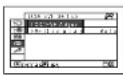
The colour density adjustment bar will
appear on the screen.
- Use the ◀/▶ buttons
for adjustment.
Press
For lighter colour.
Press
For denser colour.

Colour density
adjustment bar
3 Press the ▶/II button to end the setting.
Note:
• To stop the setting midway, press the MENU button.
• The colour setting will be stored in memory even after
the DVD video camera/recorder is turned off.
• Even if the brightness or density of LCD monitor
screen of Viewfinder is changed, the brightness of density of the recorded image itself will not change
ALWAYS DISPLAYING IMAGE IN VIEWFINDER
1 Press the MENU
button, use the
▶/◀/▶/▶/||
buttons to choose "EVF
Display" on the "LCD/
EVF Setup" menu screen.
2 Choose "On" and press the ▶/|| button.
Auto: If the LCD monitor is open, no image
will appear in the viewfinder.
On: Images will always appear in the
viewfinder regardless of whether the
LCD monitor is open/closed.
Note:
The setting an EVF Display will be stored in memory
even after the DVD video camera/recordor is turned off.
Inserting and Removing Disc
1 Set the power switch to "DVD" or "OFF".
When the power switch is set to "HDD" or "SD", the cover of disc insertion block will not open. When "Please insert DVD." appears during dubbing, however, the cover of disc insertion block will open even when the power switch is set to "HDD" (see p. 83, 84).
2 Press down the DISC EJECT button once and release it.
A few moments after the ACCESS/PC indicator blinks, the cover of disc insertion block will open.
3 Gently open the cover by hand fully until it stops.

4 When inserting a disc. Push the disc against the turntable at the centre to lock it until a click is heard.

Push the shaded portion.
When removing the disc:
While pushing down the centre portion of turntable, pick up the disc, holding its edge, to remove it.
Turntable


Pickup lens
- Note that the recording surface of disc must face the inside of DVD video camera/receiver. When using a single-sided disc, the recording surface is the side without label.
- Never touch the disc recording surface or pickup lens. Touching the pickup lens could cause a fault. - Use the disc cleaning cloth provided to wipe off any dirt adhering to the disc recording surface. - Do not use a dirted or scratched disc.
5 Push the section marked "PUSH CLOSE" on the cover of disc insertion block, to close the cover.
Then the DVD video camera/ recorder will automatically recognise the disc. While the ACCESS/PC indicator is lit, do not cut off the power supply, and do not subject the DVD video camera/ recorder to any vibrations or impact.
Note:
- If the cover of disc insertion block is open, the ACCESS/PC indicator will blink when an image is displayed on the LCD
monitor screen: In this case, the DVD video camera recorder will not turn off even if the power switch is set to "OFF".
If the cover remains open after a while, the DVD video camera/recorder will automatically turn off.
- Disc cannot be inserted or removed unless a charged battery or AC adapter/charger is connected to the DVD video camera/scan.
• If there is some delay h
- If there is some delay before recording starts, refer to "industieshooting" on page 144.
- If a single-sided disc is inserted into DVD video camera recorder with the printed label facing the inside, an error
- In a single-sided disc is inserted into DVD video camera recorder with the printed label facing the inside, an error message will appear. Remove the disc and reinsert it with its recording side facing the inside. See "Trouble
Messages* on page 137.
- Do not remove the battery or disconnect the AC adapter/charger during removal of the disc or until power is
completely turned off: If you do, the disc cover will not open. If this happens, restach the battery or AC adapter/
charger, push down the DISC EJECT button once, and then release it.
- Do not insert anything other than the 6 cm DVD-RAM/DVD-RW/DVD-R/+RW into the disc insertion block: Doing
so could cause malfunctions.
- When inserting or removing the disc, BE SURE NOT to look into the lens in laser pickup: Doing so could damage
your eyesight.
- Close the cover of disc insertion block gently: Using force could cause a fault.
- When using double-sided disc
Recording is possible on both sides of double-sided disc. However, when recording or playback on one side is
finished, recording or playback will not move automatically to the other side. Remove the disc once from the DVD
video camera/recorder, turn over the disc and insert it again for continued use.
The recording surfaces of double-sided disc are likely to become dirtied or scratched: Always make sure that
there is no dirt or scratch on the recording surface facing the pickup lens, and then use the disc taking great care
that it is not dried or scratched. Use the provided disc cleaning cloth to wipe off any dirt on disc (see page 12).
●When using brand-new DVD-RW/+RW
When a disc is first loaded in the DVD video camera /recuder, the "format DVD" screen will
appear.
When recording on this DVD video
camera/recorder
Choose "Yes" on the "Format DVD" screen, and
then press ▶/II button.
When using DVD-RW, choose the recording
format (VR or VF mode), and then press the
▶/II button
The disc will be formatted.

(When using DVD-RW)
When recording data from PC:
While the "Format DVD" screen is displayed.
choose "Nu" and then press ▶/|| button, or
press the ■ button.
However, if data from PC has not yet been
recorded, the disc can be made usable on this
DVD video camera /recorder. When inserting
the disc into this DVD video camera /recorder
the case message will appear. If you wish to use
the same message will appear. If you wish to do
it on this DVD video camera/recorder, choose "VTE"
YES
CARD
Inserting and Removing Card
1 Open the LCD monitor.
2 Turn the DVD video camera/recorder off.
3 Open the cover of card insertion block.
4 Inserting Card:
Insert card with its terminal inward until it locks.
Removing Card:
Push the centre of card edge.
The card will come out so that it can be held by fingers.

natural_image
Line drawing of a portable electronic device with ports and a cable inserted (no text or symbols)5 Close the cover of card insertion block.
Note:
• Always close the cover of can insertion block: Placing the DVD video camera/recorder on a desk, etc. with cover open could damage the cover.
Basic Techniques
This section explains about recording of movies and still images, and also basic settings on DVD video camera/recorder.
HDD RAM RW VR RW VF R +RW
Recording Movie
Before You Begin
- When setting the power switch to "DVD", insert a recordable DVD-RAM/DVD-RW/DVD-R/+RW into this DVD video camera/recorder.
Pressing REC once will start recording; pressing it once again will temporarily stop recording.
ACCESS/PC indicator


1 Remove the lens cap, and then point the DVD video camera/recorder at subject.
2 Turn the DVD camera/recorder on.
Set the power switch to "HDD" or "DVD" to turn the DVD video camera/recorder on. After the ACCFSS/PC indicator goes out, perform the subsequent operation:
3 Check the subject on the screen (viewfinder or LCD).
When using the viewfinder, close the LCD monitor before pulling out the viewfinder.
4 Press the REC button.
The "●II" mark in the viewfinder or on the LCD screen will change to the "●REC" mark, and recording will start. During recording, the recording indicator on the front of DVD video camera/recorder will light.
Prezing RBC again during recording will get
Note:
- See "Troubleshooting" on page 144 when recording movie is not possible.
• See "Troubleshooting" on page 144 if it takes some time before recording is possible. - See "Troubleshooting" on page 144 if the DVD video camera/ recorder does not operate.
• See page 47 for on-screen information display. - It is recommended that you set the LOCK switch to (the upper position) to prevent the power switch in the "HDD" position from accidentally moving to "DVD" position.
- When using a DVD-RW (VF-mode):DVD-R/+RW, videos of different qualities (VIDEO Modes) or 16:9 On and Off cannot be recorded or dubbed on the same disc (see page 83).
- While the ACCESS/PC indicator is lit or blinking, do not turn the DVD video camera/recorder off, and take care not to subject it to any vibration: Doing so could cause an error in the recorded data, which could make it unplayable (see page 9).
• The minimum recordable time of movie is approximately 3 seconds. - Hitachi cannot be responsible for video and audio that cannot be recorded or edited because of any defect.
• Each time the DVD video camera/recorder enters the recording pause status, the counter display will be reset to '0:00:00'. - If, when using a +RW, one-time recording duration is short or you frequently switch the video quality, recording may not be possible even when the disc has remaining space.
CARD
Recording Stills
Note:
Recording of still images is possible on card.

CARD ACCESS indicator
1 Remove the lens cap, and then point the DVD video camera/recorder at subject.
2 Turn the DVD camera/recorder on.
Set the power switch to "SD".
After the CARD ACCESS indicator goes out, perform the subsequent operation:
3 Check the subject on the screen (viewfinder or LCD).
When using the viewfinder, pull it out and close the LCD monitor.
4 Press the PHOTO/SELECT button half way (half pressing).
The DVD video camera/recorder will automatically focus on the subject at the centre of screen, and the "●II" indicator on
5 Press the PHOTO/SELECT button all the way (full pressing).
The screen will be black, and then the recorded still will be displayed. When the "●II" mark appears, you can proceed with the next recording; while "CARD ACCESS" is being displayed, you cannot proceed with the next recording.
Note:
- If you wish to record without locating a subject at the centre of screen, first locate the subject at the centre of screen, press the PHOTO/SELECT button halfway down, determine the composition to be recorded, and then press the PHOTO/SELECT button all the way down.
- If you press the PHOTO/SELECT button all the way down at one stroke without pressing it half way, recording will be possible, but the focus may be incorrect.
• See "Size And Quality Of Photos" on page 155 for details of photos on card.
• See "Troubleshooting" on page 144 if recording photos is not possible. - If focusing is difficult with auto focus, choose manual focus, and manually correct the focus before recording (see page 56).
- Shake of the DVD video camera/ recorder may cause blur in recorded image.
- When holding the DVD video camera/record for recording, grasp it securely with both hands.
- When recording with higher zoom magnification, it is recommended that you secure the DVD video camera/recorder on a tripod.
- There may be a difference between the image you see on the LCD screen or viewfinder and the recorded image.
Swift Restart of Recording (SLEEP/RESTART button)
If you press the SLEEP/RESTART button while in the recording pause status instead of turning the DVD video camera/recorder off, the status that recording is possible will be restored in approx. one second.
Setting to the sleep/restart standby status:
Press the SLEEP/RESTART button in the recording pause status.
The SLEEP/RESTART button will light, and the DVD video camera/recorder will enter the sleep/restart standby status.
In the following cases, pressing the SLEEP/RESTART button will not set the DVD video camera/recorder to the sleep/restart standby status:
- No diac is loaded although the power switch is set to "DVD".
- No card is loaded although the power switch is set to "SD".
• An unusable disc or card is loaded.
• The HDD or a loaded DVD or card has no remaining free space.
• The Disc Navigation screen is being displayed
• During playback
Restoring from sleep/restart standby status
Press the SLEEP/RESTART button that is lit: The DVD video camera/recorder will return to the recording pause status.
Pressing the REC or PHOTO/SELECT button will also restore the DVD video camera/ recorder to recording pause from the sleep/ restart standby status.
The following operation will release the sleep/restart standby status:
- Press down the DISC EJECT button.
- Change over the power switch ("HDD" "DVD").
Note:
- If you press the REC or PHOTO/SELECT button while in the sleep/restart standby status, the sleep/restart status will be released, but recording of a video or photo will not start. To record, press the REC or PHOTO/SELECT button again.
• After the DVD video camera/recorder is restored from the sleep/restart standby status, the zoom position will return to 1 to 1.5x. The settings on manual focus, exposure and rear lighting will also reset to the initial values. - The DVD video cameras/recorder in sleep/restart standby status consumes approx. half the power it does during ordinary recording, but the recordable duration in that status will be longer than standing by in the recording pause status.
- If the sleep/restart standby status continues more than 30 minutes, the DVD video camera/recorder will turn off regardless of the Power Save setting (leaving the DVD video camera/recorder in recording pause status for 5 minutes will also turn it off: Default).
- Setting the power switch to OFF in the sleep/restart standby status will turn the DVD video camera/ recorder off.
SLEEP/RESTART button
HDD RAM RW VR RW VF R +RW CARD
On-Screen Information
Various types of information will appear in the viewfinder or on the LCD screen during recording.

INFORMATION DISPLAY DURING RECORDING
See the next page for details.
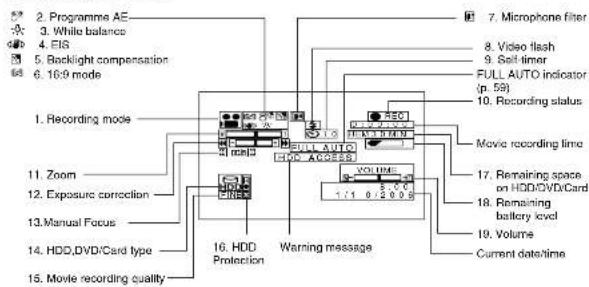
The above screen is an example for
Explanation. It is different from the actual display.
- Recording mode (p. 44, 45)

Movie (HDD/DVD) Still (Card)
- Programme AE (only in movie recording mode) (p. 61)
No display: Auto
| # | :Sports |
| # | :Portra# |
| # | :Spotlight |
| # | :Sand & Sn |
| # | :Low Light |
- White balance (p. 62)
No display: Auto
- Electronic image stabiliser (EIS) ^4 (only in movie recording mode) (p. 64)
No display: EIS OFF (●) : EIS O
- Backlight compensation (p. 58)
No display : Backlight compensation OFF ■ : Backlight compensation ON
- 16:9 mode (only in movie recording mode) (p. 66)
No display: 16:9 mode OFF B: 16:9 mode ON
- Microphone filter (only in movie recording mode) (p. 64)
No display : Microphone filter OFF ☐ : Microphone filter ON
- Video flash ^2 [when Video Flash (sold separately) is attached] (only in still recording mode) (p. 60)
No display : Emits light automatically ↓ : Always emits light
- Recording status
| ● REC | : During recording |
| ● II | : During recording pause (lights in green)When focus locks during photo recording (lights in purple) |
No display ^2
11 Zoom (p. 54)
| W | T |
| (Digital Zoom: Off) | |
| W | T |
| (Digital Zoom: 40x-1) | |
| W | T |
(Digital Zoom: 500× ^5 only in movie recording mode)
12.Exposure correction (p. 58)
No display : Auto ■-□□+■ : Manual
- Manual focus (p. 56)
No display: Autolocus ■■■■ : Manual focus
- HDD, DVD/Card type
| : HDD |
| : HDD (write-protected) |
| : DVD-RAM |
| : DVD-RAM (write-protected) |
| : DVD-RW (VR-mode /VF-mode) |
| : Protected DVD-RW (VR-mode) |
| : DVD-RW (VR-mode) finalised on this video camera/recorder |
| : DVD-RW (VR-mode) finalised on a device other than this DVD video camera/recorder |
| : Finalised DVD-RW (VF-mode) disc |
| : D V D - R |
| : DVD-R already finalised on this DVD video camera/recorder |
| : DVD-R finalised on a device other than this DVD video camera/ recorder (including a DVD-R recorded on a 1 brach! DVD video camera/ recorder marketed before DZ-HS30E/HS30E/HS300E, but not finalised) |
| : +RW |
| : Finalised + RW |
| : SD memory card |
| : Locked SD memory card |
- Movie recording quality (only in movie recording mode) (p. 65)
| XTRA: Best quality FINE: High quality STD: Standard quality | |
| Still recording quality (only in still recording mode) (p. 68) | |
| FINE: High quality NORM: Standard quality FCD: Number of recordable stills is prioritized | |
| 16. HDD Protection | |
| No display: HDD Protection On :HDD Protection Off | |
| 17. Remaining space on disc/card? | |
| REM XX MIN*5 | : Remaining recordable minutes during movie recording |
| RFM XX*9 | : Number of remaining recordable still images during still recording |
| 18. Remaining battery level (p. 33) | |
| (full charge) (low remaining charge) | |
| 19. Volume (p. 73) | |
The volume can be adjusted during playback.
*1 Displayed when recording movie on DZ-HS303E/HS301E.
*2 Not displayed on DZ-HS301E/HS300E.
*3 When no disc or card is in the DVD video camera/ recorder or disc has not yet been initialized, a write-protected disc or locked card, or a disc or card with no remaining space, has been inserted. Or if the HDD is protected or has no remaining free space.
*4 *60x' will appear on DZ-HS301E; *100x' on DZ-HS300E.
"5 "800x" will appear on DZ-HS301E; "1200x" on DZ-HS300E.
*6 No display if no disc or card is loaded, or if a disc or card unusable on this DVD video camera/recorder is loaded.
*7 No remaining time or number will be displayed with a protected disc or locked card, or finalised DVD-RW (VF-mode)/DVD-R+/RW.
●Switching the information display mode
You can switch the display mode of on-screen information:
Press the DISPLAY button.
The full and minimum display modes will alternate.
• Full display mode: All types of information will appear.
- Minimum display mode: The recording mode (see 1 on page 47) and recording status (see 10 on
page 47) will appear. If the DVD video camera/
recorder has warning information, a warning message will appear.

The DVD video cameras/recorder does not record the date and time as a part of image. However, this information during recording will be recorded with images as data which can be checked on Disc Navigation screen during playback (see "INFORMATION DISPLAY DURING RECORDING" on page 47).
●Display when recording an image of yourself
When recording with the LCD screen facing the same direction as the lens, the operating status will appear: The battery remaining level will appear only when the remaining level is very low, and the display will blink.


No warning/message (see page 47) will appear when recording with the LCD screen facing the same direction as the lens.
Instead, the following screen display symbols will blink to inform you of the operation status of
DVD video camera/record
When the LCD monitor is turned 180° from the position with the LCD screen facing the same
direction as the lens, the warning/message can be checked.
●Interpreting symbols on LCD screen when recording with the screen facing the same direction as the lens:
| Screen display symbol | Description |
| 8 | • Status in which recording is not possible on HDD.• An attempt to record a photo on HDD was made. |
| ● | • An attempt to record a still is being made with a DVD-RAM/DVD-RW/DVD-R/+RW used.• An unusable disc is loaded. |
| ■ | • An unusable card is loaded. |
| 🔒 | • HDD/disc is write-protected.• A locked card is loaded. |
| ● | • During recording (lights in red).• The remaining capacity on HDD/disc is approaching the limit 0 (blinks in red). |
| 11● | • During recording pause (lights in green).• During focus lock (lights in purple).• The remaining capacity on HDD/disc/card is approaching the limit 0 (blinks in red).• There is no remaining capacity on HDD/disc/card (blinks in green). |
Note:
- If the LCD screen is set facing the same direction as the lens, the LCD screen will display a mirror image (left and right reversed).
- If the LCD screen is set facing the same direction as the lens, you can also view subject image in the viewfinder.
- Although you can switch to the manual focus, exposure and on-screen display modes even during recording with LCD screen facing the same direction as long, they will not appear on the screen.
• When the LCD monitor is opened and turned 180° with the Programme AE set to Low Light, the monitor screen
When this 200 Monitor is opened and turned 100" with the Programists' list set to 200 lights, the Monitor screen will light white (see page 62).
Checking Flow of Menu
The following two on-screen menu modes are available with this DVD video camera/recorder:
• Full Menu: To display all menu items for experts
- Quick Menu: To display only the fundamental menu items for first timers
●Operating Menu
The Full Menu will appear if you press the MENU button.
You can use the ◄/▶/◀/▶ buttons on DVD video camera/recorder to select various setting options in Full Menu and designate them.

flowchart
graph TD
    A["MENU"] --> B["Press the MENU button"]
    C["QUICK MENU"] --> D["Press the MENU button"]
    D --> E["Press ▶▶ or ▶/II"]
    E --> F["Press ◀◀ or ■"]
    F --> G["Press ▶◀◀ Press ▶▶"]
    G --> H["Press the ▶/II button directly to choose an option from menu. To return to the screen one before, press the ■ button. Pressing the MENU again will cause the Menu display to disappear."]
    H --> I["Press the cursor to be chosen will move down"]
Note:
- Pressing the QUICK MENU button will display the Quick Menu screen: The operation will be the same as when the MENU button is pressed.
the MENU button is pressed. - Pressing the MENU button during recording will not display the menu.
- The menu screen will disappear when it is left for approx. one minute without any operation.
●Flow of Full Menu
■ The shaded menu item can also be set using the Quick Menu. Refer to page indicated for details of each function.
Camera Functions Setup
Programme AE (p. 61)
White balance (p. 62)
EIS ^1 (p. 64)
Digital zoom (p. 54)
Microphone filter ^2 (p. 64)
Flash ^3 (p. 60)
*1: Not displayed when DZ-HS303E/HS301E is in "SD"
status.
*2: Not displayed
*3: Displayed when DZ-HS303E is recording a photo (not displayed when the optional Video Flash is connected).
Record Functions Setup

Movie quality ^4 (p. 65)
16:9 ^25 (p. 66)
Self-timer ^56 (p. 68)
On-screen information display output (p. 69)
HDD protection ^7 (p. 69)
*4: The quality mode is displayed in "SD" status (p. 68).
*5: Not displayed in *SD* status.
8: Displayed in SD status
7. Deployed only in HDD status.
Date Setup
Date setting (p. 36)
Display format (p. 36)
LCD/EVF Setup
Adjust (p. 39)
EVI Display (p. 40)
Initial Setup

Bccp (p. 37)
Power save (p. 37)
Recording LED (p. 38)
Language selection (p. 37)
Demo nude (p.38)
Reset (p. 38)

Zooming
If you continue to hold the zoom lever on the "T" control side with Dig. Zoom specified, the digital zoom will be activated midway (when optical 10-power is exceeded on DZ-HS303E, or optical 15-power is exceeded on DZ-HS301E or optical 25-power is exceeded on DZ-HS300E). You can zoom up to 500-power on DZ-HS303E, up to 800-power on DZ-HS301E; up to 1200-power on DZ-HS300E.
W: recording wide area.
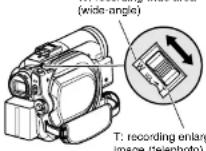
1 Press the MENU button, choose "Dig. Zoom" on the "Camera Functions Setup" menu screen, and then press the ▶/Ⅲ button.
2 Choose the desired magnification, and then press the ▶/□ button.
3 Press the MENU button to end the setting.
Moving the zoom lever will display the digital zoom bar.
Note:
- The digital zoom setting will be stored in memory even if the DVD video camera/recorder is turned off.
- You can also use the DIGITAL ZOOM button on remote control to switch the digital zoom setting: Pressing the button during movie recording will switch the setting between "Off", "40x"*1, and "500x"*2; Pressing the button during photo recording will switch between "Off" and "40x"*1.
* If you set zoom to "500x" ^2 when recording photo, the digital zoom will be up to "40x" ^1 . - When a subject is zoomed, it may be momentarily out of focus.
- When digital zoom is engaged, the image quality will be rougher.
*1 "60x" on DZ-HS301E; "100x" on DZ-HS300E. *2 "800x" on DZ-HS301E; "1,200x" on DZ-HS300E.
MACRO RECORDING
Use the macro function when recording a small object from close-up position: You can shoot the subject as close as approximately 2 cm from the lens surface, magnifying the image to fill the screen.

Aim the DVD video camera/recorder at the subject, and press the zoom lever to "W" control side.
Note:
- Zoom can be used, but the subject may not be focused, depending on the distance to the subject. In this case, move the zoom to "W" control side to focus. - The amount of light tends to be insufficient during macro recording: If the subject image is too dark, use additional lighting.
RECORDING SUBJECTS FOR STRONGER WIDE-ANGLE OR TELEPHOTO EFFECT
Use the tele-conversion lens or wide-conversion lens with the following filter diameter and thread pitch to record subjects for stronger telephoto or wide-angle effect:
Filter diameter: 37 mm for DZ-HIS301E; 30.5 mm for DZ-HIS301E; 34 mm for DZ-HIS300E
Thread pitch: 0.75 mm for DZ-HS303E; 0.5 mm for DZ-HS301E/HS300E
When attaching the optional DZ-TL1 tele-conversion lens or DZ-WL1 wide-conversion lens, use the optional step-up ring: D7-SR3037 for D7-HS301F, D7-SR3437 for D7-HS300F (see page 136).
1 Remove the lens hood from DVD video camera/recorder, and attach the step-up ring over the lens. When using the DZ-HS301E, you need not remove the lens hood.
2 Remove the cap of conversion lens, and screw the lens into the thread of step-up ring. When using the D7-HS303F, you need not use the step-up ring.
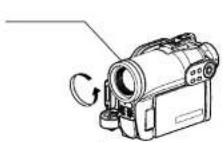
(Remove)
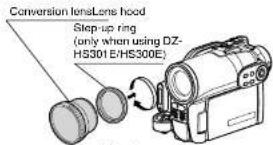
(Attach)
- Tele-conversion lens: For stronger telephoto effect
• Wide-conversion lens: For stronger wide-angle effect
Note:
- Be careful not to lose the removed lens hood.
- With DZ-TL1 tele-conversion lens, the focusing range at "T" (telephoto) control side is between approx. 5 m and infinite.
- When a conversion lens is attached, note that the four corners of screen will be slightly dim if you zoom in on a subject on the W control side (wide-angle side).
- When replacing the lens, take care not to drop the
DVD video camera/decoder. - Allaching the conversion lens will disable the function of the built-in flash (for DZ-HS303E only): Specify "Flash: Off" (see page 60).
- If a generally available filter is attached, do not attach the removed lens hood.
- Some generally available conversion lenses may not be usable on this DVD video camera/recorder, depending on the lens maker.
Manually Focusing Subject
The DVD video camera/recorder usually focuses on a subject automatically (autofocus). You can also manually focus a subject depending on the recording conditions.
FOCUSING DURING RECORDING
Normally, the DVD video camera/recorder automatically focuses the subject (autofocus), but you can also manually focus a subject, depending on the recording conditions (manual focus).
Focusing range
You can switch the display mode of on-screen information:
- On T (tele) side: approximately T in from lens surface to infinity
- On W (wide) side: approximately 2 cm from lens surface to infinity
1 Press the FOCLS button during recording.
Manual Focus icon will appear on the screen.

2 Press the zoom lever to "T" control side to zoom in on subject.
3 Use the ◀◀/f▶ buttons to adjust the focus, while viewing the image in the viewfinder or on the LCD screen.
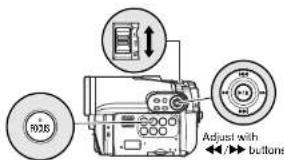
Note:
- Pressing FOCUS will alternate between manual focus and auto focus. With auto focus, no indication will appear on the screen.
- Be sure to zoom in on your subject before manually focusing on it. If you bring the subject into focus at the 'W' control side, focus will be faulty when you turn the zoom lever to the 'T' control side to zoom in on the subject.
- Manual focus is released when the DVD video camera/recorder is turned off. When you turn the DVD video camera/recorder on next time, auto focus will be restored.
Manually focus the following objects, which may not be automatically focused (see page 56):

Objects not in the centre of screen

Objects with little variation in brightness, such as white wall

Objects that are far and near at the same time


Objects moving rapidly

neon sign, spotlight, etc. which glares or emits strong light

Dark objectsObjects fit by

Object behind glass with water droplets, dirt on it
Night view
HDD RAM RW VR RW VF R +RW CARD
Adjusting Brightness of Image to be recorded (Exposure)
The DVD video camera/recorder usually adjusts the exposure automatically. You can also manually adjust the exposure depending on the recording conditions.

Press the EXPOSURE button during recording.
The exposure adjustment bar will appear on the screen.

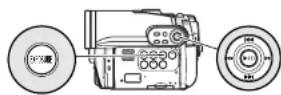
Adjust with ◀/▶▶ buttons

Use the ◀◀/▶▶ buttons to adjust the exposure, while viewing the image in the viewfinder or on the LCD screen.
Note:
- Pressing EXPOSURE will alternate between manual adjustment and auto exposure. With auto exposure, no indication will appear on the screen.
• The exposure setting will return to Auto when the DVD video camera/recorder is turned off.
HDD RAM RW VR RW VF R +RW CARD
Compensating for Backlight
When subject is lighted from rear, this function will compensate for lighting so that the subject is not too dark.


Press the BLC button during recording.

The backlight correction icon will appear.
HDD RAM RW VR RW VF R +RW CARD
Using Full Auto Function
Pressing the FULL AUTO button will fully automate the camera functions.

1 Press the FULL AUTO button.
"FULL AUTO" will be displayed on the screen of DVD video camera/recorder for several seconds.
The following settings will reset to defaults:
| Function | When setting full auto | Reference page |
| Focus Auto 58 | ||
| Backlight compensation | Off 58 | |
| Exposure Auto 58 | ||
| Programme AE Auto 61 | ||
| White balance Auto 62 | ||
| EIS On 64 | ||
| MIC Filter Off 64 |
CARD
Built-in Video Flash (for DZ-HS303E only)
When recording photos in a dark place, or if the subject is lit from rear, the DZ-HS303E makes use of the built-in Video Flash for automatic brightening: The Video Flash can also be set to On where the light is always being emitted, or Off when you wish to record without using the flash even in a dark place.
| Setting On-screen display Manner of emitting light | ||
| Auto | when the PHOTO/SELECT button is pressed | Automatically emits light in dark place or in a spot lit from rear. |
| On | Always emits light regardless of brightness. | |
| Off | No light emission. | |
1 Press the MENU button, and choose "Flash" from the "Camera Functions Setup" menu.
2 Choose the option for "Flash" and decide it.
3 Press the MENU button to end the setting.
* Displayed when using DZ-HS305E to record photo (not displayed when the optional Video Flash is connected).

●Optional Video Flash (for DZ-HS303E only)
See "Introduction to Optional Accessories" on page 136.
You can use the optional DZ-FLH3 Video Flash ^* (p. 136): Refer to the instruction manual of Video Flash for use.
* Unavailable for DZ-HS301F/HS300F.
Note:
• The built-in Video Flash setting will not change even when the DVD video camera/recorder is turned off.
• However, dark subjects may not be in clear focus even if the Video Flash is used. It is recommended that you light a subject when recording in a dark place.
- The Video Flash built into DZ-HS303E cannot be used when a conversion lens is attached: Specify "Flash: Off"
- The distance for the built-in Video Flash to adjust the appropriate amount of light will vary depending on the subject, but it is approximately 1 – 2.5 m.
- The Video Flash automatically adjusts the amount of light emitted, but the light amount adjustment may be insufficient when a subject is too far away or too near
• If you continuously record using the Flash, the Flash may not emit light or the amount of light may not be adjustable. After recording using the Flash, it is recommended that you wait for a few moments, before pressing the PHOTO/SELECT button to record.
• “\$* will blink during charging of the battery for Video Flash.
- While “5” is flashing, the video flash will not emit
light, though the DVD camera/recorder is recording.
- When recording a close-up photo, specify "Flash: Off". Using the flash too near subject could cause a whitish image.
- Do not use the Video Flash when approaching the human eye. Emitting light from Video Flash near human eye could damage the subject's eyesight. Especially when recording a baby or small child, move the DVD video camera/recorder at least 1 m away.
- Do not use the Video Flash while pointing it at a driver in vehicle: Doing so could dazzle the driver, causing an accident.
- Do not use the Video Flash in a place where there is
Setting Up Camera Functions
Before You Begin
• See page 52 for how to set.
SELECTING SHOOTING MODE TO MATCH THE SUBJECT (SWITCHING PROGRAMME AE MODE)
This DVD video camera/recorder automatically detects the status of subject and surrounding situation and records the optimum image: If you choose the shooting mode to match the recording conditions, clearer images will be recorded.
1 Press the MENU button, use the ◀◀/▶◀/◀◀/▶◀ buttons to choose "Program AE" on the "Camera Functions Setup" menu screen, and then press the ▶/|| button.
The options will appear on the right of "Program AE".
2 Use the ◀◀/▶◀/◀◀/▶◀ buttons to choose the desired option, and then press the ▶/∥ button: The selected option will be set.
3 Press the MENU button to end the setting.
The menu screen will disappear.
Note:
- You can check the selected AE mode by the on-screen information display. However, nothing will appear in the Auto mode.
- The shooting mode set as above will be stored in memory even if the DVD video camera/recorder is turned off.
- When recording in a dark area, an alter-image will appear when filming a moving subject or if camera shake occurs (it is therefore recommended that you use a tripod in such cases).
- If the Sports mode is used under a fluorescent light, the image may flicker: In this case, use the Auto mode for recording.
A Auto : The camera/recorder automatically judges the subject and surrounding environment for optimum recording.
Sports : Reduces blurring when recording rapidly moving subjects such as in golf or tennis.
Portrait: Makes a subject, such as a person or a creature, stand out from a blurred background.
Spotlight : Prevents overexposure of subject portrait face, etc. when strong light strikes the subject, as in a wedding or on stage.
Sand & Snow : Prevents underexposure of subject portrait face, etc. in a place where reflection of light is intense, such as at the seaside in midsummer or on a ski slope.
Low Light : Allows user to record in a dark place even with decreased lighting. Turn the LCD monitor 180° during recording: The LCD monitor light can then be used for recording.
RECORDING DARK SUBJECTS USING LCD MONITOR LIGHT
When Programme AE is set to Low Light, you can use the light from LCD monitor to record a subject.
1 Press the MENU button, use the ◀◀/▶◀/◀◀/▶◀ buttons to choose "Program AR" on the "Camera Functions Setup" menu screen, and then press the ▶/|| button.
2 Use the ◀/▶/◀/▶ buttons to choose "Low Light", and then press the ▶/|| button.
3 Press the MENU button to end the setting.
4 Open the LCD monitor, turn it 180° so that it faces the same direction as the lens: The LCD monitor will light white.
Note:
- Use the viewfinder to check the image to be recorded.
- The LCD monitor light allows you to record a subject up to 1 m even in a dark place.
• An after-image will appear when filming a moving subject or if camera shake occurs (it is recommended that you use a tripod). - If a subject cannot be focused properly, manually adjust the focus (see page 56).

ADJUSTING COLOUR (WHITE BALANCE)
This DVD video camera/recorder automatically adjusts the colour of subject. Change the white balance setting depending on the recording conditions.
| Mode Setting content On-screen display | ||
| Auto White balance always automatically adjusted None | ||
| Set You can manually adjust white balance to match the light source or situation (p. 63) | ■ | |
| Outdoor To record in fine weather | ※ | |
| Indoor To record under incandescent light, halogen light or bulb-colour type fluorescent light | ※ | |
1 Press the MRNU button, use the ◀◀/▶◀/◀◀/▶◀ buttons to choose "White Bal." on the "Camera Functions Setup" menu screen, and then press the ▶/□ button.
2 Choose the desired option, and then press the ▶/□ button.
3 Press the MENU button to end the setting.
Note:
• The white balance mode can be confirmed using the on-screen information.
- The white balance setting will be stored in memory even when the DVD video camera/recorder is turned off.
- Do not block the infrared sensor with hand, etc.

Infrared sensor block
- If a tick or wide-conversion lens is used, the auto while balance may not operate depending on the recording conditions. If this happens, set to the mode to match the recording conditions, or manually set the white balance.
- Be sure to remove the lens cap before turning the DVD video camera/recorder on: If the DVD video camera/recorder is turned on with the lens capped, the white balance will not work normally.
●Setting white balance manually
1 Point the DVD video camera/ recorder at a white object so that it fills the screen. Use an object that is not transparent. If focus is not correct when the white object fills the object, referring Subject" (see page 5)

2 Press the MENU button, use the ◀◀/▶▶/ ◀◀/▶▶ buttons to choose "White Bal.", "Set" on the "Camera Functions Setup" menu screen, and then press the ▶/▶ button.
3 Hold ▶/Ⅱ button pressed until the "A" indicator changes from blinking to a steady light. When the "A" indicator lights, the white balance setting will be complete.
4 Press the ■ button to end the setting.
Note:
- The white balance set using the "Set" option will be stored in memory until it is re-set.
- Do not use a coloured object when setting the white
balance: The appropriate tint cannot be set. • The setting on white balance "Set" may not be possible in a dark place. Also, the white balance cannot be set when the zoom bar is in the digital zoom range (p. 54). In such status, the "S2" indicator will remain blinking. Set the white balance in a bright place with "Dig. Zoom: Off" specified. - If the recording conditions have changed, re-set the white balance for appropriate colours.
• The selling will be stored in memory even when the DVD video camera/ recorder is turned off. The "M" indicator will blink when the DVD video camera/ recorder is turned on next time. Re-sol the white balance as needed.
USING THE ELECTRONIC IMAGE STABILISER (EIS)
When you use zoom (see page 54) to record a magnified subject image, it will correct fuzziness in the recorded image.
1 Press the MENU button, use the ◀◀/▶◀/◀◀/▶◀ buttons to choose "EIS" on the "Camera Functions Setup" menu screen, and then press the ▶/▶ button.
2 Choose the "On" or "Off", and then press the ▶/■ button.
3 Press the MENU button to end the setting.
Note:
- You can check EIS On or Off by the on-screen information display. - The EIS setting will be stored in memory even when the DVD video camera/ recorder is turned off.
- After recording with EIS set to "Off", it is recommended that you return the setting to "On" and then turn the DVD video camera/recorder off, unless you normally record with "Off" setting. - If it is recommended that you specify "EIS: Off" when using the DVD video camera/recorder on a desk or tripod. - When "EIS: On" is specified, there will be a slight difference between the actual movement and the movement on screen. - Gross camera shake may not be entirely corrected even if "EIS: On" is specified: Firmly hold the DVD video camera/recorder with both hands. - EIS may not operate correctly when the tele or wide-conversion lens is used. - EIS cannot be used when using card.
RECORDING SUBJECT USING LARGE MAGNIFICATION (DIGITAL ZOOM)
See page 54 for setting un digital zuom.
REDUCING WIND NOISE DURING RECORDING (MIC.FILTER)
When recording sound from the microphone built into this DVD video camera/recorder, you can reduce wind noise in recording. If "MIC.Filter: On" is specified, the low-frequency components in the sound picked up by microphone will be cut off during recording: This makes it easier to hear the target voice or sound during playback.
1 Press the MENU button, use the ◀◀/▶◀/◀◀/▶◀ buttons to choose "MICFilter" on the "Camera Functions Setup" menu screen, and then press the ▶/▶◀ button.
2 Choose the desired option, and then press the ▶/Ⅱ button.
3 Press the MENU button to end the setting.
Note:
- You can also use the on-screen display to confirm that the MIC.Filter has been set. - The MIC.Filter setting will be stored in memory even when the DVD video camera/recorder is turned off. - The MIC.Filter function will work only during movie recording. - The microphone filter function works only with the built-in microphone: It will not function when using an external microphone (p. 70).
Setting Up Record Functions
HDD RAM RW VR RW VF R +RW
SWITCHING MOVIE QUALITY (VIDEO MODE)
Choose the movie quality from "XTRA", "FINE", "SID"
It is recommended that you record critical subjects in the "XTRA" or "FINE" mode.
1 Press the MENU button, use the ◀◀/▶◀/◀◀/▶◀/▶◀/▶◀/▶◀/▶◀/▶◀/▶◀/▶◀/▶◀/▶◀/▶◀/▶◀/▶◀/▶◀/▶◀/▶◀/▶◀/▶◀/▶◀/▶◀/▶◀/▶◀/▶◀/▶◀/▶◀/▶◀/▶◀/▶◀/▶◀/▶◀/▶◀/▶◀/▶◀/▶▶◀/▶◀/▶◀/▶◀/▶◀/▶◀/▶◀/▶◀/▶◀/▶◀/▶◀/▶◀/▶◀/▶◀/▶◀/▶◀/▶◀/▶◀/▶◀/▶◀/▶◀/▶◀/▶◀/▶◀/▶◀/▶◀/▶◀/▶◀/▶◀/▶◀/▶◀/▶◀/▶◀/>
2 Choose the desired quality mode, and then press the ▶/Ⅱ button.
3 Press the MENU button to end the setting.
Note:
- The movie quality setting will be stored in memory even when the DVD video camera/recorder is turned off.
- The "VIDEO Mode" setting will not change even if the DVD is replaced.
* When using a DVD-RW (VF-mode)/DVD-R, the "VIDEO Mode" setting will not change even if the disc is replaced. - When using DVD-RW (VF-mode)/DVD-R, you cannot switch the setting on movie quality or wide-screen mode while recording on the disc. The DVD video cameras/recorder will be automatically set to the movie quality or wide-screen mode first used with the disc for recording.
- When using a DVD-RW (VF-mode)/DVD-R+RW: You cannot specify the combination of "VIDEO Mode: STD" and "16:9 On"(p. 85). If you specify "16:9 On" and I try to switch the VIDEO Mode to STD from XTRA or FINE, the screen will automatically switch to the 4:3-aspect ratio display.
• The movie quality setting is effective only during movie recording. The setting will not be displayed during recording of stills.
Block-like noise may appear in recorded image, or the outline of subject image is distorted under the recording conditions listed below. Pan the DVD video camera/recorder as slowly as possible (Block noise is likely to appear in the "STD" mode).
- If there is a complicated pattern in background (as in following figure on left);
- If the DVD video camera/recorder is moved excessively or quickly;
- If subject is moving rapidly even when the DVD video camera/recorder is not moving.


HDD RAM RW VR RW VF R +RW
SETTING TO WIDE TV SCREEN MODE (16:9 MODE)
When viewing recorded images later on a wide-screen TV (aspect ratio 16:9), specify wide-screen (16:9) mode "On". You can also record images with the aspect ratio changed (the aspect ratio with "Off" is 4.3).
The following figures compare the images displayed on LCD monitor and in viewfinder when the wide-screen mode is "on" and "off".
"16:9 On" specified
(aspect ratio 16:9)
"16:9 Oil" specified
(aspect ratio 4:3)
When using DZ-HS303E


When using DZ-HS301E/HS300E

1 Press the MENU button, use the ◀◀/▶◀/◀◀/▶◀ buttons to choose "16:9" on the "Record Functions Setup" menu screen, and then press the ▶/|| button.
2 Choose "On", and then press the ▶/□ button.
3 Press the MENU button to end the setting.
When viewing playback on an ordinary TV screen later, specify "16:9 Off": Recording with "16:9 On" specified will be played back on an ordinary TV with longer vertical direction of image.

An image recorded with "16:9 On" specified will appear as follows:
Display on LCD monitor screen Display in viewfinder


Images recorded with "16:9 Off" specified will appear as follows:
Display on LCD monitor screen Display in viewfinder


Note:
- The 16:9 setting will be kept even after the DVD video camera/recorder is turned off.
- When using a DVD-RW (VF-mode)(DVD-R+/RW): You cannot specify the combination of "VIDEO Mode: STD" and "16:9 On"(p. 85). If you specify "16:9 On" and try to switch the VIDEO Mode to "STD" from "XTRA" or "FINE", the screen will automatically switch to the 4:3-aspect ratio display.
- When using DVD-RW (VF-mode)/DVD-R, switching between wide mode (16:9) and normal mode (4:3) will not be possible while using the same disc.
- Images recorded with "16:9 On" (aspect ratio 16:9) specified will be played back with the setting used during recording regardless of the 16:9 setting then being used.
- If you connect this DVD vide camera/recorder to the S1 or S2 terminal of TV, the TV will automatically switch to the wide-screen mode. See TV instruction manual for details.
- When using a video selector, the TV may not automatically be switched to 16:9 mode.
- If you connect the DVD video camera/recorder with a disc recorded in wide mode to a TV with 4:3 display only and play it back, vertically long images will appear. To display 4:3 images, set "TV type" (p. 111) to 4:3 and view the images.
- If you play back a +RW recorded in wide mode on a DVD recorder/player, etc., vertically long images will appear even on a wide-screen TV. In this case, change the setting on the DVD recorder/player, or set "TV type" (p. 111) to 4:3 and view the images.
* This system records the aspect ratio (16:9, 4:3) information in void space between video signals.
CARD
SWITCHING QUALITY OF STILL IMAGE (QUALITY)
You can switch the still recording quality.
It is recommended that you use "FINE" when recording vital images (p. 155 "Size And Quality Of Photos").
3 Press the MENU button to end the setting.
2 Choose the option you want, and then press the ▶/■ button.
Note: • The still quality setting will be stored in memory even when the DVD video camera/recorder is turned off.
CARD
SELF-TIMER
You can record photos using the self-timer function, as with ordinary cameras.
The self-timer function is valid only when recording photos (stills).
2 Select "On", and then press the ▶/|| button.
The self-timer will be set.
3 Press the MENU button to end the setting.
4 Press the PHOTO/SELECT button.
The recording indicator at the front of DVD video camera/recorder will blink. The self-timer indicator will start to count down, and recording will commence approximately 10 seconds later.
Note:
- You can also check that self-timer has been set by
- To release the self-timer mode, choose 'Off' on the menu screen or turn DVD video camera/recorder off. - To prevent self-timer use the PHOTO/DEF.
HDD RAM RW VR RW VF R +RW CARD
SETTING ON-SCREEN DISPLAY OUTPUT ON OR OFF (OSD OUTPUT)
If you connect this DVD video camera/recorder to a TV to view images on TV screen, you can switch off the on-screen information (displayed in the viewfinder or on the LCD screen) from the TV screen.
1 Press the MENU button, use the ◀◀/▶◀/
◀◀/▶▶/▶/Ⅱ buttons to choose "OSD Output" on the "Record Functions Setup" menu screen, and then press the ▶/Ⅲ button.
2 Choose "On" or "Off", and press the ▶/Ⅱ button.
3 Press the MENU button to end the setting.
Note:
* The "OSD Output" setting will be stored in memory even when the DVD video camera/recorder is turned off.
- Even if "Off" is chosen, the on-screen information will appear during playback. See page 78 for playback on-screen information display.
• Even after the on-screen information is removed from the TV screen, it will still appear in the viewfinder or on the LCD screen.
*On* selling *Off* selling
TV screen TV screen

HDD
DROP DETECTION (HDD PROTECTION)
The default setting is "On". Specify "HDD Protection: Off" if you plan to use the HDD built in this DVD video camera/recorder in a weightless condition, such as skydiving, to prevent stop in recording or playback: Specifying "On" in such status will activate the drop detection function and stop recording or playback to protect the HDD built in this DVD video camera/recorder.
1 Press the MENU button, use the ◀◀/▶◀/
◀◀/▶▶/▶/|| buttons to choose "HDD Protection" on the "Record Functions Setup" menu screen.
2 Choose "On" or "Off", use the ◀◀/▶◀/◀◀/▶◀/▶/▶/▶ buttons to then press the ▶/▶ button
When "Off" is specified, the icon will appear.
- The "HDD Protection" setting will return to "On" when the DVD video camera/recorder is turned off.
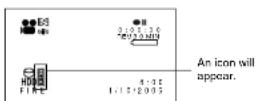
(When "HDD Protection: Off" is specified)
HDD RAM RW VR RW VF R +RW
Using External Microphone
Connect external microphone (generally available) to the external microphone jack of this DVD video camera/recorder. Clearer sound can be recorded. Turn on the switch on external microphone and start recording. For details on external microphone, see "Major Specifications" on page 152.

Note:
- Depending on the shape of its plug, an external microphone cannot be plugged in, while the cable is left plugged in the AV/S output terminal. Unplug the AV/S output cable to use the external microphone.
- This DVD video camera/recorder cannot use a plug-in power type microphone. (Power is not supplied from this DVD video camera/proprietor.)
- Connecting an external microphone will switch off the built-in microphone.
• The DZ-RS300E cannot use any external microphone.
Disc Navigation
HDD RAM RW VR RW VF R +RW CARD

Using Disc Navigation
STARTING OR TERMINATING DISC NAVIGATION
Disc Navigation is a tool for editing scenes recorded on this DVD video camera/recorder. Here is an explanation on "scene" and "programme", so that you will be able to make most use of Disc Navigation function.
The screens in this instruction manual are basically those that will appear when the HDD is used. Some items will not appear when a DVD-RAM/DVD-RW/DVD-R/+RW or card is used, but the operation is the same.

- Turn the DVD video camera/recorder on (p. 34). - When using HDD: Set the power switch to "HDD". - When using disc: Set the power switch to "DVD". - When using card: Set the power switch to "SD".
1 Set the power switch properly.
2 Press the DISC NAVIGATION button.
The Disc Navigation screen (shown on page 72) will appear.
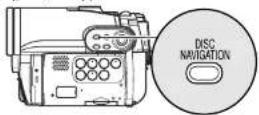
3 Press the DISC NAVIGATION button again.
Disc Navigation will be terminated and the DVD video camera/recorder will enter the recording pause status. You can also press the ■ button to end Disc Navigation.

1 Icon displayed on a photo recorded on a DVD-RAM using Hilachi DVD video camera/recorder marked before DZ-HS303E/HS301E/HS300E. DZ-HS303E/HS301E/HS300E cannot record any photos on a DVD-RAM.
*2 The operation guide will vary depending on the operation status of DVD video camera-recorder.
*3 Appears when 13 scenes or more have been recorded.
*4 When using a disc, the icon that corresponds to the type of disc being used will appear. *■" will appear for card.
Icons to be displayed on thumbnail:


Note:
- Each time the DISPLAY button is pressed, the recording data/time of the scene on which the cursor is placed, recording data of scene (VIDEO Mode, 16:9, recording length), and operation guide will appear in sequence (when HDD is used).

flowchart
graph LR
    A["Data Input"] --> B["Processing Module"]
    B --> C["Storage Module"]
    C --> D["Displayed Only when HDD is used"]
-
Each time Disc Navigation is started with a DVD-RW (VF-mode)/DVD-R inserted, message "Creating Thumbnail" will appear. After the message appears, the Disc Navigation screen will appear.
• In the following cases, the Disc Navigation screen will appear or a message will be displayed: -
HDD or disc is write-protected.
- Finalised DVD-RW (VF-mode)/DVD-R/+RW
- DVD-RW (VF-mode)/DVD-R recorded on a Hitachi DVD video camera/recorder model marketed before DZ-
HS303E/HS301E/HS300E, and not finalised - Locked card
Do not leave the Disc Navigation screen displayed on TV to which the DVD video camera/recorder is connected: Doing so could damage the TV screen, possibly by burning.
The selected scene will be framed: This is called a "cursor".
3 Press the ▶/Ⅱ button.
Playback will start from the selected scene.
Note:
Pressing the ◀◀ or ▶▶ button will move the cursor to the preceding or following scene. Pressing the ◀◀ or ▶▶ button will move to preceding or following page.
ADJUSTING VOLUME DURING PLAYBACK
If the LCD monitor is open during playback of movie, playback sound will be heard from the speaker. Adjust the sound volume using the zoom lever. Tilt it to the "T" side to increase the volume, "W" side to reduce the volume.
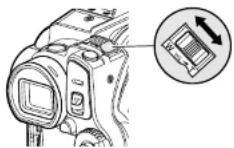
●When playback ends:
The DVD video camera/ recorder will enter the playback pause status at the last image of last scene. Pressing the ■ or DISC
NAVIGATION button will restore the Disc Navigation screen.
When the playback pause status continues for as long as 5 minutes, the Disc Navigation screen will automatically be restored.

Playback pause
●Playing back photos
A photo on DVD-RAM will be displayed for approx. 3 seconds. When playing back photos on card, playback will stop after each photo playback.
Note:
- Press the ▶/■ button to temporarily stop playback. Pressing the ▶/■ button again will start from that point.
- If you press the ▶/■ button after playback of the last scene on disc finishes, playback will start again from the beginning.
- Pressing the ■ button will always restore the Disc Navigation screen.
- When playing back photos on card, "Playback" will appear. In the case of a photo with a large number of pixels, it will take some time for the photo to appear.
Before You Begin
- Insert a disc or card recorded on this DVD video camera/recorder to play back scenes on it. (p. 44, 45).
• Turn the DVD video camera/recorder on (p. 34).
HDD RAM RW VR RW VF R +RW CARD
PLAYING BACK LATEST RECORDED SCENE

1 Press the ▶/II button in the recording pause status.
The DVD video camera/recorder will enter the playback mode, and the scene you have recorded last will be played back. When playback is finished, the DVD video camera/recorder will enter the pause status at the last image on disc. If the playback pause status continues for as long as 5 minutes, the DVD video camera/recorder will automatically return to the recording pause status.
2 Press the ■ button.
Playback will stop, and recording pause status will be restored.
Note:
- To temporarily stop playback, press the ▶/Ⅱ button.
Press the ▶/■ button again to restart playback.
- Even if you stop playback midway and immediately start recording again, the new image will be recorded after the last scene on HDD, disc or card (the previous images will not be overwritten).
- Image data edited on PC, plc., or the recorded image may not appear on this DVD video camera/recorder; also, the recorded sound may not play back. depending on the type of image data.
• Image data recorded on another DVD video camera/ recorder or DVD recorder may not be played on this DVD video camera/ recorder.
- Depending on the amount of data to be played back, it may take some time for the playback image to appear.
- Do not operate the power switch or remove the card while the ACCESS/PC or CARD ACCESS indicator is lit or blinking: Doing so may damage the card or the data on card.
- If the temperature of this DVD video camera/recorder is too high, normal playback may not be possible. Turn the DVD video camera/recorder off once, wait until the ambient temperature becomes lower, and then operate it again.
HDD RAM RW VR +RW CARD
DELETING LAST RECORDED SCENE
1 Press the MENU button during playback.
2 Choose "Edit", "Delete Scene", and then
3 Choose "YES", and then press the ▶/II
button.
The last recorded scene will be deleted, and
CAPTURING PHOTO
You can record an image displayed during playback of video as a photo on a card.
1 Press the MENU button at a scene you wish to capture during playback.
2 Choose "Edit", "PHOTO Capture", and then press the ▶/Ⅱ button. The screen for verifying capture will appear.
3 Choose "YES", and then press the ▶/|| button.
The captured scene will be recorded on a card.
HDD RAM RW VR RW VF R +RW
Note:
- You can also press PHOTO/SELECT button for the scene you wish to capture in step 1: The screen for verifying capture will appear. Choose "YES", and then press the ▶/□ button. The scene will be recorded on
A captured photo is played back on the DVD video camera/recorder as follows: When captured from a video recorded with 16:9 (wide model) On specified:
Number of pixels (JPEG standard): 640 x 360
When captured from a video recorded with 16:9 (wide mode) Off specified Number of pixels (JPEG standard): 640 x 480


HDD RAM RW VR RW VF R +RW
SEARCH PLAYBACK OF MOVIE
During playback, press the ◀ or ▶ button and hold it: Search playback will start.
Hold down ▶▶
Scenes will be visually scanned forward. Hold down ◀:
Scenes will be visually scanned backward. Release the ◀◀ or ▶▶ button when you find the desired image:
Normal playback will start from that point.
Note:
- If the temperature inside the DVD video camera/recorder rises, normal skip or search playback may not be possible: Turn the DVD video camera/recorder off, wait for a few moments, and then turn it on again.
HDD RAM RW VR RW VF R +RW
FRAME ADVANCE/FRAME BACK/SLOW PLAYBACK OF MOVIE
During playback pause, press the ◀ or ▶ button. Frame advance, frame back or slow playback will start.
Press▶▶ once:
Picture will advance one frame.
Press ◀ once:
Picture will go back one frame.
Hold down ▶▶
Forward slow playback.
Hold down
After frame advance, frame back or slow playback, the DVD video camera/recorder will enter the playback pause status.
Note:
* In slow playback, a rapidly moving subject image may be distorted.
* The intervals for playing back frames in frame advance/frame back/slow playback are as follows: Frame advance and forward slow: Approx. 0.03 seconds
Frame back and reverse slow: Approx. 0.5 seconds
SKIP PLAYBACK OF MOVIE
During playback, press the ◀◀ or ▶▶ button to locate the start of desired scene.
Press ▶▶ once:
To skip to the first image of the scene following the one being played back, and start playback.
Press once:
To return to the first image of the scene being played back, and start playback.
Hold down
To continuously locate the beginnings of scenes, starting from the scene following the scene being played back. When the desired image appears, release the button: Playback will start from that point.
Hold down
To continuously locate the beginnings of scenes backward, starting from the scene preceding the scene currently being played back. When the desired image appears, release the button: Playback will start from that point.
Portion being played back
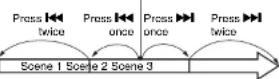
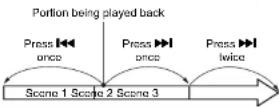
Pressing the ◀ button at a portion several seconds from the start of scene being played back will return to the start of the scene preceding that being played back.
Note:
- If you perform skip playback during playback pause, the DVD video camera/recorder will enter the playback pause status at the beginning of the located scene.
- Pressing the ▶ button in the last scene on HDD or disc will set the DVD video camera/recorder to the playback pause status at the last image.
- If the temperature inside the DVD video camera/ recorder rises, normal skip or search playback may not be possible: Tum the DVD video camera/recorder off, wait for a few moments, and then turn it on again.
PLAYING BACK STILLS
Press the ◀◀ or ▶▶ button during playback to quickly play back stills in sequence.
Press ▶▶ once:
To display stills one by one forward.
Press once:
To display stills one by one backward.
[When using DVD-RAM]
(This DVD video camera/recorder cannot record any photo on a DVD-RAM.)
Releasing the ◀ or ▶ button will start
continuous playback.
[When using card]
When the ◄◄ or ►► button is released, the photo at that point will be displayed, and then the DVD video camera/recorder will enter the
HDD RAM RW VR RW VF R +RW CARD
JUMPING TO SPECIFIED POINT (GO TO)
1 Press the MENU button
during playback
2 Choose the option
(point you want to go
to), and then press the

/11 button.
Top:
To go to the start, and enter playback pause.
End:
To go to the end of last scene, and enter
playback pause.
Specify:
To go to a specified point and enter playback
pause. See the following for details.
●Specifying the point to view
1 Choose "Specify" in step 2 above, and then press the ▶/□ button.
The screen for specifying the point to go to will appear.
Position of currently
Total recording time of
played back image — all selected
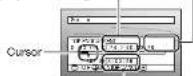
Cursor position
2 Use the ◀◀/▶◀/◀◀/▶◀ buttons to select the desired time of chosen point.
Press: To select the start
Press ▶: To select the end.
Press◄◄ or ►►
- Press one
To move the cursor in 10-second units
(1-still units for card)
- Hold down:
To move the cursor in 1-minute units
(10-still units for card)

3 Press the ▶/|| button to enter the selection.
The DVD video camera/recorder will go to
the specified point and enter the playback
pause status
Pressing the ▶/II button again will start
playback
Note:
• To cancel the "Go To" procedure midway, press the ■
button before going to the specified point.
- If multiple scenes are selected using the Disc
Navigation function or PHOTO/SELECT button,
choosing "Top" will jump to the beginning of selected
scends
* When multiple scenes are selected, the total time of
selected scenes will appear in the "total recording
time display.
- With card, the number of stills will appear at the
"TOP", "CURRENT", "END" and "GO TO" indicators.
• The cursor may not move at same-pitch intervals.
HDD RAM RW VR RW VF R +RW CARD
INFORMATION DISPLAY DURING PLAYBACK
Various types of information on recording will be superimposed on playback image you are viewing.
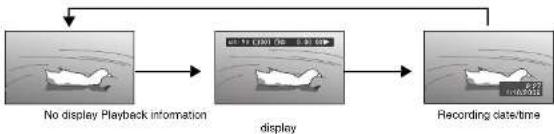
flowchart
graph LR
    A["No display Playback information"] --> B["display"]
    B --> C["Recording date/time"]
●Switching the information display mode
Press the DISPLAY button: You can switch the display mode of on-screen information.
When using HDD/DVD:

When using card:

1 Programme or Play List.
^12 Number of programme or play list being
played back (not displayed when all
programmes are being played back).
5 Refer to "HID, DVD/Card type" on page 49.
^4 Will appear when each function is specified
*3 ▶ : Standard playback
II : Playback pause
: Forward search playback
: Reverse search playback
:Forward skip playback
: Reverse skip playback
: Forward frame advance
: Reverse frame back
▶: Forward s l o w p l a y b a c k
: Reverse slow playback
See pages 73-76 for how to operate.
The "K" mark will appear on the first image
on disc. The "N" mark will occur on the last time.
The mark will appear on the last image up disc.
- Recording date/time display: Shows the date/time when recording was started. Even when playback starts, the date/time display will not advance.
• No display: No information will appear.
I however, when the mode of playback
operation is switched, the symbol will appear for approx. 3 seconds.
Note:
See page 95 and after for "Programme", page 98 and after for "Play List".
SELECTING MULTIPLE SCENES
1 Press the DISC NAVIGATION button.
2 Use the ◀◀/▶◀/◀◀/▶◀ buttons to select the desired scene.
3 Press the PHOTO/SELECT button once:
The selected scene will be framed in red and yellow.
Repeat steps 2 and 3 to randomly select multiple scenes.

SELECTING CONSECUTIVE SCENES TOGETHER
1 Press the DISC NAVIGATION button.
2 Use the ◀◀/▶◀/◀◀/▶◀ buttons to point the cursor at the first scene in the range of scenes you want to select.

Yellow frame
Note:
- You can know the status of scenes from the colours of cursor and bergraph:
| Cursor Bar graph Status of scenes | ||
| Yellow Light blue | Current cursor position | |
| Blue Light blue | Range of scenes being selected | |
| Red | Yellow | Scenes already selected |
3 Hold down the PHOTO/SELECT button for at least one second:
The selected scene will be doubly framed in yellow and blue.

Double frames in yellow and blue
- Pressing the ▶/□ button after selecting scenes will play back only the selected scenes from the beginning of each.
• To cancel a selected scene, select the scene to be cancelled, and then press the PHOTO/SELECT button.
To cancel all selected scenes, press the ■ button.
To cancel all selected scenes, press the ■ button.
- You can also select scenes in reverse from the last scene in the range.
• To release multiple selection, press the ■ or PHOTO/SELECT button before pressing the ▶/■ button in step 4.
• Up to 999 scenes can be selected.
• To release multiple selection, press the ■ or PHOTO/SELECT button before pressing the ▶/■ button in step 4.
• Up to 999 scenes can be selected.
4 Use the ◀◀/▶◀/◀◀/▶▶ buttons to select the last scene in the range you want, and then press the ▶/■ button:
The thumbnails of scenes in the specified range will be framed in red, and then selected.

Red frame
When scenes up to this point are selected
FUNCTIONS AVAILABLE WITH DISC NAVIGATION
The Disc Navigation mode will allow a variety of further operations.
| Available function | Contents | Referenc e page | |||||||
| Editing of scenes | ● | ● | ● | ▲*1 | You can delete unnecessary scenes, combine scenes, or divide one scene. | 85 – 87 | |||
| Setting special effects to scenes | ● | ● | ● | You can attach fade and skip to a scene, and change existing thumbnails. | 88 – 90 | ||||
| Copy from disc to card | ● | You can copy photos recorded on DVD-RAM disc to card. | 91 | ||||||
| Scene lock | ● | You can lock any scene so that it will not be deleted by mistake: Essential scenes are thereby protected, and recording another still is possible. | 92 | ||||||
| Scene information display | ● | ● | ● | ● | ● | ● | ● | You can display information on one scene or multiple scenes, such as image quality, recording time, etc. | 94 |
| Changing title | ● | ● | ● | You can change the title of play list or programme. | 95, 104 | ||||
| Creation of play list | ● | ● | ● | You can create an original movie by changing the combination of scenes. | 98 | ||||
| Initialisation | ● | ● | ● | ● | ● | ● | You can delete all data recorded on HDD/DVD/Card. | 105 | |
| Protection | ● | ● | ● | You can protect the HDD/DVD-RAM/ DVD-RW (VR-mode) to prevent deletion or editing by mistake. | 106 | ||||
| Remaining display (Capacity) | ● | ● | ● | ● | ● | ● | ● | The remaining recordable movie time or number of recordable stills is displayed. | 106 |
| Disc finalisation | ●2 | ● | ● | ● | You can use this DVD video camera/ recorder to finalise any DVD-RW/DVD- RV+RW recorded on it so that the disc can be viewed on DVD recorder/player, etc. | 108 | |||
| Unfinalising disc | ● | ● | You can unfinalise a DVD-RW (VF- mode)+RW that was finalised on this DVD video camera/recorder so that additional videos can be recorded on the disc. | 109 | |||||
| Repeat play | ● | ● | ● | ● | ● | ● | You can repeatedly play back programmes and scenes. | 110 | |
| Slide show | ● | You can play back stills continuously. 111 |
UNDERSTANDING FLOW OF DISC NAVIGATION MENU
Press the MENU button on the Disc Navigation screen: The menu screens for Disc Navigation and
menu screens for HDD/DVD/Card will appear
Shaded items will also appear in Quick Menu display mode (see page 52).
Refer to pages indicated for details of settings.

●When using HDD/DVD-RAM/DVD-RW (VR-mode)
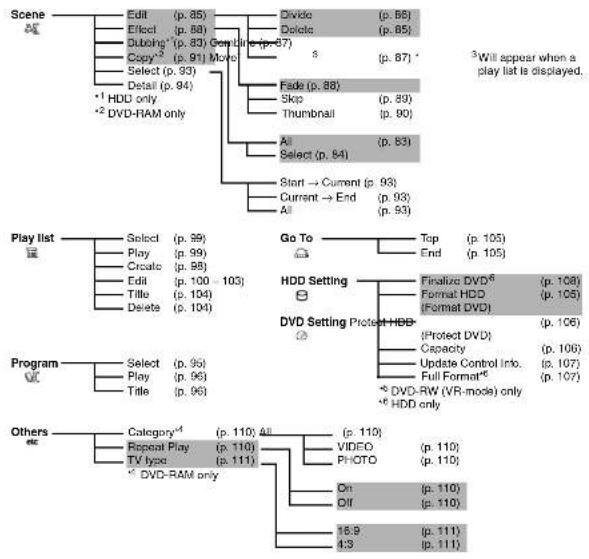
flowchart
graph TD
    A["Scene"] --> B["Edit (p. 85)"]
    A --> C["Effect (p. 88)"]
    A --> D["Subbing* (p. 83) Correct (p. 87)"]
    A --> E["Copy*2 (p. 91) More"]
    A --> F["Select (p. 93)"]
    A --> G["Detail (p. 94)"]
    A --> H["*1 HDD only"]
    A --> I["*2 DVD-RAM only"]

    B --> J["Divido (p. 86)"]
    B --> K["Delete (p. 85)"]
    C --> L["Fade (p. 88)"]
    C --> M["Skip (p. 89)"]
    C --> N["Thumbnail (p. 90)"]
    C --> O["All (p. 83)"]
    C --> P["Select (p. 84)"]
    C --> Q["Start → Current (p. 93)"]
    C --> R["Current → End (p. 93)"]
    C --> S["All (p. 93)"]

    T["Play list"] --> U["Select (p. 99)"]
    T --> V["Play (p. 99)"]
    T --> W["Croatic (p. 98)"]
    T --> X["Edit (p. 100 -103)"]
    T --> Y["Title (p. 104)"]
    T --> Z["Delete (p. 104)"]

    U --> AA["Go To Top (p. 105)"]
    U --> AB["End (p. 105)"]

    AC["Program"] --> AD["Select (p. 95)"]
    AC --> AE["Play (p. 96)"]
    AC --> AF["Title (p. 96)"]

    AG["Others"] --> AH["Category*4 (p. 110) All"]
    AG --> AI["Repeat Play (p. 110)"]
    AG --> AJ["TV type (p. 111)"]
    AG --> AK["* DVD-RAM only"]

    AL["HDD Setting"] --> AM["Finalize DVD*6 (p. 108)"]
    AL --> AN["Format HDD (p. 105)"]
    AL --> AO["(Format DVD)"] (p. 106)
    AL --> AP["(Protect DVD)"] (p. 106)
    AL --> AQ["Capacity"] (p. 106)
    AL --> AR["Update Control Info."] (p. 107)
    AL --> AS["Full Format*6 (p. 107)<br>*6 DVD-RW (VR-mode) only"]
    AL --> AT["*6 HDD only"]

    AU["VIDEO"] --> AV["(p. 110)"]
    AU --> AW["(p. 110)"]
    AU --> AX["PHOTO"] (p. 110)

    AY["DIVID"] --> AZ["(p. 87)"]
    AZ --> BA["(p. 87)"]

    BB["Video"] --> BC["(p. 110)"]
    BB --> BD["(p. 110)"]

    BE["DVD Setting Protect HDD"] --> BF["(Prolact DVD)"]
    BE --> BG["(Protection DVD)"]

    BH["Other"] --> BI["(Prolact DVD *"]
    BH --> BJ["(Protection DVD *"]

    BK["DVD-RAM only"] --> BL["(Prolact DVD *"]
    BK --> BM["(Protection DVD *"]
●When using DVD-RW (VF-mode)/DVD-R/+RW

flowchart
graph TD
    A["Scene"] --> B["Select (p. 93)"]
    A --> C["Detail (p. 94)"]
    B --> D["Start → Current (p. 93)"]
    B --> E["Current → End (p. 93)"]
    C --> F["All (p. 93)"]
    D --> G["Finalize DVD (p. 108)"]
    E --> H["Unfinalize DVD^7 (p. 109)"]
    E --> I["Format DVD^7 (p. 105)"]
    E --> J["Capacity (p. 106)"]
    K["Program Select (p. 95) DVD Setting"] --> L["Play (p. 96)"]
    M["Go To"] --> N["Top (p. 105)"]
    M --> O["End (p. 105)"]
    P["Others"] --> Q["Repeat Play (p. 110)"]
    P --> R["TV type (p. 111)"]
    S["On (p. 110)"] --> T["Off (p. 110)"]
    S --> U["16.9 (p. 111)"]
    S --> V["4.3 (p. 111)"]
●When using card

flowchart
graph TD
    A["Scene"] --> B["Delete (p. 85)"]
    A --> C["Lock (p. 92)"]
    A --> D["Select (p. 93) Start = Current (p. 93)"]
    A --> E["Detail (p. 94)"]
    F["Go To"] --> G["Top (p. 105)"]
    F --> H["End (p. 105)"]
    I["Card"] --> J["Formal Card (p. 105)"]
    I --> K["Capacity (p. 106)"]
    L["Slide Show"] --> M["Start (p. 111)"]
Dubbing on DVD
You can dub the images recorded on the HDD to a DVD.
| Before You Begin | • Set the power switch to "HDD". • Prepare a recordable disc. • The recording time for a scene that can be dubbed on one disc is approx, 30 minutes ( in FINE mode). If the HDD contains a scene exceeding the length that is recordable on one disc, it cannot be dubbed: Divide the scene (see p. 86), and then perform dubbing. • Be sure to use the AC adapter/charger to power the DVD video camera/ recorder during dubbing; Dubbing is not possible with a battery connected. • If power is turned off and dubbing is interrupted midway, proper dubbing will not be possible. |
DUBBING ALL SCENES RECORDED ON HDD (DUBBING ALL)
You can dub all scenes recorded on the HDD to a disc from the beginning in sequence.
If the scenes cannot be included on one disc, count the capacity size of scenes, and dub the scenes
that can be stored on the disc. Replace the disc during dubbing, following the screen for replacing disc. Dubbing will protect from the following words: This operation will be reported until all words
Disc. Dubbing will return from the following scene. This operation will be repeated until an scene on the HID are dubbed.
1 Press the DUBBING button.
"Please insert DVD." will appear.
Press the DISC EJFCT button, and then insert a disc.
Press the DISC NAVIGATION button, then the MENU button, and choose "Scene",
"Dubbing" and "All": The same screen will appear.
2 The screen for verification will appear: Choose
"YES", and then press the ▶/II button.
"Dubbing scenes to DVD?" will appear.
To stop dubbing, choose "NO", or press ■/STOP (EXIT)
(5101/241). If you press the ◀ button at this time, you
can confirm the scenes to be dubbed, which
will be enclosed in red cursor.
Press ■ (STOP/EXIT) to restore the screen for
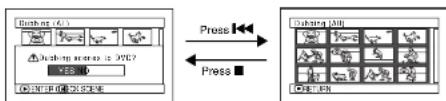
3 Replace the disc.
If one disc cannot contain all scenes, the screen for verifying disc replacement will appear. To continue dubbing, press the DISC EJECT button, and then replace the disc. To stop dubbing, press ■ (STOP/EXIT).
5 Press the DISC EJECT button to remove the
disc.
Close the cover of disc insertion block.
Press ■ (STOP/EXIT) to end dubbing.
Note:
* If message "Scene No.xxx is too large. Please divide
brie Scara before drubbins* anoree drina drubbin
SELECTING SCENES RECORDED ON HDD AND DUBBING THEM (SCENE SELECT DUBBING)
You can select desired scenes recorded on HDD and dub only those scenes on discs.
1 Press the DISC NAVIGATION button, and then the MENU button.
2 Choose "Scene", "Dubbing", "Select", and then press the ▶/Ⅲ button.
"Please insert DVD." will appear on the screen: Press the DISC EJECT button and insert a disc.
3 Place the cursor on a scene to be dubbed, and then press the ▶/□ or PHOTO/SELECT button: The cursor of the selected scene will change to red (see p. 79), and the scene with red cursor will be dubbed to a disc.
If you wish to dub other scenes, place the cursor on a scene in the same way, and press the ▶/■ or PHOTO/SELECT button to select. To cancel a selected secret PHOTO/SELECT button selected scenes, press ■ If the total capacity size exceeds the remaining for remaining bar at the top be red, and a message w scenes again.

4 Press the DUBBING button.
"Dubbing scenes to DVD?" will appear.
Instead of pressing the DUBBING button, you can press the MENU button, choose "Edit", and then "Enter": The same screen will appear.
Choosing "YES" will start dubbing.
To cancel dubbing, choose "NO" or press ■ (STOP/EXIT).
5 When dubbing is finished, check the "Delete Scene" screen.
Choosing "YES" will delete the dubbed scenes from the HDD.
Note:
• The scenes on HDD will be dubbed to disc in the order of display on HDD Disc Navigation screen. To dub the scenes in a different order, create a play list on which scenes are registered in the desired order of dubbing (see p. 98), and then execute dubbing.
- If a finalised disc or a heavily scratched or dirty disc is inserted into this DVD video camera/recorder, a message will appear and dubbing will not be possible: Use another disc.
• A DVD-RW/DVD-R dubbed on this DVD video camera/recorder will not be finalised: To play it back on a DVD recorder, be sure to finalise it on this DVD video camera/recorder.
• The details of editing scenes on HDD (lade, skip, change of thumbnail, etc.) will not be reflected in the scenes if they are dubbed on a DVD-RW (VF-mode)/DVD-R/+RW.
• The maximum number of scenes and programmes that can be dubbed will vary depending on the disc used.
- If you combine scenes with different recording dates on a play list, and dub the combined scene to a DVD-RAM/DVD-RW (VR-mode), the scenes will be clubbed separately for each date. However, if a combined scene is subsequently divided, the scenes may not be clubbed separately for each date.
- If you dub scenes combined using the Disc Navigation function to a DVD-RW (VF-mode)/DVD-R/ +RW, the two scenes immediately before the combination (sometimes more than two scenes) will be dubbed.
- If you divide a scene using the Disc Navigation function, and then club both the divided scenes to a DVD-RW (VF-mode):DVD-R/+RW, the scene before the division will be dubbed.
• The time shown on dubbing is for reference: Dubbing will be performed at normal speed in XTRA mode; approx. 1.5 times the normal in FINE mode; approx. 2 times the normal in STD mode.
If the number of scenes on HDD is too large, or the temperature of this DVD video camera recorder is too high, the required recording time may be longer than the display time on screen.
- Please note in advance that Hitachi will not accept any responsibility for compensation or loss of data, or direct or indirect damage when dubbing is not performed normally due to a fault in this DVD video camera/recorder.
●List of dubbing possible/Impossible
| Disc to be dubbed | Videos on HDD | ||
| VIDEO Modes (XTRA/FINE/STD) mixed | Wide/normal modes (16:9/4:3) mixed | VIDEO Mode "STD" and wide mode (16:9) | |
| DVD-RAM | ● | ● | ● |
| DVD-RW (VR-mode) | ● | ● | ● |
| DVD-RW (VF-mode) | — | — | — |
| DVD-R | — | — | — |
| +RW | ●* ●* | — | |
●: Dubbing possible; —: Dubbing impossible
* You cannot specify the combination of "VIDEO Mode: STD" and "16:9 On".
Scene
HDD RAM RW VR CARD
DELETING SCENES (EDIT - DELETE)
You may want to delete unwanted scenes.
Scenes on DVD-RW (VF-mode)/DVD-R cannot be deleted, and menu item "Delete" will not appear with DVD-RW (VF-mode)/DVD-R.
When using +RW, no scene can be deleted from the Disc Navigation menu (see page 74).
1 Press the DISC NAVIGATION button.
2 Place the cursor on the scene to be deleted.
3 Press the MENU button.
4 Choose "Scene", "Edit", "Delete", and then press the ▶/Ⅱ button.
When using card, choose "Scene", "Delete", and then press the ▶/Ⅱ button.
5 The "Delete Scene" screen will appear: If you are sure you want to delete the selected scene, press the ▶/□ button.
If you want to change the scene to be deleted, you can change it on this screen.
6 The screen for verifying deletion will appear: Choose "YES", and then press the ▶/II
7 Press the ■ button to quit.
Note:
- If you point the cursor at the scene to be deleted on DISC NAVIGATION screen, and then press the DELETE button on remote control, the screen in step 5 will appear.
• To delete an unwanted part of a scene on DVD-RAM/DVD-RW (VR-mode), divide the scene first, and then delete the unnecessary part (see page 86). • If you delete all data on HDD/DVD/card, initializing the
HDD/DVD/card will be recommended (see page 105) • If the time of deleted scenes (stills) is quite short, the remaining free space of HDD/DVD/card may not increase in the HDD/DVD/card or card remaining indicator.
• The locked scenes on card cannot be deleted (see page 92).
●Editing using submenu
Press the MENU button before pressing the ▶/Ⅱ button in step 5 (see page 85): The submenu will appear.

Pressing the ■ button will restore the screen in step 5.
^1 The menu item to be displayed will vary depending on the setting.
Note:
Although the submenu screen will appear for each setting, some menu items may not appear, depending on the setting.
HDD RAM RW VR
DIVIDING MOVIES (EDIT - DIVIDE)
You can divide a scene into two parts.
To delete unnecessary portion of scene, first divide the scene, and then delete the unnecessary portion.
1 Press the DISC NAVIGATION button.
2 Place the cursor on the scene to be divided.
3 Press the MENU button.
4 Choose, "Scene", "Edit", "Divide" and then press the ▶/□ button.
5 The "Divide Scene" screen will appear: If you are sure you want to divide the selected scene, press the ▶/■ button: The selected scene will be played back.
If you want to change the scene to be divided, you can change it on this screen.
6
When you reach the point where you want to divide the scene, press the PHOTO/SELECT button.
Choose "NO" to cancel division.
After division, the "Divide Scene" screen will
be restored.
Repeat steps 5 - 7 to divide another scene.
8 Press the ■ button to quit.
Note:
• If you press the MENU button before pressing the
▶/II button in step 5, the submenu will appear
- search and name advance are useful when designing division points.
• Combining scenes that were divided will restore the
original scene (see page B7).
- If a special effect has been added to the original
scene, the "IN" effect will be added to the first half of scene, and the "OUT" effect to the latter half.
• The division point may drift before or after the
designated point by approximately 0.5 seconds
- Since a scene with a skip set cannot be played back,
no division point can be specified: Release the skip
for the scene before dividing it.
- If the division point is at a sum, a message will appear, but no division will be made.
• All the following point is at the
- In the division point is at the start of end of a scene, a means will appear, but no division will be made.
HDD RAM RW VR
COMBINING MULTIPLE SCENES (EDIT - COMBINE)
If you have recorded numerous short scenes, combining them will be facilitated by the use of Disc Navigation.
Be sure to select consecutive multiple scenes. When using a DVD-RAM, combining scenes is possible only when "Category: All" is specified (p. 110). Stills cannot be combined.
1 Press the DISC NAVIGATION button.
2 Press the MENU button, choose "Scene", "Edit", "Combine", and then press ▶/II button.
3 The "Combine Scenes" screen will appear: Point the cursor at the first scene to be combined, and then press the ▶/■ button. The cursor will change to double frames of blue and yellow.
4 Use the ◀◀/▶◀/◀◀/▶▶ buttons to determine the range of scenes to be combined, point the cursor at the last scene, and then press the ▶/□ button. The cursor will change to a red frame. The last scene will be double frames of red and yellow.
5 If you do not wish to change the scenes to be combined, press the ▶/■ button. To change the scenes, press the ■ (STOP/EXIT) button to return the cursor to yellow, and then select the scenes to be combined again.
6 The screen for verifying combination will appear: Choose "YES", and then press the ▶/□ button.
The two images appearing on the verification screen are those of the first and last scenes to be combined.
Choose "NO" to cancel combination.
After Yes or No setting, the "Combine
Scenes" screen will be restored.
The thumbnail of the first scene will appear in
the combined scene.
Repeat steps 3 and 6 to combine other scenes.
7 Press the ■ button to quit.
Note:
- You can also select multiple scenes after step 1: Press the MENU button to continue the procedure of combination.
- If you press the MENU button before pressing the
▶/II button in step 3, the submenu will appear (see page 86). - With fade effect, the "IN" effect of the first scene in the selected range and the "OUT" effect on the last scene will be attached to a combined scene.
- Scenes in different programmes (different recording dates) cannot be combined: Create a play list first, and then combine such scenes on the play list.
- When using the HDD, scenes with different VIDEO Modes or 16:9 mode cannot be combined.
HDD RAM RW VR
ARRANGING ORDER OF SCENES (EDIT - MOVE)
You can arrange scenes within a play list by moving them to desired positions (p. 103). Create a play list first, and then arrange the scenes ["CREATING NEW PLAY LIST (CREATE)", p. 98].

HDD RAM RW VR
DIRECTING SCENES EFFECTIVELY (EFFECT - FADE)
You can add lading to the beginning and/or end of scene. There are three types of special effects:
Fade Out Fade Out Fade Out

White:
Fades in from white screen
Fades cut to white screen

Wipe:
Fades in from black screen to vertical direction of screen Fades cut from vertical direction of screen to black screen

B/W:
Fades in from Black and
White screen la colour
Fades out from colour screen
to Black and White screen
screen
1 Press the DISC NAVIGATION button
2 Place the cursor on the scene to which fade is to be added.
3 Press the MENU button.
4 Choose, "Scene", "Effect", "Fade" and then press the ▶/□ button.
5 The "Fade" screen will appear: If you are sure you want to add the fade effect to the scene, press the ▶/□ button.
If you want to change the scene to which fade is added, you can change it on this screen.
6 Select the special effects for "IN" and/or "OLT", choose "Enter", and then press the ▶/■ button.
You can use the ◀◀/▶▶ buttons to move the cursor to "IN", "OUT", "Enter" or "Cancel". Use the ◀◀/▶▶ buttons to choose the effect to be added, and then press the ▶/▶ button to set the effect.
To cancel setting, choose "Cancel". If you choose "Enter" and press the ▶/|| button, the "Fade" screen will be restored
7 Press the ■ button to quit.
The “▲” and/or “▲” icon(s) will appear in the scenes for which fade in and/or fade out have been set.

Note:
- If a disc on which fade has been set on scene with this DVD video camera/recorder is played on a DVD recorder/player, or the scene is captured into a PC, the set fade will not be reflected (see Note on page 80). - When dubbing on a DVD-RW (VF-mode)/DVD-R/ +RW. The setting on fade will not be reflected (see page 84).
HDD RAM RW VR
PLAYING BACK BY SKIPPING SCENES (EFFECT - SKIP)
You can specify "Skip" for scenes you do not want to play back: The selected scenes will be skipped.
1 Press the DISC NAVIGATION button.
2 Place the cursor on the scene to which skip is to be set.
Multiple scenes can be selected for skipping (p. 79).
3 Press the MENU button.
4 Chouse "Scene", "Effect", "Skip", and then press the ▶/Ⅱ button.
5 The "Set Skip" screen will appear: If you are sure you want to skip the selected scene, press the ▶/□ button.
If you want to change the scene to be skipped, you can change it on this screen. After skip setting, the "Set Skip" screen will be restored. Repeat step 5 to set skipping of other scenes.
6 Press the ■ button to quit.
A skip icon “will appear in the thumbnail of any scene for which skipping has been set.
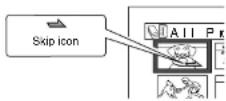
●Releasing Skip
Perform the same procedure as setting skip: The skip icon will disappear and skipping of the scene will be released.
Note:
- If you press the MENU button before pressing the
▶/II button in step 5, the submenu screen will appear (p. 86). - If a disc on which skip has been set on scene with this DVD video camera/recorder is played on a DVD reorder/player, or the scene is captured into a PC, the set skip will not be reflected (see Note on page 80).
- When dubbing on a DVD-RW (VF-mode)/DVD-R/+RW, the setting on skip will not be reflected (see page 84).
HDD RAM RW VR
CHANGING IMAGES FOR THUMBNAILS (EFFECT - THUMBNAIL)
Normally, the first image of the recorded scene is displayed as a thumbnail: You can choose another image of the scene for thumbnail. If you set a vivid image to thumbnail, you can know what you recorded from a glance at the Disc Navigation screen.
1 Press the DISC NAVIGATION button.
2 Place the cursor on the scene whose thumbnail you wish to change.
3 Press the MENU button.
4 Choose "Scene", "Effect", "Thumbnail", and then press the ▶/□ button.
5 The "Change Thumbnail" screen will appear: If you are sure you want to change the thumbnail of the selected scene, press the ▶/■ button: The selected scene will be played back.
If you want to change the scene whose thumbnail is to be changed, you can change it on this screen.
6 When the image you want to use as the thumbnail of the scene appears, press the PHOTO/SELECT button.
7 The screen for verifying switching of thumbnail will appear: Choose "YES", and then press the ▶/□ button.
Choose "NO" to cancel switching of thumbnail.
After Yes or No setting, the "Change Thumbnail" screen will be restored.
Repeat steps 5–7 to change the other scenes.
8 Press the ■ button to quit.
Note:
- If you press the MENU button before pressing the ▶/■ button in step 8, the submenu screen will appear (p. 86).
• A thumbnail of still cannot be changed.
- Since the scene to which skipping is set cannot be played back, you will not be able to change its thumbnail: Release the skip setting of the scene to change the thumbnail.
- If a disc on which thumbnail has been set with this DVD video camera/recorder is played on a DVD reorder/player, or the scene is captured into a PC, the set thumbnail will not be reflected (see Note on page 80).
- When dubbing on a DVD-RW (VF-mode)/DVD-R/ +RW, the setting on changing thumbnail will not be reflected (see page 64).
COPYING STILLS ON DVD-RAM TO CARD (COPY)
RAM CARD
Before You Begin
- Set a DVD-RAM (recorded on a Hitachi DVD video camera/recorder marketed before DZ-HS303E/HS301E/HS300E) that includes the photos you wish to copy, and a card with recordable space, in this DVD video camera/recorder.
1 Set the power switch to "DVD".
2 Press the DISC NAVIGATION button.
3 Place the cursor on the scene to be copied.
4 Press the MENU button.
5 Choose "Copy" on the "Scene" menu screen, and then press the ▶/Ⅱ button.
6 The "Copy to card" screen will appear: If you are sure you want to copy the selected still, press the ▶/Ⅲ button.
If you want to change the still to be copied, you can change it on this screen.
7 The screen for verifying copy will appear: Choose "YES", and then press the ▶/□ button.
Choose "NO" to cancel copy. After Yes or No setting, the "Copy to card" screen will be restored. Repeat steps 6 and 7 to copy other stills to card.
8 Press the ■ button to quit.
Note:
• No movie can be copied.
• If you press the MENU button before pressing the
▶/II button in step 6, the submenu screen will appear
(p. 86).
• See "Category" (p. 110) to check the stills recorded
on DVD-RAM.
• You can also select multiple scenes (p. 79).
• Even if all scenes, including movies, are selected to
be copied, only stills will be copied.
• Data on card cannot be copied to disc.
CARD
LOCKING SCENES ON CARD (LOCK)
You can lock each photo recorded on card so that it will not be deleted or edited by mistake.
1 Set the power switch to "SD".
2 Press the DISC NAVIGATION button.
3 Place the cursor on the scene to be locked. You can also select multiple scenes (p. 79).
4 Press the MENU button.
5 Choose "Luck" on the "Scene" menu screen, and then press the ▶/Ⅱ button.
6 The "Lock Set" screen will appear: If you are sure you want to lock the selected scene, press the ▶/□ button.
If you want to change the scene to be locked, you can change it on this screen. After setting, the "Luck Set" screen will be restored. Repeat step 6 to lock another scene.
7 Press the ■ button to quit.
The lock icon "☐" will appear on any scene for which lock has been set.
HDD RAM RW VR RW VF R +RW CARD
SELECTING SCENES USING MENU SCREEN (SELECT)
You can use this "Select" function to select consecutive scenes at one time. This function is useful when there are numerous scenes.
1 Press the DISC NAVIGATION button.
2 Point the cursor at the first or last scene to be selected: When selecting all scenes, simply proceed with step 3.
3 Press the MENU button.
●Deselecting selected scenes
Deselecting scenes one by one:
While you are displaying the "All Programs" screen on which scenes have been selected, place the cursor on the scene to be deleted, and then press the PHOTO/SELECT button.
Note:
Up to 999 scenes can be selected.
4 Choose "Select" on the "Scene" menu screen.
5 Choose "Start → Current", "Current → End" or "All" and then press the ▶/■ button.

Deselecting all the selected scenes at once: While you are displaying the "All Programs" screen on which scenes have been selected, press the ■ button.
HDD RAM RW VR RW VF R +RW CARD
DISPLAYING INFORMATION USING MENU SCREEN (DETAIL)
You can display various information for a scene: the recording mode, recording date/time and length, special effects and movie quality mode.
1 Press the DISC NAVIGATION button.
2 Place the cursor on the scene whose information you wish to know.
3 Press the MENU button.
4 Choose "Scene", "Detail", and then press the ▶/■ button.
The detailed information on the scene will appear.
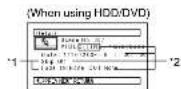

*1 Not displayed with DVD-RW (VF-mode)/DVD-RW +RW.
*2 Not displayed with DVD-RAM/DVD-RW/DVD-R
*3 Will not appear if the loaded card does not comply with DCF.
*4 Number of pixels on still in horizontal direction: This may not appear with a JPEG file that does not conform to this DVD video camera/recorder.
Note:
- DCF (Design rule for Camera File system) is a unified image file format for video cameras: Image files can be commonly used for all digital devices that conform to DCF. This DVD video camera/ recorder complies with DCF.
- Pressing the ▶ button will display information on the following scene; pressing the ◀ button will display information on the preceding scene.
5 Press the ■ button to quit.
Note:
- If multiple scenes have been selected, the total recording time of the selected scenes (total number in case of stills) will appear.
(When using HDD/DVD)

*1 Number of scenes whose quality mode is unknown:
This will appear when the disc has a scene recorded on a device other than this DVD video cameras/recorder, only if the disc has a scene whose mode is unknown.
'2 This will not appear with HDD/DVD-RW/DVD-R' +RW, since no still image can be recorded on it.
'3 Not displayed with a DVD-RAM/DVD-RW/DVD-R (finalised) /+RW that was recorded on another device.
(When using card)

Programme
WHAT IS "PROGRAMME"?
Programme refers to an assembly of scenes recorded on the same date regardless of whether they are movie or still.

HDD RAM RW VR RW VF R +RW
SWITCHING TO THUMBNAIL DISPLAY OF SPECIFIC DATE (SELECT)
Since the scenes recorded on this DVD video camera/recorder are collected as "programmes" for each recording date, selecting a programme will allow you to display only the scenes on a specific date.
1 Press the DISC NAVIGATION button.
2 Press the MENU button.
3 Use the ◄◄◄/►►/◄◄/►►/►/|| buttons to choose "Select" on the "Program" menu screen, and then press the ►/|| button.
4 Select the programme to be displayed, and then press the ▶/|| button.
The Disc Navigation screen of the selected programme will appear.

Note:
- Pressing the ■ button on the "Select Program" screen
will restore the Disc Navigation screen. * If a disc recorded on another drive is lowered in this - If a disc recorded on another device is issued in this DVD video camera/ recorder, the programme may no
be a collection of recordings on the same date. - If you change the video quality or switch the wide
mode with a +RW, multiple programmes will be
produced even if they are recorded on the same date.
PLAYING BACK PROGRAMME (PLAY)
You can play back only the selected programme.
1 Press the DISC NAVIGATION button
2 Press the MENU button.
3 Use the ◀◀/▶◀/◀◀/▶◀/▶/▶/▶/▶ buttons to choose "Play" on the "Program" menu screen, and then press the ▶/▶/▶ button.
4 Select the programme to be played back, and then press the ▶/Ⅱ button.
Playback will start from the first scene of the selected programme.
Note: If "Repeat Play: On" is specified, the selected programme will be repeatedly played back (PLAYING BACK SCENES REPEATEDLY (REPEAT PLAY), p. 110).
CHANGING TITLE OF PROGRAMME (TITLE)
The recording date/time has initially been attached to any programme. You can change the recording date/time to any desired title.
1 Press the DISC NAVIGATION button.
2 Press the MENU button.
3 Choose "Title" on the "Program" menu screen, and then press the ▶/□ button.
4 Select the programme whose title you want to change, and then press the ▶/|| button.
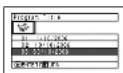
The screen for setting a title will appear.
5 Use the ◀◀/▶◀/◀◀/ ▶◀ buttons to select a
letter, and then press the ▶/Ⅲ button: The selected letter will be entered.
Repeat this procedure to create a title. Up to 20 characters can be input.
Title input bar

Input mode
Palette for selecting characters
6 After entering the title, choose "Enter" and then press the ▶/■ button.
7 The screen for verifying the change in title will appear: Choose "YES", and then press the ▶/■ button.
Choose "NO" to cancel changing of the title. After Yes or No setting, the Disc Navigation screen of the selected programme will appear.
Note:
- If you wish to delete the letter for title, press the button once: The input letter will be deleted. Holding down the button will delete all letters in the TITLE column.
- You can also use the DELETE button on remote control to delete any input letters.
- Pressing the PHOTO/SELECT button on the title setting screen (in step 5) will change the cursor position from the title input bar to character select palette, input mode number, and then to "Cancel". You can also use the ◀◀◀◀◀/◀◀◀◀ buttons to move the cursor up/down and to the left/right and change its position.
• To cancel the setting of title, choose "NO" on the screen for verifying the entered title: The screen for verifying cancellation of title setting will appear. To cancel title setting, choose "YES". - If you press the ■ button on the screen for verifying change in title, the title setting screen will be restored.
- Double byte characters set on other devices may be displayed blank on this DVD video camera/recorder.
- Titles set on this DVD video camera/recorder may not be visible on other devices.
●Characters available for entering title
You can choose the title input mode: "capital letter", "small letter" or "symbol".
To change the input mode in step 5, press the DISPLAY button, or use the PHOTO/SELECT button to place the cursor on the input mode, and then press the ▶/Ⅱ button.

flowchart
graph TD
    A["Input mode"] --> B["Code 1: 0.5, 0.6, 0.7, 0.8, 0.9, 1.0, 1.1, 1.2, 1.3, 1.4, 1.5, 1.6, 1.7, 1.8, 1.9"]
    B --> C["Code 2: 0.5, 0.6, 0.7, 0.8, 0.9, 1.0, 1.1, 1.2, 1.3, 1.4, 1.5, 1.6, 1.7, 1.8"]
    C --> D["Output mode"]
    D --> E["Code 3: 0.5, 0.6, 0.7, 0.8, 0.9, 1.0, 1.1, 1.2, 1.3, 1.4, 1.5, 1.6, 1.7"]
HDD RAM RW VR
Play List
WHAT IS "PLAY LIST"?
You can create a play list on this DVD video camera/recorder by gathering your favourites from the recorded scenes.
Since the play list is not created by copying data, you will consume little of the HDD/DVD capacity by making a play list. On the other hand, deleting scenes on play list will not increase the remaining HDD/DVD capacity for recording.
Example:

flowchart
graph TD
    A["Programme 1"] --> B["Child"]
    A --> C["Animal"]
    D["Programme 2"] --> E["Child"]
    D --> F["Animal"]
    D --> G["Animal"]
    B --> H["Tree"]
    C --> I["Tree"]
    E --> J["Tree"]
    F --> K["Tree"]
Play list 1 created
Play list of up to No. 99 can be created, and up to 999 scenes can be included in each play list of No. 1 to No. 99.
HDD RAM RW VR
CREATING NEW PLAY LIST (CREATE)
1 Press the DISC NAVIGATION button.
2 Select the scenes to be programmed in a play list. You can select multiple scenes(p. 79).
3 Press the MENU button.
4 Use the ◀◀/▶◀/◀◀/▶◀/▶/▶/▶ buttons to choose "Create" on the "PlayList" menu screen, and then press the ▶/▶ button.
5 The "Create PlayList" screen will appear: If the selected scenes on the play list are the ones you want, press the ▶/□ button.
If you want to change any of scenes you are registering, you can also use this screen (see
Note:
- Only the data on scenes is recorded on play list: If you create or delete play lists, the original scenes in programmes will not be erased. Editing scenes on play list will not affect the scenes in programmes.
• If the added scene had skip or fade setting, that information will also be added to the play list.
- You can add other scenes or remove unnecessary scenes to/from the create play list (see pages 100–102).
- The date/time when a play list was created will appear as the title for the play list. This title can later be changed (p. 104).
- If you press the MENU button before pressing the ▶/□ button in step 5, the submenu will appear (p. 86)
- If button in step 5, the submend will appear (p. 60)
- If free space available on HDD/disc is insufficient, creation of new play list may not be possible: Delete unnecessary scenes.
HDD RAM RW VR
SWITCHING TO DISPLAY OF EACH PLAY LIST (SELECT)
Select the desired one of multiple play lists: The Disc Navigation screen of the selected play list will appear.
●Editing on play list
When making settings on play list, such as changing title, setting skip, adding fade, etc., use the same procedure for setting on programme or scenes. Perform these settings, referring to the following reference pages:
4 Use the "Select Playlist" screen to select the play list you wish to display, and then press the ▶/□ button.
The Disc Navigation screen of the selected play list will be displayed.
Note:
To display the Disc Navigation screen showing all programs (all recorded scenes), choose "All Programs" on the "Select PlayList" screen.
Dubbing, p. 83
Deleting scene, p. 85
Changing thumbnail, p. 90
Setting skip, p. 89
Adding fade, p. 88 Combining scores, p. 67
Combining scenes, p. 87 Dividing a score, p. 86
Dividing a scene, p. 86 Convin to card, p. 91
Copying to card, p. 91 Changing title, p. 96, 104
Arranging order of scenes p. 103
(only on play list)
HDD RAM RW VR
PLAYING BACK A PLAY LIST (PLAY)
1 Press the DISC NAVIGATION button.
2 Press the MENU button.
3 Use the ◀◀/▶◀/◀◀/▶◀/▶◀/▶◀/▶◀/▶◀/▶◀/▶◀/▶◀/▶◀/▶◀/▶◀/▶◀/▶◀/▶◀/▶◀/▶◀/▶◀/▶◀/▶◀/▶◀/▶◀/▶◀/▶◀/▶◀/▶◀/▶◀/▶◀/▶◀/▶◀/▶◀/▶◀/▶◀/▶◀/▶▶◀/▶◀/▶◀/▶◀/▶◀/▶◀/▶◀/▶◀/▶◀/▶◀/▶◀/▶◀/▶◀/▶◀/▶◀/▶◀/▶◀/▶◀/▶◀/▶◀/▶◀/▶◀/▶◀/▶◀/▶◀/▶◀/▶◀/▶◀/▶◀/▶◀/▶◀/▶◀/▶◀/>
4 Use the "Start Playlist" screen to select the play list to be played back, and then press the ▶/□ button.
The selected play list will be played back from the first scene. To cancel playback midway, press the ■ button: The Disc
Note:
If "Repeat Play: On" is specified, the play list will be repeatedly played back (p. 110).
HDD RAM RW VR
ADDING SCENES TO PLAY LIST (EDITING PLAY LIST)
1 Press the DISC NAVIGATION button.
2 Press the MENU button.
3 Use the ◀◀/▶◀/◀◀/ ▶◀/▶/|| buttons to
choose "Edit" on the "PlayList" menu screen and then press the ▶/■ button.
5 Press the ▶ button to move the cursor to the lower row, and press the ◀ or ▶ button to select the point where the scene is to be inserted.

4 Use the "Edit Playlist" screen to select the play list to which you wish to add scenes, and then press the ▶/□ button.
The scenes of the programme that was displayed in step 1 will appear in the upper row, and the scenes of selected play list will appear in the lower row.

*1: Number of scene before insertion position cursor.
*2: Number of all scenes on play list.
6 Press the ◀ button to move the cursor to the upper row, and press the ◀ or ▶ button to point the cursor to the scene to be added. You can also select multiple scenes (p. 79).
7 Press the ▶/II button to copy the scene.
After adding scenes is completed, the edited play list will appear. Repeat steps 5 – 7 to add other scenes.
Note:
If you press the DISPLAY button, the recording date time of the scene in which the cursor is placed on the operation guide will appear. When using the
HDD, pressing DISPLAY again will display the recording data of scene;
pressing it once more will return to the operating guide. When using a disc, no recording data will appear.
Recording date/time
8 Press the ■ button: The screen for verifying exit will appear. Choose "Yes", and then end editing.
Note:
- The *1 mark shows the position where the scene is to be added.
- Pressing the ■ button in the middle of adding scenes will display the screen for verifying an exit from "Edit PlayList". Choose "YES" to exit the edition of play list.
- If you press the MENU button in step 5 or 6, the submenu screen for editing play list will appear. You can also use this submenu to add scenes (p. 101).
HDD RAM RW VH
DELETING SCENES FROM PLAY LIST (EDITING PLAY LIST)
1 Press the DISC NAVIGATION button, and then press the MENU button.
2 Display the editing screen of the play list to be edited.
Perform steps 3-4 on page 100.
3 Move the cursor to the play list in lower row, and place the cursor on scene to be deleted. You can also select multiple scenes (p. 79).
4 Press the ▶/Ⅱ button.
Repeat steps 3 and 4 to delete other scenes.
5 Press the ■ button: The screen for verifying exit will appear. Choose "YES", and then end editing.
Note: • Place the cursor on scene to be deleted, and then press the DELETE button on remote control; You can also delete the scene on the play list.
HDD RAM RW VR
ADDING SCENES USING SUBMENU FOR EDITING (EDITING PLAY LIST)
You can use the menu screen to add scenes to a play list.
1 Press the DISC NAVIGATION button, and then press the MENU button.
2 Display the editing screen of the play list to be edited.
Perform steps 3–4 on page 100.
3 In the lower row of the play list, place the green "1" mark at the position where you wish to insert a scene.
4 Place the cursor on the scene to be added from the upper row. You can also select multiple scenes (p. 79).

- Scene to be added - Insertion position
6 Choose "Add", and then press the ▶/■ button. Repeat steps 3 – 6 to add other scenes.
7 Press the ■ button: The screen for verifying exit will appear. Choose "YES", and then end editing.
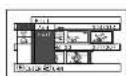

5 Press the MENU button.
HDD RAM RW VR
DELETING SCENES USING SUBMENU FOR EDITING (EDITING PLAY LIST)
You can delete scenes from play list on the editing screen.
1 Press the DISC NAVIGATION button, and then press the MENU button.
2 Display the editing screen of the play list to be edited.
Perform steps 3 - 4 on page 100.
3 Move the cursor to the play list in lower row.
4 Place the cursor on the scene to be deleted, and then press the MFNU button.
You can also select multiple scenes (p. 79).
5 Choose "Delete" on the "Edit" menu screen, and then press the ▶/□ button.
Repeat steps 3 – 5 other scenes can be deleted.
6 Press the ■ button: The screen for verifying exit will appear. Choose "Yes", and then end editing.
Note:
• If all scenes on play list are deleted, the play list itself will also be deleted.
HDD RAM RW VR
SELECTING SCENES USING SUBMENU FOR EDITING (EDITING PLAY LIST)
You can specify the range of scenes when adding or deleting consecutive multiple scenes to/from play list. This "Select" menu item is useful when selecting consecutive multiple scenes in items for adding or deleting scenes.
1 Press the DISC NAVIGATION button, and then press the MENU button.
2 Display the editing screen of the play list to be edited.
Perform steps 3-4 on page 100.
3 Specify the first or last scene of those you wish to select, and then press the MENU button.
To select all scenes, simply press the MENU button.
4 Use the ◀◀/▶◀/◀◀/▶◀/▶/▶/▶ buttons to choose "Start → Current", "Current → End", "All" on the "Select" menu screen, and then press the ▶/▶ button.
Note:
See page 93 for the status of scenes to be selected.
5 Press the ■ button: The screen for verifying exit will appear.
Choose "Yes", and then end editing.
ARRANGING ORDER OF SCENES (MOVE)
1 Press the DISC NAVIGATION button.
2 Press the MENU button.
3 Use the ◀◀/▶◀/◀◀/▶◀/▶/■ buttons to choose "Select" on the "PlayList" menu screen, and then press the ▶/■ button. Select the play list to be edited, and then press the ▶/■ button.
4 Place the cursor on the scene to be moved.
You can also select multiple scenes (see pages 79 and 93).
5 Press the MENU button.
6 Choose "Scene", "Edit", "Move", and then press the ▶/Ⅲ button.
7 The "Move Scene" screen will appear: If you are sure you want to move the scene, press the ▶/□ button.
If you want to change the scene selected in step 4, you can do it on this screen.
HDD RAM RW VR
8 Move the "I" mark to the position where you wish to move the scene, and then press the ▶/II button.
9 The screen for verifying move will appear: Choose "YFS", and then press the ▶/□ button.
Choose "NO" to cancel move. After Yes or No setting, the scene select screen will be restored. Repeat steps 7 – 9 to move another scene.
10 Press the ■ button to quit.
Note:
- If you press the MENU button before pressing the
▶/II button in step 7, the submenu screen will appear (p. 86)
• Only scenes on play list can be moved.
* When using DVD-RAM, scenes can be moved only when *Category: All* is specified (p. 110).

HDD RAM RW VR
CHANGING TITLE OF PLAY LIST (TITLE)
The play lists have serial numbers in the order you have created them, along with the created dates/times: You can change this title at any time.
1 Press the DISC NAVIGATION button.
2 Press the MENU button.
3 Use the ◀◀/▶◀/◀◀/▶▶/▶/■ buttons to choose "Title" on the "PlayList" menu screen, and then press the ▶/■ button.
4 Use the "Playlist Title" screen to select the play list whose title you wish to change, and then press the ▶/|| button.
See "CHANGING
TITLE OF
PROGRAMME (TITLE)
(TITLE) on page 96 for how to enter a title.
5 After changing the title, the Disc Navigation screen on the play list whose title has been changed will appear.
Note:
The registered title can be changed at any time using the same procedure.
HDD RAM RW VR
DELETING PLAY LIST (DELETE)
1 Press the DISC NAVIGATION button.
2 Press the MENU button.
3 Use the ◀◀/▶◀/◀◀/▶▶/▶/|| buttons to choose "Delete" on the "PlayList" menu screen, and then press the ▶/|| button.
4 Use the "Delete Playlist" screen to select the play list you wish to delete, and then press the ▶/□ button.
5 The screen for verifying deletion will appear: Choose "YES", and then press the ▶/■ button.
Choose "NO" to cancel deletion. After Yes or No setting, the Disc Navigation screen of all programmes will be restored.
Note:
• Even if you delete a play list, the original scenes stored on HDD/DVD will not be deleted.
- If any play list is deleted, the number of play lists will automatically be revised. (For example, if the No. 2 play list is deleted, the No. 3 play list will become No. 2 play list.)
[Non-Text]
[Non-Text]
[Non-Text]
[Non-Text]
[Non-Text]
[Non-Text]
[Non-Text]
[Non-Text]
Go To
From the Disc Navigation screen, you can jump to the first scene or last scene, and playback will start from that point.
MOVING TO BEGINNING (END) OF HDD/DVD/CARD
1 Press the DISC NAVIGATION button.
2 Press the MENU button.
3 Use the ◄/▶/◀/▶/▶/▶/▶/▶ buttons to choose "Top" or "End" on the "Go To" menu screen, and then press the ▶/▶ button.
4 Press the ▶/11 button to start playback.
HDD/DVD/Card Management
HDD RAM RW VR RW VF +RW CARD
INITIALISING HDD/DVD/CARD
Initialising the HDD, a DVD-RAM/DVD-RW/+RW or card will allow you to delete any recorded contents. Before using a DVD-RW/+RW on this video camera/recorder, you must format it.
Before You Begin
- Be sure to use the AC adapter/charger to power the DVD video camera/recorder for initialisation. If the DVD video camera/recorder is turned off during initialisation and the initialisation is interrupted, incorrect initialisation will result and the incorrectly initialised disc will be unusable.
- If you use a brand-new DVD-RW/+RW, message "DVD is not formatted" will appear: Initialise the disc, following the subsequent messages (p. 42).
1 Press the DISC NAVIGATION button.
2 Press the MENU button.
3 Use the ◀◀/▶◀/◀◀/▶◀/▶/▶/▶ buttons to choose "Format HDD", "Format DVD" or "Format Card" on the "HDD Setting", "DVD Setting" or "Card" menu screen, and then press the ▶/▶ button.
The screen for verifying "Format HDD", "Format DVD" or "Format Card" will appear.
4 Choose "YES", and then press the ▶/|| button.
Note:
- If you wish to delete all recorded contents, it is recommended that you use initialisation, which will delete all the scenes in much less time than using the scene delete function.
- Initialisation will delete all the recorded contents on HDD, disc or card: Be careful not to delete data by mistake.
- It may not be possible to initiate a disc with many scratches or dirt. Such a disc cannot be used (p. 11).
- This DVD video camera/recorder may not recognise some discs or cards that have been initialised on PC or a device other than this DVD video camera/recorder.
- If you attempt to initialise a disc or card in this DVD video camera/recorder when it is connected to PC via PC connection cable, the disc or card may not be initialised and may be unusable on this DVD video
HDD RAM RW VR
PROTECTION
You can protect the HDD and a DVD-RAM/DVD-RW (VR-mode) in order to prevent recorded images from being erased or edited by mistake. Further recording will not be possible on protected disc until the protection is released.
1 Press the DISC NAVIGATION button.
2 Press the MENU button.
3 Use the ◀◀/▶◀/◀◀/▶◀/▶◀/▶◀/▶◀/▶◀/▶◀/▶◀/▶◀/▶◀/▶◀/▶◀/▶◀/▶◀/▶◀/▶◀/▶◀/▶◀/▶◀/▶◀/▶◀/▶◀/▶◀/▶◀/▶◀/▶◀/▶◀/▶◀/▶◀/▶◀/▶◀/▶◀/▶◀/▶◀/▶▶◀/▶◀/▶◀/▶◀/▶◀/▶◀/▶◀/▶◀/▶◀/▶◀/▶◀/▶◀/▶◀/▶◀/▶◀/▶◀/▶◀/▶◀/▶◀/▶◀/▶◀/▶◀/▶◀/▶◀/▶◀/▶◀/▶◀/▶◀/▶◀/▶◀/▶◀/▶◀/▶◀/
4 The screen for verifying protection will appear:
Choose "YES", and then press the ▶/II
button.
Choose "NO" to cancel protection.
After "YES" or "NO" setting, the Disc
Navigation screen will be restored.
Note:
• To release protection, perform steps 1-3: The screen
for verifying the release of protection will appear.
Choose "YES" to release the protection.
• If disc protection has been engaged on another
device, it may not be releasable on this DVD video
camera/recorder: Use the original device tha
protected the disc to release the protection.
HDD RAM RW VR RW VF R +RW CARD
VERIFYING REMAINING FREE SPACE ON DISC OR CARD (CAPACITY)
1 Press the DISC NAVIGATION button.
2 Press the MENU button.
3 Use the ◀◀/▶◀/◀◀/▶◀/▶/▶/▶ buttons to choose "Capacity" on the "LIDD Setting", "DVD Setting" or "Card" menu screen, and then press the ▶/▶ button.

*1 With DVD-RW (VF-mode)/DVD-R: The quality mode first used for recording with disc will appear.
4 Press the ■ button to quit.
The Disc Navigation screen will be restored.
Note:
If the HDD is protected, or a write-protected disc or locked card is used, the remaining space will always be displayed as "0".
HDD RAM RW VR
UPDATING CONTROL INFORMATION OF HDD/DVD-RAM/DVD-RW (VR-MODE) (UPDATE CONTROL INFO.)
Disc Navigation in this DVD video camera/recorder handles information on scenes, such as thumbnail, skip, fade, in a particular manner. If you use another device to edit a disc recorded on this DVD video camera/recorder, and then use the data again with Disc Navigation in this DVD video camera/recorder, the Disc Navigation may not appear normally. If this happens, use the Update Control Info function to update the data.
Before You Begin
- When using the AC adapter/charger to power the DVD video camera/recorder for updating control information, make sure that power is not turned off during updating. If the DVD video camera/recorder is turned off during updating and the updating is interrupted, the control information will not be updated correctly.
1 Press the DISC NAVIGATION button.
2 Press the MENU button.
3 Use the ◀◀/▶◀/◀◀/▶▶/▶/|| buttons to choose "Update Control Info." on the "HDD Setting" or "DVD Setting" menu screen, and then press the ▶/|| button.
The screen for verifying "Update Control Information" will appear.
4 Choose "YES", and then press the ▶/Ⅱ button.
The message for proceeding will appear, and then the Disc Navigation menu screen will be restored. A black screen may appear while the message for updating is displayed. Choose "NO" to cancel updating.
Note: - It may take time to update the control information if the HDD/disc has many recorded scenes. - Even if control information is updated, some discs will be unusable on Disc Navigation of this DVD video camera/recorder.
HDD
DELETING DATA ON HDD (FULL FORMAT)
Executing "Format HDD" in "HDD Setting" to delete data on HDD will only change the file control information: It will not delete the data completely. When discarding or transferring this DVD video camera/recorder, be sure to delete any personal data on the HDD in order to prevent it from leaking out.
Before You Begin
- Use the AC adapter/charger to power the DVD video camera/recorder when completely deleting the data on the HDD: This is not possible with a battery. - If power is turned off and Full Format is interrupted midway, normal deletion will not be possible. - Executing Full Format will delete all data on the HDD. Save any important data on DVD before starting complete deletion. - It will take approx. 30 minutes for complete deletion: In rare case, it may take more than one hour.
RW VR RW VF R +RW
FINALISING DVD-RW/DVD-R/+RW (FINALIZE DVD)
Before You Begin
- Be sure to use the AC adapter/charger to power the DVD video camera/recorder when finalising a DVD-RW/DVD-R/+RW. Finalisation cannot be executed using a battery. If the DVD video camera/recorder is turned off during finalisation and the finalisation is interrupted, incorrect finalisation will result, and at worst, the disc may be damaged.
If you want to play back a DVD-RW/DVD-R recorded/dubbed on this DVD video camera/ recorder, using a device conforming to 8 cm DVD disc - such as a DVD recorder/player, etc. - you must finalise the disc on this DVD video camera/ recorder. If you wish to display the DVD video menu when playing back a +RW on a DVD player or DVD recorder, finalise it using the Disc Navigation menu. No further recording/dubbing can be done on a finalised DVD-RW (VF-mode)/DVD-R/+RW. You can, however, unfinalise the DVD-RW (VF-mode)/+RW so that other scenes can be recorded/ dubbed on it.
Additional recording/dubbing is possible on a finalised DVD-RW (VR-mode): Unfinalising is not necessary.
1 Press the DISC NAVIGATION button.
2 Press the MENU button.
The disc will be finalised.
4 Choose "YES", and then press the ▶/□ button. The message showing that the disc is being finalised will appear, and the disc will then be finalised.

*1 Displayed only when a DVD-R is used.
*2 Will vary depending on the recording
5 When finalisation is complete, the Disc Navigation screen of all programmes will appear. ■ will appear on the Disc Navigation screen for a finalised disc.

Note:
- Do not use any other device to finalise a disc recorded/dubbed on this DVD video camera/recorder. - If the disc in the DVD video camera/recorder has already been finalised, you cannot choose "Finalize DVD". - The time required to finalise disc that appears on the "Finalize DVD" screen is only for reference. - The shorter the recording time on disc, the longer it will take to finalise it. - The second and later finalisation will be faster with a disc which has previously been finalised.
●Using FINALIZE button to finalise a disc:
Press the FINALIZE button during recording pause: The screen shown in step 4 above will appear. Chouse "YES", and then press the ▶/■ button: Finalising will start.
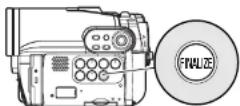
RW VF +RW
ADDITIONALLY RECORDING ON FINALISED DVD-RW (VF-MODE)/+RW (UNFINALIZE DVD)
You can unfinalise the DVD-RW (VF-mode)/+RW finalised on this DVD video camera/recorder so that additional recording can be done on it.
1 Press the DISC NAVIGATION button.
2 Press the MENU button.
3 Use the ◀◀/▶◀/◀◀/▶◀/▶/▶/▶ buttons to choose "Unfinalizeate DVD" on the "DVD Setting" menu screen, and then press the ▶/▶ button. The screen for verifying unfinalisation will appear.
4 Choose "YES", and then press the ▶/II button. The message showing that the disc is being unfinalised will appear, and the disc will then be unfinalised.
Note: • A finalised DVD-RW (VR-mode) can be recorded as is, without being unfinalised.

Others
RAM
DISPLAYING MOVIES OR STILLS INDEPENDENTLY (CATEGORY)
If you insert a DVD-RAM that includes photos recorded on a DVD video camera/recorder other than DZ-HS303F/HS301F/HS300F, the scenes on the disc will be displayed in the order of recording, regardless of whether they are movies or stills. Scenes recorded on this DVD video camera/recorder will be displayed in the order of recording regardless of whether they are movies or stills. You can use the Disc Navigation screen to switch this display to stills only or movies only. DZ-HS303F/HS301F/HS300F cannot record any photos on a HDD/DVD.
1 Press the DISC NAVIGATION button.
2 Press the MENU button.
3 Use the ◀◀/▶◀/◀◀/▶◀/▶/■ buttons to choose "Category" on the "Others" menu screen, and then press the ▶/■ button.

4 Specify the desired option for display, and then press the ▶/■ button.
All: To display all scenes, movies or stills, in the order of recording. VIDEO: To display only movies in the order of recording. PHOTO: To display only photos in the order of recording.
When the Disc Navigation screen is finished, "Category: All" will be restored.
HDD RAM RW VR RW VF R +RW
PLAYING BACK SCENES REPEATEDLY (REPEAT PLAY)
1 Press the DISC NAVIGATION button.
2 Press the MENU button.
3 Use the ▪/▶/◀/▶/▶/▶/▶/▶/▶ buttons to choose "Repeat Play" on the "Others" menu screen, and then press the ▶/▶ button.
4 Choose "On", and then press the ▶/|| button: Playback will start.
If the range for playback has been specified: Playback of the scenes in that range will repeat. See pages 79 and 93 when selecting multiple scenes.
●To release Repeat Play
Use one of the following 3 methods to release:
- Choose "Off" in step 4 on the left
• Turn the DVD video camera/recorder off
once. - Press the DISC EJECT button to remove the disc.
...
HDD RAM RW VR RW VF R +RW
PLAYING BACK WIDE-MODE IMAGES ON 4:3 DISPLAY TV (TV TYPE)
If you connect the DVD video camera/recorder with a disc recorded in wide mode to a TV with 4:3 display only and play it back, vertically long images will appear. You can specify "TV type: 4:3" to display 4:3 images on the TV.
1 Press the DISC NAVIGATION button.
2 Press the MENU button.
3 Use the ◄/▶/◀/▶/▶/▶/▶ buttons to choose "TV type" on the "Others" menu screen, and then press the ▶/▶ button.
4 Choose "4:3", and then press the ▶/□ button.
CARD
SLIDE SHOW (CONTINUOUS PLAYBACK OF STILLS)
If you play back stills recorded on a card, the DVD video camera/recorder will enter the playback pause status after each still is played back. Setting Slide Show allows you to continuously play back stills.
- With slide show, playback will start from the first photo on card regardless of the position of cursor or whether you attempt to select scenes.
- If you press the ■ button or turn the DVD video camera/recorder off, Slide Show will be cancelled.
Start: To start a slide show.
When playback is finished, the DVD video camera/recorder will enter the playback pause status at the final still. Pressing the ■ button will restore the Disc Navigation screen.
HDD RAM RW VR RW VF R +RW CARD
Viewing on TV Screen
CONNECTING TO A TV
Use the provided AV/S output cable to connect the DVD video camera/recorder to a 1V as follows:
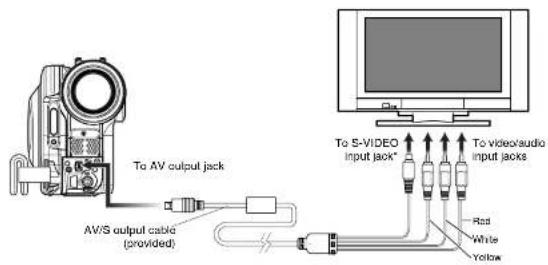
* If your TV has an S-VIDEO Input jack, you can connect the S-VIDEO plug to it.
Note:
• Using S-VIDEO will deliver clearer playback status.
- Before connecting, make sure that the volume on TV is turned down: Forgetting this may cause howling from the TV speakers.
- Insert the AV/S output cable plugs into jacks straight:
Obliquely inserting them could damage the jacks.
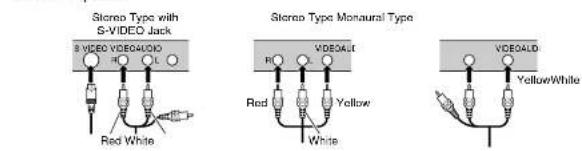
HDD RAM RW VR RW VF R +RW CARD
VIEWING ON TV SCREEN
1 Turn the TV on and set the input selector to "VCR" whichever applicable Video input.
Refer to the TV instruction manual for how to switch the TV input.
2 Turn the DVD video camera/recorder on.
The image that the DVD video camera/ recorder is seeing will appear on the TV screen.
You can also monitor the image on the LCD screen or viewfinder of the DVD video camera/recorder.
3 Perform playback, recording or editing.
You can perform playback, editing or editing on Disc Navigation while checking on TV screen.
Note:
- Adjust the volume of sound on TV.
• The infrared remote control is useful when operating the DVD video camera/recorder while viewing an image on TV screen. However, if you use a Hillachi VCR, the remote control may inadvertently operate the VCR if it is near the DVD video camera/recorder. To prevent this, set the remote control code of the VCR to a position other than "VCR2".
• Information during recording and playback will appear on the TV screen: You can also switch off the display during recording. Refer to "SETTING ON-SCREEN DISPLAY OUTPUT ON OR OFF (OSD OUTPUT)" on page 69.
- When copy-guarded disc is played back, no image will appear on TV screen.
- If you use TV with wide mode (aspect ratio 16.9) and set the TV to the wide mode, the entire Disc Navigation display may not be displayed on the TV screen. If this happens, release the wide mode setting on TV (see the TV Instruction manual for releasing the wide mode).

RAM RW VR RW VF B +RW
Playback on DVD Recorder/Player
PLAYING BACK DVD-RAM/DVD-RW (VR-MODE)
You can use a DVD recorder or DVD player that conforms to DVD-RAM/DVD-RW (VR-mode) to play back 8 cm DVD-RAM/DVD-RW (VR-mode) recorded on this DVD video camera/recorder.
1 Insert the disc into the DVD recorder/player and play it back.
See the instruction manual for DVD recorder/player.
Note:
* When playing back disc on another device, the Disc Navigation display will be different from the one on this DVD video camera/recorder.
• Finalising DVD-RW (VR-mode) may be necessary.
- Do not insert a DVD-RW (VR-mode) that was recorded on this DVD video camera/recorder into a device that does not conform to 8cm DVD-RW (VR-mode); Doing so may make the disc unusable.
• DVD-RAM/DVD-RW (VR-mode) recorded on this DVD video camera/recorder can be played back on other DVD recorder/players or other devices conforming to 8 cm DVD-RAM/DVD-RW (VR-mode), but playback on all DVD recorder/players is not guaranteed.
PLAYING BACK DVD-RW (VF-MODE)/DVD-R/+RW
1 Finalise a recorded DVD-RW (VF-mode)/DVD-R/+RW.
You need to finalise a disc to play it back on DVD recorder/player: See page 108. No further data can be recorded on finalised disc.
Note:
Use this DVD video camera/ recorder to finalise the DVD-RW/DVD-R/+RW recorded on the DVD video camera/ recorder.
2 Insert the disc into the DVD recorder/player and play it back.
See the instruction manual for DVD recorder/player.
Note:
- Do not insert a DVD-RW (VF-mode)/DVD-R that has not been finalised into any DVD recorder: The disc may be unusable.
- Do not insert a DVD-RW (VF-mode)/DVD-R/+RW recorded on another DVD recorder and not finalised, in this DVD video cameras/recorder: Doing so will make the disc unusable.
- A recorded +RW is automatically finalised when it is removed from the DVD video camera/recorder even if you do not use the Disc Navigation function to finalise it (p. 108) (auto-finalise). An auto-finalised +RW can be played back on a DVD recorder/player, etc., but no DVD video menu will appear. To display the DVD video menu on a DVD recorder/player, etc., finalise the +RW using the Disc Navigation function before playing it back on a DVD recorder/player, etc.
• A +RW with a shorter recording time may not be playable on a DVD recorder/player, etc. if it has been auto-finalised. In this case, use the Disc Navigation function to finalise the +RW.
• DVD-RW (VF-mode)/DVD-R/+RW recorded on this DVD video camera/recorder can be played back on other DVD recorder/players or other devices conforming to 8 cm DVD-RW (VF-mode)/DVD-R/+RW, but playback on all DVD records/players is not
Recording (Dubbing) Images On Other Video Devices

- Before connecting this DVD video camera/recorder to another device, be sure to turn both devices off.
- Insert a recordable disc ^-1 or card ^2 into this DVD video camera/recorder (see pages 27 and 28).
*1 No photo can be recorded
*2 Only photos can be recorded: No video can be recorded. - If you operate the DVD video camera/recorder connected to another device, always power the camera/recorder from AC outlet using the AC adapter/charger.
- If you use a Hitachi VCR, it will be operated by the remote control* provided with the DVD video camera/recorder. When recording an image from a Hitachi VCR, change the remote control code of the VCR to other than "VCR2".
* The remote control is not provided with DZ-HS300E.
You can record (dub) images played back on this DVD video camera/recorder, on other video devices.
Use the AV/S output cable (provided) to connect the DVD video camera/recorder to another video device as shown in the following figure:

* If the video device to be connected has an S-VIDEO input jack, you can connect it to the DVD video camera recorder.
1 Press the DISC NAVIGATION button.
2 Select a scene to be played back.
3 Set the channel of the connected video device to an external input.
create a play list including the scenes to be dubbed
Note:
• Using S-VIDEO will enable you to record clearer
images.
- Reduce the volume of external input sound heard from the built-in speaker. The load volume may cause noise to enter the recorded image.
• It is recommended that you use Disc Navigation to create a play list including the scenes to be dubbed
HDD RAM RW VR RW VF R +RW CARD
Connecting to PC
Software Provided
You can utilise on PC the videos and photos recorded on this DVD video camera/recorder, using the PC connection cable and software CD-ROM provided, or generally available software.
The provided CD-ROM contains the following software for Windows and Macintosh:
Windows
ImageMixer 3
This allows you to import the images recorded on the DVD video camera/recorder into PC.
You can cut-edit imported images, add titles and BGM, and edit videos, i.e., attach image.
switching effect.
You can also create a DVD-Video (DVD-RW/DVD-R) and DVD-VR (DVD-RAM/DVD-RW) by
importing the images recorded on the DVD video camera/recorder into PC
Macintosh
Pixe VRF Browser EX
This allows you to import the images recorded on DVD-RAM/DVD-RW/DVD-R loaded in the
DVD video camera/recorder into Macintosh as an MPEG file.
When importing an image, you can designate the import range.
ImageMixer VCD/DVD2
You can create a DVD-Video (DVD-RW/DVD-R) from the images imported into Macintosh
using Pixe VRF Browser EX.
• The following are available on the provided software:
| OS HDD Disc Card | ||||
| Windows | Read ● | ● | ● | |
| Write — | — | — | ||
| Macintosh | Read ● | ● | ● | |
| Write — | — | — | ||
* Incompatible with a +RW
- No data can be written to the HDD, disc or SD memory card in this DVD video camera/recorder when it is connected to PC.
Note:
• The software for Macintosh provided with this DVD video camera/recordor is not compatible with a +RW.
- Finalise the DVD-RW/DVD-R recorded on the DVD video camera/recorder before using it on PC.
- You cannot create a DVD-VR (DVD-RAM/DVD-RW) on the Macintosh software.
- Since the audio format of the MPEG file imported into Macintosh using Pixe VRF Browser EX is AC3 audio, no audio will be played back even on Quick Time MPEG. A button component and only wide is played back.
• The software provided with this DVD video camera/microder ranges handle copyright-projected DVDs, such as
- The information provided with this DVD static carrier/linear taurus. https://www.cprm.org/cPRM and CSS.
Before unpacking the provided software CI-ROM, read the Licence Agreement on page 158.
Requirements of available PC
[When using Windows]
• OS: Windows® 2000 Professional SP3 or higher, XP Home Editium/XP Professional
* The provided software cannot be used on Windows® 98 or Windows® Me.
• Computer: IBM PC/AT compatible
• CPU: Intel ^ Pentium ^ III 800 MHz or higher (Pentium ^ 4, 1.7 GHz or higher is recommended)
* Operation is not guaranteed when the CPU is overclocked or dual CPU is used, or with a
Pentium ^® compatible CPU other than those made by Intel ^® and AMD ^®
- Memory: Windows 2000: At least 128 MB (256 MB or more is recommended)
Windows XP: At least 256 MB (512 MB or more is recommended)
• Free space on hard disk: At least 300 MB (needed to install the application)
When creating a disc or disc images, free space three times that of disc
to be created will be required.
- Display that can show with at least 1024 × 768 pixels and 16 bits (High colour)
• Graphics accelerator with VRAM of at least 4 MB, compatible with DirectX® 9.0c or higher
- USB: At least one unused port is necessary for this product (USB2.0 is recommended)
[When using MacIntosh]
• OS: Mac OS X (10.2.8, 10.3.4-10.3.9, 10.4.1-10.4.7)
The provided software cannot be used on Mac OS X Server.
• CPU: iMac G4, iMac G5, iBook G4, PowerBook G4, PowerMac G5, eMac series, Mac mini
series or higher that is equipped with a USB2.0 port in standard
* Incompatible with Intel Mac.
• Memory. At least 256 MB (512 MB or more is recommended)
• H2O: Free space needed for installation: Approx. 200 MB
Free space of at least 1 GB is needed on startup disc during running of application.
When creating a disc or disc images, free space three times that of disc to be created will
be required.
- At least 1024 × 768 pixels, at least 32,000 colours (full-colour is recommended)
• Environment where QuickTime 6 or higher can operate
The slot-in type drive of Macintosh is not compatible with an 8 cm disc. Be sure not to use the drive, since a disc inserted by mistake cannot be removed.
Note:
- You must have the administrator authority of the PC before installing software.
• Operation is not guaranteed in the following cases:
- When connected via USB hub
- Multiprocessor is not supported
- When used on your custom-made PC
• Even when your PC satisfies the above conditions of available PC, malfunction may result or restriction in use
may occur, depending on the combination of other software in PC or peripheral devices.
• Operation is not guaranteed on all PCs that satisfy the above recommended environment.
Installing Software
[When using Windows]
1 Tum the PC on.
If you have been using the PC, terminate all running software programmes.
2 Insert the provided CD-ROM into the CD-ROM drive of PC.
The installer will automatically start, and the "Choose Setup Language" screen will automatically appear.
If the "Choose Setup Language" screen does not appear, use Windows My Computer or Explorer to open the drive in which the CD-ROM is located, and then double-click the setup.exe icon in it. (Extension "exe" may not appear depending on the PC used.)
3 Choose the language to be installed. Choose the language used with ImageMixer 3, and then click "Next".

4 The "ImageMixer 3" installation screen will appear: Click "Next".
![HITACHI DZ-HS303E - [When using Windows] - 2](/content/2026/06/1216106/images/6b83fdeaa0cc27824470a29cf9ee0ca7e28c52a07c8b1bdb9bce3c37bdd1f45c.jpg)
5 Checking licence agreement:
Carefully read the licence agreement: If you accept the contents, choose "I accept the terms of the licence agreement", and then click "Next".
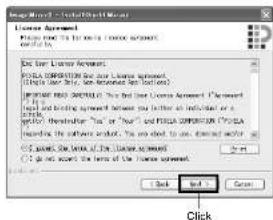
6 Choosing the installation destination:
If you do not wish to change the folder in which the software is installed, click "Next". If you wish to change the folder, click
"Change", designate the installation location, and then click "Next".
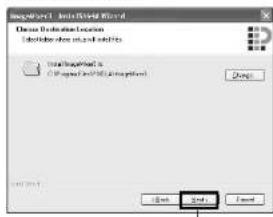
Click
![HITACHI DZ-HS303E - [When using Windows] - 5](/content/2026/06/1216106/images/31a34377cd4a170a19d9a9736c182a6c34fe7bfacdb92e7e173664d7c0636426.jpg)
Choosing video system:
The screen for setting the video system will appear, and then click "Next".
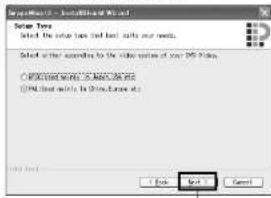
Click
![HITACHI DZ-HS303E - [When using Windows] - 7](/content/2026/06/1216106/images/26219f8357e0be3379afedbfd78fde81004150d62af49d08f5646c9a171032e0.jpg)
Executing installation:
The setups for installation are now complete. Click "Install" to execute installation.
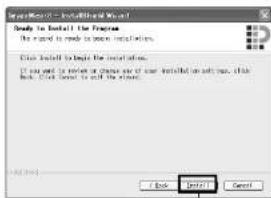
Click
Important information for customers who use Easy CD Creator 5 made by Roxio
Corporation:
If ImageMixer 3 provided with this DVD
video camera/recorder is installed, Easy CI
Creator 5 may not operate normally. The
screen shown below will appear after you click "Install":
If you are using Easy CD Creator 5, click
"Yes", and do not install ImageMixer 3.
When using ImageMixer 3, uninstall Easy CD
Creator 5, and then install ImageMixer 3.
![HITACHI DZ-HS303E - [When using Windows] - 9](/content/2026/06/1216106/images/a7143425af7080a095b73e589536ef702f2ac4730c205f850208acc7598a6f67.jpg)
After installation is finished, the screen for prompting restart will appear: Click "Finish" to restart the PC.
After restart, remove the CD-ROM from the PC.
Installing the software is now complete.

Click
![HITACHI DZ-HS303E - [When using Windows] - 11](/content/2026/06/1216106/images/60b9793ba6a6fece4a29422942c9dbeb643cef26350ec6c760a8e5eecc519cbc.jpg)
• After installation is finished, the installation of Direct X may start depending on the PC used: In this case, follow the instructions on screen to install Direct X.
![HITACHI DZ-HS303E - [When using Windows] - 12](/content/2026/06/1216106/images/10074186a418a3b50ed02d954abce357e0e8cbb0eee63107944755ef6ef322c1.jpg)
[When using Macintosh]
1 Turn the Macintosh on, and insert the provided CD-ROM into the CD-ROM drive of Macintosh.
2 Double-click the DVDCAM31S icon displayed on desktop.
3 Double-click the icon of "ImageMixer fur DVDCAM.pkg" displayed on screen. The installer will start: Click "Continue".
4 Checking licence agreement: The licence agreement screen will appear. Set the language to be used when installing the software, and then carefully read the licence agreement: If you agree with the contents, choose "Continue". If you accept the licence agreement, click "I agree". With the provided software for Macintosh, the language used with OS will automatically be installed.
5 Choosing the installation destination and type of installation:
Follow the instructions on screen for operation: Installation will start.
6 After installation is finished, the screen for exit will appear: Click "Close". The screen for installation will close and installation will be complete: Remove the CD-ROM.
Connecting to PC via PC Connection Cable
Use the provided PC connection cable to connect the DVD video camera/recorder to PC as shown below.

PC connection cable (provided)
Note:
- No data can be written to the HDD, disc or SD memory card in this DVD video camera/recorder when it is connected to PC.
- The PC connection cable does not supply power to the DVD video camera/recorder: Use the AC adapter/charger to power the DVD video camera/recorder.
- Before connecting the DVD video camera/recorder to PC, disconnect any cables or camera accessories (external video flash, external microphone, etc.) other than the PC connection cable and AC adapter/charger.
- When connecting the DVD video camera/recorder to PC, the ACCESS/PC indicator will light green. While HDD or a disc is being accessed, the indicator will light or blink orange. While an SD memory card is being accessed, the CARD ACCESS indicator will light or blink red.
- When this DVD video camera/recorder is connected to PC, nothing will appear on the LCD monitor or in the viewfinder.
- When using Windows, the DVD video camera/ recorder can be connected to a USB1.1 port of PC. However, since the data transfer speed is lower than when connecting to a USB2.0 port, lost frames may occur or the process may take more time.
- Read "Cautions when connecting DVD video camera/recorder to PC" on page 135.
The power switch of this DVD video camera/recorder has three modes: HDD mode when it is set to "LDD", Disc mode when it is set to "DVD", and Card mode when it is set to "SD".
* The mode cannot be switched while the DVD video camera/recorder is connected to PC. To switch, unplug the PC connection cable from the PC (see page 124), and then change over the power switch.
If you connect the DVD video camera/recorder to PC via PC connection cable, the PC will automatically recognise the DVD video camera/recorder. After recognition is finished, it may be prompted to restart the PC. In this case, follow the instruction and restart the PC.
When connecting the DVD video camera/recorder to PC, the DVD video camera/recorder will be recognised as a drive. The drive will appear on screen as follows:
[When using Windows]
If the DVD video camera/recorder is connected to PC with its power switch set to "HDD" or "DVD", it will be recognised as an optical disc drive, and a disc set in the DVD video camera/recorder can be accessed. (The shape of icon and drive name, such as G., will depend on the software environment used.)
![HITACHI DZ-HS303E - [When using Windows] - 1](/content/2026/06/1216106/images/68d50d556b5389220fe582f4b607b34458c428a02950172f00e4e61f004ab216.jpg)
HDD_CAMERA (G)
![HITACHI DZ-HS303E - [When using Windows] - 2](/content/2026/06/1216106/images/8694b25f9f64bcb4081ac905b6cf566c0073c8c039fccd4ec4dcc83d787cd5a2.jpg)
DVD_CAMERA (G)
If the DVD video camera/recorder is connected to PC with its power switch set to "SD", it will be recognised as a removal disk, and a card set in the DVD video camera/recorder can be accessed. (The drive name, such as G., will depend on the software environment used.)
![HITACHI DZ-HS303E - [When using Windows] - 3](/content/2026/06/1216106/images/47f2113c6e82262a2de8b29b834390b258f74424da606e34301ebdd4b720ef54.jpg)
Removable disk (G)
[When using Macintosh]
If the DVD video camera/recorder is connected to Macintosh USB port with the power switch set to "HDD" or "DVD", it will be recognised as a removal drive, and the icon shown on the right will appear. (The shape of icon and drive name will depend on the software environment used.)
![HITACHI DZ-HS303E - [When using Macintosh] - 1](/content/2026/06/1216106/images/8be97c3f8ef1e6a9e1716ba8dcf4a6adadb25544a5d0c8fc467fb111ca3e2f22.jpg)
HDD_CAMERA
![HITACHI DZ-HS303E - [When using Macintosh] - 2](/content/2026/06/1216106/images/297388543b4ee392579610a2fe0e52c84fcdd6379eaf01d2014e555c4ce3a260.jpg)
DVD_CAMERA
If the DVD video camera/recorder is connected to Macintosh USB port with the power switch set to "SD", it will be recognised as a removal drive, and the icon shown right will appear. Double-click this icon: The contents of card can be checked. (The shape of icon and drive name will depend on the software environment used.)
![HITACHI DZ-HS303E - [When using Macintosh] - 3](/content/2026/06/1216106/images/fdac987311a31b4cc5ac5358c0723ab262b8bf664bab2e9b140e8e1af1da4496.jpg)
DVD_CAMERA
●Handling photos
Photos are recorded on a SD memory card in this DVD video camera/recorder in JPEG format: Use the application that conforms to the JPEG images. The following shows how to import photos into PC/Macintosh:
Insert an SD memory card with photos recorded into the DVD video camera/recorder, and connect it to PC/Macintosh. Double-click the removal disc icon displayed on the screen: The contents on the card will appear.
The photos recorded on the DVD video camera/recorder are stored in "DCIM" - "100*HPNX1" folder on card: Drag and drop them to PC to import them.
* The number may be different if the card was recorded on another DCF conforming device.
The following operations are not possible on the DVD video camera/ recorder while It is being connected to PC:
- Camera operation using operation buttons on DVD video camera/recorder.
- Ejection of disc using DISC EJBC1 button on DVD video camera/recorder.
■ Power off using power switch. - Do not use Explorer to operate any video files recorded on disc: Use the provided software.
●When removing disc
[When using Windows]
Use Windows Explorer or My Computer to choose the drive icon of DVD video camera/recorder.
→ Right-click the mouse.
→ Choose "Eject"
→ The cover of disc insertion block on DVD video camera/recorder will open.
Insert another disc and close the cover: The disc will be recognised.
[When using Macintosh]
Place the drive icon of this DVD video camera/recorder (displayed on desktop) in Trash Box: The cover of disc insertion block on DVD video camera/recorder will open. Load another disc and close the cover: The disc will be recognised.
●When removing SD memory card
[When using Windows]
Make sure that the SD memory card is not being accessed by the PC software on PC, and that the CARD ACCESS indicator on DVD video camera/recorder (see page 9) is not lit or blinking, and then remove the SD memory card from DVD video camera/recorder. The CARD ACCESS indicator may be lit or blinking for a while after a file in PC is written to the SD memory card: Wait until the CARD ACCESS indicator goes out. It will sometimes take no less than a few minutes.
[When using Macintosh]
Drag the removal drive icon (displayed on desktop) and place it in Trash Box. After making sure that the icon disappears from desktop, remove the SD memory card from the card insertion slot of this DVD video camera/recorder.
USING DISC IN DVD DRIVE BUILT INTO PC
If you have a PC with the drive conforming to the disc used, and the application software, you can directly insert the disc into the drive to use it.
Whether a disc conforms to the DVD drive will depend on the DVD drive: Use a DVD drive that conforms to each disc.
Finalised DVD-RW/DVD-R/+RW can be used with DVD-ROM drive (reading only).
The slot-in type drive of Macintosh is not compatible with an 8 cm disc: Be sure not to use the drive, since a disc inserted by mistake cannot be removed.
Note:
- When writing images edited on PC to a brand-new DVD-RW, do not format the disc on DVD video camera/recorder.
- Some vertically installed and slot-in type drives on PC cannot accept an 8 cm disc.
- An adapter that converts 8 cm CD to 12 cm diameter (for 8 cm CD) cannot be used for any 8 cm DVD-RAM/8 cm DVD-RW/8 cm DVD-R/8 cm +FW.
- If you use, on PC, a DVD-RW/DVD-R/+RW recorded on the DVD video camera/recorder, finalise it on the DVD video camera/recorder (see page 108).
- Some DVD-ROM drives cannot read a DVD-RW/DVD-R/+RW recorded on the DVD video camera/ recorder.
BEFORE TERMINATING PC CONNECTION (UNPLUGGING PC CONNECTION CABLE)/CHANGING OVER POWER SWITCH
[When using Windows]
1 Before unplugging the PC connection cable from PC, terminate the application and then click the "Hardware Removal" icon on task
2 Choose "USB mass storage device". The drive name (F:, etc.) will depend on the PC used.
![HITACHI DZ-HS303E - [When using Windows] - 2](/content/2026/06/1216106/images/3a99a004019eb1fab6171c72a1c243d7796e09640fce7473183670e78e7e9bb6.jpg)
3 A message showing that "hardware removal" is possible will appear. Unplug the PC connection cable.
* If "hardware removal" results in error, terminate Windows ^® once, and then unplug the PC connection cable. When using Windows ^® 2000 Professional, installing Windows ^® 2000 SP3 or later may resolve the problem. Ask your PC manufacturer or Microsoft Corporation how to get Windows ^® 2000 SP3.

[When using Macintosh]
When removing the DVD video camera/recorder from PC, choose the drive icon of DVD video camera/recorder (HDD, disc or card), and choose "Eject" in the "File" menu.
Using Software
See page 130 when using Macintosh.
[When using Windows]
USING IMAGEMIXER 3
ImageMixer 3 allows you to capture the images recorded on the DVD video camera/recorder into
PC, edit the video file, and create a DVD-Video or DVD-VR using the video file. The following shows the basic operation of ImageVixer 3.
Refer to the electronic instruction manual that can be read on PC for detailed instructions about ImageMixer 3: While ImageMixer 3 is being activated, click "Help" - "ImageMixer Help (F1)" to display this manual. See the electronic instruction manual for explanation on how to edit video files.
To start ImageMixer 3, double-click the ImageMixer 3 shortcut that was created when it was installed.
* If there is no ImageMixer 3 shortcut on desktop, choose [Start] - [Programmes] or [All programmes] - [PIXELA] - [ImageMixer 3] - [ImageMixer 3].
VIEWING IMAGES RECORDED ON HDD/DISC USING PC
* A DVD-RW/DVD-R/ +RW recorded on this DVD video camera/recorder must be finalised on this DVD video camera/recorder (see page 108).
1 Connect this DVD video camera/recorder to the USB port of PC. To view images recorded on a disc, first insert the disc you wish to play back into the DVD video camera/recorder, and then connect the DVD video camera/recorder to the USB port of PC.
2 Start ImageMixer 3.
When ImageMixer 3 starts up, the launcher shown below will appear: Click "Edit Video".
3 Click "Edit new video".
4 The project setting screen will appear: Click "OK".

It is not necessary to change any setting when

5
The screen for choosing the device to be imported will appear: Choose "Iitachi DVDCAM (HDD)" when the power switch is set to "HDD", "Hitachi DVDCAM" when it is set to "DVD", and then click "Import". If you wish to change the import device, and continue import, unplug the PC connection cable from the PC, and then change over the power switch (see page 121).
Note:
- When connecting the DVD video camera/ recorder to a USB1.1 port of PC, the data transfer speed will be insufficient, which could result in lost frames.
When the power switch is set to "DVD":

Click
6
Use the ImageMixer 3 Video Editor screen to select a title/chapter you wish to play back, and then click "Preview". The image recorded on HDD or disc will appear. Select the title/chapter to be played back, and then click "Preview": Playback will start.
Click the full-screen display button: A full-screen image will appear. To exit the full-screen display, double-click the screen. Click "Eject" button to play back the images on another disc. The cover of disc insertion block on DVD video camera/recorder will open: Remove the disc, and load another disc.
Eject button
CREATING DVD-VIDEO USING IMAGES RECORDED ON HDD/DISC
You can use the images recorded on the DVD video camera/recorder to create a disc that can be viewed on DVD recorders/players.
* A DVD-RW/DVD-R/+RW recorded on this DVD video camera/recorder must be finalised on this DVD video camera/recorder (see page 108).
If the file system of HDD in your PC is FA132, no video file larger than 4 GB can be imported, due to restrictions of file system.
When using a large video file, handle it on an NTFS format HDD.
1 Connect this DVD video camera/recorder to the USB port of PC.
To save images recorded on a disc, first insert the disc you wish to save into the DVD video camera/recorder, and then connect the DVD video camera/recorder to the USB port of PC.
2 Start ImageMixer 3. When ImageMixer 3 starts up, the launcher shown below will appear: Click "Author DVD-Video".

4 Setting up project Set up a project. You can set up the designated save location of edited contents and image quality. Be sure to choose "PAL" for the video system. This DVD video camera/recorder uses Dolby Digital for the audio recording format. Choose "Dolby Digital" for audio setting. After setting up the project, click the "OK" button.

3 Click "Create New DVD".

5 On the "Importing Device" screen, choose "Hitachi DVDCAM (IIDD)" when the power switch is set to "HDD", and "Hitachi DVDCAM" when the power switch is set to "DVD". If you wish to change the import device, and continue import, unplug the I'c connection cable from the PC, and then change over the power switch (see page 121).
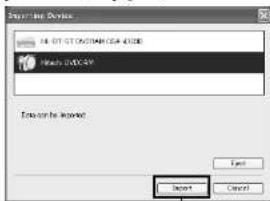
Click
6 Select the images from which you wish to create a DVD-Video, and then click "Import". The image recorded on HDD, disc will appear. Select the chapter to be imported into PC, and then click "Import": Importing into PC will start.

| Click
If you wish to import images on another disc after importing images on one disc, click the "Fject" button. The disc insertion block of DVD video camera/recorder will open. Remove the disc, insert the other disc whose recorded images you wish to import into the DVD video camera/recorder, and then close the disc insertion block. After a short while, the images on the disc will appear: Perform the same procedure to import the images. When the images on DVD-RW (VF-mode)/DVD-R/+RW are imported, the recording date/time will not appear.
Note:
• To import all chapters in the title at once, click "Select all" in the editing menu at the top of screen, and then click "Import".

7 Click "Authoring" and create a DVD-Video menu. Clicking "Authoring" will display the editing screen of DVD-Video menu. The video file previously imported into PC will appear in "Source". Choose the desired video file, and click "Add titles". The video file will be registered. When using a video file imported into PC using ImageMixer 3, click "File" to choose the folder in which the video file will be stored.

Click
Clicking "Theme" or "Set title menu" will allow you to change the design of DVD-Video menu.
Choose the type of disc to be created (8 cm/12 cm/2-layer) using [Set] - [Configuration].
8 Click "Write" to create a DVD-Video. Clicking "Writc" will display the screen for writing. Check "Create disc", perform setting for write, such as choosing DVD write drive, and then set a blank DVD-RW/DVD-R into the drive. Clicking "Preview" will allow you to check any image of DVD to be created.

Click the "Write" button: The screen for setting write will appear. After checking the settings, click "OK": Writing will start.
When write is complete, the drive will open to eject the DVD: Creation of an original DVD is now finished.
Note:
- If you load a written DVD-RW in the write drive, the dialogue "Are you sure you want to delete the content of disc?" will appear.
Deleting the content of disc will erase all data on the disc. Carefully check the contents of disc. Choosing "Yes" will display the screen for choosing the disc erasure method. After checking it, click the "OK" button. Once the contents on disc have been deleted, the cover of disc insertion block on DVD video camera/recorder will open. Close the cover following the message instruction.
- If the disc contains a video file that does not conform to DVD-Video format, the video will be re-encoded, resulting in deterioration of image quality.
- If you execute "File" - "Save project", the halfway operation status can be saved as a project file. Reading in this saved project file will allow you to restart the operation from the saved status. - A project file will be saved in the project folder that was set in step 4 on page 127, and the file name will be automatically attached.
- If a video recorded on the HDD in this DVD video camera/recorder for extended hours is too long for one disc, cut-edit the video so that it can be recorded on one disc. See the on-line instruction manual of ImageMixer 3 for cut-editing of videos. To display the ImageMixer 3 manual, choose 'Help', and then "Image Mixer Help (F1)", while ImageMixer 3 is being executed.
- Since a menu is always added to a recorded video, the data size of the created video will be larger than that of the original video.
- No data can be written to the HDD, disc or SD memory card in this DVD video camera/ recorder when it is connected to PC. To create a DVD, use the DVD drive of PC that corresponds to each DVD medium.

[When using Macintosh]
USING PIXE VRF BROWSER EX AND IMAGEMIXER VCD/DVD2
Pixe VRF Browser EX allows you to import the images on DVD-RAM/DVD-RW/DVD-R recorded on the DVD video camera/recorder into PC as an MPEG file. ImageMixer VCD/DVD2 allows you to use the images imported by Pixe VRF Browser EX to create a DVD-Video (DVD-RW/DVD-R).
The following shows the basic operations of Pixe VRF Browser EX and ImageMixer VCD/DVD2. Refer to the electronic instruction manuals that can be read on PC for detailed instructions of Pixe VRF Browser EX and ImageMixer VCD/DVD2. See the electronic instruction manuals for the detailed use method of each software programme.
For Pixe VRF Browser EX, click "Help" - "Pixe VRF Browser EX Help" while it is being started up. For ImageMixer VCD/DVD2, click the question ? mark at the top right of the folder select screen. To start Pixe VRF Browser EX and ImageMixer VCD/DVD2, double-click the "Pixe VRF Browser EX for DVDCAM" icon and "ImageMixerVCD/DVD2" icon in Macintosh HD (startup disk) - "Applications" - "ImageMixer for DVDCAM".
Note:
- The provided software cannot be used to burn a DVD-VR (DVD-RAM/DVD-RW): it is also incompatible with a +RW.
IMPORTING IMAGES RECORDED ON DVD-RAM/DVD-RW/DVD-R INTO PC TO CREATE A DVD-VIDEO (DVD-RW/DVD-R)
You can use the images recorded on the DVD video camera/recorder to create a disc that can be viewed on DVD recorders/players.
* Any DVD-RW/DVD-R recorded on this DVD video camera/recorder must be finalised (see page 108).
1
Connect this DVD video camera/recorder to the USB port of PC.
To save images recorded on a disc, first insert the disc you wish to save into the DVD video camera/recorder, and then connect the DVD video camera/recorder to the USB port of PC.
2
Start Pixe VRF Browser EX and choose the drive. Clicking the "Drive" icon will display the drive select screen. Choose "HITACHI DZ-USB1DD" when the power switch is set to "HIDD", "Hitachi DVD-RAM DZ-CBX3" when it is set to "DVD", and then click "OK". If you wish to change the import device, and continue import, unplug the PC connection cable from the PC, and then change over the power switch (see page 121).

3 Select the video file to be imported and save it.
The scenes recorded on HDD, disc will appear. Select the scene to be imported into Macintosh and click "Save": The save setting screen will appear.
Clicking "Save" after setting the save destination, etc. will start import into Macintosh.
If you wish to import the contents of another disc after importing is finished, click "Eject" on drive icons. The cover of disc insertion block on DVD video camera/recorder will open so that you can replace the disc

Click
When importing video files is complete, start ImageMixer VCD/DVD2 to create a DVD-Video using the imported files.
Note:
- When using images on ImageMixer VCD/DVD2, set the video saving format to "Program stream"
- When importing the images on a DVD-RW (VF-mode)/DVD-R, click the "Chapter" tab to select the image.
- When importing all chapters in a title at one time, click "Select All" in the editing menu at the top of screen, and then click "Import".
- When importing the images on a HDD/DVD-RAM DVD-RW (VR-model), you can use the MPFG editor to
4 Start ImageMixer VCD/DVD2, and set up the files to be registered. Start ImageMixer VCD/DVD2 and click the "DVD-Video" button.


Note:
- No Video CD can be created or played back on this DVD video camera/recorder. And no writing to +RW/+R is possible when creating a DVD-Video.
5 Designate the folder in which the video file to be registered is stored. Select the folder that you designated to save video files, and then click "Add".
Click "Options" to choose the type of disc (8 cm or 12 cm) to create a DVD-Video.
Be sure to choose "PAL" for the video system. After setting the option, click the "OK" button, and then click "Next".

After editing the menu screen, click "Next".
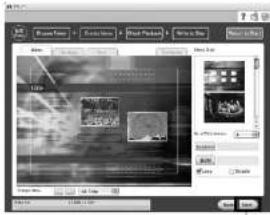
Click
7 Checking playback:
The playback check screen will appear so that you can confirm the DVD images to be created. After playback check is finished, click "Next".

Click
8
Writing to disc
The screen for writing to disc will appear. Check "Create disc", perform setting for write, e.g., choosing DVD write drive. Clicking the "Write" button will display the message "Set a blank media in DVD drive". Set a blank DVD-RW/DVD-R into the drive, and then click "OK".
The screen for setting write will appear: After checking the settings, click "OK".

Click
Note:
- If you load a written DVD-RW in the write drive, a dialogue "Are you sure you want to delete the contents of disc?" will appear.
Deleting the content of disc will erase all data on the disc: Carefully check the content of disc.
Once the contents on disc have been deleted, the cover of disc insertion block on DVD video camera recorder will open. Close the cover following the message instruction.
- If the disc contains a video file that does not conform to DVD-Video format, the video will be re-encoded, resulting in deterioration of image quality.
- No data can be written to the HDD, disc or SD memory card in this DVD video camera/recorder when it is connected to PC.
Viewing Images recorded on Disc using PC

●Playing back DVD-RW (VF-mode)/DVD-R/+RW
You can use the DVD playback software on your PC/Macintosh to play back a DVD-RW (VF-mode)/DVD-R/ +RW recorded and finalised on this DVD video camera/recorder.
-
Load the DVD-RW (VF-mode)/DVD-R/+RW to be played back in the DVD video camera/pcardlet
-
Connect the DVD video camera/recorder to a USB port of PC/Macintosh.
- Start up the DVD playback software on your PC/Macintosh and play back
Note:
- When connecting the DVD video camera/recorder to Macintosh for playback on a DVD playback software, etc., the screen for setting the drive region code will appear: Set the region code that matches your local area.
●Playing back DVD-RAM/DVD-RW (VR-mode)
A DVD-RAM/DVD-RW (VR-mude) recorded on the DVD video camera/recorder cannot be played back, since the OS is not compatible with its playback. Use the provided software to play back the disc.
●Playing back MPEG files Imported by Pixe VRF Browser EX (Mac OS only)
You can play back MPEG files imported into PC using Pixe VRF Browser EX, on the playback check screen of ImageMixer VCD/DVD2, after registering them on ImageMixer VCD/DVD2. Since the audio format of the MPEG file imported into Macintosh using Pixe VRF Browser EX is AC3 audio, no audio will be played back even on QuickTime MPFG-2 playback component and only video is played back.
Note:
- Normal playback may not be possible depending on the disc recorded status.
Uninstalling Software
[When using Windows]
Use "Control Panel" to open "Add or Remove Applications", choose the application to be uninstalled from the displayed list of applications, and then click the "Change/Remove" button.
Note:
• After uninstalling software, be sure to restart the PC.
- Administrator authority is required for uninstallation.
[When using Macintosh]
Manually move the following folders/files installed to Recycle Bin:
/Application/ImageMixer for DVDCAM
/User/Library/Preferences/IMxVCDDVD2Preference HT
/User/Library/Preferences/ImageMixerVCDDVD2.plist
/User/Library/Preferences/cum.PIXELA.Pixe VRF Browser EX for DVD CAM.plist
/Library/Receipts/ImageMixer for DVDCAM.pkg
Note:
- "User" will depend on the login user name.
- Administrator authority is required for uninstallation.
Please contact the following for inquiries on provided CD-ROM
PC Software Support Centre number
PIXELA CORPORATION
UK, Germany, France and Spain
800-1532-4865 (Toll-free)
Other countries
+44-1489-364-764
Languages available: English, French, German, Spanish
URL:http://www.pixela.co.jp/oem/hitachi/c/index.html
Cautions when connecting DVD video camera/ recorder to PC
Use the AC adapter/charger to power the DVD video camera/recorder when connecting it to PC:
The DVD video camera/recorder can also use a battery, but if the DVD video camera/recorder cuts off during data transfer, important recordings will be lost: If data is being written to disc, the disc will then be unusable.
Do not unplug cables while the HDD/disc in DVD video camera/recorder is being accessed from PC:
If the PC connection cable (provided) or mains lead is unplugged while the ACCESS/PC or CARD ACCESS indicator is blinking, important recordings will be lost: If data is being written to disc, the disc will then be unusable.
Before connecting the DVD video camera/recorder to PC, disconnect any cables or camera accessories (external video flash, external microphone, etc.) other than the PC connection cable and AC adapter/charger.
Use a reference of approx. 30 minutes at approx. 30°C or less for operation when connecting the DVD video camera/recorder to PC.
If the temperature of the DVD video camera/recorder is too high, writing or reading on the DVD video camera/recorder may be faulty. And note that, if an error occurs during writing to a DVD-R, the disc will no longer be usable.
Take care that the temperature of this DVD video camera/recorder is not too high.
Fade, skip or thumbnails set on the DVD video camera/recorder will not be reflected in the provided software.
If the DVD video camera/recorder is connected via USB hub or to a USB port on PC front panel or keyboard, the DVD video camera/recorder may not be recognised by PC: If this happens, connect the DVD video camera/recorder to a USB port on PC rear panel.
If the DVD video camera/recorder power is off, it cannot be connected to PC.
Do not use PC application to finalise a DVD-RW/DVD-R recorded on this DVD video camera/ recorder: Doing so will make the disc unusable. The disc will become unusable.
Data may be readable or writable from/to the DVD video camera/recorder using software other than that provided with the DVD video camera/recorder, but Hitachi does not guarantee the operation.
If the PC is started from suspend (or sleep or standby) with the DVD video camera/recorder connected to the PC, the DVD video camera/recorder may not be recognised: Disconnect the DVD video camera/recorder from PC once, and restart the PC.
Subsidiary Information
Introduction to Optional Accessories
CAMERA ACCESSORIES
Video flash (DZ-FLH3) ^4 (p. 60)
Wide conversion lens (DZ-WL1) ^4 (p. 55)
Tele-conversion lens (D7-T1.1) ^2 (p. 55)
Step-up ring (DZ-SR3037 for DZ-HS301E, DZ-SR3437 for DZ-HS300E) (p. 55)
- When using camera accessories, be sure to read the instruction manuals for each accessory.
^1 Unavailable for DZ-HS301E/HS300E.
^2 You will need the optional step-up ring when attaching these lenses to the DZ-HS301E/HS300E.
POWER SUPPLY
Battery (DZ-BP7SW) ^4
Battery (DZ-BP145W)
* Unavailable for DZ-HS303E.
• Refer to the catalogue for details.
- The models and specifications of the optional accessories shown on this page are subject to change, and their production may be discontinued.
Trouble Messages
A message may appear while you are operating the DVD video camera/recorder. If a message appears, refer to the following table and take appropriate corrective action. Messages are arranged in alphabetical order.
| Message Cause & Troubleshooting | Reference page |
| (1) Data error in a part of image file. Repair data now?(2) Found error in image file. Repair data now?(3) Data error in all Image file. Repair all data now?It is possible that the system cannot normally complete writing of file when power is turned off for some reason during recording or editing (deleting, dividing or combining scenes, or creating play list). Selecting "YES" will automatically repair the video file, but even if "NO" is selected, the same message will appear when the DVD video camera/recorder is turned on next time. (Do not remove the disc while the DVD video camera/recorder is recognising it: ignoring this will deactivate the file repair function.)Follow the instructions on screen, taking note of the following cautions:Be sure to use the AC adapter/charger to power the DVD video camera/recorder when repairing data. Repair is not possible using a battery. If a battery has been attached, turn the power switch off once, connect the AC adapter/charger, and then start repairing.If message (1) appears when using the HDD, a battery can be used for repair (except when the remaining battery level indicator is blinking).Repair will normally be complete in several minutes, but it may take longer (up to one hour).Data may not be repaired, depending on the timing when power was turned off.Data may not be repaired normally if data recorded on another recorder is mixed in.The repaired data may be different from the original recorded content because of partial deletion of defective portion.Since the date/time for repair is added to the repaired data (only the corrected portion for partial repair), the original date/time information will be lost.Since all movies, and then all stills, are repaired, the order of recorded contents will be lost in case of message (2) (3) only.See '1 on page 143. | — |
| (1) DVD is not formatted. Format the DVD now?(2) DVD Format. Select record format.(Displayed only when DVD-RW is used.)A DVD-RW+RW that was initialised by PC and not initialised for camera use is inserted. | 42 |
| Auto finalizing...Please wait...This message will appear with a +RW when it is removed after recording, or the last recorded scene was deleted. The auto- | 114 |
| Message Cause | & Troubleshooting | Reference page |
| Cannot combine scene of multiple programs. Create PlayList first, and then combine scenes. | Scenes in different programmes (different recording dates) cannot be combined. Create a Playlist first, and then combine such scenes on the playlist. 87 | |
| Cannot combine. Deselect PHOTO scenes. | Select only movies and combine them. | 87 |
| Cannot combine. Select multiple scenes. | Select a range of at least 2 scenes to be combined, and then combine them. | 87 |
| Cannot delete scenes. This may occur when scene that was edited for division, etc. is to be deleted. Combine the divided scenes, and then delete them. | 85, 87 | |
| Cannot divide scene. This message will appear when the scene is extremely short because division, etc. was repeated. | 86 | |
| Cannot execute. Change display category to ALL. | This message will appear if you attempt to combine or move scenes with "Category: VIDEO or PHOTO" specified. 110 | |
| Cannot execute. Unselect multiple scenes. | Division or change in thumbnail was executed when multiple scenes were selected. 79 | |
| Cannot finalize DVD in HDD mode. Please finalize DVD in DVD mode. | This message will appear if you press the FINALIZE button when the power switch is set to "HDD". Set the power switch to "DVD", and then finalize the disc. | 100 |
| Cannot read DVD. Check dirt/crack/both-sides contrary/inserted correctly. | Error occurred while the disc was being recognised. Make sure that there is no scratch or dirt on disc, that the surface/back of disc is not reversed, and that the disc is firmly pushed against the turntable. See '3 and '4 on page 143 for troubleshooting. | 12, 41 |
| CANNOT RECORD PHOTOS | This message will appear when the PHOTO/SELECT button is pressed with the power switch set to "HDD" or "DVD".No photo can be recorded on the HDD or disc in this DVD video camera/recorder. Use a card to record photos. | 34, 155 |
| CANNOT RECORD VIDEO | This message will appear when the REC button is pressed with the power switch set to "SD". | 34 |
| Cannot replace thumbnail on PHOTO scenes. | The thumbnail of a still cannot be changed.Select a movie. 90 | |
| Cannot select any more scenes. | The maximum number of selectable scenes is 999. | 93 |
| CANNOT SLEEP MODE | The DVD video camera/recorder can enter the sleep/restart status only from the recording pause status. The following conditions apply:No DVD is loaded in this DVD video camera/recorder but the same video is set to "HD". | 10 |
| Card error has occurred. | The card terminals may be dirty: Wipe off dirt, and try the card again, or use another card.Data other than still image may be included: Use another card. | 28 |
| Card error has occurred.Format the card now? | Was the card formatted on PC? Was formatting interrupted midway? When using the card on this DVD video camera/ recorder, choose "YES" and format it. | 105 |
| Card error has occurred.Formatling is not complete. | The card may be damaged: Use another card. | 28 |
| Card error has occurred. Keep card inside & restart. | Card error could have occurred during editing of scenes. Turn off the DVD video camera/recorder with the card being used inside, connect the AC adapter/charger, and then power the DVD video camera/recorder again. | 29, 34 |
| Card full. Delete unnecessary stills and try the card, or use another card. 85, 155 | ||
| Card is not formatted.Format the card now? | Was the card formatted on PC? When using the card on this DVD video camera/recorder, choose "YES" and format it. | 105 |
| CHECK CARD The inserted card cannot be used in this DVD video camera/ recorder. Use another card. | 28 | |
| CHECK DVD A disc unusable on this DVD video camera/recorder may have been inserted or the disc may be damaged.Make sure that the type of disc is correct, and make sure that the disc is not write-protected. | 28, 106 | |
| CHECK HDD The HDD may have been destroyed. Also check to see whether the HDD is write-protected. | 106 | |
| Control Information Error. | Mismatch may occur between the recorded image and scene information.Update the control information. | 107 |
| Use another disc.See '3 and '4 on page 143. | — | |
| Dubbing is not complete. | This message will appear when dubbing has failed. | 83, 84 |
| DVD error has occurred. Finalizing is not complete. | Disc error occurred during finalising, and finalising failed.Replace the disc.See '3 on page 143. | 108 |
| DVD error has occurred. Format the DVD now? | Has the disc been initialised on PC? Has initialising the disc on PC been interrupted?Choose "YES" and initialise the disc when using it on this DVD video camera/recorder. Initialising the disc will erase all data on it.See '2 on page 143. | 105 |
| DVD error has occurred. Formatting is not complete. | The disc may be dirty.Remove the disc and wipe off fingerprints, dust, etc. before reusing it, or use another disc. | 12, 105 |
| Message Cause & Troubleshooting | Reference page | |
| DVD error has occurred. Please keep DVD inside and set power switch to "DVD". | This message will appear if disc error has occurred during dubbing. Connect the AC adapter/charger to DVD video camera/ recorder, and set the power switch to "DVD". Video like will be repaired. | 34 |
| DVD error has occurred. Unfinalizing is not complete. | This message will appear when disc error occurred during unfinalisation, and unfinalising disc failed. Replace the disc. 109 | |
| DVD error has occurred. | • Use another disc.• See '3 and '4 on page 143. | 12.27 |
| • Mismatch in recording information may be caused by editing done on some device other than this DVD video camera/ recorder. Initialise the disc or use another disc.• Initialising the disc will erase all data on it. | 105 | |
| DVD full. Cannot executes. | This message will appear if the capacity of the scene selected is larger than the free space on disc. Select another scene, or use another DVD. | 83 |
| DVD must be finalized before it can be played back on DVD player or DVD recorder. | • This message will appear if you remove a DVD-RW (VF-mode)' DVD-R that has not been finalised from the DVD video camera/ recorder.• See '5 on page 143 | 114 |
| Drive overheat. Please retry later. | The temperature inside the DVD video camera/recorder is too high, and writing to disc or reading from HDD or disc may not be performed normally.Turn the DVD video camera/recorder off and wait for a while. The temperature will be effectively decreased if the DVD video camera/recorder is placed in a well-ventilated spot. | 34 |
| DVD-R* cannot dub the scene recorded in STD mode and 16:9. | With a DVD-RW (VF-mode)/DVD-R+/RW, no video can be recorded with a combination of movie quality "STD" and 16:9 mode "On". Replace the disc with a DVD-RAM or DVD-RW (VR-mode) for dubbing.* "DVD-RW (VF)" will appear when using a DVD-RW (VF-mode), "+RW" will appear when using a +RW. | 85 |
| DVD-R*, Different video mode, 16:9 and 4:3 mode cannot exist together. | With a DVD-RW (VF-mode)/DVD-R, the movie quality mode and 16:9 mode cannot be changed in the middle of disc. Change the movie to be dubbed or replace the disc with a DVD-RAM or DVD-RW (VR-mode).* "DVD-RW (VF)" will appear when using a DVD-RW (VF-mode). | 67 |
| DVD-R*, 16:9 mode cannot be changed, when Video mode is STD. | With DVD-RW (VF-mode)/DVD-R+/RW, the setting of 16:9 mode will not be possible when the Video mode is STD.* "DVD-RW (VF)" will appear when using a DVD-RW (VF-mode), "+RW" will appear when using a +RW. | 67 |
| DVD-R*, Video mode and 16:9 mode cannot be changed. | With DVD-RW (VF-mode)/DVD-R, the movie quality mode and 16:9 mode once used for recording cannot be changed.* "DVD-RW (VF)" will appear when using a DVD-RW (VF-mode). | 67 |
| Message Cause | & Troubleshooting | Reference page |
| Error occurred. Please format HDD. | An error occurred with the HDD for which repair is being tried. Initialise the HDD: But note that initialising the HDD will delete all data stored on the HDD. | 105 |
| Error occurred. Please replace DVD or format DVD. | • Abnormality has occurred with the DVD-RAM/DVD-RW+RW to be repaired. Initialise the disc before using it, or use the another disc. Initialising the disc will erase all data on it. • See “2 on page 143. | 105 |
| Error occurred. Please replace DVD. | An abnormality occurred with a DVD-R to be repaired. Replace the disc. | — |
| Finalize may not be complete. Finalize again now? | This message will appear when power is supplied again and the disc is reinserted after power was shut off during finalisation due to a power failure, etc. Choose "YES" if you wish to be sure finalising is performed. | 108 |
| HDD/DVD ALMOST FULL | The remaining free space of HDD/disc is less than one minute for video: Delete unwanted scenes, or use another disc. | 85, 154 |
| HDD full. Cannot execute. | Delete unwanted scenes. | 85 |
| HDD/DVD has no data. | This message will appear when an attempt is made to execute playback or editing on Disc Navigation with no scene recorded. | — |
| HDD/DVD has no PlayList. | Switching of play list was selected with no play list stored. | 99 |
| HDD/DVD Includes protected scenes. Delete scenes? | The disc may be software protected from a device other than this DVD video camera/recorder. To release this case, use a device that has executed software-protect. | — |
| HDD/DVD is full. Cannot add control info. | The number of entered scenes has reached the limit that can be entered, so the control information for generating thumbnails cannot be added. Combine several scenes or delete them. | 85, 87 |
| HDD error has occurred. | Initialise the HDD before using the DVD video camera/recorder. Initialising the HDD will delete all data recorded on it. | 105 |
| HDD error has occurred. Format the HDD now? | Did you interrupt formatting the HDD? Choose "YES", and then format the HDD. Initialising the HDD will delete all data recorded on it. | 105 |
| HDD error has occurred. Formatting is not complete. | Did you interrupt formatting the HDD? Press the RESET button to execute system reset. 151 | |
| HDD error has occurred. Restart. | HDD error probably occurred during editing of video file. Turn off this DVD video camera/recorder, and then connect the AC adapter/charger to the DVD video camera/recorder to power it again: The video file will be repaired. | 29 |
| NO DVD This message may appear when the DVD video camera/recorder or disc is moved from a cold place to a warm place.Condensation has occurred on the camera/recorder lens or HDD/DVD drive. Do not remove the disc; leave the DVD video camera/recorder turned off in a place as dry as possible for 1 – 2 hours. | 8 | |
| The disc has not been inserted.Insert it. | ||
| The disc is not inserted correctly.Push the disc against the turntable at the centre until a click is heard.See '3 and '4 on page 143. | ||
| Is the disc surface/bottom reversed?Check the surface/bottom of disc, and reinsert it correctly. | ||
| No more scenes.PlayList was deleted. | • All scenes are deleted from the play list.• Since a play list with no scenes cannot be supported by specifications, a play list from which all registered scenes have been deselected will be deleted. | 101, 102 |
| PlayList over limit. An attempt was made to create new play list or copy play list, even though limit specified for play lists in the video recording standard had already been stored. | 96 | |
| Same scenes on Play List will be deleted.Delete scenes? | • This will appear when scenes are to be deleted.• When a play list exists on HDD or disc, an attempt to delete scenes in programme will display this message. (This message will not appear if you deselect scenes from play list.) | 85 |
| Scene NO.xxx is too large. Please divide this scene before dubbing. | This message will appear during all scene dubbing if the data size of the scene to be dubbed is larger than the free space on one disc (approx. 1.4 GB, approx. 30 minutes in FINE mode).Divide the scene, and then dub it. | 83 |
| Scenes over limitCannot add scenes. | The number of scenes entered in play list has reached the limit that can be entered.Delete several scenes. | 98, 102 |
| Scenes over limit.Cannot divide scene. | The number of entered scenes has reached the limit that can be entered.Delete several scenes. | 98, 102 |
| Stop processing | The ■ button was pressed to stop processing of multiple scenes. | — |
| There was no scene which can be deleted. | This message will appear if you try to delete multiple scenes on Disc Navigation when all the selected scenes have been locked.Release the lock on scenes before executing deletion. | 85, 92 |
| The scene from which Video mode/Wide mode differs cannot combine. | If the power switch is set to "HDD", scenes with different VIDEO Modes/16:9 modes cannot be combined. 87 | |
| The temperature of HDD is outside the operating temperature range. Time frame | This message will appear if the temperature of the HDD in this DVD video camera/recorder is outside the operating temperature range. Recording on a disc may be possible even if this message is displaced. | 6, 154 |
| This DVD is recorded by the NTSC system. Please replace DVD. | This DVD video camera/recorder can use only discs recorded on the PAL system. A disc recorded on the NTSC system cannot be used on this DVD video camera/recorder. | — |
| UNFORMAT DVD The disc is not initialised or it is damaged. If this message appears, be sure to initialise the disc on this DVD video camera/recorder before using it. Reinitialising even a disc used on this DVD video camera/ recorder may be necessary (initialising will erase all recorded contents on disc). If this message appears, try to initialise the disc. If the same message still appears, the disc may be damaged: Use another disc. | 105 | |
| UNFORMAT HDD The HDD may not be initialized, or it may be destroyed. — | ||
| Use AC adapter/ charger. | No dubbing, HDD deletion, or disc finalisation is possible with a battery: Use the AC adapter/charger. | 29, 83, 107, 108 |
| Use AC adapter/ charger. | Scene cannot be repaired when the DVD video camera/recorder is powered by a battery. | 29 |
| Turn off power. | If the AC adapter/charger is unavailable in handy place, remove the disc, use the opposite side, or use another disc. To repair the removed disc, insert the disc into the DVD video camera/recorder afterwards, and connect the AC adapter/charger. | |
| Write protected. Check card. | A card with the erase prevention switch locked is inserted: Unlock the switch. | 28 |
| Write protected. Check HDD/DVD. | The HDD or disc is write-protected. Use the Disc Navigation menu to release the protection. | 106 |
4
- This message may also appear when dirt adheres to disc. If this message appears when a recorded disc is recognised immediately after it is inserted, do not repair the disc; remove it and then use the provided disc cleaning cloth to clean off the dirt before using it.
- This message may also appear when condensation occurs. In this case, do not repair the disc; turn the DVD video camera/recorder off, wait until it dries out, and then turn it on again.
- If the repair message appears when you turn the DVD video camera/recorder on from off with a disc loaded after recording on it, choose repair.
- If the repair message appears when recording and playback are normally possible with another disc – and no condensation occurs and the disc is not dirty – choose repair.
• This message may also appear when dirt adheres to disc. In this case, do not initialise the disc. Remove it and then use the provided disc cleaning cloth to clean off the dirt before using it.
- This message may also appear when condensation occurs. In this case, do not initialise the disc; turn the DVD video camera/recorder off, wait until it dries out, and then turn it on again.
- Initialisation will delete all data on disc.
*3
- This message may also appear when dirt adheres to disc. Remove the disc and then use the provided disc cleaning cloth to clean off the dirt before using it.
- This message may also appear when condensation occurs. Wait until the DVD video camera/ recorder dries out, and then turn it on again
Troubleshooting
Check to see the following before asking for a repair. If the suggested solution still cannot restore the
DVD video camera/recorder to normal, do not attempt to repair it yourself, but consult your dealer.
Power supplies
| Symptom Cause and Correction | Reference page | |
| Battery cannot be charged. | Is the ambient temperature too low or too high?Charge the battery at 10 – 30°C. | 30 |
| Is the battery abnormally hot?Remove the battery, leave it for a while to cool down, then charge it. | ||
| Is the DC power cord connected to AC adapter/charger? Unplug it. | ||
| Has the battery been unused for a long time?Remove the battery, and then reattach it.If the battery does not charge after you try the above four procedures, it may be dead: Purchase a new battery. | ||
| Battery weakens fast. Are you using the DVD video camera/recorder where the temperature is low?A fully charged battery (DZ-BP14S/DZ-BP07PW/DZ-BP14SW/DZ-BP7SW) may be discharged sooner than usual at low temperatures. Keep extra batteries on hand. | 32 | |
| The CHARGE indicator on AC adapter/charger is blinking. | Battery may be dead.The performance of battery will deteriorate if it is used for an extended period of time or frequently: Purchase a new battery. | 33 |
| Is the ambient temperature too low or too high?Charge the battery in environment where the temperature is 10 – 30°C.The battery has possibly discharged excessively. Continue charging: After a while, the battery will be charged to the specified voltage, and the CHARGE indicator will light. Then the battery charge will be completed normally. | 30, 31 | |
| Power turns off immediately after being turned on. | Is battery charged?Charge it. | 30 |
| When power is turned on, the LCD screen will turn on and off. | ||
| The ACCESS/PC indicator is blinking, even though nothing is displayed on LCD monitor screen. | ||
| Power goes off unexpectedly. | Is Power Save set to “On”?If the powered DVD video camera/recorder is left for as long as 5 minutes without recording or playback with “Power Save: On” specified, it will automatically turn off to save battery power. To restart recording in this case, set the power switch to “OFF” and then set it to “HDD”, “DVD” or “SD”. You can also specify “Power Save: Off” to stop automatic power off. | 37 |
| Symptom Cause | and Correction | Reference page |
| Power cannot be turned off. | Detach the battery or AC adapter/charger once, and then press the RESET button of DVD video camera/recorder: Reattach a power supply to DVD video camera/recorder before turning it on again. | 29, 31, 151 |
| Even if the DVD video camera/recorder is off, opening the cover will cause the ACCESS/PC indicator to blink. | The DVD video camera/recorder will automatically turn on to recognise a disc: Closing the cover will automatically turn the DVD video camera/recorder off. 42 | |
During recording
| Symptom Cause and Correction | Reference page | |
| Pressing the REC button will not start recording. | • Is a finalised disc in the DVD video camera/recorder? • Is proper type of disc inserted? • Is power switch set to match the recording medium? • Is the HDD or disc write-protected? • Does HDD or disc have remaining recording space? | 27, 34, 106, 108 |
| Recording starts but stops immediately. | Is disc scratched or does dirt or fingerprint adhere to it? Clean the disc. If there is still no improvement, replace the disc. | 12 |
| No photo can be recorded | • Is proper type of card inserted? • Is power switch set to "SD"? • Is the card locked? • Does the card have remaining free space? | 28, 34, 106 |
| LCD screen is hard to see. | Has brightness of LCD screen been adjusted? Stop recording and adjust the brightness. | 39 |
| Is the DVD video camera/recorder being used outdoors? Use the viewfinder. When using LCD monitor, adjust its angle so that LCD screen is not exposed to direct sunlight. | 35 | |
| Unevenness appears on LCD monitor screen. | Did you press the LCD monitor or the area around it? If the LCD monitor is pressed, some unevenness will occur. Release your hand and leave the LCD monitor for a while: Normal display will be restored. | — |
| Focus is not correct. Is it difficult to use auto focus with your subject? Focus manually. | 57 | |
| Does manual focus icon appear? The DVD video camera/recorder is set to manual focus. Focus the subject manually, or release manual focus. | 56 | |
| Is the dioptre control correctly adjusted if you are using the viewfinder as a monitor? Adjust the dioptre control. | 35 | |
| In cases other than the above, set the power switch to "OFF", and then set it to "HDD", "DVD" or "SD" again. | 34 | |
| An error message for repair appears. | Perform repair following the instructions on screen. Repair is possible when the DVD video camera/recorder is powered by the AC adapter/charger. If you are using the HDD and have removed to screen and divide this, please use the device for | |
During playback
| Symptom Cause and Correction | Reference page | |
| Recognition of disc is not complete. | Is disc dirty?Use the provided disc cleaning cloth to clean it. | 12 |
| Pressing the playback button will not start playback. | Has the image been recorded by devices other than this DVD video camera/recorder?Playback of image recorded on devices other than this DVD video camera/recorder may be impossible on this DVD video camera/recorder. | 74 |
| Has scene been edited on a device other than this DVD video camera/recorder?If a scene recorded on this DVD video camera/recorder is edited on a device other than this DVD video camera/recorder, playback may not be possible on this DVD video camera/recorder. | ||
| No playback picture appears on TV screen. | Is TV input selector set correctly?Some TVs have multiple video input jacks. Check whether the correct input was selected on TV to match the connected jacks. If the DVD video camera/recorder is connected to VCR, set its input selector to "external input (LINE)". | 113 |
| Is the DVD video camera/recorder connected to TV correctly?Check the connections. | 112 | |
| Playback picture is momentarily interrupted. | Is disc scratched or does dirt or fingerprint adhere to it?Clean the disc. | 12 |
| No sound. Is the TV volume control set correctly?Adjust TV volume control, and be sure to adjust the volume on TV. | 113 | |
| Photos on card cannot be played back. | This DVD video camera/recorder can play back image data recorded on SD memory card in other digital cameras conforming to the DCF (Design rule for Camera File system) standard. The range of image data normally playable on this DVD video camera/recorder is that with pixels from 80 horizontal × 60 vertical to 4000 horizontal × 3000 vertical. If the pixel data is outside this range, blue thumbnails will appear (thumbnails ^1 in the figure), meaning the image is unplayable. Fig. 1"Even when the number of pixels is within the above range, playback may not be possible, depending on the recording status of the digital cameras used.DCF (Design rule for Camera File system) is an integrated image Fig. 1"Even when the number of pixels is within the above range, playback may not be possible, depending on the recording status of the digital cameras used.DCF (Design rule for Camera File system) is an integrated image | — |
When the DVD video camera/recorder is connected to PC:
| Symptom Cause | and Correction | Reference page |
| No drive icon appears on PC. | The DVD video camera/recorder is not turned on. Check the power supply. | 34 |
| Turn PC off and then disconnect the PC connection cable. Turn PC on again, and then use the PC connection cable to connect the DVD video camera/recorder to PC. | — | |
| Make sure the PC connection cable is completely plugged into this DVD video camera/recorder. | — | |
| Error occurs in playback of DVD video camera/ recorder on PC. | If error occurs with USB connection, the transfer rate is not sufficient. It is recommended that you use a USB terminal conforming to USB2.0 when connecting the DVD video camera/ recorder. | 117 |
| Application is not normally run on PC. | Turn the PC and DVD video camera/recorder off, and try again. | — |
| Transfer of Images stops. | Connect the DVD video camera/recorder to another USB terminal of PC. If your PC is a desktop type, it is recommended that you use USB terminal on the back of PC. If you are using USB2.0 extended card, it is also recommended that you install the newest version driver provided by each USB2.0 card maker. | — |
| Is disc scratched or does dirt or fingerprint adhere to it? Clean the disc. | 12 | |
| DVD drive built into PC cannot be used after the provided software has been installed. | This problem may be solved if you update the DVD editing/ creating software of your PC. | — |
| Error appears when starting ImageMixer 3. | Make sure that your PC display adapter (video card) conforms to DirectX®8.0c. | 117 |
| Movies are not recognised by application in PC. | Make sure the power switch of this DVD video camera/recorder is set to "HDD" or "DVD". 34 | |
| The DISC EJECT button is not valid when the DVD video camera/ recorder is connected to PC. | While the DVD video camera/recorder is connected to PC, use Explorer to right-click the DVD video camera/recorder drive icon and execute "Eject". 122 | |
| No sound is heard when an MPEG file imported into Macintosh is played back on Quick Time with an MPEG 2 playback component adopted. | Since an MPEG file imported into Macintosh using Pixe VRF Browser EX uses the audio format of AC3 audio, no audio will be played back even if the Quick Time MPEG-2 playback component is introduced: Only video will be played back. Use ImageMixer VCD/DVD2 for playback. | 133 |
| When the time stamp of | The file system of this DVD video camera/recorder is operated on | |
| Symptom Cause and Correction | Reference page | |
| It will take some time to save a video edited on the video editor of ImageMixer 3. | If you are editing a video file whose contents are different from those of project setting, it may take some time, since the entire video file must be re-encoded. Reconfirm the project setting. | — |
| “Hardware Removal” results in error. | Exit Windows® once, and then disconnect the DVD video camera/recorder. If your PC uses Windows® 2000 Professional, the problem may be solved if you install Windows® 2000 SP3 or later. | 124 |
| No USB HS (high speed) connection even when USB2.0 card is used. | Make sure that you have already installed the driver provided with the USB2.0 card.You will need to install the driver provided by USB2.0 card maker in order to operate the USB2.0 card at HS (high speed). | — |
| No data can be written to HDD/DVD/SD memory card using this DVD video camera/ recorder. | No data can be written to the HDD, disc or SD memory card in this DVD video camera/recorder when it is connected to PC. To create a DVD, use the DVD drive of PC that corresponds to each DVD medium. | 116 |
Miscellaneous
| Symptom Cause and Correction | Reference page | |
| No DVD video camera/ recorder operation. | Is a fully charged battery attached? Is the DVD video camera/recorder powered from AC outlet? 29, 30 | |
| Power does not come on, or no operation occurs by pressing button. | Execute system reset (press the RESET button). 151 | |
| Has the DVD video camera/recorder been subjected to impact? The DVD video camera/recorder could be damaged. Consult your dealer. | — | |
| The date and time are incorrect. | Has the DVD video camera/recorder been left unused for a long period of time? The internal backup memory battery may be discharged: Charge it. | 36 |
| Pressing the SLEEP/ RESTART button will not set to the sleep/ restart standby status. | • Is the proper disc or card loaded? • Does the HDD, disc or card have remaining free space? • Is the DVD video camera/recorder now playing back? • Is Disc Navigation screen displayed? | 46 |
| No scene can be deleted. | Is the cursor placed on the scene to be deleted? If the selected scene (framed in red) exists, that scene will be deleted even if you use yellow cursor to select any scene. Check the colours of cursors and bar graph on the thumbnail screen. | 79, 85 |
| Disc cannot be removed. (Cover will not open.) | Did you detach the battery or AC adapter/charger before setting the power switch to "OFF"? Is the battery charged? Connect a charged battery or the AC adapter/charger, and then press the DISC EJECT button to remove the disc. Did the DVD video camera/recorder turn off because the battery remaining level ran out? Connect a charged battery or the AC adapter/charger, set the power switch to "OFF", and then press the DISC EJECT button to remove the disc. Is the power switch set to "HDD" or "SD"? Set the power switch to "DVD" or "OFF", and then press the DISC EJECT button. | 29, 30, 34 |
| DVD video camera/ recorder cannot be operated from remote control. | Is the remote control pointed at the infrared receiver on DVD video camera/recorder? Point it at the infrared receiver to operate the DVD video camera/ recorder. | 25 |
| Is the infrared receiver on DVD video cameras/recorder exposed to direct sunlight or strong fluorescent light, etc.? The remote control cannot operate the DVD video cameras/ recorder when strong light strikes the infrared receiver. Adjust the place or angle of the DVD video camera/recorder. | 25 | |
| Is there battery in the remote control? Also check the polarities of battery. The battery could be dead Try retacing it. | 24 | |
| Disc cover cannot be closed. | Is disc correctly inserted?Was disc inserted from wrong direction?Remove the disc and then reinsert it. | 41 |
| Connect a fully charged battery or AC adapter/charger, and then turn the DVD video camera/recorder on. | 29, 31 | |
| Operating sound is heard cyclically. | This sound is heard because the disc is cyclically operated and does not indicate a fault. | — |
| Some vibrations are felt or slight sound is heard from mechanism. | These vibrations or sound are caused by HDD/disc drive: This does not indicate a fault. — | |
| No operation can be performed because the ACCESS/PC or CARD ACCESS indicator on this DVD video camera/ recorder remains lit or blinking.After disc or card is inserted, it takes some time until recording is possible. | In the following cases, it will take more time than usual until operation is possible:Immediately after a disc or card is reinserted.When a long time has elapsed since the DVD video camera/ recorder was turned off last.When the temperature is greatly different from the status of previous recording.When disc with scratches, dirt or fingerprints is inserted.When disc is subject to severe vibrations.When the battery or DC power cord was disconnected instead of following the correct procedure using power switch to turn the DVD video camera/recorder off. | 9, 41 |
| No image in viewfinder. | Is LCD monitor open?No image will appear in viewfinder unless the LCD monitor is closed and securely locked to DVD video camera/recorder.Is the DVD video camera/recorder set to the sleep/restart status?Press the SLEEP/RESTART button to release the sleep/restart status. | 35, 46 |
| No image appears on the LCD screen or in the viewfinder. | Is DVD video camera/recorder connected to PC using PC connection cable?Unplug the PC connection cable.Does DVD video camera/recorder stop at the end of the scene to which wipe-out was set and played back?Press the DISC NAVIGATION button.Is the DVD video camera/recorder set to the sleep/restart status?Press the SLEEP/RESTART button to release the sleep/restart status. | 46, 88, 121 |
System Reset
If the DVD video camera/recorder does not operate normally, perform "System Reset": The DVD video camera/recorder may recover to normal. "System Reset" will reset all settings to factory defaults. The date and time will also be reset: Set the date and time again before using the DVD video camera/recorder.
1 Set the power switch to "OFF" to turn the DVD video camera/reorder off. Detach the battery or AC adapter/charger.
2 Use a fine tipped pen to hold down the reset button for several seconds.
All settings will be reset.
Note: - Do not press the reset button with undue force. - Before pressing the RESET button, be sure to remove the disc from the DVD video camera/ recorder: Pressing the RESET button with a disc loaded may erase the scenes recorded on the disc.
●List of setting items
| Item Default | Setting method | ||
| Camera Functions Setup | Program AE Auto p. 61 | ||
| White Bal. Auto p. 62 | |||
| EIS On p. 64 | |||
| Dig.Zoom 40x | ^1 | p. 54 | |
| MIC.Filter Off p. 64 | |||
| Flash ^2 | Auto p. 60 | ||
| Record Functions Setup | VIDEO Mode | FINE | p. 65 |
| Quality | FINE | p. 68 | |
| 16:9 | On p. 66 | ||
| Self Timer Off p. 68 | |||
| OSD Output On p. 69 | |||
| HDD protection | On p. 69 | ||
| Date Setup | Date Set | 1/1/2006 0:00 | p. 36 |
| Date Mode | D/M/Y | p. 36 | |
| LCD/EVF Setup | LCD Brightness | p. 39 | |
| EVF Brightness | p. 39 | ||
| Colour Level | p. 40 | ||
| EVF Display | Auto | p. 40 | |
*1 "60x" will appear on DZ-11S301E; "100x" on DZ-11S300E.
*2 Not displayed on DZ-HS301E/HS300E.
- Some items will not appear depending on the disc or card inserted.
Major Specifications
| CCD DZ-HS303E : 1/3-inch interlaced | |
| DZ-HS301E : 1/5-inch interlaced | |
| DZ-HS300E : 1/6-inch interlaced | |
| Total number of pixels | |
| DZ-HS303E approx. 3,310,000 | |
| DZ-HS301E approx. 1,330,000 | |
| DZ-HS300E approx. 800,000 | |
| Number of effective pixels | |
| DZ-HS303E Movie: approx. 2,140,000 | |
| Movie: approx. 1,640,000 (in wide mode) | |
| Still: approx. 3,050,000 | |
| DZ-HS301E Movie: approx. 940,000 | |
| Movie: approx. 810,000 (in wide mode) | |
| Still: approx. 1,100,000 | |
| DZ-HS300E Movie: approx. 410,000 | |
| Still: approx. 410,000 | |
| Lens DZ-HS303E : F1.8 – 3.0 | f = 6.1 - 61 mm |
| Filter diameter: 37 mm | |
| Thread pitch: 0.75 mm | |
| DZ-HS301E : F1.2 – 2.8 | |
| f = 3.0 - 45 mm | |
| Filter diameter: 30.5 mm | |
| Thread pitch: 0.5 mm | |
| DZ-HS300E : F1.8 – 3.2 | |
| f = 2.2 - 55 mm | |
| Filter diameter: 34 mm | |
| Thread pitch: 0.5 mm | |
| Focus Auto/Manual | |
| Zoom Optical 10x (DZ-HS303E), | Optical 15x (DZ-HS301E), |
| Optical 25x (DZ-HS300E), | |
| 40x – 500x (DZ-HS303E), 60x – 800x (DZ-HS301E), 100x–1200x (DZ-HS300E) with digital zoom added. 40x (DZ-HS303E), 60x (DZ-HS301E), 100x (DZ-HS300E) for still | |
| Required minimum illumination 0.3 lx in Low Light mode | |
| Viewfinder 0.2-inch colour TET (equivalent to approx. 200,000 pixels) | |
Viewfinder 0.2-inch colour TFT (equivalent to approx. 200.000 pixels)
| External microphone jack(Not equipped with DZ-HS300E) | a3.5 mm stereo mini-jack (a plug-in power type microphone cannot be used) | |
| Capacity of built-In HDD approx. 8 GB | ||
| Recording mode Movie (with sound) | Still (with SD memory card) | |
| Maximum recordable time | HDD approx. 110 minutes (XTRA) | approx. 180 minutes (FINE)approx. 360 minutes (STD) |
| DVD-RAM/DVD-RW/DVD-R/+RW(per side) | approx. 18 minutes (XTRA)approx. 30 minutes (FINE)approx. 60 minutes (STD) | |
| Maximum number of recordable stills | SD memory card (when using 32 MB card) | DZ-HS303E approx. 18 (in FINE mode)DZ-HS301E approx. 45 (In FINE mode)DZ-HS300E approx. 180 (in FINE mode)Varies depending on the recording quality and the type of card (p. 155). |
| Recording format | DVD-RAM/DVD-RW(VR-mode) | Movie:Conforming to DVD video recording (DVD-VR) format(Dolby Digital) |
| DVD-RW (VF-mode)/DVD-R | Movie:Conforming to DVD video format (Dolby Digital) | |
| +RW Movie: DVD+RW | video format (Dolby Digital) | |
| Card Still: | Conforming to JPEG (DZ-HS303E: 2,016×1,512 pixels, DZ-HS301E: 1,280 × 960 pixels, DZ-HS300E: 640×480 pixels) standard | |
| Audio playback format MPEG Audio layer 2, linear PCM, Dolby Digital | ||
| Recordable discs 8 cm DVD-RAM (conforming to DVD-RAM Ver. 2.1)8 cm DVD-RW (conforming to DVD-RW Ver. 1.1, 2x speed [2x/1x])8 cm DVD-R (conforming to DVD-R for General Ver. 2.0)8 cm +RW (conforming to +RW Ver. 1.2)Only discs not packed in Round DVD Holder or cartridge. | ||
| Recordable card SD memory card | ||
| Jacks Video/audio output x1, | External microphone input x1 (not equipped with DZ-HS300E),PC connection terminal (connected to PC USB port) x1 | |
| Battery system Lithium-Ion | ||
| Power consumption When recording | with LCD monitor cft (DVD-RAM used)DZ-HS303E approx. 5.1W (in FINE mode)DZ-HS301E approx. 3.8W (in FINE mode)DZ-HS300E approx. 3.2W (in FINE mode) | |
| Dimensions(W x H x D) | DZ-HS303E : approx. 66 × 92 × 136 mm(excluding hand strap)DZ-HS301E : approx. 59 × 87 × 125 mm(excluding hand strap) | |
| Storage temperature -20 – 60°C | ||
| Allowable operating altitude (when using HDD) | 3000 m or less | |
| Weight DZ-HS303E approx. 485 g (without battery or disc)DZ-HS301E approx. 435 g (without battery or disc)DZ-HS300E approx. 435 g (without battery or disc) | ||
| Total weight when recording DZ-HS303E approx. 560 gDZ-HS301E approx. 490 gDZ-HS300E approx. 490 g | ||
| Provided accessories AC adapter/charger,Battery,AV/S output cable,Infrared remote control (not provided with DZ-HS300E), Lithium battery for remote control (not provided with DZ-HS300E),Lens cap, Lens cap string, Shoulder strap, Mains lead,DC power cord, Software CD-ROM, PC connection cable,Disc cleaning cloth | ||
STORAGE CAPACITY OF HDD/DVD/CARD
Recordable Time On HDD
| Recording quality Movie recordable time Application | ||
| XTRA Approx. 110 min | '1 | Best quality |
| FINE Approx. 180 min | '2 | High quality |
| STD Approx. 360 min | '3 | Standard quality |
Recordable Time On Disc
Movie recordable time on one disc (on single side) (when recording only movies)
| Recording quality Movie recordable time Application | ||
| XTRA Approx. 18 min | ^*1 | Best quality |
| FINE Approx. 30 min | ^*2 | High quality |
| STD Approx. 60 min | ^*3 | Standard quality |
*1: Variable bit recording (recording of more than 110 minutes on HDD or more than 18 minutes on disc may be possible because the transfer rate varies automatically between approx. 3 - 10 Mbps)
^ 2: Fixed bit rate: Approx. 6 Mlops ^ 3: Fixed bit rate: Approx. 3 Mlops
Note:
- If you record in XTRA mode at high temperatures, the DVD video camera/recorder will heat up and the maximum transfer rate will be limited to approx. 6 Mbps, so the best quality will not be obtainable.
Maximum Number of Scenes that an Be Recorded/Dubbed on One Disc
| DVD | Maximum number of scenes |
| DVD-RAM/DVD-RW 399 | |
| DVD-R830 | |
| +RW 254 |
Maximum Number of Programmes that Can Be Recorded/Dubbed on One Disc
| DVD | Maximum number of programmes |
| DVD-RAM/DVD-RW 99 | |
| +RW 49 |
| Recording quality | Capacity | ||||
| 32 MB 64 MB 128MB 256 | MB 512 MB 1 GB | ||||
| FINE | Apostx. 45 Approx. 95 Approx. 190 | Approx. 380 | Approx. 750 | Approx. 1,500 | |
| NORM | Apostx. 60 Approx. 120 | Approx. 250 | Approx. 500 | Approx. 1,000 | Approx. 2,000 |
| ECO | Apostx. 90 Approx. 190 | Approx. 380 | Approx. 750 | Approx. 1,500 | Approx. 3,000 |
For DZ-HS300E
| Recording quality | Capacity | |||||
| 32 MB 64 | MB 128MB 256 | MB 512 MB 1 GB | ||||
| FINE | Approx. 180 | Approx. 380 | Approx. 750 | Approx. 1,500 | Approx. 3,000 | Approx. 6,000 |
| NORM | Approx. 240 | Approx. 500 | Approx. 1,000 | Approx. 2,500 | Approx. 4,000 | Approx. 8,000 |
| ECO | Approx. 370 | Approx. 750 | Approx. 1,500 | Approx. 3,000 | Approx. 6,000 | Approx. 12,000 |
(The numbers of recordable stills above are only for reference)
Size And Quality Of Photos
The following table shows the file size and quality of one still (JPEG) recorded on card:
| Quality | File size | Application | ||
| DZ-HS303E DZ- | HS301E DZ-HS300E | |||
| FINE | Approx. 1,600 KB | Approx. 640 KB | Approx. 160 KB | When image quality is prioritiseed |
| NORM | Approx. 1,200 KB | Approx. 480 KB | Approx. 120 KB | Standard quality |
| ECO | Approx. 800 KB | Approx. 320 KB | Approx. 80 KB | When number of stills is prioritiseed |

Index
| Numerics | |
| 10:9 | 66 |
| 8 cm bare disc | 27 |
| A | |
| AC adapter/charger | 29 |
| ACCESS/PC indicator | 44 |
| Add (edit) | 101 |
| All programme | 95 |
| Auto (programme AE) | 61 |
| Autofocus | 56 |
| AV output jack | 112 |
B
| Becklight correction | 56 |
| Battery | |
| Attaching to DVD video camera/ recorder | 31 |
| Charging | 30 |
| Recordable time on DVD video camera/ recorder | 32 |
| Removing from DVD video camera/ recorder | 31 |
| Setting Up | 30 |
| BATTERY ELECT button | 31 |
| Black & White fade | 88 |
| Brightness | 39 |
C
| Camera Functions Setup | 53 |
| Capacity | 106 |
| Card | |
| Available | 28 |
| Capacity | 106, 155 |
| Format | 105 |
| Handling | 28 |
| Quality | 68 |
| Category | 110 |
| CHARGE indicator | 30 |
| Cleaning | 11 |
| Colour Level | 40 |
| Connecting to TV | 112 |
| Copy | 91 |
| Create | 98 |
D
| Date and time | 36 |
| Date setup | 36 |
| Defaults | 38 |
| Delete (edit) | 102 |
| Delete (play list) | 104 |
| Delete (scene) | 85, 101 |
| Detail (scene) | 94 |
Update Control Info. 107
| DISC EJECT button | 41 |
| Display | |
| Information LCD | 47 |
| Scenes information | 94 |
| Viewfinder | 35 |
| Divide | 86 |
| Dubbing | |
| Dubbing from HDD to disc | 83 |
| Dubbing to other video devices | 115 |
| DUBBING button | 83 |
| DVD player | 114 |
| DVD-R | 27 |
| DVD-RAM | 27 |
| DVD recorder | 114 |
| DVD-RW | 27 |
E
| Edit (play List) | 100 |
| EIS | 64 |
| EXPOSURE button | 58 |
| Exposure control | 58 |
| External microphone jack | 70 |
F
| Fade | 88 |
| Finalise DVD | 108 |
| FINALIZE button | 108 |
| FINE (VIDEO Mode) | 65 |
| FOCUS button | 56 |
| Format | 105 |
| Frame advance/Frame back | 75 |
| Full Auto | 59 |
| FULL AUTO button | 59 |
| Full Menu | 52 |
G
Go To (during playback) 77
Go To (on Disc Navigation) 105
H
| Hand strap | 23 |
| HDD | |
| Formal | 105 |
| Protection | 106 |
| Howling | 112 |
1
| Information display mode | 47 |
| Infrared receiver | 25 |
| Initial Setup | 37 |
Low Light (Programme AE) 62
M
Manual Focus 56 MENU button 52 MIC.Filler 64 Move 103
0
Optical 10x zoom lens .... 54 Optical 15x zoom lens .... 54 Optical 25x zoom lens .... 54 OSD Output .... 69
P
PHOTO capture 75
PHOTO/SELECT button 45, 79
Play (play list) 99
Play (programme) 96
Play list 98
Add scenes 100
Add scenes (submenu) 101
Create 98
Delete 104
Delete scenes 101
Delete scenes (submenu) 102
Move 103
Play 99
Select 99
Select scenes (submenu) 102
Title 104
Portrait (Programme AE) 61
Power Save 37
Power switch 34
Program 95
Play 96
Select 95
Title 96
Programme AE 61
Project 106
Q
Quality (Card) 68 Quick Menu 52 QUICK MENU button 52
R
Record button 44 Recording indicator 38 Remote control 24 Ripple Play 110 Reset settings 38 system 151 RESET button 151 +RW 27
Fade 88 Move 87, 103 Select 93 Skip 89 Chinging for image 75 let (play list) 99 let (programme) 95 let (Scene) 79 Timer 68 Slider Strap 23 (Scene) 89 Playback 76 Show 111 Bits (Programme AE) 61 Night (Programme AE) 61 (VIDEO Mode) 65 Menu 86
T
Tele-conversion lens 55 Thumbnail 72 Title (play list) 104 Title (programmc) 96 TV type 111
U
Update Control Info. 107
V
Video flash 60 VIDEO Mode 65 FINE 65 STD 65 XTRA 65 Video selector 67
W
White Bel. 62 White fade 88 Wide conversion lons 55 Wipe fade 88
X
XTRA (VIDEO Mode) 65
7
Zoom lever 54
Be sure to read the following before opening the package of CD-ROM
This Agreement will take effect at the moment you open the package of the storage device (CD-ROM) provided with this product, if you agree to the terms herein.
If you do not accept the terms of this Agreement, immediately return the unopened package of storage medium and enclosed materials (printed matter, external package, and all others) to your dealer, or return only the package of storage medium to your dealer.
Consult your dealer for any refund on the unused product. However, if only the package of storage medium is returned, no refund is possible.
This Licence Agreement certifies that you were granted licence in the past.
Licence Agreement
■ Grant of Licence
- Lilachi, Ltd. nonexclusively grants you the right to install this programme in one computer and use it, but this right cannot be transferred to a third party.
- You can duplicate one copy of this programme in a form readable on computer, but only for the purpose of backup, and under the condition that the display concerning the copyright remains in the original status.
■ Prohibition
- This programme may not be used on network. If you wish to use it for multiple computers on network, you must obtain the right of use for each computer from Pixel Corporation.
- You may not let any third party use this programme by granting reuse, transfer, lease, lending, etc.
- You may not modify, alter, decompile or deassemble all, or any part, of this programme or its accessories. And you may not allow any third party do so.
■ Termination of Agreement
If you duplicate this programme and its accessories without permission, or fail to comply with the above granting conditions, this agreement will automatically be terminated. In addition, Pixela Corporation may take legal action. When the agreement is terminated, you will be obliged to discard this programme, its accessories and all duplicates, or return them to Pixela Corporation.
■ Guarantee and Immunity
This programme and its accessories shall not, explicitly or implicitly, conform to the merchantability or compatibility for your specific purpose of use. Pixela Corporation does not guarantee that the functions of this programme will meet your needs or this programme will be free from interruption or error during its operation. Under no circumstances will Pixela Corporation accept any responsibility for any direct or indirect losses or damages you may incur from using this programme or activities relating to its use, or for any conflict occurring between you and a third party originating from, or relevant to, use of this programme.
SOME DO'S AND DON'TS ON THE SAFE USE OF EQUIPMENT
This equipment has been designed and manufactured to meet international safety standards but, like any electrical equipment, care must be taken if you are to obtain the best results and safety is to be assured.
★★★★★★★★
DO read the operating instructions before you attempt to use the equipment.
DO ensure that all electrical connections (including the mains plug, extension leads and interconnections between pieces of equipment) are properly made and in accordance with the manufacturer's instructions. Switch off and withdraw the mains plug when making or changing connections.
DO consult your dealer if you are ever in doubt about the installation, operation or safety of your equipment.
DO be careful with glass panels or doors on equipment.
★★★★★★★★ DON'T continue to operate the equipment if you are in any doubt about it working normally, or if it is damaged in any way — switch off, withdraw the mains plug and consult your dealer.
DON'T remove any fixed cover as this may expose dangerous voltages.
DON'T leave equipment switched on when it is unattended unless it is specifically stated that it is designed for unattended operation or has a standby mode. Switch off using the switch on the equipment and make sure that your family know how to do this. Special arrangements may need to be made for infirm or handicapped people.
DON'T use equipment such as personal stereos or radios so that you are distracted from the requirements of traffic safety. It is illegal to watch television whilst driving.
DON'T listen to headphones at high volume, as such use can permanently damage your hearing.
DON'T obstruct the ventilation of the equipment, for example with curtains or soft furnishings. Overheating will cause damage and shorten the life of the equipment.
DON'T use makeshift stands and NEVER fix legs with wood screws — to ensure complete safety always
fit the manufacturer's approved stand or legs with the fixings provided according to the instructions. DON'T allow electrical equipment to be exposed to rain or moisture.
ABOVE ALL
— NEVER let anyone especially children push anything into holes, slots or any other
opening in the case — this could result in a fatal electrical shock;
— NEVER guess or take chances with electrical equipment of any kind
— it is better to be safe than sorry!
★★★★★★★★★

BATTERY
SAFETY
GUIDELINES
“152”

Store unused betteries in their packaging and away from metal objects which may cause a short-circuit, resulting in leakage or, in extreme cases, fire or even an explosion
PLEASE PHOTOCOPY AND DISPLAY
Used correctly, domestic batteries are a safe and dependable source of portable power. Problems can occur if they are misused or abused — resulting in leakage or, in extreme cases, fire or explosion.
Here are some simple guidelines to safe battery use designed to eliminate any such problems.

Take care to fit your batteries correctly, observing the plus and minus marks on the battery and appliance. Incorrect filling can cause leakage or, in extreme cases, fire or even an explosion.

Replace the whole set of batteries at one time, taking care not to mix aid and new batteries or batteries of different types, since this can result in leakage or, in extreme cases, line or even an explosion.

Remove dead batteries from equipment and all batteries from equipment you know you are not going to use for a long time. Otherwise the batteries may leak and cause damage.
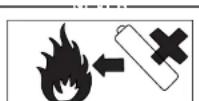
Never dispose of batteries in fire as this can cause them to explode. Please put dead batteries in with the normal household waste.
[EMPTY]

Never attempt to recharge ordinary batteries, either in a charger or by applying heat to them. They may leak, cause fire or oven opiodo. There are special rechargeable batteries which are clearly marked as such.
“

Supervise children if they are replacing batteries themselves in order to ensure these guidelines are followed.
1572.50

Remember that small button cell batteries such as used in some hearing aids, toys, games and other appliances, are easily swallowed by young children and this can be dangerous.
[Unreadable]



HITACHI Inspire the Next Hitachi, Ltd. Japan
HITACHI EUROPE LTD.
Consumer Affairs Department
PO Box 3007
Maidenhead
SL6 8ZE
UNITED KINGDOM
Tel: 0870 405 4405
Email: consumer.mail @Hitachi-eu.com
HITACHI EUROPE GmbH
Munich Office
Domacher Strasse 3
Tel: +49 -89-991 80-0
Fax: +49 - 89 - 991 80 -224
Hotline: +49 - 180 - 551 25 51 (12ct/min.)
Email: HSE-DUS.Service@Hitachi-eu.com
HITACHI EUROPE SRL
Via T. Gulli n.39
20147 MILAN
ITALY
Tel: 02 487861
Fax: 02 48786381
Servizio Clienti
Tel. 02 38073415
Email: customerservice.italy@hitachi-eu.com
HITACHI EUROPE S.A.S
Lyon Offic
B.P.45, 4 Allée des Sorbiers 69671 Bron Cedex
FRANCE
Tel: 04 72 14 29 70
Fax: 04 72 14 29 99
Norwegian Branch Office
Strandveien 18
1366 Lysaker
NORWAY
Tel: 02205 9060
Fax: 02205 9061
Email: csgnor@hitachi-eu.com
HITACHI EUROPE LTD.
BENELUX BRANCHE OFFICE
BERGENSFSTFFNWFG 421
1600 SINT-PIETERS-LEEUW
BELGIUM
Tel:0032/2 363 99 01
Fax:0032/2 363 99 00
Email:info@hitachi.be
- Instruction manual
- Mode d'emploi
- Bedienungsanleitung
- Precautions
- Important for United Kingdom
- (for DZ-HS303E (UK) / DZ-HS301E (UK)/DZ-HS300E (UK))
- IMPORTANT
- IMPORTANT SAFETY INSTRUCTIONS
- Cautions on HDD
- Save the data recorded on HDD:
- Do not subject the DVD video camera/recorder to any vibrations or impact:
- Carefully check the temperature of this DVD video camera/recorder:
- This DVD video camera/recorder cannot be used at high altitude:
- Do not place this DVD video camera/recorder near a magnet or magnetic field:
- Cautions When Using
- Liquid crystal display (LCD) and viewfinder:
- Hold the DVD video camera/recorder correctly:
- Do not subject the DVD video camera/recorder to impact:
- No sand or dust!
- No water or oil!
- Heat on surface of product:
- Screen on connected TV:
- Be careful of ambient temperature:
- Do not point directly at the sun:
- Do not use the DVD video camera/recorder near TV or radio:
- Do not use the DVD video camera/recorder near strong radio waves or magnetism:
- Do not use the DVD video camera/recorder near corrosive gas:
- Do not use the DVD video camera/recorder near ultrasonic humidifier:
- Do not expose the DVD video camera/recorder to insecticide:
- Do not use a generally available 8 cm CD lens cleaner:
- Be careful of moisture condensation:
- Do not use the DVD video camera/recorder for a long uninterrupted period of time:
- Do not turn the DVD video camera/recorder off while the ACCESS/PC Indicator or CARD ACCESS indicator is lit or blinking:
- Do not wipe the DVD video camera/recorder case with benzene or thinner:
- Also read the instructions attached with optional accessories:
- The battery provided has not been charged at time of purchase:
- Disc cannot be inserted or removed unless a charged battery or AC adapter/charger is connected to the DVD video camera/recorder.
- Cautions When Storing
- Suggestions and Restrictions
- Make a trial recording:
- Copyright:
- CLEANING
- ●Cleaning LCD screen and camera lens
- - If dust adheres to the viewfinder lens, remove it using a cotton swab, etc.
- ●Cleaning DVD Video Camera/Recorder Case
- ●Do not use benzene or thinner to clean DVD video camera/recorder case
- HANDLING DISCS
- ●Using discs
- ●Storing discs
- DISC CLEANING
- NOTE WHEN TRANSFERRING OR DISCARDING DISCS AND SD MEMORY CARDS:
- Read This First
- Quick Index
- About This Manual
- ●Displays in this manual
- ●Notation of cancel button
- ● IAX, DAX, RWVH, HWVF, IT, THD and CARD marks beside headings
- ●Illustrations in this manual
- Introduction
- Table of Contents
- Setups
- Basic Techniques
- Disc Navigation
- Connecting to PC
- Subsidiary Information
- Checking Provided Accessories
- Names of Parts
- FULL AUTO button (p. 59)
- FOCUS button (p. 56)
- MENU button (p. 36, 52, 86)
- DISC NAVIGATION button (p. 71)
- DUBBING button (p. 83)
- STOP/EXIT button (p. 13, 52, 74)
- EXPOSURE button (p. 58)
- Speaker (p. 73)
- RESET button (p. 151)
- DISPLAY (Screen display) button (p. 47, 78)
- CARD ACCESS Indicator (p. 9, 45)
- QUICK MENU button (p. 52)
- FINALIZE button (p. 108)
- Card Insertion block (p. 43)
- BLC (backlight compensation) button (p. 58)
- |◀/▶|/◀/▶/▶/|| buttons
- (p. 36, 52, 56, 58, 74, 75, 76)
- Tripod threaded hole
- Demonstration Function
- Setting Up the DVD Video Camera/Recorder
- HOLDING DVD VIDEO CAMERA/RECORDER
- ATTACHING LENS CAP
- Note:
- INSERTING BATTERY INTO REMOTE CONTROL
- REMOVING BATTERY FROM REMOTE CONTROL
- Warning:
- ●Using remote Control
- HDD/DVD/Cards
- INFORMATION ON DVD-R
- NOTES ON FINALISATION:
- EXAMPLES OF DISCS THAT CANNOT BE USED ON THIS DVD VIDEO CAMERA/RECORDER:
- AVAILABLE CARDS
- ●Handling card
- CAUTIONS FOR DISC AND CARD
- Preparations for Power Supply
- USING DVD VIDEO CAMERA/RECORDER WITH AC ADAPTER/CHARGER
- Setting Up the Battery
- CHARGING BATTERY
- ●Battery charged status
- ●Reference for time required to charge battery (at approx. 25°C):
- ATTACHING BATTERY TO DVD VIDEO CAMERA/RECORDER
- REMOVING BATTERY
- ●Continuously recordable time with fully charged battery (with no zoom operation, etc.)
- The reference for how long the DVD video camera/recorder can actually be used will be approx. 1/2 to 1/3 of the above time:
- BATTERY REMAINING LEVEL INDICATOR
- EFFICIENT USE OF BATTERY
- When not using the DVD video camera/ recorder for an extended period:
- Battery life:
- Power save and discharge of battery:
- Turning DVD Video Camera/Recorder On and Off
- Set to "OFF":
- Set to "SD":
- Set to "HDD":
- Set to "DVD":
- Viewing Images
- VIEWING IMAGE ON LCD MONITOR SCREEN
- ●Range where the LCD monitor can be moved
- VIEWING SUBJECT THROUGH VIEWFINDER
- Setting Date and Time
- CHANGING DISPLAY FORMAT OF DATE AND TIME
- Initial Settings
- SWITCHING OPERATING SOUND ON OR OFF (BEEP)
- CHANGING DISPLAY LANGUAGE (LANGUAGE)
- RESETTING MENU SETTINGS TO DEFAULTS (RESET)
- CHANGING SETTING OF DEMONSTRATION
- LCD/EVF Setup
- ADJUSTING BRIGHTNESS OF LCD SCREEN (LCD BRIGHTNESS) AND VIEWFINDER (EVF BRIGHTNESS)
- ADJUSTING COLOUR DENSITY (COLOUR LEVEL)
- ALWAYS DISPLAYING IMAGE IN VIEWFINDER
- Inserting and Removing Disc
- ●When using brand-new DVD-RW/+RW
- When recording on this DVD video
- camera/recorder
- When recording data from PC:
- Inserting and Removing Card
- Recording Movie
- Recording Stills
- Swift Restart of Recording (SLEEP/RESTART button)
- Setting to the sleep/restart standby status:
- Restoring from sleep/restart standby status
- On-Screen Information
- INFORMATION DISPLAY DURING RECORDING
- ●Switching the information display mode
- ●Display when recording an image of yourself
- Checking Flow of Menu
- ●Operating Menu
- ●Flow of Full Menu
- Camera Functions Setup
- Record Functions Setup
- Date Setup
- Initial Setup
- Zooming
- MACRO RECORDING
- RECORDING SUBJECTS FOR STRONGER WIDE-ANGLE OR TELEPHOTO EFFECT
- Manually Focusing Subject
- FOCUSING DURING RECORDING
- Focusing range
- Adjusting Brightness of Image to be recorded (Exposure)
- Compensating for Backlight
- Using Full Auto Function
- Built-in Video Flash (for DZ-HS303E only)
- ●Optional Video Flash (for DZ-HS303E only)
- Setting Up Camera Functions
- SELECTING SHOOTING MODE TO MATCH THE SUBJECT (SWITCHING PROGRAMME AE MODE)
- RECORDING DARK SUBJECTS USING LCD MONITOR LIGHT
- ADJUSTING COLOUR (WHITE BALANCE)
- ●Setting white balance manually
- USING THE ELECTRONIC IMAGE STABILISER (EIS)
- RECORDING SUBJECT USING LARGE MAGNIFICATION (DIGITAL ZOOM)
- REDUCING WIND NOISE DURING RECORDING (MIC.FILTER)
- Setting Up Record Functions
- SWITCHING MOVIE QUALITY (VIDEO MODE)
- SETTING TO WIDE TV SCREEN MODE (16:9 MODE)
- SWITCHING QUALITY OF STILL IMAGE (QUALITY)
- SELF-TIMER
- SETTING ON-SCREEN DISPLAY OUTPUT ON OR OFF (OSD OUTPUT)
- DROP DETECTION (HDD PROTECTION)
- Using External Microphone
- Using Disc Navigation
- STARTING OR TERMINATING DISC NAVIGATION
- ADJUSTING VOLUME DURING PLAYBACK
- ●When playback ends:
- ●Playing back photos
- PLAYING BACK LATEST RECORDED SCENE
- DELETING LAST RECORDED SCENE
- CAPTURING PHOTO
- SEARCH PLAYBACK OF MOVIE
- FRAME ADVANCE/FRAME BACK/SLOW PLAYBACK OF MOVIE
- SKIP PLAYBACK OF MOVIE
- PLAYING BACK STILLS
- JUMPING TO SPECIFIED POINT (GO TO)
- ●Specifying the point to view
- INFORMATION DISPLAY DURING PLAYBACK
- SELECTING MULTIPLE SCENES
- SELECTING CONSECUTIVE SCENES TOGETHER
- FUNCTIONS AVAILABLE WITH DISC NAVIGATION
- UNDERSTANDING FLOW OF DISC NAVIGATION MENU
- Dubbing on DVD
- DUBBING ALL SCENES RECORDED ON HDD (DUBBING ALL)
- SELECTING SCENES RECORDED ON HDD AND DUBBING THEM (SCENE SELECT DUBBING)
- Scene
- DELETING SCENES (EDIT - DELETE)
- ●Editing using submenu
- DIVIDING MOVIES (EDIT - DIVIDE)
- 6
- COMBINING MULTIPLE SCENES (EDIT - COMBINE)
- ARRANGING ORDER OF SCENES (EDIT - MOVE)
- DIRECTING SCENES EFFECTIVELY (EFFECT - FADE)
- PLAYING BACK BY SKIPPING SCENES (EFFECT - SKIP)
- ●Releasing Skip
- CHANGING IMAGES FOR THUMBNAILS (EFFECT - THUMBNAIL)
- COPYING STILLS ON DVD-RAM TO CARD (COPY)
- Before You Begin
- LOCKING SCENES ON CARD (LOCK)
- SELECTING SCENES USING MENU SCREEN (SELECT)
- ●Deselecting selected scenes
- Deselecting scenes one by one:
- DISPLAYING INFORMATION USING MENU SCREEN (DETAIL)
- Programme
- WHAT IS "PROGRAMME"?
- SWITCHING TO THUMBNAIL DISPLAY OF SPECIFIC DATE (SELECT)
- PLAYING BACK PROGRAMME (PLAY)
- CHANGING TITLE OF PROGRAMME (TITLE)
- ●Characters available for entering title
- Play List
- WHAT IS "PLAY LIST"?
- CREATING NEW PLAY LIST (CREATE)
- SWITCHING TO DISPLAY OF EACH PLAY LIST (SELECT)
- ●Editing on play list
- PLAYING BACK A PLAY LIST (PLAY)
- ADDING SCENES TO PLAY LIST (EDITING PLAY LIST)
- DELETING SCENES FROM PLAY LIST (EDITING PLAY LIST)
- ADDING SCENES USING SUBMENU FOR EDITING (EDITING PLAY LIST)
- DELETING SCENES USING SUBMENU FOR EDITING (EDITING PLAY LIST)
- SELECTING SCENES USING SUBMENU FOR EDITING (EDITING PLAY LIST)
- ARRANGING ORDER OF SCENES (MOVE)
- CHANGING TITLE OF PLAY LIST (TITLE)
- DELETING PLAY LIST (DELETE)
- Go To
- MOVING TO BEGINNING (END) OF HDD/DVD/CARD
- HDD/DVD/Card Management
- INITIALISING HDD/DVD/CARD
- PROTECTION
- VERIFYING REMAINING FREE SPACE ON DISC OR CARD (CAPACITY)
- UPDATING CONTROL INFORMATION OF HDD/DVD-RAM/DVD-RW (VR-MODE) (UPDATE CONTROL INFO.)
- DELETING DATA ON HDD (FULL FORMAT)
- FINALISING DVD-RW/DVD-R/+RW (FINALIZE DVD)
- ●Using FINALIZE button to finalise a disc:
- ADDITIONALLY RECORDING ON FINALISED DVD-RW (VF-MODE)/+RW (UNFINALIZE DVD)
- Others
- DISPLAYING MOVIES OR STILLS INDEPENDENTLY (CATEGORY)
- PLAYING BACK SCENES REPEATEDLY (REPEAT PLAY)
- ●To release Repeat Play
- PLAYING BACK WIDE-MODE IMAGES ON 4:3 DISPLAY TV (TV TYPE)
- SLIDE SHOW (CONTINUOUS PLAYBACK OF STILLS)
- Viewing on TV Screen
- CONNECTING TO A TV
- Playback on DVD Recorder/Player
- PLAYING BACK DVD-RAM/DVD-RW (VR-MODE)
- PLAYING BACK DVD-RW (VF-MODE)/DVD-R/+RW
- Recording (Dubbing) Images On Other Video Devices
- Software Provided
- Windows
- Macintosh
- Requirements of available PC
- [When using Windows]
- [When using MacIntosh]
- Installing Software
- Connecting to PC via PC Connection Cable
- ●Handling photos
- The following operations are not possible on the DVD video camera/ recorder while It is being connected to PC:
- ●When removing disc
- ●When removing SD memory card
- USING DISC IN DVD DRIVE BUILT INTO PC
- BEFORE TERMINATING PC CONNECTION (UNPLUGGING PC CONNECTION CABLE)/CHANGING OVER POWER SWITCH
- Using Software
- USING IMAGEMIXER 3
- VIEWING IMAGES RECORDED ON HDD/DISC USING PC
- CREATING DVD-VIDEO USING IMAGES RECORDED ON HDD/DISC
- USING PIXE VRF BROWSER EX AND IMAGEMIXER VCD/DVD2
- IMPORTING IMAGES RECORDED ON DVD-RAM/DVD-RW/DVD-R INTO PC TO CREATE A DVD-VIDEO (DVD-RW/DVD-R)
- Checking playback:
- Viewing Images recorded on Disc using PC
- ●Playing back DVD-RW (VF-mode)/DVD-R/+RW
- ●Playing back DVD-RAM/DVD-RW (VR-mode)
- ●Playing back MPEG files Imported by Pixe VRF Browser EX (Mac OS only)
- Uninstalling Software
- Please contact the following for inquiries on provided CD-ROM
- PC Software Support Centre number
- Cautions when connecting DVD video camera/ recorder to PC
- Introduction to Optional Accessories
- CAMERA ACCESSORIES
- POWER SUPPLY
- Trouble Messages
- Troubleshooting
- System Reset
- STORAGE CAPACITY OF HDD/DVD/CARD
- Recordable Time On Disc
- Index
- B
- C
- D
- E
- F
- G
- H
- 1
- M
- 0
- P
- Q
- R
- T
- U
- V
- W
- X
- 7
- Be sure to read the following before opening the package of CD-ROM
- Licence Agreement
- ■ Grant of Licence
- ■ Prohibition
- ■ Termination of Agreement
- ■ Guarantee and Immunity
- SOME DO'S AND DON'TS ON THE SAFE USE OF EQUIPMENT
- PLEASE PHOTOCOPY AND DISPLAY
- HITACHI Inspire the Next Hitachi, Ltd. Japan
- HITACHI EUROPE LTD.
- UNITED KINGDOM
- HITACHI EUROPE GmbH
- HITACHI EUROPE SRL
- HITACHI EUROPE S.A.S
Brand : HITACHI
Model : DZ-HS303E
Category : Surveillance Camera