
CDR 840C - Camera COBRA - Free user manual and instructions
Find the device manual for free CDR 840C COBRA in PDF.


| Brand | Cobra |
| Model | CDR 840C |
| Product Type | Dash Camera (Dash Cam) |
| Video Resolution | 1080P (1920x1080) at 30 fps, 720P at 60/30 fps, 480P at 30 fps |
| Video Format | AVI |
| Image Sensor | 5 MP CMOS |
| Wide Angle Lens | 118 degrees |
| Continuous Loop Recording | Yes, automatically overwrites oldest footage |
| G-Sensor | 3-axis accelerometer, adjustable sensitivity (0-4) |
| Motion Detection | Yes, adjustable sensitivity (0-3) |
| GPS Logging | Supported |
| Display Screen | 1.5-inch TFT |
| Memory Card Support | MicroSD, 8GB included, up to 32GB |
| Power Source | 12V DC via cigarette lighter; internal rechargeable lithium-ion battery |
| Audio Recording | Built-in microphone, can be muted |
| Emergency Record Button | Yes, locks current file |
| Mounting | Heavy-duty suction cup for windshield |
| Warranty | Limited 1-year warranty |
| Languages Supported | English, Dutch, French, German, Portuguese, Russian, Spanish, Chinese |
| USB Interface | USB 2.0, mass storage or webcam mode |
| Safety & Privacy | Privacy warning; should not be used to violate others' privacy |
Frequently Asked Questions - CDR 840C COBRA
User questions about CDR 840C COBRA
0 question about this device. Answer the ones you know or ask your own.
Ask a new question about this device
Download the instructions for your Camera in PDF format for free! Find your manual CDR 840C - COBRA and take your electronic device back in hand. On this page are published all the documents necessary for the use of your device. CDR 840C by COBRA.
USER MANUAL CDR 840C COBRA

Important Information
Safe Driving
Motorists, as well as operators of emergency or service vehicles, are exercise all due caution while using this product, and to obey all appl Security of Your Vehicle
Before leaving your vehicle, always remember to conceal this device the possibility of break-in and theft.
Privacy
This device may not be used to violate the privacy rights of others. In Electronics or its subsidiaries be responsible for inappropriate use of the sole responsibility of the buyer to consult legal counsel for the int laws applicable to the area of intended use of this product.
www.cobra.com
2014

Controls Indicators and Connections
Controls, Indicators and Connections
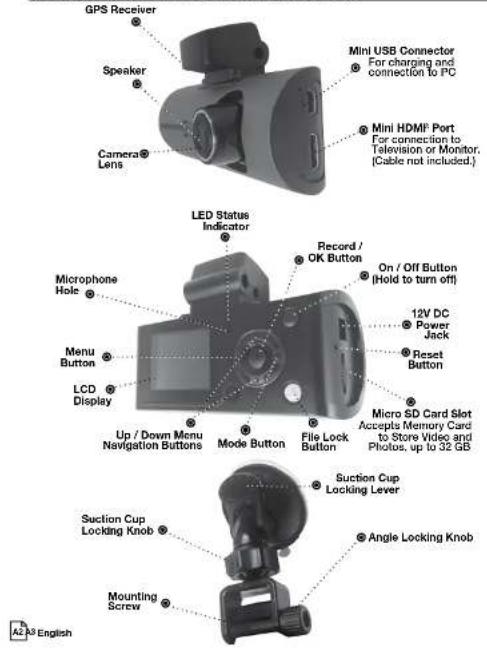

Product Features
Congratulations! You've made a smart choice by purchasing a Drive HD Dash Cam from Cobra. This booklet describes the simple steps for mounting, setting up, and using your dash camera.
Camera Features
Records everything you see and hear in 1080P Full HD with high dynamic range that optimizes video during day or night.
Continuous Loop Recording overwrites old footage unless you want to save it. A time/date stamp is embedded on all recordings so you'll never miss an event while driving.
Ready to use out-of-the-box. Includes a heavy-duty suction cup to mount the camera to your windshield and an 8GB MicroSD card to Record your Ride.
Wide angle view gives you a full view of the road without any edge distortion.
3-axis G-Sensor senses sudden accelerations and collisions and automatically protects footage surrounding the incident.
Additional Features
Emergency Record Button
Motion Sensor
Built-in Microphone & Speaker
Auto-Record and Auto-Power Off
Adjustable Movie Clip Time

Limited 1-Year Warranty
Limited 1-Year Warranty
Cobra Electronics Corporation warrants that this product and it thereof, will be free of defects in workmanship and materials for year from the date of first consumer purchase. This warranty the first consumer purchaser. If the product is under warranty, or exchanged depending on the model as determined at Cobra's Such remedy shall be your sole and exclusive remedy for any t The procedure for obtaining service and support, and the appli ranty, will vary depending on the country or jurisdiction in which and utilize the product. For the details on obtaining product se warranty please visit www.cobra.com/support
Provided that the product is utilized within the U.S.A.-Cobra wi repair or replace, at its option, defective products, products or upon delivery to the Cobra Factory Service department, accompany the date of first consumer purchase, such as a duplicated copy. You must pay any initial shipping charges required to ship the J service, but the return charges, to an address in the U.S.A., will expense, if the product is repaired or replaced under warranty. This warranty gives you specific legal rights, and you may also which may vary from state to state and country to country.
Exclusions: This limited warranty does not apply: 1) To any prior accident; 2) In the event of misuse, ordinary wear, failure to folk improper maintenance of the product or as a result of unauthorized pairs; 3) If the serial number has been altered, defaced, or remo was purchased or is utilized in a jurisdiction not covered by the I All implied warranties, including warranties of merchantability particular purpose are limited in duration to the length of this w not be liable for any incidental, consequential or other damage limitation, damages resulting from loss of use or cost of install Some states and countries do not allow limitations on how long ranty lasts and/or do not allow the exclusion or limitation of inc quential damages, so the above limitations may not apply to ye gives you specific legal rights, and you may also have other rig state to state and country to country.


English

Contents

Introduction
Important Information....A1
Customer Assistance.... A1
Controls, Indicators and Connections.... A2
Product Features A3

Your Device
What's in the Box.... 2
Installation.... 3
Device Operation 4-12
Powering the Device on and Off 4
Inserting and removing the memory Card 4
Video Record, Still Photo & Playback Modes 6-9
Video Playback Screen 10
Video Protection Screen 12
Adjusting Camera Settings 13-18
Language Selection 13
Video Settings.... 14
Adjusting Video Settings.... 15
To Adjust General Settings 16
General Settings 17
Still Photo Mode Settings 18
Connecting to a Computer 1:
Using Cobra's Video Player 20-21
Using Drive HD™ Dash Cam Software.... 20
Using Cobra's Dash Cam Software.... 21

Customer Information
Camera Specifications & Capacity. 22
Product Service & Support 22
Troubleshooting....23
Trademark Acknowledgement.... 23
Licensing....23
1-Year Limited Warranty 24


What's in the Box
What's in the box
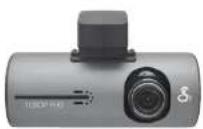
Dash Cam (Model # CDR 840)
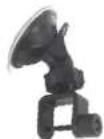
Heavy Duty Suction Cup Mount
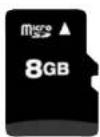
8GB Micro SD Card (Installed)
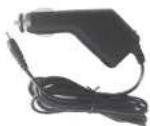
Cigarette Lighter Adapter
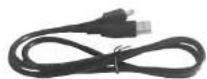
Mini USB to USB Cable

English
Installation
Where to Mount Your Unit
You will get optimum performance from your camera if you mount it on the front windshield, behind the rear-view mirror. This will minimize the impact on the driver's line of sight. You'll also want to keep the camera centered and angle the bracket to optimize the camera's view of the road ahead.
Windshield Mounting
| Peel the plastic film off of the suction cup. | |
| Unscrew the angle locking knob and remove the mounting screw. Be careful not to lose the metal nut inside the angle locking knob. | |
| Slide the mounting bracket onto the GPS receiver and line up the square holes of the bracket with the round holes on the rear of the receiver. | 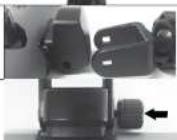 |
| Insert the mounting screw and secure it with the angle locking knob. | |
| Rotate the suction cup locking knob to lighten or loosen the ball joint. To adjust the angle to the road, if necessary, loosen the angle locking knob. Turn the camera so that it has a clear view of the road ahead. Tighten the knob when done. |  |
| Press the Suction Cup firmly onto the windshield. Push down on the lever to lock the suction cup in place. | |
| Plug the 12V DC power cord into the camera. | |
| Plug the cigarette lighter adapter on the power cord into your vehicle's cigarette lighter. | |
\$

Device Operation Device Operation
Powering the Device On and Off
To turn the device on, press the POWER button.
To turn the device off, press and hold the POWER button for three seconds.
Charging the device
You can charge the device with the included car charger, or with a USB cable. The device will also run off of its own internal battery for a short time.
NOTE: When the Car charger is connected, the device will automatically power on and start recording video.
Battery: The battery in this unit is intended to operate the unit after power loss due to an accident or crash. Note that while recording may continue, the device was not intended for long-term recording on battery power.
Inserting and removing the Memory Card
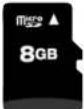
Your camera comes with an 8GB Memory Card Preinstalled, but it can be upgraded with up to 32GB with a different Memory Card (not included.)
To remove the memory card, push the Memory card forward gently until you hear a click, and the card should release.
To insert a different memory card, orient the card with the "bumpy edge" facing down and press it in until you hear a click, then release.

Video Record, Still Photo, and Playback Modes
The camera has four separate modes:

Video Mode

till Photo Mode

Video Playback Mode

till Photo Playback Mode
To toggle between the modes: Press the MODE Button:


NOTE: You cannot switch modes or enter menus while the camera is recording video.

English

Video Mode
Video Mode is the primary function of this device and allows you to easily record HD video of the road ahead of you.
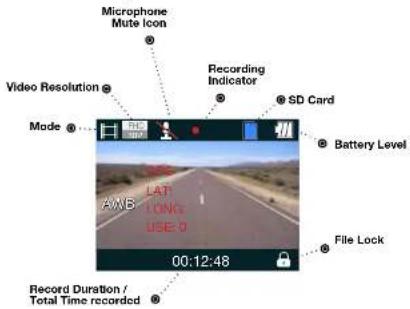
Continuous Cyclical Recording: Once the memory card is full, this camera will continuously overwrite the oldest footage recorded. To protect a clip so that it will not be overwritten, press the FILE LOCK Button. The 📄 icon will show on the screen. Files can also be locked from the playback menu in Video Playback Mode.
G-Sensor: The G-Sensor is an accelerometer that can detect an impact caused by an accident. If the G-Sensor is triggered, the current video segment will automatically be locked so that it is not overwritten by cyclical recording.
The sensitivity of the G-Sensor can be adjusted in settings.

Device Operation
To Start and Stop recording video, press the OK button

The Red Record Dot starts flashing or stops flashing, and the record duration changes to display total time recorded.
To Lock a video while it is being recorded, press the FILE LOCK button

The Lock Current File message and the Lock icon will appear on the screen:
To Toggle the Microphone On / Off, press the UP button

The Microphone Mute icon will toggle on the screen:
To Toggle the Screen On / Off, press the DOWN button


Your Dash

公司简介
Device Operation

Still Photo Mode
This device can be used to capture high-resolution still photos using its built-in camera. The images are stored on the removable SD Card memory.

To take a picture
Press the OK button.
The screen flashes black and the image briefly freezes to show that a picture was taken.

To digitally zoom in or out
Press and hold the UP or DOWN buttons.
The image zooms in or out, and indicates the zoom factor on the screen. (1x - 4x)

English

Device Operation
Video and Photo Playback Modes
This device stores video and pictures on its removable SD Card Memory. Playback mode will allow you to review the saved video and photos, and play back the video with sound.
File Selection Screen
![File Name SD Card Battery Level Page Files are shown in groups of six per page. 10 Red border indicates selected file Timestamp of selected file 04/07/2014 18:29:10 [00:23:12] File Duration](/content/2026/06/1216105/images/7dcff637fad2efd8a0886f7bceeeb5f1e728501d4e2d16be57db8e4e1b1b2394.jpg)
To move forward or backward in the list of saved files
Press the UP or DOWN buttons while on the video selection screen.
The red box moves to select the next or previous file. If you are at the beginning or end of a page, this may cause you to flip to the previous or next page.
To play a selected file:
Press the OK button while on the file selection screen.
The video will begin playing.


Video Playback Screen
| File Number | SD Card | Press the MODE button. You will be returned to the video selection screen. | |
| Play/Pause Icon | Battery Level | ||
| To adjust the playback audio volumePress MENU to bring up the Playback menu.Make sure VOLUME is highlighted, and press OK. | |||
| File Name | Video Length & Time Elapsed | Press the arrow keys to select a volumelvel, 0-10. The selected volume level willhave a red box around it. Press OK again to confirm and close. Finally, press MENU to exit. | |
| To play or pause video playback | |||
| Press the OK button. The video will begin playing orpause playback, and the Play /Pause icon will toggle. | To delete a filePress the MENU button to bring up thePlayback menu. Press the down arrow to highlight DELETE, and press OK to confirm. | ||
| To Fast forward or rewind the video | To delete just one file, highlight the icon withjust one item in the trash, and press OK to confirm. You will then see the “select a file”dialog. Use the arrow keys to highlight thefile you want to delete with the red box, thenpress OK to confirm. The “Delete SelectedFile” Dialog will appear. Make sure YES isselected, and then press OK to confirm. Thefile will be deleted and you will return to thevideo selection screen. | ||
| Press the UP orDOWN buttons. | The video will begin playingfaster or rewind, and the playback speed will show onthe screen as 2X, 4X, etc. | ||

Device Operation
Video Protection Screen
To Lock a video or Image while in playback mode
Press the MENU button to bring up the Play-back menu. Press the down arrow until PRO-TECT is highlighted, and press OK to confirm.
To protect just one file, highlight the book and key icon, then press OK to confirm.
You will then see the "select a file" dialog. Use the arrow keys to highlight the file you want to protect with the red box, then press OK to confirm.
You'll see the "Protect Selected File" dialog. Press the UP arrow to ensure that YES is selected, then press OK to confirm.
The selected picture will now show a lock icon:

This means this file will not be overwritten by continuous loop recording in Dash Cam mode.

Adjusting Camera Settings
Language Selection
While in Video or Still Photo mode, press the MENU button, scroll to the language menu, and press OK to enter the Language Selection menu.

Use the UP or DOWN arrows to select the desired language, and then press OK to confirm.
The following languages are supported:
English, Dutch, French, German, Portuguese, Russian, Spanish and Chinese.

Adjusting Camera Settings Adjusting Camera

Video Settings

Note: If you are currently recording video (●) you'll need to stop recording with the CAMERA button first.
While In VIDEO mode, press the MENU button once to enter the menu selection screen. Verify that Video Settings is selected, then press OK to confirm.
Press the UP and DOWN arrows to select the setting you'd like to modify, then press the OK button to confirm.
A window on the right edge of the screen will display the available options. Use the UP and DOWN arrows to make your selection, then press OK to confirm.
A list of the settings and their meanings are shown on the next page.
Adjusting Video Settings
Video Settings
| Video Settings | This sets the level of detail in the video. FHD will give you the best image, but will take up the most memory. |
| Movie Quality Select between Super High Quality (SHQ) and High Quality (HQ) | |
| Movie Clip Time | This selects the length of the video clips the system records. Options range from 1 minute to 10 minutes. |
| Auto Power Off | Once power is removed from the device, it automatically shuts down. This option lets you set how many seconds to continue recording video after power is removed. |
| Motion REC Time | When the Motion Event REC feature is turned on, the camera will analyze the image and determine when the image has changed substantially, and automatically start recording for you. Leave this feature on if you want to record video when you're moving, and stop recording video when stopped. |
| Microphone If you do not want this device to record audio with its internal microphone, turn this setting off. | |
| MIC sensitivity | Set the sensitivity of the microphone. |
| Scene | Select between Auto, Sport, Portrait, Landscape, Snow, Beach, and Fireworks. |
| Exposure | In very bright environments, use a positive EV. In dark environments use negative EV. Options between -2 and +2 are available. |
| White Balance You can adjust the white balance based on the ambient lighting. Options include: Auto, Daylight, Cloudy, Fluorescent 1, Fluorescent 2, and Fluorescent 3. | |
To Adjust General Settings

NOTE: If you are currently recording video (●) you'll need to stop recording with the OK button first.
While in VIDEO or STILL PHOTO mode, press the MENU button once to enter the menu selection screen. Press the down arrow until General Settings is highlighted, then press OK to confirm.
Press the UP and DOWN arrows to select the setting you'd like to modify, then press the OK button to confirm.
A window on the right edge of the screen will display the available options. Use the UP and DOWN arrows to make your selection, then press OK to confirm.
A list of the settings and their meanings are shown on the next page.
General Settings
| Beep Sound | If you don't want the device to beep on every button press, turn this option OFF. |
| Idle Power Off | Automatically turns the unit off if no buttons are pressed within 1 or 5 minutes if no video is being recorded. |
| Date/Time | Use this to set the current time and date. |
| Date Format Sets the date format. | |
| TV System Lets you choose between NTSC (United States) and PAL (Europe) | |
| HDMI Output Lets you choose between 720P and 1080P on the HDMI Output. | |
| Screen Flicker This sets the screen refresh rate. Options include 50 Hz and 60 Hz. | |
| USB Function | If you want your camera to behave like a Mass Storage device (flash drive) when connected to a computer, select MSDC. If you want to use it as a webcam with your computer, select PCAM. |
| Screen Rotates Allows you to flip the screen vertically for upside-down operation. | |
| Screen Saver | Allows you to set a timeout for the screen to go black when not in use. Options include 1 minute and 3 minutes. |
| G-Sensor Level Sets the sensitivity of the G-Sensor, from 0 (off) to 4 (max) | |
| Motion Detector Sets the sensitivity of the Motion sensor, from 0 (off) to 3 (max) | |
| GPS Status | This allows you to view the raw data from the GPS satellites that are available in your area. |
| Time Zone Select Set the time zone you're currently in. | |
| Restore Defaults Resets the system to its default settings. | |
| Format SD-Card | If you want to completely erase all the movies and files on the SD-card, select this option. Be careful; all your data will be lost. |
| SD-Card INFO See how much space remains on the SD Card. | |
| FW Version Get the firmware version information. | |

Adjusting Camera Settings
Still Photo Mode Settings
While in Still Photo mode, press the MENU button to enter the menu selection screen. Verify that Still Settings is selected, then press OK to confirm.
Press the UP and DOWN arrows to select the setting you'd like to modify, then press the OK button to confirm.
A window on the right edge of the screen will display the available options. Use the UP and DOWN arrows to make your selection, then press OK to confirm.
Still Photo Mode Settings
| Still Image Size | This sets the level of detail in the photo. Higher M indicates more megapixels, which will give you a sharper image, but take up more memory. Options between 1M and 14M are available. |
| Still Quality Select | between Super High Quality (SHQ) and High Quality (HQ) |
| Scene | Select between Auto, Sport, Portrait, Landscape, Snow, Beach, and Fireworks. |
| Exposure | In very bright environments, use a positive EV. In dark environments use negative EV. Options between -2 and +2 are available. |
| White Balance You can adjust the white balance based on the ambient lighting. Options include: Auto, Daylight, Cloudy, Fluorescent 1, Fluorescent 2, and Fluorescent 3. | |
| ISO Sensitivity Increasing ISO will make the camera more sensitive to light. Try Increasing ISO in low-light conditions, or leave it set to "Auto" | |
| Color | Adjusts color saturation. Options include: natural, bright, and grey. |
| Effect | Photo effects include: Normal, retro, black and white, relief, negative, drawing, painting, crayon. |

Connecting to a Computer
To connect your camera to a Computer
Connect the camera to your computer using the Included USB to Mini-USB Cable.
By default, your device connects to your computer in Mass Storage mode, and acts like a flash drive. Videos can be viewed with any standard video player that supports .avl files.


NOTE: Quicktime, the native video player for Mac, only supports specific types of .avl files and cannot playback this camera's videos. For links to third party players that will work on Mac, visit www.cobra.com/support/software-downloads.

Movies that are locked begin with "SOS_" and movies that are not locked begin with "MOV_".
Note that if the Memory card gets too full, videos that are not locked will be overwritten to make room for new videos. If you want to save any videos that begin with "MOV_" you should copy them to your computer, or Lock the files.
| To switch the camera's USB function |
| If you prefer to connect your camera to your PC as a web or video camera, you can change this setting in the settings menu. |
| Disconnect the camera from your PC, enter General Settings, and change the USB Function to PCAM. Then, when you reconnect your camera to your PC, it will use this function. |

NOTE: Start your web cam application before connecting the camera.
If you want to review the videos alongside the GPS position on a map, then you'll need to download Cobra's Video player from: www.cobra.com/dashcamsoftware See the next page for how to use this software.


Using Cobra's Video Player

Using Cobra's Video Player
Using Drive HD™ Dash Cam Software
The Drive HD Dash Cam player allows you to view your videos along with recorded GPS location, speed, direction, and G-Sensor data. To download Drive HD Dash Cam player on your PC please visit www.cobra.com/dashcamsoftware and select the software link for the CDR 840.

Install and open Drive HD Dash Cam player.
Click on the folder icon and look for "Removable Disk" or point to the directory or file you'd like to play back.

To Erase a file, click on the RECYCLE Icon.

To pause or play video, or skip to the next / previous file, click the track navigation buttons at the bottom.
Using Cobra's Dash Cam Software
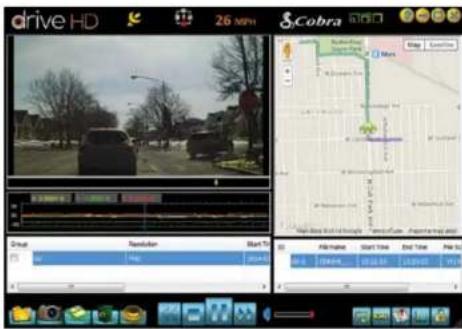
The player will group together files that were shot sequentially. Those files are displayed in the "group" list at the bottom left.
Individual files are also shown in the list in the bottom right.
The Map View in the upper right shows the route you took for the duration the file was recorded.
Specificity

Specifications
Camera Specifications:
| Visual Angle | 118 degrees |
| Sensor | 5 MP CMOS |
| Video resolution | 1080P 1920x1080 30 fps |
| 720P 1280x720 60 fps | |
| 720P 1280x720 30 fps | |
| 480P 640x480 30 fps | |
| Video Format | avi |
| GPS Logging | Supported |
| Picture Resolution | 4032x3094 (Max. 14 MP) |
| Picture Format | JPEG |
| White Balance | Auto |
| Color Effect | Auto |
| Continuous Loop Recording | Supported |
| Motion Detection | Supported |
| Date and Time | Supported |
| Media Supported | SD Card - 8GB Included (32GB Max) |
| Languages English, Dutch, French, German, Portuguese, Russian, Spanish, Chinese | |
| Sound Recording | Synchronous video and sound record |
| Sound Recording can be disabled | Supported |
| Player Software Use Operating System's video player or Cobra Drive HD player | |
| USB Interface | USB 2.0 |
| USB Web Camera | Supported |
| USB Mass Storage | Supported |
| Display Screen | 1.5" TFT |
| Battery | Rechargeable Lithium-Ion |
Camera Capacity:
| 1080P Recording time with 8GB card (Included).... | 120 minutes |
| 1080P Recording time with 16GB card.... | 240 minutes |
| 1080P Recording time with 32GB card (max).... | 480 minutes |
Product Service & Support
For any questions about operating or installing this new Cobra product, PLEASE CONTACT COBRA FIRST ...do not return this product to the retail store. The contact information for Cobra will vary depending on the country in which you purchased and utilize the product. For the latest contact information, please go to www.cobra.com/support For products purchased in the U.S.A. you may also call 1-800-262-7212 (1-800-COBRA-12). For Products Purchased in the U.S.A. if your product should require factory service, please go to www.cobra.com/support and follow the instructions for returning your product to the Cobra Factory Service Department for service.

23 English
YOU DUSN C

Troubleshooting, Trademark Acknowledgement & Licensing
Troubleshooting
If your unit does not appear to be operating properly, please follow these troubleshooting steps:
■ Make sure the power cord is properly connected.
■ Make sure the socket of your vehicle's cigarette lighter is clean and free of corrosion.
■ Make sure the power cord's cigarette lighter adapter is firmly seated in your cigarette lighter, and the Status LED is on.
- Check the power cord fuse. (Unscrew the ribbed end cap of the cigarette lighter adapter and examine the fuse. If required, replace it with a 2-amp fuse only.)
For detailed and up-to-date FAQ's, please visit www.cobra.com/support/faqs.
Trademark Acknowledgement
Cobra, the snake design, Drive HD™, the d design, and Record your ride™ are proprietary trademarks of Cobra Electronics Corporation, USA. Other trademarks and trade names are those of their respective owners.
Cobra Electronics Corporation™ is a trademark of Cobra Electronics Corporation, USA. HDMI, the HDMI logo, and High-Definition Multimedia Interface are trademarks or HDMI registered trademarks of HDMI licensing LLC in the United States and other countries.
NOTE: This device complies with part 15 of FCC rules: Operation is subject to the following two conditions: (1) This device may not cause harmful interference, and (2) This device must accept any interference received including interference that may cause undesired operation. CAUTION: Modifications or parts not approved by Cobra Electronics Corporation may violate FCC Rules and void authority to operate this equipment.
This device complies with RSS-310 of Industry Canada. Operation is subject to the condition that this device does not cause harmful interference.
CANICES-3B/NMB-3B
DISPOSAL OF ELECTRONICS EQUIPMENT: This product may contain hazardous substances that could impact health and the environment if not disposed of properly. The crossed out wheeled bin symbol indicates that the product should not be disposed of along with household waste. It should be handed over to an applicable collection point for the recycling of electrical equipment. By ensuring that this product is disposed of correctly you will holy/prevent potential negative impact on the environment.
If you need more information on the collection, reuse and recycling systems, please contact your local civic office or the shop where it was originally purchased.
WARNING: This product contains chemicals known to the State of California to cause cancer and birth defects or other reproductive harm.


- Important Information
- Controls Indicators and Connections
- Product Features
- Camera Features
- Additional Features
- Limited 1-Year Warranty
- Contents
- Introduction
- Your Device
- Customer Information
- What's in the Box
- Installation
- Where to Mount Your Unit
- Device Operation Device Operation
- Powering the Device On and Off
- Charging the device
- Inserting and removing the Memory Card
- Video Record, Still Photo, and Playback Modes
- Video Mode
- Device Operation
- Still Photo Mode
- Video and Photo Playback Modes
- File Selection Screen
- Video Protection Screen
- Adjusting Camera Settings
- Language Selection
- Adjusting Camera Settings Adjusting Camera
- Video Settings
- Adjusting Video Settings
- To Adjust General Settings
- Still Photo Mode Settings
- Connecting to a Computer
- To connect your camera to a Computer
- Using Cobra's Video Player
- Using Drive HD™ Dash Cam Software
- Using Cobra's Dash Cam Software
- Specifications
- Product Service & Support
- Troubleshooting, Trademark Acknowledgement & Licensing
- Troubleshooting
- Trademark Acknowledgement
Brand : COBRA
Model : CDR 840C
Category : Camera