
WASPcam ROX 9941 4k - Camera COBRA - Free user manual and instructions
Find the device manual for free WASPcam ROX 9941 4k COBRA in PDF.


| Product Type | Action Camera |
| Brand | Cobra |
| Model | WASPcam ROX 9941 4k |
| Waterproof Depth | Up to 98 ft (30 m) with included case |
| Wireless Connectivity | Built-in Wi-Fi for smartphone app control |
| Display | 2 inch LCD screen |
| Lens | 170° wide-angle lens |
| Video Resolution | 4K 30fps, 2.7K 30fps, 1080p 60fps/30fps, 720p 60fps/30fps |
| Video Format | .MP4 (H.264 compression) |
| Photo Resolution | 16MP, 12MP, 8MP |
| Photo Modes | Single shot, Burst, Time-lapse |
| Loop Recording | Off, 1 min, 3 min, 5 min |
| Slow Motion | 1080p 60fps, 720p 120fps |
| Storage | Micro SD card up to 64GB (Class 10 required) |
| Battery | Removable rechargeable battery, charges via USB |
| Recording While Charging | Yes |
| Input/Output | USB, HDMI, Micro SD slot |
| Compatible App | WASPcam ROX (iOS and Android) |
| Cleaning Instructions | Wipe with a soft damp cloth; avoid harsh chemicals |
| Safety Precautions | Do not open casing; avoid extreme temperatures; use only included battery |
| Support Contact | (773) 889-3087 / info@waspcam.com |
Frequently Asked Questions - WASPcam ROX 9941 4k COBRA
User questions about WASPcam ROX 9941 4k COBRA
0 question about this device. Answer the ones you know or ask your own.
Ask a new question about this device
Download the instructions for your Camera in PDF format for free! Find your manual WASPcam ROX 9941 4k - COBRA and take your electronic device back in hand. On this page are published all the documents necessary for the use of your device. WASPcam ROX 9941 4k by COBRA.
USER MANUAL WASPcam ROX 9941 4k COBRA
RoX
9941 4K Manual
Table of Contents
Preface 2
Manual Disclaimer....2
Safety Precautions....2
System Requirements 3
Features 4
Camera Diagram....4
Accessories....5
Button Functions....6
Camera Functions....6
Installing the Micro SD Card 6
Battery....7
Switching Camera On and Off 7
Switching Modes & Changing Settings 7
Camera Modes 8
Video Recording Mode 8
Photo Mode 8
Video Playback Mode....8
Settings Menu....9
Downloading the WASPcam ROX App....10
Download from iTunes....10
Download by iPhone....11
Android Smartphone....11
Using the Wi-Fi....11
Connecting to External Devices....12
Playback on HD TV 12
Preface
This product is an action-sports camera tailored to meet the demands of today's active lifestyles! This action camera is perfect for vehicle data recording, photography, outdoor sports, home security, and watersports. It allows you to film anytime, anywhere.
Manual Disclaimer
Every effort has been made to ensure that the contents of this manual are correct and up to date. However, no guarantee is made regarding the accuracy of the contents. The manufacturer reserves the right to change the manual contents and product specifications without notice.
Safety Precautions
- Do not store the product in dusty, dirty, or sandy areas, as its internal components may be damaged.
- Do not store the product in hot areas. High temperatures can shorten the life of electronic devices, damage batteries and warp or melt certain plastics.
- Do not store the product in cold areas. When the product warms up to its normal temperature, moisture can form inside, which may damage the electronic circuits.
- Do not attempt to open the casing or attempt your own repairs. High-voltage internal components create the risk of electric shock when exposed.
- Do not use harsh chemicals, cleaning solvents or strong detergents to clean the product. Wipe the product with a slightly damp soft cloth.
- Do not open the battery cover while an image is being recorded. Doing so will not only make storage of the current image impossible, it can also corrupt other image data already stored on the SD card.
- If the product or any of its accessories are not working properly, please contact WASPcam at (773) 889-3087 or info@waspcam.com. Our staff will assist you and if necessary, arrange for the product to be repaired or replaced.
- Test for proper operation before using the camera.
System Requirements
The camera requires a computer with the following minimum specifications for 4K video playback:
• Monitor capable of displaying 4K resolution
- 4th Generation Intel® Core™ processor family / AMD A10-7800 APU
- 8 GB of RAM
- DirectX 9 compatible graphics solution
• Available hard disk space
The camera requires a computer with the following minimum specifications for full HD video playback:
- Windows 7 or later / MAC OS X 10.8 or later
- Intel® Core Duo™ / AMD Dual-Core CPU
- 2 GB of RAM
- DirectX 9 compatible graphics solution
• Available hard disk space
Features
The camera and its included accessories offer a variety of features and functions including:
• A water-resistant case that allows you to film underwater up to 98 ft. (30 m)
• Built-in Wi-Fi: Connects camera to Smartphones via WASPcam ROX App
• High definition screen that displays and plays back recorded videos
- Removable battery that is easy to replace with a spare to prolong the recording time of the camera
• Video recording while charging
• Video recording while battery powered
• HD wide-angle lens
• Supports memory cards up to 64GB maximum storage space, class 10
• Multiple video recording formats: 4K/2.7K/1080P / 720P
• Records video in .MP4 format
- Multiple photo shooting modes: Single shot, Burst, and Continuous Shooting (Time-lapse)
- Compact size
Camera Diagram

Accessories
The following items are included in the camera package. If any items are missing or damaged, contact WASPcam immediately.





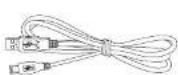
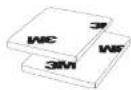


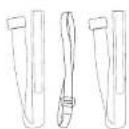
• Matte Black Waterproof Camera Casing
- ROX 4K Camera
Button Functions
Power/Mode Button Turns the camera | on & off.Change between Video mode, Photomode, Playback mode, and settings menu. |
OK Button | Enter and confirm settings in the settings menu.Start/stop recording in Video Mode.Take a photo in Photo Mode. |
Up Button | Scroll up through the settings.Scroll through videos/photos in Playback Mode.Hold to enter Wi-Fi mode.Press to zoom in. |
Down Button | Scroll down through the settings.Scroll through videos/photos in playback mode.Hold to turn on/off MicPress to zoom out |
Battery
- Use only the type of battery that came with the camera. Using any other type of battery may damage the equipment and invalidate the warranty.
- Do not short the battery terminals. The battery could overheat.
- Do not attempt to split or peel the outer casing.
-
Remove the battery if the camera is not going to be used for a long time. If the battery is left unused for more than 3 months, charge the battery before use.
-
Installing and Removing the Battery
• Pull the battery door to release
• Correctly install the battery into the camera as directed by the +/- symbols
- Remove Battery: Open the battery door to take the battery out
- Charging
- Charging can be done by either connecting the camera to a computer or USB power adapter
- Charge the camera in a vehicle by connecting it to a USB car charger
• The camera can record video while charging
• The camera will charge even when it's powered off
Switching Camera On and Off
- Press and hold the Power / Mode button for 3 seconds to turn it on/off
Switching Modes & Changing Settings
Switch between video recording, photo, & playback modes and the settings menu by pressing the Power / Mode button. An icon in the upper left of the screen will show the current mode.
In the settings menu choose a setting with the Up/Down buttons and select with the OK button. Press the Power / Mode button to exit the settings menu.
Camera Modes
Video Recording Mode
Press OK to start recording. A record icon in the bottom will start to flash. Press OK again to stop recording. The record icon will disappear.
Video Recording Notes:
Resolution: Higher resolutions result in larger video files.
Loop Recording: When loop recording is turned on video files will be at the specified length. When the SD card is full the oldest loop recording file(s) will be deleted automatically so new files can be recorded.
Exposure: In very bright environments set the Exposure Value (EV) as a positive number. For very dark environments set the EV to a negative number. The larger the value the greater the exposure value is compensated.
Photo Mode
Press OK to take photos.
Photo Notes:
Exposure: In very bright environments set the Exposure Value (EV) as a positive number. For very dark environments set the EV to a negative number. The larger the value the greater the exposure value is compensated.
Playback Mode
Press Up/Down to scroll through the files on the SD card
Press OK to playback the video file
During video playback, long press Up/Down to forward/backward
Settings Menu
(Default settings in bold.)
Press Up/Down buttons to scroll through the settings and select with the OK button. Press the Mode button to go back and to exit the menu.
| MENU OPTION SETTINGS | |
| Video Settings | |
| Video Resolution 4K 30FPS / 2.7K 30FPS | /1080 60FPS/1080P 30FPS / 720P 60FPS / 720P 30FPS |
| Microphone √ | |
| Time-lapse Off / 0.5s / 1s / 2s / 5s / 10s / | 30s / 60s |
| Loop Recording Off / 1minute / 3minutes | /5minutes |
| Slow Motion | 1080 60FPS / 720P 120FPS |
| Photo Settings | |
| Photo Resolution 16MP / 12MP / 8MP | |
| Timer Off / 3s / 5s / 10s / 20s (camera will take a photo after selected amount of time) | |
| Camera Settings | |
| Exposure +3 +2 +1/ 0 / -1 / -2 / -3 (used to adjust the amount of light let into the camera sensor, use positive setting in bright conditions and negative setting in dark conditions) | |
| White Balance Auto / Sunny / Cloudy / Incandescent Light / Fluorescent Light (Helps balance color in certain lighting to make footage/System Settings | |
| Language English, French, Dutch, Portuguese | ese,Polish, Spanish, Italian, Simplified Chinese, Traditional Chinese, Japanese, Russian, Korean, Thai, German, Arabic |
| Date/Time Allows users to set the current | date and time |
| Beep Sound √ | |
| WiFi / √ (Check to enter WiFi mode) | ☐ |
| Format YES / NO (formats the SD card and erases all data from the SD card) | |
| Restore Defaults YES / NO (Resets all settings to the default values) | |
| Firmware Version Displays camera's current version (YYYYMMDD VX.X) | |
To view the videos/photos on a computer, attach a USB cable to export the videos and photos onto a computer to play. You can also take the Micro SD card out and access the files with a card reader.
Downloading the WASPcam ROX App
Download from iTunes
 | Click iTunes icon to open iTunes. |
Download by iPhone
| [ZGXX] | Click the App Store icon. Click search icon. |
 WASPcam ROX App WASPcam ROX App | Click the search field and enter “WASPcam ROX”, click the search button. |
 | Click the icon and click download. |
| Once it's finished the WASPcam ROX icon will show on your home screen. |
Download to Android Smartphone
| [4XOW] | Open the Google Play Store on your phone. | |
| Enter "WASPcam ROX" into the search bar and hit search. | ||
 | Click on the WASPcam ROX icon to view the app page. | |
| [OK30] | Click the install button to install the WASPcam ROX to your phone. | |
| Once it's finished, the WASPcam ROX icon will appear in your application menu.. | ||
Using the Wi-Fi
Connecting to External Devices
Playback on HD TV
Turn the camera on, connect the HDMI port in the camera to the TV via an HDMI cable (not included) and choose HDMI mode on the TV. The LCD screen on the camera will turn off automatically and now all operations and functions can be seen on the TV.
View Files on PC / MAC
Connect the camera to the computer using the included USB cable. The LCD Screen displays USB Mode and Charging Mode. Press the up/down buttons to select USB Mode and the OK button to confirm. Click on the camera drive and the subfolder DCIM to view videos and photos.
Technical Specifications
| Screen 2 inch LCD Screen | |
| Lens 170°A + wide-angle lens | |
| Language Options English / French / Dutch | / Portuguese,Polish / Spanish / Italian / SimplifiedChinese / Traditional Chinese / Japanese/Russian / Korean / Thai / German /Arabic |
| Video Resolution 4K 30FPS / 2.7K 30FPS | / 1080 60FPS/ 1080P 30FPS/ 720P 60FPS / 720P30FPS |
| Video Format .MP4 | |
| Compressed Format of Videos H 264 |
Copyright
© Copyright 2017.
All rights reserved. No part of this publication may be reproduced, transmitted, transcribed, stored in a retrieval system or translated into any language or computer language, in any form or by any means, electronic, mechanical, magnetic, optical, manual or otherwise, without the prior written permission of the Cobra Electronics.
© 2017 Cobra Electronics Corporation, 6500 W Cortland Street, Chicago, IL 60707 Cobra, the snake design, ROX logo are proprietary trademarks of Cobra Electronics Corporation. All other trademarks and trade names are those of their respective owners.
Cobra Electronics
(773) 889-3087
Apple, the Apple logo, iPhone, and iPod touch are trademarks of Apple Inc., registered in the U.S. and other countries. App Store is a service mark of Apple Inc. Android, Google Play and the Google Play logo are trademarks of Google Inc.
HDMI, the HDMI logo, and High-Definition Multimedia Interface are trademarks or registered trademarks of HDMI Licensing, LLC in the United States and/or other countries.
SanDisk, the SanDisk logo, Store Your World in Ours CompactFlash, Cruzer, ImageMate RescuePR SanDisk Extreme and SanDisk Ultra are trademarks of SanDisk Corporation. © 2006 SanDisk Corporation All rights reserved.
Lexar is a trademark of Micron Technology, Inc. Kingston is a trademark of Kingston Technology Corporation.
- ROX
- TABLE OF CONTENTS
- PREFACE
- MANUAL DISCLAIMER
- SAFETY PRECAUTIONS
- SYSTEM REQUIREMENTS
- FEATURES
- ACCESSORIES
- BATTERY
- SWITCHING CAMERA ON AND OFF
- SWITCHING MODES & CHANGING SETTINGS
- CAMERA MODES
- VIDEO RECORDING MODE
- PHOTO MODE
- PLAYBACK MODE
- SETTINGS MENU
- DOWNLOADING THE WASPCAM ROX APP
- DOWNLOAD FROM ITUNES
- CONNECTING TO EXTERNAL DEVICES
- PLAYBACK ON HD TV
- VIEW FILES ON PC / MAC
- COPYRIGHT
Brand : COBRA
Model : WASPcam ROX 9941 4k
Category : Camera