
PVTTBT6OR - Turntable Pyle - Free user manual and instructions
Find the device manual for free PVTTBT6OR Pyle in PDF.


| Brand | Pyle |
| Model | PVTTBT6OR |
| Product Type | Vinyl Turntable with Speakers |
| Color | Orange |
| Power Supply | 120V-60Hz AC adaptor; Internal rechargeable battery |
| Playback Speeds | 33 1/3 and 45 RPM (45 RPM adaptor included) |
| Outputs | RCA, 3.5mm line-in, USB (for PC recording) |
| Wireless Connectivity | Built-in Bluetooth |
| Speakers | Built-in stereo speakers |
| Recording | USB to PC with Audacity software |
| Cartridge Type | Stylus/cartridge (replaceable) |
| Battery Charging Indicator | Red LED (charging), turns off when full |
| Construction | Suitcase style with buckles and handle |
| Maintenance | Clean needle with soft brush back-to-front; use mild detergent on dust cover |
| Safety | Unplug when not in use; avoid harsh chemicals |
Frequently Asked Questions - PVTTBT6OR Pyle
User questions about PVTTBT6OR Pyle
0 question about this device. Answer the ones you know or ask your own.
Ask a new question about this device
Download the instructions for your Turntable in PDF format for free! Find your manual PVTTBT6OR - Pyle and take your electronic device back in hand. On this page are published all the documents necessary for the use of your device. PVTTBT6OR by Pyle.
USER MANUAL PVTTBT6OR Pyle
natural_image
Orange-framed wooden frame mounted on a wall, no visible text or symbols
TURNTABLE PARTS
- Tone Arm
- Speakers
- Tone Arm Rest
- Function Selection Knob
- Power/Volume Control Switch
- Power Led Light Indicator
- BT Led light indicator
- Internal Battery Charging Led light Indicator
- Speaker Buckles
- Turntable Player Lock
- Handle
- Stylus/cartridge
- Turntable platter
- Speaker Cable
- 3.5mm line-in Jack
- RCA output Jack
- USB Jack to PC for recording
- Speed Selection Switch
- Power Adaptor Jack

POWER ON THE UNIT
Connect the power adaptor to an electrical outlet (120V-60Hz); Or make sure that the rechargeable battery has been fully charged. Then, turn the Power/Volume Control knob clockwise to switch on the unit. The Power led light indicator will light up(6).
CHARGING INTERNAL BATTERY
Once connected to the power adaptor, the internal battery is atomically charging, the red led light indicator(8) will light red. Once fully charged, the charging led light indicator(8) will turn off.
PLAY A RECORD
- Open the suitcase by unlock the 3 buckles(9, 10)
- Turn the function selection knob (4) to Phono mode
- Place a record on the turntable (13) and set the player speed (18) to match the record speed (33/45). NOTE: when playing a single (a 45 rpm record) and/or records with large centre holes, use the 45 rpm adaptor (packed together with the instruction manual).
- Remove the tone arm (1) from the rest (3), push lift lever backward to raise the tone arm and gently move the tone arm to the desired position over the record. The turntable will begin to spin when the tone arm is above record. Slowly lower onto the desired position on the record to begin playing the record.
- Turn the volume control(5) to adjust the volume level.
- For best performance and product maintenance, unplug the turntable when not in use.
PLAY BLUETOOTH
- Turn the function selection knob (4) to BT mode. The BT light indicator(7) will flash with Blue led light.
- Open the BT audio source and connect with "Speaker". Once connected, the BT light indicator will flash only in blue color.
RECORD YOUR VINYL TO YOUR WINDOWS PC
Audacity Recording Software
Your USB turntable is compatible with any recording software that supports USB Audio devices.
We have included Audacity, which is free software, distributed under the General Public
License(GPL). However you may prefer to use a variety of 3rd party software packages.
BEFORE STARTING THE SOFTWARE
Make sure that your USB turntable is plugged into the computer with the supplied USB cable, and both the computer and the turntable are plugged in and on. Refer to the USB turntable quick start instruction manual included before proceeding with software installation.
TO INSTALL SOFTWARE ( BOTH PC AND MAC)
RECORDING INTO A COMPUTER

-
Press the Record Button
-
Start playback on the USB turntable. You will see the waveform of the audio on the screen as it is recording. You will hear the audio coming from the output of your computers soundcard.
No Audio? - go back to the preference menu (Figure 1) and make sure you have "Software Play through" selected and the speaker volume up on your computer.


4. Press Stop
- SAVE YOUR FILE NOW by clicking on 'File' -> 'Save Project'. Select the destination and file
name for the project and click 'Save'.
- You have completed the recording process. (See Figure 2)

Figure 2: Recording Sample
Adjusting Your Audio Level (Optional)
- Select your entire recording by selecting "Edit", then "Select...", then click "All". You can also use Ctrl+A on a PC or APPLE+A on a Macintosh to quickly select all.
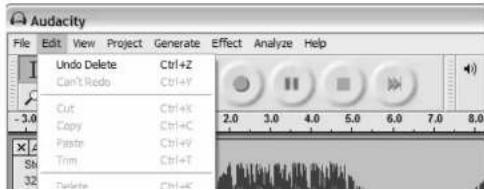
are described further in the software's help section as well as on the web (See Figure 4).
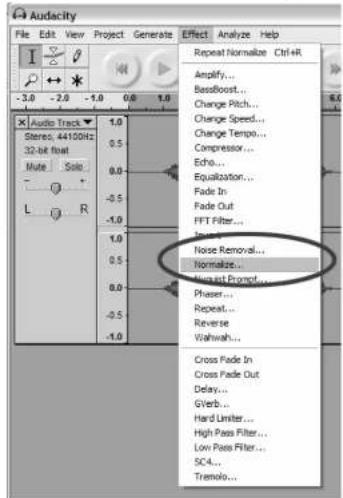
Figure 4: Effect Drop Down List
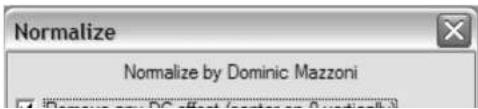
b. Normalize should be used to have the correct volume on the recording. (See Figure 5)
If you wish to clean up the entire recording, use "Select All" under the "Edit Menu" (See Figure 3)
-
Repeat Step 2 to bring up the "Noise Removal" Window.
-
Adjust the amount of audio that you would like to filter by moving the slider in the "Noise Removal" window. We recommend using the minimum noise removal for optimum sound. Note: you can preview the audio before removing the noise by clicking on 'Preview'.
-
Click on 'Remove Noise'
Cleaning Your Audio (Optional)
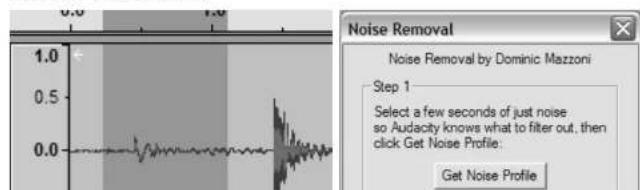
- Drag the cursor over a portion of the audio track which contains noise. We recommend using the beginning or the end of a track where there is no music and only noise. (See Figure 6)
-
Select "Noise Removal" from the "Effect" drop down menu to bring up the "Noise Removal" window. (See Figure 7)
-
Click "Get Noise Profile". The Noise Removal window will now close automatically.
-
Select the entire track of audio you wish to remove noise from. If you wish to clean up the entire recording, use "Select All" under the "Edit Menu" (See Figure 3)
-
Repeat Step 2 to bring up the "Noise Removal" Window.
-
Adjust the amount of audio that you would like to filter by moving the slider in the "Noise Removal" window. We recommend using the minimum noise removal for optimum sound. Note: you can preview the audio before removing the noise by clicking on 'Preview'.
-
Click on 'Remove Noise'.
TIPS FOR BETTER TURNTABLE PERFORMANCE
- When opening or closing the turntable cover, handle it gently, gripping it either at the centre or at each side.
- Do not touch the needle tip with your fingers; avoid bumping the needle against the turntable platter or record edge.
- Frequently clean the needle tip-use a soft brush in a "back-to-front" motion only.
- If you must use a needle cleaning fluid, use very sparingly.
- Gently wipe the dust cover and turntable housing with a soft cloth. Use only a small amount of mild detergent to clean the turntable and dust cover.
- Never apply harsh chemicals or solvents to any part of the turntable system.
Brand : Pyle
Model : PVTTBT6OR
Category : Turntable