
4KCH - Unspecified BZBGear - Free user manual and instructions
Find the device manual for free 4KCH BZBGear in PDF.


| Product Type | USB-C 4K Video Capture Box with Scaler |
| Model | BG-4KCH |
| Video Input | 1x HDMI Type A (19-pin female) |
| Video Output | 1x USB 3.1 Type-C (SuperSpeed) |
| Maximum Input Resolution | Up to 4K2K@30 (via HDMI) |
| Capture Resolutions (USB 3.1 Gen 1) | Up to 4K2K@30 (RGB/YUY2/NV12) |
| Capture Resolutions (USB 2.0) | Up to 720P@30 (YUY2/NV12) |
| Audio Input | HDMI embedded audio (2CH 16-bit PCM) |
| Latency | 3–4 ms at 1080P |
| Recording Mode | Software compression (via host PC) |
| Supported Color Formats | RGB, YUY2, NV12 |
| USB Standard | USB 3.1 Gen 1 (also compatible with USB 2.0) |
| UVC Support | UVC 1.0/1.1/1.5 |
| Deinterlace & Scaler | Supported (auto-detection) |
| ESD Protection | Human body model: ±15kV air-gap, ±8kV contact |
| PCB Stack-up | 4-layer board, impedance controlled |
| LED Indicators | Blue (power), Green (HDMI signal detected), Red (HDCP protected) |
| Firmware Update | Via USB-C port |
| Software Compatibility | OBS Studio, Potplayer, VLC, AMCap, XSplit, Skype, Zoom, Hangout, TeamViewer |
| System Requirements (Recommended) | Windows 7/8.1/10, Mac, Linux; Intel Core i5-4440 + GTX 660 or higher; 4GB RAM |
| Warranty | 3 years (BZBGEAR Pro AV) |
Frequently Asked Questions - 4KCH BZBGear
User questions about 4KCH BZBGear
0 question about this device. Answer the ones you know or ask your own.
Ask a new question about this device
Download the instructions for your Unspecified in PDF format for free! Find your manual 4KCH - BZBGear and take your electronic device back in hand. On this page are published all the documents necessary for the use of your device. 4KCH by BZBGear.
USER MANUAL 4KCH BZBGear
USB-C 4K Video Capture Box with Scaler
User Manual

TABLE OF CONTENTS
INTRODUCTION 1
FEATURES....1
PACKAGE CONTENTS 1
SPECIFICATIONS....2
PANEL DESCRIPTIONS....3
CONNECTION DIAGRAM....3
VIDEO STREAMING 4
TROUBLESHOOTING....12
USB PIN DEFINITION....12
TECH SUPPORT....13
WARRANTY 13
MISSION STATEMENT....13
INTRODUCTION
The BG-4KCH USB-C 4K Video Capture Box with Scaler provides a simple, reliable way to capture HDMI video signals. Users can instantly capture HDMI signals from devices like PTZ cameras, video game consoles, or PC's for broadcast to streaming services including YouTube, Twitch, and Facebook. The utilization of large volume image buffer technology prevents video tearing, allowing for optimal image reproduction. Compact and portable, the BG-4KCH is an ideal fit for a video technicians toolkit, as well as anyone needing a discreet capture device.
FEATURES
• HDMI video and audio streams over USB 3.1 Type-C Gen 1
• Supports UVC1.0/1.1/1.5
• Supports video resolution up to 4K2K@30
• Supports deinterlace & scaler*
• Auto-detection on video format to ensure plug-play operations
• Recording Video Format: Software Compression
- Works on multiple operating system platforms (Windows 7/8.1/10, Mac and Linux OS)
- Compatible with most 3 ^rd party software including YouTube, Twitch, Facebook, OBS Studio, and Zoom
- Supports USB 3.1 Gen 1 (RGB/YUY2/NV12) (capture up to 4K2K@30) and USB 2.0 (YUY2/NV12) (capture up to 720P@30)
- Low Latency (3\~4ms at 1080P)
• System Requirements (Recommended)
- Windows ^® 7(SP1) / Windows 8.1 / Windows 10
- PC: Intel® CoreTM i5-4440 3.10GHz + NVIDIA® GeForce® GTX 660 or higher
- Laptop: Intel® Core i7-4810MQ + NVIDIA GeForce GTX 870M or higher
- 4GB RAM or higher
SPECIFICATIONS
| Model Name | BG-4KCH |
| Technical | |
| Role of usage | Video Capture Device |
| Input Video bandwidth | 297MHz |
| Output bandwidth | Up to 350Mbps (USB-C) |
| Video support(USB-C) | Up to 4K2K@30 |
| Audio Input | HDMI Embedded Audio |
| Audio Format | 2CH 16bit PCM |
| Recording Mode | Software Compression |
| Recording Video Format | RGB/YUY2/NV12 (USB3.1 Gen 1), YUY2/NV12 (USB2.0) |
| ESD protection | Human body model — ±15kV [air-gap discharge] & ±8kV [contact discharge] |
| PCB stack-up | 4-layer board [impedance control — differential 100Ω; single 50Ω] |
| Firmware update | Feasible via USB-C Port |
| Input | 1x HDMI |
| Output | 1x USB-C |
| HDMI connector | Type A [19-pin female] |
| USB connector | USB 3.1 Type C (SuperSpeed USB) |
| Software compatibility (not complete list) | OBS Studio (Windows, Linux, MAC), Potplayer (Windows), VLC (MAC, Linux), AMCap (Windows), XSplit Boardcast (Windows), Skype (Windows, MAC), Zoom (Windows), Hangout (Windows), TeamViewer (Windows) |
PANEL DESCRIPTIONS
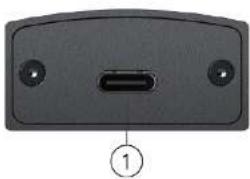
natural_image
Back view of a black electronic device with a labeled port and two ports (no text or symbols beyond the label)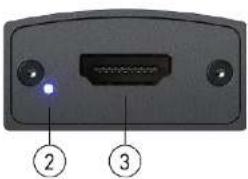
natural_image
Back panel of a device showing two ports with a central display and numbered labels (2 and 3) pointing to them, no readable text or symbols beyond labels.- USB-C OUT: Connect to a USB host (PC, NB, MAC...)
- LED INDICATOR: Power & input signal indicator LED
[Blue] Device power on
[Green] Input detects HDMI signal
[Red]* Input source is HDCP protected
- HDMI IN: Connect to an HDMI source

*When the input source is HDCP protected, LED will become red to indicate the content is legally encrypted and can NOT be captured.
CONNECTION DIAGRAM
VIDEO STREAMING
Create a Video Stream
Users can create video streams on their streaming platform of choice. The below steps show how to complete the video streaming settings from Twitch and YouTube.
Twitch
- Browse the Twitch website (https://www.twitch.tv/) and log in, then select "Creator Dashboard" from your account drop-down menu at the top right of the screen.

-
Find "Preferences" in the left menu, and click "Channel", then you will see "Primary Steam key" on the screen. Copy the "Primary Steam key" and paste it into the "Stream Key" field in the OBS, then click "Start Streaming"
-
Go back to Twitch and select "Channel" from your account drop-down menu.

- At this point, you will see the player start live streaming.

YouTube
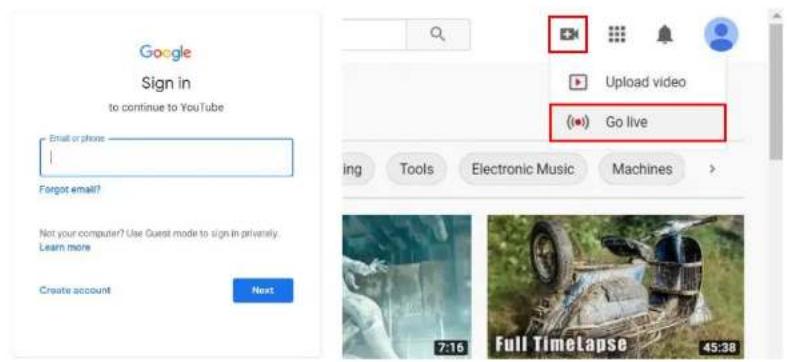
- Browse the YouTube website (https://www.youtube.com/) and log In, then lick "Go live" from the "Create" icon menu at the top right of the screen.
* If your account is using YouTube for the first time to create a video stream, you need to wait 24 hours to enable the function.
- Click "Stream" in the left menu, and fill in the relevant information of the live video to create a new stream.
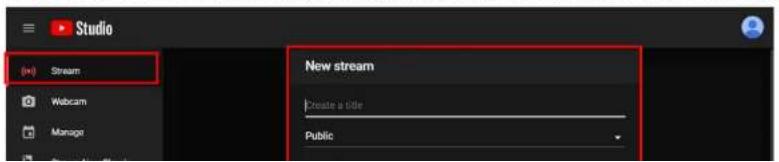
- You will see "Stream key" from the "STREAM SETTINGS" below. Copy the "Stream key" and paste it into the "Stream Key" field in the OBS, then click "Start Streaming" in the software.
* Please refer to steps 4-6 of the OBS software control program.

- Next, go back to YouTube, and then wait for 30-60 seconds, the player will display the live preview. At the same time, the "GO LIVE" button at the top right will turn blue, please press this button.

Stream and record videos with OBS
OBS is popular USB capture freeware and has excellent compatibility. Please start with OBS if users are not familiar with USB capture device.
Download the software
Browse the download page of the OBS official website (https://obsproject.com/download), then select the suitable computer operating system and start downloading.

Start the software control program
After downloading the software, please open it and follow the below steps to complete the video streaming settings.

- First, find the "Scenes" window, click "+" in the lower left corner, and then enter the name of the scene to create a new scene.


- Find the "Source" window, click "+" in the lower left corner, and then select "Display Capture" or "Video Capture Device" to create a new source.

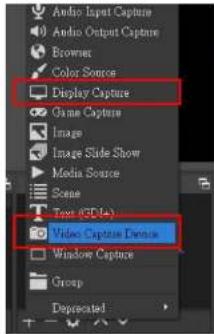
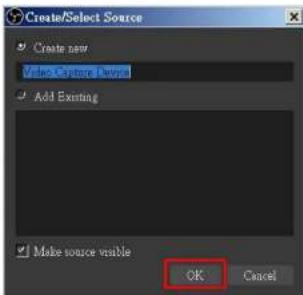
-
Next you can get display continuity properties. If you select "Display Continues" in step 2, you can select the primary
-
Click "Settings" and then select "Stream" to perform streaming settings. Users can choose service providers, including Twitch, YouTube, etc.

- Paste the stream key provided by the service provider into the "Stream Key" field, then click "Apply" and "OK" after setting. In addition, users can lick "Get Stream Key" at this step to open the service provider website.

- On the other hand, users can also click "Start Recording" to record videos with OBS. Besides, you can click "Settings" and then select "Output" to set "Recording Path" and "Recording Format".


The procedures the manual demonstrates are based on the interface that each website provided at the time the manual was written. These procedures may not be accurate and are subject to change by the provider.
TROUBLESHOOTING
- The BG-4KCH supports HDCP to protect legal content from copyright infringement. If an HDMI input is equipped with HDCP protection, the status LED will turn red to indicate the presence of HDCP. No capture will be legally allowed if HDCP is detected. Please use non-HDCP protected HDMI sources or disable HDCP in order to enable content capture. Check connected device for an option to disable HDCP.
- Due to the complexities of OS and computer hardware, different USB ports on your PC or laptop may have different performance or limitations. If the device does not work on one USB connection it still may work on another.
- If video quality is low or the video connection is intermittent, try another HDMI cable.
USB PIN DEFINITION

TECH SUPPORT
Before contacting tech support, we may have answered your question already! Visit our BZBGEAR support page at bzbgear.com/support for valuable information on our products.
Here you will find our Knowledge Base (bzbgear.com/knowledge-base) consisting of tutorials, quick start guides, and step-by-step troubleshooting instructions. Also visit our YouTube channel BZB TV at youtube.com/c/BZBTVchannel for help setting up, connecting, and other how-to videos regarding our products.
If you still need answers, please call 1.888.499.9906, email support@bzbgear.com, or chat at bzbgear.com.
WARRANTY
BZBGEAR Pro AV products and Cameras come with a three-year warranty. An extended two-year warranty is available for our Cameras upon registration for a total of five years.
For an extended two-year warranty on our Cameras, follow these steps:
- Register your Camera within 90 days of purchase by visiting bzbgear.com/warranty.
- Complete the registration form. Provide all necessary proof of purchase details, including serial number and a copy of your sales receipt.
For complete warranty information. please visit bzbgear.com/warranty or scan the OR code below.

Brand : BZBGear
Model : 4KCH
Category : Unspecified