
VZ-215LED-HDR - Loudspeaker ViewZ - Free user manual and instructions
Find the device manual for free VZ-215LED-HDR ViewZ in PDF.


| Product Type | Professional Video Monitor |
| Brand | ViewZ |
| Model | VZ-215LED-HDR |
| Display Size | 21.5" LCD |
| Resolution | 1920 x 1080 |
| Aspect Ratio | 16:9 |
| Brightness | 1000 cd/m² |
| Contrast Ratio | 1000:1 |
| Viewing Angle | 160° / 160° (H/V) |
| Power Input | DC 12-24V |
| Power Consumption | ≤30W |
| Video Inputs | HDMI 1.4 (4K30), 3G-SDI (loop out), VGA, AV |
| Audio Input | 3.5mm earphone jack, line audio input |
| HDR Support | HDR10_300, HDR10_1000, HDR10_10000, HLG (SDI/HDMI only) |
| Color Temperature | 6500K, 7500K, 9300K, User |
| Markers | Center, Aspect (2.35:1, 1.85:1, 4:3, 3:2), Safety (80%-95%) |
| Scan Modes | Fullscan, Underscan, Overscan |
| Check Field | Mono, Red, Green, Blue |
| Mounting | Desktop (stand) or VESA 75mm wall mount |
| Cleaning | Soft dry cloth; avoid chemical solutions |
| Safety | Unplug during storms or long idle; internal repairs by qualified technician |
| Repairability | No user-serviceable parts; contact technician for adjustments |
Frequently Asked Questions - VZ-215LED-HDR ViewZ
User questions about VZ-215LED-HDR ViewZ
0 question about this device. Answer the ones you know or ask your own.
Ask a new question about this device
Download the instructions for your Loudspeaker in PDF format for free! Find your manual VZ-215LED-HDR - ViewZ and take your electronic device back in hand. On this page are published all the documents necessary for the use of your device. VZ-215LED-HDR by ViewZ.
USER MANUAL VZ-215LED-HDR ViewZ
natural_image
Close-up of a parrot perched on a yellow surface with green foliage in the background (no text or symbols visible)PROFESSIONAL VIDEO MONITOR
Important Safety Instructions

The device has been tested for conformance to safety regulations and requirements, and has been certified for international use. However, like all electronic equipment, the device should be used with care. Please read and follow the safety instructions to protect yourself from possible injury and to minimize the risk of damage to the unit.
- Please do not place the display screen towards the ground to avoid scratching the LCD surface.
- Please avoid heavy impact.
- Please do not use chemical solutions to clean this product. Simply wipe with a soft cloth to keep clean of the surface.
- Please do not place on uneven surfaces.
- Please do not store the monitor with sharp, metallic objects.
- Please follow the instructions and trouble-shooting to adjust the product.
● Internal adjustments or repairs must be performed by a qualified technician. - Please keep user guide for future reference.
- Please unplug the power and remove the battery if long-term no-use, or thunder weather.
Safety Disposal For Old Electronic Equipment
PROFESSIONAL VIDEO MONITOR
Introduction
This monitor is wide field of vision is matched with excellent color space, which reproduced the colorful world with the most authentic elements.
Features
● HDMI1.4 supporting 4K 30Hz.
3G-SDI input & loop output.
- 1000cd/m² high brightness.
● 1920X1080 high resolution.
● Support multiple video input interfaces: SDI, HDMI, VGA, AV.
FN User-definable function button.
● HDR supporting HDR10_300, HDR10_1000, HDR10_10000, HLG.
● Color Temperature (6500K, 7500K, 9300K, User).
● Markers & Aspect Mat (Pixel to pixel, Zoom, Aspect).
- Scan (Fullscan, Underscan, Overscan).
• • • • • • • • •
PROFESSIONAL VIDEO MONITOR
CONTENTS
- Production Description....4
1.1 Front Panel 4
1.2 Rear Panel 5
1.3 Supported Mounting Ways....6
- Menu Settings....7
2-1. Shortcut Button....7
2-1-1. Menu /▷/◀Button....7
2-1-2. FN Button....7
2-2. Menu Operation....8
2-2-1. PICTURE 8
2-2-2. MARKER 9
PROFESSIONAL VIDEO MONITOR
1. Production Description
1.1 Front Panel

natural_image
Front view of a black rectangular TV with indicator lights and a top-mounted control panel (no visible text or symbols)PROFESSIONAL VIDEO MONITOR
1.2 Rear Panel
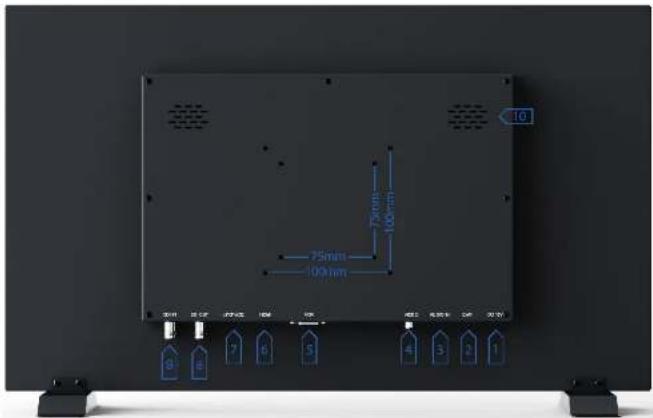
1) Power input: DC 12V.
2) Earphone input(3.5mm).
3) Audio input.
PROFESSIONAL VIDEO MONITOR
1.3 Supported Mounting Ways
- Desktop
Standing on the table by installing the desktop bracket on the bottom of the monitor.

natural_image
Exterior view of a modern flat-screen TV with black bezel (no visible text or symbols)- Wall mount
Installed and fixed on the standard VESA bracket through VESA 75mm holes on its rear panel.

natural_image
Pure electrical circuit lines without any symbolsPROFESSIONAL VIDEO MONITOR
2. Menu Settings
Before setting the functions, please make sure the device is connected correctly.
2-1. Shortcut Button
2-1-1. Menu /▷/◀Button
- IPress MENU button, the menu will pop up on the screen. Then select item as the following sequences via pressing ▷/◀ button: PICTURE / MARKER / FUCTION / VGA / AUDIO / SYSTEM. Press MENU button again to enter into the item you select.
- IPress ▷/◀ button to adjust options or values in the selected item. Then press MENU or EXIT button to apply and save the setting.
- When Menu is inactivated, press ▷/◀ button to adjust volume. Then select item as the following sequences via pressing MENU button: Brightness / Contrast / Saturation / Tint / Sharpness and Exit. Press ▷/◀ button again to adjust the value in the selected item.
2-1-2. FN Button
PROFESSIONAL VIDEO MONITOR
2-2. Menu Operation
Before setting the functions, please make sure the device is connected correctly.
2-2-1. PICTURE
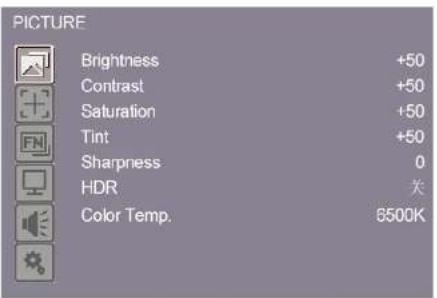
| Marker | Brightness | 0 - 100 |
| Contrast | 0 - 100 | |
| Saturation | 0 - 100 | |
| Tint | 0 - 100 | |
| Sharpness | 0 - 100 | |
| HDR | Off, HDR10_300, HDR10_1000, HDR10_10000, HLG | |
| Color Temp | 6500K 7500K 9300K USFB |
PROFESSIONAL VIDEO MONITOR
- Sharpness -
Increase or decrease the sharpness of the image. When the image sharpness is insufficient, increase the sharpness to make the image clearer. It can be adjusted from [0]-[100].
-HDR-
Options: [Off], [HDR10_300], [HDR10_1000], [HDR10_10000], [HLG].
Note: Only available under SDI and HDMI mode.
- Color Temp. -
[6500K], [7500K], [9300K] and [User] mode for optional.
Adjust the color temperature to make the image warmer (Yellow) or colder (Blue). Increase the value to make the image be warmer, decrease the value to make the image be colder. User can use this function to strengthen, weaken or balance the image color according requirements. The standard white light color temperature is 6500K.
Color Gain/Offset is available only under "User" mode to choose the color value.
2-2-2. MARKER
MARKER

Center Marker
Off
PROFESSIONAL VIDEO MONITOR
- Center Marker -
Select On, it will appear "+" marker on center of screen.

natural_image
A bird in flight with wings spread across a green landscape under a cloudy sky (no text or symbols visible)- Aspect Marker -
The Aspect Marker provides various aspect ratios, as the following:
[OFF], [2.35:1], [1.85:1], [4:3], [3:2]
235:1

1.85:1

4:3

3:2
- Safety Marker -
Used to select and control the size and availability of the safety area. Available typeS are [OFF], [95%], [93%], [90%], [88%], [85%], [80%] preset to choose.
PROFESSIONAL VIDEO MONITOR
2-2-3. FUNCTION
FUNCTION


Scan
Aspect
Display Scan
Check Field
Zoom
Freeze
Aspect
Full
Fuliscan
Off
X2
Off


| Function | Scan | Aspect, Pixel To Pixel, Zoom |
| Aspect | Full, 1.85:1, 2.35:1, 4:3, 3:2 | |
| Display Scan | Fullscan, Overscan, Underscan | |
| Check Field | OFF, Mono, Red, Green, Blue | |
| Zoom | X1.5, X2, X3, X4 | |
| Freeze | OFF, ON |
- Scan -
Use this menu option to choose Scan mode. There are three modes preset:
- Aspect
Select Aspect under Scan option, then use Aspect option to switch between several aspect ratio setting. For
PROFESSIONAL VIDEO MONITOR

Full

2.35:1
1.85:1

4:3

3:2
- Display Scan -
If the image shows size error, use this setting to zoom in/out pictures automatically when receiving signals.
The scan mode can be switched among [Fullscan], [Overscan], [Underscan].
- Check Field -
Use the check field modes for monitor calibration or to analyze individual color components of an image. In [Mono] mode, all color is disabled and only a grayscale image is shown. In [Blue], [Green], and [Red] check field modes, only the selected color will be shown.
Note! DSLR is available ONLY under HDMI mode.
- Freeze -
Activate freeze function to freeze current picture when playing the video.
2-2-4. VGA
PROFESSIONAL VIDEO MONITOR
-Auto-
Select [On], the monitor can automatically adjust the position of the image. Select [Off], users can manually adjust the position of the image.
- Phase-
Adjust internal phase sequence difference. Adjustable range: 0-100.
- Clock -
Adjust internal oscillation frequency when interference occurs. Adjust this item, the image can be compressed or stretched left or right. Adjustable range: 0-100.
- H-Position -
Horizontally adjust the position of the image on the screen. Adjustable range: 0-100.
- V-Position-
Vertically adjust the position of the image on the screen. Adjustable range: 0-100.
Note! Only available under VGA mode.
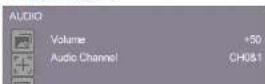
2-2-5. AUDIO
- VGA, VIDEO mode -

- SDI mode -
- HDMI mode -

PROFESSIONAL VIDEO MONITOR
audio is in danger of clipping.
- Audio Channel -
The monitor can receive 16 channels audio from SDI signal. The audio channel can be changed among [CH0&CH1], [CH2&CH3], [CH4&CH5], [CH6&CH7], [CH8&CH9], [CH10&CH11], [CH12&CH13], [CH14&CH15]
2-2-6. SYSTEM
| SYSTM | |
| Language | English |
| OSD Timer | 10s |
| OSD Transparency | Low |
| Image Flip | Off |
| Auto Backlight | Off |
| Back Light | +100 |
| FN Configuration | Level Meter |
| Reset | Off |
| System | Language | English, 中文 |
| OSD Timer | 10s, 20s, 30s | |
| OSD Transparency | Off, low, Middle, High | |
| Image Flip | Off, H, V, H&V | |
| Auto Backlight | Off, ON | |
| Back Light | 0 - 100 |
PROFESSIONAL VIDEO MONITOR

Original

v

H

H/V
- Auto Backlight-
Select On, the Auto Backlight function can be automatically adjusted according to the ambient brightness.
- Back Light -
Adjusts the level of the back light level from [0]-[100]. If the back light value is increased, the screen becomes brighter.
- F1 Configuration -
Select "F1 Configuration" for setting. Functions: [Level Meter] → [Center Marker] → [Aspect Marker] → [Check Field] → [Display Scan] → [Scan] → [Aspect] → [Freeze] → [HDR].
Default function: [Level Meter]
- Reset -
If there is any problem unknown, press to confirm after selected. The monitor will return to default settings.
PROFESSIONAL VIDEO MONITOR
- Parameter
| Display | Display Screen 21.5" LCD | |
| Physical Resolution 1920×1080 | ||
| Aspect Ratio 16:9 | ||
| Brightness 1000 cd/m3 | ||
| Contrast 1000: 1 | ||
| Viewing Angle 160°/ 160°(H/V) | ||
| Power | Input Voltage | DC12-24V |
| Power Consumption ≤30W | ||
| Source | Input HDMI1.4 x1 | |
| 3G-SDI Level A/B | 1080p(60/59.94/50/30/29.97/25/24/23.98/24sf/30sf/29.97sf/25sf/23.98sf)1080i(60/59.94/50) | |
| HD-SDI | 1080p(30/29.97/25/24/23.98/30sf/29.97sf/25sf/24sf/23.98sf)1080i(60/59.94/50)720p(60/59.94/50/30/29.97/25/24/23.98) | |
PROFESSIONAL VIDEO MONITOR
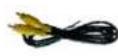
4. Accessories

1

2

3
4

5

6
1 piece
1 piece
1 piece
1 piece
1 piece
1 pair
5. Trouble Shooting
PROFESSIONAL VIDEO MONITOR
7. Image Ghosting:
If continue to display the same image or words on the screen for a long period of time, part of that image or words may burn into the screen and leave a ghosting image behind. Please understand it's not quality issue but the character of some screen, so no warranty/return/exchange for such situation.
8. Some options cannot be select in the Menu:
Some options are available only in a certain signal mode, such HDMI, SDI or VGA. Some options are available only when a certain feature is turned on. For example, Zoom function shall be set after following steps: [Menu] → [Function] → [Scan] → [Zoom] → [Exit] → [FN] → [Zoom].
Note: Due to constant effort to improve products and product features, specifications may change without priority notice.


- PROFESSIONAL VIDEO MONITOR
- Important Safety Instructions
- Safety Disposal For Old Electronic Equipment
- Introduction
- Features
- CONTENTS
- Production Description
- Front Panel
- Rear Panel
- Supported Mounting Ways
- Menu Settings
- 2-1. Shortcut Button
- 2-1-1. Menu /▷/◀Button
- 2-1-2. FN Button
- 2-2. Menu Operation
- 2-2-1. PICTURE
- 2-2-2. MARKER
- 2-2-3. FUNCTION
- FUNCTION
- 2-2-5. AUDIO
- 2-2-6. SYSTEM
- Accessories
- Trouble Shooting
- Image Ghosting:
- Some options cannot be select in the Menu:
Brand : ViewZ
Model : VZ-215LED-HDR
Category : Loudspeaker