
VZ-315PM-12G - Loudspeaker ViewZ - Free user manual and instructions
Find the device manual for free VZ-315PM-12G ViewZ in PDF.


| Product Type | 12G-SDI Production / Broadcast Monitor |
| Brand | ViewZ |
| Model | VZ-315PM-12G |
| Panel Size | 31.5 inches |
| Resolution | 3840 x 2160 (4K UHD) |
| Luminance (White) | 350 cd/m² |
| Contrast Ratio | 1300:1 |
| Viewing Angle | 178° / 178° (H/V) |
| Input Connectors | 12G-SDI x2, 3G-SDI x2, HDMI 2.0, GPI, RS422, LAN, USB, SFP |
| Output Connectors | 12G-SDI x2, 3G-SDI x2, HDMI 2.0, RS422, Earphone jack |
| Power Requirements | DC 12-24V |
| Power Consumption | ≤65W |
| Operating Temperature | 0~40°C |
| Storage Temperature | -20~60°C |
| Dimensions (L x W x D) | 717.5 x 454.7 x 47.4 mm |
| Weight | Approx. 14.5 kg (estimated) |
| Accessories | 15V/4A DC Adapter, VESA Mount Plate Bracket, V-mount (or Anton Bauer Mount) |
| Safety | Do not place display screen towards ground; avoid heavy impact or drop. |
| Maintenance | Clean with soft cloth; use standard power adapter only. |
| Spare Parts / Repairability | Contact ViewZ support for spare parts; 3D LUT loading via USB. |
Frequently Asked Questions - VZ-315PM-12G ViewZ
User questions about VZ-315PM-12G ViewZ
0 question about this device. Answer the ones you know or ask your own.
Ask a new question about this device
Download the instructions for your Loudspeaker in PDF format for free! Find your manual VZ-315PM-12G - ViewZ and take your electronic device back in hand. On this page are published all the documents necessary for the use of your device. VZ-315PM-12G by ViewZ.
USER MANUAL VZ-315PM-12G ViewZ
12G-SDI Production / Broadcast Monitor
User Manual
VZ-156PM-12G, VZ-238PM-12G,
VZ-315PM-12G

12G-SDI Production Monitor
ViewZ®
VZ-156PM-12G, VZ-238PM-12G, VZ-315PM-12G
Contents
Important Safety Instructions:....2
Precaution: 2
- Main Features ....3
- Production Description....5
2.1 Front Panel 5
2.2 Rear Panel....6
- Menu Setting....10
3.1 Shortcut keys .... 10
3.2 MENU Operations....11
12G-SDI Production Monitor
ViewZ®
VZ-156PM-12G, VZ-238PM-12G, VZ-315PM-12G
Important Safety Instructions:
- Please read User Guide before using this product.
- Please keep User Guide for future reference.
- Please read the precaution to prevent possible danger and loss of property.
Precaution:
- Please do not place the display screen towards the ground.
- Please avoid heavy impact or drop onto the ground
12G-SDI Production Monitor
ViewZ®
VZ-156PM-12G, VZ-238PM-12G, VZ-315PM-12G
1. Main Features
- Support standard 12G-SDI input interface (x2), 3G-SDI input interface (x2), and support Single-Link, Dual-Link and Quad-Link signals.
● Support HDMI 2.0/1.4 inputs and loop outputs.
● Support SFP input, optical module for optional. - Input signals support up to 3840x2160 3840x2160 60/59.94/50/30/29.97/25/24/23.98p and 4096x2160 60/59.94/50/48/47.95/30/29.97/25/24/23.98p; Signal Loo pout.
● 12 bits data processing and 12 bits data buffering
● Monitor control via GPI/ RS422/ LAN. - Customized Menu Knob.
● Support customized various waveform mode: Waveform/ Vector/ Histogram/ Audio Vector/ Level Meter.
● HDR (High Dynamic Range) display supporting ST 2084/ Hybrid Log Gamma. - Custom 3D LUT file load through USB.
● Gamut supporting SMPTF-C/ Rec709/ FBU.
12G-SDI Production Monitor
ViewZ®
VZ-156PM-12G, VZ-238PM-12G, VZ-315PM-12G
● Color Bar Mode: Rec601/ Rec709/ BT2020.
- Check Field: Red/ Green/ Blue/ Mono.
- Zoom at any position and at different scale.
● Peaking (Red/ Green/ Blue/ White/ Black).
● Tally (Red/ Green/ Yellow).
12G-SDI Production Monitor
ViewZ®
VZ-156PM-12G, VZ-238PM-12G, VZ-315PM-12G
2. Production Description
2.1 Front Panel

1) Earphone Jack
12G-SDI Production Monitor
ViewZ®
VZ-156PM-12G, VZ-238PM-12G, VZ-315PM-12G
- [F2]: Level Meter
- [F4]: Color Space
6) Exit Button
7) Menu Knob
8) TALLY (indicator light)
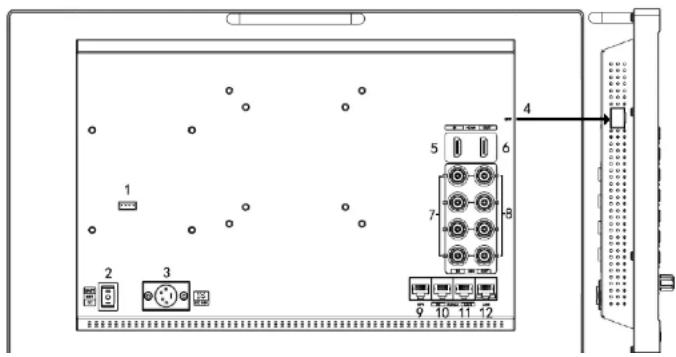
2.2 Rear Panel
2.2.1 Interfaces
12G-SDI Production Monitor
ViewZ®
VZ-156PM-12G, VZ-238PM-12G, VZ-315PM-12G
- 3G-SDI Input *2
8) SDI Output
- 12G-SDI Output *2
- 3G-SDI Output *2
9) GPI Input (RJ45, 8-pin): See Page22 GPI 1-8.
10) RS422 Input (RJ45, 8-pin): Supporting the default and TSL V3.1 protocols to control Monitor.
Follow this instructions about this port.
| PIN Number Instruction | |
| PIN 1 Y | |
| PIN 2 Z | |
| PIN 3 A | |
| PIN 4 NC | |
| PIN 5 NC |
12G-SDI Production Monitor
ViewZ®
VZ-156PM-12G, VZ-238PM-12G, VZ-315PM-12G
2.2.2 Standard VESA

- Standard 75mm*75mm is used for external battery (V-mount/ Anton Bauer mount battery).
- Standard 75mm*75mm and 100mm*100mm, can be used for external hanging bracket.
12G-SDI Production Monitor
ViewZ®
VZ-156PM-12G, VZ-238PM-12G, VZ-315PM-12G
L130AB type battery.


GP-L130AB
- Optional Anton Bauer battery plate. Referring to the following pictures for installation process and GP-L130B type battery.


12G-SDI Production Monitor
ViewZ®
VZ-156PM-12G, VZ-238PM-12G, VZ-315PM-12G
3. Menu Setting
Before setting the functions, please make sure the device is connected correctly.
3.1 Shortcut keys
3.1.1 Menu Knob
- Power on the monitor, press Menu Knob to display OSD, and select options as the following sequence via rotating it: PICTURE/ MARKER/ FUNCTION/ WAVEFORM/ AUDIO/ REMOTE/ SYSTEM.
- Press Menu Knob to enter the desired function, rotate it to change the value/ option, and press Menu Knob or Exit again to confirm the changes.
- Functions of Menu Knob can be customized: [Back Light], [Brightness], [Contrast], [Saturation], [Tint], [Sharpness], [Volume], [Peaking Level]. After setting the Knob's customized function, rotating it can display the function, and rotating it again can adjust the value. Press it to switch to the next option in turn. Default option: [Volume].
3.1.2 F1-F2-F3-F4 Buttons:
● Long press any F1-F2-F3-F4 buttons for 3-5 seconds to pop up shortcut menu on

12G-SDI Production Monitor
ViewZ®
VZ-156PM-12G, VZ-238PM-12G, VZ-315PM-12G
3.2 MENU Operations
3.2.1 PICTURE
SDI Mode
HDMI Mode
PICTURE
| Brightness | 50 |
| Contrast | 50 |
| Saturation | 50 |
| Tint | 50 |
| Sharpness | 0 |
| Color Space | DCI-P3 |
| Camera Log | Off |
| Def. Log | SLog2T oLC-709▼▲ |
PICTURE
| Brightness | 50 | |
| Contrast | 50 | |
| Saturation | 50 | |
| Tint | 50 | |
| Sharpness | 0 | |
| RGB Range | Limited | |
| HDMI EDID | 4K | |
| Color Space | DCI-P3 | |
| HDMI | ||
- Brightness
Control the degree of brightness between 0-100.
- Contrast
12G-SDI Production Monitor
ViewZ®
VZ-156PM-12G, VZ-238PM-12G, VZ-315PM-12G
RGB Range
Use this item to choose the RGB range of the HDMI input: [Full], [Limited].
HDMI EDID
Select the HDMI EDID from between [4K] and [2K]. This item enables PC or other devices to recognize the property of this monitor and makes the images look excellent on the screen.
- Color Space
Select the display gamut from among [Native], [SMPTE-C], [Rec709], [EBU].
- Camera Log
Use this item to choose one of the camera Log modes:
- [Off]: Turn off Camera Log.
- [Def. Log]: Use this item to choose one of the Camera Log modes as the following sequence: [SLog2ToLC-709], [SLog2ToLC-709TA], [SLog2ToSLog2-709], [SLog2ToCine+709], [SLog3ToLC-709], [SLog3ToLC-709TA], [SLog3ToSLog2-709], [SLog3ToCine+709], [ArriLogCTo709], [ArriLogCToP3DCI], [CLogToV709], [VLogToV709], [JLog To709], [JLogTo709HLG], [JLogTo709PQ], [Z7 NLogTo709], [D780 NLog To709].
12G-SDI Production Monitor
ViewZ®
VZ-156PM-12G, VZ-238PM-12G, VZ-315PM-12G
The User Log must be named with. cube in the suffix. Please note: the device only supports the format
of User Log: 17x17x17 / 33x33x33; Data order is BGR; Table order is BGR. If the format does not meet
the requirement, please use tool "Lut Tool.exe" to transform it. Naming the User Log as User1-
User6.cube, then copy the user Log into USB flash disk. Insert the USB flash disk to the device, the
User Log is saved to the device automatically at the first time. If the User Log is not loaded for the first
time, the device will pop up a prompt message, please choose whether to update or not.
- Gamma
Use this item to choose the display Gamma: [Off], [1.8], [2.0], [2.2], [2.35], [2.4], [2.6], [2.8].

Gamma 1.8

Gamma 2.8
Note: Gamma mode can be only activated while HDR function closed.
HDR
12G-SDI Production Monitor
ViewZ®
VZ-156PM-12G, VZ-238PM-12G, VZ-315PM-12G
R/G/B Gain
Adjust the R/G/B Gain of the current Color Temperature from 0 to 255. Default value: 128.
R/G/B Offset
Adjust the R/G/B Offset of the current Color Temperature from 0 to 511. Default value: 256.
3.2.2 MARKER

- Center Marker
12G-SDI Production Monitor
ViewZ®
VZ-156PM-12G, VZ-238PM-12G, VZ-315PM-12G
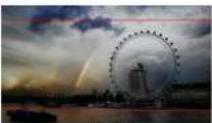
2:35:1

2.0X
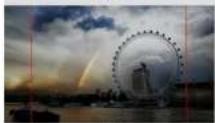
4:3

Grid
- Safety Marker
- Select [Off] not to display the safety marker. When this item is used with the aspect marker, it is only in aspect marker. When [Aspect Marker] is selected as [User], the safety marker does not be changed.
- Select the size of the safety markers: [95%], [93%], [90%], [88%], [85%], [80%].
Note: When [Aspect Marker] is selected as [Grid], the safety marker cannot be displayed.
Marker Color
Select the color of marker displayed on the screen: [Red], [Green], [Blue], [White], [Black].
- Aspect Mat.
12G-SDI Production Monitor
ViewZ®
VZ-156PM-12G, VZ-238PM-12G, VZ-315PM-12G
H1/H2: Adjust the position of vertical markers from 1 to 3840 (Step value is 1).
V1/V2: Adjust the position of horizontal markers from 1 to 2160 (Step value is 1).
Note: User maker only in [Aspect Maker]- [User] mode available.
3.2.3 FUNCTION
FUNCTION
| FN |
Scan Aspect
Aspect Full
Overscan Off
H/V Delay Off
Check Field Off
Zoumin 5479
Freeze Off
SD12
- Scan
Adjust the scan mode among [Aspect], [Pixel To Pixel], [Zoom].
12G-SDI Production Monitor
ViewZ®
VZ-156PM-12G, VZ-238PM-12G, VZ-315PM-12G

2.0X

2.0X MAG

2.35:1

1.85:1

3:2

4:3
- Overscan
Use this item to activate or deactivate overscan.
H/V Delay
Select one of the H/V modes: [OFF], [H], [V], [H/V]. When H/V Delay on, the blanking portions of the input signal will be displayed horizontally and vertically.
- Check Field
Select one of check field modes: [Off], [Red], [Green], [Blue], [Mono].

12G-SDI Production Monitor
ViewZ®
VZ-156PM-12G, VZ-238PM-12G, VZ-315PM-12G
- Freeze
Choose [On] to capture one frame of current image on the screen, and choose [Off] to close freeze function.
3.2.4 WAVEFORM

- Waveform
Use this item to activate or deactivate Waveform. Select the waveform mode from among [Multi], [Y], [YCbCr], [RGB].
- [Multi]: Display waveform, histogram, audio vector, vector, and level meter simultaneously.
12G-SDI Production Monitor
ViewZ®
VZ-156PM-12G, VZ-238PM-12G, VZ-315PM-12G

Multi

Y
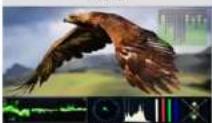
YCbCr

RGB
- Vector
Use this item to activate or deactivate Vector.
- Transparency
Adjustment of transparency can support waveform, vector, histogram, audio vector, level meter. Transparency can be selected from among [off], [25%], and [50%].
- [Off] : The background of waveform is shown at black.
- [25%]: The background of waveform is shown at 25% intensity.
- [50%]: The background of waveform is shown at 50% intensity.
12G-SDI Production Monitor
ViewZ®
VZ-156PM-12G, VZ-238PM-12G, VZ-315PM-12G

Red

Green

Blue

White
- Peaking Level
Use this item to adjust the level of peaking from 1-100. The higher peaking level is, the more obvious peaking effect is.
- False Color
Use this item to activate or deactivate the false color function.
When activated, [Default], [Spectrum], [ARRI], [RED] are for optional.
12G-SDI Production Monitor
ViewZ®
VZ-156PM-12G, VZ-238PM-12G, VZ-315PM-12G
- Exposure
Use this item to activate or deactivate the exposure function.
When activated, exposure works if the input signal exceeds the designated exposure level.
- Exposure Level
Use this item to adjust the level of exposure between 50-100 IRE.

- Histogram
Use this item to activate or deactivate histogram. When activated. [Y]. [RGB]. [Color] are for optional.
12G-SDI Production Monitor
ViewZ®
VZ-156PM-12G, VZ-238PM-12G, VZ-315PM-12G
Time Code
Use this item to activate or deactivate the Time Code. When activated, [LTC], [VITC] are for optional.
Note: Time code is only available under SDI mode.
3.2.5 AUDIO
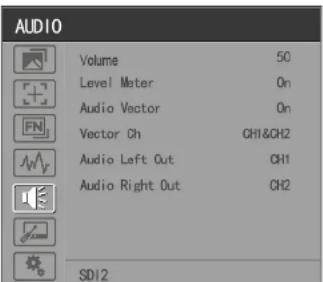
Volume
Adjust the volume among 0-100.
12G-SDI Production Monitor
ViewZ®
VZ-156PM-12G, VZ-238PM-12G, VZ-315PM-12G
- Audio Vector
Select whether to activate or deactivate audio vector. Audio phase can be monitored by the audio vector.
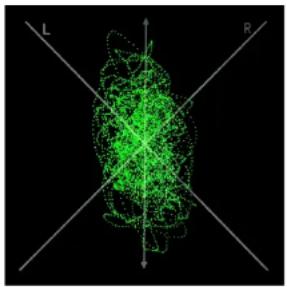
- Vector Ch.
In HDMI mode, select the vector channels from among [Ch1&Ch2], [Ch3&Ch4], [Ch5&Ch6], and [Ch7&Ch8].
In SDI mode, select the Vector Channels from among [Ch1&Ch2], [Ch3&Ch4], [Ch5&Ch6], [Ch7&Ch8], [Ch9&Ch10], [Ch11&Ch12], [Ch13&Ch14], and [Ch15&Ch16].
12G-SDI Production Monitor
ViewZ®
VZ-156PM-12G, VZ-238PM-12G, VZ-315PM-12G
3.2.6 REMOTE
REMOTE


DHCP Off
IP Address 3.3.3.0
Sub. Mask 0.0.0.0
Gateway 0.0.0.0
RS Type Default
RS ID 115
Baud Rate 38400
UMD Text Color Green
VII
DHCP
- [On]: The monitor will automatically get an IP address from network for remote control via various programs.
- [Off]: Manually configure IP address.
IP Address
Manually configure IP address: xxx.xxx.xxx.xxx
Note: When [DHCP] on. IP address cannot be manually set.
12G-SDI Production Monitor
ViewZ®
VZ-156PM-12G, VZ-238PM-12G, VZ-315PM-12G
Default software connection as below,

• RS ID
Set the ID of RS422 communication. The valid address range is between 1-126.
Note: ID must be unique in a RS422 network.
- Baud Rate
12G-SDI Production Monitor
ViewZ®
VZ-156PM-12G, VZ-238PM-12G, VZ-315PM-12G
| 2 2 | HDMICenter Marker16:9 Marker/ 1.85:1 Marker/ 2.35:1 Marker/ 4:3Marker/ 3:2 Marker/ 2.0X Marker/ 2.0X MAGMarker/ GridSA 95%/ SA 93%/ SA 90%/ SA 88%/ SA 85%/ SA 80%Pixel To PixelBlue OnlyH/V DelayPeakingFalse ColorExposureMuteLevel MeterAudio VectorTally Red/ Tally Green | |
| 3 3 | ||
| 4 4 | ||
| 5 5 | ||
| 6 6 | ||
| 7 7 Power |
12G-SDI Production Monitor
ViewZ®
VZ-156PM-12G, VZ-238PM-12G, VZ-315PM-12G
3.2.7. SYSTEM
SYSTEM

| Language | English |
| SFP | Off |
| Color Bar | Off |
| Color Bar Mode | BT2020 |
| OSD Timer | 10s |
| OSD Transparency | Off |
| OSD H Position | 50 |
| OSD V Position | 50 |
| ▼▲ |
- Language
Option: [Chinese], [English].
● SFP
Option: [On], [Off].
When the SFP on, SFP signal input can be selected via SDI-Single button on the front panel.
- Color Bar
12G-SDI Production Monitor
ViewZ®
VZ-156PM-12G, VZ-238PM-12G, VZ-315PM-12G
- OSD V Position
Option: 0-100. Default: 50.
- Info. Windows
Option: [Off], [Standard], [Full]. Default: [Off].
- [Standard]: It supports UMD display. As show in the picture below,

- [Full]: it can support signal input. UMD and internal temperature display. As shown in the
12G-SDI Production Monitor
ViewZ®
VZ-156PM-12G, VZ-238PM-12G, VZ-315PM-12G
- UMD feature in the info. windows:
Support user UMD input data on screen, ASCII: 0x20\~0x7e
Support display up to 16 characters that are input by TSL protocol V3.1 on the screen.
● Info. Windows transparency
Select to turn on/off info. Windows transparency, option: [Off], [25%], [50%]. Default: [Off].
● Info. Windows H/V Position
The option range: 0-100.
Note: When [Info. Window] is selected as [Standard], its position can be adjusted freely. When [Info.
Window] is selected as [Full], its vertical position can be adjusted freely.
● Fan
Option: [Auto], [On], [Off]. Default: [Auto].
- [Auto]: The monitor will automatically turn on/off the fan according to the setting value of fan auto temp.
- Knob
12G-SDI Production Monitor
ViewZ®
VZ-156PM-12G, VZ-238PM-12G, VZ-315PM-12G
software to calibrate the color (See the document "CMS Color Calibration Process" for details).
- It will generate a document "Rec709.cube" after calibrated, then copy this document to USB flash disk.
- Insert the USB flash disk to the device and save the document. This document "Rec709.cube" will be found under Color Space Option.
- Comparison En
Use this setting to activate or deactivate the Comparison En function.
When activated, the screen displays the comparison of Original image and customized image, as shown,

12G-SDI Production Monitor
ViewZ®
VZ-156PM-12G, VZ-238PM-12G, VZ-315PM-12G
- Product Parameters
| Panel Size 15.6" | 23.8 " | 31.5 " | |
| Resolution | 3840×2160 | 3840*2160 | 3840×2160 |
| Luminance of white | 330 cd/m2 | 300cd/m2 | 350cd/m2 |
| Contrast Ratio | 1000:1. | 1000:1 | 1300: 1 |
| Viewing Angle 176°/176°(H/V) | 178°/178°(H/V) | 178°/178°(H/V) | |
| Input Connector | 12G-SDI*2, 3G-SDI*2, HDMI 2.0, GPI, RS422, LAN, USB,SFP | ||
| Output Connector | 12G-SDI*2, 3G-SDI*2, HDMI 2.0, RS422, Earphone jack | ||
| Power Requirements | DC 12-24V | DC 12-24V | DC 12-24V |
| Power Consumption | ≤32.5W | ≤54W | ≤65W |
| Operating Temperature | 0~40°C | 0~40°C | 0~40°C |
| Storage Temperature -20~60°C | -20~60°C | -20~60°C | |
| Dimensions (LWD) | 393×267×51.4mm | 567×376.4×45.7mm | 717.5×454.7×47.4mm |
12G-SDI Production Monitor
ViewZ®
VZ-156PM-12G, VZ-238PM-12G, VZ-315PM-12G
- Accessories
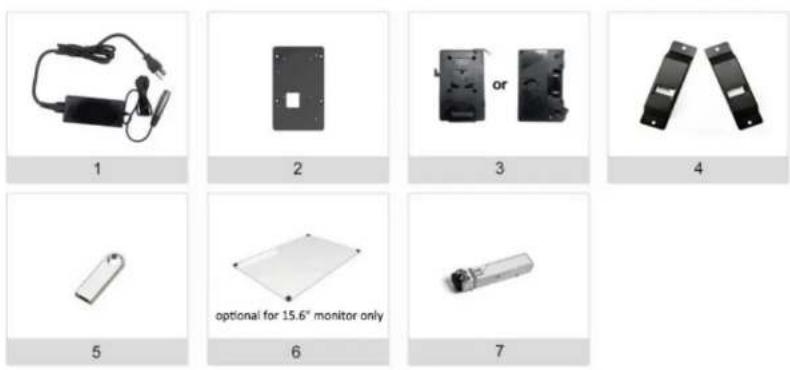
- Standard:
1) 15V/4A DC Adapter 1pc
2) VESA Mount Plate Bracket 1pc
3) V-mount (or Anton Bauer Mount) 10c
12G-SDI Production Monitor
ViewZ®
VZ-156PM-12G, VZ-238PM-12G, VZ-315PM-12G
6. Trouble Shooting
1) Only black-and-white display:
Check whether the color saturation is properly setup or not.
2) Power on but no pictures:
Check whether the cables of SDI and HDMI are correctly connected or not. Please use the standard power adapter coming with the product package. Improper power input may cause damage.
3) Wrong or abnormal colors:
Check whether the cables are correctly and properly connected or not. Broken or loose pins of the cables may cause a bad connection.
4) When on the picture shows size error:
Press "MENU → FUNCTION → Overscan" to zoom in/out pictures automatically when receiving HDMI signals.
5) Other problems:
Please press "MENU" button and choose "MENU→SYSTEM→Reset→On".
12G-SDI Production Monitor
ViewZ®
VZ-156PM-12G, VZ-238PM-12G, VZ-315PM-12G
Appendix 1: 3D LUT Loading
3D LUT supports upload color calibration document and User Log via USB flash disk.
- Format Requirement
● LUT format
Type: .cube
3D Size: 17x17x17/33x33x33
Data Order: BGR
Table Order: BGR
- USB flash disk version
USB: 2.0
System: FAT32
Size: <16G
● LUT formatColor calibration document: Rec709. cube
12G-SDI Production Monitor
ViewZ®
VZ-156PM-12G, VZ-238PM-12G, VZ-315PM-12G
● LUT Format conversion
The format of LUT should be transformed if it doesn't meet ViewZ's requirement. It can be transformed by using LightSpace CMS or ViewZ LUT Tool.exe.
● LightSpace CMS software user demo
- Activate LightSpace CMS software.
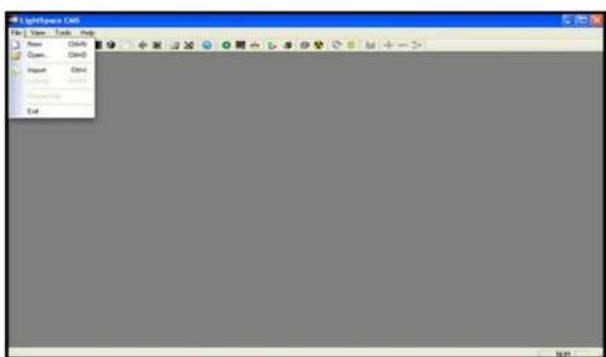
12G-SDI Production Monitor
ViewZ®
VZ-156PM-12G, VZ-238PM-12G, VZ-315PM-12G
- ViewZ software user demo
- Activate LUT Tool.exe.

- Click Input File, then select *LUT.

12G-SDI Production Monitor
ViewZ®
VZ-156PM-12G, VZ-238PM-12G, VZ-315PM-12G

- Click Generate Lut button to finish.
- USB Loading
Copy the needed files to the root directory of the USB flash disk. Plug the USB flash disk into USB port of the device after power on. Click "Yes" on the non-up prompt window (If the device doesn't non-up the prompt
12G-SDI Production Monitor
ViewZ®
VZ-156PM-12G, VZ-238PM-12G, VZ-315PM-12G
Appendix 2: Remote Terminal Instructions
Remotely control the device by Remote Terminal application.
Home Screen
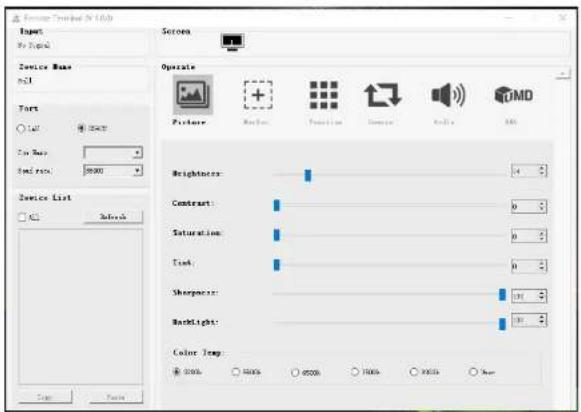
Picture: The home screen of the application
- Input: Display the signal format of the connected device. For example, there is "No Signal" when
12G-SDI Production Monitor
ViewZ®
VZ-156PM-12G, VZ-238PM-12G, VZ-315PM-12G
- Function
- Port Selection: Select the specific connection port according to the device interface and click "LAN" or "RS422" to switch. When RS422 selected, it needs to further set the COM name and baud rate. For baud rate, it needs to be adapted to the baud rate of the connected device.
- Device Search: Click "Refresh" button to search devices after configuring the port. There are all of the found devices in the device list after a successful search.
- Screen Choice: The "Screen" shows the number of the screens for the current device. For the device with multiple screens, use left mouse button to click the screen icon to select the corresponding screen for operation; use right mouse button to click the screen icon to copy the screen.
● Device Control: Click the icons of [Picture], [Marker], [Function], [Source], [Audio] and [UMD] to switch the control page of the corresponding function. - Activate "All": Simultaneously control all of the devices in the device list if there is two or more devices with the same model after activating "All".
● Device Copy Function: If there are two or more devices with the same model in the device list,


- USER MANUAL
- 12G-SDI PRODUCTION MONITOR
- VIEWZ®
- VZ-156PM-12G, VZ-238PM-12G, VZ-315PM-12G
- CONTENTS
- IMPORTANT SAFETY INSTRUCTIONS
- PRECAUTION
- MAIN FEATURES
- PRODUCTION DESCRIPTION
- 2.1 FRONT PANEL
- 2.2 REAR PANEL
- 2.2.1 INTERFACES
- 2.2.2 STANDARD VESA
- MENU SETTING
- 3.1 SHORTCUT KEYS
- 3.1.1 MENU KNOB
- 3.1.2 F1-F2-F3-F4 BUTTONS
- 3.2 MENU OPERATIONS
- 3.2.1 PICTURE
- RGB RANGE
- HDMI EDID
- COLOR SPACE
- CAMERA LOG
- GAMMA
- HDR
- 3.2.2 MARKER
- SAFETY MARKER
- MARKER COLOR
- ASPECT MAT
- 3.2.3 FUNCTION
- SCAN
- FREEZE
- 3.2.4 WAVEFORM
- WAVEFORM
- PEAKING LEVEL
- FALSE COLOR
- TIME CODE
- 3.2.5 AUDIO
- VOLUME
- AUDIO VECTOR
- VECTOR CH
- 3.2.6 REMOTE
- REMOTE
- DHCP
- IP ADDRESS
- SYSTEM
- ● INFO. WINDOWS TRANSPARENCY
- ● INFO. WINDOWS H/V POSITION
- ● FAN
- KNOB
- COMPARISON EN
- STANDARD
- TROUBLE SHOOTING
- APPENDIX 1: 3D LUT LOADING
- FORMAT REQUIREMENT
- ● LUT FORMAT CONVERSION
- USB LOADING
- APPENDIX 2: REMOTE TERMINAL INSTRUCTIONS
- HOME SCREEN
- FUNCTION
Brand : ViewZ
Model : VZ-315PM-12G
Category : Loudspeaker