Multi Editor Essential - Musical instrument YAMAHA - Free user manual and instructions
Find the device manual for free Multi Editor Essential YAMAHA in PDF.


User questions about Multi Editor Essential YAMAHA
0 question about this device. Answer the ones you know or ask your own.
Ask a new question about this device
Download the instructions for your Musical instrument in PDF format for free! Find your manual Multi Editor Essential - YAMAHA and take your electronic device back in hand. On this page are published all the documents necessary for the use of your device. Multi Editor Essential by YAMAHA.
USER MANUAL Multi Editor Essential YAMAHA
Multi Editor Essential Owner's Manual
- Copying of the commercially available music sequence data and/or digital audio files is strictly prohibited except for your personal use.
- The software and this owner's manual are exclusive copyrights of Yamaha Corporation.
-
Copying of the software or reproduction of this manual in whole or in part by any means is expressly forbidden without the written consent of the manufacturer.
-
Yamaha makes no representations or warranties with regard to the use of the software and documentation and cannot be held responsible for the results of the use of this manual and the software.
- The screen displays as illustrated in this Owner's Manual are for instructional purposes, and may appear somewhat different from the screens which appear on your device.
• Apple, iPad are trademarks of Apple Inc., registered in the U.S. and other countries - The company names and product names in this Owner's Manual are the trademarks or registered trademarks of their respective companies
© 2011-2013 Yamaha Corporation. All rights reserved.
For information about the MIDI settings of the MOTIF XF, MOTIF XS, S30 XS/S70 XS, MOXF6/MOXFB, MOX6/MOX8, and MOTIF-RACK XS refer to the respective manuals.
What is Multi Editor Essential?
This application lets you edit the Mixer/Effect/EQ parameters in the Song/Pattern or Multi mode of the MOTIF XF, MOTIF XS, S90 XS/S70 XS, MOXF6/MOXF8, MOX6/MOX8, MOTIF-RACK XS from your iPad. Select a Song, Pattern or Multi on the instrument, edit the Mixing parameters of the selected Voice on the iPad, then store the edited Mixing parameters as a Song, Pattern or Multi on the instrument.
Multi Editor Essential

text_image
Utility window For setting the parameters common to all the displays. EFFECT display MEQ display MIXER display Chorus display Reverb display Master Effect display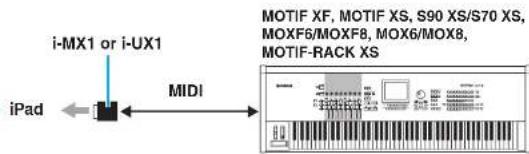
text_image
i-MX1 or i-UX1 MIDI iPad MOTIF XF, MOTIF XS, S90 XS/S70 XS, MOXF6/MOXF8, MOX6/MOX8, MOTIF-RACK XSBy using a Yamaha i MX1 or i UX1, connect the instrument to an iPad.
The MOTIF XF can be connected via wireless Network MIDI
For details about wireless MIDI connectivity, refer to the *New Functions in
MOTIF XF Version 1.20" Manual
NOTE
• Before editing, enter the Song, Pattern or Multi mode.
- After editing, store the advection options on a Cross-Donation or Multi
Title bar and Utility window
This window lets you set the parameters common to all the displays.

text_image
Title bar Utility window Determines the connection method between the iPad and MIDI instrument. cable: Should be selected when connected via the i-MX1 or i-UX1. wireless: Should be selected when connected via wireless Network MIDI. NOTE When set to "wireless," make the Wi-Fi setup in Settings > Wi-Fi in your iPad. Determines the Fader behavior. jump: The Fader jumps to any tapped location in the Fader area. catch: The Fader will be "caught" as you drag on it. When set to on, tapping [RECEIVE] calls up a confirmation message. *What is a Template? Each of the Templates includes the settings of all the displays, meaning that you can call up all the Effect Device Number all > MIDI Type cable wireless Wireless MIDI Port > Model Select MOTIF XF > Knob Operation rotary linear Fader Operation jump catch Auto Transmit OFF Receive Confirm ON Manual > Restore default settings Each lamp flashes according to the MIDI in/out messages. Tapping this opens or closes the Utility window. Set this to the same number as that of the instrument. Selects the MIDI port of the instrument in case of wireless connection. Selects the connected instrument. Determines the knob behavior. rotary: Dragging around the knob will rotate it in the same direction. linear: Dragging vertically upward from the knob rotates the knob clockwise, and dragging downward rotates counter-clockwise. When set to on, selecting a Template* transmits the corresponding settings via MIDI. Tapping this calls up the Owner's Manual. Tapping here initializes all the settings.MIXER display
Tapping [RECEIVE] starts reception of the settings from the instrument. Tapping [TRANSMIT] starts transmission of the current settings to the instrument.
Tapping this icon calls up the onscreen keyboard for renaming the Template.
Select the parameter controlled via the Faders.
Select the target Parts for the eight Faders.

text_image
YAMAHA RECEIVE TRANSMIT 1 Initialized Setup MO 1 Initialized Setup 2 Initialized Setup 3 Initialized Setup 4 Initialized Setup 5 Initialized Setup 6 Initialized Setup 7 Initialized Setup 8 Initialized Setup 9 Initialized Setup 10 Initialized Setup 11 Initialized Setup 12 Initialized Setup SEQ TRANSPORT MIXER EFFECT MEO 100 100 100 VOLUME REV SEND CHO SEND 1-8 9-16Template list
Adjusts the Volume, Reverb Send, Chorus Send for each Part
Template Name
Selecting a Template calls up all the settings of all the displays. To change the Template, tap (+) or [-]. Or tap Template Name to call up the Template list, then tap the desired Template.
Tapping here alternately calls up the MIXER, EFFECT and MEQ displays
To adjust the Pan for each Part, drag around the knob or lap the value to call up the slider for adjusting.
SEQ TRANSPORT
1 Instantly returns to the beginning of the current Song.
NOTE
- It does not function on Pattern mode. - It does not function while MOX6/MOX8, MOXF6/MOXF8 playing Song or Pattern.
2 Tap to stop recording or playback. 3 Tap to start playback from the current
EFFECT display

text_image
YAMAHA 1 Initialized Setup + RECEIVE TRANSMIT TRANSIT MOTIF XF SEQ TRANSPORT MIXER EFFECT MCO Same as in the MIXER display. INSERTION SWITCH 1 2 3 4 5 6 7 8 9 10 11 12 13 14 15 16 A/D MASTER EFFECT ON Lets you set the Insertion Switch to on or off for each Part. Tapping here calls up the CHORUS display. CHORUS RETURN 96 PAN C To adjust each value, drag around the knob or tap the value to call up the slider then operate the slider. CHO TO REV C Tapping here calls up the REVERB display. REVERB RETURN 64 PAN CReverb/Chorus/Master Effect display
From these displays, you can make the Effect settings for the Song/Pattern or Multi currently selected on the instrument. This section covers the operations on these displays having the same design.

text_image
YAMAHA Chorus CATEGORY Chorus TYPE 0 Chorus Preset Basic Category TYPE Preset No Effect BACC Rewert SPX Full Fast Delay SPX Room Deep Chorus SPX Stage Mid Panger Crossover Delay Bright Phaser Tempo Circas Delay 1.0MHz Misc Tempo Delay Mono 0.8 Tempo Delay Stereo 0.6 Delay LR Delay LCR 0 ChorusTapping here returns the screen to the EFFECT display.
To select an Effect Type:
Tap [+]/-] in this area. Or tap the indicators in this area to call up the Effect list, tap the desired Category, tap the desired Type, then tap the desired Preset setting. After selecting, tap [Done] to close the Effect list.
Effect List

text_image
To edit the Effect parameter: Drag the slider of the desired parameter, or tap [+]/[-]. Dragging upward or downward will scroll through the parameters.To edit the Effect parameter:
Drag the slider of the desired parameter, or tap [+]/[-] .
Dragging upward or downward will scroll through the parameters.
MEQ display
Same as in the MIXER display.
To adjust the EQ parameters for each Band, tap the desired band at ① or ② to correspondingly change the Knob color, then operate the Knob, or tap the value to call up the slider for adjusting.

text_image
YAMAHA RECEIVE TRANSMIT 1 Initial Setting HIGH PRODUCTION PENSORS mOTIF XF SEQ TRANSPORT MIXER EFFECT MEQ HIGH FREQ INS 18k GAIN INT +12 0.7 Gain FrequencySelect the shape of the HIGH band from Shelving (left side) and Peaking (right side).
To edit the EQ setting, drag the dot with the color corresponding to that of the desired band (LOW, LOW MID, MID, HIGH MID or HIGH).
Select the shape of the LOW band from Shelving (left side) and Peaking (right side).