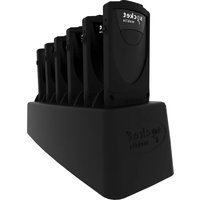
DuraScan D820 - Barcode Reader Socket Mobile - Free user manual and instructions
Find the device manual for free DuraScan D820 Socket Mobile in PDF.


| Product Type | Bluetooth Barcode Scanner |
| Model | Socket Mobile DuraScan D820 |
| Scanning Range | Approximately 4 to 8 inches (10 to 20 cm) |
| Battery Type | Rechargeable Lithium-Ion (pre-installed) |
| Charging Time | Up to 8 hours for full charge |
| Bluetooth Profiles | HID (Basic), SPP (App Mode), MFi-SPP (iOS App Mode) |
| Supported Operating Systems | iOS, Android, Windows, macOS |
| Default Mode | iOS Application Mode (MFi-SPP) |
| Indicators | Top LED (blue: Bluetooth status), Side LED (red/green: battery), Beeps (various tones), Vibrate |
| Cleaning Instructions | Wipe with cloth dampened with isopropyl alcohol or water, or use Sani-Cloth. Do not immerse in water or use bleach. |
| Operating Temperature | Maximum ambient 50°C (122°F) |
| Regulatory Compliance | FCC, IC, CE, RoHS, WEEE, TELEC (Japan) |
| Package Contents | DuraScan D820 scanner, DuraCase, Charging Dock (bundle), Insert Card |
| Optional Accessories | DuraCase Charging Adapter, DuraCase Charging Dock, 6-Bay Multi-Charger |
| Warranty | 1 year limited (consumables: 90 days) |
Frequently Asked Questions - DuraScan D820 Socket Mobile
User questions about DuraScan D820 Socket Mobile
0 question about this device. Answer the ones you know or ask your own.
Ask a new question about this device
Download the instructions for your Barcode Reader in PDF format for free! Find your manual DuraScan D820 - Socket Mobile and take your electronic device back in hand. On this page are published all the documents necessary for the use of your device. DuraScan D820 by Socket Mobile.
USER MANUAL DuraScan D820 Socket Mobile
natural_image
Black electronic device with 'socket mobile' branding on top, no visible text or symbols beyond the logo
TABLE OF CONTENTS
Package Contents 3
Optional Charging Accessories 3
Product Information 4
Charge the Battery 5
Scanning Barcodes 6
Bluetooth Connection Modes 7-8
How to setup your scanner:
Download our Companion App 9
Can't use Companion App?
How to setup your scanner in Basic Mode
Basic Mode 10
How to setup your scanner in Application Mode
Apple ^® 11
Android 12
Windows 13
Bluetooth Unpairing 14
Factory Reset 15
Restore Method 16
Status Indicators 17-19
Quick Programming 20-25
Helpful Resources 26
Battery Warning, Safety, Compliance, Warranty 27-38
PACKAGE CONTENTS
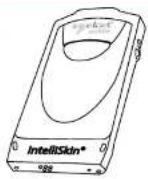
DuraScan ^® 800 Series
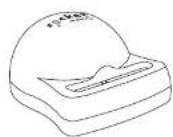
DuraCase
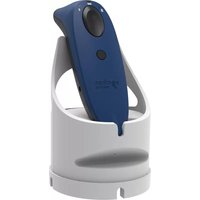
Charging Dock
(Available with bundle)

Insert Card
OPTIONAL CHARGING ACCESSORIES
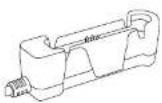
DuraCase Charging Adapter

DuraCase Charging Dock
DuraCase
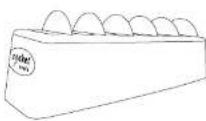
6 Multi-Bay Charger
Thank you for choosing Socket Mobile! Let's get started!
© 2022 Socket Mobile, Inc. All rights reserved. Socket®, the Socket Mobile logo, SocketScan®, DuraSied®, Socket Mobile DuraCase™ Battery Friendly® are registered trademarks or trademarks of Socket Mobile, Inc. Microsoft® is a registered trademark of Microsoft Corporation in the United States and other countries. Apple®, iPad®, iPad Air®, iPad min®, iPad Pro®, iPhone®, iPod touch®, Objective®, Soft®, and Xcode® are registered trademarks of Apple, Inc. registered in the U.S., and other countries. The Bluetooth® Technology word mark and logos are registered trademarks owned by the Bluetooth SIG, Inc. and any use of such marks by Socket Mobile, Inc. is under license. Other trademarks and trade names are those of their respective owners.
PRODUCT INFORMATION
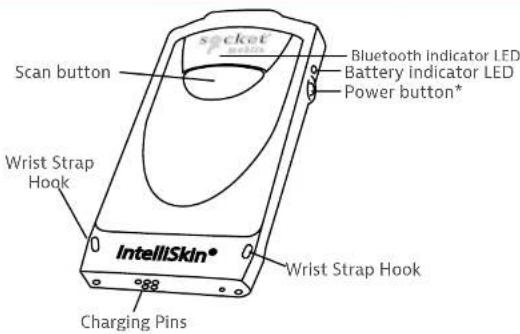
Socket Mobile's barcodes scanners can be wiped clean with a cloth dampened with isopropyl alcohol or water. Or, the barcode scanners can be wiped clean with a Sani-Cloth.
Warning: DO NOT IMMERSE IN WATER (scanner's mechanics could be damaged)
DO NOT USE BLEACH FOR CLEANING (scanner's material property may be affected)
*Also used to display the on-screen keyboard in Basic Mode (iOS only).
CHARGE THE BATTERY
- Insert scanner into Charging Dock, 6 Bay Charger or Charging Adapter. · Bundles available for Charging Dock and 6 Bay Charger.
- Insert USB or plug into wall port.
- The scanner will beep twice indicating adequate power is being supplied to the unit.

8 Hours
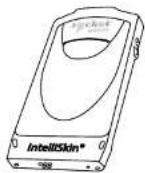
Side LED status
- Red = Charging
· Green = Fully charged
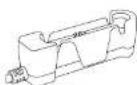
DuraCase Charging Adapter

DuraCase Charging Dock
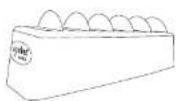
6 Bay Charger
Due to varying countries' outlets, the 6 Bay Charger power cords differ per region.
Note: The scanner comes with a pre-installed rechargeable Lithium Ion battery, the initial full charging of the battery can take up to 8 hours.
Power On
Press and hold down the small power button on the side until the scanner beeps twice (low-high tone).
SCANNING BARCODES
After connecting the scanner to your device, open an application. Place the cursor where you want to enter the scanned data.
- Hold the scanner a few inches from the barcode.
- Aim, press and hold the scan button.
By default, the scanner will beep, vibrate, and the side LED will flash green to confirm successful scan.

DuraScan D800 \~4" to 8" scanning distance
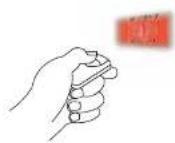
DuraScan D840 \~6" to 12" scanning distance
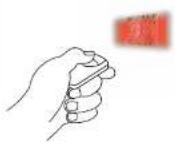
DuraScan D860 \~2" to 30" scanning distance
Bluetooth Connection Modes
Connect your barcode reader using one of the following Bluetooth connection modes:

Bluetooth Connection Profiles
| Bluetooth Mode Description | |
| iOS Application Mode* (Default)Use this mode with an Apple app designed for Socket Mobile barcode readers. | 1. Use with an App developed for iOS devices2. Software installation is required3. Mode to use for iOS applications that support Socket Mobile readers |
| Android/Windows Application ModeUse this mode with an Android app designed for Socket Mobile barcode readers. | 1. Software installation is required2. More efficient and reliable data communications for barcodes containing lots of data3. Mode recommended for applications supporting Socket Mobile readers |
| Basic Keyboard ModeConfigures the barcode reader to Human Interface Device (HID). | NO software installation neededConnects to most devicesGood for barcodes containing small amounts of dataBarcode reader interacts with host device like a keyboard |
*By default, the barcode reader is set to iOS Application Mode
BLUETOOTH CONNECTION MODES
Operating System Connection Options
| Operating Systems(OS) | Devices | Bluetooth HID Support | Bluetooth SPP Support | Bluetooth Apple Serial Specific(MFi Mode) |
| Android | Android 4.0.3 s later | Yes Yes N/A | ||
| Apple iOS | iPod, iPhone, & iPad | Yes N/A Yes | ||
| Windows PC | Windows 8,10, 11 | Yes Yes N/A | ||
| Mac OS | Mac OS X 10.4 to 10.XMac Books,Mac Mini, & iMac | Yes N/A N/A |
Note: To switch from one mode to the other you must remove the pairing information from both devices - host computer and the scanner. (see unpairing procedure on page 15)
The scanner will unpair and automatically power off. The next time you power on the scanner, it will be discoverable.
Select the appropriate mode and pair with the second host device.
COMPANION APP
Socket Mobile Companion helps you configure Socket Mobile barcode readers from the convenience of a mobile device.
Register a device and extend your warranty by 90 days · Add multiple devices
• Purchase accessories (limited availability)
- Browse app partners
The Companion app enables you to configure the reader into the faster and more accurate App Mode, so it can be controlled by other apps, such as Shopify and Square, to name a couple of the 1000+ apps available.

The Socket Mobile Companion app is designed to ensure you get the maximum utility benefits from your Socket Mobile devices.

Scan this QR code with your mobile device to download our new app!

Scan this QR code with your mobile device to download our new app!


Watch How To videos: https://vimeo.com/504468784
BASIC MODE
Mode for iPod iPhone iPad Connect Device in Basic Mode
In this mode the scanner functions and communicates similar to a keyboard. Therefore, the scanner will work with Notes, and any other application that supports an active cursor.
- Power on the scanner. Make sure the scanner is discoverable (unpaired and Bluetooth LED blinking).
- Go to Settings > Bluetooth.
- Make sure the Bluetooth is "On" and scan for devices.
- In the list of found devices, tap S8xx [xxxxxx] to Pair.
- The scanner will connect to the host device.
- The scanner will beep once after it has connected.
*If you have trouble connecting or pairing with host device, turn host device's Bluetooth off/on, and/or perform factory reset on the scanner (see page 16).
Now you are ready to scan barcodes!
APPLICATION MOD (iOS)

Connect Apple iOS Device in App Mode
Please check with your scanner application vendor or visit www.socketmobile.com/appstore to confirm your scanner-enabled application supports the scanner.
If you are using the scanner with an Apple iOS device and a scanner-enabled Application that does not provide instructions how to connect your scanner, please use the following steps.
-
Power on the scanner. Make sure the scanner is discoverable (unpaired). The Blue light should be blinking fast.
-
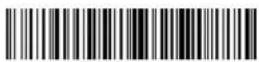
Scan the barcode to change the profile to App Mode (MFI-SPP).
Use with iPad, iPod touch, and iPhones.
-
Turn on Bluetooth on the Apple device. Go to Settings > Bluetooth. A Bluetooth Devices search will begin.
-
Tap Socket D8xx[xxxxxx] in the list of other devices found. After a few seconds the status will change to "Connected" and the LED will stop blinking and turn solid blue.
Note: The characters in brackets are the last 6 characters of the Bluetooth Address.
- Launch your scanner-enabled Application. The scanner will beep once indicating that it is connected to the appropriate application.
Now you are ready to scan barcodes!
APPLICATION MODE (ANDROID & WINDOWS)

connect Android Device or Windows (option 1) in App Mode
- Power on the scanner. Make sure the scanner is discoverable (unpaired). The Blue light should be blinking fast.
- Scan the barcode to change the profile to App Mode (SPP).
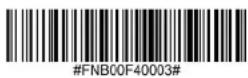
- Turn on Bluetooth on your device. Go to Settings > Bluetooth. A Bluetooth devices search will begin.
- Tap Socket S8xx[xxxxxx] in the list of other devices found. After a few seconds the status will change to "Connected" and the LED will stop blinking and turn solid blue.
Note: The characters in brackets are the last 6 characters of the Bluetooth Address.
5. Launch your scanner-enabled Application. The scanner will beep once indicating that it is connected to the appropriate application.
Now you are ready to scan barcodes!
APPLICATION MODE (WINDOWS)

Connect Windows (option 2) in App Mode
Note: Make sure you have administrative privileges.
- Download the latest Socket Mobile CaptureSDK software from Socket Mobile's support web page.
- Follow the on-screen instructions to install the software.
- In the CaptureSDK Settings, select an incoming Bluetooth serial COM port.
Note: If there is none, please click Ports to create at least one new incoming COM port in Bluetooth settings. - Power on the scanner. Make sure the scanner is discoverable to be connected to Bluetooth (unpaired and Bluetooth LED blinking).
- Launch CaptureSDK and click on the CaptureSDK icon in the task tray. In the pop-up menu, click Socket EZ Pair.
- Scan the barcode that appears on the screen.
- Open the Bluetooth settings, add and pair the scanner manually. (If prompted for a passkey, enter 0000)
- Open SocketScan. From EZ pair, select the pre-paired Bluetooth option. Click on the scanner to pair.
Note: The characters in brackets are the last 6 characters of the Bluetooth Address.
Now you are ready to scan barcodes!
BLUETOOTH UNPAIRING
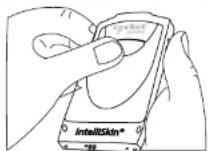
Note: This procedure will put the scanner in discoverable mode.
Step 1: Unpairing the scanner: Delete the Bluetooth Pairing
If the scanner is paired with a device, unpair it before trying to connect to a different device.
a. Power on the scanner.
b. Press the scan button then power button and hold both until you hear 3 beeps.
The scanner will unpair and automatically power off. The next time you power on the scanner, it will be discoverable.
Step 2: Remove or forget the scanner from the Bluetooth list on the host device.

Important: Both steps above must be done to complete the unpairing.
FACTORY RESET
Factory Reset will restore the scanner to factory default settings. Scan this barcode to reset your scanner:

If your scanner cannot scan the factory reset barcode, then follow the button sequence:
- Power ON the scanner.
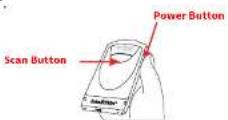
- Press and hold the scan button ^1 , then quickly press and release the power button ^2 , while continuing to hold the scan button.

Quickly press and release the power button
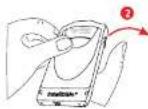
- Release the scan button after the scanner beeps once (after 15 seconds). You will hear 5 more beeps then the scanner will power OFF.

Note: If you follow this sequence, but release the scan button too early (before 15 seconds and the beep) the Factory Reset will have failed.
Watch How To video: https://vimeo.com/504468657
RESTORE METHOD
NOTE: If your scanner remains in an unresponsive state after following the Factory Reset, use the Restore Method as a last resort.
The Restore Method should be the last attempt used to revive an unresponsive scanner. It will reinitialize the core hardware.
-
Make sure your scanner is OFF.
-
Press and hold the power button until the LED light goes on and off (about 15 seconds)
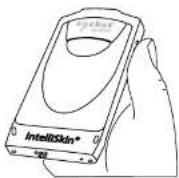
Watch How To video: https://vimeo.com/504468686
STATUS INDICATORS
| Top LED Bluetooth | LED Activity Meaning | |
 | Quick Blinking Blue(2 blinks every second) | Discoverable - waiting for a host Bluetooth connection. |
| Slow Blinking Blue(1 blink every second) | Scanner is attempting to connect to the last known host device. After 1 minute of blinking, scanner will stop searching. | |
| Solid Blue Scanner connected | ||
| Side LED LED Activity Meaning | ||
 | Blink Green Once Good Scan/Read | |
| Side LED Battery Status | LED Activity Meaning | |
| Connected | Solid Red(while charging) | Charging the battery |
 | Solid Green(while charging) | Battery is full |
| Not connected to power | No Light | Battery capacity above 20% |
 | Blinking Red | Battery capacity below 20% |
STATUS INDICATORS
| Beep Pattern Sound Meaning | |
| Low-High Tone Power On | |
| High-Low Tone Power Off | |
| High-High Tone | Power Supply detected and scanner started charging |
| 1 Low Beep | Scanner has toggled on-screen keyboard or keyboard toggle feature is enabled (iOS devices only) |
| 1 Beep | Scanner connected to device and is ready to scan barcodes |
| 1 Beep Data successfully scanned | |
| 2 Beeps (same tone) Scanner | disconnected |
| 1 Long Beep Scanner gave up | searching for a host |
| 3 Beeps (escalating tone) | Scanner has been reconfigured (the command barcode was scanned successfully) |
| 3 Beeps (escalating tone followed by long tone) | The command barcode did NOT work! (Verify if the command barcode used is valid for your scanner and try again) |
STATUS INDICATORS
Vibrate Meaning
| Vibrate Data successfully scanned |
Command Barcodes are available on pages 37-42 to modify the LED, beep, and vibrate settings.
If you are using a scanner-enabled application, typically the application provides settings for LED, beep, and vibrate settings.
Configuration Settings
| Time after powering on Scanner | Bluetooth mode |
| 0-5 minutes Discoverable | and connectable |
| 5 minutes If connection is not made, scanner powers off | |
| 2 hours | If your scanner is connected but not used it will power off in 2 hours. When scan button is pressed the timer is reset. |
QUICK PROGRAMMING
Scan command barcode(s) to quickly configure the Scanner.

Make sure the scanner is not connected to a device before scanning a command barcode! See unpairing instructions.
For a complete set of command barcodes, download the Command Barcodes Sheet: https://socketmobile.com/support/download
| Charging Stand Modes | |
| Auto ModeScan the barcode to configure your scanner to automatically detect barcodes without pressing the scan buton.*Only works when in Charging Stand. |  #FNB 41FBA50003# #FNB 41FBA50003# |
| Mobile Mode - Normal (default)*Scanning this bar code will enable the scanner to enter mobile mode. It will always be in manual trigger mode even when placed in the stand or cradle.*Scanner Factory Reset returns to Mobile Mode. |  #FNB 41FBA50000# #FNB 41FBA50000# |
QUICK PROGRAMMING

Important! Make sure the scanner is not connected to a host computer or device before scanning a command barcode!
| Bluetooth Connection Modes | |
| Basic Mode (HID) (default) Configures the Scanner to Human Interface Device (HID) mode as a Keyboard class device | 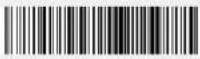 #FNB00F40001# #FNB00F40001# |
| App Mode (MFi-SPP) for Apple IOS devices Configures scanner to work with an application. |  #FNB00F40002# #FNB00F40002# |
| App Mode (SPP) for Windows or Android 8.0 and later (Auto Connect - Scan the barcode and pair the scanner with your device.) |  #FNB00F40003# #FNB00F40003# |
| App Mode (SPP) for Windows or Android version 7.0 and lower Configures scanner to Serial Port Profile. |  #FNB00F40000# #FNB00F40000# |
QUICK PROGRAMMING
Always Active Mode
For busy days on the job, try using the Active Mode to keep you moving faster. Avoid the hassle of turning the scanner on again and reconnecting to your host device.
Scan one of the barcodes below and reconfigure the scanner to remain on longer.
Note: Turn off the host device's Bluetooth prior to scanning one of the alternate timer barcodes. Then turn the Bluetooth back on.
Power cycle the scanner (turn off/on).
| Bluetooth Connection Modes | |
| Scanner Always On* Configures the scanner to never power off. |  #FNB012100000000# #FNB012100000000# |
| Continuous Power for 8 hours* Scan Barcode to configure the scanner to remain on for 8 hours. |  #FNB012101E001E0# #FNB012101E001E0# |
| Continuous Power for 4 hours* Scan Barcode to configure the scanner to remain on for 4 hours. |  #FNB012100F000F0# #FNB012100F000F0# |
*These settings drain the battery faster. It is assumed you will charge the scanner within a 24-hour period or overnight. If you don't, the scanner's battery will drain completely.
QUICK PROGRAMMING
Return Scanner to Default Setting
Turns the scanner off when it is not in use - 3 to 5 minutes after being disconnected from host device.
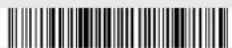
FNB012100780005
QUICK PROGRAMMING

Important! Make sure the Scanner is not connected to a host computer or device before scanning a command barcode!
| Beep Settings | |
| Beep after scanner Decodes Data ON (default)Enables scanner to beep to indicate successful scans. |  #FNB0119E000100030078004B# #FNB0119E000100030078004B# |
| Beep after scanner Decodes Data OFFDisables scanner from beeping to indicate successful scans. |  #FNB01190E000100000078004B# #FNB01190E000100000078004B# |
QUICK PROGRAMMING
| Vibrate Settings | |
| Vibrate ON (default)Enables scanner to vibrate to indicate successful scans. |  |
| Vibrate OFFDisables scanner from vibrating to indicate successful scans. |  |
| Factory Default | |
| Factory ResetRevert all settings tofactory defaults. The scanner willpower off after scanning thisbarcode. |  |
For more command codes go to: https://socketmobile.com/support/download
HELPFUL RESOURCES
Product Specifications:
D800
· D840
· D860
Technical Support & Product Registration:
support.socketmobile.com
Phone: 800-279-1390 +1-510-933-3020 (worldwide)
Warranty Checker:
socketmobile.com/support/warranty-checker
Socket Mobile Developer Program:
Learn more at: socketmobile.com/developers
The User's Guide (full installation and usage instructions) and Command Barcodes (Advanced Scanner Configurations) can be download at:
socketmobile.com/support/downloads
SAFETY AND HANDLING INFORMATION

WARNING: Failure to follow these safety instructions could result in fire or other injury or damage to the barcode scanners or other property.
Carrying and Handling the scanners: The Socket Mobile barcode scanner contains sensitive components. Do not disassemble, open, crush, bend, deform, puncture, shred, microwave, incinerate, paint, or insert foreign objects into this unit.
Do not attempt to disassemble the product. Should your unit need service, contact Socket Mobile technical support at https://support.socketmobile.com/
Changes or modifications of this product, not expressly approved by Socket Mobile may void the user's authority to use the equipment.
Do not charge the scanner using an AC adapter when operating the unit outdoors, or in the rain.
Operating Temperature - this product is designed for a maximum ambient temperature of 50^ degrees C or 122^ degrees F.
Pacemaker Disclaimer: We do not have specific information on the effect(s) of vibration or devices with Bluetooth wireless technology on pacemakers. Socket Mobile cannot provide any specific guidance. Individuals who are concerned with using the barcode scanner should immediately turn the device off.
BLUETOOTH DEVICE UNITED STATES
FCC ID: LUBMA41

Federal Communication Commission Interference Statement
This equipment has been tested and found to comply with the limits for a Class B digital device, pursuant to Part 15 of the FCC Rules. These limits are designed to provide reasonable protection against harmful interference in a residential installation. This equipment generates, uses and can radiate radio frequency energy and, if not installed and used in accordance with the instructions, may cause harmful interference to radio communications. However, there is no guarantee that interference will not occur in a particular installation.
If this equipment does cause harmful interference to radio or television reception, which can be determined by turning the equipment off and on, the user is encouraged to try to correct the interference by one of the following measures:
- Reorient or relocate the receiving antenna.
- Increase the separation between the equipment and receiver.
- Connect the equipment into an outlet on a circuit different from that to which the receiver is connected.
- Consult the dealer or an experienced radio/TV technician for help.
FCC Caution: To assure continued compliance, any changes or modifications not expressly approved by the party responsible for compliance could void the user's authority to operate this equipment. (Example - use only shielded interface cables when connecting to computer or peripheral devices).
BLUETOOTH DEVICE UNITED STATES
FCC Radiation Exposure Statement
This equipment complies with FCC RF radiation exposure limits set forth for an uncontrolled environment. This device meets the FCC requirements for RF exposure in public or uncontrolled environments. This device complies with Part 15 of the FCC Rules. Operation is subject to the following two conditions:
-
This device may not cause harmful interference, and
-
This device must accept any interference received, including interference that may cause undesired operation
BLUETOOTH DEVICE CANADA
IC ID: 2529A-MA41S8

Industrie Canada
Industry Canada
This device complies with Industry Canada license exempt RSS standard(s). Operation is subject to the following two conditions: (1) this device may not cause interference, and (2) this device must accept any interference, including interference that may cause undesired operation of the device.
CE Marking & European Union Compliance
CE
Products intended for sale within the European Union are marked with a CE Mark, which indicates compliance to applicable Directives and European Normes (EN), as follows. Amendments to these Directives or ENs are included: Normes (EN), as follows:
CONFORMS TO THE FOLLOWING EUROPEAN DIRECTIVES
Low Voltage Directives: 2014/35/EU
RED Directive: 2014/53/EU
EMC Directive: 2014/30/EU
RoHS Directive: 2011/65/EC
WEEE Directive: 2012/19/EC
Supplementary Information:
Safety: EN 60950-1: 2006/A11:2009, A12:2011, A1:2010, A2:2013
ETSI EN 300 328
ETSI EN 301 489
BLUETOOTH DEVICE JAPAN
Telec Marking Compliance
R201-125799
R211-131101

Products intended for sale within the country of Japan are marked with a Telec mark, which indicates compliance to applicable Radio Laws, Articles and Amendments.
BATTERY WARNING STATEMENTS
This device contains a rechargeable Lithium Ion battery.

Stop charging scanners if charging isn't completed within the normal specified time (approx. 8 hours).
Stop charging the battery if the scanner case
becomes abnormally hot, or shows signs of odor, discoloration,
deformation, or abnormal conditions is detected during use, charge, or storage.
Stop using the scanner if the enclosure is cracked, swollen or shows any other signs of mis-use. Discontinue immediately and email support@socketmobile.com.
Your device contains a rechargeable Lithium Ion battery, which may present a risk of fire or chemical burn if mistreated.
Do not charge in hot temperatures over 60 degrees C or 140 degrees F.
- Never throw the battery into a fire, as that could cause the battery to explode.
- Never short circuit the battery by bringing the terminals in contact with another metal object. This could cause personal injury, or fire, and could also damage the battery.
- Never dispose of used batteries with other ordinary solid wastes. Batteries contain toxic substances.
BATTERY WARNING STATEMENTS
- Dispose of used batteries in accordance with the prevailing community
regulations that apply to the disposal of batteries. - Never expose this product or the battery to any liquids.
- Do not shock the battery by dropping it or throwing it.

If this unit shows any type of damage, such as bulging, swelling or disfigurement, discontinue use and email support@socketmobile.com.
Product Disposal
Your device should not be placed in municipal waste. Please check local regulations for disposal of electronic products.
CAUTION:
Risk of explosion if battery is replaced by incorrect type.
Only use Lithium Ion rechargeable batteries provided by the manufacturer.
LED DEVICES

Caution: DO NOT STARE DIRECTLY INTO THE LED BEAM.
LED DEVICE:
The DuraScan D800, D840, and D860 contain a LED-type scan engine.
For the LED version of this engine, the following applies:
• Complies with EN/IEC 62471 (Exempt Group)
- LED output is in the 630-670nm range (visible red).
- LED devices are not considered to be hazardous when used for their intended purpose.
The following statement is required to comply with US and international regulations:

Caution: Use of controls, adjustments or performance of procedures other than those specified herein may result in hazardous LED light exposure.
REGULATORY COMPLIANCE
CE MARKING AND EUROPEAN UNION COMPLIANCE
Testing for compliance to CE requirements was performed by an independent laboratory. The unit under test was found compliant with all the applicable Directives, 2004/108/EC and 2006/95/EC.
WASTE ELECTRICAL AND ELECTRONIC EQUIPMENT
The WEEE directive places an obligation on all EU-based manufacturers and importers to take-back electronic products at the end of their useful life.
RoHS STATEMENT OF COMPLIANCE
This product is compliant to Directive 2011/95/EC.
NON-MODIFICATION STATEMENT
Changes or modifications not expressly approved by the party responsible for compliance.
CONFORMS TO THE FOLLOWING EUROPEAN DIRECTIVES
Low Voltage Directives: 2014/35/EU
RED Directive: 2014/53/EU
EMC Directive: 2014/30/EU
RoHS Directive: 2011/65/EC
WEEE Directive: 2012/19/EC
Supplementary Information:
Safety: EN 60950-1: 2006/A11:2009, A12:2011, A1:2010, A2:2013
ETSI EN 300 328
ETSI EN 301 489


LIMITED WARRANTY
Socket Mobile Incorporated (Socket) warrants this product against defects in material and workmanship, under normal use and service, for one (1) year from the date of purchase. Product must be purchased new from a Socket Authorized Distributor or Reseller. Used products and products purchased through non-authorized channels are not eligible for this warranty support.
Warranty benefits are in addition to rights provided under local consumer laws. You may be required to furnish proof of purchase details when making a claim under this warranty.
Consumables such as batteries, removable cables, cases, straps, and chargers: 90 day coverage only
For more warranty information, please visit: https://www.socketmobile.com/support/downloads/product-support
EXTENDED WARRANTY

SocketCare Extended Warranty Coverage
Purchase SocketCare within 60 days from the date of purchase of the reader.
Product Warranty: The barcode reader's warranty period is one year from the date of purchase. Consumables such as batteries and charging cables have a limited warranty of 90 days. Extend your reader's standard one-year limited warranty coverage up to five years from the date of purchase.
Additional service features are available to further enhance your warranty coverage:
- Warranty period extension only
• Express Replacement Service
• One-Time Accidental Coverage - Premium Service
For detailed information visit: socketmobile.com/support/socketcare
- TABLE OF CONTENTS
- How to setup your scanner:
- Can't use Companion App?
- How to setup your scanner in Basic Mode
- How to setup your scanner in Application Mode
- PACKAGE CONTENTS
- OPTIONAL CHARGING ACCESSORIES
- Thank you for choosing Socket Mobile! Let's get started!
- PRODUCT INFORMATION
- CHARGE THE BATTERY
- Power On
- SCANNING BARCODES
- Bluetooth Connection Modes
- COMPANION APP
- BASIC MODE
- Mode for iPod iPhone iPad Connect Device in Basic Mode
- APPLICATION MOD (iOS)
- Connect Apple iOS Device in App Mode
- APPLICATION MODE (ANDROID & WINDOWS)
- connect Android Device or Windows (option 1) in App Mode
- APPLICATION MODE (WINDOWS)
- Connect Windows (option 2) in App Mode
- BLUETOOTH UNPAIRING
- FACTORY RESET
- RESTORE METHOD
- The Restore Method should be the last attempt used to revive an unresponsive scanner. It will reinitialize the core hardware.
- STATUS INDICATORS
- QUICK PROGRAMMING
- Always Active Mode
- Return Scanner to Default Setting
- FNB012100780005
- HELPFUL RESOURCES
- Product Specifications:
- Technical Support & Product Registration:
- Warranty Checker:
- Socket Mobile Developer Program:
- SAFETY AND HANDLING INFORMATION
- BLUETOOTH DEVICE UNITED STATES
- Federal Communication Commission Interference Statement
- FCC Radiation Exposure Statement
- BLUETOOTH DEVICE CANADA
- BLUETOOTH DEVICE JAPAN
- BATTERY WARNING STATEMENTS
- Product Disposal
- CAUTION:
- LED DEVICES
- LED DEVICE:
- REGULATORY COMPLIANCE
- CE MARKING AND EUROPEAN UNION COMPLIANCE
- WASTE ELECTRICAL AND ELECTRONIC EQUIPMENT
- RoHS STATEMENT OF COMPLIANCE
- NON-MODIFICATION STATEMENT
- CONFORMS TO THE FOLLOWING EUROPEAN DIRECTIVES
- Supplementary Information:
- LIMITED WARRANTY
- EXTENDED WARRANTY
- SocketCare Extended Warranty Coverage
Brand : Socket Mobile
Model : DuraScan D820
Category : Barcode Reader