1225L - Suivi ELO - Free user manual and instructions
Find the device manual for free 1225L ELO in PDF.


User questions about 1225L ELO
0 question about this device. Answer the ones you know or ask your own.
Ask a new question about this device
Download the instructions for your Suivi in PDF format for free! Find your manual 1225L - ELO and take your electronic device back in hand. On this page are published all the documents necessary for the use of your device. 1225L by ELO.
USER MANUAL 1225L ELO
For 12.1" LCD Desktop Touchmonitors 1225L and 1228L Series

natural_image
Abstract geometric shape with a black rectangle and white border (no text or symbols)Copyright © 2001 Elo TouchSystems Inc. All Rights Reserved.
No part of this publication may be reproduced, transmitted, transcribed, stored in a retrieval system, or translated into any language or computer language, in any form or by any means, including, but not limited to, electronic, magnetic, optical, chemical, manual, or otherwise without prior written permission of Elo TouchSystems.
Disclaimer
The information in this document is subject to change without notice. Elo TouchSystems makes no representations or warranties with respect to the contents hereof, and specifically disclaims any implied warranties of merchantability or fitness for a particular purpose. Elo TouchSystems reserves the right to revise this publication and to make changes from time to time in the content hereof without obligation of Elo TouchSystems to notify any person of such revisions or changes.
Trademark Acknowledgments
IntelliTouch, SecureTouch, AccuTouch, Entuitive, and MonitorMouse are trademarks of Elo TouchSystems, Inc.
Other product names mentioned herein may be trademarks or registered trademarks of their respective companies. Elo TouchSystems claims no interest in trademarks other than its own.
Table of Contents
Usage Notice
Precautions 3
Introduction
About the Product 4
Package Overview 5
Installation
Product Overview....6
Start Your Installation 7
User Controls
Front Panel Controls 9
How to Use the OSD Mouse 10
Usage Notice

Warning- To prevent the risk of fire or shock hazards, do not expose this product to rain or moisture.

Warning- Do not open or disassemble the product as this may cause electric shock.
Precautions
Follow all warnings, precautions and maintenance as recommended in this user's manual to maximize the life of your unit.
Do:
□Turn off the product before cleaning.
□Use only a dry soft cloth or clean wipe when cleaning the LCD panel surface.
□Use a soft cloth moistened with mild detergent to clean the display housing.
☐ Use only high quality and safety approved AC/DC power adapter.
Introduction
About the Product
This product is a 12.1" SVGA TFT color LCD touchmonitor with the following features:
□Direct analog RGB input
□Active matrix TFT LCD technology
□12.1° diagonal screen size
□16.7 million displayable colors
□SVGA 800 x 600 addressable pixels
□Auto-adjustment
□Full screen re-scaling capability
□31 \~ 54kHz horizontal scan
56 \~ 85Hz high refresh rate
□Multilingual OSD user controls
Package Overview
Check that the following 10 items are present and in good condition:
LCD Touchmonitor
US/Canada Power Cord

VGA Signal Cable
Power Adapter
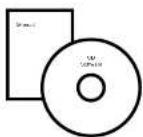

European power cable
^6 Installation
Product Overview
♦ Main Unit

text_image
LCD Touchmonitor Stand User Controls MENU SELECTRear View
Start Your Installation
- Connecting the Touchmonitor (Figure 7.1)
To setup this touchmonitor, please refer to the following figure and procedures.
- Be sure all equipment is off.
- Connect the VGA signal cable from display input connector to the 15-pin connector of your host computer and tighten the screws.
- Connect the female end of the touchscreen cable to the serial port on the back of your PC, and the male end of the cable to your touchmonitor.
- Connect the DC power cord to the power connector; plug one end of the AC power cord into the power adapter, and then the other end into an electrical outlet.
- Connect the Audio-In cable from audio input port of your touchmonitor to the Audio-out port of your computer. If you need to use earphone, connect your earphone cable to the earphone port of your display.
- Turn on both your computer and touchmonitor.
♦ Tilt

flowchart
graph TD
    A["Computer"] --> B["Power Adapter"]
    B --> C["Mac Adapter"]
    C --> D["VGA Signal Cable"]
    D --> E["RS 232 Touch Cable"]
    E --> F["Power Cord"]
    F --> G["Power Adapter"]
    G --> H["Mac Adapter"]
    H --> I["RS 232 Touch Cable"]
User Controls
Front Panel Controls
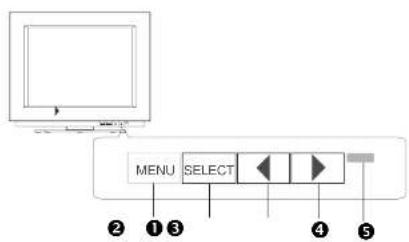
text_image
MENU SELECT ② ① ③ ④ ⑤No. / Icon Control Function
①MENU Menu button Displays the OSD menus
② SELECT Select Selects the adjustment items
from OSD menus.
^10 How to Use the OSD Menus
- Press the "MENU" button to pop up the on-screen menu and to toggle between Main Menu Page 1 to Page 3.
- Choose the adjustment items by pressing the "SELECT" button.
- Adjust the value of adjustment items by pressing the “◀” & “▶” buttons.
- Press the "MENU" button again to turn off the OSD menu. If you don't operate the OSD menu in a pre-set time, the OSD will automatically disappear.
On-Screen Display Menus
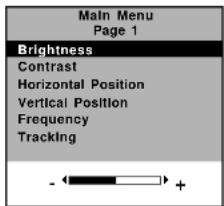
First OSD Menu:
text_image
Main Menu Page 1 Brightness Contrast Horizontal Position Vertical Position Frequency Tracking - < +Brightness
Adjusts the brightness of the image.
Contrast
Adjusts the contrast of the display image.
▶ Horizontal Position
Adjusts the horizontal position of the image.
Second OSD Menu:

text_image
Main Menu Page 2 Auto-Adjustment Re-Scaling Display Mode OSD Off-Time Language Text-Graphic YesNOAuto-Adjustment
Choose this function to obtain an optimum image.
Re-Scaling
If the input resolution is less than 800 x 600, you can select this function to obtain the full screen image.
Third OSD Menu:

text_image
Main Menu Page 3 Volume Mute Reset - < +Volume
Allows you to control the volume of sound,
Mute
Allows you to disable the sound immediately.
Reset
Appendices
Troubleshooting
If you are experiencing trouble with the LCD display, refer to the following. If the problem persists, please contact your local dealer or our service center. Please refer to the back cover of this manual for the phone number of the Elo TouchSystems office nearest you.
Problem: No image appears on screen.
▶ Check that all the I/O and power connectors are correctly and well connected as described in the “Installation” section.
▶ Make sure the pins of the connectors are not crooked or broken.
Problem: Partial image or incorrectly displayed image.
▶ Check to see if the resolution of your computer is higher than that of the LCD display.
▶ Reconfigure the resolution of your computer to less than or equal to 800 x 600.
Problem: Image has vertical flickering line bars.
▶ Use "Frequency" to make an adjustment.
▶ Check and reconfigure the display mode of the vertical refresh
Warning Signal
Sometimes you will see warning messages from the LCD screen. This means that the LCD display cannot receive the signal from the computer graphic card.
There are three situations where this may happen. Please check the connected cables or contact your local dealer for more information.
No Signal
This message means that the LCD display has been powered on but it cannot receive any signal from the computer graphic card. Check all the power switches, power cables, and VGA signal cable.
▶ Going to Sleep
This message means that the LCD display is in power saving mode. In addition, the LCD display will go to the sleep mode when experiencing a sudden signal disconnecting problem.
▶ Unsupport Mode
This message means that the signal of the computer graphic card is not compatible with the LCD display. When the signal is not included in the compatibility mode we have listed in the Appendices of this manual, the
Product Dimensions
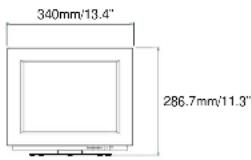
text_image
340mm/13.4" 286.7mm/11.3"Front View

Side View
Touchmonitor Specifications
12" LCD Touchmonitor (ET12-XXWC-1) Specifications
| epyTyalpsilD | rotsisartmilifiht,sideyalpsidlatsyloqillST | |
| Size | 12-inch diagonal246 x 185 mm useful screen area | |
| Native Resolution | 800 x 600 | |
| Touchscreen | AccuTouch, anti-glare | |
| Colors | 16 million with dithering | |
| Display Brightness | AccuTouch: 188 cd/ml typical | |
| Back-light Lamp Life | 30,000 hours at full brightness typical | |
| Viewing Angle | HorizontaldtreV | +/-30 or 60 degrees total+/-10/-20 or 30 degrees total |
| Contrast Ratio | 100:1 typical | |
| Display Response Time | 50 ms rise; 50 ms delay typical | |
AccuTouch Touchmonitor Specifications
| IacinahceM | |
| Construction | Top: Polyester with outside hard-surface coating with clear or antiglare finish.Inside: Transparent conductive coating.Bottom: Glass substrate with uniform resistive coating. Top and bottom layers separated by Elo-patented separator dots. |
| yue Alanon | Standard deviation of error is less than 0.080 in.(2.03 mm). This equates to less than -1%. |
| Touchpoint Density | More than 100,000 touchpoints/in† (15,500.)†mc/stnptho |
| Touch Activation Force | Typically less than 4 ounces (113 grams). |
| Surface Durability | Meets Taber Abrasion Test (ASTM D1044),CS-10F wheel, 500 g.Meets pencil hardness 31L |
| Expected Life Performance | AccuTouch technology has been operationally tested to greater than 35 million touches in one location without failure, using a stylus similar to a egnif |
ladin
Compatibility Modes
| Mode | Resolution | V.Frequency (Hz) | H.Frequency (kHz) |
| IBM VGA | 640 x 350 | 70 | 31.5 |
| IBM VGA | 640 x 400 | 70 | 31.5 |
| IBM VGA | 640 x 480 | 60 | 31.5 |
| IBM VGA | 720 x 400 | 70 | 31.5 |
| VESA VGA | 640 x 480 | 72 | 37.9 |
| VESA VGA | 640 x 480 | 75 | 37.5 |
| VISA VGA | 640 x 480 | 85 | 43.3 |
| VISA SVGA | 800 x 600 | 56 | 35.2 |
| VESA SVGA | 800 x 600 | 60 | 37.9 |
| VESA SVGA | 800 x 600 | 72 | 48.1 |
| VESA SVGA | 800 x 600 | 75 | 46.9 |
| VISA SVGA | 800 x 600 | 85 | 53.7 |
| Apple Mac I.C | 640 x 480 | 67 | 34.9 |
| Apple Mac II | 640 x 480 | 67 | 35.0 |
^20 Installing the Driver Software
Elo TouchSystems provides driver software that allows your touchmonitor to work with your computer. Drivers are located on the enclosed CD-ROM for the following operating systems:
Windows 2000
Windows Me
Windows 98
Windows 95
Windows NT 4.0
Additional drivers and driver information for other operating systems (including MS DOS, Windows 3.x, OS/2, Macintosh and Linux) are available on the Elo TouchSystems web site at www.elotouch.com.
Your Elo touchmonitor is plug-and-play compliant. Information on the video capabilities of your touchmonitor is sent to your video display adapter when Windows starts. If Windows detects your touchmonitor, follow the instructions on the screen to install a generic plug-and-play monitor.
Installing the Touch Driver for Windows 2000, Me, 95/98 and NT 4.0
- Follow the directions on the screen to complete the driver setup for your version of Windows.
If the AutoStart feature is not active:
- Click Start > Run.
- Click the Browse button to locate the touch.exe program on the CD-ROM.
- Click Open, then OK to run touch.exe.
- Follow the directions on the screen to complete the driver setup for your version of Windows.
Installing the Touch Driver for MS-DOS and Windows 3.1
You must have a DOS mouse driver (MOUSE.COM) installed for your mouse if you wish to continue using your mouse along with your touchmonitor in DOS.
To install Windows 3.x and MS-DOS from Windows 95/98, follow the directions below:
- Insert the Elo CD-ROM in your computer's CD-ROM drive.
- From DOS, type d:\EloDW to change to the correct di-
To run the INSTALL program:
- Type INSTALL at the DOS prompt in the directory containing the driver install files.
- INSTALL asks you to select the software to install. Then choose d:\EloDW from the displayed list.
- INSTALL also asks you for the paths to use during installation, or you may use its defaults. INSTALL creates directories as necessary, and warns you if they exist.
If you are updating your software, you may wish to specify the paths containing the earlier versions, and overwrite the obsolete files. All executable programs are upward compatible. For a list of differences from each previous version of the drivers, be sure to select "Differences from Previous Versions" during the installation process.
INSTALL updates your AUTOEXEC.BAT file with the drivers you select. INSTALL makes a copy of your original AUTOEXEC.BAT called AUTOEXEC.OLD. If you already have Elo driver commands in your AUTOEXEC.BAT file, they will be commented out.
When INSTALL is finished, it leaves a file called GO.BAT in the subdirectory you specified. GO loads the touchscreen driver, runs the calibration program ELOCALIB, and gives you some final instructions.
If you are using Windows 3.1, you will also calibrate the
Regulatory Information
- Electrical Safety Information:
A) Compliance is required with respect to the voltage, frequency, and current requirements indicated on the manufacturer's label. Connection to a different power source than those specified herein will likely result in improper operation, damage to the equipment or pose a fire hazard if the limitations are not followed.
B) There are no operator serviceable parts inside this equipment. There are hazardous voltages generated by this equipment which constitute a safety hazard. Service should be provided only by a qualified service technician.
C) This equipment is provided with a detachable power cord which has an integral safety ground wire and 3-prong connector intended for connection to a grounded safety outlet.
1) Do not substitute the cord with other than the provided approved type. Under no circumstances use an adapter plug to connect to a 2-wire outlet as this will defeat the continuity of the grounding wire.
2) The equipment requires the use of the ground wire as a part of the safety certification, modification or misuse can provide a shock hazard that can result in serious injury or death.
3) Contact a qualified electrician or the manufacturer if there are questions about the installation prior to connecting the equipment to mains power.
II. Emissions and Immunity Information
A) Notice to Users in the United States: This equipment has been tested and found to comply with the limits for a Class B digital device, pursuant to Part 15 of FCC Rules. These limits are designed to provide reasonable protection against harmful interference in a residential installation. This equipment generates, uses, and can radiate radio frequency energy, and if not installed and used in accordance with the instructions, may cause harmful interference to radio communications.
B1 Notice to Users in Canada: This equipment complies with the Class B limits for radio noise emissions from digital apparatus as established by the Radio Interference Regulations of Industrie Canada.
1) In order to meet emission and immunity requirements, the user must observe the following:
a) Use only the provided I/O cables to connect this digital device with any computer.
b) To ensure compliance, use only the provided manufacturer's approved line cord.
c) The user is cautioned that changes or modifications to the equipment not expressly approved by the party responsible for compliance could void the user's authority to operate the equipment.
2) If this equipment appears to cause interference with radio or television reception, or any other device;
a) Verify as an emission source by turning the equipment off and on.
b) If you determine that this equipment is causing the interference, try to correct the interference by using one or more of the following measures:
i) Move the digital device away from the affected receiver.
ii) Reposition (turn) the digital device with respect to the affected receiver.
iii) Reorient the affected receiver's antenna.
iv) Plug the digital device into a different AC outlet so the digital device and the receiver are on different branch circuits.
v) Disconnect and remove any I/O cables that the digital device does not use. (Unterminated I/O cables are a potential source of high RF emission levels.)
vi) Plug the digital device into only a grounded outlet receptacle. Do not use AC adapter plugs. (Removing or cutting the line cord ground may increase RI emission levels and may also present a lethal shock hazard to the user.)
Warranty
Except as otherwise stated herein or in an order acknowledgment delivered to Buyer, Seller warrants to Buyer that the Product shall be free of defects in materials and workmanship. The warranty for the touchmonitors and components of the product are: 3 years monitor, 10 years IntelliTouch screen, 5 years AccuTouch screen. 5 years Controller.
Seller makes no warranty regarding the model life of components. Seller's suppliers may at any time and from time to time make changes in the components delivered as Products or components.
Buyer shall notify Seller in writing promptly (and in no case later than thirty (30) days after discovery) of the failure of any Product to conform to the warranty set forth above; shall describe in commercially reasonable detail in such notice the symptoms associated with such failure; and shall provide to Seller the opportunity to inspect such Products as installed, if possible. The notice must be received by Seller during the Warranty Period for such product, unless otherwise directed in writing by the Seller. Within thirty (30) days after submitting such notice, Buyer shall package the allegedly defective Product in its original shipping carton(s) or a functional equivalent and shall ship to Seller at Buyer's expense and risk.
Within a reasonable time after receipt of the allegedly defective Product and verification by Seller that the Product fails to meet the warranty set forth above, Seller shall correct such failure by, at Seller's options, either (i) modifying or repairing the Product or (ii) replacing the Product. Such modification, repair, or replacement and the return shipment of the Product with minimum insurance to Buyer shall be at Seller's expense. Buyer shall bear the risk of loss or damage in transit, and may insure the Product. Buyer shall reimburse Seller for transportation cost incurred for Product returned but not found by
SELLER'S LIABILITY UNDER THE WARRANTY SHALL BE LIMITED TO A REFUND OF THE PURCHASE PRICE OF THE PRODUCT. IN NO EVENT SHALL SELLER BE LIABLE FOR THE COST OF PROCUREMENT OR INSTALLATION OF SUBSTITUTE GOODS BY BUYER OR FOR ANY SPECIAL, CONSEQUENTIAL, INDIRECT, OR INCIDENTAL DAMAGES.
Buyer assumes the risk and agrees to indemnify Seller against and hold Seller harmless from all liability relating to (i) assessing the suitability for Buyer's intended use of the Products and of any system design or drawing and (ii) determining the compliance of Buyer's use of the Products with applicable laws, regulations, codex, and standards. Buyer retains and accepts full responsibility for all warranty and other claims relating to or arising from Buyer's products, which include or incorporate Products or components manufactured or supplied by Seller. Buyer is solely responsible for any and all representations and warranties regarding the Products made or authorized by Buyer. Buyer will indemnify Seller and hold Seller harmless from any liability, claims, loss, cost, or expenses (including reasonable attorney's fees) attributable to Buyer's products or representations or warranties concerning same.
Check out Elo's Web site!
www.elotouch.com
Get the latest...
• Product information
- Specifications
• News on upcoming events
- Press releases
- Software drivers
Getting in Touch with Elo
To find out more about Elo's extensive range of touch solutions, visit our Web site at www.elotouch.com or simply call the office nearest you:
USA & Headquarters
Elo TouchSystems, Inc.
6500 Kassar Drive
Fremore, CA 94555-3613
(800) ELD-TOUCH (800-356-8882)
Tel:510-739-5016
Germany
Touch Panel Systems K.K
Sun Hornadia Bldg. 2F
1-19-20 Shao-Yokohama
Kohoku-ku, Yokohama
Кападана 222-0039
Japlan