1746L - Suivi ELO - Free user manual and instructions
Find the device manual for free 1746L ELO in PDF.


User questions about 1746L ELO
0 question about this device. Answer the ones you know or ask your own.
Ask a new question about this device
Download the instructions for your Suivi in PDF format for free! Find your manual 1746L - ELO and take your electronic device back in hand. On this page are published all the documents necessary for the use of your device. 1746L by ELO.
USER MANUAL 1746L ELO
natural_image
Technical line drawings of two electronic device modules, one front and one side, with no visible text or symbols.Elo Entuitive Touchmonitor User Guide
17" LCD Kiosk Touchmonitor
1746L/1749L Series

Revision B
P/N 008602E
Elo TouchSystems, Inc.
1-800-ELOTOUCH
www.elotouch.com
Copyright © 2005 Elo TouchSystems Inc. All Rights Reserved.
No part of this publication may be reproduced, transmitted, transcribed, stored in a retrieval system, or translated into any language or computer language, in any form or by any means, including, but not limited to, electronic, magnetic, optical, chemical, manual, or otherwise without prior written permission of Elo TouchSystems.
Disclaimer
The information in this document is subject to change without notice. Elo TouchSystems makes no representations or warranties with respect to the contents hereof, and specifically disclaims any implied warranties of merchantability or fitness for a particular purpose. Elo TouchSystems reserves the right to revise this publication and to make changes from time to time in the content hereof without obligation of Elo TouchSystems to notify any person of such revisions or changes.
Trademark Acknowledgments
IntelliTouch, iTouch, SecureTouch, AccuTouch, Entuitive, and MonitorMouse are trademarks of Elo TouchSystems Inc.
Other product names mentioned herein may be trademarks or registered trademarks of their respective companies. Elo TouchSystems claims no interest in trademarks other than its own.
Table of Content
Chapter1
Introduction 1
Precautions 1
About the Product 1
Chapter2
Installation and Setup 3
Unpacking Your Touchmonitor.... 3
Product Overview 4
Main Unit 4
Rear View 4
Bottom View 4
Attaching the L-Brackets 5
Panel Cut Out 6
1746/1749 Option 1 6
1746/1749 Option 2 6
Touch Interference Connection....7
STEP 1-Connecting the Video Cable 8
STEP 2-Connecting the Serial or USB
Touchscreen cable 9
STEP 3-Connecting the OSD Remote
Cable 10
STEP 4-Connecting the Power Cable....11
Optimizing the LCD Display 12
VESA Mount on Your Touchmonitor 12
Chapter 3
Operation 19
About Touchmonitor Adjustments.... 19
Using the On-Screen Display (OSD) Menus 19
Remote OSD Buttons 20
OSD Menu Function 21
Chapter 4
Trouble Shooting 23
Solutions to Common Problems 23
Appendix A
Native Resolution 25
Appendix B
Touchmonitor Safety 27
Care and Handling of your Touchmonitor 28
Appendix C
Technical Specifications 29
Compatible Video Modes 29
Touchmonitor Specifications. 30
17" LCD Touchmonitor(ET1746L/ET1749L)
Dimensions 33
Regulatory Information 34
CHAPTER

INTRODUCTION
Congratulations on your purchase of an Elo TouchSystems Entuitive touchmonitor. Your new touchmonitor combines the reliable performance of Elo's touch technology with the latest advances in LCD display design. This combination of features creates a natural flow of information between a user and your touchmonitor.
Precautions
Follow all warnings, precautions and maintenance as recommended in this user's manual to maximize the life of your unit. See Appendix B for more information on touchmonitor safety.
About the Product
• Auto adjustment capability
• High quality full screen re-scaling
- Multilingual OSD menus in five languages: English, French, German, Spanish and Japanese.
- Serial and USB touch interface (USB requires Windows 98, 2000, Me or XP.)
• Patented touch technology of Elo TouchSystems
• VESA DDC 1/2B data communication
• VESA DPMS power saving
• Cable management device
• VESA flat panel monitor physical mounting interface (Both 75 and 100mm)
- Remote OSD and Power button lockouts
• Cable strain reliefs for all cables
For full Product Specifications refer to Appendix C.
CHAPTER

INSTALLATION AND SETUP
This chapter discusses how to install your LCD touchmonitor and how to install Elo TouchSystems driver software.
Unpacking Your Touchmonitor
Check that the following 10 items are present and in good condition:
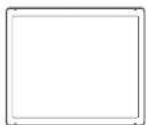
LCD Display

Serial touchscreen cable
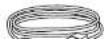

USB Cable
Product Overview
Main Unit
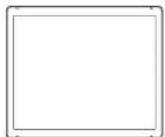
1746L Front-Mount
1749L Front-Mount
Rear View

1746L

1749L
Attaching the L-Brackets
Depending on your mounting scheme, use the L-brackets or the VESA 75/100mm standard holes located on the back of the kiosk monitor or the integrated M4 threaded holes. See page 15 for VESA mounting information.
NOTE: You will need a screwdriver to attach the L-brackets.
Your kiosk touchmonitor comes with two L-brackets (and four screws) that attach to the integrated M4 threaded holes for additional mounting options.
Panel Cut Outs
1746L/1749L Option 1

text_image
34410.3 13° 2/6.40.9 4X 8.9 327 1901746L/1749L Option 2

Touch Interface Connection
Your touchmonitor comes with the following touchscreen connector cables: Serial (RS-232) cable and USB cable. (For Windows 98, 2000, Me and XP systems only.)
To set up this display, please refer to the following figures and procedures:
Serial or USB Connection
The following illustrations guide you step by step in connecting your touchmonitor using a serial or USB cable connection CAUTION Before connecting the cables to your touchmonitor and PC, be sure that the computer and the touchmonitor are turned off.

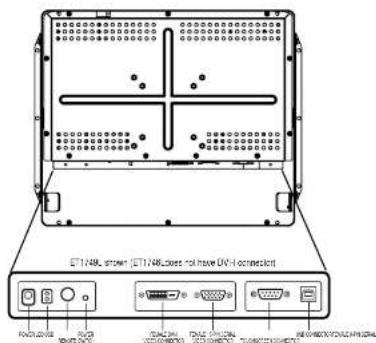
text_image
ET148, shown: ET148,less not have OK-1 connection FACI 2023 USB 2023 MACS 2023 MACS 2023 MACS 2023 MACS 2023 MACS 2023STEP 1-Connecting the Video Cable
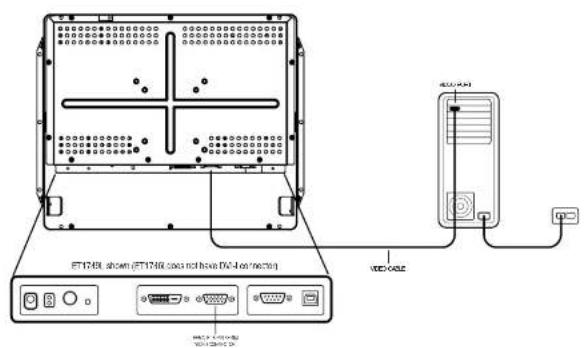
text_image
FT174R shown (FT174R class not has DV-4 connection) VDD CAGE VDD CAGE- Connect the 15-pin video cable (the ferrite bead end) or 29-pin DVI-I cable to the video port on your PC.
- Connect the other end of the video cable to the video connector on your touchmonitor.
- Secure the cable to your touchmonitor and PC by turning the screws on the connector clockwise.
STEP 2-Connecting the Serial or USB Touchscreen Cable
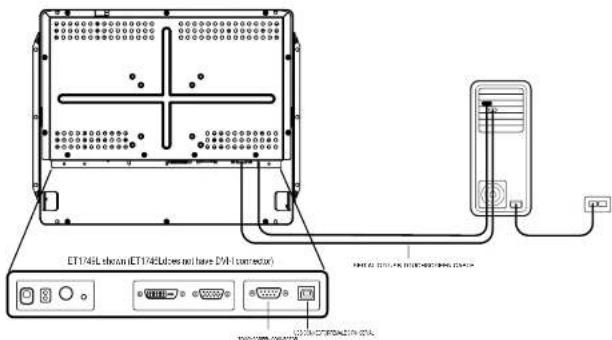
text_image
ET174L device (ET174L does not have DV1 connector) T200 0000 0000 0000- Connect the female end of the serial (RS-232) cable to the serial port on your PC, or connect the USB touchscreen cable to the USB touchscreen connector on the back of your touchmonitor.
- Connect the male end of the serial cable to the serial touchscreen connector on your touchmonitor, or connect the other end of the USB touchscreen cable to your PC.
- Secure the cable to your touchmonitor and PC by turning the screws on the connector.
- DO NOT connect the serial and the USB cables. Connect one or the other, but not both.
STEP 3-Connecting the OSD Remote Cable

text_image
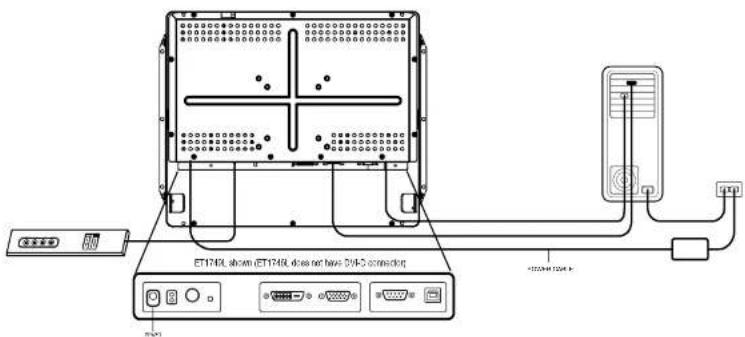
ET1745L shown iET1745L does not have 0% controller;- Connect the 6-pin Remote OSD DIN cable to the black Remote OSD port of the monitor.
STEP 4-Connecting the Power Cable
text_image
ET1740L shown (ET1740L does not have 50Hz connection) 123248/12344-6Depending on where you live, you will use either the European or US/Canadian power cable.
- Connect the female end of the power cable to the Brick power supply.
- Connect the Brick power cable into the power port on the touchmonitor.
- Route the cable through the cable management channel.
NOTE: To protect your equipment against risk of damage from electrical surges in the power line, plug the touchmonitor's power cord into a surge protector, and then connect the surge protector to a grounded AC electrical outlet.
Optimizing the LCD Display
To ensure the LCD display works well with your computer, configure the display mode of your graphic card to make it less than or equal to 1280 x 1024 resolution(1280x1024 is highly recommended), and make sure the timing of the PC video graphic card is compatible with the LCD display. Refer to Appendix A for more information about resolution. Compatible video modes for your touchmonitor are listed in Appendix C.
VESA Mount on Your Touchmonitor
Your touchmonitor conforms to the VESA Flat Panel Monitor Physical Mounting Interface (FPMPMI ^TM ) Standard which defines a physical mounting interface for flat panel monitors, and corresponding standards for flat panel monitor mounting devices, such as wall and table arms. The VESA mounting interface is located on the back of your touchmonitor.
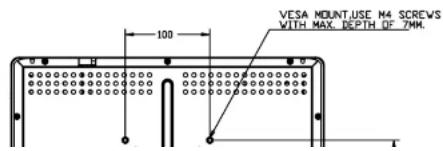
To use the VESA mount, simply mount to either 75mm or 100mm VESA mount. Use M4x7mm machine screws. Do not penetrate the screw into the monitor more than 7mm.
text_image
VESA MOUNT.USE M4 SCREVS WITH MAX. DEPTH OF ZMM.VESA Mounting Interface
Your monitor has standard VESA mounting holes on the rear of the unit. The holes are spaced at 75mm and 100mm standard separations.
The following companies provide VESA mounting devices compatible with your touchmonitor:
Ergotron
Innovative Office Products
800-888-8458
800-524-2744
651-681-7600
610-253-9554
www.crgotron.com
www.innov-office-prod.com
GCX
MRI
800-228-2555
800-688-2414
707-773-1100
www.mediarecovery.com
www.gcx.com
Installing the Driver Software
Elo TouchSystems provides driver software that allows your touchmonitor to work with your computer. Drivers are located on the enclosed CD-ROM for the following operating systems:
- Windows XP
- Windows 2000
- Windows Me
- Windows 98
- Windows 95
- Windows NT 4.0
Additional drivers and driver information for other operating systems are available on the Elo TouchSystems web site at www.elotouch.com.
Your Elo touchmonitor is plug-and-play compliant. Information on the video capabilities of your touchmonitor is sent to your video display adapter when Windows starts. If Windows detects your touchmonitor, follow the instructions on the screen to install a generic plug-and-play monitor.
Refer to the appropriate following section for driver installation instructions.
Depending upon whether you connected the serial communication cable or the USB communication cable, you should install only the serial driver or the USB driver.
Installing the Serial Touch Driver
Installing the Serial Touch Driver for Windows XP, Windows 2000, Me, 95/98 and NT 4.0
NOTE: For Windows 2000 and NT 4.0 you must have administrator access rights to install the driver.
1 Insert the Elo CD-ROM in your computer's CD-ROM drive.
2 If the AutoStart feature for your CD-ROM drive is active, the system automatically detects the CD and starts the setup program.
3 Follow the directions on the screen to complete the driver setup for your version of Windows.
4 If the AutoStart feature is not active:
5 Click Start > Run.
6 Click the Browse button to locate the EloCd.exe program on the CD-ROM.
7 Click Open, then OK to run EloCd.exe.
8 Follow the directions on the screen to complete the driver setup for your version of Windows.
Installing the Serial Touch Driver for MS-DOS and Windows 3.1
You must have a DOS mouse driver (MOUSE.COM) installed for your mouse if you wish to continue using your mouse along with your touchmonitor in DOS.
To install Windows 3.x and MS-DOS from Windows 95/98, follow the directions below:
1 Insert the Elo CD-ROM in your computer's CD-ROM drive.
2 From DOS, type d:\EloDos_W31 to change to the correct directory on the CD-ROM (your CD-ROM drive may be mapped to a different drive letter).
3 Type install and press Enter to start the installation.
4 Align the touchscreen.
You must have already completed Steps 1 and 2 before proceeding. Refer to Chapter 2 of the Elo DOS and Windows Driver Guide as necessary for additional installation information.
To run the INSTALL program:
1 Type INSTALL at the DOS prompt in the directory containing the driver install files.
2 INSTALL asks you to select the software to install. Then choose d:\EloDos_W31 from the displayed list.
3 INSTALL also asks you for the paths to use during installation, or you may use its defaults. INSTALL creates directories as necessary, and warns you if they exist.
If you are updating your software, you may wish to specify the paths containing the earlier versions, and overwrite the obsolete files. All executable programs
Installing the USB Touch Driver
Installing the USB Touch Driver for Windows XP, Windows 2000, Me and 98
1 Insert the Elo CD-ROM in your computer's CD-ROM drive.
If Windows 98, Windows Me or Windows 2000 starts the Add New Hardware Wizard:
2 Choose Next. Select "Search for the best driver for your device (Recommended)" and choose Next.
3 When a list of search locations is displayed, place a checkmark on "Specify a location" and use Browse to select the \EloUSB directory on the Elo CD-ROM.
4 Choose Next. Once the Elo TouchSystems USB touchscreen driver has been detected, choose Next again.
5 You will see several files being copied. Insert your Windows 98 CD if prompted. Choose Finish.
If Windows 98, Windows Me or Windows 2000 does not start the Add New Hardware Wizard:
NOTE: For Windows 2000 you must have administrator access rights to install the driver.
1 Insert the Elo CD-ROM in your computer's CD-ROM drive.
If the AutoStart feature for your CD-ROM drive is active, the system automatically detects the CD and starts the setup program.
2 Follow the directions on the screen to complete the driver setup for your version of Windows.
If the Auto-Street Features in and without
CHAPTER

OPERATION
About Touchmonitor Adjustments
Your touchmonitor will unlikely require adjustment. Variations in video output and application may require adjustments to your touchmonitor to optimize the quality of the display.
For best performance, your touchmonitor should be operating in native resolution, that is 1280 x 1024 at 80kHz/75 Hz. Use the Display control panel in Windows to choose 1280 x 1024 resolution.
Operating in other resolutions will degrade video performance. For further information, please refer to Appendix A.
All adjustments you make to the controls are automatically memorized. This feature saves you from having to reset your choices every time you unplug or power your touchmonitor off and on. If there is a power failure your
Remote OSD Buttons
text_image
AUTO/SEL DOWN UP MENU Elo TOUCHSYSTEMS AUTO/SEL DOWN UP MENU ② ③ ② ④ ⑧ ○ ⑤| Control Function | ||
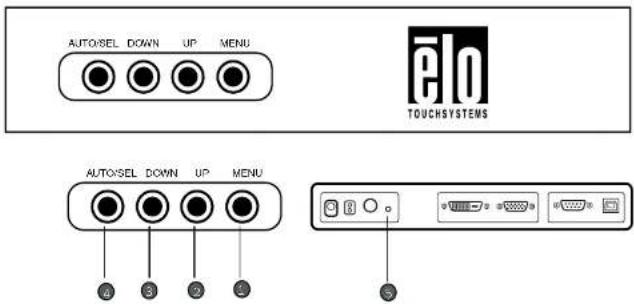
| 1 MENU | Menu | Display/Exits the OSD menus. |
| 2 Up | Brightness/Plus/Clockwise | 1. Adjust brightness of the OSD.2. Increase value of the adjustment item.3. Select item clockwise. |
| 3 Down | Minus Counter-clockwise | 1. Decrease value of the adjustment item.2. Select item counter-clockwise. |
| 4 AUTO/SEL | Enter Select item | Select- To select the adjustment items from the OSD menus.Auto- To activate the “Auto Adjustment” function to obtain an optimum image. |
OSD Menu Function

text_image
CONTRAST 50ET1746LET1749L

text_image
CONTRAST 50| Contrast | Controls the picture contrast. | |
| Brightness | Controls the picture brightness. | |
| V-Position | Controls the vertical position. | |
| H-Position | Controls the horizontal position. | |
| Pencil Defaults | Recalls factory circles of the image parameters. |

| OSD EXIT | Exits the OSD menu screen | |
| Sharpness | Selection of the image Sharpness level. | |
| Phase | Controls the vertical fine adjustment. | |
| Clock | Controls the horizontal fine adjustment. | |
| OSD II-Position | Adjusts the horizontal position of the OSD menu. | |
| OSD V-Position | Adjusts the vertical position of the OSD menu. | |
| OSD Time | Determines how long (in seconds) the OSD menu waits before closing automatically after no action has been performed. | |
| Auto Adjust | Automatically selects the optimal settings for image parameters (image position, phase, clock). | |
| OSD Language | Selection of the OSD menu language: English, French, German, Spanish, and Japanese. | |
| Input Select | Selection of the input signal : DSUB analog or DVI digital. (For 1749L only) | |
| Image Information | Display the current graphics mode.(For 1749L only) |
CHAPTER

TROUBLESHOOTING
If you are experiencing trouble with your touchmonitor, refer to the following table. If the problem persists, please contact your local dealer or our service center.
Solutions to Common Problems
Problem
Suggestion(s)
No image appears on screen. Check that all the I/O and power connectors are properly connected as described in Chapter 2.
Make sure the pins of the connectors are not crooked or broken.
Test power supply by trying different cables, a different wall outlet or plug another appliance into the outlet.
Image has vertical flickering line bars.
Use "Phase" to make an adjustment.
Check and reconfigure the display mode of the vertical refresh rate of your graphic card to make it compatible with the LCD display.
Image is unstable and flickering Use "CLOCK" to make an adjustment.
Image is scrolling Make sure the VGA signal cable (or adapter) is well connected.
Check and reconfigure the display mode of the vertical refresh rate of your graphic card to make it compatible with the LCD display.
Touch doesn't work Make sure cable is securely attached at both ends.
APPENDIX

NATIVE RESOLUTION
The native resolution of a monitor is the resolution level at which the LCD panel is designed to perform best. For the Elo LCD touchmonitor, the native resolution is 1280 x 1024 for the SXGA-17 inch size. In almost all cases, screen images look best when viewed at their native resolution. You can lower the resolution setting of a monitor but not increase it.
Input Video 17" LCD
640x480 (VGA) Transforms input format to 1280x1024
800x600 (SVGA) Transforms input format to 1280x1024
1024x768 (XGA)
1280x1024(SXGA)
Transforms input format to 1280x1024
Displays in Native Resolution
The native resolution of an LCD is the actual number of pixels horizontally in the LCD by the number of pixels vertically in the LCD. LCD resolution is usually represented by the following symbols:
As an example, a SVGA resolution LCD panel has 800 pixels horizontally by 600 pixels vertically. Input video is also represented by the same terms. XGA input video has a format of 1024 pixels horizontally by 768 pixels vertically. When the input pixels contained in the video input format match the native resolution of the panel, there is a one to one correspondence of mapping of input video pixels to LCD pixels. As an example, the pixel in column 45 and row 26 of the input video is in column 45 and row 26 of the LCD. For the case when the input video is at a lower resolution than the native resolution of the LCD, the direct correspondence between the video pixels and the LCD pixels is lost. The LCD controller can compute the correspondence between video pixels and LCD pixels using algorithms contained on its controller. The accuracy of the algorithms determines the fidelity of conversion of video pixels to LCD pixels. Poor fidelity conversion can result in artifacts in the LCD displayed image such as varying width characters.
APPENDIX
B
TOUCHMONITOR SAFETY
This manual contains information that is important for the proper setup and maintenance of your touchmonitor. Before setting up and powering on your new touchmonitor, read through this manual, especially Chapter 2 (Installation), and Chapter 3 (Operation).
1 To reduce the risk of electric shock, follow all safety notices and never open the touchmonitor case.
2 Turn off the product before cleaning
3 Your new touchmonitor is equipped with a 3-wire, grounding power cord. The power cord plug will only fit into a grounded outlet. Do not attempt to fit the plug into an outlet that has not been configured for this purpose. Do not use a damaged power cord. Use only the power cord that comes with your Elo TouchSystems Touchmonitor. Use of an unauthorized power cord may invalidate your warranty.
Care and Handling of Your Touchmonitor
The following tips will help keep your Elo Entuitive touchmonitor functioning at the optimal level.
- To avoid risk of electric shock, do not disassemble the brick supply or display unit cabinet. The unit is not user serviceable. Remember to unplug the display unit from the power outlet before cleaning.
- Do not use alcohol (methyl, ethyl or isopropyl) or any strong dissolvent. Do not use thinner or benzene, abrasive cleaners or compressed air.
- To clean the display unit cabinet, use a cloth lightly dampened with a mild detergent.
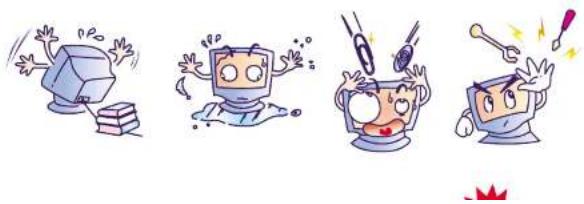
- Avoid getting liquids inside your touchmonitor. If liquid does get inside, have a qualified service technician check it before you power it on again.
- Do not wipe the screen with a cloth or sponge that could scratch the surface.
- To clean the touchscreen, use window or glass cleaner. Put the cleaner on the rag and wipe the touchscreen. Never apply the cleaner directly on the touchscreen
natural_image
Four cartoon illustrations of computer monitors and a coffee cup, showing different expressions of surprise or surprise (no text or symbols present)APPENDIX

TECHNICAL SPECIFICATIONS
Compatible Video Modes
You r Elo Entuitive touchmonitor is compatible with the following standard video modes:
| Mode | Resolution | H. Frequency (kHz) | V. Frequency (Hz) |
| VGA | 720 x350 | 31,470 | 70 |
| VGA | 720 x 400 | 31,470 | 70 |
| VGA | 640 x 480 | 31,470 | 60 |
| MAC | 640 x 480 | 35,000 | 66 |
| VESA | 640 x 480 | 37,860 | 72 |
| VESA | 640 x 480 | 37,500 | 75 |
| VESA | 800 x 600 | 35,160 | 56 |
| VESA | 800 x 600 | 37,880 | 60 |
Touchmonitor Specifications
Table C.1 17' LCD Touchmonitor (ET1746L/ET1749L) Specifications
| Display Type | Active matrix, thin film transistor (TFT), liquid crystal display | |
| Size | 17-inch diagonal338 x 270mm useful screen area | |
| Pixel Format | 1280x1024 | |
| Touchscreen | 0.125-inch IntelliTouch | |
| Colors | 16 million with dithering (6 bit per color data-1746L; 8 bit per color data-ET1749L). | |
| Display Brightness | Non-Touch:250 cd/m2(Typical) | IntelliTouch:230 cd/m2(Typical) |
| Back-light Lamp Life | 40,000 hour at 50% brightness typical | |
| Viewing Angle | Horizontal | 1746L:-70 degrees(left)/70 degree(right) at a CR>101749L:-89 degrees(left)/89 degree(right) at a CR>10 |
| Vertical | 1746L:-67 degrees(looking up)/63 degree(looking down) at a CR>101749L:-89 degrees(looking up)/89 degree(looking down) at a CR>10 | |
| Contrast Ratio | 450:1 typical(1746L)500:1 typical(1749L) | |
| Display Response Time | 1746L:12ms(tr)/4ms(tf) typical1749L:15ms(tr)/10ms(tf) typical | |
| Environment | Operating TempStorage TempHumidity | 0°C to 50°C-20°C to +60°C80% non-condensing operating90% non-condensing storage |
| Mechanical | Weight | Actual: 6.82kg (15.06 lbs) ActualShipping: 10.97kg(24.18 lbs) |
| Electrical | Size | See drawing on next page |
Table C.2 IntelliTouch Touchmonitor Specifications
| Mechanical | |
| Positional Accuracy | Standard deviation of error is less than 0.080 in. (2.03 mm).Equates to less than ± 1% . |
| Touchpoint Density | More than 100,000 touchpoints/ in^2 (15.500 touchpoints/ cm^2 ). |
| Touch Activation Force | Typically less than 3 ounces (85 grams). |
| Surface Durability | Surface durability is that of glass, Mohs’ hardness rating of 7. |
| Expected Life Performance | No known wear-out mechanism, as there are no layers, coatings, or moving parts. IntelliTouch technology has been operationally tested to more than 50 million touches in one location without failure, using a stylus similar to a finger. |
| Sealing | Unit is sealed to protect against splashed liquids, dirt, and dust. |
| Optical | |
| Light Transmission (per ASTM D1003) | 92% IntelliTouch Typical |
| Visual Resolution | All measurements made using USAF 1951 Resolution Chart, under 30X magnification, with test unit located approximately 1.5 in (38 mm) from surface of resolution chart.Clear surface: Excellent, with no noticeable degradation.Antiglare surface: 6:1 minimum. |
| Gloss (per ASTM D2457 using a 60-degree gloss meter) | Antiglare surface: Curved: 60 ± 20 gloss units or 75 ± 15 gloss units. |
Environmental
Chemical Resistance
The active area of the touchscreen is resistant to all chemicals that do not affect glass, such as:
Acetone
Toluene
Methyl ethyl ketone
Isopropyl alcohol
Methyl alcohol
Ethyl acetate
Ammonia-based glass cleaners
Gasoline
Kerosene
Vinegar
Electrostatic
Protection (per EN 61 000-4-2, 1995)
Meets Level 4 (15 kV air/8 kV contact discharges).
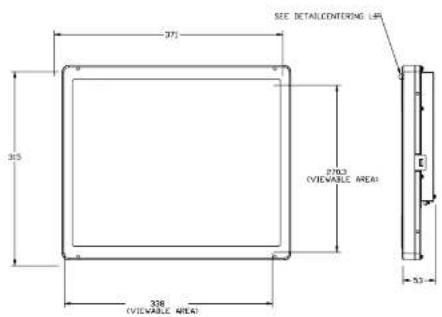
17" LCD Touchmonitor (ET1746L/ET1749L)Dimensions
NOTES FOR ALL Material: Wood: ∅4.5 holes thru for M4 screws with nuts or screws for wood ∅4mm. MOUNTING Sheet metal: Concealed head threaded studs M4 with nuts. OPTIONS:
1746L
text_image
SEE DETAILCENTERING LIF 371 325 303 (VIEWABLE AREA) 338 (VIEWABLE AREA)1749L

text_image
371REGULATORY INFORMATION
I. Electrical Safety Information:
A) Compliance is required with respect to the voltage, frequency, and current requirements indicated on the manufacturer's label. Connection to a different power source than those specified herein will likely result in improper operation, damage to the equipment or pose a fire hazard if the limitations are not followed.
B) There are no operator serviceable parts inside this equipment. There are hazardous voltages generated by this equipment which constitute a safety hazard. Service should be provided only by a qualified service technician.
C) This equipment is provided with a detachable power cord which has an integral safety ground wire intended for connection to a grounded safety outlet.
1) Do not substitute the cord with other than the provided approved type. Under no circumstances use an adapter plug to connect to a 2-wire outlet as this will defeat the continuity of the grounding wire.
2) The equipment requires the use of the ground wire as a part of the safety certification, modification or misuse can provide a shock hazard that can result in serious injury or death.
3) Contact a qualified electrician or the manufacturer if there are questions about the installation prior to connecting the equipment to mains power.
II. Emissions and Immunity Information
A) Notice to Users in the United States: This equipment has been tested and found to comply with the limits for a Class B digital device, pursuant to Part 15 of FCC Rules. These limits are designed to provide reasonable protection against harmful interference in a residential installation. This equipment generates, uses, and can radiate radio frequency energy, and if not installed and used in accordance with the instructions, may cause harmful interference to radio communications.
This Information Technology Equipment (ITE) is required to have a CE Mark on the manufacturer's label which means that the equipment has been tested to the following Directives and Standards:
This equipment has been tested to the requirements for the CE Mark as required by EMC Directive 89/336/EEC indicated in European Standard EN 55 022 Class B and the Low Voltage Directive 73/23/EEC as indicated in European Standard EN 60 950.
D) General Information to all Users: This equipment generates, uses and can radiate radio frequency energy. If not installed and used according to this manual the equipment may cause interference with radio and television communications. There is, however, no guarantee that interference will not occur in any particular installation due to site-specific factors.
1) In order to meet emission and immunity requirements, the user must observe the following:
a) Use only the provided I/O cables to connect this digital device with any computer.
b) To ensure compliance, use only the provided manufacturer's approved line cord.
c) The user is cautioned that changes or modifications to the equipment not expressly approved by the party responsible for compliance could void the user's authority to operate the equipment.
2) If this equipment appears to cause interference with radio or television reception, or any other device:
a) Verify as an emission source by turning the equipment off and on.
b) If you determine that this equipment is causing the interference, try to correct the interference by using one or more of the following measures:
i) Move the digital device away from the affected receiver.
ii) Reposition (turn) the digital device with respect to the affected receiver.


FC Based To Supply N103 FCC Clauders FOR BOMBORO EYE BOSE N10051
"This application of this monitor is restricted to special controlled luminous environment. This screen surface trend to reflect annoying light of lamps and sunlight. To avoid these reflections the monitor should not be positioned in front of a window or directed to luminaries. The monitor is in compliance with Reflection Class III according to ISO 9241-7."
WARRANTY
Except as otherwise stated herein or in an order acknowledgment delivered to Buyer, Seller warrants to Buyer that the Product shall be free of defects in materials and workmanship. The warranty for the touchmonitors and components of the product is 1 year.
Seller makes no warranty regarding the model life of components. Seller's suppliers may at any time and from time to time make changes in the components delivered as Products or components.
Buyer shall notify Seller in writing promptly (and in no case later than thirty (30) days after discovery) of the failure of any Product to conform to the warranty set forth above; shall describe in commercially reasonable detail in such notice the symptoms associated with such failure; and shall provide to Seller the opportunity to inspect such Products as installed, if possible. The notice must be received by Seller during the Warranty Period for such product, unless otherwise directed in writing by the Seller. Within thirty (30) days after submitting such notice, Buyer shall package the allegedly defective Product in its original shipping carton(s) or a functional equivalent and shall ship to Seller at Buyer's expense and risk.
Within a reasonable time after receipt of the allegedly defective Product and verification by Seller that the Product fails to meet the warranty set forth above, Seller shall correct such failure by, at Seller's options, either (i) modifying or repairing the Product or (ii) replacing the Product. Such modification, repair, or replacement and the return shipment of the Product with minimum insurance to Buyer shall be at Seller's expense. Buyer shall bear the risk of loss or damage in transit, and may insure the Product. Buyer shall reimburse Seller for transportation cost incurred for Product returned but not found by Seller to be
THESE REMEDIES SHALL BE THE BUYER'S EXCLUSIVE REMEDIES FOR BREACH OF WARRANTY. EXCEPT FOR THE EXPRESS WARRANTY SET FORTH ABOVE, SELLER GRANTS NO OTHER WARRANTIES, EXPRESS OR IMPLIED BY STATUTE OR OTHERWISE, REGARDING THE PRODUCTS, THEIR FITNESS FOR ANY PURPOSE, THEIR QUALITY, THEIR MERCHANTABILITY, THEIR NONINFRINGEMENT, OR OTHERWISE. NO EMPLOYEE OF SELLER OR ANY OTHER PARTY IS AUTHORIZED TO MAKE ANY WARRANTY FOR THE GOODS OTHER THAN THE WARRANTY SET FORTH HEREIN. SELLER'S LIABILITY UNDER THE WARRANTY SHALL BE LIMITED TO A REFUND OF THE PURCHASE PRICE OF THE PRODUCT. IN NO EVENT SHALL SELLER BE LIABLE FOR THE COST OF PROCUREMENT OR INSTALLATION OF SUBSTITUTE GOODS BY BUYER OR FOR ANY SPECIAL, CONSEQUENTIAL, INDIRECT, OR INCIDENTAL DAMAGES.
Buyer assumes the risk and agrees to indemnify Seller against and hold Seller harmless from all liability relating to (i) assessing the suitability for Buyer's intended use of the Products and of any system design or drawing and (ii) determining the compliance of Buyer's use of the Products with applicable laws, regulations, codes, and standards. Buyer retains and accepts full responsibility for all warranty and other claims relating to or arising from Buyer's products, which include or incorporate Products or components manufactured or supplied by Seller. Buyer is solely responsible for any and all representations and warranties regarding the Products made or authorized by Buyer. Buyer will indemnify Seller and hold Seller harmless from any liability, claims, loss, cost, or expenses (including reasonable attorney's fees) attributable to Buyer's products or representations or warranties concerning same.
INDEX
Numerics
17° LCD Touchmonitor(ET1749L) Dimension, 33
A
About the Product, 1
About Touchmonitor Adjustments, 19
Additional Color setting, 22
Agencies, 30
Attaching the L-bracket, 5
B
Back-light Lamp life, 30
Bottom View, 4
Brightness, 20,21
C
Care and Handling of your Touchmonitor, 28
Chemical Resistance, IntelliTouch, 36
Cleaning Your Touchmonitor, 28
Clock, 22
Compatible Video Modes, 12
Connecting the Power Cable, 11
Connecting the OSD Remote Cable, 10
Connecting the Serial or USB Touchscreen, 9
Connecting the Video Cable, 8
Contrast, 21
Contrast Ratio, 30
D
Display Brightness, 30
Display Response Time, 30
Display Type, 30
F
Flesh Tone, 22
G
Gloss, IntelliTouch, 31
H
H-Position, 21
Hue, 22
|
Image Information, 23
Image problem, 23
Image, scrolling, 24
Image, unstable, 24
Image, vertical flickering, 24
Installation and Setup, 3
Installing the Driver Software, 14
Installing the Serial Touch Driver, 15
Installing the Serial Touch Driver for MS-DOS and
Windows 3.1, 16
Installing the Serial Touch Driver for Windows XP, 2000
Me, 95/98 and NT 4.0, 15
Installing the USB Touch Driver, 17
Installing the USB Touch Driver for Windows XP, 2000, Me
and 98, 17
IntelliTouch Touchmonitor Specifications, 31
Introduction, 1
L
Light Transmission, IntelliTouch, 31
M
Main View. 4
0
Operation, 19
Optical, IntelliTouch, 31
Optimizing the LCD Display, 12
OSD Exit, 22
OSD H-Position, 22
OSD Language. 22
OSD Menu Function, 21
OSD Time, 22
OSD Power, Respond, 23
OSD V-Position, 22
Out of Range display, 23
P
Panel Cut Outs, 6
Phase, 22
Pixel Format, 30
Positional Accuracy IntelliTouch, 31
Power Switch, 20
Precautions, 1
Product Overview, 4
R
Rear View, 4
Recall Defaults, 21
Regulatory Information, 34
Remote OSD Buttons, 20
s
Saturation, 22
Sealing IntelliTouch, 31
Serial or USB Connection, 7
Shannace 21
T
Technical Specifications, 33
Touch Activation Force, IntelliTouch, 31
Touch Interference Connection, 11
Touch not working, 28
Touchmonitor safety, 27
Touchmonitor Specification, 30
Touchpoint Density, Intellitouch, 31
Troubleshooting, 23
U
Unpacking Your Touchmonitor, 3
Using the On-Screen Display(OSD) Menus, 19
UXGA, 25
V
VESA mount on Your Touchmonitor, 12
VGA, 25
Viewing Angle, 30
Visual Resolution, IntelliTouch, 31
V-Position, 21
W
Warranty, 37
X
XGA, 25
Check out Elo's Web site!
www.elotouch.com
Get the latest...
• Product information
- Specifications
• News on upcoming events
- Press releases
- Software drivers
Getting in Touch with Elo
To find out more about Elo's extensive range of touch solutions, visit our Web site at www.elotouch.com or simply call the office nearest you:
USA & Headquarters
Elo TouchSystems, Inc.
301 Constitution Drive,
Menlo Park, CA 94025
(800) ELO-TOUCH (800-356-8682)
Germany
Elo TouchSystems GmbH & Co. KG
Haidgraben 6
D-85521 Ottobrunn
Germany
Belgium
Elo TouchSystems
Diestsesteenweg 692
B-3010 Kessel-Lc
Belgium
Japan
Touch Panel Systems K.K
Sun Homada Bldg. 2F
1-19-20 Shin-Yokohama,
Kanagawa 222-0033
Japan