
HXD3U50GL - Unknown LG - Free user manual and instructions
Find the device manual for free HXD3U50GL LG in PDF.


| Product Type | External Hard Drive |
| Brand | LG |
| Model | HXD3U50GL |
| Interface | USB (Y-cable) |
| Compatible Operating Systems | Windows 98/ME/2000/XP/Vista/7, Mac OS 10.0 or later |
| Supported File Systems | NTFS, FAT32, HFS+ (Mac) |
| Maximum Capacity Supported (FAT32 Utility) | Up to 4 TB |
| Power Supply | USB bus-powered |
| LED Indicator | Operation status LED |
| Included Accessories | Quick Guide, CD with software, USB Y-cable |
| Backup Software | PC Clone EX Lite |
| Operating Temperature | Below 35°C (95°F) |
| Storage Environment | Away from humidity, dust, and soot |
| Warranty | Manufacturing defects covered; excludes user damage |
| Safety Precautions | Do not disassemble; avoid shock; safely remove before unplugging |
| Formatting Utility | FNet FAT32 Format Utility for large drives |
| Mac Format Recommendation | HFS+ for full read/write; FAT32 for cross-platform but limited to 4GB file size |
Frequently Asked Questions - HXD3U50GL LG
User questions about HXD3U50GL LG
0 question about this device. Answer the ones you know or ask your own.
Ask a new question about this device
Download the instructions for your Unknown in PDF format for free! Find your manual HXD3U50GL - LG and take your electronic device back in hand. On this page are published all the documents necessary for the use of your device. HXD3U50GL by LG.
USER MANUAL HXD3U50GL LG
Warning & Caution During Use
Check before use
- This user manual contains instructions on how to use the product properly.
- Please read this manual carefully.
- Be sure to follow the instructions and notices.
Notes are divided into "Warning" and "Caution", each denotes the following:

Warning

Caution

Tip
Failure to follow the instructions below may result in injuries or product damage.
Failure to follow the instructions below may result in serious injuries or product damage.
It provides a recommendation to prevent product failure or malfunction in advance when using the product.
Warning and Caution

Warning
- It may cause defect under following circumstance.
- Keep away from humidity, dust, and soot (may cause fire or electrocution)
- Keep away from areas with temperature of above 35° C ( 95° F)
Warranty & Caution During Use

Caution
- LG Electronics will replace this product if it is faulty due to a manufacturing or materials defect, except where damage is caused by your use or negligence.
- LG EXCLUDES LIABILITY FOR ALL CONSEQUENTIAL AND OTHER LOSS, INCLUDING LOSS OF DATA.
Warranty
- Any defect found after normal use and during the warranty period shall be repaired free of charge.
- Fees shall be charged for the type of repair other than that covered by the warranty even during the warranty period.
- Present this warranty when requesting for repair.
The following repair services shall be provided for a fee:
- Defect caused by careless use.
- Defect caused by repair performed at places other than the authorized service centers.
- Defect caused by the disassembly of the device by the user.
Table of Contents
● Warning & Caution During Use 2
● Table of Contents 4
● Package Contents 5
- Name of Parts & Connect Cable 5
- USB Port Connect 6
- Windows User
- Mac OS User
- Safely remove 8
● Partition Creation and Format 9
●Mac Format 10
Package Contents
Components

1. LG External HDD

2. Quick Guide

3. CD
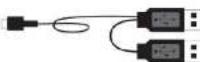
4. USB Y-cable
※ The components are subject to change without prior notice.
※ Windows 98/SE user must install the driver in the CD or Website
(www.lgservice.com, www.lge.com)
Name of Parts & Connect Cable
Name of parts
USB Model
④ LED Operation Status
USB Port Connect
Windows User
- Windows 98/ME/2000/XP/Vista, Windows 7
- Connecting to Windows ME/2000/XP/VISTA, Windows 7
- When connected to a computer using the USB cable, the external HDD is recognized and can be used immediately.
※ When installing on Windows ME, and files such as usbntmap.sys are being requested, specify the base2.cab file in the Win9X folder on the Windows ME original CD to enable automatic installation.
- If the mobile storage is connected properly to your computer, the mobile storage icon will appear in the notification area. (The icon shape may vary according to your computer environment.)
● Windows 98/SE Driver install
※ Do not install Windows 98 Driver for Windows ME/2000/XP/Vista, Windows 7 users
- Insert Install CD to your computer. (or download Windows98 driver on website)
USB Port Connect
Mac User
- Mac OS
- Connecting to Mac OS
- There is no need to install an additional driver on Mac OS 10.0 or later.
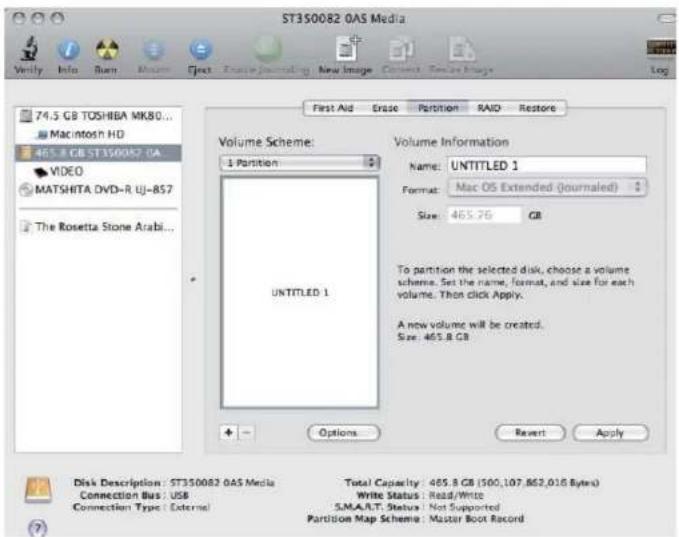
- When using Mac OS, format as extended Mac format (HFS+).
※ If formatted as NTFS, the external HDD can be recognized by Mac; data cannot be copied to/from it, however. Format as FAT32 to enable use in both PC and Mac. Format on the PC using the program provided with the CD or on Mac using Disk Utilities.

Tip
If formatted as FAT 32 on PC, the following problems may occur on Mac:
- Files more than 4GB cannot be copied at one time.
- The attribute of the compression file is not changed when files such as Quick data are included.
- The size of the stored data is increased. Thus, formatting as extended format on Mac is recommended.
Safely remove (Unplug)
- Safely remove (unplug)
※ Removing the external HDD from the PC without following the safe removal instruction may cause problem to the stored data or operation of the external HDD.
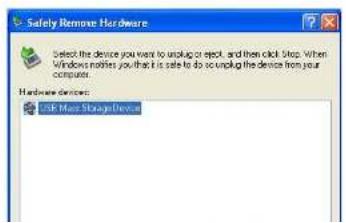
- Double-click the Safely Remove Hardware Icon in the notification area.

- On the window, click the Stop button followed by OK.

Partition Creation and Format
● Windows 2000/XP User
- LG external HDD is already NTFS-formatted, but if you want to create or divide partition, follow this instruction.
(Attention: all data in external HDD will be deleted if you use this function.)
- Left button click "My Computer" and Click "Manage".
- Click the Disk Management.
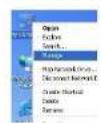
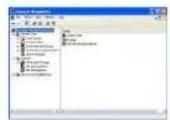
- Choose the Disk Drive you want to delete partition and click "Delete Partition".
- Choose the Disk Drive which is partition deleted and click "New Partition".
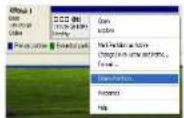

- Click "Next" at the New Partition Wizard and select "Primary Partition".
- Choose the partition size and click "Next".


Mac Format

Mac format
Backup Program (PC Clone EX)

Software Installation


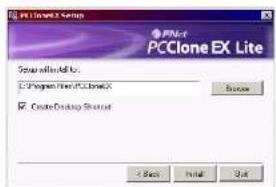
- Please put CD into CD ROM drive, the program directly goes on the autorun program. (In case the screen doesn't come out, please operate the window box of "setup.exe")
- Click "Backup Program" and click "install".
- Please read the license agreement in detail.
- If users accept the agreement, please click "Agree" to install.
- Please setup the installing pathway, and then click "Install" to next.
Backup Program (PC Clone EX)

FAT32 Format Utility
For the current HDD capacity is getting bigger, the Fat32 Format Utility in Windows 2000 / XP is not able to support the HDD size exceeding 32GB; FNet recommends FNet Fat 32 Format Utility, which can format the large capacity to be FAT32 Format rapidly and fully, the size even maximums up to 4 TB (4000GB).
(Attention: all data in external HDD will be deleted if you use this function)
-
Please plug external HDD, and turn on the computer.
-
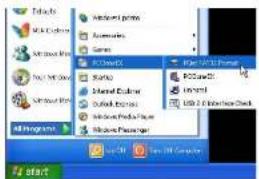
Click "Start" → "All programs" → "PCClone EX" → "FNet FAT32 Format".
-
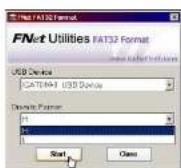
Confirm the "USB Device" and "Drive to Format" in the FAT32 Format Utility, and then press "start".

Backup Program (PC Clone EX)
Quick Launch
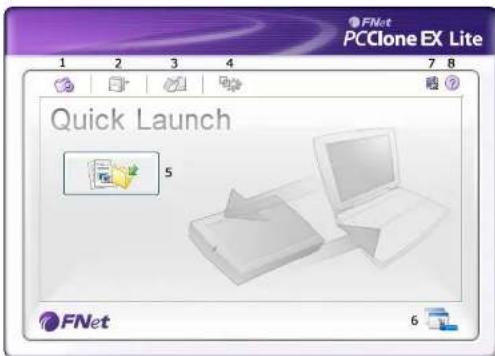
- Quick Launch.
- File Backup.
- File Manager.
- Setup.
- File Backup.
- Minimized.
- About.
- Help.
File Manager

Backup Program (PC Clone EX)

Quick File Backup
Users can directly execute "File Backup" from Quick Launch, only one step, and the system data will be backed up easily. (For the first time using, please refer to the subject of "File Backup")

- Please plug the external HDD into PC
- Execute PCClone EX Lite.
- Go on PCClone EX Lite /Quick Launch Screen.
- Click "File Backup".
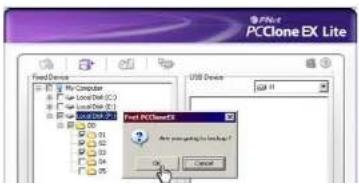
- Appearing a dialog screen, please click "OK" to backup.
Backup Program (PC Clone EX)

File Backup
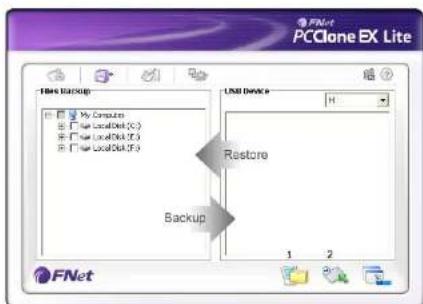
- Please plug the USB HDD into the computer, and turn on the power.
- Execute PCClone EX Lite.
- Click "File backup".
- Select folders / drives from the fix device.
- Set one of USB devices for backup. (Please refer to "Setup", and then
Backup Program (PC Clone EX)
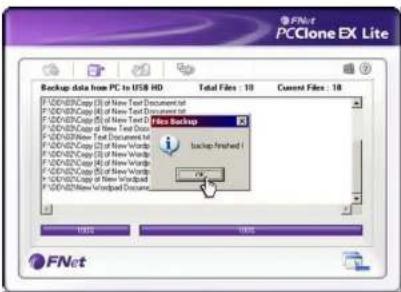
- Backup is completed, please press "OK".

- The selected folders have been moved from the fixed devise to the USB device successfully.
Backup Program (PC Clone EX)

File Restore

- Please plug the external HDD.
- Execute PCClone EX Lite.
- Go on the PCClone EX Lite screen.
- Click "File Backup".
-
Select folders/files of USB Device you would like to restore.
-
Click "Restore", then press "OK" to start.
-
When "Restore" is finished, please press "OK".

Frase File Backup
Backup Program (PC Clone EX)
Setup
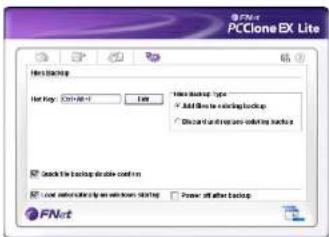
Hot Key setup: When users click "Edit", which can be made up of their own hot key by choosing "Ctrl", "shift", "Alt" and Added a number, or a letter, or function key, or whatever they want to consist of a hot key. Thus, every user has their own edited key to do file backup.
File backup mode : There are two modes for file backups; one is "Add\~", this function only backs up additional files to the external USB HDD; the other one is "Discard\~", this function duplicates all data & OS from your PC to the external HDD.
Confirmation : When users back up using their hot key, a default dialog box will pop up to asking for confirmation. If users want to backup directly, please cancel the default.
Other

※ Concerning PCClone EX Lite spec. please click
Troubleshooting
- Once connected, the external HDD is recognized but not displayed.
Make sure that the mounted external HDD is initialized, partitioned, and formatted.
- Files larger than 2GB cannot be copied to the external HDD on Mac.
The partition of the external HDD is FAT 32. Set the partition to extended partition (HFS+) on Mac OS.
- During the installation of an external HDD on Windows ME, files such as usbntmap.sys are requested.
The files are in the base2.cab of the WIN9X folder on the Windows ME original CD. Specify this folder to complete installation.
- The formatted external HDD is recognized on Windows 2000 and XP but not on Windows 98SE and ME.
This is due to the difference in format type. Windows 98SE and ME support FAT 32 only, whereas Windows 2000 and XP support both FAT 32 and NTFS. Format as FAT 32 to enable recognition by all Windows systems.
- Power is insufficient.
[Major symptoms]
Not recognized/Sometimes recognized/Tick sound heard/Data move failed/Driver disappeared.
[Solution]
Connect all USB Y-cables, connect directly to the rear of the PC.
- Data in external HDD is lost.
Data may be lost when running Disk Defragmenter or Scan Disk with "Precise."
Data may be lost due to shock when the external HDD is operating.
Data opened after a fast format may be lost.
LG Service Site
Asia (Country / Region)
| Azerbaijan | http://www.lgservice.com | Lesotho | http://www.lgservice.com |
| Bangladesh | http://www.lgservice.com | Liberia | http://lr.lgservice.com |
| Brunei | http://www.lgservice.com | Libya | http://www.lgservice.com |
| Cambodia | http://www.lgservice.com | Madagascar | http://mg.lgservice.com |
| China | http://china.lgservice.com | Mali | http://ml.lgservice.com |
| Hong Kong | http://hk.lgservice.com | Mauritius | http://mu.lgservice.com |
| India | http://in.lgservice.com | Morocco | http://ma.lgservice.com |
| Indonesia | http://id.lgservice.com | Namibia | http://www.lgservice.com |
| Japan | http://jp.lgservice.com | Nigeria | http://ng.lgservice.com |
| Kazakhstan | http://kz.lgservice.com | Reunion | http://re.lgservice.com |
| Korea | http://www.lgservice.co.kr | Senegal | http://sn.lgservice.com |
| Kyrgyzstan | http://www.lgservice.com | South Africa | http://za.lgservice.com |
| Macau | http://mo.lgservice.com | Sudan | http://www.lgservice.com |
| Malaysia | http://my.lgservice.com | Swaziland | http://www.lgservice.com |
| Myanmar | http://www.lgservice.com | Togo | http://tg.lgservice.com |
| Nepal | http://www.lgservice.com | Tunisia | http://tn.lgservice.com |
| Philippines | http://ph.lgservice.com | Zimbabwe | http://zw.lgservice.com |
| Singapore | http://sg.lgservice.com | ||
| Sri Lanka | http://www.lgservice.com | Middle East (Country/Region) | |
| Taiwan | http://www.lgservice.com | Afghanistan | http://www.lgservice.com |
| Tajikistan | http://www.lgservice.com | Bahrain | http://bh.lgservice.com |
| Thailand | http://th.lgservice.com | Cyprus | http://cy.lgservice.com |
| Turkmen | http://www.lgservice.com | Iran | http://ir.lgservice.com |
| Uzbekistan | http://www.lgservice.com | Iraq | http://iq.lgservice.com |
| Vietnam | http://vn.lgservice.com | Israel | http://www.lgservice.com |
Middle East (Country/Region)
LG Service Site
| Caribbean | http://www.lgservice.com | Latvia | http://lv.lgservice.com |
| Chile | http://cl.lgservice.com | Lithuania | http://lt.lgservice.com |
| Colombia | http://co.lgservice.com | Luxembourg | http://lu.lgservice.com |
| Costa Rica | http://cr.lgservice.com | Macedonia | http://www.lgservice.com |
| Cuba | http://www.lgservice.com | Moldova | http://www.lgservice.com |
| Dominican Republic | http://dm.lgservice.com | Netherlands | http://nl.lgservice.com |
| Ecuador | http://ec.lgservice.com | Norway | http://no.lgservice.com |
| El Salvador | http://www.lgservice.com | Poland | http://pl.lgservice.com |
| Guatemala | http://www.lgservice.com | Portugal | http://pt.lgservice.com |
| Honduras | http://www.lgservice.com | Romania | http://ro.lgservice.com |
| Nicaragua | http://www.lgservice.com | Russia | http://ru.lgservice.com |
| Panama | http://pa.lgservice.com | Serbia | http://www.lgservice.com |
| Paraguay | http://www.lgservice.com | Slovakia | http://www.lgservice.com |
| Peru | http://pe.lgservice.com | Slovenia | http://www.lgservice.com |
| Uruguay | http://www.lgservice.com | Spain | http://es.lgservice.com |
| Venezuela | http://ve.lgservice.com | Sweden | http://se.lgservice.com |
North America (Country/Region)
| Canada | http://ca.lgservice.com |
| Mexico | http://mx.lgservice.com |
| Puerto Rico | http://www.lgservice.com |
| U.S.A. | http://www.lgusa.com |
Europe (Country/Region)
| Albania | http://www.lgservice.com |
| Austria | http://www.lgservice.com |
Oceania (Country/Region)
| Australia | http://au.lgservice.com |
LG Electronics Inc.
| Home page: www.lge.com.auService site:http://au.lgservice.comCustomer information centre |


- WARNING & CAUTION DURING USE
- CHECK BEFORE USE
- WARNING AND CAUTION
- WARRANTY & CAUTION DURING USE
- CAUTION
- WARRANTY
- TABLE OF CONTENTS
- PACKAGE CONTENTS
- COMPONENTS
- NAME OF PARTS & CONNECT CABLE
- NAME OF PARTS
- USB PORT CONNECT
- WINDOWS USER
- MAC USER
- SAFELY REMOVE (UNPLUG)
- PARTITION CREATION AND FORMAT
- MAC FORMAT
- BACKUP PROGRAM (PC CLONE EX)
- SOFTWARE INSTALLATION
- FAT32 FORMAT UTILITY
- QUICK LAUNCH
- FILE MANAGER
- QUICK FILE BACKUP
- FILE RESTORE
- FRASE FILE BACKUP
- SETUP
- OTHER
- TROUBLESHOOTING
- LG SERVICE SITE
Brand : LG
Model : HXD3U50GL
Category : Unknown