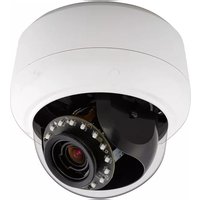
IPS03D0OCWTT - Security Camera Illustra - Free user manual and instructions
Find the device manual for free IPS03D0OCWTT Illustra in PDF.


| Product Type | Security Camera |
| Brand | Illustra |
| Model | IPS03D0OCWTT |
| Resolution | 3MP (2048 x 1536) |
| Lens | 1.8–3 mm motorized varifocal |
| Day/Night | True TDN with IR cut filter |
| IR Illuminator | Built-in (850–950 nm) |
| Wide Dynamic Range | True WDR 96 dB |
| Minimum Illumination (Color) | 0.05 Lux |
| Minimum Illumination (B/W) | 0.003 Lux |
| Video Compression | H.264, MJPEG |
| Frame Rate | Up to 30 fps (Stream 1, 3MP) |
| Triple Streaming | Yes (3 independent streams) |
| Network | 10/100 Base-T, IPv4/IPv6, ONVIF Profile S |
| Storage | microSD card up to 128 GB |
| Alarm I/O | 2 inputs, 1 relay output |
| Audio | Built-in microphone and speaker support |
| Power | PoE 802.3af Class 3, 24 VAC |
| Dimensions (Outdoor) | 135 x 160 x 160 mm (HxWxD) |
| Weight | 1.8 kg |
| Vandal Resistance | IK10 |
| Operating Temperature | –40 °C to 50 °C (outdoor) |
| Security | Multi-level password, HTTPS, 802.1x, IP filtering |
Frequently Asked Questions - IPS03D0OCWTT Illustra
User questions about IPS03D0OCWTT Illustra
0 question about this device. Answer the ones you know or ask your own.
Ask a new question about this device
Download the instructions for your Security Camera in PDF format for free! Find your manual IPS03D0OCWTT - Illustra and take your electronic device back in hand. On this page are published all the documents necessary for the use of your device. IPS03D0OCWTT by Illustra.
USER MANUAL IPS03D0OCWTT Illustra
From Tyco Security Products
Configuration & User Guide
Illustra Pro Series 5MP, 3MP & 2MP Mini I Series
Notice
The information in this manual was current when published. The manufacturer reserves the right to revise and improve its products. All specifications are therefore subject to change without notice.
Copyright
Under copyright laws, the contents of this manual may not be copied, photocopied, reproduced, translated or reduced to any electronic medium or machine-readable form, in whole or in part, without prior written consent of Tyco Security Products.
© 2017 Tyco Security Products. All Rights Reserved.
Tyco Security Products
6600 Congress Avenue
Boca Raton, FL 33487 U.S.A.
Customer Service
Thank you for using Illustra products. We support our products through an extensive worldwide network of dealers. The dealer through whom you originally purchased this product is your point of contact if you need service or support. Our dealers are empowered to provide the very best in customer service and support. Dealers should contact Tyco Security Products at (800) 507-6268 or (561) 912-6259 or on the Web at www.illustracameras.com.
Trademarks
Windows ^® is a registered trademark of Microsoft Corporation. PS/2 ^® is a registered trademark of International Business Machines Corporation.
The trademarks, logos, and service marks displayed on this document are registered in the United States [or other countries]. Any misuse of the trademarks is strictly prohibited and Tyco Security Products. will aggressively enforce its intellectual property rights to the fullest extent of the law, including pursuit of criminal prosecution wherever necessary. All trademarks not owned by Tyco Security Products are the property of their respective owners, and are used with permission or allowed under applicable laws.
Product offerings and specifications are subject to change without notice. Actual products may vary from photos. Not all products include all features. Availability varies by region; contact your sales representative.
License Information
Your use of this product is governed by certain terms and conditions. Please see the detailed license information at the end of this manual.
The Illustra Pro Series Mini Dome (hereafter referred to as the camera) is a high definition IP camera, ave 5 megapixel, 3 megapixel and 2 megapixel models. ONVIF-compatibility allows interoperability with other ON compliant third party NVRs. A built-in web server allows you to configure the camera and stream video usi Internet Explorer version 10 and higher.
The camera can operate as a standalone camera on a network however it is intended to be integrated into sophisticated security solutions.
Please refer to the Illustra Cameras website (www.illustracameras.com) to ensure that you have the most conversion of this Configuration and User Guide. Release Notes are also available on the website for each so-called release which will document any known limitations not covered in this user guide.
The following provides a list of the camera models available in the series.
Illustra Pro 2MP Models
| IPS02D0OCWTT Illustra Pro 2MP Mini-dome, 1.8-3mm, outdoor, vandal, clear, white, TDN, TWDR |
| IPS02D2ICWTT Illustra Pro 2MP Mini-dome, 3-9mm, indoor, vandal, clear, white, TDN, TWDR |
| IPS02D2ICWIT Illustra Pro 2MP Mini-dome, 3-9mm, indoor, vandal, clear, white, TDN w/IR, TWDR |
| IPS02D2OCWTT Illustra Pro 2MP Mini-dome, 3-9mm, outdoor, vandal, clear, white, TDN, TWDR |
| IPS02D2OCWIT Illustra Pro 2MP Mini-dome, 3-9mm, outdoor, vandal, clear, white, TDN w/IR, TWDR |
| IPS02D2ISWTT Illustra Pro 2MP Mini-dome, 3-9mm, indoor, vandal, smoked, white, TDN, TWDR |
| IPS02D2ISWIT Illustra Pro 2MP Mini-dome, 3-9mm, indoor, vandal, smoked, white, TDN w/IR, TWDR |
| IPS02D2OSWTT Illustra Pro 2MP Mini-dome, 3-9mm, outdoor, vandal, smoked, white, TDN, TWDR |
| IPS02D2OSWIT Illustra Pro 2MP Mini-dome, 3-9mm, outdoor, vandal, smoked, white, TDN w/IR, TWDR |
| IPS02D2ICBTT Illustra Pro 2MP Mini-dome, 3-9mm, indoor, vandal, clear, black, TDN, TWDR |
| IPS02D2ICBIT Illustra Pro 2MP Mini-dome, 3-9mm, indoor, vandal, clear, black, TDN w/IR, TWDR |
| IPS02D2OCBTT Illustra Pro 2MP Mini-dome, 3-9mm, outdoor, vandal, clear, black, TDN, TWDR |
| IPS02D2OCBIT Illustra Pro 2MP Mini-dome, 3-9mm, outdoor, vandal, clear, black, TDN w/IR, TWDR |
| IPS02D2ISBTT Illustra Pro 2MP Mini-dome, 3-9mm, indoor, vandal, smoked, black, TDN, TWDR |
| IPS02D2ISBIT Illustra Pro 2MP Mini-dome, 3-9mm, indoor, vandal, smoked, black, TDN w/IR, TWDR |
| IPS02D2OSBTT Illustra Pro 2MP Mini-dome, 3-9mm, outdoor, vandal, smoked, black, TDN, TWDR |
| IPS02D2OSBIT Illustra Pro 2MP Mini-dome, 3-9mm, outdoor, vandal, smoked, black, TDN w/IR, TWDR |
| IPS02D3ICWTT Illustra Pro 2MP Mini-dome, 9-22mm, indoor, vandal, clear, white, TDN, TWDR |
| IPS02D3ICWIT Illustra Pro 2MP Mini-dome, 9-22mm, indoor, vandal, clear, white, TDN w/IR, TWDR |
| IPS02D3ISWTT Illustra Pro 2MP Mini-dome, 9-22mm, indoor, vandal, smoked, white, TDN, TWDR |
| IPS02D3ISWIT Illustra Pro 2MP Mini-dome, 9-22mm, indoor, vandal, smoked, white, TDN w/IR, TWDR |
| IPS02D3ICBTT Illustra Pro 2MP Mini-dome, 9-22mm, indoor, vandal, clear, black, TDN, TWDR |
| IPS02D3ICBIT Illustra Pro 2MP Mini-dome, 9-22mm, indoor, vandal, clear, black, TDN w/IR, TWDR |
| IPS02D3ISBTT Illustra Pro 2MP Mini-dome, 9-22mm, indoor, vandal, smoked, black, TDN, TWDR |
| IPS02D3ISBIT Illustra Pro 2MP Mini-dome, 9-22mm, indoor, vandal, smoked, black, TDN w/IR, TWDR |
| IPS02D3OCWIT Illustra Pro 2MP Mini-dome, 9-22mm, outdoor, vandal, clear, white, TDN w/IR, TWDR |
| IPS02D3OSBIT Illustra Pro 2MP Mini-dome, 9-22mm, outdoor, vandal, smoked, black, TDN w/IR, TWDR |
Illustra Pro 3MP Models
| IPS03D0OCWTT Illustra Pro 3MP Mini-dome 1.8-3mm, outdoor, vandal, clear, white, TDN, TWDR |
| IPS03D2ICWTT Illustra Pro 3MP Minidome, 3-9mm, indoor, vandal, clear, white, TDN, TWDR |
| IPS03D2ICWIT Illustra Pro 3MP Minidome, 3-9mm, indoor, vandal, clear, white, TDN w/IR, TWDR |
| IPS03D2OCWTT Illustra Pro 3MP Minidome, 3-9mm, outdoor, vandal, clear, white, TDN, TWDR |
| IPS03D2OCWIT Illustra Pro 3MP Minidome, 3-9mm, outdoor, vandal, clear, white, TDN w/IR, TWDR |
| IPS03D2ISWTT Illustra Pro 3MP Minidome, 3-9mm, indoor, vandal, smoked, white, TDN, TWDR |
| IPS03D2ISWIT Illustra Pro 3MP Minidome, 3-9mm, indoor, vandal, smoked, white, TDN w/IR, TWDR |
| IPS03D2OSWTT Illustra Pro 3MP Minidome, 3-9mm, outdoor, vandal, smoked, white, TDN, TWDR |
| IPS03D2OSWIT Illustra Pro 3MP Minidome, 3-9mm, outdoor, vandal, smoked, white, TDN w/IR, TWDR |
| IPS03D2ICBTT Illustra Pro 3MP Minidome, 3-9mm, indoor, vandal, clear, black, TDN, TWDR |
| IPS03D2ICBIT Illustra Pro 3MP Minidome, 3-9mm, indoor, vandal, clear, black, TDN w/IR, TWDR |
| IPS03D2OCBTT Illustra Pro 3MP Minidome, 3-9mm, outdoor, vandal, clear, black, TDN, TWDR |
| IPS03D2OCBIT Illustra Pro 3MP Minidome, 3-9mm, outdoor, vandal, clear, black, TDN w/IR, TWDR |
| IPS03D2ISBTT Illustra Pro 3MP Minidome, 3-9mm, indoor, vandal, smoked, black, TDN, TWDR |
| IPS03D2ISBIT Illustra Pro 3MP Minidome, 3-9mm, indoor, vandal, smoked, black, TDN w/IR, TWDR |
| IPS03D2OSBTT Illustra Pro 3MP Minidome, 3-9mm, outdoor, vandal, smoked, black, TDN, TWDR |
| IPS03D2OSBIT Illustra Pro 3MP Minidome, 3-9mm, outdoor, vandal, smoked, black, TDN w/IR, TWDR |
| IPS03D3ICWTT Illustra Pro 3MP Minidome, 9-22mm, indoor, vandal, clear, white, TDN, TWDR |
| IPS03D3ICWIT Illustra Pro 3MP Minidome, 9-22mm, indoor, vandal, clear, white, TDN w/IR, TWDR |
| IPS03D3ISWTT Illustra Pro 3MP Minidome, 9-22mm, indoor, vandal, smoked, white, TDN, TWDR |
| IPS03D3ISWIT Illustra Pro 3MP Minidome, 9-22mm, indoor, vandal, smoked, white, TDN w/IR, TWDR |
| IPS03D3ICBTT Illustra Pro 3MP Minidome, 9-22mm, indoor, vandal, clear, black, TDN, TWDR |
| IPS03D3ICBIT Illustra Pro 3MP Minidome, 9-22mm, indoor, vandal, clear, black, TDN w/IR, TWDR |
| IPS03D3ISBTT Illustra Pro 3MP Minidome, 9-22mm, indoor, vandal, smoked, black, TDN, TWDR |
| IPS03D3ISBIT Illustra Pro 3MP Minidome, 9-22mm, indoor, vandal, smoked, black, TDN w/IR, TWDR |
| IPS03D3OCWIT Illustra Pro 3MP Mini-dome, 9-22mm, outdoor, vandal, clear, white, TDN w/IR, TWDR |
Illustra Pro 5MP Models
| IPS05D0OCWTY Illustra Pro 5MP Mini-dome, 1.8-3mm, outdoor, vandal, clear, white, TDN, WDR |
| IPS05D2ICWTY Illustra Pro 5MP Minidome, 3-9mm, indoor, vandal, clear, white, TDN, WDR |
| IPS05D2ICWIY Illustra Pro 5MP Minidome, 3-9mm, indoor, vandal, clear, white, TDN w/IR, WDR |
| IPS05D2OCWTY Illustra Pro 5MP Minidome, 3-9mm, outdoor, vandal, clear, white, TDN, WDR |
| IPS05D2OCWIY Illustra Pro 5MP Minidome, 3-9mm, outdoor, vandal, clear, white, TDN w/IR, WDR |
| IPS05D2ISWTY Illustra Pro 5MP Minidome, 3-9mm, indoor, vandal, smoked, white, TDN, WDR |
| IPS05D2ISWIY Illustra Pro 5MP Minidome, 3-9mm, indoor, vandal, smoked, white, TDN w/IR, WDR |
| IPS05D2OSWTY Illustra Pro 5MP Minidome, 3-9mm, outdoor, vandal, smoked, white, TDN, WDR |
| IPS05D2OSWIY Illustra Pro 5MP Minidome, 3-9mm, outdoor, vandal, smoked, white, TDN w/IR, WDR |
| IPS05D2ICBTY Illustra Pro 5MP Minidome, 3-9mm, indoor, vandal, clear, black, TDN, WDR |
| IPS05D2ICBIY Illustra Pro 5MP Minidome, 3-9mm, indoor, vandal, clear, black, TDN w/IR, WDR |
| IPS05D2OCBTY Illustra Pro 5MP Minidome, 3-9mm, outdoor, vandal, clear, black, TDN, WDR |
| IPS05D2OCBIY Illustra Pro 5MP Minidome, 3-9mm, outdoor, vandal, clear, black, TDN w/IR, WDR |
| IPS05D2ISBTY Illustra Pro 5MP Minidome, 3-9mm, indoor, vandal, black, smoked, TDN, WDR |
| IPS05D2ISBIY Illustra Pro 5MP Minidome, 3-9mm, indoor, vandal, black, smoked, TDN w/IR, WDR |
| IPS05D2OSBTY Illustra Pro 5MP Minidome, 3-9mm, outdoor, vandal, black, smoked, TDN, WDR |
| IPS05D2OSBIY Illustra Pro 5MP Minidome, 3-9mm, outdoor, vandal, smoked, black, TDN w/IR, WDR |
| IPS05D3ICWTY Illustra Pro 5MP Minidome, 9-22mm, indoor, vandal, clear, white, TDN, WDR |
| IPS05D3ICWIY Illustra Pro 5MP Minidome, 9-22mm, indoor, vandal, clear, white, TDN w/IR, WDR |
| IPS05D3ISWTY Illustra Pro 5MP Minidome, 9-22mm, indoor, vandal, smoked, white, TDN, WDR |
| IPS05D3ISWIY Illustra Pro 5MP Minidome, 9-22mm, indoor, vandal, smoked, white, TDN w/IR, WDR |
| IPS05D3ICBTY Illustra Pro 5MP Minidome, 9-22mm, indoor, vandal, clear, black, TDN, WDR |
| IPS05D3ICBIY Illustra Pro 5MP Minidome, 9-22mm, indoor, vandal, clear, black, TDN w/IR, WDR |
| IPS05D3ISBTY Illustra Pro 5MP Minidome, 9-22mm, indoor, vandal, smoked, black, TDN, WDR |
| IPS05D3ISBIY Illustra Pro 5MP Minidome, 9-22mm, indoor, vandal, smoked, black, TDN w/IR, WDR |
| IPS05D3OCWIY Illustra Pro 5MP Mini-dome, 9-22mm, outdoor, vandal, clear, white, TDN w/IR, WDR |
Motorized lenses allow users to adjust zoom and Focus functions remotely.
The Ultra Wide Angle 1.8 mm - 3 mm lens requires manual adjustment.
Procedure 1-1 Adjusting the 1.8 mm - 3 mm lens
Use the following procedure to adjust the 1.8 mm - 3 mm lens
Step Action
1 Remove the camera liner
2 Loosen the Zoom/Focus lever and adjust the lens to the desired FOV and picture sharpness.
3 After you have completed the adjustment, re-tighten the Zoom and Focus levers.
- End -
This section details how to configure the camera using the built-in Web Configuration feature.
Note:
1 Adobe Reader must be installed to view the online help.
2 Web Configuration sessions timeout after a period of inactivity.
3 Only users with administrative rights can access all the areas of the Web Configuration pages.
Security Mode Profiles for First Time Connection
The Illustra Pro Series Mini Dome camera now has Enhanced Security features that allow for operation in Standard Security mode or in an Enhanced Security mode.
The Enhanced Security mode provides added security, disabling unsecured protocols and providing added verification when enabling disabling protocols. When Enhanced Security mode is selected, a complex new administrator username & password is required.
Accessing the Illustra Pro Series Camera Web User Interface
Logging in to the Camera
Use the following procedure to access the camera Web User Interface.
Procedure 2-1 Log in to the Camera
Step Action
1 Refer to the Installation chapter for details on how to connect the camera to your network or computer.
2 When the camera is selected the sign in page will be displayed.
3 Select your preferred language from the drop-down menu.
The default language is 'English'.
4 Enter the default ID and password when prompted - ID: admin, Password: admin.
Note:
Security Profile:
The first time you access the camera, you are prompted to use either the Standard Security or En Security. If you are keeping Standard Security, best practice is to use the Change Password check to immediately change the default password to one unique to your surveillance system.
5 If you select the Enhanced Security option, you will be required and instructed to create a complex password.
Note:
The password must meet the following requirements:
- Be a minimum of seven characters long.
- Have at least one character from at least three of the following character groups:
• Upper-case letters
- Lower-case letters
- Numeric characters
- Special characters
6 Click Log in.
The camera Web User Interface displays.
- End -
Logging out of the Camera
Use the following procedure to log off the camera Web User Interface.
Procedure 2-2 Log off the Camera
Step Action
1 Select Log Off in the upper right hand corner of the Web User Interface. You will be logged off the camera and sign in page will be displayed.
- End -
Changing the Camera Web User Interface Language
Use the following procedure to change the language used in the camera Web User Interface.
Procedure 2-3 Change the Camera Web User Interface Language
Step Action
1 Open the camera sign in page. If you are already logged in to the Web User Interface, select Log Off to display the sign in page.
2 Select your preferred language from the drop-down menu:
- English
- Arabic
- Czech
- Danish
- German
- Spanish
-
French
-
Hungarian
- Italian
- Japanese
- Korean
- Dutch
- Polish
- Portuguese
- Swedish
- Turkish
- Chinese Simplified
- Chinese Traditional
- Russian
The default language is 'English'.
3 Enter the Username.
4 Enter the Password.
5 Select Log in.
The camera web User Interface will be displayed in the selected language.
- End -
Accessing the Setup Menus from Live View
Setup menus within the web User Interface are restricted by user account access levels.
Refer to Appendix A: User Account Access for details on the features which are available to each role.
Procedure 2-4 Access Setup Menus from Live View
Step Action
1 When displaying full screen live video select Setup on the Web User Interface banner to access the setup menus.
The Model page will be displayed.
Note:
When an admin user logs in for the first time the Quick Start page will be displayed. After this, on login the Stream page will be displayed.
- End -
Displaying the Live View Page
Display the live camera view page.
Procedure 2-5 Display Live View Page
Step Action
1 Select Live in the Web User Interface banner.
The live view page will be displayed.
2 Select a video stream from Stream to view.
3 Select a percentage from Scale to change the display size of the video pane:
• 25%
- 50%
• 75%
• 100%
The default setting is '50%'
- End -
Web User Interface Icons
The following provides information on the icons used throughout the camera interface. These icons will be referenced throughout this manual:
 | Select to start streaming video to the video pane. |  | Select to stop streaming video to the video pane. |
 | Check box, deselected. | [0624] | Check box, selected. |
 | Delete the corresponding function. |  | Refresh the current tab. |
 | View or activate the corresponding function. |  | Edit the corresponding function. |
 | Hide the active tab details. |  | Unhide the active tab details |
 [82DH] [82DH] | Slider bar - The slider bar can be moved left or right using the mouse. For fine adjustments, select the slider bar with the mouse and use the left and right arrow keys on the PC keyboard to adjust the slider. | ||

Select the page number or arrows to navigate through the corresponding pages.
Video Pane
The video pane provides a simple way to view the live video stream from the camera when using the web Interface. The live viewing page however is not intended to be the primary way of viewing the video on the camera; this should be performed using the Network Video Recording device.
Viewing Live Streams through the Video Pane
The video pane is accessible to any authorized user and is displayed when accessing the Web User Interf menus.
Procedure 2-6 Viewing Live Video through the Video Pane
Step Action
1 The video stream will start automatically when a page is opened.
2 Select to stop the video stream.
3 If the video has been stopped, select to start the video stream.
- End -
Maximize the Video Pane on an Active Tab
The maximize and minimize icon allows you to switch between a normal active tab layout and one where video pane has been maximized.
Procedure 2-7 Maximize/Minimize the Video Pane
Step Action
1 Select a tab to display from the menu.
The selected tab will be displayed.
2 Select to maximize the video pane.
3 Select to minimize the video pane and return to a normal active tab layout.
- End -
When the Quick Start menu is selected Figure 3-1 Basic Configuration Page will be displayed.
Note:
When an admin user logs in for the first time the Basic Configuration page will be displayed. After this, or login the Video > Streams page will be displayed.

Figure 3-1 Basic Configuration Menu
The Basic Configuration menu provides access to the most common features required when setting up a ca for the first time and is only available to an 'admin' user. The following tabs are displayed:
- TCP/IP
• Video Stream Settings - Picture Basic
- Picture Additional
- Date/Time/OSD
TCP/IP
From the TCP/IP tab you can configure the DHCP, IPv4 and IPv6 network settings on the camera.
DHCP
On initial camera startup, and after a hardware factory reset, Dynamic Host Configuration Protocol (DHCP) is enabled by default and remains enabled until the camera receives either a DHCP address or is assigned a St IP address.
Procedure 3-1 Enable DHCP
Step Action
1 Select Setup on the Web User Interface banner to display the setup menus.
2 Select the TCP/IP tab in the Basic Configuration menu.
3 Select the Enable DHCP check box to enable DHCP and disable manual settings.
4 Select Apply to save the settings.
The camera will search for a DHCP server. If one is found it will connect to that server. f no connecti made to a DHCP server within two minutes, the camera goes to the default IP address 192.168.1.168, but continues to search for a DHCP address.
Note:
If the camera is assigned a Static IP address prior to DHCP being enabled, the camera first reboots for approximately 30 seconds and then remains accessible at its Static IP until a connection is made to a DHCP server.
- End -
Procedure 3-2 Disable DHCP
Step Action
1 Select Setup on the Web User Interface banner to display the setup menus.
2 Select the TCP/IP tab in the Basic Configuration menu.
Clear the Enable DHCP check box to disable DHCP and allow manual settings to be entered.
The default setting is 'Enabled'.
3 If Enable DHCP has been disabled:
a Enter the IPv4 Address in the IPv4 Address text box in the form xxx.xxx.xxx.xxx. The default setting is '192.168.1.168'
b Enter the Network Mask in the Network Mask text box xxx.xxx.xxx.xxx. The default setting is '255.255.255.0'
c Enter the Gateway IP address in Gateway text box xxx.xxx.xxx.xxx.
d Enter the Primary DNS Server in the Primary DNS Server text box xxx.xxx.xxx.xxx.
4 Select Apply to save the settings.
- End -
IPv4
Configure the IPv4 network settings for the camera.
Procedure 3-3 Configure the IPv4 Settings
Step Action
1 Select Setup on the Web User Interface banner to display the setup menus.
2 Select the TCP/IP tab in the Basic Configuration menu.
3 Select the Enable DHCP check box to enable DHCP and disable manual settings.
OR
Deselect Enable DHCP to disable DHCP and allow manual settings to be entered.
The default setting is 'Enabled'.
4 If Enable DHCP has been disabled:
a Enter the IPv4 Address in the IPv4 Address text box in the form xxx.xxx.xxx.xxx. The default setting is '192.168.1.168'
b Enter the Network Mask in the Network Mask text box xxx.xxx.xxx.xxx. The default setting is '255.255.255.0'
c Enter the Gateway IP address in Gateway text box xxx.xxx.xxx.xxx.
d Enter the Primary DNS Server in the Primary DNS Server text box xxx.xxx.xxx.xxx.
5 Select Apply to save the settings.
- End -
IPv6
Enable or disable IPv6 on the camera.
Procedure 3-4 Enable/Disable IPv6
Step Action
1 Select Setup on the Web User Interface banner to display the setup menus.
2 Select the TCP/IP tab in the Basic Configuration menu.
3 Select the IPv6 Enable check box to enable IPv6 on the camera.
OR
Deselect the IPv6 Enable check box to disable IPv6 on the camera.
The default setting is 'Enabled'.
If IPv6 is enabled the Link Local and DHCP address will be displayed beside 'Current IPv6 Address available.
- End -
Video Stream Settings
The camera allows the configuration of three video streams; Stream 1, Stream 2 and Stream 3. These streams can be configured through the Web User Interface, as detailed here or through the Illustra API or Network Vid Recorder.
Configuring the Web Video Stream
Adjust the settings for each video stream.
Procedure 3-5 Configure the Video Stream settings
Step Action
1 Select Setup on the Web User Interface banner to display the setup menus.
2 Select the Streams tab in the Basic Configuration menu.
3 Select either Stream 1, 2 or 3 from the Stream Number drop-down menu.
4 Select the required Codec by selecting the radio buttons:
• H264
- MJPEG
The default setting is 'H264'.
5 Select the required Resolution from the drop-down menu.
The resolutions available will depend on the Image Source selected:
| 2MP | ||
| Stream 1 Stream 2 Stream 3 | ||
| (1920x1080) 1080p 16:9 | (1280x720) 720p 16:9 | (1024x576) PAL+ 16:9 |
| (1664x936) 16:9 | (1024x576) PAL+ 16:9 | (640x360) nHD 16:9 |
| (1280x720) 720p 16:9 | (640x360) nHD 16:9 | (384x216) 16:9 |
| (1024x576) PAL+ 16:9 | (384x216) 16:9 | |
| (640x360) nHD 16:9 | ||
| (384x216) 16:9 | ||
| 3MP | ||
| Stream 1 | Stream 2 | Stream 3 |
| (2048x1536) QXGA 4:3 | (1280x720) 720p 16:9 | (1024x576) PAL+ 16:9 |
| (1920x1440) 4:3 | (1024x768) 1024 XGA 4:3 | (960x720) 4:3 |
| (1920x1080) 1080p 16:9 | (1024x576) PAL+ 16:9 | (768x576) 4:3 |
| Stream 1 Stream 2 Stream 3 | ||
| (1600x1200) UXGA 4:3 | (768x576) 4:3 (640x480) 640 | VGA 4:3 |
| (1280x960) SXGA 4:3 | (640x480) 640 VGA 4:3 (640x360) nHD 16:9 | |
| (1280x720) 720p 16:9 | (640x360) nHD 16:9 (480x360) 480 4:3 | |
| (1024x768) 1024 XGA 4:3 | (480x360) 480 4:3 (384x288) 4:3 | |
| (1024x576) PAL+ 16:9 | (384x288) 4:3 | (384x216) 16:9 |
| (768x576) 4:3 | (384x216) 16:9 | |
| (640x480) 640 VGA 4:3 | ||
| (640x360) nHD 16:9 | ||
| (480x360) 480 4:3 | ||
| (384x288) 4:3 | ||
| (384x216) 16:9 | ||
| 5MP | ||
| Stream 1 | Stream 2 Stream 3 | |
| (2592x1944) 4:3 (H264 Only) | (1920x1080) 1080p 16:9 | (1024x576) PAL+ 16:9 |
| (1920x1440) 4:3 (1600x1200) UXGA 4:3 (920x720) 4:3 | ||
| (1920x1080) 1080p 16:9 | (1280x960) SXGA 4:3 | (768x576) 4:3 |
| (1600x1200) UXGA 4:3 (1280x720) 720p 16:9 (640x480) 640 VGA 4:3 | ||
| (1280x960) SXGA 4:3 | (1024x768) 1024 XGA 4:3 | (640x360) nHD 16:9 |
| (1280x720) 720p 16:9 | (1024x576) PAL+ 16:9 | (480x360) 480 4:3 |
| (1024x768) 1024 XGA 4:3 (768x576) 4:3 (384x288) 4:3 | ||
| (1024x576) PAL+ 16:9 | (640x480) 640 VGA 4:3 | (384x216) 16:9 |
| (768x576) 4:3 | (640x360) nHD 16:9 | |
| (640x480) 640 VGA 4:3 | (480x360) 480 4:3 | |
| (640x360) nHD 16:9 | (384x288) 4:3 | |
| (480x360) 480 4:3 | (384x216) 16:9 | |
| (384x288) 4:3 | ||
| (384x216) 16:9 | ||
6 Use the slider bar to select the Frame Rate (ips).
The settings are:
2MP
- Stream 1 - 1 - 30 ips, default 30.
- Stream 2 - 1 - 15 ips, default 15.
- Stream 3 - 7ips fixed.
3MP
- Stream 1 - 1 - 30 ips, default 30.
- Stream 2 - 1 - 15 ips, default 15.
- Stream 3 - 7ips fixed.
5MP
- Stream 1 - 1 - 15 ips, default 15.
- Stream 2 - 1 - 15 ips, default 15.
- Stream 3 - 7ips fixed.
7 If MJPEG has been selected, MJPEG Quality will be enabled. Use the slider bar to select the MJPEG Quality.
The default setting is 50.
OR
8 If H264 has been selected in step 4, Rate Control will be enabled. Select the required Rate Control by selecting the radio buttons:
• VBR (Variable Bit Rate)
• CBR (Constant Bit Rate)
The default setting is 'VBR'.
a If VBR has been selected, VBR Quality will be enabled. Select the required VBR Quality from the drop-down menu.
- Highest
- High
- Medium
- Low
- Lowest
The default setting is 'High'.
OR
b If CBR has been selected, CBR Bit Rate will be enabled. Use the slider bar to select the CBR Bit Rate.
The default setting is 1000.
9 Select the Enable Gaming Mode checkbox to enable gaming mode
OR
De-select the Enable Gaming Mode checkbox to disable gaming mode.
The default setting is 'Disabled'. Refer to Quick Start Menu
Gaming Mode
Specifically designed for multiple gaming industries, e.g., casino, Gaming Mode maintains Frame Rate as a priority to meet the demanding requirements of gaming environments. The default setting is OFF.
Note:
Gaming mode can be enabled or disabled for the primary stream (Stream 1).
Note:
If the camera requires FPS adjustment during Gaming mode, this can be applied through the recorder (usir Illustra API (IAPI). The camera will continue to provide frame rate a priority at the new set FPS value.
| Fixed Item Fixed Value | |
| Frame Rate Fixed to 30 FPS / 3MP, 15 FPS / 5MP,30 FPS / 2MP. | |
| GOP Fixed to 30 / 3MP, 15 / 5MP, 30/2MP. | |
| Max Exposure Fixed to 1/30 for 3MP, 1/15 for 5MP, 1/30 for 2MP. | |
Picture Basic
Adjust Picture Rotation, Focus / Zoom and Exposure displayed in the video pane.
Picture Rotation
Configure the orientation and corridor mode settings. Both settings are optional.
Procedure 3-6 Configure Orientation Settings
Step Action
1 Select Setup on the Web User Interface banner to display the setup menus.
2 Select the Picture Basic tab from the Basic Configuration menu.
3 Select the required Orientation setting:
- Mirror
- Flip
The video pane will update to display the new settings.
Note:
When wall mounting the camera you should select Flip and Mirror to correct the lens orientation.
- End -
Corridor Mode
Provides a better perspective when viewing a long corridor.
Note:
This feature is only available on the 2MP camera models.
Procedure 3-7 Configure Corridor Mode Settings
Step Action
1 Select Setup on the Web User Interface banner to display the setup menus.
2 Select the Picture Basic tab from the Basic Configuration menu.
3 Select to start the video stream if it is not already active.
4 Select the required Corridor Mode setting:
- None
-90°
• +90°
The video pane will update to display the new settings.
- End -
Focus / Zoom
The Focus is manually configured on initial setup. The One Touch button can be used to automatically focus the area of view highlighted in the yellow outlined box displayed on the video pane. This box can be moved and resized as required and subsequent manual adjustments can be applied if required using the plus and minus values. The plus and minus arrows are used to manually fine tune the image.
The Zoom slider bar is used to manually zoom in and out to manually configure to picture.
When IR Compensate is enabled, the camera refocuses within 30 seconds of the mode transition between data to night mode and night to day mode.
Procedure 3-8 Adjust Camera Focus / Zoom
Step Action
1 Select Setup on the Web User Interface banner to display the setup menus.
2 Select the Picture Basic tab from the Basic Configuration menu.
3 Select to start the video stream if it is not already active.
4 Use the plus and minus arrows to manually configure the focus and the slider bar to adjust zoom settings until the image is clear.
The video pane will update to display the new settings.
- End -
Procedure 3-9 Adjust Camera Focus using OneTouch Autofocus
1 Select Setup on the Web User Interface banner to display the setup menus.
2 Select the Picture Basic tab from the Basic Configuration menu.
3 Select to start the video stream if it is not already active.
4 Draw a region around the area to be focused on within the image.
5 Select the One Touch button.
The camera refocuses to the optimal zoom level for the image.
The video pane will update to display the new settings.
- End -
Procedure 3-10 Enable/Disable IR Compensate
1 Select Setup on the Web User Interface banner to display the setup menus.
2 Select the Picture Basic tab from the Basic Configuration menu.
3 Select the IR compensate check box to enable IR compensation
OR
Clear the IR compensate check box to disable IR compensation.
- End -
Exposure
Configure the exposure settings for the camera.
Procedure 3-11 Configure Exposure Settings
Step Action
1 Select Setup on the Web User Interface banner to display the setup menus.
2 Select the Picture Settings tab from the Basic Configuration menu.
3 Select to start the video stream if it is not already active.
4 Select the Exposure Method from the drop-down menu:
- Full Picture Weighted - exposure calculations are based on the entire image.
- Center Weighted - exposure calculations are based on a region around the center of the image.
- Spot - exposure calculations are based on the very center of the image.
- ROI Weighted - exposure calculations are based on a region of interest selected. The default setting is Center Weighted.
5 Select the Exposure Offset (F-Stops) from the drop-down menu.
The default setting is 0.0.
6 Select the Max Exposure from the drop-down menu.
The default setting is 1/4 for 5MP, 1/8 for 3MP and 1/8 for 2MP.
7 Select the Max Gain from the drop-down menu.
The default setting is 30db for 5MP, 42db for 3MP and 42db for 2MP.
The video pane will update to display the new settings.
8 Select the Bright objects from the drop-down menu.
The default setting is auto.
9 Select the Flicker control from the drop-down menu.
50 Hz= max 25 fps
60Hz = max 30 fps
The default setting is 60HZ.
- End -
Procedure 3-12 Restore Exposure Defaults
Step Action
1 Select Setup on the Web User Interface banner to display the setup menus.
2 Select the Picture Settings tab from the Basic Configuration menu.
3 Select to start the video stream if it is not already active.
4 Select Exposure Defaults to restore the default settings.
The default values are:
- Exposure Method: Center Weighted
- Exposure Offset (F-Stops): 0
- Max Exposure (sec): 1/30 for 5MP, 1/8 for 3MP and 1/8 for 2MP
- Max Gain (dB): 30db for 5MP, 42db for 3MP and 42db for 2MP
- Bright objects: auto
- Flicker control (Hertz): 60HZ
- End -
Picture Additional
Configure Wide Dynamic Range, Day Night Mode, Flicker Control and Picture Adjustments including Brightness, Contrast, White Balance, Saturation and Sharpness displayed in the video pane.
Wide Dynamic Range
Wide Dynamic Range (WDR) is a feature that allows viewing of high contrast scenes that include both bright low light areas in the same field of view (FOV).
WDR Level allows you to adjust the WDR level to favour a underexposed or overexposed image. By selecting lower end of the control the image is underexposed which provides more detail in areas of bright but less areas of darkness. Selecting the higher end of the control the image is overexposed which provides more than the dark areas but less details in the bright areas.
A typical use for this feature would be viewing a scene with both indoor and outdoor lighting conditions simultaneously, for example, in a warehouse area with an open bay door.
Procedure 3-13 Disable/Enable Wide Dynamic Range (WDR)
Step Action
1 Select Setup on the Web User Interface banner to display the setup menus.
2 Select the Picture Additional tab from the Basic Configuration menu.
3 Select the required WDR from the drop down list:
• WDR
- True WDR
4 Use the slider bar to adjust the WDR Level.
The video pane will update to display the new settings.
The values range from 1-10.
The default value is 5.
- End -
Day Night Mode
IR/DayNight Mode utilizes a series of specific camera functions to dramatically enhance low light performance
When needed one of these functions, the True TDN mechanism, removes an IR Cut Filter (IRCF) from in the imager allowing the camera to see in black and white (BW) and utilize additional near-infrared energy 1 many lighting sources like halogen, moonlight, etc.
This, along with slowing down another function, the shutter speed, significantly improves low light performance rendering clear images where none could be viewed previously.
IR Illuminator
When the camera is in B/W mode it can utilize or "see" near-IR illumination; something the human eye can. This can be extremely powerful when the dome is paired with 850\~950nm IR illuminators. With this combination, scene can be well lit with IR light that the dome can see but people cannot. This is great for areas where lighting is not allowed or there is a need for covert security.
| Imager Resolution | 5 Megapixel | 5 Megapixel 3 | Megapixel 3 Megapixel 2 | Megapixel 2 Megapixel | Megapixel |
| Lens | 3 to 9 mm Lens | 9 to 22 mm Lens | 3 to 9 mm Lens | 9 to 22 mm Lens | 3 to 9 mm Lens |
| Min. illumination color (Lux): | 0.3 0.4 0.05 0.06 0.03 0.04 | |||||
| Min. illumination b/w (Lux): | 0.02 0.03 0.003 0.004 0.001 0.002 | |||||
| Dynamic range (db) | 90 90 96 96 96 96 |
Procedure 3-14 Enable / Disable IR Illuminator
Step Action
1 Select Setup on the Web User Interface banner to display the setup menus.
2 Select the Picture Additional from the Basic Configuration menu.
3 Select the Enable IR Illuminator check box to enable IR Illuminator.
OR
Deselect the Enable IR Illuminator check box to disable IR Illuminator.
The default setting is 'Enabled'.
- End -
Day Night Mode
The dome provides a black-and-white (B/W) mode to improve camera performance when the light level falls below certain thresholds. This allows clear images to be obtained under low-light conditions. There are three Day/Night settings: Forced Color, Forced B/W and Auto.
Procedure 3-15 Configure Day Night Mode
Step Action
1 Select Setup on the Web User Interface banner to display the setup menus.
2 Select the Picture Additional from the Basic Configuration menu.
3 Select a Day Night Mode setting from the drop-down menu:
- Forced Color - enable full-time color mode.
- Forced B/W - enable full-time black and white mode.
- Auto Low-camera will adjust between BW and Color depending on light levels.
- Auto Mid - camera will give a good balance of Color and BW depending on the scene.
- Auto High - increases the chance of switching to BW mode as light levels drop.
- Manual - a slider bar will display, the user can adjust the setting to suit the environment.
The default setting is 'Auto Low'.
- End -
Picture Adjustment
Adjust brightness, contrast and saturation of the image displayed on the video pane.
Procedure 3-16 Adjust the Brightness, Contrast and Saturation
Step Action
1 Select Setup on the Web User Interface banner to display the setup menus.
2 Select the Picture Additional tab from the Basic Configuration menu.
3 Select to start the video stream if it is not already active. The video pane will display the current camera view.
4 Use the slider bars to adjust:
- Brightness
- Contrast
- Saturation
- Sharpness
The video pane will update to display the new settings. The values range from 0% to 100%.
- End -
Procedure 3-17 Restore Picture Balance Defaults
Step Action
1 Select Setup on the Web User Interface banner to display the setup menus.
2 Select the Picture Settings tab from the Basic Configuration menu.
3 Select Defaults to restore the default settings.
The default values are:
- Brightness: 50%
- Contrast: 50%
- Saturation: 50%
- Sharpness: 50%
- End -
White Balance
White balance (the ability to keep whites looking white) is normally compensated for automatically using the default Auto White Balance setting.
Manual White Balance is available when specific color temperature settings want to be set and preserved. can be done using the red and blue slider adjustments set for optimal viewing.
Procedure 3-18 Configure Auto White Balance
Step Action
1 Select Setup on the Web User Interface banner to display the setup menus.

illustra
From Tyco Security Products
2 Select the Picture Basic tab from the Basic Configuration menu.
3 Select to start the video stream if it is not already active.
The video pane will display the current camera view.
4 Select the required White Balance from the drop-down menu:
• Auto Wide: Suitable for a wider than normal range of lighting conditions
• Auto Normal: Suitable for a normal range of lighting conditions
- Sunny: Suitable for sunny conditions
• Shadow: Suitable for shady conditions
- Indoor: Suitable for indoor conditions
- Lamp: Suitable for artificial light conditions
- Manual: Adjustable red and blue balance
- ROI Manual
- ROI Auto
The default setting is 'Auto Normal'.
- End -
Procedure 3-19 Manually Select White Balance
Step Action
1 Select Setup on the Web User Interface banner to display the setup menus.
2 Select the Picture Basic tab from the Basic Configuration menu.
3 Select to start the video stream if it is not already active.
The video pane will display the current camera view.
4 Select Manual from the White Balance drop-down menu.
The Red and Blue slider bars will be displayed.
5 Use the slider bars to adjust the Red and Blue balance.
The live video pane will update to display the new settings.
The red and blue values range from 1% to 100%.
The default settings are Red 18% and Blue 18%.
- End -
Date / Time / OSD
Change the camera name, date and time and enable OSD.
Camera Name
The camera name will be displayed on the Web User Interface banner and the on-screen display for the c. This name will also be displayed when using Illustra Connect or ONVIF.
Procedure 3-20 Change the Camera Name
Step Action
1 Select Setup on the Web User Interface banner.
2 Select the Date/Time/OSD tab in the Basic Configuration menu.
3 Enter the name of the camera in the Camera Friendly Name text box.
- End -
Date / Time
Set the date and time on the camera.
Procedure 3-21 Configuring the Date and Time
Step Action
1 Select Setup on the Web User Interface banner to display the setup menus.
2 Select the Date/Time/OSD from the Basic Configuration menu.
3 Select the Time 24-hour check box to enable the 24-hour clock.
Or
Deselect the Time 24-hour check box to enable the 12-hour clock.
The default setting is '24-hour'.
4 Select the Date Display Format from the drop-down menu:
- DD/MM/YYYY
- MM/DD/YYYY
- YYYY/MM/DD
The default setting is 'YYYY/MM/DD'.
5 Select the Time Zone from the drop-down menu.
The default setting is ‘(GMT-05:00) Eastern Time (US & Canada)
6 Select the Set Time setting by selecting the radio buttons:
- Manually
- via NTP
The default setting is 'Manually'.
7 If you select Manually in step 5:
c Select the Date (DD/MM/YYYY) using the drop-down menus.
d Select the Time (HH:MM:SS) using the drop-down menus.
8 If you select via NTP in step 5:
a Enter the NTP Server Name in the text box.
- End -
On-Screen Display (OSD)
Within OSD you can set enable or disable camera name and time display.
Procedure 3-22 Display or Hide the Camera Name OSD
| Step | Action |
| 1 | Select Setup on the Web User Interface banner to display the setup menus. |
| 2 | Select the Date/Time/OSD tab in the Basic Configuration menu. |
| 3 | Select the Camera Name check box to display the camera name in the OSD.ORDeselect the Camera Name check box to hide the camera name in the OSD.The default setting is ‘Disabled’. |
- End -
Procedure 3-23 Display or Hide the Camera Time OSD
Step Action
1 Select Setup on the Web User Interface banner to display the setup menus.
2 Select the Date/Time/OSD tab in the Basic Configuration menu.
3 Select the Time check box to display the camera name in the OSD.
OR
Deselect the Time check box to hide the camera name in the OSD.
The default setting is 'Disabled'.
- End -
When the video menu is selected Figure 4-1 Video Menu will be displayed.
![ProMD123456789 admin Help LOG OFF Pro From Tyco Security Products View: Live Setup Quick Start Video • Streams Picture Settings Date/Time/OSD Privacy Zones Event and Actions Applications Security Network System Edge Recording Video Stream Settings Stream Settings Stream Number 1 Codec H264 © MJPEG Resolution 2552x1944 Frame Rate (fps) [1-15] 15 GOP Length [1-150] 15 MUPEG Quality 50% Rate Control VBR © CBR VBR Quality High CBR Bit Rate 1000 Gaming Mode Enable Gaming Mode](/content/2026/06/1214981/images/eaac84b3ef7f11670aa7d7883571afaf84aead828cf16a545b797a99934a5a1a.jpg)
Figure 4-1 Video Menu
The Video Menu provides access to the following camera settings and functions:
- Streams
- Picture Settings
- Date / Time / OSD
- Privacy Zones
- Lens Calibration
- IR LEDs
Streams
The camera allows the configuration of up to three independent video streams: Stream 1, Stream 2 and SI. These streams can be configured via the Web User Interface, as detailed here or via the Illustra API.
Video displayed on the video pane will reflect the settings configured in the stream selected from the drop-menu, either Stream 1 or Stream 2 or Stream 3.
Alarm Video
Edge Recording
Camera can directly record specific events (MD, DIO and Face detection) directly to SD card. User can chose either Stream 1, 2 or 3 to be recorded. When setting up motion detection on the camera, both streams can be used. Alarm Video is configured in the Edge Recording > Record Settings menu.
Integration with other Illustra API Clients
The 3 video streams can be configured via the Web User Interface, as detailed here, or via the Illustra API interface. Changes made to the streams via either method will be applied and the video will be displayed according to the configuration.
Opening the Web User Interface live video will allow the stream to be shared with the Illustra API and will minimize the impact on camera resources.
Configuring the Video Stream
Adjust the settings for each video stream.
Procedure 4-1 Configure the Video Stream settings
Step Action
1 Select Setup on the Web User Interface banner to display the setup menus.
2 Select the Streams tab in the Video menu.
3 Select Stream1, 2or 3, from the Stream Number drop-down menu.
4 Select the required Codec by selecting the radio buttons:
• H264
- MJPEG
The default setting is 'H264'.
5 Select the required Resolution from the drop-down menu.
The resolutions available will depend on the model selected:
| 2MP | ||
| Stream 1 Stream 3 | ||
| (1920x1080) 1080p 16:9 | (1280x720) 720p 16:9 | (1024x576) PAL+ 16:9 |
| (1664x936) 16:9 | (1024x576) PAL+ 16:9 | (640x360) nHD 16:9 |
| (1280x720) 720p 16:9 | (640x360) nHD 16:9 | (384x216) 16:9 |
| (1024x576) PAL+ 16:9 | (384x216) 16:9 | |
| (640x360) nHD 16:9 | ||
| Stream 1 Stream 2 Stream 3 | ||
| (384x216) 16:9 | ||
| 3MP | ||
| Stream 1 Stream 2 Stream 3 | ||
| (2048x1536) QXGA 4:3 | (1280 x720) 720p 16:9 (1024x576) PAL+ 16:9 | |
| (1920x1440) 4:3 (1024x768) 1024 XGA 4:3 (960x720) 4:3 | ||
| (1920x1080) 1080p 16:9 | (1024x576) PAL+ 16:9 (768x576) 4:3 | |
| (1600x1200) UXGA 4:3 | (768x576) 4:3 (640x480) 640 VGA 4:3 | |
| (1280x960) SXGA 4:3 | (640x480) 640 VGA 4:3 (640x360) nHD 16:9 | |
| (1280x720) 720p 16:9 (640x360) nHD 16:9 | (480x360) 480 4:3 | |
| (1024x768) 1024 XGA 4:3 | (480x360) 480 4:3 | (384x288) 4:3 |
| (1024x576) PAL+ 16:9 | (384x288) 4:3 | (384x216) 16:9 |
| (768x576) 4:3 | (384x216) 16:9 | |
| (640x480) 640 VGA 4:3 | ||
| (640x360) nHD 16:9 | ||
| (480x360) 480 4:3 | ||
| (384x288) 4:3 | ||
| (384x216) 16:9 | ||
| 5MP | ||
| Stream 1 | Stream 2 Stream 3 | |
| (2592x1944) 4:3 (H264 Only) | (1920x1080) 1080p 16:9 | (1024x576) PAL+ 16:9 |
| (1920x1440) 4:3 | (1600x1200) UXGA 4:3 | (920x720) 4:3 |
| (1920x1080) 1080p 16:9 | (1280x960) SXGA 4:3 | (768x576) 4:3 |
| (1600x1200) UXGA 4:3 (1280x720) 720p 16:9 | (640x480) 640 VGA 4:3 | |
| (1280x960) SXGA 4:3 | (1024x768) 1024 XGA 4:3 | (640x360) nHD 16:9 |
| (1280x720) 720p 16:9 | (1024x576) PAL+ 16:9 | (480x360) 480 4:3 |
| (1024x768) 1024 XGA 4:3 | (768x576) 4:3 | (384x288) 4:3 |
| (1024x576) PAL+ 16:9 | (640x480) 640 VGA 4:3 | (384x216) 16:9 |
| Stream 1 Stream 2 Stream 3 | ||
| (768x576) 4:3 (640x360) nHD 16:9 | ||
| (640x480) 640 VGA 4:3 (480x360) 480 4:3 | ||
| (640x360) nHD 16:9 (384x288) 4:3 | ||
| (480x360) 480 4:3 (384x216) 16:9 | ||
| (384x288) 4:3 | ||
| (384x216) 16:9 | ||
6 Use the slider bar to select the Frame Rate (ips).
The settings are:
2MP
- Stream 1 - 1 - 30 ips, default 30.
- Stream 2 - 1 - 15 ips, default 15.
- Stream 3 - 7ips fixed.
3MP
- Stream 1 - 1 - 30 ips, default 30.
- Stream 2 - 1 - 15 ips, default 15.
- Stream 3 - 7ips fixed.
5MP
- Stream 1 - 1 - 15 ips, default 15.
- Stream 2 - 1 - 15 ips, default 15.
- Stream 3 - 7ips fixed.
7 If MJPEG has been selected, MJPEG Quality will be enabled. Use the slider bar to select the MJPEG Quality.
The default setting is 50.
OR
8 If H264 has been selected in step 4, Rate Control will be enabled. Select the required Rate Control by selecting the radio buttons:
• VBR (Variable Bit Rate)
• CBR (Constant Bit Rate)
The default setting is 'VBR'.
a If VBR has been selected, VBR Quality will be enabled. Select the required VBR Quality from the drop-down menu.
Gaming Mode
- Highest
- High
- Medium
- Low
- Lowest
The default setting is 'High'.
OR
b If CBR has been selected, CBR Bit Rate will be enabled. Use the slider bar to select the CBR Bit Rate.
The default setting is 1000.
9 Select the Enable Gaming Mode checkbox to enable gaming mode
OR
De-select the Enable Gaming Mode checkbox to disable gaming mode.
The default setting is 'Disabled'. Refer to Gaming Mode for further details.
- End -
Gaming Mode
Specifically designed for multiple gaming industries, e.g., casino, Gaming Mode maintains Frame Rate as a priority to meet the demanding requirements of gaming environments. The default setting is OFF.
Note:
Gaming mode can be enabled or disabled for the primary stream (Stream 1).
Note:
If the camera requires FPS adjustment during Gaming mode, this can be applied via the recorder (using the API (IAPI). The camera will continue to provide frame rate a priority at the new set FPS value.
| Fixed Item Fixed Value | |
| Frame Rate Fixed to 30 FPS / 3MP, 15 FPS / 5MP, 30FPS / 2MP | |
| GOP Fixed to 30 / 3MP, 15 / 5MP, 30 / 2MP | |
| Max Exposure Fixed to 1/30 for 3MP, 1/15 for 5MP, 1/30 for 2MP | |
Picture Settings
Picture Basic
Adjust the Picture Rotation, Focus / Zoom, Exposure and White Balance settings.
Picture Rotation
Configure the orientation and corridor mode settings. Both settings are optional.
Procedure 4-2 Configure Orientation Settings
| Step | Action |
| 1 | Select Setup on the Web User Interface banner to display the setup menus. |
| 2 | Select the Picture Basic tab from the Video menu. |
| 3 | Select the required Orientation setting: MirrorFlipThe video pane will update to display the new settings. |
| Note:When wall mounting the camera you should select Flip to correct the lens orientation. |
Focus / Zoom
The Focus is manually configured on initial setup. The One Touch button can be used to automatically focus the area of view highlighted in the yellow outlined box displayed on the video pane. This box can be moved and resized as required and subsequent manual adjustments can be applied if required using the plus and minus values. The plus and minus arrows are used to manually fine tune the image.
The Zoom slider bar is used to manually zoom in and out to manually configure to picture.
When IR Compensate is enabled, the camera refocuses within 30 seconds of the mode transition between data to night mode and night to day mode.
Procedure 4-3 Adjust Camera Focus / Zoom
| Step | Action |
| 1 | Select Setup on the Web User Interface banner to display the setup menus. |
| 2 | Select the Picture Basic tab from the Basic Configuration menu. |
| 3 | Select to start the video stream if it is not already active. |
4 Use the plus and minus arrows to manually configure the focus and the slider bar to adjust zoom settin until the image in clear.
The video pane will update to display the new settings.
- End -
Procedure 4-4 Adjust Camera Focus using OneTouch Autofocus
1 Select Setup on the Web User Interface banner to display the setup menus.
2 Select the Picture Basic tab from the Basic Configuration menu.
3 Select to start the video stream if it is not already active.
4 Draw a region around the area to be focused on within the image.
5 Select the One Touch button.
The camera refocuses to the optimal zoom level for the image.
The video pane will update to display the new settings.
- End -
Procedure 4-5 Enable/Disable IR Compensate
1 Select Setup on the Web User Interface banner to display the setup menus.
2 Select the Picture Basic tab from the Basic Configuration menu.
3 Select the IR compensate check box to enable IR compensation
OR
Clear the IR compensate check box to disable IR compensation.
- End -
Exposure
Configure the exposure settings for the camera.
Procedure 4-6 Configure Exposure Settings
Step Action
1 Select Setup on the Web User Interface banner to display the setup menus.
2 Select the Picture Settings tab from the Basic Configuration menu.
3 Select to start the video stream if it is not already active.
4 Select the Exposure Method from the drop-down menu:
- Full Picture Weighted - exposure calculations are based on the entire image.
-
Center Weighted - exposure calculations are based on a region around the center of the image.
-
Spot - exposure calculations are based on the very center of the image.
- ROI Weighted - exposure calculations are based on a region of interest selected.
The default setting is Center Weighted.
5 Select the Exposure Offset (F-Stops) from the drop-down menu.
The default setting is 0.
6 Select the Max Exposure from the drop-down menu.
The default setting is 1/30.
7 Select the Max Gain from the drop-down menu.
The default setting is 0db.
The video pane will update to display the new settings.
- End -
Procedure 4-7 Restore Exposure Defaults
Step Action
1 Select Setup on the Web User Interface banner to display the setup menus.
2 Select the Picture Settings tab from the Basic Configuration menu.
3 Select to start the video stream if it is not already active.
4 Select Exposure Defaults to restore the default settings.
The default values are:
- Exposure Method: Center Weighted
- Exposure Offset (F-Stops): 0.0
- Max Exposure (sec): 1/4 for 5MP, 1/8 for 3MP and 1/8 for 2MP
• Max Gain (dB): 30db for 5MP, 42db for 3MP and 42db for 2MP
- End -
Picture Additional
Configure Wide Dynamic Range, Day Night Mode, Flicker Control and Picture Adjustments including Brightness, Contrast, White Balance, Saturation and Sharpness displayed in the video pane.
Wide Dynamic Range
Wide Dynamic Range (WDR) is a feature that allows viewing of high contrast scenes that include both bright and low light areas in the same field of view (FOV).
WDR Level allows you to adjust the WDR level to favour an underexposed or overexposed image. By selecting the lower end of the control the image is underexposed which provides more detail in areas of bright but less details in areas of darkness. Selecting the higher end of the control the image is overexposed which provides more detail in the dark areas but less details in the bright areas.
A typical use for this feature would be viewing a scene with both indoor and outdoor lighting conditions simultaneously, for example, in a warehouse area with an open bay door.
Procedure 4-8 Disable/Enable Wide Dynamic Range (WDR)
Step Action
1 Select Setup on the Web User Interface banner to display the setup menus.
2 Select the Picture Additional tab from the Picture Settings menu.
3 Select the WDR check box to enable WDR.
OR
Deselect the WDR check box to disable WDR.
The default setting is 'Off'.
4 Use the slider bar to adjust the WDR Level.
The video pane will update to display the new settings.
The values range from 0-10.
The default value is Off.
- End -
Day Night Mode
IR/DayNight Mode utilizes a series of specific camera functions to dramatically enhance low light performance.
When needed one of these functions, the True TDN mechanism, removes an IR Cut Filter (IRCF) from in the imager allowing the camera to see in black and white (BW) and utilize additional near-infrared energy for many lighting sources like halogen, moonlight, etc.
This, along with slowing down another function, the shutter speed, significantly improves low light performance rendering clear images where none could be viewed previously.
IR Illuminator
When the camera is in B/W mode it can utilize or "see" near-IR illumination; something the human eye can. This can be extremely powerful when the dome is paired with 850\~950nm IR illuminators. With this combination scene can be well lit with IR light that the dome can see but people cannot. This is great for areas where lighting is not allowed or there is a need for covert security.
| Imager Resolution | 5 Megapixel | 5 Megapixel 3 | Megapixel 3 Megapixel 2 | Megapixel 2 Megapixel | Megapixel |
| Lens | 3 to 9 mm Lens | 9 to 22 mm Lens | 3 to 9 mm Lens | 9 to 22 mm Lens | 3 to 9 mm Lens |
| Min. illumination color (Lux): | 0.3 | 0.4 | 0.05 | 0.06 | 0.03 |
| Min. illumination b/w (Lux): | 0.02 | 0.03 | 0.003 | 0.004 | 0.001 |
| Dynamic range (db) | 90 | 90 | 96 | 96 | 96 |
Procedure 4-9 Enable / Disable IR Illuminator
Step Action
1 Select Setup on the Web User Interface banner to display the setup menus.
2 Select the Picture Additional from the Basic Configuration menu.
3 Select the Enable IR Illuminator check box to enable IR Illuminator.
OR
Deselect the Enable IR Illuminator check box to disable IR Illuminator.
The default setting is 'Disabled'.
- End -
Day Night Mode
The dome provides a black-and-white (B/W) mode to improve camera performance when the light level falls be certain thresholds. This allows clear images to be obtained under low-light conditions. There are three Day/Nigh settings: Forced Color, Forced B/W and Auto.
Procedure 4-10 Configure Day Night Mode
Step Action
1 Select Setup on the Web User Interface banner to display the setup menus.
2 Select the Picture Additional from the Basic Configuration menu.
3 Select a Day Night Mode setting from the drop-down menu:
- Auto Low
- Auto Mid
- Auto High
- Manual
- Force Color - enable full-time color mode.
- Force B/W - enable full-time black and white mode.
- Auto - good balance of Color and BW mode performance.
The default setting is 'Auto Low'.
Picture Adjustment
Adjust brightness, contrast and saturation of the image displayed on the video pane.
Procedure 4-11 Adjust the Brightness, Contrast and Saturation
Step Action
1 Select Setup on the Web User Interface banner to display the setup menus.
2 Select the Picture Additional tab from the Basic Configuration menu.
3 Select to start the video stream if it is not already active.
The video pane will display the current camera view.
4 Use the slider bars to adjust:
- Brightness
- Contrast
- Saturation
- Sharpness
The video pane will update to display the new settings.
The values range from 0% to 100%.
- End -
Procedure 4-12 Restore Picture Balance Defaults
Step Action
1 Select Setup on the Web User Interface banner to display the setup menus.
2 Select the Picture Settings tab from the Basic Configuration menu.
3 Select Defaults to restore the default settings.
The default values are:
- Brightness: 50%
- Contrast: 50%
- Saturation: 50%
- Sharpness: 50%
- End -
White Balance
White balance (the ability to keep whites looking white) is normally compensated for automatically via the d Auto White Balance setting.
Manual White Balance is available when specific color temperature settings want to be set and preserved. can be done using the red and blue slider adjustments set for optimal viewing.
Procedure 4-13 Configure Auto White Balance
Step Action
1 Select Setup on the Web User Interface banner to display the setup menus.
2 Select the Picture Basic tab from the Basic Configuration menu.
3 Select to start the video stream if it is not already active.
The video pane will display the current camera view.
4 Select the required White Balance from the drop-down menu:
- Auto Wide: Suitable for a wider than normal range of lighting conditions
• ROI Manual: Region of Interest Manual
• ROI Auto: Region of Interest Auto
• Auto Normal: Suitable for a normal range of lighting conditions
- Sunny: Suitable for sunny conditions
• Shadow: Suitable for shady conditions
- Indoor: Suitable for indoor conditions
- Lamp: Suitable for artificial light conditions
- Manual: Adjustable red and blue balance
The default setting is 'AutoNormal'.
- End -
Procedure 4-14 Manually Select White Balance
Step Action
1 Select Setup on the Web User Interface banner to display the setup menus.
2 Select the Picture Basic tab from the Basic Configuration menu.
3 Select to start the video stream if it is not already active.
The video pane will display the current camera view.
4 Select Manual from the White Balance drop-down menu. The Red and Blue slider bars will be displayed.
5 Use the slider bars to adjust the Red and Blue balance.
The live video pane will update to display the new settings.
The red and blue values range from 1% to 100%.
The default settings are Red 18% and Blue 18%.
- End -
Lens Calibration
Use the lens calibration process to recover focus and zoom after motor stalling has occurred. Motor step stallir is rare but it can occur during shipping or through mishandling of the camera. If the One Touch focus at Wide Tele is not working through the zoom range, the camera requires lens calibration. The lens calibration tool uses infinity focus curves to align the camera lens and correct problems focusing at Wide or Tele.
You can run a lens calibration from the Lens Calibration tab.
Note:
Objects at least 30 feet (9.144m) away from the camera should be in the Field Of Vision
Procedure 4-15 Run a Lens Calibration
Step Action
1 Select Setup on the Web Interface Banner to display the setup menus.
2 Select Picture Settings from the Video menu.
3 Select the Lens Calibration tab.
4 Select Start Calibration and wait for the camera lens initialization to complete.
5 Drag the Step 1: Focus at WIDE slider bar up and down until you are satisfied with the picture focus, and select Apply to apply your changes.
6 Drag the Step 2: Focus at TELE slider bar up and down until you are satisfied with the picture focus, and select Apply to apply your changes.
7 Drag the Step 3: Re Focus at TELE slider bar up and down until you are satisfied with the picture focus, and select Apply to apply your changes.
8 To confirm the success of the lens calibration, select the Picture Basic tab from the Picture Settings menu and verify that the image is in focus through the zoom range.
Use the OneTouch button to automatically focus the area of view highlighted in the yellow box disp in the video pane.
- End -
IR LEDS
The IR Lens tab allows control of individual IR LEDs on the camera. The IR LEDs can be enabled or disdepending on customer needs.
Procedure 4-16 Switch a LED light on or off
Step Action
1 Select Setup on the Web Interface Banner to display the setup menus.
2 Select Picture Settings from the Video menu.
3 Select the IR LEDS tab.
A circle containing dots which represent where the LED lights are located on the camera displays.
4 Use the arrow printed on the lens as a reference point when mapping the LEDS.
5 Click on the LEDS you want to turn on or off.
A red dot means that the LED light is on.
A white dot means that the LED light is off.
The dot changes colour when you click on it and the LED light it represents turns on or off accord your selection.
- End -
Date / Time / OSD
Change the Camera Name, Date and Time and enable On-Screen Display (OSD).
Camera Name
The camera name will be displayed on the Web User Interface banner and the on-screen display for the came. This name will also be displayed when using Illustra Connect or ONVIF.
Procedure 4-17 Change the Camera Name
Step Action
1 Select Setup on the Web User Interface banner.
2 Select Date/Time/OSD from the Video menu.
3 Enter the name of the camera in the Camera Friendly Name text box.
- End -
Date / Time
Set the date and time on the camera.
Procedure 4-18 Configuring the Date and Time
Step Action
1 Select Setup on the Web User Interface banner to display the setup menus.
2 Select Date/Time/OSD from the Video menu.
3 Select the Time 24-hour check box to enable the 24-hour clock.
Or
Deselect the Time 24-hour check box to enable the 12-hour clock.
The default setting is '24-Hour'.
4 Select the Date Display Format from the drop-down menu:
- DD/MM/YYYY
- MM/DD/YYYY
- YYYY/MM/DD
The default setting is 'YYYY/MM/DD'.
5 Select the Time Zone from the drop-down menu.
The default setting is '(GMT-05:00) Eastern Time (US & Canada)
6 Select the Set Time setting by selecting the radio buttons:
- Manually
- via NTP
The default setting is 'Manually'.
7 If you select Manually in step 5:
c Select the Date (DD/MM/YYYY) using the drop-down menus.
d Select the Time (HH:MM:SS) using the drop-down menus.
8 If you select via NTP in step 5:
a Enter the NTP Server Name in the text box.
- End -
On-Screen Display (OSD)
Within OSD you can set enable or disable camera name and time display.
Procedure 4-19 Display or Hide the Camera Name
Step Action
1 Select Setup on the Web User Interface banner to display the setup menus.
2 Select the Date/Time/OSD tab in the Basic Configuration menu.
3 Select the Camera Name check box to display the camera name in the OSD.
OR
Deselect the Camera Name check box to hide the camera name in the OSD.
The default setting is 'Disabled'.
- End -
Procedure 4-20 Display or Hide the Camera Time
Step Action
1 Select Setup on the Web User Interface banner to display the setup menus.
2 Select the Date/Time/OSD tab in the Basic Configuration menu.
3 Select the Time check box to display the camera name in the OSD.
OR
Deselect the Time check box to hide the camera name in the OSD.
The default setting is 'Disabled'.
- End -
Privacy Zones
Privacy Zones are “masked” sections of the camera’s viewing area. These masks prevent operators of the surveillance system who do not have access to the camera password from viewing these designated zones. Each zone has four sides, and the zones may overlap to form irregular shapes.
The apparent size of the Privacy Zone adjusts automatically as the zoom level is adjusted. Privacy Zones are useful for high security areas. For example, you might establish a privacy Zone around a safe's combination, but still view people approaching or opening the safe.
Up to 4 rectangular privacy zones can be used on the camera.
Defining a Privacy Zone
Create a privacy zone on the camera.
Procedure 4-21 Define a Privacy Zone
Step Action
1 Select Setup on the Web User Interface banner to display the setup menus.
2 Select Privacy Zones from the Video menu.
3 Select to start the video stream if it is not already active.
The video pane will display the current camera view.
4 Click on the edit pencil button. The page updates to display an Add and Cancel button.
Enter the privacy zone name in the privacy zone Name text box.
The page updates to display an Add and Cancel button.
5 Using the cursor locate the start point for the privacy zone, click and drag on the still image to define the privacy zone area. As the cursor is moved a red shape will appear on the image which highlights the privacy zone.
6 Release the mouse button.
The selected privacy area will turn yellow.
7 Select Add to save the current privacy zone.
8 To reselect an alternative area for the privacy zone select Cancel and repeat from step 4.
Note:
When a new privacy zone is created it is automatically enabled, refer to Procedure 5-6 Enable/Disable Privacy Zone to modify this setting.
- End -
Enabling or Disabling a Privacy Zone
Select a privacy zone to hide or display on the camera.
Procedure 4-22 Enable/Disable a Privacy Zone
Step Action
1 Select Setup on the Web User Interface banner to display the setup menus.
2 Select Privacy Zones from the Video menu.
The Privacy Zones tab displays.
3 Select to start the video stream if it is not already active.
4 The video pane will display the current camera view.
5 Select the corresponding Enabled check box to enable the privacy zone.
OR
6 Deselect the corresponding Enabled check box to disable the privacy zone.
- End -
Deleting a Privacy Zone
Delete a privacy zone from the camera.
Procedure 4-23 Delete a Privacy Zone
Step Action
1 Select Setup on the Web User Interface banner to display the setup menus.
2 Select Privacy Zones from the Video menu.
The Privacy zones tab displays.
3 Select the corresponding Delete check box to mark the privacy zone for deletion.
Note:
More than one privacy zone can be deleted at a time. The Select All check box can also be used
4 Select Delete to delete the selected privacy zones.
5 You will be prompted to confirm the deletion.
6 Select OK to confirm the deletion.
Or
Select Cancel.
- End -
When the Events and Actions menu is selected Figure 5-1 Events and Actions Menu is displayed.

Figure 5-1 Events and Actions Menu
The Event Menu provides access to the following camera settings and functions:
- Event Settings
- Event Actions
- Alarms I / O
• Analytics - Events Logs
Event Settings
Configure the SMTP, FTP and CIFS details required when setting Event Actions for analytic alerts.
SMTP
Configure the SMTP settings to allow e-mail alerts to be sent from the camera when an analytic alert is tr
Note:
SMTP settings must be configured to enable email alerts when using analytics.
Procedure 5-1 Configure SMTP Settings
Step Action
1 Select Setup on the Web User Interface banner to display the setup menus.
2 Select Event Settings from the Events and Actions menu.
3 Select the SMTP tab.
4 Select the Enable SMPT check box to enable SMTP.
Text boxes on the tab become available for entry
OR
Deselect the Enable check box to disable SMTP.
The default setting is 'Disabled'.
Note:
When in Enhanced Security mode, enabling SMTP requires the admin account password.
5 Enter the IP Address of the mail server in the Mail Server text box.
6 Enter the server port in the Server Port text box.
The default setting is '25'.
7 Enter the from email address in the From Address text box.
8 Enter the email address to send email alerts to in the Send Email to text box.
9 Select the Use authentication to log on to server check box to allow authentication details to be entered.
OR
Deselect the Use authentication to log on to server to disable authentication.
The default setting is 'Disabled'.
10 If 'Use authentication to log on to server' check box has been selected:
a Enter the username for the SMTP account in the Username text box.
b Enter the password for the SMTP account in the Password text box.
11 Select Apply to save the settings.
Note:
Refer to Procedure 7-3 Test the SMTP Settings on page 7-74 to confirm that the SMTP settings are working as expected.
- End -
FTP
Configure the FTP settings for the FTP server. This is required to send video files from triggered analytic FTP must be configured to enable FTP video alerts when using analytics.
Note:
FTP settings can also be configured via the Network menu.
Procedure 5-2 Configure FTP Server Settings
Step Action
1 Select Setup on the Web User Interface banner to display the setup menus.
2 Select Event Settings from the Events and Actions menu.
3 Select the FTP tab.
4 Select the Enable check box to enable FTP.
OR
Deselect the Enable check box to disable FTP.
The default setting is 'Enabled'.
5 If required, select the Secure FTP checkbox.
The default setting is 'Disabled'.
Note:
When in Enhanced Security mode, enabling FTP requires the admin account password.
6 Enter the IP address of the FTP Server in the FTP Server text box.
7 Enter the FTP username in the Username text box.
8 Enter the FTP password in the Password text box.
9 Enter the FTP upload path in the Upload Path text box.
Note:
Refer to Procedure 7-5 Test the FTP Settings on page 7-76 to confirm that the FTP settings are v as expected.
- End -
File Transfer Rate
The File Transfer Rate can be limited and a max transfer rate assigned to manage the amount of FTP ba used.
Procedure 5-3 Configure the FTP Transfer Rate
| Step | Action |
| 1 | Select Setup on the Web User Interface banner to display the setup menus. |
| 2 | Select Event Settings from the Events and Actions menu. |
| 3 | Select the FTP tab. |
| 4 | Select the Limit Transfer Rate check box to limited the FTP transfer rate.ORDeselect the Limit Tranfer Rate check box to disable limited FTP transfer.The default setting is ‘Enabled’. |
| 5 | Enter the Max Transfer Rate in the Max Transfer Rate (Kbps) textbox. |
| - End - | |
Test FTP Settings
Test the SMTP settings that have been configured in Procedure 7-4 Configure FTP Server Settings.
Procedure 5-4 Test the FTP Settings
| Step | Action |
| 1 | Select Setup on the Web User Interface banner to display the setup menus. |
| 2 | Select Event Settings from the Events and Actions menu. |
| 3 | Select the FTP tab. |
| 4 | Select Test. |
| A sample text file is sent to the specified FTP destination to confirm that FTP settings are c | |
| - End - | |
CIFS
The CIFS feature permits files generated from the camera such as alarm related video to be directed to netwc attached file storage via the Common Internet File System protocol. This supplements existing distribution methods such as FTP, SFTP and email.
Procedure 5-5 Configure CIFS Server Settings
| Step | Action |
| 1 | Select Setup on the Web User Interface banner to display the setup menus. |
| 2 | Select Event Settings from the Events and Actions menu. |
| 3 | Select the CIFS tab. |
| 4 | Select the Enable check box to enable CIFS. |
OR
Deselect the Enable check box to disable CIFS.
The default setting is 'Enabled'.
Note:
When in Enhanced Security mode, enabling CIFS requires the admin account password
5 Enter the network path in the Network Path text box.
6 Enter the domain name in the Domain Name in the text box.
7 Enter the username in the Username text box.
8 Enter the password h in the Password text box.
- End -
Event Actions
The camera can be commanded to carry out a specified operation when an analytic alert is triggered which defined using event actions. Up to 5 event actions can be configured on the camera.
Note:
Scheduled tasks, alarms and manual camera control always begin when they are selected or scheduled to None of these camera actions have a priority over the other.
The event action can be used to configure any combination of the following actions:
- Record a clip to microSD Card.
- Send an external alarm via email that includes alarm detail, where to retrieve the AVI video file and one JPEG picture of the event if recording MJPEG to microSD Card. If MJPEG is not being recorded on microSD Card, then no JPEG picture is sent.
- Send an AVI video file to a pre-configured external FTP server. The video file contains pre and post alarm video buffer.
Note:
A microSD Card must be inserted to send an SMTP email, video files and images from triggered analytic
Creating an Event Action
Configure an event action which can be triggered by an analytic alert.
Procedure 5-6 Create an Event Action
Step Action
1 Select Setup on the Web User Interface banner to display the setup menus.

illustra
From Tyco Security Products
2 Select Event Actions from the Events and Actions menu.
3 Select an entry on the event actions list and enter an event action name in the Name text box.
4 Select the Record check box to enable the Record Settings.
5 Select the Email check box to send an e-mail to the email address configured in the Configure SMTP Settings procedure.
6 Select the FTP check box to send a video file to the FTP details configured in the Configure FTP Server Settings procedure.
7 Select the CIFS check box to send a video file to the SFTP details configured in the Configure CIFS Server Settings procedure.
Note:
- If Record is selected, the AVI clip is saved to the microSD card and it will have to be removed from camera to view the video file.
- AVI clips can only be sent via FTP if a microSD card has been installed and FTP has been select
- The selected pre and post event duration buffer is included in any video clips sent via FTP.
8 Audio Playback dropdown.
- End -
Editing a Event Action
Modify the details of an existing event action.
Procedure 5-7 Edit an Event Action
Step Action
1 Select Setup on the Web User Interface banner to display the setup menus.
2 Select Event Actions from the Events and Actions menu.
3 Select an entry on the event actions list, the following can be edited:
- Name
- Record - Enable/Disable
- Email - Enable/Disable
- FTP - Enable/Disable
• CIFS - Enable/Disable
• Audio Playback - select the required audio clip
- End -
Alarms I / O
The dome provides two alarm inputs. By connecting alarm devices, such as smoke alarms, twilight sensors, or motion sensors, to these inputs, you can enhance the usability of your video surveillance system.
For 15 seconds after being triggered any additional individual input changes on that alarm source are only logged and not generate any other action. This is to reduce the effect that any oscillating alarm source, e. door is simply vibrating in the wind, causing a series of alarms to be generated.
Input alarms are triggered upon change of state. Either from opened to closed or from closed to open. The reports the current state of each input alarms (open or closed) as well as an active or inactive status in the configuration page. Active alarms are also visible in the current faults page.
The triggering of any input alarm affects scheduled tasks and delay them until at least 30 seconds has pa since the last digital alarm input was triggered.
Alarm Actions
Upon triggering each alarm input can be configured to trigger a faulty action:
- Activate the digital output contact. This stays active until the alarm is acknowledged and cleared by an operator.
- Send an external alarm WS-Event that includes alarm details
- Send an external alarm via email that includes alarm detail, where to retrieve the AVI video file and one JPEG picture of the event if recording MJPEG to local storage. If MJPEG is not being recorded on local storage, then no JPEG picture is sent.
- Send an audio file via the dome. If a speaker has been connected to the audio output on the dome the file can be played as the alarm is triggered.
- Send an AVI video file to a pre-configured external FTP server. The video file will contain pre and post alarm video buffer and audio if enabled and supported, as outlined above.
Note:
- An active internal alarm only resets when the input state changes to "normal." A manual reset is available.
- A microSD Card must be inserted to send an SMTP email, video files, audio and images from alarms.
Procedure 5-8 Creating an Alarm
Step Action
1 Select Alarm I/O from the Event and Actions menu.
2 Enter the alarm name in the Name text box.
3 Select the Enabled checkbox to enable the alarm
OR
De-select the Enabled checkbox to disable to alarm.
4 Select when the alarm is required to be activated from the Normal drop down menu. i.e. when the dry contact is open or closed.
5 Select the Output check box to enable alarm output.
OR
Deselect the Output check box to disable alarm output.
6 Select the required configured fault action from the Action drop down menu.
- End -
Procedure 5-9 Enable/Disable an Alarm
Step Action
1 Select Alarm I/O from the Event and Actions menu.
2 Select the Enabled check box to enable the corresponding alarm.
OR
Deselect the Enabled check box to disable the corresponding alarm.
- End -
Enable or Disable Alarm Output
Alarm Output allows the alarm to activate a digital output as an action. For example, this digital output could be linked to an electrical device, i.e. a security light or siren.
Procedure 5-10 Enable/Disable Alarm Output
Step Action
1 Select Alarm I/O from the Event and Actions menu.
2 Select the Output check box to enable alarm output.
OR
Deselect the Output check box to disable alarm output.
- End -
Procedure 5-11 Clearing Alarm Output
Step Action
1 Select Alarm I/O from the Event and Actions menu.
2 Under Alarm Output, select the Apply button to Clear Active Output.
The Alarm Output is cleared.
- End -
Analytics
Analytics is a feature which detects and tracks objects in video. Analytics supported are Region of Interest, Detection, Motion Detection, Video Intelligence, and Blur Detection.
Region of Interest (ROI)
A region of interest is a defined area of the camera view which considered to be higher priority than areas of interest. For example, in secure environments, areas of potential activity could be a specific door or window are specified by drawing a rectangular overlay on the video stream. The overlay is highlighted in green and OSD is displayed outlining the size % for the x and y axis. Up to five regions of interest can be configured which can be enabled / disabled.
Procedure 5-12 Configure a Region of Interest
Step Action
1 Select Setup on the Web User Interface banner to display the setup menus.
2 Select Analytics from the Events and Actions menu.
The ROI tab is displayed.
3 Use the drawing tools to draw the region of interest overlay on the video stream.
4 Enter the name of the region of interest in the Name text box.
5 Select the Enabled check box to enable the region of interest
OR
Deselect the Enabled check box to disable the region of interest.
6 Click Add.
The region of interest is configured.
- End -
Procedure 5-13 Delete a Region of Interest
Step Action
1 Select Setup on the Web User Interface banner to display the setup menus.
2 Select Analytics from the Events and Actions menu.
The ROI tab is displayed.
3 Select to delete the corresponding region of interest.
- End -
Face Detection
Face Detection works by detecting human faces and ignoring other objects, such as trees or buildings. This feature can be enabled or disabled and the required face orientation selected.
Procedure 5-14 Enable / Disable Face Detection
Step Action
1 Select Setup on the Web User Interface banner to display the setup menus.
2 Select Analytics from the Events and Actions menu.
The ROI tab is displayed.
3 To enable Face Detection on the camera:
a Select the Enable Face Detection checkbox.
b Select the Highlight Faces checkbox to enable OR
Deselect the Highlight Faces checkbox to disable.
c Select the Enhances Faces checkbox to enable. OR
Deselect the Enhances Faces checkbox to disable.
d Select the Face Orientation from the drop-down menu.
- Top
- Left
- Right
OR
Deselect the Enable Face Detection checkbox to disable Face Detection on the camera.
4 Select the required preconfigured action to be taken if a face is detected from the Action drop down menu.
- End -
Motion Detection
Motion detection enables you to define a region of interest in the camera's field of view which can be used to trigger an Event Action. Multiple areas of interest can be selected in the field of view but only one Event Action may be triggered.
Motion Detection Best Practices
To ensure you get the highest quality results when using Motion Detection on the camera it is recommended 1 you adhere to the following:
- An object exhibiting motion needs to be at least 8x8 pixels in size to be detected.
- The color of the object (in gray scale) should be approximately 10 - 15% different than the background.
- Exclude the Time Stamp region from motion detection, because the time stamp changes constantly and could register as motion.
Analytics
- Try not to point cameras into sunlight, because high brightness prevents detection of movement of bright objects such as a person with a white shirt.
- Avoid areas with persistent motion, such as trees, blinking lights, or spinning signs, by using an appropriate region of interest.
Motion Detection Configuration Pane
The regions of interest within the camera's field of view are defined using the Motion Detection Configuration Pane. The regions of interest are set by drawing/highlighting an area on the pane. This is done by using the drawing tools on the Motion Detection Configuration Pane.
Creating a Motion Detection Alert
Create a motion detection alert on the camera.
Note:
1 If the motion detection video stream is changed after the region of interest has been drawn it is necessary to re-draw a new region.
2 If the stream settings are modified the motion detection is disabled and it is necessary to enable motion detection again if required.
3 Motion detection can only be enabled on a video stream that uses H.264 with a resolution on 1920x144 or lower.
Procedure 5-15 Create a Motion Detection Alert
Step Action
1 Select Setup on the Web User Interface banner to display the setup menus.
2 Select Analytics from the Events and Actions menu.
3 Select the Enable motion detection checkbox to enable Motion Detection on the camera.
OR
Deselect the Enable motion detection checkbox to disable Motion Detection on the camera.
4 Select Edit to enable the drawing tools on the Motion Detection Configuration Pane.
5 Use the mouse cursor to draw the region of interest on the pane. Multiple selections can be made.
6 Select the sensitivity from the Sensitivity drop-down menu:
- Highest
- High
- Medium
- Low
- Lowest
7 Select the fault action from the Action drop-down menu.
This fault action is activated when motion is detected in the selected region of interest. Refer to the Create a Fault Action procedure if a fault action has not yet been defined
8 Select Apply to save the changes.
- End -
Enable or Disable a Motion Detection Alert
Motion detection can be turned on and turned off when required.
Procedure 5-16 Enable or Disable a Motion Detection Alert
Step Action
1 Select Setup on the Web User Interface banner to display the setup menus.
2 Select Analytics from the Events and Actions menu.
3 Select the Motion Detection tab.
The Motion Detection Configuration pane is displayed.
4 Select the Enable motion detection checkbox to enable Motion Detection on the camera.
OR
Deselect the Enable motion detection checkbox to disable Motion Detection on the camera.
5 Select Apply to save.
- End -
Clear a Motion Detection Alert Output Automatically
if an alarm output is linked to a motion detection event, when the event is triggered the motion detection alert output is cleared automatically.
Procedure 5-17 Clear a Motion Detection Alert Output
Step Action
1 Select Setup on the Web User Interface banner to display the setup menus.
2 Select Analytics from the Events and Actions menu.
3 Select the Motion Detection tab.
The Motion Detection Configuration pane is displayed.
4 Select the Motion Stop Cancels Output check box to clear the motion detection alert output. Note:
To enable the Motion Stop Cancels Output feature, an event with an alarm out action must first be selected.
- End -
Video Intelligence
The camera supports the configuration of Video Intelligence Alerts. You can define Video Intelligence setting can be used to set up Analytics Rules. You can add up to three Analytics Rules by default on the camera interface. You can add up to twenty Analytics Rules and access continuous metadata if you purchase a lic for "Video Intelligence - Full Suite". See www.illustracameras.com for more information.
Explanations of the Rule Types you can define and information about best practice in configuring the Rule are included below:
- Object Detection- Used to detect people or objects moving into a region of interest. This alert is similar to a motion-based alert, but it only detects people or objects on entry of the region of interes, that is, there are not continuously detected if they remain within the region of interest. If the object leaves the camera view and returns, the search detects them again. Use a higher Overlap setting to detect objects that are mostly inside the region, and use a lower value to detect objects that just brush the edge of the region. Select one or more color filters to further refine alerts.
- Abandoned/Removed - Used to detect a stationary object that is placed, moved, or removed. Adjust the Amount Changed setting to detect either large or small changes occurring in the region. The Within setting specifies the time period over which the changes can occur (0 seconds means instant change). Draw a region that covers the area in which changes should be detected. Use a higher Overlap setting to avoid detecting nearby changes or changes that are not completely in the region.
- Direction - Used to detect objects moving in a certain direction through a region of interest, for example, a car traveling the wrong way on a road. Set the direction (North, South, East or West) of motion to be detected, and the traversal time which is the maximum amount of time the object can take to traverse most of the region. This excludes objects that move too slowly. Draw a thin region in the direction of motion that you want to detect. Use a lower Overlap setting to detect objects that are moving in the direction but are not necessarily contained within the region. Select one or more color filters to further refine alerts.
- Linger - Used to detect objects lingering in an area of interest. An object is lingering if it remains in the region of interest. Set the Linger Time which is the minimum amount of time an object must linger before being included in the results. Use a higher Overlap setting to avoid detecting objects that are lingering nearby. Select one or more color filters to further refine alerts.
- Dwell - Use to detect objects dwelling in a region of interest. An object is dwelling if is mostly stationary. Set the Dwell Time which is the minimum amount of time an object must dwell before being included in the results. Draw a region in the area where you want to detect objects dwelling. Use a higher Overlap setting to avoid detecting objects dwelling nearby. Select one or more color filters to further refine alerts.
- Object Enter - Used to detect objects entering the camera view through a doorway or threshold. Draw a region of interest around the entire doorway so that when the door is fully opened, it remains completely inside the defined region. For sliding glass doors, include their entire pathway inside the region of interest. For best results, use a higher Overlap setting. Select one or more color filters to further refine alerts.
- Object Exit - Used to detect objects exiting the camera view through a doorway or threshold. Draw a region of interest around the entire doorway so that when the door is fully opened, it remains completely inside the defined region. For sliding glass doors, include their entire pathway inside the region of interest. For best results use a higher Overlap setting. Select one or more color filters to further refine alerts.
- Crowd - Used to search for times when more than a certain amount of people or objects are in a region of interest. Draw a region in the area that you want to find objects forming a crowd. Use a higher overla setting to avoid objects near the region. Set the Minimum Crowd Size to the number of objects that make a crowd.
- Queue Length - Used to detect when a queue is a certain length. Draw three regions of interest to indicate the area occupied when the queue is short, medium, or long. Then select the length of the queue you are looking for from the drop down Queue Length menu. Empty means that there is no queue and Not Empty means there is a queue of any length.
The Video Intelligence settings allow you to define the parameters which initiate an alarm (an alarm rule). This reduces the number of unwanted alarm events. The parameters available are dependent on the type of Video Intelligence rules which are defined.
The Pro mini-domes cannot run ExacqVision Edge and video intelligence analytics concurrently.
Figure 5-2 Video Intelligence Tab
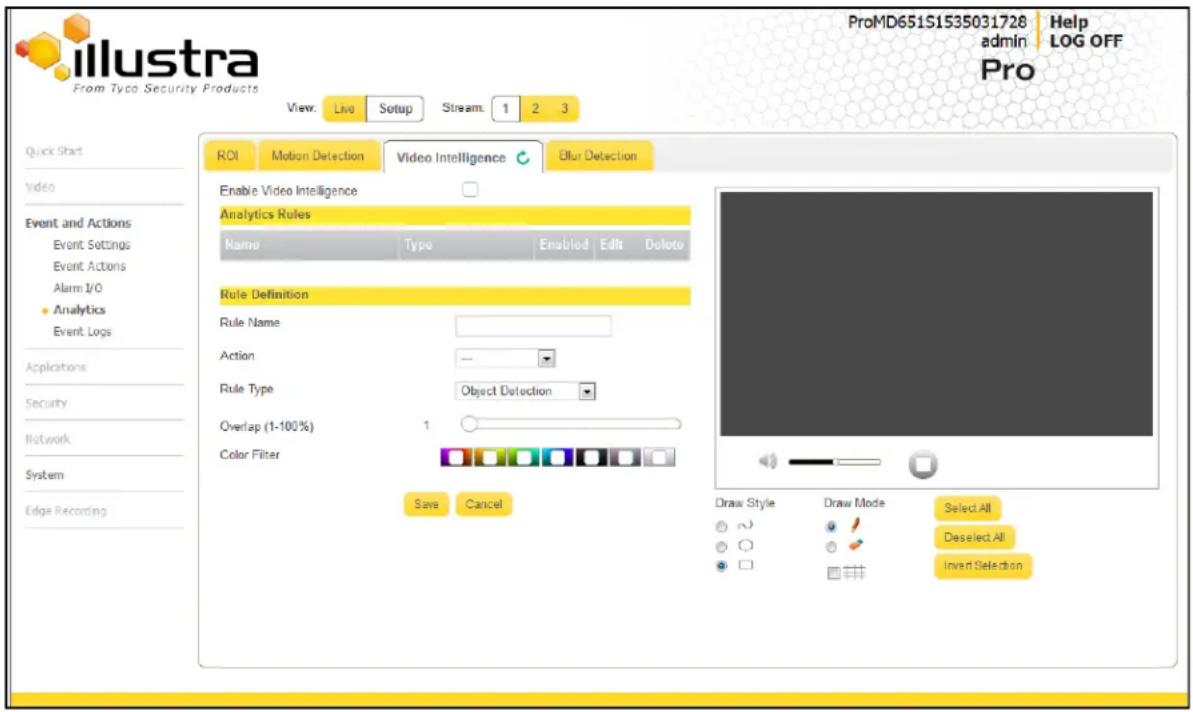
Procedure 5-18 Enable/Disable Video Intelligence
Step Action
1 Select Setup on the Web User Interface banner to display the setup menus.
2 Select Analytics from the Events and Actions menu.
3 Select the Video Intelligence tab.
4 Select the Enable Video Intelligence check box to enable Video Intelligence on the camera.
OR
Deselect the Enable Video Intelligence check box to disable Video Intelligence on the camera.
5 Select Save to save your changes.
- End -
Procedure 5-19 Create a Video Intelligence Alert
Step Action
1 Select Setup on the Web User Interface banner to display the setup menus.
2 Select Analytics from the Events and Actions menu.
3 Select the Enable Video Intelligence check box to enable Video Intelligence on the camera.
4 Use the drawing tools beneath the live video feed to create a Region of Interest.
5 Type a Rule Name for your rule definition in the field provided.
6 Select a fault action from the Action drop-down menu.
This fault action is activated when the parameters of the analytics rule are met.
7 Select a rule type from the Rule Type drop-down menu:
- Object Detection
- Abandoned/Removed
- Direction
- Linger
- Dwell
- Enter
- Exit
- Crowd
- Queue
8 Use the Overlap slider bar to increase or decrease the percentage of overlap.
9 To apply a color filter over the Region of Interest, select one of the seven Color Filter check boxes.
10 Select Save to save your changes.
The rule name and type that you have created appears in the Analytics Rules table.
Note:
When rule type is selected, extra configuration items appear for some rule types. See the section on Vide Intelligence above for information on the extra configuration options for each rule type.
- End -
Procedure 5-20 Enable/Disable an Analytics Rule
Step Action
1 Select Setup on the Web User Interface banner to display the setup menus.
2 Select Analytics from the Events and Actions menu.
3 Select the Video Intelligence tab.
4 From the Analytics Rules table, select the check box of the target Analytics Rule to enable the analytics rule
OR
Deselect the check box of the target Analytics Rule to disable the analytics rule.
- End -
Procedure 5-21 Edit an Analytics Rule
Step Action
1 Select Setup on the Web User Interface banner to display the setup menus.
2 Select Analytics from the Events and Actions menu.
3 Select the Video Intelligence tab.
4 From the Analytics Rules table, select the edit icon across from the analytics rule that you want to edit.
5 Edit the settings in the Rule Definition until you are happy with your changes.
6 Select Save to save your changes.
- End -
Procedure 5-22 Delete an Analytics Rule
Step Action
1 Select Setup on the Web User Interface banner to display the setup menus.
2 Select Analytics from the Events and Actions menu.
3 Select the Video Intelligence tab.
4 From the Analytics Rules table, select the delete icon across from the analytics rule that you want to delete.
5 Select OK when you are asked to confirm your action.
6 Select Save to save your changes.
- End -
Blur Detection
With blur detection function enabled, when the camera detects incidents that make video image blur, e.g. redirection, blocking or defocusing, the camera generates an alarm and then take an action you specify
When Blur detection is enabled, it has a polling period of 10 minutes.
A Blur Detection start fault is rraised when blur has been detected at 3 successive poling periods (up to 30 minutes).
Event Logs
Event Log
When events are triggered the resulting alarms are displayed in the Event Log with the following information
-
- details the event index.
- Event - this is listed as 'MotionDetected'.
- Date created - the time and date when the motion detection was triggered.
- Component - internal software component that raised the fault for a motion detection alert. This is listed as ANALYTICS.
- Severity - indicates how serious the fault is. Motion detection alerts are listed as 'Warning'.
- Detail - extra information that supplements the motion detection alert.
- Delete - remove the motion detection alert notification from the fault table.
Procedure 5-23 Display Event Log
| Step | Action |
| 1 | Select Setup on the Web User Interface banner to display the setup menus. |
| 2 | Select Event Logs from the Events and Actions menu.The Event Log tab displays.Triggered motion detection alerts are displayed. |
| - End - | |
Procedure 5-24 Delete Current Events
| 1 | Select Setup on the Web User Interface banner to display the setup menus. |
| 2 | Select Event Logs from the Event and Actions menu.The Event Logtab displays. |
| 3 | Select the corresponding Delete check box to mark the motion detection alert for deletion.ORDeselect the corresponding Delete check box to keep the motion detection alert.Note:You can select the Select All check box to mark all motion detection alerts displayed in the list for deletion. |
4 Select Delete to delete the selected motion detection alerts.
You are prompted to confirm the deletion.
5 Select OK to confirm the deletion.
OR
Select Cancel.
- End -
Fault Log
Any system or environmental faults experienced by the camera are displayed in the Fault Log with the followin
-
- details the fault index.
- Fault - a description of the fault.
- Date created - the time and date when the fault occurred.
- Component - internal software component that raised the fault.
- Severity - indicates how serious the fault is. The following are supported, in increasing order of severity, Clear, Warning, Critical and Error.
- Detail - extra information that supplements the fault description.
- Delete -remove the fault from the fault table.
System Faults
The following system faults may be raised:
- DiskUsage(Warning) - this warning is raised when the disk utilisation rises above the threshold value "threshold2" held in SYSM.conf. Once an alarm is generated and the disk utilization decreases 1% below the threshold value, the fault is then automatically cleared. The default threshold value is 80%.
- PowerSupplyAlarm(Error) - this fault is raised when one or more of the internal DC power supplies voltage level is either too high or too low. Once an alarm is generated and the DC power voltage goes back into the proper range, the fault is then automatically cleared.
ENVM (Environmental Monitor) Component
The following environmental faults can be raised by the ENVM (Environmental Monitor) component:
- TemperatureTooHigh (Warning) - this fault is raised when the internal temperature of the enclosure is equal to or exceeds the value MAX_TEMPERATURE held in ENVM.conf. Once an alarm is generated and the temperature drops to a level 1 degree below the MAX_TEMPERATURE value the fault is then automatically cleared. This is to avoid transient changes in temperature around the threshold.
- TemperatureTooLow (Warning) - a fault is raised when the internal temperature of the enclosure is equal to or is below the value MIN_TEMPERATURE held in ENVM.conf. Once an alarm is generated and the temperature drops to a level 1 degree above the MIN_TEMPERATURE value the fault is then automatically cleared. This is to avoid transient changes in temperature around the threshold.
Procedure 5-25 Display Current Faults
Step Action
1 Select Setup on the Web User Interface banner to display the setup menus.
2 Select Event Logs from the Event and Actions menu.
3 Select the Fault Log tab.
- End -
Procedure 5-26 Delete Current Faults
Step Action
1 Select Setup on the Web User Interface banner to display the setup menus.
2 Select Event Logs from the Events and Actions menu.
3 Select the Fault Log tab.
4 Select the corresponding Delete check box to mark the fault for deletion.
OR
Deselect the corresponding Delete check box to keep the fault.
Note:
You can select the Select All check box to mark all faults displayed in the list for deletion.
5 Select Delete to delete the selected faults.
You are prompted to confirm the deletion.
6 Select OK to confirm the deletion.
OR
Select Cancel.
- End -
Applications support allow for the upload of binary files that add custom functionality and value to the came Applications are uploaded through the Web User Interface.
These applications are licensed by Tyco Security Products using a licensing facility.
Applications
Procedure 6-1 Upload an Application
Step Action
1 Select Setup on the Web User Interface banner to display the setup menus.
2 Select the Applications menu.
The Applications tab displays.
3 Select Browse.
The Choose file dialog is displayed.
4 Navigate to the location where the application has been saved.
5 Select the application file then select the Open button.
6 Select Upload.
The upload process begins.
- End -
Available Applications
A list of applications currently installed and running are displayed. Each can be started, stopped and remov
Procedure 6-2 Start, Stop or Remove an Application
Step Action
1 Select Setup on the Web User Interface banner to display the setup menus.
2 Select the Applications menu.
The Applications tab displays.
3 Select the corresponding Application checkbox to Start, Stop or Remove.
4 Select one of the following options:
a Start to start the application running.
b Stop to stop the application running.
c Remove to remove the application.
- End -
License
License files for applications are uploaded using the licensing webpage. Available licenses are listed displaying their application ID and their license expiry date.
Procedure 6-3 Upload a License File
Step Action
1 Select Setup on the Web User Interface banner to display the setup menus.
2 Select License from the Applications menu.
3 Select Browse.
The Choose file dialog is displayed.
4 Navigate to the location where the license file has been saved.
5 Select the license file then select the Open button.
6 Select Upload.
The upload process begins.
- End -
exacqVision Edge (also referred to as edge server) is used for recording video to the edge storage of exact. If you use the camera's own recording program this feature would not be required.
The exacqVision Edge features can be accessed by selecting Setup then Applications via the Web User Interface.
The Pro mini-domes cannot run ExacqVision Edge and video intelligence analytics concurrently.
Checking if exacqVision Edge is Installed via the Web User Interfa
When the exacqEdge server is installed the following image will be displayed. When the Record Settings ta selected a dialog will display alerting you that 'Recording is disabled because of some apps running in the camera'.
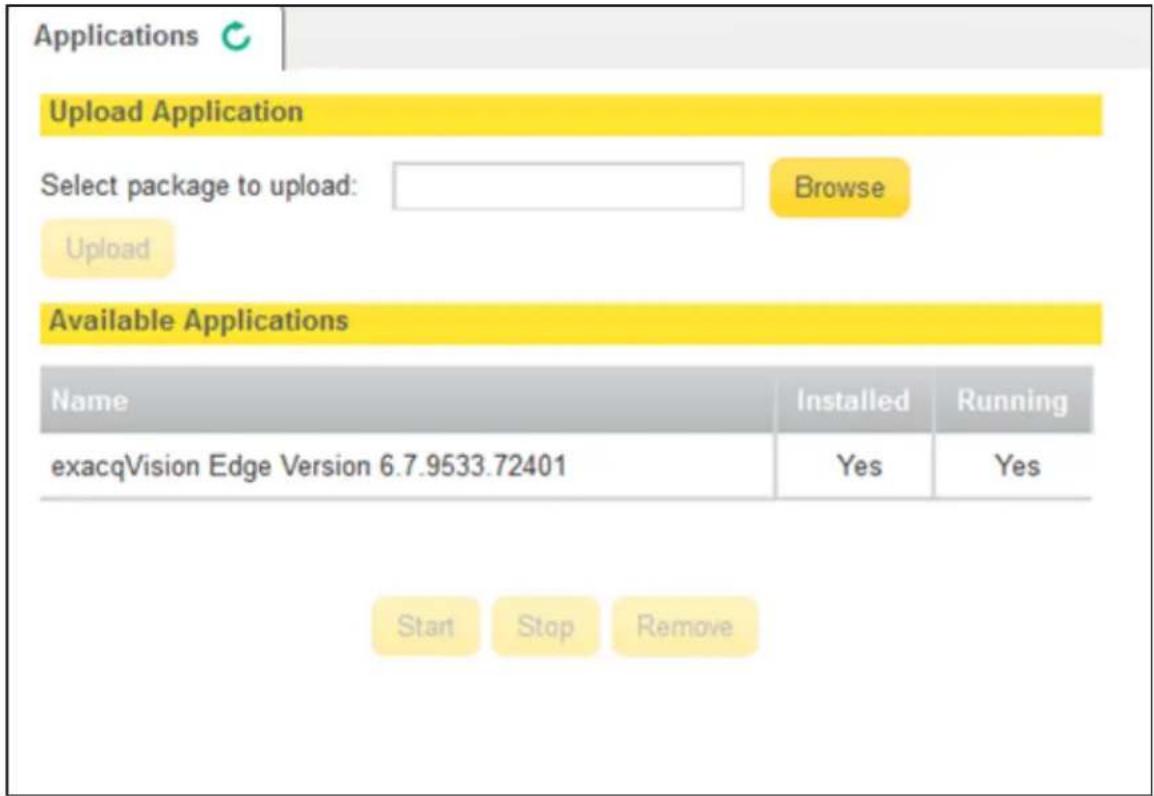
Figure 7-1 Applications Tab
Install exacqVision Edge
exacqVision Edge can be installed by purchasing an SD card with the exacqVision server and license. Please speak to your Tyco Security integrator to purchase this card.
Procedure 7-1 Install exacqVision Edge Server using Purchased SD Card with exacqVision Server
Step Action
1 Insert the SD card before powering up your camera.
2 The edge server will automatically be installed when the camera starts for the first time.
3 Select Setup then Applications to confirm the exacqVision Edge Version.
- End -
Procedure 7-2 Install exacqVision Edge Server using the Camera Web User Int
Step Action
1 Insert a blank SD card into the camera.
2 Select Setup then Applications.
3 Select Browse and navigate to the selected file required for the upload.
4 Select Upload this will install the edge server on the PC.
Note:
You will have to select Start under the Stop/Start tab to run the edge server even if the edge server has been installed.
- End -
How to use the Edge Server
When selected via Setup and Applications the exacq server will be listed as seen in Figure 1-1. Both the Installed and Running state will be listed as Yes.
Note:
When the SD card is not detected for example when there is no SD card in the camera, it has been improved mounted, or an error has been found on the SD card itself, there will be an error message displayed when you are the Start button to run the edge server. If this happens, insert the SD card or format and properly mount the edge server on the camera.
The edge server can be started by selecting Start and stopped by selecting Stop.
Note:
If the camera reboots when the status of the edge server is listed as Stopped, it will be necessary to select Start as the edge server cannot automatically run unless manually started.
Update the exacqVision Server
When a new version is released you can update your existing exacqVision Server.
Procedure 7-3 Update an Application
| Step | Action |
| 1 | Select Setup, Applications then Upload Application. The Upload tab will display. |
| 2 | Select Browse. Navigate to where the new firmware files have been saved. |
| 3 | Select the new firmware file and select Start. The existing firmware will be replaced by the new firmware version. |
| - End - | |
Uninstall the exacqVision Server
The exacqVision Server can be uninstalled if required.
Procedure 7-4 Uninstall the exacqVision Server
| Step | Action |
| 1 | Select Setup, Applications. |
| 2 | Select the exacqVision Edge Version. |
| 3 | Select Remove. |
| 4 | You will be prompted to confirm the removal, select Yes. The exacqVision server will be removed and the camera will reboot. |
| Note: | |
You must unmount or remove the SD card if the edge server files are on the SD card otherwise when the reboots the edge sever files will be re-installed.
- End -
Formatting the SD Card
If the SD Card which has the files for the edge server is in use and requires formatting you must first Sto edge server and then format the card. When the camera reboots the edge server files will be installed and operational.
When the Security menu is selected Figure 8-1 Security Menu will be displayed.
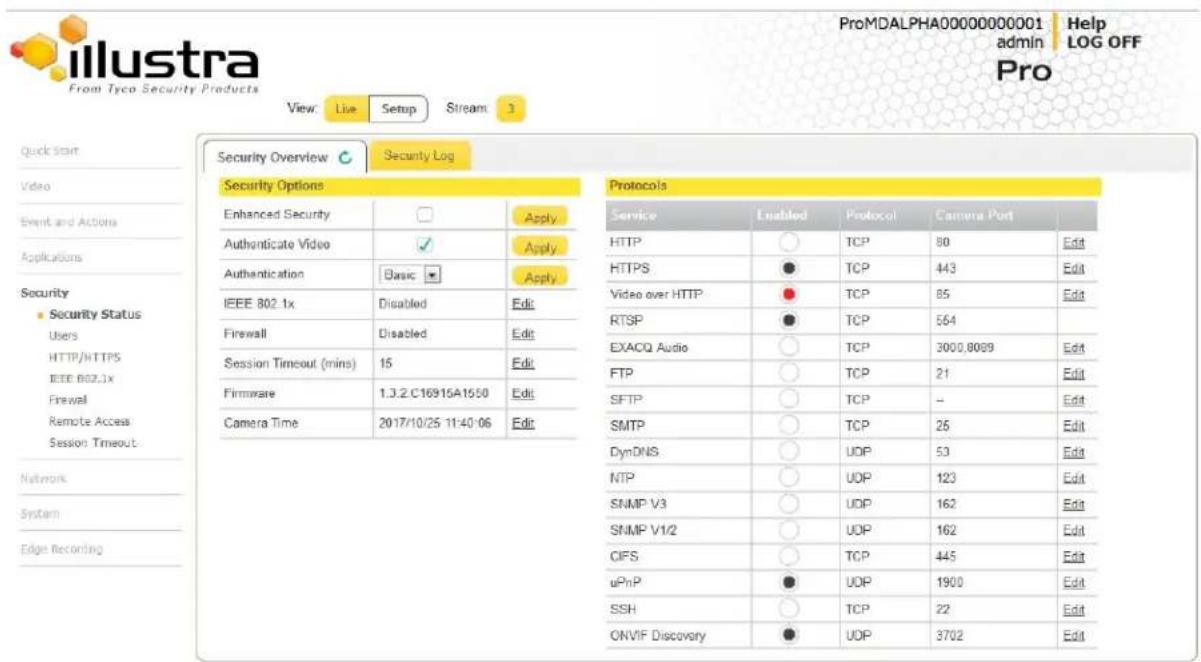
Figure 8-1 Security Menu
The Event Menu provides access to the following camera settings and functions:
- Security Status
- Users
- HTTP/HTTPS
- IEEE 802.1x
- Firewall
- Remote Access
- Session Timeout
Security Status
This section explains how to configure security features for the camera and modify the communication protocol that are used.
Note:
Any changes in the Security section, either changes to the Security Mode or to an individual protocol, are logged in the Security Log.
Enhanced Security
Admin users can change the Security Mode of the camera from Standard Security to Enhanced Security.
Procedure 8-1 Enable Enhanced Security
Step Action
1 Select Setup on the Web User Interface banner to display the setup menus.
2 Select Security Status from the Security menu.
3 Select the Security Overview tab.
4 Check the Enable Enhanced Security check box to enable enhanced security OR
Clear the Enable Enhanced Security check box to disable enhanced security.
Enhanced Security is disabled by default.
The Security Warning dialog appears.
5 Enter the new username in the New Username text box.
6 Enter the current password in the Current Password text box.
7 Enter the new password in the New Password text box.
8 Re-enter the new password in the Confirm Password text box.
Note:
The username for enhanced security must meet the following requirements:
- Be a minimum of five characters long
The password for enhanced security must meet the following requirements:
- Be a minimum of seven characters long
- Have at least one character from at least three of the following character groups:
• Upper-case letters
- Lower-case letters
- Numeric characters
- Special characters
9 Click Apply.
Note:
Any changes to the Security Mode are logged in the Security Log. The GUI page reloads automatically
10 On the GUI enter your new credentials to continue validation.
- End -
Procedure 8-2 Disable Enhanced Security Mode
Step Action
1 Select Setup on the Web User Interface banner to display the setup menus.
2 Select Security Status from the Security menu.
3 Select the Security Overview tab.
4 Clear the Enable Enhanced Security check box to disable enhanced security.
Note:
When in Enhanced Security mode, changing the security mode requires the admin account password
5 Click Apply.
Note:
Any changes to the Security mode are logged in the Security Log.
- End -
Setting Communication Protocols
This section explains how to modify the communication protocols that are used. The following communication protocols can be enabled: HTTP, FTP, CIFS, Dyn DNS, SMTP, HTTPS, SNMP V3, and SFTP.
Procedure 8-3 Enable/Disable Communication Protocols
Step Action
1 Select Setup on the Web User Interface banner to display the setup menus.
2 Select Security Status from the Security menu.
3 Select the Security Overview tab.
4 Check/Clear the Communication Protocol check box to enable/disable the Communication Protocol.
5 Click Apply to save your settings.
Note:
- When in Enhanced Security, enabling/disabling individual protocols requires the admin account password.
- Any changes to individual protocol settings are logged in the Security Log.
Security Status
This section summarizes the communication protocols that are used and their status. The following communication protocols can be enabled: HTTP, FTP, CIFS, Dyn DNS, SMTP, HTTPS, SNMP V1/2, SNMP
V3, uPNP, and SFTP.
Security Overview
Procedure 8-4 Enable/Disable Communication Protocols
Step Action
1 Select Setup on the Web User Interface banner to display the setup menus.
2 Select Security Status from the Security menu.
3 Select the Security Overview tab.
4 Select or clear the Protocols check box to enable or disable that protocol.
5 Click Apply to save your settings.
Note:
When in Enhanced Security, enabling/disabling individual protocols requires the admin account password.
Any changes to individual protocol settings are logged in the Security Log.
Security Log
The security log records any changes made to the security mode or to an individual protocol.
Procedure 8-5 Display Security Log
Step Action
1 Select Setup on the Web User Interface banner to display the setup menus.
2 Select Security Status from the Security menu.
3 Select the Security Log tab.
4 Select Refresh to refresh the log for the most up-to-date information.
- End -
Procedure 8-6 Filter the Security Log
Step Action
1 Select Setup on the Web User Interface banner to display the setup menus.
2 Select Security Status from the Security menu.
3 Select the Security Log tab.
4 Enter the number of lines of the log file you would like to view in the Lines (from the end of the log file) text box.
5 Enter the word or phrase that you would like to search for in the Filter (only lines containing text) text box.
6 Select Refresh to refresh the log for the most up-to-date information that meets the filter parameters.
7 Select Clear to empty the log of its current entries. You will be required to enter your password to do this.
- End -
Users
In this section you are able to add a user, change a user password and a delete user account. There are levels of access: admin, operator and user.
Refer to Appendix A: User Account Access for details on the features which are available to each role.
Note:
The default Username is admin and the default Password is admin. To maintain security the password on the admin account should be changed.
View Current User Accounts
View a list of the current user accounts assigned to the camera.
Procedure 8-7 View User Accounts
| Step | Action |
| 1 | Select Setup on the Web User Interface banner to display the setup menus. |
| 2 | Select Users from the Security menu.The current user accounts assigned to the camera will be displayed. |
| - End - | |
Add User
Add a new user account to allow access to the camera.
Procedure 8-8 Add a User
| Step | Action |
1 Select Setup on the Web User Interface banner to display the setup menus.
2 Select Users from the Security menu.
3 Select the Add User tab.
4 Enter a User Name in the Name text box.
The username must start with a letter and can be followed by any alphanumeric values (a-z, A-Z, the following special characters, underscore(_) , dash(-), or dot(.)
5 Select a Role:
- admin
- operator
- user
Refer to Appendix A: User Account Access for details on the features which are available to each
6 Enter a password in the Password text box.
The password must start with an alphanumeric character and is case sensitive, it can contain alphanumeric characters with a length of between 4 and 32 characters.
Note:
The password for enhanced security must meet the following requirements:
- Be a minimum of seven characters long
- Have at least one character from at least three of the following character groups:
• Upper-case letters - Lower-case letters
- Numeric characters
- Special characters
7 Enter the same password in the Confirm Password text box.
8 Select Apply to save the settings.
The new user account will now be displayed in the Users list on the Users tab.
- End -
Changing the User Accounts Password
Change the password of an existing user account.
Procedure 8-9 Change User Password
Step Action
1 Select Setup on the Web User Interface banner to display the setup menus.
2 Select Users from the Security menu.
3 Select the Change Password tab.
4 Select the user account from the Name drop-down menu.
5 Enter the current password for the user account in the Current Password text box.
6 Enter the new password for the user account in the New Password text box.
The password is case sensitive and can contain alphanumeric characters with a length of between 4 a 32 characters.
7 Enter the same new password in the Confirm New Password text box.
8 Select Apply to save the settings.
- End -
Delete a User Account
Delete a user account from the camera.
Note:
The default 'admin' account cannot be deleted.
Procedure 8-10 Delete a User Account
Step Action
1 Select Setup on the Web User Interface banner to display the setup menus.
2 Select Users from the Security menu.
The Users tab displays.
3 Select to delete the corresponding user account.
You will be prompted to confirm the deletion.
4 Select OK to delete.
OR
5 Select Cancel.
- End -
HTTP / HTTPS
User can select the option to use HTTP, HTTPS or both. The camera will automatically create an SSL cer file to use for HTTPS. It is possible to upload a custom SSL certificate if validation is required.
Procedure 8-11 Specify HTTP Method
Step Action
1 Select Setup on the Web User Interface banner to display the setup menus.
2 Select HTTP/HTTPS from the Security menu.
3 Select the HTTP Method using the radio buttons
- HTTP
- HTTPS
- Both
- End -
Procedure 8-12 Add a HTTPS Certificate
Step Action
1 Select Setup on the Web User Interface banner to display the setup menus.
2 Select HTTP/HTTPS from the Security menu.
3 Select Browse to navigate to the certificate location.
The Choose file dialog will be displayed.
4 Navigate to the location where the HTTPS certificate has been saved.
Select the file and select Open.
Note:
The certificate needs to match the camera 'host name'.
5 Select Upload.
You will be prompted to confirm that you would like to upload the HTTPS certificate.
6 Select OK to confirm the upload.
OR
Select Cancel.
- End -
Delete a HTTPS Certificate
If you delete the existing certificate it will be replaced by a temporary substitute. The current browser session is to be lost and you will be required to log back in to the camera Web User Interface.
Procedure 8-13 Delete a HTTPS Certificate
Step Action
1 Select Setup on the Web User Interface banner to display the setup menus.
2 Select HTTP/HTTPS from the Security menu.
3 Select Delete.
The camera will display a “Restarting HTTPS Service” page with a progress bar showing the deletion progress.
4 When complete the camera will return to the log in page.
- End -
IEEE 802.1x
The IEEE 802.1x security feature provides port based network access control i.e. securing corporate network from the attachment of unauthorized devices.
Authentication is carried out through use of the Extensible Authentication Protocol or EAP. Both PEAP and methods are supported.
Procedure 8-14 Configure IEEE 802.1x Security
Step Action
1 Select Setup on the Web User Interface banner to display the setup menus.
2 Select IEEE 802.1x from the Security menu.
The General tab is displayed.
3 Select the Enable IEEE802.1x checkbox to enable IEEE802.1x security.
OR
4 De-select the Enable IEEE802.1x checkbox to disable IEEE802.1x security.
5 Select the EAPOL Version from the drop-down menu.
6 Select the EAP Method using the radio buttons.
7 Enter the EAP identity name in the EAP Identify textbox.
8 Select Upload to navigate to the CA Certificate location.
The Choose file dialog will be displayed.
9 Navigate to the location where the certificate has been saved.
Select the file and select Open.
10 Select Upload.
The upload process will start.
11 If PEAP is selected:
a Enter the required PEAP Password.
OR
If TLS is selected -
a Select Upload to navigate to the Client Certificate location.
The Choose file dialog will be displayed.
b Navigate to the location where the certificate has been saved.
c Select the file and select Open.
d Select Upload.
The upload process will start.
e Enter the required Private Key Password.
- End -
Firewall
Configure the Basic Filtering and Address Filtering for the firewall.
Basic Filtering
Enable or disable basic filtering for the camera this includes:
- ICMP (Internet Control Message Protocol) Blocking
- RP (Reverse Path) Filtering
• SYN Cookie Verification.
Procedure 8-15 Enable/Disable Basic Filtering
Step Action
1 Select Setup on the Web User Interface banner to display the setup menus.
2 Select Firewall from the Security menu.
The Basic Filtering tab displays.
3 Select the ICMP Blocking check box to enable ICMP blocking.
OR Deselect the ICMP Blocking check box to disable ICMP blocking. The default setting is 'Disabled'.
4 Select the RP Filtering check box to enable the RP filtering.
OR Deselect the RP Filtering check box to disable. The default setting is 'Disabled'.
5 Select SYN Cookie Certification check box to enable SYN cookie certification.
OR Deselect the SYN Cookie Certification check box to disable. The default setting is 'Disabled'.
- End -
Address Filtering
Configure the IP or MAC addresses which are denied access to the camera.
Procedure 8-16 Enable/Disable and configure Address Filtering
Step Action
1 Select Setup on the Web User Interface banner to display the setup menus.
2 Select Firewall from the Security menu.
3 Select the Address Filtering tab.
4 Select Off to disable address filtering completely.
OR
Select Allow to allow address filtering for specified addresses
OR
Select Deny to deny address filtering for specific addresses.
The default setting is 'Off'.
5 If address filtering has been set to Allow or Deny:
a Enter an IP or MAC Address to allow / deny in the IP or MAC Address text box in the following format xxx.xxx.xxx.xxx.
Note:
CIDR (Classless Inter-Domain Routing) is supported when using address filtering. If using a CIDR address use the following format xxx.xxx.xxx.xxx/xx.
b Select Add.
6 Select Apply to save the settings.
- End -
Editing an Address Filter
Edit an existing address filter.
Procedure 8-17 Edit an Address Filter
Step Action
1 Select Setup on the Web User Interface banner to display the setup menus.
2 Select Firewall from the Security menu.
3 Select the Address Filtering tab.
4 Edit the IP or MAC Address in the IP or MAC Address text box.
5 Select Add to save the changes.
- End -
Deleting an Address Filter
Delete an existing address filter.
Procedure 8-18 Delete an Address Filter
Step Action
1 Select Setup on the Web User Interface banner to display the setup menus.
2 Select Firewall from the Security menu.
3 Select the Address Filtering tab.
4 Select to delete the corresponding address filter.
Remote Access
SSH Enable
Enables Secure Shell access into the camera, if remote access is permitted by the camera network. This will enable Tyco Security Products Level 3 Technical Support to diagnose any problems on the camera.
Note:
It is recommended to keep SSH Enable disabled. This function should only be enabled this when it is requested by Tyco Security Products Level 3 Technical Support.
Procedure 8-19 Configure SSH
Step Action
1 Select Setup on the Web User Interface banner to display the setup menus.
2 Select Remote Access from the Security menu.
The Remote Access tab displays.
3 Select the SSH Enable check box to enable SSH.
OR
Deselect SSH Enable check box to disable SSH.
The default setting is 'Disabled'.
- End -
ONVIF
The Web User Interface allows ONVIF functionality to be managed at a high level. ONVIF Discovery Mode and User Authentication can be enabled or disabled.
- ONVIF Discovery Mode allows enabling or disabling discovery of the camera via ONVIF.
- ONVIF User Authentication allows the camera to accept ONVIF commands from all users or only authenticated users. Enabling User Authentication ensures the camera will only execute commands from authenticated users.
The separation of Discovery Mode and User Authentication allows the camera to be set up in a configuration that suits requirements for the network and users. The preferred discovery method for the camera is Illustra Connect and this utilizes ONVIF discovery. It is therefore recommended that ONVIF Discovery Mode is always enabled.
ONVIF Discovery Mode
Enable or disable ONVIF discovery on the camera.
Procedure 8-20 Enable/Disable ONVIF Discovery Mode
| Step | Action |
| 1 | Select Setup on the Web User Interface banner to display the setup menus. |
| 2 | Select Remote Access from the Security menu.The Remote Access tab displays. |
| 3 | Select the ONVIF Discovery Mode check box to enable ONVIF Discovery Mode.ORDeselect ONVIF Discovery Mode check box to disable ONVIF Discovery Mode.The default setting is ‘Enabled’. |
| - End - | |
ONVIF User Authentication
To utilize ONVIF User Authentication, there must be at least one admin level user in the ONVIF service.
Note:
When in Enhanced Security mode, editing ONVIF User Authentication requires the admin account password.
Procedure 8-21 Enable/Disable ONVIF User Authentication
| Step | Action |
| 1 | Select Setup on the Web User Interface banner to display the setup menus. |
| 2 | Select Remote Access from the Security menu.The Remote Access tab displays. |
| 3 | Select the ONVIF User Authentication check box to enable ONVIF User Authentication.ORDeselect ONVIF User Authentication check box to disable ONVIF User Authentication.The default setting is ‘Enabled’. |
- End -
Video over HTTP
Enable or disable video or steam metadata over HTTP on the camera.
Procedure 8-22 Enable/Disable Video over HTTP
| Step | Action |
1 Select Setup on the Web User Interface banner to display the setup menus.
2 Select Remote Access from the Security menu.
The Remote Access tab displays.
3 Select the Video over HTTP check box to enable Video over HTTP.
OR
Deselect Video over HTTPcheck box to disable Video over HTTP.
The default setting is 'Enabled'.
- End -
UPnP Discovery
Enable or disable UPnP Discovery on the camera.
Procedure 8-23 Enable/Disable UPnP Discovery
Step Action
1 Select Setup on the Web User Interface banner to display the setup menus.
2 Select Remote Access from the Security menu.
The Remote Access tab displays.
3 Select the UPnP Discovery check box to enable UPnP Discovery.
OR
Deselect UPnP Discoverycheck box to disable UPnP Discovery.
The default setting is 'Enabled'.
- End -
ExacqVision Server Audio
Enable or disable audio ports used for ExacqVision bidirectional audio integration.
Procedure 8-24 Enable/Disable EXACQ Audio
Step Action
1 Select Setup on the Web User Interface banner to display the setup menus.
2 Select Remote Access from the Security menu.
The Remote Access tab displays.
3 Select the EXACQ Audio check box to enable EXACQ Audio.
OR
Deselect EXACQ Audio check box to disable EXACQ Audio.
The default setting is 'Enabled'.
Session Timeout
Session timeout specifies the number of minutes that a web session can remain idle before it is automatic terminated.
Procedure 8-25 Set a Session Timeout time
| Step | Action |
| 1 | Select Setup on the Web User Interface banner to display the setup menus. |
| 2 | Select Session Timeout from the Security menu.The Session Timeout tab displays. |
| 3 | Use the slider bar to select the Session Timeout (mins).The default setting is 15 minutes. |
| - End - | |
When the Network menu is selected Figure 9-1 Network Menu will be displayed.
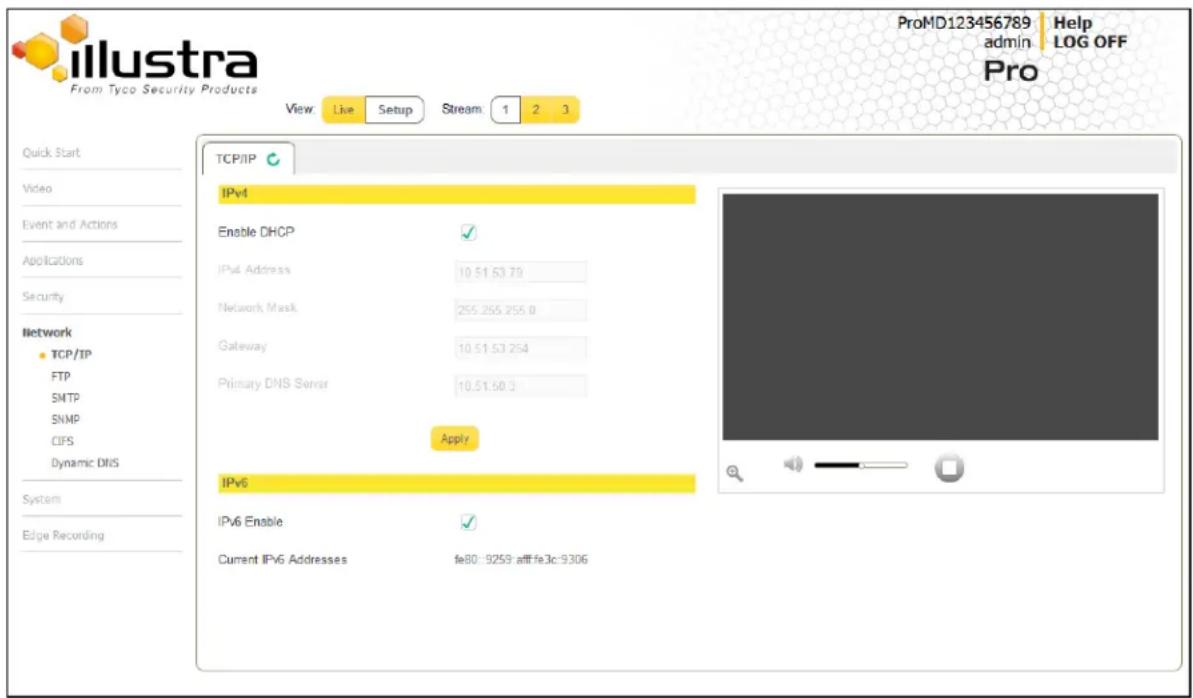
Figure 9-1 Network Menu
The Network Menu provides access to the following camera settings and functions:
- TCP/IP
- FTP
- SMTP
• SNTP
• CIFS - Dynamic DNS
• SIP
TCP/IP
Configure the IPv4 and IPv6 settings on the camera.
IPv4
Configure the IPv4 settings for the camera.
Procedure 9-1 Configure the IPv4 Settings
Step Action
1 Select Setup on the Web User Interface banner to display the setup menus.
2 Select TCP/IP from the Network menu.
3 Select the Enable DHCP check box to enable DHCP and disable manual settings.
OR
Deselect Enable DHCP to disable DHCP and allow manual settings to be entered.
The default setting is 'Disabled'.
4 If Enable DHCP has been disabled:
a Enter the IPv4 Address in the IPv4 Address text box in the form xxx.xxx.xxx.xxx.
The default setting is '192.168.1.168'
b Enter the Network Mask in the Network Mask text box xxx.xxx.xxx.xxx.
The default setting is '255.255.255.0'
c Enter the Gateway IP address in Gateway text box xxx.xxx.xxx.xxx.
d Enter the Primary DNS Server in the Primary DNS Server text box xxx.xxx.xxx.xxx.
e Enter the Secondary DNS Server in the Secondary DNS Server text box xxx.xxx.xxx.xxx.
5 Select Apply to save the settings.
- End -
IPv6
Enable IPv6 on the camera.
Procedure 9-2 Enable/Disable IPv6
Step Action
1 Select Setup on the Web User Interface banner to display the setup menus.
2 Select TCP/IP from the Network menu.
3 Select the IPv6 Enable check box to enable IPv6 on the camera.
OR
Deselect the IPv6 Enable check box to disable IPv6 on the camera.
The default setting is 'Enabled'.
If IPv6 is enabled the Link Local and DHCP address will be displayed beside 'Current IPv6 Addresses' available.
- End -
Multicast
Multicast streaming is a one-to-many relationship between a camera and the clients receiving the stream. With multicast stream, the server streams to a multicast IP address on the network, and clients receive the stream to the IP address.
Procedure 9-3 Configure Multicast Streaming
| Step | Action |
| 1 | Select Network on the Web User Interface to display the Network menu options and click the Multicast tab. |
| 2 | Select the Stream Number from the drop-down list you want to configure. |
| 3 | In the Video Address field, enter a valid IP address for the Multicast broadcasting. The valid range for the IP address is: |
| 224.xxx.xxx.xxx | |
| 232.xxx.xxx.xxx | |
| 234.xxx.xxx.xxx | |
| 239.xxx.xxx.xxx |
Multicast stream addresses must be unique to the stream and cameras.
4 In the Port field, enter a port for the Multicast broadcasting. The Multicast stream port must be unique to stream cameras. The approved port range is: 0-65535.
5 In the Time to live field, enter a value.
Example of correct Muticast configuration:
Stream.1.Multicast.IPAddress=224.16.18.2
Stream.1.Multicast.Port=1032
Stream.2.Multicast.IPAddress=224.16.18.2
Stream.2.Multicast.Port=1030
Stream.3.Multicast.IPAddress=0.0.0.0
Stream.3.Multicast.Port=0
FTP
Configure the FTP settings for the FTP server. This is required to send video files from triggered analytic alert FTP must be configured to enable FTP video alerts when using analytics.
Note:
FTP settings can also be configured via the Network menu.
Procedure 9-4 Configure FTP Server Settings
Step Action
1 Select Setup on the Web User Interface banner to display the setup menus.
2 Select FTP from the Network menu.
3 Select the Enable check box to enable FTP.
OR
Deselect the Enable check box to disable FTP.
The default setting is 'Enabled'.
Note:
When in Enhanced Security mode, enabling FTP requires the admin account password.
4 If required, select the Secure FTP checkbox.
The default setting is 'Disabled'.
5 Enter the IP address of the FTP Server in the FTP Server text box.
6 Enter the FTP port in the FTP Port text box.
The default setting is 21.
7 Enter the FTP username in the Username text box.
8 Enter the FTP password in the Password text box.
9 Enter the FTP upload path in the Upload Path text box.
Note:
When entering the upload path the following format should be used '//
- End -
File Transfer Rate
The File Transfer Rate can be limited and a max transfer rate assigned to manage the amount of FTP ba used.
Procedure 9-5 Configure the FTP Transfer Rate
| Step | Action |
| 1 | Select Setup on the Web User Interface banner to display the setup menus. |
| 2 | Select Event Settings from the Events and Actions menu. |
| 3 | Select the FTP tab. |
| 4 | Select the Limit Transfer Rate check box to limit the FTP transfer rate.ORDeselect the Limit Transfer Rate check box to disable limited FTP transfer.The default setting is ‘Enabled’. |
| 5 | Enter the Max Transfer Rate in the Max Transfer Rate (Kbps) textbox.The default setting is 50. |
| - End - | |
Test FTP Settings
Test the FTP settings that have been configured correctly.
Procedure 9-6 Test the FTP Settings
| Step | Action |
| 1 | Select Setup on the Web User Interface banner to display the setup menus. |
| 2 | Select FTP from the Network menu. |
| 3 | Select the FTP tab. |
| 4 | Select Test. |
| A sample text file will be sent to the specified FTP destination to confirm that FTP settings | |
| - End - | |
SMTP
Configure the SMTP settings to allow e-mail alerts to be sent from the camera when an analytic alert is tr
Note:
SMTP settings must be configured to enable email alerts when using analytics.
Procedure 9-7 Configure SMTP Settings
Step Action
1 Select Setup on the Web User Interface banner to display the setup menus.
2 Select SMPT from the Network menu.
The SMPT tab displays.
3 Check the Enable SMPT check box to enable SMPT.
Text boxes on the tab become available for entry.
Note:
When in Enhanced Security mode, enabling SMTP requires the admin account password.
4 Enter the IP Address of the mail server in the Mail Server text box.
5 Enter the server port in the Server Port text box.
The default setting is '25'.
6 Enter the from email address in the From Address text box.
7 Enter the email address to send email alerts to in the Send Email to text box.
8 Select the Use authentication to log on to server check box to allow authentication details to be entered.
OR
Deselect the Use authentication to log on to server to disable authentication.
The default setting is 'Disabled'.
9 If 'Use authentication to log on to server' check box has been selected:
a Enter the username for the SMTP account in the Username text box.
b Enter the password for the SMTP account in the Password text box.
10 Select Apply to save the settings.
- End -
SNMP
The camera introduces support for the Simple Network Management Protocol making it easier to manage on an network.
The SNMP support includes support for V2 and V3. Using V2 means no authentication is required to access t data and results are unencrypted. V3 offers enhanced encryption and authentication security features.
Procedure 9-8 Configure SNMP Settings
Step Action
1 Select Setup on the Web User Interface banner to display the setup menus.
2 Select SNMP from the Network menu.
3 Enter a location reference in the Location text box.
4 Enter an SNMP managing contact reference in the Contact text box.
5 If using V2:
a Select the Enable V2 checkbox.
b Enter the authorized ID for reading SNMP data in the Read Community text box.
c Enter the Trap Community.
d Enter the Trap Address.
e Select Apply.
OR
If using V3:
a Select the Enable V3 checkbox.
b Enter the Read User.
c Select the Security Level from the drop down menu:
- noauth: No authentication / no encryption.
- auth: Authentication / no encryption. A user password is required. It is symmetrically encrypted using either MD5 or SHA.
- priv: Authentication / encryption. A user password is required as is symmetrically encrypted using either MD5 or SHA. A data encryption password is required as is symmetrically encrypted using either DES or AES.
d Select the Authentication Type using the radio buttons.
e Enter the Authentication Password
f Select the EncryptionType using the radio buttons.
g Enter the Encryption Password
h Select Apply.
- End -
CIFS
The CIFS feature permits files generated from the camera such as alarm related video to be directed to the attached file storage via the Common Internet File System protocol. This supplements existing distribution methods such as FTP, SFTP and email.
Procedure 9-9 Configure CIFS Server Settings
Step Action
1 Select Setup on the Web User Interface banner to display the setup menus.
2 Select CIFS from the Network menu.
3 Select the Enable check box to enable CIFS.
OR
Deselect the Enable check box to disable CIFS.
The default setting is 'Disabled'.
Note:
When in Enhanced Security mode, enabling CIFS requires the admin account password.
4 Enter the network path in the Network Path text box.
Note:
When entering the network path the following format should be used '//
5 Enter the domain name in the Domain Name in the text box.
6 Enter the username in the Username text box.
7 Enter the password h in the Password text box.
- End -
Dynamic DNS
Dynamic DNS is supported for updating, in real time a changing IP address on the Internet to provide a persistent domain name for a resource that may change location on the network. RFC 2136 Dynamic Updates in the DoName System. In this situation the camera talks only to the DHCP server and the DHCP server is responsible for updating the DNS server. The camera sends its hostname to the DHCP server when requesting a new lease to the DHCP server updates the DNS records accordingly. This is suitable for an intranet style configuration when there is an internal DHCP and DNS service and the user wants only to access their camera within their own network.
By default, when making a DHCP request the camera will transmit its hostname as part of the DHCP request. This option is not user configurable. The cameras hostname matches the configurable parameter “camera name on the Web User Interface. Any DHCP request will contain the cameras hostname for use of the DHCP serve forward to an appropriate DNS server.
Dynamic DNS
Configure the Dynamic DNS settings for the camera.
Procedure 9-10 Configure Dynamic DNS
Step Action
1 Select Setup on the Web User Interface banner to display the setup menus.
2 Select Dynamic DNS from the Network menu.
3 Select the Service Enable check box to enable Dynamic DNS.
OR
Deselect Service Enable check box to disable Dynamic DNS.
The default setting is 'Disabled'.
4 If Service Enable has been enabled:
a Enter the Camera Alias in the text box.
SIP
b Select a Service Provider from the drop-down list:
- dyndns.org
- easydns.com
- no-ip.com
- zerigo.com
- dynsip.org
- tzo.com
c Enter a Username in the text box.
d Enter a Password in the text box.
e Enter Service Data in the text box.
5 Select Apply to save the settings.
- End -
SIP
The Session Initiation Protocol (SIP) feature enables the camera to be configured as a SIP User Agent that register with a SIP server to make and receive audio calls to another SIP device, for example, a SIP IP p softphone. The camera can operate as a SIP phone if it is equipped with an external microphone and spec camera can also be configured to monitor the audio from a SIP call and make this available as an RTSP/stream.
Enable/Disable SIP
Enable/Disable SIP on the camera.
Procedure 9-11 Enable/Disable SIP
Step Action
1 Select Setup on the Web User Interface banner to display the setup menus.
2 Select SIP from the Network menu.
3 Check the Enabled check box to enable SIP
OR
Clear the Enabled check box to disable SIP.
The default setting is 'Disabled'.
4 Click Apply to save your settings.
Note:
After you enable SIP, the camera reboots automatically.
- End -
Configure the SIP Server Settings
Configure the SIP server settings on the camera.
Procedure 9-12 Configure the SIP Server Settings
Step Action
1 Select Setup on the Web User Interface banner to display the setup menus.
2 Select SIP from the Network menu.
3 Check the Enabled check box to enable SIP.
4 Enter the IP address of the SIP Server in the Domain text box.
5 Enter the SIP account username in the Username text box.
6 Enter the SIP account password in the Password text box.
7 From the Audio Source dropdown menu, select the Audio Source for calls:
- Mic - only external microphones are currently supported.
8 From the Audio Output dropdown menu, select an audio output:
- Speaker - the SIP call audio is output to the external speaker.
- Network Stream - the SIP call audio can be streamed using an RTSP Audio Stream.
9 Click Apply to save your settings.
Note:
After you enable SIP, the camera reboots automatically.
- End -
Place a SIP call
Place a SIP call on the camera.
Procedure 9-13 Place a SIP call
Step Action
1 Select Setup on the Web User Interface banner to display the setup menus.
2 Select SIP from the Network menu.
3 Enter the SIP Extension number in the Extension text box.
4 Click Dial to activate the call.
5 Click Hang up to end the call.
Note:
The Staus Log, located below the Dial and Hang up buttons, reports the status of SIP connection and active calls.
- End -
When the System menu is selected Figure 10-1 System Menu will be displayed.

Figure 10-1 System Menu
The System Menu provides access to the following camera settings and functions:
- Maintenance
- Date Time
- Audio
- Analog Video
• Health Monitor - Logs
- About
Maintenance
The Maintenance menu allows you to restore the camera settings to factory default, reboot the camera and a firmware upgrade.
Reset
To perform a physical reset of the camera, refer to Procedure 17-2 Reset the Camera to Factory Default Setti using the Reset/Reboot Switch on page 17-154.
Note:
Network settings, presets, patterns and sequences can be retained if required.
Procedure 10-1 Resetting the Camera
| Step | Action |
| 1 | Select Setup on the Web User Interface banner to display the setup menus. |
| 2 | Select Maintenance from the System menu. |
| 3 | Select the Preserve IP address check box to retain the current network settings during the camera reset.ORDeselect the Preserve IP address check box to restore the default networking settings.The default setting is 'Enabled'. |
| 4 | Select the Preserve application check box to retain the current presets, patterns and sequences during the camera reset.ORDeselect the Preserve application check box to remove existing presets, patterns and sequences.The default setting is 'Enabled'. |
| 5 | Select the Preserve licenses check box to retain the current licenses during the camera resetORDeselect the Preserve licenses check box to remove existing licenses. The default setting is 'Enabled'. |
| 6 | Select ResetYou will be prompted to confirm the camera reset. |
| 7 | Select OK to confirm. The Web User Interface will display a "Camera Resetting" page with a progress bar showing the reboot progress.When the camera is restarted it will take 2 - 3 minutes until it is online and ready to be accessed an controlled.ORSelect Cancel. |
| 8 | The Log in page will be displayed.Refer to Procedure 3-1 Log in to the Camera on page 3-10 to log back into the camera Web User Interface. |
- End -
Reboot
To perform a physical reboot of the camera, refer to Procedure 17-1 Reboot the camera using the Reboot/Switch on page 17-154.
Procedure 10-2 Reboot the Camera
Step Action
1 Select Setup on the Web User Interface banner to display the setup menus.
2 Select Maintenance from the System menu.
3 Select Reboot.
You will be prompted to confirm the camera reboot.
4 Select OK to confirm.
The Web User Interface will display a "Camera Rebooting" page with a progress bar showing the progress.
When the camera is restarted it will take 2 - 3 minutes until it is online and ready to be accessed controlled.
OR
Select Cancel.
5 The Log in page will be displayed.
- End -
Camera Firmware Upgrade
The camera can be upgraded using firmware provided by Illustra. Alternatively, the camera can also be up using Illustra Connect. Refer to the Illustra Connect User Guide for further information.
Note:
All existing camera settings are maintained when the firmware is upgraded.
!Caution
You should only use firmware that has been provided by Illustra. Using any other firmware may cause a malfunction and damage the camera.
Procedure 10-3 Upgrade Camera Firmware
Step Action
1 Select Setup on the Web User Interface banner to display the setup menus.
2 Select Maintenance from the System menu.
3 Select Browse.
The Choose file to Upload dialog will be displayed.
4 Navigate to the location where the firmware file has been saved.
5 Select the firmware file then select the Open button.
6 Select Upload.
The file transfer will begin. Do not disconnect power to the camera during the upgrade process. The camera restarts automatically after the updates have been completed, this can take from 1 to 10 minutes.
The Log in page will be displayed.
Refer to Procedure 3-1 Log in to the Camera on page 3-10 to log back into the camera Web User Interface.
- End -
Backup/Restore
Backup camera data and restore from a previously saved data file. The data file can be saved to a specified location and used to restore the camera configuration.
Note:
A saved backup data file created on a camera is camera specific and cannot be used to restore the settings different camera.
Procedure 10-4 Backup Camera Data
Step Action
1 Select Setup on the Web User Interface banner to display the setup menus.
2 Select Maintenance from the System menu.
3 Select the Backup/Restore tab.
4 Select Backup.
You will be prompted to save the backup file.
5 Select Save.
- End -
Procedure 10-5 Restore Camera from Backup
Step Action
1 Select Setup on the Web User Interface banner to display the setup menus.
2 Select Maintenance from the System menu.
3 Select the Backup/Restore tab.
4 Select Browse.
The Choose file to Upload dialog will be displayed.
5 Navigate to the location where the firmware file has been saved.
6 Select the firmware file then select the Open button.
7 Select Upload.
The file transfer will begin. Do not disconnect power to the camera during the upgrade process. The camera restarts automatically after the updates have been completed, this can take from 1 to 10 minutes.
The Log in page will be displayed.
Refer to Procedure 3-1 Log in to the Camera on page 3-10 to log back into the camera Web Use Interface.
- End -
Date / Time
Set the date and time on the camera.
Note:
Date and Time can also be configured in the Quick Start menu.
Procedure 10-6 Configuring the Date and Time
Step Action
1 Select Setup on the Web User Interface banner to display the setup menus.
2 Select the Date Time from the System menu.
3 Select the Time 24-hour check box to enable the 24-hour clock.
Or
Deselect the Time 24-hour check box to enable the 12-hour clock.
The default setting is '24-hour'.
4 Select the Date Display Format from the drop-down menu:
- DD/MM/YYYY
- MM/DD/YYYY
- YYYY/MM/DD
The default setting is 'YYYY/MM/DD'.
5 Select the Time Zone from the drop-down menu.
The default setting is ‘(GMT-05:00) Eastern Time (US & Canada)
6 Select the Set Time setting by selecting the radio buttons:
- Manually
- via NTP
The default setting is 'Manually'.
7 If you select Manually in step 5:
a Select the Date (DD/MM/YYYY) using the drop-down menus.
b Select the Time (HH:MM:SS) using the drop-down menus.
8 If you select via NTP in step 5:
a Enter the NTP Server Name in the text box.
- End -
Audio
Allows you to configure the audio input, output, upload audio and stored audio clips, and to configure Audio V Synchronisation.
Procedure 10-7 Configure Audio Input
Step Action
1 Select Audio from the System menu.
The Audio Input tab displays.
2 Select the Input Enable check box to enable the audio input settings.
Or
Deselect the Input Enable check box to disable audio input settings.
The default setting is 'Disabled'.
3 Use the slider bar to select the Input Volume.
Values range from 1 to 100.
The default setting is 72.
- End -
Procedure 10-8 Configuring Audio Output
Step Action
1 Select Audio from the Camera Configuration menu.
2 Select the Output Enable check box to enable the audio output settings.
Or
Deselect the Output Enable check box to disable audio input settings.
The default setting is 'Disabled'.
3 If Output Enable has been enabled, use the slider bar to select the Output Volume.
Values range from 1 to 100.
Configuring Stored Audio
When connected to an appropriate device, the dome is capable of playing back stored audio when an alarm been triggered. A maximum of three audio files can be uploaded to the dome.
Note:
Audio clips can only be used if a microSD Card has been installed. Refer to the relevant Quick Reference for information on installing the microSD Card.
When uploading an audio file it must meet the following requirements:
- The filename cannot contain spaces.
- It must be a 'wav' file with a '.wav' extension.
- A single channel mono file with a bit depth of 16kHz.
• The sample rate must be 8kHz. - The duration must be no longer than 20 seconds.
Procedure 10-9 Play Stored Audio
Step Action
1 Select Audio from the System menu.
2 Select the Audio Clips tab.
3 Select to play back the corresponding audio file.
- End -
Procedure 10-10 Upload an Audio File
Step Action
1 Select Audio from the System menu.
2 Select the Audio Clips tab.
3 Select Browse.
The Choose file dialog will be displayed.
4 Navigate to the location where the audio file has been saved.
Select the audio file then select the Open button.
When uploading an audio file it must meet the following requirements:
- The filename cannot contain spaces.
-
It must be a 'wav' file with a '.wav' extension.
-
A single channel mono file with a bit depth of 16kHz.
• The sample rate must be 8kHz. - The duration must be no longer than 20 seconds.
5 Select Upload.
6 You will be prompted to confirm that you would like to upload the audio file.
Select OK to confirm the upload.
Or
Select Cancel.
- End -
Procedure 10-11 Delete a Stored Audio file
Step Action
1 Select Audio from the System menu.
2 Select the Audio Clips tab.
3 Select the corresponding Delete check box to mark the audio file for deletion.
Or
Deselect the corresponding Delete check box to keep the audio file.
4 Select the Select All check box to mark all audio files for deletion.
5 Select Delete to delete the selected audio files.
You will be prompted to confirm the deletion.
6 Select OK to confirm the deletion.
Or
Select Cancel.
- End -
Configuring Audio Video Synchronisation
If the audio feed is not in synch with the video feed, use Audio Video Synchronisation to delay the audio feed slightly until it is in synch with the video feed.
Procedure 10-12 Configure Audio Video Synchronisation
Step Action
1 Select Audio from the System menu.
2 Select the Audio tab.
3 Check the Synchronisation Enable check box.
4 Type an entry into the Synchronisation Delay field.
You can select between 1 and 1000 milliseconds.
5 Select OK to save your changes.
- End -
Analog Video
An Analog Video Source can be selected from the drop down menu found in the Analog Video menu. Out format of the analogue video can be managed by the dip switch located on the camera (default value) or User Interface page.
Available options are DIP switch, PAL, NTSC and OFF.
Note:
Once PAL or NTSC are selected via the Web User Interface- the physical DIP Switch selection on camera obsolete.
Health Monitor
The Health Monitor function provides visibility on the health status of popular device parameters. Each parar can be enabled or disabled. The refresh frequency of the health monitor can be determined by selecting a from the Reporting Period drop-down menu.
Procedure 10-13 Configure Health Monitor Settings
Step Action
1 Select Setup on the Web User Interface banner to display the setup menus.
2 Select the Health Monitor from the System menu.
3 Select the Recording Period from the drop-down menu.
4 Select the corresponding checkbox to enable health monitoring on a parameter.
OR
De-select the corresponding checkbox to disable health monitoring on a parameter.
The default setting for all parameters is Enabled.
- End -
Logs
Information is provided on system and boot logs created by the camera.
System Log
The system log gives the most recent messages from the unix /var/log/messages file. Information will include the following:
- Messages about system behavior such as process startup/shutdown.
- Warnings about recoverable problems that processes encounter.
- Error messages where processes encounter problems they cannot fix; note that this does not mean that the process will not continue to work, only that it encountered an issue it could do nothing about.
Procedure 10-14 Display System Log
| Step | Action |
| 1 | Select Setup on the Web User Interface banner to display the setup menus. |
| 2 | Select Logs from the System menu.The System Log tab displays. |
| 3 | Select Refresh to refresh the log for the most up-to-date information. |
| - End - | |
Procedure 10-15 System Log Filter
| Step | Action |
| 1 | Select Setup on the Web User Interface banner to display the setup menus. |
| 2 | Select Logs from the System menu.The System Log tab displays. |
| 3 | Enter the number of lines of the log file you would like to view in the Lines text box. |
| 4 | Enter the word or phrase that you would like to search for in the Filter text box. |
| 5 | Select Refresh to refresh the log for the most up-to-date information. |
| - End - | |
Boot Log
The Boot log is a log of the Linux operating system boot processes and will only be useful to Tyco Security Products support engineers who require additional information on the device.
Procedure 10-16 Display Boot Log
| Step | Action |
| 1 | Select Setup on the Web User Interface banner to display the setup menus. |
| 2 | Select Logs from the System menu. |
| 3 | Select the Boot Log tab. |
| 4 | Select Refresh to refresh the log for the most up-to-date information. |
Procedure 10-17 Boot Log Filter
| Step | Action |
| 1 | Select Setup on the Web User Interface banner to display the setup menus. |
| 2 | Select Logs from the System menu. |
| 3 | Select the Boot Log tab. |
| 4 | Enter the number of lines of the log file you would like to view in the Lines text box. |
| 5 | Enter the word or phrase that you would like to search for in the Filter text box. |
| 6 | Select Refresh to refresh the log for the most up-to-date information. |
| - End - | |
Audit Log
The Audit Log will log details obtained when anything is logged are source, class, result, user and a describe the change.all changes that have been made in the following areas of the Web User Interface as outlined
- Changes in FTP, CIFS, SMTP, IPV4, IPV6, DNS and SNMP are logged under class NETWORK.
- Changes in Stream are logged under class VIDEO.
- Changes in Reboot, Reset and Upgrade are logged under class MAINTENANCE.
- Changes in DIO and ROI are logged under EVENT.
About
The About menu provides the following camera information:
- Camera Name
- Model
- Product Code
- Manufacturing Date
- Serial Number
- MAC Address
- Firmware Version
- Hardware Version
Procedure 10-18 Display Model Information
| Step | Action |
1 Select Setup on the Web User Interface banner to display the setup menus.
2 Select About from the System menu.
The model tab displays.
- End -
Procedure 10-19 Edit Camera Name
Step Action
1 Select Setup on the Web User Interface banner to display the setup menus.
2 Select About from the System menu.
The model tab displays.
3 Edit the name in the Camera Name textbox.
- End -
When the Edge Recording menu is selected Figure 11-1 Edge Recording Menu is displayed.
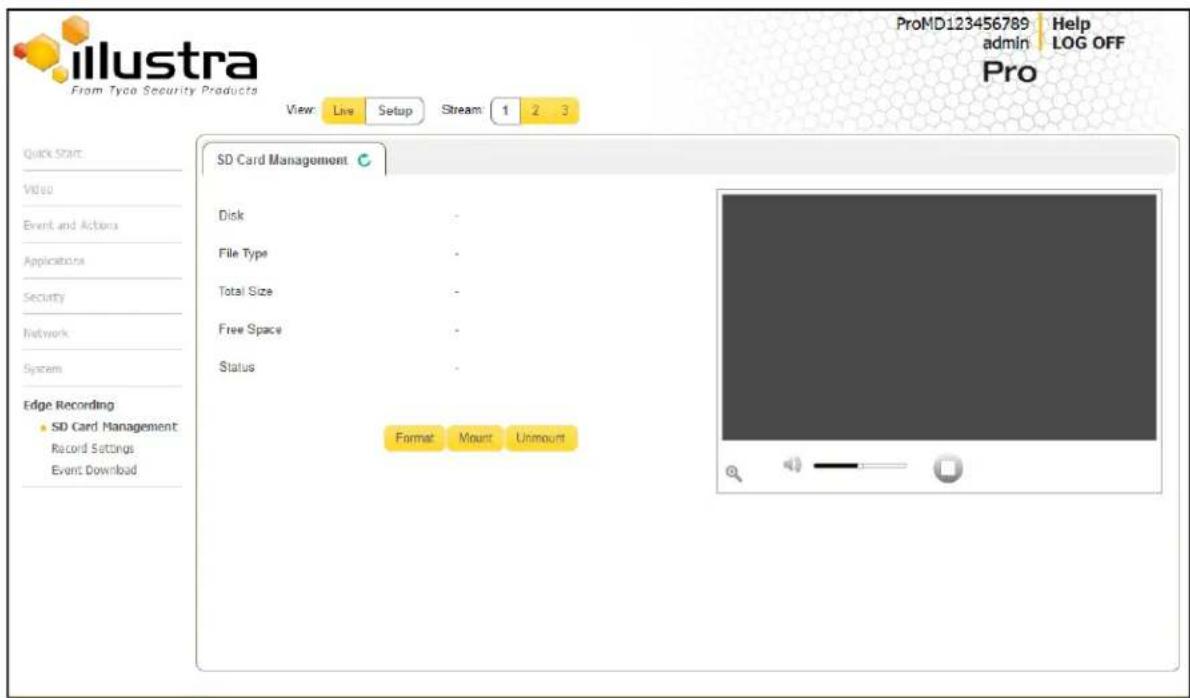
Figure 11-1 Edge Recording Menu
The Edge Recording Menu provides access to the following camera settings and functions:
• SD Card Management
- Record Settings
- Event Download
SD Card Management
Edge recording provides the ability to save recorded video to a SD Card. Video can be configured to be based on an event. Without an SD Card current faults notifications displayed on camera if an alarm is triggered. Using an SD Card enables the following:
- Current faults notifications displayed on camera if an alarm is triggered.
• Video/Audio and screenshot are saved to the SD card. - SMTP notifications can be sent.
- FTP uploads of video can be sent.
• Audio can be played via the Audio Out port.
Inserting the SD Card
When inserting an SD card it is essential that the camera is rebooted. The camera is mounted and unmounted through the Web User Interface.
Note:
Refer to the Quick Reference Guide supplied with the product for details on how to remove the housing assen and gain access to the camera.
Procedure 11-1 Insert the SD Card by powering down the Camera
Step Action
1 Turn off the camera by disconnecting the power supply.
2 Insert the SD card into the camera.
3 Reconnect the power supply and power up the camera.
- End -
Procedure 11-2 Mount the SD Card via the Web User Interface to reboot the
Step Action
1 Insert the MicroSD card into the camera.
2 Select Setup on the Web User Interface banner to display the setup menus.
3 Select SD Card Management menu from the Edge Recording menu.
4 Select Mount.
- End -
Record Settings
2 Remove the SD card from the camera.
Note:
AVI clips are not available on the camera until the MicroSD card has been inserted and the camer rebooted.
3 Reconnect the power supply and power up the camera.
- End -
Procedure 11-4 Unmount the MicroSD Card for Removal
Step Action
1 Select Setup on the Web User Interface banner to display the setup menus.
2 Select SD Card Management menu from the Edge Recording menu.
3 Select Unmount.
You are prompted to confirm the unmounting.
4 Select OK to confirm.
OR
5 Select Cancel.
Remove the SD card from the camera.
AVI clips are not available on the camera until the SD card has been inserted and mounted
- End -
Record Settings
Select which video stream to use for alarm video and configure pre and post event durations for the plava
Event Download
b Select the Pre Event (secs) in seconds from the drop-down menu. Values range from 0 to 10. The default setting is 5 seconds.
c Select the Post Event (secs) in seconds from the drop-down menu. Values range from 0 to 10. The default setting is 5 seconds.
5 Select Apply to save.
- End -
Event Download
If an event action has record mode enabled, when triggered, the associated video is logged in the event down table where it can later be downloaded from an SD Card using the specified upload protocol.
Note:
An event action must have record mode enabled to be logged and downloaded. This is configured in Event Actions under the Events and Actions menu.
Technical Specifications
This section provides information on the technical, environmental and operating specifications for the 2MP, 3 and 5MP models of the Illustra Pro Series Mini Dome.
| General Features | |
| Language Selection | English (default), Arabic, Czech, Danish, German, Spanish, French, Hungarian, Italian, Korean, Japanese, Netherlands, Polish, Portuguese, Swedish, Turkish, Chinese Traditional, Chinese Simplified, Russian. |
| Camera body color White RAL 9003, | or Black Pantone C. |
| Vandal resistant rating IK 10 | |
| Max Resolution | 2MP (1920x1080) 1080p 16:93MP (2048x1536) QXGA 4:35MP 2592x1944 |
| Video Processor | |
| SoC manufacturer Texas Instruments | |
| SoC manufacturer part number TMS32 | 0DM8127 |
| OS Linux kernel Ver. 2.6.37 | |
| ROM/flash size 512 MBytes | |
| Ram size 1 Gbytes DDR3 | |
| Reboot time 45s | |
| Battery hold up time | 10 days |
| Plenum rating | Compliant |
| Encoding method G711 | |
| Standard compliance G711 | |
| Sampling rate 8 kHz | |
| Sampling bits 16 | |
| Frequency response range 300-4,000 Hz | |
| Dynamic Range 93dB | |
| Input type Electret Microphone single ended | |
| Input impedance 20 kohm | |
| Input level 2 V p-p typical | |
| Input connector 2 contacts on the 10-position terminal block | |
| Output type | Mono, Single-ended output, 0.707VRMS to 2Vpp, into 16 ohm headphone, 10 KOhm line output, 8 ohm 30mW Speaker Drive |
| Output connector 2 contacts on the 10-position terminal block | |
| SNR | Input 92dBA , Output: 102 dBA |
| Distortion | Input THD= -94 dB; Output THD= -70 dB |
| Client interfaces | |
| Browsers supported & version | IE 10 and 11. Firefox, Chrome |
| Illustra API version | AD IAPI3 |
| ONVIF Profile S version | Core spec. version 2.4 |
| Text overlay Font Size 40 pixels high | |
| Event alarms | |
| Event triggers | Video motion, Blur detection, Face detection,Scheduled Alarm input, Network loss, Resetand Health monitoring |
| Pre-alarm recording 10s pre and post | |
| Event actions | SMTP e-mail file, transfer FTP file transfer,SFTP file transfer and SD card storage,CIFS mount |
| Alarm input 3V~5V (High) / 0.8V (Low). | |
| Auxiliary output 1 Amp, relay contact. | |
| I/O Interfaces | |
| SD card | One Micro SD slot, supporting the followingCard types: Standard SD format up to 4GB,SDHC format up to 32GBytes and SDXC upto 128GBytes. |
| Alarm inputs | Two isolated Alarm Inputs: 2 contacts withone common return contact on the 10-position terminal block |
| Video output | One external analog video output port, TypeBNC, Format: NTSC/PAL 1V p-p |
| IP Connector RJ-45 | |
| LED indicators | Two Network LEDs on RJ-45 connector indating: 1. Link has been established. 2: Net- |
Resolutions
The following resolutions are available on Stream 1, Stream 2, and Stream 3:
| 2MP | ||
| Stream 1 Stream 2 Stream 3 | ||
| (1920x1080) 1080p 16:9 | (1280x720) 720p 16:9 | (1024x576) PAL+ 16:9 |
| (1664x936) 16:9 (1024x576) PAL+ 16:9 (640x360) nHD 16:9 | ||
| (1280x720) 720p 16:9 | (640x360) nHD 16:9 | (384x216) 16:9 |
| (1024x576) PAL+ 16:9 (384x216) 16:9 | ||
| (640x360) nHD 16:9 | ||
| (384x216) 16:9 | ||
| 3MP | ||
| Stream 1 Stream | 2 Stream 3 | |
| (2048x1536) QXGA 4:3 | (1920x720) 720 16:9 | (1024x576) PAL+ 16:9 |
| (1920x1440) 4:3 | (1024x768) 1024 XGA 4:3 | (960x720) 4:3 |
| (1920x1080) 1080p 16:9 | (1024x576) PAL+ 16:9 | (768x576) 4:3 |
| (1600x1200) UXGA 4:3 | (768x576) 4:3 | (640x480) 640 VGA 4:3 |
| (1280x960) SXGA 4:3 | (640x480) 640 VGA 4:3 | (640x360) nHD 16:9 |
| (1280x720) 720p 16:9 | (640x360) nHD 16:9 | (480x360) 480 4:3 |
| (1024x768) 1024 XGA 4:3 | (480x360) 480 4:3 | (384x288) 4:3 |
| 5MP | ||
| Stream 1 Stream 2 Stream 3 | ||
| (1920x1440) 4:3 (1600x1200) UXGA 4:3 (920x720) 4:3 | ||
| (1920x1080) 1080p 16:9 (1280x960) SXGA 4:3 (768x576) 4:3 | ||
| (1600x1200) UXGA 4:3 (1280x720) 720p 16:9 (640x400) 640 VGA 4:3 | ||
| (1280x960) SXGA 4:3 (1024x768) 1024 XGA 4:3 (640x360) nHD 16:9 | ||
| (1280x720) 720p 16:9 (1024x576) PAL+ 16:9 (480x360) 480 4:3 | ||
| (1024x768) 1024 XGA 4:3 (768x576) 4:3 (384x288) 4:3 | ||
| (1024x576) PAL+ 16:9 (640x480) 640 VGA 4:3 (384x216) 16:9 | ||
| (768x576) 4:3 (640x360) nHD 16:9 | ||
| (640x480) 640 VGA 4:3 (480x360) 480 4:3 | ||
| (640x360) nHD 16:9 (384x288) 4:3 | ||
| (480x360) 480 4:3 (384x216) 16:9 | ||
| (384x288) 4:3 | ||
| (384x216) 16:9 | ||
MJPEG/JPEG Compressor Key Functionality
The JPEG codec supports the JPEG baseline DCT encoding process with the following additional configuration option:
• Quality: 1-100
H.264 Compressor Key Functionality
The H.264 codec supports the JPEG baseline DCT encoding process with the following additional configuration
| Category | Details |
| Ethernet 10/100B | base-T |
| Supported Protocols | TCP/IP, IPv4, IPv6, TCP, UDP, HTTP, FTP, DHCP, WS-Discover DNS, DDNS, RTP, TLS, Unicast, Multicast, NTP, SMTP, WS-Security |
| Base protocol | TCP/IP - RFC4614CIFS. SFTP |
| Internet layer addressing | IPv4 - RFC791IPv6 - RFC2460 |
| Transport layer | TCP - RFC973UDP - RFC768 |
| Data transmission | HTTP/HTTPS - RFC2616FTP - RFC959 |
| Network address configuration | DHCP - RFC2131 Zeroconf - RFC3927 Static IP address |
| Time Synchronization | NTP - RFC1305IETF NTP Working Groupi minute poll rate |
| SMTP - RFC5321Authenticated SMTP - RFC4954 | |
| Authentication and Security | IEEE.802.1x - TLS/PEEPHTTPS (HTTP over TLS) - RFC2818WS-SecurityMulti-level password protectionIP address filteringHTTPS encryptionUser access log |
| Discovery WS-discovery | |
| Streaming | RTP - RFC3550RTSP - RFC2326Unicast Streaming |
- TCP is used for two way communication and UDP will be used for broadcasting protocols.
- HTTP is used for the ONVIF protocol as transport mechanism for SOAP calls.
- FTP can be used to push alarm buffer video clips to a specified remote FTP server. The camera can us anonymous FTP or a specified username and password. There is no incoming FTP service.
IP multicast RFC 1112 level 1 support for sending but not receiving multicast IP datagrams to a group of interested receivers in single transmissions is supported for audio, video and metadata stream types. The streams can be controlled using the two methods described below:
1 A client can request a multicast stream using RTSP. When the client requests a stream the server will respond with a multicast address in the 'c=' field of the describe response (RFC 4566). The client then respond with a Setup request with the Transport Type set to multicast, the device shall stop packets for a multicast configuration when no more RTSP sessions are using the same multicast configuration.
2 An RTP multicast UDP stream can be started by an ONVIF 'StartMulticastStreaming' request with a specified media profile. Streaming continues until 'StopMulticastStreaming' is called for the same prof Multicast RTSP sessions support the same authentication methods as unicast RTSP sessions.
Network Address Configuration
- Dynamic Host Configuration Protocol (DHCP) is enabled by default on the camera on initial camera startup, and after a hardware factory reset, and remains enabled until the camera receives either a DHCP address or is assigned a Static IP address. If no connection is made to a DHCP server within two minutes, the camera goes to the default IP address 192.168.1.168, but continues to search for a DHCP address. If the camera is assigned a Static IP address prior to DHCP being enabled, the camera first reboots for approximately 30 seconds and then remains accessible at its Static IP until a connection is made to a DHCP server.
- Static IP can be used if the camera cannot be found on the network using DHCP. In this mode, a static IP address, subnet mask, default router and a primary and secondary DNS server can be configured. This will be used by the camera when turned on. It is possible to assign a static IPv4 address while still allowing the IPv6 addressing to be Link Local (automatically assigned).
- Dynamic DNS or DDNS Dynamic Domain Name System is supported for updating, in real time a changing IP address on the Internet to provide a persistent domain name for a resource that may change
The camera can send email alerts via SMTP to one specified mailbox using a specified SMTP server. Support provided for basic authenticated SMTP using username and password for login on the SMTP server.
Time Synchronization and Configuration
The camera supports NTP for time synchronization. The NTP server will have to be configured by the user. Alternatively, time can be manually configured via the Web User Interface or ONVIF.
CIFS Mounting
The camera supports the CIFS protocol for mounting a windows file share. This is configured with a network p domain name and password. It can be used to store video associated with alarms.
Remote Shell Access
For security reason, remote shell access is limited exclusively to Tyco Security Products Level 3 Technical Support. This function is not available to the end-user.
It is recommended to keep SSH Enable disabled. This function should only be enabled this when it is requested by Tyco Security Products Level 3 Technical Support.
Authentication and Security
- HTTPS (HTTP over TLS) is used for the Web User Interface. HTTP connections to the camera IP will automatically be redirected to the HTTPS login page.
- The camera will automatically create a SSL certificate file to use for HTTPS. It is possible to upload a custom SSL certificate if validation is desired.
- The ONVIF service uses WS-Security Username Token Digest.
Firewall
ONVIF Video and Control Interface
For each camera found on the network, the discovery tools will report:
- Serial number.
- Model Name.
• Product Code (Hardware ID). - MAC address.
- Current IP address.
- Firmware version.
This tool will allow configuration of:
• DHCP
• Static IP configuration
- Select a number of cameras and push a firmware update via ONVIF
ONVIF Video and Control Interface
The primary video and control interface to the camera is the Open Network Video Interface Forum global s for the interface of network video products. This uses SOAP over HTTP. The camera provides ONVIF for integration to internal and external systems.
Interface Technical Specifications
| Category Details | |
| Description Language WSDL | |
| Web Services Specification DPWS | |
| Web Services Tool Kit WS4D |
ONVIF Video and Control Interface
ONVIF Functions Supported
The following ONVIF functions are supported on the camera:
Device Management
Return List of Capabilities
Network Management
- Discovery
- DHCP hostname
• DNS
• NTP
System Management
• Device information
- Backup
- Restore
- Get/set system date and time
- Set camera to factory defaults
- Get system logs
- Get support information
- Reboot
- Get/set/remove scope (assigns ID data)
- Fault codes
Security
Configure Video and Audio
- Video Source
- Snapshot JPEG
microSD Card
microSD Card
External access is provided for a microSD for video alarm storage and audio output pre-recorded clips. The maximum size of microSD card that can be used with the camera is 128GB.
Refer to the Quick Reference Guide provided with the camera for information on how to remove and install microSD Card.
Dimensions
| Model Dimension | |
| Indoor 130 mm x | 138 mm x 138 mm (HxWxL) |
| Outdoor 135 mm | x 160 mm x 160 mm (HxWxL) |
Weight
| Model Weight | |
| Indoor 1.0 kg | |
| Outdoor Model 1.8 kg |
Environmental
The product is designed to meet the following environmental conditions:
Model Operating temperature
Power
Power
| POE | |
| PoE class PoE 802.3af, Class 3 | |
| Wallage Max= 12.95Watts | |
| Is LLDP supported? | LLDP support is built into the file system, but that service is disabled by default. We could probably turn it on, but we haven't done so yet |
| 24 VAC | |
| Voltage range 24 VAC +/- 25% | |
| Line frequency range 24 VAC +/- 25% | |
| Power (24 VAC line) | |
| Indoor with no IR 16 VA RMS | |
| Indoor with IR illuminators on 19 VA RMS | |
| Outdoor with heaters on and no IR 39 VA RMS | |
| Outdoor with heaters & IR on 42 VA RMS | |
| Power (Max at high line) | |
| Outdoor with heaters & IR on 52 VA RMS | |
| Design tolerance | +30%/-20% or to 31.6VAC, 47Hz to 63H Operates to 18.2VAC at room temperature |
| In rush current | 7.1 Amps inrush surge for 3.2 milliseconds at low line, 12 Amps at high line. |
Surge Protection
Regulatory Compliance
| EMC:USA (FCC): CFR 47 Part 15Canada: ICES-003/NMB-003 Issue 5European Union: EN 55022:2010European Union: EN 61000-3-2:2006/A2:2009European Union: EN 61000-3-3:2008Australia/New Zealand: AS/NZS CISPR 22:2009Product Assurance Testing:IEC 62599-2EN55024EN50130-4:2011IEC 61000-6-1 | |
| Vandal-Resistant | IK10 |
| Environmental | RoHS, EU Directive 2002/95/ECWEEE, EU Directive 2002/96/EC |
Appendix A: User Account Acce
| Camera Menu Sub | Menu Tab Admin | Operator User | |||
| Live View Live View X X X | |||||
| Quick Start | Basic Configuration | TCP/IP X | |||
| Video Stream Settings | X | X | |||
| Picture Basic | X X | ||||
| Picture Additional | X X | ||||
| Date/Time/OSD | X X | ||||
| Video | Streams | Video Stream Settings | X | X | |
| Picture Settings | Picture Basic | X X | |||
| Picture Additional | X X | ||||
| Lens Calibration | X | ||||
| Date/Time/OSD | Date/Time/OSD | X X | |||
| Privacy Zones | Privacy Zones | X X | |||
| Events and Actions | Event Settings | SMTP | X | ||
| FTP | X | ||||
| CIFS | X | ||||
| Event Actions | Event Actions X | ||||
| Alarm I/O | Alarm I/O | X | |||
| Camera Menu Sub Menu Tab Admin | Operator User | ||||
| Add User X X | |||||
| Change Password X X X | |||||
| HTTP/HTTPS HTTP/HTTPS X | |||||
| IEEE 802.1x EAP Settings X | |||||
| Firewall | Basic Filtering | X | |||
| Address Filtering | X | ||||
| Remote Access | Remote Access | X | |||
| Session Timeout | Session Timeout | X | |||
| Network | TCP/IP | TCP/IP | X | ||
| Multicast | Multicast | X | |||
| FTP | FTP | X | |||
| SMTP | SMTP | X | |||
| SNTP | SNTP | X | |||
| CIFS | CIFS | X | |||
| Dynamic DNS | Dynamic DNS | X | |||
| SIP | SIP | X | |||
| System | Maintenance | Maintenance | X | ||
| Backup / Restore | X | ||||
| Date Time | Date Time | X | |||
| Audio | Audio | X X | |||
| Audio Clips X X | |||||
Appendix B - Using Media Player to View Streaming
Note:
This appendix is provided for user instruction only. Tyco Security Products does not support or is not responsible for any error caused during the use of third party software used for RTSP playback.
Viewing RTSP Stream through Media Player
You can use Media Player to view live video and audio in real time from the camera.
1 Select Media then Open Network Stream.
2 Enter the IP address of the camera stream in the Network URL text box in the following format to view Stream 1 and 2:
- Stream 1: rtsp://
:554/StreamId=1 - Stream 2: rtsp://
:554/StreamId=2
For example: rtsp://192.168.1.168:554/StreamId=1
3 Select Play.
The live video stream is displayed.
- End -
Appendix C - Camera Defau
Quick Start
Basic Configuration
| Item | Default Setting | ||||||||
| TCP/IP | |||||||||
| Enable DHCP on | |||||||||
| IPv4 Address 192.16 | 8.1.168 | ||||||||
| Network Mask 255.255.0 | |||||||||
| Gateway empty or unspecified | |||||||||
| Primary DNS empty or unspecified | |||||||||
| IPv6 Enable on | |||||||||
| Current IPv6 Address empty or unspecified | |||||||||
| Video Stream Settings | |||||||||
| Stream Number | 1 (5MP) | 2 (5MP) | 3 (5MP) | 1 (3MP) | 2(3MP) | 3(3MP) | 1(2MP) | 2(2MP) | 3(2MP) |
| Codec | H264 | H264 | MJPEG | H264 | H264 | MJPEG | H264 | H264 | MJPEG |
| Resolution | 2592x1944 | 1920x1080 | 1024x57 | 2048x1536 | 1280x720 | 960x720 | 1924x57 | 1280x720 | 1024x576 |
| Frame Rate(fps)[1-30] | 15 | 15 | 7 | 30 | 15 | 7 | 30 | 15 | 7 |
| GOP Length[1-150] | 15 | 15 | 7 | 30 | 15 | 7 | 30 | 15 | 7 |
| MJPEG Quality | n/a | n/a | 80% | n/a | n/a | 80% | n/a | n/a | 80% |
| Rate Control | VBR | VBR | n/a | VBR | VBR | n/a | VBR | VBR | n/a |
| VBR Quality | High | High | n/a | High | High | n/a | High | High | n/a |
| CBR Bit Rate | n/a | n/a | n/a | n/a | n/a | n/a | n/a | n/a | n/a |
| Enable gaming mode | off | n/a | n/a | off | n/a | n/a | off | n/a | n/a |
| Picture Basic | |||||||||
| Mirror | off | ||||||||
| Flip | off | ||||||||
Video
| Day Night Mode auto low | |||||||||
| Brightness 50% | |||||||||
| Contrast 50% | |||||||||
| Saturation 50% | |||||||||
| Sharpness 50% | |||||||||
| White Balance Mode | auto normal | ||||||||
| Red 18% | |||||||||
| Blue 18% | |||||||||
| Date/Time/OSD | |||||||||
| Camera Friendly Name | ProMDSerialNumner | ||||||||
| Camera Time empty | or unspecified | ||||||||
| Time 24-hour on | |||||||||
| Date Display Format | YYYY/MM/DD | ||||||||
| Time Zone | (GMT-05:00) Eastern Time (US and Canada) | ||||||||
| Set Time | Manually | ||||||||
| Date(DD/MM/YY) | empty or unspecified | ||||||||
| Time(HH:MM:SS) | empty or unspecified | ||||||||
| OSD Name | off | ||||||||
| OSD Time off | |||||||||
Video
Streams
| Item | Default Setting | ||||||||
| Video Stream Settings | |||||||||
| Stream Number | 1 (5MP) | 2 (5MP) | 3 (5MP) | 1 (3MP) | 2(3MP) | 3(3MP) | 1(2MP) | 2(2MP) | 3(2MP) |
| Codec | H264 | H264 | MJPEG | H264 | H264 | MJPEG | H264 | H264 | MJPEG |
| Resolution | 2592x1944 | 1920x1080 | 2048x1536 | 1280x720 | 1920x1080 | 1280x720 | 1024x576 | ||
| Frame Rate(fps)[1-30] | 15 | 15 | 7 | 30 | 15 | 7 | 30 | 15 | 7 |
Events and Actions
| 5MP 3MP 2MP | ||
| Max Exposure (sec) 1/4 | 1/8 1/8 | |
| Max Gain (dB) 30db | 42db 42db | |
| Bright objects auto | ||
| Flicker Control 60hz | ||
| Picture Additional | ||
| Enable WDR off | ||
| Enable IR Illuminator on | ||
| Day Night Mode auto low | ||
| Brightness 50% | ||
| Contrast 50% | ||
| Saturation | 50% | |
| Sharpness | 50% | |
| White Balance Mode | auto normal | |
| Red | 18% | |
| Blue | 18% | |
| Lens Calibration | ||
Date/Time/OSD
| Tab | Item | Default Setting |
| Date/Time/OSD | ||
| Camera Friendly Name | ProMDSerialNumner | |
| Camera Time | empty or unspecified | |
| Time 24-hour | on | |
| Date Display Format | YYYY/MM/DD | |
| Time Zone | (GMT-05:00) Eastern Time (US and Canada) | |
| Set Time | Manually | |
| Date(DD/MM/YY) | empty or unspecified | |
| Time(HH:MM:SS) | empty or unspecified | |
| OSD Name | off | |
| OSD Time | off | |
Privacy Zones
Events and Actions
| From Address empty or unspecified | ||
| Send Email To empty or unspecified | ||
| Use authentication to log on to server off | ||
| FTP | ||
| Enable FTP off | ||
| Secure FTP off | ||
| FTP Server empty or unspecified | ||
| FTP Port 21 | ||
| Username empty or unspecified | ||
| Password empty or unspecified | ||
| Upload Path empty or unspecified | ||
| Limit Transfer Rate on | ||
| Max Transfer Rate(Kbps) 50 | ||
| CIFS | ||
| Enable off | ||
| Network Path | empty or unspecified | |
| Domain Name | empty or unspecified | |
| Username empty or unspecified | ||
| Password empty or unspecified | ||
Event Actions
| Tab | Item | Default Setting |
| Event Actions | ||
| Fault Action 1 | empty or unspecified | |
| Fault Action 2 | empty or unspecified | |
| Fault Action 3 | empty or unspecified | |
| Fault Action 4 | empty or unspecified | |
| Fault Action 5 | empty or unspecified | |
Alarm I/O
| Tab | Item | Default Setting |
| Alarm I/O | ||
| Alarm Input 1 (open) | empty or unspecified | |
| Alarm Input 2 (open) | empty or unspecified | |
Applications
| Enable Video Intelligence off | ||
| Analytics Rules empty or unspecified | ||
| Blur Detection | ||
| Enable Blur Detection off | ||
Event Logs
| Tab Item Default Setting | ||
| Event Log | ||
| Event Log empty or unspecified | ||
| Fault Log empty or unspecified | ||
Applications
Applications
| Tab Item Default Setting | ||
| Applications | ||
| Select Package to Upload empty or unspecified | ||
License
| Tab Item Default Setting | ||
| License | ||
| Select Package to Upload empty or unspecified | ||
Security
Security
Users
| Tab Item Default Setting | ||
| Users | ||
| Logon Name admin | ||
| Role admin | ||
| Add User | ||
| Name empty or unspecified | ||
| Role empty or unspecified | ||
| Password empty or unspecified | ||
| Confirm Password empty or unspecified | ||
| Change Password | ||
| Name empty or unspecified | ||
| Current Password empty or unspecified | ||
| New Password empty or unspecified | ||
| Confirm New Password empty or unspecified | ||
HTTP/HTTPS
| Tab Item Default Setting | ||
| HTTP/HTTPS | ||
| HTTP Method both | ||
| HTTP Port Number | 80 | |
| HTTPS Number | 443 | |
| Select Certificate File empty or unspecified | ||
IEEE 802.1x
| Tab | Item Default Setting | |
| EAP Settings | ||
| Enable IEEE802.1x | off | |
| EAPOL Version | 1 | |
| EAP Method | PEAP | |
| EAP Identity | empty or unspecified | |
| CA Certificate | empty or unspecified | |
Network
Remote Access
| Tab Item Default Setting | ||
| Remote Access | ||
| SSH Enable off | ||
| ONVIF Discovery Mode on | ||
| ONVIF User Authentication on | ||
| UPnP Discovery on | ||
Session Timeout
| Tab Item Default Setting | ||
| Session Timeout | ||
| Session Timeout (mins) 15 | ||
Network
Multicast
| Tab Item Default Setting | ||
| Multicast | ||
| Stream number 1 | ||
| URL | Disabled | |
| Video address | Empty or unspecified | |
| Port | 0 | |
| Time to Live | 3 | |
TCP/IP
Network
| FTP Port 21 | ||
| Username empty or unspecified | ||
| Password empty or unspecified | ||
| Upload Path empty or unspecified | ||
| Limit Transfer Rate on | ||
| Max Transfer Rate(Kbps) 50 |
SMTP
| Tab Item Default Setting | ||
| SMTP | ||
| Enable SMTP off | ||
| Mail Server empty or unspecified | ||
| Server Port 25 | ||
| From Address empty or unspecified | ||
| Send Email To | empty or unspecified | |
| Use Authentication to log onto server | off | |
SNMP
| Tab | Item Default Setting | |
| SNMP | ||
| Location empty or unspecified | ||
| Contact | empty or unspecified | |
| Enable V2 | off | |
| Read Community | public | |
| Trap Community | fixedcameras | |
| Trap Address | empty or unspecified | |
| Enable V3 | off | |
| Read User | root | |
| Security Level | noauth | |
| Authentication Type | MD5 | |
| Authentication Password empty or unspecified | ||
| Encryption Type | DES | |
| Encryption Password | empty or unspecified | |
| Heartbeat | ||
Network
| Dynamic DNS | ||
| Service Enable off | ||
| Camera Alias empty or unspecified | ||
| Service Provider dyndns.org | ||
| Username empty or unspecified | ||
| Password empty or unspecified | ||
| Service Data empty or unspecified | ||
SIP
| Tab Item Default Setting | ||
| SIP | ||
| Enabled off | ||
| Domain empty or unspecified | ||
| Username empty or unspecified | ||
| Password empty or unspecified | ||
| Audio Source | mic | |
| Audio Output | Speaker | |
| Extension | empty or unspecified | |
| Status | baresip process not running! | |
System
System
Maintenance
| Tab Item Default Setting | ||
| Maintenance | ||
| Preserve IP Address on | ||
| Preserve Applications on | ||
| Preserve Licenses on | ||
| Select Firmware Image File empty or unspecified | ||
| Backup/Restore | ||
| Select Saved Data File empty or unspecified | ||
Date Time
| Tab Item Default Setting | ||
| Date Time | ||
| Camera Time | empty or unspecified | |
| Time 24-hour | on | |
| Date Display Format | YYYY/MM/DD | |
| Time Zone | (GMT-05:00) Eastern Time (US and Canada) | |
| Set Time | Manually | |
| Date (DD/MM/YYYY) | empty or unspecified | |
| Time(HH:MM:SS) | empty or unspecified | |
Audio
| Tab | Item Default Setting | |
| Audio | ||
| Enable Audio | off | |
| Input Enable | off | |
| Input Volume | 72 | |
| Output Enable | off | |
Edge Recording
| Reporting Period(seconds) 60 | ||
| Health Monitor Table empty or unspecified |
Logs
| Tab Item Default Setting | ||
| System Log | ||
| Lines (From The End Of The Log File) 200 | ||
| Filter(Only Lines Containing Text) empty or unspecified | ||
| Boot Log | ||
| Lines (From The End Of The Log File) 200 | ||
| Filter(Only Lines Containing Text) empty or unspecified | ||
| Audit Log | ||
| Search By empty or unspecified | ||
| Filter Text 1 text | ||
| Filter Text 2 empty or unspecified | ||
| Start Date(DD/MM) empty or unspecified | ||
| End Date(DD/MM) empty or unspecified | ||
About
| Tab Item | Default Setting | |
| Model | ||
| Camera Name | factory configuration | |
| Model | factory configuration | |
| Product Code | factory configuration | |
| Manufacturing Date | factory configuration | |
| Serial Number | factory configuration | |
| MAC Address | factory configuration | |
| Firmware Version | factory configuration | |
| Hardware Version | factory configuration | |
Edge Recording
Edge Recording
| Record Source Stream 1 | ||
| Pre Event(secs) 10 secs | ||
| Post Event(secs) 10 secs |
Event Download
| Tab Item Default Setting | ||
| Event Download | ||
| File Name Table empty or unspecified | ||
- Configuration & User Guide
- Illustra Pro Series 5MP, 3MP & 2MP Mini I Series
- Notice
- Copyright
- Customer Service
- Trademarks
- License Information
- Procedure 1-1 Adjusting the 1.8 mm - 3 mm lens
- Step Action
- Note:
- Security Mode Profiles for First Time Connection
- Accessing the Illustra Pro Series Camera Web User Interface
- Logging in to the Camera
- Procedure 2-1 Log in to the Camera
- Security Profile:
- Logging out of the Camera
- Procedure 2-2 Log off the Camera
- Changing the Camera Web User Interface Language
- Procedure 2-3 Change the Camera Web User Interface Language
- Accessing the Setup Menus from Live View
- Procedure 2-4 Access Setup Menus from Live View
- Displaying the Live View Page
- Procedure 2-5 Display Live View Page
- Web User Interface Icons
- Video Pane
- Viewing Live Streams through the Video Pane
- Procedure 2-6 Viewing Live Video through the Video Pane
- Maximize the Video Pane on an Active Tab
- Procedure 2-7 Maximize/Minimize the Video Pane
- TCP/IP
- DHCP
- Procedure 3-1 Enable DHCP
- Procedure 3-2 Disable DHCP
- IPv4
- Procedure 3-3 Configure the IPv4 Settings
- IPv6
- Procedure 3-4 Enable/Disable IPv6
- Video Stream Settings
- Configuring the Web Video Stream
- Procedure 3-5 Configure the Video Stream settings
- 2MP
- 3MP
- 5MP
- Gaming Mode
- Picture Basic
- Picture Rotation
- Procedure 3-6 Configure Orientation Settings
- Corridor Mode
- Procedure 3-7 Configure Corridor Mode Settings
- Focus / Zoom
- Procedure 3-8 Adjust Camera Focus / Zoom
- Procedure 3-9 Adjust Camera Focus using OneTouch Autofocus
- Procedure 3-10 Enable/Disable IR Compensate
- Exposure
- Procedure 3-11 Configure Exposure Settings
- Procedure 3-12 Restore Exposure Defaults
- Picture Additional
- Wide Dynamic Range
- Procedure 3-13 Disable/Enable Wide Dynamic Range (WDR)
- Day Night Mode
- IR Illuminator
- Procedure 3-14 Enable / Disable IR Illuminator
- Procedure 3-15 Configure Day Night Mode
- Picture Adjustment
- Procedure 3-16 Adjust the Brightness, Contrast and Saturation
- Procedure 3-17 Restore Picture Balance Defaults
- White Balance
- Procedure 3-18 Configure Auto White Balance
- Procedure 3-19 Manually Select White Balance
- Date / Time / OSD
- Camera Name
- Procedure 3-20 Change the Camera Name
- Date / Time
- Procedure 3-21 Configuring the Date and Time
- On-Screen Display (OSD)
- Procedure 3-22 Display or Hide the Camera Name OSD
- Procedure 3-23 Display or Hide the Camera Time OSD
- Streams
- Alarm Video
- Edge Recording
- Integration with other Illustra API Clients
- Configuring the Video Stream
- Procedure 4-1 Configure the Video Stream settings
- Picture Settings
- Procedure 4-4 Adjust Camera Focus using OneTouch Autofocus
- Procedure 4-5 Enable/Disable IR Compensate
- Procedure 4-6 Configure Exposure Settings
- Procedure 4-7 Restore Exposure Defaults
- Procedure 4-8 Disable/Enable Wide Dynamic Range (WDR)
- Procedure 4-9 Enable / Disable IR Illuminator
- Procedure 4-10 Configure Day Night Mode
- Procedure 4-11 Adjust the Brightness, Contrast and Saturation
- Procedure 4-12 Restore Picture Balance Defaults
- Procedure 4-13 Configure Auto White Balance
- Procedure 4-14 Manually Select White Balance
- Lens Calibration
- Procedure 4-15 Run a Lens Calibration
- IR LEDS
- Procedure 4-16 Switch a LED light on or off
- Procedure 4-17 Change the Camera Name
- Procedure 4-18 Configuring the Date and Time
- Procedure 4-19 Display or Hide the Camera Name
- Procedure 4-20 Display or Hide the Camera Time
- Privacy Zones
- Defining a Privacy Zone
- Procedure 4-21 Define a Privacy Zone
- Enabling or Disabling a Privacy Zone
- Procedure 4-22 Enable/Disable a Privacy Zone
- Deleting a Privacy Zone
- Procedure 4-23 Delete a Privacy Zone
- Event Settings
- SMTP
- Procedure 5-1 Configure SMTP Settings
- FTP
- Procedure 5-2 Configure FTP Server Settings
- File Transfer Rate
- Test FTP Settings
- CIFS
- Event Actions
- Creating an Event Action
- Procedure 5-6 Create an Event Action
- Editing a Event Action
- Procedure 5-7 Edit an Event Action
- Alarms I / O
- Alarm Actions
- Procedure 5-8 Creating an Alarm
- Procedure 5-9 Enable/Disable an Alarm
- Enable or Disable Alarm Output
- Procedure 5-10 Enable/Disable Alarm Output
- Procedure 5-11 Clearing Alarm Output
- Analytics
- Region of Interest (ROI)
- Procedure 5-12 Configure a Region of Interest
- Procedure 5-13 Delete a Region of Interest
- Face Detection
- Procedure 5-14 Enable / Disable Face Detection
- Motion Detection
- Motion Detection Best Practices
- Motion Detection Configuration Pane
- Creating a Motion Detection Alert
- Procedure 5-15 Create a Motion Detection Alert
- Enable or Disable a Motion Detection Alert
- Procedure 5-16 Enable or Disable a Motion Detection Alert
- Clear a Motion Detection Alert Output Automatically
- Procedure 5-17 Clear a Motion Detection Alert Output
- Video Intelligence
- Procedure 5-18 Enable/Disable Video Intelligence
- Procedure 5-19 Create a Video Intelligence Alert
- - End -
- Procedure 5-20 Enable/Disable an Analytics Rule
- Procedure 5-21 Edit an Analytics Rule
- Procedure 5-22 Delete an Analytics Rule
- Blur Detection
- Event Logs
- Event Log
- - details the event index.
- Fault Log
- - details the fault index.
- System Faults
- ENVM (Environmental Monitor) Component
- Procedure 5-25 Display Current Faults
- Procedure 5-26 Delete Current Faults
- Applications
- Procedure 6-1 Upload an Application
- Available Applications
- Procedure 6-2 Start, Stop or Remove an Application
- License
- Procedure 6-3 Upload a License File
- Checking if exacqVision Edge is Installed via the Web User Interfa
- Install exacqVision Edge
- Procedure 7-1 Install exacqVision Edge Server using Purchased SD Card with exacqVision Server
- Procedure 7-2 Install exacqVision Edge Server using the Camera Web User Int
- How to use the Edge Server
- Update the exacqVision Server
- Uninstall the exacqVision Server
- Formatting the SD Card
- Security Status
- Enhanced Security
- Procedure 8-1 Enable Enhanced Security
- Click Apply.
- Procedure 8-2 Disable Enhanced Security Mode
- Setting Communication Protocols
- Procedure 8-3 Enable/Disable Communication Protocols
- Security Overview
- Procedure 8-4 Enable/Disable Communication Protocols
- Security Log
- Procedure 8-5 Display Security Log
- Procedure 8-6 Filter the Security Log
- Users
- View Current User Accounts
- Procedure 8-7 View User Accounts
- Add User
- Procedure 8-8 Add a User
- Changing the User Accounts Password
- Procedure 8-9 Change User Password
- Delete a User Account
- Procedure 8-10 Delete a User Account
- HTTP / HTTPS
- Procedure 8-11 Specify HTTP Method
- Procedure 8-12 Add a HTTPS Certificate
- Delete a HTTPS Certificate
- Procedure 8-13 Delete a HTTPS Certificate
- IEEE 802.1x
- Procedure 8-14 Configure IEEE 802.1x Security
- Firewall
- Basic Filtering
- Procedure 8-15 Enable/Disable Basic Filtering
- Address Filtering
- Procedure 8-16 Enable/Disable and configure Address Filtering
- Editing an Address Filter
- Procedure 8-17 Edit an Address Filter
- Deleting an Address Filter
- Procedure 8-18 Delete an Address Filter
- Remote Access
- SSH Enable
- Procedure 8-19 Configure SSH
- ONVIF
- ONVIF Discovery Mode
- ONVIF User Authentication
- Video over HTTP
- UPnP Discovery
- Procedure 8-23 Enable/Disable UPnP Discovery
- ExacqVision Server Audio
- Procedure 8-24 Enable/Disable EXACQ Audio
- Session Timeout
- Procedure 9-1 Configure the IPv4 Settings
- Procedure 9-2 Enable/Disable IPv6
- Multicast
- Procedure 9-4 Configure FTP Server Settings
- Procedure 9-7 Configure SMTP Settings
- SNMP
- Procedure 9-8 Configure SNMP Settings
- Procedure 9-9 Configure CIFS Server Settings
- Dynamic DNS
- Procedure 9-10 Configure Dynamic DNS
- SIP
- Enable/Disable SIP
- Procedure 9-11 Enable/Disable SIP
- Configure the SIP Server Settings
- Procedure 9-12 Configure the SIP Server Settings
- Place a SIP call
- Procedure 9-13 Place a SIP call
- Maintenance
- Reset
- Reboot
- Procedure 10-2 Reboot the Camera
- Camera Firmware Upgrade
- !Caution
- Procedure 10-3 Upgrade Camera Firmware
- Backup/Restore
- Procedure 10-4 Backup Camera Data
- Procedure 10-5 Restore Camera from Backup
- Procedure 10-6 Configuring the Date and Time
- Audio
- Procedure 10-7 Configure Audio Input
- Procedure 10-8 Configuring Audio Output
- Configuring Stored Audio
- Procedure 10-9 Play Stored Audio
- Procedure 10-10 Upload an Audio File
- Procedure 10-11 Delete a Stored Audio file
- Configuring Audio Video Synchronisation
- Procedure 10-12 Configure Audio Video Synchronisation
- Analog Video
- Health Monitor
- Procedure 10-13 Configure Health Monitor Settings
- Logs
- System Log
- Boot Log
- Audit Log
- About
- Procedure 10-19 Edit Camera Name
- SD Card Management
- Inserting the SD Card
- Procedure 11-1 Insert the SD Card by powering down the Camera
- Procedure 11-2 Mount the SD Card via the Web User Interface to reboot the
- Procedure 11-4 Unmount the MicroSD Card for Removal
- Record Settings
- Event Download
- Technical Specifications
- Resolutions
- MJPEG/JPEG Compressor Key Functionality
- H.264 Compressor Key Functionality
- Network Address Configuration
- Time Synchronization and Configuration
- CIFS Mounting
- Remote Shell Access
- Authentication and Security
- ONVIF Video and Control Interface
- ONVIF Functions Supported
- Device Management
- System Management
- Security
- Configure Video and Audio
- microSD Card
- Dimensions
- Weight
- Environmental
- Appendix B - Using Media Player to View Streaming
- Viewing RTSP Stream through Media Player
- Appendix C - Camera Defau
- Quick Start
- Video
- Network
- System
Brand : Illustra
Model : IPS03D0OCWTT
Category : Security Camera