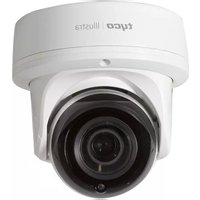
IPS08-D14-OI03 - Security Camera Illustra - Free user manual and instructions
Find the device manual for free IPS08-D14-OI03 Illustra in PDF.


| Product Type | Outdoor Dome Camera |
| Dimensions | 138 x 138 mm (5.43 x 5.43 in) |
| Weight | 1.13 kg (2.5 lb) |
| Power Supply | AC 24V / PoE IEEE 802.3af Class 0 |
| Resolution | 8MP (3840 x 2160) at 30 fps |
| Lens | Motorized varifocal, 6-22mm, F1.5-2.8 |
| Field of View | Horizontal: 50° (Wide) - 24.2° (Tele); Vertical: 27.6° (Wide) - 13.7° (Tele) |
| IR Distance | 40 m (131 ft) with 850 nm IR LEDs |
| Day/Night | True Day/Night with IR Cut Filter (ICR) |
| Video Compression | H.264, H.265, MJPEG; IntelliZip options |
| Maximum Frame Rate | Up to 60 fps (lower resolutions); 30 fps at 4K |
| Environmental Rating | IP66/IP67 (outdoor), IK10 vandal resistant |
| Audio | Line/mic input and line output; 16-bit sampling |
| Alarm I/O | 2 alarm inputs, 1 alarm output (terminal block) |
| Storage | Micro SD/SDXC slot (up to 128 GB, Class 10 or higher, not included) |
| Network Protocols | TCP/IP, IPv4/IPv6, HTTP, HTTPS, FTP, SFTP, DHCP, DNS, DDNS, NTP, SMTP, SNMP, CIFS, UPnP, RTSP, 802.1x, etc. |
| Security | Standard and Enhanced Security modes; user accounts; HTTPS; firewall; IEEE 802.1x |
| Maintenance & Cleaning | Wipe with dry soft cloth; use diluted neutral detergent for tough stains; avoid benzene or thinner |
| Included Tools | Torx T10 security L-Key for installation |
| Manual | 155-page Installation and Configuration Guide included |
Frequently Asked Questions - IPS08-D14-OI03 Illustra
User questions about IPS08-D14-OI03 Illustra
0 question about this device. Answer the ones you know or ask your own.
Ask a new question about this device
Download the instructions for your Security Camera in PDF format for free! Find your manual IPS08-D14-OI03 - Illustra and take your electronic device back in hand. On this page are published all the documents necessary for the use of your device. IPS08-D14-OI03 by Illustra.
USER MANUAL IPS08-D14-OI03 Illustra
Installation and Configuration Guide

natural_image
Line drawing of a surveillance camera with lens and wiring (no text or symbols)Notice
Please read this manual thoroughly and save it for future use before attempting to connect or operate this unit.
The information in this manual was current when published. The manufacturer reserves the right to revise and improve its products. All specifications are therefore subject to change without notice.
Copyright
This product includes advanced facial detection technology developed by INTELLIVISION.
Under copyright laws, the contents of this manual may not be copied, photocopied, reproduced, translated or reduced to any electronic medium or machine-readable form, in whole or in part, without prior written consent of Tyco Security Products.
© 2019 Tyco Security Products. All rights reserved.
Tyco Security Products
6600 Congress Avenue
Boca Raton, FL 33487 U.S.A.
Customer Service
Thank you for using American Dynamics products. We support our products through an extensive worldwide network of dealers. The dealer through whom you originally purchased this product is your point of contact if you need service or support. Our dealers are empowered to provide the very best in customer service and support. Dealers should contact American Dynamics at (800) 507-6268 or (561) 912-6259 or on the web at www.americandynamics.net.
Trademarks
The trademarks, logos, and service marks displayed on this document are registered in the United States [or other countries]. Any misuse of the trademarks is strictly prohibited and Tyco Security Products will aggressively enforce its intellectual property rights to the fullest extent of the law, including pursuit of criminal prosecution wherever necessary. All trademarks not owned by Tyco Security Products are the property of their respective owners, and are used with permission or allowed under applicable laws.
Product offerings and specifications are subject to change without notice. Actual products may vary from photos. Not all products include all features. Availability varies by region; contact your sales representative.
Table of Contents
Overview .7....
Illustra Pro Gen3 3MP and 8MP Dome .cameras .8
Product overview 8
Installation 8....
Network Topology...13....
Network Connection 14
Default IP Address 14
DHCP 15
Managing cameras with the Illustra Connect tool 16
Configuration 18
Live menu 21
Quick Start Menu 23
Basic Configuration 23
Video Menu 46
Streams 46
Picture Settings 52
Date / Time / OSD 62
Privacy Zones 65
Events and Actions Menu 67
Event Settings 67
Event Actions....70
Alarm I / Q 72
Analytics 74
Video Intelligence 77
Event Logs 84
Applications 87
Applications 87
License 88
Security 89
Security Status 89
Security Status 91
Users 92
HTTP / HTTPS.94
IEEE 802.1x 95
Firewall 97.
Remote Access 99
Session Timeout 101
Network Menu 103
TCP/IP 103
Multicast 104
FTP 105
SMTP 107
SNMP 108
CIFS 109
Dynamic DNS 109
SIP 110
System 112
Maintenance 112
Date / Time.... 116
Audio 117
Analog Video 119
Health Monitor 119
Logs 120
About 121
Edge Recording 123
Micro SD Card Management 123
Record Settings 125
Event Download 126
Appendix A: User Account Access 127
Appendix B: Using Media Player to View RTSP Streaming 130
Appendix C: Stream Tables 131
Appendix D: Camera Defaults...135
Appendix E: Technical Specifications...146
End User License Agreement (EULA)...151.
Warning
- This unit operates at AC 24V/ PoE.
- Installation and service should be performed only by qualified and experienced technicians and comply with all local codes and rules to maintain your warranty.
• To avoid damaging the Dome camera, never connect more than one type of power supply(PoE IEEE802.3 Ethernet Class 0) at the same time. If using any type of PoE, these cameras must be connecting only to PoE networks without routing to heterogeneous devices.
• To reduce the risk of fire or electric shock, do not expose the product to rain or moisture. - Wipe the camera with a dry soft cloth. For tough stains, slightly apply with diluted neutral detergent and wipe with a dry soft cloth.
- Do not apply benzene or thinner to the camera, which may cause the surface of the unit to be melted or lens to be fogged.
- The power supply shall be approved for ITE NEC Class 2 or LPS with a rating of 24VAC, 550mA minimum and 50 degrees Celsius. The power supply shall be approved for ITE NEC Class 2 or LPS, 550mA minimum and 50 degrees Celsius.
• Video Out connection should be intra-building only. - Avoid operating or storing the unit in the following locations:
- Extremely humid, dusty, or hot/cold environments. Recommended operating temperature is:
• Outdoor Dome: -50°C to +60°C (-58°F to +140°F)
• Power over Ethernet (PoE) does not support heater.
• Near sources of powerful radio or TV transmitters.
• Near fluorescent lamps or objects with reflections.
• Under unstable or flickering light sources.

Overview
This Illustra Pro Gen3 Installation and Configuration Guide is a user manual which provides physical properties, installation, and configuration information of the cameras in Table 1 on Page 7.
Table 1 Product codes
| Product Code | Model Name | Description |
| IPS03-D12-OI03 | Illustra Pro Gen3 3MP Dome camera | Illustra Pro Gen3 3MP Dome, 2.7-13.5mm, Outdoor, White, TDN w/IR, Multi-Exposure WDR |
| IPS03-D17-OI03 | Illustra Pro Gen3 3MP Dome camera | Illustra Pro Gen3 3MP Dome, 7-22mm, Outdoor, White, TDN w/IR, Multi-Exposure WDR |
| IPS08-D13-OI03 | Illustra Pro Gen3 4K Dome camera | Illustra Pro Gen3 8MP Dome, 3.6-10mm, Outdoor, White, TDN w/IR, Multi-Exposure WDR |
| IPS08-D14-OI03 | Illustra Pro Gen3 4K Dome camera | Illustra Pro Gen3 8MP Dome, 6-22mm, Outdoor, White, TDN w/IR, Multi-Exposure WDR |
The first portion of this guide contains information pertaining specifically to the aforementioned cameras.
- For the Illustra Pro Gen3 3MP and 8MP Dome cameras, refer to Illustra Pro Gen3 3MP and 8MP Dome cameras on page 8.
The second portion of this guide contains information regarding the Illustra User Web Interface and the web configuration of the aforementioned cameras. Refer to Configuration on page 18 for procedural information pertaining to camera configuration.
Illustra Pro Gen3 3MP and 8MP Dome camera
This chapter provides product features, installation procedures, and connection information regarding the Illustra Pro Gen3 Dome camera.
Product overview
This chapter explains the installation of the Ilustra Pro 3MP and 8MP Dome cameras. Product codes and description of the cameras are provided in Table 2 on page 8.
Table 2 Product code and description of the Pro 3MP and 8MP Dome cameras
| Product Code | Model Name | Description |
| IPS03-D12-OI03 | Illustra Pro Gen3 3MP Dome camera | Illustra Pro Gen3 3MP Dome, 2.7 13.5mm, Outdoor, White, TDN w/IR, Multi-Exposure WDR |
| IPS03-D17-OI03 | Illustra Pro Gen3 3MP Dome camera | Illustra Pro Gen3 3MP Dome, 7-22mm, Outdoor, White, TDN w/IR, Multi-Exposure WDR |
| IPS08-D13-OI03 | Illustra Pro Gen3 4K Dome camera | Illustra Pro Gen3 8MP Dome, 3.6 10mm, Outdoor, White, TDN w/IR, Multi-Exposure WDR |
| IPS08-D14-OI03 | Illustra Pro Gen3 4K Dome camera | Illustra Pro Gen3 8MP Dome, 6-22mm, Outdoor, White, TDN w/IR, Multi-Exposure WDR |
Installation
In the box
Check everything in the packing box matches to the order form and the packing slip. In addition to
Installation tools
The following tools assist with installation:
- Drill
- Screw Drivers
• 1 Torx T10 security L-Key
Quick reference
- Default IP: 192.168.1.168 (DHCP enabled)
- Default Username: admin
- Default Password: admin
• Power: AC24V / PoE 802.3af
Checking appearance
When first unboxing, check whether if there is any visible damage to the appearance of the unit and its accessories. The protective materials used for the packaging should be able to protect the unit from most types of accidents during transportation. Remove the protective part of the unit when every item is checked in accordance with the list in Installation tools on page 9.
Procedure 1 Removing the camera from the mounting base.
Step Action
1 Unscrew the three M3x16mm (Torx T10) screws (Fig. 3).
Figure 3 Removing the camera from the mounting base

Illustra Pro Gen3 Series Installation and Configuration Guide
Procedure 2 Mounting and power up the camera.
Step Action
1 Remove the required grommets (Fig. 4) from the mounting base, fit the grommets to the cable(s) and then refit into the mounting base.
Figure 4 Mounting base grommets

Table 5 Mounting base hole descriptions
| Number | Description |
| 1 | Cable holes for the RJ45. Audio, I/O and power (AC2) |
| 2 | Cable holes for the analog cable. |
| 3 | Holes for the mounting screws. |
2 Mark & drill four holes that correspond to the mounting holes on the camera base, (Fig 4).
3 Insert screw anchors into the drilled holes and use the TP4 x 31mm tapered screws provided to attach the camera base to the mounting surface.
Procedure 3 Adjusting the camera lens.
Step Action
1 Remove the side cover and loosen the screw (Fig. 7) to adjust the lens tilt.
Figure 7 Camera buttons / connections

natural_image
Technical line drawing of a mechanical bearing housing (no text or symbols)
natural_image
Technical line drawing of a mechanical bearing housing (no text or symbols)2 Loosen the three screws (Fig. 3) to adjust the lens pan.
3 Once the lens is positioned, retighten the screw (Fig. 7) and the three screws on the camera base (Fig. 3).
- End -
Illustra Pro Gen3 Series Installation and Configuration Guide
Table 8 Camera buttons / connections
| Button / connections Description | |
 | Alarm in 1 |
 | Alarm in 2 |
 | Alarm out |
 | Audio in |
 | Audio out |
 | Analog out cable connection |
 | Micro SD card slot |
| AC 24 V AC power connection | |
 | USB cable connection |
Network Topology
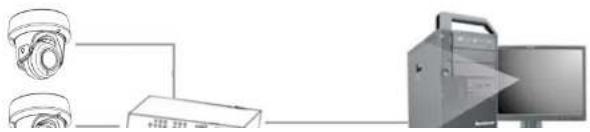
The Illustra Pro Gen3 cameras deliver video images and audio in real-time using the internet and intranet. It is equipped with an Ethernet RJ-45 network interface.
The following images illustrate the network topologies of the cameras.
Pro Gen3 Dome Camera Topology
Figure 9 Dome Cameras Network Topology Type I.

Figure 10 Dome Cameras Network Topology Type II
natural_image
Diagram showing two cameras connected to a server and computer monitor (no text or symbols)Network Connection
Default IP Address
Since this is a network-based unit, an IP address must be assigned at the very first bootup. The default IP address of the unit is 192.168.1.168 and sub mask is 255.255.255.0.
However, if you have a DHCP server in your network, the unit obtains an IP address automatically from the DHCP server so that you do not need to change the IP address of the camera.
Note: If you assign the camera a Static IP address prior to DHCP being enabled, the camera first reboots for approximately 30 seconds and then remains accessible at its Static IP until it connects to a DHCP server.
- Connect to a PC directly: Directly connect the camera to a PC using a standard Ethernet cable. This requires POE switch or injector.
- Connecting a camera to a Local Area Network (LAN): To add the camera to an existing LAN, connect the camera to the POE hub or switch on your network.
Figure 11 Network connection diagram

flowchart
graph TD
    A["Client"] --> B["Network"]
    C["Client"] --> B
    D["Client"] --> B
    B --> E["PoE"]
Illustra Pro Gen3 Series Installation and Configuration Guide
Procedure 4 Connecting from a computer
Step Action
1 Ensure the camera and your computer are in the same subnet.
2 Check whether if the network is available between the unit and the computer by pinging the default IP address.
a Start a command prompt.
b Type "Ping 192.168.1.168". If the message "Reply from..." appears, it means the connection is available.
3 Start Internet Explorer and enter IP address: 192.168.1.168. A login window appears. In the window, enter the default user name: admin and password: admin to log in.
- End
DHCP
On initial camera startup, and after a hardware factory reset, Dynamic Host Configuration Protocol (DHCP) is enabled by default and remains enabled until the camera receives either a DHCP address or is assigned a Static IP address.
Procedure 5 Enable DHCP
Step Action
1 Select Setup on the Web User Interface banner to display the setup menus.
2 Select the TCP/IP tab in the Basic Configuration menu.
3 Select the Enable DHCP check box to enable DHCP and disable manual settings.
4 Select Apply to save the settings.
The camera searches for a DHCP server. If one is found it connects to that server. If no connection is made to a DHCP server within two minutes, the camera goes to the default IP address 192.168.1.168, but continues to search for a DHCP address.
a Enter the IPv4 Address in the IPv4 Address text box in the form xxx.xxx.xxx.xxx. The default setting is '192.168.1.168'
b Enter the Network Mask in the Network Mask text box xxx.xxx.xxx.xxx. The default setting is '255.255.255.0'
c Enter the Gateway IP address in Gateway text box xxx.xxx.xxx.xxx.
d Enter the Primary DNS Server in the Primary DNS Server text box xxx.xxx.xxx.xxx.
5 Select Apply to save the settings.
- End -
Managing cameras with the Illustra Connect tool
In addition to using the IE browser to access your camera, you can alternatively use the provided tool, Illustra Connect.
Illustra Connect is a management tool designed to manage your network cameras on the LAN. It can:
• help you find multiple network cameras
- set the IP addresses
• show connection status
- manage firmware upgrades
- bulk configuration
Refer to Configuration on page 18 for further information regarding using the Illustra Connect tool for configuring the cameras.
Procedure 7 Connecting to the camera using Illustra Connect
Note:
Illustra Connect can only discover devices on the same subnet as its host computer. Therefore, the camera and the computer being used to configure it must be on the same subnet.
Step Action
Illustra Pro Gen3 Series Installation and Configuration Guide
Procedure 8 Connecting to the camera using the static IP address
Step Action
1 The camera attempts to obtain an IP Address from the DHCP Server. When no DHCP Server is available the camera is assigned a Static IP address of 192.168.1.168.
2 Open Microsoft Internet Explorer and enter the URL of the camera as 192.168.1.168. The camera sign in page displays.
Note:
The computer you use to configure the camera must have an IP address on the same subnet.
- End -
Procedure 9 Logging on to the camera web user interface
Step Action
1 When you select the camera, the sign in page displays. Select your preferred language from the drop-down menu.
2 Enter the username in the Username text box. The default username is admin.
3 Enter the password in the Password text box. The default password is admin.
4 Select Log in.
Note: The first time that you access the camera or after a factory reset the following two pop up windows are visible: A pop up window that requests the user to Define a Host ID and a pop up window that requests the user to select a Security Type. Please refer to the user manual for further information on this.
5 The Live view page is visible. This displays the current view of the camera.
Note:
At first login the user is prompted to change the default username and password.
- End -
Configuration
The following sections explain the how you can configure Illustra Pro Gen3 cameras using the Web User Interface.
Security Mode Profiles for First Time Connection
The Illustra Pro Gen3 cameras have features that allow for operation in a Standard Security mode or in an Enhanced Security mode.
The Enhanced Security mode of operation is used to control changes to the camera communication protocols HTTP, HTTPS, FTP, and SMTP. When the camera is in Enhanced Security mode, you require a complex seven character Administrator password to make changes to these protocols.
Refer to Summary of Security Modes on page 19 for further information regarding the differences between Standard and Enhanced Security modes.
Accessing the Illustra Pro Gen3 Series Camera Web User Interface
Use the following procedure to access the camera Web User Interface.
Procedure 11 Logging in to the Camera
Step Action
1 Refer to Network Connection on page 14 for details on how to connect the camera to your network or computer.
2 When you select the camera, the sign in page displays.
3 Select your preferred language from the drop-down menu. The default language is English.
4 Enter the default username and password when prompted - Username: admin, Password: admin.
5 Click Log in. The camera Web User Interface displays. The first time that you access the camera, or after a factory reset, you are prompted to Define a Host ID and Select a
• Upper-case letters
- Lower-case letters
- Numeric characters
- Special characters
Note: Once the above steps are complete, the Live view page is visible. This displays the current view of the camera.
- End -
Summary of Security Modes
Standard Security:
- Changes to communication protocols are available to all users with appropriate privileges.
- Passwords complexity is set to require minimum of any 5 characters.
- Authentication method is set to basic by default.
ENHANCED SECURITY
- Unsecure Protocols are disabled by default until enabled by a user.
- When you select enhanced security you must change the default 'admin' username and password.
- Discovery protocols are disabled by default until enabled by a user.
- Changes in the protocols are only be available to a user with administrative privileges and require that user to reenter their password.
- Passwords for all accounts will meet the following password complexity requirements:
• Minimum characters: 8
- The password must have at least one character from a minimum of three of the following character groups:
• Upper case letters
• Lower case letters
- English
- Arabic
• Czech
- Danish
- German
- Spanish
- French
- Hungarian
- Italian
- Japanese
- Korean
• Dutch
- Polish
- Portuguese
- Swedish
- Turkish
- Chinese Simplified
• Chinese Traditional
- Russian
The default language is English.
3 Enter the Username.
4 Enter the Password.
5 Select Log in.
The camera web User Interface displays in the selected language.
Live menu
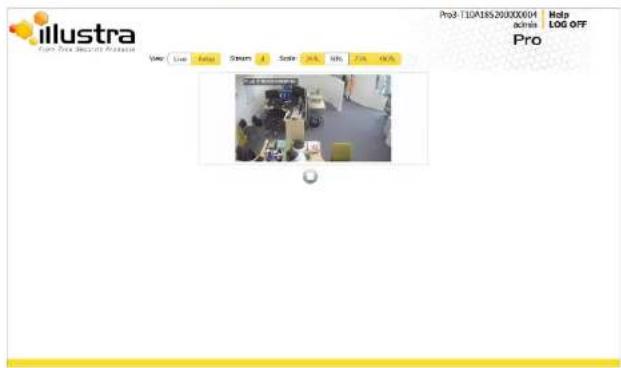
When you log in to the Illustra Web User Interface, the Live menu appears, as seen in Figure 12 on page 21.
Figure 12 Live menu page
Displaying the Live View Page
Display the live camera view page.
Procedure 13 Display Live View Page
Step Action
Illustra Pro Gen3 Series Installation and Configuration Guide
Accessing the Setup Menus from Live View
Setup menus within the Web User Interface are restricted by user account access levels. Refer to Appendix A: User Account Access on page 127 for details on the features which are available to each role.
Procedure 14 Access Setup Menus from Live View
| Step | Action |
| 1 | On theLivemenu, click theSetuptab. |
| Note:When an admin user logs in for the first time the Live menu displays. After this, on each login the Stream page on the Video menu displays. | |
| - End - | |
Quick Start Menu
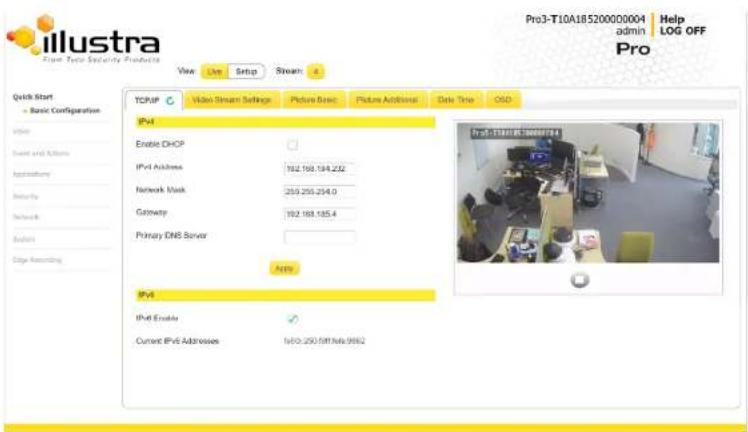
When you select the Quick Start menu, the Basic Configuration Page displays, as shown in Figure 13 on page 23.
Note: When an admin user logs in for the first time the Basic Configuration page displays. After this, on each login the Video > Streams page displays.
Figure 13 Basic Configuration Menu
Illustra Pro Gen3 Series Installation and Configuration Guide
TCP/IP
Configure the IPv4 and IPv6 network settings on the camera.
Note: When you perform a factory reset or reboot the unit searches for the last known IP address. If this is not available it reverts to the default IP address of 192.168.1.168. This could result in duplicate IP addresses. Refer to Quick Start Menu on page 23 for more information.
DHCP
On initial camera startup, and after a hardware factory reset, Dynamic Host Configuration Protocol (DHCP) is enabled by default and remains enabled until the camera receives either a DHCP address or is assigned a Static IP address.
Procedure 15 Enable DHCP
Step Action
1 Select Setup on the Web User Interface banner to display the setup menus.
2 Select the TCP/IP tab in the Basic Configuration menu.
3 Select the Enable DHCP check box to enable DHCP and disable manual settings.
4 Select Apply to save the settings.
The camera searches for a DHCP server. If one is found it connects to that server. If no connection is made to a DHCP server within two minutes, the camera goes to the default IP address 192.168.1.168, but continues to search for a DHCP address.
Note: If you assign the camera a Static IP address prior to DHCP being enabled, the camera first reboots for approximately 30 seconds and then remains accessible at its Static IP until it connects to a DHCP server.
- End -
Procedure 16 Disable DHCP
Step Action
- End -
IPv4
Configure the IPv4 network settings for the camera.
Procedure 17 Configure the IPv4 Settings
Step Action
1 Select Setup on the Web User Interface banner to display the setup menus.
2 Select the TCP/IP tab in the Basic Configuration menu.
3 Select the Enable DHCP check box to enable DHCP and disable manual settings. OR
Clear Enable DHCP to disable DHCP and allow manual settings to be entered.
The default setting is 'Enabled'.
4 If Enable DHCP has been disabled:
a Enter the IPv4 Address in the IPv4 Address text box in the form xxx.xxx.xxx.xxx. The default setting is '192.168.1.168'
b Enter the Network Mask in the Network Mask text box xxx.xxx.xxx.xxx.
The default setting is '255.255.255.0'
c Enter the Gateway IP address in Gateway text box xxx.xxx.xxx.xxx.
d Enter the Primary DNS Server in the Primary DNS Server text box xxx.xxx.xxx.xxx.
5 Select Apply to save the settings.
End -
IPv6
Enable or disable IPv6 on the camera.
Procedure 18 Enable/Disable IPv6
Step Action
Note:Stream 4 is not fully configurable. Its main purpose is the GUI live view.
Configuring the Web Video Stream
Adjust the settings for each video stream.
Procedure 19 Configure the Video Stream settings
Step Action
1 Select Setup on the Web User Interface banner to display the setup menus.
2 Select the Streams tab in the Basic Configuration menu.
3 Select either Stream 1, 2, 3 or 4 from the Stream Number drop-down menu.
Note:Stream 4 is not fully configurable. Its main purpose is the GUI live view.
4 Select the required Codec from the drop-down list:
• H264
• H264 IntelliZip
• H265
• H265 IntelliZip
- MJPEG
The default setting is 'H264'.
Note: When you select H264 or H264 IntelliZip you can set the Profile. If you do not select either of these options then continue at step 6 below.
5 Select the required Profile from the drop-down list:
- Main
• High
The default setting is 'Main'.
6 Select the required Resolution from the drop-down menu.
Table 14 3MP Camera Stream Set A (all resolution, codes and frame rate combinations of 52, 3 and 4 are valid)
| Normal Mode | |||||
| Resolution Description | Max FPS | ||||
| TWDR Off | TWDR | ||||
| Stream 1 | h.264, | 2048 x 1536 | 4:3 | 30 | 30 |
| h.264 Intellizip | 1920 x 1080 | (1080p) 16:9 | 60 | 30 | |
| h.265, | 1664 x 936 | (HD+) 16:9 | 60 | 30 | |
| h.265 Intellizip | 1280 x 960 | 4:3 | 60 | 30 | |
| MJPEG | 1280 x 720 | (720p) 16:9 | 60 | 30 | |
| Stream 2 | h.264, | 1280 x 720 | (720p) 16:9 | 30 | 30 |
| h.264 Intellizip | 800 x 600 | (SVGA) 4:3 | 30 | 30 | |
| h.265, | 640 x 840 | (VGA) 4:3 | 30 | 30 | |
| h.265 Intellizip | 480 x 360 | 4:3 | 30 | 30 | |
| MJPEG | 384 x 288 | 4:3 | 30 | 30 | |
| Stream 3 | h.264, | ||||
| h.264 Intellizip | 640 x 840 | 16:9 | 30 | 30 | |
| h.265, | 480 x 360 | 4:3 | 30 | 30 | |
| h.265 Intellizip | 384 x 288 | 4:3 | 30 | 30 | |
| MJPEG | |||||
| Stream 4 | MJPEG 640 x 840 16:9 | 7 | 7 | ||
Note: A maximum of 5 concurrent streams are supported by the camera. This includes shared streams.
Illustra Pro Gen3 Series Installation and Configuration Guide
Table 15 3MP Camera Stream Set B (all resolution, codes and frame rate combinations of 2, 3 and 4 are valid)
| Corridor Mode | |||||
| Resolution Description | Max FPS | ||||
| TWDR Off | TWDR | ||||
| Stream 1 | h.264, | 2048 x 1536 | 4:3 | 30 | 30 |
| h.264 Intellizip | 1920 x 1080 | (1080p) 16:9 | 30 | 30 | |
| h.265, | 1664 x 936 | (HD+) 16:9 | 30 | 30 | |
| h.265 Intellizip | 1280 x 960 | 4:3 | 30 | 30 | |
| MJPEG | 1280 x 720 | (720p) 16:9 | 30 | 30 | |
| Stream 2 | h.264, | 1280 x 720 | (720p) 16:9 | 30 | 30 |
| h.264 Intellizip | 800 x 600 | (SVGA) 4:3 | 30 | 30 | |
| h.265, | 640 x 840 | (VGA) 4:3 | 30 | 30 | |
| h.265 Intellizip | 480 x 360 | 4:3 | 30 | 30 | |
| MJPEG | 384 x 288 | 4:3 | 30 | 30 | |
| Stream 3 | h.264, | ||||
| h.264 Intellizip | 640 x 840 | 16:9 | 30 | 30 | |
| h.265, | 480 x 360 | 4:3 | 30 | 30 | |
| h.265 Intellizip | 384 x 288 | 4:3 | 30 | 30 | |
| MJPEG | |||||
| Stream 4 | MJPEG 640 x 840 16:9 | 7 7 | |||
Note: A maximum of 5 concurrent streams are supported by the camera. This includes shared streams.
Table 16 8MP Camera Stream Set A (all resolution, codes and frame rate combinations of 52, 3 and 4 are valid)
| Normal Mode | |||||
| Resolution Description | Max FPS | ||||
| TWDR Off | TWDR | ||||
| Stream 1 | h.264, h.264 Intellizip h.265, h.265 Intellizip | 3840 x 2160 3264 X 1840 2688 X 1520 | 4K 16:9 16:9 16:9 | 30 30 30 | - - - |
| h.264, h.264 Intellizip h.265, h.265 Intellizip MJPEG | 1920 x 1080 1664 x 936 1280 x 960 | (1080p) 16:9 (HD+) 16:9 (720p) 16:9 | 60 60 60 | - - - | |
| Stream 2 | h.264, h.264 Intellizip h.265, h.265 Intellizip MJPEG | 1280 x 720 1024 x 576 960 x 544 816 x 464 640 x 360 480 x 272 | (720p) 16:9 (PAL+) 16:9 (qHD) 16:9 16:9 (nHD) 16:9 16:9 | 30*1 30*1 30*1 30*1 30*1 30*1 | - - - - - - - |
| Stream 3 | h.264, h.264 Intellizip h.265, h.265 Intellizip MJPEG | 640 x 360 480 x 272 | 16:9 16:9 | 30*2 30*2 | - - - |
Note: TWDR currently not supported on the 8MP cameras.
Figure 17 8MP Camera Stream Set B (all resolution, codes and frame rate combinations of Stream 1, 2, 3 and 4 are valid)
| Corridor Mode | |||||
| Resolution | Description | Max FPS | |||
| TWDR Off | TWDR | ||||
| Stream 1 | h.264, h.264 Intellizip h.265, h.265 Intellizip | 3840 x 2160 | 4K 16:9 | 30 | - |
| 3264 X 1840 | 16:9 | 30 | - | ||
| 2688 X 1520 | 16:9 | 30 | - | ||
| h.264, h.264 Intellizip h.265, h.265 Intellizip MJPEG | 1920 x 1080 | (1080p) 16:9 | 30 | - | |
| 1664 x 936 | (HD+) 16:9 | 30 | - | ||
| 1280 x 960 | (720p) 16:9 | 30 | - | ||
| Stream 2 | h.264, h.264 Intellizip h.265, h.265 Intellizip MJPEG | 1280 x 720 | (720p) 16:9 | 30*1 | - |
| 1024 x 576 | (PAL+) 16:9 | 30*1 | - | ||
| 980 x 544 | (qHD) 16:9 | 30*1 | - | ||
| 816 x 464 | 16:9 | 30*1 | - | ||
| 640 x 360 | (nHD) 16:9 | 30*1 | - | ||
| 480 x 272 | 16:9 | 30*1 | - | ||
| Stream 3 | h.264, h.265, MJPEG | 640 x 360 | 16:9 | 30*2 | - |
| 480 x 272 | 16:9 | 30*2 | - | ||
- Stream 1 - 1 - 60 fps, default 30 fps.
- Stream 2 - 1 - 30 fps, default is 30 fps.
- Stream 3 - 1 - 30 fps, default is 30 fps.
- Stream 4 - 7 fps, default is 7 fps.
The settings for 8MP cameras are:
- Stream 1 - 1 - 60 fps, default 30 fps.
- Stream 2 - 1 - 30 fps, default is 30 fps.
- Stream 3 - 1 - 15 fps, default is 30 fps.
- Stream 4 - 7 fps, default is 7 fps.
Note:FPS varies depending on other features - refer to the Pro Gen 3 2 Release Notes for further information.
8 If MJPEG has been selected, MJPEG Quality is enabled. Use the slider bar to select the MJPEG Quality.
The default setting is 50.
OR
9 If H264 has been selected in step 4, Rate Control is enabled. Select the required Rate Control by selecting the radio buttons:
• VBR (Variable Bit Rate)
• CBR (Constant Bit Rate)
• CVBR (Constrained Variable Bit Rate)
The default setting is 'CVBR'.
a If you select VBR, VBR Quality is enabled. Select the required VBR Quality from the drop-down menu. The default setting is High.
- Highest
• High - Medium
Picture Basic
Adjust Picture Rotation, Focus / Zoom and Exposure displayed in the video pane.
Picture Rotation
Configure the orientation and corridor mode settings. Both settings are optional.
Procedure 20 Configure Orientation Settings
Step Action
1 Select Setup on the Web User Interface banner to display the setup menus.
2 Select the Picture Basic tab from the Basic Configuration menu.
3 Select the required Orientation setting:
- Mirror
- Flip
Mirror and Flip settings are not selected by default. The video pane updates to display the new settings.
Note: When wall mounting the camera you should select Flip and Mirror to correct the lens orientation.
- End -
Corridor Mode
Provides a better perspective when viewing a long corridor.
Procedure 21 Configure Corridor Mode Settings
Step Action
1 Select Setup on the Web User Interface banner to display the setup menus.
2 Select the Picture Basic tab from the Basic Configuration menu.
2. Select the Play button to start the video stream if it is not already active
Table 18 Lens features supported for the Outdoor Dome
| Outdoor Dome | |
| Mechanical Focus | |
| Motorized Focus X | |
| Mechanical Zoom | |
| Motorized Zoom X | |
| Lens Calibration X | |
| Auto One Touch X | |
| Configurable Continuous Auto-Focus |
Procedure 22 Adjust Camera Focus / Zoom
Step Action
1 Select Setup on the Web User Interface banner to display the setup menus.
2 Select the Picture Basic tab from the Basic Configuration menu.
3 Select to start the video stream if it is not already active.
4 Use the plus and minus arrows to manually configure the focus and the slider bar to adjust zoom settings until the image is clear. The video pane updates to display the new settings.
- End
Procedure 23 Adjust Camera Focus using OneTouch Autofocus
1 Select Setup on the Web User Interface banner to display the setup menus.
2 Select the Picture Basic tab from the Basic Configuration menu.
Procedure 24 Configure Exposure Settings
Step Action
1 Select Setup on the Web User Interface banner to display the setup menus.
2 Select the Picture Settings tab from the Basic Configuration menu.
3 Select to start the video stream if it is not already active.
4 Select the Exposure Profiles from the drop-down menu:
See Exposure Profile descriptions below:
Demo
- Bitrate controller VBR
• Quality highest - Set max exposure and min exposure allowed
- Set max gain value allowed
- Auto exposure selects shutter speed (between min and max exposure values) and gain (between 0db and max gain selection) to adjust exposure if light level or scene changes
- Use case: Out of the box configuration for optimal video and image quality
Note:
- Demo Mode VBR Highest is the default out of the box (or after a factory reset)
- Exposure default buttons will default Exposure profile to Auto (it will not apply any bitrate changes)
• Demo mode will only revert back to VBR Highest on a Factory reset
• Demo mode to other values will change the bitrate to CVBR Max Bitrate 8000 - Other to Demo does not change the hitrate under any circumstance
- Use case: To select a required depth of focus.. Selecting a high iris value will give a larger depth of focus so that objects close to and far from the camera can be in focus at the same time. Caution: With a high iris value the camera is not able to produce a bright image in very low light levels
Manual
- Set camera Bitrate controller to CVBR
- Set Max Bitrate to 8000
- Set any shutter speed, gain value and iris position
- Fixed exposure
- Does not auto adjust if light level or scene changes
- Use case: Fixed conditions where illumination and scene will not change. If the lighting or scene changes the apparent brightness of the image will change.
Shutter Priority
- Set camera Bitrate controller to CVBR
- Set Max Bitrate to 8000
- Set any shutter speed
- Set max gain value allowed
- Auto Exposure selects gain (between 0db and max gain selection) and iris position to adjust exposure if light level or scene changes
- Use case: Typically for use in scenes with motion, e.g. overlooking traffic.. Caution: The illumination required for this configuration would need to be quite consistent.
Iris Priority
- Set camera Bitrate controller to CVBR
- Set Max Bitrate to 8000
-
Set any Iris position
-
Set min exposure allowed
- Low vs mid vs high, set slower or faster max exposure values
- Auto exposure selects iris position, shutter speed and gain to adjust exposure if light level or scene changes
- Use case: License Plate Recognition such as parking garages or other moving vehicle scenario where a fast shutter speed must be maintained to give sharper images, while the vehicle or object is moving, to help License Plate Recognition software.
Gaming
- Set camera Bitrate controller to CVBR
- Set Max Bitrate to 8000
- Set Stream 1 Framerate to 30 (if lower than)
- Set max gain value allowed
- Set min exposure allowed
- Set max exposure no slower than 1/30s (NTSC/60Hz) or 1/25s (PAL/50Hz)
- Use case: Casinos or other situations where Frame Rate must be no slower than 30fps (NTSC/60Hz) or 25fps (PAL/50Hz)
Indoor
- Set camera Bitrate controller to CVBR
- Set Max Bitrate to 8000
- Set max gain allowed
- Set max exposure allowed
- Set min exposure allowed
- Auto Exposure selects shutter speed (between min and max exposure values), gain (between 0db and max gain selection) and iris position to adjust exposure if light level or scene changes
The company offers accommodation for the first book, and also offers a credit card.
Note:
- Demo Mode VBR Highest is the default out of the box (or after a factory reset)
- Exposure default buttons will default Exposure profile to Auto (it will not apply any bitrate changes)
• Demo mode will only revert back to VBR Highest on a Factory reset
• Demo mode to other values will change the bitrate to CVBR Max Bitrate 8000 - Other to Demo does not change the bitrate under any circumstance
- Other to Other does not change the bitrate under any circumstance
- When Exposure profiles sets new bitrate values, they will not automatically restart active stream to update to the new settings. Manual restart is required.
5 Select the Exposure Method from the drop-down menu:
• Full Picture Weighted
- Upper
- Lower
- Center Weighted
- Spot
- Left
• Right
The default setting is center weighted.
6 Select the Min Exposure from the drop-down menu. The default setting is 1/10000s.
7 Select the Max Exposure from the drop-down menu. The default setting is 1/8s.
8 Select the Exposure (sec) from the drop-down menu.
Illustra Pro Gen3 Series Installation and Configuration Guide
1/120 and 1/60 respectively (NTSC). This applies to all cameras referenced in this guide.
| - End - | |
| Procedure 25 Restore Exposure Defaults | |
| Step | Action |
| 1 | Select Setup on the Web User Interface banner to display the setup menus. |
| 2 | Select the Picture Settings tab from the Basic Configuration menu. |
| 3 | Select to start the video stream if it is not already active. |
| 4 | Select Exposure Defaults to restore the default settings. |
| - End - | |
Gaming Mode
Specifically designed for multiple gaming industries, e.g., casino, Gaming Mode maintains Frame Rate as a priority to meet the demanding requirements of gaming environments. The default setting is OFF.
Note: Gaming mode can be enabled or disabled for the primary stream (Stream 1).
Note: If the camera requires FPS adjustment during Gaming mode, this can be applied through the recorder (using the Illustra API (IAPI). The camera will continue to provide frame rate a priority at the new set FPS value.
| Fixed Item Fixed Value | |
| Frame Rate Fixed to 30 FPS | |
| Max Exposure Fixed to 1/30 |
Smart Wide Dynamic
Smart Wide Dynamic Range is available in the Pro Gen3 Mini-Dome and reduces the configuration time while greatly improving the quality of the video stream in varying lighting environments. By effectively reading the scene, the Mini-Dome can adjust contrasting and overall scene balance without operator intervention or maintenance. Setup times are also reduced with the addition of application profiles that automatically adjust the camera's settings based on the environment.
Procedure 26 Disable/Enable Wide Dynamic Range (WDR)
Step Action
1 Select Setup on the Web User Interface banner to display the setup menus.
2 Select the Picture Additional tab from the Basic Configuration menu.
3 Select the required WDR from the drop-down list:
- True WDR: Two shutter wide dynamic range, to compensate for bright and dark areas in the scene.
- SWDR: Smart Wide Dynamic Range reduces the configuration time while greatly improving the quality of the video stream in varying lighting environments.
The default setting is SWDR.
Note: Enabling TWDR on the 3MP cameras turns analogue video off.
Note: TWDR currently not supported on the 8MP cameras
End
Day Night Mode
IR/DayNight Mode utilizes a series of specific camera functions to dramatically enhance low light performance.
When needed, the True TDN mechanism removes an IR Cut Filter (IRCF) from in front of the images allowing the camera to see in black and white (BW) and utilize additional near-infrared energy found in many lighting sources like halogen, moonlight, etc.
Illustra Pro Gen3 Series Installation and Configuration Guide
Clear the Enable IR Illuminatorcheck box to disable IR Illuminator.
The default setting is 'Enabled'.
- End -
Day Night Mode
The dome provides a black-and-white (B/W) mode to improve camera performance when the light level falls below certain thresholds. This allows clear images to be obtained under low-light conditions.
Procedure 28 Configure Day Night Mode
Step Action
1 Select Setup on the Web User Interface banner to display the setup menus.
2 Select the Picture Additional from the Basic Configuration menu.
3 Select a Day Night Mode setting from the drop-down menu:
- Forced Color - enable full-time color mode.
- Forced B&W - enable full-time black and white mode.
- Auto Low-camera will adjust between BW and Color depending on light levels.
- Auto Mid - camera give a good balance of Color and BW depending on the scene.
- Auto High - increases the chance of switching to BW mode as light levels drop.
- Manual - a slider bar will display, the user can adjust the setting to suit the environment.
The default setting is 'Auto Mid'.
- End -
Picture Adjustment
- Sharpness
- Hue
The values range from 1% to 100%. The video pane updates to display the new settings.
- End -
Procedure 30 Restore Picture Balance Defaults
Step Action
1 Select Setup on the Web User Interface banner to display the setup menus.
2 Select the Picture Settings tab from the Basic Configuration menu.
3 Select Defaults to restore the default settings.
The default values are:
- Brightness: 50%
- Contrast: 50%
- Saturation: 50%
- Sharpness: 50%
- Hue: 50%
- End -
White Balance
White balance, the ability to keep whites looking white, is normally compensated for automatically using the default Auto White Balance setting.
Manual White Balance is available when specific color temperature settings want to be set and preserved. This can be done using the red and blue slider adjustments set for optimal viewing.
Procedure 31 Configure Auto White Balance
Step Action
1 Select Satun on the Web User Interface banner to display the setun menus
Illustra Pro Gen3 Series Installation and Configuration Guide
Procedure 32 Manually Select White Balance
Step Action
1 Select Setup on the Web User Interface banner to display the setup menus.
2 Select the Picture Additional tab from the Basic Configuration menu.
3 Select to start the video stream if it is not already active.
The video pane displays the current camera view.
4 Select Manual from the White Balance drop-down menu.
The Red and Blue slider bars display.
5 Use the slider bars to adjust the Red and Blue balance.
The live video pane updates to display the new settings.
The red and blue values range from 1% to 100%.
If you change the configuration to Manual, the slider bar reads the real-time setting of the FOV.
- End -
Lens Calibration
Use the lens calibration process to recover focus and zoom after motor stalling has occurred. Motor step stalling is rare, but it can occur during shipping or through mishandling of the camera. If the One Touch focus at Wide or Tele is not working through the zoom range, the camera requires lens calibration. The lens calibration tool uses infinity focus curves to align the camera lens and correct problems focusing at Wide or Tele.
Lens calibration is automatic and you can run it from the Lens Calibration tab.
Procedure 33 Run a Lens Calibration
Step Action
1 Select Setup on the Web Interface Banner to display the setup menus.
Procedure 34 Changing the on screen camera text size
1 Select Setup on the Web User Interface banner to display the setup menus.
2 Select the OSD tab in the Basic Configuration menu.
3 In the Text Size section, select Normal to display the text in a normal size. OR
In the Text Size section, select Large to display the text in a larger size.
The default setting is 'Normal'.
- End -
Procedure 35 Change the Camera Name
Step Action
1 Select Setup on the Web User Interface banner.
2 Select the Date/Time/OSD tab in the Basic Configuration menu.
3 Enter the name of the camera in the Camera Friendly Name text box.
- End -
Date / Time
Set the date and time on the camera.
Procedure 36 Configuring the Date and Time
Step Action
1 Select Setup on the Web User Interface banner to display the setup menus.
2 Select the Date/Time/OSD from the Basic Configuration menu.
3 Select the Time 24-hour check box to enable the 24-hour clock.
Or
Deselect the Time 24-hour check box to enable the 12-hour clock.
Illustra Pro Gen3 Series Installation and Configuration Guide
7 If you select Manually in step 5:
a Select the Date (DD/MM/YYYY) using the drop-down menus.
b Select the Time (HH:MM:SS) using the drop-down menus.
8 If you select via NTP in step 5:
a Enter the NTP Server Name in the text box.
- End -
On-Screen Display (OSD)
Within OSD you can set enable or disable camera name and time display.
Procedure 37 Display or Hide the Camera Name OSD
Step Action
1 Select Setup on the Web User Interface banner to display the setup menus.
2 Select the OSD tab in the Basic Configuration menu.
3 In the Camera Name section, select the Enable check box to display the camera name in the OSD.
OR
In the Camera Name section, clear the Enable check box to hide the camera name in the OSD.
The default setting is 'Disabled'.
- End
Procedure 38 Display or Hide the Camera Time OSD
Step Action
1 Select Setup on the Web User Interface banner to display the setup menus.
2 Select the OSD tab in the Basic Configuration menu.
3 In the Date Time section select the Enable check box to display the camera name in the
In the User Defined section, clear the Enable check box to hide the camera name in the OSD.
The default setting is 'Disabled'.
4 Select a Location from the drop-down menu.
5 Enter a name in the Name field.
The OSD User Defined fields must comply with the following validation criteria:
• 0 - 24 characters
- Cannot begin or end with:
• . (dot)
- (hyphen)
- _ (underscore)
- \ (backslash)
• " (quotes)
Video Menu
When you select the Video menu, the Streams page displays, as seen in Figure 19 on page 46.
Figure 19 Video Menu
![illustra Pro: Face Secure Products View View Setup Video Stream Settings Stream Settings Stream Number 100 Codoc 4064 PopMix Male Resolution 2000x1530/000A 4.3 Frame Rate (fps) [1-30] 70 SOP Length [1-150] 30 MAPKQ Quality 100% Rate Control VBR CBR CUBR Quality High 52 Max 1000 Max Bit Rate 0000 InitialZip Max GDP Max GDP [1-150] 97 Pru3-T10A85200000004 admin Help LOG OFF Pro](/content/2026/06/1214977/images/703d3fa1fd29728573128e95db147efac6c96ea114c23fc597cd5fec15904068.jpg)
The Video Menu provides access to the following camera settings and functions:
- Streams
- Picture Settings
- Date / Time / OSD
- Privacy Zones
Illustra Pro Gen3 Series Installation and Configuration Guide
Integration with other Illustra API Clients
You can configure the 3 video streams through the Web User Interface, as detailed here, or through the Illustra API interface. Changes made to the streams through either method are applied and the video displays according to the configuration.
Opening the Web User Interface live video allows the stream to be shared with the Illustra API and will minimize the impact on camera resources.
Configuring the Video Stream
Adjust the settings for each video stream.
Procedure 40 Configure the Video Stream settings
Step Action
1 Select Setup on the Web User Interface banner to display the setup menus.
2 Select the Streams tab in the Video menu.
3 Select Stream1, 2, 3 or 4, from the Stream Number drop-down menu.
Note:Stream 4 is not fully configurable. Its main purpose is the GUI live view.
4 Select the required Codec from the drop-down list:
• H264
• H264 IntelliZip
• H265
• H265 IntelliZip
- MJPEG
The default setting is 'H264'.
Note: When you select H264 or H264 IntelliZip you can set the Profile. If you do not select either of these options then continue at step 6 below.
5 Select the required Profile from the drop-down list:
Table 20 3MP Camera Stream Set A (all resolution, codes and frame rate combinations of 52, 3 and 4 are valid)
| Normal Mode | |||||
| Resolution Description | Max FPS | ||||
| TWDR Off TWDR | |||||
| Stream 1 | 2048 x 1536 | 4:3 | 30 | 30 | |
| h.264, | 1920 x 1080 | (1080p) 16:9 | 60 | 30 | |
| h.265, | 1664 x 936 | (HD+) 16:9 | 60 | 30 | |
| MJPEG | 1280 x 960 | 4:3 | 60 | 30 | |
| 1280 x 720 | (720p) 16:9 | 60 | 30 | ||
| Stream 2 | 1280 x 720 | (720p) 16:9 | 30 | 30 | |
| h.264, | 800 x 600 | (SVGA) 4:3 | 30 | 30 | |
| h.265, | 640 x 840 | (VGA) 4:3 | 30 | 30 | |
| MJPEG | 480 x 360 | 4:3 | 30 | 30 | |
| 384 x 288 | 4:3 | 30 | 30 | ||
| Stream 3 | h.264, | 640 x 840 | 16:9 | 30 | 30 |
| h.265, | 480 x 360 | 4:3 | 30 | 30 | |
| MJPEG | 384 x 288 | 4:3 | 30 | 30 | |
| Stream 4 MJPEG 640 x 840 16:9 7 | 7 | ||||
Note: A maximum of 5 concurrent streams are supported by the camera. This includes shared streams.
Note: Enabling TWDR on the 3MP cameras turns analogue video off.
Illustra Pro Gen3 Series Installation and Configuration Guide
Table 21 3MP Camera Stream Set B (all resolution, codes and frame rate combinations of 5, 2, 3 and 4 are valid)
| Corridor Mode | |||||
| Resolution Description | Max FPS | ||||
| TWDR Off TWDR | |||||
| Stream 1 | 2048 x 1536 | 4:3 | 30 | 30 | |
| h.264, | 1920 x 1080 | (1080p) 16:9 | 30 | 30 | |
| h.265, | 1664 x 936 | (HD+) 16:9 | 30 | 30 | |
| MJPEG | 1280 x 960 | 4:3 | 30 | 30 | |
| 1280 x 720 | (720p) 16:9 | 30 | 30 | ||
| Stream 2 | 1280 x 720 | (720p) 16:9 | 30 | 30 | |
| h.264, | 800 x 600 | (SVGA) 4:3 | 30 | 30 | |
| h.265, | 640 x 840 | (VGA) 4:3 | 30 | 30 | |
| MJPEG | 480 x 360 | 4:3 | 30 | 30 | |
| 384 x 288 | 4:3 | 30 | 30 | ||
| Stream 3 | h.264, | 640 x 840 | 16:9 | 30 | 30 |
| h.265, | 480 x 360 | 4:3 | 30 | 30 | |
| MJPEG | 384 x 288 | 4:3 | 30 | 30 | |
| Stream 4 MJPEG 640 x 840 16:9 7 7 | |||||
Note: A maximum of 5 concurrent streams are supported by the camera. This includes shared streams.
Note: Enabling TWDR on the 3MP cameras turns analogue video off.
Table 22 8MP Camera Stream Set A (all resolution, codes and frame rate combinations of 52, 3 and 4 are valid)
| Normal Mode | |||||
| Resolution Description | Max FPS | ||||
| TWDR Off TWDR | |||||
| Stream 1 | h.264, h.265, | 3840 x 2160 | 4K 16:9 | 30 | - |
| 3264 X 1840 | 16:9 | 30 | - | ||
| 2688 X 1520 | 16:9 | 30 | - | ||
| h.264, h.265, MJPEG | 1920 x 1080 | (1080p) 16:9 | 60 | - | |
| 1664 x 936 | (HD+) 16:9 | 60 | - | ||
| 1280 x 960 | (720p) 16:9 | 60 | - | ||
| Stream 2 | h.264, h.265, MJPEG | 1280 x 720 | (720p) 16:9 | 30*1 | - |
| 1024 x 576 | (PAL+) 16:9 | 30*1 | - | ||
| 960 x 544 | (qHD) 16:9 | 30*1 | - | ||
| 816 x 464 | 16:9 | 30*1 | - | ||
| 640 x 360 | (nHD) 16:9 | 30*1 | - | ||
| 480 x 272 | 16:9 | 30*1 | - | ||
| Stream 3 | h.264, h.265, MJPEG | 640 x 360 | 16:9 | 30*2 | - |
| 480 x 272 | 16:9 | 30*2 | - | ||
| Stream 4 MJPEG 640 x 840 16:9 7 | - | ||||
Note:*1 - Stream 2 is restricted to 15 FPS when Stream 1 resolution is greater than 1920x1080
Illustra Pro Gen3 Series Installation and Configuration Guide
Figure 23 8MP Camera Stream Set B (all resolution, codes and frame rate combinations of 1, 2, 3 and 4 are valid)
| Corridor Mode | |||||
| Resolution Description | Max FPS | ||||
| TWDR Off TWDR | |||||
| Stream 1 | h.264, h.265, | 3840 x 2160 | 4K 16:9 | 30 | - |
| 3264 X 1840 | 16:9 | 30 | - | ||
| 2688 X 1520 | 16:9 | 30 | - | ||
| h.264, h.265, MJPEG | 1920 x 1080 | (1080p) 16:9 | 30 | - | |
| 1664 x 936 | (HD+) 16:9 | 30 | - | ||
| 1280 x 960 | (720p) 16:9 | 30 | - | ||
| Stream 2 | h.264, h.265, MJPEG | 1280 x 720 | (720p) 16:9 | 30*1 | - |
| 1024 x 576 | (PAL+) 16:9 | 30*1 | - | ||
| 960 x 544 | (qHD) 16:9 | 30*1 | - | ||
| 816 x 464 | 16:9 | 30*1 | - | ||
| 640 x 360 | (nHD) 16:9 | 30*1 | - | ||
| 480 x 272 | 16:9 | 30*1 | - | ||
| Stream 3 | h.264, h.265, MJPEG | 640 x 360 | 16:9 | 30*2 | - |
| 480 x 272 | 16:9 | 30*2 | - | ||
| Stream 4 MJPEG 640 x 840 16:9 7 | - | ||||
Note:*1 - Stream 2 is restricted to 15 FPS when Stream 1 resolution is greater than 1920x1080
- Stream 2 - 1 - 30 fps, default is 30 fps.
- Stream 3 - 1 - 15 fps, default is 30 fps.
- Stream 4 - 7 fps, default is 7 fps.
Note:FPS varies depending on other features - refer to the Pro Gen3 Release Notes for further information.
8 If MJPEG has been selected, MJPEG Quality enables. Use the slider bar to select the MJPEG Quality.
The default setting is 50.
OR
9 If H264 has been selected in step 4, Rate Control will be enabled. Select the required Rate Control by selecting the radio buttons:
• VBR (Variable Bit Rate)
• CBR (Constant Bit Rate)
• CVBR (Constrained Variable Bit Rate)
The default setting is 'CVBR'.
a If VBR has been selected, VBR Quality is enabled. Select the required VBR Quality from the drop-down menu. The default setting is 'High'.
- Highest
• High
• Medium - Low
- Lowest
OR
b If CBR has been selected, CBR Bit Rate will be enabled. Use the slider bar to select the CBR Bit Rate. The default setting is 1000.
OR
Illustra Pro Gen3 Series Installation and Configuration Guide
Procedure 41 Configure Orientation Settings
Step Action
1 Select Setup on the Web User Interface banner to display the setup menus.
2 Select the Picture Basic tab from the Video menu.
3 Select the required Orientation setting:
- Mirror
- Flip
Mirror and Flip settings are not selected by default. The video pane updates to display the new settings.
Note: When wall mounting the camera you should select Flip to correct the lens orientation.
- End -
Focus/Zoom
The Focus is manually configured on initial setup. The One Touch button can be used to automatically focus the area of view. The plus and minus arrows are used to manually fine tune the image. The Zoom slider bar is used to manually zoom in and out to manually configure to picture. The table below describes the features supported by each camera.
Table 24 Lens features supported for the Outdoor Dome cameras
| Outdoor Dome | |
| Mechanical Focus | |
| Motorized Focus X | |
| Mechanical Zoom | |
| Motorized Zoom X |
Procedure 43 Adjust Camera Focus using OneTouch Autofocus
Step Action
1 Select Setup on the Web User Interface banner to display the setup menus.
2 Select the Picture Basic tab from the Basic Configuration menu.
3 Select to start the video stream if it is not already active.
4 In the Focus/Zoom section, click the One Touch button. The camera refocuses to the zoom level selected for the image.
The video pane updates to display the new settings.
Note: The user can create a ROI focus point for the camera to use during the one touch procedure - use the pencil icon and highlight the desired ROI.
- End -
Exposure
Configure the exposure settings for the camera.
Procedure 44 Configure Exposure Settings
Step Action
1 Select Setup on the Web User Interface banner to display the setup menus.
2 Select the Picture Settings tab from the Basic Configuration menu.
3 Select to start the video stream if it is not already active.
4 Select the Exposure Profiles from the drop-down menu:
See Exposure Profile descriptions below:
Demo
- Bitrate controller VBR
• Quality highest
• Demo mode to other values will change the bitrate to CVBR Max Bitrate 8000
- Other to Demo does not change the bitrate under any circumstance
- Other to Other does not change the bitrate under any circumstance.
- When Exposure profiles sets new bitrate values, they will not automatically restart active stream to update to the new settings. Manual restart is required.
Auto
- Set camera Bitrate controller to CVBR
- Set Max Bitrate to 8000
- Set any iris position
- Set Max exposure and Min exposure allowed
- Set max gain value allowed
- Auto Exposure selects shutter speed (between min and max exposure values) and gain (between 0db and max gain selection) to adjust exposure if light level or scene changes
- Use case: To select a required depth of focus.. Selecting a high iris value will give a larger depth of focus so that objects close to and far from the camera can be in focus at the same time. Caution: With a high iris value the camera is not able to produce a bright image in very low light levels
Manual
- Set camera Bitrate controller to CVBR
- Set Max Bitrate to 8000
- Set any shutter speed, gain value and iris position
- Fixed exposure
- Does not auto adjust if light level or scene changes
-
Use case: Fixed conditions where illumination and scene will not
-
Set Max Bitrate to 8000
- Set any Iris position
- Set Max exposure and Min exposure allowed
- Set max gain value allowed
- Auto Exposure selects shutter speed (between min and max exposure values) and gain (between 0db and max gain selection) to adjust exposure if light level or scene changes
- Use case: To select a required depth of focus. Selecting a high iris value gives a larger depth of focus so that objects close to and far from the camera can be in focus at the same time. Caution: With a high iris value the camera is not able to produce a bright image in very low light levels
License Plate Recognition (LPR) low, mid and high
- Set camera Bitrate controller to CVBR
- Set Max Bitrate to 8000
- Set max gain value allowed
- Set min exposure allowed
- Low vs mid vs high, set slower or faster max exposure values
- Auto exposure selects iris position, shutter speed and gain to adjust exposure if light level or scene changes
- Use case: License Plate Recognition such as parking garages or other moving vehicle scenario where a fast shutter speed must be maintained to give sharper images, while the vehicle or object is moving, to help License Plate Recognition software.
Gaming
- Set camera Bitrate controller to CVBR
- Set Max Bitrate to 8000
- Set Stream 1 Framerate to 30 (if lower than)
Illustra Pro Gen3 Series Installation and Configuration Guide
• Auto Exposure selects shutter speed (between min and max exposure
values), gain (between 0db and max gain selection) and iris position to adjust exposure if light level or scene changes
- Use case: Office environment where light levels can change quickly
Outdoor
- Set camera Bitrate controller to CVBR
- Set Max Bitrate to 8000
- Set max gain allowed
- Set max exposure allowed
- Set min exposure allowed
- Auto Exposure selects shutter speed (between min and max exposure values), gain (between 0db and max gain selection) and iris position to adjust exposure if light level or scene changes
- Iris operation tailored to give larger depth of focus if conditions are bright enough
- Use case: Outdoor operation with or without IR illumination enabled
Note:
- Demo Mode VBR Highest is the default out of the box (or after a factory reset)
- Exposure default buttons will default Exposure profile to Auto (it will not apply any bitrate changes)
• Demo mode will only revert back to VBR Highest on a Factory reset
• Demo mode to other values will change the bitrate to CVBR Max Bitrate 8000 - Other to Demo does not change the bitrate under any circumstance
- Other to Other does not change the bitrate under any circumstance
- When Exposure profiles sets new bitrate values, they will not auto-
7 Select the Max Exposure from the drop-down menu. The default setting is 1/8s.
8 Select the Exposure Offset (F-Stops) from the drop-down menu. The default setting is 0.
9 Select the Max Gain from the drop-down menu. The default setting is 51db.
10 Select the Iris Level from the drop-down menu. The default setting is 1.
Note: The Iris Level differs depending on the camera.
11 Select the Frequency radio button for either 50Hz or 60Hz. The default setting is 60Hz.
12 Select or clear the check box for Flickerless Mode. This feature is not selected by default.
- When you select Flickerless Mode, the minimum and maximum exposure times are locked to 1/100 and 1/50 respectively (PAL) or 1/120 and 1/60 respectively (NTSC). This applies to all cameras referenced in this guide.
- End
Procedure 45 Restore Exposure Defaults
Step Action
1 Select Setup on the Web User Interface banner to display the setup menus.
2 Select the Picture Settings tab from the Basic Configuration menu.
3 Select to start the video stream if it is not already active.
4 Select Exposure Defaults to restore the default settings.
- End -
Smart Wide Dynamic
Smart Wide Dynamic Range is available in the Pro Gen3 Mini-Dome and reduces the configuration time while greatly improving the quality of the video stream in varying lighting environments. By effectively reading the scene, the Mini-Dome can adjust contrasting and overall scene balance without operator intervention or maintenance. Setup times are also reduced with the addition of application profiles that automatically adjust the camera's settings based on the environment.
Procedure 46 Disable/Enable Wide Dynamic Range (WDR)
Step Action
1 Select Setup on the Web User Interface banner to display the setup menus.
2 Select the Picture Additional tab from the Picture Settings menu.
3 Select the required WDR from the drop-down list:
- True WDR: Two shutter wide dynamic range, to compensate for bright and dark areas in the scene.
- SWDR: Smart Wide Dynamic Range reduces the configuration time while greatly improving the quality of the video stream in varying lighting environments.
The default setting is SWDR.
Note: Enabling TWDR on the 3MP cameras turns analogue video off.
Note: TWDR currently not supported on the 8MP cameras
- End -
Day Night Mode
IR/DayNight Mode utilizes a series of specific camera functions to dramatically enhance low light performance.
When needed, the True TDN mechanism removes an IR Cut Filter (IRCF) from in front of the images allowing the camera to see in black and white (BW) and utilize additional near-infrared energy found in many lighting sources like halogen, moonlight, etc.
OR
Clear the Enable IR Illuminator check box to disable IR Illuminator. The default setting is 'Disabled'.
- End -
Day Night Mode
The dome provides a black-and-white (B/W) mode to improve camera performance when the light level falls below certain thresholds. This allows clear images to be obtained under low-light conditions.
Procedure 48 Configure Day Night Mode
Step Action
1 Select Setup on the Web User Interface banner to display the setup menus.
2 Select the Picture Additional from the Basic Configuration menu.
3 Select a Day Night Mode setting from the drop-down menu:
- Forced Color - enable full-time color mode.
- Forced B&W - enable full-time black and white mode.
- Auto Low-camera will adjust between BW and Color depending on light levels.
- Auto Mid - camera give a good balance of Color and BW depending on the scene.
- Auto High - increases the chance of switching to BW mode as light levels drop.
- Manual - a slider bar displays, the user can adjust the setting to suit the environment.
The default setting is 'Auto Mid'.
Picture Adjustment
Illustra Pro Gen3 Series Installation and Configuration Guide
- Sharpness
- Hue
The values range from 1% to 100%. The video pane updates to display the new settings.
- End -
Procedure 50 Restore Picture Balance Defaults
Step Action
1 Select Setup on the Web User Interface banner to display the setup menus.
2 Select the Picture Settings tab from the Basic Configuration menu.
3 Select Defaults to restore the default settings.
The default values are:
- Brightness: 50%
- Contrast: 50%
- Saturation: 50%
- Sharpness: 50%
- Hue: 50%
- End -
White Balance
White balance, the ability to keep whites looking white, is normally compensated for automatically via the default Auto White Balance setting.
Manual White Balance is available when specific color temperature settings want to be set and preserved. This can be done using the red and blue slider adjustments set for optimal viewing.
Procedure 51 Configure Auto White Balance
Step Action
1 Select Setup on the Web User Interface banner to display the setup menus
Procedure 52 Manually Select White Balance
Step Action
1 Select Setup on the Web User Interface banner to display the setup menus.
2 Select the Picture Additional tab from the Basic Configuration menu.
3 Select to start the video stream if it is not already active.
The video pane displays the current camera view.
4 Select Manual from the White Balance drop-down menu.
The Red and Blue slider bars display.
5 Use the slider bars to adjust the Red and Blue balance.
The live video pane updates to display the new settings.
The red and blue values range from 1% to 100%.
If you change the configuration to Manual, the slider bar reads the real-time setting of the FOV.
- End -
Lens Calibration
Use the lens calibration process to recover focus and zoom after motor stalling has occurred. Motor step stalling is rare but it can occur during shipping or through mishandling of the camera. If the One Touch focus at Wide or Tele is not working through the zoom range, the camera requires lens calibration. The lens calibration tool uses infinity focus curves to align the camera lens and correct problems focusing at Wide or Tele.
You can run a lens calibration from the Lens Calibration tab.
Procedure 53 Run a Lens Calibration
Step Action
1 Select Setup on the Web Interface Banner to display the setup menus.
0.1-4.5-2.6-3.7-4.8-5.9-6.
Camera Name
The camera name will be displayed on the Web User Interface banner and the on-screen display for the camera. This name will also be displayed when using Illustra Connect or ONVIF.
Procedure 54 Changing the on screen camera text size
Step Action
1 Select Setup on the Web User Interface banner to display the setup menus.
2 Select the OSD tab in the Basic Configuration menu.
3 In the Text Size section, select Normal to display the text in a normal size. OR
In the Text Size section, select Large to display the text in a larger size.
The default setting is 'Normal'.
End
Procedure 55 Change the Camera Name
Step Action
1 Select Setup on the Web User Interface banner.
2 Select Date/Time/OSD from the Video menu.
3 Enter the name of the camera in the Camera Friendly Name text box.
- End -
Date / Time
Set the date and time on the camera.
Procedure 56 Configuring the Date and Time
Step Action
. . . . . . . . . . . . . . . . . . . .
6 Select the Set Time setting by selecting the radio buttons:
- Manually
- via NTP
The default setting is 'Manually'.
7 If you select Manually in step 5:
a Select the Date (DD/MM/YYYY) using the drop-down menus.
b Select the Time (HH:MM:SS) using the drop-down menus.
8 If you select via NTP in step 5:
a Enter the NTP Server Name in the text box.
- End
On-Screen Display (OSD)
Within OSD you can set enable or disable camera name and time display.
Procedure 57 Display or Hide the Camera Name
Step Action
1 Select Setup on the Web User Interface banner to display the setup menus.
2 Select the Date/Time/OSD tab in the Basic Configuration menu.
3 Select the Camera Name check box to display the camera name in the OSD.
OR
Deselect the Camera Name check box to hide the camera name in the OSD.
The default setting is 'Disabled'
- End -
Procedure 58 Display or Hide the Camera Time
Step Action
Illustra Pro Gen3 Series Installation and Configuration Guide
OR
In the User Defined section, clear the Enable check box to hide the camera name in the OSD.
The default setting is 'Disabled'.
4 Select a Location from the drop-down menu.
5 Enter a name in the Name field.
The OSD User Defined fields must comply with the following validation criteria:
• 0 - 24 characters
- Cannot begin or end with:
• . (dot)
- (hyphen)
- _ (underscore)
- \ (backslash)
- " (quotes)
- End -
Privacy Zones
Privacy Zones are "masked" sections of the camera's viewing area. These masks prevent operators of the surveillance system who do not have access to the camera password from viewing these designated zones. Each zone has four sides, and the zones may overlap to form irregular shapes.
The apparent size of the Privacy Zone adjusts automatically as the zoom level is adjusted. Privacy Zones are useful for high security areas. For example, you might establish a privacy Zone around a safe's combination, but still view people approaching or opening the safe.
Up to 8 rectangular privacy zones can be used on the camera.
Defining a Privacy Zone
Create a privacy zone on the camera.
Note: When a new privacy zone is created it is automatically enabled.
- End -
Enabling or Disabling a Privacy Zone
Select a privacy zone to hide or display on the camera.
Procedure 61 Enable/Disable a Privacy Zone
Step Action
1 Select Setup on the Web User Interface banner to display the setup menus.
2 Select Privacy Zones from the Video menu.
The Privacy Zones tab displays.
3 Select to start the video stream if it is not already active.
The video pane displays the current camera view.
4 Select the corresponding Enabled check box to enable the privacy zone.
OR
Clear the corresponding Enabled check box to disable the privacy zone.
- End -
Deleting a Privacy Zone
Delete a privacy zone from the camera.
Procedure 62 Delete a Privacy Zone
Step Action
1 Select Setup on the Web User Interface banner to display the setup menus.
2 Select Privacy Zones from the Video menu.
The Privacy zones tab displays.
3 Select the corresponding Delete check box to mark the privacy zone for deletion.
Events and Actions Menu
When you select the Events and Actions menu the Event Settings page displays, as seen in Figure 25 on page 67.
Figure 25 Events and Actions Menu
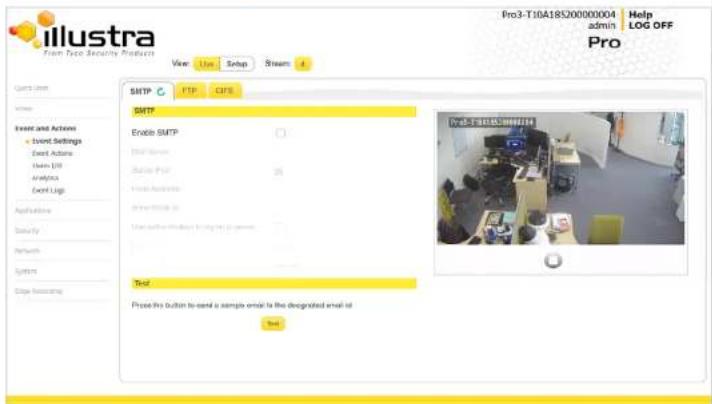
The Event Menu provides access to the following camera settings and functions:
- Event Settings
- Event Actions
- Alarms I / O
• Analytics
Procedure 63 Configure SMTP Settings
Step Action
1 Select Setup on the Web User Interface banner to display the setup menus.
2 Select Event Settings from the Events and Actions menu.
3 Select the SMTP tab.
4 Select the Enable SMTP check box to enable SMTP.
Fields on the tab become available for entry of information.
OR
Clear the Enable SMTP check box to disable SMTP.
The default setting is 'Disabled'.
Note: When in Enhanced Security mode, enabling SMTP requires the admin account password.
5 Enter the IP Address of the mail server in the Mail Server text box.
6 Enter the server port in the Server Port text box.
The default setting is '25'.
7 Enter the from email address in the From Address text box.
8 Enter the email address to send email alerts to in the Send Email to text box.
9 Select the Use authentication to log on to server check box to allow authentication details to be entered.
OR
Clear the Use authentication to log on to server to disable authentication.
The default setting is 'Disabled'
10 If 'Use authentication to log on to server' check box has been selected:
a Enter the username for the SMTP account in the Username text box.
b Enter the password for the SMTP account in the Password text box.
Procedure 64 Configure FTP Server Settings
Step Action
1 Select Setup on the Web User Interface banner to display the setup menus.
2 Select Event Settings from the Events and Actions menu.
3 Select the FTP tab.
4 Select the Enable FTP check box to enable FTP.
OR
Clear the Enable FTP check box to disable FTP.
The default setting is 'Enabled'.
5 If required, select the Secure FTP checkbox.
The default setting is 'Disabled'.
Note: When in Enhanced Security mode, enabling FTP requires the admin account password.
6 Enter the IP address of the FTP Server in the FTP Server text box.
7 Enter the FTP username in the Username text box.
8 Enter the FTP password in the Password text box.
9 Enter the FTP upload path in the Upload Path text box.
Note:
Refer Test the FTP Settings on page 70 to confirm that the FTP settings are working as expected.
- End -
File Transfer Rate
You can limit the File Transfer Rate and assign a max transfer rate to manage the amount of FTP bandwidth used.
Test FTP Settings
Test the SMTP settings that have been configured in Procedure 7-4 Configure FTP Server Settings.
Procedure 66 Test the FTP Settings
Step Action
1 Select Setup on the Web User Interface banner to display the setup menus.
2 Select Event Settings from the Events and Actions menu.
3 Select the FTP tab.
4 Select Test.
A sample text file is sent to the specified FTP destination to confirm that FTP settings are correct.
- End -
CIFS
The CIFS feature permits files generated from the camera such as alarm related video to be directed to network attached file storage through the Common Internet File System protocol. This supplements existing distribution methods such as FTP, SFTP and email.
Procedure 67 Configure CIFS Server Settings
Step Action
1 Select Setup on the Web User Interface banner to display the setup menus.
2 Select Event Settings from the Events and Actions menu.
3 Select the CIFS tab.
4 Select the Enable check box to enable CIFS.
OR
Clear the Enable check box to disable CIFS.
The default setting is 'Enabled'
- Send an external alarm via email that includes alarm detail, where to retrieve the AVI video file and one JPEG picture of the event if recording MJPEG to micro SD Card. If MJPEG is not being recorded on micro SD Card, then no JPEG picture is sent.
- Send an AVI video file to a pre-configured external FTP or CIFS server. The video file contains pre and post alarm video buffer.
- Trigger alarm out.
- Audio Playback: Playback and Audio clip from the camera speakers when triggered.
Note:A micro SD Card must be inserted to enable recording and so that the camera can send FTP, CIFS, and SMTP events. SMTP e-mails are sent without inserting a micro SD card but do not include snapshot images of the event trigger. Micro SD cards are also required for audio clip storage on the camera.
Creating an Event Action
Configure an event action which can be triggered by an analytic alert.
Procedure 68 Create an Event Action
Step Action
1 Select Setup on the Web User Interface banner to display the setup menus.
2 Select Event Actions from the Events and Actions menu.
3 Select an entry on the event actions list and enter an event action name in the Name text box.
4 Select the Output check box to enable an alarm output.
5 Select the Record check box to enable the Record Settings.
6 Select the Email check box to send an e-mail to the email address configured in the Configure SMTP Settings procedure.
7 Select the FTP check box to send a video file to the FTP details configured in the Configure FTP Server Settings procedure.
8 Select the CIFS check box to send a video file to the SFTP details configured in the Configure.CIFS Server Settings procedure
Illustra Pro Gen3 Series Installation and Configuration Guide
Procedure 69 Edit an Event Action
Step Action
1 Select Setup on the Web User Interface banner to display the setup menus.
2 Select Event Actions from the Events and Actions menu.
3 Select an entry on the event actions list, you can edit the following:
- Name
- Output - Enable/Disable
- Record - Enable/Disable
- Email - Enable/Disable
- FTP - Enable/Disable
• CIFS - Enable/Disable
• Audio Playback - select the required audio clip
- End -
Alarm I / O
The cameras provide one alarm input. By connecting alarm devices, such as smoke alarms, twilight sensors, or motion sensors to these inputs you can enhance the usability of your video surveillance system.
For 15 seconds after being triggered, any additional individual input changes on that alarm source are logged and do not generate any other action. This is to reduce the effect that any oscillating alarm source, such as if a door is simply vibrating in the wind, causing a series of alarms to be generated.
Input alarms are triggered upon change of state. Either from opened to closed or from closed to open. The camera reports the current state of each input alarms (open or closed) as well as an active or inactive status in the alarm configuration page. Active alarms are also visible in the current faults page.
The triggering of any input alarm affects scheduled tasks and delay them until at least 30 seconds has passed since the last digital alarm input was triggered.
Note:
-
An active internal alarm only resets when the input state changes to "normal." A manual reset is not available.
-
A micro SD Card must be inserted to send an SMTP email, video files, audio and images from triggered alarms.
Procedure 70 Configure an Alarm
Step Action
1 Select Alarm I/O from the Event and Actions menu.
2 Enter the alarm name in the Name text box.
3 Select the Enabled check box to enable the alarm.
OR
Clear the Enabled check box to disable to alarm.
4 Select when the alarm is required to be activated from the Normal drop-down menu. i.e. when the dry contact is open or closed.
5 Select the required configured fault action from the Action drop down menu.
- End
Procedure 71 Enable/Disable an Alarm
Step Action
1 Select Alarm I/O from the Event and Actions menu.
2 Select the Enabled check box to enable the corresponding alarm.
OR
Clear the Enabled check box to disable the corresponding alarm.
- End -
Enable or Disable Alarm Output
Illustra Pro Gen3 Series Installation and Configuration Guide
Procedure 73 Clearing Alarm Output
Step Action
1 Select Alarm I/O from the Event and Actions menu.
2 Under Alarm Output, select the Apply button to Clear Active Output.
The Alarm Output is cleared.
End -
Analytics
Analytics is a feature which detects and tracks objects in video. Analytics supported are Region of Interest, Face Detection, Motion Detection, Video Intelligence and Blur Detection.
Region of Interest (ROI)
A region of interest is a defined area of the camera view which considered to be higher priority than areas of non-interest. For example, in secure environments, areas of potential activity could be a specific door or window. They are specified by drawing a rectangular overlay on the video stream. The overlay is highlighted in green and an OSD is displayed outlining the size % for the x and y axis. Up to five regions of interest can be configured, all of which can be enabled / disabled.
Procedure 74 Configure a Region of Interest
Step Action
1 Select Setup on the Web User Interface banner to display the setup menus.
2 Select Analytics from the Events and Actions menu.
The ROI tab displays.
3 Use the drawing tools to draw the region of interest overlay on the video stream.
4 Enter the name of the region of interest in the Name text box.
5 Select the Enabled check box to enable the region of interest.
Face Detection
Face Detection works by detecting human faces and ignoring other objects, such as trees or buildings. This feature can be enabled or disabled and the required face orientation selected.
Procedure 76 Enable / Disable Face Detection
Step Action
1 Select Setup on the Web User Interface banner to display the setup menus.
2 Select Analytics from the Events and Actions menu.
The ROI tab is displayed.
3 To enable Face Detection on the camera:
a Select the Enable Face Detection checkbox.
b Select the Highlight Faces checkbox to enable
OR
Deselect the Highlight Faces checkbox to disable.
c Select the Enhances Faces checkbox to enable.
OR
Deselect the Enhances Faces checkbox to disable.
d Select the Face Orientation from the drop-down menu.
• Top
• Left
• Right
OR
Deselect the Enable Face Detection checkbox to disable Face Detection on the camera.
4 Select the required preconfigured action to be taken if a face is detected from the Action drop down menu.
- End -
Illustra Pro Gen3 Series Installation and Configuration Guide
- Avoid areas with persistent motion, such as trees, blinking lights, or spinning signs, by using an appropriate region of interest.
Motion Detection Configuration Pane
The regions of interest within the camera's field of view are defined using the Motion Detection Configuration Pane. The regions of interest are set by drawing/highlighting an area on the pane. This is done by using the drawing tools on the Motion Detection Configuration Pane.
Creating a Motion Detection Alert
Create a motion detection alert on the camera.
The Motion Detection Alert feature supports up to three profiles in a Field of View (FOV). You can configure each profile with an individual sensitivity level and an event action.
Note:
1 If the motion detection video stream is changed after the region of interest has been drawn it is necessary to re-draw a new region.
2 If the stream settings are modified the motion detection is disabled and it is necessary to enable motion detection again if required.
3 Motion detection can only be enabled on a video stream that uses H.264 with a resolution on 1920x1440 or lower.
Procedure 77 Create a Motion Detection Alert
Step Action
1 Select Setup on the Web User Interface banner to display the setup menus.
2 Select Analytics from the Events and Actions menu.
3 Select the Enable motion detection check box to enable Motion Detection on the camera. OR
Clear the Enable motion detection check box to disable Motion Detection on the camera.
4 Select the zone for detection in the Motion zone drop-down list.
This fault action activates when motion is detected in the selected region of interest.
Refer to the Create a Fault Action procedure if a fault action has not yet been defined.
10 Select Apply to save the changes.
- End -
Enable or Disable a Motion Detection Alert
Motion detection can be turned on and turned off when required.
Procedure 78 Enable or Disable a Motion Detection Alert
Step Action
1 Select Setup on the Web User Interface banner to display the setup menus.
2 Select Analytics from the Events and Actions menu.
3 Select the Motion Detection tab.
The Motion Detection Configuration pane displays.
4 Select the Enable motion detection checkbox to enable Motion Detection on the camera.
OR
Clear the Enable motion detection checkbox to disable Motion Detection on the camera.
5 Select Apply to save.
- End -
Blur Detection
The camera generates an alarm and then takes the action you specified during configuration when the Blur Detection feature is enabled and the camera detects incidents that make the video image blur, such as: redirection, blocking, or defocusing.
When you enable Blur detection, it has a polling period of roughly 1 minute.
A Blur Detection start fault is raised when blur has been detected at 60 successive polling periods of 1 second (up to 1 minute).
Illustra Pro Gen3 Series Installation and Configuration Guide
The status of each Video Intelligence alarm is highlighted in the Status field. There are three alarm states:
- Red - Alarm is disabled. The alarm can be disabled via the Enabled option button.
- Yellow - Alarm is enabled, however, the recording mode set for the camera does NOT support alarms so the alarms will not be generated. Supported modes are Only Record on Alarm or Recording Always with Alarm On.
- Green - Alarm is enabled and a supported recording mode is selected. Alarms will be generated.
Figure 26 Video Intelligence Tab

Video Intelligence Best Practices
To ensure you get the highest quality results when using Video Intelligence on the NVR, it is
- Avoid areas with persistent motion, such as trees, blinking lights, or spinning signs, by using an appropriate region of interest.
- Choose your Video Intelligence alarms selectively. You do not want to create alarms that will trigger a high number of alerts, making the important alerts more difficult to identify.
- Situate cameras to provide the best possible views of the areas of interest, objects and people. It is best to ensure camera views separate objects from people, ensure objects and people take up a larger portion of the camera view, and keep the entire region of interest within the camera's view.
- Use staff to help identify regions of interest to monitor based on their observations, for example, of missing merchandise or missing fixtures. Video Intelligence alarms can therefore be configured to monitor areas of potential activity.
- Use searches frequently and watch activity leading up to an alarm being triggered. This may give an indication of suspicious activity and other areas to monitor.
- Tune your alarms regularly to ensure the alarms reflect changes to the environment, for example, objects being rearranged or replaced. Monitoring these changes and re-tuning your alarms will ensure maximum effectiveness of the Video Intelligence alarms and searches.
- Use the new information that Video Intelligence provides to learn and adapt. Use it to implement changes that will improve surveillance and reduce losses, for example, eliminate blind spots, make staff aware of suspicious behavior, or re-design the environment and alarms
Creating a Video Intelligence Camera Alarm
To create a Video Intelligence camera alarm you must have Video Intelligence enabled on the camera.
Procedure 79 Enable/Disable Video Intelligence
Step Action
1 Select Setup on the Web User Interface banner to display the setup menus.
Procedure 80 Creating a Video Intelligence alert
Step Action
1 Select Setup on the Web User Interface banner to display the setup menus.
2 Select Analytics from the Events and Actions menu.
3 Select the Enable Video Intelligence check box to enable Video Intelligence on the camera.
4 Use the drawing tools beneath the live video feed to create a Region of Interest
5 Type a Rule Name for your rule definition in the field provided.
6 Select a fault action from the Action drop-down menu.
This fault action is activated when the parameters of the analytics rule are met.
7 Select a rule type from the Rule Type drop-down menu:
a Object Detection - Used to detect people or objects moving into a region of interest.
This alarm is similar to a motion alarm, but only detects people or objects the first time they enter the region of interest. A separate event is generated for each object that enters the region, even if the objects move into the region at the same time, unlike motion detection that generates one event.
b Abandoned / Removed - (Video Intelligence only) Used to find changes to the background of a scene in a region of interest, for example, use it to detect when a stationary object was placed, moved or removed. Draw the region of interest that contains all of the area you want to search for changes.
c Direction - Used to detect objects moving in a certain direction through a region of interest, for example, a car traveling the wrong way on a road. It is best to use a thin region of interest to detect the direction of an object.
d Linger - Used to detect objects loitering in a region of interest. An object is lingering if it remains in the region of interest. The minimum amount of time an object must linger before being included in the results can be defined and you can draw a region in the area where you want to detect objects lingering. Use a higher Overlap setting to avoid detecting objects lingering nearby.
e Dwell: Used to detect objects lagging or tarrying in a region of interest. An object is
i Exit - Used to detect objects exiting a camera view through a region of interest, for example, a doorway or threshold. It is best to draw the region of interest around the doorway or threshold to include areas in which the door can move or objects can be seen, for example, glass. This will exclude objects that can be seen in the region of interest but does not pass through it.
j Enter - Used to detect objects entering a camera view through a region of interest, for example, a doorway or threshold. It is best to draw the region of interest around the doorway or threshold to include areas in which the door can move or objects can be seen, for example, glass. This will exclude objects that can be seen in the region of interest but does not pass through it.
8 Use the Overlap slider bar to increase or decrease the percentage of overlap.
9 To apply a color filter over the Region of Interest, select one of the seven Color Filter check boxes.
10 Select Save to save your changes.
The rule name and type that you have created appears in the Analytics Rules table.
Note: When rule type is selected, extra configuration items appear for some rule types. See the section on Video Intelligence above for information on the extra configuration options for each rule type.
The Color Filters parameter allows you to limit your search results to the specified color(s) only. The color filters parameter is not available on Abandoned / Removed, Perimeter, Queue Analysis, or Crowd Formation. Leaving the color filter parameter blank has the equivalent function of 'ANY' color.
Object Detection
a Overlap (%) - The amount of a detected object that must be in the region of interest before an alarm is triggered. Use a higher setting to detect objects that are mostly inside the region, and use a lower value to find objects that just brush the edge of the region.
Abandoned / Removed
a Overlap (%) - The amount of background change that must be in the region of interest before an alarm is triggered. Use a higher setting to avoid finding nearby changes or changes that are not completely in the region of interest.
c Traversal Time- This is the maximum amount of time which an object can take to traverse most of the region before the alarm is triggered. This is to exclude objects that move too slow.
Linger
a Overlap (%) - The amount of detected object that must be in the region of interest while lingering for an alarm to be triggered. Use a higher setting to avoid detecting objects lingering nearby.
b Linger Time- The minimum amount of time an object lingers before the alarm is triggered.
Dwell
a Overlap (%) - The amount of a detected object that must dwell in the region of interest for an alarm to be triggered.
b Dwell Time - This is the minimum amount of time that an object must dwell in the region of interest before the alarm is triggered.
Queue Analysis
a Select Area - Additional tools display when using queue analysis to highlight zones of interest; Short, Medium and Long. Use these to define the zones of interest that must be occupied to form a short medium and long queue, all 3 zones must be defined, regardless of the queue length. Each selection is highlighted via a different color (Short = green, Medium = yellow and Long = purple).
b Overlap (%) - The amount of detected object that must be in the region of interest to be identified as a person in a queue.
c Queue Length - The required minimum length for an alarm to be generated. The following options are available:
- Empty: this will generate an alarm when no objects are present in the designated regions of interest.
- Not Empty: this will generate an alarm when an object(s) is present in the designated regions of interest.
- Short; this will generate an alarm when objects are present in the short designated region of interest and meet the overlap requirements.
Crowd Formation
a Overlap (%) - The amount of detected object that must be in the region of interest to be considered for determining the crowd size.
b Minimum Crowd Size - The minimum number of people that must be present to generate an alarm. This can be between 2-50 people.
Exit
a Overlap (%) - The amount of detected object that must be in the region of interest when the object leaves the scene for an alarm to be triggered. The object must appear in the scene while being outside the region of interest by the same amount. For best results select a higher overlap setting.
Enter
a Overlap (%) - The amount of detected object that must be in the region of interest when it first appears in the camera view. The object must leave the region of interest by the same amount before an alarm is triggered. For best results select a higher overlap setting.
- End -
Procedure 81 Enable/Disable an Analytics Rule
Step Action
1 Select Setup on the Web User Interface banner to display the setup menus.
2 Select Analytics from the Events and Actions menu.
3 Select the Video Intelligence tab.
4 From the Analytics Rules table, select the check box of the target Analytics Rule to enable the analytics rule
OR
Deselect the check box of the target Analytics Rule to disable the analytics rule.
- End -
Illustra Pro Gen3 Series Installation and Configuration Guide
Procedure 83 Delete an Analytics Rule
Step Action
1 Select Setup on the Web User Interface banner to display the setup menus.
2 Select Analytics from the Events and Actions menu.
3 Select the Video Intelligence tab.
4 From the Analytics Rules table, select the delete icon across from the analytics rule that you want to delete.
5 Select OK when you are asked to confirm your action.
6 Select Save to save your changes.
- End -
Event Logs
Event Log
When events are triggered the resulting alarms are displayed in the Event Log with the following information:
• No. - details the event index.
- Event - this is listed as 'MotionDetected'.
- Date created - the time and date when the motion detection was triggered.
- Component - internal software component that raised the fault for a motion detection alert. This is listed as ANALYTICS.
- Severity - indicates how serious the fault is. Motion detection alerts list as 'Waming'.
- Detail - extra information that supplements the motion detection alert.
- Delete - remove the motion detection alert notification from the fault table.
Procedure 84 Display Event Log
Note: You can select the Select All check box to mark all motion detection alerts displayed in the list for deletion.
4 Select Delete to delete the selected motion detection alerts.
You are prompted to confirm the deletion.
5 Select OK to confirm the deletion.
OR
Select Cancel.
- End -
Fault Log
Any system or environmental faults experienced by the camera are displayed in the Fault Log with the following:
-
- details the fault index.
- Fault - a description of the fault.
- Date created - the time and date when the fault occurred.
- Component - internal software component that raised the fault.
- Severity - indicates how serious the fault is. The following are supported, in increasing order of severity, Clear, Warning, Critical and Error.
- Detail - extra information that supplements the fault description.
- Delete -remove the fault from the fault table.
System Faults
The following system faults may be raised:
- DiskUsage(Warning) - this warning is raised when the disk utilisation rises above the threshold value "threshold2" held in SYSM.conf. Once an alarm is generated and the disk utilization decreases 1% below the threshold value, the fault is then automatically cleared. The default threshold value is 80%.
Environmental Monitor (ENVM) Component
Illustra Pro Gen3 Series Installation and Configuration Guide
2 Select Event Logs from the Event and Actions menu.
3 Select the Fault Log tab.
- End -
Procedure 87 Delete Current Faults
Step Action
1 Select Setup on the Web User Interface banner to display the setup menus.
2 Select Event Logs from the Events and Actions menu.
3 Select the Fault Log tab.
4 Select the corresponding Delete check box to mark the fault for deletion.
OR
Clear the corresponding Delete check box to keep the fault.
Note: You can select the Select All check box to mark all faults displayed in the list for deletion.
5 Select Delete to delete the selected faults.
You are prompted to confirm the deletion.
6 Select OK to confirm the deletion.
OR
Select Cancel.
- End -
Applications
When you select the Applications menu the Applications page displays, as seen in on page 87.
Figure 27 Applications Menu
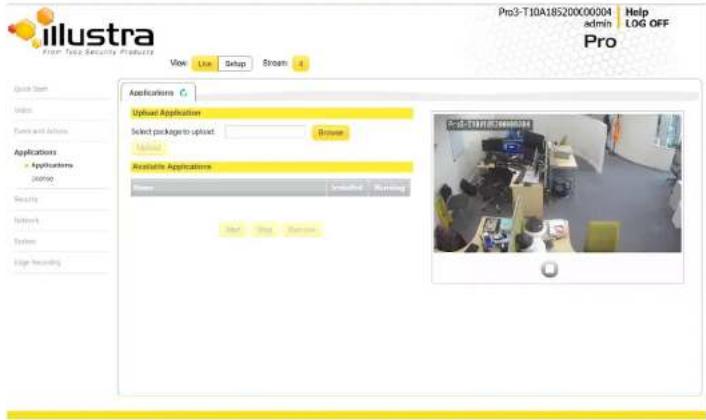
Applications support allow for the upload of binary files that add custom functionality and value to the camera. Applications are uploaded through the Web User Interface.
These applications are licensed by Tyco Security Products using a licensing facility.
Applications
Illustra Pro Gen3 Series Installation and Configuration Guide
Available Applications
A list of applications currently installed and running are displayed. Each can be started, stopped and removed.
Procedure 89 Start, Stop or Remove an Application
Step Action
1 Select Setup on the Web User Interface banner to display the setup menus.
2 Select the Applications menu.
The Applications tab displays.
3 Select the corresponding Application checkbox to Start, Stop or Remove.
4 Select one of the following options:
a Start to start the application running.
b Stop to stop the application running.
c Remove to remove the application.
- End -
License
License files for applications are uploaded using the licensing webpage. Available licenses are listed displaying their application ID and their license expiry date.
Procedure 90 Upload a License File
Step Action
1 Select Setup on the Web User Interface banner to display the setup menus.
2 Select License from the Applications menu.
3 Select Browse.
The Choose file dialog is displayed.
Security
When you select the Security menu, the Security Status page appears, as seen in Figure 28 on page 89.
Figure 28 Security menu

The Event Menu provides access to the following camera settings and functions:
- Security Status
- Users
- HTTP/HTTPS
Enhanced Security
When you first log in to the Web User Interface, an overlay over the Live menu tab appears prompting you to choose either Standard or Enhanced Security mode. For more information regarding the requirements for Enhanced Security mode, refer to Summary of Security Modes on page 19.
Admin users can change the Security Mode of the camera from Standard Security to Enhanced Security.
Procedure 91 Enable Enhanced Security
Step Action
1 Select Setup on the Web User Interface banner to display the setup menus.
2 Select Security Status from the Security menu.
3 Select the Security Overview tab.
4 Check the Enable Enhanced Security check box to enable enhanced security.
A prompt appears asking you for your current password and the new password for the Enchanced Security feature. Your password must adhere to the minimum requirements for an Enhanced Security password as seen below.
OR
Clear the Enable Enhanced Security check box to disable enhanced security.
Enhanced Security is disabled by default.
The Security Warning dialog appears.
5 Enter the current password in the Current Password text box.
6 Enter the new password in the New Password text box.
The password for enhanced security must meet the following requirements:
- Be a minimum of eight characters long
- Have at least one character from at least three of the following character groups:
Inner-case letters
Procedure 92 Disable Enhanced Security Mode
Step Action
1 Select Setup on the Web User Interface banner to display the setup menus.
2 Select Security Status from the Security menu.
3 Select the Security Overview tab.
Note: When in Enhanced Security mode, changing the security mode requires the admin account password.
4 Click Apply.
Note: Any changes to the Security mode are logged in the Security Log.
- End -
Security Status
This section summarizes the communication protocols that are used and their status. The following communication protocols can be enabled: HTTP, FTP, CIFS, Dyn DNS, SMTP, HTTPS, SNMP V1/2, SNMP V3, uPNP, and SFTP.
Security Overview
Procedure 93 Enable/Disable Communication Protocols
Step Action
1 Select Setup on the Web User Interface banner to display the setup menus.
2 Select Security Status from the Security menu.
3 Select the Security Overview tab.
4 Select or clear the Protocols check box to enable or disable that protocol.
5 Click Apply to save your settings.
Illustra Pro Gen3 Series Installation and Configuration Guide
4
Select Refresh to refresh the log for the most up-to-date information.
- End -
Procedure 95 Filter the Security Log
Step Action
1 Select Setup on the Web User Interface banner to display the setup menus.
2 Select Security Status from the Security menu.
3 Select the Security Log tab.
4 Enter the number of lines of the log file you would like to view in the Lines (from the end of the log file) text box.
5 Enter the word or phrase that you would like to search for in the Filter (only lines containing text) text box.
6 Select Refresh to refresh the log for the most up-to-date information that meets the filter parameters.
7 Select Clear to empty the log of its current entries. You will be required to enter your password to do this.
- End -
Users
In this section you are able to add a user, change a user password and a delete user account. There are three levels of access: admin, operator and user.
Refer to Appendix A: User Account Access on page 127 for details on the features which are available to each role.
Note: The default Username is admin and the default Password is admin. To maintain security the password on the admin account should be changed.
View Current User Accounts
Add User
Add a new user account to allow access to the camera.
Procedure 97 Add a User
Step Action
1 Select Setup on the Web User Interface banner to display the setup menus.
2 Select Users from the Security menu.
3 Select the Add User tab.
4 Enter a User Name in the Name text box.
The username must start with a letter and can be followed by any alphanumeric values (a-z, A-Z, 0-9) and the following special characters, underscore(_, dash(-), or dot(.)
5 Select a Role:
- admin
- operator
- user
Refer to Appendix A: User Account Access for details on the features which are available to each role.
6 Enter a password in the Password text box.
The password for Standard Security must start with an alphanumeric character and is case sensitive, it can contain alphanumeric characters with a length of between 5 and 32 characters.
The password for enhanced security must meet the following requirements:
- Be a minimum of seven characters long.
- Have at least one character from at least three of the following character groups:
• Upper-case letters - Lower-case letters
Illustra Pro Gen3 Series Installation and Configuration Guide
Procedure 98 Change User Password
Step Action
1 Select Setup on the Web User Interface banner to display the setup menus.
2 Select Users from the Security menu.
3 Select the Change Password tab.
4 Select the user account from the Name drop-down menu.
5 Enter the current password for the user account in the Current Password text box.
6 Enter the new password for the user account in the New Password text box.
The password is case sensitive and can contain alphanumeric characters with a length of between 5 and 32 characters.
7 Enter the same new password in the Confirm New Password text box.
8 Select Apply to save the settings.
- End -
Delete a User Account
Delete a user account from the camera.
Note: The default 'admin' account cannot be deleted.
Procedure 99 Delete a User Account
Step Action
1 Select Setup on the Web User Interface banner to display the setup menus.
2 Select Users from the Security menu.
The Users tab displays.
3 Select to delete the corresponding user account.
You will be prompted to confirm the deletion.
Procedure 100 Specify HTTP Method
Step Action
1 Select Setup on the Web User Interface banner to display the setup menus.
2 Select HTTP/HTTPS from the Security menu.
3 Select the HTTP Method using the radio buttons
- HTTP
- HTTPS
- Both
- End
Procedure 101 Add a HTTPS Certificate
Step Action
1 Select Setup on the Web User Interface banner to display the setup menus.
2 Select HTTP/HTTPS from the Security menu.
3 Click on the Upload button and navigate to the certificate location.
4 Select the file and select Open.
Note: The camera only accepts .pem format certificates. The certificate must have the server certificate and private key combined and the private key must not be password protected.
After the certificate has been uploaded the camera must be rebooted to take affect.
- End -
Delete a HTTPS Certificate
If you delete the existing certificate it will be replaced by a temporary substitute. The current browser session will be lost and you will be required to log back in to the camera Web User Interface.
Authentication is carried out through use of the Extensible Authentication Protocol or EAP. Both PEAP and TLS methods are supported.
Procedure 103 Configure IEEE 802.1x Security
| Step | Action |
| 1 | Select Setup on the Web User Interface banner to display the setup menus. |
| 2 | Select IEEE 802.1x from the Security menu.The EAP Settings tab displays. |
| 3 | Select the Enable IEEE802.1x check box to enable IEEE802.1x security.OR |
| 4 | Clear the Enable IEEE802.1x check box to disable IEEE802.1x security. |
| 5 | Select the EAPOL Version from the drop-down menu. |
| 6 | Select the EAP Method using the radio buttons. |
| 7 | Enter the EAP identity name in the EAP Identify textbox. |
| 8 | Select Upload to navigate to the CA Certificate location. The Choose file dialog displays. |
| 9 | Navigate to the location where the certificate has been saved. Select the file and select Open. |
| 10 | Select Upload. The upload process starts. |
| 11 | If PEAP is selected:a Enter the required PEAP Password.ORIf TLS is selected -a Select Upload to navigate to the Client Certificate location.The Choose file dialog will be displayed.b Navigate to the location where the certificate has been saved.c Select the file and select Open. |
Firewall
Configure the Basic Filtering and Address Filtering for the firewall.
Basic Filtering
Enable or disable basic filtering for the camera this includes:
• ICMP (Internet Control Message Protocol) Blocking
• RP (Reverse Path) Filtering
• SYN Cookie Verification.
Procedure 104 Enable/Disable Basic Filtering
| Step | Action |
| 1 | Select Setup on the Web User Interface banner to display the setup menus. |
| 2 | Select Firewall from the Security menu. |
| The Basic Filtering tab displays. | |
| 3 | Select the ICMP Blocking check box to enable ICMP blocking. |
| OR | |
| Clear the ICMP Blocking check box to disable ICMP blocking. The default setting is 'Disabled'. | |
| 4 | Select the RP Filtering check box to enable the RP filtering. |
| OR | |
| Deselect the RP Filtering check box to disable. | |
| The default setting is 'Disabled'. | |
| 5 | Select SYN Cookie Certification check box to enable SYN cookie certification. |
| OR | |
| Deselect the SYN Cookie Certification check box to disable. | |
| The default setting is 'Disabled' |
Illustra Pro Gen3 Series Installation and Configuration Guide
Select Allow to allow address filtering for specified addresses
OR
Select Deny to deny address filtering for specific addresses.
The default setting is 'Off'.
5 If address filtering has been set to Allow or Deny:
a Enter an IP or MAC Address to allow / deny in the IP or MAC Address text box in the following format xxx.xxx.xxx.xxx.
Note: CIDR (Classless Inter-Domain Routing) is supported when using address filtering. If using a CIDR address use the following format xxx.xxx.xxx.xxx/xx.
b Select Add.
6 Select Apply to save the settings.
End -
Editing an Address Filter
Edit an existing address filter.
Procedure 106 Edit an Address Filter
Step Action
1 Select Setup on the Web User Interface banner to display the setup menus.
2 Select Firewall from the Security menu.
3 Select the Address Filtering tab.
4 Edit the IP or MAC Address in the IP or MAC Address text box.
5 Select Add to save the changes.
- End -
Deleting an Address Filter
Remote Access
SSH Enable
Enables Secure Shell access into the camera, if remote access is permitted by the camera network. This will also enable Tyco Security Products Level 3 Technical Support to diagnose any problems on the camera.
Note: It is recommended to keep SSH Enable disabled. This function should only be enabled this when it is requested by Tyco Security Products Level 3 Technical Support.
Procedure 108 Configure SSH
Step Action
1 Select Setup on the Web User Interface banner to display the setup menus.
2 Select Remote Access from the Security menu.
The Remote Access tab displays.
3 Select the SSH Enable check box to enable SSH.
OR
Deselect SSH Enable check box to disable SSH.
The default setting is 'Disabled'.
- End
ONVIF
The Web User Interface allows ONVIF functionality to be managed at a high level. ONVIF Discovery Mode and User Authentication can be enabled or disabled.
- ONVIF Discovery Mode allows enabling or disabling discovery of the camera via ONVIF.
- ONVIF User Authentication allows the camera to accept ONVIF commands from all users or only authenticated users. Enabling User Authentication ensures the camera will only execute commands from authenticated users.
Illustra Pro Gen3 Series Installation and Configuration Guide
Procedure 109 Enable/Disable ONVIF Discovery Mode
Step Action
1 Select Setup on the Web User Interface banner to display the setup menus.
2 Select Remote Access from the Security menu.
The Remote Access tab displays.
3 Select the ONVIF Discovery Mode check box to enable ONVIF Discovery Mode. OR
Deselect ONVIF Discovery Mode check box to disable ONVIF Discovery Mode.
The default setting is 'Enabled'.
- End
ONVIF User Authentication
To utilize ONVIF User Authentication, there must be at least one admin level user in the ONVIF service.
Note: When in Enhanced Security mode, editing ONVIF User Authentication requires the admin account password.
Procedure 110 Enable/Disable ONVIF User Authentication
Step Action
1 Select Setup on the Web User Interface banner to display the setup menus.
2 Select Remote Access from the Security menu.
The Remote Access tab displays.
3 Select the ONVIF User Authentication check box to enable ONVIF User Authentication. OR
Deselect ONVIF User Authentication check box to disable ONVIF User Authentication.
The default setting is 'Enabled'.
The default setting is 'Enabled'.
- End -
UPnP Discovery
Enable or disable UPnP Discovery on the camera.
Procedure 112 Enable/Disable UPnP Discovery
Step Action
1 Select Setup on the Web User Interface banner to display the setup menus.
2 Select Remote Access from the Security menu.
The Remote Access tab displays.
3 Select the UPnP Discovery check box to enable UPnP Discovery. OR
Deselect UPnP Discoverycheck box to disable UPnP Discovery.
The default setting is 'Enabled'.
- End -
ExacqVision Server Audio
Enable or disable audio ports used for ExacqVision bidirectional audio integration.
Procedure 113 Enable/Disable EXACQ Audio
Step Action
1 Select Setup on the Web User Interface banner to display the setup menus.
2 Select Remote Access from the Security menu.
The Remote Access tab displays.
3 Select the EXACQ Audio check box to enable EXACQ Audio.
OR
Illustra Pro Gen3 Series Installation and Configuration Guide
Procedure 114 Set a Session Timeout time
| Step | Action |
| 1 | Select Setup on the Web User Interface banner to display the setup menus. |
| 2 | Select Session Timeout from the Security menu. The Session Timeout tab displays. |
| 3 | Use the slider bar to select the Session Timeout (mins). The default setting is 15 minutes. |
Network Menu
When you select the Network menu, the TCP/IP page displays, as seen in Figure 29 on page 103.
Figure 29 Network Menu

The Network Menu provides access to the following camera settings and functions:
- TCP/IP
- FTP
- SMTP
• SNTP
Procedure 115 Configure the IPv4 Settings
Step Action
1 Select Setup on the Web User Interface banner to display the setup menus.
2 Select TCP/IP from the Network menu.
3 Select the Enable DHCP check box to enable DHCP and disable manual settings.
OR
Deselect Enable DHCP to disable DHCP and allow manual settings to be entered.
The default setting is 'Disabled'.
4 If Enable DHCP has been disabled:
a Enter the IPv4 Address in the IPv4 Address text box in the form xxx.xxx.xxx.xxx. The default setting is '192.168.1.168'
b Enter the Network Mask in the Network Mask text box xxx.xxx.xxx.xxx.
The default setting is '255.255.255.0'
c Enter the Gateway IP address in Gateway text box xxx.xxx.xxx.xxx.
d Enter the Primary DNS Server in the Primary DNS Server text box xxx.xxx.xxx.xxx.
e Enter the Secondary DNS Server in the Secondary DNS Server text box xxx.xxx.xxx.xxx.
5 Select Apply to save the settings.
End
IPv6
Enable IPv6 on the camera.
Procedure 116 Enable/Disable IPv6
Step Action
1 Select Setup on the Web User Interface banner to display the setup menus.
2 Select TCP/IP from the Network menu.
Procedure 117 Configure Multicast Streaming
Step Action
1 Select Network on the Web User Interface to display the Network menu options and click the Multicast tab.
2 Select the Stream Number from the drop-down list you want to configure.
3 In the Video Address field, enter a valid IP address for the Multicast broadcasting. The valid range for the IP address is:
224,xxx,xxx,xxx
232,xxx,xxx,xxx
234,xxx,xxx,xxx
239,xxx,xxx,xxx
Multicast stream addresses must be unique to the stream and cameras.
4 In the Port field, enter a port for the Multicast broadcasting. The Multicast stream port must be unique to stream cameras. The approved port range is: 0-65535.
5 In the Time to live field, enter a value.
Example of correct Muticast configuration:
Stream.1.Multicast.IPAddress=224.16.18.2
Stream.1.Multicast.Port=1032
Stream.2.Multicast.IPAddress=224.16.18.2
Stream.2.Multicast.Port=1030
Stream.3.Multicast.IPAddress=0.0.0.0
Stream.3.Multicast.Port=0
Illustra Pro Gen3 Series Installation and Configuration Guide
The default setting is 'Enabled'.
Note: When in Enhanced Security mode, enabling FTP requires the admin account password.
4 If required, select the Secure FTP checkbox.
The default setting is 'Disabled'
5 Enter the IP address of the FTP Server in the FTP Server text box.
6 Enter the FTP port in the FTP Port text box.
The default setting is 21.
7 Enter the FTP username in the Username text box.
8 Enter the FTP password in the Password text box.
9 Enter the FTP upload path in the Upload Path text box.
Note: When entering the upload path the following format should be used '/
- End -
File Transfer Rate
You can limit the File Transfer Rate and assign a max transfer rate assigned to manage the amount of FTP bandwidth used.
Procedure 119 Configure the FTP Transfer Rate
Step Action
1 Select Setup on the Web User Interface banner to display the setup menus.
2 Select Event Settings from the Events and Actions menu.
3 Select the FTP tab.
4 Select the Limit Transfer Rate check box to limit the FTP transfer rate.
Procedure 120 Test the FTP Settings
Step Action
1 Select Setup on the Web User Interface banner to display the setup menus.
2 Select FTP from the Network menu.
3 Select the FTP tab.
4 Select Test. A sample text file will be sent to the specified FTP destination to confirm that FTP settings are correct.
- End -
SMTP
Configure the SMTP settings to allow e-mail alerts to be sent from the camera when an analytic alert is triggered.
Note: SMTP settings must be configured to enable email alerts when using analytics.
Procedure 121 Configure SMTP Settings
Step Action
1 Select Setup on the Web User Interface banner to display the setup menus.
2 Select SMTP from the Network menu.
The SMTP tab displays.
3 Check the Enable SMTP check box to enable SMTP. Text boxes on the tab become available for entry.
Note: When in Enhanced Security mode, enabling SMTP requires the admin account password.
4 Enter the IP Address of the mail server in the Mail Server text box.
Illustra Pro Gen3 Series Installation and Configuration Guide
- End -
SNMP
The camera introduces support for the Simple Network Management Protocol making it easier to manage on an IP network.
The SNMP support includes support for V2 and V3. Using V2 means no authentication is required to access the data and results are unencrypted. V3 offers enhanced encryption and authentication security features.
Procedure 122 Configure SNMP Settings
Step Action
1 Select Setup on the Web User Interface banner to display the setup menus.
2 Select SNMP from the Network menu.
3 Enter a location reference in the Location text box.
4 Enter an SNMP managing contact reference in the Contact text box.
5 If using V2:
a Select the Enable V2 checkbox.
b Enter the authorized ID for reading SNMP data in the Read Community text box.
c Enter the Trap Community.
d Enter the Trap Address.
e Select Apply.
OR
If using V3:
a Select the Enable V3 checkbox.
b Enter the Read User.
c Select the Security Level from the drop down menu:
CIFS
The CIFS feature permits files generated from the camera such as alarm related video to be directed to network attached file storage via the Common Internet File System protocol. This supplements existing distribution methods such as FTP, SFTP and email.
Procedure 123 Configure CIFS Server Settings
Step Action
1 Select Setup on the Web User Interface banner to display the setup menus.
2 Select CIFS from the Network menu.
3 Select the Enable check box to enable CIFS.
OR
Deselect the Enable check box to disable CIFS.
The default setting is 'Disabled'.
Note: When in Enhanced Security mode, enabling CIFS requires the admin account password.
4 Enter the network path in the Network Path text box.
Note: When entering the network path the following format should be used '/
5 Enter the domain name in the Domain Name in the text box.
6 Enter the username in the Username text box.
7 Enter the password h in the Password text box.
End
Dynamic DNS
Dynamic DNS is supported for updating. in real time a changing IP address on the Internet to provide
Illustra Pro Gen3 Series Installation and Configuration Guide
Procedure 124 Configure Dynamic DNS
Step Action
1 Select Setup on the Web User Interface banner to display the setup menus.
2 Select Dynamic DNS from the Network menu.
3 Select the Service Enable check box to enable Dynamic DNS.
OR
Deselect Service Enable check box to disable Dynamic DNS.
The default setting is 'Disabled'.
4 If Service Enable has been enabled:
a Enter the Camera Alias in the text box.
b Select a Service Provider from the drop-down list:
- dyndns.org
- easydns.com
- no-ip.com
- zerigo.com
- dynsip.org
- tzo.com
c Enter a Username in the text box.
d Enter a Password in the text box.
e Enter Service Data in the text box.
5 Select Apply to save the settings.
- End -
SIP
The default setting is 'Disabled'.
4 Click Apply to save your settings.
Note: After you enable SIP, the camera reboots automatically.
- End -
Procedure 126 Configure the SIP Server Settings
Step Action
1 Select Setup on the Web User Interface banner to display the setup menus.
2 Select SIP from the Network menu.
3 Check the Enabled check box to enable SIP.
4 Enter the IP address of the SIP Server in the Domain text box.
5 Enter the SIP account username in the Username text box.
6 Enter the SIP account password in the Password text box.
7 From the Audio Source dropdown menu, select the Audio Source for calls:
- Mic - only external microphones are currently supported.
8 From the Audio Output dropdown menu, select an audio output:
- Speaker - the SIP call audio is output to the external speaker.
- Network Stream - the SIP call audio can be streamed using an RTSP Audio Stream.
9 Click Apply to save your settings.
Note: After you enable SIP, the camera reboots automatically.
- End
Procedure 127 Place a SIP call
Step Action
System
When you open the System menu, the Maintenance page appears, as seen in Figure 30 on page 112.
Figure 30 System Menu
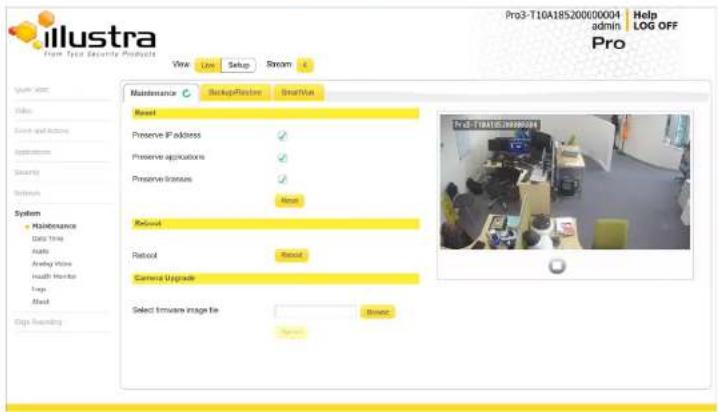
The System Menu provides access to the following camera settings and functions:
- Maintenance
- Date Time
Note: Network settings can be retained if required.
Procedure 128 Resetting the Camera
Step Action
1 Select Setup on the Web User Interface banner to display the setup menus.
2 Select Maintenance from the System menu.
3 Select the Preserve IP address check box to retain the current network settings during the camera reset.
OR
Deselect the Preserve IP address check box to restore the default networking settings.
The default setting is 'Enabled'.
4 Select Reboot
You will be prompted to confirm the camera reset.
- Select OK to confirm. The Web User Interface will display a "Camera"
"Resetting" page with a progress bar showing the reboot progress. - When the camera is restarted it will take 2 - 3 minutes until it is online and ready to be accessed and controlled.
OR
Select Cancel.
5 The Log in page displays.
- End -
Reboot
To perform a physical reset of the camera, refer to the chapter regarding your camera model in this guide.
Procedure 129 Reboot the Camera
- End -
Camera Firmware Upgrade
The camera can be upgraded using firmware provided by Illustra. Alternatively, the camera can also be upgraded using Illustra Connect. Refer to the Illustra Connect User Guide for further information.
Note: All existing camera settings are maintained when the firmware is upgraded.

Caution
You should only use firmware that has been provided by Illustra. Using any other firmware may cause a malfunction and damage the camera.
Procedure 130 Upgrade Camera Firmware
Step Action
1 Select Setup on the Web User Interface banner to display the setup menus.
2 Select Maintenance from the System menu.
3 Select Browse.
The Choose file to Upload dialog displays.
4 Navigate to the location where the firmware file has been saved.
5 Select the firmware file then select the Open button.
6 Select Upload.
The file transfer will begin. Do not disconnect power to the camera during the upgrade process. The camera restarts automatically after the updates have been completed, this can take from 1 to 10 minutes. The Log in page displays.
- End -
Backup/Restore
Illustra Pro Gen3 Series Installation and Configuration Guide
Procedure 132 Restore Camera from Backup
Step Action
1 Select Setup on the Web User Interface banner to display the setup menus.
2 Select Maintenance from the System menu.
3 Select the Backup/Restore tab.
4 Select Browse.
The Choose file to Upload dialog displays.
5 Navigate to the location where the firmware file has been saved.
6 Select the firmware file then select the Open button.
7 Select Upload.
The file transfer begins. Do not disconnect power to the camera during the upgrade process. The camera restarts automatically after the updates have been completed, this can take from 1 to 10 minutes. The Log in page displays.
End
SmartVue
The SmartVue feature implements Illustra Cameras to Cloud (C2C) from SmartVue to provide a secure, scalable, cloud-based storage solution. Before you enable this feature, you need to install the mobile application. You can download the app from either the iOS App Store or the Google Play Store and then you can complete the registration using the app.
Procedure 133 Enabling SmartVue integration
Note: If a SmartVue server is not setup when enabling the SmartVue feature then the camera may become inaccessible.
Step Action
1 Select Setup on the Web User Interface banner to display the setup menus.
- End -
Procedure 134 Resetting the camera to normal operation
Note: There are two procedures for resetting the camera, please select one.
Step Action
1 Select Setup on the Web User Interface banner to display the setup menus.
2 Select Maintenance from the System menu.
3 Select the Maintenance tab. This page displays two types of factory reset:
a Factory Reset: Resets the camera and boots the camera in Illustra mode.
b SmartVue Reset: Resets the camera and boots the camera in SmartVue mode.
4 If you do not have the credentials to perform a reset, you can perform a factory reset on the hardware itself by using the hardware reset button as detailed in the Product Overview of each camera.
- End -
Date / Time
Set the date and time on the camera.
Note:
Date and Time can also be configured in the Quick Start menu.
Procedure 135 Configuring the Date and Time
Step Action
1 Select Setup on the Web User Interface banner to display the setup menus.
2 Select the Date Time from the System menu.
Illustra Pro Gen3 Series Installation and Configuration Guide
- Manually
- via NTP
The default setting is 'Manually'.
7 If you select Manually in step 5:
c Select the Date (DD/MM/YYYY) using the drop-down menus.
d Select the Time (HH:MM:SS) using the drop-down menus.
8 If you select via NTP in step 5:
a Enter the NTP Server Name in the text box.
- End -
Audio
You can configure the audio input, output, upload audio and stored audio clips, as well as configure Audio Video Synchronisation on this tab.
Procedure 136 Configure Audio Input
Step Action
1 Select Audio from the System menu. The Audio Input tab displays.
2 Select the Input Enable check box to enable the audio input settings.
Or
Clear the Input Enable check box to disable audio input settings.
The default setting is 'Disabled'.
3 Use the slider bar to select the Input Volume.
Values range from 1 to 100.
The default setting is 72.
- End -
Configuring Stored Audio
When connected to an appropriate device, the unit is capable of playing back stored audio when an alarm has been triggered. A maximum of five audio files can be uploaded to the unit.
Note: Audio clips can only be used if a micro SD Card has been installed. Refer to the relevant Quick Reference Guide for information on installing the micro SD Card.
When uploading an audio file it must meet the following requirements:
- The filename cannot contain spaces.
- It must be a 'wav' file with a '.wav' extension.
• A single channel mono file with a bit depth of 16kHz.
• The sample rate must be 8kHz.
• The duration must be no longer than 20 seconds.
Procedure 138 Play Stored Audio
Step Action
1 Select Audio from the System menu.
2 Select the Audio Clips tab.
3 Select to play back the corresponding audio file.
- End
Procedure 139 Upload an Audio File
Step Action
1 Select Audio from the System menu.
2 Select the Audio Clips tab.
3 Select Browse.
The Choose file dialog displays.
Illustra Pro Gen3 Series Installation and Configuration Guide
Select Cancel.
- End -
Procedure 140 Delete a Stored Audio file
Step Action
1 Select Audio from the System menu.
2 Select the Audio Clips tab.
3 Select the corresponding Delete check box to mark the audio file for deletion.
Or
Deselect the corresponding Delete check box to keep the audio file.
4 Select the Select All check box to mark all audio files for deletion.
5 Select Delete to delete the selected audio files.
You will be prompted to confirm the deletion.
6 Select OK to confirm the deletion.
Or
Select Cancel.
- End -
Analog Video
You can select an Analog Video Source from the drop-down menu found in the Analog Video menu.
You can manage output format of the analogue video by the dip switch located on the camera (default
value) or through the Web User Interface page.
Available options are PAL, NTSC and OFF.
Note: Once PAL or NTSC are selected through the Web User Interface- the physical DIP Switch selection on camera will be obsolete.
Procedure 141 Configure Health Monitor Settings
Step Action
1 Select Setup on the Web User Interface banner to display the setup menus.
2 Select the Health Monitor from the System menu.
3 Select the Recording Period from the drop-down menu.
4 Select the corresponding check box to enable health monitoring on a parameter.
OR
Clear the corresponding check box to disable health monitoring on a parameter.
The default setting for all parameters is Enabled.
- End -
Logs
Information is provided on system and boot logs created by the camera.
System Log
The system log gives the most recent messages from the unix/var/log/messages file. Information will include the following:
- Messages about system behavior such as process startup/shutdown.
- Warnings about recoverable problems that processes encounter.
- Error messages where processes encounter problems they cannot fix; note that this does not mean that the process will not continue to work, only that it encountered an issue it could do nothing about.
Procedure 142 Display System Log
Step Action
1 Select Setup on the Web User Interface banner to display the setup menus.
Illustra Pro Gen3 Series Installation and Configuration Guide
5
Select Refresh to refresh the log for the most up-to-date information.
- End -
Boot Log
The Boot log is a log of the Linux operating system boot processes and will only be useful to Tyco Security Products support engineers who require additional information on the device.
Procedure 144 Display Boot Log
Step Action
1 Select Setup on the Web User Interface banner to display the setup menus.
2 Select Logs from the System menu.
3 Select the Boot Log tab.
4 Select Refresh to refresh the log for the most up-to-date information.
- End -
Procedure 145 Boot Log Filter
Step Action
1 Select Setup on the Web User Interface banner to display the setup menus.
2 Select Logs from the System menu.
3 Select the Boot Log tab.
4 Enter the number of lines of the log file you would like to view in the Lines text box.
5 Enter the word or phrase that you would like to search for in the Filter text box.
6 Select Refresh to refresh the log for the most up-to-date information.
- End -
Audit Log
- Product Code
- Manufacturing Date
- Serial Number
- MAC Address
- Firmware Version
- Hardware Version
Procedure 146 Display Model Information
| Step | Action |
| 1 | Select Setup on the Web User Interface banner to display the setup menus. |
| 2 | Select About from the System menu. The model tab displays. |
Procedure 147 Edit Camera Name
| Step | Action |
| 1 | Select Setup on the Web User Interface banner to display the setup menus. |
| 2 | Select About from the System menu. The model tab displays. |
| 3 | Edit the name in the Camera Name textbox. |
Edge Recording
When you select the Edge Recording menu, the Micro SD Card Management page appears, as seen in Figure 31 on page 123.
Figure 31 Edge Recording Menu

The Edge Recording Menu provides access to the following camera settings and functions:
- Micro SD Card Management
- Record Settings
- Event Download
Illustra Pro Gen3 Series Installation and Configuration Guide
Inserting the Micro SD Card
When inserting a Micro SD Card it is essential that the camera is rebooted. The Micro SD Card should be mounted and unmounted through the Web User Interface. If you receive a 'Device is Busy' model you should wait and try again in a few minutes. If this does not work then it may be necessary to disable Motion Detection, FTP or any other process which may be using the Micro SD Card.
Note: Refer to the Quick Reference Guide supplied with the product for details on how to remove the housing assembly and gain access to the camera.
Procedure 148 Insert the Micro SD Card by powering down the Camera
Step Action
1 Turn off the camera by disconnecting the power supply.
2 Insert the Micro SD card into the camera.
3 Reconnect the power supply and power up the camera.
- End -
Procedure 149 Mount the Micro SD Card through the Web User Interface reboot the Camera
Step Action
1 Insert the Micro SD card into the camera.
2 Select Setup on the Web User Interface banner to display the setup menus.
3 Select SD Card Management menu from the Edge Recording menu.
4 Select Mount.
- End -
Removing the Micro SD Card
If at any stage you need to remove the Micro SD card from the camera one of the following two
3 Reconnect the power supply and power up the camera.
- End -
Procedure 151 Unmount the Micro SD Card for Removal
Step Action
1 Select Setup on the Web User Interface banner to display the setup menus.
2 Select SD Card Management menu from the Edge Recording menu.
3 Select Unmount.
You are prompted to confirm the unmounting.
4 Select OK to confirm.
OR
5 Select Cancel.
Remove the Micro SD card from the camera.
MP4 clips are not available on the camera until the Micro SD card has been inserted and mounted.
- End -
Record Settings
Select which video stream to use for alarm video and configure pre and post event durations for the playable video clip. The camera can record video generated from MD, face detection and DIO events.
Procedure 152 Configure Record Settings
Step Action
1 Select Setup on the Web User Interface Banner to display the setup menus.
2 Select Record Settings from the Edge Recording menu.
Illustra Pro Gen3 Series Installation and Configuration Guide
Offline Record Settings
When you configure the Offline Record Settings feature and once it detects a loss of connection with the recorder, it sends the video stream to the Micro SD card within the unit. This satisfies the loss of video and continues recording. Once the recorder is back online the camera initiates sending recorded video from the Micro SD card to the recorder. The maximum time recording during the outage depends on the Micro SD card and the recorded stream you selected. If the Micro SD reaches full capacity, it deletes video from earliest recording to latest recording. This feature integrates with the VE NVR 5.0 Trickle Stor.
Procedure 153 Configure Offline Recording Settings
Step Action
1 Select Setup on the Web User Interface Banner to display the setup menus.
2 Select Record Settings from the Edge Recording menu.
3 Select the Offline Record Settings tab.
4 In the Video Edge IP Address field, enter the IP address of the Video Edge recorder the camera is connected to.
5 In the Pre event (secs) field, enter a time in seconds of the amount of time you want recorded before the offline event.
6 In the Post event (secs) field, enter a time in seconds of the amount of time you wants recorded after the offline event.
- End -
Event Download
If an event action has record mode enabled, when triggered, the associated video is logged in the event download table where it can later be downloaded from an Micro SD Card using the specified upload protocol.
Note: An event action must have record mode enabled to be logged and downloaded. This is
Appendix A: User Account Access
| Camera Menu Sub Menu Tab | Admin Operator | User | |||
| Live View Live View X X | |||||
| Quick Start | Basic Configuration | TCP/IP X | |||
| Video Stream Settings | X | X | |||
| Picture Basic X X | |||||
| Picture Additional X | X | ||||
| Date Time | X | ||||
| OSD | X X | ||||
| Video | Streams | Video Stream Settings | X | X | |
| Picture Settings | Picture Basic X X | ||||
| Picture Additional X | X | ||||
| Lens Calibration | X | ||||
| Date/Time/OSD | Date Time | X | |||
| OSD | X X | ||||
| Privacy Zones | Privacy Zones | X X | |||
| Applications | Applications | Applications | X | ||
| License | License | X | |||
Illustra Pro Gen3 Series Installation and Configuration Guide
| Camera Menu Sub Menu Tab | Admin Operator | User | |||
| Fault Log X | |||||
| Security Security Status | Security Overview X | ||||
| Security Log X | |||||
| Users User | X | ||||
| Add User | X | ||||
| Change Password | X | X X | |||
| HTTP/HTTPS | HTTP/HTTPS | X | |||
| IEEE 802.1x | EAP Settings | X | |||
| Firewall | Basic Filtering | X | |||
| Address Filtering | X | ||||
| Remote Access | Remote Access | X | |||
| Session Timeout | Session Timeout | X | |||
| Network TCP/IP | TCP/IP | X | |||
| Multicast | Multicast | X | |||
| FTP | FTP | X | |||
| SMTP | SMTP | X | |||
| SNTP | SNTP | X | |||
| CIFS | CIFS | X | |||
| Dynamic DNS | Dynamic DNS | X | |||
| SIP | SIP | X | |||
| About Model X X | X | ||||
| Edge Recording | SD Card Management | SD Card Management | X | ||
| Record Settings Record Settings X | |||||
| Offline Record Settings | X | ||||
| Event Download Event Download | X | ||||
Appendix B: Using Media Player to View RTS Streaming
Note: This appendix is provided for user instruction only. Tyco Security Products does not support or is not responsible for any error caused during the use of third party software used for RTSP playback.
Procedure 154 Viewing RTSP Stream through Media Player
Step Action
You can use Media Player to view live video and audio in real time from the camera.
1 Select Media then Open Network Stream.
2 Enter the IP address of the camera stream in the Network URL text box in the following format to view Stream 1 and 2:
- Stream 1: rtsp://cameraip:554/videoStreamId=1
- Stream 2: rtsp://cameraip:554/audioStreamId=1
For example: rtsp://192.168.1.168:554/videoStreamId=1
OR
rtsp://192.168.1.168:554/videoStreamId=1&audioStreamId=1
3 Select Play. The live video stream displays.
End -
Appendix C: Stream Tables
Pro Gen3 - 3MP and 8MP Streaming Combinations
Table 32 on page 131 and Table 33 on page 132 provide information for the stream resolutions and supported FPS of the Pro Gen3 3MP cameras herein.
Table 34 on page 133 and Figure 35 on page 134 provides information for the stream resolutions and supported FPS of the Pro Gen3 8MP cameras.
Table 32 3MP Camera Stream Set A (all resolution, codes and frame rate combinations of Stream
| Normal Mode | |||||
| Resolution Description | Max FPS | ||||
| TWDR Off TWDR | |||||
| Stream 1 | 2048 x 1536 | 4:3 | 30 | 30 | |
| h.264, | 1920 x 1080 | (1080p) 16:9 | 60 | 30 | |
| h.265, | 1664 x 936 | (HD+) 16:9 | 60 | 30 | |
| MJPEG | 1280 x 960 | 4:3 | 60 | 30 | |
| 1280 x 720 | (720p) 16:9 | 60 | 30 | ||
| Stream 2 | 1280 x 720 | (720p) 16:9 | 30 | 30 | |
| h.264, | 800 x 600 | (SVGA) 4:3 | 30 | 30 | |
| h.265, | 640 x 840 | (VGA) 4:3 | 30 | 30 | |
| MJPEG | 480 x 360 | 4:3 | 30 | 30 | |
| 384 x 288 | 4:3 | 30 | 30 | ||
| h.264, | 640 x 840 | 16:9 | 30 | 30 | |
Table 33 3MP Camera Stream Set B (all resolution, codes and frame rate combinations of Stream
| Corridor Mode | |||||
| Resolution Description | Max FPS | ||||
| TWDR Off TWDR | |||||
| Stream 1 | h.264, h.265, MJPEG | 2048 x 1536 | 4:3 | 30 | 30 |
| 1920 x 1080 | (1080p) 16:9 | 30 | 30 | ||
| 1664 x 936 | (HD+) 16:9 | 30 | 30 | ||
| 1280 x 960 | 4:3 | 30 | 30 | ||
| 1280 x 720 | (720p) 16:9 | 30 | 30 | ||
| Stream 2 | h.264, h.265, MJPEG | 1280 x 720 | (720p) 16:9 | 30 | 30 |
| 800 x 600 | (SVGA) 4:3 | 30 | 30 | ||
| 640 x 840 | (VGA) 4:3 | 30 | 30 | ||
| 480 x 360 | 4:3 | 30 | 30 | ||
| 384 x 288 | 4:3 | 30 | 30 | ||
| Stream 3 | h.264, h.265, MJPEG | 640 x 840 | 16:9 | 30 | 30 |
| 480 x 360 | 4:3 | 30 | 30 | ||
| 384 x 288 | 4:3 | 30 | 30 | ||
| Stream 4 MJPEG | 640 x 840 16:9 7 7 | ||||
Note: A maximum of 5 concurrent streams are supported by the camera. This includes shared streams.
Note: Enabling TWDR on the 3MP cameras turns analogue video off.
Table 34 8MP Camera Stream Set A (all resolution, codes and frame rate combinations of Stream 1
| Normal Mode | |||||
| Resolution Description | Max FPS | ||||
| TWDR Off TWDR | |||||
| Stream 1 | h.264, h.265, | 3840 x 2160 | 4K 16:9 | 30 | - |
| 3264 X 1840 | 16:9 | 30 | - | ||
| 2688 X 1520 | 16:9 | 30 | - | ||
| h.264, h.265, MJPEG | 1920 x 1080 | (1080p) 16:9 | 60 | - | |
| 1664 x 936 | (HD+) 16:9 | 60 | - | ||
| 1280 x 960 | (720p) 16:9 | 60 | - | ||
| Stream 2 | h.264, h.265, MJPEG | 1280 x 720 | (720p) 16:9 | 30*1 | - |
| 1024 x 576 | (PAL+) 16:9 | 30*1 | - | ||
| 960 x 544 | (qHD) 16:9 | 30*1 | - | ||
| 816 x 464 | 16:9 | 30*1 | - | ||
| 640 x 360 | (nHD) 16:9 | 30*1 | - | ||
| 480 x 272 | 16:9 | 30*1 | - | ||
| Stream 3 | h.264, h.265, MJPEG | 640 x 360 | 16:9 | 30*2 | - |
| 480 x 272 | 16:9 | 30*2 | - | ||
| Stream 4 MJPEG 640 x 840 16:9 7 | - | ||||
Note:*1 - Stream 2 is restricted to 15 FPS when Stream 1 resolution is greater than 1920x1080
1. 40. 2000. 31. 2001. 40. 2002. 50. 2003. 60. 2004. 70. 2005. 80. 2006. 90. 2007. 100. 2008. 110. 2009. 120. 2010.
Figure 35 8MP Camera Stream Set B (all resolution, codes and frame rate combinations of Stream
| Corridor Mode | |||||
| Resolution Description | Max FPS | ||||
| TWDR Off TWDR | |||||
| Stream 1 | h.264, h.265, | 3840 x 2160 | 4K 16:9 | 30 | - |
| 3264 X 1840 | 16:9 | 30 | - | ||
| 2688 X 1520 | 16:9 | 30 | - | ||
| h.264, h.265, MJPEG | 1920 x 1080 | (1080p) 16:9 | 30 | - | |
| 1664 x 936 | (HD+) 16:9 | 30 | - | ||
| 1280 x 960 | (720p) 16:9 | 30 | - | ||
| Stream 2 | h.264, h.265, MJPEG | 1280 x 720 | (720p) 16:9 | 30*1 | - |
| 1024 x 576 | (PAL+) 16:9 | 30*1 | - | ||
| 960 x 544 | (qHD) 16:9 | 30*1 | - | ||
| 816 x 464 | 16:9 | 30*1 | - | ||
| 640 x 360 | (nHD) 16:9 | 30*1 | - | ||
| 480 x 272 | 16:9 | 30*1 | - | ||
| Stream 3 | h.264, h.265, MJPEG | 640 x 360 | 16:9 | 30*2 | - |
| 480 x 272 | 16:9 | 30*2 | - | ||
| Stream 4 MJPEG 640 x 840 16:9 7 | - | ||||
Note:*1 - Stream 2 is restricted to 15 FPS when Stream 1 resolution is greater than 1920x1080
1. 100. A: 40500.
Appendix D: Camera Defaults
The below table details the defaults for the Illustra Connect Web User Interface.
Table 36 Camera Defaults
| Tab Item Default | |||||
| TCP/IP | |||||
| Enable DHCP ON | |||||
| IPv4 Address 192.168.1.168 | |||||
| Network Mask 255.255.255.0 | |||||
| Gateway Unspecified | |||||
| Primary DNS Unspecified | |||||
| IPv6 Enable ON | |||||
| Current IPv6 Address Unspecified | |||||
| Video Stream Settings | |||||
| Stream Number | 1 | 2 | 3 | 4 | |
| Codec | H264 | H264 | H264 | MJPEG | |
| Profile | Main | Main | Main | N/A | |
| 3MP Resolution | 2048x1536 | 1280x720 | 640x360 | 640x360 | |
Illustra Pro Gen3 Series Installation and Configuration Guide
| Tab Item Default | |||||
| 3 3 3 | |||||
| CVBR Max Bit Rate 3MP | 8000 8000 8000 | N/A | |||
| CVBR Max Bit Rate 4K | 8000 8000 8000 | N/A | |||
| CBR Bit Rate 3MP 3000 | 3000 3000 | N/A | |||
| CBR Bit Rate 4K 7000 | 7000 7000 | N/A | |||
| Picture Basic | |||||
| Mirror OFF | |||||
| Flip | OFF | ||||
| Focus | Unspecified | ||||
| Zoom | Unspecified | ||||
| Exposure Method | Center Weighted | ||||
| Exposure Offset (F-stops) | 0 | ||||
| Min Exposure (sec) | 1/10000 | ||||
| Max Exposure (sec) | 1/8 | ||||
| Max Gain (dB) | 51dB | ||||
| Iris Level | 1 | ||||
| E-### | ### | ||||
| Saturation 50% | |||||
| Sharpness 50% | |||||
| White Balance Mode Auto Normal | |||||
| Red Scene dependent | |||||
| Blue Scene dependent | |||||
| Date/Time/OSD | |||||
| Camera Friendly Name | Pro Gen3 - SERIALNUMBER | ||||
| Camera Time Unspecified | |||||
| Time 24-hour ON | |||||
| Date Display Format Y | YYY/MM/DD | ||||
| Time Zone | (GMT-05:00) Eastern Time (US and Canada) | ||||
| Set Time | Manually | ||||
| Date(DD/MM/YY) | Unspecified | ||||
| Time(HH:MM:SS) | Unspecified | ||||
| Text size | Normal | ||||
| OSD Name | OFF | ||||
Illustra Pro Gen3 Series Installation and Configuration Guide
| Tab Item Default | |||||
| Send Email To Unspecified | |||||
| Use authentication to log on to server | OFF | ||||
| FTP | |||||
| Enable FTP ON | |||||
| Secure FTP OFF | |||||
| FTP Server Unspecified | |||||
| FTP Port 21 | |||||
| Username Unspecified | |||||
| Password Unspecified | |||||
| Upload Path | Unspecified | ||||
| Limit Transfer Rate | ON | ||||
| Max Transfer Rate (Kbps) | 50 | ||||
| CIFS | |||||
| Enable | ON | ||||
| Network Path | Unspecified | ||||
| Domain Name | Unspecified | ||||
| Audio Output Speaker | |||||
| Extension Empty or unspecified | |||||
| Status | Bare SIP process not running! | ||||
| Event Actions | |||||
| Fault action 1 | Unspecified | ||||
| Fault action 2 | Unspecified | ||||
| Fault action 3 | Unspecified | ||||
| Fault action 4 | Unspecified | ||||
| Fault action 5 | Unspecified | ||||
| Alarm I/O | |||||
| Alarm input 1/2 Unspecified | |||||
| Alarm out 1/2 Not Active | |||||
| ROI | |||||
| Table Unspecified | |||||
| Enable Face Detection | OFF | ||||
| Highlight Faces OFF | |||||
| Table 7 - 177 | |||||
Illustra Pro Gen3 Series Installation and Configuration Guide
| Tab Item Default | |||||
| Rule Definition Unspecified | |||||
| Blur Detection | |||||
| Enable Blur Detection OFF | |||||
| Event Log Unspecified | |||||
| Fault Log Unspecified | |||||
| Applications | |||||
| Select package to upload | Empty or unspecified | ||||
| License | |||||
| Select package to upload | Empty or unspecified | ||||
| Security | |||||
| Security Status Standard | |||||
| Enhanced Security Disabled | |||||
| Authenticate Video Disabled | |||||
| Authentication | Basic | ||||
| Users | |||||
| Logon Name | Admin | ||||
| Current Password Unspecified | |||||
| New Password Unspecified | |||||
| Confirm New Password | Unspecified | ||||
| HTTP/HTTPS | |||||
| HTTP Method BOTH | |||||
| Select Certificate File | Unspecified | ||||
| EAP Settings | |||||
| Enable IEEE802.1x OFF | |||||
| EAPOL Version 1 | |||||
| EAP Method PEAP | |||||
| EAP Identity | Unspecified | ||||
| CA Certificate Unspecified | |||||
| Password | Unspecified | ||||
| Client Certificate | Unspecified | ||||
| Private Key Password | Unspecified | ||||
| Basic Filtering | |||||
| ICMP Blocking | OFF | ||||
Illustra Pro Gen3 Series Installation and Configuration Guide
| Tab Item Default | |||||
| Mode | |||||
| ONVIF User Authentication | ON | ||||
| Video Over HTTP ON | |||||
| UPnP Discovery ON | |||||
| ExacqVision Server Audio | ON | ||||
| Session Timeout | |||||
| Session Timeout (mins) | 15 | ||||
| Dynamic DNS | |||||
| Service Enable OFF | |||||
| Camera Alias Unspecified | |||||
| Service Provider dyndns.org | |||||
| Username Unspecified | |||||
| Password Unspecified | |||||
| Service Data | Unspecified | ||||
| Maintenance | |||||
| Preserve IP Address | ON | ||||
| Set Time Unspecified | |||||
| NTP Server Name Unspecified | |||||
| Backup/Restore | |||||
| Select Saved Data File | Unspecified | ||||
| Audio | |||||
| Enable Audio OFF | |||||
| Input Enable OFF | |||||
| Input Volume 72 | |||||
| Output Enable OFF | |||||
| Output Volume 50 | |||||
| Audio Clips | |||||
| Audio Clips Table | Unspecified | ||||
| Analog Video | |||||
| Analog Video Source | DIP Switch | ||||
| Health Monitor | |||||
| Reporting Period (seconds) | 20 | ||||
| Health Monitor Table | Unspecified | ||||
Illustra Pro Gen3 Series Installation and Configuration Guide
| Tab Item Default | |||||
| Search By Unspecified | |||||
| Filter Text 1 TEXT | |||||
| Filter Text 2 Unspecified | |||||
| Start Date (DD/MM) Unspecified | |||||
| End Date (DD/MM) Unspecified | |||||
| Model | |||||
| Camera Name Factory configuration | |||||
| Model Factory configuration | |||||
| Product Code | Factory configuration | ||||
| Manufacturing Date | Factory configuration | ||||
| Serial Number | Factory configuration | ||||
| MAC Address | Factory configuration | ||||
| Firmware Version | Factory configuration | ||||
| Hardware Version | Factory configuration | ||||
| SD Card Management | |||||
| Disk | Unspecified | ||||
| File Type | Unspecified | ||||
| Post Event (secs) 10 | |||||
| Offline Record Setting | |||||
| Video Edge IP address | Unspecified | ||||
| Pre event (sec) 10 | |||||
| Post event (sec) 10 | |||||
| Event Download | |||||
| File Name Table Unspecified | |||||
Appendix E: Technical Specifications
The table below lists technical specifications of the Illustra Pro Gen3 Dome camera.
| General Features | ||
| Model Type 3MP | Outdoor dome camera 8MP Outdoor dome camera | |
| Model No. IPS03 | D12-OI03 / IPS03-D17-OI03 IPS08-D13 | -OI03 / IPS08-D14-OI03 |
| Camera Body Color | White White | |
| Vandal Resistant Rating | IK10 IK10 | |
| Mechanical Features | ||
| Dimensions | 138 × 138mm | 138 × 138mm |
| Weight | 1.13kg | 1.13kg |
| Pan Rotation Angle | 360° | 360° |
| Till Angle | 75° (Default) 90° (Max) | 75° (Default) 90° (Max) |
| Z-axis Rotation | 356° | 356° |
| Housing Material | Aluminum Alloy (ADC 12) | Aluminum Alloy (ADC 12) |
| Bubble Trim Ring Material | Aluminum Alloy (ADC 12) | Aluminum Alloy (ADC 12) |
| Other Housing Material | PC (L-1250Z) (S300UR) (PC 2407)Silicon (KE5612GU) (TSE2183U) (TSE221-5U) | PC (L-1250Z) (S300UR) (PC 2407)Silicon (KE5612GU) (TSE2183U) (TSE221-5U) |
Illustra Pro Gen3 Series Installation and Configuration Guide
| Mount 14mm 14mm | ||
| Aperture Range | f 1.4 - 2.8 f 1.5 - 2.8 | |
| Focal Length Range | IPS03-D12-OI03 = 2.7-13.5mmIPS03-D17-OI03 = 7-22mm | IPS08-D13-OI03 = 3.6-10mmIPS08-D14-OI03 = 6-22mm |
| Focal Means Motorized Motorized | ||
| Focal Type Varifocal Varifocal | ||
| Focus Type Motorized Motorized | ||
| Auto Focus One-Touch / Manual One-Touch / Manual | ||
| IR Correction | Optical corrected | Optical corrected |
| Day/Night | True D/N with ICR | True D/N with ICR |
| Horizontal Angle of View | IPS03-D12-OI03 = 100° (Wide); 32° (Tele)IPS03-D17-OI03 = 36° (Wide); 16° (Tele) | IPS08-D13-OI03 = 95° (Wide); 49° (Tele)IPS08-D14-OI03 = 50° (Wide); 24.2° (Tele) |
| Vertical Angle of View | IPS03-D12-OI03 = 73° (Wide); 24° (Tele)IPS03-D17-OI03 = 26° (Wide); 12° (Tele) | IPS08-D13-OI03 = 53° (Wide); 28° (Tele)IPS08-D14-OI03 = 27.6° (Wide); 13.7° (Tele) |
| Format | IPS03-D12-OI03 = 1 / 2.7IPS03-D17-OI03 = 1 / 2.7 | IPS08-D13-OI03 = 1 / 1.8IPS08-D14-OI03 = 1 / 2.5 |
| Illuminator | ||
| Wavelength | 850 mm | 850 mm |
| IR Distance 40m | 40m | |
| Smart IR | N/A | N/A |
| Video Codecs | ||
| Frame Rate Range | 1 to 60 fps 1 to 60 fps | |
| Maximum Resolution and Rate | 2048 x 1536 @ 30 fps 3840 x 2160 | @ 30 fps |
| Video Imaging | ||
| Dynamic Range Method | Smart WDR, True WDR, & Tone mapping | Smart WDR & Tone mapping |
| Audio | ||
| Sampling Bits 16 | BIT 16-BIT | |
| Input Type | line/microphone line/microphone | |
| Input Impedance | High Impedance High Impedance | |
| Maximum Input Level | 2Vp-p 2Vp-p | |
| Input connector | Terminal Block Terminal Block | |
| Output Type Impedance | 10K ohms | 10K ohms |
| Maximum Output | 2Vp-p 2Vp-p | |
| I/O Interfaces | ||
| Micro SD Card | Micro SD & SDXC slot up to 128GB; Class 10 or higher; Card not included | Micro SD & SDXC slot up to 128GB; Class 10 or higher; Card not included |
| Alarm Inputs | 2 terminal block inputs | 2 terminal block inputs |
| Auxiliary Outputs | 1 terminal block output | 1 terminal block output |
Illustra Pro Gen3 Series Installation and Configuration Guide
| Range | ||
| Water/Dust Intrusion | IP66/67 IP66/67 | |
| Client Interfaces | ||
| Browsers supported | IE 9 or above, Firefox, Safari, Chrome | IE 9 or above, Firefox, Safari, Chrome |
| Networking | ||
| Languages supported | English (default), Arabic, Czech, Danish, German, Spanish, French, Hungarian, Italian, Korean, Japanese, Netherlands, Polish, Portuguese, Swedish, Turkish, Chinese Traditional, Chinese Simplified, Russian. | English (default), Arabic, Czech, Danish, German, Spanish, French, Hungarian, Italian, Korean, Japanese, Netherlands, Polish, Portuguese, Swedish, Turkish, Chinese Traditional, Chinese Simplified, Russian |
| Ethernet 10/100Base-T 10/100Base-T | ||
| Supported Protocols | TCP/IP, IPv4, IPv6, TCP, UDP, HTTP FTP, DHCP, WS-Discovery, DNS, DDNS, RTP, TLS, Unicast, Multicast, NTP, SMTP, WSSecurity, IEEE 802.1x, PEAP, SSH, HTTPS, SSL, SOAP, WSAddressing, CIFS, SNMP, UPnP, RTSP, LLDP | TCP/IP, IPv4, IPv6, TCP, UDP, HTTP, FTP, DHCP, WS-Discovery, DNS, DDNS, RTP, TLS, Unicast, Multicast, NTP, SMTP, WSSecurity, IEEE 802.1x, PEAP, SSH, HTTPS, SSL, SOAP, WSAddressing, CIFS, SNMP, UPnP, RTSP, LLDP |
| Base Protocol TCP/IP - RFC4614 TCP/IP - RFC4614 | ||
| Internet Layer Addressing | IPv4 - RFC791IPv6 - RFC2460 | IPv4 - RFC791IPv6 - RFC2460 |
| Transport Layer | TCP - RFC973UDP - RFC768 | TCP - RFC973UDP - RFC768 |
| Data Transmission | HTTP/HTTPS - RFC2616FTP - RFC959SFTP | HTTP/HTTPS - RFC2616FTP - RFC959SFTP |
| Network Address Configuration | DHCP - RFC2131 Zeroconf - RFC3927 Static IP address LLDP | DHCP - RFC2131 Zeroconf - RFC3927 Static IP address LLDP |
Firmware Upgrade
Browser/illustra Connect/ONVIF Browser/illustra Connect/ONVIF
End User License Agreement (EULA)
IMPORTANT - READ THIS END-USER LICENSE AGREEMENT ("EULA") CAREFULLY BEFORE OPENING THE DISK PACKAGE, DOWNLOADING THE SOFTWARE OR INSTALLING, COPYING OR OTHERWISE USING THE SOFTWARE.
THIS EULA IS A LEGAL AGREEMENT BETWEEN YOU AND SENSORATIC ELECTRONICS, LLC ("TYCO"), AND GOVERNS YOUR USE OF THE SOFTWARE AND/OR FIRMWARE ACCOMPANYING THIS EULA WHICH SOFTWARE MAY BE INCLUDED IN AN ASSOCIATED PRODUCT AND INCLUDES COMPUTER SOFTWARE AND MAY INCLUDE MEDIA, PRINTED MATERIALS, AND "ON-LINE" OR ELECTRONIC DOCUMENTATION (COLLECTIVELY, THE "SOFTWARE"). BY BREAKING THE SEAL ON THIS PACKAGE, DOWNLOADING THE SOFTWARE OR INSTALLING, COPYING OR OTHERWISE USING THE SOFTWARE, YOU AGREE TO BE BOUND BY THE TERMS OF THIS EULA. IF YOU DO NOT AGREE TO ALL OF THE TERMS AND CONDITIONS OF THIS EULA, DO NOT OPEN, DOWNLOAD, INSTALL, COPY OR OTHERWISE USE THE SOFTWARE.
-
SCOPE OF LICENSE. The Software may include computer code, program files and any associated media, hardware or software keys, printed material and electronic documentation. The Software may be provided to you pre-installed in a product or on a storage device (the media) as part of a computer system or other hardware or device ("System"). The Software is protected by copyright laws and international copyright treaties, as well as other intellectual property laws and treaties. All title and intellectual property rights in and to the Software (including but not limited to any images, photographs, and text incorporated into the Software), the accompanying printed materials, and any copies of the Software, are owned by Tyco and/or its suppliers. The Software is licensed, not sold. All rights not expressly granted under this EULA are reserved by Tyco and its suppliers.
-
GRANT OF LICENSE. This EULA grants you the following rights on a non-exclusive basis:
a. General. This EULA permits you to use the Software for which you have purchased this EULA. If the Software is protected by a software or hardware key or other device, the Software may be used on any computer on which the key is installed. If the key locks the Software to a particular System, the Software may only be used on that System.
b. Locally Stored Components. The Software may include a software code component that may be stored and operated locally on one or more devices. Once you have paid the required license fees for
transfer that software component to any other media or device without Tyco's express prior written authorization.
e. Backup Copy. You may make a back-up copy of the Software (other than embedded software) solely for archival purposes, which copy may only be used to replace a component of the Software for which you have current valid license. Except as expressly provided in this EULA, you may not otherwise make copies of the Software, including the printed materials.
- OTHER RIGHTS AND LIMITATIONS. Your use of the Software is subject to the following additional limitations. Failure to comply with any of these restrictions will result in automatic termination of this EULA and will make available to Tyco other legal remedies.
a. Limitations on Reverse Engineering and Derivative Works. You may not reverse engineer, decompile, or disassemble the Software, and any attempt to do so shall immediately terminate this EULA - except and only to the extent that such activity may be expressly permitted, notwithstanding this limitation, either by applicable law or, in the case of open source software, the applicable open source license. You may not make any changes or modifications to any portion of the Software, or create any derivative works, without the written permission of an officer of Tyco (except as provided in Section 3(f) of this EULA with respect to "open source" software). You may not remove any proprietary notices, marks or labels from the Software. You shall institute reasonable measures to ensure compliance with the terms and conditions of this EULA by your personnel and agents.
b. Copyright Notices. You must maintain all copyright notices on all copies of the Software.
c. Transfer. You may only transfer your rights under this EULA (i) as part of a permanent sale or transfer of all of the devices for which the Software is licensed as applicable; (ii) if you transfer all of the Software (including all component parts, the media and printed materials, any upgrades and this EULA); (iii) if you do not retain any copies of any portion of the Software; (iv) if the recipient agrees to the terms of this EULA; and (v) if the Software is an upgrade, such transfer must also include all prior versions of the Software. You agree that failure to meet all of these conditions renders such transfer null and void.
d. Termination. Without prejudice to any other rights, Tyco may terminate this EULA if you fail to comply with the terms and conditions herein. In such event, you must immediately destroy all copies of the Software and all of its component parts. To the extent the Software is embedded in hardware or firmware, you will provide prompt access to Tyco or its representative to remove or lock Software features or functionality as Tyco determines.
e Subsequent FUIA Tvon may also supersede this FUIA with a subsequent FUIA pursuant to
h. Rental. You may not sublicense, rent, lease or lend the Software. You may not make it available to others or post it on a server or web site or otherwise distribute it.
i. Software Keys. The hardware/software key, where applicable, is your proof of license to exercise the rights granted herein and must be retained by you. Lost or stolen keys will not be replaced.
j. Demonstration and Evaluation Copies. A demonstration or evaluation copy of the Software is covered by this EULA; provided that the licenses contained herein shall expire at the end of the demonstration or evaluation period.
k. Registration of Software. The Software may require registration with Tyco prior to use. If you do not register the Software, this EULA is automatically terminated and you may not use the Software.
I. Additional Restrictions. The Software may be subject to additional restrictions and conditions on use as specified in the documentation accompanying such Software, which additional restrictions and conditions are hereby incorporated into and made a part of this EULA.
m. Upgrades and Updates. To the extent Tyco makes them available, Software upgrades and updates may only be used to replace all or part of the original Software that you are licensed to use. Software upgrades and updates do not increase the number of copies licensed to you. If the Software is an upgrade of a component of a package of Software programs that you licensed as a single product, the Software may be used and transferred only as part of that single product package and may not be separated for use on more than one computer or System. Software upgrades and updates downloaded free of charge via a Tyco authorized World Wide Web or FTP site may be used to upgrade multiple Systems provided that you are licensed to use the original Software on those Systems.
n. Tools and Utilities. Software distributed via a Tyco-authorized World Wide Web or FTP site (or similar Tyco-authorized distribution means) as a tool or utility may be copied and installed without limitation provided that the Software is not distributed or sold and the Software is only used for the intended purpose of the tool or utility and in conjunction with Tyco products. All other terms and conditions of this EULA continue to apply.
- EXPORT RESTRICTIONS. You agree that you will not export, re-export or transfer any portion of the Software, or any direct product thereof (the foregoing collectively referred to as the "Restricted Components"), to IRAN, NORTH KOREA, SYRIA, CUBA and SUDAN, including any entities or persons in those countries, either directly or indirectly ("Tyco's Position"). You also agree that you will not export, re-export or transfer the Restricted Components to any other countries except in full compliance with all applicable governmental requirements, including but not limited to applicable
Illustra Pro Gen3 Series Installation and Configuration Guide
6. LIMITED WARRANTY.
a. Warranty. Tyco warrants that the recording medium on which the Software is recorded, hardware key, and the documentation provided with it, will be free of defects in materials and workmanship under normal use for a period of ninety (90) days from the date of delivery to the first user. Tyco further warrants that for the same period, the Software provided on the recording medium under this license will substantially perform as described in the user documentation provided with the product when used with specified hardware. THE FOREGOING EXPRESS WARRANTY REPLACES AND IS IN LIEU OF ALL OTHER WARRANTIES OR CONDITIONS, WHETHER EXPRESS, IMPLIED, OR STATUTORY, INCLUDING BUT NOT LIMITED TO, ANY IMPLIED OR OTHER WARRANTIES OF MERCHANTABILITY, FITNESS FOR A PARTICULAR PURPOSE, TITLE, NON-INFRINGEMENT OR NON-MISAPPROPRIATION OF INTELLECTUAL PROPERTY RIGHTS OF A THIRD PARTY, CUSTOM, TRADE, QUIET ENJOYMENT, ACCURACY OF INFORMATIONAL CONTENT, OR SYSTEM INTEGRATION. TYCO MAKES NO WARRANTY THAT ANY PORTION OF THE SOFTWARE WILL OPERATE ERROR-FREE, FREE OF ANY SECURITY DEFECTS OR IN AN UNINTERRUPTED MANNER. TYCO SHALL NOT BE RESPONSIBLE FOR PROBLEMS CAUSED BY CHANGES IN THE OPERATING CHARACTERISTICS OF THE DEVICE(S) UPON WHICH THE SOFTWARE IS OPERATING, OR FOR PROBLEMS IN THE INTERACTION OF THE SOFTWARE WITH NON-TYCO SOFTWARE OR HARDWARE PRODUCTS. TYCO NEITHER ASSUMES NOR AUTHORIZES ANY OTHER PERSON PURPORTING TO ACT ON ITS BEHALF TO MODIFY OR TO CHANGE THIS WARRANTY, NOR TO ASSUME FOR IT ANY OTHER WARRANTY OR LIABILITY CONCERNING THIS SOFTWARE. THE WARRANTY MADE BY TYCO MAY BE VOIDED BY ABUSE OR MISUSE. THIS LIMITED WARRANTY GIVES YOU SPECIFIC LEGAL RIGHTS. YOU MAY HAVE OTHER RIGHTS UNDER MANDATORY LAW THAT VARY FROM STATE TO STATE AND COUNTRY TO COUNTRY.
b. Exclusive Remedy. Tyco's entire liability and your exclusive remedy under the warranty set forth in this Section 6 will be, at Tyco's option, to (i) attempt to correct Software errors with efforts Tyco believes suitable to the problem, (ii) replace at no cost the recording medium, Software or documentation with functional equivalents as applicable, or (iii) refund a pro-rated portion of the license fee paid for such Software (less depreciation based on a five-year life expectancy) and terminate this EULA, provided, in each case, that Tyco is notified in writing of all warranty problems during the applicable warranty period. Any replacement item will be warranted for the remainder of the original warranty period. No remedy is provided for failure of the Software if such failure is the result of accident, abuse, alteration or misapplication with respect to the Software or any hardware on which it is loaded. Warranty service or assistance is provided at the original point of purchase
RESPONSIBLE AND LIABLE FOR VERIFYING THE SECURITY, ACCURACY AND ADEQUACY OF ANY OUTPUT FROM THE SOFTWARE, AND FOR ANY RELIANCE THEREON. SOME JURISDICTIONS DO NOT ALLOW THE EXCLUSION OF INCIDENTAL OR CONSEQUENTIAL DAMAGES, OR THE LIMITATION ON HOW LONG AN IMPLIED WARRANTY LASTS, SO SOME OF THE ABOVE LIMITATIONS MAY APPLY TO YOU ONLY TO THE EXTENT PERMITTED BY THOSE LAWS.
-
GENERAL. If any provision of this EULA is found to be unlawful, void, or for any reason unenforceable, then that provision shall be severed from this EULA and shall not affect the validity and enforceability of the remaining provisions. You should retain proof of the license fee paid, including model number, serial number and date of payment, and present such proof of payment when seeking service or assistance covered by the warranty set forth in this EULA. This EULA is governed by the laws of the State of New York, without regards to its conflicts of law principles. The parties hereby irrevocably agree that they submit themselves to the personal jurisdiction of the state and federal courts of New York for purposes of resolving any and all disputes arising under or related to these terms and conditions. The parties specifically exclude the application of the provisions of the United Nations Convention on Contracts for the International Sale of Goods.
-
ADDITIONAL NOTICES.
a. For Software that implements the MPEG-4 Visual Standard: PORTIONS OF THIS PRODUCT ARE LICENSED UNDER THE MPEG-4 VISUAL PATENT PORTFOLIO LICENSE FOR THE PERSONAL AND NON-COMMERCIAL USE OF A CONSUMER FOR (I) ENCODING VIDEO IN COMPLIANCE WITH THE MEPG-4 VISUAL STANTARD ("MPEG-4 VIDEO") AND/OR (II) DECODING MEPG-4 VIDEO THAT WAS ENCODED BY A CONSUMER ENGAGED IN A PERSONAL AND NON-COMMERCIAL ACTIVITY AND/OR WAS OBTAINED FROM A VIDEO PROVIDER LICENSED BY MEPG LA TO PROVIDE MPEG-4 VIDEO. NO LICENSE IS GRANTED OR SHALL BE IMPLIED FOR ANY OTHE RUSE. ADDITOINAL INFORMATION INCLUDING THAT RELATING TO PROMOTIONAL, INTERNAL AND COMMERCIAL USES AND LICENSING MAY BE OBTAINED FROM MPEG LA, LLA. SEE HTTP://WWW.MPEGLA.COM.
b. For Software that implements the AVC Standard: PORTIONS OF THIS PRODUCT ARE LICENSED UNDER THE AVC PATENT PORTFOLIO LICENSE FOR THE PERSONAL USE OF A CONSUMER OR OTHER USES IN WHICH IT DOES NOT RECEIVE REMUNERATION TO (i) ENCODE VIDEO IN COMPLIANCE WITH THE AVC STANDARD ("AVC VIDEO") AND/OR (ii) DECODE AVC VIDEO THAT WAS ENCODED BY A CONSUMER ENGAGED IN A PERSONAL ACTIVITY AND/OR WAS OPTRANDED FROM A VIDEO PROVIDED LICENSED TO PROVIDE
- Notice
- Copyright
- Customer Service
- Trademarks
- Table of Contents
- Warning
- Overview
- Illustra Pro Gen3 3MP and 8MP Dome camera
- Product overview
- Installation
- Installation tools
- Quick reference
- Checking appearance
- Procedure 2 Mounting and power up the camera.
- Procedure 3 Adjusting the camera lens.
- Step Action
- Network Topology
- Pro Gen3 Dome Camera Topology
- Network Connection
- Default IP Address
- Procedure 4 Connecting from a computer
- DHCP
- Procedure 5 Enable DHCP
- Managing cameras with the Illustra Connect tool
- Procedure 7 Connecting to the camera using Illustra Connect
- Note:
- Procedure 8 Connecting to the camera using the static IP address
- Procedure 9 Logging on to the camera web user interface
- Configuration
- Security Mode Profiles for First Time Connection
- Accessing the Illustra Pro Gen3 Series Camera Web User Interface
- Procedure 11 Logging in to the Camera
- Summary of Security Modes
- Standard Security:
- ENHANCED SECURITY
- Live menu
- Quick Start Menu
- TCP/IP
- Procedure 15 Enable DHCP
- Procedure 16 Disable DHCP
- IPv4
- Procedure 17 Configure the IPv4 Settings
- IPv6
- Procedure 18 Enable/Disable IPv6
- Picture Basic
- Picture Rotation
- Procedure 20 Configure Orientation Settings
- Corridor Mode
- Procedure 21 Configure Corridor Mode Settings
- Procedure 22 Adjust Camera Focus / Zoom
- Procedure 23 Adjust Camera Focus using OneTouch Autofocus
- Procedure 24 Configure Exposure Settings
- Demo
- Manual
- Shutter Priority
- Iris Priority
- Gaming
- Indoor
- Gaming Mode
- Smart Wide Dynamic
- Procedure 26 Disable/Enable Wide Dynamic Range (WDR)
- Day Night Mode
- Procedure 28 Configure Day Night Mode
- Procedure 30 Restore Picture Balance Defaults
- White Balance
- Procedure 31 Configure Auto White Balance
- Procedure 32 Manually Select White Balance
- Lens Calibration
- Procedure 33 Run a Lens Calibration
- Procedure 34 Changing the on screen camera text size
- Procedure 35 Change the Camera Name
- Date / Time
- Procedure 36 Configuring the Date and Time
- On-Screen Display (OSD)
- Procedure 37 Display or Hide the Camera Name OSD
- Procedure 38 Display or Hide the Camera Time OSD
- Video Menu
- Integration with other Illustra API Clients
- Configuring the Video Stream
- Procedure 40 Configure the Video Stream settings
- Procedure 41 Configure Orientation Settings
- Focus/Zoom
- Procedure 43 Adjust Camera Focus using OneTouch Autofocus
- Exposure
- Procedure 44 Configure Exposure Settings
- Auto
- License Plate Recognition (LPR) low, mid and high
- Outdoor
- Procedure 45 Restore Exposure Defaults
- Procedure 46 Disable/Enable Wide Dynamic Range (WDR)
- Procedure 48 Configure Day Night Mode
- Picture Adjustment
- Procedure 50 Restore Picture Balance Defaults
- Procedure 51 Configure Auto White Balance
- Procedure 52 Manually Select White Balance
- Procedure 53 Run a Lens Calibration
- Camera Name
- Procedure 54 Changing the on screen camera text size
- Procedure 55 Change the Camera Name
- Procedure 56 Configuring the Date and Time
- Privacy Zones
- Procedure 61 Enable/Disable a Privacy Zone
- Procedure 62 Delete a Privacy Zone
- Events and Actions Menu
- Procedure 63 Configure SMTP Settings
- Procedure 64 Configure FTP Server Settings
- File Transfer Rate
- Test FTP Settings
- Procedure 66 Test the FTP Settings
- CIFS
- Procedure 67 Configure CIFS Server Settings
- Procedure 68 Create an Event Action
- Procedure 69 Edit an Event Action
- Alarm I / O
- Procedure 70 Configure an Alarm
- Procedure 71 Enable/Disable an Alarm
- Procedure 73 Clearing Alarm Output
- Analytics
- Procedure 74 Configure a Region of Interest
- Face Detection
- Procedure 76 Enable / Disable Face Detection
- Motion Detection Configuration Pane
- Creating a Motion Detection Alert
- Procedure 77 Create a Motion Detection Alert
- Blur Detection
- Video Intelligence Best Practices
- Creating a Video Intelligence Camera Alarm
- Procedure 79 Enable/Disable Video Intelligence
- Procedure 80 Creating a Video Intelligence alert
- Object Detection
- Abandoned / Removed
- Linger
- Dwell
- Queue Analysis
- Crowd Formation
- Exit
- Enter
- Procedure 81 Enable/Disable an Analytics Rule
- Procedure 83 Delete an Analytics Rule
- Event Logs
- Event Log
- Fault Log
- - details the fault index.
- System Faults
- Procedure 87 Delete Current Faults
- Applications
- Available Applications
- Procedure 89 Start, Stop or Remove an Application
- License
- Procedure 90 Upload a License File
- Security
- Procedure 91 Enable Enhanced Security
- Procedure 92 Disable Enhanced Security Mode
- Security Status
- Security Overview
- Procedure 93 Enable/Disable Communication Protocols
- Procedure 95 Filter the Security Log
- Users
- Add User
- Procedure 97 Add a User
- Procedure 98 Change User Password
- Delete a User Account
- Procedure 99 Delete a User Account
- Procedure 100 Specify HTTP Method
- Procedure 101 Add a HTTPS Certificate
- Delete a HTTPS Certificate
- Firewall
- Basic Filtering
- Editing an Address Filter
- Procedure 106 Edit an Address Filter
- Remote Access
- SSH Enable
- Procedure 108 Configure SSH
- ONVIF
- Procedure 109 Enable/Disable ONVIF Discovery Mode
- ONVIF User Authentication
- Procedure 110 Enable/Disable ONVIF User Authentication
- UPnP Discovery
- Procedure 112 Enable/Disable UPnP Discovery
- ExacqVision Server Audio
- Procedure 113 Enable/Disable EXACQ Audio
- Network Menu
- Procedure 115 Configure the IPv4 Settings
- Procedure 116 Enable/Disable IPv6
- Procedure 117 Configure Multicast Streaming
- Procedure 119 Configure the FTP Transfer Rate
- Procedure 120 Test the FTP Settings
- SMTP
- Procedure 121 Configure SMTP Settings
- SNMP
- Procedure 122 Configure SNMP Settings
- Procedure 123 Configure CIFS Server Settings
- Dynamic DNS
- Procedure 124 Configure Dynamic DNS
- Procedure 126 Configure the SIP Server Settings
- Procedure 127 Place a SIP call
- System
- Procedure 128 Resetting the Camera
- Select Reboot
- Reboot
- Camera Firmware Upgrade
- Caution
- Procedure 130 Upgrade Camera Firmware
- Backup/Restore
- Procedure 132 Restore Camera from Backup
- SmartVue
- Procedure 133 Enabling SmartVue integration
- Procedure 134 Resetting the camera to normal operation
- Procedure 135 Configuring the Date and Time
- Audio
- Procedure 136 Configure Audio Input
- Configuring Stored Audio
- Procedure 138 Play Stored Audio
- Procedure 139 Upload an Audio File
- Procedure 140 Delete a Stored Audio file
- Analog Video
- Procedure 141 Configure Health Monitor Settings
- Logs
- System Log
- Procedure 142 Display System Log
- Boot Log
- Procedure 144 Display Boot Log
- Procedure 145 Boot Log Filter
- Edge Recording
- Inserting the Micro SD Card
- Removing the Micro SD Card
- Procedure 151 Unmount the Micro SD Card for Removal
- Record Settings
- Procedure 152 Configure Record Settings
- Offline Record Settings
- Procedure 153 Configure Offline Recording Settings
- Event Download
- Appendix B: Using Media Player to View RTS Streaming
- Appendix C: Stream Tables
- Pro Gen3 - 3MP and 8MP Streaming Combinations
- Appendix D: Camera Defaults
- Appendix E: Technical Specifications
- End User License Agreement (EULA)
- LIMITED WARRANTY.
Brand : Illustra
Model : IPS08-D14-OI03
Category : Security Camera