
48LX1QPCA - Television LG - Free user manual and instructions
Find the device manual for free 48LX1QPCA LG in PDF.


| Product Type | OLED TV |
| Model | 48LX1QPCA |
| Brand | LG |
| Screen Size | 48 inches (diagonal) |
| Display Technology | OLED |
| Resolution | 4K UHD (3840 x 2160) |
| Smart TV | Yes, with webOS |
| Operating System | webOS |
| HDMI Ports | 4 (likely) |
| USB Ports | 2 (likely) |
| RF Input | 1 |
| Ethernet | Yes |
| Wi-Fi | IEEE 802.11a/b/g/n/ac |
| Bluetooth | Yes (v4.2 or higher) |
| Audio Output | 2.0 channel, Dolby Atmos compatible |
| Typical Power Consumption | 120 W |
| Standby Power Consumption | < 0.5 W |
| Dimensions (with stand) | 1070 x 680 x 250 mm (approx) |
| Weight (with stand) | 15 kg (approx) |
| VESA Mount Pattern | 300 x 200 mm |
| Safety Features | Overheat protection, automatic shutdown, anti-tip |
| Cleaning Instructions | Unplug and wipe with a soft dry cloth; do not use liquids |
| Warranty | 2 years (standard) |
Frequently Asked Questions - 48LX1QPCA LG
User questions about 48LX1QPCA LG
0 question about this device. Answer the ones you know or ask your own.
Ask a new question about this device
Download the instructions for your Television in PDF format for free! Find your manual 48LX1QPCA - LG and take your electronic device back in hand. On this page are published all the documents necessary for the use of your device. 48LX1QPCA by LG.
USER MANUAL 48LX1QPCA LG
Copyright © 2022 LG Electronics Inc.
All Rights Reserved. 版權所有。
LG OLED TV
用戶手冊
安全及参考
①传送器:在機頂盒訊號接收穩定的地方。
② 電源接頭:機頂盒或電視機的USB導
Covered by patents at patentist accessadvance.com
疑难排解
Copyright © 2022 LG Electronics Inc.
All Rights Reserved
ENGLISH
LG OLED TV
OWNER'S MANUAL
Safety and Reference
Please read this manual carefully before operating your set and retain it for future reference.
The model and serial number of the product are located on the back and on one side of the product. Record them below in case you ever need service.
A
Before reading this manual
- Read this manual thoroughly before operating your TV, and keep it for future reference.
- On the website you can download the manual including installation, using, troubleshooting, specifications, license etc and view its contents on your PC or mobile device.
- User Guide: For more information about this TV, read the USER GUIDE embedded in the product. [Depending on model]
- To open the USER GUIDE Ⓞ → ⓘ → [Support] → [User Guide]
Separate Purchase
- Separate purchase items can be changed or modified for quality improvement without any notification. Contact your dealer to buy these items. These devices only work with certain models.
- The model name or design may be changed depending on the upgrade of product functions, manufacturer's circumstances or policies.
- A cable to connect antennas and external devices must be purchased separately.
Note
- Product specifications or contents of this manual may be changed without prior notice due to upgrade of product functions.
• The items supplied with your product may vary depending on the model.
• Image shown may differ from your TV.
Warning! Safety instructions

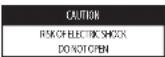

CAUTION: TO REDUCETHE RISK OF ELECTRIC SHOCK, DO NOT REMOVE COVER FOR BACK. NO USER-SERVICEABLE PARTS INSIDE. REFER TO QUALIFIED SERVICE PERSONNEL.
This symbol is intended to alert the user to the presence of uninsulated "dangerous voltage" within the product's enclosure that may be of sufficient magnitude to constitute a risk of electric shock to persons.
This symbol is intended to alert the user to the presence of important operating and maintenance (servicing) instructions in the literature accompanying the appliance.
WARNING: TO REDUCE THE RISK OF FIRE AND ELECTRIC SHOCK, DO NOT EXPOSE THIS PRODUCT TO RAIN OR MOISTURE.
- TO PREVENT THE SPREAD OF FIRE, KEEP CANDLES OR OTHER ITEMS WITH OPEN FLAMES AWAY FROM THIS PRODUCT AT ALL TIMES.
- Do not place the TV and/or remote control in the following environments:
- Keep the product away from direct sunlight.
- An area with high humidity such as a bathroom.
- Near any heat source such as stoves and other devices that produce
heat.
near kitchen counters or humidities where they can easily be exposed to steam or oil.
- Near flammable objects such as gasoline or candles, or expose the TV to direct air conditioning.
- Do not install in excessively dusty places.
Otherwise, this may result in fire, electric shock, combustion/explosion, malfunction or product deformation.
Ventilation
- Install your TV where there is proper ventilation. Do not install in a
confined space such as a bookcase - Do not install the product on a carpet or cushion.
- Do not block or cover the product with cloth or other materials while
- Protect the power cord from physical or mechanical abuse, such as being twisted, linked, pinched, closed in a door, or walked upon. Pay particular attention to plugs, wall outlets, and the point where the cord exits the device.
- Do not move the TV whilst the Power cord is plugged in.
- Do not use a damaged or loosely fitting power cord.
- Be sure to grasp the plug when unplugging the power cord. Do not pull on the power cord to unplug the TV.
- Do not connect too many devices to the same AC power outlet as this could result in fire or electric shock.
• Disconnecting the Device from the Main Power
- The power plug is the disconnecting device. In case of an emergency, the power plug must remain readily accessible.
- Do not let your children climb or cling onto the TV. Otherwise, the TV may fall over, which may cause serious injury.
- Outdoor Antenna Grounding (Can differ by country):
- If an outdoor antenna is installed, follow the precautions below. An outdoor antenna system should not be located in the vicinity of overhead power lines or other electric light or power circuits, or which can come in contact with such power lines or circuits as death or serious injury can occur.
- Never touch this apparatus or antenna during a lightning storm. You may be electrocuted.
- Make sure the power card is connected securely to the TV and wall socket if not secured damage to the Plug and socket may occur and in extreme cases a fire may break out.
- Do not insert metallic or inflammable objects into the product. If a foreign object is dropped into the product, unplug the power cord and contact the customer service.
- Do not touch the end of the power cord while it is plugged in. You may be electrocuted.
- If any of the following occur, unplug the product immediately and contact your local customer service. - The product has been damaged.
- If water or another substance enters the product (like an AC adapter, power cord, or TV). - If you smell smoke or other odors coming from the TV.
- When lightning storms or when utilized for long periods or time. Even the TV is turned off by remote control or button, AC power source is connected to the unit if not unplugged in.
- Do not use high voltage electrical equipment near the TV (e.g., a bug zapper). This may result in product malfunction.
- Do not attempt to modify this product in any way without written authorization from LG Electronics. Accidental fire or electric shock can occur. Contact your local customer service for service or repair. Unauthorized modification could void the user's authority to operate this product.
• Use only an authorized attachments / accessories approved by LG Electronics. Otherwise, this may result in fire, electric shock, malfunction, or product damage.
- Never disassemble the AC adapter or power cord. This may result in fire or electric shock.
- Handle the adapter carefully to avoid dropping or striking it. An impact could damage the adapter.
- To reduce the risk of fire or electrical shock, do not touch the TV with wet hands. If the power cord prongs are wet or covered with dust, dry the power plug completely or wipe dust off.
- Batteries
- Store the accessories (battery, etc.) in a safe location out of the reach of children.
- Do not short circuit, disassemble, or allow the batteries to overheat. Do not dispose of batteries in a fire. Batteries should not be exposed to excessive heat.
- Carbon: Risk of fire or explosion if the battery is replaced by an incorrect type.
- Moving
- When moving, make sure the product is turned off, unplugged, and all cables have been removed. It may take 2 or more people to carry larger TVs. Do not press or put stress on the front panel of the TV.
- Otherwise, this may result in product damage, fire hazard or injury. - Keep the packing anti-moisture material or vinyl packing out of the reach
of children.
- Do not allow an impact shock, any objects to fall into the product, and do not drop anything onto the screen.
- Do not press strongly upon the panel with a hand or a sharp object such as a nail, pencil, or pen, or make a scratch on it. It may cause damage to screen.
- Cleaning
- When cleaning, unplug the power cord and wipe gently with a soft dry cloth. Do not spray water or other liquids directly on the TV. Do not clean your TV with chemicals inducing glass cleaner, any type of air freshener, insecticide, lubricants, wax (car, industrial), abrasive, thinner, benzene, alcohol etc., which can damage the product and/or its panel. Otherwise, this may result in electric shock or product damage.
Installation
Lifting and moving the TV
Please note the following advice to prevent the TV from being scratched or damaged and for safe transportation regardless of its type and size.
- It is recommended to move the TV in the box or packing material that the TV originally came in.
- Before moving or lifting the TV, disconnect the power and all cables.
- When holding the TV, the screen should face away from you to avoid damage.
- Hold the side and bottom of the TV frame firmly. Make sure not to hold the transparent part, speaker, or speaker mill area.
- When transporting a large TV, there should be at least 2 people.
- When transporting the TV, do not expose the TV to jolts or excessive vibration.
- When transporting the TV keep the TV upright, never turn the TV on its side or tilt towards the left or right.
- Do not apply excessive pressure to cause flesing / bending of frame chassis as it may damage screen.
- When handling the TV, be careful not to damage the protruding buttons.

- Avoid touching the screen at all times, as this may result in damage to the screen.
- When attaching the stand to the TV set, place the screen facing down on a cushioned table or flat surface to protect the screen from scratches.
Mounting on the Table
1 Lift and tilt the TV into its upright position on a table.
- Lease a 10 cm (minimum) space from the wall for proper ventilation.
2 Connect the power cord to a wall outlet.

- Do not apply foreign substances (oil, lubricants, etc.) in the screw parts when assembling the product. (Doing so may damage the product.)
- If you install the TV on a stand, you need to take actions to prevent the product from overturning. Otherwise, the product may fall over, which may cause injury.
- Do not use any unapproved items to ensure the safety and product file span.
- Any damage or injuries caused by using unapproved items are not covered by the warranty.
- Note sure that the screws are inserted correctly and fastened securely. (If they are not fastened securely enough, the TV may tilt forward after being installed.) Do not use too much loose and over tighten the screws; otherwise screw may be damaged and not tighten correctly.
Securing TV to the Wall
Insert and tighten the eye-belts, or TV brackets and belts on the back of the TV.
- if there are bolts inserted at the eye-holts position, remove the bolts first.
Mount the wall brackets with the bolts to the wall. Match the location of the wall bracket and the air-belts on the rear of the Tilt.
Connect the eye-bolts and wall brackets tightly with a sturdy rope. Make sure to keep the rope horizontal with the flat surface.
- Use a platform or cabinet that is strong and large enough to support the TV securely.
- Brackets, bolts and ropes are not provided. You can obtain additional accessories from your local dealer.
Mounting to the Wall
Attach an optional wall mount bracket, at the rear of the TV carefully and install the wall mount bracket on a solid wall perpendicular to the floor. When you attach the TV to other building materials, please contact qualified personnel. LG recommends that wall mounting be performed by a qualified professional installer. We recommend the use of LG's wall mount bracket. LG's wall mount bracket is easy to move with cables connected. When you do not use LG's wall mount brackets, please use a wall mount bracket where the device is adequately secured to the wall with enough space to allow connectivity to external devices. It is advised to connect all the cables before installing fixed wall mounts.
A
- Remove the stand before installing the TV on a wall mount by performing the stand attachment in reverse.
- For more information of screws and wall mount bracket, refer to the Separate purchase.
- If you intend to mount the product to a wall, attach VESA standard mounting interface (optional parts) to the back of the product. When you install the set to use the wall mounting bracket (optional parts), fix it carefully so as not to drop.
- When mounting a TV on the wall, make sure not to install the TV by ranging the power and signal cables on the back of the TV.
- Do not install this product on a wall if it could be exposed to oil or oil mist. This may damage the product and cause it to fall.
- When installing the wall mounting bracket, it is recommended to cover the stand hole using taps, in order to prevent the influx of dust and insects. (Depending on mode)
Antenna/Cable
Connect the TV to a wall antenna socket with an RF cable (75Ω).
• Use a signal splitter to use more than 2 TVs.
- If the image quality is poor, install a signal amplifier properly to improve the image quality.
- If the image quality is poor with an antenna connected, try to realign the antenna in the correct direction.
• An antenna table and converter are not supplied.
- For a location that is not supported with Ultra HD broadcasting, this TV cannot receive Ultra HD broadcasts directly.
Other connections
Connect your TV to external devices. For the best picture and audio quality, connect the external device and the TV with the HUMI cable. Some separate cable is not prestied.
Starting TV
Turning on the TV
You can simply operate the TV functions, using the button.

Power On (Press)
Power Off 1 (Press and Hold)
Menu Control (Press 1 ):
Menu Selection (Press and Hold 1 )
1) All running apps will close, and any recording in progress will stop. (Depending on country)
2) You can access and adjust the menu by pressing the button when TV is on. 3) You can use the function when you access menu control.
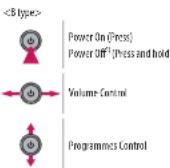
1) All running apps will close, and any recording in progress will stop. (Depending on country)
Connections
Connect various external devices to the TV and switch input modes to select an external device. For more information of external device's connection, refer to the manual provided with each device.
HDMI
- When connecting the HDMI cable, the product and external devices should be turned off and unplugged.
• Supported HDMI Audio format (Depending on model): True HD 148 kHz 1 ,
Dolby Digital / Dolby Digital Plus (32 kHz / 40.1 kHz / 45 kHz), PCM (32 kHz / 44.1 kHz / 48 kHz / 96 kHz / 192 kHz)
Note
- If the device connected to Input Port also supports HDMI Deep Colour, your picture may be clearer. However, if the device doesn't support it, it may not work properly. In that case, change the TV's [HDMI Deep Colour setting] to all.
- ③ → ① → |General| → [Devices] → [HDMI Settings] → [HDMI Deep Colour]
- Use a certified cable with the HDMI logo attached.
- If you do not use a certified HTML cable, the screen may not display or a connection error may occur.
- Recommended HDMI Cable Types
- Ultra High Speed HDMI™ cable (3 m or less)
USB
Some USB Hubs may not work. If a USB device connected using a USB Hub is not detected, connect it to the USB port on the TV directly.
Note
- For an optimal connection, HDMI cables and USB devices should have bevels less than 10 mm thick and 18 mm width. Use an extension cable that supports USB 2.0 if the USB cable or USB memory stick does not fit into your TV's USB port.
IR Blaster
Control the set-top box (cable/satellite/IP/OTT), Blu-ray/DVD player, soundbar, game consoles, etc., using the IR Blaster. (Depending on models)
Note
- Connect the IR Blaster cable to the TV's IR Blaster port.
- Use universal control settings to control the device.
IR Repeater
If the set-top box is mounted on the rear bracket, the remote control receiver may be obscured. As a result, the signal reception from the remote control may not be smooth. [Depending on models] [If this remote control operation problem continues, you can use an IR repeater extender (remote control signal extension cable) to solve the problem.]
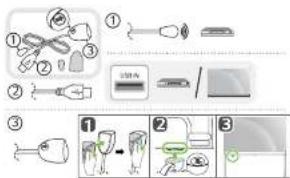
- ① Transmitter: A place where the signal reception of the set-top box is stable.
•② Power connection - USB port of the set-top box or TV. - ③ Receiver: The lower left corner of the TV or a place where the signal reception from the remote control is stable. (Attach the ① on the front.)
- Integrated remote control setting is required to use the IR repeater. Press the Ⓐ button on the remote control, then select ⏻ [General] → [Devices] → [External Devices] → [Universal Control Settings].
External Devices
Available external devices are: Blu-ray player, HD receivers, DVD players, VCRs, audio systems, USB storage devices, PC, gaming devices, and other external devices.
Note
• The external device connection may differ from the model.
- In PC mode, there may be noise associated with the resolution, vertical pattern, contrast or brightness. If noise is present, change the PC output to another resolution, change the refresh rate to another rate or adjust the brightness and contrast on the [Picture] menu until the picture is clear.
- In PC mode, some resolution settings may not work properly depending
Specifications
- The annual energy consumption indicated on the energy label is measured in accordance with IEC 62087 and the Hong Kong Energy Efficiency Labelling Scheme (EFLSI).
- The actual energy consumption depends on the usage environment (the content watched, TV settings, etc.).
| Broadcasting Specifications | ||
| Digital TV Analogue TV | ||
| Television system BTMB PALOR, PALI, WISC-M | ||
| Programme coverage BTMB 21~69 | PAL, B/C, VH/CHF 1~59, CATV 1~47PAL I VHE/CHF 1~69, CATV 1~47WISC-M; VH/CHF 2~78, CATV 1~77 | |
| External antenna impedance | 75 Ω | |
| Environment Condition | |
| Operating Temperature 0 °C to 40 °C | |
| Operating Humidity Less than 80 % | |
| Storage Temperature 20 °C to 60 °C | |
| Storage Humidity Less than 83 % | |
- For information of the power supply and power consumption, refer to the label attached to the product.
The typical power consumption is measured in accordance with IEC 62087 or each country's energy regulations.
On some modest, the label is inside the external device connection terminal box.
* Depending on the mode or country, the typical power consumption may not be an label.
Product Information
Wireless module(LGSBWAC95)Specifications
Wireless LAN (IEEE 802.11a/b/g/n/ac)
Frequency range Output Power (Max.)
2.400 to 2.483.5 MHz 19 dBm
C 102+ C 726 MHz-18 dB
5.725 to 5.850 MHz 13.5 dBm
Bluetooth
Frequency range Output Power (Max.)
2,400 to 2,483.5 MHz 9 dBm
As band channels can vary per country, the user cannot change or adjust the operating frequency. This product is configured for the regional frequency table.
For consideration of the user, this device should be installed and operated with a minimum distance of 20 cm between the device and the body.
Open Source Software Notice Information
To obtain the source code that is contained in this product, under GPL, LGPL, MPL, and other open source licenses that have the obligation to disclose source code, and to access all referred license terms, copyright notices and other relevant documents please visit https://openvance.foe.com.
LG Electronics will also provide open source code to you on CD-ROM for a charge covering the cost of performing such distribution (such as the cost of media, shipping, and handling) upon email request to opensource@ge.com. This offer is valid to anyone in receipt of this information for a period of three years after our last shipment of this product.
Licenses

HIGH-DEFINITION MULTIMEDIA INTERFACE
QUICKSET®
(Magic Remote supported models only)

Advance™
Covered by patents at patentlist.accessadvance.com
Troubleshooting
| Cannot control the TV with the remote control. | • Check the remote control sensor on the product and try again.• Check if there is any obstacle between the product and the remote control.• Check if the batteries are still working and properly installed (⊕) to ⊕ to ⊙ |
| No Image display and no sound is produced. | • Check if the product is turned on.• Check if the power cord is connected to a wall outlet.• Check if there is a problem in the wall outlet by connecting other products. |
| The TV turns off suddenly. | • Check the power control settings. The power supply may be interrupted.• Check if the auto-off function is activated on the settings related time.• If there is no signal while the TV is on, the TV will turn off automatically after 15 minutes of inactivity. |
| When connecting to the PC (HDMI), no signal is detected. | • Turn the TV off/on using the remote control.• Reconnect the HDMI cable.• Restart the PC with the TV on. |
| Abnormal Display | • If the product feels cold to the touch, there may be a small "licker" when it is turned on. This is normal, there is nothing wrong with product.• This panel is an advanced product that contains millions of pixels. You may see tiny black dots and/or brightly coloured dots [white, red, blue or green] at a size of 1 ppm on the panel. This does not indicate a malfunction and does not affect the performance and reliability of the product.This phenomenon also occurs in third-party products and is not subject to exchange or refund.• You may find different brightness and colour of the panel depending on your viewing position/left-right/top/down).This phenomenon occurs due to the characteristic of the panel. It is not related with the product performance, and it is not malfunction. |
| Generated Sound | • "cracking" noise: A cracking noise that occurs when watching or turning off the TV is generated by plastic thermal contraction due to temperature and humidity. This noise is common for products where thermal deformation is required.• Electrical circuit humming/panel buzzing: A low level noise is generated from a high-speed switching circuit, which supplies a large amount of current to operate a product. It varies depending on the product. This generated sound does not affect the performance and reliability of the product. |

• Make sure to wring any excess water or cleaner from the cloth.
• Do not spray water or cleaner directly onto the TV screen.
- Make sure to spray just enough of water or cleaner onto a dry cloth to wipe the screen.
Precautions for Protecting the OLED TV Screen
Unlike regular LED/LCDs, OLED TVs produce images that emit light for each pixel, achieving a perfect black colour and delivering clear images without blurring.
Due to the nature of the organic materials used to achieve high-resolution image quality, OLED displays generally experience image retention on the screen, which can be a persistent phenomenon. This phenomenon is observed in all OLED panels, and although recommended picture modes can minimise image retention, current technology cannot completely prevent this from occurring.
Displaying the same image for a long time or repeatedly displaying the same image can cause image retention on the screen, which is a common phenomenon in OLED panel products due to the nature of the product. This product has a built-in screen protection feature. Avoid displaying images that are likely to cause image retention, and follow the recommendations.
Images that are likely to cause image retention
- Images with black areas on the top and bottom and/or the left and right sides of the screen.
• Images whose aspect ratio is 4:3 or 21:9. - Images that are fixed for a long time, such as program number, station logo, game console icon, set-top box menu, etc.
• Other fixed screen images or repeatedly displayed images.
Running [Pixel Cleaning] to Protect the OLED TV Screen
The OLED TV is equipped with a pixel cleaning feature to check the status of the screen by itself and prevent image retention that leaves an image on a screen. This feature automatically calculates the optimal execution time based on the accumulated viewing time and is automatically executed when the TV is turned off. While this feature is running, horizontal lines may appear at the top and bottom of the screen. The pixel cleaning feature works when the product is connected to the power cord and main power.
- To run this function manually, press the button on the remote control, go to ⓘ → [General] → [OLED Care] → OLED Panel Care and press [Pixel Cleaning].
Recommendations for Minimising Image Retention
When watching the TV for a long time, press the button on the remote control, go to ⏻→[Picture]→[Select Mode] and set the mode to [Eco]
/ [MPS], go to [Advanced Settings] → [Brightness] and set [OLED Pixel
(Brightness) to a lower level. In addition, press the button on the remote control, go to ⏻→[General]→[OLED Care]→[OLED Panel Care] and set the [Adjust Logo Brightness] value to [High].
When showing images with black bars at the top/bottom/left/right side of the screen, press the ⏻ button on the remote control, press, and go to [Picture] → [Aspect Ratio] → [User Selection] → [Vertical Zoom] or [4-Way Zoom] to remove the black bars.
Turn all the menus for setting up devices such as set-top boxes so that they are not displayed on the screen for a long time.
Note
- When the screen is showing one fixed image for a long time, the screen brightness will be automatically reduced and then restored once the screen content changes. This is a normal function to minimise image retention.
Regulatory
WARNING! (STABILITY HAZARD)
A television set may fall, causing serious personal injury or death. Many injuries, particularly to children, can be avoided by taking simple precautions such as:
- ALWAYS use cabinets or stands or mounting methods recommended
by the manufacturer of the television set.
- ALWAYS use furniture that can safely support the television set.
ALWAYS ensure the television set is not overhanging the edge of the supporting furniture.
- ALWAYS educate children about the dangers of climbing on furniture to reach the television set or its controls.
- ALWAYS mute cards and cables connected to your television so they cannot be tripped over, pulled or grabbed.
- NEVER place a television set in an unstable location.
- NEVER place the television set on tall furniture (for example,
cupboards or bookcases) without anchoring both the furniture and the television set to a suitable support.
HEVER place the television set on cloth or other materials that may be located between the television set and supporting furniture.
- NEVER place items that might tempt children to climb, such as toys and remote controls, on the top of the television or furniture on which the television is placed.
If the existing television set is going to be retained and relocated, the same considerations as above should be applied.
Symbols
| ~ | Refers to alternating current (AC). |
| --- | Refers to direct current (DC). |
| ☐ | Refers to class II equipment. |
| ○ | Refers to stand by. |
| | | Refers to "Oh" [power]. |
| # | Refers to dangerous voltage. |
- LG OLED TV
- 用戶手冊
- OWNER'S MANUAL
- BEFORE READING THIS MANUAL
- SEPARATE PURCHASE
- NOTE
- WARNING! SAFETY INSTRUCTIONS
- BATTERIES
- MOVING
- CLEANING
- INSTALLATION
- LIFTING AND MOVING THE TV
- MOUNTING ON THE TABLE
- SECURING TV TO THE WALL
- MOUNTING TO THE WALL
- A
- ANTENNA/CABLE
- OTHER CONNECTIONS
- STARTING TV
- TURNING ON THE TV
- CONNECTIONS
- HDMI
- USB
- IR BLASTER
- IR REPEATER
- EXTERNAL DEVICES
- SPECIFICATIONS
- PRODUCT INFORMATION
- OPEN SOURCE SOFTWARE NOTICE INFORMATION
- LICENSES
- PRECAUTIONS FOR PROTECTING THE OLED TV SCREEN
- IMAGES THAT ARE LIKELY TO CAUSE IMAGE RETENTION
- RUNNING [PIXEL CLEANING] TO PROTECT THE OLED TV SCREEN
- RECOMMENDATIONS FOR MINIMISING IMAGE RETENTION
- REGULATORY
- WARNING! (STABILITY HAZARD)
Brand : LG
Model : 48LX1QPCA
Category : Television