XVT580CM - TV VIZIO - Free user manual and instructions
Find the device manual for free XVT580CM VIZIO in PDF.


User questions about XVT580CM VIZIO
0 question about this device. Answer the ones you know or ask your own.
Ask a new question about this device
Download the instructions for your TV in PDF format for free! Find your manual XVT580CM - VIZIO and take your electronic device back in hand. On this page are published all the documents necessary for the use of your device. XVT580CM by VIZIO.
USER MANUAL XVT580CM VIZIO
© 2011 Sensio Technologies Inc. All rights reserved.

RealD 3D Certified

SRS StudioSound HD is a trademark of SRS Labs, Inc.
StudioSound HD technology is incorporated under license from SRS Labs, Inc.

Manufactured under license from Dolby Laboratories. Dolby and the double-D symbol are trademarks of Dolby Laboratories.

HDMI, the HDMI logo and High-Definition Multimedia Interface are trademarks or registered trademarks of HDMI Licensing LLC.
Troubleshooting & Technical Support
Thank You for Choosing VIZIO
And congratulations on your new VIZIO HDTV.
To get the most out of your new VIZIO product, read these instructions before using your product and retain them for future reference. Be sure to inspect the package contents to ensure there are no missing or damaged parts.
Product Registration
To purchase or inquire about accessories and installation services for your VIZIO product, visit our website at www.VIZIO.com or call toll free at 1-888-849-4623.
We recommend that you either:
Extended Warranties
For peace of mind, and to protect your investment beyond the standard warranty, VIZIO offers on-site extended warranty service plans. These plans provide additional coverage during the standard warranty period. To purchase an extended warranty service plan, visit www.VIZIO.com.
When Reading this Manual

When you see this symbol, please read the accompanying important warning or notice. It is intended to alert you to the presence of important operating instructions.

When you see this symbol, please read the accompanying helpful tip.
My Product Information

natural_image
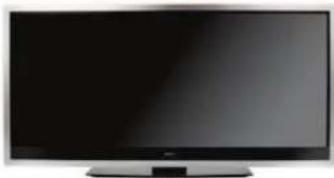
Front view of a modern flat-screen TV with a black screen and stand (no visible text or symbols)Enter your product information here for easy reference:
Model Number: ____
Serial Number: ____
Date of Purchase: ____
VIZIO recommends you attach your sales receipt to this manual for safekeeping.
Attach Sales Receipt Here

XVT3D500CM / XVT3D580CM
Important Safety Instructions
Your DTV is designed and manufactured to operate within defined design limits. Misuse may result in electric shock or fire. To prevent your TV from being damaged, the following instructions should be observed for the installation, use, and maintenance of your TV. Read the following safety instructions before operating your TV. Keep these instructions in a safe place for future reference.
the power before connecting other components to your TV.
manufacturer's instructions.
stoves, or other apparatus (including amplifiers) that produce heat.
plug. A polarized plug has two blades and a third grounding prong. The wide blade or the third prong are provided for your safety. If the provided plug does not fit into your outlet, consult an electrician for replacement of the obsolete outlet.
plugs, convenience receptacles, and the point where they exit from the apparatus.
specified by the manufacturer, or sold with the apparatus. When a cart is used, use caution when moving the cart/ apparatus combination to avoid injury from tip-over.

periods of time.
when the apparatus has been damaged in any way, such as when the power-supply cord or plug is damaged, liquid has been spilled or objects have fallen into the apparatus, the apparatus has been exposed
to rain or moisture, does not operate normally or has been dropped.
high temperature, condensation may form in the housing. Wait before turning on your TV to avoid causing fire, electric shock, or component damage.
and any heat source, such as a radiator, heater, oven, amplifier etc. Do not install your TV close to smoke. Operating your TV close to smoke or moisture may cause fire or electric shock.
for ventilation. To ensure reliable operation of your TV and to protect it from overheating, be sure these openings are not blocked or covered. Do not place your TV in a bookcase or cabinet unless proper ventilation is provided.
Do not place any objects on the top of your TV. Doing so could short circuit parts causing a fire or electric shock. Never spill liquids on your TV.
indicated on the label. If you are not sure of the type of power supplied to your home, consult your dealer or local power company.
compromise the integrity of the display. The manufacturer's warranty does not cover user abuse or improper installations.
voltage specified. For more information, contact your dealer.
a third grounding pin). This plug will fit only into a grounded power outlet. This is a safety feature. If your outlet does not accommodate the three-pronged, have an electrician install the correct outlet, or use an adapter to ground your TV safely. Do not defeat the safety purpose of the grounded plug.
TV. To totally disconnect power, unplug the power cord.
is intended to alert the user to the presence of un-isolated, dangerous voltage within the inside of your TV that may be of sufficient magnitude to constitute a risk of electric shock to persons.
result in fire or electric shock.
voltage than the specified voltage may cause fire or electric shock.
avoid handling the power cord during electrical storms.
for long period of time. This will protect your TV from damage due to power surges.
removing the back cover may expose you to high voltages, electric shock, and other hazards. If repair is required, contact your dealer and refer all servicing to qualified service personnel.
to rain or moisture. If water penetrates into your TV, unplug the power cord and contact your dealer. Continuous use in this case may result in fire or electric shock.
becomes apparent, unplug the power cord and contact your dealer immediately. Do not try to repair your TV yourself.
and the housing is damaged, the internal components may function abnormally. Unplug the power cord immediately and contact your dealer for repair. Continued use of your TV may cause fire or electric shock.
Operating your TV in environments with heavy dust or high humidity may cause fire or electric shock.
any other cables are unplugged before moving your TV.
cord. Pulling on the power cord may damage the wires inside the cord and cause fire or electric shock. When your TV will not be used for an extended period of time, unplug the power cord.
hands.
cause the batteries to leak which can damage the remote control or injure the operator. Do not expose batteries to excessive heat such as sunshine, fire or the like.
- The power cord fails or frays.
- Liquid sprays or any object drops into your TV.
- Your TV is exposed to rain or other moisture.
- Your TV is dropped or damaged in any way.
- The performance of your TV changes substantially.
no objects fill with liquids, such as vases, shall be placed on the apparatus.
the disconnect device shall remain readily operable.
personnel only. To reduce the risk of electric shock, do not perform any servicing other than that contained in the operating instructions unless you are qualified to do so.
The lightning flash with arrowhead symbol within an equilateral triangle is intended to alert the user to the presence of uninsulated DANGEROUS VOLTAGE within the product's enclosure that may be of sufficient magnitude to constitute a risk of electrical shock to persons.
XVT3D500CM / XVT3D580CM
Television Antenna Connection Protection
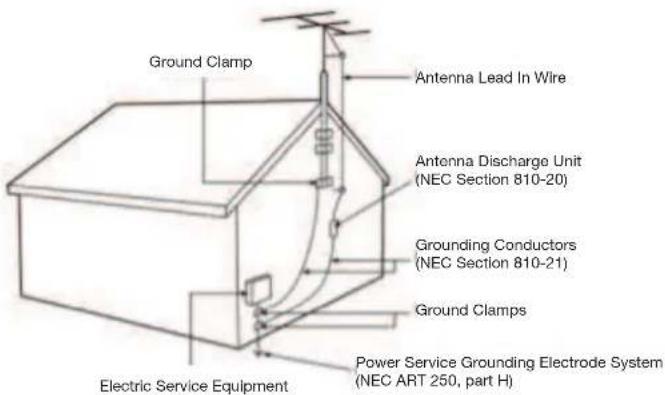
If an outside antenna/satellite dish or cable system is to be connected to the TV, make sure that the antenna or cable system is electrically grounded to provide some protection against voltage surges and static charges.
Article 810 of the National Electrical Code, ANSI/NFPSA 70, provides information with regard to proper grounding of the mast and supporting structure, grounding of the lead-in wire to an antenna discharge unit, size of the grounding conductors, location of antenna discharge unit, connection to grounding electrodes, and requirements of the grounding electrode.
Lightning Protection
For added protection of the TV during a lightning storm or when it is left unattended or unused for long periods of time, unplug the TV from the wall outlet and disconnect the antenna or cable system.
Power Lines
Do not locate the antenna near overhead light or power circuits, or where it could fall into such power lines or circuits. Remember, the screen of the coaxial cable is intended to be connected to earth in the building installation.
text_image
Ground Clamp Antenna Lead In Wire Antenna Discharge Unit (NEC Section 810-20) Grounding Conductors (NEC Section 810-21) Ground Clamps Electric Service Equipment Power Service Grounding Electrode System (NEC ART 250, part H)DTV Transition Advisory
The nationwide switch to digital television broadcasting was complete on June 12, 2009. Analog-only television sets that receive TV programming through an antenna now need a converter box to continue to receive over-the-air TV. Watch your local stations to find out when they will turn off their analog signal and switch to digital-only broadcasting. Analog-only TVs should continue to work as before to receive low power, Class A or translator television stations and with cable and satellite TV services, gaming consoles, VCRs, DVD players, and similar products.
For additional information, please contact the parties listed below, as appropriate:
FCC (US Federal Communications Commission)
Web: www.fcc.gov
Phone: 1-888-CALL-FCC (1-888-225-5322)
TTY: 1-888-TELL-FCC (1-888-835-5322)
Fax: 1-866-418-0232
E-mail: fccinfo@fcc.gov
NTIA (National Telecommunications and Information Administration)
Web: www.ntia.doc.gov
Phone: 1-888-DTV-2009 (1-888-388-2009)
List of US Television Stations: www.high-techproductions.com/usTVstations.htm

Your TV comes with a built-in tuner capable of processing digital broadcasts. No extra converter box is needed.
Important Safety Information for Viewing 3D Content

You may experience discomfort while watching 3D content. You may feel symptoms of eye strain, vision fatigue, color or depth distortion, motion sickness, nausea, dizziness, disorientation, or other discomforts. If you experience any of these symptoms, stop watching and take a break for at least thirty minutes before resuming. If the symptoms are severe or continue even after you have stopped watching 3D content, consult a doctor.

Take care to monitor children's watching of 3D content. Children (including teenagers) may be more at risk of experiencing discomfort while watching 3D content and less likely to report symptoms. Monitor children's 3D content viewing and watch for signs of discomfort.

Some viewers may be susceptible to epileptic seizures or strokes when viewing 3D images, even if those conditions have not been previously diagnosed. If you or anyone in your family has a history of seizures or strokes, or if you have any other reason to think you or someone under your supervision may be susceptible to epileptic seizures or strokes, consult a doctor before watching 3D content.

Even if you do not experience any of the above symptoms, take regular breaks from watching 3D content.
Troubleshooting & Technical Support
Installing the TV ....1
Inspecting the Package Contents .... 1
Installing the TV 1
Installing the TV Stand 1
Installing the TV on a Wall 2
Installing Your TV for 3D Viewing 3
Incorrect 3D Viewing Distance and Angle.... 3
Correct 3D Viewing Distance and Angle 3
Controls and Connections ....4
Rear Panel 4
Front Panel 5
Side Panel (Right) 5
Bluetooth Remote Control 6
Remote Control (Slide Out) 7
VIA Shortcut Buttons 8
Replacing the Batteries 8
Connecting Your Devices 9
Connecting Your Computer 11
Connecting an Audio Device 12
Setting Up Your Network Connection 13
Connecting to A Wired Network 13
Connecting to a Wireless Network 13
Completing the First-Time Setup ....14
Using the On-Screen Menu ....15
Navigating the On-Screen Menu 15
Changing the 3D Mode 15
Setting the Screen Aspect Ratio 16
Changing the Screen Aspect Ratio 16
Setting Up Closed Captioning 17
Changing the Appearance of Digital Closed Captions 17
Activating the Sleep Timer 18
Setting the Auto Power Off Feature 18
Using the Network Connection Menu 18
Connecting to a Wireless Network 18
Changing the Advanced Network Settings 19
Testing Your Network Connection 19
Testing the Network Connection 20
Changing the TV Settings 20
Changing the Input Source 20
Adjusting the Picture Settings 21
Adjusting the Picture Size and Position 22
Adjusting the Color Temperature 22
Adjusting the Advanced Picture Settings 23
Resetting the Picture Settings 23
Adjusting the Audio Settings 24
Adjusting the Advanced Audio Settings 25
Resetting the Audio Settings 25
Setting the Tuner Mode 26
Scanning for Channels 26
Adding New Channels 27
Skipping Channels 28
Changing the Audio Language 28
Changing the Names of the Inputs 29
Using the Parental Controls 29
Accessing the Parental Controls Menu 29
Enabling or Disabling Program Ratings 29
Locking and Unlocking Channels 30
Blocking and Unblocking Content by Rating 30
Changing the Parental Control Passcode 31
Resetting the Content Locks 31
Changing the On-Screen Menu Language 31
XVT3D500CM / XVT3D580CM
Setting the Time Zone 32
Adjusting the CEC Settings 32
Using Picture-In-Picture (PIP) / Picture-Outside-Picture (POP) ...... 33
Choosing Inputs for the Main and Secondary Windows 33
Configuring Bluetooth Devices 34
Using the Help Menu 34
Displaying System Information 34
Resetting the TV Settings 34
Restoring the TV to Factory Default Settings 35
Using Guided Setup 35
Using the Info Window 36
Using the USB Media Player 37
Using the USB Media Player 37
Connecting a USB Thumb Drive to the TV 37
Playing USB Media 37
Using VIZIO Internet Apps ....40
Using the VIA Shortcut Buttons 40
Using the VIA Dock 40
Moving an App on the VIA Dock 40
Adding a New App to the VIA Dock 41
Removing an App from the VIA Dock 41
Creating and Managing User Profiles 41
Creating an Owner PIN 41
Creating a New User Profile 42
Removing a User Profile 43
Restoring the VIA Dock to the Factory Default Settings 43
How to View 3D 44
How Theater 3D Works .... 44
What You Need to View 3D Content 44
Watching Blu-ray 3D Content 44

Getting the Best 3D Picture 45
Incorrect 3D Viewing Distance and Angle....45
Correct 3D Viewing Distance and Angle 45
Troubleshooting & Technical Support.... 46
Specifications 48
Limited Warranty 50
Legal & Compliance ....51
Installing the TV
Inspecting the Package Contents
Before installing your new TV, take a moment to inspect the package contents. Use the images below to ensure nothing is missing or damaged.
When you have completed your inspection, install the TV.
natural_image
Front view of a modern flat-screen television displaying a black screen (no visible text or symbols)CinemaWide Theater 3D HDTV with Stand

Remote Control with Batteries

2 Pairs Basic Theater 3D Glasses

2 Pairs Premium Theater 3D Glasses
Cleaning Cloth (Color may vary)
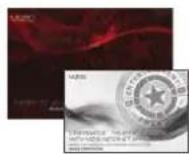
User Manual and Quick Start Guide
Package Contents
Installing the TV
After removing the TV from the box and inspecting the package contents you can begin installing the TV. Your TV can be installed in two ways:
Installing the TV Stand
Your TV includes a stand designed to support the weight of the TV and keep it from falling over. However, the TV can still fall over if:
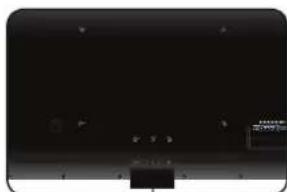
To install the TV stand:
-
Place the TV screen-down on a clean, flat surface. To prevent scratches or damage to the screen, place the TV on a soft surface, such as carpet, rug, or blanket.
-
Tighten the 6 thumbscrews into the base.
-
Move the TV with attached stand into an upright position and place on a flat, level, and stable surface.
To ensure proper ventilation, leave at least 1" of space between the back of the TV and any other objects (walls, etc).
natural_image
Black and white image of a monitor with a small black button at the bottom (no visible text or symbols)
text_image
×6
natural_image
Front view of a flat-screen television displaying (no visible text or symbols)1
XVT3D500CM / XVT3D580CM
Installing the TV on a Wall
To mount your TV on a wall, you will need a wall mount. Consult the information below to find the appropriate mount for your TV model:
| XVT3D500CM XVT3D580CM | ||
| Screw Size: | M6 M8 | |
| Screw Length: | 12 mm 12 mm | |
| Screw Pitch: | 1.0 mm 1.25 mm | |
| Hole Pattern: | 400mm (V) x 400mm (H) | 330mm (V) x 510mm (H) |

Installing a TV on a wall requires lifting. To prevent injury or damage to the TV, ask someone to help you.
Be sure the mount you choose is capable of supporting the weight of the TV. After you have determined that you have the correct mount for your TV, you can begin the installation.
To install your TV on a wall:
-
Place the TV face-down on a clean, flat, stable surface. Be sure the surface is clear of debris that can scratch or damage the TV.
-
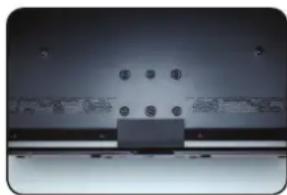
Using a screwdriver, loosen and remove the screws from the back of the TV as shown.
-
Gently pull the base away from the TV.
-
Attach your TV and wall mount to the wall, carefully following the instructions that came with your mount.
Use only with a UL-listed wall mount bracket rated for the weight/load of this TV. See Appendix A - Specifications for the weight of this TV.
natural_image
Close-up of a metallic panel with circular holes and a rectangular base (no visible text or symbols)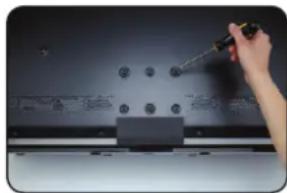
natural_image
Hand using a screwdriver to adjust or install a dark electronic device with circular components (no visible text or symbols)
natural_image
Close-up of a black electronic device with circular ports and a flat base, held by two fingers (no visible text or symbols)Installing Your TV for 3D Viewing
For the best viewing experience, VIZIO recommends that you install the TV with the viewing distance and viewing angle in mind. When viewing 3D content, it is important that you view the TV straight-on, or some of the 3D effect may be lost.
For your TV, VIZIO recommends:
| XVT3D500CM XVT3D580CM | ||
| Minimum Viewing Distance: | 7.5 feet 9 feet | |

Illustrations in this section are not drawn to scale. They are for instructional purposes only.
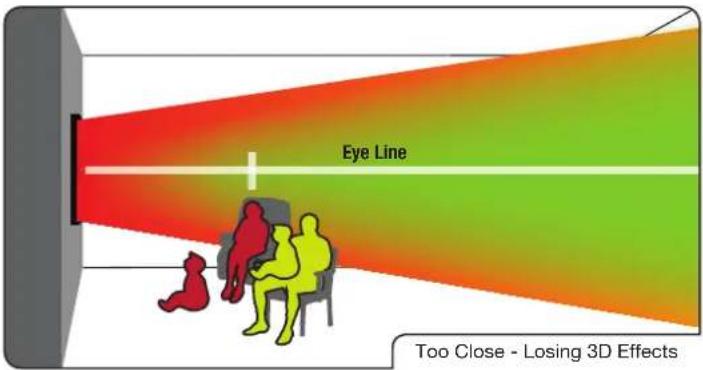
Incorrect 3D Viewing Distance and Angle
In the example below, two of the viewers are sitting too close to the TV for a good 3D effect. In addition, the child on the floor is not seeing the best possible picture because he/she is looking up at the TV.
The viewers in the example below are not seeing the best 3D picture.
text_image
Eye Line Too Close - Losing 3D EffectsCorrect 3D Viewing Distance and Angle
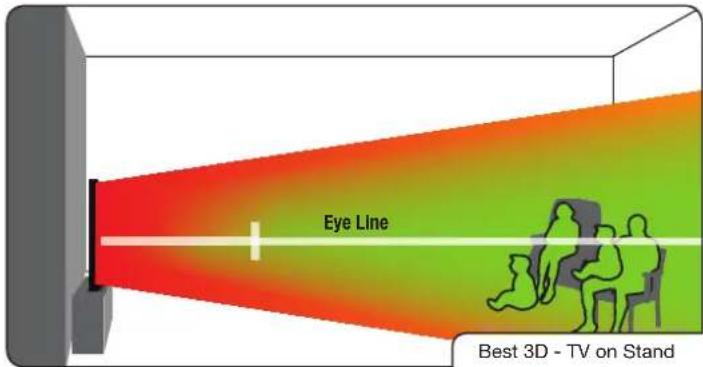
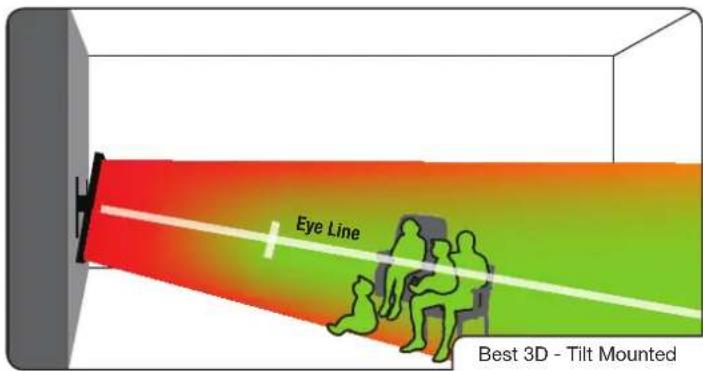
In the examples below, all of the viewers are experiencing the best possible 3D picture quality.
text_image
Eye Line Best 3D - TV on StandIn this example, the viewers are sitting at a good distance. They are viewing the TV straight-on, close to the ideal eye line. They will experience good 3D quality.
text_image
Eye Line Best 3D - Tilt MountedIn this example, the viewers have mounted the TV on a Tilt Mount. They are at the correct distance and they are viewing the TV straight-on, close to the ideal eye line. They will experience good 3D picture quality.
2
Controls and Connections
Rear Panel
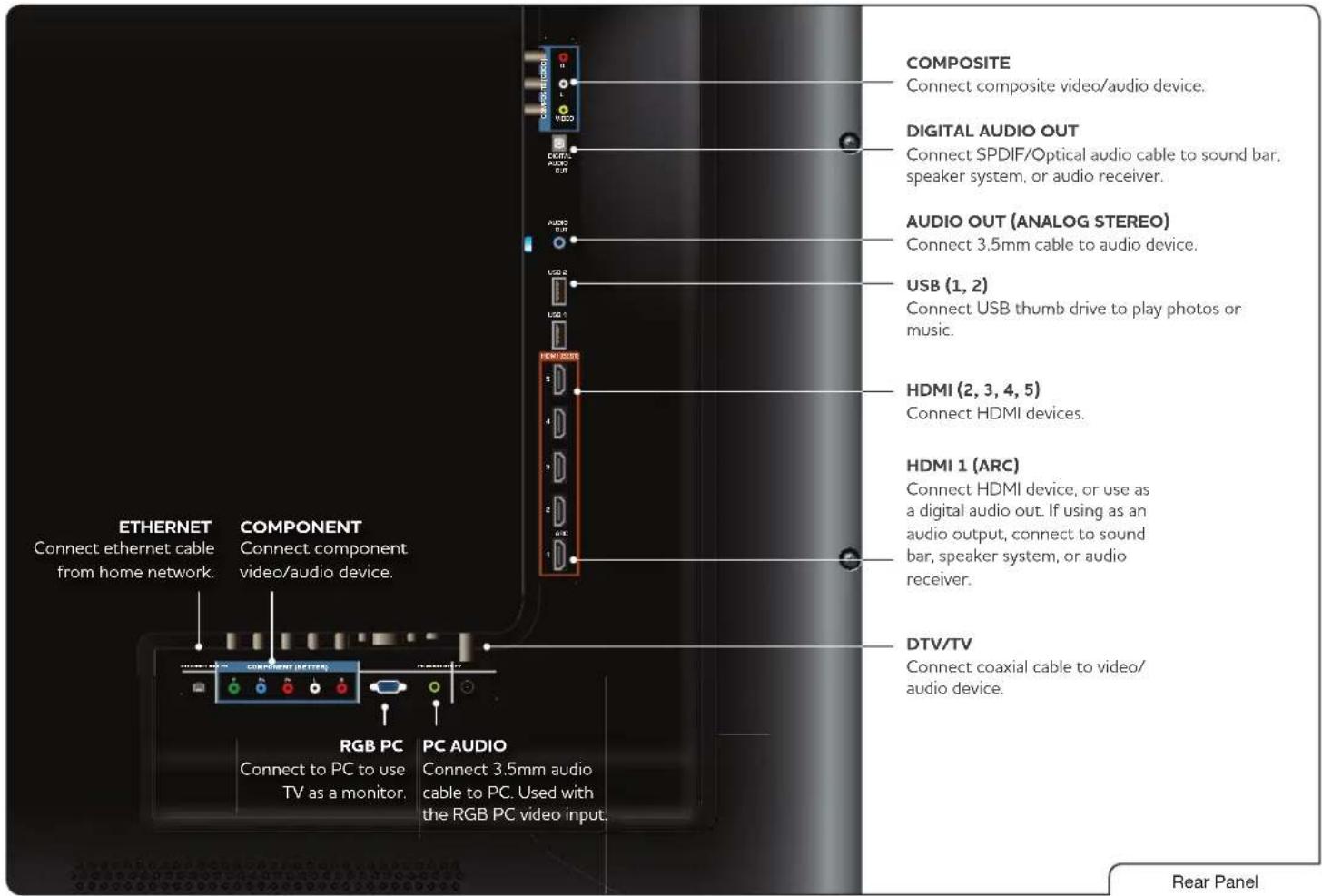
text_image
COMPOSITE Connect composite video/audio device. DIGITAL AUDIO OUT Connect SPDIF/Optical audio cable to sound bar, speaker system, or audio receiver. AUDIO OUT (ANALOG STEREO) Connect 3.5mm cable to audio device. USB (1, 2) Connect USB thumb drive to play photos or music. HDMI (2, 3, 4, 5) Connect HDMI devices. HDMI 1 (ARC) Connect HDMI device, or use as a digital audio out. If using as an audio output, connect to sound bar, speaker system, or audio receiver. DTV/TV Connect coaxial cable to video/ audio device. ETHERNET COMPONENT Connect component video/audio device. RGB PC PC AUDIO Connect to PC to use TV as a monitor. Used with the RGB PC video input. Rear PanelFront Panel
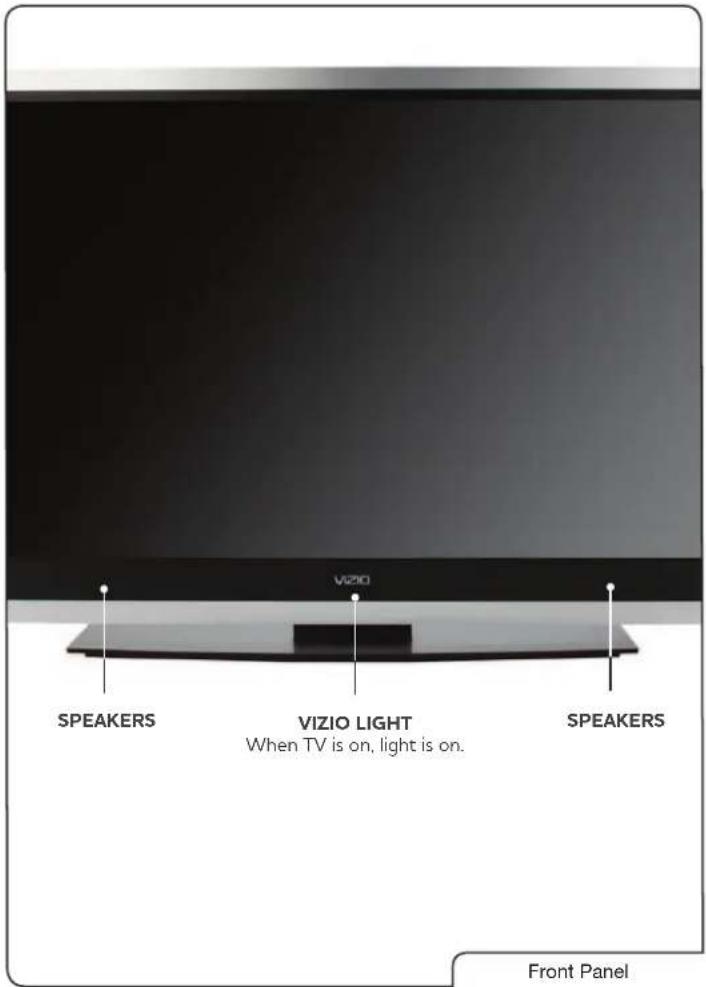
text_image
VIZIO SPEAKERS VIZIO LIGHT When TV is on, light is on. SPEAKERS Front PanelSide Panel (Right)
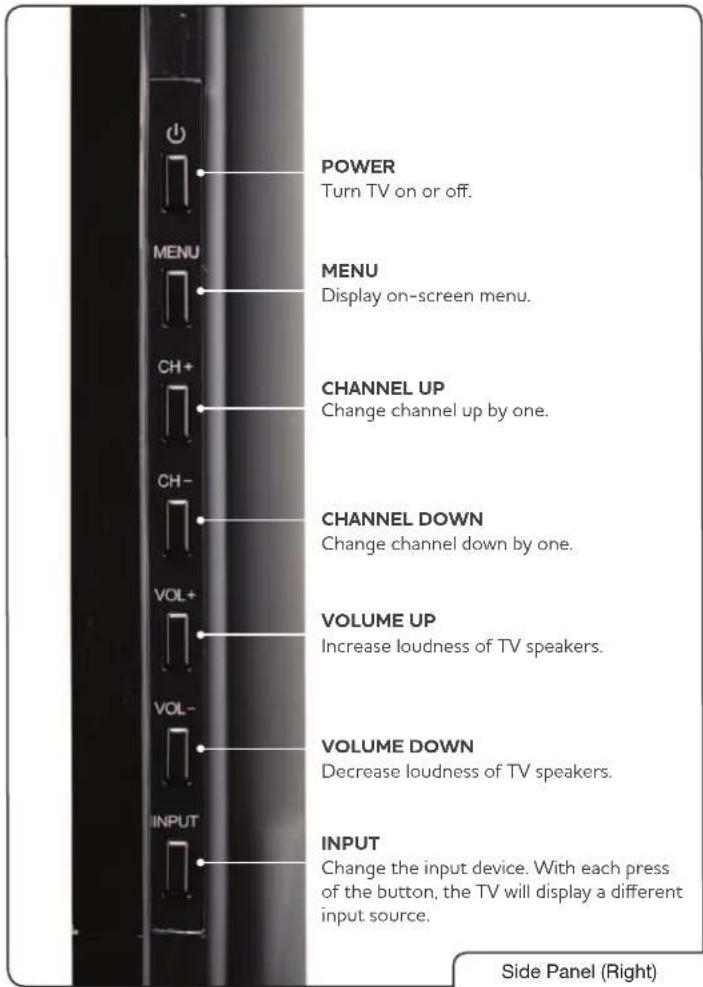
text_image
POWER Turn TV on or off. MENU Display on-screen menu. CHANNEL UP Change channel up by one. CHANNEL DOWN Change channel down by one. VOLUME UP Increase loudness of TV speakers. VOLUME DOWN Decrease loudness of TV speakers. INPUT Change the input device. With each press of the button, the TV will display a different input source. Side Panel (Right)Bluetooth Remote Control
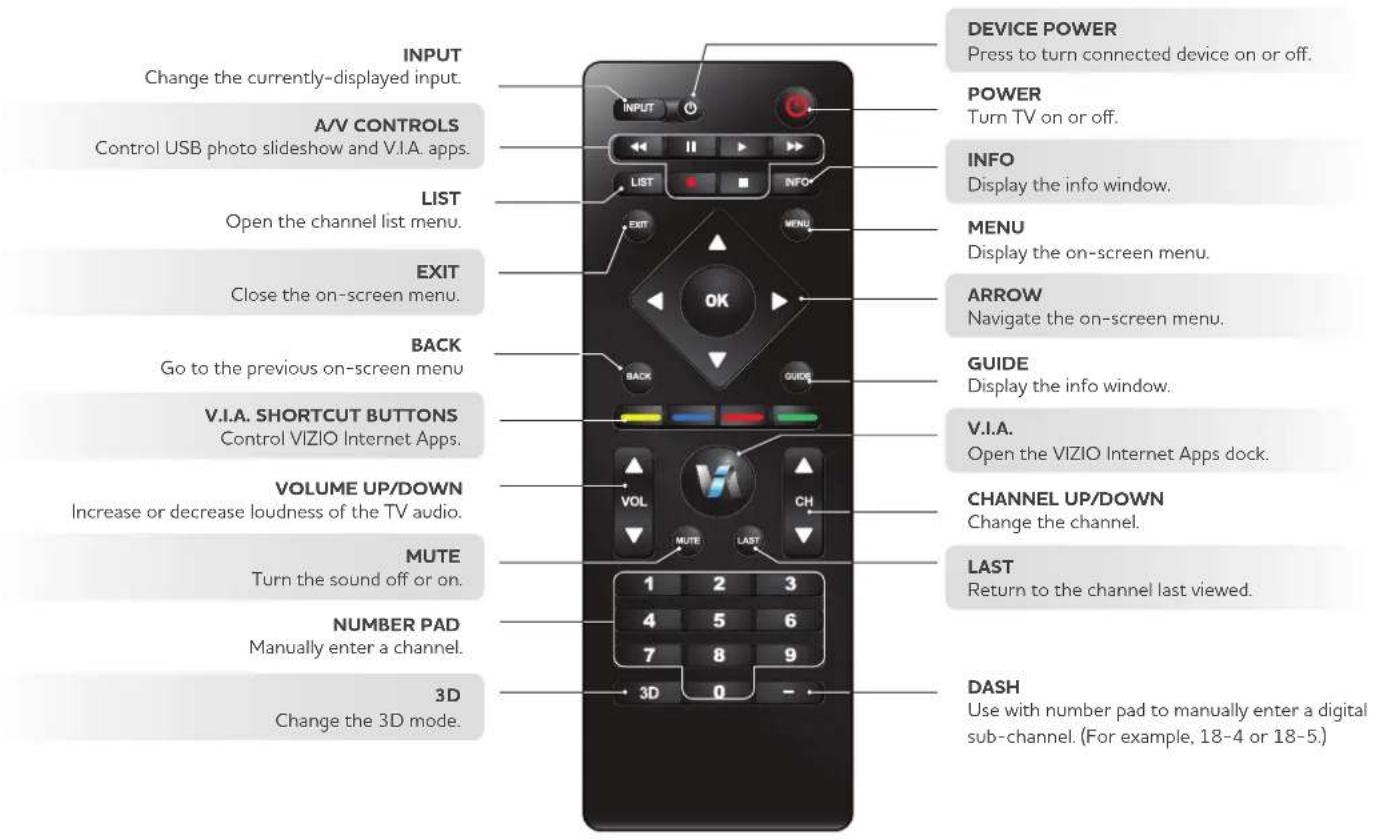
text_image
INPUT Change the currently-displayed input. A/V CONTROLS Control USB photo slideshow and V.I.A. apps. LIST Open the channel list menu. EXIT Close the on-screen menu. BACK Go to the previous on-screen menu V.I.A. SHORTCUT BUTTONS Control VIZIO Internet Apps. VOLUME UP/DOWN Increase or decrease loudness of the TV audio. MUTE Turn the sound off or on. NUMBER PAD Manually enter a channel. 3D Change the 3D mode. DEVICE POWER Press to turn connected device on or off. POWER Turn TV on or off. INFO Display the info window. MENU Display the on-screen menu. ARROW Navigate the on-screen menu. GUIDE Display the info window. V.I.A. Open the VIZIO Internet Apps dock. CHANNEL UP/DOWN Change the channel. LAST Return to the channel last viewed. DASH Use with number pad to manually enter a digital sub-channel. (For example, 18-4 or 18-5.)Bluetooth Remote
Remote Control (Slide Out)
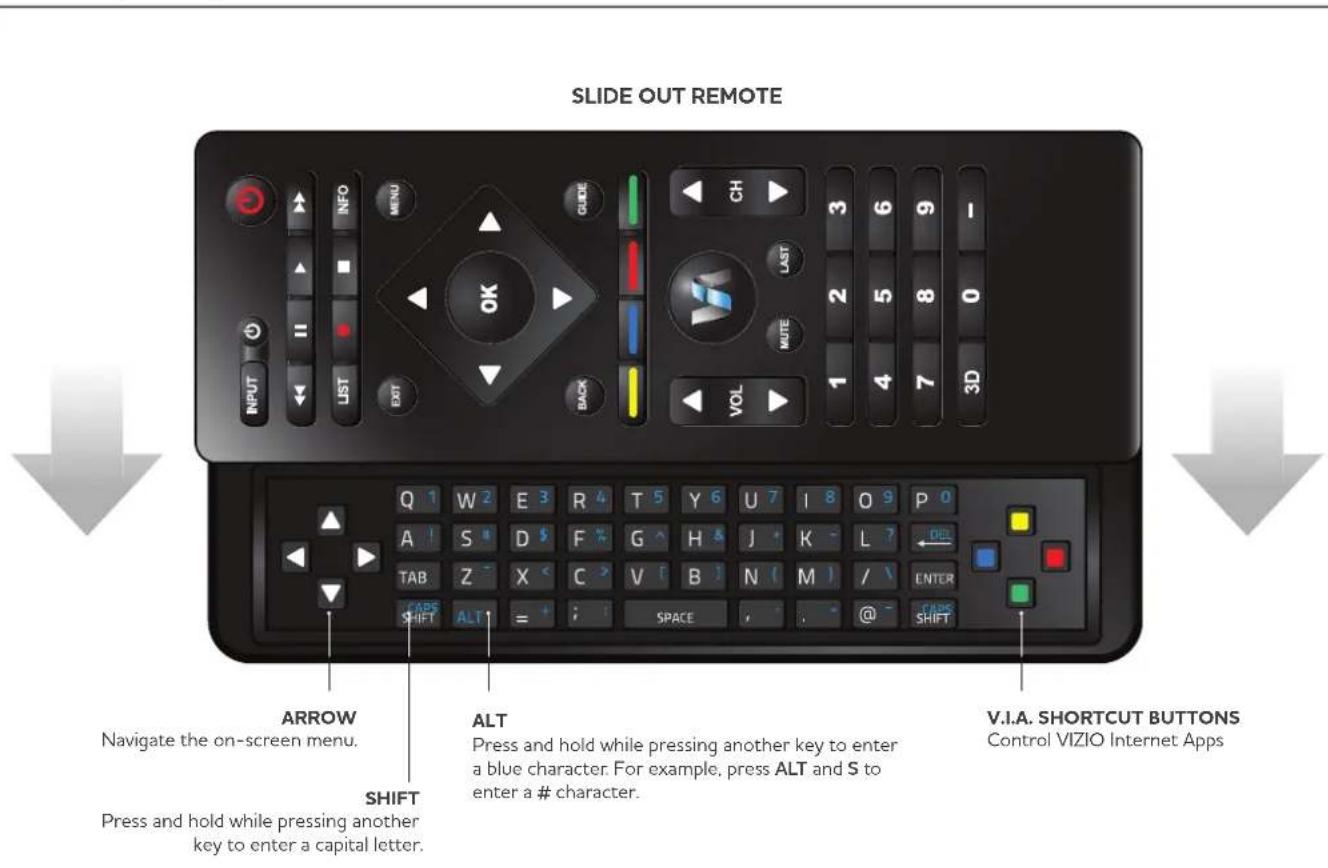
text_image
SLIDE OUT REMOTE Arrow Navigate the on-screen menu. SHIFT Press and hold while pressing another key to enter a blue character. For example, press ALT and S to enter a # character. ALT Press and hold while pressing another key to enter a capital letter. V.I.A. SHORTCUT BUTTONS Control VIZIO Internet AppsVIA Shortcut Buttons

Move/Delete App from VIA Dock

Change Screen Size (when VIA Sidebar is open)

Exit App/Exit VIA Dock

View Settings for Active App
VIA Shortcut Buttons
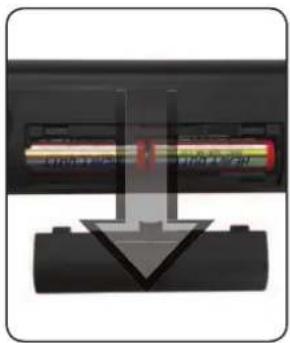
Replacing the Batteries
- Open the battery cover.
- Insert two AA batteries into the remote control. Make sure that the (+) and (-) symbols on the batteries match the (+) and (-) symbols inside the battery compartment.
- Close the battery cover.
natural_image
Close-up of a black electronic device with a red indicator light and arrow pointing to its side (no visible text or symbols)
that may cause a fire or result in injury.
waste regulations.
Connecting Your Devices
3
Connecting devices to your TV is easy. Use the instructions below to connect commonly-used devices like Blu-ray and DVD players, game consoles, and cable and satellite boxes. Any device using an HDMI, Component, or Composite cable can be connected to your TV.
To connect a device to the TV:
- Ensure both the TV and your device are off.
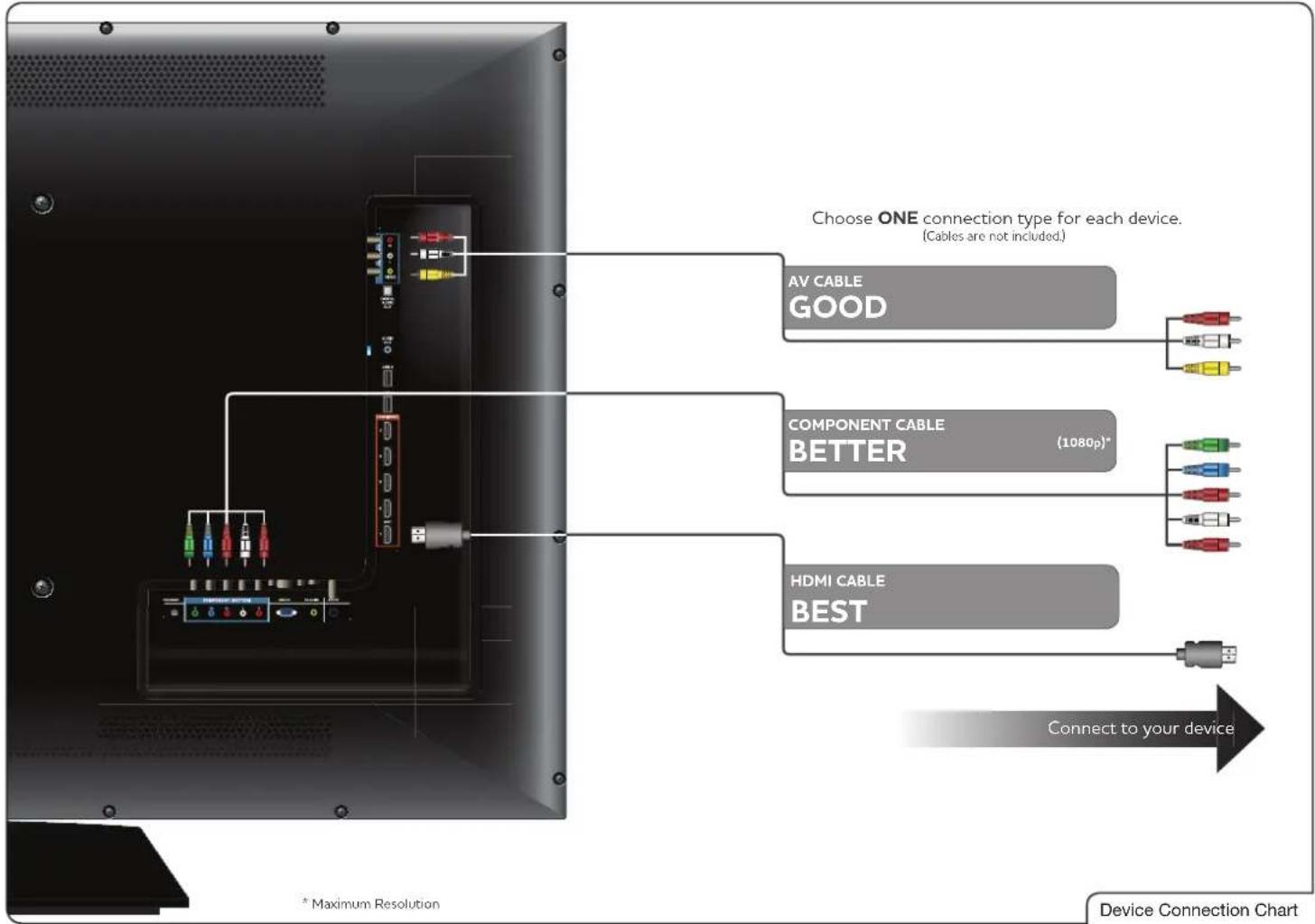
- Connect the device and the TV. Use the best available connection. See the Device Connection Chart on the next page.
Ensure each end of the cable is securely connected.
- Turn the TV on by pressing the Power/Standby button on the remote.
- Turn your device on.
- When you are ready to use your newly connected device, press the INPUT button on the remote and select the connection type (HDMI, RGB, etc) from the on-screen menu. Press OK.
Your device is displayed on the screen.
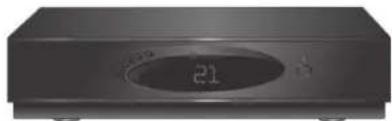
natural_image
Exterior view of a black electronic device with a digital display showing '21' (no visible text or symbols beyond the number)Cable or Satellite Boxes
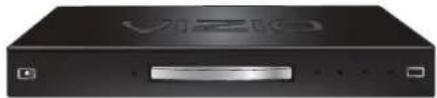
natural_image
Black electronic device labeled 'VIZIO' with control buttons and a silver drive (no readable text beyond branding)Blu-ray™ or DVD Players
natural_image
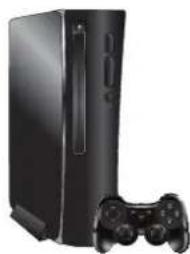
Black Sony gaming console with controller and handheld device (no visible text or symbols)Game Consoles
Commonly-Connected Devices
text_image
Choose ONE connection type for each device. (Cables are not included.) AV CABLE GOOD COMPONENT CABLE BETTER (1080p)* HDMI CABLE BEST Connect to your device * Maximum Resolution Device Connection ChartConnecting Your Computer
Your TV can display output from a computer.
To connect your computer to the TV:
- Ensure both the TV and your computer are off.
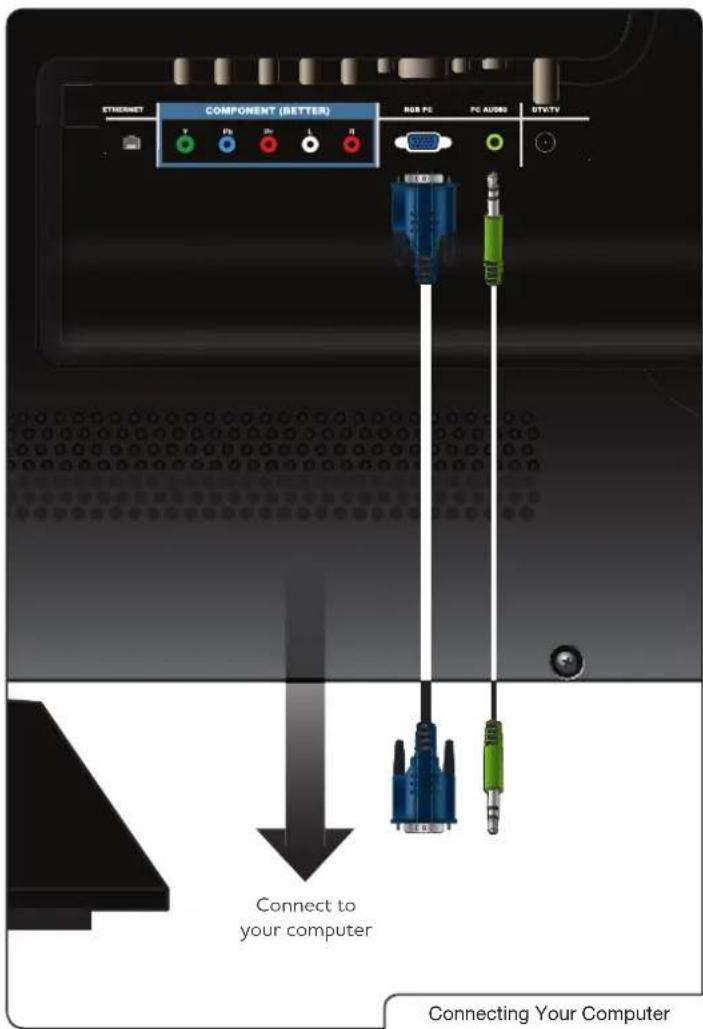
- Connect your computer and the TV using an RGB cable (not included). Ensure each end of the cable is securely connected.
- If you want the TV to output audio from your computer, connect a 3.5mm cable from the audio output on your computer to the PC Audio port on the TV. Ensure each end of the cable is securely connected.
- Turn the TV on by pressing the Power/Standby button on the remote.
- Turn your computer on.
- Press the INPUT button on the remote and select RGB from the on-screen menu. Press OK.
- Depending on your operating system, you may need to adjust your computer's settings to display properly on the TV. You should set the resolution on your computer to the TV's native resolution, 2560 x 1080. See your computer's user manual for details on how to do this.
text_image
ETHERNET COMPONENT (BETTER) USB PC PC AUDIO DTV/TV Connect to your computer Connecting Your ComputerConnecting an Audio Device
You can connect your TV to a home audio receiver, VIZIO Sound Bar, or other speaker system to get great-sounding audio.
To connect your computer an audio device:
- Ensure both the TV and your device are off.
- Connect your TV and the device using the Audio Connection Chart. Choose the best possible connection.
- Turn the TV on by pressing the Power/Standby button on the remote.

flowchart
graph LR
    A["Microphone Audio"] --> B["USB 1"]
    A --> C["USB 2"]
    A --> D["USB 3"]
    A --> E["USB 4"]
    A --> F["USB 5"]
    A --> G["USB 6"]
    A --> H["USB 7"]
    A --> I["USB 8"]
    A --> J["USB 9"]
    A --> K["USB 10"]
    A --> L["USB 11"]
    A --> M["USB 12"]
    A --> N["USB 13"]
    A --> O["USB 14"]
    A --> P["USB 15"]
    A --> Q["USB 16"]
    A --> R["USB 17"]
    A --> S["USB 18"]
    A --> T["USB 19"]
    A --> U["USB 20"]
    A --> V["USB 21"]
    A --> W["USB 22"]
    A --> X["USB 23"]
    A --> Y["USB 24"]
    A --> Z["USB 25"]
    A --> AA["USB 26"]
    A --> AB["USB 27"]
    A --> AC["USB 28"]
    A --> AD["USB 29"]
    A --> AE["USB 30"]
    A --> AF["USB 31"]
    A --> AG["USB 32"]
    A --> AH["USB 33"]
    A --> AI["USB 34"]
    A --> AJ["USB 35"]
    A --> AK["USB 36"]
    A --> AL["USB 37"]
    A --> AM["USB 38"]
    A --> AN["USB 39"]
    A --> AO["USB 40"]
    A --> AP["USB 41"]
    A --> AQ["USB 42"]
    A --> AR["USB 43"]
    A --> AS["USB 44"]
    A --> AT["USB 45"]
    A --> AU["USB 46"]
    A --> AV["USB 47"]
    A --> AW["USB 48"]
    A --> AX["USB 49"]
    A --> AY["USB 50"]
    A --> AZ["USB 51"]
    A --> BA["USB 52"]
    A --> BB["USB 53"]
    A --> BC["USB 54"]
    A --> BD["USB 55"]
    A --> BE["USB 56"]
    A --> BF["USB 57"]
    A --> BG["USB 58"]
    A --> BH["USB 59"]
    A --> BI["USB 60"]
    A --> BJ["USB 61"]
    A --> BK["USB 62"]
    A --> BL["USB 63"]
    A --> BM["USB 64"]
    A --> BN["USB 65"]
    A --> BO["USB 66"]
    A --> BP["USB 67"]
    A --> BQ["USB 68"]
    A --> BR["USB 69"]
    A --> BS["USB 70"]
    A --> BT["USB 71"]
    A --> BU["USB 72"]
    A --> BV["USB 73"]
    A --> BW["USB 74"]
    A --> BX["USB 75"]
    A --> BY["USB 76"]
    A --> BZ["USB 77"]
    A --> CA["USB 78"]
    A --> CB["USB 79"]
    A --> CC["USB 80"]
    A --> CD["USB 81"]
    A --> CE["USB 82"]
    A --> CF["USB 83"]
    A --> CG["USB 84"]
    A --> CH["USB 85"]
    A --> CI["USB 86"]
    A --> CJ["USB 87"]
    A --> CK["USB 88"]
    A --> CL["USB 89"]
    A --> CM["USB 90"]
    A --> CN["USB 91"]
    A --> CO["USB 92"]
    A --> CP["USB 93"]
    A --> CQ["USB 94"]
    A --> CR["USB 95"]
    A --> CS["USB 96"]
    A --> CT["USB 97"]
    A --> CU["USB 98"]
    A --> CV["USB 99"]
- Turn your device on. Make sure your audio device is set to play output from the connection type you choose.
Setting Up Your Network Connection
Your TV is internet-ready, and can be connected to your home network in two ways:
Once you have connected to your home network and the Internet, you can use VIA apps to deliver popular online content to your TV.
Connecting to A Wired Network
To connect to a wired network:
- Ensure you have:
- Connect your ethernet cable to the router and to the ethernet port on the back of the TV.
- Use the Guided Network Setup to configure the TV. See Using Guided Setup on page 29.
Connecting to a Wireless Network
To connect to a wireless network:
- Ensure you have:
recommended)
- Use the Guided Network Setup to configure the TV. See Using Guided Setup on page 29.
4
Completing the First-Time Setup
The first time you turn on the TV, the Setup App will guide you through each of the steps necessary to get your TV ready for use.
Before you begin the first-time setup:
to an electrical outlet. See Installing the TV on page 1.
to the ethernet port on the TV.
To complete the first-time setup:
-
Press the Power/Standby button on the remote. The TV powers on and the Setup App starts.
-
Use the Up/Down Arrow buttons on the remote to highlight Home Mode Setup and press OK.
-
Use the OK and Arrow Up/Down buttons on the remote to read and accept the Terms of Service and Privacy Policy for Yahoo! TV Widgets.
When you are finished, highlight Next and press OK.

text_image
INPUT INT INFO
text_image
VISA Connection TV Starting Service VISA Connection TV VISA Connection TV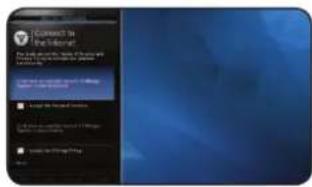
text_image
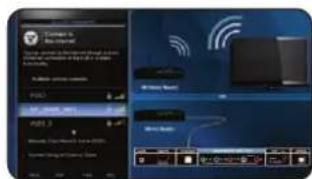
I Connect to the Calendar The quick access to the computer will be required to keep your computer on the desktop. I have already been done by us, but you can't get something hard. You can't get something difficult. You can't get something difficult. You can't get something difficult. You can't get something difficult. You can't get something difficult. You can't get something difficult. You can't get something difficult. You can't get something difficult. You can't get something difficult. You can't get something difficult. You can't get something difficult. You can't get something difficult. You can't get something difficult. You can't get something difficult. You can't get something difficult. YOU can't get something difficult. You can't get something difficult. You can't get something difficult. You can't get something difficult. You can't get something difficult. You can't get something difficult. You can't get something difficult. You can't get something difficult. You can't get something difficult. You can't get something difficult. You can't get something difficult. You can't get something difficult. You can't get something difficult. You can't get something difficult. You can’t get something difficult. You can't get something difficult. You can't get something difficult. You can't get something difficult. You can't get something difficult. You can't get something difficult. You can't get something difficult. You can't get something difficult. You can't get something difficult. You can't get something difficult. You can't get something difficult. You can't get something difficult. You can't get something difficult. You can't get something difficult. You can't get anything in this case.- Select the name of your wireless network from the list of available networks and press OK.
Enter the network key using the on-screen keyboard, then highlight Connect and press OK.
text_image
Screenshot of a macOS desktop interface showing network connections and device labels
If the TV is connected to your network via an Ethernet cable, you will not see this screen. The TV will connect to your network automatically

If you are not connecting your TV to your network, you can skip this step. Highlight Skip and press OK.
- Enter your First Name, Last Name, Phone Number, ZIP Code, and E-mail Address using the on-screen keyboard.
Highlight Next and press OK.
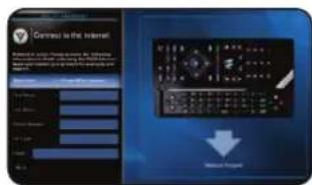
text_image
Connect to the Internet Download from the Internet Download from the Internet- Answer the on-screen questions about your TV connection using the Arrow and OK buttons on the remote.

text_image
Take Up You TV Signal Take Up You to I Video & Video & Video Video & Video & Video Video & Video & Video Video & Video & Video Video & Video & Video Video & Video & Video Video & Video & Video Video & Video & Video Video & Video & Video Video & Video & Video Video & Video & Video Video & Video & Video Video & Video & Video Video & Video & Video Video & Video & Video Video & Video & Video Video & Video & Video Video & Audio Video & Audio Video & Audio Video & Audio Video & Audio Video & Audio Video & Audio Video & Audio Video & Audio Video & Audio Video & Audio Video & Audio Video & Audio Video & Audio Video & Audio Video & Audio Video & Audio Video & Audio Video & Audio Video & Audio Video & Audio Video & Audio Video & Audio Video & Audio Video & Audio Video & Auto Video & Auto Video & Auto Video & Auto Video & Auto Video & Auto Video & Auto Video & Auto Video & Auto Video & Auto Video & Auto Video & Auto Video & Auto Video & Auto Video & Auto Video & Auto Video & Auto Video & Auto Video & Auto Video & Auto Video & Auto Video & Auto Video & Auto Video & Auto Video & Auto Video & Audio- When you have finished the channel scan, highlight Exit to Live TV and press OK.
The First-Time Setup is complete.
Using the On-Screen Menu
Your TV features an easy-to-use on-screen menu.
To open the on-screen menu, press the MENU button on the remote. You can also open the on-screen menu by pressing the VIA button and selecting HDTV Settings from the VIA Dock, then pressing OK.
From this menu, you can:

text_image
3D Wide CC Sleep Timer TV Settings PIP Network Bluetooth HelpNavigating the On-Screen Menu
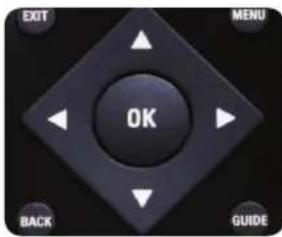
To open the on-screen menu, press the MENU button on the remote.
Use the Arrow buttons to highlight a menu option, and press the OK button to select that option.
text_image
EXIT MENU OK BACK GUIDE
While navigating the on-screen menu, you can press the BACK button at any time to return to the previous menu screen. The EXIT button will close the on-screen menu.
Changing the 3D Mode
To correctly view 3D content, you must set the 3D mode to match the 3D format of the content.
To change the 3D mode:
- Press the MENU button on the remote. The on-screen menu is displayed.
- Use the Arrow buttons on the remote to highlight the 3D icon and press OK. The Output Mode menu is displayed.
- If viewing 2D content, highlight 2D and press OK. The menu closes.
If viewing 3D content, highlight 3D and press OK. Go to step 4.
- Select the 3D mode to match the content you are watching:

^© Hi-Fi 3D.
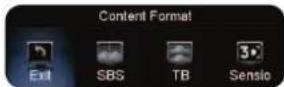
- The TV displays, "3D viewing mode enabled. Please wear 3D glasses." Put on your 3D glasses.

You can also quickly change the 3D display mode by pressing the 3D button on the remote.
Setting the Screen Aspect Ratio
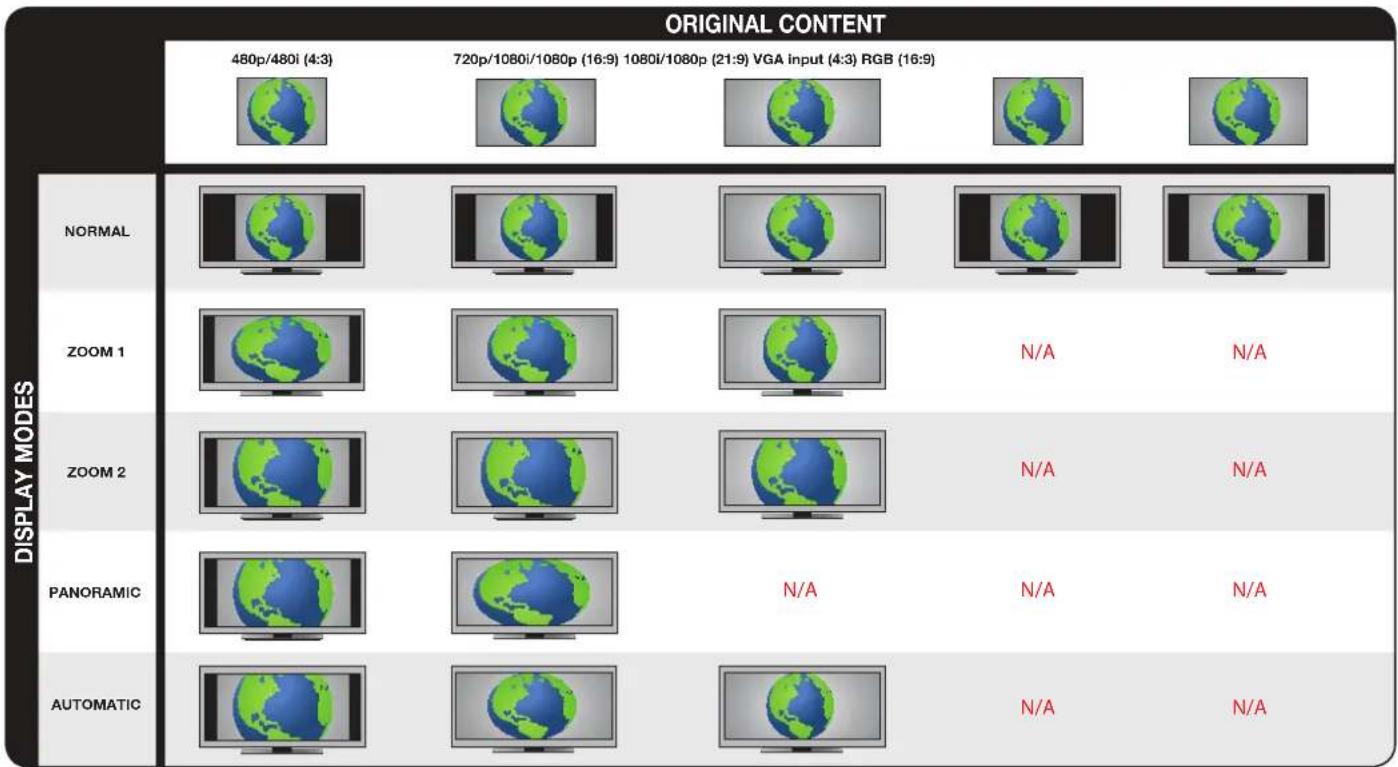
The TV can display images in five different modes: Zoom1, Zoom2, Normal, Automatic and Panoramic. Each mode displays content differently, according to the content's original format. Use the table below to determine the best aspect ratio for your content type.
Changing the Screen Aspect Ratio
The TV can display images in five different modes: Zoom1, Zoom2, Normal, Automatic and Panoramic. Each mode displays the picture differently.
To change the screen aspect ratio:
- Press the MENU button on the remote.
- Use the Arrow buttons to highlight the Wide icon. Press OK.
- Use the Arrow buttons to highlight your desired screen mode and press OK.
XVT3D500CM / XVT3D580CM
Setting Up Closed Captioning
Your TV can display closed captions for programs that include them. Closed captions display a transcription of a program's dialogue.
If the program you are viewing is not being broadcast with closed captions, the TV will not display them.
To activate or deactivate closed captions:
-
Press the MENU button on the remote. The on-screen menu is displayed.
-
Use the Arrow buttons on the remote to highlight the CC icon and press OK. The Closed Caption menu is displayed.
-
Use the Arrow buttons on the remote to highlight the type of closed captions you wish to see:
analog (NTSC) TV channels.
digital (ATSC) TV channels.
- After highlighting the type of closed captions you wish to see, use the Left/Right Arrow buttons on the remote to select the caption channel you wish to display, then press EXIT.
Caption channels usually display different languages. For example, CC1 may display English captions and CC2 may display Spanish captions.
Changing the Appearance of Digital Closed Captions
Digital closed captions can be displayed according to your preference.
To change the appearance of digital closed captions:
-
From the Closed Caption menu, use the Arrow buttons to highlight Digital CC Style.
-
Use the Left/Right Arrow buttons on the remote to select Custom, then press OK. The Digital CC Style menu appears.
-
Use the Up/Down Arrow buttons on the remote to highlight the setting you wish to change, then use the Left/Right Arrow buttons to change the setting:
keep default settings or Custom to manually change each setting.
text.
text.
- When you are satisfied with the appearance of the closed captions, press the EXIT button on the remote.
Activating the Sleep Timer
When activated, the TV's sleep timer will turn the TV off after a set period of time.
To use the sleep timer:
- Press the MENU button on the remote. The on-screen menu is displayed.
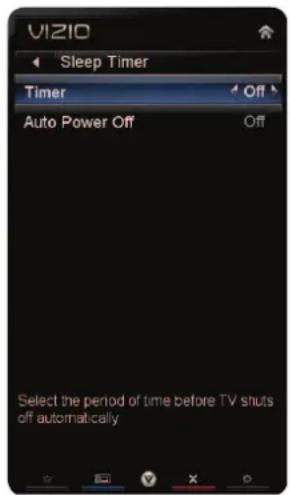
- Use the Arrow buttons on the remote to highlight the Sleep Timer icon and press OK. The Sleep Timer menu is displayed.
- Use the Up/Down Arrow buttons on the remote to highlight Timer and press OK. The Timers menu is displayed.
- Use the Up/Down Arrow buttons on the remote to highlight the period of time after which you want the TV to turn off: 30, 60, 90, 120, or 180 minutes.
- Press OK, then press EXIT.
text_image
VIZIO Sleep Timer Timer Off Auto Power Off Off Select the period of time before TV shuts off automaticallySetting the Auto Power Off Feature
To help save energy, your TV is set by default to turn off after 10 minutes if no signal is being displayed on the screen. This feature can be deactivated.
To set the Auto Power Off feature:
- From the Sleep Timer menu, use the Up/Down Arrow buttons on the remote to highlight Auto Power Off and press OK. The Auto Power-Off menu is displayed.
- Highlight Off or 10 min and press OK. Press Exit.
Using the Network Connection Menu
Your TV is internet-ready, featuring both an ethernet port and built-in high-speed 802.11n.

If you connect to your home network using an Ethernet cable, the TV automatically detects the connection. You do not need to do any setup.
Connecting to a Wireless Network
To connect to a wireless network whose network name (SSID) is being broadcast:
- Press the MENU button on the remote. The on-screen menu is displayed.
- Use the Arrow buttons on the remote to highlight the Network icon and press OK. The Network Connection menu is displayed.
- If you do not see your wireless network displayed, highlight More Access Points and press OK. The More Access Points menu, which is a list of available wireless networks, is displayed.
- Highlight the name of your wireless network (this is the network's SSID) and press OK.
- Using the QWERTY Keypad on the remote, enter your network's password, then highlight Connect and press OK. (If you would like to use the on-screen keyboard instead, highlight Show Keyboard and press OK.)
- Press the EXIT button on the remote.

text_image
VIZIO Network connection Wired Connection Disconnected Wireless Access Points Manual Setup Enter Access Point Name Test Connection Advanced network settingsTo connect to a wireless network whose network name (SSID) is not being broadcast:
- Press the MENU button on the remote. The on-screen menu is displayed.
- Use the Arrow buttons on the remote to highlight the Network icon and press OK. The Network Connection menu is displayed.
- Highlight Enter Access Point Name and press OK.
- Using the QWERTY Keypad on the remote, enter your network's name (SSID), then highlight Connect and press OK. (If you would like to use the on-screen keyboard instead, highlight Show Keyboard and press OK.)
- Using the QWERTY Keypad on the remote, enter your network's password, then highlight Connect and press OK. (If you would like to use the on-screen keyboard instead, highlight Show Keyboard and press OK.)
- Press the EXIT button on the remote.

text_image
VIZIO Enter Access Point Name Please enter your Access point name. This is useful for locating and Access Point with a hidden SSID a b c d e f g h i j k l m n o p q r s t u v w x y z 0 1 2 3 4 5 6 7 8 g @# ↑ com Space ✗ ConnectChanging the Advanced Network Settings
Advanced users can fine-tune the network settings using the Manual Setup feature.
To change advanced network settings:
- From the Network Connection menu, highlight Manual Setup and press OK. The Change Settings menu is displayed.
- Use the Arrow and OK buttons to adjust each setting:
Configuration Protocol) This setting must be turned Off to change any of the other settings.
assigned to the TV.
default gateway address.
domain name server address.

text_image
VIZIO IP Setting DHCP Off IP Address 0 0 0 0 Subnet Mask 0 0 0 0 Default Gateway 0 0 0 0 Pref DNS Server 0 0 0 0 Alt DNS Server 0 0 0 0 RJ45 MAC 0:0:0:0:0 Wireless MAC FF:FF:FF:FF:FF: Dynamic Host Configuration Protocol. Select "Off" to enter static IP- If you need the RJ45 (ethernet) MAC address or the Wireless MAC address to set up your network, these are displayed at the bottom of the Change Settings menu.
- Press the EXIT button on the remote.
Testing Your Network Connection
To test your network connection:
- From the Network Connection menu, highlight Test Connection and press OK.
- The Test Connection screen displays the connection method, network name, signal strength, and download speed of your network connection.
- Press the EXIT button on the remote.
Testing the Network Connection
You can test the TV's connection to your network and examine signal strength, download speed, and other information via the Test Connection menu.
To test the TV's network connection:
- From the Network menu, use the Arrow buttons on the remote to highlight Test Connection and press OK. The Test Connection menu is displayed.
- The test begins.
- You can retest by highlighting Retest and pressing OK.
Changing the TV Settings
Using the TV settings menu, you can:
Changing the Input Source

To quickly access the Input Source menu, press the INPUT button on the remote.
To display devices such as DVD players, Blu-Ray Players, and video game consoles on your TV, you must first change the input source in the on-screen menu.
To change the input device:
- Press the MENU button on the remote. The on-screen menu is displayed.
- Use the Arrow buttons on the remote to highlight the TV Settings icon and press OK. The TV Settings menu is displayed.
- Use the Arrow buttons on the remote to highlight the Input icon and press OK. The Input menu is displayed.
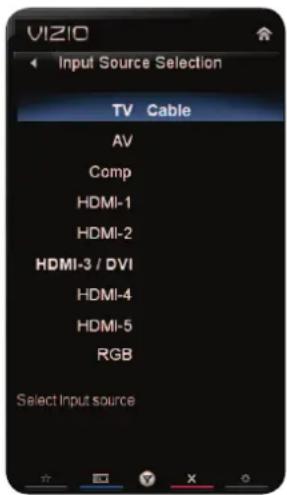
- Use the Up/Down Arrow buttons on the remote to highlight the input source you wish to display. Press OK, then press EXIT.
text_image
VIZIO Input Source Selection TV Cable AV Comp HDMI-1 HDMI-2 HDMI-3 / DVI HDMI-4 HDMI-5 RGB Select Input sourceAdjusting the Picture Settings
Your TV display can be adjusted to suit your preferences and viewing conditions.
To adjust the picture settings:
- Press the MENU button on the remote. The on-screen menu is displayed.
- Use the Arrow buttons on the remote to highlight the TV Settings icon and press OK. The TV Settings menu is displayed.
- Use the Up/Down Arrow buttons on the remote to highlight Picture and press OK. The Picture Settings menu is displayed.
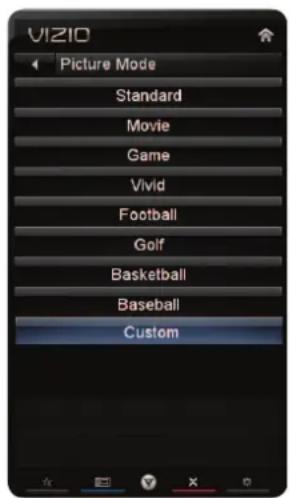
- Use the Arrow buttons on the remote to highlight Picture Mode, then use the Left/Right Arrow buttons to change the picture mode:
picture settings to values that will produce the best picture in the most cases. This is the recommended setting.
text_image
VIZIO Picture Mode Standard Movie Game Vivid Football Golf Basketball Baseball Custommovie in a dark room.
console output.
more vivid picture.
settings for their respective sports. Also try these modes for other sports.
picture settings:
Backlight - Adjusts the LED brightness to affect the overall brilliance of the picture. This option is not available unless Ambient Light Sensor is set to OFF. SeeAdjusting the Picture Size and Position on page 22.
Brightness - Adjusts the black level of the picture. When this setting is too low, the picture may be too dark to distinguish details. When this setting is too high, the picture may appear faded or washed out.
Contrast - Adjusts the white level of the picture. When this setting is too low, the picture may appear dark. When this setting is too high, the picture may appear faded or washed out. If the setting is too high or too low, detail may be difficult to distinguish in dark or bright areas of the picture.
Color - Adjusts the intensity of the picture colors.
Tint - Adjusts the hue of the picture. This setting is useful in adjusting the flesh tones in the picture. If flesh appears too orange, reduce the level of color before adjusting tint.
Sharpness - Adjusts the edge sharpness of picture elements. It can be used to sharpen non-HD (high definition) content; however, it will not produce detail that does not otherwise exist.
Adjusting the Picture Size and Position
When displaying an image from the HDMI or RGB input, the size and position of the display image can be adjusted.
To adjust the picture size and position:
- Ensure the input is set to HDMI or RGB.
- From the Picture Settings menu, use the Arrow buttons on the remote to highlight More, then press OK.
- Use the Arrow buttons on the remote to highlight Size & Position, then press OK. The Size & Position menu is displayed.
- Use the Arrow buttons to highlight the setting you wish to adjust, then press Left/Right Arrow to change the setting:
adjusts display image to optimal size and position. (RGB input only.)
horizontal (left/right) position of the display image.
display image.

text_image
VIZIO Size & Position Horizontal Position Vertical Position Horizontal Size Vertical Size Adjust the horizontal location of the displayed image- When you have finished adjusting the color temperature, press the EXIT button on the remote.
Adjusting the Color Temperature
Adjusting the color temperature will change the "warmness" or "coolness" of the white areas of the picture.
To adjust the color temperature:
- From the Picture Settings Menu, use the Arrow buttons to highlight More, then press OK.
- Use the Arrow buttons on the remote to highlight Color Temperature, then press OK. The Color Temperature menu is displayed.
- Use the Arrow buttons on the remote to highlight Color Temperature, then use the Left/Right Arrow buttons to change the color temperature preset:
viewing.
picture.
for use as a PC monitor.

text_image
VIZIO Color Temperature Color Temperature Custom> Red Gain 50 Green Gain 50 Blue Gain 50 Red Offset 50 Green Offset 50 Blue Offset 50 Reset Color Temperature Menu for White Balance Adjustmentsettings:
Red/Green/Blue Gain - Adjusts the amount of each color in the display.
Red/Green/Blue Offset - Adjusts the position of each color in the display.
- If you want to reset the color temperatures to the factory default settings, highlight Reset Color Temperature and press OK.
- When you have finished adjusting the color temperature, press the EXIT button on the remote.
Adjusting the Advanced Picture Settings
To adjust the advanced picture settings:
- From the Picture Settings menu, use the Arrow buttons on the remote to highlight More, then press OK.
- Use the Arrow buttons on the remote to highlight Advanced Picture, then press OK. The Advanced Picture menu is displayed.
- Use the Arrow buttons to highlight the setting you wish to adjust, then press Left/Right Arrow to change the setting:
Smooth Motion™, which suppresses motion judder, or "stuttering" of the image when the camera moves across a scene horizontally. Select Off, Low, Middle, or High.

text_image
VIZIO Advanced Picture Smooth Motion Effect Off Real Cinema Mode Off Noise Reduction Off Color Enhancement Normal Adaptive Luma Off Film Mode Auto Smart Dimming Off Ambient Light Sensor Off Select Alternate Color Performance Capabilitiesused for the Smooth Motion effect. Select Off, Precision or Smooth.
digitizing of image motion content. Select Off, Low, Medium, or High.
improves flesh tones. Select Off, Normal, Rich Color, Green/Flesh, and Green/Blue.
compensate for large areas of brightness. Select Off, Low, Medium, Strong, or Extend.
the screen by adjusting the backlight intelligently. Select Off or On.
levels in the room and automatically adjusts the backlight for the best picture. Select Low, Medium, High, or Off.
- When you have finished adjusting the Advanced Picture Settings, press the EXIT button on the remote.
Resetting the Picture Settings
To reset the picture settings to the factory default settings:
- From the Picture Settings menu, use the Arrow buttons to highlight More, then press OK.
- Use the Arrow buttons on the remote to highlight Reset Picture Mode, then press OK. The TV displays, "Are you sure you want to RESET Picture Settings to the factory defaults?"
- Highlight Yes and press OK.
- Press the EXIT button on the remote.

text_image
VIZIO Picture Settings Size & Position Color Temperature Advanced Picture Reset Picture Mode Menu for White Balance AdjustmentAdjusting the Audio Settings
To adjust the audio settings:
- Press the MENU button on the remote. The on-screen menu is displayed.
- Use the Arrow buttons on the remote to highlight the TV Settings icon and press OK. The TV Settings menu is displayed.
- Use the Arrow buttons on the remote to highlight Audio and press OK. The Audio Settings menu is displayed.
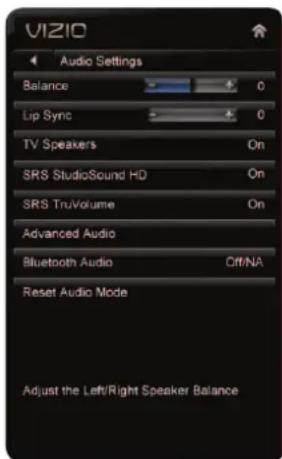
- Use the Arrow buttons to highlight the setting you wish to adjust, then press Left/Right Arrow to change the setting:
select the current equalizer preset. Choose from Flat, Rock, Classical, and Jazz. These presets can be customized in the Equalizer Settings menu. SRS StudioSound must be set to Standard to use this setting.
text_image
VIZIO Audio Settings Balance 0 Lip Sync 0 TV Speakers On SRS StudioSound HD On SRS TruVolume On Advanced Audio Bluetooth Audio Off/NA Reset Audio Mode Adjust the Left/Right Speaker Balanceright speakers.
the accompanying audio track.
turn the speakers off if you are using a home audio system.
solution which delivers immersive surround sound from the TV's internal speakers. Additionally, StudioSound HD completes the entertainment experience by maintaining a steady volume while watching programming and movies, providing deep, rich bass, crisp details, and clear dialog. Select Surround or Standard.
fluctuations due to television commercials or channel changes. Select On or Off.
Adjusting the Advanced Audio Settings on
page 25.
you can enable audio output to the device with this setting. Select On or Off.
frequencies. Change the equalizer presets by selecting Flat, Rock, Pop, Classical, or Jazz. To customize the equalizer settings yourself, set EQ Mode to Advanced, then adjust each frequency setting. (This setting is only available when SRS StudioSound HD is set to Standard.)
defaults.
- When you have finished adjusting the audio settings, press the EXIT button on the remote.
Adjusting the Advanced Audio Settings
To adjust the advanced audio settings:
- From the Audio Settings Menu, use the Arrow buttons to highlight Advanced Audio, then press OK. The Advanced Audio menu is displayed.
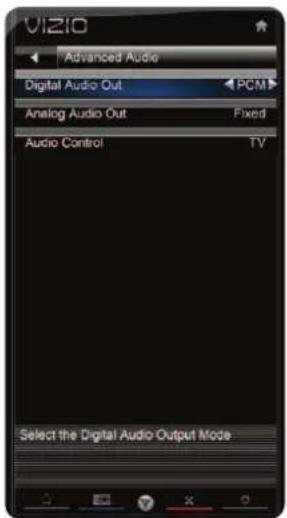
- Use the Arrow buttons to highlight the setting you wish to adjust, then press Left/Right Arrow to change the setting:
type of processing for the Optical output when connected to a home theater audio system. Select Dolby Digital, PCM, or Off.
volume control properties for the analog RCA (red/white) connectors when connected to a home theater audio system. Select Variable to control the external speakers' volume from the TV's volume controls, or select Fixed to control the external speakers' volume from your home theater system controls.
text_image
VIZIO Advanced Audio Digital Audio Out PCM Analog Audio Out Fixed Audio Control TV Select the Digital Audio Output Modewhose volume is controlled by the VIZIO remote. Select TV to force the remote to control the TV's audio, or select External to force the remote to control the external audio device.
- When you have finished adjusting the advanced audio settings, press the EXIT button on the remote.
Resetting the Audio Settings
To reset the audio settings to the factory default settings:
- Press the MENU button on the remote. The on-screen menu is displayed.
- Use the Arrow buttons on the remote to highlight Audio and press OK. The Audio Settings menu is displayed.
- Use the Arrow buttons to highlight Reset Audio Mode and press OK. The TV displays, "Are you sure you want to RESET Audio Settings to the factory defaults?"
- Highlight Yes and press OK.
- Press the EXIT button on the remote.
5
XVT3D500CM / XVT3D580CM
Setting the Tuner Mode
If you are using a device that is connected to the RF input, such as an external antenna or cable TV connection, you must set the tuner mode.
- Press the MENU button on the remote. The on-screen menu is displayed.
- Use the Arrow buttons on the remote to highlight the TV Settings icon and press OK. The TV Settings menu is displayed.
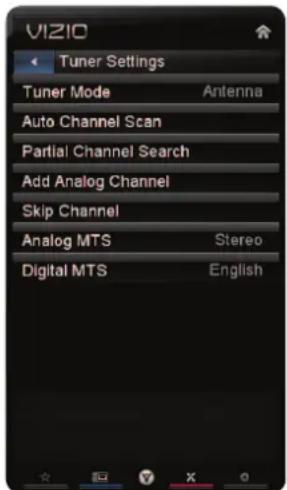
- Use the Arrow buttons on the remote to highlight Tuner and press OK. The Tuner Settings menu is displayed.
- Highlight Tuner Mode and press OK. The Tuner Mode menu is displayed.
- Highlight Antenna or Cable and press OK.
- Press the EXIT button on the remote.
text_image
VIZIO Tuner Settings Tuner Mode Antenna Auto Channel Scan Partial Channel Search Add Analog Channel Skip Channel Analog MTS Stereo Digital MTS EnglishScanning for Channels
Before the TV can detect and display channels and their associated information, you must scan for channels. A channel scan may also be necessary when the TV has been moved to an area where different free-to-air broadcast television channels are available.
- Press the MENU button on the remote. The on-screen menu is displayed.
- Use the Arrow buttons on the remote to highlight the Settings icon and press OK. The TV Settings menu is displayed.
- Highlight Auto Channel Scan and press OK. The auto channel scan begins.
- Wait until the channel scan is 100% complete. Highlight Done and press OK.
- Press the EXIT button on the remote.

text_image
VIZIO Channel Scan Channels Found Digital: 0 Analog: 19 18 % Complete Cancel Cancel the scanAdding New Channels
Occasionally, you may need to add a new analog channel or add a new range of channels. You can do this by using the Partial Channel Search and Add Analog Channel options.
To add a range of new channels:
- From the Settings menu, highlight Partial Channel Search. The Partial Channel Search menu is displayed.
- Highlight Scan Mode and select the type of channel you are adding: Analog/Digital, Analog, or Digital.
- Highlight From Channel and enter the channel from which you want to begin the scan. (Use the Number Pad on the remote to enter the channel.)
- Highlight To Channel and enter the channel to which you want to end the scan. (Use the Number Pad on the remote to enter the channel.)
- Highlight Start and press OK. The partial channel search begins.
- Wait until the partial channel search is 100% complete. Highlight Done and press OK.
- Press the EXIT button on the remote.
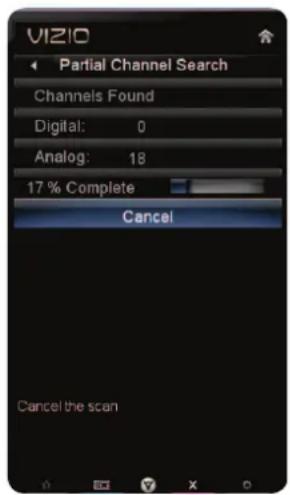
text_image
VIZIO Partial Channel Search Channels Found Digital: 0 Analog: 18 17 % Complete Cancel Cancel the scanTo add a single new analog channel:
- From the Settings menu, highlight Add Analog Channel. The Add Analog Channel menu is displayed.
- Highlight Enter Channel # and use the Number Pad on the remote to enter the number of the channel you are adding.
- Highlight Add Channel and press OK. The TV scans for the channel.
- When the TV is done scanning for the channel, press the EXIT button on the remote.

text_image
VIZIO Add Analog Channel Enter Channel # Add Channel 0% Complete Press OK to scan the channel entered5
XVT3D500CM / XVT3D580CM
Skipping Channels
After a channel scan is completed, you may find that some channels are too weak to watch comfortably. There may also be some channels you do not want to view. You can remove these channels from the TV's memory with the Skip Channel feature.

Channels that have been removed with the Skip Channel feature can still be viewed if the channel is entered using the Number Pad. If you wish to completely block a channel from being viewed, use the parental controls. See Using the Parental Controls on page 29.
To remove a channel:
- From the Settings menu, highlight Skip Channel. The Skip Channel menu is displayed.
- For each channel you wish to remove, use the Up/Down Arrow buttons on the remote to highlight the channel and press OK. An X appears to the right of each channel you select.
- When you have selected all of the channels you wish to remove, press the EXIT button on the remote.

text_image
VIZIO Skip Channel 0 Test 0 0-1 Test 1 0-1 Test 2 0 Test 3 0-2 Test 4 0-3 Test 5 Add or remove this channel from the master listChanging the Audio Language
Some digital free-to-air and cable channels broadcast programs in more than one language. The TV's MTS (Multichannel Television Sound) feature allows you to listen to audio in your preferred language.

Not all programs are broadcast in multiple languages. The MTS feature only works when the program being viewed is being broadcast in the language you select.
To use the Analog MTS feature:
- From the Settings menu, highlight Tuner and press OK. The Tuner menu is displayed.
- Highlight Analog MTS and press OK.
- Select Mono, Stereo, or SAP (secondary audio programming). Press OK.
- Press the EXIT button on the remote.
To use the Digital MTS feature:
- From the Settings menu, highlight Tuner and press OK. The Tuner menu is displayed.
- Highlight Digital MTS and press OK.
- Select your preferred language: English, French, or Spanish. Press OK.
- Press the EXIT button on the remote.
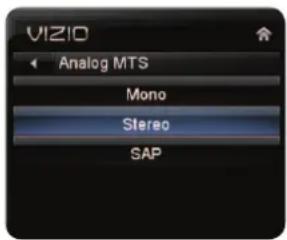
text_image
VIZIO Analog MTS Mono Stereo SAP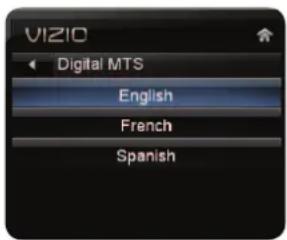
text_image
VIZIO Digital MTS English French SpanishChanging the Names of the Inputs
To make it easier to recognize the different devices attached to the inputs on your TV, you can rename the inputs. For example, if you have a DVD player connected to the Component input, you can rename that input to display "DVD Player".
To change the name of an input:
- Press the MENU button on the remote. The on-screen menu is displayed.
- Use the Arrow buttons on the remote to highlight the Settings icon and press OK. The TV Settings menu is displayed.
- Use the Arrow buttons on the remote to highlight Name Input and press OK. The Name Input menu is displayed.
- Highlight Input Source and press OK. Highlight the input you want to rename and press OK.
- If you would like to use a preset input label, highlight Input Labels and press OK. Highlight the input label you want to use and press OK.
If you would like to name the input yourself, highlight the field below Input Labels and enter your custom label using the on-screen keyboard and press OK. (If you would like to use the on-screen keyboard instead, highlight Show Keyboard and press OK.)
- When you have finished naming your input, press the EXIT button on the remote.
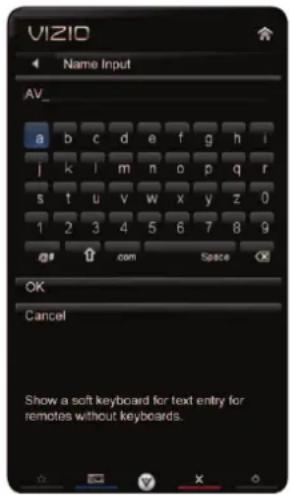
text_image
VIZIO Name Input AV_ a b c d e f g h i j k l m n o p q r s t u v w x y z 0 1 2 3 4 5 6 7 8 9 @ com Space OK Cancel Show a soft keyboard for text entry for remotes without keyboards.Using the Parental Controls
The TV's parental controls allow you to prevent the TV from displaying certain channels or programs without a password.
Accessing the Parental Controls Menu
To access the Parental Controls menu:
- Press the MENU button on the remote. The on-screen menu is displayed.
- Use the Arrow buttons on the remote to highlight the Settings icon and press OK. The TV Settings menu is displayed.
- Use the Arrow buttons on the remote to highlight Parental Controls and press OK.
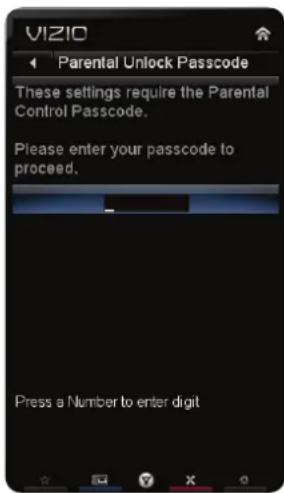
- Enter your parental passcode. If you have not set a passcode, enter the default, 0000. The Parental Controls menu is displayed.
text_image
VIZIO Parental Unlock Passcode These settings require the Parental Control Passcode. Please enter your passcode to proceed. Press a Number to enter digit
To set a custom parental passcode, see Changing the Parental Control Passcode on page 31.
Enabling or Disabling Program Ratings
To manage program content according to its rating, you must enable the Program Rating feature.
To enable or disable the Program Rating feature:
- From the Parental Controls menu, highlight Rating Enable and press OK. The Rating Enable menu is displayed.
- Select On or Off and press OK.

text_image
VIZIO Rating Enable Off OnLocking and Unlocking Channels
When a channel is locked, it will be inaccessible. Locking a channel is a good way to prevent children from viewing inappropriate material.
To lock or unlock a channel:
- From the Parental Controls menu, highlight Channel Locks and press OK. The Channel Locks menu is displayed.
- Highlight the channel you want to lock or unlock and press OK.
- When a channel is locked, the Lock icon appears locked. The channel is not accessible unless the parental passcode is entered.
- When a channel is unlocked, the Lock icon appears unlocked. The channel is accessible.

text_image
VIZIO Parental Controls USA - TV All FV D L S V TV-Y TV-Y7 TV-G TV-PG TV-14 TV-MA Press OK to block all Youth-Rated programsBlocking and Unblocking Content by Rating
A channel may sometimes broadcast programs that are meant for children, and at other times broadcast programs that are meant for mature audiences. You may not want to block the channel completely using a channel lock, but you may wish to block certain programs from being viewed.
When this is the case, you can use the TV's Rating Block feature to block content based on its rating.

For a list of content ratings and their definitions, visit www.tvguidelines.org.
To block or unblock content by its rating:
- From the Parental Controls menu, highlight the content type you want to adjust and press OK:
USA - TV - USA television program broadcasts.
USA - Movie - USA movie broadcasts.
CAN - English - Canadian English television program broadcasts.
CAN - French - Canadian French television program broadcasts.
- For each rating type you want to block or unblock, use the Up/Down and Left/Right Arrow buttons on the remote to highlight the rating type and press OK.
- When the rating type is blocked, the Lock icon appears locked. Content with this rating cannot be viewed.
- When the rating type is unblocked, the Lock icon appears unlocked. Content with this rating can be viewed.
- If you want to block all unrated content, highlight Block Unrated Shows and use the Arrow buttons on the remote to select On.
- When you are finished adjusting the rating level blocks, press the EXIT button on the remote.
Changing the Parental Control Passcode
If you use the parental controls, you should change the passcode to prevent children from accessing inappropriate material.
- From the Parental Controls menu, highlight Change PIN and press OK. The Change PIN menu is displayed.
- In the New Pin field, use the Number Pad on the remote to enter your new 4-digit parental control passcode.
- In the Confirm Pin field, use the Number Pad on the remote to re-enter your new 4-digit parental control passcode.
- Write down your new parental control passcode and save it in a secure location.
- Press the EXIT button on the remote.

text_image
VIZIO Change PIN New PIN Confirm PIN New PINResetting the Content Locks
To reset the content locks to the factory-default settings:
- From the Parental Controls menu, highlight RESET LOCKS and press OK. The TV displays, "Are you sure you want to RESET ALL LOCKS SETTINGS to the factory defaults?"
- Highlight Yes and press OK.
Changing the On-Screen Menu Language
Your TV can display the on-screen menu in different languages.
To change the on-screen menu language:
- Press the MENU button on the remote. The on-screen menu is displayed.
- Use the Arrow buttons on the remote to highlight the Settings icon and press OK. The Settings menu is displayed.
- Use the Arrow buttons on the remote to highlight Menu Language and press OK. The Menu Language menu is displayed.
- Highlight your preferred language (English, French, or Spanish) and press OK.
- Press the EXIT button on the remote.

text_image
VIZIO Menu Language English French Spanish Set the Menu LanguageSetting the Time Zone
To ensure the correct time is displayed when you press the INFO button, set the TV's time zone:

To have the TV display the correct time, you must be connected to the internet via an Ethernet cable or a wireless network.
- Press the MENU button on the remote. The on-screen menu is displayed.
- Use the Arrow buttons on the remote to highlight the Settings icon and press OK. The Settings menu is displayed.
- Use the Arrow buttons on the remote to highlight Time & Local Settings and press OK. The Time & Local Settings menu is displayed.
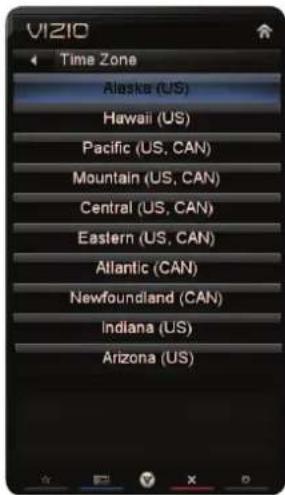
- Highlight Time Zone and press OK. The Time Zone menu is displayed.
- Highlight your time zone and press OK.
- Highlight Daylight Savings and press OK. The Daylight Savings menu is displayed. Choose On if daylight savings is in effect, or Off if it is not.
- Highlight Postal Code. Enter your ZIP code using the keypad on the remote, then press OK. The ZIP code information is often used by VIA Apps to give you the most accurate location-based information, such as weather or news.
- Press the EXIT button on the remote.
text_image
VIZIO Time Zone Alaska (US) Hawaii (US) Pacific (US, CAN) Mountain (US, CAN) Central (US, CAN) Eastern (US, CAN) Atlantic (CAN) Newfoundland (CAN) Indiana (US) Arizona (US)Adjusting the CEC Settings
The CEC function on your TV enables you to control HDMI-connected devices with the included remote without any additional programming.

Not all HDMI devices support CEC. See your device's user manual for details.
To enable, disable, or adjust CEC settings:
- Press the MENU button on the remote. The on-screen menu is displayed.
- Use the Arrow buttons on the remote to highlight the Settings icon and press OK. The Settings menu is displayed.
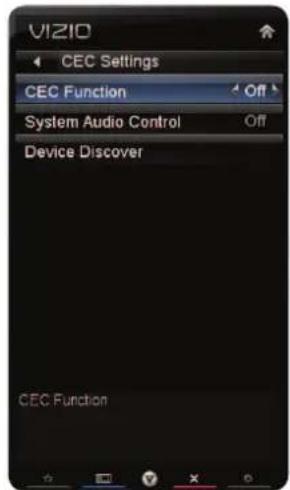
- Use the Arrow buttons on the remote to highlight CEC Settings and press OK. The CEC Settings menu is displayed.
- Use the Arrow and OK buttons to adjust each setting:
must select Enable.
system audio control is on, you can control your device's audio using the TV's remote control.
function to determine if your device is connected and supports CEC.
- Press the EXIT button on the remote.
text_image
VIZIO CEC Settings CEC Function System Audio Control Off Device Discover CEC Function
Using Picture-In-Picture (PIP) / Picture-Outside-Picture (POP)
Your TV features PIP and POP modes. These features allow you to watch two input sources at the same time. When using PIP, the main input is displayed on the full screen, and the secondary is displayed in a smaller window. When using POP, the two inputs are displayed side by side.

PIP is only available when the Rating Enable option in the Parental Controls menu is set to Off. See Enabling or Disabling Program Ratings on page 29.
To enable or disable PIP/POP:
- Press the MENU button on the remote. The on-screen menu is displayed.
- Use the Arrow buttons on the remote to highlight the PIP icon and press OK. The PIP Controls menu is displayed.
- Highlight PIP Mode and press OK. The PIP Controls menu is displayed.
- Highlight Off, PIP, or POP. Press OK.
- If PIP is the PIP Mode selected, use the Arrow buttons to adjust each of the PIP settings:
POP.
for the PIP or POP window.

text_image
VIZIO PIP Controls PIP Mode Off Source HDMI-1 Position Top Right Size Medium Audio Main Select the modes within the PIP featurewindow on the screen. Select Top Right, Bottom Right, Top Left, or Top Right. If PIP Mode is set to Off, this option is unavailable.
PIP Mode is set to Off, this option is unavailable.
If PIP Mode is set to Off, this option is unavailable.
- Press the EXIT button on the remote.
Choosing Inputs for the Main and Secondary Windows
Not all inputs can be displayed using PIP/POP. Use the table below to determine which inputs can be displayed using PIP/POP. (A green box with a √ between two inputs denotes compatibility.)
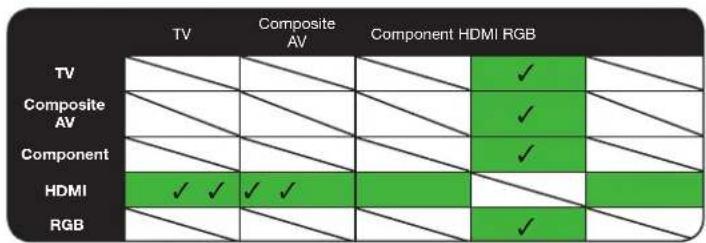
other
| Category | TV | Composite AV | Component HDMI RGB | |---|---|---|---| | TV | | | ✓ | | Composite AV | | | ✓ | | Component | | | ✓ | | HDMI | ✓ ✓ ✓ ✓ | | | | RGB | | | ✓ |Configuring Bluetooth Devices
Bluetooth devices such as headphones are easily connected (paired) to your TV.
To pair a Bluetooth device with your TV:
- Press the MENU button on the remote. The on-screen menu is displayed.
-
Use the Arrow buttons on the remote to highlight the Bluetooth icon and press OK. The Bluetooth menu is displayed.
-
Highlight Pair Device and press OK.
-
If you are pairing the included Bluetooth remote, hold down both the Green VIA Shortcut button and the Record button for 5 seconds.
If you are pairing a different Bluetooth device, place the device in "discoverable" mode per the device instructions.
-
Highlight Start searching for devices and press OK. If the pairing is successful, the device will appear in the list of connected devices.
-
Press the EXIT button on the remote.
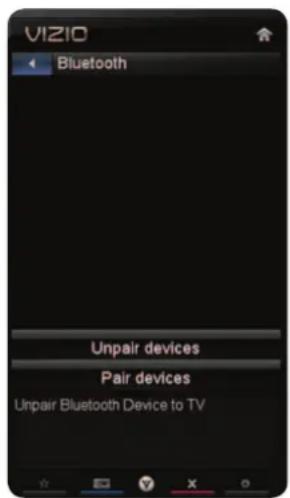
text_image
VIZIO Bluetooth Unpair devices Pair devices Unpair Bluetooth Device to TVUsing the Help Menu
You can use the TV's Help menu to:
default settings
and network
Displaying System Information
To display a summary of the TV settings:
- Press the MENU button on the remote. The on-screen menu is displayed.
- Use the Arrow buttons on the remote to highlight the Help icon and press OK. The Help menu is displayed.
- Highlight System Info and press OK.
-
Use the Up/Down Arrow buttons to scroll through the system information.
-
When you are finished reviewing the system information, press the EXIT button on the remote.

text_image
VIZIO Help System Info Reset TV Settings Clear Memory(Factory Default) Guided Setup Display System informationResetting the TV Settings
To reset the TV's picture and audio settings:
- Press the MENU button on the remote. The on-screen menu is displayed.
- Use the Arrow buttons on the remote to highlight the Help icon and press OK. The Help menu is displayed.
- Highlight Reset TV Settings and press OK. The TV displays, "Are you sure you would like to Restore Defaults? This will erase any custom settings."
- Highlight Yes and press OK.
- Press the EXIT button on the remote.
Restoring the TV to Factory Default Settings
All of the on-screen menu settings can be reset to the factory defaults.

If you restore the TV to the factory default settings, all changes you have made to the settings will be lost!
To restore the TV to its factory default settings:
- Press the MENU button on the remote. The on-screen menu is displayed.
- Use the Arrow buttons on the remote to highlight the Help icon and press OK. The Help menu is displayed.
- Highlight Clear Memory (Factory Default) and press OK.
- Enter your parental control passcode. If you have not yet set up a parental passcode, enter the default, 0000.
The TV displays, "Are you sure you would like to Restore Defaults? This will erase any custom settings."
-
Highlight Yes and press OK. The TV displays "Memory is being cleared. The TV will reset shortly."
-
Wait for the TV to turn off. The TV will turn back on shortly afterward and the Setup App will begin.
Using Guided Setup
The TV's Setup App can be used to easily set up the TV tuner or to connect the TV with your network. Selecting an option from this menu will restart the Setup App.
To access guided setup:
- Press the MENU button on the remote. The on-screen menu is displayed.
-
Use the Arrow buttons on the remote to highlight the Help icon and press OK. The Help menu is displayed.
-
Highlight Guided Setup and press OK.
-
Highlight one of the options and press OK:
remote with your TV.
to control your external devices.
to your wired or wireless network.
- Follow the on-screen instructions. When finished, press the EXIT button on the remote.
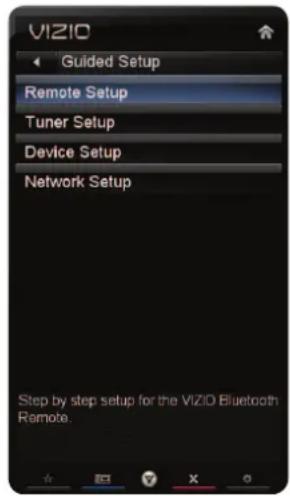
text_image
VIZIO Guided Setup Remote Setup Tuner Setup Device Setup Network Setup Step by step setup for the VIZIO Bluetooth Remote.5
XVT3D500CM / XVT3D580CM
Using the Info Window
The Info Window can be displayed by pressing the INFO or GUIDE button on the remote:
information.
and closed captioning information.
description.

text_image
Program Title/CC Information Time Warp: Mouse Trap 11:00 AM - 12:00 AM TV-PG (V) CC-OFF Ch 50-123 KCAL DTV CABLE ENGLISH DOLBY 5.1 720p HD in this four-long special, the Time Warp team runs off to join the circus with trap-testing Rev. Tommy Gunn and with high-flying Cirque du Soleil, explore their inner stuntmen, and put everything but wood in a chipper. Program DescriptionInfo Window
Using the USB Media Player
6
Using the USB Media Player
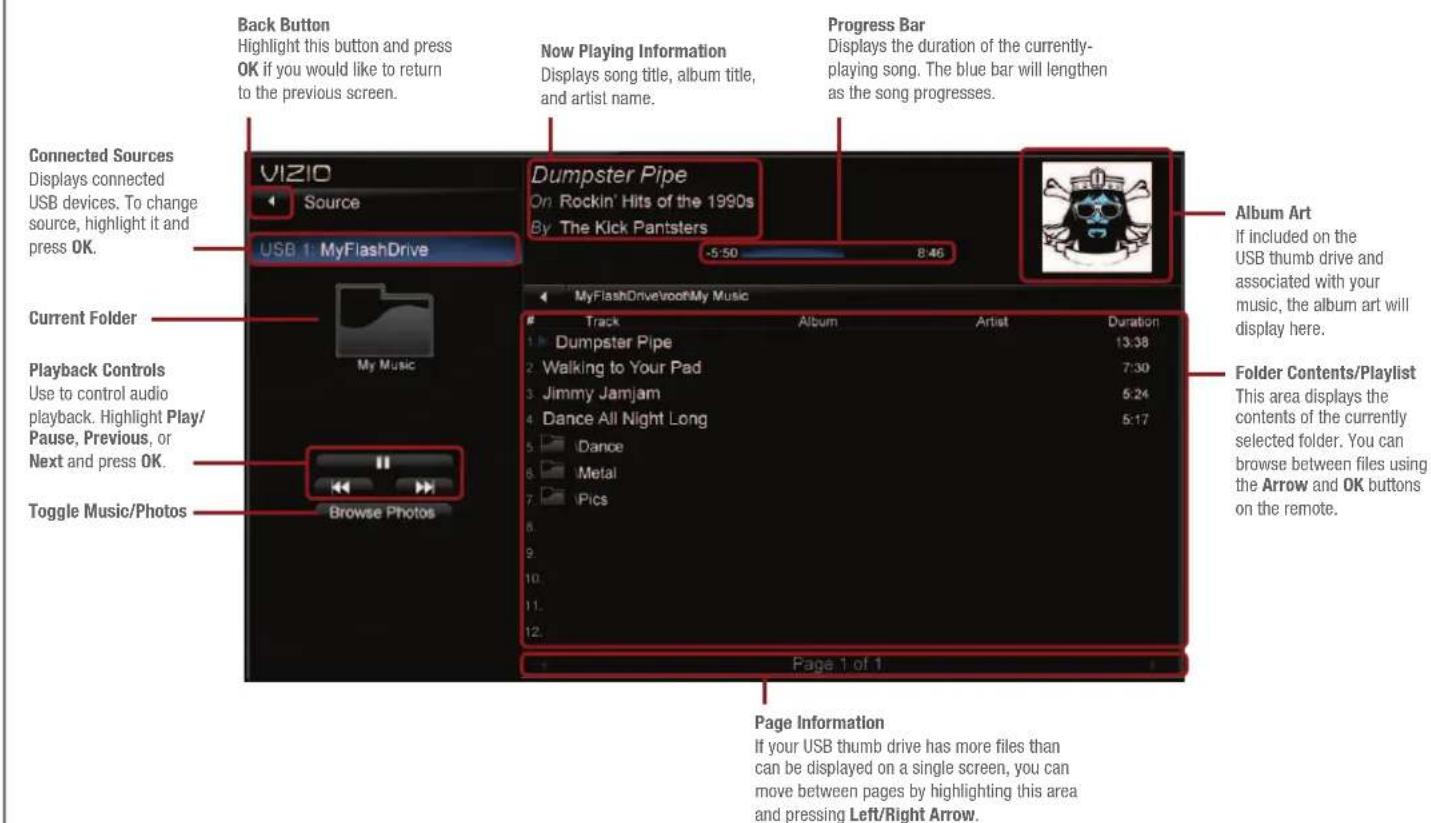
The USB Media Player allows you to connect a USB thumb drive to your TV and play music or photos.
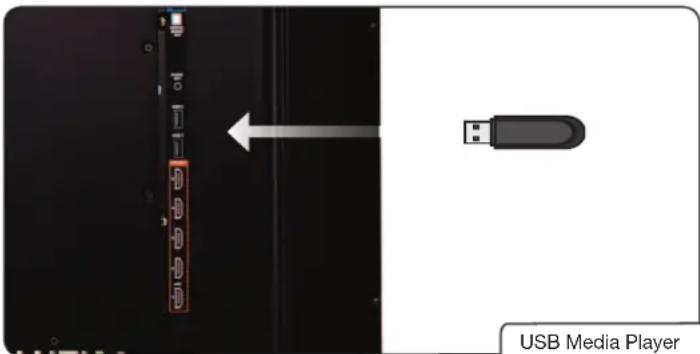
text_image
USB Media PlayerConnecting a USB Thumb Drive to the TV
- Turn the TV off. Connect your USB thumb drive to the USB port on the side of the TV.
- Press the Power/Standby button on the remote or touch the Power control on the side of the TV to turn it on.

Do not remove the USB thumb drive while the TV is on. Doing so may damage the drive.
Playing USB Media
To play USB media, you must first save your music or images onto a USB thumb drive.
Remember:
(.mp3, .jpg, etc).
mp3 players.
To play your USB media:
- Connect your USB thumb drive to the USB port on the side of the TV.
- Press the VIA button on the remote. The App Bar is displayed.
- Highlight the Media App and press OK. The Media App launches.
- Highlight your USB device in the list and press OK.
- Highlight the type of media you wish to display: Music or Photo. Press OK.
- Use the Arrow buttons to highlight the file you want to display. Press OK. The file plays.

You can display your photos in fullscreen. Select the photo, press OK, then highlight Fullscreen and press OK.
text_image
Back Button Highlight this button and press OK if you would like to return to the previous screen. Now Playing Information Displays song title, album title, and artist name. Progress Bar Displays the duration of the currently- playing song. The blue bar will lengthen as the song progresses. Connected Sources Displays connected USB devices. To change source, highlight it and press OK. VIZIO Source USB 1: MyFlashDrive Dumpster Pipe On Rockin' Hits of the 1990s By The Kick Pantsters -5:50 8:46 Current Folder My Music Playback Controls Use to control audio playback. Highlight Play/ Pause, Previous, or Next and press OK. Toggle Music/Photos Browse Photos Album Art if included on the USB thumb drive and associated with your music, the album art will display here. Folder Contents/Playlist This area displays the contents of the currently selected folder. You can browse between files using the Arrow and OK buttons on the remote. Page 1 of 1 Page Information If your USB thumb drive has more files than can be displayed on a single screen, you can move between pages by highlighting this area and pressing Left/Right Arrow.Music Player Screen
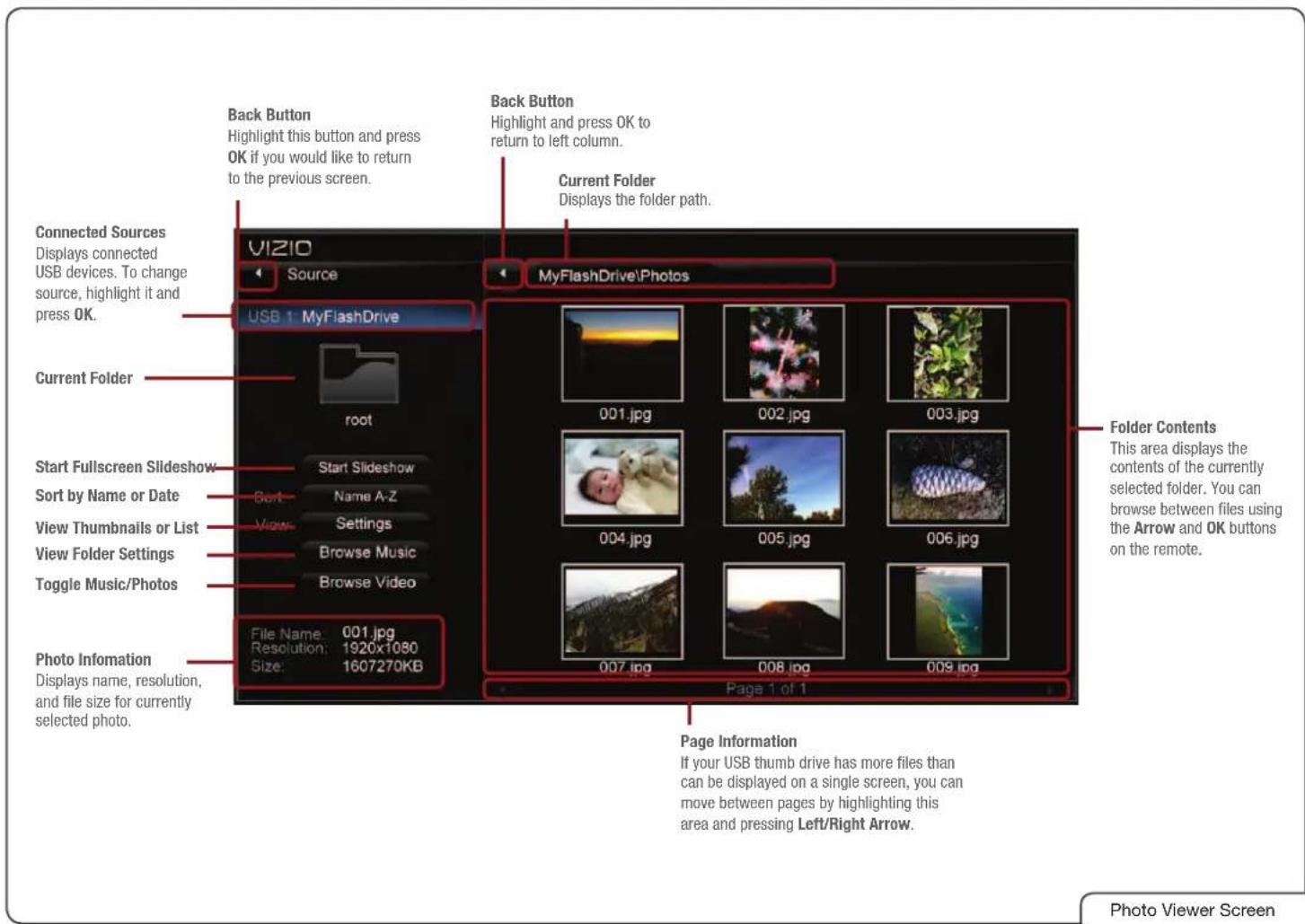
text_image
Back Button Highlight this button and press OK if you would like to return to the previous screen. Back Button Highlight and press OK to return to left column. Current Folder Displays the folder path. Connected Sources Displays connected USB devices. To change source, highlight it and press OK. VIZIO Source USB 1 MyFlashDrive MyFlashDrive\Photos Current Folder root 001.jpg 002.jpg 003.jpg Start Fullscreen Slideshow Start Slideshow Sort Name A-Z View Settings Browse Music Browse Video 004.jpg 005.jpg 006.jpg File Name: 001.jpg Resolution: 1920x1080 Size: 1607270KB Photo Information Displays name, resolution, and file size for currently selected photo. Page Information If your USB thumb drive has more files than can be displayed on a single screen, you can move between pages by highlighting this area and pressing Left/Right Arrow. Page 1 of 1 Folder Contents This area displays the contents of the currently selected folder. You can browse between files using the Arrow and OK buttons on the remote. Photo Viewer Screen7
Using VIZIO Internet Apps
VIZIO Internet Apps (VIA) delivers popular online content to your TV. VIA features a selection of Apps that allow you to watch movies and TV shows, listen to music, get weather and news information, and more—all on demand!

A high-speed internet connection is required to receive product updates and to access online content.
See Setting Up Your Network Connection on page 13f your TV is not yet connected to your home network.
Using the VIA Shortcut Buttons
Use the four colored buttons on the remote to perform common VIA tasks:
the VIA Dock. In some Apps, this button is also used to create a snippet, which makes certain information available from the App Dock. Once created, the snippet is available from the App Dock by highlighting the App and pressing Up/Down Arrow.
display window when an App is open in the sidebar.
close the App Dock.
Using the VIA Dock
The VIA Dock is where all of your VIA Apps are accessed.
To use the VIA Dock and launch an App:
- Press the V Button on the remote.
- Highlight a VIA App by scrolling left and right using the Left/Right Arrow buttons on the remote. (The highlighted App is in the lower left corner of the screen.)
- Launch a VIA App by highlighting it and pressing the OK button on the remote.
Moving an App on the VIA Dock
You can personalize your VIA Dock by moving Apps.
To move an App:
- Press the V Button on the remote.
- Highlight a VIA App by scrolling left and right using the Left/Right Arrow buttons on the remote. (The highlighted App is in the lower left corner of the screen.)
- Press the Yellow VIA Shortcut button.
- Use the Left/Right Arrow buttons to move the App to the new location on the VIA Dock.
- Highlight Done Editing and press OK to drop the App in the new location.

text_image
BACK GUIDE VOL MUTE LAST CH 1 2 3Adding a New App to the VIA Dock
Though your TV arrives pre-loaded with featured VIA Apps, new Apps are continually being added to the Widget Gallery. The VIA Dock can hold a total of 17 Apps.
To add a new App:
- Press the V Button on the remote.
- Highlight the Widget Gallery App by scrolling left and right using the Left/Right Arrow buttons on the remote. (The highlighted App is in the lower left corner of the screen.)
- Select Widget Gallery by pressing the OK button. The Yahoo! Widget Gallery is displayed.
- Use the Arrow and OK buttons to select a new App.
- Highlight Add Widget to My Profile and press OK.
Removing an App from the VIA Dock
To remove an App:
- Press the V Button on the remote.
- Highlight the App you want to delete by scrolling left and right using the Left/Right Arrow buttons on the remote. (The highlighted App is in the lower left corner of the screen.)
- Press the Yellow VIA Shortcut button.
- Highlight Delete Snippet and press OK. The TV displays, "Are you sure you want to delete this snippet?"
- Highlight Yes, delete and press OK.
Creating and Managing User Profiles
User profiles allow you to keep a customized set of Apps in the VIA Dock. For each profile you create, a different set of Apps and App settings are saved.
Creating an Owner PIN
Creating an owner PIN allows you to restrict access to the Administrative Controls menu in the Profile App. You can also restrict other profiles from installing new Apps.
To create an owner PIN:
- Press the V Button on the remote.
- Highlight the Profile App by scrolling left and right using the Left/Right Arrow buttons on the remote. (The highlighted App is in the lower left corner of the screen.)
- Select the App by pressing the OK button. The Profile App is displayed.
- Highlight Administrative Controls and press OK. The Administrative Controls menu is displayed.
- Highlight Create Owner Pin and press OK. The Owner PIN menu is displayed.
- Highlight Create Owner Pin and press OK. The PIN Creation menu is displayed.
- Enter a 4-digit passcode using the Number Pad on the remote or the on-screen number pad. Write down your passcode and save it in a secure location.
- Highlight OK and press OK. The PIN Confirmation menu is displayed.
- Re-enter your 4-digit passcode. Highlight OK and press OK. The Security Question dialog is displayed. Press OK.
- Highlight a security question and press OK. The Security Answer menu is displayed.
- Enter your security answer using the QWERTY Keyboard and press OK. The Create Profile menu is displayed.
- Highlight Done and press OK.
Creating a New User Profile
To create a new user profile:
- Press the V Button on the remote.
- Highlight the Profile App by scrolling left and right using the Left/Right Arrow buttons on the remote. (The highlighted App is in the lower left corner of the screen.)
- Select the App by pressing the OK button. The Profile App is displayed.
- Highlight Administrative Controls and press OK. (If you have an Owner PIN, you must enter it now.) The Administrative Controls menu is displayed.
- Highlight Create Profile and press OK. The Create Profile menu is displayed.
- Highlight the Name field and press OK.
- Enter your name using the QWERTY Keyboard on the remote or the on-screen keyboard, then press OK. The Create Profile menu is displayed.
- Highlight Avatar and press OK. The Avatar menu is displayed.
- Highlight a picture for your profile and press OK. The Create Profile menu is displayed.
- Highlight Create Profile PIN and press OK. The PIN Creation menu is displayed.
- Enter a 4-digit passcode using the Number Pad on the remote or the on-screen number pad. Write down your passcode and save it in a secure location.
- Highlight OK and press OK. The PIN Confirmation menu is displayed.
- Re-enter your 4-digit passcode. Highlight OK and press OK. The Security Question dialog is displayed. Press OK.
- Highlight a security question and press OK. The Security Answer menu is displayed.
-
Enter your security answer using the QWERTY Keyboard and press OK. The Create Profile menu is displayed.
-
If you would like to prevent the user of this new profile from installing new Apps, turn Limit Profile to On. (You need an Owner PIN. Enter it after turning Limit Profile to On.)
-
Highlight Done and press OK.
Removing a User Profile
To remove a user profile:
- Press the V Button on the remote.
- Highlight the Profile App by scrolling left and right using the Left/Right Arrow buttons on the remote. (The highlighted App is in the lower left corner of the screen.)
- Select the App by pressing the OK button. The Profile App is displayed.
- Highlight Administrative Controls and press OK. (If you have an Owner PIN, you must enter it now.) The Administrative Controls menu is displayed.
- Highlight Remove Profile and press OK. The Remove Profile menu is displayed.
- Highlight the name of the profile you want to remove and press OK. The TV displays, "Are you sure you want to delete this profile? This operation cannot be undone."
- Highlight OK and press OK.
Restoring the VIA Dock to the Factory Default Settings
The VIA Dock, and all of its installed Widgets can be restored to the factory default settings.

If you restore the VIA dock to the factory-default settings, all changes you have made to the VIA dock will be lost!
To restore the VIA Dock to the factory default settings:
- Press the V Button on the remote.
- Highlight the Profile App by scrolling left and right using the Left/Right Arrow buttons on the remote. (The highlighted App is in the lower left corner of the screen.)
- Select the App by pressing the OK button. The Profile App is displayed.
- Highlight System Settings and press OK. The System Settings menu is displayed.
- Highlight Restore Factory Settings and press OK. The TV displays, "Are you sure you want to proceed?"
- Select Restore Factory Settings and press OK. The TV displays, "Are you sure?"
- Highlight Restore Factory Settings and press OK.
- Wait 5 seconds for the TV to restart.
How Theater 3D Works
Because our eyes have a space between them, when we look around, we see two slightly different pictures. We never notice, because we are able to combine these pictures into one three-dimensional image.
The VIZIO Theater 3D HDTV takes advantage of this phenomenon to create a stunning 3D image. When displaying 3D content, the 3D HDTV actually displays two separate images at the same time—one for each eye.
Because Theater 3D glasses only allow each eye to see its intended image, your brain is able to process the picture in the same way as any other object you see. The final result is a stunning, life-like 3D picture.
What You Need to View 3D Content
To view 3D content, you will need:
^TM player with a Blu-ray 3D ^TM disc (sold separately)
VIZIO Theater 3D HDTV 3D Blu-ray Player

High-Speed HDMI CableBlu-ray 3D DiscVIZIO Theater 3D Glasses
What You Need
Watching Blu-ray 3D Content
To view Blu-ray 3D content:
- Ensure you have the following equipment:
^TM player with a Blu-ray 3D ^TM disc (sold separately)
- Ensure the 3D Blu-ray player and your TV are connected with the 3D-Ready HDMI cable.
- Turn the 3D Blu-ray player off. Press the Power/Standby button on the remote to turn the TV on.
- Press the INPUT button on the remote and select the input to which the Blu-ray player is connected (HDMI-1, HDMI-2, etc).
- Turn the 3D Blu-ray player on. Insert the Blu-ray 3D disc into the player.
- When the disc is loaded, select the Play Movie option in the disc's main menu.
- The TV displays, "3D Content detected. Select YES to switch to 3D, NO to display in 2D." Highlight Yes and press OK.
- Put on your Theater 3D glasses and enjoy the movie!
Getting the Best 3D Picture
For the best 3D viewing experience, VIZIO recommends that you install the TV with the minimum viewing distance in mind. When viewing 3D content, it is important that you view the TV straight-on, or some of the 3D effect may be lost.
For your TV, VIZIO recommends:
| XVT3D500CM XVT3D580CM | ||
| Minimum Viewing Distance: | 7.5 feet 9 feet | |

Illustrations in this section are not drawn to scale. They are for instructional purposes only.
Incorrect 3D Viewing Distance and Angle
In the example below, two of the viewers are sitting too close to the TV for a good 3D effect. In addition, the child on the floor is not seeing the best possible picture because he/she is looking up at the TV.
The viewers in the example below are not seeing the best 3D picture.
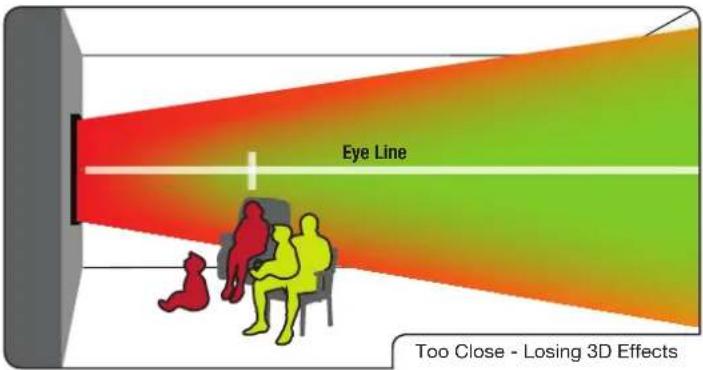
text_image
Eye Line Too Close - Losing 3D EffectsCorrect 3D Viewing Distance and Angle
In the examples below, all of the viewers are experiencing the best possible 3D picture quality.
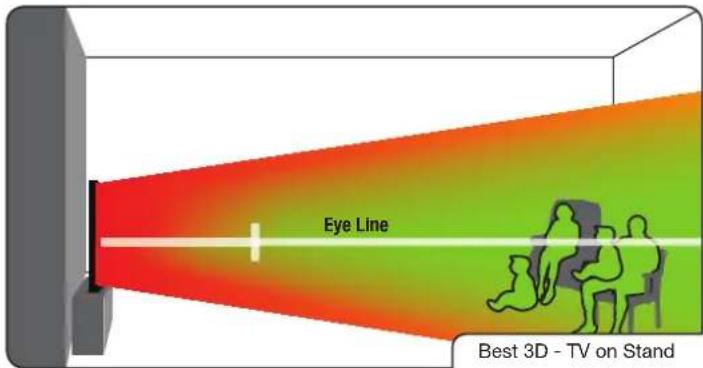
text_image
Eye Line Best 3D - TV on StandIn this example, the viewers are sitting at a good distance. They are viewing the TV straight-on, close to the ideal eye line. They will experience good 3D quality.
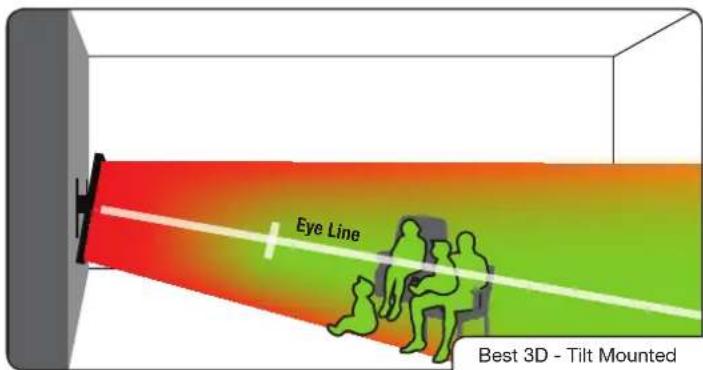
text_image
Eye Line Best 3D - Tilt MountedIn this example, the viewers have mounted the TV on a Tilt Mount. They are at the correct distance and they are viewing the TV straight-on, close to the ideal eye line. They will experience good 3D picture quality.
A
Troubleshooting & Technical Support
Products are often returned due to a technical problem rather than due to a defect. If you are experiencing a problem when using your TV, try to fix the issue using this troubleshooting guide.
If, after using this troubleshooting guide, you are still experiencing an issue with your TV, contact VIZIO's Support Department. Quality customer support and service are integral parts of VIZIO's commitment to service excellence.
Phone: (877) 698-4946
Web: www.VIZIO.com
Fax: (949) 585-9563
Hours of operation:
Email: techsupport@vizio.com
Monday - Friday: 6 am to 9 pm (PST)
Saturday - Sunday: 8 am to 4pm (PST)
The TV displays "No Signal."
input source.
the TV, scan for channels. See Scanning for Channels on page 26.
There is no power.
Standby button on the side of the TV to turn the TV on.
The power is on, but there is no image on the screen.
device's user manual for details.
Adjusting the Picture
Settings on page 21.
source.
There is no sound.
Adjusting the Audio Settings on page
- Ensure the speakers are set to On.
game console, cable/satellite box) that are connected to the TV.
low. Ensure your antenna is connected securely to the TV and move the antenna around the room or close to a window for the best signal.
The colors on the TV don't look right.
Adjusting
the Picture Settings on page 21.
The buttons on the remote aren't working.
Replacing the
Batteries on page 8.
The image quality is not good.
sources. Connect your devices with HDMI cables.
low. Ensure your antenna is connected securely to the TV and move the antenna around the room or close to a window for the best signal.
The picture is distorted.
TV from electrical appliances, cars, or flourescent lights.
The display image does not cover the entire screen.
in the on-screen menu are set correctly.
change the screen mode.
The TV has pixels (dots) that are always dark or always lit.
of technology. However, sometimes pixels may not display correctly. These types of occurrences are inherent to this type of product and do not constitute a defective product.
I see "noise" or static on the screen.
the signal is up-converted (improved) to match your TV's display capabilities. This up-converting can sometimes cause irregularities in the image.
low. Ensure your antenna is connected securely to the TV and move the antenna around the room or close to a window for the best signal.
When I change input source, the volume changes.
volume level on the new input source is higher or lower than the level on the source you switch from, the difference may be noticeable.
volume.
When I change input source, the display image changes size.
viewing mode on the new input source differs from the one on the input source you switch from, the difference may be noticeable. Changing the Screen Aspect Ratio on page 16.
XVT3D500CM XVT3D580CM
| Screen Size: 50" Class 58" Class | ||
| Diagonal Viewable: 49.90" 57.64" | ||
| Dimensions w/ Stand: | 49.14 x 25.52 x 9.61" | 56.74 x 29.02 x 11.19" |
| w/o Stand: | 49.14 x 23.90 x 1.80" | 56.74 x 27.51 x 1.80" |
| Weight w/ Stand: | 47.51 lbs | 66.14 lbs |
| w/o Stand: | 41.19 lbs | 56.00 lbs |
| TV Type: Edge-lit LED Edge-lit LED | ||
| Refresh Rate: 120 Hz 120 Hz SPS | ||
| Maximum Resolution: 2560 x 1080 2560 x 1080 | ||
| Pixel Pitch: .4575 x .4575 mm .5725 x .5725 mm | ||
| Dynamic Contrast Ratio: 1,000,000:1 | 1,000,000:1 | |
| Response Time: | 5.5 ms | 5.5 ms |
| Brightness (typ): | 400 nits | 400 nits |
| Local Dimming: | No | Yes |
| 2D Viewing Angle: | 178° (H) x 178° (V) | 178° (H) x 178° (V) |
| Ambient Light Sensor: | Yes | Yes |
| HDMI Inputs: | 5 | 5 |
| HDMI with ARC: | Yes (HDMI 1) | Yes (HDMI 1) |
| Composite Video Inputs: | 1 | 1 |
| Component Inputs: | 1 | 1 |
| RF/Coaxial Input: | 1 | 1 |
| USB Ports: | 2 | 2 |
| RGB Inputs: | 1 | 1 |
| OSD Languages: | English, Spanish, French | English, Spanish, French |
XVT3D500CM XVT3D580CM
| Audio Outputs: Digital Optical, 3.5mm Stereo Digital Optical, 3.5mm Stereo | ||
| Number of Speakers: 2 2 | ||
| Watts/Channel: 15W 15W | ||
| Simulated Surround: | SRS StudioSound HD,Dolby Digital | SRS StudioSound HD,Dolby Digital |
| Volume Normalizer: SRS TruVolume SRS TruVolume | ||
| Certifications/Compliance: | FCC Class BHDMI v1.4a | FCC Class BHDMI v1.4a |
| Voltage Range: | 120 VAC@ 60Hz | 120 VAC@ 60Hz |
| Power Consumption: 108 W 146 W | ||
| Standby PowerConsumption: | <1 W <1 W | |
| Ethernet Ports: 1 1 | ||
| Wireless (WiFi): 802.11n | 802.11n | |
| Zero Bright Pixel Guarantee: | Yes | No |
| Panel Life: | 30,000 Hours | 30,000 Hours |
C
Limited Warranty
ON PARTS AND LABOR
Covers units purchased as new in United States and Puerto Rico Only.
VIZIO provides a warranty to the original purchaser of a new Product against defects in materials and workmanship for a period of one (1) year of non-commercial usage and ninety (90) days of commercial use. If a Product covered by this warranty is determined to be defective within the warranty period, VIZIO will either repair or replace the Product at its sole option and discretion.
To obtain warranty service, contact VIZIO Technical Support via e-mail: TechSupport@VIZIO.com or via phone at 877 MY VIZIO (877.698.4946) from 6:00AM to 9:00PM Monday through Friday and 8:00AM to 4:00PM Saturday and Sunday, Pacific Time, or visit www.VIZIO.com. PRE-AUTHORIZATION MUST BE OBTAINED BEFORE SENDING ANY PRODUCT TO A VIZIO SERVICE CENTER. Proof of purchase in the form of a purchase receipt or copy thereof is required to show that a Product is within the warranty period.
Parts and Labor
There will be no charge for parts or labor during the warranty period. Replacement parts and Products may be new or recertified at VIZIO's option and sole discretion. Replacement parts and Products are warranted for the remaining portion of the original warranty or for ninety (90) days from warranty service or replacement, whichever is greater.
Type of Service
Defective Products must be sent to a VIZIO service center to obtain warranty service. VIZIO is not responsible for transportation costs to the service center, but VIZIO will cover return shipping to the customer. PRE-AUTHORIZATION IS REQUIRED BEFORE SENDING ANY PRODUCT TO A VIZIO SERVICE CENTER FOR WARRANTY SERVICE.
Product returns to VIZIO's service centers must utilize either the original carton box and shipping material or packaging that affords an equal degree of protection. VIZIO Technical Support will provide instructions for packing and shipping the covered Product to the VIZIO service center.
Limitations and Exclusions
VIZIO's one-year limited warranty only covers defects in materials and workmanship. This warranty does not cover, for example: cosmetic damage, normal wear and tear, improper operation, improper voltage supply or power surges, signal issues, damages from shipping, acts of God, any type of customer misuse, modifications or adjustments, as well as installation and set-up issues or any repairs attempted by anyone other than by a VIZIO authorized service center. Products with unreadable or removed serial numbers, or requiring routine
maintenance are not covered. This one year limited warranty does not cover Products sold "AS IS", "FACTORY RECERTIFIED", or by a non-authorized reseller. THERE ARE NO EXPRESS WARRANTIES OTHER THAN THOSE LISTED OR DESCRIBED ABOVE. ANY IMPLIED WARRANTIES, INCLUDING ANY IMPLIED WARRANTY OF MERCHANTABILITY AND FITNESS FOR A PARTICULAR PURPOSE, SHALL BE LIMITED IN DURATION TO THE PERIOD OF TIME SET FORTH ABOVE. VIZIO'S TOTAL LIABILITY FOR ANY AND ALL LOSSES AND DAMAGES RESULTING FROM ANY CAUSE WHATSOEVER INCLUDING VIZIO'S NEGLIGENCE, ALLEGED DAMAGE, OR DEFECTIVE GOODS, WHETHER SUCH DEFECTS ARE DISCOVERABLE OR LATENT, SHALL IN NO EVENT EXCEED THE PURCHASE PRICE OF THE PRODUCT. VIZIO SHALL NOT BE RESPONSIBLE FOR LOSS OF USE, LOSS OF INFORMATION OR DATA, COMMERCIAL LOSS, LOST REVENUE OR LOST PROFITS, OR OTHER INCIDENTAL OR CONSEQUENTIAL DAMAGES. SOME STATES DO NOT ALLOW LIMITATIONS ON HOW LONG AN IMPLIED WARRANTY LASTS OR THE EXCLUSION OF INCIDENTAL OR CONSEQUENTIAL DAMAGES, SO THE ABOVE LIMITATIONS OR EXCLUSIONS MAY NOT APPLY TO YOU. THIS WARRANTY GIVES YOU SPECIFIC LEGAL RIGHTS, AND YOU MAY ALSO HAVE OTHER RIGHTS, WHICH VARY FROM STATE TO STATE. THIS WARRANTY IS SUBJECT TO CHANGE WITHOUT NOTICE.
CHECK WWW.VIZIO.COM FOR THE MOST CURRENT VERSION.
Personal Data
If your VIZIO product is capable of storing personal data and other information, ALL CONTENTS AND INFORMATION WILL BE DELETED IN THE COURSE OF SOME IN-HOME AND ALL SHIP-IN WARRANTY SERVICE. If this occurs, your product will be restored to you configured as originally purchased. You will be responsible for restoring all applicable data and passwords. Recovery and reinstallation of user data is not covered under this Limited Warranty. In order to protect your personal information, VIZIO recommends that you always clear all personal information from the unit before it is serviced, regardless of the servicer.
Zero Bright Pixel Defect Guarantee
This policy covers “zero bright pixel” defects for the duration of the limited “ONE YEAR WARRANTY” on select new product purchases. To determine if this guarantee applies to your product, refer to the “DETAILS” tab of the model’s product information page (www.VIZIO.com) or look for the “zero bright pixel” guarantee on the box.
Legal & Compliance
D
FCC Class B Radio Interference Statement
NOTE: This equipment has been tested and found to comply with the limits for a Class B digital device, pursuant to Part 15 of the FCC Rules. These limits are designed to provide reasonable protection against harmful interference in a residential installation. This equipment generates, uses and can radiate radio frequency energy, and if not installed and used in accordance with the instructions, may cause harmful interference to radio communications. However, there is no guarantee that interference will not occur in a particular installation. If this equipment does cause harmful interference to radio or television reception, which can be determined by turning the equipment off and on, the user is encouraged to try to correct the interference by one or more of the following measures:
- Reorient or relocate the receiving antenna.
- Increase the separation between the equipment and receiver.
- Connect the equipment into an outlet on a circuit different from that to which the receiver is connected.
- Consult the dealer or an experienced radio/TV technician for help.
This device complies with Part 15 of the FCC Rules. Operation is subject to the following two conditions: (1) this device may not cause harmful interference, and (2) this device must accept any interference received, including interference that may cause undesired operation.
Notice
- The changes or modifications not expressly approved by the party responsible for compliance could void the user's authority to operate the equipment.
- Shielded interface cables and AC power cord, if any, must be used in order to comply with the emission limits.
- The manufacturer is not responsible for any radio or TV interference caused by unauthorized modification to this equipment. It is the responsibilities of the user to correct such interference.
FCC warning
Changes or modifications not expressly approved by the party responsible for compliance with the FCC Rules could void the user's authority to operate this equipment.
Caution
Always use an AC/DC power adapter that is properly grounded. Use the AC cords listed below for each area.
USA: UL
Canada: CSA
Germany: VDE
UK: BASE/BS
Japan: Electric Appliance Control Act
Open Source Software Notice
Your VIA device may contain GPL executables and LGPL libraries that are subject to the PL2.0/LGPL2.1 License Agreements. VIZIO offers to provide source code to you on CD-ROM for a processing fee covering the cost of performing such distribution, such as the cost of media, shipping and handling upon request made to VIZIO at www.VIZIO.com.
This offer is valid for a period of three (3) years from the date of the distribution of this VIA device by VIZIO.
You can obtain a copy of the GPL, LGPL licenses from:
http://www.gnu.org/licenses/old-licenses/gpl-2.0.html and
http://www.gnu.org/licenses/oldlicenses/lgpl-2.1.html
You can also obtain a copy of gSOAP public license from: http://www.cs.fsu.edu/\~engelen/license.html
Please visit www.VIZIO.com for attribution of copyrights to any open source software on your VIZIO VIA device.
Permission is hereby granted, free of charge, to any person obtaining a copy of any such software and associated documentation files (the "Open Source Software"), to deal in the Open Source Software without restriction, including without limitation the rights to use, copy, modify, merge, publish, distribute, sublicense, and/or sell copies of the Open Source Software, and to permit persons to whom the Open Source Software is furnished to do so, subject to the following conditions:
THE SOFTWARE IS PROVIDED "AS IS", WITHOUT WARRANTY OF ANY KIND, EXPRESS OR IMPLIED, INCLUDING BUT NOT LIMITED TO THE WARRANTIES OF ERCHANTABILITY, FITNESS FOR A PARTICULAR PURPOSE AND NONINFRINGEMENT. IN NO EVENT SHALL THE AUTHORS OR COPYRIGHT HOLDERS BE LIABLE FOR ANY CLAIM, DAMAGES OR OTHER LIABILITY, WHETHER IN AN ACTION OF CONTRACT, TORT OR OTHERWISE, ARISING FROM, OUT OF OR IN CONNECTION WITH THE SOFTWARE OR THE USE OR OTHER DEALINGS IN THE SOFTWARE.

XVT3D500CM / XVT3D580CM
VIZIO Internet Applications Disclaimer
VIZIO Internet Applications (“VIA”) affords the opportunity to access third party Internet product offerings or services (“VIA Services”) on certain VIZIO TVs. The VIA Services accessible herein are provided as per our agreement with these third parties. These agreements are subject to change, interruption, suspension (including termination) at any time and for various reasons. VIZIO makes no warranties or representations that any particular VIA Service will be accessible, available, function in any particular manner or function at all.
To use these VIA Services, you must obtain access to the Internet, either directly or through devices that access the Internet and pay any service fees associated with such access. In addition, you must provide all equipment necessary to make such connection to the Internet including a modem or other Internet access device.
VIZIO or said third parties providing VIA Services reserve the right to delete data from their servers, or prevent access to their servers or to change data categories, product offerings or service levels for any reason that VIZIO or said third parties deem sufficient in their sole discretion at any time, without notice. Some or all of the data or functionality of VIA Services may require additional payment by you. However, in no event will you be charged for any VIA Services unless those charges are made available to you in advance. VIZIO makes no warranties or representations of any kind as to the accuracy, currency, or completeness of any information contained on the data servers of such third party providers of any VIA Services. Furthermore, we do not review, control, or endorse the content, products or services of VIA Services or their data servers.
Your rights to use the widget links to access VIA Services is governed by the VIZIO Internet Applications Software License Agreement (“VIA Software License Agreement”), the terms of which are available in your Product Guide, all of which are incorporated herein by this reference. In the event of a conflict between this VIZIO Internet Applications Disclaimer and the VIA Software License Agreement, the VIA Software License Agreement shall control.
VIZIO INTERNET APPLICATIONS SOFTWARE LICENSE AGREEMENT
THE FOLLOWING AGREEMENT EXPLAINS HOW YOU MAY USE THE VIZIO INTERNET APPLICATIONS ("VIA") TO ACCESS THIRD PARTY INTERNET PRODUCT OFFERINGS AND SERVICES ("VIA SERVICES") AND THE VIZIO SOFTWARE INSTALLED ON YOUR VIZIO HD TV. BY USING THE VIZIO INTERNET APPLICATIONS, YOU CONSENT AND AGREE TO BE BOUND BY ALL OF THE TERMS AND CONDITIONS BELOW AND YOU MAY, SUBJECT TO THOSE TERMS AND CONDITIONS, USE THE VIZIO SOFTWARE AND ACCESS THE VIA SERVICES.
VIZIO SOFTWARE LICENSE AGREEMENT
The following terms and conditions govern the use of any software on your VIZIO HD TV:
-
General. The software, documentation and any fonts accompanying this License Agreement whether on disk, in read only memory, on any other media or in any other form (collectively the "VIZIO Software") are licensed, not sold, to you by VIZIO, Inc. ("VIZIO") for use only under the terms of this License Agreement, and VIZIO reserves all rights not expressly granted to you. The rights granted herein are limited to VIZIO's and its third party licensors' intellectual property rights in the VIZIO Software and do not include any other patents or intellectual property rights. You own the media on which the VIZIO Software is recorded or resides but VIZIO and/or its licensor(s) retain ownership of the VIZIO Software itself. The terms of this License Agreement will govern any software upgrades provided or made available by or through VIZIO that replace and/or supplement the original VIZIO Software, unless such upgrade is accompanied by a separate license in which case the terms of that license will govern.
-
Permitted Uses and Restrictions. This License Agreement allows you to use the VIZIO Software and, through functions solely found within the VIZIO HD TV, this Agreement also allows you to install upgrades thereto. The VIZIO Software may be used to access VIA Services and view materials so long as such use is limited to materials in which you are authorized or legally permitted to view. You may not make the VIZIO Software or VIA Services available over a network or where it could be used by multiple televisions at the same time. Except as and only to the extent expressly permitted in this License Agreement or by applicable law, you may not copy, decompile, reverse engineer, disassemble, modify, or create derivative works of the VIZIO Software or any part thereof. THE VIZIO SOFTWARE AND VIA SERVICES ARE NOT INTENDED FOR USE IN ANY EQUIPMENT OR ENVIRONMENT IN WHICH THE FAILURE OF THE VIZIO SOFTWARE OR VIA SERVICES COULD LEAD TO DEATH, PERSONAL INJURY, OR SEVERE PHYSICAL OR ENVIRONMENTAL DAMAGE.
-
Transfer. You may not rent, lease, lend, redistribute or sublicense the VIZIO Software or access to the VIA Services. You may, however, make a one-time permanent transfer of all of your license rights to the VIZIO Software to another party, provided that: (a) the transfer must include the VIZIO HD TV, including all its component parts, original media, printed materials and this License Agreement; (b) you do not retain any copies of the VIZIO Software, full or partial, including copies stored on a computer or other storage device; and (c) the party receiving the VIZIO HD TV and VIZIO Software reads and agrees to accept the terms and conditions of this License Agreement.
-
Consent to Use of Collected Data. You agree that VIZIO and its third party
providers of VIA Services may collect and use technical, non-technical and related information, including but not limited to information about your use of the VIZIO Software, the VIA Services, content viewed and attached peripherals, products or services purchased, that is gathered periodically to facilitate the provision of software updates, product support and other services to you, including additional or different VIA Services related to the VIZIO Software and to verify compliance with the terms of this License Agreement. VIZIO and its third party providers of VIA Services and/or other providers may use this information, as long as it is in a form that does not personally identify you, to improve our products or to provide services or technologies to you.
- VIA Services and other Services. The VIZIO software affords the opportunity to access third party Internet product offerings or services (“VIA Services”). The VIA Services accessible herein are provided as per our agreement with certain third parties. These agreements are subject to change, interruption, suspension, removal (including termination) at any time and for various reasons. Moreover, VIZIO or its third party providers of VIA Services reserve the right to delete data from their servers, or prevent access to their servers or to change data categories, product offerings or service levels for any reason that VIZIO or said third parties deem sufficient in their sole discretion at any time, without notice. VIZIO may also impose additional or different limits on the use of or access to certain VIA Services, in any case and without notice or liability. VIZIO makes no warranties or representations that any particular VIA Service will be accessible, available, function in any particular manner or function at all.
Use of the VIA Services may require you to accept additional terms of service or end user license agreements which will be presented to you before you can use such Services. Some or all of the data, functionality of VIA Services may require additional payment by you. However, in no event will you be charged for any VIA Services unless those charges are made available to you in advance.
- Disclaimer as to Content on VIA Services. Certain VIA Services may include materials from third parties or links to certain third party data servers. You acknowledge and agree that VIZIO is not responsible for examining or evaluating the content or accuracy of any VIA Services, their data servers or related third-party materials. VIZIO does not warrant or endorse and does not assume and will not have any liability or responsibility for any third-party materials or websites, or for any other materials, products, or services of third parties. Links to VIA Services and any associated links to other data servers are provided solely as a convenience to you. To the extent provided, content types or descriptions of VIA Services provided for convenience, and you acknowledge and agree that VIZIO does not guarantee their accuracy. You understand that by using any of the VIA Services, you may encounter content that may be deemed offensive, indecent, or objectionable, which content may or may not be identified as having
explicit language. Nevertheless, you agree to use the VIA Services at your sole risk and that VIZIO shall have no liability to you for content that may be found to be offensive, indecent, or objectionable.
You agree that you will not use any third-party materials in a manner that would infringe or violate the rights of any other party, and that VIZIO is not in any way responsible for any such use by you.
-
Internet Access Required. To use these VIA Services, you must obtain access to the Internet, either directly or through devices that access the Internet and pay any service fees associated with such access. In addition, you must provide all equipment necessary to make such connection to the Internet including a modem or other Internet access device.
-
Upgrades, Support. VIZIO or its third party providers may elect, but shall be under no obligation, to provide you with customer support and/or software upgrades, enhancements, or modifications to the VIZIO Software or VIA Services (collectively, "Support"), in its sole discretion, and may terminate such Support at any time without notice to you. VIZIO and its third party providers reserve the right to charge you for any Support it provides but will make a schedule of those charges available to you prior to your incurring any costs.
-
Termination. This License is effective until terminated. Your rights under this License will terminate automatically without notice from VIZIO if you fail to comply with any term(s) of this License Agreement. Upon the termination of this License Agreement, you shall cease all use of the VIZIO Software and VIA Services.
-
Limited Warranty on VIZIO Media. VIZIO warrants the media on which the VIZIO Software is recorded and delivered by VIZIO to be free from defects in materials and workmanship under normal use for a period of ninety (90) days from the date of original retail purchase. Your exclusive remedy under this Section shall be, at VIZIO's option, a refund of the purchase price of the product containing the VIZIO Software or replacement of the VIZIO Software which is returned to VIZIO or a VIZIO authorized representative with a copy of the receipt. THIS LIMITED WARRANTY AND ANY IMPLIED WARRANTIES ON THE MEDIA INCLUDING, BUT NOT LIMITED TO, THE IMPLIED WARRANTIES OF MERCHANTABILITY, OF SATISFACTORY QUALITY, AND OF FITNESS FOR A PARTICULAR PURPOSE, ARE LIMITED IN DURATION TO NINETY (90) DAYS FROM THE DATE OF ORIGINAL RETAIL PURCHASE. SOME JURISDICTIONS DO NOT ALLOW LIMITATIONS ON HOW LONG AN IMPLIED WARRANTY LASTS, SO THE ABOVE LIMITATION MAY NOT APPLY TO YOU. THE LIMITED WARRANTY SET FORTH HEREIN IS THE ONLY WARRANTY MADE TO YOU AND IS PROVIDED IN LIEU OF ANY OTHER WARRANTIES (IF ANY) CREATED BY ANY DOCUMENTATION OR PACKAGING. THIS LIMITED WARRANTY GIVES YOU SPECIFIC LEGAL RIGHTS, AND YOU MAY ALSO HAVE OTHER RIGHTS WHICH VARY BY JURISDICTION.

XVT3D500CM / XVT3D580CM
-
Disclaimer of Warranties. YOU EXPRESSLY ACKNOWLEDGE AND AGREE THAT USE OF THE VIZIO SOFTWARE AND VIA SERVICES (AS DEFINED ABOVE) IS AT YOUR SOLE RISK AND THAT THE ENTIRE RISK AS TO SATISFACTORY QUALITY, PERFORMANCE, ACCURACY AND EFFORT IS WITH YOU. EXCEPT FOR THE LIMITED WARRANTY ON MEDIA SET FORTH ABOVE AND TO THE MAXIMUM EXTENT PERMITTED BY APPLICABLE LAW, THE VIZIO SOFTWARE AND VIA SERVICES ARE PROVIDED "AS IS", WITH ALL FAULTS AND WITHOUT WARRANTY OF ANY KIND, AND VIZIO AND VIZIO'S THIRD PARTY PROVIDERS OF VIA SERVICES AND THIRD PARTY LICENSORS (COLLECTIVELY REFERRED TO AS "VIZIO" FOR THE PURPOSES OF SECTIONS 10 AND 11) HEREBY DISCLAIM ALL WARRANTIES AND CONDITIONS WITH RESPECT TO THE VIZIO SOFTWARE AND SERVICES, EITHER EXPRESS, IMPLIED OR STATUTORY, INCLUDING, BUT NOT LIMITED TO, THE IMPLIED WARRANTIES AND/OR CONDITIONS OF MERCHANTABILITY, OF SATISFACTORY QUALITY, OF FITNESS FOR A PARTICULAR PURPOSE, OF ACCURACY, OF QUIET ENJOYMENT, AND NON-INFRINGEMENT OF THIRD PARTY RIGHTS. VIZIO DOES NOT WARRANT AGAINST INTERFERENCE WITH YOUR ENJOYMENT OF THE VIZIO SOFTWARE OR VIA SERVICES, THAT THE FUNCTIONS CONTAINED IN THE VIZIO SOFTWARE OR VIA SERVICES WILL MEET YOUR REQUIREMENTS, THAT THE OPERATION OF THE VIZIO SOFTWARE OR VIA SERVICES WILL BE UNINTERRUPTED OR ERROR-FREE, OR THAT DEFECTS IN THE VIZIO SOFTWARE OR VIA SERVICES WILL BE CORRECTED. NO ORAL OR WRITTEN INFORMATION OR ADVICE GIVEN BY VIZIO OR A VIZIO AUTHORIZED REPRESENTATIVE SHALL CREATE A WARRANTY. SHOULD THE VIA SOFTWARE OR VIA SERVICES PROVE DEFECTIVE, YOU ASSUME THE ENTIRE COST OF ALL NECESSARY SERVICING, REPAIR OR CORRECTION. SOME JURISDICTIONS DO NOT ALLOW THE EXCLUSION OF IMPLIED WARRANTIES OR LIMITATIONS ON APPLICABLE STATUTORY RIGHTS OF A CONSUMER, SO THE ABOVE EXCLUSION AND LIMITATIONS MAY NOT APPLY TO YOU.
-
Limitation of Liability. TO THE EXTENT NOT PROHIBITED BY LAW, IN NO EVENT SHALL VIZIO BE LIABLE FOR PERSONAL INJURY, OR ANY INCIDENTAL, SPECIAL, INDIRECT OR CONSEQUENTIAL DAMAGES WHATSOEVER, INCLUDING, WITHOUT LIMITATION, DAMAGES FOR LOSS OF PROFITS, LOSS OF DATA, BUSINESS INTERRUPTION OR ANY OTHER COMMERCIAL DAMAGES OR LOSSES, ARISING OUT OF OR RELATED TO YOUR USE OR INABILITY TO USE THE VIZIO SOFTWARE OR VIA SERVICES, HOWEVER CAUSED, REGARDLESS OF THE THEORY OF LIABILITY (CONTRACT, TORT OR OTHERWISE) AND EVEN IF VIZIO HAS BEEN ADVISED OF THE POSSIBILITY OF SUCH DAMAGES. SOME JURISDICTIONS DO NOT ALLOW THE LIMITATION OF LIABILITY FOR PERSONAL INJURY, OR OF INCIDENTAL OR CONSEQUENTIAL DAMAGES, SO THIS LIMITATION MAY NOT APPLY TO YOU. In no event shall VIZIO's total liability to you for all damages (other than as may be required by
applicable law in cases involving personal injury) exceed the amount of twenty five dollars (\$25.00). The foregoing limitations will apply even if the above stated remedy fails of its essential purpose.
-
Export Control. You may not use or otherwise export or re-export the VIZIO Software except as authorized by United States law and the laws of the jurisdiction in which the VIZIO Software was obtained. In particular, but without limitation, the VIZIO Software may not be exported or re-exported (a) into any U.S. embargoed countries or (b) to anyone on the U.S. Treasury Department's list of Specially Designated Nationals or the U.S. Department of Commerce Denied Person's List or Entity List. By using the VIZIO Software, you represent and warrant that you are not located in any such country or on any such list. You also agree that you will not use these products for any purposes prohibited by United States law, including, without limitation, the development, design, manufacture or production of missiles, or nuclear, chemical or biological weapons.
-
Controlling Law and Severability. This License Agreement will be governed by and construed in accordance with the laws of the State of California, as applied to agreements entered into and to be performed entirely within California between California residents. This License Agreement shall not be governed by the United Nations Convention on Contracts for the International Sale of Goods, the application of which is expressly excluded. If for any reason a court of competent jurisdiction finds any provision, or portion thereof, to be unenforceable, the remainder of this License Agreement shall continue in full force and effect.
-
Complete Agreement; Governing Language. This License Agreement constitutes the entire agreement between the parties with respect to the use of the VIZIO Software licensed hereunder and supersedes all prior or contemporaneous understandings regarding such subject matter, with the exception of any additional terms and conditions you are required to accept if you choose to access VIA Services which will govern your use of such VIA Services. No amendment to or modification of this License Agreement will be binding unless in writing and signed by VIZIO. Any translation of this License Agreement is done for local requirements and in the event of a dispute between the English and any non-English versions, the English version of this License Agreement shall govern.
Notes
XVT3D500CM / XVT3D580CM
XVT3D500CM / XVT3D580CM