CS7501 - Monitor BENQ - Free user manual and instructions
Find the device manual for free CS7501 BENQ in PDF.


User questions about CS7501 BENQ
0 question about this device. Answer the ones you know or ask your own.
Ask a new question about this device
Download the instructions for your Monitor in PDF format for free! Find your manual CS7501 - BENQ and take your electronic device back in hand. On this page are published all the documents necessary for the use of your device. CS7501 by BENQ.
USER MANUAL CS7501 BENQ
natural_image
Abstract grayscale pattern with concentric dotted lines and a curved band, no text or symbols present.Disclaimer
BenQ Corporation makes no representations or warranties, either expressed or implied, with respect to the contents of this document. BenQ Corporation reserves the right to revise this publication and to make changes from time to time in the contents thereof without obligation to notify any person of such revision or changes.
Copyright
Copyright 2020 BenQ Corporation. All rights reserved. No part of this publication may be reproduced, transmitted, transcribed, stored in a retrieval system or translated into any language or computer language, in any form or by any means, electronic, mechanical, magnetic, optical, chemical, manual or otherwise, without the prior written permission of BenQ Corporation.
Product support
This document aims to provide the most updated and accurate information to customers, and thus all contents may be modified from time to time without prior notice. Please visit the website for the latest version of this document and other product information. Available files vary by model.
I. Make sure your computer is connected to the Internet.
2. Visit the local website from www.BenQ.com. The website layout and content may vary by region/country.
- User manual and related document: www.BenQ.com > Business > SUPPORT > Downloads > model name > User Manual
- (EU only) Dismantled information: Available on the user manual download page. This document is provided based on Regulation (EU) 2019/2021 to repair or recycle your product. Always contact the local customer service for servicing within the warranty period. If you wish to repair an out-of-warranty product, you are recommended to go to a qualified service personnel and obtain repair parts from BenQ to ensure compatibility. Do not disassemble the product unless you are aware of the consequences. If you cannot find the dismantled information on your product, contact the local customer service for assistance.
Table of Contents
Product support.... 3
Safety warnings and precautions.... 6
Important safety instructions.... 7
Notes on this display 7
Notes on the LCD panel of this display 7
Safety notice for remote control 8
Battery safety notice 8
BenQ ecoFACTS 9
Package contents 10
Setting up the display.... 11
Mounting the display.... 11
Parts of the display and their functions.... 13
Front panel 13
Rear panel.... 14
Input/output terminals 15
Remote control.... 17
Using the remote control.... 18
Connection 20
Connecting the VGA input.... 20
Connecting the USB.... 20
Connecting the digital inputs.... 21
Connecting the video output.... 21
Connecting to serial port 22
Connecting power 22
Basic operations.... 23
Turning the display on or off.... 23
Initial setup 24
OSD Setting 24
Switching input signals.... 29
Downloading software.... 29
Setting up the Internet connection.... 29
Updating software.... 31
Adjusting audio volume level.... 32
Menu operations.... 33
Settings menu 33
System settings.... 41
Android system interface.... 46
Main interface 46
APPS....47
AMS file manager overview.... 47
Meeting Room 365....49
Multimedia files.... 52
BenQ Suggests 57
InstaShare 2 57
InstaQPrint.... 61
WPS Office 62
Email 64
Floating Annotation Toolbar.... 65
Side Tool Bar 66
Collaboration.... 67
Duo Boards 74
Blizz....78
Saffi 79
Product information.... 81
Specifications 81
Dimensions (CS6501) 83
Dimensions (CS7501) 84
Dimensions (CS8601) 85
Supported input signal resolution.... 86
Troubleshooting 88
Safety warnings and precautions

CAUTION
RISK OF ELECTRIC SHOCK DO NOT OPEN

CAUTION: TO REDUCE THE RISK OF ELECTRIC SHOCK, DO NOT REMOVE COVER (OR BACK). NO USER-SERVICEABLE PARTS INSIDE, REFER SERVICING TO QUALIFIED SERVICE PERSONNEL.

The lightning flash with arrowhead symbol, within an equilateral triangle, is intended to alert the user to the presence of uninsulated “dangerous voltage” within the product's enclosure that may be of sufficient magnitude to constitute a risk of electric shock to persons.

The exclamation point within an equilateral triangle is intended to alert the user to the presence of important operating and maintenance (servicing) instructions in the literature accompanying the appliance.
THIS EQUIPMENT MUST BE GROUNDED
To ensure safe operation, the three-pin plug must be inserted only into a standard three-pin power outlet which is effectively grounded through normal household wiring. Extension cords used with the equipment must have three cores and be correctly wired to provide connection to the ground. Wrongly wired extension cords are a major cause of fatalities.
The fact that the equipment operates satisfactorily does not imply that the power outlet is grounded or that the installation is completely safe. For your safety, if you are in any doubt about the effective grounding of the power outlet, please consult a qualified electrician.
- The mains plug of the power supply cord shall remain readily operable. The AC receptacle (mains socket outlet) shall be installed near the equipment and shall be easily accessible. To completely disconnect this equipment from the AC mains, disconnect the power cord plug from the AC receptacle.
- Do not place this display on an uneven, sloping or unstable surface (such as a trolley) where it may fall and cause damage to itself or others.
- Do not place this display near water, like a spa or pool, or in a position which will allow the splashing or spraying of water onto the display, like in front of an open window where rain water may enter.
- Do not install this display in a confined space without proper ventilation and air circulation, such as in a closed cabinet. Allow proper space around the display for dissipating heat inside. Do not block any openings and vents on the display. Overheating may result in hazards and electric shock.
• Installation of this display should only be performed by a qualified technician. Failure to install this display properly may cause injuries and damages to the personnels and the display itself. Check the installation regularly and maintain the display periodically to ensure the best working condition. - Use only the accessories approved or recommended by the manufacturer to mount this display. Using wrong or unsuitable accessories may cause the display to fall and result in serious personal injuries. Make sure that the surface and fixing points are strong enough to sustain the weight of the display.
- To reduce the risk of electric shock, do not remove covers. No user serviceable parts inside. Refer servicing to qualified service personnel.
• To prevent personal injuries, mounting the display or installing desktop stands is required before use.
Important safety instructions
I. Read these instructions.
2. Keep these instructions.
3. Heed all warnings.
4. Follow all instructions.
5. Do not use this apparatus near water.
6. Clean only with dry cloth.
7. Do not block any ventilation openings. Install in accordance with the manufacturer's instructions.
8. Do not install near any heat sources such as radiators, heat registers, stoves, or other apparatus (including amplifiers) that produce heat.
9. Do not defeat the safety purpose of the polarized or grounding-type plug. A polarized plug has two blades with one wider than the other. A grounding-type plug has two blades and a third grounding prong. The wide blade or the third prong are provided for your safety. If the provided plug does not fit into your outlet, consult an electrician for replacement of the obsolete outlet.
10. Protect the power cord from being walked on or pinched particularly at plugs, convenience receptacles, and the point where they exit from the apparatus.
II. Only use attachments/accessories specified by the manufacturer.
12. Use only with the cart, stand, tripod, bracket, or table specified by the manufacturer, or sold with the apparatus. When a cart is used, use caution when moving the cart/apparatus combination to avoid injury from tip-over.
13. Unplug this apparatus during lightning storms or when unused for long periods of time.
14. Refer all servicing to qualified service personnel. Servicing is required when the apparatus has been damaged in any way, such as power-supply cord or plug is damaged, liquid has been spilled or objects have fallen into the apparatus, the apparatus has been exposed to rain or moisture, does not operate normally, or has been dropped.
Notes on this display
- To prevent the risk of physical injuries, do not attempt to lift the display alone.
- Make sure you have four or more people available to help lift or a flat cart to transport the display to its final location.
- Keep the display horizontal as much as possible.
- Clear a floor space before unpacking.
• This display is not for individual use.
Notes on the LCD panel of this display
- The Liquid Crystal Display (LCD) panel of this display has a very thin protective layer of glass which is liable to marking or scratching, and cracking if struck or pressured. The liquid crystal substrate is also liable to damage under excessive force or extreme temperatures. Please handle with care.
- The response time and brightness of the LCD panel may vary with the ambient temperature.

- Avoid placing the display in direct sun or where direct sun or spot lighting will shine onto the LCD panel, as the heat may damage the panel and the external casing of the display, and the bright light will make viewing the display more difficult than necessary.
- The LCD panel consists of individual pixels to display images and is manufactured according to the design specifications. While 99.9% of these pixels work normally, 0.01% of the pixels may remain constantly lit (in red, blue or green) or unlit. This is a technical limitation of the LCD technology and is not a defect.
- LCD screens, like plasma (PDP) and conventional CRT (Cathode Ray Tube) screens, are also susceptible to 'screen burn-in' or 'image retention' which can be found on the screen as visible fixed lines and shades. To avoid such damage to the screen, avoid displaying still images (like On-Screen Display menus, TV station logos, fixed/inactive text or icons) for more than 30 minutes. Change the aspect ratio from time to time. Fill the entire screen with the image and eliminate the black bars whenever possible. Avoid displaying images in 16:9 aspect ratio over a long period of time, otherwise there may be visible burn marks on the screen as two vertical lines.
Note: Under certain circumstances, condensation may occur on the inner side of the cover glass, it's a natural phenomenon and will not affect the operation of the display. This condensation will usually disappear after around 2 hours of normal operation.
- CS series does not offer image retention function, for more information, please refer to installation guide. If a still image is required for a display, it is recommended to enable Pixel shift.
- CS series does not support portrait use; portrait use may cause display damage. BenQ warranty will not cover faulty usage.
Safety notice for remote control
- Do not put the remote control in the direct heat, humidity, and avoid fire.
- Do not drop the remote control.
- Do not expose the remote control to water or moisture. Failure to do so could result in malfunction.
- Confirm there is no object between the remote control and the remote sensor of the product.
- When the remote control will not be used for an extended period, remove the batteries.
Battery safety notice
The use of the wrong type of batteries may cause chemical leaks or explosion. Please note the following:
- Always ensure that the batteries are inserted with the positive and negative terminals in the correct direction as shown in the battery compartment.
- Different types of batteries have different characteristics. Do not mix different types.
- Do not mix old and new batteries. Mixing old and new batteries will shorten battery life or cause chemical leaks from the old batteries.
- When batteries fail to function, replace them immediately.
-
Chemicals which leak from batteries may cause skin irritation. If any chemical matter seeps out of the batteries, wipe it up immediately using a dry cloth, and replace the batteries as soon as possible.
-
Due to varying storage conditions, the battery life for the batteries included with your product may be shortened. Replace them within 3 months or as soon as you can after initial use.
- There may be local restrictions on the disposal or recycling of batteries. Consult your local regulations or waste disposal provider.
BenQ ecoFACTS

BenQ has been dedicated to the design and development of greener product as part of its aspiration to realize the ideal of the “Bringing Enjoyment 'N Quality to Life” corporate vision with the ultimate goal to achieve a low-carbon society. Besides meeting international regulatory requirement and standards pertaining to environmental management, BenQ has spared no efforts in pushing our initiatives further to incorporate life cycle design in the aspects of material selection, manufacturing, packaging, transportation, using and disposal of the products. BenQ ecoFACTS label lists key eco-friendly design highlights of each product, hoping to ensure that consumers make informed green choices at purchase. Check out BenQ's CSR Website at http://csr.BenQ.com/ for more details on BenQ's environmental commitments and achievements.
Package contents
Open the sales package and check the contents. If any item is missing or damaged, please contact your dealer immediately.

LCD display

natural_image
Line drawing of a coiled cable with two leads (no text or symbols)Power cord (By Region)

VGA cable x I
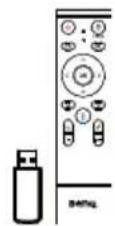
2.4GHz remote control
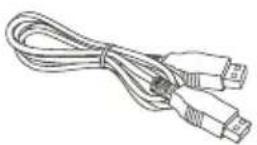
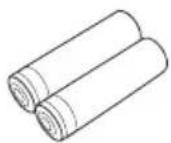

HDMI cable x 1 AAA battery x 2 Quick start guide RS232 cable x 1
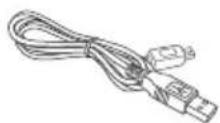
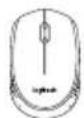
USB cable x | Mouse x |

- The type of power cord supplied may differ from that illustrated depending on your region of purchase.
- Before discarding the package, check that you haven't left any accessories inside the box.
- Dispose of packaging materials wisely. You can recycle the cardboard carton. Consider storing the package (if possible) for future transport of the display.
- Do not leave plastic bags within reach of young children or babies.
Setting up the display
Mounting the display
You can install the display on a vertical surface with a suitable wall mounting bracket. Please pay attention to the following notes during installation:
- This display should be installed by at least two adult persons. Attempting to install this display by only one person may result in danger and injuries.
- Refer the installation to qualified technicians. Improper installation may cause the display to fall or malfunction.
Installing the display on a wall
I. Place a clean, dry and lint-free cloth on a flat, horizontal and object-free surface. Make sure that the size of the cloth is larger than the display.
2. Gently lay the display on the cloth with the LCD screen facing down.
3. Remove the desktop stands from the display if installed.
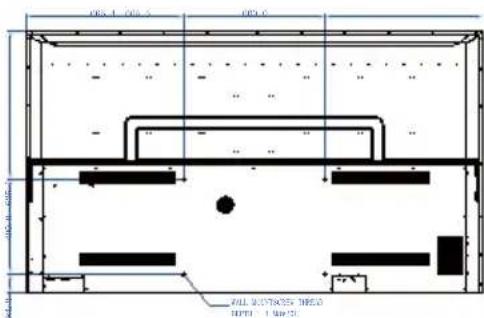
4. Identify the wall mounting screw holes on the back of the display as shown in the illustration.
CS6501
*Screw type: M6*10L

text_image
503.2 100.0 325.3 500.0 200.0 500.1 201.30/45/45 M 00/10 DPT# : 1:40-496CS8601
*Screw type: M8*20L
text_image
DRC 1.0 DRC 2 DRC 3 ALL SECURITIES (NEEQ) TYPE 1, M4, N5CS7501
*Screw type: M8*15L

text_image
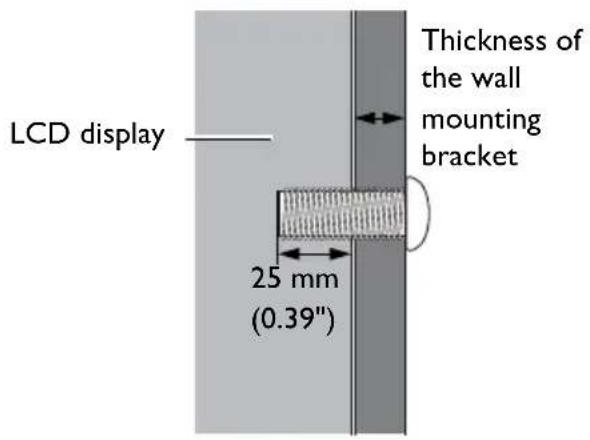
1.5 2.0 3.0 4.0 5.0 6.0 7.0 8.0 9.0 10.0 11.0 12.0 13.0 14.0 15.0 16.0 17.0 18.0 19.0 20.0 21.0 22.0 23.0 24.0 25.0 26.0 27.0 28.0 29.0 30.0 31.0 32.0 33.0 34.0 35.0 36.0 37.0 38.0 39.0 40.0 41.0 42.0 43.0 44.0 45.0 46.0 47.0 48.0 49.0 50.0 51.0 52.0 53.0 54.0 55.0 56.0 57.0 58.0 59.0 60.0 61.0 62.0 63.0 64.0 65.0 66.0 67.0 68.0 69.0 70.0 71.0 72.0 73.0 74.0 75.0 76.0 77.0 78.0 79.0 80.0 81.0 82.0 83.0 84.0 85.0 86.0 87.0 88.0 89.0 90.0 91.0 92.0 93.0 94.0 95.0 96.0 97.0 98.0 99.0 100.0- Install the wall mounting bracket on the display and attach the display to the wall according to the mounting bracket's instructions. The length of the screw should exceed the thickness of the wall mounting bracket by at least 25 mm. Make sure that all screws are tightened and secured properly. (Recommended torque: 470 - 635N•cm). The mounting means should be strong enough to bear the weight of the display.
text_image
LCD display Thickness of the wall mounting bracket 25 mm (0.39")
- To maintain proper ventilation, keep at least 10 mm of clear space from the back cover of the display to the wall.
- Please consult a professional technician for wall mount installations. The manufacturer accepts no liability for installations not performed by a professional technician.

text_image
10mm (0.39")Parts of the display and their functions
Front panel
natural_image
Empty white rectangle with black border (no text or symbols)①
No. Name Description
1
Remote Control Signal Receiver
Receives remote control IR signals. Do not obstruct the receiver.

CS6501/CS7501's remote control signal receiver is on the right as n above, while CS8601's is on the left.
Rear panel
text_image
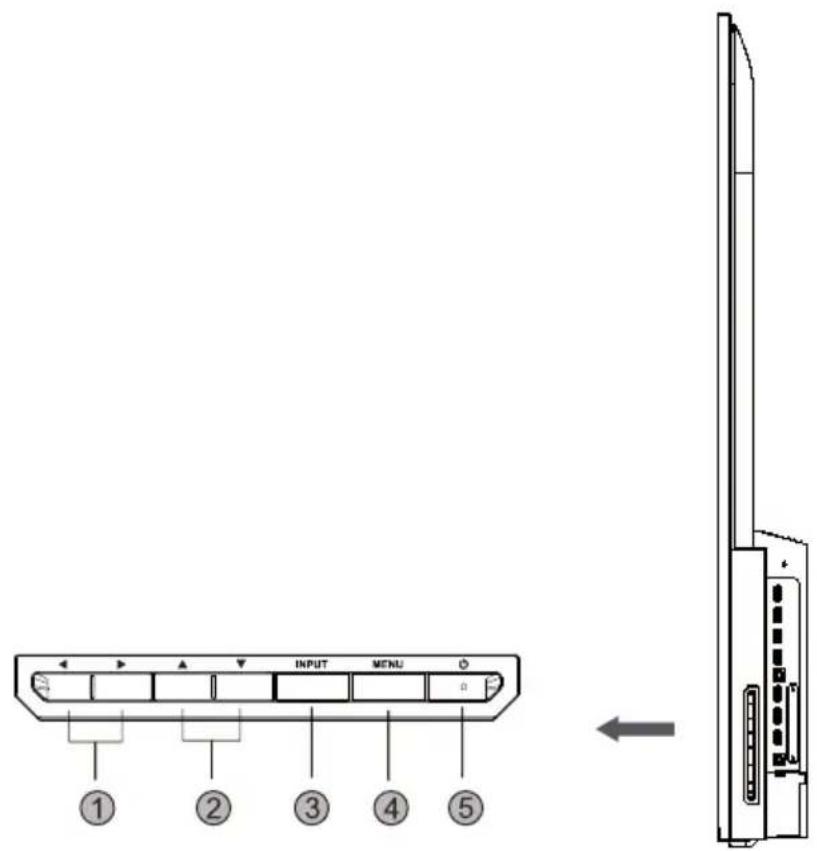
INPUT MENU ① ② ③ ④ ⑤| No. Name Description | ||
| 1 | (VOL) ◀ / ▶ | Scroll through settings and options in the OSD menu. |
| 2 | (CH) ▲ / ▼ | Scroll through settings and options in the OSD menu up and down. |
| 3 | INPUT | Select/confirm options in On-Screen Display (OSD) menu.Select input sources. |
| 4 | Menu Open/close/back in the OSD menu. | |
| 5 | [3607] | Turn the display on or off. |
Input/output terminals

text_image
Diagram of a device rear panel with labeled ports and connectors, showing front, back, and internal components.No. Name Description
1 Power-in Connects with the supplied power cord.
Used to isolate the power supply from the system.
2 Power Switch
- When the switch is set to ON (I), the system will automatically enter standby mode.
- When the switch is set to OFF (O), this will completely cut off the power supply.
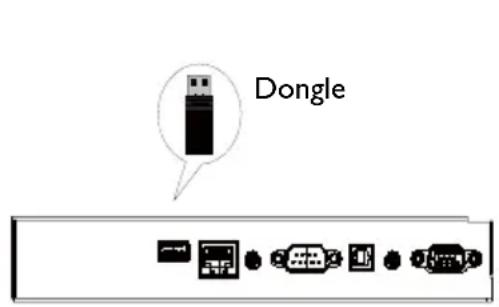
3 USB 2.0 Connects the dongle to pair with the remote control.
4 LAN 10/100/1000 Mbps, connecting RJ45 terminals.
5 AUDIO OUT Connects to an external audio device (such as a speaker, stereo system, or headphone) to output the audio that is supplied by the video source.
6 RS232 Serial interface, used for mutual transfer of data between devices.
7 SPDIF Connects the SPDIF cable from external devices to the display for audio in.
• AUDIO IN: Receives audio signals from an external device.
8 AUDIO IN/MIC IN • MIC IN: Connects to a microphone (integrated amplifier with power).
9 VGA Receives analog RGB signals from an external device (such as a computer).
| 10 | USB 2.0 (Type A) | Accesses multimedia files on USB drives directly. Refer to Connecting the USB on page 20 for more information. |
| 11 | HDMI OUT | Connects to display devices with an HDMI input (HDMI 1, HDMI 2, HDMI 3, or OPS input). |
| 12 | USB 3.0 Accesses multimedia files on USB drives directly. | |
| 13 | USB 3.0/1.5A | Accesses multimedia files on USB drives directly. |
| 14 | USB 3.0 Accesses multimedia files on USB drives directly. | |
| 15 | USB 2.0 (Type B) | Accesses multimedia files on USB drives directly. Refer to Connecting the USB on page 20 for more information. |
| 16 | HDMI IN 1 Receives HDMI signals from an external device. | |
| 17 | HDMI IN 2 Receives HDMI signals from an external device. | |
| 18 | HDMI IN 3 Receives HDMI signals from an external device. | |
| 19 | USB 2.0 (Type B) | Accesses multimedia files on USB drives directly. Refer to Connecting the USB on page 20 for more information. |
| 20 | USB 2.0 Unscrews the cover and accesses a specific Wi-Fi dongle. | |
| 21 | OPS Open pluggable specification (Intel OPS standard) | |

- USB2.0= 5V = 500mA / USB3.0= 5V = 900mA
- OPS=18V-5A
- Direct Current / DC
• Alternating Current /AC - The maximum length for the cables to be used with the USB slots are 5m (USB 2.0) and 3m (USB 3.0).
Remote control
text_image
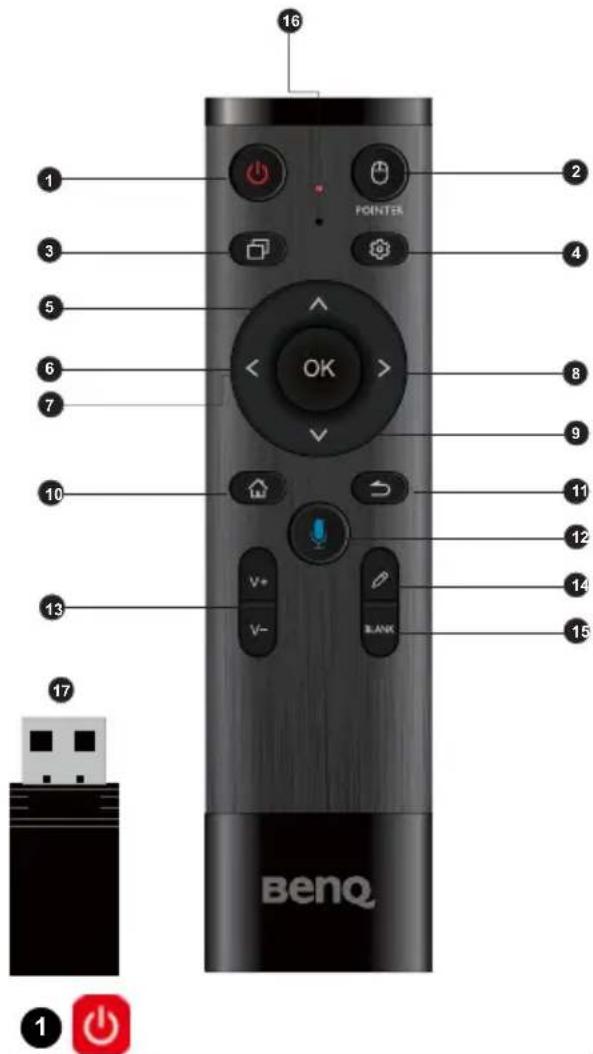
1 2 3 4 5 6 7 8 9 10 11 12 13 14 15 16 17 benQTurn the display on or off.
Pointer key. Press to activate the spotlight or pointer function and following the instruction on the screen.
Press to open SwitchQ, a task switcher to switch between recent apps and input sources.
Press to open or close the OSD menu.
Direction key. Press for upward selection.
Direction key. Press for left selection.
Press to proceed.
Direction key. Press for right selection.
Direction key. Press for downward selection.

Android system main screen button.

Return key.

Voice command key. Press to activate Saffi (BenQ Voice Assistant), hold the button for two seconds, then say the command you can use. Release the button until you finish the command.

Speak directly to the microphone built into the top portion of the remote control. Position the microphone closer to your mouth or speak in a loud and clear voice.
Volume up/down.
Press to open the floating tool.

One key for blank screen.

Microphone.

The enclosed dongle to pair with the remote control. Read Remote control important notice on page 18 for more information.
Remote control important notice
I. This remote control applies only to a specific models and/or operating systems. Contact your reseller if any question.
2. The function keys can work only when the enclosed dongle is inserted to the BenQ signage.
3. The remote control and the enclosed dongle have been paired in default.

text_image
DongleUsing the remote control
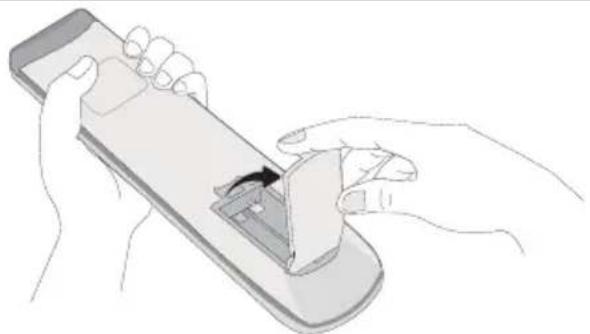
Installing remote control batteries
natural_image
Illustration of hands holding a smartphone with a partially open screen and a scroll wheel (no text or symbols)- Open the remote control battery compartment cover.

natural_image
Diagram of a remote control casing with battery terminals and an arrow indicating a location (no text or symbols)- Insert the supplied batteries ensuring that the positive and negative marked battery terminals match the (+) and (-) marks in the battery compartment.

The supplied batteries are provided for your convenience so that you can operate the display straight away. You should replace them as soon as possible.
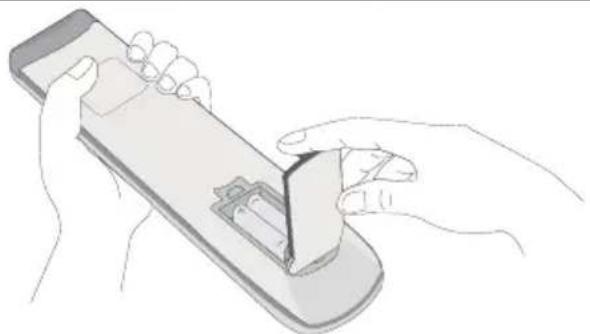
natural_image
Illustration of hands using a handheld device to interact with a smartphone (no text or symbols visible)- Refit the battery compartment cover.
Using the BenQ control signage by remote control
I. Insert the enclosed dongle into BenQ signage's USB port.
2. You can activate functions on the screen once the remote control is connected to its enclosed dongle as a receiver.
3. For detailed function of each button, please refer to Remote control on page 17.
Pairing the remote control and the enclosed dongle
If you are experiencing issues using the function key on the remote control, please follow the steps and pair again the remote control to resolve the issue:
I. Insert the enclosed dongle to signage's USB port and place the remote control near it.
2. Press the and at the flash time, and the indicator light starts flashing.
3. The pairing is completed once the indicator stops flashing.
Remote control usage tips
- To power on/off the display, aim the top front of the remote control directly at the display's remote control sensor window when you press the buttons.
- Avoid getting the remote control wet or store it in humid environments (like bathrooms).
- If the display's remote control sensor window is exposed to direct sunlight or strong light, the remote control may not operate properly. In this situation, change the light source, readjust the angle of the display, or operate the remote control from a location closer to display's remote control sensor window.
text_image
Dongle
natural_image
Empty white rectangle with black border (no text or symbols)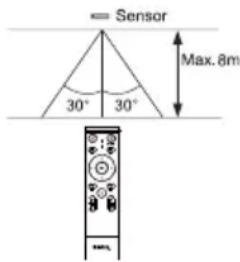
text_image
Sensor 30° 30° Max. 8mConnection
Connecting the VGA input
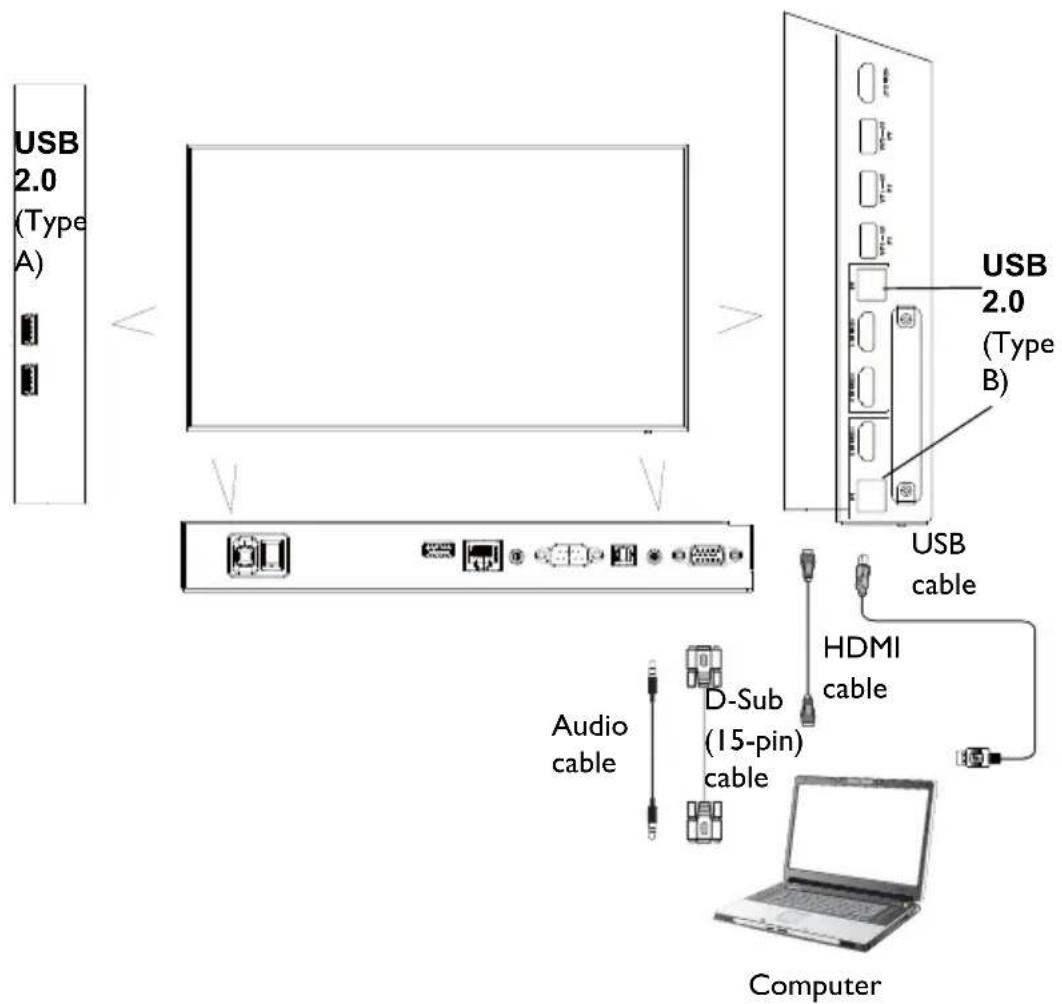
I. Connect the VGA jack on the display to the VGA output jack on a computer using a D-Sub (15-pin) cable.
2. Connect the computer's audio output jack to the AUDIO IN/MIC IN jack on the display with a suitable audio cable.
Connecting the USB
USB peripheral sharing: All devices plugged into USB 2.0 (Type A) can be shared to external computers via USB 2.0 (Type B). For example, you can share a webcam between computers.
text_image
USB 2.0 (Type A) USB 2.0 (Type B) USB cable HDMI cable Audio cable D-Sub (15-pin) cable Computer
- If any ghost image occurs, please try to un-plug and then re-plug all USB cables. If the failure image still exists, use another USB type B to A cable.
- USB 2.0 (Type B) port, next to HDMI IN 3, must be connected only with HDMI IN 3.
Connecting the digital inputs
I. Connect the HDMI output jack of a computer or A/V device (such as a VCR or DVD player) to the HDMI input jack on the display using an HDMI cable.
- To view images from this input, press on the remote control to switch to the respective input source.

text_image
HDMI OUT 3.0 SV←0.9A 3.0 SV←1.5A 3.0 SV←0.9A 2片 HDMI IN 1 HDMI IN 2 HDMI IN 3 2片
text_image
HDMI cableDVD player
text_image
Computer
- The applicable cable is not supplied and should be purchased separately.
- The display provides a selection for the dual-monitor mode.
- USB 2.0 (Type B) port, next to HDMI IN 1 or HDMI IN 2, must be connected only with HDMI IN 1 or HDMI IN 2.
Connecting the video output
For computer:
I. Use HDMI cable to connect from HDMI OUT to the respective jacks of the devices.
2. Plug in power cord, and switch power on.
3. Press ⏻ on the remote control to turn on the display.

text_image
HDMI OUT 3.0 5V=0.9A 3.0 5V=1.5A 3.0 5V=0.9A 2.0 HDMI IN 1 HDMI IN 2 HDMI IN 3 2.0
HDMI OUT

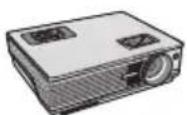
Projector
Connecting to serial port
Directly connect the computer to RS232 ports on the input/output terminals.
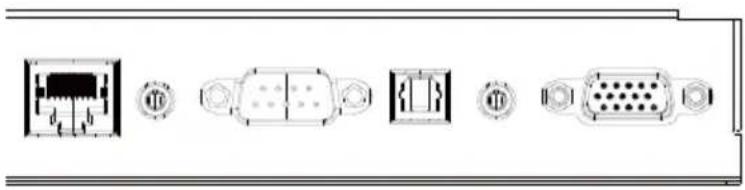
natural_image
Diagram of five electronic component labels (no text or symbols present)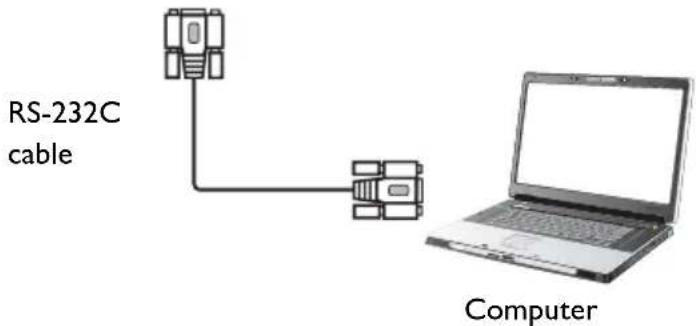
text_image
RS-232C cable Computer
- The applicable cable is not supplied and should be purchased separately.
- This connection is applicable to straight-through RS-232C cable only.
- After using serial port line to connect central control equipment and machine, certain function of the machine can be controlled via central control equipment, such as: machine on/off, and adjustment of sound volume, etc.
Connecting power
Plug one end of the power cord into the Power jack on the display and the other end into an appropriate power outlet (if the outlet is switched, turn on the switch).
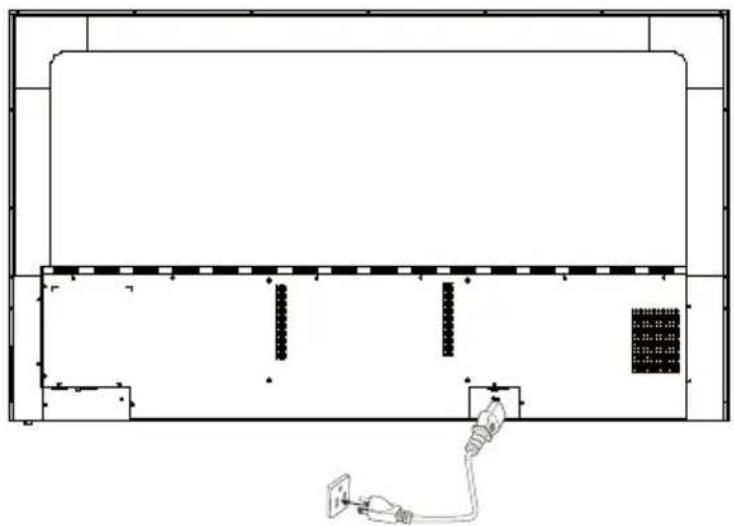
natural_image
Architectural floor plan showing room layout and electrical connections (no text or labels)
- The supplied power cord is suitable for use with 100-240V AC power only.
- The power cord and outlet illustrated may differ from the ones used in your region.
- Only use an appropriate power cord for your region. Never use a power cord which appears damaged or frayed, or change the plug type on the power cord.
- Be aware of the power loading when you use extension cords or multiple outlet power boards.
- There are no user serviceable parts in this display. Never unscrew or remove any covers. There are dangerous voltages inside the display. Turn off the power and unplug the power cord if you intend to move the display.
• The illustration is for your reference only.
Basic operations
Turning the display on or off
I. Be sure to follow the instruction of Connecting power on page 22.
2. Before turning on the display, make sure the Power switch is set to ON. The system will enter standby mode.
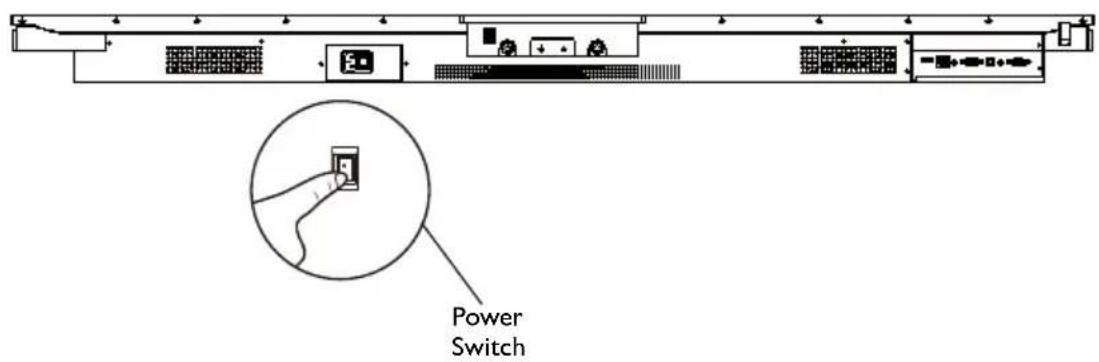
text_image
Power Switch- To turn on the display, press the Power button on the control panel or on the remote control.
-
To turn off the display, press the Power button on the control panel or on the remote control. The system will automatically enter standby mode.
-
To turn on the display, press the ON/OFF button on the control panel or on the remote control.
- To turn off the display, press the ON/OFF button on the control panel or on the remote control. The system will automatically enter standby mode.

text_image
IR Receiver Power Button
The display's standby mode still consumes power. To completely cut off power supply, set the Power switch to OFF (O) and then disconnect the power cord from the power outlet.
Initial setup
After you have connected the display to the power, you are ready to power on the display. The first time you power on the display, you will be guided through a series of setup screens. Follow the on-screen instructions or the steps below to start up your display and complete the initial setup.
I. Turn on the display. Wait for the display to boot up with the BenQ screen. This may take a moment.
2. Click Next on the screen to begin. Follow the on-screen instructions to set up the language, date and time, and network. Or your can skip some of these steps and complete the setup later.
OSD Setting
- Use your mouse or cursor to control the mouse pointer.
- Under Connection, you can select a desired input source and adjust backlight. Refer to Input settings on page 33 for more information.

text_image
Connection General Network Device System Input Sources Android HDMI1 HDMI2 HDMI3 VGA Wifi Sources InstaShare 2Account Information
Three types of accounts are provided: Guest, Admin, and Multiple users.
Guest
It's for public use under Guest account. You are able to change the headshot, wallpaper, volume and brightness.
Admin
- Log in as Admin. Under Personal settings, you can change the headshot, wallpaper, and password. You can also enable AMS service, set Available offline accounts, and check Device information.
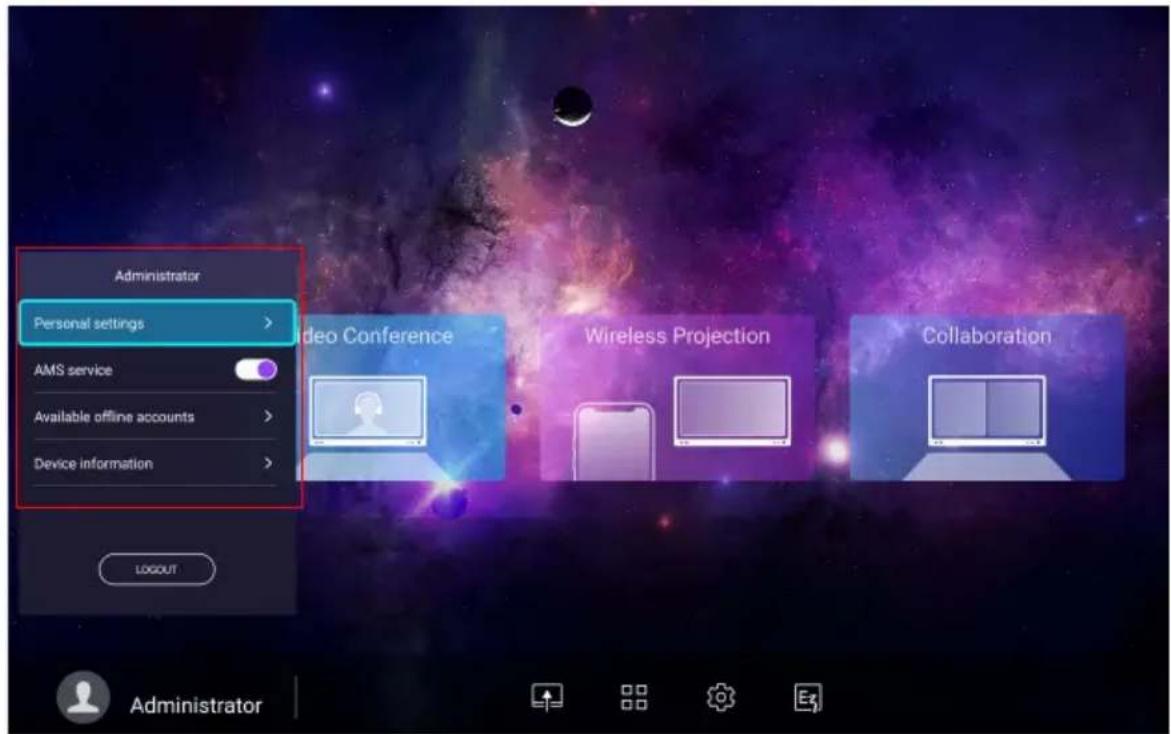
text_image
Administrator Personal settings > AMS service Available offline accounts > Device information > LOGGOUT Video Conference Wireless Projection Collaboration Administrator- You can also log in as Admin with your mobile phone by scanning the QR code.
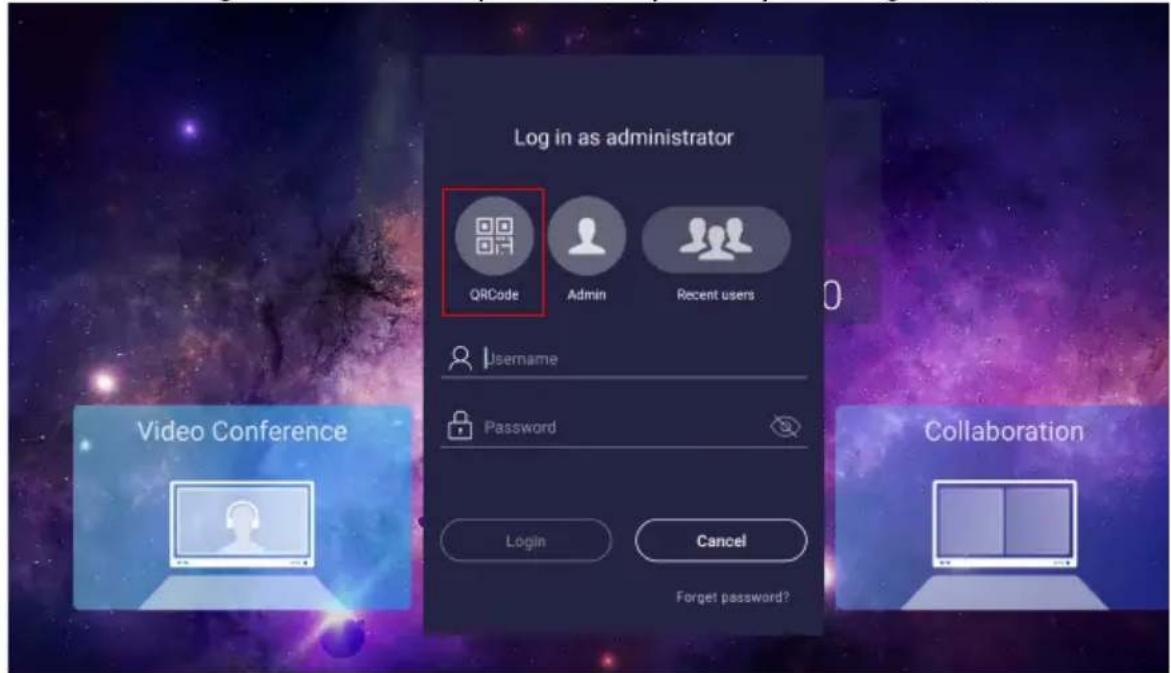
text_image
Log in as administrator QRCode Admin Recent users Username Password Login Cancel Forget password? Video Conference Collaboration- Fill in the name and password, then press Login on your mobile phone.

text_image
Login CS6501_633F Name Password Login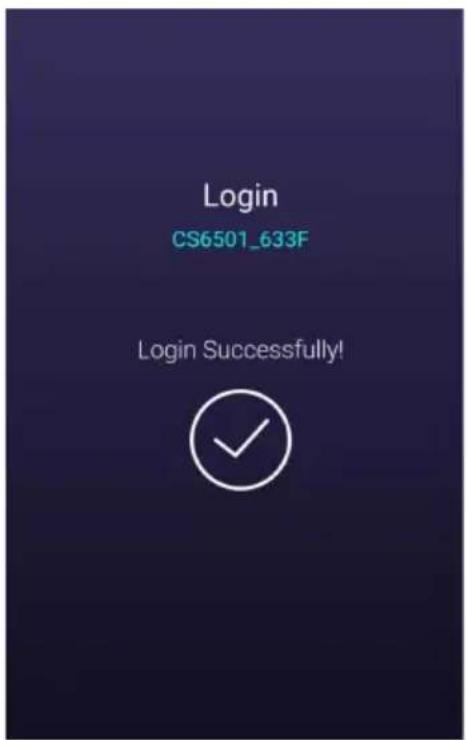
text_image
Login CS6501_633F Login Successfully!Multiple users
To access your personal account, you have to ask the administrator to activate AMS service first and create your account through IAM service. Refer to User Management on page 26 for more information.
User Management
To add a new user, please contact your IT manager to create your account through BENQ IAM web service.
Creating a new account
I. As an administrator to create a new account for regular users, go to BenQ Service website: https://ams.benq.com. Suggested browsers are Chrome, Firefox.
2. Log in and choose IAM.
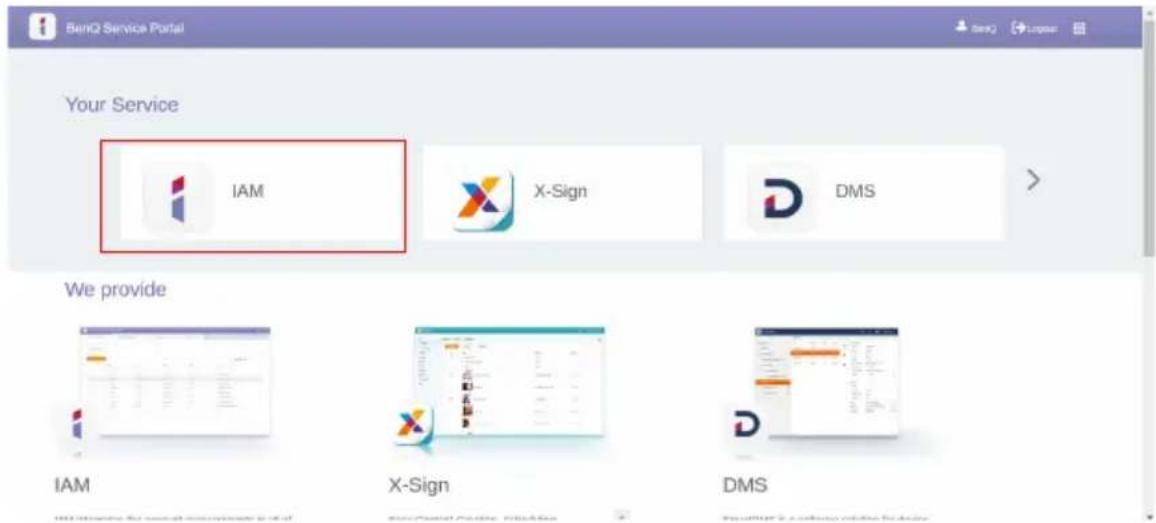
text_image
BenQ Service Portal Your Service IAM X-Sign DMS We provide IAM X-Sign DMS- Click Create New Account to continue.

text_image
BenQ Identity and Access Management Head Quarter ➕ Logout Account Managem... Role Management Agent Setting Service BENQAccount Management
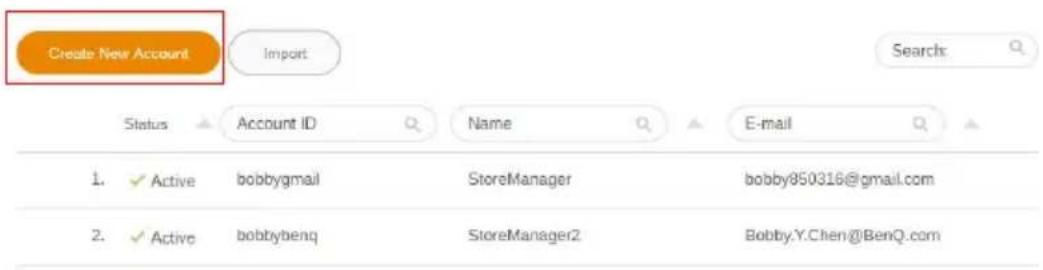
text_image
Create New Account Import Search: Status Account ID Name E-mail 1. ✓ Active bobbygmail StoreManager bobby950316@gmail.com 2. ✓ Active bobbybenq StoreManager2 Bobby.Y.Chen@BenQ.com- Fill in the following fields. Be sure to enter the correct email address and activate the X-Sign and Broadcast service. Click Submit to create a new account.

text_image
BenQ Identity and Access Management Account Management Role Management Agent Setting Service Create New Account E-mail: Low email as account ID Account ID: REMARK: Please do NOT using your personal data for the account name. If you notice the risk to submit your privacy Password: Confirm Password: Name: Company: BenQ CountryArea: Taiwan Teléfono: (UTC+66.00) Taipei Note: within 150 characters Service Setting Set the account as substitute administration, has all of the partitions, no accounts at most Enable Service Rise X-Sign Schedule Manager CODE & ROW NET DAS Guest Address Manager AMS User Broadcast Submit Cancel
You can easily switch to different services, X-Sign, DMS, AMS, Broadcast, by clicking the icon on the upper right corner.
- The account has been created and a verifying email is sent to the new account owner.
Message
The account has been created. We'll send the email from "BenQ". If it isn't in your inbox, check your folders. If a spam filter or email rule moved the email, it might be in the Spam, Junk, Trash, Deleted items, or Archive folder.
Close
Switching input signals
To select an input signal, do either one of the following:
- Press on the remote control.
- Press the Menu button on the front panel.
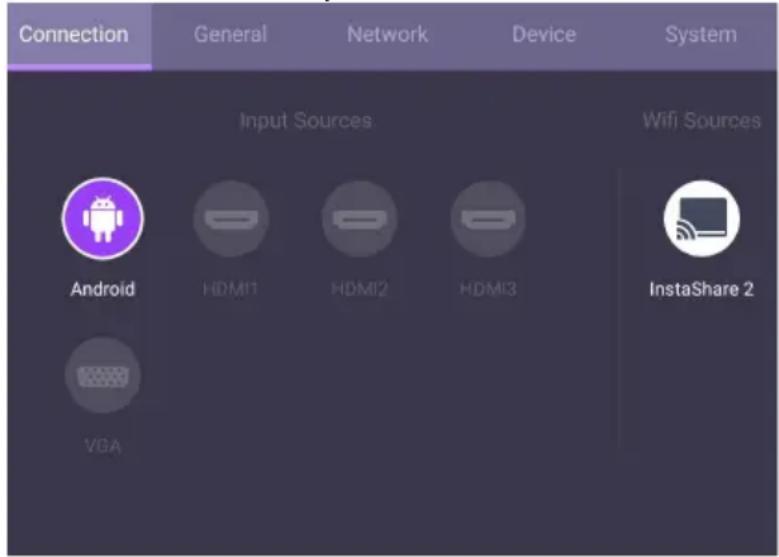
text_image
Connection General Network Device System Input Sources Android HDMI1 HDMI2 HDMI3 VGA Wifi Sources InstaShare 2Downloading software
BenQ may periodically release software updates that may add functions or applications associated with your display. To check if there is a software update available for your device or to obtain the software license key, please visit https://business-display.benq.com/en/findproduct/signage/software/partner-software/download.html. Then enter the serial number (can be found on the sticker attached on the back of the display) and click OK to access the Software download page.
Setting up the Internet connection
Your display must be connected to a network to conduct OTA updates or surf the Internet.

To find the MAC address in Android OS, please go to Setting > System > About > Status.
Network setting
On the home screen, go to Setting > System > About > Status. If there is no IP address shown, please connect the display to the ethernet cable.

text_image
← Status IP Address 192.168.1.45 MAC Address 00:89:22:00:00:7f Startup Duration 1:44:21Wireless connection
You must use a wireless adapter in order to connect the display to the Internet wirelessly. Please contact your local dealer for more information on configuring the wireless connection.
I. Press 📍 on the remote control, or go to Network > Wi-Fi.
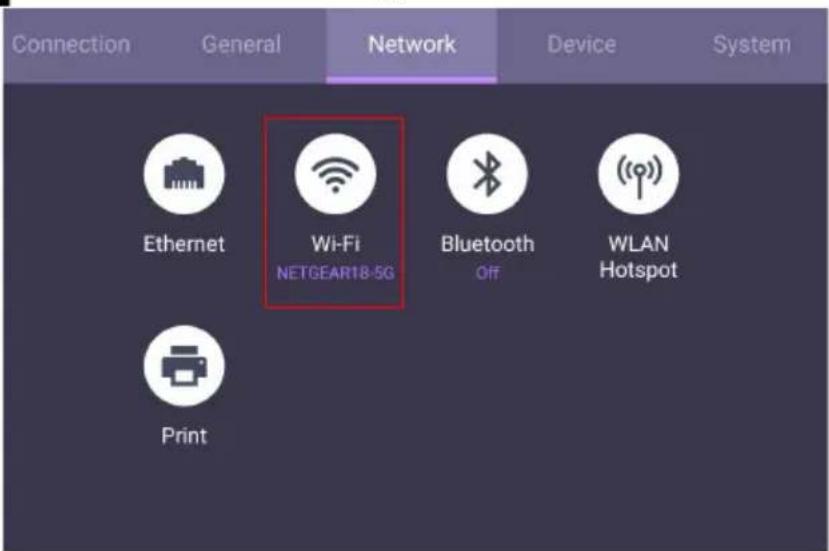
text_image
Connection General Network Device System Ethernet Wi-Fi NETGEAR18-5G Bluetooth Off WLAN Hotspot Print- Insert the Wi-Fi dongle and the switcher will automatically change to ON. A list of available networks will show on the screen.
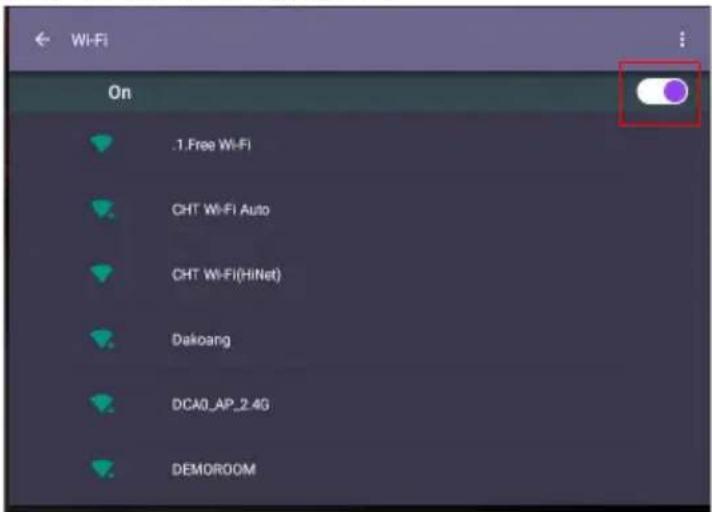
text_image
On .1.Free Wi-Fi CHT Wi-Fi Auto CHT Wi-Fi(HiNet) Dakoang DCA0_AP_2.4G DEMOROOM- Click the network's name to connect to the network. The password is needed if it is your first time to use the network. Key in the password and press Connect. The device is now connected to the WLAN.

- If you are connecting to a secured wireless network, enter the password for the wireless network access when prompted and click Connect.
- For wireless connection, BenQ shipment does not include wireless dongles, therefore, you may purchase it separately via the local dealer.
Updating software
Whenever a new version of software is available, the system will automatically detect the update and will prompt you to download it every time you turn on the display. If you want to update the software, choose NETWORK UPDATE or USB UPDATE to continue the update. Or your can skip this step and update the software later.
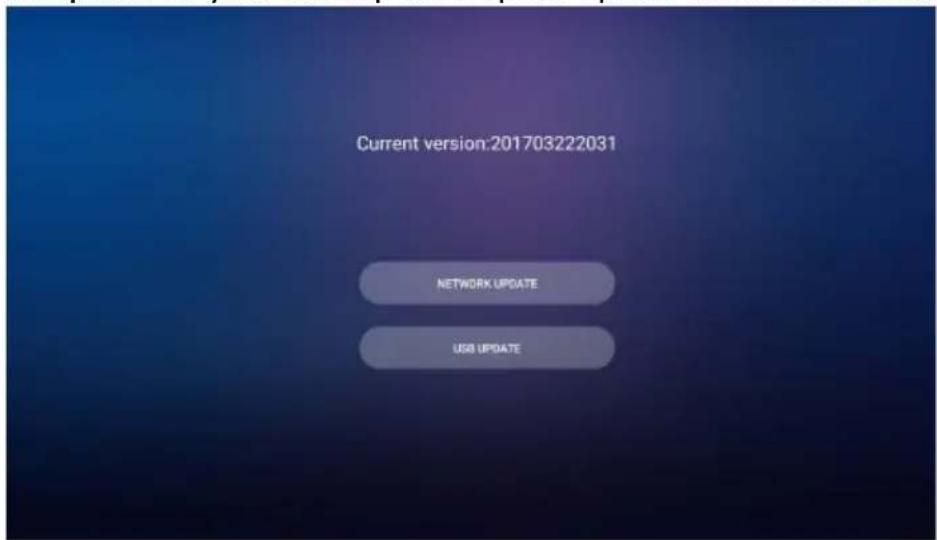
text_image
Current version:201703222031 NETWORK UPDATE USB UPDATETo manually update the software:
I. Go to System > About > System updates.
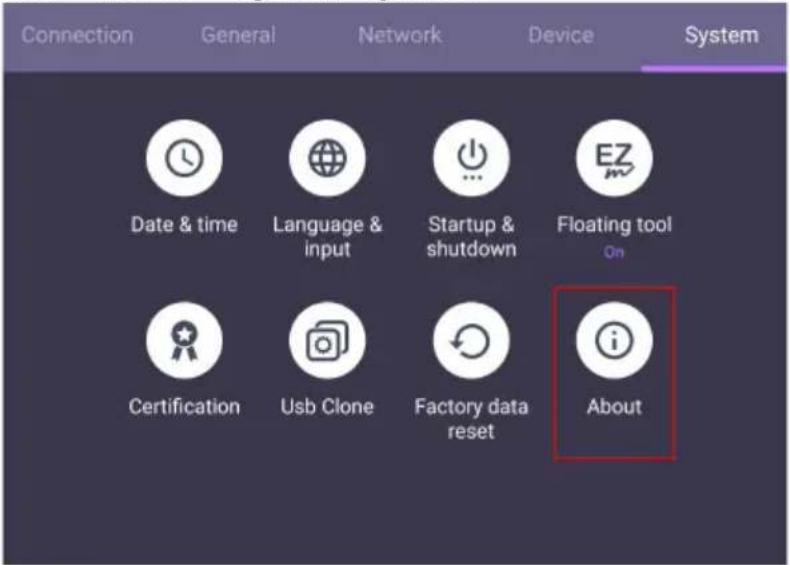
text_image
Connection General Network Device System Date & time Language & input Startup & shutdown Floating tool On Certification Usb Clone Factory data reset About2. If there is an update available, the system will begin updating.

- Software update process may take some time to complete.
- During the update process, do not turn off the device or disconnect the Internet connection.
Any interruptions during the software update process may permanently damage your display.
Adjusting audio volume level
To adjust the audio volume level do either one of the following:
- Press V+ / V- on the remote control to adjust the volume.
- Press 🏻 on the front panel of the display.
- Go to Setting > General to adjust the volume. Refer to General settings on page 33 for more information.
Menu operations
Settings menu
Input settings
Press on the remote control to enter the OSD menu.
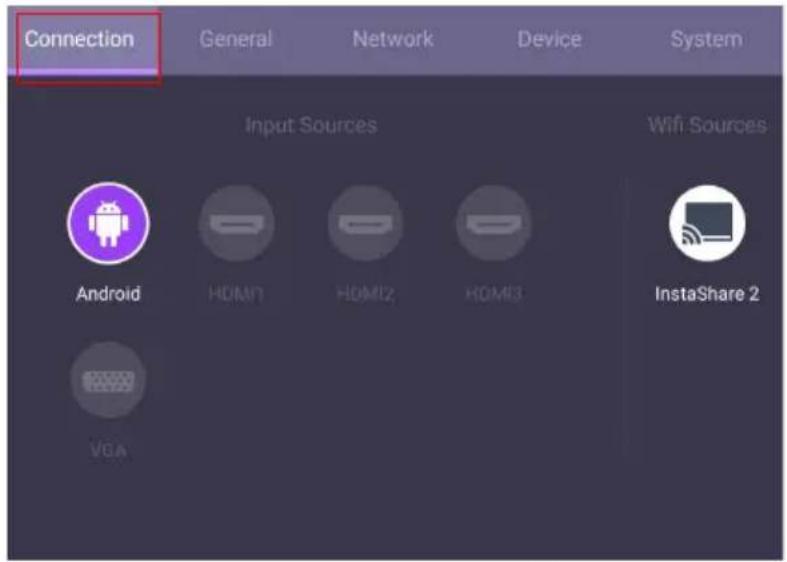
text_image
Connection General Network Device System Input Sources Android HOM1 HOM2 HOM3 Wafi Sources InstaShare 2 VGA- Press ▲/▼/◄/► on the remote control and press OK to confirm, or directly click a desired input source.
- Press on the remote control or click a blank area outside the menu to exit the menu.
General settings
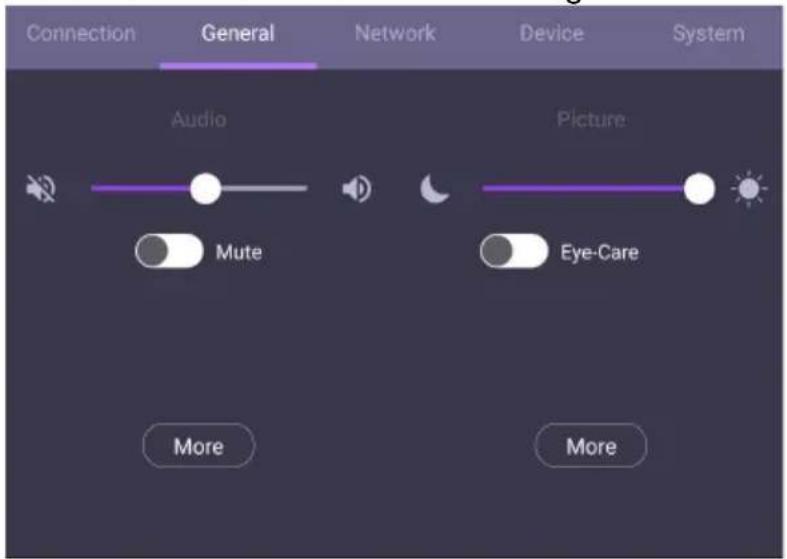
Go to General to access the Audio and Picture settings.
text_image
Connection General Network Device System Audio Picture: Mute Eye-Care More MoreAudio
- Under Audio, use the volume bar to adjust the volume for the display.
- Click to enable or disable Mute.
- Go to More to enter Audio menu.
Picture
- Under Picture, use the brightness bar to adjust the brightness for the display.
- You can enable the Eye-Care function on the OSD menu. Eye-Care switches the display's low blue light mode and activates the flicker free function.
- Go to More to enter Picture menu.
Eye-Care solutions
Blue light with wavelengths under 455 nm could affect vision and age the eyes. Eye-Care solution is designed for eyesight protection: the display provides proprietary eye-care technology with zero-flicker performance and ultra-low blue light emission, preventing eyestrain, eye fatigue and macular degeneration caused by extended sessions in front of a display. In addition, advanced anti-glare screen treatment minimizes distracting reflections and glare for optimal productivity and comfort.
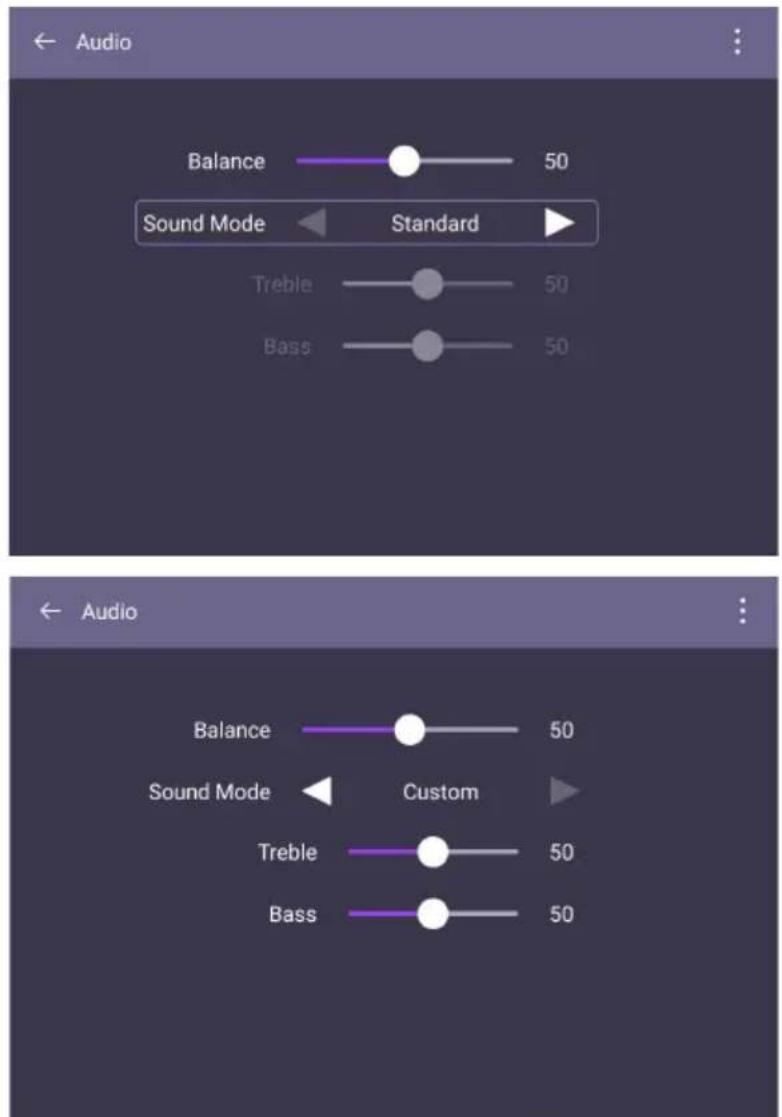
- Audio settings
text_image
Audio Balance 50 Sound Mode Standard Treble 50 Bass 50 Audio Balance 50 Sound Mode Custom Treble 50 Bass 50- Press ▲/▼/◄/► on the remote control and press OK to confirm or directly click an item.
- Press the remote control or click a blank area outside the menu to exit the menu.
| Menu Description | |
| Balance | Press ◀ / ▶ on the remote control to adjust Balance. |
| Sound Mode | Choose a preset sound environment. Options are Standard, Movie, Meeting, or Custom mode.Under Custom mode, you can adjust Treble and Bass. |
Picture settings

text_image
Picture Picture mode Standard Brightness 50 Contrast 50 Hue 50 Sharpness 50 Saturation 50 Color temperature Normal Image noise reduction On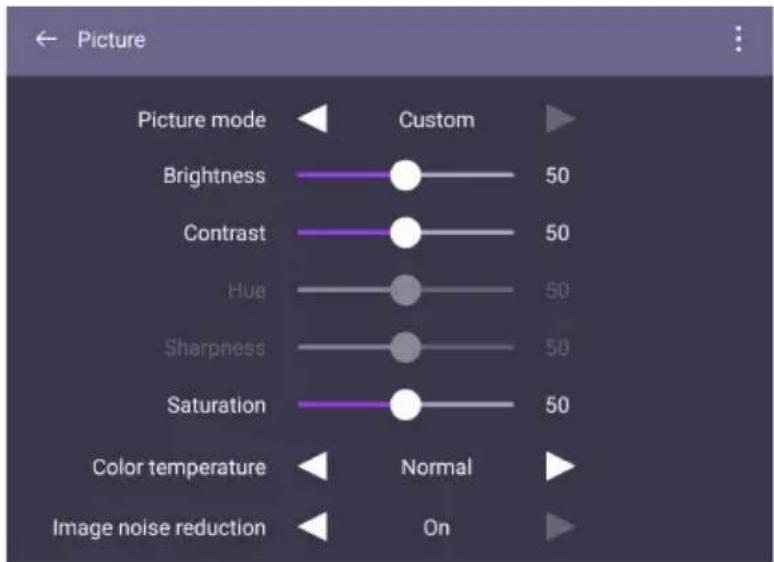
text_image
Picture Picture mode Brightness Contrast Hue Sharpness Saturation Color temperature Image noise reduction Custom 50 50 50 50 50 Normal On- Press ▲/▼/◄/► on the remote control and press OK to confirm or directly click an item.
- Press on the remote control or click a blank area outside the menu to exit the menu.
| Menu Description | |
| Picture Mode | Press ◀ / ▶ on the remote control to select a picture mode. Options are Standard, Bright, Soft, and Custom. |
| Brightness | Under Custom mode, press ◀ / ▶ on the remote control to adjust the brightness. |
| Contrast | Under Custom mode, press ◀ / ▶ on the remote control to adjust the contrast. |
| Color Temperature | Press ▲ / ▼ / ◀ / ▶ on the remote control to select a preset color temperature for the image. Options are Normal, Cool or Warm. |
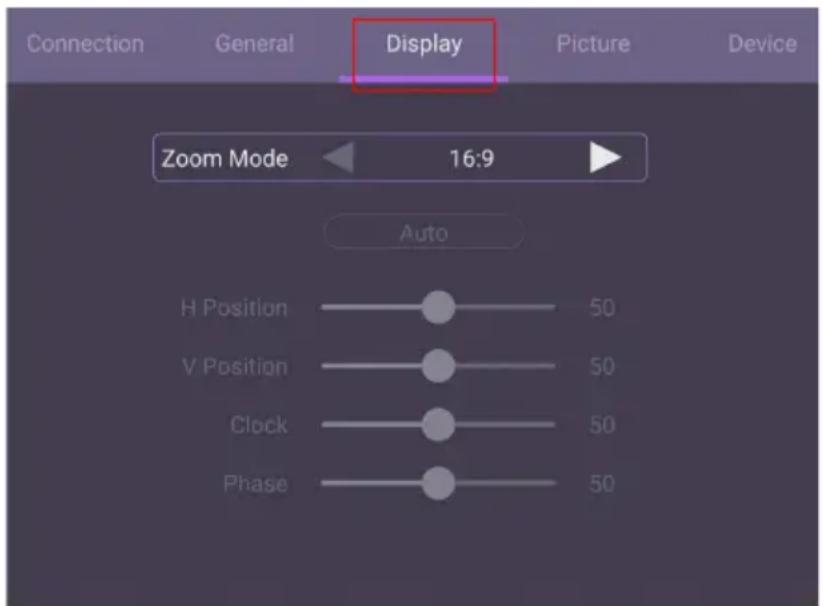
Display settings (other input source)
Leave the android system and connect to other input sources like VGA, HDMI, OPS. Then go to Display.
text_image
Connection General Display Picture Device Zoom Mode 16:9 Auto H Position 50 V Position 50 Clock 50 Phase 50- Press ▲/▼/◄/► on the remote control and press OK to confirm or directly click an item.
- Press on the remote control or click a blank area outside the menu to exit the menu.
- Press ◀ / ▶ on the remote control and press OK to adjust image.
| Menu Description | |
| Zoom Mode | Press ◀ / ▶ on the remote control to select an aspect ratio. Options are 16:9, 4:3, or PTP. You can also select Auto to adjust the image. |
- Use the H Position, V Position, Clock, and Phase functions to manually adjust the image.
| Menu Description | |
| H Position Press to move the screen to the left or right. | |
| V Position | Press OK on the remote control or click the switch to lock or unlock the remote control IR sensor on the front panel of the display. |
Device settings
Go to Device to enter the Device menu.
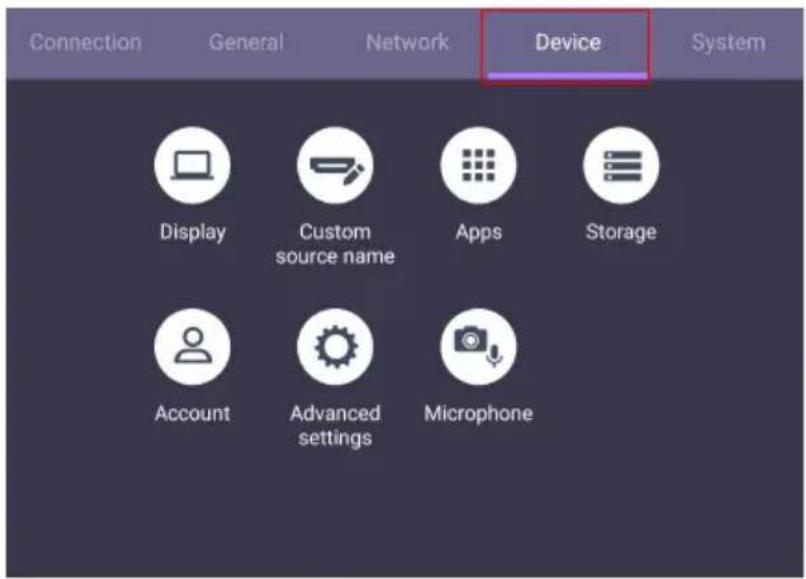
text_image
Connection General Network Device System Display Custom source name Apps Storage Account Advanced settings MicrophoneDisplay
Go to Device > Display.

text_image
Connection General Network Device System Display Custom source name Apps Storage Account Advanced settings Microphone
text_image
Display Sleep mode Off Power save mode High Power off mode 4 hours HDMI CEC HDMI output resolution Auto Change Logo| Menu Description | |
| Sleep mode This | feature only works on Android input. Select a time period (1, 5, 10, 20, 30, 40, 50 minutes or 1, 2, 3, 4 hours) for the display to turn off the panel back light. Set to Off to turn off the function. |
| Power save mode This feature only works on VGA/HDMI input. High: Power off the display five minutes later. Low: Turn off the panel back light five minutes later. Off: Turn off the function. | |
| Power off mode This feature only works on Android input. Select a time period (1, 5, 10, 20, 30, 40, 50 minutes or 1, 2, 3, 4 hours) to turn off the display. Set to Off to turn off the function. | |
| HDMI CEC Allow devices connected to your display through HDMI ports to communicate back and forth with your display. | |
| HDMI output resolution | Only support FHD out. |
| Change Logo • Copy the boot logo file (JPG format, *.jpg, with resolution supports the display) to USB drive under “benq” folder. Rename the image to “bootlogo.jpg”. Click Change Logo to load the changed logo. | |
| Restore Logo | Click Restore Logo to restore the original logo. |
| Change Animation • Copy animation zip file (<2MB) to USB drive under “benq” folder. Rename the file to “bootanimation.zip”. Click Change Animation to load the changed animation. | |
| Restore Animation | Click Restore Animation to restore the original animation. |
| HDMI Out | Press ▲/▼/◄/► on the remote control and press OK to enable HDMI Out. |
More settings
Advanced settings
Go to Device > Advanced settings.
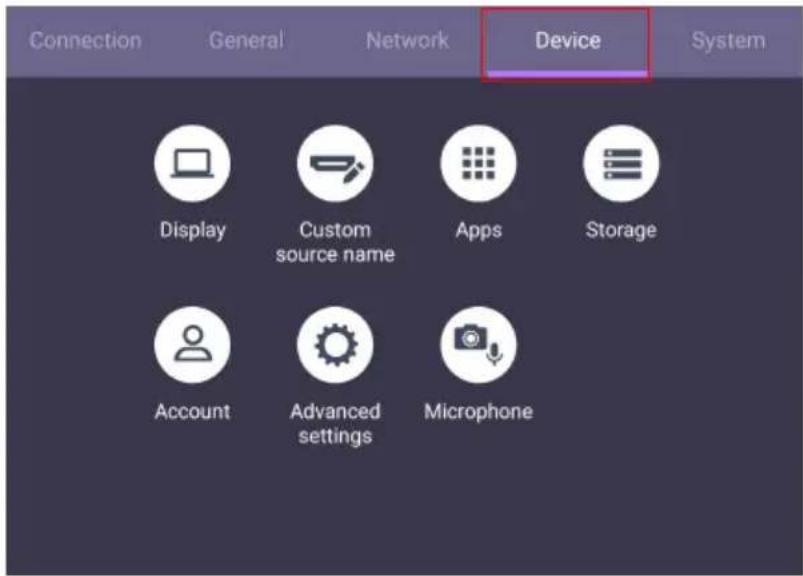
text_image
Connection General Network Device System Display Custom source name Apps Storage Account Advanced settings Microphone
text_image
Advanced settings Key Lock IR Lock Pixel Shift- Press ▲/▼/◄/► on the remote control and press OK to confirm or directly click an item.
- Press the remote control or click a blank area outside the menu to exit the menu.
| Menu Description | |
| Key lock | Press OK on the remote control or click the switch to lock or unlock the buttons on the front panel of the display. |
| IR lock | Press OK on the remote control or click the switch to lock or unlock the remote control IR sensor on the front panel of the display. |
| Pixel shift | Press OK on the remote control or click the icon to set a pixel shift preventing from image retention. |
Menu Description


- If keypad and IR are locked all at once, please follow the steps to unlock: Press 📄 on the remote control for five seconds.
- For image retention, please see Notes on the LCD panel of this display on page 7 for more information.
System settings
On the home screen, select Setting > System to enter system settings.
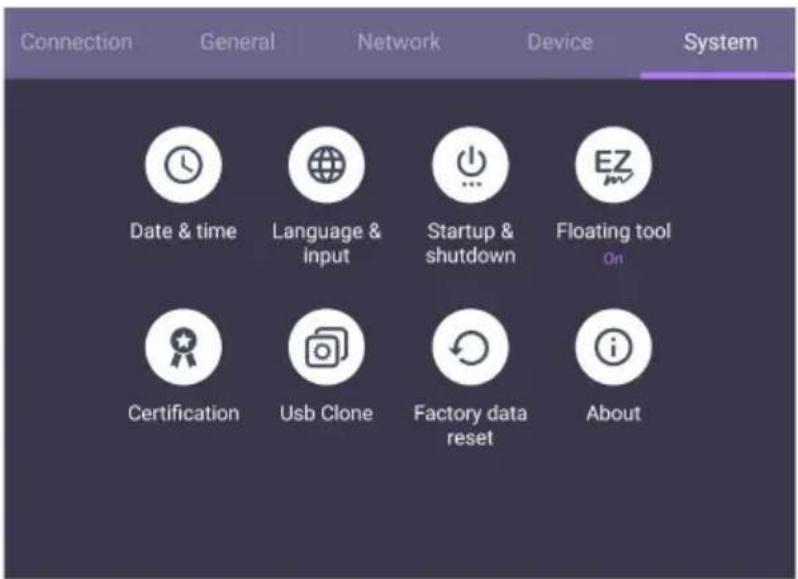
text_image
Connection General Network Device System Date & time Language & input Startup & shutdown Floating tool On Certification Usb Clone Factory data reset About- Press the remote control or click a blank area outside the menu to exit the menu.
| Options Description | |
| Date & time Click to set date, time, and their formats in Android. | |
| Language & input | Click to set Language, Keyboard & Input methods in Android. |
| Startup & Shutdown | Click to set the Startup channel, OPS startup option, Wake on Lan, and Power off reminder. Refer to Startup & Shutdown on page 44 for more information. |
| Floating tool | Click to open and close the floating tool. Refer to Floating Annotation Toolbar on page 65 for more information. |
| About Click to view system information in Android. | |

The amount of available storage space for the user varies according to the amount of pre-installed apps and images occupying the total storage space.
Proxy setting
- Go to Network > Ethernet.

text_image
Connection General Network Device System Ethernet Wi-Fi NETGEAR18-5G Bluetooth Off WLAN Hotspot Print- Press Proxy to go to the proxy setting. You can choose None, Manual, and Proxy Auto-Config.
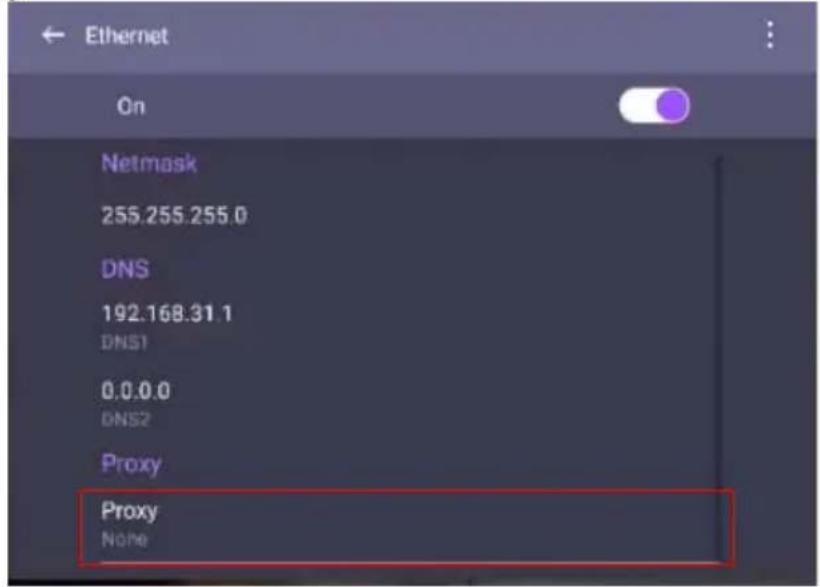
text_image
Ethernet On Netmask 255.255.255.0 DNS 192.168.31.1 DNS1 0.0.0.0 DNS2 Proxy Proxy None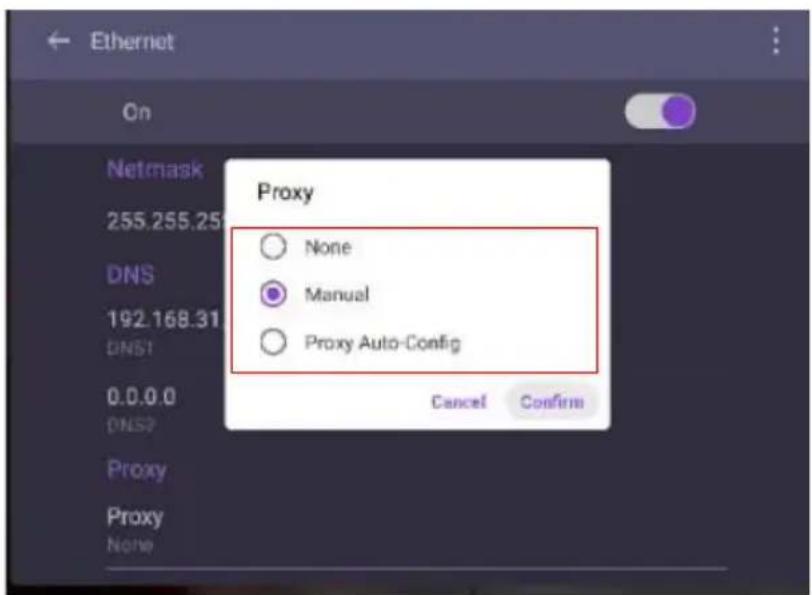
text_image
Ethernet On Netmask 255.255.25 DNS 192.168.31 DNS1 0.0.0.0 DNS2 Proxy Proxy None Proxy None Proxy None None Manual Proxy Auto-Config Cancel Confirm- Enter the proxy host name.
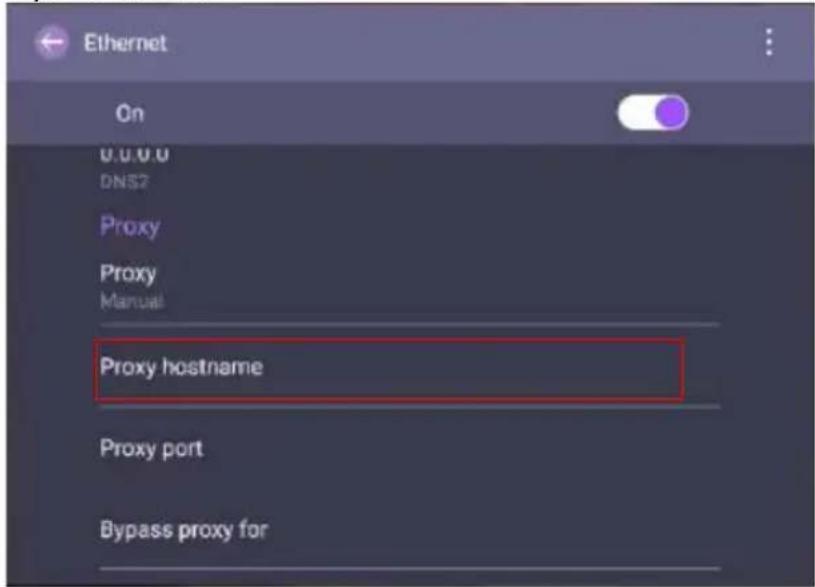
text_image
Ethernet On 0.0.0.0 DNS7 Proxy Proxy Manual Proxy hostname Proxy port Bypass proxy for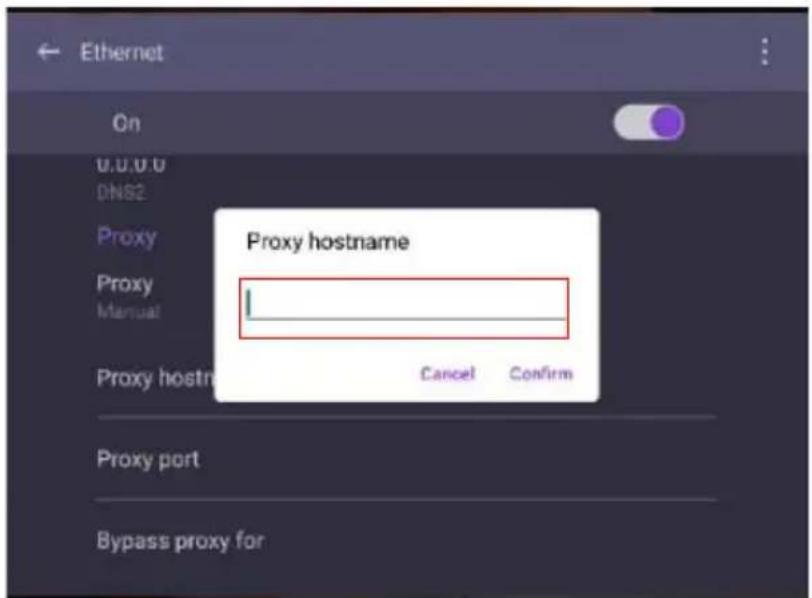
text_image
Ethernet On U.U.U.O DNS2 Proxy Proxy Manual Proxy hostname Cancel Confirm Proxy port Bypass proxy for- Enter the using channel.

text_image
Ethernet On 0.0.0.0 DNS2 Proxy Proxy Manual Proxy hostname Proxy port Bypass proxy for
text_image
Ethernet On 0.0.0.0 DNS2 Proxy Proxy Manual Proxy port Cancel Confirm Proxy hostn Proxy port Bypass proxy forStartup & Shutdown
- Go to System > Startup & Shutdown.

text_image
Connection General Network Device System Date & time Language & input Startup & shutdown Floating tool On Certification Usb Clone Factory data reset About- For Startup channel, you can choose Last shutdown channel or other sources.

text_image
Startup & shutdown Startup channel Last shutdown channel Wake on LAN Standby after startup (black screen) Close power off reminder 1 Startup Off time Channel -- -- -- Startup Off time Channel- For Close power off reminder, you can set on or off time. Schedules can be made by choosing the days of the week.

text_image
Startup & shutdown start up ch Last shutdo set on/off time Sun MTW TUE WD THU F9 SAT Wake on L Startup Time Shutdown Time 22 05 00 01 Standby a 23 06 01 02 Close pow - 07 02 03 Startup channel Last shutdown channel Android HDMI1 1 Startup Off time ChannelAndroid system interface

Note that this is a closed Android OS. Download and use of unauthorized apps on this system are not available.
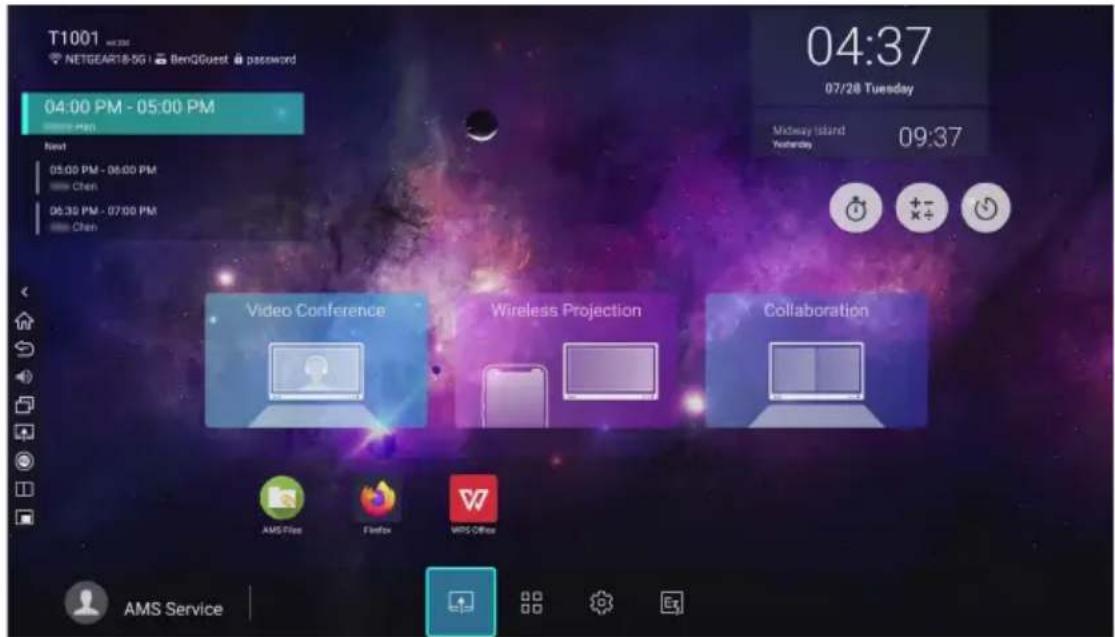
Main interface
The display launches the Android main interface by default.
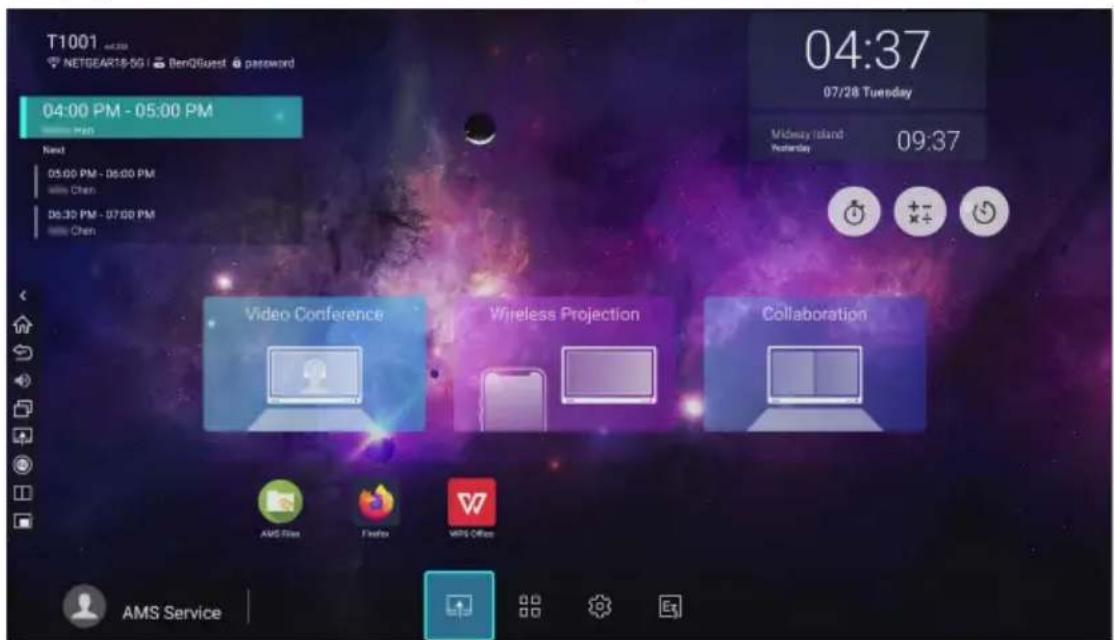
text_image
T1001 64:32 NETGEAR18-5G | BenQGuest password 04:00 PM - 05:00 PM 04:37 07/28 Tuesday Midway Island Yesterday 09:37 Video Conference Wireless Projection Collaboration AMS Files Foxbox VIPS Office AMS ServiceTo navigate the Android main interface:
- Press 📄 on the remote control or Home button on the front panel to return to the main interface.
- Press 🎨 on the remote control to enter the OSD menu to select an input.
- Click access Apps and Widgets. Long clicking the app to add it to the shortcut.
• Video Conference, Wireless Projection, Collaboration are three main feature shortcuts. -
The corresponding Apps for three main feature shortcuts are:
-
Video Conference: Blizz (See Blizz on page 78)
- Wireless Projection: InstaShare 2 (See InstaShare 2 on page 57)
- Collaboration: Duo Windows, Duo OS, and EZWrite (See Duo Windows on page 67, Duo OS on page 69, and Floating Annotation Toolbar on page 65)
APPS
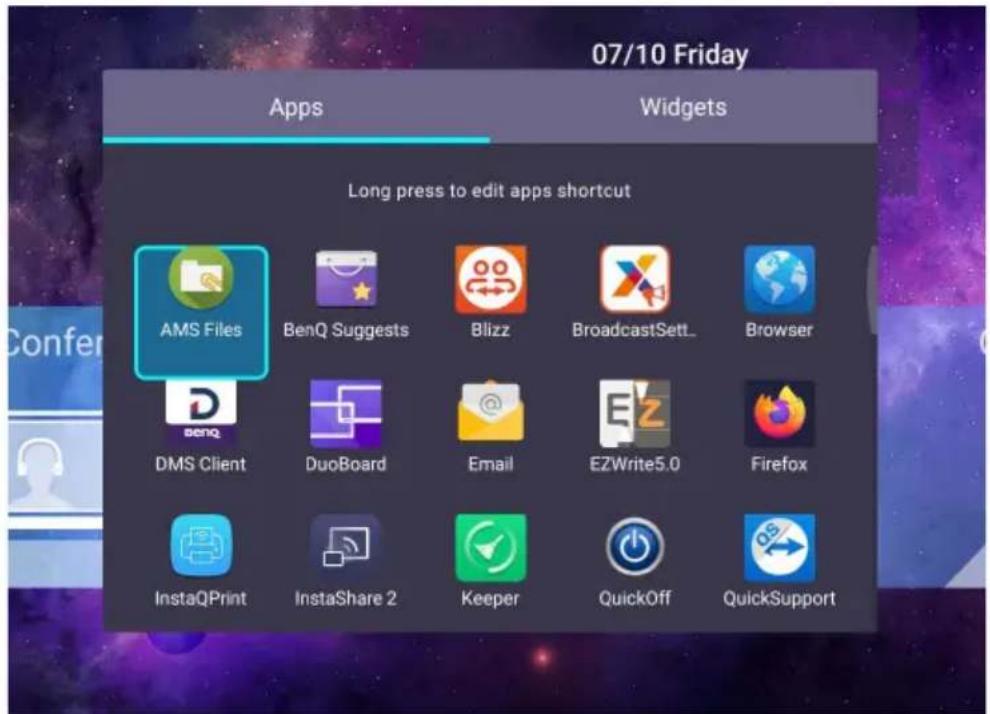
text_image
07/10 Friday Apps Widgets Long press to edit apps shortcut AMS Files BenQ Suggests Blizz BroadcastSett.. Browser DMS Client DuoBoard Email EZWrite5.0 Firefox InstaQPrint InstaShare 2 Keeper QuickOff QuickSupport- Use your mouse or cursor to control the mouse pointer.
- Click the desired app to launch the app.
AMS file manager overview
- Use your mouse or cursor to control the mouse pointer.
- Click to launch AMS. With this application, you can access your personalized workspace environment and settings and manage your files and accounts on any display that you have logged into.
text_image
T1001 NETGEART8-5G | BenQGuest | password 04:00 PM - 05:00 PM 04:37 07/28 Tuesday Midway Island Yesterday 09:37 Video Conference Wireless Projection Collaboration AMS File Firefox AMG Office AMS Service- While logging in, you will see four main parts, as described in the table below:

text_image
AMS Files Cloud Service Network Drive Local Device Internal My Folder Name (A->Z) Size Time 2020/02/11 1 item 2020-02-11 07:26 Alarms 0 item 2020-02-05 17:23 Android 1 item 1970-01-01 01:01 DCIM 0 item 2020-02-11 06:24 Download 1 item 2020-02-05 17:23 EZWrite5.0 1 item 2020-02-11 06:23 Movies 0 item 2020-02-05 17:23 Music 0 item 2020-02-05 17:23 Notifications 0 item 2020-02-05 17:23 OcaClient 0 item 2020-02-05 17:233
Item Description
I. Source Selection • You can open files from the cloud storage services like Google Drive, Dropbox, or Samba.
- You can also open files from the local devices like Internal, My Folder, or connected USBs.

The icon next to Google Drive, Dropbox shows that the account is bound to AMS service.
- Folder Path You can browse the file folder in this area.
- Listing Files You can see a list of files from the storage device you select.
- Operating Tab You can edit the files using the operating tabs here.

Regular users can only view their own files, while the local admin can view all users' files in the domain.
Meeting Room 365
- With Meeting Room 365, you can coordinate, schedule, and organize your meeting rooms effectively and efficiently. Log into your account to customize the display and administer all of the mobile devices from a single website.
- Use your mouse or cursor to control the mouse pointer.
Adding Meeting Room 365 widget
To add Meeting Room 365 widget, follow the steps below:
- On the main interface, click success Apps and Widgets. Select Widgets to proceed.
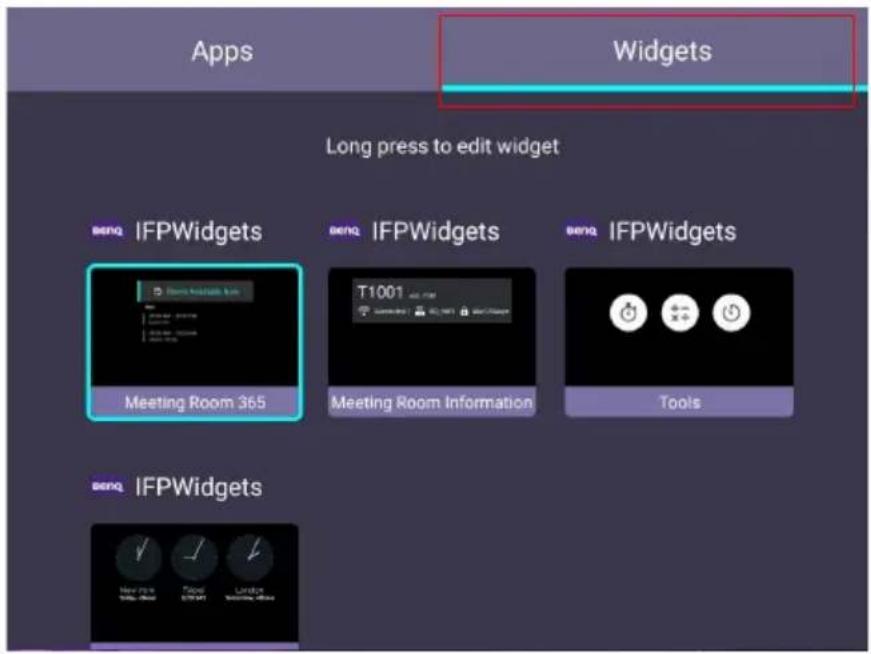
text_image
Apps Widgets Long press to edit widget BENQ IFPWidgets BENQ IFPWidgets BENQ IFPWidgets Meeting Room 365 Meeting Room Information Tools BENQ IFPWidgets- Select Meeting Room 365.
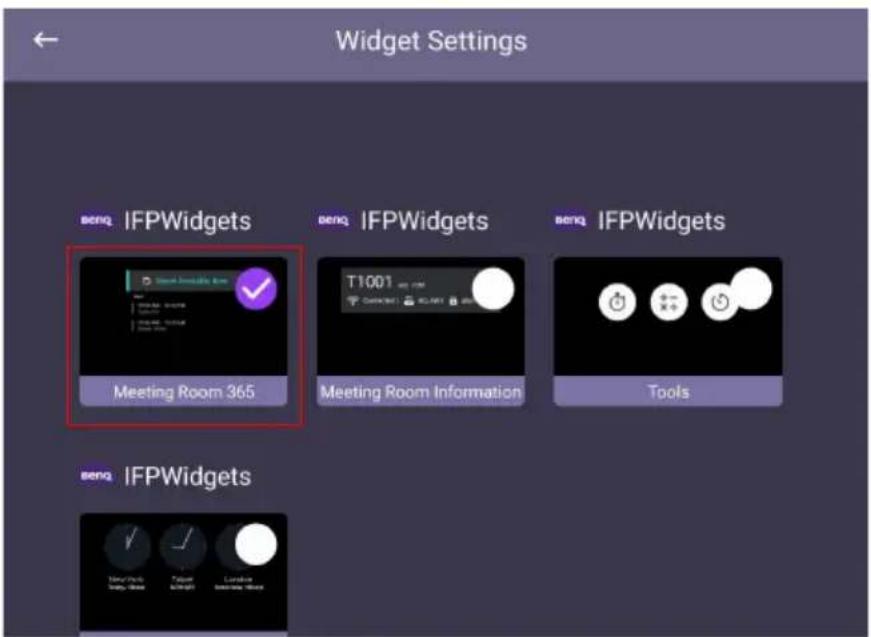
text_image
Widget Settings benq. IFPWidgets Meeting Room 365 benq. IFPWidgets Meeting Room Information benq. IFPWidgets Tools benq. IFPWidgets- The Meeting Room 365 widget is shown on the home screen launcher. Go to START to proceed.

text_image
Setting up your first meeting rooms in Meeting Room 365 START Video Conference Wireless Projection Collaboration AMS Service- Enter Meeting Room 365 display key. You can scan the QR code to see the introduction of Meeting Room 365 in BenQ software partner page.
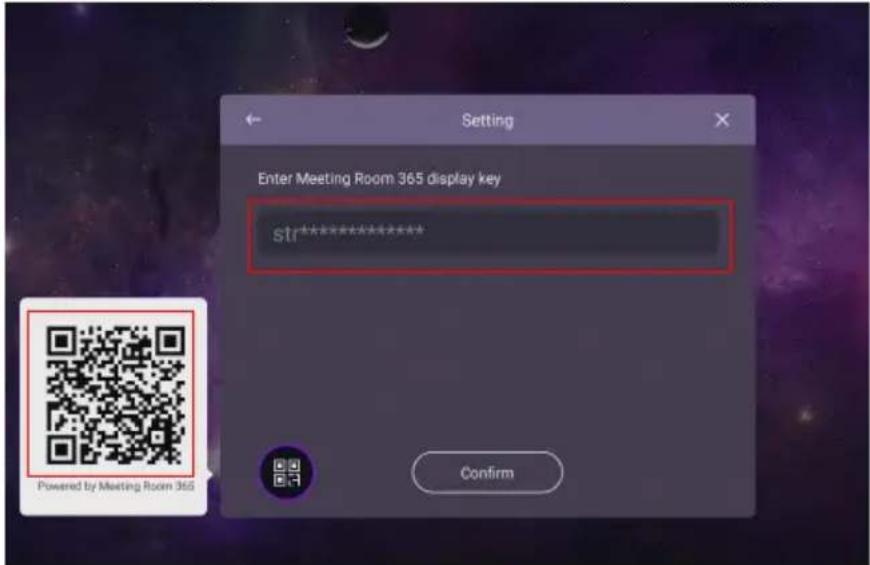
text_image
Setting Enter Meeting Room 365 display key str********** Powered by Meeting Room 365 Confirm- You can see an upcoming meeting schedule on the widget.
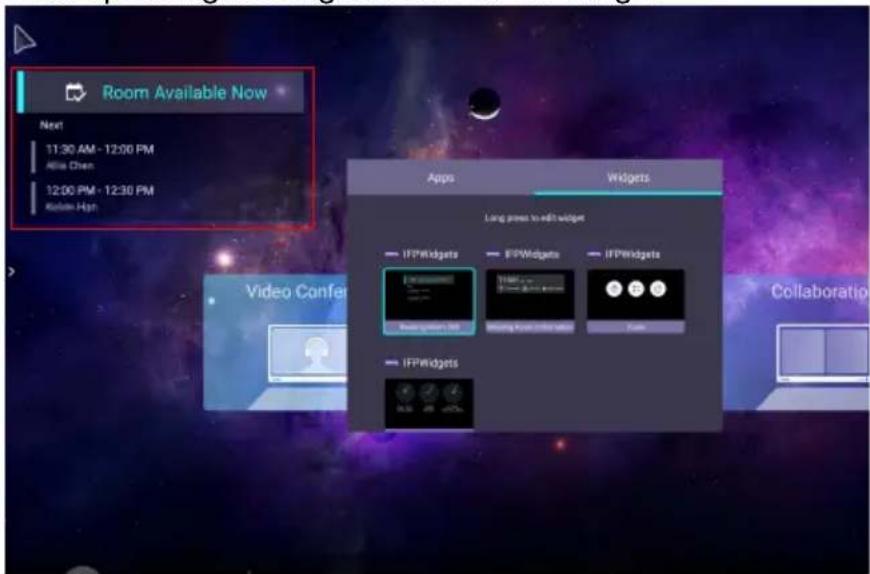
text_image
Room Available Now Next 11:30 AM - 12:00 PM Altia Chen 12:00 PM - 12:30 PM Risikin High Apps Widgets Long press to add widget IFPWidgets IFPWidgets IFPWidgets Video Confer Collaboratio IFPWidgets- You can see upcoming five days schedule for more information.

text_image
Meeting room schedule 07/28 04:00 PM - 05:00 PM Han PSF Fee Meeting 05:00 PM - 06:00 PM Chen (###) Signage for Corp market 06:30 PM - 07:00 PM Chen (###) PM Weekly Meeting SettingMeeting Room information
I. Select Meeting Room Information.
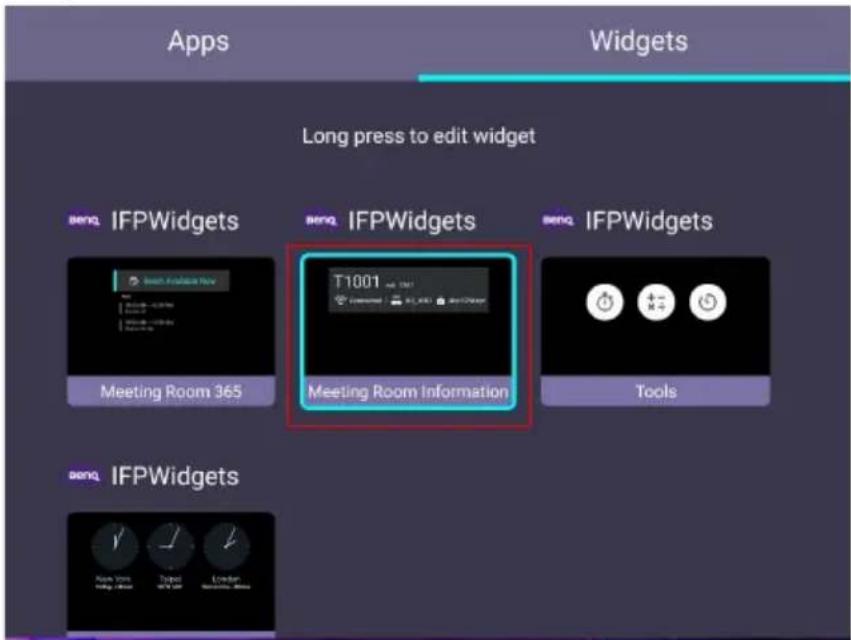
text_image
Apps Widgets Long press to edit widget Beng. IFPWidgets Beng. IFPWidgets Beng. IFPWidgets Meeting Room 365 Meeting Room Information Tools Beng. IFPWidgets- Long press the OK button on the remote control to enter the edit mode.

text_image
Meeting room information NETGEAR18-5G Meeting Room Information Name Extension Internet Information Name PasswordMultimedia files
Multimedia files such as images, audio files, and videos can be played by directly clicking on the file icon.
Image
Select an image file you want to show on the display and perform any of the functions shown on the screen.
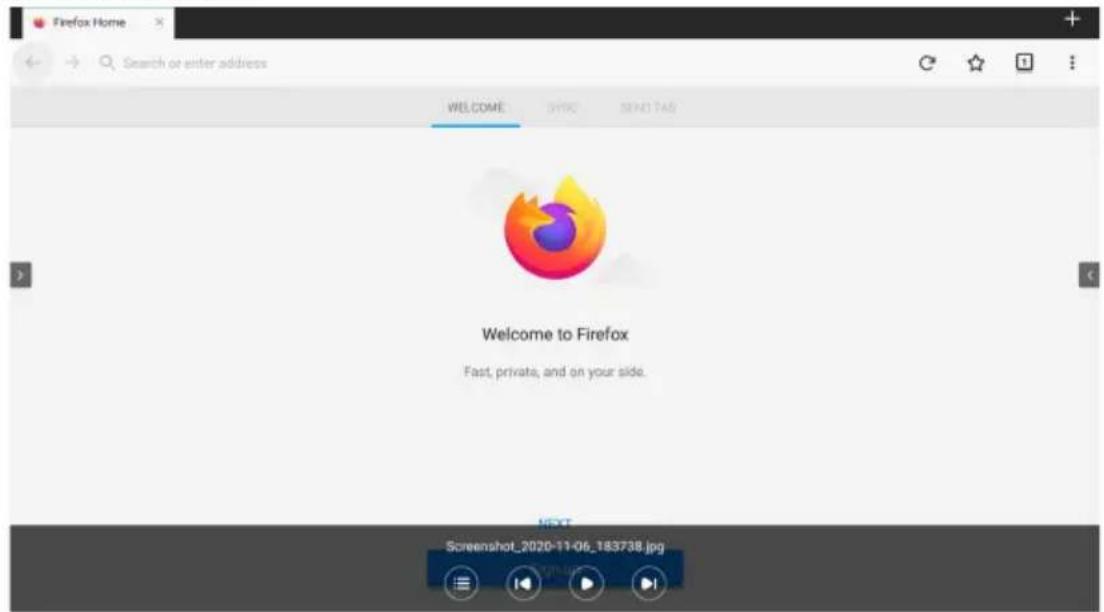
text_image
Firefox Home Search or enter address WELCOME SWEI SWEI 17:00 Welcome to Firefox Fast, private, and on your side. NEXT Screenshot_2020-11-06_183738.jpg| Icon Function | |
| Preview thumbnails of photos in the same folder. | |
| Play the previous image. | |
| Play/pause the current playback. | |
| Play the next image. | |
Supported image format (maximum resolution)
| File | Image Supported range |
| .bmp BMP Max Resolution: 8000 × 8000 | |
| .gif GIF Max Resolution: 8000 × 8000 | |
| .jpeg/.jpg JPEG/JPG Max Resolution: 8000 × 8000 | |
| File | Image | Supported range |
| .png PNG | Max Resolution: 8000 × 8000 | |
Audio
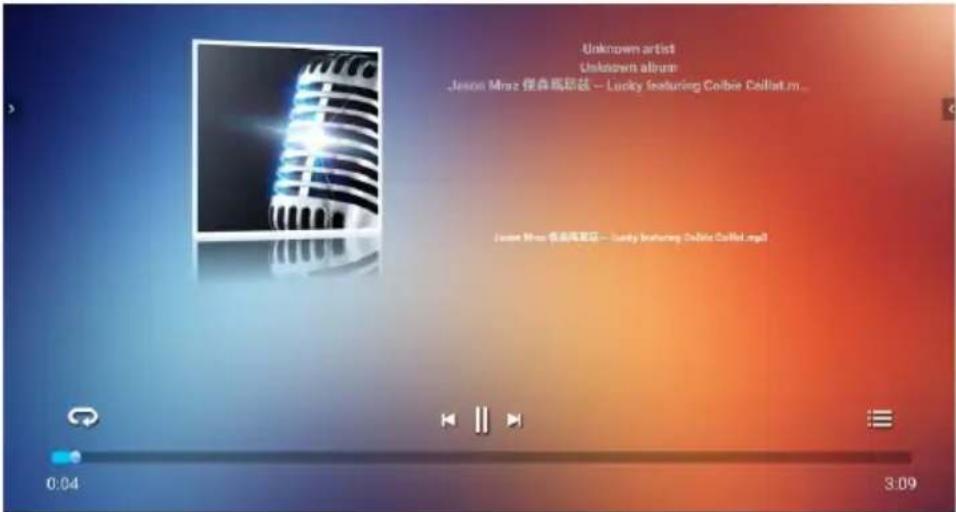
Select an audio file you want to play and perform any of the functions shown on the screen.
text_image
Unknown artist Unknown album Jason Miraz 乔森玛那兹 -- Lucky featuring Colbie Callist.m... Jasset Miraz 香岛海夏红 -- Lucky featuring Colbie Callist.rqall 0:04 3:09| Icon Function | |
 | Repeatedly play audio files in the playlist. |
 | Play the previous audio file. |
 | Play/pause the current audio file. |
 | Play the next audio file. |
 | Check the audio information. |
Supported audio format (Codec)
| File | Format | Audio Codec | Supported range |
| .aac AAC AAC Sample Rate: 8K~96KHz | |||
| Bit Rate: 24K~576Kbps | |||
| .ape Monkey's Audio Monkey's | Audio Sample Rate: | Max 48KHz | |
| Bit Rate: max 1411Kbps | |||
| .flac | FLAC | FLAC Sample | Rate: Max 192KHz |
| Bit Rate: max 1411Kbps | |||
| .m4a ALAC | ALAC Sample Rate: 8K~96KHz | ||
| Bit Rate: 24K~576Kbps | |||
| .mp3 MPEG | Audio Layer3 | MPEG1/2 layer3 Sample Rate: 8K~48KHz | |
| Bit Rate: 32K~320Kbps | |||
| .ogg Vorbis | Vorbis Sample Rate: 8K~48KHz | ||
| Bit Rate: max 256Kbps | |||
| .wav WAV | LPCM Sample Rate: 8K~192KHz | ||
| Bit Rate: max 320Kbps | |||
Video
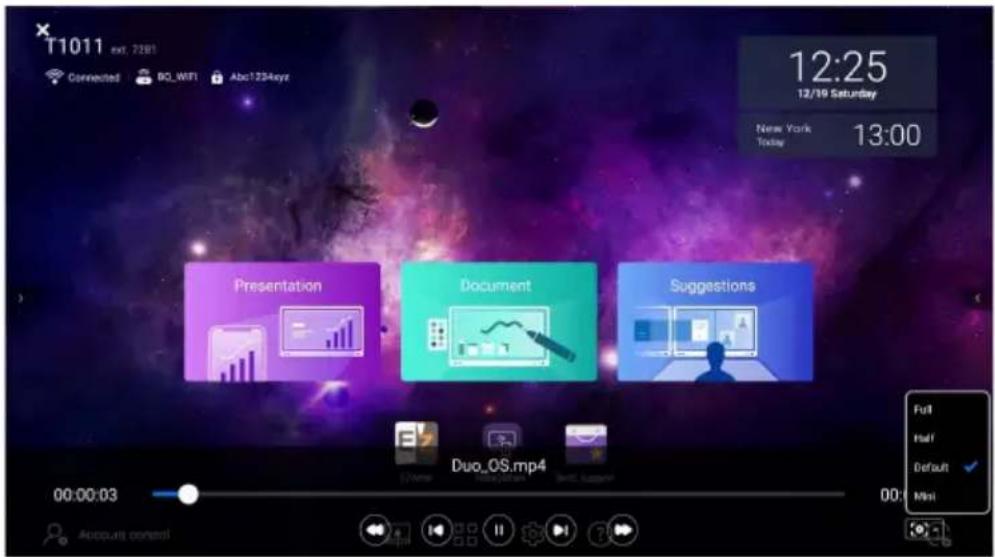
Select a video file you want to play on the display and perform any of the functions shown on the screen.
text_image
T1011 ext. 2281 Connected BO_WIFI Abc1234keyr 12:25 12/19 Saturday New York Today 13:00 Presentation Document Suggestions Duo_OS.mp4 00:00:03 00:00:03 Accupns onrest Full Half Default ✓ Mini| Icon Function | |
 | Rewind the current video file. |
 | Play the previous video file. |
 | Play/pause the current video file. |
 | Play the next video file. |
 | Fast-forward the current video file. |
Supported video format (Codec) Up to 4K resolution
| File Codec | |||
| Extensions | Video | Audio | Maximum transmit ratio |
| .3g2 H.263 | AAC, AMR_NB | 1920*1088 30 Fps, 160Mbps | 5Mbps |
| .3gp H.264 | 3840*2160 30 Fps, 160Mbps | ||
| H.263 1920*1088 30 Fps, 5Mbps | |||
| MPEG-4 1920*1088 30 Fps, 50Mbps | |||
| .avi H.263 | MPEG1/2 | Layer3, AAC, LPCM | 1920*1088 30 Fps, 5Mbps |
| H.264 3840*2160 30 Fps, 160Mbps | |||
| Mpge-1 1920*1088 30 Fps, 80Mbps | |||
| MPEG-2 1920*1088 30 Fps, 80Mbps | |||
| MPEG-4 1920*1088 30 Fps, 50Mbps | |||
| MJPEG 1920*1080 30 Fps, 150Mbps | |||
| .flv | H.263 MPEG1/2 | Layer3, AAC | 1920*1088 30 Fps, 5Mbps |
| VP6 | 1920*1088 30 Fps, 40Mbps | ||
| H.264 3840*2160 30 Fps, 160Mbps | |||
| .f4v | H.264 | AAC | 3840*2160 30 Fps, 160Mbps |
| .mkv | H.264 | AAC, MPEG1/2 Layer3 | 3840*2160 30 Fps, 160Mbps |
| H.265 3840*2160 60 Fps, 160Mbps | |||
| Vc-1 | 1920*1088 30 Fps, 45Mbps | ||
| .mov | H.264 | AAC, PCM | 3840*2160 30 Fps, 160Mbps |
| H.265 3840*2160 60 Fps, 160Mbps | |||
| MPEG-4 1920*1088 30 Fps, 50Mbps | |||
| MJPEG 1920*1080 30 Fps, 150Mbps | |||
| .mp4 | H.264 | AAC | 3840*2160 30 Fps, 160Mbps |
| H.265 3840*2160 60 Fps, 160Mbps | |||
| MPEG-4 1920*1088 30 Fps, 50Mbps | |||
| Extensions Video Audio Maximum transmit ratio | |||
| .VOB MPEG-2 MPEG1/2 1920*1088 30 Fps, 80Mbps | |||
| .mpg/.MPEG H.264 MPEG1/2 | Layer3, AAC20*1088 30 Fps, 80Mbps | 3840*2160 30 Fps, 160Mbps | |
| MPEG-1 1920*1088 30 Fps, 80Mbps | |||
| MPEG-2 1920*1088 30 Fps, 80Mbps | |||
| .ts H.264 AACAAC, | MPEG1/220*2160 60 Fps, 160Mbps | 3840*2160 30 Fps, 160Mbps | |
| H.265 3840*2160 60 Fps, 160Mbps | |||
| MPEG-2 1920*1088 30 Fps, 80Mbps | |||
| MPEG-4 1920*1088 30 Fps, 50Mbps | |||
| VC-1(AP) 1920*1088 30 Fps, 45Mbps | |||
BenQ Suggests
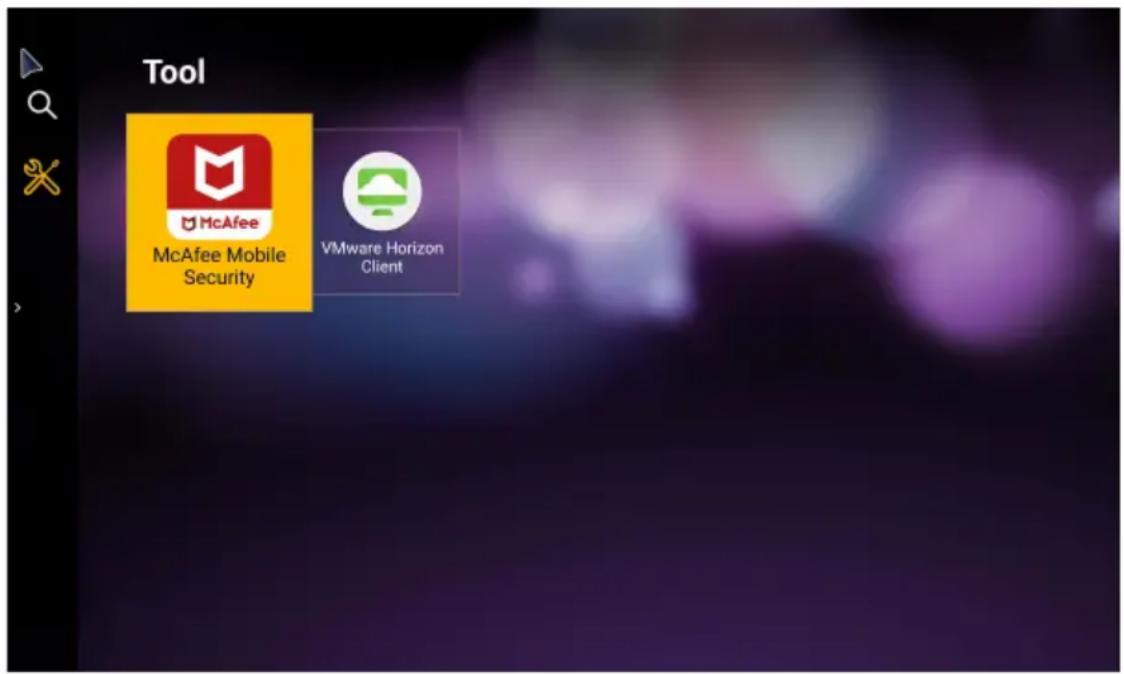
Click 📋 to launch BenQ Suggests. With this application, you can view apps suggested by BenQ for download.
text_image
Tool McAfee McAfee Mobile Security VMware Horizon Client- Use your mouse or cursor to control the mouse pointer.
- Click the category on the left panel to browse the suggested apps. Click an app from the selected category to view a basic description of the app.
| Function Description | |
| Search (Q) | Click to search for an app. |
| Corporation (X) | Click to show the suggested apps in the Corporation category. |
InstaShare 2
- InstaShare 2 is a software-based solution for multi-user collaboration that allows users to wirelessly share content from their own devices to the display. The two-way mirroring feature lets users mirror content from a personal device to the display and vice versa. This feature lets users easily share content with all devices in a meeting.
- Use your mouse or cursor to control the mouse pointer.
Two ways are provided for you to access InstaShare 2:
I. On the Android main interface, select Wireless Projection > InstaShare 2.
- Click in Apps to launch InstaShare 2.
With this application, you can mirror the display's screen on your smartphone or tablet for hands-on annotation and mirror the screen of your smartphone or tablet on the display.

Before launching the application, make sure your display is properly connected to Internet.
text_image
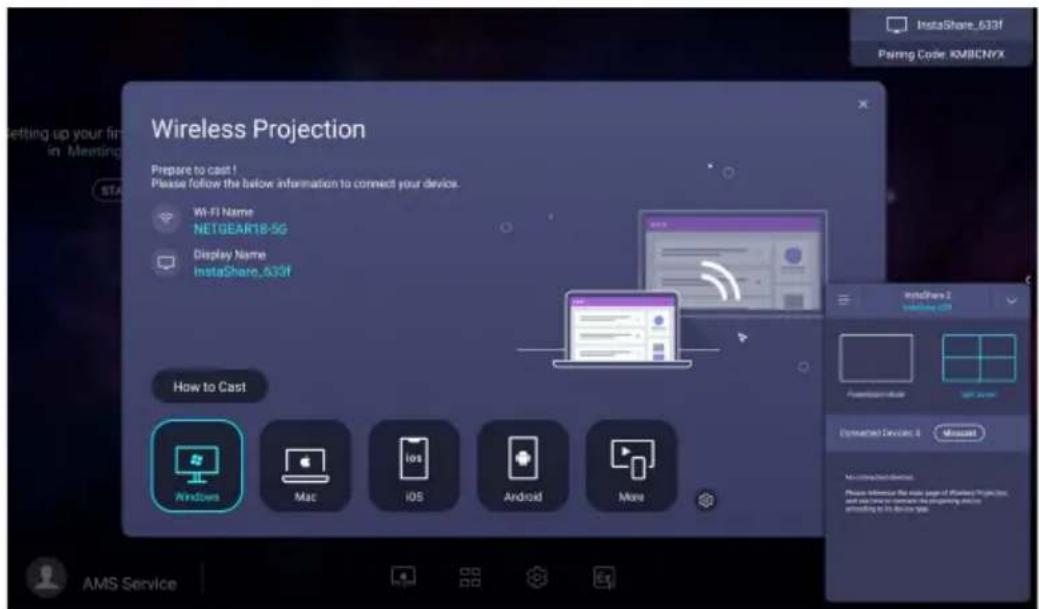
Wireless Projection Prepare to cast! Please follow the below information to connect your device. Wi-Fi Name NETGEART8-5G Display Name InstaShare_633f How to Cast Windows Mac iOS Android More InstaShare 1 webbing.cdb Powered by: Export: www.sta.com Connected Devices 4 Microsoft Microsoft Server Please reference the data page of Windows Projection, and use to create the programming device according to its device file. AMS ServiceTo use InstaShare 2:
I. Make sure your mobile device (such as smartphone or tablet) and the display are connected to the same network.
2. Press How to Cast to download and install the InstaShare 2 app on your mobile device.

text_image
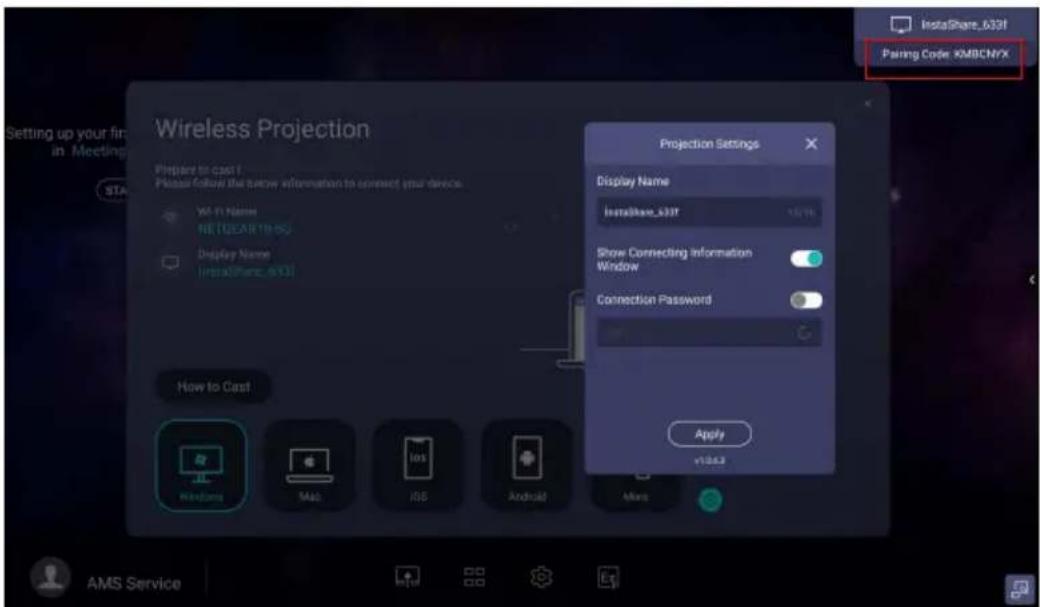
Wireless Projection Prepare to cast! Please follow the below information to connect your device. Wi-Fi Name NETGEAR18-5G Display Name InstaShare_633if How to Cast Windows Mac iOS Android More InsWare1 connects iOS Confirm before Device Delta Contentes Not using a network for download or file access or to the next Show Connecting Information Window Allow Connected Device to Request Hosting User Guide AMS Service- Open the InstaShare 2 app on your mobile device, and you can click the InstaShare 2 ID name that you want to connect to or enter the pairing code. You can enable advanced settings on the right. Be noted that once you enable Confirm Before Casts Contents, the casting should be allowed on the display or by the host.

text_image
Wireless Projection Prepare to cast! Please follow the below information to connect your device. Wi-Fi Name NETGEAR18-5G Display Name InstaShare_633f How to Cast Windows Mac iOS Android More InstaShare 2 InstaShare 2000 Custom Before Device Care Custices Show Connecting Information Wntley Allow Connected Device to Request Hosting User Guide- Enter the connect code shown on the upper right corner of the display or you can also find the connection code in Setting (⚙️). Click Allow on the display to confirm the connection.
text_image
Wireless Projection Prevent to cast I Please follow the below information to connect your device. Wi-Fi Name NETGEAR(18-50) Display Name InstaShare_633F Projection Settings Display Name InstaShare_633F Show Connecting Information Window Connection Password Apply +104.3 How to Cost Windows Mac iOS Android More Pasing Code: XMBCNFX AMS Service
You can also click Setting (💡) to modify the settings for InstaShare 2, such as the InstaShare 2 ID name, connect code, or mirroring confirmation message.
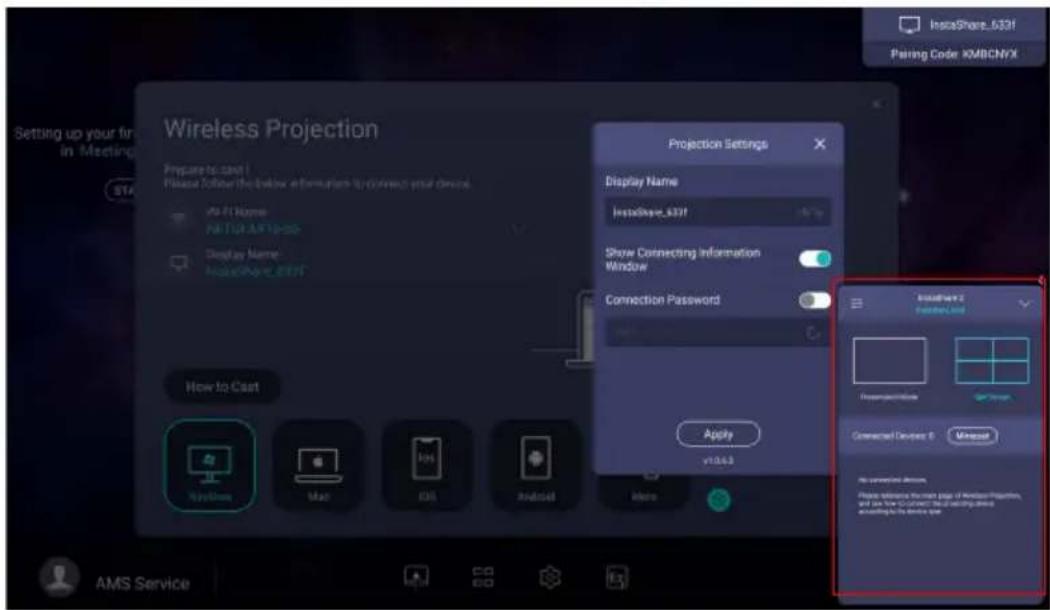
- Up to four devices can be simultaneously share their screens to a display.
text_image
Wireless Projection Prepare to start | Please action the below information to connect your device. A#11 Name N:TU AP 10-00 Display Name: NasShare_EST How to Cast Windows Mac DNS Android Projection Settings Display Name installed_s337 Show Connecting Information Window Connection Password Apply v3.643 Installed 2 installed_337 PresetsheetCode Connected Devices 0 Remove My connected arrow. Please select the main page of Windows Projectors, and use the following functions: according to the data type: EMS Service- Once connected you can:
- Mirror the display's screen on your mobile device by clicking Screen Mirroring on your mobile device.
- Mirror the device's screen on the display by clicking on your mobile device.
- Operate the display by using your mobile device as a remote control.

Once connected, any operations on the display or mobile device will also show up on your mobile device and display.
InstaQPrint
- Use your mouse or cursor to control the mouse pointer.
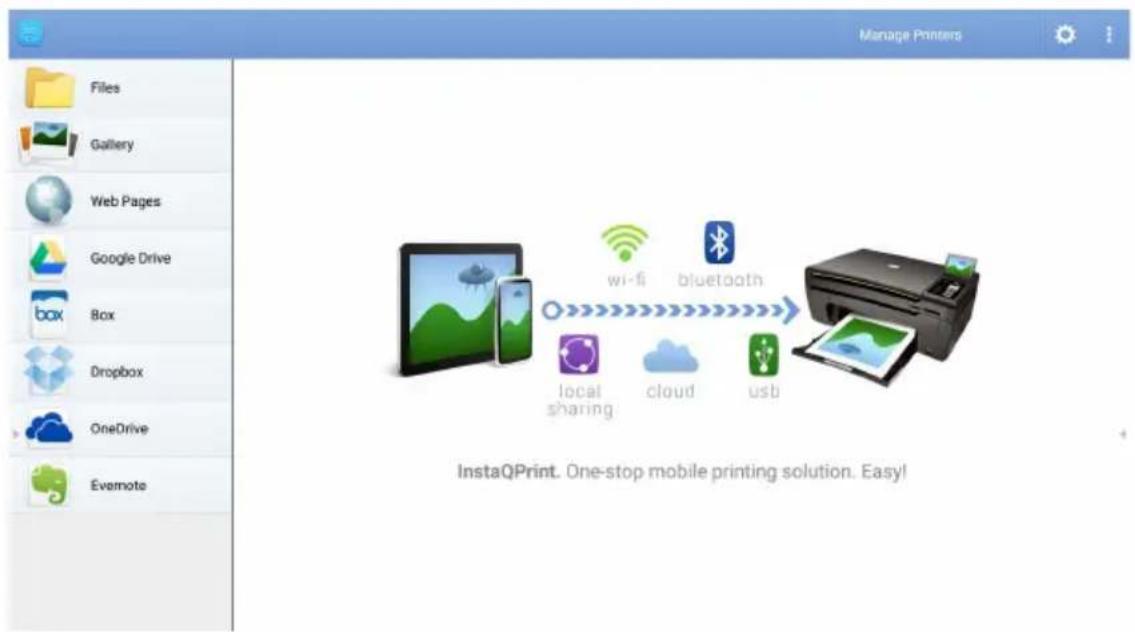
- Click to launch InstaQPrint. With this application, you can print a file or website image using a Wi-Fi or remote printer.

- Before launching the application, make sure your display is properly connected to Internet.
- For the list of supported printers, see https://printhand.com/list_of_supported_printers.php.
text_image
Manage Printers Files Gallery Web Pages Google Drive Box Dropbox OneDrive Evernote w-fi bluetooth local sharing cloud usb InstaQPrint. One-stop mobile printing solution. Easy!I. Click the option on the left panel and browse and select the desired file, photo, page, or image you want to print.
2. Click Manage Printers to choose which printer that you want to use.
-
To select a printer:
-
Click an option from the list of available printers on the left panel.
- Click Scan for Wi-Fi Printers to search for printers automatically.
- Click Manual Setup to add a new printer manually.

text_image
Manage Printers Nearby Printers Nearby Wi-Fi Printers Nearby Wi-Fi Scanners Nearby Bluetooth Printers Windows Shared Printers USB Printers Remove Printers Google Cloud Printers Remote Printers Printer Setup Wizard Scan for Wi-Fi Printers Manual Setup InstaQPrint Printer Name Protocol RAW IP Address Port Number 9100 Queue CANCEL OKWPS Office
- Use your mouse or cursor to control the mouse pointer.
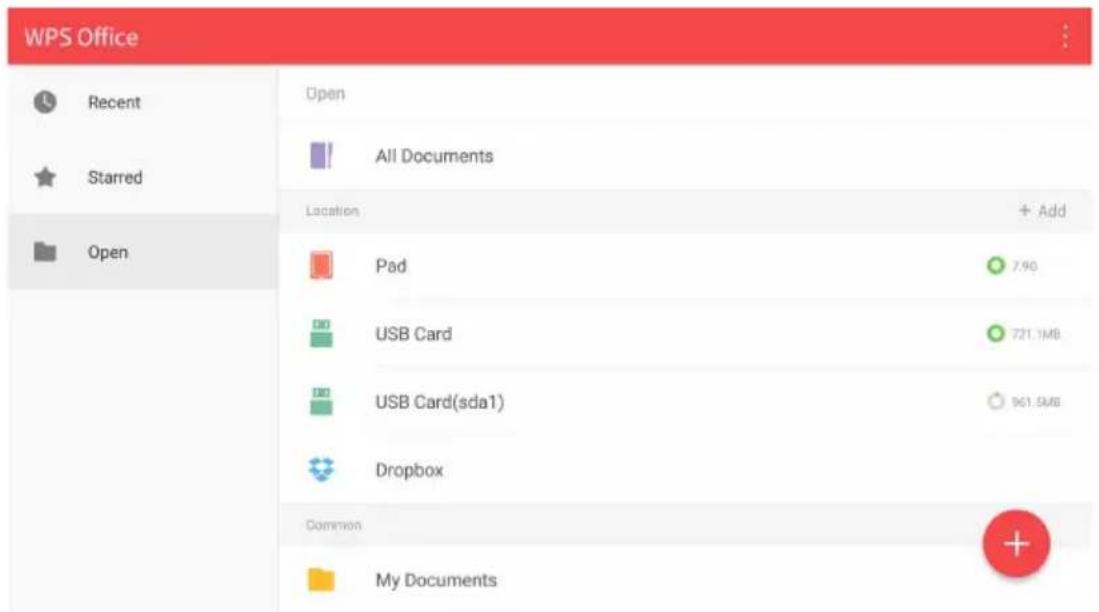
- Click to launch WPS Office. With this application, you can open document files including PDFs as well as Microsoft Word, PowerPoint and Excel documents.
text_image
WPS Office Recent Starred Open Open All Documents Location + Add Pad 7.90 USB Card 721.1MB USB Card(sda1) 961.5MB Dropbox Common My DocumentsTo edit a file with WPS Office:
I. Click Open (☐) on the left panel to browse and open a file located in either the display's internal memory, an external storage device, or cloud storage.
2. Click the function menu on the top panel to access the file format's various functions.

The description below is for a PowerPoint file, the function menus for other file formats will vary.
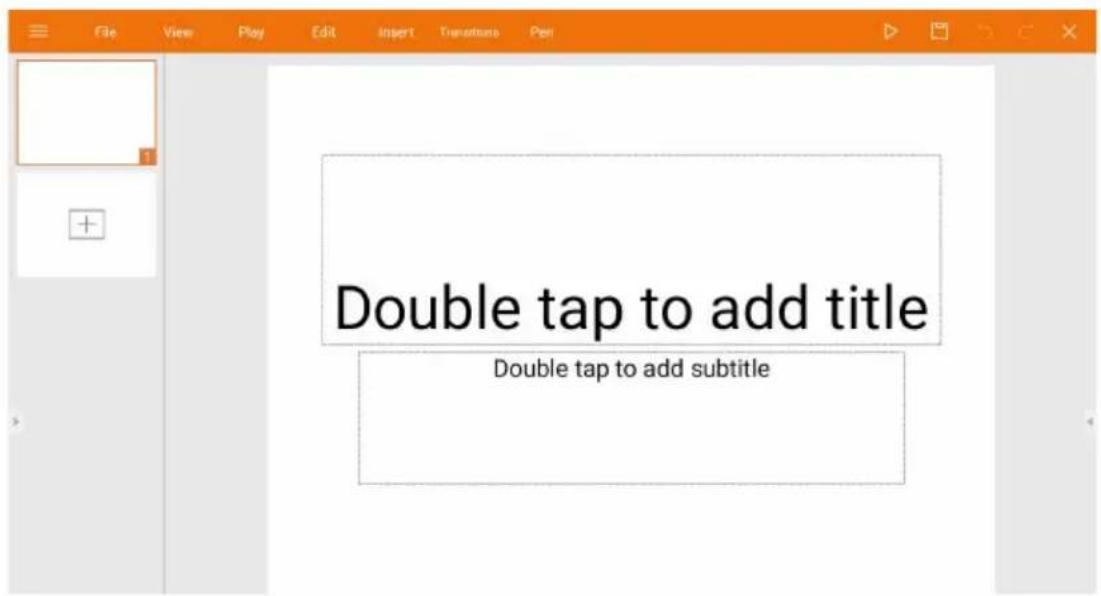
text_image
Double tap to add title Double tap to add subtitleFunction Description
File Click to open, save, share, print, and manage your presentations.
| View Click to change or edit the presentation views. | |
| Play Click to start or set up a slide show. | |
| Edit Click to edit the content or format of the slides. | |
| Insert Click to insert tables, pictures, charts, comments, video, or audio. | |
| Transitions Click to apply or adjust the timing of a transition. | |
| Pen Click to write, draw, paint or sketch to the slides. | |
| Play ( ▷) | Click to start a slide show. |
| Save As ( □) | Click to save the presentation file on either the display's internal memory, an external storage device, or cloud storage. |
| Undo ( ↗) | Click to undo an action. |
| Redo ( ↕) | Click to redo the last action. |
| Close ( ✕) | Click to close the presentation file. |
| Back ( ←) | Click to return to the previous page. |
| Next ( →) | Click to go to the next page. |
| Exit ( ←) | Click to exit WPS Office. |
Supported Office versions and file formats
Supported Office versions: 97 / 2000 / XP / 2003 / 2007 / 2010 / 2013 / 2016
Supported Office software formats:
| Office Software Supported File Formats |
| Word wps / wpt / doc / docx / dot / dotx / txt / log / irc / c / cpp / h / asm / s / java / asp / bat / bas / prg / cmd |
| Excel et / ett / xls / xlsx / xlt / xltx / csv / xlsm / xltm |
| PowerPoint ppt / pptx |
- Use your mouse or cursor to control the mouse pointer.
- Click to launch Email.
• To use Email, set up an account first. Type your Email address and click NEXT.
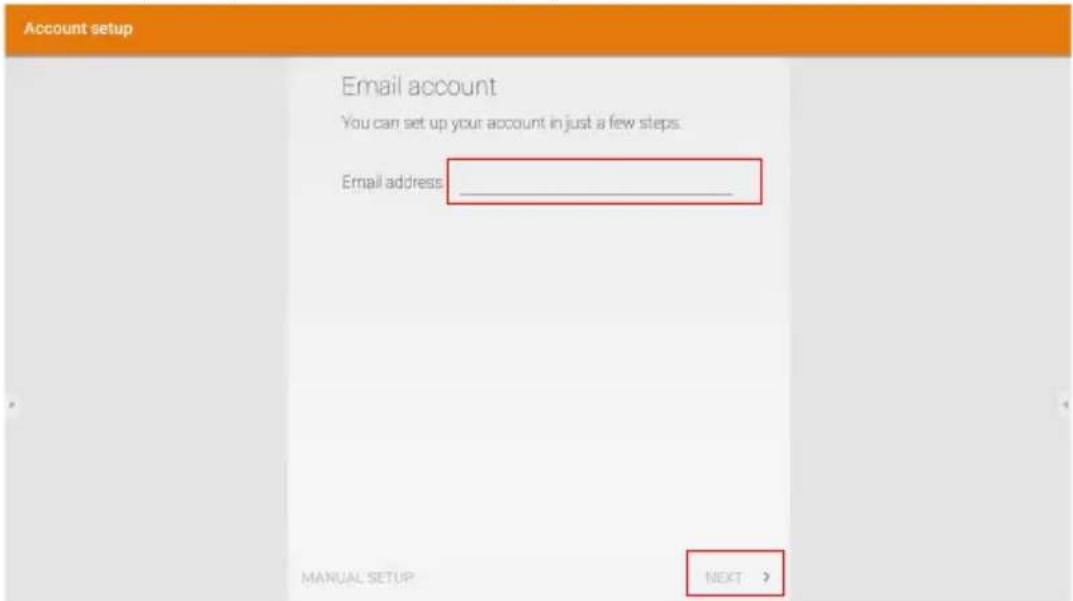
text_image
Account setup Email account You can set up your account in just a few steps. Email address: ____ MANUAL SETUP NEXT >• After you've signed up, you will receive a verification email.
• After you respond to the Email verification, you can begin writing email.
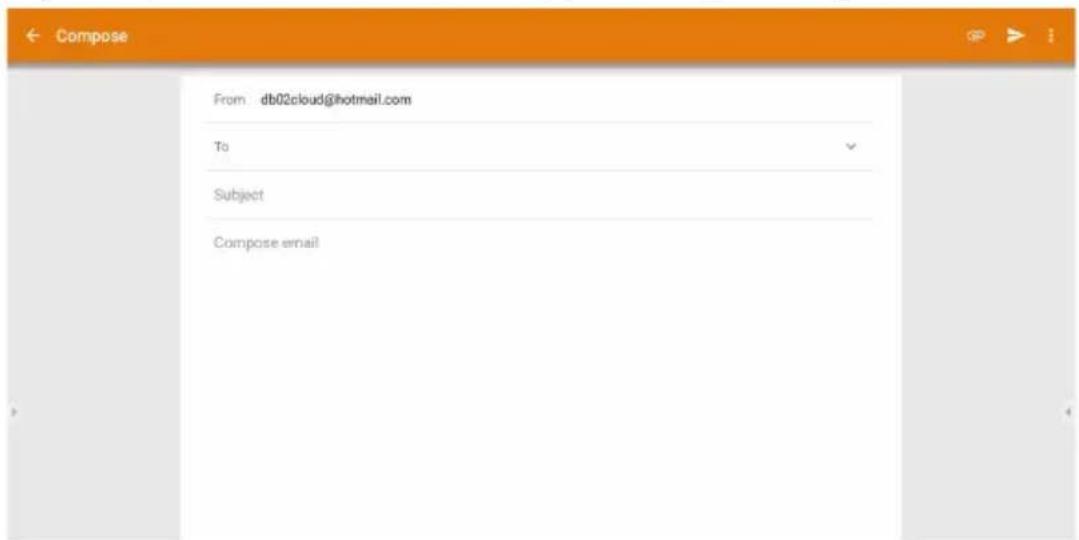
text_image
Compose From: db02cloud@hotmail.com To Subject Compose emailFloating Annotation Toolbar
- Use your mouse or cursor to control the mouse pointer.
- The Floating Annotation Toolbar is a convenient function that allows you to quickly write or create annotations on any screen that the display is showing. Under any input source or in the Android interface, launch the Floating Annotation Toolbar menu as shown below.

text_image
EZ| Icon Function Description | |
 | Close and Move Click the button to close and move the floating toolbar and clear all the brushes. |
 | Annotate Click to switch the color of the brush. Color options are blue, red, green, and black. |
 | Whiteboard Click to start EZWrite 5.0. |
 | Clear All Click to erase all annotations on the screen. |
 | File Folder Click to open the most recent file folder. |
 | Screenshot Click to take a screenshot of the screen. |
 | Recording Click to start recording the screen. |
Side Tool Bar
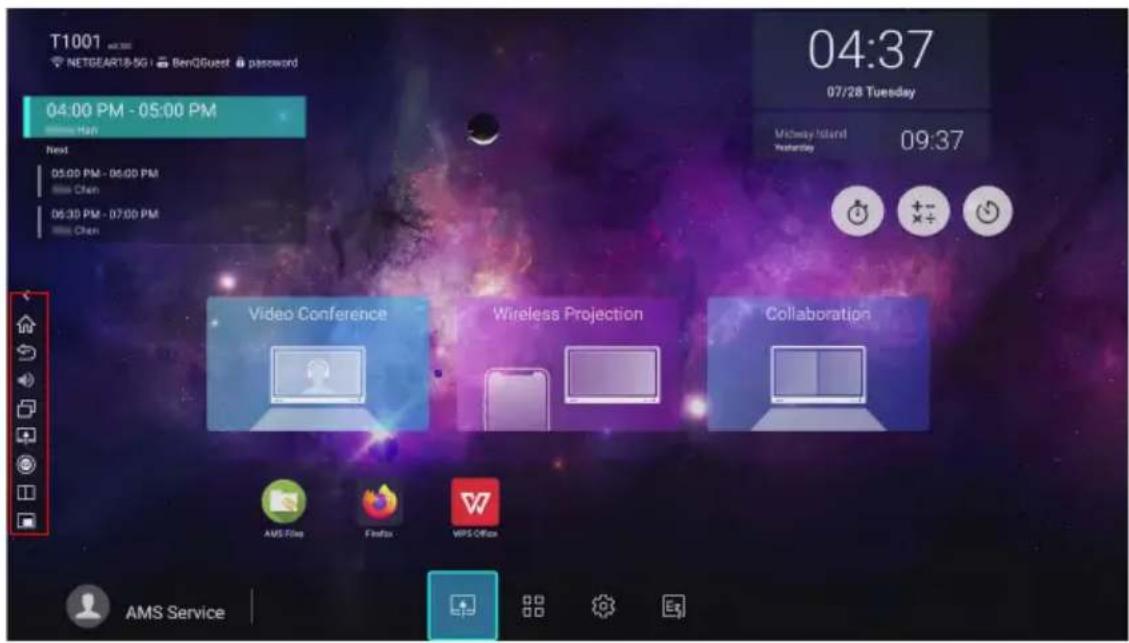
text_image
T1001 NETGEART8-5G | BenQGuest | password 04:00 PM - 05:00 PM Internet LAN Next 05:00 PM - 06:00 PM Wire Chen 06:30 PM - 07:00 PM Wire Chen Video Conference Wireless Projection Collaboration 04:37 07/28 Tuesday Midway Island Yesterday 09:37 AMS File Firefox WPS Office AMS ServiceFunction Description
Home  | Click to return to Home interface. |
Return  | Click to return to previous operation interface. |
SwitchQ  | Click to switch tasks between recent apps and input sources. |
| Duo Windows [IMAGE] | Click to open Duo Windows. Read Duo Windows on page 67 for more information. |
Duo OS  | Click to open Duo OS. Read Duo OS on page 69 for more information. |
| Floating Annotation Toolbar[IMAGE] | Click to open the floating tool. |
EZWrite 5.0  | Click to enter EZWrite 5.0 software. |
Collaboration
- Traditional collaboration and co-creation let multiple users use one single App together, which is called Duo User. We take one step further. We provide Collaboration (Duo Windows, Duo OS) to perfect collaboration and co-creation scenario.
- Use your mouse or cursor to control the mouse pointer.
Duo Windows
With Duo Windows, you can use two Apps at the same time. Duo Windows makes the collaboration of two Apps easy and enables multiple users to collaborate between two Apps. To use Duo Windows, follow the steps below:
I. Open the Sidebar, then click to open Duo Windows.

text_image
T1001 NETGEART8-5G | BenQGuest | password 04:00 PM - 05:00 PM New Home Next 05:00 PM - 06:00 PM New Chan 06:30 PM - 07:00 PM New Chan 04:37 07/28 Tuesday Midway Island Tuesday 09:37 Video Conference Wireless Projection Collaboration AMS Files Fanbox MPS Office AMS Service- Select two Apps individually to the left and right windows.
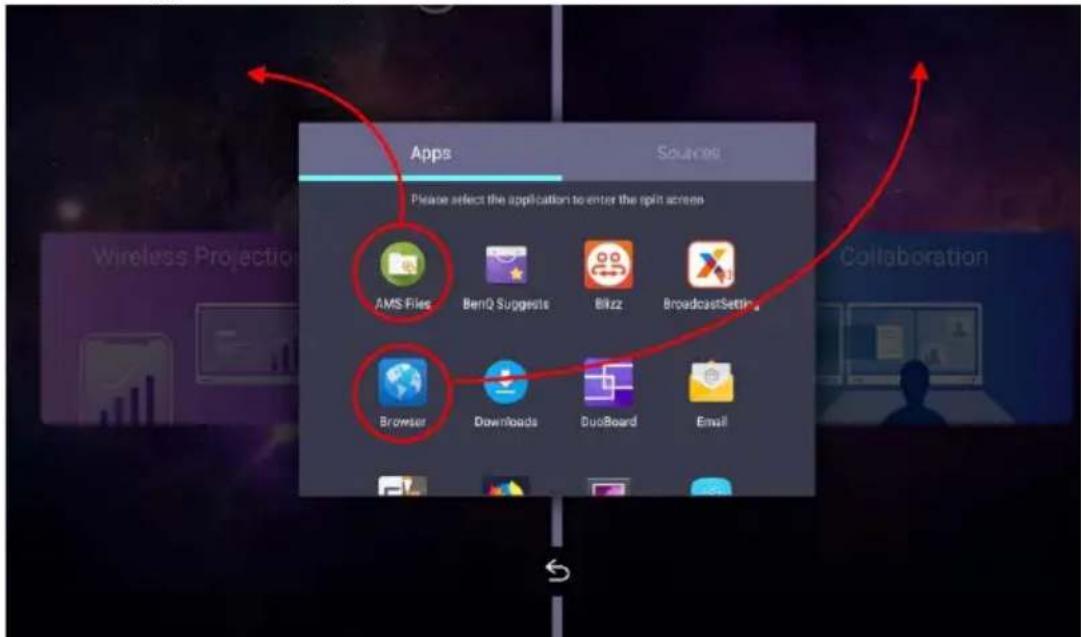
text_image
Apps Sources Please select the application to enter the spin screen AMS Files BenQ Suggests Blzz BroadcastSetting Browser Downloads DuoBoard Email- Now you can start the collaboration of two Apps using Duo Windows.
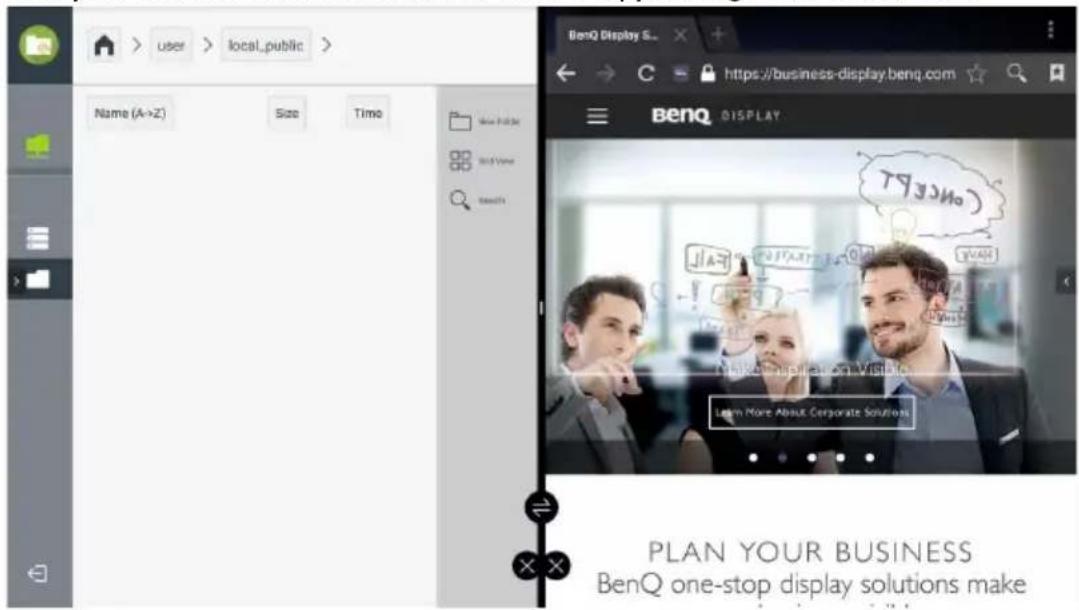
text_image
benQ Display S... https://business-display.benq.com Name (A->Z) Size Time BenQ DISPLAY 7932007 Make displayed on website Learn More About Corporate Solutions PLAN YOUR BUSINESS BenQ one-stop display solutions make
To replace the existing Apps in the left/right windows, click Duo Windows and choose the newly selected App to replace the previous one.
Duo OS
With Duo OS, you can use a floating window in any Apps. The floating window shows the current screen image of the external source (HDMI 1/ HDMI 2/ HDMI 3/ VGA/ OPS). The current screen image can be saved as an image file. To use Duo OS, follow the steps below:
I. Open the Sidebar, then click to open Duo OS.
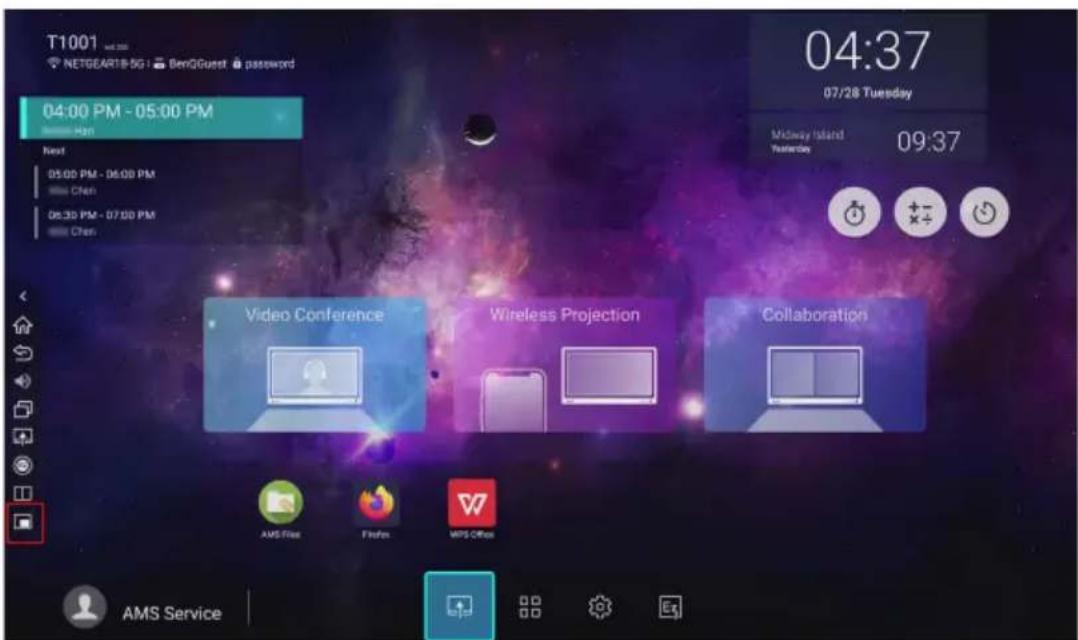
text_image
T1001 NETGEAR18-5G | BenQGuest | password 04:00 PM - 05:00 PM Session Hall Next 05:00 PM - 06:00 PM Chen 06:30 PM - 07:00 PM Chen 04:37 07/28 Tuesday Midway Island Tuesday 09:37 Video Conference Wireless Projection Collaboration AMS File Flakes MPS Office AMS Service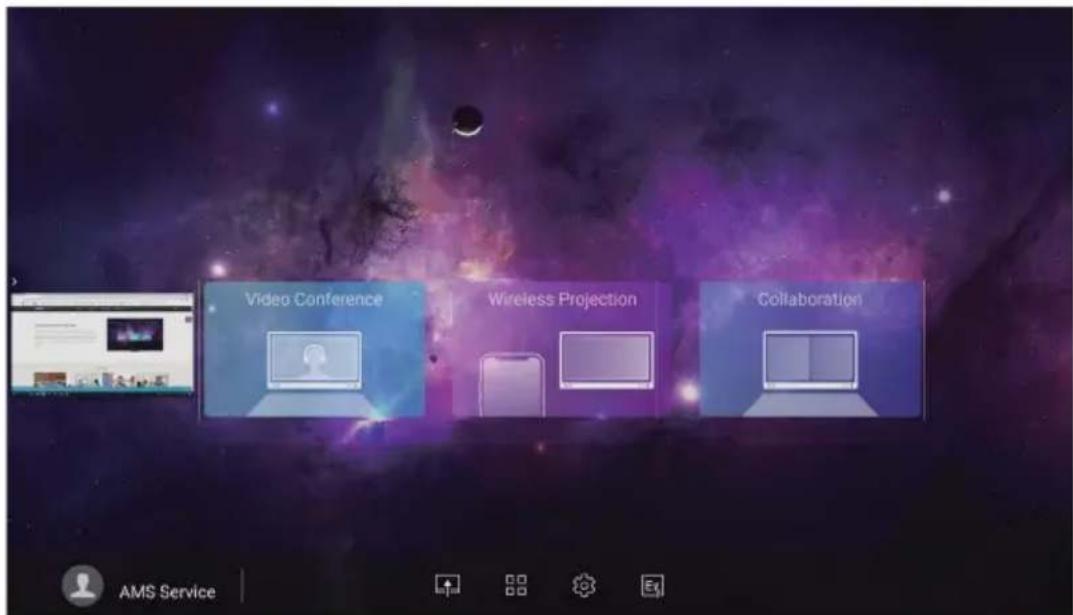
text_image
Video Conference Wireless Projection Collaboration AMS Service- Enlarge or shrink the window or swiftly change to full screen.

text_image
Video Conference Wireless Projection Collaboration AMS Service
text_image
Corporate Description: My Panel Wireless Projection Collaboration AMS Service
- is for full screen.
- There are three window sizes: Small 📄 Middle 📁 Large 📋.
• is for entering Windows.
• is for going back to Android.
3. Select the external source or switch source.
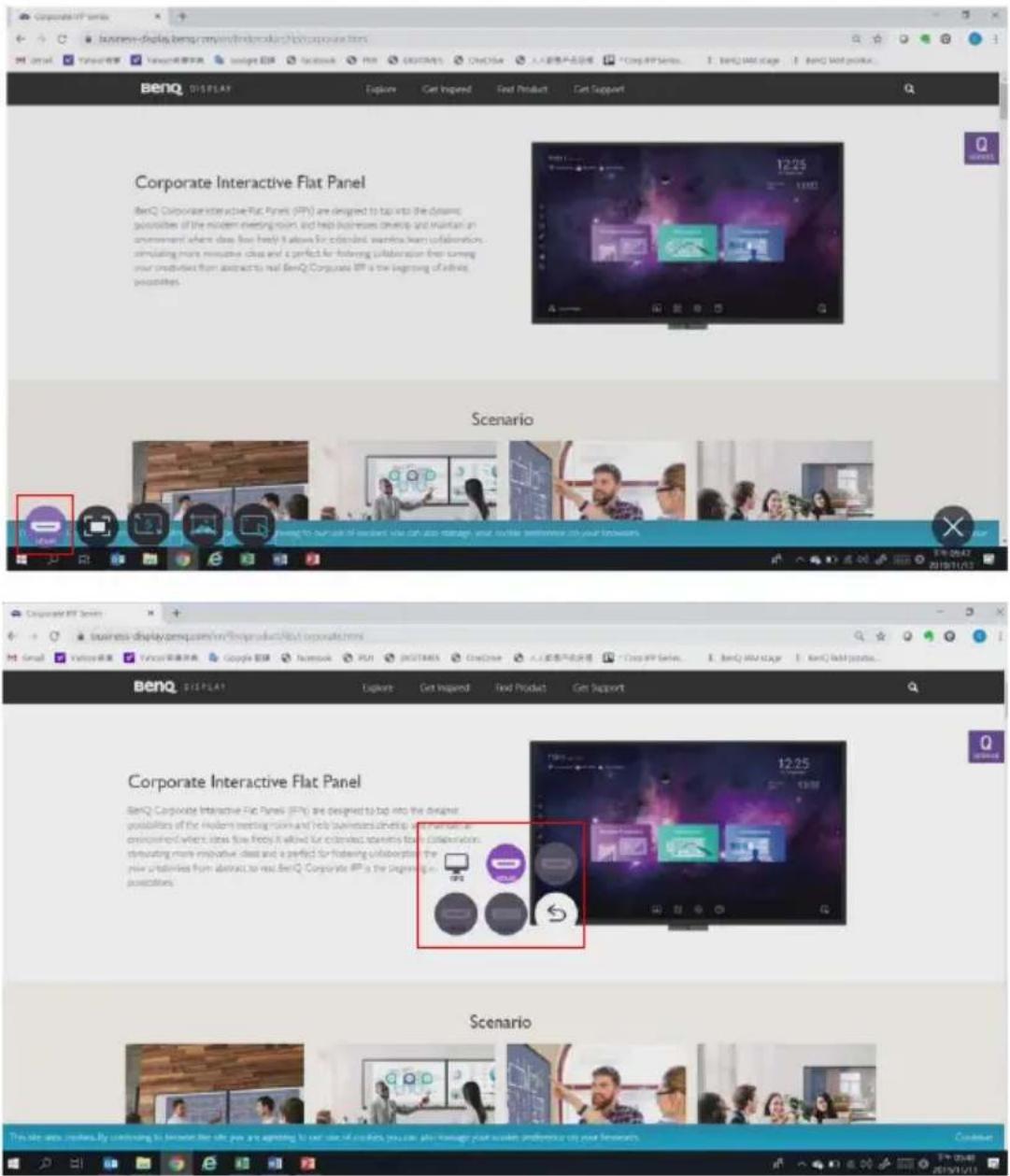
text_image
Corporate Interactive Flat Panel BenQ Corporate Interactive Flat Panel (EPI) are designed to tap into the dynamic possibilities of the modern meeting room and help businesses develop and maintain an environment where data flow freely it allows for collected framework collaboration, simulating more innovative ideas and a perfect for following collaboration from coming our productivity from abstracts that reach BenQ Corporate EPI as the beginning of adoption possibilities. Scenario BenQ Business display:benq.com/en/benqproduct/benqcorporate.html BenQ Display Explore Get Inspired Find Product Get Support Corporate Interactive Flat Panel BenQ Corporate Interactive Flat Panel (EPI) are designed to tap into the designer possibilities of the Modern meeting room and help businesses develop and maintain an environment where data flow freely it allows for collected scalability from collaboration, simulating more innovative ideas and a perfect for following collaboration from our productivity from abstracts that reach BenQ Corporate EPI as the beginning of adoption. This site now creates by continuing to become the site you are agreeing to our use of creative, you can also through your reader preferences on your resources.- You can save the current screen image as an image file.

text_image
Corporate Interactive Flat Panel BenQ Corporate Interactive Flat Panel (IPs) are designed to jump into the design, positions of the problem meeting room and help business develop and maintain an enhoramic where ideas flow freely it allows for ordered, learned team collaboration, stimulating remote revisiting ideas and is perfect for fostering collaboration then serving your projects from abstract to real BenQ Corporate IP is the ongoing projects.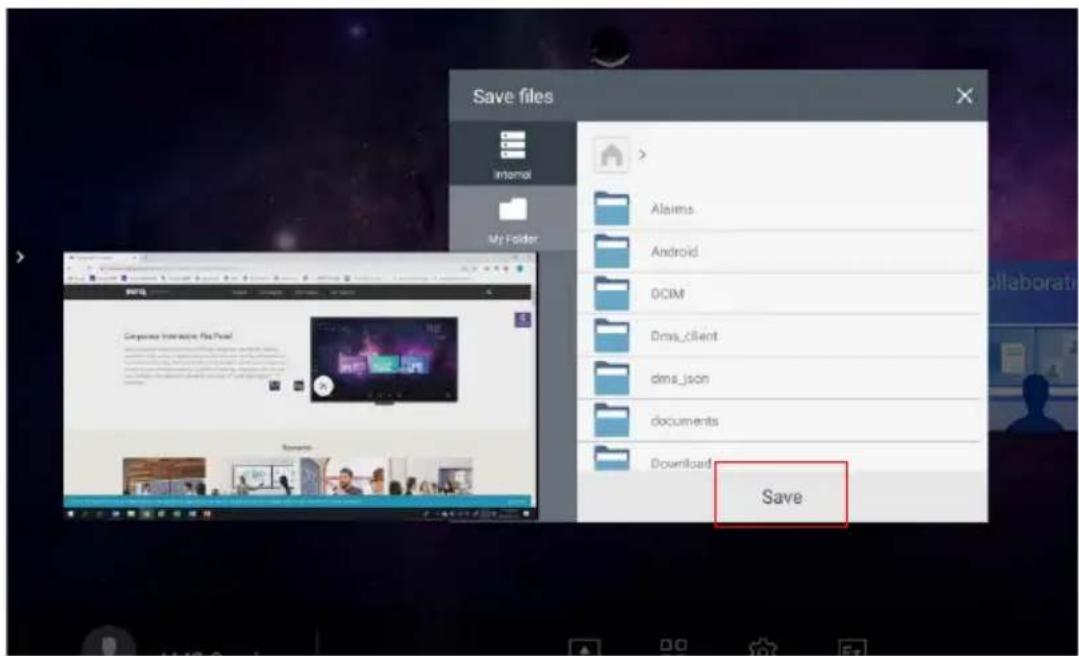
text_image
Save files Internal My Folder Alarms Android DCIM Dms_client dms_json documents Download Save- You can also capture the current screen image and import the image to EZWrite 5.0.

text_image
Corporate Interactive Flat Panel BenQ Corporate Interactive Flat Panel (SPG) are designed to tap into the dynamic possibilities of the modern meeting room and help businesses develop and maintain an environment where ideas flow freely it allows for extended scanning team collaboration, suggesting more innovative focus and a perfect for fostering collaboration then coming your contributions from abstractly real BenQ Corporate SPG as the beginning of ethical possibilities.
text_image
Corporate Interactive Flat Panel BenQ Corporate Interactive Flat Panels (FTs) are designed to tap into the dynamic possibilities of the review meeting room and help businesses develop and maintain an environment where ideas like New Daily It allow for extended, instances from collaborations, stimulating more innovative ideas and a perfect, for listening collaboration then turning new initiatives from abstract to real BenQ Corporate FF is the beginning of prime possibilities.Duo Boards
With Duo Boards, two displays in the same network domain can be paired and linked so you can transfer files. To use pairing mode and remote link of Duo Boards, follow the steps below:
- Pairing mode
- Keep the two displays next to each other. A notification window will pop up asking if you want to pair the two displays.
- Select Pair to proceed. After the two displays are paired, the desktop will be automatically extended.

text_image
Link settings Pair with display on right? Cancel Remote Link Pair- When AMS Files is opened in both displays, you can select and transfer the file to each other.

text_image
AMS Files Cloud Service Network Drive Local Device Internal My Folder Transfer to me Name (A->Z) Size Time Screenshot_2019-11-12_144200.jpg 1.9 MB 2019-11-12 14:42 Screenshot_2019-11-12_144209.jpg 1.5 MB 2019-11-12 14:42 Screenshot_2019-11-12_144326.jpg 2.3 MB 2019-11-12 14:43 Screenshot_2019-11-12_144337.jpg 154 KB 2019-11-12 14:43 Screenshot_2019-11-12_144436.jpg 111 KB 2019-11-12 14:44 Screenshot_2019-11-12_144630.jpg 506 KB 2019-11-12 14:46 Screenshot_2019-11-12_144642.jpg 525 KB 2019-11-12 14:46 1 items selected- Click to unpair the displays.

text_image
Video Conference Wireless Projection Collaboration AMS Service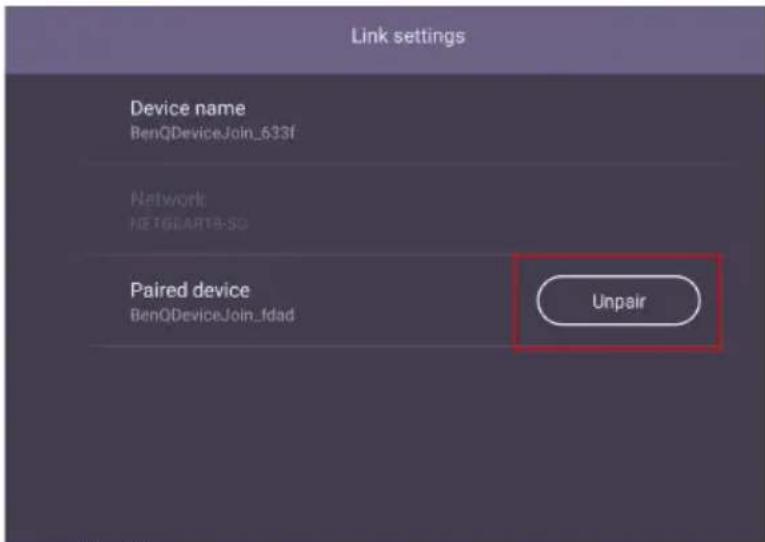
text_image
Link settings Device name BenQDeviceJoin_633f Network NETGEART18-50 Paired device BenQDeviceJoin_fdad Unpair- Remote link & transfer files
I. Open DuoBoard from APPs.
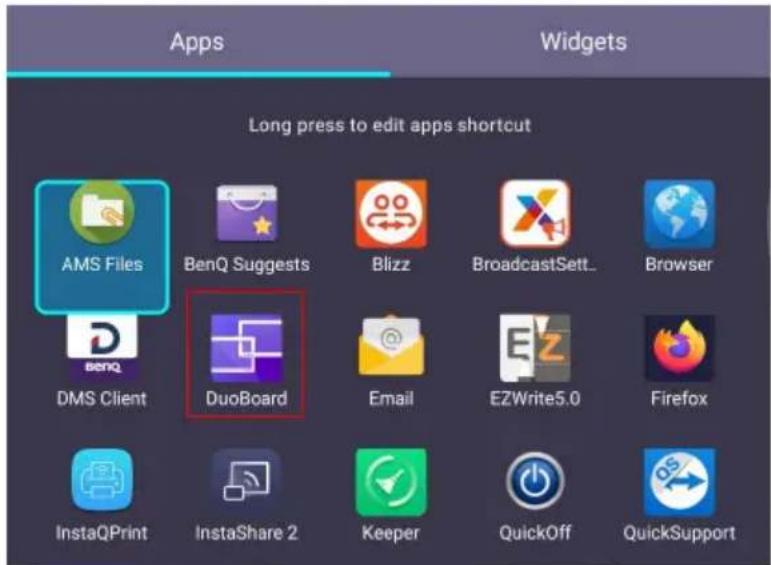
text_image
Apps Long press to edit apps shortcut Widgets AMS Files BenQ Suggests Blizz BroadcastSet... Browser DMS Client DuoBoard Email EZWrite5.0 Firefox InstaQPrint InstaShare 2 Keeper QuickOff QuickSupport2. Select Remote Link.

text_image
Link settings Pair with display on left? Cancel Remote Link Pair3. Select the display to be linked and request pairing.

text_image
Select Remote Link BenQDeviceJoin_fdad Pair request from BenQDeviceJoin_fdad (10s) Accept4. The remote link is successful when "Paired" is shown on the screen. You can start selecting and transferring files to each other.

text_image
Video Conference Wireless Projection Collaboration Pared AMS Service- Click to unpair the displays.

text_image
Video Conference Wireless Projection Collaboration AMS Service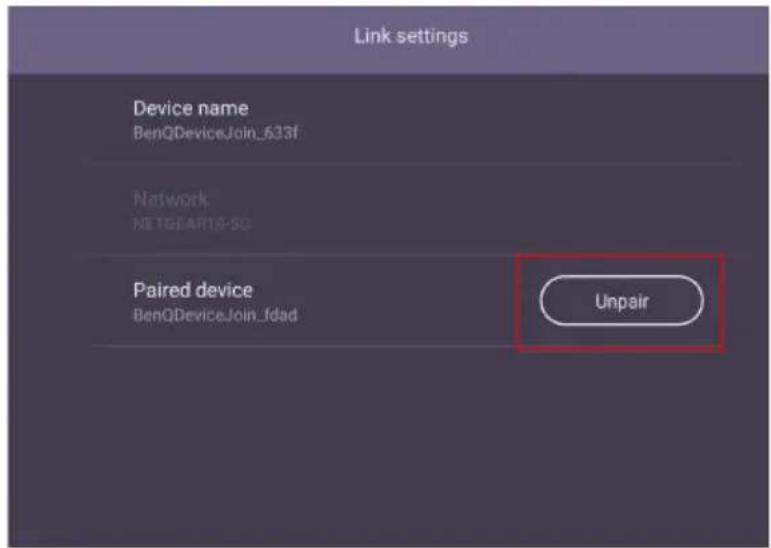
text_image
Link settings Device name BenQDeviceJoin_633f Network NETGEARTB-50 Paired device BenQDeviceJoin_fdad UnpairBlizz
- Use your mouse or cursor to control the mouse pointer.
- Blizz is a video-conferencing app that is installed in the display by default. It allows you to conveniently conduct video conference meetings with any other Blizz users.
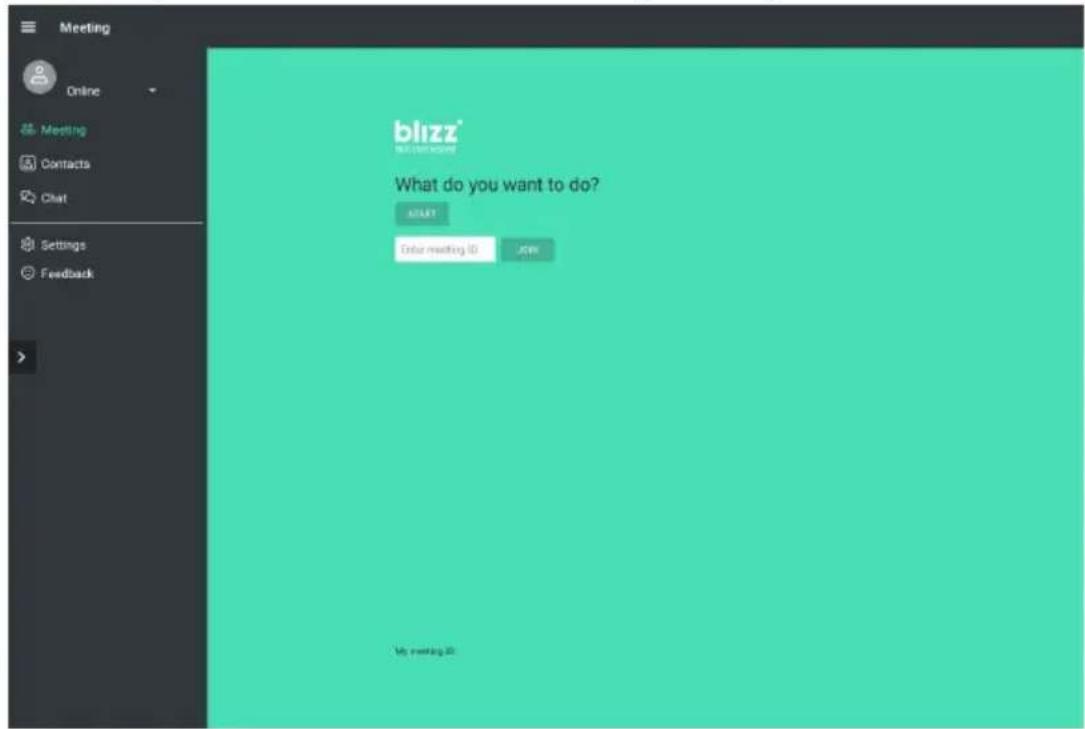
text_image
Meeting Online Meeting Contacts Chat Settings Feedback blizz What do you want to do? START Enter meeting ID JOIN My meeting IDI. On the home screen, select Apps >Blizz ( )
2. Select Sign In if you want to create a new meeting, select Join a Meeting if you want to join an already created meeting.
- After signing in, create a meeting ID which will be the meeting ID other users will enter to join the meeting.
- If joining a meeting, enter the meeting ID provided by the creator of the meeting in the Join a Meeting page.
Saffi
Use your mouse or cursor to control the mouse pointer.
How to start using Saffi – BenQ Voice Assistant
The BenQ display offers an extra level of flexibility for device control through Voice Assistant. Voice Assistant lets users control the flow of meetings by allowing them to start timers or search the Internet from anywhere in the room.
Already enable AMS service but did not bind your Amazon account to it
If you already enable Multi Account Mode and AMS service and you have not yet bind your Amazon account to it, please follow the below steps:
I. Access AMS website to link the account with Amazon. For more detail on how to link the account under AMS, please refer to AMS user manual.

text_image
BenQ AMS BING Cloud Storage Google Drive DroBox OneDrive Saffi - Voice Assistant Alexa Network Drive (0 drives connected)- Press the Voice command key to activate Saffi.

text_image
POINTA OK V+ V- BANK BenQ- The screen will show the privacy agreement. Select AGREE AND NEXT to proceed.

text_image
Privacy Agreement In order to protect your rights, please read and agree to the new Terms of Service and Privacy Policy. BenQ Voice Assistant Terms and Conditions This Terms and Conditions ("Terms and Conditions", "Agreement") between BenQ Voice Assistant ("BenQ Voice Assistant", "we") and you ("you", "you") governs your access to, and use of the BenQ Voice Assistant service as an online application under Amazon Voice Service and Alexa Skills framework, with devices connected to the Internet (the "Service"). By completing the registration process, you agree to be bound by this Agreement when signing up for and use of BenQ Voice Assistant service, and your email address of Amazon account will be stored and used to identify the device and cloud service communication. BenQ Voice Assistant may modify this Agreement, amplify them, and/or modify the prices, as well as discontinue or change the services offered. If BenQ Voice Assistant changes these terms, we will post a change notice on the service and we may send registered members an email notice of the change. Your use of Service shall constitute your complete acceptance of the new Terms and Conditions. BACK ACRELLANDNEXT SKIP- It will then show the instruction for the setup. Follow the instruction on the screen to complete the setup.
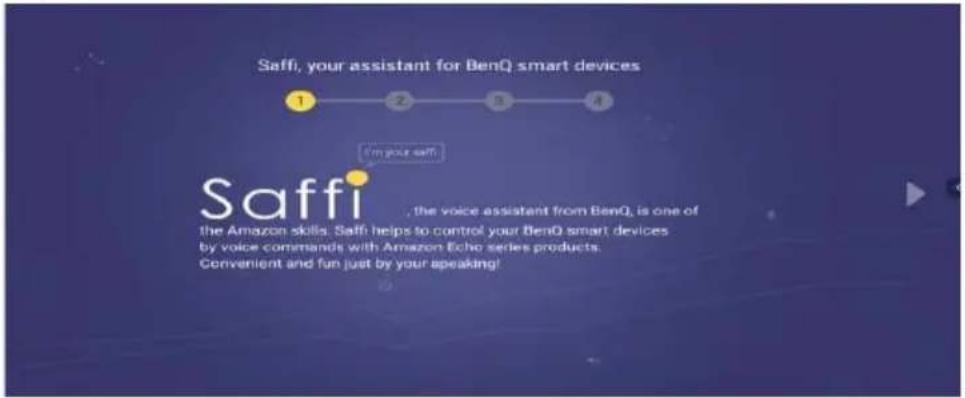
text_image
Saffi, your assistant for BenQ smart devices 1 2 3 4 I'm your safi Saffi , the voice assistant from BenQ, is one of the Amazon skills. Saffi helps to control your BenQ smart devices by voice commands with Amazon Echo series products. Convenient and fun just by your speaking!- Download and install Alexa app on your phone. Search Saffi and enable it.

flowchart
graph TD
    A["1"] --> B["2"]
    B --> C["3"]
    C --> D["4"]
    D --> E["5"]
    E --> F["6"]
    F --> G["7"]
    G --> H["8"]
    H --> I["9"]
    I --> J["10"]
- The setup is completed. Press the Voice command key and speak the commands to start using Saffi.

text_image
1 2 3 4 Saffi is Ready! Saffi is ready for your commands. Press "SETUP COMPLETE" button to learn how Saffi helps you. SETUP COMPLETEProduct information
Specifications
| Item | Specifications | |
| CS6501/CS7501/CS8601 | ||
| LCD panel | Light source DLED | |
| Panel size CS6501: 65", CS7501: 75", CS8601: 86" | ||
| Native resolution (pixels) | 3840 x 2160 | |
| Brightness (cd/m2)(typical) | 450 (typ) | |
| Contrast ratio (typical) 1200:1 | ||
| Viewing Angle (Horizontal/Vertical) | 178°/178° | |
| Response time (ms)(typical) | 8 | |
| Panel Bit 10 bit | ||
| Active Area (mm) | CS6501: 1428.48 x 803.52CS7501: 1649.664 x 927.936CS8601: 1895.04 x 1065.96 | |
| Input | Computer VGA IN x 1 | |
| Video HDMI IN x3 (2.0) | ||
| Audio Line-in (3.5 mm jack) x 1 | ||
| USB Type A x 6 (2.0 x 3, 3.0 x 3), Type B x 2 | ||
| Control RS232 x 1, RJ45 x 1 | ||
| TV Tuner NO | ||
| OPS Slot | Open pluggable specification (Intel OPS standard)x 118V/5A | |
| WiFi Module Slot | (USB 2.0) x 1with a specific Wi-Fi dongle | |
| Output | Video HDMI OUT x1 (2.0) | |
| Audio SPDIF X1 | ||
| External Speaker NO | ||
| Audio | Audio W (Amp) | CS6501/CS7501: 10W x 2CS8601: 16W x 2 + 16W x 1 |
| Power | Supply | 100 - 240V AC, 50/60 Hz |
| Typical (Watt) | 400W | |
| Standby (Watt) ≤0.5W | ||
| Wake Up | VGA/HDMI/LAN | |
| Environment | Operating Temperature | 0 - 40°C |
| Operating Humidity 10 - 90% (without condensation) | ||
| Storage Temperature | -20 - 60°C | |
| Storage Humidity 10 - 90% (without condensation) | ||
| Display Orientation Landscape Only | ||
| Mechanical | Weight (without packing / with packing)(kg) | CS6501: 26.95/40.9CS7501: 33.3/49CS8601: 54.3/77.1 |
| Dimensions (W x H x D) (mm) | CS6501: TBDCS7501: 1672 x 87 x 955CS8601: TBD | |
| Bezel Dimension - T/B/L/R (mm) | CS6501: 8.8/8.8/8.8/12.8CS7501: 9/9/9/13.3CS8601: 13.9/13.9/13.9/23.4 | |

Specifications and functions are subject to change without notice.
| Item CS6501/CS7501/CS8601 | ||
| System | CPU ARM | A73*2+A53*2 quad core (Hisi V811) |
| System Memory | 4GB | |
| Storage 32GB | ||
| OS Android 8.0 | ||

This Android 8.0 operating system is not standard Android, so access to Google Play™ is not available. APK cannot be installed in the default location unless given permission by the management units. Contact your BenQ dealer for the required support for management permission. Without management permission, installing function won't work. There is no guarantee that the self-installed APK can function normally.
Dimensions (CS6501)

Unit: mm
Dimensions (CS7501)
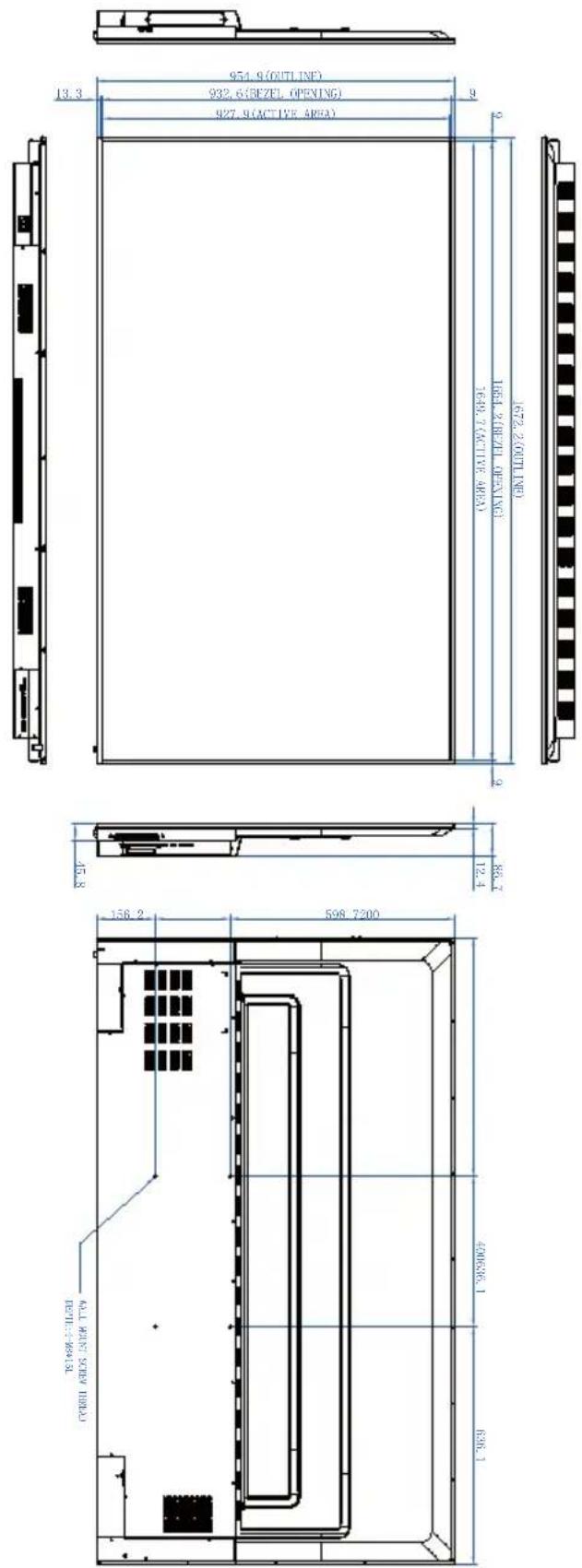
text_image
954.9 (OUTLINE) 932.6 (BEZEL OPENING) 927.9 (ACTIVE AREA) 1672.2 (OUTLINE) 1654.2 (BEZEL OPENING) 1680.7 (ACTIVE AREA) 45.8 12.4 88.7 156.2 598.7200 ALL MOUNT SCREW HUBAO BEZEL-88433 40836.1 636.1Unit: mm
Dimensions (CS8601)
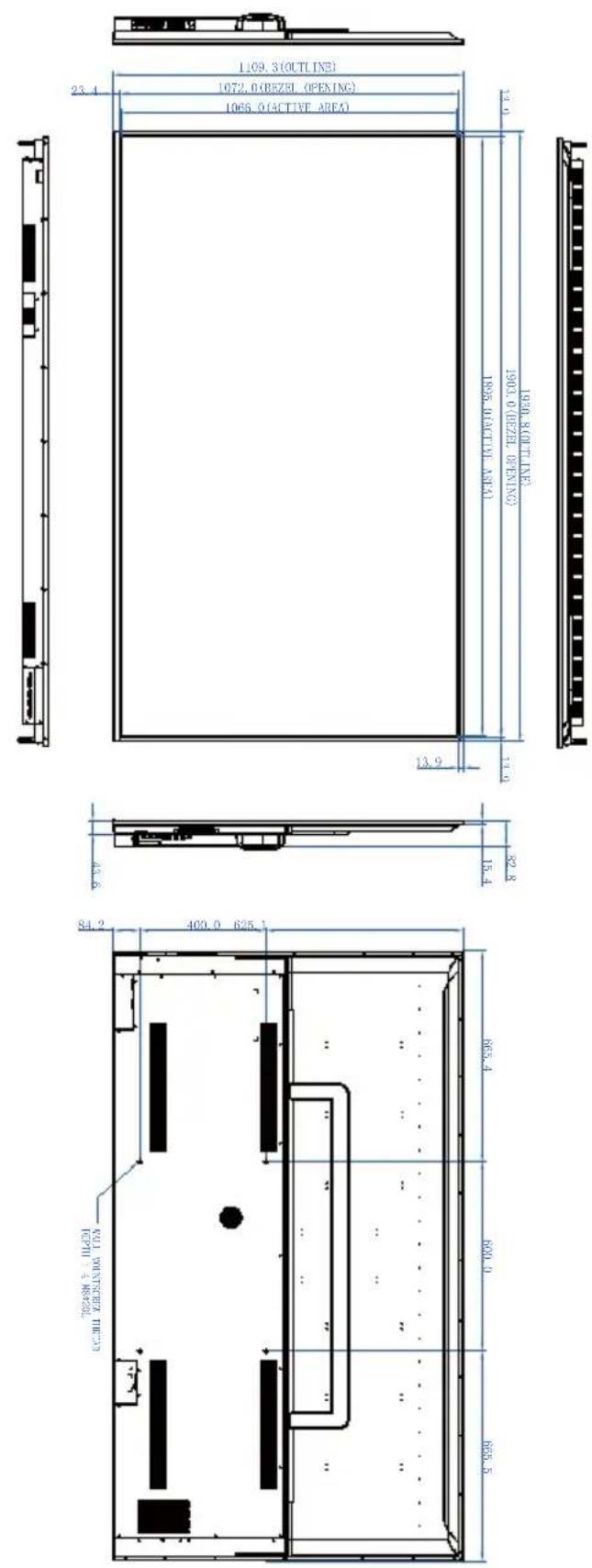
Unit: mm
Supported input signal resolution
| Resolution | Input source | ||
| VGA EDID 1.4 EDID 2.0 | |||
| 640 x 480 @ 60Hz | ○ | ○ | ○ |
| 720 x 400 @ 70Hz | ○ | ○ | ○ |
| 800 x 600 @ 60Hz | ○ | ○ | ○ |
| 1024 x 768 @ 60Hz | ○ | ○ | ○ |
| 1024 x 768 @ 75Hz | |||
| 1152 x 864 @ 60Hz | |||
| 1280 x 720 @ 50Hz | |||
| 1280 x 768 @ 60Hz | ○ | ○ | ○ |
| 1280 x 800 @ 60Hz | |||
| 1280 x 960 @ 60Hz | ○ | ○ | ○ |
| 1280 x 1024 @ 60Hz | ○ | ○ | ○ |
| 1360 x 768 @ 60Hz | |||
| 1366 x 768 @ 60Hz | ○ | ○ | ○ |
| 1400 x 1050 @ 60Hz | |||
| 1440 x 900 @ 60Hz | ○ | ○ | ○ |
| 1600 x 900 @ 60Hz | |||
| 1680 x 1050 @ 60Hz | ○ | ○ | ○ |
| 1920 x 1080 @ 30Hz | |||
| 1920 x 1080 @ 50Hz | |||
| 1920 x 1080 @ 60Hz | ○ | ○ | ○ |
| 3840 x 2160 @ 30Hz | ○ | ○ | |
| 3840 x 2160 @ 50Hz | ○ | ||
| 3840 x 2160 @ 60Hz | ○ | ||
| NTSC-M | |||
| NTSC-J | |||
| PAL-BDGHI | |||
| 480i (60Hz) | ○ | ○ | |
| 480p (60Hz) | ○ | ○ | |
| 576i (50Hz) | ○ | ○ | |
| 576p (50Hz) | ○ | ○ | |
| 720p (25Hz) | |||
| 720p (30Hz) | |||
| 720p (50Hz) | ○ | ○ | |
| 720p (60Hz) | ○ | ○ | |
| 1080i (50Hz) | ○ | ○ | |
| 1080i (60Hz) | ○ | ○ | |
| 1080p (50Hz) | ○ | ○ | |
| 1080p (60Hz) | ○ | ○ | |

• O: supported
• Vacant: not supported
- Display Port/HDMI timing table should follow EDID1.4 or EDID2.0.
Troubleshooting
| Problem Solution | |
| No picture Check the following:Is the display turned on? Check the power indicator of the display.Is the signal source device turned on? Turn on the device and try again.Are there any loose cable connections? Make sure that all cables are connected firmly.Have you chosen an unsupported output resolution on the computer? Refer to Supported input signal resolution on page 86 to select a supported resolution and try again.Have you chosen an unsupported output resolution on the DVD or Blu-ray disc player? Refer to Supported input signal resolution on page 86 to select a supported resolution and try again. | |
| No sound Check the following:Have you turned on the mute function on the display or the input source device? Turn off the mute function or increase the audio volume level and try again.Are there any loose cable connections? Make sure that all cables are connected firmly. | |
| The computer input image looks strange | Have you chosen an unsupported output resolution on the computer? Refer to Supported input signal resolution on page 86 to select a supported resolution and try again.Use the Auto function (VGA only) to let the display automatically optimize the display of computer image.If the result of the Auto function is not satisfactory, use the Phase, H Position and V Position functions to manually adjust the image. |
| The control panel buttons do not work | Have you locked the control panel buttons? Unlock the buttons and try again. |
| The remote control does not work | Have you locked the remote control function? Unlock the function and try again.Check for incorrect battery orientation.Check for dead batteries.Check your distance and angle from the display.Check whether remote control is properly being pointed at the display's remote control sensor window.Check for any obstacle between the remote control and the remote control sensor window.Check that the remote control sensor window is not under strong fluorescent lighting, or in direct sunlight.Check for any devices (computer or personal digital assistant, PDA) nearby that transmit infrared signals which may cause interference to signal transmission between the remote control and the display. Turn off the infrared function of these devices. |
| Remote control failure • Check | Check whether there are other objects between remote control and television remote control receiving window, thus leading to failure of remote control.Check whether the battery electrode in the remote control is correct.Check whether remote control needs to replace battery. |
| Machine automatically shutdown | Whether set sleep or not.Check whether there is sudden power outage.Check whether there is no signal automatic shutdown. |
| Signal out of range • Check | whether display is set correctly.Check whether resolution is the best resolution.Adjust line and field synchronization in menu. |
| Background has vertical lines or streaks | Select automatic correction in menu.Adjust clock and phase position in menu. |
| Image lack of color, color is incorrect | Check whether VGA is not well connected or has quality problem.Adjust chromaticity and brightness or contrast in menu. |
| Display format that is not supported. | Select automatic correction in menu.Adjust clock and phase position in menu. |
| No picture and no sound | Check whether the machine is started state.Check whether signal wire is well plugged, whether INPUT is corresponding to it.If in internal computer mode, check whether internal computer is started. |
| With horizontal or vertical stripes or image dithering | Check whether signal wire is well connected.Check whether other electronic equipment or power tools are placed around the machine. |
| No color, color is weak or image is weak | Adjust chromaticity and brightness or contrast in menu.Check whether signal wire is well connected. |
| With image but without sound | Check whether mute button is pressed for mute.Press VOL+/VOL- to adjust volume.Check whether audio line is connected correctly. |
| Only one speaker has sound | Adjust sound balance in menu.Check whether computer sound control panel only sets up one sound channel.Check whether audio line is connected correctly. |
| VGA output without sound | Check whether connect external device with headphone cable. |