VTD-TND4RFS - Security Camera Vitek - Free user manual and instructions
Find the device manual for free VTD-TND4RFS Vitek in PDF.


User questions about VTD-TND4RFS Vitek
0 question about this device. Answer the ones you know or ask your own.
Ask a new question about this device
Download the instructions for your Security Camera in PDF format for free! Find your manual VTD-TND4RFS - Vitek and take your electronic device back in hand. On this page are published all the documents necessary for the use of your device. VTD-TND4RFS by Vitek.
USER MANUAL VTD-TND4RFS Vitek
natural_image
Set of eight different surveillance cameras shown from different angles (no visible text or labels)FEATURES
• 1/3" 4.0 Megapixel Progressive Scan CMOS image sensor
- Up to 30fps live view @ 4 MegaPixel (2592x1520)
- Motorized Varifocal & Fixed Lens Options
• Infrared IR LED Illumination
• 120dB Super Wide Dynamic Range (WDR)
• True Mechanical Day/Night function by ICR
• XD-DNR (2D-DNR & 3D-DNR) Noise Reduction
- Fully Programmable Intelligent Analytics including Object Removal/Museum Search, Line Crossing, and Area Intrusion Detection
• H.265/H.264/MJPEG Triple Streaming
• Secondary Video Output (CVBS)
- Remote Viewing via CMS, Internet Explorer, and iOS & Android Apps
• IP66 Weather Resistance & IK10 Impact Rating
- ONVIF Compliant
- Optional Mounts Available
• 12VDC & PoE (Power over Ethernet) Operation
■ Please use the specified power supply to connect.
- Do not attempt to disassemble the camera; in order to prevent electric shock, do not remove screws or covers.
There are no user-serviceable parts inside. Please contact the nearest service center as soon as possible if there is any failure.
■ Avoid from incorrect operation, shock vibration, heavy pressing which can cause damage to product.
Do not use corrosive detergent to clean main body of the camera. If necessary, please use soft dry cloth to wipe dirt; for hard contamination, use neutral detergent. Any cleanser for high grade furniture is applicable.
- Avoid aiming the camera directly towards extremely bright objects, such as, sun, as this may damage the image sensor.
■ Please follow the instructions to install the camera. Do not reverse the camera, or the reversing image will be received.
■ Do not operate it incase temperature, humidity and power supply are beyond the limited stipulations.
- Keep away from heat sources such as radiators, heat registers, stove, etc.
■ Do not expose the product to the direct airflow from an air conditioner.
This is product instructions not quality warranty. We may reserve the rights of amending the typographical errors, inconsistencies with the latest version, software upgrades and product improvements, interpretation and modification. These changes will be published in the latest version without special notification.
When this product is in use, the relevant contents of Microsoft, Apple and Google will be involved in. The pictures and screenshots in this manual are only used to explain the usage of our product. The ownerships of trademarks, logos and other intellectual properties related to Microsoft, Apple and Google belong to the above-mentioned companies.
This manual is suitable for IR water-proof network camera. All pictures and examples used in the manual are for reference only.
Table of Contents
1 Introduction....4
2 IE Remote Access....5
2.1 LAN 5
1.1.1 Access through IP-Tool 5
1.1.2 Directly Access through IE 6
2.2 WAN....8
3 Remote Preview 11
4 Remote Live Surveillance....12
1.2 System Configuration....12
1.2.1 Basic Information.... 12
1.2.2 Date and Time.... 12
1.2.3 Local Config 13
1.2.4 Storage.... 13
1.3 Image Configuration .... 14
1.3.1 Display Configuration 14
1.3.2 Video / Audio Configuration.... 15
1.3.3 OSD Configuration 17
1.3.4 Video Mask.... 17
1.3.5 ROI Configuration.... 18
1.4 Alarm Configuration.... 19
1.4.1 Motion Detection 19
1.4.2 Alarm Server 21
1.5 Event Configuration....21
1.5.1 Object Removal 21
1.5.2 Exception.... 23
1.5.3 Line Crossing 25
1.5.4 Intrusion.... 26
1.6 Network Configuration....28
1.6.1 TCP/IP 28
1.6.2 Port 29
1.6.3 Server Configuration 30
1.6.4 DDNS 30
1.6.5 SNMP 31
1.6.6 RTSP 32
1.6.7 UPNP 33
1.6.8 Email 33
1.6.9 FTP 34
4.1 Security Configuration....35
1.6.10 User Configuration 35
1.6.11 Online User 37
1.6.12 Block and Allow Lists.... 37
4.2 Maintenance Configuration....37
1.6.13 Backup and Restore 37
1.6.14 Reboot.... 38
1.6.15 Upgrade.... 38
1.6.16 Operation Log.... 39
5 Record Search....40
5.1 Photo Search 40
5.2 Photo Search 40
5.3 Video Search....41
1.6.17 Local Video Search 41
1.6.18 SD Card Video Search 42
1.6.19 This feature is camera dependent; some cameras do not have an SD card slot.... 42
6 Specifications....43
1 Introduction
This IP camera is designed for high performance CCTV solutions. It adopts state of the art video processing chips. It utilizes most advanced technologies, such as video encoding and decoding technology, complies with the TCP/IP protocol, SoC, etc to ensure this system is more stable and reliable.
Main Features
- ICR auto switch, true day/night
● 3D DNR, digital WDR - ROI coding
● BLC, Defog, Anti-flicker
● Supports smart phones & tablets for remote monitoring
Surveillance Application
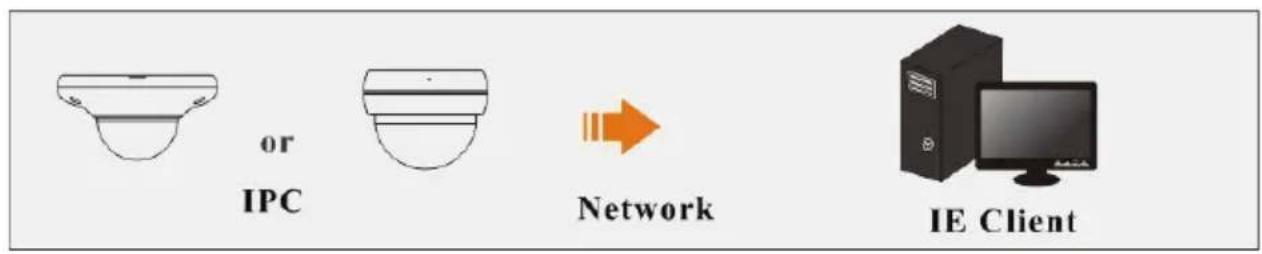
flowchart
graph LR
    A["IPC"] --> B["Network"]
    B --> C["IE Client"]

flowchart
graph LR
    A["IPC or"] --> B["Network"]
    B --> C["NVR"]
    C --> D["Hybrid DVR"]
    D --> E["Monitor"]

flowchart
graph LR
    A["IPC"] --> B["Network"]
    C["CMS/NVMS"] --> D["Visualized Video with Groups and Views"]
2 IE Remote Access
2.1 LAN
In LAN, there are two ways to access the IP-Cam: 1. access through IP-Tool; 2. directly access through IE browser.
1.1.1 Access through IP-Tool
Network connection:

text_image
or IPC Network Cable Switch Router Network Cable Client☐ Make sure the PC and IP-Cam are connected to the LAN and the IP-Tool is installed in the PC from the CD.
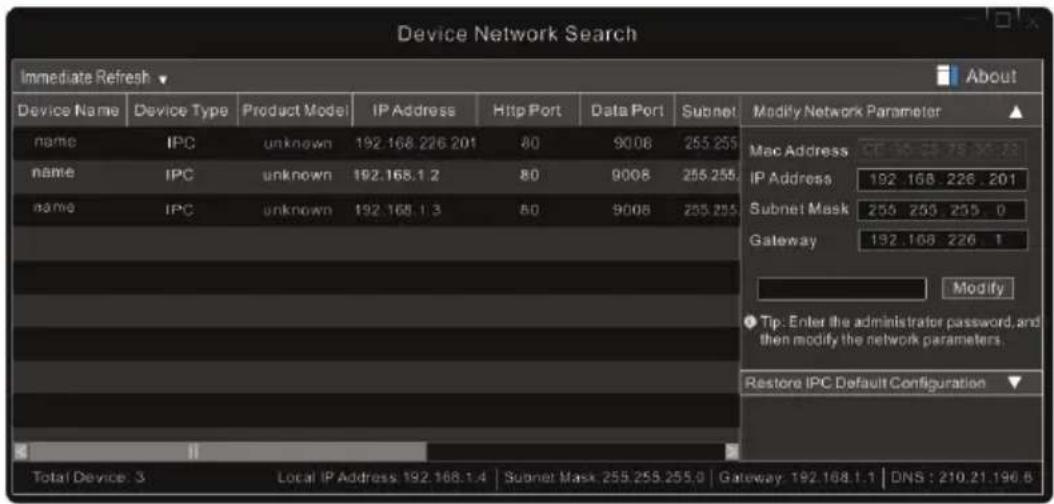
Double click the IP-Tool icon on the desktop to run this software as shown below:
text_image
Device Network Search Immediate Refresh ▼ Device Name Device Type Product Model IP Address Http Port Data Port Subnet Modify Network Parameter ▲ name IPC unknown 192.168.226.201 80 9008 255.255 Mac Address name IPC unknown 192.168.1.2 80 9008 255.255 IP Address 192.168.226.201 name IPC unknown 192.168.1.3 80 9008 255.255 Subnet Mask 255.255.255 0 Gateway 192.168.226.1 Modify Tip: Enter the administrator password, and then modify the network parameters. Restore IPC Default Configuration ▼ Total Device: 3 Local IP Address: 192.168.1.4 Subnet Mask: 255.255.255.0 Gateway: 192.168.1.1 DNS: 210.21.196.6Modify the IP address. The default IP address of this camera is 192.168.226.201. Click the information of the camera listed in the above table to show the network information on the right side. Modify the IP address and gateway of the camera and make sure its network address is in the same local network segment as that of the computer. Please modify the IP address of your device according to the practical situation.
text_image
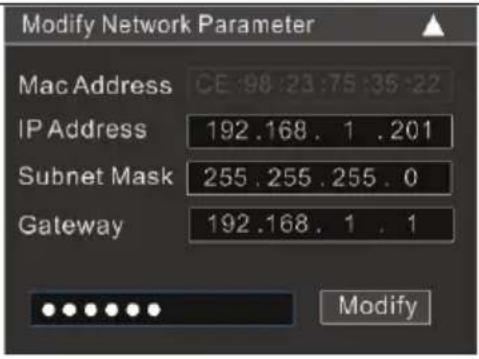
Modify Network Parameter Mac Address CE:98.23:75:35:22 IP Address 192.168.1.201 Subnet Mask 255.255.255.0 Gateway 192.168.1.1 ModifyFor example, the IP address of your computer is 192.168.1.4. So the IP address of the camera shall be changed to 192.168.1.X. After modification, please input the ADMIN password of the administrator and click “Modify” button to modify the setting.

The default password of the administrator is "123456".
Double click the IP address and then the system will pop up IE browser to connect IP-CAM. IE browser will ask to download the Active X control. After downloading, a login window will pop up as shown below.

text_image
TRANSCENDENT VITEK Name: admin Password: ******** Stream Type: 2048x1536 30fps Language: English Remember me LoginInput the username and password to log in.

The default username is "admin"; the default password is "123456".
1.1.2 Directly Access through IE
The default network settings are as shown below:
IP address: 192.168.226.201
Subnet Mask: 255.255.255.0
Gateway: 192.168.226.1
HTTP: 80
Data port: 9008
You may use the above default settings when you log in the camera for the first time. You may directly connect the camera to the computer through network cable.

text_image
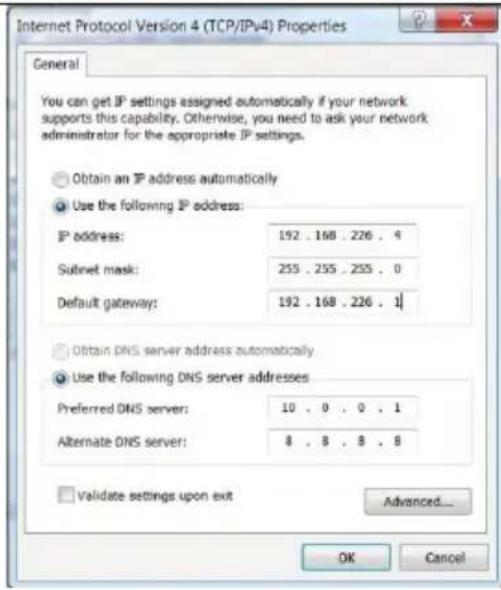
IPC or Network Cable Computer□ Manually set the IP address of the PC as the network segment should be as the same as the default settings of the IP camera. Open the network and share center. Click “Local Area Connection” to pop up the following window.

text_image
Local Area Connection Properties Networking Sharing Connect using: Realtek PCIe GBE Family Controller Configure... This connection uses the following items: ✓ Client for Microsoft Networks ✓ QoS Packet Scheduler ✓ File and Printer Sharing for Microsoft Networks ✓ Internet Protocol Version 6 (TCP/IPv6) ✓ Internet Protocol Version 4 (TCP/IPv4) ✓ Link-Layer Topology Discovery Mapper I/O Driver ✓ Link-Layer Topology Discovery Responder Install... Uninstall Properties Description Transmission Control Protocol/Internet Protocol. The default wide area network protocol that provides communication across diverse interconnected networks. OK CancelSelect “Properties” and then select internet protocol according to the actual situation (for example: IPv4). Next, click “Properties” button to set the network of the PC.
text_image
Internet Protocol Version 4 (TCP/IPv4) Properties General You can get IP settings assigned automatically if your network supports this capability. Otherwise, you need to ask your network administrator for the appropriate IP settings. Obtain an IP address automatically Use the following IP address: IP address: 192 . 168 . 226 . 4 Subnet mask: 255 . 255 . 255 . 0 Default gateway: 192 . 168 . 226 . 1 Obtain DNS server address automatically Use the following DNS server addresses Preferred DNS server: 10 . 0 . 0 . 1 Alternate DNS server: 8 . 8 . 8 . 8 Validate settings upon exit Advanced... OK Cancel☑ Open IE browser and input the default address of IP-CAM and confirm. IE browser will ask to download the Active X control.
After downloading the Active X control, the login dialog box will pop up.
Input the default username and password and then enter to view.
2.2 WAN
Access through the router or virtual server

flowchart
graph LR
    A["IPC or"] -->|Network Cable| B["Router"]
    B -->|Network Cable| C["Internet"]
    C -->|Network Cable| D["Client"]
☐ Make sure the camera is connected via LAN and then log into the camera via LAN and go to Config→Network→Port to set the port number.

text_image
Port Server DDNS SNMP RTSP UPnP Email FTP HTTP Port 80 Data Port 9008 RTSP Port 554 SavePort Setup
Go to Config→Network→TCP/IP menu to modify the IP address.
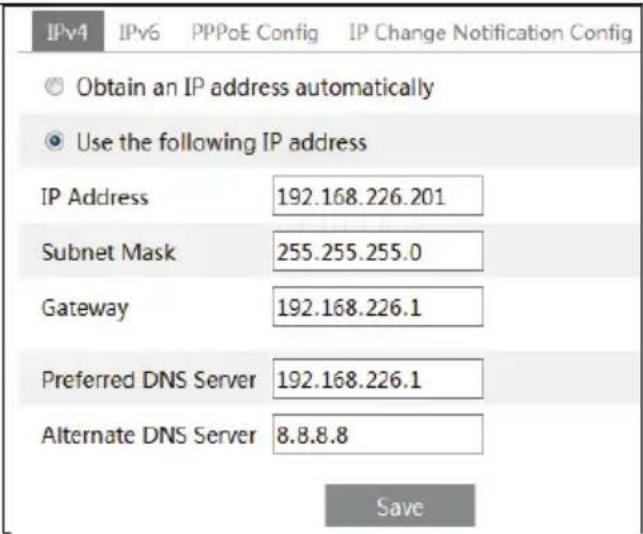
text_image
IPv4 IPv6 PPPoE Config IP Change Notification Config Obtain an IP address automatically Use the following IP address IP Address 192.168.226.201 Subnet Mask 255.255.255.0 Gateway 192.168.226.1 Preferred DNS Server 192.168.226.1 Alternate DNS Server 8.8.8.8 SaveIP Setup
Go to the router's management interface through IE browser to forward the IP address and port of the camera. Please check your router manual for instructions on port forwarding.

text_image
Port Range Application Start End Protocol IP Address Enable 1 9007,to 9008 Both 192.168.1.201 2 80,to 81 Both 192.168.1.201 3 10000,to 10001 Both 192.168.1.166 4 21000,to 21001 Both 192.168.1.166Router Setup
☑ Open IE browser and input its WAN IP and http port to access.
Access through PPPoE dial-up
Network connection

flowchart
graph LR
    A["IPC or"] --> B["Modem"]
    B --> C["Internet"]
    C --> D["Client"]
    style A fill:#f9f,stroke:#333
    style B fill:#ccf,stroke:#333
    style C fill:#cfc,stroke:#333
    style D fill:#fcc,stroke:#333
You may access the camera through PPPoE auto dial-up. The setting steps are as follow:
Go to Config→Network→Port to set the port number.
Go to Config→Network→TCP/IP→PPPoE Config menu. Enable PPPoE and then input the user name and password which you can get from your internet service provider.
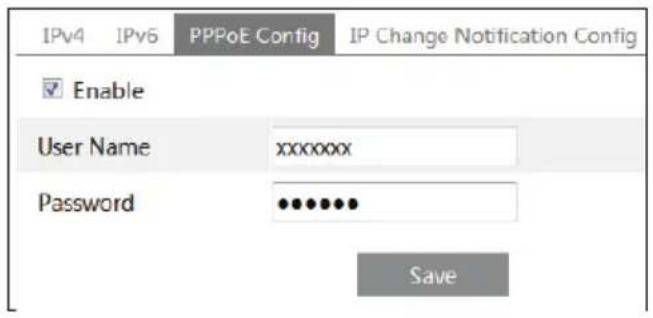
text_image
IPv4 IPv6 PPPoE Config IP Change Notification Config Enable User Name xxxxxxxx Password •••••••• SaveGo to Config→Network→DDNS menu. Before you configure the DDNS, please apply for a domain name first. Please refer to DDNS configuration for detail information.
→ Open IE browser and input the domain name and http port to access.
Access through static IP
Network connection

flowchart
graph LR
    A["IPC"] --> B["Network Cable"]
    B --> C["Internet"]
    C --> D["Client"]
The setting steps are as follow:
☐ Go to Config→Network→Port to set the port number.
☐ Go to Config→Network→TCP/IP menu to set the IP address. Check “Use the following IP address” and then input the static IP address and other parameters.
□Open IE browser and input its WAN IP and http port to access.
3 Remote Preview
After you log in, you will see the following window.
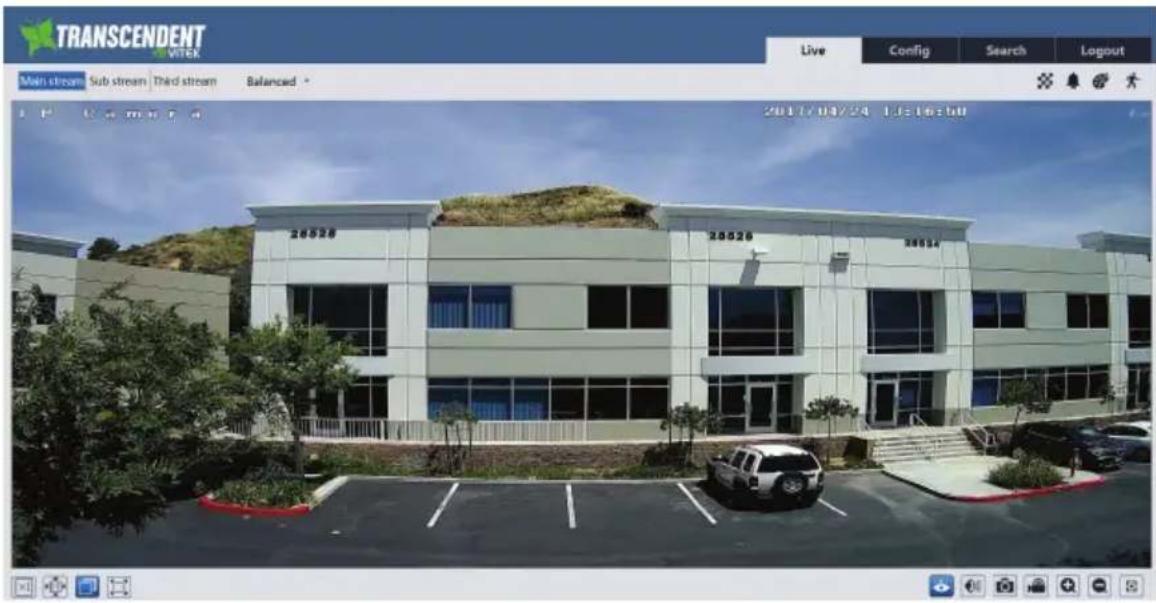
text_image
TRANSCENDENT VITERK Main stream Sub stream Third stream Balanced Live Config Search Logout 2017/04/24 1:36:58 20020 20020 20014The following table is the instructions of the icons on the remote live interface.
| Icon | Description | Icon | Description |
 | Original size |  | Scene change indicator icon |
 | Appropriate size |  | Abnormal clarity indicator icon |
 | Auto |  | Color abnormal indicator icon |
 | Full screen |  | Motion alarm indicator icon |
 | Start/stop live view |  | Start/stop recording |
 | Enable/disable audio |  | Zoom in |
 | Snap |  | Zoom out |
- When motion detection alarm is triggered, the people icon will turn red.
- In full screen mode, double click to exit.
- icons may not be displayed for some versions without intelligent analysis function.
4 Remote Live Surveillance
1.2 System Configuration
The “System” configuration includes four submenus: Basic Information, Date and Time, Local Config and storage.
1.2.1 Basic Information
In the “Basic Information” interface, you can check the relative information of the device.

text_image
Config Home ▶ System ▶ Basic Information Device Type VTC-TNT4RMS Brand VITEK Software Version 4.1.3.0(10534) Software Build Date 2017-03-16 Kernel Version 20161031 Hardware Version 1.3 Onvif Version 2.3 OCX Version 1.1.4.5 MAC 00:18:ae:00:24:791.2.2 Date and Time
Go to Config→System→Date and Time. Please refer to the following interface.

text_image
Config Home ▶ System ▶ Date and Time Zone Date and Time Time Zone: GMT-08 (Las Vegas, San Francisco, Vancouver) □ DSTYou can select the time zone and DST as required.
Click "Date and Time" tab to set the time mode.

text_image
Config Home ▶ System ▶ Date and Time Zone Date and Time Time Mode: ○ Synchronize with NTP server NTP server: time.windows.com ● Synchronize with computer time Date: 2017-04-25 Time: 12:41:10 ○ Set manually Date: 2017-04-25 Time: 12:41:34 Save1.2.3 Local Config
Go to Config→System→Local Config. You can set the storage path of the captured pictures and video records. You can also enable or disable the video audio.

text_image
Picture Path C:\Users\Administrator\Favorites Browse Record Path C:\Users\Administrator\Favorites Browse Video Audio Settings ○ Enable ● Disable1.2.4 Storage
Go to Config→System→Storage to go to the interface as shown below.
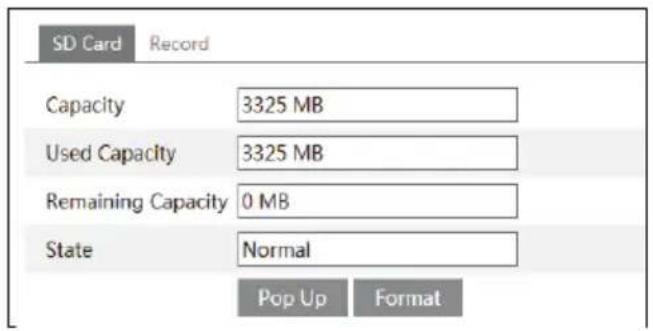
text_image
SD Card Record Capacity 3325 MB Used Capacity 3325 MB Remaining Capacity 0 MB State Normal Pop Up FormatThe first time you use the SD card, you should click “Format” button to format the SD card. Click “Pop Up” button to stop writing data to SD card. Then the SD card can be ejected safely.

Note: Using the SD card function should be coordinated with motion alarm. When alarm is triggered, the system will automatically snap picture and save the picture or record into SD card.
Go to Config→System→Storage→Record to go to the interface as shown below. You can set the SD
card record stream. Set the pre record time if you enable pre record. Click "Save" button to save the settings.
Pre Record Time: Set the time to record before the actual recording begins.

text_image
SD Card Record Record Stream Third ✓ ✓ Enable Pre Record Pre Record Time (second) 3 ✓ Save1.3 Image Configuration
Image Configuration includes Display, Video/Audio, OSD, Video Mask, ROI Config and Zoom/Focus.
1.3.1 Display Configuration
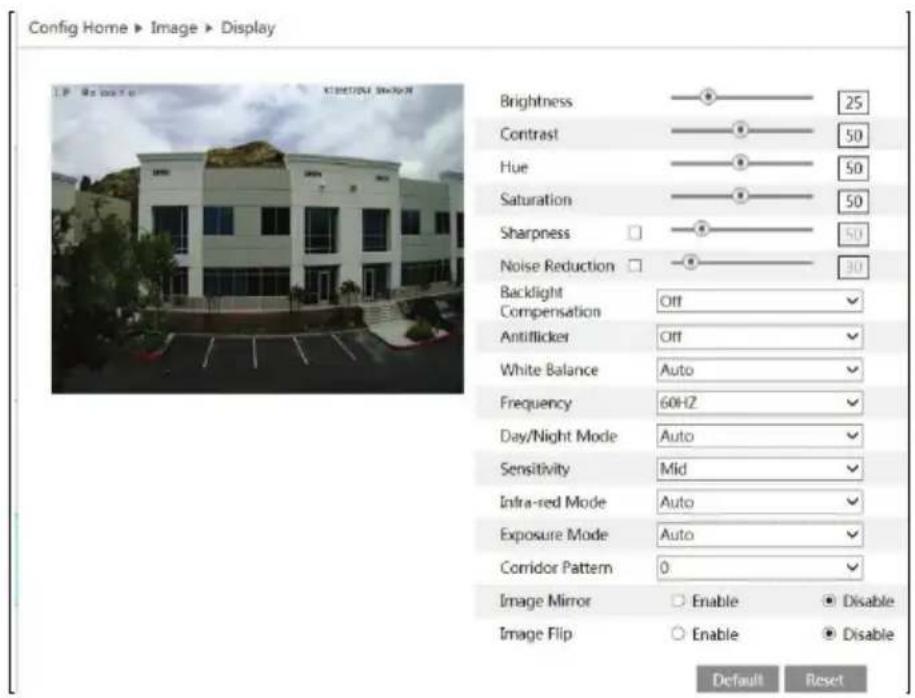
Go to Image→Display interface as shown below. You can set and adjust the picture's brightness, contrast, hue and saturation, etc.
text_image
Config Home ▶ Image ▶ Display Brightness Contrast Hue Saturation Sharpness Noise Reduction Backlight Compensation Antiflicker White Balance Frequency Day/Night Mode Sensitivity Infra-red Mode Exposure Mode Corridor Pattern Image Mirror Image Flip Enable Enable Disable Default ResetBrightness: Set the brightness level of the camera's image.
Contrast: Set the color difference between the brightest and darkest parts.
Hue: Set the total color degree of the image.
Saturation: Set the degree of color purity. The purer the color is, the brighter the image is.
Sharpness: Set the resolution level of the image plane and the sharpness level of the image edge.
Noise Reduction: Decrease the noise and make the image more thorough. Increasing the value will make the noise reduction effect better but it will reduce the image resolution.
Backlight Compensation:
- Off: Close the backlight compensation function. It is the default mode.
• WDR
As to the WDR scene, WDR will help the camera provide clear images when there are both very bright and very dark areas simultaneously in the field of view by lowering the brightness of the bright area and increasing the brightness of the lowlight area. High, middle and low can be selected.
◆ There will be some recording lost for a few seconds during mode changing from non-WDR to WDR mode. - HLC: Lower the brightness of the whole image by suppressing the brightness of the image's highlight area and reducing the size of the halo area.
- BLC: The exposure will begin automatically according to the scene for the goal of seeing the darkest area of the image.
HFR : High frame rate mode. You may enable or disable it as needed.
Antiflicker:
- Off: Close the anti-flicker function.
- 50Hz: Makes sure the horizontal stripes will not appear in the image while the device is adjusting the exposure automatically according to the brightness of the scene when the electric supply is 50Hz.
- 60Hz: Makes sure the horizontal stripes will not appear in the image while the device is adjusting the exposure automatically according to the brightness of the scene when the electric supply is 60Hz.
White Balance: Adjust the color temperature according to the environment automatically.
Frequency: 50Hz and 60Hz (50Hz= PAL(Europe) 60Hz= NTSC (North America)).
Day/night Mode: Please choose the mode as needed.
Auto= will change to Black & White in low light
Day= Camera will be in color all the time
Night= Camera will be in Black & White all the time
Schedule= set a particular time the camera switches to Night mode or Day mode
Sensitivity: High, middle and low can be selected.
Infrared Mode: You may choose “ON”, “OFF” and “Auto” as required.
Exposure Mode: You may choose "Auto" or "Manual" as required.
Corridor Pattern: You can change the direction of the video image by using this function. 0, 90, 180 and 270 are available. The default value is 0. The video resolution should be 1080P or under 1080P if you use this function.
Image Mirror: Reverse the current video image right and left.
Image Flip: Turn the current video image upside down.
1.3.2 Video / Audio Configuration
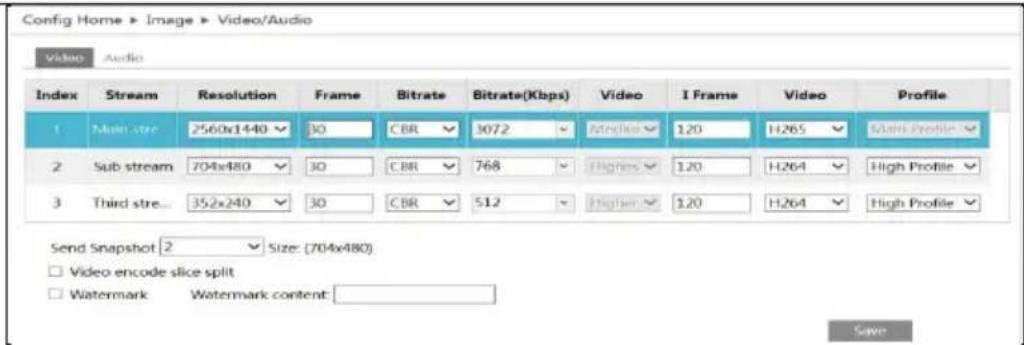
Go to Image→Video / Audio interface as shown below. In this interface, you can set the resolution, frame rate, bitrate type, video quality and so on subject to the actual network condition.
text_image
Config Home ▶ Image ▶ Video/Audio Video Audio Index Stream Resolution Frame Bitrate Bitrate(Kbps) Video I Frame Video Profile 1 Main stre 2560x1440 30 CBR 3072 Mchlos 120 H265 Main Profile 2 Sub stream 704x480 30 CBR 768 Higher 120 H264 High Profile 3 Third stre... 352x240 30 CBR 512 Higher 120 H264 High Profile Send Snapshot 2 Size: (704x480) □ Video encode slice split □ Watermark Watermark content: SaveClick "Audio" tab to go to the interface as shown below.

text_image
Video Audio Audio Encoding G711A Audio Type MIC SaveThree video streams can be adjustable.
Resolution: The higher the resolution is, the clearer the image is.
Frame rate: The higher the frame rate is, the more fluid the video is. However, more storage room will be taken up.
Bitrate type: Including CBR and VBR. CBR means that no matter how the video changes, the compression bitrate keeps constant. This will not only facilitate the image quality better in a constant bitrate but also help to calculate the capacity of the recording. VBR means that the compression bitrate can be adjustable according to the change of the video resources. This will help to optimize the network bandwidth.
Bitrate: Please choose it according to the actual network situation.
Video Quality: When VBR is selected, you need to choose image quality. The higher the image quality you choose, the more bitrate will be required.
I Frame interval: It is recommended to use the default value. If the value is to high, the read speed of the group of pictures will be slow resulting in the quality loss of the video.
Video Compression: H264 and H265 are optional. Higher quality of image can be transferred under limited network bandwidth by using H265 video encoding; however, higher quality of the hardware is required.
Profile: Baseline, main/high profiles are optional. Baseline profile is mainly used in interactive application with low complexity and delay. Main/high profile is mainly used for higher coding requirement.
Send Snapshot: Please select according to the actual situation.
Video encode slice split: If enabled, you may get a more fluid image even though using a low-performance PC.
Watermark: If enabled, input the watermark content. You may check the watermark when playing back the local recording in the search interface, unless the recording file has been tampered with.
Audio Encoding: G711A and G711U are selectable.
Audio Type: MIC and LIN are selectable.
1.3.3 OSD Configuration
Go to Image→OSD interface as shown below.

text_image
Config Home ▶ Image ▶ OSD Date Format: YYYY/MM/DD □ Show Timestamp Device Name: IP Camera □ Show Device Name □ OSD Content1 Add One Line □ OSD Content2 Add One Line □ OSD Content3 Add One Line □ OSD Content4 Add One Line □ OSD Content5 Add One Line SaveYou can set the time stamp, device name and OSD content here. After enabling the corresponding display and entering the content, drag them to change their position. Then click “Save” button to save the settings.
1.3.4 Video Mask
Go to Image→Video Mask interface as shown below. You can set 4 mask areas at most.

natural_image
Exterior view of a modern office building with landscaping and parking area (no signage)To set up video mask:
- Enable video mask.
- Click "Draw Area" button and then drag the mouse to draw the video mask area.
- Click "Save" button to save the settings.
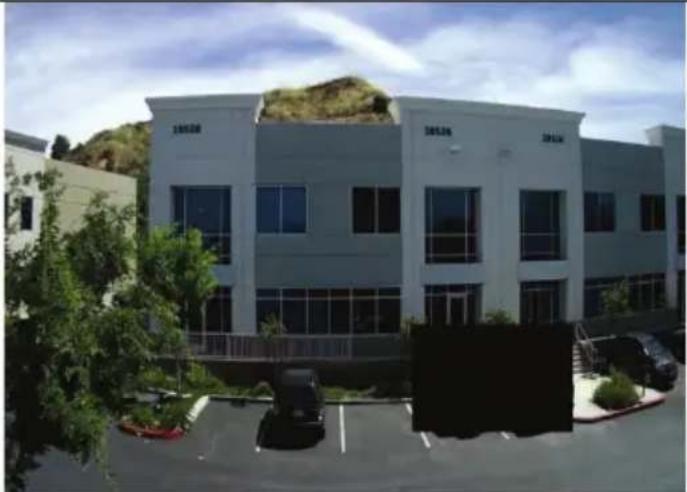
- Return to live view to see the following picture.
natural_image
Exterior view of a modern office building with visible signage (no readable text in focus)Clear the video mask:
Go to video mask interface and then click "Clear" button to delete the current video mask area.
1.3.5 ROI Configuration
Go to Image→ROI Config interface as shown below.

natural_image
Exterior view of a modern office building with landscaping and parked vehicles (no signage)- Check "Enable" and then click "Draw Area" button.
- Drag the mouse to set the ROI area.
- Set the level.
- Click "Save" button to save the settings.
Now, you will see the selected ROI area is clearer than other areas especially in a low bitrate condition.

natural_image
Exterior view of a modern office building with parked cars and landscaping (no visible signage or text)1.4 Alarm Configuration
Alarm configuration includes two submenus: Motion Detection and Alarm Server.
1.4.1 Motion Detection
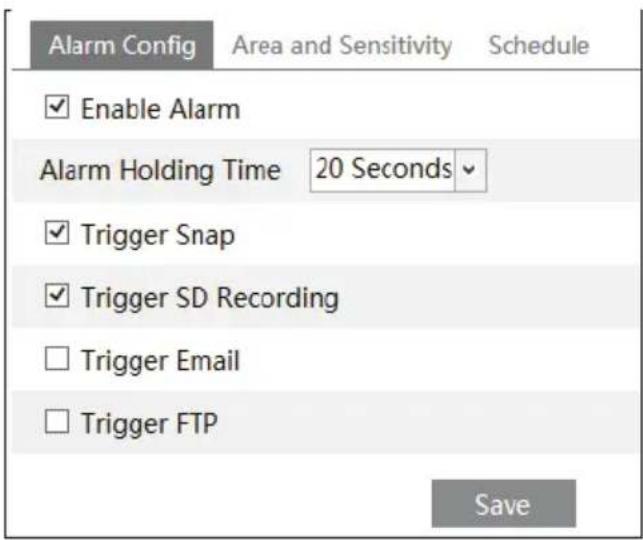
Go to Alarm→Motion Detection to set motion detection alarm.
text_image
Alarm Config Area and Sensitivity Schedule Enable Alarm Alarm Holding Time 20 Seconds Trigger Snap Trigger SD Recording Trigger Email Trigger FTP Save- Check “Enable Alarm” check box to activate motion based alarm, choose alarm holding time and set alarm trigger options.
Trigger Snap: If selected, the system will snap images on an alarm and save the images to the SD card.
Trigger SD Recording: If selected, the recording will be triggered and saved to the SD card on an alarm.
Trigger Email: If “Trigger Email” and “Attach Picture” checkbox is checked (email address shall be set first in the Email configuration interface), the captured pictures and triggered event will be sent to those addresses.
Trigger FTP: If “Trigger FTP” and “Attach Picture” checkbox is checked, the captured pictures will be sent to the FTP server address. Please refer to FTP configuration chapter for more details.
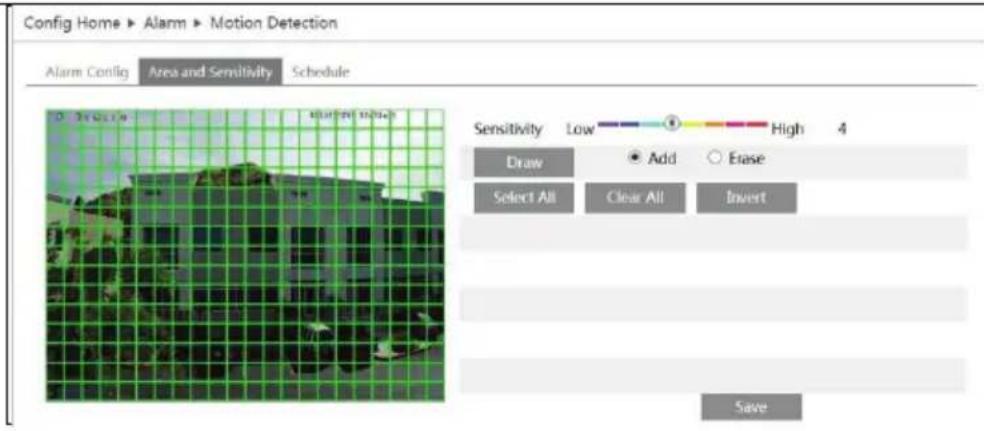
- Set motion detection area and sensitivity. Click “Area and Sensitivity” tab to go to the interface as shown below.
text_image
Config Home ► Alarm ► Motion Detection Alarm Config Area and Sensitivity Schedule Sensitivity Low High 4 Draw Add Erase Select All Clear All Invert SaveMove the "Sensitivity" scroll bar to set the sensitivity.
Select "Add" and click "Draw" button and drag mouse to select the motion detection area; Select
"Erase" and drag the mouse to clear motion detection area.
Select "Select All" to select the whole image for motion
Select "Clear All" to undo the whole picture
Select "Invert" to reverse the motion area
After that, click "Save" to save the settings.
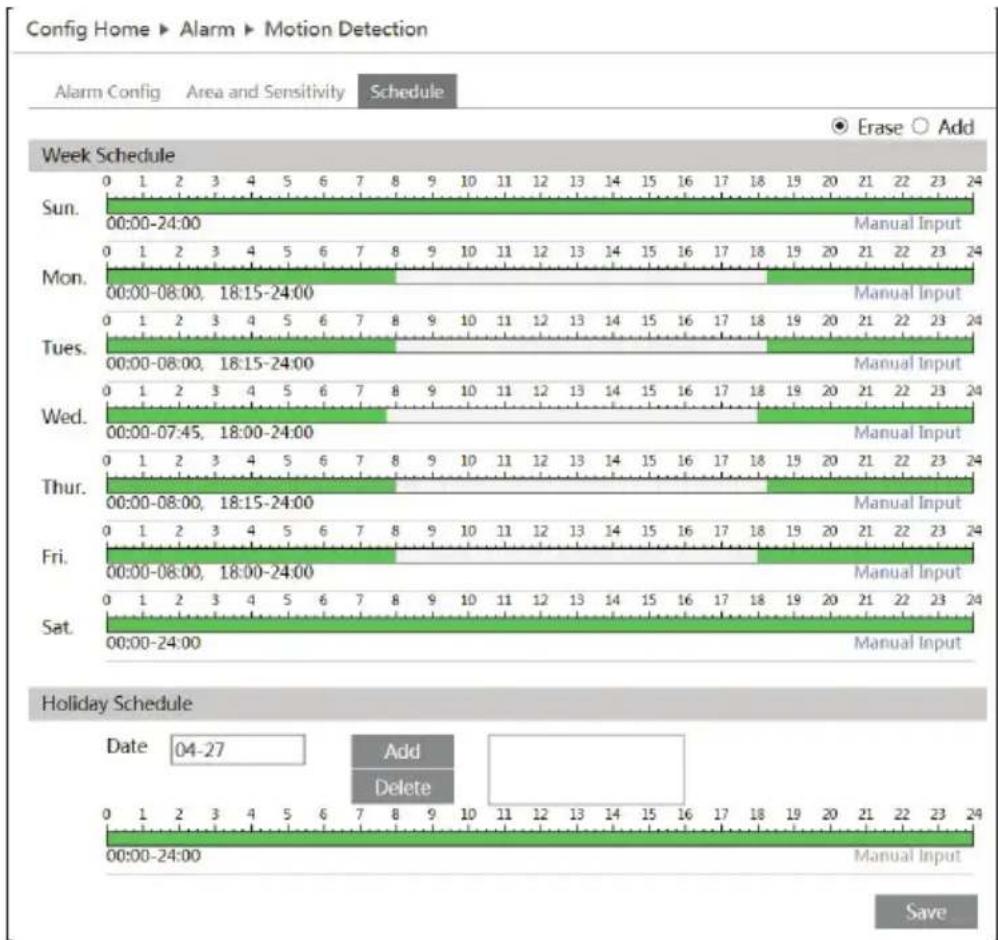
- Set the schedule of the motion detection. Click "Schedule" tab to go to the interface as shown below.
line
Config Home ▶ Alarm ▶ Motion Detection Alarm Config Area and Sensitivity Schedule Week Schedule | Day | Time (minutes) | |---|---| | Sun. | 00:00-24:00 | | Mon. | 00:00-08:00, 18:15-24:00 | | Tues. | 00:00-08:00, 18:15-24:00 | | Wed. | 00:00-07:45, 18:00-24:00 | | Thur. | 00:00-08:00, 18:15-24:00 | | Fri. | 00:00-08:00, 18:00-24:00 | | Sat. | 00:00-24:00 | | Day | Time (minutes) | | Sun. | 00:00-24:00 | | Mon. | 00:00-24:00 | | Tues. | 00:00-24:00 | | Wed. | 00:00-24:00 | | Thur. | 00:00-24:00 | | Fri. | 00:00-24:00 | | Sat. | 00:00-24:00 | The chart displays a horizontal timeline with 'Manual Input' labels indicating the timing of each interval. The 'Add' and 'Delete' labels are annotated in the lower right, suggesting a specific event or state during the holiday schedule.Week schedule
Set the alarm time from Sunday to Saturday for alarm everyday in one week. The lengthwise means one day of a week; the rank means 24 hours of a day. Green means selected area. Blank means unselected area.
“Add”: Add the schedule.
"Erase": Delete schedule.
Holiday Schedule
Set time for alarm in Holiday time line.
Set a date in the “Date” box, click “Add” button to add that date to the list box on the right side and then drag the scroll bar to set the schedule of that day.
Select a date in the list box on the right side, and click "Delete" to remove the schedule on that day.
Click "Save" button to save the settings.
1.4.2 Alarm Server
Go to Alarm→Alarm Server interface as shown below.
Input the alarm server address and port. When an alarm happens, the camera will automatically transfer the alarm event to the alarm server. If the alarm server is not used, there is no need for you to configure here.

text_image
Server Address Port 0 OK1.5 Event Configuration
Event configuration includes four submenus: Object Removal, Exception, Line Crossing and Intrusion.
Note: Some software versions of this series of cameras may not support the following functions.
Please take actual displayed interface as final.
1.5.1 Object Removal
To set object removal:
Go to Config→Event→Object Removal interface as shown below.

text_image
Detection Config Area Schedule Enable Detection Enable Left Detection Enable Item Missing Detection Alarm Holding Time 20 Seconds Trigger Alarm Out Trigger Snap Trigger Email Trigger FTP Save- Enable object removal detection and then select the detection type.
Enable Left Detection: The relevant alarms will be triggered if there are items left in the pre-defined alarm area.
Enable Item Missing Detection: The relevant alarms will be triggered if there are items missing in the pre-defined alarm area.
-
Set the alarm holding time and alarm trigger options. The setting steps are the same as that of motion detection. Please refer to motion detection chapter for details.
-
Click "Save" button to save the settings.
-
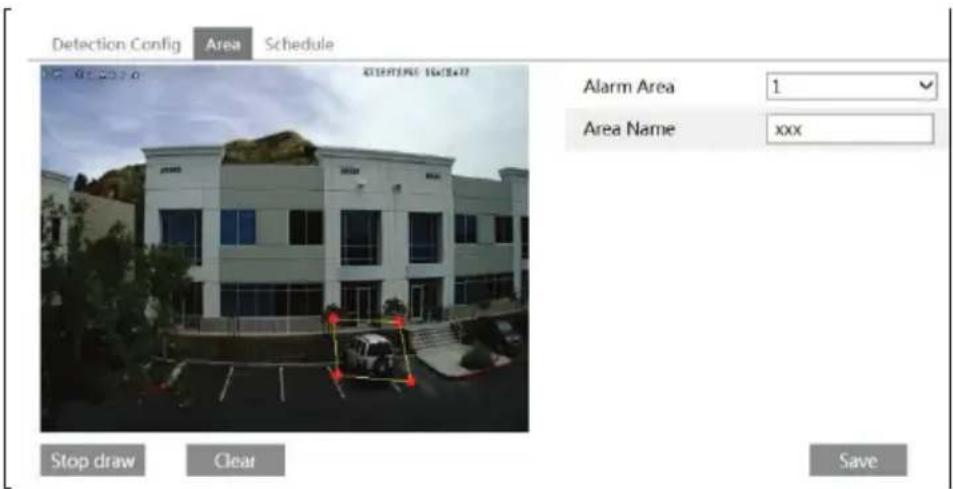
Set the alarm area of the object removal detection. Click "Area" tab to go to the interface as shown below.
text_image
Detection Config Area Schedule Stop draw Clear Save Alarm Area 1 Area Name xxxSet the alarm area number and then input the alarm area name on the right side. You can add 4 alarm areas at most.
Click “Draw Area” button and then click around the area where you want to set as the alarm area in the image on the left side (the alarm area should be a closed area). Click “Stop Draw” button to stop
drawing. Click "Clear" button to delete the alarm area. Click "Save" button to save the settings.
- Set the schedule of the object removal detection. The setting steps of the schedule are the same with that of motion detection. Please refer to motion detection chapter for details.
※ Application Scenario Illustration
- Object removal detection cannot determine the objects' ownership. For instance, there is an unattended package in the station. Object removal detection can detect the package itself but it cannot determine ownership of the package.
- Try not to enable object removal detection when light changes dramatically in the scene.
- Try not to enable object removal detection if there are complex and dynamic environments in the scene.
- Adequate light and clear scenery are very important to object removal detection.
Here we take some improper application scenarios for instance.

natural_image
Exterior view of a modern multi-story office building with surrounding greenery and parked cars (no visible text or signage)There are so many trees near the road and cars running on the road, which make the scene too complex to detect the objects removal.
1.5.2 Exception
To set exception detection:
Go to Config→Event→Exception interface as shown below

text_image
Detection Configuration Sensitivity ✓Scene change detection ✓Video blur detection ✓Video cast detection Alarm Holding Time 20 Seconds triggerAlarmOut □triggerSnap □triggerEmail □triggerFTP Save- Enable the relevant detection as required.
Scene Change Detection: The relevant alarms will be triggered if the scene of the monitor video has changed.
Video Blur Detection: The relevant alarms will be triggered if the monitor video is blurry.
Video Cast Detection: The relevant alarms will be triggered if color cast happens to the monitor video.
-
Set the alarm holding time and alarm trigger options. The setting steps are the same with that of motion detection. Please refer to motion detection chapter for details.
-
Click "Save" button to save the settings.
-
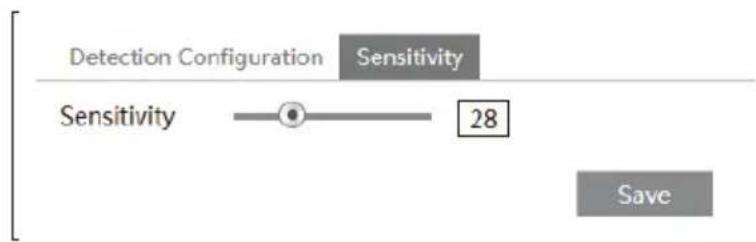
Set the sensitivity of the exception detection. Click “Sensitivity” tab to go to the interface as shown below.
flowchart
graph LR
    A["Detection Configuration"] --> B["Sensitivity"]
    B --> C["28"]
    C --> D["Save"]
Drag the slider to set the sensitivity value or directly input the sensitivity value in the textbox. Click "Save" button to save the settings.
The sensitivity value of Scene Change Detection: The higher the value is, the more sensitive the system responds to the amplitude of the scene change.
The sensitivity value of Video Blur Detection: The higher the value is, the more sensitive the system responds to the defocus of the device image. You should adjust the value according to the real situation.
The sensitivity value of Video Cast Detection: The higher the value is, the more sensitive the system responds to the color cast of the device image. You should also consider other factors.
※ Application Scenario Illustration
- Auto-focusing function should not been enabled for exception detection.
- Try not to enable object removal detection when light changes dramatically in the scene.
1.5.3 Line Crossing
Line Crossing: The relevant alarms will be triggered if someone or something crosses the pre-defined alarm lines.
Go to Config→Event→Line Crossing interface as shown below.

text_image
Detection Config Area and Sensitivity Schedule Enable Alarm Alarm Holding Time 20 Seconds Trigger Alarm Out Trigger Snap Trigger Email Trigger FTP Save- Enable line crossing alarm and set the alarm holding time.
- Set alarm trigger options. The setting steps are the same with that of motion detection. Please refer to motion detection chapter for details.
- Click "Save" button to save the settings.
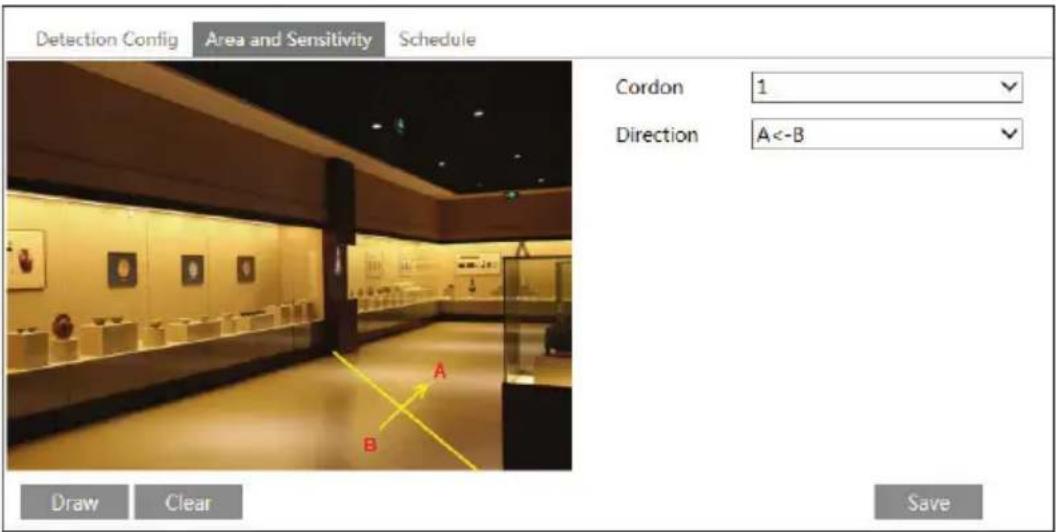
- Set area and sensitivity of the line crossing alarm. Click “Area and Sensitivity” tab to go to the interface as shown below.
text_image
Detection Config Area and Sensitivity Schedule Cordon 1 Direction A<-B Draw Clear SaveSet the cordon number and direction. You can add 4 cordons at most.
Direction : A<->B, A->B and A<-B optional. It is the crossing direction of the intruder who crosses over the alarm line.
A<->B: The alarm will be triggered when the intruder crosses over the alarm line from B to A or from A to B.
A->B: The alarm will be triggered when the intruder crosses over the alarm line from A to B.
A<-B: The alarm will be triggered when the intruder crosses over the alarm line from B to A.
Click “Draw” button and then drag the mouse to draw a cordon in the image on the left side. Click “Stop” button to stop drawing. Click “Clear” button to delete the cordons. Click “Save” button to save the settings.
- Set the schedule of the line crossing alarm. The setting steps of the schedule are the same with that of motion detection. Please refer to motion detection chapter for details.
※ Application Scenario Illustration
-
Auto-focusing function should not been enabled for line crossing detection. If enabled, the video image will change so greatly that the algorithm will stop working temporarily.
-
Try not to enable line crossing detection when light changes dramatically in the scene.
-
Adequate light and clear scenery are very important to line crossing detection.
-
Adjust the camera to make the detection area in the center of the video image. Make sure no obstructions are in the main crossing area. It is strongly recommended to make the obstructions (like trees, bushes, flags, etc.) outside the detection area.
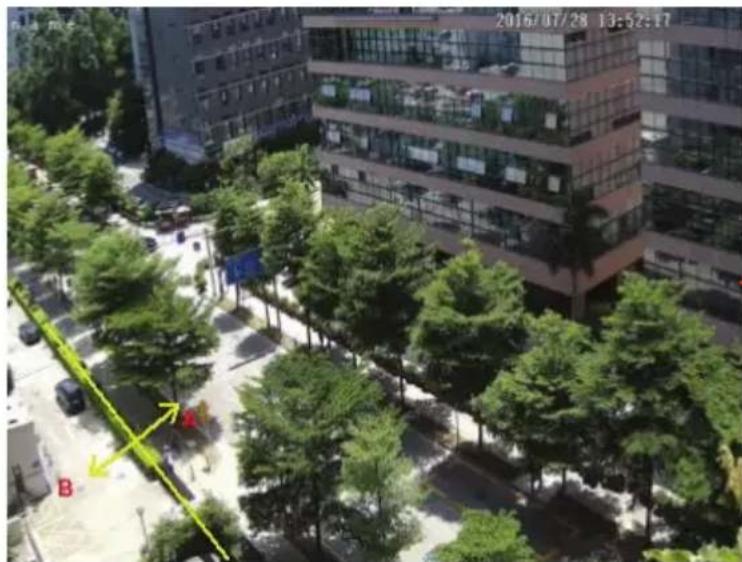
Here we take some improper application scenarios for instance.
text_image
2016/07/28 13:52:17 A BThere are so many trees near the road and cars running on the road, which make the scene too complex to detect the crossing objects.
1.5.4 Intrusion
Intrusion: The relevant alarms will be triggered if someone or something intrudes into the alarm areas or moves in the pre-defined alarm areas.
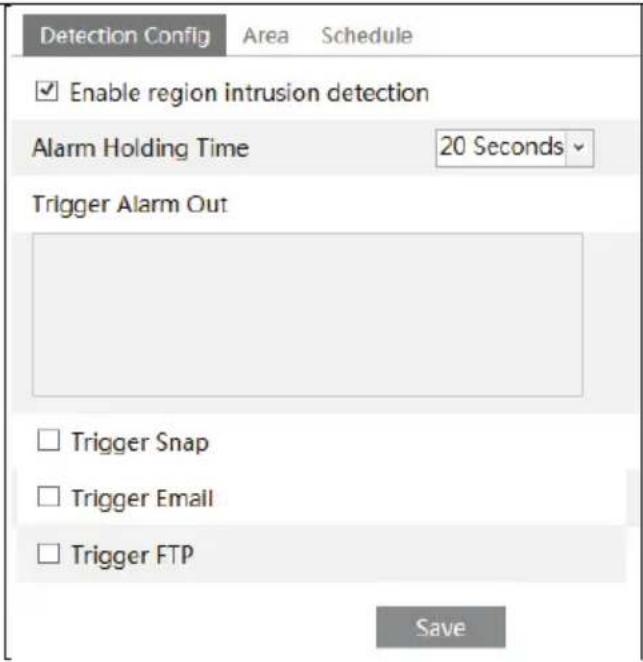
Go to Config→Event→Intrusion interface as shown below.

text_image
Detection Config Area Schedule Enable region intrusion detection Alarm Holding Time 20 Seconds Trigger Alarm Out Trigger Snap Trigger Email Trigger FTP Save- Enable region intrusion detection alarm and set the alarm holding time.
- Set alarm trigger options. The setting steps are the same with that of motion detection. Please refer to motion detection chapter for details.
- Click "Save" button to save the settings.
- Set the alarm area of the intrusion detection. Click "Area" tab to go to the interface as shown below.

text_image
Detection Config Area Schedule Alarm Area 1 Draw Area Clear SaveSet the alarm area number on the right side. You can add 4 alarm areas at most.
Click “Draw Area” button and then click around the area where you want to set as the alarm area in the image on the left side (the alarm area should be a closed area). Click “Stop Draw” button to stop drawing. Click “Clear” button to delete the alarm area. Click “Save” button to save the settings.
- Set the schedule of the intrusion detection. The setting steps of the schedule are the same with that of motion detection. Please refer to motion detection chapter for details.
※ Application Scenario Illustration
- Auto-focusing function should not been enabled for intrusion detection. If enabled, the video image
will change so greatly that the algorithm will stop working temporarily.
- Try not to enable intrusion detection when light changes dramatically in the scene.
- Adequate light and clear scenery are very important to intrusion detection.
- Adjust the camera to make the detection area in the center of the video image. The detected object should be in the detection area for about two seconds at least. Make sure no obstructions are in the main crossing area. It is strongly recommended to make the obstructions (like trees, bushes, flags, etc.) outside the detection area.
Here we take some improper application scenarios for instance.

natural_image
Exterior view of a traditional-style building with green trees and a long white fence in the foreground (no signage or text visible)The camera's angle of view is not wide enough; there are so many trees in the scene. The above mentioned environment is too complex to detect the intrusion.
1.6 Network Configuration
1.6.1 TCP/IP
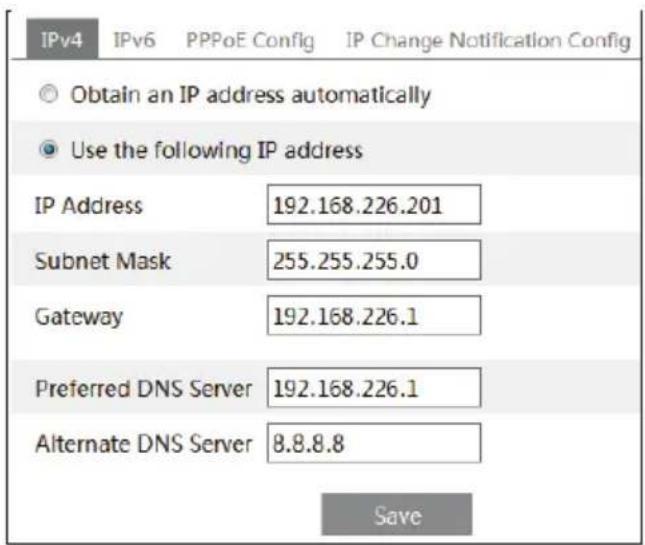
Go to Config→Network→TCP/IP interface as shown below. There are two ways for network connection.
text_image
IPv4 IPv6 PPPoE Config IP Change Notification Config Obtain an IP address automatically Use the following IP address IP Address 192.168.226.201 Subnet Mask 255.255.255.0 Gateway 192.168.226.1 Preferred DNS Server 192.168.226.1 Alternate DNS Server 8.8.8.8 SaveUse IP address (take IPv4 for example)-There are two options for IP setup: obtain an IP address automatically by DHCP protocol and use the following IP address. Please choose one of the options for
your requirements.
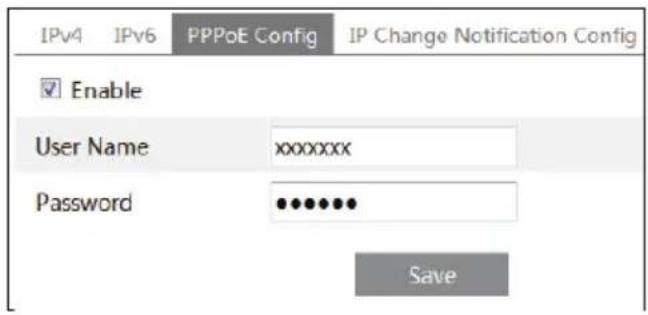
Use PPPoE-Click “PPPoE Config” tab to go to the interface as shown below. Enable PPPoE and then enter the user name and password from your ISP.
text_image
IPv4 IPv6 PPPoE Config IP Change Notification Config Enable User Name xxxxxxxx Password •••••••• SaveYou can choose either way for the network connection. If you use PPPoE to connect internet, you will get a dynamic WAN IP address. This IP address will change frequently. You may use the function of IP change notification.
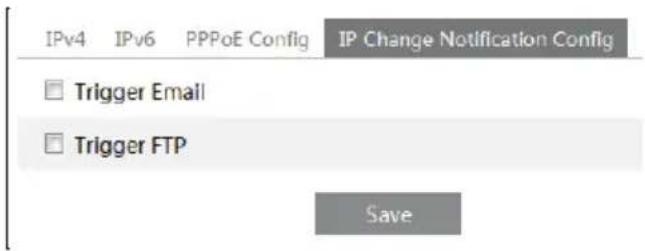
Click "IP Change Notification Config" to go to the interface as shown below.
text_image
IPv4 IPv6 PPPoE Config IP Change Notification Config Trigger Email Trigger FTP SaveTrigger Email: when the IP address of the device is changed, a new IP address will be sent to the appointed mailbox automatically
Trigger FTP: when the IP address of the device is changed, a new IP address will be sent to FTP server.
1.6.2 Port
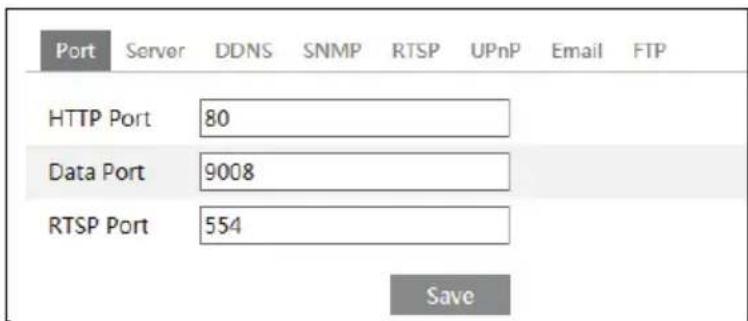
Go to Config→Network→Port interface as shown below. HTTP port, Data port and RTSP port can be set.
text_image
Port Server DDNS SNMP RTSP UPnP Email FTP HTTP Port 80 Data Port 9008 RTSP Port 554 SaveHTTP Port: The default HTTP port is 80. It should be changed to any port which is not occupied.
Data Port: The default data port is 9008. Please change it as required.
RTSP Port: The default port is 554. Please change it as required.
1.6.3 Server Configuration
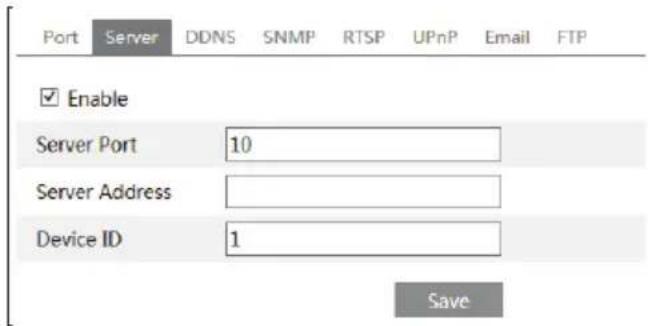
This function is mainly used for connecting network video management system.
text_image
Port Server DDNS SNMP RTSP UPnP Email FTP ✓ Enable Server Port 10 Server Address Device ID 1 Save- Check "Enable".
- Check the IP address and port of the transfer media server in the Transcendent VMS. Then enable the auto report in the Transcendent VMS when adding a new device. Next, input the remaining information of the device in the Transcendent VMS. After that, the system will auto allot a device ID. Please check it in the Transcendent VMS.
- Input the above-mentioned server address, server port and device ID in the responding boxes. Click "Save" button to save the settings.
1.6.4 DDNS
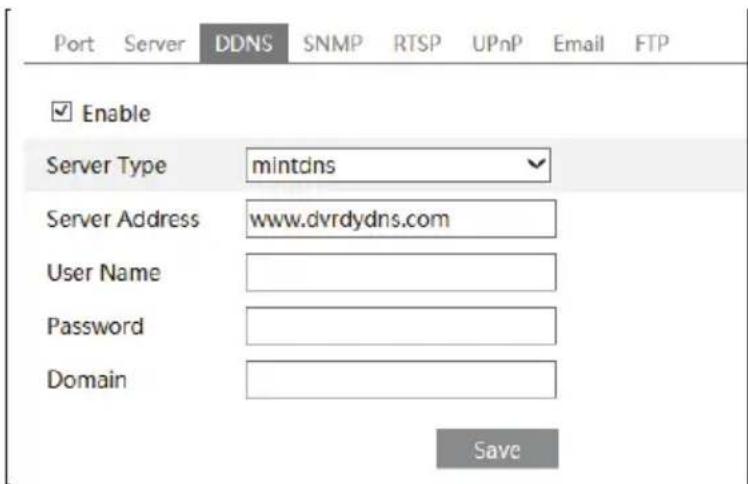
If your camera is set to use PPPoE as its default network connection, DDNS should be set for network access. Before you set the DDNS, please make sure you have registered a domain name on the DDNS server.
- Go to Config→Network→DDNS.
text_image
Port Server DDNS SNMP RTSP UPnP Email FTP Enable Server Type mintdns Server Address www.dvrdydns.com User Name Password Domain Save- Apply for a domain name. Take www.dvrdyndns.com for example.
Input www.dvrdydns.com in the IE address bar to visit its website. Then click "Registration" button.

text_image
NEW USER REGISTRATION USER NAME XXXX PASSWORD ••••••• PASSWORD CONFIRM ••••••• FIRST NAME XXX LAST NAME XXX SECURITY QUESTION. My first phone number. ANSWER XXXXXXX CONFIRM YOU'RE HUMAN New Captcha Enter the text you see above Submit ResetCreate domain name.
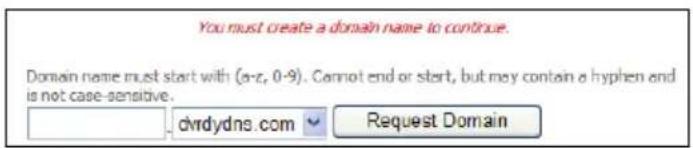
text_image
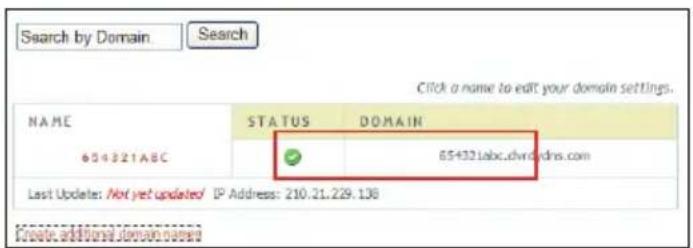
You must create a domain name to continue. Domain name must start with (a-z, 0-9). Cannot end or start, but may contain a hyphen end is not case-sensitive. dvrdydns.com Request DomainAfter you successfully request your domain name, you will see your domain in the list.
text_image
Search by Domain Search Click a name to edit your domain settings. NAME STATUS DOMAIN 654321ABC 65+32.1abc.dvn@dns.com Last Update: Not yet updated IP Address: 210.21.229.138 Create additional domains- Input the username, password, domain you apply for in the DDNS configuration interface.
- Click "Save" button to save the settings.
1.6.5 SNMP
To get camera status, parameters and alarm information and remotely manage the camera, you can set the SNMP function. Before using the SNMP, please download the SNMP software and set the parameters of the SNMP, such as SNMP port, trap address.
- Go to Config→Network→SNMP.

text_image
SNMP v1/v2 Enable SNMPv1 Enable SNMPv2 Read SNMP Community Write SNMP Community Trap Address Trap Port Trap community SNMP v3 Enable SNMPv3 Read User Name Security Level auth, priv Authentication Algorithm MDS SHA Authentication Password Private-key Algorithm DES AES Private-key Algorithm Write User Name Security Level auth, priv Authentication Algorithm MDS SHA Authentication Password Private-key Algorithm DES AES Private-key Algorithm Other Settings SNMP Port 0- Check the corresponding version checkbox (Enable SNMPv1, Enable SNMPv2, Enable SNMPv3) according to the version of the SNMP software you download.
- Set the “Read SNMP Community”, “Write SNMP Community”, “Trap Address”, “Trap Port” and so on. Please make sure the settings are the same as that of your SNMP software.
Note: Please use the different version in accordance with the security level you required. The higher the version is, the higher the level of the security is.
1.6.6 RTSP
Go to Config→Network→RTSP.

text_image
Port Server DDNS SNMP RTSP UPnP Email FTP Enable Port 554 RTSP Address rtsp://IP or domain name:port/profile1 rtsp://IP or domain name:port/profile2 rtsp://IP or domain name:port/profile3 □ Allow anonymous login (No username or password required) Save- Select "Enable".
- RTSP Port: Access port of the streaming media. The default number is 554.
- RTSP Address: The RTSP address you need to input in the media player.
- Check "Allow anonymous login...".
1.6.7 UPNP
If you enable this function, you can quickly access the camera via LAN and you don't need to configure the port mapping when the camera is connected to the WAN via the router.
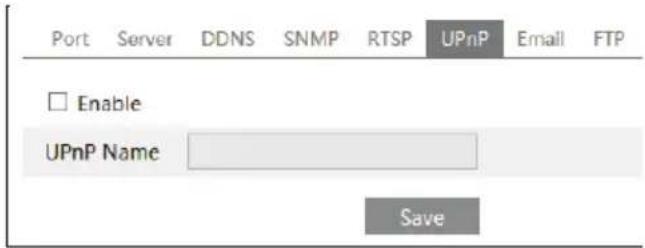
Go to Config→Network→UPnP. Enable UPNP and then input UPnP name.
text_image
Port Server DDNS SNMP RTSP UPnP Email FTP Enable UPnP Name SaveAfter you enable it and set the UPnP name, you will see the UPnP name by clicking “Network” on the desktop of your computer which is in the same local area network. Then double click this name to access the camera quickly.
1.6.8 Email
If you need to trigger Email when an alarm happens or IP address is changed, please set the Email here first.
Go to Config→Network →Email.

text_image
Port Server DDNS SNMP RTSP UPnP Email FTP Sender Sender Address XXX@126.com User Name XXX@126.com Password ••••••• Server Address smtp.126.com Secure Connection Unnecessary SMTP Port 25 Default Send Interval(S) 0 (0-3600) Clear Test Recipient XXXX@126.com Recipient Address Add Delete SaveSender Address: Sender's e-mail address.
User name and password: Sender's user name and password.
Server Address: The SMTP IP address or host name.
Select the secure connection type at the "Secure Connection" pull-down list according to actual needs.
SMTP Port: The SMTP port.
Send Interval(S): Set it as needed.
Click "Test" button to test the effectiveness of the account.
Recipient Address: Receiver's e-mail address.
1.6.9 FTP
After you set the FTP server, the captured pictures on an alarm will be uploaded to the FTP server. Go to Config→Network →FTP.

text_image
Port Server DDNS SNMP RTSP UPnP Email FTP Server Name Server Address Port User Name Upload Path Add FTP Server Name Server Address Upload Path Example:/Dir/folder Port 21 User Name ☐ Anonymous Password OK Cancel Add Modify Delete Test SaveTo Add FTP:
Server Name: The name of the FTP.
Server Address: The IP address or domain name of the FTP.
Upload Path: The path of uploading the files.
Port: The port of the FTP.
Use Name and Password: The username and password are used to login the FTP.
4.1 Security Configuration
1.6.10 User Configuration
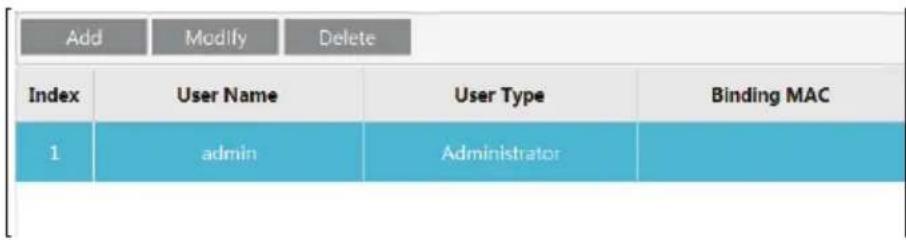
Go to Config→Security→User interface as shown below.
flowchart
graph LR
    A["Add"] --> B["Modify"] --> C["Delete"]
    D["Index"] --> E["User Name"] --> F["User Type"] --> G["Binding MAC"]
    H["1"] --> I["admin"] --> J["Administrator"]
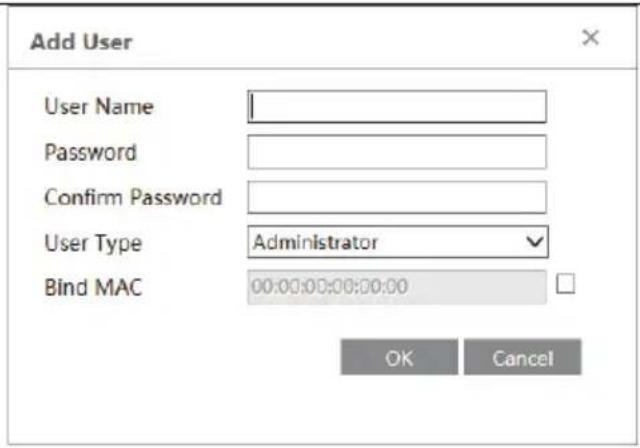
Add user:
- Click "Add" button to pop up the following textbox.
text_image
Add User User Name Password Confirm Password User Type Administrator Bind MAC 00:00:00:00:00:00 OK Cancel- Input user name in "User Name" textbox.
- Input letters or numbers in "Password" and "Confirm Password" textbox.
- Choose the use type.
- Input the MAC address of the PC in "Bind MAC" textbox.
After binding physical address to the IP-CAM, you can access the device on this PC only. If the MAC address was “00:00:00:00:00:00” which means it can be connected to any computers.
- Click "OK" button and then the new added user will display in the user list.
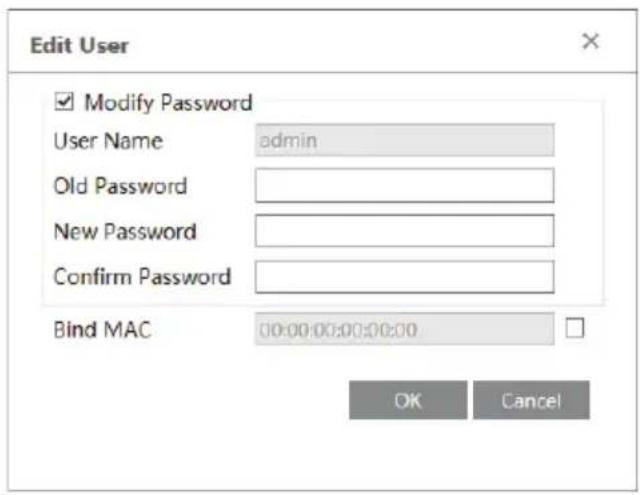
Modify user:
- Select the user you need to modify password and physical address in the user configuration list box.
- The "Edit user" dialog box pops up by clicking "Modify" button.
text_image
Edit User Modify Password User Name admin Old Password New Password Confirm Password Bind MAC 00:00:00:00:00:00 OK Cancel- Input old password of this user in the "Old Password" text box.
- Input new password in the "New password" and "Confirm Password" text box.
- Input computer's MAC address as required.
- Click "OK" button to save the settings.
Delete user:
-
Select the user you want to delete in the user configuration list box.
-
Click "Delete" button to delete the user.
Note: The default super administrator cannot be deleted.
1.6.11 Online User
Go to Config→Security→Online User. You can view the user who is viewing the camera.
1.6.12 Block and Allow Lists
Go to Config→Security→Block and Allow Lists interface as shown below.

text_image
IP Address Filter Settings Enable IP address filtering Block the following IP address Allow the following IP address Add Delete 0.0.0.0 IPv4 IPv6 Block the following MAC Address Enable MAC address filtering Block the following MAC address Allow the following MAC address Add Delete 00:00:00:00:00:00 SaveSetting steps are as follows:
Check "Enable IP address filtering" check box.
Select “Block the following IP address”, input IP address in the IP address list box and click “Add” button. The operation step of “Allow the following IP address” and MAC address filter settings are the same with “Block the following IP address”.
After you set the IP address or MAC address, the system will block or allow the user using the added IP address or MAC address to access the camera.
4.2 Maintenance Configuration
1.6.13 Backup and Restore
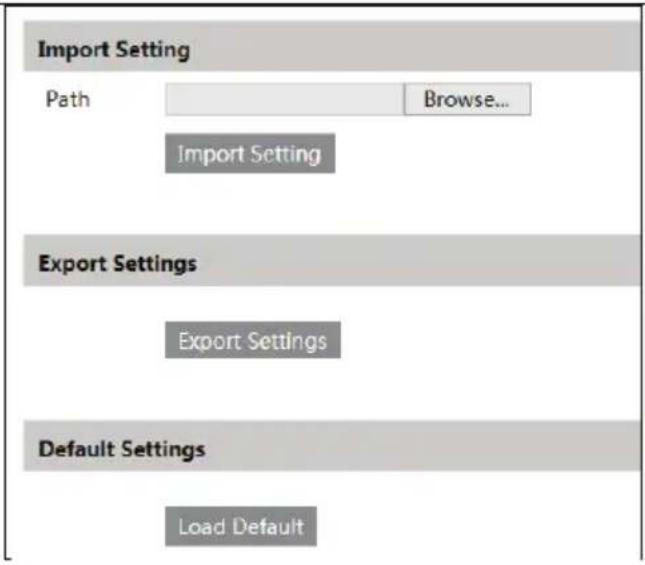
Go to Config→Maintenance→Backup & Restore.
text_image
Import Setting Path Browse... Import Setting Export Settings Export Settings Default Settings Load Default- Import & Export Settings
You can import or export the setting information from PC or to PC.
-
Click "Browse" to select save path for import or export information on PC.
-
Click "Import Setting" or "Export Setting" button.
- Default Settings
Click "Load Default" button to restore all system settings to default status.
1.6.14 Reboot
Go to Config→Maintenance→Reboot.
Click "Reboot" button to reboot the device.
Timed Reboot Setting:
Enable "Time Settings", set the date and time and then click "Save" button to save the settings.
1.6.15 Upgrade
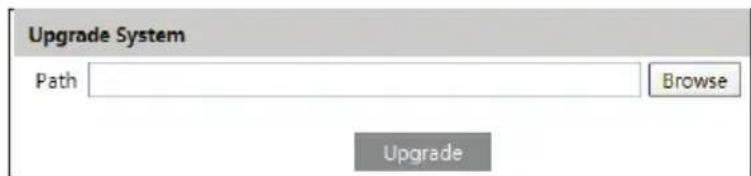
Go to Config→Maintenance→Upgrade. In this interface, you can upgrade the system.
text_image
Upgrade System Path Browse Upgrade-
Click "Browse" button to select the save path of the upgrade file
-
Click "Upgrade" button to start upgrading the application program.
-
The device will restart automatically
-
After you successfully update the software, click "OK" button to close IE and then re-open IE to connect IP-Cam.
Caution! You can't disconnect the PC or close the IP-CAM during upgrade.
1.6.16 Operation Log
To query and export log:
- Go to Config→Maintenance→Operation Log.

text_image
Config Home ▶ Maintenance ▶ Operation Log Main Type: Operation Sub Type: All log Start Time: 2017-04-03 00:00:00 End Time: 2017-04-14 23:59:59 Search Export Index Time Main Type Sub Type User Name Login IP 1 2017-04-11 11:46:32 Operation Log out admin 192.168.1.195 2 2017-04-11 11:45:09 Operation Log in admin 192.168.1.195 3 2017-04-11 11:43:18 Operation Log out admin 192.168.1.195 4 2017-04-11 11:42:00 Operation Log in admin 192.168.1.195 5 2017-04-11 11:41:55 Operation System config modify 6 2017-04-11 11:41:45 Operation Log out admin 192.168.1.195 7 2017-04-11 11:41:28 Operation Log in admin 192.168.1.195 8 2017-04-11 10:46:58 Operation System config modify 9 2017-04-11 10:46:48 Operation System config modify 10 2017-04-11 10:45:17 Operation Log out admin 192.168.1.195- Select the main type, sub type, start and end time.
- Click "Search" to view the operation log.
- Click "Export" to export the operation log.
5 Record Search
5.1 Photo Search
Click Search→Photo to go to the interface as shown below. You can search the images saved in the SD card. This feature is camera dependent; some cameras do not have an SD card slot.
5.2 Photo Search
Click Search→Photo to go to the interface as shown below. You can search the images saved in the SD card.

text_image
Photo Video Sun Mon Tue Wed Thu Fri Sat 11 1 2 3 4 5 6 7 8 9 10 11 12 13 14 15 16 17 18 19 20 21 22 23 24 25 26 27 28 29 30 31 1 2 3 4 5 6 7 8 9 10 Start Time 00:00:00 End Time 23:59:59 Today Motion Line Crossing Intrusion Object Removal Exception Search Event Type Time Image Name Motion 2016-08-10 17:54:58 2016081017545840... Motion 2016-08-10 17:54:53 2016081017545332... Motion 2016-08-10 17:54:07 2016081017540757... Motion 2016-08-10 17:53:34 2016081017533402... Motion 2016-08-10 17:53:28 2016081017532894... Motion 2016-08-10 17:52:09 2016081017520964... Page 1 of 99 M 10 View 1 - 10 of 984- Set time: Select date and choose the start and end time in the top left corner.
- Chose events.
- Click "Search" button to search the photos.
- Click a file name in the list to view captured photos as shown above.
The descriptions of the buttons are shown as follows.
| Icon | Description | Icon | Description |
 | Close: Select a picture and click this button to close this picture. |  | Close all: Click this button to close all pictures viewing. |
 | Save: Click this button to select the save path of the picture on the PC for saving the current picture. |  | Save all: Click this button to select the save path of the pictures to the PC for saving all pictures. |
 | Fit size: The picture will fit on screen by clicking this button. |  | Actual size: Click this button to display the actual size of the picture. |
 | Zoom in: Click this button to zoom in to the picture. |  | Zoom out: Click this button to zoom out of the picture. |
 | Slide show play: Click this button to play the picture in slide show mode. |  | Stop: Click this button to stop slide show. |
 | Play speed: Play speed of the slide show. | ||
5.3 Video Search
1.6.17 Local Video Search
Click Search→Video→Local Video to go to the interface as shown below. You can play the local video recording. Before playing, please set the storage path of the video recording in the local configuration interface and make sure there are record files.

text_image
Local Video SD-Card Recording Sun Mon Tue Wed Thu Fri Sat Start Time 00:00:00 End Time 23:59:59 Today Search File Name Time Duration 201608101005... 2016-08-10 10... 00:00:01 201608100959... 2016-08-10 09... 00:00:08 Page of 1 10 View 1 ...Choose the date and the start time and end time and then click “Search” button to search the recorded files. Double click the recorded file to play the recording. The descriptions of the buttons on the playback interface are as follows.
| Icon | Description | Icon | Description |
 | Play button. After pausing the video, click this button to continue playing. |  | Pause button. |
 | Stop button. |  | Speed down. |
 | Speed up. |  | Click it to play the previous recording. |
 | Click it to play the next recording. |  | Open/close watermark. |
  | Click it to enable / disable audio; drag the slider to adjust the volume after enabling audio. |  | Full screen. Click it to display full screen. Double click to exit full screen. |
1.6.18 SD Card Video Search
1.6.19 This feature is camera dependent; some cameras do not have an SD card slot.
Click Search→Video→SD Card Recording to go to the interface as shown below. You can search the recording saved in the SD card.

text_image
Photo Video Local Video SD Card Recording Sun Mon Tue Wed Thu Fri Sat Start Time 00:00:00 End Time 23:59:59 Today Motion Search Record Type Start Time End Time Motion 2016-08-10 09... 2016-08-10... Motion 2016-08-10 09... 2016-08-10 09...Before you search the SD record, you should trigger the SD recording in motion detection alarm (see Motion Detection Trigger for detail information).
Set the date and the start and end time, select the recording type and then click “Search” button to search the recordings. Double click the searched file name to play the recording.
Please refer to Local Video Search for the descriptions of the buttons on the playback interface.
- Set time: Select date and choose the start and end time in the top left corner.
- Check events.
- Click "Search" button to search the files.
- Click a file name in the list to view captured video as shown above.
6 Specifications
| VTD-TNMD4RFS Specifications | |
| Image Sensor | 1/3" 4.0 Megapixel Progressive Scan CMOS |
| Image Size | 4 MegaPixel 2592x1520 |
| Resolution | 4 MP (2592x1520) / 3 MP (2304x1296) / 1080P (1920x1080) / 720P (1280x720) / D1/CIF (480x240) |
| Min. Illumination | 0 Lux (IR LED ON) |
| Lens | 2.8mm or 3.6mm Fixed Iris Lens Options |
| Day/Night | True Day/Night by ICR |
| IR LEDs | 10 |
| IR Distance | 65' |
| Video Compression | H.265 / H.264 / MJPEG |
| Audio Compression | G.711A / G.711U |
| Multi-Stream | 1~30fps: 4 MP, 3 MP, 1080P, 720P, D1, CIF, 480x240 |
| WDR | 120dB Super WDR |
| DNR | XD-DNR (2D-DNR & 3D-DNR) |
| Quality | VBR (Five Levels of Adjustment) / CBR (Adjustable) |
| Image Setting | Saturation, Brightness, Contrast, WDR, Noise reduction |
| Intelligent Analytics | Object Removal/Museum Search, Line Crossing, and Area Intrusion Detection |
| Smart Alarm | Motion Alarm / Sensor Alarm |
| ROI | Max 8 detailed areas can be viewed |
| Network | RJ45 |
| Video Output | 1 x BNC (CVBS) |
| Audio | 1 x IN & 1 x OUT (Two-Way Audio) (Built-In Microphone*) |
| Storage Card | MicroSD up to 128GB |
| Remote Viewing | CMS / Web Browser / Mobile (iOS/Android) |
| Supported Browsers | Microsoft Internet Explorer |
| Connection Protocol | ONVIF |
| Resistance Rating | IP66 / IK10 |
| Power Input | 12VDC / PoE |
| Power Consumption (12VDC) | 188mA (IR Off) / 292mA (IR On) |
| Power Consumption (PoE) | 3.5W (IR's off) / 4.5W (IR's on) |
| Working Environment | -4~122 / 10%~90% Humidity |
| Weight | 12.31 oz. / 0.77 lbs. / 349g |
| Dimensions | 4.33" x 2.28" (110 × 58mm) Dia x H |
*Please research local, state and federal laws regarding the implementation of audio surveillance.
VTC-TNB4RFS Specifications
| Image Sensor | 1/3" 4.0 Megapixel Progressive Scan CMOS |
| Image Size | 4 MegaPixel 2592x1520 |
| Resolution | 4 MP (2592x1520) / 3 MP (2304x1296) / 1080P (1920x1080) / 720P (1280x720) / D1/CIF (480x240) |
| Min. Illumination | 0 Lux (IR LED ON) |
| Lens | 2.8mm or 3.6mm Fixed Iris Lens Options |
| Day/Night | True Day/Night by ICR |
| IR LEDs | 36 |
| IR Distance | 120' |
| Video Compression | H.265 / H.264 / MJPEG |
| Audio Compression | G.711A / G.711U |
| Multi-Stream | 1~30fps: 4 MP, 3 MP, 1080P, 720P, D1, CIF, 480x240 |
| WDR | 120dB Super WDR |
| DNR | XD-DNR (2D-DNR & 3D-DNR) |
| Quality | VBR (Five Levels of Adjustment) / CBR (Adjustable) |
| Image Setting | Saturation, Brightness, Contrast, WDR, Noise reduction |
| Intelligent Analytics | Object Removal/Museum Search, Line Crossing, and Area Intrusion Detection |
| Smart Alarm | Motion Alarm |
| ROI | Max 8 detailed areas can be viewed |
| Network | RJ45 |
| Video Output | 1 x BNC (CVBS) |
| Audio | 1 x IN (One-way Audio) |
| Remote Viewing | CMS / Web Browser / Mobile (iOS/Android) |
| Supported Browsers | Microsoft Internet Explorer |
| Connection Protocol | ONVIF |
| Resistance | IP66 Weather Resistance |
| Power Input | 12VDC / PoE |
| Power Consumption (12VDC) | 210mA (IR Off) / 500mA (IR On) |
| Power Consumption (PoE) | 4W (IR's off) / 7.8W (IR's on) |
| Working Environment | -4~122 / 10%~90% Humidity |
| Weight | 21.87 oz. / 1.37 lbs. / 620g |
| Dimensions | 3.43 x 8.62" (87mm x 219mm) Dia x L |
VTC-TNB4RMS Specifications
| Image Sensor | 1/3" 4.0 Megapixel Progressive Scan CMOS |
| Image Size | 4 MegaPixel 2592x1520 |
| Resolution | 4 MP (2592x1520) / 3 MP (2304x1296) / 1080P (1920x1080) / 720P (1280x720) / D1/CIF (480x240) |
| Min. Illumination | 0 Lux (IR LED ON) |
| Lens | Motorized 3.3-12mm |
| Day/Night | True Day/Night by ICR |
| IR LEDs | 48 |
| IR Distance | 160" |
| Video Compression | H.265 / H.264 / MJPEG |
| Audio Compression | G.711A / G.711U |
| Multi-Stream | 1~30fps: 4 MP, 3 MP, 1080P, 720P, D1, CIF, 480x240 |
| WDR | 120dB Super WDR |
| DNR | XD-DNR (2D-DNR & 3D-DNR) |
| Quality | VBR (Five Levels of Adjustment) / CBR (Adjustable) |
| Image Setting | Saturation, Brightness, Contrast, WDR, Noise reduction |
| Intelligent Analytics | Object Removal/Museum Search, Line Crossing, and Area Intrusion Detection |
| Smart Alarm | Motion Alarm / Sensor Alarm |
| ROI | Max 8 detailed areas can be viewed |
| Network | RJ45 |
| Video Output | 1 x BNC (CVBS) |
| Audio | 1 x IN & 1 x OUT (Two-Way Audio) |
| Storage Card | MicroSD up to 128GB |
| RS485 | x 1 |
| Alarm Input | x 1 |
| Alarm Output | x 1 |
| Remote Viewing | CMS / Web Browser / Mobile (iOS/Android) |
| Supported Browsers | Microsoft Internet Explorer |
| Connection Protocol | ONVIF |
| Resistance | IP66 Weather Resistance |
| Power Input | 12VDC / PoE |
| Power Consumption (12VDC) | 210mA (IR Off) / 545mA (IR On) |
| Power Consumption (PoE) | 4W (IR's off) / 7.8W (IR's on) |
| Working Environment | -4 ~ 122 / 10% ~ 90% Humidity |
| Weight | 21.87 oz. / 1.37 lbs. / 620g |
| Dimensions | 4.25" x 10.25" (108mm x 267mm) Dia x L |
VTC-TNT4RFS Specifications
| Image Sensor | 1/3" 4.0 Megapixel Progressive Scan CMOS |
| Image Size | 4 MegaPixel 2592x1520 |
| Resolution | 4 MP (2592x1520) / 3 MP (2304x1296) / 1080P (1920x1080) / 720P (1280x720) / D1/CIF (480x240) |
| Min. Illumination | 0 Lux (IR LED ON) |
| Lens | 2.8mm or 3.6mm Fixed Iris Lens Options |
| Day/Night | True Day/Night by ICR |
| IR LEDs | 2 x High Power |
| IR Distance | 65' |
| Video Compression | H.265 / H.264 / MJPEG |
| Audio Compression | G.711A / G.711U |
| Multi-Stream | 1~30fps: 4 MP, 3 MP, 1080P, 720P, D1, CIF, 480x240 |
| WDR | 120dB Super WDR |
| DNR | XD-DNR (2D-DNR & 3D-DNR) |
| Quality | VBR (Five Levels of Adjustment) / CBR (Adjustable) |
| Image Setting | Saturation, Brightness, Contrast, WDR, Noise reduction |
| Intelligent Analytics | Object Removal/Museum Search, Line Crossing, and Area Intrusion Detection |
| Smart Alarm | Motion Alarm |
| ROI | Max 8 detailed areas can be viewed |
| Network | RJ45 |
| Video Output | 1 x BNC (CVBS) |
| Audio | 1 x IN (One-way Audio) |
| Remote Viewing | CMS / Web Browser / Mobile (iOS/Android) |
| Supported Browsers | IE / Chrome / Firefox / Safari |
| Connection Protocol | ONVIF |
| Resistance | IP66 Weather Resistance |
| Power Input | 12VDC / PoE |
| Power Consumption (12VDC) | 210mA (IR Off) / 420mA (IR On) |
| Power Consumption (PoE) | 4W (IR's off) / 6.7W (IR's on) |
| Working Environment | -4~122 / 10%~90% Humidity |
| Weight | 13.05 oz. / 0.82 lbs. / 370g |
| Dimensions | 3.43" x 4.25" (87 × 108mm) Dia x H |
VTC-TNT4RMS Specifications
| Image Sensor | 1/3" 4.0 Megapixel Progressive Scan CMOS |
| Image Size | 4 MegaPixel 2592x1520 |
| Resolution | 4 MP (2592x1520) / 3 MP (2304x1296) / 1080P (1920x1080) / 720P (1280x720) / D1/CIF (480x240) |
| Min. Illumination | 0 Lux (IR LED ON) |
| Lens | Motorized 3.3-12mm |
| Day/Night | True Day/Night by ICR |
| IR LEDs | 2 x High Power |
| IR Distance | 100' |
| Video Compression | H.265 / H.264 / MJPEG |
| Audio Compression | G.711A / G.711U |
| Multi-Stream | 1~30fps: 4 MP, 3 MP, 1080P, 720P, D1, CIF, 480x240 |
| WDR | 120dB Super WDR |
| DNR | XD-DNR (2D-DNR & 3D-DNR) |
| Quality | VBR (Five Levels of Adjustment) / CBR (Adjustable) |
| Image Setting | Saturation, Brightness, Contrast, WDR, Noise reduction |
| Intelligent Analytics | Object Removal/Museum Search, Line Crossing, and Area Intrusion Detection |
| Smart Alarm | Motion Alarm / Sensor Alarm |
| ROI | Max 8 detailed areas can be viewed |
| Network | RJ45 |
| Video Output | 1 x BNC (CVBS) |
| Audio | 1 x IN (One-way Audio) |
| Remote Viewing | CMS / Web Browser / Mobile (iOS/Android) |
| Supported Browsers | Microsoft Internet Explorer |
| Connection Protocol | ONVIF |
| Resistance | IP66 Weather Resistance |
| Power Input | 12VDC / PoE |
| Power Consumption (12VDC) | 210mA (IR Off) / 460mA (IR On) |
| Power Consumption (PoE) | 4W (IR's off) / 6.7W (IR's on) |
| Working Environment | -4 ~ 122 / 10%~90% Humidity |
| Weight | 24.30 oz. / 1.52 lbs. / 689g |
| Dimensions | 4.29" x 5.12" (109 × 130mm) Dia x H |
Specifications VTD-TND4RFS-2 VTD-TND4RFS
| Image Sensor | 1/3" 4.0 Megapixel Progressive Scan CMOS |
| Image Size | 4 MegaPixel 2592x1520 |
| Resolution | 4 MP (2592x1520) / 3 MP (2304x1296) / 1080P (1920x1080) / 720P (1280x720) / D1/CIF (480x240) |
| Min. Illumination | 0 Lux (IR LED ON) |
| Lens | 2.8mm Fixed Iris Lens 3.6mm Fixed Iris Lens |
| Day/Night | True Day/Night by ICR |
| IR LEDs | 10 x High Power 24 |
| IR Distance | 65' |
| Video Compression | H.265 / H.264 / MJPEG |
| Audio Compression | G.711A / G.711U |
| Multi-Stream | 1~30fps: 4 MP, 3 MP, 1080P, 720P, D1, CIF, 480x240 |
| WDR | 120dB Super WDR |
| DNR | XD-DNR (2D-DNR & 3D-DNR) |
| Quality | VBR (Five Levels of Adjustment) / CBR (Adjustable) |
| Image Setting | Saturation, Brightness, Contrast, WDR, Noise reduction |
| Intelligent Analytics | Object Removal/Museum Search, Line Crossing, and Area Intrusion Detection |
| Smart Alarm | Motion Alarm |
| ROI | Max 8 detailed areas can be viewed |
| Network | RJ45 |
| Video Output | 1 x BNC (CVBS) |
| Audio | 1 x IN (One-way Audio) |
| Remote Viewing | CMS / Web Browser / Mobile (iOS/Android) |
| Supported Browsers | Microsoft Internet Explorer |
| Connection Protocol | ONVIF |
| Resistance Rating | IP66 / IK10 |
| Power Input | 12VDC / PoE |
| Power Consumption (12VDC) | 210mA (IR Off) / 335mA (IR On) |
| Power Consumption (PoE) | 4W (IR's off) / 6.7W (IR's on) |
| Working Environment | -4~122 / 10%~90% Humidity |
| Weight | 21.34 oz. / 1.33 lbs. / 605g |
| Dimensions | 4.57" x 3.58" (150 x 114mm) Dia x H |
VTD-TND4RMS Specifications
| Image Sensor | 1/3" 4.0 Megapixel Progressive Scan CMOS |
| Image Size | 4 MegaPixel 2592x1520 |
| Resolution | 4 MP (2592x1520) / 3 MP (2304x1296) / 1080P (1920x1080) / 720P (1280x720) / D1/CIF (480x240) |
| Min. Illumination | O Lux (IR LED ON) |
| Lens | Motorized 3.3-12mm |
| Day/Night | True Day/Night by ICR |
| IR LEDs | 30 |
| IR Distance | 100' |
| Video Compression | H.265 / H.264 / MJPEG |
| Audio Compression | G.711A / G.711U |
| Multi-Stream | 1~30fps: 4 MP, 3 MP, 1080P, 720P, D1, CIF, 480x240 |
| WDR | 120dB Super WDR |
| DNR | XD-DNR (2D-DNR & 3D-DNR) |
| Quality | VBR (Five Levels of Adjustment) / CBR (Adjustable) |
| Image Setting | Saturation, Brightness, Contrast, WDR, Noise reduction |
| Intelligent Analytics | Object Removal/Museum Search, Line Crossing, and Area Intrusion Detection |
| Smart Alarm | Motion Alarm / Sensor Alarm |
| ROI | Max 8 detailed areas can be viewed |
| Network | RJ45 |
| Video Output | 1 x BNC (CVBS) |
| Audio | 1 x IN & 1 x OUT (Two-Way Audio) |
| Storage Card | MicroSD up to 128GB |
| RS485 | x 1 |
| Alarm Input | x 1 |
| Alarm Output | x 1 |
| Remote Viewing | CMS / Web Browser / Mobile (iOS/Android) |
| Supported Browsers | Microsoft Internet Explorer |
| Connection Protocol | ONVIF |
| Resistance Rating | IP66 / IK10 |
| Power Input | 12VDC / PoE |
| Power Consumption (12VDC) | 210mA (IR Off) / 420mA (IR On) |
| Power Consumption (PoE) | 4W (IR's off) / 6.7W (IR's on) |
| Working Environment | -4~122 / 10%~90% Humidity |
| Weight | 44.45 oz. / 2.78 lbs. / 1260g |
| Dimensions | 5.91" x 4.49" (150 x 114mm) Dia x H |

TRANSCENDENT
VITEK
OPTIONAL ACCESSORIES FOR TRANSCENDENT IP CAMERAS

natural_image
3D rendering of a white plastic enclosure with internal cavities and mounting holes (no text or symbols)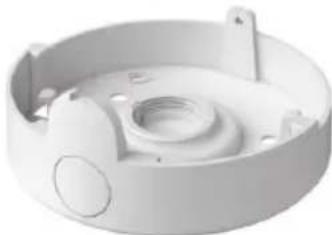
natural_image
3D rendering of a white plastic housing or enclosure with circular components and mounting holes (no text or symbols visible)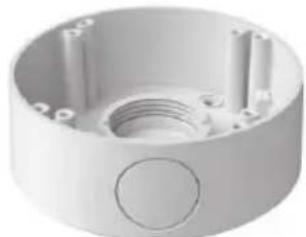
natural_image
3D rendering of a white cylindrical electrical outlet with internal components and a circular button (no text or symbols)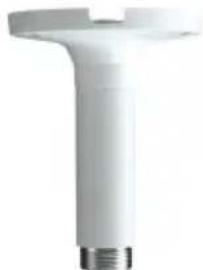
natural_image
White cylindrical mechanical component with threaded end (no visible text or symbols)VT-TJB01
Junction Box for Cable Management for use with all Transcendent Bullet and Turret Style Cameras
VT-TJB02A
Junction Box for Cable Management for use with Transcendent 30 IR LED Vandal Domes
VT-TJB03
Junction Box for Cable Management for use with Transcendent 24 IR LED Vandal Domes
VT-TPDMT-A1
Universal 10" Pedestal Mount Post Adapter - Requires VT-TJB02A or VT-TJB03
natural_image
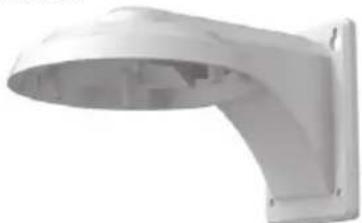
White industrial ventilation duct component with curved and flat ends (no text or symbols visible)VT-TWM03
Wall Mount for Transcendent 30 IR LED Vandal Domes and Varifocal Turret Cameras
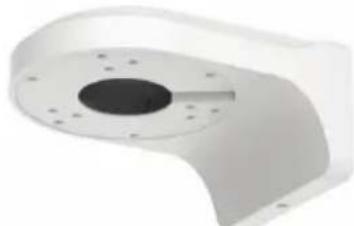
natural_image
3D rendering of a white mechanical component with a central circular feature and mounting holes (no text or symbols visible)VT-TWMT3
Optional Wall Mount for use with Transcendent VTD- TNMD4RFS Vandal Dome & Fixed Turret Cameras
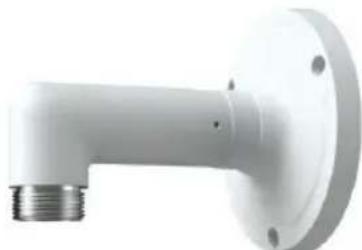
natural_image
White 3D pipe fitting with threaded end and flange (no text or symbols)VT-TWMT-A1
Universal 10" Wall Mount Post Adapter - Requires VT-TJB02A or VT-TJB03
MODEL MOUNTS J BOX
VTC-TNB3RFE Included Wall/Ceiling VT-TJB01
VTC-TNB3RVE Included Wall/Ceiling VT-TJB01
VTD-TND3RFE VT-TWMT-A1/PDMT-A1 w/VT-TJB03 VT-TJB03
VTD-TND3RVE VT-TWM03/VT-TWMT-A1/PDMT-A1 w/TJB02A VT-TJB02A
VTC-TNT3RFE VT-TWMT-3 VT-TJB01
VTC-TNT3RVE VT-TWM03 VT-TJB01
VTC-TNB4RFS Included Wall/Ceiling VT-TJB01
VTD-TND4RFS VT-TWMT-A1/PDMT-A1 w/VT-TJB03 VT-TJB03
VTD-TND4RFS-2 VT-TWMT-A1/PDMT-A1 w/VT-TJB03 VT-TJB03
VTC-TNT4RFS VT-TWMT-3 VT-TJB01
VTC-TNT4RMS VT-TWM03 VT-TJB01
VTC-TNB4RMS Included Wall/Ceiling VT-TJB01/TJB03
VTD-TND4RMS VT-TWM03/VT-TWMT-A1/PDMT-A1 w/TJB02A VT-TJB02A
VTD-TNMD4RFS VT-TWMT-3 N/A
VTC-TNB8RFS Included Wall/Ceiling VT-TJB01
VTC-TNB8RMS Included Wall/Ceiling VT-TJB01/TJB03
VTD-TND8RFS VT-TWMT-3 VT-TJB03A
VTD-TND8RMS VT-TWM03/VT-TWMT-A1/PDMT-A1 w/TJB02A VT-TJB02A
LIMITED PRODUCT WARRANTY
VITEK products carry a three (3) year limited warranty. VITEK warrants to the purchaser that products manufactured by VITEK are free of any rightful claim of infringement or the like, and when used in the manner intended, will be free of defects in materials and workmanship for a period of three (3) years, or as otherwise stated above, from the date of purchase by the end user. This warranty is nontransferable and extends only to the original buyer or end user customer of a VITEK Authorized Reseller.
The product must have been used only for its intended purpose, and not been subjected to damage by misuse, willful or accidental damage, caused by excessive voltage or lightning.
The product must not have been tampered with in any way or the guarantee will be considered null and void.
This guarantee does not affect your statutory rights.
Contact your local VITEK Reseller should servicing become necessary.
VITEK makes no warranty or guarantee whatsoever with respect to products sold or purchased through unauthorized sales channels. Warranty support is available only if product is purchased through a VITEK Authorized Reseller.