
DP8820 - Blu-ray player LG - Free user manual and instructions
Find the device manual for free DP8820 LG in PDF.


| Product Type | Portable DVD/Blu-ray player |
| Model | DP8820 |
| Brand | LG |
| Dimensions (W x H x D) | 190 x 28 x 159.5 mm (7.5 x 1.1 x 6.3 inches) |
| Weight | 0.66 kg (1.46 lbs) without battery |
| Power Supply | DC 9.8V (AC adapter) or DC 7.4V (battery) |
| Power Consumption | 35W with battery |
| Signal System | PAL |
| Laser Wavelength | DVD: 662 nm; CD: 785 nm |
| Frequency Response (Audio) | 8 Hz - 20 kHz (48 kHz sampling), 8 Hz - 44 kHz (96 kHz sampling) |
| Signal-to-Noise Ratio (Audio) | More than 95 dB |
| Dynamic Range (Audio) | More than 95 dB |
| Harmonic Distortion (Audio) | 0.008% |
| Display | 7-inch TFT LCD, resolution 234 x 480 x 3 pixels |
| Playable Discs | DVD, VCD, CD, DVD±R/RW, CD-R/RW, MP3, WMA, JPEG, DivX, DVD-VR |
| Regional Code | Region 2 |
| Audio Outputs | Analog stereo (3.5mm mini jack), Digital optical (3.5mm) |
| Video Output | Composite video (3.5mm mini jack) |
| Battery Type | Rechargeable Li-ion (model DP-BS830) |
| Play Time (LCD on/off) | Approx. 3 hours (LCD on), approx. 4 hours (LCD off) |
| Charging Time | Approx. 3 hours |
| Accessories Included | AC adapter (DP-AC80), power cord, battery pack, remote control, lithium battery, RCA audio/video cable |
| Operating Temperature | 5°C to 35°C |
| Safety Certifications | Complies with EEC directives 89/336/EEC, 93/68/EEC, 73/23/EEC |
Frequently Asked Questions - DP8820 LG
User questions about DP8820 LG
0 question about this device. Answer the ones you know or ask your own.
Ask a new question about this device
Download the instructions for your Blu-ray player in PDF format for free! Find your manual DP8820 - LG and take your electronic device back in hand. On this page are published all the documents necessary for the use of your device. DP8820 by LG.
USER MANUAL DP8820 LG
Before connecting, operating or adjusting this product, please read this instruction booklet carefully and completely.
P/NO:3834RD0043U
Safety Precautions

Warning: To reduce the risk of electric shock, do not remove the cover or back of this product. There are no user-serviceable parts inside. Refer servicing to qualified service personnel.

Warning: To reduce the risk of fire or electric shock, do not expose this product to dripping or splashing water, rain, or moisture. Do not place objects filled with water such as vases, on the product.


Warning: This digital video disc player employs a laser system. Use of controls, adjustments, or the performance of procedures other than those specified herein may result in hazardous radiation exposure.

Warning: To prevent direct exposure to laser beam, do not open the enclosure. Visible laser radiation when open.

Warning: Never stare directly into the laser beam.

Caution: Do not install this product in a confined space such as a book case or similar unit.

This product is manufactured to comply with the radio interference requirements of EEC DIRECTIVE 89/336/EEC, 93/68/EEC and 73/23/EEC.

NOTES ON COPYRIGHTS:
It is forbidden by law to copy, broadcast, show, broadcast via cable, play in public, or rent copyrighted material without permission.
This product features the copy protection function developed by Macrovision. Copy protection signals are recorded on some discs. When recording and playing the pictures of these discs on a VCR, picture noise will appear.
This product incorporates copyright protection technology that is protected by method claims of certain U.S. patents and other intellectual property rights owned by Macrovision Corporation and other rights owners. Use of this copyright protection technology must be authorized by Macrovision Corporation, and is intended for home and other limited viewing uses only unless otherwise authorized by Macrovision Corporation. Reverse engineering or disassembly is prohibited.
SERIAL NUMBER: The serial number is found on the bottom of this unit. This number is unique to this unit and not available to others. You should record requested information here and retain this guide as a permanent record of your purchase.
Model No.
Serial No.
Table of Contents
Introduction
Safety Precautions 2 Table of Contents 3
Before Use 47
Symbol used in this Manual 4
About the Symbol Display 4 Notes on Duos 4.5
Disc related terms....5
Maintenance and Service....6
Types of Playable Discs 7 Identification of Controls 8.11
Main Unit 89
Remote Control 10 11
Power Connections 12 15
AC Adapter 12
Bottom-Deck 12-14
Playing a Disc....15
Advanced Operations
On Screen Display....16 17 General Features....18 22
- Moving to another TITLE 19
- Moving to another CHAPTER/TRACK....18
- Search 18
- Still Picture and Frame by Frame Playback....19
- Slow Motion 19
• Time Search....19
Special DVD Features 21 22
• Title Menu....21
• Disc Menu....21 • Changing the Audio Improve....21
- Changing the Audio Language .... 21
- Camelera Angle .... 22 - Subtalar... 22
- Last Scene Memory 22
• Screen Saver 22
- Changing the Audio Channel 22
Playing an Audio CD and MP3/WMA Disc 23 25
Audio CD and MP3/WMA Disc Features 24 25
- Pause 24
- Moving to another Track 24
- Search .... 24 - Rument Track/All/OFF 24
- Repeat A. B. 24
- MP3 / WMA disc compatibility with this player is limited as follows ..... 25
Programmed Playback 26 27
- Repeat Programmed Tracks 27
• Erasing a Track from Program List ....27
Viewing a JPEG disc 28 29
- Slide Show 28
- Still Picture 28
- Moving to another File 29
Zoom 29
• To rotate picture, 29 • To listen to MRI/WMMA group while watching custom, 20
- To listen to MP 5/WMAC music while watching picture ....29 - WPG does completely with the players limited as followers ....20
- SPEC disc compatibility with this player is limited as follows....29 Playing a DVD VR format Disc....30
Playing a DivX Movie Disc 31
- DivX disc compatibility with this player is limited as follows .... 31
Initial Settings
Initial Settings 32 37
General Operation....52
LANGUAGE ........ ........ ........ ........ ........ ........ ........ ........ ........ ........ ........ ........ ........ ........ ........ ........ ........ ........ ........ ........ ........ ........ ........ ........ ........ ........ ........ ........ ........ .......
AUDIO 32.24
OTHERS 34 35
LOCK (Parental Control) 36 37
Connections
Setting up the Player 38 39
DVD Player Connections 58
Audio Connection to Optimal Equipment....39
Reference
Troubleshooting 40
Language Code List 41
Country Code List. 42 Specifications. 43
Specifications
Before Use
To ensure proper use of this product, please read this owner's manual carefully and retain for future reference.
This manual provides information on the operation and maintenance of your DVD player. Should the unit require service, contact an authorized service location.
Symbol Used in this Manual

The lightning flash symbol alerts you to the presence of dangerous voltage within the product enclosure that may constitute a risk of electric shock.

The exclamation point alerts you to the presence of important operating and maintenance / servicing instructions.

Indicates hazards likely to cause harm to the unit itself or other material damage.
NOTE
Indicates special notes and operating features.
TIP
Indicates tips and hints for making the task easier.
A section whose title has one of the following symbols is applicable only to the disc represented by the symbol.
DVD DVD and finalized DVD±R/RW
VCD Video CDs.
CD Audio CDs.
MP3 MP3 discs.
WMA WMA discs.
JPEG JPEG discs.
DivX DivX discs
About the ⊗ Symbol Display
“ ⊗ ” may appear on your LCD display during operation and indicates that the function explained in this owner's manual is not available on that specific DVD video disc.
Notes on Discs
Handling Discs
Do not touch the playback side of the disc. Hold the disc by the edges so that fingerprints do not get on the surface. Never stick paper or tape on the disc.


Before Use (Continued)
Storing Discs
After playing, store the disc in its case. Do not expose the disc to direct sunlight or sources of heat and never leave it in a parked car exposed to direct sunlight.
Cleaning Discs
Fingerprints and dust on the disc can cause poor picture quality and sound distortion. Before playing, clean the disc with a clean cloth. Wipe the disc from the center out.

Do not use strong solvents such as alcohol, benzine, thinner, commercially available cleaners, or anti-static spray intended for older vinyl records.
Disc-related terms
DVD ±R / DVD ±RW
DVD -R and DVD +R are two different standards for recordable DVD drives and discs. This format allows information to be recorded onto the DVD disc only once. DVD +RW and DVD -RW are two standards for re-writable media, meaning the DVD content can be erased and re-recorded. Single-sided discs can hold 4.38 Gigabyte and double-sided discs hold twice as much. There are no dual layer single sided recordable discs.
VCD (Video CD)
A VCD holds up to 74 minutes (650 MB disc) or 80 minutes (700 MB disc) of MPEG-1 full-motion video along with quality stereo sound.
MPEG
MPEG is an international standard for video and audio compression. MPEG-1 is used in encoding video for VCD and provides for multichannel surround sound coding such as PCM, Dolby Digital, DTS and MPEG audio.
MP3
MP3 is a popular compression format used for digital audio files that yields very high near-CD quality.
WMA
Windows media audio file. A type of coding / decoding developed by Microsoft Corp.
JPEG
Joint Pictures Expert Group. JPEG is a compressed file format that allows you to save images with no limit on the number of colors.
DivX
DivX is the name of a revolutionary new video codec which is based on the new MPEG-4 compression standard for video. You will be able to play DivX movies using this DVD player.
Before Use (Continued)
PBC: Playback Control (Video CD only)
Playback control is available for Video CD (VCD) version 2.0 disc formats. PBC allows you to interact with the system via menus, search functions, or other typical computer-like operations. Moreover, still pictures of high resolution can be played if they are included in the disc. Video CDs not equipped with PBC (Version 1.1) operate in the same way as audio CDs.
Title (DVD video discs only)
A title is generally a distinct section of a DVD disc. For example the main feature could be title 1, a documentary describing how the film was made could be title 2, and cast interviews could be title 3. Each title is assigned a reference number enabling you to locate it easily.
Maintenance and Service
Refer to the information in this chapter before contacting a service technician.
Handling the Unit
When shipping the unit
Please save the original shipping carton and packing materials. If you need to ship the unit, for maximum protection, re-pack the unit as it was originally packed at the factory.
Keeping the exterior surfaces clean
- Do not use volatile liquids such as insecticide spray near the unit.
- Do not leave rubber or plastic products in contact with the unit for a long period of time, since they leave marks on the surface.
Cleaning the unit
To clean the player, use a soft, dry cloth. If the surfaces are extremely dirty, use a soft cloth lightly moistened with a mild detergent solution.
Do not use strong solvents such as alcohol, benzine, or thinner, as these might damage the surface of the unit.
Maintaining the Unit
The DVD player is a high-tech, precision device. If the optical pick-up lens and disc drive parts are dirty or worn, the picture quality could be diminished.
Depending on the operating environment, regular inspection and maintenance are recommended after every 1,000 hours of use.
For details, please contact your nearest authorized service center.
Before Use (Continued)
Types of Playable Discs
| DVD(8 cm / 12 cm disc) | |
| Video CD (VCD)(8 cm / 12 cm disc) | |
| Audio CD(8 cm / 12 cm disc) |
In addition, this unit plays DivX file, DVD±R, DVD±RW. Kodak PICTURE CD, SVCD, and CD-R or CD-RW that contains audio titles, MP3, WMA or JPEG files.





This indicates a product feature that is capable of playing DVD-RW discs recorded with Video Recording format.
Manufactured under license from Dolby Laboratories. "Dolby", "Pro Logic", and the double-D symbol are trademarks of Dolby Laboratories.
DTS and DTS Digital Out are trademarks of Digital Theater Systems, Inc.
NOTES
- Depending on the conditions of the recording equipment or the CD-R/RW (or DVD±R/±RW) disc itself, some CD-R/RW (or DVD±R/±RW) discs cannot be played on the unit.
- Do not attach any seal or label to either side (the labeled side or the recorded side) of a disc.
- Do not use irregularly shaped CDs (e.g., heart-shaped or octagonal). It may result in malfunctions.
Notes on DVDs and Video CDs
Some playback operations of DVDs and Video CDs may be intentionally programmed by software manufacturers. This unit plays DVDs and Video CDs according to disc content designed by the software manufacturer, therefore some playback features may not be available or other functions may be added.
Regional code
This DVD player is designed and manufactured for playback of region "2" encoded DVD software. This unit can play only DVD discs labeled "2" or "ALL".

Notes on Regional Codes
- Most DVD discs have a globe with one or more numbers in it clearly visible on the cover. This number must match your DVD player's regional code or the disc cannot play.
- If you try to play a DVD with a different region code from your player, the message "Check Regional Code" appears on the screen.
Identification of Controls
Main Unit

-
LCD screen
-
Speaker
-
COLOR control slide : - ; black and white, + ; color
-
BRIGHT control slide : - ; dark, + ; light
-
POWER
Switches the player ON and OFF.
- A/V IN/OUT
Selects the TV's source.
- •◀▶▲▼ (left/right/up/down)
Selects an item in the menu.
- ENTER
Confirms menu selection.
- • TITLE
Displays title menu, if available.
• LCD MODE
NORMAL → FULL → ZOOM → OFF
• MENU
Accesses menu on a DVD disc.
• DISPLAY
Accesses On-Screen display.
- SETUP
Accesses or removes setup menu.
-
Disc Lid
-
OPEN button
Push this button to open the Disc lid.
NOTE
Place a disc with the playback side down on the spindle, and push gently on the center of the disc so it goes into position.
Identification of Controls (continued)
Main Unit
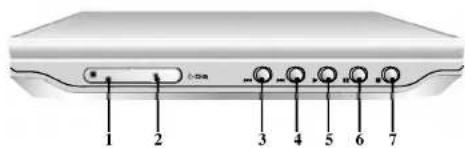

- Remote sensor
- Charge indicator
During recharging, charge indicator is red.
If recharging is complete, charge indicator changes to green color.
- Reverse Skip/Search
Go to previous chapter / track or to the beginning.
Press and hold for two seconds for fast reverse search.
4. Forward Skip/Search
Go to the next chapter / track.
Press and hold for two seconds for fast forward search.
- PLAY
Starts playback.
- PAUSE
Pause playback temporarily/press repeatedly for frame-by-frame playback.
- STOP
Stops playback. - Volume Control
- Earphone jack
- AUDIO In/Out jack (OPTICAL OUT)
- VIDEO In/Out jack
- DC IN 9.8V
Connect the AC adapter.
- Battery Pack
Identification of Controls (continued)
Remote Control
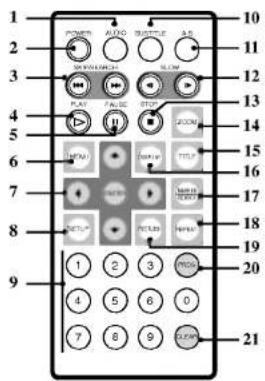
1. AUDIO
Selects an audio language (DVD).
2. POWER
Switches DVD Player ON and OFF.
- • Reverse SKIP/SEARCH (◀◀◀) Search backward*/ go to beginning current chapter or track or go to previous chapter or track.
- Forward SKIP/SEARCH (▶▶▶) Search forward*/ go to next chapter or track.
* Press and hold button for about two seconds.
4. PLAY
Starts playback.
5. PAUSE
Pauses playback temporarily/press repeatedly for frame-by-frame playback.
6. MENU
Accesses menu on a DVD disc.
- •◀▶▲▼ (left/right/up/down)
Selects an item in the menu.
• ENTER
Confirms menu selection.
8. SETUP
Accesses or removes setup menu.
9. 0-9 number buttons
Selects numbered items in a menu.
10. SUBTITLE
Selects a subtitle language.
11. A-B
Repeat sequence.
12. SLOW (◀ / ▶)
Reverse/ Forward slow playback.
13. STOP ( ■ )
Stops playback.
14. ZOOM
Enlarges video image.
15. TITLE
Displays title menu, if available.
16. DISPLAY
Accesses On-Screen display.
17. • MARKER
Marks any point during playback.
• SEARCH
Displays MARKER SEARCH menu.
18. REPEAT
Repeat chapter, track, title all.
19. RETURN
Removes the setup menu, displays the video CD with PBC.
20. PROG.
Places a track on the program list.
21. CLEAR
Removes a track number on the program list or a mark on the MARKER SEARCH menu.
Identification of Controls (continued)
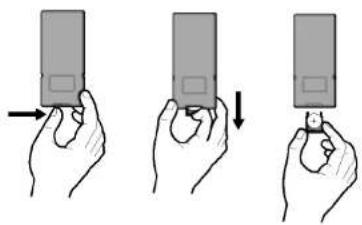
Insert the battery (Lithium battery)
natural_image
Illustration of three hands holding a rectangular device with arrows indicating motion (no text or symbols)NOTES
- Do not expose the remote control sensor to bright light.
- Do not place obstacles between the remote control sensor and the remote control.
■ Replacing the button-type battery
The battery normally lasts for about a year. Replace the battery if the remote control fails to operate the unit when used within the operation range.
Button-type battery (Lithium battery)
- Pinch the battery holder clip together then pull the tab to remove the battery holder.
- Insert the battery with the + facing in the same direction as the + on the battery holder.
- Replace the battery holder with battery into the remote control unit making sure that it is fully inserted.
- Replace remote control unit battery with 3V micro lithium cells such as CR. 2025 or its equivalent.
- Dispose of battery safety in accordance with local laws. Do not dispose of in fire.
Warning: The battery used in this device may present a fire or chemical burn hazard if mistreated. Do not recharge, disassemble, incinerate, or heat above 100 °C (212 °F).
Replace the battery with Matsushita Elec. Ind. Co., Ltd. (Panasonic), part no. CR. 2025 only.
Use of another battery may present a risk of fire or explosion. Dispose of used batteries. Keep batteries away from children. Do not disassemble or dispose of in fire.
Power Connections
AC Adapter

Caution
- Do not connect the power plug to a power outlet other than that indicated on the label, as this can result in a risk of fire or electric shock.
- Do not connect or disconnect the power plug with wet hands. Doing so may cause electric shock.
- Do not use an AC adapter other than one specified, as it can cause a fire or damage to the player.
AC adapter
• This AC adapter operates on 100-240V\~1.5A 50-60Hz.
• MODEL NO.: DP-AC80
• Manufactured by Danae Technology Co., Ltd.
- Contact an electrical parts distributor for assistance in selecting a suitable AC plug adapter or AC cord set.
Power Connections (continued)
Battery Pack
- Charge the battery pack before using it for the first time.
■ Attaching the battery pack
- Match the hooks of the battery pack into the holes on the bottom of the player.
- Combine the battery pack to push toward up until you can hear the click sound.

■ Detaching the battery pack
To separate the battery pack, pull the switch which is locate beside the battery pack then slide down the battery pack at the same time.

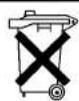
ATTENTION
The product that you have purchased contains a rechargeable battery. The battery is recyclable. At the end of it's useful life, under various state and local laws, it may be illegal to dispose of this battery into the municipal waste stream. Check with your local solid waste/officials for details in your area for recycling options or proper disposal.
Power Connections (continued)
■ Charging the battery pack
-
Attach the battery pack to the player.
-
Connect the AC power adapter to the player and the plug into an AC outlet.

- During recharging, charge indicator is red. If recharging is complete, charge indicator changes to green color.
CAUTION
Take the following precautions to avoid liquid leakage, overheating, etc.
- Do not use any unauthorized parts.
- Use the authorized AC adapter when recharging battery.
- Do not expose to high temperature above 60^ (140°F).
- Do not attempt to dismantle or modify the unit.
- Excessive impact may cause the unit to malfunction.
- Do not incinerate.
- Do not disassemble; dispose of properly.
- Do not short-circuit.
NOTE
Charging a battery is only happens when the power is off.
The battery will not be charged when it is naturally or purposely discharged. Because the unit cannot perceive battery voltage, even if you attached the battery.
When you are in this situation, power on the unit and then power off again. Then battery charge will proceed.
■ Recharging and play times
| Recharging | Play time | |
| without player | LCD On | LCD Off |
| Approx.3 hour | Approx.3 hours* | Approx.4 hours |
* When Brightness control is set to “-”.
- Confirm the battery charge on the unit's display

- If using the AC adapter, battery display does not appear.
■ If play time dramatically reduces after recharging
The battery pack has reached the end of its service life (it can be recharged about 300 times).
■ If the unit is not to be used for a long time
- Detach the battery pack. (Even if the unit is off, it still uses some power. This
can lead to over discharging of the battery and malfunction.) - Recharge the battery pack when you are ready to use it again.
Battery Pack
• MODEL NO.: DP-BS830
Playing a Disc
- Prepare the power supply.
- Open the outer cover and press POWER button.
- Press OPEN to open the disc lid and insert a disc with the side you want to play label up. Close the disc lid by hand.
- If the disc is placed in upside down (and it is a single-sided disc).
"NO DISC" or "DISC ERROR" appears on the screen. -
After playing back all of the chapters in the title, the DVD player automatically stops and returns to the menu screen.
-
Press PLAY to start play.
-
Adjust the volume.
NOTES
- Place a disc with the playback side down on the spindle, and push gently on the center of the disc so it goes into position.
- Confirm LCD MODE position by pressing LCD MODE button.
■ Changing the size of the picture
Use the LCD MODE button to change the picture mode. The mode is shown on the unit's display as follows.
NORMAL → FULL → ZOOM → OFF
NOTE
May appear to differ according to kind of disc.
■ The picture mode and size
The picture shown on the LCD depends on the display mode and the size recorded on the disc.
NOTES
- If you are not using the LCD on this unit, select OFF to conserve power.
• The LCD is turned off if you close the unit. - Horizontal lines may appear in the picture when the mode is switched to ZOOM, but this is not an indication of a malfunction.
On-Screen Display
You can display the general playback status on the screen. Some items can be changed using the menu. To use the on-screen display:
- Press DISPLAY during playback.
- Press ▲ / ▼ to select an item. The selected item is highlighted.
- Press ◀ / ▶ to change the setting. You can also use the number buttons if appropriate (e.g. inputting the title number). For some functions, press ENTER to execute the setting.
NOTES
- Some discs may not provide all of the features shown below.
- If no button is pressed for 10 seconds, the on-screen display disappears.
Playback Status/Restrictions
Repeat title
Repeat sequence
Enter a Marker
Marker Search menu
Resume play from this point
Action prohibited or not available
Example: On-Screen Display during playing DVD Video
| Items | Selection Method | |
| Title Number | 1/3> | ◄/►,Numbers ENTER |
| Chapter Number | 1/12> | ◄/►,Numbers ENTER |
| Time search | 0 20 09 | Numbers, ENTER |
| Audio language and Digital Audio Output mode | 1 ENGODD>32.1CH | ◄/► or AUDIO |
| Subtitle language | 1 ENG> | ◄/► or SUBTITLE |
| Angle | 1/3> | ◄/► |
On-Screen Display (continued)
Example: On-Screen Display during playing VCD
| Items | Selection Method | |
| Track Number (or PBC mode) | ◄/►, Numbers ENTER | |
| Time search | Numbers ENTER | |
| Audio Channel | ◄/► or AUDIO | |
Example: On-Screen Display during playing divx movie disc
| Items | Selection Method |
| Track Number | ◀/▶, Numbers ENTER |
| Time search | Numbers ENTER |
| Audio language and Digital Audio Output mode | ◀/▶ or AUDIO |
| Subtitle language | ◀/▶ or SUBTITLE |
General Features
DVD
Use the ◀▶▲▼ buttons to select the title/chapter you want to view, then press ENTER to start. Press TITLE or MENU to return to the menu screen.
VCD
Use the number buttons to select the track you want to view and press RETURN to return to the menu screen. Menu settings and operating procedures may differ. Follow the instructions on the each menu screen. You also may set PBC to Off (See "PBC" on page 34).
NOTES
- If parental control is set and the disc is not within the rating settings you must input the password. (See "Lock Menu" on page 36-37.)
- DVDs may have a region code. Your player does not play discs that have a region code different from your player. The region code for this player is 2 (two).
Unless stated otherwise, all operations described use the remote control. Some features may also be available on the Setup menu.
Moving to another TITLE DVD
When a disc has more than one title, you can move to another title. Press DISPLAY while playback is stopped then the appropriate number (0-9) or use ◀ / ▶ to move to another title.
You can play any title by inputting its number while playback is stopped.
Moving to another CHAPTER/TRACK
DVD VCD DivX
When a title on a disc has more than one chapter or a disc has more than one track, you can move to another chapter/track as follows:
- Press SKIP/SEARCH ◀◀◀ or ▶▶◀ briefly during playback to select the next chapter/track or to return to the beginning of the current chapter/track.
- Press SKIP/SEARCH ◀ twice briefly to step back to the previous chapter/track.
- To go directly to any chapter during DVD playback, press DISPLAY and press ▲ / ▼ to select the chapter/track icon. Then, input the chapter/track number or use ◀ / ▶.
Search DVD VCD DivX
- Press and hold SKIP/SEARCH ◀◀◀ or ▶▶◀ for about two seconds during playback. The player will now go into SEARCH mode.
- Press and hold SKIP/SEARCH ◀◀ or ▶▶1 repeatedly to select the required speed: ◀◀X2, ◀◀X4, ◀◀X16, ◀◀X100 (backward) or ▶▶X2, ▶▶X4, ▶▶X16, ▶▶X100 (forward). With a Video CD, the Search speed changes: ◀◀X2, ◀◀X4, ◀◀X8, (backward) or ▶▶X2, ▶▶X4, ▶▶X8, (forward).
- To exit SEARCH mode, press PLAY.
General Features (continued)
Still Picture and Frame-by-Frame Playback
DVD VCD DivX
- Press PAUSE on the remote control during playback. Advance the picture frame-by-frame by pressing PAUSE repeatedly.
- To exit still motion mode, press PLAY.
Slow Motion DVD VCD DivX
- Press SLOW ◀ or ▶ during playback. The player will enter SLOW mode.
- Use the SLOW ◀ or ▶ to select the required speed: ◀ 1/16, ◀ 1/8, ◀ 1/4 or ◀ 1/2 (backward), or ▶ 1/16, ▶ 1/8, ▶ 1/4 or ▶ 1/2 (forward).
- To exit slow motion mode, press PLAY.
NOTE
Slow motion playback in reverse is not applicable for Video CD and DivX Discs.
Time Search DVD VCD DivX
To start playing at any chosen time on the disc:
- Press DISPLAY during playback. The time search box shows the elapsed playing time.
- Press ▲ / ▼ to select the time clock icon and “-:-:-” appears.
- Input the required start time in hours, minutes, and seconds from left to right. If you enter the wrong numbers, press CLEAR to remove the numbers you entered. Then input the correct numbers.
- Press ENTER to confirm. Playback starts from the selected time.
Repeat A-B DVD VCD DivX
To repeat a sequence.
- Press A-B at your chosen starting point, "A" appears briefly on the screen.
-
Press A-B again at your chosen end point.
"A B" appears briefly on the screen and the repeat sequence begins. -
Press A-B again to cancel.
Repeat DVD VCD1.1 DivX
You can play a title/chapter/all/track on a disc.
Press REPEAT during playback to select a desired repeat mode.
DVD Video Discs - Repeat Chapter/Title/Off
• Chapter: repeats the current chapter.
• Title: repeats the current title.
- Off: does not play repeatedly.
Video CDs, DivX discs - Repeat Track/All/Off
- Track: repeats the current track
- All : repeats all the tracks on a disc.
- Off: does not play repeatedly.
NOTES
- On a Video CD with PBC, you must set PBC to Off on the setup menu to use the repeat function (See "PBC" on page 34).
- If you press SKIP (▶▶▶) once during Repeat Chapter (Track) playback, the repeat playback cancels.
General Features (continued)
Marker Search DVD VCD DivX
Storing a MARKER in the DVD memory is similar to marking your page in a book. It allows you to quickly return to any point on the disc.
Storing a marker in the memory
- Press MARKER/SEARCH during play.
The MARKER SEARCH menu appears on the screen.
- During playback, press ENTER when playback reaches the spot that you want to memorize.
• The Marker number appears.
- Do this within 10 seconds while the MARKER SEARCH menu appears.
- To enter additional Marker points, press ◀▶ until another empty point on the MARKER SEARCH menu is highlighted, then press ENTER when playback reaches the point at which you want the next Marker.
-
Repeat step 2 to enter up to nine Marker points on a disc.
-
To remove the MARKER SEARCH menu, press MARKER/SEARCH.
Recalling/Clearing a marker
- Press MARKER/SEARCH during playback.
The MARKER SEARCH menu will appear on the screen.
-
Press ◀/▶ to select the marker to be recalled/ cleared.
-
Press ENTER to recall a marker.
Press CLEAR to clear a marker.
Play resumes from the point corresponding to the selected marker, or the selected marker is cleared.
NOTES
• These operations work only with discs for which the elapsed playing time appears in the display window during playback or stop.
- Some subtitles recorded around the marker may fail to appear (DVD).
- All the markers are cleared when the power is turned off or the disc is removed.
- The marker is not stored when the DVD or title menu is displayed on the screen.
General Features (continued)
Zoom DVD VCD DivX
Use zoom to enlarge the video image.
- Press ZOOM during playback or still playback to activate the Zoom function. The square frame appears briefly in the right bottom of the picture.
- Each press of the ZOOM button changes the screen in the sequence: 100% size → 400% size → 1600% size → screen fit mode → 100% size
Screen fit mode:
You can change the way the image appears on the screen when you're playing a DVD movie. Press ▲▼ to select between Normal, Enhanced, and Maximum.
- Use the ◀▶▲▼ buttons to move through the zoomed picture.
- To resume normal playback, press CLEAR.
NOTES
- Zoom may not work on some DVDs.
- Screen fit mode is available for playing the DVD disc, VR disc and movie file.
Resume Play
When play is stopped, the unit records the point where STOP was pressed (RESUME function).
Press PLAY and play will resume from this point.
Special DVD Features
Checking the contents of DVD discs: Menus
DVDs may offer menus that allow you to access special features. To use the disc menu, press MENU. Input the corresponding number or use the
◀▶▲▼ buttons to highlight your selection. Then press ENTER.
Title Menu DVD
- Press TITLE. If the current title has a menu, the menu appears on the screen. Otherwise, the disc menu may appear.
- The menu offers features such as camera angles, spoken language and subtitle options, and chapters for the title.
- Press TITLE to exit.
Disc Menu DVD
Press MENU and the disc menu is displayed. Press MENU again to exit.
Changing the Audio Language DVD DivX
Press AUDIO repeatedly during playback to hear a different audio language or audio track.
With DVD-RW discs recorded in VR mode that have both a main and a Bilingual audio channel, you can switch between Main (L), Bilingual (R), or a mix of both (Main + Bilingual) by pressing AUDIO.
General Features (continued)
Camera Angle DVD
If the disc contains scenes recorded at different camera angles, you can change to a different camera angle during playback.
- Press DISPLAY during playback.
- Press ▲/▼ to select Angle item.
- Press ◀/▶ repeatedly until the desired Angle is selected.
TIP
The angle indicator will blink on the screen during scenes recorded at different angles as an indication that angle switching is possible.
Subtitles DVD DivX
Press SUBTITLE repeatedly during playback to see the different subtitle languages.
NOTES
- The subtitle file of the DivX file is displayed only smi, srt and sub.
- If there is no information or there is a code that can not read in the DivX file, "1" etc are displayed.
Last Scene Memory DVD CD VCD1.1
This player memorizes last scene from the last disc that is viewed. The last scene remains in memory even if you remove the disc from the player or switch off the player. If you load a disc that has the scene memorized, the scene is automatically recalled.
NOTES
- Settings are stored in memory for use any time.
- This player does not memorize settings of a disc if you switch off the player before commencing to play it.
Screen Saver
The screen saver appears when you leave the DVD player in Stop mode for about five minutes. If the Screen Saver is displayed for five minutes, the DVD Player automatically turns itself off.
Changing the Audio Channel VCD
Press AUDIO repeatedly during playback to hear a different audio channel (STEREO, LEFT, or RIGHT).
Playing an Audio CD or MP3/WMA Disc
The DVD player can play MP3/WMA formatted recordings on CD-ROM, CD-R, or CD-RW discs.
Audio CD
Once you insert an audio CD a menu appears on the screen. Press ▲ / ▼ to select a track then press PLAY or ENTER and playback starts.

MP3 / WMA
- Press ▲ / ▼ to select a folder, and press ENTER to see the folder contents.
- Press ▲ / ▼ to select a track then press PLAY or ENTER. Playback starts.
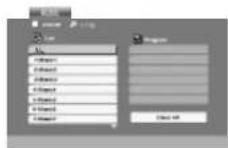
ID3 TAG
- When playing a file containing information such as track titles, you can see the information by pressing DISPLAY. [ Title, Artist, Album, Year, Comment ]
- If there is no information, "NO ID3 TAG" appears on the display.
TIPS
- If you are in a file list on the MUSIC menu and want to return to the Folder list, use the ▲ / ▼ to highlight 📁 and press ENTER.
- Press MENU to move to the next page.
- On a CD with MP3/WMA and JPEG you can switch MP3/WMA and JPEG. Press TITLE and MUSIC or PHOTO word on top of the menu is highlighted.
Playing an Audio CD or MP3/WMA Disc (continued)
Audio CD and MP3 / WMA Disc Features
Pause CD MP3 WMA
- Press PAUSE during playback.
- To return to playback, press PLAY, ENTER or press PAUSE again.
- Press SKIP/SEARCH (◀◀ or ▶▶) briefly during playback to go to the next track or to return to the beginning of the current track.
- Press SKIP/SEARCH ◀◀ twice briefly to go back to the previous track.
- You can play any track by inputting its number.
Moving to another Track CD MP3 WMA
Search CD MP3 WMA
- Press and hold SKIP/SEARCH (◀◀ or ▶▶) for about two seconds during playback. The player will now go into SEARCH mode.
- Press and hold SKIP/SEARCH (I◄◄ or ►►1) repeatedly to select the required speed: ◀◄X2, ◀◄X4, ◀◄X8 (backward) or ►►X2, ►►X4, ►►X8 (forward). Search speed and direction are indicated on the menu screen.
- To exit SEARCH mode, press PLAY.
Repeat Track/All/Off CD MP3 WMA
You can play a track/all on a disc.
1. Press REPEAT when playing a disc. The repeat icon appears.
2. Press REPEAT to select a desired repeat mode.
- Track: repeats the current track
• All: repeats all the tracks on a disc.
- Off(No display): does not play repeatedly.
If you press SKIP (▶▶) once during Repeat Track playback, the repeat playback cancels.
1. To repeat a sequence during disc playback press A-B at your chosen starting point. The Repeat icon and "A" appear on the menu screen.
2. Press A-B again at your chosen end point. The Repeat icon and "A-B" appear on the menu screen, and the sequence begins to play repeatedly.
3. To exit the sequence and return to normal play, press A-B again.
NOTE
Repeat A-B CD
Playing an Audio CD or MP3/WMA Disc (continued)
MP3 / WMA disc compatibility with this player is limited as follows:
- Sampling frequency: within 8 - 48 kHz (MP3), within 32 - 48 kHz (WMA)
- Bit rate: within 8 - 320kbps (MP3), 32 - 192kbps (WMA)
- The player cannot read an MP3/WMA file that has a file extension other than ".mp3" / ".wma".
• CD-R physical format should be ISO 9660 - If you record MP3 / WMA files using software that cannot create a file system (eg. Direct-CD) it is impossible to playback MP3 / WMA files. We recommend that you use Easy-CD Creator, which creates an ISO 9660 file system.
- File names should have a maximum of 8 letters and must incorporate an .mp3 or .wma extension.
- They should not contain special letters such as /? *: "< > 1 etc.
• The total number of files on the disc should be less than 650.
This DVD player requires discs and recordings to meet certain technical standards in order to achieve optimal playback quality. Pre-recorded DVDs are automatically set to these standards. There are many different types of recordable disc formats (including CD-R containing MP3 or WMA files) and these require certain pre-existing conditions (see above) to ensure compatible playback.
Customers should note that permission is required in order to download MP3 / WMA files and music from the Internet. Our company has no right to grant such permission. Permission should always be sought from the copyright owner.
Programmed Playback
The program function enables you to store your favorite tracks from any disc in the player memory.
A program can contain 30 tracks.
- Insert a disc.
Audio CD or MP3/WMA Discs:
AUDIO CD or MUSIC menu appears.
- Press PROG.
The Ⓞ mark will appear to the right of the word "Program" on the right side of the menu screen.
NOTE
Press PROG. again, then the Ⓞ mark will disappear to exit the Program Edit mode.
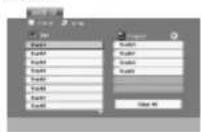
Audio CD Menu
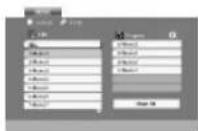
MP3/WMA Menu
Video CD: Press PROG. while playback is stopped. The program menu appears. Press PROG. again and hold it down for a few seconds to exit the menu.
NOTE
On a Video CD with PBC, you must set PBC to Off on the setup menu to use the programmed playback (See "PBC" on page 34).

Video CD Menu
- Select a track on the "List", then press ENTER to place the selected track on the "Program" list. Repeat to place additional tracks on the list.
- Press ▶. Select the track you want to start playing on the "Program" list.
- Press PLAY or ENTER to start. Playback begins in the order in which you programmed the tracks. Playback stops after all of the tracks on the "Program" list have played once.
- To resume normal playback from programmed playback, select a track of AUDIO CD (or MUSIC) list and then press PLAY.
Programmed Playback (continued)
Repeat Programmed Tracks
- Press REPEAT when playing a disc. The repeat icon appears.
- Press REPEAT to select a desired repeat mode.
- Track: repeats the current track
- All: repeats all the tracks on programmed list.
- Off(No display): does not play repeatedly.
NOTE
If you press ▶▶ once during Repeat Track playback, the repeat play-back cancels.
Erasing a Track from Program List
- Use ▲▼▶ to select the track that you wish to erase from the Program list.
- Press CLEAR. Repeat to erase additional tracks on the list.
Erasing the Complete Program List
- Press ▶ to move to the "Program" list.
- Use ▲ / ▼ to select "Clear All", then press ENTER.
NOTE
The programs are also cleared when the disc is removed.
Viewing a JPEG Disc
Using this DVD Player you can view Kodak PICTURE CDs and discs with JPEG files.
- Insert a disc and close the tray. The PHOTO menu appears on the screen.

-
Press ▲ / ▼ to select a folder, and press ENTER. A list of files in the folder appears. If you are in a file list and want to return to the previous Folder list, use the ▲ / ▼ buttons on the remote to highlight 🔒 and press ENTER.
-
If you want to view a particular file, press ▲ / ▼ to highlight a file and press ENTER or PLAY. Viewing the file proceeding starts. While viewing a file, you can press STOP to move to the previous menu (PHOTO menu).
TIPS
- Press MENU to move to the next page.
- There are three Slide Speed options : >>> (Fast), >> (Normal) and > (Slow).
Use ▲▼◀▶ to highlight the Speed. Then, use ◀/▶ to select the option you want to use then press ENTER. - On a disc with MP3/WMA and JPEG you can switch MP3/WMA and JPEG. Press TITLE and MUSIC or PHOTO word on top of the menu is highlighted.
- Press RETURN, information of file is hidden.
Slide Show JPEG
Use ▲▼◀▶ to highlight the ≡ (Slide Show) then press ENTER.
Still Picture JPEG
- Press PAUSE during slide show.
The player will now go into PAUSE mode. - To return to the slide show, press PLAY or press PAUSE again.
Viewing a JPEG Disc (continued)
Moving to another File JPEG
Press SKIP/SEARCH (◀◀ or ▶▶) or cursor (◀ or ▶) once while viewing a picture to advance to the next or previous file.
Zoom JPEG
Use zoom to enlarge the photo image. (see 21 page)
To rotate picture
Press ▲ / ▼ during showing a picture to rotate the picture clockwise or counter clockwise.
To listen to MP3/WMA music while watching picture JPEG
You can display files while listening to MP3/WMA music files recorded on the same disc.
- Insert the disc containing the two types of file in the player.
- Press TITLE to display PHOTO menu.
- Press ▲ / ▼ to select a photo file.
- Use ▶ to select 📄 icon then press ENTER. Playback starts. The playback will continue until STOP is pressed.
TIP
To listen to only the desired music watching picture, programmed the desired tracks from the "MUSIC" menu and then proceed as above.
JPEG disc compatibility with this player is limited as follows:
- Depending upon the size and number of JPEG files, it could take a long time for the DVD player to read the disc's contents. If you don't see an on-screen display after several minutes, some of the files may be too large — reduce the resolution of the JPEG files to less than 2M pixels as 2760 x 2048 pixels and burn another disc.
• The total number of files and folders on the disc should be less than 650. - Some discs may be incompatible due to a different recording format or the condition of disc.
- Ensure that all the selected files have the "jpg" extensions when copying into the CD layout.
- If the files have ".jpe" or ".jpeg" extensions, please rename them as ".jpg" file.
- File names without ".jpg" extension will not be able to be read by this DVD player. Even though the files are shown as JPEG image files in Windows Explorer.
Playing a DVD VR format Disc
This unit will play DVD-R/RW discs recorded using the DVD-Video format that have been finalized using a DVD-recorder.
- This unit will play DVD-RW discs recorded using the Video Recording (VR) format.
- Insert a disc and close the tray. The DVD-VR menu appears on the screen.

- Press ▲ / ▼ to select a track then press PLAY or ENTER and playback starts.
NOTES
- Unfinalized DVD-R/RW discs cannot be played in this player.
- Some DVD-VR disc are made with CPRM data by DVD RECORDER. Player does not support these kinds of discs and display the "CHECK DISC".
What is 'CPRM'?
CPRM is a copy protection system (with scramble system) only allowing the recording of 'copy once' broadcast programs. CPRM stands for Content Protection for Recordable Media.
This player is CPRM compatible, which means that you can record copy-once broadcast programs, but you cannot then make a copy of those recordings.
CPRM recordings can only be made on DVD-RW discs formatted in VR mode, and CPRM recordings can only be played on players that are specifically compatible with CPRM.
Playing a DivX Movie Disc
Using this DVD Player you can play DivX disc.
- Insert a disc and close the tray. The MOVIE menu appears on the screen.

- Press ▲ / ▼ to select a folder, and press ENTER. A list of files in the folder appears. If you are in a file list and want to return to the Folder list, use the ▲ / ▼ buttons on the remote to highlight ▲ and press ENTER.
- If you want to view a particular file, press ▲ / ▼ to highlight a file and press ENTER or PLAY.
- Press STOP to exit.
TIP
- Press MENU to move to the next page.
- On a CD with MP3/WMA, JPEG and MOVIE file, you can switch MUSIC, PHOTO and MOVIE menu. Press TITLE and MUSIC, PHOTO and MOVIE word on top of the menu is highlighted.
DivX disc compatibility with this player is limited as follows:
• Available resolution size of the DivX file is under 720x576 (W x H) pixel.
• The file name of the DivX subtitle is available by 56 characters.
- If there is impossible code to express in the DivX file, it may be displayed as "_" mark on the display.
- If the number of the screen frame is over 30 per 1 second, this unit may not operate normally.
- If the video and audio structure of recorded file is not interleaved, either video or audio is outputted.
- If the file is recorded with GMC, the unit supports only 1-point of the record level.
= GMC?
GMC is the acronym for Global Motion Compensation. It is an encoding tool specified in MPEG4 standard. Some MPEG4 encoder, like DivX or Xvid, have this option.
There are different levels of GMC encoding, usually called 1-point, 2-point, or 3-point GMC.
playable DivX file
• ".avi ", " .mpg ", " .mpeg "
playable Codec format
● "DIVX3.xx", "DIVX4.xx", "DIVX5.xx", "XVID", "MP43", "3IVX".
playable Audio format
● "Dolby Digital", "DTS", "PCM", "MP3", "WMA".
- Sampling frequency: within 8 - 48 kHz (MP3), within 32 - 48kHz (WMA)
- Bit rate: within 8 - 320kbps (MP3), 32 - 192kbps (WMA)
Initial Settings
By using the Setup menu, you can make various adjustments to items such as picture and sound. You can also set a language for the subtitles and the Setup menu, among other things. For details on each Setup menu item, see pages 32 to 37.
To display and exit the Menu:
Press SETUP to display the menu. A second press of SETUP will take you back to initial screen.
To go to the next level:
Press ▶ on the remote control.
To go back to the previous level:
Press ◀ on the remote control.
General Operation
- Press SETUP. The Setup menu appears.
- Use ▲ / ▼ to select the desired option then press ▶ to move to the second level. The screen shows the current setting for the selected item, as well as alternate setting(s).
- Use ▲ / ▼ to select the second desired option then press ▶ to move to the third level.
- Use ▲ / ▼ to select the desired setting then press ENTER to confirm your selection. Some items require additional steps.
- Press SETUP or PLAY to exit the Setup menu.
LANGUAGE
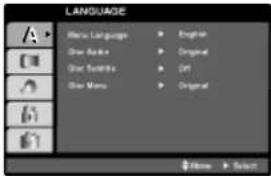
Menu Language
Select a language for the Setup menu and on-screen display.
Disc Audio / Subtitle / Menu DVD
Select the language you prefer for the audio track (disc audio), subtitles, and the disc menu.
Original: Refers to the original language in which the disc was recorded.
Other: To select another language, press number buttons then ENTER to enter the corresponding 4-digit number according to the language code list in the reference chapter. If you enter the wrong language code, press CLEAR.
Initial Settings (continued)
DISPLAY
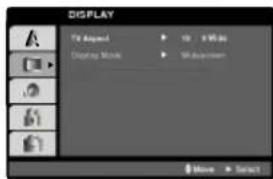
TV Aspect DVD
4:3: Select when a standard 4:3 TV is connected.
16:9 Wide: Select when a 16:9 wide TV is connected.
Display Mode DVD
Display Mode setting works only when the TV Aspect mode is set to "4:3".
LetterBox: Displays a wide picture with bands on the upper and lower portions of the screen.
Panscan: Automatically displays the wide picture on the entire screen and cuts off the portions that do not fit.
AUDIO
Each DVD disc has a variety of audio output options. Set the player's AUDIO options according to the type of audio system you use.
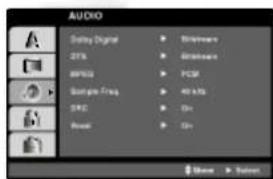
Dolby Digital / DTS / MPEG DVD DivX
Bitstream: Select "Bitstream" if you connect the DVD Player's DIGITAL OUT jack to an amplifier or other equipment with a Dolby Digital, DTS or MPEG decoder.
PCM (for Dolby Digital / MPEG): Select when connected to a two-channel digital stereo amplifier. DVDs encoded in Dolby Digital or MPEG will be automatically downmixed to two-channel PCM audio.
Off (for DTS): If you select "Off", the DTS signal is not output through the DIGITAL OUT jack.
Initial Settings (continued)
Sample Freq. (Frequency) DVD
If your receiver or amplifier is NOT capable of handling 96 kHz signals, select 48 kHz. When this choice is made, this unit automatically converts any 96 kHz signals to 48 kHz so your system can decode them.
If your receiver or amplifier is capable of handling 96 kHz signals, select 96 kHz. When this choice is made, this unit passes each type of signal through without any further processing.
Check the documentation for your amplifier to verify its capabilities.
Dynamic Range Control (DRC) DVD DivX
With the DVD format, you can hear a program's soundtrack in the most accurate and realistic presentation possible, thanks to digital audio technology. However, you may wish to compress the dynamic range of the audio output (the difference between the loudest sounds and the quietest ones). This allows you to listen to a movie at a lower volume without losing clarity of sound. Set DRC to On for this effect.
Vocal DVD
Set to On only when a multi-channel karaoke DVD is playing. The karaoke channels on the disc mix into normal stereo sound.
OTHERS
The PBC, Auto Play and DivX(R) VOD settings can be changed.
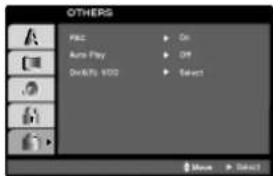
PBC VCD
Set Playback Control (PBC) to On or Off.
On: Video CDs with PBC are played according to the PBC.
Off: Video CDs with PBC are played the same way as Audio CDs.
Auto Play DVD
You can set up the DVD Player so a DVD disc automatically starts playing whenever the DVD is inserted.
If Auto Play mode is set to On, this DVD player will search for title that has the longest playback time and then play back the title automatically.
On: Auto Play function is active.
Off: Auto Play function is not active.
NOTE
The Auto Play function may not work for some DVDs.
Initial Settings (continued)
DivX(R) VOD DivX
You can display the DivX DRM (Digital Rights Management) Registration code for your unit only.
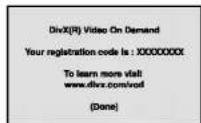
The Registration code is used for VOD (Video-On-Demand) service agent. You can purchase or rent an encrypt movie file.
NOTES
If you rent the DivX VOD file, it has several options of viewing limits as shown below.
• Display the number which you can watch the file.

• The rental has been expired.

- Display the authorization error.
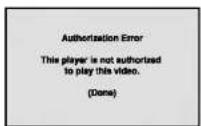
Initial Settings (continued)
LOCK (Parental Control)

Rating DVD
Some movies contain scenes that may not be suitable for children to view. Many of these discs contain parental control information that applies to the complete disc or to certain scenes on the disc. Movies and scenes are rated from 1 to 8, depending on the country. Some discs offer more suitable scenes as an alternative.
The parental control feature allows you to block access to scenes below the rating you input, thereby preventing your children from being able to view material you believe is unsuitable.
- Select "Rating" on the LOCK menu then press ▶.
- To access the Rating, Password and Country Code features, you must input the 4-digit security code you created. If you have not yet entered a security code you are prompted to do so.
Input a 4-digit code and press ENTER. Enter it again and press ENTER to verify. If you make a mistake before pressing ENTER, press CLEAR.
- Select a rating from 1 to 8 using the ▲ / ▼ buttons.
Rating 1-8: Rating one (1) has the most restrictions and rating eight (8) is the least restrictive.
Unlock
If you select unlock, parental control is not active and the disc plays in full.
NOTE
If you set a rating for the player, all disc scenes with the same rating or lower are played. Higher rated scenes are not played unless an alternate scene is available on the disc. The alternative must have the same rating or a lower one. If no suitable alternative is found, playback stops. You must enter the 4-digit password or change the rating level in order to play the disc.
- Press ENTER to confirm your rating selection, then press SETUP to exit the menu.
Initial Settings (continued)
Password (Security Code)
You can enter or change password.
- Select Password on the LOCK menu then press ▶.
- Follow step 2 as shown left (Rating). "Change" or "New" is highlighted.
- Enter the new 4-digit code, then press ENTER. Input it again to verify.
- Press SETUP to exit the menu.
If you forget your Security Code
If you forget your security code you can clear it using the following steps:
- Press SETUP to display the Setup menu.
- Input the 6-digit number "210499" and the security code is cleared.
- Enter a new code as described above.
Country Code DVD
Enter the code of the country/area whose standards were used to rate the DVD video disc, based on the list in the reference chapter.
- Select "Country Code" on the LOCK menu then press ▶.
- Follow step 2 as shown left (Rating).
- Select the first character using ▲ / ▼ buttons.
- Press ENTER and select the second character using ▲ / ▼ buttons.
- Press ENTER to confirm your country code selection.
Setting up the Player
The picture and sound of a nearby TV, VCR, or radio may be distorted during playback. If this occurs, position the player away from the TV, VCR, or radio, or turn off the unit after removing the disc.
DVD Player Connections
Depending on your TV and other equipment there are various ways you can connect the player. Please refer to the manuals of your TV, stereo system or other devices as necessary for additional connection information.
Video and Audio Connections to Your TV
Make sure the DVD player is connected directly to the TV and not to a VCR, otherwise the DVD image could be distorted by the copy protection system.
Video:
Connect the VIDEO OUT jack on the DVD player to the video in jack on the TV using the video cable.
Audio Connection to Your TV:
Connect the AUDIO OUT jacks of the DVD Player to the audio left and right IN jacks on the TV using the audio cables. Do not connect the DVD Player's AUDIO OUT jack to the phone in jack (record deck) of your audio system.

You must set the A/V IN/OUT switch to the "A/V OUT" mode
Setting up the Player (continued)
Audio Connection to Optional Equipment
Connect the DVD player to your optional equipment for audio output.
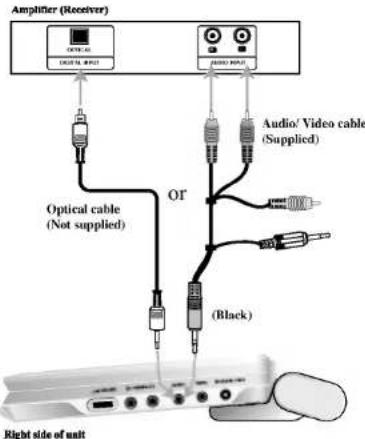
You must set the A/V IN/OUT switch to the "A/V OUT" mode
Amplifier equipped with 2-channel analog stereo or Dolby Pro Logic II / Pro Logic: Connect the AUDIO OUT jacks on the DVD player to the audio left and right IN jacks on your amplifier, receiver, or stereo system, using the audio cables.
Amplifier equipped with 2-channel digital stereo (PCM) or audio / video receiver equipped with a multi-channel decoder (Dolby Digital™, MPEG 2, or DTS): Connect one of the DVD Player's DIGITAL AUDIO OUT jack to the corresponding in jack on your amplifier. Use an optional digital audio cable.
Digital Multi-channel sound
A digital multi-channel connection provides the best sound quality. For this you need a multi-channel audio / video receiver that supports one or more of the audio formats supported by your DVD player such as MPEG 2, Dolby Digital and DTS. Check the receiver manual and the logos on the front of the receiver.
NOTES
- If the audio format of the digital output does not match the capabilities of your receiver, the receiver produces a strong, distorted sound or no sound at all.
- Six Channel Digital Surround Sound via a digital connection can only be obtained if your receiver is equipped with a Digital Multi-channel decoder.
• To see the audio format of the current DVD in the on-screen display, press AUDIO.
Troubleshooting
| Symptom | Cause | Correction |
| No power. | The power cord is disconnected.The battery is discharged. | Plug the power cord into the wall outlet securely.Recharge the battery. |
| No picture on the LCD or TV (including video from another unit). | The video cable is not connected securely.The A/V IN/OUT switch is not set correctly. | Connect the video cable into the jacks securely.Set the A/V IN/OUT switch correctly.- While you are playing a disc, set the A/V IN/OUT switch to OUT mode- While you are viewing video from other equipment, set the A/V IN/OUT switch to In mode. |
| LCD mode is set to OFF.Check that Brightness control is set to “.”The TV is not set to receive DVD signal output. | Select a LCD mode other than OFF.Adjust the brightness.Select the appropriate video input mode on the TV so the picture from the DVD player appears on the screen. | |
| No sound. | The equipment connected with the audio cable is not set to receive DVD signal output.The audio cables are not connected securely. | Select the correct input mode of the audio receiver so you can listen to the sound from the DVD player.Connect the audio cable into the jacks securely. |
| The DVD player does not start playback. | An unplayable disc is inserted.The Rating level is set. | Insert a playable disc. (Check the disc type, color system and Regional code.)Cancel the Rating function or change the rating level.“” may appear on the screen during operation. |
| No response when buttons are pressed. | Some discs prohibit certain operations. | |
| The remote control does not work properly. | The remote control is too far from the DVD player. | Operate the remote control within about 23 ft (7 m). |
Language Codes
Use this list to input your desired language for the following initial settings: Disc Audio, Disc Subtitle, Disc Menu.
| Language | Code | Language | Code | Language | Code | Language | Code |
| Abkhazian | 6566 | Fiji | 7074 | Lingala | 7678 | Singhalese | 8373 |
| Afar | 6565 | Finnish | 7073 | Lithuanian | 7684 | Slovak | 8375 |
| Afrikaans | 6570 | French | 7082 | Macedonian | 7775 | Slovenian | 8376 |
| Albanian | 8381 | Frisian | 7089 | Malagasy | 7771 | Somali | 8379 |
| Ameharic | 6577 | Galician | 7176 | Malay | 7783 | Spanish | 6983 |
| Arabic | 6582 | Georgian | 7565 | Malayalam | 7776 | Sudanese | 8385 |
| Armenian | 7289 | German | 6869 | Maltese | 7784 | Swahili | 8387 |
| Assamese | 6583 | Greek | 6976 | Maori | 7773 | Swedish | 8386 |
| Aymara | 6588 | Greenlandic | 7576 | Marathi | 7782 | Tagalog | 8476 |
| Azerbaijani | 6590 | Guarani | 7178 | Moldavian | 7779 | Tajik | 8471 |
| Bashkir | 6665 | Gujarati | 7185 | Mongolian | 7778 | Tamil | 8465 |
| Basque | 6985 | Hausa | 7265 | Nauru | 7865 | Tatar | 8484 |
| Bengali; Bangla | 6678 | Hebrew | 7387 | Nepali | 7869 | Telugu | 8469 |
| Bhutani | 6890 | Hindi | 7273 | Norwegian | 7879 | Thai | 8472 |
| Bihari | 6672 | Hungarian | 7285 | Oriya | 7982 | Tibetan | 6679 |
| Breton | 6682 | Icelandic | 7383 | Panjabi | 8065 | Tigrinya | 8473 |
| Bulgarian | 6671 | Indonesian | 7378 | Pashto, Pushto | 8083 | Tonga | 8479 |
| Burmese | 7789 | Interlingua | 7365 | Persian | 7065 | Turkish | 8482 |
| Byelorussian | 6669 | Irish | 7165 | Polish | 8076 | Turkmen | 8475 |
| Cambodian | 7577 | Italian | 7384 | Portuguese | 8084 | Twi | 8487 |
| Catalan | 6765 | Japanese | 7465 | Quechua | 8185 | Ukrainian | 8575 |
| Chinese | 9072 | Javanese | 7487 | Rhaeto-Romance | 8277 | Urču | 8582 |
| Corsican | 6779 | Kannada | 7578 | Rumanian | 8279 | Uzbek | 8590 |
| Croatian | 7282 | Kashmiri | 7583 | Russian | 8285 | Vietnamese | 8673 |
| Czech | 6783 | Kazakh | 7575 | Samoan | 8377 | Volapuk | 8679 |
| Danish | 6865 | Kirghiz | 7589 | Sanskrit | 8365 | Welsh | 6789 |
| Dutch | 7876 | Korean | 7579 | Scots Gaelic | 7168 | Wolof | 8779 |
| English | 6978 | Kurdish | 7585 | Serbian | 8382 | Xhosa | 8872 |
| Esperanto | 6979 | Laothian | 7679 | Serbo-Croatian | 8372 | Yiddish | 7473 |
| Estonian | 6984 | Latin | 7665 | Shona | 8378 | Yoruba | 8979 |
| Faroese | 7079 | Latvian, Lettish | 7686 | Sindhi | 8368 | Zulu | 9085 |
Country Codes
Choose a country code from this list.
| Country | Code | Country | Code | Country | Code | Country | Code |
| Afghanistan | AF | Ethiopia | ET | Malaysia | MY | Saudi Arabia | SA |
| Argentina | AR | Fiji | FJ | Maldives | MV | Senegal | SN |
| Australia | AU | Finland | FI | Mexico | MX | Singapore | SG |
| Austria | AT | France | FR | Monaco | MC | Slovak Republic | SK |
| Belgium | BE | Germany | DE | Mongolia | MN | Slovenia | SI |
| Bhutan | BT | Great Britain | GB | Morocco | MA | South Africa | ZA |
| Bolivia | BO | Greece | GR | Nepal | NP | South Korea | KR |
| Brazil | BR | Greenland | GL | Netherlands | NL | Spain | ES |
| Cambodia | KH | Islands | HM | Netherlands Antilles | AN | Sri Lanka | LK |
| Canada | CA | Hungary | HU | New Zealand | NZ | Sweden | SE |
| Chile | CL | India | IN | Nigeria | NG | Switzerland | CH |
| China | CN | Indonesia | ID | Norway | NO | Thailand | TH |
| Colombia | CO | Israel | IL | Oman | OM | Turkey | TR |
| Congo | CG | Italy | IT | Pakistan | PK | Uganda | UG |
| Costa Rica | CR | Jamaica | JM | Panama | PA | Ukraine | UA |
| Croatia | HR | Japan | JP | Paraguay | PY | United States | US |
| Czech Republic | CZ | Kenya | KE | Philippines | PH | Uruguay | UY |
| Denmark | DK | Kuwait | KW | Poland | PL | Uzbekistan | UZ |
| Ecuador | EC | Libya | LY | Portugal | PT | Vietnam | VN |
| Egypt | EG | Luxembourg | LU | Romania | RO | Zimbabwe | ZW |
| El Salvador | SV | Russian Federation | RU |
Specifications
DVD Player
Power supply:
DC 9.8V (AC adapter terminal), DC 7.4V (Battery)
Power consumption: 35W with battery
Weight: 1.46 lbs (0.66 kg) (without battery pack)
External dimensions (W x H x D):
7.5 x 1.1 x 6.3 inches (190 x 28 x 159.5 mm)
Signal system: PAL
Laser:
DVD Laser wavelength 662+25 / 662-15 nm
CD Laser wavelength 785+25 / 785-15 nm
Frequency range (audio):
DVD linear sound: 48kHz sampling 8 Hz to 20 kHz
96kHz sampling 8 Hz to 44 kHz
Signal-to-noise ratio (audio): More than 95 dB
Dynamic range (audio): More than 95 dB
Harmonic distortion (audio): 0.008 %
Operating conditions:
Temperature: 5°C to 35°C. Operation status: Horizontal
Connectors
Video input/output (VIDEO In/Out):
1.0 V (p-p), 75 Ω, negative sync., φ3.5mm mini jack x 1
Audio input/output (AUDIO In/Out, analog audio):
2.0 Vrms(1 KHz, 0 dB), φ3.5mm mini jack x 1
Earphone terminal: 03.5mm stereo mini jack x 2
Liquid Crystal Display
Panel size: 7 inches wide (diagonal)
Projection system: R.G.B stripe
Driving system: TFT active matrix
Resolution: 234 x 480 x 3 (effective pixel rate: more than 99.99%)
Supplied Accessories
• RCA Audio/Video cable ....I
• AC Adapter (DP-AC80)
• Power Cord....1
- Battery Pack (DP-BS830)
- Remote control
- Battery for Remote control (Lithium Battery)....1
● Design and specifications are subject to change without notice.
DP8820PM_AA6SLL_SPA
REPRODUCTOR DE DVD PORTÁTIL

LG
MANUAL DEL USUARIO
MODELO : DP8820
natural_image
Illustration of three hands holding a rectangular device with an arrow indicating motion (no text or symbols)NOTAS
Idioma Del Menu
Aspecto TV DVD
PBC VCD
Indice DVD
- Safety Precautions
- NOTES ON COPYRIGHTS:
- Table of Contents
- Introduction
- Advanced Operations
- Initial Settings
- Connections
- Reference
- Before Use
- Symbol Used in this Manual
- NOTE
- TIP
- About the ⊗ Symbol Display
- Notes on Discs
- Handling Discs
- Before Use (Continued)
- Storing Discs
- Cleaning Discs
- Disc-related terms
- DVD ±R / DVD ±RW
- VCD (Video CD)
- MPEG
- MP3
- WMA
- JPEG
- DivX
- PBC: Playback Control (Video CD only)
- Title (DVD video discs only)
- Maintenance and Service
- Handling the Unit
- When shipping the unit
- Keeping the exterior surfaces clean
- Cleaning the unit
- Maintaining the Unit
- NOTES
- Notes on DVDs and Video CDs
- Regional code
- Notes on Regional Codes
- Identification of Controls
- Main Unit
- Identification of Controls (continued)
- Remote Control
- AUDIO
- POWER
- PLAY
- PAUSE
- MENU
- SETUP
- 0-9 number buttons
- SUBTITLE
- A-B
- SLOW (◀ / ▶)
- STOP ( ■ )
- ZOOM
- TITLE
- DISPLAY
- • MARKER
- • SEARCH
- REPEAT
- RETURN
- PROG.
- CLEAR
- ■ Replacing the button-type battery
- Button-type battery (Lithium battery)
- Power Connections
- AC Adapter
- Caution
- Power Connections (continued)
- Battery Pack
- ■ Attaching the battery pack
- ■ Detaching the battery pack
- ATTENTION
- ■ Charging the battery pack
- - Confirm the battery charge on the unit's display
- ■ If play time dramatically reduces after recharging
- ■ If the unit is not to be used for a long time
- Playing a Disc
- ■ The picture mode and size
- On-Screen Display
- Playback Status/Restrictions
- On-Screen Display (continued)
- General Features
- DVD
- VCD
- Moving to another TITLE DVD
- Moving to another CHAPTER/TRACK
- DVD VCD DivX
- Search DVD VCD DivX
- General Features (continued)
- Still Picture and Frame-by-Frame Playback
- Slow Motion DVD VCD DivX
- Time Search DVD VCD DivX
- Repeat A-B DVD VCD DivX
- Repeat DVD VCD1.1 DivX
- DVD Video Discs - Repeat Chapter/Title/Off
- Video CDs, DivX discs - Repeat Track/All/Off
- Marker Search DVD VCD DivX
- Storing a marker in the memory
- Zoom DVD VCD DivX
- Resume Play
- Special DVD Features
- Title Menu DVD
- Disc Menu DVD
- Changing the Audio Language DVD DivX
- Camera Angle DVD
- Subtitles DVD DivX
- Last Scene Memory DVD CD VCD1.1
- Screen Saver
- Changing the Audio Channel VCD
- Playing an Audio CD or MP3/WMA Disc
- Audio CD
- MP3 / WMA
- ID3 TAG
- TIPS
- Playing an Audio CD or MP3/WMA Disc (continued)
- Audio CD and MP3 / WMA Disc Features
- Pause CD MP3 WMA
- Moving to another Track CD MP3 WMA
- Search CD MP3 WMA
- Repeat Track/All/Off CD MP3 WMA
- Repeat A-B CD
- MP3 / WMA disc compatibility with this player is limited as follows:
- Programmed Playback
- Programmed Playback (continued)
- Repeat Programmed Tracks
- Erasing a Track from Program List
- Erasing the Complete Program List
- Viewing a JPEG Disc
- Slide Show JPEG
- Still Picture JPEG
- Viewing a JPEG Disc (continued)
- Moving to another File JPEG
- Zoom JPEG
- To rotate picture
- To listen to MP3/WMA music while watching picture JPEG
- JPEG disc compatibility with this player is limited as follows:
- Playing a DVD VR format Disc
- What is 'CPRM'?
- Playing a DivX Movie Disc
- playable DivX file
- playable Codec format
- playable Audio format
- To display and exit the Menu:
- To go to the next level:
- To go back to the previous level:
- General Operation
- LANGUAGE
- Menu Language
- Disc Audio / Subtitle / Menu DVD
- Initial Settings (continued)
- DISPLAY
- TV Aspect DVD
- Display Mode DVD
- AUDIO
- Dolby Digital / DTS / MPEG DVD DivX
- Sample Freq. (Frequency) DVD
- Dynamic Range Control (DRC) DVD DivX
- Vocal DVD
- OTHERS
- PBC VCD
- Auto Play DVD
- DivX(R) VOD DivX
- Rating DVD
- Unlock
- Password (Security Code)
- Country Code DVD
- Setting up the Player
- DVD Player Connections
- Video and Audio Connections to Your TV
- Video:
- Audio Connection to Your TV:
- Setting up the Player (continued)
- Audio Connection to Optional Equipment
- Digital Multi-channel sound
- Language Codes
- Country Codes
- Specifications
- DVD Player
- Connectors
- Liquid Crystal Display
- Supplied Accessories
- REPRODUCTOR DE DVD PORTÁTIL
- NOTAS
- Idioma Del Menu
- Aspecto TV DVD
- Indice DVD
Brand : LG
Model : DP8820
Category : Blu-ray player