VTD-MV20VR210NP - Security Camera Vitek - Free user manual and instructions
Find the device manual for free VTD-MV20VR210NP Vitek in PDF.


User questions about VTD-MV20VR210NP Vitek
0 question about this device. Answer the ones you know or ask your own.
Ask a new question about this device
Download the instructions for your Security Camera in PDF format for free! Find your manual VTD-MV20VR210NP - Vitek and take your electronic device back in hand. On this page are published all the documents necessary for the use of your device. VTD-MV20VR210NP by Vitek.
USER MANUAL VTD-MV20VR210NP Vitek
natural_image
Three identical security cameras with visible lens heads and sensor modules (no text or symbols)• 1/3" 1.3 & 2.0 Megapixel Progressive Scan CMOS image sensors
- Up to 30fps live view @ 1920x1080p (2.0 MegaPixel Models) / 1280x1024 (1.3 MegaPixel Models)
• 2.8-10mm Varifocal Auto Iris Lens
• 35 Infrared LED's with 120' Range (VRN Models)
• 2D-DNR / 3D-DNR Noise Reduction
• 16:9 (2.0 MegaPixel Models) / 4:3 (1.3 MegaPixel Models) Video format
• Secondary video output for installation & maintenance
- Auto True Day Night (TDN) without focus shift is achieved with dual filter switch function
• H.264/MJPEG Dual Streaming
- Minimal Latency w/Max 16 User Connections
- Onvif PSIA Compliance
• SD memory card slot for Local recording
• True Mechanical Day/Night function
• 3-Axis Mount to help achieve any Viewing Angle
• Fully Gasket Sealed with an IP68 Water tight NEMA Rating
- Extensive mounting options available
- 1" Conduit Knockout
• 12VDC/24VAC & PoE (Power over Ethernet) Operation
• Available in Ivory or Black
Table of Contents
- Box Contents......6
- Included Accessories 6
- Available Accessories....6
3.1. Optional Mounts & Accessories....6
- Mighty Dome Layout....7
- VTD-MV-VN / VTD-MV-VRN Installation 8
5.1. Attaching Dome to Mounting Location (Flush / Surface Mount) 8
5.2. Junction Box Installation....8
5.3. Connections....9
-
Camera Software Installation 12
-
VTD-MV-VN / VTD-MV-VRN Features 15
- IP Installer: Introduction....16
- Installing and Uninstalling 16
9.1. Installing IP Installer 16
9.2. Uninstalling IP Installer....19
- Using IP Installer 22
10.1. Starting the Program 22
10.2. Search Product 23
10.3. Manual Network Setup....24
10.4. Automatic Network Setup....26
10.5. Using DHCP Server 29
10.6. Using PPPoE....29
10.7. Updating Firmware 31
10.8. Filter Configuration....33
10.9. Live View 34
- ENVI Admin Menu 36
11.1. Entering Admin Menu .... 36
11.2. Admin Menu Structure 37
- Quick Configuration....37
12.1. Step 1: Changing Server Name....37
12.2. Step 2: Time Setup....37
12.3. Step 3: Network Setup....37
12.4. Step 4: IPCCTVDNS.COM....38
12.5. Step 5: Recording Configuration....38
12.6. Finish....38
- System Configuration Menu 38
13.1. Server Name Setup....38
13.2. Date & Time....39
13.3. Admin Password....40
13.4. Access Control....40
13.5.User Registration 40
13.5.1. Add....40
13.5.2. Edit 42
13.5.3. Delete 42
- Network Configuration....42
14.1. Static IP Configuration 43
14.2. DHCP Client Configuration....43
14.3. PPPoE Configuration 44
14.4. Network Ports 44
14.5. Bandwidth Control Configuration 45
14.6.View Network Status 45
14.7. Network Status Notify....46
14.8. IP-CCTV DNS Setup 47
14.9. Port Forwarding & UPnP 48
14.10.RTP/RTSP Setup....49
- Device Configuration .... 51
15.1. Privacy Zone 51
15.2. Camera & Motion .... 53
15.2.1. Camera Configuration....55
- Advanced Configuration....59
16.1. Advanced Services....60
16.1.1. E-mail Service Configuration....61
16.1.2. FTP (Buffered) Service Configuration....64
16.1.3. FTP (Periodic) Service Configuration....66
- Recording Configuration for Cameras with microSD card 68
17.1. MicroSD Configuration 68
17.2. Recording Configuration with microSD card....71
- Utilities....74
18.1. System Log....75
18.2. Save Configuration 75
18.3. Reboot....75
18.4. Factory Default....76
18.5. System Update....76
- ENVI Series Viewer....79
19.1. Introduction....79
19.2. Key Features....79
19.3. System Requirement for PC....79
- Installing and Uninstalling....80
20.1. Installing ENVI Series Viewer 80
20.1.1. Installing on Web Browser 80
20.1.2. Manual Installation....82
20.2. Uninstalling ENVI Series Viewer....83
20.2.1. Uninstalling with Program Menu....83
20.2.2. Uninstalling on Control Panel 84
- Starting ENVI Series Viewer 85
21.1. Control Bar 86
21.2. Channel Control Bar....87
21.3. OSD Channels Buttons....87
21.3.1. Saving as Image File 87
21.3.2. Saving as Video File 88
21.3.3. Manual Recording 88
21.3.4. Instant Playback 89
21.4. Extended Features....90
21.4.1. Pausing Live Video....90
21.4.2. FPS Control 90
21.4.3. Flip Control....91
- EN-V-R: Introduction....92
- Requirements for Installation 93
23.1. EN-V-R Versions....93
23.2. System Requirement for PC....93
- Installing EN-V-R....94
- Uninstalling EN-V-R....96
25.1. Closing Active EN-V-R....96
25.2. Executing Uninstaller 97
- Components of EN-V-R Program 98
26.1. EN-V-R Configurator 98
26.2. EN-V-R Service....98
26.3. EN-V-R Controller 98
26.4. EN-V-R System Tray Menu 99
- Starting EN-V-R Configurator 99
- Quick Start Guide....101
28.1. EN-V-R Configurator User Interface 101
28.1. EN-V-R Configurator User Interface 101
28.2. Searching for IP Devices 102
28.3. Registering IP Devices 103
28.4. Viewing Live Video 106
28.5. Recording Video 107
- ENVI Smart Player....112
29.1. Introduction.... 112
29.2.Key Features....112
29.3. System Requirement for PC.... 112
- Installing and Uninstalling....113
30.1. Installing Smart Player.... 113
30.1.1. Manual Installation.... 113
30.2. Uninstalling Smart Player 115
30.2.1. Uninstalling on Program Menu 115
- Configuring & Viewing Player 125
31.1.Main Window View 126
31.2. Connecting to NVR Player 127
31.3. Creating a Group 127
- Searching Video 129
32.1. Searching Video 129
32.2. Daily Search.... 129
32.2.1. Search Mode.... 130
32.2.2. GO to Time Position 130
32.3. Condition Search Mode 130
32.3.1. Advanced Search Mode 131
- Video Playback Controls....132
Extra Features 133
34.1. Window Control.... 133
34.2. Recording Period 133
34.3. Backup 134
34.4. Snapshot 135
34.5.Print 136
34.6. Ratio Display 136
- EN-V-R Configuration 138
35.1. System, Network Configuration 138
35.1.1. Configuring System name.... 138
35.1.2. System, Network Configuration - Admin password 139
35.1.3. System, Network Configuration - Access Control 139
35.1.4. System, Network Configuration - HTTP Port 140
35.1.5. System, Network Configuration—IP CCTV-DNS 140
- IP-CCTV DNS Registration 141
IP-Device Registration 147
37.1. IP-Device Registration (Manual) 147
37.2. IP-Device Registration (Automatic) 149
IP-Device Modification....151
37.3. IP-DeviceDeletion....153
37.4. IP-Device Homepage 153
37.5. Camera Management....153
37.5.1. Configure Camera Name and Information.... 154
37.5.2. Camera Resolution, Quality.... 155
37.5.3. Configure Camera Recording Condition 156
37.5.4. Alarm, Event Configuration 159
37.6.User Management 160
37.6.1.User Registration 161
37.6.2.User Modification 161
37.6.3.User Deletion....162
37.7. Disk Setup 162
37.7.1. Disk Setup.... 162
37.7.2. Disk Quota Modification and Deletion 162
37.7.3. Disk Mode Change 163
37.8. Utilities 165
37.8.1. Email account Configuration 165
37.8.2. About Program 166
- Using EN-V-R Controller....167
- Connecting to EN-V-R....168
39.1. PC with EN-V-R installed 168
39.2. PC without EN-V-R....169
1. Box Contents
1) Dome Camera
2) Accessories
3) VT-MD-2VOC (Secondary Video Output Cable)
4) CD & Mounting Template
2. Included Accessories
Torx Wrench
Type #: T20
Length: 63mm / Diameter: 4mm
Qty: 1
Phillips head Screws
For attaching the dome cover to the flush housing.
Type #: Phillips head M4x10
Length: 10mm / Diameter: 4mm
Qty: 4
Self Tapping Screws
For attaching the surface mount housing or the flush mount base to a solid surface.
Type #: Phillips St4x30
Length: 30mm / Diameter: 4mm
Qty:4
Anchors
If necessary, use the anchor to help secure the self tapping screws.
Length: 30mm / Diameter: 7mm
Qty: 4
Secondary Video Output Cable for Mighty Domes:
VT-MD-2VOC
For viewing video image during installation.
Qty: 1
Mounting Template
Qty: 1
ENVI Series CD
Qty: 1
3. Available Accessories
3.1. Optional Mounts & Accessories

VT-MD/WMT
Mighty Dome Wall
Mount
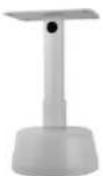
VT-MD/CMT
Mighty Dome
Pedestal Ceiling
Mount

VT-MD/CNMT
Mighty Dome
Corner Mount
Adapter
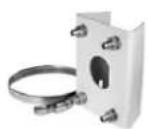
VT-MD/PLMT
Mighty Dome Pole
Mount Adapter

natural_image
Illustration of various screw and cable components including a T-shaped tool, threaded screw, coiled cable, and a VTEK CD (no text or symbols on diagrams)
VTD-MD-FMP
Mighty Dome Flush
Mount Decorator
Plate
4. Mighty Dome Layout

natural_image
Illustration of various medical or surgical tools including screws, clips, and a tool (no text or labels present)1) Lens
2) Power Input Connector(12VDC / 24VAC)
3) Ethernet RJ45
4) Camera Holder and 2nd Video output
5) Ball with the Camera Assembly
6) Safety Wire
7) Bubble
8) Dome Cover Ring
9) Flush Mount Base
10) Surface Mount Plate
11) Assembly Screws - Torx M4x9 (Vandalproof)
12) Assembly Screws - Phillips ST4x12 (Indoor) / Phillips M4x10 (Vandalproof / IR)
5. VTD-MV-VN / VTD-MV-VRN Installation
5.1. Attaching Dome to Mounting Location (Flush / Surface Mount)
1. Remove Dome Cover
Use the provided Torx wrench to unscrew the vandal proof screws and remove the dome cover.
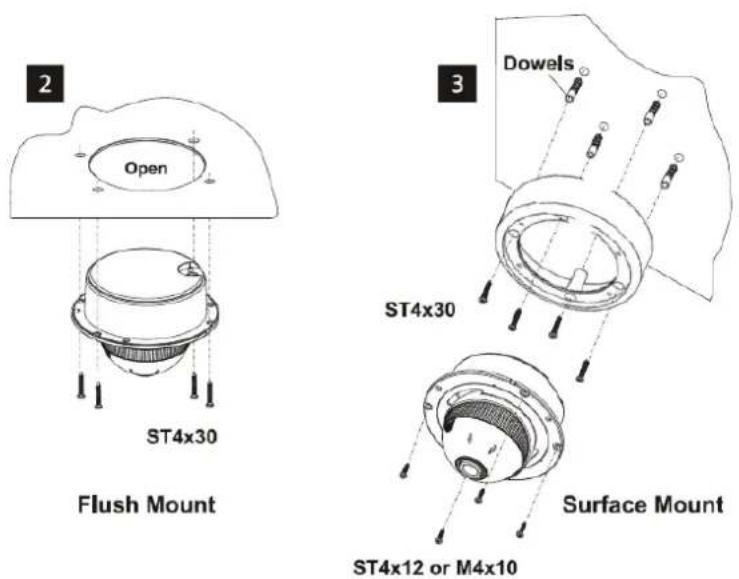
2. Flush Mount Installation
Using four St4x30 screws, attach the flush mount base to a sturdy surface. Optional flush mount decorator plate. Model: VT-MD
3. Surface Mount Installation
Drill pilot holes at the mounting location using the provided mounting template. Using four St4x30 screws, mount the surface mount housing to a sturdy surface. Using four ST4x12 (Indoor) screws or M4x10 (Vandal-proof) screws, attach the flush mount base to the surface mount housing.
text_image
2 Open ST4x30 Flush Mount 3 Dowels ST4x30 Surface Mount ST4x12 or M4x105.2. Junction Box Installation
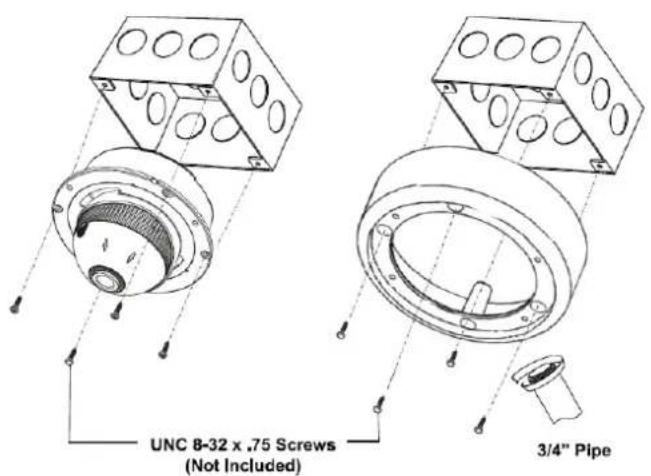
Mighty Domes can easily be flush or surface mounted to an electrical junction box (4S J-Box) using the pre-drilled mounting holes on either the surface mount housing or the flush mount base.
text_image
UNC 8-32 x .75 Screws (Not Included) 3/4" Pipe5.3. Connections
1. Power
Depending on the type of installations, apply power to the camera by one of the three options below.
a) Via Ethernet – Use only with POE switch (100 Meters max distance)
b) 12VDC - Use with 12VDC 500mA
c) 24VAC- Use with 24VAC for longer distances.
2. Ethernet connection
a) Insert one end of the Ethernet cable into the network jack of your camera, and insert the other end into the data port (samples switch, router, etc)

natural_image
Technical line drawing of a mechanical assembly with two components connected by a blue wire (no text or symbols)3. Remove the dome cover from the camera using the torx wrench

natural_image
Technical line drawing of a mechanical component with mounting holes and threaded fasteners (no text or symbols)4. Removable Storage
For recording directly on the camera you will need to install a microSD card, this will allow you to play video directly from the camera. (Please use only class 10 microSD cards)
a) Remove the ball gimbal from the socket, and hold the base firmly with one hand.
b) Gently squeeze point A and B and pull away from the gimbal base until the gimbal cover is removed from the base.
c) Insert the microSD memory card as shown below. (refer to Section 17.1 MicroSD Configuration on page 68 for instructions on Formatting)
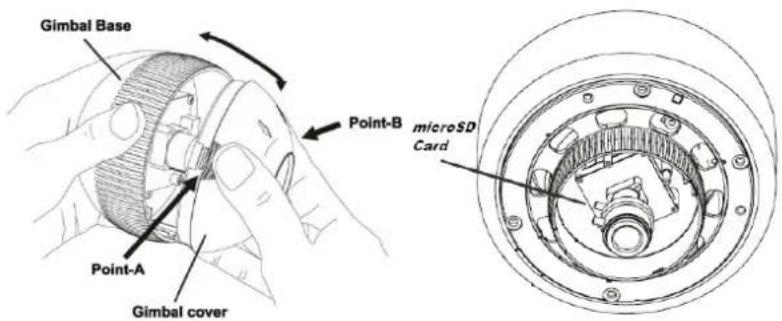
text_image
Gimbal Base Point-A Gimbal cover Point-B microSD Card- With the help of a hand held monitor (VTM-LCD351 not included) you can adjust the field of view and focus of the camera.
a) Connect the secondary video cable (VT-MD-2VOC) between the camera and the monitor BNC as shown below.
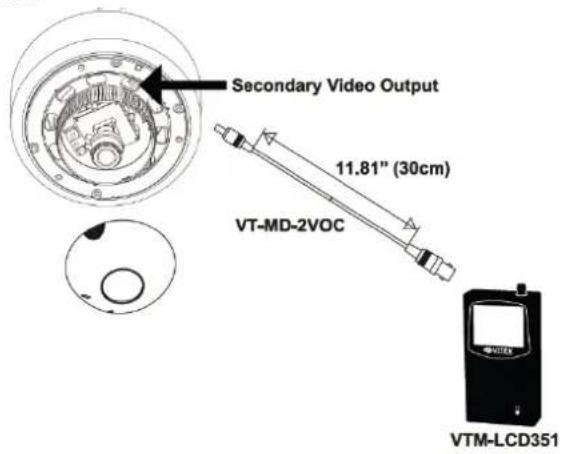
text_image
Secondary Video Output 11.81" (30cm) VT-MD-2VOC VTM-LCD351- Lens Adjustment
a) Loosen Zoom & Focus screw and make necessary adjustments as shown. Field of view: Telephoto(T) to Wide(W)
Focus: Near(N) to infinity ( )

text_image
Field of View Adjustment Field of View Focus 8 7 15b) Once your "Lens adjustments" are done, reattach the gimbal cover to the gimbal base.

natural_image
Diagram of a spherical object with textured surface and circular base (no text or symbols)7. Adjusting Camera View
The Gimbal mechanismyield's maximum rotation and placements to archive the perfect angle of view as show below.
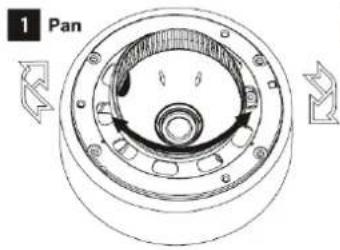
text_image
1 Pan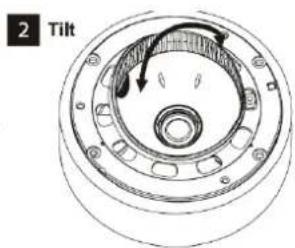
text_image
2 Tilt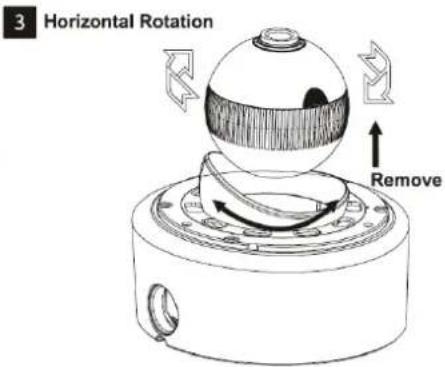
text_image
3 Horizontal Rotation Remove- After your camera and lens adjustments are done, place the dome cover back on to the camera base, with the help of the torx wrench tighten the screws on the dome cover to avoid weather damage to the camera.

natural_image
Technical line drawing of a mechanical component with mounting holes and a bracket (no text or symbols)6. Camera Software Installation
- Run IP Installer Software from the CD program on a computer that is on the same network as the IP camera.

- StartIP Installer, by double clicking the icon "IP Installer"
- After the program has started, the main window of IP Installer program will appear on the screen as shown below.

text_image
Filter: All Model MAC address IP address IP Ty... Server name HTTP port Version Status- Search for the installed camera on the network by clicking the search product icon, the camera should appear as the image below. The default IP address is 10.20.30.40

text_image
IP Installer (v3.0.6) Filter : All Model MAC address IP address IP Ty... Server name HTTP port Version Status VTD-13VN 1C7C45020083 10.0.0.50 static Network Video System 80 4.14-01-ds Success Please, wait for a while. (It depends on your network condition.) 16 % Cancel- To assign an automatic IP address to this camera within the network, click the "Automatic IP Setup" icon

text_image
IP Installer (v3.0.6) Filter : All Model MAC address IP address IP Ty... Server name HTTP port Vernian Status VTD-13VN 1C7C45020083 10.0.0.50 static Network Video System 80 4.14-01-ds Success- Verify the Automatic IP address provided, enter the default password root and then click Set as shown below.

text_image
Network Setup Mac Address 1C7C45020083 Server Name Network Video System HTTP Port 80 IP Type Static DHCP PPPoE Network IP Address 10 . 0 . 0 . 50 PPPoE User Netmask 255 . 255 . 255 . 0 PPPoE Password Default Gateway 10 . 0 . 0 . 1 PPPoE Password Confirm DNS1 168 . 126 . 63 . 1 DNS2 168 . 126 . 63 . 2 Wireless information Auth Mode Encryption None WEP TKIP AES WEP Mode KEY1 KEY2 KEY3 KEY4 WPAPSK Authentication Admin Password Save Configuration Option Save Configuration Not Saving Set Cancel- After the camera was configured by the program automatically, you will be able to get access by
a) Right click over the camera information, "Go Product Homepage"

text_image
IP Installer (v3.0.6) Filter : All Model MAC address IP address IP Ty... Server name VTD-13VN 1C7C45020083 10.0.0. Go Product Homepage Setup Product IP Ab) Click over the icon "Connect Product Homepage"

text_image
Filter : All B- From the Home Page, you can "Live View" or administrate "Admin" the camera.

text_image
Home | Live View | Admin IP Dual Streaming Digital Vision Enterprise Class VITEK INDUSTRIAL VIDEO PRODUCTS, INC. An Eye on Innovation.Model : VT-20VN-M, Firmware ver 4.16-B2-ds-VI Homepage ver 4.16-B2_VI for Network Video System
On Live View you will be able to see live video from your camera.

text_image
Home | Live View | Admin Channel 1 Channel 2 Air Channels New Channel Spread 18 Pixel Cell PCC Floor Photo Certificate Bathou (Bathou) Co- Ontario 2NOTE: For more information, refer to Section 11. ENVI Admin Menu on page 36.
7. VTD-MV-VN / VTD-MV-VRN Features
VTD-MV-VN
1.3 & 2.0 MegaPixel Vandal Proof Mighty Dome Cameras with PoE & Varifocal Lens
• 1/3" 1.3 & 2.0 Megapixel Progressive Scan CMOS image sensors
- Up to 30fps live view @ 1920x1080p (2.0 MegaPixel Models) / 1280x1024 (1.3 MegaPixel Models)
• 2.8-10mm Varifocal Auto Iris Lens
• 2D-DNR / 3D-DNR Noise Reduction
• 16:9 (2.0 MegaPixel Models) / 4:3 (1.3 MegaPixel Models) Video format
• Secondary video output for installation & maintenance
• Auto True Day Night (TDN) without focus shift is achieved with dual filter switch function
• H.264/MJPEG Dual Streaming
• Minimal Latency w/Max 16 User Connections
- Onvif PSIA Compliance
• SD memory card slot for Local recording
• True Mechanical Day/Night function
• Semi-Flush or Surface Mountable
• 3-Axis Mount to help achieve any Viewing Angle
• Fully Gasket Sealed with an IP68 Water tight NEMA Rating
- Extensive mounting options available
• 1" Conduit Knockout
• 12VDC/24VAC & PoE (Power over Ethernet) Operation
• Available in Ivory or Black
VTD-MV-VRN
1.3 & 2.0 MegaPixel Vandal Proof Mighty Dome Cameras with 35 IR LED Illumination
• 1/3" 1.3 & 2.0 Megapixel Progressive Scan CMOS image sensors
- Up to 30fps live view @ 1920x1080p (2.0 MegaPixel Models) / 1280x1024 (1.3 MegaPixel Models)
• 2.8-10mm Varifocal Auto Iris Lens
• 35 Infrared LED's with 120' Range
• 2D-DNR / 3D-DNR Noise Reduction
• 16:9 (2.0 MegaPixel Models) / 4:3 (1.3 MegaPixel Models) Video format
• Secondary video output for installation & maintenance
• Auto True Day Night (TDN) without focus shift is achieved with dual filter switch function
• H.264/MJPEG Dual Streaming
• Minimal Latency w/Max 16 User Connections
- Onvif PSIA Compliance
• SD memory card slot for Local recording
• True Mechanical Day/Night function
• 3-Axis Mount to help achieve any Viewing Angle
• Fully Gasket Sealed with an IP68 Water tight NEMA Rating
- Extensive mounting options available
• 1" Conduit Knockout
• 12VDC/24VAC & PoE (Power over Ethernet) Operation
• Available in Ivory or Black
8. IP Installer: Introduction
IP Installer is a proprietary utility program for VitekIP products. It enables users of Vitek products to search their network for any Vitek network camera, video server, or network video recorder no matter what IP address it has. By using IP Installer, users will be able to facilitate network setup process for Vitek products deployment.
• Runs on Microsoft Windows operating system (XP, Vista, 7, 8)
• Search for Network Cameras, Video Servers, and Network Video Recorders
• Capable of firmware updating
• Support automatic and manual IP setup
9. Installing and Uninstalling
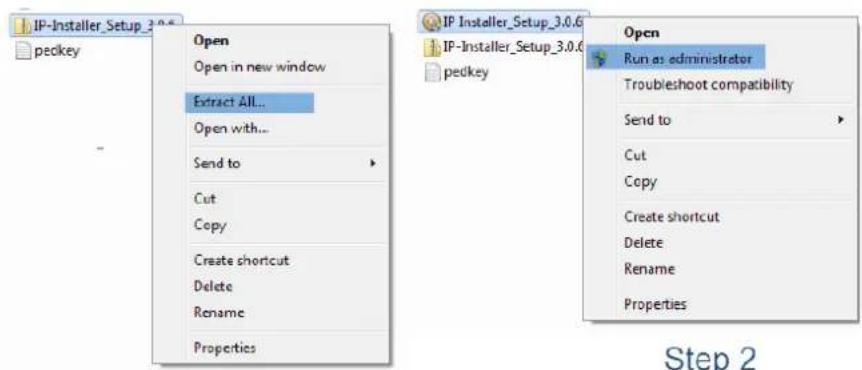
** It's recommended to install this program as an administrator **
text_image
IP-Installer_Setup_3.0.6 pedkey Open Open in new window Extract All... Open with... Send to Cut Copy Create shortcut Delete Rename Properties IP Installer_Setup_3.0.6 IP-Installer_Setup_3.0.6 pedkey Open Run as administrator Troubleshoot compatibility Send to Cut Copy Create shortcut Delete Rename Properties Step 2Step 1
Step 2
9.1. Installing IP Installer
If the program is started from the CD supplied with Vitek products, insert the CD in to CD/DVD tray and check the installation file. If it is download or copied from the Internet or any other media, locate the file from the PC's hard drive. You will see the icon as shown with the file name IP Installer_Setup_x.x.x.exe. The actual file name in your case may vary as the version changes. Double click the icon to star installation.

You may be prompted to continue running the installation program.

text_image
User Account Control Do you want to allow the following program from an unknown publisher to make changes to this computer? Program name: IP Installer_Setup_3.0.6.exe Publisher: Unknown File origin: Hard drive on this computer Show details Yes No Change when these notifications appearClick Yes button, then the following window will be shown on the screen.

text_image
IP Installer 3.0.6 Setup Welcome to the IP Installer 3.0.6 Setup Wizard This wizard will guide you through the installation of IP Installer 3.0.6. It is recommended that you close all other applications before starting Setup. This will make it possible to update relevant system files without having to reboot your computer. Click Next to continue. Next > CancelTo continue the installation, click Next. The following window will be displayed for location to install.

text_image
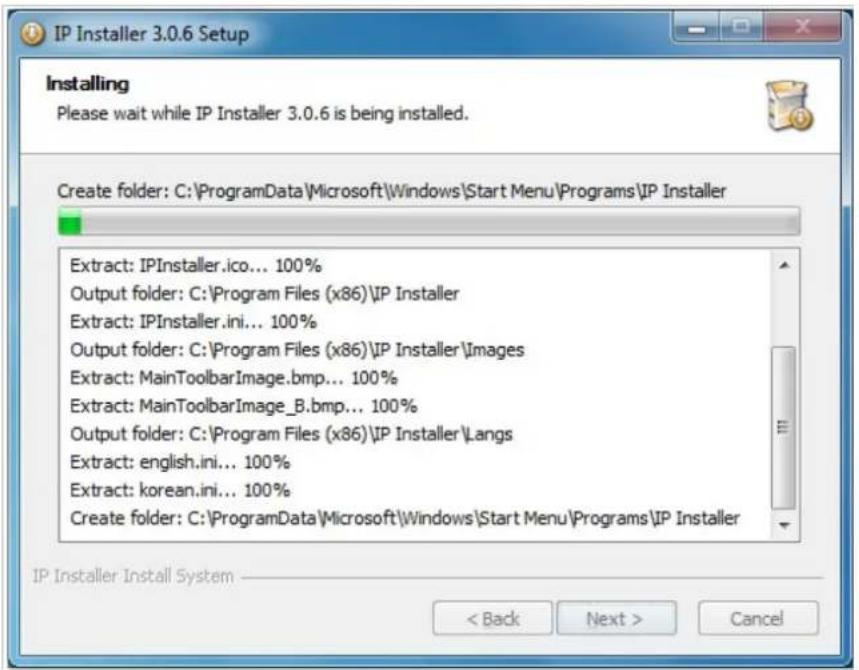
IP Installer 3.0.6 Setup Choose Install Location Choose the folder in which to install IP Installer 3.0.6. Setup will install IP Installer 3.0.6 in the following folder. To install in a different folder, click Browse and select another folder. Click Install to start the installation. Destination Folder C:Program Files IP Installer Browse... Space required: 2.2MB Space available: 142.9GB IP Installer Install System < Back Install CancelThe default location for installation is C:\Program Files\IP Installer. It is recommended to install in this folder, if you want to change it to a different location, click the Browse button to choose location. Now click the Install button. You will see the progress of the install as shown below.
text_image
IP Installer 3.0.6 Setup Installing Please wait while IP Installer 3.0.6 is being installed. Create folder: C:\ProgramData\Microsoft\Windows\Start Menu\Programs\IP Installer Extract: IPInstaller.ico... 100% Output folder: C:\Program Files (x86)\IP Installer Extract: IPInstaller.ini... 100% Output folder: C:\Program Files (x86)\IP Installer\Images Extract: MainToolbarImage.bmp... 100% Extract: MainToolbarImage_B.bmp... 100% Output folder: C:\Program Files (x86)\IP Installer\Langs Extract: english.ini... 100% Extract: korean.ini... 100% Create folder: C:\ProgramData\Microsoft\Windows\Start Menu\Programs\IP Installer IP Installer Install System < Back Next > CancelWhen the files are done copying, the following window will be shown. Click the Finish button to complete the installation.
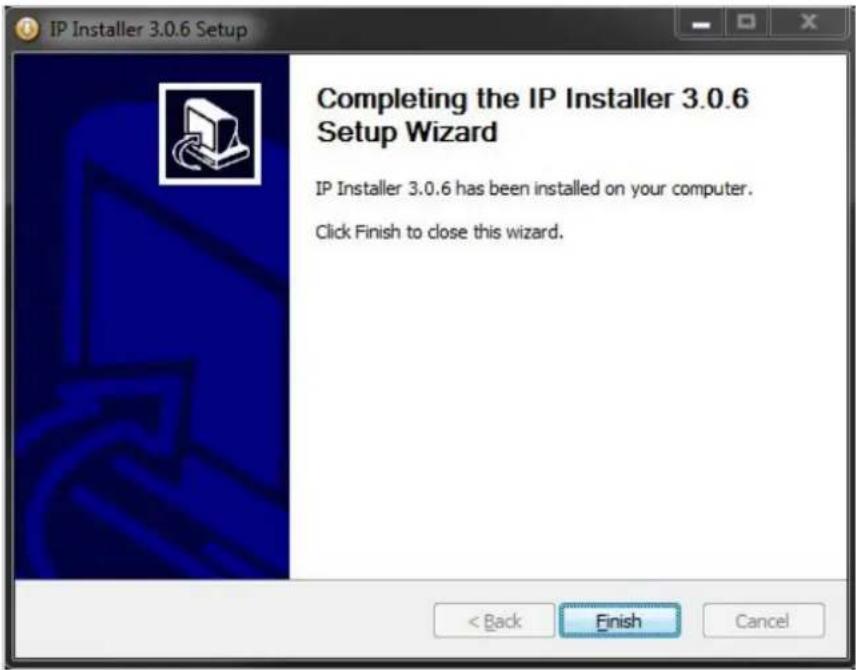
text_image
IP Installer 3.0.6 Setup Completing the IP Installer 3.0.6 Setup Wizard IP Installer 3.0.6 has been installed on your computer. Click Finish to close this wizard.9.2. Uninstalling IPI installer
If you want to remove the IP Installer program from your PC, click Start > All Programs > IP Installer > Uninstall.

text_image
IP Installer IP Installer UninstallYou may be prompt to continue running the uninstall program.

text_image
User Account Control Do you want to allow the following program from an unknown publisher to make changes to this computer? Program name: uninst.exe Publisher: Unknown File origin: Hard drive on this computer Show details Yes No Change when these notifications appearClick on the Yes button, then the following window will be shown on the screen.
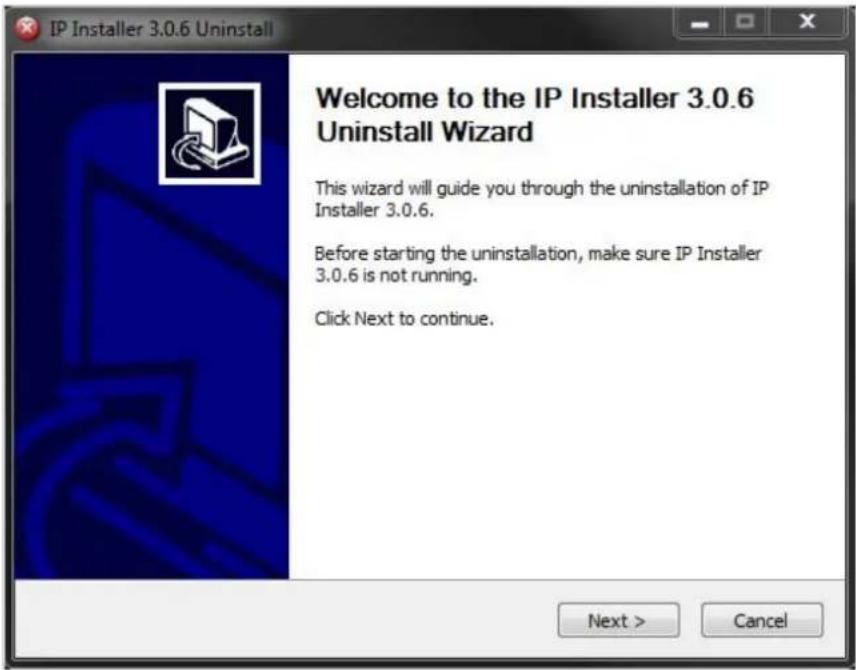
text_image
IP Installer 3.0.6 Uninstall Welcome to the IP Installer 3.0.6 Uninstall Wizard This wizard will guide you through the uninstallation of IP Installer 3.0.6. Before starting the uninstallation, make sure IP Installer 3.0.6 is not running. Click Next to continue. Next > CancelClick on the Next button and you will see the following window.
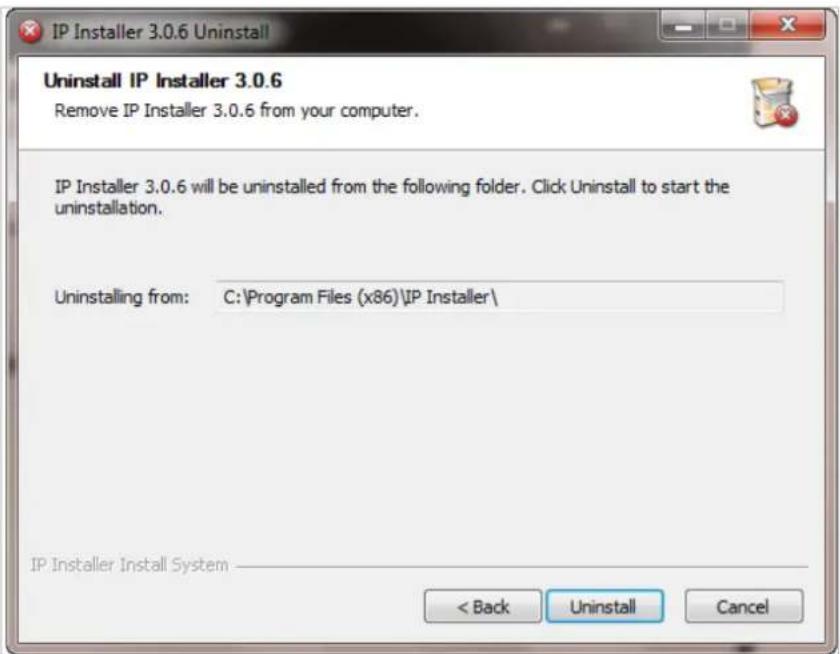
text_image
IP Installer 3.0.6 Uninstall Uninstall IP Installer 3.0.6 Remove IP Installer 3.0.6 from your computer. IP Installer 3.0.6 will be uninstalled from the following folder. Click Uninstall to start the uninstallation. Uninstalling from: C:\Program Files (x86)\IP Installer\ IP Installer Install System < Back Uninstall CancelClick on the Uninstall button to start removing the IP Installer program from your computer. The following window will be displayed.

text_image
IP Installer 3.0.6 Setup Installing Please wait while IP Installer 3.0.6 is being installed. Create folder: C:\ProgramData\Microsoft\Windows\Start Menu\Programs\IP Installer Extract: IPInstaller.ico... 100% Output folder: C:\Program Files (x86)\IP Installer Extract: IPInstaller.ini... 100% Output folder: C:\Program Files (x86)\IP Installer\Images Extract: MainToolbarImage.bmp... 100% Extract: MainToolbarImage_B.bmp... 100% Output folder: C:\Program Files (x86)\IP Installer\Langs Extract: english.ini... 100% Extract: korean.ini... 100% Create folder: C:\ProgramData\Microsoft\Windows\Start Menu\Programs\IP Installer IP Installer Install System < Back Next > CancelClick on the Finish button to close the window
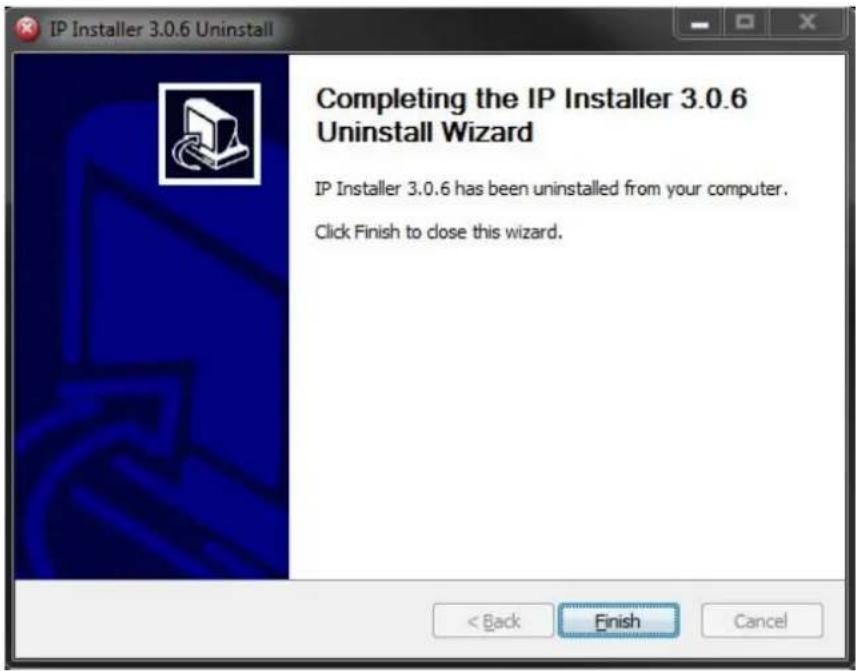
text_image
IP Installer 3.0.6 Uninstall Completing the IP Installer 3.0.6 Uninstall Wizard IP Installer 3.0.6 has been uninstalled from your computer. Click Finish to close this wizard.10. Using IP Installer
10.1. Starting the Program

Once IP Installer program has been installed on your computer, a shortcut icon should be created on the desktop of your computer. You can start IP Installer by double clicking the icon.
Or you can also start the program by clicking Start > All Programs > IP Installer > IP Installer as shown below.

text_image
IP Installer IP Installer UninstallAfter the program has started, the main window of IP Installer program will appear on the screen as shown below. There are no network devices shown, as it is the first time running the program and nothing has been registered.

text_image
IP Installer (v3.0.6) Filter : All Model MAC address IP address IP Ty... Server name HTTP port Version Status| Search Product | Scan the network and shows the list of all the Vitek products that IP Installer program found. | |
| Clear Product List | Clear the Vitek products list created by searching the network. | |
| Automatic IP Setup | Configure the network setting of selected IP device in Automatic mode. | |
| Manual IP Setup | Configure the network setting of selected IP device in Manual mode. | |
| Connect Product Homepage | Connect to the server homepage of the selected IP device. | |
| Update Firmware | Update the firmware of the selected IP device. | |
| Filter Configuration | Define the range of MAC and IP addresses to search. |
10.2. Search Product

Make sure that your Vitek products are powered and connected to the network, and then click the Search Product button. A status window will pop up to show the progress of the search. Wait until it reaches 100%, or you may press the Cancel button to stop the at any given time and proceed with the results made until that moment.

text_image
IP Installer (v3.0.6) Filter : All Model MAC address IP address P Ty... Server name HITTP port Version Status VTD-13VN 1C7C45020083 10.0.0.50 static Network Video System 80 4.14-01-ds Success VTC-IR402 1C7C45050040 10.0.0.40 static Network Video System 80 4.16-B0-ds-VI Success Please, wait for a while. (It depends on your network condition.) 18% CancelAfter searching is completed 100%, the IP Installer program will display the IP devices found.

If you want to clear the list of the IP Devices from the window, click Clear Product List button from the Main Toolbar.
10.3. Manual Network Setup

Configuring the network parameters of the devices in the list can be started either by highlighting and right clickingmouse button or by clicking Manual IP Setupbutton on the main Toolbar.

text_image
IP Installer (v3.0.6) Filter : All Model MAC address IP address IP Ty... Server name HTTP port Version Status VTD-13VN 1C7C45020083 10.0.0.50 Go Product Homepage Video System 80 4.14-01-ds Success VTC-IR402 1C7C45050040 Setup Product IP Video System 80 4.16-B0-ds-VI SuccessWhen one IP device is selected, the following screen will appear
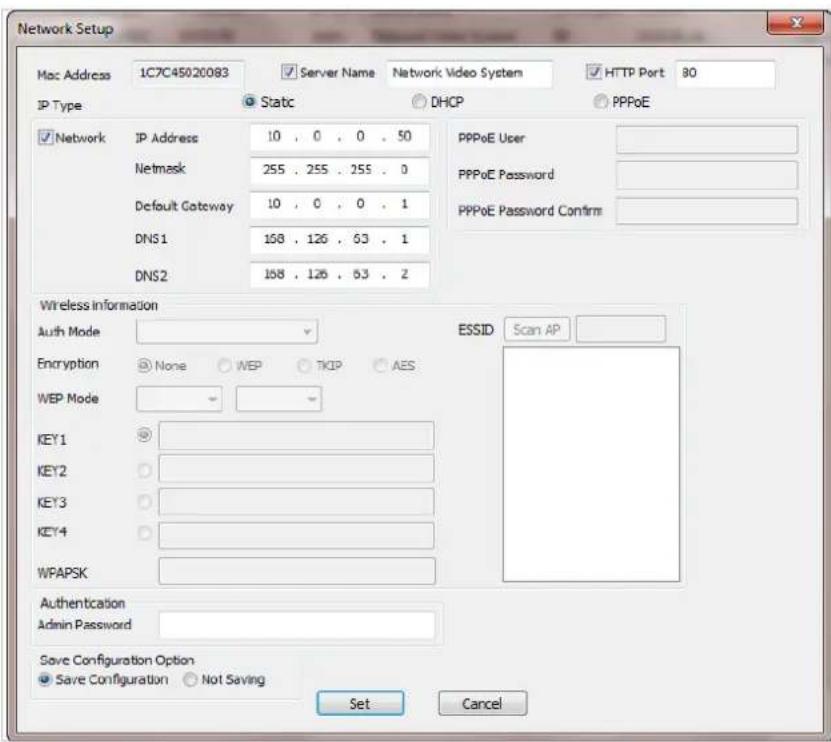
text_image
Network Setup Mac Address 1C7C45020083 Server Name Network Video System HTTP Port 80 IP Type Static DHCP PPPoE Network IP Address 10 . 0 . 0 . 50 PPPoE User Netmask 255 . 255 . 255 . 0 PPPoE Password Default Gateway 10 . 0 . 0 . 1 PPPoE Password Confirm DNS1 158 . 126 . 63 . 1 DNS2 158 . 126 . 63 . 2 Wireless information Auth Mode Encryption None WEP TKIP AES ESSID Scan AP WEP Mode KEY1 KEY2 KEY3 KEY4 WPAPSK Authentication Admin Password Save Configuration Option Save Configuration Not Saving Set Cancel| MAC Address MAC address of the selected device is shown. | |
| Server Name | Input desired name of camera i.e. Lunch Room |
| HTTP Port | Input port number to access IP devices homepage via web. Default port is 80 |
| IP Type | Select the type of address (Static / DHCP / PPPoE) Use STATIC for manual IP setup |
| Network | General network parameters are required in this part. Please contact your network administrator for detail.(IP Address, Netmask, Default Gateway, DNS1, DNS2) |
| Authentication (Admin Password) | Password for the IP device.(Default password for Vitek products is “root” unless already changed) |
| Save Configuration Option | Select whether the configured contents is to be saved in the Camera memory or not.Save Configuration: Changed values will be saved in the Camera memory of the device, which means the changes are permanent.Not Saving: Changed values will not be saved in the Camera memory, which means if the IP device is turned off the changes are lost and the previous setting will be applied back. |
Click Set button to apply the changed values to IP device. If you don't want it, click Cancel button.
When two or more IP devices are selected
You can select two or more IP devices at the same time by clicking one after another while CTRL key is pressed. The result is shown as below.
To configure the network parameters of those devices, click the right mouse button or click
Manual IP Setup icon on the main Toolbar with multiple IP devices selected as shown above.
Then the following window will show up.
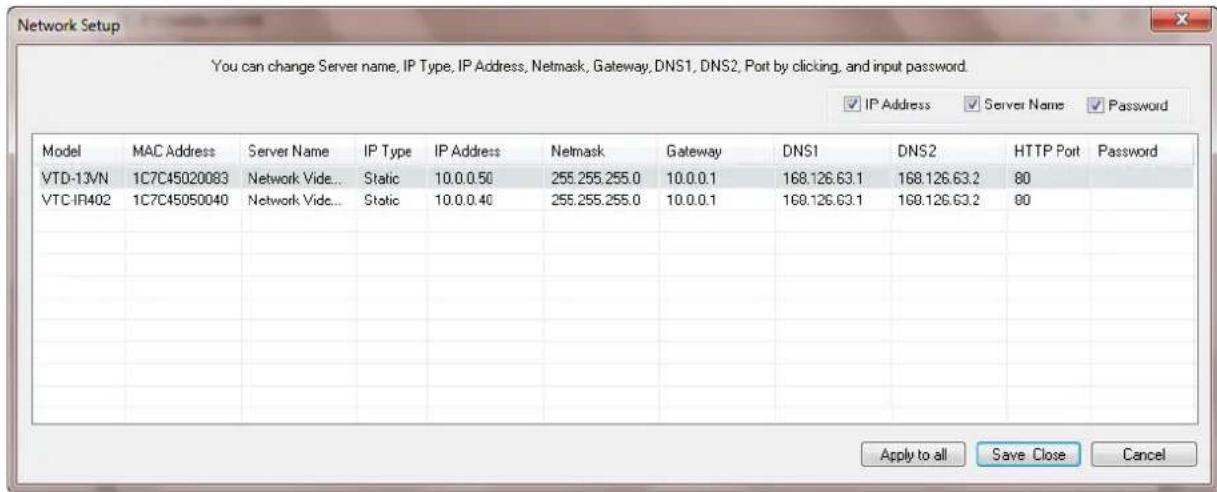
text_image
Network Setup You can change Server name, IP Type, IP Address, Netmask, Gateway, DNS1, DNS2, Port by clicking, and input password. IP Address Server Name Password Model MAC Address Server Name IP Type IP Address Netmask Gateway DNS1 DNS2 HTTP Port Password VTD-13VN 1C7C45020083 Network Vide... Static 10.0.0.50 255.255.255.0 10.0.0.1 168.126.63.1 168.126.63.2 80 VTC-IR402 1C7C45050040 Network Vide... Static 10.0.0.40 255.255.255.0 10.0.0.1 169.126.63.1 169.126.63.2 80 Apply to all Save Close CancelYou can modify the value of each changeable field by clicking it. The following shows an example of entering a new value to a field.

text_image
Network Setup You can change Server name, IP Type, IP Address, Netmask, Gateway, DNS1, DNS2, Port by clicking, and input password IP Address Server Name Password Model MAC Address Server Name IP Type IP Address Netmask Gateway DNS1 DNS2 HTTP Port Password VTD-13VN 1C7C45020083 Network Vide... Static 10.0.0.50 255.255.255.0 10.0.0.1 168.126.63.1 168.126.63.2 80 VTC-IR402 1C7C45050040 Network Vide... Static 10.0.0.40 255.255.255.0 10.0.0.1 168.126.63.1 168.126.63.2 80 Apply to all Save Close Cancel| Model | Model Numbers of the IP devices that you selected. |
| MAC Address | MAC address of the selected device is shown. |
| Server Name | Name of the selected IP device. |
| IP Type | How to assign IP address to the device (Select Static here for Manual IP Setup) |
| IP address, Netmask, Gateway, DNS1, DNS2 | General network parameters are required in this part. Please contact your network administrator for detail. |
| HTTP Port | HTTP port number of the IP device for web access to homepage. |
| Password | Password for the IP device.(Default password for Vitek products is “root”) |
If you click Apply to all button after changing just a field of one IP device, the remaining IP devices will have the same value for that parameter. In this case, each device's Server name and IP Address field will have +1 incremented value added to the original value. For example, if the first IP device has been given the server name of NetCam and Apply to all button is pressed, it will be automatically changed to NetCam1 and the next IP device will have NetCam2 and so on. The same applies to the IP address field.
For Password field, the entered information doesn't increment but will use the same data.
In using Apply to all, you can choose which field is affected. Put check marks only on the field you want to use this automatic action as below.
IP Address
Server Name
Password
Click Save & Close button to save the changed values in the camera memory of all the IP devices and close the Network setup window.
10.4. Automatic Network Setup

Configuring the network parameters of the devices in the list can be started either by clicking right mouse button or by clicking Automatic IP Setupbutton on the main
Toolbar. Before starting the setup, you first need to choose the one to be configured. In this setup mode, IP Installer program checks your local network and assigns available IP addresses to the IP devices. You have a choice of using those automatically assigned IP addresses, or you can just enter other IP addresses as you desire.
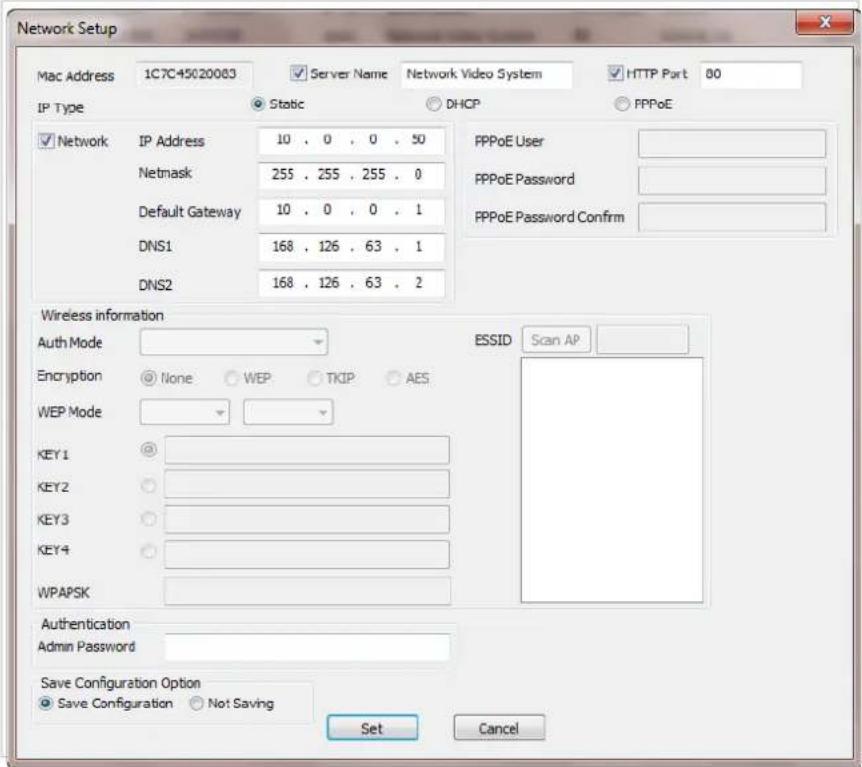
text_image
Network Setup Mac Address 1C7C+5020083 Server Name Network Video System HTTP Part 80 IP Type Static DHCP PPPoE Network IP Address 10 . 0 . 0 . 50 Netmask 255 . 255 . 255 . 0 Default Gateway 10 . 0 . 0 . 1 DNS1 168 . 126 . 63 . 1 DNS2 168 . 126 . 63 . 2 Wireless information Auth Mode Encryption None WEP TKIP AES WEP Mode KEY1 KEY2 KEY3 KEY4 WPAPSK Authentication Admin Password Save Configuration Option Save Configuration Not Saving Set Cancel| Server Name Name of the selected IP device. | |
| HTTP Port | HTTP port number of the IP device for web access to homepage. |
| IP Type | How to assign IP address to the device (Select Static here for Manual IP Setup) |
| Network | General network parameters are required in this part. Please contact your network administrator for detail. (IP Address, Netmask, Default Gateway, DNS1, DNS2) |
| Authentication (Admin Password) | Password for the IP device. (Default password for Vitek products is “root”) |
| Save Configuration Option | Select whether the configured contents is to be saved in the Camera memory or not.Save Configuration: Changed values will be saved in the Camera memory of the device, which means the changes are permanent.Not Saving: Changed values will not be saved in the Camera memory, which means if the IP device is turned off the changes are lost and the previous setting will be applied back. |
Click Set button to apply the changed values to IP device. If you don't want it, click Cancel button to restore the previous values.
Note: If your network has more than one IP address Zone at the same time, the confirmation window will be displayed as below. You need to choose the one you are going to use for your IP devices.
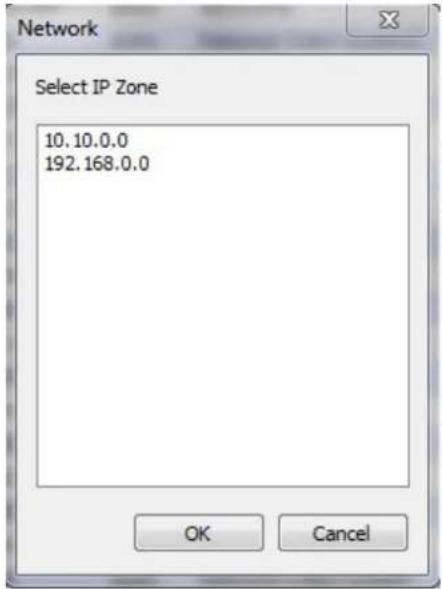
text_image
Network Select IP Zone 10.10.0.0 192.168.0.0 OK Cancel10.5. Using DHCP Server
If your network has a DHCP server running for assigning IP addresses, you may choose to let it assign IP addresses to the IP devices on the list. To do that, first open the Network Setup window either by Manual IP Setup or Automatic IP Setup procedure. Choose DHCP in "IP Type" selection, then IP Address, Netmask, Default Gateway field in Network setup area on the window will be disabled to input as shown below.

text_image
Network Setup Mac Address 1C7C45020083 Server Name Network Video System HTTP Port 80 IP Type Static DHCP PPPoE Network IP Address 10 . 0 . 0 . 50 Netmask 255 . 255 . 255 . 0 Default Gateway 10 . 0 . 0 . 1 DNS1 168 . 126 . 63 . 1 DNS2 168 . 126 . 63 . 2 PPPoE User PPPoE Password PPPoE Password Confirm Wireless information Auth Mode Encryption None WEP TKIP AES WEP Mode KEY1 KEY2 KEY3 KEY4 WPAPSK Authentication Admin Password Save Configuration Option Save Configuration Not Saving Set CancelFor setting up other fields on the setup window, refer to Section 10.3 Manual Network Setup on page 24. After filling the fields with appropriate values, click Set button to apply the changed values to IP device. If you don't want it, click Cancel button to restore the previous values.
10.6. Using PPPoE
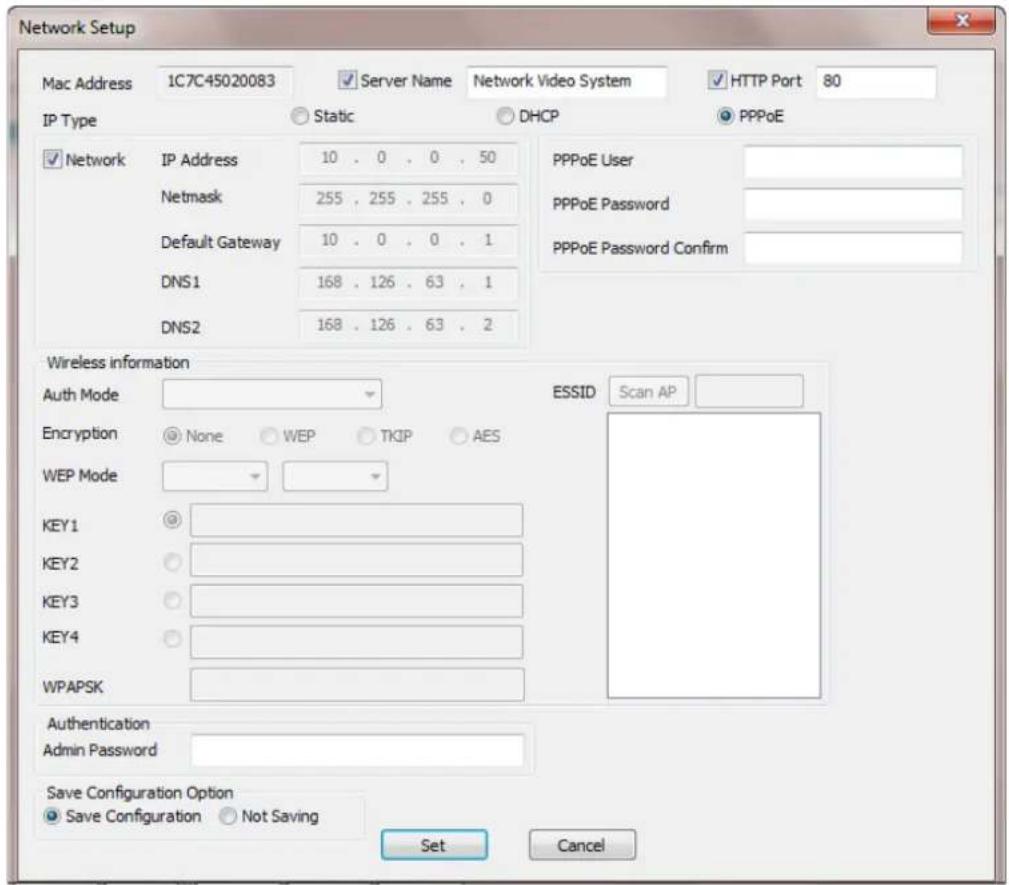
If your network environment is based on PPPoE connection, you'll need to choose PPPoE on IP Type selection. First open the Network Setup window either by Manual IP Setup or Automatic IP Setup procedure. Choose PPPoE in IP Type selection, and then all the fields in Network setup area on the window will be disabled. The network settings such as IP Address, Netmask, Default Gateway and DNS are no longer available to enter. You only need to enter the Server Name, HTTP Port number, and login authentication for your PPPoE connection.
text_image
Network Setup Mac Address 1C7C45020083 Server Name Network Video System HTTP Port 80 IP Type Static DHCP PPPoE Network IP Address 10 . 0 . 0 . 50 PPPoE User Netmask 255 . 255 . 255 . 0 PPPoE Password Default Gateway 10 . 0 . 0 . 1 PPPoE Password Confirm DNS1 168 . 126 . 63 . 1 DNS2 168 . 126 . 63 . 2 Wireless information Auth Mode Encryption None WEP TKIP AES ESSID Scan AP WEP Mode KEY1 KEY2 KEY3 KEY4 WPAPSK Authentication Admin Password Save Configuration Option Save Configuration Not Saving Set CancelMAC Address MAC address of the selected device is shown.
Server Name Name of the selected IP device.
| HTTP Port | HTTP port number of the IP device for web access to homepage. |
| IP Type | How to assign IP address to the device (Select PPPoE in this mode) |
| PPPoE | User Authentication for PPPoE Connection.PPPoE User: Enter User ID.PPPoE Password: Enter Password for the User ID.PPPoE Password Confirm: Enter the same Password again. |
| Authentication (Admin Password) | Password for the IP device.(Default password for Vitek products is “root” unless already changed) |
| Save Configuration Option | Select whether the configured contents is to be saved in the Camera memory or not.Save Configuration: Changed values will be saved in the Camera memory of the device, which means the changes are permanent.Not Saving: Changed values will not be saved in the Camera memory, which means if the IP device is turned off the changes are lost and the previous setting will be applied back. |
Note: After setting up the network for the IP devices, make sure the IP devices are accessible on the network from your computer. It can be done by running Live View function of the homepage of the IP device's built-in server. Refer to Section 10.9Live View on page 34 for more information.
10.7. Updating Firmware
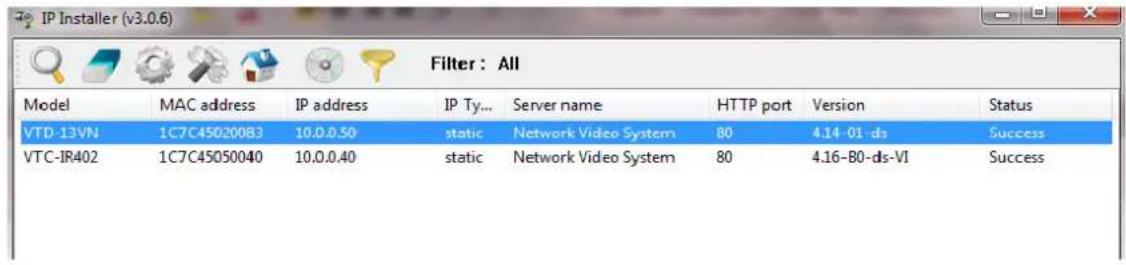
Once IP devices are searched and shown on the screen as functioning successfully, you can update the firmware of them in IP Installer program. To do that, first check the firmware version of the device, which you can find on the IP Installer window.
text_image
IP Installer (v3.0.6) Filter: All Model MAC address IP address IP Ty... Server name HTTP portväss Status VTD-13VN 1C7C450200B3 10.0.0.50 static Network Video System 80 4.14-01-ds Success VTC-JR402 1C7C45050040 10.0.0.40 static Network Video System 80 4.16-B0-ds-VI Success
In the above picture, the firmware version of this product is 4.14-01-ds while the latest firmware version available is 4.16-B0-ds-VI as you could see at Vitek's homepage (http://www.vitekcctv.com/Downloads.asp). If you decide to update the firmware, first
create a folder on your computer for the update firmware, than download the latest firmware to that folder.
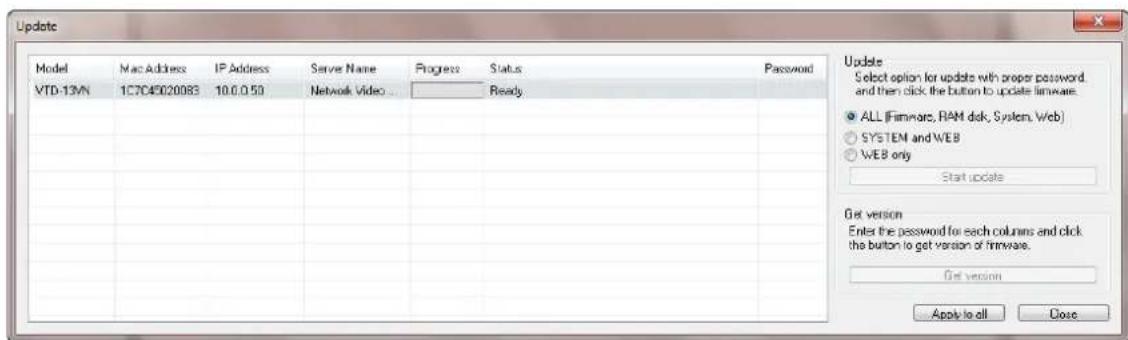
Then select the IP device to be updated on IP Installer window, then click Update Firmware button from the toolbar. The following window will be displayed.
text_image
Update Model Mac Address IP Address Server Name Progress Status Password VTD-13M 1C7045020083 10.0.0.50 Network Video Ready Update Select option for update with proper password and then click the button to update lineware. ● ALL (Firmware, RAM disk, System, Web) ○ SYSTEM and WEB ○ WEB only Start update Get version Enter the password for each columns and click the button to get version of firmware. Get version Apply to all CloseYou may find the Password field is empty on the window shown above. If so, click the Password field of the IP device and enter the proper password for the device. You are not allowed to update the firmware if the correct password is not provided.
After the password is entered, the Start Update button will be enabled now. Click the button to see the following window for selecting the folder where the file has been saved. Highlight the folder than clickOK.

text_image
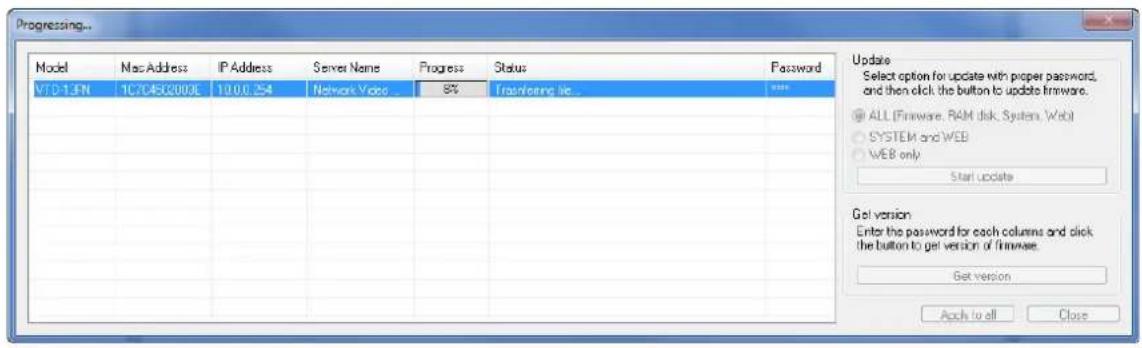
Browse for Folder Select firmware folder Computer Local Disk (C:) Local Disk (D:) DVD/CD-RW Drive (E:) 300.125 DM36x(E) Oxford pt V4.12-06 4.16-B0-ds-VI OK CancelAfter clicking OK the following window will be displayed.
text_image
Progressing... Model Mac Address IP Address Server Name Progress Status Password VTD-1.PN 1C704502003E 10.0.0.254 Network Video 8% Frasibility tie ... Update Select option for update with proper password, and then click the button to update firmware. ALL (Firmware, RAM disk, System, Web) SYSTEM and WEB WEB only Start update Get version Enter the password for each columns and click the button to get version of firmware. Get version Apply to all CloseNote: Do not CLOSE window until completed, to avoid permanent damage to the camera.
You can also select multiple IP devices at the same time, and have them start firmware updating in a single step. Select the files to update by holding CTRL key and selecting which IP devices to update
Click Start Update button. You will see the update window brought up with multiple IP devices listed.
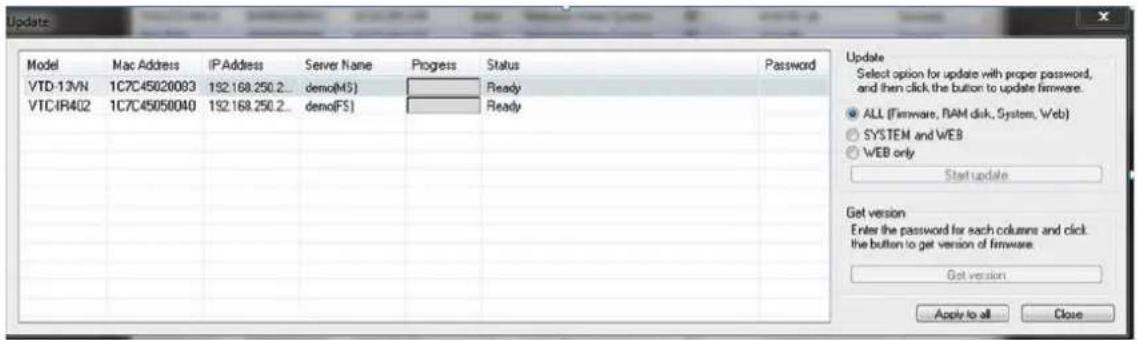
text_image
Update Model Mac Address IP Address Server Name Progress Status Password VTD-13VN 1C7C45020083 192.168.250.2 demo(M3) Ready VTC-IR402 1C7C45050040 192.168.250.2 demo(FS) Ready Start update Get version Enter the password for each column and click the button to get version of firmware. Get version Apply to all Close Update Select option for update with proper password, and then click the button to update firmware. ● ALL (Firmware, RAM disk, System, Web) ○ SYSTEM and WEB ○ WEB only Start updateThe rest of the procedure is the same as in the firmware update case for a single IP device.
10.8. Filter Configuration

When you need to search only for the IP device having a specific range of MAC or IP addresses, you can do it by using this feature. To set the search condition, click Filter Configuration button on the Toolbar, then the following window will show up on the
screen.
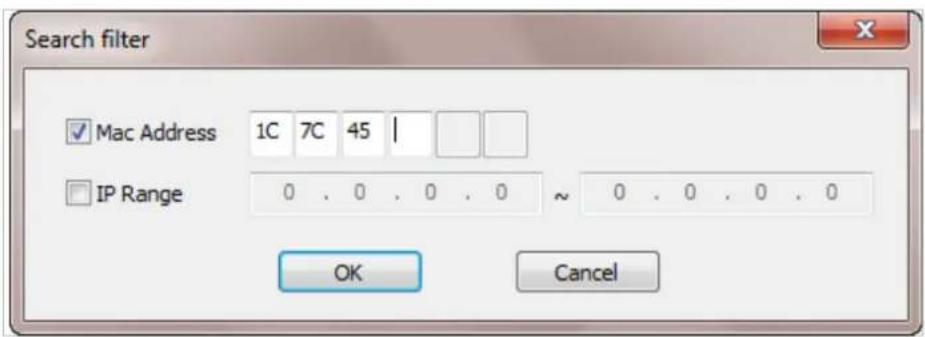
text_image
Search filter Mac Address 1C 7C 45 | IP Range 0 . 0 . 0 . 0 ~ 0 . 0 . 0 . 0 OK CancelThe first six HEX characters are already filled in with 1C:7C:45, which is the MAC prefix for Vitekproducts. Put a checkmark inMAC Address or IP Range to set the range for searching. You can set the range of IP addresses to scan as shown below. In this example, all the IP devices having MAC address starting with 1C:7C:45 will be listed on the result window after scanning.
Or you can look for a single IP device having a specific IP address as below.
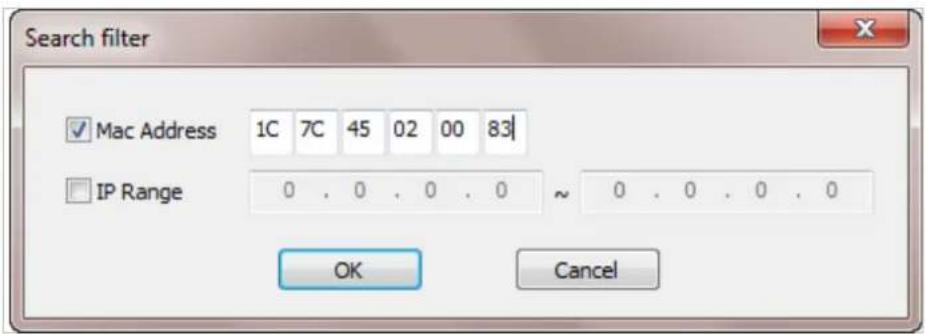
text_image
Search filter Mac Address 1C 7C 45 02 00 83 IP Range 0 . 0 . 0 . 0 ~ 0 . 0 . 0 . 0 OK CancelIP Address range for searching can be entered as follows.
You may even set both MAC Address and IP Range together at the same time.
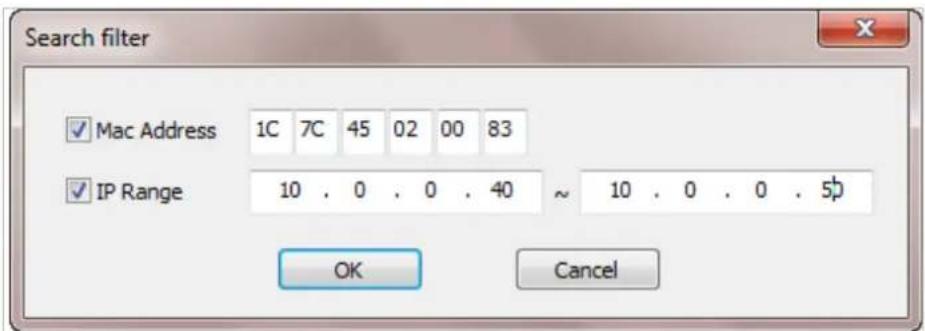
text_image
Search filter ✓ Mac Address 1C 7C 45 02 00 83 ✓ IP Range 10 . 0 . 0 . 40 ~ 10 . 0 . 0 . 50 OK CancelAfter setting the searching range as explained above, click OK button. Then IP Installer program
window will show the searching range on the top right portion of the window as shown below.

text_image
IP Installer (v3.0.6) Filter : Mac[1C7C45020083] IP[10.0.0.40-10.0.0.50] Model MAC address IP address IP Ty... Server name HTTP port Version Status VTD-13VN 1C7C45020083 10.0.0.50 static Network Video System 80 4.14-01-ds Success VTC-IR402 1C7C45050040 10.0.0.40 static Network Video System 80 4.16-B0-ds-VI Success
To start searching with this condition now, click Search Product button on the toolbar. The program will start searching and show the result after a moment.
10.9. Live View
Once searching and configuration on IP devices are done, you should make sure that the IP devices are accessible with the new settings. The best way to do it is by connecting to the homepage of each IP device's built-in server, and starting Live View feature.
Select Go Product Homepage when you click the rightmouse button on the IP device to test.

text_image
IP Installer (v3.0.6) Filter : Mac[1C7C45020083] IP[10.0.0.40-10.0.0.50] Model MAC address IP address IP Ty... Server name HTTP port Version Status VTD-13VN 1C7C45020083 10.0.0.50 static Network Video System 80 4.14-01-ds Success VTC-IR402 1C7C45050040 10.0.0.40 Go Product Homepage m 80 4.16-B0-ds-VI Success Setup Product IP
If you select Go Product Homepage, the homepage of that device's built-in server will be opened on a new Web browser window as shown below. This is the same result when you click Connect Product Homepage button from the Main Toolbar.
Home | Live View | Admin

text_image
VITEK INDUSTRIAL VIDEO PRODUCTS, INC. An Eye on Innovation.Model : VTD-13VN, Firmware ver 4.14-01-ds
Homepage ver 4.14-01_VI for Network Video System
Click Live View on the top right of the window, then ENVI Series Viewer ActiveX program will be started. If you have not installed the ENVI Series Viewer program before, it will ask for a confirmation to install it. Allow it and you will be able to find out whether the configuration by IP Installer program is properly done.
Note: Refer to Section 19. ENVI Series Viewer on page 79 for detailed information about the ENVI Series Viewer ActiveX program.
11. ENVI Admin Menu
After connecting to a VITEKENVI Series camera via web browser, you'll find the web page as shown below. The upper rightmost item of the menu is Admin; this is where you can set up most of the features in the VITEK camera you're connected to.

text_image
Home | Live View | Admin IP Dual Streaming Digital zoom Enterprise Class PoE VITEK INDUSTRIAL VIDEO PRODUCTS, INC. An Eye on Innovation.Model : VTD-13FN, Firmware ver 4.14-01-ds Homepage ver 4.14-01_VI for Network Video System
11.1. EnteringAdmin Menu
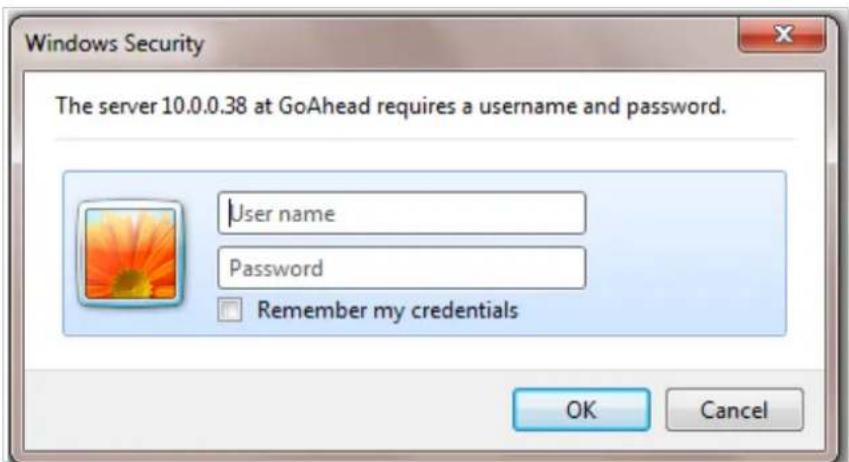
Click Admin then you'll see a login window. In the login window, enter root for both ID and password as they are the factory defaults. Press Enter key or click OK.
text_image
Windows Security The server 10.0.0.38 at GoAhead requires a username and password. User name Password Remember my credentials OK CancelNow the Admin Menu will be displayed as shown below. This will guide you to the top level menu items, which are Quick, System, Network, Device, Advanced, Recording, and Utilities. Clicking any of these top level menu items will display submenu items and brief descriptions.

text_image
Network Video System - Administration - Windows Internet Explorer http://10.0.0.253/admin/aindex.asp Quick Configuration Step 1 Step 2 Step 3 Step 4 Step 5 Finish System Configuration Network Configuration Device Configuration Advanced Configuration Recording Configuration Utilities Quick Configuration This category shows the detailed method for Quick Configuration. Step 1 Configuration of Network Video System name. Step 2 Configuration of Network Video System Date & Time. Step 3 Configuration of Network(IP,Netmask,Gateway,DNS). Step 4 Configuration of dynamic IP registration of Network Video System. Step 5 Configuration of recording for each camera. Finish Update the flash memory by new configured data, which is not versatile.11.2. Admin Menu Structure
The following table shows the hierarchy of the Admin menu structure that we're going to deal with in this manual.
12. QuickConfiguration
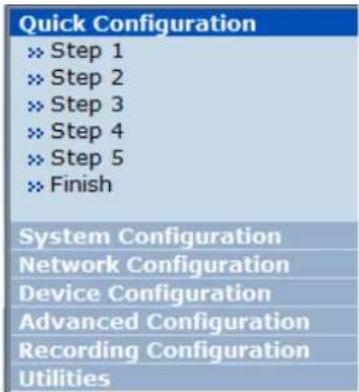
In Quick Configuration, you will be able to set up many of the essential parts of the configuration in a simple manner without going into details. Selecting Quick Configuration gives you the menu as seen below. You can perform each setup by clicking the one you would like to configure.
text_image
Quick Configuration » Step 1 » Step 2 » Step 3 » Step 4 » Step 5 » Finish System Configuration Network Configuration Device Configuration Advanced Configuration Recording Configuration Utilities12.1. Step 1: Changing Server Name
Click Server Name on System Configuration menu, then Server Name Setup windows will be displayed. Refer to Section 13.1 Server Name Setup page 38 to see how to change the server name.
12.2. Step 2: Time Setup
Click Date & Time on System Configuration menu, then the Local Date & Time Configuration window will be displayed. Refer to Section 13.2Date & Timeon page 39 to see how to set up.
12.3. Step 3: Network Setup
To make a connection to the Internet, it is required to figure out the type of the Internet service you're using. Refer to Section 14. Network Configuration on page 42 to see how to set up.
12.4. Step 4: IPCCTVDNS.COM
When VITEK Server is used in a Dynamic IP environment, it is required to utilize IP-CCTVDNS feature. Refer to Section 36 IP-CCTV DNS Setup on page 141 to see how to set up.
12.5. Step 5: Recording Configuration
Vitek cameras with MicroSD card can be configured for recording options in this section. Refer to Section 17.2 Recording Configuration with microSD card on page 71 to see how to set up
12.6. Finish
After clicking Finish all changes will be saved automatically to the camera/server
Save Configuration
- Changes to configuration will be saved automatically for this model.
Back
13. System Configuration Menu
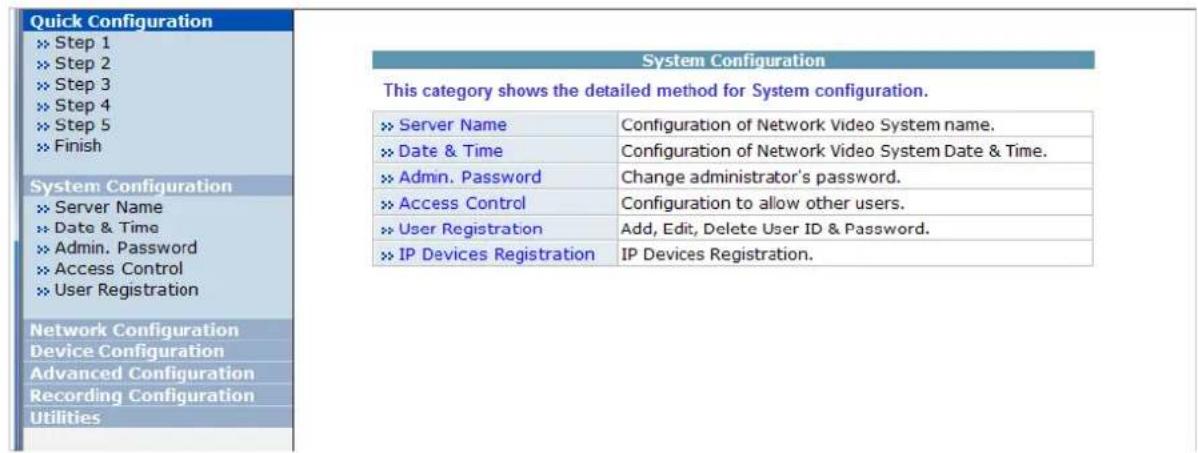
When you click on System Configuration item on Admin Menu, the following sub menu will be displayed.
text_image
Quick Configuration » Step 1 » Step 2 » Step 3 » Step 4 » Step 5 » Finish System Configuration This category shows the detailed method for System configuration. » Server Name Configuration of Network Video System name. » Date & Time Configuration of Network Video System Date & Time. » Admin. Password Change administrator's password. » Access Control Configuration to allow other users. » User Registration Add, Edit, Delete User ID & Password. » IP Devices Registration IP Devices Registration. Network Configuration Device Configuration Advanced Configuration Recording Configuration Utilities13.1. Server Name Setup
Click Step 1 on Quick Configuration or Server Name under System Configuration then the following will be displayed and you will find out the system information such as model number of the VITEK camera, server name (camera name), MAC address (serial number), firmware version, and Web image version.
Server Name Setup
| Product model name | VTD-13VN |
| Server name | Network Video System |
| Mac Address (S/N) | 1C:7C:45:02:00:83 |
| Firmware version | 4.14-01-ds |
| Webimage version | 4.14-01_VI |
Notice : The server name can be 21 alphanumeric or 10 unicode.
As an administrator, you can change the name of the camera/ server, but other values are not allowed to be changed. To change the camera/ servername, enter a new name in the Server Name field. You may use up to 21 alphanumeric or up to 10 Unicode characters. Tab or any other special characters are not allowed. Click Apply button to save the setting and it will take effect immediately.
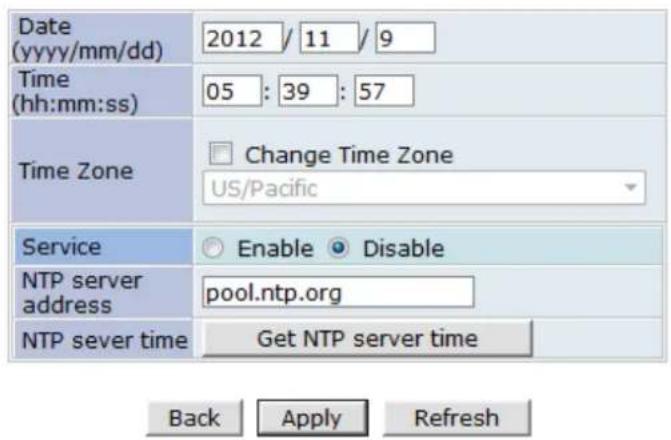
13.2. Date & Time
Click Step 2 on Quick Configuration. Or Date & Time under System ConfigurationFill the Date and Time fields with your local time and date information. If you're in a different time zone, put a checkmark on Change Time Zone, then select the correct region from the dropdown list to make the time zone change, you need to click Apply button and reboot the system.
Local Date & Time Configuration
text_image
Date (yyyy/mm/dd) 2012 / 11 / 9 Time (hh:mm:ss) 05 : 39 : 57 Time Zone Change Time Zone US/Pacific Service Enable Disable NTP server address pool.ntp.org NTP sever time Get NTP server time Back Apply RefreshNotice : If you change the 'Time Zone' and click 'Apply' button, we strongly recommend to reboot this Network Video System.
If you want to retrieve the exact current time from a NTP server on the network, click Get NTP Server Time button. Clicking Refresh button will display the date and time retrieved from thecamera. Then click Apply button to save it.
Note: In order to retrieve Time and Date information from a NTP server, you need to put NTP server address in advance of setting up, such as pool.ntp.org.
13.3. Admin Password
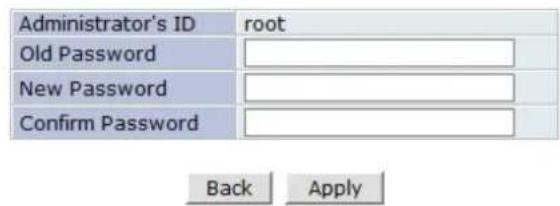
To change the password for the administrator, click Admin Password in System Configuration menu.
Administrator's Password Configuration
text_image
Administrator's ID root Old Password New Password Confirm Password Back ApplyNotice : The password must be alphanumeric, within 4 \~ 23 characters.
Default ID for admin account is fixed as "root" and is not allowed to change. In Old Password field, enter the current password. In both New Password and Confirm Password fields, enter the same new password. The password must be between 4 and 23 alphanumeric characters.Click Apply button to put it into effect.
Because you have replaced the password with a new one, the existing network connection made with old password to VITEK camera is lost now. You will have to reconnect to the VITEK camera using new password.
13.4. Access Control
Click Access Control on System Configuration menu. The following windows will be displayed.
Access Control Configuration
Access Permission
Full Access (View and control camera & audio without permission)
Limited Access (In accordance with an user's permission)
Back Apply
From the Access Permission window, select either one you would like to use. Click Apply button to save the change.
• Full Access: Any user can access the camera/server and use all the features without limits.
- Limited Access: Only registered users can access the camera/server and have limited privileges.
13.5. User Registration
You can add, modify, or delete users for your VITEKcamera/server here. Once registered as Limited Access setting, the user can access the VITEKcamera/server with some limited privileges.
13.5.1. Add
To add a user, click User Registration on System Configuration menu. When Add is selected, you can add users and define their passwords, names, and access permission levels respectively.

text_image
User Registration (Add) Add Edit Delete User ID Password Confirm password Name Notice : User ID & Password must be alphanumeric within 23 characters.Enter aUser ID between 4 and 23 alphanumeric characters. In bothPassword and Confirm Password fields, enter the identical password respectively. The password must be between 4 and 23 alphanumeric characters. In Name filed, enter the user's name up to 23 alphanumeric characters.
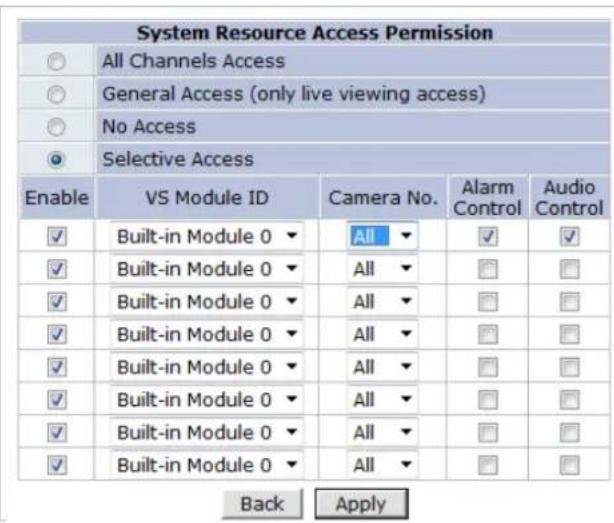
Now select one of the four items from System Resource Access Permission, which defines the permission level for registered users to the VITEKcamera.
| System Resource Access Permission | |
| ○ | All Channels Access |
| ○ | General Access (only live viewing access) |
| ○ | No Access |
| ○ | Selective Access |
- All Channels Access: User can use all the features except for Configuration in Admin Page.
- General Access (only live viewing access): User can only useLive View feature.
- No Access: User is not permitted any of the features.
- Selective Access: User is allowed to use only the selected features. With this item selected, you can now configure the details under this menu for the user.
VITEKcamerasmay have multiple VS Modules registered in it. When you click on any of theEnablecheckboxes, other fields in that row are now enabled to select.
text_image
System Resource Access Permission ○ All Channels Access ○ General Access (only live viewing access) ○ No Access ● Selective Access Enable VS Module ID Camera No. Alarm Control Audio Control ✓ Built-in Module 0 ▼ All ▼ ✓ ✓ ✓ Built-in Module 0 ▼ All ▼ ☐ ☐ ✓ Built-in Module 0 ▼ All ▼ ☐ ☐ ✓ Built-in Module 0 ▼ All ▼ ☐ ☐ ✓ Built-in Module 0 ▼ All ▼ ☐ ☐ ✓ Built-in Module 0 ▼ All ▼ ☐ ☐ ✓ Built-in Module 0 ▼ All ▼ ☐ ☐ ✓ Built-in Module 0 ▼ All ▼ ☐ ☐ Back Apply• VS Module ID: VS Module is a network device that has been registered in the VITEKcamera
- Camera No.: Among the cameras of the VS Module select one to set up. (between all,1or2)
- Alarm Control: Determine if Alarm control is to be allowed. (Feature not available on this model)
- Audio Control: Determine if Audio Control is to be allowed. (Feature not available on this model) After finishing the registration process, click Applybutton to add the user.
13.5.2. Edit
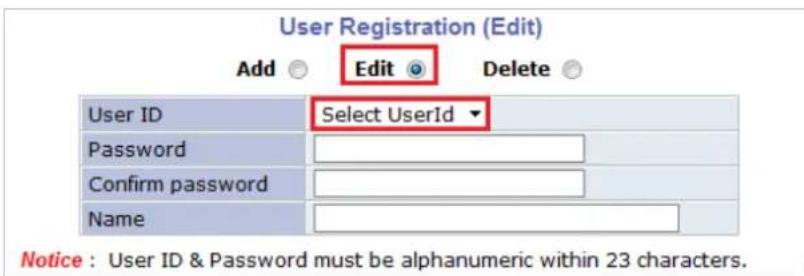
To edit a user account, select Edit. In this part, you can modify the existing user's name, password, and access permission. User ID is not allowed to change. Once selecting a user ID to edit, the procedure is the same as in Add section.
text_image
User Registration (Edit) Add Edit Delete User ID Select UserID Password Confirm password Name Notice : User ID & Password must be alphanumeric within 23 characters.To see existing users, click Select UserID, and select a user to be edited from the dropdown box. Then you can change the password, name, or access permission, and clickApply button to save the setting. Setup of Access Permission can be done the same way as in theAdd section.
13.5.3. Delete
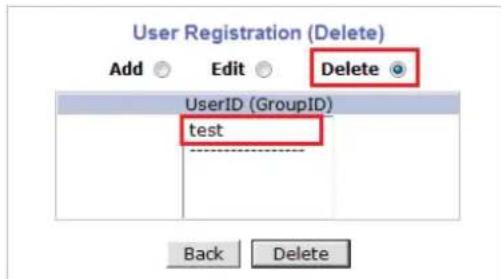
To delete an existing user, select Delete.
text_image
User Registration (Delete) Add Edit Delete UserID (GroupID) test Back DeleteFrom the list of the users, select a user to delete. Click Delete button to confirm the deletion.
14. Network Configuration
Configuring the network is dependent on how an IP address is assigned in Ethernet-based environment, which is static IP, dynamic IP (DHCP), or PPPoE.
| Quick Configuration |
| Step 1 |
| Step 2 |
| Step 3 |
| Step 4 |
| Step 5 |
| Finish |
| System Configuration |
| Server Name |
| Date & Time |
| Admin. Password |
| Access Control |
| User Registration |
| Network Configuration |
| Network Configuration |
| Network Ports |
| Bandwidth Control |
| View Network Status |
| Network Status Notify |
| IP-CCTV DNSTM |
| Port Forwarding & UPnP |
| RTP/RTSP |
| Device Configuration |
| Advanced Configuration |
| Recording Configuration |
| Utilities |
| Network Configuration | |
| This category shows the detailed method for network system. | |
| » Network Configuration | Configuration of Network(IP,Netmask,DNS). |
| » Network Ports | Modification of HTTP and other application network port numbers. |
| » Bandwidth Control | Configuration of bandwidth control. |
| » View Network Status | View of Network Status. |
| » Network Status Notify | It sends IP address by e-mail when IP address is allocated by DHCP(or PPPoE). |
| » IP-CCTV DNSTM | Configuration of dynamic IP registration of Network Video System. |
| » Port Forwarding & UPnP | Configuration of Port Forwarding & UPnP(Universal Plug and Play). |
| » RTP/RTSP | Configuration of RTP/RTSP. |
14.1. Static IP Configuration
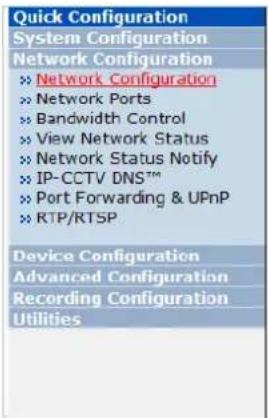
Select Network Configuration under Network configuration
text_image
Quick Configuration System Configuration Network Configuration » Network Configuration » Network Ports » Bandwidth Control » View Network Status » Network Status Notify » IP-CCTV DNS™ » Port Forwarding & UPnP » RTP/RTSP Device Configuration Advanced Configuration Recording Configuration Utilities
text_image
Network Configuration : Static IP Static IP ○ DHCP Client ○ PPPoE ○ IP Address 10.0.0.253 NetMask 255.255.255.0 GateWay 10.0.0.2 DNS 1 10.0.0.1 DNS 2 Back Apply RefreshFor static IP, select Static IP and input IP address, NetMask, Gateway, DNS1, DNS2 and click apply to save settings. After apply, program will ask to close web browser for updates, which will take 20\~30 seconds. If Back button is clicked all values will be discarded. If Refresh button is clicked, the program will load previous values.
14.2. DHCP ClientConfiguration
To use DHCP a DHCP server must exist in the network environment. Select DHCP Client from NetworkConfiguration, click Apply. And all information needed will be filled in automatically

text_image
Quick Configuration System Configuration Network Configuration Network Configuration Network Ports Bandwidth Control View Network Status Network Status Notify IP-CCTV DNS™ Port Forwarding & UPnP RTP/RTSP Device Configuration Advanced Configuration Recording Configuration Utilities Network Configuration : Static IP Static IP ○ DHCP Client ● PPPoE ○ IP Address 10.0.0.253 NetMask 255.255.255.0 GateWay 10.0.0.2 DNS 1 10.0.0.1 DNS 2 8.8.8.8 Back Apply Refresh14.3. PPPoE Configuration
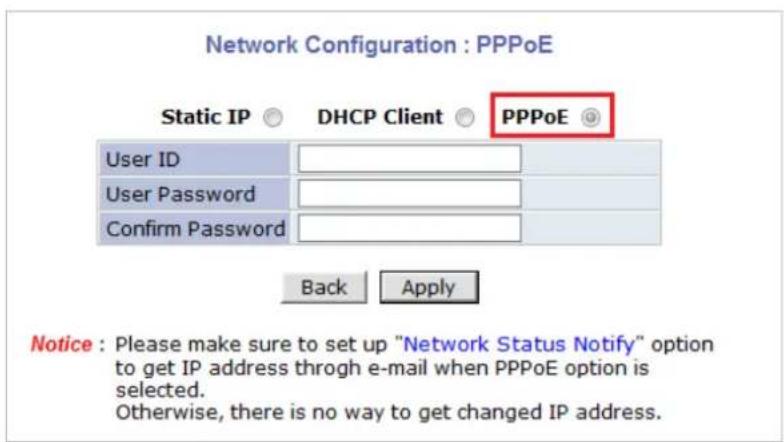
PPPoE is used to connect VITEK products to a PPPoE modem provided by the ISP. Since PPPoE needs verification, ID and a password are necessary to access the network. Type in PPPoE user ID and password
text_image
Network Configuration : PPPoE Static IP ○ DHCP Client ○ PPPoE ○ User ID User Password Confirm Password Back Apply Notice : Please make sure to set up "Network Status Notify" option to get IP address through e-mail when PPPoE option is selected. Otherwise, there is no way to get changed IP address.14.4. Network Ports
In this configuration, you set up the HTTP port for VITEKcameras to communicate with the Client PC. HTTP Port is the network port that is used when a Client PC connects to the VITEKcamera Web page. It can be assigned between 80 and 65535. The default value is 80.
Note: If the HTTP port number is changed to a different value than default (80), make sure the new HTTP port number goes together with the VITEK camerasIP address. For example, when a VITEK cameras IP address is 192.168.1.100 and the HTTP portis 8080, you will have to enter http://192.168.1.100:8080 to connect to the camera.

text_image
Quick Configuration System Configuration Network Configuration » Network Configuration » Network Ports » Bandwidth Control » View Network Status » Network Status Notify » IP-CCTV DNS™ » Port Forwarding & UPnP » RTP/RTSP Device Configuration Advanced Configuration Recording Configuration Utilities Network Ports Configuration HTTP Port 80 (Default:80, 80 ~ 65535) Back Apply Notice • HTTP Port : For web access, video streaming and playback.14.5. Bandwidth Control Configuration
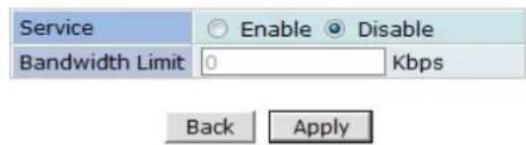
Bandwidth control is for limiting maximum network traffic. If it is enabled with Bandwidth limits, maximum data size transferred from VITEKcameras won't exceed bandwidth limits set by users. If transferred data is exceeded, part of the data will be randomly lost.
If multiple users try to access a VITEKcamera when bandwidth control is enabled, users connected to the VITEKcamera will share network bandwidth limit.
Bandwidth Control Configuration
text_image
Service Enable Disable Bandwidth Limit 0 Kbps Back ApplyNotice The bandwidth limit should be over 32. MPEG-4 or H.264 streaming can be affected by this setting.
Note: This bandwidth control feature works well in M-JPEG video transmission. But, for H.264, dropping data packets may cause low quality of video, so it is recommended to utilize CBR and frame rate control instead of bandwidth control for H.264 video. Refer to Section 15.2 Camera & Motion on page 53 For more info on CBR and Frame rate
Note: Network Bandwidth control is managed by the VITEK camera and it drops any data packets if required, thus you may experience slow connection when this feature is enabled.
14.6. View Network Status
This menu shows network status of VITEKcameras.
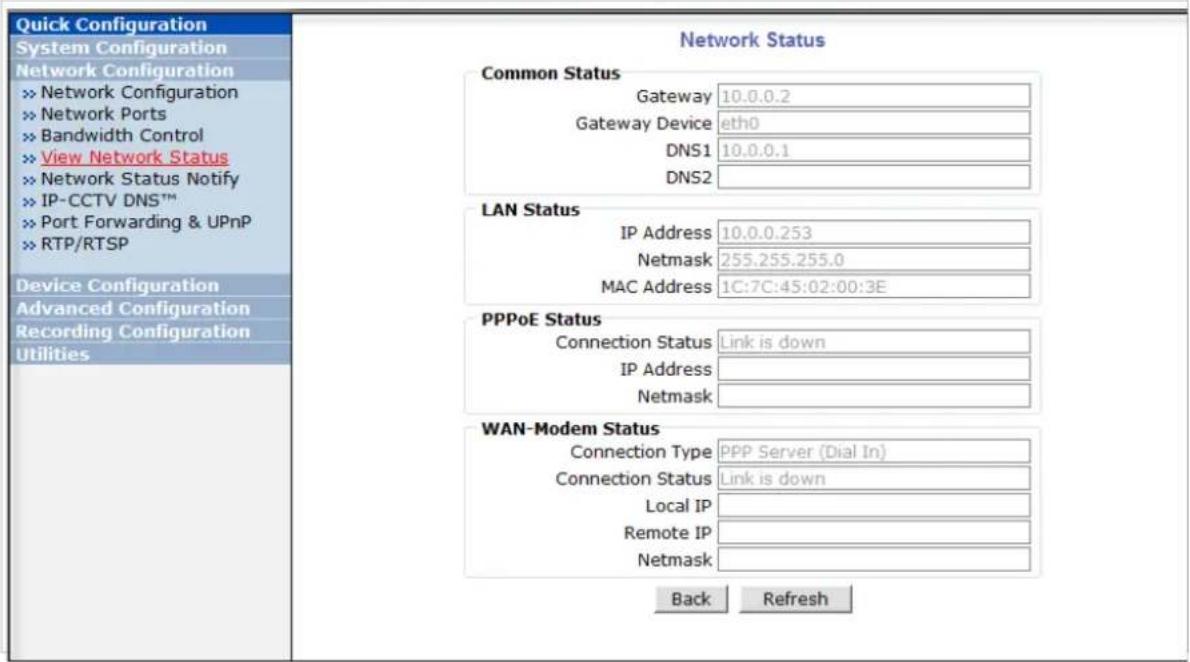
text_image
Quick Configuration System Configuration Network Configuration » Network Configuration » Network Ports » Bandwidth Control » View Network Status » Network Status Notify » IP-CCTV DNS™ » Port Forwarding & UPnP » RTP/RTSP Device Configuration Advanced Configuration Recording Configuration Utilities Network Status Common Status Gateway 10.0.0.2 Gateway Device eth0 DNS1 10.0.0.1 DNS2 LAN Status IP Address 10.0.0.253 Netmask 255.255.255.0 MAC Address 1C:7C:45:02:00:3E PPPoE Status Connection Status Link is down IP Address Netmask WAN-Modem Status Connection Type PPP Server (Dial In) Connection Status Link is down Local IP Remote IP Netmask Back Refresh14.7. Network Status Notify
This feature helps to send updated network status information to registered email address if any changes happen. This function will work under DHCP or PPPoE.
If Network Status Notify is set to Enable, VITEKcameras network status will be emailed to a specific person in case of the following events:
- When it is set to Dynamic IP in theNetwork Configuration menu, and the VITEKcamera has been given a new dynamic IP address and connects to the network. Or,
- When it is set to PPP Client on WAN-Modem menu, and the VITEKcamera has been connected to the network with ISP or PPP server.
To configure, click Network Status Notify on Network Configuration menu. The following window will be shown.
Network Status Notification
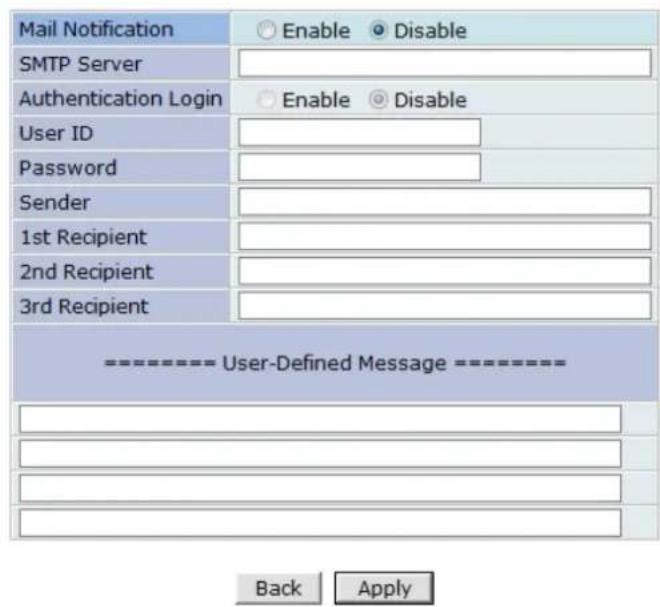
text_image
Mail Notification Enable Disable SMTP Server Authentication Login Enable Disable User ID Password Sender 1st Recipient 2nd Recipient 3rd Recipient ================User-Defined Message ================== Back ApplyNotice : It sends IP address by e-mail when IP address is allocated by DHCP(or PPPoE).
First, select Enable to use the feature. Then enter the address of the SMTP server which is needed for email service. If your SMTP server requires a user ID and a password for authentication, you will have to Enable Authentication Login and enter the user ID and Password.
In Sender field, enter your email address or other meaningful words that will show the message was sent from the VITEKcamera as a notification. Now enter the email addresses of the recipients in the Recipient fields, up to 3 addresses. In the User-Defined Message box, you may enter a message to explain why the message was sent. After finishing the setup, click Apply to save settings.
| Mail Notification | Enable: Send emailDisable: Do not send email |
| SMTP Server | SMTP Server address for email service |
| Authentication Login | Enable: user ID and password arerequired for SMTP serverDisable: user ID and password are not required |
| User ID User ID for SMTP server | |
| Password Password for SMTP server | |
| Sender | Email address of Sender or Name |
| 1st / 2nd / 3rd Recipient | Email Addresses of the Recipients (up to 3 addresses) |
| User Defined Message | Message to be included in the Notification email |
14.8. IP-CCTV DNS Setup
Note: Refer to Section 36IP-CCTVDNS Registration on page 141 for further details on configuration
IP- CCTV DNS service provides a static & public domain name to help user's access VITEKcameras even though their IP address has changed or they are used in a local network. For proper function of IP-CCTV DNS service, products need to be accessible through the internet.
Quick Configuration
System Configuration Network Configuration
» Network Configuration
» Network Ports
» Bandwidth Control
View Network Status
» Network Status Notify
IP-CCTV DNS ^TM
Port Forwarding & UPnP
RTP/RTSP
Device Configuration
Advanced Configuration
Recording Configuration
Utilities
IP-CCTV DNS™ Setup
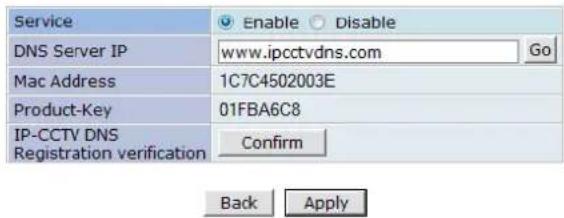
text_image
Service Enable Disable DNS Server IP www.ipcctvdns.com Go Mac Address 1C7C4502003E Product-Key 01FBA6C8 IP-CCTV DNS Registration verification Confirm Back ApplyNotice : If you do not use public dynamic IP address for the remote access, please skip this step.
This is related with www.ipcctvdns.com.
Different IP address or URL must follow the same protocol of www.ipcctvdns.com
If you click Confirm button, you can verify registered URL on IP-CCTV DNS.
If product is not registered on IP-CCTV DNS, you can not verify registered URL.
14.9. Port Forwarding & UPnP
UPnP(Universal Plug and Play) is a kind of network protocol to help users to find and configure network products in the same local network area. Port forwarding is to assign a certain network port to a network product so users can access it from outside of the Local Area Network. Generally, port forwarding can be configured from the network router.
UPnP port forwarding is made up with finding an available network port, assigning it to a VITEKcamera and reporting overall network configuration of a VITEKcamera to IP-CCTV DNS server. Users have to register products into IPCCTVDNS server and IP-CCTV DNS service should be enabled.
There are 3 options in UPnP Port Forwarding.
- Manual: User Assigned Portissued when users can access network router(hub) and manually assign available network ports to VITEKcameras. In this case, users have to type already-assigned network ports under User Assigned port.
- UPnP: User Assigned Port is used when users want VITEKcameras to configure port forwarding of network hub with user-assigned network port. If it fails, try to change user-assigned port
- UPnP: Auto Selected Portis used to let VITEKcameras deal with all network configurations automatically.
Please note that the network router needs to support UPnP Port Forwarding. There is a limit for the maximum number of UPnP devices. If it is properly configured, results will be displayed under UPnP status.
Port Forwarding & UPnP
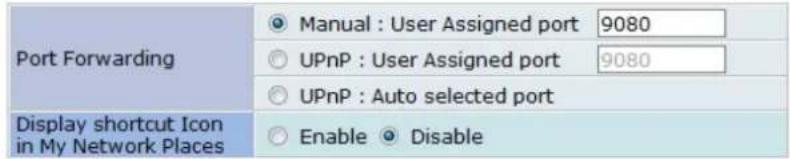
text_image
Port Forwarding ● Manual : User Assigned port 9080 ○ UPnP : User Assigned port 9080 ○ UPnP : Auto selected port Display shortcut Icon in My Network Places ○ Enable ● DisableUPnP Status

text_image
Status Success External Port No. 9080 Router Global Address System's IP address for Local Network Access http://10.10.213.26:80 System's IP address for Access via Internet Back Apply RefreshNotice : User's assigned port is the external port number of dynamic IP address. This function is quite unique when UPnP IP sharer or router are used together. If Uppn service is not activated by UPnP : User Assigned port, allocate another port.
14.10. RTP/ RTSP Setup
Factory default is Enable to be used with other manufactures VMS software's
RTSP (Real-Time Streaming Protocol) is a protocol to transfer video and audio streams over the network. Any application supporting Standard RTSP can be used for VITEKcameras. Quick Time Player or VLC program can be used with this; it may not be supported in the environment within a firewall. There are two types of usage; one for Unicast address condition and the other for Multicast address condition.
For Unicast Address:
Use"rtsp://network video server ip address/cam0_0". If there are multiple channels, use cam0_x, x (0\~3) with each number applied. If there are multiple modules, use camx_0 x (0 \~ 3) with each module number applied.
For Multicast Address:
Use "rtsp:/ / network video server ip address/ mcam0_0". If there are multiple channels, use mcam0_x, x (0\~3) with each channel number applied. If there are multiple modules, use mcamx_0 x (0 \~ 3) with each module number applied.
RTP/RTSP Setup
| Service | ● Enable ○ Disable | ||
| RTSP Port | 554 | (Default:554, 554 ~ 65534) | |
| RTP Start Port | 5000 | (Default:5000, 2048 ~ 65534) | |
| Camera 1 | Multicast Address | 0.0.0.0 | Disable:0.0.0.0(225.0.0.0 ~ 239.255.255.255) |
| Multicast Port | 0 | (Disable:0, 2048 ~ 65534) | |
| Camera 2 | Multicast Address | 0.0.0.0 | Disable:0.0.0.0(225.0.0.0 ~ 239.255.255.255) |
| Multicast Port | 0 | (Disable:0, 2048 ~ 65534) | |
Notice : This function is only for built in module. IP devices (added VS module) does not support this function.
RTSP URL for Camera 1 rtsp://(Network Video Server IP Address)/cam0_0 -> cam(0 : VS Module number)_ (0:Port number)
RTSP URL for Camera1 for Multicast address (Multicast address and Port should be configured.) rtsp://(Network Video Server IP Address)/mcam0_0 -> mcam(0 : VS Module number)_(0:Port number)
| Service | Enable: Start RTSP serviceDisable: Stop RTSP service |
| RTSP Port | In normal case, use default port number 554 to connect to RTSP service. If not using port 554, enter the port number you want to use.e.g.) port number 445==>rtsp:// network video server ip address:445/cam0_0 |
| RTP Start Port | The starting number of the port for video transfer. Each time video transfer connection is made, the port number also increases. |
| Multicast Address | Address for multicast video transfer.The multicast address 0.0.0.0 is for stopping multicast. |
| Multicast Port | Port number for viewing the video with a multicast address |
15. Device Configuration
15.1. Privacy Zone
Users can set a privacy zone if a certain part of the screen needs to be unmonitored.
To set the region, click Privacy Zone from Device Configuration category.

text_image
Quick Configuration System Configuration Network Configuration Device Configuration + Serial Ports + Privacy Zone + Camera & Motion + DI/DO + DI Status/DO Control Advanced Configuration Recording Configuration Utilities Device Configuration This category shows the detailed method for Device Configuration. > Serial Ports Configuration of serial ports(RS-232, RS-422, RS-485 ports) > Privacy Zone Configuration of Privacy Zone. > Camera & Motion Configuration of video mode and the details. > DI/DO Configuration of DI(Sensor Input)/DO(Alarm Output). > DI Status/DO Control Enable or Disable each DO(Alarm Output) port.Privacy Zone Configuration

text_image
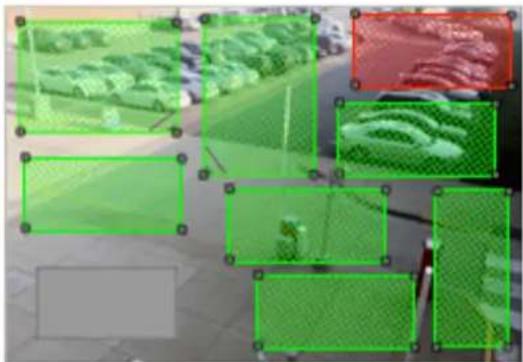
New Delete ApplyTo Add a Privacy zone click Newbutton, aGreen-colored box will appear, click on the Green box and it will turn Red, at this point you can resize it by clicking and holding any corner and drag to desired size. To relocate box click and hold anywhere inside the box and drag to desired location. Click Apply when done
Privacy Zone Configuration

natural_image
Exterior view of a parking lot with rows of parked cars and a red grid overlay (no visible text or symbols)
Delete

Privacy Zone Configuration

natural_image
Exterior view of a parking lot with rows of parked cars and a green overlay (no signage or text)
Delete

Privacy Zone Configuration
natural_image
Abstract collage of green rectangular frames with pixelated textures, no visible text or symbols
Delete


text_image
Message from webpage It is not possible to add privacy zone any more. OKUsers can add up to 8 Privacy Zones per screen by repeating above steps. If you add more than 8, an error message will display on the screen.
To delete a privacy zone, click the zone and click Delete button followed by Apply button.
Privacy Zone Configuration

natural_image
Outdoor scene with green mesh overlays and a small robot, no visible text or symbolsNew
Delete
Apply
15.2. Camera & Motion
This menu is used to set up the selection of video format, data added to video data, encoding speed, audio control, image resolution, video quality, motion detection, etc.
Click Camera & Motion on Device Configuration menu. The configuration menu will be displayed, and it may be different between VITEKcameras.

text_image
Quick Configuration System Configuration Network Configuration Device Configuration Serial Ports Camera & Motion Primary Stream Secondary Stream DI/DO DI Status/DO Control Advanced Configuration Utilities- M-JPEG: This format requires much higher network bandwidth than H.264 compression. But because of its higher quality of still image, it is adequate for detailed reviewing of stored video.
- H.264: In this format, each frame data is related to other nearby frames. For this reason, it provides much higher compression ratio than M-JPEG and is adequate for video transfer. However, if network conditions are limited dropped frames in video data is possible, the video quality can be relatively low. With VITEKCameras, you can set the number of P-frames in the video which is independent still images between I-frames.
Note: For Dual Stream products, most of the parameters are dependent on primary stream value.
You can configure the video data format and other information to be contained in it.
Camera & Motion Configuration
| Video with Flexible Extra System data | Enable | |
| Video with user defined message | Enable | |
| Video with PPP status | Enable | |
| Video with camera name | Enable | |
| Video with server name | Enable | |
| Video with IP address | Enable | |
| Audio | Enable Disable | |
| Primary Stream | Frame Rate | 30 fps |
| Image Size | 1280 x 1024 | |
| Encoding Standard | M-JPEG H.264 | |
| Secondary Stream | Frame Rate | Primary fps |
| Image Size | 704 x 480 | |
| Encoding Standard | M-JPEG H.264 | |
Back
Apply
| » Camera Control |
| » Motion Detection |
| » Primary Stream |
| » Secondary Stream |
- Video with Flexible Extra System data: If Enabled, video data will contain UART sensor data from COM port.. (Feature not available on this model)
- Video with user defined message: If Enabled, video data will contain the user-defined data. (Reserved Field). (Feature not available on this model)
- Video with PPP status: If Enabled, video data will contain PPP connection status.. (Feature not available on this model)
- Video with camera name: If Enabled, video data will contain the camera name.. (Feature not available on this model)
- Video with server name: If Enabled, video data will contain the server name that you defined.. (Feature not available on this model)
- Video with IP address: If Enabled, video data will contain the IP address of the video server..(Feature not available on this model)
- Audio: (not available on all models) Select if Audio function is to be used (applies to Primary Stream only). VITEK Cameras provides 2-way audio streaming by combining microphone input with video data. Users can listen to the streamed audio through a PC and speakers.
- Frame Rate: For Primary Stream, this is the number of frames compressed in every second. You can control the network traffic with this parameter. For Secondary Stream, it can be set to a manner of 1/2, 1/4, 1/8... of the primary stream.
- Image Size: Select the resolution of each channel's video
- Encoding Standard: Select the compression method of each video, either M-JPEG or H.264 format. It is not allowed to set both channels to M-JPEG.
Below is the table of images sizes. To save the setting, click Apply button
| Video Format SXGA D1 CIF QCIF | ||||
| NTSC | - | 704 x 480 | 352 x 240 | 160 x 112 |
| PAL | - | 704 x 576 | 352 x 288 | 160 x 144 |
| VGA | - | 640 x 480 | 320 x 240 | 160 x 112 |
| 1.3M Pixel | 1280 x 1024 | 640 x 480 | 320 x 240 | 160 x 112 |
| 2.0M Pixel | 1920 x 1080 | 640 x 480 | 320 x 240 | 160 x 112 |
15.2.1. Camera Configuration
On the lower part of Camera & Motion Configuration menu, select a channel to configure.
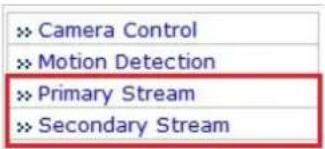
text_image
> Camera Control >> Motion Detection >> Primary Stream >> Secondary StreamIn the example shown below, Primary Stream is set to H.264 for compression format.Enter detailed parameters of the camera selected here.
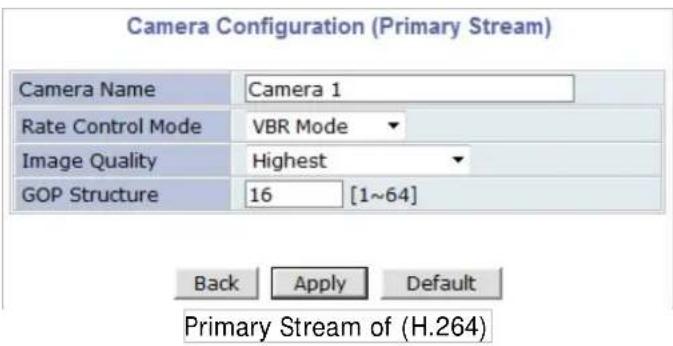
text_image
Camera Configuration (Primary Stream) Camera Name Camera 1 Rate Control Mode VBR Mode Image Quality Highest GOP Structure 16 [1~64] Back Apply Default Primary Stream of (H.264)- Camera Name: Enter the name of the channel up to 21 alphanumeric or up to 10 Unicode characters.
Rate Control Mode
| H.264 | Rate Control Mode:VBR (Variable Bit Rate)Video frames are encoded with selected image quality and GOP. Encoded frames have different data size from each other. | Image Quality:one of 6 quality levels (Low Compression / Highest /High Normal / Low / Lowest) |
| GOP Structure:Distance between I-Frames. That is filled with P-frames. | ||
| Rate Control Mode: CBR (Constant Bit Rate)Video frames are encoded with selected image quality and GOP.Encoded frames have the same data size as other frames. Due to the constant bit rate, ithas better stable transmission performance. | Bit Rate Control:Total number of Bits encoded per second. The higher Bit Rate, the better image quality. Can be set between 32kbps and 2Mbps. | |
| GOP:Distance between I-Frames. That is filled with P-frames. | ||
| M-JPEG | - | Image Quality:one of 6 quality levels (Low Compression / Highest / High Normal / Low / Lowest) |
Image Quality Setup
In Image Quality level setup, select "Low Compression" for higher image quality, but it requires higher network bandwidth. Selecting the "Lowest" requires lower network bandwidth, but gives decreased image quality.
After configuration is finished, click Apply button to save the setting. If you click Default button, the entire configuration will be reset to the original values.
Camera Control (Select Models)
Select Camera Control on the bottom of Camera & Motion Configuration menu.
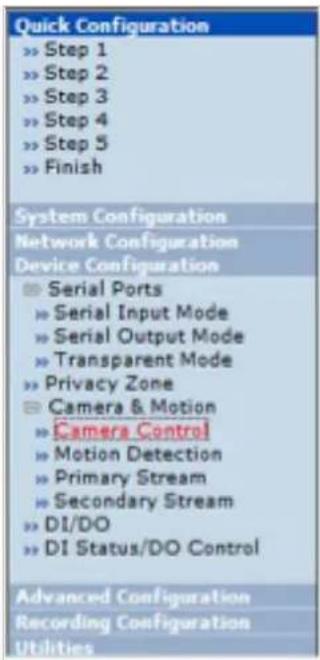
text_image
Quick Configuration >> Step 1 >> Step 2 >> Step 3 >> Step 4 >> Step 5 >> Finish System Configuration Network Configuration Device Configuration Serial Ports Serial Input Mode Serial Output Mode Transparent Mode Privacy Zone Camera & Motion Camera Control Motion Detection Primary Stream Secondary Stream DI/DO DI Status/DO Control Advanced Configuration Recording Configuration Utilities
text_image
Camera Control Power Frequency Environment Noise Filter Brightness Contrast Sharpness AGC Gain Day & Night Control Day & Night Detect The threshold of day to night The threshold of night to day Vertical Flip Horizontal Flip Manual Shutter Enable Manual Shutter Speed Video Output Video Output Channel 50Hz 60Hz Indoor Outdoor Off On 128 (Default:128, 0 ~ 256) 16 (Default:16, 0 ~ 30) 4 (Default:4, 0 ~ 5) 0 (Default:0, 0 ~ 16) Auto Internal External 18 (Default:18, 1 ~ 32) 5 (Default:5, 1 ~ 32) Disable Enable Disable Enable Disable Enable 1/120 Disable Enable Primary Secondary Back Apply• Power Frequency: Select NTSC (60Hz) or PAL (50Hz) according to the region.
• Environment: Indoor or Outdoor
- Noise Filter: To reduce static on image
| Environment | IndoorOutdoor |
| Noise Filter | OffOn |
- Brightness: Select the brightness of image between 0 and 256.
-
Contrast: Select the contrast of image between 0 and 30.
-
Sharpness: select the sharpness of image between 0 and 5.
- Day & Night Control: If used, the image will be in Color mode during daytime and Black&White mode during night time.
| Day & Night Control Description | |
| Disable (No Image Conversion) | |
| Black & White Black & White mode | |
| Auto | Daytime: Color ModeNight time: Black & White mode |
• Day & Night Detect:
| Day & Night Detect Description | |
| Internal | Use Built-in Day & Night feature (Default) |
| External For use with cameras | having IR |
- The threshold of day to night: This is the point of transition from Day to Night mode. Select between 1 and 32, and lower the value the earlier the transition point.
- The threshold of night to day: This is the point of transition from night to day mode. Select between 1 and 32, and lower the value the earlier the transition point.
• Vertical Flip: this is to rotate the image 180° Vertically
• Horizontal Flip: this is to rotate the image 180° Horizontally - Manual Shutter Enable: If enabled, the shutter speed will be selected manually. If disabled, it is controlled automatically.
- Manual shutter Speed: available only when Manual Shutter is Enable Select the shutter speed of camera between 1/30 and 1/24000.
• Video Output: Video output (NTSC/PAL) is enabled.
After all the settings are done, click Apply button to save it. If Default button is clicked, all the fields return back to original value.
Motion Detection
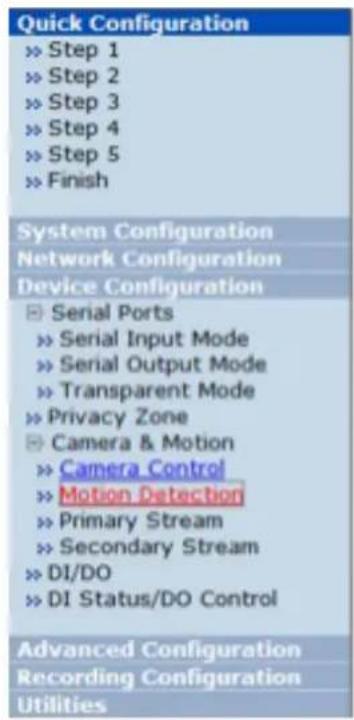
text_image
Quick Configuration » Step 1 » Step 2 » Step 3 » Step 4 » Step 5 » Finish System Configuration Network Configuration Device Configuration ■ Serial Ports » Serial Input Mode » Serial Output Mode » Transparent Mode » Privacy Zone ■ Camera & Motion » Camera Control » Motion Detection » Primary Stream » Secondary Stream » DI/DO » DI Status/DO Control Advanced Configuration Recording Configuration Utilities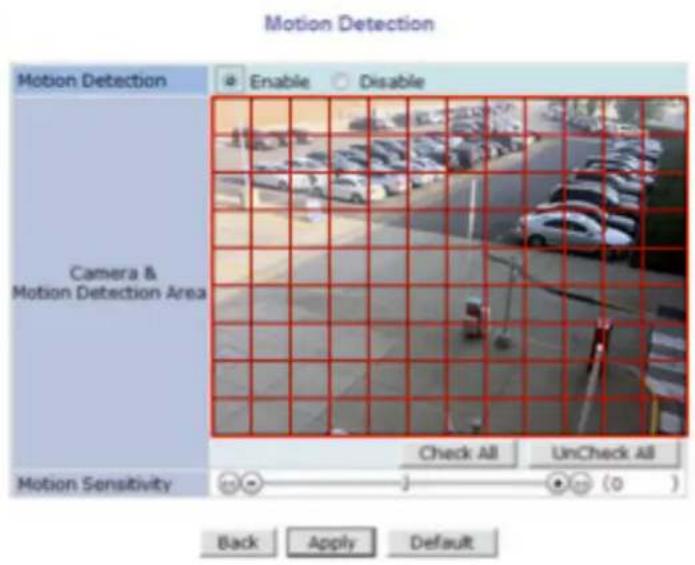
text_image
Motion Detection Motion Detection Enable Disable Camera & Motion Detection Area Check All UnCheck All Motion Sensitivity Back Apply Default- Motion Detection:(this is only available in Primary Stream) If enabled, Motion Detection feature is activated and user can configure the areas where motion detection function will work. Click Check All button for whole scene to be active (grid will turn Green) then click on any box inside scene to take out that area from Motion Detection (box will turn Red) then clickApply to save
- Motion Sensitivity: Set the sensitivity of motion defined in Motion Detection Area. Select between -100 and 100. 100 is the most sensitive.
After all the settings are done, click Apply button to save it. If Default button is clicked, all the fields return back to original value.
DI / DO Control
Not Available on VTD-MV series
16. Advanced Configuration
There are two types of advanced service, one is Buffered Service and the other is Periodic Service. In Buffering Service, a series of images are continuously being stored in a buffer memory of the camera/server for a certain period of time. When the camera/server is triggered by an event or schedule, the images or alarm status just before and after the event/schedule are reported to you by email or buffered FTP services.
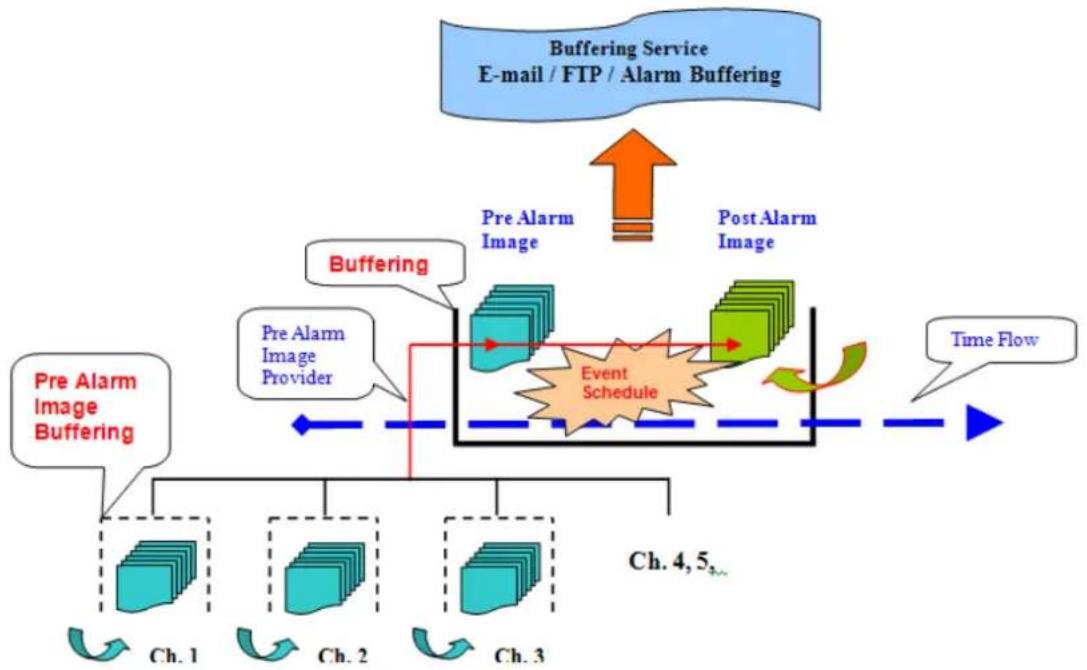
flowchart
graph TD
    A["Pre Alarm Image Buffering"] --> B["Ch. 1"]
    A --> C["Ch. 2"]
    A --> D["Ch. 3"]
    B --> E["Event Schedule"]
    C --> E
    D --> E
    E --> F["Time Flow"]
    G["Buffering Service\nE-mail / FTP / Alarm Buffering"] --> H["Pre Alarm Image"]
    H --> I["Pre Alarm Image Provider"]
    I --> J["Event Schedule"]
    J --> K["Post Alarm Image"]
    K --> L["Event Schedule"]
    L --> M["Time Flow"]
    N["Buffering"] --> O["Event Schedule"]
    O --> P["Event Schedule"]
    P --> Q["Event Schedule"]
    Q --> R["Event Schedule"]
    R --> S["Event Schedule"]
    S --> T["Event Schedule"]
    T --> U["Event Schedule"]
    U --> V["Event Schedule"]
    V --> W["Event Schedule"]
    W --> X["Event Schedule"]
    X --> Y["Event Schedule"]
    Y --> Z["Event Schedule"]
In Periodic Service, only the image, alarm/sensor status after an event/schedule is reported to you upon the server being triggered.
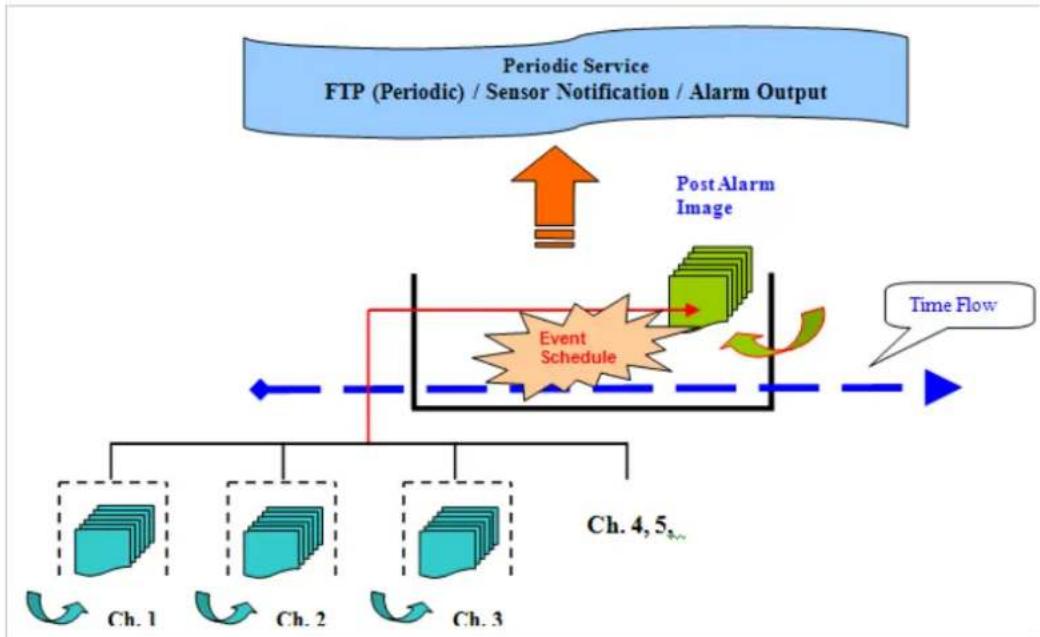
flowchart
graph TD
    A["Periodic Service FTP (Periodic) / Sensor Notification / Alarm Output"] --> B["Post Alarm Image"]
    B --> C["Event Schedule"]
    C --> D["Ch. 1"]
    C --> E["Ch. 2"]
    C --> F["Ch. 3"]
    D --> G["Time Flow"]
    E --> G
    F --> G
    G --> H["Feedback to Event Schedule"]
    H --> I["Ch. 4, 5"]
16.1. Advanced Services
Pre-Alarm buffer size and buffering speed can be defined here.
- Pre-Alarm Buffer Size: You can set the buffer size which will store the images before event. The unit is in frame, and each channel can be set with different values. The total number of frames for Pre-Alarm Buffer and Post-Alarm Buffer is limited to 10 frames.
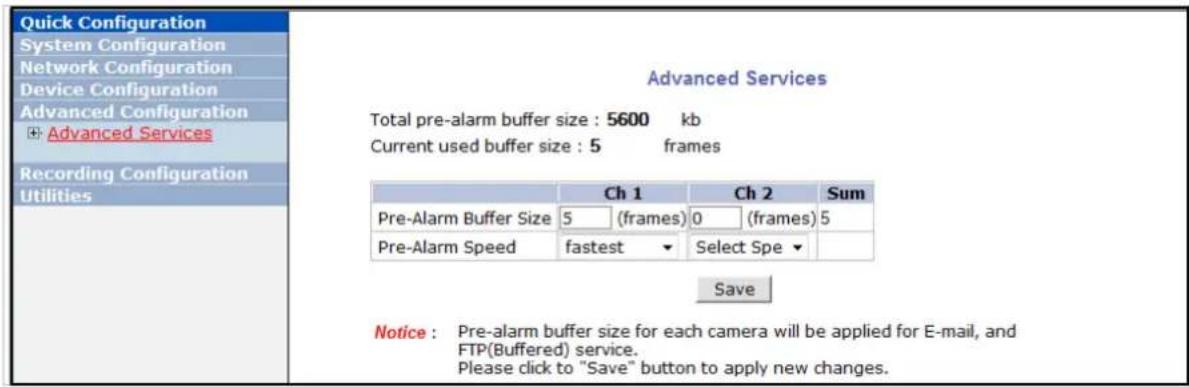
text_image
Quick Configuration System Configuration Network Configuration Device Configuration Advanced Configuration + Advanced Services Recording Configuration Utilities Advanced Services Total pre-alarm buffer size : 5600 kb Current used buffer size : 5 frames Pre-Alarm Buffer Size Ch 1 Ch 2 Sum 5 (frames) 0 (frames) 5 Pre-Alarm Speed.fastest Select Spe Save Notice : Pre-alarm buffer size for each camera will be applied for E-mail, and FTP(Buffered) service. Please click to "Save" button to apply new changes.- Pre-Alarm Speed: You can set the buffering speed. If it's set to Fastest, the server will store images as fast as it can. Each cannel can be set with different values.
This configuration applies to E-mail and FTP(Buffered), and click Save button to apply changes.
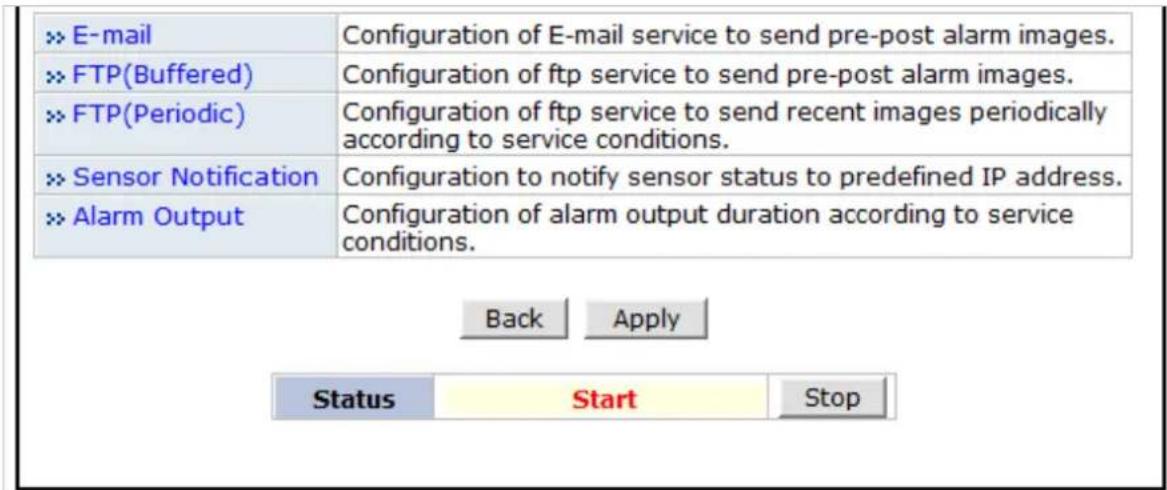
text_image
E-mail Configuration of E-mail service to send pre-post alarm images. FTP(Buffered) Configuration of ftp service to send pre-post alarm images. FTP(Periodic) Configuration of ftp service to send recent images periodically according to service conditions. Sensor Notification Configuration to notify sensor status to predefined IP address. Alarm Output Configuration of alarm output duration according to service conditions. Back Apply Status Start Stop• E-mail: Set up Email Service configuration
- FTP (Buffered): Set up FTP (Buffered) Service configuration
- FTP (Periodic): Set up FTP (Periodic) Service configuration
16.1.1. E-mail Service Configuration
Email configuration is set up here for Alarm in case any event occurs.
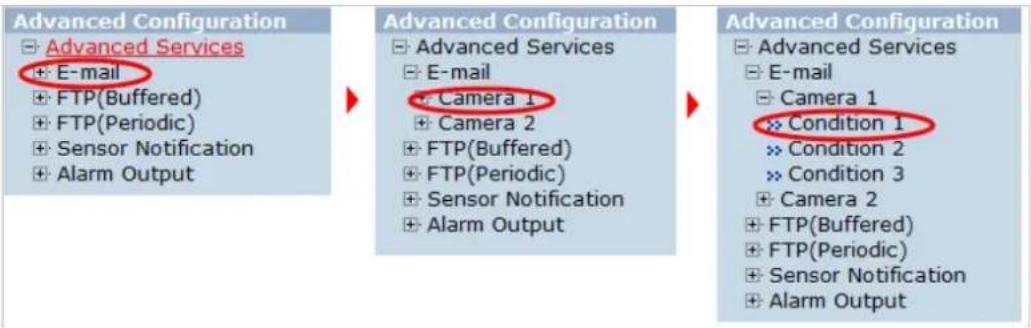
flowchart
graph LR
    A["Advanced Configuration"] --> B["Advanced Configuration"]
    B --> C["Advanced Configuration"]
    C --> D["Advanced Configuration"]
    D --> E["Advanced Configuration"]
    style A fill:#f9f,stroke:#333
    style B fill:#f9f,stroke:#333
    style C fill:#f9f,stroke:#333
    style D fill:#f9f,stroke:#333
E-mail Service Configuration
Please click the below link to configure E-mail service for each camera.
text_image
Service SMTP server address smtp.gmail.com SMTP Port 465 (Default:25, 0 ~ 65535) Authentication Login Enable Disable User ID xxxxx@xxxxx.com Password *************** Sender xxxxx@xxxxx.com 1st Recipient xxxxx@xxxxx.com 2nd Recipient xxxxx@xxxxx.com 3rd Recipient xxxxx@xxxxx.comBack Save
Notice : This service is valid for M-JPEG only.
| Item | Description |
| Camera 1~2 | Select a channel to be configured for email notification |
| Service | Select Enable in order to use this service |
| SMTP server address | Enter SMTP server's address for sending email. |
| Authentication Login | Select Enable if SMTP server requires ID and password |
| User ID Enter User ID to log in to SMTP server | |
| Password Enter Password to log in to SMTP server | |
| Sender | Enter email address of the sender |
| 1st Recipient Enter the email address of the first recipient | |
| 2nd Recipient | Enter the email address of the second recipient |
| 3rd Recipient Enter the email address of the third recipient | |
Click Save button to apply the change. If you don't want to change, click Back button.
E-mail Service Setup for Each Channel
For each channel, the following items can be configured for email service: Condition, Post-Alarm Buffer Size, and Post-Alarm speed. The content of text message and display style of DI value can be configured as well.
E-mail Service Configuration at Camera 1
Please click below link to configure the service condition.
| » Condition 1 | [Not Used] |
| » Condition 2 | [Not Used] |
| » Condition 3 | [Not Used] |
Maximum 10 pre-post alarm images can be transmitted.
| Pre-Alarm Buffer Size | 0 (frames) | ×× Check video buffer | |
| Pre-Alarm Images | 0 | Post-Alarm Images | 0 |
| Pre-Alarm Speed | Select Speec | Post-Alarm Speed | Select Speec |
| Subject | Message From IP Device![0,0] | ||
?
| Message | Value Format | ||||||
| NONE | INT | HEX | BIN | IPA | EVT | ||
| 1 | |||||||
| 2 | |||||||
| 3 | |||||||
| 4 | |||||||
Back
Save
Item Description
| Condition 1 ~ Condition 3 | Select a condition for Email service to be activated. |
| Pre-Alarm Buffer Size | The Buffer size assigned for Pre-Alarm. |
| Check Video buffer | Click this link to go to Advanced Services for buffer setup. |
| Pre-Alarm Images | The number of image frames to store before Alarm |
| Post-Alarm Images | The number of image frames to store after Alarm |
| Pre-Alarm Speed | This field shows the speed of Pre-Alarm. Configuration can be done in Advances Services page. |
| Post-Alarm Speed | Select the speed of Post-Alarm.Fastestis the highest value. |
| Subject | Subject of the E-mail message to send. |
| 1 | Content of the first line in the email message. |
| 2 | Content of the second line in the email message. |
| 3 Content of the third line in the email message. | |
| 4 | Content of the fourth line in the email message |
| Value Format | Select the format for the Event or DI data to email.NONE: Don't Send, INT: Decimal, HEX: Hexadecimal,BIN: Binary, IPA: IP Address, EVT: Name of Event |
After finishing setup, click Save button to apply. If you don't want to change, click Back button.
Condition, Schedule & Event Configuration
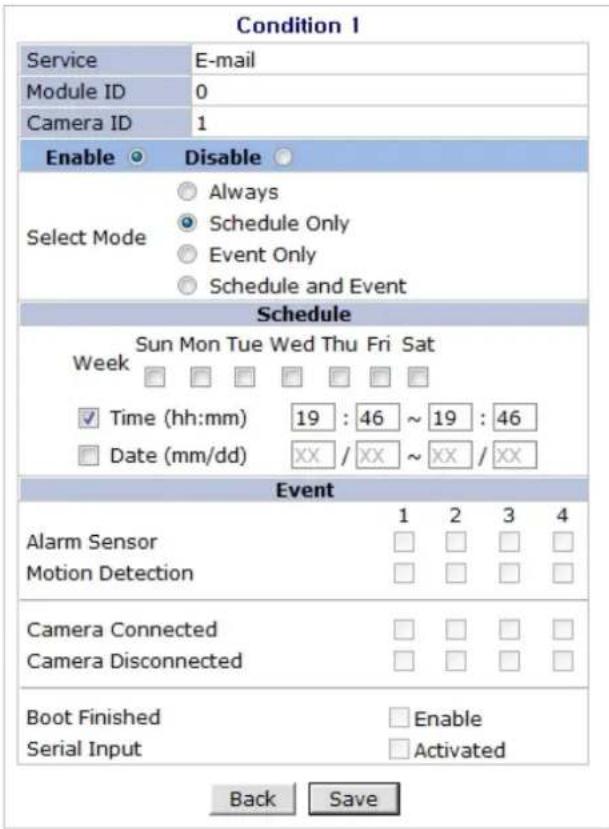
text_image
Condition 1 Service E-mail Module ID 0 Camera ID 1 Enable Disable Select Mode Always Schedule Only Event Only Schedule and Event Schedule Sun Mon Tue Wed Thu Fri Sat Week Time (hh:mm) 19 : 46 ~ 19 : 46 Date (mm/dd) XX / XX ~ XX / XX Event Alarm Sensor 1 2 3 4 Motion Detection Camera Connected Camera Disconnected Boot Finished Enable Serial Input Activated Back SaveIf you click on a Condition link, the Advanced Service windows is displayed as shown below. Alarm Service is activated only when the conditions in Advanced Services are met.
| Item | Description |
| Service This shows what service this condition is for. | |
| Module ID Module ID for current setup | |
| Camera ID | Channel ID for current setup |
| Enable / Disable | Select Enable to use Condition, otherwise select Disable. |
| Always | This Condition applies all the time. (Schedule or Event is not usable) |
| Schedule Only | Use Week, Time, and Date in Condition parameter. If none of the weekdays are checked, it is activated every day. |
| Event Only | It is activated only when any of the following events occurs.(Sensor, Motion Detection, Camera Connection, Server Booting) |
To save the setting, click Save button. If you want to cancel it, click Back.
16.1.2. FTP (Buffered) Service Configuration
FTP(Buffered) Service Configuration
Please click the below link to configure FTP(Buffered) service for each camera.
| » Camera 1 | » Camera 2 | |
| Service | ○ Enable ○ Disable | |
| Server Address | ||
| Base Directory Name | ||
| Base File Name | ||
| User ID | ||
| Password | ||
| FTP Control Port | | (Default:21, 0 ~ 65535) | |
| Date Description Mode | American Style ▼ | |
| Connection Mode | ○ Active ○ Passive | |
?
| Option | Directory Name | File Name |
| Server Name | ||
| Weekday | ||
| Year | ||
| Month | ||
| Day | ||
| Hour | ||
| Minute | ||
| Sec | ||
| Sequence | ||
| Camera Number |
Back
Save
Make Directory
Notice : • This service is valid for M-JPEG only.
- If the value of the FTP Control Port is 0, it will be set using by system configuration. It is usually same as port number 21.
• The following are values of Date Descrtion Mode.
American Style -> Feb28th2009
European Style -> 28thFeb2009
ISO Standard -> 20090228
| Item | Description |
| Camera 1 - Camera 2 | Select which channel to set up for FTP (Buffered). |
| Service | Select Enable to use the FTP (Buffered) service. Otherwise select Disable. |
| Server Address | FTP Server Address. |
| Base Directory Name | The directory in FTP server where the data will be uploaded.(You should make the directory in the FTP server before using the service.) |
| Base File Name | The base file name of the data to be uploaded in FTP server. |
| User ID Enter a User ID to log in to FTP server. | |
| Password Enter the Password for the user ID to log in to FTP server | |
| FTP Control Port | Port number for FTP server (Normally 21 is used) |
| Date Description Mode | Select Date Display Style:American, European or ISO Standard |
| Connection Mode | Select connection mode for FTP server |
| Server Name | If Directory Name is checked, new directory is created with server name.If File Name is checked, new file is created with server name. |
| Weekday | If Directory Name is checked, new directory name is created with weekday.If File Name is checked, new file name is created with weekday. |
| Year | If Directory Name is checked, new directory name is created with Year.If File Name is checked, new file name is created with Year. |
| Month | If Directory Name is checked, new directory name is created with month.If File Name is checked, new file name is created with month. |
| Day | If Directory Name is checked, new directory name is created with day.If File Name is checked, new file name is created with day. |
| Hour | If Directory Name is checked, new directory name is created with hour.If File Name is checked, new file name is created with hour. |
| Minute | If checked, new file name is created with minute. |
| Sec | If checked, new file name is created with second. |
| Sequence | If checked, new files are created starting from 0, with increment of 1. |
| Camera Number | If Directory Name is checked, new directory is created with camera number.If File Name is checked, new file is created with camera number. |
To create a directory with the options shown above, click Make Directory button. After finishing the configuration, click Save button to apply the change and continue to the next page. Clicking Back button will cancel the changes and go back to the previous page. (This service is available only in M-JPEG mode.)
FTP (Buffered) Service Configuration at Camera 1
FTP(Buffered) Service Configuration at Camera 1
Please click below link to configure the service condition.
| » Condition 1 | [M1][] |
| » Condition 2 | [Not Used] |
| » Condition 3 | [Not Used] |
Maximum 256 pre-post alarm images can be transmitted.
| Pre-Alarm Buffer Size | 5 (frames) | » Check video buffer | |||
| Pre-Alarm Images | 0 | frames | Post-Alarm Images | 0 | frames |
| Pre-Alarm Speed | fastest | Post-Alarm Speed | Select Speec | ||

Notice : If pre-alarm buffer size is not configured, pre-alarm is not served. Number of pre-alarm images must be less than pre-alarm buffer size.
| Item Description | |
| Condition 1 ~ Condition 3 | Select a condition for FTP (Buffered) service to be activated. Up to 3 conditions can be set. |
| Pre-Alarm Buffer Size | The Buffer size assigned for Pre-Alarm. |
| Check Video buffer | Click this link to go to Advanced Services for video buffer setup. |
| Pre-Alarm Images | The number of image frames to store before Alarm. |
| Post-Alarm Images | The number of image frames to store after Alarm. |
| Pre-Alarm Speed | This field shows the speed of Pre-Alarm. Configuration can be done in Advances Services page. |
| Post-Alarm Speed | Select the speed of Post-Alarm.Fastestis the highest value. |
After finishing setup, click Save button to apply. If you don't want to change, click Back button.
16.1.3. FTP (Periodic) Service Configuration
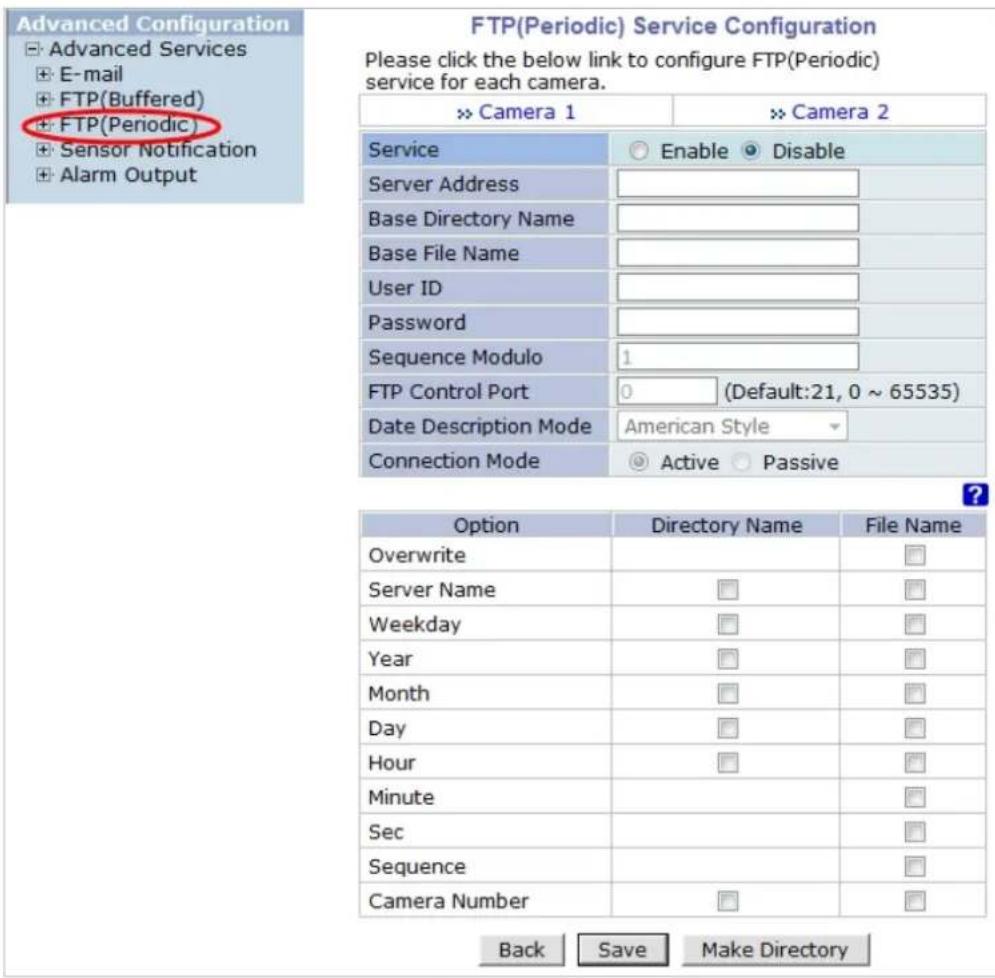
text_image
Advanced Configuration ► Advanced Services ► E-mail ► FTP(Buffered) ► FTP(Periodic) ► Sensor Notification ► Alarm Output FTP(Periodic) Service Configuration Please click the below link to configure FTP(Periodic) service for each camera. ► > Camera 1 ► > Camera 2 Service ○ Enable ○ Disable Server Address Base Directory Name Base File Name User ID Password Sequence Modulo 1 FTP Control Port 0 (Default:21, 0 ~ 65535) Date Description Mode-American Style Connection Mode ○ Active ○ Passive Option Directory Name File Name Overwrite Server Name Weekday Year Month Day Hour Minute Sec Sequence Camera Number Back Save Make DirectoryNotice : • This service is valid for M-JPEG only.
- If the value of the FTP Control Port is 0, it will be set using by system configuration. It is usually same as port number 21.
• The following are values of Date Descrtion Mode.
American Style -> Feb28th2009
European Style -> 28thFeb2009
ISO Standard -> 20090228
| Item Description | ||
| Camera 1 - Camera 2 | Select which channel to set up for FTP (Periodic) service | |
| Service | Select Enable to use the FTP (Periodic) service. Otherwise select Disable. | |
| Server Address FTP Server Address. | ||
| Base Directory Name | The directory in FTP server where the data will be uploaded.(You should make the directory in the FTP server before using the service.) | |
| Base File Name | The base file name of the data to be uploaded in FTP server. | |
| User ID | Enter a User ID to log in to FTP server. | |
| Password Enter the Password for the user ID to log in to FTP server | ||
| Sequence Modulo | Maximum number used in sequential file name | |
| FTP Control Port | Port number for FTP server (Normally 21 is used) | |
| Date Description Mode | Select Date Display Style: American, European or ISO Standard | |
| Connection Mode | Select connection mode for FTP server | |
| Overwrite | If checked, new file overwrites the existing file with the same name. | |
| Server Name | If Directory Name is checked, new directory is created with server name.If File Name is checked, new file is created with server name. | |
| Weekday | If Directory Name is checked, new directory name is created with weekday.If File Name is checked, new file name is created with weekday. | |
| Year | If Directory Name is checked, new directory name is created with year.If File Name is checked, new file name is created with year. | |
| Month | If Directory Name is checked, new directory name is created with month.If File Name is checked, new file name is created with month. | |
| Day | If Directory Name is checked, new directory name is created with day.If File Name is checked, new file name is created with day. | |
| Hour | If Directory Name is checked, new directory name is created with hour.If File Name is checked, new file name is created with hour. | |
| Minute | If checked, new file name is created with minute. | |
| Sec | If checked, new file name is created with second. | |
| Sequence | If checked, new files are created starting from 0, with increment of 1. | |
| Camera Number | If Directory Name is checked, new directory is created with camera number.If File Name is checked, new file is created with camera number. | |
To create a directory with the options shown above, click Make Directory button. After finishing the configuration, click Save button to apply the change and continue to the next page. Clicking Back button will cancel the changes and go back to the previous page. (This service is available only in M-JPEG mode.)
FTP (Periodic) Service Configuration for each channel
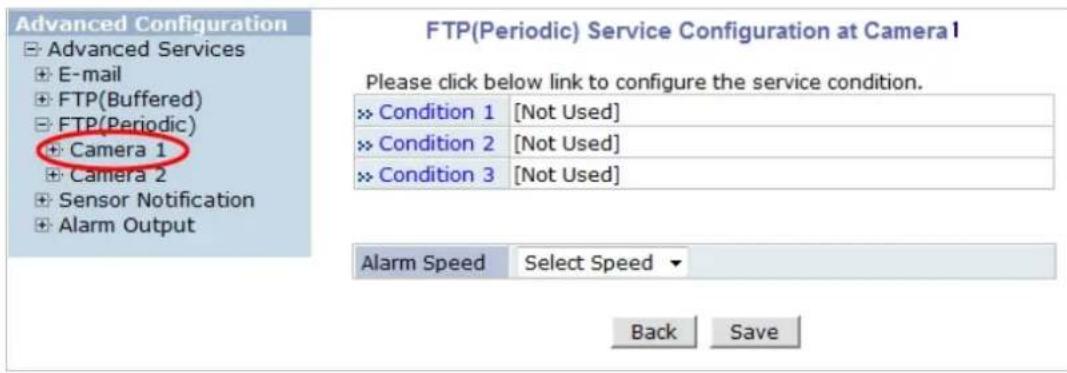
text_image
Advanced Configuration ► Advanced Services ► E-mail ► FTP(Buffered) ► FTP(Periodic) ► Camera 1 ► Camera 2 ► Sensor Notification ► Alarm Output FTP(Periodic) Service Configuration at Camera1 Please click below link to configure the service condition. ► Condition 1 [Not Used] ► Condition 2 [Not Used] ► Condition 3 [Not Used] Alarm Speed Select Speed ▼ Back SaveNotice : FTP interval is the time interval between each image upload service. If you put the number, the last numeric digit will be truncated to zero. For example, if you type 154 or 17, it becomes 150msec and 10msec. If the number is lower than 10, FTP interval becomes zero and FTP service is executed without any time interval.
| Item | Description |
| Condition 1 ~ Condition 3 | Select a condition for FTP (Periodic) service to be activated. Up to 3 conditions can be set respectively. |
| FTP interval (msec) | Select the speed of images to send in FTP(Periodic) service |
After finishing setup, click Save button to apply. If you don't want to change, click Back button.
17. Recording Configuration for Cameras with microSD card
Some versions of VITEK IP cameras will have a microSD card slots on the back.
Those models can record and playback video from the microSD card if installed. Vitek IP cameras can
Support cards up to a 32GB. (Only use quality class 10 microSD cards)
17.1. MicroSD Configuration
If a microSD card (SD card) is not present in the slot already, power down the VITEK IP camera before inserting an SD card. Make sure to turn the power on after inserting the SD card. Open a webbrowser, type in the IP address of the VITEK camera. Log in as Admin, Enter Recording Configuration menu, and then click on SD Configuration then click on SD Information, the card's format information will be displayed
SD Information
| File System | -None- |
| Total Disk Size | -None- |
| Free Disk Size | -None- |
| Usage | -None- |
| Oldest Image | -none- |
| Last Image | -none- |
Detail Stored Image Information

If entire SD information is showing “-NONE-” this means SD card is not formatted, in this case click
Note: Be sure to turn off the device before installing a SD card. Otherwise, the SD card may become defective. Always check the recommended type of SD card because non-conforming SD cards can cause abnormal behavior of the system.
back button followed by clicking SD Status & Format
SD Status & Format (Normal)
| SD | Status |
| 1st SD | Unformatted |
Notice : Be careful! The system could be broken. If you inserted the SD memory with the power on, turn the power off and on again to format. If you select a SD to format, you will be automatically guided to the format menu. Once SD format is completed, you need to reset system. Once format starts, recording stops automatically. After reset system, recording starts automatically.
Click on "1 ^st SD" and the following screen will be displayed
SD Format
Format Option
Check Bad Block
- Format Option
When you enable the "Check Bad Block" option, the Network Video System check the surface of the HDD for detecting bad blocks.
Do not run other tasks, until format is completed. If this option is enabled, the format time may be several hours depend on the size of the HDD.
Back
Partition and Format
Read format option on screen and then click Partition and Formata pop up screen will display asking if you want to do a "Partition and formatting" click OK to continue or Cancel to stop. After clicking OK the following screen will be displayed
SD Format Status
Partition
STEP 1

Format
STEP 3

Complete
STEP 4
Description
Formatting SD.

73.3%
Notice : Do not run other tasks, until format is completed. Once SD format is completed, you will be guided to Format Complete page, automatically.
Note: if program is terminated during the "Format" process SD Card might be damaged
After formatting is completed the following screen will be displayed
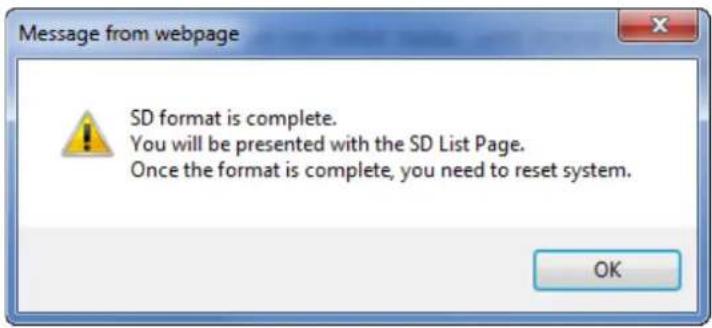
text_image
Message from webpage SD format is complete. You will be presented with the SD List Page. Once the format is complete, you need to reset system. OKClick OK and you will be brought back to the "SD Status & Format screen" click on "Reboot" wait approximately 30 seconds and log back into the Admin screen. Open up "Recording Configuration" menu and click on "SD Configuration" then click on "SD Information" and the following screen will be displayed showing SD card info
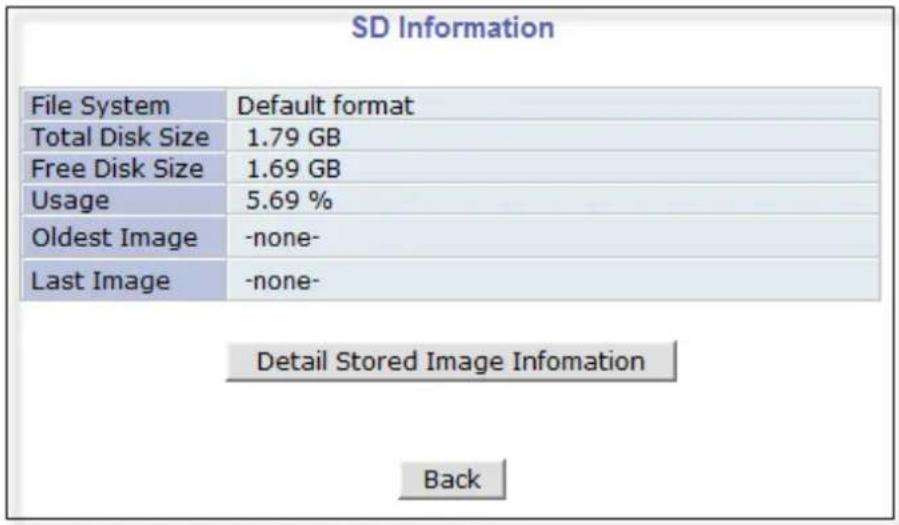
text_image
SD Information File System Default format Total Disk Size 1.79 GB Free Disk Size 1.69 GB Usage 5.69 % Oldest Image -none- Last Image -none- Detail Stored Image Infomation Back17.2. Recording Configuration with microSD card
Each camera has 2 streams (referred as Camera 1 / Camera 2 (see image below)) which can be configured for recording options in this section. Configuration items include motion detection recording, 24-hour continuous recording, event-driven recording, etc.
You can find out the list of streams (camera 1 / camera 2) with recording capability by clicking Recording Configuration on the left side of your screen. For example, you will see 2streams (camera 1 / camera 2) from the list of VS Module ID (IP Devices).

text_image
Recording Configuration + SD Configuration + Recording Configuration -> Recording Profile -> Recording Mode -> SD Status Report -> Clear Recording Config. -> Delete Recorded Data Utilities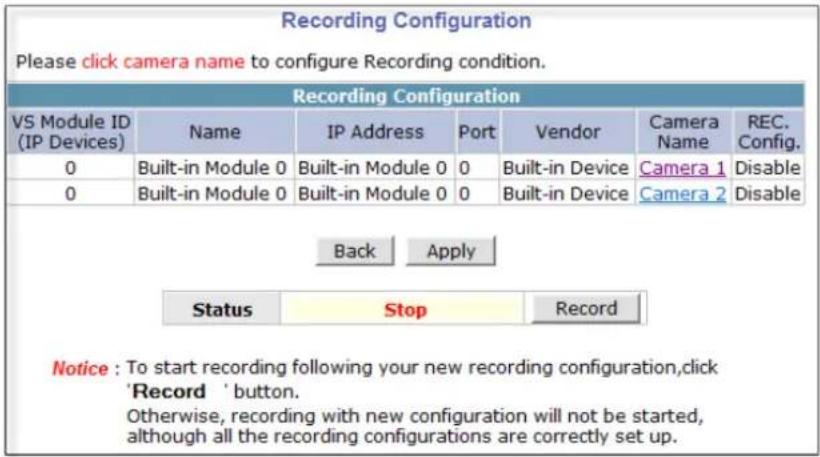
text_image
Recording Configuration Please click camera name to configure Recording condition. Recording Configuration VS Module ID (IP Devices) Name IP Address Port Vendor Camera Name REC. Config. 0 Built-in Module 0 Built-in Module 0 0 Built-in Device Camera 1 Disable 0 Built-in Module 0 Built-in Module 0 0 Built-in Device Camera 2 Disable Back Apply Status Stop Record Notice : To start recording following your new recording configuration,click 'Record' button. Otherwise, recording with new configuration will not be started, although all the recording configurations are correctly set up.Below is an example of configuring the motion detection-triggered recording. It starts by clicking Recording Configuration and clicking on Camera1, the following screen will be display.

text_image
Recording Configuration (VS Module ID 0, Camera 1) » Display current recording configurations Please click below link for the recording configuration. » Condition 1 [Not Used] » Condition 2 [Not Used] » Condition 3 [Not Used] » Condition 4 [Not Used] 01 02 03 04 05 06 07 08 09 10 11 12 13 14 15 16 17 18 19 20 21 22 23 24 Sun Mon Tue Wed Thu Fri Sat 1 2 3 4 Alarm Sensor Motion Detection External Input Data Camera Connected Camera Disconnected Always Schedule Schedule and Event 1 2 3 4 1 2 3 4 Server Module ID 0 Camera Number 1 Camera Name Camera 1 Pre-Alarm Images 0 Post-Alarm Images 0 Pre-Alarm Speed fastest Post-Alarm Speed fastest Back Save Notice : It is recommended using MJPEG compression to use Pre-Alarm and Post Alarm service. If MPEG4 or H.264 video compression is selected, only I Frame will be recorded.Select Condition 1 and the following window will be display.
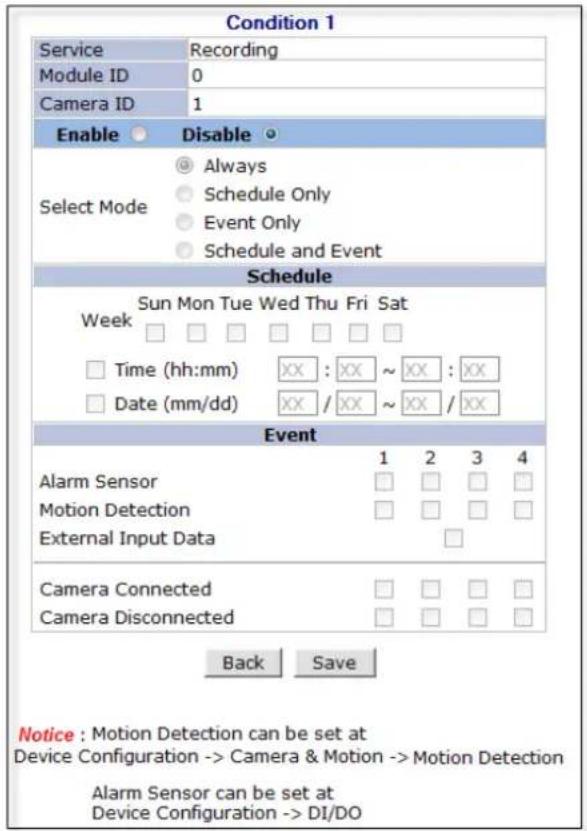
text_image
Condition 1 Service Recording Module ID 0 Camera ID 1 Enable Disable Select Mode Always Schedule Only Event Only Schedule and Event Schedule Sun Mon Tue Wed Thu Fri Sat Week □ □ □ □ □ □ □ □ Time (hh:mm) XX : XX ~ XX : XX □ Date (mm/dd) XX / XX ~ XX / XX Event 1 2 3 4 Alarm Sensor Motion Detection External Input Data □ Camera Connected Camera Disconnected □ □ □ □ Back Save Notice: Motion Detection can be set at Device Configuration -> Camera & Motion -> Motion Detection Alarm Sensor can be set at Device Configuration -> DI/DOEnable / Disable
By clicking on Enable you will be able to select your mode (Always, Schedule only etc). in this example we will be selecting "Event Only".
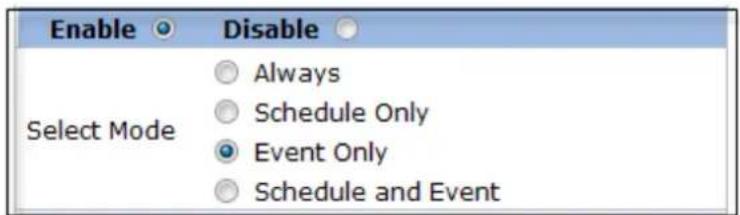
text_image
Enable Disable Select Mode Always Schedule Only Event Only Schedule and EventSchedule
Under Scheduleyou can select time and date for motion recording if left blank motion recording will be 24hrs, 7 days a week. In this example we will be leaving it blank (24/7).

text_image
Schedule Sun Mon Tue Wed Thu Fri Sat Week □ □ □ □ □ □ □ □ Time (hh:mm) XX : XX ~ XX : XX □ Date (mm/dd) XX / XX ~ XX / XXEvent
Under Event click Motion Detection (stream 1 / stream 2). Click on Save to finish.
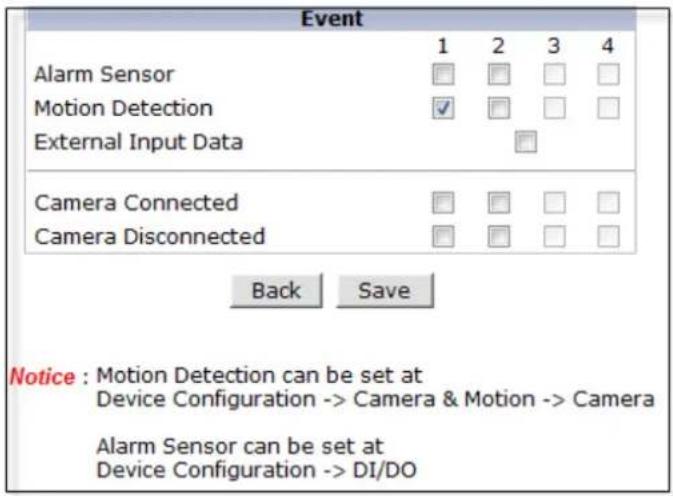
text_image
Event 1 2 3 4 Alarm Sensor Motion Detection External Input Data Camera Connected Camera Disconnected Back Save Notice : Motion Detection can be set at Device Configuration -> Camera & Motion -> Camera Alarm Sensor can be set at Device Configuration -> DI/DO18. Utilities
In Utilities part of the Admin menu, you can view the System Log file, Save Configuration, Reboot, FactoryDefault and System Update.

text_image
Quick Configuration System Configuration Network Configuration Device Configuration Advanced Configuration Recording Configuration Utilities » System Log » Save Configuration » Reboot » Factory Default » System Update18.1. System Log
System log file provides you the information about when and who access' the contents of VITEKCameras such as HTTP file or CGI programs. In each line, log data consists of date, time, category, IP address, user ID.

text_image
System Log Thu Dec 13 07:10:30 2012 Home : 10.0.0.116 (null) Thu Dec 13 07:11:08 2012 Admin: 10.0.0.116 (null) Thu Dec 13 07:11:10 2012 Admin: 10.0.0.116 root Thu Dec 13 07:11:50 2012 Admin: 10.0.0.116 root Thu Dec 13 07:13:02 2012 Live : 10.0.0.116 root Thu Dec 13 07:13:34 2012 Admin: 10.0.0.116 root Thu Dec 13 07:13:51 2012 Live : 10.0.0.116 root Thu Dec 13 07:14:21 2012 Live : 10.0.0.116 root Thu Dec 13 07:14:29 2012 Live : 10.0.0.116 root Thu Dec 13 07:14:32 2012 Live : 10.0.0.116 root Back18.2. Save Configuration
VITEK cameras save the configurations after every step.
Save Configuration
- Changes to configuration will be saved automatically for this model.
Back
18.3. Reboot
It is recommended to reboot the system after making changes to the configuration. To reboot, click Reboot on Utilities menu. A screen will display to confirm a system reboot, click ok to continue.
Windows Internet Explorer will ask to close the webpage, click Yes.
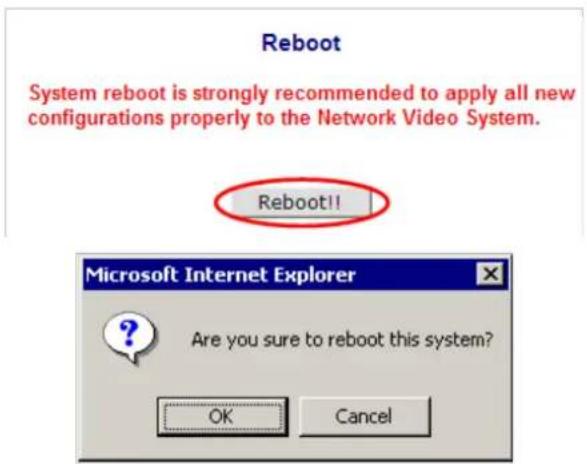
text_image
Reboot System reboot is strongly recommended to apply all new configurations properly to the Network Video System. Reboot!! Microsoft Internet Explorer Are you sure to reboot this system? OK Cancel18.4. Factory Default
When required to restore the configuration of a Camera to factory default conditions, Network configuration is not affected by this action.
Click Factory Default on Utilities menu. A confirmation screen will be displayed as shown Click Factory Default button, otherwise click Back button to cancel it. The second confirmation screen will appear. Click OK button to restore the factory default condition right away. If you click Cancel, web browser will go back to the previous screen without any change made.
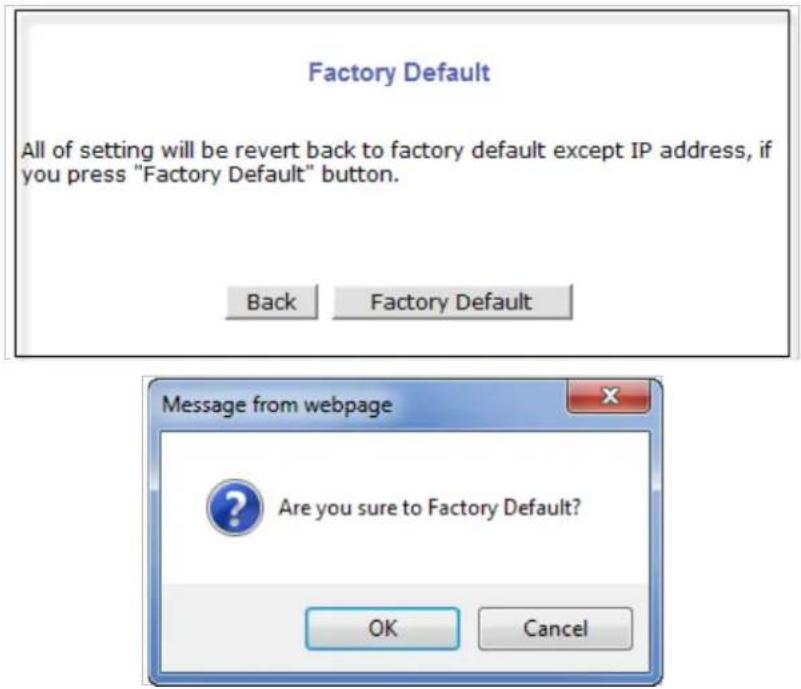
text_image
Factory Default All of setting will be revert back to factory default except IP address, if you press "Factory Default" button. Back Factory Default Message from webpage Are you sure to Factory Default? OK Cancel18.5. System Update
** Is Highly Recommended to Use the IP Installer Program for This Process **
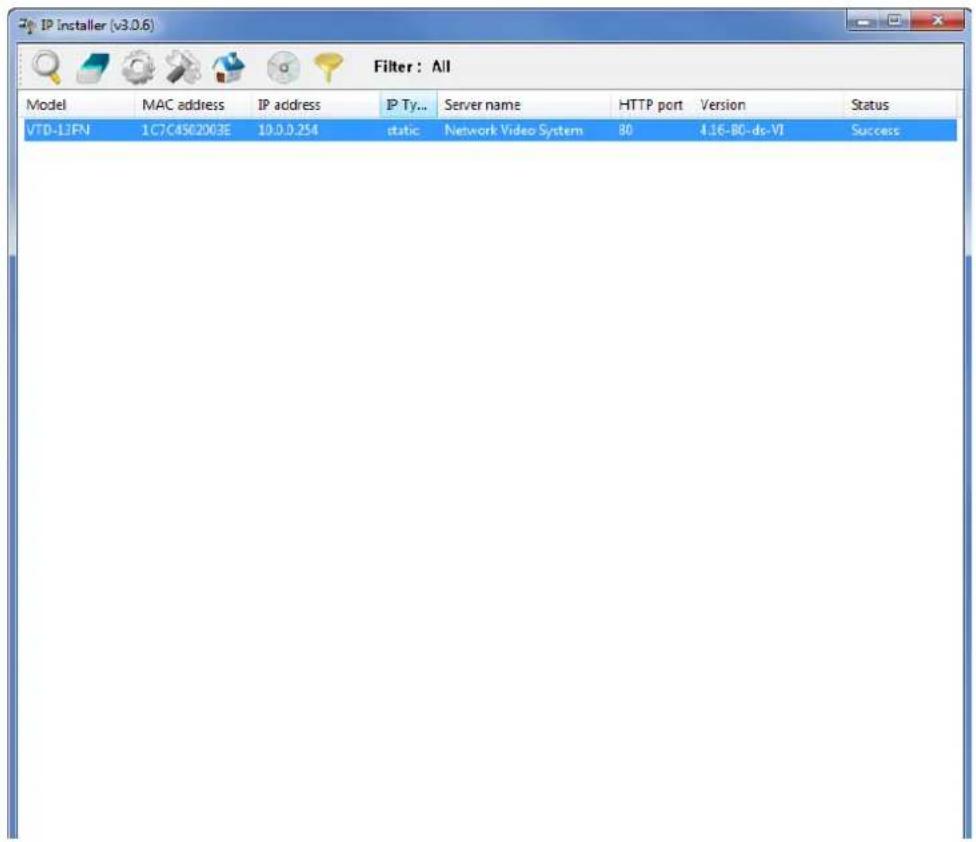
text_image
IP installer (v3.0.6) Filter : All Model MAC address IP address P Ty... Server name HTTP port Version Status VTD-LIFN 1C7C4502003E 10.0.0.254 static Network Video System 80 4.16-BC-ds-VI SuccessOnce IP devices are searched and shown on the screen as functioning successfully, you can update the firmware of them using the "IP Installer" program. To do that, first check the firmware version of the device, which you can find on the IP Installer window.
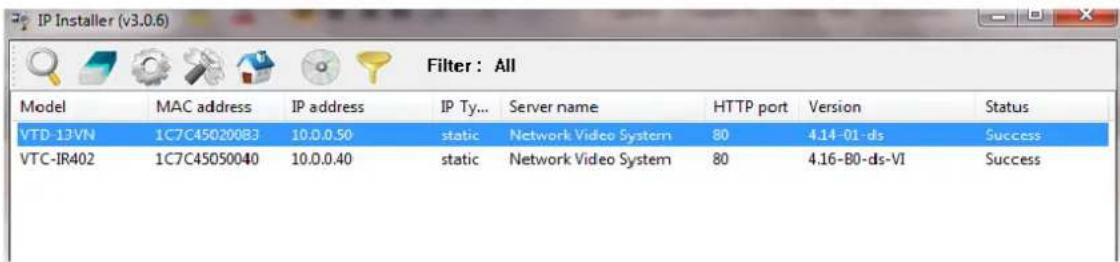
text_image
IP Installer (v3.0.6) Filter : All Model MAC address IP address IP Ty... Server name HTTP port Version Status VTD-13VN 1C7C450200B3 10.0.0.50LI static Network Video System 80 4.14-01-ds Success VTC-IR402 1C7C45050040 10.0.0.40LI static Network Video System 80 4.16-B0-ds-VI Success
In the above picture, the firmware version of this product is 4.14-01-ds while the latest firmware version available is 4.16-B0-ds-VI as you can see at Vitek's homepage
(http://www.vitekcctv.com/Downloads.asp). If you decide to update the firmware, first create a folder on your computer for the update firmware, than download the latest firmware to that folder.
Then select the IP device to be updated on IP Installer window, then click Update Firmware button from the toolbar. The following window will be displayed.

text_image
Update Model Mac Address IP Address Server Name Progress Status Password YTD-13M 1C7C45020083 10.0.0.50 Network Video... Ready Update Select option for update with proper password and then click the button to update firmware. ● ALL (Firmware, RAM disk, System, Web) ○ SYSTEM and WEB ○ WEB only Get version Enter the password for each columns and click the button to get version of firmware. Get version Apply to all CloseYou may find the Password field is empty on the window shown above. If so, click the Password field of the IP device and enter the proper password for the device. You are not allowed to update the firmware if the correct password is not provided.
After the password is entered, the Start Update button will be enabled now. Click the button to see the following window for selecting the folder where the file has been saved. Highlight the folder than clickOK.

text_image
Browse for Folder Select firmware folder Computer Local Disk (C:) Local Disk (D:) DVD/CD-RW Drive (E:) 300.125 DM36x(E) Oxford pt V4.12-06 4.16-B0-ds-VI OK CancelAfter clicking OK the following window will be displayed.

text_image
Progressing... Model Nas Address IP Address Server Name Progress Status Password WTD-13PN 10704502003E 19.0.0.254 Network Video... 8% Transferring file... Update Select option for update with proper passwords, and then click the button to update firmware. ALL (Firmware, RAM disk, System, Web) SYSTEM and WEB WEB only Start update Get version Enter the password for each column and click the button to get version of firmware. Get version Apply to all CloseNote: Do not CLOSE window until completed, to avoid permanent damage to the camera.
19. ENVI Series Viewer
19.1. Introduction
ENVI Series Viewer is an ActiveX program for Internet Explorer web browser, which enable users to control video and audiofunctions of network video devices over the TCP/IP network. ENVI Series Viewer works with EN-V-R network video software, Vitek Network Video Servers, Network Video Recorders, and Network Cameras to show real-time live video images and enables users to control audio, Relay Output, and PTZ functions. (Supported cameras)
19.2. Key Features
• Displays live video streams transmitted from Vitek Cameras / Servers
- Plays audio transmitted from VitekCameras / Servers (supported cameras)
• Transmits audio from PC with ENVI Series Viewer to VitekCamera / Servers
• Stores live video screen as image files
• Stores live video streams as video files
• Controls Relay Output of VitekCameras / Servers (supported cameras)
• PTZ Controls (supported cameras)
• Supports the group mode to see specific channels (for Network Video Recorders only)
• Displays live videos in full screen mode
• Supports Flexible Extra System
19.3. System Requirement for PC
For best quality and performance, your computer needs to meet the minimum requirement as below.
• OS: Microsoft Windows XP Pro, Windows 7
• CPU: Intel Pentium 4, 2 GHz (Dual-Core or faster is recommended)
- System RAM: 2GB
• Video Card: 256MB Ram, 1024x768 Resolution
• 100 Mbps Network Adaptor
20. Installing and Uninstalling
20.1. Installing ENVI Series Viewer
Connect to the Vitek Camera/Server using Internet Explorer, and click Live View on the main page. Then ENVI Series Viewer will be automatically downloaded and installed. If an Internet connection is not available, it's possible to manually install the program file in advance (from supplied CD) and connect to the Vitek Camera / Server later.
20.1.1. Installing on Web Browser
Click 'Live View' after access to Vitek® Server on Internet Explorer.

text_image
Home | Live View | Admin IP Dual Streaming Digital Zoom Enterprise Class VITEK INDUSTRIAL VIDEO PRODUCTS, INC. An Eye on Innovation. Model: VTD-13VRN, Firmware ver 4.14-01-ds Homepage ver 4.14-01_VI for Network Video SystemIf you're using Windows XP Service Pack 2 or later, the Information message will show up as seen below. Click the Information message.

text_image
This site might require the following ActiveX control 'Smart Viewer' from 'VITEK IVP, inc'. Click here to install... Home | Live View | Player | Sample | Admin Auto ActiveX Control Installation If this auto process takes more than 30 seconds, click the below button and install it manually. Manual DownloadIf the Information message doesn't come up due to the problems like network failure, you can start the manual installation as shown in the next section.

text_image
This site might require the following ActiveX Control: http://www.vcpv.com/ (VIP, inc) Install ActiveX Control... What's the Risk? Information Bar Help Player | Sample | Admin Auto ActiveX Control Installation If this auto process takes more than 30 seconds, click the below button and install it manually. Manual DownloadClick the Install ActiveX Control, and the pop-up window will be displayed as above. Click the Install button.
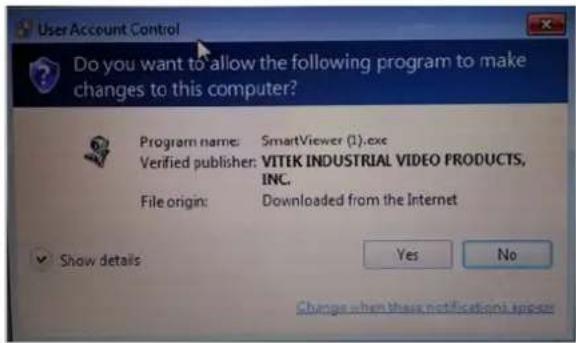
text_image
User Account Control Do you want to allow the following program to make changes to this computer? Program name: SmartViewer (1).exc Verified publisher: VITEK INDUSTRIAL VIDEO PRODUCTS, INC. File origin: Downloaded from the Internet Show details Yes No Change when these notifications appearClick "YES" to allow program to run.
After the installation is successfully completed, ENVI Series Viewer window will be displayed.
Home | Live View | Admin

text_image
IP Dual Streaming Digital Zoom Enterprise Class POE VITEK INDUSTRIAL VIDEO PRODUCTS, INC An Eye on Innovation.Model : VT-PTZ220NP, Firmware ver 4.16-B0-ds-VI
Homepage ver 4.16-80_VT for Network Video System
20.1.2. Manual Installation
When an Internet connection is not available or having some difficulties, you can manually install from the supplied CD using ENVI Series Viewer program file. Execute the downloaded file, and you will see the ENVI Series Viewer Setup Wizard window as shown below. Click the Install button to start installing.

text_image
Smart Viewer 1.1.0.4 Setup Welcome to the Smart Viewer 1.1.0.4 Setup Wizard This wizard will guide you through the installation of Smart Viewer 1.1.0.4. It is recommended that you close all other applications before starting Setup. This will make it possible to update relevant system files without having to reboot your computer. Click Install to start the installation. Install CancelThe following window will be displayed during the installation.
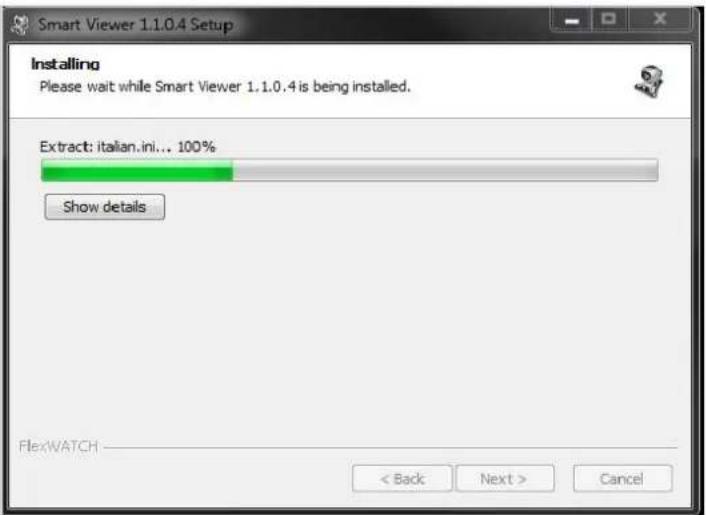
text_image
Smart Viewer 1.1.0.4 Setup Installing Please wait while Smart Viewer 1.1.0.4 is being installed. Extract: italian.ini... 100% Show details FlexWATCH < Back Next > CancelAfter installation is successfully completed, the following window will be displayed. Click the Finish button.
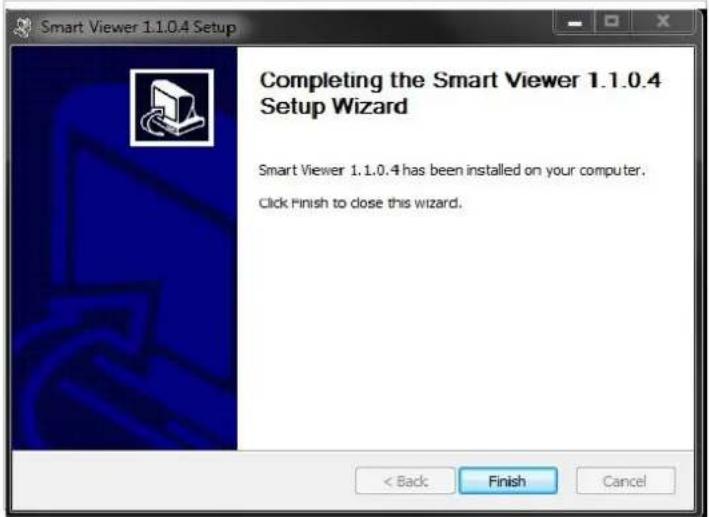
text_image
Smart Viewer 1.1.0.4 Setup Completing the Smart Viewer 1.1.0.4 Setup Wizard Smart Viewer 1.1.0.4 has been installed on your computer. Click Finish to close this wizard.20.2. Uninstalling ENVI Series Viewer
There are two ways to uninstall ENVI Series Viewer program from your computer. Before uninstalling, close all the Internet Explorer windows.
20.2.1. Uninstalling with Program Menu
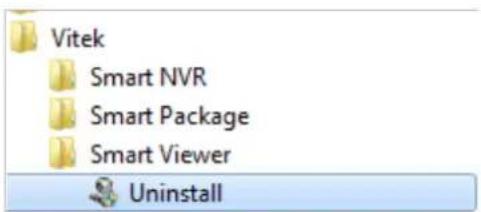
text_image
Vitek Smart NVR Smart Package Smart Viewer UninstallClick Uninstall and the following window will be shown. Click the Yes button.

text_image
Smart Viewer 1.1.0.4 Uninstall Close all browser before proceeding. Are you sure? Yes NoIf the uninstall is successful, the following window will be displayed. Click CLOSE to finish.

text_image
Smart Viewer 1.1.0.4 Uninstall Uninstallation Complete Uninstall was completed successfully. Completed Show details FlexWATCH < Back Close Cancel20.2.2. Uninstalling on Control Panel
Click Start button on the screen, then select the Control Panel.

text_image
Control Panel Documents Computer Network Devices and Printers Default Programs Help and Support Run...In the Control Panel window, double-click the Add or Remove Programs icon.
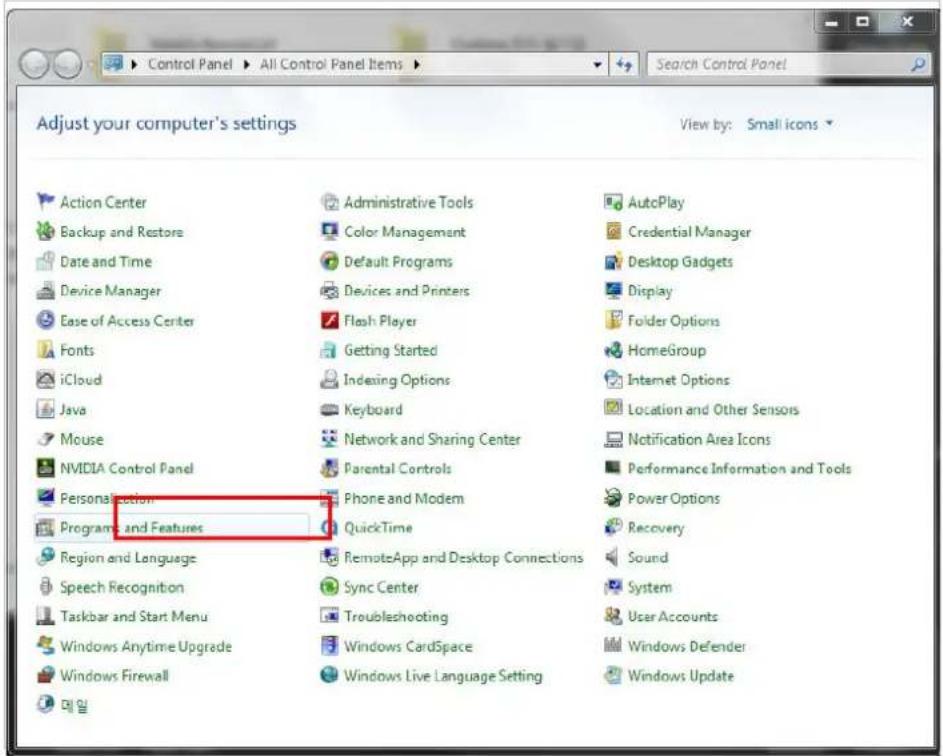
text_image
Adjust your computer's settings View by: Small icons Action Center Backup and Restore Date and Time Device Manager Ease of Access Center Fonts iCloud Java Mouse NVIDIA Control Panel Personal action Programs and Features Region and Language Speech Recognition Taskbar and Start Menu Windows Anytime Upgrade Windows Firewall 메일 Administrative Tools Color Management Default Programs Devices and Printers Flash Player Getting Started Indexing Options Keyboard Network and Sharing Center Parental Controls Phone and Modem QuickTime RemoteApp and Desktop Connections Sync Center Troubleshooting Windows CardSpace Windows Live Language Setting AutoPlay Credential Manager Desktop Gadgets Display Folder Options HomeGroup Internet Options Location and Other Sensors Notification Area Icons Performance Information and Tools Power Options Recovery Sound System User Accounts Windows Defender Windows UpdateYou will see the Currently installed programs list. Click ENVI Series / (Smart Viewer) button,

text_image
Uninstall or change a program To uninstall a program, select it from the list and then click Uninstall, Change, or Repair. Organize Name Publisher Installed On Size Version Windows Live Essentials 2011 Microsoft Corporation 8/26/2011 15.4.3538.0513 Smart Viewer 11/9/2012 Uninstall/Change Currently installed programs: Total size: 5.06 GB 85 programs installedYou will see the Uninstall or change a program list. Click ENVI Series / (Smart Viewer) button, and then right click Uninstall / Changebutton. Then, it will start uninstalling the program.
21. Starting ENVI Series Viewer
Once ENVI Series Viewer is installed in your computer, you can start it by connecting to the Vitek
Camera / Server using Internet Explorer and select Live View on the main menu.
The appearance of ENVI Series Viewer window varies depending on what type of Vitek Server is connected (Network Video Server, Network Camera, or Network Video Recorder).
• ENVI Series Viewer window for Network Video Server or Network Camera

text_image
Control Bar Channel Control Channel 1 Channel 2 All Channels None Channel Channel Control Bar Audio control bar Disconnected Connect Audio Control Bar PTZ control bar Speed 10 Preset Call Preset #1 PTZ Move Mode Continuous PTZ Control Bar Home | Live View | Admin Opens the Instant Playback Viewer. Start or finish manual recording to the built-in MicroSD card in (1 minute max). Configure prior to recording. Save currently displayed Live video as an AVI file to your local computer (10 minute max). Create a Snapshot of the currently displayed Live Video.21.1. Control Bar

Displays and hides Channel control bar

Displays and hides PTZ control bar

Displays and hides Audio control bar

Display image by aspect ratio

Displays image normal screen

Display Enhancer on/off (uses more CPU)

splay Full / Normal screen

Displays image in original size

System Information Display
21.2. Channel Control Bar

text_image
Channel 1 Channel 2 All Channels None ChannelDisplays or hides live view video from channel 1
Displays or hides live view video from channel 2
Displays or hides live view video from ALL channels
No Display
21.3. OSD Channels Buttons
21.3.1. Saving as Image File
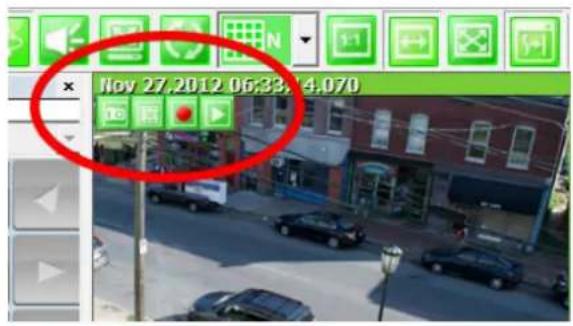
text_image
Nov 27,2012 06:33, 4:070
In ENVI Series Viewer, Live video currently displayed can be captured and saved as an image file either in JPEG or BMP format. Select the live view video you want saved, and click Snapshot button on OSD Channel Buttons. The following window will be displayed.

text_image
Save As Save in: OS (C:) Name Date modified Type AIPG_STORAGE 2011-04-10 8:36 AM File fol AppsUtils 2011-01-14 7:10 PM File fol DELL 2011-04-13 9:11 PM File fol Drivers 2010-10-14 8:08 AM File fol Hangeme 2010-12-08 6:46 AM File fol Intel 2011-06-07 6:14 PM File fol KBStar 2010-12-08 6:46 AM File fol log 2011-02-19 3:39 PM File fol NPKI 2010-12-08 6:24 AM File fol PerfLogs 2011-06-09 10:02 ... File fol PFiles 2011-03-12 10:18 ... File fol Pics-Archive 2011-05-02 4:02 PM File fol oki.nts 2010-12-08 6:24 AM File fol File name: 2011/07/23_13h/23m/10s_Camera 1.jpg Save Save as type: Jpeg Files (*.jpg) CancelIn this dialog box, you see the captured image to be saved. Enter the folder and file name, and click the Save button, then the image will be saved with the name you entered.

Note: If live view video is in MJPEG format, the image will be saved as a JPEG file. If the video is in MPEG-4 or H.264 format, it will be saved in BMP format.
21.3.2. Saving as Video File
In ENVI Series Viewer, Live video currently displayed can be captured and recorded as a video file in AVI format. Select a live view you want to save, and click RecAvi button on OSD
ChannelButtons. Clicking it again will stop recording. Max duration is 10 minutes and recording will be stopped after 10 min if left un-clicked.
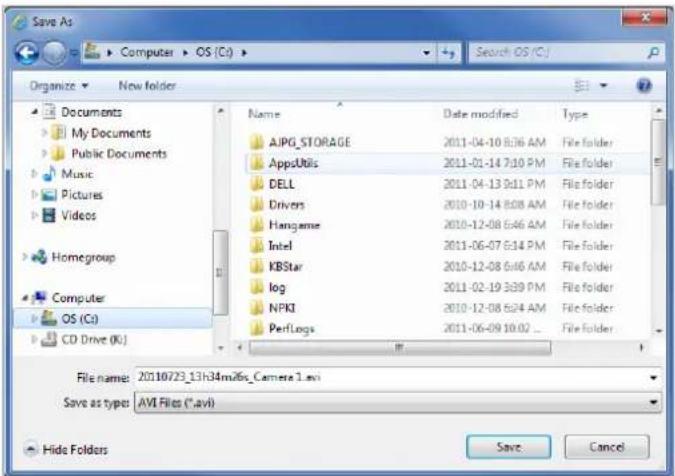
text_image
Save As ► Computer ► OS (C:) Organize ▼ New folder Documents My Documents Public Documents Music Pictures Videos Homegroup Computer OS (C:) CD Drive (K:) Name Date modified Type AIPG_STORAGE 2011-04-10 8:36 AM File folder AppsUtils 2011-01-14 7:10 PM File folder DELL 2011-04-13 9:11 PM File folder Drivers 2010-10-14 8:08 AM File folder Hangame 2010-12-08 6:46 AM File folder Intel 2011-06-07 6:14 PM File folder KBStar 2010-12-08 6:46 AM File folder log 2011-02-19 3:39 PM File folder NPKI 2010-12-08 5:24 AM File folder PerlLogs 2011-06-09 10:02 ... File name: 2010/23_13h34m26s_Camera.1.avi Save as type: AVI Files (*.avi) Hide Folders Save CancelIn video files recorded from M-JPEG format video, the time information file will be generated in SMI subtitle format, which puts time stamp every second. When you play back the recorded video, the time stamp will be displayed as a subtitle on the video screen as shown in the picture below. (upper left)

natural_image
Street scene with parked cars and storefronts, no visible text or symbolsNote: When you play back videos recorded from MPEG-4 or H.264, proper CODEC's may be required.
21.3.3. Manual Recording

To manual record from networkcameras with built-in local storage (microSD), live video
can be recorded to the microSD card by clicking this button. The recorded video can be viewed by Instant Playback feature of OSD Channel Buttons or by running ENVI Series Player program. To finish, click the icon again. Max duration is 1 minute and recording will be stopped after 1 minute.

text_image
Nov 27,2012 06:33:14,070 Camera 5-Camera 121.3.4. Instant Playback

For network cameras with local storage (microSD), Instant Playback is supported. Clicking instant Playback button from the OSD menu will open the window below.
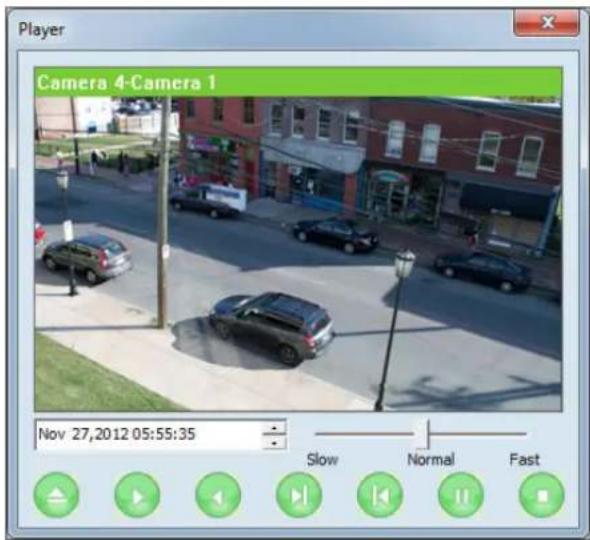
text_image
Player Camera 4-Camera 1 Nov 27,2012 05:55:35 Slow Normal FastInstant playback will scan the video data up to 1 min before it was executed. And scanned data will be played automatically
| 1 05,2011 15:08:11 | Set the beginning of video data. Instant playback will scan 1 min after this. | ||
| Se the playback speed. | |||
| Begin searching data | |||
| Playback | |||
| Reverse playback. | |||
| 1 frame playback | |||
| 1 frame reverse playback | |||
| Pause | |||
| Stop | |||
21.4. Extended Features
When you click the right mouse button on the Live View Window, a pop-up menu will appear for extended features as shown below.

text_image
Pause FPS Flip Mute Audio Do 1 Navigation21.4.1. Pausing Live Video
Click the Pause button to stop and resume live view video.

text_image
Pause FPS Flip Mute Audio Do 1 Navigation21.4.2. FPS Control
FPS (Frame per Second) can be controlled only in MJPEG mode. In MPEG4 and H.264 video mode, FPS control is not supported.
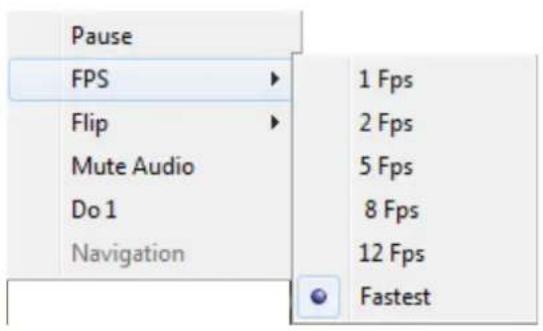
text_image
Pause FPS Flip Mute Audio Do 1 Navigation 1 Fps 2 Fps 5 Fps 8 Fps 12 Fps Fastest21.4.3. Flip Control
Flip Control: The horizontal view of the image can be changed using the (mirror) function. The vertical view of the image can be changed using the (flip) function.

text_image
Pause FPS Flip Mute Audio Do 1 Navigation Mirror FlipThis User's manual explains how to set up EN-V-R software in your PC. EN-V-R is the integrated system software for video security applications, which runs on Microsoft's Windows-based computers. Some of major features of EN-V-Rare listed below.
- Provides main features of Liveview, Playback, Record, Backup
• Event, motion, scheduled recording & conditional playback
• Motion-JPEG, MPEG-4, H.264 stream supported - Supports various vendors' IP devices (Multi Vendor Version only) for recording and retransmission of video, voice, and data
• Supports Megapixel cameras (up to 3M pixels) - Users can connect to EN-V-Rvia web browsers to access live video, Audio, and data, and search for video to play back
• Up to 128 channels supported for cameras
Note: A product-key is required for proper installation of EN-V-R program. You can still install EN-V-R in 10-working day trial mode if a product-key is not entered during installation. (Multivendor software only)

flowchart
graph TD
    A["Camera"] --> B["EN-V-R"]
    C["Camera"] --> B
    D["Camera"] --> B
    E["Camera"] --> B
    B <-->|Analog| F((HTTP port))
    F --> G["Monitor 1"]
    F --> H["Monitor 2"]
    G --> I["ENVI Viewer"]
    G --> J["ENVI Player"]
    G --> K["ENVI Map"]
    G --> L["ENVI Alarm"]
23. Requirements for Installation
23.1. EN-V-R Versions
EN-V-R is supplied to customers in different versions for each appropriate application. Users will need to choose the right versions for their needs.
| Version Types | Register Channels | Time Restriction | Recording Channels | Retransmission Streams | Support Other vendors | Max Recoding Capacity |
| Evaluation | 128 | 10 days | 128 | 256 | Yes | 160 TB |
| Free | 16 | N/A | 16 | 64 | No | 160 TB |
| Multivendor | 9 | N/A | 9 | 36 | Yes | 160 TB |
| 16 | N/A | 16 | 64 | Yes | 160 TB | |
| 32 | N/A | 32 | 128 | Yes | 160 TB | |
| 64 | N/A | 64 | 256 | Yes | 160 TB | |
| 128 | N/A | 128 | 512 | Yes | 160 TB |
23.2. System Requirement for PC
For best quality and performance, your computer needs to meet the minimum requirement as below.
• Microsoft Windows XP Pro, Windows 7 Pro or higher, Video Card(256MB Ram, 1024x768 or higher)
| Compression | # of Channels | Resolution | Recommended CPU | Memory |
| H.264 | 16 Channels | D1 | Intel Core2Duo T5200 | 1.0GB |
| 720P | Intel Core2Duo E7550 | 1.5GB | ||
| 1080P | Intel Core i-5-2500S | 2.0GB | ||
| 32 channels | D1 | Intel Core2Duo E6700 | 1.0GB | |
| 720P | Intel Core i-5 750 | 2.0GB | ||
| 1080P | Intel Core i-7 970 | 4.0GB | ||
| 64 channels | D1 | Intel Core i-5 661 | 1.5GB | |
| 720P | Intel Xeon X5660 | 4.0GB | ||
| 1080P | Intel Xeon X5680 Dual CPU | 4.0GB | ||
| 128 channels | D1 | Intel Xeon X5507 Dual CPU | 4.0GB | |
| 720P | Intel Xeon X5670 Dual CPU | 6.0GB | ||
| 1080P | Intel Xeon E7-4850 Dual CPU | 6.0GB | ||
| Motion-JPEG | 16 Channels | D1 | Intel Core2Duo E6700 | 1.0GB |
| 720P | Intel Core i-5 460M | 1.5GB | ||
| 1080P | Intel Core i-5 -2500 | 3.0GB | ||
| 32 channels | D1 | Intel Core i-5 661 | 1.5GB | |
| 720P | Intel Core i-5 -2400S | 2.0GB | ||
| 1080P | Intel Xeon X5590 Dual CPU | 4.0GB | ||
| 64 channels | D1 | Intel Core i-5 -2500 | 3.0GB | |
| 720P | Intel Xeon X5550 Dual CPU | 4.0GB | ||
| 1080P | Intel Xeon E7-4850 Dual CPU | 6.0GB | ||
| 128 channels | D1 | Intel Xeon X5687 Dual CPU | 4.0GB | |
| 720P | Intel Xeon X5690 Dual CPU | 6.0GB | ||
| 1080P | Intel Xeon E7-4850 Dual CPU | 6.0GB |
Note: Above PC requirements are based on running EN-V-R program only. If other software needs to run along with EN-V-R at the same time, you may need additional performance level for your PC. It is recommended to check actual performance and disk capacity before selecting a PC for EN-V-R.
After downloading EN-V-R, double click EN-V-R Setup icon to start installation. The following window will be displayed on the screen. Before installing, check the version of the EN-V-R which is shown on the window.
You may encounter the following security warning. To continue installing the program, click Yes button.

text_image
User Account Control Do you want to allow the following program to make changes to this computer? Program name: SmartNVRSetup_VT_v1.2.0.6_SV_Lite_16Ch Verified publishers: File origin: Network drive Show details Yes No Change when these notifications appearThen select language for installation.
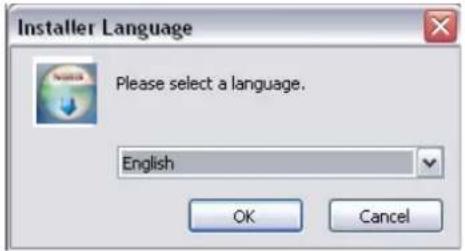
text_image
Installer Language Please select a language. English OK CancelYou will see the below window, then click Next button.
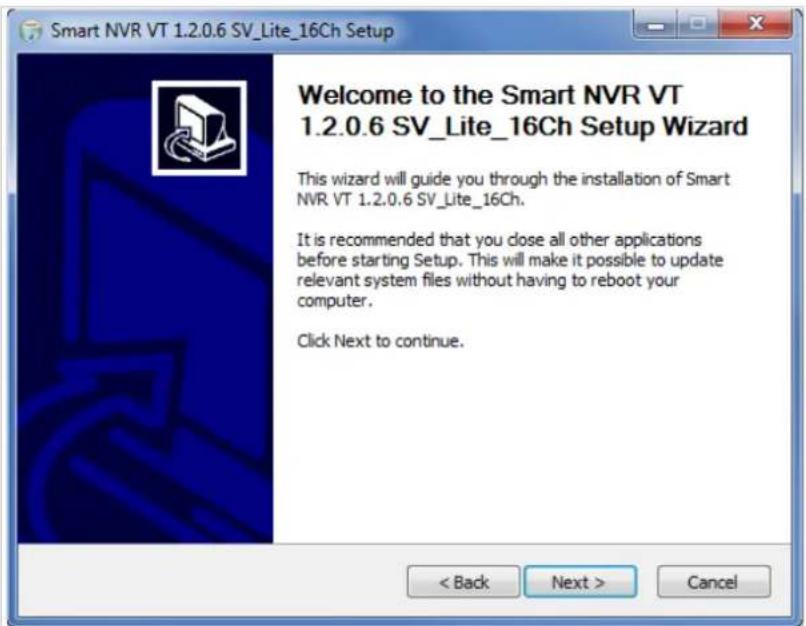
text_image
Smart NVR VT 1.2.0.6 SV_Lite_16Ch Setup Welcome to the Smart NVR VT 1.2.0.6 SV_Lite_16Ch Setup Wizard This wizard will guide you through the installation of Smart NVR VT 1.2.0.6 SV_Lite_16Ch. It is recommended that you close all other applications before starting Setup. This will make it possible to update relevant system files without having to reboot your computer. Click Next to continue. < Back Next > CancelThe default location for installation is C:\Program Files\Vitek. It is recommended to install in this folder,
but if you want to change it to another location, click Browse button to choose a proper path.
Now click Install button.

text_image
Smart NVR VT 1.2.0.6 SV_Lite_16Ch Setup Choose Install Location Choose the folder in which to install SmartNVR VT 1.2.0.6 SV_Lite_16Ch. Setup will install Smart NVR VT 1.2.0.6 SV_Lite_16Ch in the following folder. To install in a different folder, click Browse and select another folder. Click Install to start the installation. Destination Folder Program Files (*.v85) /WTEC\Smart NVR Browse... Space required: 33.3MB Space available: 299.0GB Microsoft Install System v2.46 < Back Install CancelYou will see the progress of copying install files to the hard drive as shown below, once is completed click on NEXT.

text_image
Smart NVR VT 1.2.0.6 SV_Lite_16Ch Setup Installing Please wait while Smart NVR VT 1.2.0.6 SV_Lite_16Ch is being installed. MetaControl service install... < Back Next > CancelClick Finish to complete the Installation.
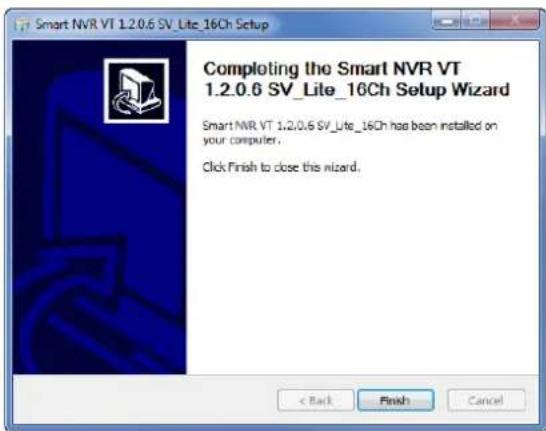
text_image
Smart NVR VT 1.2.0.6 SV_Lite_16Ch Setup Completing the Smart NVR VT 1.2.0.6 SV_Lite_16Ch Setup Wizard Smart NVR VT 1.2.0.6 SV_Lite_16Ch has been installed on your computer. Click Finish to close this wizard. < Back Finish CancelAfter installing EN-V-R program for the first time, it needs to be configured before use, so it automatically executes the configuration program, which is called EN-V-R Configurator.

text_image
Smart NVR Configurator Type Admin Password OK CancelEnter the proper Admin Password. The default password is root.
The following screen will be displayed, click OK to continue.

text_image
SmartNvrCfg This program must be closed after configuration is complete for security. OKNow you will see EN-V-R Configurator window on the screen.

text_image
Smart NVR Configurator Configuration System, Network Configuration IP-Device, Camera Management User Management Disk Setup Disk Quota Disk Mode Utilities Description 1. To receive video and other data, register IP-Device. 2. The video and other data is used to re-transmit, record, search, and playback. 3. To manage, register user and allow authority. 4. Setup disk space to manage recording data. 5. Supports Management toll such as Log. Apply CloseTo use EN-V-R Configurator program, refer to Section 27. Starting EN-V-R Configurator on page 99.
If you need to uninstall EN-V-R, first you need to make sure EN-V-R program is not running on your computer by checking the system icon. As you see on the following picture, you can easily find out if EN-V-R service running.

text_image
Customize... EN 4:45 PM 12/17/2012If EN-V-R is not running, you can go ahead to the next section of uninstalling the program. If EN-V-R is active, place the mouse pointer on the EN-V-R icon, and click the right mouse button. You'll see the pop-up menu. Select Exit.
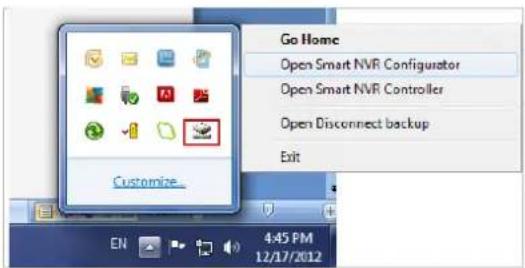
text_image
Go Home Open Smart NVR Configurator Open Smart NVR Controller Open Disconnect backup ExitThen the EN-V-R icon disappears, and you know that EN-V-R is no longer running on your computer. Now you're ready to start uninstalling.
25.2. Executing Uninstaller
To start uninstalling, click Start > All Programs > Vitek> EN-V-R> Uninstall.
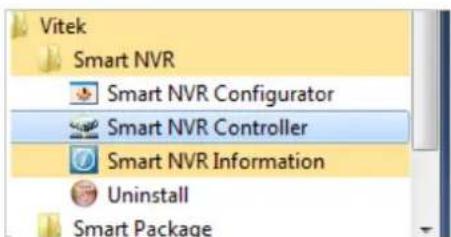
text_image
Vitek Smart NVR Smart NVR Configurator Smart NVR Controller Smart NVR Information Uninstall Smart PackageWhen the following window appears, click YES button.

text_image
Smart NVR VT 1.2.0.6 SV_Lite_16Ch Uninstall Are you sure you want to completely remove Smart NVR VT 1.2.0.6 SV_Lite_16Ch and all of its components? Yes NoThe progress of uninstalling is displayed.

text_image
Smart NVR VT 1.2.0.6 SV_Lite_16Ch Uninstall Uninstalling Please wait while Smart NVR VT 1.2.0.6 SV_Lite_16Ch is being uninstalled. Smart NVR service stop... Nullsoft Install System v2.46 Close CancelAfter all the install files are deleted, the following window will be displayed. Click OK button on the following window to complete the uninstalling.
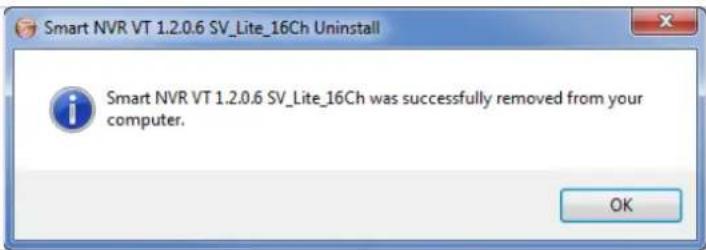
text_image
Smart NVR VT 1.2.0.6 SV_Lite_16Ch Uninstall Smart NVR VT 1.2.0.6 SV_Lite_16Ch was successfully removed from your computer. OK26. Components of EN-V-R Program
EN-V-R consists of three programs, (EN-V-R Service, EN-V-R Configurator, and EN-V-R Controller).
26.1. EN-V-R Configurator
EN-V-R Configurator is used to set up various parameters and conditions of EN-V-R Service. Users can register, modify, and delete IP devices and users with this program. It also provides configuring tools for recording, alarm, event, and other functions.
26.2. EN-V-R Service
EN-V-R program is a Windows service and runs in a background mode, which means that it is not shown on the Windows desktop. EN-V-R receives video, audio, alarm, even data from IP devices over the network, and then it can record the data on the hard drive or retransmit to users. Starting, terminating and restarting of EN-V-R program can be done by using EN-V-R Configuration or EN-V-R Controller.
26.3. EN-V-R Controller
EN-V-R Controller program is used to start or stop the EN-V-R service.
26.4. EN-V-R System Tray Menu
After you finish installing EN-V-R, you will find the EN-V-R icon on the system tray, which is located right, bottom part of the Windows desktop.

text_image
Customize... EN 4:45 PM 12/17/2012Move the cursor over the icon, and right click. The following pop-up menu will show. You can open EN-V-R Configurator or EN-V-R Controller program from this menu, or you can go to the Home page of the EN-V-R program for live view or playback.
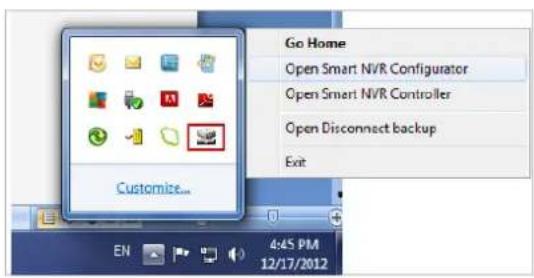
text_image
Go Home Open Smart NVR Configurator Open Smart NVR Controller Open Disconnect backup Exit Customize... 4:45 PM 12/17/201227. Starting EN-V-R Configurator
EN-V-R Configurator starts automatically right after installation is completed; you may also click the EN-V-R icon on the Windows desktop.
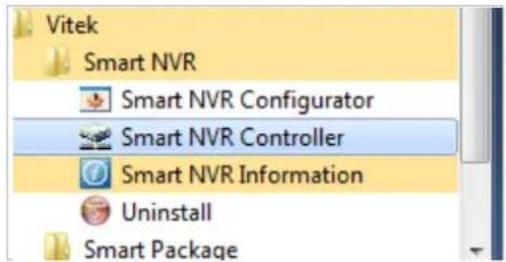
text_image
Vitek Smart NVR Smart NVR Configurator Smart NVR Controller Smart NVR Information Uninstall Smart PackageIf EN-V-R program is already running in background, you may also select the EN-V-R icon on the system tray by clicking right button of the mouse.
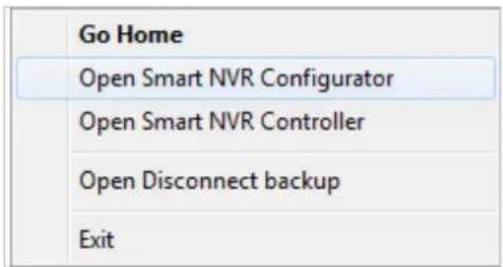
text_image
Go Home Open Smart NVR Configurator Open Smart NVR Controller Open Disconnect backup ExitYou may encounter the security window as below. Click Yes button to continue.
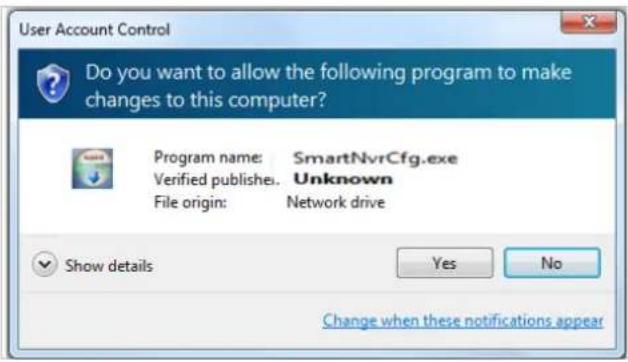
text_image
User Account Control Do you want to allow the following program to make changes to this computer? Program name: SmartNvrCfg.exe Verified publishe. Unknown File origin: Network drive Show details Yes No Change when these notifications appearOnce EN-V-R program starts, a log-in window will be displayed as below. Type in the proper admin password and click the OK button. The default admin / password is root.
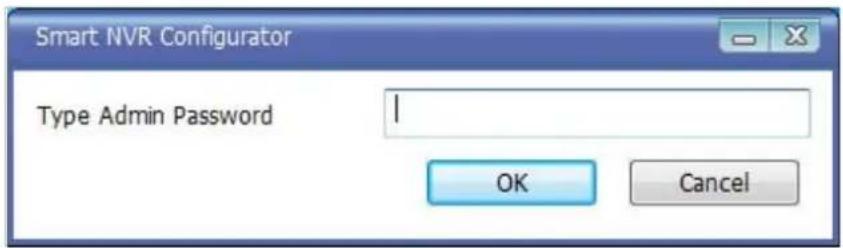
text_image
Smart NVR Configurator Type Admin Password OK CancelNow EN-V-R Configurator window will be displayed.

text_image
Smart NVR Configurator Configuration System, Network Configuration IP-Device, Camera Management User Management Disk Setup Disk Quota Disk Mode Utilities Description 1. To receive video and other data, register IP-Device. 2. The video and other data is used to re-transmit, record, search, and playback. 3. To manage, register user and allow authority. 4. Setup disk space to manage recording data. 5. Supports Management toll such as Log. Apply Close28. Quick Start Guide
EN-V-R is full-functioning Network Video Recorder software that runs on your PC. When started for the first time after EN-V-R is installed, there is no IP devices connected.
To add a camera to the EN-V-R you must register the camera first. Then EN-V-R knows what IP devices they are, how to connect to them, and how to use them. That way, you will be able to control EN-V-R for recording, live viewing, etc.
28.1. EN-V-R Configurator User Interface
The following picture shows the main window of EN-V-R Configurator program.
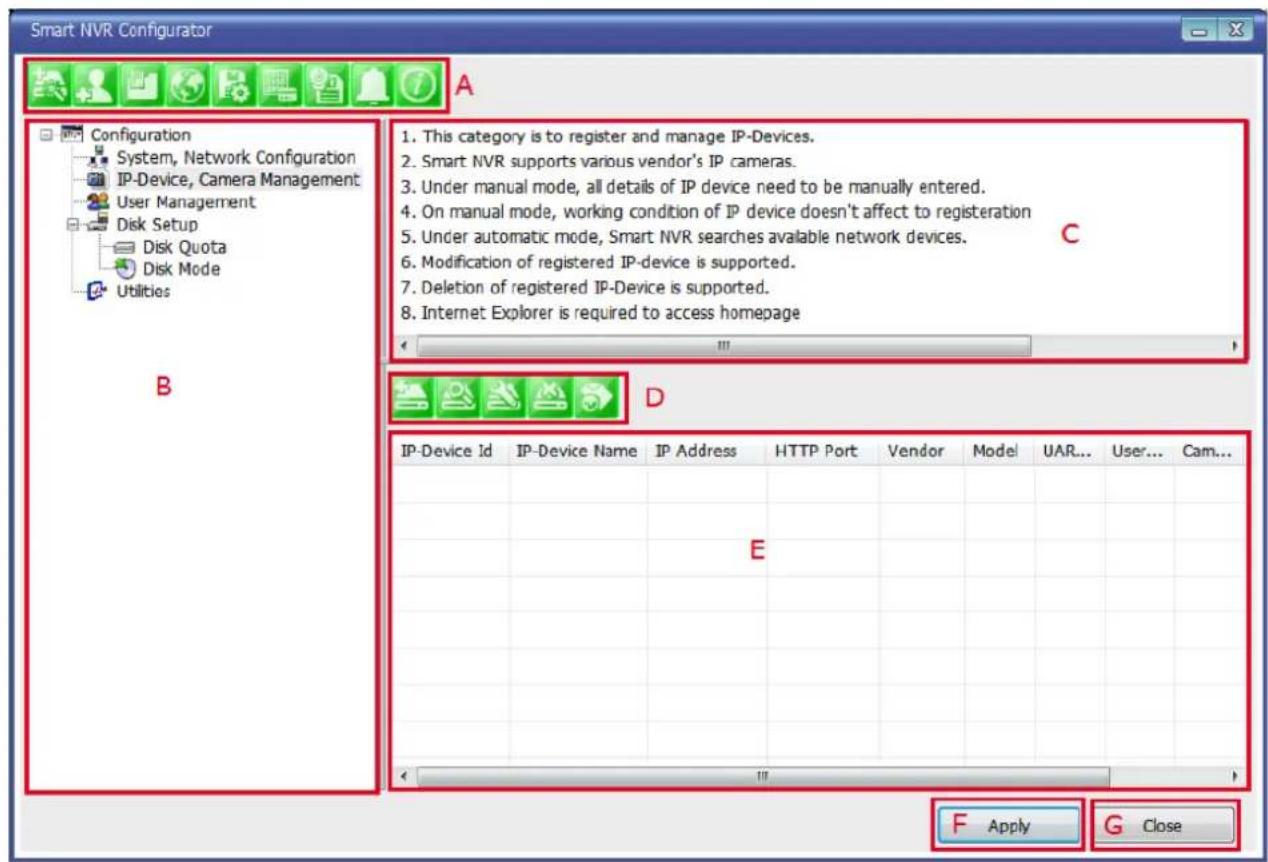
text_image
Smart NVR Configurator A Configuration System, Network Configuration IP-Device, Camera Management User Management Disk Setup Disk Quota Disk Mode Utilities B 1. This category is to register and manage IP-Devices. 2. Smart NVR supports various vendor's IP cameras. 3. Under manual mode, all details of IP device need to be manually entered. 4. On manual mode, working condition of IP device doesn't affect to registration 5. Under automatic mode, Smart NVR searches available network devices. 6. Modification of registered IP-device is supported. 7. Deletion of registered IP-Device is supported. 8. Internet Explorer is required to access homepage C D IP-Device Id IP-Device Name IP Address HTTP Port Vendor_Model UAR... User... Cam... E F Apply G Close| Items Descriptions | ||
| A | Main Toolbar | Frequently-used menu items are shown on this toolbar. |
| B | Configuration Menu tree | Configurable categories are shown as a menu tree style. |
| C | Configuration Menu Description | Descriptions and usages of the selected category are displayed. |
| D | Sub-Menu Toolbar | Menu items for the selected category are shown.(Note: This toolbar is displayed only when any top menu item is selected from the menu tree.) |
| E | Device List | IP cameras Information |
| F | Apply Button | Click this button to apply the changed values. |
28.2. Searching for IP Devices
Click the first button on the Main Toolbar.
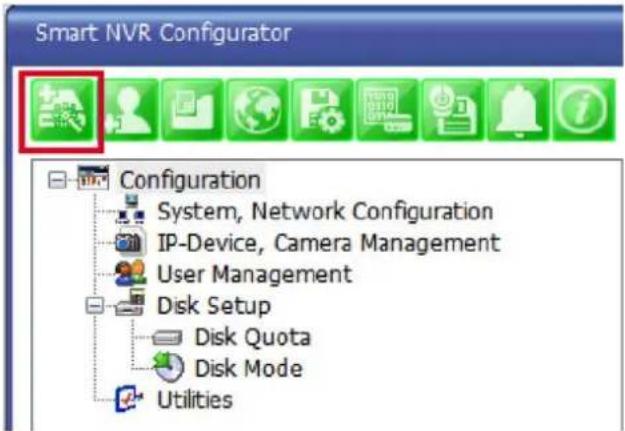
text_image
Smart NVR Configurator Configuration System, Network Configuration IP-Device, Camera Management User Management Disk Setup Disk Quota Disk Mode UtilitiesYou are now given a choice to register the IP devices by "search and register or manually". To make it easy, choose Search and register IP-Device in this stage, and click Next button.
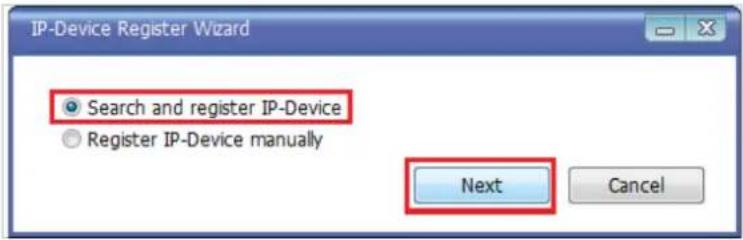
text_image
IP-Device Register Wizard Search and register IP-Device Register IP-Device manually Next CancelOn the following window, click Scan button.
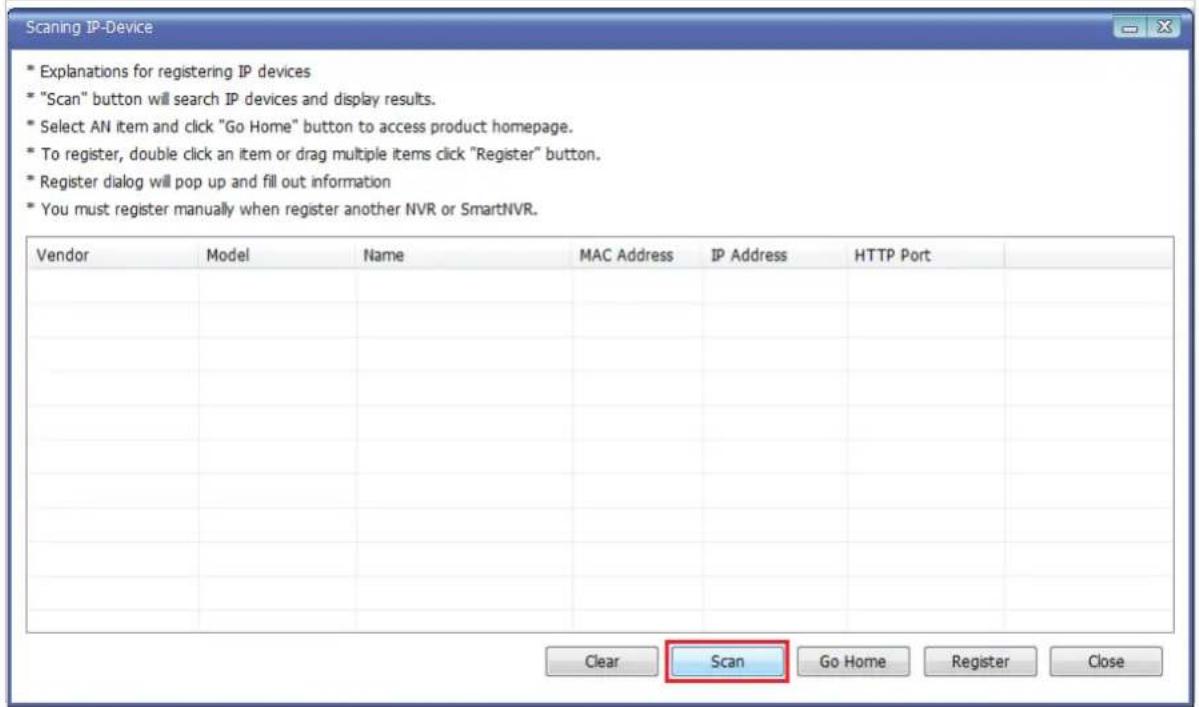
text_image
Scanning IP-Device * Explanations for registering IP devices * "Scan" button will search IP devices and display results. * Select AN item and click "Go Home" button to access product homepage. * To register, double click an item or drag multiple items click "Register" button. * Register dialog will pop up and fill out information * You must register manually when register another NVR or SmartNVR. Vendor Model Name MAC Address IP Address HTTP Port Clear Scan Go HomemasnRegisternCloseThe searching for IP devices is started. As the detected IP devices are being listed. Wait until searching is finished. If you click Cancel button in the middle of searching, the EN-V-R will retain only the IP devices found until that moment.

text_image
Scanning IP-Device * Explanations for registering IP devices * "Scan" button will search IP devices and display results. * Select AN item and click "Go Home" button to access product homepage. * To register, double click an item or drag multiple items click "Register" button. * Register dialog will pop up and fill out information * You must register manually when register another NVR or SmartNVR. Vendor Model Name MAC Address IP Address HTTP Port VITEK VTD-13FN VITEK VTD-13FN Search Count : 2 Cancel Clear Scan Go Home Registor Close28.3. Registering IP Devices
After scanning is finished, you have a list of IP devices found on your network. Next step is registering them. Double click the IP device you want to register or you may highlight it and then click Register button. In this example, the first one is chosen to register.
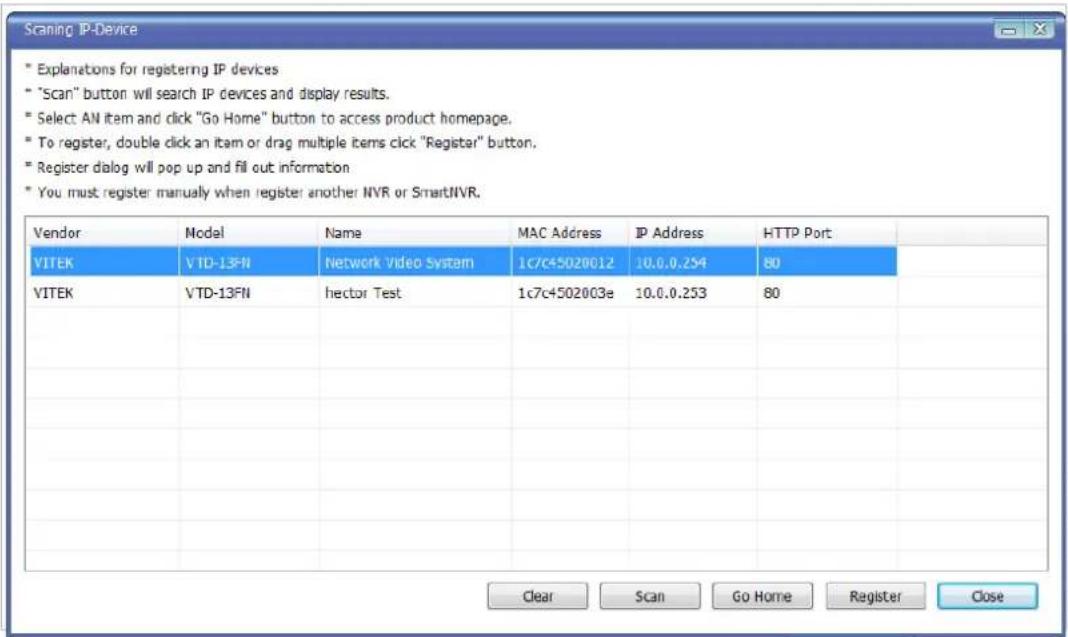
text_image
Scanning IP-Device * Explanations for registering IP devices * "Scan" button will search IP devices and display results. * Select AN item and click "Go Home" button to access product homepage. * To register, double click an item or drag multiple items click "Register" button. * Register dialog will pop up and fill out information * You must register manually when register another NVR or SmartNVR. Vendor Model Name MAC Address IP Address HTTP Port VITEK VTD-13FN Network Video System 1c7c45020012 10.0.0.254 80 VITEK VTD-13FN hector Test 1c7c4502003e 10.0.0.253 80 Clear Scan Go Home_Register CloseThe next window shows up and it's for entering the network parameters and camera resolutions of the IP device you've chosen. You may need to enter the Login ID and Password here. Click Save to finish registering it.
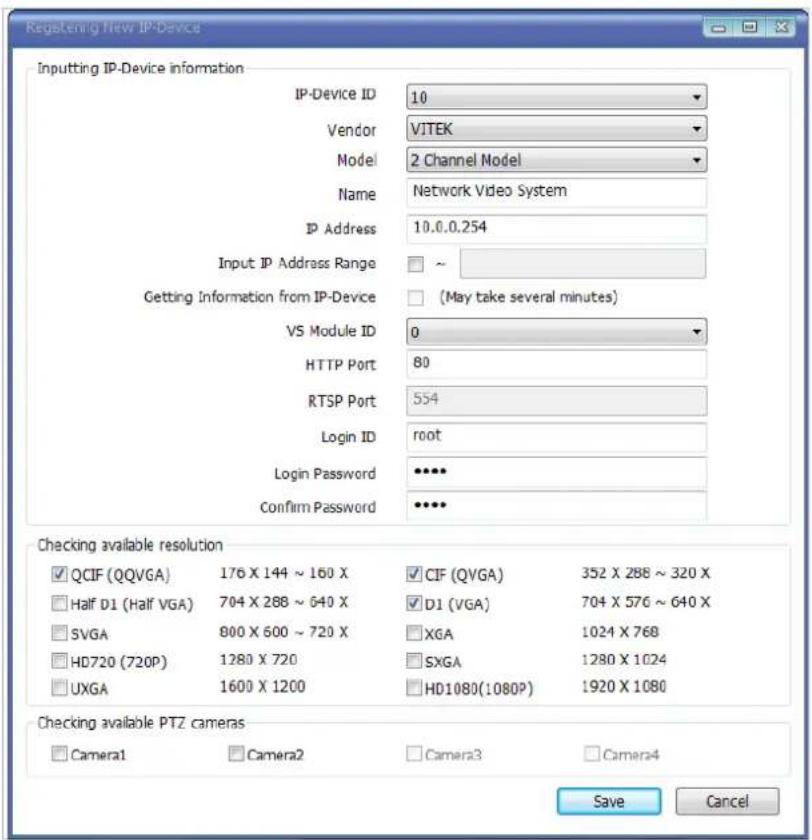
text_image
Regatening New IP-Device Inputting IP-Device information IP-Device ID 10 Vendor VITEK Model 2 Channel Model Name Network Video System IP Address 10.0.0.254 Input IP Address Range ~ Getting Information from IP-Device (May take several minutes) VS Module ID 0 HTTP Port 80 RTSP Port 554 Login ID root Login Password ****** Confirm Password ****** Checking available resolution ✓ QCIF (QQVGA) 176 X 144 ~ 160 X ✓ CIF (QVGA) 352 X 288 ~ 320 X □ Half D1 (Half VGA) 704 X 288 ~ 640 X ✓ D1 (VGA) 704 X 576 ~ 640 X □ SVGA 800 X 600 ~ 720 X □ XGA 1024 X 768 □ HD720 (720P) 1280 X 720 □ SXGA 1280 X 1024 □ UXGA 1600 X 1200 □ HD1080(1080P) 1920 X 1080 Checking available PTZ cameras □ Camera1 □ Camera2 □ Camera3 □ Camera4 Save CancelClick on Save after configuring IP device (camera)
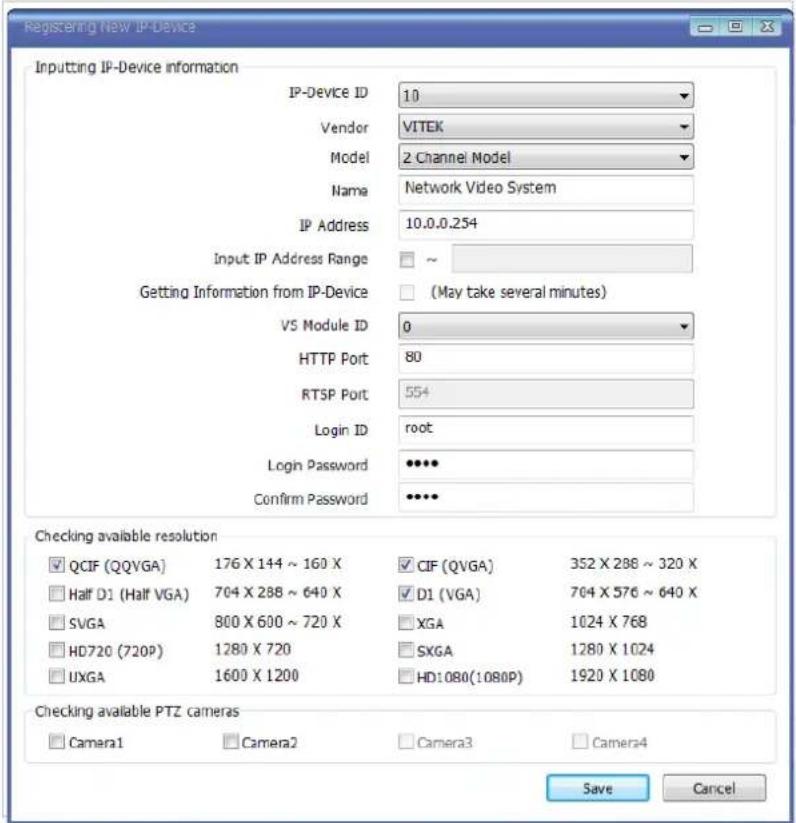
text_image
Registering New IP-Device Inputting IP-Device information IP-Device ID 10 Vendor VITEK Model 2 Channel Model Name Network Video System IP Address 10.0.0.254 Input IP Address Range ~ Getting Information from IP-Device (May take several minutes) VS Module ID 0 HTTP Port 80 RTSP Port 554 Login ID root Login Password ***** Confirm Password ***** Checking available resolution QCIF (QQVGA) 176 X 144 ~ 160 X CIF (QVGA) 352 X 288 ~ 320 X Half D1 (Half VGA) 704 X 288 ~ 640 X D1 (VGA) 764 X 576 ~ 640 X SVGA 800 X 600 ~ 720 X XGA 1024 X 768 HD720 (720P) 1280 X 720 SXGA 1280 X 1024 UXGA 1600 X 1200 HD:080(1080P) 1920 X 1080 Checking available PTZ cameras Camera1 Camera2 Camera3 Camera4 Save CancelClick Apply after registering one or more IP devices (cameras). The image below represents the configurator with multiple IP devices registered.
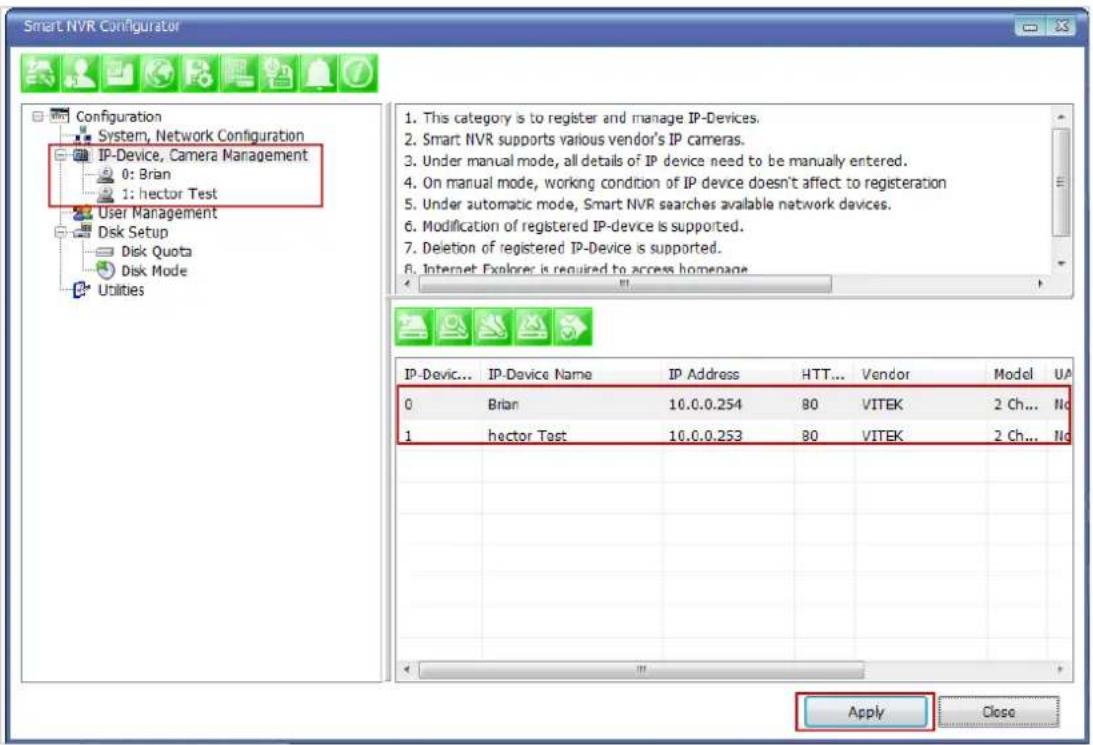
text_image
Smart NVR Configurator Configuration System, Network Configuration IP-Device, Camera Management 0: Brian 1: hector Test User Management Disk Setup Disk Quota Disk Mode Utilities 1. This category is to register and manage IP-Devices. 2. Smart NVR supports various vendor's IP cameras. 3. Under manual mode, all details of IP device need to be manually entered. 4. On manual mode, working condition of IP device doesn't affect to registration 5. Under automatic mode, Smart NVR searches available network devices. 6. Modification of registered IP-device is supported. 7. Deletion of registered IP-Device is supported. 8. Internet Explorer is required to access homepage IP-Device... IP-Device Name IP Address HTT... Vendor Model UA 0 Brian 10.0.0.254 80 VITEK 2 Ch... No 1 hector Test 10.0.0.253 80 VITEK 2 Ch... No Apply CloseAfter clicking Apply, the program will ask you to confirm it. Then click OK
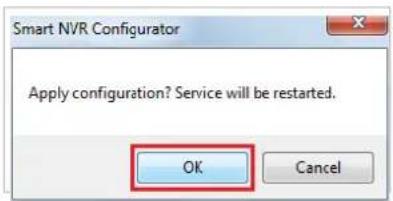
text_image
Smart NVR Configurator Apply configuration? Service will be restarted. OK CancelEN-V-R service is being stopped momentarily, and then it will start running again.

text_image
Processing Service Status: : Stop Service.28.4. Viewing Live Video
Once the network and cameras are set up, it is necessary to check if EN-V-R is functioning by viewing the live video from those devices.
To view the EN-V-R home page, click the Go NVR Home button on the main toolbar.

natural_image
Green square icon set with icons representing various functions (no text or symbols)Below is an image of the EN-V-R home page.
Home | Live View | Player

text_image
IP Dual Streaming Digital 2004 Enterprise Class POE VITEK INDUSTRIAL VIDEO PRODUCTS, INC An Eye on Innovation.Click Live View on top right part of the window to see the live video from registered IP devices (cameras)

If this is the first time you are using VitekLive View feature, the web browser may ask you to allow installing of an ActiveX program. Click Install to continue.

text_image
This site might require the following ActiveX control: 'Smart Viewer' from VITEK (MP, inc.): Click here to install._ Home | Live View | Player Auto ActiveX Control Installation If this auto process takes more than 30 seconds, click the below button and install it manually. Manual DownloadIn some cases there is no response from the web browser, you may need to install the ActiveX manually by clickingManualDownload.
When you see the following security warning, click Install.

text_image
Internet Explorer - Security Warning Do you want to install this software? Name: SmartViewer.cab Publisher: VITEK NVP, Inc. More options Install Don't Install While files from the Internet can be useful, this file type can potentially harm your computer. Only install software from publishers you trust. What's the risk?28.5. Recording Video
The essential feature of EN-V-R is recording the video from IP devices.
Before starting the recording, it is required to prepare the hard drive of your PC where EN-V-R program is running.
Click Disk Quota on the Menu tree.
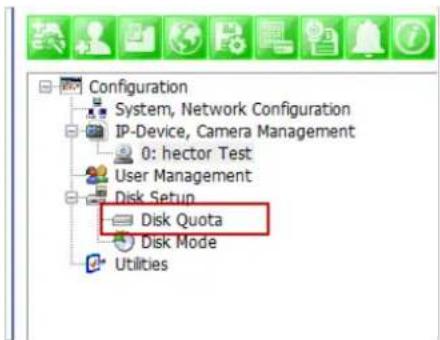
text_image
Configuration System, Network Configuration IP-Device, Camera Management 0: hector Test User Management Disk Setup Disk Quota Disk Mode UtilitiesThe hard drive will be ready to start recording video after the progress window is done counting drives. It shows the target drive (s), total capacity, available size and quota for recording.

text_image
Smart NVR Configurator Configuration System, Network Configuration IP-Device, Camera Management 0: hector Test User Management Disk Setup Disk Quota Disk Node Utilities 1. Select HDD from disk list and click "Register" button 2. Under Disk Quota, set a target value and click "OK" 3. You can modify the size of recording capacity at any time. 4. To exclude HDD from list, click target HDD and click "remove" button 5. Contents in excuded HDD will not be searched 6. Changes will take effect after from next start or click "apply" from service menu Record Drive Type Drive Size Free Size Quota Size Order Recording C:\ HDD 466 GB 331 GB 20 GB - D:\ HDD 466 GB 327 GB 0 GB - F:\ REMOTE 465 GB 69 GB 0 GB - G:\ REMOTE 465 GB 69 GB 0 GB Processing Disk count : G:\ Apply CloseYou are able to change the setting by highlighting the drive then clicking the first icon of the sub-menu Toolbar.
Use HDD (to use this HDD for recording)
Possible Maximum Quota (the available of free space on your HDD)
Possible Minimum Quota (the minimum amount required)
Set Quota (desired amount of HDD to be use for recording)
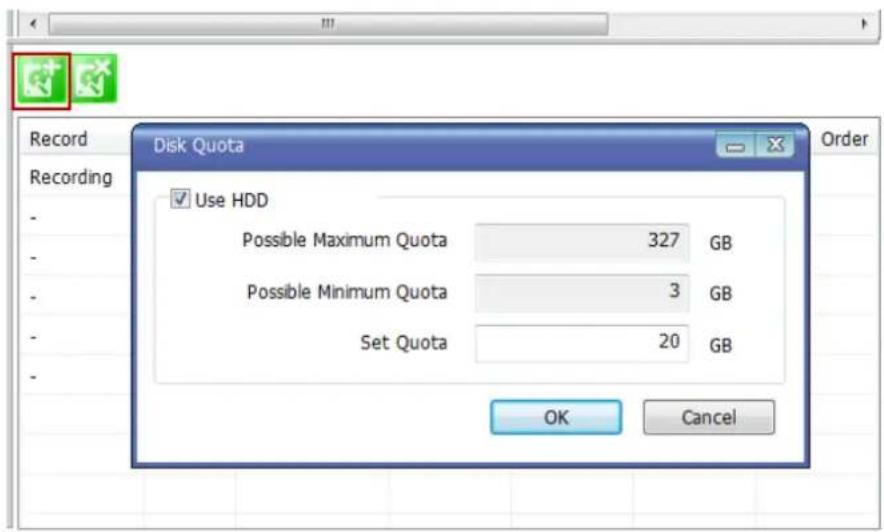
text_image
Record Recording Disk Quota Use HDD Possible Maximum Quota 327 GB Possible Minimum Quota 3 GB Set Quota 20 GB OK CancelTo set up the recording feature, select an IP device from the Menu tree on the left pane. The device information will be shown on the right pane. Click the button for recording configuration on the sub-menu Toolbar as shown below.
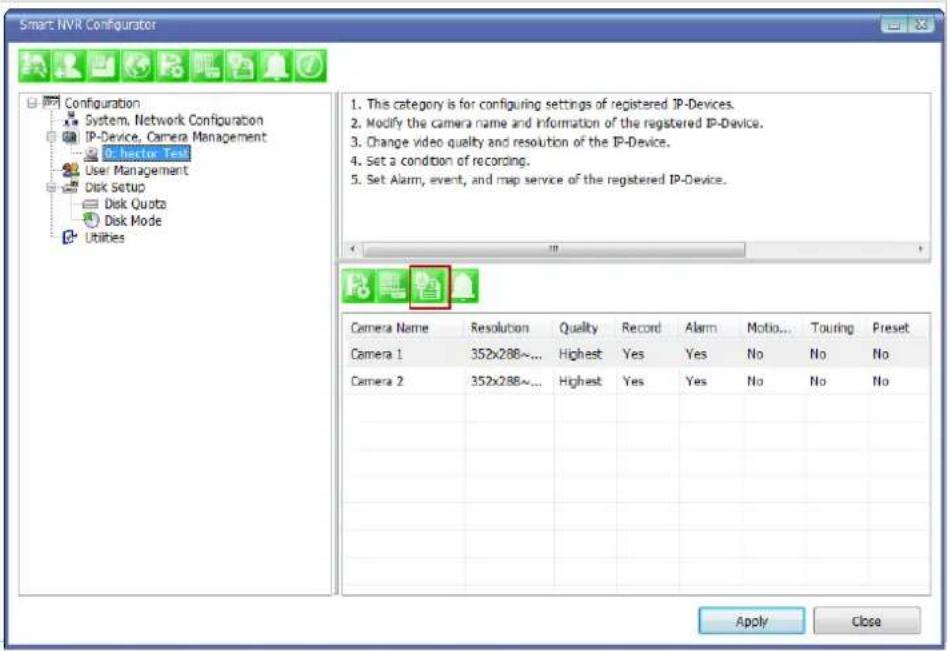
text_image
Smart NVR Configurator Configuration System, Network Configuration IP-Device, Camera Management 0: hector Test User Management Disk Setup Disk Quota Disk Mode Utilities 1. This category is for configuring settings of registered IP-Devices. 2. Modify the camera name and information of the registered IP-Device. 3. Change video quality and resolution of the IP-Device. 4. Set a condition of recording. 5. Set Alarm, event, and map service of the registered IP-Device. Camera Name Resolution Quality Record Alarm Motion... Touring Preset Camera 1 352x288~... Highest Yes Yes No No No Camera 2 352x288~... Highest Yes Yes No No No Apply CloseNow you will see Configure Recording Condition window as below.
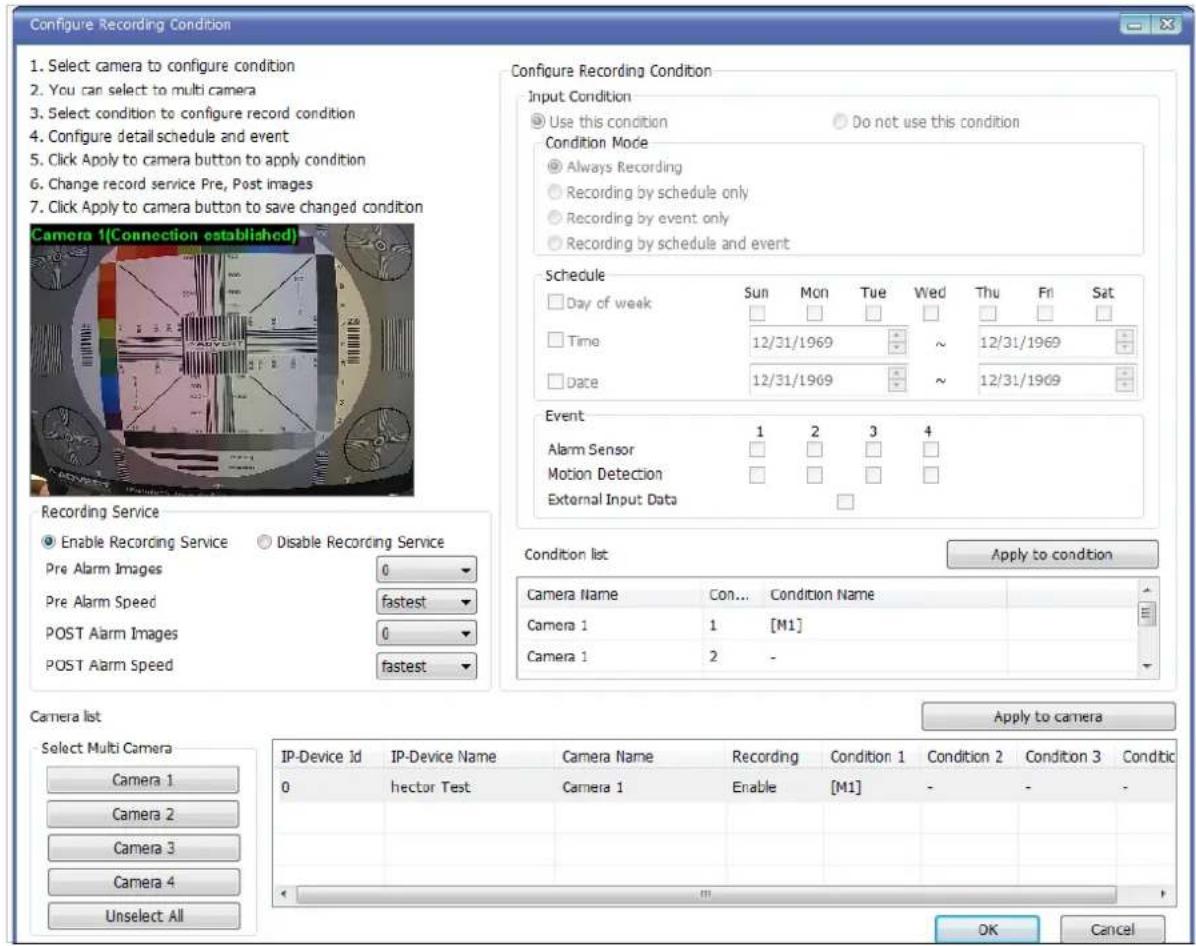
text_image
Configure Recording Condition 1. Select camera to configure condition 2. You can select to multi camera 3. Select condition to configure record condition 4. Configure detail schedule and event 5. Click Apply to camera button to apply condition 6. Change record service Pre, Post images 7. Click Apply to camera button to save changed condition Camera 1(Connection established) Recording Service Enable Recording Service Disable Recording Service Pre Alarm Images 0 Pre Alarm Speed fastest POST Alarm Images 0 POST Alarm Speed fastest Configure Recording Condition Input Condition Use this condition Do not use this condition Condition Mode Always Recording Recording by schedule only Recording by event only Recording by schedule and event Schedule Day of week Sun Mon Tue Wed Thu Fri Sat Time 12/31/1969 ~ 12/31/1969 Date 12/31/1969 ~ 12/31/1969 Event Alarm Sensor 1 2 3 4 Motion Detection External Input Data Condition list Apply to condition Camera Name Con... Condition Name Camera 1 1 [M1] Camera 1 2 - Apply to camera Camera list Select Multi Camera IP-Device Id IP-Device Name Camera Name Recording Condition 1 Condition 2 Condition 3 Condtic Camera 1 hector Test Camera 1 Enable [M1] - - - Camera 2 Camera 3 Camera 4 Unselect All OK CancelThe recording feature is already enabled and recording conditions are configured in default settings. In the example shown above, you can see that Camera 1 of Device 0 will record video only when motion is
detected. ClickOK to use this Recording Conditioned.
To change recording condition high light camera 1 under condition list (A)
Select the type of Recording under Condition Mode (B)
If schedule recording is enabled, the schedule section will be available to configure (C)
If Event is selected the event section will be available to configure (D)
After conditions are selected click Apply to condition(E)
After apply to condition click Apply to camera(F)
Click OK when done.

text_image
Configure Recording Condition 1. Select camera to configure condition 2. You can select to multi camera 3. Select condition to configure record condition 4. Configure detail schedule and event 5. Click Apply to camera button to apply condition 6. Change record service Pre, Post images 7. Click Apply to camera button to save changed condition Camera 1(Connection established) Recording Service Enable Recording Service Disable Recording Service Pre Alarm Images 0 Pre Alarm Speed fastest POST Alarm Images 0 POST Alarm Speed fastest Camera list Select Multi Camera Camera 1 Camera 2 Camera 3 Camera 4 Unselect AI Configure Recording Condition Input Condition Use this condition Do not use this condition Condition Mode Always Recording Recording by schedule only B Recording by event only Recording by schedule and event Schedule Day of week Sun Mon Tue Wed Thu Fri Sat Time C AM 8:00 ~ PM 5:00 Date 12/18 ~ 12/18 Event Alarm Sensor 1 2 3 4 D Motion Detection ✓ ✓ ✓ ✓ ✓ ✓ ✓ ✓ ✓ ✓ ✓ ✓ ✓ ✓ ✓ ✓ ✓ ✓ ✓ ✓ ✓ ✓ ✓ ✓ ✓ ✓ ✓ ✓ ✓ ✓ ✓ ✓ ✓ ✓ ✓ ✓ ✓ ✓ ✓ ✓ ✓ ✓ ✓ ✓ ✓ ✓ ✓ ✓ ✓ ✓ ✓ ✓ ✓ ✓ ✓ ✓ ✓ ✓ ✓ ✓ ✓ ✓ ✓ ✓ ✓ ✓ ✓ ✓ ✓ ✓ ✓ ✓ ✓ ✓ ✓ ✓ ✓ ✓ ✓ ✓ ✓ ✓ ✓ ✓ ✓ ✓ ✓ ✓ ✓ ✓ ✓ ✓ ✓ ✓ ✓ ✓ ✓ ✓ ✓ ✓✓ Condition list E Apply to condition Camera Name Con... Condition Name Camera 1 1 [Non, Tue, Wed, Thu, Fri][08:00... Camera 1 A 2 - Camera 1 F Apply to camera IP-Device Id IP-Device Name Camera Name Recording Condition 1 Condition 2 Condition 3 Condition 1 Brian Camera 1 Enable [Non, Tue... - - - - - OK CancelNow that the configuration is done, you need to start the EN-V-R service program. Select Start > All Programs > Vitek>smart NVR>Smart NVR controller.
You will find the EN-V-R icon on the system tray, which is located right, bottom part of the Windows desktop.

text_image
Customize... EN 4:45 PM 12/17/2012Move the cursor over the icon, and right click. The following pop-up menu will show. You can open EN-V-R Configurator or EN-V-R Controller program from this menu, or you can go to the Home page of the EN-V-R program for live view or playback.
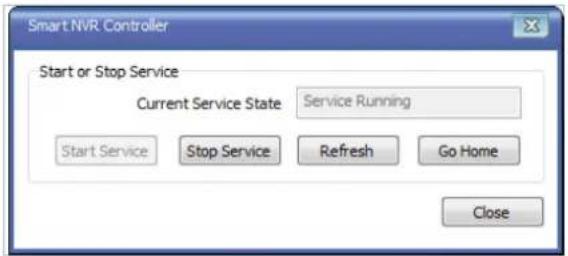
text_image
Smart NVR Controller Start or Stop Service Current Service State Service Running Start Service Stop Service Refresh Go Home CloseYou can find out from this window that the service is running at that moment. If not, click Start Service button to run. Once EN-V-R service is started, the video sent from the configured camera will be recorded according to the recording condition.
29. ENVI Smart Player
29.1. Introduction
Smart Player is and ActiveX program for Internet Explorer Web browser, which enables users to search and play back recorded video in Network Video Servers and other devices with built-in recording capabilities. The Searching and playback of video is refined by condition, schedule, and event.
Smart Player can be run in SmartNVR network video software for PC and network cameras equipped with microSD card as well as standalone NVR (Network Video Recorder) devices.
29.2. Key Features
• Transformingrecorded video into AVI, FJP&IDX, formats
• Supports Printing of video
- Playing Audio from recorded video
• Group Searching from recorded video
• SupportsFull Screen Mode
29.3. System Requirement for PC
For best quality and performance, your computer needs to meet the minimum requirement.
• OS: Microsoft Windows XP Pro, Windows 7 Pro, Windows 8 PC
• CPU: Intel Pentium 4, 2 GHz (Dual-Core or faster is recommended)
- System RAM: 2GB
• Video Card: 256MB Ram, 1024x768 Resolution
• 100 Mbps Network Adaptor
30. Installing and Uninstalling
30.1. Installing Smart Player
Connect to the Vitek Camera / Server / NVR on Internet Explorer, and click Player on the main page.
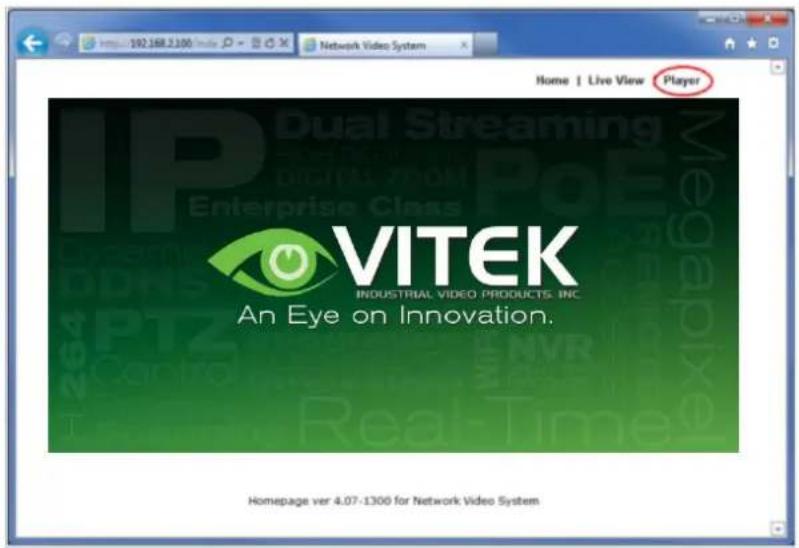
text_image
192.368.2.100 Network Video System Home | Live View Player IP Dual Streaming Digital 750M Enterprise Class VITEK INDUSTRIAL VIDEO PRODUCTS INC. An Eye on Innovation. Homepage ver 4.07-1300 for Network Video SystemIf you're using Windows XP Service Pack 2 or later, it may asked you to install ActiveX click the massage bar than click on the Install ActiveX control...
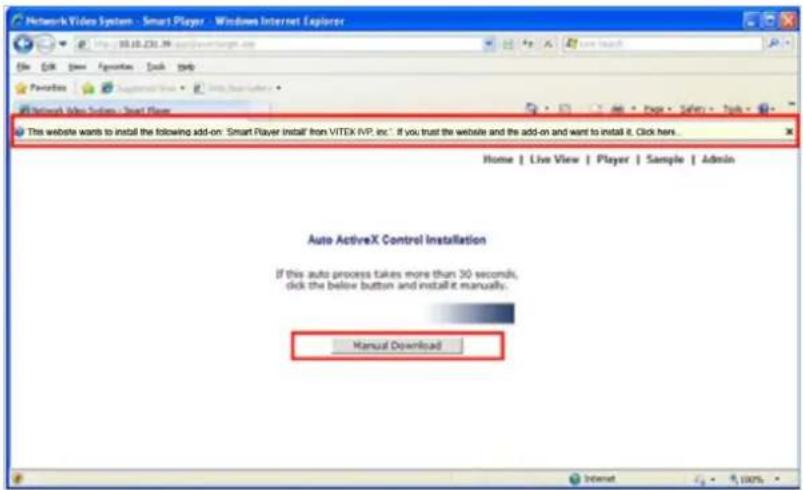
text_image
Network Video System - Smart Player - Windows Internet Explorer File Edit View Favorites Tools Help Favorites Network Video System - Smart Player This website wants to install the following add-on: 'Smart Player install' from VITEX NVP, inc. If you trust the website and the add-on and want to install it. Click here... Home | Live View | Player | Sample | Admin Auto ActiveX Control Installation If this auto process takes more than 30 seconds, click the below button and install it manually. Manual DownloadAfter the installation is successfully completed, Smart Player window will be displayed.
30.1.1. Manual Installation
When an Internet connection is not available or having some difficulties, you can manually download and install the Smart Player program file prior to setup, visit http://www.vitekcctv.com/Downloads.asp. You may also install from the provided CD. Execute the downloaded file, and you will see the Smart Player Setup Wizard window.
Click Run to start installing.

text_image
Open File - Security Warning Do you want to run this file? Name: ...ector VITEK\Downloads\EN-V-R_SmartPlayer.exe Publisher: VITEK INDUSTRIAL VIDEO PRODUCTS, INC. Type: Application From: C:\Users\Hector\VITEK\Downloads\EN-V-R_Smart... Run Cancel ✓ Always ask before opening this file While files from the Internet can be useful, this file type can potentially harm your computer. Only run software from publishers you trust. What is the way?The following window will appear. Click Next.

text_image
Smart Player 1.1.0.0 Setup Welcome to the Smart Player 1.1.0.0 Setup Wizard This wizard will guide you through the installation of Smart Player 1.1.0.0. It is recommended that you dose all other applications before starting Setup. This will make it possible to update relevant system files without having to reboot your computer. Click Next to continue. Next > CancelThe following window will be displayed. Click Install
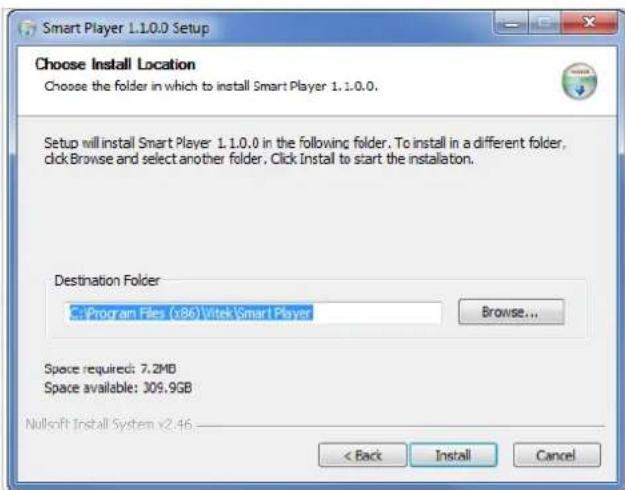
text_image
Smart Player 1.1.0.0 Setup Choose Install Location Choose the folder in which to install Smart Player 1.1.0.0. Setup will install Smart Player 1.1.0.0 in the following folder. To install in a different folder, clickBrowse and select another folder. Click Install to start the installation. Destination Folder C:\Program Files (x86)\Vitek\Smart Player Browse... Space required: 7.2MD Space available: 309.9GB Nullsoft Install System x2.46 < Back Install CancelAfter installation is successfully completed, the following window will be displayed. Click Finish.
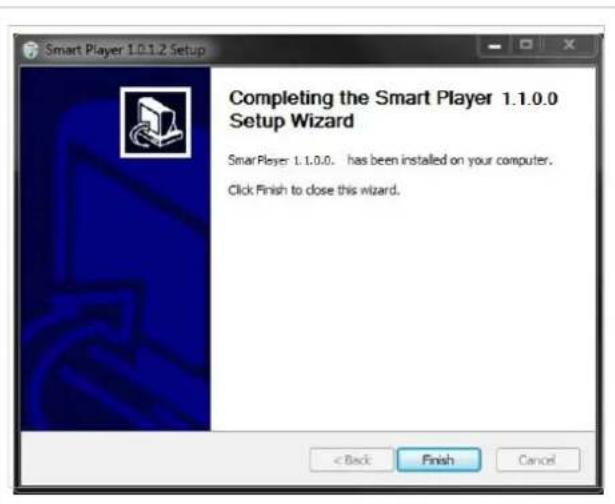
text_image
Smart Player 1.0.1.2 Setup Completing the Smart Player 1.1.0.0 Setup Wizard Smart Player: 1.1.0.0... has been installed on your computer. Click Finish to close this wizard.30.2. Uninstalling Smart Player
Before uninstalling, close all the Internet Explorer windows.
30.2.1. Uninstalling on Program Menu

text_image
Vitek Smart NVR Smart Package Smart Viewer UninstallClick Uninstall and the following window will be shown. Click the Yes button.
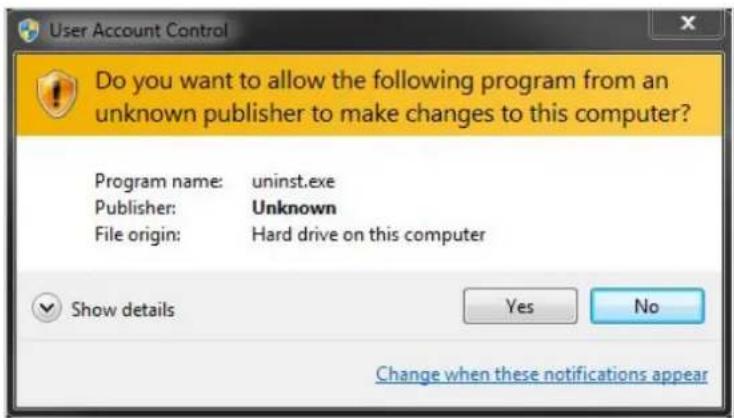
text_image
User Account Control Do you want to allow the following program from an unknown publisher to make changes to this computer? Program name: uninst.exe Publisher: Unknown File origin: Hard drive on this computer Show details Yes No Change when these notifications appearLive View & Play Back
To live view and play back your cameras, go to Start menu, All Programs, Vitek Folder, Click on Smart NVR Controller, as shown below.

text_image
Vitek Smart NVR Smart NVR Configurator Smart NVR Controller Smart NVR Information Uninstall Back Search programs and filesLook for icon on right side of taskbar as shown below (windows XP and windows 8 might show it different). Right click icon.
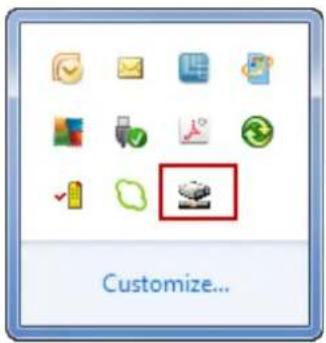
text_image
Customize...The following window will display. Click on Open Smart NVR Controller.
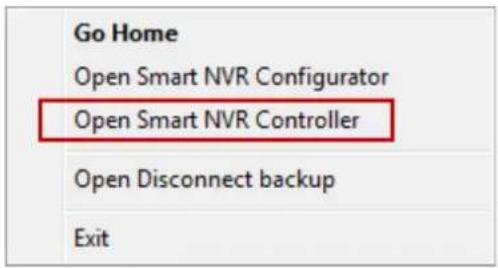
text_image
Go Home Open Smart NVR Configurator Open Smart NVR Controller Open Disconnect backup ExitClick on Start Service to run the program.
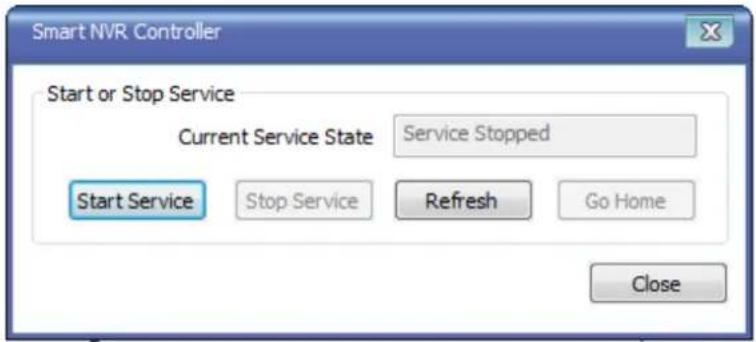
text_image
Smart NVR Controller Start or Stop Service Current Service State Service Stopped Start Service Stop Service Refresh Go Home CloseClick on Go Home to view Smart Player Home Page

text_image
Smart NVR Controller Start or Stop Service Current Service State Service Running Start Service Stop Service Refresh Go Home CloseClick on Live View
Home | Live View | Player

text_image
IP Dual Streaming Digital Zoom Enterprise Class Dynamics VITEK INDUSTRIAL VIDEO PRODUCTS, INC An Eye on Innovation.The following screen will be display were you can configure your live view.
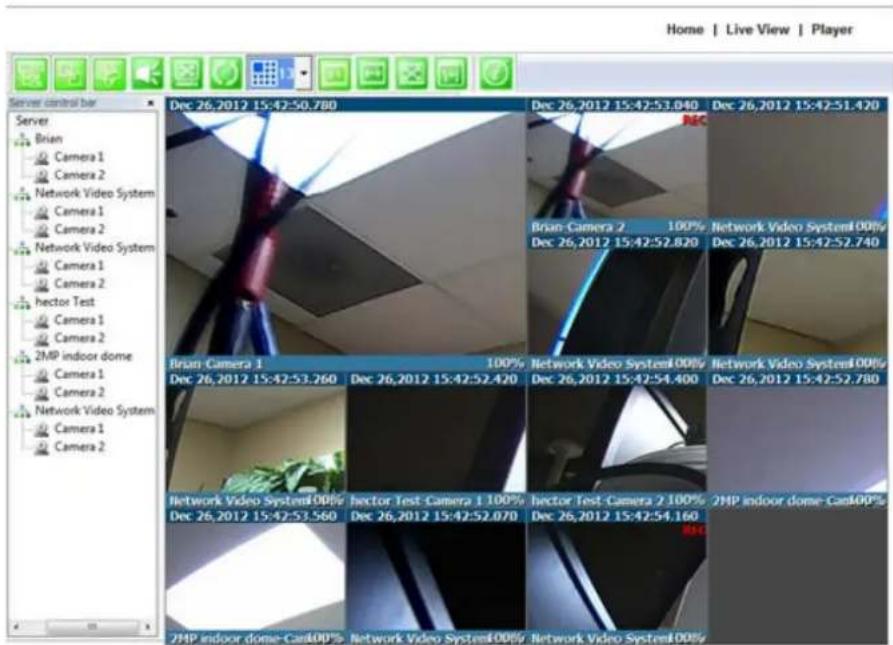
text_image
Home | Live View | Player Server Control bar Server Brian Camera 1 Camera 2 Network Video System Camera 1 Camera 2 Network Video System Camera 1 Camera 2 hector Test Camera 1 Camera 2 2MP indoor dome Camera 1 Camera 2 Network Video System Camera 1 Camera 2 Dec 26,2012 15:42:50.780 Dec 26,2012 15:42:53.040 Dec 26,2012 15:42:51.420 Brian Camera 2 100% Network Video System00%/ Dec 26,2012 15:42:52.820 Dec 26,2012 15:42:52.740 Brian Camera 1 100% Network Video System00%/ Dec 26,2012 15:42:53.260 Dec 26,2012 15:42:52.420 Dec 26,2012 15:42:54.400 Dec 26,2012 15:42:52.780 Network Video System00%/ Dec 26,2012 15:42:53.560 hector Test Camera 1 100% Dec 26,2012 15:42:52.070 hector Test Camera 2 100% Dec 26,2012 15:42:54.160 2MP indoor dome-Can400% Network Video System00%/ Network Video System00%Server Control Bar
Allows you to view cameras / servers that are registered in the system. Toggle On/Off

text_image
Row of green icons with a red square highlighting the first icon, likely representing a software toolbar or application.
text_image
Server control bar Server Brian Camera1 Camera2 Network Video System Camera1 Camera2 Network Video System Camera1 Camera2 hector Test Camera1 Camera2 2MP indoor dome Camera1 Camera2 Network Video System Camera1 Camera2 Server Dec 26,2012 15:47:34.990 Dec 26,2012 15:47:49.850 REC Brian Camera 1 100% Brian Camera 2 100% Dec 26,2012 15:47:35.870 Dec 26,2012 15:47:50.090 Network Video System-Camera 1 100% Network Video System-Camera 2 100% Dec 26,2012 15:47:24.910 Dec 26,2012 15:47:47.720Group Control Bar

text_image
Toolbar with green icons representing functions like email, phone, radio, and grid controlIn order to view video, cameras must be assigned to a group, in this section you create groups with cameras you want to view.
Create Group
In order to create a group in Group Control Bar, right click on Group, another window will appear then select New.
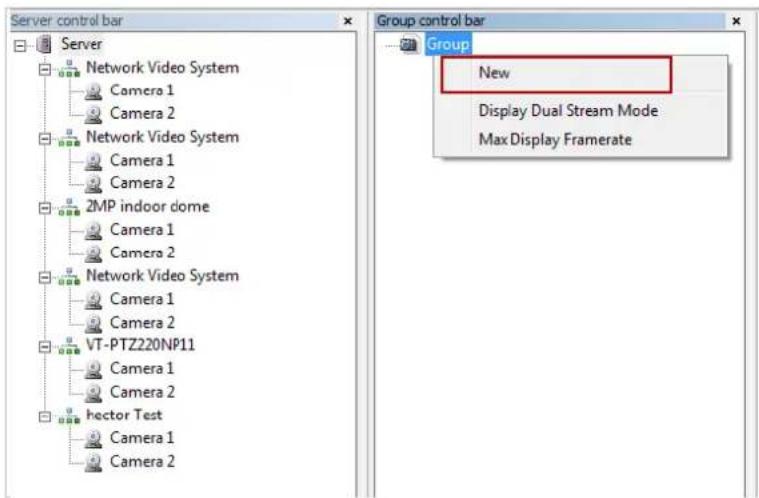
text_image
Server control bar Server Network Video System Camera 1 Camera 2 Network Video System Camera 1 Camera 2 2MP indoor dome Camera 1 Camera 2 Network Video System Camera 1 Camera 2 VT-PTZ220NP11 Camera 1 Camera 2 hector Test Camera 1 Camera 2 Group control bar Group New Display Dual Stream Mode Max Display FramerateThe following window will be displayed. Type in the group name, check "Circulation" to allow sequencing, input dwell time for "Circulation" and click OK.
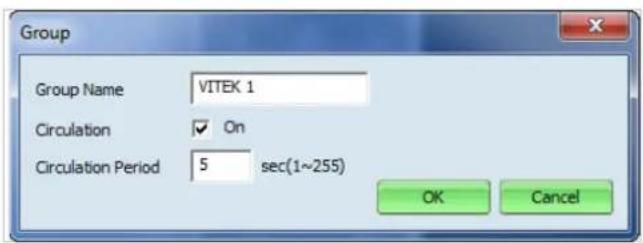
text_image
Group Group Name VITEK 1 Circulation ✓ On Circulation Period 5 sec(1~255) OK CancelA new group with the assigned name will be created as shown below.

text_image
Server control bar Server Network Video System Camera 1 Camera 2 Network Video System Camera 1 Camera 2 2MP indoor dome Group control bar Group VITEK 1To add cameras to the new group, drag from server control bar and drop on newly created group. You can create multiple groups and add multiple cameras in each group.
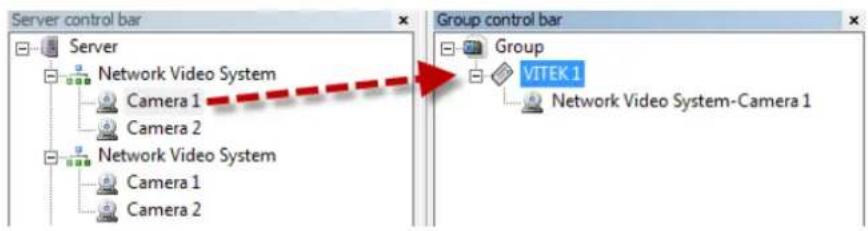
flowchart
graph TD
    A["Server"] --> B["Network Video System"]
    B --> C["Camera 1"]
    B --> D["Camera 2"]
    E["Network Video System"] --> F["Camera 1"]
    E --> G["Camera 2"]
    H["Group control bar"] --> I["Group"]
    I --> J["VITEK 1"]
    J --> K["Network Video System-Camera 1"]
PTZ control Bar

text_image
Toolbar with green icons representing functions like email, audio, keyboard, and data storageIn this section you will be able to control PTZ's connected to the system.
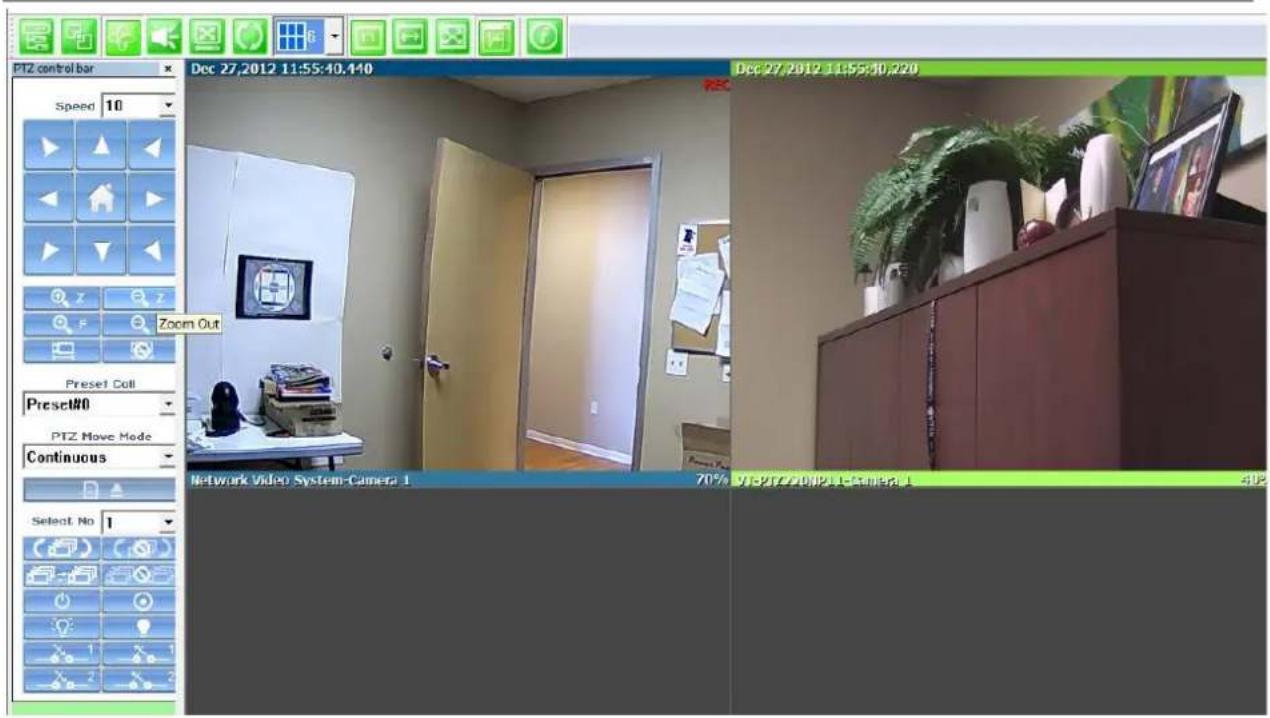
text_image
PTZ control bar Speed 10 Zoom Out Preset Call Preset#0 PTZ Move Mode Continuous Select No 1 Network Video System-Camera 1 70% 91-PTZ/4HPPT-Camera 1 Dec 27,2012 11:55:40,440 Dec 27,2012 11:55:40,220 402Audio Control Bar

text_image
Row of green icons with a red square highlighting a speaker symbol, likely representing a media or messaging app interface.Controls Speaker and Mic volume.
When audio is available click on Connect and adjust speaker and mic levels, when done click Disconnect.
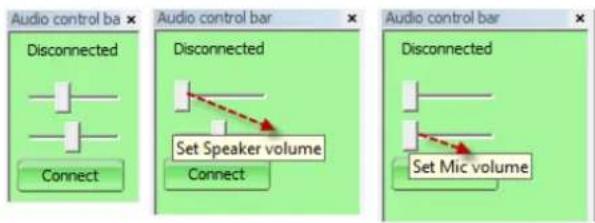
text_image
Audio control bar Disconnected Connect Audio control bar Disconnected Set Speaker volume Connect Audio control bar Disconnected Set Mic volumeFull/Normal Screen

text_image
Screenshot of a software toolbar with icons for file operations, settings, and navigation controlsSelect full screen as seen below, to return to normal press Escon your keyboard.

text_image
Dec 26,2012 15:52:49.280 Brian Camera 1 Dec 26,2012 15:52:47.590 100% Brian Camera 2 Dec 26,2012 15:53:03.360 Network Video System-Camera 1 Dec 26,2012 15:52:38.090 100% Network Video System-Camera 2 Dec 26,2012 15:53:00.910 ZHP indoor dome-Camera 1 100% ZHP indoor dome-Camera 2 100%Group Circulation

text_image
Screenshot of a software toolbar with icons for file operations, settings, and navigation functionsStart sequencing between groups.

text_image
Show/Hide PTZ Control Bal Dec 26,2012 15:57:38.660 Dec 26,2012 15:57:45.040 Dec 26,2012 15:57:38.970 Dec 26,2012 15:57:44.490 Brian Camera 1 100% Brian Camera 7 100% Network Video System Camera 1 100% Network Video System Camera 2 100% Dec 26,2012 15:57:39.300 Dec 26,2012 15:57:45.470 Dec 26,2012 15:57:40.230 Dec 26,2012 15:57:46.610 ABC Camera Network Video System Camera 1 100% Network Video System Camera 7 100% Festor Test Camera 1 100% Festor Test Camera 2 100% Dec 26,2012 15:57:39.460 Dec 26,2012 15:57:44.580 Dec 26,2012 15:57:40.250 Dec 26,2012 15:57:45.270 2MP indoor dome Camera 1 100% JMP indoor dome Camera 7 100% Network Video System Camera 1 100% Network Video System Camera 2 100%
text_image
Group control bar Group All channels Brian Camera 1 Brian Camera 2 Network Video System Camera 1 Network Video System Camera 2 Network Video System Camera 1 Network Video System Camera 2 hector Test Camera 1 hector Test Camera 2 2MP indoor dome Camera 1 2MP indoor dome Camera 2 Network Video System Camera 1 Network Video System Camera 2 NUPAL Brian Camera 1 Network Video System Camera 1 Network Video System Camera 1 Network Video System Camera 2 Dec 26,2012 15:57:14.840 Dec 26,2012 15:57:15.850 Brian Camera 1 Dec 26,2012 15:57:15.870 100% Network Video System Camera 1 Dec 26,2012 15:57:16.300 Network Video System Camera 1 100% Network Video System Camera 2Layout settings

text_image
Row of green icons with Chinese text, including a grid and directional arrow, likely representing UI elements or functions.You can change the screen layout between 1,2,4, etc.
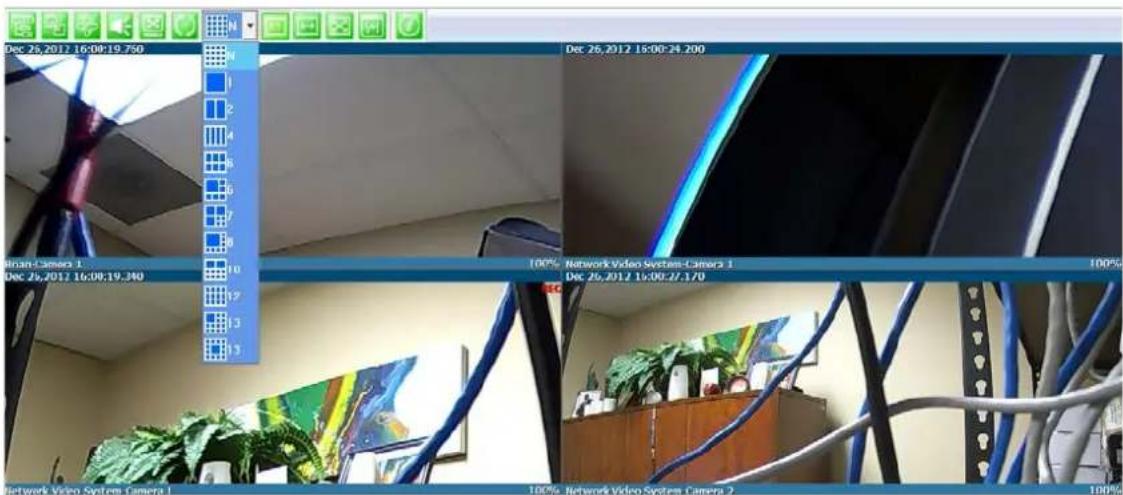
text_image
Dec 26, 2017 16:00:19.750 N N 1 2 4 6 8 10 12 14 16 18 20 22 24 26 28 30 32 34 36 38 40 42 44 46 48 50 52 54 56 58 60 62 64 66 68 70 72 74 76 78 80 82 84 86 88 90 92 94 96 98 100% Network Video System-Camera 1 100% Dec 26, 2017 16:00:27.170 Network Video System Camera 1 100% Network Video System Camera 2Image in Original Size

text_image
Toolbar with green icons representing functions like email, phone, audio, and grid controlThis allows for digital zoom.
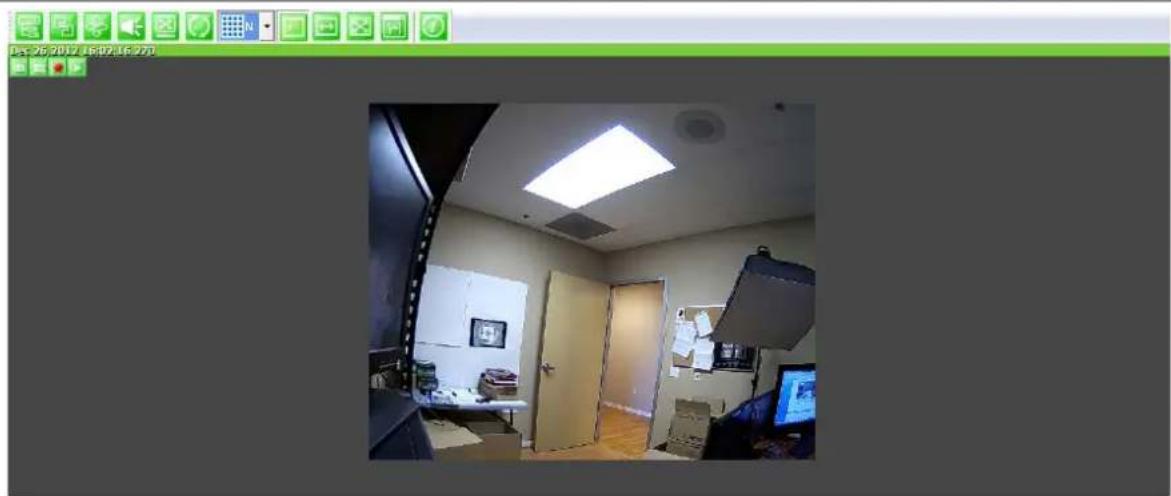
natural_image
Interior view of a modern office or studio space with ceiling lights, doors, and equipment (no visible text or symbols)Draw Image by Maintaining Aspect Ratio

text_image
Screenshot of a software toolbar with icons and a grid, highlighting the blue grid cell labeled 'N' in red.Maintains the aspect ratio of the camera
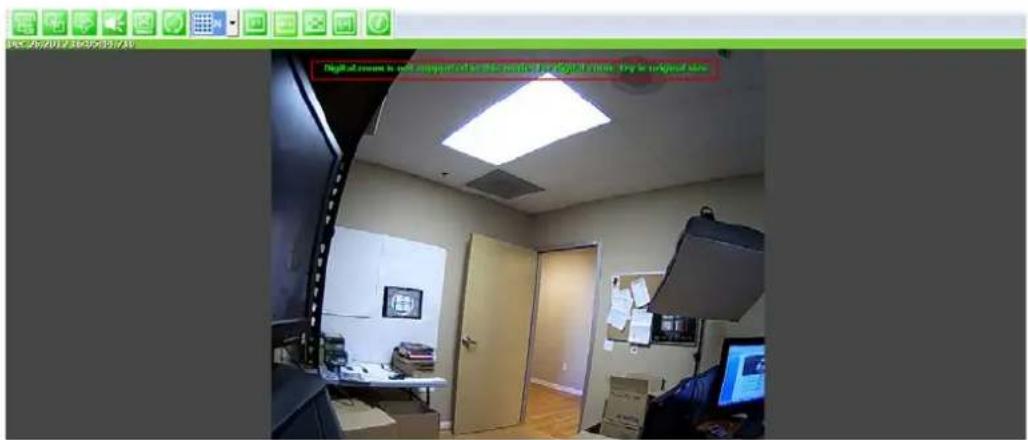
text_image
Digital camera is soft supported for this version of the image. They are original sizeDraw Image by Filling the Screen

text_image
Screenshot of a software toolbar with icons for file operations, settings, and navigation controlsHome | Live View | Player
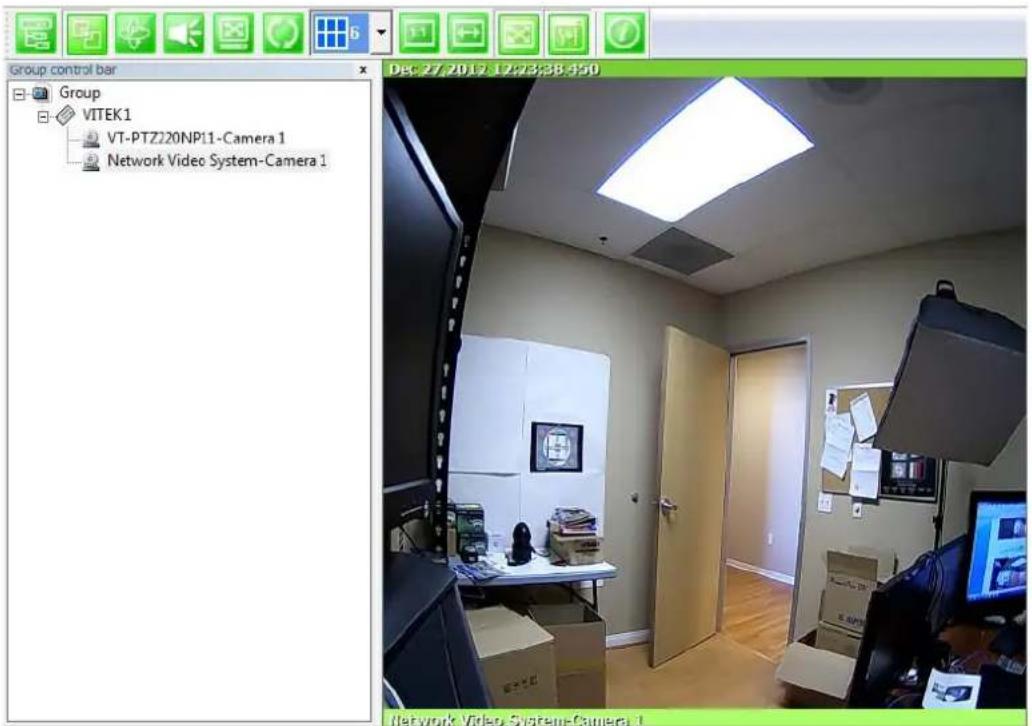
text_image
Group control bar Group VITEK1 VT-PTZJ20NP11-Camera 1 Network Video System-Camera 1 Dec 27, 2012.12.23:38:450 Network Video System-Camera 1Enhanced Draw Mode On/Off.
Enhance image for a better reproduction.

text_image
Toolbar with green icons representing functions like email, phone, audio, and navigation controls
natural_image
Exterior view of a beige door with a red rectangular highlight on the right side (no text or symbols visible)
natural_image
Exterior view of a beige door with a red rectangular highlight on the right side (no text or symbols visible)About Smart Viewer

text_image
Row of green and white icons representing software functions or system elements, including speech bubbles, radio buttons, and a grid with 'N' label.You can see the status of the Smart Viewer
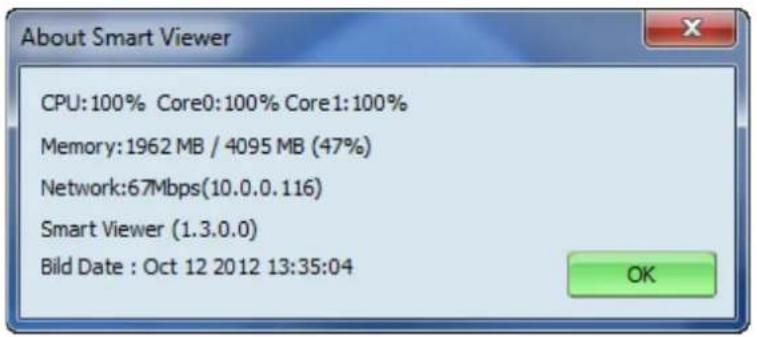
text_image
About Smart Viewer CPU:100% Core0:100% Core1:100% Memory:1962 MB / 4095 MB (47%) Network:67Mbps(10.0.0.116) Smart Viewer (1.3.0.0) Bild Date : Oct 12 2012 13:35:04 OK31. Configuring& Viewing Player
From the Home Screen click on Player
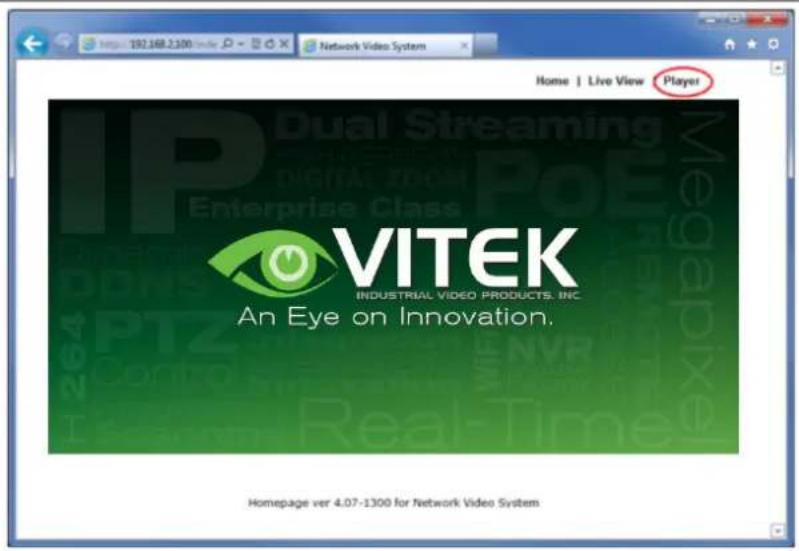
text_image
192.168.2100 Network Video System Home | Live View Player IP Dual Streaming Digital Zone Enterprise Class VITEK INDUSTRIAL VIDEO PRODUCTS, INC. An Eye on Innovation. Homepage ver 4.07-1300 for Network Video System31.1. Main Window View
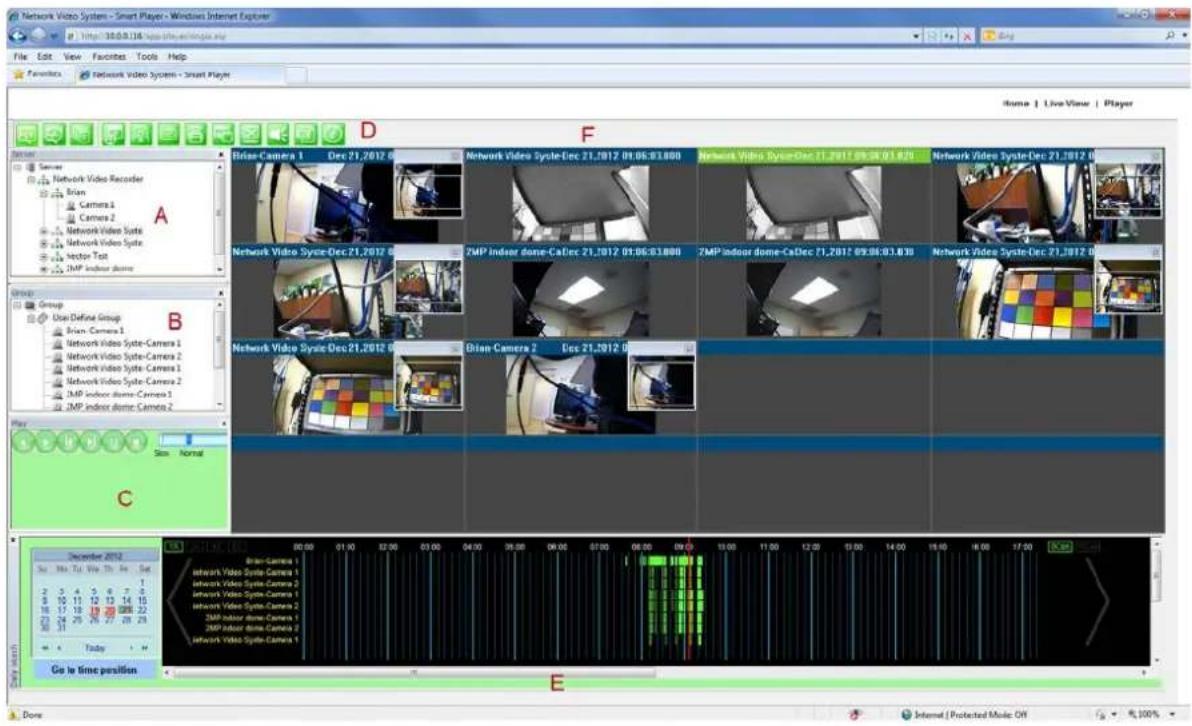
text_image
Network Video System - Smart Player - Windows Internet Explorer File Edit View Favorites Tools Help Favorites Network Video System - Smart Player Home | Live Viewer | Player D F Brian Camera 1 Dec 21,2012 0 Network Video Syste-Dec 21,2012 09:06:31:00 Network Video Syste-Dec 21,2012 09:06:01:00 Network Video Syste-Dec 21,2012 09:06:01:00 Network Video Syste-Dec 21,2012 09:06:01:00 Network Video Syste-Dec 21,2012 09:06:01:00 Network Video Syste-Dec 21,2017 0 ZMP indoor dome-CaDec 21,2012 09:06:31:00 ZMP indoor dome-CaDec 21,2012 09:06:01:00 Network Video Syste-Dec 21,2012 0 Brian Camera 2 Dec 21,2012 0 Network Video Syste-Dec 21,2012 09:06:31:00 Network Video Syste-Dec 21,2012 09:06:01:00 Network Video Syste-Dec 21,2012 09:06:31:00 Network Video Syste-Dec 21,2012 09:06:31:00 Network Video Syste-Dec 21,2012 09:06:31:00 Network Video Syste-Dec 21,2012 09:06:31:00 Network Video Syste-Dec 21,2017 0 Brian Camera 3 Network Video Syste-Camera 4 Network Video Syste-Camera 5 Network Video Syste-Camera 6 Network Video Syste-Camera 7 Network Video Syste-Camera 8 Network Video Syste-Camera 9 Network Video Syste-Camera 10 Network Video Syste-Camera 11 Network Video Syste-Camera 12 Network Video Syste-Camera 13 Network Video Syste-Camera 14 Network Video Syste-Camera 15 Network Video Syste-Camera 16 Network Video Syste-Camera 17 Network Video Syste-Camera 18 Network Video Syste-Camera 19 Network Video Syste-Camera 20 Network Video Syste-Camera 21 Network Video Syste-Camera 22 Network Video Syste-Camera 23 Network Video Syste-Camera 24 Network Video Syste-Camera 25 Network Video Syste-Camera 26 Network Video Syste-Camera 27 Network Video Syste-Camera 28 Network Video Syste-Camera 29 Network Video Syste-Camera 30 Network Video Syste-Camera 31 Network Video Syste-Camera 32 Network Video Syste-Camera 33 Network Video Syste-Camera 34 Network Video Syste-Camera 35 Network Video Syste-Camera 36 Network Video Syste-Camera 37 Network Video Syste-Camera 38 Network Video Syste-Camera 39 Network Video Syste-Camera 40 Network Video Syste-Camera 41 Network Video Syste-Camera 42 Network Video Syste-Camera 43 Network Video Syste-Camera 44 Network Video Syste-Camera 45 Network Video Syste-Camera 46 Network Video Syste-Camera 47 Network Video Syste-Camera 48 Network Video Syste-Camera 49 Network Video Syste-Camera 50 Network Video Syste-Camera 51 Network Video Syste-Camera 52 Network Video Syste-Camera 53 Network Video Syste-Camera 54 Network Video Syste-Camera 55 Network Video Syste-Camera 56 Network Video Syste-Camera 57 Network Video Syste-Camera 58 Network Video Syste-Camera 59 Network Video Syste-Camera 60 Network Video Syste-Camera 61 Network Video Syste-Camera 62 Network Video Syste-Camera 63 Network Video Syste-Camera 64 Network Video Syste-Camera 65 Network Video Syste-Camera 66 Network Video Syste-Camera 67 Network Video Syste-Camera 68 Network Video Syste-Camera 69 Network Video Syste-Camera 70 Network Video Syste-Camera 71 Network Video Syste-Camera 72 Network Video Syste-Camera 73 Network Video Syste-Camera 74 Network Video Syste-Camera 75 Network Video Syste-Camera 76 Network Video Syste-Camera 77 Network Video Syste-Camera 78 Network Video Syste-Camera 79 Network Video Syste-Camera 80 Network Video Syste-Camera 81 Network Video Syste-Camera 82 Network Video Syste-Camera 83 Network Video Syste-Camera 84 Network Video Syste-Camera 85 Network Video Syste-Camera 86 Network Video Syste-Camera 87 Network Video Syste-Camera 88 Network Video Syste-Camera 89 Network Video Syste-Camera 90 Network Video Syste-Camera 91 Network Video Syste-Camera 92 Network Video Syste-Camera 93 Network Video Syste-Camera 94 Network Video Syste-Camera 95 Network Video Syste-Camera 96 Network Video Syste-Camera 97 Network Video Syste-Camera 98 Network Video Syste-Camera 99 System Normal Time Position Go to time position ENote: The appearance of Smart Player window may vary depending on version and type of Vitek device you're using. This user's manual is based on general display screen.
Server Control BarA
Allows you to view cameras / servers that are registered in the system.
| Group Control BarB | You can compose a new group by dragging&dropping servers, modules, and cameras into a group.Grouping provides search function of recorded video from cameras. |
| Playback Control Bar C | Users can use this bar for functions such as forward/reverse play, previous frame, next frame, pause, stop, playback speed. |
| Control Tool BarD | Users can change search modebetween calendar, condition, and data. It also provides additional features such as backup and snapshot. |
| Time Line Control BarE | Search condition (calendar, condition, and data) can be refined in this bar. |
| Display screenF | This screen shows multiple numbers of recorded videos. |
31.2. Connecting to NVR Player
In order to playback video, cameras must be assigned to a Group, in this section you create groups with cameras you want to playback. Playback directly from cameras with SD card installed will have "Group" automatically created and the camera assigned to that "Group"

text_image
Server Server Network Video Recorder Network Video Syste Network Video Syste 2MP indoor dome Network Video Syste VT-PTZ220NP11 hector Test Group Group31.3. Creatinga Group
In order to generate a group in Group Control Bar, right click on Group, another window will appear then select New.

text_image
Server Server Network Video Recorder Network Video Syste Network Video Syste 2MP indoor dome Network Video Syste VT-PTZ220NP11 hector Test Group NewThe following window will be displayed. Type in the group name and click OK.

text_image
Group vitek 2 OK CancelA new group with the assigned name will be created as shown below.
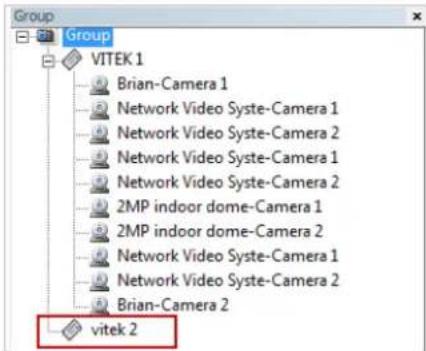
text_image
Group Group VITEK 1 Brian-Camera 1 Network Video Syste-Camera 1 Network Video Syste-Camera 2 Network Video Syste-Camera 1 Network Video Syste-Camera 2 2MP indoor dome-Camera 1 2MP indoor dome-Camera 2 Network Video Syste-Camera 1 Network Video Syste-Camera 2 Brian-Camera 2 vitek 2To add a camera to the new group, drag and drop from the server tree to the newly created group.
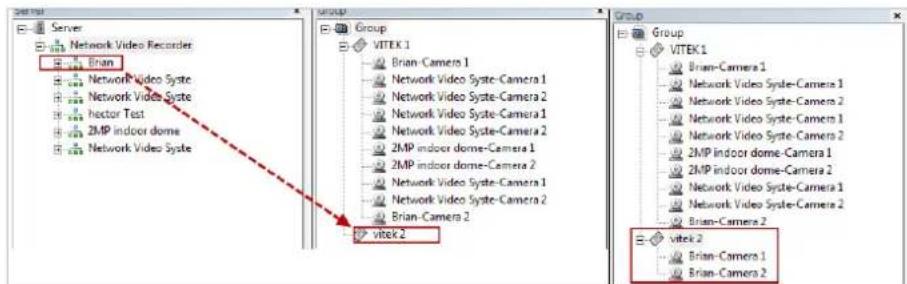
text_image
Server Network Video Recorder Brian Network Video Syste Network Video Syste hector Test 2MP indoor dome Network Video Syste Group Group VITEK 1 Brian Camera 1 Network Video Syste-Camera 1 Network Video Syste-Camera 2 Network Video Syste-Camera 1 Network Video Syste-Camera 2 2MP indoor dome-Camera 1 2MP indoor dome-Camera 2 Network Video Syste-Camera 1 Network Video Syste-Camera 2 Brian Camera 2 vitek 2 Group VITEK 1 Brian Camera 1 Network Video Syste-Camera 1 Network Video Syste-Camera 2 Network Video Syste-Camera 1 Network Video Syste-Camera 2 2MP indoor dome-Camera 1 2MP indoor dome-Camera 2 Network Video Syste-Camera 1 Network Video Syste-Camera 2 Brian Camera 2 vite k 2 Brian Camera 1 Brian Camera 232. Searching Video
Make sure you have recorded video on the calendar (recorded video shows in red).
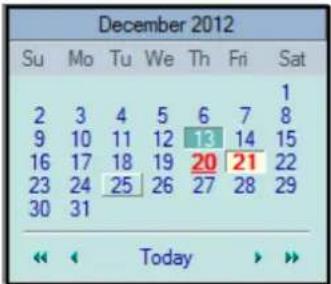
text_image
December 2012 Su Mo Tu We Th Fri Sat 2 3 4 5 6 7 8 9 10 11 12 13 14 15 16 17 18 19 20 21 22 23 24 25 26 27 28 29 30 31 TodayThere are three choices in searching recorded video - Day Search, Condition Search, and Data Search.
Make sure that Camera / Server Connection and Creating Group have been performed before you search recorded video.
32.1. Searching Video
To search and playback video, Smart Player requires one or more groups to exist. If a search is executed on the basis of a selected group, a search will be performed on all the cameras in that group. If a search is executed on the basis of a single camera, the search will be performed only from that camera.
For example, if you select a group and start searching; the searchfrom that group will be displayed
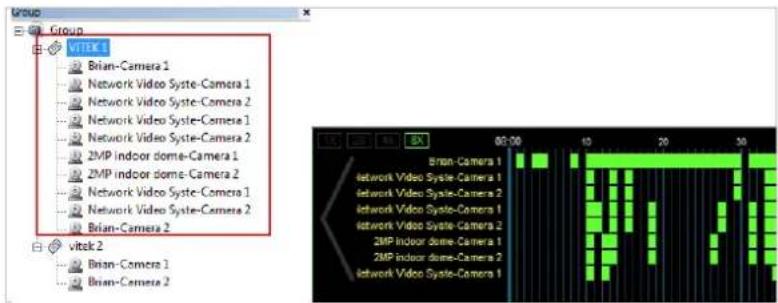
text_image
Group Group VITEK 1 Brian-Camera 1 Network Video Syste-Camera 1 Network Video Syste-Camera 2 Network Video Syste-Camera 1 Network Video Syste-Camera 2 2MP Indoor dome-Camera 1 2MP Indoor dome-Camera 2 Network Video Syste-Camera 1 Network Video Syste-Camera 2 Brian-Camera 2 VITEK 2 Brian-Camera 1 Brian-Camera 2 00:00 10 20 30 Brian-Camera 1 network Video Syste-Camera 1 network Video Syste-Camera 2 network Video Syste-Camera 1 network Video Syste-Camera 2 2MP Indoor dome-Camera 1 2MP Indoor dome-Camera 2 network Video Syste-Camera 1If you only select "Brian-Camera 1", the searching will be performed only on the video from that.

text_image
Group VITEK1 Brian-Camera 1 Network Video Syte-Comero 1 Network Video Syte-Comero 2 Network Video Syte-Comero 1 Network Video Syte-Comero 2 2MP Indoor clorne-Camera 1 2MP Indoor clorne-Camera 2 Network Video Syte-Camera 1 Network Video Syte-Camera 2 Brian-Camera 2 vitek 2 BX 08:00 10 20 30 Brian-Camera 1 0132.2. Daily Search

text_image
Row of green square icons with white text and icons, including a red square containing a document icon.Select date from calendar than select time from the time bar.

text_image
December 2012 Su Mo Tu We Th Fri Sat 2 3 4 5 6 7 8 9 10 11 12 13 14 15 16 17 18 19 20 21 22 23 24 25 26 27 28 29 30 31 Today Go to time position Brian-Camera 132.2.1. Search Mode
By clicking a date in red on the calendar, the time frame recorded is shown.
32.2.2. GO to Time Position
To go to specific time click on "Go to time position" than input time and click search.

text_image
December 2012 Su Mo Tu We Th Fri Sat 2 3 4 5 6 7 8 9 10 11 12 13 14 15 16 17 18 19 20 21 22 23 24 25 26 27 28 29 30 31 Today Go to time position DetailSearch 12:48:31 PM Search Cancel32.3. Condition Search Mode

text_image
Row of green icons representing media and information-related functions, including speech bubbles, documents, images, cameras, and a speaker.In this mode, you can search for video on the basis of combination of 3 different conditions, which are Time, Motion, and Sensor. Initially only Time condition is available for searching, and you need to enter Advance Search mode to utilize Motion and Sensor state if necessary.
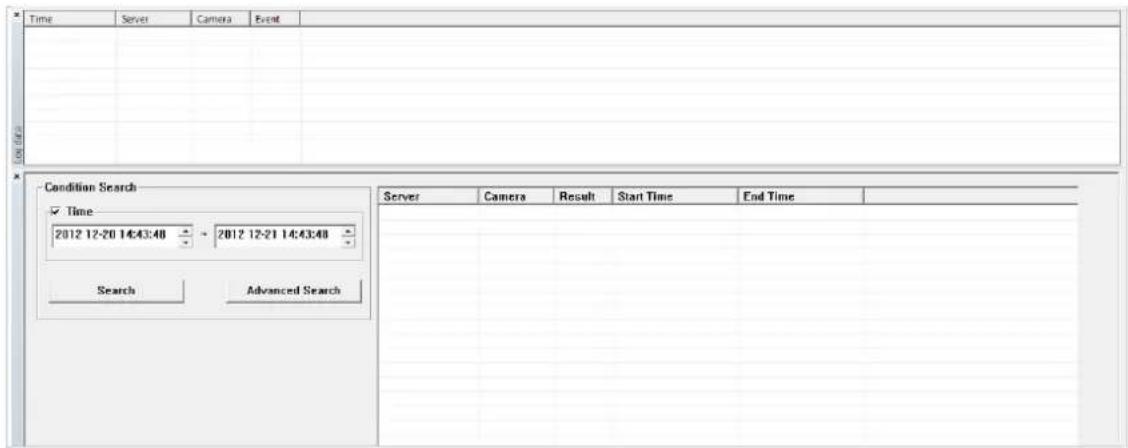
text_image
Time Server Camera Event Condition Search ✓ Time 2012 12-20 14:43:48 - 2012 12-21 14:43:48 Search Advanced Search Server Camera Result Start Time End TimeSearch
Select time and date from beginning to end of search criteria. Then click Search.
The following window will be displayed to inform you of the search progress. If any results are found, the
video will start playing back right after searching is completed.

text_image
[106500] frame searched Cancel32.3.1. Advanced Search Mode
In Advance Search Mode you can select which conditions to search from (Time, Event, etc)
First, select Time checkbox, and choose the desired time frame (Start date and time \~ End date and time), and then click Add Condition button to add to Search Condition.
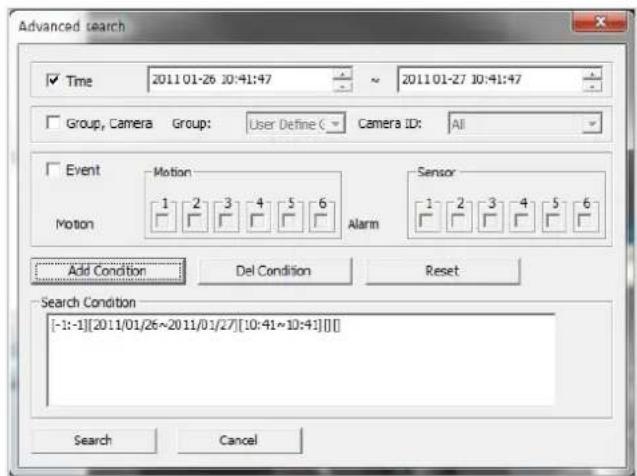
text_image
Advanced search ✓ Time 2011 01-26 30:41:47 2011 01-27 30:41:47 ✓ Group, Camera Group: User Define C Camera ID: All ✓ Event Motion Sensor Motion 1 2 3 4 5 6 Alarm 1 2 3 4 5 6 Add Condition Del Condition Reset Search Condition [-1:-1][2011/01/26~2011/01/27][10:41~10:41]] Search CancelNow select Event checkbox, and choose Camera 1 from Motion, and then click Add Condition button to add to Search Condition.
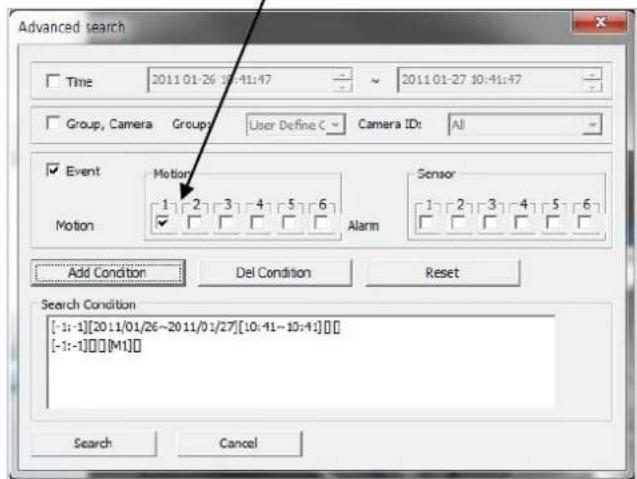
text_image
Advanced search Time 2011 01-26 10:41:47 2011 01-27 10:41:47 Group, Camera Groups User Define C Camera IDt All Event Motion Sensor Motion 1 2 3 4 5 6 Alarm Add Condition Del Condition Reset Search Condition [-1:-1][20:11/01/26~20:11/01/27][10:41~10:41]] [-1:-1][M1] Search CancelNext, select Event checkbox, choose Sensor 1, and then click Add Condition button to add the Sensor condition to Search Condition.
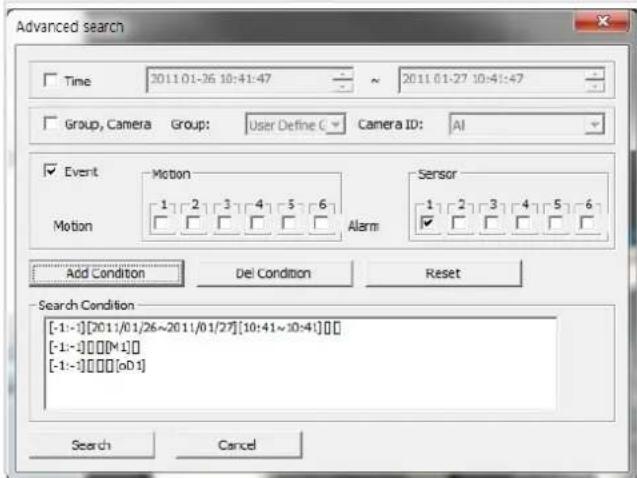
text_image
Advanced search Time 2011 01-36 10:41:47 ~ 2011 01-27 10:41:47 Group, Camera Group: User Define C Camera ID: AI Event Motion Sensor Motion 1 2 3 4 5 6 Alarm 1 2 3 4 5 6 Add Condition Del Condition Reset Search Condition [-1:-1][2011/01/26~2011/01/27][10:41~10:41]] [-1:-1][M1] [-1:-1][oD1] Search CancelNow that all the conditions have been configured, click Search button to start searching. Any video data which meets at least one of the conditions in Search Condition list will be shown as the results.
33. Video Playback Controls

text_image
Home | Live View | Player Server Server: Network Video Recorder Brian Network Video Syste Network Video Syste Hector Test 2MP Indoor dome Network Video Syste Group VITEC1 Brian-Camera1 Network Video Syste- Network Video Syste- Network Video Syste- Network Video Syste- 2MP Indoor dome-Cz 2MP Indoor dome-Cz Network Video Syste- Network Video Syste- Brian-Camera 2 vitek 2 Network Video Syste- Network Video Syste- Network Video Syste- Network Video Syste- Network Video Dec 21,2012 11:51:02.320 Network VideoDec 21,2012 11:51:02.320 hector Test Dec 21,2012 11:54:43.930 hector Test Dec 21,2012 11:54:43.820 2MP Indoor cDec 21,2012 11:53:54.450 2MP Indoor cDec 21,2012 11:53:54.470 Slow Normal Fast December 2012 S3 Mo Tu We Th Fe Sat 2 3 4 5 6 7 8 9 10 11 12 13 14 15 16 17 18 19 20 21 22 23 24 25 26 27 28 29 30 31 Today Go to time position Network Video System-Camera 1 network Video System-Camera 2 hector Test-Camera 1 hector Test-Camera 2 2MP Indoor dome-Camera 1 2MP Indoor dome-Camera 2 11:00 10 30 40 50 12:00 10 20 30 80cm Inoffsets | Play Reverse | |
 | Play Forward | |
 | Pause | |
 | Stop |
 | Back to Previous Frame |
 | Go to Next Frame |
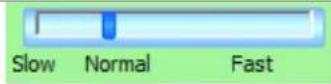 | Playback Speed Control |
 | Player Path Control (only for condition search mode) |
34. Extra Features
34.1. Window Control
Users can open or close control windows.

text_image
Server Window Group Window Play Window Daily Search Window Condition Search Window Data Search Window Log Data Window Default Layout34.2. Recording Period
You can view the starting and ending date of a recorded channel.

text_image
Row of green icons representing media and information-related functions, including chat, document, photo, and audio.Record time is displayed as shown below.

text_image
Total Record Time Server Camera Start Time End Time Brian Camera 1 12/21 12/26 Brian Camera 2 12/21 12/26 Network Video Syste Camera 1 12/21 12/26 Network Video Syste Camera 2 12/21 12/26 Network Video Syste Camera 1 12/21 12/26 Network Video Syste Camera 2 12/21 12/26 hector Test Camera 1 12/21 12/26 OK34.3. Backup
There are two backup formats IDX and AVI.
.IDX
Default video file format used by Vitek
.AVI Video file format supported by Microsoft Windows

natural_image
Row of green square icons representing media and information categories (no text or symbols)When the Backup button is clicked, the following window is displayed as below.

text_image
Backup Select camera (Brian) Camera 1 (Brian) Camera 2 (Network Video Syste) Camera 1 (Network Video Syste) Camera 2 (Network Video Syste) Camera 1 (Network Video Syste) Camera 2 (hector Test) Camera 1 Backup period 2012 12-26 08:23:10 ~ 2012 12-26 09:23:10 Backup Type AVI FJP, IDX Backup path C:\Users\Hector.VITEK\Desktop\20121226_ Recording Folder OK Cancel| Select Camera | Check the camera to backup. For AVI backup, only one camera is permitted. For FJP, IDX, multiple backup is allowed. |
| Backup Period | Select the time frame (Start date and time ~ End date and time) to backup. |
| Backup Type | Select either AVI or FJP, IDX format. |
| Backup Path | Select the HDD path where the backup file will be saved. |
After selecting the parameters, click OK then the following window will display.

text_image
[16833] frame searched CancelAfter searching is finished, backup operation will start.
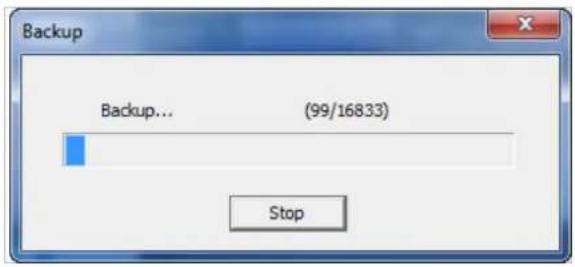
text_image
Backup Backup... (99/16833) StopWhen backup is completed, the following window will appear. Click OK button.
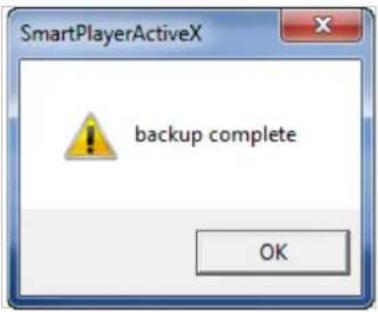
text_image
SmartPlayerActiveX backup complete OKNote: For AVI file backup, only one camera is allowed. For IDX backup, multiple cameras are allowed.
34.4. Snapshot
Choose the camera currently being played or paused, click Snapshot button. Then a snapshot file will be saved in a designated path.
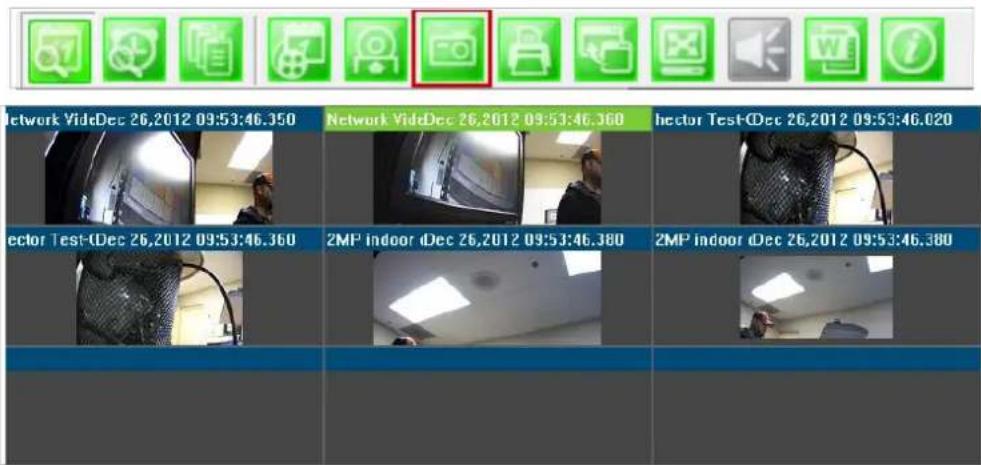
text_image
Network VideDec 26,2012 09:53:46.350 Network VideDec 26,2012 09:53:46.360 hector Test-Dec 26,2012 09:53:46.020 sector Test-Dec 26,2012 09:53:46.360 2MP indoor dDec 26,2012 09:53:46.380 2MP indoor dDec 26,2012 09:53:46.380The below picture is a result of snapshot from the above window.

text_image
20121228_10h25in23n_Network Video System-Camera 2 - Windows Photo View File Print E-mail Sum Open http://www.10h25in23n_10h25in23n34.5. Print
Choose the camera currently being played or paused, then click Print button. Then the image of the selected camera will be sent to your default printer.

natural_image
Row of green square icons representing media and information-related functions (no text or symbols)34.6. Ratio Display
You have three options to view videos, which are Original, Ratio, and Stretch.

natural_image
Green square icon grid with white document, folder, photo, and file icons (no text or symbols)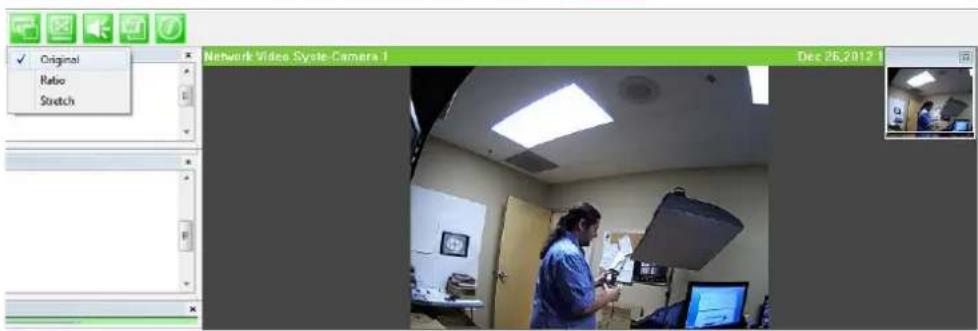
text_image
Network Video System Camera 1 Original Ratio Stretch Dec 26, 2017 1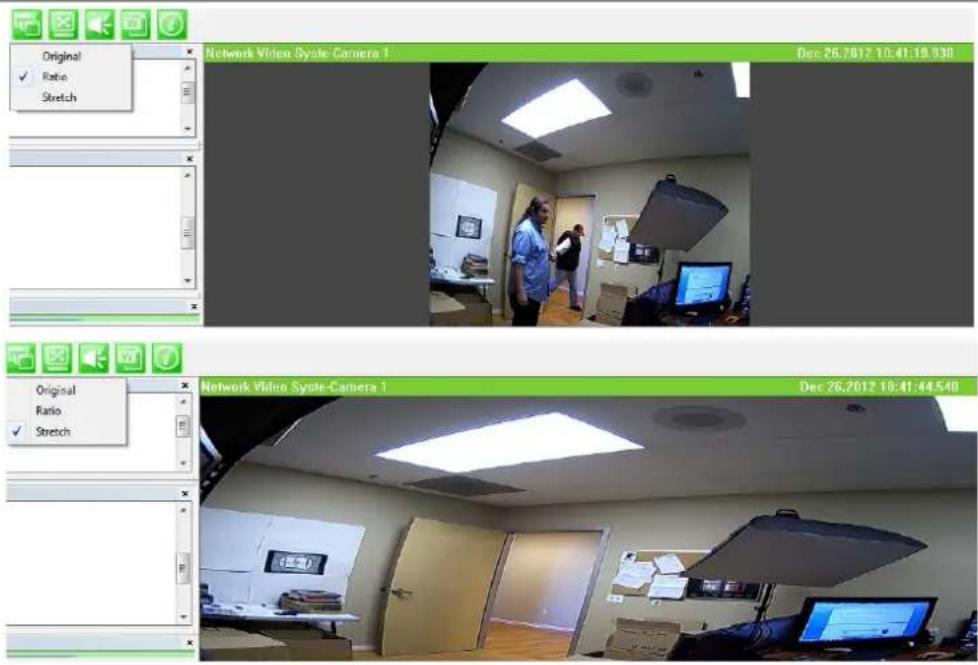
text_image
Original Ratio Stretch Network Video System-Camera 1 Dec 26,2012 10:41:19.930 Original Ratio Stretch Network Video System-Camera 1 Dec 26,2012 10:41:44.54035. EN-V-R Configuration
35.1. System, Network Configuration
General system and network properties of EN-V-R program can be set up in this section. To start, select System, Network Configuration from the menu list.

text_image
Smart NVR Configurator Configuration System, Network Configuration IP-Device, Camera Management User Management Disk Setup Disk Quota Disk Mode Utilities 1. System name is for identification in IP Surveillance System. 2. Admin password will be asked when executing configurator. 3. Full Access means all connected users can use full functions. 4. Limited Access means only registered users can use authorized functions 5. HTTP port is to be used to communicate Smartviewer and Smartplayer. 6. You can connect to see Liveview and Playback through IPCCTVDNS. Configuration Value System Name Network Video Recorder Admin Password ****** Access Control Full Access HTTP Port 80 IP CCTV DNS Disable Service (www.ipcctvdns.com) Apply CloseItems Descriptions

System Name Setting Enter the system's name.

Set up Admin password Modify the password for Admin.

Access Control Configure the access privileges of users.

HTTP Port Assign Assign an HTTP Port for EN-V-R Service.

Configure IP-CCTV DNS Configure IP-CCTV DNS for EN-V-R Service
35.1.1. Configuring System name


To name the system, click configuring system name, the following window will be displayed. Change the name as desired.

text_image
Configuring system name System name Network Video Recorder (Maximum length is 21 words in English) OK CancelItems Descriptions
| System name Type in a System name. | |
| OK | Click this button to apply the entered System Name. |
| Cancel | Click this button to discard the configured System name. |
35.1.2. System, Network Configuration - Admin password
To assign Password for the admin, click System, Network Configuration on the menu tree. Click configure admin password
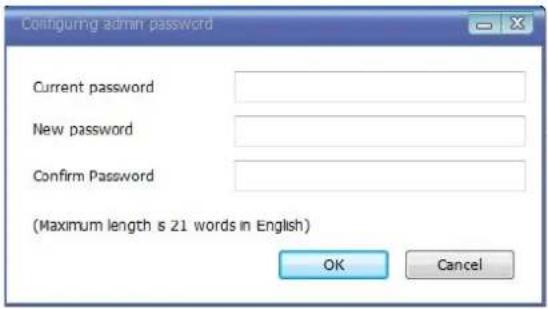
text_image
Configuring admin password Current password New password Confirm Password (Maximum length is 21 words in English) OK CancelItems Descriptions
| Current password | Enter the Current password. |
| New password | Enter a new password to use. |
| Confirm Password | Enter the new password again to confirm. |
| OK | Click this button to apply the changed password. |
| Cancel | Click this button to discard the change. |
35.1.3. System, Network Configuration - Access Control

To configure User Access Control, click System, Network Configuration on the menu tree. Click configure access control

text_image
Configuring User authentication ● Full Access (View and control camera audio without limitation) ○ Limited Access (In accordance with user's permission) OK CancelItems Descriptions
| Full Access | Set Full Access for the user. Anyone can connect to the EN-V-R without authentication, and be allowed live view, audio, PTZ, playback. |
| Limited Access | Set Limited Access for the user. Only the users with proper permission to the camera can access it. |
| OK Click this button to apply the change. | |
| Cancel | Click this button to discard the change. |
35.1.4. System, Network Configuration - HTTP Port

To configure HTTP port to use, click System, Network Configuration on the menu tree. Then click Change HTTP Port

text_image
Configuring HTTP Port HTTP Port 80 (Default:80, 80 ~ 65535) For web access, video streaming and playback OK CancelItems Descriptions
| HTTP Port | Enter a HTTP Port to use in the EN-V-R Service. (Default is 80) |
| OK Click this button to apply the changed HTTP port number. | |
| Cancel | Click this button to apply discard the changed port number. |
Note: If a firewall is enabled in your Windows, you should set the above HTTP port number to be allowed in your computer.
35.1.5. System, Network Configuration-IP CCTV-DNS

To configure IP CCTV-DNS, click System, Network Configuration on the menu tree. Click
Configure IP-CCTV-DNS
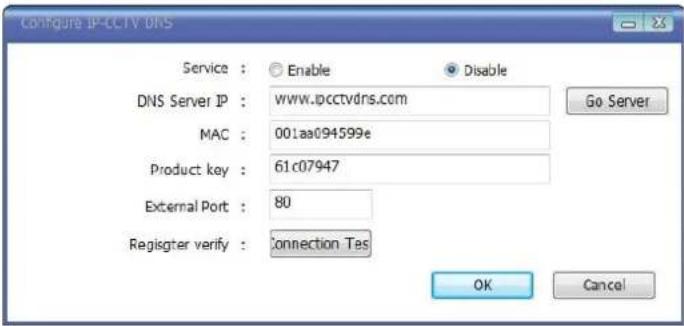
text_image
Configure IP-CCTV DNS Service : Enable Disable DNS Server IP : www.ipcctvdns.com MAC : 001aa094599e Product key : 61c07947 External Port : 80 Regisger verify : Connection Tes Go Server OK CancelItems Descriptions
| Service | Set to use IP CCT DNS or not. |
| DNS Server IP Vitek IP CCTV DNS address already entered. | |
| Go Server Directs to Vitek IP CCTV DNS server | |
| MAC | MAC address of EN-V-R already entered |
| Product Key | Product Key of EN-V-R already entered |
| External Port | Enter an external HTTP Port to use for IP CCTV DNS service. (Default is 80) |
| Register verify | Click to test the connection with IP CCTV DNS server after setting is done in IP CCTV DNS server. |
| OK | Click this button to apply the changed IP CCTV DNS settings. |
| Cancel | Click this button to discard the changed IP CCTV DNS settings |
36. IP-CCTVDNS Registration
To register your camera / server please visit http://www.ipcctvdns.com
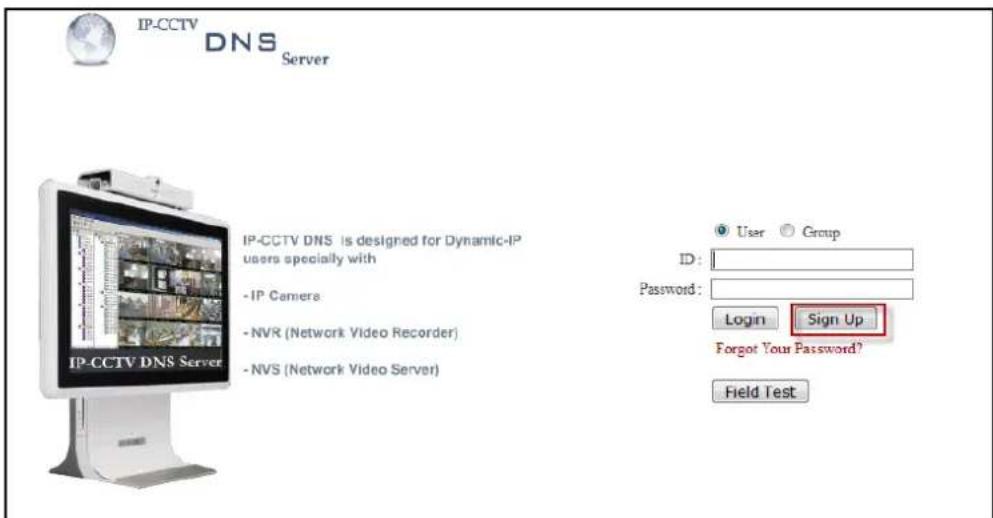
text_image
IP-CCTV DNS Server IP-CCTV DNS is designed for Dynamic-IP users specially with - IP Camera - NVR (Network Video Recorder) - NVS (Network Video Server) User Group ID: Password: Login Sign Up Forgot Your Password? Field TestIf this is your first visit your need to Sign Up if you abide by the Agreement, click on "I Agree" than
on the NEXT button as shown below.
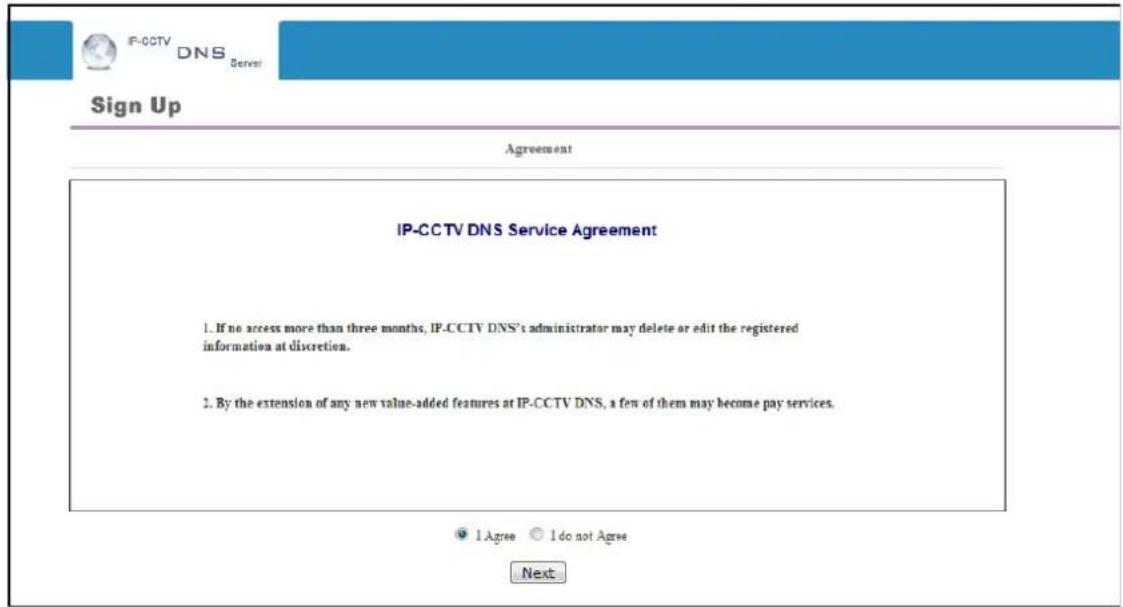
text_image
IP-CCTV DNS Server Sign Up Agreement IP-CCTV DNS Service Agreement 1. If no access more than three months, IP-CCTV DNS's administrator may delete or edit the registered information at discretion. 2. By the extension of any new value-added features at IP-CCTV DNS, a few of them may become pay services. ● 1 Agree ○ I do not Agree NextFill out the requested information as shown below and click on Apply.
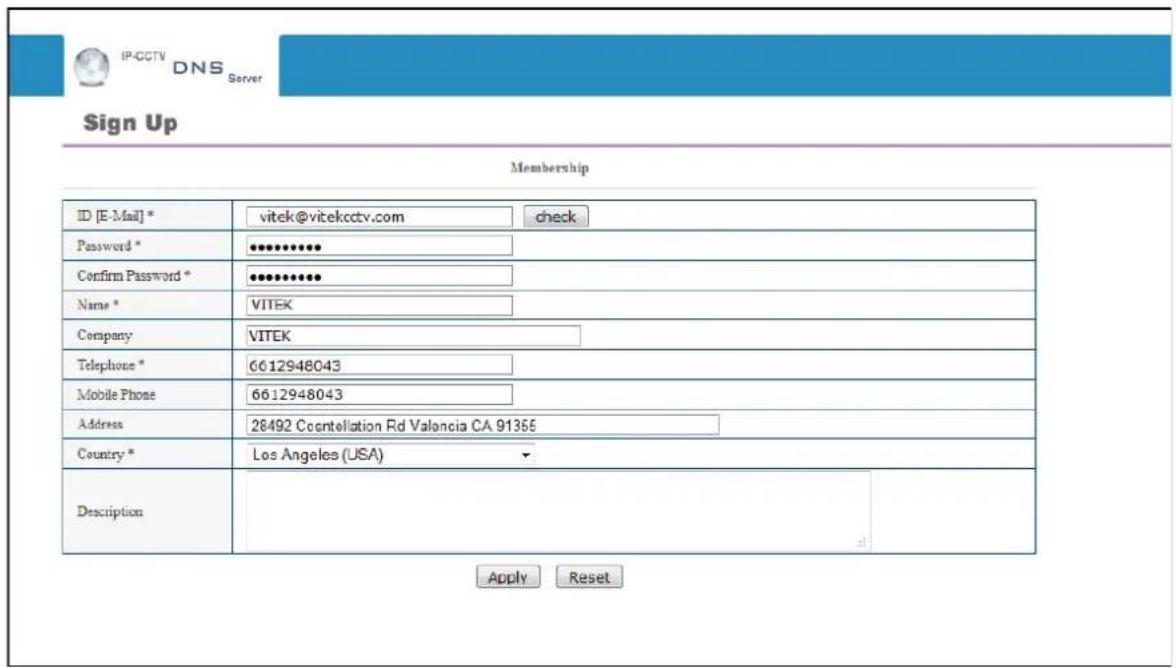
text_image
IP-CCTV DNS Server Sign Up Membership ID [E-Mail] * vitek@vitekcctv.com check Password * ************ Confirm Password * ************ Name * VITEK Company VITEK Telephone * 6612948043 Mobile Phone 6612948043 Address 28492 Coentellation Rd Valancia CA 91355 Country * Los Angeles (USA) Description Apply ResetThe following screen will confirm that your Membership has been completed successfully, that click OK.
text_image
It has been completed successfully. OKYou will be brought back to the main page of the IPCCTVDNS website; in this case you need to Login with the information previously created.

text_image
IP-CCTV DNS Server IP-CCTV DNS is designed for Dynamic-IP users specially with - IP Camera - NVR (Network Video Recorder) - NVS (Network Video Server) User Group ID: Password: Login Sign Up Forgot Your Password? Field TestTo register your first product, click on Product Registrationas shown below.
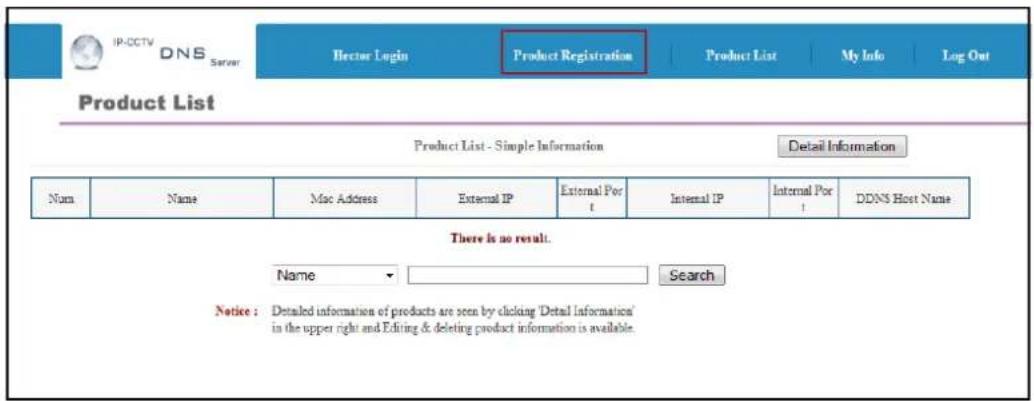
text_image
IP:OCTV DNS Server Hector Login Product Registration Product List My Info Log Out Product List Product List - Simple Information Detail Information Num Name Mac Address External IP External Port Internal IP Internal Port DDNS Host Name There is no result. Name Search Notice : Detailed information of products are seen by clicking 'Detail Information' in the upper right and Editing & deleting product information is available.Enter the requested information (The name of your camera, the Mac Address and product Key) as shown below.
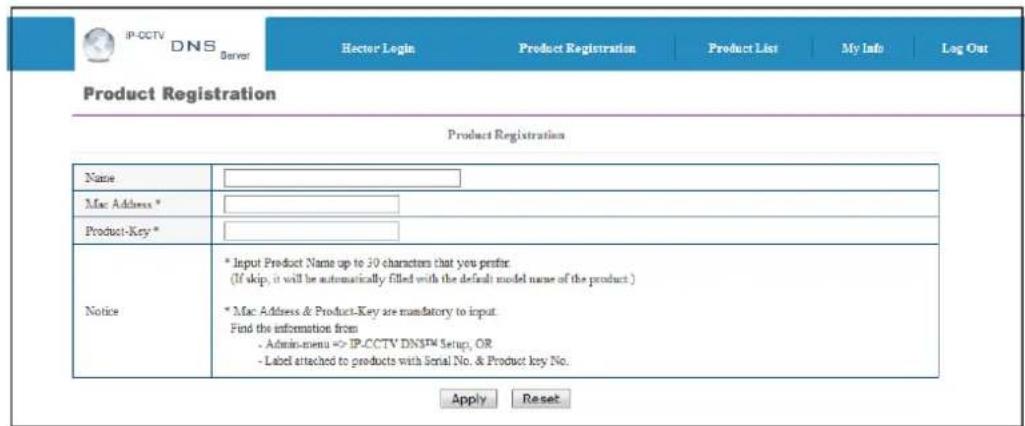
text_image
IP-CCTV DNS Server Hector Login Product Registration Product List My Info Log Out Product Registration Product Registration Name Mac Address * Product-Key * Notice * Input Product Name up to 30 characters that you prefer. (If skip, it will be automatically filled with the default model name of the product.) * Mac Address & Product-Key are mandatory to input. Find the information from - Admin-menu <> IP-CCTV DNS™ Setup, OR - Label attached to products with Serial No. & Product key No. Apply ResetNote that the Mac Address and the product Key will be available under the Network Configuration>> IP-CCTV DNS setup in the camera menu. Please see image below.
IP-CCTV DNS™ Setup
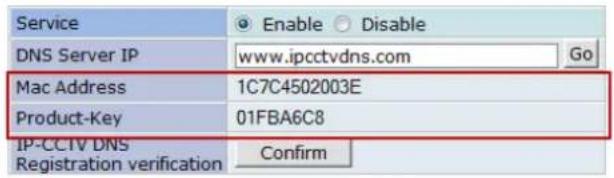
text_image
Service Enable Disable DNS Server IP www.ipcctvdns.com Go Mac Address 1C7C4502003E Product-Key 01FBA6C8 IP-CCIV DNS Registration verification ConfirmA window will pop up confirming that your product has been registered successfully, click on OK.

text_image
The product has been registered successfully. OKYou will be directed to the Product List page where you will be able to see your recent camera registration.
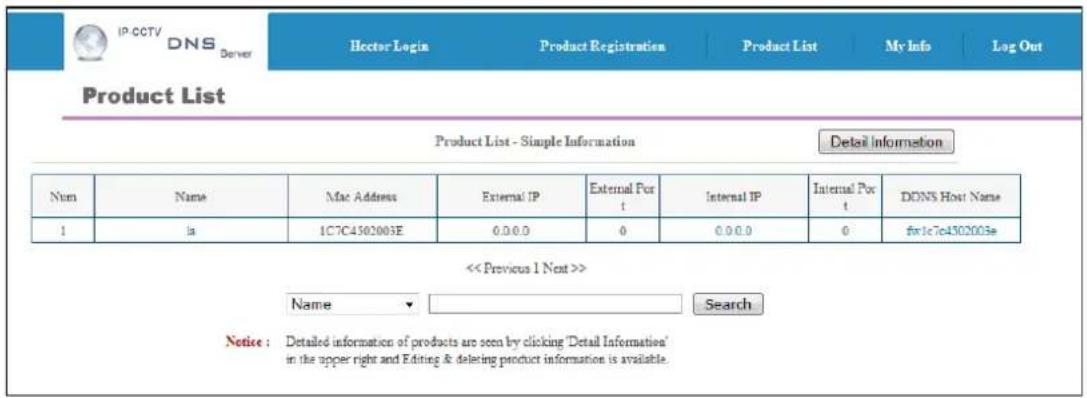
text_image
IP CCTV DNS Denver Hector Login Product Registration Product List My Info Log Out Product List Product List - Simple Information Detail Information Num Name Mac Address External IP External Port t Internal IP Internal Port t DONS Host Name 1 la 1C7C4502003E 0.0.0.0 0 0.0.0.0 0 fw1c7c4502003e << Previous 1 Next >> Name Search Notice : Detailed information of products are seen by clicking 'Detail Information' in the upper right and Editing & deleting product information is available.By clicking the Detail Information tab you will be allow edit DDNS Host Name

text_image
IP-CCTV DNS Server Hector Login Product Registration Product List My Info Log Out Product List Product List - Simple Information Detail InformationClick Edit to change the DDNS Host Name.
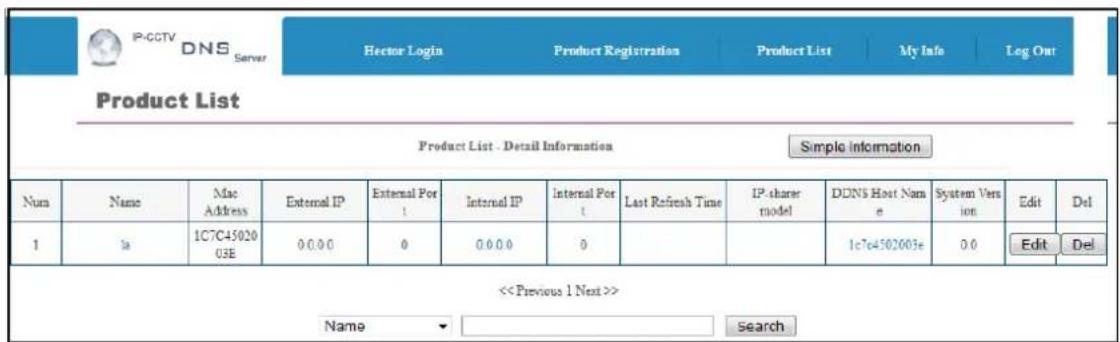
text_image
IP-CCTV DNS Server Hector Login Product Registration Product List My Info Log Out Product List Product List - Detail Information Simple Information Num Name Mac Address External IP External Port Internal IP Internal Port Last Refresh Time IP-sharer model DDNS Host Nam e System Vers ion Edit Del 1 1a 1C7C45020 03E 0.0.0 0 0.0.0 0 1c7e4502003e 0.0 Edit Del <Type in desired host name than click Apply.
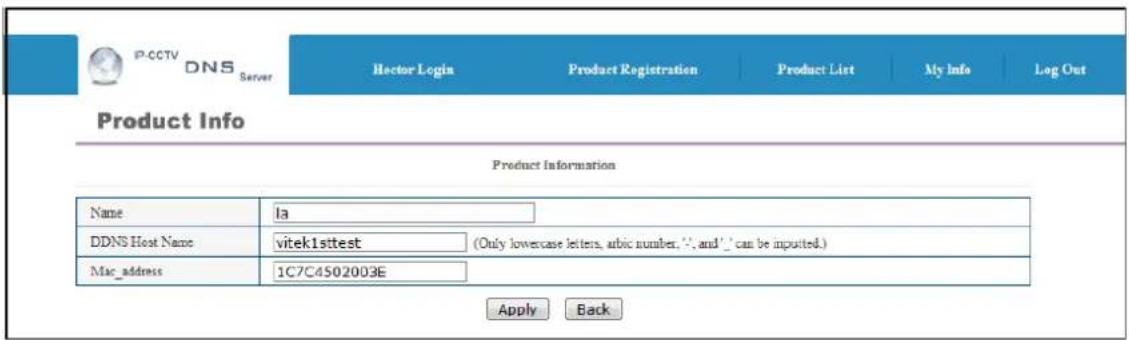
text_image
P-CCTV DNS Server Hector Login Product Registration Product List My Info Log Out Product Info Product Information Name la DDNS Host Name vitek1sttest (Only lowercase letters, arabic number, '', and ' _ can be imported.) Mac_address 1C7C4502003E Apply BackA window will pop up asking if you really want to apply the new configurations, to continue click OK.
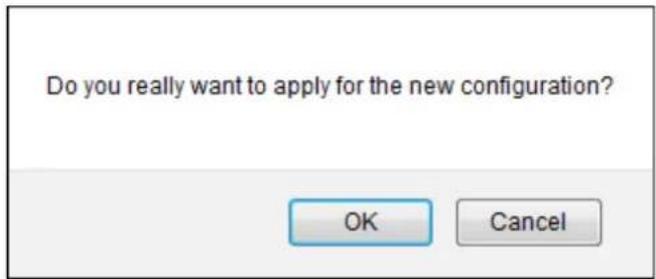
text_image
Do you really want to apply for the new configuration? OK CancelA window will pop up confirming that the product information has been modified successfully, click OK.

text_image
The product information has been modified successfully. □ Prevent this page from creating additional dialogs OKClick under Product List to view your changes
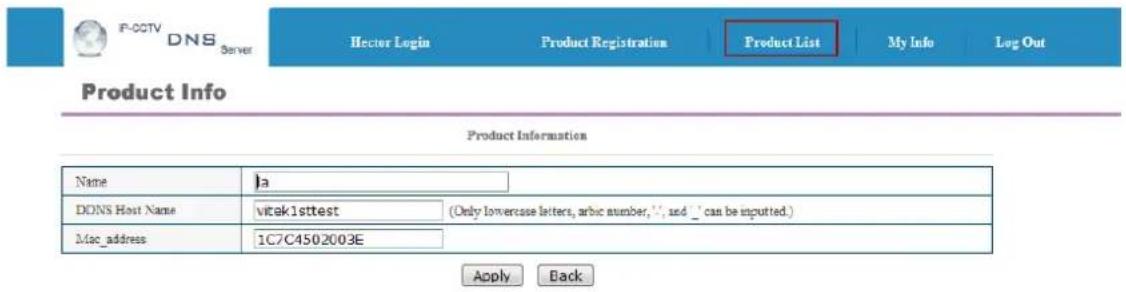
text_image
P-OCTV DNS Server Hector Login Product Registration Product List My Info Log Out Product Info Product Information Name Ja DONS Host Name vitek1sttest (Only lowercase letters, arabic number, "", and _ can be inputted.) Mac_address 1C7C4502003E Apply BackYour camera with the new DDNS Host name will be displayed.

text_image
IP-CCTV DNS Server Hector Login Product Registration Product List My Info Log Out Product List Product List - Simple Information Detail Information Num Name Mac Address External IP External Port Internal IP Internal Port DDNS Host Name 1 la 1C7C4502003E 0.0.0.0 0 0.0.0.0 0 viseklattest << Previous 1 Next >> Name SearchYour camera is now registered and ready for use.
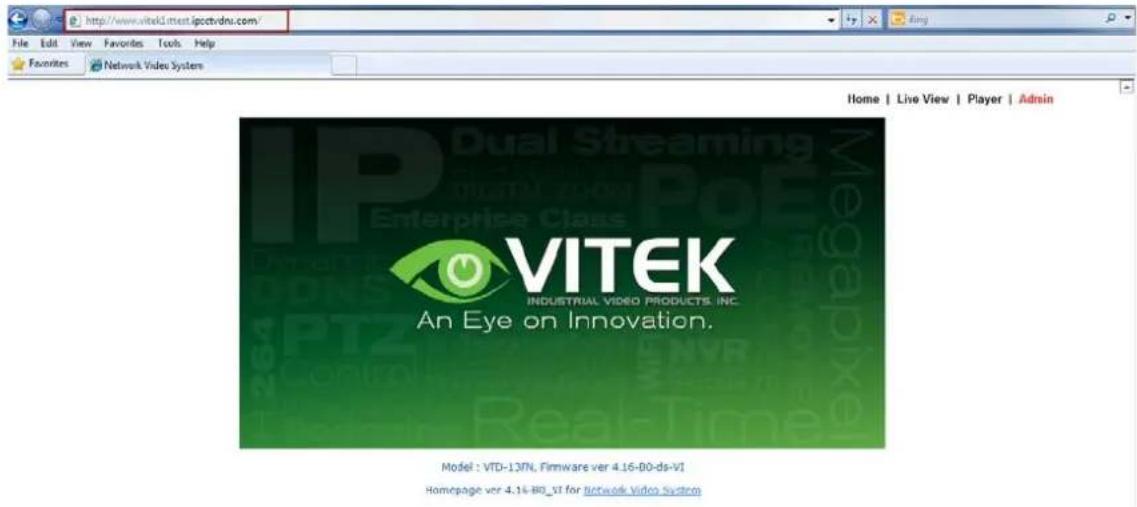
text_image
http://www.vitek1sttest.igcctv.dni.com/ File Edit View Favorites Tools Help Favorites Network Video System Home | Live View | Player | Admin IP VITEK INDUSTRIAL VIDEO PRODUCTS INC. An Eye on Innovation. Model : VTD-137N, Firmware ver 4.16-B0-ds-VI Homepage ver 4.14-B0_VI for Network Video System37. IP-Device Registration
You will see how to manage IP devices in this section, which includes registering, modifying, and deleting IP devices. To start managing IP devices, select IP-Device, Camera Management from the menu list.
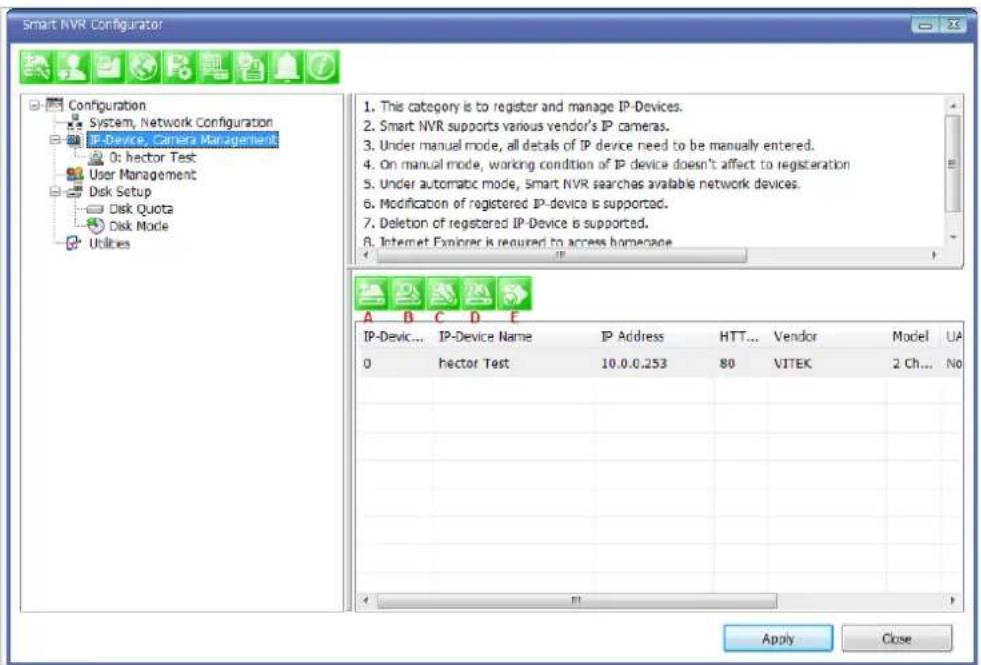
text_image
Smart NVR Configurator Configuration System, Network Configuration IP-Device, Camera Management 0: hector Test User Management Disk Setup Disk Quota Disk Mode Utilities 1. This category is to register and manage IP-Devices. 2. Smart NVR supports various vendor's IP cameras. 3. Under manual mode, all details of IP device need to be manually entered. 4. On manual mode, working condition of IP device doesn't affect to registration 5. Under automatic mode, Smart NVR searches available network devices. 6. Modification of registered IP-device is supported. 7. Deletion of registered IP-Device is supported. 8. Internet Explorer is required to access homepage A B C D E IP-Device... IP-Device Name IP Address HTT... Vendor-model UA 0 hector Test 10.0.0.253 80 VITEK 2 Ch... No Apply Close| Items Descriptions | |||
 | A | IP-Device Manual Registration | Register IP-Devices manually by users. |
 | B | IP-Device Automatic Registration | Scan and register IP-Devices automatically by the program. |
 | C | IP-Device Modification | Modify the information of registered IP-Devices. |
 | D | IP-Device Deletion | Delete IP-Devices previously registered. |
 | E | IP-Device Homepage | Go to the homepage of the IP-Device. |
37.1. IP-Device Registration (Manual)


To manually register an IP-Device, click IP-Device, Camera Management on the menu tree. Click Register IP device manually.
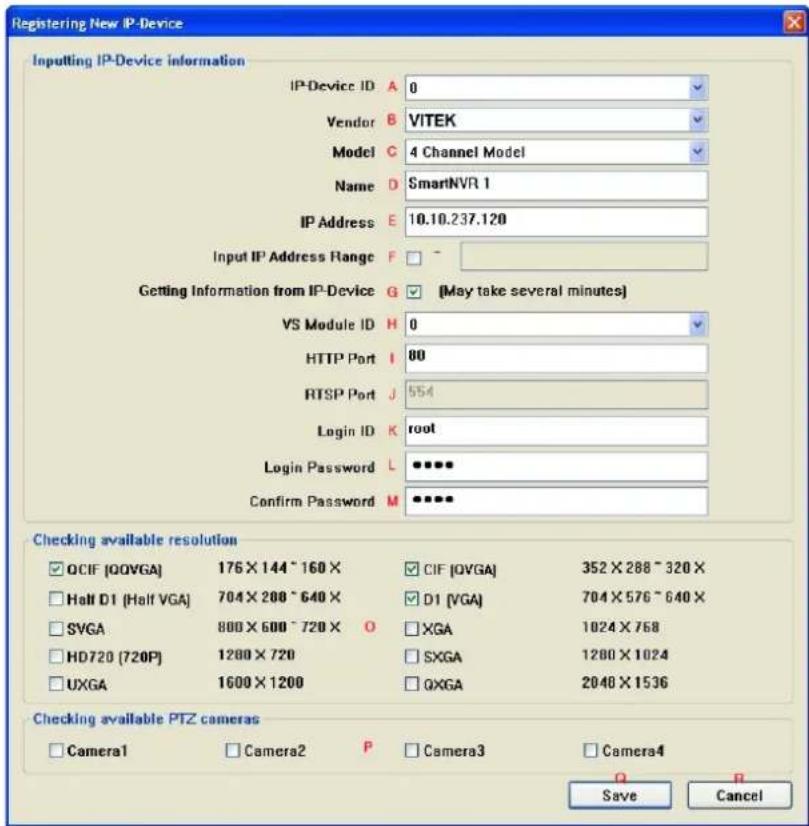
text_image
Registering New IP-Device Inputting IP-Device information IP-Device ID A 0 Vendor B VITEK Model C 4 Channel Model Name D SmartNVR 1 IP Address E 10.10.237.120 Input IP Address Range F - Getting Information from IP-Device G ✓ (May take several minutes) VS Module ID H 0 HTTP Port I 80 RTSP Port J 554 Login ID K root Login Password L ••••• Confirm Password M •••••• Checking available resolution OCIF [QQVGA] 176×144~160× CIF [OVGA] 352×288~320× Half D1 (Half VGA) 704×288~640× D1 (VGA) 704×576~640× SVGA 800×600~720× O XGA 1024×768 HD720 (720P) 1200×720 × SXGA 1200×1024 UXGA 1600×1200 × QXGA 2048×1536 Checking available PTZ cameras Camera1 Camera2 P Camera3 Camera4 Save CancelItem Description
A IP-Device ID
Select the IP-Device ID to register.
Select the Vendor name of the IP-Device to register. Click the pull-down list, and choose a proper vendor name from the list.
B Vendor

text_image
None VITEK Panasonic MJPG Axis MJPG Mobotix MJPG Vivotek MJPG IQinVision MJPG Arecont MJPG Appro MJPG Axis MPEG4 Acti Truen H264 Arecont H264 Vivotek MPEG4 Vivotek H264 AVTech MJPG AVTech MPEG4 AVTech H264 Axis H264 3S MJPG 3S H264C Model
Select the total number of channels (streams) the IP device has. Click the pull-down list, and choose proper one from the list.
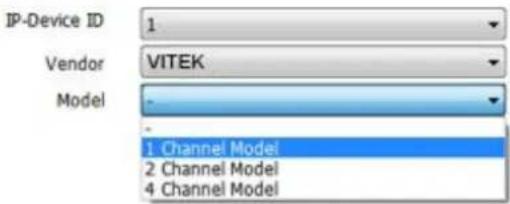
text_image
IP-Device ID 1 Vendor VITEK Model - - 1 Channel Model 2 Channel Model 4 Channel Model| D | Name | Type in the name of the IP-Device. |
| E | IP Address | Type in the IP Address to use with the IP-Device. IPCCTVDNS or URL addresses are also supported. (If Input IP Address Range box is checked, then the starting address of the range will be selected.) |
| F | Input IP Address Range | Enter the last IP address of the range. |
| G | Getting Information from IP-Device | Check this box if the information from IP-Device needs to be acquired. |
| H | VS Module ID | Select the VS Module ID. Enter 0 for non-Vitek IP devices. Vitek products can be set to 0 to 15, and default is 0. |
| I | HTTP Port | Enter the HTTP Port to use with the IP-Device. (Default is 80) |
| J | RTSP Port | Enter the RTSP Port (Default is 554) |
| K | Login ID | Type in the Login ID to use. (Default is root) |
| L | Login Password | Type in the Login Password to use for the Login ID. (Default is root) |
| M | Confirm Password | Type in the same password to confirm. (Default is root) |
| O | Checking available resolution | Select the Video Resolution for the device. Not used, all resolution is done at camera level |
| P | Checking available PTZ camera | Checkboxes to choose if PTZ is supported on the IP device. |
| Q | OK | Click this button to apply the configured values. |
| R | Cancel | Click this button to discard the configured values. |
37.2. IP-DeviceRegistration (Automatic)
To register an IP-Device by automatic scanning, click IP-Device, Camera Management on the menu tree. Then Click Scan available IP devices and register

text_image
Scanning IP-Device * Explanations for registering IP devices * "Scan" button will search IP devices and display results. * Select AN item and click "Go Home" button to access product homepage. * To register, double click an item or drag multiple items click "Register" button. * Register dialog will pop up and fill out information * You must register manually when register another NVR or SmartNVR. Vendor Model Name NAC Address IP Address HTTP Port VITEK VTD-134F EN-V-R_Test1 00306f0049... 10.10.237.51 80 VITEK VTD-13V210 EN-V-R_Test2 00306f8119... 10.10.237.73 80 VITEK VTD-134F EN-V-R_Test4 00306f8324... 10.10.237.120 80 VITEK VTD-13V210 EN-V-R_Test5 00306f8324... 10.10.237.121 80 VITEK VTD-MV13V EN-V-R_Test6 00306f8324... 10.10.237.122 80 VITEK VTD-MV20V EN-V-R_Test7 00306f8324... 10.10.237.123 80 VITEK VTD-MV13VR EN-V-R_Test8 00306f8324... 10.10.237.124 80 VITEK VTD-MV20VR EN-V-R_Test9 00306f8324... 10.10.237.126 80 VITEK VTC-IR4013 EN-V-R_Test10 00306f8323#1 10.10.237.127 80 VITEK VTC-IR4020 EN-V-R_Test11 00306f8324... 10.10.237.128 80 VITEKVT-PTZ220N EN-V-R_Test12 00306f8323#0 10.10.237.129 80 VITEK VTD-134F EN-V-R_Test13 00306f8324... 10.10.237.130 80 VITEK VTD-13V210 EN-V-R_Test14 00306f8324... 10.10.237.131 80 A B C D E F Clear Scan Go Homenantsi CloseItems Descriptions
| A IP-Device list | This list shows the IP devices found during the scan process. If you need to select multiple IP devices at the same time, drag your mouse over the devices or keep pressing CTRL or SHIFT key while clicking the IP devices. | |
| B | Clear Clear the scanned IP Devices from the list. | |
| C | Scan | Start scanning for IP Devices on the network. |
| D | Go Home | Go to the home page of the IP device selected from the list. |
| E | Register | Go to the registration window for the IP Device selected. |
| F | Close | Cancel the registration of the IP device and exit the window. |
When you click the Register button after selecting more than one IP devices on the scanned device list, the following window will be displayed. You can register those IP devices to your EN-V-R in this window.

text_image
Registering New IP-Device 1. Currently registered devices will not appear. 2. Please configure model, resolution and ptz setting with mouse Resolution Description R1: 175X144~ 160X112 R2: 352X288 ~ 320X240 A R3: 704X288 ~ 640X240 R4: 704X576 ~ 640X480 R5: 800X600 ~720X480 R6: 1024X768 R7: 1280X720 R8: 1280X1024 R9: 1600X1200 R10: 2048X1536 PT2 Install Description P1: PTZ1 P2: PTZ 2 B P3: PTZ 3 P4: PTZ 4 IP-D. Name MAC Address IP Address Model Login. Login. R1 R2 R3 R4 R5 R6 R7 R8 0 EN-V-R_Test1 00306832439 10.10.237.120 4Channel M.. root **** O O X O X X X X 1 EN-V-R_Test2 00306832403 10.10.237.121 4Channel M.. root **** O O X O X X X X 2 EN-V-R_Test4 00306832429 10.10.237.122 4Channel M.. root **** O O X O X X X X 3 EN-V-R_Test5 00306832424 10.10.237.123 4Channel M.. root **** O O X O X X X X 4 EN-V-R_Test6 0030683240p 10.10.237.124 4Channel M.. root **** O O X O X X X X C Apply to All Register Close| Items Descriptions | |
| A Resolution Description | Descriptions of the image resolution modes in the IP-Device list.(R1, R2, R3, R4, R5, R6, R7, R8, R9, R10) |
| B PTZ Install Description | Descriptions of the PTZ numbers in the IP-Device list.(P1, P2, P3, P4) |
| C IP-Device list | IP-Device list to select from. |
| D Apply to All | Click this button to copy the information of a selected IP-Device to all other devices.(Only Model, Login ID, and Login Password will be copied.) |
| E Register | Click this button to confirm and save the registered IP-Device added. |
| F Cancel | Click this button to cancel IP-Device registration. |
IP-DeviceModification

To modify an IP-Device registration, Click Modify registered IP-Device

text_image
Configuring registered IP-Device Inputting IP-Device information IP-Device ID A 0 Vendor B VITEK Model C 2 Channel Model Name D Network Video System IP Address E 192.168.2.51 Input IP Address Range F ~ Getting Information from IP-Device G (May take several minutes) VS Module ID H 0 HTTP Port I 80 RTSP Port J 554 Login ID K root Login Password L ***** Confirm Password M ***** Checking available resolution ✓ QCIF (QQVGA) 176 X 144 ~ 160 X ✓ CIF (QVGA) 352 X 288 ~ 320 X ✓ Half D1 (Half VGA) 704 X 288 ~ 640 X ✓ D1 (VGA) 704 X 576 ~ 640 X ✓ SVGA 800 X 600 ~ 720 X N ✓ XGA 1024 X 768 ✓ HD720 (720P) 1280 X 720 ✓ SXGA 1280 X 1024 ✓ UXGA 1600 X 1200 ✓ QXGA 2948 X 1536 Checking available PTZ cameras ✓ Camera1 ✓ Camera2 O ✓ Camera3 ✓ Camera4 Save Cancel| Items | Descriptions | |
| A | IP-Device ID | IP-Device ID is displayed. (not allowed to modify) |
| B | Vendor | Select the Vendor of the device. |
| C | Model | Select how many channels the device support. |
| D | Name | Change the Name as required. |
| E | IP Address | Enter the IP Address to use with the selected device. |
| F | Input IP Address Range | (not allowed to modify) |
| G | Getting Information from IP-Device | (not allowed to modify) |
| H VS Module ID | Select the VS Module ID. Enter 0 for non-Vitek IP devices. Vitek products can be set to 0 to 15, and default is 0. | |
| I | HTTP Port | Enter the HTTP Port to use with the IP-Device. (Default is 80) |
| J | RTSP Port | Enter the RTSP Port (Default is 554) |
| K | Login ID | Type in the Login ID to use. (Default is root) |
| L Login Password | Type in the Login Password to use for the Login ID. (Default is root) | |
| M | Confirm Password | Type in the same password to confirm. (Default is root) |
| N | Checking available resolution | Select the Video Resolution for the device. Not used, all resolution is done at camera level |
| O | Checking available PTZ camera | Checkboxes to choose if PTZ is supported. |
| P | OK | Click this button to apply the changed values. |

Cancel
Click this button to discard the changed values.
37.3. IP-DeviceDeletion

To delete a registered IP-Device, click IP-Device, Camera Management on the menu tree in the left pane. Then select an IP device to be deleted from the list. Click Remove IP-Device registration
To go to the home page of an IP-Device, click the IP-Device, Camera Management on the menu tree. Then select the IP device. Click Go to IP-Device homepage
37.5. Camera Management
In this section, you will see how to manage the device information, video resolutions, recording configuration, and alarm event configuration. Firstly, select a camera name under IP-Device, Camera Management on the menu tree.
When you select IP-Device, Camera Management on the menu tree, it will show theCamera Management sub-menu. You can configure cameras here. The following picture shows when you selected an IP-device in the menu tree. The sub-menu toolbar changes accordingly to your selection.
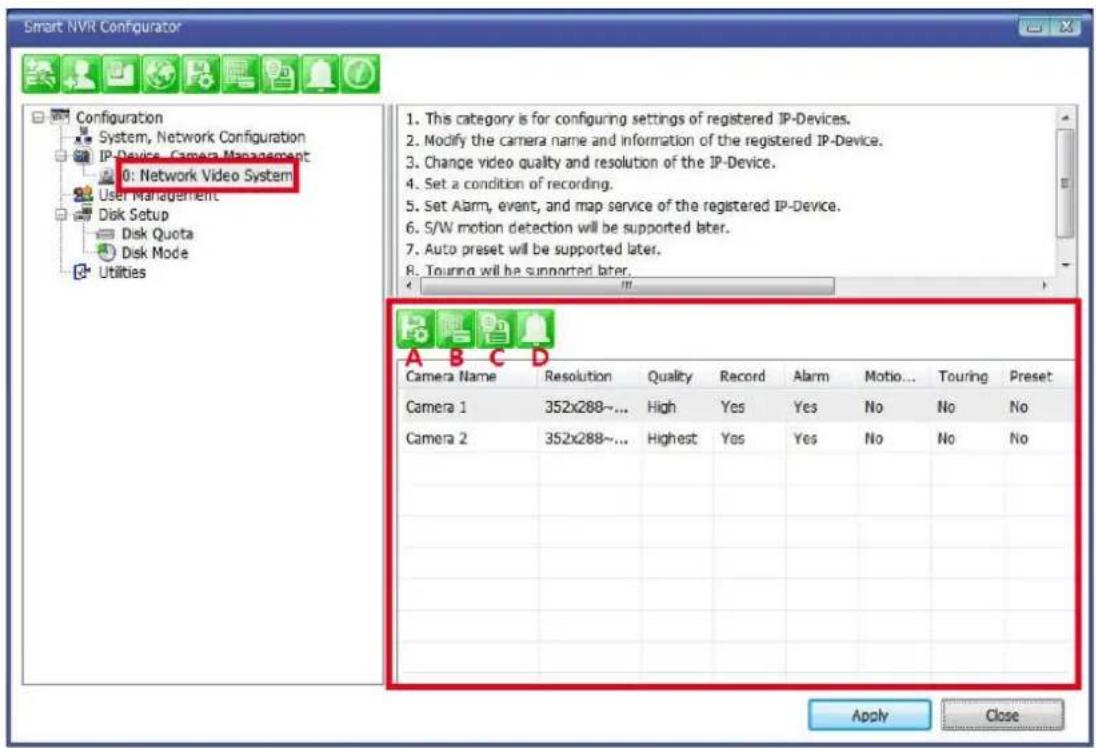
text_image
Smart NVR Configurator Configuration System, Network Configuration IP Device - Camera Management 0: Network Video System User Management Disk Setup Disk Quota Disk Mode Utilities 1. This category is for configuring settings of registered IP-Devices. 2. Modify the camera name and information of the registered IP-Device. 3. Change video quality and resolution of the IP-Device. 4. Set a condition of recording. 5. Set Alarm, event, and map service of the registered IP-Device. 6. S/W motion detection will be supported later. 7. Auto preset will be supported later. 8. Touring will be supported later. Camera Name Resolution Quality Record Alarm Motion... Touring Preset Camera 1 352x288~... High Yes Yes No No No Camera 2 352x288~... Highest Yes Yes No No No Apply CloseItems Descriptions
 | A | Camera Information | Configure Information of the selected camera. |
 | B | Resolution and Quality | Choose the resolution and quality of cameras. |
 | C | Recording Conditions | Set up recording conditions. |
 | D | Alarm and Map service settings | Configure Alarm and Map service functions. |
37.5.1. Configure Camera Name and Information

From the configuration list, select a camera to be assigned with a name.
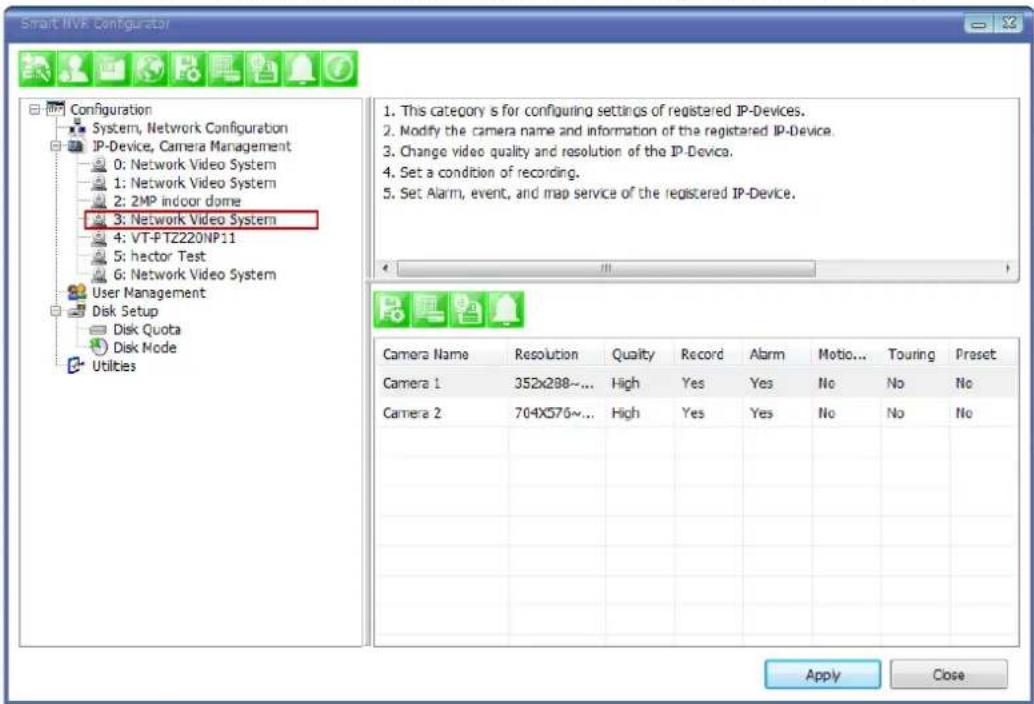
text_image
Smart NVR Configurator Configuration System, Network Configuration IP-Device, Camera Management 0: Network Video System 1: Network Video System 2: 2MP indoor dome 3: Network Video System 4: VT-PTZ220NP11 5: hector Test 6: Network Video System User Management Disk Setup Disk Quota Disk Mode Utilities 1. This category is for configuring settings of registered IP-Devices. 2. Modify the camera name and information of the registered IP-Device. 3. Change video quality and resolution of the IP-Device. 4. Set a condition of recording. 5. Set Alarm, event, and map service of the registered IP-Device. Camera Name Resolution Quality Record Alarm Motion... Touring Preset Camera 1 352x288~... High Yes Yes No No No Camera 2 704X576~... High Yes Yes No No No Apply CloseThen click on camera1 or camera 2, and then click Configure Camera Name and Information
| Camera Name | Resolution | Quality | Record | Alarm | Moto... | Touring | Preset |
| Camera 2 | 704X576~... | High | Yes | Yes | No | No | No |
| Camera 1 | 352x288~... | High | Yes | Yes | No | No | No |
The below image will be display, enter name (F), then click Apply to camera(H), then OK.
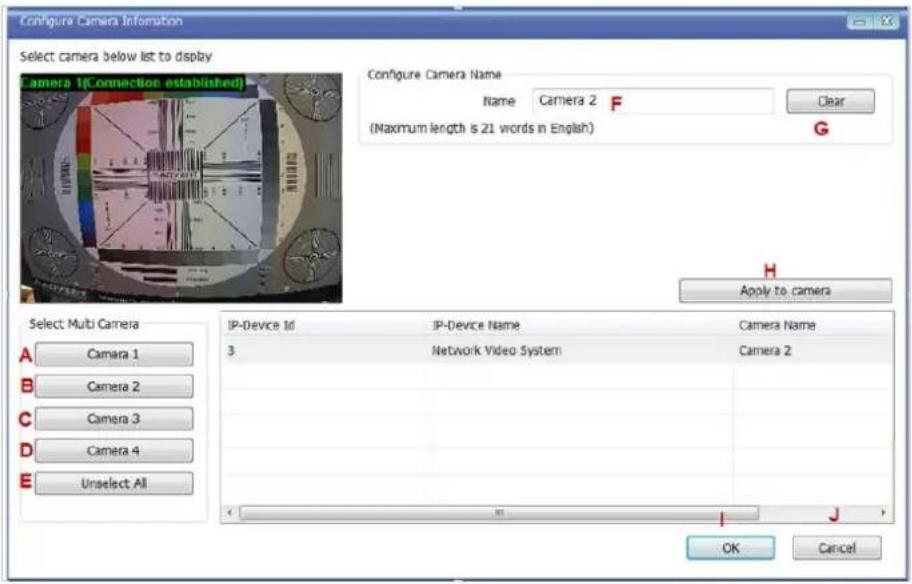
text_image
Configure Camera Information Select camera below list to display Camera 1(Connection established) Configure Camera Name Name Camera 2 F (CMaximum length is 21 words in English) Clear G Apply to camera Select Multi Camera IP-Device Id IP-Device Name Camera Name 3 Network Video System Camera 2 Unselect All OK Cancel| Items Descriptions | ||
| A,B,C,D | Camera Selection | Select one or more cameras for name assignment by clicking buttons. |
| E | Unselect All | Clear the device list which shows the selected cameras. |
| F Name | Type in a camera name. | |
| G | Clear | Clear the camera name field. |
| H | Apply to Camera | Apply the changed camera name to the system. |
| I | OK | Click this button to confirm the change and close the window. |
| J | Cancel | Click this button to cancel the change and close the window. |
37.5.2. Camera Resolution, Quality
To configure a camera's resolution and video quality, select a camera to configure and click Configure camera resolution and quality
| Camera Name | Configure camera resolution and quality | Alarm | Motio... | Touring | Preset | ||
| Camera 1 | 352x288~... | High | Yes | Yes | No | No | No |
| Camera 2 | 704X576~... | High | Yes | Yes | No | No | No |
The below image will be display, adjust resolution (F), then click Apply to camera(H), then OK
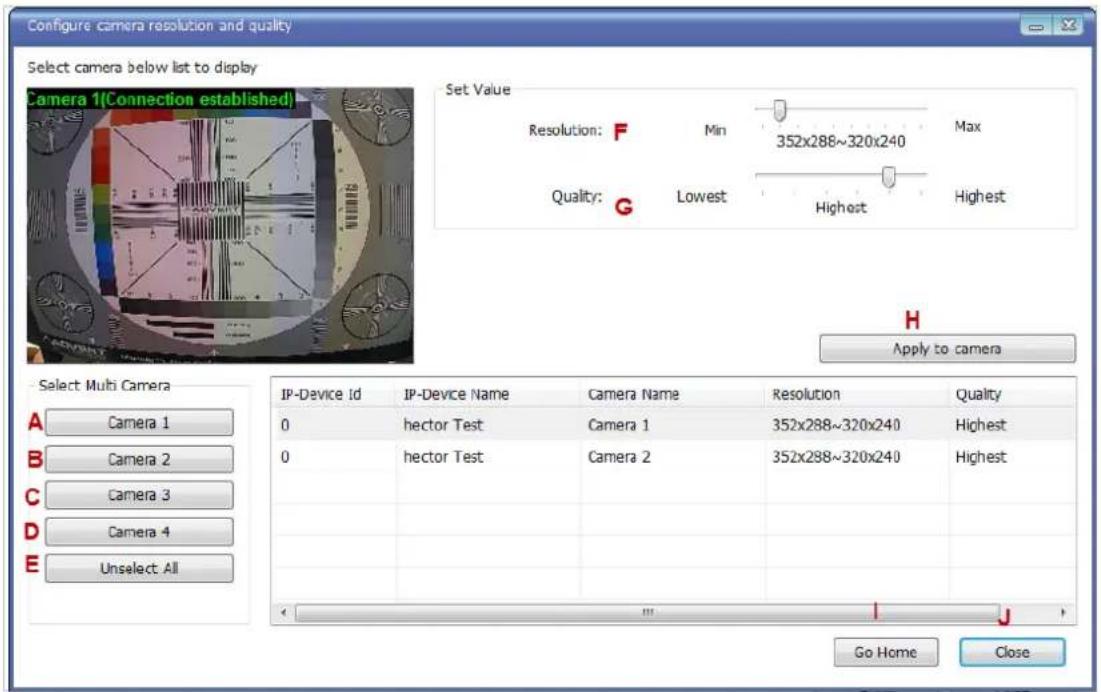
text_image
Configure camera resolution and quality Select camera below list to display Camera 1(Connection established) Set Value Resolution: F Min 352x288~320x240 Max Quality: G Lowest Highest Highest Apply to camera Select Multi Camera IP-Device Id IP-Device Name Camera Name Resolution Quality 0 hector Test Camera 1 352x288~320x240 Highest 0 hector Test Camera 2 352x288~320x240 Highest Go Home Close| Items Descriptions | ||
| A,B,C,D | Camera Selection | Select one or more cameras by clicking buttons. |
| E | Unselect All | Clear the device list which shows the selected cameras. |
| F Resolution Select the video resolution. | ||
| G Quality Select the video quality. | ||
| H | Apply to Camera | Apply the selected video resolution and quality to the system. |
| I | Go Home | Go to the homepage of the product. |
| J | Close | Close and exit the window. |
37.5.3. Configure Camera Recording Condition
To configure recording conditions, select a camera to configure, then click Configure camera recording condition
| Camera Name | Configure camera recording condition | Alarm | Motio... | Touring | Preset | ||
| Resolution | Quick | Record | |||||
| Camera 1 | 352x288~... | High | Yes | Yes | No | No | No |
| Camera 2 | 704X576~... | High | Yes | Yes | No | No | No |
The below image is where you adjust the recording parameters.

text_image
Configure Recording Condition 1. Select camera to configure condition 2. You can select to multi camera 3. Select condition to configure record condition 4. Configure detail schedule and event 5. Click Apply to camera button to apply condition 6. Change record service Pre, Post images 7. Click Apply to camera button to save changed condition Camera 1(Connection established) Recording Service Enable Recording Service Disable Recording Service Pre Alarm Images 0 Pre Alarm Speed fastest POST Alarm Images 0 POST Alarm Speed fastest Camera list Select Multi Camera A B C D E Configure Recording Condition Input Condition Use the condition G Do not use this condition Condition Mode Always Recording H Recording by schedule only Recording by event only Recording by schedule and event Schedule Day of week Sun Mon Tue Wed Thu Fri Sat. Time 1 12/31/1969 ~ 12/31/1969 Date 12/31/1969 ~ 12/31/1969 Event: Alarm Sensor 1 2 3 4 Motion Detection J External Input Data K Condition list F Apply to condition Camera Name Con... Condition Name Camera 1 1 [N1] Camera 1 2 - Apply to camera L IP-Device Id IP-Device Name Camera Name Recording Condition 1 Condition 2 Condition 3 Conditc 3 Network Video System Camera 1 Enable [N1] - - - OK CancelItem Description
| A,B,C,D | Camera Selection | Select one or more cameras by clicking buttons. |
| E | Unselect All | Clear the device list which shows the selected cameras. |
| F | Condition List | Define the condition for recording to be started. |
| G | Condition to use | Decide whether to use the defined condition or not. |
| H | Condition Mode | Select the condition mode for recording. |
| I | Scheduling | Set up the schedule for recording. |
| J | Event setup | Set up the event to initiate recording. |
| K | Apply to Condition | Apply the configured schedule and event data to condition list. |
| L | Apply to Camera | Apply the condition to camera. |
| M | Enable Recording Service | Enable this to activate the recording. When this is not enabled, it won't be saved if a recording condition is set. |
| N | Pre Alarm Images | Select pre-alarm images. |
| O | Pre Alarm Speed | Select pre-alarm speed. |
| P | Post Alarm Images | Select post-alarm images. |
| Q | Post Alarm Speed | Select post-alarm speed |
| R | OK | Click this button to confirm the change and exit the window. |
| S | Cancel | Click this button to cancel the all the changed made in this session. |
To setup recording, first click camera under Condition list(F). This enables the Configure Recording Condition (G, H, I and J)
| Camera Name | Con... | Condition Name | |
| Camera 1 | 1 | [M1] | |
| Camera 1 | 2 | - |
Now you can select your condition mode(H). Under condition mode you have four choices always, schedule, event and schedule and event. (In this example we will record by event only)
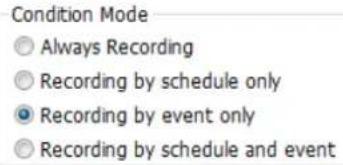
text_image
Condition Mode ○ Always Recording ○ Recording by schedule only ● Recording by event only ○ Recording by schedule and eventSchedule: To schedule time and date of recording (1). (When schedule is activated in condition mode)

text_image
Schedule □ Day of week □ Time □ Date Sun Mon Tue Wed Thu Fri Sat □ □ □ □ □ □ √ □ AM 8:43 ~ AM 8:43 12/28 ~ 12/28Event: Here you can select Alarm or Motion (J)
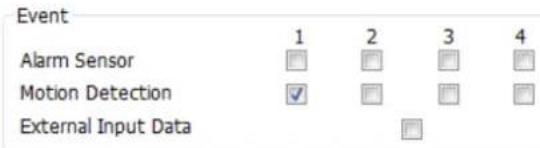
text_image
Event 1 2 3 4 Alarm Sensor Motion Detection ✓ □ □ □ External Input DataAfter completing your conditions selection click Apply to condition(K)
After apply to condition click Apply to camera (L), and then click OK(R)
When that screen closes click Apply

text_image
Camera Name Resolution Quality Record Alarm Moto... Touring Preset Camera 1 352x288~... High Yes Yes No No No Camera 2 704X576~... High Yes Yes No No No Apply Close37.5.4. Alarm, Event Configuration

To configure the Alarm and Event features, select a camera to configure, and then click Configure alarm, map service
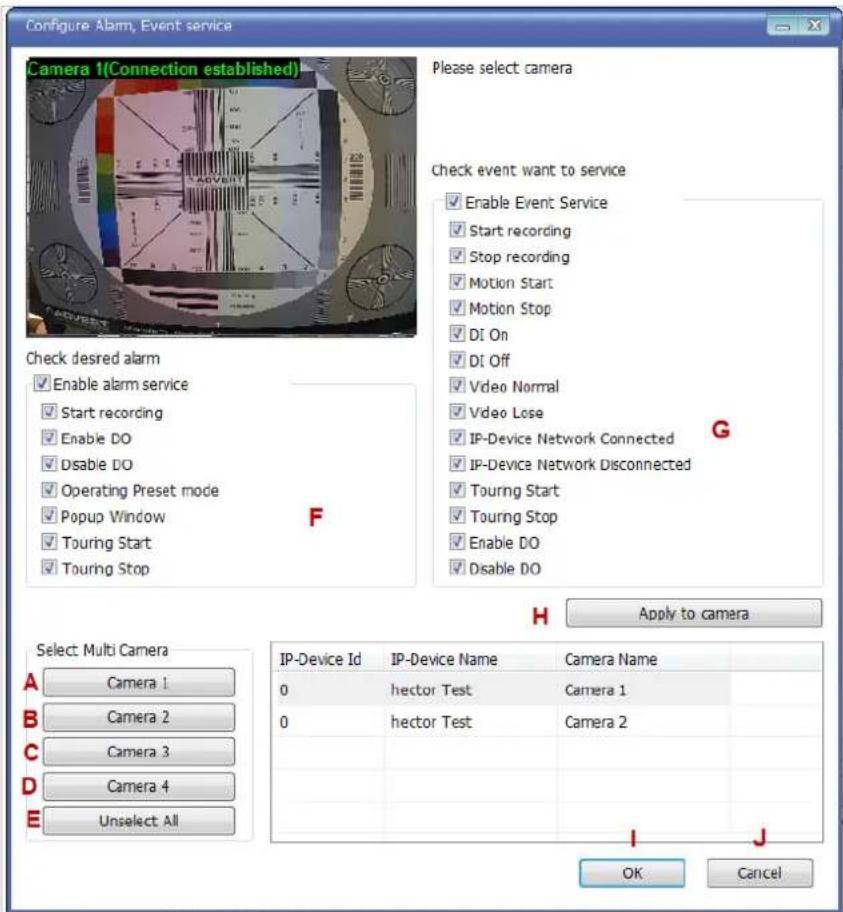
text_image
Configure Alarm, Event service Camera 1(Connection established) Please select camera Check desired alarm Enable alarm service Start recording Enable DO Disable DO Operating Preset mode Popup Window Touring Start Touring Stop F Check event want to service Enable Event Service Start recording Stop recording Motion Start Motion Stop DI On DI Off Video Normal Video Lose IP-Device Network Connected IP-Device Network Disconnected Touring Start Touring Stop Enable DO Disable DO G Apply to camera Select Multi Camera A C B C D E Camera 1 Camera 1 Camera 2 Camera 2 Camera 3 Camera 4 Unselect All IP-Device Id IP-Device Name Camera Name 0 hector Test Camera 1 0 hector Test Camera 2 I J OK CancelItem Description
| A,B,C,D | Camera Selection | Select one or more cameras by clicking buttons. |
| E | Unselect All | Clear the device list which shows the selected cameras. |
| F | Alarm Service Setup | Put check marks on alarm types to use. |
| G | Event Service Setup | Put check marks on event types to use. |
| H | Apply to Camera | Click this button to apply the changes to the camera. |
| I | OK | Click this button to confirm the change and exit the window. |
| J | Cancel | Click this button to cancel the Alarm, Event configuration. |
37.6. User Management
In this section, you will see how to manage user information. To start managing users, select User Management from the menu tree.

text_image
Smart NVR Configurator Configuration System, Network Configuration IP-Device, Camera Management 0: Network Video System User Management Disk Setup Disk Quota Disk Mode Utilities 1. It is possible to add, modify, and delete users. 2. Full Access authority means no limitation to all functions. 3. General Access means only Liveview of the all cameras. 4. No Access means no camera you can access. 5. Selective Access means accessing to assigned cameras. A B C User Id User Name Access Permission user1 Manager Full Access Apply Close| Items | Descriptions | ||
 | A | User Registration | Register new users to the system. |
 | B | User Modification | Change the information of existing users. |
 | C | User Deletion | Remove the account of existing users. |
37.6.1. User Registration

To register a new user, click the 1'st button on the tool bar in the sub-menu toolbar.

text_image
User Registration User Account A User ID B Password C Confirm password D Name Notice: User ID Password must be alphanumeric within 23 characters. System Resource Access Permission ● All Channels Access ○ General Access(Only View) ● No Access ○ Selective Access System F Enable Module Port Alarm Control PTZ Control Audio Control Playback □ Network Video Sy ▼ All Port ▼ □ □ □ □ □ Network Video Sy ▼ All Port ▼ □ □ □ □ □ □ Network Video Sy ▼ All Port ▼ □ □ □ □ □ □ Network Video Sy ▼ All Port ▼ □ □ □ □ □ □ Network Video Sy ▼ All Port ▼ □ □ □ □ □ □ Network Video Sy ▼ All Port ▼ □ □ □ □ □ □ Network Video Sy ▼ all port ▼ □ □ □ □ □ G H OK Cancel| Items Descriptions | ||
| A | User ID | Enter a new User ID to register. |
| B | Password Enter the Password for the new user. | |
| C | Confirm password | Enter the same Password for confirmation. |
| D | Name | Enter the name of the new user to be registered. |
| E | System resource access permission | Choose the level of permission for System resource access.All channels access: Viewing all cameras, Alarm, PTZ, Audio, SearchingGeneral access: Viewing all cameras onlyNo access: An user account without any access to camerasSelective access: Access to only selected cameras and privileges. |
| F | System Permission | Eight different modules can be set. The setup can be made on Module, camera, alarm, PTZ, Audio, and Search respectively. Enabling each module gives accesspermission to it. |
| G | OK | Click this button to apply the registration of the new user. |
| H | Cancel | Click this button to cancel the registration process. |
37.6.2. User Modification

To modify a user's information, select the users name than click the second button on the submenutoolbar. The User Registration window will come up on the screen, make the necessary changes and click OK.
37.6.3. UserDeletion

To delete an existing user, select the user name than click Remove Registered user account, another screen will pop up confirming to proceed with deletion, click OK to proceed.
37.7. Disk Setup
37.7.1. Disk Setup
When you click Disk Setup on the menu tree, it will show two sub-menu items. One is Disk Quota, and the other is Disk Mode. The following window shows the Disk Quota mode.
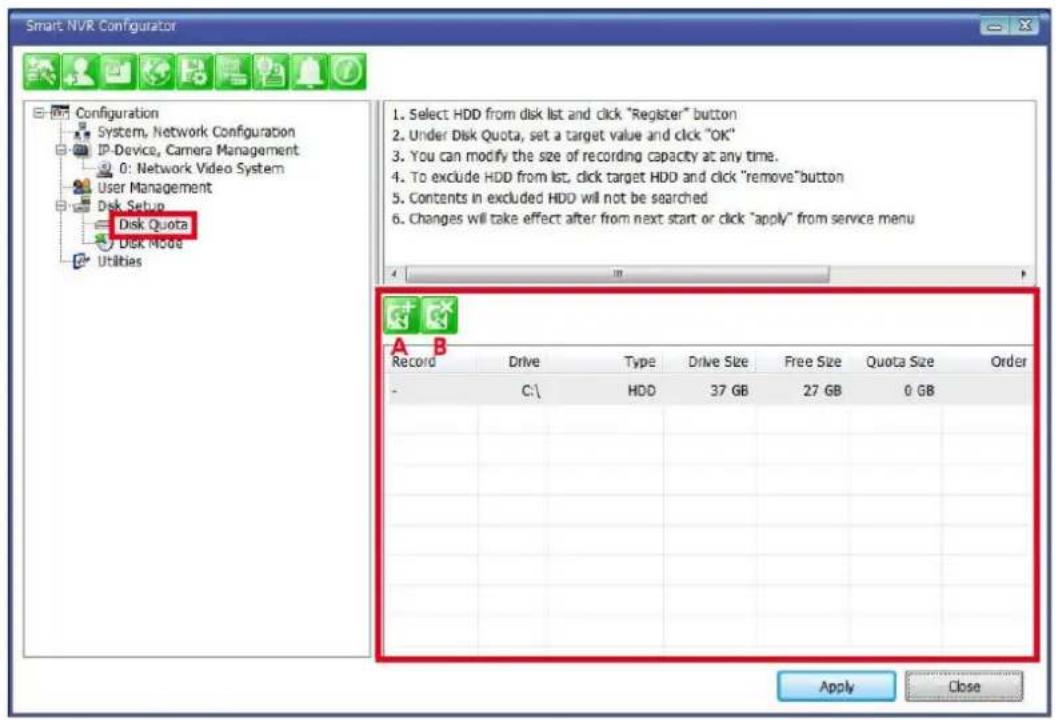
text_image
Smart NVR Configurator Configuration System, Network Configuration IP-Device, Camera Management 0: Network Video System User Management Disk Setup Disk Quota Disk Node Utilities 1. Select HDD from disk list and click "Register" button 2. Under Disk Quota, set a target value and click "OK" 3. You can modify the size of recording capacity at any time. 4. To exclude HDD from list, click target HDD and click "remove" button 5. Contents in excluded HDD will not be searched 6. Changes will take effect after from next start or click "apply" from service menu Record Drive Type Drive Size Free Size Quota Size Order C:\ HDD 37 GB 27 GB 0 GB Apply CloseItems Descriptions

A Disk Quota Setup Define the HDD for recording and configure the size of quota.

B Disk Quota Deletion Delete previously assigned disk quota.
37.7.2. Disk Quota Modification and Deletion

When EN-V-R program is installed, all local drives are assigned as recording devices. To modify the disk quota for recording, click Disk Quota on the menu list, and select the drive to be modified.
To change the disk quota size, click the 1'st button on the sub tool bar, or double click the drive on the
device list. The following window will be displayed.
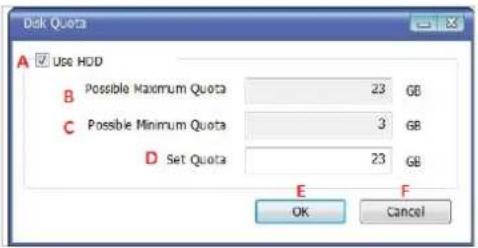
text_image
Disk Quota A Use HDD B Possible Maximum Quota 23 GB C Possible Minimum Quota 3 GB D Set Quota 23 GB E OK Cancel| Item Description | ||
| A | Use HDD | Decide whether this HDD is to be used. |
| B | Possible Maximum Quota | Display Possible maximum quota on this HDD. |
| C | Possible Minimum Quota | Display Possible minimum quota on this HDD. |
| D | Set Quota | Enter the desired size of disk quota for recording. |
| E | OK | Click to apply the configured disk quota. |
| F | Cancel | Click to cancel the disk quota configuration. |
To delete the existing disk quota, click Disk Quota on the menu list. Then choose the drive quota to be deleted. Click the 2'nd button on the sub tool bar.
37.7.3. Disk Mode Change
To modify the disk circulation style, click Disk Setup, and then Disk Mode on the menu tree.

text_image
Smart NVR Configurator Configuration System, Network Configuration IP-Device, Camera Management 0: Network Video System User Management Disk Setup Disk Quota Disk Mode Utils 1. Click icon to configure disk circulation. 2. If circulation is enabled, oldest data will be removed for new data 3. If circulation is disabled, recording will be stooped when there is no space 4. Limiting recording duration can be configured by daily basis 5. If you set recording duration, data over configured period will be erased 6. For system stability, data over configured period can be erased A B Configuration Value Disk Circulation Use circulation (Record new data remove oldest data) Expired Duration Not use expired duration Email report No Apply CloseItems Descriptions

A Disk Circulation Setup Configure disk circulation type.

B Disk Usage Report Setup Configure email address for reporting.

Click the Disk Circulation in the list. The following window will be displayed.

text_image
Configure Disk Circulation A Use circulation (Record now data remove oldest data) C Use expired duration D 0 Expirad days (Default:90, 1~3650) B Not use circulation (Stop record when full disk quota) E F OK Cancel| Item | Description | |
| A | Use circulation | Select this if disk circulation will be used. |
| B | Not use circulation | Select this if disk circulation will not be used. |
| C | Use expired duration | Decide whether the expiration will be used for recording. (This can be seen when “Use circulation” is selected.) |
| D | Expired days | Enter the date when the recorded content will expire. |
| E | OK | Click this to apply the Disk circulation settings. |
| F | Cancel | Click this to Cancel Disk circulation settings. |
Configure email reporting for disk usage

To modify the email notification behavior for hard disk recording.
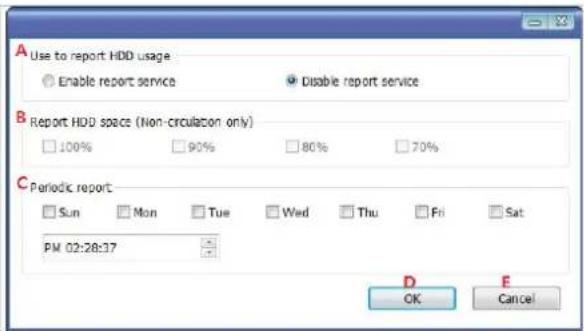
text_image
A Use to report HDD usage Enable report service Disable report service B Report HDD space (Non-circulation only) 100% 90% 80% 70% C Periodic report Sun Mon Tue Wed Thu Fri Sat PM 02:28:37 D OK Cancel| Item | Description | |
| A | Use to report HDD usage | Choose whether to Enable or Disable the report service. |
| B | Report HDD space | When disk circulation is not used, select the HDD size when it will be reported by email. |
| C | Periodic report | Define when Periodic reports will be sent. |
| D | OK | Click to apply the Email report settings. |
| E | Cancel | Click to cancel Email report configuration. |
37.8. Utilities
Select Utilities from the menu tree. You can perform two functions in Utilities, one is Email Account Configuration and the other is About Program.
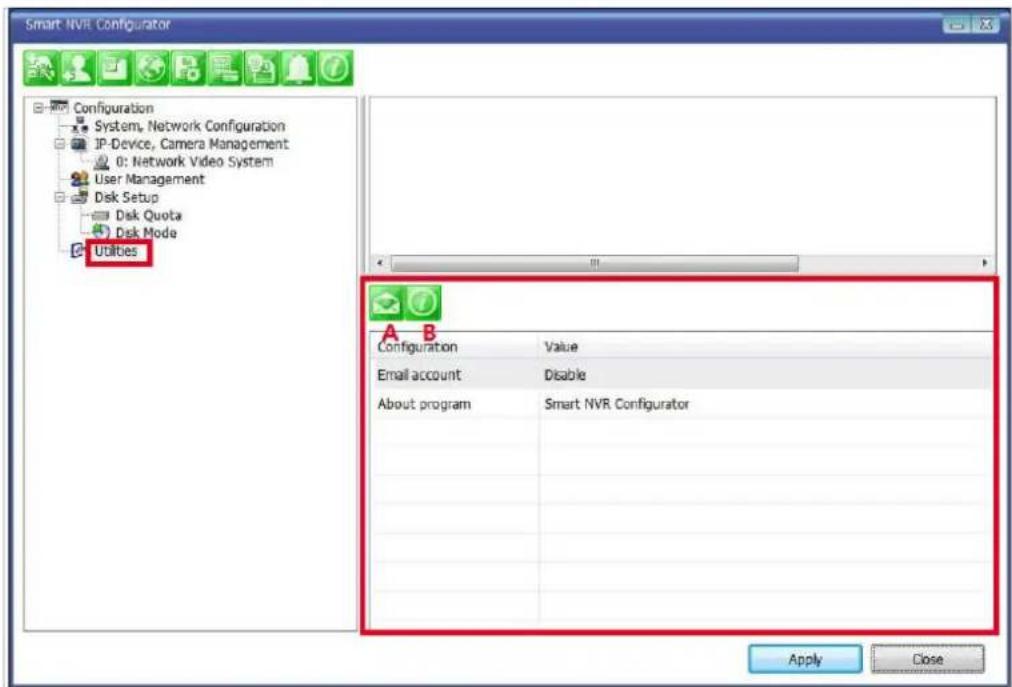
text_image
Smart NVR Configurator Configuration System, Network Configuration JP-Device, Camera Management 0: Network Video System User Management Disk Setup Disk Quota Disk Mode Utilities A B Configuration Value Email accountDisable About program Smart NVR Configurator Apply CloseItems Descriptions
| A | Email Account | Configure email account. | |
| B | About Program | Display the information of EN-V-R program. |
37.8.1. Email accountConfiguration

Once an email account is registered here, you can receive email notification from theEN-V-R program upon certain events. To configure an email accounts, click Utilities on the menu tree. Click Configure
email account for mail service
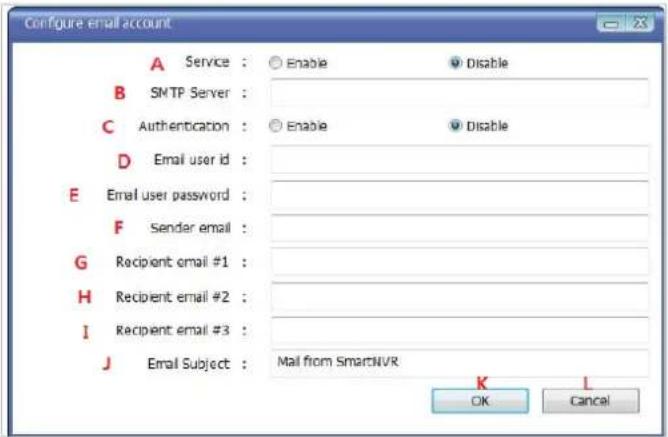
text_image
Configure email account A Service : Enable Disable B SMTP Server : C Authentication : Enable Disable D Email user id : E Email user password : F Sender email : G Recipient email #1 : H Recipient email #2 : I Recipient email #3 : J Email Subject : Mail from SmartNVR K L OK Cancel| Item | Description | |
| A | Service | Decide whether to report HDD usage by email or not. |
| B | SMTP server | Enter the address of SMTP server for sending email. |
| C | Authentication | Decide whether to use Authentication. |
| D | Email user id | Enter the sender's id for email account. |
| E | Email user password | Enter the password of the sender's email account. |
| F | Sender email | Enter the Sender's email address. |
| G,H,I | Recipient email #1,2,3 | The email addresses of three Recipients to be notified. |
| J | Email subject | Enter the title of the Email when it's sent. |
| K | OK | Click to apply the Email account registration. |
| L | Cancel | Click to cancel this configuration. |
37.8.2. About Program

To displays the information of this program on the screen, Click Information of this program.
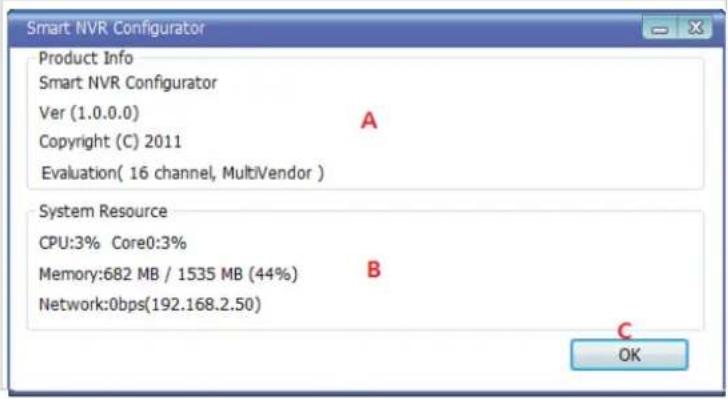
text_image
Smart NVR Configurator Product Info Smart NVR Configurator Ver (1.0.0.0) A Copyright (C) 2011 Evaluation( 16 channel, MultiVendor ) System Resource CPU:3% Core0:3% Memory:682 MB / 1535 MB (44%) B Network:0bps(192.168.2.50) OK| Items Descriptions | ||
| A | About program | Show the information about the EN-V-R running. |
| B | System Resource | Displays the PC's system resource information. |
| C | OK | Click this button to close the Window. |
38. Using EN-V-R Controller
To open EN-V-R controller, click Start > All Programs> Vitek> SMART NVR Controller.

text_image
Vitek Smart NVR Smart NVR Configurator Smart NVR Controller Smart NVR Information UninstallSmart NRV controller will be on the lower right part of the system tray. Then right click the icon a sub-window will display, click on Open Smart NVR Controller.

text_image
Go Home Open Smart NVR Configurator Open Smart NVR Controller Open Disconnect backup ExitThe following window will open

text_image
Smart NVR Controller Start or Stop Service Current Service State Service Stopped Start Service Stop Service Refresh Go Home Close| Items Descriptions | ||
| A | Current Service State | Shows whether EN-V-R Service is running or stopped. |
| B | Start Service | Click this button to start EN-V-R Service when it's stopped. |
| C | Stop Service | Click this button to stop EN-V-R Service when it's running. |
| D | Refresh | Refresh the Screen. |
| E | Go Home | Go to the EN-V-R's built-in webpage. |
| F | Close | Close the EN-V-R Controller window. |
39. Connecting to EN-V-R
39.1. PC with EN-V-R installed
You can connect to EN-V-R in various ways as explained below.
- Click Go Home in EN-V-R Configurator

natural_image
Green square icon set with eight white icons including a person, globe, gear, document, bell, and information symbol (no text or labels)• EN-V-R Controller window.
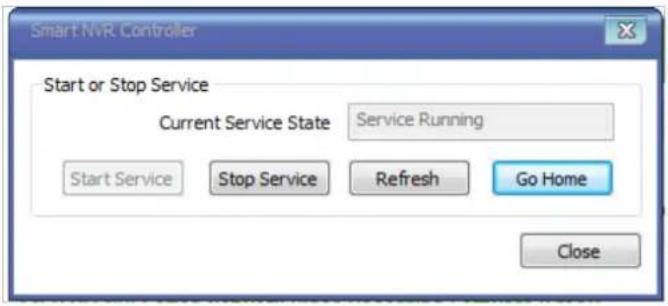
text_image
Smart NVR Controller Start or Stop Service Current Service State Service Running Start Service Stop Service Refresh Go Home Close- Click Go Home from the pop-up menu on the System Tray.

text_image
Go Home Open Smart NVR Configurator Open Smart NVR Controller Open Disconnect backup Exit• In Internet Explorer, enter the IP address of the computer that EN-V-R is running on.

text_image
Network Video System - Live View - Windows Internet Explorer http://10.0.0.116/app/live/sim/single.asp- In case that the HTTP port for EN-V-R is not 80 (default), the port number should be entered together with the IP address. (the example below assumes HTTP port of 7777)

text_image
Network Video System - Live View - Windows Internet Explorer http:// 10.0.0.254:7777After you successfully connecting to the EN-V-R homepage, you will see the following window.
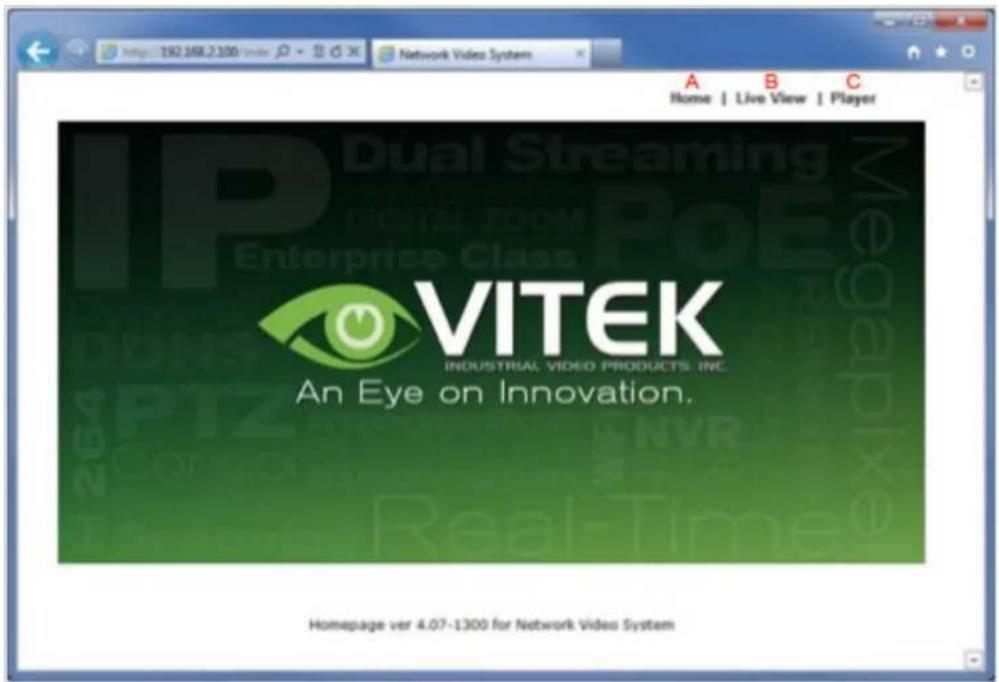
text_image
192.168.2.100 Network Video System A B C Home | Live View | Player VITEK INDUSTRIAL VIDEO PRODUCTS INC. An Eye on Innovation. Homepage ver 4.07-1300 for Network Video System| Items Descriptions | ||
| A | Home | Go to EN-V-R's homepage. |
| B | Live View | Click this button to execute Live View program. You can use various features such as live view, audio transmission, PTZ control, unconditional recording, etc. |
| C | Player | Click this button to search, record, and back up the video data sent from IP devices registered in EN-V-R. |
39.2. PC without EN-V-R
- If your PC doesn't have EN-V-R program installed, type in the IP address of the PC where EN-V-R is running.
Note: Refer to Section 19 ENVI Series Viewer79 for details on how to use ENVI Viewer program. Refer to Section 29ENVI Smart Player on page 112 for details on how to use ENVI Smart Player program.

text_image
Network Video System - Live View - Windows Internet Explorer http://10.0.0.116/app/live/sim/single.asp- In case that the HTTP port for EN-V-R is not 80 (default), the port number should be entered together with the IP address. (the example below assumes HTTP port of 7777)

text_image
Network Video System - Live View - Windows Internet Explorer http:// 10.0.0.254:7777VITEK LIMITED PRODUCT WARRANTY
VITEK products carry a three (3) year limited warranty. Digital recording and storage products are also warranted for 3 years except for the hard drives which carry their own independent factory warranty from the hard drive manufacturer. VITEK warrants to the purchaser that products manufactured by VITEK are free of any rightful claim of infringement or the like, and when used in the manner intended, will be free of defects in materials and workmanship for a period of three (3) years, or as otherwise stated above, from the date of purchase by the end user. This warranty is non-transferable and extends only to the original buyer or end user customer of a Vitek Authorized Reseller.
"Alpha Series by VITEK" products carry a three (3) year limited warranty. All other factors of the standard VITEK warranty will apply as stated above. ** Three Year "Alpha Series by VITEK" Warranty effective September 1st 2010. "Alpha Series by VITEK" products purchased prior to September 1st 2010 carry a one (1) year warranty.
** Three Year Warranty on all products except Alpha Series became effective on April 1st 2009. Legacy Products purchased prior to April 1st 2009 carry a two (2) year warranty.
This warranty shall not apply to repairs or replacements necessitated by any cause beyond the control of VITEK, including but not limited to, acts of nature, improper installation, excess moisture, misuse, lack of proper maintenance, accident, voltage fluctuations, or any unauthorized tampering, repairs or modifications. This warranty becomes VOID in the event of alteration, defacement, or removal of serial numbers.
Within the first 6 months of purchase, VITEK will replace or credit any defective product at the request of the customer (subject to availability) with a new product that equals or exceeds the performance of the original product purchased.
Within the first 6 months of purchase, at its sole discretion, VITEK may issue an advance replacement for a defective product; however, all related costs including, but not limited to shipping and/or delivery charges will be the responsibility of the customer. If upon return inspection a product is determined to be in good working order or shows evidence of misuse, the customer will be responsible for full payment of the original product purchased as well as the replacement product.
Beyond the first 6 month period for the remainder of the warranty, VITEK'S responsibility shall be limited to repairing the defective product, including all necessary parts and related labor costs. At its sole discretion, VITEK may choose to either exchange a defective product or issue a merchandise credit towards future product purchases. Any replacement parts furnished in connection with this warranty shall be warranted for a period not to exceed the remaining balance of the original equipment warranty.
A Return Authorization number or "RA" number must be obtained prior to the return of any item for repair, replacement, or credit. VITEK requires that this "RA" number be clearly printed on the outside of the shipping carton to avoid refusal of said shipment. The Return Authorization number expires after 30 days. Products returned after the 30 day period will be subject to refusal. Shipping charges, if any, must be prepaid. A copy of the bill of sale (or invoice of purchase), together with a complete written explanation of the problem must accompany all returns.
Vitek makes no warranty or guarantee whatsoever with respect to products sold or purchased through unauthorized sales channels. Warranty support is available only if product is purchased through a Vitek Authorized Reseller.
CLASS A DIGITAL DEVICE (INDUSTRIAL & COMMERCIAL ENVIRONMENT)
This equipment has been tested and found to comply with the limits for a Class A digital device, pursuant to CE and FCC Rules. These limits are designed to provide reasonable protection against harmful interference when the equipment is operated in a commercial environment. This equipment generates, uses and can radiate radio frequency energy and, if not installed and used in accordance with the instruction manual, may cause harmful interference to radio communications. Operation of this equipment in a residential area is likely to cause harmful interference in which case the user will be required to correct the interference at his own expense.