VTD-HOCRAZE - Surveillance Camera Vitek - Free user manual and instructions
Find the device manual for free VTD-HOCRAZE Vitek in PDF.


User questions about VTD-HOCRAZE Vitek
0 question about this device. Answer the ones you know or ask your own.
Ask a new question about this device
Download the instructions for your Surveillance Camera in PDF format for free! Find your manual VTD-HOCRAZE - Vitek and take your electronic device back in hand. On this page are published all the documents necessary for the use of your device. VTD-HOCRAZE by Vitek.
USER MANUAL VTD-HOCRAZE Vitek
natural_image
Front view of a VITEK security camera with lens and control buttons (no visible text or symbols beyond branding)FEATURES:
- 1/3" Panasonic® Progressive Scan CMOS Sensor
• 2.1 MegaPixel With full 1080p/720p HD-SDI / EX-SDI Output (SMPTE 292M) - MegaPixel IR Corrected 3-9mm (VTD-HOCRAZE39) / 9-22mm (VTD-HOCRAZE922) Motorized Auto Focus and Zoom
• True Day/Night with Dual Filter Switch
• 16:9 Video format - On-board Intelligence (OBI Technology) delivers Auto-Focus-Zoom by tracking motion, then optically zooming in to that area of the frame
• Fully programmable advanced WDR - Two (2) High Power 850nm IR LEDs with up to 80' foot range
- Integrated Cooling Fan
- Advanced OSD Functions: Motion Activated Pointing Zoom, Defog, Smart Dynamic IR, BLC/HLC, Motion Deblur, Pixel Defect Compensation, Title Set, Mirror, Flip, Lens Refresh, Lens Initialize, Home Position, DSS, LED ON/OFF control
• 100% Pure Digital Transmission of video data - Extended Range Beyond 1000' with RG59U 95% Copper Braid Coax
- Heavy Duty IP68 rated water/vandal resistant aluminum construction
• 12VDC / 24VAC Dual Voltage Operation
Safety Precaution
- To prevent electrical shock and risk of fire hazards, do not expose this unit to rain or moisture and only use specified power source..

CAUTION
RISK OF ELECTRIC SHOCK. DO NOT OPEN

CAUTION: TO REDUCE THE RISK OF ELECTICAL
SHOCK, DO NOT REMOVE COVER (OR BACK).
NO USER SERVICEABLE PARTS INSIDE.
REFER SERVICING TO QUALIFIED SERVICE PERSONNEL

The symbol is intended to alert the user to the presence of uninsulated "dangerous voltage" within the product's enclosure that may be of sufficient magnitude to constitute a risk of electrical shock.

The symbol is intended to alert the user to the presence of important operating and maintenance (servicing) instructions in the literature accompanying the unit.
- Warning :
This equipment has been tested and found to comply with the limits for a Class A digital device, pursuant to part 15 of the FCC Rules. These limits are designed to provide reasonable protection against harmful interference when the equipment is operated in a commercial environment. This equipment generates, uses, and can radiate radio frequency energy and, if not installed and used in accordance with the instruction manual, may cause harmful interference to radio communications. Operation of this equipment in a residential area is likely to cause harmful interference in which case the user will be required to correct the interference at their own expense.
- Caution :
Any changes or modifications in construction of this device which are not expressly approved by the party responsible for compliance could void the user's authority to operate the equipment.
Main power quality should be that of a typical commercial environment. If the user of the model requires continued operation during power interruptions, it is recommended that the device be powered from an uninterruptible power supply (UPS).
Safety Precaution

NOTICE
- The image used in this instruction manual are processed to help comprehension and may differ from actual video of the camera.
- Avoid installing in areas where shock or vibration may occur.
- Pay attention to safety when running the connection cables and make sure that the cables are not subject to heavy loads, kinks, moisture or damage.
- Never open the device (no user serviceable parts inside). The warranty becomes void if repairs are undertaken by unauthorized persons.
- Maintenance and repair have to be carried out only by authorized service centers.
- Use only a mild detergent to clean the housing.
- The camera should never be operated beyond the technical specifications. This can lead to damaging the device and void the warranty.
• The camera should never be operated in water.
Contents
p. 2\~3
Safety Precaution
p. 4 Contents
p. 5\~6
Features
p. 6
Package Includes
p. 7
Dimensions
Optional Mounts
p. 8
Part Names
p. 9\~11
Installation Instructions
p. 12\~30
Operating Instructions
p. 31
Specifications
p. 32 On Cue VT-HDOCE Series
p. 33 Limited Product Warranty
Features
Key Features
• Full HD, 2.1Mega Pixel, EX-SDI CAMERA, 1920x1080(30p/25p)
- Extended long reach HD Solution
• True WDR(Wide Dynamic Range)
- Improved noise reduction with enhanced 3DNR
- VTD-HOCRAZE39: f=3\~9mm, F1.2\~F2.1 Day & Night Motorized Auto Focus and Zoom lens (Optical 3x / Digital 32x)
- VTD-HOCRAZE922: f=9\~22mm, F1.6\~F2.3 Day & Night Motorized Auto Focus and Zoom lens (Optical 2.4x / Digital 32x)
- Dual ICR Switch
- Focusing Status Indicator on Screen
- ★(Blue) Focusing in process
- ★(White) Focusing Completed
- Various Zooming Technologies
- Smart Motion Zoom an Automatic zoom in/out when motion is detected
- Pointing Zoom which enables the zooming of any area within the FOV
- Preset Zoom, up to 4 presets
• Home Position setting
- Motion Detection, Privacy Mask, Defog, Sens-up(x32), BLC/HLC, H/V/HV Flip, Motion Deblur, Pixel Defect Compensation, Lens Refresh, Lens Initialize
• ID / TITLE / ZOOM RATIO DISPLAY
• Enhanced Sensitivity by DSS technology
• EX-SDI or HD-SDI switchable
- Top performance at low light sensitivity (Sens-up On)
- OSD menu & Video sub-out for easy installation & maintenance
- Circuit protection against faulty connection in power polarity
• Isolated power supply against ground loop problem
- Remote control via RS-485 (Pelco-D/P)
- Firmware update via RS-485
• Built-in 2 High power LEDs
- Flush / Surface mount selectable
- Hard Coated Polycarbonate Clear bubble dome (Option)
• Built-in 3-Axis Gimbal
• Built-in cooling Fan & Heating function
• Heavy Duty IP68 rated water/vandal resistant aluminum construction
• 12VDC / 24VAC Dual Voltage Operation
Features
General Description
This camera realizes the natural and crisp image as you see the scene in front of you by adopting Auto Focus Full HD(1920x1080p) camera module.
- With ICR mechanism,
- Enhances its sensitivity about 10x at night time
- Can accept infrared light
- With 24VAC/12VDC dual power design,
- Offers the flexibility of installation
- Ensures the reliability
Package Includes

natural_image
Line drawing of a dome-shaped object with a circular base and two small protrusions (no text or symbols)
Operating Instruction
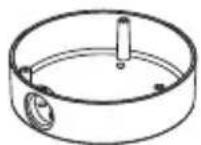
Dome Camera with Surface mount included
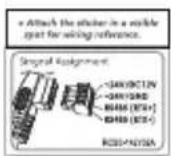
Cable Signal Sticker
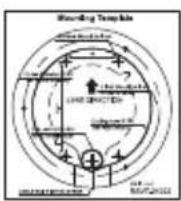
Mounting Template
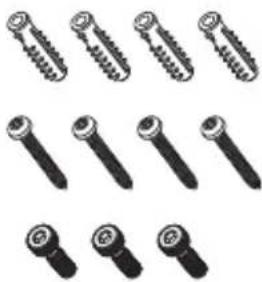
Plastic Anchor: 6 x 30mm (4pcs)
Mounting Screw: 4 x 30mm (4pcs)
Wrench Bolt: M4x14mm (3pcs)
natural_image
Collection of various screw and nut components (no text or symbols visible)Connector fixing Screw: 2.5 x 5mm (1pc)

Torque Wrench: 3mm (1pc)

Video Sub-out Cable (1pc)

Wiring Connector (1pc)
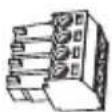
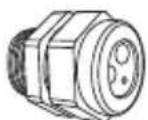
Cable Gland (1set)
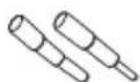
Gland hole plug ∅4.5 (1pc) ∅2.7 (1pc)
Dimensions
(unit : inches)

■ Optional Mounting Accessories

natural_image
White L-shaped metal bracket with a circular recessed component (no text or symbols visible)VT-MV/WMT
Wall Mount

VT-MV/PLMT
Pole Adapter for use with VT-MV/WMT

VT-MV/JMT
Junction Mount w/15 Degree Tilt
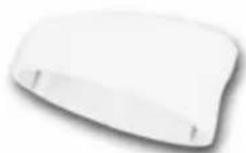
VT-MV/TB
15° Surface Mount Base

VT-MV-FMP
Flush Mount
Decorator Plate
Part Names
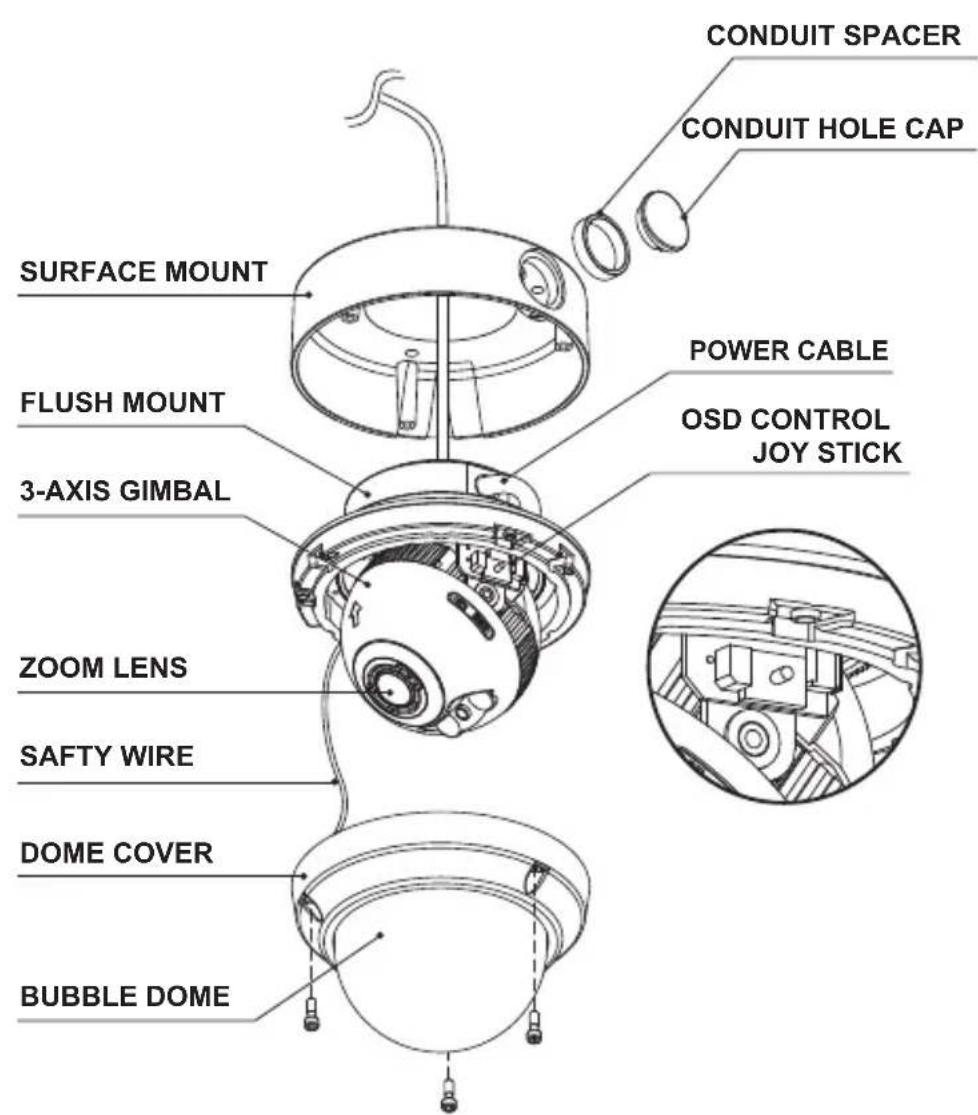
text_image
CONDUIT SPACER CONDUIT HOLE CAP SURFACE MOUNT FLUSH MOUNT 3-AXIS GIMBAL POWER CABLE OSD CONTROL JOY STICK ZOOM LENS SAFTY WIRE DOME COVER BUBBLE DOME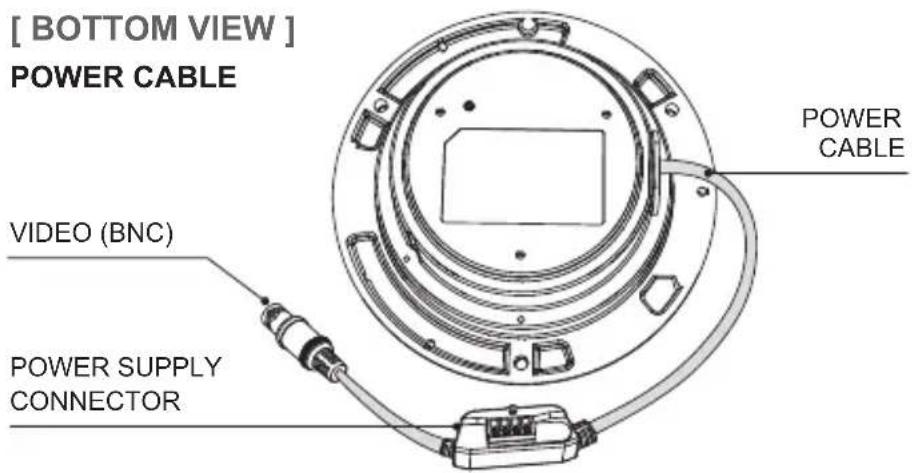
text_image
[ BOTTOM VIEW ] POWER CABLE VIDEO (BNC) POWER SUPPLY CONNECTOR POWER CABLEInstallation Instructions
-
Place the mounting template at the installation position and drill the ceiling or wall if needed.
-
Open the dome cover by loosening screws(4x12mm). Use the torque wrench supplied.
A. Flush mount type:
- Place the dome base unit on pre-drilled position and attach using the mounting screws (4x30mm).
- Route the Power cable to the connecting place.
B. Surface mount type:
- Place the surface mount on pre-drilled position and attach using mounting screws (4x30mm). Assemble the cable conduit, otherwise tighten the conduit hole cap.
- Route the Power cable to the connecting place.
-
Attach the dome base unit to the surface mount using the assembly screws (4x14mm). Before attaching the dome base make sure the assembly holes are aligned with the surface mount assembly holes.
-
Set the camera's viewing angle.
- Attach the dome cover to the dome base unit and tighten the assembly screws.

text_image
A Flush mount type B Surface mount type Mounting Screw (4x30mm) Assembly Screw Assembly Screw (4x14mm) Torque WrenchInstallation Instructions
■ Option 1.
Installation for Flush mount
① Cable is unfixed on the Dome base.
② Connect the power cable and BNC to their respective connections.
* Refer to the instruction guide for Flush mount.
■ Option 2.
Installation for Surface mount / Tilted mount
① Cable is unfixed on the Dome base.
② Fix the power supply connector with screw as illustrated.
③ Tie up the BNC cable with cable holder.
④ Connect the wiring connector to their respective connections.
* Refer to the signal assignment for wiring connection.

text_image
1 2 Connector fixing screw 3 Cable HolderCAUTION
- In case of installation with Flush/ Surface/ Tilted mount, IP protection rating is not guaranteed.
- If power, Video connectors are exposed to water or rain, separate protection shield is essential.
Installation Instructions
Limit of pan & tilt
1) Pan limit:
Pan is limited to +/- 173°. Do NOT force the gimbal over the limit, this will prevent internal damage.
2) Tilt limit:
Tilt is limited to 25^ min \~ 90^ max. with reference to the ceiling when the inclination of camera module is 0^ , that is, the image is aligned horizontally.
3) Inclination limit (Horizontal image alignment):
Inclination limited to +/- 50° max.
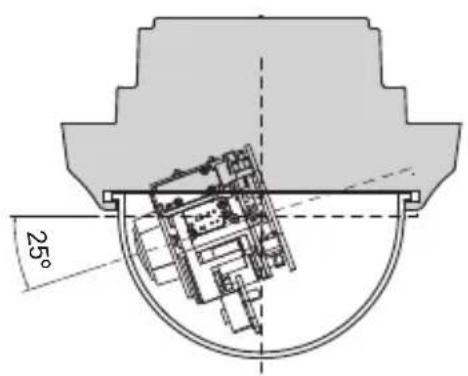
text_image
25°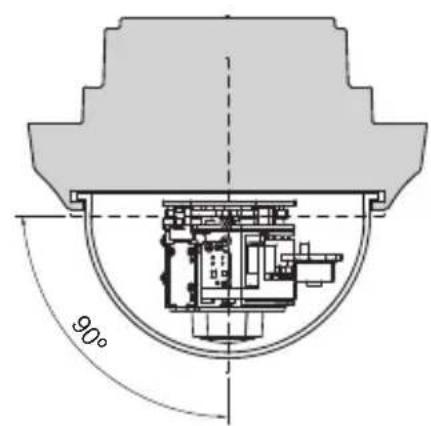
text_image
90°CAUTION
- Extreme care should be taken NOT to scratch the bubble dome surface.
- Care should be taken that the cable is NOT damaged, kinked or exposed in a hazardous area.
- Tighten the dome cover mounting screws so there is NO gap between the Lens hood and clear bubble to avoid IR reflection.
Operating Instructions
Power Supply Connections
- Make sure the power is removed before installation.
- Camera can work with either 24VAC or 12VDC, dual voltage power.
- Primary and secondary grounds are completely isolated to avoid possible ground-loop problems
In case that HD-SDI Inputs are not supported by your monitor, please use HD-SDI Converter to connect HD-SDI cable with Monitor
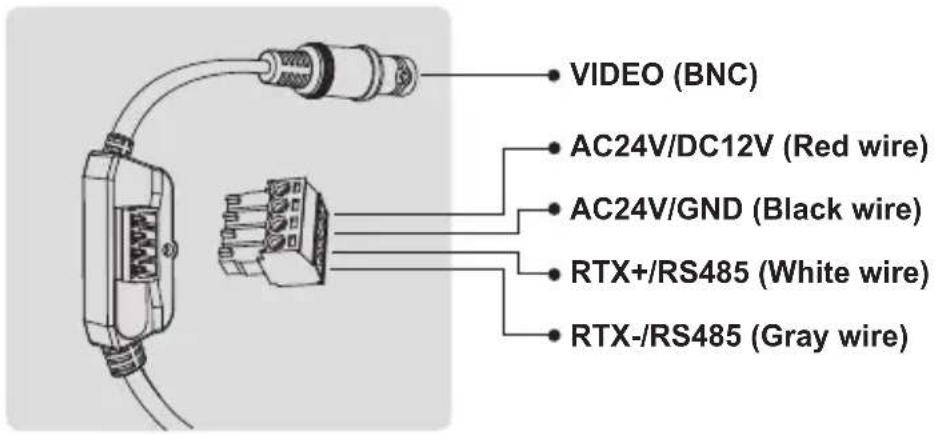
text_image
VIDEO (BNC) AC24V/DC12V (Red wire) AC24V/GND (Black wire) RTX+/RS485 (White wire) RTX-/RS485 (Gray wire)※ Attach the Signal Assignment Sticker in a visible spot for wiring reference.
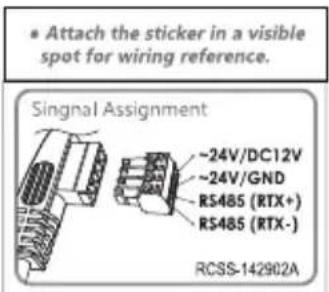
text_image
Attach the sticker in a visible spot for wiring reference. Singnal Assignment ~24V/DC12V ~24V/GND RS485 (RTX+) RS485 (RTX-) RCSS-142902AOperating Instructions
Using OSD controller
- Setup menu can be accessed and controlled by OSD control joy stick on the side of camera unit.
- Five commands are available with the joy stick.
• The design of OSD could be different according to the Model.

text_image
OSD control Joy Stick Ex-SDI HD-SDI AHD CVBS V80 Video format Switch Video Sub-out Connector
Description of the joystick operation
1) SET Key (●): Access to the menu or enter the setting.
To enter the main menu, press the Set Key down for about 1.5 seconds
2) UP/DOWN Key (▲/▼): Choose the desired sub-menu and move the cursor up or down.
3) LEFT/RIGHT Key (◀/▶): Set up the value of the selected menu. Used to adjust the desired menu selection and move the cursor left or right.
4) 'p' denotes a long press down for about 2 seconds

Description of the ZOOM & FOCUS adjustment
1) ▲ : Zoom In
3) ◀ : Focus Near
2) ▼ : Zoom Out
4) ▶ : Focus Far
Operating Instructions
Set the video format according to system, EX-SDI or HD-SDI
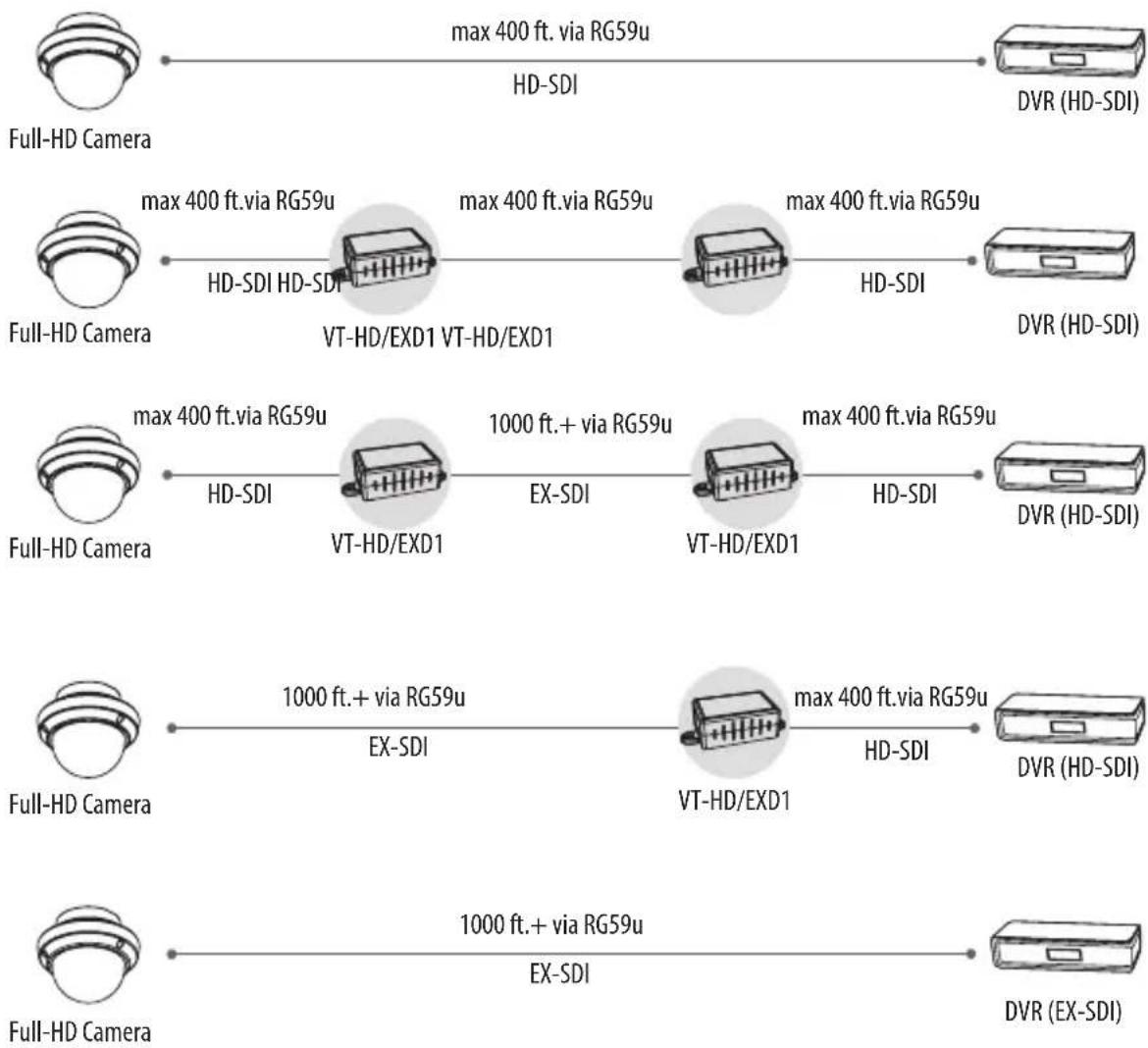
flowchart
graph LR
    A["Full-HD Camera"] -->|max 400 ft. via RG59u HD-SDI| B["DVR (HD-SDI)"]
    A -->|max 400 ft. via RG59u HD-SDI| C["Full-HD Camera"]
    C -->|max 400 ft. via RG59u HD-SDI| D["VT-HD/EXD1 VT-HD/EXD1"]
    C -->|max 400 ft. via RG59u HD-SDI| E["Full-HD Camera"]
    E -->|max 400 ft. via RG59u HD-SDI| F["VT-HD/EXD1"]
    E -->|max 400 ft. via RG59u HD-SDI| G["Full-HD Camera"]
    G -->|1000 ft.+ via RG59u EX-SDI| H["VT-HD/EXD1"]
    G -->|max 400 ft. via RG59u HD-SDI| I["Full-HD Camera"]
    I -->|1000 ft.+ via RG59u EX-SDI| J["VT-HD/EXD1"]
    I -->|max 400 ft. via RG59u HD-SDI| K["DVR (HD-SDI)"]
    K --> L["DVR (HD-SDI)"]
    L --> M["DVR (HD-SDI)"]
    M --> N["DVR (HD-SDI)"]
    N --> O["DVR (HD-SDI)"]
    O --> P["DVR (HD-SDI)"]
    P --> Q["DVR (HD-SDI)"]
    Q --> R["DVR (HD-SDI)"]
    R --> S["DVR (HD-SDI)"]
    S --> T["DVR (HD-SDI)"]
    T --> U["DVR (HD-SDI)"]
    U --> V["DVR (HD-SDI)"]
    V --> W["DVR (HD-SDI)"]
    W --> X["DVR (HD-SDI)"]
    X --> Y["DVR (HD-SDI)"]
    Y --> Z["DVR (HD-SDI)"]
    Z --> AA["DVR (HD-SDI)"]
    AA --> AB["DVR (HD-SDI)"]
    AB --> AC["DVR (HD-SDI)"]
    AC --> AD["DVR (HD-SDI)"]
    AD --> AE["DVR (HD-SDI)"]
    AE --> AF["DVR (HD-SDI)"]
    AF --> AG["DVR (HD-SDI)"]
    AG --> AH["DVR (HD-SDI)"]
    AH --> AI["DVR (HD-SDI)"]
    AI --> AJ["DVR (HD-SDI)"]
    AJ --> AK["DVR (HD-SDI)"]
    AK --> AL["DVR (HD-SDI)"]
    AL --> AM["DVR (HD-SDI)"]
    AM --> AN["DVR (HD-SDI)"]
    AN --> AO["DVR (HD-SDI)"]
    AO --> AP["DVR (HD-SDI)"]
    AP --> AQ["DVR (HD-SDI)"]
    AQ --> AR["DVR (HD-SDI)"]
    AR --> AS["DVR (HD-SDI)"]
    AS --> AT["DVR (HD-SDI)"]
    AT --> AU["DVR (HD-SDI)"]
    AU --> AV["DVR (HD-SDI)"]
    AV --> AW["DVR (HD-SDI)"]
    AW --> AX["DVR (HD-SDI)"]
    AX --> AY["DVR (HD-SDI)"]
* Transmission distance may differ according to the specification and manufacturers of cable
Operating Instructions
OSD menu Startup
- Press ‘•’ (OSD menu Joy stick key) down for about 2 seconds to access the setup menu mode.
- Lens Initializing is strongly recommended at the first stage of the setup menu control. ZOOM/FOCUS > LENS INIT > Press the joystick ‘ ’ straight down for about 2 seconds.
| MENU V5.xx | |
| 1. ZOOM/FOCUS | ← |
| 2. EXPOSURE | ← |
| 3. SCENE ENHANCE | NORMAL |
| 4. 3D-NR | MID |
| 5. DAY/NIGHT | EXT |
| 6. PICT ADJUST | ← |
| 7. SPECIAL | ← |
| 8. SYSTEM | ← |
| 9. EXIT | SAVE&EXIT← |
Direct Control menu
| MAIN | DEFAULT | DESCRIPTION |
| ZOOM/FOCUS | - | Sets FOCUS and ZOOM relative fuctions. |
| EXPOSURE | - | Sets EXPOSURE MODE, BRIGHTNESS, SENS-UP, AGC and MOTION DEBLUR. |
| SCENE ENHANCE | NORMAL | SCENE ENHANCE provides several ways to enhance the video in various environments with settings of NORMAL, WDR, D-WDR, BLC and HLC. |
| 3D-NR MID | Sets 3DNR level. LOW, MID, HIGH | |
| DAY/NIGHT | EXT or AUTO | Sets DAY / NIGHT to EXT, AUTO, COLOR, B/W and COLOR D/N. Set to EXT mode for cameras with IR-LED's and set to AUTO mode for non IR-LED camera types. |
| PICT ADJUST | Sets WHITE BAL, SHARPNESS, COLOR GAIN, GAMMA | |
| SPECIAL | Sets MIRROR/FLIP, PRIVACY, MOTION, PIXEL DEFECT, TITLE SET, DISPLAY, DEFOG, POINTING ZOOM | |
| SYSTEM | Sets TV SYSTEM, RESOLUTION, COMM.SETUP, LANGUAGE and FACTORY DEFAULT |
Operating Instructions
| EXIT | SAVE & EXIT – Exits the menu after saving the parameters. |
1. ZOOM/FOCUS
| ZOOM / FOCUS | |
| FOCUS MODE | ZOOM PUSH |
| D-ZOOM | OFF |
| HOME POSITION | OFF |
| LENS REFRESH | OFF |
| LENS INIT. | ON |
| RETURN | RET |
1-1. FOCUS MODE (default: ZOOM PUSH)
: ZOOM PUSH, AUTO and MANUAL modes are available for focusing.
- ZOOM PUSH: Focusing is activated only when zoom in/out is working.
• AUTO: Focusing is always working.
- MANUAL: Focusing can only be adjusted by ▲, ▼ of OSD control joystick or the remote control via RS-485.
1-2. D-ZOOM (default: OFF)
: D-ZOOM (Digital zoom) is available up to 32x. D-ZOOM starts working when the optical zoom reaches its maximum tele-position. Zoom ratio is displayed on the bottom right corner of the monitor if SPECIAL>DISPLAY>ZOOM RATIO is set to ON.
1-3. HOME POSITION (default: OFF)
: Camera can be configured to return to pre-defined Zoom position automatically after a certain period of time with no activity.
Home Position is recovered after the camera is re-initializing or Powered ON/OFF.
- O-ZOOM RATIO: Sets the Optical ZOOM position as Home Position. (x1.0\~x3.0 / x1.0\~x2.4)
- DURATION: When ZOOM IN/OUT control is completed, camera will return to the pre-defined Zoom position after the Duration time. If SMART MOTION / PRESET ZOOM are running, duration for Home position starts after finishing SMART MOTION / PRESET ZOOM.
Operating Instructions
HOME POSITION
O-ZOOM RATIO OZ X2.0
DURATION 5sec
RETURN RET ↓
1-4. LENS REFRESH (default: OFF)
: LENS REFRESH can be set to 1\~10days and performs a scheduled LENS Initialization automatically. Every initialization occurs when the time reaches the scheduled time after setup or power up. When LENS REFRESH initiates LENS Initialization, a notification LENS INITIALIZING appears on the top left corner on the monitor.
1-5. LENS INIT (default: ON 'P')
: Lens initialization is necessary during the installation or the regular operation to align the position data with the mechanical positions whose lens elements may move and deviate from its calibrated position by shock or vibration, for example, during transportation.
LENS INIT starts the lens initialization when pressing the joystick lever straight down for about 2 seconds.
LENS INIT checks the positions for zoom and focus at both end positions and saves them for reference.
Lens initialization is automatically executed upon power up.
CAUTION
- It is necessary to execute LENS INIT in the following situations;
1) At the final step of installation.
2) When out of focus due to shock or vibration.
2. EXPOSURE
2-1. MODE (default: AUTO)
: Set EXPOSURE MODE to AUTO, IRIS Priority, SHUT. Priority, MANUAL and Flickerless. SHUT. Priority, MANUAL and Flickerless modes disable SENS-UP and MOTION BLUR functions.
Operating Instructions
EXPOSURE
- AUTO: Optimizes the video level by controlling the iris and the shutter speed automatically.
- IRIS Priority: Select to fix IRIS at a certain aperture and the video level is controlled by an automatic shutter control. Lower IRIS LEVEL will close the iris more and increase the field of depth in the daytime but significantly decrease the low light performance. Too low of IRIS LEVEL will result in foggy video by diffusion from the lens iris.
- SHUT. Priority: Select to fix SHUTTER speed at a certain speed and the video level is controlled by an automatic iris control.
This mode is useful when color rolling occurs under fluorescent lighting. This mode is not recommended for outdoor or daytime. - MANUAL: Iris and Shutter can be set to fixed.
- Flickerless: Reduces flicker in video when US(60Hz)/EU(50Hz) mode is used in 50Hz/60Hz fluorescent lighting respectively.
2-2. BRIGHTNESS DAY(default:10): Adjusts the brightness of day time video (0\~20).
2-3. BRIGHTNESS NIGHT(default:10): Adjusts the brightness of night time video (0\~20).
2-4. SENS-UP (default: OFF)
: A brighter video can be obtained by increasing the exposure time at night with SENS-UP. SENS-UP is the maximum integration of frames by DSS (Digital Slow Shutter) in low light.
- AUTO: SENS-UP is enabled or disabled automatically by the scene brightness. Higher SENS-UP can get brighter video but the slower frame rate will cause motion blur and more white pixels. If set to AUTO, maximum integration limit for SENS-UP can be set to x2, x4, X8, x16, X32 in SENS-UP menu.
• OFF: Disables SENS-UP.
2-5. AGC (default: 10)
: AGC amplifies the video gain for brighter video but will cause noise and white pixel accordingly. AGC level less than 10 disables AUTO in DAY/NIGHT.
Operating Instructions
2-6. MOTION DEBLUR (default: ON)
: ON enables MOTION DEBLUR to reduce motion blur in certain indoor environments. Noise or color rolling can increase.
3. SCENE ENHANCE
3-1. NORMAL (default)
: Optimized for normal indoor and outdoor in good lighting conditions.
3-2. WDR
: Improves the visibility for bright areas and dark areas by double capture of image with LONG and SHORT exposures. WDR level can be selected from LOW, MID and HIGH. Care should be taken to select this mode because video may lose its quality in some environments by over compensation.
※ CVBS video signal: Connecting 2nd video to CVBS port disables WDR function temporarily. It should be considered when installer adjusts the video with installation monitor via CVBS video signal.
3-3. D-WDR
: Improves the visibility by compensating the video gain for the dark area. Noise can increase in the dark area accordingly.
3-4. BLC
: Improves the visibility for dark objects caused by bright back light. Outside area of BLC window can over saturate. BLC has a target window for compensation and its size and position can be set by H-POS, V-POS, H-SIZE and V-SIZE.
3-5. HLC
: Cuts out the bright area with a black mask and excludes it from compensation. Lower HLC LEVEL cuts out video from lower light levels (more sensitive).
4. 3D-NR
3D-NR is a very sophisticated and powerful time-based noise reduction technology by monitoring the noise for several video frames and defining and eliminating them consecutively at low light. Higher setting reduces more noise but results in losing the sharpness and tail effects or motion blur may occur.
Operating Instructions
5. DAY / NIGHT
DAY/NIGHT is used to control the setting during day-time and night-time operation. Select the mode according to the lighting conditions and the camera type. SMART (DYNAMIC) IR can be set to reduce the saturation by strong IR illumination at night in any menu. Setting SMART (DYNAMIC) IR in any menu is identically applied to other menu. Zero(0) turns off SMART (DYNAMIC) IR and High setting decreases the saturation but the corners will be darker accordingly. IR LED Control (AUTO/OFF) is available with IR LED model only. If IR LED is set to OFF, IR LED will be turned OFF but DAY or NIGHT is still determined by the built-in light photo sensor.
5-1. EXT
: DAY or NIGHT is determined by the built-in light photo sensor. Camera with IR LED must be set to EXT.
5-2. AUTO
: Used when DAY or NIGHT is determined by light level through the lens and DAY from/to NIGHT is switched automatically by the scene brightness. D↔N THRESHOLD, D↔N DELY and SMART (DYNAMIC) IR can be set in the menu. When EXPOSURE>AGC is less than 10, DAY/NIGHT AUTO is disabled and forcibly switches to ____(DAY) to avoid malfunction. EXT, B/W (NIGHT) and COLOR (DAY) is independent on AGC level. When EXTERNAL IR LED is used with NON IR LED model, please set to IR LED MODE ON.
DAY/NIGHT AUTO
| D<->N THRESHOLD | |::::|:::| 10 |
| D<->N GAP | |::::|:::| 10 |
| D<->N DELAY | 5s |
| SMART IR | |::::|:::| 10 |
| RETURN | RET↓ |
• D↔N THRESHOLD (0\~20):
Sets the threshold level switching from/to DAY(color) or NIGHT(B/W).
Setting at a low level makes the camera enter NIGHT at a lower light level. High level makes the camera exit NIGHT at a higher light level.
- D↔N GAP (0\~15):
Sets the gap level switching from/to DAY(color) or NIGHT(B/W).
Operating Instructions
- D↔N DELAY (0\~60s):
Sets the delay time when the camera switches from/to DAY(color) or NIGHT(B/W).
5-3. B/W(NIGHT)
: Removes IR cut filter and switches to B/W regardless of light level.
5-4. COLOR(DAY)
: DAY/NIGHT is disabled and outputs color video.
5-5. COLOR D/N
: Color D/N mode, optimized for night conditions. It is available to recognize colors of car, people and moving objects even at night. Parameters can be controllable & programmable according to the circumstances. Application is for bright circumstances at night such as downtown, civic area, streets, mall, etc.
Conventional COLOR mode in NIGHT COLOR D/N mode in NIGHT

text_image
鐵橋 (5)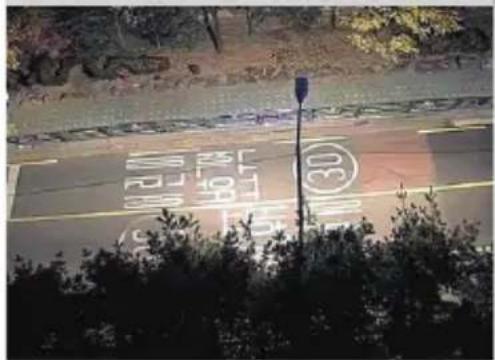
text_image
Street photo with visible road markings and a traffic light, possibly indicating lane numbers or distances.6. PICT ADJUST
PICT ADJUST
| WHITE BAL | ATW |
| SHARPNESS | |::|::| 10 |
| COLOR GAIN | |::|::| 10 |
| GAMMA DAY | 0.50 |
| SHADING | AUTO |
| RETURN | RET↓ |
Operating Instructions
6-1. WHITE BAL (default: ATW)
: ATW, ATWext, ONE PUSH and MANUAL are available for the white balance modes.
- ATW: White balance is continuously working along with the color temperature changes in the range of 2,000K\~8,500K.
- ATWext: White balance is continuously working along with the color temperature changes in the range of 1,800K\~11,000K.
- ONE PUSH: White balance works only while ● is pressed.
- MANUAL: White balance is fixed to the settings by R_GAIN and B-GAIN. This mode can be used only when the color temperature does not vary.
6-2. SHARPNESS (default: 10) : Adjusts the sharpness of video.
6-3. COLOR GAIN (default: 10): Adjusts the color level of video.
6-4. GAMMA DAY (default: 0.5): Adjusts the gamma of day time video.
6-5. SHADING (default: AUTO): Select ON/OFF or AUTO for compensation of video image.
7. SPECIAL
SPECIAL
| MIRROR/FLIP | OFF |
| PRIVACY | OFF |
| MOTION | OFF |
| PIXEL DEFECT | OFF |
| TITLE SET | ↓ |
| DISPLAY | ↓ |
| DEFOG | OFF |
| POINTING ZOOM | OFF |
| PRESET ZOOM | OFF |
| RETURN | RET↓ |
7-1. MIRROR/FLIP (default: OFF)
: Reverses the video left and right and/or up and down by MIRROR/FLIP.
• OFF : Normal display without mirroring or flipping
- Hor.: Video is reversed left and right
- Ver.: Video is reversed upside down.
- HV : Video is reversed left and right and upside down. When the video is reversed by Ver. or HV, then the joystick directions are reversed accordingly. This feature is very useful when a camera is installed upside down.
Operating Instructions
7-2. PRIVACY
: 10 Privacy zones which can be enabled individually by ZON DISP are available to mask the video.
- ZONE NUM : Set a number to select a privacy zone from 1\~10.
- ZONE DISP : ON enables to display relevant privacy zone
- H-POS, V-POS, H-SIZE and V-SIZE : Adjust the size and position of zone.
- COLOR : Select the color used for masking the zone from eight colors.
- TRANSPARENCY : Defines the transparency for the mask zone.
7-3. MOTION (default: OFF)
: MOTION can detect the changes in the motion window and displays the results in blocks and/or a text message.
MOTION
| D | SENSITIVITY | |::|::|:10 |
| H-POS | 10 | |
| V-POS | 5 | |
| H-SIZE | 40 | |
| V-SIZE | 25 | |
| BLOCK DISP | OFF | |
| MOTION OSD | OFF | |
| SMART MOTION ZOOM | OFF | |
| STAY ZOOMING | 5sec | |
| RETURN | RET |
- SENSITIVITY: Adjusts the detection sensitivity for motion.
Higher value increases the sensitivity to detect small motion easier. Too low of sensitivity will cause erratic detection. - H-POS, V-POS, H-SIZE and V-SIZE - Adjust the size and position of the detection window.
- BLOCK DISP : ON enables to display the blocks for the detected area.
- MOTION OSD : ON enables to display a text message, MOVING !!!,
- SMART MOTION ZOOM : ON enables to Automatic Zoom IN/OUT when motion is detected and also enables MOTION OSD to ON.
Area to be zoomed in by SMART MOTION ZOOM can be set at SPECIAL>MOTION> SMART MOTION ZOOM>ZOOM TARGET. Adjusting ◀, ▶ (Joystick) for ZOOM TARGET varies the viewing angle to be zoomed when motion occurs. Set the video left and right and/or up and down by MIRROR/FLIP.
Operating Instructions
※ SMART MOTION ZOOM does not work in low light conditions and BW.
- STAY ZOOMING : Sets the duration time for zooming by Motion.
CAUTION
- Set the direction of video by MIRROR/FLIP before setting SMART MOTION ZOOM. Otherwise ZOOM TARGET could be different from your intention.
7-4. PIXEL DEFECT (default: OFF)
: Detects and compensates the white pixels which become defective. Once CALIBRATE is selected, the pixel calibration is initiated with lens closed and cannot be cancelled. (See page 25 for additional details/instructions.)
- THRESHOLD : Defines the level of detection.
Be sure to set the value so that the pixels are uniformly blinking over the entire screen. Too low of a value will get a bad results because too many pixels are detected as bad pixels and the maximum number of pixels for compensation will be filled by the upper area.
- EXECUTE ‘ P ’: Long pressing will execute the pixel calibration for the detected pixels. Menu will exit automatically after compensation.
7-5. TITLE SET
: Camera title (name) can be set and edited up to 15 alpha numeric and symbolic characters from ASCII codes (ENGLISH only). ▲, ▼, ◀, ▶ moves the cursor to next input. Choose a character and ‘¶’ selects it. The selected characters are added and displayed on the top left Corner and the cursor moves right automatically for next input.
- SP - Space is inserted when pressed ‘●’
- BS – Cursor moves back when pressed ‘●’
- CLR – Clears all the characters on input line when pressed ‘●’.
- POS – To be able to set the title position by ▲, ▼, ◀, ▶ and ●.
7-6. DISPLAY
: Enables or disables the OSD display.
- ID : ON enables camera ID display defined by SYSTEM>COMM. SETUP>CAM ID.
- TITLE : ON enables camera ID display set by SPECIAL>TITLE SET.
Operating Instructions
- ZOOM RATIO : ON enables to display the zoom ratio on the bottom right corner. OZx.x appears during the optical zoom and DZx.x will display by multiplying the optical zoom ratio and the actual digital zoom ratio.
- FOCUS INDICATE: * mark on the bottom right corner indicates the focusing status in blue during focusing and white after finishing.
7-7. DEFOG (default: OFF)
- AUTO : Enhance foggy video automatically according to status of scene.
- MANUAL : Sets to enhance foggy video manually regardless of status of scene.
- LEVEL : LOW, MID, HIGH Video quality can be less in normal environments.
7-8. POINTING ZOOM
ON enables to set off-centered location to be the center of zoom H-POINTER, V-POINTER- Able to set the location of zoom center D-Zoom is available to \~ 32x. (See page 26 for additional details/instructions.)
! CAUTION
- Set the direction of video by MIRROR/FLIP before setting POINTING ZOOM. Otherwise location of zoom center could be different from your intention.
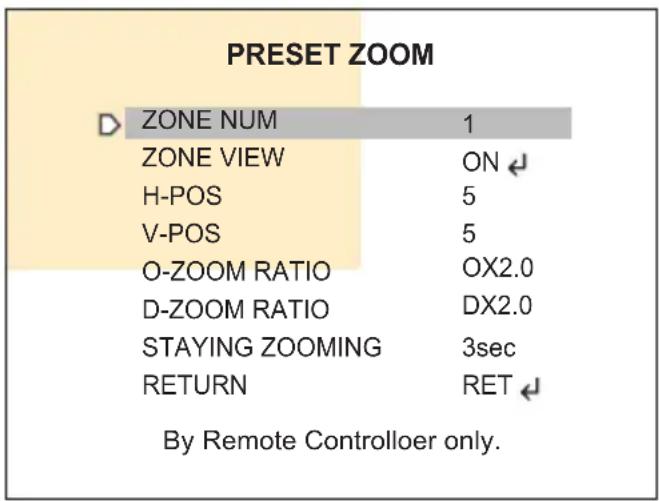
7-9. PRESET ZOOM
Able to zoom into a preset location using the PTZ functions.
text_image
PRESET ZOOM ZONE NUM 1 ZONE VIEW ON H-POS 5 V-POS 5 O-ZOOM RATIO OX2.0 D-ZOOM RATIO DX2.0 STAYING ZOOMING 3sec RETURN RET By Remote Controlloer only.- ZONE NUM : Select Preset zone number 1\~4.
- ZONE VIEW : ON displays selected zone preset view.
- H-POS and V-POS : Adjust the size and position of the preset zone.
Operating Instructions
- O-ZOOM RATIO: Set the Optical Zoom Ratio from OX 1.1\~OX3.0(OX2.4)
- D-ZOOM RATIO: Set the Digital Zoom Ratio from DX 1.1\~DX5.0
- STAYING ZOOMING : Sets the duration time for preset zoom area.
8. SYSTEM
SYSTEM
| TV SYSTEM | EU(PAL) |
| RESOLUTION | 1080P |
| COMM. SETUP | ↓ |
| LANGUAGE | ENG ↓ |
| FACTORY DEFAULT | NO |
| RETUTN | RET ↓ |
8-1. TV SYSTEM (default: US or EU)
: Selects HDTV standards for US (60HZ) or EU(50HZ). By this selection, 2nd analog video output switches to NTSC or PAL accordingly.
8-2. RESOLUTION (default: 1080P)
: Three resolutions, 1080P/720P(SCALED)/720P(CROPPED) are available. 1080P outputs 1920x1080 video at the frame rate of 30P/25P. 720P(SCALED) Image is scaled down from 1080P and outputs 1280x720 video without loss of field of view at the frame rate of 30P/25P. 720P(CROPPED) image is cropped at the center area from the image sensor and outputs 1280x720 video at the frame rate at 60P/50P but the image refresh rate is 30P/25P. Cropped image has narrowed field of view
8-3. COMM. SET UP
: COMM. SETUP defines the CAM ID, BAUD RATE and PROTOCOL. Data length, stop bit and parity are fixed to 8bit, 1stop bit and no parity bit.
- CAM ID – Assigns the camera ID from 1\~255 for the comm. address.
- BAUD RATE – Selects the baud rate from 2400\~115200.
- PROTOCOL – Selects the comm. Protocol from PELCO-D/P or VISCA.
( Refer to 'TIP' for setting RS-485 communication with PTZ Controller)
8-4. LANGUAGE (default: ENG)
: 8 languages are available ENGLISH, TURKISH, GERMAN, FRENCH, ITALIAN, SPANISH, POLISH and JAPANESE.
8-5. FACTORY DEFAULT(default: NO)
: RECALL 📋 reloads and saves the factory defaults.
Operating Instructions
Detail Function Description
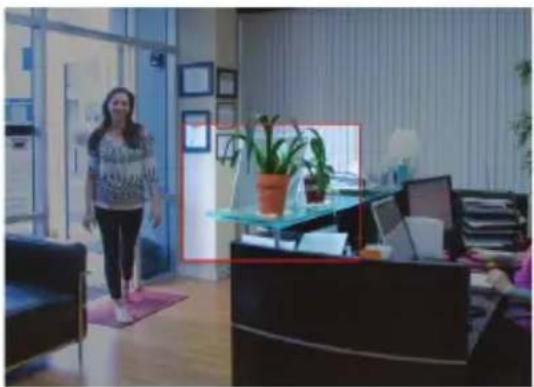
SMART MOTION ZOOM
SMART MOTION ZOOM enlarges the area defined by a yellow window to a full size image when motion is detected in the black window.
SMART MOTION ZOOM window can be re-sized by adjusting D-ZOOM RATIO and moved by H-POS and V-POS
UNLIKE the conventional zoom which can zoom in/out the center area of image only, the flexible zoom location and area, SMART MOTION ZOOM differentiates its usefulness from others.
That is, a conventional camera installed in the corner of the ceiling can zoom the center of the floor in a room and result in losing the image of a door on the side wall. However, SMART MOTION ZOOM can be set to see the door side and zoom in that area without missing the IMPORTANT security point.
SMART MOTION ZOOM

text_image
ZONE VIEW OFF H-POS 10 V-POS 10 O-ZOOM RATIO OX2.0 D-ZOOM RATIO DX2.0 MOTION CHK CUNT 3 RETURN RET ↓• H-POS (10) - Moves MOTION ZOOM area(Yellow window) horizontally
• V-POS (10) - Moves MOTION ZOOM area(Yellow window) vertically
- O-ZOOM RATIO (OX2.0) - Sets the area size to be Optically zoomed when motion occurs in the black window
- D-ZOOM RATIO (DX2.0) - Sets the area size to be Digitally zoomed when motion occurs in the black window
- MOTION CHK COUNT (2) - SMART MOTION ZOOM is activated after the motion in MOTION CHK COUNT are detected in a certain period.
For example, SMART MOTION ZOOM is activated after set # of triggers by motion.
Operating Instructions
POINTING ZOOM
This camera has a very useful and powerful feature, POINTING ZOOM, which can zoom in/out any area.
POINTING ZOOM is the ability to zoom into an off center location using the PTZ Zoom in/out feature when connected via RS485
Use H-POINTER and V-POINTER to move the Yellow box to set the position of the center of the Zoom.
UNLIKE the conventional zoom which can zoom in/out the center area of image only, the flexible zoom location and area, POINTING ZOOM differentiates its usefulness from others.
That is, a conventional camera installed in the corner of the ceiling can zoom the center of the floor in a room and result in losing the image of door on the side wall. However, POINTING ZOOM can be set to see the door side and zoom in that area without missing the IMPORTANT security point.
Set D-Zoom Pointer

text_image
H-POINTER 10 V-POINTER 10 RETURN RET• H-POINTER (10):
Sets the horizontal location of area to be zoomed by POINTING ZOOM.
• V-POINTER (10):
Sets the vertical location of area to be zoomed by POINTING ZOOM.
Operating Instructions
* SMART MOTION and POINTING ZOOM VS. Conventional Zoom

natural_image
Interior office scene with a woman walking past a window and a potted plant on the floor (no visible text or symbols)
natural_image
Woman standing indoors near a glass door, wearing patterned blouse (no visible text or symbols)Smart Motion and Pointing Zoom
natural_image
Interior office scene with a woman walking past a potted plant and coffee table (no visible text or symbols)
natural_image
Office desk with two potted plants on a glass table, framed pictures visible in the background (no text or symbols)Conventional Zoom
Operating Instructions
TIP
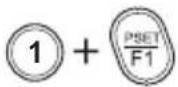
Setting for Zoom Function with PTZ Controller
- Enter the MENU: Press buttons 9+5+PSET (PRESET)

- Set the Preset Zoom: Press buttons 1(or \~4)+PSET (PRESET)
- Move the cursor in the MENU : Moves UP/DOWN/LEFT/RIGHT Joy stick

- D-Zoom IN: Press button TELE or Spin the joystick to clockwise.
- D-Zoom OUT: Press button WIDE or Spin the joystick to counter-clockwise.

- Select or Choose value in the MENU : Press button OPEN (IRIS OPEN)

- Exit the Preset Zoom mode : Press buttons 3+4+PSET (PRESET)

| Detailed Specifications | VTD-HOCRAZE39 | VTD-HOCRAZE922 |
| Sensor | 1/3" Panasonic Progressive Scan CMOS Sensor | |
| Resolution | 2.1 MegaPixel (1080p / 720p) | |
| S/N | More than 50 dB (AGC Off) | |
| Video Output | Selectable: 1x HD-SDI (BNC) / EX-SDI (BNC) | |
| IR Illuminators | 2 High Power IR LEDs | |
| IR Color Temp. | 850nm | |
| IR Range | 80' | |
| Dynamic Intensity Smart IR LEDs | YES | |
| Lens | MegaPixel IR Corrected 3-9mm Motorized AFZ | MegaPixel IR Corrected 9-22mm Motorized AFZ |
| Auto Focus Zoom | YES - 3x Smart Motion Zoom | YES - 2.4x Smart Motion Zoom |
| Digital Zoom | 0 ~ x32 | |
| Minimum Illumination | 0.0008 Lux (@AGC MAX DSS x2) | |
| Day/Night | TDN with dual filter switch | |
| Electronic shutter speed | Auto (1/ 30sec ~ 1/ 60,000sec) | |
| White Balance | ATW / ATWext / One Push / Manual | |
| Brightness | YES | |
| DSS (Sens-Up) | OFF / AUTO / X2 ~ X32 | |
| DNR | 3D-DNR | |
| WDR | Preset or Custom Scene/Level Select | |
| Privacy Zones | YES (10 Zones) | |
| Motion Detection | YES | |
| ACE (Adaptive Color Enhancement) | YES | |
| Advanced OSD Functions | Motion Activated Pointing Zoom, Defog, Dynamic IR, BLC/HLC, Motion | |
| Deblur, Pixel Defect Compensation, Title Set, Mirror, Flip,Lens Refresh, Lens Initialize, Home Position, DSS, LED ON/OFF control | ||
| Communication | RS-485 (Pelco® D/P) | |
| HD Transmission Range | Extended Range Beyond 1000' with RG59U 95% Copper Braid Coax | |
| Weather Resistance Rating | IP-68 | |
| Cooling Fan | Built-In Cooling Fan | |
| Operating Conditions | -22°-122°F (-30°-50°C) < 80% RH | |
| Input Voltage | 12VDC / 24VAC (Dual Voltage) | |
| Power Consumption (12VDC) | 500mA (6Watt) | |
| Power Consumption (24VAC) | 350mA (4.2Watt) | |
| Dimensions | 4.69" x 5.51" (H x Dia.) | |

text_image
OnCueHD HDcctvCONSIDER THESE OTHER GREAT PRODUCTS FROM

natural_image
Three black VITEK H-DRN network equipment units with control panels and buttons (no readable text or symbols)VT-HDOCE Series
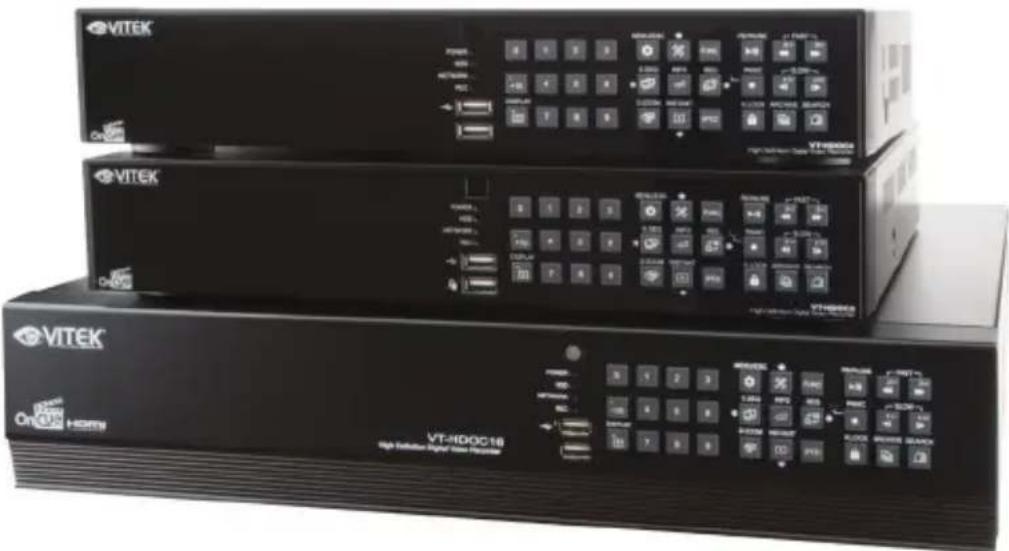
On Cue Series 4, 8, and 16 Channel Real Time 1080p EX-SDI Digital Video Recorders
• 4, 8 OR 16 CH EX-SDI / Analog Inputs (hybrid) with Full 1080p Camera Support
- Now Supporting Cable distance of up to 1000' using RG59!*
• Hybrid Operation over COAX for HD-SDI, 960H, and D1 Cameras
- Simple plug and play, point-to-point connection from camera to DVR
• Real Time Recording on all channels at 1080p (VT-HDOC4E: 120fps), (VT-HDOC8E: 240fps), (VT-HDOC16E: 480fps)
• HDMI, VGA, and Spot BNC Outputs
- Up to 5 Internal SATA2/SATA3 HDD Slots supporting up to 20TB (5 x 4TB HDD) using Advanced HDD Format
- External SATA Port (eSATA) Supporting up to 5x External via eSATA
- Pentaplex Operation (Playback, Recording, Backup, Network)
- Alarm In/Out
• Per channel Image Adjustment
• 4 Channel Audio In
• 32 x 24 Motion Detection Grid
- Multi channel Spot output
• Panorama (Thumbnail) Search
- Remote Viewing via CMS Software, Internet Explorer, and Mobile Phones (iOS/Android), Mac OSX App
• Linear digital zoom for live and playback
- Up to 7 Simultaneous Network/Remote Connections
• 256 Camera Remote Viewing via CMS Software
• RS485 Communication port
LIMITED PRODUCT WARRANTY
VITEK products carry a three (3) year limited warranty. VITEK warrants to the purchaser that products manufactured by VITEK are free of any rightful claim of infringement or the like, and when used in the manner intended, will be free of defects in materials and workmanship for a period of three (3) years, or as otherwise stated above, from the date of purchase by the end user. This warranty is nontransferable and extends only to the original buyer or end user customer of a VITEK Authorized Reseller.
The product must have been used only for its intended purpose, and not been subjected to damage by misuse, willful or accidental damage, caused by excessive voltage or lightning.
The product must not have been tampered with in any way or the guarantee will be considered null and void.
This guarantee does not affect your statutory rights.
Contact your local VITEK Reseller should servicing become necessary.
VITEK makes no warranty or guarantee whatsoever with respect to products sold or purchased through unauthorized sales channels. Warranty support is available only if product is purchased through a VITEK Authorized Reseller.