RP652H - Projector BENQ - Free user manual and instructions
Find the device manual for free RP652H BENQ in PDF.


User questions about RP652H BENQ
0 question about this device. Answer the ones you know or ask your own.
Ask a new question about this device
Download the instructions for your Projector in PDF format for free! Find your manual RP652H - BENQ and take your electronic device back in hand. On this page are published all the documents necessary for the use of your device. RP652H by BENQ.
USER MANUAL RP652H BENQ
Interactive Flat Panel
User Manual

natural_image
Abstract grayscale pattern with concentric dotted lines and a curved band, no text or symbols present.Disclaimer
BenQ Corporation makes no representations or warranties, either expressed or implied, with respect to the contents of this document. BenQ Corporation reserves the right to revise this publication and to make changes from time to time in the contents thereof without obligation to notify any person of such revision or changes.
Copyright
Copyright 2015 BenQ Corporation. All rights reserved. No part of this publication may be reproduced, transmitted, transcribed, stored in a retrieval system or translated into any language or computer language, in any form or by any means, electronic, mechanical, magnetic, optical, chemical, manual or otherwise, without the prior written permission of BenQ Corporation.
Table of Contents
Safety warnings and precautions .... I
Important safety instructions.... 2
Notes on the LCD panel of this display.... 2
Safety notice for remote control.... 3
Battery safety notice.... 3
BenQ ecoFACTS.... 4
Package contents 5
Setting up the display 6
Mounting the display....6
Parts of the display and their functions 8
Front/Rear panel 8
Input/output terminals....9
Remote control.... 11
Using the remote control.... 13
Connection 14
Connecting audio/video signals 14
Connecting the multimedia inputs.... 18
Connecting the touch module.... 18
Connecting power.... 19
Installing and Removing OPS module 19
Using the touch screen.... 20
Important instructions for using the touch screen.... 24
Basic operations.... 25
Turning the display on or off 25
Initial Setup.... 25
Switching input signals 26
Downloading software 26
Setting up Internet connection.... 27
Updating software 28
Table of Contentsii
Restoring to the default settings 28
Adjusting audio volume level.... 28
The OSD (On-Screen Display) menu.... 29
OSD menu overview 29
Operations in the OSD menu.... 30
Picture menu.... 31
Sound menu.... 32
Setting menu.... 33
Working with Android OS.... 34
About All Apps.... 35
EZWrite 2.0 36
Browser 37
ES File Explorer 38
WPS Office.... 39
Multimedia 40
Settings 42
Product information.... 43
Specifications.... 43
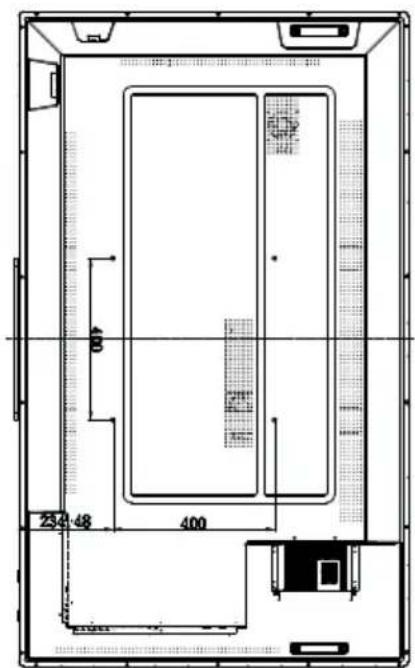
Dimensions.... 46
Supported input signal resolution 50
Troubleshooting.... 52
Safety warnings and precautions


CAUTION: TO REDUCE THE RISK OF ELECTRIC SHOCK, DO NOT REMOVE COVER (OR BACK). NO USER-SERVICEABLE PARTS INSIDE, REFER SERVICING TO QUALIFIED SERVICE PERSONNEL.
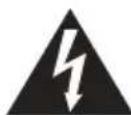
The lightning flash with arrowhead symbol, within an equilateral triangle, is intended to alert the user to the presence of uninsulated "dangerous voltage" within the product's enclosure that may be of sufficient magnitude to constitute a risk of electric shock to persons.

The exclamation point within an equilateral triangle is intended to alert the user to the presence of important operating and maintenance (servicing) instructions in the literature accompanying the appliance.
THIS EQUIPMENT MUST BE GROUNDED
To ensure safe operation, the three-pin plug must be inserted only into a standard three-pin power outlet which is effectively grounded through normal household wiring. Extension cords used with the equipment must have three cores and be correctly wired to provide connection to the ground. Wrongly wired extension cords are a major cause of fatalities.
The fact that the equipment operates satisfactorily does not imply that the power outlet is grounded or that the installation is completely safe. For your safety, if you are in any doubt about the effective grounding of the power outlet, please consult a qualified electrician.
- The mains plug of the power supply cord shall remain readily operable. The AC receptacle (mains socket outlet) shall be installed near the equipment and shall be easily accessible. To completely disconnect this equipment from the AC mains, disconnect the power cord plug from the AC receptacle.
- Do not place this display on an uneven, sloping or unstable surface (such as a trolley) where it may fall and cause damage to itself or others.
- Do not place this display near water, like a spa or pool, or in a position which will allow the splashing or spraying of water onto the display, like in front of an open window where rain water may enter.
- Do not install this display in a confined space without proper ventilation and air circulation, such as in a closed cabinet. Allow proper space around the display for dissipating heat inside. Do not block any openings and vents on the display. Overheating may result in hazards and electric shock.
- Installation of this display should only be performed by a qualified technician. Failure to install this display properly may cause injuries and damages to the personnels and the display itself. Check the installation regularly and maintain the display periodically to ensure the best working condition.
- Use only the accessories approved or recommended by the manufacturer to mount this display. Using wrong or unsuitable accessories may cause the display to fall and result in serious personal injuries. Make sure that the surface and fixing points are strong enough to sustain the weight of the display.
- To reduce the risk of electric shock, do not remove covers. No user serviceable parts inside. Refer servicing to qualified service personnel.
- To prevent personal injuries, mounting the display or installing desktop stands is required before use.
Important safety instructions
I. Read these instructions.
2. Keep these instructions.
3. Heed all warnings.
4. Follow all instructions.
5. Do not use this apparatus near water.
6. Clean only with dry cloth.
7. Do not block any ventilation openings. Install in accordance with the manufacturer's instructions.
8. Do not install near any heat sources such as radiators, heat registers, stoves, or other apparatus (including amplifiers) that produce heat.
9. Do not defeat the safety purpose of the polarized or grounding-type plug. A polarized plug has two blades with one wider than the other. A grounding-type plug has two blades and a third grounding prong. The wide blade or the third prong are provided for your safety. If the provided plug does not fit into your outlet, consult an electrician for replacement of the obsolete outlet.
- Protect the power cord from being walked on or pinched particularly at plugs, convenience receptacles, and the point where they exit from the apparatus.
II. Only use attachments/accessories specified by the manufacturer.
-
Use only with the cart, stand, tripod, bracket, or table specified by the manufacturer, or sold with the apparatus. When a cart is used, use caution when moving the cart/apparatus combination to avoid injury from tip-over.
-
Unplug this apparatus during lightning storms or when unused for long periods of time.
-
Refer all servicing to qualified service personnel. Servicing is required when the apparatus has been damaged in any way, such as power-supply cord or plug is damaged, liquid has been spilled or objects have fallen into the apparatus, the apparatus has been exposed to rain or moisture, does not operate normally, or has been dropped.

Notes on the LCD panel of this display
- The Liquid Crystal Display (LCD) panel of this display has a very thin protective layer of glass which is liable to marking or scratching, and cracking if struck or pressured. The liquid crystal substrate is also liable to damage under excessive force or extreme temperatures. Please handle with care.
- The response time and brightness of the LCD panel may vary with the ambient temperature.
- Avoid placing the display in direct sun or where direct sun or spot lighting will shine onto the LCD panel, as the heat may damage the panel and the external casing of the display, and the bright light will make viewing the display more difficult than necessary.
- The LCD panel consists of individual pixels to display images and is manufactured according to the design specifications. While 99.9% of these pixels work normally, 0.01% of the pixels may remain constantly lit (in red, blue or green) or unlit. This is a technical limitation of the LCD technology and is not a defect.
- LCD screens, like plasma (PDP) and conventional CRT (Cathode Ray Tube) screens, are also susceptible to 'screen burn-in' or 'image retention' which can be found on the
screen as visible fixed lines and shades. To avoid such damage to the screen, avoid displaying still images (like On-Screen Display menus, TV station logos, fixed/inactive text or icons) for more than two hours. Change the aspect ratio from time to time. Fill the entire screen with the image and eliminate the black bars whenever possible. Avoid displaying images in 4:3 aspect ratio over a long period of time, otherwise there may be visible burn marks on the screen as two vertical lines.
Note: Under certain circumstances, condensation may occur on the inner side of the cover glass, it's a natural phenomenon and will not affect the operation of the display.
This condensation will usually disappear after around 2 hours of normal operation.
Safety notice for remote control
- Do not put the remote control in the direct heat, humidity, and avoid fire.
- Do not drop the remote control.
- Do not expose the remote control to water or moisture. Failure to do so could result in malfunction.
- Confirm there is no object between the remote control and the remote sensor of the product.
- When the remote control will not be used for an extended period, remove the batteries.
Battery safety notice
The use of the wrong type of batteries may cause chemical leaks or explosion. Please note the following:
- Always ensure that the batteries are inserted with the positive and negative terminals in the correct direction as shown in the battery compartment.
- Different types of batteries have different characteristics. Do not mix different types.
- Do not mix old and new batteries. Mixing old and new batteries will shorten battery life or cause chemical leaks from the old batteries.
- When batteries fail to function, replace them immediately.
- Chemicals which leak from batteries may cause skin irritation. If any chemical matter seeps out of the batteries, wipe it up immediately using a dry cloth, and replace the batteries as soon as possible.
- Due to varying storage conditions, the battery life for the batteries included with your product may be shortened. Replace them within 3 months or as soon as you can after initial use.
- There may be local restrictions on the disposal or recycling of batteries. Consult your local regulations or waste disposal provider.
BenQ ecoFACTS
BenQ has been dedicated to the design and development of greener product as part of its aspiration to realize the ideal of the "Bringing Enjoyment 'N Quality to Life" corporate vision with the ultimate goal to achieve a low-carbon society. Besides meeting international regulatory requirement and standards pertaining to environmental management, BenQ has spared no efforts in pushing our initiatives further to incorporate life cycle design in the aspects of material selection, manufacturing, packaging, transportation, using and disposal of the products. BenQ ecoFACTS label lists key eco-friendly design highlights of each product, hoping to ensure that consumers make informed green choices at purchase. Check out BenQ's CSR Website at http://csr.BenQ.com/ for more details on BenQ's environmental commitments and achievements.

ecoFACTS
csr.BenQ.com
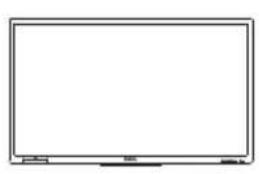
Open the sales package and check the contents. If any item is missing or damaged, please contact your dealer immediately.
natural_image
Empty rectangular frame with no text, numbers, or symbolsLCD display Power cord x4

natural_image
Line drawing of a coiled cable with two terminal plugs (no text or symbols)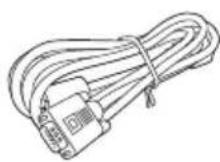
D-Sub (15-pin)
cable x l
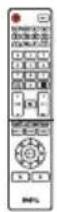
Remote control
natural_image
Line drawing of a cable with connectors (no text or symbols)

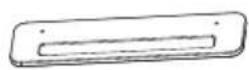
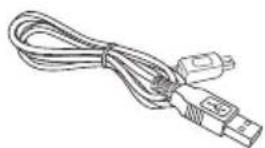
Pen tray USB cable x1 AAA battery x 2 Touch pen x 2
Quick start guide

- The type of power cord supplied may differ from that illustrated depending on your region of purchase. For RP790 model, it is equipped with 5 pieces of power cords.
- Before discarding the package, check that you haven't left any accessories inside the box.
- Dispose of packaging materials wisely. You can recycle the cardboard carton. Consider storing the package (if possible) for future transport of the display.
- Do not leave plastic bags within reach of young children or babies.
Setting up the display
Mounting the display
You can install the display on a vertical surface with a suitable wall mounting bracket or on a horizontal surface with the optional desktop stands. Please pay attention to the following notes during installation:
- This display should be installed by at least two adult persons. Attempting to install this display by only one person may result in danger and injuries.
- Refer the installation to qualified technicians. Improper installation may cause the display to fall or malfunction.
Installing the display on a wall
I. Place a clean, dry and lint-free cloth on a flat, horizontal and object-free surface. Make sure that the size of the cloth is larger than the display.
2. Gently lay the display on the cloth with the LCD screen facing down.
3. Remove the desktop stands from the display if installed.
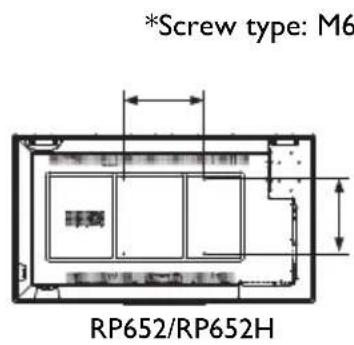
4. Identify the wall mounting screw holes on the back of the display as shown in the illustration.
text_image
*Screw type: M6 RP652/RP652H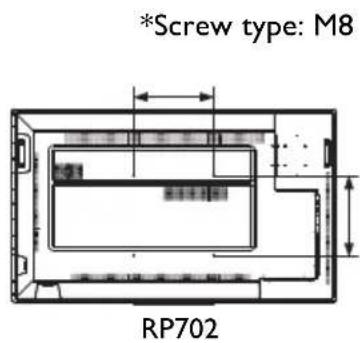
text_image
*Screw type: M8 RP702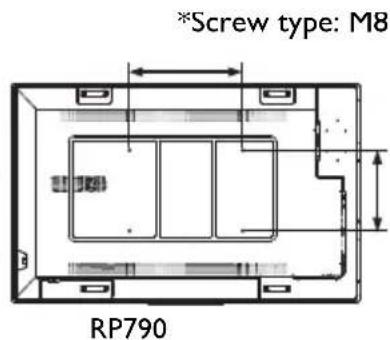
text_image
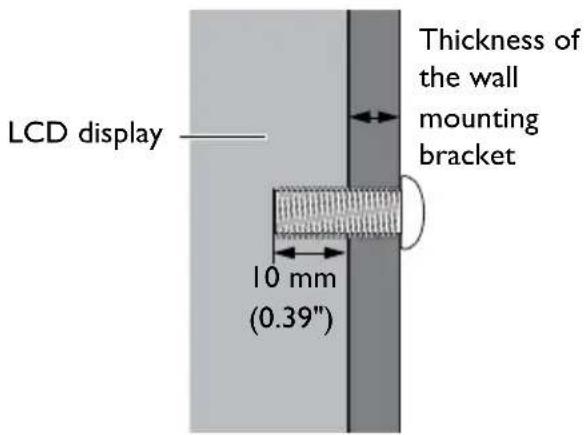
*Screw type: M8 RP790- Install the wall mounting bracket on the display and attach the display to the wall according to the mounting bracket's instructions. The length of the screw should exceed the thickness of the wall mounting bracket by at least 10 mm. Make sure that all screws are tightened and secured properly. (Recommended torque: 470 - 635N·cm). The mounting means should be strong enough to bear the weight of the display.
text_image
LCD display 10 mm (0.39") Thickness of the wall mounting bracket
- To maintain proper ventilation, keep at least 10 mm of clear space from the back cover of the display to the wall.
- Please consult a professional technician for wall mount installations. The manufacturer accepts no liability for installations not performed by a professional technician.
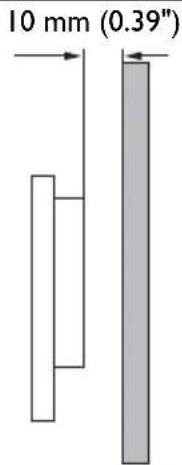
text_image
10 mm (0.39"Installing the pen tray
- Place a clean, dry and lint-free cloth on a flat, horizontal and object-free surface. Make sure that the size of the cloth is larger than the display.
- Gently lay the display on the cloth with the LCD screen facing down.
- Identify the wall mounting screw holes on the back of the display as shown in the illustration and remove the 3 screws on the display.
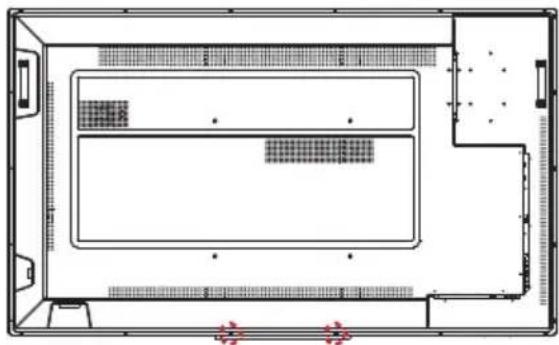
natural_image
Top-down schematic of a room layout with furniture and structural elements (no text or labels)- Place the pen tray on the back of the display as shown, and fasten the 3 screws back to the respective holes.
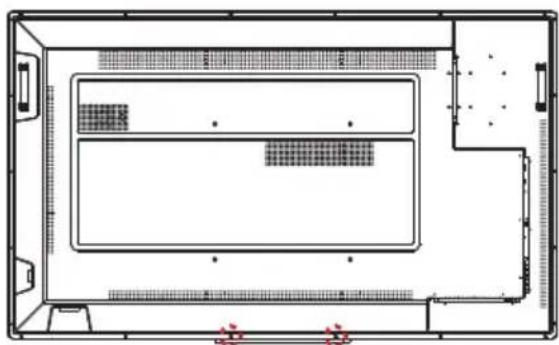
natural_image
Top-down schematic of a room layout with furniture and fixtures (no text or labels)- Lay the display straight and the pen tray is at the bottom edge of the display.
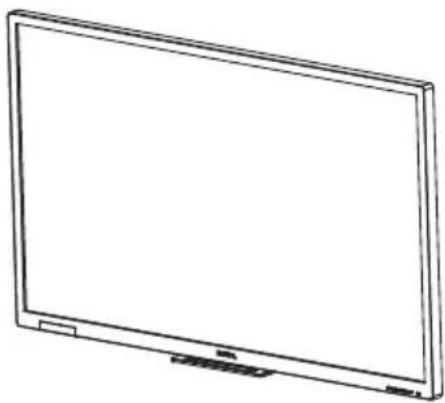
natural_image
Line drawing of a flat-screen computer monitor (no text or symbols)Parts of the display and their functions
Front/Rear panel
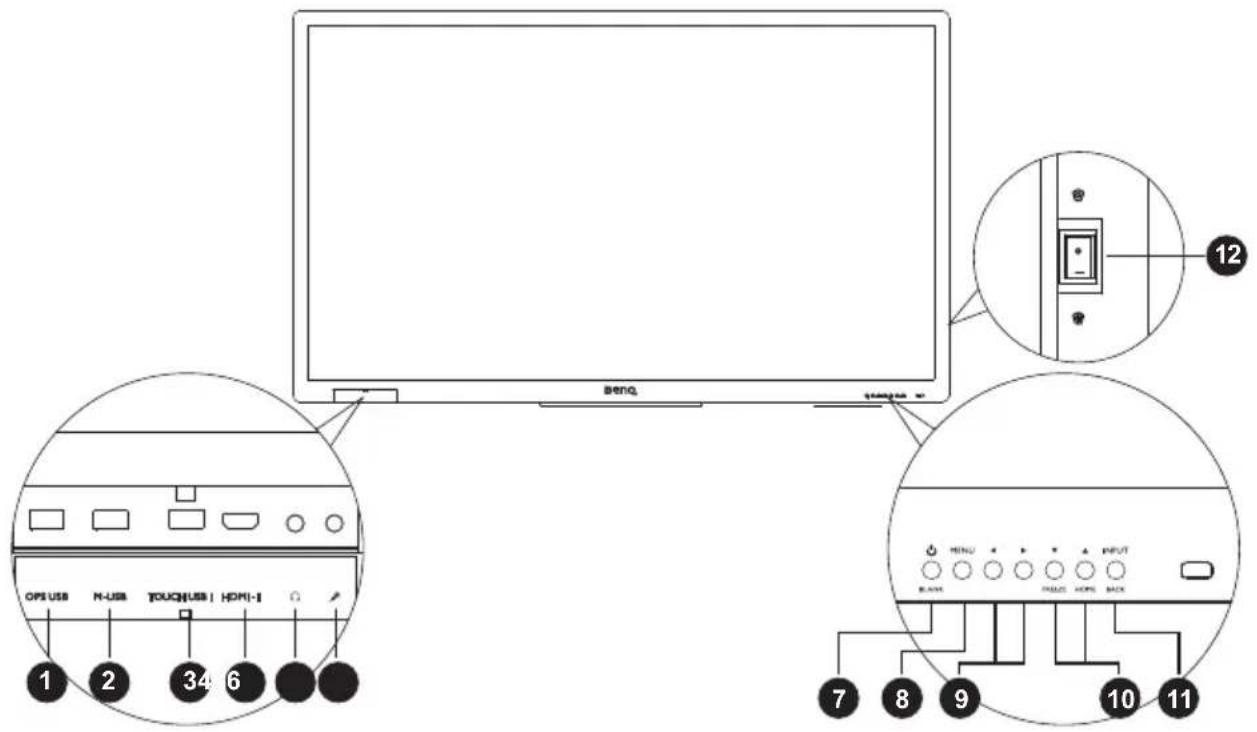
text_image
BENG 12 OPS USB N-USB TOUCH/USB | HDMI-1 7 8 9 10 11 MENU INPUT BLACK| No. Name Description | ||
| 1 | OPS USB | Extends the USB port of computer to OPS USB at front. |
| 2 | M-USB | Accesses multimedia files on USB drives directly.Note: M-USB only supports FAT / FAT32 format. |
| 3 | TOUCH USB 1 | Connects the USB cable from the display to a computer to use the touch module. |
| 4 | HDMI 1 Receives HDMI signals from an external device. | |
| 5 | Connects to a headphone or an earphone. | |
| 6 | Connects to a microphone. | |
| 7 | ON/OFF/BLANK | Press to let the screen becomes blank.Press and hold the button (approximately 3 seconds) to turn the display on or off. |
| 8 | MENU Opens or closes the OSD menu. | |
| 9 | ◄ / ► | Scrolls through settings and options in the OSD menu.◄ / ►: Hot keys for audio volume adjustment. |
| 10 | ▲/▼FREEZE/HOME | Freezes the screen.Scrolls through settings and options in the OSD menu.In Android OS, press to return to the home screen. |
| 11 | INPUT/BACK | Selects/confirms options in On-Screen Display (OSD) menu.Selects input sources.In Android OS, press to return to the previous screen. |
| 12 POWER | Used to isolate the power supply from the system.·When the switch is set to ON (I), the system will automatically enter standby mode.·When the switch is set to OFF (O), this will completely cut off the power supply. |
Input/output terminals
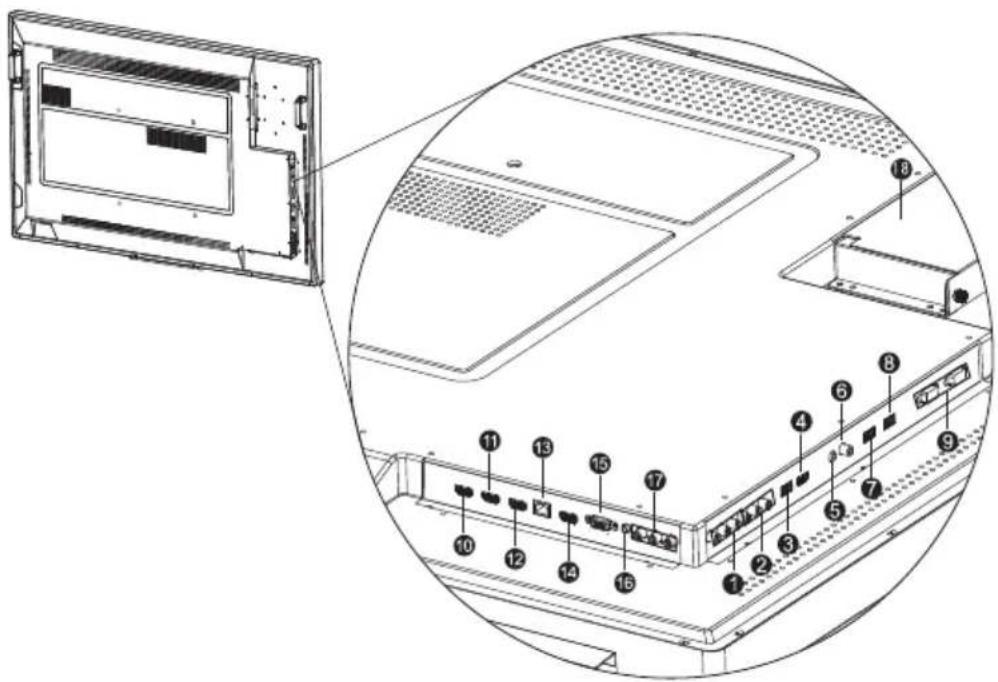
text_image
Technical diagram of a computer rack with numbered components, showing front and side views of the chassis.| No. | Name Description | |
| 1 | AV OUT(L/R) | Outputs composite video signals from the AV IN input to another display with an RCA connector. |
| 2 | AV IN(L/R) | Receives composite video signals from an external device (such as a VCR or DVD player). |
| 3 | M USB 2 Accesses multimedia files on USB drives directly. | |
| 4 | HDMI 5(MHL) Receives HDMI signals from an external device. | |
| 5 | Connects to a headphone or an earphone. | |
| 6 | COAXIAL | Connects to a coaxial cable to function as a radio frequency trasmission line. |
| 7 | TOUCH USB-2 | Connects the USB cable from the display to a computer to use the touch module. |
| 8 | OPS USB Connects to a USB drive directly in OPS. | |
| 9 | RS232(IN/OUT) | Used for external control.RS232 IN: Receives control signals from a computer or another display.RS232 OUT: Outputs control signals from the RS232 IN input to another display. |
| 10 | HDMI 2 Receives HDMI signals from an external device. | |
| 11 | HDMI 3 Receives HDMI signals from an external device. | |
| 12 | HDMI OUT Connects to the display devices with a HDMI 3 input. | |
| 13 | LAN Connects to the network using the Ethernet cable. | |
| 14 | HDMI 4 Receives HDMI signals from an external device. | |
| 15 | VGA | Receives analog RGB signals from an external device (such as a computer). |
| 16 | PC AUDIO Receives audio signals from an external device. | |
| 17 | YPbPr | Receives component video (YPbPr) signals from an external device (such as a DVD player, HDTV device or Laser disc player). |
| 18 | OPS Option Slot Receives signal from OPS Module. | |

- TOUCH USB 1 must be used with HDMI 1, and TOUCH USB-2 must be used with VGA, HDMI 2, HDMI 3, HDMI 4, or HDMI 5.
- For RP790 model, the HDMI 4 and HDMI 5 ports support 4K resolution.
Remote control
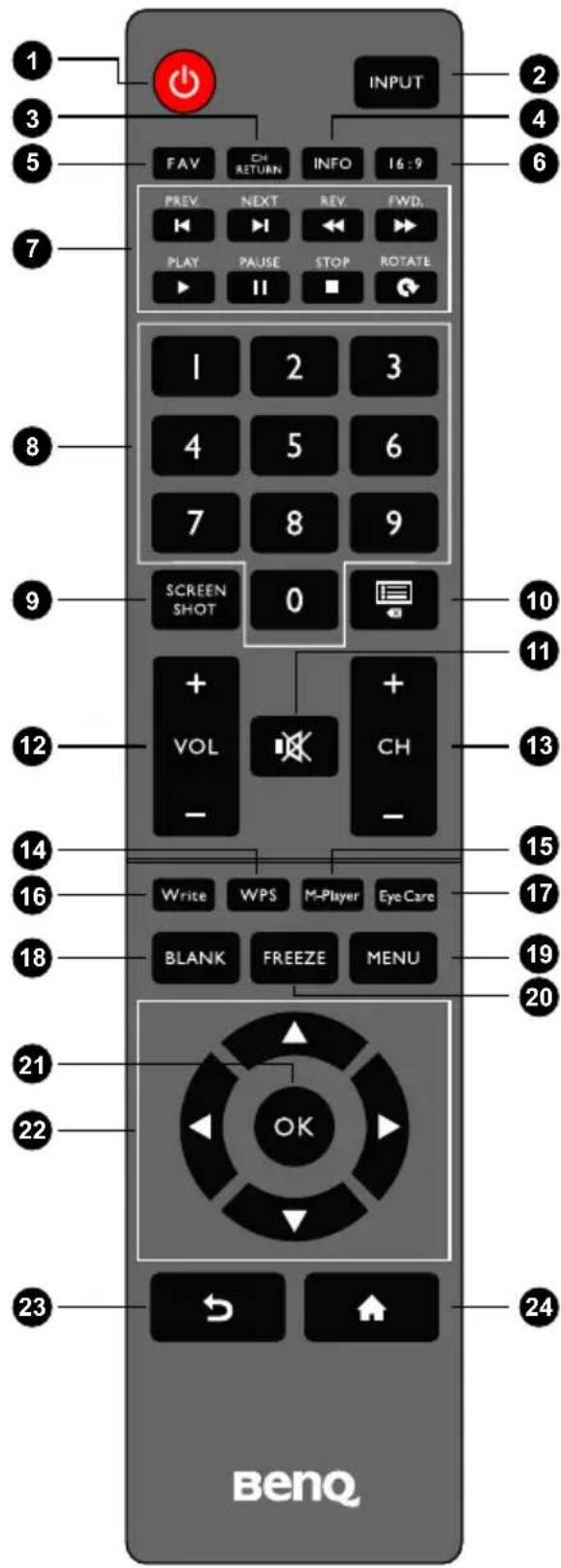
text_image
1 2 3 4 5 6 7 FAV CH RETURN INFO 16:9 PREV. NEXT REV. FWD. PLAY PAUSE STOP ROTATE I 2 3 8 4 5 6 7 8 9 SCREEN SHOT 0 10 11 + VOL + CH - 12 13 14 15 16 17 Write WPS M-Player Eye Care 18 BLANK FREEZE MENU 19 20 21 22 OK 23 24 BenQ1 POWER
Turns the display on or off.
2 INPUT
Selects an input source.
3 CH RETURN
Returns to the previous program channel.
4 INFO
Shows the current input source and resolution.
5 FAV
Shows the favorite program channel.
6 16:9
Changes the aspect ratio of the display image.
7 MULTI-MEDIA buttons
Used to control the media playback.
8 Numeric buttons (0-9)
Performs as numeric buttons when the OSD menu is on.
9 SCREEN SHOT
Captures a screenshot and automatically save it to a USB drive. Make sure to plug the USB disk drive first before capturing the screenshot.
10 CHLIST

Deletes a character / displays program list.
11 MUTE
Turns on or off the mute function.
12 VOL-/VOL+
Turns down/up the volume.
13 CH+ / CH-
Selects the program channel.
14 WPS
Switches the system into Android OS, then opens the WPS office app.
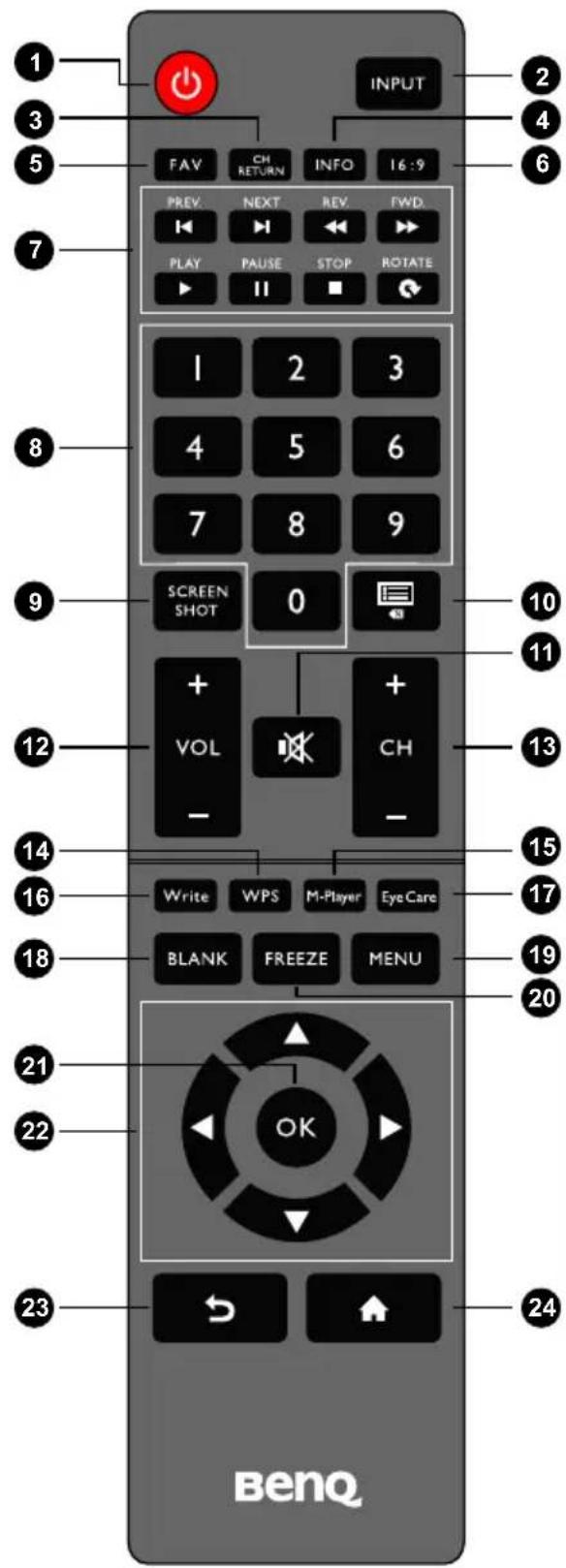
text_image
1 2 3 4 5 6 7 FAV CH INFO 16:9 PREV. NEXT REV FWD. PLAY PAUSE STOP ROTATE I 2 3 4 5 6 7 8 9 SCREEN SHOT 0 + + VOL CH - 12 13 14 15 16 Write WPS M-Player Eye Care 17 18 BLANK FREEZE MENU 20 21 OK 21 22 23 ← ↑ BenQ15 M-Player
Switches the system into Android OS, then opens the Multimedia app.
16 Write
Switches the system into Android OS, then opens the EZ Write 2.0 app.
17 Eye Care
Sets the display mode to Classroom mode. Refer to Picture menu on page 31.
18 BLANK
Hides the image (the screen becomes blank) when the OSD menu is off. Press again to resume normal display.
19 MENU
Opens or closes the OSD menu.
20 FREEZE
Freezes the image when the OSD menu is off.
21 OK
Confirms your selection or save changes.
22 Cursor keys (▲/▼/◄/►)
Scrolls through settings and options in the OSD menu when the OSD menu is on.
23 Back button ( )
Returns to the previous page (in Android OS).
24 Home button ( )
Returns to the home screen (in Android OS).
Using the remote control
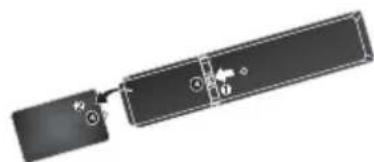
Installing remote control batteries
natural_image
Pure diagram of a rectangular device with internal components and no visible text or symbols- Open the remote control battery compartment cover.

natural_image
Diagram of a rectangular electronic device with internal components and a small component above it (no visible text or symbols)- Insert the supplied batteries ensuring that the positive and negative marked battery terminals match the (+) and (-) marks in the battery compartment.

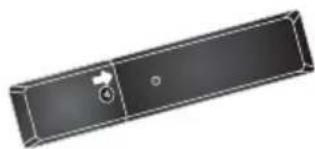
The supplied batteries are provided for your convenience so that you can operate the display straight away. You should replace them as soon as possible.
natural_image
Pure electrical circuit lines without any symbols- Refit the battery compartment cover.
Remote control usage tips
- Point and aim the top front of the remote control directly at the display's remote control sensor window when you press the buttons.
- Do not let the remote control become wet or place it in humid environments (like bathrooms).
- If the display's remote control sensor window is exposed to direct sunlight or strong light, the remote control may not operate properly. In this situation, change the light source, readjust the angle of the display or operate the remote control from a location closer to display's remote control sensor window.

natural_image
Blank whiteboard with a small rectangular border and no visible text, symbols, or markings.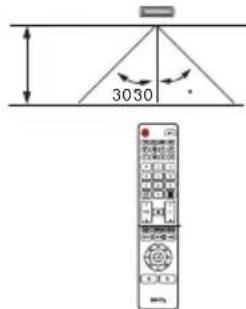
text_image
3030°Connection
Connecting audio/video signals
Pay attention to the following notes when you connect cables:
- Please turn off all devices.
- Familiarize yourself with the audio/video ports on the display and the devices you want to use. Be aware that incorrect connections may adversely affect picture quality.
- Do not remove cables from the ports by pulling the cable itself. Always grasp and pull the connectors at the end of the cable.
- Ensure that all cables are fully inserted and firmly seated.
Connecting the VGA input
I. Connect the VGA jack on the display to the VGA output jack on a computer using a D-Sub (15-pin) cable.
2. Connect the computer's audio output jack to the PC AUDIO jack on the display using a suitable audio cable.
3. To view images from this input, press the INPUT button on the remote control and select VGA.

text_image
HDMI-2 HDMI-3 HDMI OUT LAN HDMI-4 VGA PC AUDIO Y Pb Pr D-Sub (15-pin) cable Audio cable Computer
The audio cable is not supplied and should be purchased separately.
Connecting the digital inputs
I. Connect the HDMI output jack of a computer or A/V device (such as a VCR or DVD player) to the HDMI 3 input jack on the display using an HDMI cable.
2. To view video image from this input, press the INPUT button on the remote control and select HDMI 3.

text_image
HDMI-2 HDMI-3 HDMI OUT LAN HDMI-4 VGA PC AUDIO Y Pb Pr HDMI cable Computer
The cables are not supplied and should be purchased separately.
Connecting the YPbPr component video input
I. Connect the YPbPr jacks on the display to the component output jacks on an A/V device (such as a VCR or DVD player) using a component video cable.
2. Connect the DVD player's audio output jacks to the AV OUT(L/R) jacks on the display using a suitable audio cable.
3. To view video image from this input, press the INPUT button on the remote control and select YPbPr.

text_image
HDMI-2 HDMI-3 HDMI OUT LAN HDMI-4 VGA PC AUDIO Y Pb Pr AV OUT L — R AV IN L — R AUDIO OUT AUDIO IN Component video cable Audio cable DVD player / VCR
The cables are not supplied and should be purchased separately.
Connecting the AV and S-Video inputs
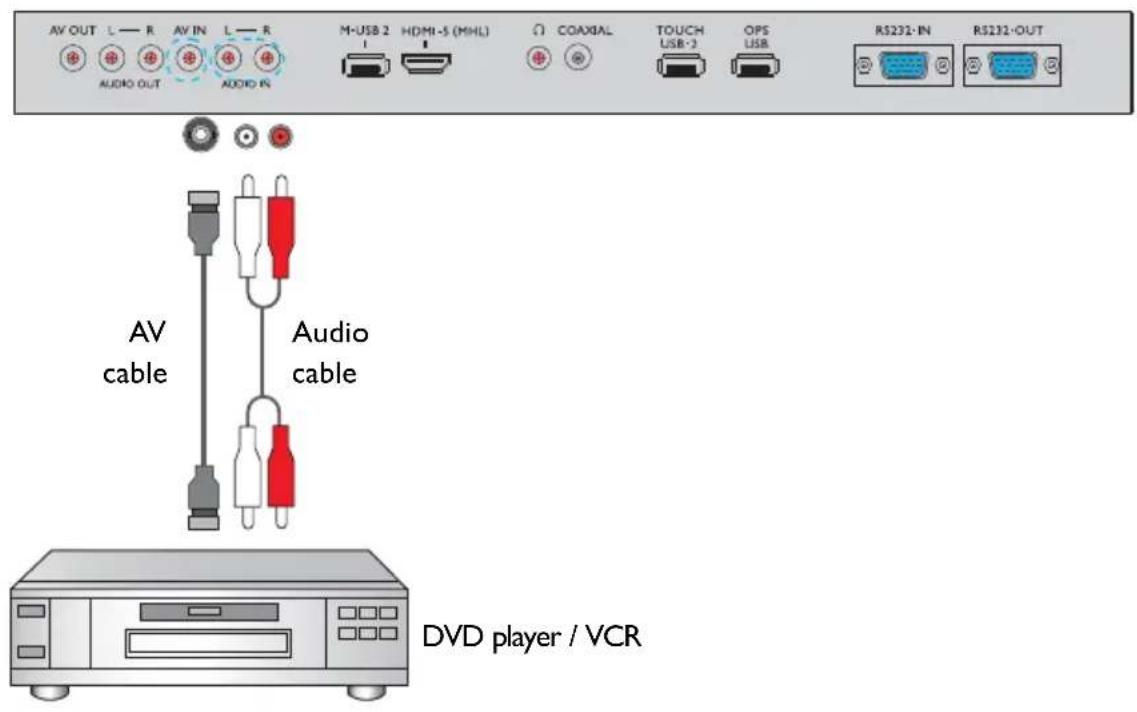
I. Connect the AV IN(L/R) jack on the display to the output jack on an A/V device (such as a VCR) using an appropriate video cable.
2. Connect the VCR's audio output jacks to the AV OUT(L/R) jacks on the display using a suitable audio cable.
3. To view video image from this input, press the INPUT button on the remote control and select AV.
text_image
AV OUT L — R AV IN L — R AUDIO OUT AUDIO IN M-USB 2 HDMI-S (MHL) COAXIAL TOUCH USB-3 OPS USB RS232-IN RS232-OUT AV cable Audio cable DVD player / VCR
The cables are not supplied and should be purchased separately.
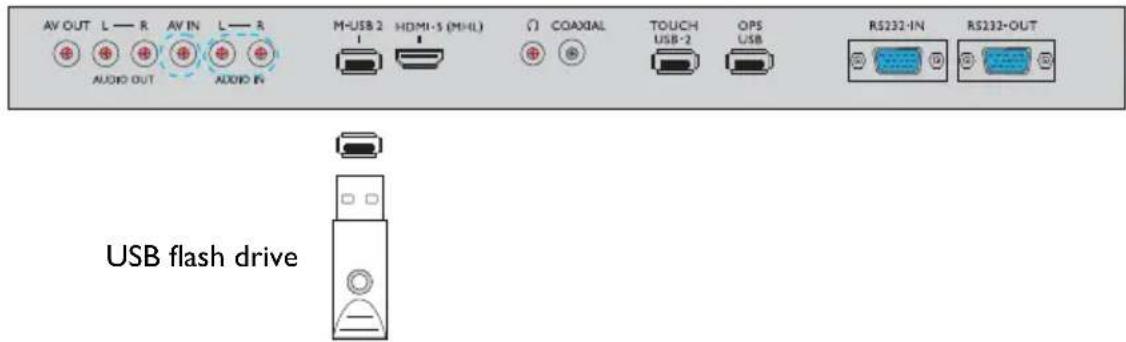
Connecting the multimedia inputs
To view multimedia files on the USB flash drive:
I. Plug the USB flash drive in the M-USB port.
- A dialog box appears on the screen. Select Ok to enter the multimedia mode.
text_image
AV OUT L — R AV IN L — R AUDIO OUT AUDIO IN M-USB 2 HDMI-5 (MHL) COAXIAL TOUCH OPS USB flash drive RS232-IN RS233-OUT
The cables are not supplied and should be purchased separately.
Connecting the touch module
Connect the USB TYPE A FOR TOUCH (type A) jack (TOUCH USB 1 or TOUCH USB-2) on the display to the USB port of a computer using the supplied USB cable. The touch module of the display supports easy Plug-and-Play operation. There is no need to install additional drivers on the computer.
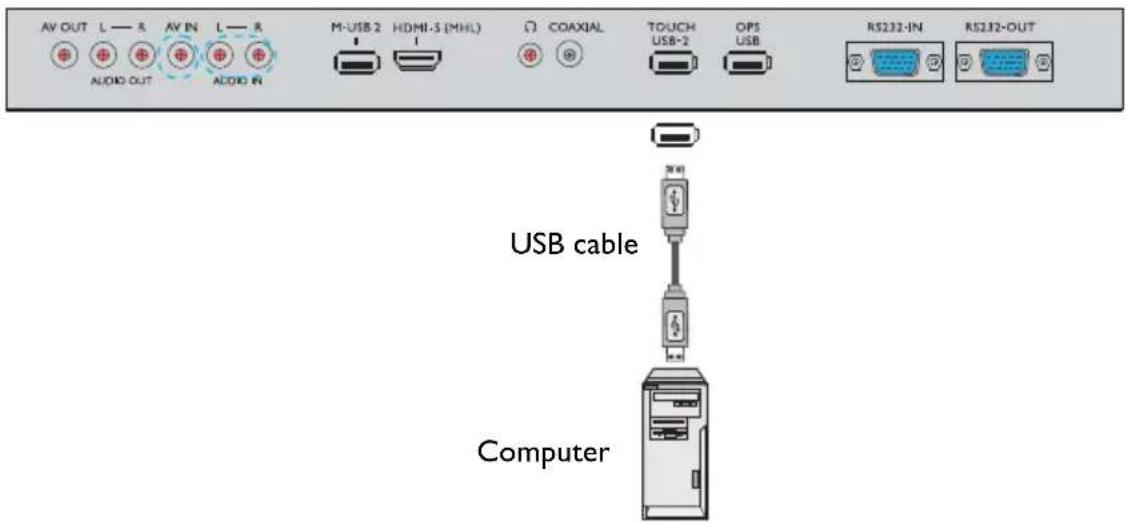
text_image
AV OUT L — R AV IN L — R AUDIO OUT AUDIO IN M-USB 2 HDMI-3 (MHL) COAXIAL TOUCH OPS USB-2 USB USB RS232-IN RS232-OUT USB cable Computer
- Avoid blocking the touch screen frame (where sensors are located) when initiating the touch module.
- It is highly recommended that you connect the display to the PC or laptop directly. Avoid connecting the display to a face plate device which may cause failures in touch operations.
- If any ghost image occurs, please try to unplug and then re-plug all USB cables. If the failure image still exists, use another USB type A to A cable.
- TOUCH USB 1 must be used with HDMI 1, and TOUCH USB-2 must be used with VGA, HDMI 2, HDMI 3, HDMI 4, or HDMI 5.
Connecting power
Plug one end of the power cord into the Power jack on the display and the other end into an appropriate power outlet (if the outlet is switched, turn on the switch).
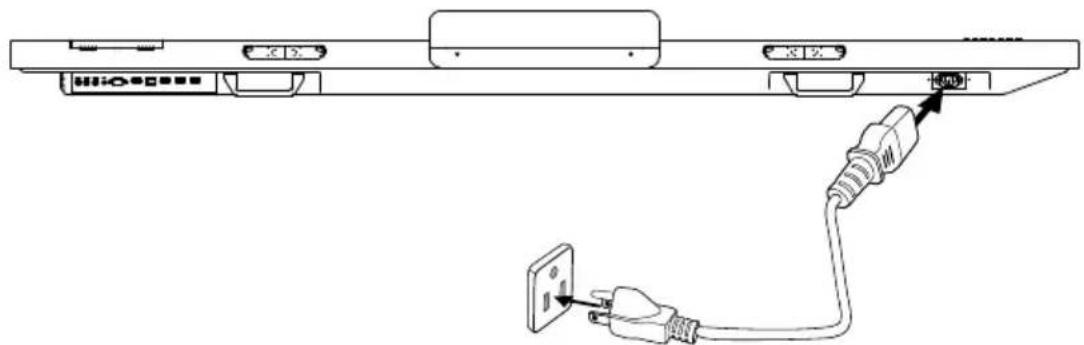
natural_image
Line drawing of a cable being inserted into a socket, showing the cable being inserted and connected to a power outlet (no text or symbols present)
- The supplied power cord is suitable for use with 110-240V AC power only.
• The power cord and outlet illustrated may differ from the ones used in your region. - Only use an appropriate power cord for your region. Never use a power cord which appears damaged or frayed, or change the plug type on the power cord.
- Be aware of the power loading when you use extension cords or multiple outlet power boards.
- There are no user serviceable parts in this display. Never unscrew or remove any covers. There are dangerous voltages inside the display. Turn off the power and unplug the power cord if you intend to move the display.
Installing and Removing OPS module
The illustration shown below is for your reference. The actual content, pre-installed applications and available services may vary by the product supplied for your region. OPS module should be purchased separately.
To install OPS module:
I. Power off the display.
- Insert OPS module and then fix by screws.

Keep the OPS cover for future use.
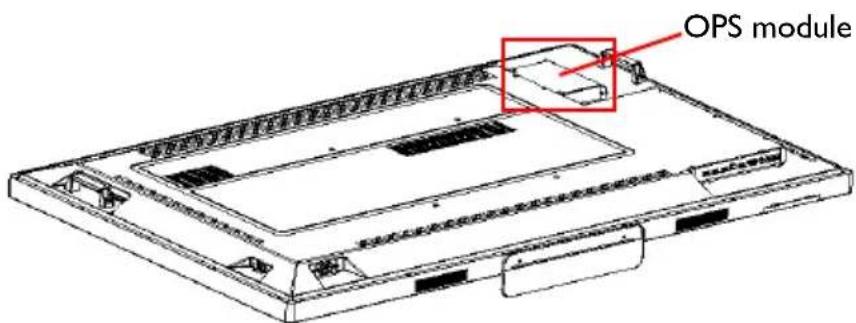
text_image
OPS moduleTo remove OPS module:
I. Power off the display.
2. Remove screws and plug out OPS module.
Using the touch screen
You can use the optical touch screen to control your operating system. The touch screen can emulate basic mouse functions and supports multi-touch functions for Windows 7/8*. The following table shows a list of gestures you can use on the touch screen.

- Ensure that you have installed the USB cable on the display to a computer.
- *Multi-touch functions are only supported by Windows 8, Windows 7 - Home Premium, Professional, Enterprise and Ultimate versions. For Windows XP, Windows Vista and Windows 7 - Starter and Home Basic versions, multi-touch is not supported.
- Windows is a registered trademark of Microsoft Corporation in the United States and other countries.
| OS functions Gesture actions | |||
| For Windows XP, Windows Vista and Windows 7 | |||
| Click | Tap the screen once. 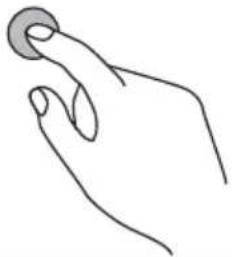 | ||
| Double-click | Tap the screen twice. 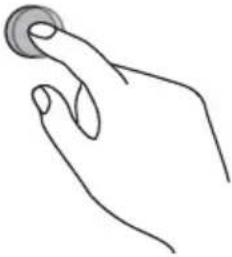 | ||
| Right-click | 1. Press on the target. 2. Hold and wait for a blue ring to appear. 3. Release your finger. 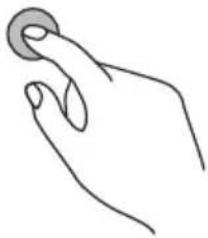 |  |  |
| Drag | Drag one finger left or right. 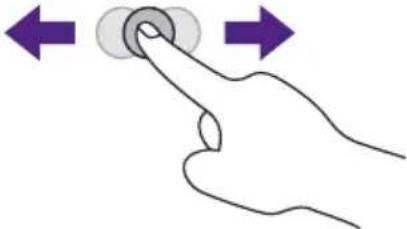 | ||
| OS functions Gesture actions | ||
| For Windows Vista and Windows 7 | ||
| Selection | Drag one finger left or right. | |
| Pan up / Pan down / Back / Forward | Quickly drag your finger (Flick) in a desired direction.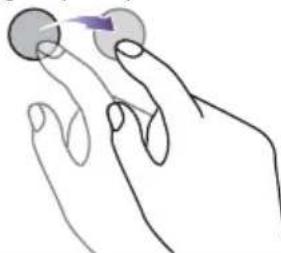 | |
| Multi-touch functionsFor Windows 7 - Home Premium, Professional, Enterprise and Ultimate versions | ||
| Right-click | 1. Press on the target.2. Tap the screen with another finger.3. Release the second finger.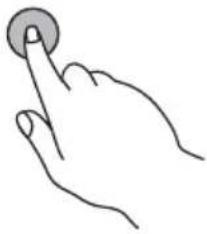 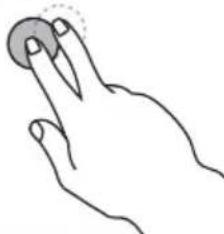  | |
| Scrolling | Drag one or two fingers up or down.  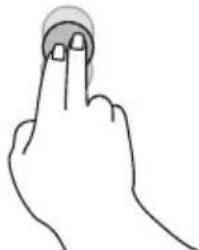 | |
| Zoom | Move two fingers apart or toward each other.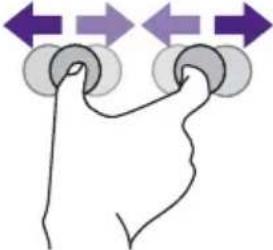 | |
| Supported by specific applications | • Move two fingers in opposing directions.• Use one finger to pivot around another. | |
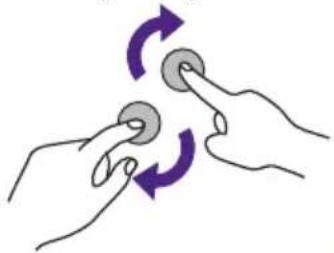 | 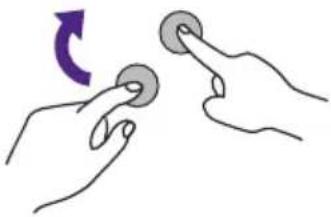 | |
| Supported by specific applications | Tap two fingers simultaneously.The target should be the midpoint between the fingers.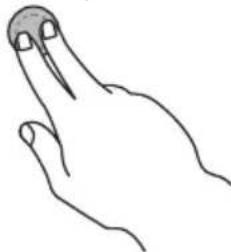 | |
| For Windows XP, Windows Vista and Windows 7 | ||
| Wakeup from Windows sleep mode (S3) | Press and hold for 4 seconds.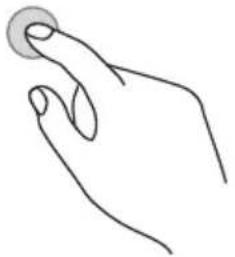 |  |
| Gesture Description | |
| For Windows 8 | |
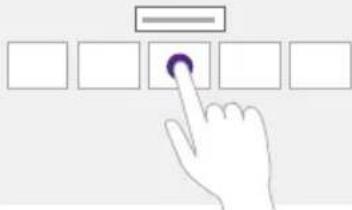 | Press and hold to learnThis touch interaction causes detailed information or teaching visuals (for example, a tooltip or context menu) to be displayed without a commitment to an action. Anything displayed this way should not prevent users from panning if they begin sliding their finger. |
 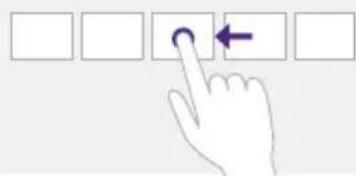 | Tap for primary actionTapping on an element invokes its primary action, for instance launching an application or executing a command.Slide to panSlide is primarily used for panning interactions but can also be used for moving, drawing or writing. Slide can also be used to target small, densely packed elements by scrubbing (sliding the finger over related objects such as radio buttons). |
 | Swipe to select, command, and moveSliding the finger a short distance, perpendicular to the panning direction, selects objects in a list or grid (ListView and GridLayout controls). Display the AppBar with relevant commands when objects are selected. |
 | Pinch and stretch to zoomWhile the pinch and stretch gestures are commonly used for resizing, they also enable jumping to the beginning, end, or anywhere within content with Semantic Zoom. A Semantic Zoom control provides a zoomed out view for showing groups of items and quick ways to dive back into them. |
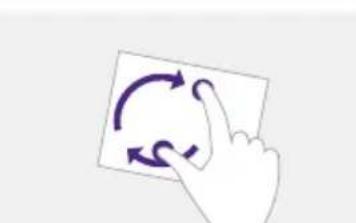 | Turn to rotateRotating with two or more fingers causes an object to rotate. |
Important instructions for using the touch screen
Please clean the frame when there is sign of malfunction on the touch screen.
- Before you clean the screen, make sure the display is turned off, and unplug the power cord.
- Remove dust or dirt from the screen and the infrared plastic filter periodically. It is suggested using a small amount of alcohol to clean the infrared plastic filter.
- To avoid damage to the screen, never use any type of abrasive materials to wipe the screen.
- Use a neutral detergent to clean the touch screen. Avoid using detergents with erosive substance, such as banana oil or ammonia.
- Moisten a clean soft, lint-free cloth with a neutral detergent and then clean the touch screen.
- Do not spray a detergent on the screen surface or the body directly. It may result in a short circuit to the touch screen.
- Keep the touch screen out of direct sunlight or spotlights.

natural_image
Diagram of a hand interacting with a rectangular panel, showing directional arrows indicating movement or flow (no text or symbols present)Basic operations
Turning the display on or off
Before turning on the display, make sure the Power switch is set to ON (I). The system will enter standby mode.

natural_image
Hand inserting a small electrical component into a vertical panel, enclosed in a circle (no text or symbols)• To turn on the display, press the Power button on the control panel or on the remote control.
• To turn off the display, press the Power button on the control panel or on the remote control. The system will automatically enter standby mode.

text_image
IR Receiver Power Button INPUT FAV ON BUTTONS INFO IS-9 PREV NEXT REV FWD PLAY STOP RISTATI
The display's standby mode still consumes power. To completely cut off power supply, set the Power switch to OFF (O) and then disconnect the power cord from the power outlet.
Initial Setup
After you have connected the display to the power, you are ready to power on the display. The first time you power on the display, you will be guided through a series of setup screens. Follow the on-screen instructions or the steps below to start up your display and complete the initial setup.
I. Turn on the display. Wait for the display to boot up with the BenQ screen. This may take a moment.
2. Tap Next on the screen to begin. Follow the on-screen instructions to set up the language, date and time, and network. Or your can skip some of these steps and complete the setup later.
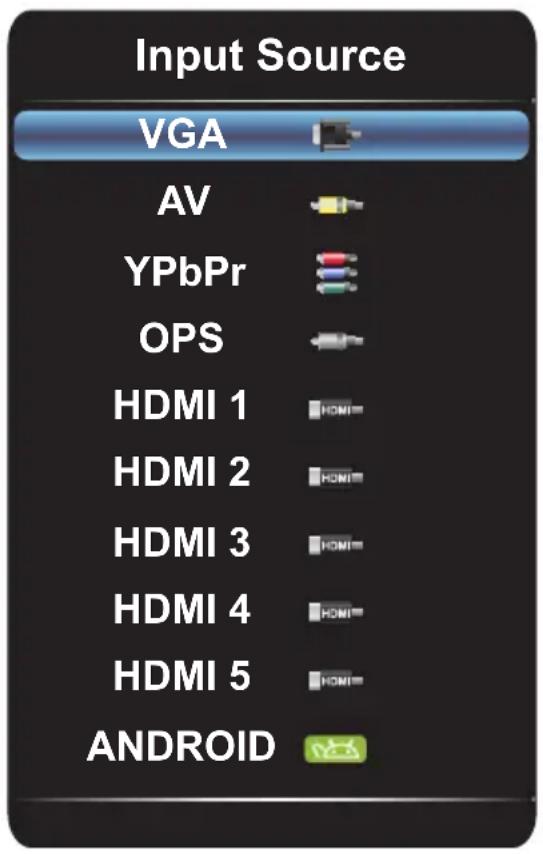
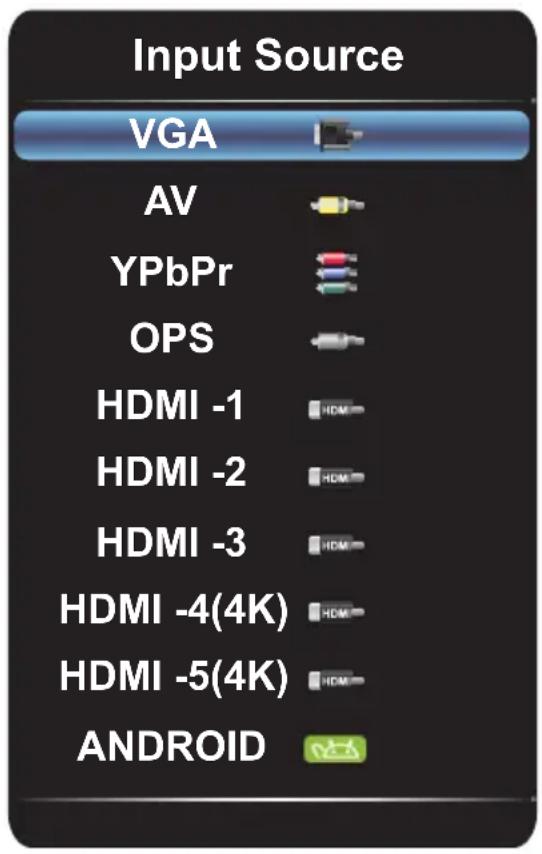
Switching input signals
Press the INPUT button on the remote control or the control panel to select an input signal.
text_image
Input Source VGA AV YPbPr OPS HDMI 1 HDMI 2 HDMI 3 HDMI 4 HDMI 5 ANDROIDRP652/RP652H and RP702 RP790
text_image
Input Source VGA AV YPbPr OPS HDMI -1 HDMI -2 HDMI -3 HDMI -4(4K) HDMI -5(4K) ANDROIDDownloading software
BenQ may periodically release software updates that may add functions or applications associated with your display. To check if there is a software update available for your device or to obtain the software license key, please visit http://DSdownload.BenQ.com. Then enter the serial number (can be found on the sticker attached on the back of the display) and click OK to access the Software download page.
Setting up Internet connection
Your display must be connected to the network to download updates or surf the Internet.

To find the MAC address in Android OS, please go to Settings > Network > Status.
Wired Connection
I. Connect one end of the Ethernet cable to the LAN port of the display.
2. Connect the other end of the Ethernet cable to the LAN port of the router.
3. Press the INPUT button on the remote control and select ANDROID.
-
On the home screen, select All Apps (☐) > Settings (☐) > Network.
-
In the Network menu, select Wired.
-
In the Wired menu, set Open Ethernet to On to configure the network settings. Then do the following:
-
If the router setting enables obtaining IP address automatically, select The Automatic Acquisition IP Address and press the OK button. Your display will obtain the IP address automatically.
- Otherwise, do the following to manually configure the network:
a. Select IPv6 and press the OK button to enable/disable IPv6.
b. Select IP Address and assign a valid IP address for the device.
c. Select Subnet Mask and assign a subnet mask of the IP address for the device.
d. Select Default Gateway and assign a valid gateway for the device.
e. Select First DNS and Second DNS, and then assign a valid DNS server address for the device.
f. Select save and press the OK button. A successful message appears on the screen.
Wireless Connection
This display only supports BenQ WDRT8192 WiFi dongle. Please contact your local dealer for more information on configuring the wireless connection.
Updating software
Whenever a new version of software is available, the system will automatically detect the update and will prompt you to download it every time you turn on the display.

text_image
System Update Find an OTA upgrade package! do you want to update? upgrade package version:1.0.3, size:193M No YesIf you want to update the software, select Yes and press the OK button on the remote control. Or your can skip this step and update the software later.

- Software update process may take some time to complete.
- During the update process, do not turn off the device or disconnect the Internet connection. Any interruptions during the software update process may permanently damage your display.
Restoring to the default settings
If you encounter problems with your display, you can restore all parameters to the factory default settings.

Before performing a factory reset, make sure to back up your important data and files.
There are two methods that can be used to reset your display.
Via OSD menu
I. Press the MENU button to open the OSD menu.
2. Press the ◀ or ▶ button to select Setting and press the OK button.
3. In the Setting menu, press the ▲ or ▼ button to select Recall.
4. A confirmation appears on the screen, select Yes to reset your display.
Via Android OS
I. Press the INPUT button on the remote control and select ANDROID.
2. On the home screen, select All Apps (☑) > Settings (💡) > Backup / Update.
3. In the Backup / Update menu, select Restore to Factory Default.
4. A confirmation appears on the screen, select Yes to reset your display.
Adjusting audio volume level
Press ◀ or ▶ on the control panel or VOL- / VOL+ on the remote control to adjust the volume.
The OSD (On-Screen Display) menu
OSD menu overview
| Menu name Options/functions See page | ||
| Picture | Picture ModeContrastBrightnessHueSharpnessSaturationColor TemperatureZoom ModeImage Noise ReductionPC Image Mode | 31 |
| Sound | Sound ModeLow PitchHigh PitchBalanceSurroundCoaxial Output | 32 |
| Setting | Menu TimeRecall | 33 |

Some options are only available when a certain input signal source is selected.
Operations in the OSD menu
| Using the control panel buttons Using the remote control | |
1. Press theMENUbutton to open the OSD menu.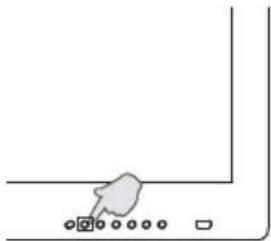 | 1. Press theMENUbutton too open the OSD menu.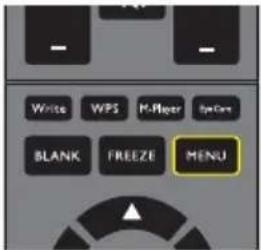 |
2. Press the ▲ or ▼ button to select an item.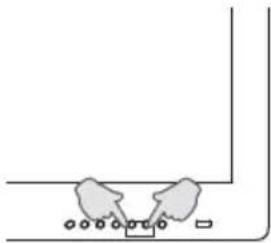 | 2. Press the ▲ or ▼ button to select an item. |
3. Press theINPUT/BACKbutton to confirm selections. | 3. Press theOKbutton to confirm selections.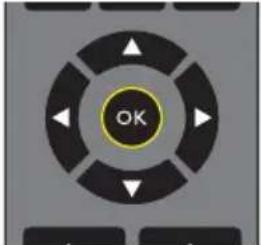 |
4. Press ▲ or ▼ to select a feature and press ◀ or ▶ to adjust settings. Press INPUT/BACKto save changes.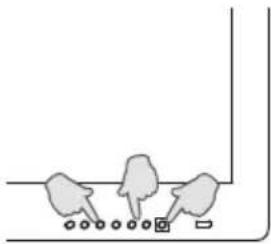 | 4. Press the ▲ and ▼ button to select a feature and press the ◀ or ▶ button to adjust settings. Press the OKbutton to confirm changes.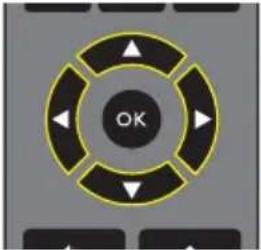 |
Picture menu
Screen images and icons in this document are for your reference only. Actual displays may vary.
| Picture Mode | Classroom |
| Contrast | 50 |
| Brightness | 50 |
| Hue | 50 |
| Sharpness | 50 |
| Saturation | 50 |
| Color Temperature | Warm |
| Zoom Mode | Full |
| Name Description | |
| Picture Mode | Sets the display mode. Available modes are Standard, User, Bright, and Classroom. The properties such as Contrast, Brightness, Hue, Sharpness, and Saturation can be adjusted if the mode is set to User.If the mode is set to Classroom, the low blue light will be activated. |
| Contrast Adjusts the degree of difference between darkness and lightness. | |
| Brightness Adjusts the balance between light and dark shades. | |
| Hue Adjusts the degree of how we perceive colors. | |
| Sharpness | Adjusts the clarity and visibility of the edges of the subjects in the image. |
| Saturation Adjusts the purity degree of colors. | |
| Color Temperature | Adjusts the color temperature. Available options are Standard, Warm, and Cold. |
| Zoom Mode | Sets the aspect ratio of the displayed image.The supported aspect ratio varies depending on the input source:• HDMI: PC Mode, Full, 4:3, Film, and Subtitle.• VGA: Full and 4:3. |
| Image Noise Reduction | Reduces the electrical image noise caused by different media players.Available options are Middle, High, Off, and Low. |
| PC Image Mode | Adjusts the PC display settings. Sets PC image mode to Auto Tune to synchronize the display automatically, or manually fine-tunes Clock, Phase, Horizontal Position, and Vertical Position. |
Sound menu
Screen images and icons in this document are for your reference only. Actual displays may vary.
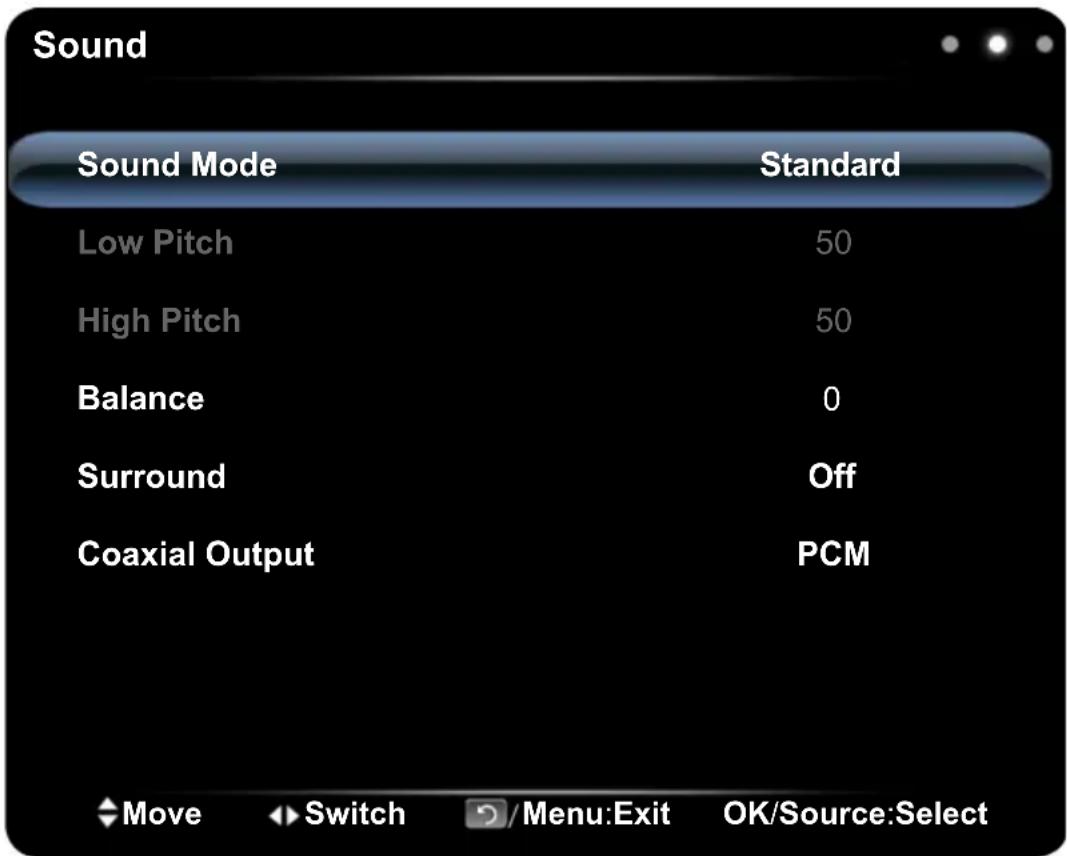
text_image
Sound Sound Mode Standard Low Pitch 50 High Pitch 50 Balance 0 Surround Off Coaxial Output PCM ◆Move ◀Switch ☑/Menu:Exit OK/Source:Select| Name Description | |
| Sound Mode | Selects a preset audio mode. Available modes are Standard, Music, Movie, and User. The properties such as Low Pitch and High Pitch can be adjusted if the mode is set to User. |
| Low Pitch Adjusts the bass level. | |
| High Pitch Adjusts the treble level. | |
| Balance Adjusts the sound balance between the left and right speakers. | |
| Surround Enables/disables the surround sound feature. | |
| Coaxial Output | Sets the type of digital output to an external audio system. Available options are PCM or RAW. |
Setting menu
Screen images and icons in this document are for your reference only. Actual displays may vary.
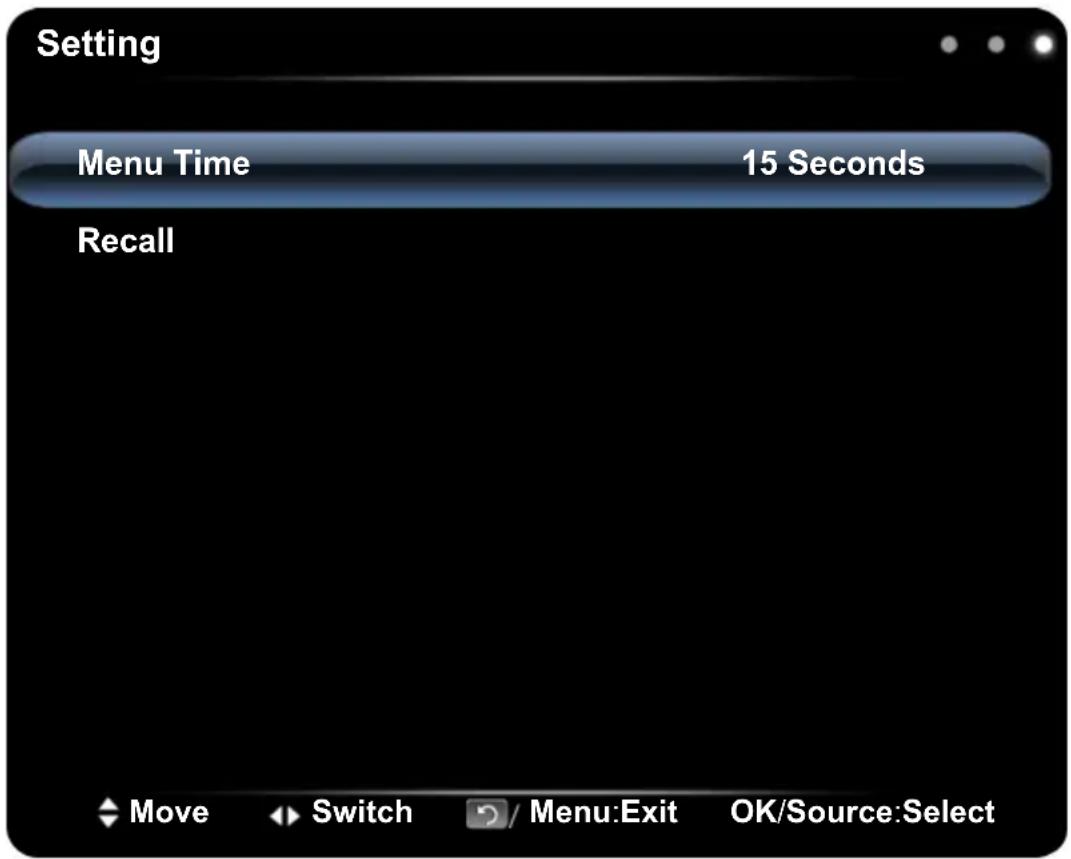
text_image
Setting Menu Time 15 Seconds Recall Move Switch / Menu:Exit OK/Source:Select| Name Description | |
| Menu Time | Adjusts the display time of the OSD menu. Available options are 5 Seconds, 10 Seconds, 15 Seconds, 20 Seconds, 30 Seconds, or Always. |
| Recall Restores all parameters to the factory default settings. | |
Working with Android OS
To switch to the Android OS, do the following:
I. Press the INPUT button on the remote control/control panel and select ANDROID. The home screen appears.
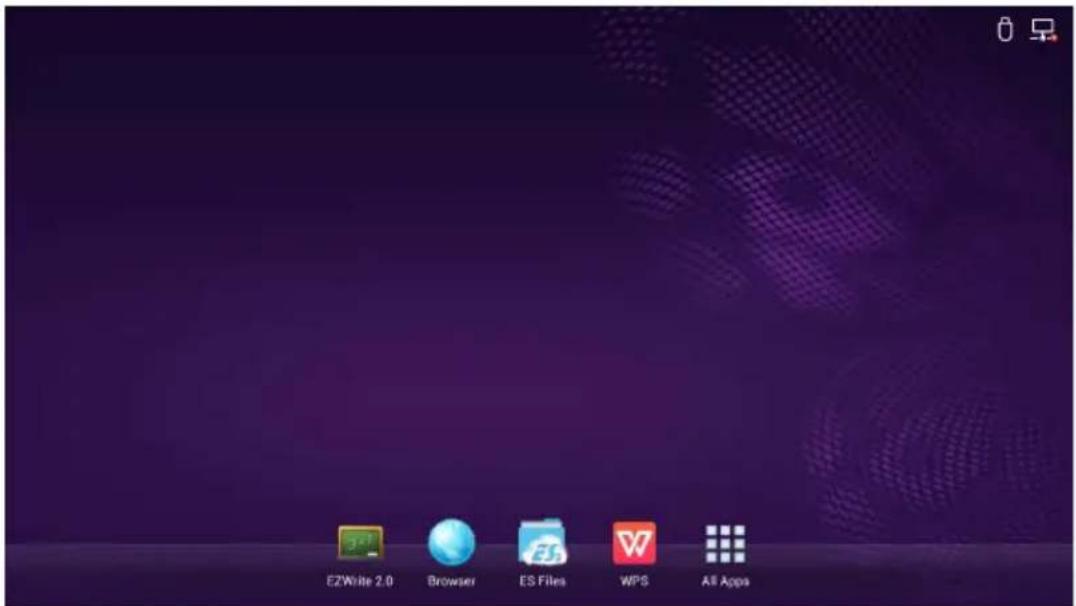
text_image
EZWrite 2.0 Browser ES Files WPS All Apps- Select the application that you want to access.
- Using the touch pen: Tap your desired application icon to launch the application.
- Using the remote control: Press the ◀ or ▶ button to select your desired application and press the OK button to launch the application.

- Select All Apps ( ) to access to all applications.
• To return to the home screen, tap the 📁 icon on the screen or press the Home button ( 🔊 ) on the remote control.
- Since the system does not support any third party applications, user may be unable to open an application even if the installation has completed successfully.
About All Apps

text_image
Gallery Browser Music ES File Exp EZWrite 2 C Multimedia Settings Search WPS Office HomeTo operate the Android OS, use the touch pen or the buttons on the remote control.
| Application Name/Icon Description | |
Browser  | Accesses the web pages. Refer to Browser on page 37 for more information. |
ES File Explorer  | Manages files stored on the internal memory and the connected storage devices. Refer to ES File Explorer on page 38 for more information. |
EZWrite 2.0  ) ) | Draws on the screen or annotates the file. Refer to EZWrite 2.0 on page 36 for more information. |
Multimedia (  ) ) | Browses the multimedia files stored on the internal memory or the connected storage devices. Refer to Multimedia on page 40 for more information. |
Settings ( | Configures the network and device settings. Refer to Settings on page 42 for more information. |
WPS Office ( ) ) | Reads and edits the files in Office formats, including, *.doc, *.txt, *.xls, and *.ppt. Refer to WPS Office on page 39 for more information. |
Gallery ( | Views the images stored on the internal memory or the connected storage devices. |
Music ( | Plays the audio files stored on the internal memory or the connected storage devices. |
Home ( | Tap to return the home screen. |
EZWrite 2.0
Tap 📄 to launch EZWrite 2.0. With this application, you can use the annotation tools to draw on the screen or edit the document.
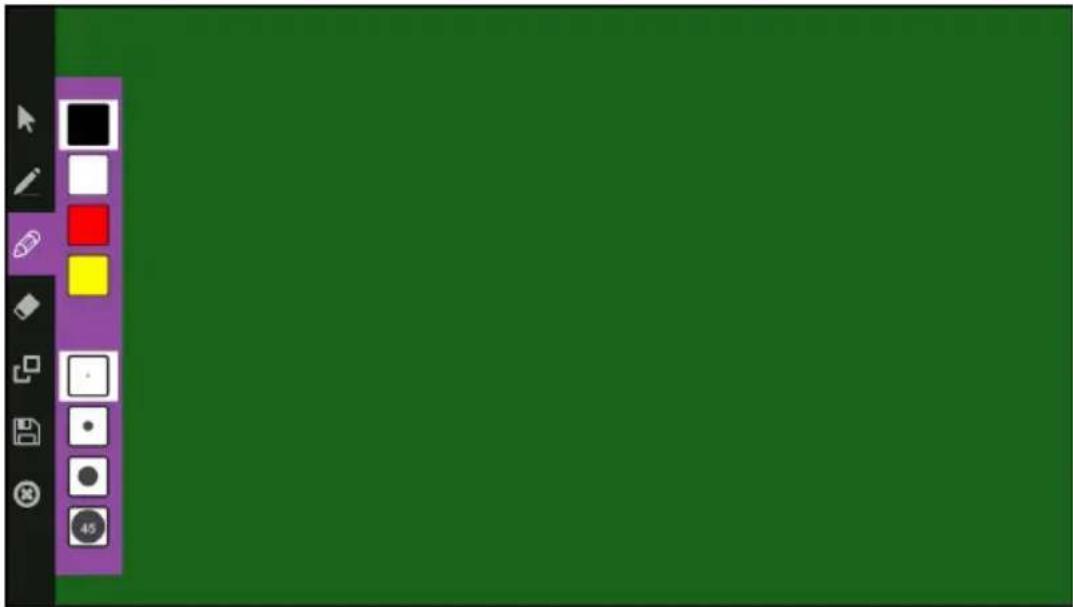
natural_image
Green background with a purple toolbar and tool icons (no text or symbols)Tap the icon on the left panel to active its function. Tap and hold the icon to access more option.
| Function Description | |
| Operation Mode (✗) | Tap to switch to All Apps and open another application (such as WPS Office). Then open a file and use the desired annotation tool to edit the document. |
| Pencil (✗) | • Tap to draw freeform or curved line.• Tap and hold the icon for 3 seconds to set the pen color and thickness. |
| Highlighter (✗) | • Tap to highlight the selected text or draw a transparent line on the screen.• Tap and hold the icon for 3 seconds to set the highlighter color and thickness. |
| Eraser (✗) | • Tap to erase the areas of your picture.• Tap and hold the icon for 3 seconds to set the eraser thickness or select All to clear the screen. |
| Background (✗) | Tap to change the background color. |
| Save (✗) | Tap to save the file. This option is only available when you start editing the file. Make sure to plug the USB disk drive first before saving the working file. |
| Exit (✗) | Tap to exit the application. |
Browser
Tap 📷 to launch Browser. With this application, you can view web pages.

Before launching the application, make sure your display is properly connected to Internet.

text_image
65° - Interactive Flat Pan... http://ap.benq.com/product/largedisplay/78/314/ Start Search All Products Support News About BenQ Education Projectors Business Monitors Gaming Monitors Products - Large Display - Interactive Flat Panel - 55° LED Lighting LCD Monitors Projectors Smartphone Speaker Large Display Product Comparison Pick up to three products to compare: 1. Empty 2. Empty 3. Empty test Sort by: Interactive Flat Panel 55° RP551+ 00 Benq RICENTLY VIEWEDTap the icon on the top panel to activate its function. Slide on the screen to scroll the viewed page.
| Function Description | |
| Address Bar Enter the web page address to view the page. | |
| Settings ( ) | Tap to configure the browser settings. |
| Back (←) | Tap to return to the previous page. |
| Next (→) | Tap to go to the next page. |
| Refresh (C) | Tap to reload the current web page. |
| Favorite (☆) | Tap to save the current web page to bookmarks. |
| Search (Q) | Tap to search the Internet. |
| Bookmarks (★) | Tap to select bookmarks, history, or saved favorite web pages to visit. |
| Close (×) | Tap to close the current web page. |
ES File Explorer
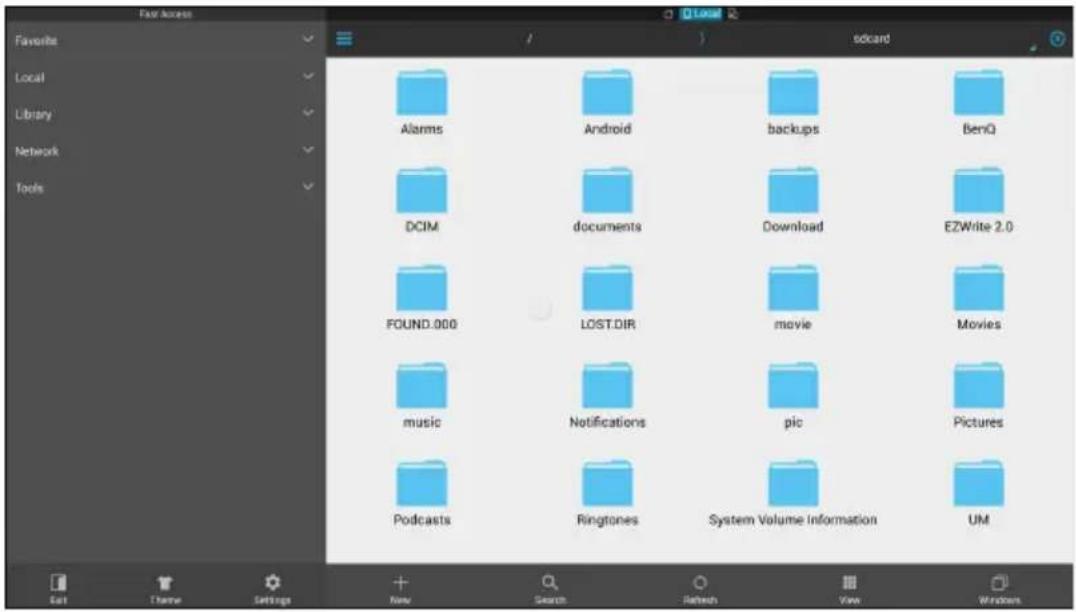
Tap to launch ES File Explorer. With this application, you can manage the files and applications.
text_image
Fast Access Favorites Local Library Network Tools Alarms Android backups BenQ DCIM documents Download EZWrite 2.0 FOUND.000 LOST.DIR movie Movies music Notifications pic Pictures Podcasts Ringtones System Volume Information UM Add Theme Settings New Search Refresh View WindowsTap the category on the left panel and select the desired folder to browse. Tap a file in the folder, then you can view or edit the file according to the available options.
| Function Description | |
| Theme (↑) | Tap to change different theme. |
| Settings (◇) | Tap to access more advanced options. |
| New (≠) | Tap to create a new folder. |
| Search (Q) | Tap to search for files in the internal memory or external device. |
| Refresh (○) | Tap to reload the current page. |
| View (■) | Tap to toggle between list view or icons view. |
| Windows (□) | Tap to switch between open windows. |
| Exit (□) | Tap to close the application. |
WPS Office
Tap 📋 to launch WPS Office. With this application, you can open almost any file format including PDFs and Microsoft Word, PowerPoint and Excel documents.

text_image
Open Share Manage DOC Welcome to Kingsoft Office Description: This is not a copy of the original document, but it is not to be edited or created. This is not an important role in creating a new document. This is not a complete file or record that is used to create a new document. This is not a complete file or record that is used to create a new document. This is not a complete file or record that is used to create a new document. This is not a complete file or record that is used to create a new document. This is not a complete file or record that is used to create a new document. This is not a complete file or record that is used to create a new document. This is not a complete file or record that is used to create a new document. This is not a complete file or record that is used to create a new document. This is not a complete file or record that is used to create a new document. This is not a complete file or record that is used to create a new document. This is not a complete file or record that is used to create a new document. This is not a complete file or record that is used to create a new document. This is not a complete file or record which is used to create a new document. This is not a complete file or record which is used to create a new document. This is not a complete file or record which is used to create a new document. This is not a complete file or record which is used to create a new document. This is not a complete file or record which is used to create a new document. This is not a complete file or record which is used to create a new document. This is not a complete file / 100% (or 100% of the total) for all rights reserved. This is not allowed to create any additional items. This is not allowed to create any additional items. This is not allowed to create any additional items. This is not allowed to create any additional items. This is not allowed to create any additional items. This is not allowed to create any additional items. This is not allowed to create any additional items. This is not allowed to create any additional items. This is not allowed to create any additional items. This is not allowed to create any additional items. This is not allowed to create any additional items. The main content was extracted from the provided image. The main content was extracted from the provided image. The main content was extracted from the provided image. The main content was extracted from the provided image. The main content was extracted from the provided image. The main content was extracted from the provided image. The main content was extracted from the provided image. The main content was extracted from the provided image. The main content was extracted from the provided image. The main content was extracted from the provided image. The main content was extracted from the provided image.Tap the icon on the top panel to access its function.
| Function Description |
| Open Tap to browse and open a file. |
| Share Tap to share your files through email or other sharing application. |
| Manage Tap to manage the document. |
Supported Office versions and file formats
Supported Office versions: 97 / 2000 / XP/ 2003 / 2007 / 2010
Supported Office software formats:
| Office Software Supported File Formats |
| Word doc / docx / rtf / txt |
| Excel xls / xlsx / csv |
| PowerPoint ppt / pps / pot / pptx / ppsx / potx |
Multimedia
Tap 📋 to launch Multimedia. With this application, you can browse the photos, songs, or videos stored on the internal memory or the connected storage devices.

text_image
local disk device folder all picture music video local disk device- Tap all to view the all files.
- Tap picture to view the photos. Tap the desired photo to view it in full screen.
- Tap music to view the audio files. Tap the desired audio file to play the song/audio clip.
- Tap video to view the videos. Tap the desired video file to play the video clip.
Supported multimedia file formats
Video
| Format | Decode | Audio | Resolution | Frame Rate | Mbit/sec |
| AVI XviD /MPEG2 / MPEG4 | 1920x1080 60 40 | ||||
| MJPEG 1280x720 30 10 | |||||
| MKV | MPEG4 / RV9 | 1920x1080 60 40 | |||
| MPG | MPEG1 / MPEG2 | 1920x1080 60 40 | |||
| VOB MPEG2 | MP2/MP3/AAC/M4A/PCM | 1920x1080 60 40 | |||
| MP4 | MPEG4 | 1920x1080 60 40 | |||
| MOV | MPEG4 | 1920x1080 60 40 | |||
| MJPEG 1280x720 30 10 | |||||
| 3GP | MPEG4 | 1920x1080 60 40 | |||
| FLV FLV | 1920x1080 60 40 | ||||
| TS | AVS / MPEG2 | 1920x1080 60 40 | |||
| TRP MPEG2 | 1920x1080 60 40 | ||||
| DAT | MPEG1 | 1920x1080 60 40 | |||
| RM | RV8 / RV9 /RV10 | COOK | 1920x1080 60 40 | ||
Photo
| Format | Decode | Resolution | Required DRAM size |
| JPG / JPEG Base-line | 15360 x 8640 3.96 | ||
| Progressive 1024 x 768 6 | |||
| PNG Non-interlace | 9600 x 6400 3.66 | ||
| Interlace 1200 x 800 3.66 | |||
| BMP | bmp | 9600 x 6400 3.66 |
Audio
| Format Decode | Note | |
| MP3 | MP3 | Need to be licensed when using AC3 format |
| AAC / M4A | AAC | |
Settings
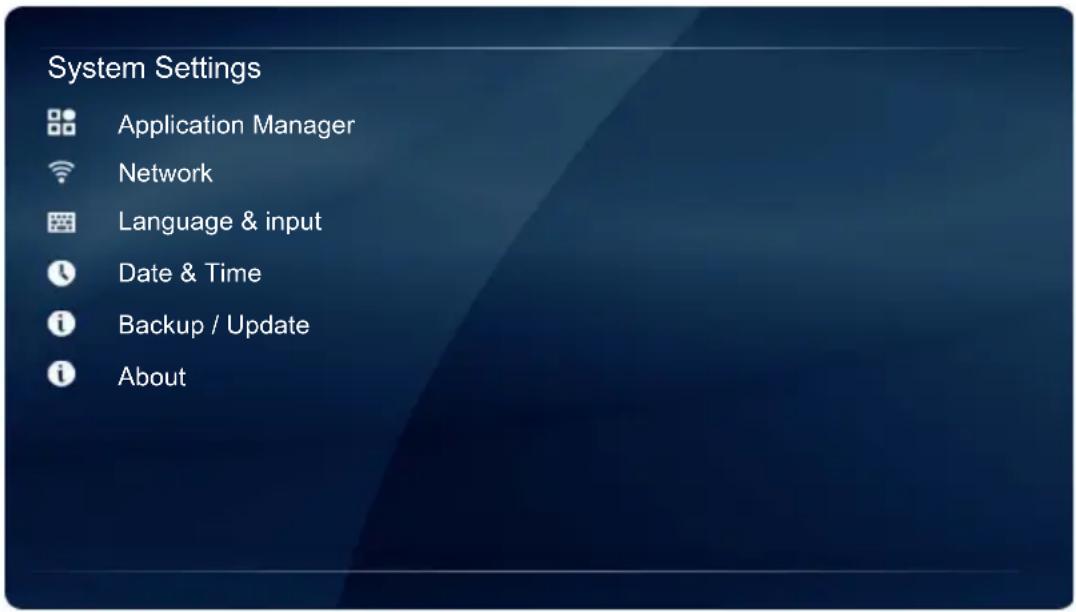
Tap 📋 to launch Settings. With this application, you can view and configure the settings of your device.
text_image
System Settings Application Manager Network Language & input Date & Time Backup / Update AboutTap the desired menu option to enter its submenu.
| Menu Option Description |
| Application Manager Selects this option to view the total and available storage (internal memory or USB disk drive) space. |
| Network Selects this option to view the network status or configure the network connection. |
| Language & input Selects this option to change the system language or configure the input method settings. |
| Date & Time Selects this option to set the date and time. |
| Backup / Update Selects this option to update the software, view the basic system information (i.e. software version, system time, IP address, MAC address, and memory storage) or restore all parameters to the factory default settings. |
| About Selects this option to view the model name and other hardware/software information. |
Product information
Specifications
| Item | Specifications | ||||
| RP652 RP652H RP702 | RP790 | ||||
| LCD panel | Backlight LED LED LED LED | ||||
| Panel size 65" 65" 70" 79" | |||||
| Pixel pitch (mm) | 0.744 mm x 0.744 mm | 0.744 mm x 0.744 mm | 0.807 mm x 0.807 mm | 0.453 mm x 0.453 mm | |
| Native resolution (pixels) | FHD 1920 x 1080 (pixels) | FHD 1920 x 1080 (pixels) | FHD 1920 x 1080 (pixels) | 3840 x 2160 (pixels) | |
| Brightness (cd/m2) (typical) | 350 350 | 400 400 | |||
| Contrast (typical) 400 | 0:1 4000:1 40 | 00:1 1200:1 | |||
| Response time (ms) (typical) | 6 | . | 5 | 8 | |
| Panel Bit | 8 bit (16.7M) | 10 bit (1.06B) | 8 bit (16.7M) | 10 bit (1.06B) | |
| Touch | Technology | IR Touch | |||
| Resolution | 32767 x 32767 | 32767 x 32767 | 32767 x 32767 | 32768 x 32768 | |
| Capacity | 10 points (Varies from operating systems and applications) | ||||
| Accuracy | ±2mm over 90% of touchable are | ||||
| Touch Output | USB 2.0 (x2) | ||||
| Operating System | Window XP, Window Vista, Win 7, Win 8, Mac OS x 10.6~10.10, Linux, Chrome OS 34.0.1847.134 (Touch function varies from releases) | ||||
| Panel glass | Tempered glass | 4mm | |||
| Thickness | AG80 | ||||
| Input | Computer VGA (D-Sub 15-pin) | ||||
| Video | Composite Video (RCA jacks), YPbPr (RCA jacks), HDMI 1.3 x5 (MHL x1) | Composite Video (RCA jacks), YPbPr (RCA jacks), HDMI 1.3 x5 (MHL x1) | Composite Video (RCA jacks), YPbPr (RCA jacks), HDMI 1.3 x5 (MHL x1) | Composite Video (RCA jacks), YPbPr (RCA jacks), HDMI 1.3 x3; HDMI 1.4 x2 (MHL x1) | |
| Audio | L/R (RCA jacks), Line-in (3.5 mm jack), Mic-in (3.5 mm Jack) | ||||
| USB Type A | |||||
| Control RS-232C (D-ub 9-pin) | |||||
| OPS Option Slot | Open pluggable specification (Intel OPS standard) x 1 (1080P; 12V/5A Max: 60W) | ||||
| Output | Computer X | ||||
| Video AV / HDMI | |||||
| Audio Line-out (3.5 mm jack), L/R (RCA jacks) | |||||
| Control RS-232C (D-ub 9-pin) | |||||
| Audio | Audio W (Amp) 10W x 2 | ||||
| Internal speaker O | |||||
| Power | Supply 100 - 240V AC, 50/60 Hz | ||||
| Consumption Max. 220W 220W 220W 250W | |||||
| Consumption Standby | ≤0.5W | ||||
| Environment | Operating Temperature | 0 - 40°C | |||
| Operating Humidity | 20% ~ 80% RH Non-Condensing | ||||
| Storage Temperature | -10 - 60°C | ||||
| Storage Humidity | 10% ~ 90% RH Non-Condensing | ||||
| Display Orientation | Landscape | ||||
| Mechanical | Weight (without packing / with packing) | 61kg/73kg | 57kg/71kg 73kg/87kg | 87 kg/112kg | |
| Dimensions (W x H x D) (mm) | 1505 x 901 x 95 | 1505 x 901 x 122 | 1625 x 968 x 95 | 1847 x 1093 x 95 | |
| Bezel Dimension - T/B/L/R (mm) | 35/56/35/35 | ||||
| Feature | D V | I | d | a | i |
| RS232 control daisy chain | O | O | O | O | |
| I m | a | g | e | s | |
| P i | c | t | u | r | |
| Sharpness enhancement | O | O | O | O | |
| Proof of image retention | X | X | X | X | |
| D i | m | m | i | n | |
| B I | a | n | k | ||
| F r | e | e | z | e | |
| 10-bit color processing | X | X | X | O | |
| Built-in video wall support | X | X | X | X | |
| Scheduling XXXX | |||||
| Source / volume control | O | O | O | O | |
| H D | M | I | - | H | |
| De-Interlacing / Comb Filter | X | X | X | X | |
| A m | b | i | e | n | |

- Specifications and functions are subject to change without notice.
- To make sure that the touch function works properly on Mac OS X 10.10, you are recommended to perform screen calibration first. Contact BenQ dealer for the required calibration utility.
| Item | RP652 | RP652H | RP702 | RP790 | |
| System | CPU | ARM Cortex A7 1.2GHz Quad core | |||
| System Memory | 1GB | ||||
| Storage | 4GB | 4GB/8GB | 4GB/8GB | 4GB/8GB | |
| OS | Android 4.2.2 | ||||

- OS: This Android 4.2.2 operating system is not standard Android, so access to Google Play™ is not available. APK cannot be installed in the default location unless given permission by the management units. Contact your BenQ dealer for the required support for the management permission. Without management permission, installing function won't work. There is no guarantee that the self-installed APK can function normally.
- Storage: Content storage may vary by the product supplied for your region. Pre-installed system and apps may take up some space.
Dimensions
RP652
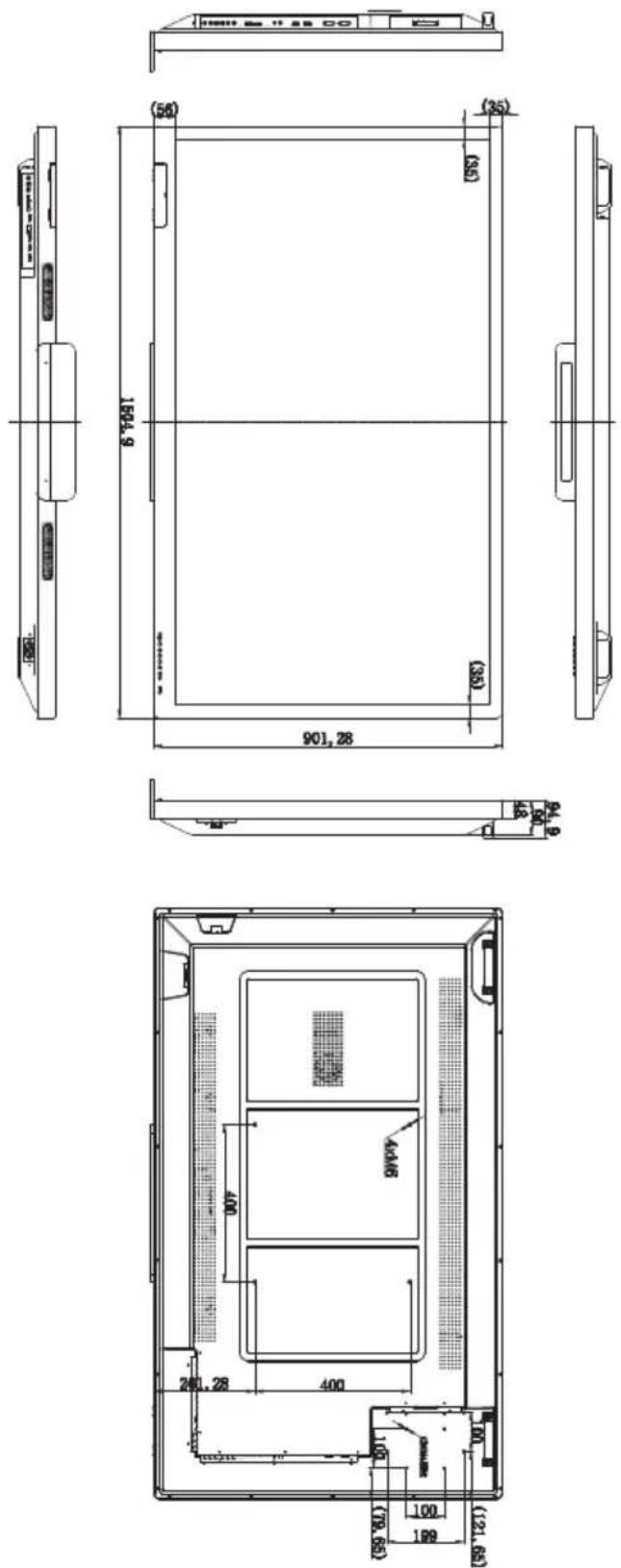
Unit: mm
RP652H
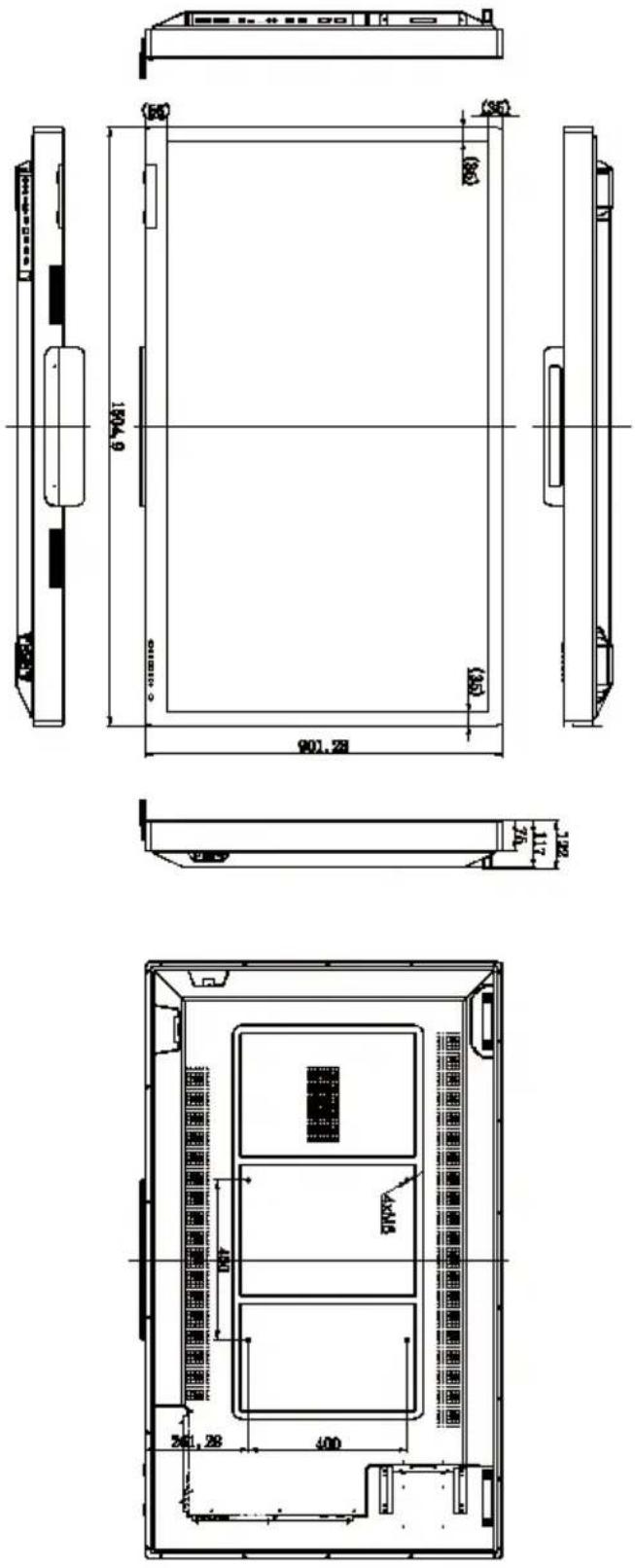
Unit: mm
RP702

text_image
234 48 400Unit: mm
RP790
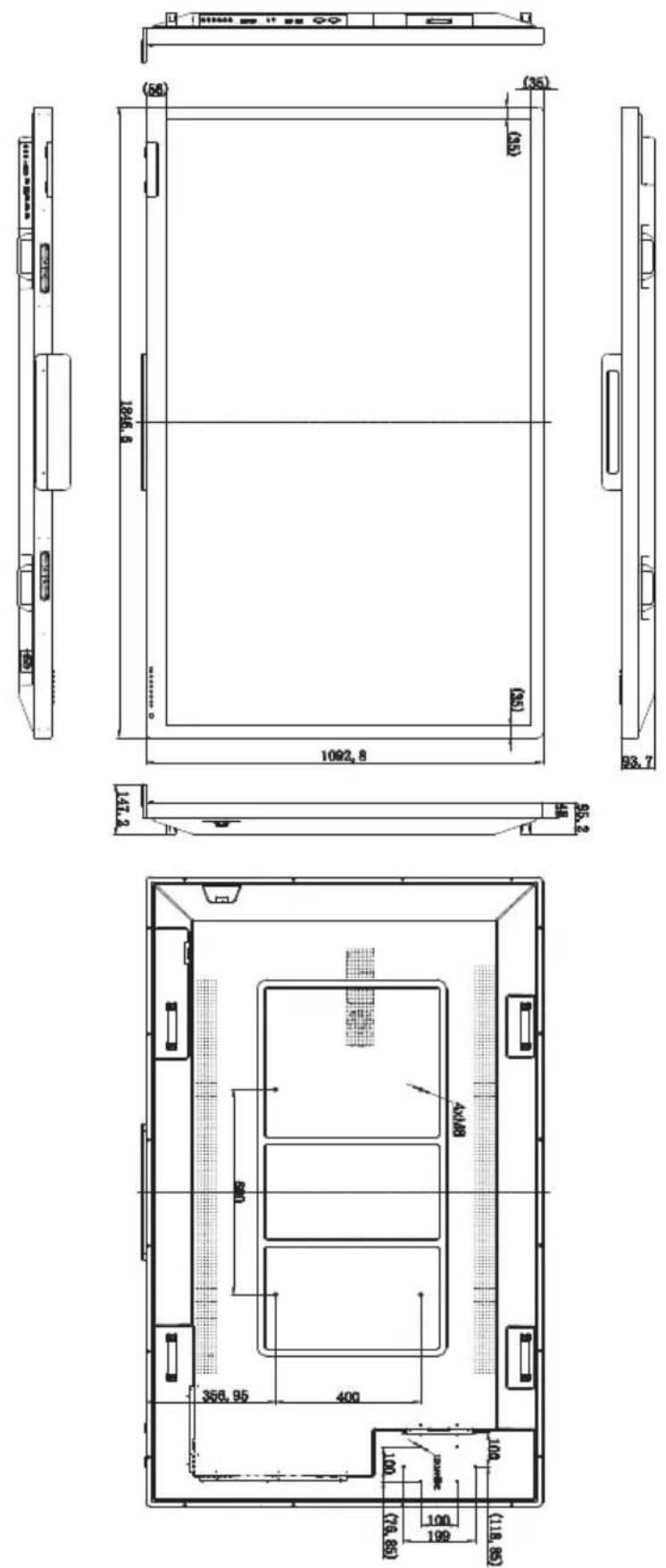
Unit: mm
Supported input signal resolution
RP652/RP652H and RP702
| Resolution | Input source | |||
| AVYPbPr VGA HDMI | ||||
| 640 x 480 @ 60Hz | ○ | |||
| 720 x 400 @ 70Hz | ○ | |||
| 800 x 600 @ 60Hz | ○ | |||
| 1024 x 768 @ 60Hz | ○ | |||
| 1280 x 720 @ 60Hz | ○ | |||
| 1280 x 768 @ 60Hz | ○ | |||
| 1280 x 960 @ 60Hz | ○ | |||
| 1280 x 1024 @ 60Hz | ○ | |||
| 1360 x 768 @ 60Hz | ○ | |||
| 1600 x 1050 @ 60Hz | ○ | |||
| 1920 x 1080 @ 60Hz | ○ | |||
| NTSC-M | ○ | |||
| NTSC-J | ○ | |||
| PAL-BDGHI | ○ | |||
| 576i (50Hz) | ○ | ○ | ||
| 480i (60Hz) | ○ | ○ | ||
| 480p (60Hz) | ○ | ○ | ||
| 576p (50Hz) | ○ | ○ | ||
| 720p (60Hz) | ○ | ○ | ||
| 1080i (50Hz) | ○ | ○ | ||
| 1080i (60Hz) | ○ | ○ | ||
| 1080p (24Hz) | ○ | |||
| 1080p (25Hz) | ○ | |||
| 1080p (30Hz) | ○ | |||
| 1080p (50Hz) | ○ | ○ | ||
| 1080p (60Hz) | ○ | ○ | ||
RP790
| Resolution | Input source | |||
| AVYPbPr VGA HDMI | ||||
| 640 x 480 @ 60Hz | ○ | |||
| 720 x 400 @ 70Hz | ○ | |||
| 800 x 600 @ 60Hz | ○ | |||
| 1024 x 768 @ 60Hz | ○ | |||
| 1280 x 720 @ 60Hz | ○ | |||
| 1280 x 768 @ 60Hz | ○ | |||
| 1280 x 960 @ 60Hz | ○ | |||
| 1280 x 1024 @ 60Hz | ○ | |||
| 1360 x 768 @ 60Hz | ○ | |||
| 1600 x 1050 @ 60Hz | ○ | |||
| 1920 x 1080 @ 60Hz | ○ | |||
| NTSC-M | ○ | |||
| NTSC-J | ○ | |||
| PAL-BDGHI | ○ | |||
| 576i (50Hz) | ○ | ○ | ||
| 480i (60Hz) | ○ | ○ | ||
| 480p (60Hz) | ○ | ○ | ||
| 576p (50Hz) | ○ | ○ | ||
| 720p (60Hz) | ○ | ○ | ||
| 1080i (50Hz) | ○ | ○ | ||
| 1080i (60Hz) | ○ | ○ | ||
| 1080p (24Hz) | ○ | |||
| 1080p (25Hz) | ○ | |||
| 1080p (30Hz) | ○ | |||
| 1080p (50Hz) | ○ | ○ | ||
| 1080p (60Hz) | ○ | ○ | ||
| 3840 x 2160@30Hz | ○ | |||

• O: supported
- Blank: not supported
• 3840 x 2160 @ 30Hz is available via HDMI 4 and HDMI 5
Troubleshooting
| Problem Solution | |
| No picture Check the following:Is the display turned on? Check the power indicator of the display.Is the signal source device turned on? Turn on the device and try again.Are there any loose cable connections? Make sure that all cables are connected firmly.Have you chosen an unsupported output resolution on the computer? Refer to Supported input signal resolution on page 50 to select a supported resolution and try again.Have you chosen an unsupported output resolution on the DVD or Blu-ray disc player? Refer to Supported input signal resolution on page 50 to select a supported resolution and try again. | |
| No sound Check the following:Have you turned on the mute function on the display or the input source device? Turn off the mute function or increase the audio volume level and try again.Are there any loose cable connections? Make sure that all cables are connected firmly. | |
| The computer input image looks strange | Have you chosen an unsupported output resolution on the computer? Refer to Supported input signal resolution on page 50 to select a supported resolution and try again.Use the Auto Tune function (See Picture menu on page 31) to let the display automatically optimize the display of computer image.If the result of the Auto Tune function is not satisfactory, use the Clock, Phase, Horizontal Position, and Vertical Position functions to manually adjust the image. |
| The control panel buttons do not work | Have you locked the control panel buttons? Unlock the buttons and try again. |
| The remote control does not work | Check for incorrect battery orientation.Check for dead batteries.Check your distance and angle from the display.Check whether remote control is properly being pointed at the display's remote control sensor window.Check for any obstacle between the remote control and the remote control sensor window.Check that the remote control sensor window is not under strong fluorescent lighting, or in direct sunlight.Check for any devices (computer or personal digital assistant, PDA) nearby that transmit infrared signals which may cause interference to signal transmission between the remote control and the display. Turn off the infrared function of these devices. |
| USB Function | When working with the environment of ESD interference, it is normal that the USB connection will be disconnected.The users have to restart the USB connection manually. |