M7200 - Router NETGEAR - Free user manual and instructions
Find the device manual for free M7200 NETGEAR in PDF.


User questions about M7200 NETGEAR
0 question about this device. Answer the ones you know or ask your own.
Ask a new question about this device
Download the instructions for your Router in PDF format for free! Find your manual M7200 - NETGEAR and take your electronic device back in hand. On this page are published all the documents necessary for the use of your device. M7200 by NETGEAR.
USER MANUAL M7200 NETGEAR
About This Guide....1
Chapter 1. Get to Know About Your Mobile Wi-Fi....3
-
- Product Overview....3
1.2. Physical Description 4
1.2.1.The Exterior....4
1.2.2.The Interior 5
- Product Overview....3
Chapter 2. Set Up Internet Connection ....6
2.1. Install the Mobile Wi-Fi....7
2.2. Connect to the Internet 8
Chapter 3. Log In.... 10
3.1. Via Phone Login Entry 11
3.2. Via PC Login Entry 11
3.3. Via tpMiFi App 12
Chapter 4. Manage Your Data Usage ...... 14
4.1. Track Data Usage 15
4. 1. 1. Check Data Usage on the Web Management Page.... 15
4. 1. 2. Check Data Usage via SMS....15
4. 1. 3.Revise Data Usage ..... 16
4.2. Limit Data Usage 17
4.2.1.Limit Data Package....17
4. 2. 2. Limit Monthly Data Usage ..... 18
4.3. Set Up Free Data Period ..... 19
4.4. Enable Mobile Data 20
4.5. Enable Data Roaming 21
Chapter 5. Secure Your Network ...... 22
5.1. Secure Wireless Network 23
5.2. Block Unwelcome Devices....24
5.3. Lock SIM Card....24
Chapter 6. NAT Forwarding.... 27
6.1. Translate Address and Port by ALG....28
6.2. Share Local Resources over the Internet by Virtual Server....29
6.3. Open Ports Dynamically by Port Triggering....30
6. 4. Make Applications Free from Port Restriction by DMZ ....31
6.5. Make Xbox Online Games Run Smoothly by UPnP 32
Chapter 7. Customize Your Network.... 34
7.1. Specify Network Mode 35
7.2. Configure Dial-up....36
7.2.1.Configure Dial-up Settings 36
7.2.2.Configure Network Search 37
7.3. Configure DHCP Server....37
Chapter 8. Manage Your Mobile Wi-Fi 39
8.1. Save the Mobile Wi-Fi's Power 40
8.2. Change Login Password 41
8.3. Set Up System Time 42
8.4. Restore Configuration Settings 42
8.5. Update the Firmware 43
8.6. Update ISP Parameters ..... 44
8.7. System Log....45
FAQ 46
About This Guide
This guide is a complement of Quick Installation Guide. The Quick Installation Guide provides instructions for quick internet setup, while this guide contains details of each function and demonstrates how to configure them.
Features available in the Mobile Wi-Fi may vary by model and software version. Mobile Wi-Fi availability may also vary by region or ISP. All images, steps, and descriptions in this guide are only examples and may not reflect your actual Mobile Wi-Fi experience.
Conventions
In this guide the following conventions are used:
| Convention Description | |
| Underlined | Underlined words or phrases are hyperlinks. You can click to redirect to a website or a specific section. |
| Teal | Contents to be emphasized and texts on the web page are in teal, including the menus, items, buttons and so on. |
| > | The menu structures to show the path to load the corresponding page. For example, Advanced > Wireless > Black List means the Black List page is under the Wireless menu that is located in the Advanced tab. |
| Note: | Ignoring this type of note might result in a malfunction or damage to the device. |
| Tips: | Indicates important information that helps you make better use of your device. |
*Maximum wireless signal rates are the physical rates derived from IEEE Standard 802.11 specifications. Actual wireless data throughput and wireless coverage are not guaranteed and will vary as a result of 1) environmental factors, including building materials, physical objects, and obstacles, 2) network conditions, including local interference, volume and density of traffic, product location, network complexity, and network overhead, and 3) client limitations, including rated performance, location, connection, quality, and client condition.
*Battery life estimates obtained through testing in a laboratory setting.
More Info
The latest software, management app and utility are available at the Download Center at www.tp-link.com/support.
The Quick Installation Guide can be found in the same place you found this guide or inside the package of the Mobile Wi-Fi.
Specifications can be found on the product page at https://www.tp-link.com.
TP-Link Community is provided for you to discuss our products and share knowledge at https://community.tp-link.com.
Our Technical Support contact information can be found at Contact Technical Support page at www.tp-link.com/support.
Chapter 1
Get to Know About Your Mobile Wi-Fi
This chapter introduces what the Mobile Wi-Fi can do and its appearance. It includes the following sections:
• Product Overview
• Physical Description
1. 1. Product Overview
The Faster Connections, The More You Can Do
Just insert a SIM card to create your reliable personal Wi-Fi hotspot and share instant 4G/3G connectivity with friends. The Mobile Wi-Fi, supporting the latest generation 4G LTE network, can reach a faster download speed so that users can enjoy HD movies without interruption, download files in seconds, and hold a video chat without dropouts.
Artful Little Gadget and Built-in Battery for Life on the Go
The TP-Link Mobile Wi-Fi features a compact, elegant design and rechargeable powerful battery very suitable for travel, business trips and outdoor activities. With added flexibility, the device can be charged via a micro USB cable connected to an adapter, laptop or portable charger for endless hours of 4G sharing.
Easy Management with the tpMiFi App
With the tpMiFi App, you can conveniently access and manage the Mobile Wi-Fi right on your iOS/Android devices. The tpMiFi app allows you to set data limits, control Wi-Fi access and send messages.
1.2. Physical Description
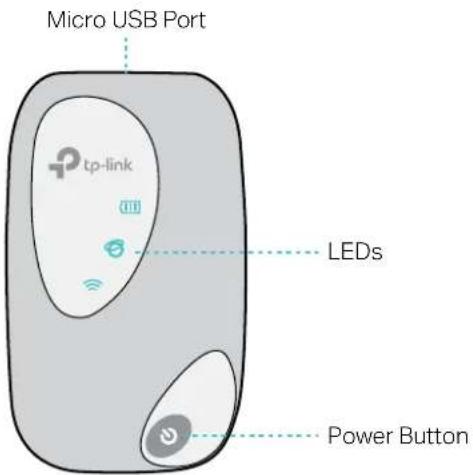
1.2.1. The Exterior
text_image
Micro USB Port tp-link LEDs Power ButtonLED Explanation
| LED Status | Indication | |
| (Wi-Fi) | On Wi-Fi is enabled. | |
| Off Wi-Fi is disabled. | ||
| (Internet) | On Internet service is available. | |
| Off Internet service is unavailable. | ||
| (Battery) | On Power is on. | |
| Off Power is off. | ||
| Blinking Red The battery level is lower than 10%. | ||
| Blinking Green The Mobile Wi-Fi is charging. | ||
Note:
The LEDs will turn off automatically after idling for 30 seconds. To check the LED status, press the Power button to turn them on again.
Item Explanation
| Item Description | |
| Power Button | Press and hold to power on/off the Mobile Wi-Fi.Press to turn on LEDs if they are off after idling. |
| Micro USB Port Plug in the USB cable to this port to charge your Mobile Wi-Fi. | |
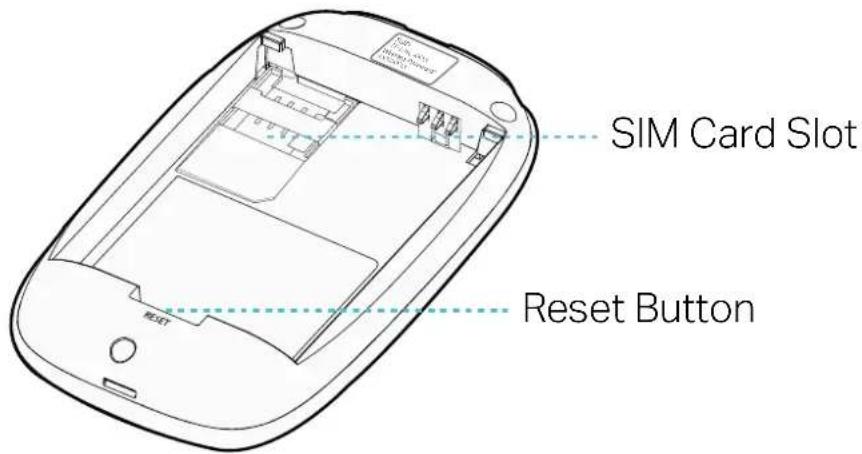
1.2.2. The Interior
text_image
SIM Card Slot Reset ButtonItem Explanation
| Item Description | |
| SIM Card Slot | Insert a SIM card into the slot. A micro or nano SIM card must be converted using a SIM card adapter. |
| Reset Button | With the Mobile Wi-Fi powered on, use a pin to press and hold this button until all LEDs turn on momentarily to reset the Mobile Wi-Fi. |
Note:
- The label is under the battery pack.
- Resetting the device to its factory defaults will clear all previous configuration.
Set Up Internet Connection
This chapter introduces how to install the Mobile Wi-Fi and connect your wireless or smart devices to the internet.
It includes the following sections:
• Install the Mobile Wi-Fi
- Connect to the Internet
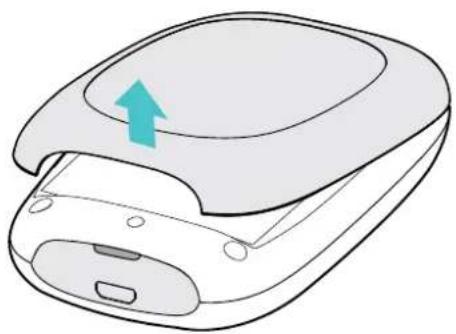
2.1. Install the Mobile Wi-Fi
- Remove the back cover.
natural_image
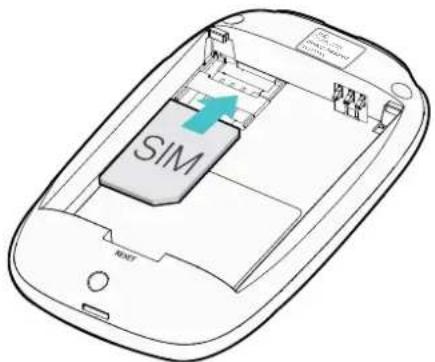
Illustration of a medical device with a blue arrow indicating upward motion (no text or symbols)- Insert your SIM card.
text_image
SIM RINEXTNote:
- A micro or nano SIM card must be converted using a SIM card adapter.
-
The SIM card and SIM card adapter are not provided by TP-Link.
-
Install the provided battery.
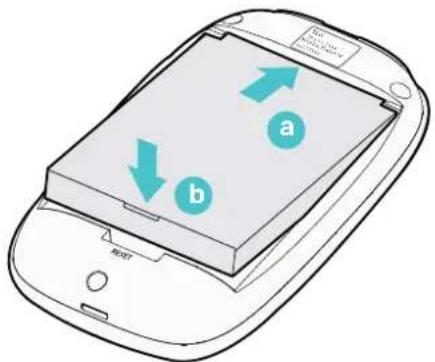
text_image
a b- Note down the default SSID and Wireless Password.
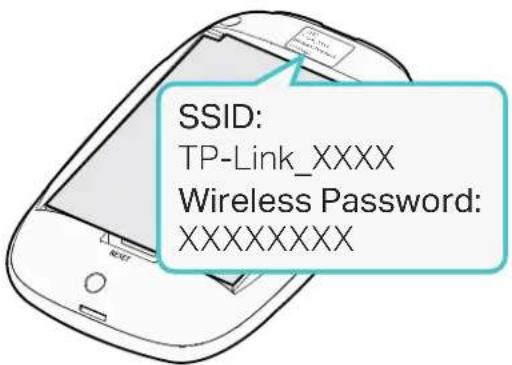
text_image
SSID: TP-Link_XXXX Wireless Password: XXXXXXXXX- Replace the cover.
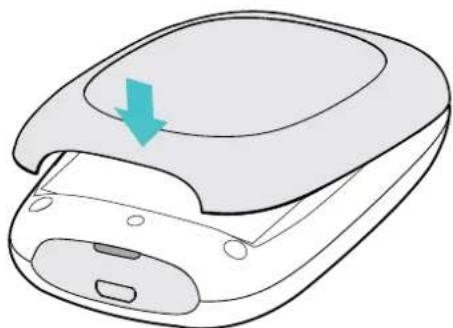
natural_image
Illustration of a medical device with a blue arrow indicating a downward motion (no text or symbols present)2.2. Connect to the Internet
- Press and hold the Power button until all LEDs are lit. Wait until the Internet LED turns solid green.
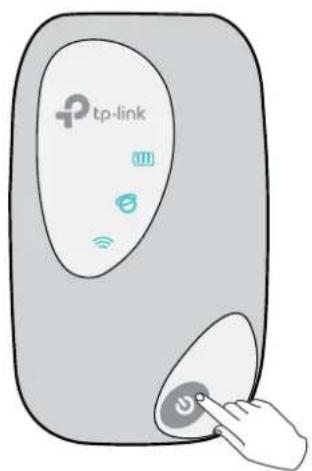
text_image
tp-linkNote:
• To power off, press and hold the Power button until all the LEDs are off.
- If the Internet LED doesn't light up, refer to FAQ > Q2.
- Connect your wireless device to the Mobile Wi-Fi using the SSID and the Wireless Password you have noted down.
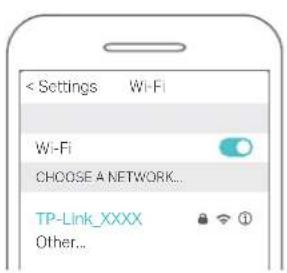
text_image
< Settings Wi-Fi Wi-Fi CHOOSE A NETWORK... TP-Link_XXXX Other...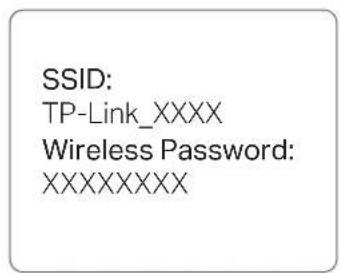
text_image
SSID: TP-Link_XXXX Wireless Password: XXXXXXXXXNote: If you use a computer to connect to the Mobile Wi-Fi, set it to obtain an IP address automatically.
- Now you can enjoy the internet!
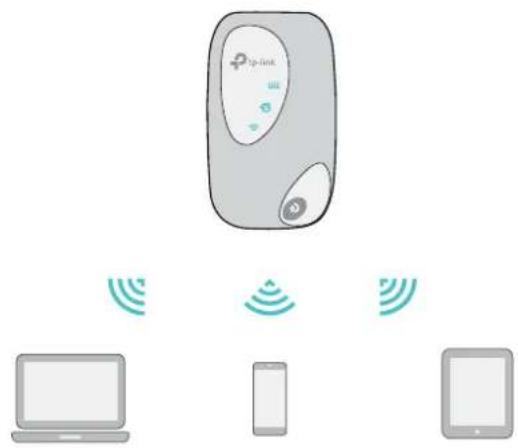
text_image
Diagram showing wireless devices connected to a device with 'Up-Link' label and multiple devices below each.Note: By default, Power Saving is enabled and the Mobile Wi-Fi will turn off the Wi-Fi when no wireless devices are connected to it for 10 minutes. To resume the Wi-Fi connection, press the Power button.
Chapter 3
Log In
This chapter introduces how to log in to the web management page. Demonstrations in this guide use the phone web management interfaces, while some use the PC ones as those functions are only available on the PC web management page.
Before login, make sure your device is connected to the Mobile Wi-Fi's SSID.
This chapter includes the following sections:
- Via Phone Login Entry
- Via PC Login Entry
- Via tpMiFi App
3.1. Via Phone Login Entry
- On your smart phone, visit http://tplinkmifi.net, and log in with the default password: admin.
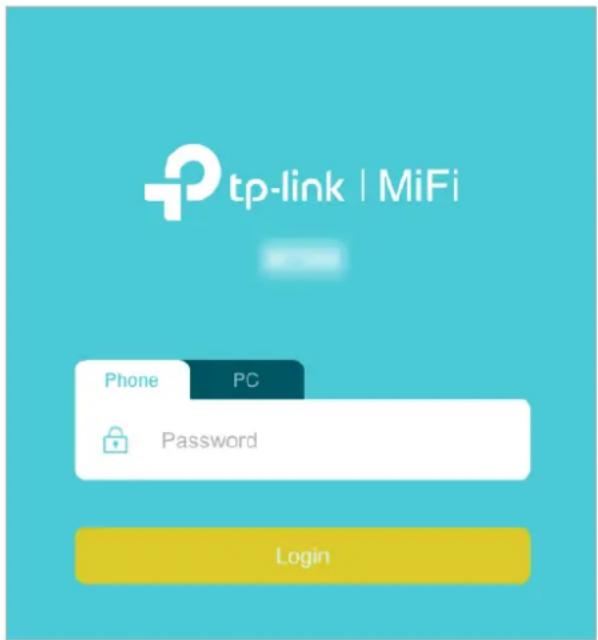
text_image
tp-link | MiFi Phone PC Password Login- Create a new login password for security purposes and click Done.
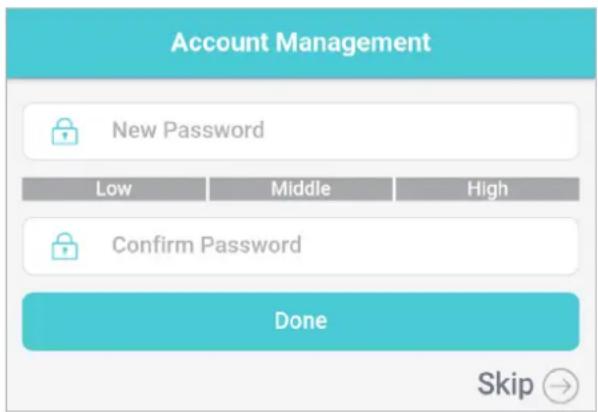
text_image
Account Management New Password Low Middle High Confirm Password Done Skip →- Use the password you just created for future logins
3.2. Via PC Login Entry
On the PC web management interfaces, you can enjoy more features, such as DHCP settings.
- On your computer or tablet, visit http://tplinkmifi.net, and log in with the password: admin.
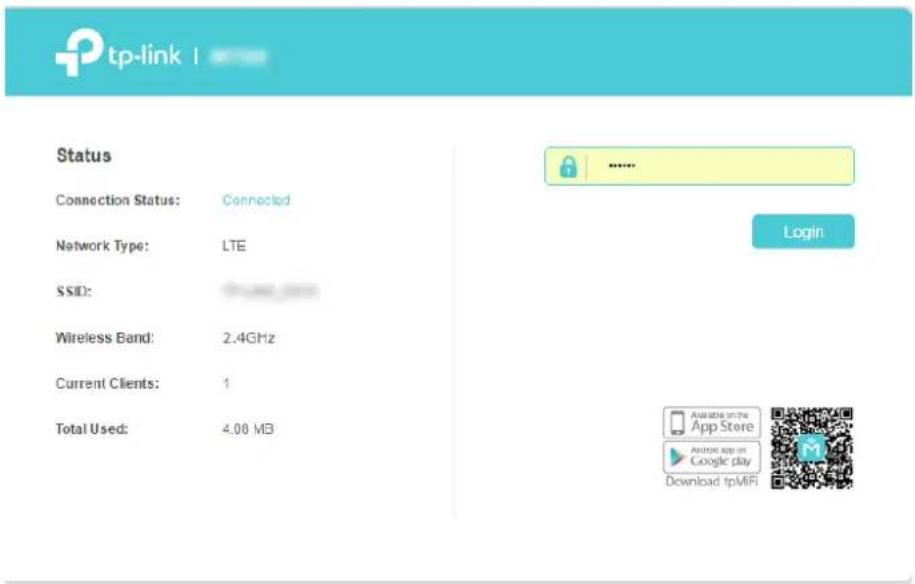
text_image
tp-link Status Connection Status: Connected Network Type: LTE SSID: Wireless Band: 2.4GHz Current Clients: 1 Total Used: 4.08 MB Login Available online at the App Store Android App in Google play Download tpMiFi- Go to Wizard, create a new login password for security purposes and use it for future logins.
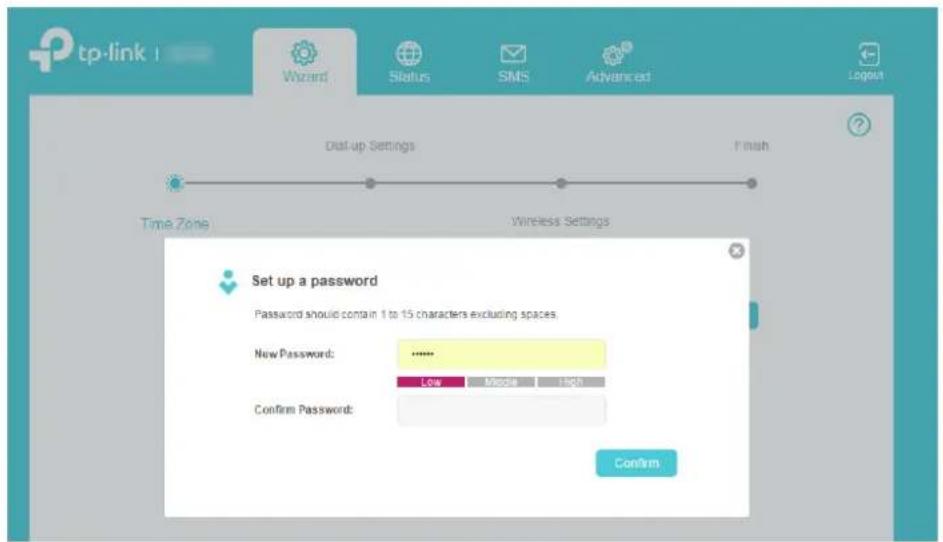
text_image
tp-link Wizard Status SMS Advanced Layout Dal-up Settings Finish Time Zone Wireless Settings Set up a password Password should contain 1 to 15 characters excluding spaces. New Password: Low Middle High Confirm Password: Confirm- Follow web instructions to complete the settings.
3. 3. Via tpMiFi App
- Search "tpMiFi" at the App Store or Google Play or simply scan the QR code to download the tpMifi app.

text_image
QR code image containing encoded data, no visible human-readable text- Connect your device to the Mobile Wi-Fi.
- Launch the tpMiFi app, and log in with the default password: admin.
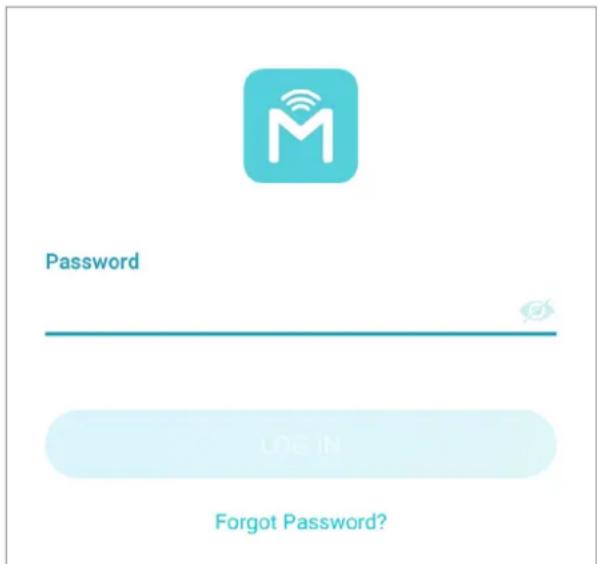
text_image
Password LOG IN Forgot Password?- Create a new password for security purposes and use it for future logins.
Manage Your Data Usage
This chapter explains how to manage the data usage of your Mobile Wi-Fi. It includes the following sections:
- Track Data Usage
- Limit Data Usage
- Set Up Free Data Period
- Enable Mobile Data
- Enable Data Roaming
4.1. Track Data Usage
This feature allows you to monitor the amount of data you have used on your Mobile Wi-Fi and revise the displayed data usage as needed.
4. 1. 1. Check Data Usage on the Web Management Page
-
Visit http://tplinkmifi.net, and log in with the password you set for the Mobile Wi-Fi.
-
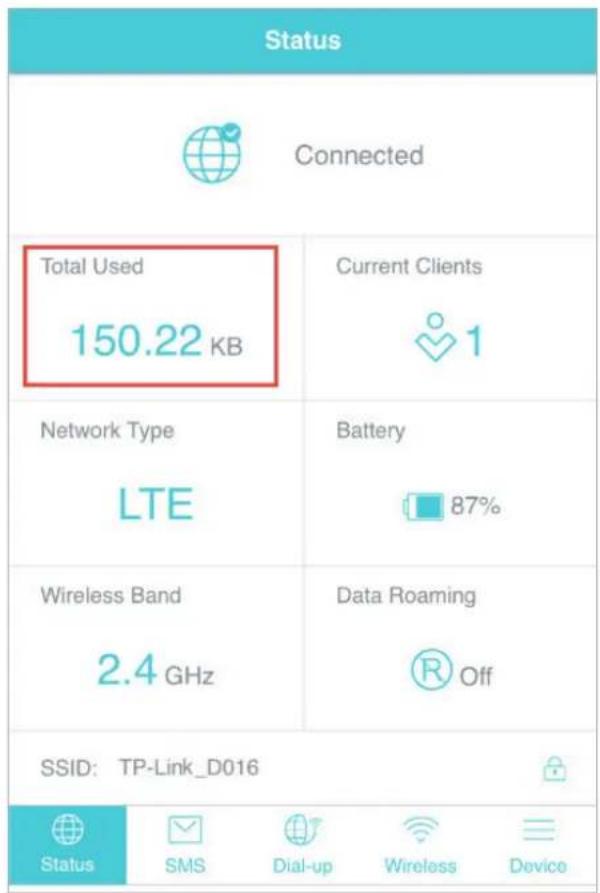
You can view the data usage on the Status page as shown below.
text_image
Status Connected Total Used 150.22 KB Current Clients 1 Network Type LTE Battery 87% Wireless Band 2.4 GHz Data Roaming Off SSID: TP-Link_D016 Status SMS Dial-up Wireless DeviceNote:
- Actual data usage may vary from the estimated data usage displayed on the usage meter.
- The page above displays the monthly data usage if you have enabled Monthly Data Statistics.
4. 1. 2. Check Data Usage via SMS
Your mobile carrier can provide more accurate data usage information. To obtain it, you can send messages to your mobile carrier.
-
Visit http://tplinkmifi.net, and log in with the password you set for the Mobile Wi-Fi.
-
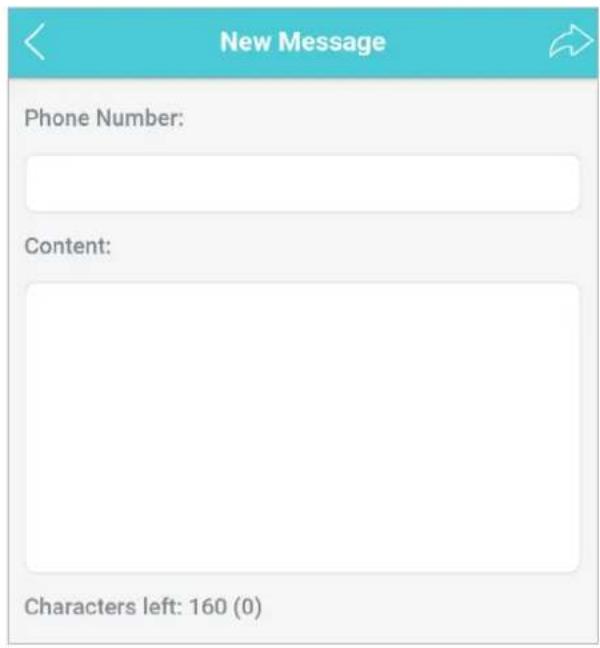
Go to SMS.
- Tap New Message.
- Create a message to your carrier and then tap to send it. And a few minutes later, you will receive a message of data usage information. For the phone number and message content, check from your carrier.
text_image
New Message Phone Number: Content: Characters left: 160 (0)4. 1. 3. Revise Data Usage
If the data usage displayed is not accurate, you can modify it as needed.
- Visit http://tplinkmifi.net, and log in with the password you set for the Mobile Wi-Fi.
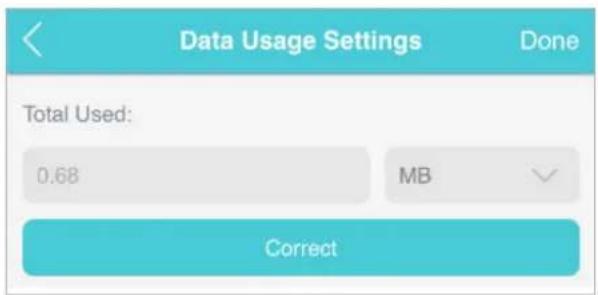
- Go to Device > Data Usage Settings.
- The figure below displays the current data usage. Tap Correct, enter a more accurate value for the data usage.
text_image
Data Usage Settings Done Total Used: 0.68 MB ✓ Correct- Tap Done.
Note:
- You can obtain the exact data usage from your carrier. Please refer to Check Data Usage via SMS.
- The page above displays the monthly data usage if you have enabled Monthly Data Statistics.
4.2. Limit Data Usage
This feature allows you to establish data limits for different data packages so that you can better control your data usage.
4.2.1. Limit Data Package
I want to:
Limit my data usage so that I will not exceed my data package (2GB). I wish to:
- Receive an alert when the data usage reaches 90% of the allowance (1.8GB);
- Disable the internet access automatically when it reaches the allowance (2GB).
How can I do that?
- Visit http://tplinkmifi.net, and log in with the password you set for the Mobile Wi-Fi.
- Go to Device > Data Usage Settings.
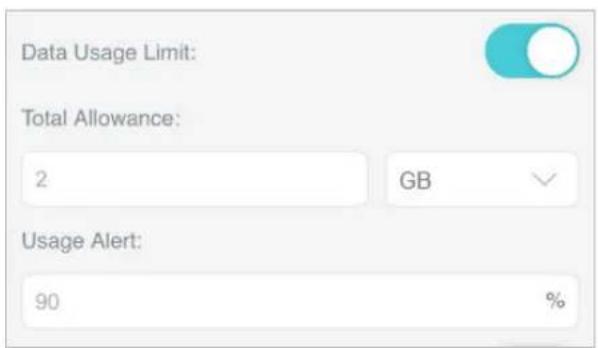
- Enable Data Usage Limit.
- Enter 2 in Total Allowance field and specify GB as the unit of measure. To inform you that your data usage has reached the allowance, the internet access will be disabled automatically and the data usage value on the Status page will turn red.
- Set 90 as the Usage Alert percentage. To inform you that your data usage has reached the alert value, the data usage value on the Status page will turn orange.
text_image
Data Usage Limit: Total Allowance: 2 GB Usage Alert: 90 %- Tap Done.
Done!
Now your data usage is limited according to your settings.
4.2.2. Limit Monthly Data Usage
I want to:
Limit my data usage so that I will not exceed my monthly data package (800MB). I wish to:
- Receive an alert when the data usage reaches 90% of the allowance (720MB).
- Disable the internet access automatically when it reaches the allowance (800MB).
How can I do that?
- Visit http://tplinkmifi.net, and log in with the password you set for the Mobile Wi-Fi.
- Go to Device > Data Usage Settings.
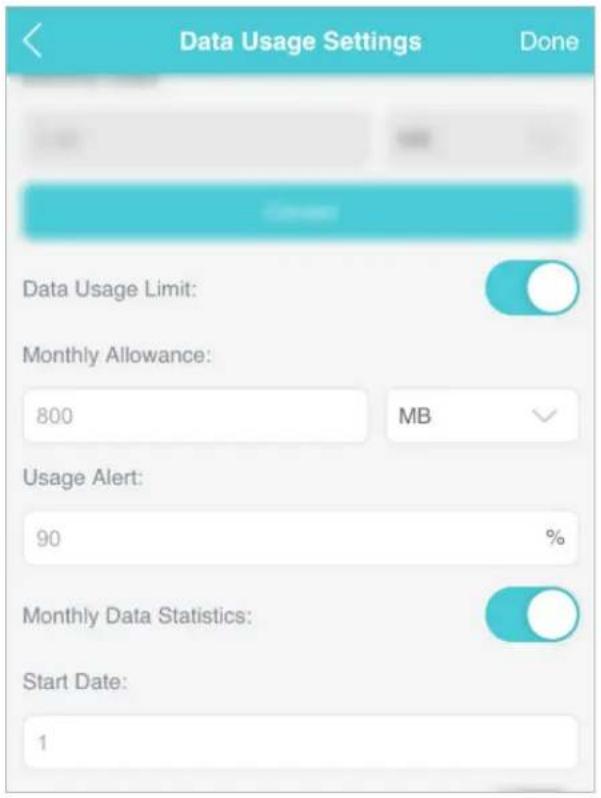
- Enable Data Usage Limit and Monthly Data Statistics.
- Enter 800 in Monthly Allowance field and specify MB as the unit of measure. To inform you that your data usage has reached the allowance, the internet access will be disabled automatically and the data usage value on the Status page will turn red.
- Set 90 as the Usage Alert percentage. To inform you that your data usage has reached the alert value, the data usage value on the Status page will turn orange.
- Enter the Start Date.
Note:
The monthly data usage statistics will be cleared and recounted from the date you have set every month.
text_image
Data Usage Settings Done Data Usage Limit: Monthly Allowance: 800 MB Usage Alert: 90 % Monthly Data Statistics: Start Date: 17. Tap Done.
Done!
Now your data usage is limited according to your settings.
4.3. Set Up Free Data Period
In the free data period, you will not be charged for data by the mobile carrier. If your carrier has provided this data service to you, you can specify the free data period during, so the data usage will not be counted for data alert and limitation.
- Visit http://tplinkmifi.net, and log in with the password you set for the Mobile Wi-Fi.
- Go to Device > Data Usage Settings.
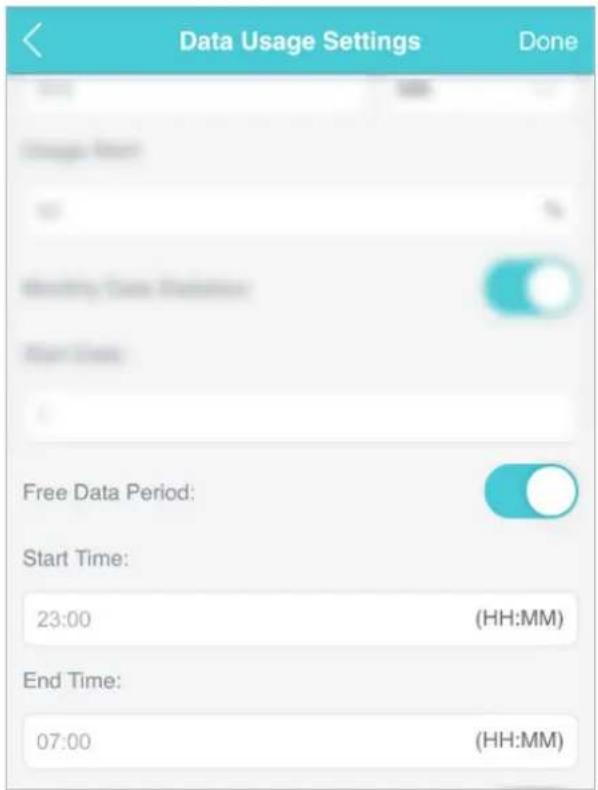
- Enable Free Data Period.
- Enter the Start Time and End Time of Free Data Period.
text_image
Data Usage Settings Done Free Data Period: Start Time: 23:00 (HH:MM) End Time: 07:00 (HH:MM)- Tap Done.
4.4. Enable Mobile Data
With Mobile Data (also known as cellular data) enabled, devices connected to the Mobile Wi-Fi can access the internet. This feature is enabled by default.
- Visit http://tplinkmifi.net, and log in with the password you set for the Mobile Wi-Fi.
- Go to Dial-up.
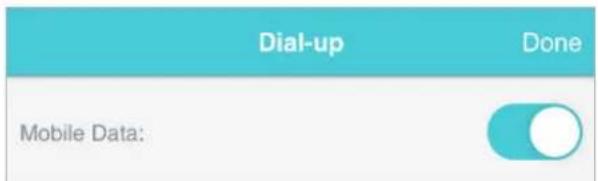
- Enable Mobile Data.
text_image
Dial-up Done Mobile Data:- Tap Done.
4.5. Enable Data Roaming
If you are out of your carrier's service area, the ☐on will appear on the Mobile Wi-Fi's PC management page, and you will need to enable data roaming to access the internet.
- Visit http://tplinkmifi.net, and log in with the password you set for the mobile Wi-Fi.
- Go to Dial-up.
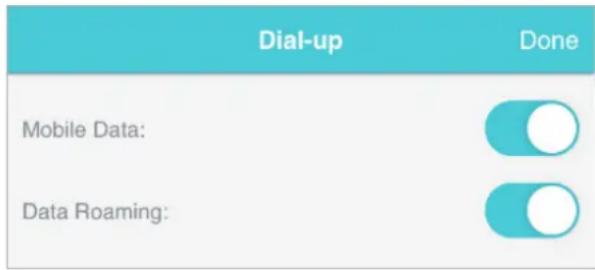
- Enable Data Roaming.
text_image
Dial-up Done Mobile Data: Data Roaming:- Tap Done.
Secure Your Network
This chapter explains how to secure your network in various ways. You can change the SSID, manage the blacklist and lock your SIM card to safeguard your network.
It includes the following sections:
- Secure Wireless Network
• Block Unwelcome Devices - Lock SIM Card
5.1. Secure Wireless Network
The SSID (wireless network name), wireless password of the Mobile Wi-Fi and security options are preset as default. The default SSID and password can be found inside the back cover of your Mobile Wi-Fi. You can customize the wireless settings as needed.
- Visit http://tplinkmifi.net, and log in with the password you set for the Mobile Wi-Fi.
- Go to Wireless.
• To change the SSID and wireless password:
- Enter a new SSID and wireless password in the Wireless Network Name and Wireless Password fields respectively.
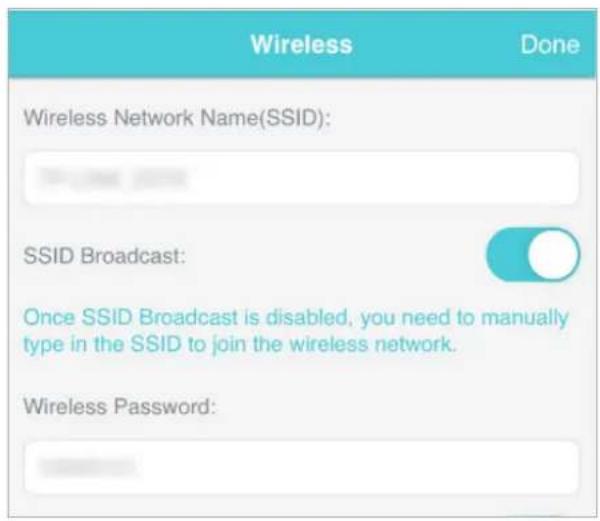
text_image
Wireless Done Wireless Network Name(SSID): SSID Broadcast: Once SSID Broadcast is disabled, you need to manually type in the SSID to join the wireless network. Wireless Password:2. Tap Done.
- To hide the SSID:
- Toggle off SSID Broadcast, so the SSID will not be displayed when you scan for wireless networks.
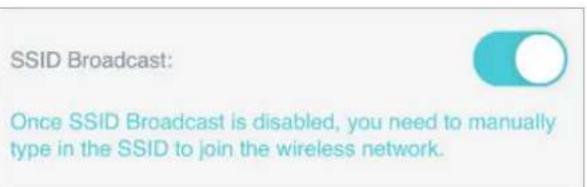
text_image
SSID Broadcast: Once SSID Broadcast is disabled, you need to manually type in the SSID to join the wireless network.2. Tap Done.
Note:
If the SSID is hidden, it will not be displayed on your wireless device when you scan for local wireless networks. And you need to manually enter the SSID to join the network.
5.2. Block Unwelcome Devices
This feature allows you to restrict unwelcome devices to accessing the wireless network of your Mobile Wi-Fi.
- Visit http://tplinkmifi.net, and log in with the password you set for the mobile Wi-Fi.
- Go to Status > Current Clients.
- Tap
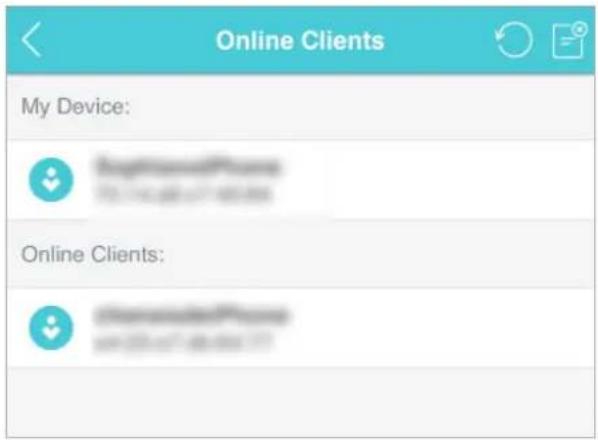
text_image
Online Clients My Device: OptionsPhone Online Clients:- Select the device(s) that you want to block from the Online Clients list.
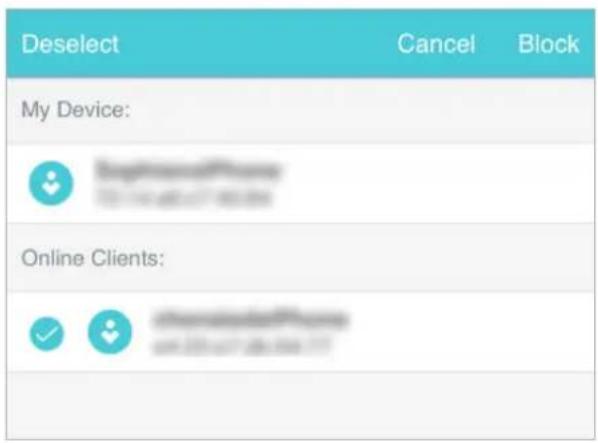
text_image
Deselect Cancel Block My Device: Online Clients:- Tap Block.
5.3. Lock SIM Card
This feature allows you to lock your SIM card with the PIN lock. Once the PIN lock is enabled, every time you start your Mobile Wi-Fi or another device (such
as a smartphone or tablet) with this SIM card inserted, you need to enter the PIN code to access the internet.
If you don't wish to enter the PIN code when using this SIM card on your Mobile Wi-Fi, you can enable the Auto-unlock PIN upon Power-on function. You will still have to enter the PIN code after inserting the SIM card to another device (such as a smartphone or tablet), however.
- To enable the PIN lock:
- Visit http://tplinkmifi.net, and log in with the password you set for the Mobile Wi-Fi.
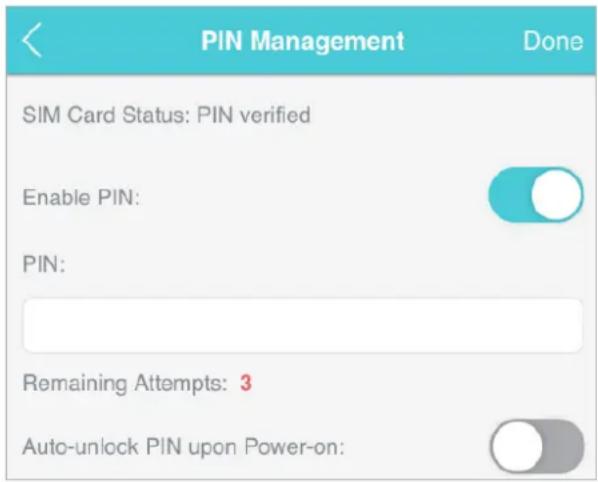
- Go to Device > Advanced > PIN Management. Toggle on Enable PIN.
- Enter the PIN code of your SIM card.
text_image
PIN Management Done SIM Card Status: PIN verified Enable PIN: PIN: Remaining Attempts: 3 Auto-unlock PIN upon Power-on:4. Tap Done.
- Visit http://tplinkmifi.net and enter the PIN code to access the internet every time you start your Mobile Wi-Fi.
Note:
- The PIN code of your SIM card is preset by your carrier and usually can be found on the package of the SIM card.
- After 3 failed verification attempts the SIM will be locked, and you will need to enter the PUK code to unlock it. The PUK code can usually be found on the package of the SIM card, too.
- To enable Auto-unlock PIN upon Power-on:
- Visit http://tplinkmifi.net, and log in with the password you set for the Mobile Wi-Fi.
- Go to Device > Advanced > PIN Management.
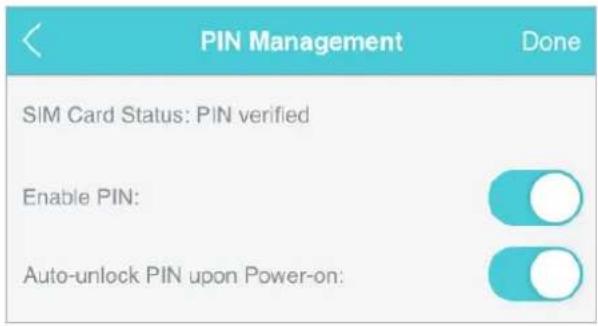
- Enable Auto-unlock PIN upon Power-on.
text_image
PIN Management Done SIM Card Status: PIN verified Enable PIN: Auto-unlock PIN upon Power-on:- Once enabled, you can save the trouble of entering the PIN code on your Mobile Wi-Fi upon power-on.
- To reset PIN code:
- On your computer or tablet, visit http://tplinkmifi.net, and log in with the password you set for the Mobile Wi-Fi.
- Go to Advanced > Dial-up > PIN Management.
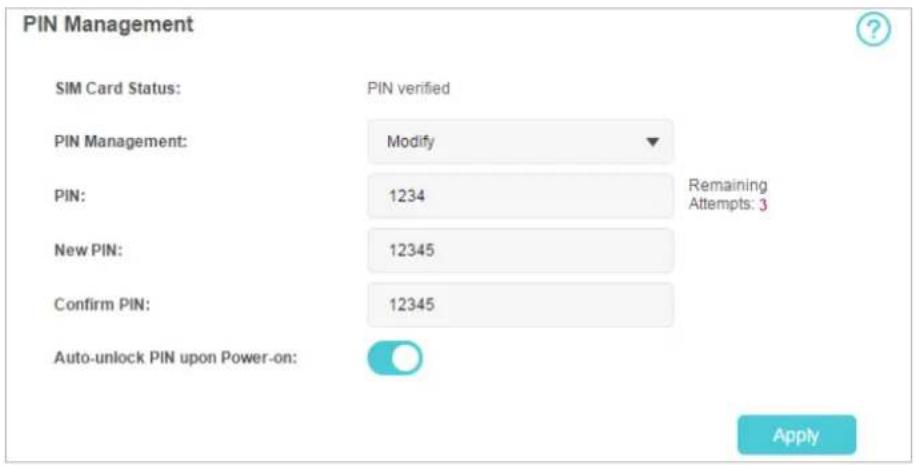
- If SIM Card Status is disabled, select Enable from the drop-down list, enter the PIN code of your SIM card, and then click Apply.
- Select Modify from the drop-down list.
- Enter the current PIN code and then enter a new PIN code twice.
text_image
PIN Management SIM Card Status: PIN verified PIN Management: Modify PIN: 1234 Remaining New PIN: 12345 Attempts: 3 Confirm PIN: 12345 Auto-unlock PIN upon Power-on: Apply- Click Apply.
- Use the new PIN code for future PIN verifications.
NAT Forwarding
Mobile Wi-Fi NAT (Network Address Translation) feature makes the devices in the LAN use the same public IP address to communicate in the internet, which protects the local network by hiding IP addresses of the devices. However, it also brings about the problem that external host cannot initiatively communicate with the specified device in the local network.
The Mobile Wi-Fi can use a forwarding feature to remove the isolation of NAT and allow external internet hosts to intuitively communicate with the devices in the local network, thus enabling some special features.
TP-Link Mobile Wi-Fi includes four forwarding rules. If two or more rules are set, the priority of implementation from high to low is Virtual Servers, Port Triggering, UPNP and DMZ.
This chapter contains the following sections:
• Translate Address and Port by ALG
- Share Local Resources over the Internet by Virtual Server
- Open Ports Dynamically by Port Triggering
• Make Applications Free from Port Restriction by DMZ
• Make Xbox Online Games Run Smoothly by UPnP
6.1. Translate Address and Port by ALG
ALG (Application Layer Gateway) allows customized NAT (Network Address Translation) traversal filters to be plugged into the gateway to support address and port translation for certain application layer "control/data" protocols: FTP, TFTP, H323 etc. Enabling ALG is recommended.
- On your computer or tablet, visit http://tplinkmifi.net, and log in with the password you set for the Mobile Wi-Fi.
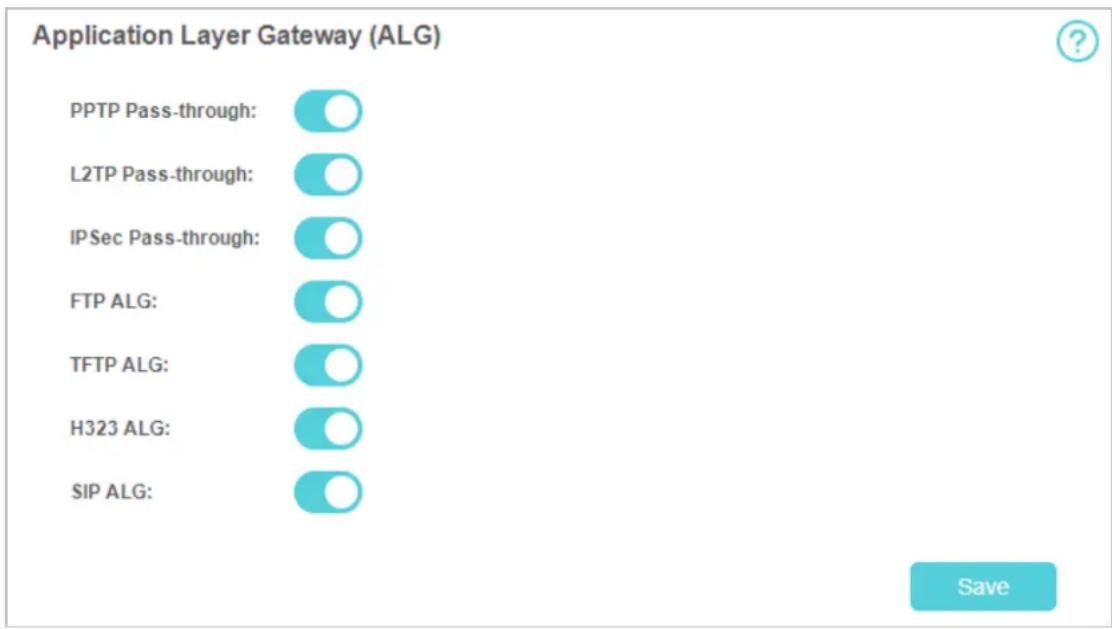
- Go to Advanced > NAT Forwarding > ALG.
text_image
Application Layer Gateway (ALG) PPTP Pass-through: L2TP Pass-through: IPSec Pass-through: FTP ALG: TFTP ALG: H323 ALG: SIP ALG:- PPTP Pass-through: If enabled, it allows Point-to-Point sessions to be tunneled through an IP network and passed through the Mobile Wi-Fi.
- L2TP Pass-through: If enabled, it allows Layer 2 Point-to-Point sessions to be tunneled through an IP network and passed through the Mobile Wi-Fi.
- IPSec Pass-through: If enabled, it allows IPSec (Internet Protocol Security) to be tunneled through an IP network and passed through the Mobile Wi-Fi. IPSec uses cryptographic security services to ensure private and secure communications over IP networks.
- FTP ALG: If enabled, it allows FTP (File Transfer Protocol) clients and servers to transfer data via NAT.
- TFTP ALG: If enabled, it allows TFTP (Trivial File Transfer Protocol) clients and servers to transfer data via NAT.
- H323 ALG: If enabled, it allows Microsoft NetMeeting clients to communicate via NAT.
- SIP ALG: If enabled, it allows clients communicate with SIP (Session Initiation Protocol) servers via NAT.
6.2. Share Local Resources over the Internet by Virtual Server
When you build up a server in the local network and want to share it on the internet, Virtual Server can realize the service and provide it to the internet users. At the same time virtual server can keep the local network safe as other services are still invisible from the internet.
Virtual server can be used for setting up public services in your local network, such as HTTP, FTP, DNS, POP3/SMTP and Telnet. Different service uses different service port. Port 80 is used in HTTP service, port 21 in FTP service, port 25 in SMTP service and port 110 in POP3 service. Please verify the service port number before the configuration.
I want to:
Share my personal website I've built in a local network with my friends through the internet.
For example, the personal website has been built on my home PC (192.168.0.100). I hope that my friends can visit my website. The PC is connected to the Mobile Wi-Fi with the WAN IP address 218.18.232.154.
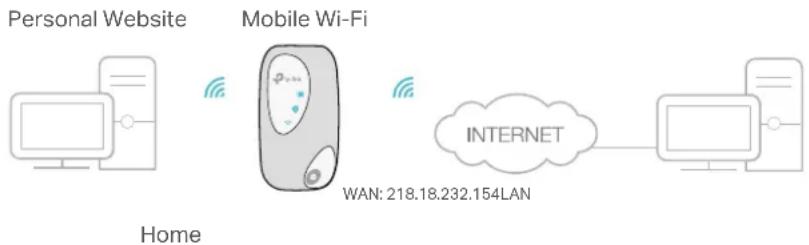
flowchart
graph LR
    A["Personal Website"] -->|Wi-Fi| B["Mobile Wi-Fi"]
    B -->|Wi-Fi| C["INTERNET"]
    C --> D["Internet"]
    style A fill:#f9f,stroke:#333
    style B fill:#ccf,stroke:#333
    style C fill:#cfc,stroke:#333
    style D fill:#fcc,stroke:#333
How can I do that?
- Assign a static IP address to your PC, for example 192.168.0.100.
- On your computer or tablet, visit http://tplinkmifi.net, and log in with the password you set for the Mobile Wi-Fi.
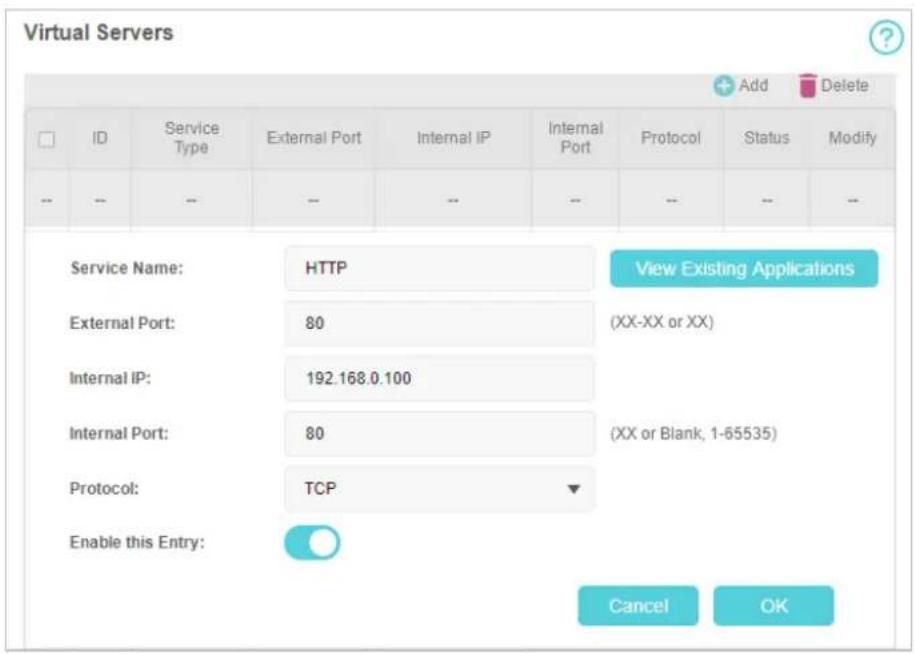
- Go to Advanced > NAT Forwarding > Virtual Servers. Click Add.
text_image
Virtual Servers ID Service Type External Port Internal IP Internal Port Protocol Status Modify -- -- -- -- -- -- -- Service Name: HTTP View Existing Applications External Port: 80 (XX-XX or XX) Internal IP: 192.168.0.100 Internal Port: 80 (XX or Blank, 1-65535) Protocol: TCP Enable this Entry: Cancel OK-
Click View Existing Applications, and choose HTTP. The external port, internal port and protocol will be automatically filled with contents. Enter the PC's IP address 192.168.0.100 in the Internal IP field.
-
Click OK to save the settings.
Tips:
- It is recommended to keep the default settings of Internal Port and Protocol if you are not clear about which port and protocol to use.
- If the service you want to use is not in the Service Type, you can enter the corresponding parameters manually. You should verify the port number that the service needs.
- You can add multiple virtual server rules if you want to provide several services from a Mobile Wi-Fi. Please note that the External Port cannot be overlapped.
Done!
Internet users can enter http://WAN IP (in this example: http://218.18.232.154) to visit your personal website.
Tips:
If you have changed the default External Port, you should use http://WAN IP: External Port or http://domain name: External Port to visit the website.
6.3. Open Ports Dynamically by Port Triggering
Port triggering can specify a triggering port and its corresponding external ports. When a host in the local network initiates a connection to the triggering port, all the external ports will be opened for subsequent connections. The Mobile Wi-Fi can record the IP address of the host. When the data from the internet returns to the external ports, the Mobile Wi-Fi can forward them to the corresponding host. Port triggering is mainly
applied to online games, VoIPs and video players. Common applications include MSN Gaming Zone, Dialpad, Quick Time 4 players, and so on.
Follow the steps below to configure the port triggering rules:
- On your computer or tablet, visit http://tplinkmifi.net, and log in with the password you set for the Mobile Wi-Fi.
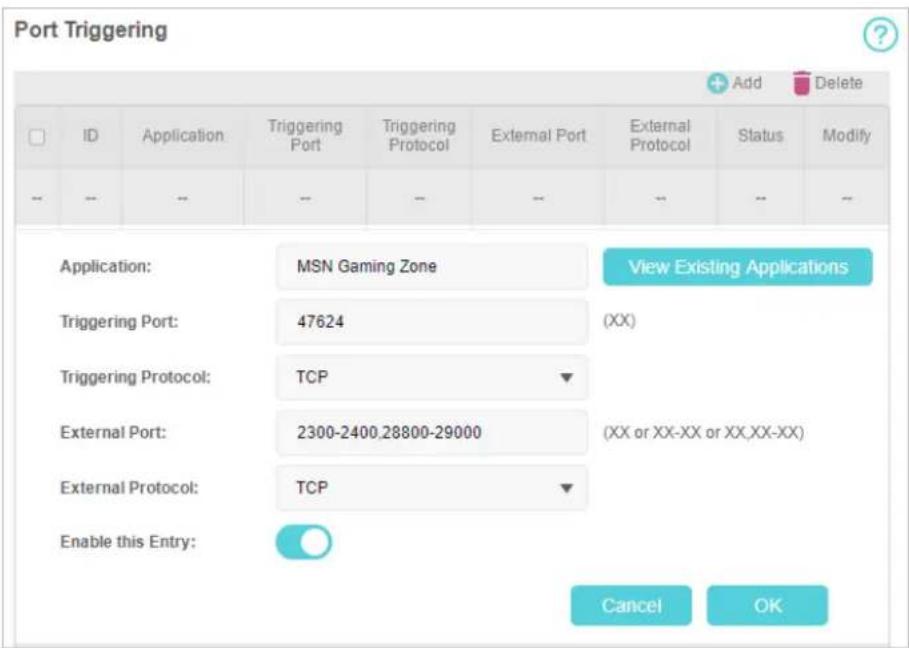
- Go to Advanced > NAT Forwarding > Port Triggering and click Add.
text_image
Port Triggering ID Application Triggering Port Triggering Protocol External Port External Protocol Status Modify -- -- -- -- -- -- -- -- Application: MSN Gaming Zone View Existing Applications Triggering Port: 47624 (XX) Triggering Protocol: TCP External Port: 2300-2400,28800-29000 (XX or XX-XX or XX,XX-XX) External Protocol: TCP Enable this Entry: Cancel OK- Click View Existing Applications, and select the desired application. The triggering port and protocol, the external port and protocol will be automatically filled with contents. Here we take MSN Gaming Zone as an example.
- Click OK to save the settings.
Tips:
- You can add multiple port triggering rules according to your network need.
- If the application you need is not listed in the Existing Applications list, please enter the parameters manually. You should verify the external ports the application uses first and enter them into External Port field according to the format the page displays.
6.4. Make Applications Free from Port Restriction by DMZ
When a PC is set to be a DMZ (Demilitarized Zone) host in the local network, it is totally exposed to the internet, which can realize the unlimited bidirectional communication between internal hosts and external hosts. The DMZ host becomes a virtual server with all ports opened. When you are not clear about which ports to open in some special
applications, like IP camera and database software, you can set the PC to be a DMZ host.
Note:
DMZ is most applicable when you don't know which ports to open. When it is enabled, the DMZ host is totally exposed to the internet, which may bring some potential safety hazard. If DMZ is not in use, please disable it in time.
I want to:
Make the home PC join the internet online game without port restriction.
For example, Due to some port restriction, when playing the online games, you can login normally but cannot join a team with other players. To solve this problem, set your PC as a DMZ with all ports opened.
How can I do that?
- Assign a static IP address to your PC, for example 192.168.0.100.
- On your computer or tablet, visit http://tplinkmifi.net, and log in with the password you set for the Mobile Wi-Fi.
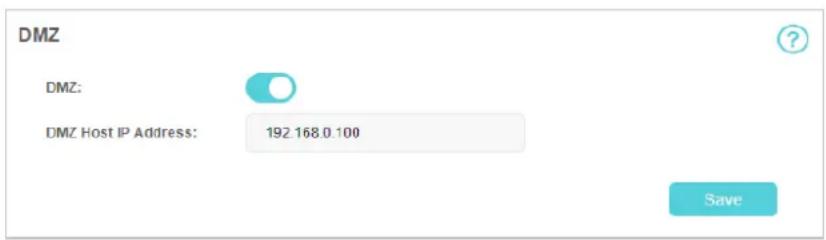
- Go to Advanced > NAT Forwarding > DMZ and select the checkbox to enable DMZ.
text_image
DMZ DMZ: DMZ Host IP Address: 192.168.0.100 Save-
Enter the IP address 192.168.0.100 in the DMZ Host IP Address filed.
-
Click Save to save the settings.
Done!
The configuration is completed. You've set your PC to a DMZ host and now you can make a team to game with other players.
6.5. Make Xbox Online Games Run Smoothly by UPnP
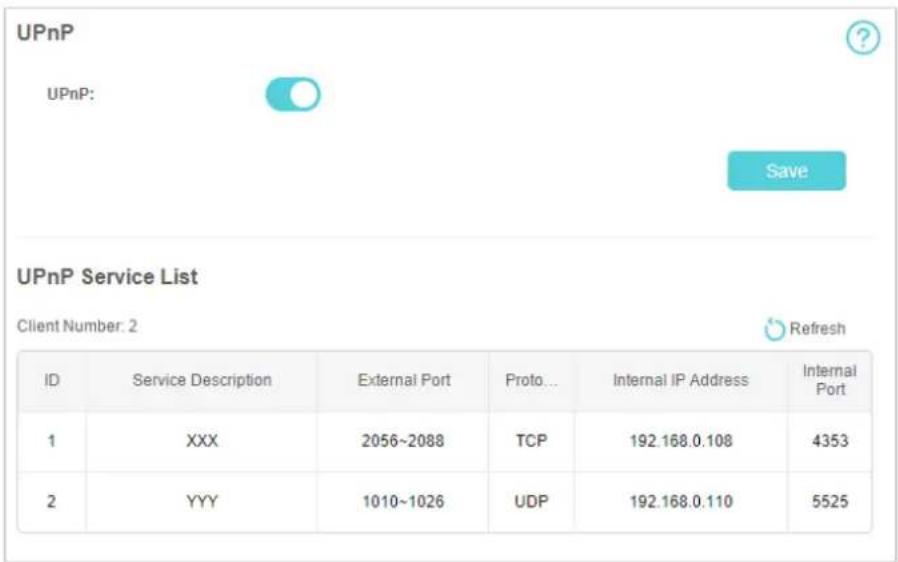
UPnP (Universal Plug and Play) protocol allows the applications or host devices to automatically find the front-end NAT device and send request to it to open the corresponding ports. With UPnP enabled, the applications or host devices in the both sides of NAT device can freely communicate with each other realizing the seamless connection of the network. You may need to enable the UPnP if you want
to use applications such as multiplayer gaming, peer-to-peer connections, real-time communication (for example, VoIP or telephone conference), or remote assistance.
Tips:
- UPnP is enabled by default in this Mobile Wi-Fi.
- Only the application supporting UPnP protocol can use this feature.
- UPnP feature needs the support of operating system (e.g. Windows Vista/ Windows 7/ Windows 8, etc. Some of operating system need to install the UPnP components).
For example, when you connect your Xbox to the Mobile Wi-Fi which has connected to the internet to play online games, UPnP will send request to the Mobile Wi-Fi to open the corresponding ports allowing the following data penetrating the NAT to transmit. Therefore, you can play Xbox online games without a hitch.

text_image
LAN WAN Mobile Wi-FiXbox INTERNETIf necessary, you can follow the steps to change the status of UPnP.
- On your computer or tablet, visit http://tplinkmifi.net, and log in with the password you set for the Mobile Wi-Fi.
- Go to Advanced > NAT Forwarding > Port Triggering and click Add.
- Go to Advanced > NAT Forwarding > UPnP and toggle on or off according to your needs.
text_image
UPnP UPnP: Save UPnP Service List Client Number: 2 Refresh ID Service Description External Port Proto... Internal IP Address Internal 1 XXX 2056~2088 TCP 192.168.0.108 4353 2 YYY 1010~1026 UDP 192.168.0.110 5525Customize Your Network
This chapter guides you on how to configure network settings of your Mobile Wi-Fi.
It contains the following sections:
- Specify Network Mode
- Configure Dial-up
- Configure DHCP Server
7.1. Specify Network Mode
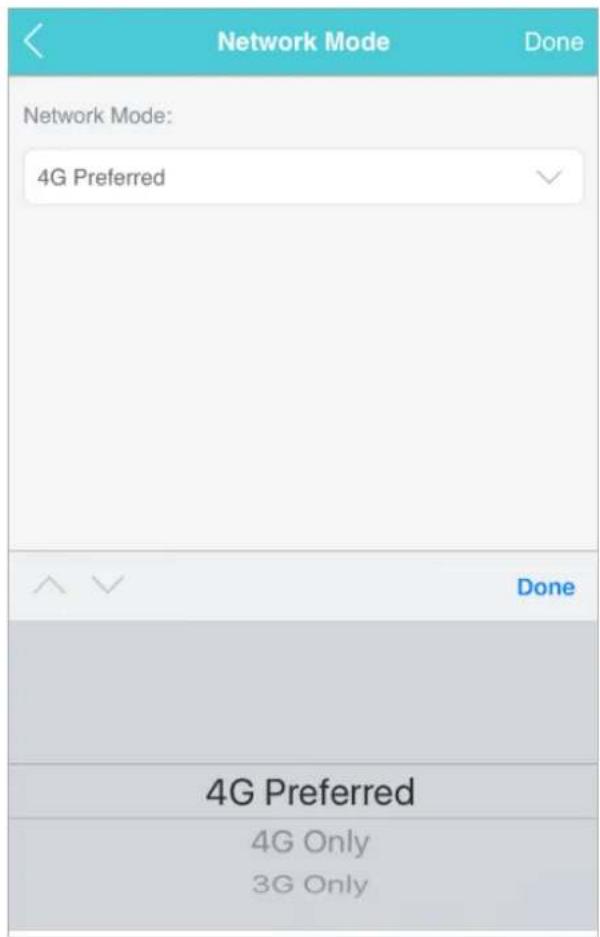
This Mobile Wi-Fi supports three modes of network connection: 4G Preferred, 4G Only and 3G Only. If your SIM card supports WCDMA, select 3G Only; if your SIM card supports FDD-LTE or TDD-LTE, select 4G Preferred or 4G Only as needed. In general, the 4G network is faster than the 3G one.
- Visit http://tplinkmifi.net, and log in with the password you set for the Mobile Wi-Fi.
- Go to Device > Advanced > Network Mode.
- Select 4G Preferred, 4G Only or 3G Only as needed.
text_image
Network Mode Done Network Mode: 4G Preferred ^ ∨ Done 4G Preferred 4G Only 3G Only- Tap Done.
7.2. Configure Dial-up
7.2.1. Configure Dial-up Settings
If you are in a location beyond your mobile carrier's service area, you may need to configure the dial-up settings to access the internet provided by a local mobile carrier.
- Visit http://tplinkmifi.net, and log in with the password you set for the Mobile Wi-Fi.
- Go to Dial-up.
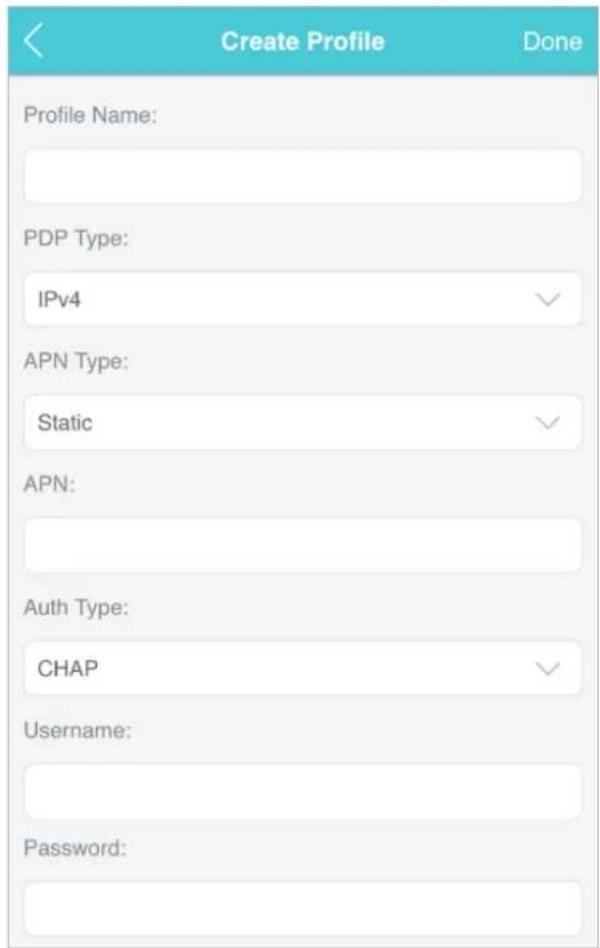
- Tap Create to build a dial-up profile.
- Specify a name for the profile and fill in the parameters provided by your carrier.
text_image
Create Profile Done Profile Name: PDP Type: IPv4 APN Type: Static APN: Auth Type: CHAP Username: Password:- Tap Done and then tap Yes in the pop-up to apply the new profile.
Note:
- Mobile Data is enabled by default. If disabled, internet access is prohibited.
-
Data Roaming is disabled by default. If enabled, data service is allowed when roaming.
-
You can click View profile details to check the current profile. If any parameter is wrong, you can click Create to build a new one.
7.2.2. Configure Network Search
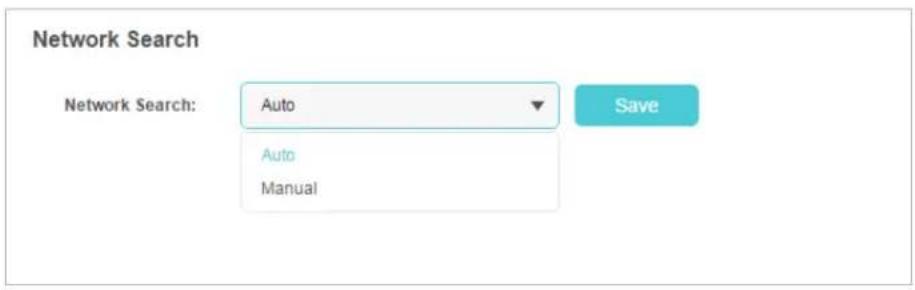
The Mobile Wi-Fi provides two types of network connection: Auto and Manual.
- Auto: The Mobile Wi-Fi will automatically establish internet connection when it is started.
-
Manual: When you have selected Manual, click Search and the Mobile Wi-Fi will scan for mobile networks. You can choose a network with better performance to connect to. The mobile carrier providing the network must be or have cooperation with your SIM card provider.
-
On your computer or tablet, visit http://tplinkmifi.net, and log in with the password you set for the Mobile Wi-Fi.
- Go to Advanced > Dial-up > Network Settings.
- Select Auto or Manual for Network Search as needed.
text_image
Network Search Network Search: Auto Auto Manual Save- Click Save.
7.3. Configure DHCP Server
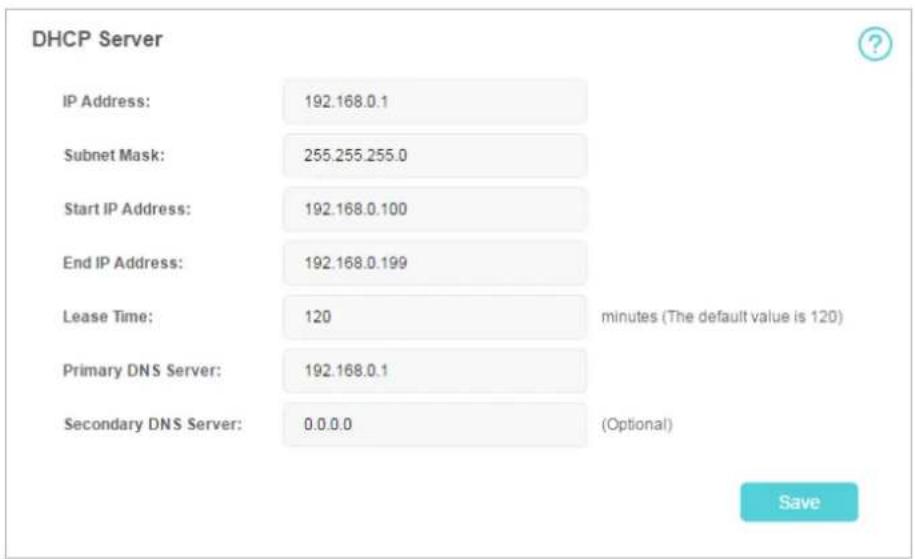
The Mobile Wi-Fi acts as a DHCP (Dynamic Host Configuration Protocol) server, dynamically assigning TCP/IP parameters to devices from the IP Address pool. You can change the settings of the DHCP server if necessary.
- On your computer or tablet, visit http://tplinkmifi.net, and log in with the password you set for the Mobile Wi-Fi.
- Go to Advanced > DHCP Server.
- Enter a new IP address in the IP Address field and leave the Subnet Mask as default. And enter the starting and ending IP addresses in the Start and End IP Address fields respectively.
Note:
-
The start and end IP addresses should be on the same network segment as the IP address you have entered.
-
If you have changed the IP address of your Mobile Wi-Fi, you should use the new IP address or http://tplinkmifi.net to log in to the web management page.
text_image
DHCP Server IP Address: 192.168.0.1 Subnet Mask: 255.255.255.0 Start IP Address: 192.168.0.100 End IP Address: 192.168.0.199 Lease Time: 120 Primary DNS Server: 192.168.0.1 Secondary DNS Server: 0.0.0.0 minutes (The default value is 120) (Optional) Save- Enter the lease time in the Lease Time field. When the lease time expires, the Mobile Wi-Fi will reassign IP addresses.
- Enter the primary DNS IP address which usually accords with the IP address.
- Enter the secondary DNS IP address if provided by your carrier.
- Click Save.
Manage Your Mobile Wi-Fi
This chapter presents how to manage and maintain your Mobile Wi-Fi. It includes the following sections:
- Save the Mobile Wi-Fi's Power
- Change Login Password
- Set Up System Time
- Restore Configuration Settings
- Update the Firmware
- Update ISP Parameters
- System Log
8. 1. Save the Mobile Wi-Fi's Power
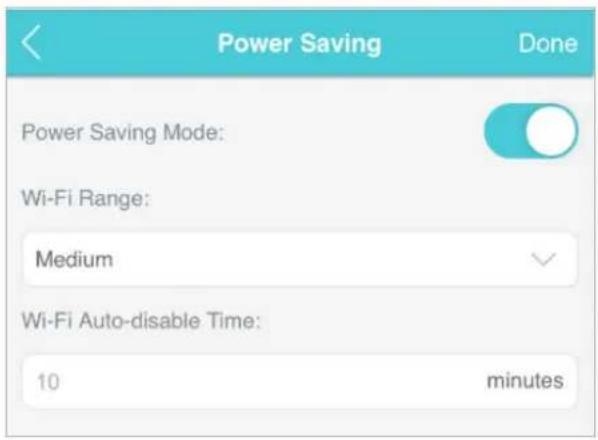
The Power Saving feature allows you to slow down the power consumption of your Mobile Wi-Fi, by adjusting the Wi-Fi range or enabling the Wi-Fi Auto-disable Time feature.
- Visit http://tplinkmifi.net, and log in with the password you set for the Mobile Wi-Fi.
- Go to Device > Power Saving.
- To set Wi-Fi Range:
- Enable Power Saving Mode.
- Select Long, Medium or Short from the Wi-Fi Range drop-down list.
text_image
Power Saving Done Power Saving Mode: Wi-Fi Range: Medium Wi-Fi Auto-disable Time: 10 minutesNote:
The shorter the Wi-Fi Range is, the less power your Mobile Wi-Fi uses.
- Tap Done.
- Tap Restart Wi-Fi on the pop-up to make the configurations take effect, and then reconnect to the Wi-Fi after it restarts.
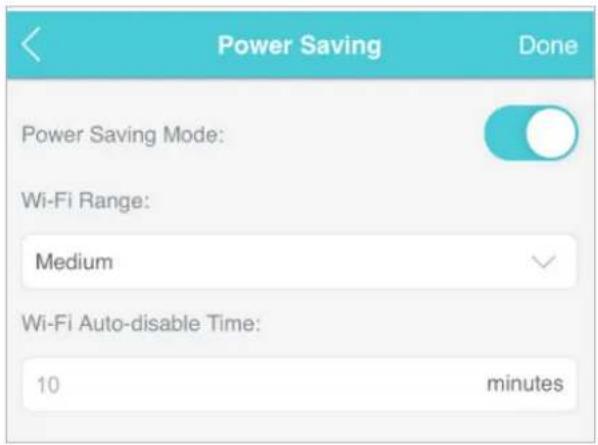
• To set Wi-Fi Auto-disable Time:
- Enable Power Saving Mode.
- Specify the Wi-Fi Auto-disable Time.
text_image
Power Saving Done Power Saving Mode: Wi-Fi Range: Medium Wi-Fi Auto-disable Time: 10 minutes- Tap Done. If there are no devices connected to the Mobile Wi-Fi for the time your specified, the Wi-Fi will be disabled automatically.
Note:
To resume the Wi-Fi, press the Power button.
8.2. Change Login Password
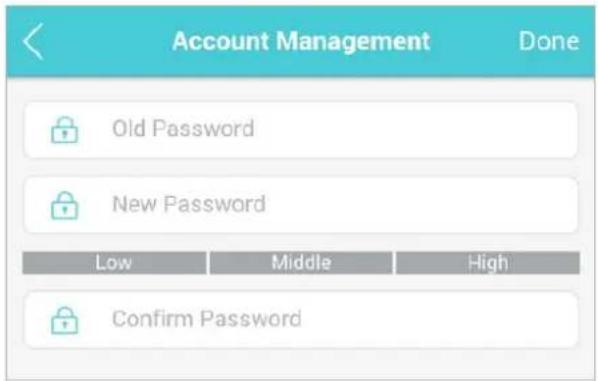
This feature allows you to change your login password of the web management page.
- Visit http://tplinkmifi.net, and log in with the password you set for the Mobile Wi-Fi.
- Go to Device > Account.
- Enter the current password. Then enter the new password twice (case-sensitive) and tap Done.
text_image
Account Management Done Old Password New Password Low Middle High Confirm Password- Use the new password for future logins.
8.3. Set Up System Time
The system time you configure here will be used for time-based functions.
Note:
Make sure your Mobile Wi-Fi has access to the internet. Otherwise, it can not synchronize the current time.
- Visit http://tplinkmifi.net, and log in with the password you set for the mobile Wi-Fi
- Go to Device > Advanced > Time Settings.
- Select your local Time Zone from the drop-down list.

text_image
Time Settings Done Time Zone: Beijing Date: Time: 17:14:34- Tap Done.
8.4. Restore Configuration Settings
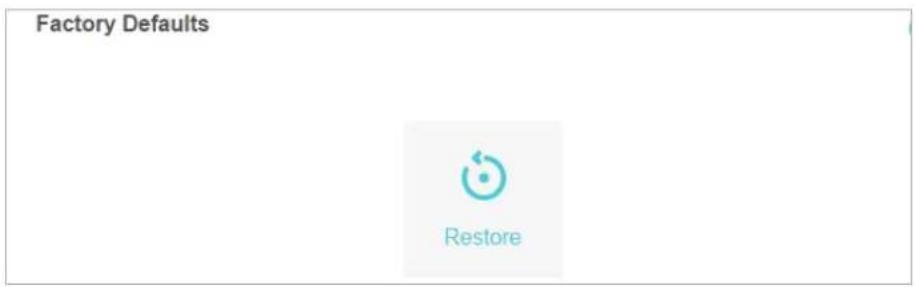
The Factory Defaults feature allows you to restore your Mobile Wi-Fi to its factory defaults. After you restore your Mobile Wi-Fi, all previous settings will be cleared and you have to reconfigure them.
Method One: Via the Reset button
With the Mobile Wi-Fi powered on, remove the cover. Use a pin to press and hold the Reset button until all LEDs turn on momentarily.
Method Two: Via the web page
- On your computer or tablet, visit http://tplinkmifi.net and log in with the password you set for the Mobile Wi-Fi.
- Go to Advanced > Device > Factory Defaults.
- Click Restore.
text_image
Factory Defaults Restore- Wait a few minutes for the restore to complete and the Mobile Wi-Fi to restart.
Note: During the resetting process, do not power off the Mobile Wi-Fi.
8.5. Update the Firmware
TP-Link is committed to improving product features, giving you a better network experience. We will inform you web management page if there's any newly released update firmware. Also, you can download it from the Support page of our website www.tp-link.com.
Note:
- Make sure the latest firmware file is matched with the hardware version (as shown in the Download section of the Support page).
- Make sure that you have a stable connection between the Mobile Wi-Fi and your computer.
- Do NOT power off the Mobile Wi-Fi during the firmware update and make sure it has sufficient power.
• To update the firmware locally:
- Download the latest firmware file for your Mobile Wi-Fi from our website www.tp-link.com.
- On your computer or tablet, visit http://tplinkmifi.net, and log in with the password you set for the Mobile Wi-Fi.
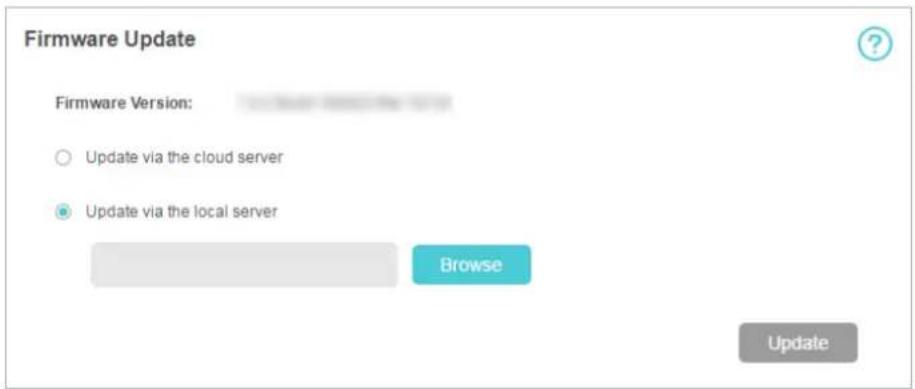
- Go to Advanced > Device > Firmware Update.
- Select Update via the local server, click Browse to locate the downloaded file, and then click Update.
text_image
Firmware Update Firmware Version: Update via the cloud server Update via the local server Browse Update- Wait a few minutes for the update to complete and the mobile Wi-Fi to restart.
• To update the firmware online:
- On your computer or tablet, visit http://tplinkmifi.net, and log in with the password you set for the Mobile Wi-Fi.
- Go to Advanced > Device > Firmware Update.
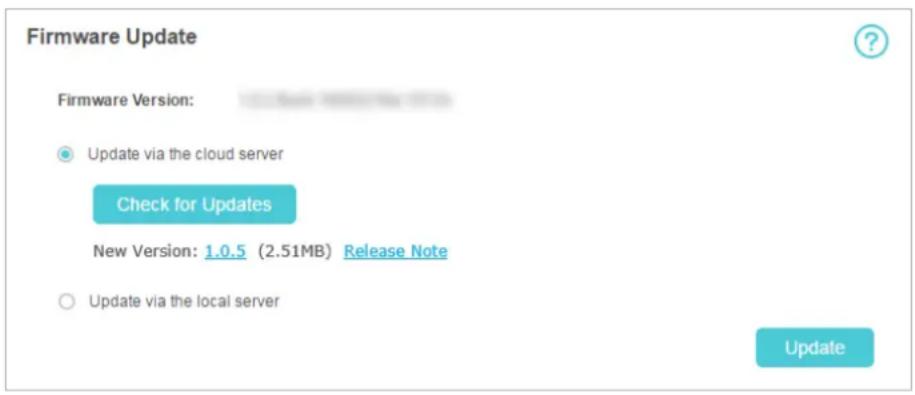
- Select Update via the cloud server.
- Click Update.
text_image
Firmware Update Firmware Version: Update via the cloud server Check for Updates New Version: 1.0.5 (2.51MB) Release Note Update via the local server Update- Wait a few minutes for the update to complete and the Mobile Wi-Fi to restart.
Note:
To download the latest firmware file, you can also click the New Version number, such as 1.0.5 in the page above. To view update details, click Release Note.
8.6. Update ISP Parameters
You can update the ISP information.
- Download the latest ISP update file from the Support page at www.tp-link.com.
- On your computer or tablet, visit http://tplinkmifi.net, and log in with the password you set for the Mobile Wi-Fi.
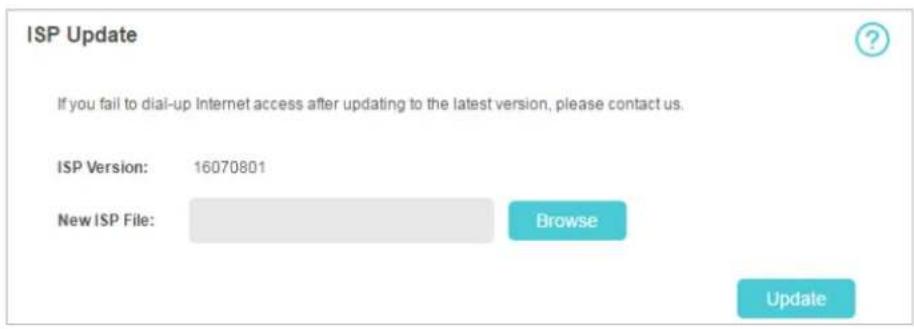
- Go to Advanced > Dial-up > ISP Update.
- Click Browse to locate the downloaded file.
- Click Update.
text_image
ISP Update If you fail to dial-up Internet access after updating to the latest version, please contact us. ISP Version: 16070801 New ISP File: Browse Update8.7. System Log
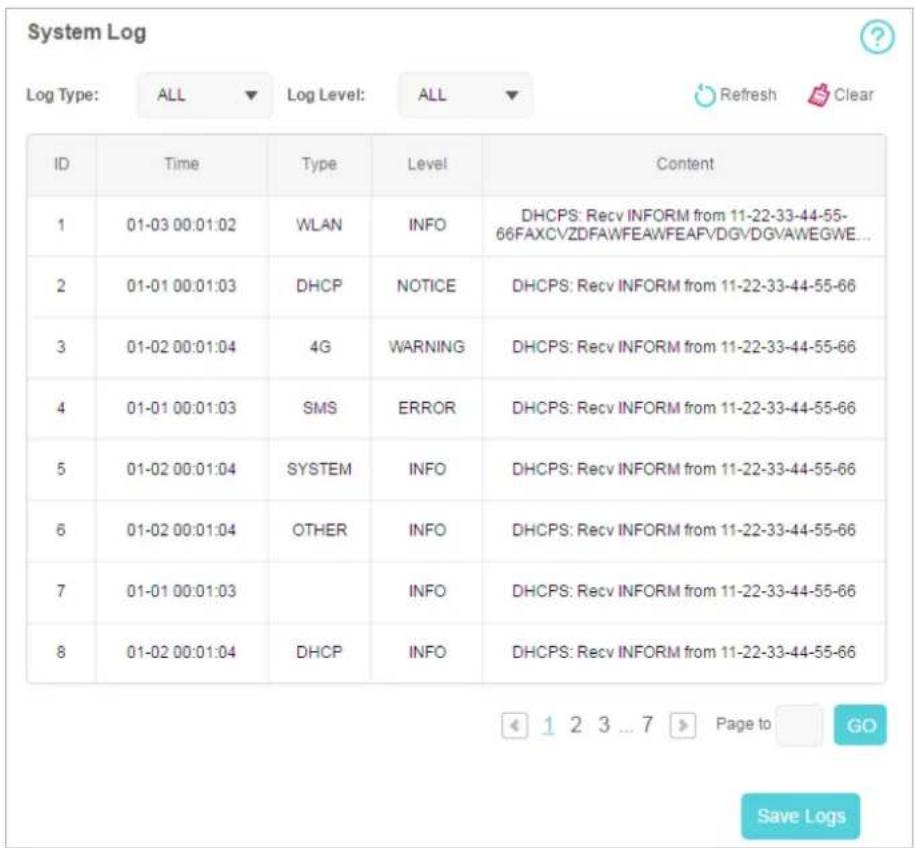
When the Mobile Wi-Fi does not work normally, you can save the system log and send it to our technical support for troubleshooting.
• To save the system logs locally:
- On your computer or tablet, visit http://tplinkmifi.net, and log in with the password you set for the Mobile Wi-Fi.
- Go to Advanced > Device > System Log.
- Click Save Logs to save the logs to your local device.
text_image
System Log Log Type: ALL Log Level: ALL Refresh Clear ID Time Type Level Content 1 01-03 00:01:02 WLAN INFO DHCPS: Recv INFORM from 11-22-33-44-55- 66FAXCVZDFAWFEAWFEAFVDGVDGVAWEGWE... 2 01-01 00:01:03 DHCP NOTICE DHCPS: Recv INFORM from 11-22-33-44-55-66 3 01-02 00:01:04 4G WARNING DHCPS: Recv INFORM from 11-22-33-44-55-66 4 01-01 00:01:03 SMS ERROR DHCPS: Recv INFORM from 11-22-33-44-55-66 5 01-02 00:01:04 SYSTEM INFO DHCPS: Recv INFORM from 11-22-33-44-55-66 6 01-02 00:01:04 OTHER INFO DHCPS: Recv INFORM from 11-22-33-44-55-66 7 01-01 00:01:03 INFO DHCPS: Recv INFORM from 11-22-33-44-55-66 8 01-02 00:01:04 DHCP INFO DHCPS: Recv INFORM from 11-22-33-44-55-66 << 1 2 3 ... 7 Page to GO Save LogsFAQ
Q1. What should I do if I cannot log in to the web management page?
- Verify that your device is connected to the Mobile Wi-Fi's SSID.
- Verify that you have entered http://tplinkmifi.net or http://192.168.0.1 correctly.
- Verify that your computer is set to obtain an IP address automatically.
Q2. What should I do if the Internet LED Ⓤ doesn't light up (I cannot access the internet)?
- Check PIN status
Log in to the web management page on your phone. If the current SIM card status is PIN Locked, you will need to unlock it using the PIN code provided by your mobile carrier.
- Verify the mobile carrier parameters
1) Log in to the web management page on your phone. Go to Dial-up, tap View profile details, and verify the parameters (i.e. APN, Username, and Password) provided by your mobile carrier are correctly entered.
2) If the mobile carrier parameters are not correct, return to the Dial-up page and create a new profile with the correct information. Then choose the new created profile from the Profile List.
- Check the Data Roaming settings
If your SIM card is operated in a roaming service area, log in to the web management page on your phone. Go to Dial-up and enable the Data Roaming option.
- Check Mobile Data
Log in to the web management page on your phone. Go to Dial-up to verify that Mobile Data is On. If not, enable it.
- Check Data Limit
Log in to the web management page on your phone. Go to Device > Data Usage Settings to check whether your data usage has exceeded the Total/Monthly allowance.
Q3. What should I do if my internet speed is slow?
Log in to the web management page on your phone. Go to Device > Advanced > Network Mode and try a different network.
Q4. How do I reset the Mobile Wi-Fi to its factory default settings?
- With the Mobile Wi-Fi powered on, remove the cover. Use a pin to press and hold the Reset button until all LEDs turn on momentarily.
- On your computer or tablet, log in to the Mobile Wi-Fi's web management page. Go to Advanced > Device > Factory Defaults and click Restore.
COPYRIGHT & TRADEMARKS
Specifications are subject to change without notice. tp-link is a registered trademark of TP-Link Technologies Co., Ltd. Other brands and product names are trademarks or registered trademarks of their respective holders.
No part of the specifications may be reproduced in any form or by any means or used to make any derivative such as translation, transformation, or adaptation without permission from TP-Link Technologies Co., Ltd.
Copyright © 2020 TP-Link Technologies Co., Ltd. All rights reserved.
CE Mark Warning
CE
This is a class B product. In a domestic environment, this product may cause radio interference, in which case the user may be required to take adequate measures.
OPERATING FREQUENCY(the maximum transmitted power)
2400MHz—2483.5MHz (20dBm)
WCDMA: (24dBm+1/-3dB)
LTE: (23dBm+2/-2dB)
EU declaration of conformity
TP-Link hereby declares that the device is in compliance with the essential requirements and other relevant provisions of directives 2014/53/EU, 2011/65/EU and (EU)2015/863.
The original EU declaration of conformity may be found at https://www.tp-link.com/en/ce
RF Exposure Information
This device meets the EU requirements (2014/53/EU Article 3.1a) on the limitation of exposure of the general public to electromagnetic fields by way of health protection.
This device has been tested and meets the ICNIRP exposure guidelines and the European Standard EN 62209-2. SAR is measured with this device at a separation of 0.5 cm to the body, while transmitting at the highest certified output power level in all frequency bands of this device. Carry this device at least 0.5 cm away from your body to ensure exposure levels remain at or below the as-tested levels.
NCC Notice
注意!
依據 低功率電波輻射性電機管理辦法
| 設備名稱:4G LTE Mobile Wi-FiEquipment name | 型號(型式):M7200Type designation (Type) | |||||
| 單元Unit | 限用物質及其化學符號Restricted substances and its chemical symbols | |||||
| 鉛Lead(Pb) | 汞Mercury(Hg) | 鎘Cadmium(Cd) | 六價鉻Hexavalent chromium( Cr^16 ) | 多溴聯苯Polybrominated biphenyls(PBB) | 多溴二苯醚Polybrominated diphenyl ethers(PBDE) | |
| PCB ○○ | ○○○○ | |||||
| 外殼○○ | ○○○○ | |||||
| 锂电池○ | ○○○○○ | |||||
| 備考1. “超出0.1 wt %”及“超出0.01 wt %”係指限用物質之百分比含量超出百分比含量基準值Note 1: “Exceeding 0.1 wt %” and “exceeding 0.01 wt %” indicate that the percentage content of the restricted substance exceeds the reference percentage value of presence condition.備考2. “○”係指該項限用物質之百分比含量未超出百分比含量基準值。Note 2: “○” indicates that the percentage content of the restricted substance does not exceed the percentage of reference value of presence.備考3. “—”係指該項限用物質為排除項目。Note 3: The “—” indicates that the restricted substance corresponds to the exemption. | ||||||

- Keep the device away from water, fire, humidity or hot environments.
- Do not attempt to disassemble, repair, or modify the device. If you need service, please contact us.
- Do not use any other chargers than those recommended
- Do not use the device where wireless devices are not allowed.
CAUTION!
- Avoid replacement of a battery with an incorrect type that can defeat a safeguard.
- Avoid disposal of a battery into fire or a hot oven, or mechanically crushing or cutting of a battery, that can result in an explosion.
- Do not leave a battery in an extremely high temperature surrounding environment that can result in an explosion or the leakage of flammable liquid or gas. Do not leave a battery subjected to extremely low air pressure that may result in an explosion or the leakage of flammable liquid or gas.
CAUTION!
- Danger of fire due to removal of the back cover.
- To install accessories, remove the housing as indicated in section 1 of the Quick Installation Guide.
- The back cover must be restored after the accessories are installed.
CAUTION!
Risk of explosion if the battery is replaced by an incorrect type.
- Operating Temperature: 0^ 40^ (32°F \~ 104°F)
Storage Temperature: -40^ 70^ ( -40^ 158^ )
Please read and follow the above safety information when operating the device. We cannot guarantee that no accidents or damage will occur due to improper use of the device. Please use this product with care and operate at your own risk.
Explanations of the symbols on the product label
Symbol Explanation

DC voltage
Symbol Explanation
| [D367] | RECYCLINGThis product bears the selective sorting symbol for Waste electrical and electronic equipment (WEEE). This means that this product must be handled pursuant to European directive 2012/19/EU in order to be recycled or dismantled to minimize its impact on the environment.User has the choice to give his product to a competent recycling organization or to the retailer when he buys a new electrical or electronic equipment. |
| [HK02] | Caution |
 | Operator's manual |