
MX703 - Video projector BENQ - Free user manual and instructions
Find the device manual for free MX703 BENQ in PDF.


| Product Type | Video projector |
| Brand | BenQ |
| Model | MX703 |
| Display Technology | DLP |
| Native Resolution | XGA (1024 x 768) |
| Brightness | 3000 ANSI lumens |
| Contrast Ratio | 13000:1 |
| Lamp Life (Normal/Eco) | 4500 / 6000 hours |
| Lamp Power | 190 W |
| Zoom Ratio | 1.2x |
| Projection Size (Diagonal) | 54" to 300" |
| Throw Ratio | 1.96 – 2.15 |
| Keystone Correction (Vertical) | ±40 degrees |
| Input Ports | VGA x2, HDMI, S-Video, Composite, Audio |
| Network Capability | Wired LAN (RJ45) |
| Weight | 2.3 kg (5.1 lbs) |
| Dimensions (W x D x H) | 312 x 244 x 104 mm |
| Power Consumption (Normal/Standby) | 270 W / < 0.5 W |
| Noise Level (Normal/Eco) | 33 / 28 dBA |
| Warranty | 2 years (lamp 90 days) |
Frequently Asked Questions - MX703 BENQ
User questions about MX703 BENQ
0 question about this device. Answer the ones you know or ask your own.
Ask a new question about this device
Download the instructions for your Video projector in PDF format for free! Find your manual MX703 - BENQ and take your electronic device back in hand. On this page are published all the documents necessary for the use of your device. MX703 by BENQ.
USER MANUAL MX703 BENQ
Network Projector Operation Guide
Table of contents
Preparation....3
Connecting the projector with your computer 3
Wired connection.... 3
Controlling the projector remotely through a web browser....5
Supported Resolutions....6
PJLink Commands....7
Preparation
Your BenQ projector is equipped with the wired and/or wireless network function. You can manage and control the projector from one or more remote computers using a web browser when they are properly connected to the same local area network.
Connecting the projector with your computer
Wired connection
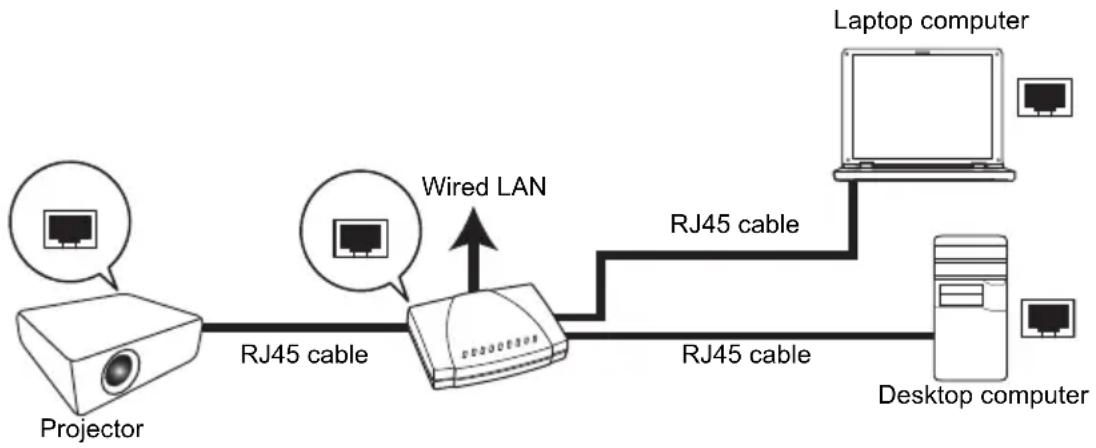
flowchart
graph LR
    A["Projector"] -->|RJ45 cable| B["Wired LAN"]
    C["Laptop computer"] -->|RJ45 cable| B
    D["Desktop computer"] -->|RJ45 cable| B
    B -->|RJ45 cable| E["Computer"]
If you are in a DHCP environment:
I. Take a RJ45 cable and connect one end to the RJ45 LAN input jack of the projector and the other end to the RJ45 port on your Ethernet or router.
2. Do one of the following:
- Press NETWORK SETTING on the remote control. The Network Settings page is displayed.
-
Press MENU/EXIT and then press ◀/▶ until the SYSTEM SETUP: Advanced menu is highlighted. Press ▼ to highlight Network Settings and press MODE/ENTER. The Network Settings page is displayed.
-
Highlight Wired LAN and press MODE/ENTER.
- Make sure the Status is Connect.
- Press ▼ to highlight DHCP and press ◀/▶ to select On.
- Press ▼ to highlight Apply and press MODE/ENTER.
- Re-enter the Network Settings > Wired LAN page. The IP Address, Subnet Mask, Default Gateway, and DNS settings will be displayed. Note down the IP address displayed in the IP Address row.

If the IP Address still does not appear, contact your ITS administrator.
If you are in a non-DHCP environment:
I. Repeat steps 1-4 above.
- Press ▼ to highlight DHCP and press ◀/▶ to select Off.
- Contact your ITS administrator for information on the IP Address, Subnet Mask, Default Gateway, and DNS settings.
-
Press ▼ to select the item you want to modify and press MODE/ENTER.
-
Press / to move the cursor and the press / to enter the value.
- To save the settings, press MODE/ENTER. If you do not want to save the settings, press MENU/EXIT.
- Press ▼ to highlight Apply and press MODE/ENTER.
After the above steps, your projector is now connected to your local area network and ready to be accessed by any computer on the same local area network.
Controlling the projector remotely through a web browser

This function is not available when the broadcasting function is activated.
Once you have the correct IP address for the projector and the projector is on or in standby mode, you can use any computer that is on the same local area network to control the projector.

• Make sure you are using Microsoft Internet Explorer version 7.0 or 8.0.
• The screenshots in this manual are for reference only, and may differ from the actual design.
- Enter the address of the projector in the address bar of your browser and press Enter.

- The Crestron (eControl) page displays the Crestron eControl user interface. The eControl page provides a variety of virtual keys to control the projector or adjust the projected pictures.
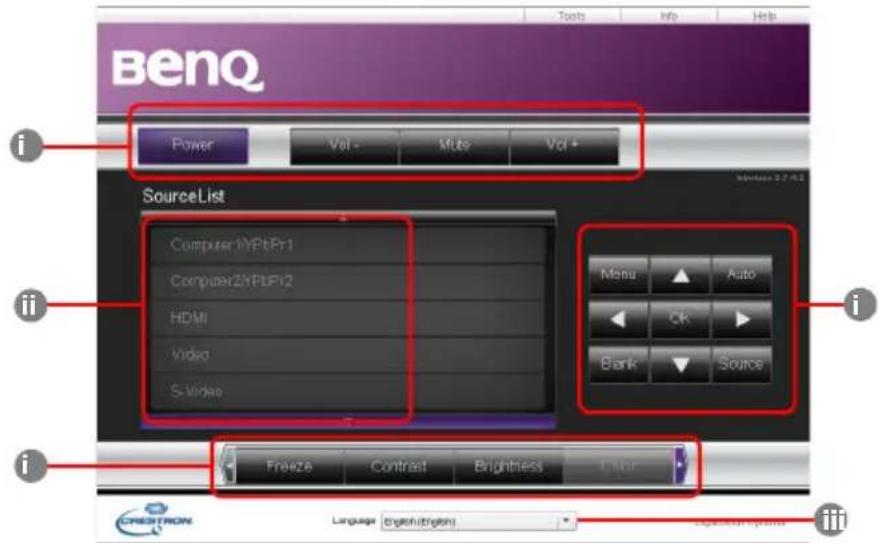
i. These buttons function the same as the ones on the OSD menus or remote control. See the chapter "Controls and functions" in the user manual for details.
ii. To switch input source, click your desired signal.
iii. The software is available in multiple languages.

The Menu button can also be used to go back to previous OSD menu, exit and save menu settings.
The tools page allows you to manage the projector, configure the LAN control settings and secure access of remote network operation on this projector.

i. You can name the projector, keep track of its location and the person in charge of it.
ii. You can adjust the Network Settings.
iii. Once set, access to the remote network operation on this projector has been password-protected.
iv. Once set, access to the tools page has been password-protected.

After making the adjustments, press the Send button and the data will be saved in the projector.
v. Press exit to go back to the remote network operation page.
The info page displays the information and status of this projector.

Press Exit to go back to the remote network operation page.
For more information, visit http://www.crestron.com & www.crestron.com/getroomview.
Supported Resolutions
The projected computer screen will be automatically rescaled to 1024 x 768.
Controlling the projector remotely through a web browser6
PJLink Commands
This projector supports standard protocol PJLink for projector control. Supported commands are as below.

The below supported commands may vary depending on different models.
| Command Description Parameter | ||
| POWER OFF Power control. 0 = Power Off | ||
| POWER ON Power control. 1 = Power On | ||
| Power? Query the power status. 0 = Power Off | 1 = Power On2 = Cooling down3 = Warm up | |
| INPT Input switch command. 11 = VGA1 | 12 = VGA221 = SVideo22 = CVBS31 = HDMI51 = CARD_READER52 = LAN DISPLAY53 = USB DISPLAY42 = Speaker Volume Up43 = Speaker Volume Down44 = Microphone Volume Up45 = Microphone Volume Down46 = Freeze47 = Change picture mode | |
| INPT? | Query the current input switch status. | |
| AVMT | Mute control. | 10 = Video mute off11 = Video mute on20 = Audio mute off21 = Audio mute on30 = Video & Audio mute off31 = Video & Audio mute on |
| AVMT? Query the current mute status. | ||
| LAMP? | Query the number of lamp hours. | Lamp hour |
| INST? | Query the list which enables input switch. | Return"11 12 21 22 31 51 52 53" |
| NAME? | Query the projector name. | Return "Digital Projector" |
| INF0? | Query resolution information. | Return "Education Series" |
| INF1? | Query the maker name. | Return "BenQ" |
| INF2? | Query the model name. | Return model name as below,"Actual model name" |
| CLSS? | Query class information. Return "Version" | |
| ERST? Query the error status Error Status | ||
| GET ALL Query all status Return all "?" items | ||


Brand : BENQ
Model : MX703
Category : Video projector