
X12000H - Video projector BENQ - Free user manual and instructions
Find the device manual for free X12000H BENQ in PDF.


| Product Type | Video Projector |
| Brand | BenQ |
| Model | X12000H |
| Display Technology | 1-Chip DLP |
| Native Resolution | 3840 x 2160 (with XPR) |
| Lens | F = 2.05 to 2.37, f = 20.54 to 30.31 mm |
| Light Source | HLD-LED |
| Power Supply | AC 100-240V, 5.0 A, 50-60 Hz |
| Power Consumption | 550 W (Max); < 0.5 W (Standby) |
| Weight | 18.5 kg (40.8 lbs) |
| Dimensions (W x H x D) | 470.7 mm x 224.9 mm x 564.7 mm |
| Input Terminals | HDMI 2.0 x1, HDMI 1.4a x1, RGB D-Sub 15-pin x1, USB Mini-B x1, RJ-45 LAN x1, RS-232 x1, IR IN x1, 12V Trigger x2 |
| Operating Temperature | 0°C to 40°C at sea level |
| Storage Temperature | -20°C to 60°C at sea level |
| Operating Altitude | 0-1499 m at 0-35°C; 1500-3000 m at 0-30°C (High Altitude Mode) |
| Lens Shift | Vertical and horizontal (manual) |
| Keystone Correction | Adjustable feet (horizontal) |
| 3D Support | Yes (via HDMI, requires 3D glasses) |
| HDR Support | HDR10, HLG, auto detection |
| CinemaMaster | Color Enhancer, Flesh Tone, Pixel Enhancer 4K, DCTI/DLTI, Noise Reduction |
| Security | Password protection, Kensington lock slot |
| Cleaning Instructions | Clean lens with compressed air or lens-cleaning paper; case with soft damp cloth |
| Warranty | Limited warranty against defects |
Frequently Asked Questions - X12000H BENQ
User questions about X12000H BENQ
0 question about this device. Answer the ones you know or ask your own.
Ask a new question about this device
Download the instructions for your Video projector in PDF format for free! Find your manual X12000H - BENQ and take your electronic device back in hand. On this page are published all the documents necessary for the use of your device. X12000H by BENQ.
USER MANUAL X12000H BENQ
Warranty and Copyright information
Limited warranty
BenQ warrants this product against any defects in material and workmanship, under normal usage and storage.
Proof of purchase date will be required with any warranty claim. In the event this product is found to be defective within the warranty period, BenQ's only obligation and your exclusive remedy shall be replacement of any defective parts (labor included). To obtain warranty service, immediately notify the dealer from which you purchased the product of any defects.
Important: The above warranty shall be void if the customer fails to operate the product in accordance with BenQ's written instructions, especially the ambient humidity must be in-between 10% and 90%, temperature in-between 0°C and 35°C, altitude lower than 4920 feet, and avoiding to operate the projector in a dusty environment. This warranty gives you specific legal rights, and you may have other rights which vary from country to country.
For other information, please visit www.BenQ.com.
Copyright
Copyright 2018 by BenQ Corporation. All rights reserved. No part of this publication may be reproduced, transmitted, transcribed, stored in a retrieval system or translated into any language or computer language, in any form or by any means, electronic, mechanical, magnetic, optical, chemical, manual or otherwise, without the prior written permission of BenQ Corporation.
Disclaimer
BenQ Corporation makes no representations or warranties, either expressed or implied, with respect to the contents hereof and specifically disclaims any warranties, merchantability or fitness for any particular purpose. Further, BenQ Corporation reserves the right to revise this publication and to make changes from time to time in the contents hereof without obligation to notify any person of such revision or changes.
*DLP, Digital Micromirror Device and DMD are trademarks of Texas Instruments. Others are copyrights of their respective companies or organizations.
Patents
Please go to http://patmarking.benq.com/ for the details on BenQ projector patent coverage.
Table of Contents
Warranty and Copyright information 2
Important safety instructions 4
Introduction 7
Shipping contents 7
Projector exterior view 8
Controls and functions 9
Positioning your projector ....II
Choosing a location ....II
Obtaining a preferred projected image size.... 12
Mounting the projector.... 13
Adjusting the projector position.... 14
Adjusting the projected image.... 15
Connection 16
Operation 18
Starting up the projector 18
Using the menus 19
Securing the projector 20
Switching input signal 21
Shutting down the projector 22
Menu operation 23
PICTURE menu 23
DISPLAY menu....28
INSTALLATION menu 29
SYSTEM SETUP: BASIC menu ....30
SYSTEM SETUP: ADVANCED menu ....31
INFORMATION menu 32
Maintenance 33
Care of the projector 33
Lamp information 34
Troubleshooting 36
Specifications 37
Projector specifications ....37
Dimensions 37
Timing chart.... 38
Important safety instructions
Your projector is designed and tested to meet the latest standards for safety of information technology equipment. However, to ensure safe use of this product, it is important that you follow the instructions mentioned in this manual and marked on the product.
- Please read this manual before you operate your projector. Save it for future reference.

natural_image
Cartoon illustration of a computer monitor with a scroll, showing its face and hands (no text or symbols)- Do not look straight at the projector lens during operation. The intense light beam may damage your eyes.

natural_image
Cartoon illustration of a person reacting to a projector screen (no text or symbols present)- Refer servicing to qualified service personnel.

natural_image
Cartoon illustration of a smiling character with a cap and thumbs up (no text or symbols)- Always open the lens shutter (if any) or remove the lens cap (if any) when the projector lamp is on.

natural_image
Cartoon illustration of a projector with eyes and lens (no text or symbols)- The lamp becomes extremely hot during operation.

natural_image
Cartoon illustration of a steaming book with a hand holding a fan and a magnifying glass (no text or symbols)- In some countries, the line voltage is NOT stable. This projector is designed to operate safely within a mains voltage between 100 to 240 volts AC, but could fail if power cuts or surges of ±10 volts occur. In areas where the mains voltage may fluctuate or cut out, it is recommended that you connect your projector through a power stabilizer, surge protector or uninterruptible power supply (UPS).
natural_image
Cartoon illustration of a computer monitor with a smiling face and connected to a power outlet (no text or symbols)- Do not block the projection lens with any objects when the projector is under operation as this could cause the objects to become heated and deformed or even cause a fire. To temporarily turn off the lamp, use the blank function.
natural_image
Illustration of a book with a cartoon character on top, surrounded by flying birds (no text or symbols)- Do not operate lamps beyond the rated lamp life.

natural_image
Cartoon illustration of a smiling computer with speech bubbles and clock hands (no text or symbols)- Do not place this product on an unstable cart, stand, or table. The product may fall, sustaining serious damage.

natural_image
Cartoon illustration of a mechanical device emitting smoke or vapor, mounted on a base with no visible text or symbols.- Do not attempt to disassemble this projector. There are dangerous high voltages inside which may cause death if you should come into contact with live parts.
Under no circumstances should you ever undo or remove any other covers. Refer servicing only to suitably qualified professional service personnel.

natural_image
Illustration of a hand operating a device with a screwdriver (no text or symbols)II. Do not block the ventilation holes.
- Do not place this projector on a blanket, bedding or any other soft surface.
- Do not cover this projector with a cloth or any other item.
- Do not place inflammables near the projector.

natural_image
Simple line drawing of a folded paper or sheet with decorative elements (no text or symbols)If the ventilation holes are seriously obstructed, overheating inside the projector may result in a fire.
- Always place the projector on a level, horizontal surface during operation.
natural_image
Simple line drawing of a computer mouse inside a stack of books (no text or symbols)- Do not stand the projector on end vertically. Doing so may cause the projector to fall over, causing injury or resulting in damage to the projector.

natural_image
Line drawing of a mechanical device with multiple cylindrical components on a base (no text or symbols)- Do not step on the projector or place any objects upon it. Besides probable physical damage to the projector, doing so may result in accidents and possible injury.

natural_image
Simple line drawing of a person falling into a box with papers, no text or symbols present-
When the projector is under operation, you may sense some heated air and odor from its ventilation grill. It is a normal phenomenon and not a product defect.
-
Do not place liquids near or on the projector. Liquids spilled into the projector may cause it to fail. If the projector does become wet, disconnect it from the power supply's power outlet and call BenQ to have the projector serviced.

natural_image
Cartoon illustration of a device with a cable and power cord, emitting exhaust smoke (no text or symbols)- This product is capable of displaying inverted images for ceiling mount installation.

natural_image
Cartoon illustration of a smiling computer monitor with open buttons and a face, surrounded by motion lines (no text or symbols)-
This apparatus must be earthed.
-
Do not place this projector in any of the following environments.
- Space that is poorly ventilated or confined. Allow at least 50 cm clearance from walls and free flow of air around the projector.
- Locations where temperatures may become excessively high, such as the inside of a car with all windows rolled up.
- Locations where excessive humidity, dust, or cigarette smoke may contaminate optical components, shorten the projector's life span and darken the image.

natural_image
Illustration of a kettle on a stove next to a portable stove with a baby (no text or symbols)- Locations near fire alarms
- Locations with an ambient temperature above 40°C / 104°F
- Locations where the altitudes are higher than 3000 m (10000 feet).

Risk Group 2
I. According to the classification of photobiological safety of lamps and lamp systems, this product is Risk Group 2, IEC 62471-5:2015.
-
Possibly hazardous optical radiation emitted from this product.
-
Do not stare at operating lamp. May be harmful to the eyes.
-
As with any bright source, do not stare into the direct beam.

Introduction
Shipping contents
Carefully unpack and verify that you have all of the items shown below. If any of these items are missing, please contact your place of purchase.
Standard accessories

natural_image
Line drawing of a rectangular electronic device with internal components and a circular base (no text or symbols)Projector

Remote control with batteries

Cable tie set x 3


Installation guide User manual CD Warranty card* Power cord

• The supplied accessories will be suitable for your region, and may differ from those illustrated.
• *The warranty card is only supplied in some specific regions. Please consult your dealer for detailed information.
Optional accessories
I. Ceiling mount kit
-
Anamorphic lens
-
RS232 cable
-
BenQ 3D glasses
Replacing the remote control batteries
I. Press and slide off the battery cover, as illustrated.
2. Remove the old batteries (if applicable) and install two AAA batteries. Make sure that the positive and negative ends are positioned correctly, as illustrated.
3. Slide the battery cover in until it clicks into place.

natural_image
Diagram showing a hand holding a device with a shaded section and an arrow indicating direction (no text or symbols present)
natural_image
Technical line drawing of a device casing with internal components (no text or symbols)
- Avoid leaving the remote control and batteries in an excessive heat or humid environment like the kitchen, bathroom, sauna, sunroom or in a closed car.
- Replace only with the same or equivalent type recommended by the battery manufacturer.
- Dispose of the used batteries according to the manufacturer's instructions and local environment regulations for your region.
- Never throw the batteries into a fire. There may be danger of an explosion.
- If the batteries are dead or if you will not be using the remote control for an extended period of time, remove the batteries to avoid damage to the remote control from possible battery leakage.


natural_image
Front view diagram of a portable air conditioner unit with mesh grille and mounting feet (no text or symbols)
I. Lens shift adjustment knobs (LEFT/RIGHT, UP/DOWN)
-
Vent (heated air exhaust)
-
Focus ring
-
Zoom ring
-
Projection lens
-
IR remote sensor
-
Lens cover
-
POWER indicator light/TEMPerture warning light/LIGHT indicator light (See Indicators on page 35.)
-
Vent (cool air intake)
-
RJ-45 LAN input jack (10/100M)
II. IR-IN jack
For use with an IR extender cable to ensure better signal reception from the remote control.
-
RGB (PC) signal input jack
-
HDMI input port (Version 2.0) and its cable tie hole
-
HDMI input port (Version 1.4a) and its cable tie hole
-
USB Mini-B port
-
12 VDC output terminals Trigger external devices such as an electric screen or light control, etc.
-
RS-232 control port
-
Door to external control panel
-
AC power jack and its cable tie hole
-
External control panel (See Controls and functions on page 9.)
-
Anti-theft security bar
-
Adjuster feet
-
Anamorphic lens holes
-
Ceiling mount holes
Controls and functions
Projector & Remote control

All the key presses described in this document are available on the remote control or projector.
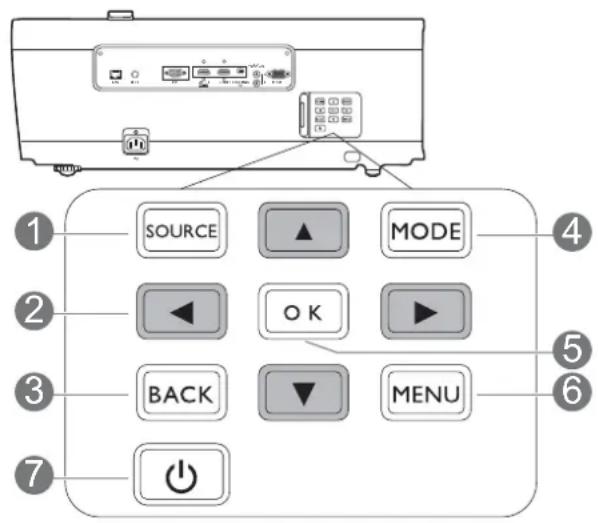
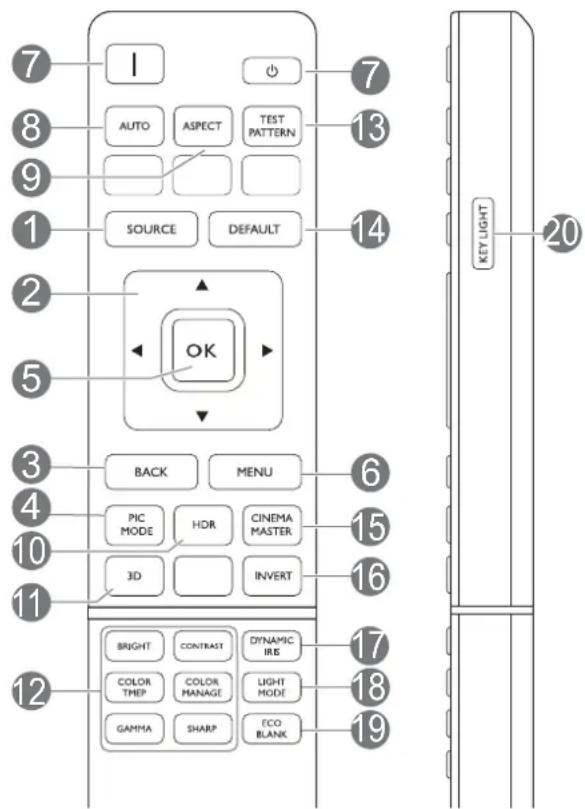
I. SOURCE
Displays the source selection bar.
- Arrow keys (▲,▼,) ▶ ▶
When the On-Screen Display (OSD) menu is activated, these keys are used as directional arrows to select the desired menu items and to make adjustments.
3. BACK
Goes back to previous OSD menu, exits and saves menu settings.
4. MODE, PIC MODE
Selects an available picture setup mode.
5. OK
Confirms the selected On-Screen Display (OSD) menu item.
6. MENU
Turns on the On-Screen Display (OSD) menu.
7. I/ POWER
Toggles the projector between standby mode and on.
8. AUTO
Automatically determines the best picture timings for the displayed image.
9. ASPECT
Selects the display aspect ratio.
10. HDR
Displays the HDR menu.
11.3D
Displays the 3D menu.
- Picture quality adjustment keys (BRIGHT, CONTRAST, COLOR TEMP, COLOR MANAGE, GAMMA, SHARP)
Displays the setting bars for adjustments of the appropriate picture quality values.
13. TEST PATTERN
Displays the test pattern.
14. DEFAULT
Resets the current function to default factory setting.
15. CINEMAMASTER
Displays the CinemaMaster menu.
See CinemaMaster on page 27.
16. INVERT
When your 3D image is distorted, enable this function to switch between the image for the left eye and the right eye for more comfortable 3D viewing experience.
17. DYNAMIC IRIS
The key function is not available with this model.
18. LIGHT MODE
Selects a suitable lamp power from among the provided modes.
19. ECO BLANK
Used to hide the screen picture.

Do not block the projection lens from projecting as this could cause the blocking object to become heated and deformed or even cause a fire.
20. KEY LIGHT
Turns on the remote control backlight for a few seconds. To keep the backlight on, press any other key while the backlight is on. Press the key again to turn the backlight off.
Remote control effective range
The remote control must be held at an angle within 30 degrees perpendicular to the projector's IR remote control sensor(s) to function correctly. The distance between the remote control and the sensor(s) should not exceed 8 meters ( 26 feet).
Make sure that there are no obstacles between the remote control and the IR sensor(s) on the projector that might obstruct the infra-red beam.
- Operating the projector from the front • Operating the projector from the rear


Positioning your projector
Choosing a location
Before choosing an installation location for your projector, take the following factors into consideration:
- Size and position of your screen
• Electrical outlet location - Location and distance between the projector and the rest of your equipment
You can install your projector in the following ways.
1. Front Table
Select this location with the projector placed on the table in front of the screen. This is the most common way to position the projector for quick setup and portability.

natural_image
Simple line drawing of a pendulum setup with a person silhouette and a table, no text or symbols present.2. Front Ceiling
Select this location with the projector suspended upside-down from the ceiling in front of the screen. Purchase the BenQ Projector Ceiling Mount Kit from your dealer to mount your projector on the ceiling.
natural_image
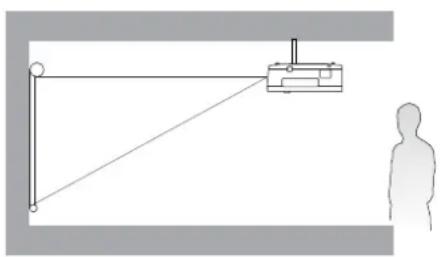
Simple line drawing of a mechanical setup with a person silhouette and a hanging device (no text or symbols)3. Rear Ceiling
Select this location with the projector suspended upside-down from the ceiling behind the screen. Note that a special rear projection screen and the BenQ Projector Ceiling Mount Kit are required for this installation location.

natural_image
Diagram of a simple pendulum setup with a human silhouette, showing positions and motion lines (no text or symbols)4. Rear Table
Select this location with the projector placed on the table behind the screen. Note that a special rear projection screen is required.

natural_image
Simple line drawing of a person observing a simple pendulum setup with a cart and lever (no text or symbols)After turning on the projector, go to INSTALLATION > Projector Position and press ◀/▶ to select a setting.
Obtaining a preferred projected image size
The distance from the projector lens to the screen, the zoom setting, and the video format each factors in the projected image size.
Projection dimensions
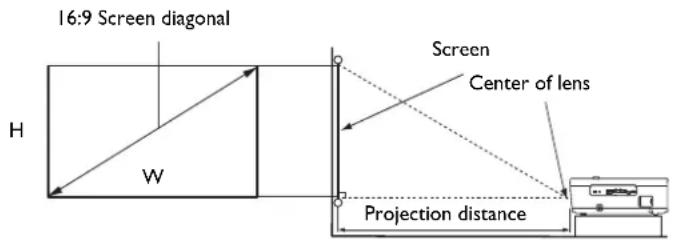
- The screen aspect ratio is 16:9 and the projected picture is in a 16:9 aspect ratio
| Screen size Distance from screen (mm) Lowest/ | Highest Lens position (mm) | ||||||
| Diagonal | H (mm) | W | Min length | Average | Max length | ||
| Inch mm | (max. zoom) (min. zoom) | ||||||
| 80 203 | 996 1771 | 2400 3000 | 3600 149 | ||||
| 90 228 | 1121 | 1992 2700 | 3375 4050 | 168 | |||
| 100 | 2540 | 1245 | 2214 3000 | 0 3750 4500 187 | |||
| 110 | 2794 | 1370 | 2435 | 3300 | 4125 | 4950 | 205 |
| 120 | 3048 | 1494 | 2657 3600 | 0 4500 5400 224 | |||
| 130 | 3302 | 1619 | 2878 3900 | 0 4875 5850 243 | |||
| 140 | 3556 | 1743 | 3099 4200 | 0 5250 6300 262 | |||
| 150 | 3810 | 1868 | 3321 4500 | 0 5625 6750 280 | |||
| 160 | 4064 | 1992 | 3542 4800 | 0 6000 7200 299 | |||
| 170 | 4318 2117 | 3763 | 5100 6375 | 7650 318 | |||
| 180 | 4572 | 2241 | 3985 5400 | 0 6750 8100 336 | |||
| 190 | 4826 | 2366 | 4206 5700 | 0 7125 8550 355 | |||
| 200 | 5080 | 2491 | 4428 6000 | 0 7500 9000 374 | |||
For example, if you are using a 120-inch screen, the recommended projection distance is 4500 mm.
If your measured projection distance is 520 cm, the closest match in the "Distance from screen (mm)" column is 5250 mm. Looking across this row shows that a 140" (about 3.6 m) screen is required.

All measurements are approximate and may vary from the actual sizes.
BenQ recommends that if you intend to permanently install the projector, you should physically test the projection size and distance using the actual projector in situ before you permanently install it, so as to make allowance for this projector's optical characteristics. This will help you determine the exact mounting position so that it best suits your installation location.
Mounting the projector
If you intend to mount your projector, we strongly recommend that you use a proper fitting BenQ projector mounting kit and that you ensure it is securely and safely installed.
If you use a non-BenQ brand projector mounting kit, there is a safety risk that the projector may fall down due to an improper attachment through the use of the wrong gauge or length screws.
Before mounting the projector
- Purchase a BenQ projector mounting kit from the place you purchased your BenQ projector.
- BenQ recommends that you also use a security cable to secure both the base of the mounting bracket and the security bar on the projector. This will perform the secondary role of restraining the projector should its attachment to the mounting bracket become loose.
- Ask your dealer to install the projector for you. Installing the projector on your own may cause it to fall and result in injury.
• Take necessary procedures to prevent the projector from falling off such as during an earthquake. - The warranty doesn't cover any product damage caused by mounting the projector with a non-BenQ brand projector mounting kit.
- Consider the surrounding temperature where the projector is ceiling mounted. If a heater is used, the temperature around the ceiling may be higher than expected.
- Read the user manual for the mounting kit about the range of torque. Tightening with torque exceeding the recommended range may cause damage to the projector and subsequently falling off.
- Make sure the power outlet is at an accessible height so that you can easily shut down the projector.
Ceiling mount installation diagram
Ceiling mount screw: M6
(Max L = 25 mm; Min L = 20 mm)

Adjusting the projector position
Shifting the projection lens
The lens shift control provides flexibility for installing your projector. It allows the projector to be positioned off the center of the screen.
The lens shift is expressed as a percentage of the projected image height or width. You can turn the knobs on the projector to shift the projection lens in any direction within the allowable range depending on your desired image position.
The horizontal position The vertical position


The projection range

natural_image
Diagram showing a projector with an elliptical screen and a rectangular display, connected to a printer (no text or symbols present)
Lens shift adjustment will not result in a degraded picture quality.
Adjusting the projected image
Adjusting the projection angle
If the projector is not placed on a flat surface or the screen and the projector are not perpendicular to each other, the projected image becomes trapezoidal. You can screw the adjuster feet to fine-tune the horizontal angle.
To retract the feet, screw the adjuster feet in a reverse direction.

natural_image
Diagram of a projector with two suspended mirrors showing internal wave patterns (no text or symbols)
Do not look into the lens while the lamp is on. The strong light from the lamp may cause damage to your eyes.
Auto-adjusting the image
In some cases, you may need to optimize the picture quality. To do this, press AUTO. Within 3 seconds, the built-in Intelligent Auto Adjustment function will re-adjust the values of Frequency and Clock to provide the best picture quality.
The current source information will be displayed in the corner of the screen for 3 seconds.

This function is only available when PC signal (analog RGB) is selected.
Fine-tuning the image size and clarity
I. Adjust the projected image to the size that you need using the zoom ring.
- Sharpen the image by rotating the focus ring.

natural_image
Architectural line drawing showing the Great Wall of Arction and its circular opening with a ring (no text or symbols)
natural_image
Diagram showing a camera aperture mounted on an arched door, with an inset image of the same structure (no text or symbols present)Connection
When connecting a signal source to the projector, be sure to:
I. Turn all equipment off before making any connections.
2. Use the correct signal cables for each source.
- Ensure the cables are firmly inserted.
Notebook or desktop computer, A/V device

flowchart
graph TD
    A["Device 1"] --> B["LAN"]
    C["Device 2"] --> D["IR IN"]
    E["Device 3"] --> F["PC"]
    G["Device 4"] --> H["HDMI 1"]
    I["Device 5"] --> J["HDMI 2 USB MINFB"]
    K["Device 6"] --> L["RS-232"]
    M["Device 7"] --> N["VGA"]
    O["Device 8"] --> P["HDMI"]
    Q["Device 9"] --> R["HDMI"]
    S["Device 10"] --> T["HDMI"]
    U["Device 11"] --> V["HDMI"]
    W["Device 12"] --> X["HDMI"]
| 1 | RJ-45 cable |
| 2 | IR extender |
| 3 | VGA cable |
| 4 | HDMI cable |

- In the connections above, some cables may not be included with the projector (see Shipping contents on page 7). They are commercially available from electronics stores.
- The connection illustrations are for reference only. The rear connecting jacks available on the projector vary with each projector model.
- Many notebooks do not turn on their external video ports when connected to a projector. Usually a key combo like FN + function key with a monitor symbol turns the external display on/off. Press FN and the labeled function key simultaneously. Refer to your notebook's documentation to find your notebook's key combination.
- If the selected video image is not displayed after the projector is turned on and the correct video source has been selected, check that the video source device is turned on and operating correctly. Also check that the signal cables have been connected correctly.
You need only connect the projector to a video source device using just one of the connecting methods, however each provides a different level of video quality.
| TerminalPicture quality | ||
| HDMI 1 (Version 2.0) |  | Best |
| HDMI 2 (Version 1.4a) |  | Better |
| PC |  | Good |
Using the cable tie set
The cable tie set helps prevent a cable plug from falling out of the connecting port. It contains the following parts.

To use the cable tie set:
I. Firmly plug a cable to a correct port on the projector. Insert the cable tie head to the cable tie hole right above the connecting port. Note that the cable tie cannot be removed from the hole once it is inserted.

-
Insert the end of the cable tie to the cable tie ratchet as illustrated.
-
Close the cable tie ratchet by pressing its tab.
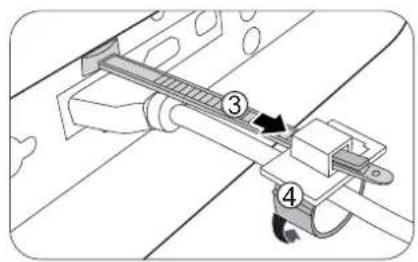
- Take the cable tie ratchet. Slightly open the ratchet to surround the connecting cable.

- Move the cable tie ratchet along with the cable tie to the end of the cable plug.

The cable tie installation is done.
Operation
Starting up the projector
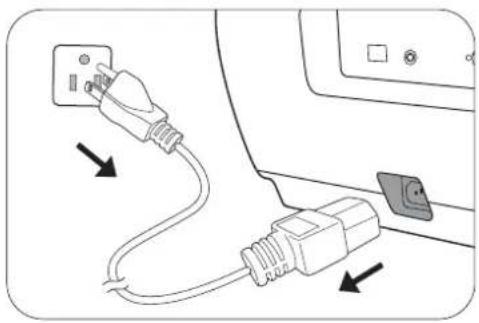
I. Plug the power cord. Turn on the power outlet switch (where fitted). The power indicator on the projector lights orange after power has been applied.
- Press ☐ on the projector or on the remote control to start the projector. The power indicator flashes green and stays green when the projector is on.
The start up procedure takes about 30 seconds. In the later stage of start up, a startup logo is projected.
(If necessary) Rotate the focus ring to adjust the image clearness.

natural_image
Diagram of a cable connection with two connectors and directional arrows indicating cable movement (no text or symbols)- If this is the first time you turn on the projector, the setup wizard appears to guide you through setting up the projector. If you have already done this, skip this step and move on to the next step.
- Use the arrow keys ( I I I ) on the projector or remote control to move through the menu items.
- Use OK to confirm the selected menu item.
Step 1:
Specify Projector Position.
For more information about projector position, see Choosing a location.
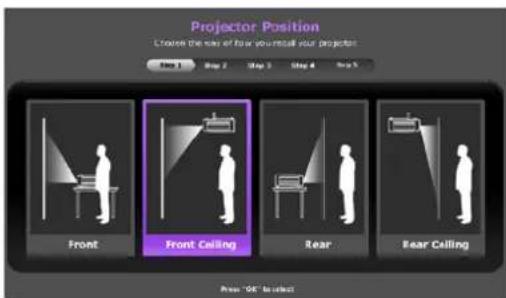
Step 2:
Specify OSD Language.

Step 3:
Specify Auto Source.
Select On if you want the projector to always search for available signals automatically when the projector is turned on.
Now you've completed the initial setup.

- If you are prompted for a password, press the arrow keys to enter a 6-digit password. See Utilizing the password function on page 20.
- Switch all of the connected equipment on.
- The projector will search for input signals. The current input signal being scanned appears. If the projector does not detect a valid signal, the message "No Signal" will continue displaying until an input signal is found.
You can also press SOURCE to select your desired input signal. See Switching input signal on page 21.

- Please use the original accessories (e.g. power cord) to avoid possible dangers such as electric shock and fire.
- The Setup Wizard screenshots are for reference only and may differ from the actual design.
- If the frequency/resolution of the input signal exceeds the projector's operating range, you will see the message "Out of Range" displayed on the background screen. Please change to an input signal which is compatible with the projector's resolution or set the input signal to a lower setting. See Timing chart on page 38.
- If no signal is detected for 3 minutes, the projector automatically enters saving mode.
Using the menus
The projector is equipped with On-Screen Display (OSD) menus for making various adjustments and settings.

The OSD screenshots below are for reference only, and may differ from the actual design.
Below is the overview of the OSD menu.
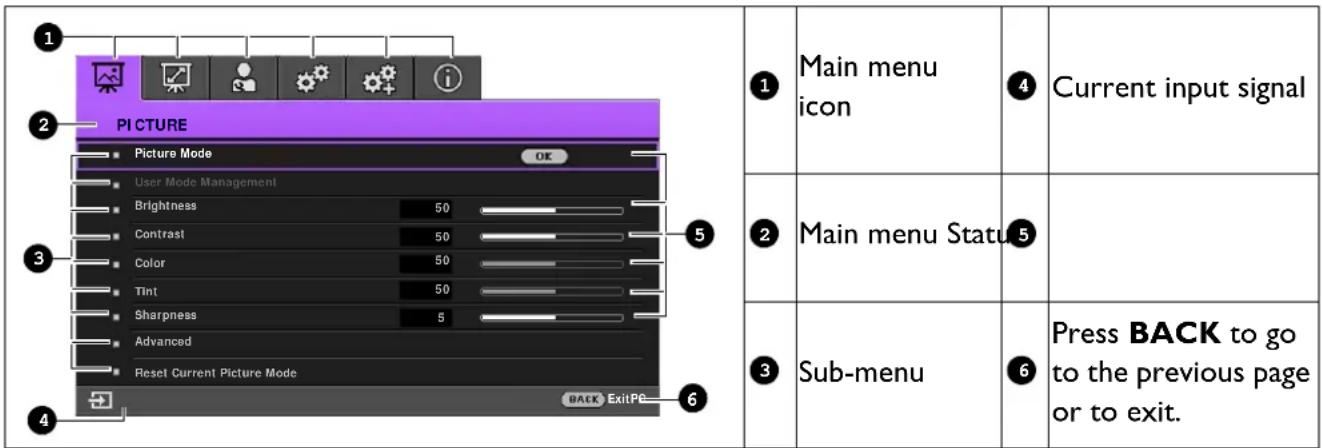
To access the OSD menu, press MENU on the projector or remote control.
- Use the arrow keys ( /// ) on the projector or remote control to move through the menu items.
- Use OK on the projector or remote control to confirm the selected menu item.
Securing the projector
Using a security cable lock
The projector has to be installed in a safe place to prevent theft. Otherwise, purchase a security cable to secure the projector. A security bar is located on the side of the projector. See item 21 on page 8. Insert a security cable to the opening of the security bar and secure it to a nearby fixture or heavy furniture.
Utilizing the password function
Setting a password
I. Go to SYSTEM SETUP: ADVANCED > Password. Press OK. The Password page appears.
2. Highlight Change Password and press OK.
3. The four arrow keys (▲, ▶, ▼, ◀) respectively represent 4 digits (1, 2, 3, 4). According to the password you desire to set, press the arrow keys to enter six digits for the password.
4. Confirm the new password by re-entering the new password.
Once the password is set, the OSD menu returns to the Password page.
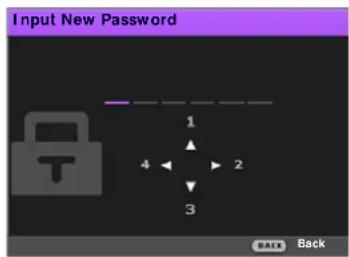
- To activate the Power On Lock function, press ▲/▼ to highlight Power On Lock and press ◀/▶to select On. Input the password again.

- The digits being input will display as asterisks on-screen. Make a note of your selected password and keep it in a safe place in advance or right after the password is entered so that it is available to you should you ever forget it.
- Once a password has been set and the power on lock is activated, the projector cannot be used unless the correct password is entered every time the projector is started.
If you forget the password
If you enter the wrong password, the password error message will appear, and the Input Current Password message follows. If you absolutely do not remember the password, you can use the password recall procedure. See Entering the password recall procedure on page 20.
If you enter an incorrect password 5 times in succession, the projector will automatically shut down in a short time.
Entering the password recall procedure
I. Press and hold OK for 3 seconds. The projector will display a coded number on the screen.
2. Write down the number and turn off your projector.
3. Seek help from the local BenQ service center to decode the number. You may be required to provide proof of purchase documentation to verify that you are an authorized user of the projector.
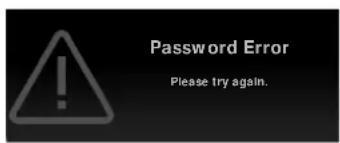

Changing the password
I. Go to SYSTEM SETUP: ADVANCED > Password > Change Password.
2. Press OK. The message "Input Current Password" appears.
3. Enter the old password.
- If the password is correct, another message "Input New Password" appears.
-
If the password is incorrect, the password error message will appear, and the message "Input Current Password" appears for your retry. You can press BACK to cancel the change or try another password.
-
Enter a new password.
-
Confirm the new password by re-entering the new password.
Disabling the password function
To disable password protection, go to SYSTEM SETUP: ADVANCED > Password > Power On Lock and press ◀/▶ to select Off. The message “Input Current Password” appears. Enter the current password.
- If the password is correct, the OSD menu returns to the Password page. You will not have to enter the password next time turning on the projector.
- If the password is incorrect, the password error message will appear, and the message "Input Current Password" appears for your retry. You can press BACK to cancel the change or try another password.

Though the password function is disabled, you need to keep the old password in hand should you ever need to re-activate the password function by entering the old password.
Switching input signal
The projector can be connected to multiple devices at the same time. However, it can only display one full screen at a time. When starting up, the projector automatically searches for the available signals.
Be sure the SYSTEM SETUP: BASIC > Auto Source menu is On if you want the projector to automatically search for the signals.
To select the source:
I. Press SOURCE. A source selection bar appears.
2. Press ▲/▼ until your desired signal is selected and press OK.
Once detected, the selected source information will appear at the corner of the screen for seconds. If there is multiple equipment connected to the projector, repeat steps 1-2 to search for another signal.


- The brightness level of the projected image will change accordingly when you switch between different input signals.
- For best display picture results, you should select and use an input signal which outputs at the projector's native resolution. Any other resolutions will be scaled by the projector depending upon the “aspect ratio” setting, which may cause some image distortion or loss of picture clarity. See Aspect Ratio on page 29.
Shutting down the projector
I. Press and a confirmation message will appear prompting you. If you don't respond in a few seconds, the message will disappear.
-
Press a second time.
-
Disconnect the power cord from the power outlet.
natural_image
Diagram showing two connected electrical plugs with arrows indicating connection points (no text or symbols present)Menu operation
Please note that the on-screen display (OSD) menus vary according to the signal type selected and the projector model you are using.
The menu items are available when the projector detects at least one valid signal. If there is no equipment connected to the projector or no signal detected, limited menu items are accessible.
PICTURE menu
| Picture Mode | The projector is preset with several predefined picture modes so that you can choose one to suit your operating environment and input signal picture type.Bright:Maximizes the brightness of the projected image. This mode is suitable for environments where extra-high brightness is required, such as using the projector in well lit rooms.Vivid:Being slightly brighter thanCinemamode, it is suitable for playing movies in rooms where there is a small amount of ambient light, e.g. your living room.Cinema:With well-balanced color saturation and contrast with a low brightness level, this is most suitable for enjoying movies in a totally dark environment (as you would find in a commercial cinema).Silence:Minimizes the acoustic noise. It is suitable for the need of watching movies that requires an ultra-quiet environment so that you won't be disturbed by the noise of the projector. When this mode is used, the following menu functions will be automatically changed to the designated settings and grayed out.XPR:OffLight Mode:EconomicUser I/User 2:Recalls the settings customized based on the current available picture modes. SeeUser Mode Management on page 24.3D:Optimized to bring up 3D effects when watching 3D contents.This mode is only available when 3D function is enabled.HDR:Delivers High Dynamic Range effects with higher contrasts of brightness and colors. This mode is only available when:1.DISPLAY > HDRis set atAuto, and HDR content is detected.2.DISPLAY > HDRmenu is set atHDR. |
| User Mode Management | There are two user-definable modes if the current available picture modes are not suitable for your need. You can use one of the picture modes (except the User I/User 2) as a starting point and customize the settings.• Load Settings From1. Go to PICTURE > Picture Mode.2. Press ◄/► to select User I or User 2.3. Press ▼ to highlight User Mode Management, and press OK. The User Mode Management page is displayed.4. Select Load Settings From and press OK.5. Press ▼/▲ to select a picture mode that is closest to your need.6. Press OK and BACK to return to the PICTURE menu.7. Press ▼ to select the sub-menu items you want to change and adjust the values with ◄. The adjustments define the selected user mode.• Rename User ModeSelect to rename the customized picture modes (User I or User 2). The new name can be up to 9 characters including English letters (A-Z, a-z), digits (0-9), and space (_).1. Go to PICTURE > Picture Mode.2. Press ◄/► to select User I or User 2.3. Press ▼ to highlight User Mode Management, and press OK. The User Mode Management page is displayed.4. Press ▼ to highlight Rename User Mode and press OK. The Rename User Mode page is displayed.5. Use ▲/► to select desired characters.6. When done, press OK and BACK to exit. |
| Brightness | The higher the value, the brighter the image. Adjust this control so the black areas of the image appear just as black and that detail in the dark areas is visible. |
| Contrast | The higher the value, the greater the contrast. Use this to set the peak white level after you have previously adjusted the Brightness setting to suit your selected input and viewing environment. |
| Color | Lower setting produces less saturated colors. If the setting is too high, colors on the image will be overpowering, which makes the image unrealistic. |
| Tint | The higher the value, the more greenish the picture becomes. The lower the value, the more reddish the picture becomes. |
| Sharpness | The higher the value, the sharper the picture becomes. |
| Advanced | • Gamma SelectionGamma refers to the relationship between input source and picture brightness.• 1.8/2.0/2.1/BenQ: Select these values according to your preference.• 2.2/2.3: Increases the average brightness of the picture. Best for a lit environment, meeting room or family room.• 2.4/2.5: Best for viewing movies in a dark environment.• 2.6: Best for viewing movies which are mostly composed of dark scenes. • HDR BrightnessThe projector can automatically adjust the brightness levels of your image according to the input source. You can also manually select a brightness level to display better picture quality. When the value is higher, the image becomes brighter; when the value is lower, the image becomes darker.• Color TemperatureThere are several preset color temperature settings available. The available settings may vary according to the signal type selected.• Normal: Maintains normal colorings for white.• Cool: Makes images appear bluish white.• Lamp Native: With the lamp's original color temperature and higher brightness. This setting is suitable for environments where high brightness is required, such as projecting pictures in well lit rooms.• Warm: Makes images appear reddish white.You can also set a preferred color temperature by adjusting the following options.• R Gain/G Gain/B Gain: Adjusts the contrast levels of Red, Green, and Blue.• R Offset/G Offset/B Offset: Adjusts the brightness levels of Red, Green, and Blue. • HDR BrightnessThe projector can automatically adjust the brightness levels of your image according to the input source. You can also manually select a brightness level to display better picture quality. When the value is higher, the image becomes brighter; when the value is lower, the image becomes darker.• Color TemperatureThere are several preset color temperature settings available. The available settings may vary according to the signal type selected.• Normal: Maintains normal colorings for white.• Cool: Makes images appear bluish white.• Lamp Native: With the lamp's original color temperature and higher brightness. This setting is suitable for environments where high brightness is required, such as projecting pictures in well lit rooms.• Warm: Makes images appear reddish white.You can also set a preferred color temperature by adjusting the following options.• R Gain/G Gain/B Gain: Adjusts the contrast levels of Red, Green, and Blue.• R Offset/G Offset/B Offset: Adjusts the brightness levels of Red, Green, and Blue. |
| Advanced(Continued) | • Color ManagementThe Color Management provides six sets (RGBCMY) of colors to be adjusted.When you select each color, you can independently adjust its range and saturation according to your preference.• Primary Color: Selects a color from among Red, Yellow, Green, Cyan, Blue, or Magenta.•Hue: Increase in the range will include colors consisted of more proportions of its two adjacent colors. Please refer to the illustration for how the colors relate to each other.For example, if you select Red and set its range at 0, only pure red in the projected picture will be selected. Increasing its range will include red close to yellow and red close to magenta.•Saturation: Adjusts the values to your preference. Every adjustment made will reflect to the image immediately. For example, if you select Red and set its value at 0, only the saturation of pure red will be affected.•Gain: Adjusts the values to your preference. The contrast level of the primary color you select will be affected. Every adjustment made will reflect to the image immediately.Saturationis the amount of that color in a video picture. Lower settings produce less saturated colors; a setting of “0” removes that color from the image entirely. If the saturation is too high, that color will be overpowering and unrealistic.•Color GamutColor Gamutrefers to the range of colors that can potentially be displayed by a device. There are some standards to define difference levels of color gamuts for display devices, such as CIE 1976, sRGB, Adobe RGB, NTSC, etc.With this projector, selectingAutowill automatically apply the most suitable color gamut to the image source. You can also selectBT. 709, BT. 2020, or DCI-P3according to your needs. |  |
| Advanced(Continued) | • CinemaMaster• Color Enhancer: Allows you to fine-tune the saturation of colors with larger flexibility. It modulates complex color algorithms to flawlessly render saturated colors, fine gradients, intermediate hues and subtle pigments.• Flesh Tone: Provides a smart adjustment of hue only for calibrating people's skin color, not other colors in the image. It prevents discoloration of skin tones from the light of the projection beam, portraying every skin tone in its most beautiful shade.• Pixel Enhancer 4K: It is a super-resolution technology which radically enhances Full HD content in terms of colors, contrast, and textures. It's also a Detail Enhancement Technology refines surface details for true-to-life images that pop off the screen. Users can adjust levels of sharpness and detail enhancement for optimal viewing.• DCTI/DLTI: Sophisticated algorithms significantly improve color and light output when producing images with contrasting colors or bright and dark scales. DCTI heightens color vibrancy for drastic color transitions without noise interference. DLTI reduces noise from fast switching of varied luminance to optimized brightness and contrast. The result is picture quality with the utmost picture depth and color performance.• Noise Reduction: Reduces electrical image noise caused by different media players.• Light Mode: Selects a suitable lamp power from among the provided modes. See Extending lamp life on page 34. |
| Reset Current Picture Mode | Returns all of the adjustments you've made for the selected Picture Mode (including preset modes, User 1, and User 2) to the factory preset values.1. Press OK. The confirmation message is displayed.2. Use ◀/► to select Reset and press OK. The current picture mode returns to the factory preset settings. |
DISPLAY menu
| Image Position | Displays the position adjustment page. To move the projected image, use the directional arrow keys. This function is only available when a PC signal (analog RGB) is selected. |
| Overscan Adjustment | Conceals the poor picture quality in the four edges.The greater the value, the more portion of the picture is concealed while the screen remains filled and geometrically accurate. Setting 0 means the picture is 100% displayed. |
| PC Tuning | H. Size: Adjusts the horizontal width of the image.Phase: Adjusts the clock phase to reduce image distortion. Auto: Adjusts the phase and frequency automatically.These functions are only available when the PC signal is selected. Auto: Adjusts the phase and frequency automatically.These functions are only available when the PC signal is selected. |
| 3D | 3DSelecting On enables this function. This projector supports playing three-dimensional (3D) content transferred through your 3D-compatible video devices and contents, such as PlayStation consoles (with 3D game discs), 3D Blu-ray players (with 3D Blu-ray discs), and so on. After you have connected the 3D video devices to the projector, wear the BenQ 3D glasses and make sure the power is on to view 3D contents.When watching 3D contents:The image may seem misplaced, however, this is not a product malfunction.Take appropriate breaks when watching 3D contents.Stop watching 3D contents if you feel fatigue or discomfort.Keep a distance from the screen of about three times the effective height of the screen.Children and people with a history of oversensitivity to light, heart problems, or any other existing medical condition should be refrained from watching 3D contents.The image may seem reddish, greenish, or bluish without wearing 3D glasses. However, you will not notice any color bias when watching 3D contents with 3D glasses.The 4K source will not be displayed.3D ModeThe default setting is Auto and the projector automatically chooses an appropriate 3D format when detecting 3D contents. If the projector cannot recognize the 3D format, manually choose a 3D mode according to your preference.When this function is enabled:The brightness level of the projected image decreases.The Picture Mode cannot be adjusted. |
| 3D(Continued) | • 3D Sync InvertWhen your 3D image is distorted, enable this function to switch between the image for the left eye and the right eye for more comfortable 3D viewing experience.• 3D Switch ReminderDisplays a message during the projector start-up to remind that it is necessary to turn on the 3D function if you want to enjoy 3D contents. |
| HDR | The projector supports HDR imaging sources. It can automatically detect the dynamic range of the source, and optimize settings to reproduce contents under wider dynamic range. Meanwhile, thePicture Modecannot be adjusted after switching to HDR. If the input source is not defined with dynamic range, you can also manually select HDR10, HLG, orSDRfor it. |
INSTALLATION menu
| Projector Position | The projector can be installed on a ceiling or behind a screen, or with one or more mirrors. See Choosing a location on page 11. | ||
| Test Pattern | Adjusts the image size and focus and check that the projected image is free from distortion.  | ||
| Aspect Ratio | There are several options to set the image's aspect ratio depending on your input signal source. | ||
• Auto: Scales an image proportionally to fit the projector's native resolution in its horizontal or vertical width. 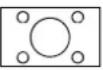  15:9 picture 15:9 picture | |||
• Real: Projects an image as its original resolution and resizes it to fit within the display area. For input signals with lower resolutions, the projected image will be displayed in its original size.  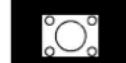 4:3 picture 4:3 picture | |||
• 4:3: Scales an image so that it is displayed in the center of the screen with a 4:3 aspect ratio.  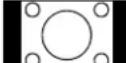 4:3 picture 4:3 picture | |||
• 16:9: Scales an image so that it is displayed in the center of the screen with a 16:9 aspect ratio.  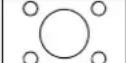 16:9 picture 16:9 picture | |||
• 2.4:1: Scales an image so that it is displayed in the center of the screen with a 2.4:1 aspect ratio.   16:9 picture 16:9 picture | |||
| Aspect Ratio(Continued) | Anamorphic 2.4:1: Vertically stretches an image to fit the anamorphic lens. It keeps the native resolution in its horizontal width and resizes the resolution in its vertical height to 1.32 times of the original image.Anamorphic 16:9: Horizontally squeezes an image to fit the anamorphic lens. It keeps the native resolution in its vertical height and resizes the resolution in its horizontal width to 0.75 times of the original image. | 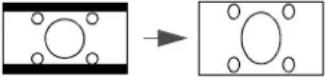 2.4:1 picture16:9 picture 2.4:1 picture16:9 picture | |
| 12V Trigger | There are two 12V triggers that work independently according to your needs for installation scenarios. Three selections are available:Off: If this is selected, the projector will not send electronic signal out when it is turned on.Power: The projector will send a low to high electronic signal out when it is turned on, a high to low signal out when it is turned off.Anamorphic: The projector will send a low to high electronic signal out when the aspect ratio is switched from other aspect ratios to "Anamorphic 2.4:1" or "Anamorphic 16:9", a high to low signal out when the aspect ratio setting is switched from "Anamorphic 2.4:1" or "Anamorphic 16:9" to other aspect ratios. | ||
| High Altitude Mode | We recommend you use the High Altitude Mode when your environment is between 1500 m –3000 m above sea level, and ambient temperature is between 0°C–30°C.Operation under "High Altitude Mode" may cause a higher decibel operating noise level because of increased fan speed necessary to improve overall system cooling and performance.If you use this projector under other extreme conditions excluding the above, it may display auto shut-down symptoms, which is designed to protect your projector from over-heating. In cases like this, you should switch to High Altitude mode to solve these symptoms. However, this is not to state that this projector can operate under any and all harsh or extreme conditions. Do not use the High Altitude Mode if your altitude is between 0 m and 1500 m and ambient temperature is between 0°C and 35°C. The projector will be over cooled, if you turn the mode on under such a condition. Do not use the High Altitude Mode if your altitude is between 0 m and 1500 m and ambient temperature is between 0°C and 35°C. The projector will be over cooled, if you turn the mode on under such a condition. | ||
SYSTEM SETUP: BASIC menu
| Language Sets the language for the On-Screen Display (OSD) menus. | |
| Background Color | Sets the background color for the projector. |
| Splash Screen | Allows you to select which logo screen will be displayed during projector start-up. |
| Auto Off | Allows the projector to turn off automatically if no input signal is detected after a set period of time to prevent unnecessary waste of lamp life. |
| Direct Power On | Allows the projector to turn on automatically once the power is fed through the power cord. |
| Menu Settings | ·Menu Position: Sets the On-Screen Display (OSD) menu position.·Menu Display Time: Sets the length of time the OSD will remain active after your last key press.·Reminder Message: Sets the reminder messages on or off. |
| Source Rename | Renames the current input source to your desired name.On the Source Rename page, use ▲/▼/◄/► to set the desired characters for the connected source item.When done, press OK to save the changes. |
| Auto Source Allows the projector to automatically search for a signal. | |
SYSTEM SETUP: ADVANCED menu
| HDMI Settings | ·HDMI RangeSelects a suitable RGB color range to correct the color accuracy.·Auto: Automatically selects a suitable color range for the incoming HDMI signal.·Full: Utilizes the Full range RGB 0-255.·Limited: Utilizes the Limited range RGB 16-235.·CECWhen you connect an HDMI CEC-compatible device to your projector with an HDMI cable, turning on the HDMI CEC compatible device automatically turns on the projector, while turning off the projector automatically turns off the HDMI CEC compatible device.·Power On Link/Power Off LinkWhen you connect an HDMI CEC-compatible device to your projector with an HDMI cable, you can set the behavior of powering on/off between the device and the projector. | |
| From Device (for Power On Link) | When the connected device is turned on, the projector will be activated, too. | |
| From Projector (for Power Off Link) | When the projector is turned off, the connected device will be shut down, too. | |
| Password | SeeUtilizing the password function on page 20. | |
| Key Lock | With the control keys on the projector and remote control locked, you can prevent your projector settings from being changed accidentally (by children, for example). When theKey Lockis on, no control keys on the projector will operate except ⏻ POWER.To release panel key lock, press and hold▶(the right key) on the projector or remote control for 3 seconds. If you turn off the projector without disabling panel key lock, the projector will still be in locked status the next time it is turned on. If you turn off the projector without disabling panel key lock, the projector will still be in locked status the next time it is turned on. | |
| LED Indicator | Selects to turn off the LED warning lights. This is to avoid any light disturbance when viewing images in a dark room. | |
| Network Settings | Wired LAN: See BenQ Network Projector Operation Guide.AMX Device Discovery: When this function is On, the projector can be detected by AMX controller.Network Standby: When this function is On, the projector is able to provide the network function when it is in standby mode.MAC Address: Displays the mac address for this projector. | |
| Reset All Settings | Returns all settings to the factory preset values. The following settings will still remain: Picture Mode, User Mode Management, Brightness, Contrast, Color, Tint, Sharpness, Advanced, Projector Position, Source Rename, Password, and Wired LAN. The following settings will still remain: Picture Mode, User Mode Management, Brightness, Contrast, Color, Tint, Sharpness, Advanced, Projector Position, Source Rename, Password, and Wired LAN. | |
| ISF | The ISF calibration menu is password protected and only accessible by authorized ISF calibrators. The ISF (Imaging Science Foundation) has developed carefully crafted, industry-recognized standards for optimal video performance and has implemented a training program for technicians and installers to use these standards to obtain optimal picture quality from BenQ video display devices. Accordingly, we recommend that setup and calibration be performed by an ISF certified installation technician. For more information, go to www.imagingscience.com or contact the dealer or retailer from whom you purchased the projector. For more information, go to www.imagingscience.com or contact the dealer or retailer from whom you purchased the projector. | |
INFORMATION menu
| Current System Status | Source: Shows the current signal source.Picture Mode: Shows the selected mode in the PICTURE menu.HDR: Shows the HDR status.Resolution: Shows the native resolution of the input signal.Color System: Shows input system format.Color Gamut: Shows the Color Gamut status.Light Source Usage Time: Shows the number of hours the lamp has been used.3D Format: Displays the current 3D mode. 3D Format is only available when 3D is enabled.Firmware Version: Shows the firmware version of your projector. 3D Format is only available when 3D is enabled.Firmware Version: Shows the firmware version of your projector. |
Maintenance
Care of the projector
Cleaning the lens
Clean the lens whenever you notice dirt or dust on the surface. Please be sure to turn off the projector and let it cool down completely before cleaning the lens.
- Use a canister of compressed air to remove dust.
- If there is dirt or smears, use lens-cleaning paper or moisten a soft cloth with lens cleaner and gently wipe the lens surface.
- Never use any type of abrasive pad, alkaline/acid cleaner, scouring powder, or volatile solvent, such as alcohol, benzene, thinner or insecticide. Using such materials or maintaining prolonged contact with rubber or vinyl materials may result in damage to the projector surface and cabinet material.
Cleaning the projector case
Before you clean the case, turn the projector off using the proper shutdown procedure as described in Shutting down the projector on page 22 and unplug the power cord.
- To remove dirt or dust, wipe the case with a soft, lint-free cloth.
- To remove stubborn dirt or stains, moisten a soft cloth with water and a neutral pH detergent. Then wipe the case.

Never use wax, alcohol, benzene, thinner or other chemical detergents. These can damage the case.
Storing the projector
If you need to store the projector for an extended time, please follow the instructions below:
- Make sure the temperature and humidity of the storage area are within the recommended range for the projector. Please refer to Specifications on page 37 or consult your dealer about the range.
- Retract the adjuster feet.
- Remove the battery from the remote control.
- Pack the projector in its original packing or equivalent.
Transporting the projector
It is recommended that you ship the projector with its original packing or equivalent.
Lamp information
Getting to know the lamp hour
When the projector is in operation, the duration (in hours) of lamp usage is automatically calculated by the built-in timer. The method of calculating the equivalent lamp hour is as follows:
Lamp Usage Time = (hours used in Normal mode) + (hours used in Economic mode) + (hours used in SmartEco mode)
Total (equivalent) lamp hour = 1.0 x (hours used in Normal mode) + 1.0 x (hours used in Economic mode) + 1.0 x (hours used in SmartEco mode)
You can get the lamp hour information on the INFORMATION menu.
Extending lamp life
- Setting the Light Mode
Go to PICTURE > Advanced > Light Mode and press ◀/▶ or press LIGHT MODE on the remote control to selects a suitable lamp power from among the provided modes.
Setting the projector in Economic or SmartEco mode extends lamp life.
| Lamp mode Description | |
| Normal Provides full lamp brightness | |
| Economic | Lowers brightness to extend the lamp life and decreases the fan noise |
| SmartEco | Adjusts the lamp power automatically depending on the content brightness level |
- Setting Auto Off
This function allows the projector to turn off automatically if no input signal is detected after a set period of time to prevent unnecessary waste of lamp life.
To set Auto Off, go to SYSTEM SETUP: BASIC > Auto Off and press ◀/▶.

- The apparent brightness of the projected image will vary depending on the ambient lighting conditions, selected input signal contrast/brightness settings, and is directly proportional to projection distance.
- The lamp brightness will decline over time and may vary within the lamp manufacturers specifications. This is normal and expected behavior.
Indicators
| Light | Status & Description | ||
| POWER | TEMP | LIGHT | |
| Power events | |||
| ○ | ○ | Stand-by mode | |
| ○ | ○ | Powering up | |
| ○ | ○ | Normal operation | |
| ○ | ○ | Normal power-down cooling | |
| Download | |||
| ○ | ● | Scaler reset fail (video projector only) | |
| ○ | ○ | Burn-in ON | |
| ● | ● | Burn-in OFF | |
| Lamp events | |||
| ○ | ○ | ● | Lamp1 error in normal operation |
| ○ | ○ | Lamp is not lit up | |
| Thermal events | |||
| ● | ○ | Fan 1 error (the actual fan speed is ±25% outside the desired speed) | |
| ● | ○ | Fan 2 error (the actual fan speed is ±25% outside the desired speed) | |
| ● | ○ | Fan 3 error (the actual fan speed is ±25% outside the desired speed) | |
| ● | ○ | Fan 4 error (the actual fan speed is ±25% outside the desired speed) | |
| ● | ○ | Fan 5 error (the actual fan speed is ±26% outside the desired speed) | |
| ● | ○ | Fan 6 error (the actual fan speed is ±27% outside the desired speed) | |
| ● | ○ | Fan 7 error (the actual fan speed is ±28% outside the desired speed) | |
| ● | ○ | Fan 8 error (the actual fan speed is ±29% outside the desired speed) | |
| ● | ○ | Temperature 1 error (over limited temperature) | |
| ● | ○ | Temperature 2 error (over limited temperature) | |
| ○: Off | ○: Orange On : Green On : Red On○: Orange Flashing : Green Flashing : Red Flashing |
Troubleshooting

The projector does not turn on.
| Cause Remedy | |
| There is no power from the power cord. | Plug the power cord into the AC power jack on the projector, and plug the power cord into the power outlet. If the power outlet has a switch, make sure that it is switched on. |
| Attempting to turn the projector on again during the cooling process. | Wait until the cooling down process has completed. |

No picture
| Cause Remedy | |
| The video source is not turned on or connected correctly. | Turn the video source on and check that the signal cable is connected correctly. |
| The projector is not correctly connected to the input signal device. | Check the connection. |
| The input signal has not been correctly selected. | Select the correct input signal with the SOURCE key. |
| The lens cover is still closed. Open the lens cover. |

Blurred image
| Cause Remedy | |
| The projection lens is not correctly focused. | Adjust the focus of the lens using the focus ring. |
| The projector and the screen are not aligned properly. | Adjust the projection angle and direction as well as the height of the projector if necessary. |
| The lens cover is still closed. Open the lens cover. |

Remote control does not work.
| Cause Remedy | |
| The batteries are out of power. Replace both of the batteries with new ones. | |
| There is an obstacle between the remote control and the projector. | Remove the obstacle. |
| You are too far away from the projector. Stand within 8 meters (26 feet) of the projector. | |

The password is incorrect.
| Cause Remedy | |
| You do not remember the password. | See Entering the password recall procedure on page 20. |
Specifications
Projector specifications

All specifications are subject to change without notice.
Optical
Resolution
3840 x 2160 with XPR
2716 x 1528 without XPR
Display system
1-CHIP DMD
Lens
F = 2.05 to 2.37, f = 20.54 to 30.31 mm
Clear focus range
2.85–5.4 m @ Wide,
4.28–8.1 m @ Tele
Lamp
HLD-LED
Electrical
Power supply
AC100-240V, 5.0 A, 50-60 Hz (Automatic)
Power consumption
550 W (Max); < 0.5 W (Standby)
Mechanical
Weight
18.5 Kg (40.8 lbs)
Output terminals
12V Trigger x 2 (0.5 A power supply)
Control
RS-232 serial control
9 pin x 1
IR receiver x 2
Input terminals
Computer input
RGB input
D-Sub 15-pin (female) x 1
Video signal input
Digital
HDMI (1.4a, HDCP 1.1) x 1;
HDMI (2.0, HDCP 2.2) x 1
USB port (Mini-B x 1)
Environmental Requirements
Operating temperature
0ircC-40ircC at sea level
Storage temperature
-20°C–60°C at sea level
Operating/Storage relative humidity
10%–90% (without condensation)
Operating altitude
0–1499 m at 0°C–35°C
1500–3000 m at 0°C–30°C (with
High Altitude Mode on)
Dimensions
470.7 mm (W) × 224.9 mm (H) × 564.7 mm (D)


Unit: mm
Timing chart
Supported timing for PC input
| Resolution Mode | Vertical Frequency (Hz) | Horizontal Frequency (kHz) | Clock (MHz) | |
| 720 x 400 720x400_70 | 70.087 31.469 28.3221 | |||
| 640 x 480 | VGA_60 59.940 31.469 25.175 | |||
| VGA_72 72.809 37.861 31.500 | ||||
| VGA_75 75.000 37.500 31.500 | ||||
| VGA_85 85.008 43.269 36.000 | ||||
| 800 x 600 | SVGA_60 60.317 37.879 40.000 | |||
| SVGA_72 72.188 48.077 50.000 | ||||
| SVGA_75 75.000 46.875 49.500 | ||||
| SVGA_85 85.061 53.674 56.250 | ||||
| SVGA_120(Reduce Blanking) | 119.854 77.425 83.000 | |||
| 1024 x 768 | XGA_60 60.004 48.363 65.000 | |||
| XGA_70 70.069 56.476 75.000 | ||||
| XGA_75 75.029 60.023 78.750 | ||||
| XGA_85 84.997 68.667 94.500 | ||||
| XGA_120(Reduce Blanking) | 119.989 97.551 115.500 | |||
| 1152 x 864 1152 x 864_75 75.00 | 67.500 108.000 | |||
| 1024 x 576 | BenQ NB Timing | 60.0 | 35.820 | 46.966 |
| 1024 x 600 | BenQ NB Timing | 64.995 41.467 51.419 | ||
| 1280 x 720 | 1280 x 720_60 | 60 | 45.000 | 74.250 |
| 1280 x 768 | 1280 x 768_60 | 59.870 | 47.776 | 79.5 |
| 1280 x 800 | WXGA_60 | 59.810 49.702 83.500 | ||
| WXGA_75 | 74.934 62.795 106.500 | |||
| WXGA_85 | 84.880 71.554 122.500 | |||
| WXGA_120(Reduce Blanking) | 119.909 | 101.563 146.25 | ||
| 1280 x 1024 | SXGA_60 | 60.020 | 63.981 | 108.000 |
| SXGA_75 75.025 79.976 135.000 | ||||
| SXGA_85 85.024 91.146 157.500 | ||||
| 1280 x 960 | 1280 x 960_60 | 60.000 60.000 | 108 | |
| 1280 x 960_85 | 85.002 85.938 148.500 | |||
| 1360 x 768 | 1360 x 768_60 | 60.015 47.712 85.500 | ||
| 1440 x 900 | WXGA+_60 | 59.887 55.935 106.500 | ||
| 1400 x 1050 | SXGA+_60 | 59.978 65.317 121.750 | ||
| 1600 x 1200 | UXGA | 60.000 75.000 | 162.000 | |
| 1680 x 1050 | 1680x1050_60 | 59.954 65.290 146.250 | ||
| 640 x 480@67Hz | MAC13 | 66.667 35.000 30.240 | ||
| 832 x 624@75Hz | MAC16 | 74.546 49.722 57.280 | ||
| 1024 x 768@75Hz | MAC19 | 74.93 | 60.241 | 80.000 |
| 1152 x 870@75Hz | MAC21 | 75.06 | 68.68 | 100.00 |

The timings showing above may not be supported due to EDID file and VGA graphics card limitations. It is possible that some timings cannot be chosen.
Supported timing for HDMI (HDCP) input
- PC timings
| Resolution Mode | Refresh rate (Hz) | H-frequency (kHz) | Clock (MHz) | 3D Field Sequential | over-under | 3D side-by-side | |
| 640 x 480 | VGA_60 59.94 | 40 31.469 25.175 v v | |||||
| VGA_72 72.80 | 9 37.861 31.500 | ||||||
| VGA_75 75.00 | 0 37.500 31.500 | ||||||
| VGA_85 85.00 | 8 43.269 36.000 | ||||||
| 720 x 400 720 | x 400_70 70.087 31.469 | 28.3221 | |||||
| 800 x 600 | SVGA_60 60.3 | 17 37.879 40.000 v v | |||||
| SVGA_72 72.1 | 88 48.077 50.000 | ||||||
| SVGA_75 75.00 | 0 46.875 49.500 | ||||||
| SVGA_85 85.06 | 61 53.674 56.250 | ||||||
| SVGA_120 (Reduce Blanking) | 119.854 77.42 | 5 83.000 v | |||||
| 1024 x 768 | XGA_60 60.00 | 4 48.363 65.000 v v | |||||
| XGA_70 70.06 | 9 56.476 75.000 | ||||||
| XGA_75 75.02 | 9 60.023 78.750 | ||||||
| XGA_85 84.99 | 7 68.667 94.500 | ||||||
| XGA_120 (Reduce Blanking) | 119.989 97.55 | 1 115.500 | v | ||||
| 1152 x 864 | 1152 x 864_75 | 75.00 | 67.500 | 108.000 | |||
| 1024 x 576 | BenQ Notebook Timing | 60.00 | 35.820 46.996 | ||||
| 1024 x 600 | BenQ Notebook Timing | 64.995 41.467 | 51.419 | ||||
| 1280 x 720 | 1280 x 720_60 | 60 | 45.000 | 74.250 | v | v | |
| 1280 x 768 | 1280 x 768_60 | 59.870 47.776 | 79.5 | v v | |||
| 1280 x 800 | WXGA_60 | 59.810 49.702 | 83.500 v v | ||||
| WXGA_75 | 74.934 62.795 | 106.500 | |||||
| WXGA_85 | 84.880 71.554 | 122.500 | |||||
| WXGA_120 (Reduce Blanking) | 119.909 | 101.563 146.25 | |||||
| 1280 x 1024 | SXGA_60 | 60.020 | 63.981 | 108.000 | |||
| SXGA_75 75.02 | 25 79.976 135.000 | ||||||
| 1280 x 960 | 1280 x 960_60 | 60.000 60.000 | 108 | v v | |||
| 1280 x 960_85 | 85.002 85.938 | 148.500 | |||||
| 1360 x 768 | 1360 x 768_60 | 60.015 47.712 | 85.500 v v | ||||
| 1440 x 900 | WXGA+_60 | 59.887 55.935 | 106.500 | v v | |||
| 1400 x 1050 | SXGA+_60 | 59.978 | 65.317 | 121.750 | v | v | |
| 1680 x 1050 | 1680x1050_60 | 59.954 65.290 | 146.250 | v v | |||
| 640 x 480@67Hz | MAC13 | 66.667 35.000 | 30.240 | ||||
| 832 x 624@75Hz | MAC16 | 74.546 49.722 | 57.280 | ||||
| 1024 x 768@75Hz | MAC19 | 75.020 60.241 | 80.000 | ||||
| 1152 x 870@75Hz | MAC21 | 75.06 | 68.68 | 100.00 | |||
| 1920 x 1080@60Hz | 1920 x 1080_60 | 60 | 67.5 | 148.5 | v | v | |
| 1920 x 1200 @60Hz | 1920 x 1200_60 (Reduce Blanking) | 59.95 | 74.038 | 154 | v v | ||
| 3840 x 2160 | 3840 x 2160_30 For 4K2K model | 30 | 67.5 | 297 | |||
| 3840 x 2160 | 3840 x 2160_60 For 4K2K model (Only HDMI 2.0 support) | 60 | 135 | 594 | |||

The timings showing above may not be supported due to EDID file and VGA graphics card limitations. It is possible that some timings cannot be chosen.
- Video timings
| Timing Resolution | Horizontal frequency (KHz) | Vertical frequency (Hz) | Dot Clock Frequency (MHz) | 3D frame packing | over-under | 3D | side-by-side |
| 480i 720(1440) x 480 15.73 59.94 27 | |||||||
| 480p 720 x 480 31.47 59.94 27 | |||||||
| 576i 720(1440) x 576 15.63 50 27 | |||||||
| 576p 720 x 576 31.25 50 27 | |||||||
| 720/50p 1280 x 720 37.5 50 74.25 v v v | |||||||
| 720/60p 1280 x 720 45 00 60 74.25 v | v v | ||||||
| 1080/24P 1920 x 1080 27 24 74.25 v v | |||||||
| 1080/25P 1920 x 1080 28.13 25 74.25 | |||||||
| 1080/30P 1920 x 1080 33.75 30 74.25 | |||||||
| 1080/50i | 1920 x 1080 | 28.13 50 74.25 | v | ||||
| 1080/60i | 1920 x 1080 | 33.75 60 74.25 | v | ||||
| 1080/50P 1920 x 1080 56.25 50 148.5 | v | v | |||||
| 1080/60P | 1920 x 1080 | 67.5 | 60 | 148.5 | v | v | |
| 2160/24P | 3840 x 2160 (Only HDMI 2.0 support) | 54 24 | 297 | ||||
| 2160/25P | 3840 x 2160 (Only HDMI 2.0 support) | 56.25 25 | 297 | ||||
| 2160/30P | 3840 x 2160 (Only HDMI 2.0 support) | 67.5 30 | 297 | ||||
| 2160/50P | 3840 x 2160 (Only HDMI 2.0 support) | 112.5 | 50 | 594 | |||
| 2160/60P | 3840 x 2160 (Only HDMI 2.0 support) | 135 | 60 | 594 | |||
- Warranty and Copyright information
- Limited warranty
- Copyright
- Disclaimer
- Patents
- Table of Contents
- Warranty and Copyright information 2
- Important safety instructions 4
- Introduction 7
- Positioning your projector ....II
- Connection 16
- Operation 18
- Menu operation 23
- Maintenance 33
- Troubleshooting 36
- Specifications 37
- Important safety instructions
- Risk Group 2
- Introduction
- Shipping contents
- Optional accessories
- Replacing the remote control batteries
- Controls and functions
- Projector & Remote control
- SOURCE
- BACK
- MODE, PIC MODE
- OK
- MENU
- I/ POWER
- AUTO
- ASPECT
- HDR
- 11.3D
- TEST PATTERN
- DEFAULT
- CINEMAMASTER
- INVERT
- DYNAMIC IRIS
- LIGHT MODE
- ECO BLANK
- KEY LIGHT
- Remote control effective range
- Positioning your projector
- Choosing a location
- Front Table
- Front Ceiling
- Rear Ceiling
- Rear Table
- Obtaining a preferred projected image size
- Projection dimensions
- Mounting the projector
- Before mounting the projector
- Ceiling mount installation diagram
- Adjusting the projector position
- Shifting the projection lens
- Adjusting the projected image
- Adjusting the projection angle
- Auto-adjusting the image
- Fine-tuning the image size and clarity
- Connection
- Using the cable tie set
- Operation
- Starting up the projector
- Using the menus
- Securing the projector
- Using a security cable lock
- Utilizing the password function
- Setting a password
- If you forget the password
- Entering the password recall procedure
- Changing the password
- Disabling the password function
- Switching input signal
- Shutting down the projector
- Menu operation
- DISPLAY menu
- SYSTEM SETUP: BASIC menu
- SYSTEM SETUP: ADVANCED menu
- INFORMATION menu
- Maintenance
- Care of the projector
- Cleaning the lens
- Cleaning the projector case
- Storing the projector
- Transporting the projector
- Lamp information
- Getting to know the lamp hour
- Extending lamp life
- - Setting the Light Mode
- - Setting Auto Off
- Troubleshooting
- Specifications
- Projector specifications
- Optical
- Electrical
- Mechanical
- Output terminals
- Control
- Input terminals
- Environmental Requirements
- Dimensions
- Timing chart
- Supported timing for HDMI (HDCP) input
Brand : BENQ
Model : X12000H
Category : Video projector