GBB3000N - UPS IOGEAR - Free user manual and instructions
Find the device manual for free GBB3000N IOGEAR in PDF.


User questions about GBB3000N IOGEAR
0 question about this device. Answer the ones you know or ask your own.
Ask a new question about this device
Download the instructions for your UPS in PDF format for free! Find your manual GBB3000N - IOGEAR and take your electronic device back in hand. On this page are published all the documents necessary for the use of your device. GBB3000N by IOGEAR.
USER MANUAL GBB3000N IOGEAR
Safety Instructions 4
Introduction - IOGEAR 8 Professional Online UPS
Features 8
Operating principle 8
Package Contents 9
Hardware Setup 12
Mounting 12
Tower Stand 16
Mounting UPS with Battery Box 19
Connecting Internal Battery 21
Installation 23
External Battery 24
General Operations 26
Turning On the UPS 26
EPO Function 26
Initial Software 26
LCD/Button Operations 27
Button Operation 27
Audible Alarm 30
LCD Display Wording Index 31
UPS Setting 32
Suggested Battery Charger Current 41
Operating Mode Description 42
Faults Reference Code 43
Warning Indicator 44
Specifications 45
Troubleshooting 47
EMC Information 50
Limited Warranty 51
Contact 51
Safety Instructions
Transportation
- Please transport the UPS system only in the original package for shock and impact protection
Preparation
- Condensation may occur if the UPS system is moved directly from cold to warm environment. The UPS system must be absolutely dry before being installed. Please allow at least two hours for the UPS system to acclimate with the environment
- Do not install the UPS system near water or in moist environment
- Do not install the UPS system in direct sunlight exposure or near heating sources
- Do not block ventilation holes in the UPS housing
Installation
- Do not connect appliances or devices which would overload the UPS system (e.g. laser printers) to the UPS output sockets
- Place cables safely in a way that no one can step on or trip over them
- Do not connect domestic appliances such as hair dryers to the UPS output sockets
- The UPS can be operated by any individuals with no previous experience
- Connect the UPS system only to an earthed shockproof outlet which must be easily accessible and close to the UPS system
- Please use only VDE-tested, CE-marked (or UL-marked for 100/110/115/120/127 VAC models) main cable (e.g. the main cable of your computer) to connect the UPS system to the building wiring outlet (shockproof outlet)
- Please use only VDE-tested, CE-marked (or UL-marked for 100/110/115/120/127 VAC models) power cables to connect the loads to the UPS system
- When installing the equipment, ensure that the sum of the leakage current of the UPS and the connected devices does not exceed 3.5mA
- Temperature Rating – Units are considered acceptable for use in a maximum ambient of 40C (104F)
- For Pluggable Equipment – the socket-outlet shall be installed near the equipment and shall be easily accessible
- Operating altitude from 0-3000 meter
Operation
- Do not disconnect the main cables on the UPS system or the building wiring outlet (shockproof socket outlet) during operations since this would cancel the protective earthing of the UPS system and of all connected loads
- The UPS system features its own, internal current source (batteries). The UPS output sockets or output terminals block may be electrically live even if the UPS system is not connected to the building wiring outlet
- In order to fully disconnect the UPS system, first press the OFF/Enter button to disconnect the main cables.
- Prevent any fluids or other foreign objects from entering the inside of the UPS system
Maintenance, service and faults
- The UPS system operates with hazardous voltages. Repairs may be carried out only by qualified maintenance personnel
- Caution – Risk of electric shock. Even after the unit is disconnected from the mains (building wiring outlet), components inside the UPS system are still connected to the battery and electrically live and dangerous
- Before carrying out any kind of service and/or maintenance, disconnect the batteries and verify that no current is present and no hazardous voltage exists in the terminals of high capability capacitor such as BUS-capacitors.
- Only personnel who are adequately familiar with batteries and with the required precautionary measures may replace batteries and supervise operations. Unauthorized person must be kept well away from the batteries.
- Caution – Risk of electric shock. The battery circuit is not isolated from the input voltage. Hazardous voltage may occur between the battery terminals and the ground. Before touching, please verify that no voltage is present!
- Caution – Do not dispose of batteries in a fire. The batteries may explode
- Caution – Do not open or mutilate batteries. Released electrolyte is harmful to the skin and eyes. It may be toxic
-
Batteries may cause electric shock and have a high short-circuit current. Please take the precautionary measure specified below and any other measures necessary when working with batteries:
-
Remove watches, rings, or other metal objects
- Use tolls with insulated handles
- Wear rubber gloves and boots
- Do not lay tools or metal parts on top of batteries
- Disconnect charging source and load prior to installing or maintaining the battery
- Remove battery grounds during installation and maintenance to reduce likelihood of shock. Remove the connection from ground if any part of the battery is determined to be grounded
- For internal battery:
- Instructions shall carry sufficient information to enable the replacement of the battery with a suitable manufacturer and catalogue number
- Safety instructions to allow access by Service Personnel shall be stated in the installation/service handbook
- If batteries are to be installed by Service Personnel, instructions for interconnections, including terminal torque, shall be provided
- Do not attempt to dispose of batteries by burning them. This could cause battery explosion.
- Do not open or destroy the batteries. Escaping electrolyte can cause injury to the skin and eyes. It may be toxic
- Please replace the fuse only with the same type and amperage in order to avoid fire hazards.
- Do not dismantle the UPS system
- WARNING: This is a category C2 UPS product. In a residential environment, this product may cause radio interference, in which case the user may be required to take additional measures (only for 220/230/240 VAC system)
Only for 110/120 VAC System:
- NOTE: This equipment has been tested and found to comply with the limits for a Class A digital device, pursuant to part 15 of the FCC Rules. These limits are designed to provide reasonable protection against harmful interference when the equipment is operated in a commercial environment. This equipment generates, uses, and can radiate radio frequency energy and, if not installed and used in accordance with the instruction manual, may cause harmful interference to radio communications. Operation of this equipment in a residential area is likely to cause harmful interference in which case the user will be required to correct the interference at his own expense.
- WARNING: Changes or modifications not expressly approved by the party responsible for compliance could void the user's authority to operate the equipment.
Conventions
This manual uses the following conventions:
| Monospaced Indicates text that you should key in | |
| [ ] Indicates keys you should press. For example, [Enter] means to press the Enter key. | |
| 1. Numbered lists represent procedures with sequential steps | |
| ■Bullet lists provide information, but do not involve sequential steps | |
| → | Indicates selecting the option (on a menu or dialog box, for example), that comes next. For example, Start → Run means to open the Start menu, then select Run |
| Indicates critical information | |
Battery Information- External Battery Package
| Rated Description Model Name | |
| 1000VA(2B) 2*2x9AH, 4 pcs batteries in total GBP24V18AH | |
| 1500VA(3B) 2*3x9AH, 6 pcs batteries in total GBP36V18AH | |
| 2000VA(4B) 2*4x9AH, 8 pcs batteries in total GBP48V18AH | |
| 3000VA(6B) 2*6x9AH, 12 pcs batteries in total GBP72V18AH |
Features
- True double-conversion – Output power factor is 1, which means all of the power supplied is being used for productive work and makes the work the most efficient
- Output voltage regulation < 1% - Provides higher performance and efficiency for critical applications
- Programmable power management outlets – Users can easily and independently control load segments. During power failure, this feature enables users to extend battery time to mission-critical devices by shutting down the noncritical devise.
- Emergency power off function (EPO) – EPO connector at rear panel allows for emergency UPS Power Off from a remote location
- SNMP + USB + RS-232 allows for multiple communications – Allows either USB or RS-232 communication port to work with SNMP interface simultaneously
- Hot swappable battery design – All potential UPS maintenance including complete power module exchange, can be performed without powering down the connected equipment. As long as utility power is on, the UPS and connected equipment may be left on while replacing a new battery
- ECO mode for energy saving – Offers up to 97% efficiency to cut energy usage and cost. UPS power application via static bypass, timely returning to online double conversion when the need arises
- Provides more voltage cut-off protection and surge immunity by Metal Oxide Varistor (MOV), an electronic component that protects equipment from voltage surges in a power line (i.e. lightning strikes) for full time equipment protection. The MOV absorbs the energy in a surge, preventing it from damaging other devices in a circuit
- High power factor charger up to 1000W capacity with very low ripple current when charging battery
- Multi-functional LCD interface – Displays immediate, detailed information on input voltage, battery capacity, power status, battery status, operating status and assessed backup runtime, etc.
- Smart battery charger design to optimize battery performance – it will adjust charging voltage according to outside temperature and extend the useful service life of batteries
Operating principle
- The operating principle of the UPS is shown as below

flowchart
graph TD
    A["Input"] --> B["Rectifier/PFC"]
    B --> C["Inverter"]
    C --> D["Output"]
    B --> E["DC-to-DC Converter"]
    E --> F["Battery Charger"]
    F --> G["Battery"]
    G --> B
    H["EMI / RFI Filters"] --> B
    I["Dynamic Bypass"] --> B
    I --> C
- The UPS is composed of mains input, EMI/RFI filters, rectifier/PFC, inverter, battery charger, DC-to-DC converter, battery, dynamic bypass and UPS output.
- To reduce the risk of fire, connect only to a circuit provided with (@) A maximum branch circuit overcurrent protection in accordance with the National Electrical Code, ANSI/NFPA 70 and the Canadian Electrical Code, Part I, C22.1".
| Model (@) | |
| GBB1000N, GBB1000SN, GBB1500N, GBB2000N, GBB2000SN | 20A |
| GBB3000N 40A |
Package Contents
IOGEAR UPS package consists of:
1 x Online UPS
1 x Rack Mounting Kit Set
4 x Tower Stand
1 x Rail Slide Kit Set
1 x RS-232 Cable
1 x USB Type-A to B cable
1 x User Manual
Components
UPS Front View (GBB1000N/GBB1500N/GBB2000N/GBB3000N)

text_image
000000000000000000000000000000000000000000000 00000 00 00000000000000000000000000000 0 000 000000000000000000000000000000000000 1 1 O:245-AN 0 1 1 1 1 1 1 O:245-AN 1 1 1 1 1 1 1 O:245-AN 1 1 1 1 1 1 1 O:245-AN 1 1 1 1 1 1 O:245-AN 1 1 1 1 1 1 ON / WRITE SELECT OFF / ENTER ②③④ ⑤| No Component Description | ||
| 1 Display | LCD | |
| 2 On / Mute Button Push this button to turn on the LCD | ||
| 3 Select | Button Push this button to go to the next selection | |
| 4 Off / Enter Button Push this button to turn off the LCD | ||
| 5 Removable Front Panel | ||
UPS Front View (GBB1000N/GBB1500N/GBB2000N/GBB3000N)
1K/1.5K to GBB1000N/GBB1500N

text_image
4 5 8 7 9 3 6 10 2 1GBB2000N

text_image
4 5 8 7 9 3 6 10 2 1 2 DC/DC/DC/DC/DC/DC/DC/DC/DC/DC/DC/DC/DC/DC/DC/DC/DC/DC/DC/DC/DC/DC/DC/DC/DC/DC/DC/DC/DC/DC/DC/DC/DC/DC/DC/DC/DC/DC/DC/DC/DC/DC/DC/DC/DC/DC/DC/DC/DC/DC/DC OUT OUT OUT OUT OUT OUT OUT OUT OUT OUT OUT OUT OUT OUT OUT OUT OUTGBB3000N

text_image
4 5 7 9 1 3 6 8 11 10 2| No Component Description | ||
| 1 Programmable Outlets For non-critical load connection. These outlets can be programmed to provide backup power and surge protection | ||
| 2 Backup and Surge Protected Outlets | For critical load connection. These outlets provide backup power and surge protection | |
| 3 AC Input This serves as a power cable. Connect the power cable to an AC power socket | ||
| 4 Network / Fax / Modem Surge Protection | Protects standard RJ-45 based products (LAN lines) and cabling systems from surges | |
| 5 USB Communication Port For scheduled UPS shutdown / start-up and status monitoring | ||
| 6 RS-232 Communication Port For scheduled UPS shutdown / start-up and status monitoring | ||
| 7 SNMP Intelligent Slot The UPS is equipped with intelligent slot perfect for SNMP. When installing SNMP in the UPS, it will provide advanced communication and monitoring options | ||
| 8 Emergency Power Off Function Connector (EPO) | Enables an emergency UPS Power Off from a remote location | |
| 9 External Battery Connection Port This port connects to external battery pack for backup power. For external battery pack, please refer to Battery Information | ||
| 10 Grounding Terminal Connect to a suitable grounding object | ||
| 11 Output Circuit Breaker Circuit breaker will stick out if an overload condition forces IOGEAR UPS to disconnect itself from utility power. User can reset the circuit breaker by pushing the button inward | ||
Hardware Setup
Mounting
IOGEAR's UPS unit can be either desktop mounted (vertically or horizontally) or rack mounted (in a 19" rack chassis)
Rack Mount
A rail slide kit and rack mounting kit is provided in the package for rack mounting. The rail slide kit is installed on the rack and the rack mounting kit installs the UPS to onto the rack. To mount the UPS, please follow below steps:
- Make sure that the rail slide kit includes all of the components, shown in the diagram below. The components include:
2 x slide rails (1 for each side, indicated by L and R in the diagram below)
6 x M6 nuts
4 x fixing studs
8 x M6 screws

text_image
studs crews L P- Insert the 4 fixing studs: two screw holes are available on both ends of a slide rail. Screw a fixing stud into the top screw hole as shown below.

natural_image
Technical line drawing of a mechanical assembly with no visible text or symbols- Have the rail near the supporting columns, pull the two ends of the rail slider apart. While at it, fit the fixing studs into the columns' holes on the same level. This step serves to hold the slider rail in place for the latter steps.

natural_image
Pure mechanical assembly diagram showing a horizontal beam with supports and load, no text or symbols present- Screw a M6 screw into each of the bottom holes to fix the rail slider in place for both ends of the rail and for both rail sliders. (a total of 4 M6 screws will be used here)

text_image
M6 Screw Bottom hole- Insert the M6 nuts onto the support columns as shown below

text_image
M6 Nuts M6 Nuts- Attach the mounting kit onto the UPS by screwing M4 screws into the mounting kit screw holes and the UPS as shown below

text_image
M4 Screws M4 Screws- Fit the UPS onto the rack rails and stabilize the mounting kit (M6 screws) onto the rack as shown below

Tower Stand
Two mounting feet are available to vertically mount the unit on a desktop

text_image
Mounting Feet Hook Hook- Position the mounting feet as shown below. Level and connect the hooks of the mounting feet

natural_image
Technical line drawing of a structural frame with two curved arrows indicating rotation (no text or symbols)- Stabilize the mounting feet by screwing M4 screw from the hooks to the mounting feet

natural_image
Technical line drawing of a structural frame with two rotating components and a labeled section M4 (no text or symbols beyond label)Completed mounting feet →

natural_image
Technical line drawing of a structural frame or support structure (no text or symbols)- Place the unit on the mounting feet

natural_image
Diagram of a server rack with two side-mounted connectors and directional arrows indicating loading or movement (no text or symbols present)- Remove the front panel. Pull to loosen the hooks and withdraw the panel

natural_image
Technical line drawing of a server rack with ports and connectors, showing front panel and side arm (no text or symbols)- Turn the LCD panel so that the buttons are below the LCD screen

natural_image
Diagram showing a server rack with an arrow indicating a change from left to right (no text or symbols present)- Replace the front panel back to the unit

natural_image
Diagram showing device rear panel change from front to side view, with arrows indicating direction (no text or symbols)Mounting UPS with Battery Box
You may vertically mount your UPS and a battery box in a single configuration if you use the extended mounting feet. Two mounting feet and two foot extenders are shown below

text_image
Hook Mounting Feet Hook Foot Extenders Hooks- Position the foot extenders as shown below. Level and connect the extenders to the bottom of the mounting feet as indicated by the arrow. Make sure the hooks are properly secured into the mounting feet.

text_image
Foot Extenders- Stabilize the foot extenders by screwing M4 screws from the hooks to the mounting feet

natural_image
Technical line drawing of a mechanical assembly with no visible text or symbols
natural_image
Technical line drawing of a mechanical assembly with no visible text or symbols- Position the mounting feet as shown below. Level and connect the hooks of the mounting feet

natural_image
Technical line drawing of a structural frame with curved supports and internal compartments, shown with directional arrows (no text or symbols)- Stabilize the mounting feet by screwing M4 screws from the hooks to the mounting feet

natural_image
Technical line drawing of a structural frame with supports and internal compartments (no text or symbols)Completed mounting feet will look like below

natural_image
Technical line drawing of a structural frame with multiple supports and internal compartments (no text or symbols)- You can now place the UPS and the battery box onto the mounting feet

flowchart
graph TD
    A["Single Rack"] --> B["Multi-Rack Rack"]
    B --> C["Arrow to Panel"]
    style A fill:#f9f,stroke:#333
    style B fill:#ccf,stroke:#333
    style C fill:#cfc,stroke:#333
Connecting Internal Battery
For safety, the internal battery of the unit is disconnected by default. Please follow steps below to reconnect the battery wires
Note: It is recommended that no power is connected during this time to prevent electric shock
- Remove the front panel. Pull to loosen the hooks and withdraw the panel

natural_image
Technical line drawing of a server rack with ventilation ducts and drive bays (no text or symbols)- Connect the power connectors of the battery and the unit together

natural_image
Technical line drawing of a server rack with ventilation ducts and drive bays (no text or symbols)- Replace the front panel back to the unit

natural_image
Line drawing of a server rack unit with ventilation slots and directional arrows indicating movement (no text or symbols)Installation
For safety, the internal battery of the unit is disconnected by default. Please follow steps below to reconnect the battery wires
Refer to the diagram following the steps below to connect the UPS
Note: GBB1000N is used in this case
- Connect electrical appliances to the non-critical power outlets
- Connect electrical appliances (that you do not wish to have power cut off) to the critical power outlets
- (Optional) Connect the external battery to the External Battery Connection Port. Please refer to External Battery Connection
- (Optional) Connect a modem/phone/fax source (using a corresponding cable) into the surge-protected "IN" outlet Connect an equipment (you wish to have surge protection for) to the "OUT" outlet using another modem/fax/phone cable
- (Optional) Connect the USB Type-B end of the included USB cable to the unit and the USB Type-A end to a USB port on your PC
- (Optional) Connect the included RS-232 cable between the RS-232 port of the unit and a communication port of your PC
- (Optional) Connect GICBP100 card for advanced communication and monitoring options
- Connect the power cable to an AC power socket.

text_image
Modem/Phone/Fax Outlet Modem/Phone/Fax Source 5 7 6 3 External Battery Critical Powered Devices 1 2 8 Non-Critical Powered DevicesExternal Battery
External Battery may be purchased separately.
When connecting the external battery packs, please connect based on polarity. Connect the positive pole of the external battery pack to the positive pole of the external battery connector on the UPS. Connect the negative pole of the battery pack to the negative pole of the external battery connector on the UPS. We highly recommend adding a breaker between the positive pole of the battery pack and the positive pole of the external battery connector to the UPS to prevent damage.
The required specification of breaker:
Voltage ≥ 1.25 battery voltage/set
Current ≥ 50A
Please choose battery size and connected numbers according to backup time requirement and UPS specifications. To extend battery lifecycle, we highly recommend using them in temperature range of 15^ C to 25^ C ( 59^ F to 77^ F)
Please follow below steps to connect the external battery:
- Turn of the unit by removing the power plug from the mains.
- Remove the front panel and disconnect the internal batteryconnector.

text_image
Diagram illustrating the internal structure and assembly of a server drive, showing components before and after assembly.- Remove the cover of the External Battery Connection Port using a screwdriver.

text_image
DC Voltage Label- Plug the cable connector into the External Battery Connection Port of the unit and the battery pack(s).
Note: If you have multiple battery packs available, connect them serially. An example is shown in the diagram below (connecting the second battery connection port of the first battery pack to the first battery connection port of the second battery pack).

text_image
UPS Battery Pack 1 Battery Pack 2- Stabilize the connectors to the unit and the battery pack(s) using screws. An example is shown below:

natural_image
Simple line drawing of a rectangular electrical outlet with wires (no text or symbols)- On the front side of the unit, reconnect the battery connector and reattach the front cover.

text_image
Diagram illustrating the internal structure and assembly of a server or memory unit, showing component layout and directional arrows.General Operations
Turning On the UPS
Press the ON/Mute button on the front panel for two seconds to power IOGEAR UPS on
Note: The battery charges fully during the first 5 hours of normal operation. Do not expect full battery run capability during this initial charge period
EPO Function
IOGEAR UPS is equipped with EPO function. By default, the UPS is delivered from factory with Pin 1 and Pin 2 closed (a metal plate is connected to Pin 1 and Pin 2) for UPS normal operation. To activate EPO function, remove two screws from EPO port and remove the metal plate.
Note: The EPO function logic can be set up via LCD setting. Please refer to EPO Logic Setting for details.
Initial Software
For optimal computer system protection, install the UPS monitoring software to fully configure UPS shutdown. Use the included RS-232 or USB communication cable to connect the RS-232/USB port of the UPS and RS-232/USB port of the PC. Then, please follow below steps to install monitoring software
-
Insert the included installation CD into CD-ROM drive then follow the on-screen instructions to proceed software installation. If there no screen shows one minute after inserting the CD, please execute setup.exe for initiating software installation.
-
Follow the on-screen instructions to install the software
When your computer restarts, the monitoring software will appear as an orange plug icon located in system tray, near the clock.
LCD/Button Operations
IOGEAR UPS includes an LCD display with a 3-button configuration interface

text_image
DODOOOO TO DOO DODOOOO DOOOO O DOOOOO DOO DOOO DOOOOO TO DOO DO DOOOOO ON / WRITE SOLEXT OFF / ENTERButton Operation

text_image
ON / MUTE SELECT OFF / ENTER| Button Function | |
| On / Mute Button • Turning the UPS On: Press and hold ON/Mute button for at least 2 secondsMute the Alarm: After the UPS is ON in battery mode, press and hold this button for at least 3 seconds to disable or enable the alarm system. However, this is not applied to situations when warnings or errors occurUp Key: Press this button to display previous selection in UPS setting modeSwitch to UPS self-test mode: Press ON/Mute button for 2 seconds to enter UPS self-testing while in AC mode, ECO mode or Converter Mode | |
| OFF / Enter Button • Turning the UPS Off: Press and hold Off / Enter button for at least 2 seconds. UPS will be in standby mode under normal power or transfer to Bypass Mode if the Bypass setting is enabledConfirm Selection Key: Press this button to confirm selection in UPS setting mode | |
| Select Button • Switch LCD message: Press this button to change the LCD message for input voltage, input frequency, input current, battery voltage, battery current, battery capacity, ambient temperature, output voltage, output frequency, load current and load percentSetting Mode: Press and hold this button for 3 seconds to enter UPS setting mode when on Standby and Bypass modeDown Key: Press this button to display next selection in UPS Setting Mode | |
| ON / Mute Button+Select Button | Switch to Bypass Mode: When the main power is normal, press ON / Mute and Select buttons simultaneously for 3 seconds.Then the UPS will enter Bypass Mode. This action will be ineffective when the input voltage is out of acceptable rangeExit Setting Mode or Return to Upper Menu: When working in Setting Mode, press ON / Mute and Select buttons simultaneously for 0.2 seconds to return to the upper menu. If it is already on top of the menu, press these two buttons at the same time to exit the Setting Mode |
LCD Panel

text_image
FAULT CODE SET 8.8 H M S YEARDATE TIME IN BAT OUT EFF 8:00 kW VAh %oC Hz Min BATT BOOST BUCK BYPASS ECO PFC GVCF LOAD Li SLA 1 2| Button Function | |
| Backup time information | |
 | Indicates the estimated backup timeH: hours, M: minute, S: second |
| Configuration and fault information | |
 | Indicates the configuration items, which are listed in details under UPS Setting on page 32 |
 | Indicates the warning and fault codes. The Codes are listed in details in Faults Reference Code on page xxx and Warning Indicator on page 44 |
| Mute Operation | |
| Indicates that the UPS Alarm is disabled | |
| Input, Battery, Temperature, Output & Load information | |
 | Indicates the input voltage, input frequency, input current, battery voltage, battery current, battery capacity, ambient temperature, output voltage, output frequency, load current and load percent K: kilo, W: watt, V: voltage, A: Ampere, %: percent, C: centigrade degree, Hz: frequency |
| Load Information | |
| [H330] | Indicates the load level by 0-24%, 25-49%, 50-74% and 75-100% |
 | Indicates overload |
| Programmable Outlets Information | |
 | Indicates the programmable management outlets are working |
| Mode Operation Information | |
 | Indicates the UPS connects to the mains |
 | Indicates the battery is working |
 | Indicates the bypass circuit is working |
 | Indicates the ECO mode is enabled |
| [4H2T] | Indicates the AC to DC Circuit is working |
 | Indicates the PFC circuit is working |
| [8H7] | Indicates the inverter circuit is working |
 | Indicates the UPS is working in converter mode |
 | Indicates the output is working |
| Battery Information | |
 | Indicates the battery level by 0-24%, 25-49%, 50-74%, and 75-100% |
 | Indicates low battery |
Audible Alarm
| Mode Alarm Pattern | |
| Battery Mode Beep once | every 5 seconds |
| Low Battery Beep once | every 2 seconds |
| Overload Beep once every | second |
| Fault Beeps continuously | |
| Bypass Mode Beep every | 10 seconds |
LCD Display Wording Index
| English Display Definition | ||
| ENA (page 29-30) Enable | ||
| DIS Disable | ||
| ESC Escape | ||
| HLS High Loss | ||
| LLS Low Loss | ||
| AO Active Open | ||
| AC Active Close | ||
| EAT Estimated Autonomy Time | ||
| RAT Running Autonomy Time | ||
| SD Shutdown | ||
| OK OK | ||
| ON ON | ||
| BL Battery Low | ||
| OL Overload | ||
| OI Over Input Current | ||
| NC | Battery No Connect | |
| OC Overcharge | ||
| SF | Site Wiring Fault | |
| EP EPO | ||
| TP Temperature | ||
| CH | Charger | |
| BF Battery Fault | ||
| BV Bypass Out Range | ||
| FU Bypass Frequency Unstable | ||
| BR Battery Replace | ||
| EE | (page 29-30) EEPROM error |
UPS Setting
There are two parameters for the UPS as displayed in the picture below:

text_image
Parameter 1 8.8 8.80 Parameter 2 BATT LOADParameter 1: The number shown here determines the settings you can adjust. Please refer to the table below for the settings
Parameter 2: The number shown here is the option or value for the settings determined in parameter 1
Parameter Settings
Parameter 1 & Interface Display Parameter 2 Description
Output Voltage Setting
Display: 01

text_image
SET 0 1 230V OUT BATT LOADParameter 2: Output Voltage
100: 100vac output voltage
110: 110vac output voltage
115: 115vac output voltage
120: 120vac output voltage (Default)
125: 125vac output voltage
127: 127vac output voltage
(127 is not applicable to US voltage)
Parameter 1 & Interface Display Parameter 2 Description
Enable/Disable Frequency Converter ModeDisplay: 02 | Parameter 2: Enable or DisableConverter ModeYou may choose between below 2 options:ENA: Enable Converter ModeDIS: Disable Converter Mode (Default) |
Output Frequency SettingDisplay: 03 | Parameter 2: Output FrequencyYou may set the initial frequency on Battery Mode:BAT 50: 50Hz output frequencyBAT 60: 60Hz output frequencyIf converter mode is enabled, you may choose the following output frequencies:CF 50: 50Hz output frequencyCF 60: 60Hz output frequency |
Enable / Disable ECODisplay: 04 | Parameter 2: Enable or Disable ECO FunctionYou may choose between below 2 options:ENA: Enable ECO modeDIS: Disable ECO Mode (Default) |
Parameter 1 & Interface Display Parameter 2 Description
ECO Voltage Range Setting
Display: 05

text_image
SET IN OS HLS BOD LOADDisplay: HS

text_image
SET HS 232v EED BAT5 LOADEnable / Disable Bypass when UPS is off
Display: 06

text_image
SET 06 d 15 SIPASS SAPPParameter 2: Acceptable high voltage point and low voltage point
for ECO Mode. Press the Up or Down key to adjust the values
HLS: High Loss Voltage in ECO Mode in Parameter2
For 100/110/115/120/127 VAC models (127 is not applicable to US voltage), the setting range is from +3V to +12V of the nominal voltage (Default +6V)
LLS: Low Loss Voltage in ECO Mode in Parameter2 (Default -12V)
For 100/110/115/120/127 VAC models (127 is not applicable to US voltage), the setting voltage is from -3V to -12V of the nominal voltage (Default -6V)
Parameter 2: Enable or Disable Bypass Function
You may choose between below 2 options:
ENA: Enable Bypass
DIS: Disable Bypass (Default)
Parameter 1 & Interface Display Parameter 2 Description
Bypass Voltage Range Setting
Display: 7

text_image
SET IN 07 HLS BATT LOADDisplay: HS

text_image
SET IN H5 264v BATT LOADParameter 2: Acceptable high voltage point and acceptable low voltage point for Bypass Mode. Press the Up or Down key to adjust the values
HLS: Bypass High Voltage Point
For 100/110/115/120/125/127 VAC models (127 is not applicable to US voltage):
120-140: Setting the high voltage point from 120Vac to 140Vac (Default: 132Vac)
LLS: Bypass low voltage Point
For 100/110/115/120/125/127 VAC models (127 is not applicable to US voltage):
85-115: Setting the low voltage point from 85Vac to 115Vac (Default: 85Vac)
Parameter 1 & Interface Display Parameter 2 Description
Bypass Frequency Range Setting
Display: 8

text_image
SET IN 08 HL5 Hz EXPASS LOADDisplay: HS

text_image
SET IN H5 5:30 Hz BATT LOADParameter 2: Acceptable high frequency point and acceptable low frequency point for Bypass mode.
Press the Up or Down key to adjust the values
HLS: Bypass high frequency point For 50Hz output frequency models:
51-55Hz: Setting the frequency high loss point from 51Hz to 55Hz (Default: 53.0Hz)
For 60Hz output frequency models
61-65Hz: Setting the frequency high loss point from 61Hz to 65Hz (Default: 63.0Hz)
LLS: Bypass low Frequency Point For 50Hz output frequency models:
45-49Hz: Setting the frequency low loss point from 45Hz to 49Hz (Default: 47.0Hz)
For 60Hz output frequency models:
55-59Hz: Setting the frequency low loss point from 55Hz to 59Hz (Default: 57.0Hz)
Enable / Disable Programmable Outlets
Display: 9

text_image
09 d 15 BATT P LOAD3Parameter 2: Enable or Disable programmable outlets
ENA: Enable Programmable outlets
DIS: Disable Programmable Outlets (Default)
Parameter 1 & Interface Display Parameter 2 Description
Programmable Outlet Backup Time Setting
Display: 10

text_image
SET 10 M 999 BATT LOAD PAutonomy Limitation Setting
Display: 11

text_image
SET 11:00 999 BAT7 LOADBattery Total AH Setting
Display: 12

text_image
SET 12 7 Ah BAT1 LOADParameter 2: Backup time limits for programmable outlets
0-999: Setting the backup time limits in minutes from 0-999 for programmable outlets which connect to non-critical devices on battery mode (Default: 999)
Parameter 2: Backup time on battery mode for general outlets
0-999: Set the backup time (in minutes) from 0-999 for general outlets on battery mode.
DIS: Disable the autonomy limitation and the backup time will depend on battery capacity (Default)
Note: When setting as "0", the backup time will only be 10 seconds
Parameter 2: Battery Total AH of the UPS
7-000: Set the battery total capacity from 7-999 in AH. Please set the correct battery total capacity if external battery pack is connected
Parameter 1 & Interface Display Parameter 2 Description
Maximum Charger Current Setting Display: 13 | Parameter 2: Charger Maximum Current.For low voltage model with 24/36/48VDC1/2/4/6/8: Set maximum charger current to 1/2/4/6/8 Ampere (Default: 2A)For low voltage and high voltage model with 72/96DC1/2/4/6/8: Set maximum charger current to 1/2/3/6/8 Ampere (Default: 2A)Note: Please set the appropriate charger current based on battery capacity used. The recommended charging current is 0.1C – 0.3C of battery capacity as following table for referenceWarning: Setting the current too high may cause damage to the device For the recommended charger current, please refer to Suggested Battery Charger Current |
Charger Boost Voltage Setting Display: 14 | Parameter 2: Charger Boost Voltage 2.25 – 2.40: Setting the charger boost voltage from 2.25V/cell to 2.4V/cell (Default: 2.36V/cell) |
Parameter 1 & Interface Display Parameter 2 Description
Charger Float Voltage SettingDisplay: 15 | Parameter 2: Charger Float Voltage2.20 – 2.33: Set the charger float voltage from 2.20 V/cell to 2.33 V/cell (Default: 2.28V/cell) |
EPO Logic SettingDisplay: 16 | Parameter 2: EPO Function ControlLogicAO: Active Open (Default). When this is selected, it will activate EPO function with Pin 1 and Pin 2 in open statusAC: Active Close. When this is selected, it will activate EPO function with Pin 1 and Pin 2 in close status |
Site Fault Detection Enable/ Disable Display: 17 | Parameter 2: Enable / Disable SiteFault Detection You May Choose the Following Two OptionsENA: Site fault detection enable (Default)DIS: Site fault detection disable |
Parameter 1 & Interface Display Parameter 2 Description
Display Setting for Autonomy Time Display: 18  | Parameter 2: Display Setting for Autonomy TimeEAT: when selected, the remaining autonomy time will be displayed (Default)RAT: when selected, the accumulated autonomy time so far will be displayed |
Acceptable Input Voltage Range Setting Display: 19  Display: HS Display: HS  | Parameter 2: Acceptable High voltage point and acceptable low voltage point for input voltage range. Press the Up or Down key to adjust the valuesHLS: Input High Voltage PointFor 100/110/115/120/125/127 VAC models (127 is not applicable to US voltage):140/145/150: Setting the high voltage point in Parameter 2 (Default: 150Vac)LLS: Bypass low voltage pointFor 100/110/115/120/125/127 VAC models (127 is not applicable to US voltage):55/60/70/75/80: Setting the low voltage point in Parameter 2 (Default: 55Vac) |
| Exit Display: 00 | Exit UPS Setting |
Suggested Battery Charger Current
| AH Suggested Charging Current | ||
| 1000VA (2B) 9 2 | ||
| +1 GBP24V18AH 27 | 4 | |
| +2 GBP24V18AH 45 | 6 | |
| +3 GBP24V18AH 63 | 8 | |
| +4 GBP24V18AH 81 | 10 | |
| +5 GBP24V18AH 99 | 10 | |
| +6 GBP24V18AH 117 | 12 | |
| +7 GBP24V18AH 135 | 12 | |
| +8 GBP24V18AH 153 | 12 | |
| +9 GBP24V18AH 171 | 12 | |
| +10 GBP24V18AH 189 | 12 | |
| AH Suggested Charging Current | |
| 1500VA (3B) 9 2 | |
| +1 GBP36V18AH 27 4 | |
| +2 GBP36V18AH 45 6 | |
| +3 GBP36V18AH 63 8 | |
| +4 GBP36V18AH 81 10 | |
| +5 GBP36V18AH 99 10 | |
| +6 GBP36V18AH 117 12 | |
| +7 GBP36V18AH 135 12 | |
| +8 GBP36V18AH 153 12 | |
| +9 GBP36V18AH 171 12 | |
| +10 GBP36V18AH 189 12 |
| AH Suggested Charging Current | ||
| 2000VA (4B) 9 2 | ||
| +1 GBP48V18AH 27 | 4 | |
| +2 GBP48V18AH 45 | 6 | |
| +3 GBP48V18AH 63 | 8 | |
| +4 GBP48V18AH 81 | 10 | |
| +5 GBP48V18AH 99 | 10 | |
| +6 GBP48V18AH 11 | 7 12 | |
| +7 GBP48V18AH 13 | 5 12 | |
| +8 GBP48V18AH 15 | 3 12 | |
| +9 GBP48V18AH 17 | 1 12 | |
| +10 GBP48V18AH 1 | 89 12 | |
| AH Suggested Charging Current | ||
| 3000VA (6B) 9 2 | ||
| +1 GBP72V18AH 27 | 4 | |
| +2 GBP72V18AH 45 | 6 | |
| +3 GBP72V18AH 63 | 8 | |
| +4 GBP72V18AH 81 | 10 | |
| +5 GBP72V18AH 99 | 10 | |
| +6 GBP72V18AH 117 | 12 | |
| +7 GBP72V18AH 135 | 12 | |
| +8 GBP72V18AH 153 | 12 | |
| +9 GBP72V18AH 171 | 12 | |
| +10 GBP72V18AH | 189 | 12 |
Operating Mode Description
| Operating Mode | LCD Display Description | |
| Online Mode When t |  | the acceptable range, the UPS will provide pure and stable AC power for output. The UPS will also charge the battery. |
| ECO Mode The Ene |  | When the input voltage is within the voltage regulation range, the UPS will bypass voltage for output to save energy. The UPS will also charge the battery. |
| Frequency Converter Mode |  | When the input frequency is within 40Hz and 70Hz, the UPS can be set at a constant output frequency of 50Hz or 60Hz. The UPS will also charge the battery. |
| Battery Mode When |  | the acceptable range or power failure, the UPS will provide backup power from the battery. Alarm will beep every 5 seconds. |
| Bypass Mode When |  | acceptable range but the UPS is overloaded, the UPS will enter Bypass Mode. Alternatively, the UPS can be set to Bypass Mode using the front panel. Alarm will beep every 10 seconds. |
| Standby Mode |  | The UPS is powered off and will not output power. The UPS will charge the battery |
| Fault Mode When a |  | ERROR icon and the fault code will be displayed |
Faults Reference Code
| Fault Event Fault Code Icon Fault Event Fault Code Icon | |||||
| Bus start fail 01 X Battery voltage too high 27 X | |||||
| Bus over 02 X Battery voltage too low 28 X | |||||
| Bus under | 03 | X | Charger output short | 2A | X |
| Inverter soft start fail | 11 X Over temperature | 41 X | |||
| Inverter Voltage High | 12 X Overload | 43 |  | ||
| Inverter Voltage Low 13 X | Charger failure | 45 X | |||
| Inverter Output Short 14 X Over input current | 49 X | ||||
Warning Indicator
| Warning Icon (Flashing) | Code Alarm | ||
| Low Battery Beeps ever |   |  | |
| Overload Beeps every |   |  | |
| Over Input Current Bee |  [CYDS] [CYDS] |  | |
| Battery is not Connected |   |  | Beeps every 2 seconds |
| Over Charge Beeps every 2 seconds |   |  | |
  |  | ||
| Site Wiring Fault Beeps |   |  | |
| EPO Enable Beeps ever |   |  | |
| Over Temperature Beeps every 2 seconds |   | [ZZBS] | |
| Charger Failure Beeps |   |  | |
| Battery Fault Beeps ever |   | [YCAS] | be off to remind users something is wrong with the battery) |
| Out of Bypass Voltage Range |   |  | Beeps every 2 seconds |
| Bypass Frequency Unstable |   |  | Beeps every 2 seconds |
| Battery Replacement Beeps every 2 seconds |   |  | |
| EEPROM Error Beeps every 2 seconds |   |  | |
Note: "Site Wiring Fault" function can be enabled / disabled via software.
Please check software manual for details.
Specifications
| Model Name GBB1000N GBB1500N GBB2000N GBB3000N | ||||
| General | ||||
| UPS Topology Double-Conversion | ||||
| Energy Saving (max) >96% (ECO)>89% (AC)>88% (Batt) | >96% (ECO)>89% (AC)>88% (Batt) | >96% (ECO)>90% (AC)>90% (Batt) | >96% (ECO)>91% (AC)>90% (Batt) | |
| Input | ||||
| Voltage 100/110/115/120/125/127 (127 is not applicable to US voltage) | ||||
| Input Voltage Range 80-150 VAC ± 5% @ 100% load55-150 VAC ± 5% @ 50% loadDerate capacity to 90% when the output voltage is adjusted to 100VAC | ||||
| Input Frequency Range 40Hz - 70Hz | ||||
| Rated input current 9.3A | 13.2A 17.6A 26.4A | |||
| Input Power Factor ≥ 0.99 @ nominal voltage (100% load) | ||||
| Cold Start Yes | ||||
| Plug Type | NEMA 5-15P | NEMA 5-15P | NEMA 5-20P | NEMA L5-30P |
| Power Cords | 6ft | |||
| Output | ||||
| VA | 1000 1500 | 2000 3000 | ||
| Watts | 1000 1430 | 1930 2850 | ||
| On Battery Waveform | Sine Wave | |||
| On Battery Voltage | 100/110/115/120/125/127 VAC models (127 is not applicable to US voltage) | |||
| On Battery Frequency | 50/60Hz ± 3Hz | |||
| Total Outlets | 8 | 7 | ||
| Outlet Type | (8) NEMA 5-15R | (8) NEMA 5-20R | (6) NEMA 5-20R + (1) NEMA L5-30R | |
| Outlets - Battery & Surge Protected | Except GBB3000N is 7, other models are 8 | |||
| Rated Power Factor | >0.96 | 0.97 | 0.97 | 0.96 |
| Crest Factor | 3:1 | |||
| Harmonic Distortion ≤ 2 % THDv (Linear Load)≤ 4 % THDv (Non-linear Load) | ||||
| Voltage Regulation ± 1% (Batt) | ||||
| Transfer Time (AC to Batt.) | 0ms | |||
| Transfer Time (Inverter to Bypass) | 4ms (ECO) | |||
| Battery | ||||
| Runtime at Half Load (min) | Half load 10.1 H | half load 10.3 Half | load 10.0 Half load | ad 10.1 |
| Runtime at Full Load (min) | Full load 2.95 Full | full load 2.96 Full load | ad 2.95 Full load | 2.96 |
| Battery Type Sealed Lead-Acid | ||||
| Battery Pack Voltage 24V | 36V 48V 72V | |||
| Battery Size 12V/9AH 12V/9AH | 12V/9AH | |||
| Battery Quantity 2 3 4 6 | ||||
| Hot-Swappable Yes | ||||
| Typical Recharge Time | 3 hours recover to 95% capacity @2A charging current.Max charger current 8A | |||
| Extender Battery Module | GBP24V18AH | GBP36V18AH | GBP48V18AH | GBP72V18AH |
| Physical Properties | ||||
| Rack Size | 2U | |||
| Form Factor | Rack/Tower | |||
| Dimensions (WxHxD) (mm3) | 438 x 88 x410 | 438 x 88 x410 | 438 x 88 x510 | 438 x 88 x630 |
| Weight (kg.) | 11.6/14.1 15.5 | 19.5 | 27.5 | |
| Environmental | ||||
| Temperature (Operating/Storage) | 0~40°C (non-condensing) / -20 ~ 50°C32F~104F (non-condensing), -4F~122°F | |||
| Humidity (Operating/Storage) | 20-90% RH / 10% to 95% (no condensing) | |||
| Audible noise at 1.5M from surface of unit | Less than 50dB | |||
| Certifications | UL FCC | |||
Troubleshooting
Operation problems can be due to a variety of causes. The first step in solving them is to make sure that all cables are securely attached and seated completely in their sockets.
| Symptom Possible Cause Action | ||
| No indication and no alarm, even though the mains is normal | The AC input power is not connected well | Check if input power cord is firmly connected to the mains |
| The AC input is connected to the UPS output | Connect AC input power cord to AC input correctly | |
Icon  warning code EP flash on LCD display Alarm beeps every 2 seconds warning code EP flash on LCD display Alarm beeps every 2 seconds | EPO function is activated Set the circuit in closed position to disable EPO function | |
Icon  andWarning code flash on LCD display Alarm beeps every 2 seconds andWarning code flash on LCD display Alarm beeps every 2 seconds | Line and neutral conductors of UPS input are reversed | Rotate mains power socket by 180degree and then connect to UPS system |
Icon  an an  Warning code NC Flash on LCD display Alarm beeps every 2 seconds Warning code NC Flash on LCD display Alarm beeps every 2 seconds | The external or internal battery is incorrectly connected | Check if all batteries are connected well |
| Fault code is shown as 27 on LCD display Alarm continuously beeps | Battery voltage is too high or the charger is fault | Please contact your dealer |
| Fault code is shown as 28 on LCD display Alarm continuously beeps | Battery voltage is too low or the charger is fault | Please contact your dealer |
Icon 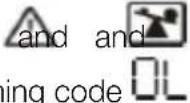 Warr Flash on LCD displayAlarm beeps every second Warr Flash on LCD displayAlarm beeps every second | UPS is overload Remove excess loads from UPS output | |
| UPS is overloaded.Device connected to the UPS are fed directly by the electrical network via Bypass | Remove excess loads from UPS output | |
| After repetitive overloads, the UPS is locked in the Bypass Mode-connected devices are fed directly by the mains | Remove excess loads from UPS output first.Then, shut down the UPS and restart it. | |
| Fault code is shown as 49 on LCD displayAlarm continuously beeps | UPS is over input current R | remove excess loads from UPS output |
| Fault code is shown as 43 and icon shown on the LCD displayAlarm continuously beeps | The UPS shutdown automatically because of the overload at the UPS output | Remove excess loads from UPS output and restart it |
| Fault code is shown as 01, 02, 03, 11, 12, 13 and 41 on LCD display Alarm continuously beeps | A UPS internal fault has occurred. Two possible results:1. The load is still supplied, but directly from AC power via Bypass2. The load is no longer supplied by power | Please contact your dealer |
| Battery backup time is shorter than nominal value | Batteries are not fully charged | Charge the batteries for at least 5 hours and then check capacity. If the problem still persists, consult with your dealer |
| Batteries defect Contact your dealer to replace the battery | ||
| Fault code is shown as 2A on LCD displayAlarm continuously beeps | The short circuit occurs on the charger output | Check if battery wiring of connected external pack is in short circuit status |
| Fault code is shown as 45 on LCD displayAlarm continuously beeps | The charger does not have output and battery voltage is less than 10V/PC | Please contact your dealer |
EMC Information
FEDERAL COMMUNICATIONS COMMISSION STATEMENT:
This equipment has been tested and found to comply with the limits for a Class A digital device, pursuant to part 15 of the FCC Rules. These limits are designed to provide reasonable protection against harmful interference when the equipment is operated in a commercial environment. This equipment generates, uses, and can radiate radio frequency energy and, if not installed and used in accordance with the instruction manual, may cause harmful interference to radio communications. Operation of this equipment in a residential area is likely to cause harmful interference in which case the user will be required to correct the interference at his own expense.
FCC Caution: Any changes or modifications not expressly approved by the party responsible for compliance could void the user's authority to operate this equipment.
Warning: Operation of this equipment in a residential environment could cause radio interference.
This device complies with Part 15 of the FCC Rules. Operation is subject to the following two conditions:
(1) this device may not cause harmful interference, and
(2) this device must accept any interference received, including interference that may cause undesired operation.
⚠ WARNING: This product may expose you to chemicals including Cadmium which is known to the State of California to cause cancer, birth defects or other reproductive harm. For more information, go to www.P65Warnings.ca.gov
Limited Warranty
WE'RE HERE TO HELP YOU!
NEED ASSISTANCE SETTING UP THIS PRODUCT?
Make sure you:
- Visit www.iogear.com for more product information
- Visit www.iogear.com/support for live help and product support
Warranty Information
This product carries a 1 Year Limited Warranty. For the terms and conditions of this warranty, please go to http://www.iogear.com/support/warranty
Register online at http://www.iogear.com/register
Important Product Information
Product Model
Serial Number ____
Contact
WE'RE HERE TO HELP YOU!
NEED ASSISTANCE SETTING UP THIS PRODUCT?
Make sure you:
- Visit www.iogear.com for more product information
- Visit www.iogear.com/support for live help and product support
IOGEAR
www.iogear.com/support
support@iogear.com
www.iogear.com
