DR7924TDL - DVD player LG - Free user manual and instructions
Find the device manual for free DR7924TDL LG in PDF.


User questions about DR7924TDL LG
0 question about this device. Answer the ones you know or ask your own.
Ask a new question about this device
Download the instructions for your DVD player in PDF format for free! Find your manual DR7924TDL - LG and take your electronic device back in hand. On this page are published all the documents necessary for the use of your device. DR7924TDL by LG.
USER MANUAL DR7924TDL LG
DVD Recorder OWNER'S MANUAL
MODEL : DR7900D
Before connecting, operating or adjusting this product, please read this instruction booklet carefully and completely.










SHOWVIEW®


CAUTION
RISK OF ELECTRIC SHOCK DO NOT OPEN

CAUTION: TO REDUCE THE RISK OF ELECTRIC SHOCK
DO NOT REMOVE COVER (OR BACK) NO USER-SERVICEABLE PARTS INSIDE REFER SERVICING TO QUALIFIED SERVICE PERSONNEL.

This lightning flash with arrowhead symbol within an equilateral triangle is intended to alert the user to the presence of uninsulated dangerous voltage within the product's enclosure that may be of sufficient magnitude to constitute a risk of electric shock to persons.

The exclamation point within an equilateral triangle is intended to alert the user to the presence of important operating and maintenance (servicing) instructions in the literature accompanying the product.
WARNING: TO PREVENT FIRE OR ELECTRIC SHOCK HAZARD, DO NOT EXPOSE THIS PRODUCT TO RAIN OR MOISTURE.
WARNING: Do not install this equipment in a confined space such as a bookcase or similar unit.

CAUTION:
This product employs a Laser System.
To ensure proper use of this product, please read this owner's manual carefully and retain it for future reference. Should the unit require maintenance, contact an authorized service center.
Performing controls, adjustments, or carrying out procedures other than those specified herein may result in hazardous radiation exposure.
To prevent direct exposure to laser beam, do not try to open the enclosure. Visible laser radiation when open. DO NOT STARE INTO BEAM.
CAUTION:
CLASS 2M VISIBLE AND INVISIBLE LASER RADIATION WHEN OPEN AND INTERLOCKS DEFEATED DO NOT STARE INTO THE BEAM OR VIEW DIRECTLY WITH OPTICAL INSTRUMENTS.
CAUTION: The apparatus should not be exposed to water (dripping or splashing) and no objects filled with liquids, such as vases, should be placed on the apparatus.

This product is manufactured to comply with the radio interference requirements of EEC DIRECTIVE 89/336/EEC, 93/68/EEC and 73/23/EEC.
CAUTION concerning the Power Cord
Most appliances recommend they be placed upon a dedicated circuit;
That is, a single outlet circuit which powers only that appliance and has no additional outlets or branch circuits. Check the specification page of this owner's manual to be certain.
Do not overload wall outlets. Overloaded wall outlets, loose or damaged wall outlets, extension cords, frayed power cords, or damaged or cracked wire insulation are dangerous. Any of these conditions could result in electric shock or fire. Periodically examine the cord of your appliance, and if its appearance indicates damage or deterioration, unplug it, discontinue use of the appliance, and have the cord replaced with an exact replacement part by an authorized servicer.
Protect the power cord from physical or mechanical abuse, such as being twisted, kinked, pinched, closed in a door, or walked upon. Pay particular attention to plugs, wall outlets, and the point where the cord exits the appliance.
SERIAL NUMBER:
You can find the serial number on the back of the unit. This number is unique to this unit and not available to others. You should record requested information here and retain this guide as a permanent record of your purchase.
Model No. ____
Serial No. ____

Disposal of your old appliance
- When this crossed-out wheeled bin symbol is attached to a product it means the product is covered by the European Directive 2002/96/EC.
- All electrical and electronic products should be disposed of separately from the municipal waste stream via designated collection facilities appointed by the government or the local authorities.
- The correct disposal of your old appliance will help prevent potential negative consequences for the environment and human health.
- For more detailed information about disposal of your old appliance, please contact your city office, waste disposal service or the shop where you purchased the product.
SHOWVIEW®
SHOWVIEW is a registered trademarks of Gemstar Development Corporation.
The SHOWVIEW System is manufactured under license from Gemstar Development Corporation.
Contents
Introduction 4-9
Symbol Used in this Manual 4
Notes on Discs 4
Recordable and Playable Discs .....5
Playable Discs 6
Remote Control Operation 6
Disc-related terms 7
Front Panel 8
Remote Control 9
Hookup and Settings .....10-26
Rear Panel 10
Connecting to the Aerial .....11
Connections to Your TV 12
Connecting to an Amplifier 13
Accessory Audio/Video (A/V) Connections ....14
Initial Settings 15-26
General Settings 15-19
Auto Programming 15
Manual Channel Add 16
Program Edit 16-17
Auto Clock Set 18
Manual Clock Set 18
TV Aspect ....18
Progressive Scan 19
Factory Set 19
Antenna Feed 5V 19
System Information 19
Language Settings .20
Display Menu .20
Disc Menu/Audio/Subtitle .....20
DTV Audio ....20
DTV Subtitle .....20
Audio Settings .21
Dolby Digital / DTS / MPEG .....21
Sampling Frequency .....21
DRC (Dynamic Range Control) .....21
Vocal .....21
Lock (Parental Control) Settings .....22-23
Lock System .22
Movie Rating .....22
Set Password .23
Area Code 23
Recording Settings .24
Record Mode Set .....24
DV Recording Audio ....24
Auto Chapter 24
Disc Settings 25-26
Initialize .25
Finalize .25
Disc Label .....26
Disc Protect .26
PBC 26
DivX Registration Code .....26
TV Viewing .....27-29
Displaying Information While Watching TV . . . .27
Program Guide .28
Programme Selection .....28
Teletext Operation .....29
Playback 30-39
Playing a DVD, DivX file or Video CD .....30-33
Playing a DivX Movie File ....34
Playing an Audio CD or MP3/WMA file .....35-36
Program Playback with Audio CD and
MP3/WMA file .37
Viewing a JPEG File .38-39
Recording 40-46
About DVD recording .....40-41
Basic Recording from a TV . . . . . . . . . . . . . . . . . . . . . . . . . . . 42
Instant Timer Recording 42
Timer Recording 43
Timer Recording with ShowView® System ...44
Checking Timer Recording Details .....45
Recording from an External Input .....45
Recording from DV Input 46
Editing 47-53
Title List and Chapter List Menu Overview . . . .47
VR Mode: Original and Playlist Editing .....48
Adding Chapter Markers .....48
Changing Title Thumbnails . . . . . . . . . . . . . . . . . . . . . . . . . . . . . . . . . . . . . . . . 48
Making a New Playlist .49
Adding Additional Title/Chapters to the Playlist .49
Deleting an Original or Playlist Title/Chapter . . .50
Deleting a Part .50
Naming a Title .51
Time Search ....51
Divide One Titles Into Two .....52
Combining Two Chapters Into One .....52
Moving a Playlist Chapter .53
Hide a Chapter/Title 53
Protect a Title 53
Reference 54-59
Additional Information .....54
Overwrite Recording .54
Viewing Title List menu displayed on other
DVD Recorders or Players .....54
Playing Your Recordings on Other DVD
Players (Finalizing a Disc) .....54
Language Codes 55
Area Codes 55
Controlling Your TV with the Supplied
Remote Control 56
Troubleshooting .57-58
Specifications 59
Introduction
To ensure proper use of this product, please read this owner's manual carefully and retain for future reference.
This manual provides information on the operation and maintenance of your recorder. Should the unit require service, contact an authorized service location.
Symbol Used in this Manual

The lightning flash symbol alerts you to the presence of dangerous voltage within the product enclosure that may constitute a risk of electric shock.

The exclamation point alerts you to the presence of important operating and maintenance / servicing instructions.

Indicates hazards likely to cause harm to the unit itself or other material damage.
Note:
Indicates special notes and operating features.
Tip:
Indicates tips and hints for making the task easier.
A section whose title has one of the following symbols is applicable only to the disc represented by the symbol.

DVD-RW with VR recording mode

DVD-RW with Video recording mode

DVD+RW disc

DVD-R disc

DVD+R disc

DVD-Video disc

Video CDs

Audio CDs

DivX files

MP3 files

WMA files

JPEG files
About the Symbol Display
“∅” may appear on your TV display during operation and indicates that the function explained in this owner's manual is not available on that specific DVD video disc.
Notes on Discs
Handling Discs
Do not touch the playback side of the disc. Hold the disc by the edges so that fingerprints do not get on the surface. Never stick paper or tape on the disc.


Storing Discs
After playing, store the disc in its case. Do not expose the disc to direct sunlight or sources of heat and never leave it in a parked car exposed to direct sunlight.
Cleaning Discs
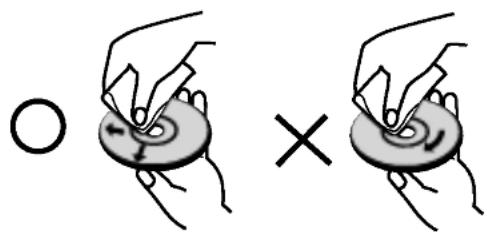
Fingerprints and dust on the disc can cause poor picture quality and sound distortion. Before playing, clean the disc with a clean cloth. Wipe the disc from the center out.
text_image
Diagram showing two hand-drawn scenarios: one with a circle and another with an 'X' symbol, illustrating a mechanical or electrical process.Do not use strong solvents such as alcohol, benzine, thinner, commercially available cleaners, or anti-static spray intended for older vinyl records.
Moisture Condensation
Never operate this product immediately after moving it from a cold location to a warm location. Leave it for two or three hours without operating it. If you use this product in such a situation, it may damage discs/tapes and internal parts.
Recordable and Playable Discs

DVD-RW (Digital Video Disc - ReWritable):
- DVD-RW discs can be formatted for VR mode recording or Video mode recording. - These Discs can be recorded on repeatedly. Recordings can be erased, then you can record again on the same Disc.
[VR mode]
• Recordings can be extensively edited
- Playable only on VR mode compatible players (after finalization)
[Video mode]
- Playable on regular DVD players (after finalization)
- Limited editing features

DVD-R (Digital Video Disc - Recordable)
• These Discs can be recorded only once. After you finalize a DVD-R, you cannot record on it or edit it.
• DVD-R discs can be only formatted to Video mode.
- Playable on regular DVD players (after finalization)
• Limited editing features

DVD+RW (Digital Video Disc + ReWritable)
- These Discs can be recorded on repeatedly. Recordings can be erased, then you can record again on the same Disc.
- Playable on DVD+RW compatible players (automatically finalization)
- The edited contents is playable on DVD+RW compatible players only after finalizing
• Recordings can be edited the title/chapter

DVD+R (Digital Video Disc + Recordable)
- These Discs can be recorded only once. After you finalize a DVD+R, you cannot record on it or edit it any more.
- Playable on DVD+R compatible players (after finalization)
- Any edited contents are not be compatible on DVD+R compatible players. (Hide, chapter combine, added chapter mark, etc.)
- Limited title/chapter editing features.

DVD+R DL (Digital Video Disc + Recordable; Double Layer)
- These Discs can be recorded only once. After you finalize a DVD+R DL, you cannot record on it or edit it any more.
- Storage space is nearly doubled with double layer DVD+R media, allowing consumers to burn up to 8.5GB of video on a single DVD+R disc.
- Playable on DVD+R DL compatible players (after finalization)
- Any edited contents are not be compatible on DVD+R DL compatible players. (Hide, chapter combine, added chapter mark, etc.)
- Limited title/chapter editing features.
The recommendable recordable DVD discs
| DVD-R | DVD+R | DVD-RW | DVD+RW | DVD+R(DL) |
| SONY (8x, 16x) | SONY (2.4x, 4x, 8x, 16x) | Victor (1x, 4x) | SONY (2.4x) | Mitsubishi (2.4x) |
| TDK (4x, 8x) | TDK (4x) | Maxell (1x, 2x, 4x) | TDK (2.4x) | Maxell (2.4x) |
| Verbatim (4x, 8x) | Mitsubishi (4x, 8x) | TDK (2x) | Philips (4x) | - |
| Panasonic (2x, 4x) | Ricoh (2x, 4x, 8x) | Mitsubishi (2x) | Ricoh (2.4x) | - |
| - | - | - | HP (2.4x, 4x) | - |
Note:
If a DVD-RW/DVD+RW discs is recorded using a personal computer or other DVD recorder, you cannot format the disc using this recorder. So if you want to use the disc on this recorder, you must format the disc using the original recorder.
playable Discs

DVD (8 cm / 12 cm disc)
- Discs such as movies that can be purchased or rented

Video CD (VCD) (8 cm / 12 cm disc)
• VIDEO CDs or CD-Rs/CD-RWs in VIDEO CD/Super VIDEO CD format

Audio CD (8 cm / 12 cm disc)
- Music CDs or CD-Rs/CD-RWs in music CD format that can be purchased

CD-R/CD-RW (8 cm / 12 cm disc)
- CD-R/CD-RW discs that contain audio titles, DivX, MP3, WMA, or JPEG files.
Notes:
- Depending on the conditions of the recording equipment or the CD-R/RW (or DVD±R/±RW) disc itself, some CD-R/RW (or DVD±R/±RW) discs cannot be played on the unit.
- Do not attach any seal or label to either side (the labeled side or the recorded side) of a disc.
- Do not use irregularly shaped CDs (e.g., heart-shaped or octagonal). Doing so may result in malfunctions.
- Depending on the recording software & the finalization, some recorded discs (CD-R/RW or DVD±R/RW) may not be playable.
- DVD-R/RW, DVD+R/RW and CD-R/RW discs recorded using a personal computer or a DVD or CD Recorder may not play if the disc is damaged or dirty, or if there is dirt or condensation on the Recorder's lens.
- If you record a disc using a personal computer, even if it is recorded in a compatible format, there are cases in which it may not play because of the settings of the application software used to create the disc. (Check with the software publisher for more detailed information.)
Regional code of the recorder and DVDs

This recorder is designed and manufactured for playback of Region 2 encoded DVD software. The region code on the labels of some DVD discs indicates which type of the recorder can play those discs. This unit can play only DVD discs labeled 2 or ALL. If you try to play any other discs, the message
"Incorrect region code. Can't play back" will appear on the TV screen. Some DVD discs may not have a region code label even though their playback is prohibited by area limits.
Notes on DVDs and Video CDs
Some playback operations of DVDs and Video CDs may be intentionally fixed by software manufacturers. As this unit plays DVDs and Video CDs according to disc content designed by the software manufacturer, some playback features of the unit may not be available or other functions may be added.
Refer also to the instructions supplied with the DVDs and Video CDs. Some DVDs made for business purposes may not be played on the unit.
Remote Control Operation
Point the Remote Control at the remote sensor and press the buttons.
Remote Control Battery Installation

Remove the battery cover on the rear of the Remote Control, and insert two R03 (size AAA) batteries with + and - matched correctly.
Caution
Do not mix old and new batteries. Never mix different types of batteries (standard, alkaline, etc.).
Disc-related terms
DVD +R (Double Layer)
Double layer recording technology offers two recordable layers on a single DVD disc, providing nearly double the capacity of 4.7GB single layer DVDs. The greatest, most valuable benefit of double layer recording technology is increased capacity. Storage space is nearly doubled with double layer DVD+R media, allowing consumers to burn up to 8.5GB of video on a single DVD+R disc.
DVD ±R / DVD ±RW
DVD -R and DVD +R are two different standards for recordable DVD drives and discs. This format allows information to be recorded onto the DVD disc only once. DVD +RW and DVD -RW are two standards for re-writable media, meaning the DVD content can be erased and re-recorded. Single-sided discs can hold 4.38 Gigabytes and double-sided discs hold twice as much. There are no dual layer single sided recordable discs.
VCD (Video CD)
A VCD holds up to 74 minutes (650 MB disc) or 80 minutes (700 MB disc) of MPEG-1 full-motion video along with quality stereo sound.
MPEG
MPEG is an international standard for video and audio compression. MPEG-1 is used in encoding video for VCD and provides for multichannel surround sound coding such as PCM, Dolby Digital, DTS and MPEG audio.
MP3
MP3 is a popular compression format used for digital audio files that yields very high near-CD quality.
WMA
Windows media audio file. A type of coding / decoding developed by Microsoft Corp.
JPEG
Joint Pictures Expert Group. JPEG is a compressed file format that allows you to save images with no limit on the number of colors.
DivX
DivX is the name of a revolutionary new video codec which is based on the new MPEG-4 compression standard for video. You will be able to play DivX movies using this recorder.
PBC: Playback Control (Video CD only)
Playback control is available for Video CD (VCD) version 2.0 disc formats. PBC allows you to interact with the system via menus, search functions, or other typical computer-like operations. Moreover, still pictures of high resolution can be played if they are included in the disc. Video CDs not equipped with PBC (Version 1.1) operate in the same way as audio CDs.
Title (DVD video discs only)
A title is generally a distinct section of a DVD disc. For example the main feature could be title 1, a documentary describing how the film was made could be title 2, and cast interviews could be title 3. Each title is assigned a reference number enabling you to locate it easily.
Chapter (DVD video discs only)
A chapter is a segment of a title such as a scene in a film or one interview in a series. Each chapter is assigned a chapter number, enabling you to locate the chapter you want. Depending on the disc, chapters may not be recorded.
Scene (VCD)
On a video CD with PBC ( playback control) functions, moving pictures and still pictures are divided into sections called "scenes". Each scene is displayed in the menu screen and assigned a scene number, enabling you to locate the scene you want. A scene is composed of one or several tracks.
Track
A distinct element of audiovisual information, such as the picture or sound track for a specific language (DVD), or a musical piece on a video or audio CD. Each track is assigned a track number, enabling you to locate the track you want. DVD discs allow one track of video (with multiple angles) and several tracks of audio.
Remote Control
text_image
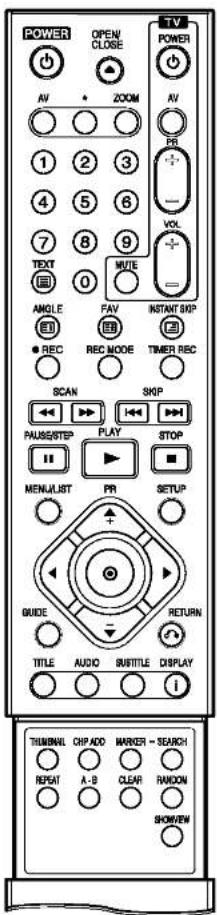
POWER OPEN/ CLOSE AV ZOOM 1 2 3 4 5 6 7 8 9 TEXT 0 MUTE ANGLE FAV INSTANT SKIP REC REC MODE TIMER REC SCAN SKIP PAUSE/STEP PLAY STOP MENU/UST PR SETUP GUIDE RETURN TITLE AUDIO SUBTITLE DISPLAY i THUMBIAL CHP ADD MARKER - SEARCH REPEAT A-B CLEAR RANDOM SHOWVIEW0-9 numerical buttons: Selects numbered options in a menu.
◀ / ▶ / ▲ / ▼ (left/right/up/down): Selects an option in the menu. PR +/-: Scans up or down through memorized channels.
A-B: Repeat sequence.
AUDIO: Selects an audio language (DVD) or an audio channel (CD).
AV: Changes the input to use for recording (Tuner, AV1-3, or DV IN).
CHP ADD: Inserts a chapter marker when playing/recording.
CLEAR: Removes a track number on the Program List or a mark on the Marker Search menu.
DISPLAY (i): Accesses On-Screen Display. Shows the current station and program information on the screen.
(ENTER)
- Acknowledges menu selection. - Displays information while viewing a TV program.
GUIDE: Displays the Program Guide.
FAV: Changes to the favorite program.
MARKER: Marks any point during playback.
MENU/LIST: Accesses menu on a DVD disc. Switches between Title List-Original and Title List-Playlist menu.
OPEN/CLOSE (▲): Opens and closes the disc tray.
PAUSE/STEP (III) : Pause playback or recording temporarily, press again to exit pause mode.
PLAY (▶): Starts playback.
POWER: Switches the recorder ON or OFF.
RANDOM: Plays tracks in random order.
● REC: Starts recording. Press repeatedly to set the recording time.
REC MODE: Selects the recording mode (XP, SP, LP or EP).
REPEAT: Repeat chapter, track, title, all.
RETURN (○)
- Removes the menu. - Displays the menu of a video CD with PBC.
SCAN (◀◀ / ▶▶): Search backward or forward.
Reverse or forward slow playback.
SEARCH: Displays Marker Search menu.
SETUP: Accesses or removes the Setup menu.
SHOWVIEW: To display the program menu for SHOWVIEW System programming.
SKIP (I◄◄ / ►►I): Go to next chapter or track. Returns to beginning of current chapter or track or go to previous chapter or track.
STOP (■): Stops playback or recording.
SUBTITLE: Selects a subtitle language.
THUMBNAIL: Selects a thumbnail picture for the current title and chapter for use in the Original and Playlist menu.
TIMER REC: Displays Timer Record menu.
TITLE: Displays the disc's Title menu, if available.
TV Control Buttons
- POWER: Turns the TV on or off.
- AV: Selects the TV's source.
- PR +/-: Selects TV's channel.
- VOL +/-: Adjusts TV's volume.
- MUTE: Temporarily turns TV sound OFF, press again to restore.
ZOOM: Enlarges DVD video image.
Teletext Buttons
- ☐ (INDEX): Moves to Index screen. If Index page is not present, moves to page 100.
- (TEXT): Holds the teletext display and stops the automatic page change in the teletext mode.
- (FREEZE): Holds the teletext display and stops the automatic page change in the teletext mode.
- (MIX): Selects the background for teletext screen (Opaque, User Transparency, Transparency).
Rear Panel

text_image
1 2 3 4 5 6 7 8 9 10 11 12 COMPONENT VIDEO OUT AUDIO OUT VIDEO OUT RIS-232C RIS-232D RIS-232E RIS-232F RIS-232G RIS-232H RIS-232I RIS-232J RIS-232K RIS-232L RIS-232M RIS-232N RIS-232O RIS-232P RIS-232Q RIS-232R RIS-232S RIS-232T RIS-232U RIS-232V RIS-232W RIS-232X RIS-232Y RIS-232Z RIS-232A RIS-232B RIS-232C RIS-232D RIS-232E RIS-232F RIS-232G RIS-232H RIS-232I RIS-232J RIS-232K RIS-232L RIS-232M RIS-232N RIS- 13 14 15 161 DIGITAL AERIAL
Connect the digital aerial to this terminal. (antenna feed +5V/100mA, switchable via setup menu)
2 ANALOG AERIAL
Connect the analog aerial to this terminal.
3 EURO AV 1 AUDIO/VIDEO
Connect to a TV with SCART jack.
4 VIDEO OUTPUT Switch
Select either COMPONENT VIDEO OUT or RGB signal of EURO AV1 AUDIO/VIDEO terminal depending on how you connect the recorder to the TV.
5 COMPONENT VIDEO OUT/PROGRESSIVE SCAN (Y Pb Pr)
Connect to a TV with Y Pb Pr inputs.
6 AUDIO OUT (Left/Right)
Connect to a TV with audio inputs.
7 VIDEO OUT
Connect to a TV with video inputs.
8 Cooling fan
9 AC Power Cord
Plug into the power source.
10 ANT. LOOF OUT
Passes the signal from the DIGITAL AERIAL jack.
11 RF. OUT
Passes the signal from the ANALOG AERIAL to your TV/monitor.
12 RS-232C
Is used only for authorized service purposes.
13 COAXIAL (Digital audio out jack)
Connect to digital (coaxial) audio equipment.
14 AUDIO IN 2 (Left/Right)
Connect the audio output of an external source (Audio system, TV/Monitor, VCR, Camcorder).
15 VIDEO IN 2
Connect the video output of an external source (Audio system, TV/Monitor, VCR, Camcorder).
16 OPTICAL (Digital audio out jack)
Connect to digital (optical) audio equipment.
Hookup and Settings
Connecting to the Aerial
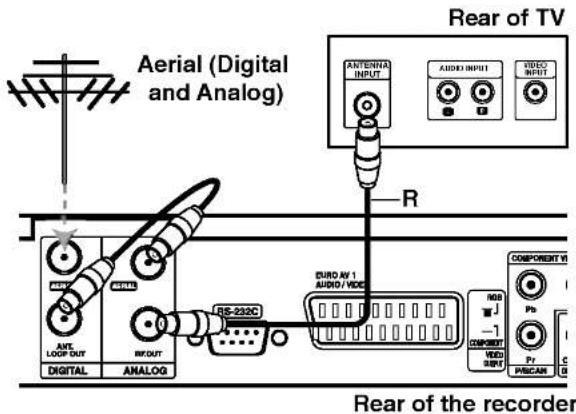
Remove the aerial cable plug from your TV set and insert it into the aerial socket at the back of the recorder. Plug one end of the aerial cable into the TV socket on the recorder and the other end into the aerial input socket on your TV set.

Caution
The DIGITAL AERIAL jack supply the antenna feed (DC 5V/100mA) and the antenna feed is switchable via setup menu. If your digital antenna is not an active antenna, you must set the [Antenna Feed 5V] option to [OFF].
RF coaxial connection
Connect the RF. OUT jack on the recorder to the aerial input jack on the TV using the 75-ohm Coaxial Cable supplied (R). The RF. OUT jack passes the signal through from the ANALOG AERIAL jack.
Diagram 1 for aerial connection (When Digital and Analog aerials are separated)

text_image
Aerial (Digital) Aerial (Analog) Rear of TV ANTenna INPUT AUDIO INPUT VIDEO INPUT R EURO AV 1 AUDIO / VIDEO COMPONENT V RGB 1 Ps COMPONENT VIDEO INPUT P/SCAN S-233C INT LOOP OUT DIGITAL ANALOG DC 5V AVIO INJ AVIO INJ P/OUT DIGITALDiagram 2 for aerial connection (When Digital and Analog aerials are one line)
text_image
Aerial (Digital and Analog) Rear of TV ANTENNA INPUT AUDIO INPUT VIDEO INPUT R Rear of the recorder DIGITAL ANALOG S-232C AUDIO AV 1 AUDIO / VIDEO COMPONENT V NGB -1 COMPONENT VIDEO OUTPUT Pb Pr PRISCAN GConnections to Your TV
- Make one of the following connections, depending on the capabilities of your existing equipment.
- When using the COMPONENT VIDEO OUT/PROGRESSIVE SCAN jacks, set the VIDEO OUTPUT switch to COMPONENT. When using the SCART jack, set the VIDEO OUTPUT switch to RGB.
Tips
- Depending on your TV and other equipment you wish to connect, there are various ways you could connect the recorder. Use only one of the connections described below.
- Please refer to the manuals of your TV, VCR, Stereo System or other devices as necessary to make the best connections.
Caution
- Make sure the recorder is connected directly to the TV. Tune the TV to the correct video input channel.
- Do not connect the recorder's AUDIO OUT jack to the phono in jack (record deck) of your audio system.
- Do not connect your recorder via your VCR. The DVD image could be distorted by the copy protection system.
Rear of TV

text_image
SCART INPUT COMPONENT VIDEO INPUT AUDIO INPUT VIDEO INPUT T C A V EUDO AT AUDIO/WIED 32C HSS -1 COMPONENT VIDEO OUTPUT Pb PVCAN EOXIAL DIGITAL OUT AUDIO IN 2 VIDEO IN 3 VIDEO OUT R L T OPTIC DIGITALRear of the recorder
SCART connection
Connect the EURO AV1 AUDIO/VIDEO scart jack on the recorder to the corresponding in jacks on the TV using the scart cable (T).
Video connection
Connect the VIDEO OUT jack on the recorder to the video in jack on the TV using the video cable (V).
Component Video connection
Connect the COMPONENT VIDEO OUT/ PROGRESSIVE SCAN jacks on the recorder to the corresponding input jacks on the TV using an Y Pb Pr cable (C).
Progressive Scan connection
If your television is a high-definition or "digital ready" television, you may take advantage of the recorder's progressive scan output for the highest video resolution possible. If your TV does not accept the Progressive Scan format, the picture will appear scrambled if you try Progressive Scan on the recorder.
Connect the COMPONENT VIDEO OUT/PROGRESSIVE SCAN jacks on the recorder to the corresponding in jacks on the TV using the Y Pb Pr cable (C).
Notes:
- Set the Progressive Scan to [ON] on the setup menu for progressive signal, see page 19.
- Progressive scan does not work with the analog video connections (yellow VIDEO OUT jack).
Caution
Once the setting for Progressive Scan output is entered, an image will only be visible on a Progressive Scan compatible TV or monitor. If you set Progressive Scan to ON in error, you must reset the recorder. First, remove the disc in the recorder. Next, press STOP (■) and hold it for five seconds before releasing it. The video output will be restored to the standard setting, and a picture will once again be visible on a conventional analog TV or monitor.
Audio (Left/Right) Connection
Connect the left and right AUDIO OUT jacks of the recorder to the audio left and right IN jacks on the TV using the audio cables (A). Do not connect the recorder's AUDIO OUT jack to the phono in jack (record deck) of your audio system.
Connecting to an Amplifier
Connecting to an amplifier equipped with two channel analog stereo or Dolby Pro Logic II/Pro Logic
Connect the Left and Right AUDIO OUT jacks on the recorder to the audio left and right in jacks on your amplifier, receiver, or stereo system, using the audio cables (A).
Connecting to an amplifier equipped with two channel digital stereo (PCM) or to an Audio/Video receiver equipped with a multi-channel decoder (Dolby Digital™, MPEG 2, or DTS)
-
Connect one of the recorder's DIGITAL AUDIO OUT jacks (OPTICAL O or COAXIAL X) to the corresponding in jack on your amplifier. Use an optional digital (optical O or coaxial X) audio cable.
-
You will need to activate the recorder's digital output. (See "Audio Settings" on page 21).
Digital Multi-channel sound
A digital multi-channel connection provides the best sound quality. For this you need a multi-channel Audio/Video receiver that supports one or more of the audio formats supported by your recorder (MPEG 2, Dolby Digital and DTS). Check the receiver manual and the logos on the front of the receiver.

Caution:
Due to the DTS Licensing agreement, the digital output will be in DTS digital out when DTS audio stream is selected.
Notes:
- If the audio format of the digital output does not match the capabilities of your receiver, the receiver will produce a strong, distorted sound or no sound at all.
– Six Channel Digital Surround Sound via digital connection can only be obtained if your receiver is equipped with a Digital Multi-channel decoder.
- To see the audio format of the current DVD in the on-screen display, press AUDIO.
- This recorder does not perform internal (2 channel) decoding of a DTS sound track. To enjoy DTS multi channel surround, you must connect this recorder to a DTS compatible receiver via one of this recorder's digital audio outputs.
Rear of the recorder

flowchart
graph TD
    A["VIDEO AV 1 AUDIO / VIDEO"] --> B["COMPONENT VIDEO OUT"]
    B --> C["VIDEO OUT"]
    C --> D["VIDEO OUT"]
    D --> E["VIDEO IN 2"]
    E --> F["VIDEO IN 3"]
    F --> G["OPTICAL INPUT"]
    G --> H["OPTICAL"]
    B --> I["X"]
    B --> J["A"]
    B --> K["O"]
    I --> L["COAXIAL DIGITAL INPUT"]
    J --> M["AUDIO INPUT"]
    K --> N["DIGITAL INPUT"]
Amplifier (Receiver)
Manufactured under license from Dolby Laboratories. "Dolby", "Pro Logic", and the double-D symbol are trademarks of Dolby Laboratories.
"DTS" and "DTS Digital Out" are trademarks of Digital Theater Systems, Inc.
Accessory Audio/Video (A/V) Connections
Connecting to the INPUT 2 or INPUT 3 Jacks
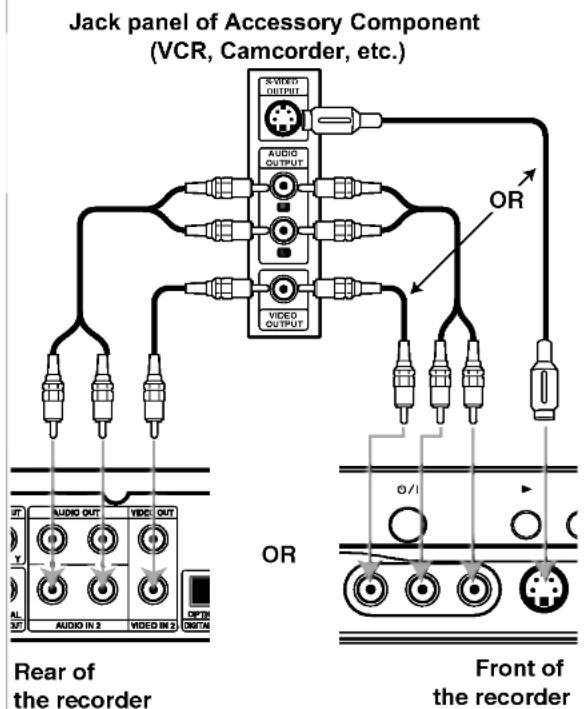
Connect the input jacks (AV2, AV3) on the recorder to the audio/video out jacks on your accessory component, using audio/video cables.
Note:
If you use the S-VIDEO IN jack on the front panel, the VIDEO IN jack on the front panel is not available.
Connecting a Digital Camcorder
Using the front panel DV IN jack, it is possible to connect a DV digital camcorder and digitally transfer DV tapes to DVD.
Use a DV cable (not supplied) to connect the DV in/out jack of your DV camcorder to the front panel DV IN jack of this recorder.
Note:
This jack is for connection to DV digital camcorder only. It is not compatible with digital satellite tuners or D-VHS video decks.
text_image
Jack panel of Accessory Component (VCR, Camcorder, etc.) Rear of the recorder Front of the recorder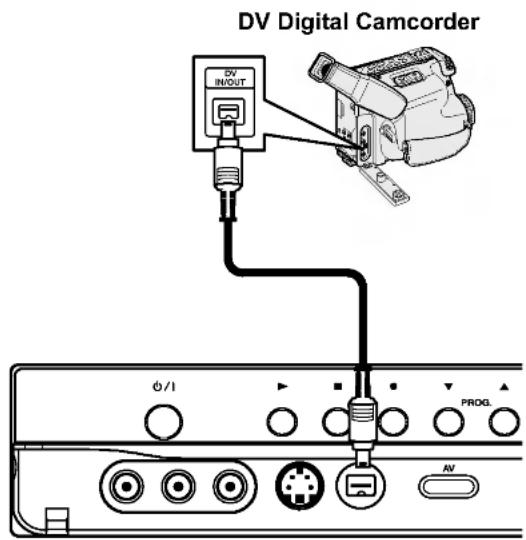
text_image
DV Digital Camcorder DV INPUT Ø/1 PROG. AVFront of the recorder
Initial Settings
In this menu system, there are several ways to customize the settings provided. Most menus consist of three levels to set up the options, but some require greater depth for the variety of settings.
General Operation
- Press SETUP and the Setup menu appears.
- Use ▲ / ▼ to select the desired option.
- While the desired item is selected, press ▶ to move to the second level.
- Use ▲ / ▼ to select the second desired option.
- Press ▶ to move to the third level.
- Use ▲ / ▼ to select the desired setting then press Ⓞ (ENTER) to confirm your selection. Some items require additional steps.
- Press SETUP to exit the Setup menu.
Note:
Press ◀ to go back to the previous level.
General Settings
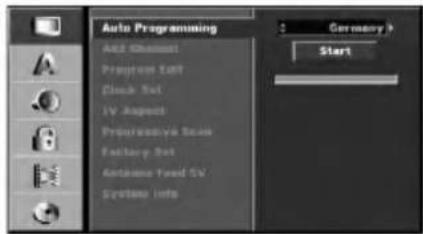
Auto Programming
This recorder is equipped with a frequency synthesized tuner capable of receiving up to 88 analog channels and 150 digital channels.
Preparation:
- Connect the recorder to the desired type of aerial as shown in Connecting to the Aerial on page 11.
text_image
Auto Programming Add Manual Program Edit Clock Set IV August Prepareaway Scale Factory Set Antenna Feed SW System Info Germany > Start- Select the [Auto Programming] option.
- Press ▶ to move to the third level. [Country] option is highlighted.
Note:
Password is needed to access the [Auto Programming] option if [Lock System] option is set to [On].
- Use ▲ / ▼ to select a country then press ▶. [Start] icon is highlighted. If your country is not listed, select [Other]
- Press Ⓞ (ENTER) to begin the channel search. The tuner will automatically cycle through all available channels in the area and place them in the tuner's memory.
Note:
After you have connected your recorder for the very first time. If you press SETUP for initial setting, you can only set the [Auto Programming] option. Then you can set the other options.
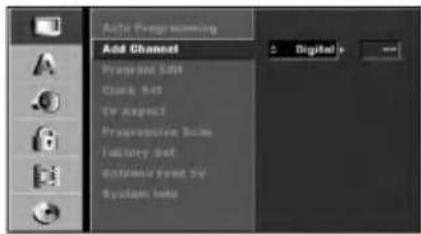
Manual Channel Add
This feature manually adds channels.
Note:
Password is needed to access the [Add Channel] option if [Lock System] option is set to [On].
text_image
Auto Programming Add Channel Proposed Edit Create Set View Respect Propreemable Drive Factory Set Automated Event Set System Tools- Select the [Add Channel] option.
- Press ▶ to move to the third level.
- Use ▲ / ▼ to select [Analog] for analog channel or [Digital] for digital channel then press ▶.
- Use ▲ / ▼ to select a channel number. Searches for a channel automatically. Searching stops when the recorder tunes in a channel.
- Press Ⓞ (ENTER) to add the channel.
Program Edit
You can edit a channel manually (name, move, etc.).
Note:
Password is needed to access the [Program Edit] option if [Lock System] option is set to [On].
- Select [Program Edit] option then press ▶.

text_image
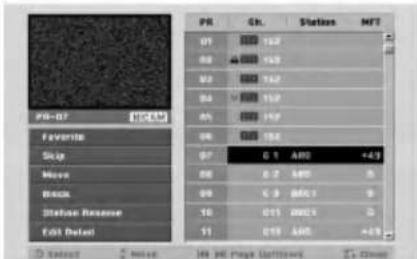
Auto Programming Add Classic Program Edit Dock Set IV Aspect Progressive Scan Factory Set Appearance Tree SV System Into EAT- Press Ⓑ (ENTER) while [Edit] is selected. The Program List menu appears.
text_image
PS-07 HCM Favorite Skip Move Block Stake Reserve Edit Delay PR Ch. Station MFT 01 132 02 132 03 132 04 132 05 132 06 132 07 0 1 AMI +43 08 0 7 AHT 9 09 0 3 BCL1 9 10 011 2001 3 11 015 AHI +43 X: Post Y: Page Up/Down Z: Close- Use ▲ / ▼ to select a PR number then press Ⓞ (ENTER).
- Use ▲ / ▼ to select the program option then press Ⓞ (ENTER).
• [Favorite] Set the program to favorite channel.
- [Skip] Set the program to the skipped program.
- [Move] Sorts the program positions on the Program List.
• [Block] Blocks the program.
- [Station Rename] Changes the station name. The display for entering characters appears. To enter characters, see page 51.
• [Edit Detail] Sets the analog channel manually.
- Press RETURN (💡) repeatedly to exit Program List menu.
To edit program's detail
You can perform a search to select and store TV channels manually.
When you select [Edit Detail] in step 4 above, the display for setting channels appears.
- Use ◀ / ▶ to select the item and press ▲ / ▼ to change the setting.

text_image
PR Ch. MFT Nicam 07 C 01 0 On Store Cancel• [PR] indicates the selected program position.
• [Ch.] Indicates the channel number.
- [MFT] Fine tunes the channel to obtain a clearer picture.
- [Nicam] Sets the channels for the NICAM broadcast. Normally, [Nicam] is set to [On] on the display. If the sound from NICAM broadcast is not clear, press ▲ / ▼ to select [Off].
- Choose OK then press Ⓞ (ENTER) to confirm the setting and returns to the Program List menu.
To create a favorite program:
This feature allows you to create your own favorite channel. You can select a favorite program using FAV button.
- Use ▲ / ▼ to select a PR number on the Program List then press Ⓞ (ENTER).
- Use ▲ / ▼ to select the [Favorite] option then press Ⓞ (ENTER).
The heart mark will appears.
To skip a program
When a program number is skipped it means that you will be unable to select it using the PR (+/-) button during normal TV viewing.
- Use ▲ / ▼ to select a PR number on the Program List then press Ⓞ (ENTER).
- Use ▲ / ▼ to select the [Skip] option then press Ⓞ (ENTER).
The skipped program number will dim.
If you want to select the skipped program, directly enter the program number with the number buttons.
To move a program's position
Sorts the program positions on the Program List.
- Use ▲ / ▼ to select a PR number on the Program List then press Ⓞ (ENTER).
- Use ▲ / ▼ to select the [Move] option then press Ⓞ (ENTER).
- Press ▲ / ▼ to move the selected program position to a new location then press ENTER.
To block a program
Blocks any channel that you do not want to view or that you do not want your children to watch. You cannot tune the blocked channel.
- Use ▲ / ▼ to select a PR number on the Program List then press Ⓞ (ENTER).
- Use ▲ / ▼ to select the [Block] option then press Ⓞ (ENTER). The lock mark will appears.
- You can release the blocked channel by selecting [Block Off] option.
Note:
You will be unable to select the blocked channel during normal TV viewing If the [Lock System] option is set to [ON].
Auto Clock Set
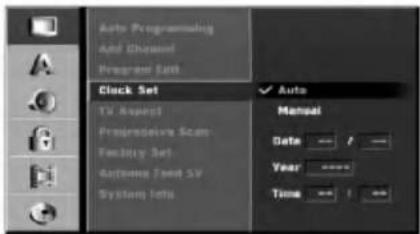
When Channel auto search is completed the actual Time and Date are also set automatically. If the time in the recorder display is not correct, the clock must be set manually.
text_image
Auto Programming Add Channels Program Exit Clock Set Timer Aspect Preoperative Scan Facility Set Active/ Fixed SV System Info Auto Manual Date Year Time- Select [Clock set] option then press ▶.
- Use ▲ / ▼ to select [Auto] option then press Ⓞ (ENTER).
Note:
There are cases where the TV station does not send, or sends wrong date and/or time information and the recorder sets the incorrect time. If this happens, we recommend that you set the clock manually.
Manual Clock Set
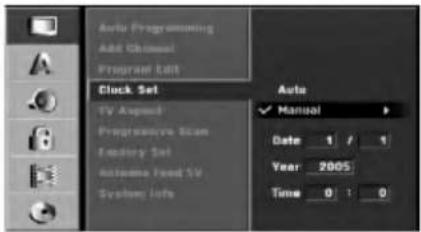
- Select [Clock set] option then press ▶.
- Use ▲ / ▼ to select [Manual] option then press Ⓞ (ENTER).
text_image
Auto Programming Add Channels Program Edit Clock Set TV Aspect Progressive Scan Factory Set Automatic Fixed SV System Info Auto ✓ Manual Date 1 / 1 Year 2005 Time 0 : 0- Enter the necessary information for date and time.
◀ / ▶ (left/right): Moves the cursor to the previous or next column.
▲ / ▼ (up/down): Changes the setting at the current cursor position. - Press Ⓑ (ENTER) to confirm your setting, then press SETUP to exit the Setup menu.
TV Aspect
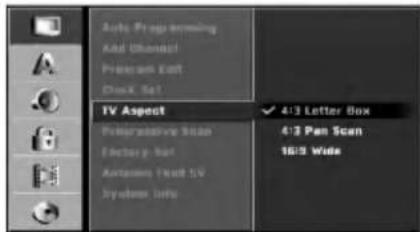
Selects the aspect ratio of the connected TV (4:3 standard or wide).
- [4:3 Letter Box] Select this when connecting to a 4:3 screen TV. Displays a wide picture with bands on the upper and lower portions of the screen.
- [4:3 Pan Scan] Select this when connecting to a 4:3 screen TV. Automatically displays a wide picture on the entire screen and cuts off the portions that do not fit.
• [16:9] Select this when connecting to a wide-screen TV or TV with a wide mode function.
text_image
Auto Programming Add Oboacl Program Ext Disk Set TV Aspect Progressive Stan Factory Set Automotive Test 5V System Info 4:3 Letter Box 4:3 Pen Scan 16:5 WideProgressive Scan
Progressive Scan Video provides the highest quality pictures with less flickering. If you are using the COMPONENT VIDEO OUT/ PROGRESSIVE SCAN jacks, but are connecting the recorder to a standard (analog) television, set Progressive Scan to [OFF]. If you are using the COMPONENT VIDEO OUT/ PROGRESSIVE SCAN jacks for connection to a TV or monitor that is compatible with a progressive scan signal, set Progressive Scan to [ON].

text_image
Active Programm Add Names Program Edit Chuck Set TV Abstract Progressive Scan OFF Factory Set Antenna Feed JV System Info DMNote:
Progressive Scan will be disable in the setup menu when the VIDEO OUTPUT switch on the rear panel is set to RGB position.
Caution
Once the setting for Progressive Scan output is entered, an image will only be visible on a Progressive Scan compatible TV or monitor. If you set Progressive Scan to ON in error, you must reset the recorder. First, remove the disc in the recorder. Next, press STOP (■) and hold it for five seconds before releasing it. The video output will be restored to the standard setting, and a picture will once again be visible on a conventional analog TV or monitor.
Factory Set
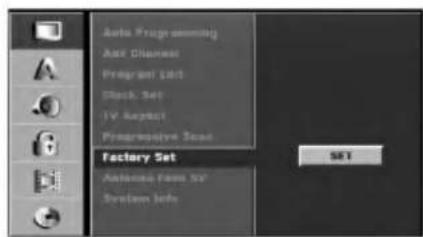
You can reset the recorder to its original factory settings. Some options cannot be reset. (Rating, Password, and Area Code)
text_image
Auto Programming Auto Channels Program List Block Set IV August Preoperative Board Factory Set Automatic Press 50° System Info SETAntenna Feed 5V
If you are using an active antenna, you will have to switch on the antenna feed (DC 5V/100mA). The antenna will be supplied via the DIGITAL AERIAL input. In case of overload, or if there is a short circuit in the antenna feed, this will be switched off automatically. If this occurs, please repair the fault, then switch on the antenna feed again.

text_image
Auto Programmes Add Channel Program Exit Clock Set TV Aspect Programmers Scan Factory Set Antenna Feed 5V System Info OFF ONSystem Information
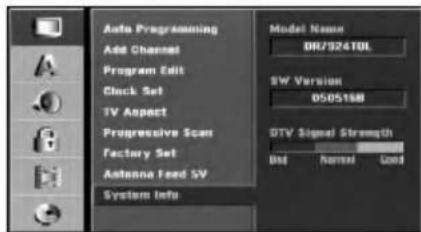
Shows the current software version of the unit and the DTV strength bar for incoming signal to help you adjust the aerial to the correct position from your location.
text_image
Auto Programming Add Channel Program Edit Clock Set TV Aspect Progressive Scan Factory Set Antenna Feed SV System Info Model Name DR/924TOL SW Version 0505188 DTV Signal Strength Dist Normal GoldLanguage Settings
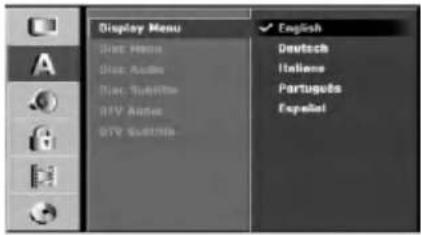
Display Menu
Select a language for the Setup menu and on-screen display.
text_image
Display Menu English Disney Google Audio Google Audio GTV Audio GTV Audio Deutsch Italomo Portuguts ExperatDisc Menu/Audio/Subtitle
- [Original]Refers to the original language in which the disc was recorded.
- [Other] To select another language, press number buttons then Ⓞ (ENTER) to enter the corresponding 4-digit number according to the language code list in the reference chapter (see page 55). If you enter the wrong language code, press CLEAR.
• Off : Turn off Subtitle.

text_image
Display Miss Disc Menu Disc Austin Disc Subtile DTV Audio DTV Escritte Original English German Greek Italian Portuguese Spanish Others ----DTV Audio
Digital channels sometimes provide multiple audio tracks, often in a different language. You can set a default audio language with this setting.

text_image
Display Maps Text Maps Curt Audio Curt Subwoo GTV Audio GTV Subwoo Original English German Greek Italian Portuguese Spanish Others ----Tips:
- If provided by the broadcaster, you can also select a different audio language while viewing TV by pressing AUDIO repeatedly.
DTV Subtitle
Digital channels sometimes provide subtitle, often in a different language. You can set a default subtitle language with this setting.

text_image
OvTV Subtute Original English German Greek Italian Portuguese Spanish Others ---- OFFNote:
DTV Subtitle will appear only if provided by the broadcaster.
Tips:
- If available, you can also select a subtitle language while viewing digital TV viewing, press SUBTITLE repeatedly.
- If subtitles are available, the DTV subtitle icon (☑) appears on the program information display to indicate that you can select one of those subtitle options with the SUBTITLE button.
Audio Settings
Each DVD disc has a variety of audio output options. Set the recorder's Audio Output according to the type of audio system you use.
Dolby Digital / DTS / MPEG

text_image
Delby Digital GIFS MPEG Sampling Freq SRS Vocal PCM ✓ Bitstream- [Bitstream]: Select "Bitstream" if you connect the recorder's DIGITAL AUDIO OUT jack to an amplifier or other equipment with a Dolby Digital, DTS or MPEG decoder.
- [PCM] (for Dolby Digital / MPEG): Select when connected to a two-channel digital stereo amplifier. DVDs encoded in Dolby Digital or MPEG will be automatically downmixed to two-channel PCM audio.
- [Off] (for DTS): If you select "Off", the DTS signal is not output through the DIGITAL AUDIO OUT jack.
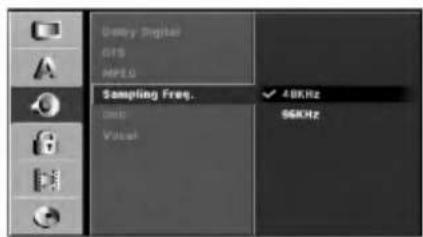
Sampling Frequency
If your receiver or amplifier is NOT capable of handling 96 kHz signals, select [48 kHz]. When this choice is made, this unit will automatically convert any 96 kHz signals to 48 kHz so your system can decode them.
If your receiver or amplifier is capable of handling 96 kHz signals, select [96 kHz]. When this choice is made, this unit will pass each type of signal through without any further processing.
text_image
Delay Digital GPS MPEG Sampling Freq. ✓ 40kHz Unit: 56kHz VccuDRC (Dynamic Range Control)
With the DVD format, you can hear a program's soundtrack in the most accurate and realistic presentation possible, thanks to digital audio technology. However, you may wish to compress the dynamic range of the audio output (the difference between the loudest sounds and the quietest ones). Then, you may listen to a movie at a lower volume without losing clarity of sound. Set DRC to [ON] for this effect.

text_image
Binary Digital RFS HPSG Sampling Free ORG OFF Visual ONVocal
Set Vocal to ON only when a multi-channel karaoke DVD is playing. The karaoke channels on the disc will mix into normal stereo sound.

text_image
Delay Digital MIPS Sampling Files... ONC Vocal OFF ✓ ONLock (Parental Control) Settings
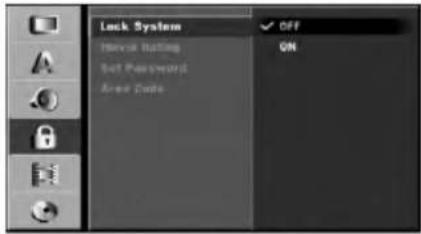
Lock System
Allows you to set up specific programs and ratings through blocking schemes. Also allows you to activate or disable all of the lock schemes previously set up. A password is required to gain access to the lock menu options. When the Lock System is set to [OFF], the Program and Movie Rating are not effective.
text_image
Lock System Remove Button Set Password Area Code OFF ON- Select [Lock System] option then press ▶.
- To access the Lock System, Movie Rating, Password and Area Code features, you must input the 4-digit security code you created. If you have not yet entered a security code you are prompted to do so. Input a 4-digit code. Enter it again to verify. If you make a mistake, press CLEAR.
- Select [ON] or [OFF] using the ▲ / ▼ buttons.
- Press Ⓑ (ENTER) to confirm your selection, then press SETUP to exit the menu.
Movie Rating
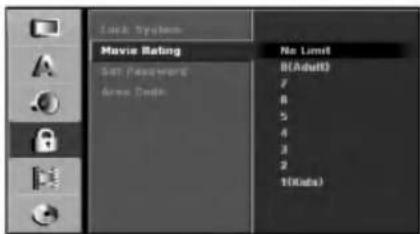
Some movies contain scenes that may not be suitable for children to view. Many of these discs contain parental control information that applies to the complete disc or to certain scenes on the disc. Movies and scenes are rated from 1 to 8, depending on the area. DVD video discs may or may not respond to the parental control setting if the Area code of the disc is set wrongly. Some discs offer more suitable scenes as an alternative. Ratings are area dependent. The parental control feature allows you to block access to scenes below the rating you input, thereby preventing your children from being able to view material you believe is unsuitable.
text_image
Lock System Movie Rating B(Adult) 7 8 5 4 3 2 10(Kuda)- Select [Movie Rating] option then press ▶.
Note:
Password is needed to access the [Movie Rating] option if [Lock System] option is set to [On].
- Select a rating using the ▲ / ▼ buttons.
[1] - [8]: Rating one (1) has the most restrictions and rating eight (8) is the least restrictive.
[No Limit]: If you select [No Limit], parental control is not active and the disc plays in full.
- Press Ⓞ (ENTER) to confirm your rating selection, then press SETUP to exit the menu.
Note:
If you set a rating for the recorder, all disc scenes with the same rating or lower are played. Higher rated scenes are not played unless an alternate scene is available on the disc. The alternative must have the same rating or a lower one. If no suitable alternative is found, playback stops. You must enter the 4-digit password or change the rating level in order to play the disc.
Set Password

text_image
Lock System Movie Rating Set Password Change Area Code Delete 4 Prev © Select Class- Select [Set Password] option then press ▶. If you have not yet entered a security code you are prompted to do so. Input a 4-digit code. Enter it again to verify. If you make a mistake, press CLEAR.
- To change the password, select the [Change], press Ⓞ (ENTER) and input the new 4-digit code. Input it again to verify. To delete the password, select [Delete] then press Ⓞ (ENTER).
Note:
Password is needed to access the [Set Password] option if [Lock System] option is set to [On].
If you forget your 4-digit code
If you forget your password, to clear the current password, follow the procedure below.
- Press SETUP to display the Setup menu.
- Use the Number buttons to enter the 6-digit number "210499".
- Select [Yes] then press Ⓞ (ENTER). The 4-digit password is cleared. Enter a new code.
Area Code
Enter the code of an area whose standards were used to rate the DVD video disc, referring to the list (See "Area Codes", page 55.).

text_image
Local System Mouse Binding Set Password Area Code CD E- Select [Area Code] option then press ▶.
Note:
Password is needed to access the [Area Code] option if [Lock System] option is set to [On].
- Select the first character using the ▲ / ▼ buttons.
- Shift the cursor using ▶ buttons and select the second character using ▲ / ▼ buttons.
- Press Ⓑ (ENTER) to confirm your area code selection, then press SETUP to exit the menu.
Recording Settings
Record Mode Set
You can set the picture quality for recording; XP (Excellent quality), SP (Standard quality), LP (Low quality), EP (Extend quality).

text_image
Disc Record Mode XY Record Andate Auto Chopper XP ✓ SP LP EP- Select [Disc Record Mode] option then press ▶.
- Use ▲ / ▼ to select a desired Record Mode (XP, SP, LP or EP).
- Press Ⓑ (ENTER) to confirm your selection, then press SETUP to exit the menu.
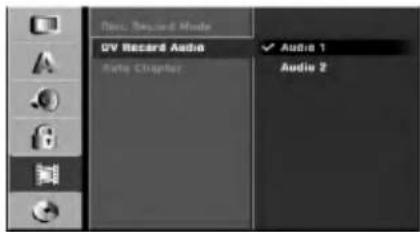
DV Recording Audio
You need to set this if you have a camcorder using 32kHz/12-bit sound connected to the front panel DV IN jack.
Some digital camcorders have two stereo tracks for audio. One is recorded at the time of shooting; the other is for overdubbing after shooting.
On the Audio 1 setting, the sound that was recorded while shooting is used.
On the Audio 2 setting, the overdubbed sound is used.
text_image
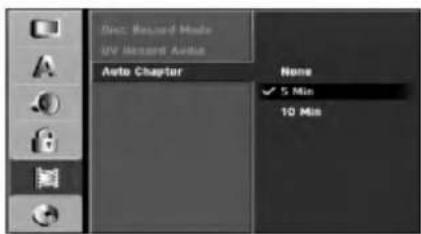
Disc. Record Mode DV Record Audio Auto Chapter Audio 1 Audio 2Auto Chapter
When recording in Video mode, chapter markers are put in specified setting. You can change this interval to 5 minutes or 10 minutes. If you select [None], switch off automatic chapter marking altogether with the [None] setting.
text_image
Doc: Record Mode UV Record Audio Auto Chapter None ✓ 5 Min 10 MinDisc Settings
Initialize
If you load a completely blank disc, the "Initialize" menu will appear. Select [Yes] then press Ⓞ (ENTER). The recorder will format the disc.
- DVD-R / DVD+R(DL) / DVD+RW: The recorder formats in Video mode.
- DVD-RW: The Initialize menu will appear. Select [VR Mode] or [Video Mode] then press ENTER.
Also, you can reformat the DVD-RW/DVD+RW from the Setup menu as below.

text_image
Initialize Source Drive Label Drive Profile PSC: AutoPlay About DevXDB1 Start-
Select [Initialize] option then press ▶.
-
Press Ⓞ (ENTER) while [Start] is selected. Format Disc menu appears.
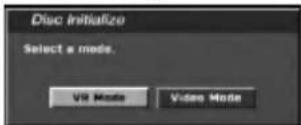
- Use ◀ / ▶ to select a desired mode (VR Mode or Video Mode) then press Ⓞ (ENTER). Confirm message will appear. For DVD+RWs, go to step 4.
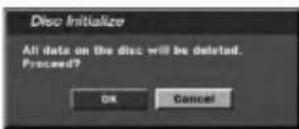
- Use ◀ / ▶ to select [OK] then press Ⓞ (ENTER). It takes a few moments to initialize the disc.
Caution
If you want to initialize a disc, everything recorded on the disc will be erased.
Finalize
Finalizing 'fixes' the recordings in place so that the disc can be played on a regular DVD player or computer equipped with a suitable DVD-ROM drive. Finalizing a Video mode disc creates a menu screen for navigating the disc. This is accessed by pressing MENU/LIST or TITLE.
Caution
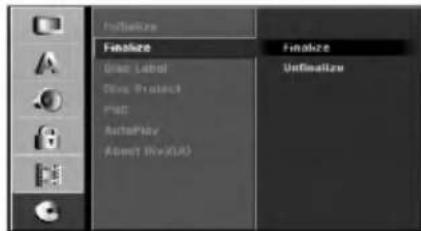
Once you have finalized a DVD-R and DVD+R disc, you cannot edit or record anything else on that disc except DVD+RW. However, you can record and edit a DVD-RW disc by choosing [Unfinalize] option.
text_image
Finishize Clear Label Delete Project Post AutoPlay About (NoXLR) Finishize Unfiximize-
Select [Finalize] option then press ▶.
-
Press Ⓞ (ENTER) while [Finalize] is selected. Finalize menu appears.

- Select [OK] then press Ⓞ (ENTER). The recorder starts finalizing the disc.
Note:
- How long finalization takes depends on the type of disc, how much is recorded on the disc, and the number of titles on the disc.
- DVD+R DL disc can take up to 30 minutes to finalize.
Tips
- If you load a DVD-RW that has already been finalized, you can 'Unfinalize' it by choosing Unfinalize from the Finalize menu. After doing this, you can edit and re-record onto the disc.
- You cannot unfinalize a DVD-R and DVD+R disc.
- If [Disc Protect] option is set to [ON], the finalize is not available. To finalize, set [Disc Protect] option to [OFF].
Disc Label
Use this to enter a name for the disc. This name appears when you load the disc and when you display disc information on-screen.
• The disc name can be up to 32 characters long.
- For discs formatted on a different recorder, you will see only a limited character set.

text_image
Initelipse Produce Disc Label Disc Project FMC AudioPlay About BoxNOR! Edit- Select [Disc Label] option then press ▶.
- Press Ⓑ (ENTER) while [Edit] is selected. Keyboard menu appears. To enter characters, see page 51.
Disc Protect
When recording in DVD+RW / +R disc or VR mode formatted DVD-RW disc, set to [ON] to prevent accidental recording, editing or deleting of the disc loaded. If you need to unlock the disc to make edits, select [OFF].

text_image
Initiative Emotion Disc Label Disc Protect PHC AutoPlay About Disc(D) OFF ONPBC
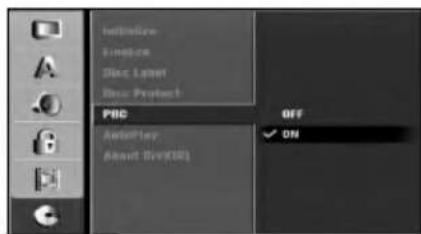
PBC stands for Playback Control and refers to special menus and navigation features that are available on some Video CDs.
- [ON] Video CDs are played according to the PBC, if available.
• [OFF] Video CDs are played the same way as Audio CDs.
text_image
LineBox LineBox Disc Light Disc Product PBC AutoPlay About Dev(0) OFF ✓ ONAuto Play
You can set up the DVD Recorder so a DVD disc automatically starts playing whenever the DVD is inserted.
If Auto Play mode is set to [ON], this DVD recorder will search for title that has the longest playback time and then play back the title automatically.
• [ON] Auto Play function is active.
• [OFF] Auto Play function is not active.

text_image
InitiDrive Feature Auto Label Label Product FRC AutoPlay OFF AutoSet Dev(M) DNDivX Registration Code
DivX
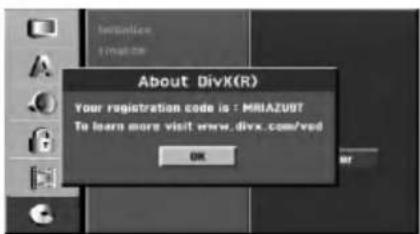
We provide you the DivX® VOD (Video On Demand) registration code that allows you to rent and purchase videos using the DivX® VOD service. For more information, visit www.divx.com/vod.
- Select [DivX Reg. Code] option then press ▶.
- Press Ⓞ (ENTER) while [Enter] is selected and the registration code will appear.
text_image
About DivX(R) Your registration code is : MIRIAZU97 To learn more visit www.divx.com/vod OK- Use the registration code to purchase or rent the videos from Divx® VOD service at www.divx.com/vod. Follow the instructions and download the video onto a disc for playback on this unit.
Note:
All the downloaded videos from DivX® VOD can only be played back on this unit.
TV Viewing
Displaying Information While Watching TV
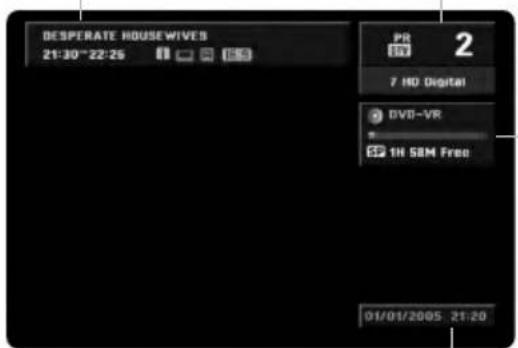
During viewing the TV, press DISPLAY to display/remove the information displayed on-screen.
While digital TV viewing
Indicates the disc format, free space, and elapsed time progress bar.
Indicates channel number, station name, and audio signal by the tuner.
Indicates program title, start time, end time, etc. Details are below.
text_image
DESPERATE HOUSEWIVES 21:30~22:26 PR 1H 2 7 HD Digital DVD-VR 1H SEM Free 01/01/2005 21:20Indicates current date and time.
(Extended Text Message Icon):
Indicates that there is an Extended Text Message available to provide detailed descriptions of the program (see page 28).
(DTV Subtitle Icon)
Indicates that the current program contains the subtitle.
16:9 Wide Icon
Indicates that the current program is shown in wide picture format.
(Teletext Icon):
Indicates that there is a Telet available (see page 29).
While analog TV viewing
Indicates the disc format,
free space, and elapsed time progress bar.
Indicates channel number, station name, and audio signal by the tuner.

text_image
PR 17 DVD-VR IG 1H SEM Free Mono/Main 01/01/2005. 21:26Indicates current TV audio channel.
Indicates current date and time.
Program Guide
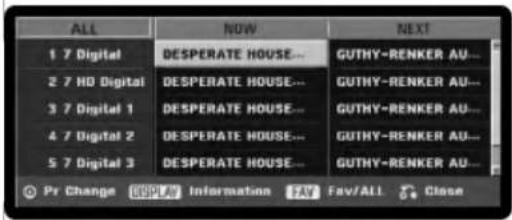
The Program Guide contains schedule and program information for digital programmes. They also provide local over-the-air programmes information including conventional digital programmes. Use the Program Guide to find programmes easily and conveniently and to view schedule and descriptive program information for the programmes.
text_image
ALL 1 7 Digital 2 7 HD Digital 3 7 Digital 1 4 7 Digital 2 5 7 Digital 3 NOW DESPERATE HOUSE... DESPERATE HOUSE... DESPERATE HOUSE... DESPERATE HOUSE... DESPERATE HOUSE... NEXT GUTHY-RENKER AU... GUTHY-RENKER AU... GUTHY-RENKER AU... GUTHY-RENKER AU... GUTHY-RENKER AU... GUTHY-RENKER AU... Pr Change Information Fav/All CloseTo Display the Program Guide
Press the GUIDE button on your remote control.
To Exit the Program Guide
Press the RETURN (💡) button to return to the last program you tuned to.
To Navigate through programmes on the Guides
Use ◀/▶/▲/▼ on your remote control to navigate the guide screen.
You can move faster through programmes by scrolling page-by-page with the ◀◀◀ or ▶▶▶ buttons on the remote control. Each button stroke scrolls one page up or down.
To Tune to another current program
Use ◀/▶/▲/▼ to select a current program then press Ⓞ (SELECT). You can watch the programmed.
To Display the Full Information window
You can view detail informations for the highlighted program. Press DISPLAY to display detail information window. To exit the detail information window, press DISPLAY again.
To Show All or Favorite channels
You can view the program guide menu with all or favorite channels. Press FAV to switch between All and Favorite channels.
Programme Selection
You can select a programme as shown below.
Number buttons
Use Number (0-9) buttons to select a programme directly.
FAV button
Press to scroll through your favorite programmes.
PR +/- buttons
Use PR +/- on the remote control or PROG ▲ / ▼ on the front panel to cycle the recorder through the programmes in memory.
Teletext Operation
Teletext is an optional function, therefore only those with the teletext system can receive the teletext broadcast.
Teletext is a free service broadcast by some TV stations which gives up-to-the-minute information on news, weather, television programmes, share prices and many other topics.
The teletext decoder can support the SIMPLE systems. SIMPLE (standard teletext) consists of a number of pages which are selected by directly entering the corresponding page number.
Teletext in Service
The recorder gives you access to teletext which is greatly improved in various aspects such as text and graphics. This teletext can be accessed by special teletext services and specific services which broadcast teletext.

text_image
AUSTEXT MAIN INDEX COPYRIGHT INFORMATION ON 104 INDUSTRY INFORMATION DATA: DATA Source: DATA DATA: DATA Source: DATA DATA: DATA Source: DATA DATA: DATA Source: DATA DATA: DATA Source: DATA DATA: DATA Source: DATA DATA: DATA Source: DATA DATA: DATA Source: DATA DATA: DATA Source: DATA DATA: DATA Source: DATA DATA: DATA Source: DATA DATA: DATA Source: DATA DATA: DATA Source: DATA DATA: DATA Source: DATA DATA: DATA Source: DATA ATAUTEXT NEWS. 404 DATA: DATA Source: DATA DATA: DATA Source: DATA DATA: DATA Source: DATA DATA: DATA Source: DATA DATA: DATA Source: DATA DATA: DATA Source: DATA DATA: DATA Source: DATA DATA: DATA Source: DATA DATA: DATA Source: DATA DATA: DATA Source: DATA DATA: DATA Source: DATA DATA: DATA Source: DATA DATA: DATA Source: DATA DATA: DATA Source: DATA DATTEMATIEN, 604 DATA: DATA Source: DATA DATA: DATA Source: DATA DATA: DATA Source: DATA DATA: DATA Source: DATA DATA: DATA Source: DATA DATA: DATA Source: DATA DATA: DATA Source: DATA DATA: DATA Source: DATA DATA: DATA Source: DATA DATA: DATA Source: DATA DATA: DATA Source: DATA DATA: DATA Source: DATA DATA: DATA Source: DATA DATA: DATA Source: Data DATA: DATA Source: Data DATA: DATA Source: Data DATA: DATA Source: Data DATA: DATA Source: Data DATA: DATA Source: Data DATA: DATA Source: Data DATA: DATA Source: Data DATA: DATA Source: Data DATA: DATA Source: Data DATA: DATA Source: Data DATA: DATA Source: Data DATA: DATA Source: Data DATA: DATA Source: Data DATA: DATA Source: Data Data source data source data source data source data source data source data source data source data source data source data source data source data source data source data source data source data source data source data source data source data source data source data source data source data source data source data source data source data source data source data source data source data source data source data source data source data source data source data source data source data source data source data source data source data source data source data source data source data source data source data source- Press number or PR (+/-) buttons to select a program which broadcast teletext.
- Press ☐ (TEXT) to access on the teletext.
- Follow the indications on teletext and move onto the next step by pressing RED or GREEN buttons and so on.
- Press ☐ (TEXT) or RETURN (♂) to switch off teletext and return to TV viewing.
Teletext on/off
- Press TEXT to switch to teletext. The initial page or last page appears on the screen. Two page numbers, TV station name, date and time are displayed on the screen headline. The first page number indicates your selection, while the second shows the current page displayed.
- Press ☐ (TEXT) or RETURN (○) to switch off teletext.

ote
If your TV is in zoom mode, the Telet menu screen may be cut off.
In this case, set the TV's zoom mode to normal to dispaly the menu screen properly.
Page selection
- Enter the desired page number as a three digit number with the numbered buttons. If during selection you press a wrong number, you must complete the three digit number and then reenter the correct page number.
- Use PR (+/-) buttons to select the previous or next page.
- Use RED/GREEN buttons to move up and down pages.
Special Teletext Functions
(MIX) button
Displays the teletext pages superimposed on the TV picture.
To switch the TV picture off press this button again.
(INDEX) button
The teletext pages are colour coded along the bottom of the screen and are selected by pressing the corresponding coloured button.
(FREEZE) button
Stops the automatic page change which will occur if a tele-text page consists of 2 or more sub pages. When this button is pressed the stop symbol is displayed at the top left-hand corner of the screen and the automatic page change is inhibited. To continue press this button again.
Playback
Playing a DVD, DivX file or Video CD
Playback Setup
- Turn the TV on and select the video input source connected to the recorder.
-
Audio system: Turn the audio system on and select the input source connected to the recorder.
-
Load your chosen disc in the tray, with the playback side down.
If a menu screen is displayed
The menu screen may be displayed first after loading a DVD or Video CD which contains a menu.
DVD
Use the ◀/▶/▲/▼ buttons to select the title/chapter you want to view, then press Ⓞ (ENTER) to start playback.
Press TITLE or MENU/LIST to return to the menu screen.
VCD
- Use the number buttons to select the track you want to view.
Press RETURN (💡) to return to the menu screen. -
Menu setting and the exact operating procedures for using the menu may differ depending on the disc. Follow the instructions on the each menu screen. You may also set PBC to OFF under Setup menu. See page 26.
-
To stop the playback, press STOP ■.
The unit records the stopped point, depending on the disc. "■" appears on the screen briefly. Press PLAY (▶) to resume playback (from the scene point). If you press STOP (■) again or unload the disc ("■" appears on the screen.), the unit will clear the stopped point. Press OPEN/CLOSE (▲) to remove the disc. Press OPEN/CLOSE (▲) to close disc tray or press POWER (○), the disc tray closes automatically and unit turns off.
Notes:
- If Parental Control is set and the disc is not within the Rating settings (not authorized), the 4-digit code must be entered and/or the disc must be authorized (see "Rating", on page 22).
• DVDs may have a Region Code.
Your recorder will not play discs that have a region code different from your recorder. The region code for this recorder is 2 (two).
- Unless stated otherwise, all operations described use the remote control. Some features may also be available on the Setup menu.
Displaying Disc Information on-screen
You can display various information about the disc loaded on-screen.
This manual gives basic instructions for operating the recorder. Some DVDs require specific operation or allow only limited operation during playback. When this occurs, the symbol ☑ appears on the TV screen, indicating that the operation is not permitted by the recorder or is not available on the disc.
- Press DISPLAY once to show current status. Example: DVD-RW in VR mode

text_image
TITLE 4 01/01/05 0:00:35 / 0:00:35- Press DISPLAY once again to show various playback information. The items displayed differ depending on the disc type or playing status.
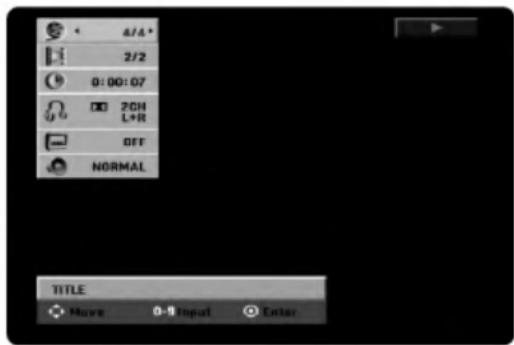
text_image
4/4" 2/2 0:00:07 2CH L+R OFF NORMAL TITLE Have 0-9 Input Enter- You can select an item by pressing ▲ / ▼ and change or select the setting by pressing ◀ / ▶. For details about each item, see the pages in parentheses.
• [Title]: Current title (or track) number/total number of titles (or tracks) (page 31)
- [Chapter]: Current chapter number/total number of chapters (page 31)
• [Time]: Elapsed playing time (page 32)
- [Audio]: Selected audio language (DVD VIDEO only) or audio channel (page 33)
- [Subtitle]: Selected subtitle (page 33)
- [Angle]: Selected angle/total number of angles (page 33)
• [Sound]: Selected sound mode (page 33)
Note:
If no button is pressed for 10 seconds, the on-screen display disappears.
Moving to another TITLE -RWvr -RWVideo
+RW -R +R DVD DivX
When a disc has more than one title, you can move to another title as follows:
- Press DISPLAY twice then use ▲ / ▼ to select the title icon. Then, press the appropriate numbered button (0-9) or ◀ / ▶ to select a title number.
Moving to another CHAPTER/TRACK
-RWvr -RWVideo +RW -R +R DVD
VCD
When a title on a disc has more than one chapter or a disc has more than one track, you can move to another chapter/track as follows:
- Press SKIP ◀◀◀ or ▶▶◀ briefly during playback to select the next chapter/track or to return to the beginning of the current chapter/track.
- Press SKIP I◄◄ twice briefly to step back to the previous chapter/track.
- To go directly to any chapter during DVD playback, press DISPLAY and press ▲ / ▼ to select the chapter/track icon. Then, input the chapter/track number or use ◀ / ▶.
Search -RWVR -RWVideo +RW -R +R
DVD VCD DivX
- Press SCAN (◀◀ or ▶▶) during playback.
- Press SCAN (◀◀ or ▶▶) repeatedly to select the required speed.
DVD ; 5 steps (forward and backward) Divx, Video CD; 3 steps (forward and backward) - To exit SEARCH mode, press PLAY (▶).
Still Picture and Frame-by-Frame Playback
-
Press PAUSE/STEP (III) during playback. Advance the picture frame-by-frame by pressing PAUSE/STEP (II) repeatedly.
-
To exit still motion mode, press PLAY (▶).
Tip:
You can advance or back up the picture frame-by-frame by pressing ◀ / ▶ repeatedly during PAUSE mode.
The picture frame-by-frame in reverse is not available for Video CD.
Slow Motion -RWVR -RWVideo +RW -R
+R DVD VCD
- Press PAUSE/STEP (III) during playback. The DVD player will now go into PAUSE mode.
-
Use the SCAN (◀◀ or ▶▶) to select the required speed. DVD; 4 steps (forward and backward) Video CD; 3 steps (forward only)
-
To exit Slow Motion mode, press PLAY (▶).
Random Karaoke DVD VCD
- Press RANDOM during playback. The unit automatically begins Random Playback and "RANDOM" appears on the TV screen.
- To return to normal playback, press RANDOM until "NORMAL" appears on the TV screen.
Tip:
By pressing SKIP ▶▶ during Random playback, the unit selects another title (track) and resumes Random playback.
Notes:
- This function only works with DVD Karaoke discs or video CDs without PBC.
- On a Video CD with PBC, you must set PBC to OFF in the Setup menu to use the Random function. See page 26.
Repeat -RWvr -RWvideo +RW -R +R
DVD VCD DivX
Press REPEAT to select a desired repeat mode.
• [Chapter] repeats the current chapter. (DVD only)
• [Title] repeats the current title. (DVD, DivX only)
- [All] repeats the all titles/tracks on the VR mode DVD-RW, or Video CD.
• [Track]: repeats the current track. (Video CD only)
• [OFF] does not play repeatedly.
Note:
On a Video CD with PBC, you must set PBC to OFF in the Setup menu to use the Repeat function. See page 26.
Repeat A-B -RWVR -RWVideo +RW -R
+R DVD VCD
To repeat a sequence
- Press A-B at your chosen starting point. "A *" appears briefly on the TV screen.
- Press A-B again at your chosen end point. "A B" appears briefly on the TV screen and the repeat sequence begins.
- Press A-B again to cancel.
Time Search -RWVR -RWVideo +RW -R
+R DVD DivX
To start playing at any chosen time on the disc:
- Press DISPLAY twice during playback. The time search box shows the elapsed playing time.
- Press ▲ / ▼ to select the time clock icon and "0:00:00" appears.
- Input the required start time in hours, minutes, and seconds from left to right.
If you enter the wrong numbers, press ◀ / ▶ to move the under bar (_) to the wrong number. Then enter the correct numbers. - Press Ⓑ (ENTER) to confirm. Playback starts from the selected time.
Zoom -RWVR -RWVideo +RW -R +R
DVD VCD
The Zoom function allows you to enlarge the video image and to move through the enlarged image.
-
Press ZOOM during playback or still playback to activate the Zoom function.
Each press of the ZOOM button changes the TV screen in the sequence shown below.
x1 size → x2 size → x4 size → x1 size (normal size) -
Use the ◀/▶/▲/▼ buttons to move through the zoomed picture.
-
To resume normal playback, press CLEAR or press ZOOM repeatedly until the normal picture appears.
Note:
The zoom function may not work for some DVDs.
Marker Search 1/6
-RWvr -RWVideo +RW -R +R DVD
VCD
To enter a Marker
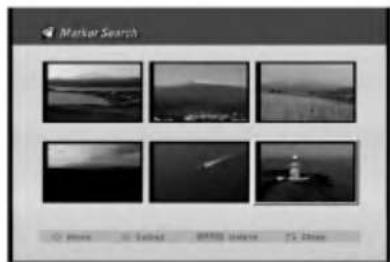
You can start playback from up to six memorized points. To enter a marker, press MARKER at the desired point on the disc. The Marker icon appears on the TV screen briefly. Repeat to enter up to six markers.
To Recall or Clear a Marked Scene
- During disc playback, press SEARCH. The marker search menu appears on the screen.
- Use ◀ / ▶ / ▲ / ▼ to select a marked scene that you want to recall or clear.
- Press Ⓞ (ENTER) and playback starts from the marked scene. Or, press CLEAR and the marked scene is erased from the marker search menu.
text_image
Marker Search © March 3 October 2015 Survey 75 DaysChecking the Contents of DVD Video Discs: Menus
DVDs may contain menus that allow you to access special features. To open the disc menu, press MENU/LIST. Then, press the appropriate number button to select an option. Or, use the ◀/▶/▲/▼ buttons to highlight your selection, then press Ⓞ (ENTER).
Title Menu DVD
-
Press TITLE. If the current title has a menu, the menu will appear on the TV screen. Otherwise, the disc menu may not appear.
-
The menu may contain camera angles, spoken language and subtitle options, and chapters for the title.
Disc Menu DVD
- Press MENU/LIST.
The disc menu is displayed. - To remove the disc menu, press MENU/LIST again.
Camera Angle DVD
If the disc contains scenes recorded at different camera angles, you can change to a different camera angle during playback.
-
Press DISPLAY twice during playback.
-
Press ▲ / ▼ to select the angle icon.
-
Press ◀ / ▶ repeatedly during playback to select a desired angle.
The number of the current angle appears on the TV screen.
Tip:
The ANGLE indicator will blink on the TV screen at scenes recorded at different angles to indicate that angle switching is possible.
Changing the Audio Soundtrack DVD
Press AUDIO then press ◀ / ▶ repeatedly during playback to hear a different audio language or audio soundtrack if available.
Note:
Some discs feature both Dolby Digital and DTS soundtracks. There is no analog audio output when DTS is selected. To listen to the DTS soundtrack, connect this recorder to a DTS decoder via one of the digital outputs. See page 13 for connection details.
Changing the Audio Channel
| -RWVR | -RWVideo | +RW | -R | +R | VCD |
| DivX |
Press AUDIO then press ◀ / ▶ repeatedly during playback to hear a different audio channel (STEREO, LEFT or RIGHT).
With DVD-RW discs recorded in VR mode that have both a main and a Bilingual audio channel, you can switch among Main (L), Sub (R), or Main+sub (L+R) by pressing AUDIO.
3D Surround -RWVR -RWVideo +RW -R +R DVD VCD DivX
This unit can produce a 3D Surround effect, which simulates multi-channel audio playback from two conventional stereo speakers, instead of the five or more speakers normally required to listen to multi-channel audio from a home theater system.
-
Press DISPLAY during playback. The On-Screen Display appears on the TV screen.
-
Use ▲ / ▼ to select the Sound icon in the On-Screen Display.
-
Use ◀ / ▶ to select [3D SUR]. To turn off the 3D Surround effect, select [NORM].
Subtitles DVD DivX
Press SUBTITLE then press ◀ / ▶ repeatedly during playback to see the different subtitle languages.
| Instant Skip | -RWvr | -RWvideo | +RW | -R |
| +R | DVD |
Each press INSTANT SKIP skips forward 15 seconds.
Note:
If appears, the feature is not available on the disc.
Finding Locations on a Disc VCD
You can directly access any point on a video CD using this function. Use this function only while a video CD is playing. Playback jumps to the point specified.
-
Press SEARCH during playback. The progress bar appears on the TV screen.
-
Use ◀ / ▶ to find a start position for playback.
-
Press Ⓞ (ENTER) to confirm the selected position. Playback starts from the selected position.
Note:
This function works only when no marker is memorized.
Last Condition Memory DVD
This recorder memorizes the user settings for the last disc that you have viewed. Settings remain in memory even if you remove the disc from the recorder or switch off the recorder. If you load a disc that had its settings memorized, the latest stop position is automatically recalled.
Notes:
- Settings are stored in memory for use any time.
- This recorder does not memorize settings of a disc if you switch off the recorder before commencing to play it.
Playing a DivX Movie File
The recorder can play Divx files on CD-R/RW or DVD±R/RW discs. Before playing DivX files, read "About DivX movie files" on the right.
- Insert a disc that contains DivX file(s) then press Ⓞ (ENTER).
- Select [MOVIE] option then press Ⓞ (ENTER). The Movie menu appears on the TV screen.

- Press ▲ / ▼ to select a folder, and press Ⓞ (ENTER). [OPEN] is hilighted.
- Press Ⓑ (ENTER). A list of files in the folder appears.
- If you want to view a particular file, press ▲ / ▼ to highlight a file and press PLAY (▶). You can use variable playback functions. Refer to pages 30-33.
- Press STOP to stop the playback. The Movie menu appears.
Tips:
- If you want to move to the upper directory, use the ▲ / ▼ to highlight 📄 - and press Ⓞ (ENTER).
- You can disappears the menu screen to view a TV channels by pressing RETURN (♂). If you want to return to the menu screen, press MENU/LIST.
- On CDs with mixed content (audio tracks, MP3/WMA files, JPEG files, and DivX files), you can select among the Music-Audio CD menu, Music menu, Photo menu, and Movie menu by pressing TITLE repeatedly.
Notice for displaying the DivX subtitle
Please refer to following notice when the DivX subtitle does not display properly.
- Find a suitable language for the DivX subtitle on the figure below.
| Disc Subtitle Language | Available DivX Subtitle |
| Original, English | English |
| French, German, Italian, Spanish, | French, German, Italian, Spanish, Portuguese Dutch, Swedish |
| Other 6976 | Greek |
| Other 7665 | Polish, Hungarian, Czech |
- Press SETUP. The Setup menu appears. Press SETUP ➔ [LANGUAGE] ➔ [Disc Subtitle] then select the language you have found. Refer to "Disc Menu/Audio/Subtitle" on page 20.
About DivX movie files
DivX disc compatibility with this recorder is limited as follows:
- Available resolution size of the DivX file is under 720x576 (W x H) pixel.
- The file name of the DivX subtitle is limited to characters.
- The total number of files and folders on the disc should be less than 1999.
- If the number of the screen frame is over 29.97 frames per second, this unit may not operate normally.
- If the video and audio structure of recorded file is not interleaved, returns to the menu screen.
- If the file is recorded with GMC, the unit supports only 1-point of the record level. * GMC?
GMC is the acronym for Global Motion Compensation. It is an encoding tool specified in MPEG4 standard. Some MPEG4 encoders, like DivX or Xvid, have this option.
There are different levels of GMC encoding, usually called 1-point, 2-point, or 3-point GMC.
playable DivX file
".avi", ".divx"
playable DivX subtitle
".smi", ".srt",
".sub (Micro DVD format only) ",
".txt (Micro DVD format only)"
- Divx subtitle except those listed above is not displayed on the TV screen.
playable Codec format
- Sampling frequency: within 8 - 48 kHz (MP3), within 32 - 48kHz (WMA)
- Bit rate: within 8 - 320kbps (MP3), 32 - 192kbps (WMA)
Playing an Audio CD or MP3/WMA file
The recorder can play audio CDs and MP3/WMA files on CD-ROM, CD-R/RW or DVD±R/RW discs. Before playing MP3/WMA files, read "About MP3/WMA audio files" on the right.
- Insert an audio CD or a disc that contains MP3/WMA or audio title. The Audio CD or Music menu appears on the TV screen.
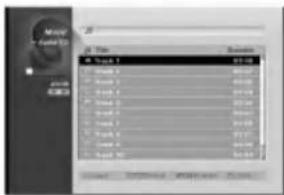
text_image
Maser 10.0000 Book 1 Book 2 Book 3 Book 4 Book 5 Book 6 Book 7 Book 8 Book 9 Book 10 Number: 10000000000000000000000000000000000000000000000000000000000000000000000000000000000000000000000000000Audio CD Menu
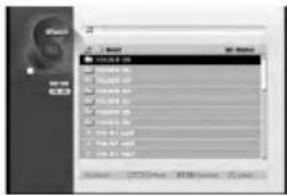
text_image
文件 1. Book 2. Format 3. Format ID 4. 00000000 5. 00000000 6. 00000000 7. 00000000 8. 00000000 9. 00000000 10. 00000000 11. 00000000 12. 00000000 13. 00000000 14. 00000000 15. 00000000 16. 00000000 17. 00000000 18. 00000000 19. 00000000 20. 00000000 21. 00000000 22. 00000000 23. 00000000 24. 00000000 25. 00000000 26. 00000000 27. 00000000 28. 00000000 29. 00000000 30. 0000000Music Menu
-
Use ▲/▼ to select a track then press PLAY (▶). Playback starts. During playback, the current track's elapsed playing time will appear on the front panel display and menu. Playback will stop at the end of the disc.
-
To stop playback at any time, press STOP.
Tips:
- Press DISPLAY to view ID3-Tag information for the MP3 file. If ID3-Tag information is not present, "Not Checked" will appear. If you select a folder, the number of subfolders and number of MP3/WMA files in the folder are displayed. Press DISPLAY again to remove the information screen.
- If you want to move to the upper directory, use the ▲ / ▼ to highlight 📋 - and press Ⓞ (ENTER).
- You can disappears the menu screen to view a TV channels by pressing RETURN (♂). If you want to return to the menu screen, press MENU/LIST.
- On CDs with mixed content (audio tracks, MP3/WMA files, JPEG files, and DivX files), you can select among the Music-Audio CD menu, Music menu, Photo menu, and Movie menu by pressing TITLE repeatedly.
About MP3/WMA audio files
MP3 / WMA file compatibility with this recorder is limited as follows:
- Sampling frequency: within 8 - 48 kHz (MP3), within 32 - 48kHz (WMA)
- Bit rate: within 8 - 320kbps (MP3), 32 - 192kbps (WMA)
- The recorder cannot read an MP3/WMA file that has a file extension other than ".mp3" / ".wma".
- CD-R physical format should be "ISO 9660" and "JOLIET".
- DVD±R/RW physical format should be "ISO 9660 (UDF Bridge format)".
- If you record MP3 / WMA files using software that cannot create a file system (eg. Direct-CD) it is impossible to playback MP3 / WMA files. We recommend that you use Easy-CD Creator, which creates an ISO 9660 file system.
- File names should have a maximum of 8 letters and must incorporate an .mp3 or .wma extension.
- They should not contain special letters such as / ? * : "< > I etc.
- The total number of files and folders on the disc should be less than 1999.
This recorder requires discs and recordings to meet certain technical standards in order to achieve optimal playback quality. Pre-recorded DVDs are automatically set to these standards. There are many different types of recordable disc formats (including CD-R containing MP3 or WMA files) and these require certain pre-existing conditions (see above) to ensure compatible playback.
Customers should note that permission is required in order to download MP3 / WMA files and music from the Internet. Our company has no right to grant such permission. Permission should always be sought from the copyright owner.
Pause
- Press PAUSE/STEP (Ⅲ) during playback.
- To return to playback, press PLAY (▶) or press PAUSE/STEP (■) again.
Moving to Another Track
- Press SKIP ◀◀◀ or ▶▶◀ briefly during playback to go to the next track or to return to the beginning of the current track.
- Press SKIP I◄◄ twice briefly to step back to the previous track.
- On an Audio CD, to go directly to any track, enter the track number using the numbered buttons (0-9) during playback.
Repeat
Audio CDs - Repeat Track/All/Off
Press REPEAT to select a desired repeat mode.
- TRACK: repeats the current track.
- ALL: repeats the all tracks on the disc.
- OFF: does not play repeatedly.
MP3/WMA - Repeat Track/Folder/Off
Press REPEAT to select a desired repeat mode.
- TRACK: repeats the current track.
- FOLDER: repeats the all tracks in the current folder.
- OFF: does not play repeatedly.
Random
- Press RANDOM during playback or in stop mode. The unit automatically begins Random Playback and "RANDOM" appears on the menu screen.
- To return to normal playback, press RANDOM repeatedly until "RANDOM" disappears from the menu screen.
Tip:
By pressing SKIP ▶▶▶ during Random playback, the unit selects another track and resumes Random playback.
Changing the Audio Channel
Press AUDIO repeatedly to hear a different audio channel (stereo, left or right).
Search (Audio CD only)
- Press SCAN (◀◀ or ▶▶) during playback. The recorder will now go into SEARCH mode.
- Press SCAN (◀◀ or ▶▶) repeatedly to select the required speed (3 steps).
- To exit SEARCH mode, press PLAY (▶).
Repeat A-B (Audio CD only)
To repeat a sequence in a track:
- Press A-B at your chosen start point. Repeat icon and 'A' appears on the menu screen.
- Press A-B again at your chosen end point. The Repeat icon and 'A - B' appears on the menu screen, and the repeat sequence begins.
- To exit the sequence and return to normal play, press A-B again. The Repeat icon disappears from the menu screen.
Program Playback with Audio CD and MP3/WMA file
Program Playback enables you to make custom playlists of Audio CD or MP3/WMA tracks. Programs can contain up to 99 Audio CD tracks or 256 MP3/WMA files.
- Use ▲ / ▼ to select a track/file (or folder) on the Music menu. You can select all files and folders on the Music menu by pressing CLEAR button. To cancel the selections, press CLEAR again.
Selecting multiple files/tracks (folders)
- Press MARKER.
A check mark appears on the file/track or folder. Press MARKER again to cancel the marked file/track or folder.
-
Repeat step 1 to mark additional file/track (folders).
-
Press Ⓞ (ENTER).
The options appear on the left side of the menu.
- Use ▲ / ▼ to select the [Program Add] option then press Ⓞ (ENTER).
The file(s)/track(s) is added to the [Program List] and [Program List] menu appears.
Note:
If you select a folder for Programmed Playback, all files in the folder are added to the Program List.
Tip:
You can access or remove the Program List screen by pressing MENU/LIST.
-
Repeat steps 1-3 to add an additional track(s).
-
Use ▲ / ▼ to select the track you want to start playing on the [Program List] menu.
-
Press PLAY (▶) to start.
Playback stops after playing the last programmed track in the program list.
- To exit Program Playback and resume normal playback, select a track on the List and press PLAY (▶).
Program List menu options
- Press ▲ / ▼ to select a track/file on the Program List then press Ⓞ (ENTER). The menu options appear.
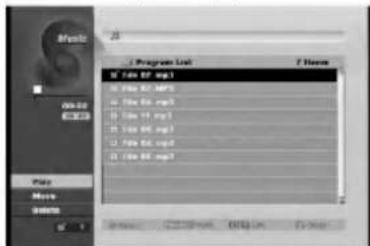
text_image
Mypro Program List 7 Items M: File EF mg1 M: File EF MP3 M: File Ex mg1 M: File 11 mg1 M: File 86 mg1 M: File Ex mg2 M: File 86 mg2 Play Move Delete- Use ▲ / ▼ to select an option then press
● (ENTER) to confirm your selection.
• [Play] Playback begins in the order in which you programmed the tracks from the selected track.
- [Delete] Deletes the track(s) from the Program List menu.
- [Move] Moves the track(s) to change the program order.
Repeat Programmed Tracks
Press REPEAT to select the desired Repeat mode.
• [TRACK] Repeats the current track
• [ALL] Repeats all tracks on the Program List.
• [OFF] Cancels Repeat mode (no display).
Erasing a Track from the Program List
- Select the track you wish to erase from the Program List. Use MARKER button to select multiple tracks.
- Press Ⓞ (ENTER). The menu options appears
- Select [Delete] option then press Ⓞ (ENTER).
Changing Track Order in the Program List
- Select the track you wish to move on the Program List. Use MARKER button to select multiple tracks.
- Press Ⓞ (ENTER). The menu options appears
- Select [Move] option then press Ⓞ (ENTER).
- Use ▲ / ▼ to move the yellow bar to the desired location, then press Ⓞ (ENTER).
Viewing a JPEG File
The recorder can play JPEG files on the CD-R/RW or DVD±R/RW. Before playing JPEG recordings, read "About JPEG image files" on page 39.
- Insert a disc that contains JPEG file. The Photo menu appears on the TV screen.
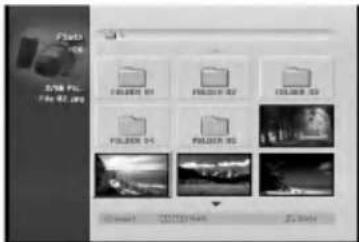
text_image
File STOCK File 02.jpg FILDER 01 FILDER 02 FILDER 03 FILDER 04 FILDER 05 Image Add: Cancel Add: Add Add OK Cancel Add Add Add Add Add Add Add Add Add Add Add Add Add Add Add Add Add Add Add Add Add Add Add Add Add Add Add Add Add Add Add Add Add Add Add Add Add Add Add Add Add Add Add Add Add Add Add Add Add Add Add Add Add Add Add Add Add Add Add Add Add Add Add Add Add Add Add Add Add Add Add Add Add Add Add Add Add Add Add Add Add Add Add Add Add Add Add Add Add Add Add +-
Use ◀ / ▶ / ▲ / ▼ to select a folder, then press Ⓞ (ENTER). The menu options appear on the left side of the menu.
-
Select [Open] option then press Ⓞ (ENTER). A list of files in the selected folder appears.
-
Use ◀/▶/▲/▼ to select a file, then press ◎ (ENTER). The menu options appear on the left side of the menu.
Tips:
- If you want to move to the upper directory, use the ▲ / ▼ to highlight 🔒. and press Ⓞ (ENTER).
- You can disappears the menu screen to view a TV channels by pressing RETURN (💡). If you want to return to the menu screen, press MENU/LIST.
- On CDs with mixed content (audio tracks, MP3/WMA files, JPEG files, and DivX files), you can select among the Music-Audio CD menu, Music menu, Photo menu, and Movie menu by pressing TITLE repeatedly.
-
Use ▲ / ▼ to select [Full Screen] then press Ⓞ (ENTER). The selected image is displayed in full screen.
-
To stop viewing at any time, press STOP. The Photo menu appears.
natural_image
Black-and-white landscape photo of a coastal cliff with trees and distant sea, no visible text or symbolsPress Ⓞ (ENTER) to appear or disappear this menu.
Photo menu options
- Press ▲ / ▼ to select a file on the Program List then press Ⓞ (ENTER).
The menu options appear. You can select all files and folders on the menu by pressing CLEAR button. To cancel the selections, press CLEAR again.
Selecting multiple files (folders)
-
Press MARKER. A check mark appears on the file or folder. Press MARKER again to cancel the marked file or folder.
-
Repeat step 1 to mark additional file (folders).

text_image
Photo 2018 Pro Pro 12.jpg Full Screen Show Shrs 100% 250% 300% 350% 400% 450% 500% 550% 600% 650% 700% 750% 800% 850% 900% 950% 1000% 1050% 1100% 1150% 1200% 1250% 1300% 1350% 1400% 1450% 1500% 1550% 1600% 1650% 1700% 1750% 1800% 1850% 1900% 1950% 2000% 2050% 2100% 2150% 2200% 2250% 2300% 2350% 2400% 2450% 2500% 2550% 2600% 2650% 2700% 2750% 2800% 2850% 2900% 2950% 3000% 3050% 3100% 3150% 3200% 3250% 3300% 3350% 3400% 3450% 3500% 3550% 3600% 3650% 3700% 3750% 3800% 3850% 3900% 3950% 4000% 4050% 4100% 4150% 4200% 4250% 4300% 4350% 4400% 4450% 4500% 4550% 4600% 4650% 4700% 4750% 4800% 4850% 4900% 4950% 5000% 5050% 5100% 5150% 5200% 5250% 5300% 5350% 5400% 5450% 5500% 5550% 5600% 5650% 5700% 5750% 5800% 5850% 5900% 5950% 6000% 6050% 6100% 6150% 6200% 6250% 6300% 6350% 6400% 6450% 6500% 6550% 6600% 6650% 6700% 6750% 6800% 6850% 6900% 6950% 7000%-
Use ▲ / ▼ to select an option then press Ⓞ (ENTER) to confirm your selection.
-
[Open] Opens the folder and a list of files in the folder appears
- [Full Screen] Shows the selected file as full screen.
• [Slide Show] Displays Slide Show menu.
Skip Images
While viewing a picture, press SKIP (◄◄◄ or ►►►) once to advance to the next file or return to the previous file.
Rotate Images
Use ▲ / ▼ while viewing a picture to flip the picture clockwise or counterclockwise.
View Slide Shows
- Select [Slide Show] option on the Photo menu (Refer to "Photo menu options" on page 38).
- Press ⬙ (ENTER). The Slide Show menu appears.

text_image
Slide Show Object All Speed Normal Start Cancel- Use ◀ / ▶ / ▲ / ▼ to set the options.
[Object] option:
- [Selected] Views slide show only selected files. Use the MARKER button to select multiple files.
• [All] Views slide show all files.
[Speed] option:
Sets the Slide Show speed to [Slow], [Normal], or [Fast].
- Select the [Start] option then press Ⓞ (ENTER) to start the Slide Show.
- Press STOP to stop the Slide Show and returns to the Photo menu.
About JPEG image files
JPEG disc compatibility with this recorder is limited as follows:
- Depending upon the size and number of JPEG files, it could take a long time for the recorder to read the files. If you don't see an on-screen display after several minutes, some of the files may be too large — reduce the resolution of the JPEG files to less than 4M pixels.
- The total number of files and folders on the disc should be less than 1999.
- Some discs may be incompatible due to a different recording format or the condition of disc.
- Ensure that all the selected files have the ".jpg" extensions when copying into the CD layout.
- If the files have ".jpe" or ".jpeg" extensions, please rename them as ".jpg" file.
- File names without ".jpg" extension will not be able to be read by this recorder. Even though the files are shown as JPEG image files in Windows Explorer.
- Progressive and lossless compression JPEG image files are not supported.
Recording
About DVD recording
Notes:
- This recorder cannot make recordings on CD-R or CD-RW discs.
- Our company takes no responsibility for recording failure due to power outages, defective discs, or damage to the Recorder.
- Fingerprints and small scratches on a disc can affect playback and/or recording performance. Please take proper care of your discs.
Disc types and recording formats, modes, and settings
This recorder can play five different kinds of DVD discs: pre-recorded DVD-Video discs, DVD-RW, DVD-R, DVD+RW and DVD+R discs. The disc format for DVD-R, DVD+R, DVD+RW discs is always "Video format"—the same as pre-recorded DVD-Video discs. This means that once finalized, you can play a DVD-R, DVD+R, or DVD+RW in a regular DVD player.
By default, the DVD-RW disc format is Video Recording (VR) format, though you can change this to Video format, if required. (Reinitializing the disc will erase the contents of the disc.)
The recording mode is closely related to the disc format. If the disc format is Video Recording format, then the recording mode is VR mode; if the disc format is Video mode, then the recording mode is Video mode (except for DVD-Video, which is not recordable, and so does not have a recording mode). Within the recording modes (which are fixed for them whole disc) are the record settings. These can be changed as required for each recording and determine the picture quality and how much space the recording will take up on the disc.
Notes for recording
- The recording times shown are not exact because the recorder uses variable bit-rate video compression. This means that the exact recording time will depend on the material being recorded.
- When recording a TV broadcast, if the reception is poor or the picture contains interference, the recording times may be shorter.
- If you record still pictures or audio only, the recording time may be longer.
- The displayed times for recording and time remaining may not always add up to exactly the length of the disc.
- The recording time available may decrease if you heavily edit a disc.
- If using a DVD-RW disc, make sure you change the recording format (Video mode or VR mode) before you record anything on the disc. See page 25 (Initialize) for how to do this.
- When using a DVD-R or DVD+R disc, you can keep recording until the disc is full, or until you finalize the disc. Before you start a recording session, check the amount of recording time left on the disc.
- When using a DVD-RW disc in Video mode, recording time available will only increase if you erase the last title recorded on the disc.
- The Delete Title option in the Title List (Original) menu only hides the title, it does not actually erase the title from the disc and increase the recording time available (except for the last recorded title on a DVD-RW disc in Video mode).
- Overwrite recording is available using DVD+RW discs.
- When using a DVD+R/RW, the recorder will execute the Menu-making operation to update the new title and editing when removing the disc from the recorder. So you must remove the disc after selecting the recorder's operation mode to DVD mode.
Recording time and picture quality
There are four preset recording quality modes:
- XP – Highest quality setting, gives about 1 hour of recording time on a DVD (4.7GB).
- SP – Default quality, sufficient for most applications, gives about 2 hours of recording time on a DVD (4.7GB).
- LP – Slightly lower video quality, gives about 4 hour of recording time on a DVD disc (4.7GB).
- EP – Lowest video quality, gives about 6 hour of recording time on a DVD (4.7GB).
Restrictions on copying
- You cannot record copy-protected video using this recorder. Copy-protected video includes DVD-Video discs and some satellite broadcasts. If copy-protected material is encountered during a recording, recording will pause or stop automatically and an error message will be displayed on-screen.
- Video that is 'copy-once only' can only be recorded using a DVD-RW disc in VR mode with CPRM (see below).
- NTSC format signals from the analog or the DV inputs is not recorded correctly with this recorder.
- Video signals in SECAM format (from the built-in TV tuner or from the analog inputs) are recorded in PAL format.
What is 'CPRM'?
CPRM is a copy protection system (with scramble system) only allowing the recording of 'copy once' broadcast programs. CPRM stands for Content Protection for Recordable Media. This Recorder is CPRM compatible, which means that you can record copy-once broadcast programs, but you cannot then make a copy of those recordings. CPRM recordings can only be made on DVD-RW discs formatted in VR mode, and CPRM recordings can only be played on players that are specifically compatible with CPRM.
Copyright
- Recording equipment should be used only for lawful copying and you are advised to check carefully what is lawful copying in the area in which you are making a copy. Copying of copyright material such as films or music is unlawful unless permitted by a legal exception or consented to by the rights owner.
- This product incorporates copyright protection technology that is protected by method claims of certain U.S. patents and other intellectual property rights owned by Macrovision Corporation and other rights owners. Use of this copyright protection technology must be authorized by Macrovision Corporation, and is intended for home and other limited viewing uses only, unless otherwise authorized by Macrovision corporation. Reverse engineering or disassembly is prohibited.
- CONSUMERS SHOULD NOTE THAT NOT ALL HIGH DEFINITION TELEVISION SETS ARE FULLY COMPATIBLE WITH THIS PRODUCT AND MAY CAUSE ARTIFACTS TO BE DISPLAYED IN THE PICTURE. IN CASE OF 625 PROGRESSIVE SCAN PICTURE PROBLEMS, IT IS RECOMMENDED THAT THE USER SWITCH THE CONNECTION TO THE 'STANDARD DEFINITION' OUTPUT. IF THERE ARE QUESTIONS REGARDING OUR TV SET COMPATIBILITY WITH THIS MODEL 625p DVD RECORDER, PLEASE CONTACT OUR CUSTOMER SERVICE CENTER.
Basic Recording from a TV
Follow the instructions below to record a TV program. Recording starts immediately and continues until the disc is full or you stop the recording.
Note:
You must load a recordable disc for DVD recording.
- Load a recordable disc.
Also make sure that the TV input is set to this recorder.
If you load a completely blank disc, the recorder takes a short while to initialize the disc. - Set a recording mode as necessary by pressing REC MODE repeatedly. (XP, SP, LP, EP)
- Use PR +/- buttons to select the TV channel to record.
Changing TV Audio Channel
You can select the audio channel (language) to listen by pressing AUDIO during viewing TV program. The current audio channel is displayed on-screen.
[Stereo/Main] → [Stereo/Sub] → [Mono/Main]
- If the sound is of poor quality when set to Stereo, you can often improve it by changing to [Mono/Main].
-
This recorder can record either NICAM or regular audio. If the NICAM setting (page 17) is set to Auto, then if the broadcast is NICAM, the audio automatically changes to NICAM and you can record the NICAM audio. If the broadcast is non-NICAM, the regular audio is always recorded. If NICAM sound distortion occurs, due to poor reception, you can switch off NICAM setting of the program.
-
Press ● REC once.
Recording will start. (The REC indicator lights in the display window.)
- Recording continues until you press STOP (■).
-
To record for a fixed length of time, see Instant Timer Recording on right.
-
Press STOP (■) to stop recording.
To Pause the Recording
- Press PAUSE/STEP (Ⅲ) to pause recording.
- When you want to continue recording, press PAUSE/STEP (Ⅲ).
Instant Timer Recording
Instant Timer Recording allows you to make a recording easily of a preset length without using the program timer.
- Follow steps 1-4 as shown left (Basic Recording from a TV).
- Press ● REC repeatedly to select the recording time length.

Recording starts after the first press. Each subsequent press increases the recording time within free space (maximum 240 minutes). The recording time is displayed on the TV screen. At the end of the recording, the recorder will stop recording and shut off.
Checking the Recording Time
Press ● REC once to check the recording time. The recalled setting will automatically return to the TV screen for a moment.
Also, remaining time of recording is shown in the display window.
To Extend the Recording Time
The recording time can be extended anytime by pressing ● REC.
Each subsequent press increases the recording time within free space (maximum 240 minutes).
Caution
If the recorder is unplugged (or there is a power failure) while the recorder is recording, the recording will be lost.
Timer Recording
This recorder can be programmed to record up to 7 programs within a period of 1 month. For unattended recording, the timer needs to know the channels to be recorded, the starting and ending time.
Note:
If you use a completely blank disc for timer recording, you must format the disc before starting timer recording. (Refer to "Initialize" on page 25.)
1. Press TIMER REC.
The Timer Record menu will appear.

text_image
Timer Record 117 min Free Media PR Data StartTime End Time Mode VPS/PDC DVD 1 01/01 Set 1:18 1:48 SP OFF OK TIME Record List Close• [Media] It means that the recording media is DVD.
- [PR] Choose a memorized program number, or one of the external inputs from which to record.
- [Date] Choose a date up to 1 month in advance.
• [Start Time] Set the start time.
• [End Time] Set the end time.
- [Mode] Set a recording mode as necessary (XP, SP, LP, EP, AT).
AT (Auto) mode determines how much disc time is available and switches record mode, if necessary, to complete recording the program.
Note :
- When you set the VPS/PDC option to On, AT mode is not available.
- [VPS/PDC] The VPS/PDC system automatically adjusts the recording time so that even if a program is not running to schedule, you won't miss it. For VPS/PDC to work properly, you must input the correct announced time and date of the program you want to record.
Note that VPS/PDC may not work with every station.
Notes:
- Stations that use VPS/PDC typically include VPS/PDC information in the teletext TV guide pages. Please refer to these pages when setting a timer recording.
-
When using VPS/PDC, there may be instances where the beginning of the program is not recorded.
-
Enter the necessary information for your timer recording(s).
-
◀ / ▶ (left/right) – move the cursor left/right
- ▲ / ▼ (up/down) – change the setting at the current cursor position
- Press RETURN (♂) to exit the Timer Record menu.
- Press Ⓞ (ENTER) after filling in all the program information.
-
Press TIMER REC to display Timer Record List.
-
Press Ⓞ (ENTER), the program will be memorized by the recorder.
To check the programming, the Timer Record List will appear.
Check field's "Rec. OK" on the Timer Record List indicates that the timer recording is programmed correctly.
- Press RETURN (♂) to exit the Program List.
- Make sure that you load a recordable disc for DVD recording and press POWER to switch your unit to Standby.
Notes:
- The timer indicator lights in the display window when the recorder is in standby with the timer active.
Timer Recording with ShowView® System
This system makes programming timer recordings very simple. Most TV guides publish SHOWVIEW programming numbers with their program details. If you want to make a timer recording of a program, you just input the corresponding SHOWVIEW programming number. The date, start, stop and channel settings are made automatically. All you have to do is tell the recorder the recording mode, and whether it's a once-only recording, or a regular recording. Up to 7 timer programs can be stored in the recorder.
1. Press SHOWVIEW.
The ShowView menu will appear. Press SHOWVIEW again to exit the menu.
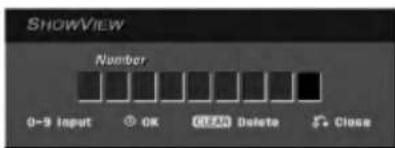
text_image
SHOWVIEW Number 0-9 Input OK Clean Delete Close- [Number] Enter the ShowView programming number.
- Use the number buttons then press Ⓞ (ENTER) to enter the ShowView programming number. To check the programming, the Timer Record menu will appear.
- ◀ / ▶ (left/right) – move the cursor left/right - If you make a mistake before pressing Ⓞ (ENTER), press CLEAR repeatedly to delete password numbers one by one then correct it.
- Press Ⓑ (ENTER) after filling in all the program information.
The program will be memorized by the recorder.

text_image
Timer Record 117 min Free Media PR Date Start Time End Time Mode VPS/ FDC DVD 1 01/01 Sat 1:18 1:40 SP OFF OK Timer Rec List 5% Close-
You can change the information as required using ◀/▶/▲/▼ (Mode, VPS/PDC, etc.) Refer to "Timer Recording" on previous page.
-
Press Ⓞ (ENTER) the program will be memorized by the recorder.
To check the programming, the Timer Record List will appear.
Check field's "Rec. OK" on the Timer Record List indicates that the timer recording is programmed correctly. - Press RETURN (💡) to exit the Timer Record menu.
- Make sure that you load a recordable disc for DVD recording and press POWER to switch your unit to Standby.
Checking Timer Recording Details
Programming can be checked whenever the recorder is turned on. Press TIMER REC twice.
- Use ▲ / ▼ to select a timer recording.
- Press Ⓞ (ENTER) to edit the selected program. Timer Record menu appears.
- Press CLEAR to delete the selected program from the Timer Record List.

text_image
Timer Record List Media P1 Date Start Time Length Mode VPS/PS/C Check 01 04/01 Tue 2:18 30min SP OFF Rec OK 01 06/01 Thu 4:18 50min SP OFF Rec OK Edit Delete Timer Rec CloseCanceling a Timer Recording
You can clear a timer setting anytime before the recording actually starts.
- Use ▲ / ▼ to select a program you want to erase on the Timer Recorder List. If you want to erase the program, press CLEAR.
Stopping a Timer Recording in Progress
After a timer recording has started, you can still cancel the program.
- Press POWER.
Timer Recording Troubleshooting
Even though the timer is set, the recorder will not record when:
• There is no disc loaded.
- A non-recordable disc is loaded.
- [Disc Protect] option is set to [ON] in the Setup menu. (see page 25).
• Power is turned on.
- There are already 99 titles (DVD-RW, DVD-R), 49 titles (DVD+RW, DVD+R) recorded on the disc.
You cannot enter a timer program when:
• A recording is already underway.
- The time you're trying to set has already passed.
• There are already 7 timer programs set.
If two or more timer programs overlap:
• The earlier program takes priority.
- When the earlier program finishes, the later program starts.
- If two programs are set to start at exactly the same time, the program entered first takes priority.
If the disc is damaged, the recording may not complete successfully. In this case even though the Check field shows "Rec. OK", it may not be.
Recording from an External Input
Recording from External Components
You can record from an external component, such as a camcorder or VCR, connected to any of the recorder's external inputs.
- Make sure that the component you want to record from is connected properly to the recorder. See page 14.
-
Press AV repeatedly to select the external input to record from.
-
Tuner: Built-in tuner
- AV1: EURO AV1 AUDIO VIDEO mounted on back panel
- AV2: AUDIO IN 2 / VIDEO IN 2 mounted on back panel
-
AV3: INPUT 3 (VIDEO, AUDIO (L/R), S-VIDEO IN) mounted on front panel
• DV: DV IN mounted on front panel -
Load a recordable disc.
- Select the recording mode as necessary by pressing REC MODE repeatedly. (XP, SP, LP, or EP)
- Press ● REC once.
Recording will start. (The REC indicator lights in the display window.)
- Recording continues until you press STOP (■) or the disc is full.
-
To record for a fixed length of time, see "Instant Timer Recording" on page 42.
-
Press STOP (■) to stop recording.
Note:
If your source is copy-protected using CopyGuard, you will not be able to record it using this recorder. See Copyright on page 41 for more details.
Recording from DV Input
Before DV dubbing
You can connect a DV-equipped camcorder to this recorder using a single DV cable for input and output of audio, video, data and control signals.
- This recorder is only compatible with DV-format (DVC-SD, DV25) camcorders. Digital satellite tuners and Digital VHS video recorders are not compatible.
- You cannot connect more than one DV camcorder at a time to this recorder.
- You cannot control this recorder from external equipment connected via the DV IN jack (including two recorders).
- It may not always be possible to control the connected camcorder via the DV IN jack.
- Digital camcorders can usually record audio as stereo 16-bit/48kHz, or twin stereo tracks of 12-bit/32kHz. This recorder can only record one stereo audio track. Set [DV Rec Audio] option to [Audio 1] or [Audio 2] as required (see page 24).
- Audio input to the DV IN jack should be 32 or 48kHz (not 44.1kHz).
- Picture disturbance on the recording may occur if the source component pauses playback or plays an unrecorded section of tape, or if the power fails in the source component, or the DV cable becomes disconnected.
Recording from a Digital Camcorder
You can record from a digital camcorder connected to the DV IN jack on the front panel of this recorder.
Using the recorder's remote, you can control both the camcorder and this recorder.
Before recording, make sure that the audio input for the DV IN jack is set up (see page 24).
Tips:
- The source signal must be DVC-SD format.
- Some camcorders cannot be controlled using this recorder's remote.
- If you connect a second recorder using a DV cable, you cannot control the second DVD from this one.
- You cannot control this unit remotely from a component connected to the DV IN jack.
-
You cannot record date and time information from a DV cassette.
-
Make sure your digital camcorder is connected to the front panel DV IN jack. See page 14.
-
Check that the DV audio input is as you require. You can choose between Audio 1 (original audio) and Audio 2 (overdubbed audio).
- DV Input is set from the [DV Rec Audio] in sub-menu of the Setup menu. See "DV Recording Audio" on page 24 for more information.
-
Press AV repeatedly to select the DV input. DV appears in the display window and on the TV screen.
-
Find the place on the camcorder tape that you want to the recording to start from. For best results, pause playback at the point from which you want to record.
- Depending on your camcorder, you can use this recorder's remote to control the camcorder using the STOP, PLAY (▶) and PAUSE functions.
- Press ● REC once to start recording.
- Recording is automatically stopped if the recorder detects no signal.
- You can pause or stop the recording by pressing PAUSE/STEP (■) or STOP (■). You cannot control the camcorder from this remote control during recording.
- In Video mode, the final frame of the recording may remain displayed on screen for a while after recording stops.
- For timer recording to work properly on this recorder, the digital camcorder must also be switched on and in operating.
Troubleshooting
If you cannot get a picture and/or audio through the DV IN jack, check the bullet points:
- Make sure the DV cable is properly connected.
- Try switching off the connected equipment then switch back on.
- Try switching the audio input.
Note:
Depending on the connected camcorder, you may not be able to control it using the remote control supplied with this recorder.
Editing
Title List and Chapter List Menu Overview
Using the Title List menu you can edit video content. The editing features available in the Title List menu depend on whether you're editing Original content, or a Playlist.
There are two ways to edit VR mode DVD-RW discs. You can directly edit the Original content of the disc, or you can create and edit a Playlist. The Playlist doesn't actually change any of the content on the disc, but just controls how the content is played back.
-
Press MENU/LIST to display the Title List menu. Playback should be stopped when you do this.
-
When selecting titles, use the ▲ / ▼ buttons to display the previous/next page if there are more than six titles.
- If you are editing a VR mode disc, press MENU/LIST to switch between Original and Playlist menu.
On the left side of the screen are the menu options. The main part of the screen shows thumbnails of the titles (or chapter) on the DVD. You can change these thumbnails using the THUMBNAIL button—see Changing Title Thumbnails on page 48.
Press DISPLAY to display the information of selected title on the Title List menu.
After selecting a title or chapter on the Title List or Chapter List menu, then press Ⓞ (ENTER). The menu options appears on the left side of the menu. Use ▲ / ▼ to select a option then press Ⓞ (ENTER) to confirm your selection.
- To exit the Title List menu, press RETURN (💡) repeatedly.
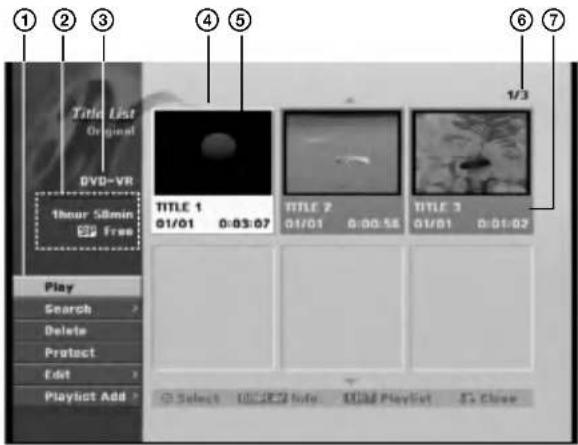
text_image
① ② ③ Title List Original DVD=VR Hour 58min Free Play Search Delete Protect Edit PlayList Add > TITLE 1 01/01 0:03:07 TITLE 2 01/01 0:00:58 TITLE 3 01/01 0:01:02 Select Info Mid Playlist Close① Menu options: To display menu option, select a title or chapter then press Ⓞ (ENTER). The options displayed differ depending on the disc type.
• [Combine] Combines two chapters into one (page 52).
- [Delete] Deletes the title or chapter. (page 50)
- [Edit] Edits or Deletes a part of the title.
- [Title Name] Edits the title name. (page 51).
- [Delete Part] Deletes a part of the Title (page 50).
- [Divide] Divides a title into two (page 52).
- [Hide (Show)] Hides (or Shows) the selected title or chapter. (page 53)
• [Full Play] Starts playback of the selected title including the hidden chapters.
- [Move] Moves a chapter on the Chapter List-Playlist menu to a position on the menu. (page 53)
- [Play] Start playback of the selected title or chapter. The hidden titles and chapters on the DVD+R/RW cannot be play back.
- [Playlist Add] Adds the title or chapter to the Playlist. (page 49)
• [Protect] Protects accidental recording, editing or deleting of the title. (page 53)
• [Title] Displays Title List of the chapter.
- [Search]
- [Scene] Displays Chapter List of the Title.
- [Time] Search time for you want start point of the title.
② Indicates the record mode, free space, and elapsed time progress bar.
③ Current media
④ Currently selected title.
⑤ Thumbnail
⑥ Shows the selected title number and total number of titles.
⑦ Shows the title name, recorded date, and recording length.
VR Mode: Original and Playlist Editing
Titles, Chapters and Parts
Titles in the disc's original content contain one or more chapters. When you insert a disc's title into the Playlist, all the chapters within that title also appear. In other words, chapters in the Playlist behave exactly as chapters on a DVD-Video disc do. Parts are sections of Original or Playlist titles. From the Original and Playlist menu you can add or delete parts. Adding a chapter or title to the Playlist creates a new title made up of a section (ie., chapter) of an Original title. Deleting a part removes part of a title from the Original or Playlist menu.
Caution
- When editing using the Delete, Add and Move functions, the start and end frames may not be exactly as set in the start and end point display.
- During Playlist playback, you may notice a momentary pause between edits. This is not a malfunction.
Is editing a DVD like editing a video tape?
No. When you edit a video tape you need one video deck to play the original tape and another to record the edits. With DVD, you edit by making a 'Playlist' of what to play and when to play it. On playback, the Recorder plays the disc according to the Playlist.
About word 'Original' and 'Playlist' -RWVR
Throughout this manual, you will often see the words Original and Playlist to refer to the actual content and the edited version.
- Original: content refers to what's actually recorded on the disc.
- Playlist: content refers to the edited version of the disc — how the Original content is to be played.
Adding Chapter Markers

You can create chapters within a title by inserting chapter marks at the desired points.
Note:
Chapter markers are inserted at regular intervals automatically. You can change this interval from the Initial Setup menu (see "Auto Chapter" on page 24).
During recording or playing back, at the point you want to start a new chapter, press CHP ADD. A chapter marker icon appears on the TV screen.
Changing Title Thumbnails

Each title displayed in the Title List menu is represented by a thumbnail picture taken from the start of that title or chapter.
If you prefer, select a different still picture from within a title.
Press THUMBNAIL to make the currently displayed picture the one that appears in the Title List menu. The still picture that you choose appears in both the Original or Playlist menu.
Tip:
You can also change the thumbnail picture of the title on the Chapter List menu. Select a chapter on the Chapter List menu then press THUMBNAIL. The thumbnail picture of the title that includes the chapter is changed.
Making a New Playlist -RWvr
Use this function to add an Original title or chapter to the Playlist. When you do this, the whole title is put into the Playlist (you can delete bits you don't need later — see Deleting an Original or Playlist title/chapter on page 50).
The title appears in the Playlist complete with the chapter markers that appear in the Original. However, if you add more chapter markers to the Original later, these are not automatically copied over into the Playlist title.
You can add up to 999 chapters to one disc. If you only want to add a chapter of a title, use the Adding a title/chapter to the Playlist on this page.
- Choose a title or chapter on the Title List-Original menu or Chapter List-Original menu to put into the Playlist, then press Ⓞ (ENTER). The menu options appears on the left side of the menu.
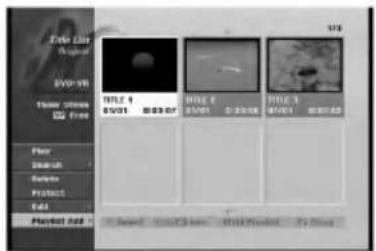
text_image
Take Line Motion BVD-VR 3000000000 52 Free Play 200000 Exchange Physics Add Market Add TITLE 4 BVD01 MIME 6 BVD01 C:00:00 TITLE 9 BVD01 MIME 9 BVD01 D:00:00 Reset Start/Close Hold/Forward To Close- Use ▲ / ▼ to select [Playlist Add] option then press Ⓞ (ENTER).
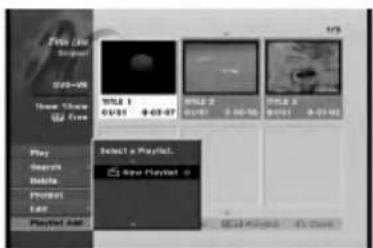
text_image
Tina Cite Original 03:00 New Choice Flow 01:01 03:07 01:02 04:06 01:03 05:08 Select a Playlet. New Playlet 0 Play Search Delete Project Add Playset And Get Keyed It Next- Select [New Playlist] then press Ⓞ (ENTER). The new title appears in the updated Playlist. All chapters of the title are added to the Playlist.
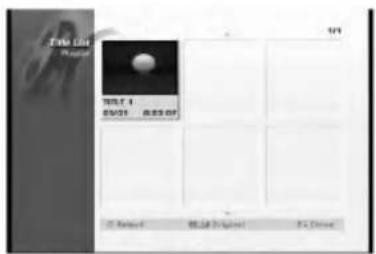
text_image
Take the Plaster WLT 4 05/01 05:30 AM © Rated Risikr Supplant Fis DriveAdding Additional Title/Chapters to the Playlist -RWvr
You can add an Original title or chapter to add to a Playlist title even if it is already registered.
- Choose a title or chapter on the Title List-Original menu or Chapter List-Original menu to put into the Playlist, then press Ⓞ (ENTER). The menu options appears on the left side of the screen.
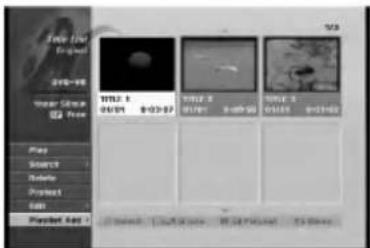
text_image
Take the Original 2019-06 Water Screen Power WKS 5 04/04 8:03:02 WKS 5 01/01 8:00:00 WKS 5 01:01 8:01:02 Play Search Scale Project Edit Played Add > Select Create Image 95.54 (Full) 5x Save- Use ▲ / ▼ to select [Playlist Add] from menu options then press Ⓞ (ENTER).
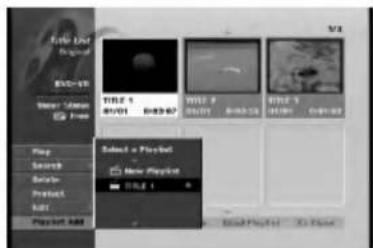
text_image
File Edit Original Mac OS New Save As Free File 1 0/01 0/03 0/05 0/07 0/09 0/11 0/13 0/15 0/17 0/19 0/21 0/23 0/25 0/27 0/29 0/31 0/33 0/35 0/37 0/39 0/41 0/43 0/45 0/47 0/49 0/51 0/53 0/55 0/57 0/59 0/61 0/63 Select a Playlist New Playlist Play Search Delete Protect Add Playset Add-
Choose a Title List-Playlist that is already registered to insert a title or chapter, then press Ⓞ (ENTER).
-
Repeat steps 1-3 to add additional title or chapter on the Playlist. You can view the added chapters on the Chapter List-Playlist menu.
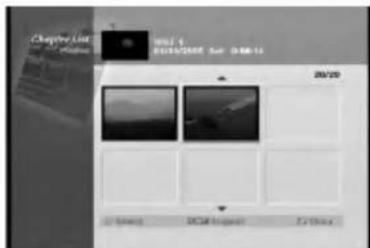
text_image
ChapterList 20/20 PCM Project Ex-Chief- Press RETURN (♂) to exit, or MENU/LIST to go back to the Title List-Original menu.
Deleting an Original or Playlist Title/Chapter
When you erase a title or chapter from the Playlist menu, you only remove it from the Playlist; the title/chapter remains in the Original menu.
If you choose to delete a title or chapter from the Original (title/chapter) menu, the title or chapter is actually deleted from the disc and the remaining time available for recording increases. Titles/chapters deleted from the Original are also removed from the Playlist.
Note:
It may not be possible to delete chapters that are less than 5 seconds long.
-
Use ◀/▶/▲/▼ to choose a chapter or title you want to delete on the Title List or Chapter List menu then press Ⓞ (ENTER). The menu options appears on the left side of the screen.
-
Select [Delete] option from the options on the menu.

text_image
True Live Designed Editor-in Video Stream From Play Search Delete Preview Exit Phylot Add TITLE: 0 01/01 0:02:07 TITLE: 0 01/01 0:03:08 TITLE: 0 01/01 0:01:09 TITLE: 0 01/01 0:01:09 TITLE: 0 01/01 0:01:09 TITLE: 0 01/01 0:01:09 TITLE: 0 01/01 0:01:09 TITLE: 0 01/01 0:01:09 TITLE: 1 01/01 0:01:09 TITLE: 1 01/01 0:01:09 TITLE: 1 01/01 0:01:09 TITLE: 1 01/01 0:01:09 TITLE: 1 01/01 0:01:09 TITLE: 1 01/16 0:01:09 TITLE: 1 01/16 0:01:09 TITLE: 1 01/16 0:01:09 TITLE: 1 01/16 0:01:09 TITLE: 1 01/16 0:01:09 TITLE: 1 01/16 0:02:09 TITLE: 1 01/16 0:02:09 TITLE: 1 01/16 0:02:09 TITLE: 1 01/16 0:02:09 TITLE: 1 01/16 0:02:09 TITLE: 1 01/16 0:02:09 ITEMS: OFFICE BY: HKEYFROSET: 5.2.244-
Press Ⓞ (ENTER) to confirm. The confirm message for deleting will appear.
-
Use ◀ / ▶ to select [OK] then press Ⓞ (ENTER). The selected chapter or title is deleted. After pressing Ⓞ (ENTER), the new, updated menu is displayed.
-
Repeat steps 1 - 4 to continue to delete from the menu.
-
Press RETURN (💡) repeatedly to exit the menu.
Notes:
- When DVD+RW recording, the deleted title's name is changed to 'Deleted Title'.
- If more than two titles are repeatedly deleted, the titles are combined into one.
- When you are deleting a title or chapter, only the last one on DVD+R/RW increases remaining recording time.
Deleting a Part
-RWVR
You can delete a part which you do not want in the title.
-
Use ◀ / ▶ / ▲ / ▼ to choose a title you want to delete on the Title List menu then press ◎ (ENTER). The options appear on the left side of the menu.
-
Select [Delete Part] option then press Ⓑ (ENTER). Title Edit (Delete Part) menu appears on the TV screen. [Start Point] icon is highlighted.
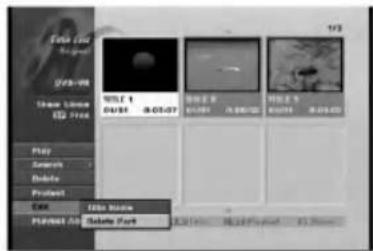
text_image
Video (V) Original USB-98 Image Links E2 Free WU1 4 GUSH 3.05.07 WUER GUSH 3.05.07 WUER GUSH 3.05.07 Play Search Delete Project OK Edit Movie PlayOut All Delete Sort Add to Add to Playout Add to Add to Playout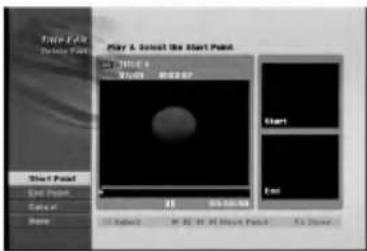
text_image
Play & Select the Start Point Start Point End Point Cancel Share Start End- Starts playback and use pause step, search and slow-motion to find the starting point.
- Press Ⓞ (ENTER) at the starting point of the section you want to delete. 'End Point' icon is highlighted. The part is indicated on the Progress Bar.
- Use pause step, search and slow-motion to find the ending point.
- Press Ⓞ (ENTER) at the ending point of the section you want to delete. You can cancel the selected point, use ▲ / ▼ to select [Cancel] icon then press Ⓞ (ENTER).
- If you finish to edit, select [Done] icon then press Ⓞ (ENTER). The selected part is deleted from the title and Title List menu appears. When recording in VR mode, the confirm message for deleting will appear. Use ◀ / ▶ to select [OK] then press Ⓞ (ENTER).
Note:
It may not be possible to delete parts that are less than 3 seconds long.
Naming a Title
You can name Original and Playlist titles independently. Names can be up to 32 characters long.
-
Choose the title you want to name on the Title List menu, then press Ⓞ (ENTER). The menu options appears on the left side of the menu.
-
Use ▲/▼ to select [Title Name] option then press Ⓞ (ENTER). Keyboard menu appears.
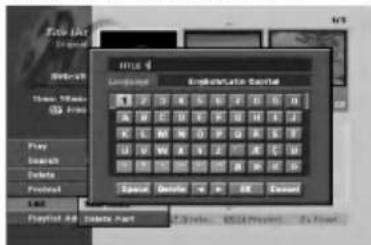
text_image
Enter Format Enterator Format Format Enterator Format Enter Delete Delete Part Delete Delete Delete Delete Delete Delete Delete Delete Delete Delete Delete Delete Delete Delete Delete Delete Delete Delete Delete Delete Delete Delete Delete Delete Delete Delete Delete Delete Delete Delete Delete Delete Delete Delete Delete Delete Delete Delete Delete Delete Delete Delete Delete Delete Delete Delete Delete Delete Delete Delete 删除 删除 删除 删除 删除 删除 删除 删除 删除 删除 删除 删除 删除 删除 删除 删除 删除 删除 删除 删除 删除 删除 删除 删除 删除 删除 删除 删除 删除 删除 删除 删除 删除 删除 删除 删除 删除 删除 删除 删除 删除 删除 删除 删除-
Enter a name for the title. Use ◀ / ▶ / ▲ / ▼ to select a character then press Ⓞ (ENTER) to confirm your selection.
-
Use MENU/LIST button to change keyboard type.
- OK: Select to finish.
- Cancel: Cancels all entered characters.
• Space: Inserts a space at the cursor position. - Delete: Deletes the previous character at the cursor position.
- ◀ / ▶: Moves cursor to left or right.
Tip:
Remote control buttons for entering a name PLAY (▶): Inserts a space at the cursor position.
II (PAUSE/STEP): Deletes the after character at the cursor position.
■ (STOP), CLEAR: Deletes the previous character at the cursor position.
|◀◀ / ▶▶▶: Moves cursor to left or right.
Numbers (0-9): Enters the corresponding character at the cursor position.
- Choose OK then press Ⓞ (ENTER) to fix the name and return to the previous menu screen.
- Press RETURN (💡) repeatedly to exit the menu.
Notes:
- Names can be up to 32 characters long.
- For discs formatted on a different recorder, you will see only a limited character set.
- When recording on DVD-R, DVD+R or DVD+RW discs, the entered name is displayed on the DVD player only after finalization.
Time Search
You can select start point of the title.
-
Use ◀ / ▶ / ▲ / ▼ to choose a title on the Title List menu then press ENTER. The options appear on the left side of the menu.
-
Select [Time] option then press Ⓞ (ENTER).
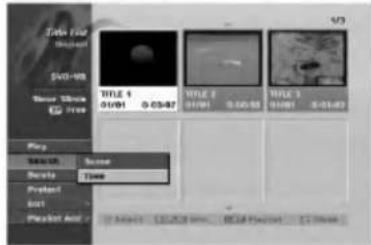
text_image
Info (File) Document V30-V8 Smart Block G PS Free Title 1 01/01 0:05:02 Title 2 01/01 0:30:55 Title 3 01/01 0:01:02 Play Search Show Details Time Protect Exit Placeset And Select Select Close Tools Real Feature C:\Users- Press Ⓞ (ENTER). [Time Search] menu appears on the TV screen.
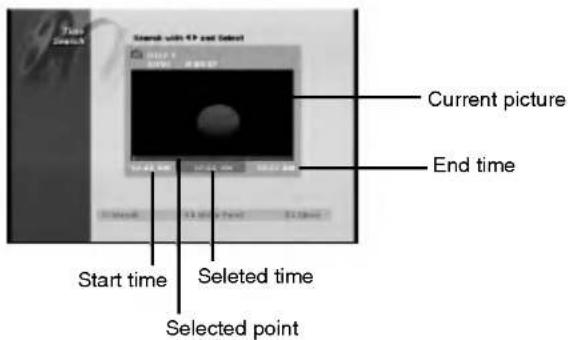
text_image
Start time Selected time Selected point Current picture End time- Use ◀ / ▶ to find the point you want to start. The point increase 1 minute step. If you press and hold ◀ / ▶ then the point increase 5 minute step.
- Press Ⓞ (ENTER) to start selected point.
Divide One Titles Into Two +RW
Use this command to split a title up into two new titles.
-
On the Title List menu, select a title you want to divide then press Ⓞ (ENTER). The menu options appears on the left side of the screen.
-
Select [Divide] option.

text_image
Terry Line External Power Screen Free Play Full Play Search Inside Left Move Preview Live Video 100% 100% 100% 100% 100% 100% 100% 100% 100% 100% 100% 100% 100% 100% 100% 100% 100% 100% 100% 100% 100% 100% 100% 100% 100% 100%- Press Ⓞ (ENTER).
Title Edit (Divide) menu appears. [Divide] option is highlighted.

text_image
Current picture The first title's thumbnail The second title's thumbnail-
Use play, pause step, search and slow-motion to find the point you want to divide the title.
-
Select [Divide] option then press Ⓞ (ENTER) at the point.
To reset the point, select [Cancel] option then press Ⓞ (ENTER). Repeat from step 3.
- Choose [Done] option then press Ⓞ (ENTER) to fix the dividing point.
The title is divided into two new titles. It take up to 4 minutes to divide.
Note:
You cannot select dividing point less than 3 seconds.
Combining Two Chapters Into
One -RWvr +RW +R
Use this function to combine two adjacent Playlist or Original chapters into one.
Note:
This function is not available if there is only one chapter within the title.
-
On the Chapter List menu, select the second chapter of the two chapters you want to combine then press Ⓞ (ENTER) The menu options appears on the left side of the screen.
-
Use ▲ / ▼ to select [Combine] option. The combine indicator appears between the two chapters you want to combine.

text_image
Chapter List Untitled 1 00:00:00 00:00:07 00:19 2/19 File View Edit Environment PlayOut And PC Section 1 PC Section 2 File Preview 1 File Preview 2-
Press Ⓞ (ENTER) to confirm. Confirm message appears.
-
Use ◀ / ▶ to select [OK] then press Ⓞ (ENTER).
Moving a Playlist Chapter -RWvr
Use this function to re-arrange the playing order of Playlist chapters on the Title List-Playlist menu.
Note:
This function is not available if there is only one chapter.
- Select a chapter on the Chapter List-Playlist menu.
- Press Ⓞ (ENTER). The menu options appears on the left side of the menu.
- Use ▲ / ▼ to select [Move] option from Playlist options then press Ⓞ (ENTER).

text_image
Chasing Left Play Title Locks Music Controls 3D Effect 3D Image 3D Smooth- Use ◀ / ▶ / ▲ / ▼ to choose the place you want to move the chapter to then press Ⓞ (ENTER). Confirm message appears.
- Use ◀ / ▶ to select [OK] then press Ⓞ (ENTER). After pressing Ⓞ (ENTER), the updated menu is displayed.
Hide a Chapter/Title +RW +R
You can skip playing chapters or titles without deleting from the disc.
-
Use ▲▼◀▶ to choose a chapter or title you want to hide on the Title List or Chapter List menu, then press Ⓞ (ENTER).
Options appear on the left side of the screen. -
Select [Hide] option.
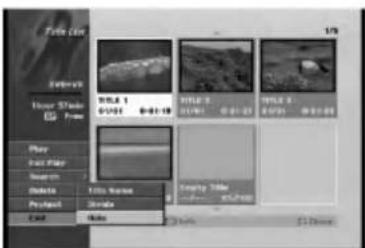
- Press Ⓞ (ENTER) to confirm. The chapter's or title's thumbnail will dim.
Tip
If you select a hidden chapter or title on the Title List or Chapter List menu, you can 'show' it by choosing [Show] option on the menu. After doing that, you are able to see the chapter or title.
Protect a Title +RW +R -RWVR
Use this function to protect against accidental recording, editing or deleting of the title.
- Press MENU/LIST to display the Title List menu.
- Use ▲▼◀▶ to choose a title you want to protect then press Ⓞ (ENTER).
Options appear on the left side of the screen. - Select [Protect] from the options.

text_image
TWO-1 Original (02-V) Video 500 400 Play Share Delete Preview End Preview Help WILE 6 0/091 B-05-07 WILE 8 0/091 A-08-08 WILE 3 0/091 C-01-08 Show: Cancel OK, Cancel Cancel, Cancel- Press Ⓞ (ENTER) to confirm. The lock mark will appears on the title's thumbnail.
Tip
If you select a title that has already been protected on the Title List menu, you can 'unprotect' it by choosing [Unprotect] option from the Title List menu options. After doing that, you can edit and delete the title.
Reference
Additional Information
Overwrite Recording +RW
To overwrite a new video recording on a previously recorded title, follow these steps. This feature is not available for DVD+Rs, that always record at the end of the Disc.
- Select input source you want to record (TV channel, AV1-3, DV).
- Press MENU/LIST to display the Title List menu.

text_image
File List WORKERS Show 17 times Add Free TITLE 1 3/01 0:41:16 TITLE 2 3/01 0:41:27 TITLE 3 3/01 0:55:08 TITLE 4 3/01 0:59:08 Clarity Time 0:41:16 ■ Reset 3G/3G/3G/3G Add Back Add Back Add Back Add Back Add Back Add Back Add Back Add Back Add Back Add Back Add Back Add Back Add Back Add Back Add Back Add Back Add Back Add Back Add Back Add Back Add Back Add Back Add Back Add Back Add Back Add Back Add Back Add Back Add Back Add Back Add Back Add Back Add Back Add Back- Use ▲▼◀▶ to choose a title you want to overwrite.
- Press ● REC to start overwrite recording. Overwrite recording starts from the start point of the title.
- Press STOP (■) to stop the overwrite recording. The new title is created and updated menu is displayed.
Notes:
• This function is not available for a protected title.
- If the overwrite is longer than the recording length of the current title, the next title is overwritten. But if next title is protected, the overwriting stops at the starting point of the title.
- If the selected title's recording length is less than 10 seconds, the next title is overwritten. But if the next title is protected, overwriting stops.
Viewing Title List menu displayed on other DVD Recorders or Players
+RW +R
You can view the Title List menu displayed on the other DVD player that is capable of playing DVD+RW or DVD+R discs.
-
Insert DVD+R or DVD+RW disc recorded already.
-
Press TITLE in play or stop mode. Title List menu will appear as shown below.
Tip You can remove the Title List menu by pressing STOP (■).
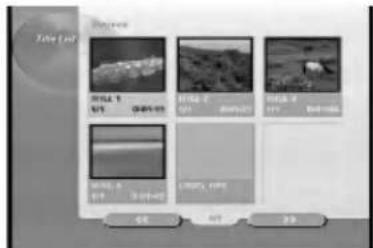
text_image
Video List 100% 100% 100% 100% 100% 100% 100% 100% 100% 100% 100% 100% 100% 100% 100% 100% 100% 100% 100% 100% 100% 100% 100% 100% 100% 100 100 100 100 100 100 100 100 100 100 100 100 100 100 100 100 100 100 100 100 100 100 100 100 100 100- To play back a title, select the title you want then press Ⓞ (ENTER) or PLAY (▶).
Playing Your Recordings on Other DVD Players (Finalizing a Disc)
Most regular DVD players can play finalized discs recorded in Video mode, finalized DVD+R or DVD+RWs. A small number of players can also play DVD-RW discs recorded in VR mode, finalized or not. Check the manual that came with the other player to check what formats of discs it will play.
Finalizing 'fixes' the recordings and editings in place so that the disc can be played on a regular DVD player or computer equipped with a suitable DVD-ROM drive.
Finalizing a Video mode disc creates a menu screen for navigating the disc. The menu can be accessed by pressing MENU/LIST or TITLE.
To finalize a disc, refer to "Finalize" on page 25.
Notes:
- Unfinalized DVD+RW is playable on regular DVD players.
- The edited contents of a DVD+RW disc is compatible on regular DVD players only after finalization.
- Any edited contents of the DVD+R disc are not compatible on regular DVD players. (Hide, chapter combine, added chapter mark, etc.)
- How long finalization takes depends on the type of disc, how much is recorded on the disc, and the number of titles on the disc.
- DVD+R DL disc can take up to 30 minutes to finalize.
Language Codes
Use this list to input your desired language for the following initial settings:
Disc Audio, Disc Subtitle, Disc Menu.
| Language | Code | Language | Code | Language | Code | Language | Code |
| Abkhazian | 6566 | Fiji | 7074 | Lingala | 7678 | Singhalese | 8373 |
| Afar | 6565 | Finnish | 7073 | Lithuanian | 7684 | Slovak | 8375 |
| Afrikaans | 6570 | French | 7082 | Macedonian | 7775 | Slovenian | 8376 |
| Albanian | 8381 | Frisian | 7089 | Malagasy | 7771 | Somali | 8379 |
| Ameharic | 6577 | Galician | 7176 | Malay | 7783 | Spanish | 6983 |
| Arabic | 6582 | Georgian | 7565 | Malayalam | 7776 | Sudanese | 8385 |
| Armenian | 7289 | German | 6869 | Maltese | 7784 | Swahili | 8387 |
| Assamese | 6583 | Greek | 6976 | Maori | 7773 | Swedish | 8386 |
| Aymara | 6588 | Greenlandic | 7576 | Marathi | 7782 | Tagalog | 8476 |
| Azerbaijani | 6590 | Guarani | 7178 | Moldavian | 7779 | Tajik | 8471 |
| Bashkir | 6665 | Gujarati | 7185 | Mongolian | 7778 | Tamil | 8465 |
| Basque | 6985 | Hausa | 7265 | Nauru | 7865 | Tatar | 8484 |
| Bengali; Bangla | 6678 | Hebrew | 7387 | Nepali | 7869 | Telugu | 8469 |
| Bhutani | 6890 | Hindi | 7273 | Norwegian | 7879 | Thai | 8472 |
| Bihari | 6672 | Hungarian | 7285 | Oriya | 7982 | Tibetan | 6679 |
| Breton | 6682 | Icelandic | 7383 | Panjabi | 8065 | Tigrinya | 8473 |
| Bulgarian | 6671 | Indonesian | 7378 | Pashto, Pushto | 8083 | Tonga | 8479 |
| Burmese | 7789 | Interlingua | 7365 | Persian | 7065 | Turkish | 8482 |
| Byelorussian | 6669 | Irish | 7165 | Polish | 8076 | Turkmen | 8475 |
| Cambodian | 7577 | Italian | 7384 | Portuguese | 8084 | Twi | 8487 |
| Catalan | 6765 | Japanese | 7465 | Quechua | 8185 | Ukrainian | 8575 |
| Chinese | 9072 | Javanese | 7487 | Rhaeto-Romance | 8277 | Urdu | 8582 |
| Corsican | 6779 | Kannada | 7578 | Rumanian | 8279 | Uzbek | 8590 |
| Croatian | 7282 | Kashmiri | 7583 | Russian | 8285 | Vietnamese | 8673 |
| Czech | 6783 | Kazakh | 7575 | Samoan | 8377 | Volapük | 8679 |
| Danish | 6865 | Kirghiz | 7589 | Sanskrit | 8365 | Welsh | 6789 |
| Dutch | 7876 | Korean | 7579 | Scots Gaelic | 7168 | Wolof | 8779 |
| English | 6978 | Kurdish | 7585 | Serbian | 8382 | Xhosa | 8872 |
| Esperanto | 6979 | Laothian | 7679 | Serbo-Croatian | 8372 | Yiddish | 7473 |
| Estonian | 6984 | Latin | 7665 | Shona | 8378 | Yoruba | 8979 |
| Faroese | 7079 | Latvian, Lettish | 7686 | Sindhi | 8368 | Zulu | 9085 |
Area Codes
Choose an area code from this list.
| Area | Code | Area | Code | Area | Code | Area | Code |
| Afghanistan | AF | Ethiopia | ET | Malaysia | MY | Saudi Arabia | SA |
| Argentina | AR | Fiji | FJ | Maldives | MV | Senegal | SN |
| Australia | AU | Finland | FI | Mexico | MX | Singapore | SG |
| Austria | AT | France | FR | Monaco | MC | Slovak Republic | SK |
| Belgium | BE | Germany | DE | Mongolia | MN | Slovenia | SI |
| Bhutan | BT | Great Britain | GB | Morocco | MA | South Africa | ZA |
| Bolivia | BO | Greece | GR | Nepal | NP | South Korea | KR |
| Brazil | BR | Greenland | GL | Netherlands | NL | Spain | ES |
| Cambodia | KH | Islands | HM | Netherlands Antilles | AN | Sri Lanka | LK |
| Canada | CA | Hungary | HU | New Zealand | NZ | Sweden | SE |
| Chile | CL | India | IN | Nigeria | NG | Switzerland | CH |
| China | CN | Indonesia | ID | Norway | NO | Thailand | TH |
| Colombia | CO | Israel | IL | Oman | OM | Turkey | TR |
| Congo | CG | Italy | IT | Pakistan | PK | Uganda | UG |
| Costa Rica | CR | Jamaica | JM | Panama | PA | Ukraine | UA |
| Croatia | HR | Japan | JP | Paraguay | PY | United States | US |
| Czech Republic | CZ | Kenya | KE | Philippines | PH | Uruguay | UY |
| Denmark | DK | Kuwait | KW | Poland | PL | Uzbekistan | UZ |
| Ecuador | EC | Libya | LY | Portugal | PT | Vietnam | VN |
| Egypt | EG | Luxembourg | LU | Romania | RO | Zimbabwe | ZW |
| El Salvador | SV | Russian Federation | RU |
Controlling Your TV with the Supplied Remote Control
You can control the sound level, input source, and power switch of your LG TV with the supplied remote.
You can control your TV using the buttons below.
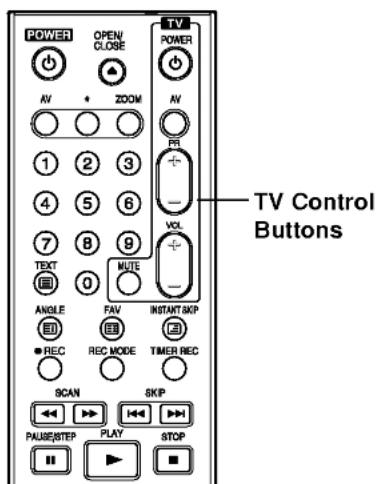
text_image
POWER OPEN/ CLOSE TV POWER AV ZOOM AV PR + - VOL + - TV Control Buttons 1 2 3 4 5 6 7 8 9 TEXT 0 MUTE ANGLE FAV INSTANT SKIP REC REC MODE TIMER REC SCAN SKIP PAUSE/STEP PLAY STOP| By pressing | You can |
| POWER | Turn the TV on or off. |
| AV | Switch the TV's input source between the TV and other input sources. |
| PR +/- | Scans up or down through memorized channels. |
| VOL +/- | Adjust the volume of the TV. |
| MUTE | Temporarily turns TV sound OFF, press again to restore. |
Controlling other TVs with the remote
You can control the sound level, input source, and power switch of non-LG TVs as well. If your TV is listed in the table below, set the appropriate manufacturer code.
-
While holding down TV POWER button, press the number buttons to select the manufacturer code for your TV (see the table below).
-
Release TV POWER button.
Code numbers of controllable TVs
If more than one code number is listed, try entering them one at a time until you find the one that works with your TV.
| Manufacturer | Code Number |
| LG / GoldStar | 1 (Default), 2 |
| Zenith | 1, 3, 4 |
| Samsung | 6, 7 |
| Sony | 8, 9 |
| Hitachi | 4 |
Notes:
- Depending on your TV, some or all buttons may not function on the TV, even after entering the correct manufacturer code.
- If you enter a new code number, the code number previously entered will be erased.
- When you replace the batteries of the remote, the code number you have set may be reset to the default setting. Set the appropriate code number again.
Troubleshooting
Check the following guide for the possible cause of a problem before contacting service.
| Symptom | Cause | Solution |
| No power. | The power cord is disconnected. | Plug the power cord into the wall outlet securely. |
| The TV is not set to receive recorder signal output. | Select the appropriate video input mode on the TV so the picture from the recorder appears on the TV screen. | |
| The video cable is not connected securely. | Connect the video cable securely. | |
| The connected TV power is turned off. | Turn on the TV. | |
| No sound. | The equipment connected with the audio cable is not set to receive recorder signal output. | Select the correct input mode on the audio receiver so you can listen to the sound from the recorder. |
| The audio cables are not connected securely. | Connect the audio cable securely. | |
| The power of the equipment connected with the audio cable is turned off. | Turn on the equipment connected with the audio cable. | |
| The audio connecting cord is damaged. | Replace it with new one. | |
| The playback picture is poor. | The disc is dirty. | Clean the disc. |
| The recorder does not start playback. | No disc is inserted. | Insert a disc. (Check that the disc indicator in the display window is lit.) |
| An unplayable disc is inserted. | Insert a playable disc. (Check the disc type, color system, and regional code.) | |
| The disc is placed upside down. | Place the disc with the playback side down. | |
| The disc is not placed within the guide. | Place the disc on the disc tray correctly inside the guide. | |
| The disc is dirty. | Clean the disc. | |
| The Rating level is set. | Cancel the Rating function or change the rating level. | |
| The picture from the external input is distorted | The video signal from the external component is copy-protected. | You cannot connect via this recorder. Connect the component directly to your TV. |
| Some channels are skipped over when using ▲ / ▼. | Those channels are not stored in the recorder. | Restore channels. See “Program Edit” on pages 16-17. |
| The picture or sound of broadcasting channel is weak or missing. | Aerial or cables are loose. | Tighten connections or replace cable. |
| Camcorder image is not shown. | Camcorder is off. | Turn camcorder on and operate properly. |
| Camcorder image via A/V input or DV IN to recorder is not shown on TV screen. | The recorder's source is incorrect. | Use AV to select input channel (AV1, AV2, DV, etc.) |
| Cannot play a disc recorded using this recorder on another player. | The disc was recorded in Video mode. | Finalize the disc. (page 25) |
| Some players will not play even a finalized disc recorded in Video mode. | No solution. | |
| The disc was recorded in VR mode, | The other player must be RW compatible in order to play it. | |
| Discs recorded with copy-once material cannot be played on other players. | No solution. | |
| Cannot record or did not record successfully. | The remaining blank space on the disc is insufficient. | Use another disc. |
| The source you are trying to record is copy protected. | You cannot record the source. | |
| When setting the recording channel, the channel is tuned on the TV's own tuner. | Select the channel on the recorder's built-in TV tuner. | |
| When recording to a Video mode disc, programs that are copy-once protected cannot be recorded. | Use a VR mode formatted disc for copy-once material. | |
| Timer recording is not possible. | Clock in recorder is not set to correct time. | Set clock to correct time. See "Auto Clock Set" or "Manual Clock Set" on page 18. |
| Timer has been programmed incorrectly. | Reprogram Timer. See "Timer Recording" on page 43. | |
| Timer record indicator light does not appear after programming timer. | Reprogram Timer. | |
| Stereo Audio Record and/or Playback is not present. | TV is not Stereo-compatible. | No solution. |
| Broadcast program is not in stereo format. | No solution. | |
| The recorder A/V Out jacks are not connected to TV A/V In jacks. | Make A/V connections. Stereo is available only via A/V output from the recorder. | |
| The recorder Audio/Video Out is not selected for viewing at the TV. | Select AUX or A/V source as TV input. | |
| The recorder's TV audio channel is set to mono. | Set TV audio channel mode to Stereo. See "Changing TV audio channel" on page 42. | |
| The remote control does not work properly. | The remote control is not pointed at the remote sensor of the recorder. | Point the remote control at the remote sensor of the recorder. |
| The remote control is too far from the recorder. | Operate the remote control within 7 m. | |
| There is an obstacle in the path of the remote control and the recorder. | Remove the obstacle. | |
| The batteries in the remote control are exhausted. | Replace the batteries with new ones. |
Resetting the recorder
If you observe any of the following symptoms...
- The unit is plugged in, but the power will not turn on or off.
- The front panel display is not working.
- The recorder is not operating normally.
...you can reset the recorder as follows:
- Press and hold the POWER button for at least five seconds. This will force the unit to power off then turn the unit back on.
- Unplug the power cord, wait at least five seconds, and then plug it in again.
Specifications
General
| Power requirements | AC 110-240V, 50/60 Hz |
| Power consumption | 35W |
| Dimensions (approx.) | 430 X 49 X 350 mm (w x h x d) without foot |
| Mass (approx.) | 4.6 kg |
| Operating temperature | 5°C to 35°C |
| Operating humidity | 5 % to 90 % |
| Television system | Analog: PAL I, B/G, I/I, SECAM D/K, K1 colour systemDigital: DVB-T Standard Compliant |
| Recording format | PAL |
| Recording | |
| Recording format | DVD Video Recording, DVD-VIDEO |
| Recordable time | DVD (4.7GB): Approx. 1 hour (XP mode), 2 hours (SP mode),4 hours (LP mode), 6 hours (EP mode)DVD+R DL (8.5GB): Approx. 2 hour (XP mode),3 hours 40 minutes (SP mode), 7 hours 20 minutes (LP mode),11 hours (EP mode) |
| Video recording format | |
| Sampling frequency | 27MHz |
| Compression format | MPEG 2 (VBR support) |
| Audio recording format | |
| Sampling frequency | 48kHz |
| Compression format | Dolby Digital |
| Playback | |
| Frequency response | DVD (PCM 48 kHz): 8 Hz to 20 kHz, CD: 8 Hz to 20 kHzDVD (PCM 96 kHz): 8 Hz to 44 kHz |
| Signal-to-noise ratio | More than 100 dB (AUDIO OUT connector) |
| Harmonic distortion | Less than 0.008% (AUDIO OUT connector) |
| Dynamic range | More than 95 dB (AUDIO OUT connector) |
| Inputs | |
| AERIAL IN | Aerial input (Digital and Analog), 75 ohms |
| Digital Antenna feed | 5V/0.1A (double insulated, switchable) |
| VIDEO IN | 1.0 Vp-p 75 ohms, sync negative, RCA jack x 2 / SCART x 1 |
| AUDIO IN | 0 dBm more than 47 kohms, RCA jack (L, R) x 2 / SCART x 1 |
| DV IN | 4 pin (IEEE 1394 standard) |
| Outputs | |
| VIDEO OUT | 1 Vp-p 75 Ω, sync negative, RCA jack x 1 / SCART x 1 |
| COMPONENT VIDEO OUT | (Y) 1.0 V (p-p), 75 Ω, negative sync, RCA jack x 1(Pb)/(Pr) 0.7 V (p-p), 75 Ω, RCA jack x 2 |
| Audio output (digital audio) | 0.5 V (p-p), 75 Ω, RCA jack x 1 |
| Audio output (optical audio) | 3 V (p-p), 75 Ω, Optical connector x 1 |
| Audio output (analog audio) | 2.0 Vrms (1 KHz, 0 dB), 600 Ω, RCA jack (L, R) x 1 / SCART x 1 |
Accessory:
| Scart cable | 1 | Video cable | 1 |
| Audio cable (L, R) | 1 | RF Coaxial Cable | 1 |
| Remote control | 1 | Batteries | 2 |
- Design and specifications are subject to change without notice.