47LG30RA - TV LG - Free user manual and instructions
Find the device manual for free 47LG30RA LG in PDF.


User questions about 47LG30RA LG
0 question about this device. Answer the ones you know or ask your own.
Ask a new question about this device
Download the instructions for your TV in PDF format for free! Find your manual 47LG30RA - LG and take your electronic device back in hand. On this page are published all the documents necessary for the use of your device. 47LG30RA by LG.
USER MANUAL 47LG30RA LG
LCD TV | PLASMA TV OWNER'S MANUAL
LCD TV MODELS
22/26LG3***
32/37LG3***
42/47LG3***
37/42LG5***
47/52LG5***
PLASMA TV MODELS
42PG1***
50PG1***
42PG2***
50PG2***
Please read this manual carefully before operating your set. Retain it for future reference.
Record model number and serial number of the set. Refer to the label on the back cover and quote this information.
To your dealer when requiring service.
ACCESSORIES
Ensure that the following accessories are included with your TV. If an accessory is missing, please contact the dealer where you purchased the product.

text_image
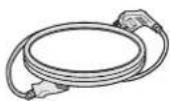
Owner's ManualOwner's Manual Batteries Power Cord
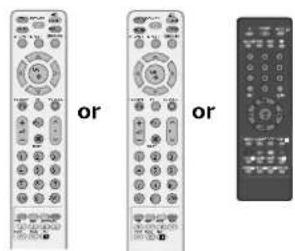
text_image
or orRemote Control

Polishing Cloth
Polishing cloth for use
on the screen
This feature is not
available
for all models.
•Lightly wipe any stains or fingerprints on the surface of the TV with the polishing cloth.
Do not use excessive force. This may cause scratching or discolouration.
Only 22LG3***
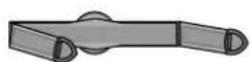
Cable Management Clip

Protection Cover
PLASMA TV models
Cable Management Clip

(only 42/50PG1***)
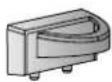
(only 42/50PG2*** )

protection cover

Cable Holder
(42PG1 ***, 42PG2 ***:1EA, 50PG1***, 50PG2***:2EA)

Bolts for stand assembly (Refer to P.10)
(42PG1 ***, 42PG2 ***:4EA)
LCD TV models
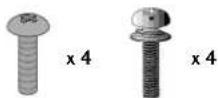
Bolts for stand assembly
(Refer to p.9)
(Only 37/42LG5***,
26/32/37/42LG3***)

or

protection cover
(Only 26/32/42LG3 ***, 42LG5 *** )
Screw for stand fixing (Refer to P. 10)
CONTENTS
ACCESSORIES....1
PREPARATION
Front Panel Controls.... 4
Back Panel Information 6
Stand Installation 9
Please set it up carefully so the product does not fall over. 11
Back Cover for Wire Arrangement.... 12
Swivel Stand 15
Positioning your display....15
Location....15
Kensington Security System 15
Desktop Pedestal Installation 16
Wall Mount: Horizontal installation.... 16
Not using the desk-type stand....17
Antenna Connection.... 18
EXTERNAL EQUIPMENT SETUP
HD Receiver Setup ....19
DVD Setup 22
VCR Setup.... 25
Headphone SETUP 28
Other A/V Source Setup 29
External Stereo Setup 30
AV Output Setup 30
PC Setup 31
- Screen Setup for PC Mode....34
WATCHING TV / PROGRAMME CONTROL
Remote Control Key Functions....38
Turning on the TV.... 44
Programme Selection 44
Volume Adjustment....44
Quick Menu 45
On Screen Menus Selection and Adjustment .....46
Auto Programme Tuning.... 47
Manual Programme Tuning 48
Fine Tuning 49
Assigning a Station Name....50
Booster 51
Programme Edit 52
Favourite Programme 53
Selecting the Programme List.... 54
SIMPLINK 55
Key lock.... 57
AV Mode....58
PICTURE CONTROL
Watching PIP(Picture-in-Picture) 59
Picture Size (Aspect Ratio)Control....60
Preset Picture Settings
- Picture Mode-Preset....62
- Auto Colour Tone Control(Cool/Medium/Warm)63
Manual Picture Adjustment
- Picture Mode-User Option....64
- Colour Tone - User Option....65
XD - Picture Improvement Technology......66
Advanced - Gamma....67
Advanced - Film Mode....68
Advanced - Black(Darkness) Level......69
Advanced - Eye Care 70
Picture Reset....71
Image Sticking Minimization(ISM) Method......72
Power Saving Picture Mode 73
Power Indicator....73
Factory Reset 74
SOUND & LANGUAGE CONTROL
Auto Volume Leveler 75
Preset Sound Settings - Sound Mode ....76
Sound Setting Adjustment - User Mode .....77
Balance 78
TV Speakers On/Off Setup 79
Selecting Audio Out....80 I/II
- Stereo/Dual Reception 81
- NICAM Reception 82
- Speaker Sound Output Selection.... 82
On-Screen Menu Language Selection.... 83
TIME SETTING
Clock Setup 84
Auto On/Off Timer Setting 85
Sleep Timer Setting 86
Auto Shut-off Setting....87
TELETEXT
Switch On/Off 88
SIMPLE Text 88
TOP Text 89
FASTEXT 89
Special Teletext Functions....90
APPENDIX
Troubleshooting 91
Maintenance 93
Product Specifications 94
Programming the Remote Control 97
IR Codes 99
External Control Through RS-232C 101
PREPARATION
FRONT PANEL CONTROLS
This is a simplified representation of the front panel. Image shown may differ from your TV.
If your product has a protection film attached, remove the film and then wipe the product with a polishing cloth.
PLASMA TV Models: 42/50PG1***
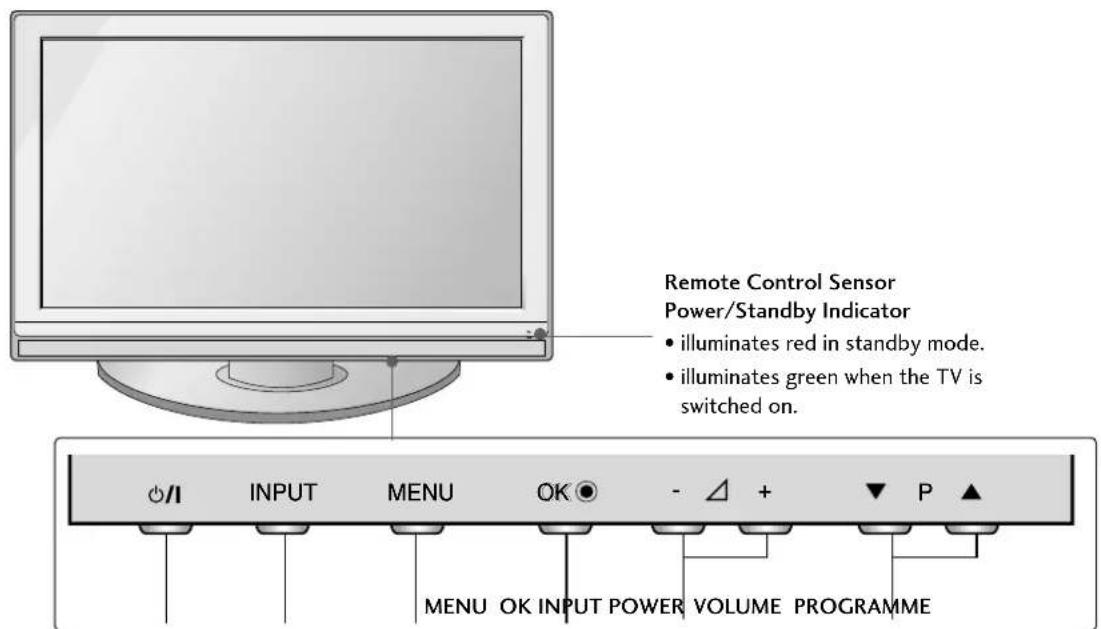
text_image
Remote Control Sensor Power/Standby Indicator • illuminates red in standby mode. • illuminates green when the TV is switched on. INPUT MENU OK - △ + ▼ P ▲ MENU OK INPUT POWER VOLUME PROGRAMMEPLASMA TV Models: 42/50PG2***
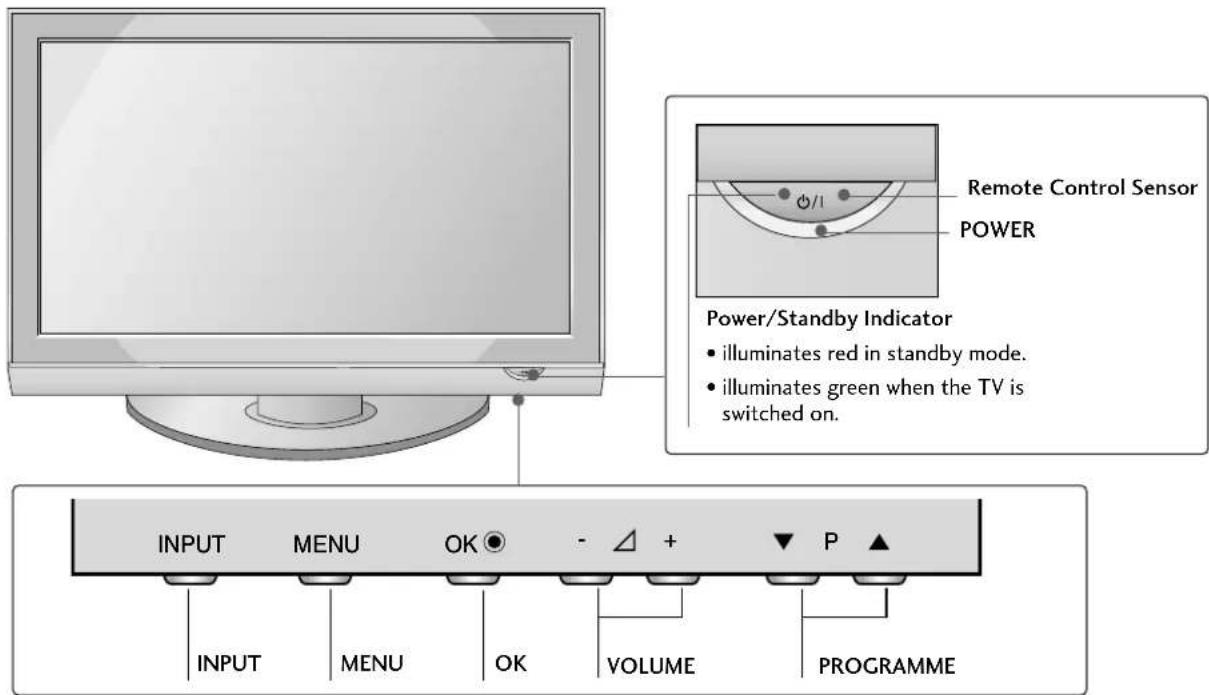
text_image
Remote Control Sensor POWER Power/Standby Indicator • illuminates red in standby mode. • illuminates green when the TV is switched on. INPUT MENU OK - △ + ▼ P ▲ INPUT MENU OK VOLUME PROGRAMMELCD TV Models : 22LG3***

text_image
INPUT MENU PRVOD VOLUME PROGRAMME POWER Remote Control Sensor Power/Standby Indicator • illuminates red in standby mode. • illuminates blue when the TV is switched on.LCD TV Models :
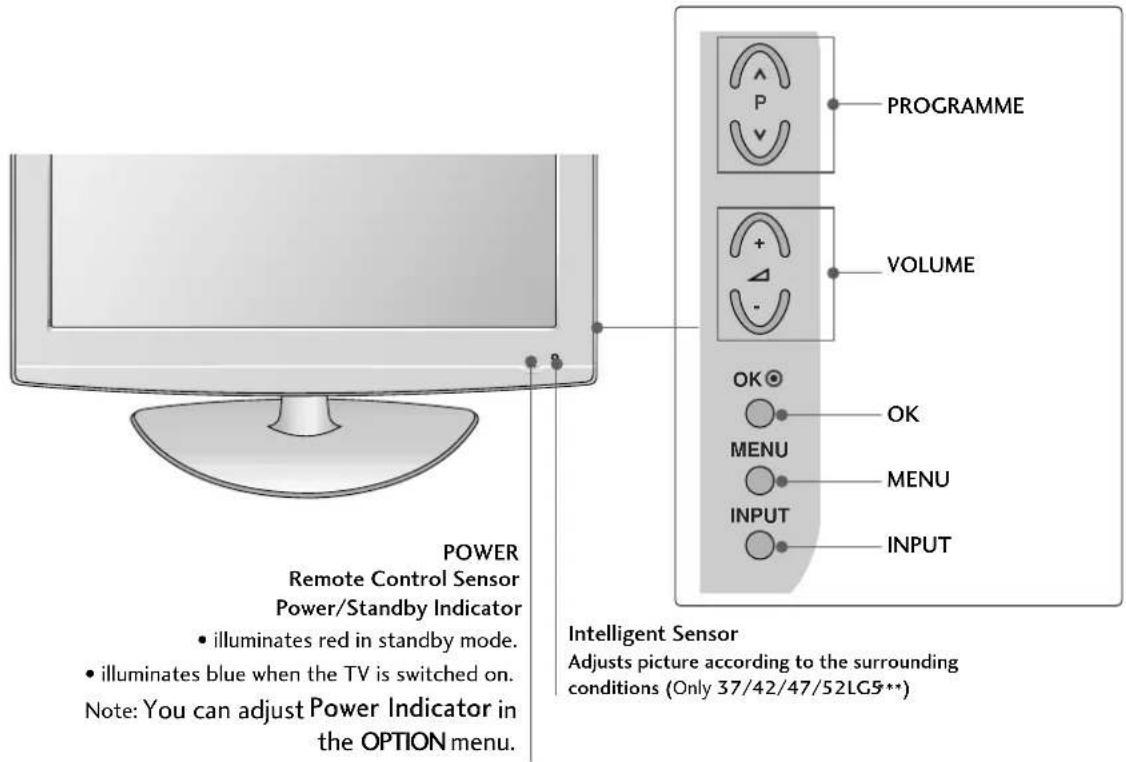
26/32/37/42/47LG3**, 37/42/47/52LG5***
text_image
POWER Remote Control Sensor Power/Standby Indicator • illuminates red in standby mode. • illuminates blue when the TV is switched on. Note: You can adjust Power Indicator in the OPTION menu. PROGRAMME VOLUME OK OK MENU MENU INPUT INPUT Intelligent Sensor Adjusts picture according to the surrounding conditions (Only 37/42/47/52LG5**)PREPARATION
BACK PANEL INFORMATION
■ Image shown may differ from your TV.
PLASMA TV Models
text_image
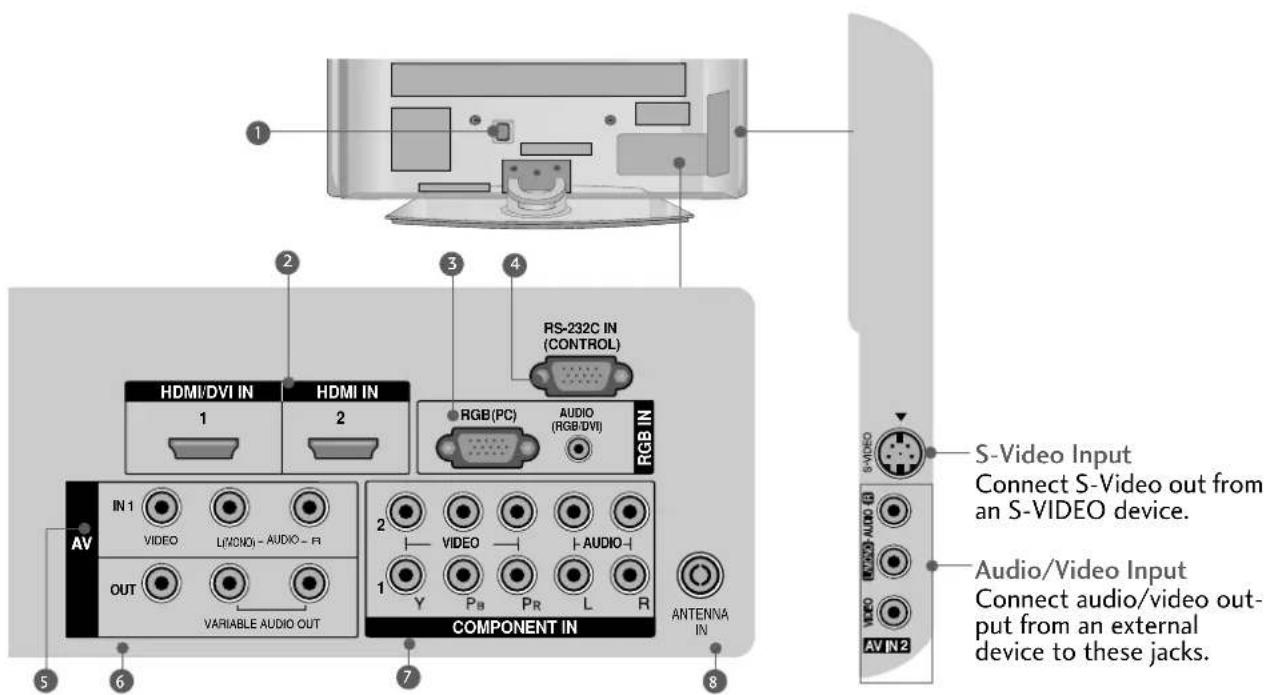
1 2 3 4 RS-232C IN (CONTROL) HDMI/DVI IN HDMI IN RGB(PC) AUDIO (RGB/DVI) RGB IN IN 1 VIDEO LI/CMNOI - AUDIO - R OUT VARIABLE AUDIO OUT COMPONENT IN 2 VIDEO AUDIO- 1 Y PB PR L R ANTENNA IN 5 6 7 8 S-Video Input Connect S-Video out from an S-VIDEO device. Audio/Video Input Connect audio/video out- put from an external device to these jacks.1 Power Cord Socket
This TV operates on an AC power. The voltage is indicated on the Specifications page. Never attempt to operate the TV on DC power.
② HDMI Input
Connect a HDMI signal to HDMI IN.
Or DVI(VIDEO)signal to HDMI/DVI port with DVI to HDMI cable.
3 RGB/Audio Input
Connect the monitor output from a PC to the appropriate input port.
4 RS-232C Input (CONTROL) Port
Connect the serial port of the control devices to the RS-232C jack.
(This feature is not available for all models.)
5 Audio/Video Input (AV IN 1)
Connect audio/video output from an external device to these jacks.
6 AV Output
Connect second TV or monitor to the AV OUT socket on the TV.
Variable Audio Output
Connect an external amplifier or add a subwoofer to your surround sound system.
7 Component Input
Connect a component video/audio device to these jacks.
8 Antenna Input
Connect RF antenna to this jack.
LCD TV Models

text_image
LCD TV Models HDMI IN 3 S-VIDEO Connect a HDMI signal to HDMI IN. (This feature is not available for all models.) S-Video Input Connect S-Video out from an S-VIDEO device. Audio/Video Input Connect audio/video output from an external device to these jacks. RS-232C IN (CONTROL) HDMI/DVI IN HDMI IN RGB(PC) AUDIO (RGB/DVI) AV IN 1 VIDEO L(MONO) - AUDIO - R OUT VARIABLE AUDIO OUT COMPONENT IN Y P_B P_R L R VIDEO L_AUDIO J ANTENNA IN AV IN 21 Power Cord Socket
This TV operates on an AC power. The voltage is indicated on the Specifications page. Never attempt to operate the TV on DC power.
2 HDMI Input
Connect a HDMI signal to HDMI IN.
Or DVI(VIDEO)signal to HDMI/DVI port with DVI to HDMI cable.
3 RGB/Audio Input
Connect the monitor output from a PC to the appropriate input port.
4 RS-232C Input (CONTROL) Port
Connect the serial port of the control devices to the RS-232C jack.
(This feature is not available for all models.)
5 Audio/Video Input (AV IN 1)
Connect audio/video output from an external device to these jacks.
6 AV Output
Connect second TV or monitor to the AV OUT socket on the TV.
Variable Audio Output
Connect an external amplifier or add a subwoofer to your surround sound system.
7 Component Input
Connect a component video/audio device to these jacks.
8 Antenna Input
Connect RF antenna to this jack.
BACK PANEL INFORMATION
■ Image shown may differ from your TV.
Only 22LG3***

text_image
HDMI/DVI IN RGB (PC) IN AUDIO (RGB/DVI) IN ANTENNA IN RS-232C IN (CONTROL&SERVICE) AV IN VIDEO AUDIO L(MONO) R S-VIDEO Y P_B R L R VIDEO COMPONENT IN H/P1 Power Cord Socket
This TV operates on an AC power. The voltage is indicated on the Specifications page. Never attempt to operate the TV on DC power.
2 HDMI Input
Connect a HDMI signal to HDMI IN.
Or DVI(VIDEO)signal to HDMI/DVI port with DVI to HDMI cable.
3 RGB/Audio Input Connect the monitor output from a PC to the appropriate input port.
4 Antenna Input Connect RF antenna to this jack.
5 RS-232C Input (CONTROL&SERVICE) Port Connect the serial port of the control devices to the RS-232C jack.
6 Audio/Video Input Connect audio/video output from an external device to these jacks.
7 Component Input Connect a component video/audio device to these jacks.
8 S-Video Input Connect S-Video out from an S-VIDEO device.
9 Headphone Input
STAND INSTALLATION
LCD TV Models: 26/32/37/42LG3\*\*\*, 37/42LG5\*\*\*
■ Image shown may differ from your TV
- When assembling the desk type stand, check whether the bolt is fully tightened. (If not tightened fully, the product can tilt forward after the product installation.) If you tighten the bolt with excessive force, the bolt can deviate from abrasion of the tightening part of the bolt.
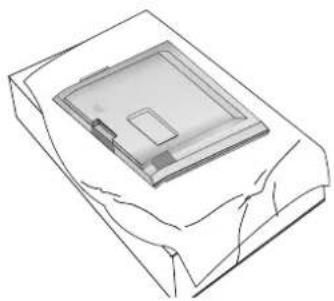
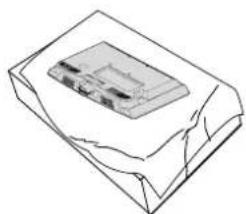
1 Carefully place the TV screen side down on a cushioned surface to protect the screen from damage.
3 Assemble the TV as shown.
natural_image
Line drawing of a rectangular electronic component with a central square slot (no text or symbols)
natural_image
Diagram showing a mechanical assembly with a fan and internal components, including a magnified inset view of a component (no text or symbols present)2 Assemble the parts of the Stand Body with the Cover Base of the TV.
4 Fix the 4 bolts securely using the holes in the back of the TV.

natural_image
Technical illustration of a mechanical assembly with a magnified inset showing a screw and pin (no text or symbols)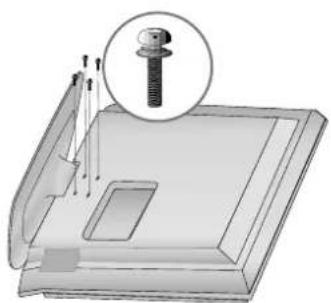
natural_image
3D diagram of a mechanical assembly with a screw and pin, no text or symbols present(Only 22LG3*** )
natural_image
Isometric line drawing of a rectangular object with internal components, resembling a device or container (no text or symbols)
text_image
Stand Body Cover Base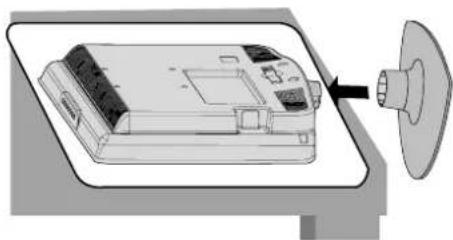
natural_image
Diagram of a device with a speaker emitting sound waves, no text or symbols present1 Carefully place the TV screen side down on a cushioned surface to protect the screen from damage.
2 Assemble the parts of the STAND BODY with COVER BASE of the TV. Insert the STAND BODY into a COVER BASE until clicking sound.
3 Assemble the TV as shown.
STAND INSTALLATION
PLASMA TV Models (Only 42PG1 \*\*\*, 42PG2 \*\*\*)
■ Image shown may differ from your TV
- When assembling the desk type stand, check whether the bolt is fully tightened. (If not tightened fully, the product can tilt forward after the product installation.) If you tighten the bolt with excessive force, the bolt can deviate from abrasion of the tightening part of the bolt.
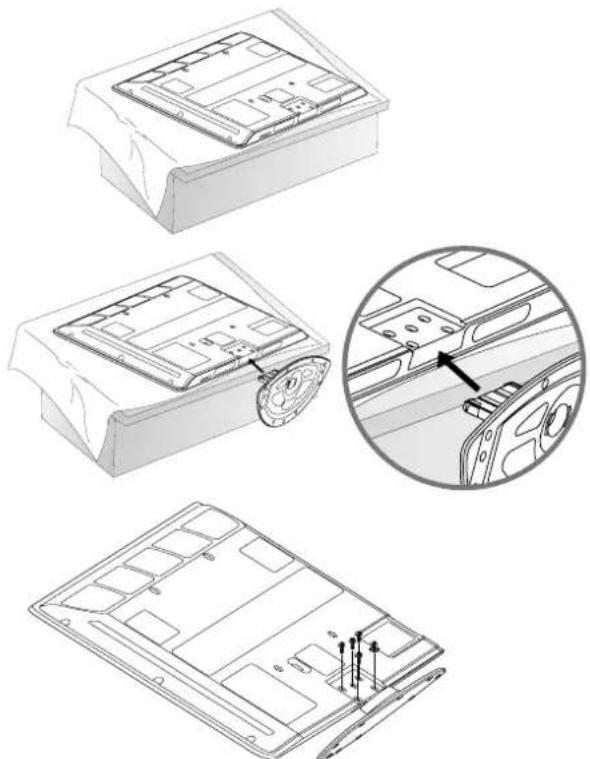
1 Carefully place the TV screen side down on a cushioned surface to protect the screen from damage.
2 Assemble the TV as shown.
3 Fix the 4 bolts securely using the holes in the back of the TV.
natural_image
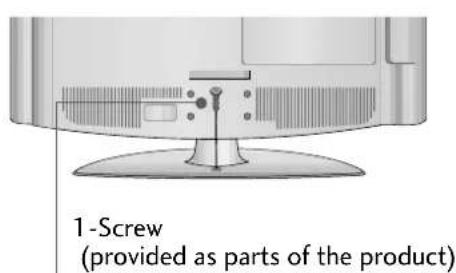
Technical line drawings of a device casing with internal components and a magnified inset showing internal structure (no text or symbols)Attaching the TV to a desk (Only 26/32/42LG3\*\*\*, 4 2 LG\*\*5)
The TV must be attached to desk so it cannot be pulled in a forward/backward direction, potentially causing injury or damaging the product. Use only an attached screw.
text_image
1 -Screw (provided as parts of the product)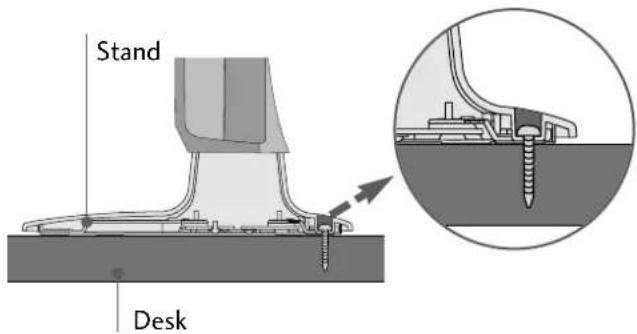
text_image
Stand Desk! WARNING
To prevent TV from falling over, the TV should be securely attached to the floor/wall per installation instructions. Tipping, shaking, or rocking the machine may cause injury.
PLEASE SET IT UP CAREFULLY SO THE PRODUCT DOES NOT FALL OVER.
- You should purchase necessary components to fix the TV to the wall on the market.
■ Position the TV close to the wall to avoid the possibility of it falling when pushed.
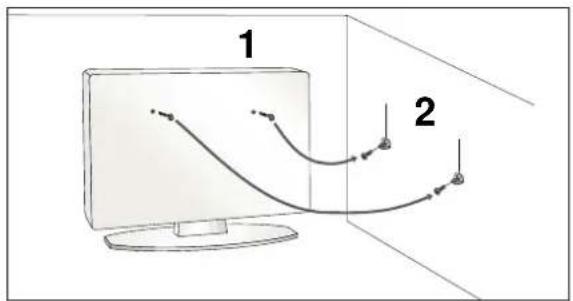
The instructions shown below are a safer way to set up the TV, which is to fix it to the wall, avoiding the possibility of it falling forwards if pulled. This will prevent the TV from falling forward and causing injury. This will also prevent the TV from damage. Ensure that children do not climb or hang from the TV.
text_image
1 2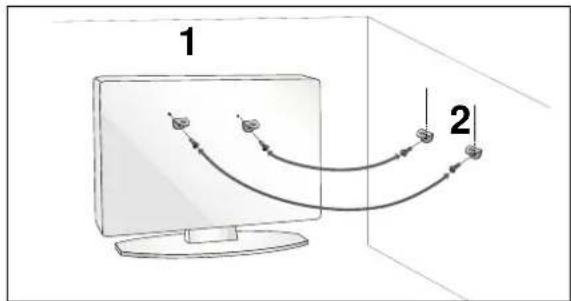
flowchart
graph TD
    A["Component 1"] --> B["Computer Monitor"]
    C["Component 2"] --> B
    B --> D["Output"]
    style A fill:#f9f,stroke:#333
    style C fill:#f9f,stroke:#333
1 Use the eye-bolts or TV brackets/bolts to fix the product to the wall as shown in the picture. (If your TV has bolts in the eyebolts, loosen then bolts.)
* Insert the eye-bolts or TV brackets/bolts and tighten them securely in the upper holes.
2 Secure the wall brackets with bolts to the wall. Ensure that both brackets are even.
natural_image
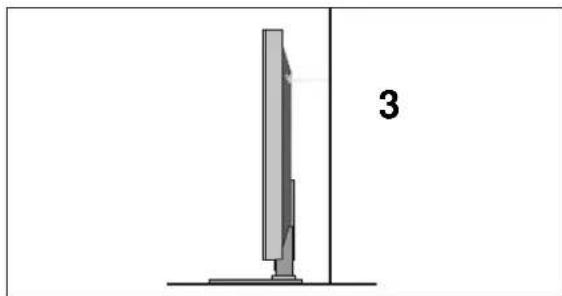
Simple line drawing of a vertical monitor with a base, no text or symbols present3 Use a strong cord to secure the TV. Secure the cord in such a way that it becomes taught when the TV is in position.
NOTE
▶ When moving the TV undo the cords first.
▶ Use a platform or cabinet string and large enough to support the size and weight of the TV.
To use the TV safely make sure that the height of the bracket on the wall and on the TV is the same.
BACK COVER FOR WIRE ARRANGEMENT
■ Here shown may be somewhat different from your TV.
PLASMA TV Models
42/50PG1***
1 Connect the cables as necessary.
To connect additional equipment, see the External Equipment Setup section.
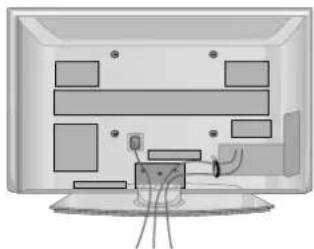
natural_image
Illustration of a computer monitor with multiple screens and a small screen showing a device, no text or symbols present.2 Install the CABLE MANAGEMENT CLIP as shown.
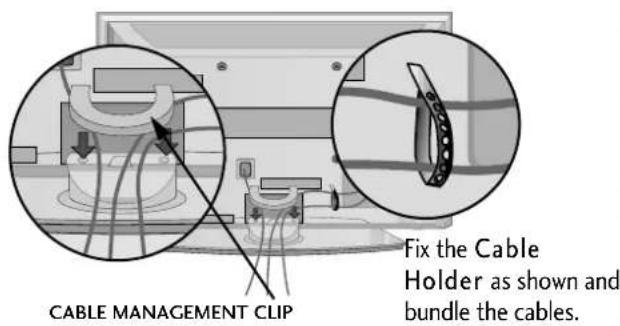
text_image
CABLE MANAGEMENT CLIP Fix the Cable Holder as shown and bundle the cables.42/50PG2\*\*\*
1 Connect the cables as necessary.
To connect additional equipment, see the External Equipment Setup section.
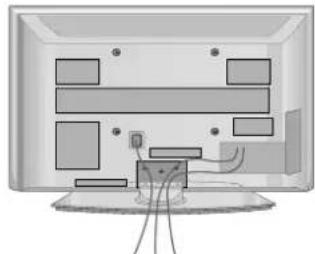
natural_image
Illustration of a computer monitor with multiple screens and a small device connected to the front panel (no text or symbols visible)2 Install the CABLE MANAGEMENT CLIP as shown.
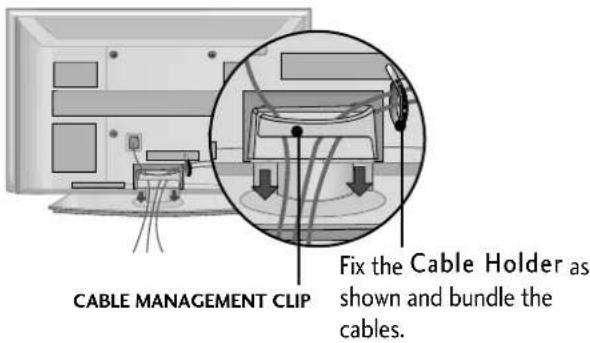
text_image
CABLE MANAGEMENT CLIP Fix the Cable Holder as shown and bundle the cables.How to remove the cable management clip
Hold the CABLE MANAGEMENT CLIP with both hands and pull it upward.
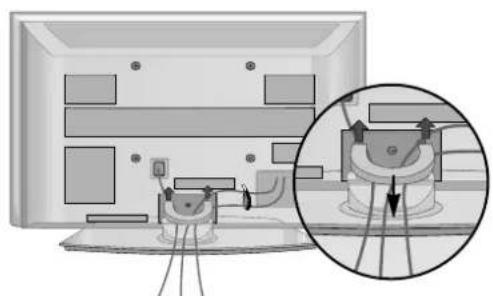
natural_image
Diagram showing a device mounted on a screen with an inset close-up of its components (no text or symbols visible)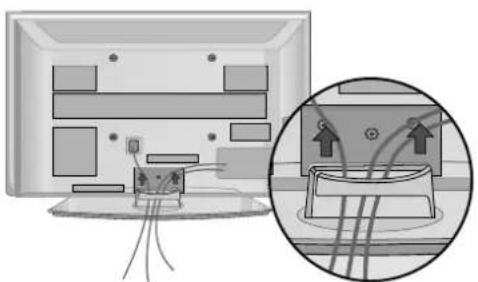
natural_image
Illustration of a TV setup with cable routing and a magnified inset showing wiring connections (no text or symbols)* For the 42PG1*** model, press the center of the CABLE MANAGEMENT CLIP and then lift up it.
NOTE
▶ Do not use the CABLE MANAGEMENT CLIP to lift the TV.
- If the TV is dropped, you may be injured or the TV may be damaged.
BACK COVER FOR WIRE ARRANGEMENT
LCD TV Models
1 Connect the cables as necessary.
To connect additional equipment, see the External Equipment Setup section of the manual.
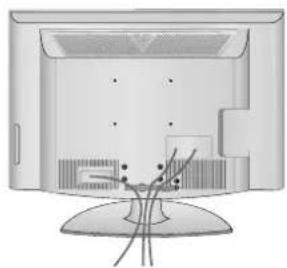
natural_image
Illustration of a flat-screen monitor with visible ventilation slots and cable connectors (no text or symbols)2 Open the CABLE MANAGEMENT CLIP as shown and manage the cables.
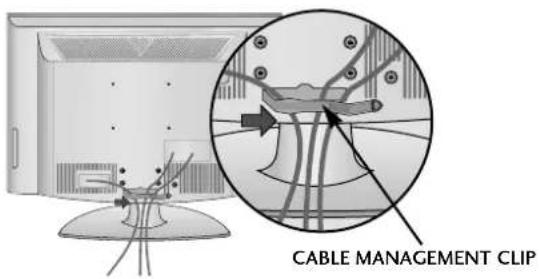
text_image
CABLE MANAGEMENT CLIP3 Fit the CABLE MANAGEMENT CLIP as shown.

natural_image
Illustration of a flat-screen TV with cable routing and a magnified inset showing internal cable connections (no text or symbols)NOTE
▶ Do not use the CABLE MANAGEMENT CLIP to lift the TV.
- If the TV is dropped, you may be injured or the TV may be damaged.
PREPARATION
BACK COVER FOR WIRE ARRANGEMENT
Only 22LG3***
1 Connect the cables as necessary.
To connect additional equipment, see the External Equipment Setup section of the manual.

natural_image
Back view of a flat-screen television with visible screen, buttons, and ventilation slots (no text or symbols)2 Install the CABLE MANAGEMENT CLIP as shown.

text_image
CABLE MANAGEMENT CLIP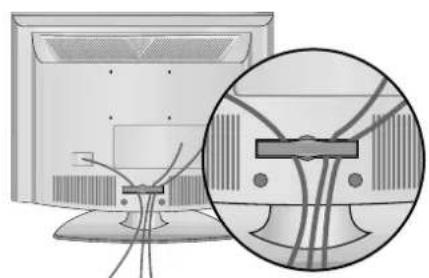
natural_image
Illustration of a computer monitor with cable connectors and a magnified inset showing internal cable structure (no text or symbols)How to remove the CABLE MANAGEMENT CLIP
▶ Hold the CABLE MANAGEMENT CLIP with both hands and pull it backward.

NOTE
▶ Do not use the CABLE MANAGEMENT CLIP to lift the TV.
- If the TV is dropped, you may be injured or the TV may be damaged.
SWIVEL STAND
This feature is not available for all models.
After installing the TV, you can adjust the TV manually to the left or right direction by 20 degrees to suit your viewing position.
POSITIONING YOUR DISPLAY (Only 22LG3\*\*\* )
■ Image shown may differ from your TV.
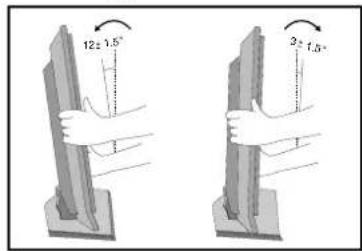
- Adjust the position of the panel in various ways for maximum comfort.

natural_image
Illustration of a computer monitor with two curved arrows indicating rotation or sync (no text or symbols)- Tilt range
text_image
12±1.5° 3±1.5°LOCATION(Only 22LG3\*\*\*)
Position your TV so that no bright light or sunlight falls directly onto the screen. Care should be taken not to expose the tv to any unnecessary vibration, moisture, dust or heat. Also ensure that the TV is placed in a position to allow a free flow of air. Do not cover the ventilation openings on the back cover.
If you intend to mount the TV to a wall, attach VESA standard mounting interface (optional parts) to the back of the TV.
When you install the TV to use the wall mounting bracket (optional parts), fix it carefully so as not to drop.
KENSINGTON SECURITY SYSTEM(Only 22LG3\*\*\* )
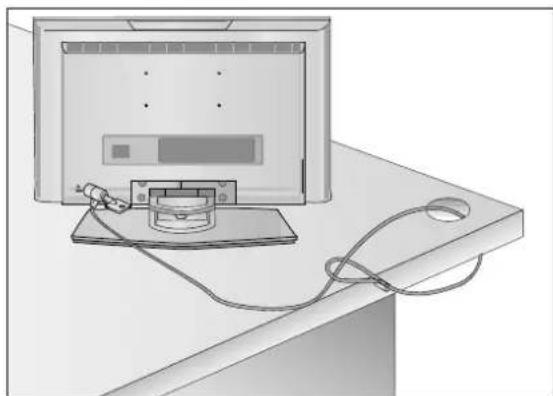
The TV is equipped with a Kensington Security System connector on the back panel. Connect the Kensington Security System cable as shown below.
For the detailed installation and use of the Kensington Security System, refer to the user's guide provided with the Kensington Security System.
For further information, contact http://www.kensington.com, the internet homepage of the Kensington company. Kensington sells security systems for expensive electronic equipment such as notebook PCs and LCD projectors.
NOTE
- The Kensington Security System is an optional accessory.
NOTES
a. If the TV feels cold to the touch, there may be a small "flicker" when when it is turned on.
This is normal, there is nothing wrong with TV.
b. Some minute dot defects may be visible on the screen, appearing as tiny red, green, or blue spots. However, they have no adverse effect on the monitor's performance.
c. Avoid touching the LCD screen or holding your finger(s) against it for long periods of time.
Doing so may produce some temporary distortion effects on the screen.
natural_image
Illustration of a computer monitor with cables and a connector, placed on a desk (no text or symbols visible)PREPARATION
The TV can be installed in various ways such as on a wall, or on a desktop etc.
■ The TV is designed to be mounted horizontally.

text_image
Power Supply Circuit breakerEARTHING
Ensure that you connect the earth wire to prevent possible electric shock. If grounding methods are not possible, have a qualified electrician install a separate circuit breaker.
Do not try to earth the TV by connecting it to telephone wires, lightening rods or gas pipes.
DESKTOP PEDESTAL INSTALLATION
For adequate ventilation allow a clearance of 4" (10cm) all around the TV.

text_image
4 inches 4 inches 4 inches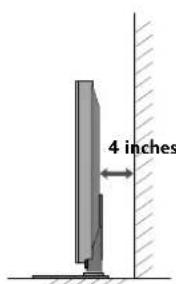
text_image
4 inchesWALL MOUNT: HORIZONTAL INSTALLATION
For adequate ventilation allow a clearance of 4" (10cm) all around the TV. We recommend that you use a wall mounting bracket of LG brand when mounting the TV to a wall.

natural_image
Illustration of a television set mounted on a cabinet with a monitor overhead (no text or symbols)
text_image
4 inches 4 inches 4 inches 4 inches
text_image
4 inchesNOT USING THE DESK-TYPE STAND
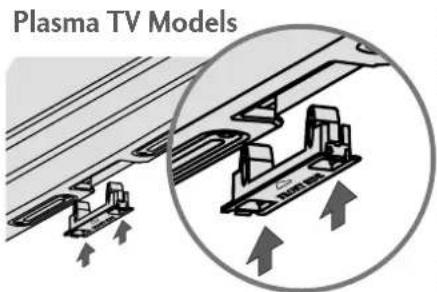
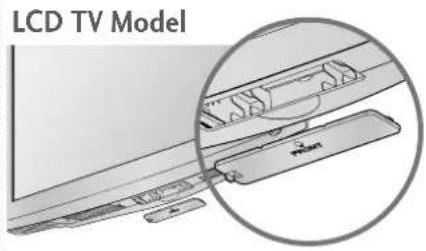
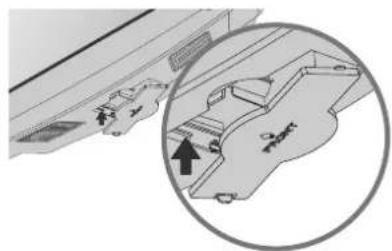
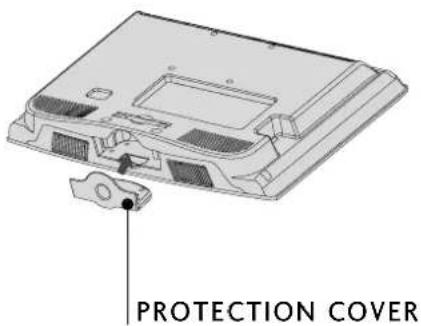
When installing the wall-mounted unit, use the protection cover for desk-type stand installation.
text_image
Plasma TV ModelsInsert the PROTECTION COVER into the TV until clicking sound.
text_image
LCD TV Modelor
natural_image
Diagram showing a mechanical assembly with an inset circular view highlighting a specific part (no text or symbols present)Only 22LG3***
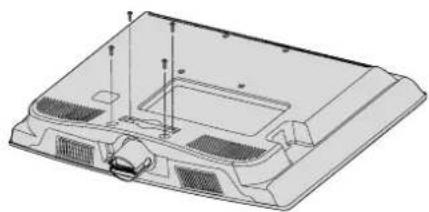
1 Loose the bolts from TV.
natural_image
Technical line drawing of a car front panel with mounting holes and ventilation slots (no text or symbols)2 Bend the HINGE BODY and pull it backward.

text_image
HINGE BODY3 Insert the PROTECTION COVER into the TV.
text_image
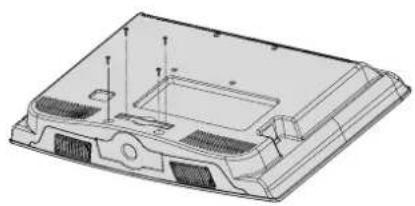
PROTECTION COVER4 Fix the 4 bolts securely using the holes in the back of the TV.
natural_image
Technical line drawing of a mechanical component with mounting holes and internal features (no text or symbols)PREPARATION
■ To prevent damage do not connect to the mains outlet until all connections are made between the devices.
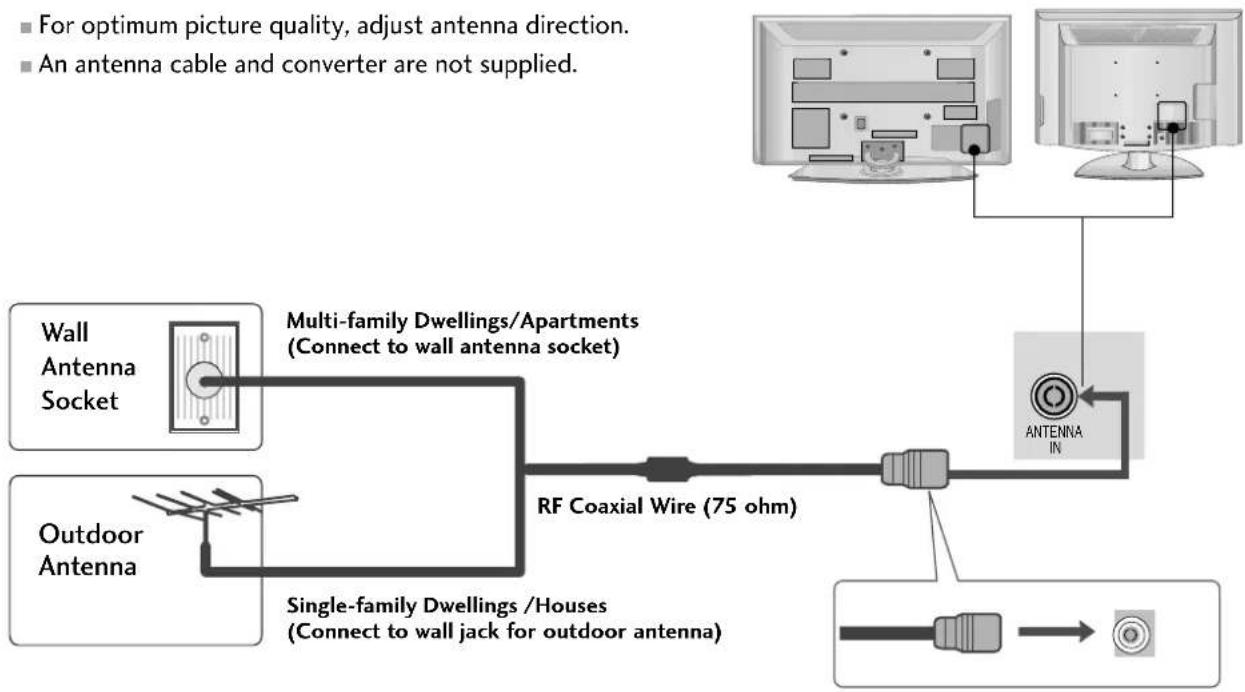
ANTENNA CONNECTION
■ For optimum picture quality, adjust antenna direction.
■ An antenna cable and converter are not supplied.
flowchart
graph TD
    A["Wall Antenna Socket"] --> B["Multi-family Dwellings/Apartments (Connect to wall antenna socket)"]
    C["Outdoor Antenna"] --> B
    B --> D["RF Coaxial Wire (75 ohm)"]
    D --> E["Antenna IN"]
    E --> F["Output"]
    style A fill:#f9f,stroke:#333
    style C fill:#f9f,stroke:#333
    style D fill:#ccf,stroke:#333
    style E fill:#cfc,stroke:#333
    style F fill:#fcc,stroke:#333

flowchart
graph LR
    A["Antenna"] --> B["UHF"]
    A --> C["VHF"]
    B --> D["Signal Amplifier"]
    C --> D
    D --> E["Antenna IN"]
In poor signal areas, to achieve better picture quality it may be necessary to install a signal amplifier to the antenna as shown above.
If signal needs to be split for two TVs, use an antenna signal splitter for connection.
EXTERNAL EQUIPMENT SETUP
■ To avoid damaging any equipment, never plug in any power cords until you have finished connecting all equipment.
■ This section on EXTERNAL EQUIPMENT SETUP mainly uses diagrams for the Plasma TV models.
■ Image shown may differ from your TV.
HD RECEIVER SETUP
Connecting with a component cable
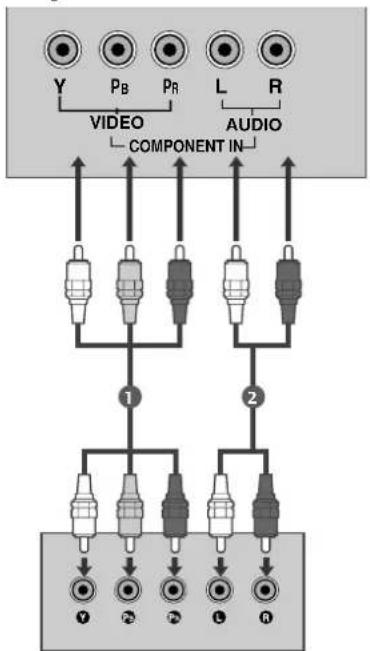
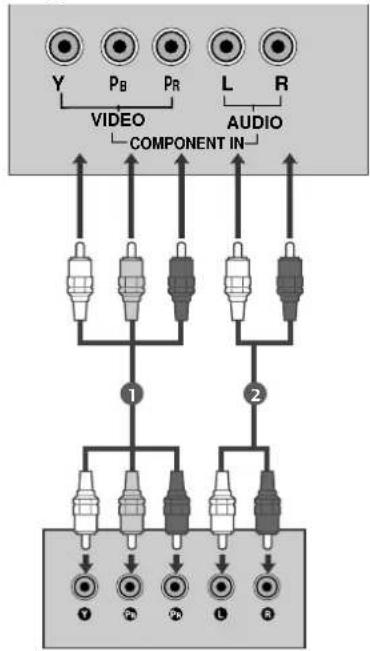
1 Connect the video outputs (Y, PB, PR) of the digital TV top box to the COMPONENT IN VIDEO jacks on the TV.
2 Connect the audio output of the digital set-top box to the COMPONENT IN AUDIO jacks on the TV.
3 Turn on the digital set-top box. (Refer to the owner's manual for the digital set-top box.)
4 Select Component1 input source using the INPUT button on the remote control.
If connected to COMPONENT IN2, select Component2 input source(Except 22LG3**).

flowchart
graph TD
    A["COMPONENT IN"] --> B["1"]
    A --> C["2"]
    B --> D["Y"]
    B --> E["Pb"]
    B --> F["PR"]
    C --> G["L"]
    C --> H["R"]
    D --> I["Y"]
    E --> J["Pb"]
    F --> K["PR"]
    G --> L["L"]
    H --> M["R"]
Only 22LG3***
| Signal | Component | HDMI1/DVI, HDMI2 (Except 22LG3***), HDMI3 (Only 37/42/47/52LG5*** ) |
| 480i/576i | Yes | No |
| 480p/576p | Yes | Yes |
| 720p/1080i | Yes | Yes |
| 1080p | Yes(Only 50Hz, 60Hz) | Yes(24Hz, 30Hz, 50Hz, 60Hz)(22LG3***- Only 50Hz, 60Hz) |
flowchart
graph TD
    A["VIDEO"] --> B["1"]
    C["COMPONENT IN"] --> D["2"]
    E["Y"] --> F["3"]
    G["P_B"] --> H["4"]
    I["P_R"] --> J["5"]
    K["L"] --> L["6"]
    M["R"] --> N["7"]
    O["AUDIO"] --> P["8"]
EXTERNAL EQUIPMENT SETUP
Connecting a set-top box with a HDMI cable
1 Connect the HDMI output of the digital set-top box to the HDMI/DVI IN 1, HDMI IN 2(Except 22LG3***) or HDMI IN 3(Only 37/42/47/52LG5***) jack on the TV.
2 Select HDMI1/DVI, HDMI2(Except 22LG3***) or HDMI3 (Only 37/42/47/52LG5***) input source using the INPUT button on the remote control.
3 Turn on the digital set-top box.
(Refer to the owner's manual for the digital set-top box.)
NOTE
▶ TV can receive the video and audio signal simultaneously with using a HDMI cable.
If the digital set-top box supports Auto HDMI function, the output resolution of the source device will be automatically TV to 1280x720p.
If the digital set-top box player does not support Auto HDMI, you need to TV the output resolution appropriately.
To get the best picture quality, adjust the output resolution of the source device to 1280x720p(37/42/47/52LG5 ***:1920x1080i/1080p).
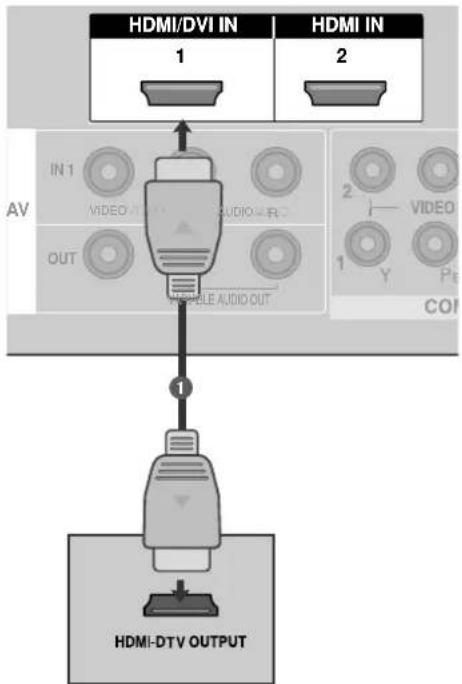
flowchart
graph TD
    A["AV"] --> B["1"]
    B --> C["HDMI/DVI IN 1"]
    B --> D["HDMI IN 2"]
    B --> E["1"]
    E --> F["VIDEO OUT"]
    E --> G["VIDEO OUT"]
    E --> H["VIDEO OUT"]
    E --> I["VIDEO OUT"]
    E --> J["VIDEO OUT"]
    E --> K["VIDEO OUT"]
    E --> L["VIDEO OUT"]
    E --> M["VIDEO OUT"]
    E --> N["VIDEO OUT"]
    E --> O["VIDEO OUT"]
    E --> P["VIDEO OUT"]
    E --> Q["VIDEO OUT"]
    E --> R["VIDEO OUT"]
    E --> S["VIDEO OUT"]
    E --> T["VIDEO OUT"]
    E --> U["VIDEO OUT"]
    E --> V["VIDEO OUT"]
    E --> W["VIDEO OUT"]
    E --> X["VIDEO OUT"]
    E --> Y["VIDEO OUT"]
    E --> Z["VIDEO OUT"]
    E --> AA["VIDEO OUT"]
    E --> AB["VIDEO OUT"]
    E --> AC["VIDEO OUT"]
    E --> AD["VIDEO OUT"]
    E --> AE["VIDEO OUT"]
    E --> AF["VIDEO OUT"]
    E --> AG["VIDEO OUT"]
    E --> AH["VIDEO OUT"]
    E --> AI["VIDEO OUT"]
    E --> AJ["VIDEO OUT"]
    E --> AK["VIDEO OUT"]
    E --> AL["VIDEO OUT"]
    E --> AM["VIDEO OUT"]
    E --> AN["VIDEO OUT"]
    E --> AO["VIDEO OUT"]
    E --> AP["VIDEO OUT"]
    E --> AQ["VIDEO OUT"]
    E --> AR["VIDEO OUT"]
    E --> AS["VIDEO OUT"]
    E --> AT["VIDEO OUT"]
    E --> AU["VIDEO OUT"]
    E --> AV["VIDEO OUT"]
    E --> AW["VIDEO OUT"]
    E --> AX["VIDEO OUT"]
    E --> AY["VIDEO OUT"]
    E --> AZ["VIDEO OUT"]
    E --> BA["VIDEO OUT"]
    E --> BB["VIDEO OUT"]
    E --> BC["VIDEO OUT"]
    E --> BD["VIDEO OUT"]
    E --> BE["VIDEO OUT"]
    E --> BF["VIDEO OUT"]
    E --> BG["VIDEO OUT"]
    E --> BH["VIDEO OUT"]
    E --> BI["VIDEO OUT"]
    E --> BJ["VIDEO OUT"]
    E --> BK["VIDEO OUT"]
    E --> BL["VIDEO OUT"]
    E --> BM["VIDEO OUT"]
    E --> BN["VIDEO OUT"]
    E --> BO["VIDEO OUT"]
    E --> BP["VIDEO OUT"]
    E --> BQ["VIDEO OUT"]
    E --> BR["VIDEO OUT"]
    E --> BS["VIDEO OUT"]
    E --> BT["VIDEO OUT"]
    E --> BU["VIDEO OUT"]
    E --> BV["VIDEO OUT"]
    E --> BW["VIDEO OUT"]
    E --> BX["VIDEO OUT"]
    E --> BY["VIDEO OUT"]
    E --> BZ["VIDEO OUT"]
    E --> CA["VIDEO OUT"]
    E --> CB["VIDEO OUT"]
    E --> CC["VIDEO OUT"]
    E --> CD["VIDEO OUT"]
    E --> CE["VIDEO OUT"]
    E --> CF["VIDEO OUT"]
    E --> CG["VIDEO OUT"]
    E --> CH["VIDEO OUT"]
    E --> CI["VIDEO OUT"]
    E --> CJ["VIDEO OUT"]
    E --> CK["VIDEO OUT"]
    E --> CL["VIDEO OUT"]
    E --> CM["VIDEO OUT"]
    E --> CN["VIDEO OUT"]
    E --> CO["VIDEO OUT"]
    E --> CP["VIDEO OUT"]
    E --> CQ["VIDEO OUT"]
    E --> CR["VIDEO OUT"]
    E --> CS["VIDEO OUT"]
    E --> CT["VIDEO OUT"]
    E --> CU["VIDEO OUT"]
    E --> CV["VIDEO OUT"]
    E --> CW["VIDEO OUT"]
Only 22LG3***
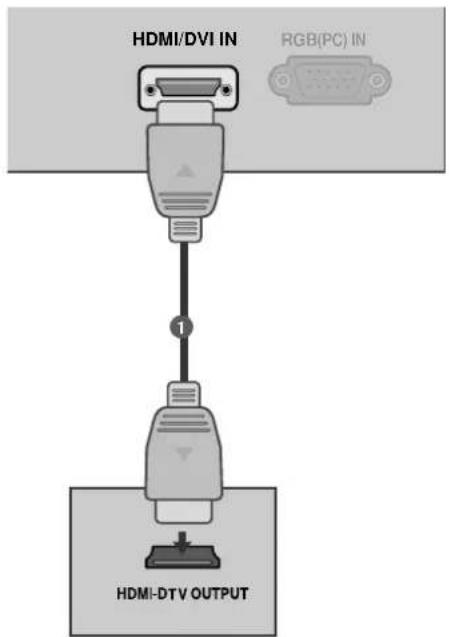
text_image
HDMI/DVI IN RGB(PC) IN 1 HDMI-DTV OUTPUTConnecting with a HDMI to DVI cable

text_image
HDMI/DVI IN 1 HDMI IN 2 RGB(PC) AUDIO (RGB-DVI) COMPONENT IN RGB IN 1 2 DVI-DTV OUTPUT L AOnly 22LG3***
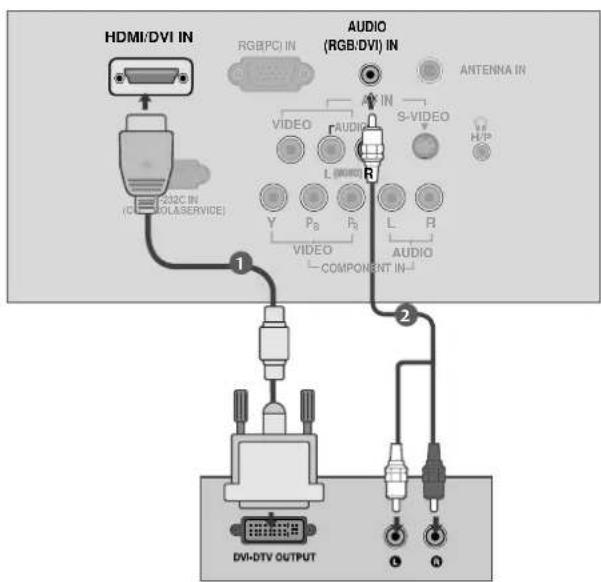
text_image
HDMI/DVI IN RGB/PCI IN AUDIO (RGB/DVI) IN ANTENNA IN VIDEO AUDIO S-VIDEO L (R) Y P_B P_R L R AUDIO L-COMPONENT IN- 1 2 DVI-DTV OUTPUT A B1 Connect the DVI output of the digital set-top box to the HDMI/DVI IN 1 jack on the TV.
2 Connect the audio output of the digital set-top box to the AUDIO(RGB/DVI) jack on the TV.
3 Turn on the digital set-top box. (Refer to the owner's manual for the digital set-top box.)
4 Select HDMI1/DVI input source using the INPUT button on the remote control.
NOTE
HDMI2(Except 22LG3***), HDMI3(Only 37/42/47/52LG5**) source does not support DVI source.
If the Set-Top Box has a DVI output and no HDMI output, a separated audio connection is necessary.
If the Set-Top Box does not support Auto DVI, you need to set the output resolution appropriately.
EXTERNAL EQUIPMENT SETUP
DVD SETUP
Connecting with a component cable
1 Connect the video outputs (Y, PB, PR) of the DVD to the COMPONENT IN VIDEO jacks on the TV.
2 Connect the audio outputs of the DVD to the COMPONENT IN AUDIO jacks on the TV.
3 Turn on the DVD player, insert a DVD.
4 Select Component1 input source using the INPUT button on the remote control.
If connected to COMPONENT IN2, select Component 2 input source(Except 22LG3**).
5 Refer to the DVD player's manual for operating instructions.
Component Input ports
To achieve better picture quality, connect a DVD player to the component input ports as shown below.
| Component ports on the TV | Y | P | _B PR |
| Video output portson DVD player | Y | PB | PR |
| Y | B-Y | R-Y | |
| Y | Cb | Cr | |
| Y | Pb | Pr |

flowchart
graph TD
    A["COMPONENT IN"] --> B["1"]
    A --> C["2"]
    B --> D["Y"]
    B --> E["Pb"]
    B --> F["Pb"]
    C --> G["L"]
    C --> H["R"]
    D --> I["●"]
    E --> J["●"]
    F --> K["●"]
    G --> L["●"]
    H --> M["●"]
Only 22LG3***
flowchart
graph TD
    A["VIDEO"] --> B["COMPONENT IN"]
    C["1"] --> D["2"]
    E["2"] --> F["3"]
    G["3"] --> H["4"]
    I["4"] --> J["5"]
    K["5"] --> L["6"]
    M["6"] --> N["7"]
    O["7"] --> P["8"]
    Q["Y"] --> R["1"]
    S["P_B"] --> T["2"]
    U["P_R"] --> V["3"]
    W["L"] --> X["4"]
    Y["R"] --> Z["5"]
Connecting with a S-Video cable
1 Connect the S-VIDEO output of the DVD to the S-VIDEO input on the TV.
2 Connect the audio outputs of the DVD to the AUDIO input jacks on the TV.
3 Turn on the DVD player, insert a DVD.
4 Select AV2 input source using the INPUT button on the remote control.
5 Refer to the DVD player's manual for operating instructions.

text_image
S-VIDEO LMONO AUDIO-R VIDEO AV IN 2 1 2 S-VIDEOVIDEL R ANT IN Q OUT SW CH R ANT OUTOnly 22LG3***
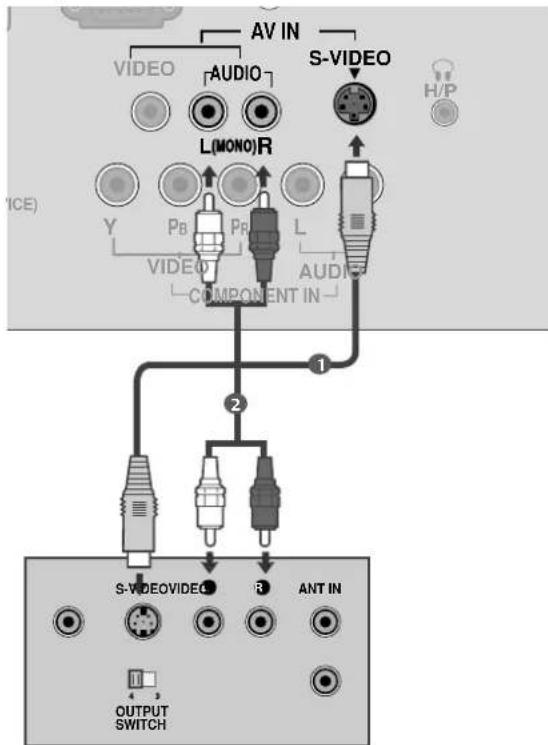
text_image
AV IN VIDEO [AUDIO] L(MONO)R S-VIDEO H/P Y PB PR L VIDEO COMPONENT IN 1 2 S-WIDEOVIDEO R ANT IN OUTPUT SWITCHEXTERNAL EQUIPMENT SETUP
Connecting with a HDMI cable
1 Connect the HDMI output of the DVD to the HDMI/DVI IN 1, HDMI IN 2(Except 22LG3***) or HDMI IN 3(Only 37/42/47/52LG5***) jack on the TV.
2 Select HDMI1/DVI, HDMI2(Except 22LG3***) or HDMI3 (Only 37/42/47/52LG5***) input source using the INPUT button on the remote control.
3 Refer to the DVD player's manual for operating instructions.

flowchart
graph TD
    A["HDMI/DVI IN 1 2"] --> B["VIDEO OUT"]
    C["HDMI IN 2"] --> D["VIDEO OUT"]
    E["COMI"] --> F["VIDEO OUT"]
    G["HDMI-DVD OUTPUT"] --> H["VIDEO OUT"]
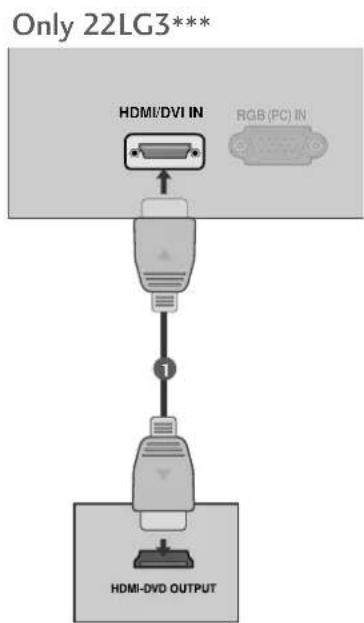
flowchart
graph TD
    A["HDMI/DVI IN"] --> B["RGB (PC) IN"]
    B --> C["1"]
    C --> D["HDMI-DVD OUTPUT"]
NOTE
The TV can receive video and audio signals simultaneously when using a HDMI cable.
If the DVD player supports Auto HDMI function, the output resolution of the source device will be automatically TV to 1280x720p.
If the DVD player does not support Auto HDMI, you must TV the output resolution appropriately. To get the best picture quality, adjust the output resolution of the source device to 1280x720p (37/42/47/52LG5***:1920x1080i/1080p).
VCR SETUP
■ To avoid picture noise (interference), allow adequate distance between the VCR and TV.
■ Typically a frozen still picture from a VCR. If 4:3 picture format is used for an extended period the fixed images on the sides of the screen may remain visible.
Connecting with a RF cable
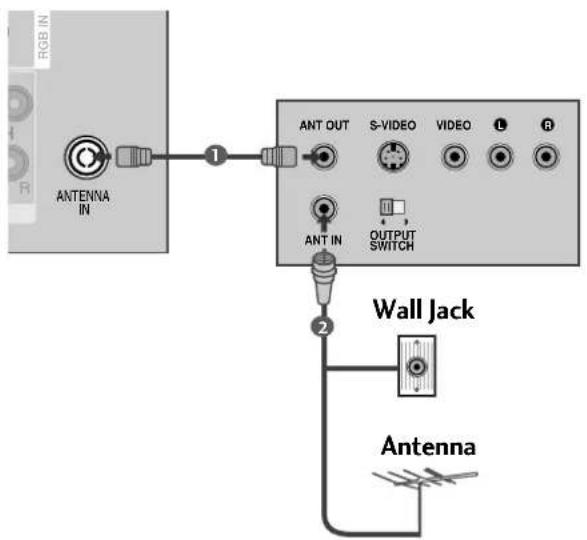
text_image
RGB IN ANTENNA IN 1 ANT OUT S-VIDEO VIDEO L R ANT IN OUTPUT SWITCH 2 Wall Jack Antenna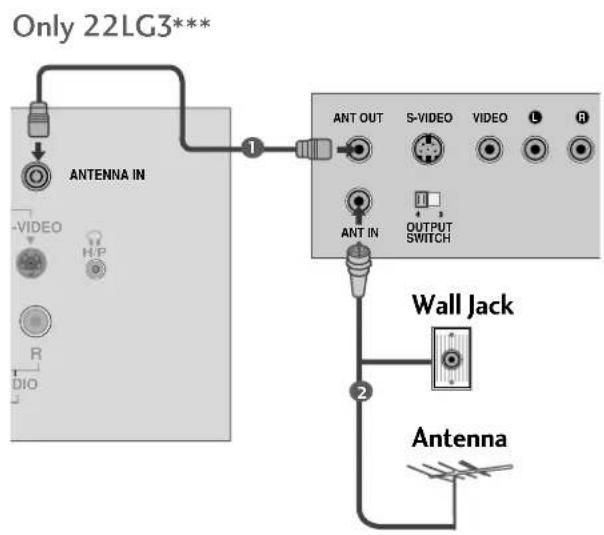
text_image
Only 22LG3*** ANTENNA IN ANT OUT S-VIDEO VIDEO L R ANT IN OUTPUT SWITCH Wall Jack Antenna1 Connect the ANT OUT socket of the VCR to the ANTENNA IN socket on the TV.
2 Connect the antenna cable to the ANT IN socket of the VCR.
3 Press the PLAY button on the VCR and match the appropriate programme between the TV and VCR for viewing.
EXTERNAL EQUIPMENT SETUP
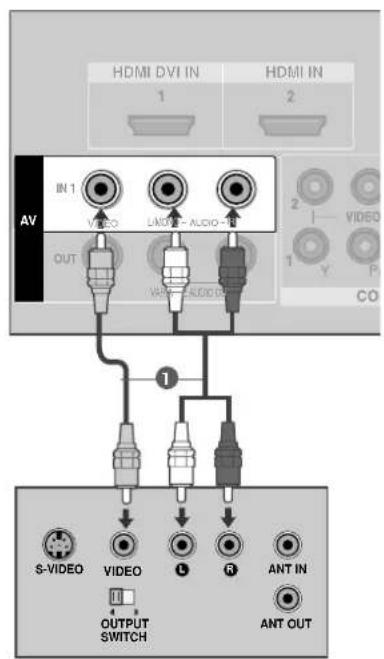
Connecting with a RCA cable
text_image
HDMI DVI IN 1 HDMI IN 2 AV IN 1 VIDEO UNICE - AUDIO IN OUT VIDEO AUDIO CO S-VIDEO VIDEO OUTPUT SWITCH R ANT IN ANT OUT
text_image
Only 22LG3*** RGB (PC) IN AUDIO (RGB/DVI) IN ANTENNA IN AV IN VIDEO AUDIO S-VIDEO H/P MONO Y Pb R L R VIDEO COMPONENT IN- 1 S-VIDEO VIDEO OUTPUT SWITCH R ANT IN ANT OUT1 Connect the AUDIO/VIDEO jacks between TV and VCR. Match the jack colours (Video = yellow, Audio Left = white, and Audio Right = red)
2 Insert a video tape into the VCR and press PLAY on the VCR. (Refer to the VCR owner's manual.)
3 Select AV1 input source using the INPUT button on the remote control. If connected to AV IN2, select AV2 input source.
NOTE
If you have a mono VCR, connect the audio cable from the VCR to the AUDIO L/MONO jack of the TV.
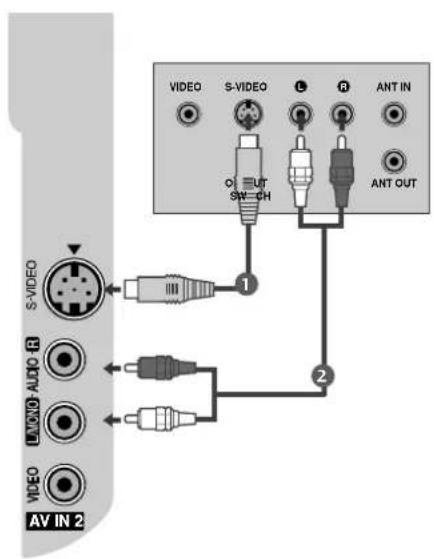
Connecting with a S-Video cable
1 Connect the S-VIDEO output of the VCR to the S-VIDEO input on the TV. The picture quality is improved; compared to normal composite (RCA cable) input.
2 Connect the audio outputs of the VCR to the AUDIO input jacks on the TV.
3 Insert a video tape into the VCR and press PLAY on the VCR. (Refer to the VCR owner's manual.)
4 Select AV2 (or A (Only 22LG3***)) input source using the INPUT button on the remote control.
text_image
VIDEO S-VIDEO L R ANT IN OUT SW CH ANT OUT 1 2 VIDEO AUDIO R VIDEO AV IN 2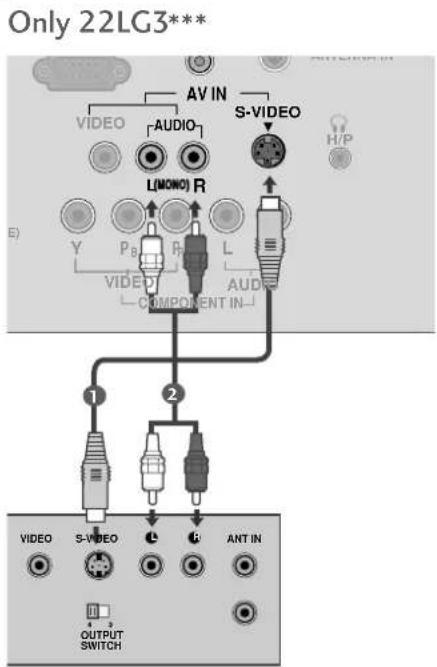
text_image
Only 22LG3*** AV IN VIDEO AUDIO L(MONO) R S-VIDEO H/P Y P_B R L VIDEO COMPONENT IN- AUDI 1 2 VIDEO S-VIDEO L F ANT IN OUTPUT SWITCHNOTE
If both S-VIDEO and VIDEO sockets have been connected to the S-VHS VCR simultaneously, only the S-VIDEO can be received.
EXTERNAL EQUIPMENT SETUP
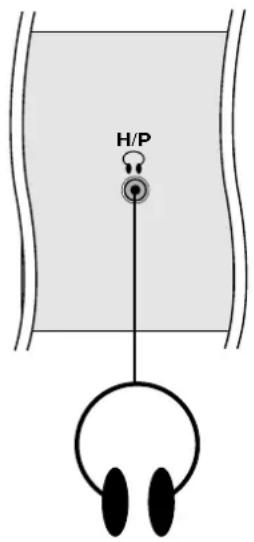
HEADPHONE SETUP (Only 22LG3*** )
When connecting with a Headphone cable
1 Insert the headphone plug to the headphone socket of the set. You can listen to the sound through the headphone. To adjust the head-phone volume, press the ◀/▶ button. If you press the MUTE button, the sound from the headphone is switched off.
text_image
H/POTHER A/V SOURCE SETUP
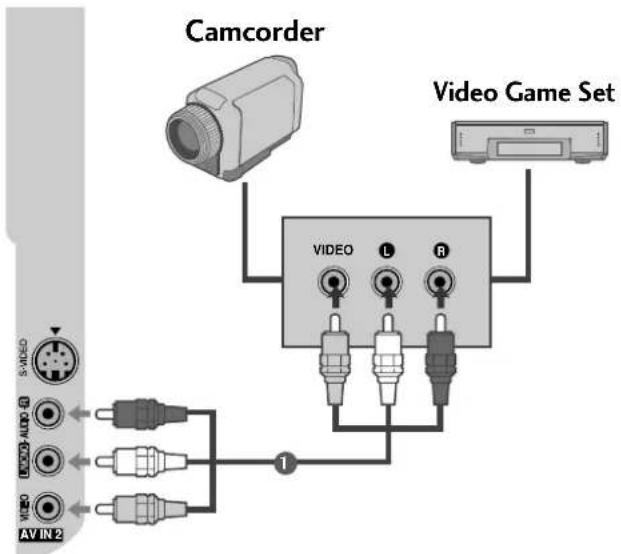
text_image
Camcorder Video Game Set VIDEO L R 1 S-VIDEO AUDIO ALLO L VIDEO AV IN 2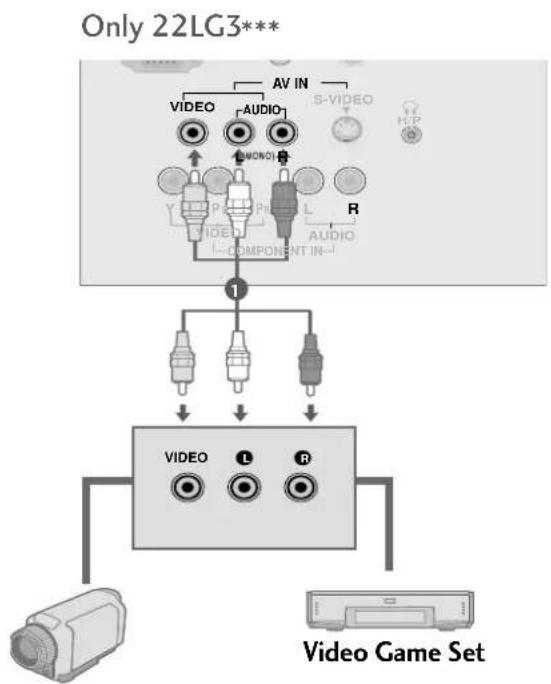
flowchart
graph TD
    A["Video Game Set"] --> B["VIDEO"]
    B --> C["AV IN"]
    C --> D["VIDEO"]
    D --> E["AUDIO"]
    E --> F["S-VIDEO"]
    F --> G["H-P"]
    F --> H["R"]
    F --> I["VIDEO"]
    I --> J["AUDIO"]
    J --> K["COMPONENT IN"]
    K --> L["1"]
    L --> M["Video"]
    M --> N["L"]
    M --> O["R"]
Camcorder
1 Connect the AUDIO/VIDEO jacks between TV and external equipment. Match the jack colours. (Video = yellow, Audio Left = white, and Audio Right = red)
2 Select AV2 (or AA (Only 22LG3**)) input source using the INPUT button on the remote control. If connected to AV IN1, select AV1 input source.
3 Operate the corresponding external equipment. Refer to external equipment operating guide.
EXTERNAL EQUIPMENT SETUP
EXTERNAL STEREO SETUP (Except 22LG3\*\*\* )
Use to connected either an external amplifier, or add a subwoofer to your surround sound system.
1 Connect the input jack of the stereo amplifier to the VARIABLE AUDIO OUT jacks on the TV.
2 Set up your speakers through your analog stereo amplifier, according to the instructions provided with the amplifier.
NOTE
When connecting with external audio equipments, such as amplifiers or speakers, please turn the TV speakers off. (p.79)
▶ Select Variable Out in Audio menu to connect the VARIABLE AUDIO OUT jacks.(▶ p.80)
AV OUTPUT SETUP (Except 22LG3\*\*\* )
The TV has a special signal output capability which allows you to hook up the second TV or monitor.
1 Connect the second TV or monitor to the TV's AV OUT jacks.
2 See the Operating Manual of the second TV or monitor for further details regarding that device's input settings.
NOTE
▶ Component, RGB, HDMI input sources cannot be used for AV out.
We recommend to use the AV OUT jacks for VCR recording.

text_image
VIDEO OUT LMONO AUDIO IN OUT VARIABLE AUDIO OUT 1
text_image
VIDEO - OUT L/MONO - AUDIO - FI OUT VARIABLE AUDIO OUT COMP 1 VIDEO L R S-VIDEOPC SETUP
This TV provides Plug and Play capability, meaning that the PC adjusts automatically to the TV's settings.
Connecting with a D-sub 15 pin cable
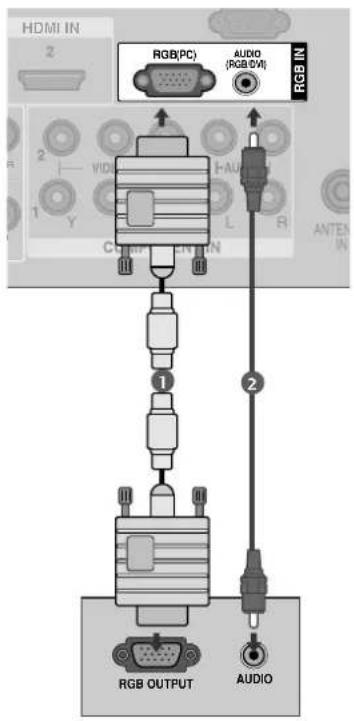
text_image
HDMI IN 2 RGB(PC) AUDIO {RGB(DVI)} RGB IN 1 2 Y L R ANTEN IN COMP OUT RGB OUTPUT AUDIOOnly 22LG3***

text_image
RGB (PC) IN AUDIO (RGB/DVI) IN AO IN S-VIDEO AUDI LIMNOR PB PR L R AUDIO VIDEO COMPONENT IN- 2 RGB OUTPUT AUDIO1 Connect the RGB output of the PC to the RGB(PP) Jack on the TV.
2 Connect the PC audio output to the AUDIO jack on the TV.
3 Turn on the PC and the TV.
4 Select RGB PC input source using the INPUT button on the remote control.
EXTERNAL EQUIPMENT SETUP
NOTE
To enjoy vivid picture and sound, connect the PC to the TV.
Avoid keeping a fixed image on the TV's screen for prolonged periods of time. The fixed image may become permanently imprinted on the screen; use a screen saver when possible.
Connect the PC to the RGB (PC) port of the TV; change the resolution output of PC accordingly.
There may be interference relating to resolution, vertical pattern, contrast or brightness in PC mode. Change the PC mode to another resolution or change the refresh rate to another rate or adjust the brightness and contrast on the menu until the picture is clear. If the refresh rate of the PC graphic card can not be changed, change the PC graphic card or consult the manufacturer of the PC graphic card.
The synchronization input waveform for Horizontal and Vertical frequencies are separate.
We recommend using 1024 x 768, 60Hz (42PG1***,42PG2*** XGA PLASMA TV Models)/1360 x 768, 60Hz(50PG1**, 50PG2***) /1920 x 1080(37/42/47/52LG5**) /1366 x 768(26/32/37/42/47LG3*)/1680 x 1050(22LG3**) for the PC mode, these should provide the best picture quality.
If the resolution of PC is over SXGA, there will be no picture on the TV.(Only HD Models)
Connect the audio cable from the PC to the Audio input on the TV.(Audio cables are not included with the TV).
If you use too long an RGB-PC cable, there may be interference on the screen. We recommend using under 5m of the cable. This provides the best picture quality.
Supported Display Resolution
Only 22LG3***
RGB-PC mode
| Resolution | Horizontal Frequency(kHz) | Vertical Frequency(Hz) |
| 640x480 | 31.469 | 59.94 |
| 800x600 | 37.879 | 60.317 |
| 1024x768 | 48.363 | 60.004 |
| 1280x1024 | 63.668 | 59.895 |
| 1680x1050 | 65.290 | 59.954 |
HDMI-DTV mode
| Resolution | Horizontal Frequency(kHz) | Vertical Frequency(Hz) |
| 720x480 | 31.47 59.9431.50 60.00 | |
| 720x576 | 31.25 50.00 | |
| 1280x720 | 44.96 59.9445.00 60.0037.50 50.00 | |
| 1920x1080i | 33.72 59.9433.75 60.0028.125 50.00 | |
| 1920x1080p | 67.432 59.9467.556.25 | 6050 |
Supported Display Resolution
Plasma TV models
RGB-PC mode
| Resolution | Horizontal Frequency(kHz) | Vertical Frequency(Hz) |
| 640x350 | 31.468 | 70.09 |
| 720x400 | 31.469 | 70.09 |
| 640x480 | 31.469 | 59.94 |
| 800x600 | 37.879 | 60.317 |
| 1024x768 | 48.363 | 60.004 |
| 1280x768 | 47.776 | 59.87 |
| 1360x768 | 47.720 | 59.799 |
HDMI-DTV mode
| Resolution | Horizontal Frequency(kHz) | Vertical Frequency(Hz) |
| 720x480 | 31.47 59.9431.50 60.00 | |
| 720x576 | 31.25 50.00 | |
| 1280x720 | 44.96 59.9445.00 60.0037.50 50.00 | |
| 1920x1080i | 33.72 59.9433.75 60.0028.125 50.00 | |
| 1920x1080p | 67.432 59.9467.56056.252733.75 | 502430 |
LCD TV models (Except 22LG3\*\*\* )
RGB-PC mode
| Resolution | Horizontal Frequency(kHz) | Vertical Frequency(Hz) |
| 640x350 | 31.468 | 70.09 |
| 720x400 | 31.469 | 70.09 |
| 640x480 | 31.469 | 59.94 |
| 800x600 | 37.879 | 60.317 |
| 1024x768 | 48.363 | 60.004 |
| 1280x768 | 47.776 59.87 | |
| 1360x768 | 47.720 | 59.799 |
| 1366x768 | 47.700 60.00 | |
| 1280x1024 | 63.668 | 59.895 |
| 1920x1080 | 66.587 | 59.934 |
HDMI-DTV mode
| Resolution | Horizontal Frequency(kHz) | Vertical Frequency(Hz) |
| 720x480 | 31.47 59.9431.50 60.00 | |
| 720x576 | 31.25 50.00 | |
| 1280x720 | 44.96 59.9445.00 60.0037.50 50.00 | |
| 1920x1080i | 33.72 59.9433.75 60.0028.125 50.00 | |
| 1920x1080p | 67.432 59.9467.56056.252733.75 | 502430 |
EXTERNAL EQUIPMENT SETUP
Screen Setup for PC mode
Auto Configure (RGB [PC] mode only)
Automatically adjusts picture position and minimizes image instability. After adjustment, if the image is still not correct, your TV is functioning properly but needs further adjustment.
Auto configure
This function is for automatic adjustment of the screen position, clock, and phase. The displayed image will be unstable for a few seconds while the auto configuration is in progress.
1 Press the MENU button and then use ^/√ button to select the Picture menu.
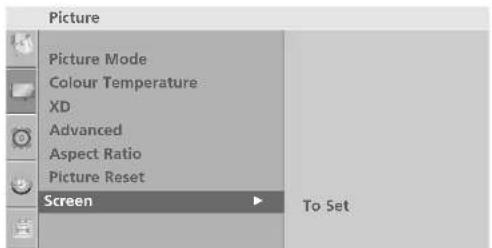
2 Press the button and then use ^/√ button to select Screen.
3 Press the button and then use ^/√ button to select Auto Config..
4 Press the button to start Auto Config.
- When Auto config. has finished, OK will be shown on screen.
- If the position of the image is still not correct, try Auto adjustment again.
- If picture needs to be adjusted again after Auto adjustment in RGB (PC), you can adjust the Manual Config..
5 Press the MENU button to return to normal TV viewing. Press the RETURN or MENU(Only 22LG3*** ) button to move to the previous menu screen.
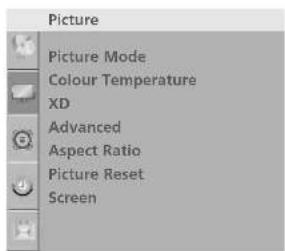
text_image
Picture Picture Mode Colour Temperature XD Advanced Aspect Ratio Picture Reset Screen1
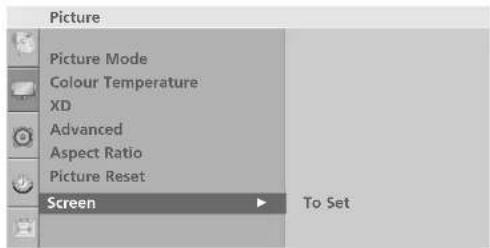
text_image
Picture Picture Mode Colour Temperature XD Advanced Aspect Ratio Picture Reset Screen To Set②

text_image
Screen Auto Config. Manual Config. XGA Mode Reset To Set34
Manual Configure (Adjustment for screen Phase, Clock, Position) (RGB [PC] mode only)
If the picture is not clear after auto adjustment and especially if characters are still trembling, adjust the picture phase manually.
It's not available to use Phase, Clock function in COMPONENT (480i/480p/576i/576p/720p/1080i/1080p), HDMI (480p/576p/720p/1080i/1080p).
Clock This function is to minimize any vertical bars or stripes visible on the screen background the horizontal screen size will also change.
Phase This function allows you to remove any horizontal noise and clear or sharpen the image of characters.
1 Press the MENU button and then use ∧/√ button to select the Picture menu.
2 Press the > button and then use ^/√ button to select Screen.
3 Press the > button and then use ^/√ button to select Manual Config..
4 Press the > button and then use ^/√ button to select Phase, Clock, H-Position or V-Position.
5 Press the < //> button to make appropriate adjustments.
6 Press the MENU button to return to normal TV viewing. Press the RETURN or MENU(Only 22LG3***) button to move to the previous menu screen.
![LG 47LG30RA - Manual Configure (Adjustment for screen Phase, Clock, Position) (RGB [PC] mode only) - 1](/content/2026/06/1212880/images/edc93a19d4e3e90f85beb8775dc082d7879296653947f84da1068b77ae77f872.jpg)
text_image
Picture Picture Mode Colour Temperature XD Advanced Aspect Ratio Picture Reset Screen1
![LG 47LG30RA - Manual Configure (Adjustment for screen Phase, Clock, Position) (RGB [PC] mode only) - 2](/content/2026/06/1212880/images/1b0a4036fafe3db17fa4a10cb7899abca79732e7b0c2806f88b91a6d752f77cf.jpg)
text_image
Picture Picture Mode Colour Temperature XD Advanced Aspect Ratio Picture Reset Screen To Set2
![LG 47LG30RA - Manual Configure (Adjustment for screen Phase, Clock, Position) (RGB [PC] mode only) - 3](/content/2026/06/1212880/images/fde16d23be5c4175917d96c2ec6e7ac217e1de1d6daf518dbfe589597a5d08eb.jpg)
text_image
Screen Auto config. Manual Config. ▶ Phase 51 XGA Mode Clock 50 Reset H-Position 50 V-Position 50345
EXTERNAL EQUIPMENT SETUP
Selecting XGA mode (Except 42PG1 \*\*\*, 42PG2 \*\*\*, 22LG3 \*\*\*\*)
This feature is not available for all models.
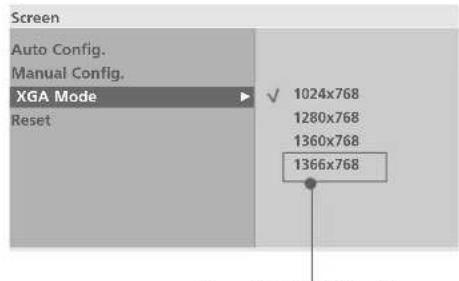
To view a normal picture, match the resolution of RGB mode and selection of XGA mode.
This function works in the following mode: RGB[PC] mode.
1 Press the MENU button and then use ^/√ button to select the Picture menu.
2 Press the button and then use ∧/√ button to select Screen.
3 Press the button and then use ∧/√ button to select XGA Mode.
4 Press the button and then use ∧/√ button to select the desired XGA resolution.
5 Press the MENU button to return to normal TV viewing. Press the RETURN button to move to the previous menu screen.

text_image
Picture Picture Mode Colour Temperature XD Advanced Aspect Ratio Picture Reset Screen1
text_image
Picture Picture Mode Colour Temperature XD Advanced Aspect Ratio Picture Reset Screen To Set2
text_image
Screen Auto Config. Manual Config. XGA Mode Reset 1024x768 1280x768 1360x768 1366x768* Except PLASMA TV models
34
Initializing
(Reset to original factory settings)
This function operates in current mode.
To initialize the adjusted value
1 Press the MENU button and then use ^/√ button to select the Picture menu.
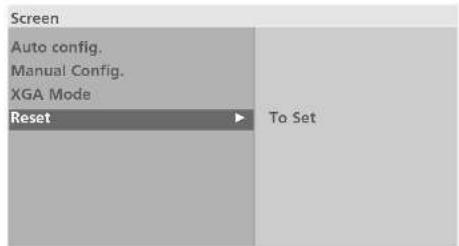
2 Press the button and then use ∧/√ button to select Screen.
3 Press the button and then use ^ // ∨ button to select Reset.
4 Press the button.
5 Press the MENU button to return to normal TV viewing. Press the RETURN or MENU(Only 22LG3*** ) button to move to the previous menu screen.

text_image
Picture Picture Mode Colour Temperature XD Advanced Aspect Ratio Picture Reset Screen1

text_image
Picture Picture Mode Colour Temperature XD Advanced Aspect Ratio Picture Reset Screen To Set2
text_image
Screen Auto config. Manual Config. XGA Mode Reset To Set34
WATCHING TV / PROGRAMME CONTROL
REMOTE CONTROL KEY FUNCTIONS (Only 22LG3\*\*\*)
When using the remote control, aim it at the remote control sensor on the TV.
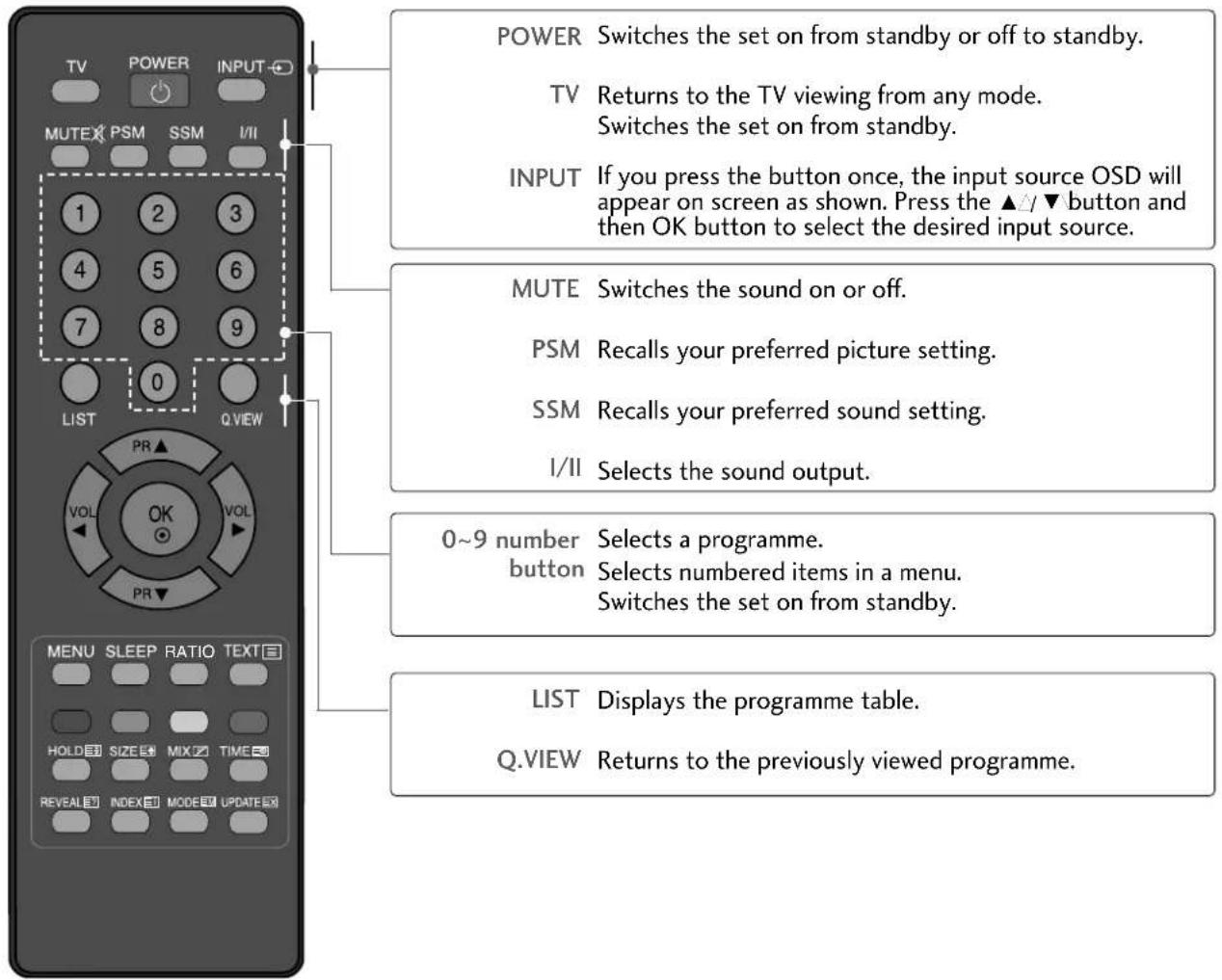
text_image
POWER Switches the set on from standby or off to standby. TV Returns to the TV viewing from any mode. Switches the set on from standby. INPUT If you press the button once, the input source OSD will appear on screen as shown. Press the ▲/▼ button and then OK button to select the desired input source. MUTE Switches the sound on or off. PSM Recalls your preferred picture setting. SSM Recalls your preferred sound setting. I/II Selects the sound output. 0~9 number Selects a programme. button Selects numbered items in a menu. Switches the set on from standby. LIST Displays the programme table. Q.VIEW Returns to the previously viewed programme.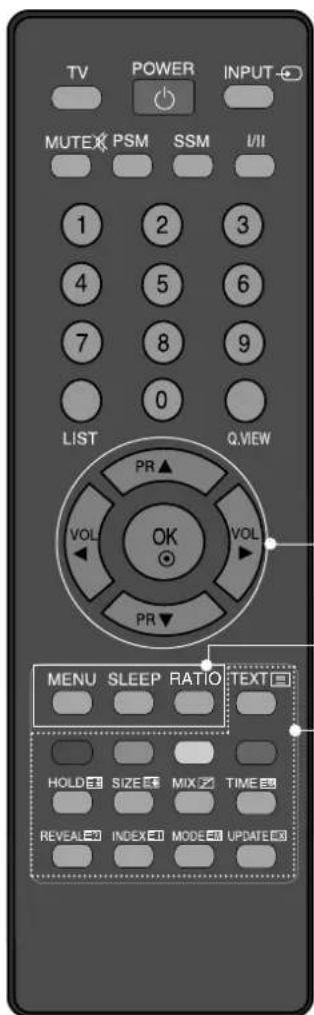
text_image
TV POWER INPUT MUTE PSM SSM I/II 1 2 3 4 5 6 7 8 9 0 LIST Q.WEY PR ▲ VOL VOL PR ▼ MENU SLEEP RATIO TEXT HOLD SIZE MIX TIME REVEA INDEX MODE UPDATETHUMBSTICK (Up/Down/Left/Right) Allows you to navigate the on-screen menus and adjust the system settings to your preference.
Adjusts the volume.
Selects a programme.
Switches the set on from standby. (Up/Down)
OK Accepts your selection or displays the current mode.
MENU Selects a menu.
SLEEP Sets the sleep timer.
RATIO Selects your desired picture format.
Coloured These buttons are used for teletext (only TELETEXT buttons models) or Programme edit.
TELETEXT These buttons are used for teletext.
BUTTONS For further details, see the 'Teletext' section.
Installing Batteries

natural_image
Illustration of hands holding a curved object with a downward arrow indicating motion (no text or symbols)- Open the battery compartment cover on the back side and install the batteries matching correct polarity (+with +,-with -).
- Install two 1.5V AAA batteries. Don't mix old or used batteries with new ones.
- Close cover.
WATCHING TV / PROGRAMME CONTROL
REMOTE CONTROL KEY FUNCTIONS (Except Plasma TV models, 22LG3\*\*\*)
When using the remote control, aim it at the remote control sensor on the TV.

text_image
1 TV POWER INPUT STB DVD Q. MENU MENU SIMPLINK OK RETURN PIP AV MODE + FAV P - MUTE 1 2 3 4 5 6 7 8 9 LIST 0 Q.WEY TIME SIZE UPDATE REVEAL INDEX HOLD TEXT MODE Selects the remote operating modes. POWER Switches the TV on from standby or off to standby. INPUT External input mode rotate in regular sequence. Switches the TV on from standby. Q. MENU Select the desired quick menu source. MENU Selects a menu. Clears all on-screen displays and returns to TV viewing from any menu. SIMPLINK See a list of AV devices connected to TV. When you toggle this button, the Simplink menu appears at the screen. RETURN Allows the user to move return one step in an interactive application or other user interaction function. PIP Switches the sub picture PIP, DW mode. AV MODE It helps you select and set images and sounds when connecting AV devices. Coloured These buttons are used for teletext (on TELETEXT models only), Programme edit. TELETEXT These buttons are used for teletext. BUTTONS For further details, see the 'Teletext' section.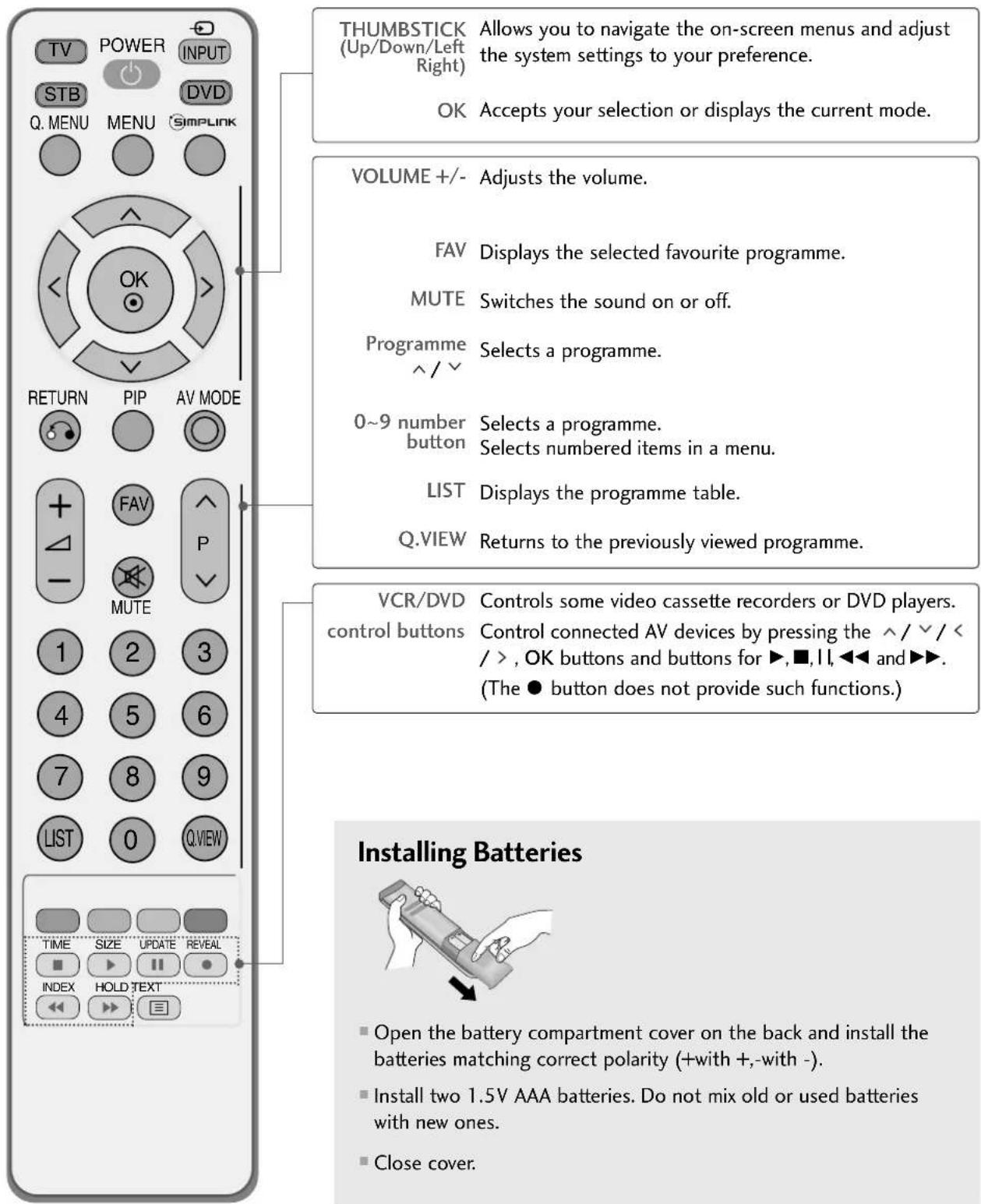
text_image
THUMBSTICK (Up/Down/Left Right) Allows you to navigate the on-screen menus and adjust the system settings to your preference. OK Accepts your selection or displays the current mode. VOLUME +/- Adjusts the volume. FAV Displays the selected favourite programme. MUTE Switches the sound on or off. Programme Selects a programme. ^ / ^ 0~9 number Selects a programme. button Selects numbered items in a menu. LIST Displays the programme table. Q.VIEW Returns to the previously viewed programme. VCR/DVD Controls some video cassette recorders or DVD players. control buttons Control connected AV devices by pressing the ^ / / / / > , OK buttons and buttons for ▶, ■, 11, ◀◀ and ▶▶. (The ● button does not provide such functions.) Installing Batteries ■ Open the battery compartment cover on the back and install the batteries matching correct polarity (+with +,-with -). ■ Install two 1.5V AAA batteries. Do not mix old or used batteries with new ones. ■ Close cover.WATCHING TV / PROGRAMME CONTROL
REMOTE CONTROL KEY FUNCTIONS (Only Plasma TV models)
When using the remote control, aim it at the remote control sensor on the TV.
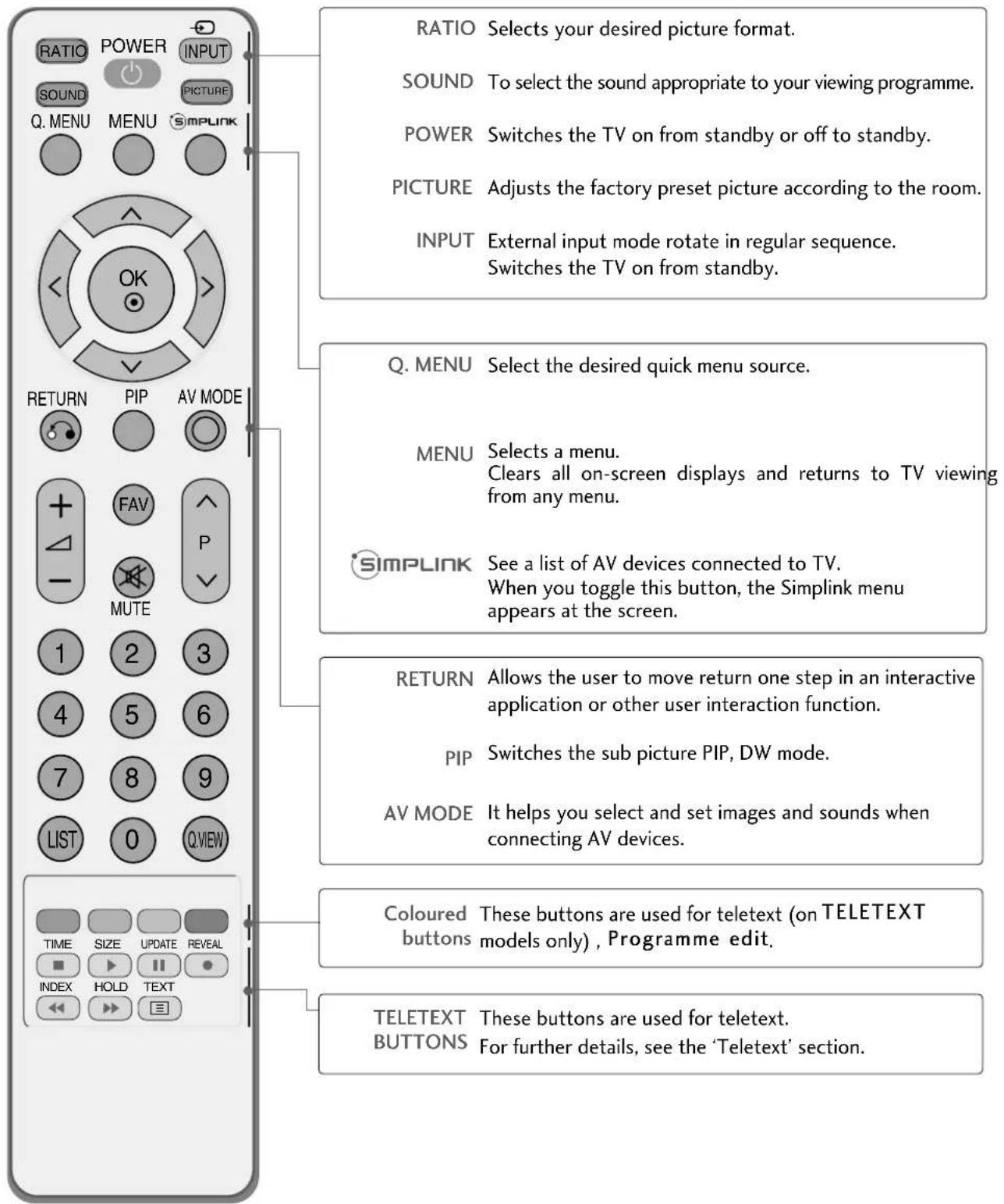
text_image
RATIO Selects your desired picture format. SOUND To select the sound appropriate to your viewing programme. POWER Switches the TV on from standby or off to standby. PICTURE Adjusts the factory preset picture according to the room. INPUT External input mode rotate in regular sequence. Switches the TV on from standby. Q. MENU Select the desired quick menu source. MENU Selects a menu. Clears all on-screen displays and returns to TV viewing from any menu. SimplINK See a list of AV devices connected to TV. When you toggle this button, the Simplink menu appears at the screen. RETURN Allows the user to move return one step in an interactive application or other user interaction function. PIP Switches the sub picture PIP, DW mode. AV MODE It helps you select and set images and sounds when connecting AV devices. Coloured These buttons are used for teletext (on TELETEXT buttons models only), Programme edit. TELETEXT These buttons are used for teletext. BUTTONS For further details, see the 'Teletext' section.
text_image
RATIO POWER INPUT SOUND PICTURE Q. MENU MENU SIMPLINK THUMBSTICK (Up/Down/Left Right) Allows you to navigate the on-screen menus and adjust the system settings to your preference. OK Accepts your selection or displays the current mode. VOLUME +/- Adjusts the volume. FAV Displays the selected favourite programme. MUTE Switches the sound on or off. Programme Selects a programme. ^ / ^ 0~9 number Selects a programme. button Selects numbered items in a menu. LIST Displays the programme table. Q.VIEW Returns to the previously viewed programme. VCR/DVD Controls some video cassette recorders or DVD players. control buttons Control connected AV devices by pressing the ^ / ^ / < / > , OK buttons and buttons for ▶, ■, I I, ◀◀◀ and ▶▶. (The ● button does not provide such functions.) Installing Batteries ■ Open the battery compartment cover on the back and install the batteries matching correct polarity (+with +,-with -). ■ Install two 1.5V AAA batteries. Do not mix old or used batteries with new ones. ■ Close cover.WATCHING TV / PROGRAMME CONTROL
TURNING ON THE TV
When your TV is turned on, you will be able to use its features.

Firstly, connect the power cord correctly.
At this stage, the TV switches to standby mode.
In standby mode to turn TV on, press the ⏻/1 , INPUT, P ▲ / ▼ (or P ∧/∨ or PR ▲ / ▼)) button on the TV or press the POWER, TV (Only 22LG3***), INPUT, P ∧/∨ (or PR ▲ / ▼)), NUMBER(0\~9§) buttons on the remote control and the TV will switch on.
Initializing Guide
If the OSD (On Screen Display) is displayed on the screen after turning on the TV, you can adjust the Language, Location, Auto Tuning.
Note:
a. It will automatically disappear after approx. 40 seconds unless a button is pressed.
b. "In -Store" mode is only for shop display and not for general customer use.
c. "Home" mode is the optimal setting for home environments, and is the TV's default mode.
d. "In-Store" mode is the optimal setting for store environments. If a user modifies image quality data, "In- Store" mode initializes the product to the image quality set by us after a certain period of time.
e. The mode (Home, In-Store) can be changed by executing Factory Reset in the Option menu.
PROGRAMME SELECTION

Press the P ∧/∨ (or PR ▲ / ▼) or NUMBER buttons to select a programme number.
VOLUME ADJUSTMENT
1 Press the △ +/- (or VOL ◀/▶) button to adjust the volume.
2 If you wish to switch the sound off, press the MUTE button.
3 You can cancel the Mute function by pressing the MUTE or △ +/- (or VOL ◀/▶) button.
QUICK MENU (Except 22LG3 \*\*\* )
Your TV's OSD (On Screen Display) may differ slightly from that shown in this manual.
Q.Menu (Quick Menu) is a menu of features which users might use frequently.
- Aspect Ratio: Selects your desired picture format.
For Zoom Setting, select 14:9, Zoom1 and Zoom2 in Ratio Menu. After completing Zoom Setting, the display goes back to Q.Menu. - Power Saving (only Plasma TV Models): Adjusts screen brightness to reduce the power consumption of the set.
- Backlight (only LCD TV Models): Adjusts screen brightness. It returns to the default settings brightness by changing mode source.
• Picture Mode: Selects your desired Picture Mode. - Sound Mode: It is a feature to automatically set the sound combination which it deems the best for the images being watched. Selects your desired Sound Mode.
- Multi Audio : Selects the sound output.
- Programme Edit : Adjusts the stored programmes by delete, copy, move or skip.
- Sleep Timer: Selects the sleep timer.

text_image
Q. MENU Aspect Ratio 4 : 3 Zoom Setting power Saving 0 Backlight 0 Picture Mode Sport Sound Mode Sport Multi Audio L+R programme Edit To Set Sleep Timer Off RETURN * PLASMA TV models only * LCD TV models only1 Press the Q.MENU button and then ^/√ button to display each menu.
2 Press the < //> button to select your desired Source.
3 Press the Q.MENU button to return to normal TV viewing.
WATCHING TV / PROGRAMME CONTROL
ON SCREEN MENUS SELECTION AND ADJUSTMENT
Your TV's OSD (On Screen Display) may differ slightly from that shown in this manual. The OSD mainly use pictures for the Plasma TV models.
1 Press the MENU button and then ^/√ button to display each menu.
2 Press the button and then ^/√ button to select a menu item.
3 Change the setting of an item in the sub or pull-down menu with < //> button. You can move to a higher level menu by pressing the O Kutton.

text_image
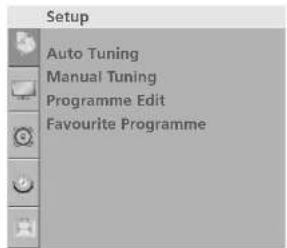
Setup Auto Tuning Manual Tuning Programme Edit Favourite ProgrammeSetup MENU

text_image
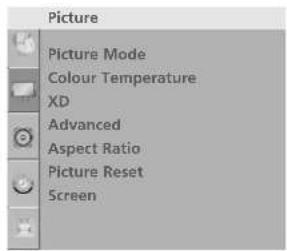
Picture Picture Mode Colour Temperature XD Advanced Aspect Ratio Picture Reset ScreenPicture MENU


text_image
Audio Sound Mode Auto Volume Balance 0 TV Speaker Audio OutAudio MENU
Except 22LG3***

PLASMA TV models
text_image
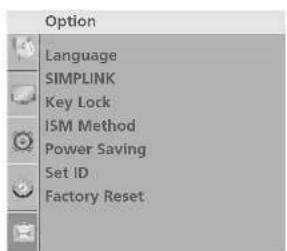
Option Language SIMPLINK Key Lock ISM Method Power Saving Set ID Factory ResetOption MENU
LCD TV models

text_image
Option Language SIMPLINK Key Lock Set ID Power Indicator Factory Reset or Except 22LG3 ***


text_image
Time Clock Off Time On Time Sleep Timer Auto SleepTime MENU
NOTE
a. The OSD (On Screen Display) function enables you to adjust the screen status conveniently since it provides graphical presentation.
b. In this manual, the OSD (On Screen Display) may be different from your TV's because it is just example to help the TV operation.
c. In the teletext mode, menus are not displayed.
AUTO PROGRAMME TUNING
Up to 100 TV stations can be stored by programme numbers (0 to 99). Once you have preset the stations, you will be able to use the P ^/√ (or PR ▲/▼) or NUMBER buttons to scan the stations you have programmed.
Stations can be tuned using automatic or manual modes.
All stations which can be received are stored by this method. It is recommended that you use Auto tuning during installation of this TV.
1 Press the MENU button and then ^/√ button to select the Setup menu.
2 Press the button and then ∧/∨ button to select Auto Tuning.
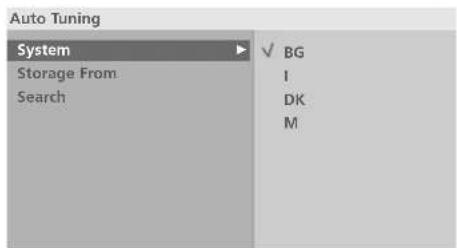
3 Press the button and then ^ // ∨ button to select System.
4 Press the ^/√ button to select a TV system menu; BG: PAL B/G, SECAM B/G (Europe / East Europe / Asia / New Zealand / M.East / Africa / Australia) I : PAL I/II (U.K. / Ireland / Hong Kong / South Africa) DK: PAL D/K, SECAM D/K (East Europe / China / Africa / CIS) M : (USA / Korea / Philippines)
5 Press the ^/√ button to select Storage From.
6 Press the < //> button or NUMBER buttons to select the initial programme number. If you use NUMBER buttons, any number under 10 is entered with a numeric '0' in front of it, i.e.'05' for 5.
7 Press the ^/√ button to select Search.
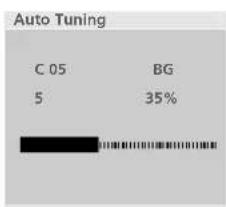
8 Press the button to begin auto tuning. All receivable stations are stored.
To stop auto tuning, press the RETURN or MENU(Only 22LG3 *** ) button.
When auto tuning is complete, the Programme edit menu appears on the screen. See the Programme edit section to edit the stored programme.
9 Press the MENU button to return to normal TV viewing. Press the RETURN or MENU(Only 22LG3 *** ) button to move to the previous menu screen.
text_image
Setup Auto Tuning Manual Tuning Programme Edit Favourite Programme1

text_image
Setup Auto Tuning Manual Tuning Programme Edit Favourite Programme To Set2
text_image
Auto Tuning System ✓ BG Storage From I Search DK M3 4 5 6 7
text_image
Auto Tuning C 05 BG 5 35%8
WATCHING TV / PROGRAMME CONTROL
MANUAL PROGRAMME TUNING
Manual programme lets you manually tune and arrange the stations in whatever order you desire.
1 Press the MENU button and then ^/√ button to select the Setup menu.
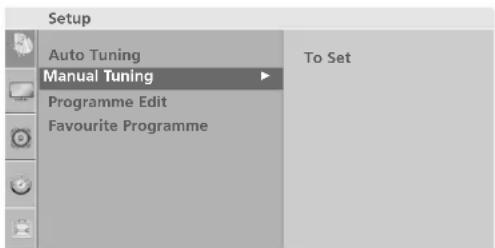
2 Press the button and then ^/√ button to select Manual Tuning.
3 Press the > button and then ^/√ button to select Storage.
4 Press the < //> button or NUMBER buttons to select the desired programme number (0 to 99). If you use NUMBER buttons, any number under 10 is entered with a numeric '0' in front of it, i.e. '0 5' for 5.
5 Press the ^/√ button to select System.
6 Press the ^/√ button to select a TV system menu; BG: PAL B/G, SECAM B/G (Europe / East Europe / Asia / New Zealand / M.East / Africa / Australia)
I : PAL I/II (U.K. / Ireland / Hong Kong / South Africa)
DK: PAL D/K, SECAM D/K (East Europe / China / Africa / CIS)
M : (USA / Korea / Philippines)
7 Press the ∧/√ button to select Band.
8 Press the button and then ∧/√ button to select V/UHF or Cable.
9 Press the ^/√ button to select Channel.
10 You can select the desired programme number with the < //> button or NUMBER buttons. If possible, select the programme number directly with the number buttons. Any number under 10 is entered with a numeric '0' in front of it, i.e. '05' for 5.
11 Press the ^/√ button to select Search.
12 Press the < / / button to commence searching. If a station is found the search will stop.
13 Press the OK button to store it.
14 To store another station, repeat steps3 to 13.
15 Press the MENU button to return to normal TV viewing. Press the RETURN or MENU(Only 22LG3***) button to move to the previous menu screen.

text_image
Setup Auto Tuning Manual Tuning Programme Edit Favourite Programme1
text_image
Setup Auto Tuning Manual Tuning Programme Edit Favourite Programme To Set2

text_image
Manual Tuning Storage System Band Channel Fine Search Name Booster 99
FINE TUNING
Normally fine tuning is only necessary if reception is poor.
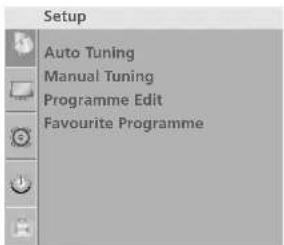
1 Press the MENU button and then ^/√ button to select the Setup menu.
2 Press the button and then ∧/√ button to select Manual Tuning.
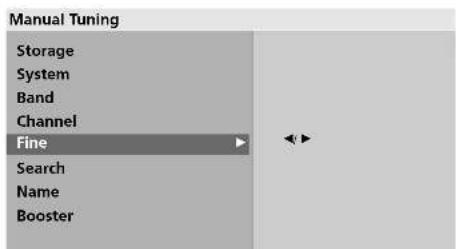
3 Press the button and then ∧/√ button to select Fine.
4 Press the button and then < //> button to fine tune for the best picture and sound.
5 Press the OK button to store it.
6 Press the MENU button to return to normal TV viewing. Press the RETURN or MENU(Only 22LG3***) button to move to the previous menu screen.
text_image
Setup Auto Tuning Manual Tuning Programme Edit Favourite Programme1

text_image
Setup Auto Tuning Manual Tuning Programme Edit Favourite Programme To Set2
text_image
Manual Tuning Storage System Band Channel Fine Search Name Booster3 4 5
WATCHING TV / PROGRAMME CONTROL
ASSIGNING A STATION NAME
You can assign a station name up to five characters to each programme number.
1 Press the MENU button and then ^ // button to select the Setup menu.
2 Press the button and then ^/√ button to select Manual Tuning.
3 Press the button and then ^/√ button to select Name.
4 Press the button and then ^/√ button. You can use a blank, +, -; the number 0 to 9 and the alphabet A to Z.
5 Press the <//> button to select the position and make your choice of the second character, and so on.
6 Press the OK button to store it.
7 Press the MENU button to return to normal TV viewing. Press the RETURN or MENU(Only 22LG3***) button to move to the previous menu screen.
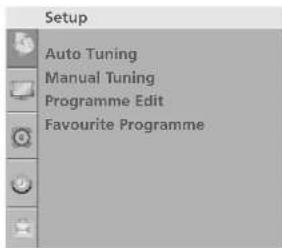
text_image
Setup Auto Tuning Manual Tuning Programme Edit Favourite Programme1
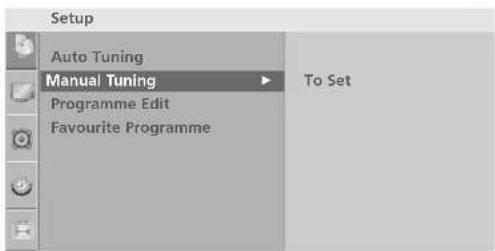
text_image
Setup Auto Tuning Manual Tuning Programme Edit Favourite Programme To Set2

text_image
Manual Tuning Storage System Band Channel Fine Search Name C 05 Booster3456
BOOSTER
In some models, Booster is an optional function. Only a set with Booster can perform this function.
If reception is poor select Booster to On.
When the signal is strong, select "OFF".
1 Press the MENU button and then ^/√ button to select the Setup menu.
2 Press the button and then ^/√ button to select Manual Tuning.
3 Press the button and then use ∧/∨ button to select Booster.
4 Press the button and then use ∧/√ button to select OOR or Off.
5 Press the MENU button to return to normal TV viewing. Press the RETURN or MENU(Only 22LG3***) button to move to the previous menu screen.

text_image
Setup Auto Tuning Manual Tuning Programme Edit Favourite Programme1
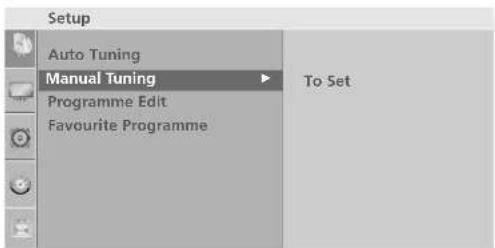
text_image
Setup Auto Tuning Manual Tuning Programme Edit Favourite Programme To Set2

text_image
Manual Tuning Storage System Band Channel Fine Search Name Booster ✓ Off On3 4 5 6
WATCHING TV / PROGRAMME CONTROL
PROGRAMME EDIT
This function enables you to delete or skip stored programmes. Also you can move some stations to other programme numbers or copy a blank station data into the selected programme number.
1 Press the MENU button and then ^/√ button to select the Setup menu.
2 Press the button and then ∧/√ button to select Programme Edit.
3 Press the > button to display the Programme edit menu.
■Deleting a programme
- Select a programme to be deleted with the ^/ ∨ / < / > button.
- Press the RED button twice.
The selected programme is deleted, all the following programmes are shifted up one position.
■ Copying a programme
-
Select a programme to be copied with the ^/∨/< / > button.
-
Press the GREEN button.
All the following programmes are shifted down one position.
■ Moving a programme
-
Select a programme to be moved with the ∧/∨/</> button.
-
Press the YELLOW button.
-
Move the programme to the desired programme number with the ^/ ∨ / < / > button.
-
Press the YELLOW button again to release this function.
■Skipping a programme number
-
Select a programme number to be skipped with the ^/√ /</> button.
-
Press the BLUE button. The skipped programme turns to blue.
-
Press the BLUE button again to release the skipped programme.
When a programme number is skipped it means that you will be unable to select it using the ^/√ button during normal TV viewing. If you wish to select the skipped programme, directly enter the programme number with the NUMBER buttons or select it in the programme edit or table menu.
4 Press the MENU button to return to normal TV viewing. Press the RETURN or MENU(Only 22LG3***) button to move to the previous menu screen.

text_image
Setup Auto Tuning Manual Tuning Programme Edit Favourite Programme1
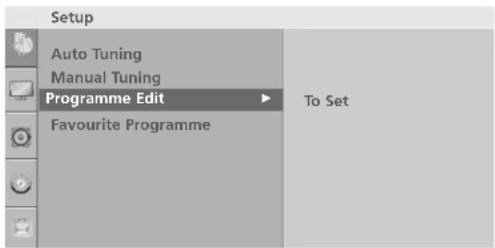
text_image
Setup Auto Tuning Manual Tuning Programme Edit Favourite Programme To Set2

text_image
Programme Edit 0 C 03 5 S 69 1 BLN 03 6 S 17 2 C 12 7 S 22 3 S 66 8 C 09 4 S 67 9 C 11 Delete Copy Move Skip3
FAVOURITE PROGRAMME
This function lets you select your favourite programmes directly.
Repeatedly press the FAV button to select stored favourite programmes.
Repeatedly press the YELLOW button to select stored favourite programmes (Only 22LG3**).
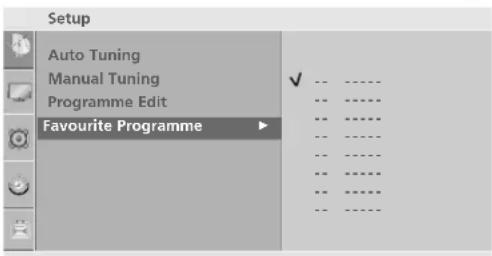
1 Press the MENU button and then ^/√ button to select the Setup menu.
2 Press the button and then ^/√ button to select Favourite Programme.
3 Press the > button.
4 Press the ^/√ button to select - - - - - .
5 Select a desired programme with the < //> button or NUMBER buttons. Any number under 10 is entered with a numeric '0' in front of it, i.e. '0 5' for 5.
6 To store another programme, repeat steps4 to 5. You can store up to 8 programmes.
7 Press the MENU button to return to normal TV viewing. Press the RETURN or MENU(Only 22LG3***) button to move to the previous menu screen.

text_image
Setup Auto Tuning Manual Tuning Programme Edit Favourite Programme1
text_image
Setup Auto Tuning Manual Tuning Programme Edit Favourite Programme2345
WATCHING TV / PROGRAMME CONTROL
SELECTING THE PROGRAMME LIST
You can check which programmes are stored in the memory by displaying the programme list.
■Displaying programme list
Press the LIST button to display the Programme list menu.
The programme list appears on the screen.
One programme list contains ten programmes as shown.

NOTE
a. You may find some blue programmes. They have been set up to be skipped by auto programming or in the programme edit mode.
b. Some programmes with the channel number shown in the programme list indicate there is no station name assigned.
■ Selecting a programme in the programme list
Select a programme with the ^/∨/ < / > button.
Then press the OK button. The TV switches to the chosen programme number.
■ Paging through a programme list
There are 10 programme table pages in which contain 100 programmes. Pressing the ^/√/ < / > button repeatedly turns the pages.
Press the LIST button to return to normal TV viewing.
Programme List
| 0 | C | 03 | 5 | 5 | 69 |
| 1 | BLN | 03 | 6 | S | 17 |
| 2 | C | 12 | 7 | S | 22 |
| 3 | S | 66 | 8 | C | 09 |
| 4 | S | 67 | 9 | C | 11 |

(Except 22LG3\*\*\*)
This function operates only with devices with the SIMPLINK logo. Please check the SIMPLINK logo.
The product might not function properly when using it with other products with HDMI-CEC function.
This allows you to control and play other AV devices connected to the display through HDMI cable without additional cables and settings.
If you do not require the SIMPLINK menu, select "Off".
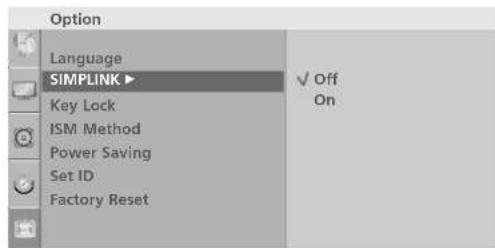
1 Press the MENU button and then ^/√ button to select the Option menu.
2 Press the > button and then ^/√ button to select SIMPLINK.
3 Press the > button and then ^/√ button to select On or Off.
4 Press the MENU button to return to normal TV viewing. Press the RETURN button to move to the previous menu screen.

text_image
Option Language SIMPLINK Key Lock ISM Method Power Saving Set ID Factory Reset1
text_image
Option Language SIMPLINK ▶ Off On Key Lock ISM Method Power Saving Set ID Factory Reset23
WATCHING TV / PROGRAMME CONTROL
SIMPLINK Functions
Disc playback
Control connected AV devices by pressing the ^/√/<</>, OK,▶, ■, || ◀◀ and ▶▶ buttons.
(The ● button does not provide such functions)
Direct Play
After connecting AV devices to the TV, you can directly control the devices and play media without additional settings.
Select AV device
Enables you to select one of the AV devices connected to the TV and operate it.
Power off all devices
When you switch off the TV, all connected devices are turned off.
Switch audio-out
Offers an easy way to switch audio-out.
* A device, which is connected to the TV through a HDMI cable but does not support SIMPLINK, does not provide this function.
SIMPLINK Menu
Press the ^/ ∨ / < / > button and then OK button to select the desired SIMPLINK source.
1 TV viewing : Switch to the previous TV programme regardless of the current mode.
2 DISC playback : Select and play discs. When multiple discs are available, the titles of the discs are conveniently displayed at the bottom of the screen.
3 VCR playback : Control the connected VCR.
4 HDD Recordings playback : Control recordings stored in HDD.
5 Audio Out to Home theater/Audio Out to TV : Select Home theater or TV speaker for Audio Out.

text_image
SIMPLINK 1 TV Selected Device 2 DISC 3 VCR When device is not connected (displayed in gray) 4 HDD Recorder 5 SPEAKER TV Speaker When a device is connected (displayed in bright colour) ▲ ▲ OKNOTE
Connect the HDMI/DVI IN or HDMI IN terminal of the TV to the rear terminal and Side terminal (HDMI terminal) of the SIMPLINK device with the HDMI cable.
▶ After connecting the HDMI terminal for the home theatre with SIMPLINK function using the above method, connect the VARIABLE AUDIO OUT terminal on the back of the TV to the VARIABLE AUDIO IN terminal on the back of the SIMPLINK device with the VARIABLE AUDIO OUT cable.
▶ When operating an external device with SIMPLINK, press the TV button from the MODE button on the remote control.
When you switch the Input source using the INPUT button on the remote control, you can stop the operation of a device controlled by SIMPLINK.
When you select or operate a media device with home theatre function, the speaker automatically switches to home theatre speaker (HT speaker).
KEY LOCK
The TV can be set so that the remote control is needed to control it.
This feature can be used to prevent unauthorized viewing.
This TV is programmed to remember which option it was last set to even if you turn the TV off.
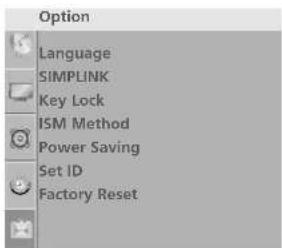
1 Press the MENU button and then ^/√ button to select the Option menu.
2 Press the > button and then ^ // button to select Key Lock.
3 Press the > button and then ^ // button to select On or Off.
4 Press the MENU button to return to normal TV viewing. Press the RETURN or MENU(Only 22LG3*** ) button to move to the previous menu screen.
text_image
Option Language SIMPLINK Key Lock ISM Method Power Saving Set ID Factory Reset1

text_image
Option Language SIMPLINK Key Lock ISM Method Power Saving Set ID Factory Reset23
NOTE
In Key Lock 'O' if the TV is turned off, press the ⏻ / I, INPUT, P ▲ / ▼ (or PP^/√ or PR ▲ // ▼) button on the TV or POWER, INPUT, TV, P ^/√ (or PR ▲ / ▼) or NUMBER buttons on the remote control.
With the Key Lock On, the display 'Key Lock On' appears on the screen if any button on the front panel is pressed while viewing the TV.
WATCHING TV / PROGRAMME CONTROL
AV MODE (Except 22LG3\*\*\*)
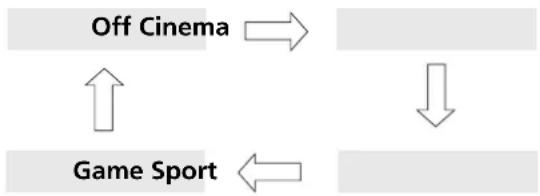
You can select the optimal images and sounds when connecting AV devices to external input.
flowchart
graph TD
    A["Off Cinema"] --> B["Game Sport"]
    B --> C["Downward Arrow"]
    C --> D["Downward Arrow"]
    D --> A
1 Press the AV MODE button repeatedly to select the desired source.
- If you select Cinema Mode in AV mode, Cinema mode will be selected both for Picture Mode and Sound Mode in Picture menu and Audio menu respectively.
- If you select "Off" in AV mode, the picture and image which you initially set will be selected.
2 Press the RETURN button to return to normal TV viewing.
PICTURE CONTROL
WATCHING PIP(PICTURE-IN-PICTURE) (Except 22LG3\*\*\* )
PIP lets you view 2 different inputs (sources) on your TV screen at the same time.
One source will be large, and the other source will show a smaller inset image.
PIP function is available in the Component, RGB, HDMI mode.
(For Full HD, it can support TV, AV1, AV2 mode.)
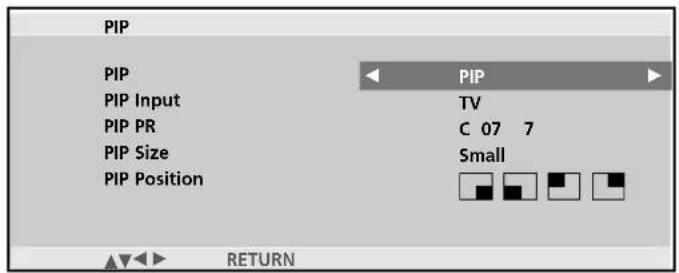
text_image
PIP PIP PIP Input PIP PR PIP Size PIP Position PIP TV C 07 7 Small RETURNWatching PIP/Double Window
Press the PIP button and then press the ^/√/<</> button to change the PIP options as shown below.
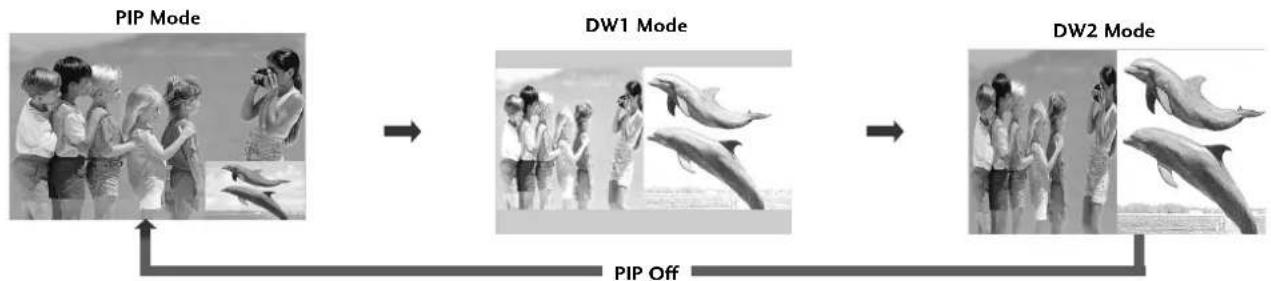
flowchart
graph LR
    A["PIP Mode"] --> B["DW1 Mode"]
    B --> C["DW2 Mode"]
    D["PIP Off"] --> A
    E["PIP Off"] --> B
    F["PIP Off"] --> C
Programme Selection for Sub Picture
Press the PIP button and then press the ^/√/ < / > button to select a programme for the sub picture. The selected programme number is displayed just below the programme number of main picture.
Input Source Selection for Sub Picture
Press the PIP button and then press the ^/∨/ < / > button to select the PIP Input source for the sub picture. (Sub picture can be selected only TV, AV1, AV2)
Sub Picture Size Adjustment (PIP mode only)
Press the PIP button and then press the ^/√/<</> button to adjust the sub picture size.
Moving the Sub Picture (PIP mode only)
Press the PIP button and then press the ^/√/<</> button to adjust the sub picture position.
PICTURE CONTROL
PICTURE SIZE (ASPECT RATIO)CONTROL
You can watch the screen in various picture formats; 16:9, Original, 4:3, 14:9, Zoom1/2 and Just Scan(Except 22LG3**).
Just Scan works in the following mode: Component (720p/1080i/1080p), HDMI (720p/1080i/1080p)
If a fixed image is displayed on the screen for a long time, that fixed image may become imprinted on the screen and remain visible.
You can adjust the enlarge proportion using ^ ∨ button.
This function works in the following signal.
1
You can adjust Aspect Ratio in the Picture menu.
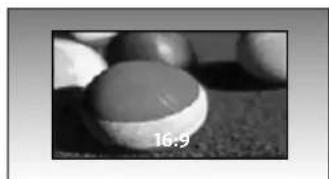
• 16:9
The following selection will allow you to adjust the picture horizontally, in linear proportion, to fill the entire screen(useful for viewing 4:3 formatted DVDs).
natural_image
Close-up of a round, smooth stone ball on a textured surface (no text or symbols visible)- Original
When your TV receives a wide screen signal it will automatically change to the picture format to be broadcast.
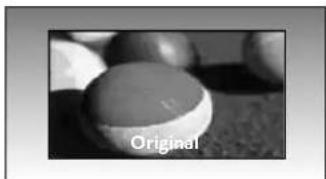
natural_image
Close-up of a round, smooth object with a circular top and label 'Original' (no other text or symbols visible)• 4:3
The following selection will allow you to view a picture with an original 4:3 aspect ration, grey bars will appear on both the left and right hand of the screen.
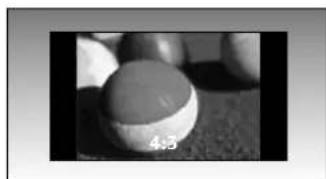
natural_image
Close-up of a round, dome-shaped object on a textured surface (no visible text or symbols)• 14:9
You can view a picture format of 14:9 or a general TV programme in the 14:9 mode. The 14:9 screen is viewed in the same way as in 4:3, but is magnified to the left and right.

natural_image
Close-up of a round, dome-shaped object with a visible scale marker (14:9) and arrow, no readable text or symbols on the object itself.- Zoom1
The following selection will allow you to view the picture without any alteration, while filling the entire screen. However, the top and bottom of the picture will be cropped.

natural_image
Close-up of a spherical object with a circular top, labeled 'Zooml' and 'AV', on a textured surface (no other text or symbols visible)- Zoom2
Choose Zoom 2 when you wish the picture to be altered, both horizontally extended and vertically cropped. The picture adopting a compromise between alteration and screen coverage.
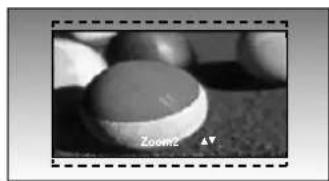
natural_image
Close-up of a pool with labeled 'Zoom2' and a triangle marker (no other text or symbols)- Just Scan(Except 22LG3\*\*\*)
Following Selection will lead to you view the picture of best quality without loss of original picture in high resolution image.

NOTE
▶ You can only select 4:3,16:9 (Wide) in Component, HDMI, RGB(PC) mode.
In HDMI/Component (over 720p)mode, Just Scan(Except 22LG3*** ) is available.
PICTURE CONTROL
PRESET PICTURE SETTINGS
Picture Mode-Preset
Picture Mode adjusts the TV for the best picture appearance. Select the preset value in the Picture Mode menu based on the programme category.
Cable(26/32/37/42/47/LG3** Only), Intelligent Sensor (37/42/47/52LG5** Only), Vivid, Standard, Cinema, Sport and Game are programmed for optimum picture reproduction at the factory and cannot be changed.
When the Intelligent Sensor function is on, the most suitable picture is automatically adjusted according to the surrounding conditions(37/42/47/52LG5** Only).
Cable works in the following mode: AV1, AV2
1 Press the MENU button and then ^/√ button to select the Picture menu.
2 Press the > button and then ^/√ button to select Picture Mode.
3 Press the > button and then ^/ ∨ button to select Cable(26/32/37/42/47LG3**Only), Intelligent Sensor(37/42/47/52LG5*** Only), Vivid, Standard, Cinema, Sport, Game, User1 or User2.
4 Press the MENU button to return to normal TV viewing. Press the RETURN or MENU(Only 22LG3*** ) button to move to the previous menu screen.
text_image
Picture Picture Mode Colour Temperature XD Advanced Aspect Ratio Picture Reset Screen1

text_image
Picture Picture Mode Colour Temperature XD Advanced Aspect Ratio Picture Reset Screen ✓ Cable Intelligent Sensor Vivid Standard Cinema Sport Game User1 User223
Auto Colour Tone Control(Cool/Medium/Warm)
To initialize values (reset to default settings), select the Cool option.
Choose one of three automatic colour adjustments. Set to warm to enhance hotter colours such as red, or set to cool to see less intense colours with more blue.
This menu is activated after selecting "User1" or "User2" in the Picture Mode.
1 Press the MENU button and then ^/√ button to select the Picture menu.
2 Press the button and then ^/√ button to select Colour Temperature.
3 Press the button and then ^/√ button to select either Cool, Medium, Warm or User.
4 Press the MENU button to return to normal TV viewing. Press the RETURN or MENU(Only 22LG3*** ) button to move to the previous menu screen.
text_image
Picture Picture Mode Colour Temperature XD Advanced Aspect Ratio Picture Reset Screen1

text_image
Picture Picture Mode Colour Temperature XD Advanced Aspect Ratio Picture Reset Screen Cool Medium Warm User2 3
MANUAL PICTURE ADJUSTMENT
Picture Mode-User Option
| Backlight | To control the brightness of the screen, adjust the brightness of LCD panel. |
| Contrast | Adjusts the difference between light and dark levels in the picture. |
| Brightness | Increases or decreases the amount of white in the picture. |
| Colour | Adjusts intensity of all colours. |
| Sharpness | Adjusts the level of crispness in the edges between the light and dark areas of the picture. The lower the level, the softer the image. |
| Tint | Adjusts the balance between red and green levels. |
1 Press the MENU button and then ^ // ∨ button to select the Picture menu.
2 Press the button and then ^ // button to select Picture Mode.
3 Press the button and then ^/√ button to select User1 or User2.
4 Press the button and then ^ // button to select the desired picture option (Backlight(LCD TV Only), Contrast, Brightness, Colour, Sharpness and Tint).
5 Press the < //> button to make appropriate adjustments.
6 Press the MENU button to return to normal TV viewing. Press the RETURN or MENU(Only 22LG3***) button to move to the previous menu screen.
NOTE
▶ You cannot adjust colour, sharpness and tint in the RGB-PC mode.

text_image
Picture Picture Mode Colour Temperature XD Advanced Aspect Ratio Picture Reset Screen1

text_image
Picture Picture Mode Colour Temperature XD Advanced Aspect Ratio Picture Reset Screen Cable Intelligent Sensor Vivid Standard Cinema Sport Game ✓ User1 User223

text_image
User1 Backlight 100 Contrast 100 ▶ Brightness 50 Colour 50 Sharpness 50 Tint 04 5

Colour Tone - User Option
To adjust red, green, blue to any colour temperature you prefer.
This menu is activated after selecting "User1" or "User2" in the Picture Mode.
1 Press the MENU button and then ^/√ button to select the Picture menu.
2 Press the button and then / / button to select Colour Temperature.
3 Press the > button and then ^/√ button to select User.
4 Press the > button and then ^ // ∨ button to select Red, Green or Blue.
5 Press the < //> button to make appropriate adjustments.
6 Press the MENU button to return to normal TV viewing. Press the RETURN or MENU(Only 22LG3***) button to move to the previous menu screen.
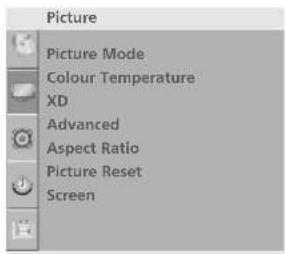
text_image
Picture Picture Mode Colour Temperature XD Advanced Aspect Ratio Picture Reset Screen1

text_image
Picture Picture Mode Colour Temperature XD Advanced Aspect Ratio Picture Reset Screen Cool Medium Warm ✓ User23
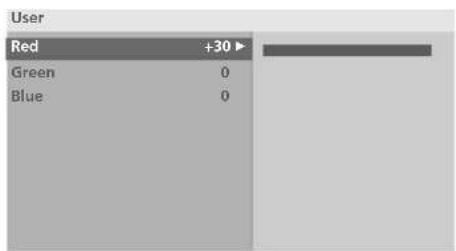
text_image
User Red +30 Green 0 Blue 04 5

PICTURE CONTROL
XD - PICTURE IMPROVEMENT TECHNOLOGY
XD is LG electronic's unique picture improving technology to display a real HD source through an advanced digital signal processing algorithm.
It is not possible to use this function in RGB-PC mode.
1 Press the MENU button and then ^/√ button to select the Picture menu.
2
Press the button and then ^/√ button to select X×D
3 Press the button and then ^/√ button to select Auto or Manual.
4 Press the MENU button to return to normal TV viewing. Press the RETURN or MENU(Only 22LG3***) button to move to the previous menu screen.
* Manual Selection
This menu is activated after selecting the User1 or User2 of Picture Mode.
1 Press the > button and then ^/√ button to select XX DD Contrast, XD Colour or XD NR.
2 Press the > button and then ^/√ button to select Off, Low or High.
Select Off, Low, High or Adaptive (Only XD NR).
3 Press the MENU button to return to normal TV viewing. Press the RETURN or MENU(Only 22LG3*** ) button to move to the previous menu screen.
■ XD Contrast : Optimises the contract automatically according to the brightness of the reflection.
■ XD Colour : Adjusts the colour of the reflection automatically to reproduce as close as possible to natural colours.
■ XD NR : Removes interference up to the point where it does not damage the original picture.
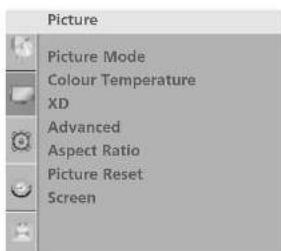
text_image
Picture Picture Mode Colour Temperature XD Advanced Aspect Ratio Picture Reset Screen1
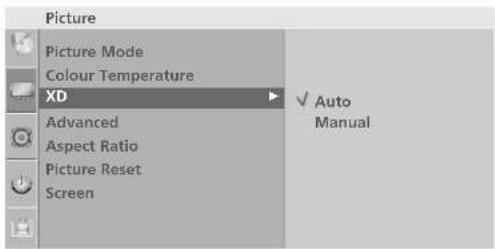
text_image
Picture Picture Mode Colour Temperature XD Advanced Aspect Ratio Picture Reset Screen ✓ Auto Manual23
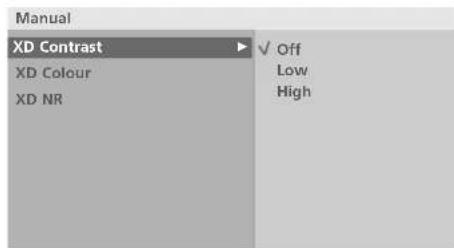
text_image
Manual XD Contrast XD Colour XD NR ✓ Off Low High1 2
ADVANCED - GAMMA
High gamma values display whitish images and low gamma values display high contrast images.
It's not possible to use this function in RGB-PC mode.
1 Press the MENU button and then ^/√ button to select the Picture menu.
2 Press the button and then ^/√ button to select Advanced.
3 Press the button and then ^/√ button to select Gamma
4 Press the button and then ^/√ button to select Low, Medium or High.
5 Press the MENU button to return to normal TV viewing. Press the RETURN or MENU(Only 22LG3***) button to move to the previous menu screen.
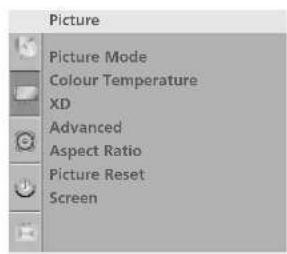
text_image
Picture Picture Mode Colour Temperature XD Advanced Aspect Ratio Picture Reset Screen1

text_image
Picture Picture Mode Colour Temperature XD Advanced Aspect Ratio Picture Reset Screen To Set23
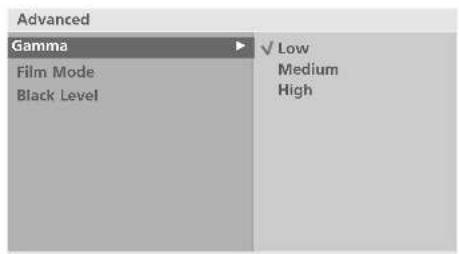
text_image
Advanced Gamma Film Mode Black Level ✓ Low Medium High4
PICTURE CONTROL
ADVANCED - Film Mode
To set the TV up for the best picture quality for viewing films.
This feature operates only in Analog TV, AV, S-video and Component 480i/576i mode.
1 Press the MENU button and then ^/√ button to select the Picture menu.
2 Press the button and then ^/√ button to select Advanced.
3 Press the button and then ^/√ button to select Film Mode.
4 Press the > button and then ^/√ button to select On or Off.
5 Press the MENU button to return to normal TV viewing. Press the RETURN or MENU(Only 22LG3*** ) button to move to the previous menu screen.
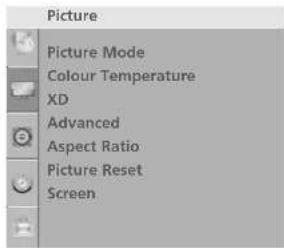
text_image
Picture Picture Mode Colour Temperature XD Advanced Aspect Ratio Picture Reset Screen1
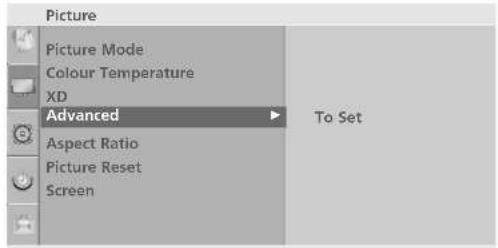
text_image
Picture Picture Mode Colour Temperature XD Advanced Aspect Ratio Picture Reset Screen To Set23

text_image
Advanced Gamma Film Mode Black Level ✓ Off On4
When you view a film this function adjust the TV to best picture quality. Adjusting the contrast and the brightness of the screen using the black level of the screen.
This function works in the following mode: RF(NTSC-M), AV, S-Video(NTSC-M, NTSC 4.43), COMPONENT or HDMI.
1 Press the MENU button and then ^/√ button to select the Picture menu.
2 Press the button and then ^/√ button to select Advanced.
3 Press the button and then ^ //▼ button to select Black Level.
4 Press the button and then ^/√ button to select Low or High.
■ Low : The reflection of the screen gets darker.
■ High : The reflection of the screen gets brighter.
5 Press the MENU button to return to normal TV viewing. Press the RETURN or MENU(Only 22LG3***) button to move to the previous menu screen.
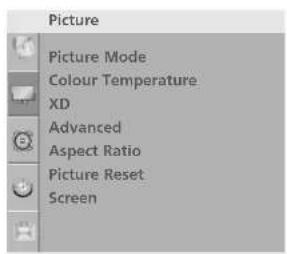
text_image
Picture Picture Mode Colour Temperature XD Advanced Aspect Ratio Picture Reset Screen1

text_image
Picture Picture Mode Colour Temperature XD Advanced Aspect Ratio Picture Reset Screen To Set23

text_image
Advanced Gamma Film Mode Black Level ✓ Low High4
PICTURE CONTROL
ADVANCED - Eye Care (Except Plasma TV models, 22LG3\*\*\*)
This feature is not available for all models.
It helps you adjust brightness when the screen is too bright to prevent dazzling.
When selecting Picture Mode (Standard, Game, Sport, User1 and User2), you can operate this function.
1 Press the MENU button and then ^/√ button to select the Picture menu.
2 Press the button and then ^/√ button to select Advanced.
3 Press the button and then ^/√ button to select Eye Carw.
4 Press the button and then ^/√ button to select On or Off.
5 Press the MENU button to return to normal TV viewing. Press the RETURN button to move to the previous menu screen.
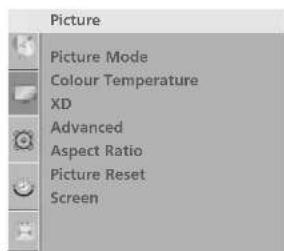
text_image
Picture Picture Mode Colour Temperature XD Advanced Aspect Ratio Picture Reset Screen1
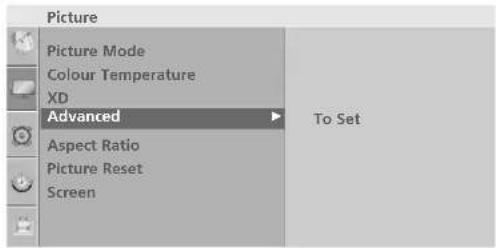
text_image
Picture Picture Mode Colour Temperature XD Advanced Aspect Ratio Picture Reset Screen To Set② 3
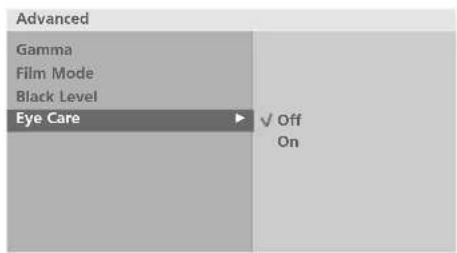
text_image
Advanced Gamma Film Mode Black Level Eye Care ✓ Off On4
PICTURE RESET
Returns to the default factory setting for Picture Mode, Colour Temperature, XD, Advanced, Aspect Ratio.
1 Press the MENU button and then ∧/√ button to select the Picture menu.
2 Press the button and then ∧/√ button to select Picture Reset.
3 Press the button to initialize the adjusted value.
4 Press the MENU button to return to normal TV viewing. Press the RETURN or MENU(Only 22LG3***) button to move to the previous menu screen.
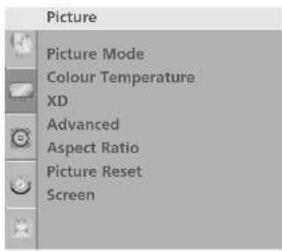
text_image
Picture Picture Mode Colour Temperature XD Advanced Aspect Ratio Picture Reset Screen1
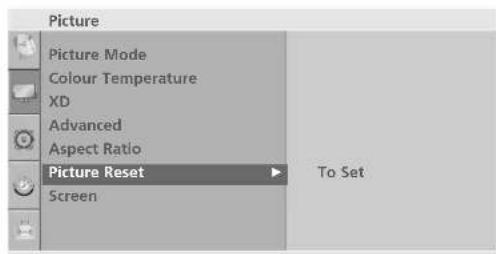
text_image
Picture Picture Mode Colour Temperature XD Advanced Aspect Ratio Picture Reset Screen To Set23
PICTURE CONTROL
IMAGE STICKING MINIMIZATION(ISM)METHOD (ONLY PLASMA TV MODELS)
A frozen or still picture from a PC/Video game displayed on the screen for prolonged periods will result in a ghost image remaining even when you change the image. Avoid allowing a fixed image to remain on the screen for prolonged periods.
White Wash
White wash removes permanent images from the screen.
Note: An excessive permanent image may be impossible to clear entirely with White Wash.
Orbiter
Orbiter may help prevent ghost images. However, it is best not to allow any fixed image to remain on the screen. To avoid a permanent image on the screen, the screen will move every 2 minutes.
Inversion
This function inverts the panel colour of the screen. The panel colour is automatically inverted every 30 minutes.

text_image
Option Language SIMPLINK Key Lock ISM Method Power Saving Set ID Factory Reset1
1 Press the MENU button and then ∧/∨ button to select the Option menu.
2 Press the button and then ∧/√ button to select ISM Method.
3 Press the button and then ^ // button to select either Normal, White Wash, Orbiter or Inversion. If you do not need this function, set Normal.
4 Press the MENU button to return to normal TV viewing. Press the RETURN button to move to the previous menu screen.
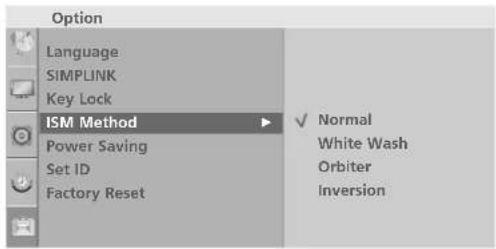
text_image
Option Language SIMPLINK Key Lock ISM Method Power Saving Set ID Factory Reset Normal White Wash Orbiter Inversion23
POWER SAVING PICTURE MODE
(ONLY PLASMA TV MODELS)
This function allows you to reduce the power consumption of the TV.
1 Press the MENU button and then ^/√ button to select the Option menu.
2 Press the button and then ∧/√ button to select Power Saving.
3 Press the button and then ^/√ button to select power levels.
4 Press the MENU button to return to normal TV viewing. Press the RETURN button to move to the previous menu screen.
POWER INDICATOR
(Except Plasma TV models, 22LG3*** )
It helps you adjust the brightness of moving LED when power is turned on.
1 Press the MENU button and then ^/√ button to select the Option menu.
2 Press the button and then ^/√ button to select Power Indicator.
3 Press the button and then ^/√ button to select either Standby Light or Power Light.
4 Press the > button and then ^/√ button to select OOn or Off.
5 Press the MENU button to return to normal TV viewing. Press the RETURN button to move to the previous menu screen.
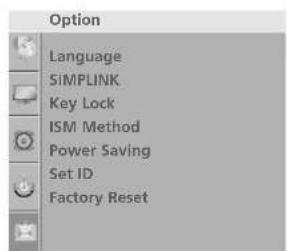
text_image
Option Language SIMLINK Key Lock ISM Method Power Saving Set ID Factory Reset1
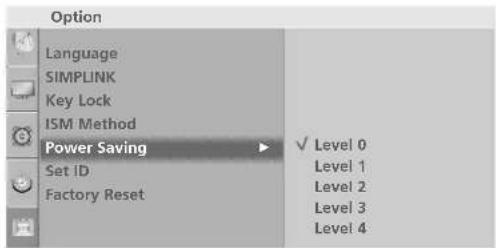
text_image
Option Language SIMPLINK Key Lock ISM Method Power Saving Set ID Factory Reset ✓ Level 0 Level 1 Level 2 Level 3 Level 423
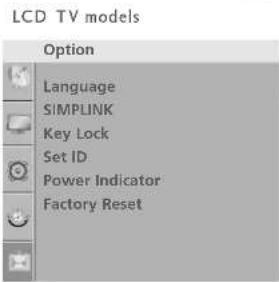
text_image
LCD TV models Option Language SIMPLINK Key Lock Set ID Power Indicator Factory Reset1

text_image
Option Language SIMPLINK Key Lock Set ID Power Indicator Factory Reset To set23
PICTURE CONTROL
FACTORY RESET
Use to quickly reset all the menu options to their original factory preset values.
This function deletes all TV programmes.
1 Press the MENU button and then ^/√ button to select the Option menu.
2 Press the > button and then ^ // ∨ button to select Factory Reset.
3 Press the > button and then < //> button to select Yes or No.
4 Press the MENU button to return to normal TV viewing. Press the RETURN or MENU(Only 22LG3 ^*** ) button to move to the previous menu screen.
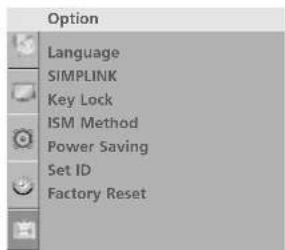
text_image
Option Language SIMPLINK Key Lock ISM Method Power Saving Set ID Factory Reset1

text_image
Option Language SIMPLINK Key Lock ISM Method Power Saving Set ID Factory Reset ► To set23
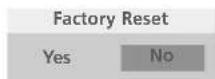
SOUND & LANGUAGE CONTROL
AUTO VOLUME LEVELER
Auto Volume automatically remains on the same level of volume if you change programmes.
1 Press the MENU button and then ^/√ button to select the Audio menu.
2 Press the button and then ^/√ button to select Auto Volume.
3 Press the > button and then ^/√ button to select On or Off.
4 Press the MENU button to return to normal TV viewing. Press the RETURN or MENU(Only 22LG3***) button to move to the previous menu screen.
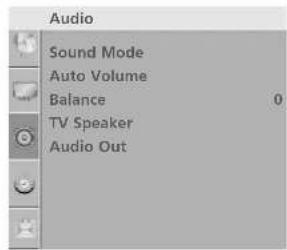
text_image
Audio Sound Mode Auto Volume Balance 0 TV Speaker Audio Out1
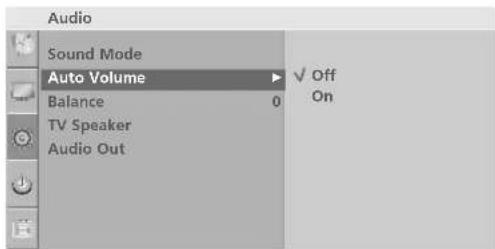
text_image
Audio Sound Mode Auto Volume Balance 0 TV Speaker Audio Out Off On23
SOUND & LANGUAGE CONTROL
You can select your preferred sound setting; SRS TSX Except 22LG3***), Clear Voice(Except 22LG3***), Standard, Music, Cinema, Sport or Game and you can also adjust the frequency of the equalizer.
Sound Mode lets you enjoy the best sound without any Special adjustment as the TV sets the appropriate sound options based on the programme content.
SRS TSXT (Except 22LG3**), Clear Voice(Except 22LG3**), Standard, Music, Cinema, Sport and Game are preset for optimum sound quality at the factory and are not adjustable.
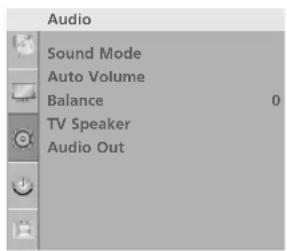
text_image
Audio Sound Mode Auto Volume Balance 0 TV Speaker Audio Out1
1 Press the MENU button and then ∧/∨ button to select the Audio menu.
2 Press the > button and then ^/√ button to select Sound Mode.
3 Press the > button and then ^/√ button to select SRS TSXT (Except 22LG3**), Clear Voice (Except 22LG3**), Standard, Music, Cinema, Sport, Game or User.
4 Press the MENU button to return to normal TV viewing. Press the RETURN or MENU(Only 22LG3***) button to move to the previous menu screen.
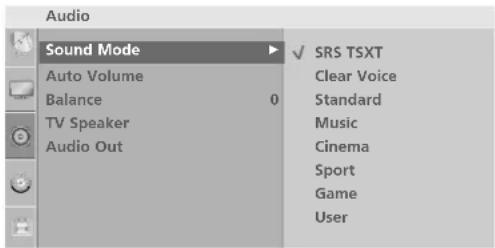
text_image
Audio Sound Mode Auto Volume Balance 0 TV Speaker Audio Out ✓ SRS TSXT Clear Voice Standard Music Cinema Sport Game User23
SOUND SETTING ADJUSTMENT -USER MODE
Adjusting the audio equalizer.
1 Press the MENU button and then ^/√ button to select the Audio menu.
2 Press the button and then ^/√ button to select Sound Mode.
3 Press the > button and then ^/√ button to select User.
4 Press the > button.
5 Select a frequency band by pressing the < //> button. Set the desired sound level with the ^ // ∨ button.
6 Press the MENU button to return to normal TV viewing. Press the RETURN or MENU(Only 22LG3***) button to move to the previous menu screen.
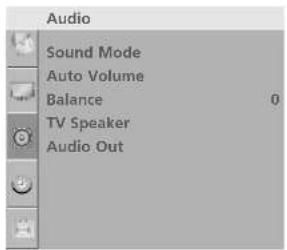
text_image
Audio Sound Mode Auto Volume Balance 0 TV Speaker Audio Out1
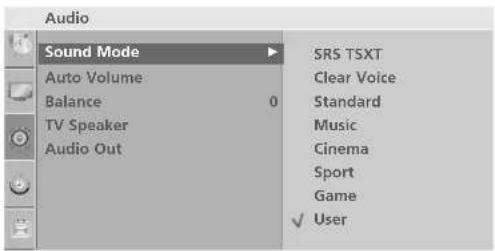
text_image
Audio Sound Mode Auto Volume Balance 0 TV Speaker Audio Out SRS TSXT Clear Voice Standard Music Cinema Sport Game ✓ User2 3 4
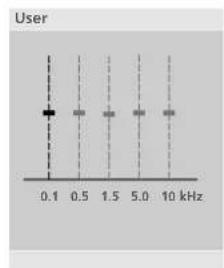
bar
| Frequency (kHz) | Value | |---|---| | 0.1 | 1 | | 0.5 | 2 | | 1.5 | 2 | | 5.0 | 2 | | 10 | 2 |5
SOUND & LANGUAGE CONTROL
BALANCE
You can adjust the sound balance of the speakers to the preferred levels.
1 Press the MENU button and then ^/√ button to select the Audio menu.
2 Press the button and then ^/√ button to select Balance.
3 Press the > button and then < //> button to make desired adjustment.
4 Press the MENU button to return to normal TV viewing. Press the RETURN or MENU(Only 22LG3*** ) button to move to the previous menu screen.
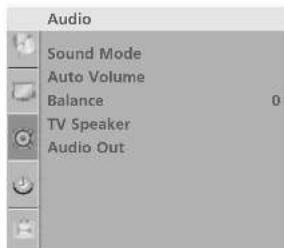
text_image
Audio Sound Mode Auto Volume Balance 0 TV Speaker Audio Out1
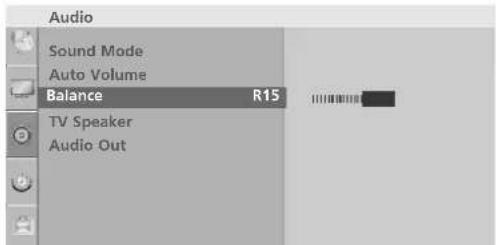
text_image
Audio Sound Mode Auto Volume Balance R15 TV Speaker Audio Out23
TV SPEAKERS ON/OFF SETUP (Except 22LG3\*\*\* )
You can adjust the internal speaker status.
In TV, AV, COMPONENT, RGB[PC] and HDMI mode, internal speaker audio can be operational even though there is no video signal.
If you wish to use an external hi-fi system, turn off the TV internal speakers.
1 Press the MENU button and then ^/√ button to select the Audio menu.
2 Press the > button and then ^ // ∨ button to select TV Speaker.
3 Press the > button and then ^/√ button to select On or Off.
4 Press the MENU button to return to normal TV viewing. Press the RETURN button to move to the previous menu screen.
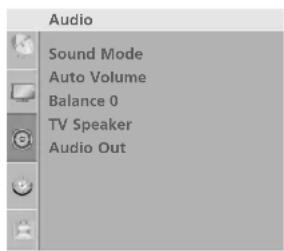
text_image
Audio Sound Mode Auto Volume Balance 0 TV Speaker Audio Out1
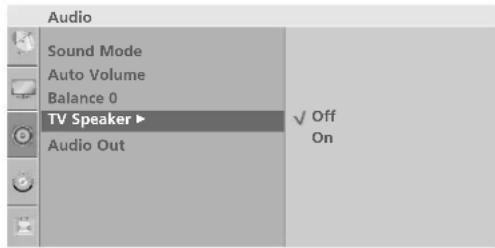
text_image
Audio Sound Mode Auto Volume Balance 0 TV Speaker ▶ Audio Out ✓ Off On23
SOUND & LANGUAGE CONTROL
SELECTING AUDIO OUT (Except 22LG3\*\*\*)
Select Monitor Out or Variable out to connect the audio outputs.
1 Press the MENU button and then ∧/√ button to select the Audio menu.
2 Press the > button and then ^/√ button to select Audio Out.
3 Press the > button and then ^/√ button to select Monitor Out or Variable Out
4 Press the MENU button to return to normal TV viewing. Press the RETURN button to move to the previous menu screen.
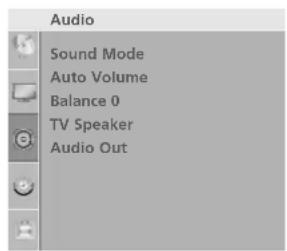
text_image
Audio Sound Mode Auto Volume Balance 0 TV Speaker Audio Out1
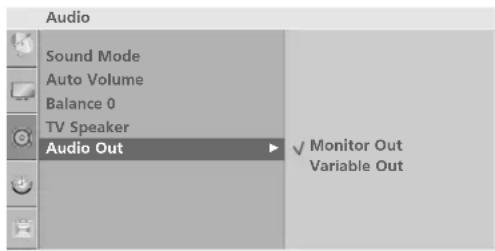
text_image
Audio Sound Mode Auto Volume Balance 0 TV Speaker Audio Out ✓ Monitor Out Variable Out23
I/II
Stereo/Dual Reception
When a programme is selected, the sound information for the station appears with the programme number and station name.
1 Press the Q.MENU button and then ∧/∨ button to select the Multi Audio menu.
2 Press the < //> button to select the sound output.
| Broadcast | On Screen Display |
| Mono | MONO |
| Stereo | STEREO |
| Dual | DUAL I, DUAL II, DUAL I+II |
■Mono sound selection
If the stereo signal is weak in stereo reception, you can switch to mono. In mono reception, the clarity of sound is improved. To switch back to stereo.
■Language selection for dual language broadcast
If a programme can be received in two languages (dual language), you can switch to DUAL I, DUAL II or DUAL I+II.
DUAL I Sends the primary broadcast language to the loudspeakers.
DUAL II Sends the secondary broadcast language to the loudspeakers.
DUAL I+II Sends a separate language to each loudspeaker.
SOUND & LANGUAGE CONTROL
NICAM Reception
If the TV is equipped with a receiver for NICAM reception, high quality NICAM (Near Instantaneous Companding Audio Multiplex) digital sound can be received.
Sound output can be selected according to the type of broadcast received.
1 When NICAM mono is received, you can select NICAM MONO or FM MONO.
2 When NICAM stereo is received, you can select NICAM STEREO or FM MONO. If the stereo signal is weak, switch to FM MONO.
3 When NICAM dual is received, you can select NICAM DUAL I, NICAM DUAL II or NICAM DUAL I+II or FM MONO.
Speaker Sound Output Selection
In AV, Component, RGB and HDMI mode, you can select output sound for the left and right loudspeakers.
Select the sound output.
L+R: Audio signal from audio L input is sent to the left loudspeaker and audio signal from audio R input is sent to the right loudspeaker.
L+L: Audio signal from audio L input is sent to left and right loudspeakers.
R+R: Audio signal from audio R input is sent to left and right loudspeakers.
ON-SCREEN MENU LANGUAGE SELECTION
The menus can be shown on the screen in the selected language. First select your language.
1 Press the MENU button and then use ∧/√ button to select the Option menu.
2 Press the button and then use ^/√ button to select Language.
3 Press the button and then use ^/√/</> button to select your desired language.
4 Press the OK button
5 Press the MENU button to return to normal TV viewing.
Press the RETURN or MENU(Only 22LG3***) button to move to the previous menu screen.
TIME SETTING
CLOCK SETUP
You must set the time correctly before using on/off timer function.
If current time setting is erased by a power failure or the TV is unplugged, reset the clock.
1 Press the MENU button and then ^/√ button to select the Time menu.
2 Press the button and then ^/√ button to select Clock.
3 Press the > button and then ^ / √ button to set the hour.
4 Press the button and then ^/√ button to set the minute.
5 Press the MENU button to return to normal TV viewing. Press the RETURN or MENU(Only 22LG3***) button to move to the previous menu screen.
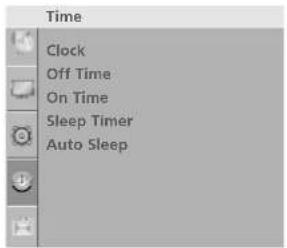
text_image
Time Clock Off Time On Time Sleep Timer Auto Sleep1

text_image
Time Clock Off Time On Time Sleep Timer Auto Sleep2 3 4
AUTO ON/OFF TIMER SETTING
The Off time function automatically switches the TV to standby at a preset time.
Two hours after the TV is switched on by the on time function it will automatically switch back to standby mode unless a button has been pressed.
Once the on time/off time is set, these functions operate daily at the preset time.
The Off time function overrides the On timer function if both are set to the same time.
The TV must be in standby mode for the On timer to work.
1 Press the MENU button and then ^/√ button to select the Time menu.
2 Press the button and then ∧/√ button to select O○/Off Time.
- To cancel O/O/Off Time function, select Off.
3 Press the > button and then ^/√ button to set the hour.
4 Press the button and then ^/√ button to set the minutes.
5 For On Time function only
- Programme: Press the > button and then ^ // ∨ button to select the programme.
- Volume: Press the > button and then ^/√ button to adjust volume level at switch-on.
6 Press the MENU button to return to normal TV viewing. Press the RETURN or MENU(Only 22LG3***) button to move to the previous menu screen.
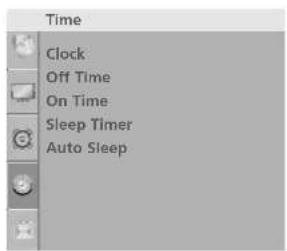
text_image
Time Clock Off Time On Time Sleep Timer Auto Sleep1
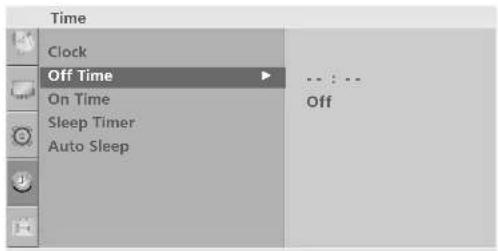
text_image
Time Clock Off Time On Time Sleep Timer Auto Sleep ... : -- Off234

text_image
Time Clock Off Time On Time Sleep Timer Auto Sleep 07:00 PR 1 Vol. 8 On2 3 4 5
TIME SETTING
SLEEP TIMER SETTING
You do not have to remember to switch the TV off before you go to sleep. The sleep timer automatically switches the TV to standby after the preset time has elapsed.
1 Press the MENU button and then ^/√ button to select the Time menu.
2 Press the > button and then ^ // ∨ button to select Sleep Timer.
3 Press the > button and then ^ // button to set the minute.
4 Press the MENU button to return to normal TV viewing. Press the RETURN or MENU(Only 22LG3***) button to move to the previous menu screen.

text_image
Time Clock Off Time On Time Sleep Timer Auto Sleep1
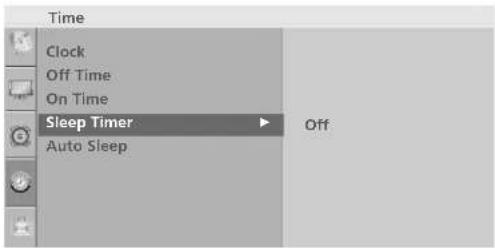
text_image
Time Clock Off Time On Time Sleep Timer Auto Sleep Off234
NOTE
When you switch the TV off, the TV releases the preset sleep time.
AUTO SHUT-OFF SETTING
If the TV set is switched on and there is no input signal, it will switch off automatically after 10 minutes.
1 Press the MENU button and then ^/√ button to select the Time menu.
2 Press the button and then ^/√ button to select Auto Sleep.
3 Press the button and then ^/√ button to select OOn Off.
4 Press the MENU button to return to normal TV viewing. Press the RETURN or MENU(Only 22LG3***) button to move to the previous menu screen.

text_image
Time Clock Off Time On Time Sleep Timer Auto Sleep1
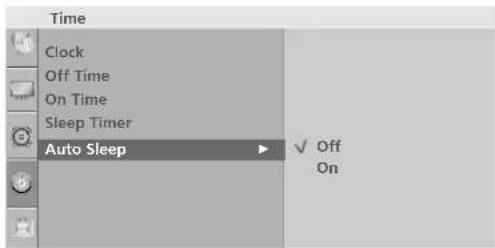
text_image
Time Clock Off Time On Time Sleep Timer Auto Sleep ✓ Off On23
TELETEXT
This feature is not available in all countries.
Teletext is a free service broadcast by most TV stations which gives up-to-the-minute information on news, weather, television programmes, share prices and many other topics.
The teletext decoder of this TV can support the SIMPLE, TOP and FASTEXT systems. SIMPLE (standard tele-text) consists of a number of pages which are selected by directly entering the corresponding page number. TOP and FASTEXT are more modern methods allowing quick and easy selection of teletext information.
SWITCH ON/OFF
Press the TEXT button to switch to teletext. The initial page or last page viewed appears on the screen.
Two page numbers, TV station name, date and time are displayed on the screen headline. The first page number indicates your selection, while the second shows the current page displayed.
Press the TEXT or RETURN button to switch off teletext. The previous mode reappears.
SIMPLE TEXT
Page selection
Enter the desired page number as a three digit number with the NUMBER buttons. If during selection you press a wrong number, you must complete the three digit number and then re-enter the correct page number.
2 The PP↗/√ (or PR ▲/▼) button can be used to select the preceding or following page.
Programming a colour button in LIST mode (Only 22LG3*** )
If the TV is in SIMPLE text, TOP text or FASTEXT mode, press the ☐ button to switch to LIST mode.
Four teletext page numbers of your choice can be colour coded and easily selected by pressing the corresponding coloured button on the remote control handset.
1 Press a coloured button.
2 Using the NUMBER buttons, select the page you wish to programme.
3 Press the O OK button. The selected page is stored as the selected page number, blinking once to confirm this. From now on, you can select this page with the same coloured button.
4 The three other coloured buttons are programmed in this way.
TOP TEXT
The user guide displays four fields-red, green, yellow and blue at the bottom of the screen. The yellow field denotes the next group and the blue field indicates the next block.
■ Block / group / page selection
① With the blue button you can progress from block to block.
② Use the yellow button to proceed to the next group with automatic overflow to the next block.
3 With the green button you can proceed to the next existing page with automatic overflow to the next group. Alternatively the P ∧ (or PR ▲) button can be used.
4. The red button return to the previous selection. Alternatively the P ∨ (or PR ▼) button can be used.
■ Direct page selection
As with SIMPLE teletext mode, you can select a page by entering it as a three digit number using the NUMBER buttons in TOP mode.
FASTEXT
The teletext pages are colour coded along the bottom of the screen and are selected by pressing the corresponding coloured button.
■ Page selection
1 Press the button to select the index page.
② You can select the pages which are colour coded along the bottom line with corresponding coloured buttons.
3 As with SIMPLE teletext mode, you can select a page by entering its three digit page number with the NUMBER buttons in FASTEXT mode.
4 The P^/√ (or PR ▲/▼) button can be used to select the preceding or following page.
SPECIAL TELETEXT FUNCTIONS

TIME
When viewing a TV programme, press this button to display the time at the top right hand corner of the screen. Press this button again to remove the display. In the teletext mode, press this button to select a sub page number. The sub page number is displayed at the bottom of the screen. To hold or change the sub page, press the RED/GREEN, P^^/√ (or PR ▲ / ▼) or NUMBER buttons.
Press again to exit this function.

SIZE
Selects double height text. Press this button to enlarge the top half of the page. Press this button again to enlarge the bottom half of the page. Press this button again to return to the normal display.

UPDATE
Displays the TV picture on the screen while waiting for a new teletext page. The display will appear at the top left hand corner of the screen. When the updated page is available then display will change to the page number. Press this button again to view the updated teletext page.

REVEAL
Press this button to display concealed information, such as solutions to riddles or puzzles. Press this button again to remove the information from the display.

INDEX
Select the each index page.

HOLD
Stops the automatic page change which will occur if a teletext page consists of 2 or more sub pages. The number of sub pages and the sub page displayed is, usually, shown on the screen below the time. When this button is pressed the stop symbol is displayed at the top left-hand corner of the screen and the automatic page change is inactive. To continue press this button again.

■MIX (Only 22LG3\*\*\* )
Displays the teletext pages superimposed on the TV picture. To switch the TV picture off press this button again.
TROUBLESHOOTING
(This feature is not available for all models.)
The TV does not operate properly
| The remote control does not work | Check to see if there is any object between the TV and the remote control causing an obstruction.Are batteries installed with correct polarity (+ to +, - to -)?Correct remote operating mode set: TV, STB, DVD etc.?Install new batteries. |
| Power is suddenly turned off | Is the sleep time set?Check the power control settings. Has the Power supply been interrupted.Is Auto sleep activated on this station. |
The video function does not work.
| No picture & No sound | Check whether the TV is switched on.Try another channel. The problem may be with the broadcast.Is the power cord inserted correctly into the mains?Check your antenna direction and/or location.Test the mains outlet by plugging another TV into the same outlet. |
| Picture appears slowly after switching on | This is normal, the image is muted during the TV startup process. Please contact your service center, if the picture has not appeared after five minutes. |
| No or poor colour or poor picture | Adjust Colour in menu option.Allow a sufficient distance between the TV and the VCR.Try another channel. The problem may be with the broadcast.Are the video cables installed properly?Activate any function to restore the brightness of the picture. |
| Horizontal/vertical bars or picture shaking | Check for local interference such as an electrical appliance or power tool. |
| Poor reception on some channels | Station or cable channel experiencing problems, tune to another station.Station signal is weak, reposition the antenna to receive weaker stations.Check for sources of possible interference. |
| Lines or streaks in pictures | Check antenna (Change the position of the antenna). |
| No picture when connecting HDMI | Check HDMI cable over version 1.3.If the HDMI cables don’t support HDMI version 1.3, it can cause flickers or no screen display. In this case use the latest cables that support HDMI version 1.3. |
| The audio function does not work. | |
| Picture OK & No sound | Press the △ + or -- (Volume) button.Sound muted? Press MUTE button.Try another channel. The problem may be with the broadcast.Are the audio cables installed properly? |
| No output from one of the speakers | Adjust Balance in menu option. |
| Unusual sound from inside the TV | A change in ambient humidity or temperature may result in an unusual noise when the TV is switched on or off and does not indicate a fault with the TV. |
| No sound when connecting HDMI or USB | Check HDMI cable over version 1.3.Check USB cable over version 2.0.*This feature is not available for all models. |
| There is a problem in PC mode. (Only PC mode applied) | |
| The signal is out of range. | ■ Adjust resolution, horizontal frequency, or vertical frequency.■ Check the input source. |
| Vertical bar or stripe on background & Horizontal Noise & Incorrect position | ■ Use Auto configure or adjust clock, phase, or H/V position. |
| Screen colour is unstable or single colour | ■ Check the signal cable.■ Reinstall the PC video card. |
MAINTENANCE
Early malfunctions can be prevented. Careful and regular cleaning can prolong the life of your new TV. Caution: Be sure to switch the power off and unplug the power cord before you begin any cleaning.
Cleaning the Screen
A good way to keep the dust off your screen for a while is to wet a soft cloth in a mixture of lukewarm water and a little fabric softener or dish washing detergent. Wring the cloth until it's almost dry, and then use it to wipe the screen.
2 Ensure there is no excess water on the screen. Allow any water or dampness to evaporate before switching on.
Cleaning the Cabinet
■ To remove dirt or dust, wipe the cabinet with a soft, dry, lint-free cloth.
■ Do not to use a wet cloth.
Extended Absence

CAUTION
▶ If you expect to leave your TV dormant for prolonged periods (such as a holiday), unplug the power cord to protect against possible damage from lightning or power surges.
PRODUCT SPECIFICATIONS
| MODELS | 42PG1*** | 42PG2*** | |
| 42PG10R-TA | 42PG20R-TA42PG21R-TA | ||
| Dimensions(Width x Height x Depth) | with stand | 1040 x 729 x 308 mm40.9x 28.7 x 12.1 inches | 1040 x 731.3 x 308 mm40.9x 28.7 x 12.1 inches |
| without stand | 1040 x 677 x 83.6 mm40.9x 26.6 x 3.3 inches | 1040 x 677 x 86 mm40.9 x 26.6x 3.4 inches | |
| Weight | with stand | 26 kg / 57.3 lbs | 27.3 kg / 60.1 lbs |
| without stand | 24 kg / 52.9 lbs | 24.4 kg / 53.8 lbs | |
| Power requirement | AC100-240V~ 50/60Hz | AC100-240V~ 50/60Hz | |
| MODELS | 50PG1*** | 50PG2*** | |
| 50PG10R-TA | 50PG20R-TA50PG21R-TA | ||
| Dimensions(Width x Height x Depth) | with stand | 1224.7 x 849 x 364 mm48.2 x 33.4x 14.3inches | 1224.7 x 849 x 364 mm48.2 x 33.4x 14.3inches |
| without stand | 1224.7 x 790 x 83.6 mm48.2x 31.1 x 3.2 inches | 1224.7 x 790 x 86 mm48.2x 31.1 x 3.4 inches | |
| Weight | with stand | 41.5 kg / 91.5 lbs | 41.8 kg / 92.2 lbs |
| without stand | 38.1kg / 84lbs | 37.8kg / 83.3lbs | |
| Power requirement | AC100-240V~ 50/60Hz | AC100-240V~ 50/60Hz | |
| Television SystemProgram CoverageExternal Antenna Impedance | PAL/SECAM B/G/D/K, PAL I/II, NTSC-MVHF: NZ1~E21, UHF: E21 ~ E69, CATV: S1 ~ S20, HYPER: S21 ~ S4775Ω | ||
| Environment condition | Operating Temperature | 0 ~ 40°C / 32 ~ 104°F | |
| Operating Humidity | Less than 80% | ||
| Storage Temperature | -20 ~ 60°C / -4 ~ 140°F | ||
| Storage Humidity | Less than 85% | ||
■ The specifications shown above may be changed without prior notice for quality improvement.
| MODELS | 22LG3 *** | 26LG3 *** | 32LG3 *** | |
| 22LG30R-TA22LG30RA-TA22LG33R-TC | 26LG30R-TA26LG30RA-TA26LG33R-TC | 32LG30R-TA32LG30RA-TA32LG33R-TC | ||
| Dimensions(Width x Height x Depth) | with stand | 522.2 x 431.5 x 189 mm20.6 x 16.9 x 7.4 inches | 663.3 x 508.2 x 227.3 mm26.1 x 20 x 8.9 inches | 801.7 x 604.2 x 227.3 mm31.5 x 23.8 x 8.9 inches |
| without stand | 522.2 x 384.2 x 69 mm20.6 x 15.1 x 2.7 inches | 663.3 x 449.8 x 80 mm26.1 x 17.7 x 3.1 inches | 801.7 x 544.1 x 79 mm31.5 x 21.4 x 3.1 inches | |
| Weight | with stand | 5.6 kg / 12.3 lbs | 10.1 kg / 22.2 lbs | 13.35 kg / 29.4 lbs |
| without stand | 5.34 kg / 11.7 lbs | 8.6 kg / 18.9 lbs | 11.85 kg / 26.1 lbs | |
| Power requirement | AC100-240V~ 50/60Hz | AC100-240V~ 50/60Hz | AC100-240V~ 50/60Hz | |
| MODELS | 37LG3 *** | 42LG3 *** | 47LG3 *** | |
| 37LG30 R-TA37LG30RA-TA37LG33R-TC | 42LG30R-TA42LG30RA-TA42LG33R-TC | 47LG30R-TA47LG30RA-TA47LG33R-TC | ||
| Dimensions(Width x Height x Depth) | with stand | 919.6 x 682.3 x 293.8 mm36.2 x 26.9 x 11.6 inches | 1032.8 x 742.3 x 293.8 mm40.7 x 29.3 x 11.6 inches | 1146 x 805.8 x 342.9 mm45.1 x 31.7 x 13.5 inches |
| without stand | 919.6 x 610.3 x 89 mm36.2 x 24 x 3.5 inches | 1032.8 x 670.1 x 92 mm40.7 x 26.4 x 3.6 inches | 1146 x 732.8 x 103 mm45.1 x 28.8 x 4 inches | |
| Weight | with stand | 18.8 kg / 41.4 lbs | 23.6 kg / 52 lbs | 29.5 kg / 65 lbs |
| without stand | 16.2 kg / 35.7 lbs | 21.0 kg / 46.3 lbs | 24.9 kg / 54.9 lbs | |
| Power requirement | AC100-240V~ 50/60Hz | AC100-240V~ 50/60Hz | AC100-240V~ 50/60Hz | |
| Television SystemProgramme CoverageExternal Antenna Impedance | PAL/SECAM B/G/D/K, PAL I/II, NTSC-MVHF: E2 ~ E12, UHF: E21 ~ E69, CATV: S1 ~ S20, HYPER: S21 ~ S4775 Ω | |||
| Environment condition | Operating Temperature | 0 ~ 40°C / 32 ~ 104°FLess than 80% | ||
| Operating Humidity | ||||
| Storage Temperature | -20 ~ 60°C / -4 ~ 140°FLess than 85% | |||
| Storage Humidity | ||||
The specifications shown above may be changed without prior notice for quality improvement.
PRODUCT SPECIFICATIONS
| MODELS | 37LG5 *** | |||
| 37LG50R-TA37LG50FR-TA37LG50FR-TE37LG55FR-TE37LG53FR-TD | ||||
| Dimensions(Width x Height x Depth) | with stand | 936.4x 685.4x 294 mm36.86 x 26.98 x 11.57 inches | ||
| without stand | 936.4x 612.8x 88 mm36.86 x 24.1 x 3.4 inches | |||
| Weight | with stand | 18.3 kg / 40.3 lbs | ||
| without stand | 15.6 kg / 34.39 lbs | |||
| Power requirement | AC100-240V~ 50/60Hz | |||
| MODELS | 42LG5 *** | 47LG5 *** | 52LG5 *** | |
| 42LG50R-TA42LG50FR-TA42LG50FR-TE42LG55FR-TE42LG53FR-TD | 47LG50R-TA47LG50FR-TA47LG50FR-TE47LG55FR-TE47LG53FR-TD | 52LG50R-TA52LG50FR-TA52LG50FR-TE52LG55FR-TE52LG53FR-TD | ||
| Dimensions(Width x Height x Depth) | with stand | 1032 x 894.8 x 293.8 mm40.6 x 35.2 x 11.5 inches | 1156.2 x 813.1 x 342.9 mm45.5 x 32 x 13.5 inches | 1291.7 x 892.1 x 342.9 mm50.8 x 35.1 x 13.5 inches |
| without stand | 1032 x 662.3 x 89mm40.6 x 26.1 x 3.5 inches | 1156.2 x 739.2 x 103 mm45.5 x 29.1 x 4 inches | 1291.7 x 817 x 115.3 mm50.8 x 32.1 x 4.5 inches | |
| Weight | with stand | 26.2 kg / 57.8 lbs | 29.2 kg / 66.4 lbs | 39.5 kg / 87 lbs |
| without stand | 23.5 kg / 51.8 lbs | 24.6 kg / 54.3 lbs | 34.9 kg / 77 lbs | |
| Power requirement | AC100-240V~ 50/60Hz | AC100-240V~ 50/60Hz | AC100-240V~ 50/60Hz | |
| Television SystemProgramme CoverageExternal Antenna Impedance | PAL/SECAM B/G/D/K, PAL I/II, NTSC-MVHF: E2 ~ E12, UHF: E21 ~ E69, CATV: S1 ~ S20, HYPER: S21 ~ S4775 Ω | |||
| Environment condition | Operating Temperature | 0 ~ 40°C / 32 ~ 104°F | ||
| Operating Humidity | Less than 80% | |||
| Storage Temperature | -20 ~ 60°C / -4 ~ 140°F | |||
| Storage Humidity | Less than 85% | |||
■ The specifications shown above may be changed without prior notice for quality improvement.
PROGRAMMING THE REMOTE CONTROL
(This feature is not available for all models.)
The remote control is a multi brand or universal remote. It can be programmed to operate most remote controlled devices from other manufacturers.
Note that the remote control may not control all models from other brands.
Programming a code into a remote mode
1 Testing your remote control.
To find out whether your remote control can operate other components without programming, turn on a component such as a STB and press the corresponding mode button (such as a DVD or STB) on the remote control, while pointing at the component. Test the POWER and PP^/√ buttons to see if the component responds correctly. If the component does not operate correctly, the remote control requires programming to operate the device.
2 Switch on the component to be programmed, then press the corresponding mode button (such as a DVD or STB) on the remote control. The remote control button of the desired device is illuminated.
3 Press the MENU and MUTE buttons simultaneously, the remote control is ready to be programmed with the code.
4 Enter a code number using the number buttons on the remote control. Programming code numbers for the corresponding component can be found on the following pages. If the code is correct, the device will turn off.
5 Press the MENU button to store the code.
6 Test the remote control functions to see if the component responds correctly. If not, repeat from step 2.
Programming code
(This feature is not available for all models.)
DVD
| Brand Codes Brand Codes Brand Codes | |||||||
| APEX DIGITAL 022 | MITSUBISHI | 002 | RCA | 005 006 | |||
| DENON 020 014 | NAD | 023 | SAMSUNG | 011 015 | |||
| GE 005 006 | ONKYO | 008 017 | SONY | 007 | |||
| HARMAN KARDON 027 | PANASONIC | 003 009 | THOMPSON | 005 006 | |||
| JVC 012 | PHILIPS | 013 | TOSHIBA | 019 008 | |||
| LG | 001 010 016 025 | PIONEER | 004 026 | YAMAHA | 009 018 | ||
| MAGNAVOX | 013 | PROCEED | 021 | ZENITH | 010 016 025 | ||
| MARANTZ | 024 | PROSCAN | 005 006 | ||||
HDSTB
| Brand Codes Brand Codes Brand Codes | ||||||||||||||
| ALPHASTAR DSR 123 | HOUSTON TRACKER | 033 | 037 | 039 | 051 | REALISTIC | 043 | 074 | ||||||
| AMPLICA | 050 | 057 | 104 | SAMSUNG | 123 | |||||||||
| Astro Philips(ML) | 159 | HUGHES | 068 | SATELLITE SERVICE CO | 028 | 035 | 047 | 057 | ||||||
| Astro Thompson(ML) | 160 | Humax(SL) | 158 | 085 | ||||||||||
| Astro Nokia(ML) | 161 | JANIEL | 060 | 147 | Samart(TH) | 156 | ||||||||
| BIRDVIEW | 051 | 126 | 129 | JERROLD | 061 | SCIENTIFIC ATLANTA | 032 | 138 | ||||||
| CHANNEL MASTER | 013 | 014 | 015 | 018 | KATHREIN | 108 | SONY | 103 | ||||||
| 036 | 055 | LEGEND | 057 | STARCAST | 041 | |||||||||
| CHAPARRAL | 008 | 009 | 012 | 077 | LG | 001 | SUPER GUIDE | 020 | 124 | 125 | ||||
| CITOH | 054 | LUTRON | 132 | TEECOM | 023 | 026 | 075 | 087 | ||||||
| CURTIS MATHES | 050 | 145 | LUXOR | 062 | 144 | 088 | 090 | 107 | 130 | |||||
| DRAKE | 005 | 006 | 007 | 010 | MACOM | 010 | 059 | 063 | 064 | 137 | ||||
| 011 | 052 | 112 | 116 | 065 | TOSHIBA | 002 | 127 | |||||||
| 141 | MEMOREX | 057 | True Vision(TH) | 155 | ||||||||||
| DX ANTENNA | 024 | 046 | 056 | 076 | NEXTWAVE | 028 | 124 | 125 | UBC(TH) | 153 | ||||
| ECHOSTAR | 038 | 040 | 057 | 058 | NORSAT | 069 | 070 | UBC/SAMART(TH) | 154 | |||||
| 093 | 094 | 095 | 096 | PACE SKY SATELLITE | 143 | UNIDEN | 016 | 025 | 042 | 043 | ||||
| 097 | 098 | 099 | 100 | PANASONIC | 060 | 142 | 044 | 045 | 048 | 049 | ||||
| 122 | PANSAT | 121 | 078 | 079 | 080 | 086 | ||||||||
| ELECTRO HOME 089 | PERSONAL CABLE | 117 | 10 | 135 | 136 | |||||||||
| EUROPLUS | 114 | PHILIPS | 071 | VIEWSTAR | 115 | |||||||||
| FUJITSU | 017 | 021 | 022 | 027 | PICO | 105 | VTC(VN) | 162 | ||||||
| 133 | 134 | PRESIDENT | 019 | 102 | WINEGARD | 128 | 146 | |||||||
| GENERAL INSTRUMENT | 003 | 004 | 016 | 029 | PRIMESTAR | 030 | 110 | 111 | ZENITH | 081 | 082 | 083 | 084 | |
| 031 | 059 | 101 | PROSAT | 072 | 091 | 120 | ||||||||
| HITACHI | 139 | 140 | PSI(TH) | 157 | ||||||||||
| RCA | 066 | 106 | ||||||||||||
IR CODES
1. How to Connect
■ Connect your wired remote control to the Remote Control port on the TV.
2. Remote Control IR Codes
■ Output waveform
Single pulse, modulated with 37.917KHz signal at 455KHz
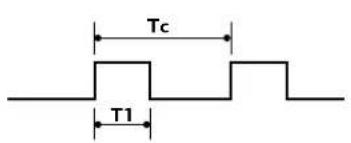
text_image
Tc T1
text_image
Carrier frequency FCAR = 1/TC = fOSC/12 Duty ratio = T1/TC = 1/3■ Configuration of frame
1st frame

flowchart
graph LR
    A["Lead code"] --> B["Low custom code"]
    B --> C["High custom code"]
    C --> D["Data code"]
    D --> E["Data code"]
    style A fill:#f9f,stroke:#333
    style B fill:#ccf,stroke:#333
    style C fill:#cfc,stroke:#333
    style D fill:#fcc,stroke:#333
    style E fill:#ffc,stroke:#333
Repeat frame

text_image
Repeat code TfLead code

text_image
9 ms 4.5 ms■ Repeat code

text_image
0.55 ms 9 ms 2.25 msBit description
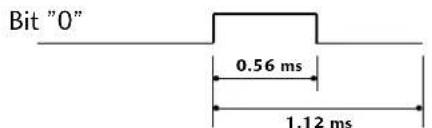
text_image
Bit "0" 0.56 ms 1.12 ms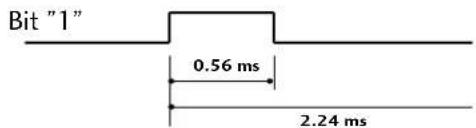
text_image
Bit "1" 0.56 ms 2.24 msFrame interval: Tf
The waveform is transmitted as long as a key is depressed.

text_image
Tf Tf Tf=108ms @455KHz| Code (Hexa) | Function Note | Code (Hexa) | Function Note |
| 0B INPUT R/C Button | 01 | P √ (or▼) R/C Button | |
| 08 POWER R/C Button (Power On/Off) | 30 AV MODE | R/C Button | |
| 60 PIP R/C Button | 09 MUTE | R/C Button | |
| 43 MENU R/C Button | 53 LIST | R/C Button | |
| 5B RETURN R/C Button | 10 ~ 19 | Number Key 0 ~ 9 R/C Button | |
| 07 R/C Button | 1E | FAV R/C Button | |
| 06 R/C Button | 1A Q.VIEW R/C Button | ||
| 40 R/C Button | 20 TEXT | R/C Button | |
| 41 R/C Button | 7E | SIMPLINK R/C Button | |
| 44 OK R/C Button | B1 | ■ Stop/TIME R/C Button | |
| 72 RED | R/C Button | B0 | ► Play/SIZE R/C Button |
| 71 GREEN | R/C Button | BA | II Pause |
| 63 YELLOW | R/C Button | UPDATE R/C Button | |
| 61 BLUE | R/C Button | 8F | ◄◄ Rew/INDEX R/C Button |
| 02 | +(or ►) R/C Button | 8E | ►► FF/HOLD R/C Button |
| 03 | -(or ◀) R/C Button | 45 Q.MENU | R/C Button |
| 00 | P ∧ (or▲) R/C Button | BD | ● (Record)/REVEAL R/C Button |
| 4D | PICTURE(or PSM) R/C Button | 79 RATIO | R/C Button |
| 52 SOUND(or SSM) R/C Button | |||
| 0A I/II | R/C Button | ||
| OE | SLEEP R/C Button | ||
| 22 MODE R/C Button | |||
| 24 MIX | R/C Button | ||
| 26 TIME | R/C Button | ||
| 2A REVEAL R/C Button | |||
| 62 UPDATE | R/C Button | ||
| 64 SIZE | R/C Button | ||
| 65 HOLD | R/C Button | ||
| 70 INDEX | R/C Button | ||
| OF | TV R/C Button | ||
EXTERNAL CONTROL THROUGH RS-232C
(This feature is not available for all models.)
Connect the RS-232C input jack to an external control device (such as a computer or an A/V control system) and control the TV's functions externally.
Connect the serial port of the control device to the RS-232C jack on the TV back panel.
RS-232C connection cables are not supplied with the TV.
RS-232C Setup
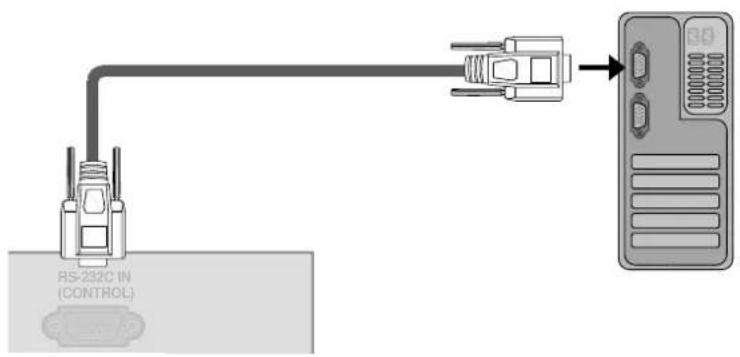
text_image
R5-232C IN (CONTROL)Type of Connector; D-Sub 9-Pin Male
No. Pin Name
1 No connection
2 RXD (Receive data)
3 TXD (Transmit data)
4 DTR (DTE side ready)
5 GND
6 DSR (DCE side ready)
7 RTS (Ready to send)
8 CTS (Clear to send)
9 No Connection

text_image
1 5 6 9RS-232C Configurations
7-Wire Configurations (Standard RS-232C cable)

text_image
PC TV RXD 2 3 TXD TXD 3 2 RXD GND 5 5 GND DTR 4 6 DSR DSR 6 4 DTR RTS 7 8 CTS CTS 8 7 RTSD-Sub 9 D-Sub 9
3-Wire Configurations(Not standard)
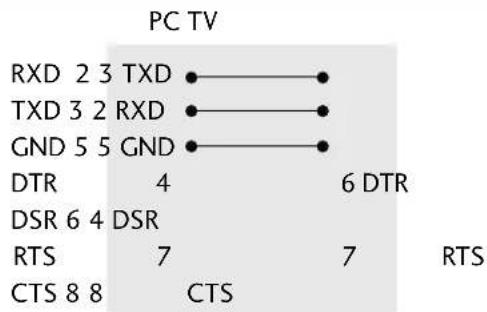
text_image
PC TV RXD 2 3 TXD •—• TXD 3 2 RXD •—• GND 5 5 GND •—• DTR 4 6 DTR DSR 6 4 DSR RTS 7 7 RTS CTS 8 8 CTSD-Sub 9 D-Sub 9
Set ID
- Use this function to specify a set ID number.
- Refer to 'Real Data Mapping 1'. See page 106.
1 Press the MENU button and then use ^/√ button to select the Option menu.
2 Press the > button and then use ^/√ button to select Set ID.
3 Press the > button and then use < / > button to adjust Set ID to choose the desired TV ID number.
• The adjustment range of SET ID is 1 \~ 99.
4 Press the MENU button to return to normal TV viewing. Press the RETURN or MENU(Only 22LG3***) button to move to the previous menu screen.
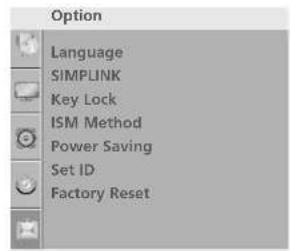
text_image
Option Language SIMPLINK Key Lock ISM Method Power Saving Set ID Factory Reset1
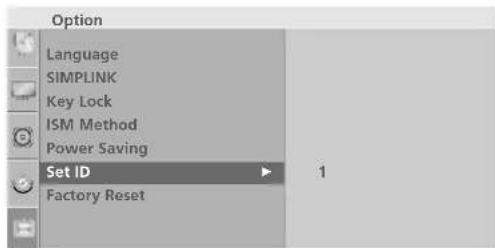
text_image
Option Language SIMPLINK Key Lock ISM Method Power Saving Set ID Factory Reset32
Communication Parameters
■ Baud rate : 9600 bps (UART)
■ Data length : 8 bits
Parity: None
■ Stop bit : 1 bit
■ Communication code : ASCII code
■ Use a crossed (reverse) cable.
Command Reference List
| COMMAND1 | COMMAND2 | DATA (Hexadecimal) | COMMAND1 | COMMAND2 | DATA (Hexadecimal) | |
| 01. Power | k | a | 00 ~ 01 | 16. Colour Temperature | k u 00 ~ 03 | |
| 02. Aspect Ratio | k | c | Refer to p.104 | 17. Red Adjustment k | v 00 ~ 3C | |
| 03. Screen Mute | k | d | 00 ~ 01 | 18. Green Adjustment | k w | 00 ~ 3C |
| 04. Volume Mute | k | e | 00 ~ 01 | 19. Blue Adjustment | k $ | 00 ~ 3C |
| 05. Volume Control | k | f | 00 ~ 64 | 20. Abnormal Status | k z | FF |
| 06. Contrast | k | g | 00 ~ 64 | 21. ISM Method | j p | Refer to p.106 |
| 07. Brightness | k | h | 00 ~ 64 | 22. Power Saving | j q | 00 ~ 04 |
| 08. Colour | k | i | 00 ~ 64 | 23. Auto Configure | j u | 01 |
| 09. Tint | k | j | 00 ~ 64 | 24. Equalize | j v | Refer to p.107 |
| 10. Sharpness | k | k | 00 ~ 64 | 25. Tune Command | m a | Refer to p.107 |
| 11. OSD Select | k | l | 00 ~ 01 | 26. Channel Skip | m b | 00 ~ 01 |
| 12. Remote Control Lock /Key Lock Mode | k | m | 00 ~ 01 | 27. Key | m c | Key Code |
| 28. Input select (Main) | x b | Refer to p.107 | ||||
| 13. PIP/DW | k | n | 00 ~ 03 | 29. Input select (PIP ) | x y | Refer to p.108 |
| 14. PIP Position | k | q | 00 ~ 03 | 30. Control Back Light | m g | 00 ~ 64 |
| 15. Balance | k | t | 00 ~ 64 |
Transmission / Receiving Protocol
Transmission
[Command1][Command2][ ][Set ID][ ][Data][Cr]
[Command 1]: First command to control the set. (j, k, m or x)
[Command 2]: Second command to control the set.
[Set ID] : You can adjust the set ID to choose desired TV ID number in Setup menu. Adjustment range is 1 \~ 99. When selecting Set ID '0', every connected TV is controlled. Set ID is indicated as decimal (1 \~ 99) on menu and as Hexa decimal (0x0 \~ 0x63) on transmission/receiving protocol.
[DATA] : To transmit command data. Transmit 'FF' data to read status of command.
[Cr] : Carriage Return ASCII code '0x0D'
[ ] : ASCII code 'space (0x20)'
OK Acknowledgement
[Command2][ ][Set ID][ ][OK][Data][x]
The TV transmits ACK (acknowledgement) based on this format when receiving normal data. At this time, if the data is data read mode, it indicates present status data. If the data is data write mode, it returns the data of the PC computer.
Error Acknowledgement
[Command2][ ][Set ID][ ][NG][Data][x]
TV transmits ACK(acknowledgement) based on this format when receiving abnormal data form non-viable functions or communication errors.
[Command 2] : use as command.
[Set ID]: use the small character, if set ID is 10, TV will send the '0', 'a' [Data]: use the small character, if data is 0xab, TV will send the 'a', 'b'. [NG]: use the large character.
APPENDIX
01. Power (Command: k a)
To control Power On/Off of the TV.
Transmission [k][a][ ] [Set ID][ ] [Data][Cr]
Data 00 : Power Off
Data 01 : Power On
Acknowledgement [a][ ][Set ID][ ][OK/NG][Data][x]
To show Power On/Off.
Transmission [k][a][ ][Set ID][ ][FF][Cr]
Acknowledgement [a][ ][Set ID][ ][OK/NG][Data][x]
* If there is the time delay between command and ack message during power on sequence, It should be described like "Note: In this model, TV will send the Acknowledge after power on processing completion. There might be a time delay between command and acknowledge."
02. Aspect Ratio (Command: k c) (Main picture size)
To adjust the screen format. (Main picture format)
You can adjust the screen format using the Aspect Ratio in the Picture menu.
Transmission [k][c][ ][Set ID][ ][Data][Cr]
Data 01: Normal screen (4:3)
Data 06: Original
Data 02: Wide screen (16:9)
Data 07: 14:9
Data 04: Zoom1
Data 09: Just Scan(Except 22LG3***)
Data 05: Zoom2
Acknowledgement [c][ ][Set ID][ ][OK/NG][Data][x]
* Using the RGB-PC, Component or HDMI input, you select either 16:9 or 4:3 screen aspect ratio.
* In HDMI/Component (over 720p)mode, J Just Scan is available.
03. Screen Mute (Command: k d)
To select screen mute on/off.
Transmission [k][d][ ][Set ID][ ][Data][Cr]
Data 00 : Screen mute off (Picture on)
Data 01 : Screen mute on (Picture off)
Acknowledgement [d][ ][Set ID][ ][OK/NG][Data][x]
04. Volume Mute (Command: k e)
To control volume mute on/off.
You can also adjust mute using the MUTE button on remote control.
Transmission [k][e][ ][Set ID][ ][Data][Cr]
Data 00: Volume mute on (Volume off)
Data 01 : Volume mute off (Volume on)
Acknowledgement [e][ ][Set ID][ ][OK/NG][Data][x]
05. Volume Control (Command: k f)
To adjust volume.
You can also adjust volume with the volume buttons on remote control.
Transmission [k][f][ ][Set ID][ ][Data][Cr]
Acknowledgement [f][ ][Set ID][ ][OK/NG][Data][x]
06. Contrast (Command: k g)
To adjust screen contrast.
You can also adjust contrast in the Picture menu.
Transmission [k][g][ ] [Set ID][ ] [Data][Cr]
Acknowledgement [g][ ][Set ID][ ][OK][Data][x]
07. Brightness (Command: k h)
To adjust screen brightness.
You can also adjust brightness in the Picture menu.
Transmission [k][h][ ][Set ID][ ][Data][Cr]
Acknowledgement [h][ ][Set ID][ ][OK/NG][Data][x]
08. Colour (Command: k i)
To adjust the screen colour.
You can also adjust colour in the Picture menu.
Transmission [k][i][ ][Set ID][ ][Data][Cr]
Acknowledgement [i][ ][Set ID][ ][OK/NG][Data][x]
09. Tint (Command: k j)
To adjust the screen tint.
You can also adjust tint in the Picture menu.
Transmission [k][j][ ][Set ID][ ][Data][Cr]
To adjust the screen sharpness.
You can also adjust sharpness in the Picture menu.
Transmission [k][k][ ][Set ID][ ][Data][Cr]
Data Min: 00 \~ Max: 64
Refer to 'Real data mapping 1'. See page106.
Acknowledgement [k][ ][Set ID][ ][OK/NG][Data][x]
- OSD Select (Command: k I)
To select OSD (On Screen Display) on/off when controlling remotely.
Transmission[k][I][ ][Set ID][ ][Data][Cr]
Data 00: OSD off
Data 01: OSD on
Acknowledgement[1][ ][Set ID][ ][OK][Data][x]
- Remote Control Lock/Key Lock Mode (Command: k m)
To lock the remote control and the front panel controls on the set.
Transmission[k][m][ ] [Set ID][ ] [Data][Cr]
Data 00: Lock off
Data 01: Lock on
Acknowledgement[m][ ][Set ID][ ][OK/NG][Data][x]
- PIP / DW (Command: k n)(Except 22LG3***)
To control the PIP (Picture In picture)/DW.
You can also control the PIP/DW using the PIP button on the remote control or in the PIP/DW menu.
Transmission[k][n][ ][Set ID][ ][Data][Cr]
Data 00:PIP/DW off
Data 01: PIP
Data 02: DW1
Data 03: DW2
Acknowledgement [n][ ][Set ID][ ][OK/NG][Data][x]
- PIP Position (Command: k q)(Except 22LG3***)
To select sub picture position for PIP.
You can also adjust the sub picture position using
PIP button on the remote control or in the PIP/DW menu.
Transmission[k][q][ ][Set ID][ ][Data][Cr]
Data 00: Right down on screen
Data 01: Left down on screen
Data 02: Left up on screen
Data 03: Right up on screen
Acknowledgement [q][ ][Set ID][ ][OK/NG][Data][x]
- Balance (Command: k t)
To adjust balance.
You can also adjust balance in the Audio menu.
Transmission [k][t][ ][Set ID][ ][Data][Cr]
Data Min: 00 \~ Max: 64
Refer to 'Real data mapping 1'. See page106.
Acknowledgement[t][ ][Set ID][ ][OK/NG][Data][x]
- Colour Temperature (Command: k u)
To adjust colour temperature.
You can also adjust Colour Temperature in the Picture menu.
Transmission [k][u][ ][Set ID][ ][Data][Cr]
Data 00: Medium 01: Cool 02: Warm 03: User
Acknowledgement [u][ ][Set ID][ ][OK/NG][Data][x]
- Red Adjustment (Command: k v)
To adjust red in colour temperature.
Transmission [k][v][ ][Set ID][ ][Data][Cr]
Data Min: 00 \~ Max: 3C
Refer to 'Real data mapping 2'. See page106.
Acknowledgement[v][ ][Set ID][ ][OK/NG][Data][x]
- Green Adjustment (Command: k w)
To adjust green in colour temperature.
Transmission [k][w][ ][Set ID][ ][Data][Cr]
Data Min: 00 \~ Max: 3C
Refer to 'Real data mapping 2'. See page106.
Acknowledgement [w][ ][Set ID][ ][OK/NG][Data][x]
- Blue Adjustment (Command: k \$)
To adjust blue in colour temperature.
Transmission [k][\$][ ][Set ID][ ][Data][Cr]
Data Min: 00 \~ Max: 3C
Refer to 'Real data mapping 2'. See page106.
Acknowledgement[\$][ ][Set ID][ ][OK/NG][Data][x]
APPENDIX
20. Abnormal State (Command: k z)
To recognize an abnormal state.
Transmission[k][z][ ][Set ID][ ][FF][ ][Cr]
Data FF: Read
Acknowledgement[z][Set ID][OK/NG][Data][x]
Data 00: Normal (Power on and signal exist)
Data 01: No signal (Power on)
Data 02: Turn the TV off by remote control
Data 03: Turn the TV off by sleep time function
Data 04: Turn the TV off by RS-232C function
Data 05: 5V down
Data 06: AC down
Data 07: Turn the TV off by Fan Alarm function (option)
Data 08: Turn the TV off by Off time function
Data 09: Turn the TV off by Auto off function
Data a: Turn the TV off by AV board detection.
* This function is "read only".
21. ISM Method (Command: j p)
(Only plasma Tv models)
To avoid having a fixed image remain on screen.
Transmission[j][p][ ][Set ID][ ][Data][Cr]
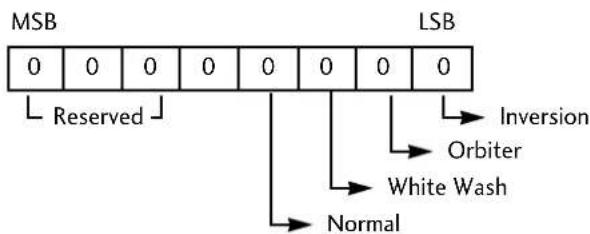
text_image
MSB LSB 0 0 0 0 0 0 0 0 Reserved Inversion Orbiter White Wash Normal| 7 | 6 | 5 | 4 | 3 | 2 | 1 | 0 | Function |
| 0 | 0 | 0 | 1 | Inversion | ||||
| 0 | 0 | 1 | 0 | Orbiter | ||||
| 0 | 1 | 0 | 0 | White Wash | ||||
| 1 | 0 | 0 | 0 | Normal | ||||
| X | X | X | X | Reserved |
* More two kinds of function can not be set at a time.
Acknowledgement [p][ ][Set ID][ ][OK/NG][Data][x]
22. Low Power(Power Saving) (Command: j q)
(Only plasma Tv models)
To reduce the power consumption of the TV.
Transmission[j][q][ ][Set ID][ ][Data][ ][Cr]
Data Min: 00 \~ Max: 04
(*transmit by Hexadecimal code)
Acknowledgement[q][ ][Set ID][ ][OK/NG][Data][x]
23. Auto Configure (Command: j u)
To adjust picture position and minimize image shaking automatically. It works only in RGB (PC) mode.
Transmission[j][u][ ][Set ID][ ][Data][Cr]
Data 01: To set
Acknowledgement [u][ ][Set ID][ ][OK/NG][Data][x]
\*\*Real data mapping 1
00 : Step 0
A : Step 10
F : Step 15
10:Step 16
64:Step 100
6E:Step110
73:Step 115
74:Step 116
C7: Step 199
FE:Step254
FF:Step255
\*\*Real data mapping 2
00: -30
01: -29
02: -28
:
1E: 0
:
28: +10
• • •
3A:+28
3B:+29
3C:+30
:
4E: N/A
4F: N/A
50: N/A
- Equalize(Command: j v)
▶ To adjust equalize.
Transmission [j][v][ ][Set ID][ ][Data][Cr]
MSB
LSB
| 0 | 0 | 0 | 0 | 0 | 0 | 0 | 0 |
| Frequency | Data | ||||||
| 7 | 6 | 5 | Frequency | 4 | 3 | 2 | 1 | 0 | Step |
| 0 | 0 | 0 | 1'st Band | 0 | 0 | 0 | 0 | 0 | 0(decimal) |
| 0 | 0 | 1 | 2'nd Band | 0 | 0 | 0 | 0 | 1 | 1(decimal) |
| 0 | 1 | 0 | 3'rd Band | 0 | 0 | 0 | 1 | 0 | 2(decimal) |
| 0 | 1 | 1 | 4'th Band | ... | |||||
| 1 | 0 | 0 | 5'th Band | ||||||
| 1 | 0 | 1 | 6'th Band | ||||||
| 1 | 1 | 0 | 7'th Band | 1 | 1 | 1 | 1 | 0 | 30(decimal) |
| 1 | 1 | 1 | 8'th Band | 1 | 1 | 1 | 1 | 1 | 31(decimal) |
Acknowledgement [v][ ][Set ID][ ][OK/NG][Data][x]
- Tune Command / Channel Tuning (Command: m a)
Tune Channel to following Physical number.
Transmission [m][a][ ][Set ID][ ][Data0][ ][Data1] [ ][Data2][Cr]
Data00 Min: 00 \~ Max: 63
(*transmit by Hexadecimal code)
Data01 don't care
Data02 0 ; Main
1 : Sub
Acknowledgement [a][ ][Set ID][OK][ ][Data0][Data1][x]
[a][ ] [Set ID][NG][ ] [Data0][x]
- Channel Skip(Command: m b)
To set skip status for the current Programme.
Transmission [m][b][ ][Set ID][ ][Data][Cr]
- PIP Input select (Command: x y)(Except 22LG3*** )
To adjust input source for sub picture in PIP mode.
Transmission [x][y][ ][Set ID][ ][Data][Cr]
Data: Structure
MSB
LSB
| 0 | 0 | 0 | 0 | 0 | 0 | 0 | 0 |
| External Input | Input Number | ||||||
| External Input | Data | |||
| 0 | 0 | 0 | 1 | Analog |
| 0 | 0 | 1 | 0 | AV |
| Input Number | Data | |||
| 0 | 0 | 0 | 0 | Input1 |
| 0 | 0 | 0 | 1 | Input2 |
| 0 | 0 | 1 | 0 | Input3 |
| 0 | 0 | 1 | 1 | Input4 |
Acknowledgement [y][ ][Set ID][ ][OK/NG][Data][x]
- Control Back Light (Command: m g) (LCD TV only)
To control the back light.
Transmission [m][g][ ][Set ID][ ][Data][Cr]
Data : data Min: 00 \~ Max: 64
(* transmit by Hexadecimal code)
Acknowledgement [g][ ][Set ID][ ][OK/NG][Data][x]