CoursePro 44870 - Browser CELESTRON - Free user manual and instructions
Find the device manual for free CoursePro 44870 CELESTRON in PDF.


User questions about CoursePro 44870 CELESTRON
0 question about this device. Answer the ones you know or ask your own.
Ask a new question about this device
Download the instructions for your Browser in PDF format for free! Find your manual CoursePro 44870 - CELESTRON and take your electronic device back in hand. On this page are published all the documents necessary for the use of your device. CoursePro 44870 by CELESTRON.
USER MANUAL CoursePro 44870 CELESTRON
natural_image
Moggy grass field with blurred trees in the background (no text or symbols visible)Get tO knOw yOur CCourseprO
text_image
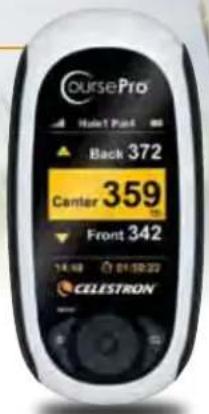
CoursePro Hoot Post Back 372 Center 359 Front 342 16:48 01:58:22 CELESTRON
text_image
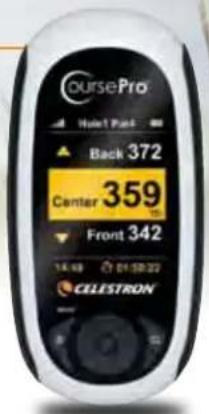
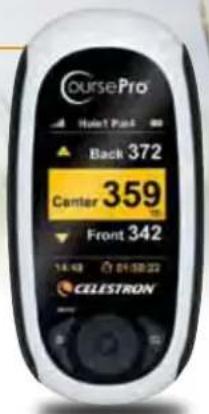
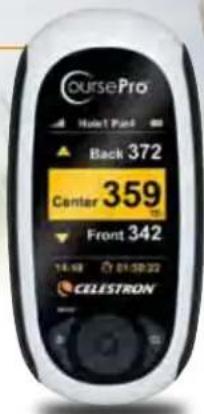
CoursePro Back 372 Center 359 Front 342 14:48 01:50:22 CELESTRON 2 3 A B C D EKEYS
- Power/Menu Key
-
5 Way Navigation Key Pad (Edges are directional. Center button is "Select")
-
Page Key
ICONS
A. Satellite Signal Strength
B. Real Time Display
C. Hole and Par Information
D. Battery Strength
E. Distance to Green Information
details Of yOur COURSEprO
text_image
CoursePro Back 372 Center 359 Front 342 14:48 01:50:22 CELESTRON44870 #44871
text_image
CoursePro Hole1 Part Back 372 Center 359 Front 342 14.48 $1:50:22 CELESTRONMAIN FEATURES
20,000+ course maps available online for download
5 FREE course map downloads included with your purchase
Stores up to 50 course maps
2.2" Full transmission mode (TFT) LCD screen; 240x320 pixels / 260K
Backlight option for viewing in low light
Powered by Lithium Ion 1100maH rechargeable battery; 8-10 hours of life per charge
Water resistant to IXP6 industry standard
WAAS enabled and SiRF Star III sensitivity for better signal strength
Green View screen shows the distance to front, center and back of greenGreen Edit function allows you to change the front, center and back distance to green
Shot Distance calculator allows you to measure distance for any shot
Time displayed on LCD screen
Choice of 12 languages
Belt Clip and Soft Storage bag included
Mini USB cable included
2 Year Warranty on components
Dimensions: 2.30" x 4.6" x 1"
Weight: 6 oz.
GET STARTED
CHARGE YOUR COURSEPRO
Using the included USB cable, plug your CoursePro into an open USB port on your computer
Charge time is about 4 to 5 hours
A full charge will last 8 to 10 hours
NEW USER SETUP
Log onto www.celestronGolf.com
Locate and select one of the New User buttons

CELESTRON GOLF NEW USER SETUP »
Download the latest software
Create an account and register your CoursePro
Choose your payment options
DOWNLOAD COURSE MAPS
Log onto www.celestronGolf.com and select the 'Download Courses' button
The Course Download window will load
If you are not already signed on, you will be prompted to log in
In the search window, type the name of the course you would like to download or browse through the list to find your course
Once the course is located, click the course map icon for your course
Depending on your payment plan and the number of courses you may have already downloaded, you may be prompted to pay for the course
Follow the on screen instructions to pay for the course and verify your payment
Once verified, the download will begin
Once completed you will be prompted to save the course map file to a folder on your computer
text_image
coursePro Hole1 Pack Back 372 Center 359 Front 342 14:00 01:30:22 CELESTRONadd CCourse Maps tO yOur COURSEprO
Turn on your CoursePro (remember to press and hold the ON button for at least 3 seconds) and using the mini USB cable, connect it to your computer
Open the Course Map Manager software by double clicking the icon on your desktop
If your CoursePro isn't automatically recognized, click CONNECT [Figure 1]
Once your CoursePro is recognized and syncs up with the Course Map Manager, select ADD COURSE [Figure 2], then OPEN [Figure 3]

text_image
coursePro Hole1 Point Back 372 Center 359 Front 342 14.98 01:58:22 CELESTRON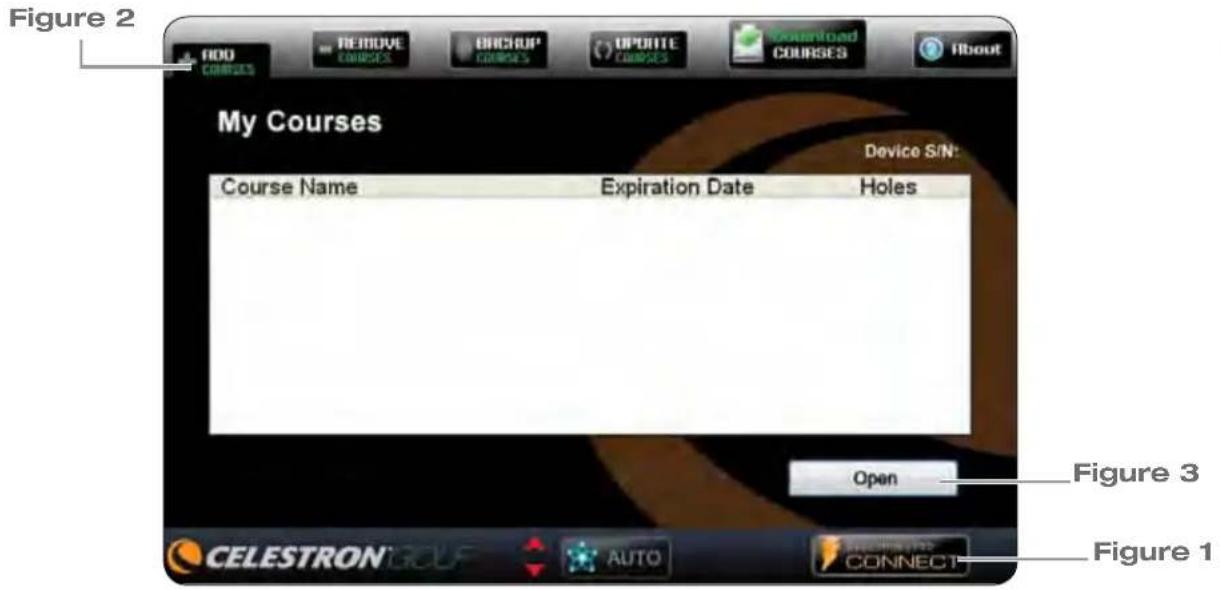
text_image
Figure 2 ADD COMES REMOVE COMES BACKUP COMES UPDATE COMES Download COURS About My Courses Device S/N: Course Name Expiration Date Holes Open Figure 3 CELESTRON GOLF AUTO CONNECT Figure 1Browse to your saved folder and select the course map you would like to add
The course map will download to your CoursePro and show up in the MY COURSE window in the Course Map Manager interface
Repeat these steps to add more course maps
pLay GOLf
Press and HOLD the POWER button for at least 3 seconds.

text_image
CELESTRON® Locating Satellites...This screen will appear as your CoursePro attempts to link to a satellite signal.
text_image
CoursePro Hoot Post Back 372 Center 359 Front 342 16.48 01:50:22 CELESTRON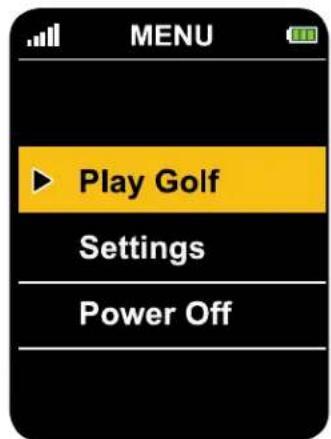
text_image
MENU Play Golf Settings Power OffOnce the satellite signal is locked in, this menu screen will appear. Press the upper or lower point on the ring of the 5 WAY NAVIGATION key to scroll through your choices. Press the CENTER button of the 5 WAY NAVIGATION key to select the PLAY GOLF choice.

text_image
Course Auto Searching... StopYour CoursePro will auto search for a local course for you. You can stop the auto search by pressing the PAGE key.
pLay GOLf

text_image
Play Golf Honey Bee Nearby search Select courseOnce the auto search is complete, your screen will display the local course along with choices to select another nearby search or to select your course manually. To select the displayed course, Press the CENTER button of the 5 WAY NAVIGATION key. Press the upper or lower point on the ring of the 5 WAY NAVIGATION key to scroll through your choices and select your choice by again pressing the CENTER button.

text_image
CoursePro Huel's Post Back 372 Center 359 Front 342 14:48 01:58:22 CELESTRON
text_image
Cannot locate the Course! Please manually select ExitIf the course map cannot be found, this screen will be displayed, and you will be returned to the PLAY GOLF screen.
text_image
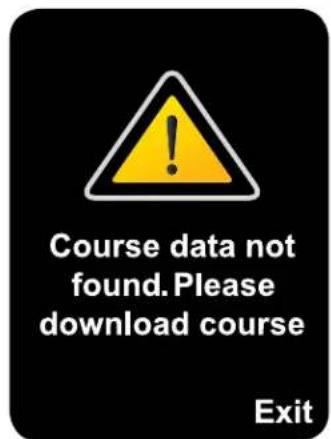
Course data not found. Please download course ExitIf your CoursePro has no course maps downloaded to its internal memory, this screen will be displayed. See steps above for downloading course maps and saving them to your CoursePro.
pLay GOLf

text_image
1 Start HoleOnce you have selected the course you want to play, the START window will appear. PRESS the left and right points of the 5 WAY NAVIGATION key to scroll to your preferred starting hole. PRESS the CENTER button to select.
text_image
coursePro Hotel Fund Back 372 Center 359 Front 342 14:48 01:50:22 CELESTRON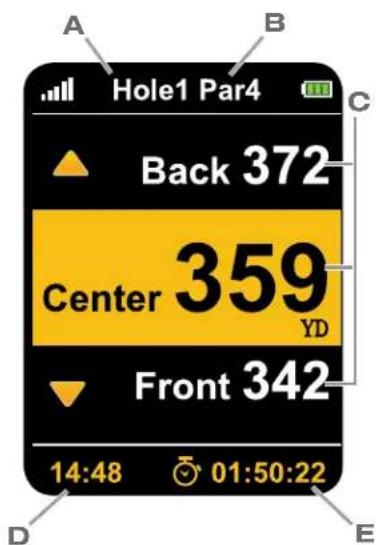
text_image
A Hole1 Par4 Back 372 Center 359 YD Front 342 14:48 01:50:22 C D EThe Green View window will appear displaying information about this hole.
GREEN VIEW INFORMATION:
Hole Number [A]
Par for the Hole [B]
Distance to the back, center and front of the green [C]
Real time [D]
Your round running time [E]
You are now ready to tee off.
Other features
text_image
Shot Distance Center 365 295 YD Hold Mark
text_image
CoursePro Back 372 Carter 359 Front 342 16:42 01:58:22 CELESTRONThe Shot Distance page allows you to measure the distance of any of your shots easily and precisely. Before teeing off or taking any shot, Press and HOLD the PAGE key until the displayed distance in the yellow band is reset to "0". You are now ready to hit away. After hitting away, and as you move towards your ball's new position, your CoursePro will be calculating the distance. When you arrive at your ball's new position, look at your CoursePro screen.
The number displayed in the yellow band has now changed to represent the distance that your ball has traveled. Press the CENTER button of the 5 WAY NAVIGATION key to lock this number in. This number will remain until you want to measure your shot distance again. Repeat the same steps to measure your next shot or Press the left edge of the 5 WAY NAVIGATION key to return to the Scorecard page, or Press the right edge to go to the Edit Course page.
Other features
II. GREEN EDIT PAGE
text_image
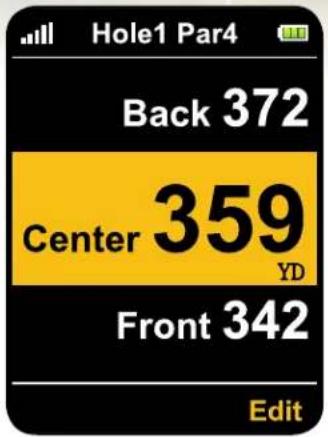
Hole1 Par4 Back 372 Center 359 YD Front 342 EditThe Green Edit feature allows you to change the distances to the front, center and back of the green for any hole. From the Green View page, use the left or right edge of the 5 WAY NAVIGATION key and scroll to Green View edit page seen above. Choose to edit by pressing the PAGE key. Use the top and bottom of the 5 WAY NAVIGATION key to select which distance you would like to edit. While standing at the position that you have chosen, i.e., front, center or back
of the green, mark that position by pressing and holding the CENTER button. The distance will be reset to "0". Mark the other positions, if you choose to, in the same manner. When you are completed with your editing, choose OK by selecting the PAGE key. This will bring you back to the main Green Edit screen. Use the keypad to get back to the Green View window and proceed with play.

text_image
CoursePro Back 372 Center 359 Front 342 16:08 01:58:22 CELESTRONCustOMize settinGs

text_image
MENU Play Golf Settings Power OffTo change the default settings, from the main screen, scroll down and select the Settings bar.
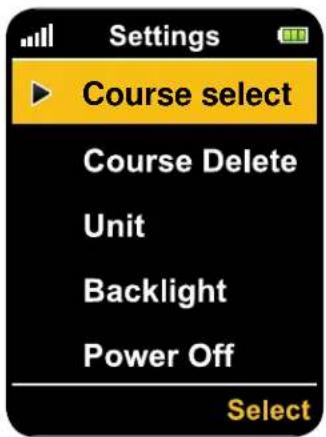
The Settings screen will appear.
Here you can select from the following options:
Select or delete a course map from CoursePro's memory
Change units
Adjust the backlight timer
Set power off
Select language
Set time zone
Reset round timer
Set time format
Receive device information

text_image
CoursePro Hotel Price Black 372 Center 359 Front 342 16.10 01:50:22 CELESTRONIII. COURSE SELECT
text_image
Settings Course select Course Delete Unit Backlight Power Off Select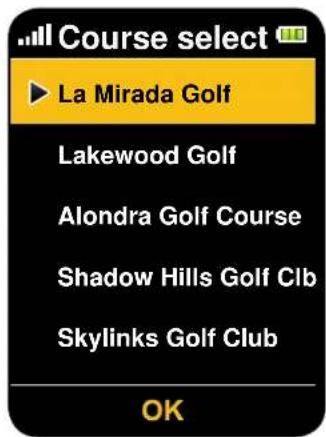
text_image
Course select La Mirada Golf Lakewood Golf Alondra Golf Course Shadow Hills Golf Clb Skylinks Golf Club OKUse the 5 WAY NAVIGATION key to select your desired course. You will automatically be brought back to the main menu page when complete.
CustOMize settinGs
IV. COURSE DELETE
text_image
Settings Course select Course Delete Unit Backlight Power Off Select
text_image
Course Delete La Mirada Golf Lakewood Golf Alondra Golf Course Shadow Hills Golf Clb Skylinks Golf Club OK
text_image
Course Delete Delete La Mirada Golf? NO YES
text_image
coursePro Hole1 Post 80 Back 372 Center 359 Front 342 14:48 01:58:22 CELESTRONYou may want to delete courses from your
CoursePro's internal memory to free up space.
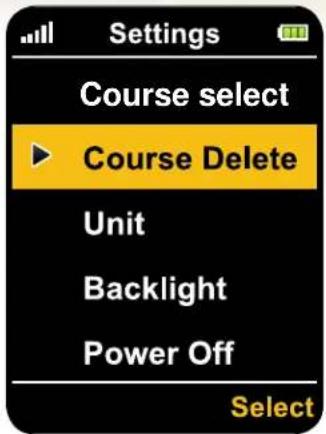
Using the 5 WAY NAVIGATION key, select the course you want to delete. You will be asked if you are sure you want to delete this course.
Select YES (Page Key) or NO (Power Key). If you select NO, you will be brought back to the
previous window and prompted to choose a different course. If you select YES, the selected course will be deleted and you will be brought back to the Course Delete window where you can choose more courses to delete. When done deleting courses, Press the START key to return to the main menu page.
V. CHANGE YARD/METER UNITS

text_image
Settings Course select Course Delete ► Yard/Meter Backlight Power Off YDCoursePro's distance units are displayed in either Yards or Meters. The default setting is Yards (YD). To change to Meters (M), Press the left or right edge of your 5 WAY NAVIGATION key. Press the up or down edge of your 5 WAY NAVIGATION key to continue scrolling through the Settings options.
CustOMize settinGs
VI. ADJUST BACKLIGHT TIMER
text_image
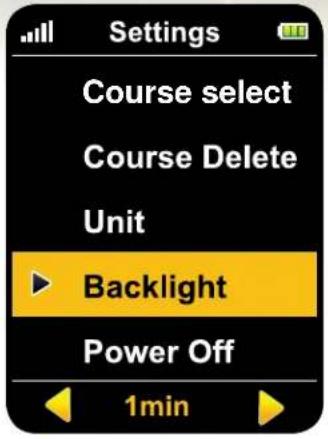
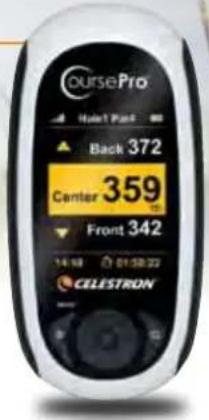
Settings Course select Course Delete Unit Backlight Power Off 1minYou can adjust the time the backlight stays on to save battery power. With the Backlight bar highlighted, press the left or right edge of your 5 WAY NAVIGATION key to switch the time. The default time is 3 minutes. Your choices are 1 minute, 3 minutes, 10 minutes, 30 minutes and Backlight Always On. Press the up or down edge of your 5 WAY NAVIGATION key to continue scrolling through the Settings options.
text_image
CoursePro Back 372 Center 359 Front 342 16:18 01:58:22 CELESTRONVII. AUTO POWER OFF
text_image
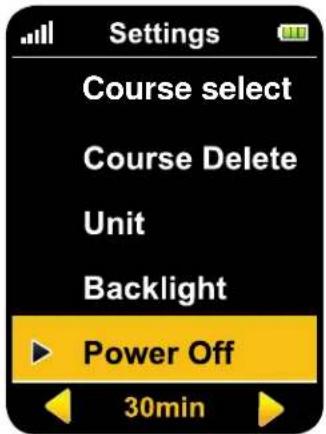
Settings Course select Course Delete Unit Backlight Power Off 30minYou can set your CoursePro to automatically shut down after a certain time of non-use. With the Power Off bar highlighted, press the left or right edge of your 5 WAY NAVIGATION key to switch the time. The default setting is 30 minutes. Your choices are 30 minutes, 40 minutes, 50 minutes, 60 minutes, 70 minutes, 80 minutes, 90 minutes, 100 minutes, 110 minutes, 120 minutes and Always On. Press the up or down edge of your 5 WAY NAVIGATION key to continue scrolling through the Settings options.
VIII. LANGUAGE

text_image
Settings Language Time Zone Time Reset Time Format Device info EnglishYou have 12 language choices with your CoursePro. They are English (default), Spanish, French, German, Italian, Traditional Chinese, Simplified Chinese, Japanese, Korean, Russian, Swedish and Czech. Once the Language bar is highlighted, Press the left or right edge of your 5 WAY NAVIGATION key to switch between the language choices and Press the CENTER button to make your selection. Once you make your selection, you will automatically be brought back to the Settings menu page.
CustOMize settinGs
IX. TIME ZONE SET
text_image
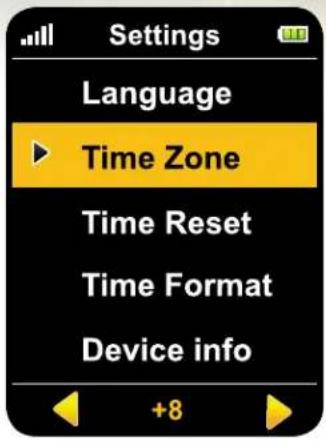
Settings Language ▶ Time Zone Time Reset Time Format Device info +8For the real time clock on your CoursePro to display accurately, you will need to set your time zone. Use the chart below to find your location and + or - zone based on GMT (Greenwich Mean Time). Press the left or right edge of your 5 WAY NAVIGATION key to find your zone. Most countries utilize some form of Daylight Savings Time and you will need to adjust your entry to reflect this as the GMT chart does not account for this. For example, if you are in Los Angeles, CA in the summer and your time zone is “-8,” add 1 hour to the time which will give you “-7” (-8 + 1 = -7).
text_image
CoursePro Hole1 Post Black 372 Center 359 Front 342 18:00 01:50:22 CELESTRON
geo
| Region | Value | |--------|-------| | North America | 12 | | Europe | 3 | | Asia | 5 | | Africa | 8 | | South America | 6 | | Australia | 7 | | Central America | 9 | | Middle East | 10 | | North Africa | 11 | | South Asia | 13 | | Europe | 4 | | Africa | 6 | | Asia | 8 | | North America | 10 | | South America | 12 | | Central America | 11 | | North Africa | 13 | | Middle East | 10 | | North America | 14 | | Europe | 5 | | Africa | 7 | | Asia | 9 | | North America | 15 | | South America | 10 | | Central America | 12 | | North Africa | 14 | | Middle East | 10 | | North America | 16 | | Europe | 6 | | Africa | 8 | | Asia | 10 | | North America | 17 | | South America | 11 | | Central America | 13 | | North Africa | 15 | | Middle East | 10 | | North America | 18 | | Europe | 7 | | Africa | 9 | | Asia | 11 | | North America | 19 | | South America | 10 | | Central America | 14 | | North Africa | 16 | | Middle East | 10 | | North America | 17 | | Europe | 8 | | Africa | 10 | | Asia | 12 | | North America | 18 | | South America | 10 | | Central America | 15 | | North Africa | 16 | | Middle East | 10 | | North America | 17 | | Europe | 9 | | Africa | 10 | | Asia | 13 | | North America | 19 | | South America | 10 | | Central America | 14 | | North Africa | 17 | | Middle East | 10 | | North America | 18 | | Europe | 8 | | Africa | 10 | | Asia | 12 | | North America | 20 | | South America | 10 | | Central America | 16 | | North Africa | 17 | | Middle East | 10 | | North America | 21 | | Europe | 9 | | Africa | 10 | | Asia | 13 | | North America | 22 | | South America | 10 | | Central America | 17 | | North Africa | 18 | | Middle East | 10 | | North America | 23 | | Europe | 9 | | Africa | 10 | | Asia | 14 | | North America | 24 | | South America | 10 | | Central America | 18 | | North Africa | 19 | | Middle East | 10 | | North America | 25 | | Europe | 9 | | Africa | 10 | | Asia | 15 | | North America | 26 | | South America | 10 | | Central America | 26 | | North Africa | 20 | | Middle East | 10 | | North America | 27 | | Europe | 9 | | Africa | 10 | | Asia | 16 | | North America | 28 | | South America | 10 | | Central America | 29 | | North Africa | 20 | | Middle East | 10 | | North America | 28 | | Europe | 9 | | Africa | 10 | | Asia | 17 | | North America | 30 | | South America | 10 | | Central America | 30 | | North Africa | 20 | | Middle East | 10 | | North America | 32 | | Europe | 9 | | Africa | 10 | | Asia | 18 | | North America | 33 | | South America | 10 | | Central America | 33 | | North Africa | 20 | | Middle East | 10 | | North America | 35 | | Europe | 9 | | Africa | 10 | | Asia | 19 | | North America | 36 | | South America | 10 | | Central America | 36 | | North Africa | 20 | | Middle East | 10 | | North America | 38 | | Europe | 9 | | Africa | 10 | | Asia | 20 | | North America | 39 | | South America | 10 | | Central America | 39 | | North Africa | 20 | | Middle East | 10 | | North America | 40 | | Europe | 9 | | Africa | 10 | | Asia | 21 | | North America | 40 | | South America | 10 | | Central America | 40 | | North Africa | 20 | | Middle East | 10 | | North America | 42 | | Europe | 9 | | Africa | 10 | | Asia | 22 | | North America | 42 | | South America | 10 | | Central America | 42 | | North Africa | 20 | | Middle East | 10 | | North America | 44 | | Europe | 9 | | Africa | 10 | | Asia | 23 | | North America | 44 | | South America | 10 | | Central America | 44 | | North Africa | 20 | | Middle East | 10 | | North America | 46 | | Europe | 9 | | Africa | 10 | | Asia | 24 | | North America | 46 | | South America | 10 | | Central America | 46 | | North Africa | 20 | | Middle East | 10 | | North America | 48 | | Europe | 9 | | Africa | 10 | | Asia | 25 | | North America | 48 | | South America | 10 | | Central America | 48 | | North Africa | 20 | | Middle East | 10 | | North America | 49 | | Europe | 9 | | Africa | 10 | | Asia | 26 | | North America | 49 | | | South America | -5: -5: -5: -5: -5: -5: -5: -5: -5: -5: -5: -5: -5: -5: -5: -5: -5: -5: -5: -5: -5: -5: -5: -5: -5: -5: -5: -5: -5: -5: -5: -5: -5: -5:CustOMize settinGs
X. ROUND TIME RESET
text_image
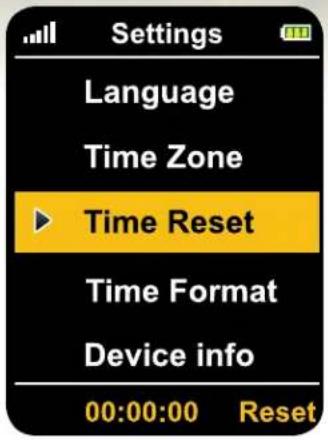
Settings Language Time Zone ▶ Time Reset Time Format Device info 00:00:00 ResetYour CoursePro allows you to track your round time. This feature automatically starts once you select the hole you are starting from at the beginning of your round. With the Time Reset bar highlighted, Press the PAGE key and the clock will reset to 00:00:00.

text_image
CoursePro Hole1 Peak Back 372 Carter 359 Front 342 16:48 01:50:22 CELESTRONXI. TIME FORMAT
text_image
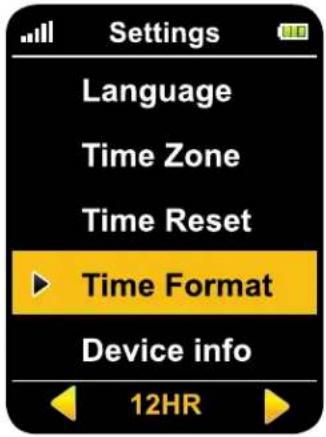
Settings Language Time Zone Time Reset ▶ Time Format Device info 12HRThe default Time Format for your CoursePro is 12H. To set it to 24HR (commonly referred to as military time), Press the left or right edge of your 5 WAY NAVIGATION key.
XII. DEVICE INFO

text_image
Settings Language Time Zone Time Reset Time Format ▶ Device info Select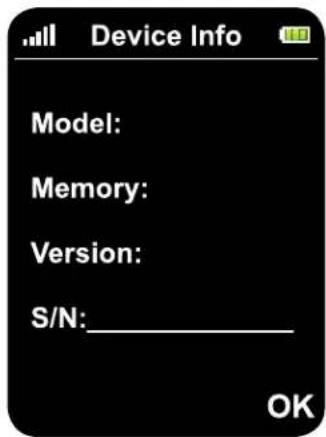
text_image
.all Device Info Model: Memory: Version: S/N: ____ OKDevice Info allows you to check your model number, memory info, hardware version info and serial number of your CoursePro. Press the PAGE key when the Device Info bar is highlighted. Press the PAGE key again to return to the Settings menu.
CustOMize settinGs
XV. ACCESSORIES
USB Cable
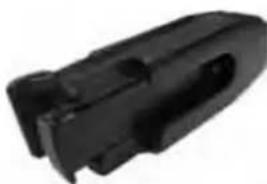
Belt Clip
Soft Carrying Pouch

text_image
CoursePro Hotel Peak Back 372 Center 359 Front 342 16.00 01:30:22 CELESTRON
natural_image
Close-up of a black USB cable with connector (no text or symbols visible)USB Cable Belt Clip
natural_image
Black plastic mechanical component with no visible text or symbolsSoft Carrying

natural_image
Black flexible athletic bag with a small handle and 'COLESTER' logo on the side (no text or symbols on the bag itself)Pouch
WARNINGS AND NOTICES
GPS Systems and Location
Accuracy Notice:
The Global Positioning System (GPS) is operated by the government of the United States of America, which is solely responsible for its accuracy and maintenance. The system is subject to changes which could affect the accuracy and performance of all GPS equipment. The inherent nature of the GPS system itself limits the accuracy of the distance indicated on the CoursePro display to within roughly +/- 3 to 5 meters (or yards) of the actual marked location.
Warning:
This device is intended as a supplemental handheld navigation aide only. The user assumes all responsibility associated with the use of this product. It must not be used for any purpose requiring precise measurement of location, direction, distance, velocity or typography. This device should not be used for any aircraft navigation applications.
Vehicular Use Notice:
Celestron is committed to the safe and responsible enjoyment of the outdoors. Do not use this product while driving. An accident can result in property damage, injury or death if the operator fails to practice prudent driving
practices. It is the sole responsibility of the driver of any vehicle to operate the motor vehicle in a safe manner. Information from the GPS unit can distract the operator of a motor vehicle. It is unsafe to operate the controls of the GPS unit while operating a motor vehicle. If used in a motor vehicle, it must not be used by the operator of the motor vehicle. If it is used in a motor vehicle it must be mounted in a manner such that it does not distract the operator, does not interfere with the operator's field of view, and does not block or interfere with the air bags or other safety mechanisms of the motor vehicle. Windshields and car windows with integrated metallic materials, such as defrosters or car window tinting films, can degrade the GPS reception inside a car.
Liability Notice:
In no event shall Celestron be liable for any incidental, special, indirect or consequential damages, whether resulting from the use, misuse, or inability to use this product or from defects in the product. Some states do not allow the exclusion of incidental or consequential damages, so the above limitations may not apply to you.
text_image
CoursePro Hotel Post 80 Back 372 Center 359 Front 342 14:48 01:38:22 CELESTRON
CELESTRON®
www.celestronGolf.com