ProLite T1531SR-B6 - Monitor IIYAMA - Free user manual and instructions
Find the device manual for free ProLite T1531SR-B6 IIYAMA in PDF.


User questions about ProLite T1531SR-B6 IIYAMA
0 question about this device. Answer the ones you know or ask your own.
Ask a new question about this device
Download the instructions for your Monitor in PDF format for free! Find your manual ProLite T1531SR-B6 - IIYAMA and take your electronic device back in hand. On this page are published all the documents necessary for the use of your device. ProLite T1531SR-B6 by IIYAMA.
USER MANUAL ProLite T1531SR-B6 IIYAMA
Thank you very much for choosing the iiyama LCD monitor.
We recommend that you take a few minutes to read this comprehensive manual carefully before installing and switching on the monitor.
Please keep this manual in a safe place for your future reference.
natural_image
Abstract geometric pattern composed of blue and white pixelated squares (no text or symbols)
text_image
iyama minutes refully monitor. ce for
natural_image
Abstract pattern of blue halftone dots on white background, no text or symbols present
natural_image
Blank white image with no visible content or text
natural_image
Abstract geometric pattern with a gradient blue-to-white square and vertical line on the left (no text or symbols)Dear user, we congratulate you on the purchase of your iiyama LCD.
For details on warranty and locally used pixel policies that apply directly after installation of your product please check the iiyama website.
To report a fault, please contact your local support centre found at www.iiyama.com/service
Things to check before you call the iiyama information line
| if the power cable is connected securely and turned on?
| if the display has been turned on?
| if the signal cable is connected securely and the correct input selected?
| if the computer has been restarted with the display connected?
| if the graphics card is correctly installed with the latest drivers possible?
| if the correct native resolution has been selected via 'Display Properties'?
| If the R/G/B signal configuration is correct?
| if the displays On Screen Menu is shown?
| if the correct brightness and contrast settings have been set?
| if given display tolerances and compatibility have been considered?
| if via the On Screen Menu you have performed a Factory Reset/Recall?
Before reporting the screen defect, please prepare the following information/evidence:
| model number *
| purchase receipt and serial number *
| name and address for collection
| telephone/fax number, for availability during the day
| convenient collection date (date, time)
| short description of the defect
Important Note:
If there is no fault found in the collected equipment after inspection, the transferring party shall incur charges for transport and administration.
If you have checked all of the above and there is still no picture, call our information line for assistance in your country.
CE MARKING DECLARATION OF CONFORMITY
This LCD monitor complies with the requirements of the EC/EU Directive 2014/30/EU “EMC Directive”, 2014/35/EU “Low Voltage Directive”, 2009/125/EC “ErP Directive” and 2011/65/EU “RoHS Directive”.
Warning
This is a class A product. In a domestic environment this product may cause radio interference in which case the user may be required to take adequate measures.
Model No.: PLT1500, PLT1531, PLT1700, PLT1731, PLT1900, PLT1931

We recommend recycling of used product. Please contact your dealer or iiyama service center. Recycle information is obtained via the Internet, using the address: http://www.iiyama.com
You can access the Web page of different countries from there.
■ We reserve the right to change specifications without notice.
■ All trademarks used in this user manual are the property of their respective owners.
■ Eprel registration number
T1531SR-B5 B : 1003764, T1531SR-W5 B : 1003780, T1531SAW-B5 B : 1008213
T1531SR-B6 B : 1016338, T1531SR-W6 B : 1016391, T1531SAW-B6 B : 1017268
T1731SR-B5 B : 1004580, T1731SR-W5 B : 1004606, T1731SAW-B5 B : 1004417
T1731SR-B5 C : 1024049, T1731SR-W5 C : 1024053, T1731SAW-B5 C : 1025169
T1931SR-B5 B : 1009644, T1931SR-W5 B : 1009648, T1931SAW-B5 B : 1011336
T1931SR-B6 B : 1010485, T1931SR-W6 B : 1010331, T1931SAW-B6 B : 1015925
T1931SR-B6 C : 1028830, T1931SR-W6 C : 1028837, T1931SAW-B6 C : 1016032
TABLE OF CONTENTS
FOR YOUR SAFETY....1
SAFETY PRECAUTIONS....1
SPECIAL NOTES ON LCD MONITORS 3
CUSTOMER SERVICE ....3
CLEANING....3
ADJUSTMENT MENU CONTENTS....12
SCREEN ADJUSTMENTS 16
STANDBY FEATURE ....19
TROUBLE SHOOTING ....20
RECYCLING INFORMATION....21
APPENDIX 22
SPECIFICATIONS : ProLite T1531SR 22
SPECIFICATIONS : ProLite T1531SAW .....23
SPECIFICATIONS : ProLite T1731SR 24
SPECIFICATIONS : ProLite T1731SAW 25
SPECIFICATIONS : ProLite T1931SR 26
SPECIFICATIONS : ProLite T1931SAW ......27
DIMENSIONS : ProLite T1531SR / ProLite T1531SAW....28
DIMENSIONS : ProLite T1731SR / ProLite T1731SAW......28
DIMENSIONS : ProLite T1931SR / ProLite T1931SAW......28
COMPLIANT TIMING....29
SAFETY PRECAUTIONS
WARNING
STOP OPERATING THE MONITOR WHEN YOU SENSE TROUBLE
If you notice any abnormal phenomena such as smoke, strange sounds or fumes, unplug the monitor and contact your dealer or iiyama service center immediately. Further use may be dangerous and can cause fire or electric shock.
NEVER REMOVE THE CABINET
High voltage circuits are inside the monitor. Removing the cabinet may expose you to the danger of fire or electric shock.
DO NOT PUT ANY OBJECT INTO THE MONITOR
Do not put any solid objects or liquids such as water into the monitor. In case of an accident, unplug your monitor immediately and contact your dealer or iiyama service center. Using the monitor with any object inside may cause fire, electric shock or damage.
INSTALL THE MONITOR ON A FLAT, STABLE SURFACE
The monitor may cause an injury if it falls or is dropped.
DO NOT USE THE MONITOR NEAR WATER
Do not use where water may be splashed or spilt onto the monitor as it may cause fire or electric shock.
OPERATE UNDER THE SPECIFIED POWER SUPPLY
Be sure to operate the monitor only with the specified power supply. Use of an incorrect voltage will cause malfunction and may cause fire or electric shock.
PROTECT THE CABLES
Do not pull or bend the power cable and signal cable. Do not place the monitor or any other heavy objects on the cables. If damaged, the cables may cause fire or electric shock.
ADVERSE WEATHER CONDITIONS
It is advisable not to operate the monitor during a heavy thunder storm as the continual breaks in power may cause malfunction. It is also advised not to touch the plug in these circumstances as it may cause electric shock.
CAUTION
INSTALLATION LOCATION
Do not install the monitor where sudden temperature changes may occur, or in humid, dusty or smoky areas as it may cause fire, electric shock or damage. You should also avoid areas where the sun shines directly on the monitor.
DO NOT PLACE THE MONITOR IN A HAZARDOUS POSITION
The monitor may topple and cause injury if not suitably located. Please also ensure that you do not place any heavy objects on the monitor, and that all cables are routed such that children may not pull the cables and possibly cause injury.
MAINTAIN GOOD VENTILATION
Ventilation slots are provided to keep the monitor from overheating. Covering the slots may cause fire. To allow adequate air circulation, place the monitor at least 10cm (or 4 inches) from any walls.
When removing the tilt stand, the ventilation slots on the back side of the monitor can be blocked.
This may overheat the monitor and may cause fire or damage. Make sure to allow enough ventilation when removing the tilt stand. Operating the monitor on its back, side, upside down or on a carpet or any other soft material may also cause damage.
DISCONNECT THE CABLES WHEN YOU MOVE THE MONITOR
When you move the monitor, turn off the power switch, unplug the monitor and be sure cable is disconnected. If you do not disconnect them, it may cause fire or electric shock.
UNPLUG THE MONITOR
If the monitor is not in use for a long period of time it is recommended that it is left unplugged to avoid accidents.
HOLD THE PLUG WHEN DISCONNECTING
To disconnect the power cable or signal cable, always pull it by the plug. Never pull on the cable itself as this may cause fire or electric shock.
DO NOT TOUCH THE PLUG WITH WET HANDS
Pulling or inserting the plug with wet hands may cause electric shock.
WHEN YOU INSTALL THE MONITOR ON YOUR COMPUTER
Be sure the computer is strong enough to hold the weight of the monitor, otherwise, you may damage your computer.
REMARK FOR 24/7 USAGE
This product is not specifically designed for 24/7 usage in all environments.
OTHERS
ERGONOMIC RECOMMENDATIONS
To eliminate eye fatigue, do not operate the monitor against a bright background or in a dark room. For optimal viewing comfort, the monitor should be just below eye level and 40-60 cm (16-24 inches) away from your eyes. When using the monitor over a prolonged time, a ten minute break every hour is recommended as looking at the screen continuously can cause eye strain.
SPECIAL NOTES ON LCD MONITORS
The following symptoms are normal with LCD monitors and do not indicate a problem.
NOTE
■ When you first turn on the LCD monitor, the picture may not fit in the display area because of the type of computer that is used. In this case, adjust the picture position to the correct position.
■ You may find slightly uneven brightness on the screen depending on the desktop pattern you use.
■ Due to the nature of the LCD screen, an afterimage of the previous screen may remain after switching the image, when the same image is displayed for hours. In this case, the screen is recovered slowly by changing the image or turning off the Power Switch for hours.
CUSTOMER SERVICE
NOTE
If you have to return your unit for service and the original packaging has been discarded, please contact your dealer or iiyama service center for advice or replacement packaging.
CLEANING
WARNING
■ If you drop any materials or liquids such as water into the monitor when cleaning, unplug the power cable immediately and contact your dealer or iiyama service center.
NOTE
■ To protect the Touch screen surface, do not scratch or rub the screen with a hard object.
■ Never use any of the following strong solvents. These will damage the cabinet and the Touch screen surface.
Abrasive cleaner Wax Solvent
■ Touching the cabinet with any product made from rubber or plastic for a long time may cause degeneration or loss of paint on the cabinet.
CABINET
Stains can be removed with a cloth lightly moistened with a mild detergent solvent. Then wipe the cabinet with a soft dry cloth.
TOUCH
Touch screen surface may be cleaned using a soft clean cloth moistened with mild window glass commercial cleaners or 50/50 mixture of water and isopropyl alcohol.
SCREEN
◆ Supports Resolutions up to 1024 × 768 : ProLite T1531SR / ProLit T1531SAW
◆ Supports Resolutions up to 1280 × 1024 : ProLite T1731SR / ProLite T1731SAW / ProLite T1931SR / ProLite T1931SAW
High Contrast 800:1 (Typical) / Brightness 280cd/m² (Typical: with Touch panel) : ProLite T1531SR-B5 B / ProLite T1531SR-W5 B
High Contrast 800:1 (Typical) / Brightness 325cd/m² (Typical: with Touch panel) : ProLite T1531SAW-B5 B
High Contrast 1000:1 (Typical) / Brightness 200cd/m² (Typical: with Touch panel) : ProLite T1731SR / ProLite T1931SR
High Contrast 1000:1 (Typical) / Brightness 230cd/m² (Typical: with Touch panel) : ProLite T1731SAW / ProLite T1931SAW
High Contrast 2500:1 (Typical) / Brightness 280cd/m² (Typical: with Touch panel) : ProLite T1531SR-B6 B / ProLite T1531SR-W6 B
◆ High Contrast 2500:1 (Typical) / Brightness 325cd/m² (Typical: with Touch panel) : ProLite T1531SAW-B6 B
◆ Digital Character Smoothing
◆ Automatic Set-up
Stereo Speakers
2 × 1W Stereo Speakers
◆ Plug & Play VESA DDC2B Compliant Windows® XP/Vista/7/8/8.1/10 Compliant
Standby Feature
◆ VESA Mounting Standard (100mm×100mm) Compliant
Keyhole for Security Lock
◆ IP54 Standard Compliant (Only front face)
■ Windows 8 / 8.1 / 10 touch environment
Basic touch operations can be performed under Windows 8 / 8.1 / 10.
However, please be informed that full touch functionality and normal operational performance are not guaranteed.
■ When upgraded from Windows 8 / 8.1 to Windows 10
You need to start a dedicated software.
Please contact your dealer or iiyama service center.
■ When used from Windows 10
If you need to use the driver, please download the driver instruction from this product download website.
If you are using the USB connection, you can operate without installing the driver.
CHECKING THE CONTENTS OF THE PACKAGE
The following accessories are included in your package. Check to see if they are enclosed with the monitor. If anything is missing or damaged, please contact your local iiyama dealer or regional iiyama office.
■ Power Cable*
■ HDMI Cable
■ DisplayPort Cable
USB Cable
■ Audio Cable
■ Screw (M3x6mm)
■ Safety Guide
■ Quick Start Guide
CAUTION
* The rating of the Power Cable enclosed in 120V area is 10A/125V. If you are using a power supply higher than this rating, then a power cable with a rating of 10A/250V must be used. However, all guarantees and warranties are void for any problems or damage caused by a power cable not supplied by iiyama.
An approved power cable greater or equal to H05VVF, 3G, 0.75mm ^2 must be used.
Permanent damage can occur if Sharp Edged, Pointed or Metal items are used to activate Touch. This could invalidate any remaining warranty.
We recommend to use a plastic stylus (tip R0.8 or over) or finger.
INSTALLATION
WARNING
■ Before installation, make sure the wall, ceiling or desktop arm is strong enough to hold the necessary weight of the display and the mount.
< WALL MOUNTING >
WARNING
When you use with the wall mounting, in consideration of thickness of the mounting stage, tighten the M4 Screws (4pcs) which "L" length is 8mm to faster. Using the screw longer than this may cause electric shock or damage because it may contact with the electrical parts inside the monitor.
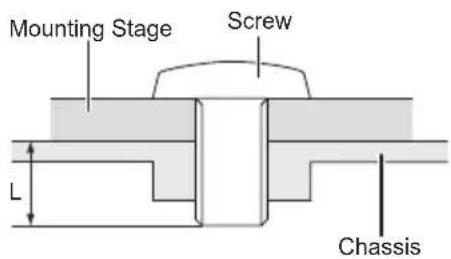
text_image
Mounting Stage Screw L Chassis< BUILT-IN EQUIPMENT >
WARNING
This product is not designed for the purpose of being used in high temperature environment.
If the product is placed in an external cabinet, you need to design cooling fans and vents to keep the temperature low enough to fit in the product temperature specification.
It is designed to be compatible in landscape mode.
Available

text_image
ALandscape
Not Available

natural_image
Simple white arrow symbol pointing right on a gray background (no text or numbers)
text_image
A
text_image
ACONTROLS AND CONNECTORS
text_image
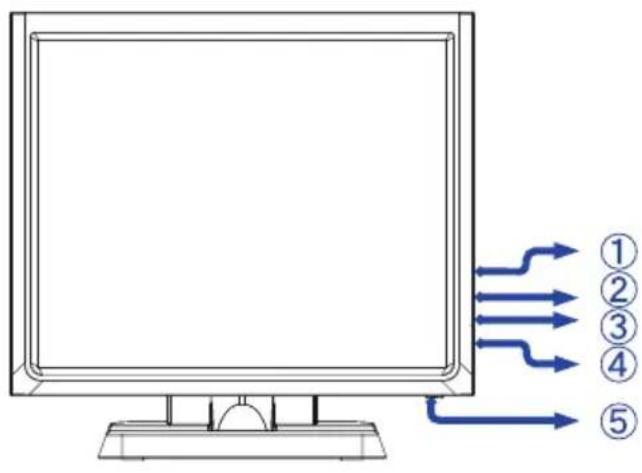
Diagram of a computer monitor with five labeled arrows pointing outward from the screen, indicating directional flow or signal flow.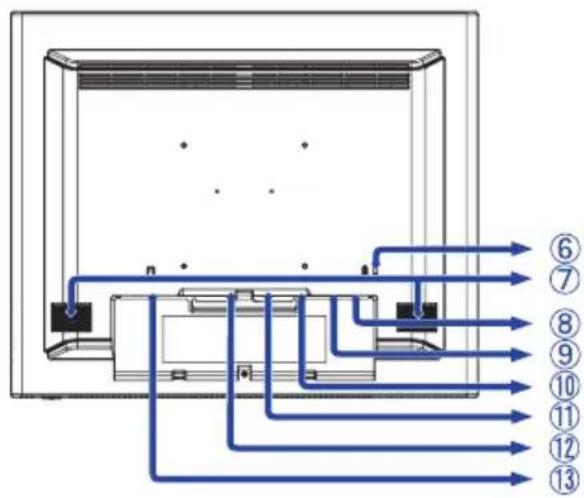
flowchart
graph TD
    A["Air Vent"] --> B["Valve 1"]
    A --> C["Valve 2"]
    A --> D["Valve 3"]
    A --> E["Valve 4"]
    A --> F["Valve 5"]
    A --> G["Valve 6"]
    A --> H["Valve 7"]
    A --> I["Valve 8"]
    A --> J["Valve 9"]
    A --> K["Valve 10"]
    A --> L["Valve 11"]
    A --> M["Valve 12"]
    A --> N["Valve 13"]
① Menu Button (图标)
② Scroll Up / Brightness Button (△)
③ Scroll Down / Mute Button (▽)
④ Select Button (←)
⑤ Power Switch (⏻)
⑥ Keyhole for Security Lock
NOTE
You can fasten a security lock and cable to prevent the monitor from being removed without your permission.
⑦ Speakers
⑧ USB Connector (USB)
⑨ Audio Connector (AUDIO)
⑩ VGA Connector (VGA)
⑪ HDMI Connector (HDMI)
⑫ DisplayPort Connector (DP)
⑬ AC Connector( ∼: Alternating current) (AC IN)
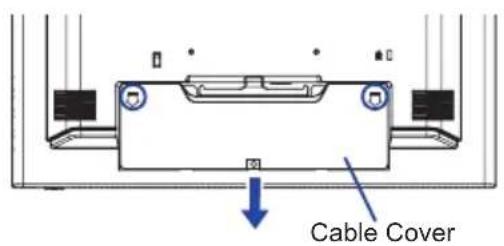
[Fitting and Removal of Cable Cover]
- Removal
① Press and hold ☐ on the Cable Cover and remove the Cable Cover.
- Fitting
① Place the Cable Cover.
② Fix the Monitor with the Cable Cover by the screw firmly.
text_image
Cable Cover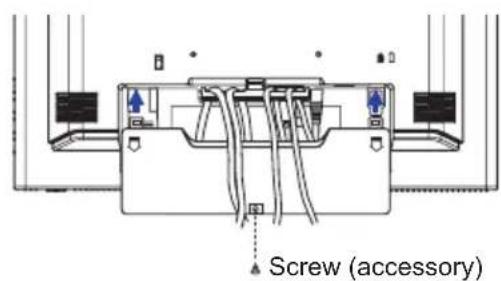
text_image
Screw (accessory)CONNECTING YOUR MONITOR
① Ensure that both the computer and the monitor are switched off.
② Connect the computer to the monitor with the signal cable.
③ Connect the computer to the monitor with the USB Cable.
④ Connect the monitor to the audio equipment with the Audio Cable for computer when using the audio features.
⑤ Connect the Power Cable to the monitor first and then to the power source.
⑥ Turn on your monitor and computer.
NOTE
■ Make sure that the building installation has a circuit breaker of 120/240V, 20A (maximum).
■ The signal cables used for connecting the computer and monitor may vary with the type of computer used. An incorrect connection may cause serious damage to both the monitor and the computer. The cable supplied with the monitor is for a standard connector. If a special cable is required please contact your local iiyama dealer or regional iiyama office.
■ Make sure you tighten the finger screws at each end of the Signal Cable.
■ The Class I pluggable equipment Type A must be connected to protective earth.
■ The socket-outlet shall be installed near the equipment and shall be easily accessible.
[Example of Connection]

text_image
* VGA cable is not supplied with the monitor. If you use low quality VGA cable, it may cause a result of electro-magnetic interference. Please contact the iiyama Support Centre in your country if you wish to connect the monitor via the VGA input.
[Collect Cables]
① Put the cables through the cable holder and holes.
② Collect cables at the back of the stand.
![IIYAMA ProLite T1531SR-B6 - [Collect Cables] - 1](/content/2026/06/1212136/images/f3a5d2f674c56c6a7a21b1d9fcede6151d593927ed53092d45d606f892a8e36c.jpg)
text_image
Cable Holder![IIYAMA ProLite T1531SR-B6 - [Collect Cables] - 2](/content/2026/06/1212136/images/22fa1dd928d2523e2d6846ee35ab924211ada9dd384630b98946acf503e8cebd.jpg)
text_image
Cable HoleCOMPUTER SETTING
■ Signal Timing
Change to the desired signal timing listed on page 29: COMPLIANT TIMING.
■ Windows XP/Vista/7/8/8.1/10 Plug & Play
The iiyama LCD monitor complies with DDC2B of VESA standard. The Plug & Play function runs on Windows XP/Vista/7/8/8.1/10 by connecting the monitor to DDC2B compliant computer with the Signal Cable supplied.
For installation on Windows XP: The monitor Information File for iiyama monitors may be necessary for your computer and obtained via the Internet, using the address:
http://www.iiyama.com
NOTE
■ For additional information on how to download the driver for your touch screen monitor, please access the internet site noted above.
■ Monitor Drivers are not required in most cases for Macintosh or Unix operating systems. For further information, please contact your computer dealer first for advice.
■ Procedure for turning ON the Power Switch
Turn ON the monitor first, and then the computer.
■ Touch screen driver software
Touch screen driver software and system may not start when you start your computer while touching the screen.
Touch screen driver software may not run due to the power saving function depending on the BIOS of your computer. In this case, set the power saving function to off.
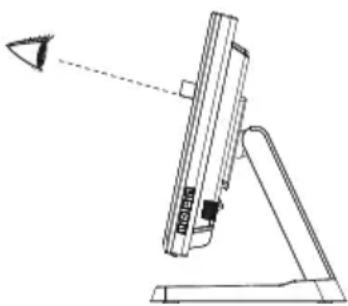
ADJUSTING THE VIEWING ANGLE
■ For optimal viewing it is recommended to look at the full face of the monitor.
- Hold the panel so that the monitor does not topple when you change the monitor's angle.
- You are able to adjust the monitor's angle up to 95 degrees upward, 25 degrees downward.
NOTE
■ Do not touch the LCD screen when you change the angle. It may cause damage or break the LCD screen.
■ Careful attention is required not to pinch your fingers or hands into the moving part of the stand when you change the angle.
natural_image
Technical line drawing of a mechanical device with a triangular support and pointer (no text or symbols)
text_image
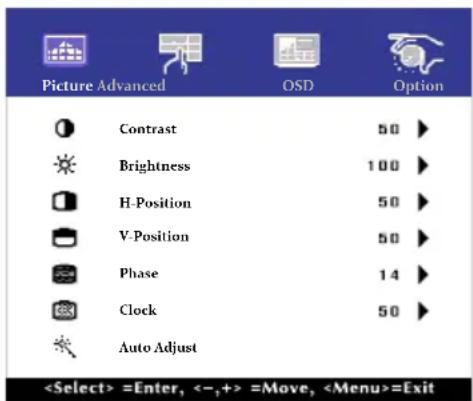
95° 25°To create the best picture, your iiyama LCD monitor has been preset at the factory with the COMPLIANT TIMING shown on page 29. You are also able to adjust the picture by following the button operation shown below. For more detailed adjustments, see page 16 for SCREEN ADJUSTMENTS.
① Press the Button to start the On Screen Display feature. There are additional Menu items which can be switched by using the ↗ Buttons.
text_image
Picture Advanced OSD Option Contrast 50 Brightness 100 H-Position 50 V-Position 50 Phase 14 Clock 50 Auto Adjust② Select the Menu item which contains the adjustment icon relating to the adjustment you want to make. Use the Button to highlight the desired adjustment icon.
③ Use the △ Buttons to make the appropriate adjustment or setting.
④ Press the Button to leave the menu, and the settings you just made would be automatically saved.
For example, to correct for vertical position, select Menu item of Picture. Then, select V-Position by using the Button.
Use the / Buttons to change the vertical position settings. The vertical position of the overall display should be changing accordingly while you are doing this.

text_image
PictureAdvanced OSD Option V-Position 50 Press <-,+> to Adjust andPress the Button lastly, it ends, all changes are saved in the memory.
NOTE
■ When button operations are aborted during adjustment, On-Screen Display disappears when the time set for the OSD Timeout has passed.
■ button can be used to return previous menu item.
■ Any changes are automatically saved in the memory when the On Screen Display disappears. Turning off the power should be avoided while using the Menu.
■ Adjustments for H/V-Position, Clock and Phase are saved for each signal timing. Except for these adjustments, all other adjustments have only one setting which applies to all signal timings.
Direct
- LOCK MODE:
Simultaneously press the 📁 button and the 📅 button when an image is displayed through VGA, HDMI or DisplayPort.
* The OSD menu is not displayed when the OSD is locked. Press the button and the button simultaneously again.
The following OSD menu is displayed.
| Adjustment Item Problem / Option | ||
| POWER | Active | The POWER SWITCH is Locked. |
| Inactive | The POWER SWITCH is Unlocked. | |
| OSD | Active | The OSD menu is Locked. |
| Inactive | The OSD menu is Unlocked. | |
NOTE
When the lock function is enabled and there is no signal (standby mode), pressing the menu button displays the input selection menu and enables input selection.
- TOUCH FUNCTION DISABLE:
ON: Pressing and holding of the Button and the Button at the same time when the Menu is not displayed, massage "TOUCH DISABLE" will appear on the top right corner.
OFF: Pressing and holding of the Button and the Button at the same time for about 5 seconds when the Menu is not displayed, till "TOUCH DISABLE" disappears.
ADJUSTMENT MENU CONTENTS
 Picture Picture | 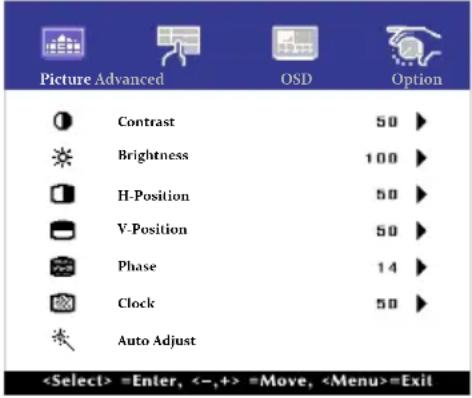 | |
| Adjustment Item Problem | / Option | Button to Press |
| Contrast | Too dullToo intense | |
| Brightness*1Direct | Too darkToo bright | |
| H-Position*4 | Too leftToo right | |
| V-Position*4 | Too lowToo high | |
| Phase*2,4 | To correct flickering text or lines | |
| Clock*2,4 | Too narrowToo wide | |
| Auto Adjust*3,4 | Adjust H/V-Position, Clock and Phase automatically. | |
Adjust the Brightness when you are using the monitor in a dark room and feel the screen is too bright.
*2 See page 16 for SCREEN ADJUSTMENTS.
*3 For best results, use the Auto Adjust in conjunction with the adjustment pattern. See page 16 for SCREEN ADJUSTMENTS.
*4 Only Analog Input.
Direct
You can skip the Menu items and directly display an adjustment scale by using the following button operations.
- Brightness: Press the △Button when the Menu is not displayed.
Advanced 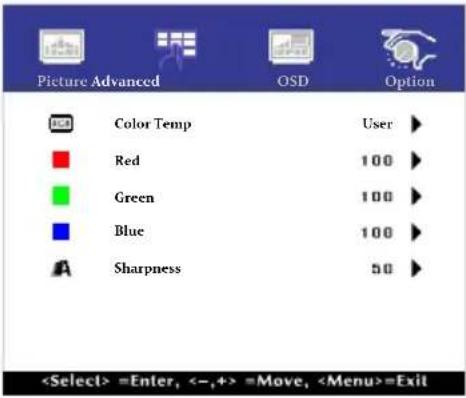 | |||
| Adjustment Item Problem / Option Button to Press | |||
| Color Temp | 5500 | Greenish white | |
| 6500 | Reddish white | ||
| 7500 | Yellowish white | ||
| Bluish white9300 | |||
| User | Red Too weak Too strong | ||
| Green Too strong | |||
| Blue | |||
| Sharpness | You can change the picture quality from 0 to 100 (soft to sharp).Press the △Button to change the picture quality in numerical order. Press the ▼Button to change the picture quality in reverse numerical order.Adjust the picture quality at resolutions of less 1024 x 768(ProLite T1531SR/ProLite T1531SAW),1280 x 1024(ProLite T1731SR/ProLite T1731SAW/ ProLite T1931SR/ProLite T1931SAW). You can change the picture quality. | ||
 OSD OSD  | |
| Adjustment Item Problem / Option Button to Press | |
| OSD Timeout | You can set the OSD display duration time between 5 and 60 seconds. |
| OSD Position | You can set the OSD position.User (Upper left / Lower left / Upper right / Lower right / Center) |
| OSD H-Position | OSD is too leftOSD is too right |
| OSD V-Position | OSD is too lowOSD is too high |
 Option Option 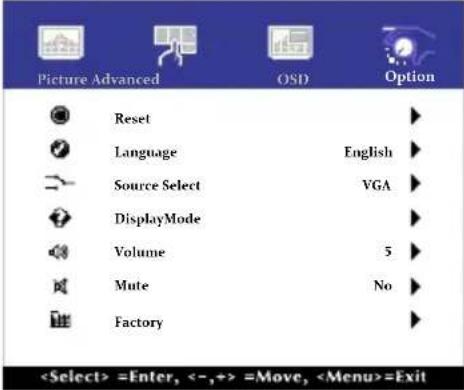 | ||||
| Adjustment Item Problem | / Option Button to Press | |||
| Reset | No | Return to Menu. | ||
| Yes | Factory-preset data is restored. | |||
| Language | English | English | Español Spanish | |
| Français French | 日本語 | Japanese | ||
| Deutsch | German | 繁中 | Traditional Chinese | |
| Italiano Italian | n | 简中 | Simplified Chinese | |
| Source Select Direct | Auto | Search for an available input source and select automatically. | ||
| VGA | Select the analog input. | |||
| HDMI | Select the digital(HDMI) input. | |||
| Select the digital(DisplayPort) input. DP | ||||
| NOTE However it will automatically be selected when just one source is using.In Standby Mode input switching is disabled.Input source is fixed, not selected automatically when VGA, HDMI and DisplayPort which are selected. | ||||
| Display Mode | Displays information regarding the current input signal coming from the graphic card in your computer. NOTE See your graphic card user guide for more information about changing the resolution and refresh. | |||
| Volume | Too soft Too loud | |||
| Mute Direct | No | Return the sound volume to the previous level. | ||
| Yes | Turn off the sound temporarily. | |||
| Factory | This function is for service personnel only and therefore the operation is not available. | |||
Direct
You can skip the Menu items and directly display an option setting screen by using the following button operations.
- Source Select: Pressing the Button during standby mode, the Source selected menu will be displayed.
- Mute : Press the ▽Button when the Menu is not displayed.
SCREEN ADJUSTMENTS
Adjust the image by following the procedure below to get the desired picture when selecting Analog input.
■ The screen adjustments described in this manual are designed to set image position and minimize flicker or blur for the particular computer in use.
■ ProLite T1531 series are designed to provide the best performance at resolution of 1024 × 768 , but can not provide the best at resolutions of less than 1024 × 768 because the picture is automatically stretched to fit the full screen. It is recommended to operate at resolution of 1024 × 768 in normal use.
■ ProLite T1731 and ProLite T1931 series are designed to provide the best performance at resolution of 1280 × 1024 , but can not provide the best at resolutions of less than 1280 × 1024 because the picture is automatically stretched to fit the full screen. It is recommended to operate at resolution of 1280 × 1024 in normal use.
■ Displayed text or lines will be blurred or irregular in thickness when the picture is stretched due to the screen enlargement process.
It is preferable to adjust the image position and frequency with the monitor controls, rather than the computer software or utilities.
■ Perform adjustments after a warm-up period of at least thirty minutes.
■ Additional adjustments may be required after the Auto Adjust depending on the resolution or signal timing.
■ The Auto Adjust may not work correctly when displaying the picture other than the screen adjustment pattern. In this case, manual adjustments are required.
There are two ways to adjust the screen. One way is automatic adjustment for H/V-POSITION, H-SIZE and FINE. The other way is performing each adjustment manually.
Perform the Auto Adjust first when the monitor is connected to a new computer, or resolution is changed. If the screen has a flicker or blur, or the picture does not fit in the display area after performing the Auto Adjust, manual adjustments are required. Both adjustments should be made by using the screen adjustment pattern (Test.bmp) obtained via the iiyama web site (http://www.iiyama.com).
Adjust the image by following the procedure below to get the desired picture.
This manual explains adjustment under Windows ^® OS.
① Display the picture at the optimum resolution.
② Enter the Test.bmp (screen adjustment pattern) to wallpaper.
NOTE
■ Consult the appropriate documentation for doing this.
■ Set the display position to center in the wallpaper setting dialogue box.
[Adjustment pattern]
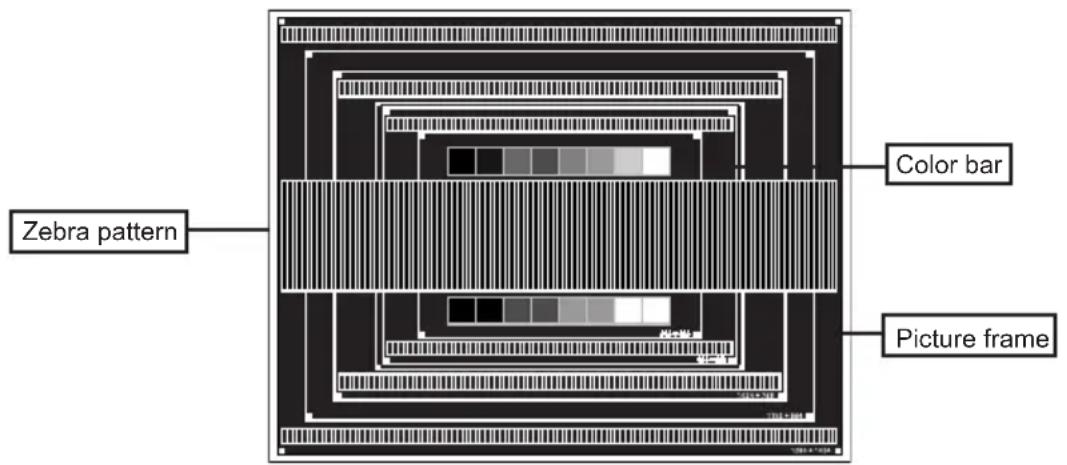
text_image
Zebra pattern Color bar Picture frame③ Press the Button. (AUTO ADJUST)
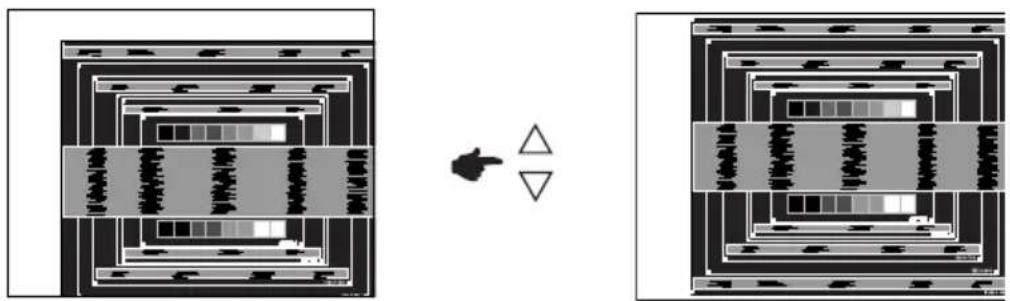
④ Adjust the image manually by following procedure below when the screen has a flicker or blur, or the picture does not fit in the display area after performing the Auto Adjust.
⑤ Adjust the V-POSITION so that the top and bottom of the picture frame will fit to the display area.
natural_image
Two abstract diagrams showing layered rectangular structures with internal patterns and a central arrow symbol (no text or labels)⑥ 1) Adjust the H-POSITION so that the left side of the picture frame will move to the left edge of the display area.

flowchart
graph TD
    A["Multi-layered Grid Structure"] --> B["Transformation"]
    B --> C["Single Triangle Node"]
    style A fill:#f9f,stroke:#333
    style C fill:#bbf,stroke:#333
2) Stretch the right side of the picture frame to the right edge of the display area by adjusting the H-SIZE.

flowchart
graph TD
    A["Start Box 1"] --> B["Process Box 1"]
    B --> C["Feedback Loop"]
    C --> D["Stage 1"]
    D --> E["End Box 2"]
NOTE
■ When the left side of the picture frame moves apart from the left edge of the display area during the H-SIZE adjustment, adjust steps 1) and 2).
■ Another way to make the H-SIZE adjustment is to correct the vertical wavy lines in the zebra pattern.
■ The picture may flicker during the H-SIZE, H/V-POSITION adjustment.
In case the picture frame is bigger or smaller than the data display area after the H-SIZE adjustment, repeat steps from ③
⑦ Adjust the FINE to correct horizontal wavy noise, flicker or blur in the zebra pattern.
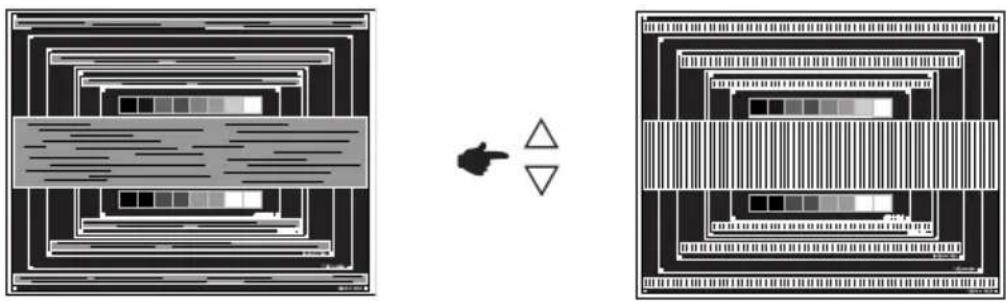
natural_image
Two abstract diagrams showing layered rectangular structures with horizontal lines and a central arrow symbol (no text or labels)NOTE
In case the strong flicker or blurs remain on a part of the screen, repeat steps ⑥ and ⑦ because the H-SIZE may not be adjusted correctly.
■ Adjust the H-POSITION after the FINE adjustment if the horizontal position moves during the adjustment.
⑧ Adjust the Brightness and Color to get the desired picture after you complete the H-SIZE and FINE adjustments.
Put back your favorite wallpaper.
STANDBY FEATURE
This product features the standby function. When activated, it automatically reduces unnecessary power consumption of the monitor when your computer is not in use.
There is a standby step the monitor takes as described below. The standby function, including any timer settings is configured by the operating system. Check your operating system manual for information on how this can be configured.
■ Standby Mode
When the video signal from the computer is off, the monitor enters into State reduces the power consumption to less than 1.5W^* . The screen becomes dark. From Standby Mode, the image reappears in several seconds when either the keyboard or the mouse are touched again.
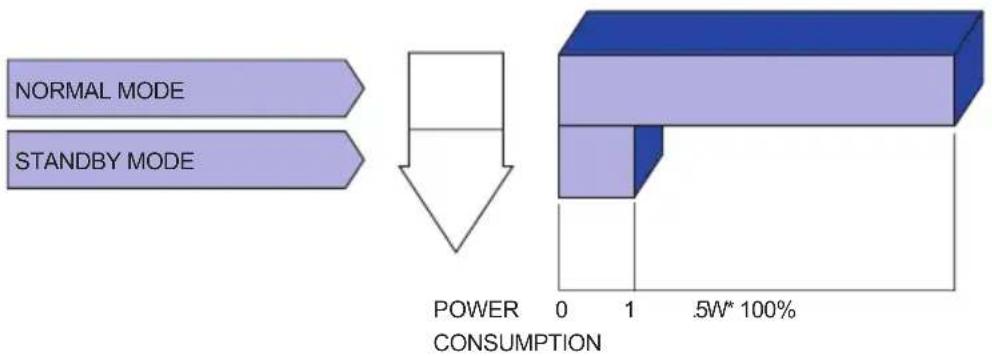
flowchart
graph TD
    A["NORMAL MODE"] --> C["Power Consumption"]
    B["STANDBY MODE"] --> C
    C --> D["5W* 100%"]
* When the USB devices are not connected.
TROUBLE SHOOTING
If the monitor fails to operate correctly, please follow the steps below for a possible solution.
- Perform the adjustments described in OPERATING THE MONITOR, depending on the problem you have. If the monitor does not get a picture, skip to 2.
- Consult the following items if you cannot find an appropriate adjustment item in OPERATING THE MONITOR or if the problem persists.
- If you are experiencing a problem which is not described below or you cannot correct the problem, discontinue using the monitor and contact your dealer or iiyama service center for further assistance.
Problem Check
| 1 The picture does not appear. | □ The Power Cable is firmly seated in the socket.□ The Power Switch is turned ON.□ The AC socket is live. Please check with another piece of equipment.□ If the blank screen saver is in active mode, touch the keyboard or the mouse.□ Increase the Contrast and/or Brightness.□ The computer is ON.□ The Signal Cable is properly connected.□ The signal timing of the computer is within the specification of the monitor.□ If the monitor is in standby mode, touch the keyboard or the mouse. |
| 2 The screen is not synchronized. | □ The Signal Cable is properly connected.□ The signal timing of the computer is within the specification of the monitor. |
| 3 The screen position is not in the center. | □ The signal timing of the computer is within the specification of the monitor. |
| 4 The screen is too bright or too dark. | □ The video output level of the computer is within the specification of the monitor. |
| 5 The screen is shaking. | □ The power voltage is within the specification of the monitor.□ The signal timing of the computer is within the specification of the monitor. |
| 6 No sound. | □ The audio equipment (computer etc.) is ON.□ The Audio Cable is properly connected.□ The Volume is turned up.□ The Mute is OFF.□ The audio output level of the audio equipment is within the specification of the monitor. |
| 7 The sound is too loud or too quiet. | □ The audio output level of the audio equipment is within the specification of the monitor. |
| 8 A strange noise is heard. | □ The Audio Cable is properly connected. |
| 9 The touch screen shows no response. | □ The USB Cable is firmly seated in the socket.□ Touch screen driver software is installed. (When USB is connected with Windows7 earlier versions.) |
| 10 The touch position does not deviate. | □ The calibration function set up correctly. |
RECYCLING INFORMATION
For better environment protection please don't dispose your monitor.
Please visit our web site: www.iiyama.com for monitor recycling.
SPECIFICATIONS : ProLite T1531SR
| Model Name | ProLite T1531SR-B5 B / ProLite T1531SR-W5 B | ProLite T1531SR-B6 B / ProLite T1531SR-W6 B | |
| Touch Screen | Technology Resistive-Film | ||
| Surface processing Light transmission | Anti-glare treatment | ||
| 80% | |||
| Communication system | USB serial transfer | ||
| Size Category 15" | |||
| LCD Panel | Panel technology | TN VA | |
| Size Diagonal: 15" (38cm) | |||
| Pixel pitch 0.297mm H | × 0.297mm V | ||
| Brightness | 350cd/m2(Typical: without Touch panel), 280cd/m2(Typical: with Touch panel) | ||
| Contrast ratio 800 : 1 | (Typical) 2500 : 1 (Typical) | ||
| Viewable angle Horizontal : 176 degrees, Vertical: 176 degrees (Typical) | |||
| Response time | 8ms (Black, White, Black Typical) | 18ms (Black, White, Black Typical) | |
| Display Colors Approx. 16.2M | |||
| Sync Frequency Horizontal: 31.47-60.02kHz, Vertical: 56-75Hz | |||
| Maximum Resolution 1024 × 768, 0.8 MegaPixels | |||
| Input Connector VGA, HDMI, DisplayPort | |||
| Plug & Play | VESA DDC2BTM | ||
| Input Sync Signal | Separate sync: TTL, Positive or Negative | ||
| Input Video Signal | Analog: 0.7Vp-p (Standard), 75Ω, Positive Digital: HDMI, DisplayPort | ||
| Input Audio Connector | ø 3.5mm mini jack (Stereo) | ||
| Input Audio Signal | 0.5Vrms maximum | ||
| Speakers | 1W × 2 (Stereo speakers) | ||
| Maximum Screen Size | 304.1mm W × 228.1mm H / 12.0" W × 9.0" H | ||
| Power Source 100-240VAC, 50-60Hz, 1A | |||
| Power Consumption*1 | 16W typical Standby mode: 1.5W maximum, Off mode: 0.3W maximum | ||
| Dimensions / Net Weight | 351.0 × 336.5 × 253.5mm / 13.8 × 13.2 × 10.0" (W×H×D) 4.6kg / 10.1lbs | ||
| Tilt Angle | Upward: 95 degrees Downward: 25 degrees | ||
| Environmental Considerations | Operating: Temperature 0 to 40°C / 32 to 104°F Humidity 20 to 80% (No condensation) Storage: Temperature -20 to 60°C / -4 to 140°F Humidity 10 to 90% (No condensation) | ||
| Approvals | CE, UKCA, EAC, cULus, VCCI, IP54*2 | ||
NOTE
*1 When the USB devices are not connected.
^*2 IP54 Standard Compliant : Only front face
| Model Name ProLite T1531SAW | -B5 B ProLite T1531SAW-B6 B | ||
| Touch Screen | Technology Surface acoustic wave | ||
| Surface processing Light transmission | Anti-glare treatment | ||
| 92% | |||
| Communication system | USB serial transfer | ||
| Size Category 15" | |||
| LCD Panel | Panel technology | TN VA | |
| Size Diagonal: 15" (38cm) | |||
| Pixel pitch 0.297mm H | × 0.297mm V | ||
| Brightness | 350cd/m2(Typical: without Touch panel),325cd/m2(Typical: with Touch panel) | ||
| Contrast ratio 800 : 1 (Typical) 2500 : 1 (Typical) | |||
| Viewable angle Horizontal : 176 degrees, Vertical: 176 degrees (Typical) | |||
| Response time | 8ms (Black, White, Black Typical) | 18ms (Black, White, Black Typical) | |
| Display Colors Approx. 16.2M | |||
| Sync Frequency Horizontal: 31.47-60.02kHz, Vertical: 56-75Hz | |||
| Maximum Resolution 1024 × 768, 0.8 MegaPixels | |||
| Input Connector | VGA, HDMI, DisplayPort | ||
| Plug & Play | VESA DDC2BTM | ||
| Input Sync Signal | Separate sync: TTL, Positive or Negative | ||
| Input Video Signal | Analog: 0.7Vp-p (Standard), 75Ω, PositiveDigital: HDMI, DisplayPort | ||
| Input Audio Connector | ø 3.5mm mini jack (Stereo) | ||
| Input Audio Signal 0.5Vrms maximum | |||
| Speakers | 1W × 2 (Stereo speakers) | ||
| Maximum Screen Size | 304.1mm W × 228.1mm H / 12.0" W × 9.0" H | ||
| Power Source 100-240VAC, 50-60Hz, 1A | |||
| Power Consumption*1 | 16W typicalStandby mode: 1.5W maximum, Off mode: 0.3W maximum | ||
| Dimensions / Net Weight | 351.0 × 336.5 × 253.5mm / 13.8 × 13.2 × 10.0" (W×H×D)4.6kg / 10.1lbs | ||
| Tilt Angle | Upward: 95 degrees Downward: 25 degrees | ||
| Environmental Considerations | Operating: Temperature 0 to 40°C / 32 to 104°FHumidity 20 to 80% (No condensation)Storage: Temperature -20 to 60°C / -4 to 140°FHumidity 10 to 90% (No condensation) | ||
| Approvals | CE, UKCA, EAC, cULus, VCCI, IP54*2 | ||
NOTE
^*1 When the USB devices are not connected.
*2 IP54 Standard Compliant : Only front face
| Model Name | ProLite T1731SR-B5 B / ProLite T1731SR-W5 BProLite T1731SR-B5 C / ProLite T1731SR-W5 C | |
| Touch Screen | Technology Resistive-Film | |
| Surface processingLight transmission | Anti-glare treatment80% | |
| Communication system | USB serial transfer | |
| Size Category 17" | ||
| LCD Panel | Panel technology | TN |
| Size Diagonal: 17" (43cm) | ||
| Pixel pitch 0.264mm H | × 0.264mm V | |
| Brightness | 250cd/m2(Typical: without Touch panel),200cd/m2(Typical: with Touch panel) | |
| Contrast ratio 1000 : 1 | (Typical) | |
| Viewable angle Horizontal : 170 degrees, Vertical: 160 degrees (Typical) | ||
| Response time 5ms (Black, White, Black Typical) | ||
| Display Colors Approx.16.7M | ||
| Sync Frequency Horizontal: 31.0-80.0kHz, Vertical: 50-75Hz | ||
| Maximum Resolution 1280 × 1024, 1.3 MegaPixels | ||
| Input Connector VGA, HDMI, DisplayPort | ||
| Plug & Play VESA DDC2B | TM | |
| Input Sync Signal Separate sync: TTL, Positive or Negative | ||
| Input Video Signal | Analog: 0.7Vp-p (Standard), 75Ω, PositiveDigital: HDMI, DisplayPort | |
| Input Audio Connector | ø 3.5mm mini jack (Stereo) | |
| Input Audio Signal | 0.5Vrms maximum | |
| Speakers | 1W × 2 (Stereo speakers) | |
| Maximum Screen Size | 337.920mm W × 270.336mm H / 13.3" W × 10.6" H | |
| Power Source 100-240VAC, 50-60Hz, 1A | ||
| Power Consumption*1 | 20W typicalStandby mode: 1.5W maximum, Off mode: 0.3W maximum | |
| Dimensions / Net Weight | 387.0 × 372.0 × 253.5mm / 15.2 × 14.6 × 10.0" (W×H×D)5.3kg / 11.7lbs | |
| Tilt Angle | Upward: 95 degrees Downward: 25 degrees | |
| Environmental Considerations | Operating: Temperature 0 to 40°C / 32 to 104°FHumidity 20 to 80% (No condensation)Storage: Temperature -20 to 60°C / -4 to 140°FHumidity 10 to 90% (No condensation) | |
| Approvals | CE, UKCA, EAC, cULus, VCCI, IP54*2 | |
NOTE
*1 When the USB devices are not connected.
*2 IP54 Standard Compliant : Only front face
SPECIFICATIONS : ProLite T1731SAW
| Model Name ProLite T1731SAW | -B5 B / ProLite T1731SAW-B5 C | |
| Touch Screen | Technology Surface acoustic wave | |
| Surface processing Light transmission | Anti-glare treatment | |
| 92% | ||
| Communication system | USB serial transfer | |
| Size Category 17" | ||
| LCD Panel | Panel technology | TN |
| Size Diagonal: 17" (43cm) | ||
| Pixel pitch 0.264mm H | × 0.264mm V | |
| Brightness | 250cd/m2(Typical: without Touch panel), 230cd/m2(Typical: with Touch panel) | |
| Contrast ratio 1000 : 1 | (Typical) | |
| Viewable angle Horizontal : 170 degrees, Vertical: 160 degrees (Typical) | ||
| Response time 5ms (Black, White, Black Typical) | ||
| Display Colors Approx.16.7M | ||
| Sync Frequency Horizontal: 31.0-80.0kHz, Vertical: 50-75Hz | ||
| Maximum Resolution 1280 × 1024, 1.3 MegaPixels | ||
| Input Connector VGA, HDMI, DisplayPort | ||
| Plug & Play | VESA DDC2BTM | |
| Input Sync Signal | Separate sync: TTL, Positive or Negative | |
| Input Video Signal | Analog: 0.7Vp-p (Standard), 75Ω, Positive Digital: HDMI, DisplayPort | |
| Input Audio Connector | ø 3.5mm mini jack (Stereo) | |
| Input Audio Signal | 0.5Vrms maximum | |
| Speakers | 1W × 2 (Stereo speakers) | |
| Maximum Screen Size | 337.920mm W × 270.336mm H / 13.3" W × 10.6" H | |
| Power Source 100-240VAC, 50-60Hz, 1A | ||
| Power Consumption*1 | 20W typical Standby mode: 1.5W maximum, Off mode: 0.3W maximum | |
| Dimensions / Net Weight | 387.0 × 372.0 × 253.5mm / 15.2 × 14.6 × 10.0" (W×H×D) 5.3kg / 11.7lbs | |
| Tilt Angle | Upward: 95 degrees Downward: 25 degrees | |
| Environmental Considerations | Operating: Temperature 0 to 40°C / 32 to 104°F Humidity 20 to 80% (No condensation) Storage: Temperature -20 to 60°C / -4 to 140°F Humidity 10 to 90% (No condensation) | |
| Approvals | CE, UKCA, EAC, cULus, VCCI, IP54*2 | |
NOTE
*1 When the USB devices are not connected.
*2 IP54 Standard Compliant : Only front face
| Model Name | ProLite T1931SR-B5 B / ProLite T1931SR-W5 B | ProLite T1931SR-B6 B / ProLite T1931SR-W6 B | ProLite T1931SR-B6 C / ProLite T1931SR-W6 C | |
| Touch Screen | Technology Resistive-Film | |||
| Surface processing Light transmission | Anti-glare treatment | |||
| 80% | ||||
| Communication system | USB serial transfer | |||
| Size Category 19" | ||||
| LCD Panel | Panel technology | TN IPS | IPS (In-Plane-Switching) | |
| Size Diagonal: 19" (48cm) | ||||
| Pixel pitch | 0.294mm H × 0.294mm V | 0.2928mm H × 0.2928mm V | ||
| Brightness | 250cd/m2(Typical: without Touch panel), 200cd/m2(Typical: with Touch panel) | |||
| Contrast ratio 1000 : 1 | (Typical) | |||
| Viewable angle | Horizontal : 178 degrees, Vertical: 178 degrees (Typical) | |||
| Response time | 5ms (Black, White, Black Typical) | 14ms(Gray to Gray Typical) | ||
| Display Colors Approx.16.7M | ||||
| Sync Frequency Horizontal: 31.0-80.0kHz, Vertical: 50-75Hz | ||||
| Maximum Resolution 1280 × 1024, 1.3 MegaPixels | ||||
| Input Connector VGA, HDMI, DisplayPort | ||||
| Plug & Play VESA DDC2B | TM | |||
| Input Sync Signal Separate sync: TTL, Positive or Negative | ||||
| Input Video Signal | Analog: 0.7Vp-p (Standard), 75Ω, Positive Digital: HDMI, DisplayPort | |||
| Input Audio Connector ø 3.5mm mini jack (Stereo) | ||||
| Input Audio Signal 0.5Vrms maximum | ||||
| Speakers | 1W × 2 (Stereo speakers) | |||
| Maximum Screen Size | 376.320×301.056mm / 14.8×11.9" | 374.78×299.83mm / 14.7×11.8" | ||
| Power Source 100-240VAC, 50-60Hz, 1A | ||||
| Power Consumption*1 | 20W typical Standby mode: 1.5W maximum, Off mode: 0.3W maximum | |||
| Dimensions / Net Weight | 432.0 × 407.5 × 253.5mm / 17.0 × 16.0 × 10.0" (W×H×D) 6.2kg / 13.7lbs | |||
| Tilt Angle | Upward: 95 degrees Downward: 25 degrees | |||
| Environmental Considerations | Operating: Temperature 0 to 40°C / 32 to 104°F Humidity 20 to 80% (No condensation) Storage: Temperature -20 to 60°C / -4 to 140°F Humidity 10 to 90% (No condensation) | |||
| Approvals | CE, UKCA, EAC, cULus, VCCI, IP54*2 | |||
NOTE
*1 When the USB devices are not connected.
^*2 IP54 Standard Compliant : Only front face
SPECIFICATIONS : ProLite T1931SAW
| Model Name | ProLite T1931SAW-B5 B | ProLite T1931SAW-B6 B | ProLite T1931SAW-B6 C | |
| Touch Screen | Technology Surface acoustic wave | |||
| Surface processing Light transmission | Anti-glare treatment | |||
| 92% | ||||
| Communication system | USB serial transfer | |||
| Size Category 19" | ||||
| LCD Panel | Panel technology | TN IPS | IPS (In-Plane-Switching) | |
| Size Diagonal: 19" (48cm) | ||||
| Pixel pitch | 0.294mm H × 0.294mm V | 0.2928mm H × 0.2928mm V | ||
| Brightness | 250cd/m2(Typical: without Touch panel), 230cd/m2(Typical: with Touch panel) | |||
| Contrast ratio 1000 : 1 | (Typical) | |||
| Viewable angle Horizontal : 178 degrees, Vertical: 178 degrees (Typical) | ||||
| Response time | 5ms (Black, White, Black Typical) | 14ms(Gray to Gray Typical) | ||
| Display Colors Approx.16.7M | ||||
| Sync Frequency Horizontal: 31.0-80.0kHz, Vertical: 50-75Hz | ||||
| Maximum Resolution 1280 × 1024, 1.3 MegaPixels | ||||
| Input Connector VGA, HDMI, DisplayPort | ||||
| Plug & Play VESA DDC2B | TM | |||
| Input Sync Signal Separate sync: TTL, Positive or Negative | ||||
| Input Video Signal | Analog: 0.7Vp-p (Standard), 75Ω, PositiveDigital: HDMI, DisplayPort | |||
| Input Audio Connector | ø 3.5mm mini jack (Stereo) | |||
| Input Audio Signal | 0.5Vrms maximum | |||
| Speakers | 1W × 2 (Stereo speakers) | |||
| Maximum Screen Size | 376.320×301.056mm / 14.8×11.9" | 374.78×299.83mm / 14.7×11.8" | ||
| Power Source 100-240VAC, 50-60Hz, 1A | ||||
| Power Consumption*1 | 20W typicalStandby mode: 1.5W maximum, Off mode: 0.3W maximum | |||
| Dimensions / Net Weight | 432.0 × 407.5 × 253.5mm / 17.0 × 16.0 × 10.0" (W×H×D)6.2kg / 13.7lbs | |||
| Tilt Angle | Upward: 95 degrees Downward: 25 degrees | |||
| Environmental Considerations | Operating: Temperature Humidity 0 to 40°C / 32 to 104°FStorage: Temperature Humidity -20 to 60°C / -4 to 140°F10 to 90% (No condensation) | |||
| Approvals | CE, UKCA, EAC, cULus, IP54*2 | |||
NOTE
*1 When the USB devices are not connected.
^*2 IP54 Standard Compliant : Only front face
DIMENSIONS : ProLite T1531SR / ProLite T1531SAW
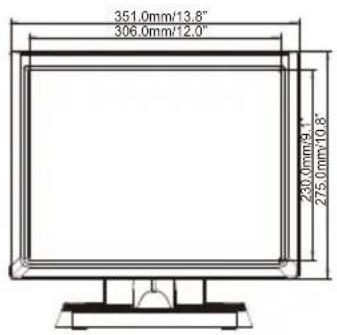
text_image
351.0mm/13.8" 306.0mm/12.0" 230.0mm/9.1" 275.0mm/10.8"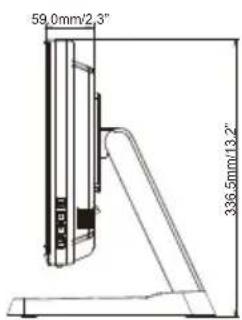
text_image
59.0mm/2.3" 336.5mm/13.2"
text_image
239.5mm/9.4" 253.5mm/10.0"DIMENSIONS : ProLite T1731SR / ProLite T1731SAW
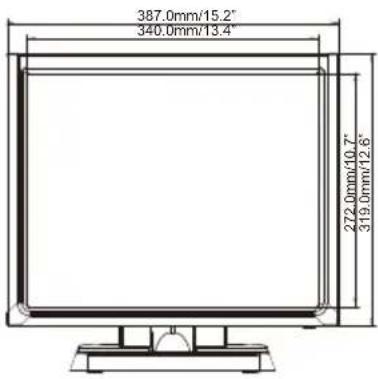
text_image
387.0mm/15.2" 340.0mm/13.4" 272.0mm/10.7" 319.0mm/12.6"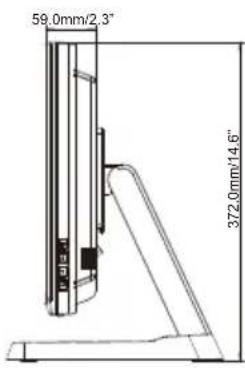
text_image
59.0mm/2.3" 372.0mm/14.6"
text_image
239.5mm/9.4" 253.5mm/10.0"DIMENSIONS : ProLite T1931SR / ProLite T1931SAW

text_image
432.0mm/17.0" 378.5mm/14.9" 303.5mm/11.9" 357.0mm/14.1"
text_image
59.0mm/2.3" 407.5mm/16.0"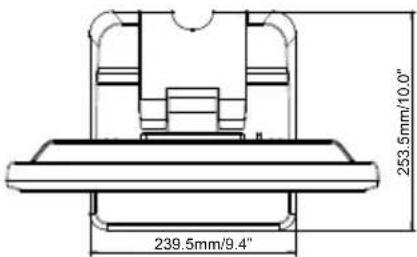
text_image
253.5mm/10.0" 239.5mm/9.4"COMPLIANT TIMING
| Video Mode | Horizontal Frequency | Vertical Frequency | Dot Clock |
| 640 × 480 | 31.469kHz 59. | 940Hz 25.175MHz | |
| 37.500kHz 75. | 000Hz 31.500MHz | ||
| 37.861kHz 72. | 809Hz 31.500MHz | ||
| 800 × 600 | 35.156kHz 56. | 250Hz 36.000MHz | |
| 37.879kHz 60. | 317Hz | 40.000MHz | |
| 46.875kHz 75. | 000Hz 49.500MHz | ||
| 48.077kHz 72. | 188Hz 50.000MHz | ||
| 1024 × 768 | 48.363kHz | 60.004Hz | 65.000MHz |
| 56.476kHz 70. | 069Hz 75.000MHz | ||
| 60.023kHz 75. | 029Hz 78.750MHz | ||
| 1280 × 1024 | 63.981kHz 60. | 020Hz 108.000MHz * | |
| 79.976kHz 75. | 025Hz 135.000MHz * |
NOTE
* Not compliant to ProLite T1531SR / ProLite T1531SAW.