SD-676W - Payment terminal Posiflex - Free user manual and instructions
Find the device manual for free SD-676W Posiflex in PDF.


User questions about SD-676W Posiflex
0 question about this device. Answer the ones you know or ask your own.
Ask a new question about this device
Download the instructions for your Payment terminal in PDF format for free! Find your manual SD-676W - Posiflex and take your electronic device back in hand. On this page are published all the documents necessary for the use of your device. SD-676W by Posiflex.
USER MANUAL SD-676W Posiflex
natural_image
Close-up of a black mechanical clip or bracket component against a white background (no text or symbols visible)Package Contents
√ SD-676 Side Attachment
√ User Manual
√ 2 iButton Keys
(if the iButton reader is built in)
Features
2-in-1 (MSR + iButton Reader) side attachment for Posiflex 15"/17" KS series terminals
▶ Bi-directional swipe
3-track support
Supporting ISO 7811 magnetic card
Interface: USB
Views of the Side Attachment
Front View
Rear View
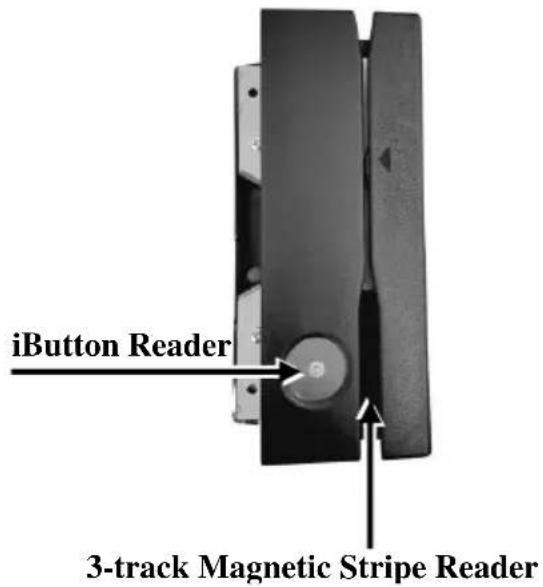
text_image
iButton Reader 3-track Magnetic Stripe Reader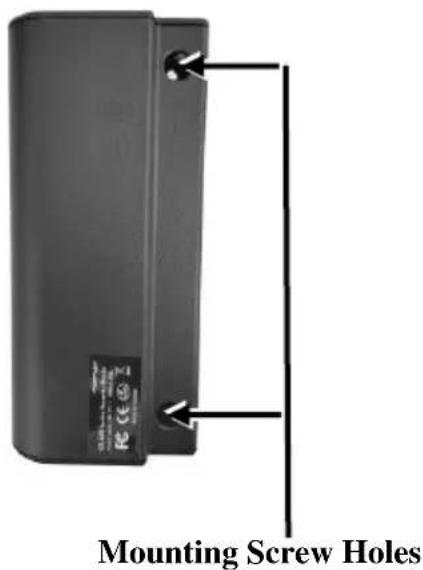
text_image
Mounting Screw Holes19850905010 Ver. A0
http://www.posiflex.com
Hardware Installation
During Installation of the SD-676, do NOT power ON your terminal and monitor.
Installation of SD-676 onto the 15"/17" KS Series Terminals
Start to install SD-676 onto the terminal according to the following steps.
- Loosen and remove the two fixing screws from the side mount cover on the back of the right side of the terminal.

natural_image
Close-up of a computer motherboard with a hand inserting a screwdriver (no visible text or symbols)- Remove the side mount cover from the back of the right side of the terminal.
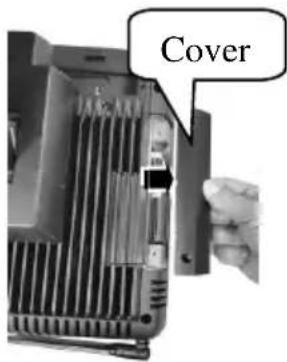
text_image
Cover- Insert the USB I/O cable connected from the main board of the terminal into the cable connector of the side attachment.
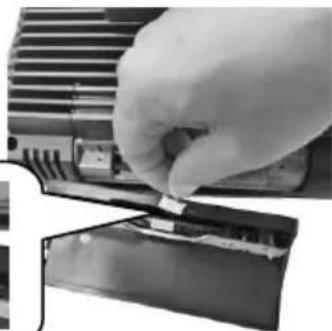
natural_image
Close-up of a hand inserting a small electronic component into a device (no visible text or symbols)- Determine that the USB I/O cable is securely connected to the cable connector of the side attachment.

natural_image
Close-up of a hand inserting a small mechanical component into a device (no visible text or symbols)- Manage the USB I/O cable well, as shown in the right figure.

natural_image
Close-up of a hand holding a tool with a magnified inset showing a finger pointing to a component (no text or symbols visible)- Align the two mounting screw holes of the SD-676 side attachment with the two screw holes on the terminal.

natural_image
Close-up of a hand adjusting a circular component with an arrow pointing to it (no visible text or symbols)- Fix the SD-676 side attachment onto the terminal by locking the two screws shipped with the package.
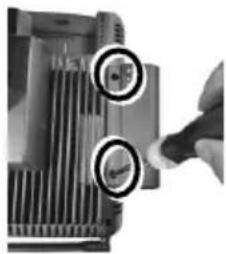
natural_image
Close-up of a computer monitor with a hand inserting a mouse into the case (no visible text or symbols)- The installation of SD-676 side attachment onto the terminal is completed, as shown in the right figure.
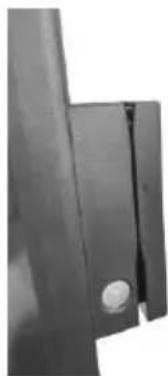
natural_image
Close-up of a metallic mechanical component with a circular hole and a small circular feature (no visible text or symbols)Driver Installation and Utility Outline
Before installing the drivers of the SD-676 side attachment, after installing the SD-676 side attachment hardware, power on your KS-series terminal.
Installing the Posiflex USB MSR Manager
After you finish installing the side attachment onto the KS-series terminal, to allow you to easily do settings of the attachment, please install the Posiflex USB MSR Manager. To download the Posiflex USB MSR Manager, go to the Posiflex' global website: http://www.posiflex.com/englobal/Download/download to download the up-to-date utility.
After downloading tool, follow the step-by-step instructive messages to complete the manager installation. After completion of the manager installation, restart your terminal.
Next, left click Start → Programs → Posiflex Tools → Posiflex USB MSR Manager to open the MSR manager.

text_image
Windows Update Programs Documents Foxflex Tools Foxflex USB MSK Manager※ If you purchase the MSR model of which the interface is KB wedge, ignore the following steps.
Then, the Posiflex USB MSR Manager appears. If you purchase the MSR model of which the interface is virtual COM, tick off on virtual COM port interface and tap Save & Exit to exit from the manager.
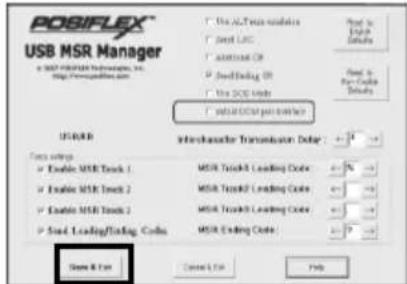
text_image
POSIFLEX USB MSR Manager a USB MSR Manager, Inc. http://www.iss.com/ User: Intercharacter Transmission Delay: 100% Load: 2000 Enable MSR Track 1 Enable MSR Track 2 Enable MSR Track 2 Load Leading/Loading Code MSR Tracking Leading Code: 100% MSR Tracking Leading Code: 100% MSR Tracking Leading Code: 100% MSR Ending Code: 100% Save & Use Cancel Use HelpIf you select virtual COM port interface, go to the Posiflex' global website to download the virtual COM driver and install it. follow the step-by-step instructive messages to complete the driver installation. After completion of the driver installation, restart your terminal.
Installing the iButton Setup Tool
If you purchase the iButton model of which the interface is Virtual COM, install the I-Button Virtual COM Driver before installing the iButton Setup Tool.
To download the I-Button Virtual COM Driver and the iButton Setup Tool, go to the Posiflex' global website: http://www.posiflex.com/en-global/Download/download to download the up-to-date driver and utility.
※ If you purchase the iButton model of which the interface is KB wedge, ignore the driver installation and just install the iButton Setup Tool.
After downloading driver and tool, follow the step-by-step instructive messages to complete the installation. After completion of the installation, restart your terminal.
To avoid users doing settings by mistake, it is suggested that professional technicians implement the setup. To do more advanced settings on the side attachment, contact directly the Posiflex' technical service team.
Operating the SD-676
After installing the drivers and tools and setting up SD-676, you can start to operate the side attachment.
Magnetic Stripe Reader (MSR)
- Keep the magnetic stripe of the card facing the arrow head circled in the picture.
- Move the magnetic stripe card along the track of the reader from top to bottom or from bottom to top in the direction of the arrow.
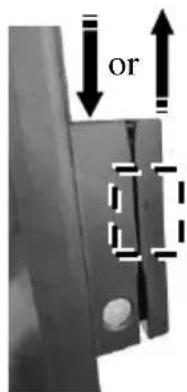
text_image
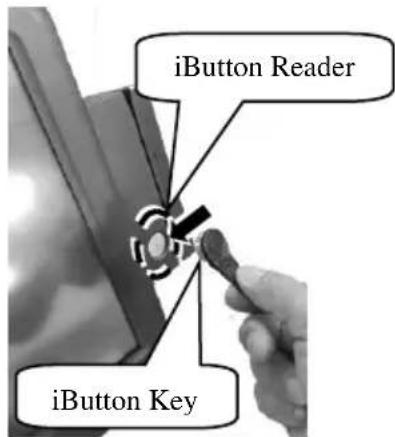
oriButton Reader (Optional)
-
Aim a magnetic iButton key at the reading area of magnetic iButton reader and keep the key close to the reader until the magnetic iButton key is absorbed by the magnetic iButton reader.
-
When the magnetic iButton key is completely absorbed by the magnetic iButton reader, the iButton reader can read the ID data written in the iButton key and sends the ID data to its connected KS-series POS terminal.
text_image
iButton Reader iButton Key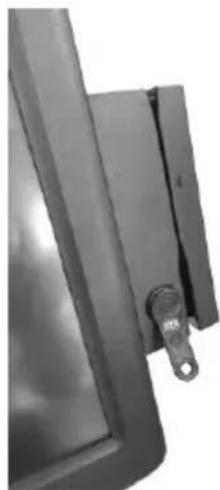
natural_image
Close-up of a black metal door clip with a metallic clip attached (no visible text or symbols)※ The product information and specifications are subject to change without prior notice. To get the detailed information on SD-676, please check this model from Posiflex Global Website (http://www.posiflex.com/en-global/Download/download).