V40A-PRO-11 - Weather Station LA CROSSE TECHNOLOGY - Free user manual and instructions
Find the device manual for free V40A-PRO-11 LA CROSSE TECHNOLOGY in PDF.


User questions about V40A-PRO-11 LA CROSSE TECHNOLOGY
0 question about this device. Answer the ones you know or ask your own.
Ask a new question about this device
Download the instructions for your Weather Station in PDF format for free! Find your manual V40A-PRO-11 - LA CROSSE TECHNOLOGY and take your electronic device back in hand. On this page are published all the documents necessary for the use of your device. V40A-PRO-11 by LA CROSSE TECHNOLOGY.
USER MANUAL V40A-PRO-11 LA CROSSE TECHNOLOGY
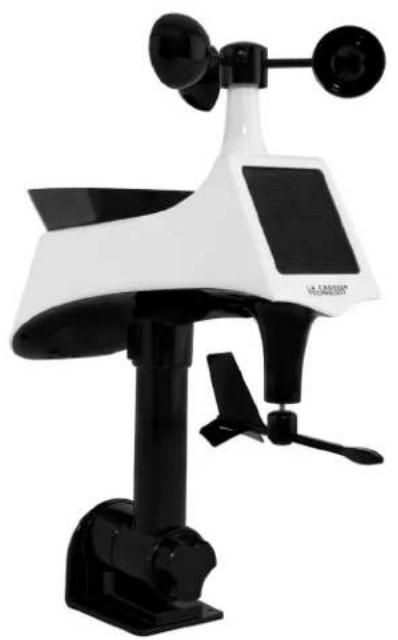
Remote Monitoring Weather Station
natural_image
White and black weather station instrument with digital display and antenna (no visible text or symbols)
text_image
FORECAST 45° 40' 20" 43.1°F 60° 43 INDOOR INDOOR 72.1F 48° WIND SPEED 22 TIME TOP SPICE 23 WIND 34° RAIN 7 DAYS 250° WEJNESDAY LA CROSSE® TECHNOLOGY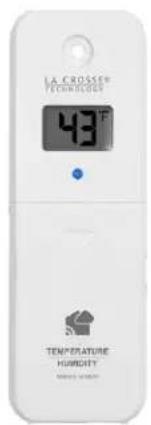
text_image
LA CROSSER TECHNOLOGY 43°F TEMPERATURE HUMORITYWelcome!

Congratulations on your new Professional Weather Station and welcome to the La Crosse Technology family! This product was designed with you in mind by our hometown team of weather enthusiasts based in La Crosse, Wisconsin.
Instructional Manual
Model: V40A-PRO
DC: 072619
Table of Contents
3 Step 1: Power Up
3 Step 2: Station Options
3 Step 3: Mounting Basics
4 Option 1: Connect with La Crosse View
4 Wi-Fi Network Requirements
5 La Crosse View
6 La Crosse View Enhancements
7 Simple Status Messages
8 Connect Additional Sensors to Your La Crosse View™ App
9 Option 2: Standalone Station
9 Settings Menu
10 Your Weather Station Features: Connected or Standalone
10 Backlight Brightness (5 levels)
11 Wind Readings
11 Feels Like Temperature
11 Wind Speed History
12 Reset Wind Speed History
12 Rainfall Readings
13 Reset Rainfall Readings
13 HI I LO Temperature/Humidity Records
14 Reset HI | LO Temperature/Humidity
14 Alerts
14 Set Alerts
15 Disarm Alerts
15 Active Alerts
16 Temperature | Humidity Trend Arrows
16 Seasonal Changes in Foliage
16 Sensor Search | Sensor ID
17 Delete your Sensor ID
17 Factory Reset
18 Detailed Sensor Set Up and Mounting
20 Replace Wind Cups
20 Replace Directional Vane
20 Clean Rain Sensor
21 Connect to Weather Underground
22 Help Us, Help You!
22 Let's Be Social!
22 Care and Maintenance
23 Specifications
24 Warranty and Support
24 FCC Statement
24 Canada Statement
STEP 1: POWER UP
Insert batteries (in any order):
• 3-AA batteries into multi-sensor
• 2-AA batteries into thermo-hygro sensor
- 5 volt power cord (required) into V40A-PRO station *3-AA batteries for optional backup of your time and date
*Battery operation only, station will not update sensor or Wi-Fi data. Power cord is required.
STEP 2: STATION OPTIONS
OPTION 1
CONNECT WITH LA CROSSE VIEW™ APP
The easiest and fastest way to setup your station!
- Enjoy all of the standalone station features along with the enhanced feature set from your La Crosse View™ app! Continue with these instructions on page 4.
OPTION 2
Full Weather Station Features
- Monitor your backyard temperature, humidity, wind speed, wind direction and rainfall information on the easy-to-read LCD display. Continue with these instructions on page 9.
- You always have the option of connecting to the La Crosse View™ App at a later time if you choose.
STEP 3: MOUNTING BASICS
At this time, all of your sensor information should be displayed on your station. Here are a few quick tips for mounting your sensors:
THERMO-HYGRO
Keep out of direct sunlight & ensure the sensor is well-ventilated.
- We recommend mounting under a deck or eave facing north.
MULTI-SENSOR
Ensure the sensor is mounted vertically – an unobstructed rooftop is ideal.
- Your wind sensor should be the tallest object in the area to avoid any obstructions.
- You may need to clean the rain funnel of debris from time to time, to avoid inaccurate rainfall readings.
- For accurate direction, face the solar panel South.
- For detailed sensor setup and mounting instructions, see page 18.
Option 1: Connect with La Crosse View™
DOWNLOAD
- Visit the App Store or Google Play Store to download the free La Crosse View™ app on your mobile device.

CHECK YOUR NETWORK
- Confirm that your mobile device is connected to a 2.4GHz (802.11 b/g/n) Wi-Fi band before trying to connect your station to the La Crosse View app. The station itself cannot accept 5GHz Wi-Fi bands that most dual-band routers offer. Dual band routers also have a 2.4GHz channel.
(Hold the + and - buttons together, SEE APP should flash)

- When connecting to the app, ensure the Wi-Fi Indicator icon is blinking.
- Solid: Indicates that you are connected to Wi-Fi
- Fast Flash: Scan station and enter Wi-Fi password
- Slow Flash: Searching for Wi-Fi Network
- Not displayed: Not Connected
- If it is not blinking, perform a Wi-Fi search by holding the + & - buttons together.
- For detailed information about all of this station's icons, see page 10.
LAUNCH
- Open the app on your iOS or Android device.
FOLLOW INSTRUCTIONS
- The La Crosse View™ app will walk you through creating an account and connecting your station to the Internet. Once connected, your time, date, and local forecast information will update instantly on your weather station's screen. For online help visit: http://www.lacrossetechnology.com/lacrosseviewsupport
Wi-Fi Network Requirements
In order for your station to connect to your Wi-Fi, it will need to meet the following requirements:
- Confirm that your mobile device is connected to a 2.4GHz (802.11 b/g/n) Wi-Fi band before trying to connect your station to the La Crosse View app. The station itself cannot accept 5GHz Wi-Fi bands that most dual-band routers offer
- Weather station power cord use is required for Wi-Fi connection.
iOS Requirements: Mobile device with iOS 9.0 (or higher) with cellular or Wi-Fi service
Android Requirements: Mobile device with Android OS 5.0 (or higher) with cellular or Wi-Fi service
Tips:
- Do not use public Wi-Fi networks.
- Your weather station and mobile device must be within 10 feet of each other during setup.
- If you change your Wi-Fi network, simply go into the La Crosse View™ app, select your station, and then choose “Select Wi-Fi” from the app menu. Here, you will just need to enter your new Wi-Fi network’s login information.
- Hold the PLUS and MINUS buttons together for 3 seconds to have your station search for your Wi-Fi.
Note: If switching to a new Wi-Fi network, your station may take up to 3 minutes to reacquire all sensor information.
Note: In the event of a power outage, or your station being unplugged temporarily, your station should automatically reconnect to your existing Wi-Fi network, once power is reestablished.
Note: Weather station power cord use is required. Battery operation only, will not update sensor or Wi-Fi data.

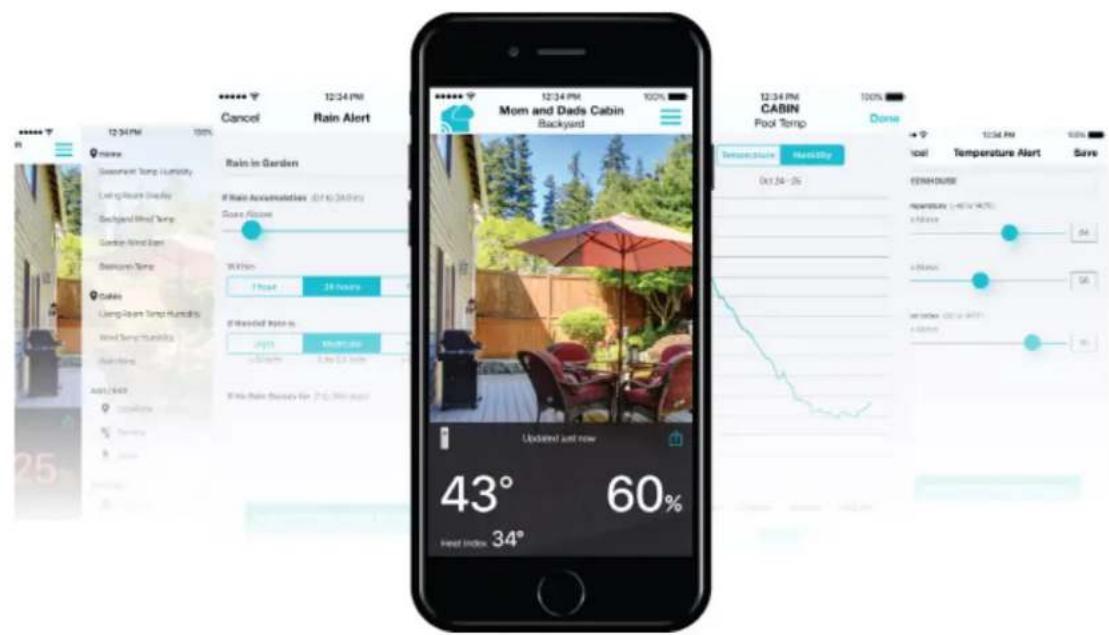
La Crosse View™
Connecting You to Your Home Anytime, Anywhere.
text_image
12:34 PM Cancel Rain Alert Mam and Dads Cabin Backyard 12:34 PM 100% 12:34 PM CABIN Pool Temp Dense Rain in Garden If Rain Accumulation is 24 h (24.5 hrs) Sound Absorb W/H/Hz 1 Hour 28 Hours If Dissolved Input is Hours 1000 m/s 0.5 m/s 2.5 m/s With Rain Discovery for 7.6 m/s water Updated just now 43° 60% Head Index 34° 10:34 PM Temperature Alert Save ISSNH/SURSE repertures (-40% to -14.7%) balance 24 balance 56 set below 20% to 90% balance 36ON-THE-GO HOME MONITORING
- Check Current Indoor & Outdoor Readings, View History Charts, and Set Custom Mobile Alerts.
FRIENDS & FAMILY SHARED ACCOUNTS
- No Need to Share Logins or Passwords! Invite Friends & Family to Download the App & Monitor Your Home's Data.
BEST IN CLASS APP EXPERIENCE
- Use Your Own Photos and Receive Free Push Notifications on the New, Easy-to-Navigate App
ADD OTHER SENSORS TO YOUR LA CROSSE VIEW™ APP
- You can add additional Temp & Humidity, Wind Speed, Rain, or Multi-Sensors to your La Crosse View™ app, easily expanding your coverage to all areas of your home.
- Your weather station will act as a Wi-Fi gateway, allowing these additional sensors to pass through the station and show their data on your La Crosse View™ app.
- Add-on sensor data will, however, not be shown directly on your weather station.
- For more help connection additional sensors, see page 8.
La Crosse View™ Enhancements
text_image
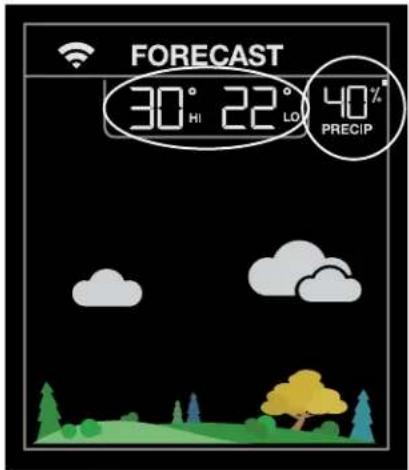
FORECAST 30° HI 22° LO 40° PRECIPNWS (National Weather Service) Daily HI | LO temperature
Note: When not using the app, the daily HI | LO will come from your outdoor TH sensor.
NWS Chance of Precipitation
- Precipitation percentage will show in the forecast area
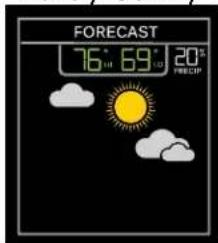
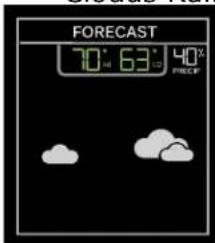
NWS Additional Forecast Icons
Standard Icons:
Sunny • Partly Sunny • Clouds • Rain • T-Storm • Snow
Additional Icons:
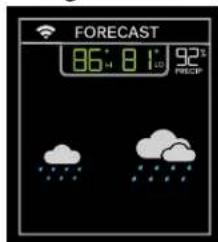
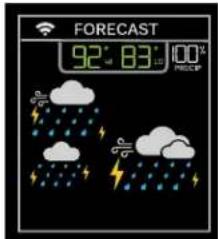
Windy • Light Rain • Severe T-Storm • Light Snow
Wintry Mix • Blizzard • Fog • Ice
Standard Forecast Icons:
Sunny

text_image
FORECAST 80° 72° 0°C PRE/CPPartly Sunny
text_image
FORECAST 76° 69° 20° FRECEIClouds Rain T-Storm Snow
text_image
FORECAST 70° 63° 40° FREEP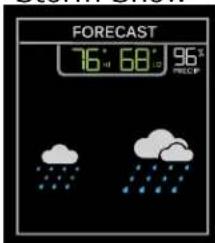
Note: Snow icon will show when the outdoor temperature is 32°F or lower and the forecast is Rain or T-Storm.
NWS Additional Forecast Icons:
When your station is connected to the NWS, you will see the six icons above as well as the additional eight icons here:
Windy

text_image
FORECAST 58° 54° 20° PRECIP a b c d e f g h i j k l m n o p q r s t u v w x y zLight Rain
text_image
FORECAST 86° 8 1° 92° PRECAPSevere T-Storm Light Snow Wintry Mix Blizzard
text_image
FORECAST 92° 83° 100° FREED UP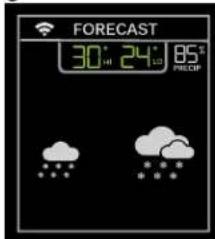
text_image
FORECAST 30° 24° 85° PRECIP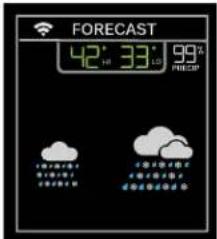
text_image
FORECAST 42° 33° 99° PRECAP 1:00 AM - 5:00 PM 2:00 PM - 6:00 PM 3:00 PM - 7:00 PM 4:00 PM - 8:00 PM 5:00 PM - 9:00 PM
text_image
FORECAST 28° 20° 99% -1H 10D PRECIPFog

text_image
FORECAST CAUTION 86° 82° 88% FOG 100 150 PRECIPIce

text_image
FORECAST CAUTION ICE 28° H 20° I0 28° PRECIPSimple Status Messages
- Your station has built-in connection status messages for your convenience.
- Press and release the SET button to view.
Note: Only one relevant status message will display.
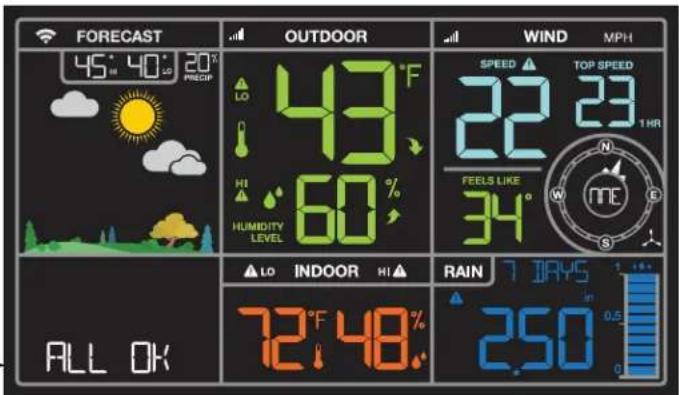
"ALL OK "
- Your station is connected, there are no problems.
"LOST Wi-Fi"
- Check your power cord connection. (power cord required to connect)
- When trying to reestablish your station's Wi-Fi connection, be sure your mobile device is on the same 2.4GHz network you want your station to use.
- Check your network connection.
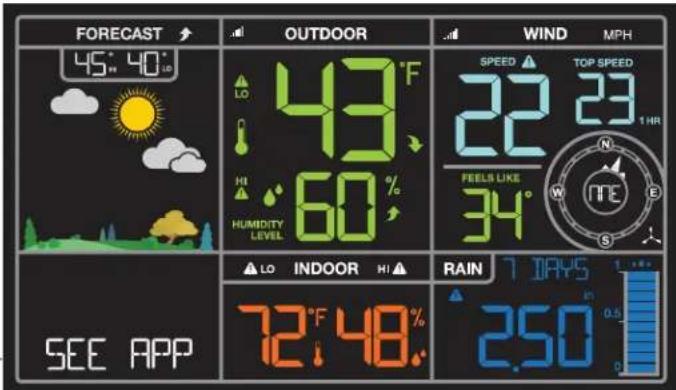
- Hold the + and - buttons together for 3 seconds to search for Wi-Fi. SEE APP should show.
text_image
FORECAST 45° 40° 20° PRECAP OUTDOOR SPEED TOP SPEED 22 23 1HR FEELS LIKE 34° ALL OK INDOOR HI 72°F 48% RAIN 7 DAYS in 2.50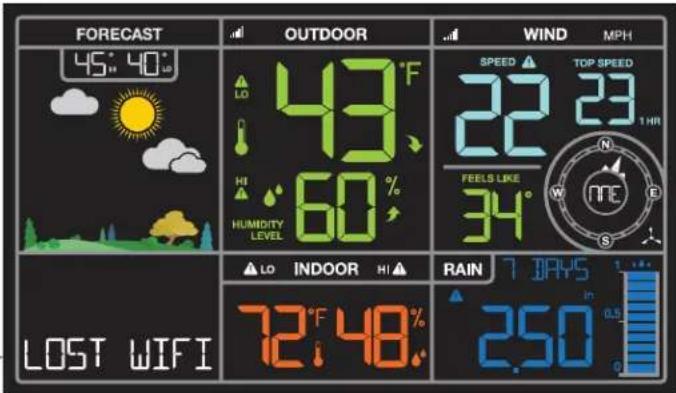
text_image
FORECAST 45° 40° LO 43°F HI 60% HUMIDITY LEVEL LOST WIFI LO INDOOR HI 72°F 48% RAIN 7 DAYS in 2.50 WIND MPH SPEED TOP SPEED 22 23 1 HR FEELS LIKE 34° N NE S"SEE APP"
• The Wi-Fi router connection is working.
- Scan your station bar code ID on the back.
- Check your connection to the La Crosse View™ app.
- Enter your Wi-Fi password again.
• Is there an update to install?
text_image
FORECAST 45° 40° LO 43°F HI 60% HUMIDITY LEVEL SPEED 22 23 1 HR FEELS LIKE 34° SEE APP ▲ LO INDOOR HI ▲ 72°F 48.0% RAIN 7 DAYS in 2.50 MPH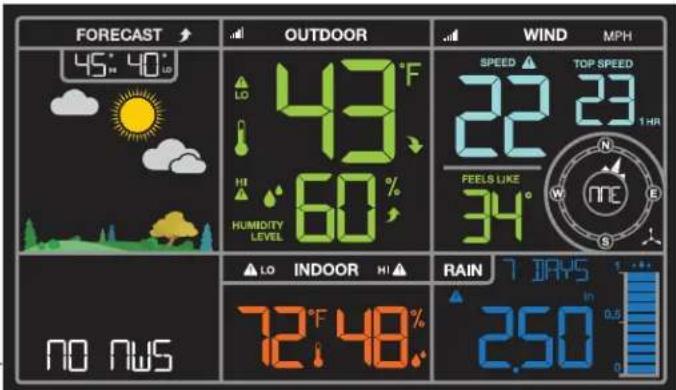
text_image
FORECAST 45° 40° LO 43°F HI 60% HUMIDITY LEVEL SPEED 22 23 1 HR FEELS LIKE 34° NO NWS LO INDOOR HI RAIN 7 DAYS 2.50 0.8 0.5"NO NWS"
• This indicates an error on the NWS server.
• NWS Expanded Forecast, will not update or show.
• The NWS will resolve this.
• Very rare to have this error.
Note: When you first connect to the La Crosse View™ app, "NO NWS" may alternate with "ALL OK" for a few seconds until the station establishes contact with the NWS server.
Connect Additional Sensors to Your La Crosse View™ App
DID YOU KNOW?
You can expand your system's coverage with additional sensors (sold separately). These add-on sensors will use your weather station as a gateway to the La Crosse View app, where their data can be viewed and tracked 24/7 from anywhere.
Expand your coverage:
- Your baby's room
- Your wine cellar
- Your basement
- Your attic
- Your garage
Just add a sensor and use your La Crosse View™ app to monitor its data anywhere on-the-go.
Add Sensors:
Open your La Crosse View™ app to add sensors.
- From Main Menu - select "Devices" under "Add/Edit"
-
On Edit Devices page - select "ADD DEVICE"
-
Scan Device ID - Scan the bar code on your sensor or choose "ADD MANUALLY" to type in the number on the bar code. Select "CONTINUE".

123456-ABC
-
On Confirm Device page - Confirm the sensor image and select "YES"
-
On Enter Device and Location Name page - enter Device Name and select a location or enter a Location Name for your sensor. Select "DONE".
Repeat steps 1-5 for any additional sensors you wish to add.
Note: Additional sensors may be purchased and added to your La Crosse View™ app at any time. Compatible additional sensors start with the letters "LTV-". Always check your product page for available sensors: www.lacrossetechnology.com/V40A-PRO
For support and guidance of your La Crosse View™ app, please visit: www.lacrossetechnology.com/lacrosseviewsupport
Option 2: Standalone Station
When operating as a standalone station, you can manually adjust your station's settings
- Hold the SET button for 3 seconds to enter settings menu.
- Press and release the + or - buttons to adjust the flashing values. Hold to adjust quickly.
- Press and release the SET button to confirm and move to the next item.
Note: Press and release the LIGHT button any time to exit settings
Settings Menu
Settings order:
- Beep ON/OFF
•12/24 Time
•Hour
•Minutes
•Year
•Month - Date
• Temperature Fahrenheit/Celsius
•Wind Direction (letters or degrees)
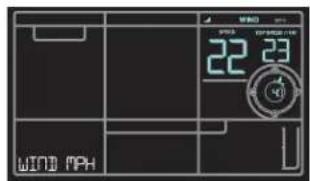
•Wind Speed (MPH | KMH)
• Rainfall unit (Inches I MM) - SEE APP (connection prompt for app, no actual function)
BEEP ON | OFF 12 | 24 Hour Time

natural_image
Pure technical line drawing of a mechanical or architectural component without any text, numbers, or symbolsHour Minutes
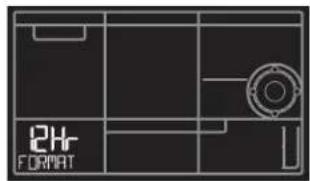
text_image
24- FORMAT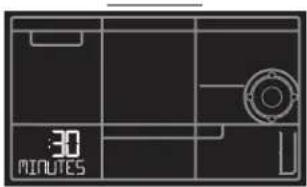
text_image
30 MINUTES
text_image
"2 HOURYear Month
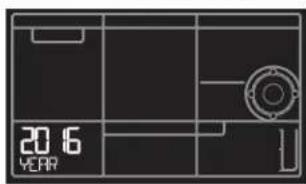
text_image
2016 YEARDate Temp °F | °C
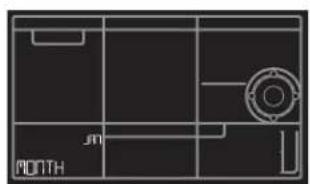
natural_image
Pure technical line drawing of a mechanical part without any text, numbers, or symbols
text_image
OF TEMP OF OF
text_image
DATE 0.1Wind Direction Wind Speed MPH | KMH

text_image
WIND DIRRain IN | MM Connection Prompt
text_image
WIND 22:23 WIND PPH
text_image
RAIN IN 250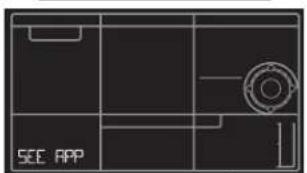
text_image
SEE APPYour Weather Station Features: Connected or Standalone
text_image
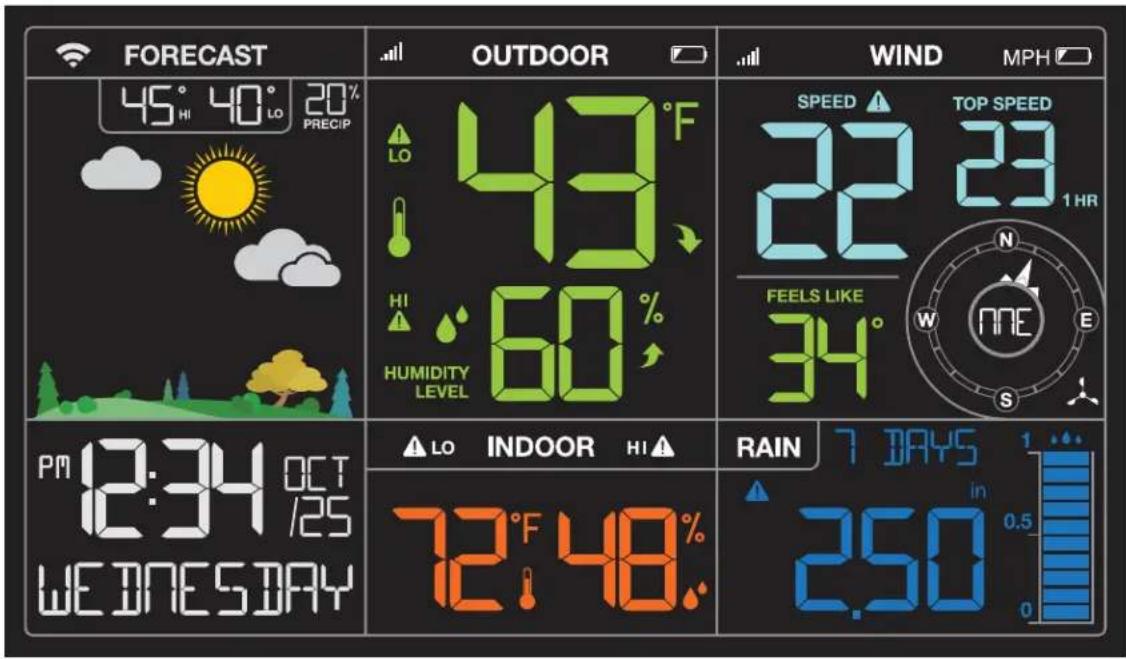
FORECAST 45° 40° 20% PRECIP OUTDOOR LO 49°F HI 60% HUMIDITY LEVEL PM 12:34 OCT 12/25 WEDNESDAY LO INDOOR HI 72°F 48% RAIN 7 DAYS in 2.50 SPEED TOP SPEED 22 23 1 HR FEELS LIKE 34° N NE E S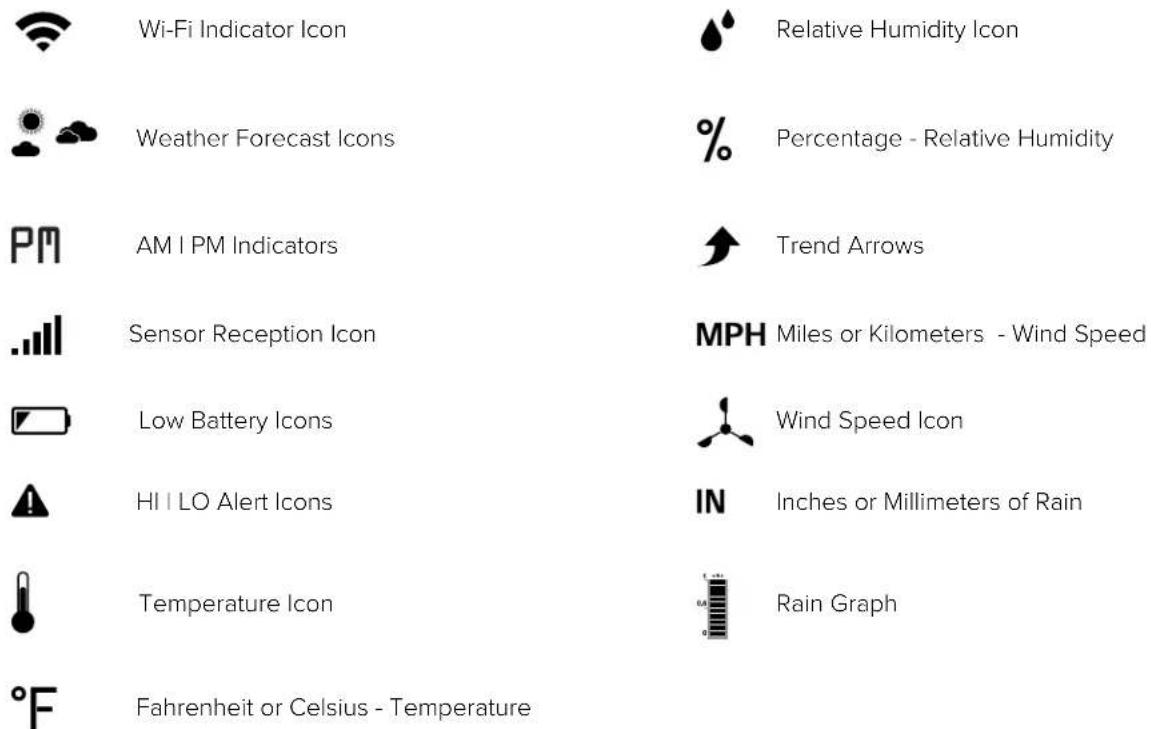
text_image
Wi-Fi Indicator Icon Relative Humidity Icon Weather Forecast Icons % Percentage - Relative Humidity AM I PM Indicators Trend Arrows Sensor Reception Icon MPH Miles or Kilometers - Wind Speed Low Battery Icons Wind Speed Icon HI I LO Alert Icons IN Inches or Millimeters of Rain Temperature Icon Rain Graph °F Fahrenheit or Celsius - TemperatureBacklight Brightness (5 levels)
Your station has 5 levels of brightness for the backlight:
- When operating with the power cord, press and release the LIGHT button to adjust the backlight: Intensity Levels: 0% | 5% | 20% | 50% | 100%
- When operating on battery power only, press the LIGHT button to activate the backlight for 10 seconds at 100% brightness.
text_image
WIND MPH SPEED 22 23 TOP SPEED 1 HR FEELS LIKE 34° N W E S NEWind Readings
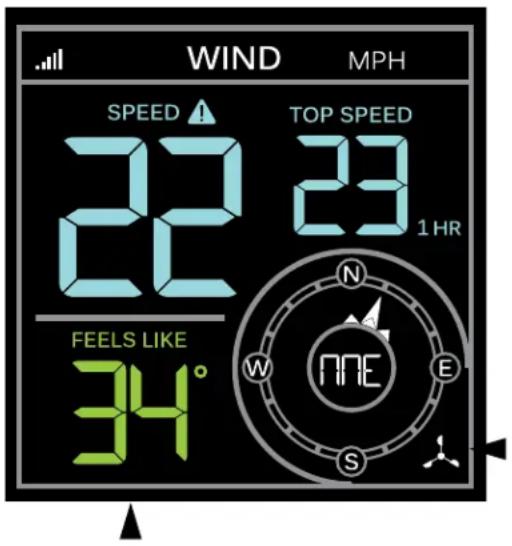
Wind Speed:
Reflects highest current wind speed
Top Speed:
Reflects highest wind speed in the past 60 minutes.
Wind Direction:
The triangles indicate wind direction on the compass rose.
Wind direction can be shown in degrees or in letters in the center of the compass rose.
Wind Cup Animation:
The wind cups spinning speed will vary with actual wind speed.
When wind speed is higher, the cups spin faster.
Feels Like Temperature
Your “Feels Like” temperature is a combination of outdoor temperature/humidity and wind speed.
- When outdoor temperature is higher than 80^ , Heat Index will show as the Feels Like Temperature.
- When outdoor temperature is lower than 50^ , Wind Chill will show as the Feels Like Temperature.
- When outdoor temperature is between 50^ and 80^ , will show Current Outdoor Temperature as the Feels Like Temperature.
Wind Speed History
Simply press and release the WIND button to cycle through the Wind History (other readings will disappear temporarily).
Top Speed Past 24 Hours

text_image
WIND MP11 TOP SPEED 8 24 HOURS• One Hour: Past 60 minute period (default Top Speed record, always shown)
• 24 hour: Past 24 hour period, from last record
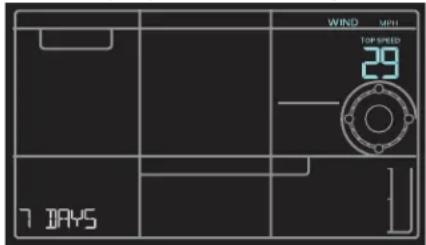
• 7 Days: Past 7-day period, from last record
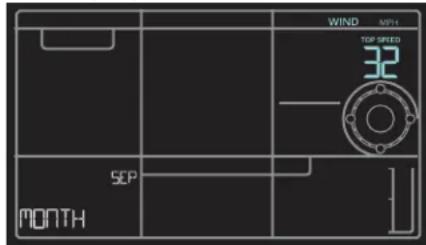
- Current Month: Defined by Calendar Month (i.e. January 1 - January 31)
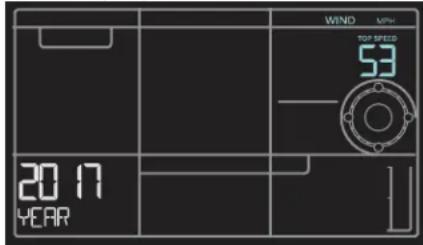
• Year: Defined by Calendar Year (i.e. January 1 - December 31)
Top Speed Past 7 Days
text_image
WIND TOP SPEED 29 7 DAYSTop Speed Current Month
text_image
WIND MPH TOP SPEED SEP MONTHTop Speed Current Year
text_image
WIND MPa TOP SPEED 53 2017 YEARReset Wind Speed History
- Press and release the WIND button to view individual wind speed readings.
- Hold the MINUS button for five seconds to reset the individual value.
- Wind speed history reading will reset to current wind speed, time and date.
- Press and release the LIGHT button, or wait 20 seconds to return to a full, normal display.
Rainfall Readings
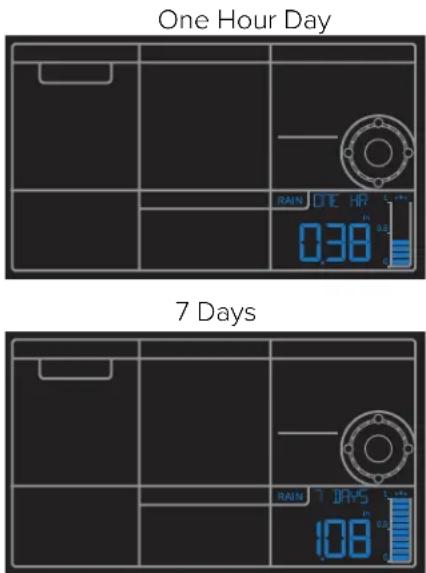
- Simply press and release the RAIN button to cycle through the exact history you'd like displayed (other readings will disappear temporarily).
- Your station will stay on your selection.
- Press and release the LIGHT button, or wait 20 seconds to return to a full, normal display.
- One Hour: Rainfall in the past 60 minutes (last twelve 5 minute samples). Example: If current time is 6:49, the 1 HOUR reading is the accumulated rain between 5:50 to 6:49.
- Day: Rainfall from midnight to midnight. Resets each day at 12am midnight.
• 24 Hours: Rainfall for the past 24 hours. Updates at each full hour (running total).
- 7 Days: Rainfall from the last 7 consecutive 24 hour rainfall readings. Updates each day at midnight. Not subject to your calendar, but be sure you have your time set correctly.
- Month: Current Month: First day to current day. Current month will show. - Press and release the MINUS button to view up to 11 months of rainfall history. - Press and release the PLUS button to move forward to current month.
• Year: Current month plus past 11 months total. The year will show.
- Total: Total rainfall since station was powered on or reset. (image not shown) Note: As time passes without rain, the 1 hour, 24 hour, and 7 day rain totals will count down to zero.
text_image
One Hour Day 7 Days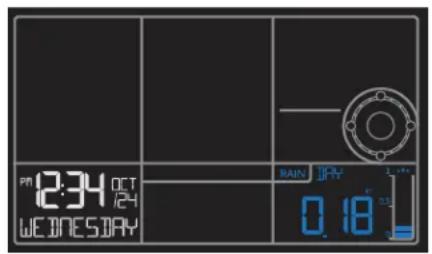
text_image
PEN 2:34 OCT 12-14 WEEDNESDAY RAIN JRY 0.18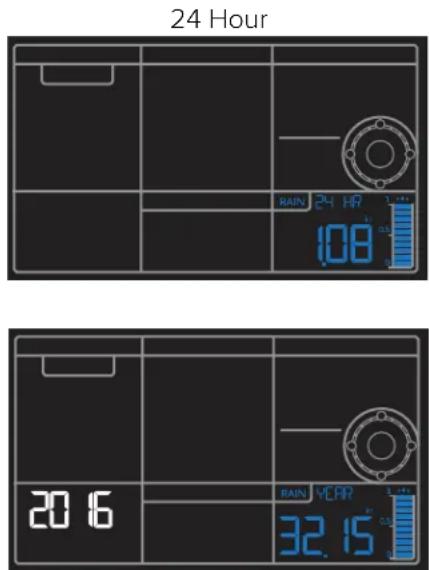
text_image
24 Hour RAIN 24 HR 1.08 20.6 RAIN YEAR 32.15Professional Remote Monitoring Station
Reset Rainfall Readings
- Press the RAIN button to view individual rain readings.
- Hold the MINUS button for five seconds to reset the individual value.
- Rainfall reading will reset to 0.00
- Press and release the LIGHT button, or wait 20 seconds to return to a full, normal display.
HI | LO Temperature/Humidity Records
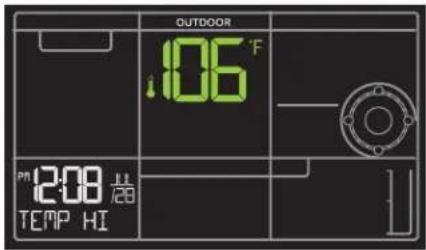
- Press and release the TEMP button to view your HI and LO records with time and date of occurrence.
- A new HI or LO record will replace the existing record.
Viewing order:
• Outdoor HI Temp with Time/Date
• Outdoor LO Temp with Time/Date
• Outdoor HI Humidity with Time/Date
• Outdoor LO Humidity with Time/Date
- Indoor HI Temp with Time/Date
- Indoor LO Temp with Time/Date
- Indoor HI Humidity with Time/Date
-
Indoor LO Humidity with Time/Date
-
Feels Like HI
- Feels Like LO
• Outdoor Dew Point
text_image
OUTDOOR 1.06 °F PM 12:00 MM TEMP HI
text_image
OUTDOOR :27 F PM 2:17 FE3 TEMP LO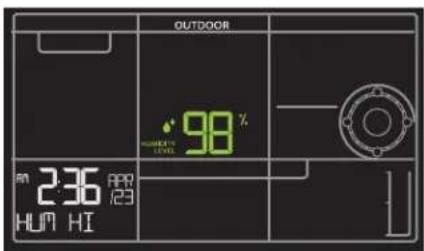
text_image
OUTDOOR HUMHTY LEVEL 98% m 236 AAR 123 HUM HI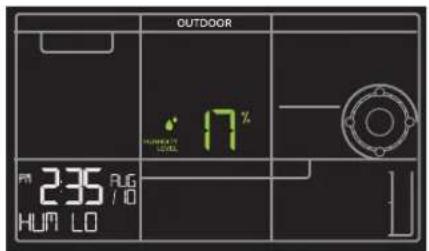
text_image
OUTDOOR HUMBOOD NO. 17% PM 235 AUG HUM LO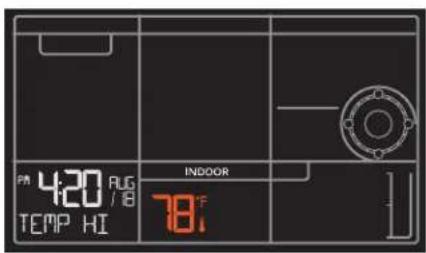
text_image
PM 420 AUG TEMP HI INDOOR 78°F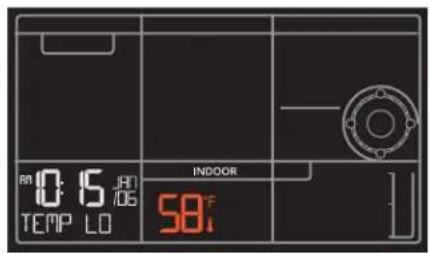
text_image
0.6 TEMP LO INDOOR 58°F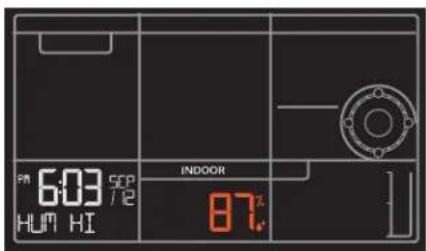
text_image
PM 6:03 SEP HUM HI INDOOR 87%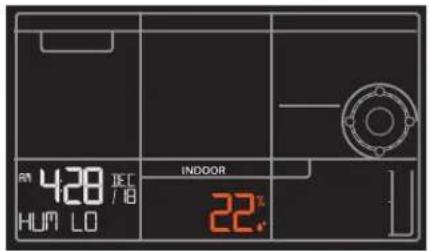
text_image
am 428 IEC HUM LO INDOOR 22°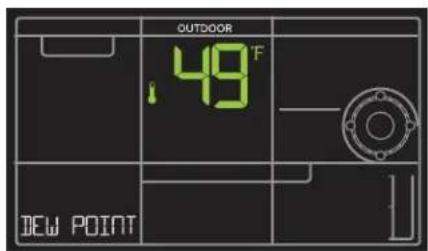
text_image
OUTDOOR .49 °F NEW POINT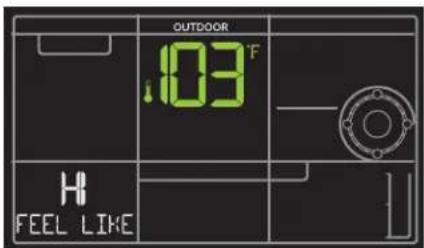
text_image
OUTDOOR 103°F H FEEL LIKE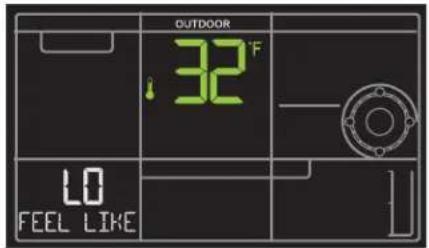
text_image
OUTDOOR 32°F LO FEEL LIKEReset HI | LO Temperature/Humidity Records
- Press the TEMP button to view individual readings.
- Hold the MINUS button for five seconds to reset the individual value.
- HI | LO reading will reset to current temperature, humidity, and current time/date.
Alerts
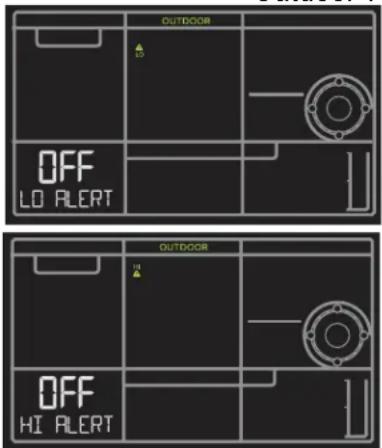
There are 10 programmable weather alerts on this weather station.
• Outdoor LOW Temperature
• Outdoor HIGH Temperature
- Indoor LOW Temperature
- Indoor HIGH Temperature
• 24-hour Rainfall
• Outdoor LOW Humidity
- Outdoor HIGH Humidity
- Indoor LOW Humidity
- Indoor HIGH Humidity
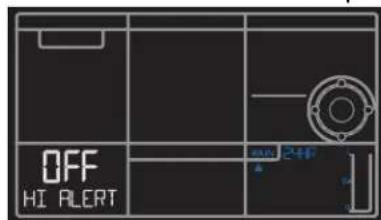
• High Wind Speed (CURRENT wind)
- When you enter the alerts menu, you will first have to arm the alert you wish to set, then set the alarm value.
- If you do not arm the alert, you will skip that alert and move to the next.
Set Alerts
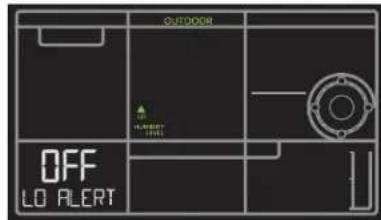
Hold the ALERTS button for 3 seconds to enter alert set mode. Outdoor Low Temperature alert OFF will show.
Alert ON:
- Press the +/- buttons to arm the alert.
- Press the ALERTS button and the alert value will flash
- Press the +/- buttons to set the alert value (Hold to set quickly).
- Press ALERTS button to move to next alert.
Alert OFF:
- Alerts are OFF unless armed. If you do not wish to set an alert, simply press the ALERTS button again to move to the next alert.
Outdoor Temperature Alerts
text_image
OUTDOOR OFF LO ALERT OUTDOOR OFF HI ALERT
text_image
OUTDOOR 40 °F ON LO ALERT OUTDOOR 40 °F ON HI ALERTOutdoor Humidity Alerts
text_image
OUTDOOR FLUORET LEVEL OFF LO ALERT
text_image
OUTDOOR 17% 0% LO ALERT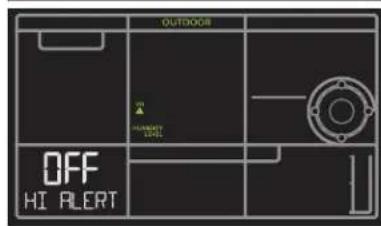
text_image
OUTDOOR OFF HI ALERT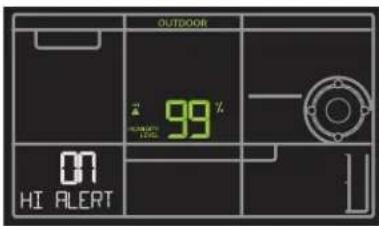
text_image
OUTDOOR 99% HINDUARY 100% HI ALERTWind Speed and Rain Alerts
text_image
OFF HI ALERT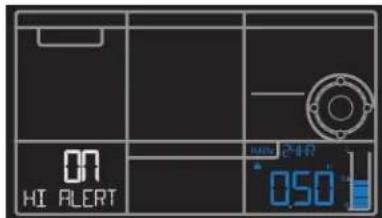
text_image
ON HI ALERT 050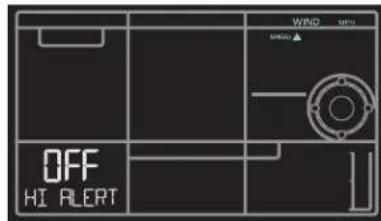
text_image
OFF HI ALERT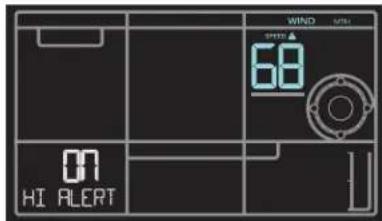
text_image
WIND SPEED 68 ON HI ALERTDisarm Alerts
- Hold the ALERTS button 3 seconds to enter alert set mode.
- Press and release ALERTS button until you see the alert you wish to disarm.
- Press the +/- buttons to disarm the alert. The alert text goes from ON to OFF.
- Press the LIGHT button to exit.
Active Alerts
- When armed alert value is reached, station will beep 5 times each minute, until out of alert range.
- The flashing alert icon will indicate the type of alert.
- Press any button to stop the alert from sounding.
- The alert icon will continue flashing while value while value is in alert range.
Temperature | Humidity Trend Arrows
Your temperature and humidity trend arrows update every 15 minutes. The trend reflects changes over the past one hour period.

UP ARROW: For this to show, the temperature will have to rise by 2^ F ( 1^ C), or the humidity go up by 3%RH or more within the current hour.

DOWN ARROW: For this to show, the temperature will have to fall by 2^ (1°C), or the humidity drop by 3% RH or more within the current hour.
Seasonal Changes in Foliage
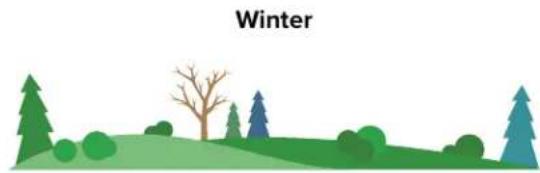
The tree foliage will change seasonally on your weather station. The dates are programmed into your weather station for an automatic foliage change.

natural_image
Illustration of a spring landscape with trees, a pink flower, and green hills (no text or symbols)March 20th – June 20th

natural_image
Illustration of a green hill with trees and a blue tree, labeled 'Summer' at the top (no other text or symbols)June 21st – Sept. 20th

natural_image
Illustration of a landscape with trees, hills, and a tree in autumn (no text or symbols)Sept. 21st – Dec 20th
natural_image
Illustration of a winter landscape with trees, grass, and a bare tree on the hill (no text or symbols)Dec 21st – Mar 19th
Sensor ID | Sensor Search
Each of your sensors has an individual ID number, located by its bar code. This sensor ID is visible on your station by pressing the SENSOR button.

123456-ABC
View ID numbers:
- Press and release the SENSOR button to view individual station and sensor ID numbers. All other information will disappear temporarily.
TH Sensor ID Multi-sensor ID

text_image
OUTDOOR 43°F HUMIGRY LEVEL 60% ID 103645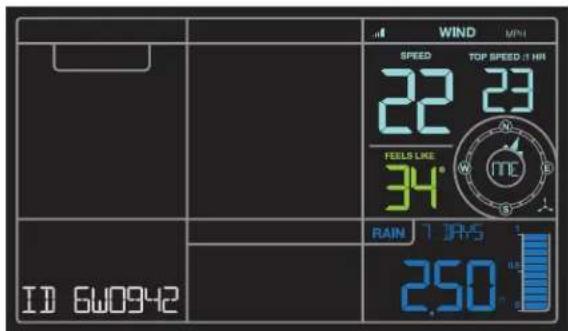
text_image
WIND MINI SPEED TOP SPEED: 1 HR 22 23 FEELS LIKE 34° RAIN 1 JPARS ID 6W0942 250°Search for all sensors:
- While viewing sensor ID, hold the SENSOR button for 3 seconds to search for all sensors.
- The station will search for all sensor ID numbers on the station.
- The sensor reception icon will flash for each sensor while searching.
- The sensor reception icon will be solid when sensor signal is acquired.
- Allow up to 3 minutes to receive sensor signal.
Delete Your Sensor ID
In the rare event you need to replace your sensor, you will first need to delete the old sensor ID from your station.
- Remove batteries from your old sensor.
- Press and release the SENSOR button to view your sensor ID number.
- While viewing your sensor ID, hold the MINUS button for 5 seconds to delete your old sensor ID. Dashes will show for the ID number.
- Your station will automatically begin searching for a new sensor
- Install batteries in your new sensor and allow up to three minutes for your new sensor readings and ID to appear on your station.
Press and release the SENSOR button to view your sensor ID number.

text_image
OUTDOOR 43°F HUMIDITY LEVEL 60% ID 103645Hold the MINUS button for 5 seconds to delete your old sensor ID. Dashes will show for the ID number.

text_image
OUTDOOR HUMIDITY LEVEL F IDNote: When replacing your Thermo-hygro sensor, press the TX button (under the battery cover) to send a signal immediately. The Multi-sensors do not have a TX button.
Factory Reset
A Factory Reset will remove all sensor ID numbers and return your station to default settings.
- Hold the ALERTS and LIGHT button together for 5 seconds.
- Your station will reset and search for all sensors. Allow up to 3 minutes to reacquire all sensors.
Detailed Sensor Set Up and Mounting
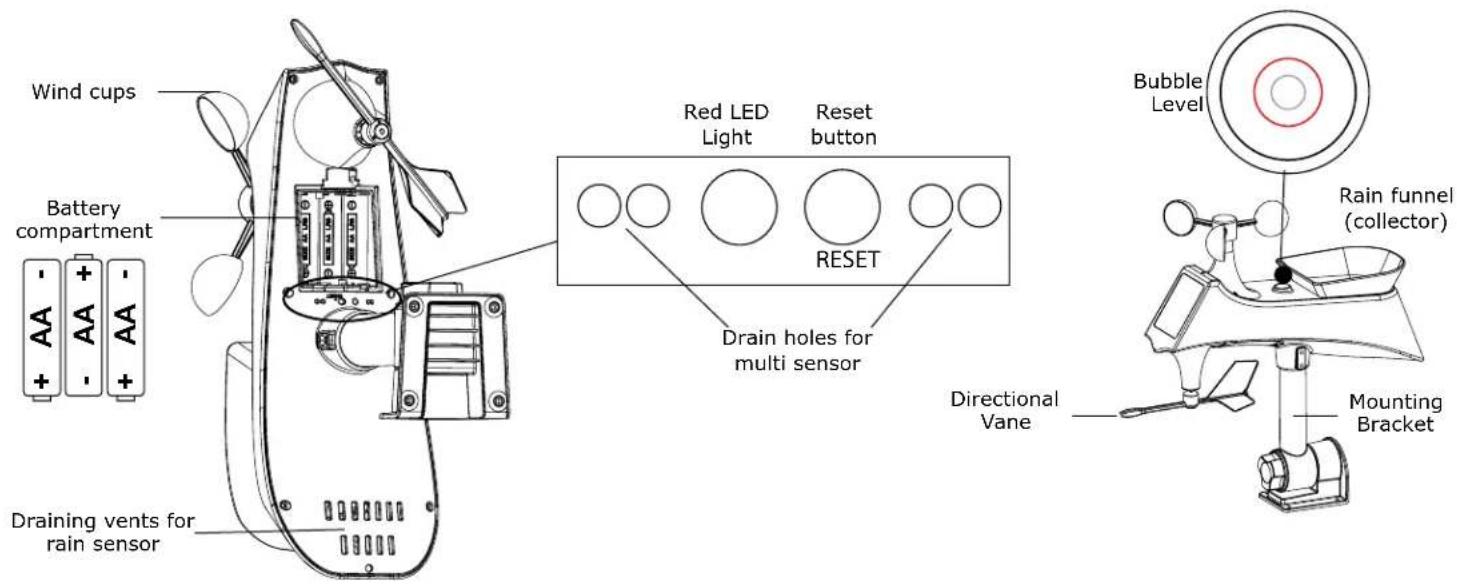
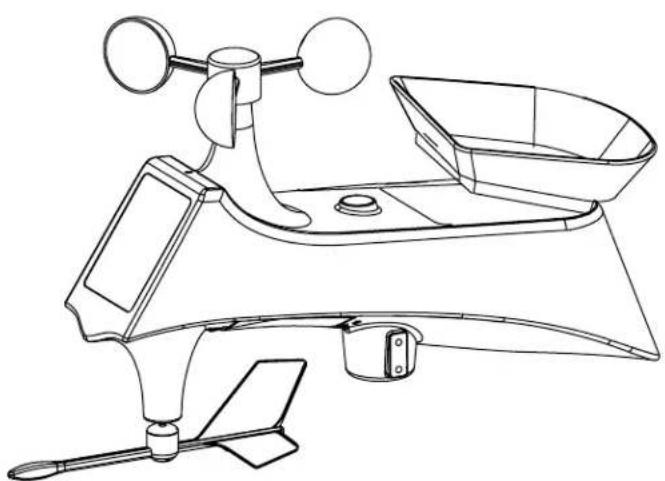
LTV-WR1 Multi-sensor:
- Insert 3 AA batteries into the bottom of the sensor. Observe the correct polarity. The red LED light will show briefly before transmission.
text_image
Wind cups Battery compartment Draining vents for rain sensor Red LED Light Reset button RESET Drain holes for multi sensor Directional Vane Bubble Level Rain funnel (collector) Mounting BracketThe Multi sensor provides wind speed, wind direction and rainfall readings.
natural_image
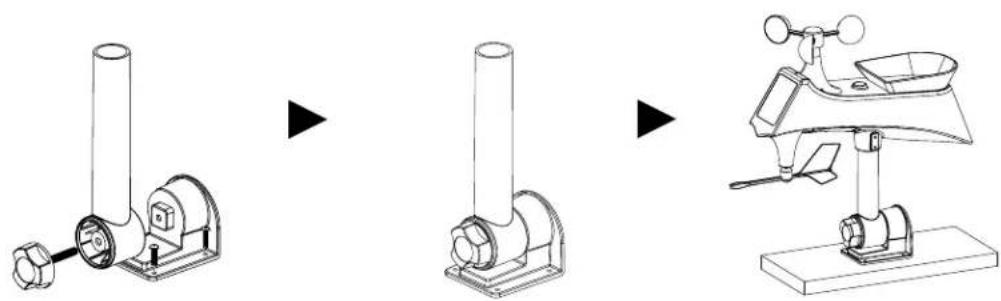
Three-step diagram showing a mechanical device with cylindrical parts, connected to a tripod stand (no text or symbols present)Mounting:
- Mount in an open area clear for 50 feet in all directions.
- Mount with the solar panel facing south, so the wind direction is correct. See N, S, E, W, embossed on the top of the sensor.
- Use the bubble level on top of the sensor to ensure it is level, for accurate rainfall readings.
- The maximum wireless transmission range to the station is over 400 feet (121 meters) in open air, not including walls or trees.
- Cups should be on the top of the sensor.
- Attach to mounting surface with screws through the mounting bracket.
- The sensor can be mounted from the bottom or from the side.
- For online video instruction visit: http://bit.ly/Multi_SensorMounting
Alternatively:
- Insert your own mounting pole (up to 1.179") into the sensor base.
- Tighten screws
- Mounting bracket would not be used.
LTV-TH3 Thermo-Hygro Sensor
- Install 2-AA batteries according to polarity and replace battery cover. The blue LED light will flash when transmitting.

text_image
TX F/C Press TX to send a signal Press F/C to select Fahrenheit or Celsius display on sensor. LED Light AA AA Battery Cover Hole for mounting Temperature HINDITY La Crossa ViewMounting:
- Use the hole at the top to hang your sensor from the back using a nail. Or, insert one mounting screw through the front of your sensor.
- Mount your sensor on a north-facing wall or in any shaded area. Under an eave or deck rail is preferred.
- The maximum wireless transmission range to the weather station is up to 400 feet (121 meters) in open air, not including walls or floors.
- Be sure your sensor is mounted vertically, to allow moisture to drain out properly.
- For online video instruction visit: http://bit.ly/TH_SensorMounting
V40A-PRO station:
- Insert the power cord into a wall outlet, then into your station.
Optional: insert 3 AA batteries* into your station to maintain time/date in the event of a power outage.
*Battery operation only will not update sensor or Wi-Fi data. Power cord is required.

text_image
Power Cord DC 5kV Optional Batteries + AA - - AA + + AA -Mounting:
- Use the mounting holes on the back to place your station on a wall.
- Use the pull down stand on the back of your station to place on a desk or counter.
NOTE: You will want to place your station near an outlet, as the power cord is required for operation. Also, you will want to mount or place this station within good Wi-Fi range of your wireless router. This will help when using all of the remote monitoring options the La Crosse View™ app has to offer.
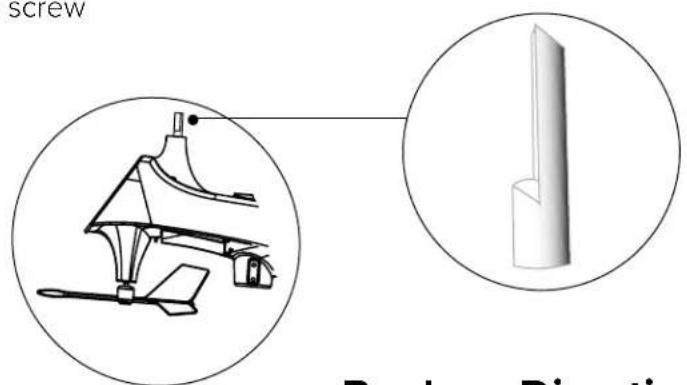
Replace Wind Cups
- Loosen the screw on side of cups
- Remove cups
- Install new cups
- Tighten screw
text_image
screw Radial Direction
chemical
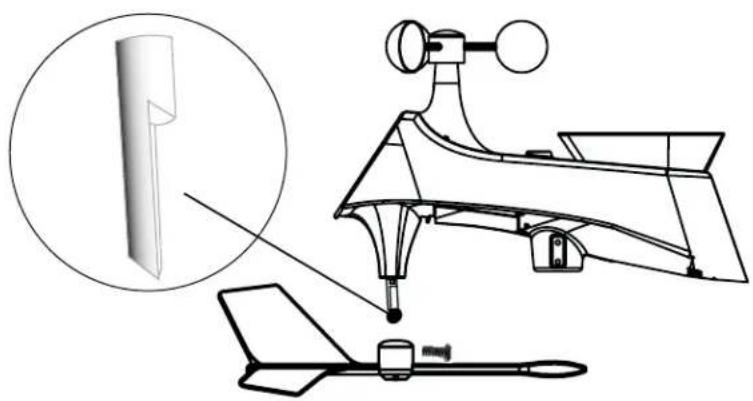
Molecular structure diagram of a dipole (dipole) with labeled atoms and bondsReplace Directional Vane
- Loosen the screw on side of vane
- Remove direction vane
- Install new vane
- Tighten screw
natural_image
Technical line drawing of a mechanical device with an inset showing a component detail (no text or symbols)Clean Rain Sensor
- Remove rain funnel (pull flat side firmly upward).
- Gently remove debris or insects inside the rain sensor.
- Clear debris from drain vents.
- Clear debris from the rain funnel.
- Reinstall the rain funnel.
Note: Do not oil the rain sensor.
natural_image
Line drawing of a laboratory instrument with a dial, tripod, and base (no text or labels)Connect to Weather Underground
Your station has the ability to connect to Weather Underground as well as La Crosse View™.
- Use your existing Wi-Fi to connect your weather station to Weather Underground with the Weather Connect App.
Requirements:
- Weather Underground account with Personal Weather Station (PWS) ID and Password,
- Mobile device with Wi-Fi service (do not use 3G or 4G network)
• High speed Internet service and router
Mobile Application (free available online):
- iOS App Store, search: Weather Connect
- Android Play Store, search: Weather Connect
IMPORTANT:
- When trying to establish your station's Wi-Fi connection, be sure your mobile device is on the same 2.4GHz network you want your station to use. Check the Wi-Fi settings on your mobile device.
- During setup, weather station and mobile device must be in close proximity.
- Weather station must be powered with power cord for the Wi-Fi to work.
Get Connected: Download and Launch the Weather Connect App and follow the on-screen instructions. App will prompt you for required information.

natural_image
Icon of a white cloud with Wi-Fi signal waves on teal background (no text or symbols)Weather Connec t


Note: The Weather Connect App is only for connecting your weather station to Weather Underground
Note: Weather Underground will show your station's information on the Weather Underground website.
- In addition they have an App you can download to view your backyard weather on your mobile device without opening your browser.
- Download the Weather Underground App and search for your weather station with your Personal Weather Station (PWS) ID number.
- Weather Underground can take up to 24 hours to start showing your weather station's data on the Weather Underground App (Your station will show on their website sooner than on their app).
Tips:
- For your security, this app will only work on protected Wi-Fi networks.
- Open public networks that require a browser sign in will not work.
Lost connection:
- If Wi-Fi signal or power to the station is lost, hold the PLUS and MINUS buttons together for 3 seconds to connect to a Wi-Fi network. You will need to reenter your password.
Never connected: If the station has not uploaded its data to Weather Underground:
- First, move the station and mobile device to a different network.
- Check to be sure it is a protected Wi-Fi network.
- Complete a Factory Restart to clear the station.
Changing networks:
If you have been using the app to view your weather at your summer home. When you move the station and sensors to your winter home, reconnect your app through the Wi-Fi network at your new location.
- Start the Weather Connect app and enter the password for the new Wi-Fi network.
- Hold the PLUS and MINUS buttons on the station for 3 seconds to search for the network. Station will flash SEE APP.
- Enter Weather Underground station ID and password.
Apple and the Apple logo are trademarks of Apple Inc., registered in the U.S. and other countries.
App Store is a service mark of Apple Inc.
Google Play and the Google Play logo are trademarks of Google Inc.
Help Us, Help You!
If you have ideas for features or support solutions you'd like to see us make, please let us know!
We truly want to make owning a La Crosse Technology product not only a practical experience, but also a fun one. So email us at: store@lacrossetechnology.com
JOIN THE CONVERSATION
Ask questions, watch detailed setup videos, and provide feedback on our social media outlets!

natural_image
Four black circular icons representing social media platforms: Facebook, Instagram, YouTube, and Twitter (no text or symbols beyond logos)Care and Maintenance
- Do not mix old and new batteries.
- Do not mix Alkaline, Standard, Lithium, or Rechargeable Batteries.
• Always purchase the correct size and grade of battery most suitable for intended use. - Replace all batteries of a set at the same time.
- Clean the battery contacts and also those of the device prior to battery installation.
- Ensure the batteries are installed with correct polarity (+ and -).
- Remove batteries from equipment when it is not used for an extended period of time.
- Promptly remove expired batteries.
Specifications
| Indoor | |
| Temperature Range: | 32°F to 122°F (0°C to 50°C) |
| Humidity Range: | 10% RH to 99%RH |
| Thermo-hygro Sensor | |
| Temperature Range: | -40°F to 140°F (-40°C to 60°C)Note: Temperatures below -20°F (-29°C) require Lithium batteries in the outdoor sensor. |
| Humidity Range: | 10% RH to 99%RH |
| Transmission Range: | Up to 400 feet (121 meters) in open air, RF 915 MHz |
| Multi-Sensor | |
| Wind Speed Range: | 0-111.8 mph (0-180 kmh) |
| Wind Direction Range: | 0 to 359 degrees |
| Transmission Range: | Up to 400 feet (121 meters) in open air, RF 915 MHz |
| Rainfall Range: | 0-393.7 inches (0-9999 mm) |
| Transmission Range: | Up to 400 feet (121 meters) in open air, RF 915 MHz |
| Wi-Fi | |
| Transmission: RF 2.4 GHz | |
| Power | |
| V40A-PRO Station: | 5.0 Volt 600mA power cord included (Required)AC6: HX06-0500600-AU Input: 100-240V 0.3A 50/60Hz |
| Optional Battery Backup: | 3-AA batteries not included, backup for time and date |
| LTV-TH3 Thermo-hygro Sensor: | 2-AA batteries not included |
| LTV-WR1 Multi-Sensor: | 3-AA batteries not included |
| Battery Life | |
| V40A-PRO Station: | 48-60 months with power cord use |
| LTV-TH3, LTV-WR1 Sensors: | over 24 months with reputable batteries. |
| Dimensions | |
| V40A-PRO Station: | 8.05" L x 1.18" W x 5.70" H (20.45cm L x 3.0cm W X 14.5cm H) |
| LTV-TH3 Thermo-hygro Sensor: | 1.97" L x 0.75" W x 5.73" H (5.0cm L x 1.91cm W x 14.55cm H) |
| LTV-WR1 Multi-Sensor: | 13.61" L x 5.14" W x 8.55" H (34.57cm L x 13.05cm W x 21.72cm H) |
Warranty and Support
La Crosse Technology, Ltd. provides a 1-year limited time warranty (from date of purchase) on this product relating to manufacturing defects in materials & workmanship.
Before returning a product, please contact our friendly customer support with questions or visit our online help:
Phone: 1-844-200-8752
Online Product Support and Registration: www.lacrossetechnology.com/support
FCC Statement
This equipment has been tested and found to comply with the limits for a Class B digital device, pursuant to part 15 of the FCC Rules. These limits are designed to provide reasonable protection against harmful interference in a residential installation. This equipment generates, uses and can radiate radio frequency energy and, if not installed and used in accordance with the instructions, may cause harmful interference to radio communications. However, there is no guarantee that interference will not occur in a particular installation.
If this equipment does cause harmful interference to radio or television reception, which can be determined by turning the equipment off and on, the user is encouraged to try to correct the interference by one or more of the following measures:
- Reorient or relocate the receiving antenna.
- Increase the separation between the equipment and receiver.
- Connect the equipment into an outlet on a circuit different from that to which the receiver is connected.
- Consult the dealer or an experienced radio/TV technician for help.
This device must not be co-located or operating in conjunction with any other antenna or transmitter.
Operation is subject to the following two conditions:
(1) This device may not cause harmful interference, and
(2) This device must accept any interference received, including interference that may cause undesired operation.
Caution!
The manufacturer is not responsible for any radio or TV interference caused by unauthorized changes or modifications to this equipment. Such changes or modifications could void the user authority to operate the equipment.
This equipment must be installed and operated in accordance with provided instructions and the antenna(s) used for this transmitter must be installed to provide a separation distance of at least 20 cm from all persons and must not be co-located or operating in conjunction with any other antenna or transmitter
All rights reserved. This manual may not be reproduced in any form, even in part, or duplicated or processed using electronic, mechanical or chemical process without the written permission of the publisher. This booklet may contain errors or misprints.
The information it contains is regularly checked and corrections are included in subsequent editions. We disclaim any responsibility for any technical error or printing error, or their consequences.
All trademarks and patents are recognized.
Canada Statement
This device complies with Industry Canada's licence-exempt RSSs. Operation is subject to the following two conditions:
(1) This device may not cause interference; and
(2) This device must accept any interference, including interference that may cause undesired operation of the device.