Everyday Phone D93BWS00 - Phone British Telecom - Free user manual and instructions
Find the device manual for free Everyday Phone D93BWS00 British Telecom in PDF.


User questions about Everyday Phone D93BWS00 British Telecom
0 question about this device. Answer the ones you know or ask your own.
Ask a new question about this device
Download the instructions for your Phone in PDF format for free! Find your manual Everyday Phone D93BWS00 - British Telecom and take your electronic device back in hand. On this page are published all the documents necessary for the use of your device. Everyday Phone D93BWS00 by British Telecom.
USER MANUAL Everyday Phone D93BWS00 British Telecom
Everyday Phone with basic call blocking and answer machine Quick Set-up and User Guide
Digital Cordless Phone with Answer Machine
Important – please read first
- Only use the line cord, power supply and rechargeable batteries that come with your phone.
- Make sure the power supply is connected to a socket that you know works.
- Connect your phone to the power supply and let the batteries charge for 16 hours before connecting your phone to the phone socket.
- The base should always be plugged in to the mains power supply.
Your Answer Machine
Make sure the phone is set to ANS & REC and that the answer delay is set to answer before any voicemail service does. The default setting is four rings. If you want to change it, take a look at page 30.
Where to put your phone
To make sure your handset gives you the best range and reception, avoid interference by placing it away from any large metal objects like fridge-freezers, microwave ovens, or electronic products such as computers and TVs.
Check the box contents
Handset

Base

natural_image
Simple line drawing of a circular object with internal components and a small icon at the bottom (no text or symbols)Phone line (this comes already installed)

Mains power adaptor (item code 066771)
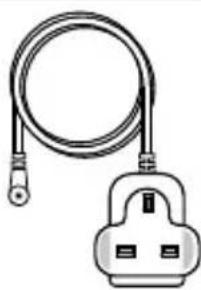
natural_image
Illustration of a cable with two connectors and a plug (no text or symbols)Two rechargeable batteries, AAA NiMH 500mAh (already installed in the handset)

If you bought more than one handset you'll also get:
- Extra handset
- Charger
- Mains power adaptor (item code 066771)
- Two rechargeable batteries, AAA NiMH 500mAh (already installed in the handset)

Important
Only use the mains power adaptors, cables and rechargeable batteries supplied in this box or this product might not work. Any replacement rechargeable batteries must be of the same type. BT accepts no responsibility for damage caused to your Everyday Phone if you use any other type of batteries.
Quick set-up guide
1. Plug in
- Plug the mains power adaptor into the base, with the cable clipped in the groove provided.
- Plug the other end of the power adaptor into the wall power socket and switch on.
- Plug the phone line cord in to the base, but don't plug the other end into the phone wall socket.

Important
- Don't connect the phone line to a phone socket until the handset is fully charged.
- The base station should be plugged into the power socket all the time.
Where to put your phone
- Place the base within 3 metres of a mains power socket and 1.8 metres of a phone socket so the cables will reach.
- Make sure it's at least a metre away from other electrical appliances to avoid interference.
- Don't place the phone or base in a bathroom or other humid area.
• The product works by sending radio signals between the handset and base. The strength of the signal depends on where you position the base. Putting it as high as possible can help give you the best signal.

text_image
Everyday Phone Single Digital Toller Answering Machine BT BT Helpline 0800 210 2182 Use power banks and devices: 964773 FRM CODE: 090665 SNI: XXXXXXXXXX Setra Telecom######## PK 316agm2 Terrier, EC424J SEK 1.0 KAZEN C-9N Take adjustment limit designed for nabling emergency telephone safe when to power fills. Alternative arranging should be made for access to emergency service.2. Charge
- Activate the batteries by pulling the plastic tab away from the bottom of the handset.

text_image
PULL Rechargeable batteries already fitted Remove this tab and charge batteries for 16 hours before use.- The handset will then check for a link with the base station. When it's found it.
- Place the handset on the base and let it charge for 16 hours.
- After 16 hours, plug the phone line cord into the phone wall socket.

text_image
4 Everyday Phone Single Digital Cordless Answering Machine BT Helpline 9800 218.2182 The power supply and Item code: 065771 FEMA CODE: 093665 S/N, XXXXXXXXXX Select Transcrombie single: ST Helpline St. Louis, EC1A70 EN 1.0 WARS In OBL. Title is amended to not be designed for making passengers machines on what the power's, Alternative ansupress should be used for access to emergency service.Talk/Standby time
Under ideal conditions, the handset batteries should give up to 12 hours talk time or 120 hours standby on a single charge. (This doesn't mean you can unplug the base or leave the handset for this length of time without charge).
Please note that new Ni-MH rechargeable batteries don't reach full capacity until they've been in normal use for several days.
Battery low warning
You will hear a warning beep every 2 minutes during a call and the □ icon will flash.
You must recharge the handset batteries before you can use the handset. If the charge completely runs out the handset will switch off. Place the handset on the base or charger to charge.
Set up for additional handsets (multipacks only)
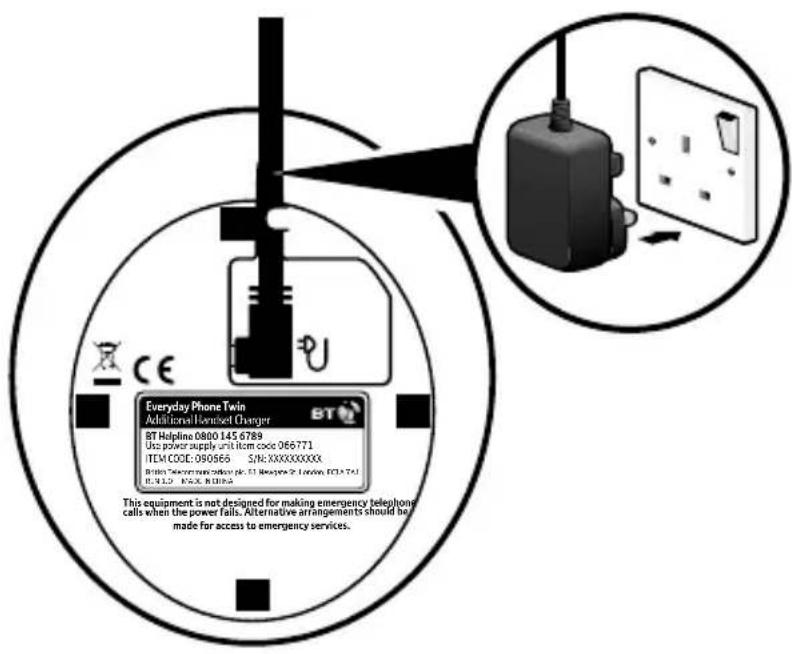
- Plug the mains power adaptor into the underside of the charger and plug the other end into the mains wall socket and switch on the power.
- Activate the batteries as explained on page 5.
- Place the handset on the charger to charge for 16 hours.
text_image
CE Everyday Phone Twin Additional Remset Charger BT Helpline 0800 145 6789 Use power supply unit item code 066771 ITEM CODE: 090865 S/N:XXXXXXXXXX BTS 2000000000000000000000000000000000000000000000000000000000000000000000000000000000000000000000000 This equipment is not designed for making emergency telephone calls when the power fails. Alternative arrangements should be made for access to emergency services.Battery performance
• To keep the batteries in the best condition, leave the handset off the base for a few hours at a time.
- Running the batteries right down at least once a week will help them last as long as possible.
• After charging your handset for the first time, subsequent charging time for the batteries is approximately 8 hours.
- The charge capacity of rechargeable batteries will go down over time, which will reduce the talk and standby time. Eventually they'll need replacing. For details on how to get replacement batteries, call the helpline on 0800 218 2182*.

Tip
If you need to take the batteries out, slide the battery cover down, then gently take the batteries out.
3. Go!
Your Everyday Phone is now ready for you to use
- For help setting the date and time, go to page 42.
- For instructions on making a call, go to page 15.
- For help personalising your phone's settings, go to page 37.
- For instructions on using the answer machine, go to page 28.
Or, you may find the answer in the Help section on page 49 or see our online frequently asked questions at bt.com/producthelp Alternatively, call the Helpline on 0800 218 2182*.

Tip
If you call the Helpline for advice, it's a good idea to call using another phone so you can follow any instructions using your Everyday Phone.
* Calls made from within the UK mainland and mobile networks are free. International call costs may vary.
Using your Everyday Phone on a line with broadband?
To avoid problems with your broadband or noise on your phone line, you might need to plug your telephone line cord into the wall socket via a microfilter (not supplied).
If your main phone socket has a single socket, you do need to use microfilters, like this:
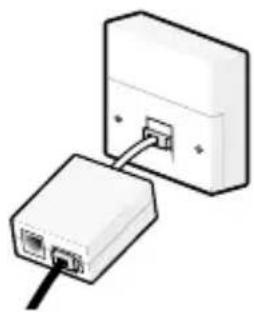
natural_image
Diagram of a device with an attached rectangular socket connected to a USB cable (no text or symbols present)You'll need a microfilter for every phone socket where you've got equipment plugged in – up to a maximum of four per line – including alarm sytems and digital TV boxes.
You can get BT ADSL micro filters from bt.com/shop
You don't need to use microfilters if your main phone socket has two separate sockets, like these:
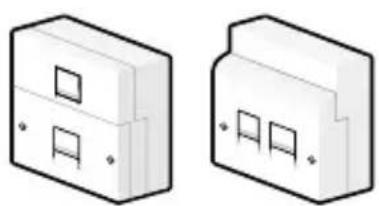
natural_image
Two 3D isometric diagrams of a rectangular electronic component with square cutouts (no text or symbols)Contents
4 Quick set-up guide
10 Getting to know your phone
- Handset buttons
12 Handset display
13 Finding your way around your phone
14 Base buttons
15 Using the phone
- Make an external call
- Preparatory dialling
- End a call
- To switch the handset off
- To switch the handset on
16 Receive a call
- Call Waiting
17 Mute
- Incoming speech volume
- Redial
18 Voicemail service (BT 1571)
– Turn the handset ringer on or off
- Find handset (Paging)
19 Phonebook
- Store entry in phonebook (up to 50)
20 Dial entry in phonebook
– Character map
- View/dial entry in phonebook
21 Edit entry in phonebook
– Delete entry in phonebook
22 Delete all entries in phonebook
- View the phonebook memory status
23 Call Blocking
- Block incoming call number in your Calls list
– Turn call blocking on to enable blacklist
24 Add, view, edit or delete a number in your blacklist
- Block incoming call by call type
25 Caller Display and the Calls List
- Caller Display
- Calls list
26 Missed call notification
- View/dial an entry in the Calls list
- Save a Calls list entry to your phonebook
27 Delete an entry in the Calls list
– Delete the entire Calls list
28 Answer Machine
- Using the answer machine from the handset
- Switch the answer machine on or off
-Outgoing messages
29 Record your own outgoing message
Contents
- Play the current outgoing message
30 Set the answer mode (Answer & Record or Answer Only)
- Set the answer delay
31 Set the maximum message length
- Call screening
– Turn call screening on or off
32 Using call screening
- Message playback using the handset
33 Delete all old (played) messages
- Using the answer machine from the base
– Message playback using the base
34 Delete all old (played) messages
- Remote access
35 Change the remote access PIN
– Turn remote access on or off
36 If you forget to switch on your answer machine
- Operating you answer machine remotely
37 Settings
- Set the handset ringtone for external or internal calls
- Set the handset ringer volume
38 Turn the handset tones on or off
- Change the handset name
39 Change the call settings
- Set the base ringtone
- Set the base ringer volume
40 Set a PBX access code
- Change the system PIN
41 Reset the handset or base settings
42 Clock/Alarm
- Set the time and date
- Set an alarm
- Stopping the alarm when it goes off
43 Using additional handsets
- Register an additional handset
- De-register a handset
44 Make an internal call between handsets
- Transfer a call
45 Hold a 3-way call
46 Menu Map
49 Help
52 General information
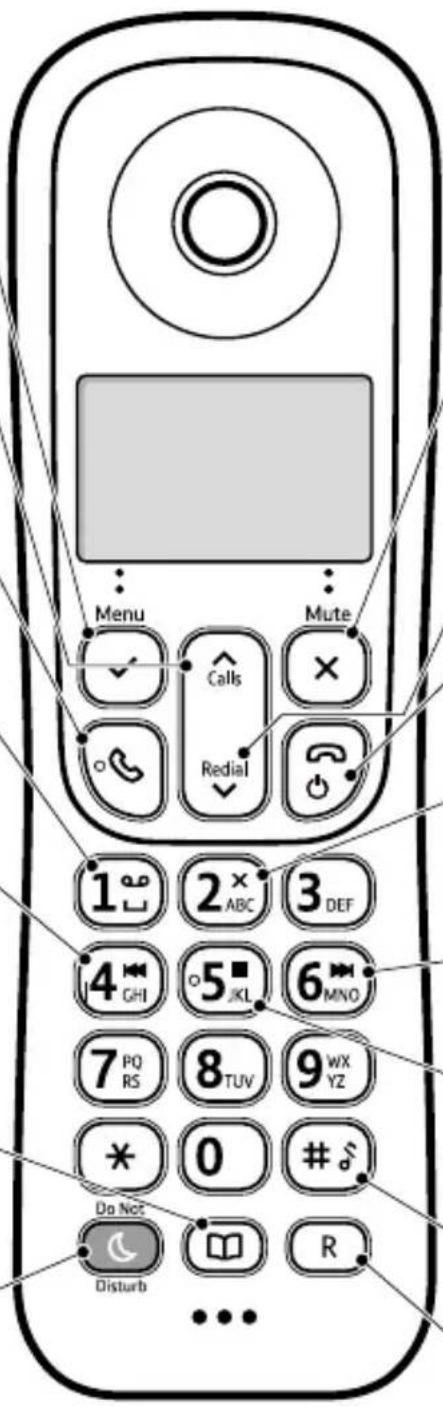
Getting to know your phone
Handset buttons
Menu / Left option button
Press to enter the main menu, access sub-menus and confirm options.
Scroll up / Vol. up / Calls list
Enter Calls list.
Move up through menu options.
Increase volume.
Talk
In standby mode make/receive phone calls.
1
In standby, press and hold to dial BT 1571.
4
When answer machine message playing, press to replay the current message, or press twice to skip backward to the previous message.
Phonebook
Access your phonebook and add new contacts.
Do Not Disturb
In standby, press to shortcut to call block menu.
text_image
Menu Calls Redial Mute 1∞ 2× ABC 3DEF 4GHI 5JKL 6MNO 7PQRS 8TUV 9WXYZ *0 ## Do Not Disturb RGetting to know your phone
Mute / Right option button
Press to confirm the option displayed above the button, to delete or go back to the previous screen.
Press during a call to mute your caller.
— Scroll down / Vol. down / Redial list
In standby mode, press to see redial list.
Move down through menu options.
Decrease volume.
— End / Standby
End a call.
Press and hold to turn handset on/off.
2
When answer machine message playing, press to delete message.
6
When answer machine message playing, press to skip forward to next message.
— 5
When answer machine message playing, press to stop playback.
#
Press and hold to turn the ringer on or off.
R (Recall)
Used when connected to a switchboard/PBX and with some BT Calling Features.
Handset display

Shows you how much charge is left on the handset.

Will appear if you're on, or starting, a call.

Shows when a new missed call has been received.

Shows when you've set an alarm clock.

Lets you know the handset ringer is off.

Lets you know the answer machine is on. Flashes if you have new answer machine messages.

Lets you know the signal range from your new phone's base

Shows you when Call Blocking is activated.

text_image
HANDSET OK ⏻ ⇧ Ø ⇌ CHandset name
Finding your way around your phone
Your new phone's menu is easy to navigate. Each menu has a list of options, which you can see on page 46.
When the handset is switched on and at the home screen
- Choose menu by pressing √.
- Use the or Redial buttons to scroll through the available menu options.
- When the menu you want is on the screen, press the ✅.
- Use Cals or Redial to scroll through the available menu options.
To go back, press Mute ✗.
To return to the home screen menu, press 📞. If you don't press anything for 30 seconds, the handset will automatically return to the home screen.
Left option button Press to select the option displayed on the screen above the button or to confirm entry.
Right option button Press to delete or go back to the previous screen.

text_image
e button or to nfirm entry. HANUSE! Menu Calls Mute Radial 1 2 × 3 ABC 3Navigation buttons
Scroll up or down through the menu options.
Base buttons
Find (back of base)
Press to ring all registered handsets, helpful for finding a missing handset, see page 18.
Also used during the registration process.

flowchart
graph TD
    A["Play"] --> B["Delete"]
    B --> C["Car Icon"]
    D["BT"] --> E["End"]
Play
Green light on the button flashes when there are new messages. Press to play messages.
Delete
Press once to delete the message during playback. In idle mode, press to delete all old messages.
Using the phone
Make an external call
- Press green ♂.
- When you hear the dial tone, enter the number.
Preparatory dialling
- Enter the number first. If you make a mistake select C by pressing the Right option button ✗ to delete the last digit.
- Press 🔔 to dial.
End a call
- Press red
To switch the handset off
- Press and hold 📋 until the handset turns off.
To switch the handset on
- Press and hold ⚙ until the handset turns on.
Call timer
Your handset will automatically time your outgoing and incoming calls. The handset shows the length of time both during and for a few seconds after your call.
When dialling a number, is displayed as × and # is displayed as 0 .
Auto end
By default you can end a call just by putting the handset back in the base.
If you switch the phone off and on again, the phone will need to be charged for some time, before the true charge status can be recalculated by the phone and accurately displayed.
Receive a call
When you receive a call, the phone rings and the display shows CALL and C. If you've got a caller display service, the display shows the caller's number if it's available or the caller's name if it matches an entry stored in your contacts list.
- Lift the handset from the base or charger to accept the call. If the handset isn't on the base or charger, you'll need to press green.
Call Waiting
If you've got a call waiting service and it is switched on, your phone will alert you to a second incoming call if you're already engaged on an external call.
- You'll hear the call waiting tone and if you also have caller display the display will show the number of the caller, or the name if it matches an entry in your contacts.
- Press R to answer the new call. Your first caller is put on hold.
- Press R to toggle between the two callers.
- Press 📞 to hang up the current call.
Auto answer
By default, auto answer is set to On, so you can answer a call just by lifting the handset off the base.
If auto answer is set to Off, you'll need to lift the handset off the base and press too.
Out of range warning
When the handset is out of range of the base, the display will show OUT OF RANGE, you will hear a warning tone. You need to move back within range of the base station.
If you move out of range when you're on a call, you'll lose your connection. The handset will automatically reconnect to the base when you move back within range.
Using the phone
- If you hang up a current call, your phone will ring back to reconnect you to your original call if that caller is still connected.
Mute
- During a call, press Mute ✗. The display shows MUTED and your caller can't hear you.
- Press ×^Mute to return to your caller.
Incoming speech volume
- Press Calor to increase or decrease the volume. The first press will present the Call volume screen so you can see the current volume level. Subsequent presses will change the volume, you will hear the volume level with each press.
During a call, you can adjust the handset incoming speech volume. There are five levels. The default setting is Level 3.
Redial
Telephone numbers that you have called are saved in the Redial list. The Redial list holds up to 20 outgoing calls.
- To redial a number, press .
- Then press 🗑 or 🚪 to scroll to the entry you want and press 🔔 to dial the number.
For compatibility with BT 1571 (or another voicemail service)
Make sure the answer delay is set for your answer machine to answer before the voicemail service. For BT 1571 don't set the answer delay to more than 5 rings.
Turn the handset ringer on or off
- Press and hold #§ for 2 seconds to turn the handset ringer on or off. The home screen will display the ⚙ icon if the ringer is off.
Find handset (Paging)
You can ring a handset to help find it.
- Press Find on the base. All handsets registered to the base will ring and the screen will show PAGING.
- To stop the ringing, pressFind on the base again or press 🔒 on any handset.
If you get an incoming call while you're paging a handset, the incoming call takes priority.
If the handset ringer is switched off on a handset, it will be temporarily switched back on so the handset can be found.
Paging calls can't be answered by a handset.
Phonebook
You can store up to 50 names and numbers in your list of phonebook. Names can be up to 12 characters and numbers up to 24 digits.
Store entry in phonebook (up to 50)
- In idle mode, press ☐. EMPTY is displayed if there are no numbers.
- Press ✅ to select ADD. Press ✅ again and enter a name using the keypad and press ✅.
- Enter a phone number and press Menu to save.
- Press Redial to select a ring melody, then Menu to save.
To save a number to your phonebook from the incoming Calls list, press ^Calls, then scroll to the entry you want and press ✅. Scroll to ADD TO PB (phonebook) and press ✅. Enter a name using the keypad and press ✅. Then follow steps 3 to 4 above.
If you have more than one handset registered to the base, your contacts are automatically updated to all handsets (up to 5 handsets).
Entering names
Use the keypad letters to enter names, e.g. to store TOM:
- Press 8 once to enter T.
- Press 6 _MNO three times to enter 0.
- Press 6 _MND once to enter M.
Writing tips
To delete the last digit/ character entered, select C by pressing the × button. Press 1 to insert a space.
To enter a pause in a phonebook number
When storing a number, press and hold # in the place where you want the pause.
To enter a recall in a phonebook number
When storing a number, press R in the place where you want the recall.
Storing international numbers
Replace + with 00, then enter the rest of the number.
Dial entry in phonebook
- In idle mode, press 📄.
- Scroll ls or do display the entry and press to dial.
Character map
| 1 | SPACE_1 |
| 2 | ABC2 |
| 3 | DEF3 |
| 4 | GHI4 |
| 5 | JKL5 |
| 6 | MNO6 |
| 7 | PQRS7 |
| 8 | TUV8 |
| 9 | WXYZ9 |
| 0 | 0 |
| ** | ?/\() |
View/dial entry in phonebook
- From the home screen, press 📄. The first entry will be displayed.
- Press ^ Calls or ^ to scroll through and view the entries.
- To dial an entry, press when the entry is displayed.
Searching alphabetically
Press the relevant keypad button, e.g. to search for a contact beginning with S, press 7 ^PO four times, then scroll Recial through the entries.
Phonebook
Edit entry in phonebook
- From the home screen, press 📄.
- Press ^Calls or Redial to scroll to the entry you want to edit and select it by pressing Left option Menu √.
- Press ✅ to display EDIT and press ✅.
- Edit the name using ✗ to delete characters and use the keypad to enter new ones, then press ✕.
- Edit the number using ✗ to delete numbers and use the keypad to enter new ones, then press ✕.
- Press Redial to select ring melody, then Menu to save.
Delete entry in phonebook
- From the home screen, press 📄.
- Press ^Calls or Redial to scroll to the entry you want to delete and select it by pressing Menu.
- Press ✅ until DELETE is displayed and press ✅. You will hear a confirmation tone.
Delete all entries in phonebook
- From the home screen, press 📋. The first entry will be displayed. Select by pressing Menu √.
- Press ✅ until DELETE ALL is displayed and press ✅.
- CONFIRM? is displayed, press ✅ to confirm delete all. The display will show EMPTY and you will hear a confirmation tone.
View the phonebook memory status
- From the home screen, press 📄. The first entry will be displayed. Select by pressing ✅.
- Press Redial until PB STATUS is displayed and press Menu.
- The display will show the total number of contacts stored and the total amount of contacts that can be stored, e.g. 05/50 USED.
When you delete all phonebook entires they will be deleted on all the handsets you are using.
Call Blocking
You need Caller Display
This will help you get the most outof your BT Call Blocking. You canget this from your phone serviceprovider. Charges may apply.
Block incoming call number in your Calls list
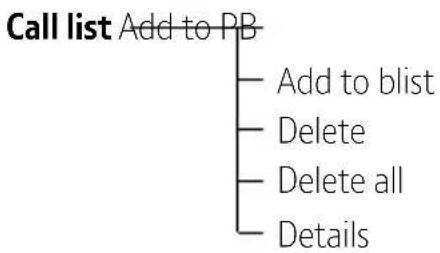
- Press ^Calls, scroll to the entry and press ^Menu. DETAILS is displayed.
- Scroll to ADD TO BLIST (blacklist) and press ✅.
- Enter name using keypad, press ✅. The number is displayed, press ✅ to save. You will hear a confirmation tone.
Turn call blocking on to enable blacklist
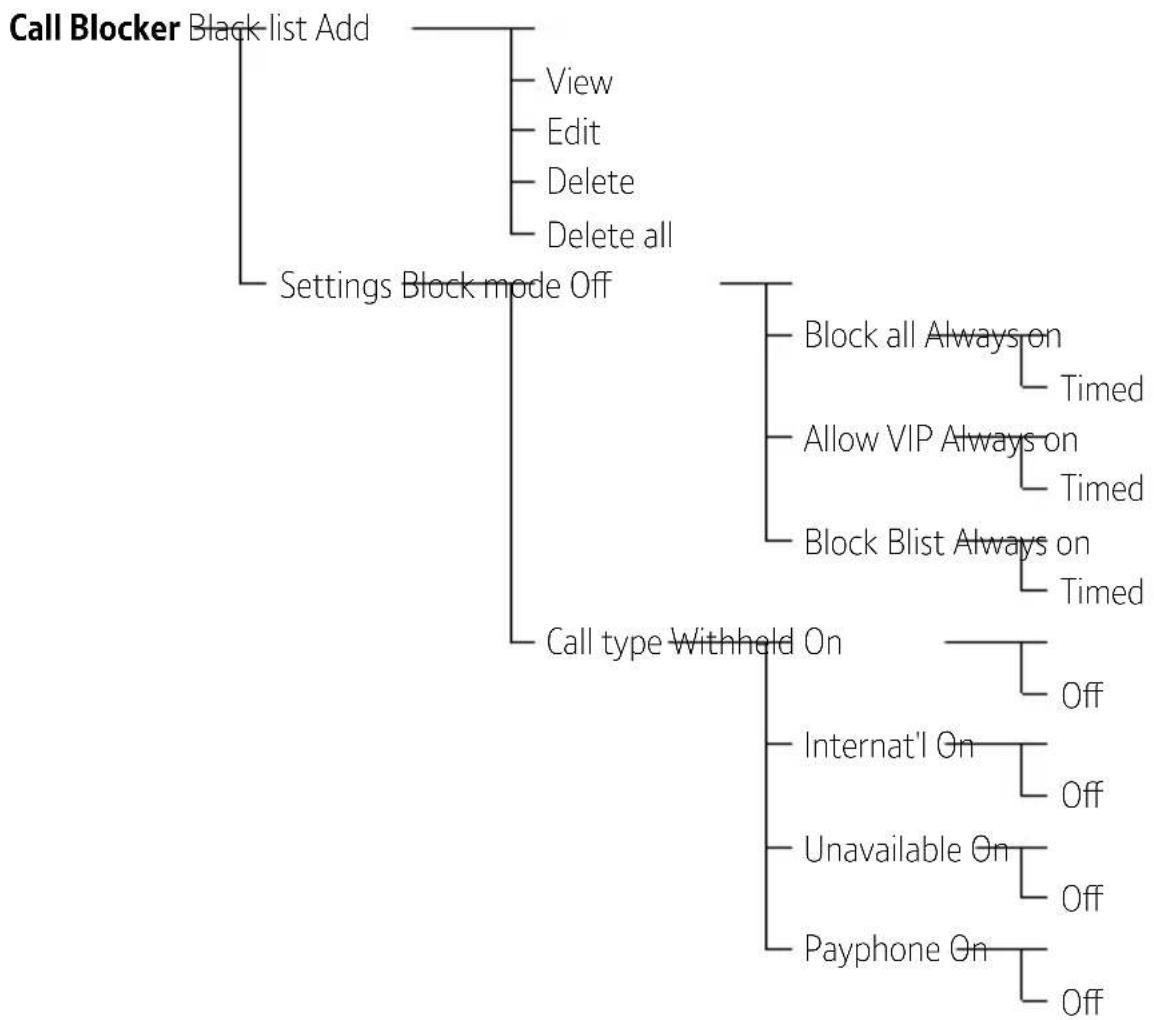
- Press ✅, scroll to CALL BLOCKER, and press ✅.
- Scroll to SETTINGS, press ✅.
- Scroll to BLOCK MODE and press ✅.
- Select BLOCK BLIST, press ✅.
- Scroll to ALWAYS ON, press ✅. CALLBLOCK ON is displayed.
Note, the same phone number can't be saved in the blacklist and phonebook.
Add, view, edit or delete a number in your blacklist
- Press ✅, scroll ✅ to CALL BLOCKER, and press ✅.
- Scroll Redial to BLACK LIST, press Menu
- Scroll or to number you want to view, edit or delete in your blacklist. Or go to step 4 to add a number to your blacklist.
- Whilst in BLACK LIST menu, press Menu ✓. EMPTY is shown, press again then scroll ^ or Redial add, VIEW, EDIT, DELETE or DELETE ALL and press Menu ✓.
- Follow the on-screen instructions.
Block incoming call by call type
- Press ✅, scroll ✅ to CALL BLOCKER, and press ✅.
- Scroll to SETTINGS, press ✅.
- Scroll to CALL TYPE, press ✅.
- Scroll to the call type you want to block – WITHHELD, INTERNAT'L, UNAVAILABLE or PAYPHONE – and press ✅. You'll hear a confirmation tone.
Caller Display and the Calls List
Caller Display
If you've subscribed to a Caller Display service, you'll be able to see your caller's number on your handset display (provided it's not withheld) before you answer a call. If your caller's name is stored in your contacts list and it matches the number calling, you'll see the caller's name on the display instead. If you haven't subscribed to a Caller Display service Incoming call will be displayed when you receive a call.
Calls list
The Calls list holds up to 20 incoming (missed and answered) calls. The date and time of the call is also stored. If you haven't subscribed to a Caller Display service, no number will be displayed for incoming calls.
Calls are listed in chronological order with the most recently received/ made call at the top of the list. When the list is full and a new call is received/made, the oldest entry will be deleted automatically.
The Calls list can hold numbers up to 24 digits and names up to 12 characters.
You'll need to subscribe to your network provider's Caller Display service for this feature to work. You might have to pay a fee. For more information on BT Calling Features, go to bt.com/callingfeatures
For the caller's name to be displayed, make sure you've stored the full telephone number in your contacts list, including the dialling code. There are some incoming calls where a number is not displayed and a network message is recorded instead:
Unavailable = number is unavailable
Withheld = number has been withheld
International = International number
Operator = call from the operator
Payphone = call from a payphone
Ringback = a ringback call
Missed call notification
The number of missed calls will be shown e.g. 10 new calls. You can clear the notification by viewing the calls list on any handset registered to the base.
View/dial an entry in the Calls list
- Press ^Calls. The most recent entry is at the top of the list. (If there are no entries EMPTY will be displayed.
- Press or to scroll through and view the list.
- To dial an entry, when the entry you want is displayed, press 🔒.
Save a Calls list entry to your phonebook
- Press Calls, then press Call or to scroll to the entry you want and select by pressing Menu.
- Scroll to ADD TO PB, press ✅.
- Enter name using keypad and press ✅.
- Enter phone number and press Menu to save.
- Press Redial to select ring melody, then Menu to save.
- If you have more than one handset registered to the base, they will be updated automatically.
Calls list indicator
!= missed call When the Calls list is open, press to scroll from the newest call to the oldest, or press to scroll from the oldest call to the newest. If you need to edit the number or name, press or to move cursor left or right and C to delete unwanted digits/characters then use the keypad to enter new ones.
The other handset(s) must be in idle mode to work.
Caller Display and the Calls List
Delete an entry in the Calls list
- Press ^Calls, then press ^Calls or Redial to scroll to the entry you want to delete and select by pressing ^Menu.
- Press Redial until DELETE is displayed and press Menu. You will hear a confirmation tone.
Delete the entire Calls list
- Press , then display any entry and select by pressing the button.
- Press ✅ until CONFIRM? is displayed, then press ✅. You will hear a confirmation tone.
Answer Machine
Your Everyday Phone can record up to 15 minutes of messages. You can operate your answer machine from: the handset, the base or remotely from any other Touchtone™ telephone.
Using the answer machine from the handset
Switch the answer machine on or off
- Press ✅, ANS. MACHINE is displayed, press ✅.
- Press ✅ until TAM ON/OFF is displayed, press ✅.
- Press or to select ON or OFF then press to save. TAM ON/OFF will be displayed.
Outgoing messages
The outgoing message is the message a caller first hears when the answer machine picks up their call. There are two pre-recorded outgoing messages to choose from, one that allows callers to leave a message (Answer & Record) and one that simply answers the call (Answer Only) or you can record your own. The default is Answer & Record.
You'll need to set the date and time (if you've not already done so) so that the answer machine can correctly announce when each message was received. To set the date and time manually, see page 42.
Answer & Record
The pre-recorded Answer & Record outgoing message that allows your caller to leave a message is, “Hello, your call cannot be taken at the moment, so please leave your message after the tone”.
Answer Only
The pre-record Answer Only outgoing message, where callers hear an announcement but can't leave a message, is "Hello, your call cannot be taken at the moment and you cannot leave a message, so please call later".
Record your own outgoing message
- Press ✅, ANS. MACHINE is displayed, press ✅.
- Press Redial until TAM SETTINGS is displayed, press Menu.
- ANSWER MODE is displayed. Scroll Radial to OGM SETTINGS, press Menu √.
- ANS & REC is displayed, or press ✅ to select ANSWER ONLY and press ✅.
- Press Redial to display RECORD MESS. Follow the voice prompt to record your message and press Menu when you've finished. Your message will be played back to you. If you are not happy with it you can delete by pressing Mute ✗.
When recording your Answer Only message, remember to let your caller know that they won't be able to leave a message.
Deleting your own recorded outgoing message will reinstate the pre-recorded outgoing message.
Play the current outgoing message
- Follow steps 1 to 3 in ‘Record your own outgoing message’ above.
- Press ^ or Redial to display the outgoing message mode you want: ANS & REC or ANSWER ONLY and press Menu √.
- Press ✅ to display Playback and press ✅ to hear the outgoing message. If the current outgoing message being played is your recorded message you can delete it if you want to by pressing ✅.
Set the answer mode (Answer & Record or Answer Only)
- Follow steps 1 to 2 in 'Record your own outgoing message' on page 29.
- ANSWER MODE is displayed, press Menu √.
- Press or to display the outgoing message mode you want: ANS & REC or ANSWER ONLY and press . You will hear a confirmation tone.
Set the answer delay
The answer delay setting sets how many times the phone will ring before the answer machine takes the call. You can choose from 2-8 rings or Time saver. The default setting is 4 rings.
- Press ✅, ANS. MACHINE is displayed, press ✅.
- Press ✅ until TAM SETTINGS is displayed, press ✅.
- Press ✅ to display ANSWER DELAY and press ✅.
- Press or to display the number of rings you want (2-8 rings or Time saver) and press to save your new setting.
Time saver
When you ring in to access your answer machine remotely, if you have set Time saver as the answer delay and you have new messages it will answer after 4 rings. If you don't have new messages it will answer after 6 rings. This means you can hang up knowing that you have no new messages, saving you the time and the cost of the call.
For compatibility with BT 1571 (or another voicemail service)
Make sure the answer delay is set for your answer machine to answer before the voicemail service. For BT 1571 do not set the answer delay to more than 5 rings.
Set the maximum message length
The maximum answer machine message length can be set to 1, 2 or 3 minutes, or unlimited.
The default setting is 3 minutes.
- Press ✅, ANS. MACHINE is displayed, press ✅.
- Press ✅ until TAM SETTINGS is displayed, press ✅.
- Press ✅ to display RECORD TIME and press ✅.
- Press or to select the length you want and press to save your new setting.
Call screening
When call screening is turned on and the answer machine takes a call, you can listen to the caller leaving a message. You can then identify the caller and decide whether to take the call in person.
Turn call screening on or off
- Press ✅, ANS. MACHINE is displayed, press ✅.
- Press ✅ until TAM SETTINGS is displayed, press ✅.
- Press ✅ until BS screening is displayed, press ✅.
- Press ⬆ or Redial ↓ to display ON or OFF and press ✅ to save your new setting.
Using call screening
When the phone rings, wait for the answer machine to take the call. When the caller begins to leave a message, the display will show SCREENING? If you want to talk to the caller, press 🔒 to take the call. This will stop the recording if it's already started.
Message playback using the handset
When you receive new messages you will be notified by a message on the handset display and the ▶■ button on the base will flash: a fast flash indicates new (unplayed) messages.
-
Press ✅, ANS. MACHINE is displayed, press ✅.
-
MSG PLAYBACK and the number of new messages will be displayed, press ✅. Your messages will now be played, with the most recent first.
-
Press 4 _CHI to replay the current message, or press twice to skip backward to the previous message.
- Press 6_MNO to skip forward to the start of the next message.
- Press 5 _JKL to stop playback.
- Press 2_ABC^x to delete message.
Each message is played back with the day, date and time it was received announced. New (unplayed) messages are played first (oldest to most recent) and then old (played) messages (oldest to most recent). If the memory is full, you can still playback your messages by pressing Menu, however, the phone will alternately display TAM FULL and the handset name or date/time information depending on handset settings selected. Message playback is stopped if you receive an incoming call.
Delete all old (played) messages
- Press ✅, ANS. MACHINE is displayed, press ✅.
- Press Redial until Del all is displayed, press Menu.
- CONFIRM? is displayed, press ✅ to confirm. You'll hear a confirmation tone.
Using the answer machine from the base
Message playback using the base
Press Play. If you have messages they will be played, new (unplayed) messages first followed by old (played) messages.
During playback:
Press Play to stop playback. The base will return to idle.
Press Delete × to delete the message being played.
At the end of playback the base will return to idle mode and messages will be renumbered to take into account any deleted messages.
You can't delete messages that you've not played yet. Unless you delete a message, it's automatically saved. To cancel deletion when you see the message Delete all old messages? press Mute ✗.
Delete all old (played) messages
- In idle mode, press Delete ✗. The base will announce, "To delete all old messages, press Delete".
- Press Delete ✗ within 3 seconds to delete all old messages. You will hear, “All old messages deleted.” (If you don’t press Delete ✗ within 3 seconds you will hear, “Messages saved”).
Remote access
With remote access you can operate your answer machine from any Touchtone™ phone, even if you forget to turn on your answer machine before you go out.
You need to set a remote access PIN first and then you will need to turn remote access On if you want to use this feature.
Memory full
If there is only 10 seconds of memory capacity left when a caller is leaving a message they will hear, “Please complete your message within 10 seconds.” If a caller is still leaving a message when the memory expires they will hear, “Memory full. Thank you for calling”, and the call will be ended.
If your answer machine memory becomes full and it is set to Answer and record it will automatically switch to Answer only mode. Once messages have been deleted and there is memory available again, the machine will revert to Answer and record mode (unless you have changed the mode yourself to Answer only using the handset menu).
You will need to delete messages before your answer machine will be able to record new ones. To delete all old (played) messages, see page 33 and opposite.
Answer Machine
Change the remote access PIN
- Press ✅, ANS. MACHINE is displayed, press ✅.
- Press Redial until TAM SETTINGS is displayed, press Menu.
- Press Redial until Change PIN is displayed, press Menu.
- Enter your old 4 digit PIN and press ✅.
- Enter the new 4 digit PIN, press Menu and then enter the new PIN again and press Menu. You will hear a confirmation tone.
Turn remote access on or off
- Press ✅, ANS. MACHINE is displayed, press ✅.
- Press ✅ until TAM SETTINGS is displayed, press ✅.
- Press ✅ until Remote acc is displayed, press ✅.
- Press ^ or Redial to display ON or OFF and press Menu.
If you forget to switch on your answer machine
- Call your number from another phone and let it ring.
After 20 rings the machine will switch on and answer your call. - Press ✝ and enter your 4 digit remote access PIN when prompted. Play back your messages as shown in the steps below. If you do not choose to switch your answer machine On, it will switch off when the call is ended.

Tip
Default remote access PIN is 0000.
Operating you answer machine remotely
- Dial your phone number.
- When you hear your outgoing message, press ✱ and enter your four digit remote access PIN.
- Follow the voice prompts, and press:
1 Replay current message
2 Play all messages
3 Delete a message during playback
4 Skip back during playback. Press twice, to skip to the previous message
5 Turn Answer Machine on/off
6 Skip forward during playback
8 Listen to current outgoing message
9 Record new outgoing message
0 Play main menu options again
# Switch between Answer Only and Answer & Record
Settings
Handset settings
Set the handset ringtone for external or internal calls
- Press Menu, scroll Redial to HS
SETTINGS and press ✅. - ALARM is displayed, scroll to RING SETUP, press ✅.
- INT. RING is displayed, press ✅.
Or, press Radial to display EXT. RING and then press Menu. The current ringtone will be played. - Press or to hear the different ringtones and press to save your choice, you will hear a confirmation tone.
Set the handset ringer volume
-
Press ✅, scroll ✅ to HS SETTINGS and press ✅.
-
Scroll to RING SETUP, press ✅.
-
Press ✅ until RING VOLUME is displayed and press ✅.
-
The current external ringtone will play at the current volume. Use the ⬆ Calls or ⬇ Redial button to increase or decrease the volume, or turn the ringer off. You will see the volume level change on the display or VOLUME OFF will be displayed if you turn the ringer off.
-
Press ✅ to save your choice, you'll hear a confirmation tone.
Choose from 5 handset ringtones. The default external ringtone is Melody 1 and the internal ringtone is Melody 2.
There are 5 handset ringer volume levels plus Ringer Off. The default setting is Level 3. If you turn the ringer off, the icon will be displayed on the home screen. As a quick way to turn the handset ringer off, press and hold #δ.
Turn the handset tones on or off
- Press ✅, scroll ✅ to HS SETTINGS and press ✅.
- ALARM is displayed. Press Redial until TONE SETUP is displayed and press Menu.
- KEY TONE is displayed, press ✓ or press 📄 to display BATTERY TONE or OUT OF RANGE TONE and then press ✅.
- Press or to select ON or OFF then press to save, you will hear a confirmation tone.
Change the handset name
- Press ✅, scroll ✅ to HS SETTINGS and press ✅.
- ALARM is displayed, press Redial until RENAME HS is displayed and press Menu.
- Edit the name by selecting C to delete the characters, then enter the new name and press ✅ to save. You will hear a confirmation tone.
There are three handset tones: keypad tones, battery tones and out of range tones. You can turn these on or off, the default setting is On.
With keypad tones turned on, you will hear a beep after each button press.
To alert you that the battery needs charging, you will hear a low battery tone while you are on a call.
You will also hear a warning tone if the phone goes out of range.
A handset name can be a maximum of 10 characters.
Change the call settings
- Press ✅, scroll ✅ to HS SETTINGS and press ✅.
- ALARM is displayed, press ✅ until AUTO ANSWER is displayed and press ✅.
- Press or to select On or Off then press to save, you will hear a confirmation tone.
Base settings
Set the base ringtone
- Press ✅, scroll ✅b BS SETTINGS and press ✅.
- BS RINGER is displayed, press ✅.
- The current ringtone will be played at the base. Press or to hear the different ringtones and press to save your choice. You will hear a confirmation tone.
Set the base ringer volume
- Press ✅, scroll ✅ to BS SETTINGS and press ✅.
- BS RINGER is displayed, press √ until RING VOLUME is displayed and press ✅.
- The current base ringtone will play at the current volume. Use the or button to increase or decrease the volume, or turn the
The default setting for all call settings is On.
If Auto answer is set to On you can answer a call by lifting the handset off the base. If it's set to Off, you'll need to lift the handset off the base and then press 📋.
Choose from 5 base ringtones. The default base ringtone is Melody 1.
There are 5 base ringer volume levels plus Ringer Off. The default setting is Level 3
Settings
ringer off. You will see the volume level change on the display.
- Press ✅ to save your choice. You will hear a confirmation tone.
Set a PBX access code
- Press ✅, scroll ✅ to BS SETTINGS and press ✅.
- BS RINGER is displayed, press ✅ until PBX ACCESS is displayed and press ✅.
- Enter the number you want (maximum of 1 digit) and press ✅ to save. You will hear a confirmation tone.
Change the system PIN
- Press ✅, scroll ✅ to BS SETTINGS and press ✅.
- BS RINGER is displayed, press ✅ until CHANGE PIN is displayed and press ✅.
- You will be prompted to enter the current 4 digit PIN, then press ✅.
- Enter the new 4 digit PIN again and press ✅.
- Enter the new 4 digit PIN again to confirm and press ✅. You will hear a confirmation tone.
If you're connected to a switchboard, you might need to enter an access code (e.g.9) before each number is dialled. Your Everyday Phone can store an access code which is automatically dialled before each number. If you wish to revert to not using a PBX access code, you need to go into the PBX code menu and delete all the digit by selecting C, then press to save.
The default system PIN is 0000. You can change this to your own preferred 4-digit code. The system PIN is used when changing certain settings and for registration/de-registration. If you make a mistake, select C to delete a digit.
Reset the handset or base settings
- Press , scroll to DEFAULT and press .
- PIN?---- is displayed, enter the 4 digit PIN and press ✅.
- CONFIRM? is displayed, press ✅. You will hear a confirmation tone.
If you reset the phone settings all the phone settings will return to their default settings, e.g. the handset name, ringer melody, all volume levels, display and alarm settings.
Clock/Alarm
If you didn't set the time and date when you first set-up your phone then you will need to do so before you can set an alarm.

Important
You must enter the full date: day, month and year. The time is set in 24 hour format.
Set the time and date
- Press ✅, scroll ✅ to HS SETTINGS and press ✅.
- Scroll Redial until DATE & TIME is displayed and press Menu. SET TIME is displayed, press Menu.
- Enter the time using the keypad and press ✅.
- Enter the day, month and year and press ✅. You'll hear a confirmation tone.
Set an alarm
- Press ^Menu , scroll ^Redial to HS SETTINGS and press ^Menu .
- ALARM is displayed, press ✅.
-
Press ^ Calls or ▼ to turn the alarm ON (or OFF) and press ▼.
-
Enter the alarm time using the keypad. Press ✅. SNOOZE is displayed, press ✅.
- Press ^ or Redial ↓ to turn the snooze ON or OFF, press Menu ↓ to confirm your choice. You will hear a confirmation tone.
Stopping the alarm when it goes off
When the alarm goes off, the selected ring tone will play and ALARM ON will flash.
To stop the alarm, press any key.
If snooze function is activated, the alarm will sound again after seven minutes until you go into alarm settings and turn it off.
When you've set an alarm, the 📁 icon will appear on the idle screen to confirm an alarm has been set. If an incoming call is received while the alarm is going off, the alarm notification will immediately stop and the incoming call will be shown on the display. The alarm will not resume.
Using additional handsets
If you've bought a Everyday Phone multiple pack, any additional handsets come pre-registered to the base. However, if you purchase an additional handset separately, you must register it to your Everyday Phone base before it can be used.
Register an additional handset
- Press and hold the Find button on the base for 5 seconds. The base is entered into registration mode. You will hear a confirmation tone.
- Press ✅, scroll ✅ to
REGISTRATION and press ✅.
- Enter the 4 digit PIN and press ✅. The default system PIN is 0000.
- Once registration is successful the handset will show HANDSET X (with X being the next assigned handset number).
De-register a handset
- Press Menu √, scroll Redial √ to BS SETTINGS and press √.
- Press ✅ until DELETE HS is displayed and press ✅.
- Enter 4 digit system PIN and press ✅.
You can register up to five GAP compliant handsets to your Everyday Phone base to extend your phone system without needing to install telephone extension sockets for each new phone.
If a handset becomes un-registered it will need to be registered to the base again.
If registration isn't successful the first time, please try again in case the base registration period ran out of time.
If there are already five handsets registered to the base, the registration will fail.
You must de-register another handset before you can register the new one.
Registering another make of handset to your Everyday Phone base
If you want to register another make of handset (i.e. not a Everyday Phone handset) to your Everyday Phone base you will need to follow the Registration instructions that came with the handset first and then continue with the base part of the registration procedure.
Please note that registering other types of handset will only provide limited compatibility i.e. you may only be able to make and receive calls on the additional handset.
- Press Callor to display the handset you wish to de-register and press Menu. You will hear a confirmation tone.
Make an internal call between handsets
If you have more than one handset registered to the base, you can make internal calls between two handsets.
- Press ✗ and scroll ⬆ Call or ⬇ No registered handset you want to call.'
- Press ✅ to call the selected handset.
- Press 🔗 to end the call.
Transfer a call
You can transfer an external call to another handset registered to the base.
- During a call, press the √ button, INTERCOM is displayed.
- Press ✅ and scroll ▲ or ▲ to handset you want to transfer the call to, press ✅ to establish internal call.
- Press 🔒 to complete call transfer.
You can also choose All handsets if you want to call all handsets registered to the base. If a handset answers, the handset name will be displayed on your screen. If an external call is received while an internal call is being made, the handsets registered to the base will display the external call information and you will hear the call waiting tone in the handset earpiece.
Hold a 3-way call
You can hold a 3-way call between 2 handsets, if you have more than 1 registered to your base and 1 external caller.
- During a call, press the ✅ button, INTERCOM is displayed.
- Press ✅ and scroll ✅ or ✅ to handset you want to transfer the call to, press ✅ to establish internal call.
- Press and hold * on the call handset to establish a conference call, CONFERENCE is displayed.
- Both parties on conference call will need to press 🔒 to end the external call.Text box medium text
You can also choose All handsets if you want to call all handsets registered to the base. If a handset answers, the handset name will be displayed on your screen. If the internal call is not answered after 60 seconds you will see Handset not available on your display and you will be returned to your external caller.
Menu Map

flowchart
graph TD
    A["Msg playback"] --> B["Delete all"]
    B --> C["TAM on/off On"]
    C --> D["Off"]
    D --> E["TAM settings Answer mode Answer only"]
    E --> F["Ans & rec"]
    E --> G["OGM settings Ans & rec Playback"]
    G --> H["Record mess"]
    G --> I["Answer only Playback"]
    I --> J["Record mess"]
    E --> K["Answer delay Time saver"]
    K --> L["2 Rings"]
    K --> M["4 Rings"]
    K --> N["6 Rings"]
    K --> O["8 Rings"]
    E --> P["Record time 60 S"]
    P --> Q["120 S"]
    P --> R["180 S"]
    P --> S["Unlimited"]
    E --> T["Remote acc On"]
    T --> U["Off"]
    E --> V["BS screening On"]
    V --> W["Off"]
    E --> X["Change PIN"]
Menu Map
flowchart
graph TD
    A["Call Blocker"] --> B["Black-list Add"]
    B --> C["View"]
    B --> D["Edit"]
    B --> E["Delete"]
    B --> F["Delete all"]
    A --> G["Settings Block mode Off"]
    G --> H["Block all Always on Timed"]
    G --> I["Allow VIP Always on Timed"]
    G --> J["Block Blist Always on Timed"]
    G --> K["Call type Withheld On"]
    K --> L["Off"]
    K --> M["Internat'l On Off"]
    K --> N["Unavailable On Off"]
    K --> O["Payphone On Off"]
flowchart
graph TD
    A["Call list Add to PB"] --> B["Add to blist"]
    A --> C["Delete"]
    A --> D["Delete all"]
    A --> E["Details"]
Menu Map

flowchart
graph TD
    A["Phonebook All contacts Add"] --> B["Add to VIP"]
    A --> C["View"]
    A --> D["Edit"]
    A --> E["Delete"]
    A --> F["Delete all"]
    A --> G["PB status"]
    A --> H["VIP View"]
    H --> I["Delete"]
    H --> J["Delete all"]

flowchart
graph TD
    A["BS settings BS ringer Melody 1-5"] --> B["Ring volume Volume 1-5, off"]
    B --> C["Delete HS"]
    C --> D["Change PIN"]
    D --> E["PBX Access"]

flowchart
graph TD
    A["HS settings Alarm On HH:MM Snooze"] --> B["Off"]
    A --> C["Ring setup Int. Ring Melody 1-5"]
    C --> D["Ext. Ring Melody 1-5"]
    C --> E["Ring volume Volume 1-5, off"]
    A --> F["Tone setup"]
    F --> G["Key tone"]
    G --> H["On"]
    G --> I["Off"]
    F --> J["Battery tone"]
    J --> K["On"]
    J --> L["Off"]
    F --> M["Out of range"]
    M --> N["On"]
    M --> O["Off"]
    A --> P["Rename HS"]
    P --> Q["On"]
    P --> R["Auto answer"]
    R --> S["Off"]
    A --> T["Date & time"]
    T --> U["Set time"]
    U --> V["HH:MM DD-MM-YY"]
Registration PIN?
Default PIN? Confirm?
Phone doesn't work
- Have you activated the batteries correctly? See page 5.
- Check that the mains power is correctly connected.
No dial tone or line cord error message displayed on screen
- Is the telephone cord plugged into the base and phone wall socket?
- Check that the mains power is correctly connected.
- Only use the telephone cord supplied with the phone.
Can't make or receive calls
- Check that the mains power is correctly connected.
- The batteries may need recharging.
- Has there been a power cut? If so, place the handset back on the base for ten seconds and try again. If it still doesn't work, disconnect the batteries and mains power for ten minutes, then reconnect and try again.
Handset doesn't ring
- The ringer volume may be switched off, see page 38.
- Check that the mains power is correctly connected.
- Make sure the handset is registered to the base, see page 43.
No display
- The batteries may be flat, dead or incorrectly inserted.
- Recharge or replace the batteries.
Range icon flashes
- Make sure the handset is registered to the base, see page 43.
- Check that the mains power is correctly connected to the base.
- Check that the handset is within range of the base.
- If the batteries are low, place the handset on the base/charger to recharge.
You hear the busy tone when you press 🔔
- Make sure the handset is in range of the base.
- Another handset registered to your Everyday Phone base may be on the line.
No Caller Display number/name displayed
- Have you subscribed to a Caller Display service from your network provider? See page 25.
- The caller may have withheld their number.
• Network may not have the callers number information.
- An exact name/number match was not found in your contacts. Check that you’ve stored the full STD dialling code.
Can't register a handset to a base
- You can register up to five handsets to your Everyday Phone base and you can register your Everyday Phone handset to up to four bases. Check that you’ve not exceeded the limits.
- Check that you've entered the correct system PIN number (default PIN 0000).
- Check that you're at least one metre away from other electrical equipment to avoid interference when registering.
Base unit does not ring, but the lights are on
- Have you connected the telephone line correctly?
• Is the base ringer set to off? - You may have a faulty line or socket. Try using another socket or line.
- If you are a BT customer then please call 0800 800 151 or your network provider if you still have problems.
Buzzing noise on my phone or on other electrical equipment nearby
- Sometimes other electrical equipment can interfere with your Everyday Phone if it’s placed too close. We recommend that you place your Everyday Phone at least one metre away from electrical appliances or metal obstructions to avoid any risk of interference.
Customer Helpline
If you're still having problems, call us on 0800 218 2182* or go to bt.com/producthelp
General sales enquiries
- BT Residential lines – call 150. BT Business lines – call 152.
- For non BT line customers, call 0800 800 150 (residential) or 0800 800 152 (business).
• Additional handsets are available to purchase from the Helpdesk on 0800 218 2182*.
Billing enquiries
Please see the phone number shown on your BT bill.
General information

Important
This equipment is not designed for making emergency phone calls when the power fails. Alternative arrangements should be made for access to emergency services. This product is intended for connection to analogue public switched phone networks and private switchboards in the United Kingdom.
Replacing the handset batteries
After a time, you might find that the handset batteries run out of charge more quickly. This is a standard sign of wear and the batteries will need replacing.
- Open the battery compartment cover.
- Lift the battery out and remove the batteries. Replace with two new AAA Ni-MH 500mAh rechargeable batteries.
- Replace the battery compartment cover.
Caution
Don't immerse batteries in water, throw them into a fire or dispose of them with ordinary domestic refuse. BT accepts no responsibility for damage caused to your Everyday Phone by using any other types of batteries.
There is a risk of explosion if incorrect batteries are fitted.
Safety
- Only use the power supply suitable for the Everyday Phone. Using an unauthorised power supply will invalidate your guarantee and may damage the phone. The item code for the base mains power supply is 066771. If you’ve bought a multiple pack, the item code for the charger mains power supply is 066771.
- Use only the approved rechargeable batteries supplied. Spare rechargeable batteries are available from the Everyday Phone Helpline on 0800 218 2182*.
-
Don't open the handset (except to replace the handset batteries) or the base. This could expose you to high voltages or other risks. Contact the Helpline on 0800 218 2182* for all repairs.
-
Radio signal transmitted between the handset and base may cause interference to hearing aids.
- It is recommended that advice from a qualified expert be sought before using this product in the vicinity of emergency/intensive care medical equipment.
- It is recommended that if you have a pacemaker fitted you check with a medical expert before using this product.
- Your product may interfere with other electrical equipment, e.g. TV and radio sets, clock/alarms and computers if placed too close.
- It is recommended that you place your product at least one metre away from such appliances to minimise any risk of interference.
- Never dispose of batteries in a fire. There is a serious risk of explosion and/or the release of highly toxic chemicals.
Cleaning
Clean the handset and base (or charger) with a damp (not wet) cloth, or an anti-static wipe. Never use household polish as this will damage the product. Never use a dry cloth as this may cause a static shock.
Environmental
- Do not expose to direct sunlight.
- The handset may become warm when the batteries are being charged or during prolonged periods of use. This is normal. However, we recommend that to avoid damage you do not place the product on any surface susceptible to heat damage.
- Do not stand your product on carpets or other surfaces which generate fibres, or place it in locations preventing the free flow of air over its surfaces.
- Do not submerge any part of your product in water and do not use it in damp or humid conditions, such as bathrooms.
- Do not expose your product to fire, explosive or other hazardous conditions.
- There is a slight chance your phone could be damaged by an electrical storm. We recommend that you unplug the power and phone line cord during an electrical storm.
How to recycle your equipment
The symbol shown here and on the product means that the product is classed as electrical or electronic equipment, so DO NOT put in your normal rubbish bin.

It's all part of the Waste Electrical and Electronic Equipment (WEEE) Directive to recycle products in the best way – to be kinder to the planet, get rid of dangerous things more safely and bury less rubbish in the ground.
You should contact your retailer or supplier for advice on how to dispose of this product in an environmentally friendly way.
Warning
You won't be able to call 999 from this phone if there's a power cut, so make sure you've got another way to call for help in an emergency.
Radio Equipment Directive Declaration of Conformity
Hereby, British Telecommunications plc declares that the radio equipment type Everyday Phone Telephone (090665, 090666, 090667, 090668) is in compliance with Directive 2014/53/EU. The full text of the EU declaration of conformity is available at the following internet address: bt.com/producthelp
EU Frequency band restriction
This device may be used in each member state.
Radio transmission information Frequency range
1881.792 - 1897.344MHz
Max power
250mW
Operating temperature
0^ C to 40^ C.
Guarantee
Your Everyday Phone is guaranteed for 12 months from the date of purchase. Subject to the terms listed below, the guarantee will provide for the repair of, or at BT's or its agent's discretion, the option to replace the Everyday Phone or any component thereof, (other than batteries), which is identified as faulty or below standard, or as a result of inferior workmanship or materials. Products over 28 days old from the date of purchase may be replaced with a refurbished or repaired product.
Guarantee conditions
- The guarantee shall only apply to defects that occur within the 12 month guarantee period.
• Proof of purchase is provided. - The equipment is returned to BT or its agent as instructed.
- This guarantee doesn’t cover any faults or defects caused by accidents, misuse, fair wear and tear, neglect, tampering with the equipment, or any attempt at adjustment or repair other than through approved agents.
- This guarantee does not affect your statutory rights.
Within the 12 month guarantee period
Prior to returning your product, please read the Help section beginning on page 49 or contact the Everyday Phone Helpline on 0800 218 2182*. Additional answers to frequently asked questions are available from bt.com/producthelp
In the unlikely event of a defect occurring, the helpdesk will issue a Fault Reference Authorisation (FRA) number and instructions for replacement or repair. Please note you will need the FRA number before returning the product. This does not affect your statutory rights.
Outside of the 12 month guarantee period
If your product needs repair after the guarantee period has ended, the repair must meet the approval requirements for connection to the phone network.
We recommend that you contact BT's recommended repair agent Discount Communications on 0800 980 8999 or a local qualified repairer.
Returning your phone
If the Helpline is unable to remedy your problem they will issue a Fault Reference Authorisation number and ask you to return the product to your original place of purchase. Where possible, pack the product in its original packaging. Please remember to include all parts, including the line cords, power supply units and the original batteries.
Technical details How many phones can I have?
All items of telephone equipment have a Ringer Equivalence Number (REN), which is used to calculate the number of items which may be connected to any one telephone line. Your Everyday Phone has a REN of 1. A total REN of 4 is allowed. If the total REN of 4 is exceeded, the telephones may not ring. With different telephone types there is no guarantee of ringing, even when the REN is less than 4.
Any additional handsets and chargers that you register have a REN of 0.
Connecting to a switchboard Switchboard compatibility
This telephone may be connected to most types of switchboard, however in the event of any difficulties, consult your switchboard Service Provider.
Recall (R)
Recall is used when connected to certain switchboards/PBXs and some BT Calling Features, or those services available via your network provider. The Everyday Phone supports timed break recall but not earth loop recall.
Offices worldwide
The services we've described in this publication may not always be available and we may change them. Nothing we've written here is contractual. When we supply services and equipment, our terms and conditions apply.
© British Telecommunications plc 2017 We're registered in England at 81 Newgate Street, London EC1A 7AJ (company number 1800000).
Available in other formats including braille, large print or audio CD. If you would like a copy, please call 0800 218 2182*.
* Calls made from within the UK mainland and mobile networks are free. International call costs may vary.
Everyday Phone TAM (12/17) Issue 3