
EXT-4KFIBERPRO - AV Distribution KanexPro - Free user manual and instructions
Find the device manual for free EXT-4KFIBERPRO KanexPro in PDF.


| Product Type | HDMI 2.0 Fiber Optic Extender (Transmitter + Receiver) |
| Model | EXT-4KFIBERPRO |
| Video Resolution | Up to 4Kx2K@60Hz 4:4:4 HDR |
| Maximum Distance (4K) | 984 ft (300 m) over single-mode or OM3/OM4 multi-mode fiber |
| Maximum Distance (1080p) | 1300 ft (400 m) over single-mode or OM3/OM4 multi-mode fiber |
| HDMI Standard | HDMI 2.0 |
| HDCP Version | HDCP 2.2 |
| Audio Format Support | PCM, Dolby Digital, DTS, DTS-HD |
| Audio Return Channel (ARC) | Supported via DIP switch on both units |
| Control Interfaces | Bi-directional IR and RS-232 pass-through |
| Fiber Connectors | 2 x LC (optical) on both transmitter and receiver |
| Firmware Update | Via micro-USB port |
| Power Supply | Input: AC 100~240V, 50/60Hz; Output: 12V DC 1A |
| Power Consumption | 9W (max) |
| Dimensions (W x H x D) | 5.10" x 0.78" x 3.30" (130 x 20 x 84 mm) |
| Weight (per unit) | 0.38 lbs (175 g) |
| Operating Temperature | -10°C ~ +55°C |
| Storage Temperature | -25°C ~ +70°C |
| Warranty | 3 years parts and labor |
| Package Contents | 1x Transmitter, 1x Receiver, 2x Power Adapters (12V DC 1A), 1x RS232 Cable (3-pin to DB9), 1x 3-pin Terminal Block, 4x Mounting Ears, 16x Screws, 8x Plastic Cushions, User Manual |
| Safety & Care | Do not dismantle; keep away from water; ensure ventilation; use dry cloth for cleaning; unplug before cleaning; do not twist fiber cables. |
| Repairability | Refer servicing to qualified personnel. Contact distributor for warranty repairs. |
Frequently Asked Questions - EXT-4KFIBERPRO KanexPro
User questions about EXT-4KFIBERPRO KanexPro
0 question about this device. Answer the ones you know or ask your own.
Ask a new question about this device
Download the instructions for your AV Distribution in PDF format for free! Find your manual EXT-4KFIBERPRO - KanexPro and take your electronic device back in hand. On this page are published all the documents necessary for the use of your device. EXT-4KFIBERPRO by KanexPro.
USER MANUAL EXT-4KFIBERPRO KanexPro
HDMI® 2.0 Fiber Optic Extender with 4K/60 up to 300 meters

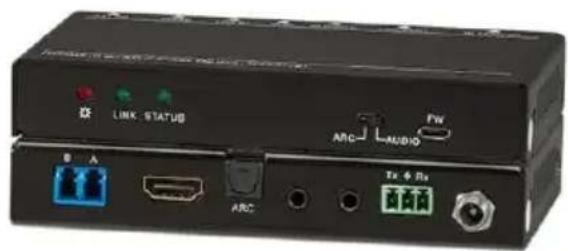
Extend 4K Video, Audio & Control over Fiber up to 984ft. (300m) with HDR, Dolby Vision & ARC
Preface
Read this user manual carefully before using the product. Pictures are shown in this manual for reference only. Different models and specifications are subject to real product.
This manual is only for operation instruction, please contact the local distributor for maintenance assistance. The functions described in this version were updated till July, 2018. In the constant effort to improve the product, we reserve the right to make functions or parameters changes without notice or obligation. Please refer to the dealers for the latest details.
FCC Statement
This equipment generates, uses and can radiate radio frequency energy and, if not installed and used in accordance with the instructions, may cause harmful interference to radio communications. It has been tested and found to comply with the limits for a Class B digital device, pursuant to part 15 of the FCC Rules. These limits are designed to provide reasonable protection against harmful interference in a commercial installation.
Operation of this equipment in a residential area is likely to cause interference, in which case the user at their own expense will be required to take whatever measures may be necessary to correct the interference.
Any changes or modifications not expressly approved by the manufacture would void the user's authority to operate the equipment.



SAFETY PRECAUTIONS
To ensure the best performance from this product, please read all instructions carefully before using the device. Save this manual for future reference.
- Unpack the equipment carefully and save the original box and packing material for possible future shipment.
- Follow basic safety precautions to reduce the risk of fire, electrical shock and injury to persons.
- Do not dismantle the housing or modify the module. It may result in electrical shock or burn.
- Using supplies or parts not meeting the specifications of product may cause damage, deterioration or malfunction.
• Refer all servicing to qualified service personnel.
- To prevent fire or shock hazard, do not expose the unit to rain, moisture or install this product near water.
- Do not put any heavy items on the extension cable in case of extrusion.
- Do not remove the housing of the device as opening or removing housing may expose you to dangerous voltage or other hazards.
- Install the device in a place with fine ventilation to avoid damage caused by overheat.
- Keep the device away from liquids and hazardous materials.
- Spillage into the housing may result in fire, electrical shock, or equipment damage. If an object or liquid falls or spills on to the housing, unplug the module immediately.
- Do not twist or pull by force ends of the optical cable. It can cause malfunction.
- Do not use liquid or aerosol cleaners to clean this unit. Always unplug the power to the device before cleaning.
- Unplug the power cord when left unused for a long period of time.
- Information on disposal for scrapped devices: do not burn or mix with general household waste, and please treat them as normal electrical wastes.
Table of Contents
- Product Introduction .... 1
- Features .... 1
- Package List....1
- Specification ....3
- Panel Description ....4
5.1 Transmitter 4
5.2 Receiver 5 - System Connection .... 6
- Panel Drawing 10
- Troubleshooting & Maintenance....11
- Customer Service 12
1. Product Introduction
The KanexPro EXT- 4KFIBERPRO is an HDMI 2.0 extender set engineered to extend 4Kx2K@60Hz with 4:4:4 Chroma Sampling rate and HDR up to 984ft. (300m) at zero latency. Compliant with HDCP 2.2, the set includes one transmitter and one receiver via two- single mode optical fiber ports or two OM3/OM4 multi-mode fiber cables. Front panel Dip switch allows SPDIF ports on both the sender and receiver to function as ARC (Audio Return Channel) mode or normal audio support for downstream devices. This extender can also be controlled over fiber via bi-directional IR and RS-323C.
2. Features
- Send secure, uncompressed and RF/ EMI free video and audio over fiber
- Works with single mode or multi-mode
• Supports HDR, Dolby Vision and 4:4:4 Chroma sampling rate
• Built-in LC connectors on both the transmitter & receiver
• Extends 4K/60 up to 984ft. (300m)
• Extends 1080p/60 up to 1300ft. (400m) - HDCP 2.2 Compliant
• Supports Audio Return Channel (ARC), EDID & CEC channels
• Bi-directional IR and RS232 pass-though. - Slim chassis design
- Micro–USB port for on the spot firmware update
- Locking power supply & mounting ears
- Backed by KanexPro 3-year warranty for parts & labor
3. Package List
■ 1x Transmitter
- 1x Receiver
■ 2x Power Adapter (12V DC 1A)
■ 1x RS232 Cable (3-pin to DB9)
■ 1x 3-pin Terminal Block
- 4x Mounting Ears
■ 16x Mounting Screws
■ 8x Plastic Cushions
■ 1x User Manual
Note: Please contact your distributor immediately if any damage or defect in the components is found.
- Specification
| Transmitter | |
| Input | 1 x HDMI IN |
| Input Connector | 1 x Type-A female HDMI |
| Output | 2 x OPTICAL OUT; 1 x AUDIO OUT |
| Output Connector | 2 x LC connector; 1 x Toslink connector |
| Control | 1 x IR IN; 1 x IR OUT; 1 x RS232 |
| Control Connector | 2 x 3.5mm mini jacks; 1 x 3-pin terminal block |
| Receiver | |
| Input | 2 x OPTICAL IN; 1 x AUDIO IN |
| Input Connector | 2 x LC connector; 1 x Toslink connector |
| Output | 1 x HDMI OUT |
| Output Connector | 1 x Type-A female HDMI |
| Control | 1 x IR IN; 1 x IR OUT; 1 x RS232 |
| Control Connector | 2 x 3.5mm mini jacks; 1 x 3-pin terminal block |
| General | |
| Video Resolution | Up to 4Kx2K 60Hz 4:4:4 HDR |
| Audio Format | PCM, Dolby Digital, DTS, DTS-HD |
| HDMI Standard | HDMI 2.0 |
| HDCP Version | HDCP 2.2 |
| Transmission Distance | ≤300m via single-mode or OM3/OM4 multi-mode fiber cables. |
| Operation Temperature | -10°C ~ +55°C |
| Storage Temperature | -25°C ~ +70°C |
| Relative Humility | 10%-90% |
| Power Supply | Input: AC 100~240V, 50/60Hz; Output: 12V DC 1A. |
| Power Consumption | 9W (max) |
| Dimension (W*H*D) | 5.10" x 0.78"x 3.30" |
| Net Weight | (0.38 lbs.) 175g |
5. Panel Description
5.1 Transmitter
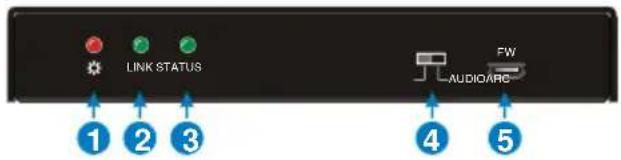

| No. | Name | Description |
| 1 | Power LED | Turns red when DC power present. |
| 2 | Link status LED | Turns green when the transmitter and receiver link successful. |
| 3 | Work status LED | Turns green when the signal data is transmitted between transmitter and receiver. |
| 4 | Audio Mode Switch | ARC (Default): Switch the audio mode to ARC.AUDIO: Switch the audio mode to AUDIO.The DIP switch must be worked with another switch on receiver, for more details, please refer to part # 6.System Application. |
| 5 | FW | USB port, used for firmware update. |
| 6 | OPTICAL OUT | Connect to the OPTICAL IN port on receiver via two fiber cables (A-B; B-A). |
| 7 | HDMI IN | Connect to HDMI source. |
| 8 | AUDIO OUT | Connect to audio broadcast device. |
| 9 | IR IN | Work with far-end IR OUT port on receiver, connect to IR receiver (with carrier) to collect IR signal to control far-end display. |
| 10 | IR OUT | Work with far-end IR IN port on receiver, connect to IR Emitter to send IR signal to control source device. |
| 11 | RS232 | Makes up bi-directional RS232 pass-through control with the RS232 port on receiver. If one is connected to control device (e.g. PC), and the other should be connected to the third-party that need to be controlled. |
| 12 | DC 12V | Connect to 12V DC power adaptor. |
5.2 Receiver
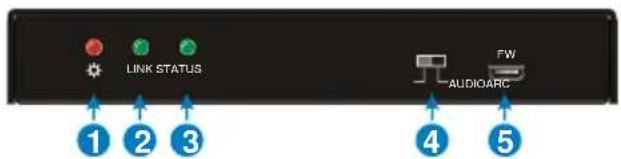

| No. | Name | Description |
| 1 | Power LED | Turns red when DC power present. |
| 2 | Link status LED | Turns green when the transmitter and receiver link successful. |
| 3 | Work status LED | Turns green when the signal data is transmitted between transmitter and receiver. |
| 4 | Audio Mode Switch | ARC (Default): Switch the audio mode to ARC.AUDIO: Switch the audio mode to AUDIO.The DIP switch must be worked with another switch on transmitter, for more details, please refer to part 6.System Application. |
| 5 | FW | USB port, used for firmware update. |
| 6 | OPTICAL IN | Connect to the OPTICAL OUT port on transmitter via two fiber cables (A-B; B-A). |
| 7 | HDMI OUT | Connect to HDMI display. |
| 8 | AUDIO IN | Connect to audio source device. |
| 9 | IR IN | Work with far-end IR OUT port on transmitter, connect to IR receiver (with carrier) to collect IR signal to control far-end source device. |
| 10 | IR OUT | Work with far-end IR IN port on transmitter, connect to IR Emitter to send IR signal to control display device. |
| 11 | RS232 | Makes up bi-directional RS232 pass-through control with the RS232 port on receiver. If one is connected to control device (e.g. PC), and the other should be connected to the third-party that need to be controlled. |
| 12 | DC 12V | Connect to 12V DC power adaptor. |
6. System Application
Usage Precautions:
- Make sure all components and accessories included before installation.
- System should be installed in a clean environment with proper temperature and humidity.
- All of the power switches, plugs, sockets, and power cords should be insulated and safe.
- All devices should be connected before power on.
There are four connection ways can be chosen via audio mode switch.
| Mode | Switch Status | Description | |
| Transmitter | Receiver | ||
| 1 | ARC | ARC | The audio signal is transmitted from the display back to HDMI IN and AUDIO OUT ports. |
| 2 | ARC | AUDIO | The audio signal is transmitted from the AUDIO IN to HDMI IN and AUDIO OUT ports. |
| 3 | AUDIO | ARC | The audio signal is transmitted from the display back to the AUDIO OUT port. |
| 4 | AUDIO | AUDIO | The audio signal is transmitted from the AUDIO IN to the AUDIO OUT port. |
Note: When the switch status is set as mode 1,2 or 3, the amplifier, display must support ARC.
Mode ①: Transmitter: ARC; Receiver: ARC
The audio signal is transmitted from the display back to HDMI IN and AUDIO OUT ports.

flowchart
graph TD
    A["Blu-Ray DVD Speaker"] -->|ARC| B["APMLIFIER"]
    B -->|ARC| C["Tx Rx"]
    C --> D["TV Remote"]
    D -->|ARC| E["Receiver: ARC"]
    E --> F["Display"]
    G["Speaker"] -->|ARC| B
    H["300m"] --> I["Transmitter: ARC"]
    I --> J["300m"]
    K["IR Emitter"] --> L["Display"]
    style A fill:#f9f,stroke:#333
    style E fill:#f9f,stroke:#333
    style F fill:#ccf,stroke:#333
    style G fill:#cfc,stroke:#333
    style H fill:#fcc,stroke:#333
    style I fill:#ffc,stroke:#333
Connection procedure:
Step1. Connect the OPTICAL OUT port of the transmitter to the OPTICAL IN port of the receiver with two OM3/OM4 multi-mode fiber cables.
Step2. Connect an amplifier to the HDMI IN port of Transmitter, and then connect HDMI source device (e.g. Blue-ray DVD) and Speaker to the amplifier.
Step3. Connect a broadcast device (e.g. Speaker) to the AUDIO OUT port of transmitter with Toslink audio cable.
Step4. Connect a display device (e.g. TV) to the HDMI OUT port of receiver with HDMI cable.
Step5. Bi-directional IR control: Both transmitter and receiver have IR IN and IR OUT port. When one model use for IR signal receiver, the IR signal must be sent out by the other model.
For example: When IR IN port of transmitter connects with an IR receiver, the IR Emitter must be connected to the IR OUT port of receiver.
Step6. Bi-directional RS232 control: Both transmitter and receiver have RS232 port. When one model use for control device, the other must be used for the third-party device needed to be controlled.
For example: When RS232 port of transmitter connects with a control PC, the third-party device must be connected to the RS232 port of receiver.
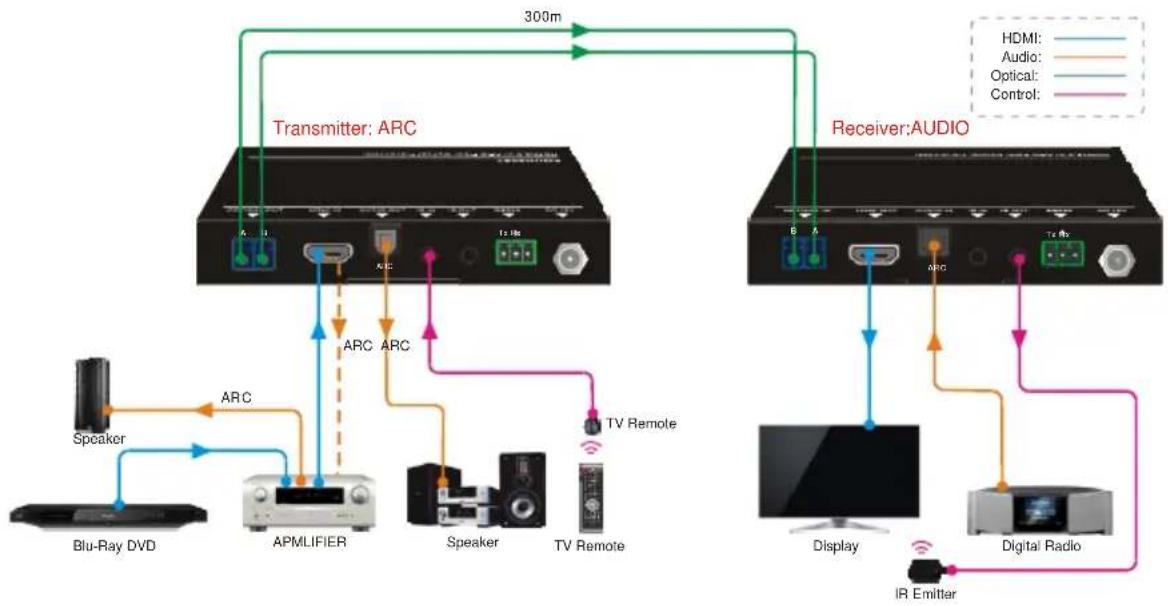
Mode ②: Transmitter: ARC; Receiver: AUDIO
The audio signal is transmitted from the AUDIO IN to HDMI IN and AUDIO OUT ports.
flowchart
graph TD
    subgraph_Transmitter["Transmitter: ARC"]
        A1["Speaker"] -->|ARC| APMLIFIER["APMLIFIER"]
        APMLIFIER -->|ARC| Speaker["Speaker"]
        APMLIFIER -->|ARC| TV_Remote["TV Remote"]
    end
    subgraph_Receiver["Receiver: AUDIO"]
        B1["Monitor"] -->|ARC| Display["Display"]
        Display -->|IR Emitter| IR_Emitter["IR Emitter"]
        IR_Emitter --> Digital_Radio["Digital Radio"]
    end
    Transmitter -->|300m| Receiver
    Receiver -->|HDMI: Audio: Optical: Control:| Transmitter
Mode ③: Transmitter: AUDIO; Receiver: ARC
The audio signal is transmitted from the display back to the AUDIO OUT port, but not to HDMI IN port.

flowchart
graph TD
    A["Blu-Ray DVD"] --> B["APMLIFIER"]
    B --> C["Speaker TV Remote"]
    C --> D["TV Remote"]
    D --> E["Receiver: ARC"]
    E --> F["Display"]
    G["Transmitter: AUDIO"] --> H["30um"]
    I["ARC"] --> J["Audio:"]
    J --> K["Optical:"]
    K --> L["Control:"]
    M["IR Emitter"] --> N["Display"]
    style A fill:#f9f,stroke:#333
    style B fill:#ccf,stroke:#333
    style C fill:#cfc,stroke:#333
    style D fill:#fcc,stroke:#333
    style E fill:#ffc,stroke:#333
    style F fill:#cff,stroke:#333
    style G fill:#ffc,stroke:#333
    style H fill:#cfc,stroke:#333
    style I fill:#cfc,stroke:#333
    style J fill:#ffc,stroke:#333
    style K fill:#cfc,stroke:#333
    style L fill:#cfc,stroke:#333
    style M fill:#ffc,stroke:#333
    style N fill:#cfc,stroke:#333
Mode ④:Transmitter: AUDIO; Receiver: AUDIO
The audio signal is transmitted from the AUDIO IN to the AUDIO OUT port.

flowchart
graph TD
    A["Blu-Ray DVD"] -->|300m| B["Speaker TV Remote"]
    B --> C["Tx Rx"]
    C --> D["Display"]
    C --> E["IR Emitter"]
    F["Receiver: AUDIO"] --> G["Display"]
    F --> H["IR Emitter"]
    I["Transmitter: AUDIO"] --> J["Speaker TV Remote"]
    J --> K["Tx Rx"]
    K --> L["Display"]
    K --> M["IR Emitter"]
    style A fill:#f9f,stroke:#333
    style F fill:#f9f,stroke:#333
    style I fill:#f9f,stroke:#333
    style B fill:#ccf,stroke:#333
    style J fill:#ccf,stroke:#333
    style K fill:#ccf,stroke:#333
    style L fill:#ccf,stroke:#333
7. Panel Drawing
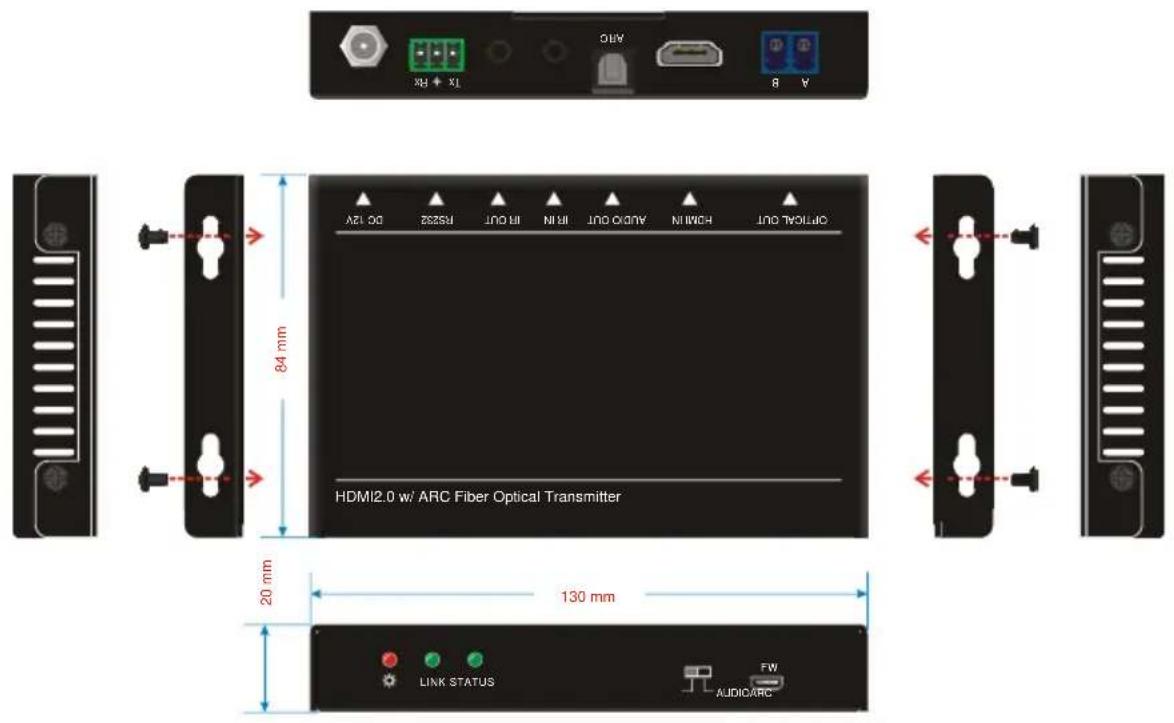
6-1 Transmitter

6-2 Receiver
- Troubleshooting & Maintenance
| Problems | Potential Causes | Solutions |
| Losing color or vague double image in HDMI display. | Poor quality of the optical fiber cable. | Change to qualified OM3 cable. |
| Power LED is off, No response for operations | Not been powered. | Power up the unit. |
| Poor contact. | Make sure power adapter is in well contact. | |
| No output on the display. | Source or Display is off. | Turn on the source/ display. |
| Poor contact. | Check the HDMI ports one by one to make sure they are in well contact and not loosely plugged | |
| The display doesn’t support the resolution. | Connect the display to the transmitter and capture its EDID data before using. |
Note: If your problem still persists after following the above troubleshooting steps, please contact your local dealer or distributor for further assistance. Or call us directly at (888) 975-1368 or email to support@kanexpro.com
9. Customer Service
The return of a product to our Customer Service implies the full agreement of the terms and conditions hereinafter. There terms and conditions may be changed without prior notice.
1) Warranty
The limited warranty period of the product is three years parts and labor from the date of purchase.
2) Scope
These terms and conditions of customer service apply to the customer service provided for the products or any other items sold by authorized distributor only.
3) Warranty Exclusions:
- Warranty expiration.
- Factory applied serial number has been altered or removed from the product.
- Damage, deterioration or malfunction caused by:
√ Normal wear and tear.
√ Use of supplies or parts not meeting our specifications.
√ No certificate or invoice as the proof of warranty.
√ The product model showed on the warranty card does not match with the model of the product for repairing or had been altered.
√ Damage caused by force majeure.
√ Servicing not authorized by distributor.
√ Any other causes which does not relate to a product defect.
- Shipping fees, installation or labor charges for installation or setup of the product.
4) Documentation:
Customer Service will accept defective product(s) in the scope of warranty coverage at the sole condition that the defeat has been clearly defined, and upon reception of the documents or copy of invoice, indicating the date of purchase, the type of product, the serial number, and the name of distributor.
- Preface
- FCC Statement
- SAFETY PRECAUTIONS
- Table of Contents
- Product Introduction
- Features
- Package List
- Panel Description
- Transmitter
- Receiver
- System Application
- Usage Precautions:
- Mode ①: Transmitter: ARC; Receiver: ARC
- Connection procedure:
- Mode ②: Transmitter: ARC; Receiver: AUDIO
- Mode ③: Transmitter: AUDIO; Receiver: ARC
- Mode ④:Transmitter: AUDIO; Receiver: AUDIO
- Panel Drawing
- Customer Service
- 1) Warranty
- 2) Scope
- 3) Warranty Exclusions:
- 4) Documentation:
Brand : KanexPro
Model : EXT-4KFIBERPRO
Category : AV Distribution